

Page 1
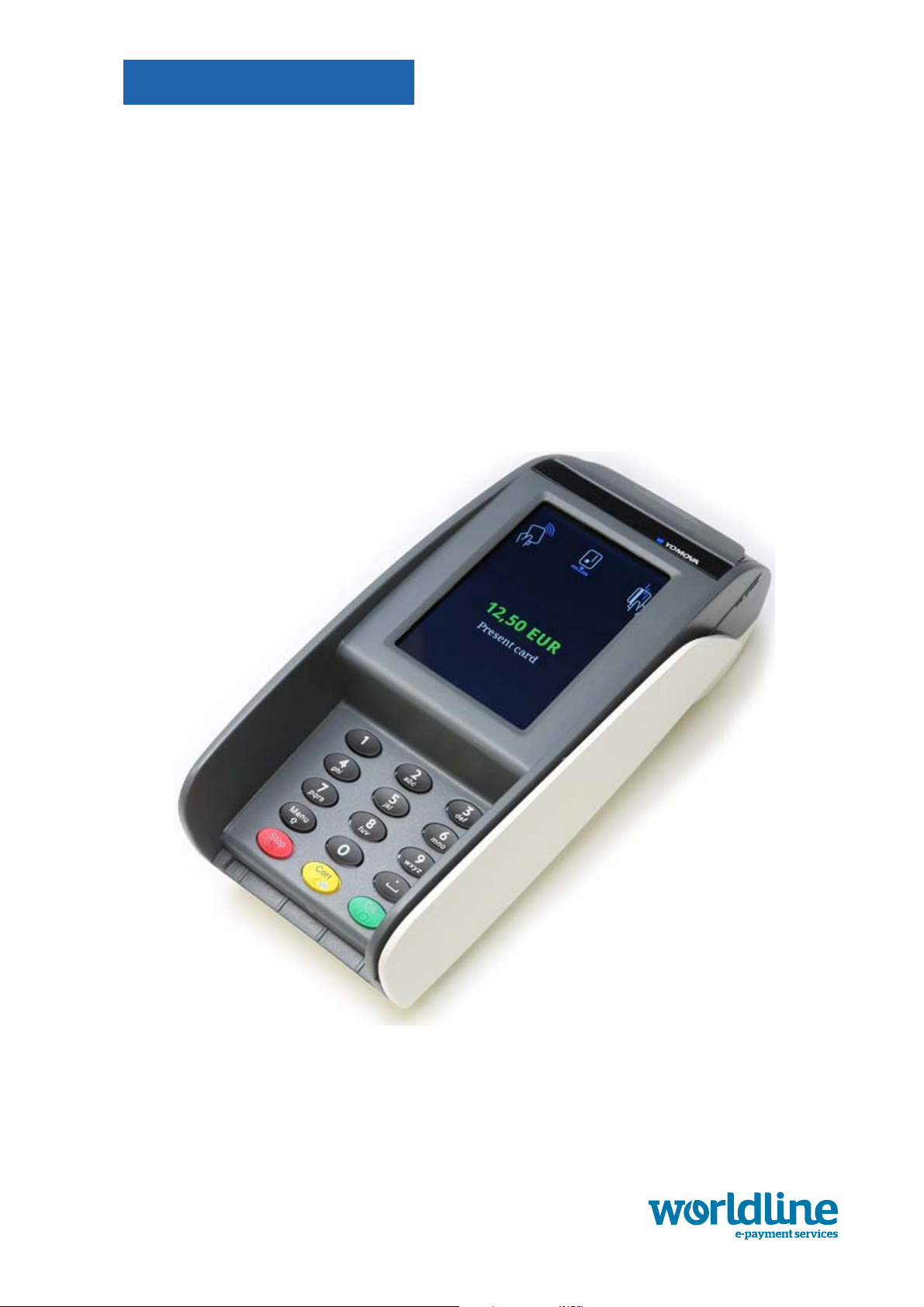
OWNER MANUAL
••••••
YOMOVA
portable payments
streamlined innovation
an atos company
Page 2

Legal disclaimer and copyrights
The information in this document is subject to change without notice and shall not be construed as a
commitment by Worldline S.A./N.V. (“Worldline”)
The content of this document, including but not limited to trademarks, designs, logos, text, images, is
the property of Worldline and is protected by the Belgian Act of 30.06.1994 related to authors’ rights and
by the other applicable Acts.
The word YOMOVA and other trademarks used in th is document are the property of Worldline. Worldline
trademarks used in this document are indicated. Linux is a registered trademark of Linus Torvalds, Java
is a registered trademark of Oracle and/or its affiliates and Android is a trademark of Google Inc.
The contents of this document can be reproduced by or on behalf of third parties with the prior written
consent of Worldline and following its instructions. Worldline accepts no responsibility for errors and
omissions introduced when translating or reworking this document.
Except with respect to the limited licence to download and print certain material from this document for
non-commercial and personal use only, nothing contained in this document shall grant any licence or
right to use any of Worldline's proprietary material.
YOMOVA portable owner manual
While Worldline has made every attempt to ensure that the information contained in this document is
correct, Worldline does not provide any legal or commercial warranty on the document that is described
in this specification. The technology is thus provided “as is” without warranties of any kind, expressed
or implied, included those of merchantability and fitness for a particular purpose. Worldline does not
warrant or assume any legal liability or responsibility for the accuracy, completeness, or usefulness of
any information, product or processes disclosed.
To the fullest extent permitted under applicable law, neither Worldline nor its affiliates, directors,
employees and agents shall be liable to any party for any damages that might result from the use of the
technology as described in this document (including without limitation direct, indirect, incidental, special,
consequential and punitive damages, lost profits).
These terms shall be governed by and construed in accordance with the laws of Belgium. You
irrevocably consent to the jurisdiction of the courts located in Brussels for any action arising from or
related to the use of this document.
Document information
document title YOMOVA portable – owner manual
security unrestricted
last modified 7 October 2016
owner Philippe Lesire
author Niels Grundtvig Nielsen
version 2.1
© Worldline 2014, 2016
Page 3

Contents
Introduction............................................................................................................ 1
About the YOMOVA.................................................................................................1
About this manual.....................................................................................................2
What is new in this version.......................................................................................2
Change log................................................................................................ ...............2
Terminal and accessories..................................................................................... 3
YOMOVA top view ...................................................................................................3
YOMOVA side view..................................................................................................4
YOMOVA bottom view.............................................................................................4
Connector compartment.....................................................................................5
Card/battery compartment .......................................................... .. .....................6
Options and accessories..........................................................................................6
Installing the YOMOVA portable........................................................................... 7
Unpacking the YOMOVA..........................................................................................7
Preparing a YOMOVA for operation......................................................................... 8
Selecting a location..................... ........................................ .. ...................................8
Installing SIM or SAM...............................................................................................8
Loading paper ........................................................................................................ 10
Fitting the battery....................................................................................................12
Charging the battery.............................................................. .................................14
Powering a YOMOVA with the mains adaptor.......................................................15
Using the YOMOVA portable............................................................................... 17
Security recommendations.....................................................................................17
Reading a chip card ............................................................................................... 17
Reading a magstripe card......................................................................................18
Reading a contactless card/device.........................................................................19
Resetting the YOMOVA – Reset button.................................................................19
Resetting the YOMOVA – keyboard.................................... ...................................20
Resetting the YOMOVA – remove the battery.......................................................20
Power off............................................................ ....................................... .............20
Caring for the battery........................................................................................... 21
Removing the battery.............................................................................................21
public i
ymvP_ownerManualTOC.fm document release 2.1 last updated 7/10/16
Page 4

YOMOVA portable owner manual
Battery monitoring..................................................................................................22
Maintaining the YOMOVA portable..................................................................... 23
Cleaning the YOMOVA ..........................................................................................23
Cleaning the card readers......................................................................................24
Troubleshooting................................................................................................... 25
Operating your YOMOVA portable safely.......................................................... 27
Operating conditions .............................................................................................. 27
Electrical installations.................................................... .. .................................27
Power supply / battery......................................................................................28
Printer and paper ............................................................................................. 28
Wireless interference .......................................................................................28
Opening the terminal..............................................................................................29
Servicing................................................................................................................. 29
Approvals.............................................................................................................. 31
Decommissioning a YOMOVA............................................................................ 33
Step by step .............................................. ... ....................................... ...................33
ii empty for double-sided printing ymvP_ownerManualTOC.fm
Page 5

Figures
Figure 1. YOMOVA top view..........................................................................................3
Figure 2. Keypad layout..................................................................................................3
Figure 3. YOMOVA side view................................................. ... .....................................4
Figure 4. YOMOVA countertop – bottom view...............................................................4
Figure 5. Connector compartment..................................................................................5
Figure 6. Card compartment.............................................................. .............................6
Figure 7. Removing the card/battery cover....................................................................8
Figure 8. Opening SIM/SAM holder................................................................................9
Figure 9. Inserting card and closing holder .................................................................... 9
Figure 10. Opening paper compartment.......................................................................10
Figure 11. Inserting paper roll.......................................................................................10
Figure 12. Closing paper compartment...... ....................................... ... ........................11
Figure 13. Tearing off paper.........................................................................................11
Figure 14. Inserting the battery.....................................................................................12
Figure 15. Clicking battery in place..............................................................................13
Figure 16. Closing the battery cover.............................................................................13
Figure 17. Connecting the battery charger................................................................... 14
Figure 18. Removing connector compartment cover.............. ......................................15
Figure 19. Power input socket underneath terminal..................................................... 16
Figure 20. Closing the connector compartment............................................................16
Figure 21. Reading a chip card .................................................................................... 18
Figure 22. Reading a magstripe card...........................................................................18
Figure 23. Reading a smart card with the contactless reader...................................... 19
Figure 24. Reset button on YOMOVA.......................................................................... 20
Figure 25. Removing card/battery cover...................................................................... 21
Figure 26. Removing the battery..... ....................................... ... ...................................22
Figure 27. Cleaning the card-readers...................................................... .. ...................24
public iii
ymvP_ownerManualLOF.fm document release 2.1 last updated 7/10/16
Page 6

YOMOVA portable owner manual
iv empty for double-sided printing ymvP_ownerManualLOF.fm
Page 7

Introduction
This document includes information for the YOMOVA terminal. It is intended as a resource where
distributors can find the information they need to assemble and translate their own documentation.
Places where cross-references should be included are identified with [xref]
About the YOMOVA
The YOMOVA is a compact, fully-featured, versatile payment terminal, as easy to carry around in
a restaurant as it is to use on a countertop. It is powered by the latest Worldline dedicated dualcore processor, giving unrivalled performance and security plus the environmental benefit of
intelligent power management features.
The large full-colour display with touch panel enhances the user experience by supporting
optimum interaction. The integrated PIN protection shield around the ergonomic keypad prompts
the cardholder to trust the YOMOVA and makes it easy to use with confidence.
The YOMOVA accepts chip cards and magstripe cards, and interfaces with contactless devices
(cards, smart phones …) through its integrated antenna. It can be integrated with local POS
systems (ECR, tablet …) using wired or local wireless communications (RS 232, WLAN,
Bluetooth).
The impressive hardware specification is completed with a fast and silent integrated printer.
public 1
ymvP_introduction.fm document release 2.1 last updated 7/10/16
Page 8

About this manual
This manual contains information for owners of YOMOVA terminals, with sections covering:
• terminal and accessories
• installing the terminal
• powering up the terminal
• using the terminal
• maintaining the terminal
• troubleshooting
• safety information
• technical specifications
What is new in this version
YOMOVA portable owner manual
Version 2.1 contains a new appendix Operating your YOMOVA portable safely, on page 27.
Changes/updates in this version are indicated with a change bar. A change bar for a heading or
title means that everything until the next heading has been changed or updated. Significant
deletions are struck through in grey
Change log
document release 2.0
Extra information about recommended security checks, in the chapter Installing the
YOMOVA portable and under
.
Security recommendations, on page 17.
2 public
last updated 7/10/16 document release 2.1 ymvP_introduction.fm
Page 9
Terminal and accessories
3
6
9
.
OK
2
5
8
0
Corr
1
4
7
Stop
Menu
2
3
1
4
5
The YOMOVA portable is battery powered, and supports 3G, Wi-Fi, Bluetooth, RS 232 and USB
(device) connectivity..
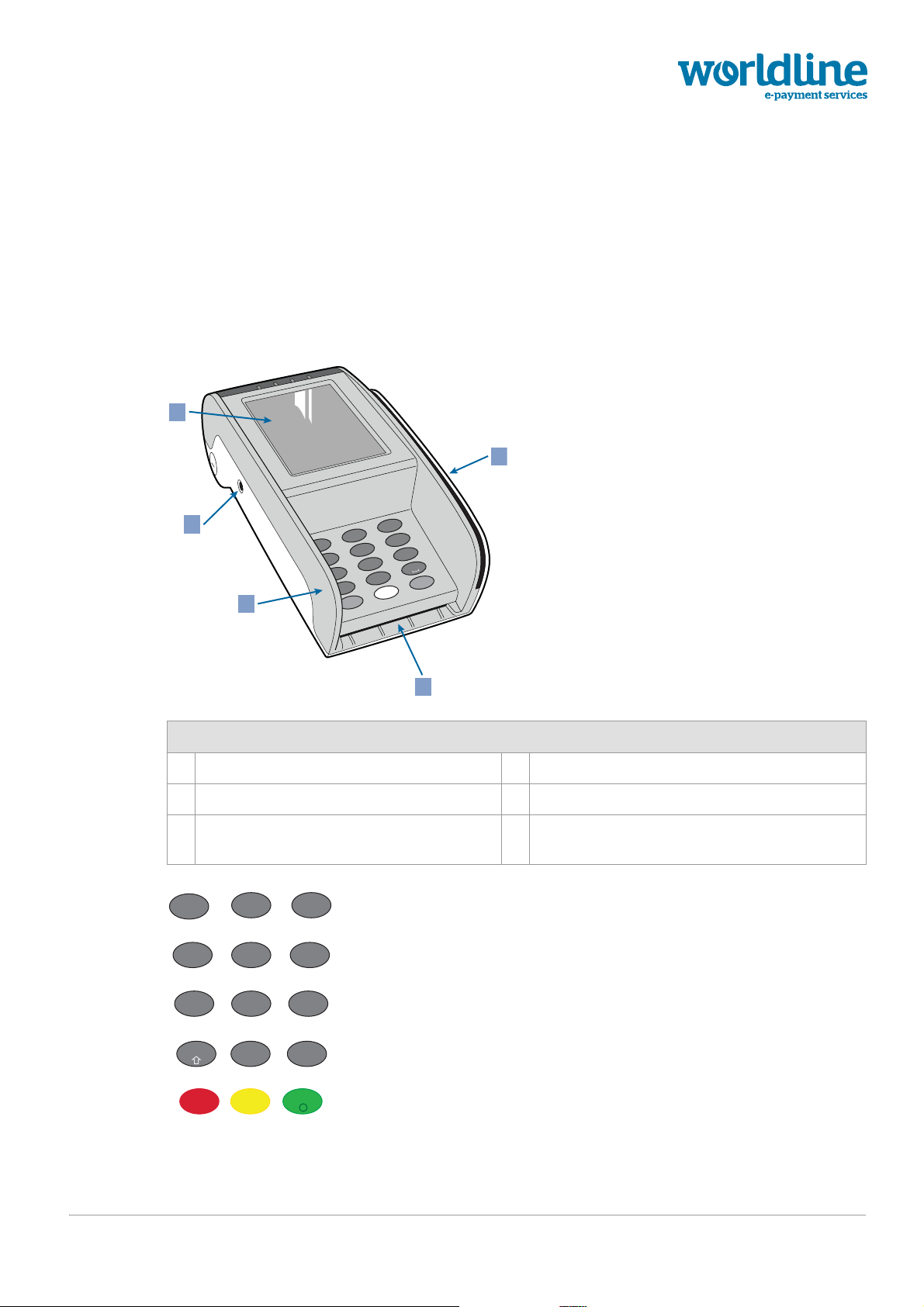
YOMOVA top view
Figure 1. YOMOVA top view
1 magstripe-card reader 4 battery charger connector
2 chip-card reader 5 integrated NFC reader under display
3 integrated PIN privacy shield against
shoulder-surfing
1
4
ghi
78 9
pqrs tuv
23
abc def
56
jkl mno
wxyz
Menu
Stop
X
public 3
Figure 2. Keypad layout
0
<
ymvP_description.fm document release 2.1 last updated 7/10/16
.
[
OKCorr
Page 10
• the Corr key is also used to turn the terminal on and to reset it
1 2
2
3
1
• the Stop key is also used to power down the terminal
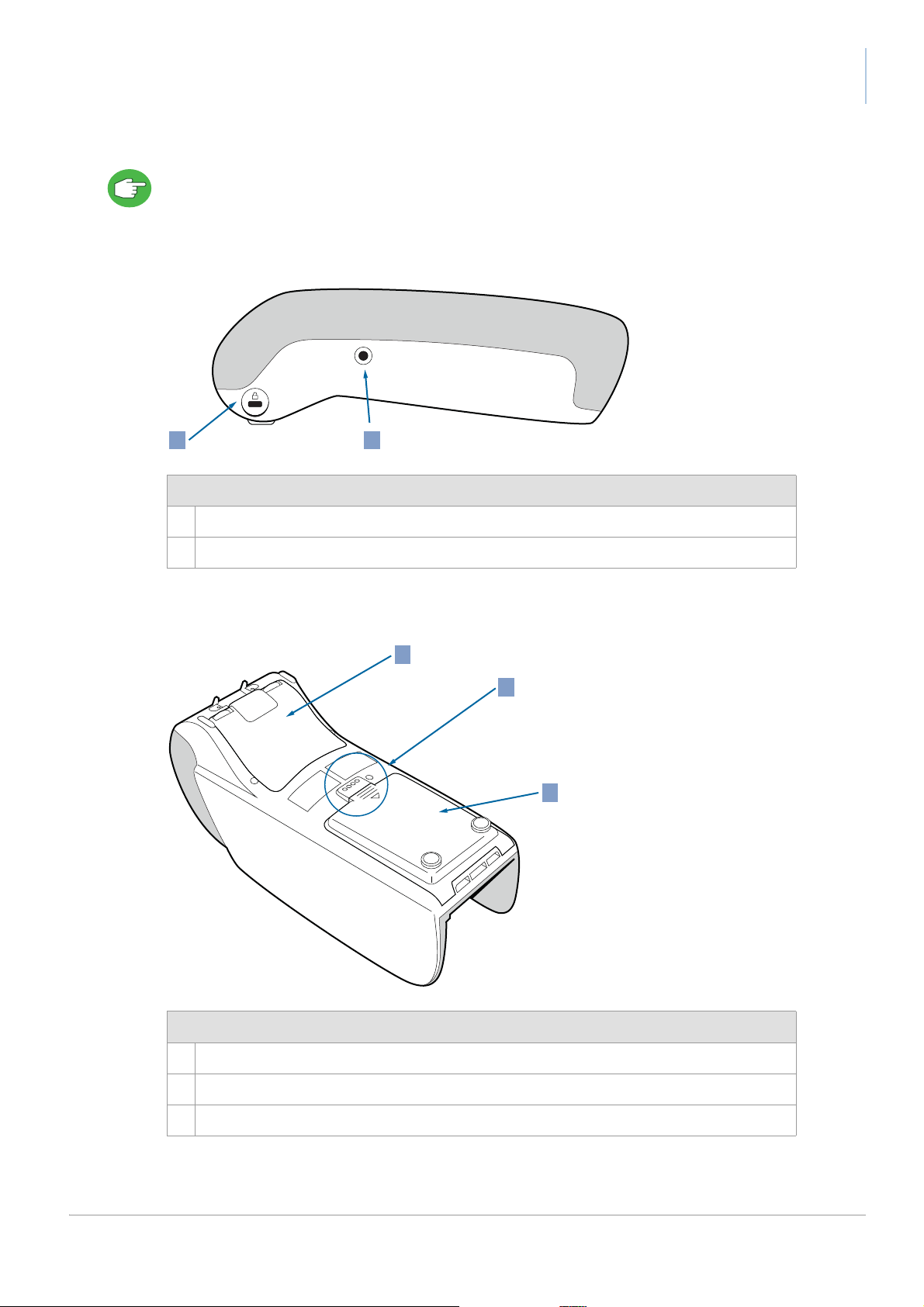
YOMOVA side view
Figure 3. YOMOVA side view
YOMOVA portable owner manual
1 Kensington™ lock fixing point
2 battery charger connector
YOMOVA bottom view
Figure 4. YOMOVA countertop – bottom view
1 connector compartment
2 contacts
3 card/battery compartment
4 public
last updated 7/10/16 document release 2.1 ymvP_description.fm
Page 11
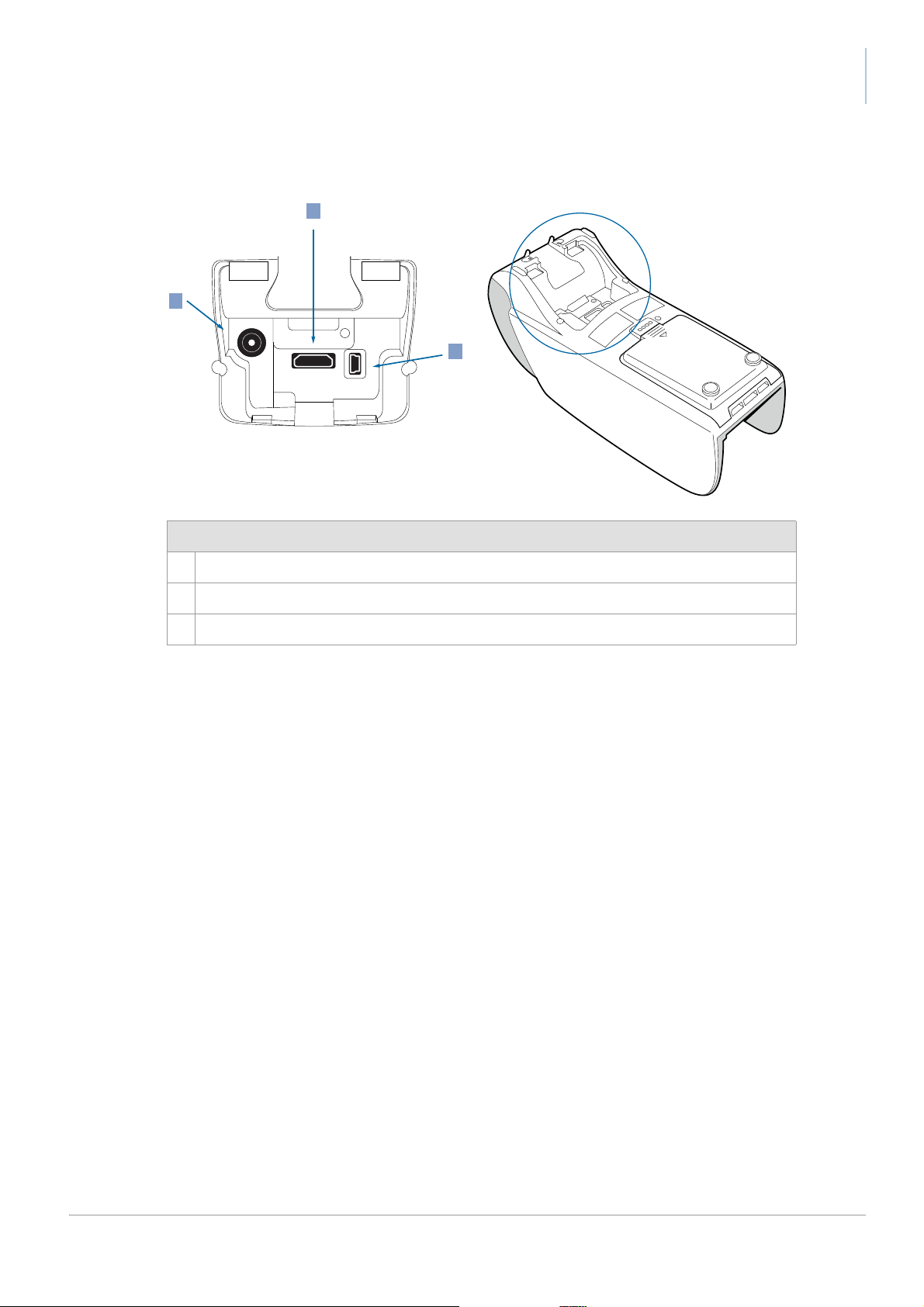
Connector compartment
COM
Mini USB
1
2
3
YOMOVA portable owner manual
Figure 5. Connector compartment
1 COM – RS232
2 USB device
3 power input (mains adaptor)
public 5
ymvP_description.fm document release 2.1 last updated 7/10/16
Page 12
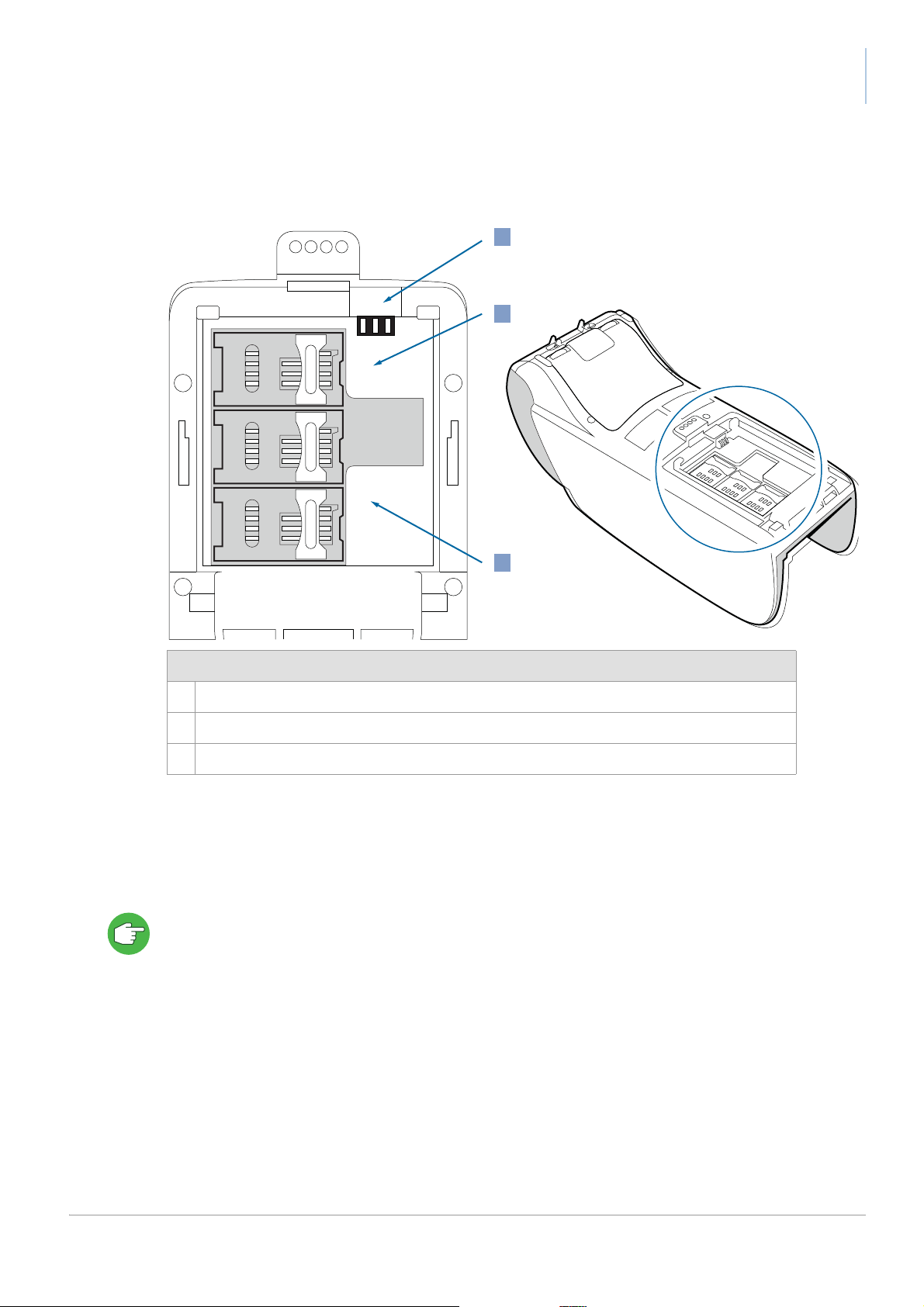
Card/battery compartment
SIM
SAM1
SAM2
1
2
3
YOMOVA portable owner manual
Figure 6. Card compartment
1 battery contacts
2 SIM card holder
3 SAM card holders
Options and accessories
Special cables are available to connect the YOMOVA to peripheral devices with an RS232 port or
a USB (device) port.
When using your YOMOVA portable with a wired connection to ePOS equipment such as a cash
register, consider removing the battery and powering your YOMOVA portable with a mains adaptor
for more convenience. See Powering a YOMOVA with the mains adaptor, on page 15.
6 public
last updated 7/10/16 document release 2.1 ymvP_description.fm
Page 13

Installing the YOMOVA portable
!
You can call upon a technician or a field engineer to help you install your terminal or you can do it
yourself. If you decide to install the terminal yourself, remember the guidelines below.
• if you decide to install the YOMOVA yourself, Worldline nor its vendor will bear any
responsibility or cost for malfunctioning, breakdowns or any anomaly that may result from
incorrect manipulation of the terminal
• read the safety recommendations on page 48 before starting to install your YOMOVA.
• if you notice that any part of the YOMOVA does not fit, blocks or shows any other malfunction,
contact your vendor – do not try yourself to repair or alter it in any way.
• use only accessories (battery, power adaptor, cables and so on) provided by your vendor or
by an approved source
Check that installation/maintenance operations are performed by a trusted person. Log all
maintenance operations, including the name of the operator.
In the tampered state, the device displays a warning message and it is not possible to use the
terminal to make a payment. When a warning message is displayed:
1. remove the terminal from service
2. contact the supplier immediately, who may then report the problem to Worldline
3. keep the terminal available for possible forensic investigation
Unpacking the YOMOVA
1. Open the package and check the contents.
The package should contain a portable YOMOVA, a battery and a battery charger. If any of
these is missing, contact your vendor immediately.
Your vendor may also have included paper for the printer, documentation or accessories.
2. Inspect the package and its contents for damage.
If anything is missing or damaged, contact your shipping company immediately and notify
your vendor.
3. Save the box for repacking or moving your equipment in the future.
4. Check the terminal as described in Security recommendations, on page 17.
public 7
ymvP_install.fm document release 2.1 last updated 7/10/16
Page 14
Preparing a YOMOVA for operation
!
2
1
1. Make sure the location and operating conditions are suitable.
2. Install the SIM, SAMs, or both, as required.
3. Fit the battery.
4. Put a roll of paper in the printer.
5. Connect the battery charger and make the sure the battery is charged before you use the
YOMOVA for the first time.
Selecting a location
Finding a proper location is an important aspect of installing your YOMOVA. You need to balance
comfort and security. Follow the guidelines below to find a location that is convenient for both you
and your customers.
Make sure that customers have the necessary privacy when entering their PIN code. This means
locating the YOMOVA outside the field of vision of cameras, mirrors and so on.
YOMOVA portable owner manual
Make sure you have room to
Installing SIM or SAM
To communicate via GSM/GPRS/3G with a YOMOVA, you need to fit a SIM.
The SIM and SAM slots in the YOMOVA are located underneath the battery, and clearly labelled.
• make sure that the mains adaptor is not connected to the YOMOVA
• avoid electrostatic discharge as it can severely damage the equipment
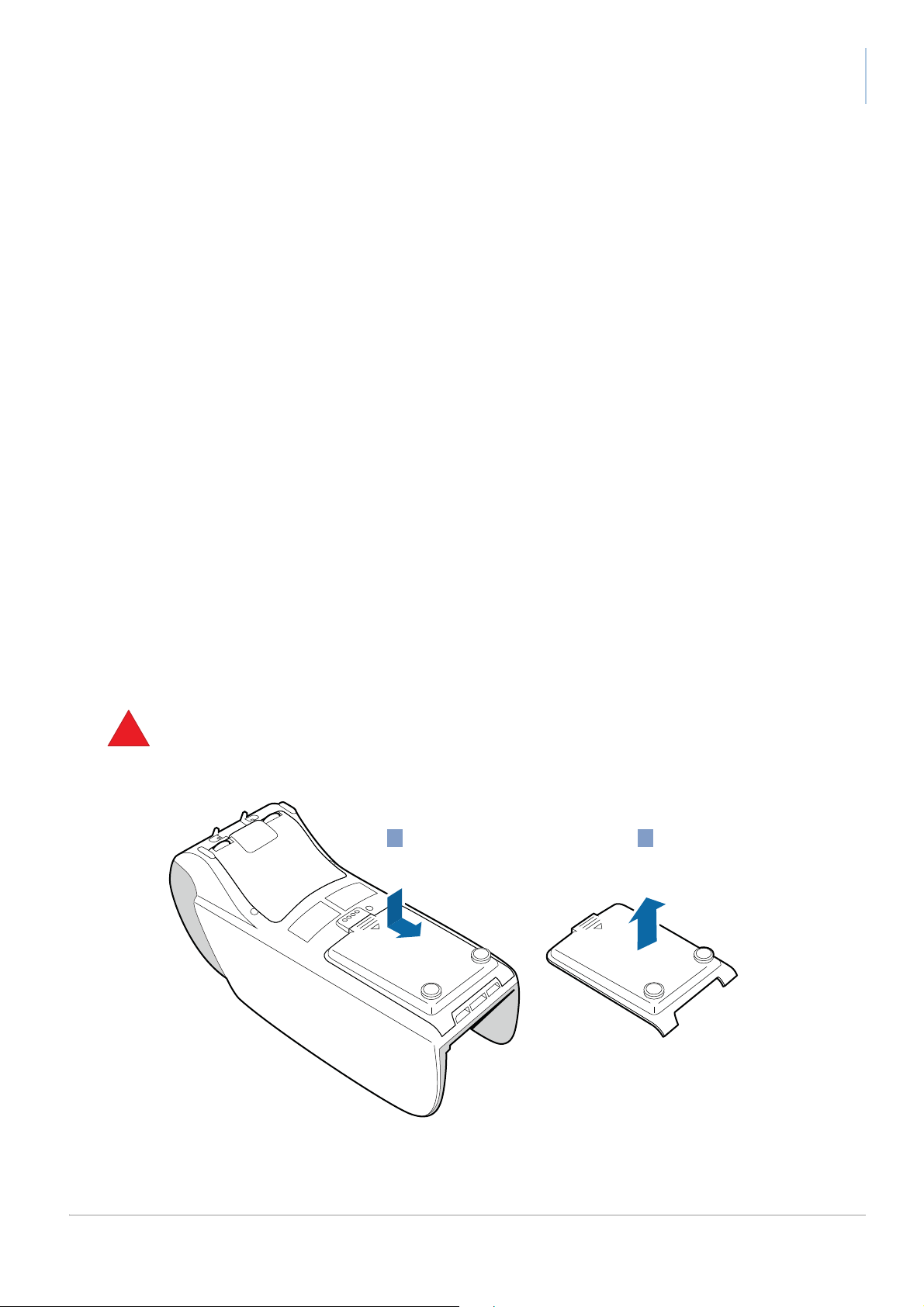
1. Remove the card/battery cover.
open the cover of the printer and replace the paper.
Figure 7. Removing the card/battery cover
8 public
last updated 7/10/16 document release 2.1 ymvP_install.fm
Page 15
YOMOVA portable owner manual
2. Remove the battery, if one is present; see Figure 26. Removing the battery, on page 22.
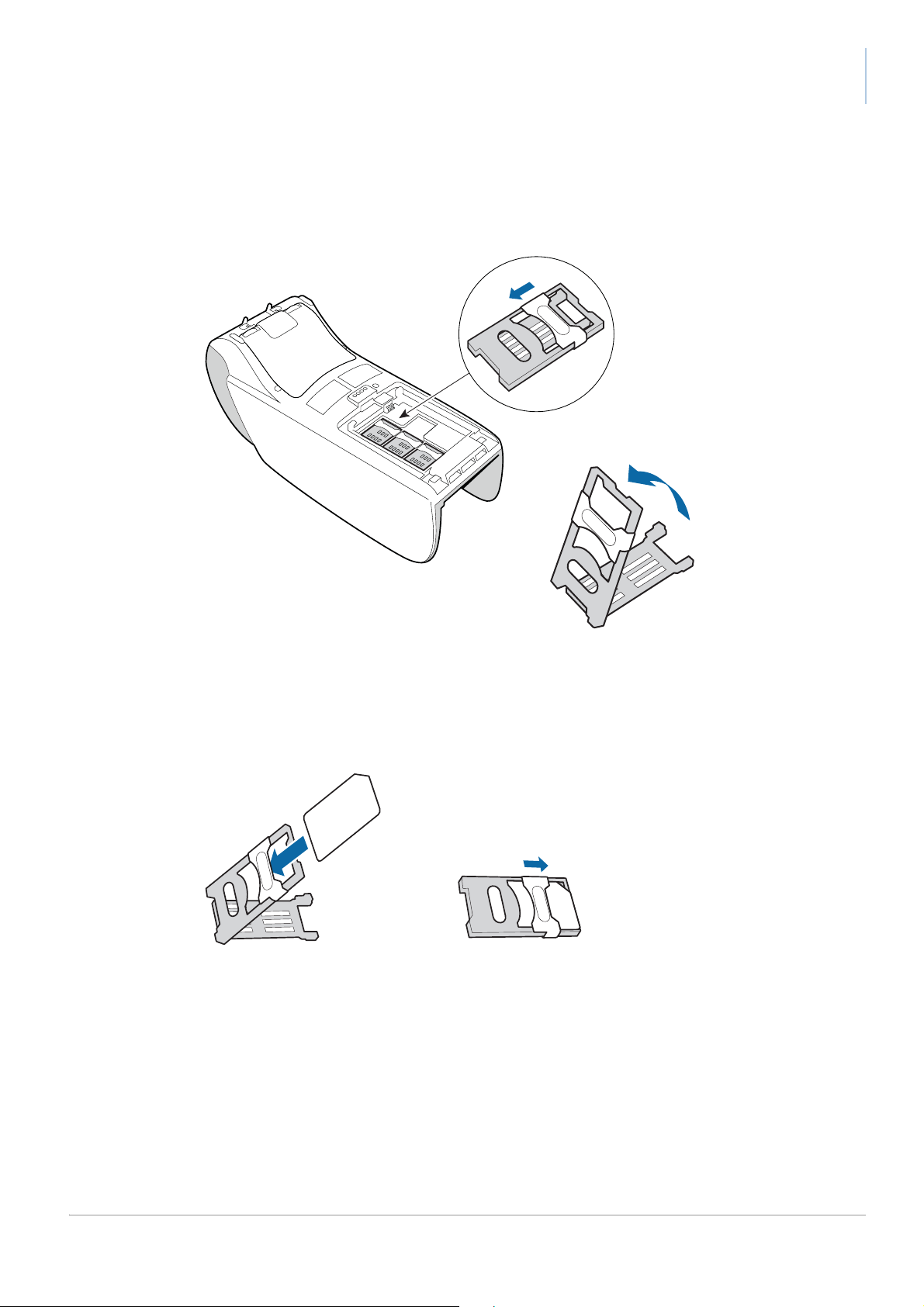
3. Open the SIM/SAM holder: slide the latch towards the hinge until you hear a click, then lift the
holder.
Figure 8. Opening SIM/SAM holder
4. Insert the SIM/SAM in the holder with the bevel towards the open end of the holder.
Make sure the card is completely inserted.
5. Close the SIM/SAM holder.
Figure 9. Inserting card and closing holder
Make sure the bevel fits behind the corner, then shift the lid down until you hear a click.
6. Make sure all SIM/SAM holders are closed.
7. Replace the battery, if it was already fitted and there are no other cards to be installed.
8. Replace the card/battery cover, if there are no other cards to be installed.
public 9
ymvP_install.fm document release 2.1 last updated 7/10/16
Page 16
Loading paper
Only use paper approved by Worldline.
This paper can be recognised by the approval seal printed on the back of the paper. If you want to
order paper from your local paper supplier, contact your vendor.
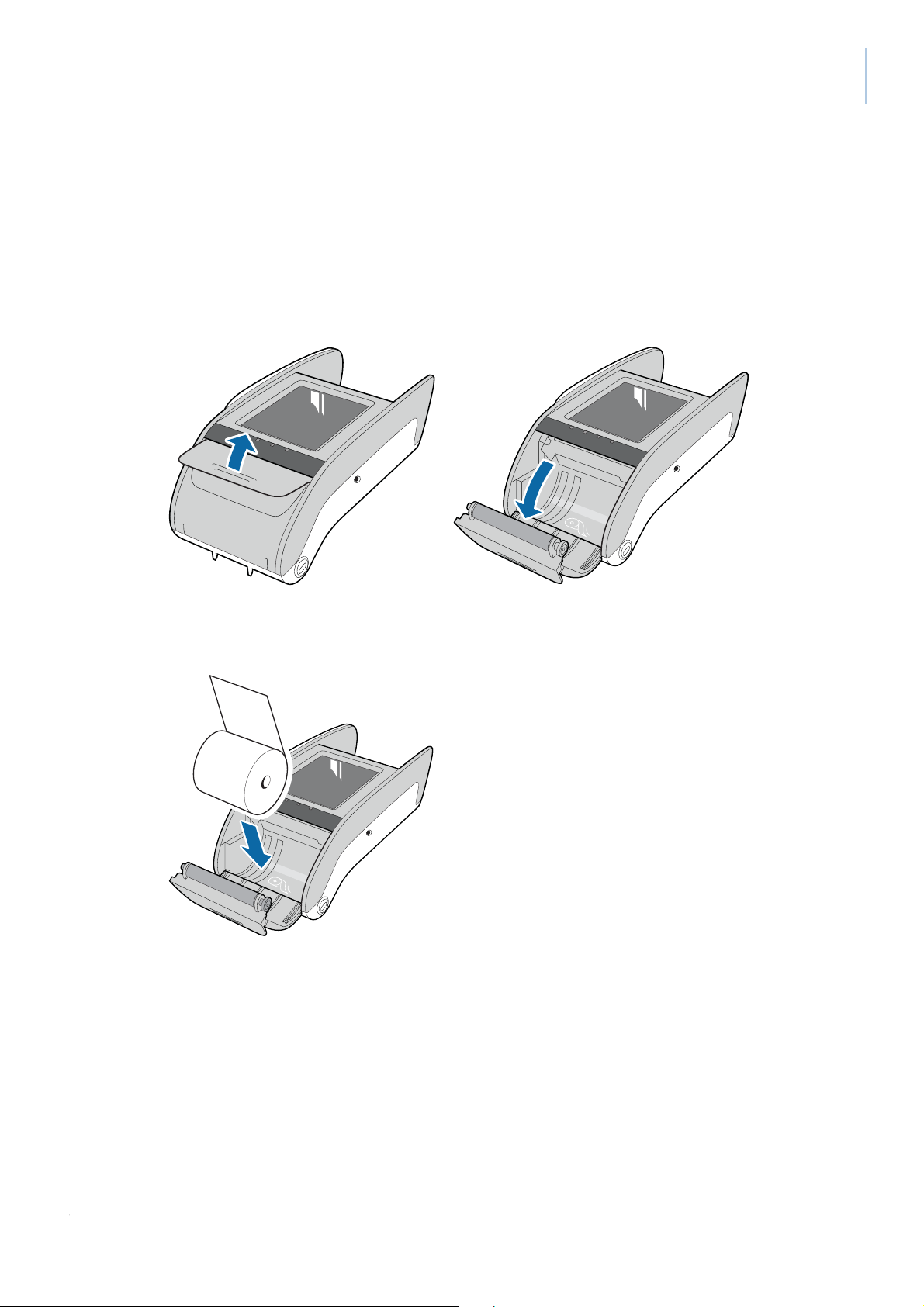
1. Lift the cover to release it, then open it fully.
Do not remove the roller inside the paper compartment.
YOMOVA portable owner manual
Figure 10. Opening paper compartment
2. Unroll about 5 centimetres of a new paper roll and insert the roll as shown.
Figure 11. Inserting paper roll
When inserting a paper roll, make sure that:
– the paper is not cracked, wrinkled or sealed
– the paper comes out straight
3. Close the paper cover, and press firmly until you hear a click.
10 public
last updated 7/10/16 document release 2.1 ymvP_install.fm
Page 17
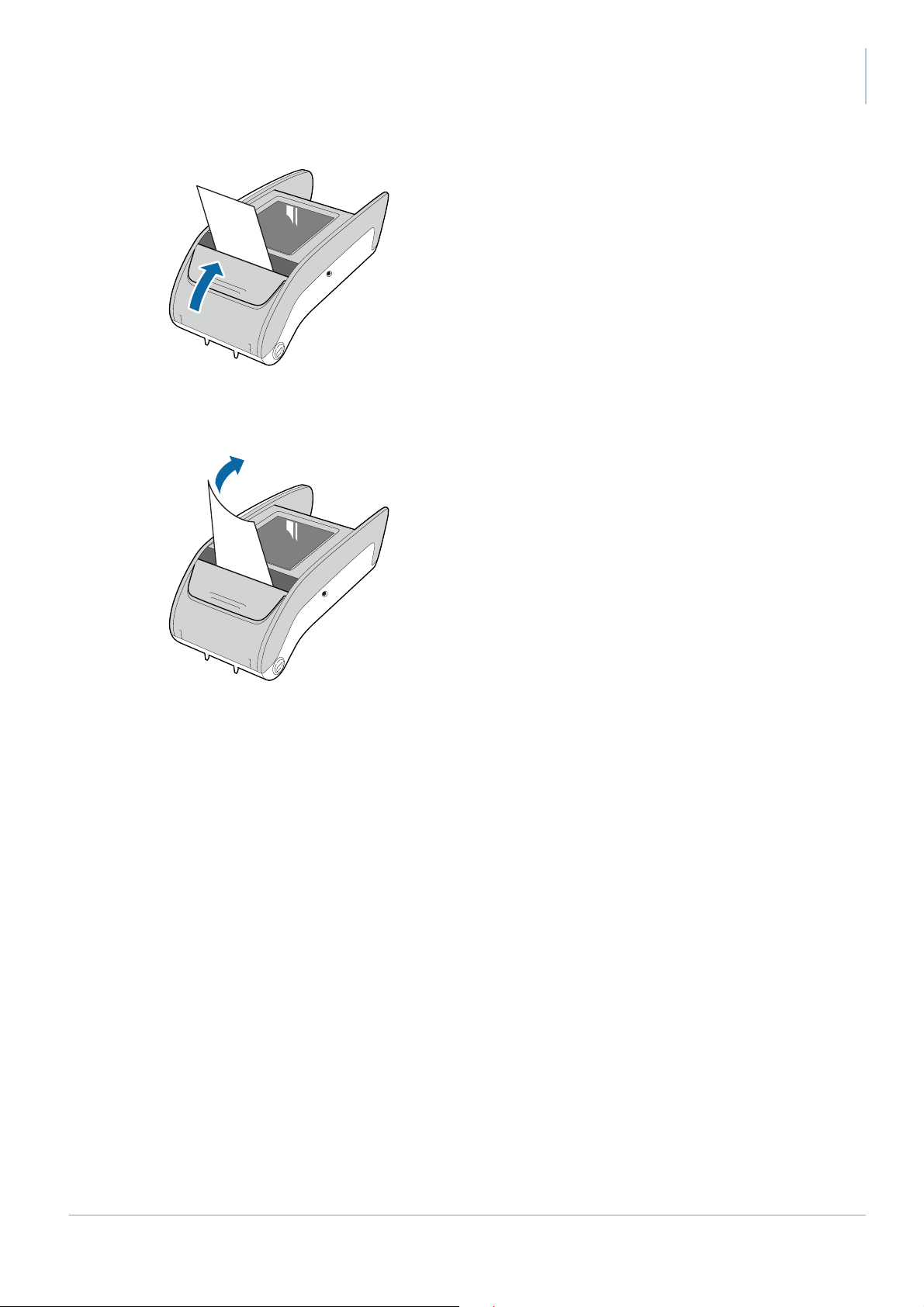
Figure 12. Closing paper compartment
4. Tear off the leading edge of the paper.
YOMOVA portable owner manual
Figure 13. Tearing off paper
public 11
ymvP_install.fm document release 2.1 last updated 7/10/16
Page 18
Fitting the battery
The YOMOVA is normally powered by a battery, which must be recharged in the terminal.
• only use the battery that is supplied with your YOMOVA
• charge the battery completely before using the terminal
For safety reasons, the battery that is delivered with your YOMOVA is not fully charged. A
complete charging cycle takes approximately 3 hours, and the display ind icates when the
battery is fully charged.
• to get the best performance from the battery, make sure it is at room temperature (20°C) when
operating the YOMOVA
1. Remove the card/battery cover, if necessary; see Figure 7. Removing the card/battery cover,
on page 8.
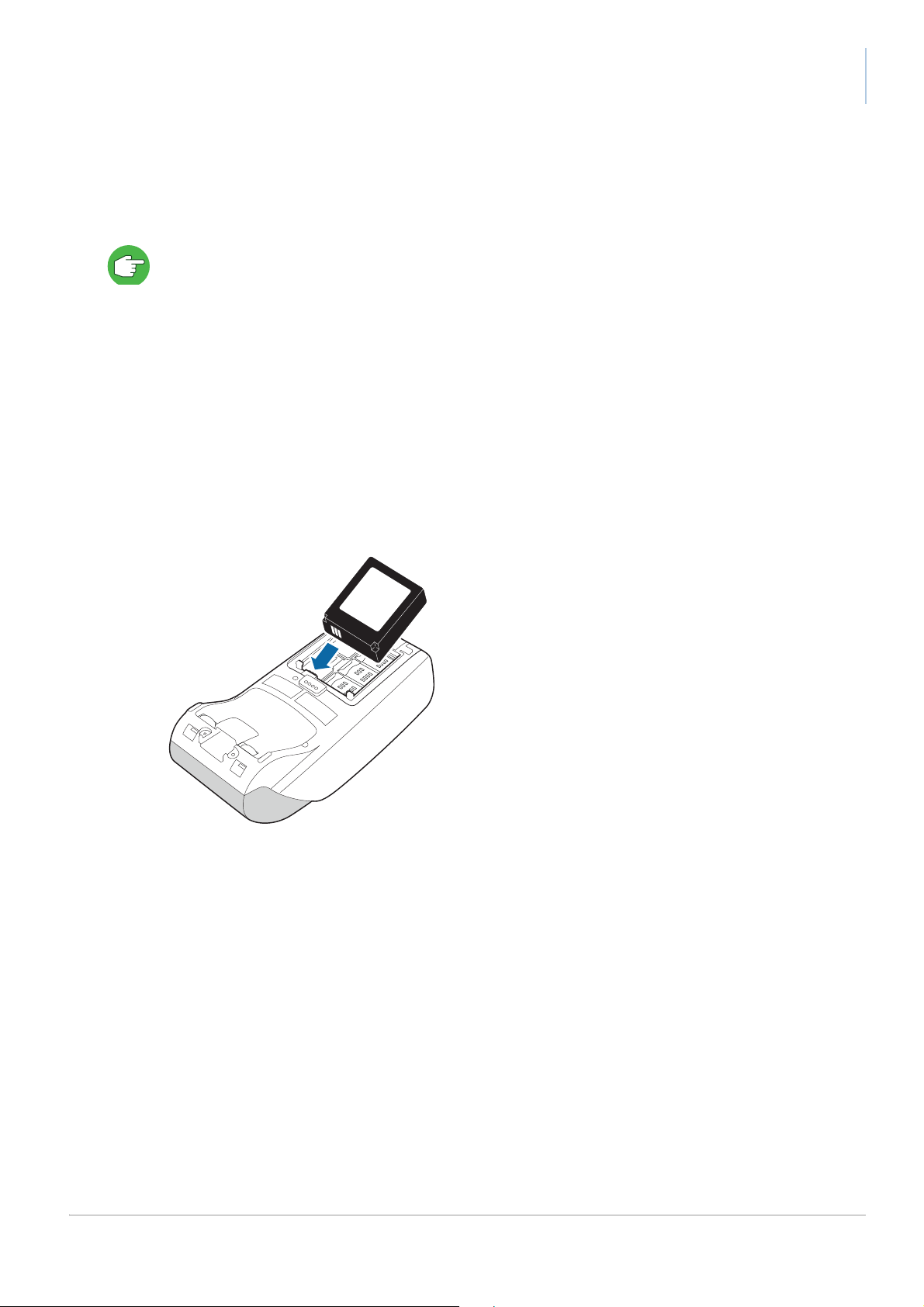
2. Lower the battery into its recess.
Position the battery with the label facing upwards and the battery contacts facing forwards.
Take care not to touch the battery contacts of the YOMOVA.
YOMOVA portable owner manual
Figure 14. Inserting the battery
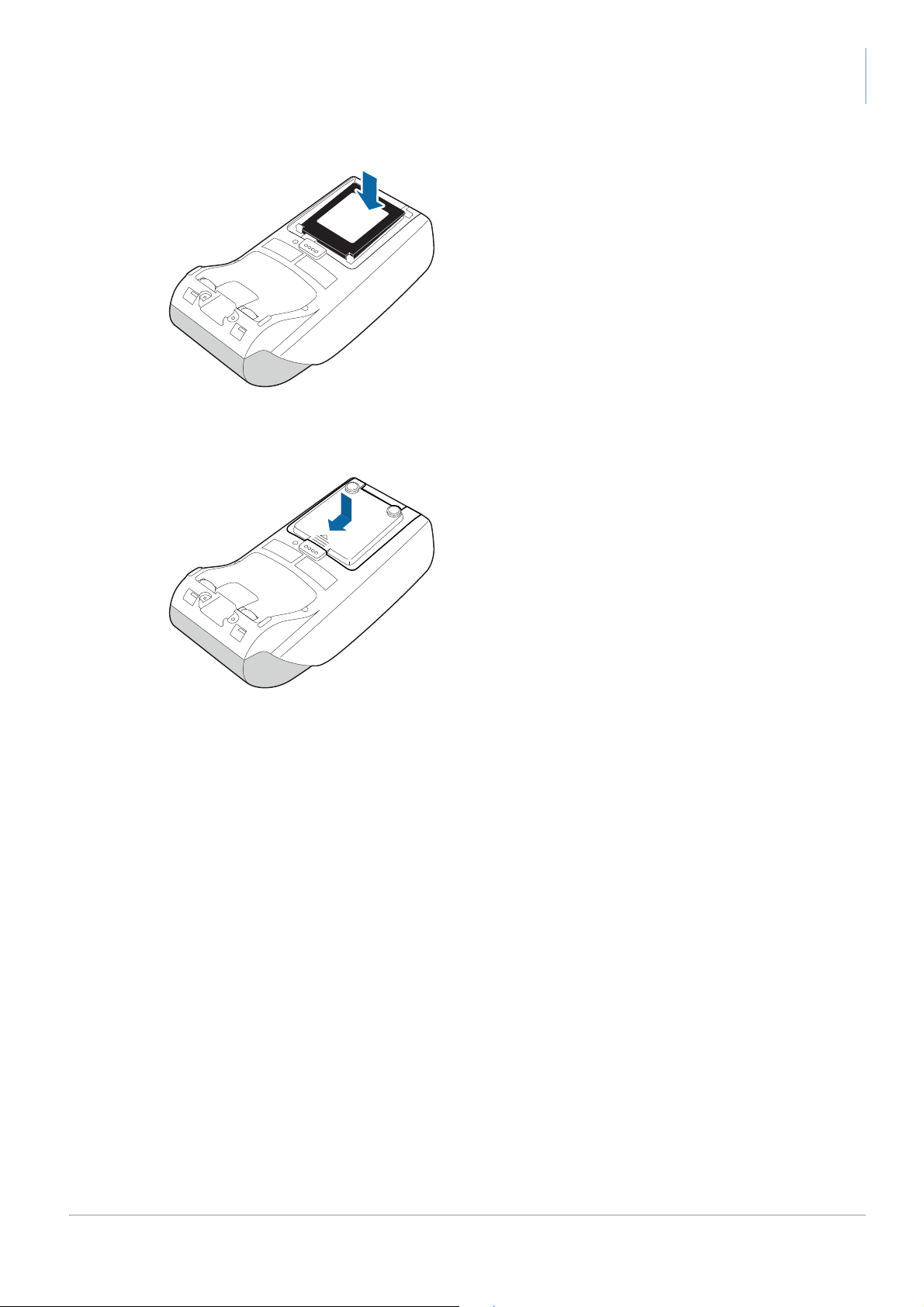
3. Make sure that the battery contacts touch the contacts in the YOMOVA, then press the
battery down until it fits in position.
12 public
last updated 7/10/16 document release 2.1 ymvP_install.fm
Page 19
YOMOVA portable owner manual
Figure 15. Clicking battery in place
4. Position the card/battery cover on the YOMOVA, then slide it forwards until you hear a click.
Figure 16. Closing the battery cover
If you want to use a YOMOVA with the mains adaptor, you must remove the battery before
connecting the adaptor.
5. Press the Corr key to power up the terminal.
public 13
ymvP_install.fm document release 2.1 last updated 7/10/16
Page 20
Charging the battery
3
6
9
.
OK
2
5
8
0
Corr
1
4
7
Stop
Menu
The terminal will only run if there is at least a minimum charge in the battery. To charge the battery:
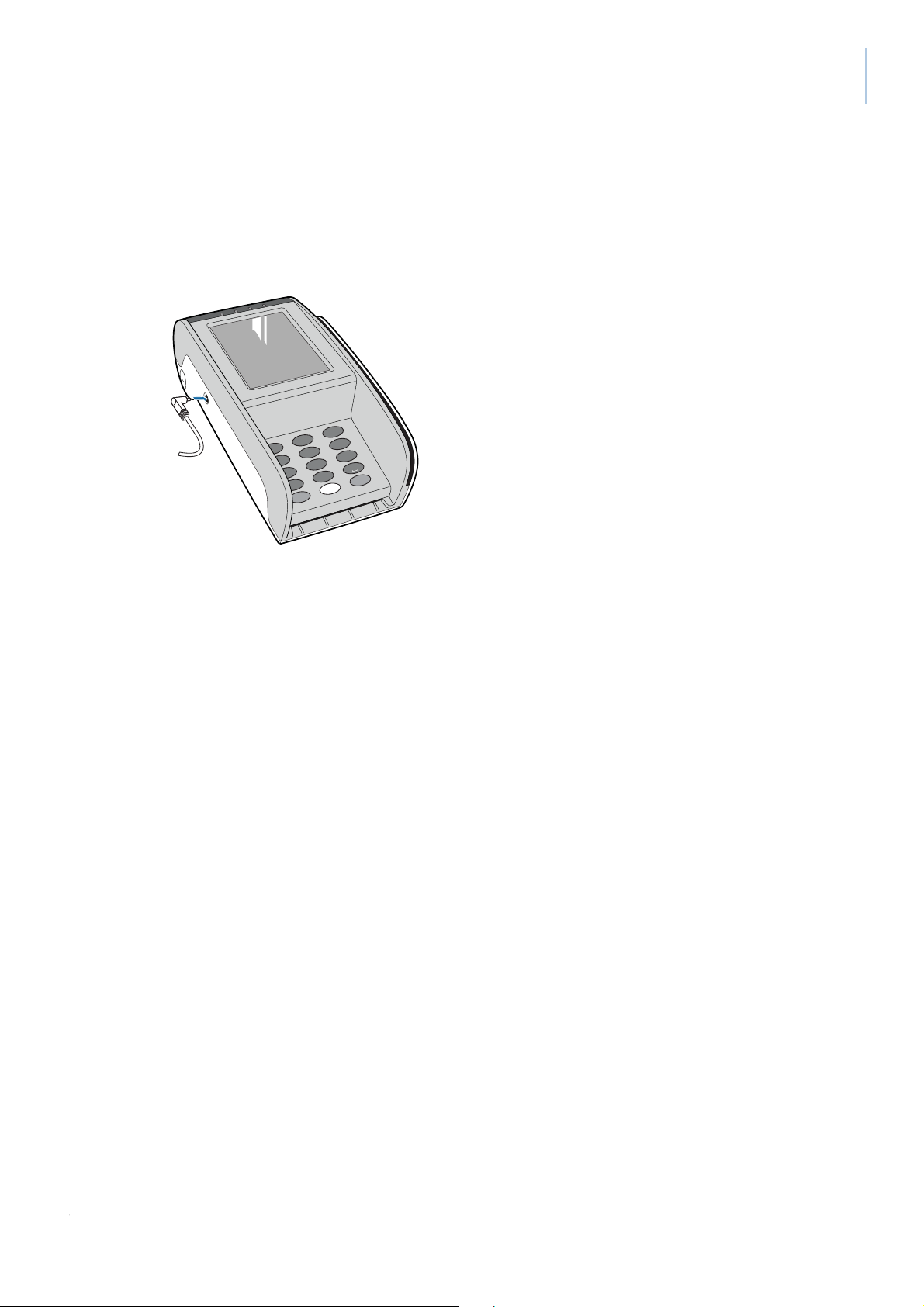
1. Connect the power cable from the charger to the input socket on the left side of the terminal.
2. Connect the charger to the mains.
YOMOVA portable owner manual
Figure 17. Connecting the battery charger
A complete charge cycle normally takes around three hours. The display shows the charge level
of the battery.
14 public
last updated 7/10/16 document release 2.1 ymvP_install.fm
Page 21
YOMOVA portable owner manual
!
Powering a YOMOVA with the mains adaptor
The portable YOMOVA is normally powered by a battery, which can be recharged without
removing it from the terminal. After removing the battery, you can use the mains adaptor to power
the terminal. The mains adaptor must be ordered separately. It is not provided as standard with the
YOMOVA terminal.
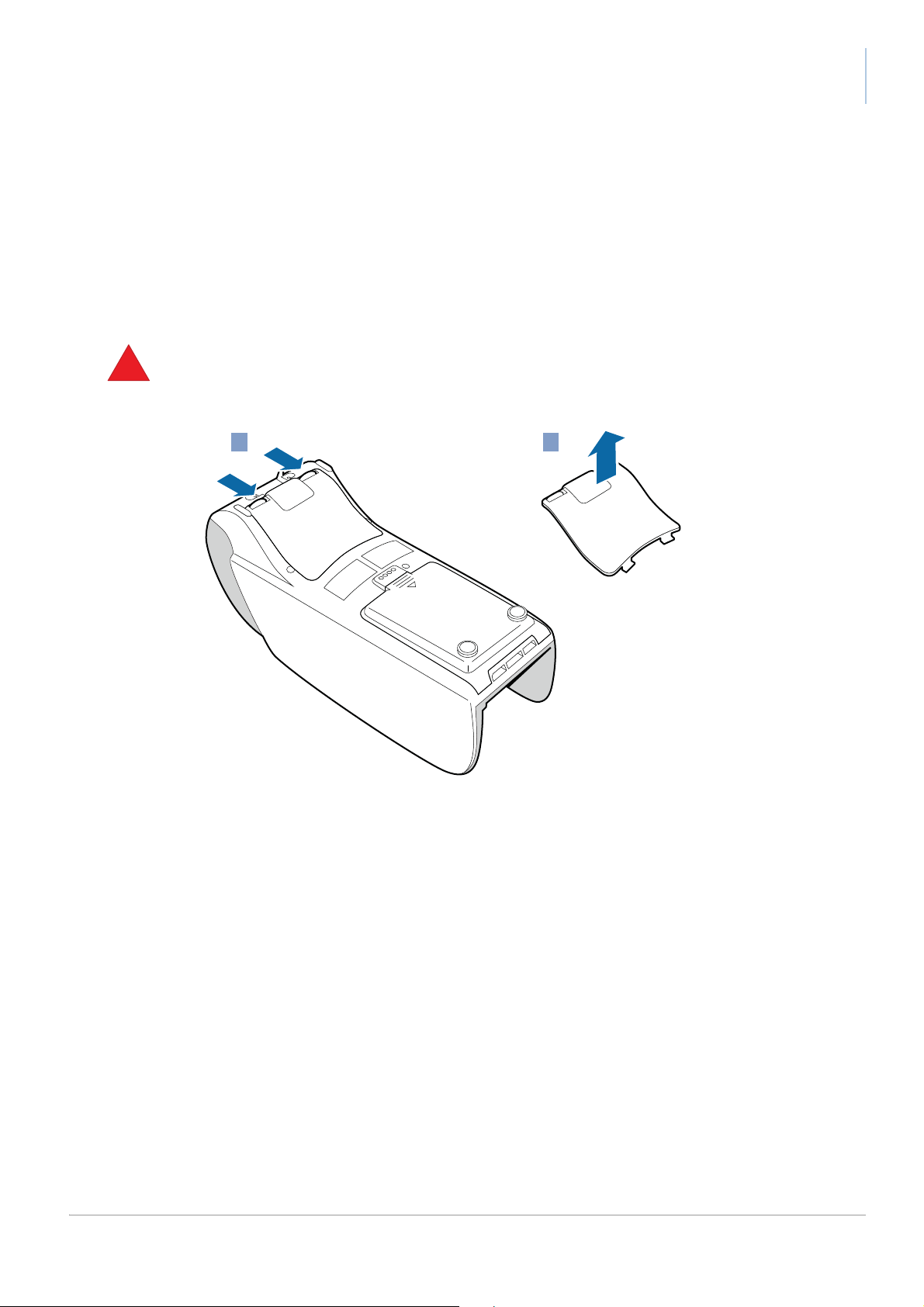
1. Open the card/battery cover, remove the battery and close the cover.
The battery must be removed before you connect the mains adaptor, to avoid damaging the
battery.
2. Open the connector compartment.
1
Figure 18. Remo ving connector compartment cover
2
public 15
ymvP_install.fm document release 2.1 last updated 7/10/16
Page 22
YOMOVA portable owner manual
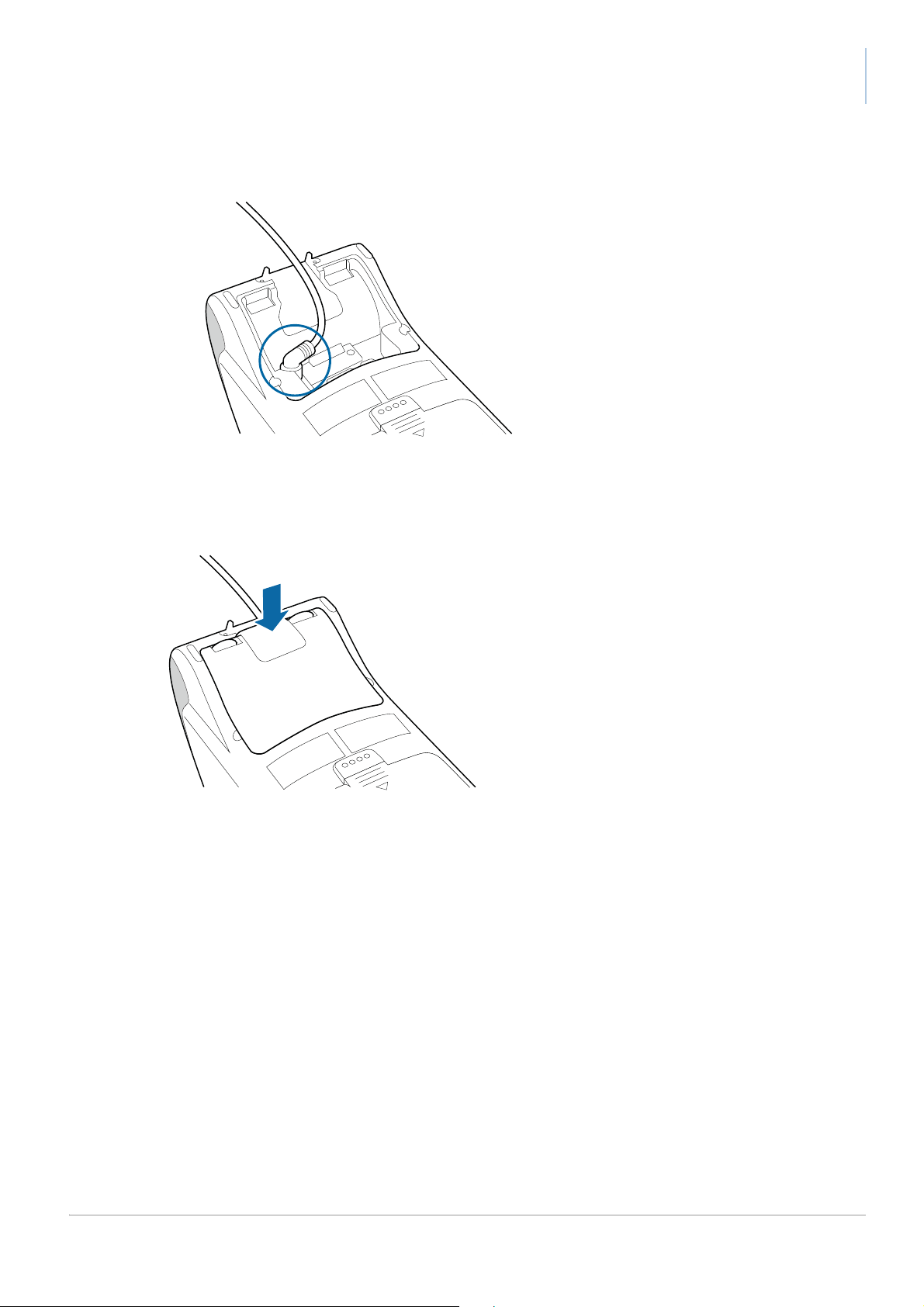
3. Connect the power cable from the mains adaptor to the power input socket.
Figure 19. Power input socket underneath terminal
The terminal powers up as soon as the mains adaptor is connected.
4. Close the connector compartment.
Figure 20. Closing the connector compartment
16 public
last updated 7/10/16 document release 2.1 ymvP_install.fm
Page 23

Using the YOMOVA portable
The YOMOVA portable reads chip cards, magstripe cards and contactless devices, and includes
a built-in printer.
Security recommendations
For security reasons, you are advised to check your YOMOVA every working day. Make sure that:
• there is no sign of unusual cables connected anywhere on the terminal
• there is no foreign object in either of the card-readers
• the keypad is firmly in place
• the terminal is not displaying any warning message
• the housing is not visibly damaged
• the terminal serial number (on the label) corresponds to the inventory
In the tampered state, the device displays a warning message and it is not possible to use the
terminal to make a payment. When a warning message is displayed:
1. remove the terminal from service
2. contact the supplier immediately, who may then report the problem to Worldline
3. keep the terminal available for possible forensic investigation
Reading a chip card
Insert the card in the slot at the front of the YOMOVA with the chip facing upwards.
public 17
ymvP_using.fm document release 2.1 last updated 7/10/16
Page 24

YOMOVA portable owner manual
3
6
9
.
OK
2
5
8
0
Corr
1
4
7
Stop
Menu
3
6
9
.
OK
2
5
8
0
Corr
1
4
7
Stop
Menu
Figure 21. R eading a chip card
Reading a magstripe card
1. Swipe the card through the reader at the right-hand side of the YOMOVA in one smooth
movement.
Hold the card with the magnetic stripe at the bottom. You can slide the card in either direction.
18 public
last updated 7/10/16 document release 2.1 ymvP_using.fm
Figure 22. Rea ding a magstripe card
Page 25
Reading a contactless card/device
3
6
9
.
OK
2
5
8
0
Corr
1
4
7
Stop
Menu
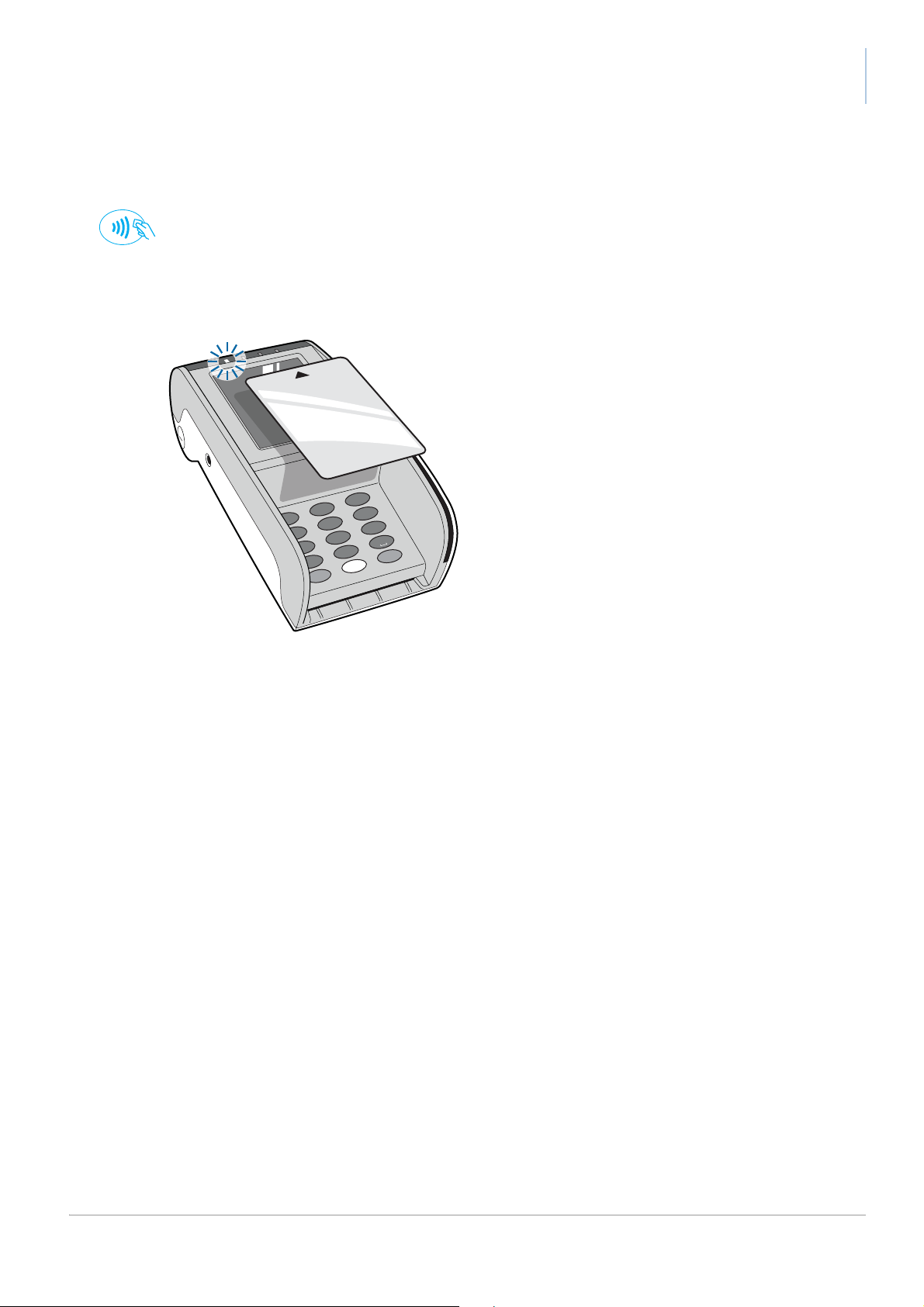
When the payment application supports contactless cards/devices, the landing-point symbol
appears on the display.
1. Hold the card/device above the display, centered on the landing point.
The first LEDs above the display is lit when the terminal is ready for a contactless transaction;
the other LEDs show the progress of the transaction, as defined by the application.
YOMOVA portable owner manual
Figure 23. Reading a smart card with the contactless reader
Resetting the YOMOVA – Reset button
If the YOMOVA stops responding, you can use the Reset button.
The button is located on the back of the YOMOVA just above the battery cover. Use a small object
to push it in for one second, then wait for the YOMOVA to restart.
public 19
ymvP_using.fm document release 2.1 last updated 7/10/16
Page 26

YOMOVA portable owner manual
Figure 24. Reset button on YOMOVA
You can also reset the YOMOVA by using the keyboard or by removing the battery.
Resetting the YOMOVA – keyboard
To reset the YOMOVA, press the yellow Corr button for at least 5 seconds and wait for the terminal
to reboot.
Resetting the YOMOVA – remove the battery
1. Remove battery.
2. Wait for YOMOVA to power down completely.
3. Replace battery.
4. Press the “Corr” key to restart the YOMOVA.
Power off
To power off the YOMOVA portable, press the red Stop button and hold it down for five seconds.
This function is useful when, for example, you will not be using YOMOVA for more than a few days
without connecting the charger. You can also power off the YOMOVA by removing the battery.
The terminal can also be powered down automatically, under software control.
20 empty for double-sided printing ymvP_using.fm
Page 27
Caring for the battery
2
1
When not in use, the YOMOVA portable remains in a sleep (stand-by) mode and continues slowly
discharging the battery. You can either:
• charge the battery regularly, as described in Charging the battery, on page 14
• remove the battery and power off the terminal completely
When you will not be using the YOMOVA for more than a week, first make sure the battery is
around 40% charged – check the charge-level indicator on the display. You then have two options:
• remove the battery and store it separately to keep it in optimal condition
• leave the battery in the YOMOVA and connect the charger
A Li-Ion battery normally delivers peak performance for around three years after it is built or until it
has been recharged 500 times. After this, it may need charging more frequently. Depending on
how intensively the battery is used, and on how often it is charged/the average charge level, it can
continue to deliver acceptable performance for another three years.
When you need to replace a Li-Ion battery, do not throw the used battery away with household
waste. Use an appropriate recycling channel, or return the used battery to your vendor.
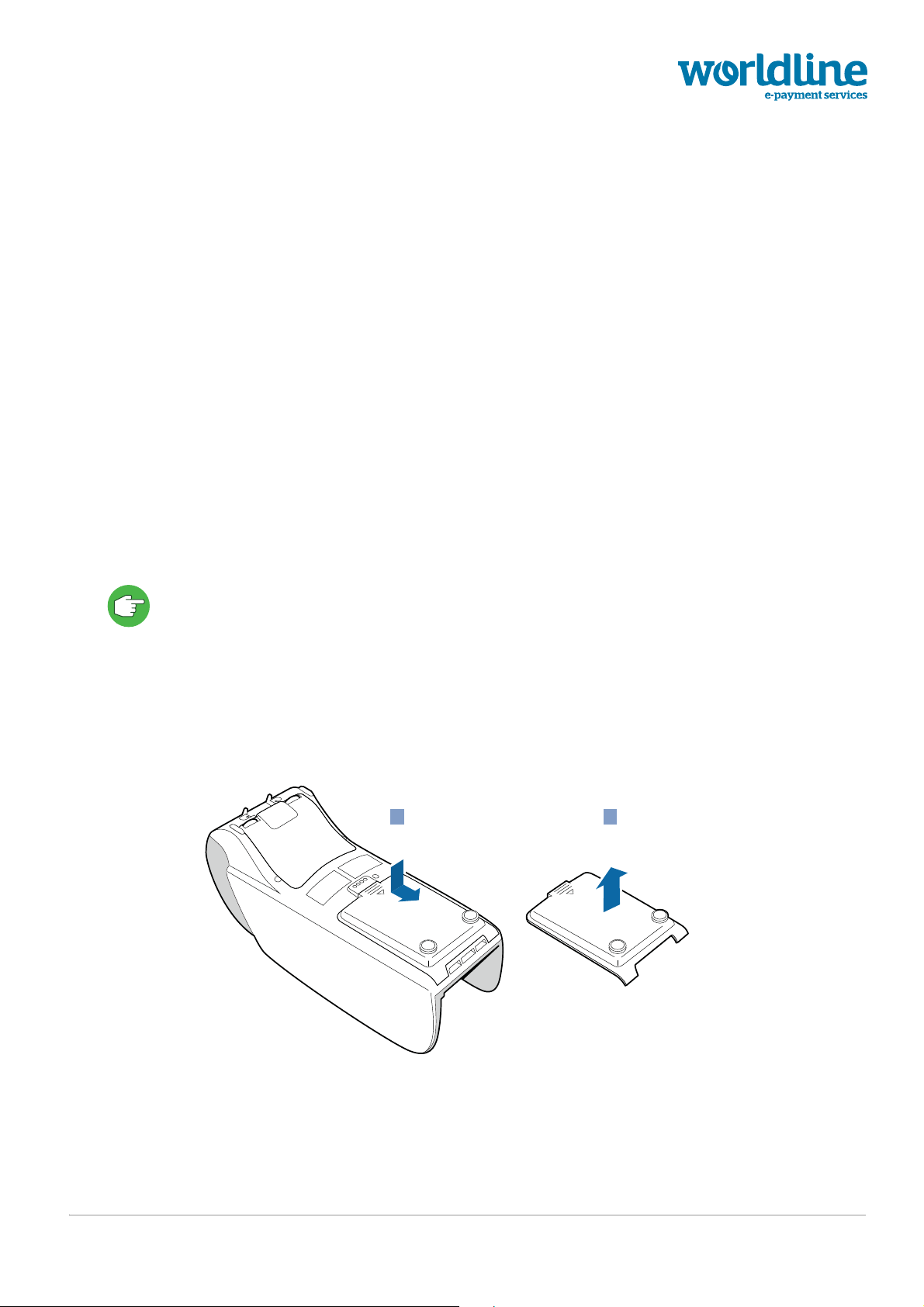
Removing the battery
1. Remove the card/battery cover underneath the YOMOVA.
Press with your thumb on the top of the card/battery cover to release it, then slide the cover
backwards.
Figure 25. Removing card/battery cover
public 21
ymvP_battery.fm document release 2.1 last updated 7/10/16
Page 28
YOMOVA portable owner manual
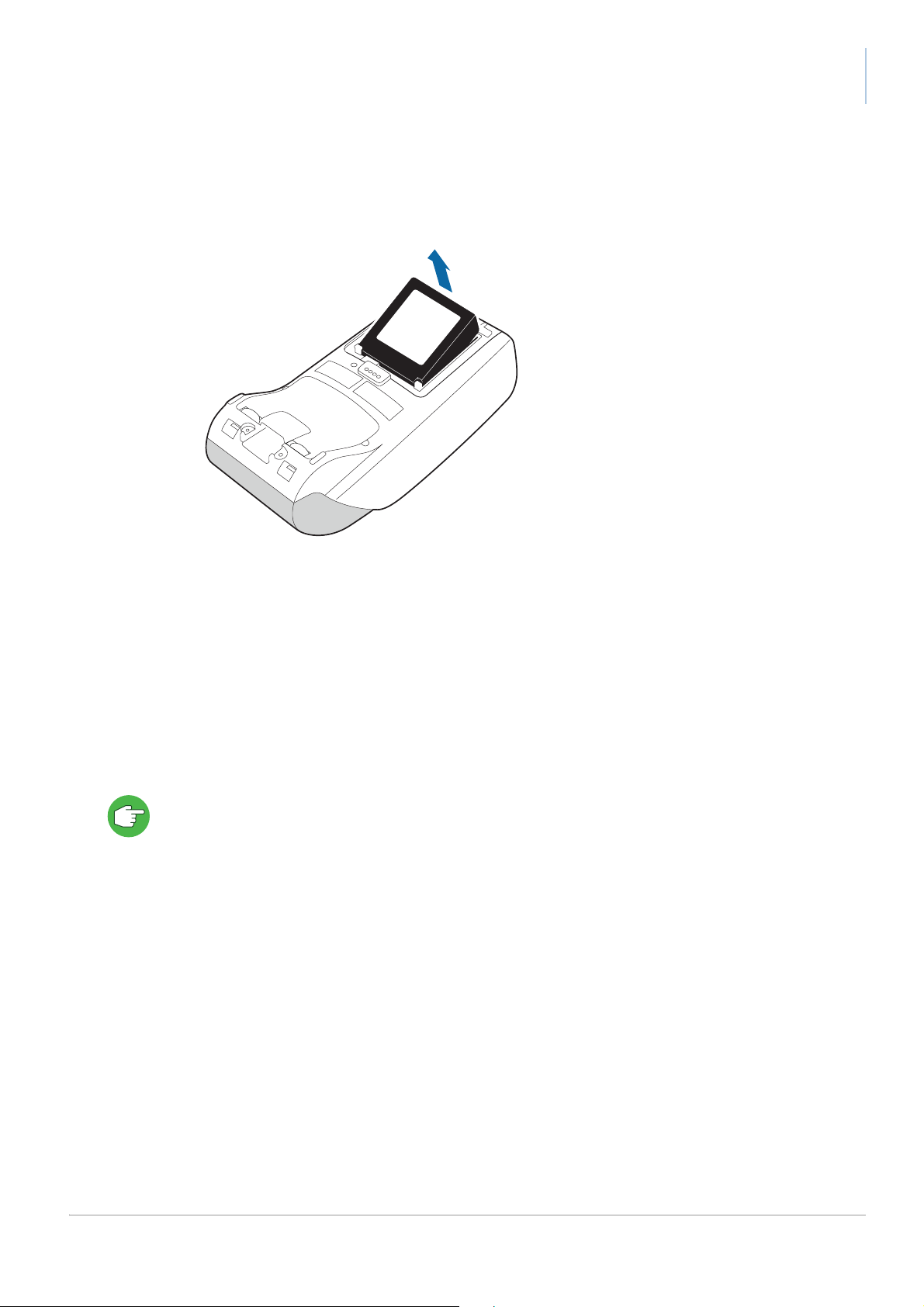
2. Lift the battery out of the YOMOVA.
Never use a sharp or pointed object when removing the battery, because this may damage
the YOMOVA
Figure 26. Remo ving the battery
3. Replace the card/battery cover
Battery monitoring
A “fuel gauge mechanism” is used for the Li-ion battery in the YOMOVA. This mechanism monitors
different battery parameters, such as voltage, current, temperature and the residual capacity.
The fuel gauge auto-calibrates itself each time the battery is recharged, to avoid the “digital
memory” effect and maintain accuracy.
The fuel gauge remembers the capacity of the battery after each charging cycle. Inserting another
battery in the terminal may not give an accurate indication until after the next charge cycle has
completed.
22 public
last updated 7/10/16 document release 2.1 ymvP_battery.fm
Page 29

Maintaining the YOMOVA portable
!
Maintenance for the YOMOVA is limited to cleaning the case and the card readers.
Never attempt to dismantle the YOMOVA or force open the case. If the terminal needs servicing,
contact Worldline or your vendor.
Cleaning the YOMOVA
Do not allow water to enter the terminal. Use only a damp cloth.
For optimal functioning, the YOMOVA should be kept clean and cleaned regularly. When cleaning
your equipment:
1. Disconnect the terminal from the mains adaptor or battery charger.
2. Clean the equipment with a soft damp cleaning cloth.
3. Clean the display with a soft dry anti-static cleaning cloth.
After cleaning, do not forget to re-connect the equipment.
Do not use detergents, solvents or alcohol. These products may damage the surface of the
terminal and make transparent parts opaque. Make sure that dirt does not enter the card readers.
public 23
ymvP_maintenance.fm document release 2.1 last updated 7/10/16
Page 30
Cleaning the card readers
!
3
6
9
.
OK
2
5
8
0
Corr
1
4
7
Stop
Menu
Do not allow water to enter the card readers. Use only a damp cloth.
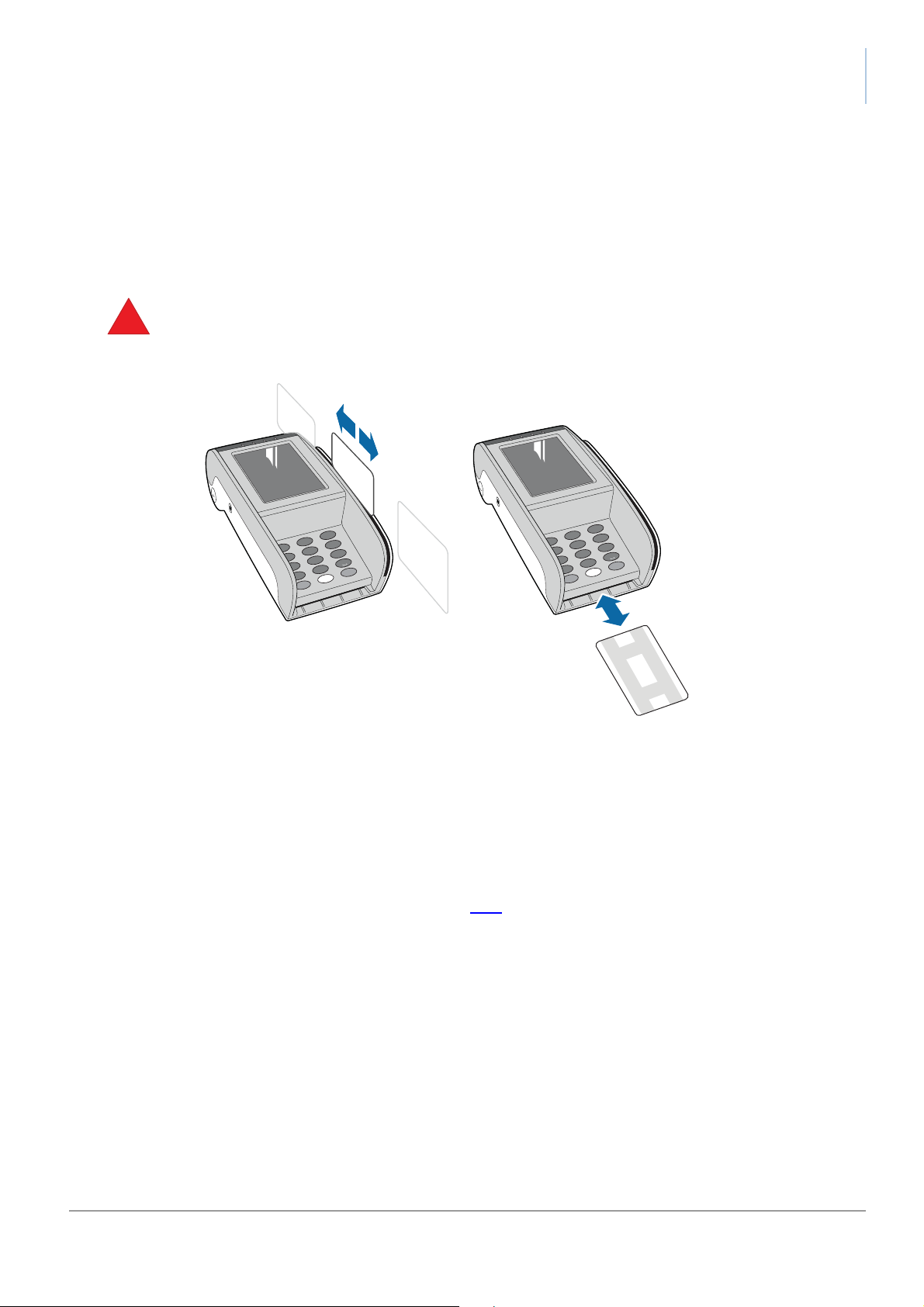
The chip-card reader and the magstripe-card reader should be cleaned regularly, using the
appropriate cleaning cards.
• cleaning-cards can be used more than once, as long as you swipe or insert a clean edge each
time
• “wet” cleaning-cards must be used as soon as you open the sachet
YOMOVA portable owner manual
3
2
1
6
5
4
9
8
7
Menu
.
0
OK
Corr
Stop
Figure 27. Cleaning the card-readers
• for the magstripe-card reader, swipe the cleaning card slowly through the reader three times
in each direction, without turning the card round
• for the chip-card reader, insert and remove the cleaning card three times without turning the
card round
Contact your vendor for inform ation about specific types of cleaning card, such as “damp” cleaning
cards from a specialised supplier such as
ECS.
24 public
last updated 7/10/16 document release 2.1 ymvP_maintenance.fm
Page 31

Appendix A. Troubleshooting
If problems persist, contact your vendor. Check that installation/maintenance operations are
performed by a trusted person. Log all maintenance operations, in cluding the name of the
operator.
Warning message displayed
In the tampered state, the YOMOVA displays a warning message and it is not possible to
use the terminal to make a payment. When a warning message is displayed:
1. take the terminal out of service
2. contact the supplier immediately, who may then report the problem to Worldline
3. keep the terminal available for possible forensic investigation
Display not working
The YOMOVA might be in sleep mode or off: press “corr/on” to power up
Check battery status; see Battery monitoring, on page 22
Make sure the battery is inserted correctly. If the battery is inserted and the terminal is not
starting, the battery is most likely “flat”. Connect the power supply to power up. The power
supply will need to charge the battery to a minimum level before the terminal effectively
starts up. This can take a few minutes.
When the terminal starts, keep the terminal powered to charge the battery completely.
YOMOVA reboots unexpectedly
With very low battery it is possible that when the terminal needs more power (printing, 3G
connection) the terminal will reboot. Wait at least 10 minutes before starting a tr ansaction.
If the terminal reboots while printing, open the printer cover and wait for at least 10
minutes before closing the printer and resume printing.
YOMOVA display working, but equipment does not respond to key presses
Press the reset button and wait for the equipment to reboot.
Disconnect and reconnect the power supply.
Take the battery out and put it back in; see Removing the battery, on page 21
YOMOVA cannot make 3G/WiFi/Bluetooth connection
Check that the antenna is connected to the interface board.
For 3G, make sure that there is enough coverage; this may be indicated in the status bar
on the display.
public 25
ymvP_troubleshooting.fm document release 2.1 last updated 7/10/16
Page 32

YOMOVA portable owner manual
For WiFi/Bluetooth:
– make sure all components of the network are operational; the connection status may
be indicated in the status bar on the display
– check the WiFi access point or BT device, and reconnect as instructed by your vendor
For WiFi, if the connection to the access point is established but the terminal cannot
connect, there may be a problem:
– with the Ethernet host connection address: check with your terminal vendor
– with the firewall/router settings of your Ethernet infrastructure: check with your IT
support
YOMOVA cannot read cards
Make sure you swipe or insert the card correctly.
Check the card for damage, and try another card to dete rmine whether or not the problem
is caused by a defective card.
Clean the card readers with a cleaning card.
If your payment application allows it, try to complete the transaction manually using the
keypad instead of the card reader. After the manual transaction has been completed,
contact your vendor to have your terminal repaired or replaced.
Printer does not work
Open the printer cover and check whether there is enough paper.
Check that the printer cover is properly closed.
Check that the paper is inserted correctly.
Check if there is a paper jam: remove the paper roll, carefully cut the damaged paper from
the roll and replace the roll.
Connection with ePOS equipment/PC through USB does not function
Check the cables between the YOMOVA and the ePOS
Check the connection settings on the YOMOVA, as described by your vendor.
26 public
last updated 7/10/16 document release 2.1 ymvP_troubleshooting.fm
Page 33

Appendix B. Operating your YOMOVA portable
!
safely
The YOMOVA is a payment terminal and is not to be used for any other purposes. Worldline
declines any liability if the instructions and precautions contained in this manual are not observed.
Operating conditions
The YOMOVA can be used at an operating temperature between -10°C and +50°C, and between
20% and 95% RH, non-condensing. Note, though, that the optimum operating temperature for the
battery is between 15°C and 25°C.
Handle your YOMOVA with care: there is no warranty ag ainst breakage. Avoid exposing the
YOMOVA (and its battery) to:
• shocks and vibrations
• excessive heat and dust, including direct sunlight or objects that radiate heat
• explosive, corrosive or otherwise hostile environments
• oil, water, moisture or condensation
• electric motors, high-frequency devices (for example, microwave ovens and induction hobs)
and other equipment that can cause excessive voltage fluctuations and/or electromagnetic
fields
• Electronic Article Surveillance (EAS) gates
EAS gates are commonly placed at store exits, to identify potentially stolen items as
customers leave the store. Make sure the YOMOVA is at least 20 cm from any highfrequency (8 MHz and above) EAS gates, and at least 80 cm from any low-frequency
gates
Do not:
• store your YOMOVA or its battery in refrigerators, defrosting systems or microwaves
• treat your YOMOVA or its battery with a hairdryer or any high pressure cleaning equipment
• put any heavy equipment on top of your YOMOVA or its battery or squeeze them
• store your YOMOVA with food or any consumable goods
Electrical installations
The YOMOVA operates safely when used according to its marked electrical ratings and product
usage instructions. To ensure the safe operation of the YOMOVA, use it only in premises that have
electrical installations in compliance with local and regional office and residential electrical wiring
codes.
public 27
ymvP_safety.fm document release 2.1 last updated 7/10/16
Page 34

Power supply / battery
• only use the battery that is supplied with your YOMOVA portable
• only use the power adaptor that is supplied with your YOMOVA to charge the battery
– check regularly that there is no overheating of the power adaptor.
– disconnect the power adaptor when you want to clean the terminal housing or the
display and when the YOMOVA needs servicing or repair.
– never use extension cables for the DC outlet of the power adaptor.
• use the battery only for its intended purpose
Keep the battery out of reach of children. The battery may explo de if damaged or exposed
to fire or high temperatures.
• do not dismantle the battery; do not solder directly on to the battery
• avoid leaving the battery in cold or hot places, such as in a closed car in winter or summer
conditions
YOMOVA portable owner manual
Battery temperature has an influence on the autonomy of the YOMOVA portable . When
the operating temperature drops below freezing point, the battery will need charging more
frequently
• avoid carrying batteries in conditions that may cause a short-circuit between battery contacts,
for example in a pocket with coins or othe r metal objects
• stop using the terminal immediately if the battery emits an unusual smell, feels hot, changes
colour or shape, or appears abnormal in any way
Printer and paper
Impact, friction, temperature, humidity, light, and oil affect the colouring and storage characteristic
of thermal printer paper. Do not load paper rolls that have folds, wrinkles, tears, or holes. Do not
pull paper out of the printer; this could damage the feed mechanism. Only use Worldline-approved
paper.
Wireless interference
Your YOMOVA portable is equipped with a GSM/GPRS interface that uses low power radio
frequencies (RF) for its communication. Most electronic equipment, for example in hospitals and
motor vehicles, is shielded from radio frequencies. Beware, however, that radio frequencies might
affect damaged or improperly shielded equipment. Always switch your YOMOVA off in areas that
instruct you to, for example when entering health care facilities or when boarding an aircraft.
public 28
ymvP_safety.fm document release 2.1 last updated 7/10/16
Page 35

Opening the terminal
•
Only open the YOMOVA terminal for adjustments that are described in this manual. Never
remove or open any part that is not described in this manual.
• When opening the YOMOVA terminal take the necessary precautions to avoid electrostatic
discharge (ESD). An electrostatic charge can build up on the human body and then be
discharged when you touch a circuit board. ESD can damage equipment and impair electrical
circuitry. To minimize the risk, always follow these guidelines when removing and replacing
SIM or SAM cards or connecting the YOMOVA to external equipment.:
– ground (earth) yourself by holding the YOMOVA and touching a metal surface o n the
ground.
For example, if your computer has a metal case and is plugged into a standard
grounded (earthed) outlet, then touching the case should discharge the ESD on your
body
– make sure not to wear any clothing that conducts a lot of electrical charge, such as a
woollen sweater
– unless absolutely necessary, avoid working on the YOMOVA during a thunderstorm
YOMOVA portable owner manual
Servicing
All servicing other than the actions described in this manual must by performed by Worldline or an
approved service centre.
– remove all jewellery
public 29
ymvP_safety.fm document release 2.1 last updated 7/10/16
Page 36

YOMOVA portable owner manual
30 empty for double-sided printing ymvP_safety.fm
Page 37

Appendix C. Approvals
!
Any changes or modifications not expressly approved by Worldline could make official certification
void.
CE certification / R&TTE
Worldline declares that the YOMOVA portable complies with the R&TTE directive
1999/5/EC on radio equipment and telecommunications terminal equipment intended to be
connected to public telecommunications networks.
The declaration of conformity (DoC) can be consulted on the website
terminals.worldline.com.
FCC rules – class A
This equipment has been tested and found to comply with the limits for Class A and Class B
digital devices, pursuant to Part 15 of the FCC Rules. For more information on these rule s ,
see the
FCC web site.
public 31
ymv_certifications.fm document release 2.1 last updated 7/10/16
Page 38

YOMOVA portable owner manual
32 empty for double-sided printing ymv_certifications.fm
Page 39

YOMANI terminals
OWNER MANUAL
Appendix D. Decommissioning a YOMOVA
When a YOMOVA or any of its accessories is at the end of its life, it must not be simply
thrown away, given away or sold it. Remember that:
• security awareness requires erasing cryptographic components secure ly and
completely
• sustainability requires recycling as many components as possible
• environmental awareness requires disposing of hazardous materials professionally
Return the YOMOVA to your vendor for decommissioning.
Step by step
1. Inspect the terminal for completeness, signs of intrusion and tampering, as
explained under Security recommendations, on page 17.
If you find any evidence of tampering, report the problem to Worldline and keep the
terminal available for possible forensic investigation.
2. If you do not find any evidence of tampering, dispose of the terminal following local
rules and regulations for disposal of electronic equipment, such as WEEE. Make
sure that the person or organisation responsible effectively destroys the terminal
and its components.
3. Log the physical disposal of the terminal in the assets register.
PUBLIC 33
ymvP_decommission.fm document release 2.1 last updated 7/10/16
Page 40

YOMANI terminals
OWNER MANUAL
34 – empty for double-sided printing – ymvP_decommission.fm
 Loading...