

Page 1
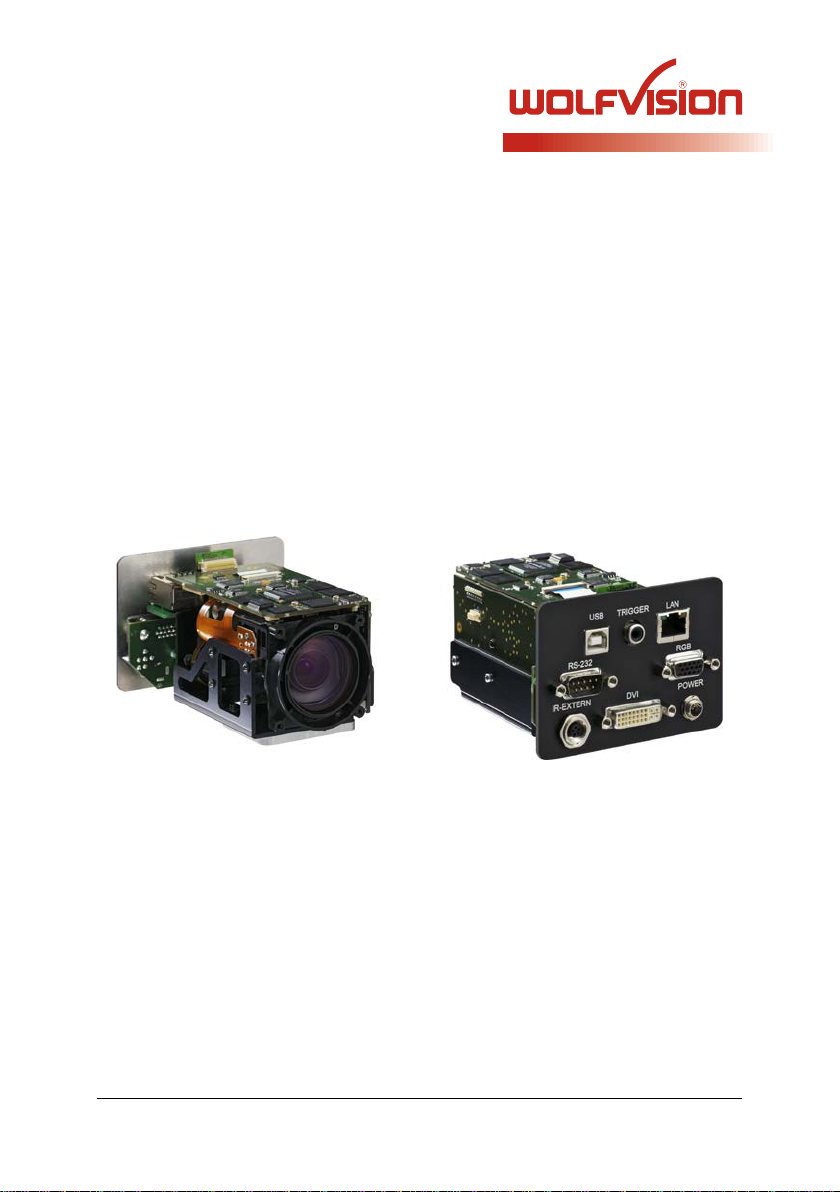
QUICKMANUAL
SCB-12
Version 1.2
Page 2

Information Copyright
Date of printing
I Copyright Information
Copyright © by WolfVision. All rights reserved.
WolfVision, Wofu Vision and 沃 福 视 讯 are registered
trademarks of WolfVision Holding AG, Austria.
No part of this document may be copied, reproduced, or
transmitted by any means, without pri or written permission from WolfVision. Except documentati on kept by t he
purchaser for backup purposes.
In the interest of continuing product improvement,
WolfVision reserves the right to change product specifications without notice.
Information in this document may change without notice.
Disclaimer: WolfVision shall not be liable for technical or
editorial errors or omissions.
The units are "MADE IN EU/AUSTRIA”
Printed in Austria
October 2011
II About this user manual
This manual will give you a quick overview of the
SCB-12.
Please read the on-line user manual for further and
more detailed information
www.wolfvision.com/wolf/ma_scb12.pdf
Please keep this quick m anual for later reading. When
selling the SCB-12 please give thi s user manual to the
next owner.
Page 3
Information Safety Symbols
III Safety Symbols in this manual
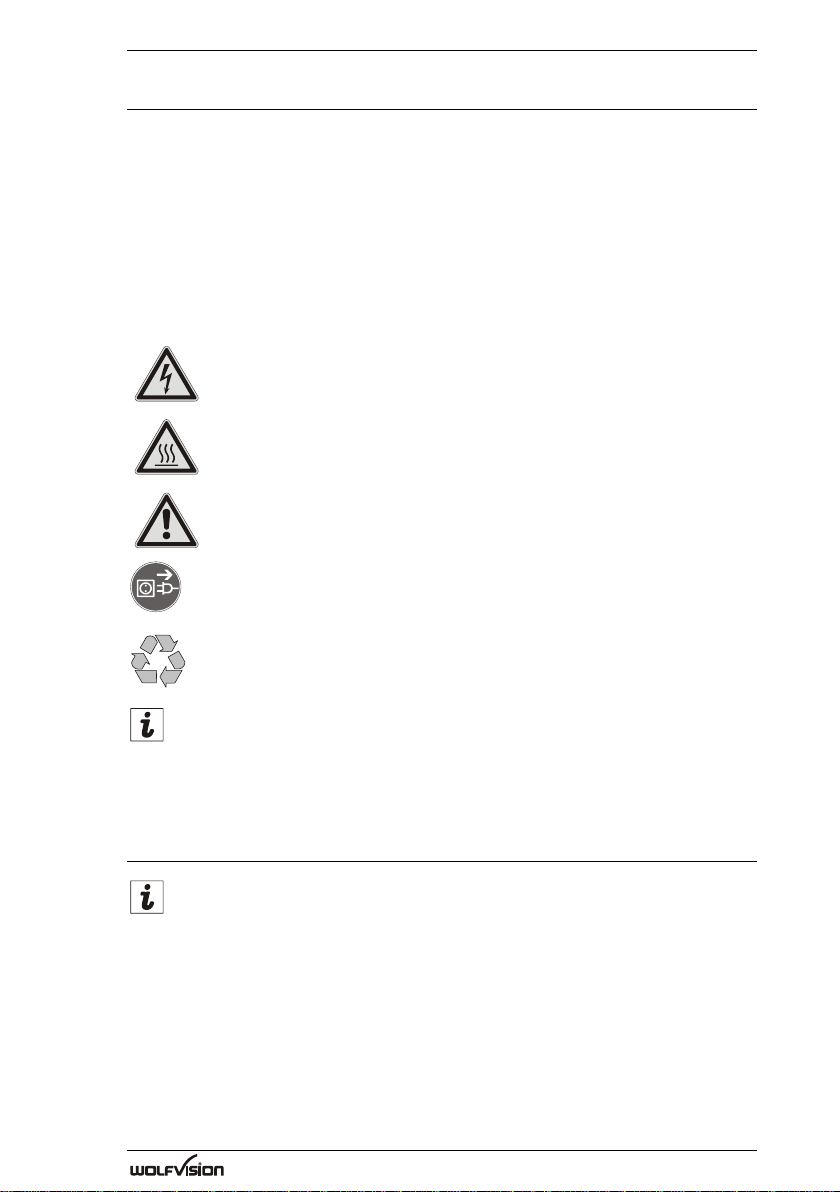
Safety information is m arked with corresponding pictographs and the instruction sequences are marked with
the symbol "".
The word Danger indicates possible serious personal
injury.
The word Warning indicates possible personal injury
and/or serious equipment damage.
The word Attention indicates possible personal injury
and/or equipment damage.
High voltage.
Risk of electric shock.
Hot surface.
Risk of get burnt.
Risk of possible material damages.
Advise for disconnecting the unit from mains.
Recycle used components.
Additional information.
IV Approval marks on the unit
As the SCB-12 is a camera module for OE M-customers
it has no FCC or CE approvals.
The customer is responsible for FCC, CE and other
necessary approvals.
3 Version 1.2
Page 4
Precaution Information
1 Precaution
RISK OF ELECTRIC SHOCK
Use this unit only with the correct voltage as
shown on the type label.
Do not expose the unit to extreme heat or mois-
ture.
Do not expose the unit to water, metallic objects
or any flammable material.
Make sure that sufficient air circ ulati on f or cooling
the unit is possible!
Do not use a damaged power cord / power sup-
ply. This may cause short circuits or electrical
shocks!
To prevent danger, do not modify the unit or op-
erate it without a case.
Never use the unit without case.
Never touch the power supply or power cord with
wet fingers.
If the unit is not used for a long time, disconnect it
from mains!
The power source equipment has to be approved
by CSA or UL in accordance to CSA 22. 2-60950
or UL 1950. And it shall comply with all applicable
local and national codes related to safety.
RISK OF DAMAGING THE UNIT
Protect the unit from excessive shocks.
Do not expose the unit to extreme heat or mois-
ture.
Do not expose the unit to water, metallic objects
or any flammable material.
Make sure that sufficient air circ ulati on f or cooling
the unit is possible!
If there is any abnormality (abnormal noise,
smell, smoke etc.) disconnect the unit f rom m ai ns
immediately and contact your WolfVision dealer!
Avoid installing the unit in environments where
there is radiation.
Avoid installing the unit in locations exposed to
strong magnetic fields or electric al currents. This
could cause monitor image dist ortion or damage
to the CCD camera.
Never use strong cleaning agents!
Version 1.2 4
Page 5
Information Content of packaging
2 Contents of packaging
Following components are included in the carton box*:
• SCB-12
• quick manual
all signals will be provided through JST and Molexconnectors.
*Please retain the origi nal pack aging for lat er transports
of the SCB-12.
5 Version 1.2
Page 6
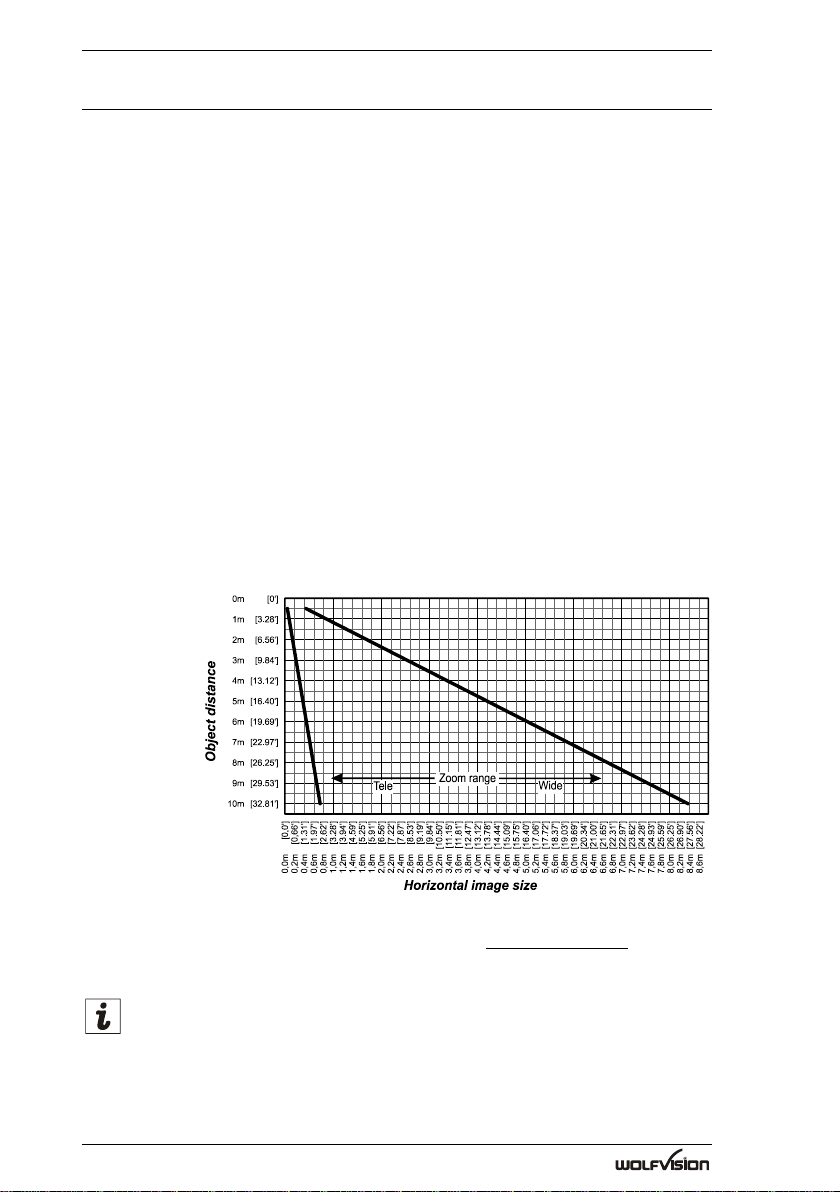
Image Size Chart Features
horizontal size
4
3 Features
The SCB-12 is an ultra-compact color-camera-module
with SXGA- resolution (1280x960) and 30 frames per
second. With the integrated scan converter, the camera
is able to output different resolutions and refres h rates
for optimum picture reproduction.
The SCB-12 has a high quality lens with 12x optical
zoom and 4x digital zoom. The camera module has an
auto focus and manual foc us, auto iris and manual iris
and motorized zoom.
There are special features like: trigger function, 9 Presets (remain stored when disconnected from power),
Positive/Negative, 9 image memories, Freeze function
and Image Turn
The SCB-12 can be controlled by RS-232, USB or
Ethernet/LAN. It is possible to t ransfer images via USB
or Ethernet/LAN.
Supply-voltage is 12VDC (+/- 10%).
3.1 Image S ize Chart
The following chart shows the connection between distance from the SCB-12 to the object and im age size in
optical zoom range:
Version 1.2 6
*vertical image size =
Regular Distance From 0.5 to 10 Meters [1.64 to
32.81'].
x 3
Page 7

Functions Basic
4 FUNCTIONS
The SCB-12 can be controlled through a key-matrix,
IR-remote control (IR-receiver and IR-remote control
will be required), via Ethernet/LAN, USB or RS-232. For
details regarding further functions please read the
online user manual
www.wolfvision.com/wolf/ma_scb12.pdf
4.1 Zoom
The SCB-12 uses an 12x zoom lens:
f=5.8 to 69.6 mm (F=2.8 to 3.0)
4.1.1 Digital Zoom
The digital zoom is autom aticall y switc hed on at the tele
end of 12x optical zoom range, with progres sive effect
from 1 to 4, giving a total maximum of 48x zoom ratio.
Digital zoom increases the pict ure element size and reduces the resolution.
Still pictures in the memory can also be digitally
zoomed.
4.2 Auto Iris / Manual Iris
The SCB-12 is equipped with an auto i ris function. This
means that the brightness of t he camera image adjusts
automatically. When using the IRIS-keys the auto iris
function is switched off. In this mode the iris can be adjusted manually. When us ing the ZOOM-keys the auto
iris is switched on again.
The auto iris also controls the Auto Gain and Auto Shutter to extend the iris-range.
4.3 Focus / Autofocus
The minimum focus distance (MOD) is below 50mm at
optical wide end and below 500mm at optical tele end,
and is independent of digital zoom. If s horter distances
are necessary, a high quality close up lens is available.
Please note that objects with very low contrast e.g. a
blank sheet of paper) are difficult to focus. If the
autofocus does not work just move the object slightly.
7 Version 1.2
Page 8
Basic Functions
4.4 Preset Function
The SCB-12 offers the possibility to store the current
settings as a preset and recall t hem by j ust pres sing the
respective PRESET key on the remote control.
Pressing the FREEZE key for 2 seconds recalls
preset 1.
For storing a preset: adjust any function as required and
then press any one of the PRESET keys on the remote
control for 2 seconds or more. An on-screen message
will inform you when the preset is stored.
When presets are stored as mentioned above, all current settings such as zoom, focus, iris etc. are stored.
The user can also assign specific functions, such as
"Negative", "Negative/Blue", "Black/White" etc. to a
PRESET key in the on-screen menu of the SCB-12.
4.5 White Balance
The correct white balance adjustment is important for
exact color reproduction.
"Auto Tracking" is the default white balance setting
when the SCB-12 is shipped. This means that the white
balance is continuously adjusted automatically.
For an exact white balance, 10% of the recorded image
should be white (measurement area is in the center of
the image).
For a precisely fixed white balance adjustment use the
"One Push" white balance. This can be done b y completely zooming in on a white surface and pressing the
WHITE key. When the white balance i s stored, an onscreen message appears. Setting a "One Pus h" white
balance switches off the "Auto Tracking" mode (when
the unit is switched off and on again the "A uto Track i ng"
mode will be reactivated). When the lighting c onditions
change (e.g. light box, sunlight or dif ferent room light)
the white balance should be re-adjusted!
For specialists: The SCB-12 can be switched between
"Auto Tracking", "One Push" and "Manual" white balance mode in the on-screen menu.
If you work with negative transparencies and a light
box, use a blank (black in the image) piece of the negative film for white balance adjustment!
8 Version 1.2
Page 9
Functions
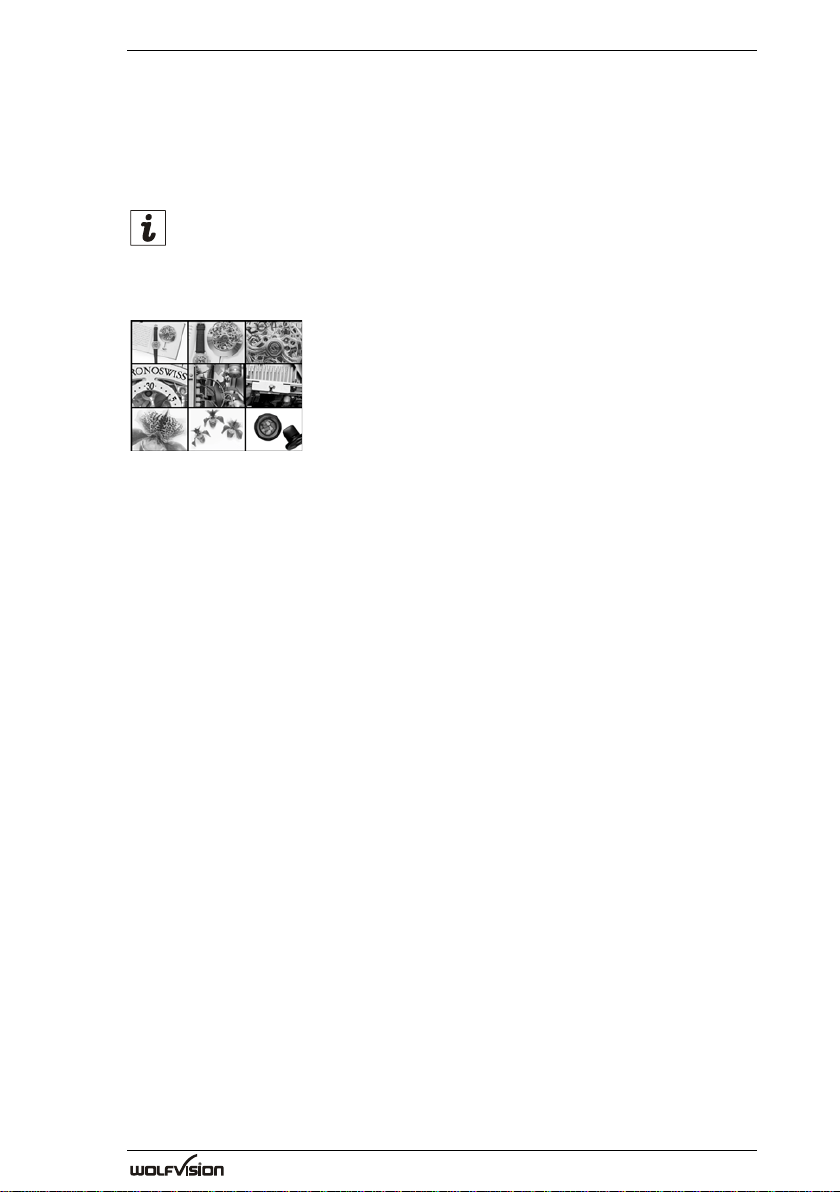
Example of a splitscreen
for higher resolution
4.6 Image Memory for 9 images
The SCB-12 has an image memory from which a s tored
image can be output as a still image.
You can store up to 9 images in the memory.
Code
Storing an image: Press one of the MEMORY keys for 2
seconds or more
Recalling an image: Press one of the MEMORY keys
quickly
Splitscreen
By pressing the ALL key a split image with all 9 pictures
of the memory can be displayed.
4.7 Freeze
To capture the current image into memory, use the
FREEZE-key. The captured image is output.
4.8 Image Turn Mode
Picking up a complete vertical (portrait) document or A4
page has always been a critical issue because the
image was always picked up in a horizontal (landscape)
format.
The camera could only use 50% of its pixels to pick up
a vertical (portrait) page. WolfVision's "Image turn"
mode solves this problem.
Just place your document (or other vertical object) on
the working surface horizontally. Zoom in on it completely, so that approx. 90% of the pixels of the built-in
camera are used to pick up the document. Press the
IMAGE TURN key. The SCB-12 turns the picture electronically at an angle at 90º and outputs it correctly with
a much higher resolution t han in normal mode. The left
and right margins are blackened out.
9 Version 1.2
Page 10
OSD
For experienced users
only:
5 OSD (On-Screen Menu)
For regular use of the SCB-12, it is not necessary to go
into the unit's menu and change set t i ngs. Inexperienced
users should not make any adjustments there.
The functions of the on-screen menu are not described
in detail in this us er manual s ince the HELP m enu is an
integrated part of the unit's software (firmware). The information you see on your screen always belongs to the
current firmware.
5.1 Quick Setup Guide
When the c amera will be switched on the first time, the
Quick Setup Guide will be started automatically. It will
guide you through the most important settings like:
Language, Ethernet/LAN, etc.
All settings can be changed in the on-screen m enu too,
just select the respective category and choose the
desired setting.
5.2 Reset On-Screen Menu Settings
The settings in the on-screen menu can be set to default. “Recall Default Settings” is a separate it em in the
on-screen menu.
Version 1.2 10
Page 11
Maintenance
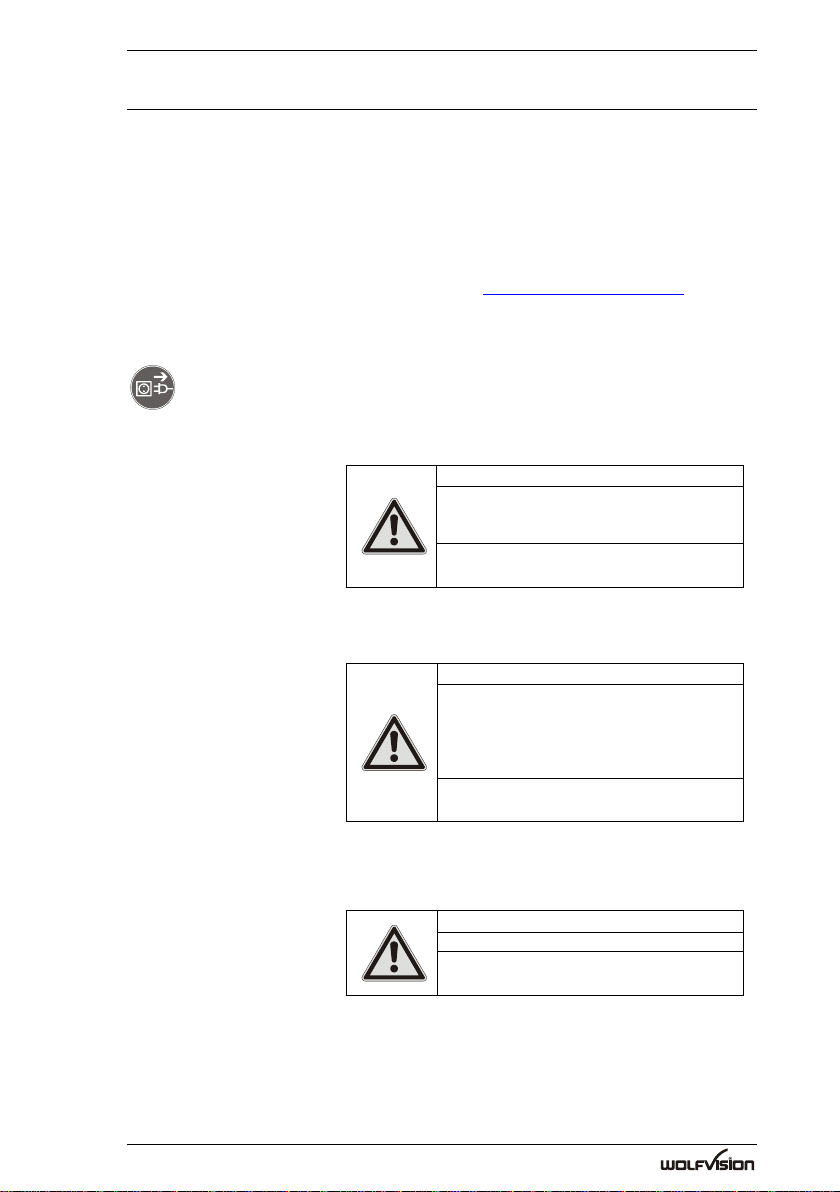
WARNING
Damaging the unit
benzene or similar damages the finish!
Use cleaning agents like display
WARNING
Damaging the unit
Paper tissues can scratch the lens!
Use soft lint free cloth with special
WARNING
Damaging the unit!
Pack the unit always in the original
6 MAINTENANCE
6.1 Firmware Upgrades
The software (firmware) of the SCB-12 (including the
on-screen HELP) can easily be upgraded to the l atest
version. The firmware update can be done via USB,
Ethernet (LAN) or RS232.
Firmware update files and update tools can be downloaded for free at www.wolfvision.com/support
6.2 Cleaning
Disconnect the unit from the mains!
6.2.1 Cabinet
Strong cleaning agents like acetone,
cleaner only.
6.2.2 Optic / Lens
6.3 Transportation
Version 1.2 11
Strong cleaning agents like acetone,
benzene or similar damages the antireflex coating!
optical cleaning agent only.
packaging.
Ask your WolfVision dealer or WolfV ision office to answer any questions.
Page 12
Technical Specification
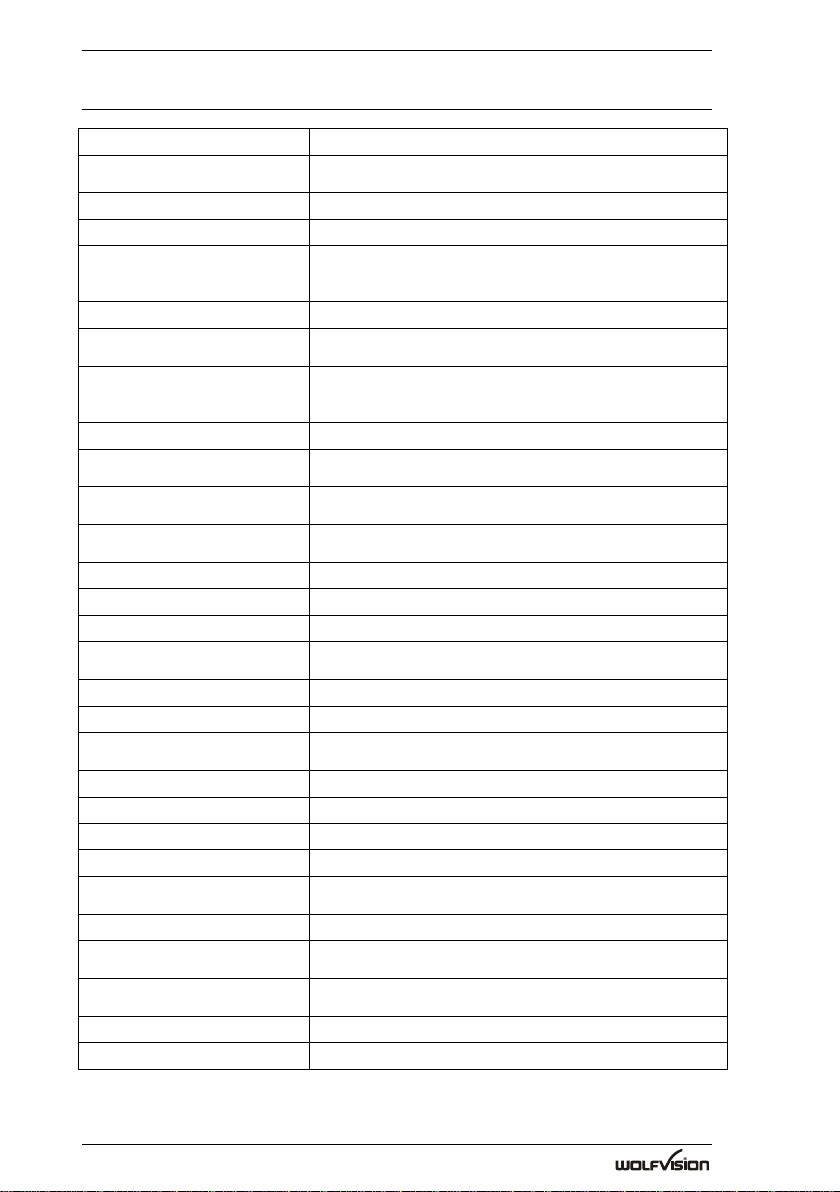
Camera / Technology
Pictures per second (as
picked up by the camera)
Pixels processed per seframes per second)
SXGA- (1280 x 960), 720p (1280 x 720) and
WXGA* (1280 x 800).
1080p / 720p / WSXGA / WXGA+ / WXGA / WXGA*
(switchable), LAN, USB 2.0
Resolution (measured)
Resolution in Image Turn
mode (measured)
Image Turn mode (for increased resolution)
Progressive Scan: 85, 75, 60 or 50Hz
(switchable , depending on resolution)
Horizontal image-frequency
Integrated 12 x Optical Zoom Lens, f = 5.8-69.6 mm, F =
2.8-3:0
MOD (Minimum Optical
Distance)
Tele: 0.5m, Wide: 50mm until Infinite (for shorter dis-
tances standard close-up lenses can be used)
Digital Zoom
On-screen menu and onscreen help
Upgradeable firmware
USB software for image
capture and controlling
included (for Windows and Macintosh, Twain compatible,
with video capture driver)
Time for still image capturing
1/2 second approximate capturing time
(with fast PC and USB 2.0)
User programmable presets
7 Technical Specifications
1-CCD 1/3" Progressive Scan
30 fps (=full pictures)
Effective Pixel
Total pixels of CCD
1280 (H) x 960 (V), 2048 x 1536
1,315,648
cond (=effective pixels x
Color reproduction
Native signal output
Output signals
Vertical image-frequency
Signal format
Min. Illumination
Lens
Lens Structure
Lens Adaptor
Iris
White balance adjustment
Focus
36,864,000
very good colors (sRGB color precision)
/ SXGA+ / SXGA / SXGA- / XGA / SVGA / VGA
820 lines
1050 lines
yes / 90, 180 and 270 degrees
Progressive Scan: 31.5 - 91.1 kHz
non-interlaced
5 Lux typ.
10 Groups, 13 Pieces (2 Aspheric.)
M46 x 0.75mm Mount for Additional Lenses or Filters
4 x digital
automatic and manual
automatic, manual and One Push White Balance
automatic and manual
yes
yes, via USB, serial (RS232) or Ethernet/LAN
3 (plus 8 fixed presets trough RS232)
Image memory
Version 1.2 12
9 pictures, 1 image freeze
Page 13
Technical Specification
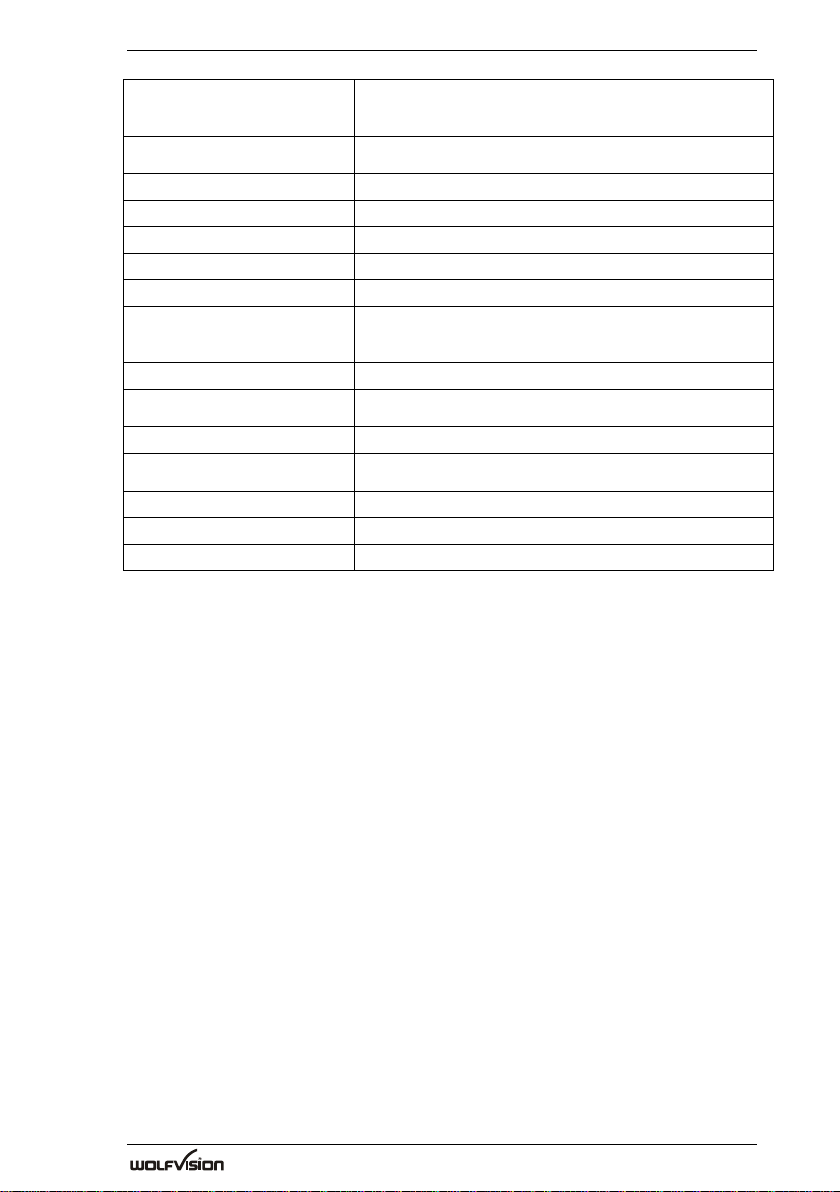
Show all function (displays
memory as one split image)
negative image / negative-blue image / black and white
image
DVI output
RS232 port and serial proand status report
Ethernet (LAN) port
Dimensions (W x H x L)
without interfacing board
Power Requirements with
power supply
Made in
European Union (EU)
all 9 pictures of current
Alternative Image display
RGB (=data RGB) output
HDMI output
Trigger input
USB port / standard
tocol with position setting
Weight
Operating Temperature
Warranty
yes
1x
DVI-I (analog and digital)
when using a DVI-HDMI cable or adapter
positive or negative pulses, switchable
USB 2.0 (also compatible with USB 1.1 with less speed)
1x
yes, IP-addressable (DHCP-supported), 10/100 Mbps
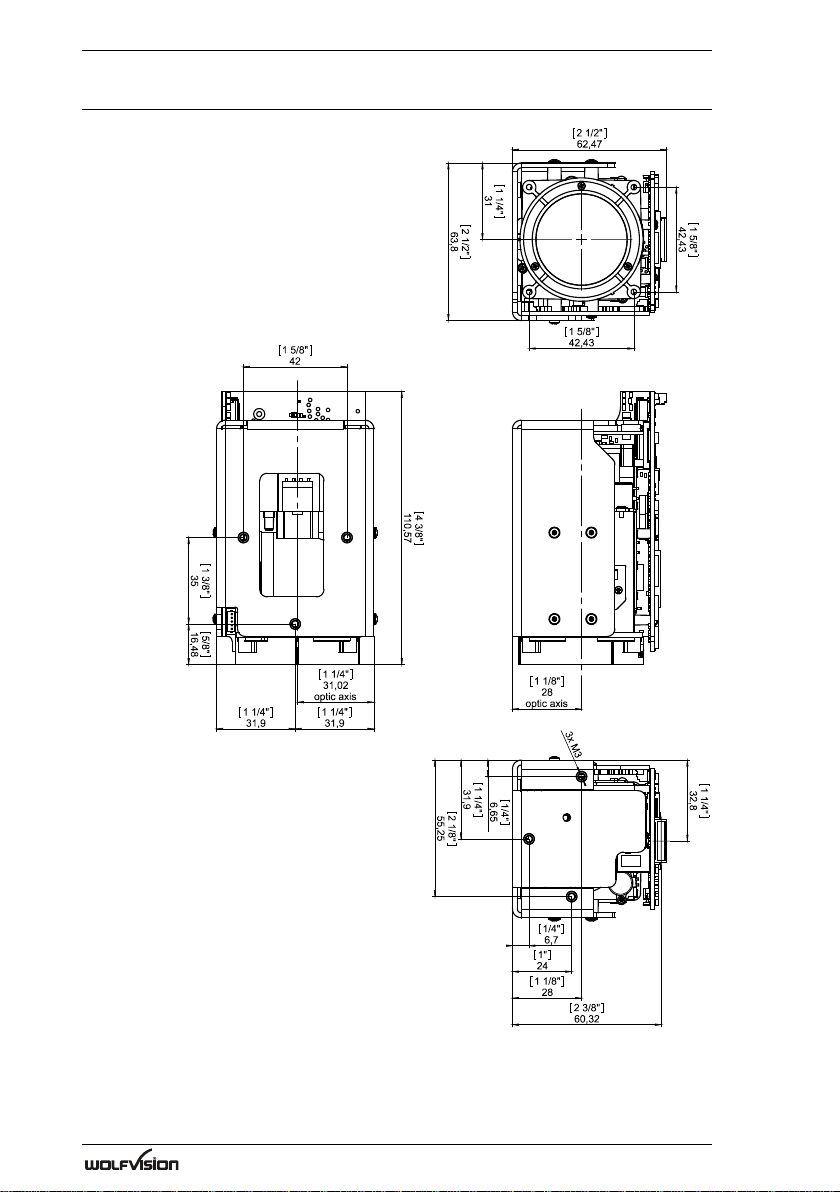
62.47mm x 63.8mm x 110.57mm [2 1/2" x 2 1/2" x 4 3/8"]
0.8kg (1.8lbs)
12V DC (+/-10%), 10W
0°C to +40°C
5 years
13 Version 1.2
Page 14
Dimensions Technical Specification
8 Dimensions
14 Version 1.2
Page 15
Disposal
9 Disposal of old WolfVision units
9.1 In the European Union
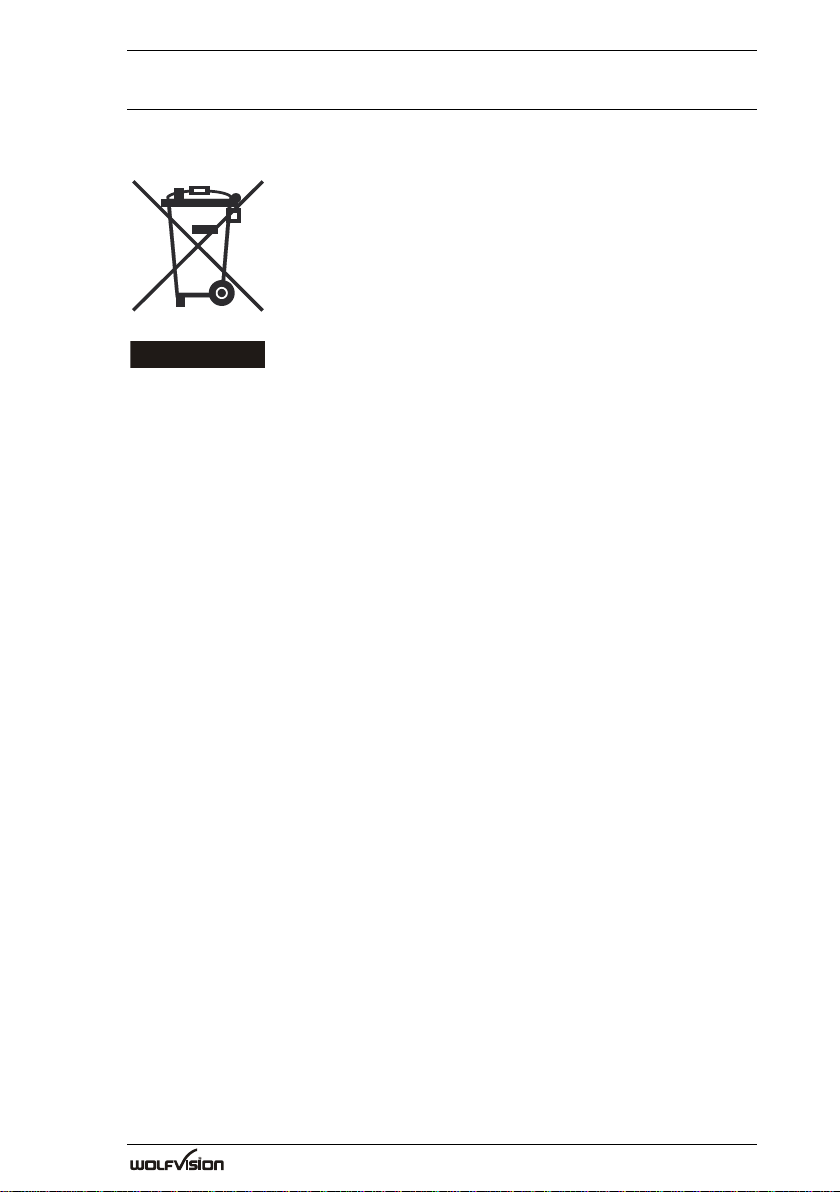
Electrical and electronical equipment marked with the
symbol on the left, have to be disposed of separately in
accordance with the European Union's directive on
waste electrical and electronical equipment and local
regulations.
This also applies to SCB-12 electrical accessories e.g.
remote control, power supply and signal cables.
Dispose of the SCB-12 in accordance with local government regulations, contact your local WolfVision
dealer or, if applicable, in acc ordance with a WolfV ision
agreement.
9.2 Outside of the European Union
Contact your responsible local authorities for information about the correct disposal of electrical and el ectronical devices.
15 Version 1.2
Page 16
Manufacturer / Worldwide Distribution:
WolfVision GmbH, Oberes Ried, A-6833 Klaus / AUSTRIA
Distribution in USA
Distribution in Canada
Distribution in Asia
Distribution in Japan
Distribution in United Kingdom
Tel. ++43-5523-52250, Fax. ++43-5523-52249,
E-Mail: [email protected]
Internet Homepage:
www.wolfvision.com
E-Mail for technical support:
WolfVision USA East Inc., Dul uth (near Atlanta), GA 30097 / USA
Toll free: (877)-873WOLF, Tel: +1 (770) 931-6802, Fax: +1 (770) 931-6906,
E-Mail: [email protected] / [email protected]
WolfVision Inc., Burlingam e (near San Francisc o), CA 94010 / USA
Toll free: (800) 356-WOLF, Tel: +1 (650) 648-0002 Fax: +1 (650) 648-0009,
E-Mail: [email protected] / [email protected]
WolfVision Canada Inc., Ottawa, ON K1J 1H7, Canada
Tollfree 1-877-513-2002, Tel: +1 (613) 741-9898, , Fax: +1 (613) 741-3747,
E-Mail: [email protected]
WolfVision A sia, Singapore 757718
Tel. +65 - 366 9288, Fax: +65 - 366 9280,
E-mail: [email protected]
WolfVision Co Ltd.
Tokyo 160-0023, Japan
Tel. (81) 3 3360 3231, Fax: (81) 3 3360 3236,
E-mail: [email protected]
WolfVision UK Limited, Manchester M22 5XB, United Kingdom
Tel. +44-161-435-6081, Fax +44-161-435-6100,
E-Mail: [email protected]
 Loading...