

Page 1
LET’S GO.
LET’S GO.
Wemo
GET
MINI
DIMMER SWITCH
Quick Start Guide
Quick Start Guide
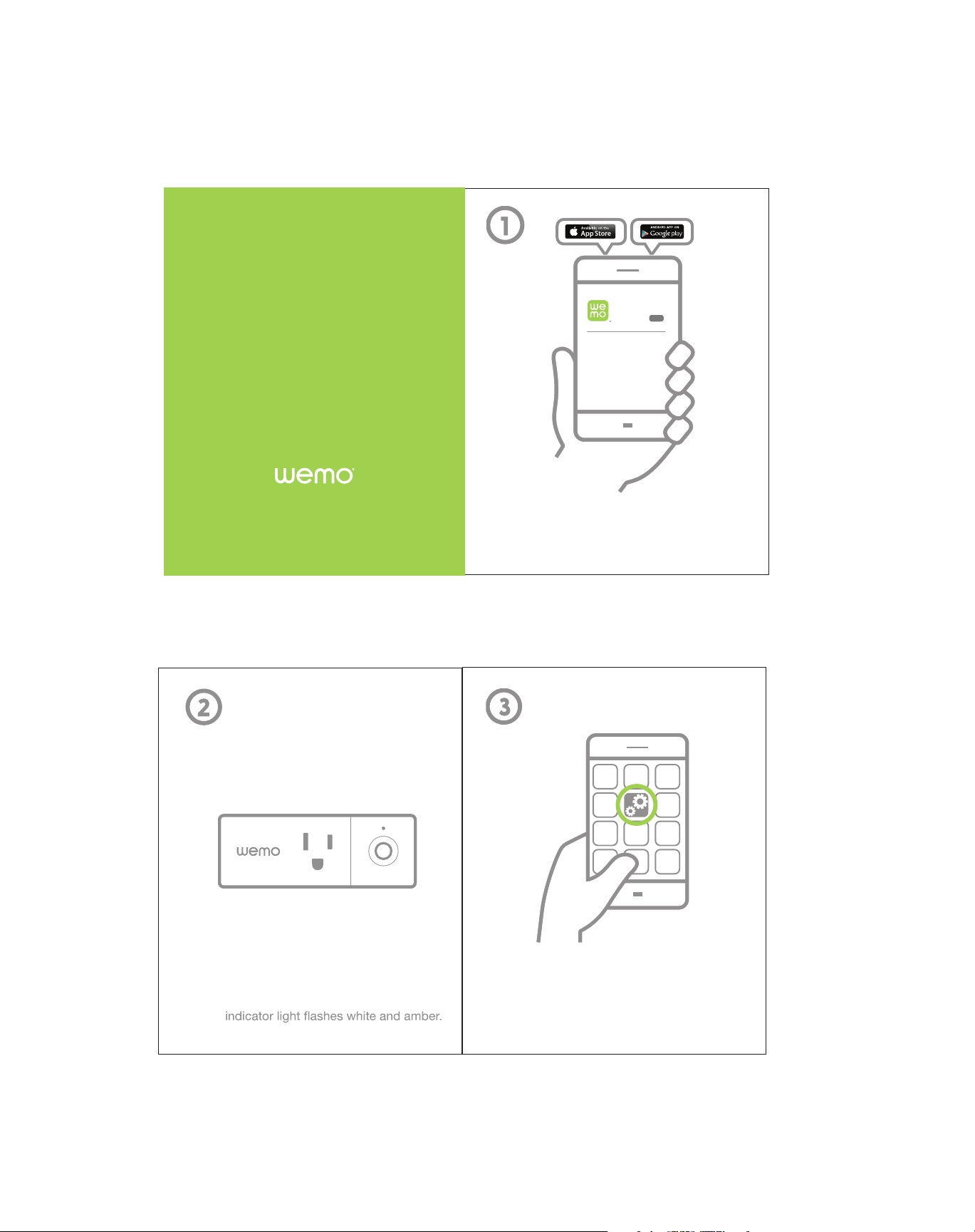
GET THE APP
Download (but don’t launch)
the latest Wemo app.
THE HARD PART
Plug your Mini into any outlet. Wait until the
®
Wi-Fi
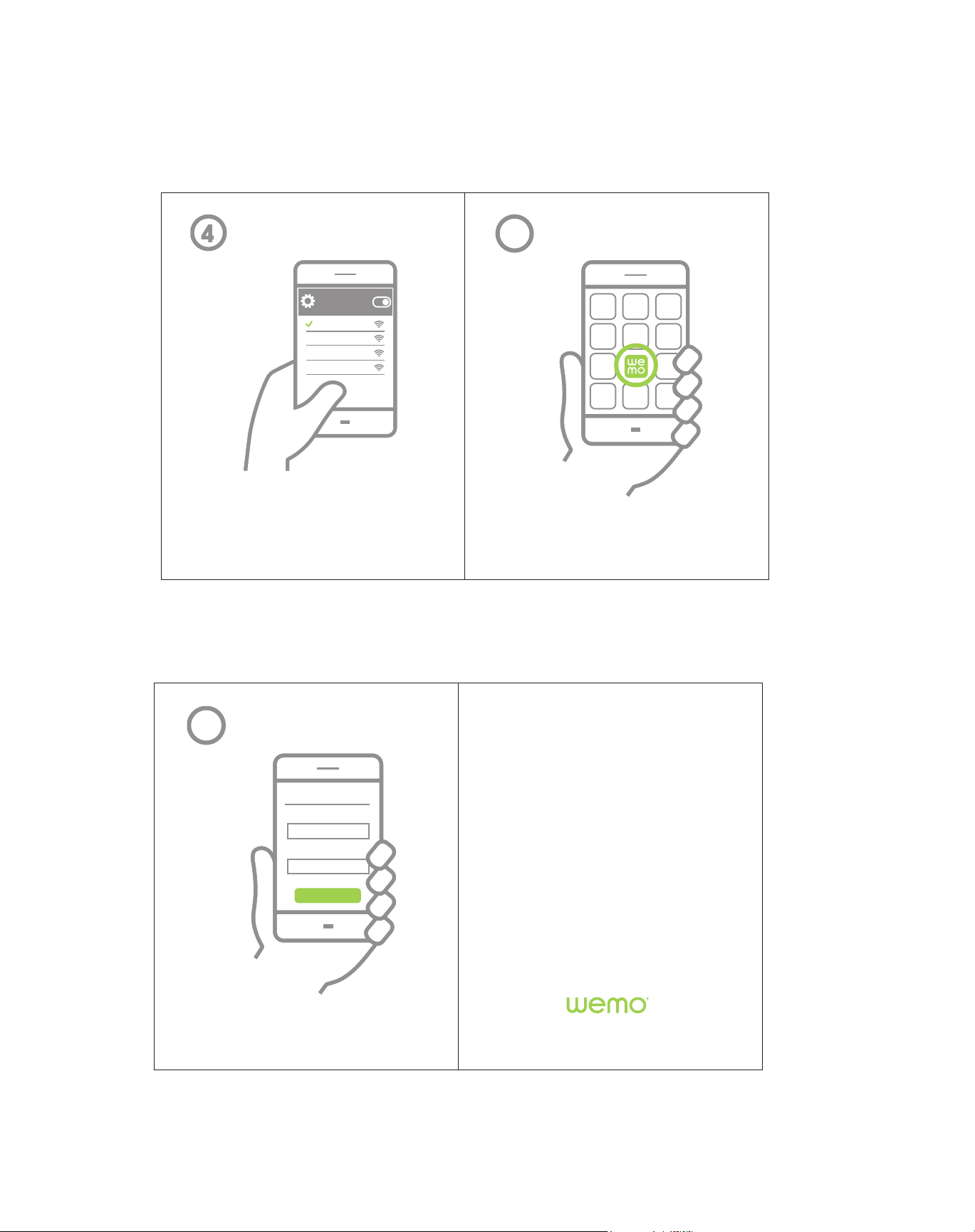
FIND YOUR SETTINGS
Open up your phone’s settings
and select Wi-Fi.
Page 2
Wi-Fi Settings
Wemo.Mini
Other network
Other network
You get the idea
5
GET CONNECTED
In your smartphone’s Wi-Fi settings,
connect to “Wemo.Mini.”
6
PERSONALIZE
Proceed
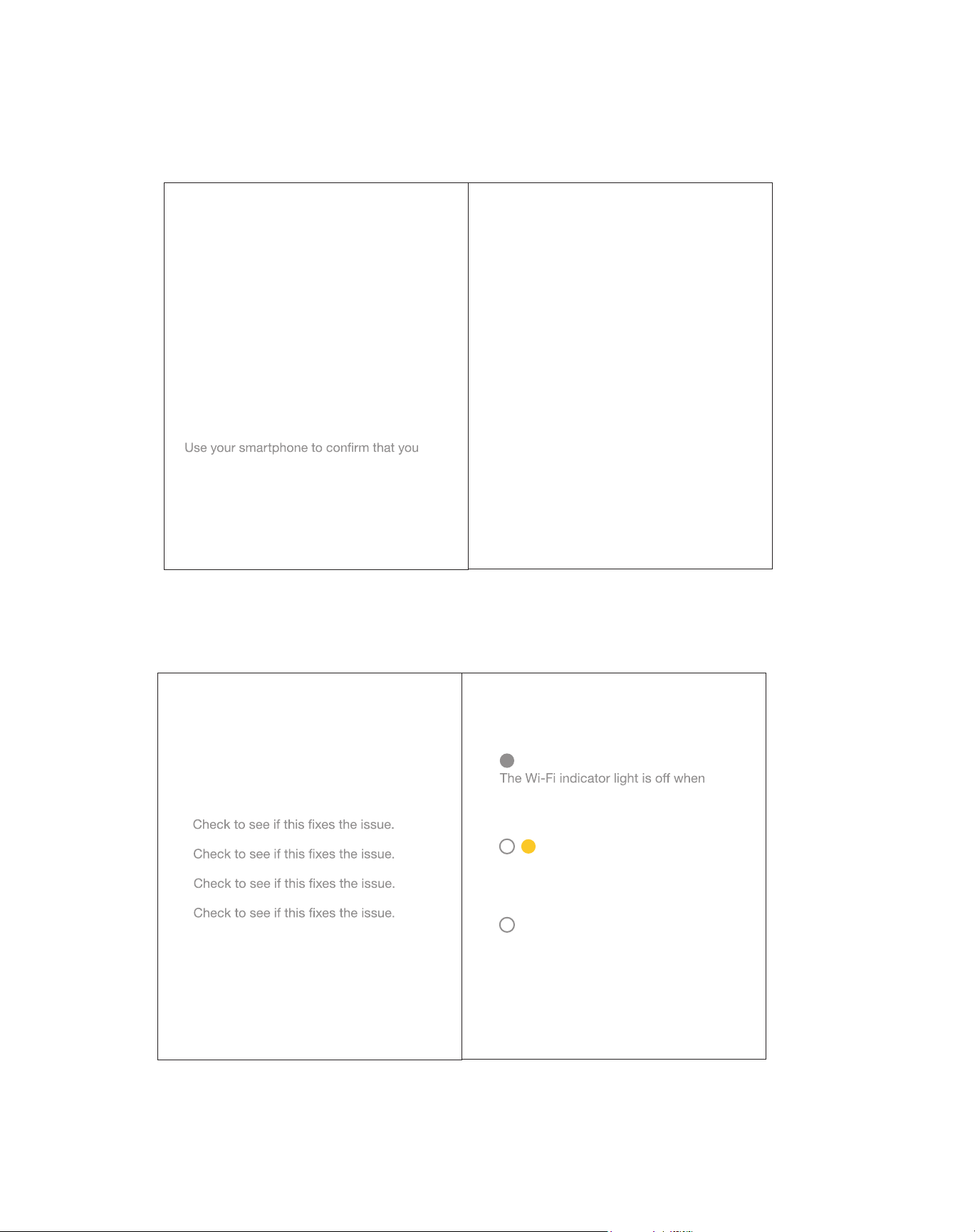
ALMOST DONE
Launch the Wemo app to
complete setup. (Whew!)
TROUBLESHOOTING
PERSONALIZE
Press “Proceed” to complete
the setup process.
MINI
Page 3
I can’t find the Wemo
network in my Wi-Fi list.
Make sure your Mini is plugged in and the LED
is alternating white and amber. If the LED is not
alternating white and amber, unplug your Mini
and plug it back in to reboot.
My Wi-Fi network doesn’t
appear in the Wemo app.
have at least two Wi-Fi bars in the vicinity of
your Mini. If not, move your Mini closer to your
router. (The list will refresh every 10 seconds.)
My Wemo appears as
“Unavailable” in the app.
Refresh the device list.
My Wemo app is frozen.
Force quit and re-launch the Wemo app.
I just replaced my router.
To reset the W-Fi without losing your Mini
settings, hold down the power button and
wait for the LED to change from amber to
blinking white, then release. When the LED
begins to alternate white and amber, follow
steps 3–5 to associate your Mini with your
new network.
I’m still having trouble!
Wi-Fi networks come in a lot of shapes
and sizes with many quirks of their own. It
doesn’t mean your Mini is malfunctioning.
If problems persist, please try these steps,
in this order:
1. Force quit and re-launch the Wemo app.
2. Unplug your Mini and plug it back in.
3. Unplug your router and plug it back in.
4. Delete and reinstall the Wemo app.
5. If all else fails, restore your Mini to factory
defaults: First, unplug your Mini. Press and
hold power button while you plug it back in.
Keep holding until the LED starts blinking
white, then release. Wait for your Mini to
reboot (about 20 seconds). When the LED
starts alternating white and amber, repeat
steps 3–6 of the setup process.
What do all these
blinking lights mean?
your Mini is connected and working
normally.
The Wi-Fi indicator light alternates
white and amber when it’s ready
for setup.
Solid white for 30 seconds means
setup was successful and your Mini
is on.
Page 4
is updating.
Solid amber tells you the Wi-Fi signal
is weak. Try moving your Mini closer to
the router.
Blinking amber means your Mini is not
connected to the Wi-Fi network. Try
unplugging your router and/or Mini and
plugging them back in.
Need more help?
Visit wemo.com/support.html
8820-02451 Rev. B00
 Loading...