

Page 1
Knowledge Article http://belkin.force.com/Articles/articles/en_US/How_To/Setting-up-the...
Setting up the Wemo® Mini Smart
Plug, F7C063
Body
The Wemo® Mini Smart Plug, F7C063, lets you turn electronic devices ON or OFF
from anywhere using your smartphone or tablet. This home automation device uses
your existing home Wi-Fi to provide wireless control of lamps, heaters, fans and more.
You can even set schedules for your devices and control them remotely using a mobile
internet connection.
Follow the instructions below to learn how to set up your Wemo Mini.
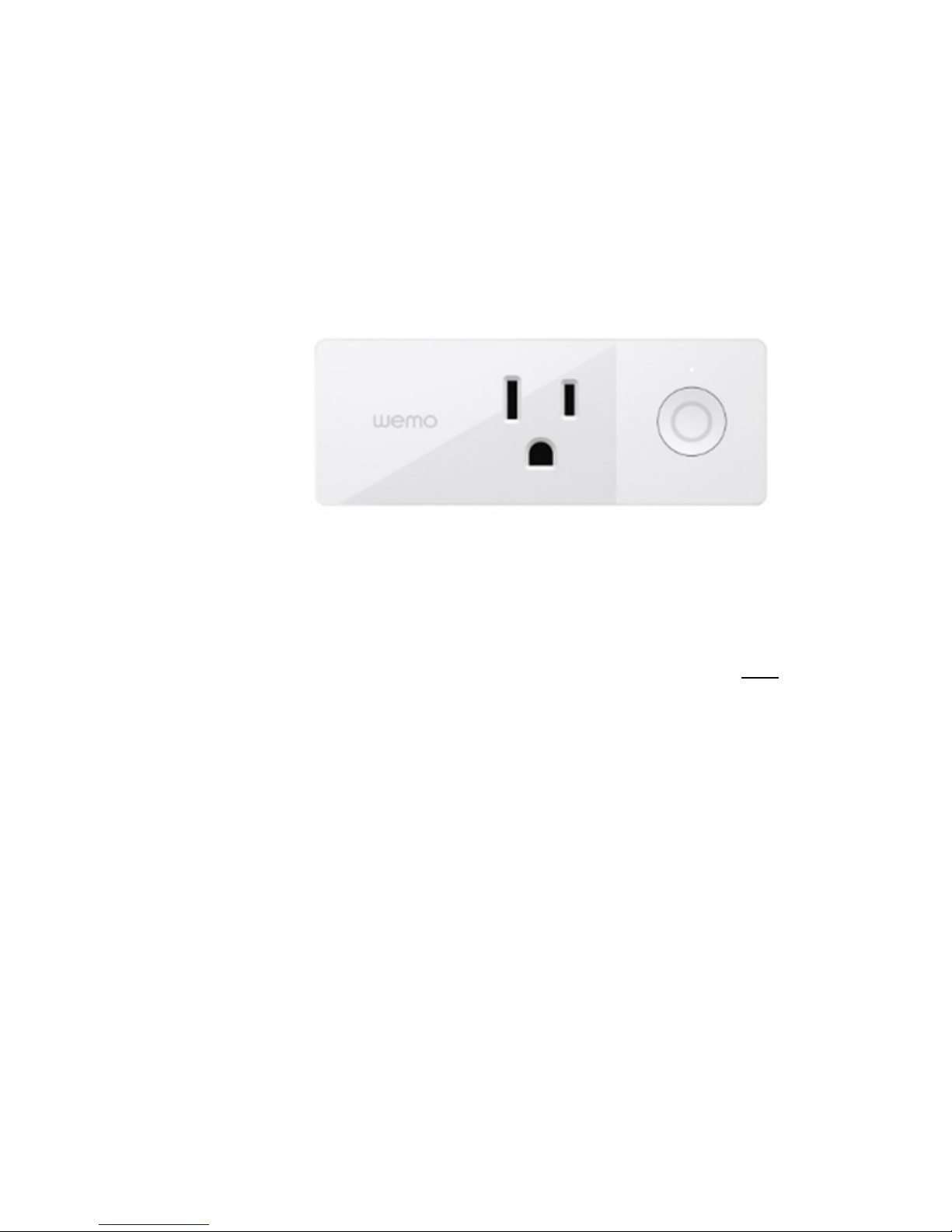
Step 1: Plug your Wemo Mini into a three-pronged grounded outlet.
NOTE: Wait for the Status light to blink orange and white. This
signifies that the Wemo Mini is now ready to be set up. To know more
about the Status light behaviors of your Wemo Mini, click here.
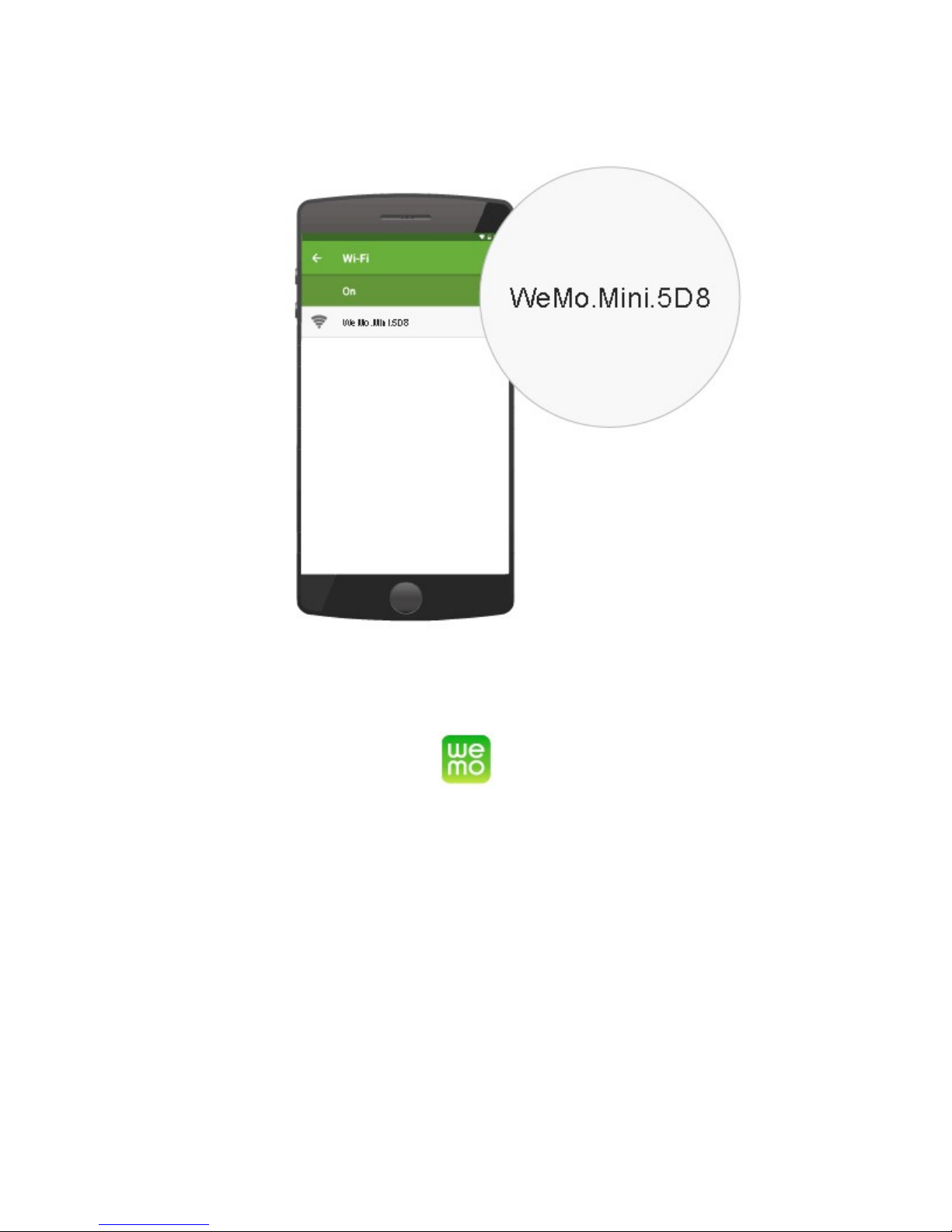
Step 2: Tap the Settings icon on your Android™ or iOS device.
Enable Wi-Fi and connect to your Wemo network. Each Wemo device
has a unique Wemo ID printed at the back of the unit.
1 of 7 10/30/2017 10:50 PM
Page 2
Knowledge Article http://belkin.force.com/Articles/articles/en_US/How_To/Setting-up-the...
QUICK TIP: If you are unable to locate your Wemo Mini on the Wi-Fi
list, you may need to restore your Wemo Mini to factory defaults.
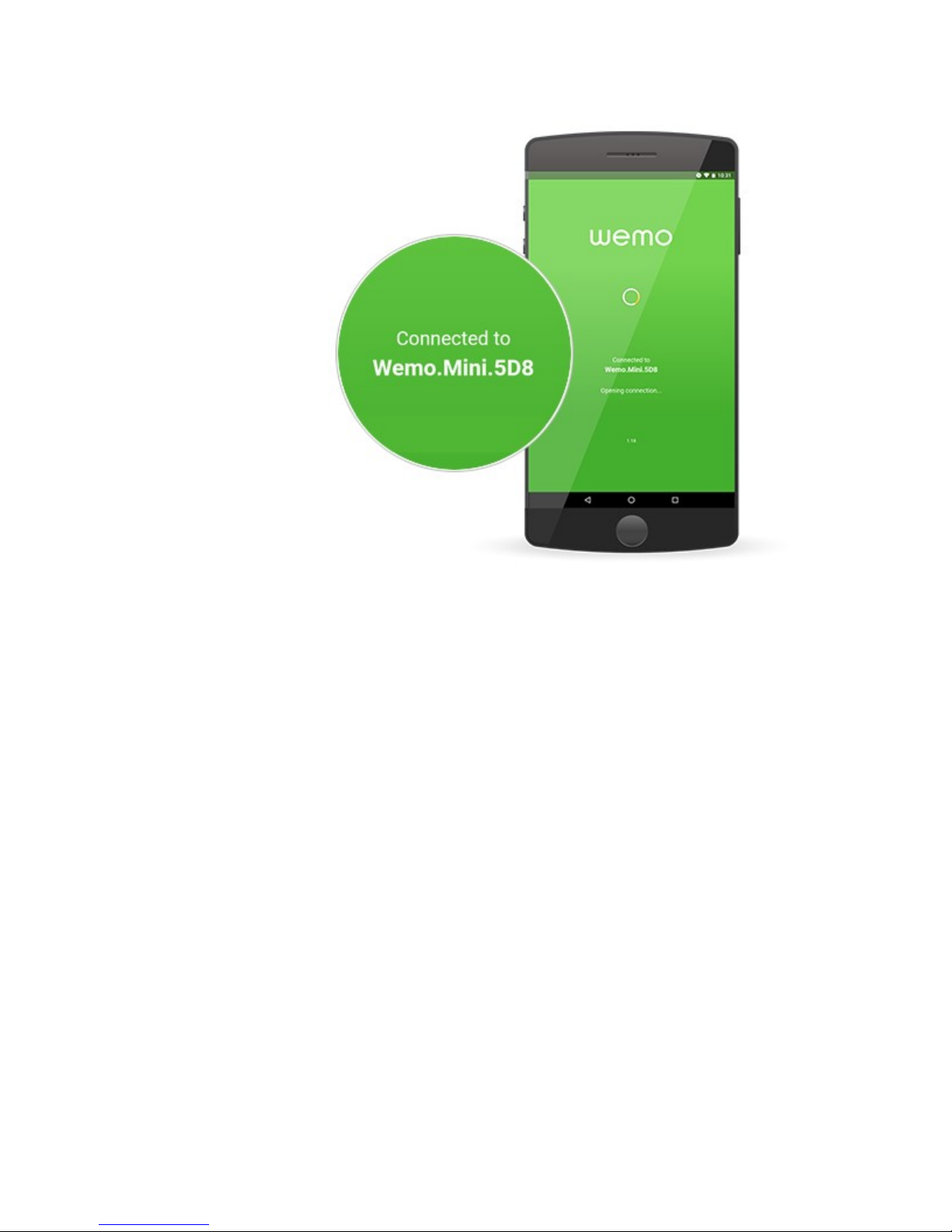
Step 3: Launch the App.
2 of 7 10/30/2017 10:50 PM
Page 3
Knowledge Article http://belkin.force.com/Articles/articles/en_US/How_To/Setting-up-the...
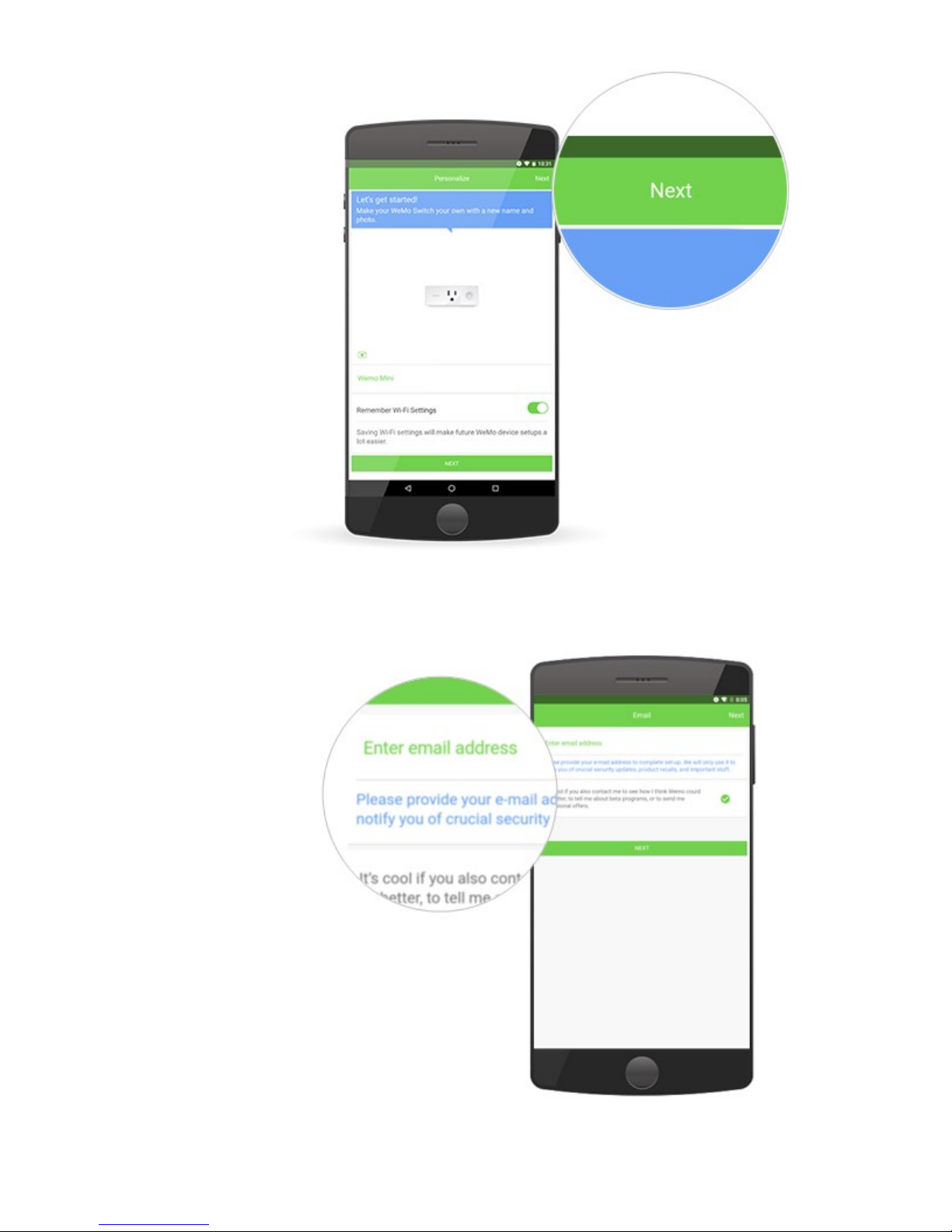
Step 4: The Personalize screen will allow you to modify the name or
image of your Wemo Mini. You can either make the changes at this
point or just tap Next and make the changes later.
3 of 7 10/30/2017 10:50 PM
Page 4
Knowledge Article http://belkin.force.com/Articles/articles/en_US/How_To/Setting-up-the...
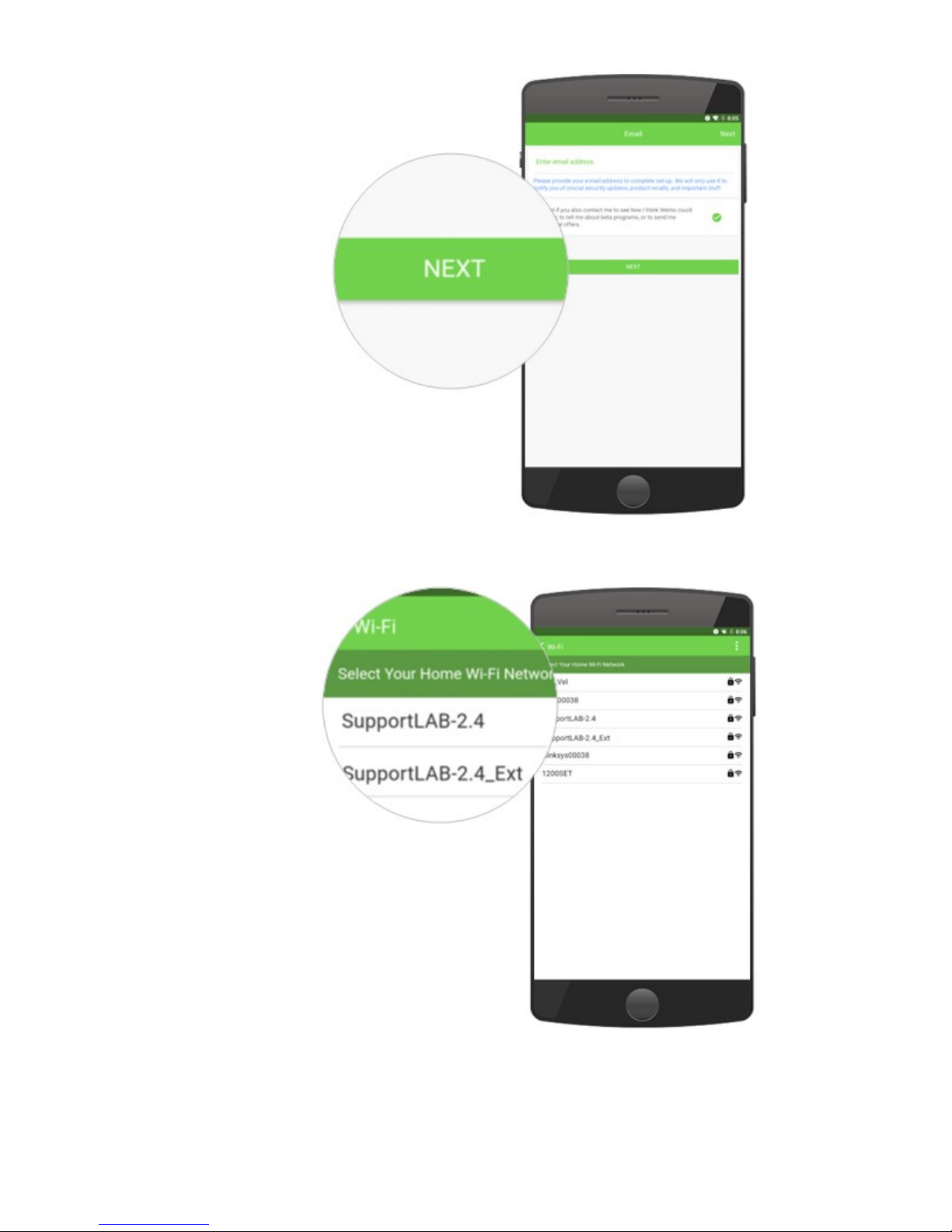
Step 5: Enter a valid email address and tap NEXT.
4 of 7 10/30/2017 10:50 PM
Page 5
Knowledge Article http://belkin.force.com/Articles/articles/en_US/How_To/Setting-up-the...
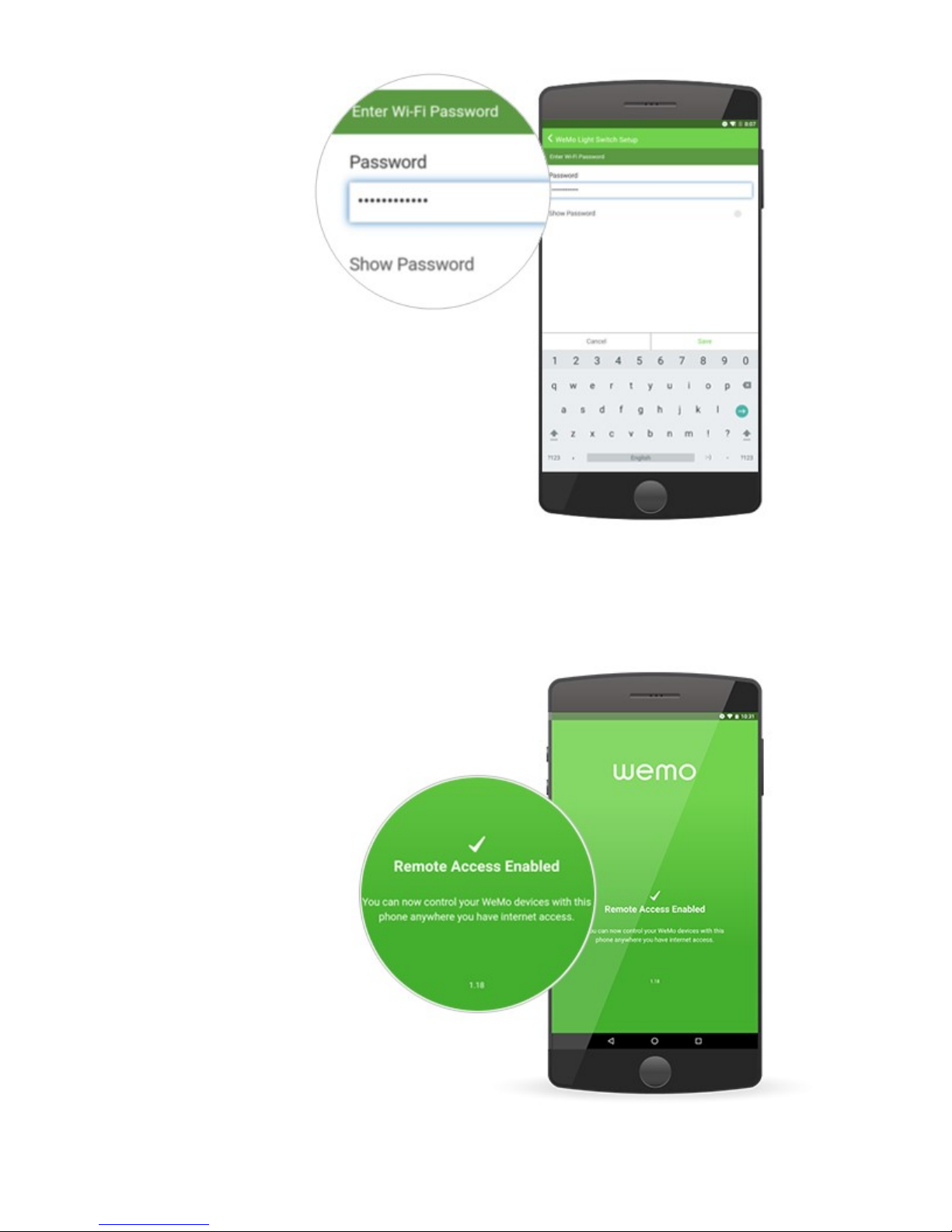
Step 6: Select your home Wi-Fi and enter your password.
5 of 7 10/30/2017 10:50 PM
Page 6
Knowledge Article http://belkin.force.com/Articles/articles/en_US/How_To/Setting-up-the...
Wait while the Wemo App connects to your Wi-Fi. Once this is
done, Remote Access will be enabled by default.
6 of 7 10/30/2017 10:50 PM
Page 7

Knowledge Article http://belkin.force.com/Articles/articles/en_US/How_To/Setting-up-the...
Wemo Mini is now successfully set up and you can see it on the Wemo App’s
The
Devices list. To know more about your Wemo Mini, click on the links below:
Meet the Wemo® Mini Smart Plug, F7C063
Understanding the Wemo® Mini Smart Plug, F7C063 Status Lights
Why did I receive an overheat message for my Wemo® Mini Smart Plug, F7C063?
Related Articles:
Meet the Wemo App for Android™
Meet the Wemo App for iOS
Brand
Belkin
7 of 7 10/30/2017 10:50 PM
Page 8
Knowledge Article http://belkin.force.com/Articles/articles/en_US/How_To/How-to-manuall...
How to manually reset the Wemo®
Mini Smart Plug, F7C063 to factory
defaults
Body
There are two scenarios where you will need to reset your Wemo® Mini Smart Plug,
F7C063.
Scenario 1: If you see a blinking orange light on your Wemo® Mini Smart Plug,
F7C063, you will need to restore your Wemo Mini by following the steps below:
NOTE: If you changed your Wi-Fi router but you want to save its friendly name and the
Rules applied to it, skip Step 2 below.
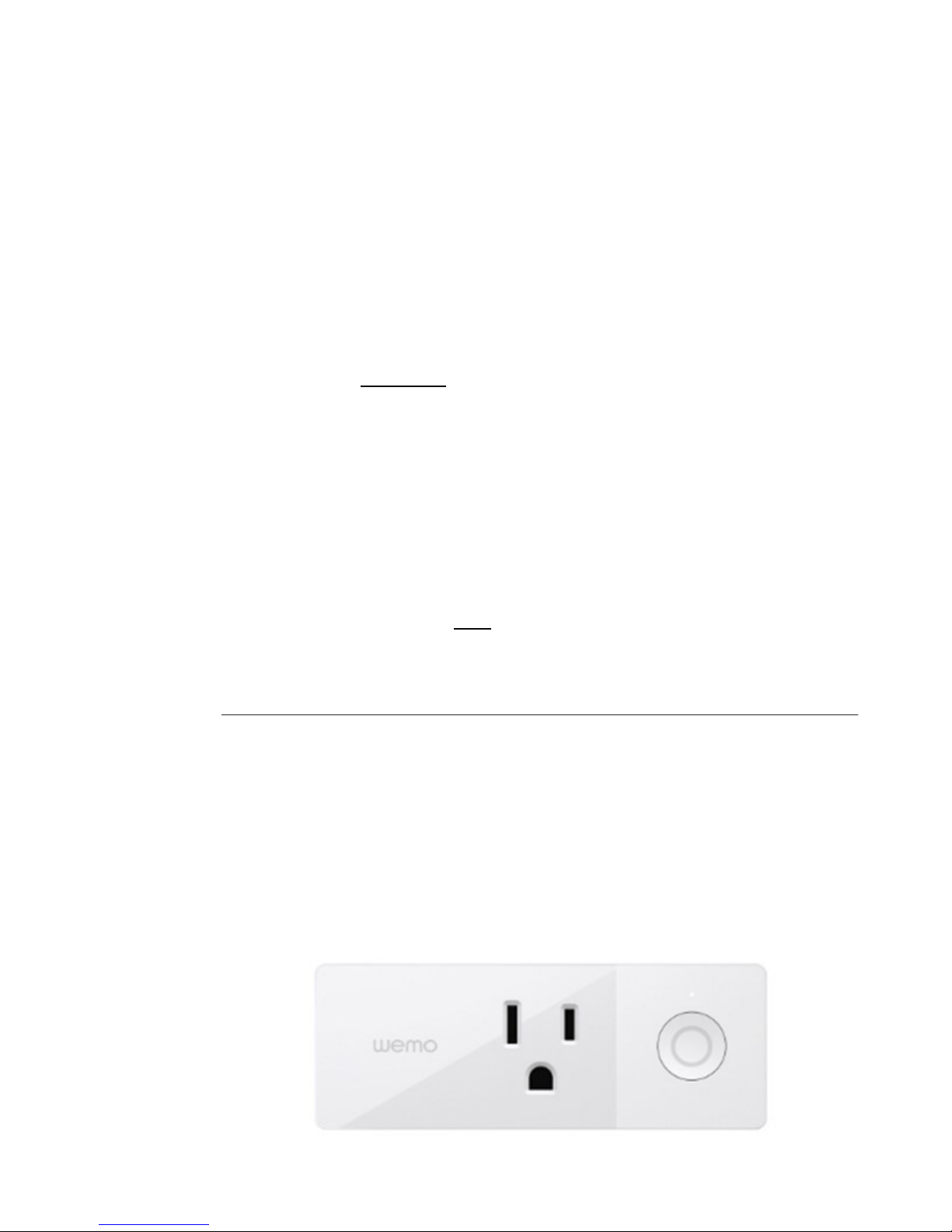
Step 1: Press and hold the power button.
Step 2: Unplug your Wemo Mini then plug it back in while holding the
power button down.
Step 3: Continue to hold the power button down until the light blinks
rapidly then release it.
Step 4: If the light alternately blinks orange and white, then it is
ready for setup. Click here for instructions on how to set up your
Wemo Mini.
The reset process will take 30-90 seconds to complete.
Scenario 2: If you are unable to locate your Wemo Mini on your phone’s Wi-Fi list or in
your Wemo App, you can proceed to do the following:
Step 1: Unplug the Wemo Mini from the power outlet.
Step 2: Plug the Wemo Mini back into the power outlet.
Step 3: The light will blink white to signify it is starting up. When the
light turns to a solid white light then it is connected to the network.
1 of 2 10/30/2017 10:51 PM
Page 9

Knowledge Article http://belkin.force.com/Articles/articles/en_US/How_To/How-to-manuall...
NOTE: If the light is blinking orange, try restoring your Wemo Mini by
using the instructions found in the Scenario 1 above.
If the light alternately blinks orange and white, then it is ready for setup. Click here for
instructions on how to set up your Wemo Mini.
Brand
Belkin
2 of 2 10/30/2017 10:51 PM
Page 10
Knowledge Article http://belkin.force.com/Articles/articles/en_US/FAQ/Understanding-the...
Understanding the Wemo® Mini
Smart Plug, F7C063 Status Lights
Body
Have you ever looked at your Wemo® Mini Smart Plug, F7C063, noticed a light on it
and wondered what it means? The light you see is the Wemo status light. Depending
upon its behavior you can tell what state your Wemo is in, and use this article to assist
in troubleshooting any issues it is reporting.
First let’s talk about what this light is all about
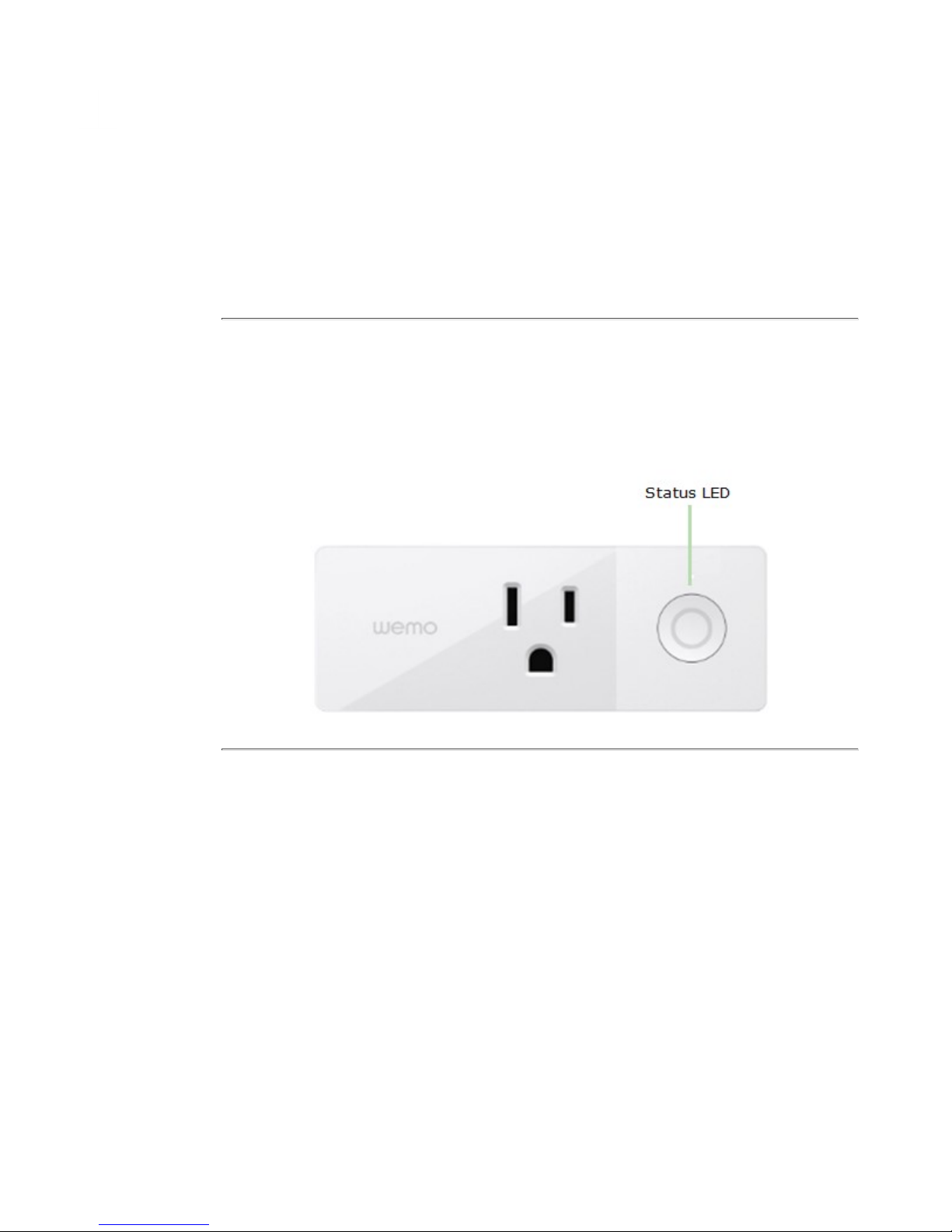
The Wemo Mini has a single light on the front of it that tells you how it’s doing. This is
an all in one Power and Status light.
So what does this light mean for me?
There are six states that the status light can be in:
Blinking White - When you first plug in the Wemo Mini it will blink white to signify it is
starting up. This should last about 15 seconds.
Solid White - When your Wemo Mini is configured, working properly, and turned on
(power flowing through the front outlet) the status light will be lit solid white.
Blinking Orange - A blinking orange light signifies that your Wemo has network
credentials stored in it (Wi-Fi name and password) but it is unable to connect to your
Wi-Fi. Your Wemo will still follow any rules assigned to it but you will not be able to
control it with the Wemo App.
Solid Orange - A solid orange light is meant to show that your Wemo is still connected
to your Wi-Fi but is receiving a non-optimal signal. Your Wemo will still follow any rules
assigned to it but you could face difficulties when controlling it with your Wemo App.
1 of 2 10/30/2017 10:51 PM
Page 11

Knowledge Article http://belkin.force.com/Articles/articles/en_US/FAQ/Understanding-the...
Alternating Orange / White - When the Wemo is finished booting it, will begin to
alternate blinking of orange and white. This means it is ready for setup. To learn about
how you can set up the Wemo Mini, click here.
OFF - When the light is off, it means everything is great with the Wemo and it is
functioning normally but it is not turned on (power flowing through the front outlet).
My power light is (ON / OFF) and when I press it nothing happens. What do I do
now? - It sounds like your Wemo might have frozen. Unplug your Wemo, wait for 5
seconds and plug it back in. After it reboots, try pressing it again. If it is still not
responding, contact our support team for more assistance.
Related Articles:
Meet the Wemo® Mini Smart Plug, F7C063
Troubleshooting Wemo® device issues
Hyperlink
Brand
Belkin
2 of 2 10/30/2017 10:51 PM
Page 12

Knowledge Article http://belkin.force.com/Articles/articles/en_US/Troubleshooting_and_Tut...
How to resolve inconsistent, slow, or
weak wireless connection
Body
Wireless technology is radio-based, which means connection performance decreases when
the distance between devices increases.
Low or poor signal is mainly caused by five (5) major factors:
Distance problems
Physical obstructions
Wireless interferences
Outdated firmware on the router
Power outage
Distance problems
Wireless devices have limitations when it comes to their signal range. If your wireless
network devices are too far from each other, consider relocating the devices. Remember
that distance is directly proportional to signal strength. The farther you are from the access
point or router, the weaker the signal.
To check if you're getting a stable connection, perform a continuous ping. If you're getting
replies most of the time, this means the connection is stable. If time outs are occurring
frequently, the connection is not that stable.
Physical obstructions
Wireless networks are also susceptible to obstructions that may lead to low signal.
Oftentimes, the signal gets reflected, refracted, or absorbed by the obstruction.
Common obstructions are:
• Cabinets or drawers
• Mirrors, glasses
• Metal objects
• Thick walls and ceilings
• Aquariums
If you have any of these objects between your wireless adapter and access point, consider
relocating your access point or router somewhere high to get around the obstruction.
Routers have a default broadcast range that is dependent on their wireless networking
standard (Wireless -B, -A, -G, -N, -AC draft) and the wireless signals broadcasted by the
router may not be able to completely penetrate thick walls and other common obstructions.
Wireless interferences
Common sources of interference are:
• Neighboring wireless networks
• Microwave ovens
• 2.4 GHz cordless telephones
• Bluetooth® devices
• Wireless baby monitors
1 of 2 10/30/2017 10:52 PM
Page 13

Knowledge Article http://belkin.force.com/Articles/articles/en_US/Troubleshooting_and_Tut...
To solve the problem, change the channel and SSID on your access point or router.
Preferred channels to use are 1, 6, 9 and 11 since they're considered as non-overlapping
channels. To learn how to change your network's wireless channel, click here.
If you are not sure about the settings, it is best to leave it at its default settings. The channel
is set to Auto by default. This automatically defines the best wireless channel for your
wireless network.
Outdated firmware on the router
Outdated firmware on the router can sometimes cause connection issues in your network.
To fix this, you need to upgrade the firmware of your router. To learn how to update your
Belkin router's firmware, click here.
Power outage
One factor that may also trigger the poor performance or loss of wireless signals coming
from the router would be power/electricity interruptions. If you are not able to acquire any
wireless signal after a power outage, you may powercycle the router by unplugging and
re-plugging the power cord.
Hyperlink
Brand
However, if the powercycle still does not resolve the problem, you may need to reconfigure
the wireless settings of your router.
NOTE: Instructions for reconfiguration may vary depending on your router model.
You should have successfully resolved inconsistent, slow or weak wireless connection to
your computers now.
Related Videos:
Belkin
2 of 2 10/30/2017 10:52 PM
 Loading...