

Page 1
Technical Guide and User Manual
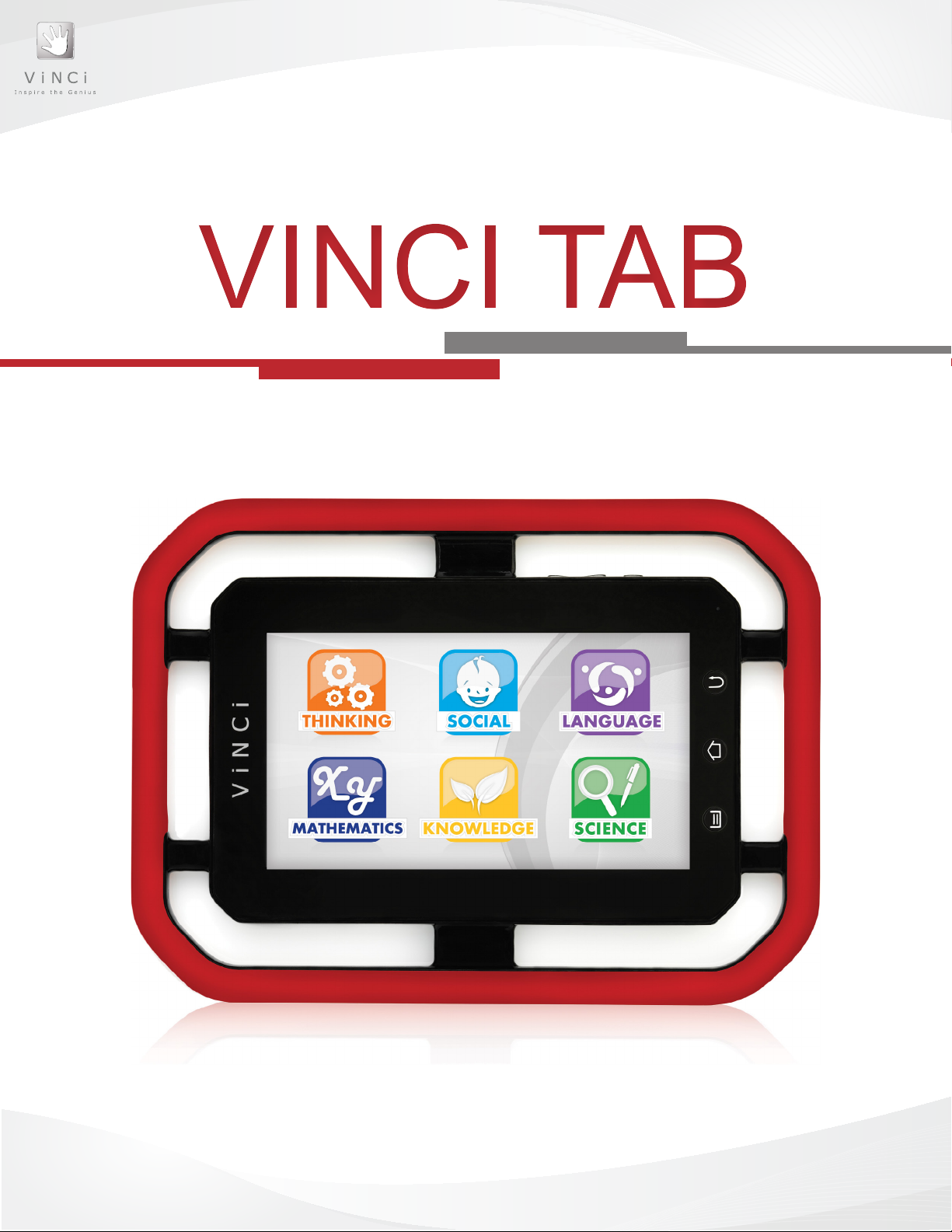
VINCI TabVINCI Tab
Page 2

Introduction ................................................................................................ 1
Customer Care ..............................................................................1
Register Your Tab ..........................................................................1
Legal Information ........................................................................... 2
Chapter 1: Get to Know Your VINCI Tab .................................................. 3
VINCI Tab Buttons ......................................................................... 4
Using VINCI Tab ............................................................................ 5
Charging your VINCI Tab ............................................................... 5
VINCI Tab Home Screen ............................................................... 6
VINCI Tab Indicator Icons .............................................................. 6
Chapter 2: Using your VINCI Tab ............................................................. 7
VINCI Tab On, Off, Screen Lock & Reset ...................................... 8
VINCI Tab Touch Screen ...............................................................9
VINCI Tab Media Applications .......................................................10
TM
ANDROID
Functions and Features ............................................ 11
Chapter 3: Customize Your VINCI Tab ..................................................... 15
Managing Applications on VINCI Tab ............................................16
VINCI Tab User Interface Settings ................................................. 16
Chapter 4: Safety ....................................................................................... 17
Safety Certications.......................................................................18
Safety Precautions ........................................................................18
Chapter 5: Troubleshooting ...................................................................... 20
VINCI Tab Applications .................................................................. 21
Chapter 6: Technical Specications ........................................................ 23
Appendix B: Legal & Disclaimer .................................................... 25
i
Page 3

Figure 1: VINCI Tab Front View ..................................................... 4
Figure 2: VINCI Tab Rear View ..................................................... 4
Figure 3: Charging your VINCI Tab ............................................... 5
Figure 4: VINCI Tab Home Screen ................................................ 8
Figure 5: VINCI Tab Rear-facing Camera ...................................... 10
ii
Page 4

Introduction
Congratulations on your purchase of the VINCI Early Learning System.
Created by a mom, VINCI is a new category of early learning systems designed for a
collaborative and fun experience. VINCI engages children from 18 months to 5 years
with 43 monthly learning subjects that mimic a child’s environment, with the goal to help
him or her learn. Supported by the world’s rst developmentally-designed digital learning
curriculum, VINCI aims to empower children to achieve future success by building their
capabilities.
Read this User Manual to take full advantage of everything VINCI has to offer.
Check our website: www.vincigenius.com/support to download our Quick Guide.
Contact our Customer Service for any other questions: [email protected]
Live Support: www.vincigenius.com/support
Email: [email protected]
Toll Free: 1-855-MY-VINCI
Register Your Tab
Register your new VINCI Tab at
https://store.vincigenius.com/ecommerce/control/newcustomer
to activate your warranty and get access to:
• VINCI Diary: designed to help you track your child’s milestones and compose her/his
personal story book.
• VINCI Early Learning Community: an open environment for parents, grandparents,
caregivers and early learning experts to interact and discuss how we can help young
children prepare for tomorrow’s challenges.
To register:
1. Log on to www.vincigenius.com
2. Click on the Store tab and Register
3. Follow the on-screen instructions to create a MyVINCI account
1
Page 5

Legal Information
VINCI Tab and VINCI Early Learning apps are protected by copyrights, trademarks, and
TM
patents (pending). Android
All other trademarks and copyrights are owned by their registered owners.
Please read all safety precautions and this guide carefully before using your device to ensure safe and proper use.
• The descriptions in this Guide are based on the default settings of your device.
• Images and screen-shots used in this user manual may differ in appearance from the actual product.
• Content in this user manual may differ from the product, or from software provided by retailers, and is subject to change
without prior notice.
• Available features and additional services may vary by device, software, or service provider.
• Standard features are based on the Google AndroidTM operating systems for the device and may vary depending on the
user’s operating system when connecting to the device.
• Applications and their functions may vary by country, region, or hardware specications. Rullingnet is not liable for
performance issues caused by third-party applications.
• Rullingnet is not liable for performance issues or incompatibilities caused by user editing of device settings.
• Content, sound, wallpapers, and images provided in this device are licenced for limited use between Rullingnet
Corporation Ltd. and their respective owners. Extracting and using these materials for commercial or other purposes
without the expressed written permission of Rullingnet Corporation Ltd. is an infringement of copyright laws.
• Please keep this manual for future reference.
is a trademark of Google Inc.
2
Page 6

CHAPTER 1
GET TO KNOW YOUR
VINCI TAB
3
Page 7
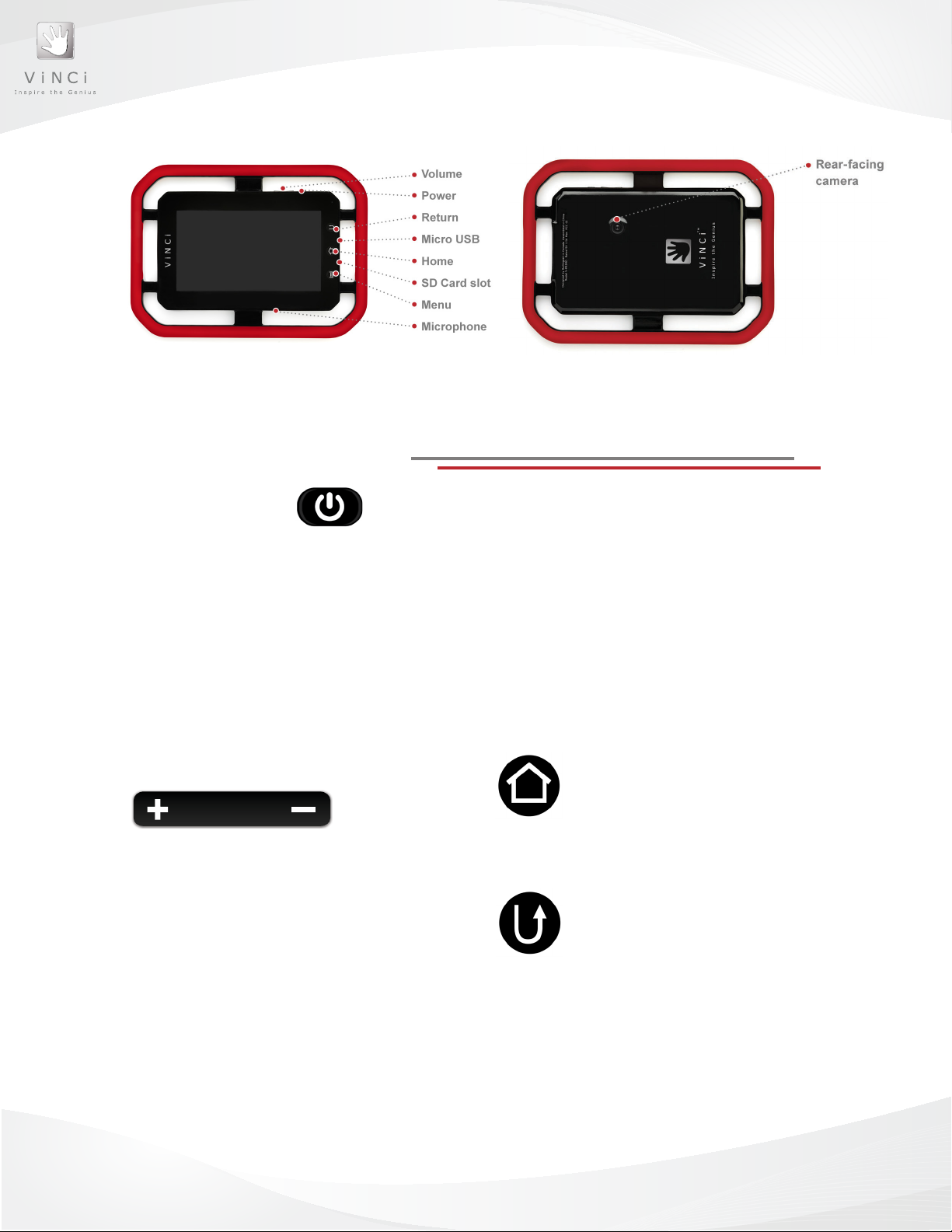
Figure 1: VINCI Tab Front View Figure 2: VINCI Tab Rear View
VINCI Tab Buttons
Power Button
Use the Power button to turn your VINCI Tab on and off, reset and set to Sleep Mode
(lock screen).
• When a Force Close is required press and hold the button for 10 seconds until your VINCI
Tab shuts off.
• In Sleep Mode, the VINCI Tab operating system is still running, but the screen is locked.
Press the Power button to put the screen into Sleep Mode. Press the Power button again to
exit Sleep Mode.
Volume Button
Use this button to adjust the volume on your
VINCI Tab.
Increase volume
1. Press the plus sign until desired volume
is reached.
Decrease volume
1. Press the minus sign until desired
volume is reached.
Home Button
Press this button to return to the
Home screen.
Return Button
Press this button to go back to the
previous screen.
4
Page 8
Using VINCI Tab
Parent Mode
• Press the Menu button and enter the password: “MyVINCI”. This password cannot be
changed and is case sensitive.
• Create new folders by pressing and holding your nger on the screen. You can also move
apps from the Android™ app list to your new folder by pressing the app icon.
Install New Apps
• In Parent Login, you may install new apps either through WIFI download (WIFI model only)
or by inserting a MicroSD card. When the MicroSD card is inserted, go to the Android™ app
list and nd the program “ASTRO” which is a le browser. Locate tash under SDCard (path:
/mnt/sdcard/tash), tap on the app you want to install, and follow the prompt. Note: SDCard
in the le path means internal storage space.
Transfer Media Files: You can turn on the USB mode by dragging your nger on the App List
screen from the top to the bottom. Follow the prompt.
• Warning: Please do NOT change the original folder structure under /mnt/sdcard/. Copy your
media les into the corresponding folders instead. For example, music mp3 les under M
sic, video MP4 les under Movie.
• Supported Media Formats
• Music: MP3. Video: MP4 encoded H.264. Check http://www.vincigenius.com for updates.
Charging your VINCI Tab
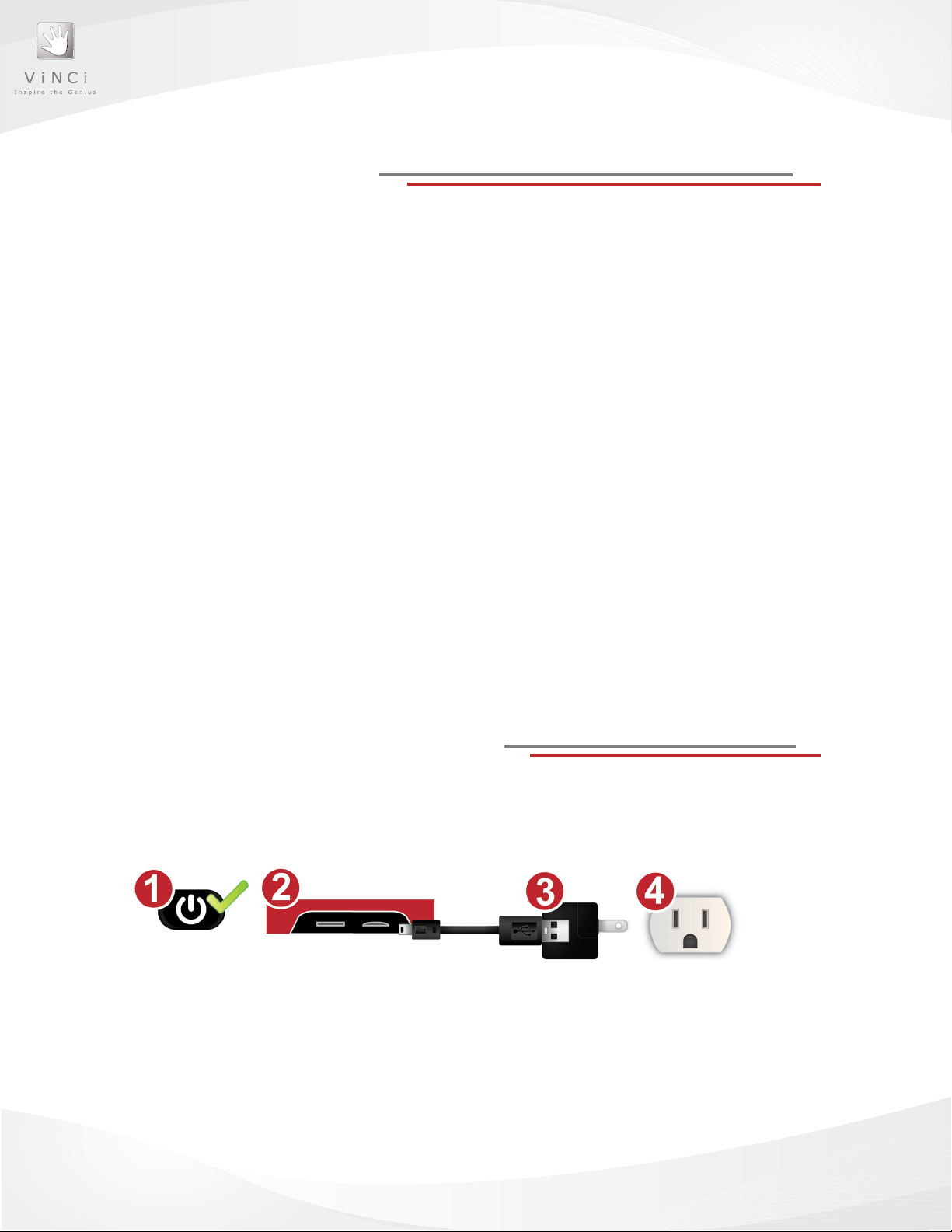
1. Make sure that your VINCI Tab is turned ON while charging.
2. Using your micro USB cable, connect your Tab to your travel charger, and then plug the
travel charger into an electrical outlet.
Figure 3: Charging your VINCI Tab
Please note:
• Your VINCI Tab may demonstrate an unexpected behavior if played while charging.
• VINCI Tab cannot be charged using a computer as its power source.
• Usage and standby times may vary based on the applications used.
5
Page 9
VINCI Tab Home Screen
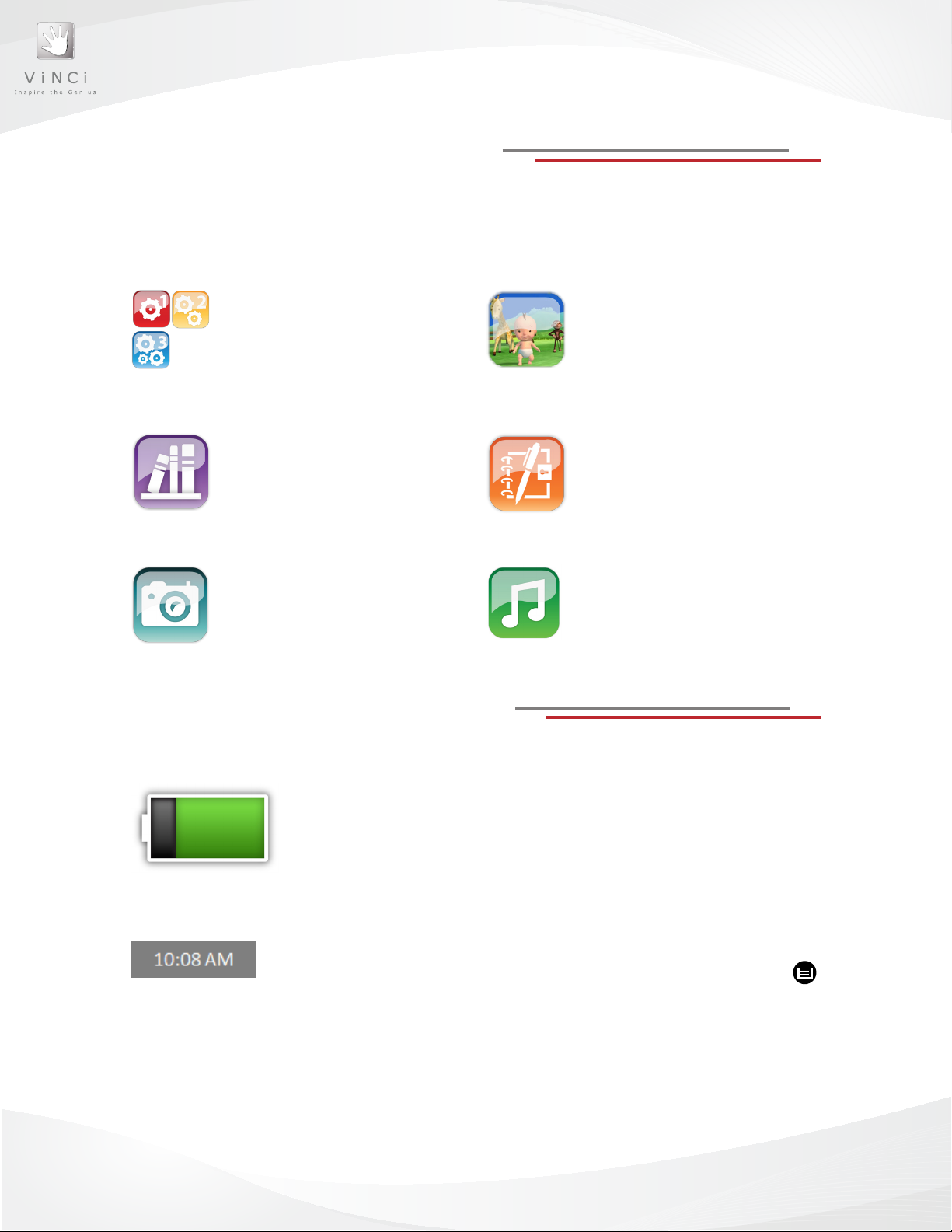
The Home screen displays icons for the different application folders as well as a few
indicator icons. The Home screen is the main launch point for the different applications on
your VINCI Tab.
VINCI Games
VINCI Curriculum provides a complete
play-based learning structure for your
child’s intellectual development.
VINCI Kids Library
A high-quality library of apps and videos,
reserved for kids ages 5 and under, all of
which are VINCI-approved, commercialfree and complementary to the VINCI
Curriculum.
Camera
Capture your child’s important milestones
with a click of a button.
VINCI Tab Indicator Icons
Gallery
VINCI Gallery stores all of your music
videos and photos in one convenient
location.
VINCI Diary
The only tablet offering the Age Norm
reference guide to track your child’s
progress and to compose her or his
personal story book.
Music
Access all of your music les directly
from the Home Screen.
Battery life
This icon indicates the amount of battery life remaining.
Green battery life icon signals that your VINCI Tab has enough
battery for use. The battery life icon will turn red to indicate low
battery life and it signals that it is time to charge your VINCI Tab.
Time
The time is displayed in the top right corner of the Home screen. You can
change the time by pressing the menu button from the Home screen.
Then, select Settings as well as the Date and Time options. Adjust the options as desired.
• Automatic – use network-provided values
• Set date
• Select time zone
• Set time
• User 24-hour format
• Select date format
.
6
Page 10

CHAPTER 2
USING YOUR
VINCI TAB
7
Page 11

VINCI Tab On, Off,
Screen Lock & Reset
Turning on your VINCI Tab
Figure 4: VINCI Tab Home Screen
Turning off your VINCI Tab
1. Press and hold the Power button until the Device options dialogue
box appears.
2. Tap Power Off.
3. The Power off dialogue box will appear.
4. Tap OK.
1. Press and hold the Power button until
screen illuminates. The system will begin
to boot.
2. Slide the Lock icon up. The VINCI Tab
Home screen will appear.
Set To Sleep Mode (Lock Screen)
1. Press the Power button. The screen will go dark, but the VINCI Tab’s
operating system will still be running.
2. Press the Power button again to activate the screen.
3. Unlock the screen by sliding the Lock up.
Resetting your VINCI Tab
If at any point your screen stops responding or freezes, you may need to reset your VINCI
Tab. Press and hold the Power button until the screen goes dark (approximately
10 seconds).
8
Page 12

VINCI Tab Touch Screen
VINCI Tab uses a capacitive screen: a screen that can sense contact and gestures using
the electrical properties of the human body. This allows for light touches and motions of
the nger to navigate easily across the screen. In order for the screen to activate properly,
it requires direct hand-screen contact. Swipe your nger across the screen to activate the
screen sensor.
Navigating your VINCI Tab
Your VINCI Tab uses many of the same navigation features that you would normally nd in
other touch screen devices.
To navigate through VINCI Tab’s applications, use the touch screen. Tap and Slide to
navigate your way around the screen. You can tap the screen to select an item. You can
slide your nger up, down and/or from side-to-side to move around the screen.
Additional applications that you install on your VINCI Tab may support different
nger movements.
VINCI Tab Display
Orientation
VINCI Tab applications can only be viewed in Landscape Mode. Holding the VINCI Tab in
Portrait Mode will not result in change of orientation.
Settings
You can adjust your touch screen to show many display options. To set your specic
displays, press the Menu button and select the Settings option, then choose the Display
option to set your preferences.
9
Page 13
VINCI Tab Media
Applications
Viewing Photos
Pictures taken with the VINCI
Camera are stored in a folder
called Camera, located in /mnt/
sdcard/DCIM directory. Access
the Gallery from the Home
screen to view your pictures
and videos.
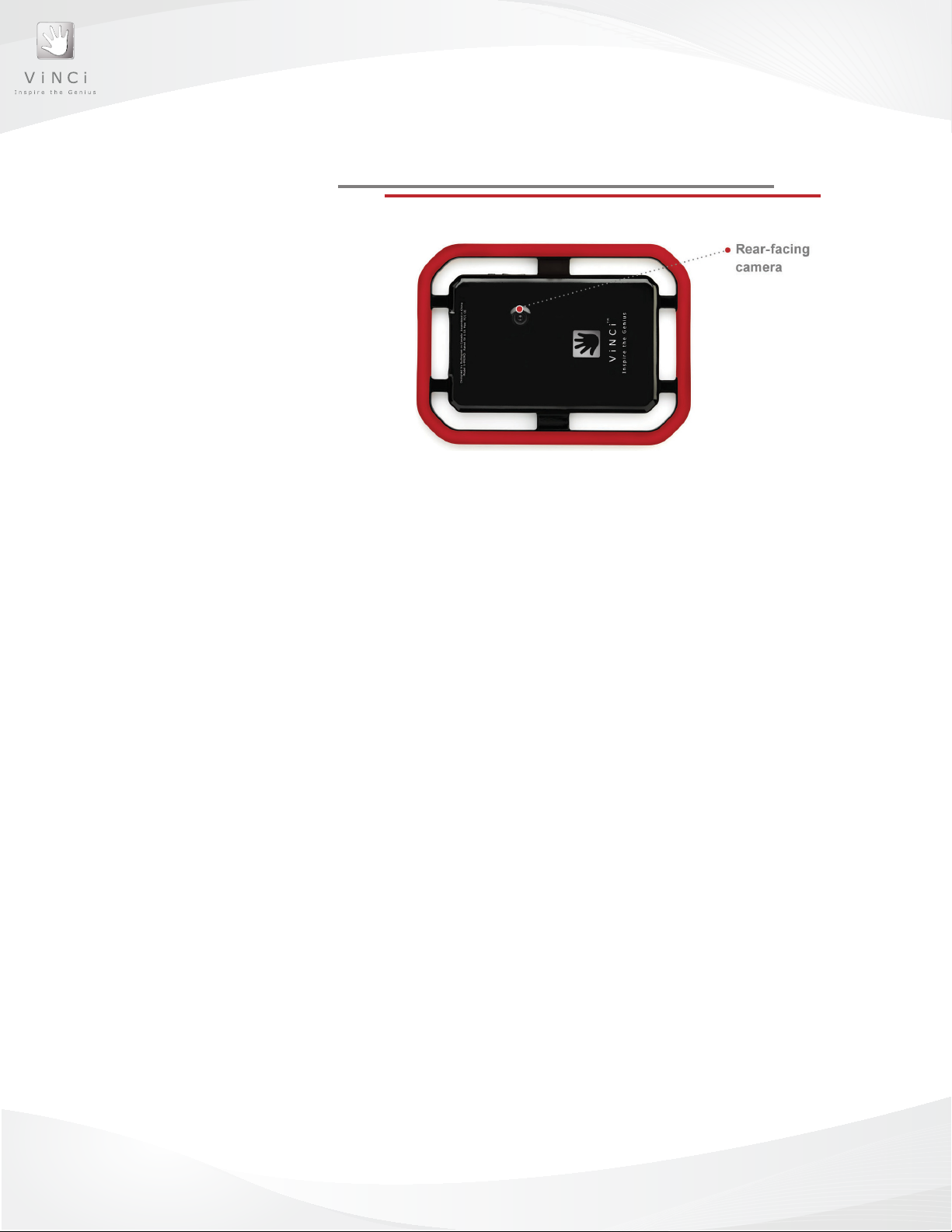
Figure 5: VINCI Tab Rear-facing Camera
Recording Videos
The camera has a Video Mode button. You can shoot video by switching to Video
Mode from the Camera app.
Viewing Photos
Videos shot using the Camera app are stored in the Camera folder locater in /mnt/sdcard/
DCIM directory. The Gallery also shows all the pictures and videos.
VINCI Tab is equipped with a 3 megapixel rear-facing camera capable of taking photos and
TM
recording videos. You can use the native Android
you must touch.
Play Music
Simply tap the Music icon on the Home screen to play music.
Camera, which has a set button that
Using the VINCI Tab Keyboard
To input any text information on the VINCI Tab, you will need to use the on-screen keyboard. In most cases, the keyboard will automatically appear on screen when the VINCI
Tab is ready to receive typed information. Tapping once on an open text entry eld will
automatically display the keyboard.
To edit text that you have entered into a text eld, tap and hold or tap twice to display
different text editing options.
10
Page 14

Adding external memory to your VINCI Tab (Optional)
Your VINCI Tab comes with an internal memory of 8 gigabytes. If desired, you can expand
the storage capacity by installing a micro SD. Memory card is not included.
Installing a Memory Card
1. Insert the memory card in the microSD Card Slot with the gold-colored contact
facing up.
2. Push the memory card into the slot until it clicks into place.
File Browsing
VINCI Tab comes with a le browser ASTRO: an open source le management app. You
can also turn on the USB storage mode to browse les from your PC.
ANDROIDTM Functions
and Features
Your VINCI Tab comes with many additional AndroidTM functions (version 2.3.5). To ac-
TM
cess the Android
panel, press the Menu button, and choose either Add (add a new folder), Manage Apps
(uninstall apps, delete history, etc), Wallpaper (choose a Wallpaper), Apps (to access to the
installed Apps) or Settings.
TM
Android
Sound: Adjust volume
Display: Adjust time to Sleep (timeout)
Manage Applications: From Manage applications you can uninstall apps you are not us-
ing and force quit apps that are not performing properly.
Development: By default USB debugging is checked.
Settings
functions, from the Home screen, you need to unlock the Parent Control
11
Page 15

Detailed Description of AndroidTM Setting Options
Wireless & network settings only on WIFI models
Sound Settings
• Silent mode (silence all sounds excepts media and alarms)
• Volume
• Notication Ringtone
• Audible Selection
• Screen lock sounds
Display Settings: allows you to choose, select or adjust the following options
related to the VINCI Tab display:
• Brightness
• Animation
• Screen timeout. Default setting is 30 minutes
Location & Security Settings: not used
• Screen unlock
• Set up screen lock
• Visible passwords (show password as you type)
• Select device administrators (add or remove device administrators)
• Use secure credentials (allow applications to access secure certicates and other
credentials) - DISABLED
• Install from an SD card
• Set-password (set or change the credential storage password)
• Clear storage (clear credential storage of all contents and reset its password)
- DISABLED
Applications Settings: allows you to set or modify the following options related to
applications on your VINCI Tab:
TM
• Unknown sources (allow installation of non-Android Market
applications)
• Manage applications (manage and remove installed applications)
• Running services (view and control currently running services)
• Storage use (view storage used by applications)
• Battery use (what has been using the battery)
• Development (set options for application development)
12
Page 16

Privacy Settings: allows you to set or modify the following options related to
privacy:
• Factory data reset (erases all data on the device)
Storage: Allows you to manage your SD card and to monitor the following
information as it relates to VINCI Tab:
• Storage Settings:
• Nand Settings
• Total space
• Available space
• Unmount Nand
• Erase Nand (erases all data on the phone’s Nand, such as music and photos)
– DISABLED
• SD Card Settings
• Total space
• Available space
• Format internal memory
Language & Keyboard settings: allows you to manage the following setting options:
• Language settings
• Select language
• User dictionary
TM
• Android
keyboard
Date & Time Settings: allows you to set and modify the VINCI Tab date and time
related options including:
• Automatic (use network-provided values)
• Set date (mm/dd/yyyy)
• Select time zone
• Set time
• Use 24-hour format
• Select date format
• Normal (mm/dd/yyyy)
• Mm/dd/yyyy
• Dd/mm/yyyy
About VINCI Device: the following information is accessible through this setting
category:
• System updates
• Battery use: provides and estimate of what activities are associated with battery
consumption
13
Page 17

• Legal information
• Model number
TM
• Android
• Baseband version (not applicable)
• Kernel version
• Build number
version (2.3.5)
AndroidTM Applications
These include useful apps such as the le browser ASTRO, Flash, alarms, clock, calculator, and all installed VINCI Games, Storybooks, Gallery, Quick Ofce, Adobe Reader, etc.
TM
VINCI Tab II, WIFI-enabled, allows access to the Android
Market, GMail, Skype.
Cleaning your VINCI Tab
It is VINCI’s recommendation to have your VINCI Tab turned off when cleaning the screen.
Always use a soft, lint-free cloth. Avoid using liquid or abrasive cleaners of any kind. To
remove food or juice residue, slightly moisten the lint-free cloth and wipe the area clean.
Please note:
• To avoid scratching the touch screen, do not use sharp tools to navigate or
clean the VINCI Tab.
• Do not allow the touch screen to come into contact with other electrical
devices. Electrostatic discharges can cause the touch screen to malfunction.
• The touch screen may malfunction in very humid condition or when exposed
to water.
14
Page 18

CHAPTER 3
CUSTOMIZE YOUR
VINCI TAB
15
Page 19

Managing Applications
on VINCI Tab
Creating new folders: You can create a new folder within an existing folder or on the Home
screen to help manage your applications.
1. Deactivate parental control.
1. Press the Menu button.
2. Select the Add option.
3. Name the folder.
4. Click OK.
5. The folder should appear on the current screen.
Moving application locations:
You can rearrange the location of your applications by moving them into folders that you
have created on the VINCI Tab’s Home screen.
To move a le into a folder:
1. Tap and hold the icon of the application you wish to move until it attaches to
your nger.
2. Drag the icon to the folder you wish to place the application in.
3. You can navigate through the folders by Dragging and Holding the icon over
the folder – pick the folder with ash, then Open.
4. Once you have reached the desired location for the application, lift your
ngeroffthescreen. The app will now be placed in the new folder.
To move a le out of a folder:
1. Tap and hold the icon of the app until it attaches to your nger.
2. Drag the icon to the title bar of the folder
3. Hold until the title bar ashes and opens the parent folder.
4. Liftyourngeroffthescreen. The app will now be placed in the parent folder.
VINCI Tab User
Interface Settings
Choosing wallpaper:
You can customize your VINCI Tab by choosing Wallpaper for your Home screen.
1. Tap and hold your nger on the home screen until the Add to Home screen
dialogue box appears.
2. Select Wallpapers from the list.
3. Select a photo from your VINCI Tab’s Gallery or from the Android™ default Wallpapers.
4. Select an image from the list.
5. Tap Set Wallpaper to set the image as your VINCI Tab Wallpaper.
16
Page 20

CHAPTER 4
SAFETY
17
Page 21

Safety Certications
• Housing Material Safety: FDA 21 CFR 177.1580
• Handle Material Safety: USP Class VI, ISO 10993
• Product Safety: ASTM F963
• Other Compliances: FCC, CE
Safety Precautions
Please observe the following recommendations to avoid personal injury and/or
damage to the device:
• Avoid using damaged power cords or plugs, or loose electrical outlets
• Avoid touching the power cord or the device with wet hands
• Avoid disconnecting the charger by pulling on the cord
• Avoid damaging the power cord
• Avoid using the device while charging
• Avoid short-circuiting the charger or the battery
• Avoid impact to the charger or the battery
• Use only the manufacturer approved charger
• Avoid power surges while charging that may occur during Thunderstorms or similar events
• Avoid handling a damaged or leaking battery
• Safely disposed of batteries by following your local battery disposal guidelines and
applicable regulations
• Avoid crushing or puncturing the battery
• Avoid exposing the battery to extreme external pressure
• Avoid exposing the device and batteries to extreme hot or extreme cold temperatures
• Avoid using a damaged battery or charger
• Please adhere to any and all regulations that restrict the use of portable electronic device
such as in hospitals, airplanes, moving motor vehicles. Please turn off your device where use
is prohibited
• Turn off the device in potentially explosive environments such as gas/service stations
• Avoid placing the device in the same container as ammable liquids, gases, or similarly
explosive materials
• When children are using the device, please make sure that they are using the device properly
• Keep the volume at an appropriate level to avoid exposing children to loud noises
• Avoid irritating others when enjoying the device in public spaces
• Be careful when enjoying the device while moving or walking
• Do not attempt to repair, modify or disassemble the device
• Please have only qualied service locations repair the device
• Avoid using the device if the touch-screen is broken or cracked
• Please observe any and all local disposal regulations, policies or laws should you choose to
dispose of the device and the battery
18
Page 22

To ensure the longevity of the device and your satisfaction, please observe the following
recommendations:
• Do not twist the device
• Do not use the device while connected to a computer or while charging the battery
• Keep the device dry. High levels of humidity or water can damage parts or electronic circuits
• Keep the device clean. Avoid using or storing the device in dirty or dusty areas since dirt and
dust inside the device may cause it to malfunction
• Keep the device on a at, stable surface when not in use to prevent it from being damaged
in a fall
• Keep the device and the battery out of very hot or very cold areas and use it at temperature
between 32 degrees F to 95 degrees F (-20 degrees C and 45 degrees C)
• Keep the device from coming into contact with sharp or hard metal objects like keys, jewelry
or coins. These objects may scratch the touch-screen
• Keep the device away from magnetic elds
• Prevent the device from falling from heights greater than 1.5 meters
• Prevent impacts to the device
To get the best performance from your battery and charger, please observe the following
recommendations:
• Do not charge the battery for longer than one week
• The battery will likely require charging if the device is not used for a long period of time
• Unplug chargers when not in use
• Use batteries for their intended use only
• Use manufacturer-approved batteries and chargers only
19
Page 23

CHAPTER 5
TROUBLESHOOTING
20
Page 24

VINCI Tab Applications
The touch-screen responds slowly or is unresponsive
• Remove the protective cover from the touch screen.
• Ensure ngers are clean and nails are short.
• Restart the device.
• Check for damage to your touch screen – if damage is detected, contact Customer Service
at http://vincigenius.com/support for a replacement under warranty. If your warranty expired
and the device is damaged, stop using the VINCI Tab.
The touch-screen freezes or is unresponsive
• Restart the device by pressing and holding the Power button for 5 - 10 seconds.
• If a restart does not solve the problem, contact the Customer Service at
http://vincigenius.com/support.
Unable to open Settings after pressing the Menu button
• Make sure the device is not connected to an electrical outlet. During charging,
the device may not be fully functional.
The device beeps and the battery icon ashes
• The battery is low. Recharge the battery using the charger provided and micro-USB to USB
connector cord.
The battery icon shows uctuating battery life
• When the battery is nearly drained, the battery-life indicator in the battery icon
can no longer accurately indicate remaining battery life causing it to uctuate.
Recharge the battery.
The battery did not fully charge
• VINCI Tab has a large battery capacity and therefore requires 8 hours to fully charge.
• VINCI Tab should be turned on to charge. If there is not enough power in the battery to turn
on the VINCI Tab prior to charging, you may need to charge the battery for 24 hours before it
is able to turn on.
• Please ensure that the batteries have had adequate time to fully charge.
The battery does not charge properly or the device turns off
• If the battery does not seem to charge, your charger may no longer be properly functioning.
Contact VINCI’s Online Technical Support at http://vincigenius.com/support.
The device is warm to the touch
• Some applications require more power and under extended use, the device may
feel warm. This is to be expected, and should not affect the lifespan or performance
of the device.
21
Page 25

The application resumes when I reopen after exiting, but I want to start from
the beginning
• You can close an application completely by performing the Force To Close option.
Go to the Home screen, unlock the parental control panel and press the Menu button. Tap
Manage apps, then choose Applications. Tap the specic application you wish to exit com
pletely, then tap Force To Close.
An error message appears when attempting to use the VINCI camera
• The device may have insufcient memory – create free space by deleting les from the
device.
• The device may have insufcient battery life – charge the battery.
• Restart the device.
• Contact VINCI Customer Service at http://vincigenius.com/support.
Error messages appear when attempting to open music les
• There may be insufcient memory – create free space by deleting les from the device.
• Make sure the music les are not protected under Digital Rights Management (DRM).
• Make sure the device supports the le type. Supported le types: MP3, MP4,JPEG, PNG.
22
Page 26

CHAPTER 6
TECHNICAL
SPECIFICATIONS
23
Page 27

Size and Weight
Weight - 1.5 lb (0.68kg); Model VS-3001 with WIFI/ Model VS-2001 without WIFI
Length - 10.0” (25.40 cm)
Width - 7.3” (18.5 cm)
Height - 0.67” (1.7 cm)
Display
7-inch (diagonal) glossy wide screen
Multi-Touch display
800-by-480-pixel resolution
Processor
Cortex A8
Memory
512MB RAM
Camera
3 Megapixels, back-facing
Desktop Requirement
For VINCI Desktop Software:
PC with USB 2.0 port
Windows 7; Windows Vista; or Windows XP Home or Professional with Service
Pack 3 or later
Mac computer with USB 2.0 port
Mac OS X v10.6 or later
Video
H.264 video up to 720p, 30 frames per second, audio up to 160 Kbps per channel, 48kHz,
stereo audio in .m4v and .mp4 le formats; MPEG-4 video, up to 2.5 Mbps, 640 by 480
pixels, 30 frames per second
Environmental Requirements
Operating temperature: 32° to 95° F (0° to 35° C)
Non-operating temperature: -4° to 113° F (-20° to 45° C)
Relative humidity: 5% to 95% noncondensing
Maximum operating altitude: 10,000 feet (3000 m)
Battery and Power
Model VS-2001/VS-3001: Built-in 6400 mAH rechargeable lithium-polymer battery. 8 hours
of battery life.
24
Page 28

Charging via power adapter
Audio Playback
Frequency response: 20Hz to 20,000Hz
Audio formats supported: MP3 (16 to 320 Kbps), MP3 VBR,
Audible (formats 2, 3, and 4), and WAV Audio Control
In the Box
• VINCI Tab
• Micro USB to USB Cable
• 10W USB Power Adapter
• Quick Guide
Appendix B:
Legal & Disclaimer
Warranty
Your VINCI Tab comes with a 12 month warranty on parts and labor from the date of
purchase. The warranty is valid for defects (parts & labor) during normal use. Accidental
damage of the touch screen is not covered under the regular warranty.
Intellectual Property
VINCI™, VINCI Tab™ are all trademarks of Rullingnet Corporation Ltd. All content images
© 2012 Rullingnet Corporation. Patents pending: 12/892,052; 12/908,390; 12/941,115;
29/318,313.
TM
Android
trademarks of Microsoft Corp. Mac and Mac OS.X are trademarks of Apple Inc. Any other
trademarks mentioned in this document are property of their respective owners.
For any questions, comments, or for information not covered in the User Manual, please
contact Customer Service:
is a trademark of Google Inc. Windows 7, Windows Vista, and Windows XP are
Phone: 1-855-MY-VINCI
Email: [email protected]
Live Chat: www.vincigenius.com/support
25
 Loading...