

Page 1

C O N S T E L L AT I O N V
U S E R G U I D E V E R S I O N 1. 0
Page 2

Contents
Contents
Introduction 5
Your Constellation V phone 5
Help and support 5
Safety 6
Safety 6
Your phone 7
Package contents 7
Features and keys 8
Back,home and recent apps 9
Antenna locations 10
Headset 10
Change the volume 11
Getting started 12
Insert the SIM card 12
Charge the phone 13
Switch the phone on or off 14
Touch screen actions 15
Start-up process 16
Use your phone when it is locked 17
Explore 18
About the home screen 18
Status and notification bar 18
Status and notification icons 19
Clockwidget 20
Add widgets to the home screen 20
Favourites tray 20
Aeroplane mode 21
Voice actions 21
Apps 22
About apps 22
Recommended apps 22
Google Play™ 22
Apps precautionaryadvice 23
Update apps 23
Manage and restore apps 23
Close apps 23
Uninstall apps 24
Vertu Services 25
About Vertu Services 25
Text entry 27
Keyboardentry 27
Predictive text 27
Gesture typing 27
Dictionaries 28
Change the keyboardlanguage 28
Calls 29
About calls 29
Make and answer calls 29
Call the last number dialled 30
Quicklycallyour favourites 30
Listen to yourvoicemail 30
Divert callsto another number 30
Make a conference call 31
Contacts 32
About contacts 32
Call, text or email contacts 32
Add contacts 33
Join contacts 33
Edit or delete a contact 33
Save a number from a call or message 33
Markcontacts as favourites 34
Personalise contacts 34
Transfer contacts 34
Messaging and email 36
About messaging 36
Send and read messages 36
Send a message to a group 36
Instant messages 37
Manage messages 37
Corporate email setup 37
Google mail setup 38
Personal email setup 38
Music 39
About music 39
Adding songs or albums to Play Music 39
Play music 41
© 2013 Vertu Corporation Limited. All rights reserved. 2
Page 3

Contents
Maps and navigation 42
Google Maps™ 42
Google Maps™ with Navigation beta 42
Personalisin g your ph on e 43
Widgets 43
Shortcuts 43
Ringtones 43
Wallpapers 44
Assign sounds to actions 44
Displaysettings 44
Auto-rotate 45
Screen lock 45
Date and time settings 45
Language and region settings 45
Social networks 46
Add an account 46
Delete an account 46
Synchronise contacts 46
Managin g accounts 47
Configure syncoptions 47
Add and delete accounts 47
Backup and restore accounts 47
Browser 48
About the web browser 48
Browse the web 48
Connect to the internet 49
Add a bookmark 49
Widget feeds 49
Privacy and security 49
Downloads 50
Camera 51
About camera 51
Take and share photos 51
Camera settings 52
Record and share a video 53
Video settings 54
Gallery 55
About gallery 55
View and edit photos and videos 55
Share photos and videos 55
View an album 55
Create a folder 56
Assign contact images and wallpaper 56
Take a screen shot 56
Office tools 57
Clock 57
Calculator 57
Calendar 57
Connectivity 59
Wi-Fi 59
Bluetooth 59
Location services 60
Set your phone to sync with your
computer 61
Copy between the phone and a PC 61
Tethering and portable hotspot 62
NFC 62
Phone management 63
System update 63
Free up phone memory 63
Optimise data usage 63
Data roaming settings 64
Backup and restore your phone 64
Set your phone to lock automatically 64
Change yourPIN code 64
Access codes 65
Master reset 65
Tips and tricks 66
General tips 66
Extend battery life 67
FAQs 68
Questions 68
How can I extend the battery life of my
phone? 68
Do I need a Google™ account to use my
phone? 69
How can I reduce my data costs,
especiallywhen abroad? 69
© 2013 Vertu Corporation Limited. All rights reserved. 3
Page 4

Contents
How do I transfermusic from my
computer to my phone? 70
How can I listen to my iTunes music
libraryon my phone? 70
How do I setup an email account on my
phone? 71
How do I transfercontacts to my phone? 71
How do I transferphotos from my phone
to my computer? 72
How do I set my musicas ringtone? 73
How do I change the font size on my
phone? 73
How do I checkif I have the latest
software updates on my phone? 73
Why have I got no connectivity? 73
Why is my internal storage less than
advertised? 74
How do I protectmy phone from
unauthorised use? 74
How do I find the IMEI number of my
phone? 74
How can I clear the log of my callsor the
list of people I have contacted
frequently? 74
Why does my phone get warm? 74
How do I know how much storage I have
on my phone? 74
How do I set a photo as my wallpaper? 74
Can IstilluseGoogle Mapsif I do not
have a data connection? 75
Accessories 76
Battery charger 76
Data cable 76
Wired stereo headset 77
Specifications 78
Specifications 78
Care of your phone 81
General care 81
Embroidery 81
Exoticleathers 82
Leather 82
Non-precious metals 82
Precious metals 83
Precious stones 83
Sapphire and ceramics 83
Safety and warranty 84
Safety text 84
Additionalcare and maintenance 88
Manufacturer'sLimited Warranty 89
Software application notices for the
phone 92
Environmental 94
Export and controls 95
Copyright and trademark notices 95
SAR (SpecificAbsorption Rate) notice RM-851V 96
Declaration of Conformity 97
© 2013 Vertu Corporation Limited. All rights reserved. 4
Page 5

Introduction
Introduction
Your Constellation V phone
Thisuser guide is intended to provide you with details on how to use the prominent features on your
Constellation V.
To accessthe exclusive privileges and benefits such as Vertu Life and Vertu Certainty, you must register
your phone.
The pictures used in this user guide are providedfor illustration purposes only. They may differ from the
exact appearance of your Constellation V.
Help and support
To find out more about using your phone:
l
Contact Vertu Customer Service by either pressing the Vertu key or through the Vertu Certainty app.
l
Refer to the userguide on your phone from the Vertu Certainty app, or on the Vertu website at
http://www.vertu.com/help-and-support/user-guides-and-downloads.aspx.
l
Use the setup wizards available on the phone to help you with registration to create an email
account.
Compliance information
You can find compliance information on a retractable metal flap that is located in the SIM compartment. For
instructionson accessing the SIM compartment, see "Insert the SIM card" on page 12. The information
displayed includes the IMEI number, serial number, product name and 2D barcode.
© 2013 Vertu Corporation Limited. All rights reserved. 5
Page 6

Safety
Safety
Safety
Read these simple guidelines.Not following them may be dangerous or illegal. Read the complete user
guide for further information.
Switch of f in restricted areas
Switch the device off when mobile phone use is not allowed or when it may cause
interference or danger, for example, in aircraft, in hospitalsor near medical
equipment, fuel, chemicals,or blasting areas. Obey all instructions in restricted
areas.
Road safety co mes first
Obey all locallaws. Always keep your hands free to operate the vehicle while
driving. Your first consideration while driving should be road safety.
Interference
Allwirelessdevices may be susceptibleto interference, whichcould affect
performance.
Qualified service
Onlyqualified personnel may installor repair this product.
Keep your device dry
Your device is not water-resistant. Keep it dry.
Protect your hearing
To prevent possible hearing damage, do not listen at high volume levels for long
periods. Exercise caution when holding your device near your ear while the
loudspeakeris in use.
© 2013 Vertu Corporation Limited. All rights reserved. 6
Page 7

Your phone
Package contents
l
Constellation V phone
l
Leather phone slip case
l
Wall charger (AC-31) with regional plugs
l
MicroUSB cable 1200mm (CA-209DV)
l
MicroUSB cable 250mm (CA-210DV)
l
Wired stereo headset
l
Polishing cloth
l
SIM-eject tool
l
Collateralpack, including Quick Start Guide, Warranty Booklet, Authenticity Card and Website
Information Card
Your phone
The package contents may vary slightlyin accordance with the materials used in your particularphone and
with regional regulations.
© 2013 Vertu Corporation Limited. All rights reserved. 7
Page 8
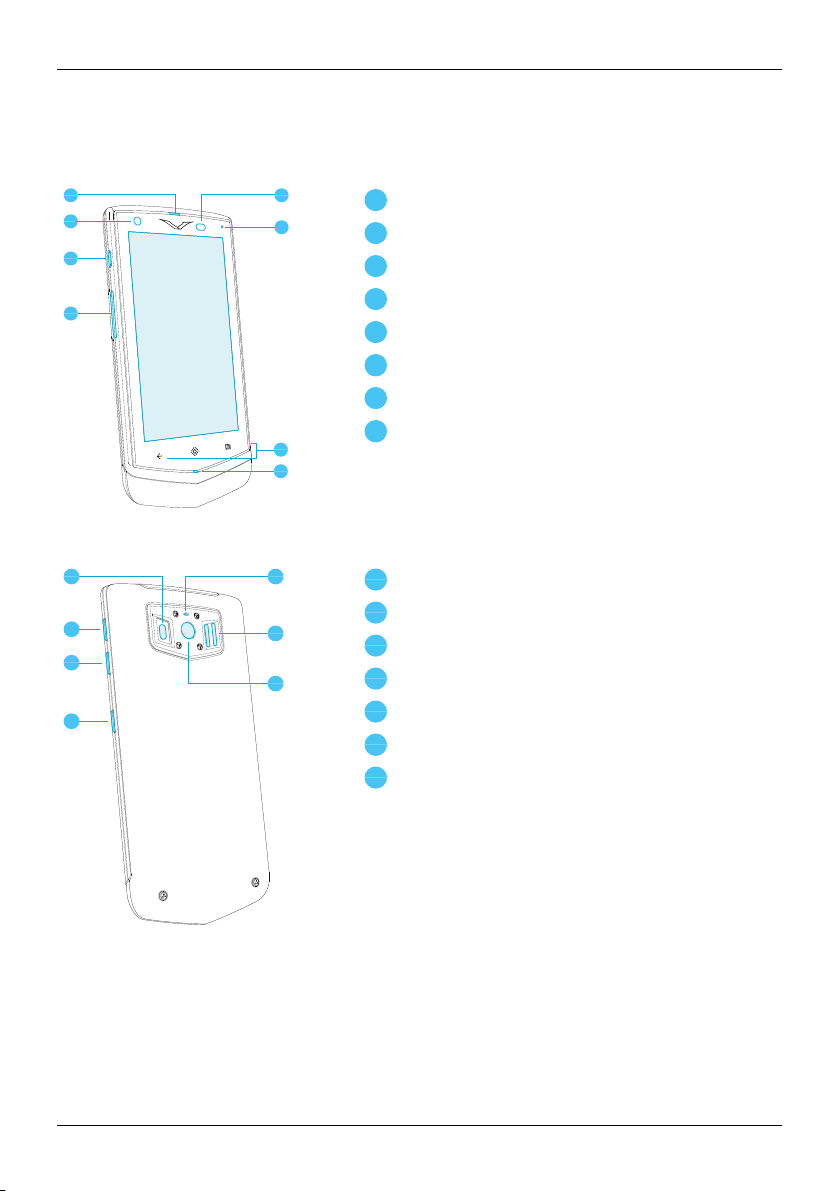
Features and keys
1
3
2
4
5
6
7
8
1
2
3
4
5
6
7
8
1
2
3
4
5
6
7
1
2
3
4
5
6
7
Front
Back
Your phone
Earpiecespeaker
Front camera
Vertu key
SIM drawer
Ambient light sensor
Notification light
Navigation icons: Back, Home, and Recent apps
Microphone
LED flash
Volume up key
Volume down key
Powerkey/screen lock
Noise-cancelling microphone
Loudspeaker
Main camera
© 2013 Vertu Corporation Limited. All rights reserved. 8
Page 9
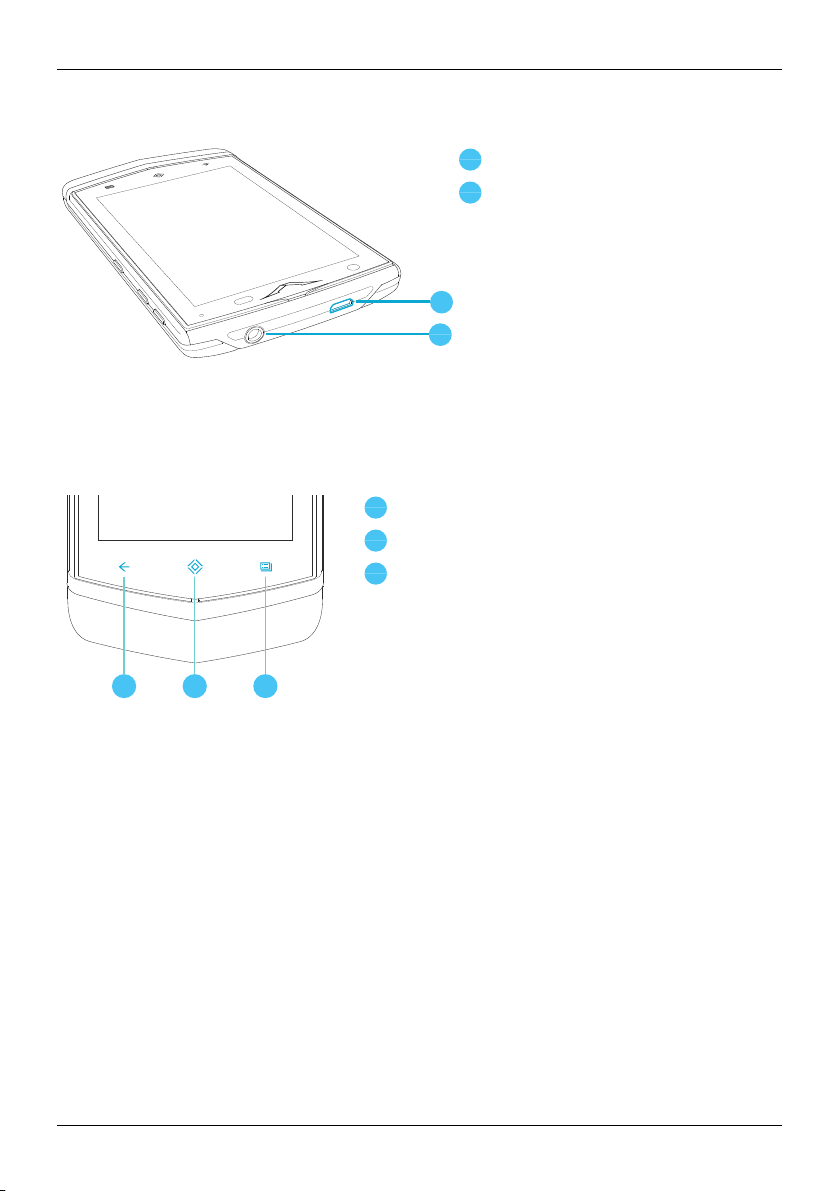
1
2
1
2
1 32
1
2
3
Your phone
Top
MicroUSB connector
Headset connector
Back, home and recent apps
Three icons on the front of your phone become touch-sensitive when you switch on. You can use these
iconsto navigate between screens and apps.
Back
Home
Recent apps
Touch Back to go back to your previousscreen.
Touch Home to move an app to the background and return to the home screen. Touch and hold Home to
go to the search screen.
Touch Recent apps to view a list of the apps you have used most recently.
© 2013 Vertu Corporation Limited. All rights reserved. 9
Page 10
Your phone
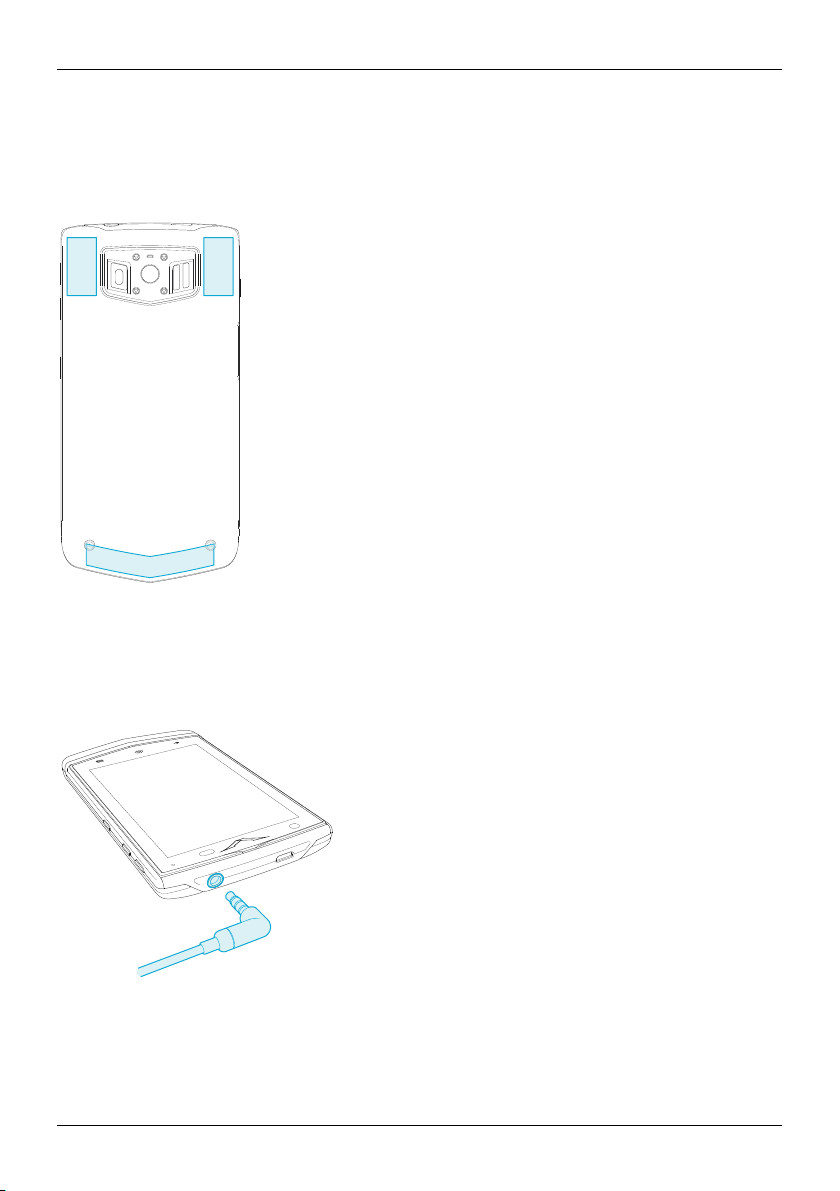
Antenna locations
Avoidtouching the antenna areas while the antennas are in use. Contact with antennas affects the
communication quality and may reduce batterylife due to higher power levels during operation.
Headset
Use the headset provided to connectto your phone. Alternatively, you can connect any compatible
headsets.
© 2013 Vertu Corporation Limited. All rights reserved. 10
Page 11

Change the volume
Pressthe volume keys to change the volume of your ringtone or adjust the volume during a call.
Alsouse the volume keys to adjust the media volume while listening to musicor watching videos.
Your phone
© 2013 Vertu Corporation Limited. All rights reserved. 11
Page 12
!
Getting started
Getting started
Insert the SIM card
Your Constellation V phone is designed to be used with a nanoSIM card. However, a microSIMdrawer is
available from Vertu retailstores if you wish to use a microSIM card.
Important: Use of an incompatible nanoSIM card (or microSIM card in the optional drawer) may
damage the card or your phone and may corrupt data stored on the card.
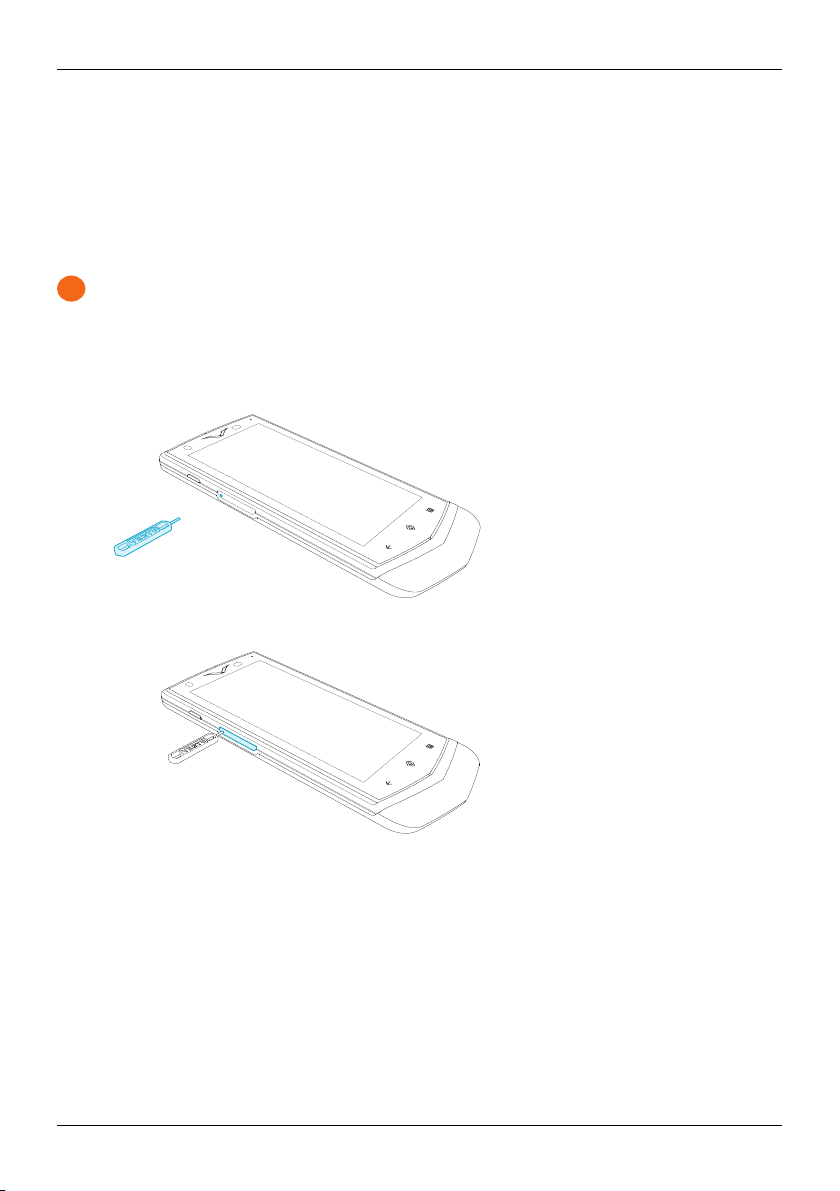
To avoid damaging the SIM cardor your phone, follow these steps carefully:
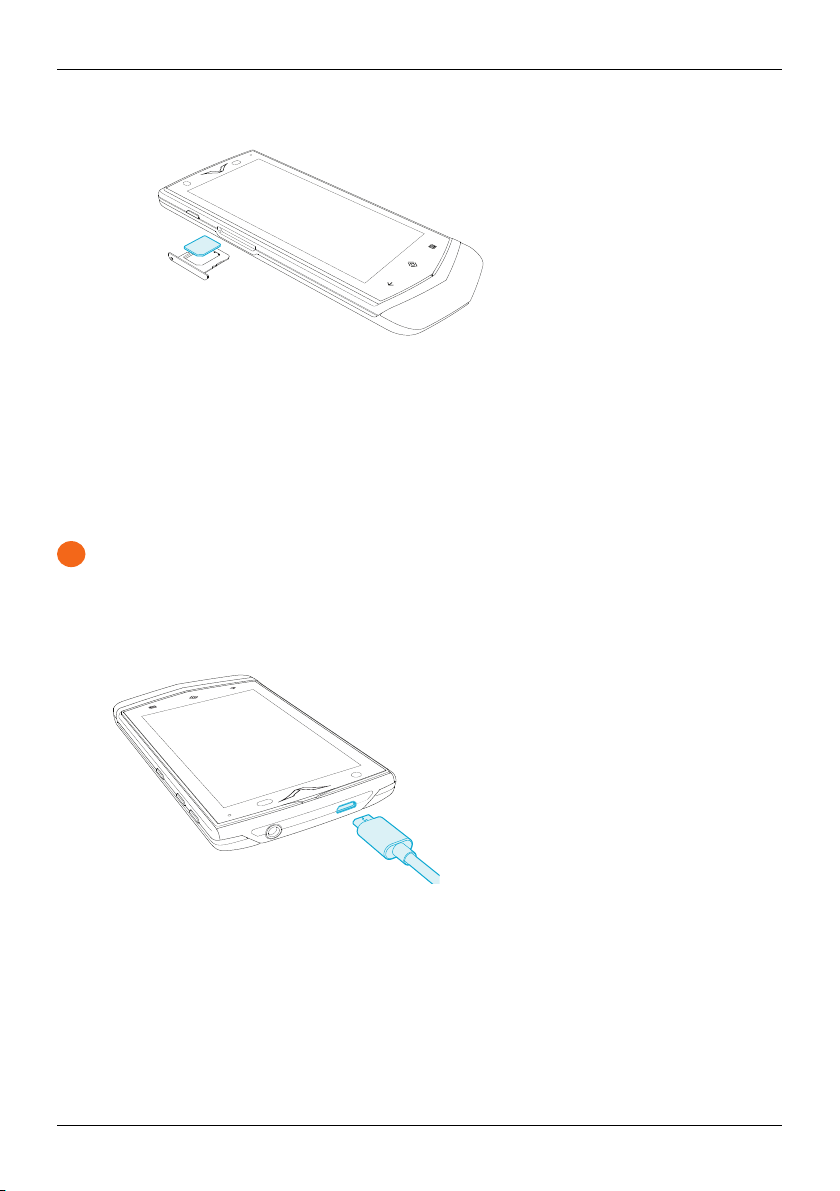
1.
Take the SIMejector tool supplied in the sales pack, and insert the pointed end in the hole in the
outer edge of the SIMdrawer.
2.
Push gently until the drawer pops out, and then pull out the drawer fully out from the drawer slot.
© 2013 Vertu Corporation Limited. All rights reserved. 12
Page 13
!
Getting started
3.
Place the SIMcard, with the contactsface down, into the drawer.
4. Push the drawergently back into the drawer slot until it clicksinto place.
Charge the phone
The internal battery needs activating priorto first use, and it is recommended to charge the battery at this
point as it may not have been supplied with a full charge. Connect the supplied USB data cable into the
charging port on the side of the phone. Then connect the other end of the cable to the USB port on your
Vertu mains charger.
Important: Use only chargers, cablesand accessoriessupplied by Vertu.
If the phone indicatesa low charge, do the following:
1.
Connect the supplied wall charger to the wall outlet and then insert the micro-USB connectorinto
your phone.
2. When the battery is fullycharged, disconnect the charger from the phone and then from the wall
outlet.
Note:
l
You can use the phone while it is charging.
l
If the battery is completely discharged, it may take several minutes before the charging indicator is
displayed or before you can make any calls.
© 2013 Vertu Corporation Limited. All rights reserved. 13
Page 14

Getting started
Charge the battery over USB
You can also charge your phone by connecting it to your computer using the USB cable.
Note: Your phone charges quicker when connected to the wall charger.
Extend battery life
Fortips on how to extend batterylife, see "Extend battery life" on page 67.
Switch the phone on or off
Switch on : Press and hold the Power key until the phone vibrates.
Switch of f: Pressand hold the Power key, and then touch Po wer off.
In the unlikely event that your phone stops responding, reboot it. To reboot, pressand hold the Power and
Volume Down keys, at the same time, until the phone vibrates.Thistakes approximately 10 seconds.
Note: Always remember to power off your phone before removing and inserting a SIM card. Thisaction will
ensure that your network connectivity is restored.
© 2013 Vertu Corporation Limited. All rights reserved. 14
Page 15
Touch screen actions
!
Important: Avoid scratching the touch screen. Never use a pen, pencil,or other sharp object on the
touch screen.
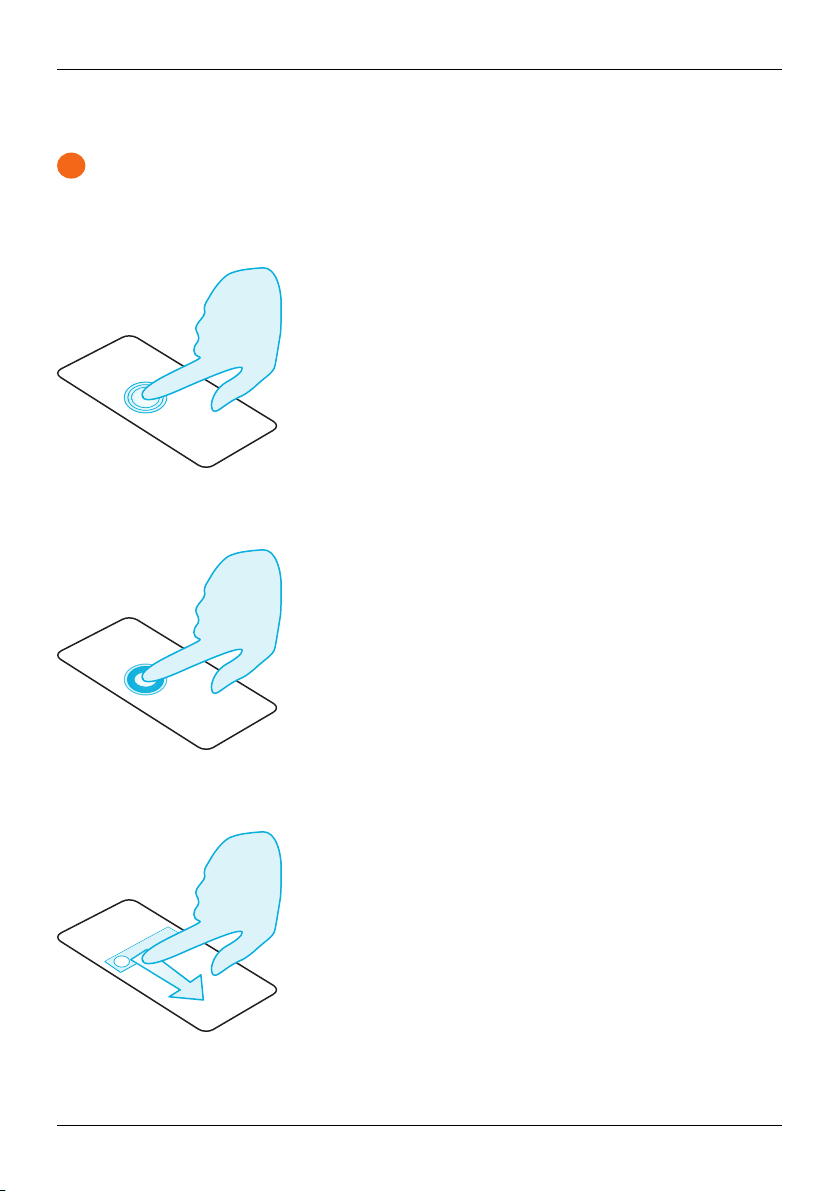
Touch
To select an item on the screen, touch it.
Touch and hold
To select an item and the actions associated with it, touch and hold.
Getting started
Drag
Touch and hold the item, and then slide your finger across the screen.
© 2013 Vertu Corporation Limited. All rights reserved. 15
Page 16
Getting started
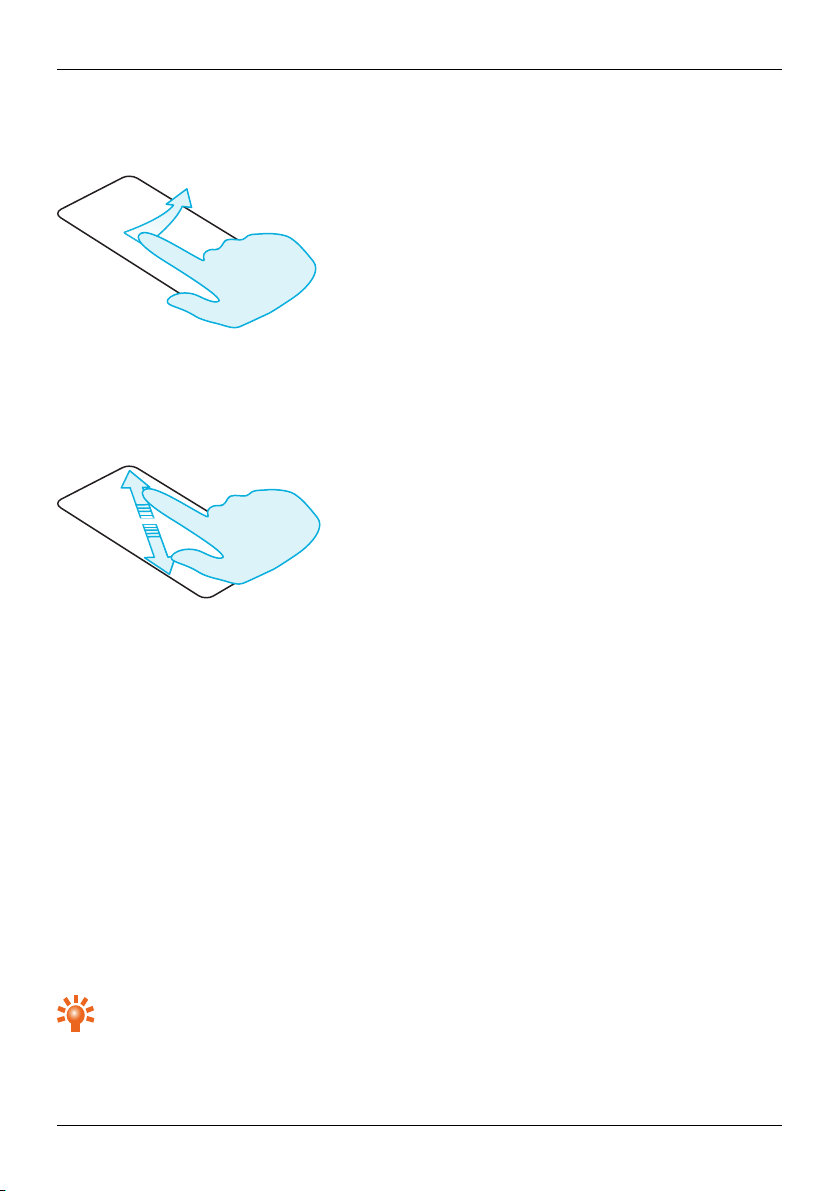
Flick
Scroll quickly between views or through lists.
Pinch or double-touch
Place two fingerson an item, such as a photo or web page, and then slideyour fingers apart to zoom in or
together to zoom out.
Or, simplydouble touch the item to zoom in or out.
Start-up process
1 Google™ registration
If you do not already have a Google account, you willbe prompted to create one during the registration
process. This is highly recommended as a Google account willgive you accessto Google Play™ and other
Google apps.
Once you've logged in, all your Gmail™ contactsare syncedto your Constellation V, ready for use.
Gmail providesthe primarymeans for backing up the contacts, emails and calendars associated with your
account.
2 Vertu registration
If you are a new Vertu customeryou will be asked to create a Vertu account. If you already own a Vertu
phone you can simplylog in to your existing account with your Vertu username and password.
Completing Vertu registration willgive you accessto unique privileges and benefits relevant to you.
Tip: For quick accessto the range of exclusive services, pressthe Vertu key.
© 2013 Vertu Corporation Limited. All rights reserved. 16
Page 17

Getting started
3 Recommended apps
Formore on the apps that Vertu recommend, see "Recommended apps" on page22.
4 Transfer contacts
Transfer contacts to your phone with your Gmail™ account or your SIM card.
Forinformation on transferring contacts, see "Transfer contacts" on page34.
Use your phone when it is locked
To unlock the screen, touch Home or press the Power key and then touch and drag to .
You can lockthe screen either by pressing the Power key or by simply leaving the screen to time out.
Formore information on different screen lock types, see "Screen lock" on page45.
© 2013 Vertu Corporation Limited. All rights reserved. 17
Page 18
1
3
2
4
1
2
3
4
Explore
Explore
About the home screen
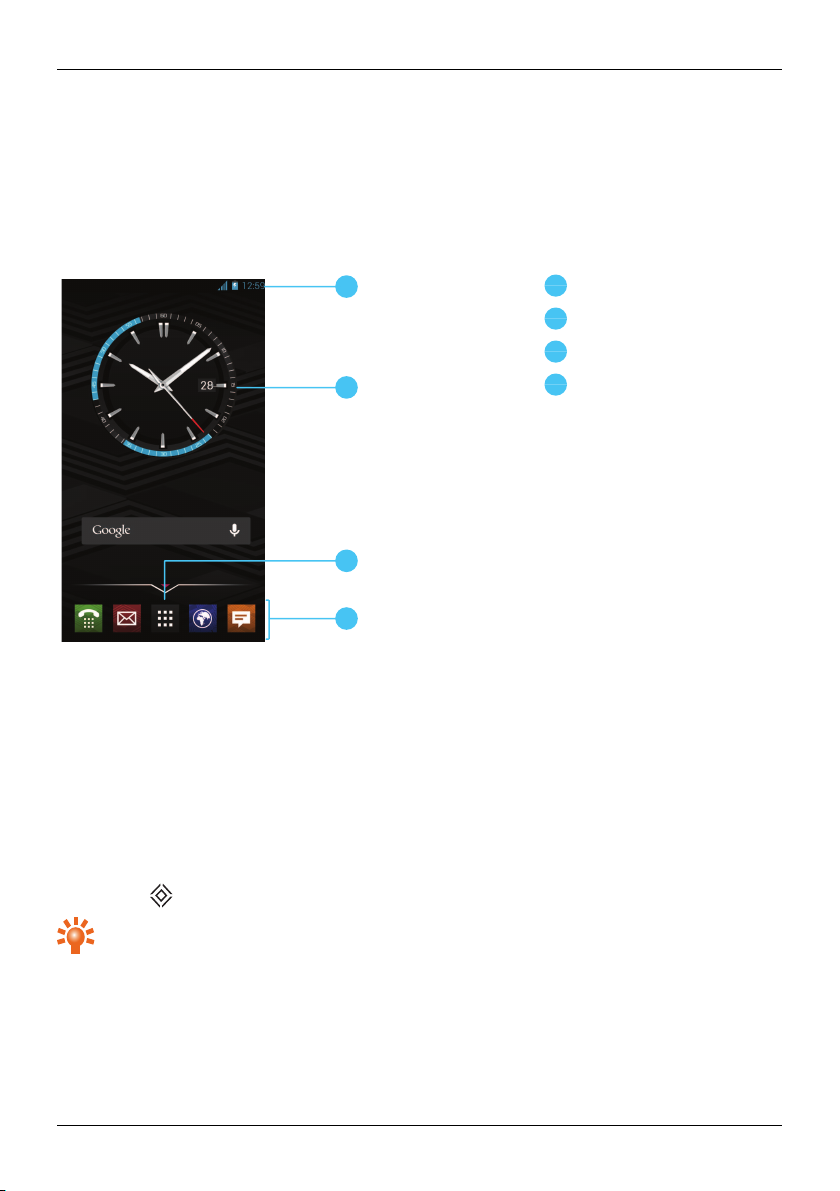
The home screen acts as a gateway to the functions on your phone while also providing you with all the
latest information:
Status and notification bar
Widget
Apps menu
Favourites tray
Status and notification bar
Status information, such as time, networksignal strength and battery level indicator, is displayed at the top
right of the screen.
Any notifications, such as new messages or calendarappointments, are displayed in the top left of the
screen. To see your notifications, touch the bar and drag down. Touch a notification to open it.
You can also quickly control your Wi-Fi, Bluetooth, GPS, mobile data, USB connectivityand displayoptions
from the status and notification bar.
Touch Home to close the status notification bar.
Tip: Flickthe notification left or right to clearit from the list.
© 2013 Vertu Corporation Limited. All rights reserved. 18
Page 19
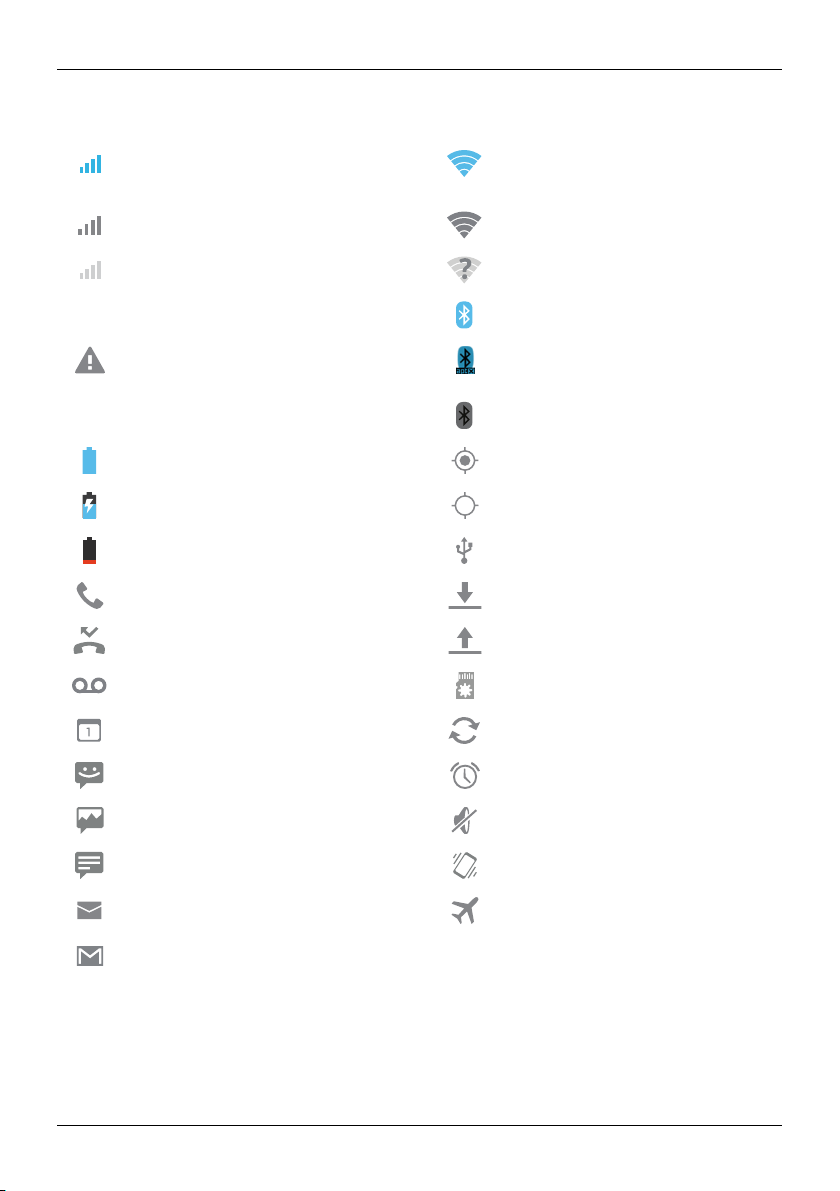
Status and notification icons
G
H
Network (full signal) ( and connected to
Google Mobile services)
Network (full signal) Wi-Fi connected
No network Wi-Fiavailable
GPRS data connection Bluetooth™ connected
Explore
Wi-Ficonnected (and connected to
Google Mobile services)
Warning Bluetoothconnected to an
H+ (fastest data) Bluetoothon
Battery (full charge) GPS (location found)
Battery (charging) GPS ( searching)
Battery (empty) USB connected
Active call Downloading
Missed call Uploading
New voicemail Preparing SD card
Calendar reminder Background data sync
New SMS Alarm set
New MMS Silent
New chat Vibrate
New email Aeroplane mode on
aptX®compatibleaccessory
New Gmail
© 2013 Vertu Corporation Limited. All rights reserved. 19
Page 20
Explore
Clock widget
The clockwidget on the home screen displaysthe following information:
l
Analogue clock with a digitaldate indicator
l
Alarmsset for the next 12 hours
l
Free and busy periods, taken from the calendar, around the clockbezel
l
Local time. If you are roaming, the clock displays both the localtime and the time at your home
location.
To set an alarm, touch the centre of the clock.
To display an appointment, touch the appropriate quadrant of the clock, and then touch the pop-up to
open the appointment. To clearthe appointment, touch the screen.
Add widgets to the home screen
Widgetsare apps that provide live content such as news, weather forecastsand messages.
To add widgets to the home screen:
1.
Touch Apps and touch WIDGETS at the top of the screen.
2. Flick left to view all widgets.
3. To selecta widget, touch and hold it, and then drag it to the home screen.
To see the widget menu options, open the widget and touch .
To resize certain widgets, such as Calendar, touch and hold the widget and then release it. The widget is
then highlighted and you can drag it to the size required.
Note: Downloaded apps from Google Play may automaticallydownload other associated widgets. To
checkyour widgets, touch Apps and then touch WIDGETS.
Favourites tray
The favourites tray appears at the bottom of the home screen. Use it to access your favourite apps quickly.
To remove an app from the favourites tray, touch and hold the app then drag to Remove at the top of the
screen.
Note: You cannot remove the Apps shortcut from the favourites tray.
To add an app to the favouritestray, touch Apps. Touch and hold the app, and drag it to the favourites
tray.
© 2013 Vertu Corporation Limited. All rights reserved. 20
Page 21

Explore
Aeroplane mode
To turn off all the wireless connections on your phone, press and hold the Power key >Aeroplane mode.
Tip: Aeroplane mode helps to conserve battery power.
Voice actions
With voice actionsyou can set an alarm, callfriends,and more just by speaking clearly into your phone.
l
Voice dialling: on the home screen, touch and then say “ Call” and then a contact name or
phone number.
l
Voice commands: on the home screen, touch and then say a command, such as "Open
Calendar".
© 2013 Vertu Corporation Limited. All rights reserved. 21
Page 22
!
Apps
Apps
About apps
Your Constellation V gives you access to a wide range of useful apps.
To accessyour apps, touch Apps from the home screen. Flick left or right to see all your apps.
To close the apps screen, touch Home .
To view your most recentlyused apps, touch Recent apps .
Recommended apps
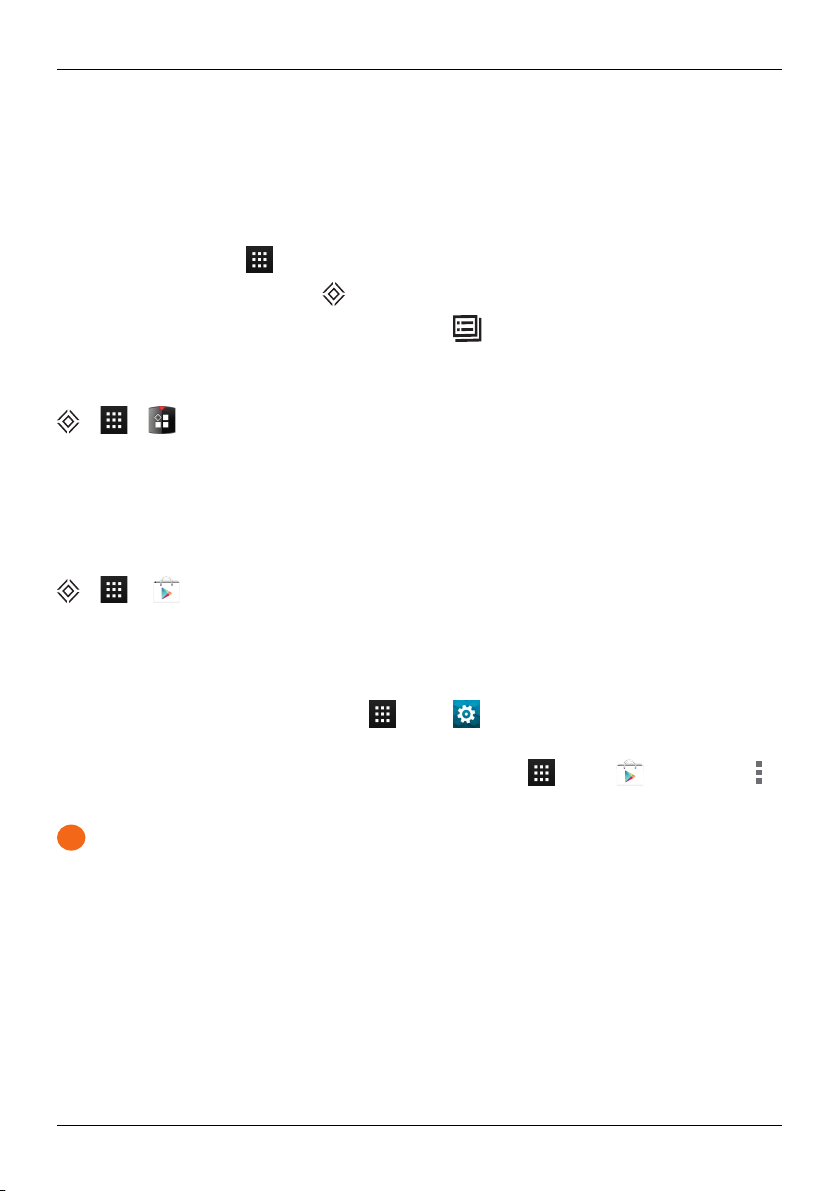
> >
Recommended apps providesyou with a single, trusted destination where you can quicklyand simply
browse and install the apps you use every day. The selection of apps displayed has been chosen based on
your country, ensuring that they are relevant to you.
Google Play™
> >
The Google Play Store app will help you with just about anything.
Scroll to the app you want to install, and then touch Install (if the app is free) or touch the price to buy.
Once installed, the new app is displayed in the apps screen.
To view a list of yourdownloaded apps, touch Apps > Settings> Apps. A list of your
downloaded apps is displayed, and these apps are available to download again.
To conserve data usage and only update your apps over Wi-Fi, touch Apps > Play Store>
>Settin gs>Auto-update apps>Aut o-update over Wi-Fi only.
Important: Choose your apps carefully from trusted sites, or you can relyon Vertu recommended
apps. See "Apps precautionary advice" on page 23 and "Recommended apps" page 22.
Your application purchases are tied to your Google account and can be installed an unlimited amount of
times on any device. So, for example, if you remove 'My Favourite Game' to save memory, you can reinstall
it at a later date with no charge by simplyvisiting My Apps. For more information on My Apps, see "Manage
and restore apps" on page23.You can also re-install apps from the My Android™ Apps section of
play.google.com.
© 2013 Vertu Corporation Limited. All rights reserved. 22
Page 23
Apps
Apps precautionary advice
To protect your phone from the threat of spyware,phishing, or viruses, it is important that you choose your
apps carefully.For Vertu-recommended security apps, see "Recommended apps" on page 22.
l
Some apps drain your phone of phone memory and battery more than others. If you find that an app
is draining your phone, simply uninstall it. For more information, see "Uninstallapps" on page 24.
l
Before you get Android apps on Google Play, check the ratings and comments. If you aren't
convinced by the legitimacy of an app, don't install it.
l
Some apps may contain inappropriate content for children.
Update apps
If you receive an over-the-air notification of an update on yourphone for a Google Play™ app, you can
follow the instructions to download and installthe update software or you can opt to dismissthe
notification.
The Allow automatic updating setting is often activated by default when you install an app. To change
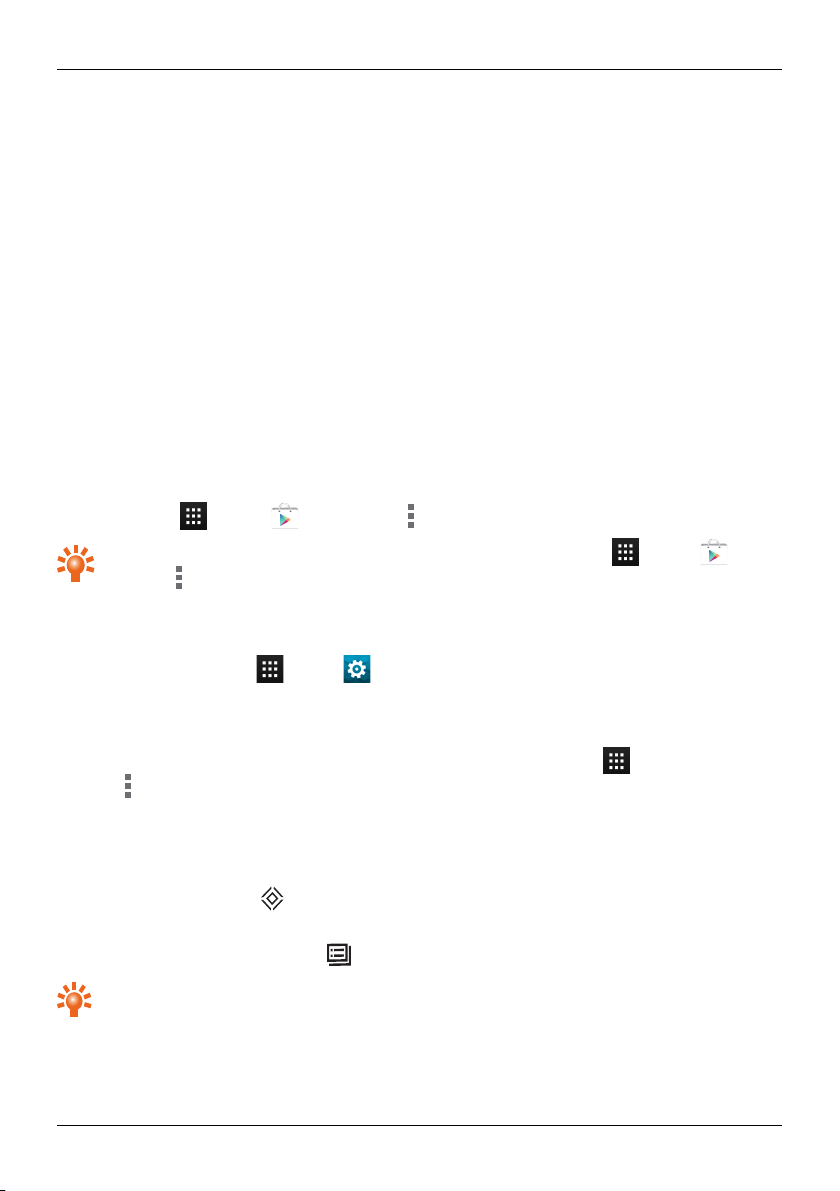
this setting, touch Apps > Play Store> Settings>Auto -u pdate apps.
Tip: To conserve data usage and only update your apps over Wi-Fi, touch Apps > Play
Store> >Settin gs>Auto-update apps>Aut o-update over Wi-Fi only.
Manage and restore apps
To manage your apps, touch Apps > Settings>Apps>All.
Touch an app to see its details(such as access permissions and file size), and then touch to select options
such as force the app to stop, uninstall, or clear data.
To restore apps that you have previouslyinstalledfrom Google Play Store, touch Apps >Play
Store> >My apps. A list of your downloaded apps is displayed, and these apps are available to
download again.
Close apps
To close an app, touch Home .
Many of your apps willcontinue to run in the background after you have closed them. To quickly open
recently used apps, touch Recent apps .
Tip: To remove apps from this list , flick left or right.
© 2013 Vertu Corporation Limited. All rights reserved. 23
Page 24

Uninstall apps
To delete an app, touch Apps > Settings > Apps > app name > Uninstall.
Apps
© 2013 Vertu Corporation Limited. All rights reserved. 24
Page 25

Vertu Services
Vertu Services
About Vertu Services
Your unique Vertu experience startswith registration. Once you have successfully registered, you can
access the privileges and benefits just by pressing the Vertu Key.
Vertu Life
Enter a world of opportunitywith exclusive accessto curated experiences and events. These have been
selected for you using our expertise and influence.
Enjoy privileged access to a private members club in Hong Kong, tickets for the Champions League final or
an invitation to join the stars at the Academy Awards, all dynamically delivered through your handset.
More than ever before, the content delivered to you within the Vertu Life app willbe tailored to your
interests. In the app you can adjust your profile, including your interests. This personalisation will enhance
the content that you see when you visit Vertu Life.
Vertu World View puts the exclusive world of Vertu Life into your hands. A finger touch allowsyour mind to
travelanywhere on the globe to explore the beauty of what Vertu Life has to offer.
Vertu Concierge
Forthose seeking elevated levels of personal care and attention, Vertu’s dedicated Conciergeis available
on subscription. Delivering personalised recommendations, 24-hour assistance and access to exclusive
events and experiences, this uniquely tailored service is available at the touch of a button, providing you
with an individualConcierge who can make arrangements to suit your life, schedule, needs, and tastes.
Discover more by pressing the Vertu Key.
Vertu Certainty
The concept for Vertu Certainty is to protect you, your phone and your data. The Certainty app isdivided
into three sections.
The first section catersfor your personal securityneeds with the support of our partnershipwith the
ProtectorServicesGroup. You can explorethe unique serviceoffering from PSG, have access to up-todate country-based securityalerts, and directlyrequest a call-back from a PSG expert to discussyour own
security needs.
The second section is about the phone. Here you can read the online user guide, including FAQs and
information on how to care for the phone, or there is quickaccess to call or email VertuCustomer service for
any additional support.
Once you have called VertuCustomer service, and provided that Vertu has your consent, the Remote
Assist service enables the TechnicalSupport Team to accessyour Constellation V remotely. The service is
intended to assistyou if you have problems setting up or using your phone. Please contact VertuCustomer
serviceif you wish to use the service. In this section of the app, you can also see the status of your warranty.
© 2013 Vertu Corporation Limited. All rights reserved. 25
Page 26

Vertu Services
The final section of the Certainty app is about protecting your data. Here the applicationshows, in a
graphical representation, how much of the internal data storage and how much of your Google Drive™
cloud data storage you are using. There is also a quicklink to launch the Google Drive cloud data
application. Finally there is a link to our Recommended apps sectionto support you with other data
protection issues, such as anti-virus and malware, remote lock/trackand wipe, and variouselements of
data backup.
© 2013 Vertu Corporation Limited. All rights reserved. 26
Page 27
1
2
3 4
5
6
1
2
3
4
5
6
Text entry
Text entry
Keyboard entry
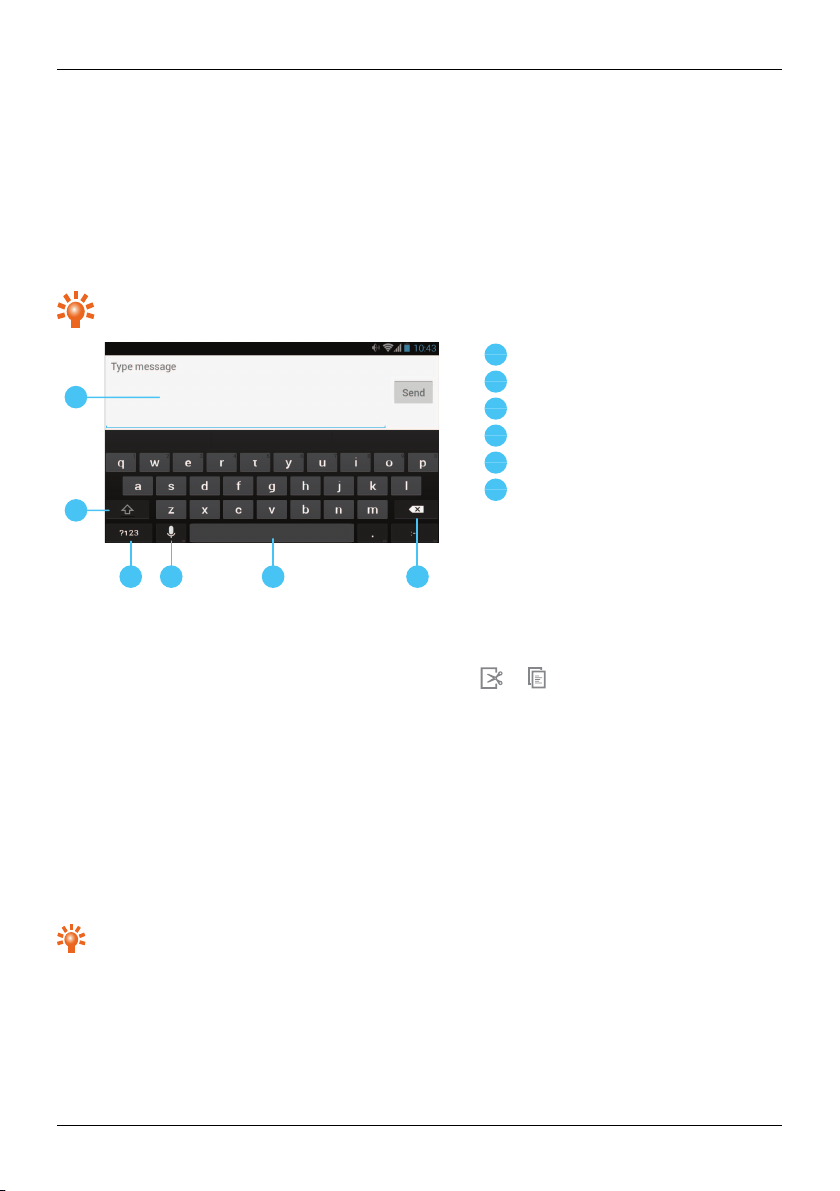
To open the touch screen keyboard, touch a text entry box. To enter text, touch the letters on the keyboard.
The keyboard is displayed in your country's native text input format, for example, QWERTY, in both portrait
and landscape modes.
Tip: You may find it easier to use the keyboard in landscape mode.
Text box
Shift
Keyboard for numbers and symbols
Speech-to-text dictation
Space
Delete
Cut, copy and paste text
Touch and hold a section of text to select it. Tabs appear, marking the boundariesof the selection. Drag
these tabs to reduce or increasethe selection, and then touch or to cut or copy. (In a landscape
display, touch Edit to view your options.) To paste the text, touch the point where you wish to insert it, and
touch the tab that appears. Then touchPaste.
Predictive text
Predictive text input is based on a built-in dictionaryto which you can add new words. It is not available in all
languages, and is active by default. As you start typing a word, your phone suggests possible wordsfor you
to choose. When the correct word is displayed, touch the word. If the word is not in the dictionary, the
phone suggests an alternative word from the dictionary.To add a new word to the dictionary, touch the
word you have typed.
Tip: To see a menu of punctuation marks, touch and hold the fullstop key.
Gesture typing
Formany languages, your phone lets you to spell out words by sliding a finger tip across the keyboard. As
you move between keys, your movements are traced by a blue trail across the keyboard and the word you
© 2013 Vertu Corporation Limited. All rights reserved. 27
Page 28
Text entry
have spelt out appears in the middle of the strip above the keyboard. To end a word and insert a space, lift
your finger. The phone automatically inserts spaces between words.
Dictionaries
To view your dictionaries, touch Apps > Settin gs > Language & input >Personal
dictionaries.
Touch + to add wordsto your dictionary.
Change the keyboard language
To change the language on yourkeyboard, touch Apps > Settings >Language & input and
select another option from KEYB OARD & INPUT METHODS.
Note: The keyboardoptions available willchange depending on your language selection.
If you change the keyboard language and you want to be able to use spellcheckfor the new language, you
must installan additional keyboard dictionary. Under KEYBOARD & INPUT METHODS, touch
(Google Keyboard) >Add-on dictionaries > a listed dictionaryoption >Install.
© 2013 Vertu Corporation Limited. All rights reserved. 28
Page 29
Calls
6
5
4
3
2
1
1
2
3
4
5
6
About calls
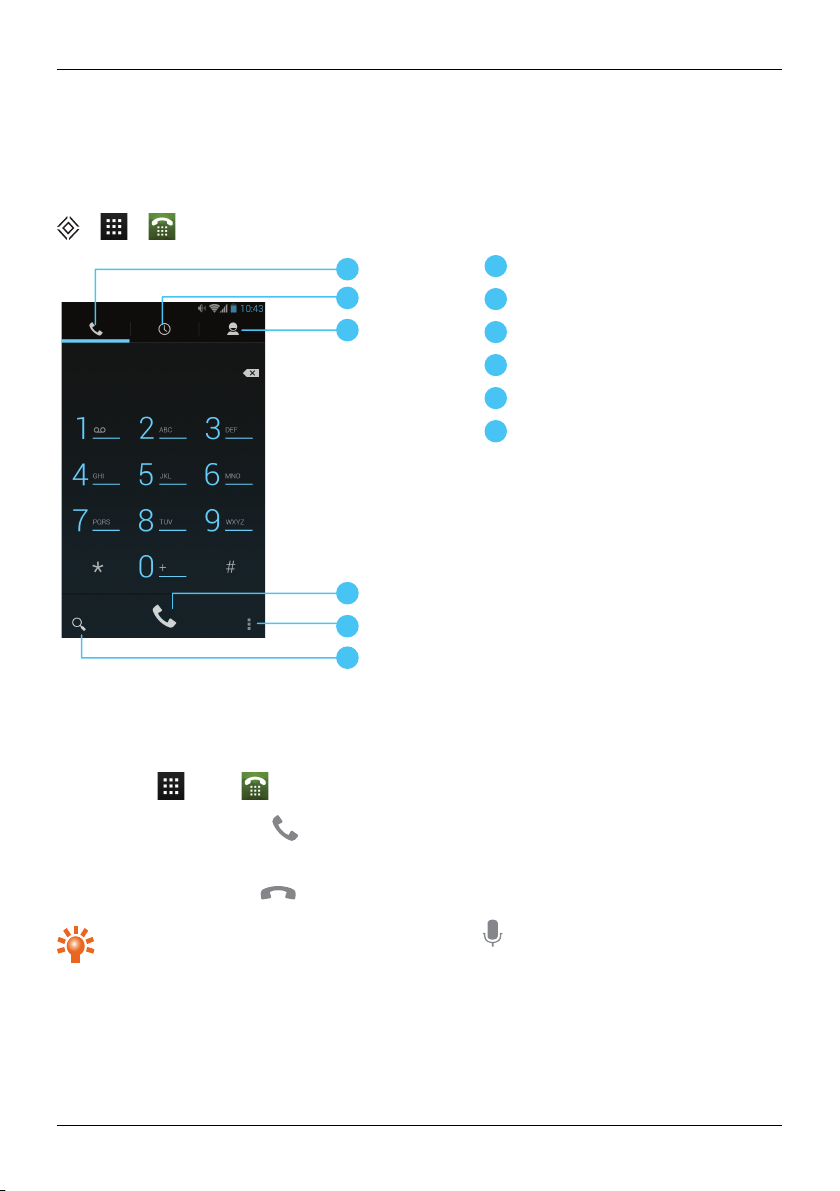
> >
Calls
Dialler
Recent calls
Contacts
Call
Options menu
Search
Make and answer calls
To make a call:
1.
Touch Apps > Ph one and enter the phone number on the dial pad.
2.
To make the call,touch .
Note: To enter the + character, used for international calls, touch and hold 0.
3.
To end the call, touch .
Tip: To voice dial a contact from the home page, touch and say “Call” followed by a contact
name.
© 2013 Vertu Corporation Limited. All rights reserved. 29
Page 30
To answer a call, touch and drag to .
l
To send an incoming callto your voicemail, touch and drag to .
l
To send an automated text message to the caller, touch , drag to , and then select an
appropriate message.
l
To silence an incoming call, pressthe Power key or Volume keys.
Call the last number dialled
The call log displaysinformation about the callsyou have made and received. This makes it easy to call
someone again if they are not answering. Simply accessthe call log and quicklyretrieve the number.
From the home screen, touch Phon e > :
l
To call a number, touch the phone icon next to the contact.
l
To see call details, touch the contact.
l
To clear the list, touch Clear call log.
Quickly call your favourites
To quicklycallyour most frequently called contacts, from the home screen touch People > .
l
To call, text, email, or view contact information, touch the contact.
Calls
l
To edit, share or delete a contact, or to set a ringtone for a contact, touch the contact and then touch
.
l
To clear the list of frequently called contacts, display the list > >touch Clear frequents.
Listen to your voicemail
You can divert your incoming callsto your voicemail(network service). Also, people can leave you a
message, for example, when you have not answered the call.
To listen to your voicemailmessages, from the home screen touch Phon e, and then touch and hold 1
on the dial pad.
Divert calls to another number
If you cannot answer your calls, you can divert incoming callsto another phone number.
© 2013 Vertu Corporation Limited. All rights reserved. 30
Page 31
Calls
From the home screen, touch Phon e> >Settings>Call forwarding.
Severaldiverting options, such as Forward when busy and Forward when unanswered can be active
at the same time.
Note: Call divert is a network service. For details, contact your service provider.
Make a conference call
To start a conference call:
1. Callthe first number.
2.
After the callconnects, touch .
3. Dialthe next number, or select it from contacts or favourites.
4. When the next number answers, touch Merge calls.
Note: Conference callsare a network service. Fordetails, contact your service provider.
© 2013 Vertu Corporation Limited. All rights reserved. 31
Page 32
6
5
4
3
2
1
1
2
3
4
5
6
Contacts
Contacts
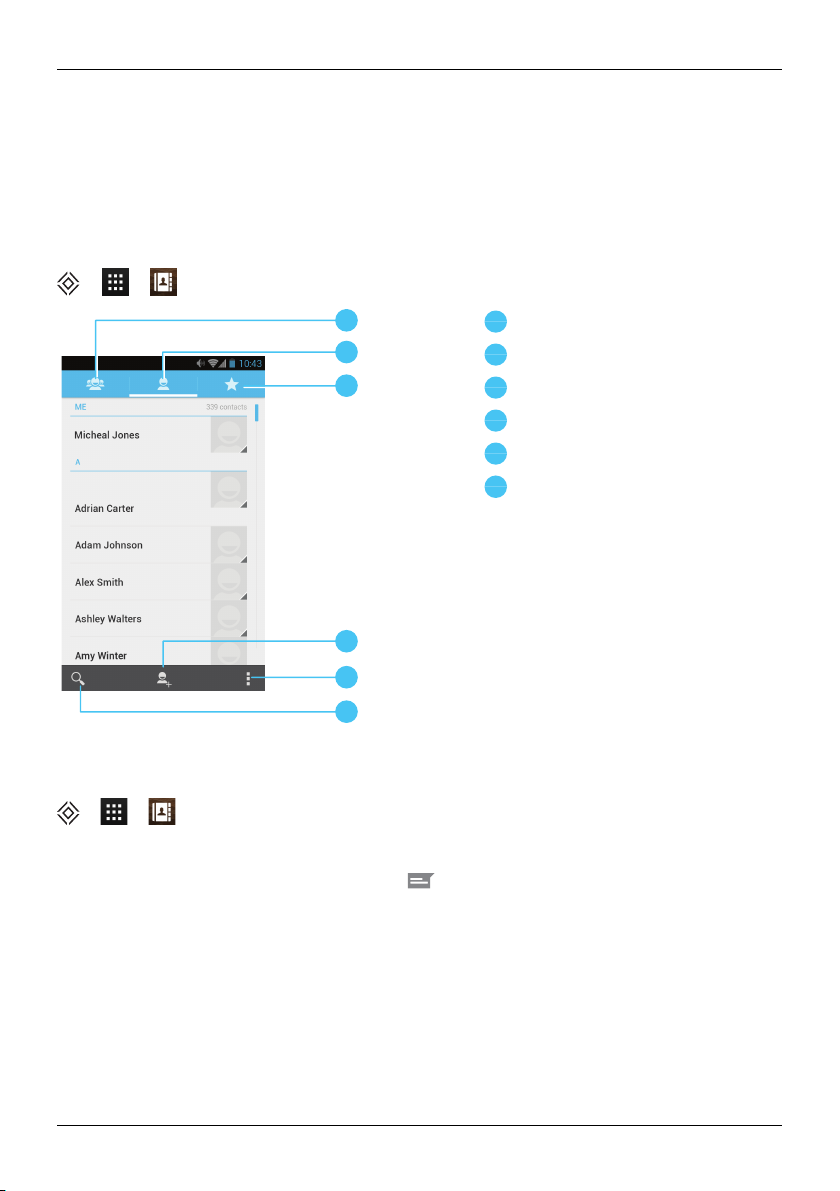
About contacts
With contacts, you can save and organiseyour friends' phone numbers, addressesand other contact
information.
> >
Groups
People
Favourites
Add a contact
Options menu
Search
Call, text or email contacts
> >
To call a contact,touch the contact and then touch the phone number.
To text a contact, touch the contactand then touch .
To email a contact, touch the contact and then touch the email address.
© 2013 Vertu Corporation Limited. All rights reserved. 32
Page 33
Contacts
Add contacts
> > >
1.
Select an account to back up your contact.
Note: If you have not set up an account, like a Google or email account, your contact is only saved
to your phone memory.
2. Enter the contact details, and then touch DONE.
Tip: Backing up your new contact to an account will also sync it to that account.
Join contacts
If you have two or more contacts for the same person, maybe a Gmail contact that is also stored on your
phone, you can join them.
Touch Apps > People>contact name > >Edit> >Join, and then touch the contact
that you want to join.
Edit or delete a contact
To edit or delete a contact, touch Apps > People>contact name > >Edit or Delete.
Save a number from a call or message
When you receive a call or a message from a person whose phone number is not yet saved in the contacts
list, you can save the number in a new or existing contact listentry.
To save a number from a received call:
1.
From the home screen, touch Phon e > .
2.
Touch the call entry, and then touch .
3. Touch CREATE NEW CONTACT , and then enter the contact details.
4. Touch DONE.
To save a number from a received message:
1.
From the home screen, touch Apps > Messaging.
2.
Touch the message entry, and then touch >Add to People.
3. Touch CREATE NEW CONTACT , and then enter the contact details.
4. Touch DONE.
© 2013 Vertu Corporation Limited. All rights reserved. 33
Page 34
!
Contacts
Mark contacts as favourites
You can find and call important contacts more quicklyif you markthem as favourites.
l
To mark a contact as a favourite, touch > > > a contact > . The star changes from
blue to white. To remove a contact from your favourites, touch the white star.
l
To view the list of your favourites, touch > > .
Note: The screen of favourite contacts also includes a list of the people that you have contacted most
frequently.
l
To clear the list of frequently contacted people, display the favourites list > >touch Clear
frequents.
Personalise contacts
Set unique photos and ringtones for your contacts.
> >
To add a photo, touch the contact > >Edit> .
To add a ringtone, touch the contact > >Set ringtone.
Transfer contacts
You can transfer contacts to yourConstellation V by using your Gmail™ account or by using your SIM card.
Gmail
You can transfer your contacts to a Comma Separated Values (.csv) text file. After you have imported this
file into your Gmail account, it will automatically sync with your phone (if you have already set up a Gmail
account).
1. Export the contacts on your previousphone to a .csvfile. For information on how to do this, refer to
the user documentation suppliedwith your previous phone.
2. Log into your Gmail account on your PC and clickCon tacts > Import Contacts.
3. ClickBrowse and select the .csvfile that you created.
4. ClickImport Co nt acts.
Important: Syncing your contacts with your Gmail account means that your contacts willalways be
backed up.
© 2013 Vertu Corporation Limited. All rights reserved. 34
Page 35

SIM card
Fordetails on exporting contactsstored on your old phone to your SIM card, refer to the user
documentation supplied with your previousphone.
Then, to import these contacts stored on your SIM card to yourConstellation V, touch Apps >
People> >Import/export>Import from SIM card.
Note: Transferring contacts with your SIM card may result in some contacts data being lost.
Contacts
© 2013 Vertu Corporation Limited. All rights reserved. 35
Page 36
Messaging and email
Messaging and email
About messaging
> >
You can send and receive variouskinds of messages:
l
Text messages
l
Multimedia messages that contain photos, videos or audio
Send and read messages
> > >
To send a message:
1.
Enter the recipient and then type your message. Touch to Insert smiley or Add su bject.
Note: To send the message to multiplerecipients, add more than one contact in the To field.
2.
Touch to send your message.
To open a text message and the previous conversation, touch it.
To reply to a text message, open it and enter your response in the text box at the bottom, and then touch
.
Send a message to a group
> > >
To send a message:
1.
Enter the recipients and then type your message.
Note: You need to add each person to send a message to a group.
2.
Touch to send your message.
© 2013 Vertu Corporation Limited. All rights reserved. 36
Page 37
Messaging and email
Instant messages
> >
To send and receive instant messages, you can use Google Hangouts™.
Manage messages
> >
To delete a message, touch and hold to select it, and then touch the trash can at the bottom.
To change your messaging options, touch Apps > Messaging> >Settings.
Corporate email setup
From the home screen, touch Apps > Settin gs > Add account. Select Corporate for
work emailaccounts on Microsoft™ Exchange server. Enter details from your IT administrator.
Tip: You need to enter your username and password. You may be prompted to enter your domain
and servernames. Contact your IT administrator for details.
To read and reply to messageson your email accounts,touch Apps > Email.
l
To compose a new message, touch . Enter your message and then touch to send the
email.
l
To read a message, touch it from the inbox.
l
To reply all or forward the email, touch .
l
To manually refresh your mailbox, touch .
l
To switch email accounts or view different folderswithin your mailbox, touch .
Tip: When you have new email will appear in the status bar.
Touch Apps > Settings and select your account to see options, such as Signatu re, Sync Email
and Remove account.
© 2013 Vertu Corporation Limited. All rights reserved. 37
Page 38
Messaging and email
Google mail setup
From the home screen, touch Apps > Settin gs > Add account. Select Google for your
Gmail accounts. For account details, contact Gmail.
To read and reply to messageson your Gmail accounts, touch Apps> Gmail.
To delete an item, to move it to another label, or to mark it as unread or important, touch and hold the item
within the label.
l
To compose a new message, touch . Enter your message and then touch to send the
email.
l
To reply all or forward the email, touch .
l
To read a message, touch it from the inbox.
l
To manually refresh your mailbox, touch >Refresh.
l
To view different folderswithin your mailbox, touch .
Personal email setup
From the home screen, touch Apps > Settings > Add account. Select Email for your
personalemail accounts. For account details, contact the account provider.
To read and reply to messageson your email accounts,touch Apps > Email.
© 2013 Vertu Corporation Limited. All rights reserved. 38
Page 39

Music
Music
About music
> >
Google Play Music lets you listen to your current music collection and to buy additional musicthrough
Google Play Store.
The Music Manager desktop application providesa simple way for you to put your music collection into the
cloud, unlocking the potential of the Play Music service. The application scansyour computer for music
files,including filesin your iTunes® library, and makes any discovered tracksand albums available to you in
Play Music. If your collection can be matched to musicin Google Play Store, the tracksdo not even need to
be uploaded, saving you data transfertime.
Once your musicis in the cloud, you can accessit from any computer connected to Google.com or from any
Androidphone or tablet that has the Play Music app installed.
When you first listen to a trackwith Play Music on yourConstellation V, the song is cached on the phone.
So, over time your favourites are automatically made available for offline listening, such as when you are
travelling on an aeroplane.
Note: The MusicManager application and music purchases from Google Play Storeare only available in
certain markets.
Supported file types
Your Constellation V willplay the following audio file formats: AMR, WB-AMR, AAC, AAC+, MP3, MP4,
WAV, AU, WMA(10), M4A, OGG, EVRC, EVRC-B, and EVRC- WB/NB.
Adding songs or albums to Play Music
You have two options for listening to musicon your phone. You can listen to music files that you store on
your phone, or you can listen to musicin your online library in the Play Music cloud.
To add your music to the Google Play Music cloud
1. Sign up for your Goog le Play music library: To get started, sign up for Google Play and
download MusicManager, a desktop application that lets you upload your collection from your
iTunesmusic library, or any music folder on your computer, to the cloud.
2. Upload your collection: Sign in to MusicManager and choose where you keep your music.
MusicManager then starts uploading automatically. When you add new music to yourcomputer,
MusicManager can automaticallyadd it to your librarytoo. Music Manager even adds your iTunes
playlistsand ratings so you can start listening to your favouritesright away.
3. Access your music on the web and your phone: After you have set up your Play Music
musiclibrary, you can accessit on your Constellation V, on any Android phone or tablet or on the
web. Sign in and all your musicis ready to be played.
© 2013 Vertu Corporation Limited. All rights reserved. 39
Page 40

Music
To add your music to your Constellation V phone only
To load music on yourcomputer and then load it on your phone, you need the following:
l
A Microsoft™ Windows™ computer or Apple Macintosh™ computer
l
A USB data cable
Note: When you connect your phone for first time, your computer may prompt you that drivers are being
installed. Complete the driverinstallation before you continue with the following steps.
1.
Connect the microUSB cable from your phone's microUSB connectorto a USB connection on your
computer.
2.
From the home screen, check that appearsin the status bar.
3. Drag the status bar down and touch Connected as a media device. Make sure the Media
device (MTP) check box is ticked.
4.
On your computer, navigate to the removable diskshowing your phone and open the Internal
Storage.
5.
Drag and drop filesbetween your computer and the 'Music' folder.
6. When you have finished, disconnect the USB cable.
To buy new music through your Constellation V phone
To buy new albums or tracksfrom your phone, follow these steps:
1. Goto the Google Play Store application.
2. Touch the ‘Music’ shortcut.
3. Follow the instructions in the app to make your choice and to complete the purchase.
© 2013 Vertu Corporation Limited. All rights reserved. 40
Page 41
Play music
Touch a song or playlist to start playing music.
Music player controls
l
Play or pause: touch or .
l
Select the previous or the next song: touch or .
l
Fast forward or rewind:touch and hold the progressbar, and then drag forwards or backwards.
l
Turn shuffle on or off: touch .
l
Repeat all on or off: touch .
l
Adjust the volume: press the volume keyson the side of the phone.
l
Go to the music home screen: touch in the top left of the screen.
l
Add a song to playlist: while the song is playing, touch >Add to playlist>playlistname.
l
Delete a song: in the musiclibrary,touch next to the song you wish to remove, and then touch
Delete.
Music
Playlists
To add a song from the musiclibraryto a playlist,touch and then touch A dd to playlist. Choose an
existing playlist or touch New playlist.
Hide the music player
Touch Home . Your musicwillcontinue to play and you will see in the status and notifications bar.
You can continue to work with other apps while your musicis playing.
When you see in the status and notifications bar, a song is playing. Flick down to see details. Touch
the song to return to the musiccontrols.
Turn off the music
Touch .
© 2013 Vertu Corporation Limited. All rights reserved. 41
Page 42
Maps and navigation
Maps and navigation
Google Maps™
Google Maps is a Google service offering powerful, user-friendlymapping technology and localbusiness
information, including business locations, contact information, and driving directions.
> >
Note: You must enable GPS to use Google Maps. Todothis,touch Apps > >Location
access>GPS satellites.
You can save data from Google Maps to your phone so that a map is available for use offline. This feature
is useful when you do not have a data connection, and it can also reduce your data transmission costs.
To save a map to your phone, view an area in Google Maps and touch >Make available offline. If
you wish to adjust the selected area, you can pinch the map to zoom in or zoom out. Touch DONE to
download the map data.
Tip: Blocks of map data can be up to 100MB. So Vertu recommends that you connect to a Wi-Fi
network before you download.
Forhelp with Google Maps™, touch >Help.
Tip: To see listingsfor nearby restaurants, cafes and more, touch Maps >Local in the top left
corner of the screen.
Google Maps™ with Navigation beta
Google Maps with Navigation beta isan internet-connected GPS navigation system with voice guidance.
> >
Note: You must enable GPS to use Google Maps with Navigation beta. Todothis,touch Apps >
>Location access>GPS satellites.
Follow the prompts to speak or type your destination.
Forhelp with Google Maps with Navigation beta, go to www.google.com/mobile/navigation.
© 2013 Vertu Corporation Limited. All rights reserved. 42
Page 43
Personalising your phone
Personalising your phone
Widgets
To add widgets to the home screen:
1.
Touch Apps > WIDGETS.
Note: Flickleft to view more widgets.
2. Touch and hold a widget, and then drag it to one of the home screen panels.
To download more widgets, see "Google Play™" on page22.
To customise a widget, touch it to open it, and touch .
Shortcuts
To add shortcuts to the home screen, touch Apps, touch and hold an app, and then drag it to a spot on
the home screen panels.
To create a shortcut folder, drag one shortcut on top of another. To add more shortcuts to the folder, drag
them onto the folder icon. If you wish to name the folder, touch it and enter a name at the bottom.
l
To move shortcuts or shortcut folders, touch and hold them, and then drag to a new location.
l
To remove shortcutsor shortcut foldersfrom the home screen, touch and hold them, and then drag
to Remove at the top of the screen.
You can also drag shortcuts or shortcut folders in or out of the favouritestray for instant accessfrom the
home screen.
Ringtones
You can adjust your ringtone for incoming callsor for notifications, such as a text message or email:
Touch Apps > Settings>Sound>Phone ringtone or Default notification sound.
To switch between an active or muted ringtone or to set the phone to vibrate, press and hold the Power key
and then choose an option:
l
Touch to silence your phone and activate vibrate mode.
l
Touch to silence your phone without activating vibrate.
l
Touch to reactivate your ringtone.
© 2013 Vertu Corporation Limited. All rights reserved. 43
Page 44
Personalising your phone
To activate the ring and vibrate option, touch Apps > Settings>Sound>Vibrate when
ringin g.
Wallpapers
To set a new wallpaper for the home screen, touch and hold an empty spot on the home screen, and then
select a wallpaper from Gallery, Live Wallpapers or Wallpapers.
Assign sounds to actions
l
To set sounds for touches on the dial pad, touch Apps > Settings > Sou nd >Dial-pad
tou ch tones.
l
To set volume for ringtones, notifications, media, and alarms, touch Apps> Sett ings >
Sound > Volumes.
l
To hear when you lockor unlockthe screen, touch Apps > Settings > Sound >Screen
lock sounds.
l
To set sounds for screen selections, touch Apps > Settings > Sound >Touch soun ds.
Display settings
Option Settin g
Set the brightness of the screen
Set the font size for menus and settings
Turn on or off the notification light
(This light flashes in at the top right corner of the
front of your phone when you receive a
notification, such as a text message or email.)
© 2013 Vertu Corporation Limited. All rights reserved. 44
From the home screen, touch Apps > Settings
>Display >Brigh tn ess.
From the home screen, touch Apps > Settings
>Display >Font size.
From the home screen, touch Apps > Settings
>Display >Pulse notification light.
Page 45
Personalising your phone
Auto-rotate
To set whether the screen rotates automaticallyin certain apps, touch Apps > Settings >
Display > A uto-rotate screen.
Screen lock
You can make the touchscreen lock when it goes to sleep. Thisis recommended to protect your phone in
case it becomes misplaced or stolen.
There are severaldifferent lock options. Touch Apps> Settings>Security>Screen lock,
and then select the lock type:
l
Slide: drag to the right to unlock.
l
Face Un lock: look at yourphone to unlock.
l
Pattern: draw a pattern to unlock.
l
PIN: enter a PIN code to unlock.
l
Password: enter a password to unlock.
Note: Certain corporate email accounts make use of a specificlockthat may disable the lockoptions listed
above.
Date and time settings
To set date, time, time zone, and time formats, touch Apps > Settings > Date & time.
To automatically use the network date and time, touch A utomatic date & time or Automatic
timezone.
Language and region settings
To set your menu language and region, touch Apps > Settin gs > Language & input >
Language.
© 2013 Vertu Corporation Limited. All rights reserved. 45
Page 46
Socialnetworks
Social networks
Add an account
With the Browseryou can keep up to date with your social networking accounts on sites like Facebook™,
Twitter™ and Google+™. If you don’t have accounts, go to their websites to set them up. Most social
networking accounts offer dedicated apps that can be installed on your Constellation V from Google Play.
To download a social networking app, from the home screen touch Apps > Play Store.
To sign in to your social networking account, enter your username or email addressand password.
The social networking accounts are third-party services and not provided by Vertu. Check the privacy
settings of the social networking accounts to control what information you are sharing. Familiarise yourself
with the terms of use and the privacy practices of any social networking accounts you use.
Delete an account
To delete a social networking account from the phone, touch Apps >touch and hold a social
networking app and drag it to Uninstall.
Synchronise contacts
When you sign in to a social networking account on your phone, you may be prompted to sync account
contacts,picturesand status with your People app. You can accept or decline this request. To change
your sync settings at any time, touch Apps > Settings> account name.
© 2013 Vertu Corporation Limited. All rights reserved. 46
Page 47
Managing accounts
Managing accounts
Configure sync options
To sync your accounts, from the home screen, touch Apps > Settings> a listed account >
>Sync n ow.
To configure your sync options for an account, touch the account and then select the check boxes you
want to sync, for example Sync Calendar, Sync Con tacts or Sync Gmail. Leave the check box empty
for options you do not want to sync.
Add and delete accounts
To add accounts, from the home screen, touch Apps > Settings> Add account. Some
default accounts are shown, for example Corporate, Email and Google. Touch an account to add it.
Enter your user name and password, and then follow the prompts to set up your account.
To delete an account from the phone, touch the account name > >Remove accoun t.
Backup and restore accounts
To backup and restore your accounts, from the home screen touch Apps> Settings>Backup
& reset>Automatic restore. Check that the Automatic restore box is ticked to ensure that backed
up settings and data are restoredwhen you reinstall an app.
Note: To backup applicationdata, Wi-Fi passwordsand other settings to Google servers make sure that
the Back up my data box is ticked.
© 2013 Vertu Corporation Limited. All rights reserved. 47
Page 48
4
3
2
1
1
2
3
4
Browser
Browser
About the web browser
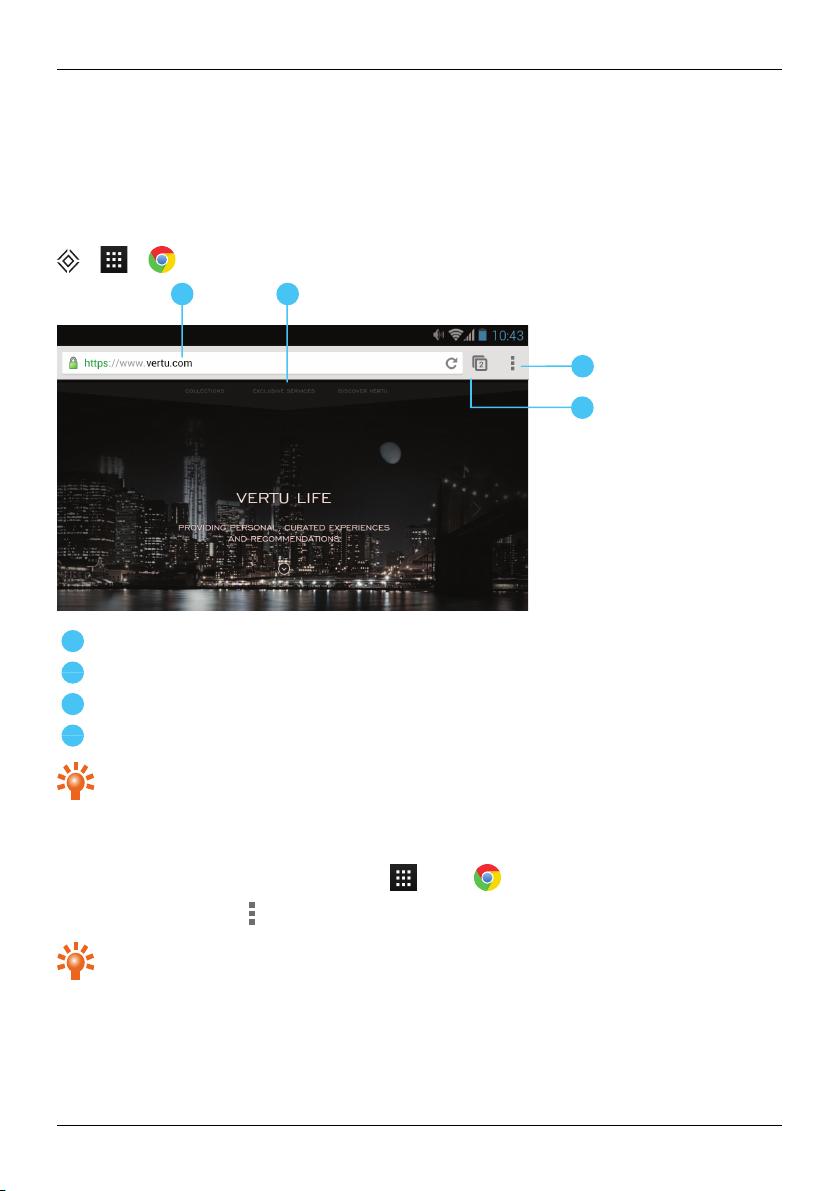
To browse the web with your Constellation V, you must have either a cellularor Wi-Fidata connection.
> >
URL bar.
Touch a link to select it. Touch and hold for more options.
Browseroptions, such as bookmarksand browser settings.
Touch to see a list of previously visitedpages.
Tip: To zoom in or out, touch the screen twice.
Browse the web
To browse the web, from the home screen touch Apps > .
To refresh a website, touch >Refresh.
To go to a website, touch the web addressbar, enter a web address, and then touch Go.
Tip: Check your data plan with your service provider. To save data costs, you can use Wi-Fito
connect to the internet.
© 2013 Vertu Corporation Limited. All rights reserved. 48
Page 49
Browser
Cut, copy and paste text
Touch and hold the text to select it. Tabs mark the boundaries of the selected text. Drag these tabs to
select the text you want , and then touch icons at the top of the screen to cut, copy or paste your selection.
Connect to the internet
Your phone uses the cellularmobile phone network (over the air) or a Wi-Fi connection to accessthe
internet.
Note: Check your data plan with your service provider.You may be charged to accessthe internet and to
download data over the air.
To use a Wi-Finetwork for faster internet access, touch the status bar at the top of the home screen and
drag it down. Touchthe Wi-Fi n etworks available notification to select a preferred network. See "Wi-Fi"
on page59.
To close your browser, touch Home .
Note: If you cannot connect to the internet, contact your service provider.
Add a bookmark
If you visitthe same websites regularly, add them to yourbookmarks, so that you can easily accessthem.
To save a website as a bookmark, touch >Save to bo okm arks.
To view your bookmarkedwebsites, touch >Bookmarks.
Widget feeds
If you use widget feeds, also known as media feeds, you no longerhave to visit your favourite websites
everytime you want to find out what isgoing on. Instead, you can get links to the latest content
automatically.
From the home screen, touch Apps > WIDGETS. Touch and hold a widget to add it to the home
screen.
Privacy and security
To make changes to your privacy and security settings, from the home screen touch Apps> >
>Settings>Privacy & security.
To empty the cache, touch >Settings>Privacy>Clear browsing data>Clear cache.
© 2013 Vertu Corporation Limited. All rights reserved. 49
Page 50

Browser
Downloads
To download files in your browser, touch and hold a linkor picture, and then touch Save image or Save
link.
To see the filesyou have downloaded, from the home screen touch Apps > Downloads. Touch
an item to open it. Touch the check box to select an item, and then touch the trash can to delete it.
© 2013 Vertu Corporation Limited. All rights reserved. 50
Page 51
2
3
4
1
1
2
3
4
Camera
Camera
About camera
You can use your Constellation V to take photos or record videos. You can then view or edit the photos and
videos, share them on the internet, or send them to compatible devices.
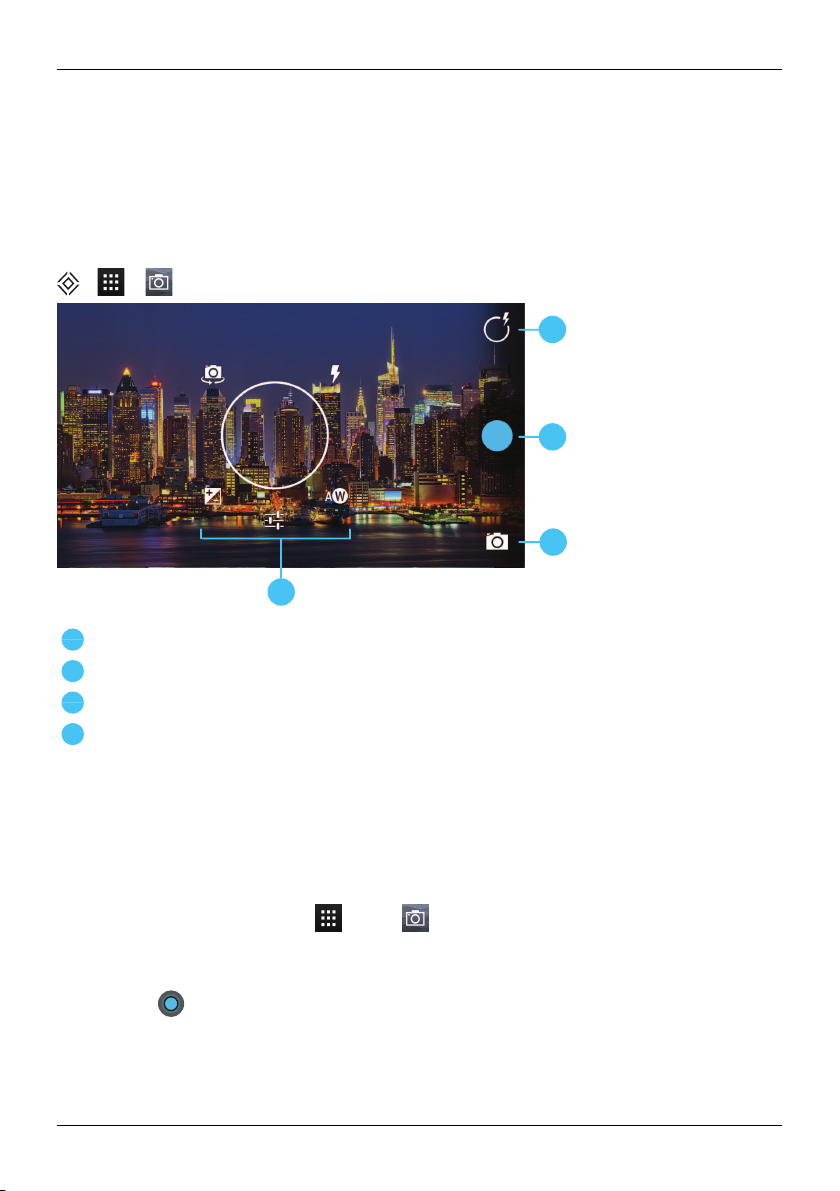
> >
Touch to show options for settings
Capture a photo or video
Current photo type. Touch to select another type.
Optionsfor changing the camera settings
Note: The locationof the icons willvarydepending on the orientation of your phone. The appearance will
vary, depending on your current choiceof photo type and camera settings.
Take and share photos
To take a photo:
1.
From the home screen, touch Apps > Camera.
Note: Touch the screen to change the focus location. A white circle shows your new focus location,
and two markers turn from white to green when the camera has finished refocusing.
2.
Touch to take your photo.
© 2013 Vertu Corporation Limited. All rights reserved. 51
Page 52
A W
Camera
To take a wide panoramicphoto, touch > . Move the phone slowly across the scene you want to
take. The camera auto-captures multiple shots as you move the camera and joins them together to make
one large photo.
Share a photo:
1.
From the home screen, touch Apps > Gallery.
2.
Touch the photo, touch and then choose how you want to share: by , , , , ,
or .
Tip: To share a photo immediatelyafter capture, touch the screen and flickleft. The screen shows a
"film strip" of your recent photos and videos. Flickright or left to move between photos. Touch to
see the sharing options. To return to the live camera view, flick right to move to the far left of the film strip.
Camera settings
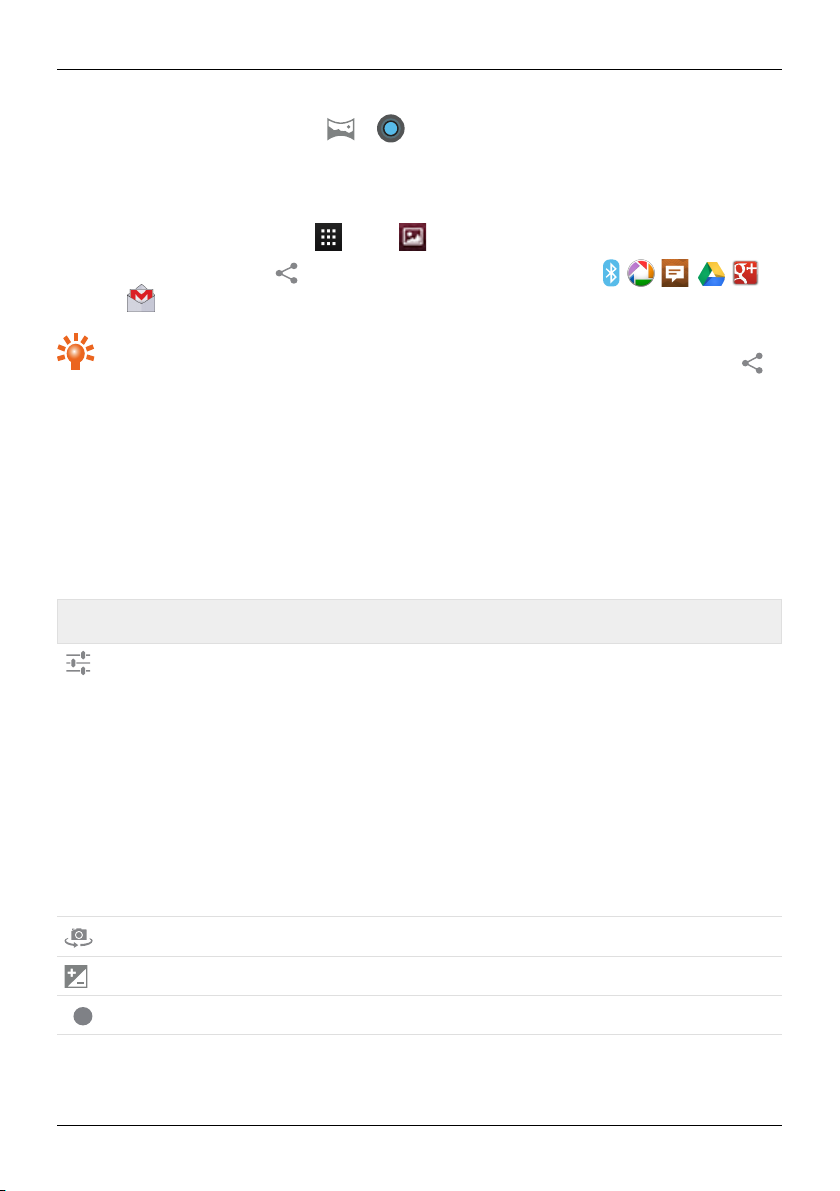
To see the options, touch the white circle in the top right cornerof the screen. Then touch the option you
wish to change and slideto a new setting. Alternatively, touch and hold in the middleof the screen, and
then slide to an option and a new setting.
Note: You can only adjust the camera settings for the conventional photos, not the panoramicimages.
Option Setting
Camera settings
Choose camera
Exposure
White balance
© 2013 Vertu Corporation Limited. All rights reserved. 52
Settings include:
Set Store lo cation to ON to recordthe location of a photo or video
automatically.
Picture size: VGA, 1M pixels, 3M pixels, 5M pixels, 8M pixels (default)
or 13M pixels.
Colour effect: apply artistic effectsto your photos. Options include Sepia,
Negative and Posterize.
Scene mode: select an option to givethe best results in particularlighting
situations.Options include Party and Sunset.
Resto re defaults: return all camera settings to their default values.
Switch between the main camera and the front camera.
Select an exposure setting, ranging from +2 to –2.
Set to Auto , Incan descent, Daylight, Fluorescent or Cloudy.
Page 53
Option Setting
HDR
Camera
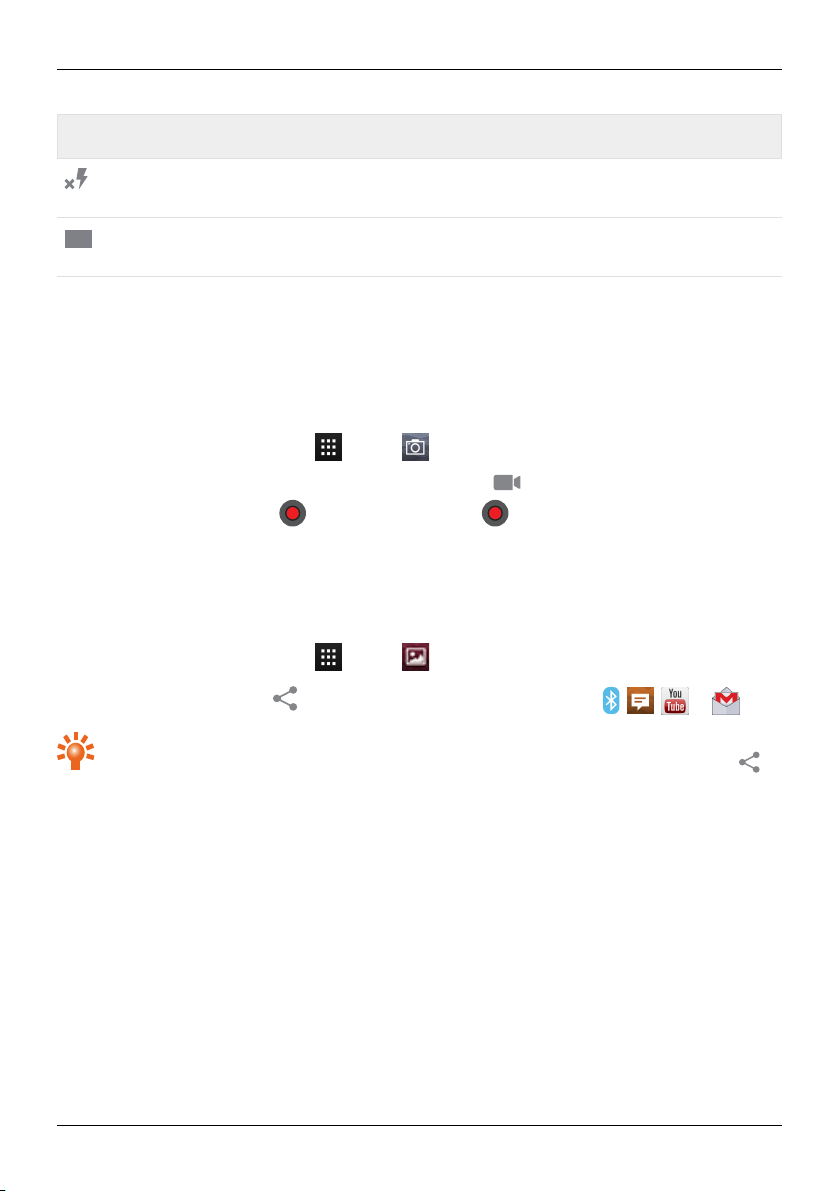
Flash mode
Main camera: set the flash to Auto or On (with red eye reduction available
for both options) or set to Off.
HDR (High DynamicRange) helps to preserve details in scenes with highcontrast lighting conditions. Set to On or Off (default).
Record and share a video
Besidestaking photos with your phone, you can also capture videos.
To take a video:
1.
From the home screen, touch Apps > Camera.
Note: To switch from photo mode to videomode, touch .
2.
To start recording, touch . To stop recording, touch again. Your phone then stores the
video.
Note: When recording a video, you do not have to touch screen to set a focus location. The phone will
auto-focus to the centreof the frame while you capture the video.
Share a video:
1.
From the home screen, touch Apps > Gallery.
2.
Touch the video, touch and then choose how you want to share: by , , , or .
Tip: To share a video immediately after capture, touch the screen and flick left. The screen shows a
"film strip" of your recent photos and videos. Flickright or left to move between videos. Touch to
see the sharing options. To return to the live camera view, flick right to move to the far left of the film strip..
© 2013 Vertu Corporation Limited. All rights reserved. 53
Page 54
A W
Camera
Video settings
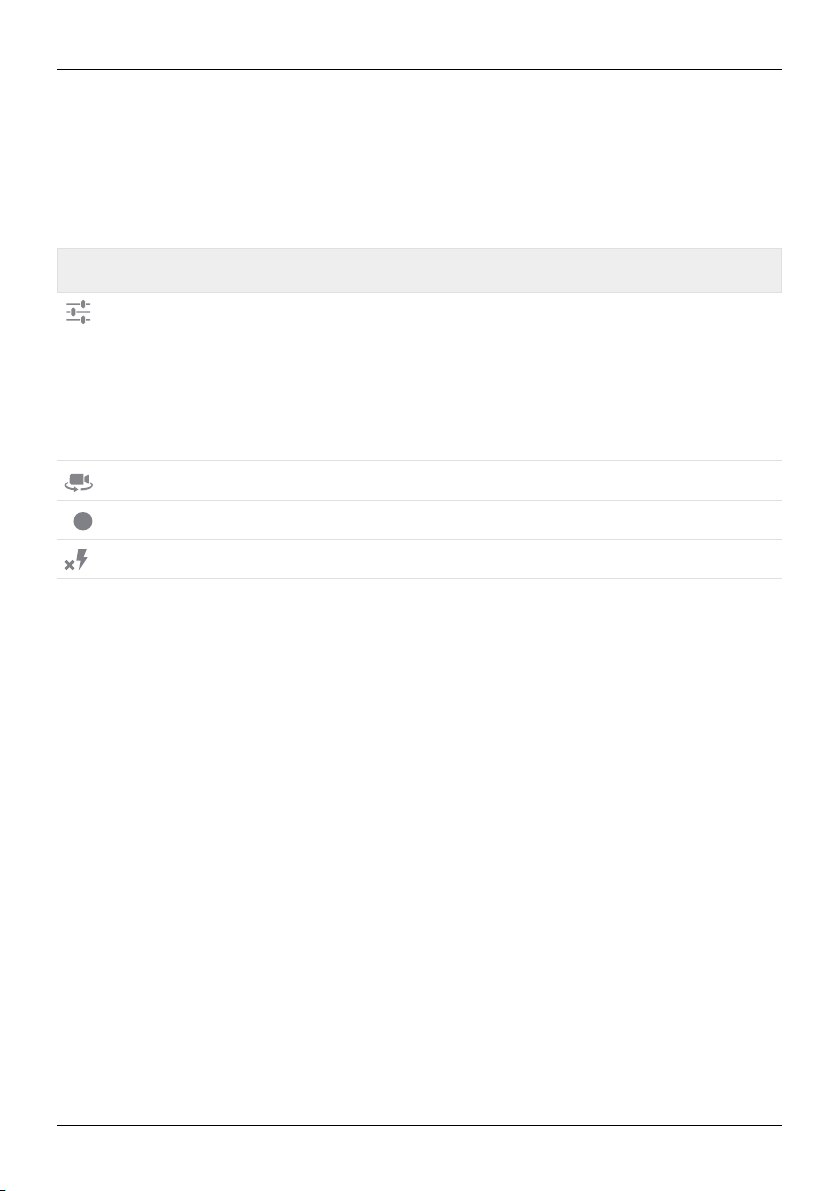
To see the options, touch the white circle in the top right cornerof the screen. Then touch the option you
wish to change and slideto a new setting. Alternatively, touch and hold in the middleof the screen, and
then slide to an option and a new setting.
Option Setting
Camera settings
Choose camera
White balance
Flash mode
Settings include:
Set Store lo cation to ON to recordthe location of a photo or video
automatically.
Video encoder:H264 (default), H263 or MPEG4.
Video quality:HD 1080p (default), HD 720p, SD 480p or VGA.
Resto re defaults: return all camera settings to their default values.
Switch between the main camera and the front camera.
Set to Auto , Incan descent, Daylight, Fluorescent or Cloudy.
Main camera: set the flash to On or Off.
© 2013 Vertu Corporation Limited. All rights reserved. 54
Page 55
Gallery
Gallery
About gallery
> >
With Galleryyou can watch the videos you have recorded or browse through the photos you have taken.
To manage your media filesmore effectively, organise them into albums or folders.
View and edit photos and videos
> > >photo or video
Just touch a photo or video to view it.
Tip: To zoom in and out, quicklytouch the screen twice.
Touch and then select an option: Delete, Slideshow, Edit, Rotate left, Rotate right, Crop, Set
picture as, Details or Show on map.
The Edit option lets you change various photo settings, such asB/W, Crop, Saturation or an artistic
picture border.
Note: For videos, you can only Delete, Trim or show Details.
Share photos and videos
Share a photo or video:
1.
From the home screen, touch Apps > Gallery.
2.
Touch the photo or video, touch and then choose how you want to share: by , , , ,
, or .
You can copy photos and videosbetween yourphone and PC. See "Copy between the phone and a PC"
on page61 for details.
View an album
You can view all your photos and videos, or you can arrange your photos and videos by album.
> >
Allyour photos and videosare shown in Albums. Touch an album and then touch > Group by and
select an option from Locations, Tim es, People or T ags to show how the album is displayed.
© 2013 Vertu Corporation Limited. All rights reserved. 55
Page 56
Create a folder
To organise your photos and videos you can create your own folders.
1. Connect your phone to yourPC with the USB cable.
2. View your phone’s internal storage on your PC, and then browse to the 'Pictures'folder and create
new folders.
3. Drag your photos and videos into the folders.
Assign contact images and wallpaper
Add a photo for a specificcontact, or set your favourite photo as your background image.
> > >photo
Touch a photo, and then touch >Set picture as>Contact photo or Wallpaper.
Take a screen shot
To take a screen shot, press and hold the power key and volume down key at the same time.
To see the screen shot, touch Apps > Gallery>Screensho ts.
Gallery
© 2013 Vertu Corporation Limited. All rights reserved. 56
Page 57
Office tools
Office tools
Clock
> >
You can use Clock as an alarm clock, a timer, or a stop watch.
To view a list your current alarms, touch > . To activate an alarm, drag OFF to the right.
To add an alarm touch and then enter alarm details.
Touch to change the sound or other settings for an alarm. To change settings that affect all your
alarms, touch >Settin gs.
When an alarm sounds, drag to the right to turn the alarm off or to the left to delay the alarm for ten
minutes.
Calculator
> >
Your calculator has two views: basicand advanced. To change your views, touch >Advanced panel
or Basic panel.
Tip: Swipe left or right to switch between the basicand advanced panels.
To clear your history, touch >Clear histo ry.
Calendar
> >
With the Calendar app you can automaticallysee calendar events from your Google™ account.
You can view your calendar in different ways: touch the date, and then touch Day, Week, Month, or
Agenda to change the view. Touch an event to see more details.
Tip: To add a calendarwidget to the home screen, touch Apps > WIDGETS, touch and hold
Calendar, and drag it to the home screen.
To add an event, touch >New event. Enter the event details and touch DONE.
To delete an event, touch it to open it, and then touch the trash can .
To see multiple calendars, touch >Calendars to display. Select the check boxes next to the
calendarsyou want to see, touch Calendars to sync>OK.
© 2013 Vertu Corporation Limited. All rights reserved. 57
Page 58

Office tools
To sync your calendar, touch >Calendars to display. Select the check box next to your calendar and
touch Calendars to sync>OK.
To change your calendar reminder tone, touch >Settings>General settings>Sound.
Note: You will need to have added an account for each calendar that is shown.
© 2013 Vertu Corporation Limited. All rights reserved. 58
Page 59
!
Connectivity
Connectivity
Important: There may be restrictions on the use of WLANs and Bluetooth technologyin some
countries. Formore information, contact your local authorities.
Wi-Fi
> > >Wi-Fi
With Wi-Fi connectivity, you can connect to a Wi-Fi network for a faster internet connection to browse the
web or to stream music and videos.
To turn on Wi-Fi, touch OFFand drag it to the right.
To turn off Wi-Fi, touch ON and drag it to the left.
Connect to a Wi-Fi network
To connect to a new Wi-Fi network:
1.
Touch > Settings>Wi-Fi.
2.
Touch OFFand drag it to the right to turn on.
If Wi-Fi is already on and if Wi-Fi networks are available, the Wi-Fi indicator is shown in the
status bar. Drag down the status bar and touch the Wi-Fi networks to select and connect to a
network.
3.
Touch a network in the list, and then touch Connect. You may need to enter Network SSID,
Security, and Password details. For these details, contact the network administrator.
When your phone has connected, the Wi-Fi indicator is shown in the status bar.
Tip: If you are using a domestic Wi-Fi connection, the securityinformation can often be found on
your Wi-Fi router.
Note: Using a Wi-Fi connection is highly recommended as it reduces cellulardata consumption.
Bluetooth
> > >Bluetoo th
With Bluetooth connectivity,you can make a wirelessconnection to other compatible devices, such as
phones, computers, headsets, and car kits.You can use the connection to send items from your phone,
transferfiles from your compatible PC, and print files with a compatible printer.
To turn Bluetooth on, touch OFFand drag it to the right.
To turn Bluetooth off, touch ON and drag it to the left.
© 2013 Vertu Corporation Limited. All rights reserved. 59
Page 60
Connectivity
Connect a Bluetooth device
To connect with a new Bluetooth device, you need to pair your phone with it.
1. Makesure that the Bluetooth device you are going to pairwith is in discoverable mode. For details,
see the user guide of the device.
2.
Touch > Settings > Bluetooth.
3.
Touch OFFand drag it to the right to turn on and scan. If Bluetooth is already on, touch SEARCH
FOR DEVICES.
4.
Touch a device to connect. You may need to touch OK or to enter the device passkey to connect.
Fordetails, see the user guide of the device.
When your phone has connected, the Bluetooth indicator is shown in the status bar.
The Constellation Vhas been equipped to support accessories with aptX® capabilities.
Tip: Switch Bluetooth off when not in use to conserve battery power.
Warning: Obey all local laws. Always keep your hands free to operate the vehicle while driving.
Your first consideration while driving should be road safety.
Change your device name
You can change the name of your device.
1.
Touch > Settings > Bluetooth.
2.
Touch >Rename phone.
3. Enter new name and touch Rename.
Visible mode
To make your phone visibleto other devices:
1.
Touch > Settings > Bluetooth.
2.
Touch your device name to make your phone visiblefor 2 minutes.
To change how long your phone is visible, touch >Visibility timeout.
Location services
> > >Location access
To allow apps to use data from sources such as Wi-Fi and mobile networks to determine your approximate
location, touch Wi-Fi & network location .
© 2013 Vertu Corporation Limited. All rights reserved. 60
Page 61

Connectivity
To allow apps to use GPS to pinpoint your location, touch GPS satellites.
Note: Enabling GPS givesyou accessto location based services, such as Google Maps™ and Google
Maps™ with Navigation beta.
Set your phone to sync with your computer
Note: When you connect your phone for first time, your computer may prompt you that drivers are being
installed. Complete the driverinstallation.
1.
Connect the microUSB cable from your phone's microUSB connectorto a USB connection on your
computer.
2.
From the home screen, check that appearsin the status bar.
3. Drag the status bar down and touch Connected as a media device. Make sure the Media
device (MTP) or Camera (PTP) checkbox is selected.
4.
Follow the prompts on your computer to syncyour digital media files.
When the sync has finished, disconnect the USB cable.
Note: Always use the Vertu microUSB cable supplied with your phone.
Copy between the phone and a PC
Note: When you connect your phone for first time, your computer may prompt you that drivers are being
installed. Complete the driverinstallation.
1.
Connect the microUSB cable from your phone's microUSB connectorto a USB connection on your
computer.
2.
From the home screen, check that appearsin the status bar.
3. Drag the status bar down and touch Connected as a media device. Make sure the Media
device (MTP) check box is selected.
4.
On your computer, navigate to the removable diskshowing your phone and open the Internal
Storage.
5.
Drag and drop filesbetween your computer and the phone Internal Storage folders, such as
'Music', 'Pictures' or 'Movies'.
6. When you have finished, disconnect the USB cable.
© 2013 Vertu Corporation Limited. All rights reserved. 61
Page 62
Connectivity
Tethering and portable hotspot
You can 'tether' your phone to your computer, via a USB cable or a Wi-Fi or Bluetooth connection, so that
the computer can share the phone's internet connection.
To read about the tethering options, touch Settin gs > More... > Tethering & portable hot spot
> >Help.
NFC
Near FieldCommunication (NFC) allows you to beam information (such as contacts, photos and browser
pages) by bringing your phone close to another NFC-capable device(typicallybackto back).
From the home screen, touch Apps > Settings >More... > NFC and make sure the check box
is selected. Touch Apps > Settings > More... >Android Beam, touch OFF and drag it to the
right.
To beam information:
1. Goto the screen that shows the item you want to beam, such as a photo.
2.
Bring your phone and the other device close together (back to back).
3. When you see Touch to Beam, touch your phone's screen.
See "Recommended apps" on page22 for details of other apps that use NFC.
Secure payment
The NFC feature in your Constellation V is SIM-based secure element compliant. This means that you can
use your phone for cashless, securepayments, providedthat you have a suitable SIM card.
Contact your bank, credit card or network providerfor more details about secure SIM cards.
Note: The AndroidBeam™ feature is not universallycompatiblewith all other devices. Contact Vertu
Customer service for more details.
© 2013 Vertu Corporation Limited. All rights reserved. 62
Page 63
Phone management
Phone management
System update
If you receive an over-the-air notification of a system update on your phone, you can follow the instructions
to download and install the update software or you can opt to dismissthe notification.
To check for updates on your phone, touch Apps > Settings > About phone > System
updates.
Free up phone memory
Your photos, videos, and other files are automatically stored in your phone’s internal memory.
Note: The total availableinternal memory is shared between system, application and user information
files.
To see the space available in your phone’s internal memory, from the home screen touch Apps >
Settings > Storage.
To free up space on your phone's internal memory, remove unwanted files. Touch a storage category such
as Pictures, videos, touch and hold a folderor file, and then touch >Delete.
Tip: You can view your phone memory and cloud memory usage by using the Vertu Certainty app.
See "About Vertu Services" on page 25 for more information.
Optimise data usage
You can monitor the amount of data uploaded and downloaded by your phone, and you can set a limit on
your monthly data usage.
Note: Data usage information is provided to help you manage yourusage. Your service providermight not
measure data usage in the same way so check your data charges with your service provider.
> > >Data usage
To set a data usage warning level, drag the right side of the orange bar up or down. You willreceive a
notification when the set levelis reached.
To set a data usage limit, touch Set m obile data lim it and then drag the right side of the red bar up or
down. You willreceive a notification when the set level is reached and your mobile data will be turned off
automatically.
© 2013 Vertu Corporation Limited. All rights reserved. 63
Page 64
Phone management
Data roaming settings
To change your data roaming settings, from the home screen touch Apps > Settings > More...
>Mobile networks > Data roaming.
Note: You may incur significant charges if you use data roaming. Checkthe data roaming conditions with
your service provider.
Back up and restore your phone
To back up your application data, Wi-Fi passwords and other settings to Google servers, touch Apps>
Settings>Backup & reset > Back up m y data.
Use Google Drive™ to backup your music, photos, videos and documents. touch Apps>Google
Drive> >Add new.
Use your Gmail™ account to back up your contacts, emails and calendars. To set your Google sync
settings, touch Apps> Settings>select your Google account.
To back up your text messages, use a Vertu-recommended app. Formore information, see
"Recommended apps" on page22.
To back up your Google account, touch Apps> Settings>Backup & reset>Backup
account.
To automatically restore your app settings and data when you reinstallan app, touch Apps>
Settings>Backup & reset>Automatic restore.
Set your phone to lock automatically
To set your phone to lock automatically, touch Apps > Settings > Security > Screen lock >
locktype > Autom atically lo ck. Then select how long after sleep mode you want to lock your phone.
Note: Thisfeature does not apply to the Slide lockoption.
Change your PIN code
To set your PIN code, from the home screen touch Apps > Settings >Security > Screen lock
>PIN. Enter your numericalPIN and then confirm it.
You will be prompted to enter the PIN to unlockyour phone.
© 2013 Vertu Corporation Limited. All rights reserved. 64
Page 65
Phone management
Access codes
PIN code (4-8 digits)
The PIN code protectsyour SIM against unauthorised use or is required to access some features. You can
set your phone to ask for the PIN code when you switch it on. If you enter the code incorrectly three times in
a row, you need to unblockthe code with the PUK code. To change your PIN code, see "Change your PIN
code" on page64.
PUK or PUK2 code (8 digits)
The PUK or PUK2 codes are required to unblocka PIN or PIN2 code. ForPUK or PUK2 details,contact
your service provider.
IMEI number (15 digits)
The IMEI number is used to identify valid phones in the network. This number can also be used to block a
stolen phone. You may be required to givethis number to Vertu Customer service. To see your IMEI
number, from the home screen touch Apps > Settings > About phone > Status > IMEI.
Lock code (security code - minimum of 4 digits)
A lockcode helps you protect your phone against unauthoriseduse. You can set your phone to askfor the
lockcode that you define. Keep the code secret and in a safe place separate from your phone. If you forget
the code and your phone is locked, your phone willrequireservice. Additional charges may apply, and all
the personal data in your phone may be deleted.
Master reset
A master reset returns your phone to the factorysettings and erasesall the data from the phone. To
perform a master reset, from the home screen touch Apps > Settings > Backup & reset >
Factory data reset.
Warning: You may want to backup your data before performing a master reset.
© 2013 Vertu Corporation Limited. All rights reserved. 65
Page 66
Tips and tricks
General tips
l
To quicklyview your most recentlyused apps, touch Recent apps .
l
To see recently dialled numbers,touch Ph one > .
l
The notification light constantly updates you on the status of your phone.
Colour of th e light Phon e status
Steady green Battery full
Flashing green Battery charging
Steady red Battery low but charging
Flashing red Battery low and not charging. For example, if the phone is plugged into
Flashing blue Call, text message or email received
a PC, but there is not enough current to charge the phone.
Tipsand tricks
l
To edit the shortcuts in your favourites tray (bottom of the home screen), touch and hold a shortcut,
and then drag it in or out.
l
To put yourphone in sleep mode, press the Power key. To wake your phone, press the Power key
l
To set when the screen goes to sleep after a period of inactivity, touch Apps > Settin gs >
Display > Sleep.
l
To quicklyturn aeroplane mode on or off, press and hold the power key >Aeroplane mode.
l
To select text, touch and hold it. Tabs mark the boundaries of the selected text. Drag these tabs to
select the text you want , and then touch the icons to cut, copy or paste your selection. In a
landscape display, touch Edit to view your options.
l
To quicklyaccess the phone settings from the home screen, drag down the notification bar from the
top of the screen. Touch the icon in the top right cornerand then touch .
© 2013 Vertu Corporation Limited. All rights reserved. 66
Page 67
Tipsand tricks
Extend battery life
You can extend the life of the battery by adjusting your phone's settings to manage features that are heavy
consumersof battery charge:
l
Reduce the brightness of yourscreen or use the automatic brightness option. Touch Apps >
Settings > Display > Brightness.
l
To turn off background data transfers, touch Apps > Settings >Data usage and then
drag the Mobile data power switch to Off.
l
To turn off the connectivity options for Wi-Fiand Bluetooth™. To quicklyadjust the settings, drag
down the notification bar and touch the icon in the top right corner. Then touch any active
connectivityoption you wish to turn off.
Note: Turning off Wi-Fimay result in increased data costs.
l
Reduce how often your phone checksfor new emails in your mailbox. Open your email app and
touch >Settings>an account name >Inbox check frequency >a frequency option.
l
Whenever possible, use Wi-Fi rather than cellularservicesfor mobile data.
l
Limit your use of widgets that dynamicallyupdated theircontent. Remove widgets that you do not
need or use.
l
Limit the syncing activities of your accounts. To view and adjust the sync settings for an account,
touch Apps > Settings>one of the listed accounts.
l
At night, switch the phone to aeroplane mode. Press and hold the Power key and then
touchAeroplane mode.
Also, you can download battery-management apps that let you to control how and when your phone uses
features that have the most impact on your battery's power. Visit Vertu Recommended apps for our latest
suggestionson applicationsfor battery and power management.
© 2013 Vertu Corporation Limited. All rights reserved. 67
Page 68

FAQs
Questions
How can I extend the battery life of my phone? 68
Do I need a Google™ account to use my phone? 69
How can I reduce my data costs, especiallywhen abroad? 69
How do I transfermusic from my computer to my phone? 70
How can I listen to my iTunes music libraryon my phone? 70
How do I setup an email account on my phone? 71
How do I transfercontacts to my phone? 71
How do I transferphotos from my phone to my computer? 72
How do I set my musicas ringtone? 73
How do I change the font size on my phone? 73
How do I checkif I have the latest software updates on my phone? 73
Why have I got no connectivity? 73
Why is my internal storage less than advertised? 74
How do I protectmy phone from unauthorised use? 74
How do I find the IMEI number of my phone? 74
How can I clear the log of my callsor the list of people I have contacted frequently? 74
Why does my phone get warm? 74
How do I know how much storage I have on my phone? 74
How do I set a photo as my wallpaper? 74
Can IstilluseGoogle Mapsif I do not have a data connection? 75
FAQs
How can I extend the battery life of my phone?
You can extend the life of the battery by adjusting your phone's settings to manage features that are heavy
consumersof battery charge:
l
Reduce the brightness of yourscreen or use the automatic brightness option. Touch Apps >
Settings>Display>Brightness.
l
Turn off background data transfers.Touch Apps > Settings>Data usage and then drag
the Mobile data power switch to Off.
© 2013 Vertu Corporation Limited. All rights reserved. 68
Page 69
FAQs
l
Turn off the connectivityoptions for Wi-Fi and Bluetooth™. To quickly adjust the settings, drag down
the notification bar and touch the icon in the top right corner.Then touch any active connectivity
option you wish to turn off.
Note: Turning off Wi-Fi may resultin increased data costs.
l
Reduce how often your phone checksfor new emails in your mailbox. Open your email app and
touch >Settin gs>an account name >Inbox check frequency>a frequencyoption.
l
Whenever possible, use Wi-Fi rather than cellularservicesfor mobile data.
l
Limit your use of widgets that dynamicallyupdated theircontent. Remove widgets that you do not
need or use.
l
Limit the syncing activities of your accounts. To view and adjust the sync settings for an account,
touch Apps > Settings>one of the listed accounts.
l
At night, switch the phone to aeroplane mode. Press and hold the Power key and then
touchAeroplane mode.
Also, you can download battery-management apps that let you to control how and when your phone uses
features that have the most impact on your battery's power.
Do I need a Google™ account to use my phone?
You'll still be able to perform basicfunctions on yourphone without a Google account, like calling or text
messaging, but a Google account is highlyrecommended as it will give you accessto Google Play and
other Google apps.
How can I reduce my data costs, especially when abroad?
You can disable mobile data by touching Apps > Settin gs > Data usage > and then touching
ON next to Mobile data and dragging left to turn it to OFF. Confirm OK when you are prompted.
You can set a limit on the amount of data you are able to use. Touch Home > > > Data
usage.
To set a data usage warning, drag the right side of the orange bar up or down. You willreceive a notification
when the level set is reached.
To set a data usage limit, touch Set m obile data lim it and then drag the right side of the red bar up or
down. You willbe receive a notification when the level set is reached and your mobile data willbe
automaticallyturned off.
Note: Data usage information is provided to help you manage yourusage. The way your service provider
measures data may not be the same so check your data charges with your service provider.
You can disable data roaming. Touch Home > > >More... > Mobile networks >Data
roaming.
© 2013 Vertu Corporation Limited. All rights reserved. 69
Page 70

FAQs
How do I transfer music from my computer to my phone?
When you connect your phone to your computer for the first time, your computer may prompt you that
driversare being installed. It is important that you installthese drivers on your computer.
1.
Connect the microUSB cable from your phone's microUSB connectorto a USB connection on your
computer.
2.
From the home screen, check that appearsin the status bar.
3. Drag the status bar down and touch Connected as a media device. Make sure the Media
device (MTP) check box is selected.
4.
On your computer, navigate to the removable diskshowing your phone and open the Internal
Storage.
5.
Drag and drop filesbetween your computer and the 'Music' folder.
6. When you have finished, disconnect the USB cable.
Tip: If you drag and drop foldersof music, such as a folder for an artist containing multiple album
folders, this organisation willbe replicated on your phone.
How can I listen to my iTunes music library on my phone?
One easy way is to use Music Manager, a desktopapplication that puts your music collection into the cloud,
unlocking the potential of the Play Music service. The application scans your computer for musicfiles,
including filesin your iTunes® library, and makes any discovered tracks and albums available to you in Play
Music. If your collection can be matched to musicin Google Play Store, the tracksdo not even need to be
uploaded, saving you data transfertime. When you add new musicto your computer, Music Manager can
automaticallyadd it to your librarytoo. Music Manager even adds your iTunes playlists and ratings so you
can start listening to your favourites right away.
Once your musicis in the cloud, you can accessit from any computer connected to Google.com or from any
Androidphone or tablet that has the Play Music app installed.
When you first listen to a trackwith Play Music on yourphone, the song is cached on the phone. So, over
time your favourites are automatically made available for offline listening, such as when you are travelling
on an aeroplane.
Note: The MusicManager application and music purchases from Google Play Storeare only available in
certain markets.
To add your music to the Google Play Music cloud
1. Sign up for your Goog le Play music library: To get started, sign up for Google Play and
download MusicManager.
2. Upload your collection: Sign in to MusicManager and choose where you keep your music.
MusicManager then starts uploading automatically.
© 2013 Vertu Corporation Limited. All rights reserved. 70
Page 71

!
FAQs
3. Access your music on the web and your phone: After you have set up your Play Music
musiclibrary, you can accessit on your Constellation V, on any Android phone or tablet or on the
web. Sign in and all your musicis ready to be played.
How do I setup an email account on my phone?
You can set up a number of different email accounts on your phone: corporate email, Gmail or personal
email accounts.
To set up these accounts, touch Apps > Settings > Add accoun t. Select Corporate for work
email accounts on Microsoft™ Exchange server, Google for your Gmail accounts or Email for your
personalemail accounts.
How do I transfer contacts to my phone?
To transfer contacts to your Constellation V with your Gmail™ account you must first export the contacts on
your old phone to a Comma Separated Values (.csv) file. Once this file is imported in to your Gmail account
it willautomaticallysyncwith your phone (provided that you have already set up a Gmail account).
1. Export the contacts on your previousphone to a .csvfile. For information on how to do this, please
refer to the userdocumentation supplied with your previousphone.
2. Log into your Gmail account on your PC and click'Contacts' > 'Import Contacts'.
3. Click'Browse' and select the .csv file that you created.
4. Click'Import Contacts'.
Important: Syncing your contacts with your Gmail account means that your contacts willalways be
backed up.
To transfer contacts from a Vertu ConstellationTphone to your Constellation V phone:
1. Accessthe contacts on your ConstellationTphone.
2. Select 'Options' and mark the contacts you want to transfer.
3. Select 'Send as contact card' > 'Via mail'to your Gmail account.
4. Open your Gmailaccount either on yourConstellation V or on your PC.
5. Open the email and select 'SAVE (Constellation V)' or 'Import to Contacts (PC)' against each
contact you want to transfer. Your contacts willsynchronise automatically with those on your
Constellation V.
6. Onyour PC, you can edit your contacts and merge duplicates.
© 2013 Vertu Corporation Limited. All rights reserved. 71
Page 72

FAQs
To transfer contacts from a Vertu Signature phone to your Constellation V phone:
1. Installand set up Vertu PC Suite on your computer. You can download Vertu PC Suite at
http://www.vertu.com/en/help-and-support/user-guides-and-downloads/software-for-mac-andpc.aspx?td=rm-266v
2. Using a USB cable, connect the Vertu Signature phone to the PC and ensure that Vertu PC Suite
is selected.
3. From Vertu PC Suite, set up the synchronization options. Select MS Outlook as the target, and
then the option to upload phone data to MS Outlook. Select the data you wish to synchronise,
which can include contacts, calendarsand notes.
4. Run the synchronization process.
5. Once your contacts are uploaded to Outlook, you can subsequently export your contacts to a .csv
file.
6. Log into your Gmail account on your PC and click'Contacts' > 'Import Contacts'.
7. Click'Browse' and select the .csv file that you created.
8. Click'Import Contacts'.
9.
Once this file is imported in to your Gmail account it will automatically sync with your Constellation V
(provided that you have already set up a Gmailaccount).
How do I transfer photos from my phone to my computer?
You can transfer photos wirelessly to your Google Drive cloud data storage account and access them from
your PC or Mac.
From Gallery, touch the photo you wish to transfer, touch .
Tip: You can mark more than one photo to transfer at a time. From an album, touch and hold the
first photo until a blue border appearsaround it, and then touch any other photos to select them.
After you have uploaded your photos to Google Drive, download them to your computer. To do this, either
sign in to your Google account through a browserand visit the "Drive" tab, or download the Google Drive
client software for your computer.
Alternatively, you can transfer photos by using a cable connection between your phone and a computer.
1. Connect the microUSB cable from your phone's microUSB connector to a USB connection on your
computer. The first time you do this your computer may prompt you that driversare being installed.
2. From the home screen, drag the status bar down and touch Connected as a media device.
Make sure the Media device (MTP) check box is selected.
3. Drag and drop files between the phone's "Pictures" folder and your computer.
When you've finished, disconnectthe USB cable.
© 2013 Vertu Corporation Limited. All rights reserved. 72
Page 73
FAQs
How do I set my music as ringtone?
Using your computer, you need to copy the song over to the 'Ringtones' folderon your Constellation V:
1.
Connect the microUSB cable from your phone's microUSB connectorto a USB connection on your
computer.
2.
From the home screen, check that appearsin the status bar.
3. Drag the status bar down and touch Connected as a media device. Make sure the Media
device (MTP) check box is selected.
4.
On your computer, navigate to the removable diskshowing your phone and open the Internal
Storage.
5.
Drag and drop the song file between your computer and the 'Ringtones' folder.
6. When you have finished, disconnect the USB cable.
7.
Touch Apps > Settings >Soun d > Ph on e rington e >song >OK.
How do I change the font size on my phone?
To change the font size, touch Apps > Settings > Display > Font size.
How do I check if I have the latest software updates on my phone?
To check if your Constellation V phone has the latest software, touch Apps > Settings >About
pho ne > System updates.
Why have I got no connectivity?
If you lose network connection, check your network signal strength in the top right corner of your screen. It is
possible that you are in an area with poor network coverage. If this problem persistscontact your service
provider.
When your phone has a strong network connection, the network (full signal) indicator is shown in the
status bar.
If you lose your Wi-Fi connection, checkthe Wi-Fi status indicator at the top of your screen for the
connection strength. You may be out of range. To scan for Wi-Fi networks, touch Apps >
Settings > Wi-Fi. Touch OFFand drag it to the right to turn on. Touch a network in the list, and then touch
Connect. You may need to enter Network SSID, Security, and Password details. For these details,
contact the network administrator.
When your phone has connected, the Wi-Fi indicator is shown in the status bar.
Tip: If you are using a domestic Wi-Fi connection, the securityinformation can often be found on
your Wi-Fi router.
© 2013 Vertu Corporation Limited. All rights reserved. 73
Page 74
FAQs
Why is my internal storage less than advertised?
Thismay be due to the size of the system files on yourphone, or the number of apps you have
downloaded. For a graphical representation of the storage details, touch Apps > Settings >
Storage.
How do I protect my phone from unauthorised use?
You can choose from a number of different lock options to protect your Constellation V. To select a lock
type, touch Apps > Settings > Security > Screen lock and selectfrom Slide, Face Unlock,
Pattern, PIN or Password.
If you're using a corporate email account it may make use of a specificlock.
How do I find the IMEI number of my phone?
The IMEI number is used to identify valid phones in the network. This number can also be used to block a
stolen phone. You may be required to givethis number to Vertu Customer service. To see your IMEI
number, from the home screen touch Apps > Settings > About phone > Status > IMEI.
How can I clear the log of my calls or the list of people I have contacted frequently?
To clear the calllog, from the home screen, touch Phon e> > >Clear call log .
To clear the frequentlycontacted list, do one of the following:
l
From the home screen, touch Phon e> > >touch Clear f requents.
l
From the home screen, touch People> > >touch Clear frequents.
Why does my phone get warm?
Your Constellation V may occasionally get warm when it is used for an extended period, being charged, or
has been exposed to extreme heat. In these instances you should power off your phone (pressand hold
the Power key, and then touch Power off) for a few minutes.
How do I know how much storage I have on my phone?
To view how much storage is available for use, touch Apps> Settings > Storage. The available
storage is shown in the internal storage section.
You can also view your phone's internal and cloud storage status from the Vertu Certainty app.
How do I set a photo as my wallpaper?
To set a photo you've taken as your new wallpaper, touch and hold an empty spot on one of your home
screen panels, then touch Gallery and select the photo. Depending on the size, you may be required to
crop the photo.
© 2013 Vertu Corporation Limited. All rights reserved. 74
Page 75

FAQs
Can Istill useGoogle Mapsif I do not have a data connection?
You can save data from Google Maps to your phone so that a map is available for use offline. This feature
is useful when you do not have a data connection, and it can also reduce your data transmission costs.
To save a map to your phone, view an area in Google Maps and touch >Make available off line. If
you wish to adjust the selected area, you can pinch the map to zoom in or zoom out. Touch DONE to
download the map data.
Tip: Blocks of map data can be up to 100MB. So Vertu recommends that you connect to a Wi-Fi
network before you download.
© 2013 Vertu Corporation Limited. All rights reserved. 75
Page 76
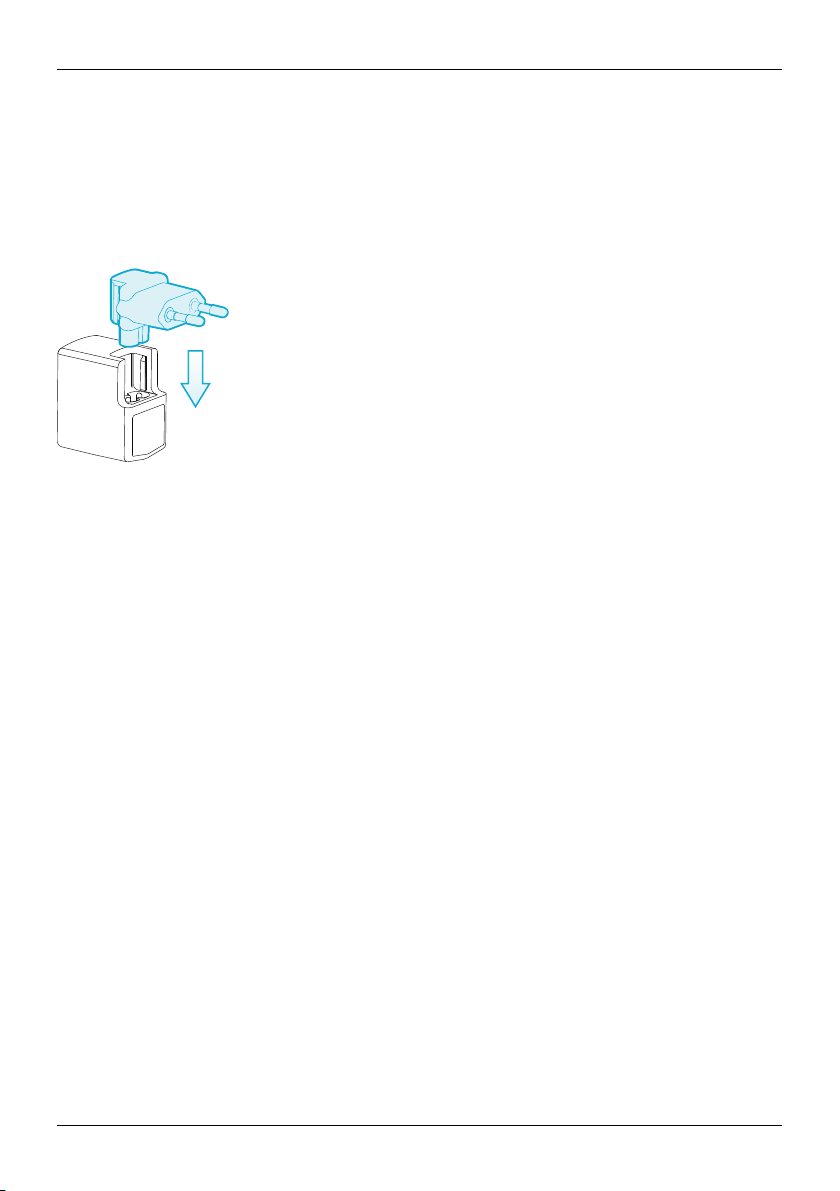
Accessories
Accessories
Battery charger
The wall charger supplied with your phone should be suitable for your region. However, you should always
checkthat the electrical rating of the AC outlet is appropriate for the chargerbefore you attempt to plug it in.
The battery for your Constellation V requirescharging at regular intervals. The batterydoes not have to be
completelydischarged before you can charge it.
Forinformation on how to charge your phone, see "Charge the phone" on page 13.
Other charging options
You can also charge the battery by using:
l
A compatible PC ( this method also provides data connectivity)
Data cable
The USB data cable enables you to transfer data between your Constellation V phone and a compatible
computer.
Note: Two microUSB cables are supplied: one microUSB cable 1200 mm (CA-209DV) and one
microUSB cable 250 mm (CA-210DV).
1. Connect the USB data cable to the microUSB connector of your Constellation V. Make sure the
cable is inserted correctly, with the USB symbol facing up.
© 2013 Vertu Corporation Limited. All rights reserved. 76
Page 77

Accessories
2.
Connect the cable to a USB port of the computer. The phone starts charging, and a number of
USB connection modes are available. Drag the status and notification bar down to select from the
following options:
Media device (MTP) — to transfer media files between your phone and a PC.
Camera (PTP) — to transfer photos, and any other file types not supported by Media device
(MTP), between your phone and a PC.
Wired stereo headset
Your Constellation V phone is supplied with a wired stereo headset, which includesa microphone and
integrated volume controls. Connect this to the headset connector on the phone.
© 2013 Vertu Corporation Limited. All rights reserved. 77
Page 78

Specifications
Specifications
Dimensions
l
Length: 142.2mm
l
Width: 70.4mm
l
Thickness: 11.2mm
l
Weight: 179g
Services
l
Vertu Certainty and Vertu Life
l
Vertu Concierge on subscription
In-box
l
Constellation V phone
Specifications
l
Leather phone slip case
l
Wall charger (AC-31) with four regional plug heads
l
MicroUSB data cable 1200mm (CA-209DV)
l
MicroUSB data cable 250mm (CA-210DV)
l
Wired stereo headset
l
Polishing cloth
l
Collateralpack, including Quick Start Guide, Warranty Booklet, Authenticity Card and Website
Information Card
Operating system
l
Android™4.2.2, JellyBean
© 2013 Vertu Corporation Limited. All rights reserved. 78
Page 79

Hardware characteristics
l
Qualcomm® Snapdragon™ dual-core 1.7GHz
l
4.3 inch, 720p high-definition, brilliant, high-contrast display
l
13 MP main camera with AF and twin LED flash
l
HD front camera
l
32 GB of internal memory
l
GPS/GLONASS and compass
l
Gyro and accelerometer for orientation and game play
Battery
l
Internal 1800 mAh Li-ion
l
Talktime: Up to 7 hours and 20 minutes (WCDMA)
l
Stand-by: Up to 200 hours
Specifications
Connectivity
l
Quadband GSM 850/900/1800/1900 MHz
l
WCDMA Bands I, II, IV, V, VIII
l
HSPA+, Cat24, 42Mb/sdownlink, Cat6 5.76Mb/s uplink
l
WLAN 802.11 a, b, g, n, including WAPI for PRC
l
MicroUSB system connector
l
3.5 mm audio socket
l
Bluetooth v4 + LE
l
CSR aptX® support
© 2013 Vertu Corporation Limited. All rights reserved. 79
Page 80

l
NFC + SIM based secure element
l
Wi-Fihotspot (tethering and portablehotspot)
Applications
l
Google Mobile services, including Google Play, Gmail, Google Chrome, Google+, Google Maps,
Google Drive cloud storage, YouTube™ and other services.
l
Browser, Calculator, Calendar, Camera, Clock,Downloads, Email, Gallery, Messaging, Movie
Studio, People, Phone and Settings.
Specifications
© 2013 Vertu Corporation Limited. All rights reserved. 80
Page 81

Care of your phone
Care of your phone
General care
If your Constellation V phone or any of the accessoriesare not working as they should, contact your Vertu
dealer.
l
Always use your Constellation V in the documented manner. Incorrect usage may affect
performance.
l
Do not attempt to open or disassembleyour Constellation V phone. The only part you ever need to
open is the SIM door. Your Constellation V phone should only be serviced by Vertu-authorised
personnel.
l
Do not mishandle or abuse your Constellation V phone.
l
Use only Vertu-approved accessories.
l
The supplied chargeris are only intended for use with your Constellation V phone. Do not use them
with any other device, as this could result in permanent damage to the phone, battery, or charger.
l
Keep your Constellation V phone and all parts and accessoriesout of the reach of small children and
pets.
l
Do not allow your Constellation V phone or accessories to come into contact with liquidsor moisture,
or dust and dirt.
l
Do not expose your Constellation V phone to extreme temperatures as these may cause the battery
to stop working temporarily. Performance is particularly limited in temperatures well below freezing.
l
Do not apply paint or other similar substances to yourConstellation V phone.
l
Onlyuse a soft, clean cloth to clean your Constellation V phone. Do not use chemicals, detergents,
abrasive substances, or any liquids. Use a cotton swab to clean the camera lens.
Embroidery
Vertu recommendsthat you avoid the following:
l
Directexposure to strong light, heat and humidity
l
Contact with items and substances that may stain or scratch the surfaces
If your Constellation V phone gets wet, it is essentialthat you dry it as soon as possible with a soft,
absorbent cloth.
© 2013 Vertu Corporation Limited. All rights reserved. 81
Page 82

Care of your phone
Exotic leathers
Vertu recommendsthat you occasionally wipe the exoticleather in the direction of the scales with a slightly
damp soft cloth, avoiding excessivepressure.
l
If your phone accidentally gets wet, it is essential that you dry it as soon as possible with a soft,
absorbent cloth.
l
Directexposure to strong light, heat and humidityshould be avoided, as well as contact with items
and substances that may stain or scratch the surfaces.
l
Vertu recommendsthat you store your handset in the pouch providedwhen not in use.
Leather
Each piece of leather used by Vertu's craftsmen is unique. The natural markings present in the hide should
be considered part of the individualityof fine leather. All leather can be damaged and should be treated
with care.
Avoidthe following:
l
Exposureto water and high humidity
l
Dropping, rubbing or knocking on hard surfaces
l
Exposureto extreme temperatures
l
Contact with oily substances, make-up and solvents
Non-precious metals
Vertu metals are finished to a high standard and care needs to be taken to maintain their appearance.
Avoidthe following:
l
Contact with chemicalssuch as solvents, alkaline and acid solutions, cola-based drinksand
exposureto salt water. Wipe with a clean, soft cloth as soon as possible if contact occurs.
l
Contact with sharp objects
l
Dropping or knocking against hard surfaces
l
Metal polishes
© 2013 Vertu Corporation Limited. All rights reserved. 82
Page 83

Care of your phone
Precious metals
Precious metals, such as gold and platinum, have a much softer composite and extra care must be taken
when handling a Vertu product containing these materials.
Precious stones
Precious stones are extremely hard and durable, but can be damaged if handled inappropriately. For
example, they can be broken, or their settings could be damaged by a sharp impact on a hard surface,
causing the stone to become loose or fall out.
Care should also be taken to avoidcontact with other jewellery such as diamond rings and diamond
earrings as they can cause abrasion and chipping of the stone or the setting. Reasonable care should be
taken to not catch the setting with threads that may bend the setting and loosen the stones.
We recommend that your Vertu phone is kept in a Vertu leather case when not being used, particularly
when placed in handbags and other luggage.
If the stones appear to become dull from use, the product can be lightlypolished using the Vertu microfibre
polishing cloth.
Sapphire and ceramics
Sapphire and ceramicsare veryhard materialsbut are also brittle and can be scratched by hardermaterials
or objects. They can also be damaged if dropped.
Avoidthe following:
l
Contact with other hard materials such as diamond jewellery, nail files, abrasives and mineral crystals
l
Dropping or knocking the product on hard surfaces
l
Repeated rubbing against hard surfaces
© 2013 Vertu Corporation Limited. All rights reserved. 83
Page 84
Safety and warranty
Safety and warranty
Safety text
The sales package may contain several different productsand parts (hereafter known collectivelyas the
“Product”), for example a phone with various chargers. The following simple guidelines are intended to
coverall products and parts. Not following the guidelines may result in risksto personal safety or data,
damage to the Product, or in non-compliance with legal requirements.
Medical considerations
The operation of radio transmitting equipment, including wirelessphones, may interfere with the function of
inadequately protected medical devices. Consult a physician or the manufacturers of the medical devices
to determine whether they are adequately shielded from external RF (Radio Frequency) energy.
Manufacturersof medical devicesrecommend a minimum separation of 15.3 centimetres (6 inches)
between a wireless device and an implanted medicaldevice, such as a pacemakeror implanted
cardioverterdefibrillator. Personswho have such devicesshould also:
l
Not carrythe phone in a breastpocket.
l
Hold the phone to the ear opposite the medicaldevice.
l
Turn the phone off if there is any reason to suspect interference.
l
Follow the manufacturer’sinstructionsfor the implanted medicaldevice.
If you have any questionsabout using your wireless device with an implanted medical device, consult your
health care provider.
To prevent possible hearing damage, do n ot listen at high volum e levels for
long periods. When you use the headset, your ability to hear outside sounds
may be affected. Do not use th e headset where it can endanger your safety.
Listen to the headset at a moderate level, and do not hold the device near your
ear when the loudspeaker is in use.
HAC Hearing Aid Compatibility (HAC) for digital handsets
Your phone complieswith FCC (Federal CommunicationsCommission) rulesgoverning hearing aid
compatibility.Some wirelessdevicesmay interfere with some hearing aids. Forfull hearing aid
compatibility,you should turn off the Bluetooth connectivity.
FCC’s wirelesshearing aid compatibilityrulesensure that consumers with hearing loss are able to access
wireless communications services through a wide selection of handsets without experiencing disabling
radio frequency (RF) interference or other technical obstacles.
© 2013 Vertu Corporation Limited. All rights reserved. 84
Page 85

Safety and warranty
To define and measure the hearing aid compatibilityof handsets, FCC references ANSI C63.19 2007
version and 2011 version; ANSI C63.19 standard specifies testing proceduresfor determining the M-rating
and T-rating of the digital handsets.
A handset is consideredhearing aid-compatible for acousticcoupling if it meets a rating of M3 or M4, under
the ANSI C63.19. A handset is considered hearing aid-compatible for inductive coupling if it meets a rating
of T3 or T4, under ANSI C63.19. (Not all hearing-aids have telecoil inside.) Thisdevice was tested
according to ANSI C63.19 2007 version, and this meets the M3/T4 rating.
Thisphone has been tested and rated for use with hearing aids for some of the wirelesstechnologiesthat it
uses. However, there may be some newer wireless technologies used in this phone that have not been
tested yet for use with hearing aids. It is important to try the different features of this phone thoroughlyand
in different locations, using your hearing aid or cochlear implant, to determine if you hear any interfering
noise. Consult your service provideror Vertu Customer Servicefor information on hearing aid compatibility.
If you have questionsabout return or exchange policies,consult Vertu Customer Service.
Switch off the phone in restricted or dangerous areas
Switch the phone off when mobile phone use is not allowed or when it may cause interference or danger,
for example near medical equipment, fuel, chemicals, or blasting areas.
Airplane profile when travelling
Unless specificallyrequested to turn the phone off, you can select the Airplane (offline) profile, which
means that you cannot make or receiveany calls, or use other features that require cellularnetwork
coverage. You can, however, still make emergencycalls.
Use in vehicles
Radio signalsmay affect improperly installed or inadequately shielded electronicsystems in motor vehicles
such as electronicfuel injection, electronicanti-lock braking, electronicspeed control, and air bag systems.
Formore information, check with the manufacturerof your vehicle or its equipment.
Onlyqualified personnel should install the phone in a vehicle. Faulty installation or service may be
dangerous and may invalidate your warranty. Check regularlythat all wireless device equipment in your
vehicle is mounted and operating properly. Do not store or carryflammable liquids, gases, or explosive
materials, in the same compartment as the phone, its parts, or accessories. Remember that air bags inflate
with great force, so do not place your phone or accessories in the airbag deployment area.
Keep the product away from children
Keep your Product and all parts and accessories out of the reach of small children and pets. Failure to do
this may endanger them and invalidate your Warranty.
Road safety comes first
Obey all locallaws. Always keep your hands free to operate your vehiclewhile driving. Your first
consideration should be road safety.
© 2013 Vertu Corporation Limited. All rights reserved. 85
Page 86

Safety and warranty
Qualified service
Onlyqualified personnel may installor repair the Product.
Batteries, chargers and other accessories
If the Producthas an internal battery, this is intended to be rechargeable and non removable, being
intended for use when supplied with power from the Vertu Mains charger (AC-31), or from a suitable
computer. Do not attempt to remove the battery, as you may damage it.
The full performance of a new battery is achieved only after two or three complete charge and discharge
cycles.The battery in a device can be chargedand dischargedhundreds of times, but it willeventually wear
out. When you believe that the performance of the device has deteriorated (for example, when the talk and
standby times on the phone are noticeablyshorter than normal), replace the battery if it is removable, or, if it
is non-removable, take the associated device to the nearest authorised service facility.
Use the battery only f or its intended purpose.
Never use any charger or battery that is damaged.
Use only Vertu-approved batteries, and recharge your battery only with Vertu approved
chargers designated for the device.
Use of an un approved battery or charger may result in a risk of fire, explosion, leakage, or
oth er hazard. Do not connect other, incompatible devices to the chargers.
When your charger is not in use, unplug it from the electrical plug and the device. Do not
leave a f ully charged battery conn ected to a charger, as overchargin g may shorten the
battery’s lifetime.
Do not dismantle, cut, open, crush, bend, deform, puncture, or shred cells or batteries. In the event of a
battery leak, do not allow the liquid to come in contact with the skin or eyes. In the event of such a leak,
flush your skin or eyes immediately with water, or seek medicalhelp.
Do not modify, remanufacture, attempt to insert foreign objectsinto the battery,or immerseor expose it to
water or other liquids. Improperbattery use may result in a fire, explosion, or other hazard. If the device or
battery is dropped, especially on a hard surface, and you believe that the battery has been damaged, take
it to the nearest servicefacility for inspection before continuing to use it. If the phone battery has not been
used for a long time, then, in order to begin charging it again, you may need to connectthe charger, and
then disconnectand reconnect it. If the battery is completely discharged,it may take severalminutes
before the charging indicatorappears on the displayor before any callscan be made.
Keep your device dry
Your Productis not fullywater-resistant, so keep it dry.
SIM card
The Constellation V has been designed for use with a nanoSIM card. MicroSIMcards can be supported
with a dedicated microSIM drawer available from an authorisedVertu retail store. Standard SIMcardsare
not supported.
© 2013 Vertu Corporation Limited. All rights reserved. 86
Page 87

Safety and warranty
The use of an incompatible SIM card o r an adaptor not supplied by Vertu may damage the
card or the pho ne, and may corrupt data stored on the card.
IMEI number and compliance number
To find the IMEI number, dial the sequence *#06# into the phone. The unique 15-digit IMEI code of your
phone is instantly displayed. Write it down and keep it in a safe place so that you can find it if your phone is
misplaced or stolen. You can also find the IMEI number by checking the compliance label (refer to the
phone’s reference manual to locate this label).
WLAN
Use encryption to increasethe securityof your WLAN connection.
Headset connector
Do not connect products that create an output signal as this may cause damage to the phone. Do not
connect any voltage source to the headset connector. If you connect an external deviceor headset, other
than those approved by Vertu, pay special attention to volume levels.
Camera flash
Keep a safe distance when using the flash in the camera. Do not use the flash on people or animals when
they are at close range. Do not coverthe flash while taking a picture.
Protect your phone from harmful content
Your phone may be exposed to virusesand other harmful content. Take the following precautions:
l
Be cautious when opening messages. They may contain malicioussoftware or otherwise be harmful
to your phone or computer.
l
Be cautious when accepting connectivity requests, browsing the internet, or downloading content.
l
Do not accept Bluetooth connections from sourcesthat you do not trust.
l
Onlyinstalland use services and software from sources that you trust and that offer adequate
security and protection.
l
Install anti-virus and other security software on your phone and any connected computer. Only use
one anti-virus application at a time (using more may affect the performance and operation of the
phone and/or computer).
l
If you accesspre-installedbookmarksand linksto third partyinternet sites, take the appropriate
precautions. Vertu does not endorse or assume liability for such sites.
Bluetooth hidden mode
Operating the phone when Bluetooth Visibility is set to Hidden is a saferway to avoidmalicious software.
Alternatively, switch off the Bluetooth function completely(this does not affect other functions on the
phone).
© 2013 Vertu Corporation Limited. All rights reserved. 87
Page 88

Safety and warranty
Magnetic fields
Keep your phone away from magnets or magnetic fields.
Antennae
Avoidtouching the antennae unnecessarily while they are transmitting or receiving. Contact with the
antennae affects the communication quality and may cause a higher power level during operation and
reduce battery life.
Backups
To keep your important data safe, store it in at least two separate places, such as on your phone and on
your PC.
It is particu larly important to carry out a backup prior to repair or replacement of th e
Product because content and data may be lost during these operations.
Digital rights management (DRM)
When using the phone, you are required to obey alllaws and respect local customs, privacyand the
legitimate rights of others,including copyrights. Copyright protection may prevent you from copying,
modifying, or transferring images, music, and other content.
Additional care and maintenance
The Product in the sales package contains one or more sophisticated electronicdevices. Vertu therefore
strongly encouragesyou to familiarise yourself with the instructions provided with and for these devices.
To help protect your Warranty coverage, you should observe both the preceding “SAFETY TEXT” and the
following:
l
Always use your Product in the documented manner.
l
Your Productcontains high precision displays, camera lenses and other such parts, so handle them
with great care to avoid scratching or otherwise damaging them.
l
Do not attempt to remove any fixed internal battery or memory card.
l
Keep the Product free of dust and dirt.
l
Do not expose the Productto extreme temperatures, as these may cause the battery to stop working
temporarily. Performance is particularlylimited in temperatures well below freezing.
l
Do not mishandle or abuse the Product.
l
Do not paint the Product.
© 2013 Vertu Corporation Limited. All rights reserved. 88
Page 89

Safety and warranty
l
Onlyuse a soft, clean cloth to clean your Product. Do not use chemicals, detergents, abrasive
substances, or any liquids. Use a cotton swab to clean the phone’s camera lens.
Specific phone care
l
Avoidscratching the phone screen. Never use a pen, pencil, or other sharp object, on it.
l
In order to protect the ceramicsand sapphire, do not drop, knock, or rub your phone on or against
hard surfaces. In particular, avoid contact with hard materialssuch as diamond jewellery, nail files,
abrasives, and mineralcrystals.
l
Allleather can be damaged and should be treated with care. Therefore, in addition to the avoidance
of extreme temperatures or water and high humidity, avoid contact with oily substances, make-up,
and solvents.
l
Do not allow the metals on the phone to come into contact with sharp objects,metal polishes, and
chemicals such as solvents, alkaline and acid solutions,cola-based drinks, and salt water. If contact
occurs, wipe the surface with a clean, soft cloth as soon as possible.
Manufacturer's Limited Warranty
This Limited Warranty replaces all oth er Vertu warranties and liabilities, whether o ral,
written, (non-mandatory) statut ory, contractual, in tort or otherwise, including, without
limitation, and where permitted by applicable law, any implied conditions, warranties or
oth er terms as to satisfacto ry quality or fitness for purpose. However, th is Limited Warranty
shall neither exclu de nor limit: i) any of your legal (statutory) rights under the applicable
natio nal laws; or ii) any of your righ ts against the seller of the Product.
Vertu warrants to you, the Purchaserof the Product, that, during the warranty period, Vertu, or a Vertuauthorised service company, will, in a commercially reasonable time, remedy defects in materials, design
and workmanship free of charge, by repairing or, should Vertu in its discretion deem it necessary, replacing
the Product in accordance with this Limited Warranty (unless otherwise required by law).
Warranty periods
The Warranty starts at the time of the original purchase of the Product by the first end user. Different
individual products and partswithin the overall Product may be covered by different Warranty periods. The
different possible Warranty periods are:
a. Twenty-four (24) months for the mobile phone, and any fixed battery inside it.
b. Twelve (12) months for all batteries other than those listed at a) (whether they are included as
replaceable items in the mobile phone sales package, fixed inside an accessory, or sold
separately).
c. Twelve (12) months for all other accessories not listed above.
As far as your national laws permit, the particularWarrantyperiod will not be extended or renewed, or
otherwise affected due to subsequent resale, Vertu-authorised repair, or replacement of the Product.
However, any part repaired or product replaced during the Warranty periodwill be warranted from any
© 2013 Vertu Corporation Limited. All rights reserved. 89
Page 90

Safety and warranty
defect for 12 months from the date of repair, or for the remainder of the original Warranty period, whichever
is the longer.
How to get warranty service
If you wish to make a claim under this Limited Warranty, please return your Product, or the affected part (if it
is not the entire Product), to a Vertu-authorised service company. For further details on how to make a
claim, you can contact a Vertu call centre (national or premium rates may apply). (Information about Vertuauthorised service companies and call centres can be found in the sales package, or on local Vertu web
pages, where available.)
Any claim under this Limited Warranty is subject to you notifying Vertu, or a Vertu authorised service
company, of the alleged defect within a reasonable time of it having come to your attention, and in any
event no later than the expiry date of the Warranty period.
When making a claim under this Limited Warranty, you will be required to provide: a) the affected Product
(or the affected part); and b) the original proof of purchase, clearly indicating the name and address of the
seller, the date and place of purchase, the Product type, and the IMEI or other serialnumber.
What is not covered?
1. This Limited Warrantydoes not cover user manuals or any third party software, settings, content,
data or links, whether included or downloaded in the Product,whether included during installation,
assembly, shipping or at any other time in the deliverychain or otherwise and in any way acquired
by you. By using such a thirdparty application, you acknowledge that the application is provided as
is. Vertu does not warrant that any Vertu software willwork in combination with any hardware or
software provided by a thirdparty, that the operation of any software willbe uninterrupted or errorfree, or that any defects in the software are correctable or will be corrected.
2. A third party/independent operator provides the SIM cardand cellularand/or other network or
system on which the Product operates. Therefore, Vertu will not acceptresponsibility under this
Limited Warranty for the operation, availability, coverage, servicesor range of the cellular or other
network or system. Before Vertu or a Vertu-authorised service company can repair or replace the
Product, the operator may need to unlockany SIM-lock or other lockthat may have been added to
lockthe Product to a specificnetwork or operator. In such situations, please first ask the operator to
unlockyour Product.
3. This Limited Warrantydoes not cover: a) normal wear and tear (including, without limitation, wear
and tear of camera lenses, batteriesor displays); b) defects caused by rough handling (including,
without limitation, defectscaused by sharp items, by bending, compressing or dropping, etc.); c)
defects or damage caused by misuse of the Product, including use that is contraryto the
instructionsprovided by Vertu (for example, as set out in the Product’s user guide), and/or d) other
acts beyond the reasonable control of Vertu.
4. This Limited Warrantydoes not cover defects or alleged defects caused by the fact that the Product
was used with, or connected to, any product, accessory, software and/or service not
manufactured, or supplied by Vertu, or was used other than for its intended purpose. Defects can
be caused by virusesfrom your, or from a third party’s, unauthorisedaccessto services, other
accounts, computer systems or networks.Such unauthorised access can take place through
hacking, password mining or through a variety of other means.
© 2013 Vertu Corporation Limited. All rights reserved. 90
Page 91

Safety and warranty
5. This Limited Warrantydoes not cover defects caused by the fact that the battery has been shortcircuited, or by the fact that the seals of the battery enclosure or the cellsare broken or show
evidenceof tampering, or by the fact that the battery has been used in equipment other than that
for which it has been specified. This Limited Warrantyis not enforceable if the Product has been
opened, modified or repaired by anyone other than an authorisedservice centre, if it is repaired
using unauthorised spare parts, or if the Product’sserial number, the mobile accessory date code,
or the IMEI number, has been removed, erased, defaced, altered or are illegible in any way. This
shallbe determined by the sole discretion of Vertu.
6. This Limited Warrantyis not enforceable if the Product has been exposed to moisture, to extreme
thermal or environmental conditions ( or to rapid changes in such conditions), to corrosion,
oxidation, spillage of food or liquid, or to influence from chemical products.
Limitations of Vertu's liability
ThisLimited Warranty is your sole and exclusive recourse against Vertu, and the only and exclusiveliability
of Vertu in respect of defects in your Product.
To the extent permitted by applicablelaw(s), Vertu does not assume any liability for loss of or damage to or
corruption of data, for any lossof profit, loss of use or functionalityof the Product, lossof business, loss of
contracts, loss of revenuesor of anticipated savings, increased costs or expenses or for any indirect loss or
damage, consequential lossor damage, or special loss or damage. To the extent permitted by applicable
law(s), Vertu´s liabilityshallbe limited to the purchase value of the Product. The above limitationsshallnot
apply in cases of gross negligenceor intentional misconduct of Vertu, or in case of death or personalinjury
resulting from Vertu’sproven negligence.
Other important warranty notices
The availabilityof products, features, applications, and servicesmay vary by region. For more information,
contact your nearest Vertu-branded store or Vertu-authorised service company.
Allwirelessdevices may be susceptibleto interference, whichcould affect performance.
Vertu is not responsible fo r any radio or TV interference caused by unauthorised
modification s to this equipment. Such modifications could void your authority to o perate
the equipment.
Reverse engineering of software in the Product is prohibited to the extent permitted by applicable law.
Insofar as thisdocument contains any limitations on Vertu’srepresentations, warranties, damages and
liabilities, such limitations shall likewise limit any representations, warranties, damages and liabilities of
Vertu’slicensors.
Vertu, in a manner consistent with the provisions of section “Limitations of Vertu’sliability” above, shall not
under any circumstances be liable, either expressly or by implication, for any damages or losses of any kind
whatsoever resulting from loss of, damage to, or corruption of, content or data during repairor replacement
of the Product.
© 2013 Vertu Corporation Limited. All rights reserved. 91
Page 92

Safety and warranty
Allparts of the Product or other equipment that Vertu has replaced shall become the property of Vertu. If
the Product is found not to be coveredby the terms and conditionsof this Limited Warranty, Vertu and its
authorised service companies reserve the right to charge a handling fee.
When repairing or replacing the Product, Vertu may use productsor parts that are new, equivalent to new,
or reconditioned.The Product may contain country-specificelements, including software. If the Product has
been re-exported from its originaldestination country to another country, the Productmay contain some
country-specificelements that are not considered to be a defect under this Limited Warranty.
Software application notices for the phone
The services on the phone, for example Vertu Life, Vertu Certainty, Vertu Concierge and Recommended
apps require a data connection to send up-to-date information to your Vertu phone. If the connection
cannot be made, these features willbe unavailable or will have reduced functionality. You willneed to
contact your network serviceprovider for information on the availabilityof data connectivitywhen in your
home network and when roaming onto other networks.
Some applicationson the phone, including those listed above, may connect to the internet automatically.
To prevent this, select the appropriate Connectivity settings on the phone and/or disable the services when
roaming.
Before installing updates on the phone, ensure that the phone can connect to the internet, and that the
phone battery has enough power (or connect the charger before starting the update) .
If you install a software update, you cannot use the phone, even to make emergency calls, until the
installation has been completed and the device restarted.
Service or software upgrades may reset timers on the phone.
The existence of a certificate considerably reduces the risksinvolved in remote connections and software
installation. To benefit from increased security, certificates must be used correctly,and they must be
authentic or trusted. Certificateshave a restricted lifetime. If they are expired or invalid,checkthat the
current date and time in your device are correct. Before changing any certificate settings, you must trust the
owner of the certificate and be sure that the certificate belongs to the listed owner.
Network support is required to indicate that a sent message has been received or read. However, this
information may not always be reliable.
You cannot use the voice recorderduring a data callor when a GPRS/3G connection is open.
Onlycompatible devicescan receive and displaymultimedia messages.
If the item you inserted in a multimedia message is too large for the network, the phone may automatically
reduce the size.
Messages may look different in different devices.
© 2013 Vertu Corporation Limited. All rights reserved. 92
Page 93

Safety and warranty
If your phone is able to provide over-the-air synchronisation with Microsoft Exchange ActiveSync-enabled
servers, the provision of this servicedoes not grant you, and nor do you receive, any rights under any
Microsoft intellectual property with respect to any server software, or serverdevice, that is accessed using
the phone, or with respect to the use of Microsoft Exchange ActiveSyncoutside of the phone.
When entering contactsor editing voice commands, do not use very short or similar names for different
contactsor commands.
Using voice tags may be difficult in a noisy environ ment or during an emergency, so you
should n ot rely solely upon voice dialling in every circumstance.
A cache is a memory location that is used to store data temporarilyon the phone. If you have accessed, or
have tried to access, confidential information or a secure servicerequiring passwords, clearthe cache after
each use.
The input methods and languages supported by handwriting recognition vary by region and may not be
available for all languages.
The availabilityand quality of GPS signals may be affected by your location, satellite positions, buildings,
natural obstacles, weather conditionsand adjustments to GPS satellitesmade by the United States
government. GPS signalsmay not be available inside buildingsor underground. Do not use GPS for
precise location measurement, and never relysolelyon the location information provided by GPS and
cellular networks.
Coordinate information may not be availablein all regions.
Location information can be attached to an image or a video clip if location coordinates can be determined
via network and GPS.
If you share an image or a video clipwhich has location information attached, the location information may
be visible to others that view the image or the video clip. You can deactivate such geotagging in the camera
settings.
Some location content is generated by third parties and not by Vertu. Some of this content may be
inaccurate and subject to local availability.
Almost all digitalcartography is inaccurate and incomplete to some extent. Never rely solely on the
cartography that you download for use in this device.
The social networking servicesare third party services and are not providedby Vertu. They may not be
available in all countries.
Check the privacy settings of the socialnetworking service you are using as you may be sharing your
location and information with a large group of people. The terms of use apply to sharing information on that
service,and you should familiarise yourself with both the terms of use and the privacy practices of the
service.
© 2013 Vertu Corporation Limited. All rights reserved. 93
Page 94

Safety and warranty
DRM-protected content comes with an associated license that defines your rights to use the content.
Some licenses may be connected to a specificSIM card, and the protectedcontent can be accessedonly if
the SIM card is inserted in the phone.
WLAN and Bluetooth restrictions
There may be restrictionson the use of WLANs and Bluetooth technologyin some countries. For more
information, contact your local authorities.
Passive near field communication device
Your phone may contain a Passive Near Field Communication device. Thisdevice enables Vertu to verify
the authenticity of the phone if it is presented at a Vertu-branded store or Vertu-authorised service
company.
Environmental
ROHS Statement
ThisProduct does not contain any of the following substances, in accordance with EU RoHS (Reduction of
Hazardous Substances) Directive 2002/95/EC:
l
Lead
l
Hexavalent Chromium
l
Mercury
l
Polybrominated Biphenyls(PBB)
l
Cadmium
l
Polybrominated Diphenyl Ethers (PBDE)
Nickel
The surfaces of Vertu devices do not contain nickelin the platings. Depending on the model and variant of
the device, surfaces may contain stainlesssteel or other alloys.
EU recycling notice
Vertu complies with European Community requirements for the recycling of Waste Electrical
& Electronic Equipment ( WEEE). Such compliance is indicated by the addition of the
crossed-out wheeled-bin symbol to the Product where appropriate. This symbol indicates
that the Product was put onto the market after the WEEE legislation was implemented, and
that the consumer should not dispose of the Product as normal household waste or unsorted
© 2013 Vertu Corporation Limited. All rights reserved. 94
Page 95

Safety and warranty
municipalwaste, but that it should be appropriatelyrecycled. Background information on the
European WEEE directive is available from
http://ec.europa.eu/environment/waste/weee/index_en.htm.
If you want Vertu to recycle your Product at the end of its life, please either return it to the point from which
you purchasedit (if known), or return it to Vertu’s headquarters.Alternatively, should you purchase a
replacement Product from another supplier, the new supplier is obliged to take back the originalProduct
and recycle it appropriately.
Never dispose of a device that has an internal battery fitted, in a fire, because the internal
battery may explode.
Export and controls
The Product may contain commodities,technology or software subject to export laws and regulations from
the US and other countries. Diversion contrary to law isprohibited.
Copyright and trademark notices
Copyright © Vertu 2011-2013. All rights reserved.
Vertu and the V logo are registered trademarks.Other product and company names mentioned herein
may be trademarksor registered trademarks of theirrespective owners.
Vertu operates a policy of continuous development. Therefore, Vertu reservesthe right to make changes
and improvements to any of the productsdescribed in this document without prior notice.
Google, Google Play, Android and other marksare trademarks of Google Inc.
The Android robot is reproduced or modified from work created and shared by Google and used according
to terms describedin the Creative Commons 3.0 Attribution License.
ThisProduct is licensed under the MPEG-4 Visual Patent Portfolio License (i) for personal and noncommercial use in connection with information that has been encoded in compliance with the MPEG-4
Visual Standard by a consumer engaged in a personal and non-commercialactivity; and (ii) for use in
connection with MPEG-4 video provided by a licensed video provider. No license is granted or shall be
implied for any other use.
Additionalinformation, including that related to promotional,internal, and commercial uses, may be
obtained from MPEG LA, LLC. See http://www.mpegla.com.
©2012 CSR plcand its group companies. The aptX® mark and the aptX logo are
trademarksof CSR plcor one of its group companies and maybe registered in one
or more jurisdictions.
© 2013 Vertu Corporation Limited. All rights reserved. 95
Page 96

Safety and warranty
The Bluetooth word mark and logos are owned by the Bluetooth SIG, Inc. and any use of such marks by
Vertu is under license.
The availabilityof particular products, features, applications, and services may vary by region. For more
information, contact your nearest Vertu retail store.
SAR (Specific Absorption Rate) notice - RM-851V
YOUR VERTU PHONE (MODEL: Constellation V, TYPE: RM-851V, FCC ID:
P7QRM-851V) MEETS GUIDELINES FOR EXPOSURE TO RADIO WAVES
Your phone is a radio transmitterand receiver. It is designed to not exceed the limits for exposure to radio
waves recommended by international guidelines. These guidelines were developed by the independent
scientificorganization ICNIRP, and include safety margins designed to assure the protection of all persons,
regardless of age and health.
The exposure guidelinesfor mobile devicesemploy a unit of measurement known as the Specific
Absorption Rate, orSAR. The SAR limit stated in the ICNIRP guidelines is 2.0 Watts/kilogram (W/kg),
averaged over ten grams of tissue. Tests for SAR are conducted using standard operating positions, with
the device transmitting at itshighest certified power level in all tested frequency bands. The actual SAR
levelof an operating device can be below the maximum value because the device is designed to use only
the power required to reach the network. That amount changes depending on a number of factors, such as
how close you are to a network base station. The highest SAR value under the ICNIRP guidelines for use
of the device at the ear is 0.494W/kg. This phone meets RF exposure guidelines when used either in the
normal use position against the ear or when positioned at least 15mm (5/8 inch) away from the body.
When a carrycase, belt clip or holder is used for body-worn operation, it should not contain metal, and
should position the phone at the above-stated distanceaway from your body.
In order to transmit data files or messages, this device requires a good quality connection to the network. In
some cases,transmission of data filesor messages may be delayed until such a connection is available.
Ensure that the above separation distance instructions are followed until the transmission is completed.
Use of phone accessories and enhancements may result in different SAR values. SAR values may vary
depending on national reporting and testing requirements and the network band. Additional SAR
information may be provided under Product information at www.vertu.com.
USA and Canada
Your phone is also designed to meet the requirements for exposure to radio waves established by the
FederalCommunications Commission (USA) and Industry Canada. These requirements set a SAR limit of
1.6W/kg,averaged over one gram of tissue. The highest SAR value reported under this standard during
Product certification for use at the head is 0.62W/kg, and when properly worn on the body ( 10mm gap) is
0.98W/kg.
Your phone may cause TV or radio interference ( for example, when using the phone in closeproximity to
receiving equipment). The FCC or Industry Canada can require you to stop using your phone if such
© 2013 Vertu Corporation Limited. All rights reserved. 96
Page 97
Constellation v
RM-851V
Safety and warranty
interference cannot be eliminated. If you require assistance, contact Vertu Concierge. The Product(s)
complies with Part 15 of the FCC rules.
Operation is subject to the following two conditions: (i) the Product(s) may not cause harmful interference,
and (ii) the Product(s) must accept any interference received, including interference that may cause
undesiredoperation. Any changes or modificationsnot expressly approved by Vertu could void the user’s
authority to operate this equipment.
Operation on the 5.15–5.25 GHz frequency band is restrictedto indoor use only. The FCC requires indoor
use for the 5.15–5.25 GHz band to reduce the potential for harmful interference to co-channel mobile
satellite systems.
ThisClass B digital apparatus complieswith Canada ICES-3(B)/NMB-3(B).
The device could automatically discontinue transmission in case of absence of information to transmit or of
operational failure. Note that thisis not intended to prohibit the transmission of control or signalling
information or the use of repetitive codes where requiredby the technology.
l
The device for the band 5150–5250 MHz is only for indoor usage to reduce potential for harmful
interference to co-channel mobile satellite systems.
l
The maximum antenna gain permitted (for devicesin the bands 5250–5350 MHz and 5470–5725
MHz) to comply with the limit on equivalent isotropically radiated power (EIRP).
l
The maximum antenna gain permitted (for devicesin the band 5725–5850 MHz) to comply with the
EIRP limits specifiedfor point-to-point and non point-to-point operation as appropriate.
In addition, high-power radars are allocated as primary users (meaning that they have priority) of the band
5250–5350 MHz, and these radars could cause interference and/or damage to licence-exempt LAN
devices.
Declaration of Conformity
We, Vertu, declare under our sole responsibilitythat the following are in conformity
with the provision of CouncilDirective 1999/5/EC: Model VERTUConstellation V,
type RM-851V; Model the Vertu V Collection Wired Headset; and USB data cable,
types CA-209DV and CA-210DV. A copy of the Declaration of Conformity can be
found at http://www.vertu.com.
Vertu Corporation Limited, Beacon HillRoad, Church Crookham, Hampshire GU52 8DY.
© 2013 Vertu Corporation Limited. All rights reserved. 97
 Loading...