

Page 1
CD 5130/P/5135/5230/5235
Copy/Print/Scan/Fax
A4
USER MANUAL
DIGITAL
MULTIFUNCTIONAL SYSTEM
Page 2

Introduction
Thank you for your purchase of this machine.
This Operation Guide is intended to help you operate the machine correctly, perform routine maintenance and take
a simple troubleshooting action as necessary, so that you can always use the machine in good condition.
Please read this Operation Guide before you start using the machine, and keep it close to the machine for easy
reference.
We recommend the use of our own brand supplies. We will not be liable for any damage caused by the use of third
party supplies in this machine.
Included Guides
The following guides are supplied with the machine. Refer to them as necessary.
Quick Installation Guide
Describes frequently-used operations, convenient operations, routine maintenance, and troubleshooting action.
Safety Guide
Provides safety and cautionary information for the installation and use of the machine. Be sure to read this guide
before using the machine.
Safety Guide (for this machine only)
Describes the machine installation space, cautionary labels, and other information. Be sure to read this guide before
using the machine.
DVD (Product Library)
Operation Guide (This Guide)
Describes how to load paper, basic copy, print and scan operations, and troubleshooting.
FAX Operation Guide
Describes how to operate FAX, check transmission results, print reports, and use Network FAX.
Embedded Web Server Operation Guide
Printing System Driver User Guide
Network FAX Driver Operation Guide
Network Print Monitor User Guide
Network Tool for Direct Printing Operation Guide
Page 3
i
Safety Conventions in This Guide
The sections of this guide and parts of the machine marked with symbols are safety warnings meant to protect the
user, other individuals and surrounding objects, and ensure correct and safe usage of the machine. The symbols and
their meanings are indicated below.
Symbols
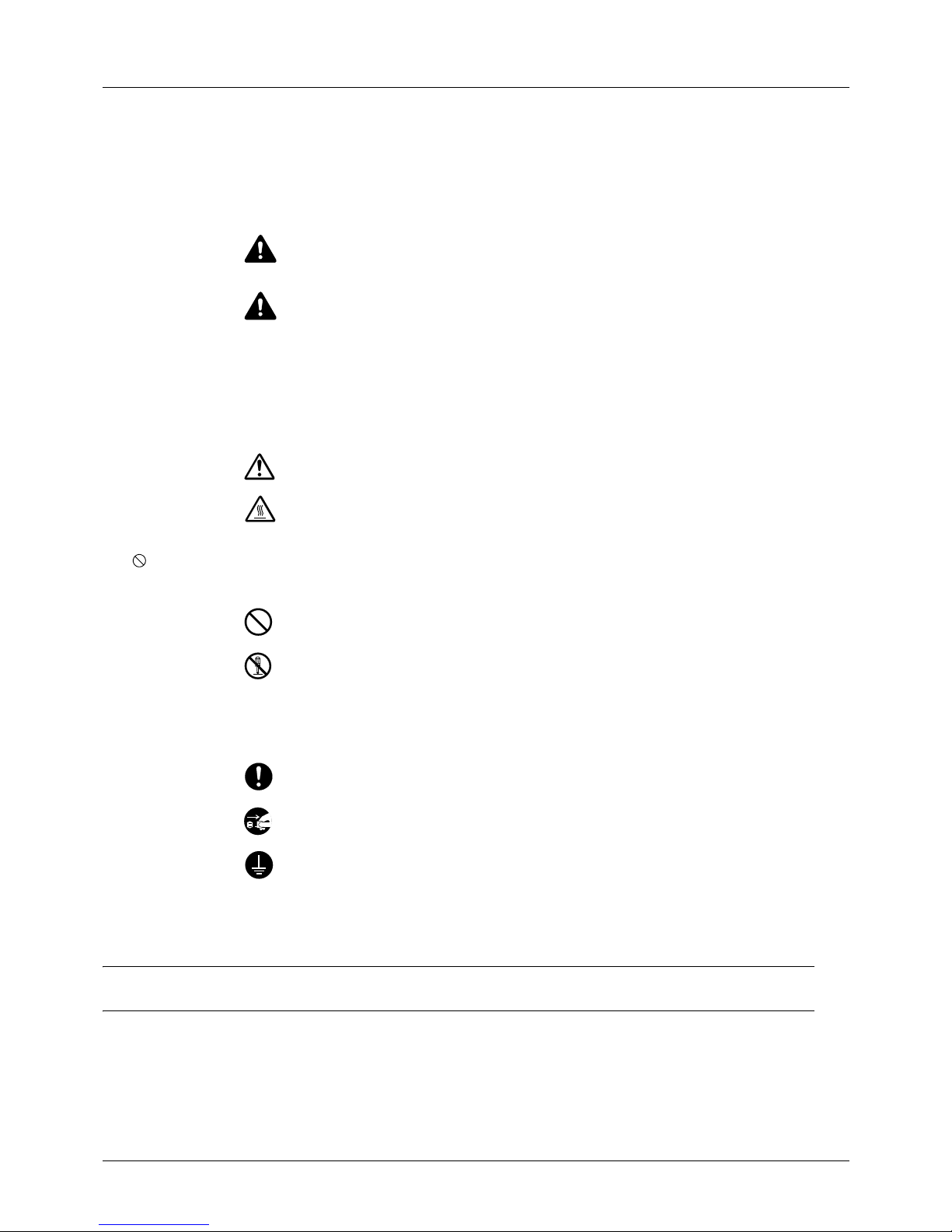
The U symbol indicates that the related section includes safety warnings. Specific points of attention are indicated
inside the symbol.
The symbol indicates that the related section includes information on prohibited actions. Specifics of the prohibited
action are indicated inside the symbol.
The z symbol indicates that the related section includes information on actions which must be performed. Specifics
of the required action are indicated inside the symbol.
Please contact your service representative to order a replacement if the safety warnings in this Operation Guide are
illegible or if the guide itself is missing (fee required).
NOTE: An original which resembles a bank note closely may not be copied properly in some rare cases because
this machine is equipped with a counterfeiting prevention function.
WARNING: Indicates that serious injury or even death may result
from insufficient attention to or incorrect compliance with the
related points.
CAUTION: Indicates that personal injury or mechanical damage
may result from insufficient attention to or incorrect compliance
with the related points.
.... [General warning]
.... [Warning of high temperature]
.... [Warning of prohibited action]
.... [Disassembly prohibited]
.... [Alert of required action]
.... [Remove the power plug from the outlet]
....
[Always connect the machine to an outlet with a ground
connection]
Page 4

ii
Contents
Contents
Quick Guide . . . . . . . . . . . . . . . . . . . . . . . . . . . . . . . . . . . . . . . . . . . . . . . . . . . . . . . . . . . . . . . . . .v
Menu Map . . . . . . . . . . . . . . . . . . . . . . . . . . . . . . . . . . . . . . . . . . . . . . . . . . . . . . . . . . . . . . . . . . viii
Environment . . . . . . . . . . . . . . . . . . . . . . . . . . . . . . . . . . . . . . . . . . . . . . . . . . . . . . . . . . . . . . . . .xv
Cautions when handling consumables . . . . . . . . . . . . . . . . . . . . . . . . . . . . . . . . . . . . . . . . . . . . . xv
Laser Safety (Europe) . . . . . . . . . . . . . . . . . . . . . . . . . . . . . . . . . . . . . . . . . . . . . . . . . . . . . . . . . xvii
Legal Restriction on Copying/Scanning . . . . . . . . . . . . . . . . . . . . . . . . . . . . . . . . . . . . . . . . . . . xvii
Legal and Safety Information . . . . . . . . . . . . . . . . . . . . . . . . . . . . . . . . . . . . . . . . . . . . . . . . . . . xix
1Part Names
Operation Panel . . . . . . . . . . . . . . . . . . . . . . . . . . . . . . . . . . . . . . . . . . . . . . . . . . . . . . . . . . . . . 1-2
Machine. . . . . . . . . . . . . . . . . . . . . . . . . . . . . . . . . . . . . . . . . . . . . . . . . . . . . . . . . . . . . . . . . . . . 1-4
Document Processor. . . . . . . . . . . . . . . . . . . . . . . . . . . . . . . . . . . . . . . . . . . . . . . . . . . . . . . . . . 1-6
2 Preparation before Use
Check bundled items. . . . . . . . . . . . . . . . . . . . . . . . . . . . . . . . . . . . . . . . . . . . . . . . . . . . . . . . . . 2-2
Determining the Connection Method and Preparing Cables . . . . . . . . . . . . . . . . . . . . . . . . . . . . 2-3
Connecting Cables . . . . . . . . . . . . . . . . . . . . . . . . . . . . . . . . . . . . . . . . . . . . . . . . . . . . . . . . . . . 2-5
Power On/Off. . . . . . . . . . . . . . . . . . . . . . . . . . . . . . . . . . . . . . . . . . . . . . . . . . . . . . . . . . . . . . . . 2-6
Sleep . . . . . . . . . . . . . . . . . . . . . . . . . . . . . . . . . . . . . . . . . . . . . . . . . . . . . . . . . . . . . . . . . . . . . . 2-7
Switching the Language for Display [Language]. . . . . . . . . . . . . . . . . . . . . . . . . . . . . . . . . . . . . 2-8
Setting Date and Time. . . . . . . . . . . . . . . . . . . . . . . . . . . . . . . . . . . . . . . . . . . . . . . . . . . . . . . . 2-10
Network Setup (LAN Cable Connection). . . . . . . . . . . . . . . . . . . . . . . . . . . . . . . . . . . . . . . . . . 2-13
Installing Software. . . . . . . . . . . . . . . . . . . . . . . . . . . . . . . . . . . . . . . . . . . . . . . . . . . . . . . . . . . 2-15
Embedded Web Server (Settings for E-mail) . . . . . . . . . . . . . . . . . . . . . . . . . . . . . . . . . . . . . . 2-26
Sending E-mail . . . . . . . . . . . . . . . . . . . . . . . . . . . . . . . . . . . . . . . . . . . . . . . . . . . . . . . . . . . . . 2-27
Preparation for sending a document to a PC . . . . . . . . . . . . . . . . . . . . . . . . . . . . . . . . . . . . . . 2-29
Loading Paper. . . . . . . . . . . . . . . . . . . . . . . . . . . . . . . . . . . . . . . . . . . . . . . . . . . . . . . . . . . . . . 2-39
Loading Originals . . . . . . . . . . . . . . . . . . . . . . . . . . . . . . . . . . . . . . . . . . . . . . . . . . . . . . . . . . . 2-52
3 Basic Operation
Login/Logout . . . . . . . . . . . . . . . . . . . . . . . . . . . . . . . . . . . . . . . . . . . . . . . . . . . . . . . . . . . . . . . . 3-2
One-Touch Keys and Program Keys. . . . . . . . . . . . . . . . . . . . . . . . . . . . . . . . . . . . . . . . . . . . . . 3-3
Message Display. . . . . . . . . . . . . . . . . . . . . . . . . . . . . . . . . . . . . . . . . . . . . . . . . . . . . . . . . . . . . 3-6
Copying . . . . . . . . . . . . . . . . . . . . . . . . . . . . . . . . . . . . . . . . . . . . . . . . . . . . . . . . . . . . . . . . . . . . 3-7
Printing - Printing from Applications . . . . . . . . . . . . . . . . . . . . . . . . . . . . . . . . . . . . . . . . . . . . . 3-16
Sending . . . . . . . . . . . . . . . . . . . . . . . . . . . . . . . . . . . . . . . . . . . . . . . . . . . . . . . . . . . . . . . . . . . 3-18
Specifying Destination. . . . . . . . . . . . . . . . . . . . . . . . . . . . . . . . . . . . . . . . . . . . . . . . . . . . . . . . 3-25
Canceling Jobs . . . . . . . . . . . . . . . . . . . . . . . . . . . . . . . . . . . . . . . . . . . . . . . . . . . . . . . . . . . . . 3-28
Checking Remaining Toner and Paper . . . . . . . . . . . . . . . . . . . . . . . . . . . . . . . . . . . . . . . . . . . 3-29
4 Copying Functions
Original Size . . . . . . . . . . . . . . . . . . . . . . . . . . . . . . . . . . . . . . . . . . . . . . . . . . . . . . . . . . . . . . . . 4-2
Paper Selection. . . . . . . . . . . . . . . . . . . . . . . . . . . . . . . . . . . . . . . . . . . . . . . . . . . . . . . . . . . . . . 4-3
Original Orientation . . . . . . . . . . . . . . . . . . . . . . . . . . . . . . . . . . . . . . . . . . . . . . . . . . . . . . . . . . . 4-6
EcoPrint. . . . . . . . . . . . . . . . . . . . . . . . . . . . . . . . . . . . . . . . . . . . . . . . . . . . . . . . . . . . . . . . . . . . 4-8
Combine Mode . . . . . . . . . . . . . . . . . . . . . . . . . . . . . . . . . . . . . . . . . . . . . . . . . . . . . . . . . . . . . . 4-9
Continuous Scan. . . . . . . . . . . . . . . . . . . . . . . . . . . . . . . . . . . . . . . . . . . . . . . . . . . . . . . . . . . . 4-13
Job Finish Notice. . . . . . . . . . . . . . . . . . . . . . . . . . . . . . . . . . . . . . . . . . . . . . . . . . . . . . . . . . . . 4-14
File Name Entry . . . . . . . . . . . . . . . . . . . . . . . . . . . . . . . . . . . . . . . . . . . . . . . . . . . . . . . . . . . . 4-16
Print Override . . . . . . . . . . . . . . . . . . . . . . . . . . . . . . . . . . . . . . . . . . . . . . . . . . . . . . . . . . . . . . 4-17
5 Sending Functions
Original Size . . . . . . . . . . . . . . . . . . . . . . . . . . . . . . . . . . . . . . . . . . . . . . . . . . . . . . . . . . . . . . . . 5-2
Sending Size . . . . . . . . . . . . . . . . . . . . . . . . . . . . . . . . . . . . . . . . . . . . . . . . . . . . . . . . . . . . . . . . 5-3
Page 5

iii
Contents
Zoom . . . . . . . . . . . . . . . . . . . . . . . . . . . . . . . . . . . . . . . . . . . . . . . . . . . . . . . . . . . . . . . . . . . . . . 5-5
Duplex Sending. . . . . . . . . . . . . . . . . . . . . . . . . . . . . . . . . . . . . . . . . . . . . . . . . . . . . . . . . . . . . . 5-6
Original Orientation . . . . . . . . . . . . . . . . . . . . . . . . . . . . . . . . . . . . . . . . . . . . . . . . . . . . . . . . . . . 5-7
File Format . . . . . . . . . . . . . . . . . . . . . . . . . . . . . . . . . . . . . . . . . . . . . . . . . . . . . . . . . . . . . . . . . 5-9
Original Image. . . . . . . . . . . . . . . . . . . . . . . . . . . . . . . . . . . . . . . . . . . . . . . . . . . . . . . . . . . . . . 5-10
Adjusting Density . . . . . . . . . . . . . . . . . . . . . . . . . . . . . . . . . . . . . . . . . . . . . . . . . . . . . . . . . . . 5-11
Scan Resolution . . . . . . . . . . . . . . . . . . . . . . . . . . . . . . . . . . . . . . . . . . . . . . . . . . . . . . . . . . . . 5-12
Color / Grayscale / Black and White Selection . . . . . . . . . . . . . . . . . . . . . . . . . . . . . . . . . . . . . 5-13
Continuous Scan. . . . . . . . . . . . . . . . . . . . . . . . . . . . . . . . . . . . . . . . . . . . . . . . . . . . . . . . . . . . 5-14
File Name Entry . . . . . . . . . . . . . . . . . . . . . . . . . . . . . . . . . . . . . . . . . . . . . . . . . . . . . . . . . . . . 5-15
Subject and Body Entry. . . . . . . . . . . . . . . . . . . . . . . . . . . . . . . . . . . . . . . . . . . . . . . . . . . . . . . 5-16
WSD Scan. . . . . . . . . . . . . . . . . . . . . . . . . . . . . . . . . . . . . . . . . . . . . . . . . . . . . . . . . . . . . . . . . 5-17
Job Finish Notice. . . . . . . . . . . . . . . . . . . . . . . . . . . . . . . . . . . . . . . . . . . . . . . . . . . . . . . . . . . . 5-19
FTP Encrypted TX. . . . . . . . . . . . . . . . . . . . . . . . . . . . . . . . . . . . . . . . . . . . . . . . . . . . . . . . . . . 5-21
File Separation . . . . . . . . . . . . . . . . . . . . . . . . . . . . . . . . . . . . . . . . . . . . . . . . . . . . . . . . . . . . . 5-22
Scanning Image using Application . . . . . . . . . . . . . . . . . . . . . . . . . . . . . . . . . . . . . . . . . . . . . . 5-23
6 Document Box
Printing Documents Stored in USB Memory . . . . . . . . . . . . . . . . . . . . . . . . . . . . . . . . . . . . . . . . 6-2
Saving Documents to USB Memory (Scan to USB) . . . . . . . . . . . . . . . . . . . . . . . . . . . . . . . . . . 6-5
Removing USB Memory . . . . . . . . . . . . . . . . . . . . . . . . . . . . . . . . . . . . . . . . . . . . . . . . . . . . . . .6-7
Printing from a Job Box. . . . . . . . . . . . . . . . . . . . . . . . . . . . . . . . . . . . . . . . . . . . . . . . . . . . . . . . 6-8
7 Status / Job Cancel
Checking Job Status . . . . . . . . . . . . . . . . . . . . . . . . . . . . . . . . . . . . . . . . . . . . . . . . . . . . . . . . . . 7-2
Checking Job History . . . . . . . . . . . . . . . . . . . . . . . . . . . . . . . . . . . . . . . . . . . . . . . . . . . . . . . . . 7-8
Sending the Job Log History . . . . . . . . . . . . . . . . . . . . . . . . . . . . . . . . . . . . . . . . . . . . . . . . . . .7-13
Pause and Resumption of Jobs . . . . . . . . . . . . . . . . . . . . . . . . . . . . . . . . . . . . . . . . . . . . . . . . 7-18
Canceling of Jobs . . . . . . . . . . . . . . . . . . . . . . . . . . . . . . . . . . . . . . . . . . . . . . . . . . . . . . . . . . . 7-18
Device/Communication . . . . . . . . . . . . . . . . . . . . . . . . . . . . . . . . . . . . . . . . . . . . . . . . . . . . . . .7-19
8 Default Setting (System Menu)
Common Settings . . . . . . . . . . . . . . . . . . . . . . . . . . . . . . . . . . . . . . . . . . . . . . . . . . . . . . . . . . . . 8-2
Copy Settings . . . . . . . . . . . . . . . . . . . . . . . . . . . . . . . . . . . . . . . . . . . . . . . . . . . . . . . . . . . . . . 8-69
Printer Settings . . . . . . . . . . . . . . . . . . . . . . . . . . . . . . . . . . . . . . . . . . . . . . . . . . . . . . . . . . . . . 8-75
Sending Settings . . . . . . . . . . . . . . . . . . . . . . . . . . . . . . . . . . . . . . . . . . . . . . . . . . . . . . . . . . . . 8-87
Document Box Settings. . . . . . . . . . . . . . . . . . . . . . . . . . . . . . . . . . . . . . . . . . . . . . . . . . . . . . . 8-89
Printing Reports/Sending Notice . . . . . . . . . . . . . . . . . . . . . . . . . . . . . . . . . . . . . . . . . . . . . . . . 8-93
Adjustment/Maintenance. . . . . . . . . . . . . . . . . . . . . . . . . . . . . . . . . . . . . . . . . . . . . . . . . . . . . .8-98
Editing Destination (Address Book/Adding One-Touch Keys). . . . . . . . . . . . . . . . . . . . . . . . . 8-102
Restarting the System. . . . . . . . . . . . . . . . . . . . . . . . . . . . . . . . . . . . . . . . . . . . . . . . . . . . . . . 8-115
Network Setup. . . . . . . . . . . . . . . . . . . . . . . . . . . . . . . . . . . . . . . . . . . . . . . . . . . . . . . . . . . . . 8-116
Network Security . . . . . . . . . . . . . . . . . . . . . . . . . . . . . . . . . . . . . . . . . . . . . . . . . . . . . . . . . . . 8-135
Interface Block Setting . . . . . . . . . . . . . . . . . . . . . . . . . . . . . . . . . . . . . . . . . . . . . . . . . . . . . . 8-145
Security Level (Security Level setting) . . . . . . . . . . . . . . . . . . . . . . . . . . . . . . . . . . . . . . . . . . 8-149
Optional Functions . . . . . . . . . . . . . . . . . . . . . . . . . . . . . . . . . . . . . . . . . . . . . . . . . . . . . . . . . 8-149
9 Maintenance
Cleaning . . . . . . . . . . . . . . . . . . . . . . . . . . . . . . . . . . . . . . . . . . . . . . . . . . . . . . . . . . . . . . . . . . . 9-2
Toner Container Replacement. . . . . . . . . . . . . . . . . . . . . . . . . . . . . . . . . . . . . . . . . . . . . . . . . . .9-5
10 Troubleshooting
Solving Malfunctions . . . . . . . . . . . . . . . . . . . . . . . . . . . . . . . . . . . . . . . . . . . . . . . . . . . . . . . . . 10-2
Responding to Error Messages. . . . . . . . . . . . . . . . . . . . . . . . . . . . . . . . . . . . . . . . . . . . . . . . . 10-6
Clearing Paper Jams. . . . . . . . . . . . . . . . . . . . . . . . . . . . . . . . . . . . . . . . . . . . . . . . . . . . . . . . 10-13
11 Management
User Login Administration . . . . . . . . . . . . . . . . . . . . . . . . . . . . . . . . . . . . . . . . . . . . . . . . . . . . . 11-2
Page 6

iv
Contents
Job Accounting . . . . . . . . . . . . . . . . . . . . . . . . . . . . . . . . . . . . . . . . . . . . . . . . . . . . . . . . . . . . 11-15
Checking the Counter . . . . . . . . . . . . . . . . . . . . . . . . . . . . . . . . . . . . . . . . . . . . . . . . . . . . . . . 11-37
Appendix
Optional Equipment. . . . . . . . . . . . . . . . . . . . . . . . . . . . . . . . . . . . . . . . . . . . . . . . . . . . Appendix-2
Character Entry Method . . . . . . . . . . . . . . . . . . . . . . . . . . . . . . . . . . . . . . . . . . . . . . . . Appendix-5
Paper. . . . . . . . . . . . . . . . . . . . . . . . . . . . . . . . . . . . . . . . . . . . . . . . . . . . . . . . . . . . . . . Appendix-9
Specifications . . . . . . . . . . . . . . . . . . . . . . . . . . . . . . . . . . . . . . . . . . . . . . . . . . . . . . . Appendix-18
EN ISO 7779 . . . . . . . . . . . . . . . . . . . . . . . . . . . . . . . . . . . . . . . . . . . . . . . . . . . . . . . . Appendix-22
EK1-ITB 2000 . . . . . . . . . . . . . . . . . . . . . . . . . . . . . . . . . . . . . . . . . . . . . . . . . . . . . . . Appendix-22
Glossary . . . . . . . . . . . . . . . . . . . . . . . . . . . . . . . . . . . . . . . . . . . . . . . . . . . . . . . . . . . Appendix-23
Index . . . . . . . . . . . . . . . . . . . . . . . . . . . . . . . . . . . . . . . . . . . . . . . . . . . . . . . . . . . . . . . . . . .Index-1
Page 7
v
Quick Guide
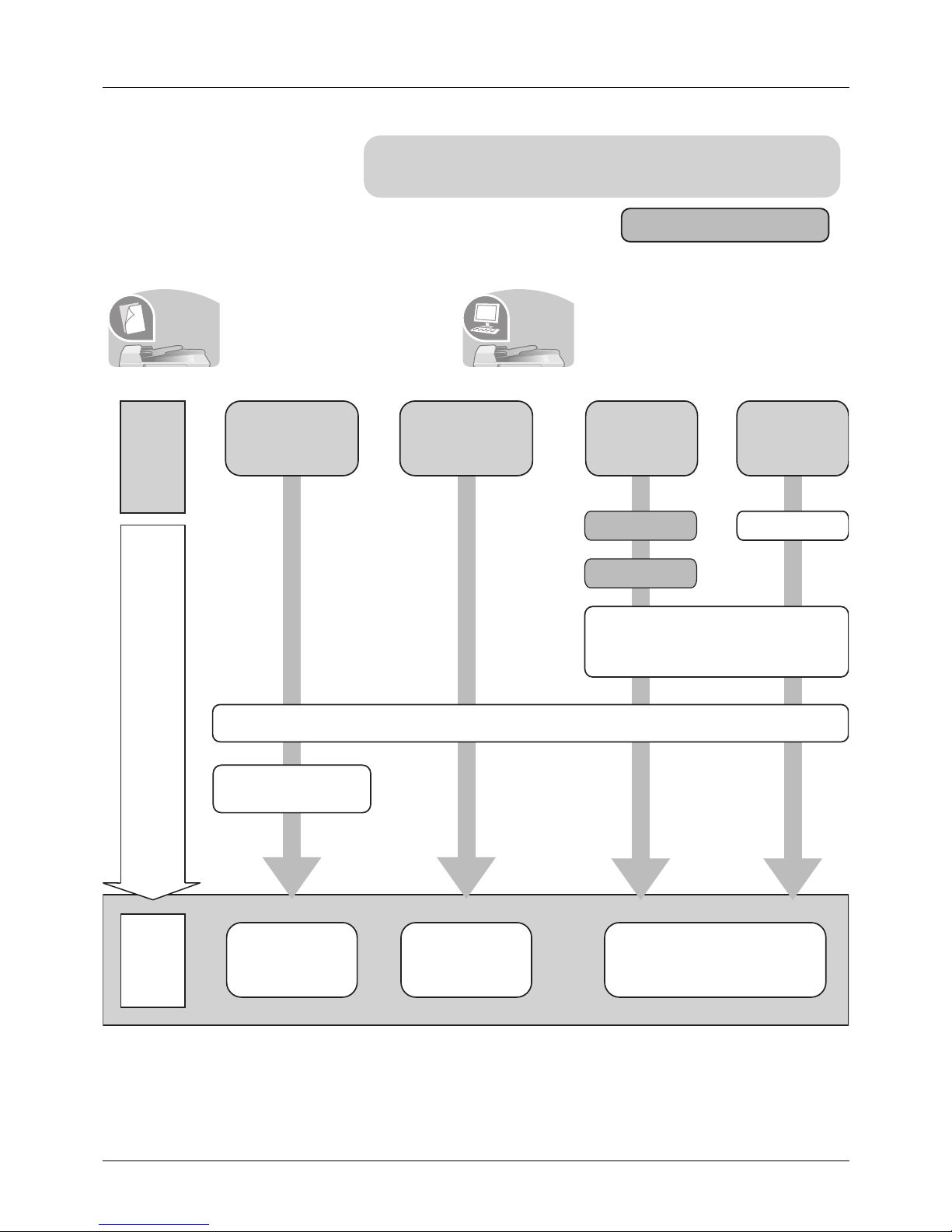
To make copies To print
Simply press the Start key to make
copies. You can also fine tune the
copy settings by changing the
paper size, adjusting the density,
etc.
You can print via a network and
over the USB connection or print a
PDF file directly from USB
memory.
Be sure to read Legal and Safety Information
before using this machine.
Administrator tasks
It copies.
It prints.
Copying with
specific
settings
Printing Documents
Stored in Removable
USB Memory
Print
via a
network
Print over
the USB
connection
Connecting Cables
Connect the
USB cable
Network Setup
(LAN Cable Connection)
What
you want
to do
Setup
Loading Paper...2-39
Copying Functions
...4-1
Printing
Documents Stored
in USB Memory
...
6-2
Operation
Printing - Printing from
Applications
...3-16
Placing Originals on
the Platen...2-52
Install the printer driver on your
computer...2-15
Page 8
vi
To send documents
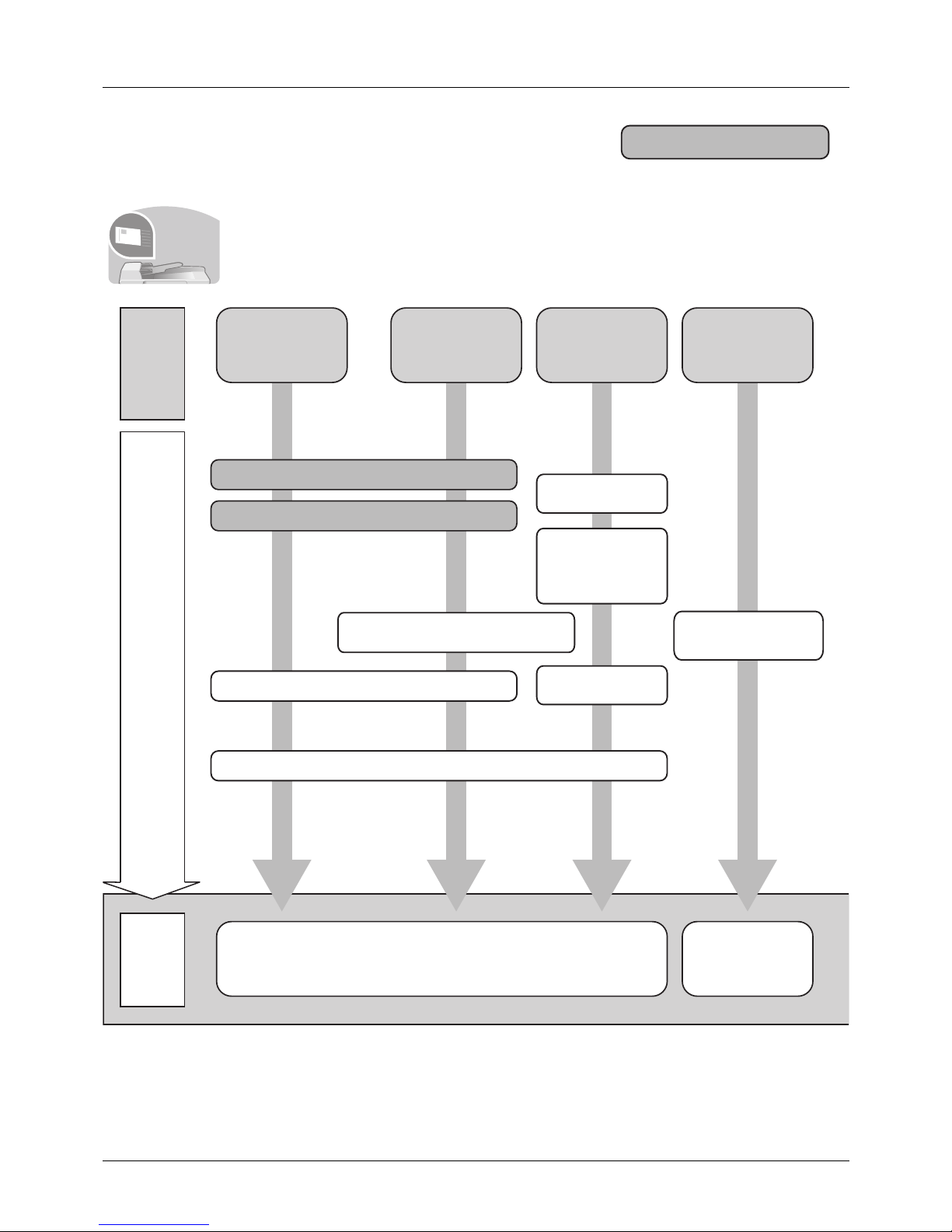
You can send scanned images via a network and over the USB connection. Or, you can
also store scanned images in USB memory.
Administrator tasks
It sends.
Connecting Cables
Connecting
Cables
Start up
the application
Network Setup (LAN Cable Connection)
Place the originals on the platen
Plug the USB
memory
*1: If the destination is not stored in the address book, you can send by entering the address
directly.
Setup
Send
as
E-mail
Send to
Folder
(SMB)
Send to
PC
Saving
Documents to
USB Memory
What
you want
to do
Sending ...3-18
*1
Sending Functions ...5-1
Operation
Saving Documents
to USB Memory
(Scan to USB)
...6-5
Editing Destination (Address Book/Adding
One-Touch Keys)...8-102
Create a shared folder on the
destination computer....2-29
Install the
scanner driver
on your
computer...2-15
Page 9
vii
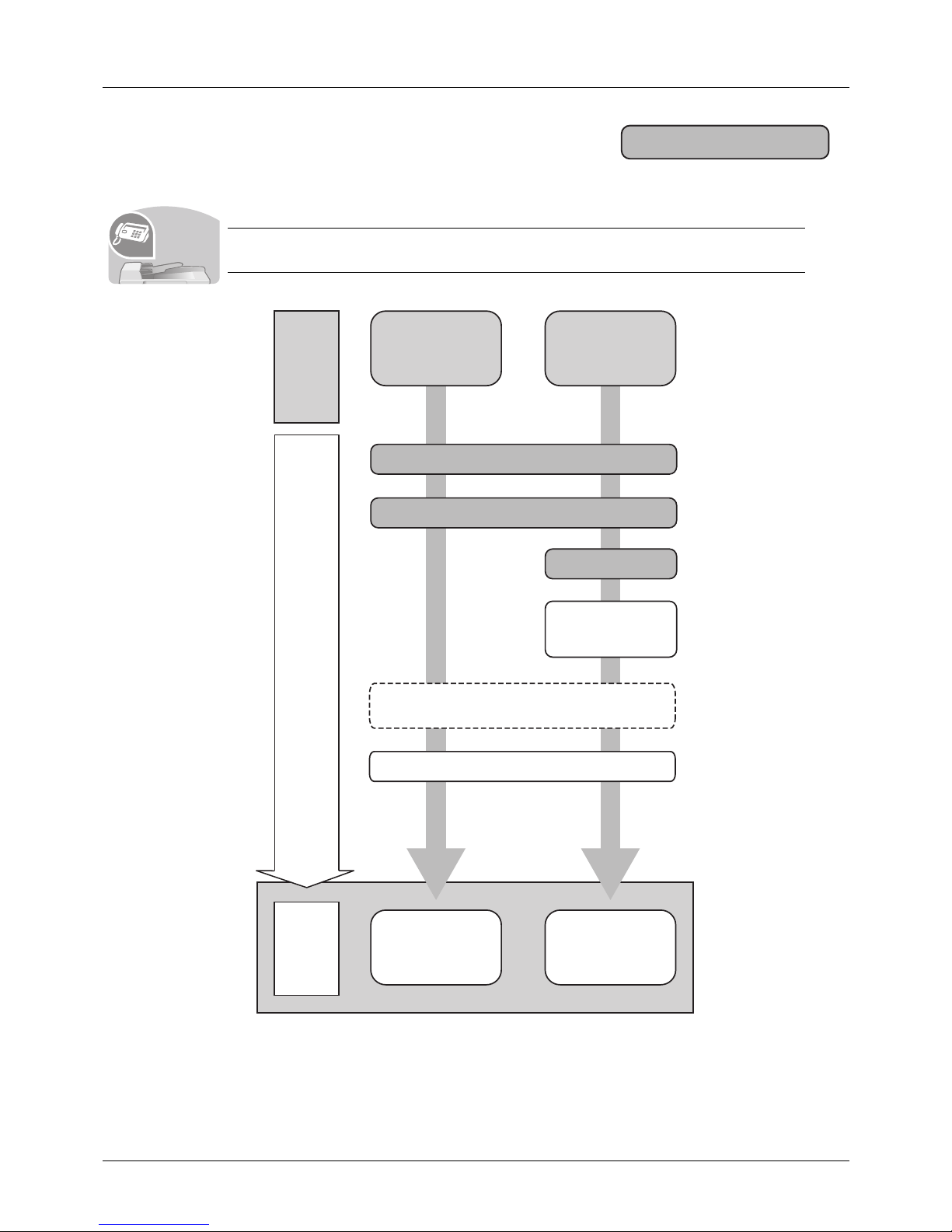
To send a FAX(FAX functions available only in the machine with fax)
As well as sending a FAX via the telephone lines, you can also send a FAX via a network.
NOTE: For more information on setting up and sending a FAX, refer to the FAX Operation
Guide.
Administrator tasks
It faxes.
FAX directly
from a
computer
Send a FAX
Connect the modular cord for the
telephone line to this machine.
Selection of Telephone Line
(Inch version only)
Network Setup
(LAN Cable Connection)
Install the Network FAX
Driver on your computer *1
*1: For more information, refer to the Network FAX Driver Operation Guide.
*2: If the destination is not stored in the address book, you can send the
FAX by entering the address directly.
Setup
What
you want
to do
Selection of Transmit Terminal Identification
(TTI)...2-3
on the FAX Operation Guide
Place the originals on the platen
FAX Operation
(Basic) ...3-1
on the FAX Operation
Guide
Operation
About Network
FAX ...7-1
on the FAX Operation
Guide
*2
Page 10
viii
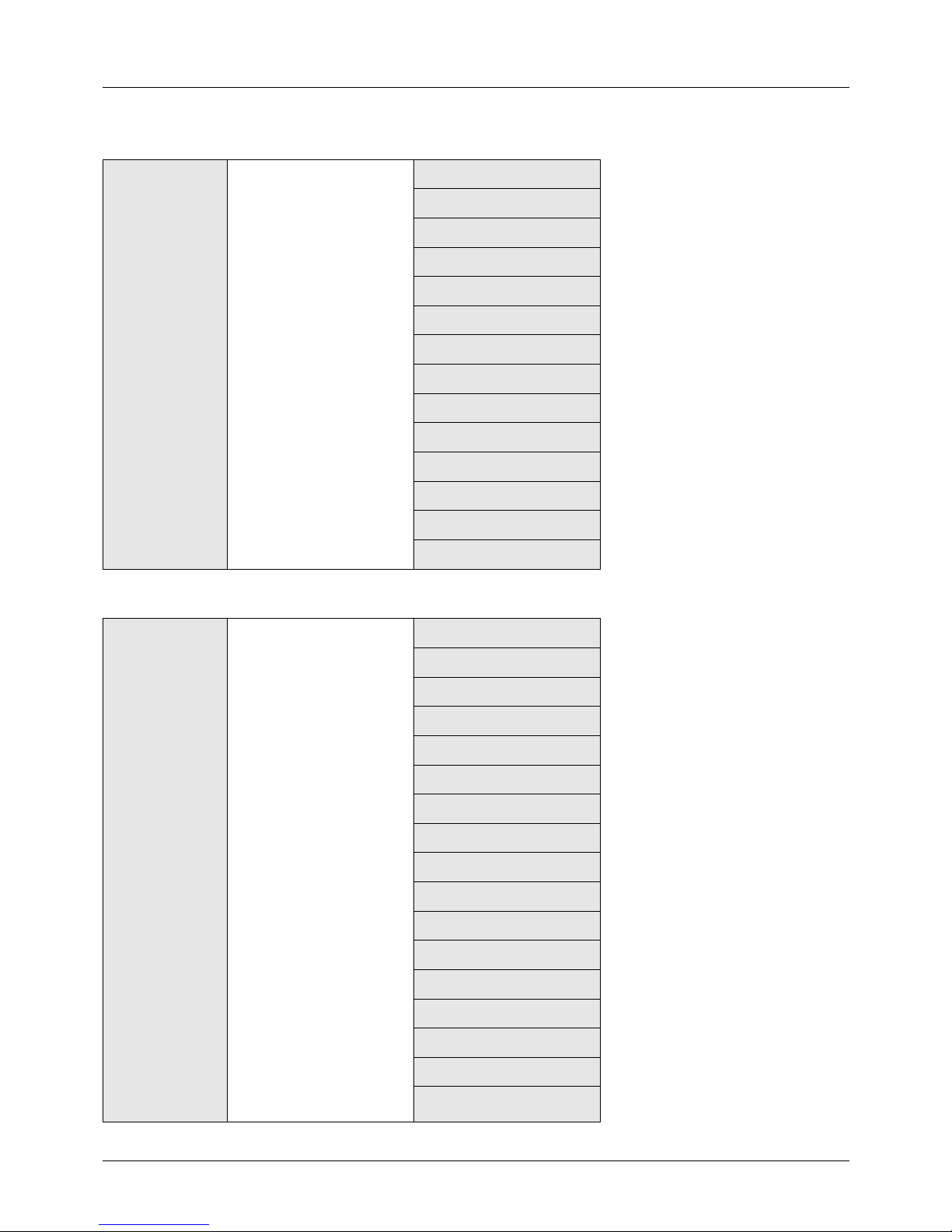
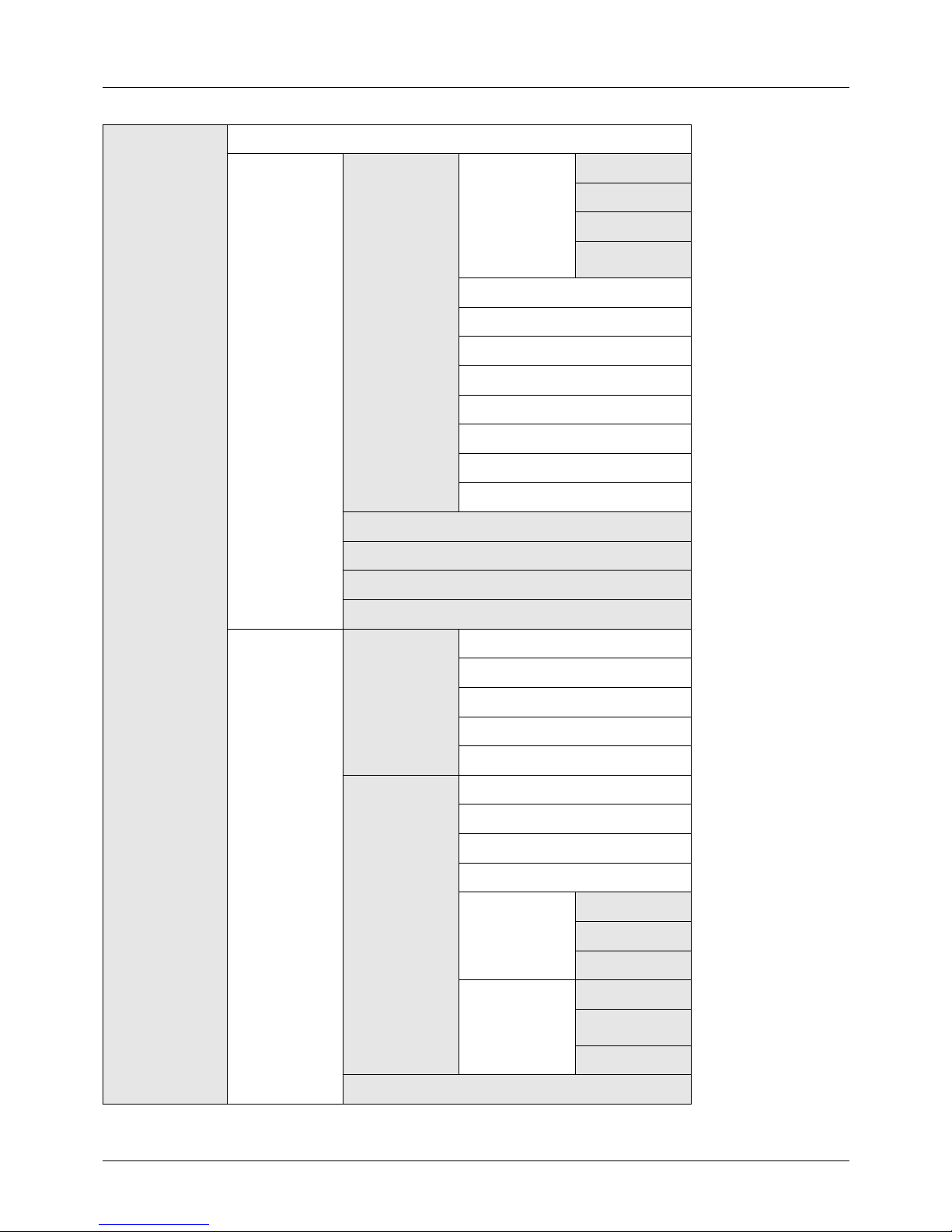
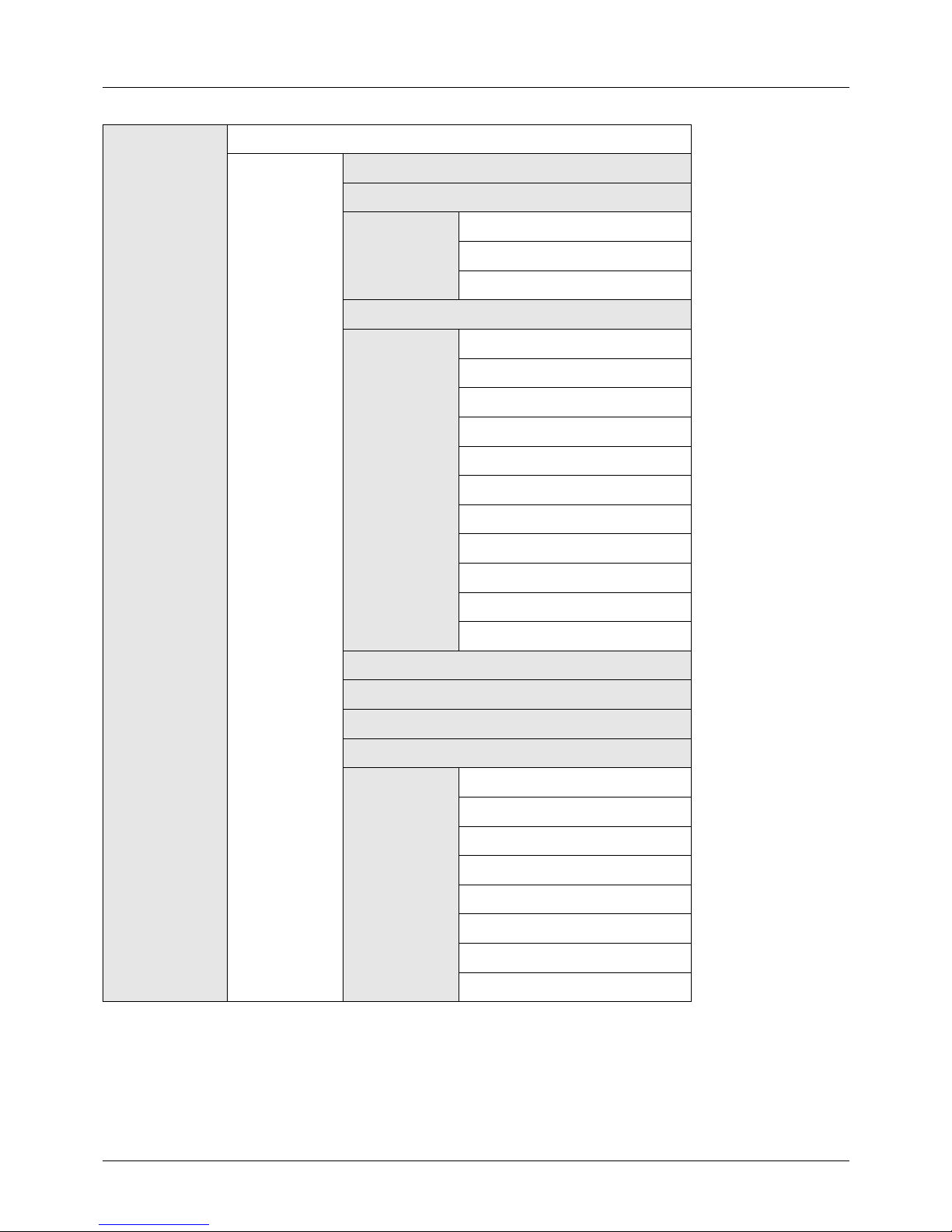
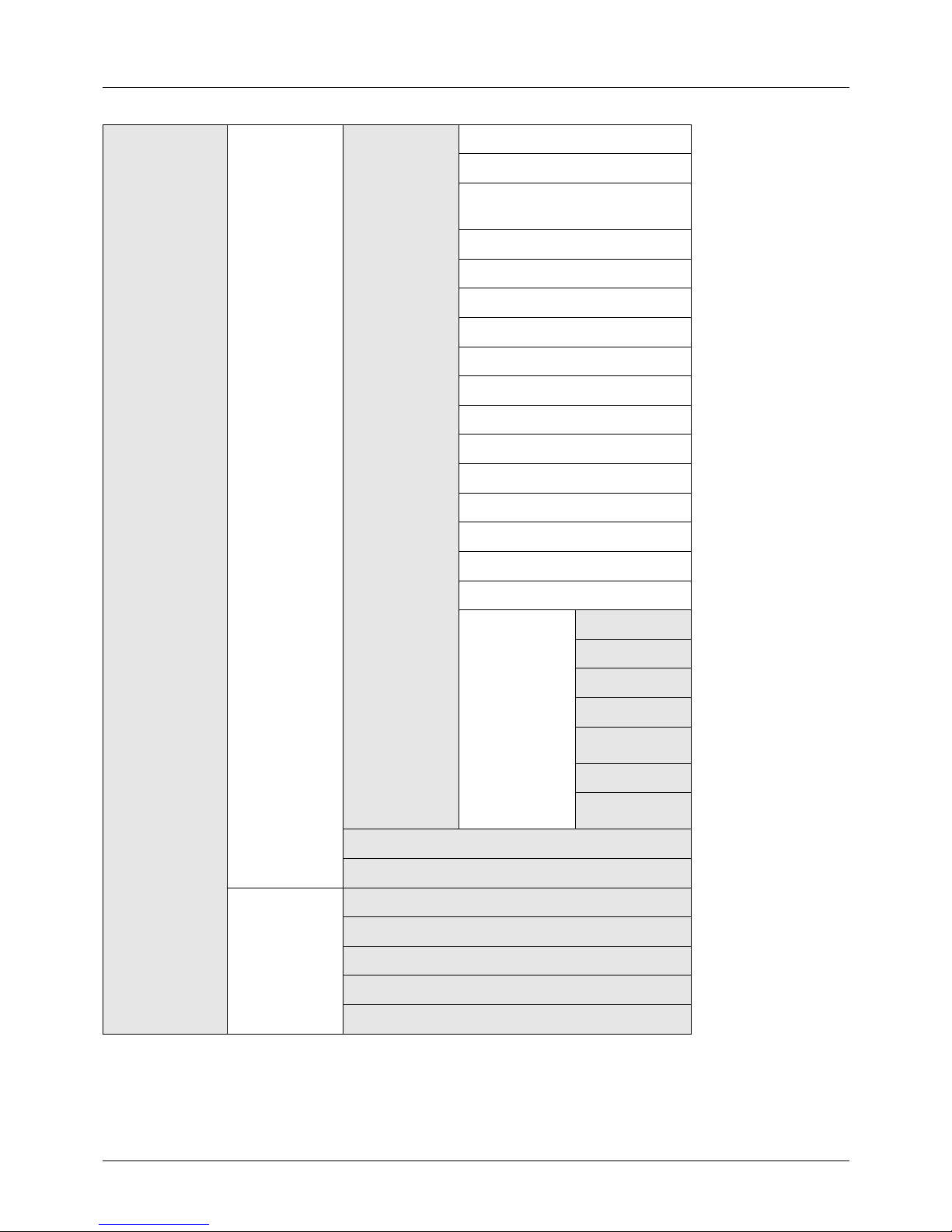
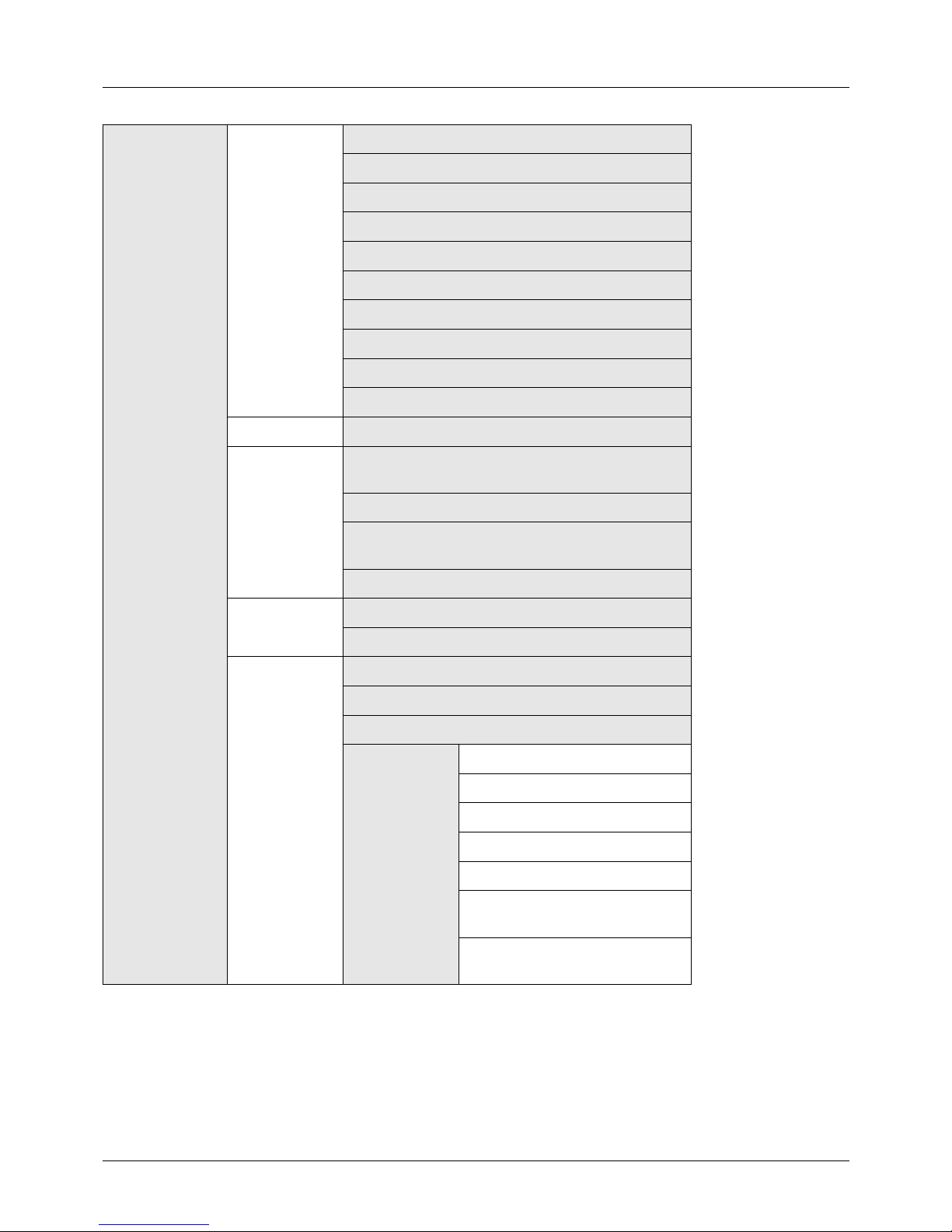
Menu Map
Copy key Function Menu key
Paper Selection
...page 4-3
Collate
...page 3-15
Duplex
...page 3-12
Zoom
...page 3-10
Combine
...page 4-9
Original Size
...page 4-2
Orig.Orientation
...page 4-6
Original Image
...page 3-9
Density
...page 3-8
EcoPrint
...page 4-8
Continuous Scan
...page 4-13
File Name Entry
...page 4-16
JobFinish Notice
...page 4-14
Print Override
...page 4-17
Send key
(Continued on
next page)
Function Menu key
(Continued on next page)
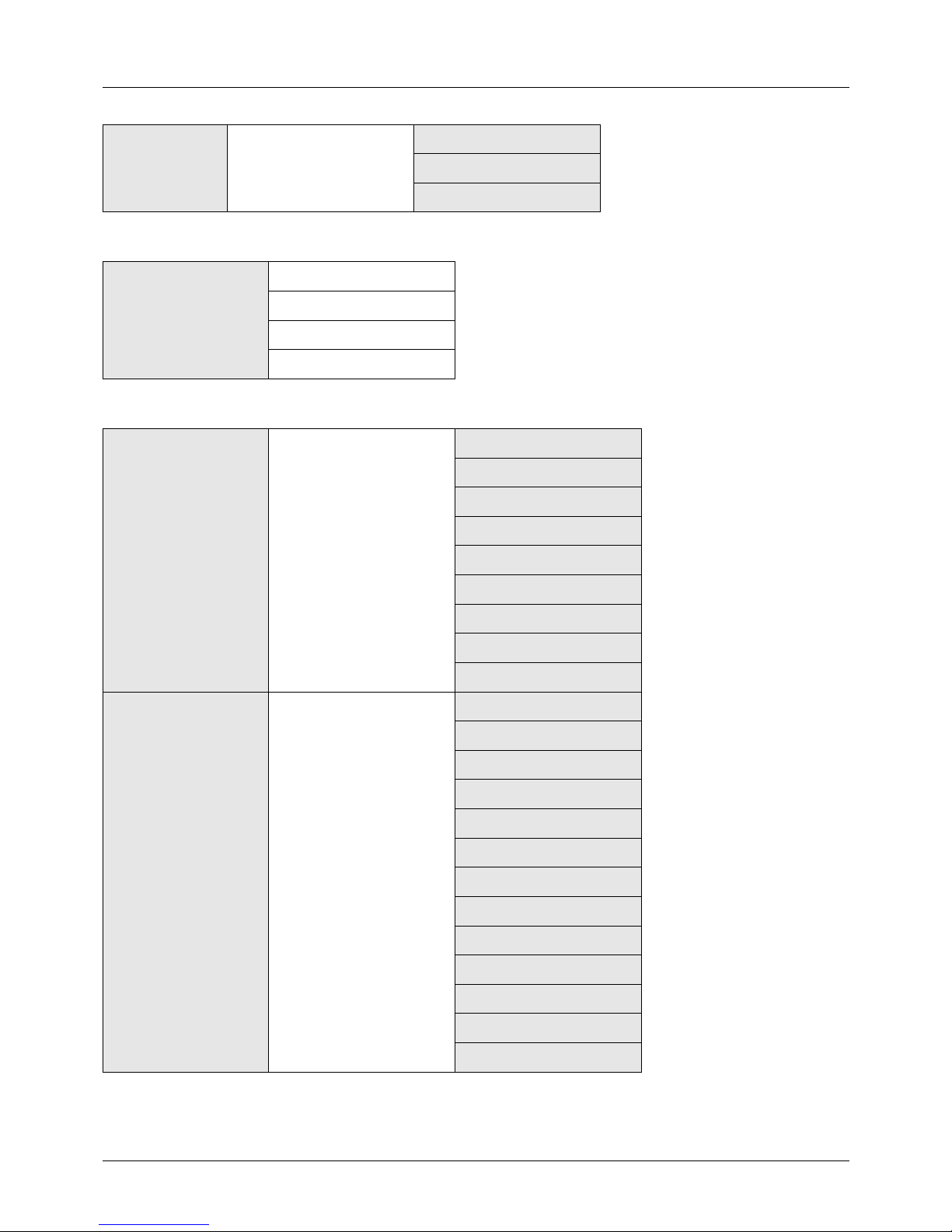
Color Selection
...page 5-13
Original Size
...page 5-2
Original Image
...page 5-10
Scan Resolution
...page 5-12
Sending Size
...page 5-3
Zoom
...page 5-5
Orig.Orientation
...page 5-7
Continuous Scan
...page 5-14
File Format
...page 5-9
File Name Entry
...page 5-15
Subject/Body
...page 5-16
JobFinish Notice
...page 5-19
FAX Resolution
...Refer to the FAX Operation Guide
FAX Delayed TX
...Refer to the FAX Operation Guide
FAX Direct TX
...Refer to the FAX Operation Guide
FAX RX Polling
...Refer to the FAX Operation Guide
Density
...page 5-11
Page 11
ix
Send key
(Continued from
previous page)
Function Menu key
(Continued from previous
page)
Duplex
...page 5-6
FTP Encrypted TX
...page 5-21
File Separation
...page 5-22
Document Box key
Sub Address Box
...Refer to the FAX Operation Guide
Polling Box
...Refer to the FAX Operation Guide
Job Box
...page 6-8
USB Memory
...page 6-2
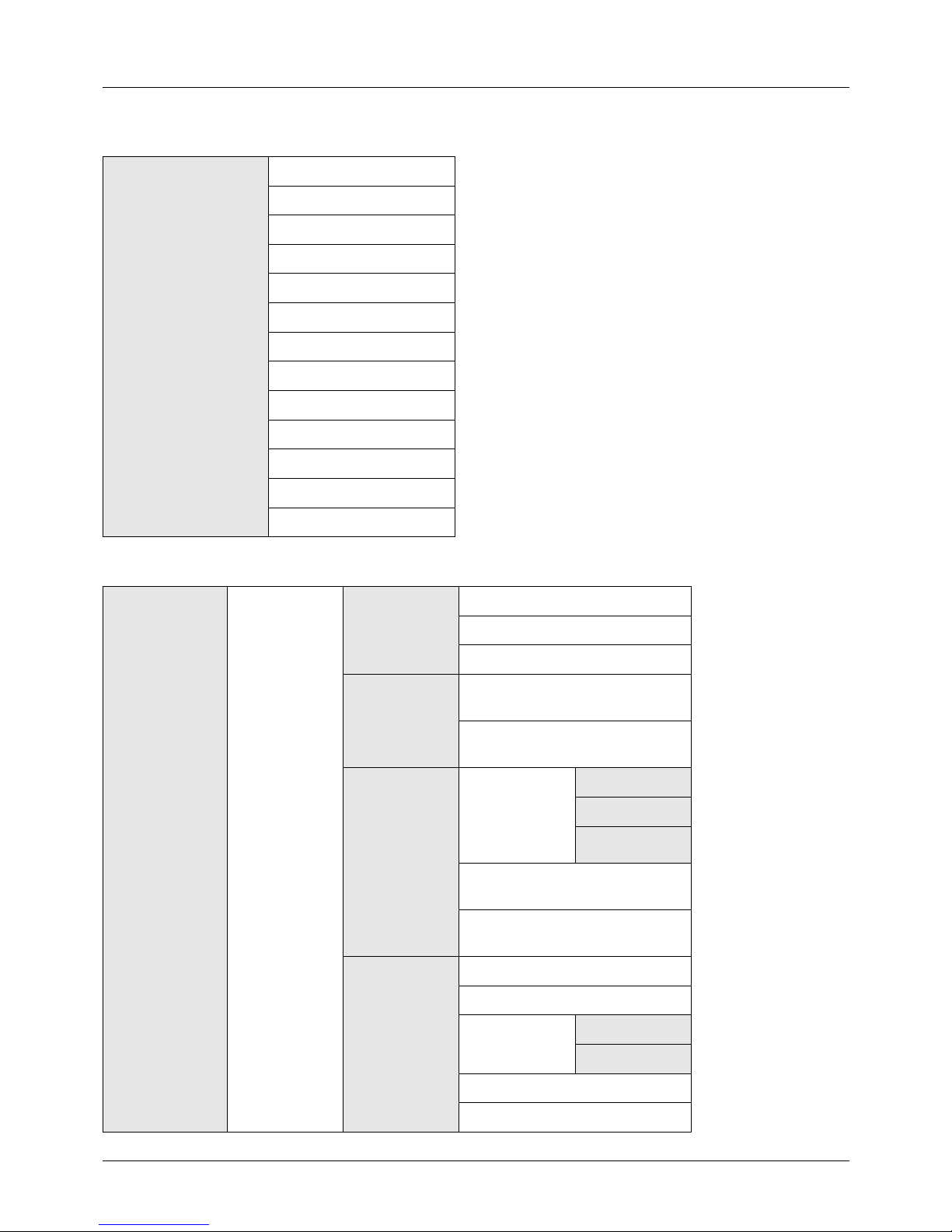
Document Box key
(When printing from
USB memory)
Function Menu key
Collate
...page 3-15
Paper Selection
...page 4-3
Duplex
...page 3-12
File Name Entry
...page 5-15
JobFinish Notice
...page 4-14
Print Override
...page 4-17
Encrypted PDF
—
TIFF Print
...page 6-3
XPS FitTo Page
...page 6-4
Document Box key
(When saving to USB
memory)
Function Menu key
Color Selection
...page 5-13
Original Size
...page 5-2
Original Image
...page 5-10
Scan Resolution
...page 5-12
Storing Size
—
Zoom
...page 5-5
Orig.Orientation
...page 5-7
Continuous Scan
...page 5-14
File Format
...page 5-9
File Name Entry
...page 5-15
JobFinish Notice
...page 5-19
Density
...page 5-11
Duplex
...page 5-6
Page 12
x
Status/Job Cancel key
Print Job Status
...page 7-2
Send Job Status
...page 7-2
Store Job Status
...page 7-2
Scheduled Job
...page 7-8
Print Job Log
...page 7-8
Send Job Log
...page 7-8
Store Job Log
...page 7-8
Scanner
...page 7-19
Printer
...page 7-19
FAX
...page 7-19
Toner Status
...page 3-29
Paper Status
...page 3-29
USB Memory
...page 7-20
System Menu/
Counter key
(Continued on
next page)
Report Report Print Menu Map
...page 8-93
Status Page
...page 8-93
Font List
...page 8-93
Admin Rpt Set. Outgoing FAX Rpt
...Refer to the FAX
Operation Guide
Incoming FAX Rpt
...Refer to the FAX
Operation Guide
Result Rpt
Set.
Send Result E-mail/Folder
...page 8-96
FAX
...page 8-96
CancelBeforeSe
nd
...page 8-96
FAX RX Result
...Refer to the FAX
Operation Guide
JobFinish Notice
...Refer to the FAX
Operation Guide
Job Log
History
Auto Sending
...page 7-13
Send History
...page 7-13
Destination Confirmation
...page 7-13
Register
...page 7-13
Subject
...page 7-13
SSFC Log Subject
...page 7-13
Page 13
xi
System Menu/
Counter key
(Continued from
previous page)
(Continued on
next page)
Counter
...page 11-37
System Network
Setting
TCP/IP
Settings
TCP/IP
...page 8-117
IPv4 Setting
...page 8-117
IPv6 Setting
...page 8-126
Protocol
Detail
...page 8-132
NetWare
...page 8-127
AppleTalk
...page 8-128
WSD-SCAN
...page 8-129
WSD-PRINT
...page 8-130
IPSec
...page 8-135
Secure Protocol
...page 8-135
Host Name
—
LAN Interface
...page 8-116
I/F Block Set.
...page 8-145
Security Level
...page 8-149
Restart
...page 8-115
Op Functions
...page 8-149
User/Job
Account
User Login
Set.
User Login
...page 11-2
Local User List
...page 11-6
IC Card Setting
—
Group Auth.
...page 11-11
NW User Property
...page 11-12
Job
Account.Set.
Job Accounting
...page 11-15
Account. Report
...page 11-35
Total Accounting
...page 11-31
Each Job Account
...page 11-31
Account. List Detail/Edit
...page 11-19
Delete
...page 11-19
Add Account
...page 11-18
Default
Setting
Apply Limit
...page 11-26
Copy/Print
Count
...page 11-22
Counter Limit
...page 11-28
Unknown ID Job
...page 11-13
Page 14
xii
System Menu/
Counter key
(Continued from
previous page)
(Continued on
next page)
User Property
—
Common
Settings
(Continued on
next page)
Language
...page 8-3
Default Screen
...page 8-5
Sound Buzzer
...page 8-6
FAX Speaker
...page 8-6
FAX Monitor
...page 8-6
Display Bright.
...page 8-7
Orig./Paper
Set.
Custom Orig.Size
...page 8-7
Def. Orig. Size
...page 8-9
Custom PaperSize
...page 8-10
Cassette 1 Set.
...page 8-12
Cassette 2 Set.
...page 8-12
Cassette 3 Set.
...page 8-12
MP Tray Set.
...page 8-14
Media Type Set.
...page 8-16
Media for Auto
...page 8-20
Def. PaperSource
...page 8-21
SpcialPaper Act.
...page 8-22
Preset Limit
...page 8-24
Measurement
...page 8-25
Error Handling
...page 8-26
Date Setting
...page 8-28
Timer Setting Err. Clear Timer
...page 8-33
Sleep Timer
...page 8-35
PanelReset Timer
...page 8-39
Power Off Rule
...page 8-35
Power Off Timer
...page 8-37
Auto Err. Clear
...page 8-33
Auto Panel Reset
...page 8-39
Unusable Time
...page 8-41
Page 15
xiii
System Menu/
Counter key
(Continued from
previous page)
(Continued on
next page)
Common
Settings
(Continued from
previous page)
Function
Default
Color Selection
...page 8-43
Scan Resolution
...page 8-44
FAX Resolution
...Refer to the FAX
Operation Guide
Original Image
...page 8-45
Density
...page 8-46
Zoom
...page 8-47
Collate
...page 8-48
Orig.Orientation
...page 8-49
EcoPrint
...page 8-50
File Name Entry
...page 8-51
Subject/Body
...page 8-52
Continuous Scan
...page 8-53
File Format
...page 8-54
File Separation
...page 8-55
TIFF Print
...page 8-56
XPS FitTo Page
...page 8-57
Detail Setting 2 in 1 Layout
...page 8-58
4 in 1 Layout
...page 8-59
Border Line
...page 8-61
Orig. Binding
...page 8-62
Finish.
Binding
...page 8-63
Image Quality
...page 8-64
Color TIFF
Comp.
...page 8-65
Login Operation
...page 8-67
RAM Disk Mode
...page 8-68
Copy Photo Processing
...page 8-69
Paper Selection
...page 8-70
AutoPaperSelect.
...page 8-71
Auto % Priority
...page 8-72
Select Key Set.
...page 8-73
Page 16
xiv
System Menu/
Counter key
(Continued from
previous page)
Printer Emulation Set.
...page 8-75
EcoPrint
...page 8-78
Override A4/LTR
...page 8-79
Duplex
...page 8-80
Copies
...page 8-81
Orientation
...page 8-82
FormFeed TimeOut
...page 8-83
LF Action
...page 8-83
CR Action
...page 8-84
Paper Feed Mode
...page 8-85
Send Select Key Set.
...page 8-87
Document Box Sub Address Box
...Refer to the FAX
Operation Guide
Job Box
...page 8-89
Polling Box
...Refer to the FAX
Operation Guide
Select Key Set.
...page 8-91
Edit
Destination
Address Book
...page 8-102
Print List
...page 8-102
Adjust/Maint. Copy Denst. Adj.
...page 8-98
Send/Box Density
...page 8-99
Correct. Bk Line
...page 8-100
Service
Setting
Service Status
...page 8-95
Network Status
...page 8-95
New Developer
...page 8-101
FAX Country Code
—
FAX Call Set.
—
Remote Diag.Set.
...Refer to the FAX
Operation Guide
Remote Diag. ID
...Refer to the FAX
Operation Guide
Page 17

xv
Environment
The service environmental conditions are as follows:
• Temperature: 50 to 90.5 °F (10 to 32.5 °C)
• Humidity: 15 to 80 %
However, adverse environmental conditions may affect the image quality. Avoid the following locations when
selecting a site for the machine.
• Avoid locations near a window or with exposure to direct sunlight.
• Avoid locations with vibrations.
• Avoid locations with drastic temperature fluctuations.
• Avoid locations with direct exposure to hot or cold air.
• Avoid poorly ventilated locations.
If the floor is delicate against casters, when this machine is moved after installation, the floor material may be
damaged.
During copying, some ozone is released, but the amount does not cause any ill effect to one’s health. If, however, the
machine is used over a long period of time in a poorly ventilated room or when making an extremely large number of
copies, the smell may become unpleasant. To maintain the appropriate environment for copy work, it is suggested
that the room be properly ventilated.
Cautions when handling consumables
CAUTION
Do not attempt to incinerate the toner container or the waste toner box. Dangerous sparks may cause burns.
Keep the toner container and the waste toner box out of the reach of children.
If toner happens to spill from the toner container or the waste toner box, avoid inhalation and ingestion, as
well as contact with your eyes and skin.
• If you do happen to inhale toner, move to a place with fresh air and gargle thoroughly with a large amount of
water. If coughing develops, contact a physician.
• If you do happen to ingest toner, rinse your mouth with water and drink 1 or 2 cups of water to dilute the contents
of your stomach. If necessary, contact a physician.
• If you do happen to get toner in your eyes, flush them thoroughly with water. If there is any remaining tenderness,
contact a physician.
• If toner does happen to get on your skin, wash with soap and water.
Do not attempt to force open or destroy the toner container or the waste toner box.
Page 18

xvi
Other precautions
Return the exhausted toner container and waste toner box to your dealer or service representative. The collected
toner container and waste toner box will be recycled or disposed in accordance with the relevant regulations.
Store the machine while avoiding exposure to direct sunlight.
Store the machine in a place where the temperature stays below 40ºC while avoiding sharp changes of temperature
and humidity.
If the machine will not be used for an extended period of time, remove the paper from the cassette and the Multi
Purpose (MP) Tray, return it to its original package and reseal it.
If using the machine with fax the power switch is off, transmitting/receiving Fax is disabled. Do not turn off the power
switch.
Page 19
xvii
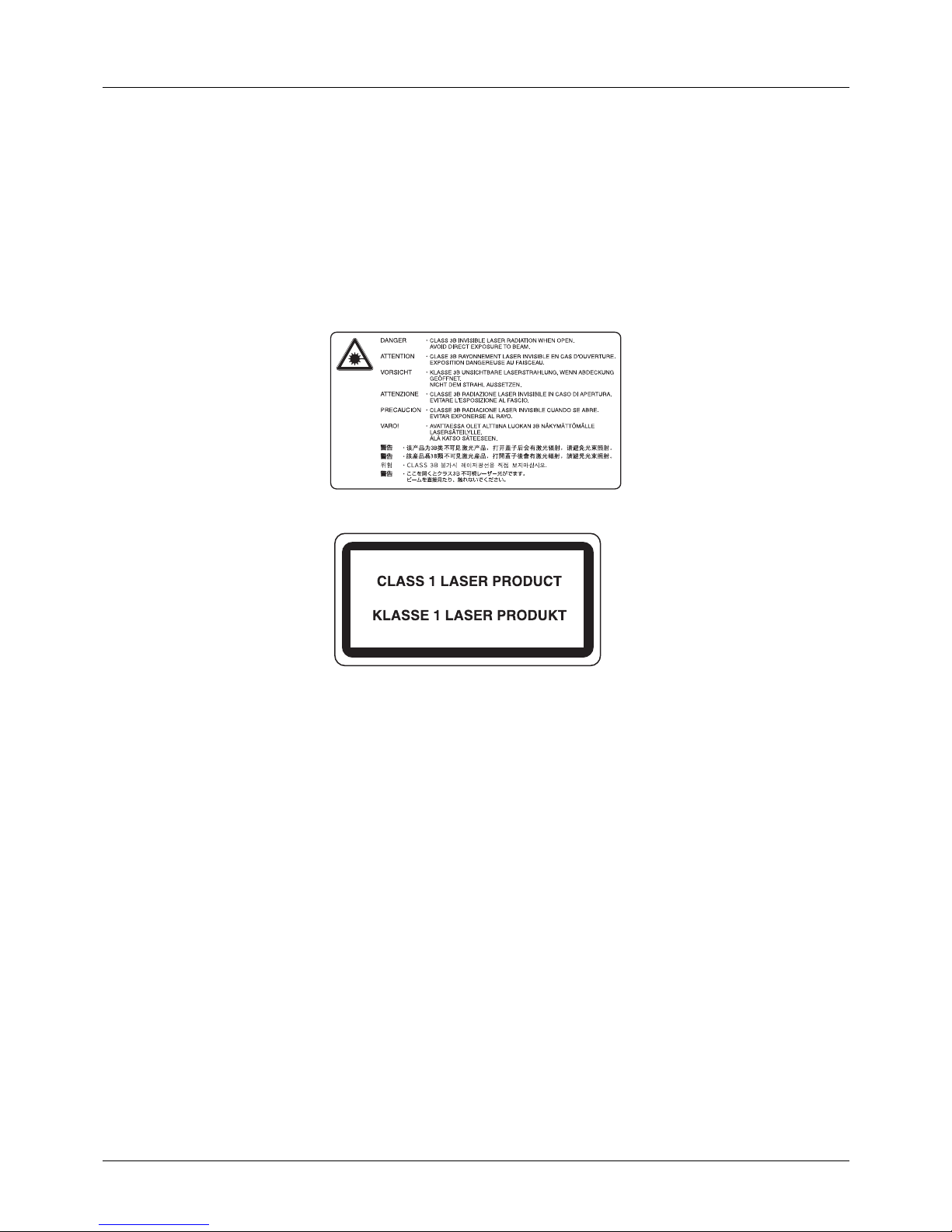
Laser Safety (Europe)
Laser radiation could be hazardous to the human body. For this reason, laser radiation emitted inside this machine
is hermetically sealed within the protective housing and external cover. In the normal operation of the product by user,
no radiation can leak from the machine.
This machine is classified as Class 1 laser product under IEC 60825-1:2007.
Caution: Performance of procedures other than those specified in this manual may result in hazardous radiation
exposure.
These labels are attached to the laser scanner unit inside the machine and are not in a user access area.
The label shown below is attached on the right side of the machine.
Legal Restriction on Copying/Scanning
• It may be prohibited to copy/scan copyrighted material without permission of the copyright owner.
• Copying/Scanning the following items is prohibited and may be penalized by low.
It may not be limited to these items. Do not knowingly copy/scan the items that are not to be copied/scanned.
Paper money
Bank note
Securities
Stamp
Passport
Certificate
• Local laws and regulations may prohibit or restrict copying/scanning of other items not mentioned above.
Page 20

xviii
Page 21

xix
Legal and Safety Information
Please read this information before using your machine. This chapter provides information on the
following topics.
• Legal Information............................................................xx
• Regarding Trade Names................................................xx
• Energy Saving Control Function.................................. xxiv
• Automatic 2-Sided Copy Function............................... xxiv
• Paper Recycling .......................................................... xxiv
• Energy Star (ENERGY STAR®) Program.................... xxiv
• About this Operation Guide.......................................... xxv
• Conventions in This Guide .......................................... xxvi
Page 22

xx
Legal Information
Copying or other reproduction of all or part of this guide without the prior written consent of Copyright owner is
prohibited.
Regarding Trade Names
• KPDL is a trademark of Kyocera Corporation.
• Microsoft, Windows, Windows XP, Windows Server 2003, Windows Vista, Windows Server 2008, Windows 7 and
Internet Explorer are registered trademarks or trademarks of Microsoft Corporation in the U.S.A. and/or other
countries.
• PCL is a trademark of Hewlett-Packard Company.
• Adobe Acrobat, Adobe Reader and PostScript are trademarks of Adobe Systems, Incorporated.
• Ethernet is a registered trademark of Xerox Corporation.
• Novell and NetWare are registered trademarks of Novell, Inc.
• IBM and IBM PC/AT are trademarks of International Business Machines Corporation.
• AppleTalk, Bonjour, Macintosh, and Mac OS are trademarks of Apple Inc., registered in the U.S. and other
countries.
• All European language fonts installed in this machine are used under licensing agreement with Monotype
Imaging Inc.
• Helvetica, Palatino and Times are registered trademarks of Linotype GmbH.
• ITC Avant Garde Gothic, ITC Bookman, ITC ZapfChancery and ITC ZapfDingbats are registered trademarks of
International Typeface Corporation.
• UFST™ MicroType
®
fonts by Monotype Imaging Inc. are installed in this machine.
• This machine contains the software having modules developed by Independent JPEG Group.
All other brands and product names are registered trademarks or trademarks of their respective companies. The
designations ™ and ® will not be used in this Operation Guide.
Page 23

xxi
GPL/LGPL
This product contains GPL (http://www.gnu.org/licenses/gpl.html) and/or LGPL (http://www.gnu.org/licenses/
lgpl.html) software as part of its firmware. You can get the source code, and you are permitted to copy, redistribute
and modify it under the terms of GPL/LGPL.
Open SSLeay License
Copyright (c) 1998-2006 The OpenSSL Project. All rights reserved.
Redistribution and use in source and binary forms, with or without modification, are permitted provided that the
following conditions are met:
1 Redistributions of source code must retain the above copyright notice, this list of conditions and the following
disclaimer.
2 Redistributions in binary form must reproduce the above copyright notice, this list of conditions and the
following disclaimer in the documentation and/or other materials provided with the distribution.
3 All advertising materials mentioning features or use of this software must display the following
acknowledgment:
“This product includes software developed by the OpenSSL Project for use in the OpenSSL Toolkit. (http://
www.openssl.org/)”
4 The names “OpenSSL Toolkit” and “OpenSSL Project” must not be used to endorse or promote products
derived from this software without prior written permission.
For written permission, please contact [email protected].
5 Products derived from this software may not be called “OpenSSL” nor may “OpenSSL” appear in their names
without prior written permission of the OpenSSL Project.
6 Redistributions of any form whatsoever must retain the following acknowledgment: “This product includes
software developed by the OpenSSL Project for use in the OpenSSL Toolkit (http://www.openssl.org/)”
THIS SOFTWARE IS PROVIDED BY THE OpenSSL PROJECT “AS IS” AND ANY EXPRESSED OR IMPLIED
WARRANTIES, INCLUDING, BUT NOT LIMITED TO, THE
IMPLIED WARRANTIES OF MERCHANTABILITY AND FITNESS FOR A PARTICULAR PURPOSE ARE
DISCLAIMED. IN NO EVENT SHALL THE OpenSSL PROJECT OR ITS CONTRIBUTORS BE LIABLE FOR ANY
DIRECT, INDIRECT, INCIDENTAL, SPECIAL, EXEMPLARY, OR CONSEQUENTIAL DAMAGES (INCLUDING,
BUT NOT LIMITED TO, PROCUREMENT OF SUBSTITUTE GOODS OR SERVICES; LOSS OF USE, DATA, OR
PROFITS; OR BUSINESS INTERRUPTION) HOWEVER CAUSED AND ON ANY THEORY OF LIABILITY,
WHETHER IN CONTRACT, STRICT LIABILITY, OR TORT (INCLUDING NEGLIGENCE OR OTHERWISE)
ARISING IN ANY WAY OUT OF THE USE OF THIS SOFTWARE, EVEN IF ADVISED OF THE POSSIBILITY OF
SUCH DAMAGE.
Page 24

xxii
Original SSLeay License
Copyright (C) 1995-1998 Eric Young ([email protected]) All rights reserved.
This package is an SSL implementation written by Eric Young ([email protected]). The implementation was written
so as to conform with Netscapes SSL.
This library is free for commercial and non-commercial use as long as the following conditions are aheared to. The
following conditions apply to all code found in this distribution, be it the RC4, RSA, lhash, DES, etc., code; not just the
SSL code. The SSL documentation included with this distribution is covered by the same copyright terms except that
the holder is Tim Hudson ([email protected]).
Copyright remains Eric Young’s, and as such any Copyright notices in the code are not to be removed.
If this package is used in a product, Eric Young should be given attribution as the author of the parts of the library
used.
This can be in the form of a textual message at program startup or in documentation (online or textual) provided with
the package.
Redistribution and use in source and binary forms, with or without modification, are permitted provided that the
following conditions are met:
1 Redistributions of source code must retain the copyright notice, this list of conditions and the following
disclaimer.
2 Redistributions in binary form must reproduce the above copyright notice, this list of conditions and the
following disclaimer in the documentation and/or other materials provided with the distribution.
3 All advertising materials mentioning features or use of this software must display the following
acknowledgement:
“This product includes cryptographic software written by Eric Young ([email protected])”
The word ‘cryptographic’ can be left out if the rouines from the library being used are not cryptographic related
:-).
4 If you include any Windows specific code (or a derivative thereof) from the apps directory (application code) you
must include an acknowledgement:
“This product includes software written by Tim Hudson ([email protected])”
THIS SOFTWARE IS PROVIDED BY ERIC YOUNG “AS IS” AND ANY EXPRESS OR IMPLIED WARRANTIES,
INCLUDING, BUT NOT LIMITED TO, THE IMPLIED WARRANTIES OF MERCHANTABILITY AND FITNESS FOR
A PARTICULAR PURPOSE ARE DISCLAIMED. IN NO EVENT SHALL THE AUTHOR OR CONTRIBUTORS BE
LIABLE FOR ANY DIRECT, INDIRECT, INCIDENTAL, SPECIAL, EXEMPLARY, OR CONSEQUENTIAL DAMAGES
(INCLUDING, BUT NOT LIMITED TO, PROCUREMENT OF SUBSTITUTE GOODS OR SERVICES; LOSS OF USE,
DATA, OR PROFITS; OR BUSINESS INTERRUPTION) HOWEVER CAUSED AND ON ANY THEORY OF
LIABILITY, WHETHER IN CONTRACT, STRICT LIABILITY, OR TORT (INCLUDING NEGLIGENCE OR
OTHERWISE) ARISING IN ANY WAY OUT OF THE USE OF THIS SOFTWARE, EVEN IF ADVISED OF THE
POSSIBILITY OF SUCH DAMAGE.
The licence and distribution terms for any publically available version or derivative of this code cannot be changed.
i.e. this code cannot simply be copied and put under another distribution licence [including the GNU Public Licence.]
Page 25

xxiii
Monotype Imaging License Agreement
1 Software shall mean the digitally encoded, machine readable, scalable outline data as encoded in a special
format as well as the UFST Software.
2 You agree to accept a non-exclusive license to use the Software to reproduce and display weights, styles and
versions of letters, numerals, characters and symbols (Typefaces) solely for your own customary business or
personal purposes at the address stated on the registration card you return to Monotype Imaging. Under the
terms of this License Agreement, you have the right to use the Fonts on up to three printers. If you need to have
access to the fonts on more than three printers, you need to acquire a multi-user license agreement which can
be obtained from Monotype Imaging. Monotype Imaging retains all rights, title and interest to the Software and
Typefaces and no rights are granted to you other than a License to use the Software on the terms expressly set
forth in this Agreement.
3 To protect proprietary rights of Monotype Imaging, you agree to maintain the Software and other proprietary
information concerning the Typefaces in strict confidence and to establish reasonable procedures regulating
access to and use of the Software and Typefaces.
4 You agree not to duplicate or copy the Software or Typefaces, except that you may make one backup copy. You
agree that any such copy shall contain the same proprietary notices as those appearing on the original.
5 This License shall continue until the last use of the Software and Typefaces, unless sooner terminated. This
License may be terminated by Monotype Imaging if you fail to comply with the terms of this License and such
failure is not remedied within thirty (30) days after notice from Monotype Imaging. When this License expires or
is terminated, you shall either return to Monotype Imaging or destroy all copies of the Software and Typefaces
and documentation as requested.
6 You agree that you will not modify, alter, disassemble, decrypt, reverse engineer or decompile the Software.
7 Monotype Imaging warrants that for ninety (90) days after delivery, the Software will perform in accordance with
Monotype Imaging-published specifications, and the diskette will be free from defects in material and
workmanship. Monotype Imaging does not warrant that the Software is free from all bugs, errors and
omissions.
The parties agree that all other warranties, expressed or implied, including warranties of fitness for a particular
purpose and merchantability, are excluded.
8 Your exclusive remedy and the sole liability of Monotype Imaging in connection with the Software and
Typefaces is repair or replacement of defective parts, upon their return to Monotype Imaging.
In no event will Monotype Imaging be liable for lost profits, lost data, or any other incidental or consequential
damages, or any damages caused by abuse or misapplication of the Software and Typefaces.
9 Massachusetts U.S.A. law governs this Agreement.
10 You shall not sublicense, sell, lease, or otherwise transfer the Software and/or Typefaces without the prior
written consent of Monotype Imaging.
11 Use, duplication or disclosure by the Government is subject to restrictions as set forth in the Rights in Technical
Data and Computer Software clause at FAR 252-227-7013, subdivision (b)(3)(ii) or subparagraph (c)(1)(ii), as
appropriate. Further use, duplication or disclosure is subject to restrictions applicable to restricted rights
software as set forth in FAR 52.227-19 (c)(2).
12 You acknowledge that you have read this Agreement, understand it, and agree to be bound by its terms and
conditions. Neither party shall be bound by any statement or representation not contained in this Agreement.
No change in this Agreement is effective unless written and signed by properly authorized representatives of
each party. By opening this diskette package, you agree to accept the terms and conditions of this Agreement.
Page 26

xxiv
Energy Saving Control Function
The device comes equipped with a Sleep Mode where printer and fax functions remain in a waiting state but power
consumption is still reduced to a minimum after a certain amount of time elapses since the device was last used.
Sleep
The device automatically enters Sleep when 1 minute has passed since the device was last used. The amount of time
of no activity that must pass before Sleep is activated may be lengthened. For more information see Sleep on page
2-7.
Automatic 2-Sided Copy Function
This device includes 2-sided copying as a standard function. For example, by copying two 1-sided originals onto a
single sheet of paper as a 2-sided copy, it is possible to lower the amount of paper used. For more information see
Sleep on page 2-7.
Paper Recycling
This device supports the recycled paper which reduces the load on the environment. Your sales or service
representative can provide information about recommended paper types.
Energy Star (ENERGY STAR®) Program
We have determined as a participating company in the International Energy Star Program that this
product is compliant with the standards laid out in the International Energy Star Program.
Page 27

xxv
About this Operation Guide
This Operation Guide contains the following chapters.
Chapter 1 - Part Names
Identifies machine parts and operation panel keys.
Chapter 2 - Preparation before Use
Explains adding paper, placing originals, connecting the machine, and necessary configurations before first use.
Chapter 3 - Basic Operation
Describes the procedures for basic copying, printing and scanning.
Chapter 4 - Copying Functions
Describes the functions you can use when copying.
Chapter 5 - Sending Functions
Describes the functions you can use when sending originals.
Chapter 6 - Document Box
Provides a basic guide to using document boxes.
Chapter 7 - Status / Job Cancel
Explains how to check the job status and job history and how to pause or resume jobs being printed or waiting to print.
Also explains how to check the device status.
Chapter 8 - Default Setting (System Menu)
Describes the System Menu options for general machine operation.
Chapter 9 - Maintenance
Describes cleaning and toner replacement.
Chapter 10 - Troubleshooting
Explains how to handle error messages, paper jams and other problems.
Chapter 11 - Management
Explains user login administration and job accounting.
Appendix
Explains how to enter characters, and lists the machine specifications.
Introduces the convenient optional equipment available for this machine.
Provides information on media types and paper sizes. Also includes a glossary of terms.
Page 28
xxvi
Conventions in This Guide
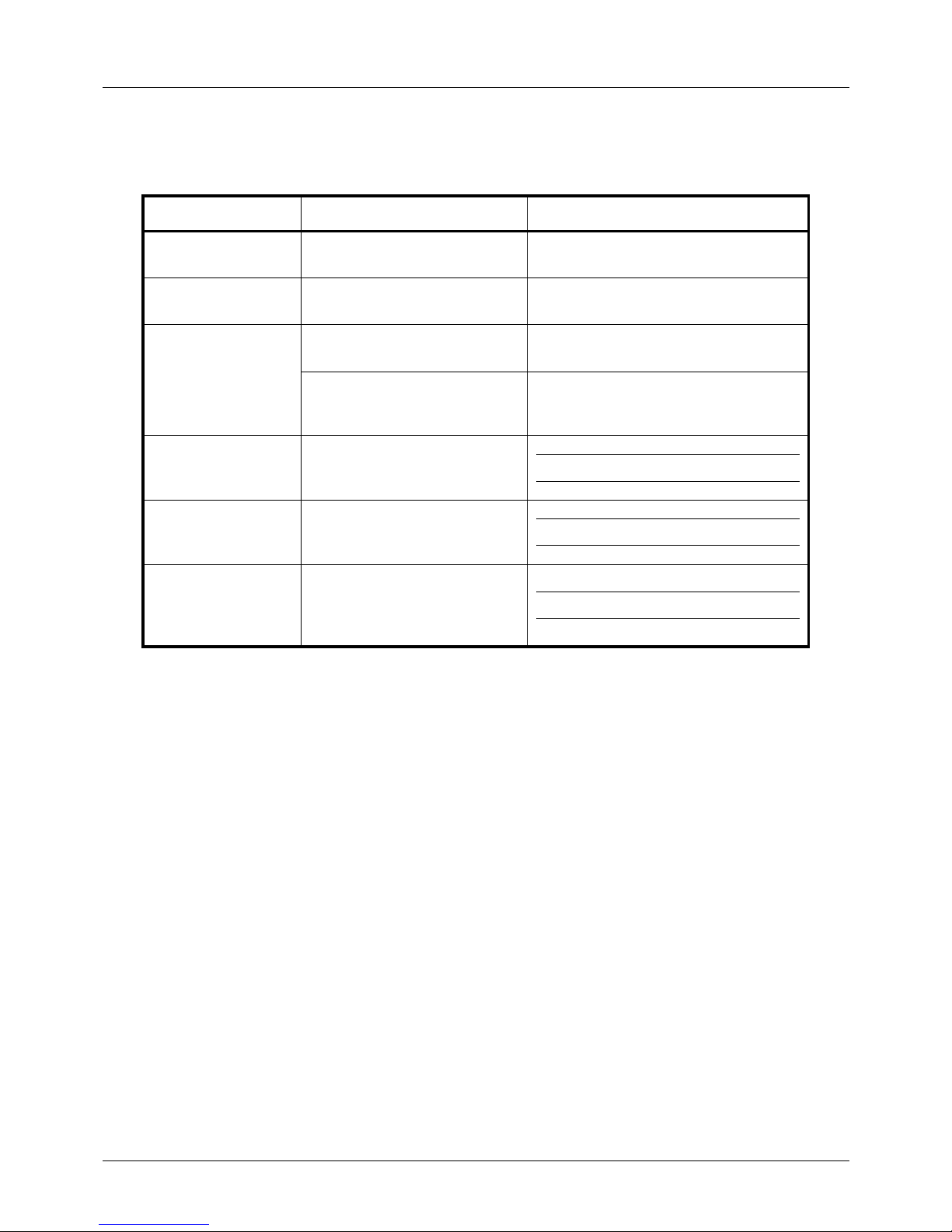
The following conventions are used depending on the nature of the description.
Convention Description Example
Bold Indicates the operation panel
keys or a computer screen.
Press the Start key.
[Regular] Indicates a selection item on the
Message Display.
Select [System].
Italic Indicates a message displayed
on the Message Display.
Ready to copy is displayed.
Used to emphasize a key word,
phrase or references to
additional information.
For more information refer to Sleep on
page 2-7.
Note Indicates supplemental
information or operations for
reference.
NOTE:
Important Indicates items that are required
or prohibited so as to avoid
problems.
IMPORTANT:
Caution Indicates what must be
observed to prevent injury or
machine breakdown and how to
deal with it.
CAUTION:
Page 29

1-1
1Part Names
This chapter identifies the machine parts and operation panel keys.
• Operation Panel ........................................................... 1-2
• Machine........................................................................ 1-4
Page 30
Part Names
1-2
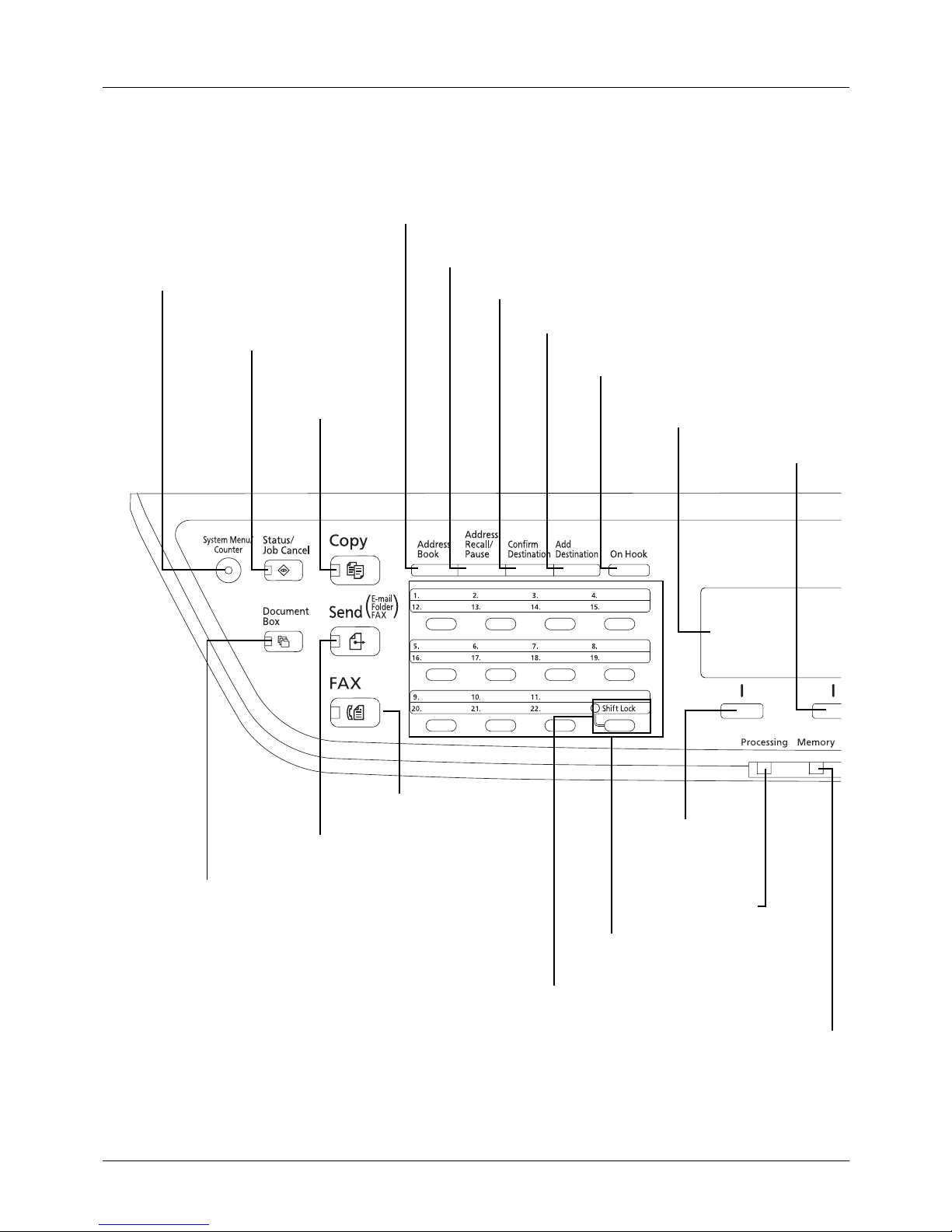
Operation Panel
Blinks while the machine
is accessing the memory.
Message Display. Check what is
shown here while operating the
machine.
Blinks while print data
is being received or
data is transmitted.
Selects the menu displayed
at the lower left in the
Message Display.
Selects the menu displayed
at the lower right in the
Message Display.
Switches between on-hook and off-hook when
manually sending a FAX.*
Shifts to switch the one-touch key numbers
(1 to 11 and 12 to 22).
Lamp is lit while shifted (12 to 22).
Displays the Add Destination screen, where you can add
destinations.
Displays the Confirm Destination screen, where you can edit and
delete destinations.
Calls the previous destination. Also used to enter a
pause when entering a FAX number.*
Displays the Address Book screen, where you can add, edit and delete destinations.
Used to register, call and delete
destinations to the one-touch key
numbers (1 to 22).
Displays the Copy
screen, where you can
make settings required
for copying.
Displays the FAX screen, where
you can send a FAX.*
Displays the Send screen, where you can send an e-mail,
folder (SMB/FTP) or FAX.*
Displays the Document Box screen, where you can
operate the document box and USB memory.
Displays the Status screen, where you
can check the status, print a status
report, and pause or cancel the job in
process.
Displays the System Menu/Counter menu screen,
where you can check the system settings and
counters.
* FAX functions available only on products with the fax function installed.
Page 31
1
Part Names
1-3
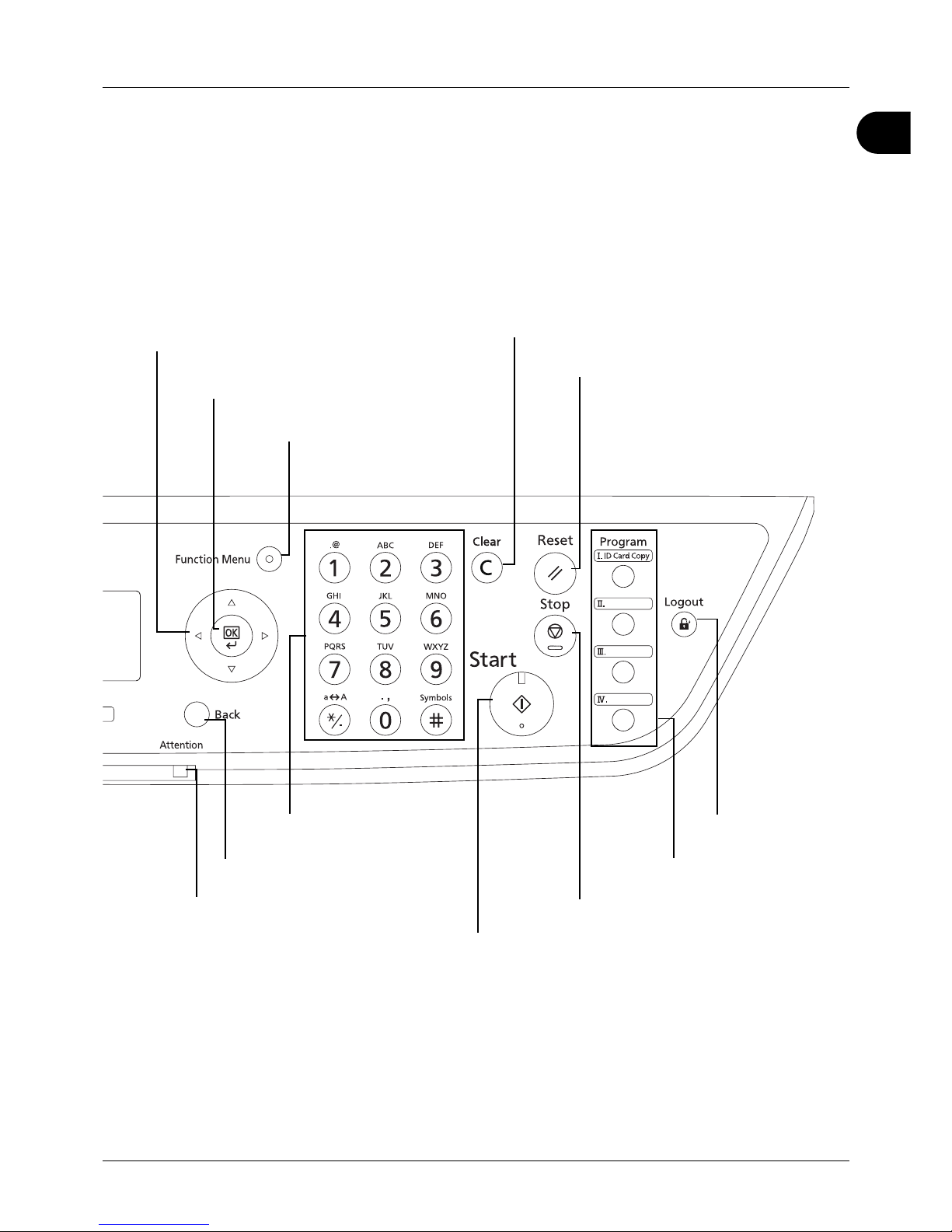
Used to register or recall
programs.
Ends operation
(logs out) on the
Administration screen.
Cancels the printing job in progress.
Resets settings and displays the
basic screen.
Starts copying and scanning operations and processing for
setting operations.
Clears entered numbers and characters.
Numeric keys. Enter
numbers and symbols.
Displays the function menu for copy,
print, transmission and document box.
Used to select a menu item, move the cursor when
entering characters, change a value, etc.
Returns the Message Display to the
previous screen.
Lights or blinks when an error occurs.
Selects the chosen item or finalizes the entered
value.
Page 32
Part Names
1-4
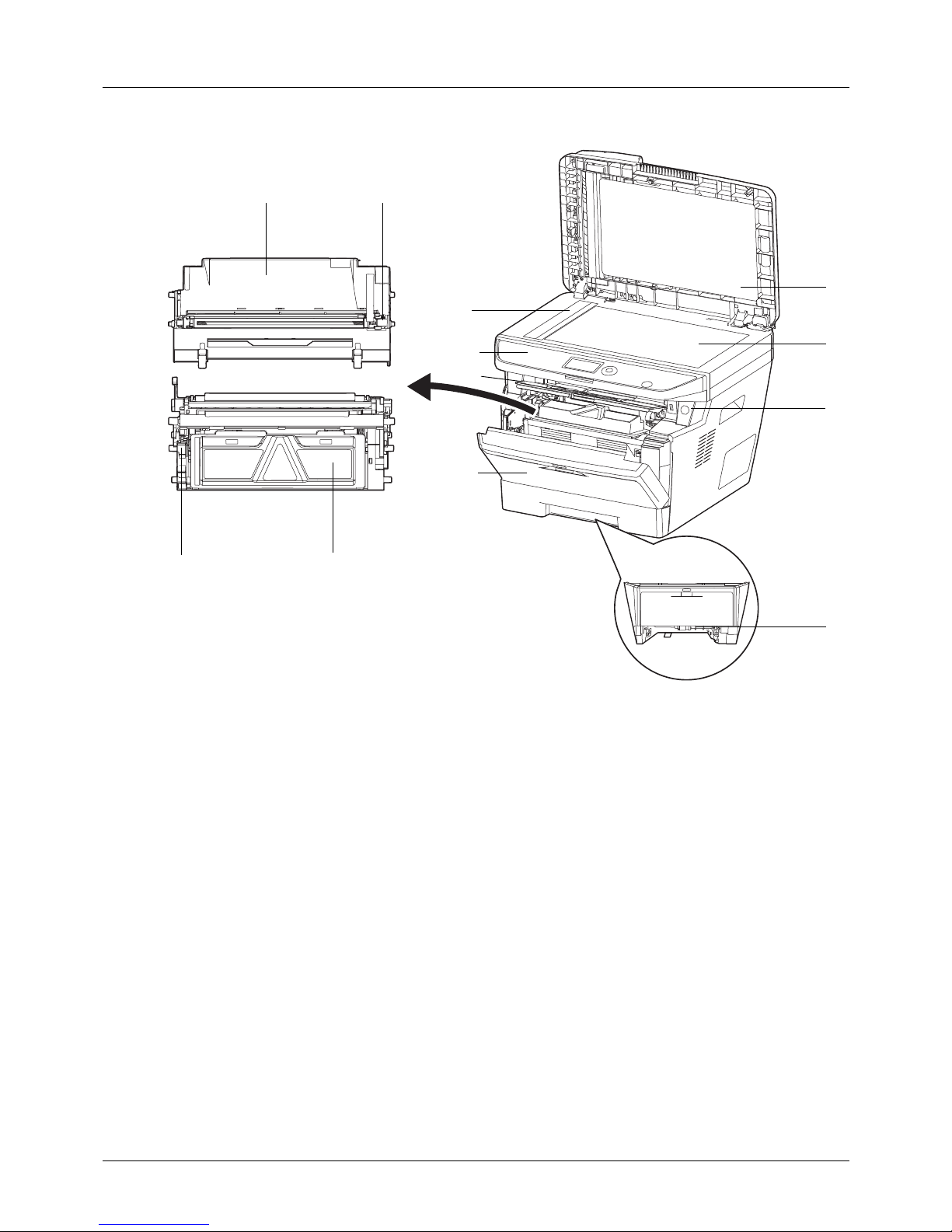
Machine
1 Document Processor
2 Platen
3 Power Switch
4 Slit Glass
5 Operation Panel
6 Top Cover
7 Front Cover
8 Duplex Front Cover
9 Drum Unit
10 Main Charger Cleaner
11 Lock Lever
12 Toner Container
9
2
1
3
4
7
6
11
10
12
8
5
Page 33
1
Part Names
1-5
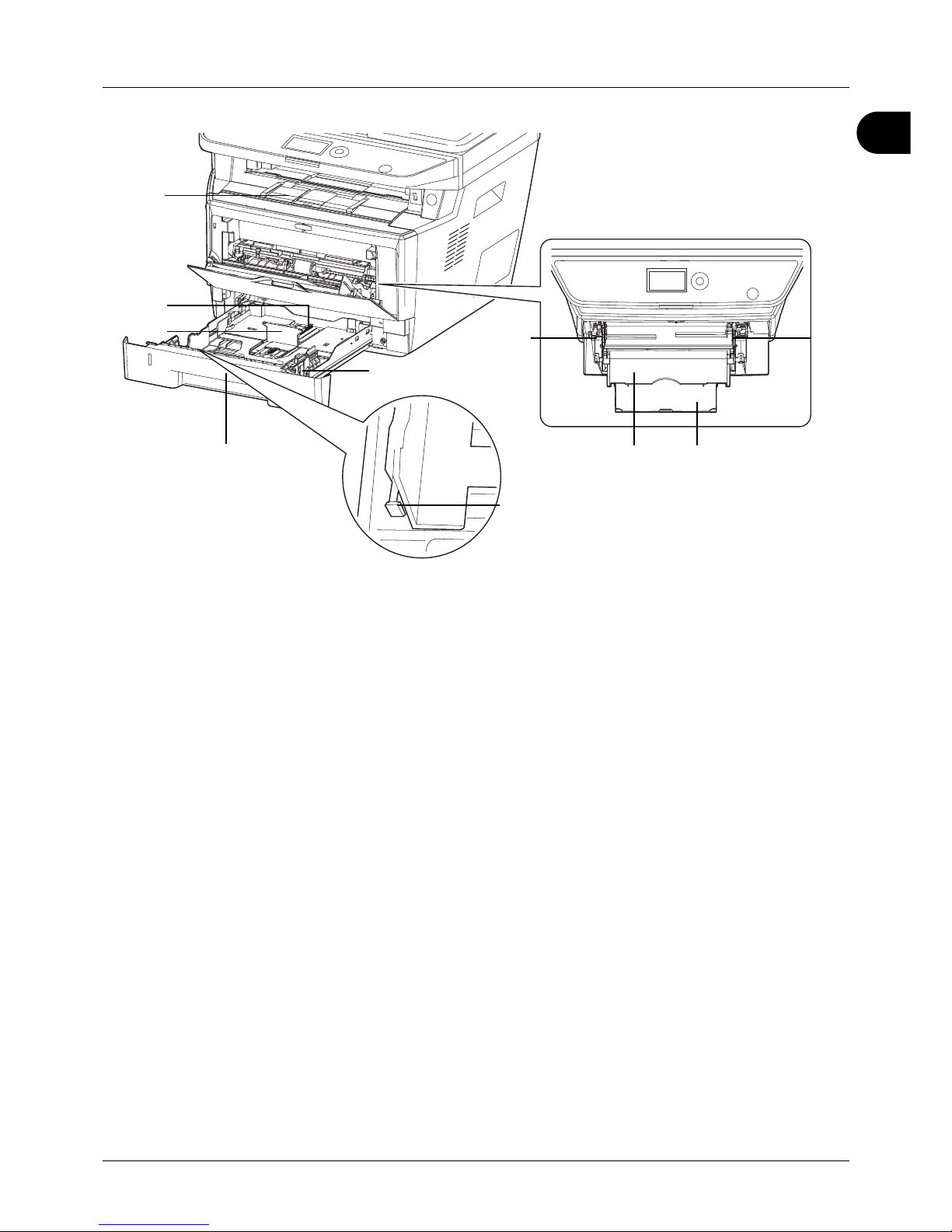
13 Inner Tray
14 Paper Length Adjusting Tab
15 Paper Length Guide
16 Paper Width Guides
17 Cassette 1
18 Paper Width Adjusting Tab
19 Paper Width Guides (MP Tray)
20 MP (Multi-Purpose) Tray
21 Support Tray Section of the Multi Purpose Tray
14
15
17
16
19
20 21
19
13
18
Page 34
Part Names
1-6
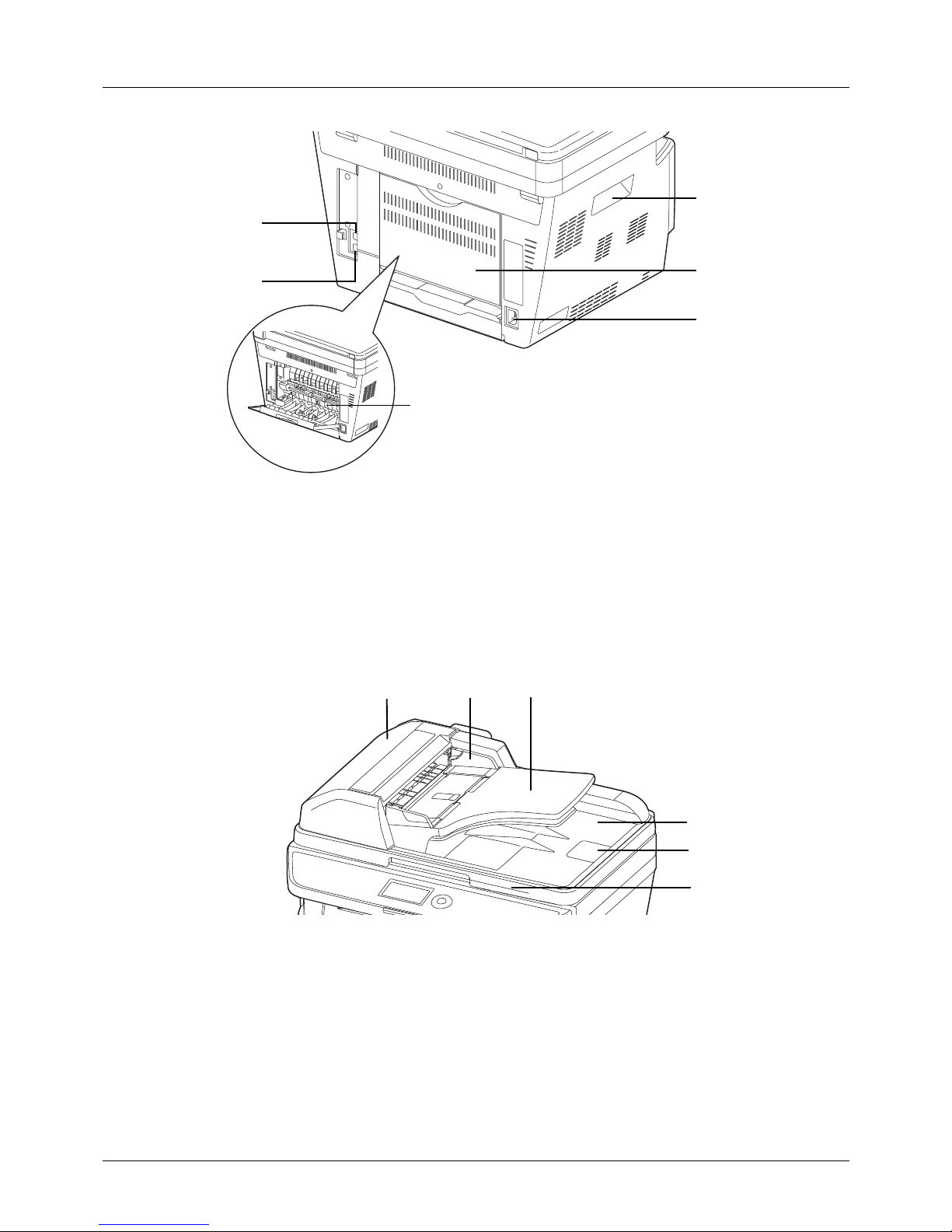
22 Network Interface Connector
23 USB Interface Connector
24 Fuser Cover
25 Handholds
26 Rear Cover
27 Power Cord Connector
Document Processor
28 Document Processor Cover
29 Original Width Guides
30 Original Table
31 Original Eject Table
32 Original Stopper
33 Document Processor Open/Close Handle
23
22
27
26
25
24
28 29 30
31
32
33
Page 35

2-1
2 Preparation before Use
This chapter explains the preparations before using this equipment for the first time as well as the
procedures for loading papers and originals.
• Check bundled items.................................................... 2-2
•
Determining the Connection Method and Preparing Cables
.2-3
• Connecting Cables....................................................... 2-5
• Power On/Off................................................................ 2-6
• Sleep ............................................................................ 2-7
• Switching the Language for Display [Language].......... 2-8
• Setting Date and Time................................................ 2-10
• Network Setup (LAN Cable Connection).................... 2-13
• Installing Software...................................................... 2-15
• Embedded Web Server (Settings for E-mail) ............. 2-26
• Sending E-mail........................................................... 2-27
• Preparation for sending a document to a PC ............. 2-29
• Loading Paper............................................................ 2-39
• Loading Originals ....................................................... 2-52
Page 36

Preparation before Use
2-2
Check bundled items
Check that the following items have been bundled.
• Quick Installation Guide
•Safety Guide
• Safety Guide (for this machine only)
• DVD (Product Library)
Documents Contained in the Included DVD
The following documents are contained in the included DVD (Product Library). Refer to them as necessary.
Documents
Operation Guide (This Guide)
FAX Operation Guide
Embedded Web Server Operation Guide
Printing System Driver User Guide
Network FAX Driver Operation Guide
Network Print Monitor User Guide
Network Tool for Direct Printing Operation Guide
Page 37
2
Preparation before Use
2-3
Determining the Connection Method and Preparing Cables
Check the method to connect the equipment to a PC or network, and prepare the necessary cables.
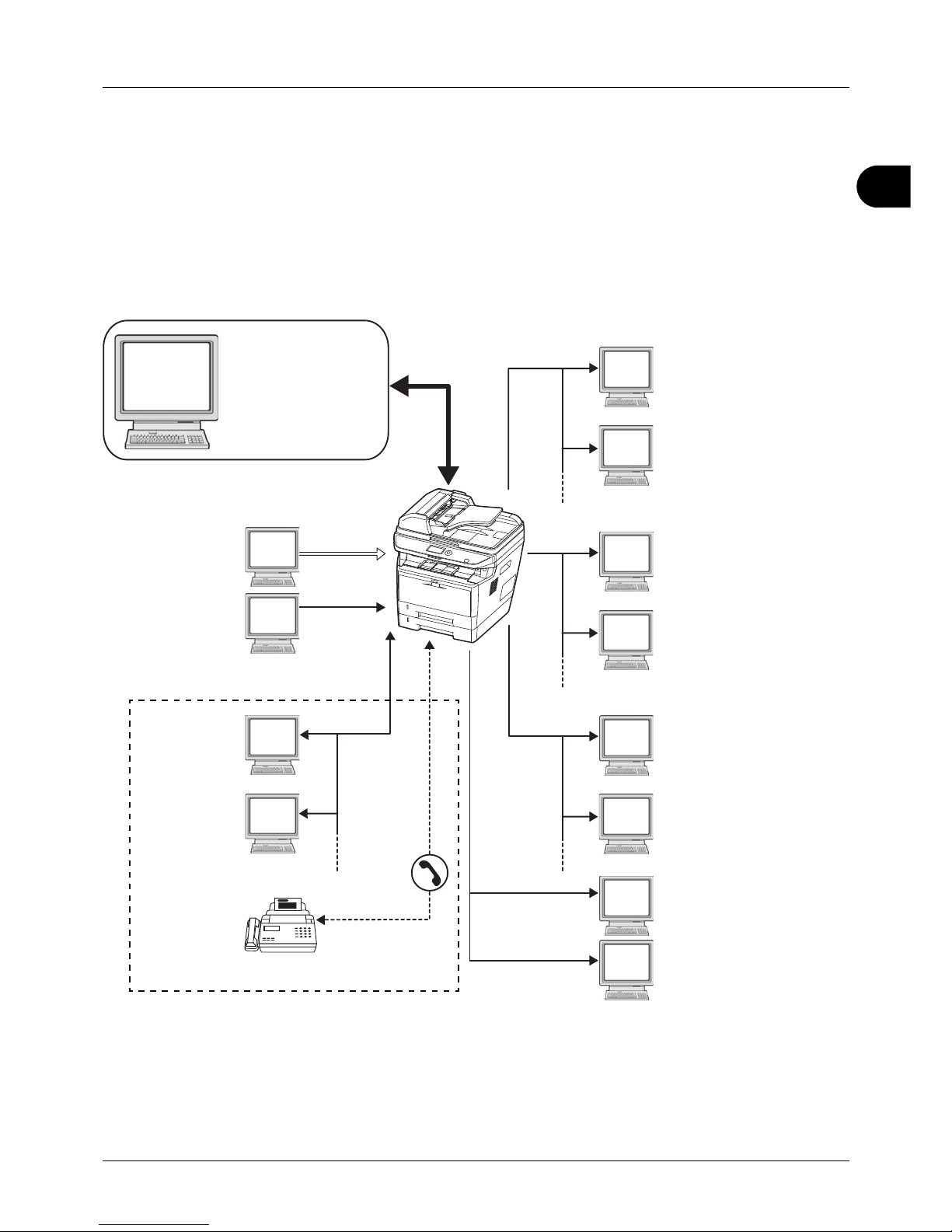
Connection Example
Determine the method to connect the equipment to a PC or network by referring to the illustration below.
Connecting a scanner to your PC network with a network
cable (100BASE-TX or 10BASE-T)
FAX
Send FTP
Sends the scanned
image as a data file on
the FTP.
Send E-mail
Sends the image data
of scanned originals to
the desired recipient
as a file attached to an
E-mail message.
Send SMB
Saves the scanned
image as a data file on
your PC.
MFP
FAX
Administrator’s
PC
Embedded Web Server
Network settings, Scanner
default settings, User and
destination registration
Network FAX
TWAIN Scanning
WIA Scanning
TWAIN and WIA are
standardized interface
for communication
between software
applications and image
acquisition devices.
USB
USB
Network
Printing
Network
Network
Network
Network
USB
* FAX functions available only in the machine with
fax.
Network
Network
Page 38
Preparation before Use
2-4
Preparing Necessary Cables
The following interfaces are available to connect the equipment to a PC. Prepare the necessary cables according to
the interface you use.
Available Standard Interfaces
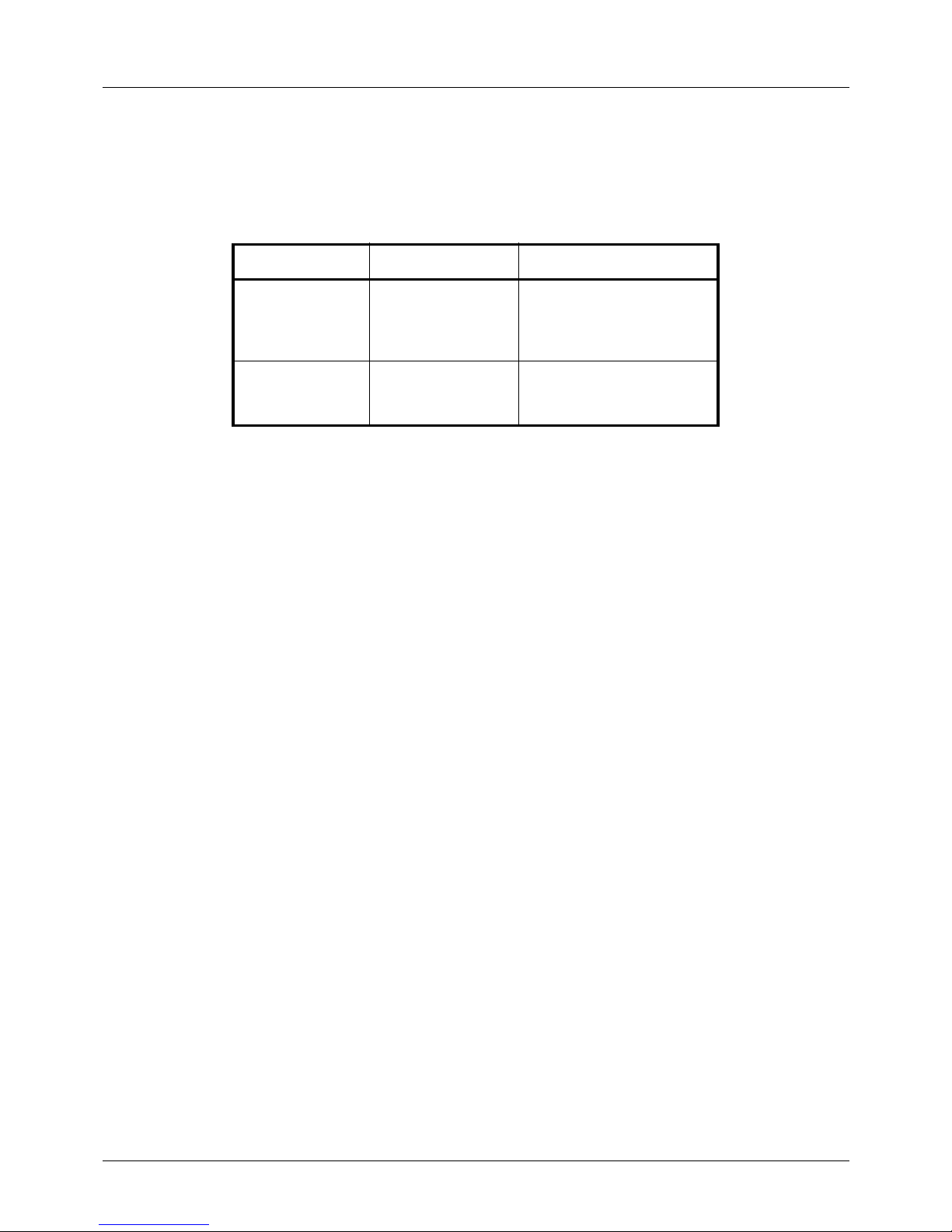
Function Interface Necessary Cable
Printer/Scanner/
TWAIN Scanning/
WIA Scanning/
/Network FAX*
* Network FAX and FAX functions available only in the machine with
fax. For details on Network FAX, refer to the FAX Operation Guide.
Network interface LAN (10Base-T or
100Base-TX, Shielded)
Printer/TWAIN
Scanning/WIA
Scanning
USB interface USB2.0 compatible cable
(Hi-Speed USB compliant,
Max. 5.0 m, Shielded)
Page 39
2
Preparation before Use
2-5
Connecting Cables
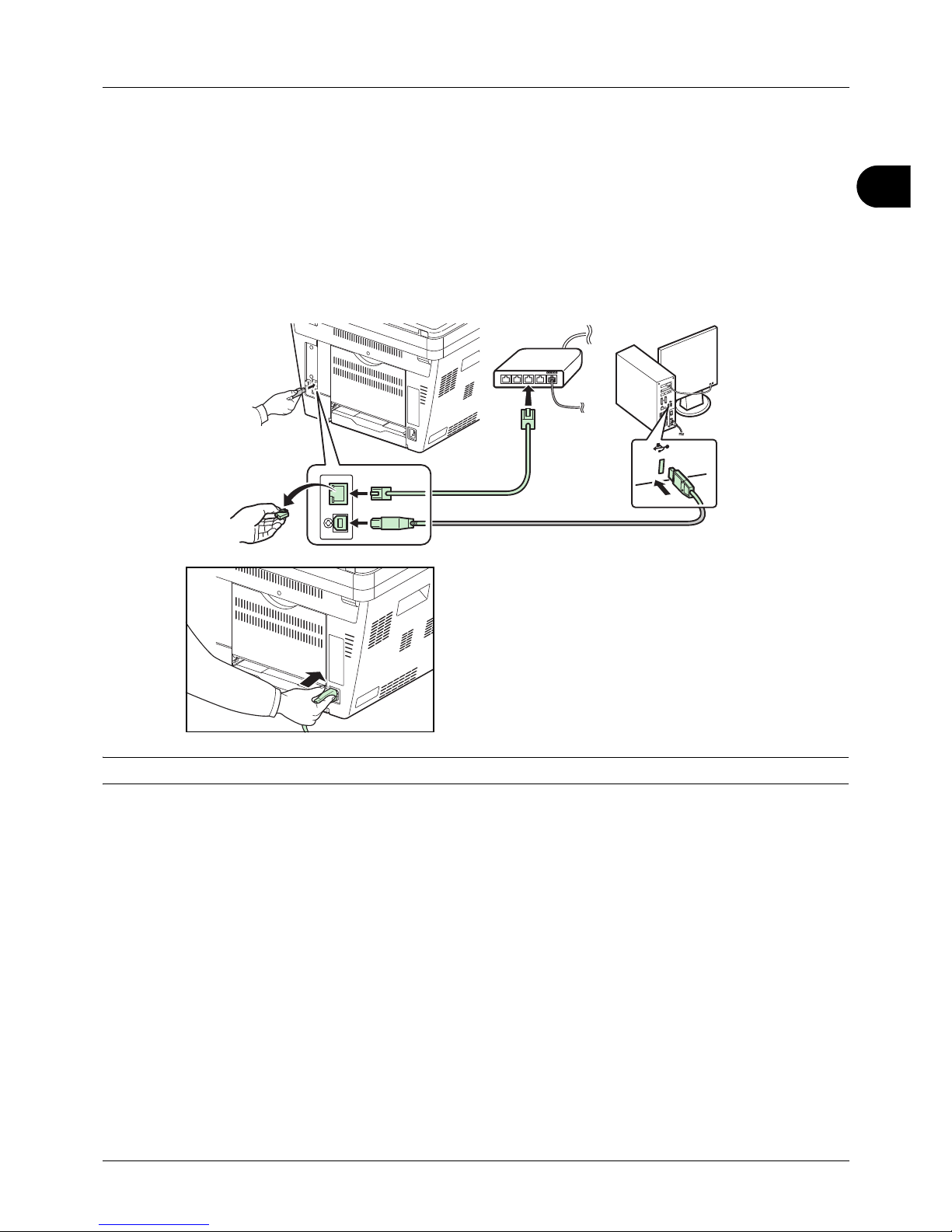
Follow the steps below to connect cables to the machine.
1 Connect the machine to the PC or your network device.
When using the network interface, remove the cap.
When connecting the network cable, configure the
network. For details, refer to Network Setup (LAN Cable
Connection) on page 2-13.
2 Connect one end of the supplied power cable to the
machine and the other end to a power outlet.
IMPORTANT: Only use the power cable that comes with the machine.
Page 40
Preparation before Use
2-6
Power On/Off
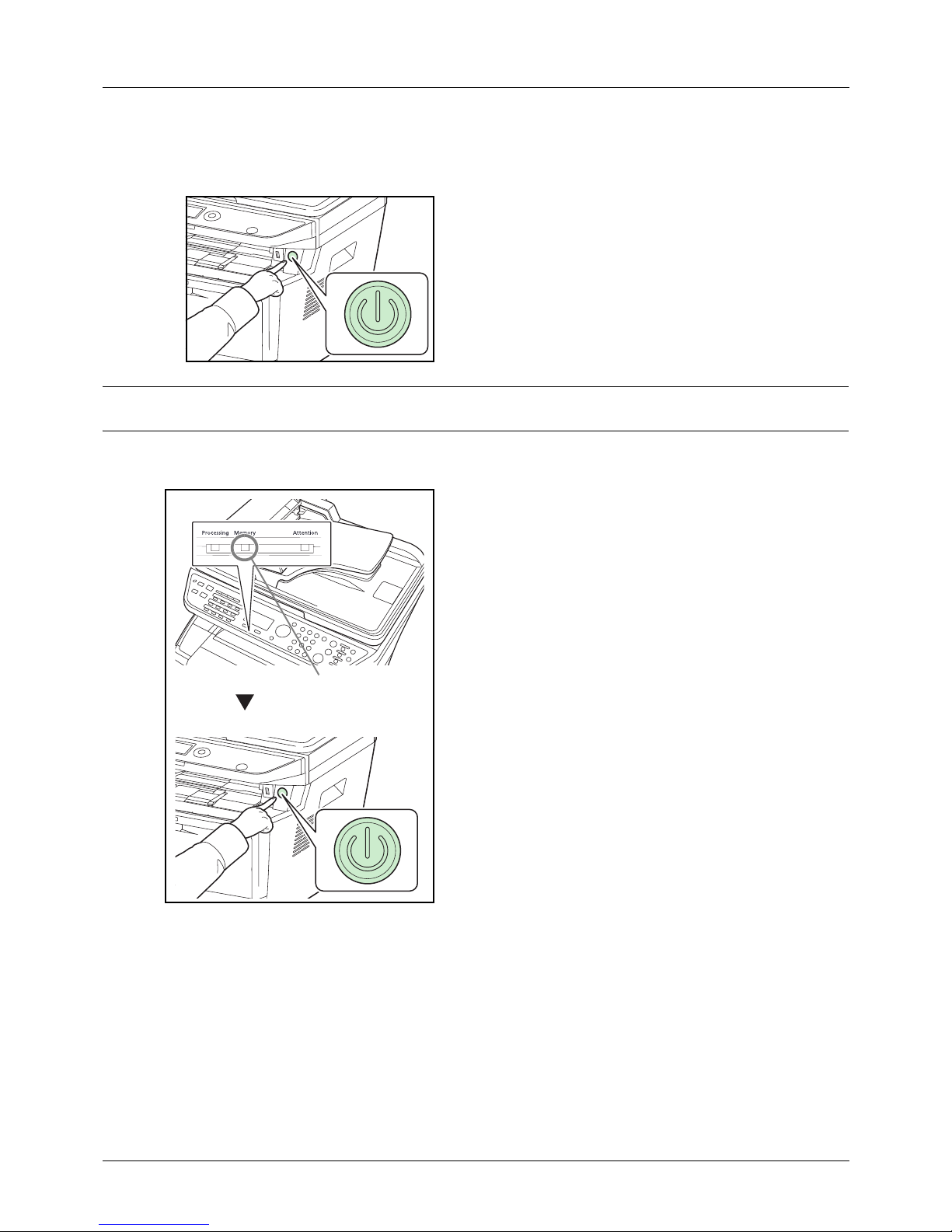
Power On
Press the Power switch.
IMPORTANT: When turning off the power switch, do not turn on the power switch again immediately. Wait more than
5 seconds, and then turn on the power switch.
Power Off
Make sure that the memory indicator is off, then press the
Power switch.
Make sure that the
indicator is off.
Page 41

2
Preparation before Use
2-7
Power Off Timer
If the machine is not used while in sleep mode, the power automatically turns off. The Power Off Timer is used to set
the time until the power turns off. The factory setting for the time until the power turns off is 1 hour.
IMPORTANT: You can set the power off rule and power off timer. For details, refer to Power Off Rule on page 8-35
and Power Off Timer on page 8-37.
In case of not using the machine for a extended period of time
CAUTION: If this machine will be left unused for an extended period (e.g. overnight), turn it off at the power
switch. If the machine will not be used for an even longer period of time (e.g. vacation), remove the power
plug from the outlet as a safety precaution. If using the machine with fax, note that turning the machine off at
the power switch disables fax transmission and reception.
CAUTION: Remove paper from the cassettes and seal it in the paper storage bag to protect it from humidity.
Sleep
When the set time (factory setting is 1 minute) elapses after the machine is last used, the machine automatically
enters sleep mode. The message display backlight and lights turn off to minimize power consumption. This status is
referred to as Sleep. When in the Sleep state, "Sleeping" appears in the message display.
If print data is received during Sleep, the print job is performed while the Message Display remains unlit.
If you are using the machine with fax, received fax data is printed out while the operation panel also remains unlit.
To use the machine, press the any key on the operation panel. The machine will be ready to operate in about 15
seconds.
Note that ambient environmental conditions, such as ventilation, may cause the machine to respond more slowly.
Page 42
Preparation before Use
2-8
Switching the Language for Display [Language]
Select the language displayed on the Message Display.
Use the procedure below to select the language.
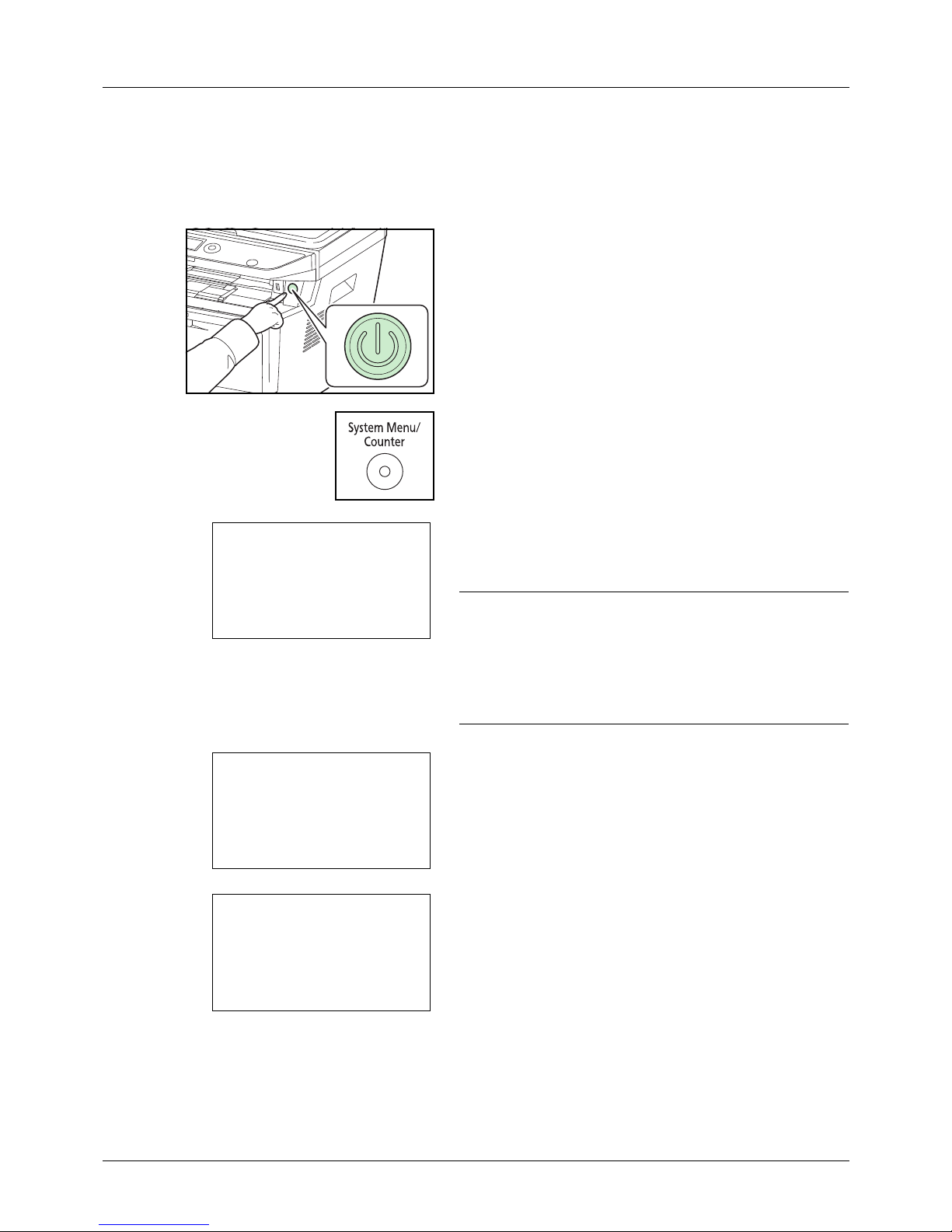
1 Press the Power switch.
2 Press the System Menu/Counter key on the main unit
operation panel.
When you are performing user management and have
not logged in, a login screen will appear. Then, enter the
user ID and password to log in.
NOTE: The following administrator is registered in the
machine at the factory.
Login User Name:30 ppm model:3000, 35 ppm model:3500
Login Password:30 ppm model:3000, 35 ppm model:3500
Refer to Character Entry Method on Appendix-5 for details
on entering characters.
3 In the Sys. Menu/Count. menu, press the U or V key to
select [Common Settings].
4 Press the OK key. The Common Settings menu appears.
5 Press the U or V key to select [Language].
Login User Name: L b
********************
Login Password:
[ Login ]
Sys. Menu/Count.:a b
3
System
4
User/Job Account
*********************
5
Common Settings
Common Settings:a b
*********************
2
Default Screen
3
Sound
[ Exit ]
1
Language
Page 43

2
Preparation before Use
2-9
6 Press the OK key. Language appears.
7 Press the U or V key to select the desired language and
then press the OK key.
Completed. is displayed and the screen returns to the
Common Settings menu.
Language:
a
b
*********************
2
Deutsch
3 Français
1
*English
Page 44
Preparation before Use
2-10
Setting Date and Time
Follow the steps below to set the local date and time at the place of installation.
When you send an E-mail using the transmission function, the date and time as set here will be printed in the header
of the E-mail message. Set the date, time and time difference from GMT of the region where the machine is used.
NOTE: Be sure to set the time difference before setting the date and time.
1 Press the System Menu/Counter key on the main unit
operation panel.
2 In the Sys. Menu/Count. menu, press the U or V key to
select [Common Settings].
3 Press the OK key. The Common Settings menu appears.
4 Press the U or V key to select [Date Setting], and press
the OK key.
5 A login screen will appear. Then, enter the user ID and
password with administrator privileges to log in, and
press [Login] (the Right Select key).
NOTE: The following administrator is registered in the
machine at the factory.
Login User Name: 30 ppm model:3000, 35 ppm model:3500
Login Password: 30 ppm model:3000, 35 ppm model:3500
6 The Date Setting menu appears.
7 Press the U or V key to select [Time Zone].
Sys. Menu/Count.:a b
3
System
4
User/Job Account
*********************
5
Common Settings
Common Settings: a b
*********************
2
Default Screen
3
Sound
[ Exit ]
1
Language
Login User Name: L b
********************
Login Password:
[ Login ]
Date Setting:
a
b
*********************
2
Date Format
3
Time Zone
[ Exit ]
1
Date/Time
Page 45
2
Preparation before Use
2-11
8 Press the OK key. Time Zone appears.
9 Press the U or V key to select your region and then
press the OK key.
Completed. is displayed and the screen returns to the
Date Setting menu.
10
Press the U or V key to select [Summer Time].
11
Press the OK key. Summer Time appears.
12
Press the U or V key to select [On] or [Off] and then
press the OK key.
Completed. is displayed and the screen returns to the
Date Setting menu.
13
Press the U or V key to select [Date/Time].
14
Press the OK key. Date/Time appears.
15
Press the Y or Z key to move the cursor position, press
the U or V key to enter year, month and day, and then
press the OK key.
Time Zone:
a b
GMT Casablanca
*********************
+01:00 Amsterdam
*GMT Greenwich
Date Setting:
a
b
2
Date Format
3
Time Zone
*********************
[ Exit ]
4
Summer Time
Summer Time:
a
b
*********************
2
On
1
*Off
Date Setting:
a
b
*********************
2
Date Format
3
Time Zone
[ Exit ]
1
Date/Time
Date/Time:
a
b
Year
Month Day
2011
01
01
(Time Zone:Greenwich)
Page 46

Preparation before Use
2-12
16
Press the Y or Z key to move the cursor position, press
the U or V key to enter hours, minutes and seconds,
and then press the OK key.
Completed. is displayed and the screen returns to the
Date Setting menu.
17
Press the U or V key to select [Date Format].
18
Press the OK key. Date Format appears.
19
Press the U or V key to select the desired display
format and then press the OK key.
Completed. is displayed and the screen returns to the
Date Setting menu.
Date/Time:
a
b
Hour
Min. Second
11:
45:
50
(Time Zone:Greenwich)
Date Setting:
a
b
1
Date/Time
*********************
3
Time Zone
[ Exit ]
2
Date Format
Date Format:
a
b
1
Month/Day/Year
*********************
3
Year/Month/Day
[ Exit ]
2
*Day/Month/Year
Page 47

2
Preparation before Use
2-13
Network Setup (LAN Cable Connection)
The machine is equipped with network interface, which is compatible with network protocols such as TCP/IP (IPv4),
TCP/IP (IPv6), IPX/SPX, NetBEUI, IPSec, and AppleTalk. It enables network printing on the Windows, Macintosh,
UNIX, NetWare and other platforms.
The table below shows the items required for each of the settings.
Configure the printer's network parameters as appropriate for your PC and your network environment.
For details of the procedure, refer to the Network Setup on page 8-116 or Network Security on page 8-135.
NOTE: When Embedded Web Server is used, network parameters and security settings can be conveniently
changed and checked from your PC. For more information, refer to Embedded Web Server (Settings for E-mail) on
page 2-26.
Menu Submenu Setting
System Network
Setting
TCP/IP
Settings
TCP/IP On/Off
IPv4 Setting DHCP On/Off
Bonjour On/Off
IP Address IP address
Subnet Mask IP address
Default Gateway IP address
IPv6 Setting On/Off
Protocol Detail NetBEUI On/Off
SNMPv3 On/Off
FTP (Server) On/Off
FTP (Client) On/Off
Port number: 21
SMB On/Off
SNMP On/Off
SMTP (E-mail TX) On/Off
POP3 (E-mail RX) On/Off
RAW Port On/Off
LPD On/Off
IPP On/Off
Port number:
631
IPP Over SSL On/Off
HTTP On/Off
HTTPS On/Off
LDAP On/Off
Page 48

Preparation before Use
2-14
NOTE: After all network related settings have been done, turn the machine OFF and ON again. This is mandatory
to make the settings effective!
NetWare On/Off
Frame Type
AppleTalk On/Off
WSD-SCAN On/Off
WSD-PRINT On/Off
IPSec IPSec On/Off
Rule Setting On/Off
Secure
Protocol
SSL On/Off
IPP Security IPP/IPP over SSL
IPPoverSSL only
HTTP Security HTTP/HTTPS
HTTPS only
LDAP Security Off
SSL/TLS
STARTTLS
SMTP Security Off
SSL/TLS
STARTTLS
POP3 Security 1 (2, 3) Off
SSL/TLS
STARTTLS
LAN Interface Auto
10Base-Half
10Base-Full
100Base-Half
100Base-Full
Page 49
2
Preparation before Use
2-15
Installing Software
Install appropriate software on your PC from the included Product Library DVD (Product Library) if you want to use
the printer function of this machine or perform TWAIN / WIA transmission or FAX transmission from your computer.
Ensure the printer is plugged in and connected to the PC before installing the printer driver from the DVD.
NOTE: Plug and Play is disabled on this device when in Sleep Mode. Wake the device from Sleep Mode before
continuing. See Sleep on page 2-7.
FAX functions available only on products with the fax function installed.
Installing the Software in Windows
If you are connecting this printer to a Windows PC, follow the next steps to install the printer driver. The example
shows you how to connect your printer to a Windows Vista PC.
NOTE: In Windows operating systems, you must be logged in with administrator rights to install the printer driver.
You can use either Express Mode or Custom Mode to install the software. Express Mode automatically detects
connected printers and installs the required software. Use Custom Mode if you want to specify the printer port and
select the software to be installed.
1 Turn on the computer and start up Windows.
If the Welcome to the Found New Hardware Wizard dialog box displays, select Cancel.
2 Insert the DVD supplied with the printer into the optical drive of the PC. In Windows 7, Windows Server 2008 and
Windows Vista, the user account control window may appear. Click Allow.
The installation program launches.
NOTE: If the software install wizard does not launch automatically, open the DVD window in Windows Explorer and
double-click Setup.exe.
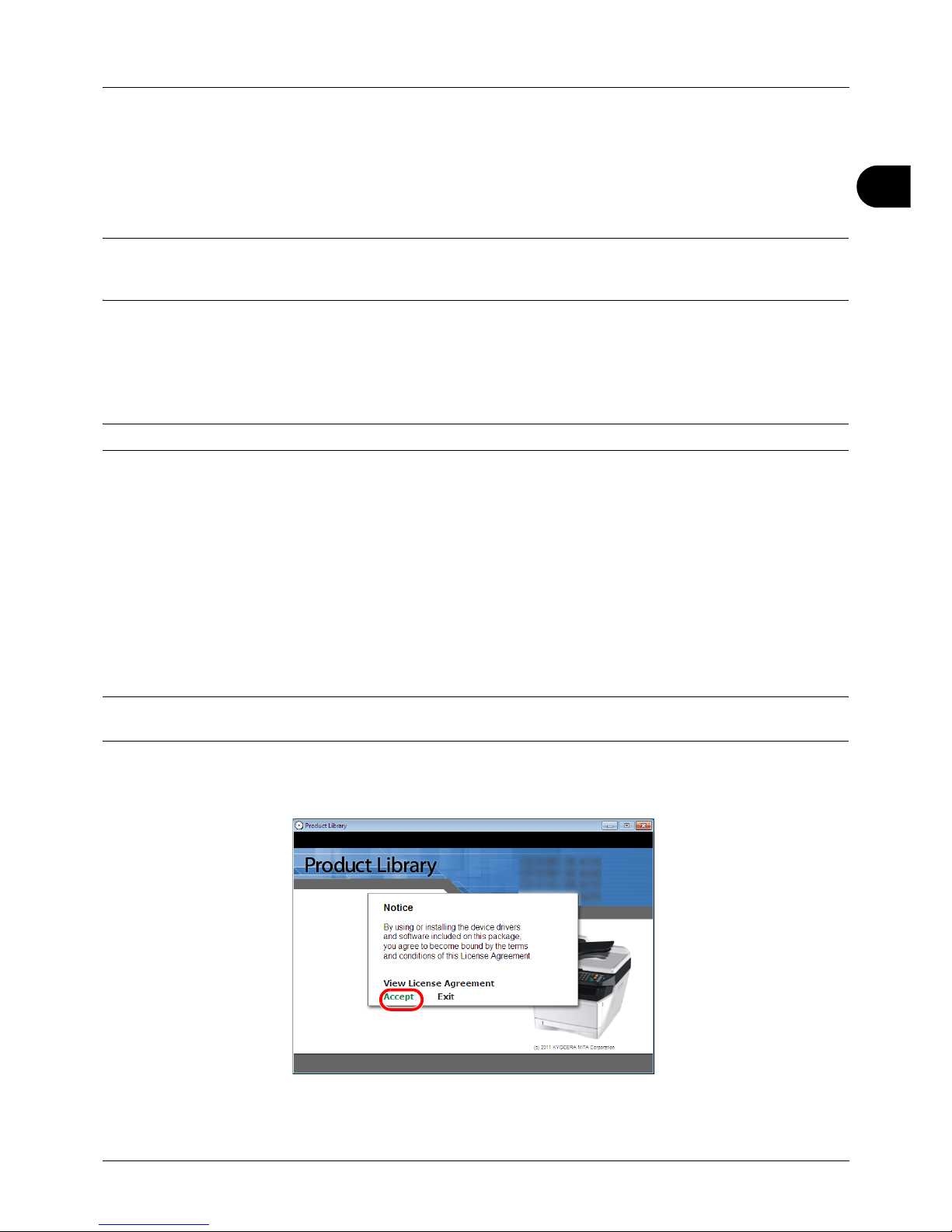
3 Click View License Agreement and read the License Agreement. Click Accept.
Page 50
Preparation before Use
2-16
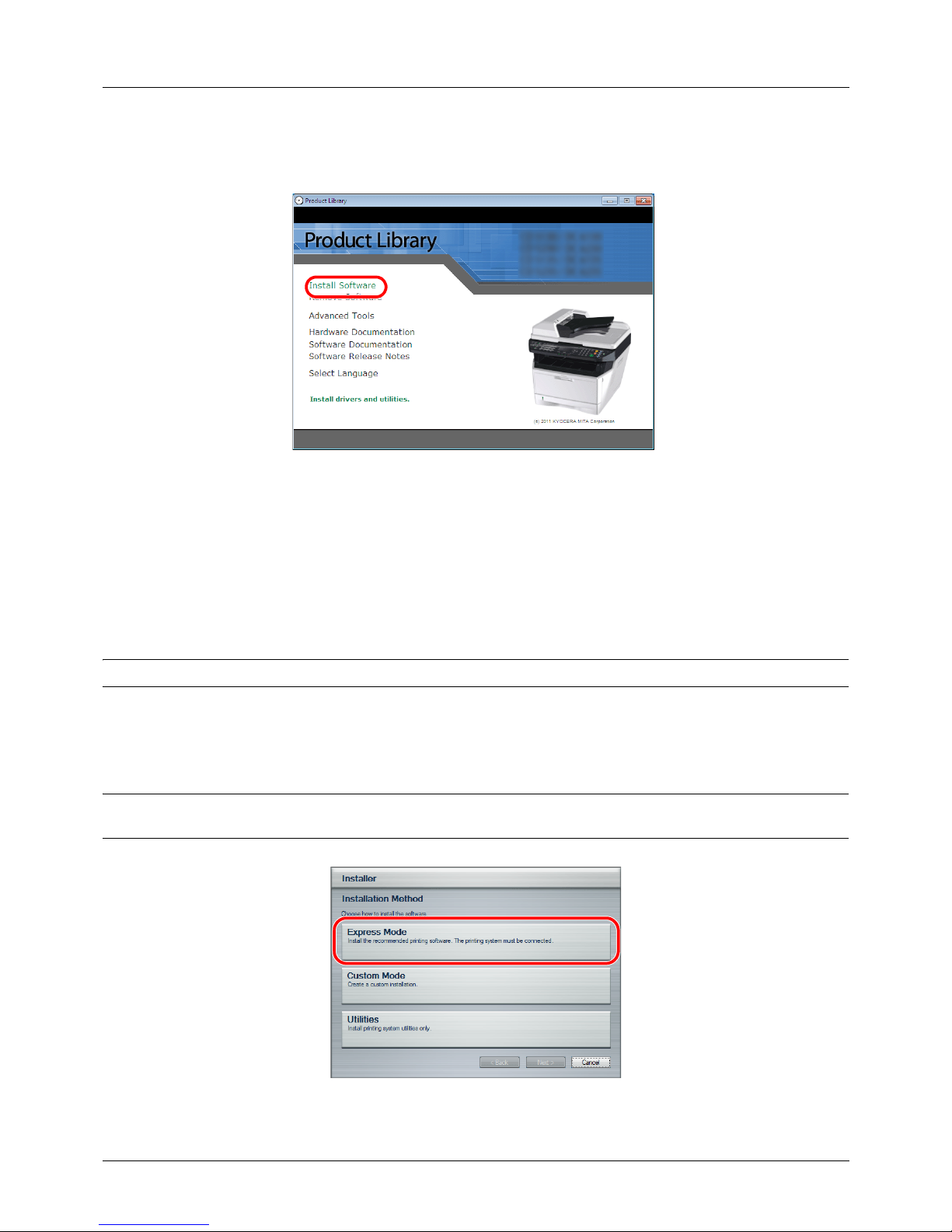
4 Click Install software.
The software install wizard starts up.
From this point, the procedure differs depending on your version of Windows and your connection method.
Proceed to the correct procedure for your connection type.
• Express Mode
• Custom Mode
Express Mode
In Express Mode, the installer automatically detects the printer when it is turned on. Use Express Mode for standard
connection methods.
NOTE: The TWAIN driver is automatically installed on your computer in this mode.
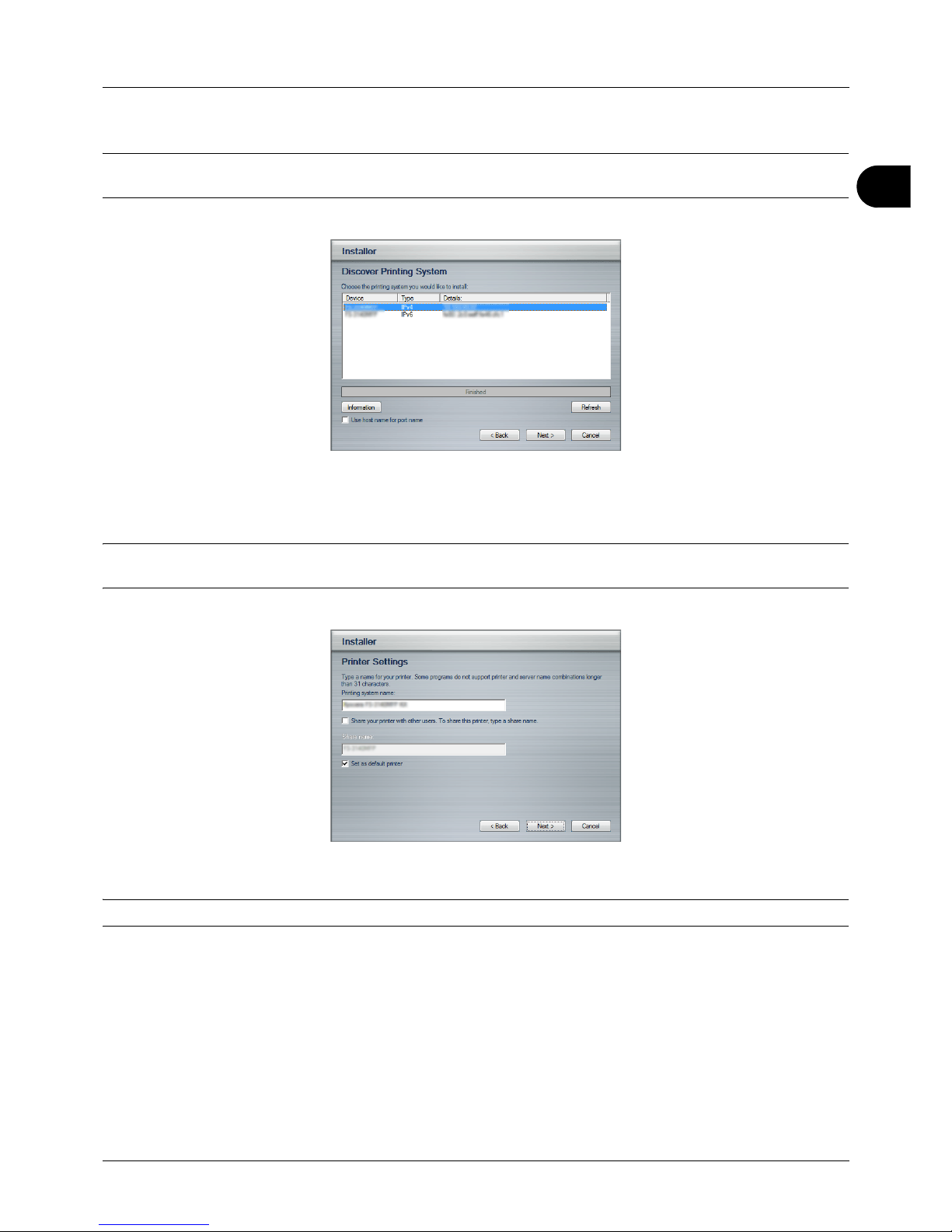
1 In the installation method selection window, select Express Mode. The print system detection window appears
and the installer detects the connected printers. If the installer does not detect a print system, check that the print
system is connected via USB or a network and that it is turned on. Then click Refresh to search print system
again.
NOTE: While the information shown in Windows Vista and Windows 7/Windows XP installation dialog boxes differs
slightly, the installation procedure is the same.
Page 51
2
Preparation before Use
2-17
2 Select the printer you want to be installed, and click Next.
NOTE: If the Found New Hardware Wizard appears, click Cancel. If a hardware installation warning message
appear, click Continue.
3 You can customize the print system name in the installation settings window. This will be the name displayed in
the Printer window and in the printer lists displayed in applications. Specify whether to share the print system
name or set the print system as an existing printer and then click Next.
IMPORTANT: Step 3 only appears if the print system is connected via a network. It does not appear if the print system
is connected via a USB at the time of the first installation.
4 A window appears in which you can check the settings. Check the settings carefully and then click Install.
NOTE: If the Windows security window appears, click Install this driver software anyway.
5 A message appears saying that the printer has been installed successfully. Click Finish to exit the printer
installation wizard and return the DVD main menu.
If the device setup dialog box appears after you click Finish, you can specify the settings for items such as
optional features installed in the print system. You can also specify the device settings after you exit the
installation. For details, refer to Device Settings in the Printing System Driver User Guide on the DVD.
This completes the printer driver installation procedure. Follow the on-screen instructions to restart the system,
if required.
Page 52
Preparation before Use
2-18
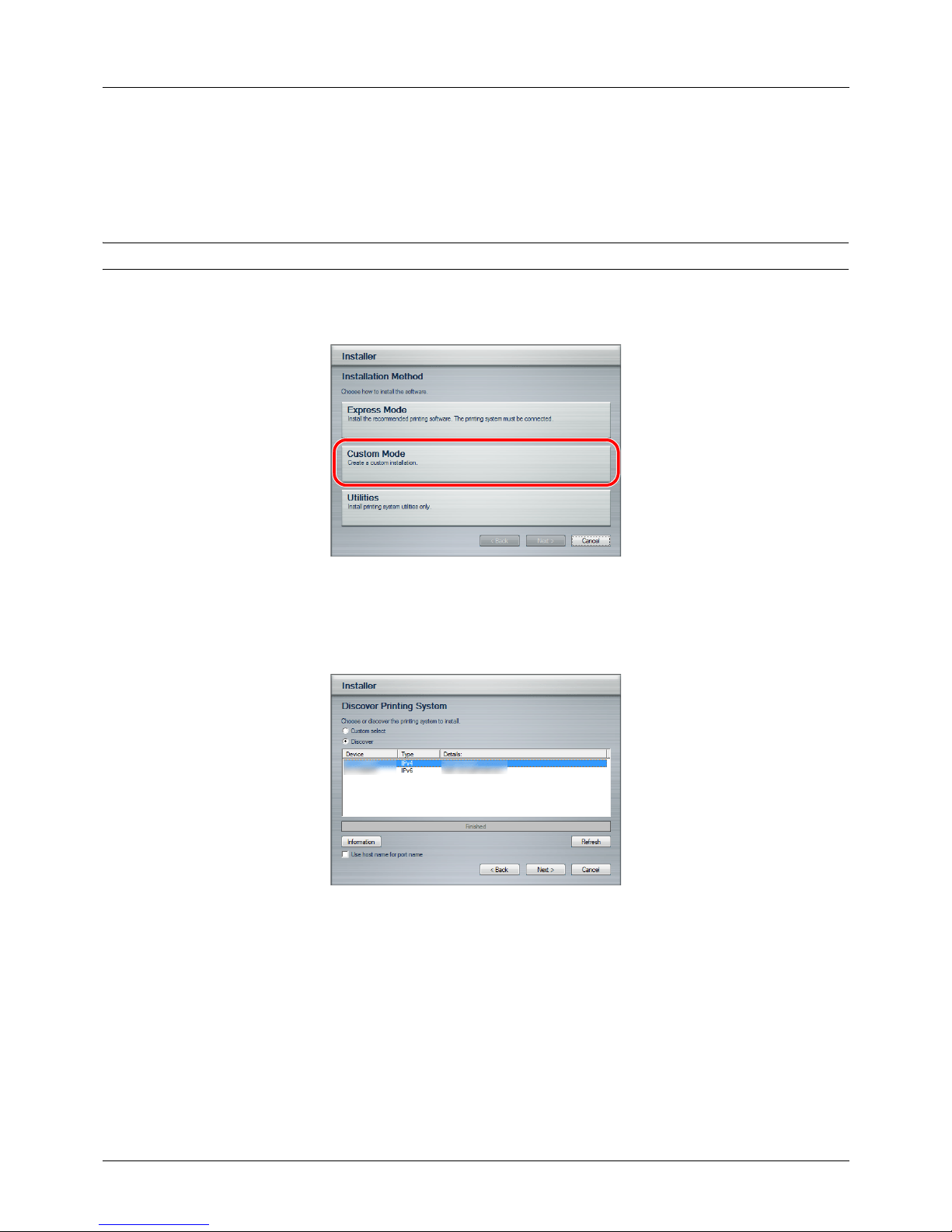
Custom Mode
Use Custom Mode if you want to specify the printer port and select the software to be installed.
For example, if you do not want fonts installed on your computer to be replaced, select Custom Mode and deselect
the Fonts checkbox in the utility tab.
NOTE: Install the WIA driver on your computer in this mode.
1 Select Custom Mode.
2 Following the instructions in the install wizard window, select the software packages to be installed and the
specify the port, etc.
For details, refer to Custom Installation in the Printing System Driver User Guide on the DVD.
Installation on a Macintosh
This section explains how to install the printer driver in Mac OS.
1 Turn on the printer and the Macintosh.
2 Insert the included DVD (Product Library) into the DVD drive.
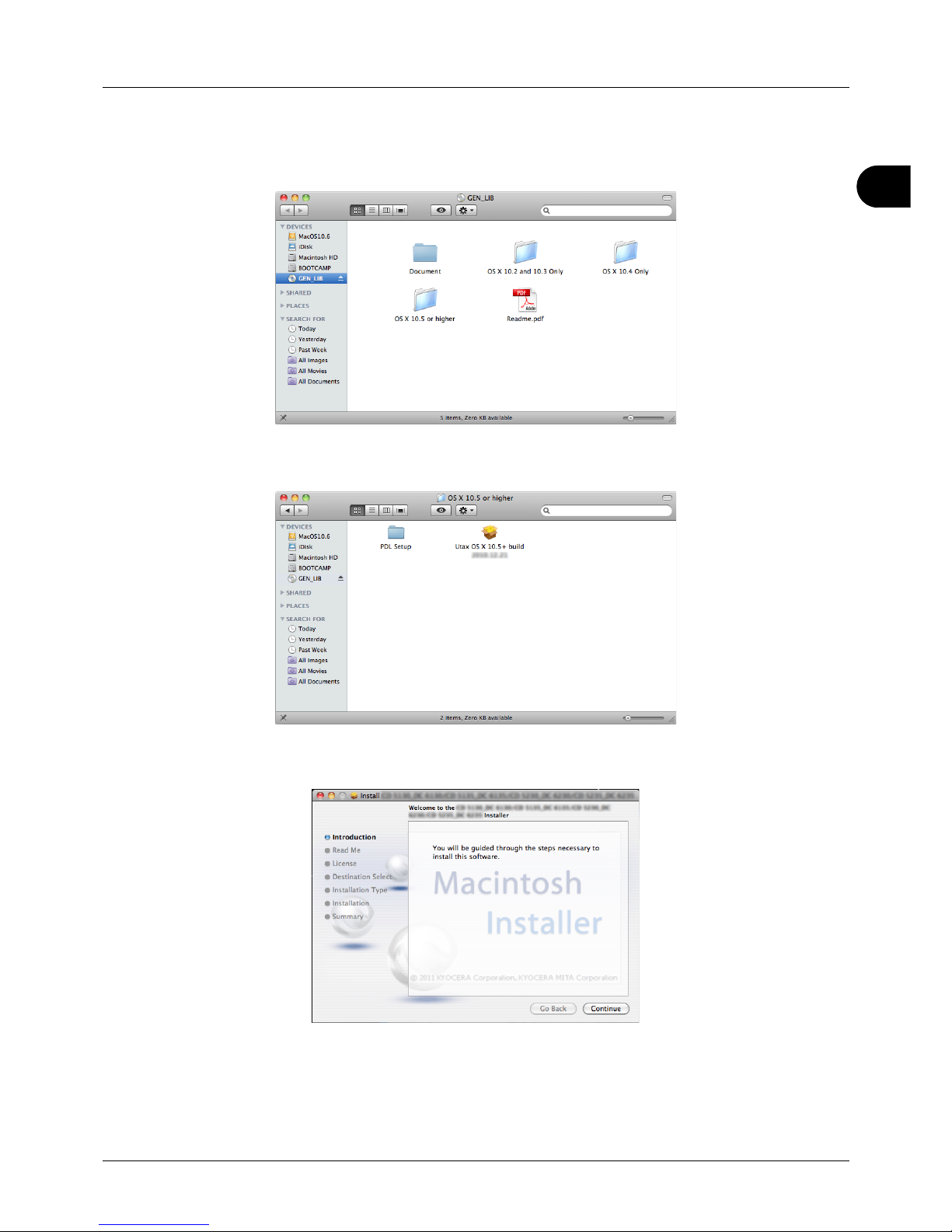
3 Double-click the GEN LIB icon.
Page 53
2
Preparation before Use
2-19
4 Double-click either OS X 10.2 and 10.3 Only, OS X 10.4 Only or OS X 10.5 or higher depending on your Mac
OS version.
5 Double-click (Brand name) OS X x.x.
6 The printer driver installation program starts up.
Page 54
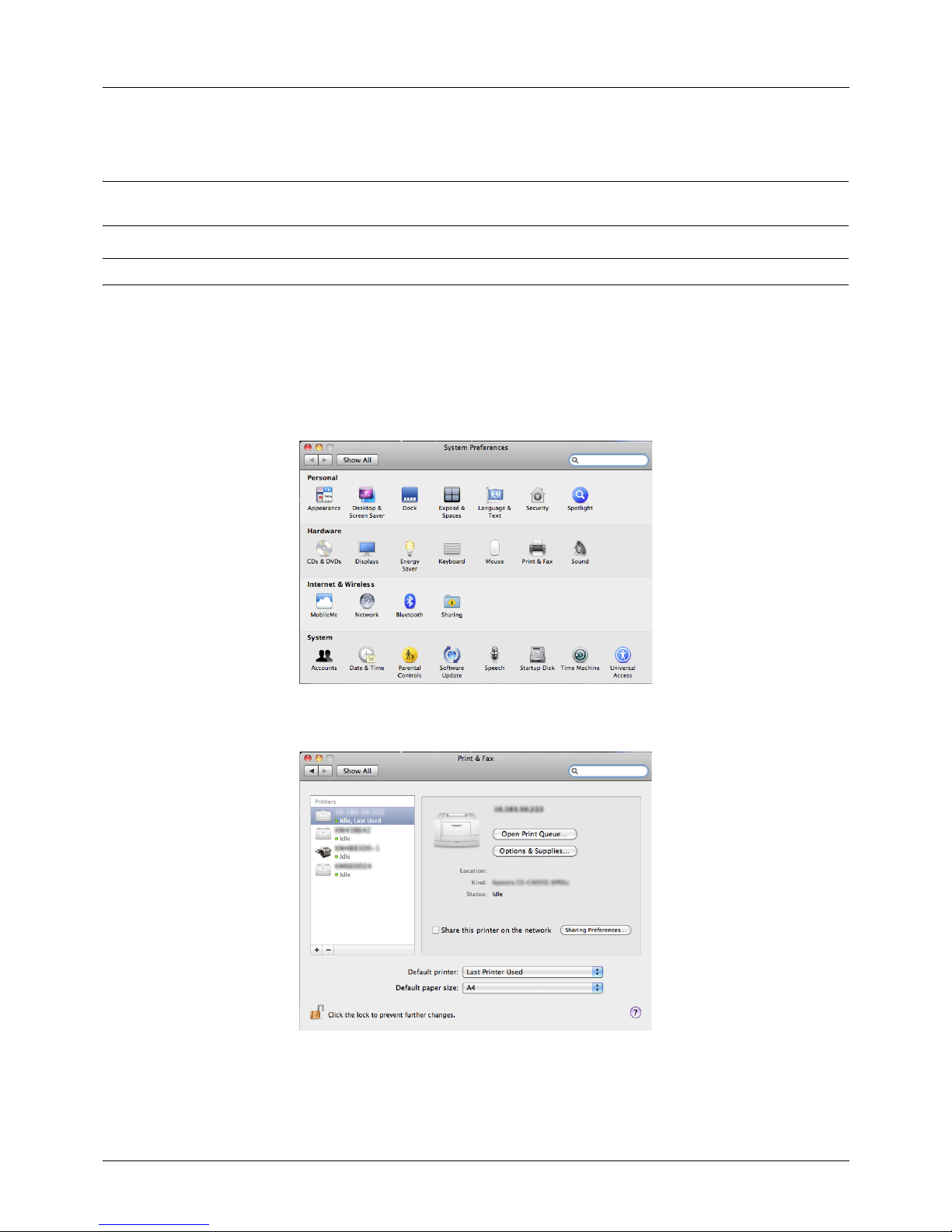
Preparation before Use
2-20
7 Choose Select Destination, Installation Type and then install the printer driver as directed by the instructions
in the installation software.
NOTE: In addition to Easy Install (Standard Install: OS X 10.5 or higher), the Installation Type options include
Custom Install, which allows you to specify the components to be installed.
IMPORTANT: In the Authenticate screen, enter the name and password used to log in to the operating system.
This completes the printer driver installation. Next, specify the print settings.
If an IP, AppleTalk or Bonjour connection is used, the settings below are required. If a USB connection is used,
the printer is automatically recognized and connected.
8 Open System Preferences and click Print & Fax.
9 Click the plus symbol (+) to add the installed printer driver.
Page 55
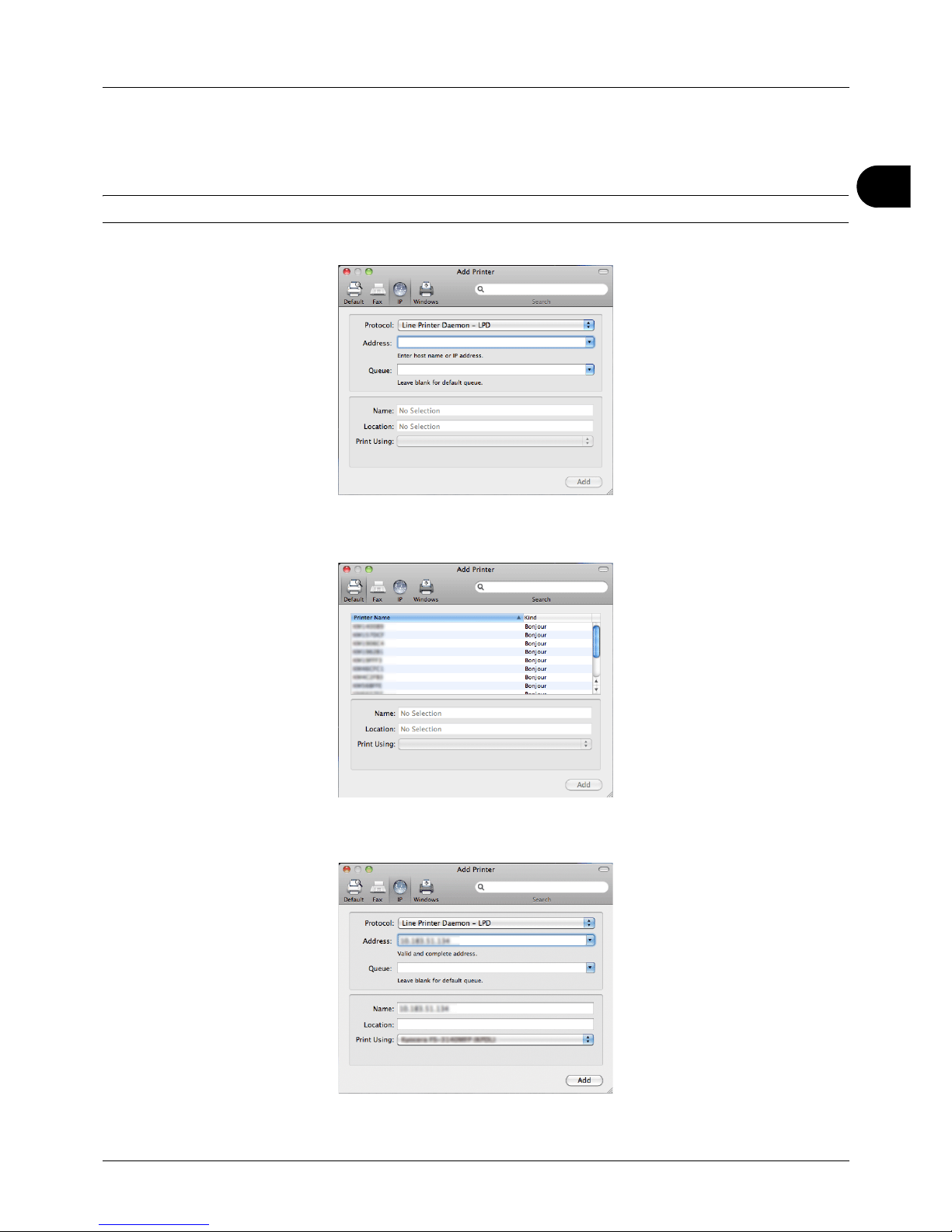
2
Preparation before Use
2-21
10 Click the IP icon for an IP connection and then enter the IP address and printer name.
When you click the AppleTalk icon for an AppleTalk connection, enter the printer name.
NOTE: AppleTalk icon is not displayed on Mac OS X 10.6.
For a Bonjour connection, click the default icon and select the printer for which Bonjour appears in Connection.
11 Select the installed printer driver and click Add.
Page 56
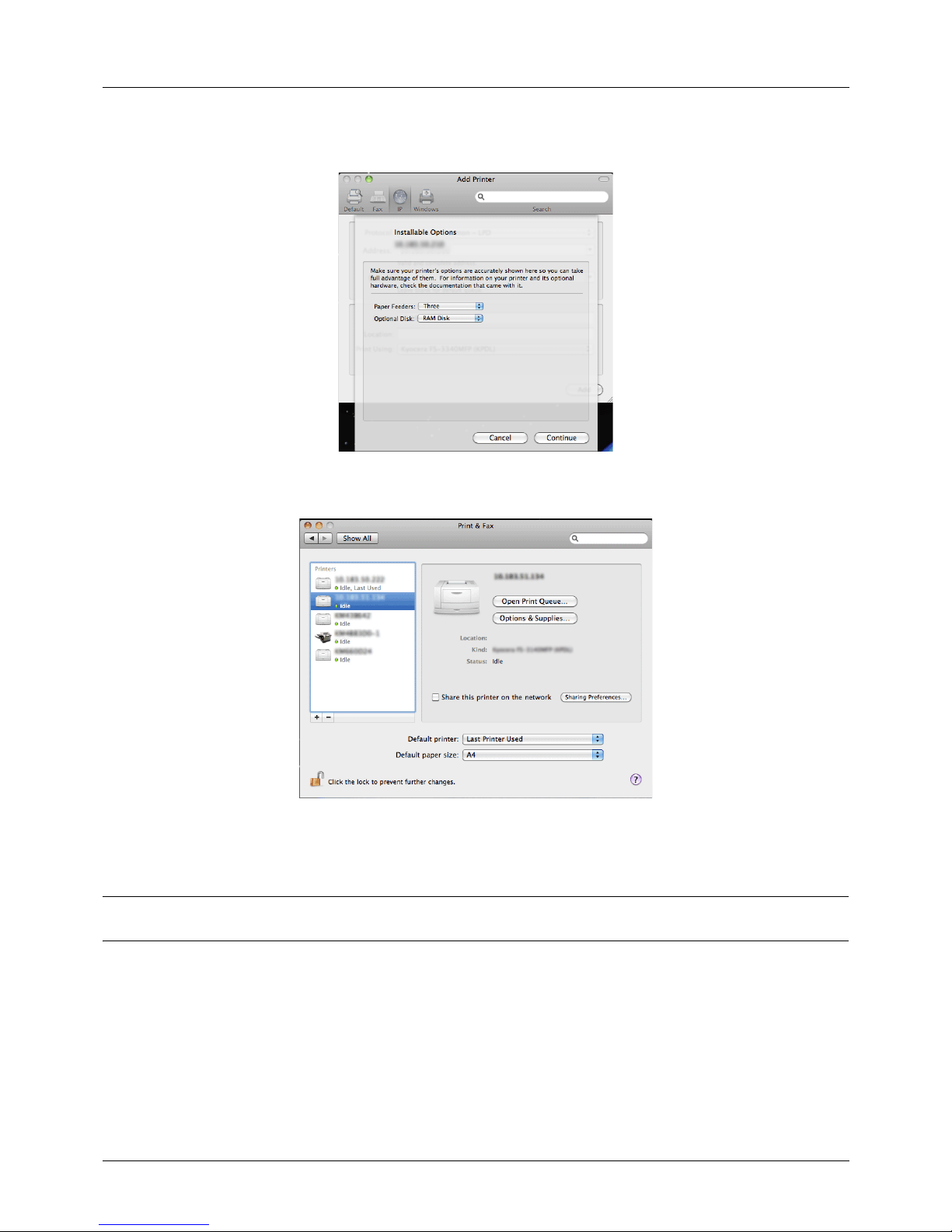
Preparation before Use
2-22
12 Select the options available for the printer and click Continue.
13 The selected printer is added. This completes the printer setup procedure.
Uninstalling Software (Windows PC)
The software can be uninstalled (removed) using the DVD (Product Library) supplied with the printer.
IMPORTANT: On Macintosh computers, because the printer settings are specified using a PPD (PostScript Printer
Description) file, the software cannot be uninstalled using the DVD (Product Library).
1 Exit all active software applications.
2 Insert the enclosed DVD (Product Library) into the DVD drive. In Windows 7, Windows Server 2008 and Windows
Vista, the user account control window may appear. Click Allow.
3 Following the procedure used to install the printer driver, click Remove Software. The Uninstaller wizard
appears.
4 Select the software package to remove.
Page 57
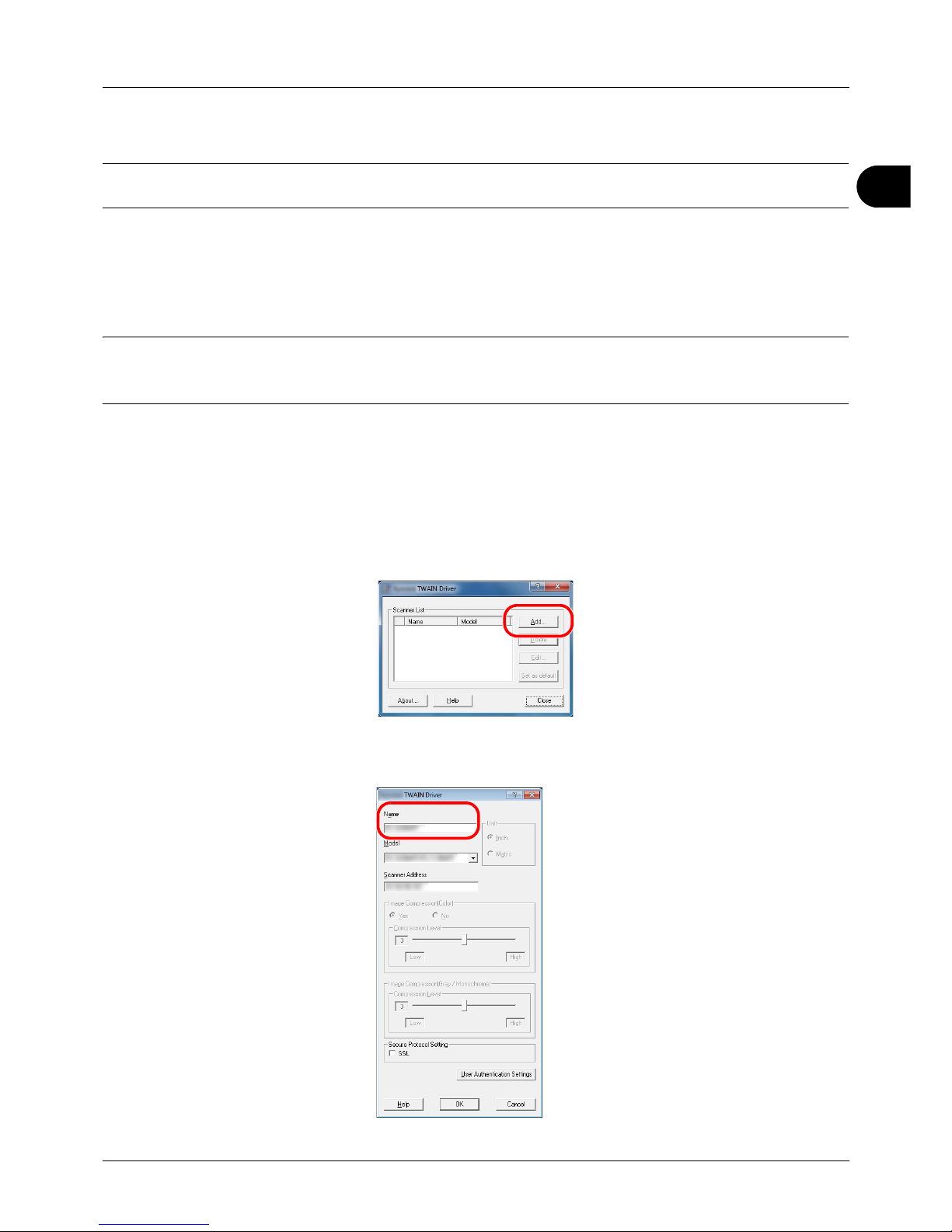
2
Preparation before Use
2-23
5 Click Uninstall.
NOTE: When Network Print Monitor is installed, separate uninstallers are launched for this application. Proceed
with the uninstallation steps for this application as directed by the on-screen instructions.
The uninstaller starts.
6 When Uninstall complete screen appears, click Finish.
7 If Restart Your System screen appears, select whether you restart your computer or not, and click Finish.
NOTE: The software can be uninstalled from the Start menu.
Start the uninstaller by clicking start > All Programs > (Brand Name) > Uninstall (Brand Name) Product Library,
and uninstall the software.
Setting TWAIN Driver
Register this machine to the TWAIN Driver.
1 Start the TWAIN Driver by clicking start > All Programs > (Brand Name) > TWAIN Driver Setting.
2 Click Add.
3 Enter the machine name in the Name field.
Page 58
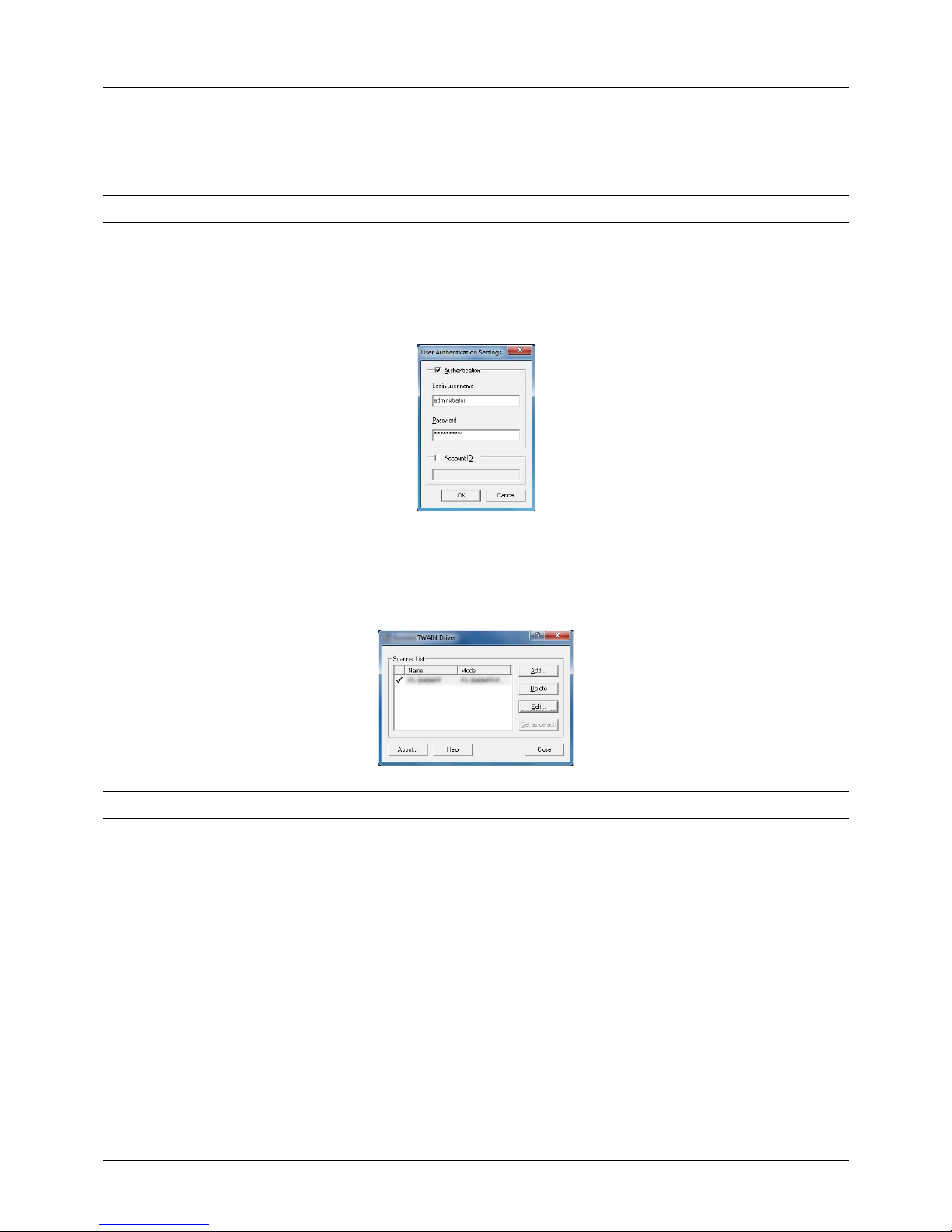
Preparation before Use
2-24
4 Click T next to the Model field and select this machine from the list.
5 Enter the machine’s IP address or host name in the Scanner Address.
NOTE: When the machine’s IP address is unknown, contact Administrator.
6 Click User Authentication Settings. If user login administration is invalid, go to Step 8.
7 Select the checkbox beside Authentication, enter Login User Name (up to 64 characters) and Password (up to
64 characters) and then click OK.
8 Click OK.
9 The machine is registered to the PC and the machine name and model name are displayed in the Scanner List
field.
NOTE: Click Delete to delete the added machine. Click Edit to change names and other settings.
Page 59
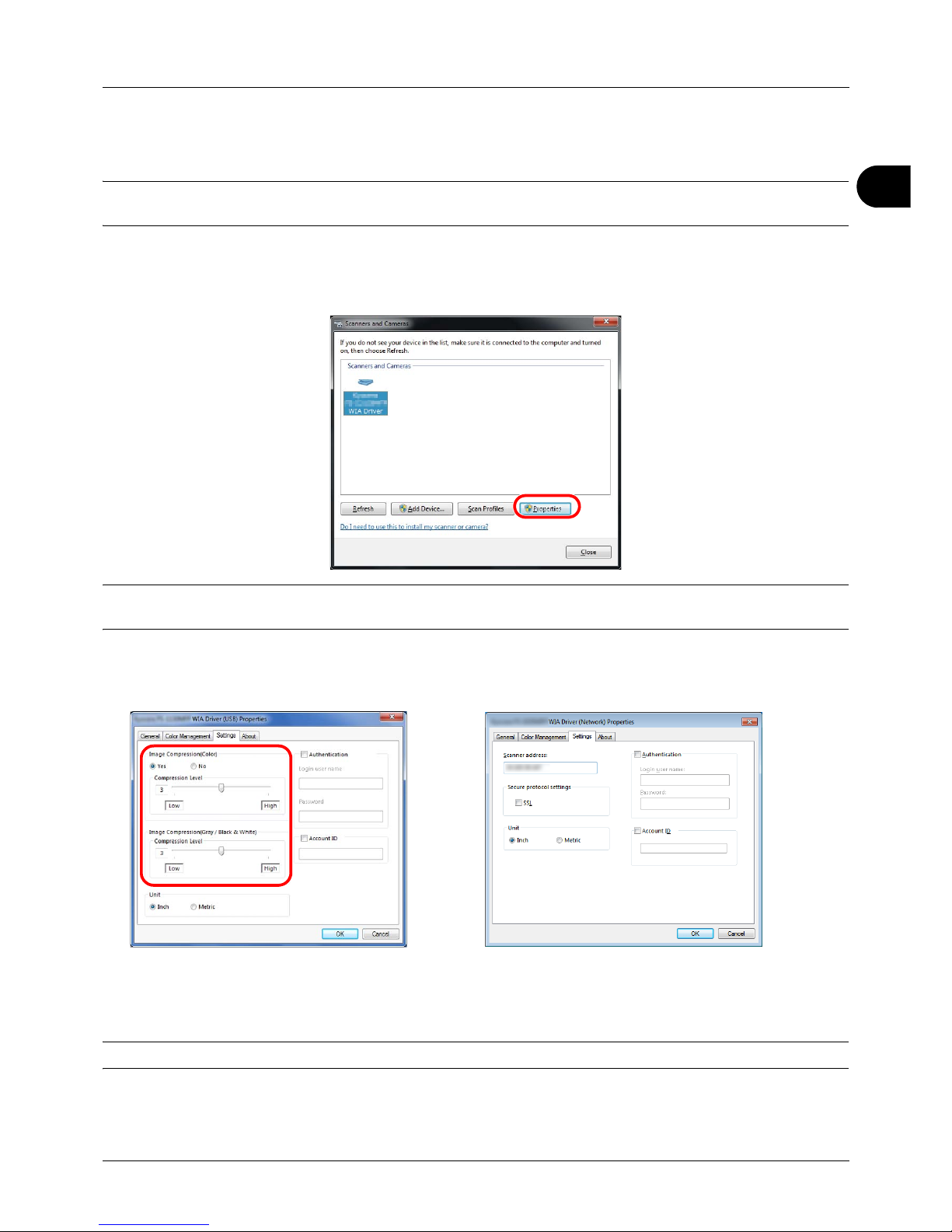
2
Preparation before Use
2-25
Setting the WIA Driver (Windows Vista™, Windows® Server 2008 and Windows 7)
Register this machine to the WIA Driver.
NOTE: The following is not necessary to register when using the machine possesses an IP address or host name
that you have specified during installation of WIA Driver.
1 Click Start, Control Panel and then Scanners and Cameras. For Windows 7, in the search box, type scanners
and cameras, and then click Scanners and Cameras.
2 Select the same name as this machine from WIA Drivers, and press Properties.
NOTE: If Windows Security and User Account Control are displayed, no trouble should be found with operation
after installing the driver and software we have provided. Continue installation.
3 When the machine is connected with the USB cable, click the Settings tab and select Image Compression and
the Compression Level. If user login administration is invalid, go to Step 5.
When the machine is connected with the network cable, go to Step 4.
4 Select the checkbox beside Authentication, enter Login User Name (up to 64 characters) and Password (up to
64 characters) and then click OK.
NOTE: When the machine’s IP address is unknown, contact Administrator.
5 Click Close.
The machine is registered to the PC.
Page 60
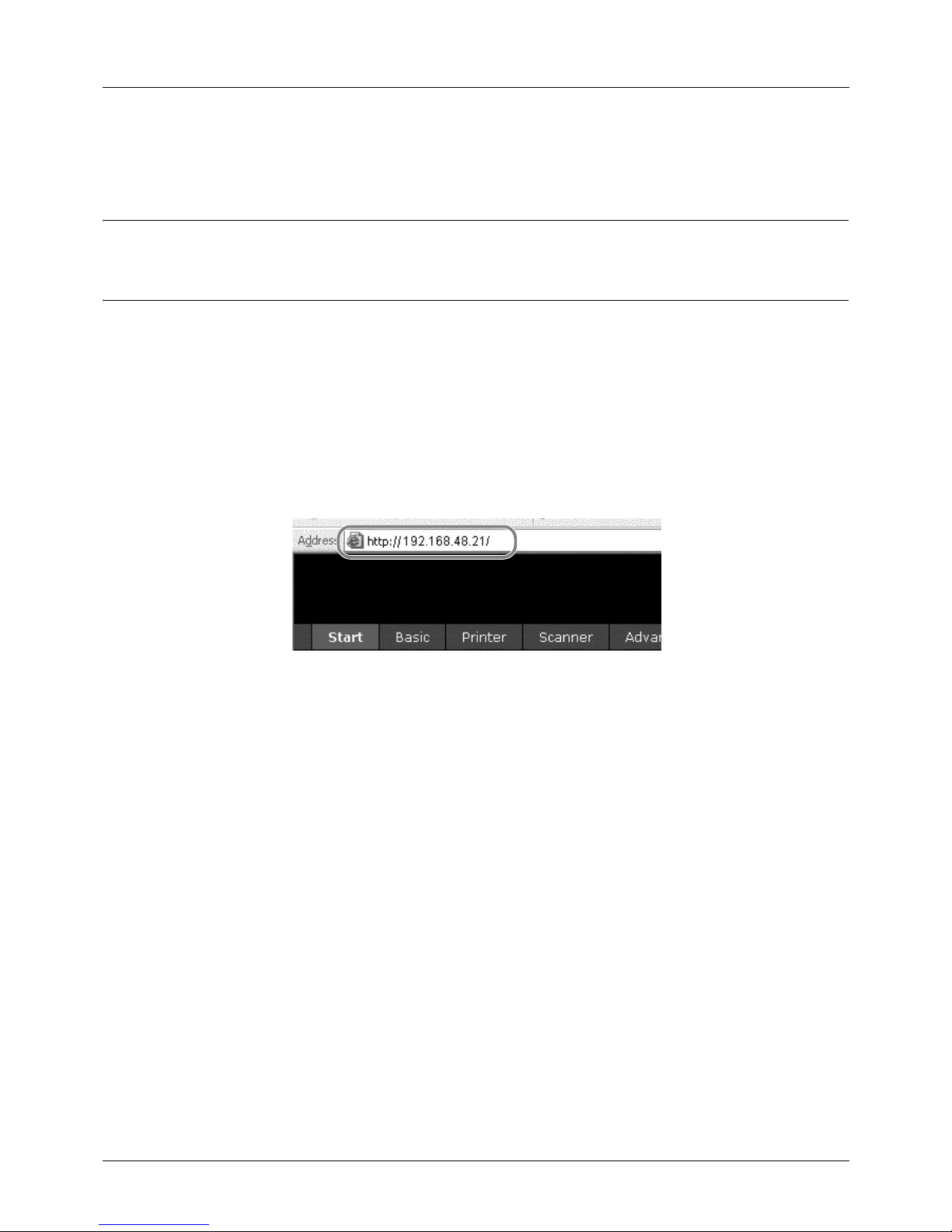
Preparation before Use
2-26
Embedded Web Server (Settings for E-mail)
Embedded Web Server is a tool used for tasks such as verifying the operating status of the machine and changing
the settings for security, network printing, E-mail transmission and advanced networking.
NOTE: Here, information on the FAX settings has been omitted. For more information on using the FAX, refer to the
FAX Operation Guide.
FAX functions available only in the machine with fax.
The procedure for accessing Embedded Web Server is explained below.
1 Launch your Web browser.
2 In the Address or Location bar, enter the machine’s IP address.
E.g.) http://192.168.48.21/
The web page displays basic information about the machine and Embedded Web Server as well as their current
status.
3 Select a category from the navigation bar on the left of the screen. The values for each category must be set
separately.
Enter the correct password to access pages other than the startup page. The default setting is admin00. The
password can be changed.
For details, refer to the Embedded Web Server Operation Guide.
Page 61
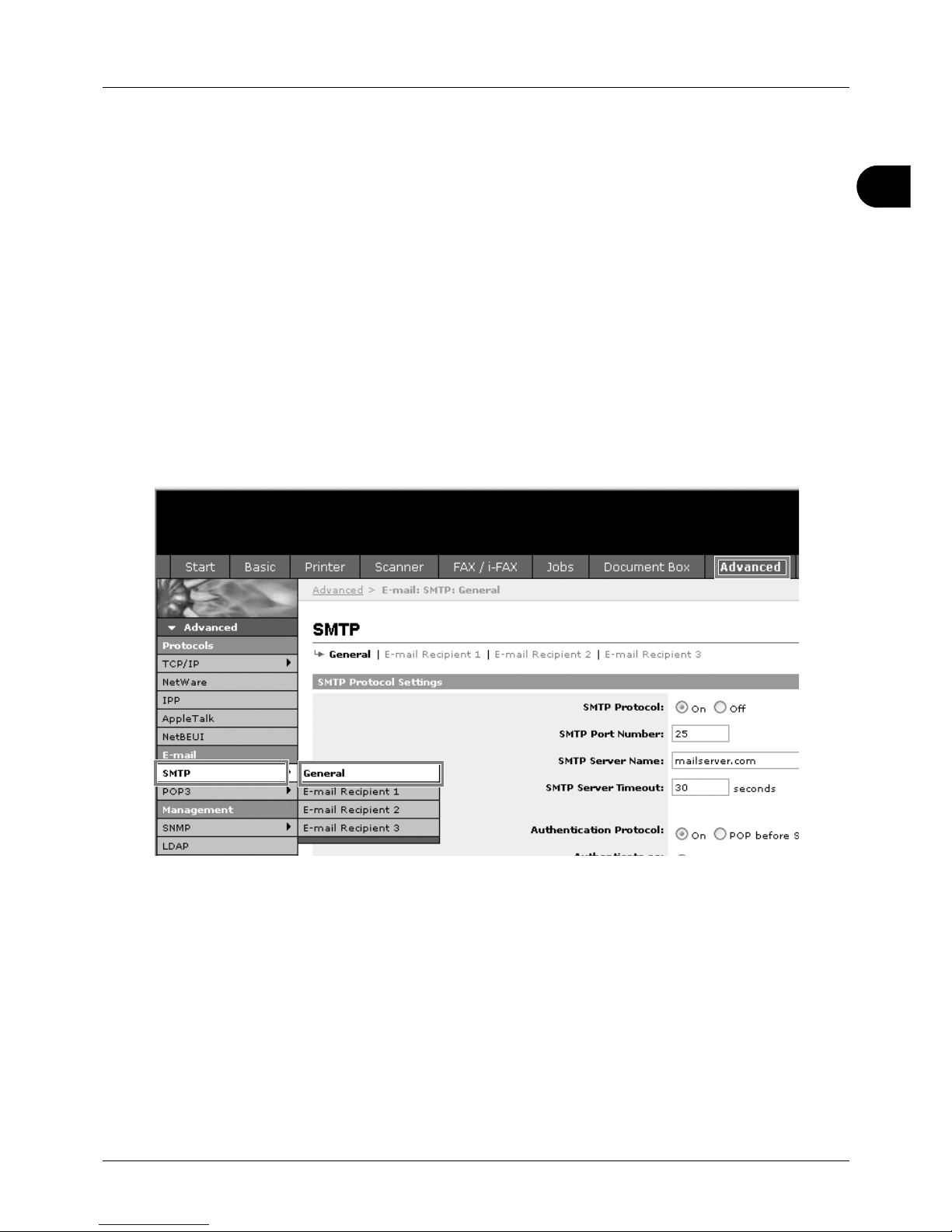
2
Preparation before Use
2-27
Sending E-mail
Specifying the SMTP settings allows you to send images loaded onto this machine as E-mail attachments.
To use this function, this machine must be connected to a mail server using the SMTP protocol.
Before sending images loaded onto this machine as E-mail attachments, check the following:
• The network environment used to connect this machine to the mail server
A full-time connection via a LAN is recommended.
• SMTP Settings
Use Embedded Web Server to register the IP address or host name of the SMTP server.
• If limits have been set on the size of E-mail messages, it may not be possible to send very large E-mails.
• Sender address
The procedure for specifying the SMTP settings is explained below.
1 Click Advanced -> SMTP -> General.
Page 62

Preparation before Use
2-28
2 Enter the correct settings in each field.
The settings to be specified in the SMTP settings screen are shown below.
3 Click Submit.
Item Description
SMTP Protocol Enables or disables SMTP protocol. To use E-mail, this protocol must be
enabled.
SMTP Port Number Set the SMTP Port Number or use the SMTP default port 25.
SMTP Server Name Enter the SMTP server IP address or its name. The maximum length of the
SMTP server name and IP address is 64 characters. If entering the name, a DNS
server address must also be configured. The DNS server address may be
entered on the TCP/IP General tab.
SMTP Server Timeout Enter the default time out for the server in seconds.
Authentication Protocol Enables or disables the SMTP authentication protocol or sets POP before SMTP
as the protocol. The SMTP authentication supports Microsoft Exchange 2000.
Authenticate as Authentication can be set from three POP3 accounts or you can choose a
different account.
Login User Name When Other is selected for Authenticate, the login user name set here will be
used for SMTP authentication. The maximum length of the login user name is
64 characters.
Login Password When Other is selected for Authenticate, the password set here will be used for
authentication. The maximum length of the login password is 64 characters.
SMTP Security Enables or disables the SMTP Security. When this protocol is enabled, either
SSL/TLS or STARTTLS must be selected. To enable SMTP security, the SMTP
port may have to be changed according to the server settings. Typically, 465 for
SSL/TLS and 25 or 587 for STARTTLS are well-known SMTP ports.
Be sure that SSL of Secure Protocol Settings is On. For details, refer to the
Embedded Web Server Operation Guide.
POP before SMTP Timeout Enter the timeout (in seconds) if you chose POP before SMTP as the
Authentication Protocol.
Test This will test if the SMTP connection can be successfully established.
E-mail Size Limit Enter the maximum size of E-mail that can be sent in kilobytes. When the value is
0, the limitation for E-mail size is disabled.
Sender Address Enter the E-mail address of the person responsible for the machine, such as the
machine administrator, so that a reply or non-delivery report will go to a person
rather than to the machine. The sender address must be entered correctly for
SMTP authentication. The maximum length of the sender address is
128 characters.
Signature Enter the signature. The signature is free form text that will appear at the end of
the E-mail body. It is often used for further identification of the machine. The
maximum length of the signature is 512 characters.
Domain Restriction Enter the domain names that can be permitted or rejected. The maximum length
of the domain name is 32 characters. You can also specify E-mail addresses.
Page 63
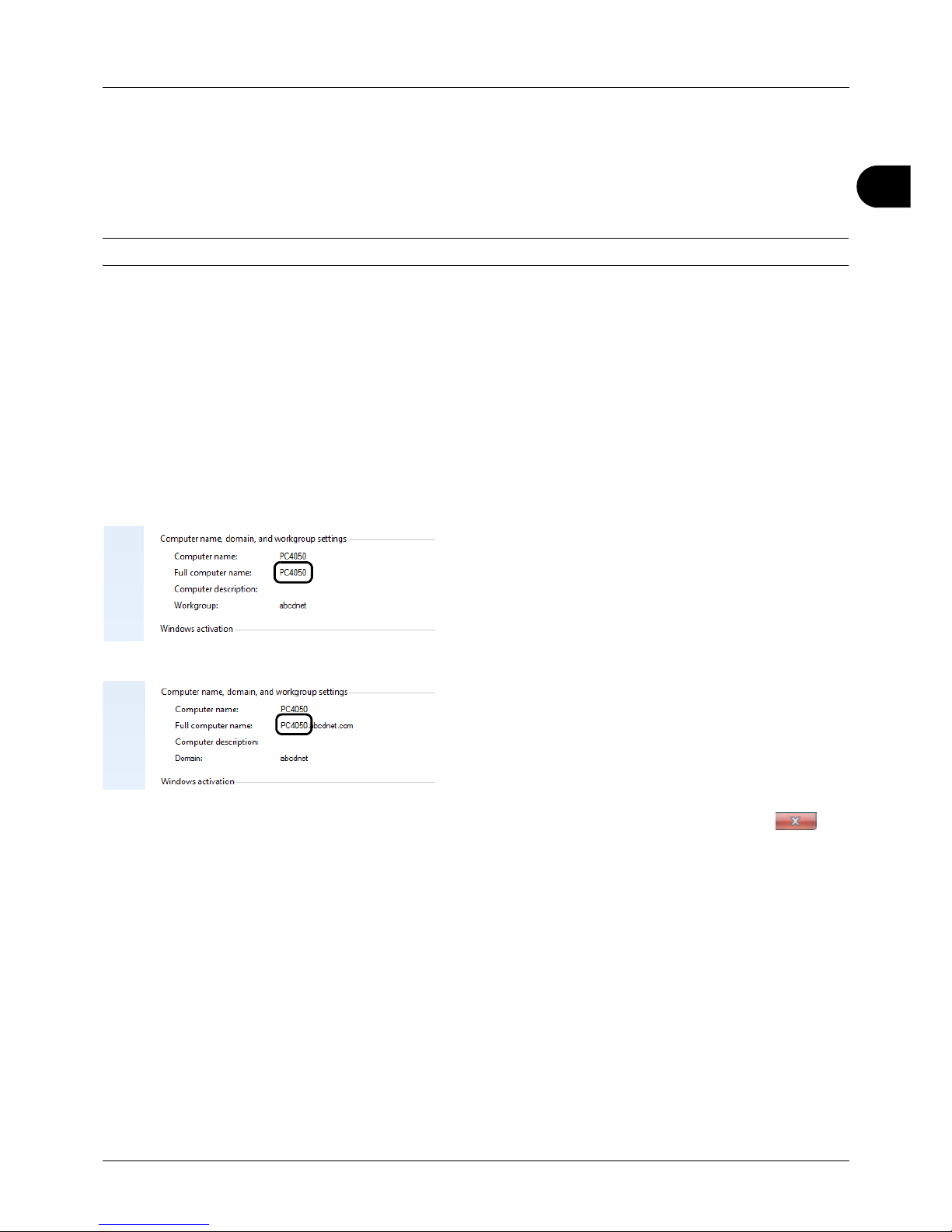
2
Preparation before Use
2-29
Preparation for sending a document to a PC
Check the information that needs to be set on the machine and create a folder to receive the document on your
computer. Screens of Windows 7 are used in the following explanation. The details of the screens will vary in other
versions of Windows.
NOTE: Log on to Windows with administrator privileges.
Checking what to enter for [Host Name]
Check the name of the destination computer.
1 From the Start menu, select Computer and then
System Properties.
Check the computer name in the window that appears.
In Windows XP, right-click My Computer and select
Properties. The System Properties dialog box appears.
Click the Computer Name tab in the window that
appears and check the computer name.
If there is a workgroup
All characters appearing in "Full computer name" should
be entered in Host Name. (Example: PC4050)
If there is a domain
The characters to the left of the first dot (.) in "Full
computer name" should be entered in Host Name.
(Example: pc4050)
2 After checking the computer name, click the
(Close) button to close the System Properties screen.
In Windows XP, after checking the computer name, click
the Cancel button to close the System Properties
screen.
Checking what to enter for [Login User Name]
Check the domain name and user name for logging onto Windows.
1 From the Start menu, select All Programs (or
Programs), Accessories and then Command Prompt.
The Command Prompt window appears.
Page 64
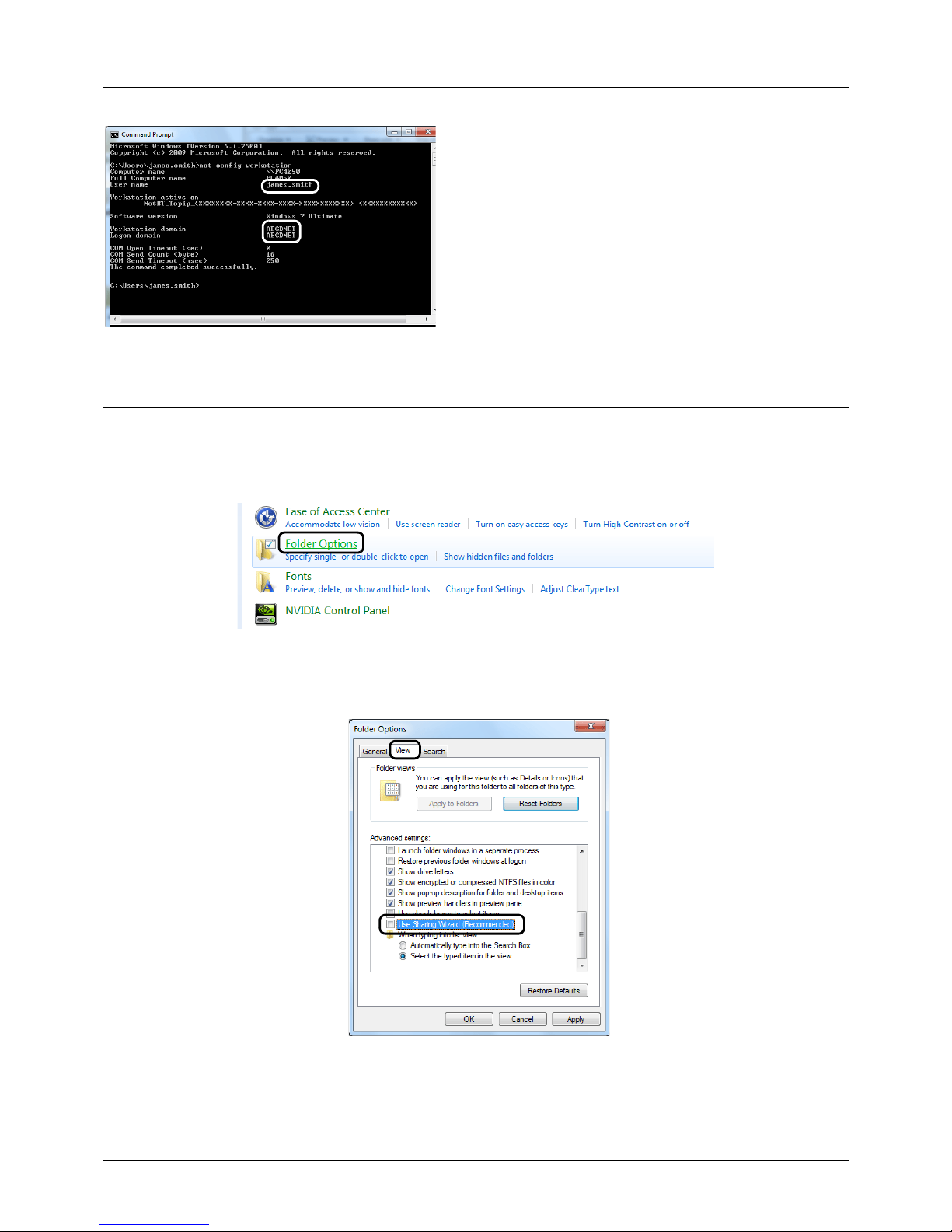
Preparation before Use
2-30
2 At the Command Prompt, enter "net config workstation"
and then click Enter.
Screen example: user name "james.smith" and domain
name "ABCDNET"
Creating a Shared Folder
Check the domain name and user name for logging onto Windows.
NOTE: If there is a workgroup in System Properties, configure the settings below to limit folder access to a specific
user or group.
1 From the Start menu, select Control Panel, Appearance and Personalization, and then Folder Options.
Windows XP, click My Computer and select Folder Options in Tools.
2
Click the View tab and remove the checkmark from
Use Sharing Wizard (Recommended)
in
Advanced settings
.
In Windows XP, click the View tab and remove the checkmark from Use Simple File Sharing (Recommended) in
Advanced settings.
3 Click the OK button to close the Folder Options screen.
Page 65
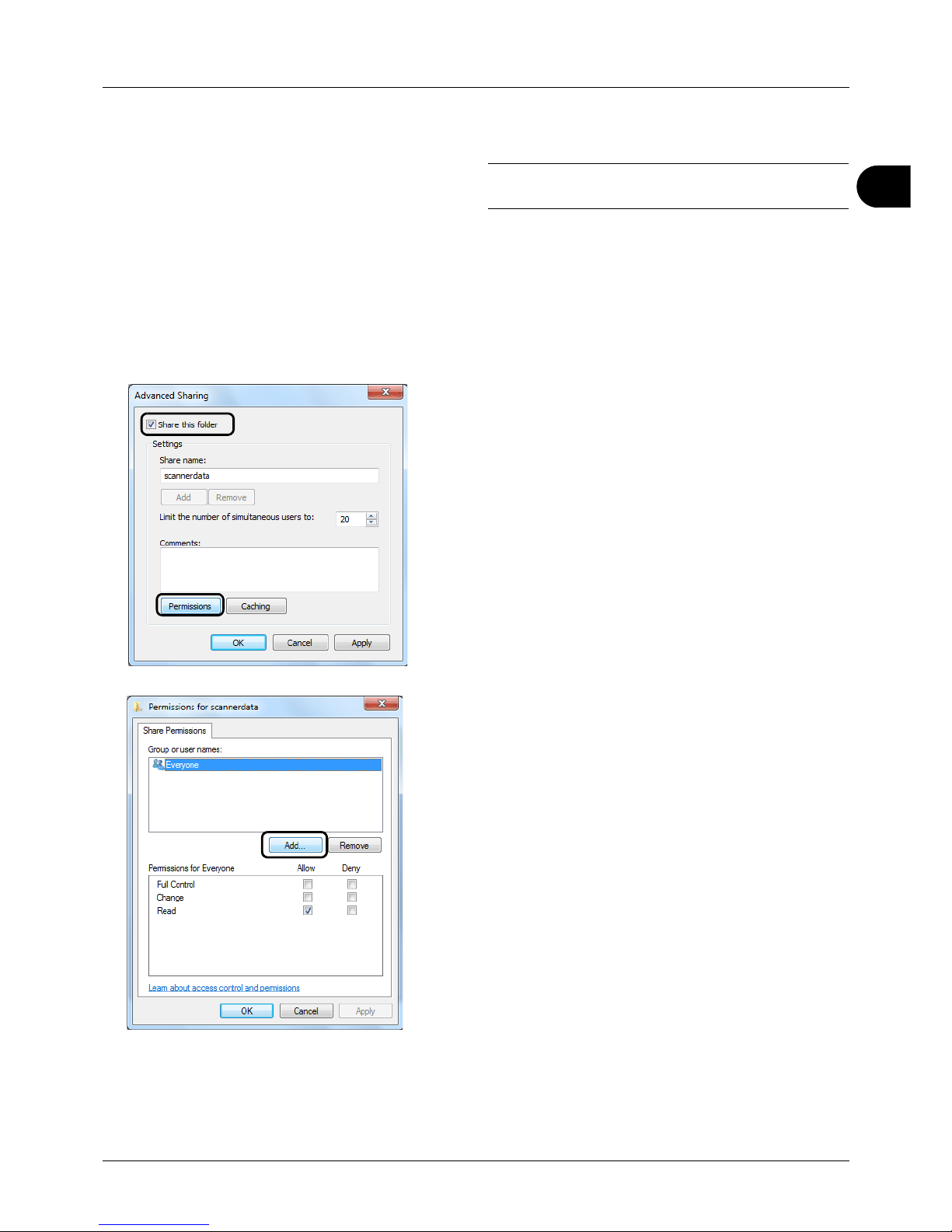
2
Preparation before Use
2-31
1 Create a folder on the local disk (C).
NOTE: For example, create a folder with the name
"scannerdata" on the local disk (C).
2 Right-click the scannerdata folder and click Share and
Advanced sharing. Click the Advanced Sharing
button.
The scannerdata Properties dialog box appears.
In Windows XP, right-click the scannerdata folder and
select Sharing and Security... (or Sharing).
3 Select the Share this folder checkbox and click the
Permissions button.
The Permissions for scannerdata dialog box appears.
In Windows XP, select Share this folder and click the
Permissions button.
4 Click the Add button.
Page 66
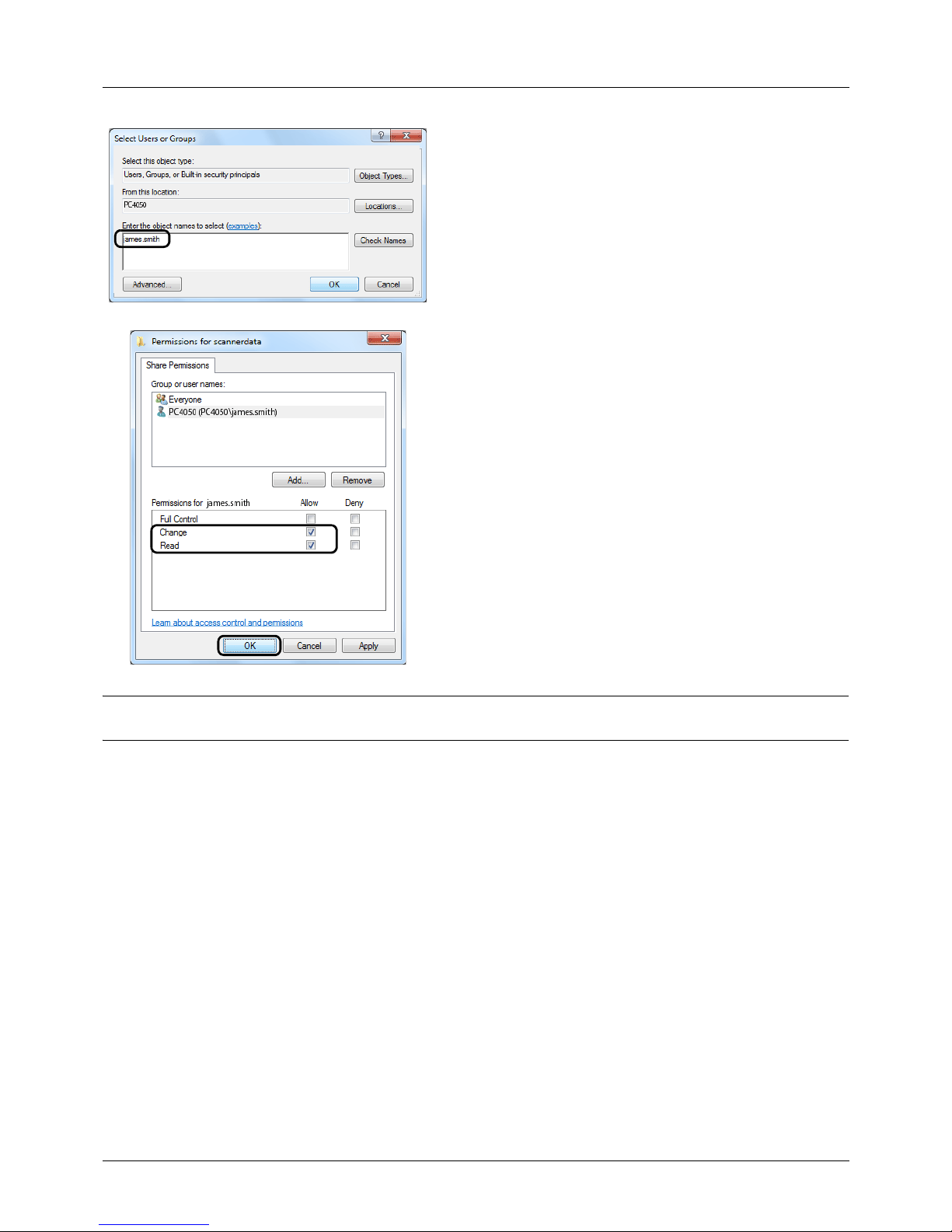
Preparation before Use
2-32
5 Enter the user name which you confirmed on Checking
what to enter for [Login User Name] on 2-29 in the text
box and click the OK button.
6 Select the entered user, select the Change and Read
permissions, and click the OK button.
In Windows XP, go to step 8.
NOTE: "Everyone" gives sharing permission to everyone on the network. To strengthen security, it is recommended
that you select Everyone and remove the Read permission checkmark.
7 Click the OK button in the Advanced Sharing screen to
close the screen.
Page 67
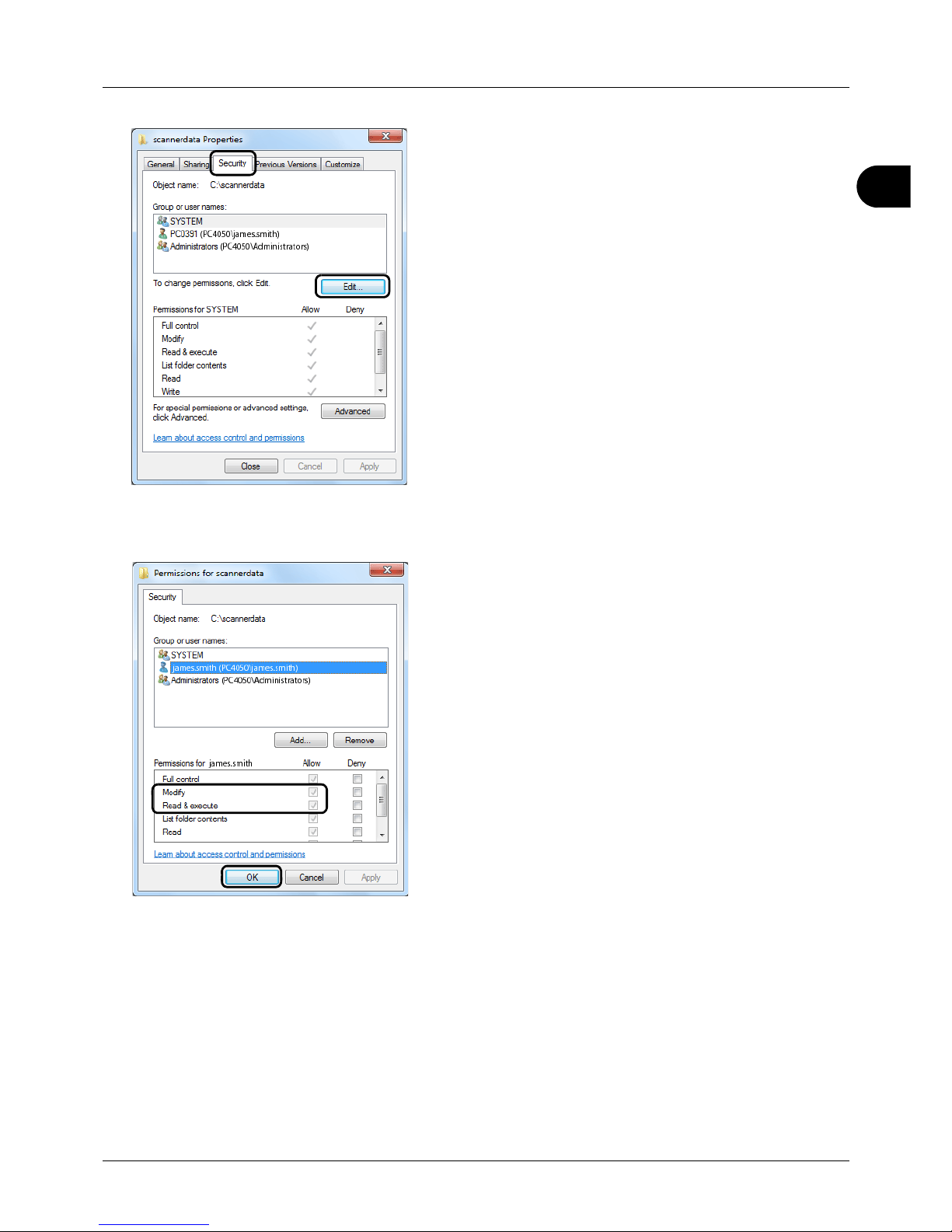
2
Preparation before Use
2-33
8 Click the Security tab and then click the Edit button.
In Windows XP, click the Security tab and then click the
Add button.
9 Proceed in the same way as in step 5 to add a user to
Group or user names.
10 Select the added user, select the Modify and Read &
execute permissions, and then click the OK button.
Page 68
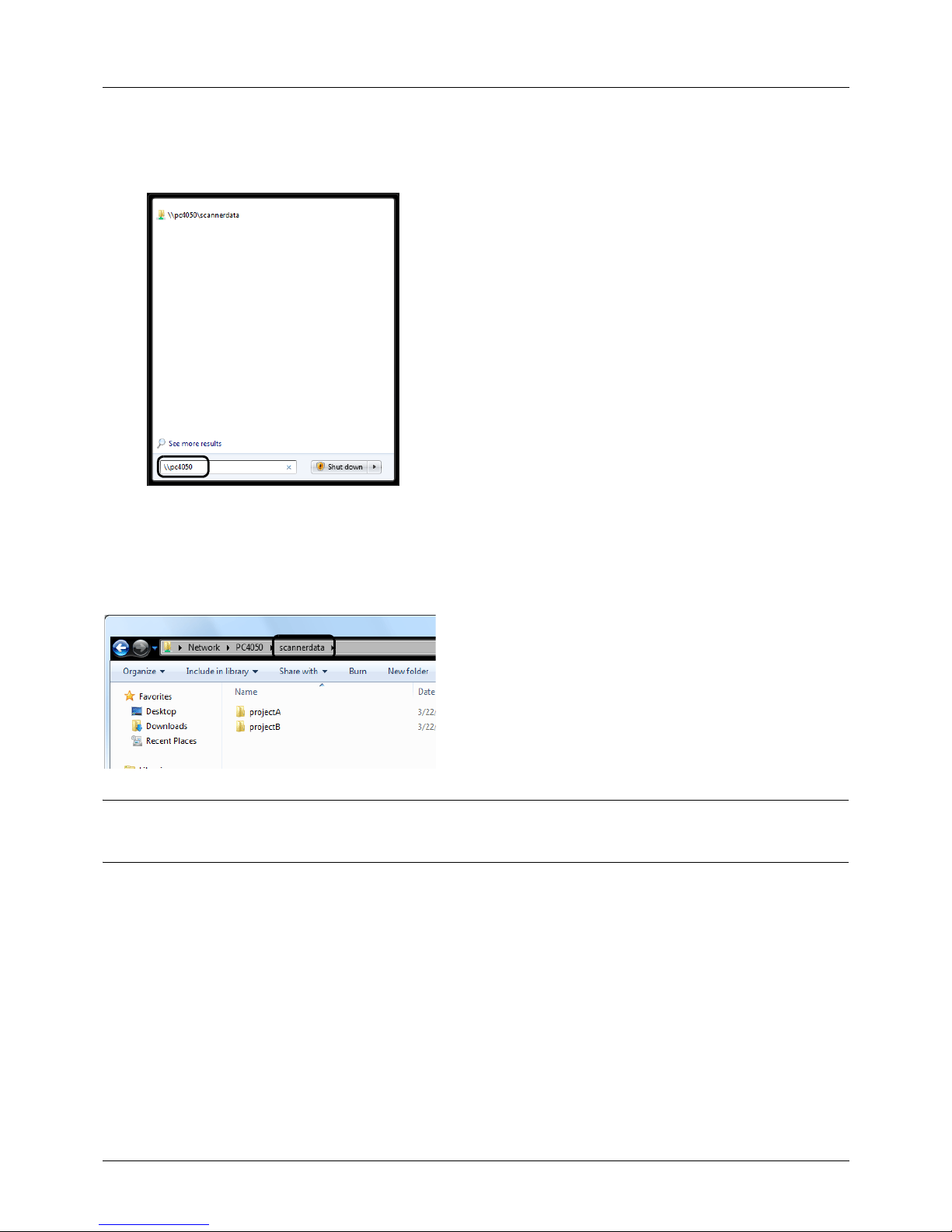
Preparation before Use
2-34
Checking the [Path]
Check the share name of the shared folder that will be the destination for the document.
1 Enter the computer name (ex. \\pc4050) in "Program and
File Search" in the Start menu.
The Search Results screen opens.
In Windows XP, click Search in the Start menu, select All
files and folders, and search for the destination
computer to which the file will be sent.
In Search Companion, click Computers or people and
then A computer on the network.
In the "Computer name:" text box, enter the name of the
computer that you checked (pc4050) and then click
Search.
2 Click "\\pc4050\scannerdata" that appears in the search
results.
In Windows XP, double-click the computer ("pc4050")
that appears in the search results.
3 Check the folder that appears.
Check the address bar. The third and following text
strings (f ) should be entered for the path.
In Windows XP, double-click the scannerdata folder and
check the address bar. The text string to the right of the
third backslash (\) should be entered in Path.
(Example: scannerdata)
NOTE: You can also specify a subfolder in the shared folder as the location where data is to be sent. In this case,
"share name\name of folder in the shared folder" should be entered for the Path. In the example window above,
"scannerdata\projectA" is the Path.
Page 69
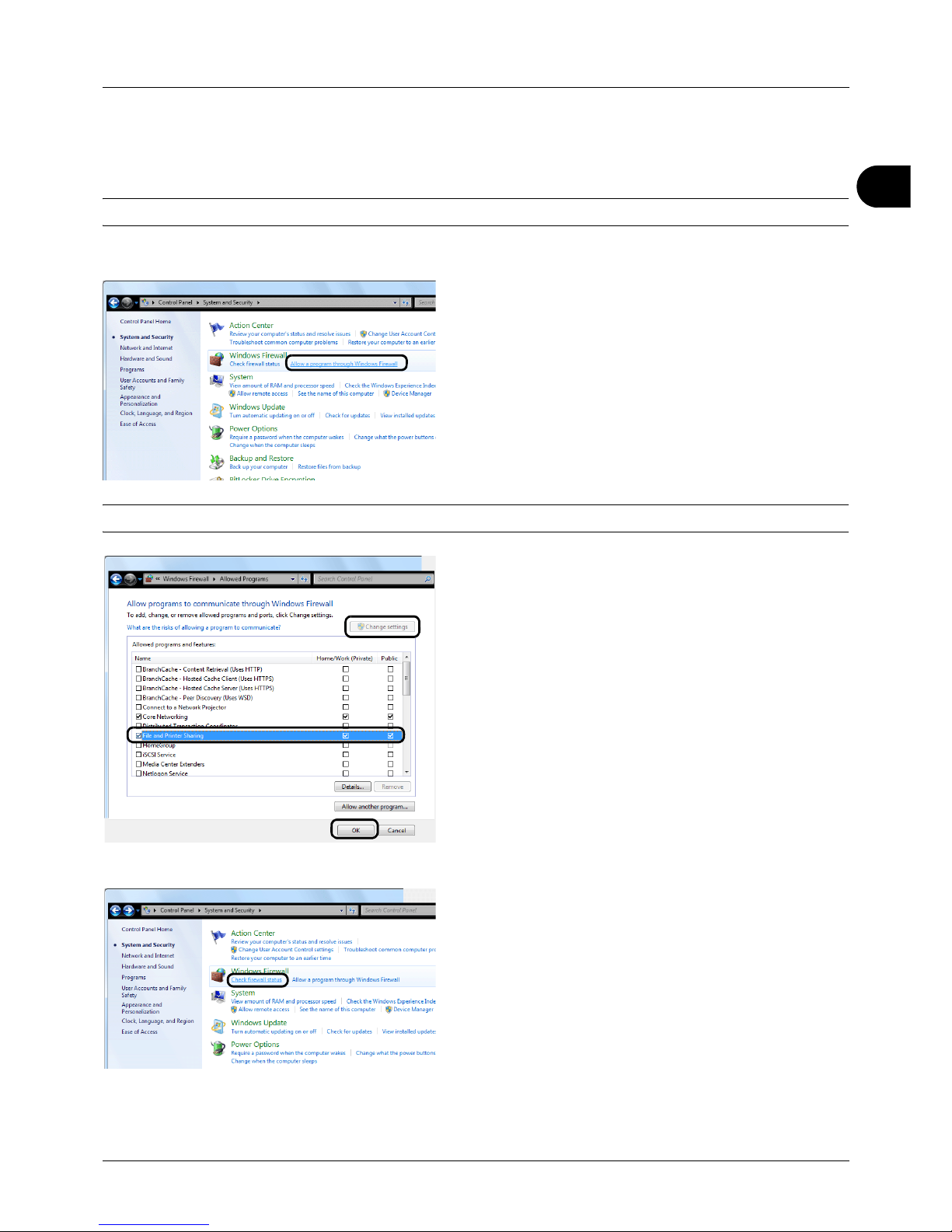
2
Preparation before Use
2-35
Configuring Windows Firewall (for Windows 7)
Permit sharing of files and printers and set the port used for SMB transmission.
NOTE: Log on to Windows with administrator privileges.
Checking file and printer sharing
1 From the Start menu, select Control Panel, System
and Security, and Allow a program through Windows
Firewall.
NOTE: If the User Account Control dialog box appears, click the Continue button.
2 Click Change settings, select the File and Printer
Sharing checkbox, and click OK.
Adding a port
1 From the Start menu, select Control Panel, System
and Security, and Check firewall status.
Page 70
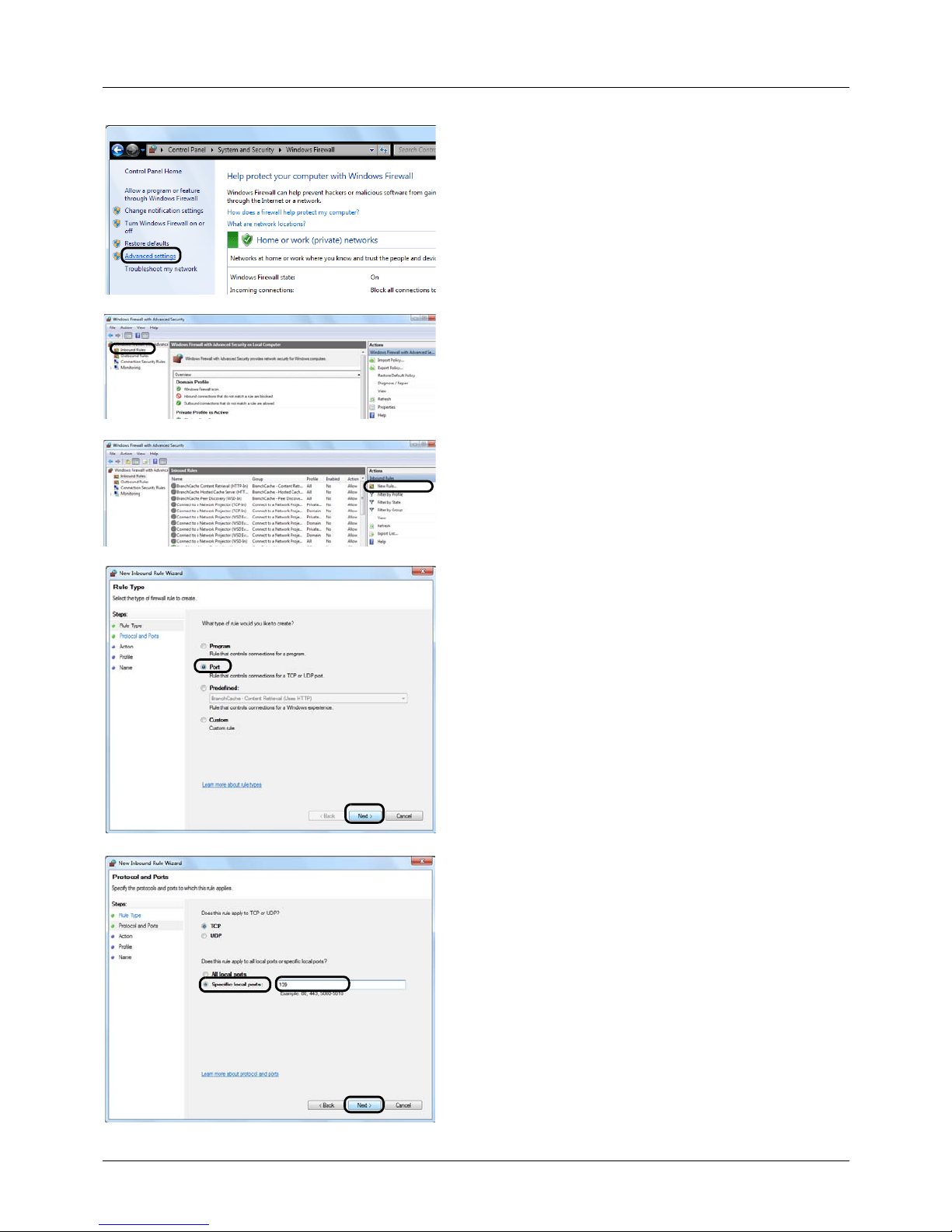
Preparation before Use
2-36
2 Click Advanced settings.
3 Click Inbound Rules.
4 Click New Rule.
5 Select Port and click Next.
6 Select TCP, select Specific local ports, enter "139", and
click Next.
Page 71
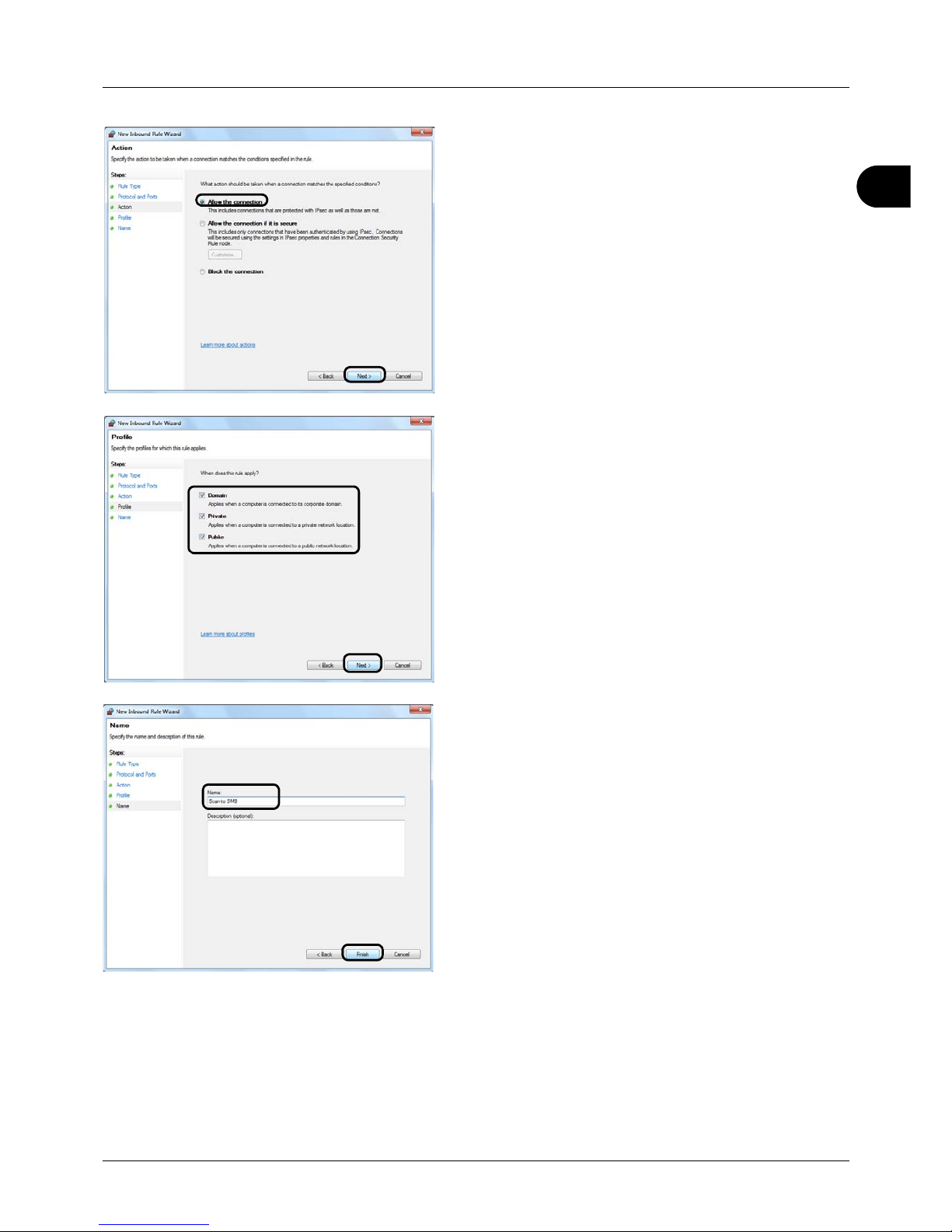
2
Preparation before Use
2-37
7 Select Allow the connection and click Next.
8 Make sure all checkboxes are selected and click Next.
9 Enter "Scan to SMB" in "Name" and click Finish.
Page 72

Preparation before Use
2-38
NOTE: In Windows XP or Windows Vista, follow the procedure below to set the port.
1 From the Start menu, select Control Panel, System and Security (or Security Center), and then Check Firewall
Status (or Windows Firewall).
If the User Account Control dialog box appears, click the Continue button.
2 Click the Exceptions tab and then the Add port... button.
3 Specify Add a Port settings.
Enter any name in "Name" (example: Scan to SMB). This will be the name of the new port. Enter "139" in "Port
Number". Select TCP for "Protocol".
4 Click the OK button to close the Folder Options screen.
Page 73
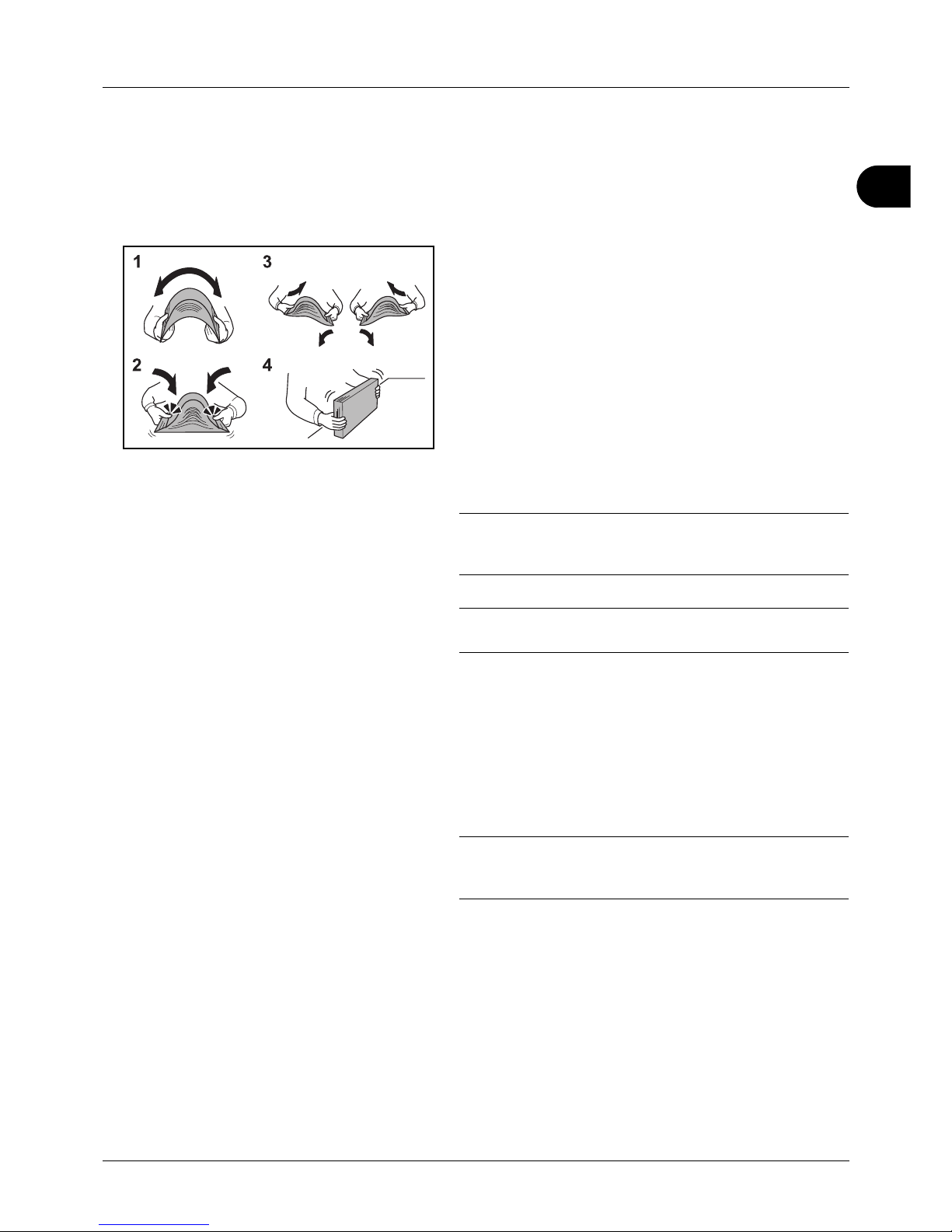
2
Preparation before Use
2-39
Loading Paper
Paper can be loaded standardly in the cassette and the multi purpose tray. A paper feeder is also available as an
option (refer to Optional Equipment on Appendix-2).
Before Loading Paper
When you open a new package of paper, fan the sheets to
separate them slightly prior to loading in the following steps.
1 Bend the whole set of sheets to swell them in the middle.
2 Hold the stack at both ends and stretch it while keeping
the entire stack swelled.
3 Raise the right and left hands alternately to create a gap
and feed air between the papers.
4 Finally, align the papers on a level, flat table.
If the paper is curled or folded, straighten it before
loading. Paper that is curled or folded may cause a jam.
CAUTION: If you copy onto used paper (paper already used
for copying), do not use paper that is stapled or clipped
together. This may damage the machine.
NOTE: If printouts are curled or not neatly stapled, turn the
stack in the cassette upside down.
Avoid exposing opened paper to high temperatures and
high humidity as dampness can be a cause of problems.
Seal any remaining paper after loading in the multi
purpose tray or cassettes back in the paper storage bag.
If the machine will not be used for a prolonged period,
protect all paper from humidity by removing it from the
cassettes and sealing it in the paper storage bag.
NOTE: If you use special paper such as letterhead, paper
with holes or paper with pre-prints like logo or company
name, refer to Paper on Appendix-9.
Page 74
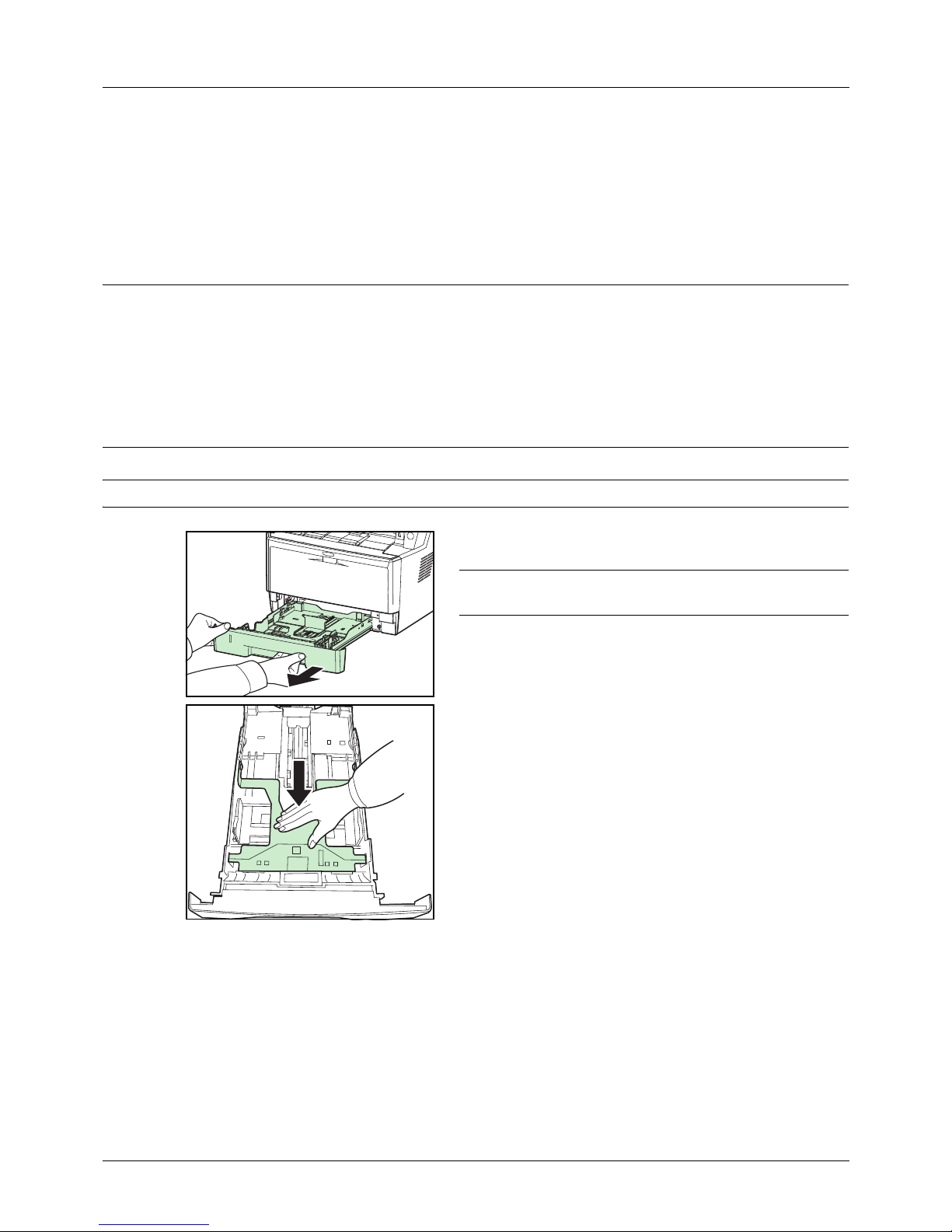
Preparation before Use
2-40
Loading Paper in the Cassettes
The standard cassette will each hold plain paper, recycled paper or color paper.
The standard cassette holds up to 250 sheets of A4 or smaller plain paper (80 g/m
2
).
The following paper sizes are supported: Legal, Oficio II, Letter, Executive, Statement, A4, B5, A5, A6, Folio,
216 x 340 mm, 16K, ISO B5, Envelope C5 and Custom.
IMPORTANT:
• You should not use inkjet printer paper or any paper with a special surface coating. (Such papers may cause
paper jams or other faults.)
• When using media types other than plain paper (such as recycled or colored paper), always specify the media
type setting. (Refer to Specifying Paper Size and Media Type for the Cassettes on page 2-47)
The cassettes can hold paper with weights up to 120 g/m
2
.
• Do not load thick paper that is heavier than 120 g/m
2
in the cassettes. Use the multi purpose tray for paper that is
heavier than 120 g/m2.
NOTE: Statement and A6 can only be used in cassette 1.
1 Pull the cassette completely out of the machine.
IMPORTANT: When pulling the cassette out of the machine,
ensure it is supported and does not fall out.
2 Press the bottom plate down until it locks.
Page 75
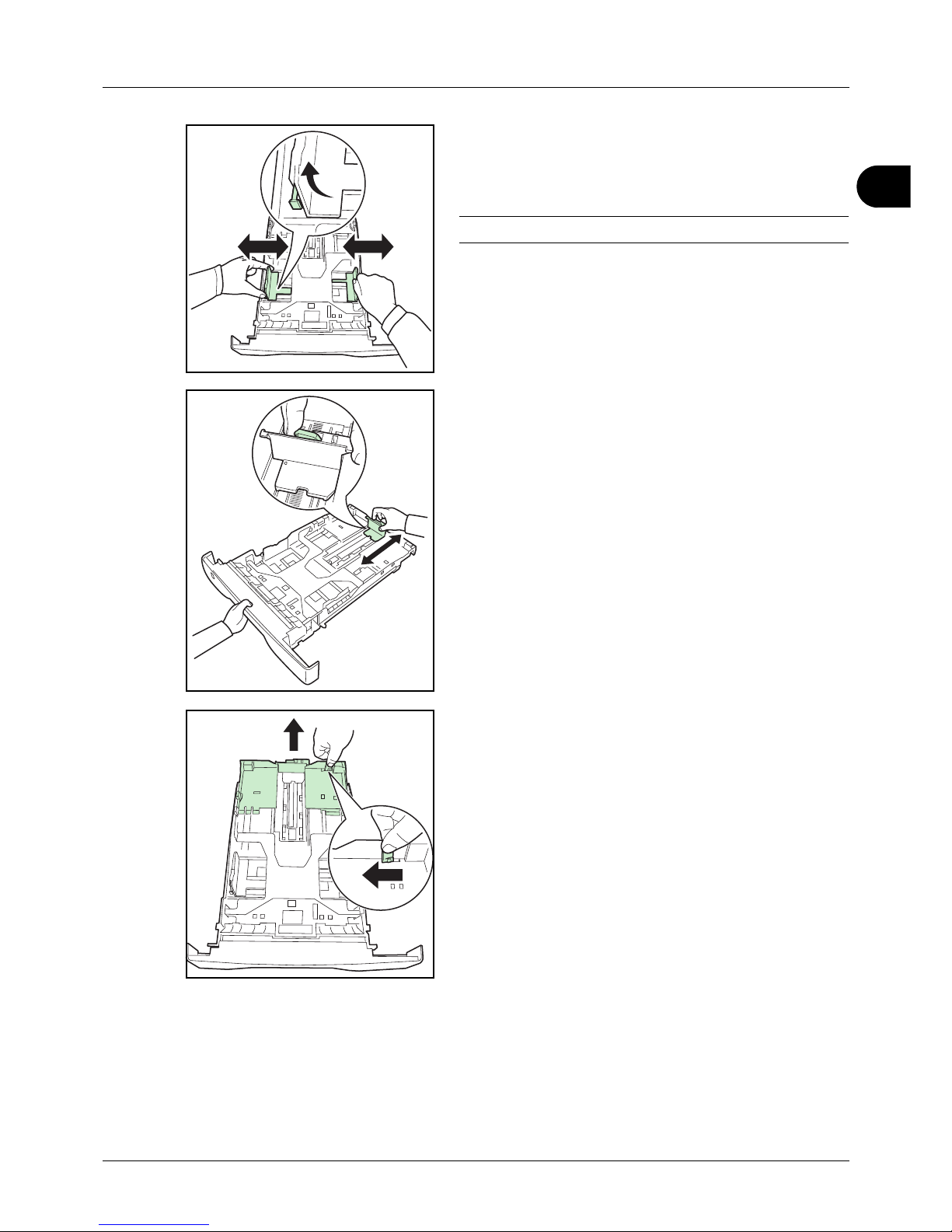
2
Preparation before Use
2-41
3 Adjust the position of the paper width guides located on
the left and right sides of the cassette. Press the paper
width adjusting tab on the left guide and slide the guides
to the paper size required.
NOTE: Paper sizes are marked on the cassette.
4 Adjust the paper length guide to the paper size required.
If you are going to use paper that is longer than A4, pull
out the extension paper cassette by pushing the release
lever one by one and adjust it to the desired paper size.
Page 76
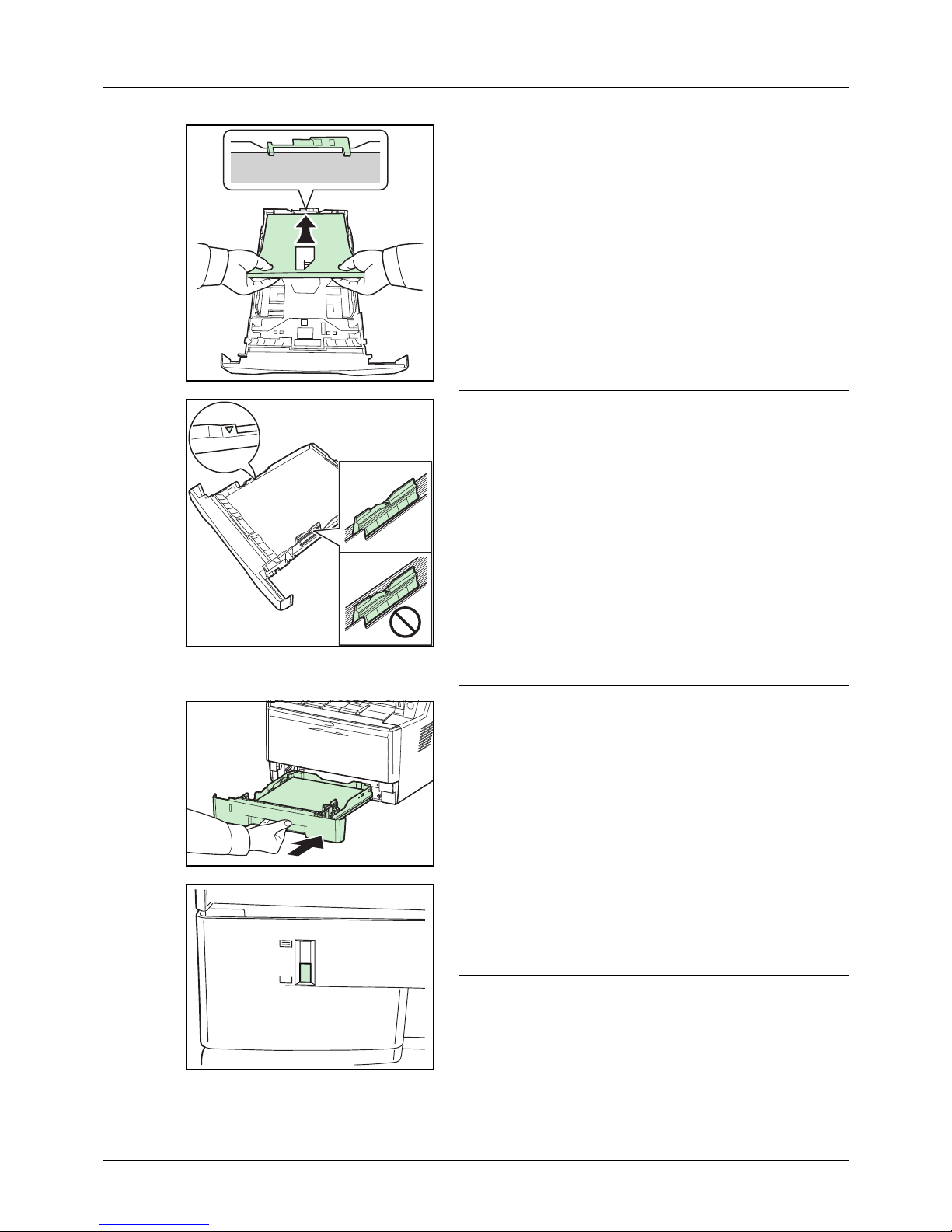
Preparation before Use
2-42
5 Load the paper in the cassette. Ensure the side to be
printed is facing down and the paper is not folded, curled,
or damaged.
IMPORTANT: Do not load paper above the triangle mark
located on the width guide.
• Before loading the paper, be sure that it is not curled or
folded. Paper that is curled or folded may cause paper
jams.
• Ensure that the loaded paper does not exceed the level
indicator (see illustration below).
• When loading the paper, keep the side that was closest
the package seal facing up.
• The paper length and width guides must be adjusted to
the paper size. Loading the paper without adjusting these
guides may cause skewed feeding and paper jams.
• Be sure that the paper length and width guides rest
securely against the paper. If there is a gap, readjust the
guides to fit the paper.
6 Insert the paper cassette into the slot in the machine.
Push it straight in as far as it will go.
There is a paper gauge on the left side of the front of the
paper cassette to indicate the remaining paper supply.
When paper is exhausted, the pointer will go down to the
level of (empty).
NOTE: If the machine will not be used for a prolonged
period, protect all paper from humidity by removing it from
the cassettes and sealing it in the paper storage bag.
7 Select the media type (plain, recycled, etc.) loaded in the
cassette. (Refer to Specifying Paper Size and Media
Type for the Cassettes on page 2-47.)
Page 77
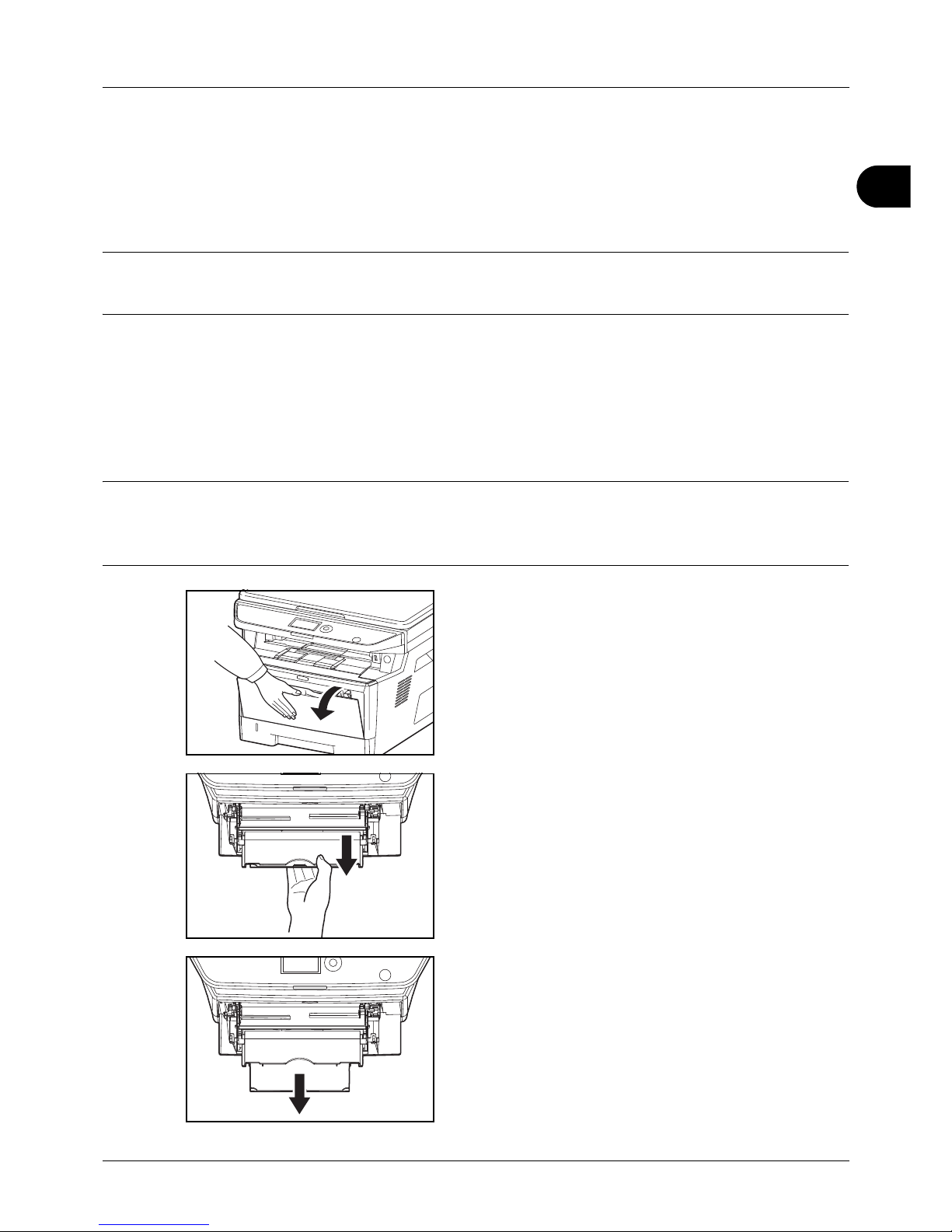
2
Preparation before Use
2-43
Loading Paper in the Multi Purpose Tray
The multi purpose tray will hold up to 50 sheets of A4 or smaller plain paper (80 g/m2).
The multi purpose tray accepts paper sizes from A4 to A6 and Hagaki and from Legal to Statement-R, 216 x 340 mm,
and 16K. Be sure to use the multi purpose tray when you print on any special paper.
IMPORTANT: When using media types other than plain paper (such as recycled or colored paper), always specify
the media type setting. (Refer to Specifying Paper Size and Media Type for the Multi Purpose Tray on page 2-49.) If
you are using a paper weight of 106 g/m2 or more, set the media type to Thick.
The capacity of the multi purpose tray is as follows.
• A4 or smaller plain paper (80 g/m
2
), recycled paper or color paper: 50 sheets
• Hagaki: 15 sheet
• OHP film: 1 sheet
• Envelope DL, Envelope C5, Envelope #10 (Commercial #10), Monarch, Youkei 4, Youkei 2: 1 sheet
NOTE: When you load custom size paper, enter the paper size by referring to Specifying Paper Size and Media
Type for the Multi Purpose Tray on page 2-49.
When you use special paper such as transparencies or thick paper, select the media type by referring to Specifying
Paper Size and Media Type for the Multi Purpose Tray on page 2-49.
1 Pull the MP tray towards you until it stops.
2 Pull out the support tray section of the MP tray.
Page 78
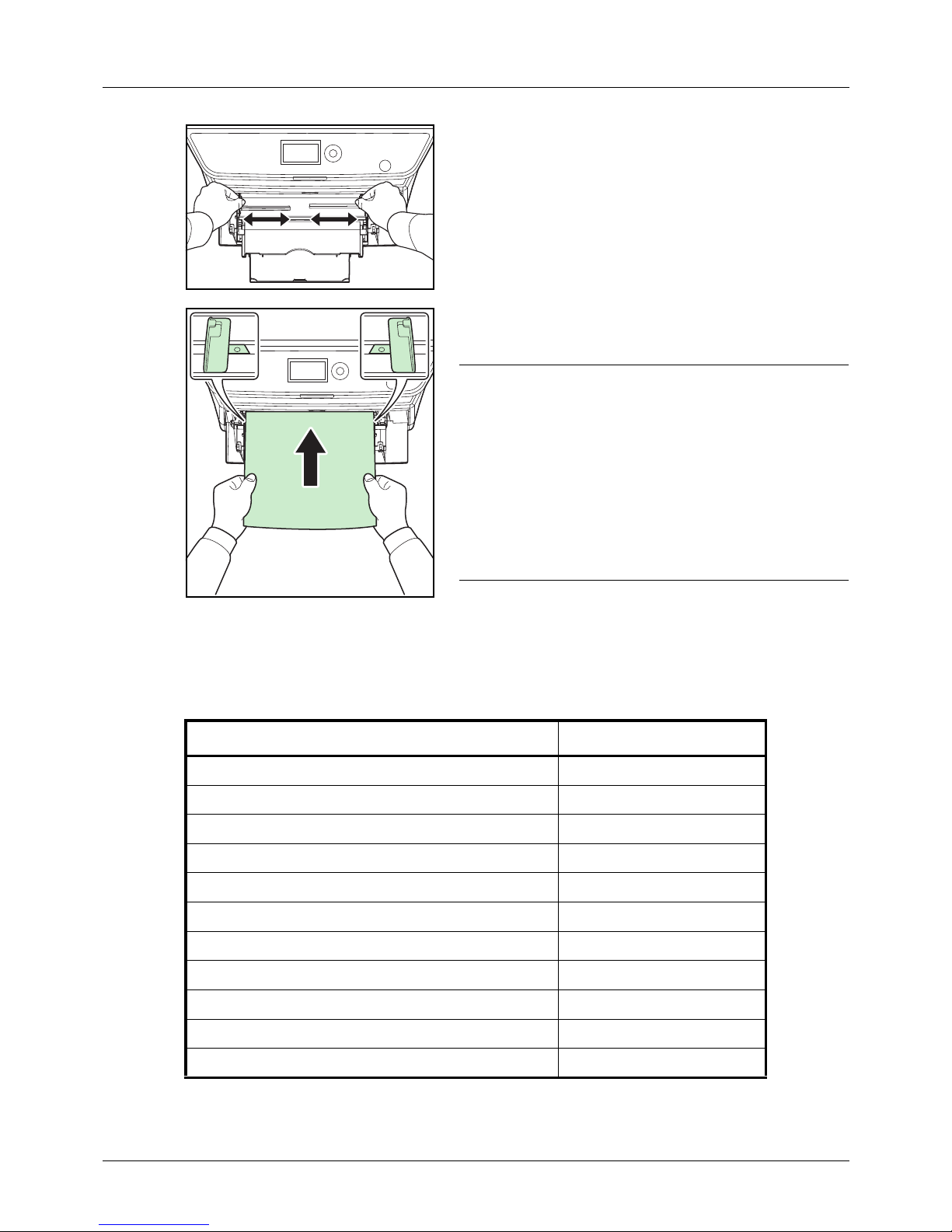
Preparation before Use
2-44
3 Adjust the position of the paper guides on the MP tray.
Standard paper sizes are marked on the MP tray or
Manual Feed tray. For standard paper sizes, slide the
paper guides to the corresponding mark.
4 Align the paper with the paper guides and insert as far as
it will go.
IMPORTANT: Keep the side that was closest the package
seal facing up.
Curled paper must be uncurled before use.
Straighten the top edge if it is curled.
When loading paper into the multi purpose tray, check that
there is no paper left over in the tray from a previous job
before loading the paper. If there is just a small amount of
paper left over in the multi purpose tray and you want to add
more, first remove the left-over paper from the tray and
include it with the new paper before loading the paper back
into the tray.
Loading Envelopes
1 envelope may be loaded in the multi purpose tray.
Acceptable envelope sizes are as follows.
Acceptable Envelope Size
Hagaki 100 × 148 (mm)
Oufuku Hagaki 148 × 200 (mm)
Youkei 2 114 × 162 (mm)
Youkei 4 105 × 235 (mm)
Monarch 3 7/8" × 7 1/2"
Envelope #10 (Commercial #10) 4 1/8" × 9 1/2"
Envelope DL 110 × 220 (mm)
Envelope C5 162 × 229 (mm)
Executive 7 1/4" × 10 1/2"
Envelope #9 (Commercial #9) 3 7/8" × 8 7/8"
Envelope #6 (Commercial #6 3/4) 3 5/8" × 6 1/2"
Page 79
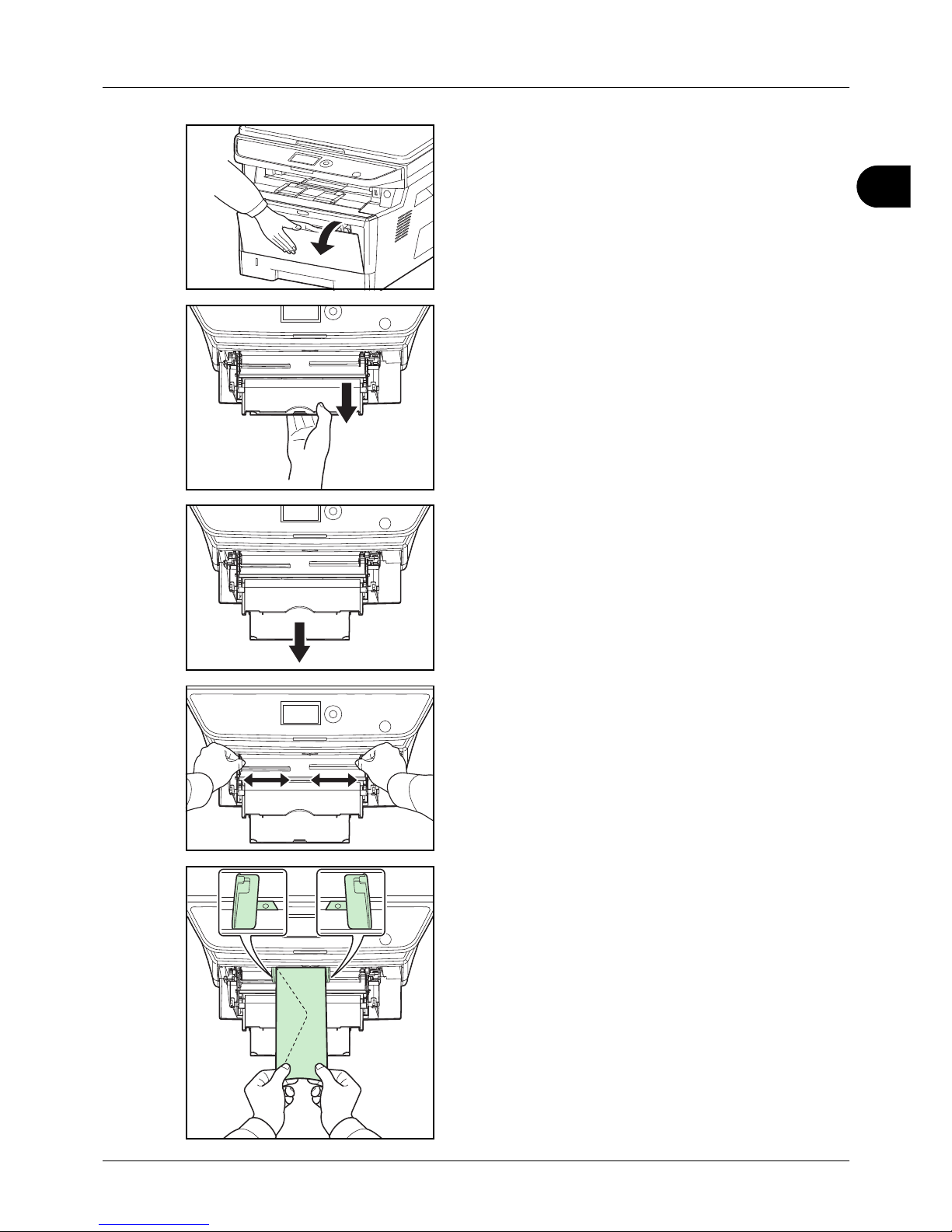
2
Preparation before Use
2-45
1 Pull the MP tray towards you until it stops.
2 Pull out the subtray.
3 Adjust the position of the paper guides on the MP tray.
Standard paper sizes are marked on the MP tray or
Manual Feed tray. For standard paper sizes, slide the
paper guides to the corresponding mark.
4 Align the paper with the paper guides and insert as far as
it will go.
Page 80
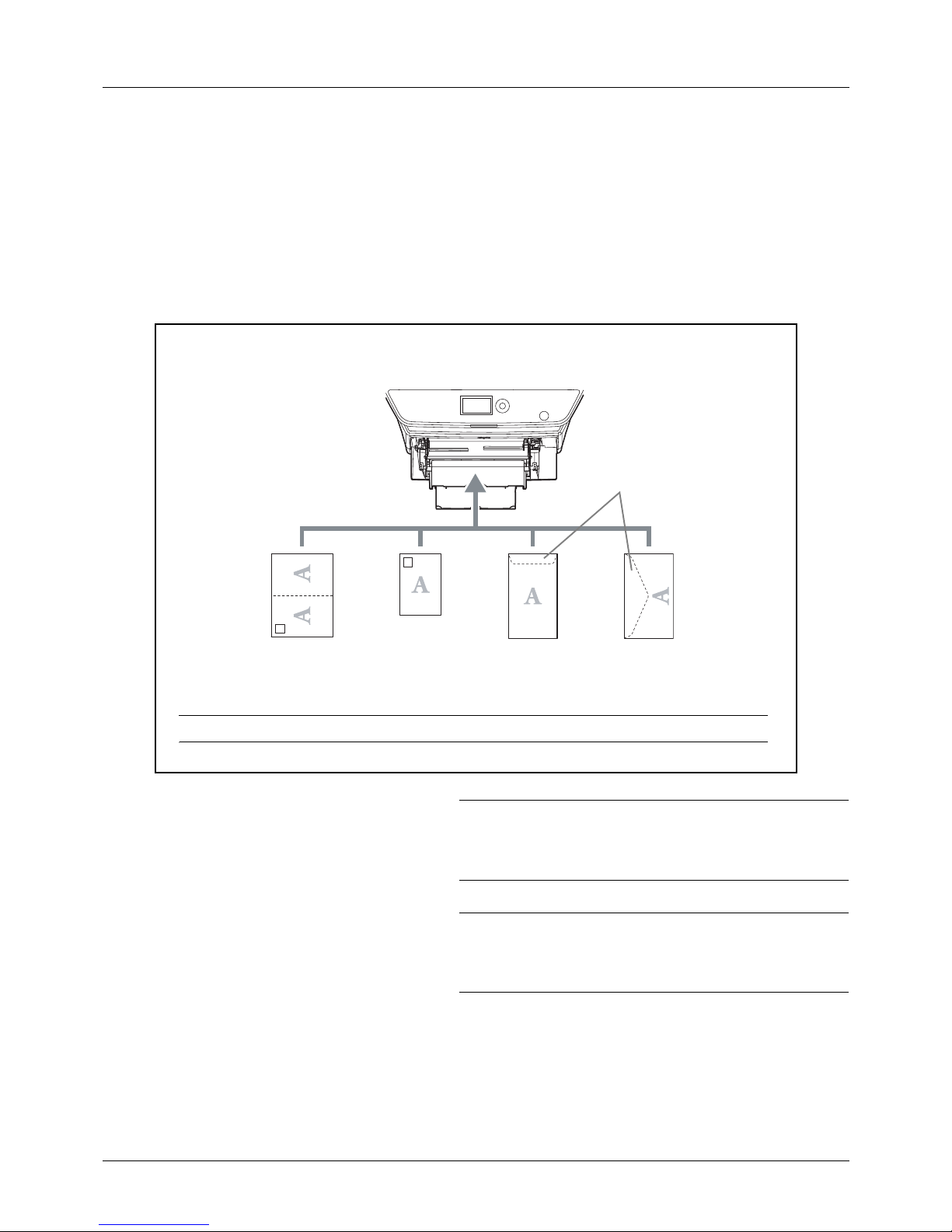
Preparation before Use
2-46
5 For landscape form envelopes, close the flap. Insert the
envelope all the way along the width guides, keeping the
printing side face-up and the edge with the flap facing
towards you.
For portrait form envelopes, close the flap. Insert the
envelope all the way along the width guides, keeping the
printing side face-up and the edge with the flap facing the
insertion slot.
IMPORTANT: How to load envelopes (orientation and
facing) will differ depending on the type of envelope. Be sure
to load it in correctly, otherwise printing may be done in the
wrong direction or on the wrong face.
NOTE: When you load envelopes in the multi purpose tray,
select the envelope type by referring to Specifying Paper
Size and Media Type for the Multi Purpose Tray on page 2-
49.
When you load envelopes or cardstock in the multi purpose tray
Load envelope with the print side facing up.
Close the flap.
Landscape form
envelopes
Portrait form
envelopes
Cardstock
(Hagaki)
Return postcard
(Oufuku Hagaki)
NOTE: Use unfolded return postcard (Oufuku Hagaki).
Page 81
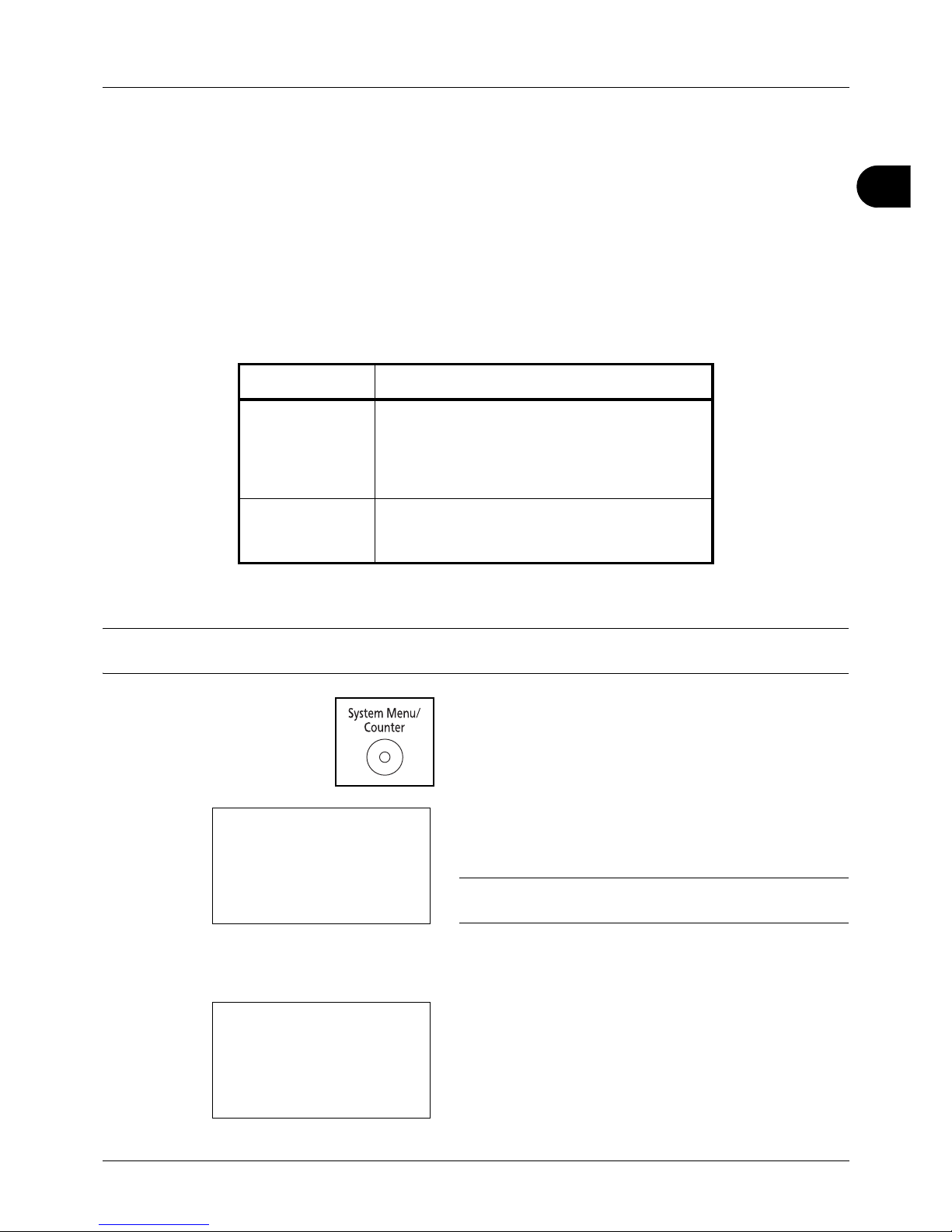
2
Preparation before Use
2-47
Specifying Paper Size and Media
The default paper size setting for cassette, for multi purpose tray and for the optional paper feeder (cassettes 2 and
3) is [Letter], and the default media type setting is [Plain].
To fix the type of paper to be used in cassettes, specify the paper size and media type setting. (Refer to Specifying
Paper Size and Media Type for the Cassettes on this page.)
To fix the type of paper to be used in multi purpose tray, specify the paper size setting. (Refer to Specifying Paper
Size and Media Type for the Multi Purpose Tray on page 2-49.)
Specifying Paper Size and Media Type for the Cassettes
To fix the type of paper to be used in cassette or the optional paper feeder (cassettes 2 and 3), specify the paper size.
Also, you use a media type other than plain paper, specify the media type setting.
NOTE:
If using the
the machine with fax
, the available media types for printing received faxes are as shown below.
Plain, Recycled, Bond, Color, High Quality, and Rough
1 Press the System Menu/Counter key on the main unit
operation panel.
When you are performing user management and have
not logged in, a login screen will appear. Then, enter the
user ID and password to log in.
NOTE: Refer to Character Entry Method on Appendix-5 for
details on entering characters.
When you are not performing user management, go to
step 2.
2 In the Sys. Menu/Count. menu, press the U or V key to
select [Common Settings].
Selection Item Selectable Size/Type
Paper Size Select from the standard sizes. Selectable paper
sizes are as follows.
Inch size: Letter, Legal, Statement* and Oficio II
Metric size: A4, A5, A6*, B5, Folio, 216 × 340mm,
16K, ISO B5**, Envelope C5** and Custom
* Statement and A6 can only be used in cassette 1.
Media Type Plain, Rough, Recycled, Preprinted, Bond, Color,
Prepunched, Letterhead, High Quality and
Custom 1~8**
** Envelopes can not be used in the cassette as the media type.
Login User Name:L b
********************
Login Password:
[ Login ]
Sys. Menu/Count.:a b
3
System
4
User/Job Account
*********************
5
Common Settings
Page 82

Preparation before Use
2-48
3 Press the OK key. The Common Settings menu appears.
4 Press the U or V key to select [Orig./Paper Set.].
5 Press the OK key. The Orig./Paper Set. menu appears.
6 Press the U or V key to select from [Cassette 1 Set.] to
[Cassette 3 Set.].
NOTE: [Cassette 2] and [Cassette 3] are shown when the
optional cassettes are installed.
Follow the steps below when you select the main unit
cassette (Cassette 1). Operate in a similar fashion when
you select an optional cassette (Cassette 2 and 3).
7 Press the OK key. The Cassette 1 Set. menu appears.
8 Press the U or V key to select [Cassette 1 Size].
9 Press the OK key. Cassette 1 Size appears.
10
Press the U or V key to select the desired paper size
and then press the OK key.
Completed. is displayed and the screen returns to the
Cassette 1 Set. menu.
Common Settings:a b
*********************
2
Default Screen
3
Sound
[ Exit ]
1
Language
Orig./Paper Set.:a b
*********************
2
Def. Orig. Size
3
Custom PaperSize
[ Exit ]
1
Custom Orig.Size
Cassette 1 Set.:a
b
*********************
2
Cassette 1 Type
[ Exit ]
1
Cassette 1 Size
Cassette 1 Size:a
b
*********************
2
A5
a
3
A6
a
1
*A4
a
Page 83
2
Preparation before Use
2-49
11
Press the U or V key to select [Cassette 1 Type].
12
Press the OK key. Cassette 1 Type appears.
13
Press the U or V key to select the desired paper type
and then press the OK key.
Completed. is displayed and the screen returns to the
Cassette 1 Set. menu.
Specifying Paper Size and Media Type for the Multi Purpose Tray
To fix the type of paper to be used in the multi purpose tray, specify the paper size.When using other than a plain
paper, specify the media type.
Cassette 1 Set.:a
b
1
Cassette 1 Size
*********************
[ Exit ]
2
Cassette 1 Type
Cassette 1 Type:a b
*********************
2
Rough
3
Recycled
1
*Plain
Item Description
Paper
Size
Standard
Sizes
Select from the standard sizes. Selectable paper sizes
are as follows.
Inch size: Letter, Legal, Statement, Executive, and Oficio
II
Metric size: A4, A5, A6, B5, B6, Folio, 216 × 340mm,
16K, ISO B5, Envelope #10 (Commercial #10),
Envelope #9 (Commercial #9), Envelope #6
(Commercial #6 3/4), Envelope Monarch, Envelope DL,
Envelope C5, Hagaki, Oufuku Hagaki, Youkei 4,
Youkei 2 and Custom
Size
Entry
Enter the size not included in the standard size.
Selectable paper sizes are as follows.
Inch size
X (Vertical): 5.83~14.02" (in 0.01" increments),
Y (Horizontal): 2.16~8.50" (in 0.01" increments)
Metric size
X (Vertical): 148~356 mm (in 1mm increments),
Y (Horizontal): 70~216 mm (in 1mm increments)
Media Type Selectable media types are as follows.
Plain, Transparency, Rough, Vellum, Labels, Recycled,
Preprinted, Bond, Cardstock, Color, Prepunched,
Letterhead, Envelope, Thick, High Quality and Custom
1~8*
* To change to a media type other than Plain, refer to Media Type Set on page
8-16.
Page 84
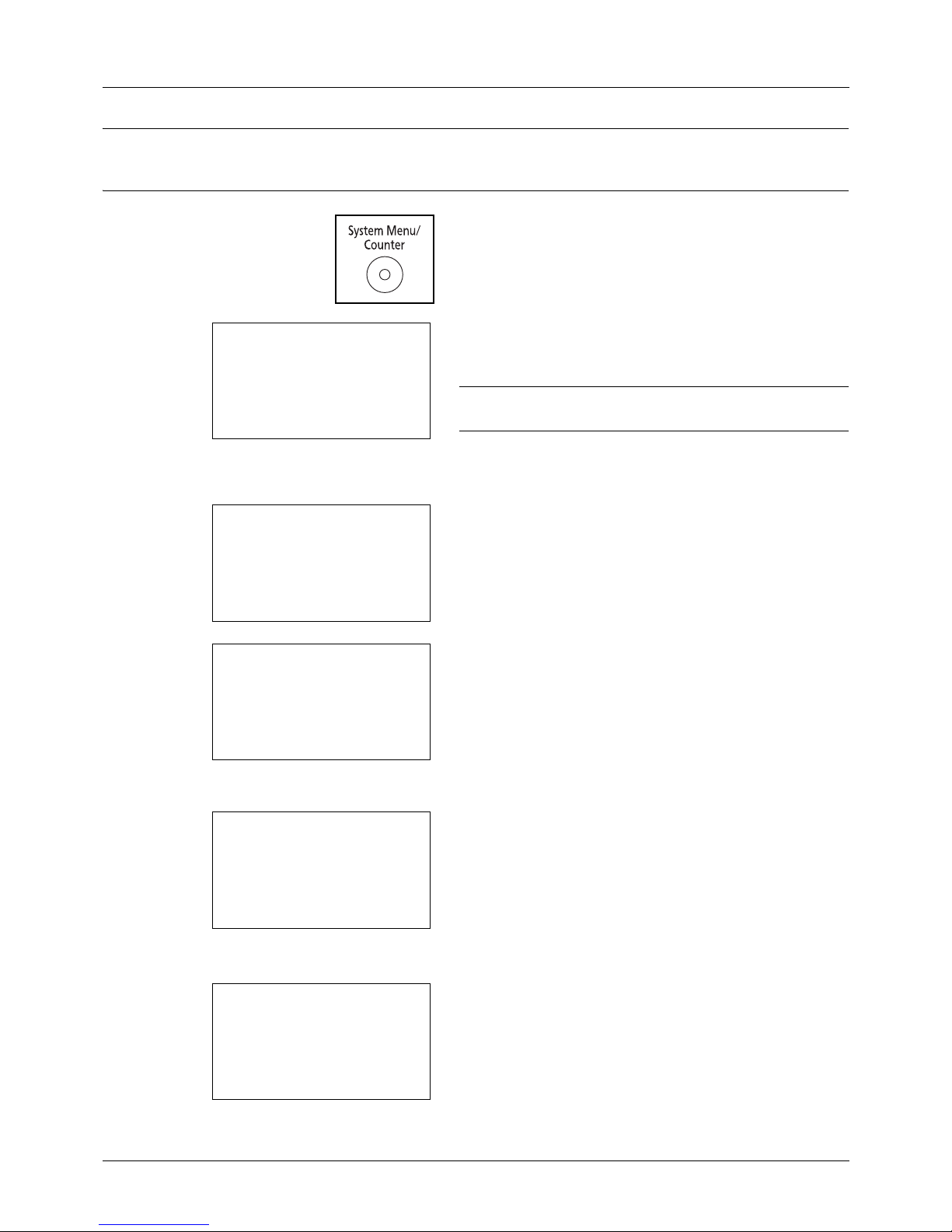
Preparation before Use
2-50
NOTE: If using the machine with fax and the multi purpose tray is used to print a received FAX, the available media
types are as shown below.
Plain, Recycled, Bond, Color, High Quality, Rough, Labels, Envelope, Cardstock, and Thick
1 Press the System Menu/Counter key on the main unit
operation panel.
When you are performing user management and have
not logged in, a login screen will appear. Then, enter the
user ID and password to log in.
NOTE: Refer to Character Entry Method on Appendix-5 for
details on entering characters.
When you are not performing user management, go to
step 2.
2 In the Sys. Menu/Count. menu, press the U or V key to
select [Common Settings].
3 Press the OK key. The Common Settings menu appears.
4 Press the U or V key to select [Orig./Paper Set.].
5 Press the OK key. The Orig./Paper Set. menu appears.
6 Press the U or V key to select [MP Tray Set.].
7 Press the OK key. The MP Tray Set. menu appears.
8 Press the U or V key to select [MP Tray Size].
Login User Name:L b
********************
Login Password:
[ Login ]
Sys. Menu/Count.:a b
3
System
4
User/Job Account
*********************
5
Common Settings
Common Settings:a b
*********************
2
Default Screen
3
Sound
[ Exit ]
1
Language
Orig./Paper Set.:a b
*********************
2
Def. Orig. Size
3
Custom PaperSize
[ Exit ]
1
Custom Orig.Size
MP Tray Set.:
a
b
*********************
2
MP Tray Type
[ Exit ]
1
MP Tray Size
Page 85

2
Preparation before Use
2-51
9 Press the OK key. MP Tray Size appears.
10
Press the U or V key to select the desired paper size
and then press the OK key.
Completed. is displayed and the screen returns to the
MP Tray Set. menu.
11
Press the U or V key to select [MP Tray Type].
12
Press the OK key. MP Tray Type appears.
13
Press the U or V key to select the desired paper type
and then press the OK key.
Completed. is displayed and the screen returns to the
MP Tray Set. menu.
MP Tray Size:
a
b
*********************
2
Legal
a
3
Statement
a
1
*Letter
a
MP Tray Set.:
a
b
1
MP Tray Size
*********************
[ Exit ]
2
MP Tray Type
MP Tray Type:
a
b
*********************
2
Transparency
3
Rough
1
*Plain
Page 86
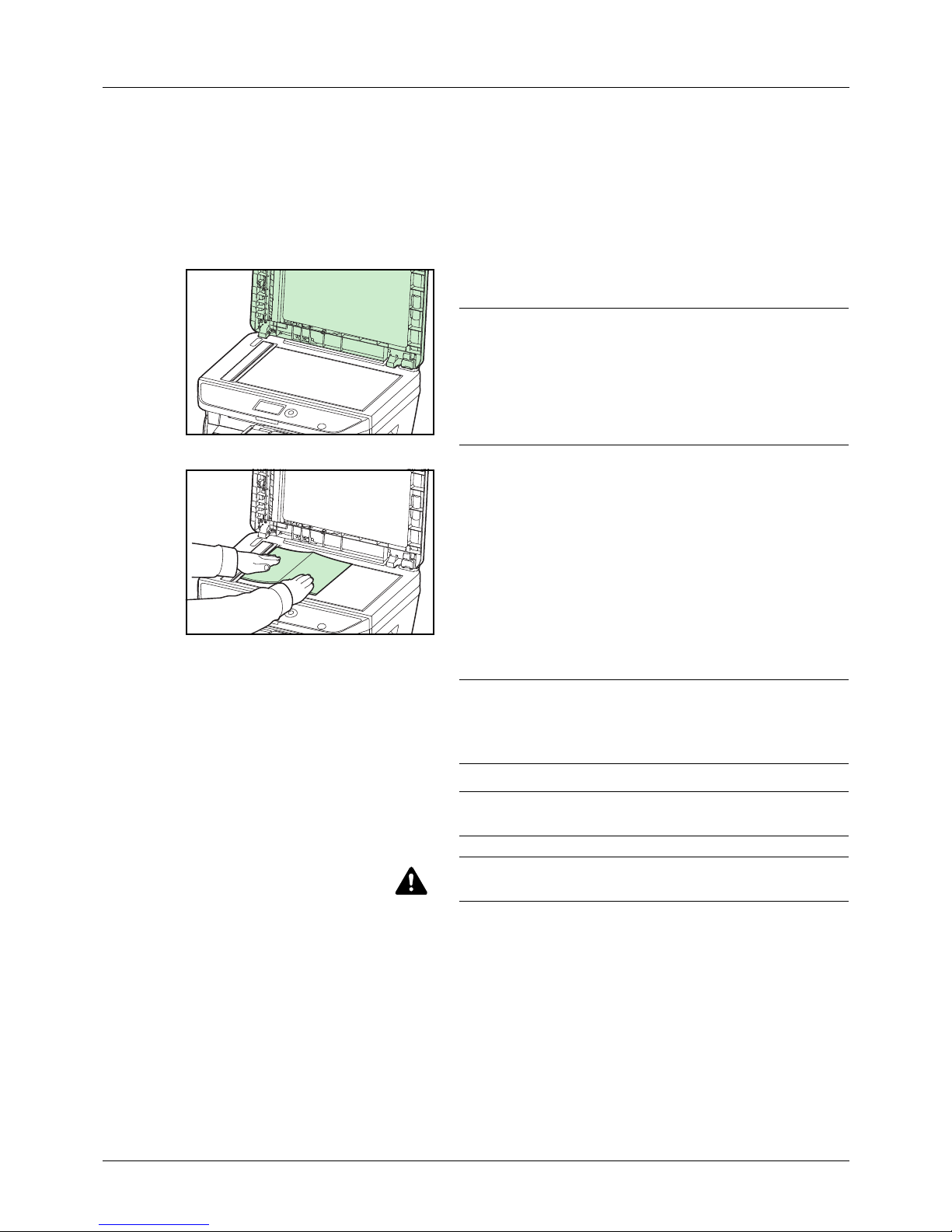
Preparation before Use
2-52
Loading Originals
Follow the steps below to load originals for copying, sending or storing.
Placing Originals on the Platen
You may place books or magazines on the platen in addition to ordinary sheet originals.
1 Open the original cover or the document processor.
NOTE: Before opening the document processor, be sure
that there are no originals left on the original table or on the
original eject table. Originals left on the original table or on
the original eject table may fall off when the document
processor is opened.
Keep the document processor open if the original is 25 mm
or thicker.
2 Place the original. Put the scanning side facedown and
align it flush against the original size indicator plate with
the back left corner as the reference point.
3 Close the the original cover or the document processor.
IMPORTANT: Do not push the original cover forcefully when
you close it. Excessive pressure may crack the platen glass.
Do not close the document processor when the original is
25 mm or thicker.
NOTE: Shadows may be produced around the edges and in
the middle of open-faced originals.
CAUTION: Do not leave the document processor open as
there is a danger of personal injury.
Page 87
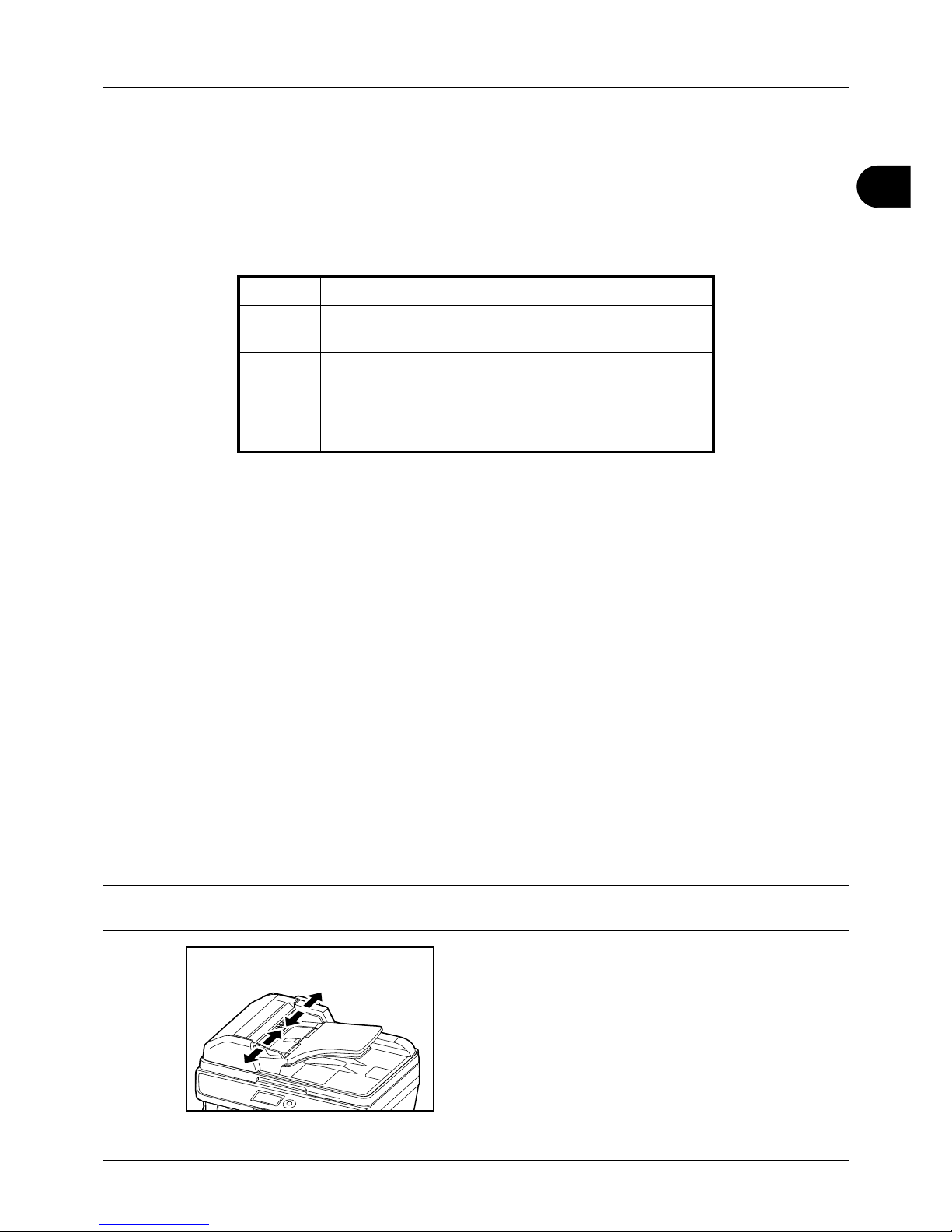
2
Preparation before Use
2-53
Loading Originals in the Document Processor
The document processor automatically scans each sheet of multiple originals. Both sides of two-sided originals are
scanned.
Originals Supported by the Document Processor
The document processor supports the following types of originals.
Originals Not Supported by the Document Processor
Do not use the document processor for the following types of originals.
• Soft originals such as vinyl sheets
• Transparencies such as OHP film
• Carbon paper
• Originals with very slippery surfaces
• Originals with adhesive tape or glue
• Wet originals
• Originals with correction fluid which is not dried
• Irregularly shaped (non-rectangular) originals
• Originals with cut-out sections
• Crumpled paper
• Originals with folds (Straighten the folds before loading. Failure to do so may cause the originals to jam).
• Originals bound with clips or staples (Remove the clips or staples and straighten curls, wrinkles or creases before
loading. Failure to do so may cause the originals to jam).
How to Load Originals
IMPORTANT: Before loading originals, be sure that there are no originals left on the original eject table. Originals left
on the original eject table may cause the new originals to jam.
1 Adjust the original width guides to fit the originals.
Weight 50 to 120 g/m
2
(duplex: 50 to 110 g/m2)
Size Maximum A4 to Minimum A5
Maximum Legal to Minimum Statement
Capacity Plain paper, Colored paper, Recycled paper,
High quality paper: 50 sheets
Thick paper (110 g/m
2
): 36 sheets
Thick paper (120 g/m
2
): 33 sheets
Art paper: 1 sheet
Page 88
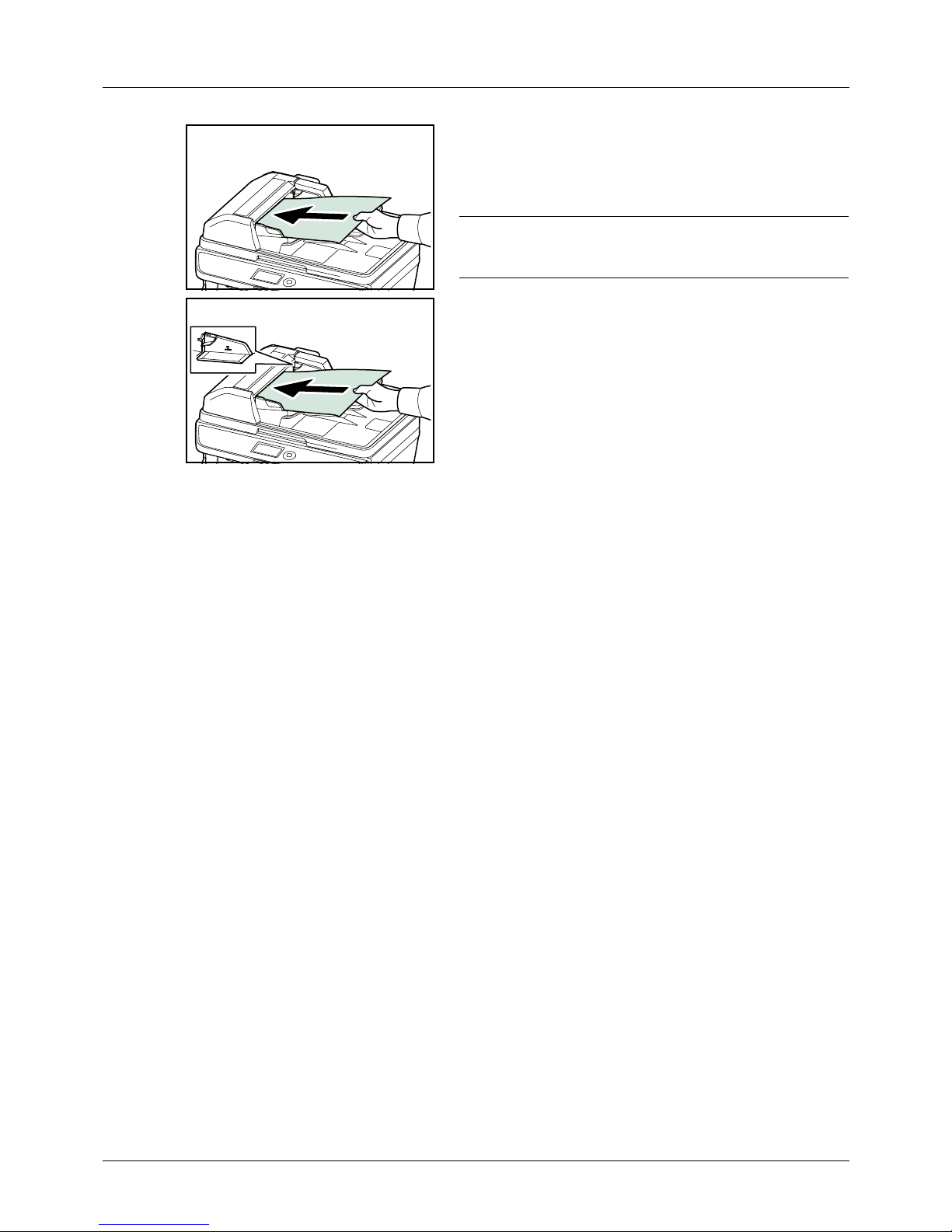
Preparation before Use
2-54
2 Place the originals. Put the side to be scanned (or the
first side of two-sided originals) face-up. Slide the
leading edge into the document processor as far as it will
go.
IMPORTANT: Confirm that the original width guides exactly
fit the originals. If there is a gap, readjust the original width
guides. The gap may cause the originals to jam.
Ensure that loaded originals do not exceed the level
indicator. Exceeding the maximum level may cause the
originals to jam (see the figure).
Originals with punched holes or perforated lines should
be placed in such a way that the holes or perforations will
be scanned last (not first).
Page 89

3-1
3 Basic Operation
This chapter explains the following operations.
• Login/Logout................................................................. 3-2
• One-Touch Keys and Program Keys ............................ 3-3
• Message Display.......................................................... 3-6
• Copying ........................................................................ 3-7
• Printing - Printing from Applications ........................... 3-16
• Sending ...................................................................... 3-18
• Specifying Destination................................................ 3-25
• Canceling Jobs........................................................... 3-28
• Checking Remaining Toner and Paper....................... 3-29
Page 90
3-2
Basic Operation
Login/Logout
If user login administration is enabled, it is necessary to enter the login user name and password to use the machine.
NOTE: You will be unable to log in if you forget your login user name or login password. In this event, log in with
administrator privileges and change your login user name or login password.
Login
NOTE: Refer to Character Entry Method on Appendix-5 for details on entering characters.
1 If the screen shown appears during operations, enter the
login user name.
2 Press the V key. The input cursor moves to Login
Password.
3 Enter the login password.
Press the U key to move the input cursor to Login User
Name.
4 Check the login user name and password are correct,
and press [Login] (the Right Select key).
NOTE: The following administrator is registered in the
machine at the factory.
Login User Name: 30 ppm model:3000, 35 ppm model:3500
Login Password: 30 ppm model:3000, 35 ppm model:3500
Logout
To logout from the machine, press the Logout to return to the
login user name/password entry screen.
Login User Name:L b
*******************
Login Password:
[ Login ]
Page 91

3
3-3
Basic Operation
One-Touch Keys and Program Keys
The one-touch keys and program keys on the operation panel are described below.
One-Touch Key
Register destinations to one-touch keys, and you can enter the desired destination by pressing the applicable onetouch key. For registering a destination to a one-touch key, refer to Adding a Destination on One-touch Key on page
8-113.
Entering Destination with One-touch Key
1 In Address Entry, press the one-touch key where the
desired destination is registered.
Recalling from One-touch Keys 1 to 11
Press the one-touch key where the destination is
registered.
Recalling from One-touch Keys 12 to 22
Press the Shift Lock key to turn on the lamp next to the
keys, and then press the one-touch key where the
destination is registered.
2 The destination registered to the one-touch key is
recalled and automatically entered on the screen.
IMPORTANT: Any destination already entered is overwritten.
Program Keys
Settings of various functions frequently used for copying and sending can be collectively registered as a program.
Then, you can change the current settings of various functions to the registered settings by just pressing one of the
Program 1 to 4 keys.
NOTE:
The following functions are already registerd in
Program 1
key. This function allows you to copy the front and
back sides of ID card or other document that is smaller than Stetement or A5 size onto a single page. Although the
functions are deleted by overwriting
Program 1
key, you can register the same settings using the
Function Menu
key.
Combine: 2 in 1
Continuous Scan: On
Original Size: Statement (Inch models)/A5 (Metric models)
Paper Selection: Cassette 1
Zoom Options: Auto Zoom
Address Entry:
B
b
*
ABC
[ Text ]
Address Entry
A
b
5y@###########.co.jp
*
ABC
[ Text ]
Page 92
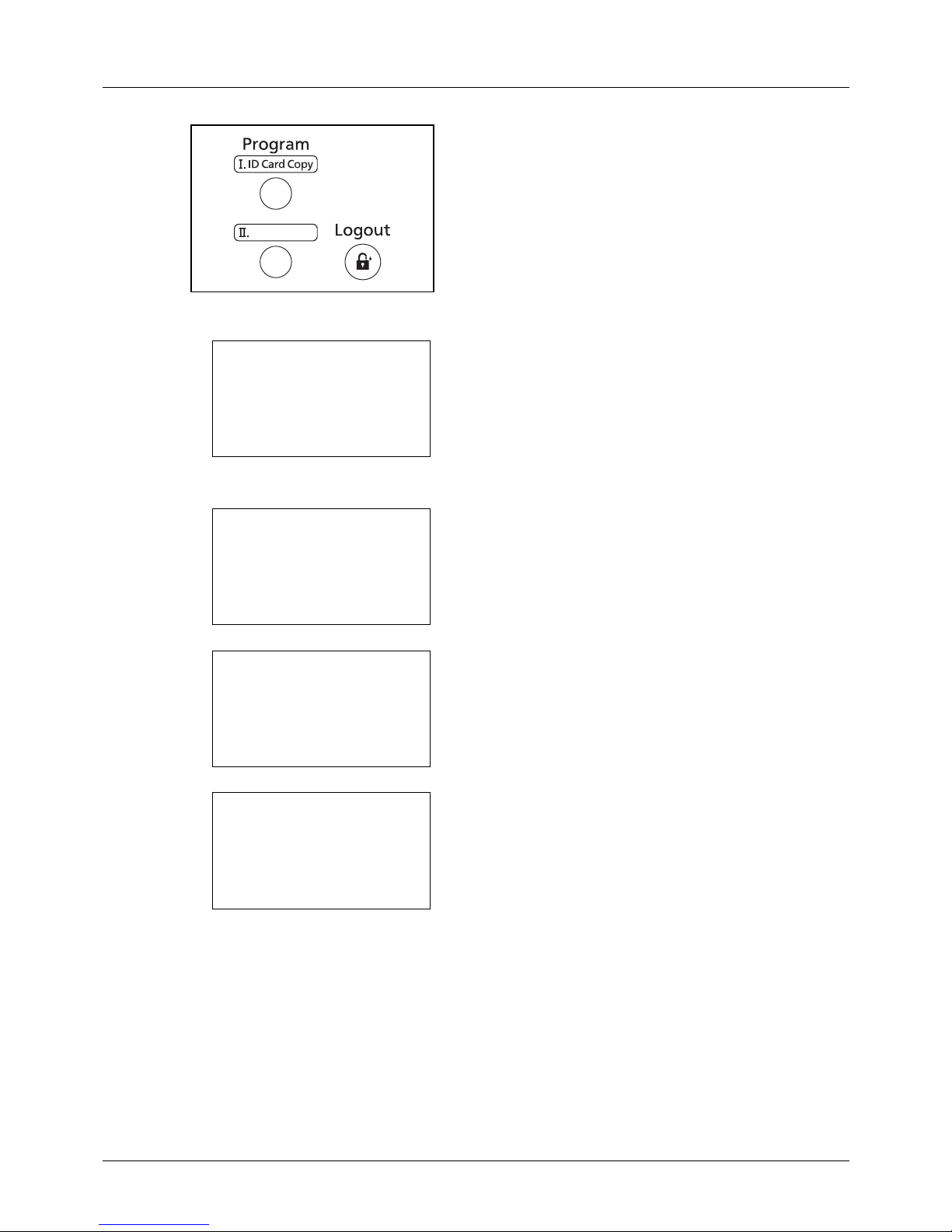
3-4
Basic Operation
ID Card Copy is printed on
the
Program 1
key. Wh en th e
functions are deleted by overwriting
Program 1
key, seal
the label supplied with the machine and write the function
name in it.
Registering Settings
After making settings, press and hold the one of the Program
1 to 4 keys where you want to register the settings for 3
seconds. The current settings are registered to the selected
program key.
Changing and Deleting Settings
1 Press and hold the one of the Program 1 to 4 keys
where the settings you want to change/delete are
registered for 3 seconds. Menu appears.
2 To replace the registered settings with the current
settings, press the U or V key to select [Overwrite] and
then press the OK key. A confirmation screen appears.
Press [Yes] (the Left Select key) to change the settings.
To delete the registered settings, press the U or V key
to select [Delete] and then press the OK key. A
confirmation screen appears. Press [Yes] (the Left
Select key) to delete the registered settings.
Recalling Settings
Press the one of the Program 1 to 4 keys where the settings you want to recall are registered. The current settings
of various functions are replaced with the registered settings.
Registered.
z
Program 1
Menu:
a
b
*********************
2
Delete
1
Overwrite
Overwrite.
Are you sure?
z
Program 1
[ Yes ] [ No ]
Delete.
Are you sure?
z
Program 1
[ Yes ] [ No ]
Page 93
3
3-5
Basic Operation
ID Card Copy
The procedure for using ID Card copying is explained below.
1 Press the Copy key when the Copy key/indicator is off.
NOTE: If the Message Display is turned off, press the any
key on the operation panel and wait for the machine to warm
up.
2 Place the original on the platen.
Put the scanning side facedown in the center of
Statement or A5 size scanning area.
NOTE: For loading instructions, refer to Loading
Originals on page 2-52.
3 Press the Program 1.
The ID Card Copy function is recalled.
4 Press the Start key. Scanning begins.
5 Turn over the original on the platen and press the Start
key.
6 After scanning all originals, press [End Scan] (the Right
Select key) to start copying.
Recalled.
z
Program 1
Page 94
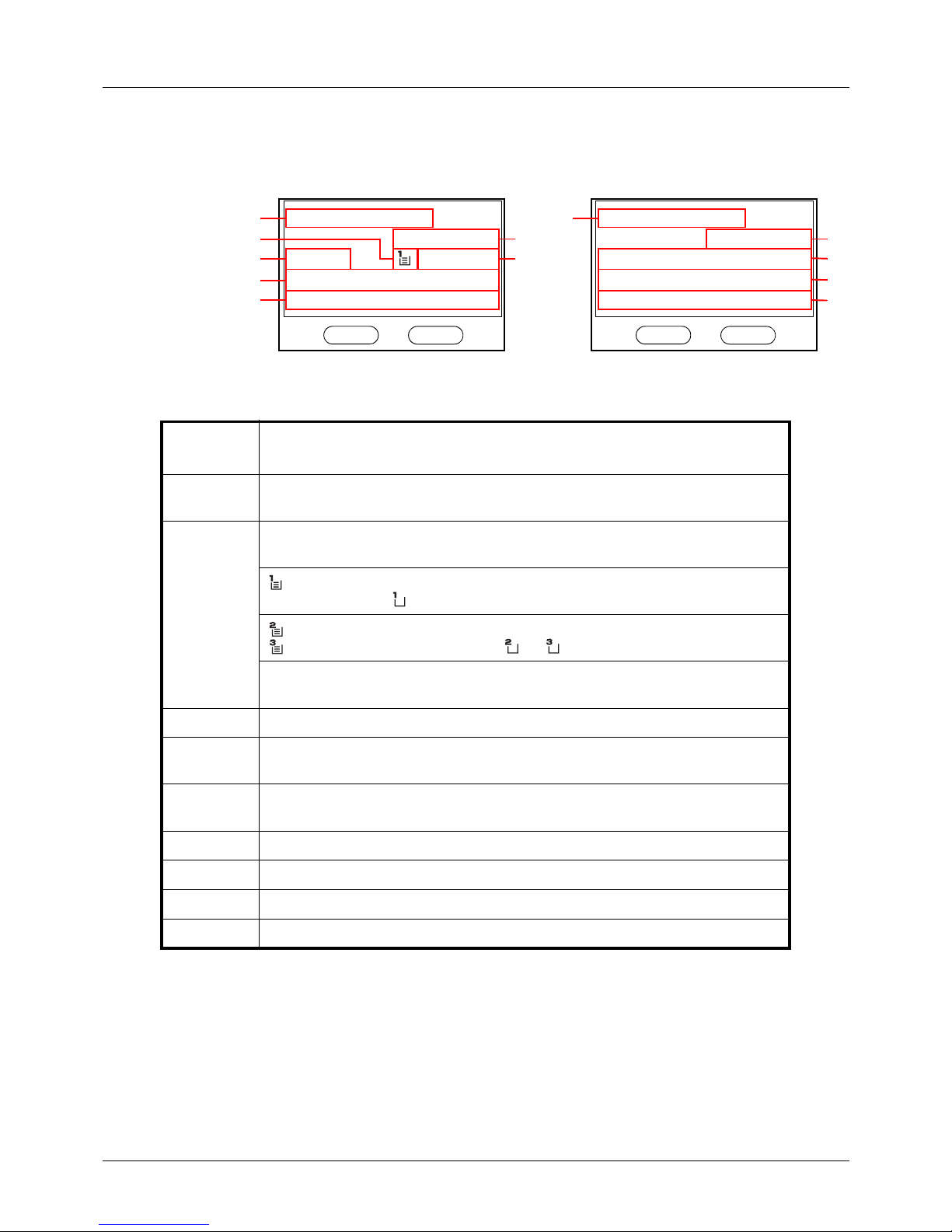
3-6
Basic Operation
Message Display
The following examples explain the messages and icons used on the message display.
Reference
number
Meaning
1 Indicates the current status of the machine. Also displays the title of the current
menu whenever the operation panel is being used.
2 Displays an icon that indicates the currently selected source of paper feed. The
meaning of each icon is as indicated below.
The standard paper cassette is currently selected. When this icon is
displayed as , there is no paper is the cassette.
The paper cassette for the optional paper feeder is currently selected.
When this icon is displayed as , or , there is no paper is the cassette.
F The MP Tray is currently selected. When this icon is displayed as L there
is no paper is the MP Tray.
3 Displays the size of the original(s).
4 Displays the current setting when there is a corresponding menu that can be
selected using the left or right Select keys.
5 Displays the title of the corresponding menu that can be selected using the left
or right Select keys.
6 Displays the number of copies.
7 Displays the paper size to be copied.
8 Displays the number of destinations.
9 Displays the destination.
Ready to send.
Dest.: 1
p
:sally@###########
N
1-sided
[ Duplex ] [ ]
Ready to copy.
Copies: 1
A4
q
s
A4
a
100%
[ Zoom ] [ ]
1
3
4
5
2
6
7
Copier Screen Send Screen
1
8
9
4
5
Page 95
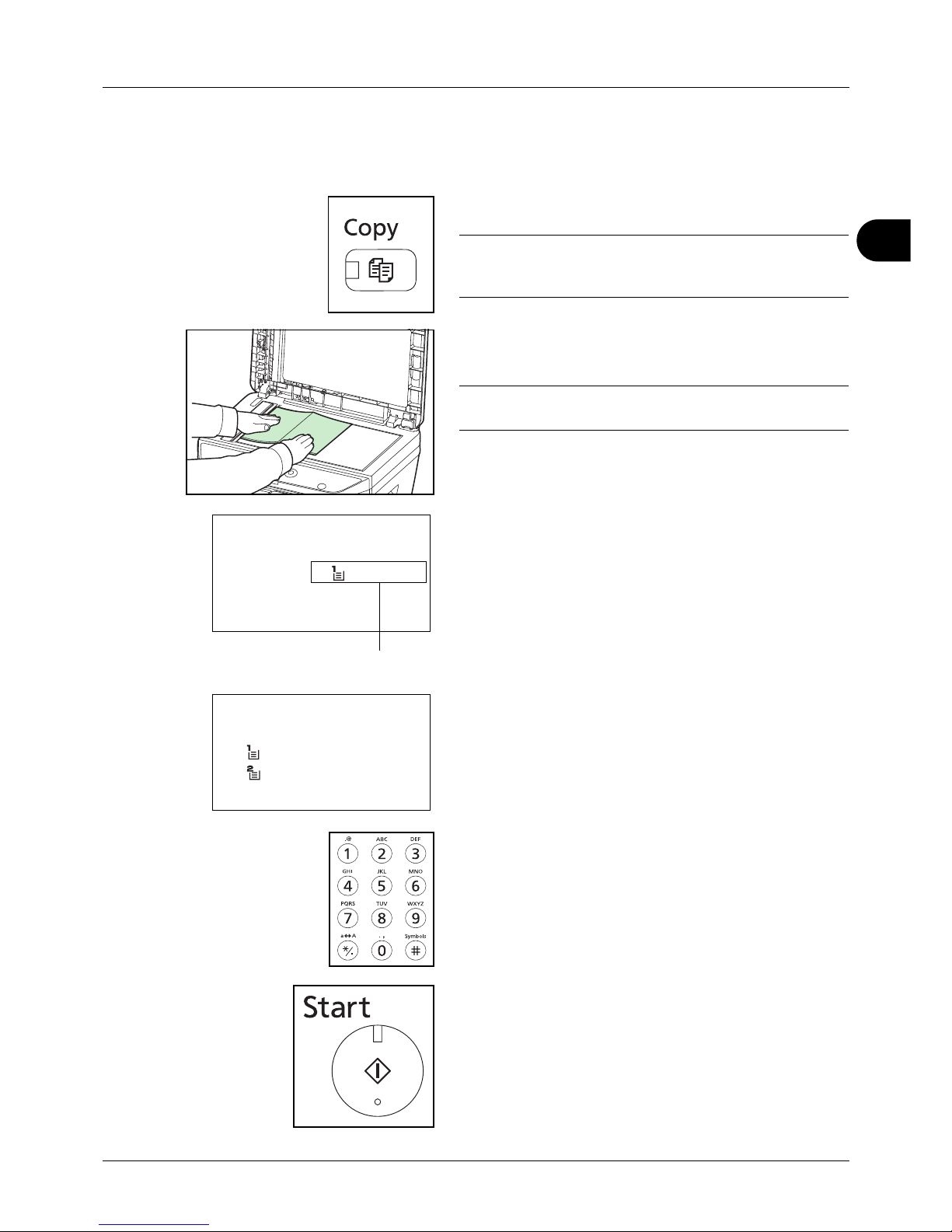
3
3-7
Basic Operation
Copying
Follow the steps as below for basic copying.
1 Press the Copy key when the Copy key/indicator is off.
NOTE: If the Message Display is turned off, press the any
key on the operation panel and wait for the machine to warm
up.
2 Place the originals on the platen or in the document
processor.
NOTE: For loading instructions, refer to Loading
Originals on page 2-52.
3 The paper source for copying is the location displayed on
the panel.
When you need to change the paper source, use the
Paper Selection menu. If [Auto] is selected, the most
suitable paper source is automatically selected.
For specifying the paper source, refer to Paper
Selection on page 4-3.
4 Use the numeric keys to enter the copy quantity. Specify
the desired number up to 999.
5 Press the Start key to start copying.
Ready to copy.
Copies: 1
Letter
q sLetter
a
100%
[ Zoom ] [ Paper ]
Paper source
Paper Selection:a b
*********************
2
A4a Plain
3
A5a Plain
1
* Auto
Page 96
3-8
Basic Operation
6 Remove the finished copies from the inner tray.
Adjusting Density
Use this procedure to adjust the density when copying.
NOTE: You may choose Auto mode as the default setting (refer to Density on page 8-46).
The procedure for adjusting the density of copies is explained below.
1 Press the Function Menu key. Function Menu appears.
2 Press the U or V key to select [Density].
3 Press the OK key. Density appears.
4 Press the U or V key to select [Auto] or [Manual].
5 Press the OK key.
When [Manual] is selected, Manual appears. Press the
U or V key to select your desired density and then press
the OK key.
Completed. is displayed and the screen returns to the
basic screen.
6 Press the Start key. Copying begins.
Density Adjustment Option Description
Manual Adjust density using 7 levels.
Auto Optimum density is selected according
to the density of the original.
Function Menu:
a
b
*********************
2
Collate
T
3
Duplex
T
[ Exit ]
1
Paper Selection
T
Density:
a
b
1
Auto
*********************
2
*Manual
Manual:
a
b
3 v
Lighter -1
*********************
5 y
Darker
+1
4 w
Normal
0
Page 97
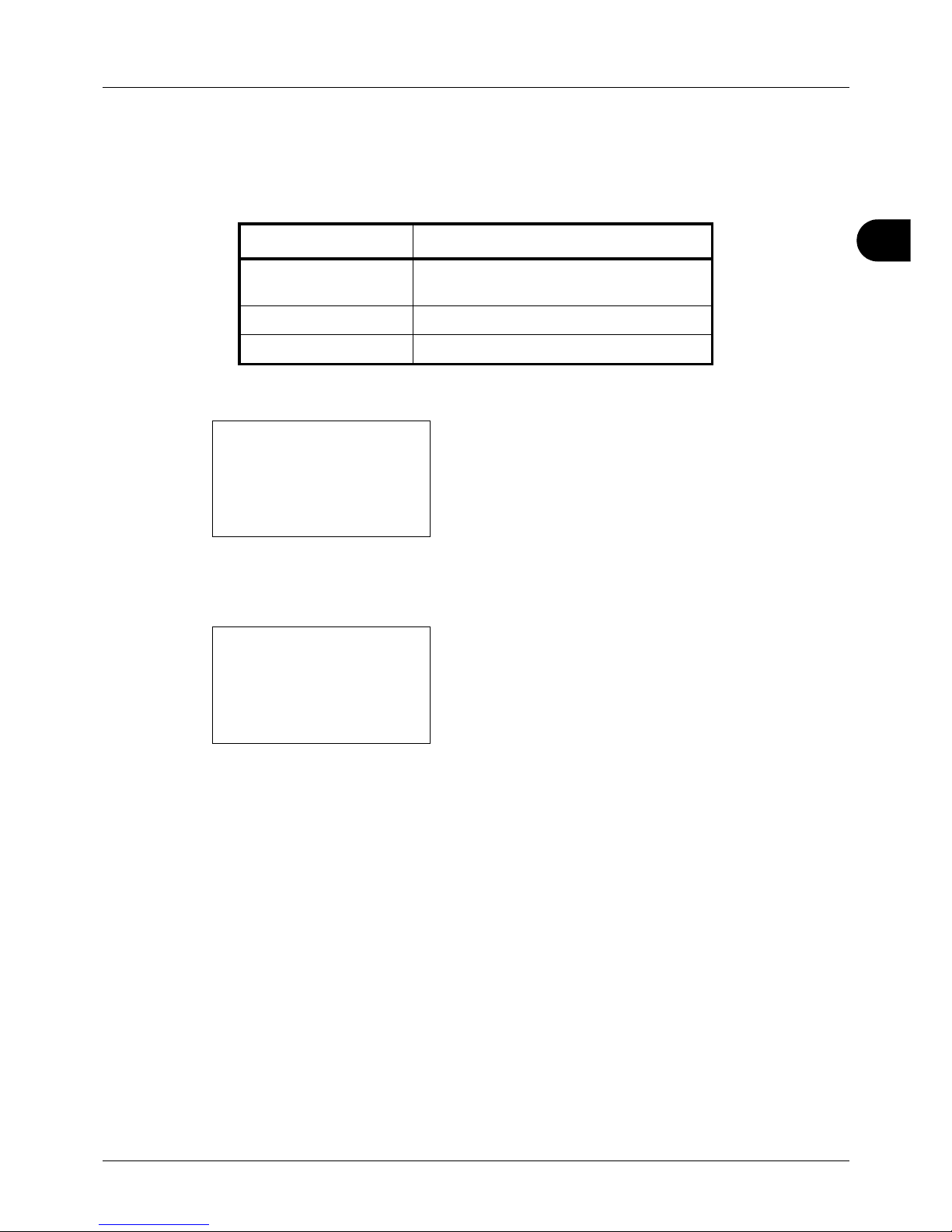
3
3-9
Basic Operation
Selecting Image Quality
Select image quality suited to the type of original.
The table below shows the quality options.
The procedure for selecting the quality of copies is explained below.
1 Press the Function Menu key. Function Menu appears.
2 Press the U or V key to select [Original Image].
3 Press the OK key. Original Image appears.
4 Press the U or V key to select the image quality suited
to the type of original.
5 Press the OK key. Completed. is displayed and the
screen returns to the basic screen.
6 Press the Start key. Copying begins.
Image Quality Option Description
Text+Photo For originals with both text and
photographs.
Photo For photos taken with a camera.
Text For originals primarily consisting of text.
Function Menu:
a
b
*********************
2
Collate
T
3
Duplex
T
[ Exit ]
1
Paper Selection
T
Original Image:
a
b
*********************
2
Photo
3
Text
1
*Text+Photo
Page 98
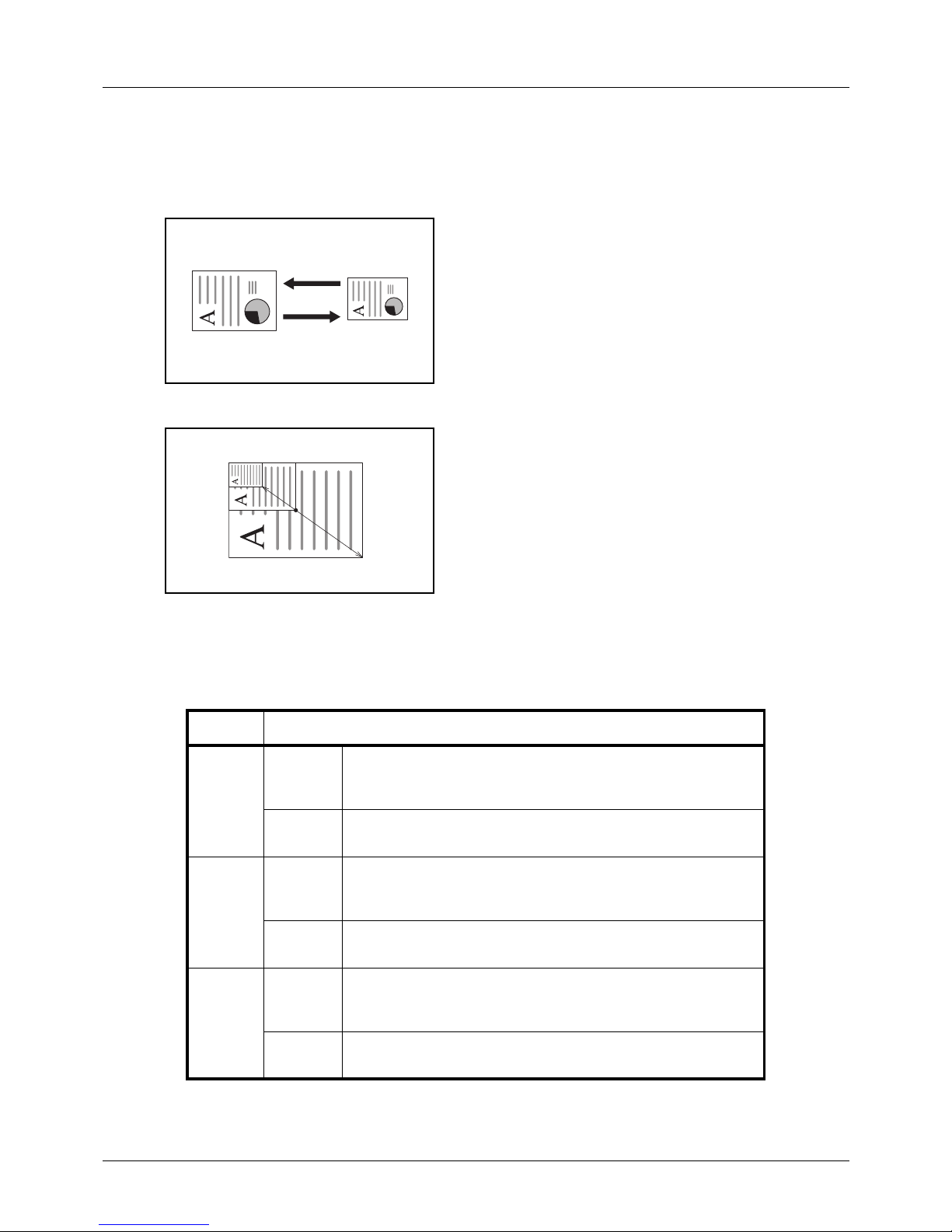
3-10
Basic Operation
Zoom Copying
Adjust the magnification to reduce or enlarge the original image. The following zoom options are available.
Auto Zoom
Automatically reduces or enlarges the original image suitably
to the selected paper size.
Zoom Entry
Manually reduces or enlarges the original image in 1%
increments between 25% and 400%.
Standard Zoom
Reduces or enlarges at preset magnifications.
The following magnifications are available.
Letter-R
129 %
Statement-R
141 %
A5
A4
64 %
70 %
25 %
400 %
Model Zoom Level (OriginalCopy)
Inch
Models
Standard 100%, 400% (Max.), 200%, 129% (Statement >> Letter),
78% (Legal >> Letter), 64% (Letter >> Statement), 50%,
25% (Min.)
Other 141% (A5 >> A4), 115% (B5 >> A4), 90% (Folio >> A4),
86% (A4 >> B5), 70% (A4 >> A5)
Metric
Models
Standard 100%, 400% (Max.), 200%, 141% (A5 >> A4),
115% (B5 >> A4), 86% (A4 >> B5), 70% (A4 >> A5),
50%, 25% (Min.)
Other 129% (Statement >> Letter), 90% (Folio >> A4),
78% (Legal >> Letter), 64% (Letter >> Statement)
Metric
Models
(Asia
Pacific)
Standard 100%, 400% (Max.), 200%, 141% (A5 >> A4),
115% (B5 >> A4), 90% (Folio >> A4), 86% (A4 >> B5),
70% (A4 >> A5), 50%, 25% (Min.)
Other 129% (Statement >> Letter), 78% (Legal >> Letter),
64% (Letter >> Statement)
Page 99

3
3-11
Basic Operation
The procedure for using zoom copying is explained below.
1 Press the Function Menu key. Function Menu appears.
2 Press the U or V key to select [Zoom].
3 Press the OK key. Zoom appears.
4 Press the U or V key to select the desired
magnification.
To copy in the same size as the original, select [100%].
To select automatic zoom, select [Auto].
To use fixed magnifications, select [Standard Zoom] and
press the OK key. Standard Zoom appears. Press the U
or V key to select the desired magnification. If you select
[Other] and press the OK key, you can select from
additional magnifications.
To enter a magnification, select [Zoom Entry] and press
the OK key. Zoom Entry appears. Use the numeric keys
to enter the any magnification.
5 Press the OK key. Completed. is displayed and the
screen returns to the basic screen.
6 Press the Start key. Copying begins.
Function Menu:
a
b
*********************
2
Collate
T
3
Duplex
T
[ Exit ]
1
Paper Selection
T
Zoom:
a
b
*********************
2
Auto
3
Standard Zoom
1
*100%
Standard Zoom:
a
b
4
129% STMT >> LTR
*********************
6
78% LGL >> LTR
5
*100%
Zoom Entry:
D
b
(25 - 400)
*****100
%
Page 100
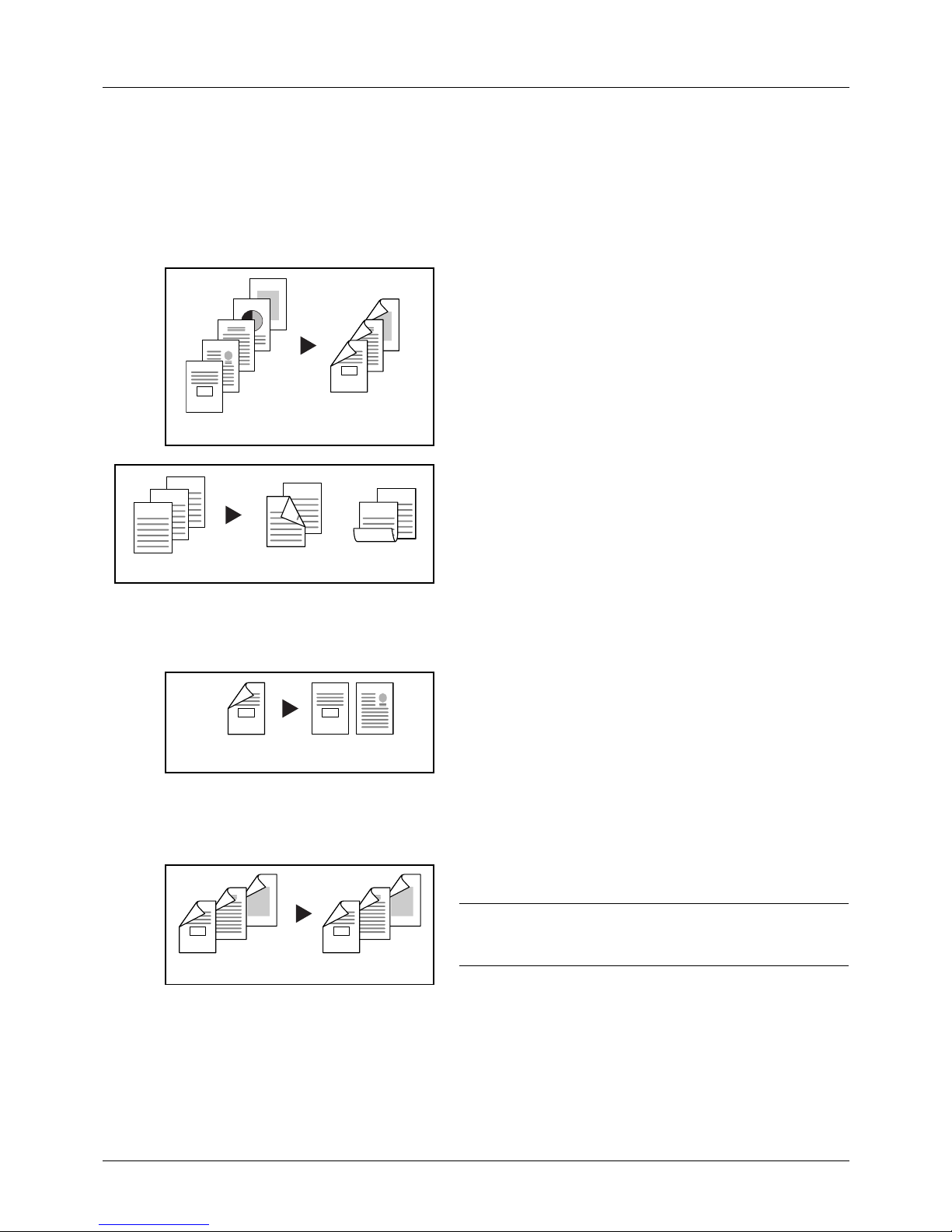
3-12
Basic Operation
Duplex Copying
Produce two-sided copies. The following duplex options are available.
You can also create single-sided copies from two-sided originals or originals with facing pages such as books. The
following modes are available.
One-sided to Two-sided
Produces two-sided copies from one-sided originals. In case
of an odd number of originals, the back side of the last copy
will be blank.
The following binding options are available.
A Binding Left/Right: Images on the second sides are not
rotated.
B Binding Top: Images on the second sides are rotated
180°. Copies can be bound on the top edge, facing the
same orientation when turning the pages.
Two-sided to One-sided
Copies each side of a two-sided original onto two individual
sheets.
The following binding options are available.
• Binding Left/Right: Images on the second sides are not
rotated.
• Binding Top: Images on the second sides are rotated
180°.
Two-sided to Two-sided
Produces two-sided copies from two-sided originals.
NOTE: The paper sizes supported in Two-sided to Two-
sided are Legal, Letter, Oficio II, Executive, A4, B5, A5 and
Folio.
Original Copy
5
4
3
2
1
5
3
4
1
2
ghi
def
abc
ghi
abc
def
ghi
abc
def
Original Copy
AB
2
1
1
2
Original Copy
Original Copy
5
3
4
1
2
5
3
4
1
2
 Loading...