

Page 1
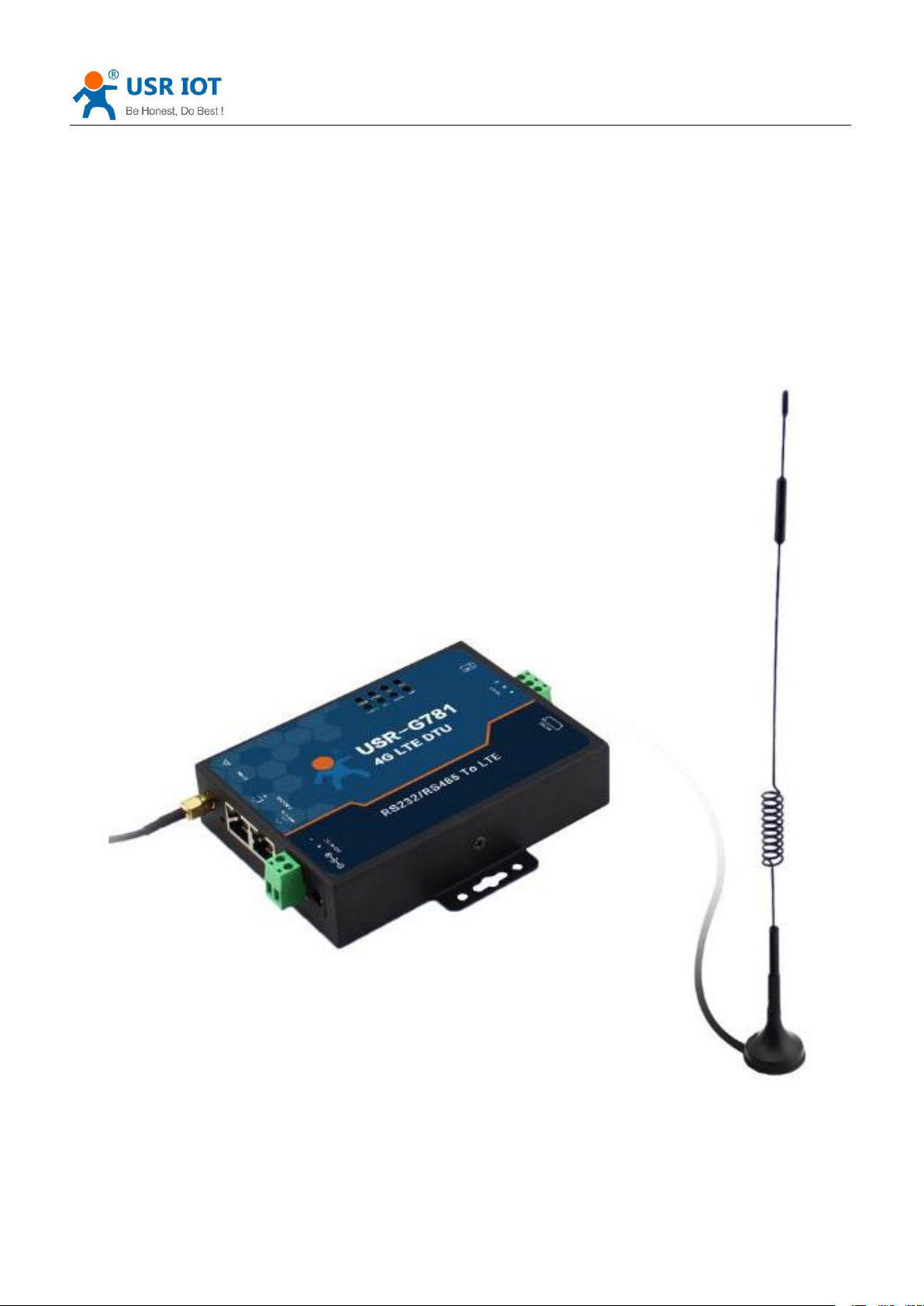
USR-G781 User Manual Technical Support: h.usriot.com
USR-G781 User Manual
File Version: V1.0.06.02
Jinan USR IOT Technology Limited
1
Page 2

USR-G781 User Manual Technical Support: h.usriot.com
Contents
USR-G781 User Manual..........................................................................................................................................1
Brief Introduction............................................................................................................................................. 4
Features............................................................................................................................................................... 4
1. Get Start...................................................................................................................................................................5
1.1. Application.................................................................................................................................................. 5
1.1.1. Application Diagram......................................................................................................................5
1.1.2. Hardware Dimensions...................................................................................................................6
1.1.3. Hardware Interface........................................................................................................................ 7
1.1.4. LED Indicator...................................................................................................................................8
1.2. Module Default Parameters.....................................................................................................................8
1.3. Basic Parameters....................................................................................................................................... 9
1.4. Frequency Band........................................................................................................................................10
1.5. Hardware Introductions.........................................................................................................................10
2. Product Functions............................................................................................................................................... 12
2.1. APN..............................................................................................................................................................12
2.2. Router Functions......................................................................................................................................13
2.2.1. Configuration procedure............................................................................................................ 13
2.2.2. Networking mode.........................................................................................................................14
2.2.2.1. WAN+LAN+4G.....................................................................................................................14
2.2.2.2. LAN+LAN+4G......................................................................................................................14
2.2.3. Features.......................................................................................................................................... 15
2.2.3.1. 4G Interface........................................................................................................................ 15
2.2.3.2. LAN Interface......................................................................................................................15
2.2.3.3. WAN Interface.................................................................................................................... 16
2.2.3.4. DHCP Server function.......................................................................................................16
2.2.3.5. VPN function.......................................................................................................................17
2.2.3.6. Static Routes function...................................................................................................... 17
2.2.3.7. Static IP binding................................................................................................................ 18
2.2.3.8. Network diagnosis............................................................................................................ 18
2.2.3.9. Firewall................................................................................................................................19
2.3. DTU Functions.......................................................................................................................................... 21
2.3.1. Work Mode.....................................................................................................................................21
2.3.1.1. Transparent Mode.............................................................................................................21
2.3.1.2. HTTPD Client Mode.......................................................................................................... 23
2.3.2. Serial Port.......................................................................................................................................24
2.3.2.1. Parameters range..............................................................................................................24
2.3.2.2. Serial Package Methods...................................................................................................24
2.3.2.3. Baud Rate Synchronization.............................................................................................24
2.3.3. Features.......................................................................................................................................... 25
2.3.3.1. Identity packet Function................................................................................................. 25
2.3.3.2. Heartbeat packet Function..............................................................................................26
2.4. Basic functions..........................................................................................................................................26
Jinan USR IOT Technology Limited
2
Page 3

USR-G781 User Manual Technical Support: h.usriot.com
2.4.1. Reload by Hardware.....................................................................................................................26
3. Parameter Setting............................................................................................................................................... 27
3.1. Web Server Configuration...................................................................................................................... 27
3.2. AT Command............................................................................................................................................. 28
3.2.1. Serial AT Command...................................................................................................................... 28
3.2.2. Setup software...............................................................................................................................28
3.2.3. Transparent AT Command..........................................................................................................28
4. Contact Us..............................................................................................................................................................29
5. Disclaimer.............................................................................................................................................................29
6. Update History..................................................................................................................................................... 29
Jinan USR IOT Technology Limited
3
Page 4

USR-G781 User Manual Technical Support: h.usriot.com
ARM 9 core and Linux system based.
Supports 2G 3G and 4G LTE. Different version for America, Europe, Australia and other areas.
Support 2 Ethernet RJ45 port. One LAN port, and another one can be set as WAN port or LAN port.
Support 1 SIM card socket.
Support PPTP VPN. LT2P, IPSEC and Open VPN are on developing.
Support DDNS, static routing and firewall.
Support NTP and clock synchronization.
Support Web Server configuration.
Supports 4 connections online simultaneously, supports TCP and UDP
Supports sending network identity packet.
Supports sending heartbeat packet data to network or serial port
Supports 2 serial work modes: Network transparent transmission mode and HTTPD mode
Dual watchdog timer for stability.
Brief Introduction
USR-G781 is a 3G&4G DTU which apply to LTE WCDMA and GPRS. Serial RS232 or RS485 can be transfer to
Internet server via LTE technology. G781 has two Ethernet port for networking accessory.
Features
Jinan USR IOT Technology Limited
4
Page 5
USR-G781 User Manual Technical Support: h.usriot.com
Jinan USR IOT Technology Limited www.usriot.com
5
1. Get Start
1.1. Application
1.1.1.Application Diagram
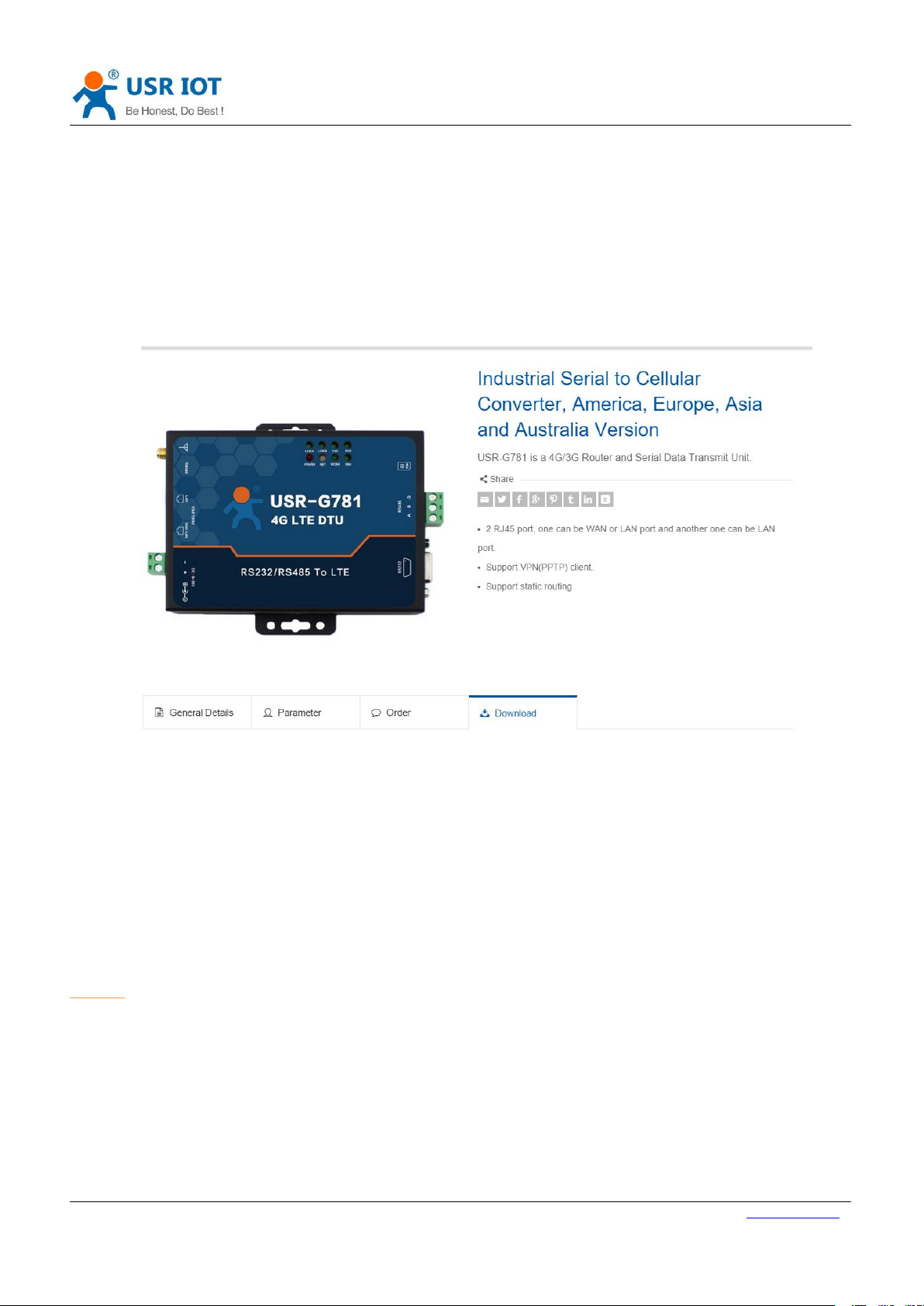
Product link:
http://www.usriot.com/p/g781/
Setup software:
http://www.usriot.com/usr-g781-setup-software-v1-0-0-0/
Figure 1 Download Page
If you have any question, please submit it back to customer center: http://h.usriot.com
When you start using module, the first step is to configure APN settings.
2.1.APN is chapter for APN settings.
Page 6
USR-G781 User Manual Technical Support: h.usriot.com
Jinan USR IOT Technology Limited www.usriot.com
6
1.1.2.Hardware Dimensions
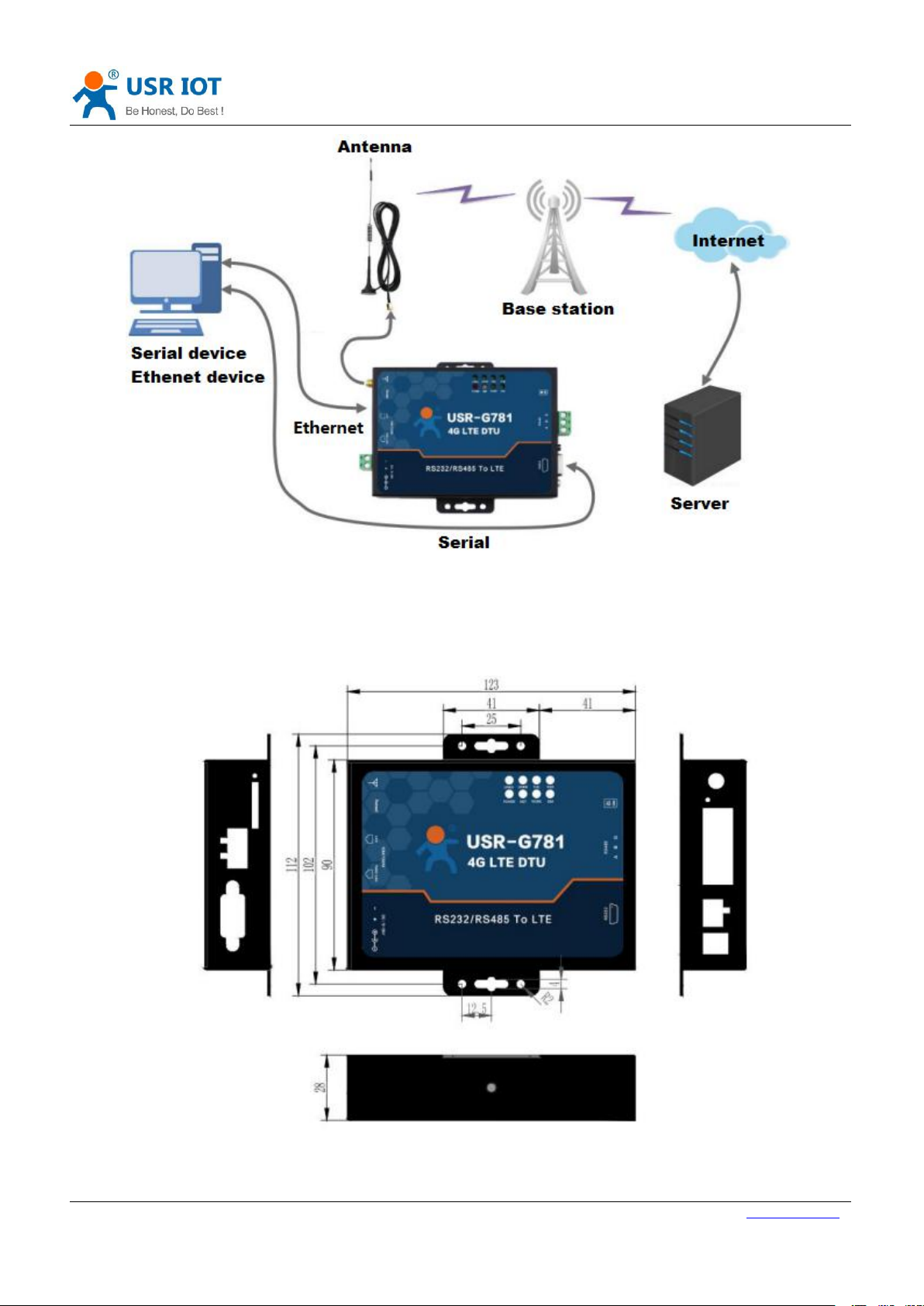
Figure 2 Application diagram
units: mm
Figure 3 Hardware dimensions
Page 7
USR-G781 User Manual Technical Support: h.usriot.com
Jinan USR IOT Technology Limited www.usriot.com
7
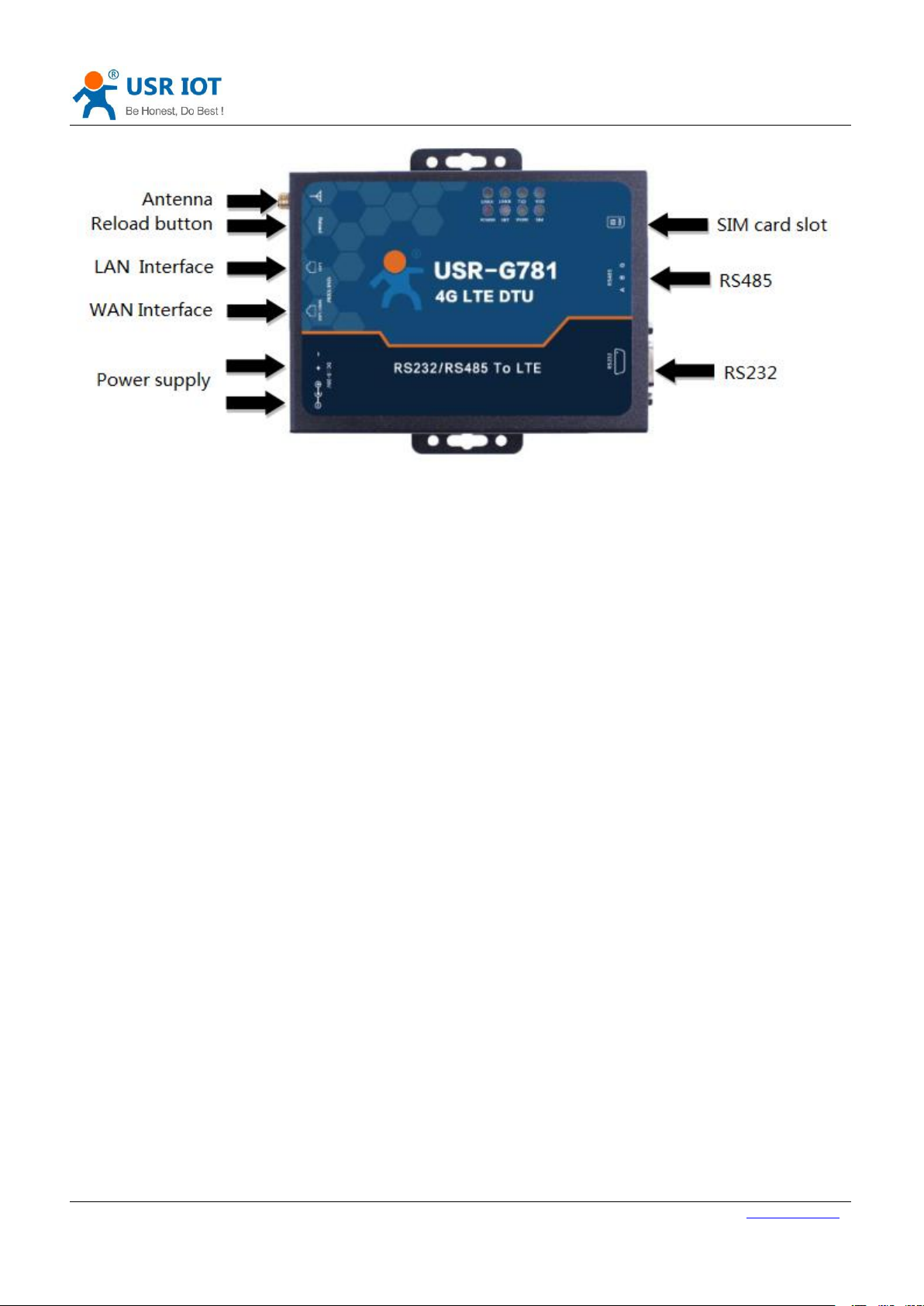
1.1.3.Hardware Interface
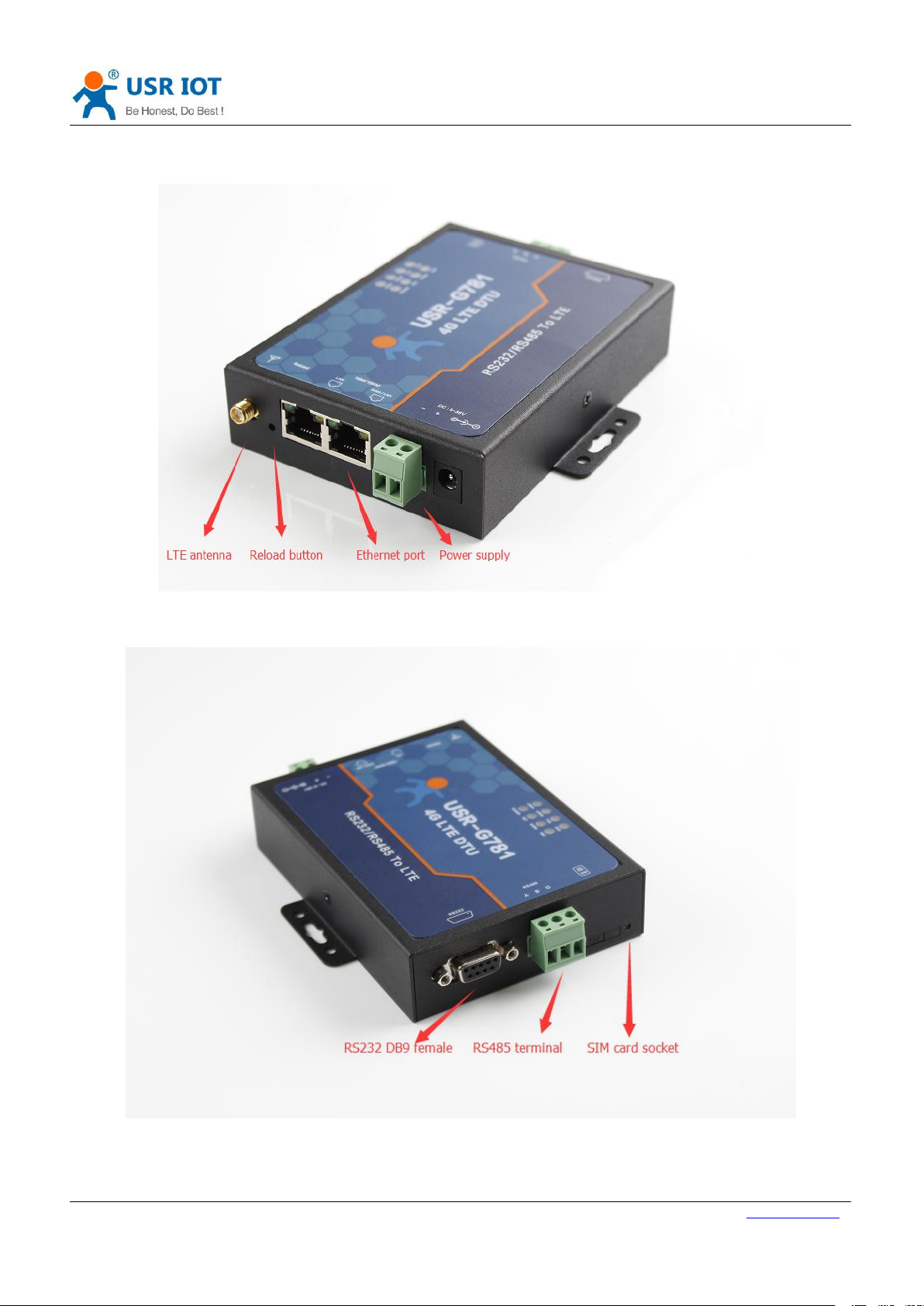
Figure 4 Hardware interface
Figure 5 Hardware interface
Page 8
USR-G781 User Manual Technical Support: h.usriot.com
Jinan USR IOT Technology Limited www.usriot.com
8
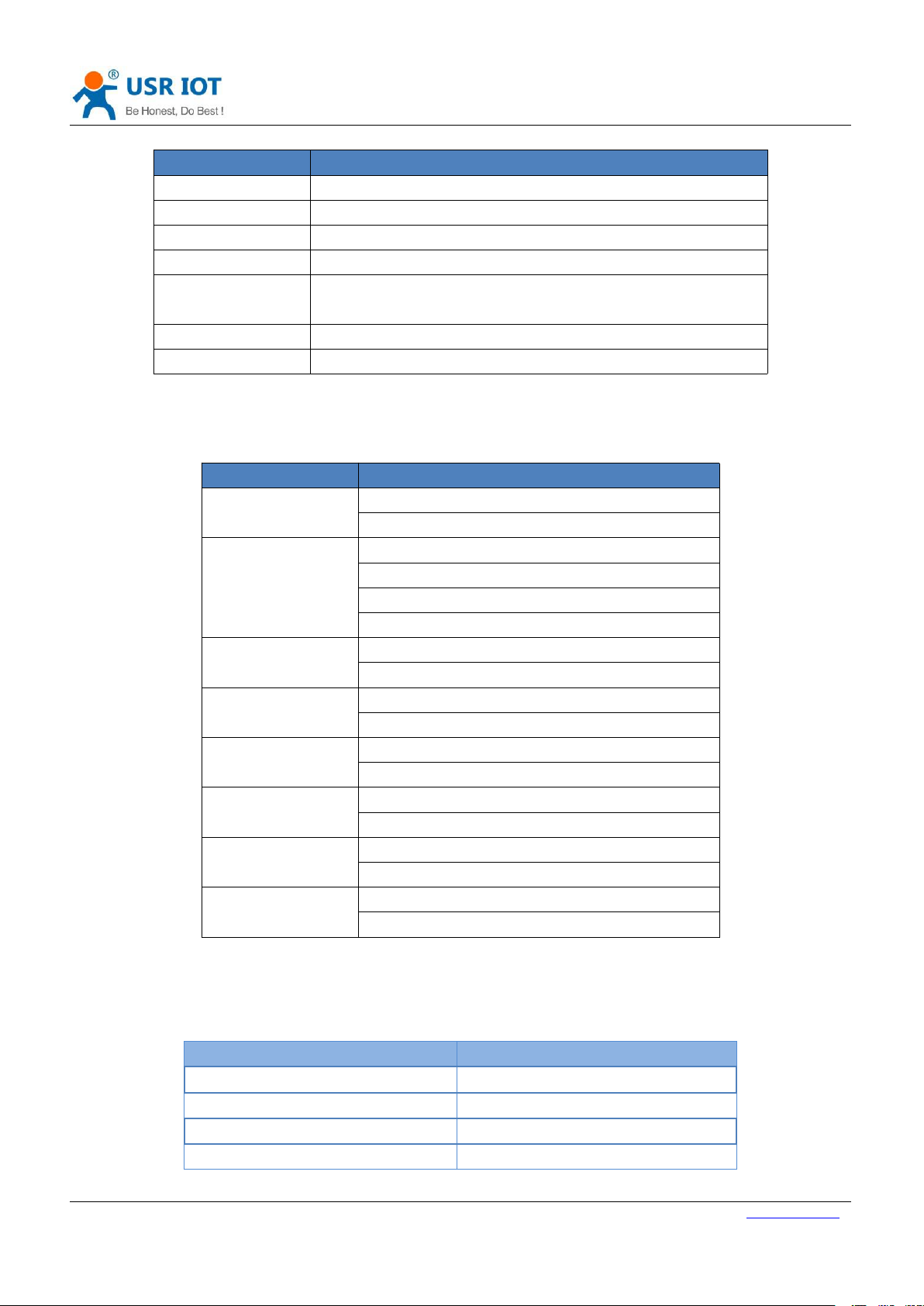
Interface
Information
LTE antenna
Stick antenna and sucker antenna for chosen
Reload button
Press button for 3~15s to reload to factory settings
Ethernet port
WAN/LAN port can be switch by serial command
Power supply
DC 9~36V power supply
RS232 DB9
female
5 wires RS232(TXD/RXD/GND/RTS/CTS)
RS485 terminal
3 wires RS485: A+/B-/GND
SIM card socket
Insert SIM card here
1.1.4.LED Indicator
Indicator
Status
Power
On: Power on
Off: Power off
NET
Red: 2G network
Blue: 3G network
Purple: 4G network
Off: No network
WORK
On: Working
Off: Not working
SIM
On: SIM card detected
Off: SIM card not detected
LINKA
On: Socket A connected
Off: Socket A disconnected
LINKB
On: Socket B connected
Off: Socket B disconnected
TXD
On: Sending data to serial
Off: No data sending to serial
RXD
On: Receiving data from serial
Off: No data receiving from serial
Work mode
Transparent mode
Server Address
test.usr.cn
Server Port
2317
Serial Parameters
115200,8,1,None
Heartbeat packet
www.usr.cn
Figure 6 Interface information
Figure 7 Hardware Indicator
1.2. Module Default Parameters
Figure 8 Default parameters
Page 9

Jinan USR IOT Technology Limited www.usriot.com
9
1.3. Basic Parameters
Parameter
Index
SIM card and antenna
SIM/USIM card
Six pin SIM card interface, 3V/1.8V SIM card
Antenna
SMA interface, 5dBi antenna
Hardware Parameters
Wired Internet interface
WAN*1 and LAN*1
Data Interface
RS232:300bps - 460800bps
RS485:300bps - 460800bps
Indicator LED
LINKA, LINKB, TXD, RXD, POWER, NET, WORK, SIM
Working Voltage
DC 9V~36V
Working Current
Average current 180mA@12V
Peak Current 300mA@12V
Working Temp.
-25℃- 85℃
Storage Temp.
-40℃- 125℃
Working humidity
10%~90%
Storage humidity
5%~90%
Software Parameters
Work Mode
Transparent Mode, HTTPD Client Mode
Setting Command
AT+ Command Structure
Network protocol
TCP/UDPDNS/HTTP/FTP
Max TCP connections
4
User Configuration Method
Setting Software,AT command and Web Server
configuration
Software Functions
VPN
Support PPTP
Static routing management
Support
Firewall
Support
Network diagnosis
Support
Remote Management
Support
Transparent Transmission
Support TCP Server/TCP Client/UDP Server/UDP Client
HTTP Protocol
Transmission
Support
Heartbeat Packet
Support
Identity Packet
Support IMEI/ICCID/self-defined identity packet
Baud Rate Synchronization
Support
USR Cloud
Support
USR-G781 User Manual Technical Support: h.usriot.com
Figure 9 Basic parameters
Page 10
Jinan USR IOT Technology Limited www.usriot.com
10
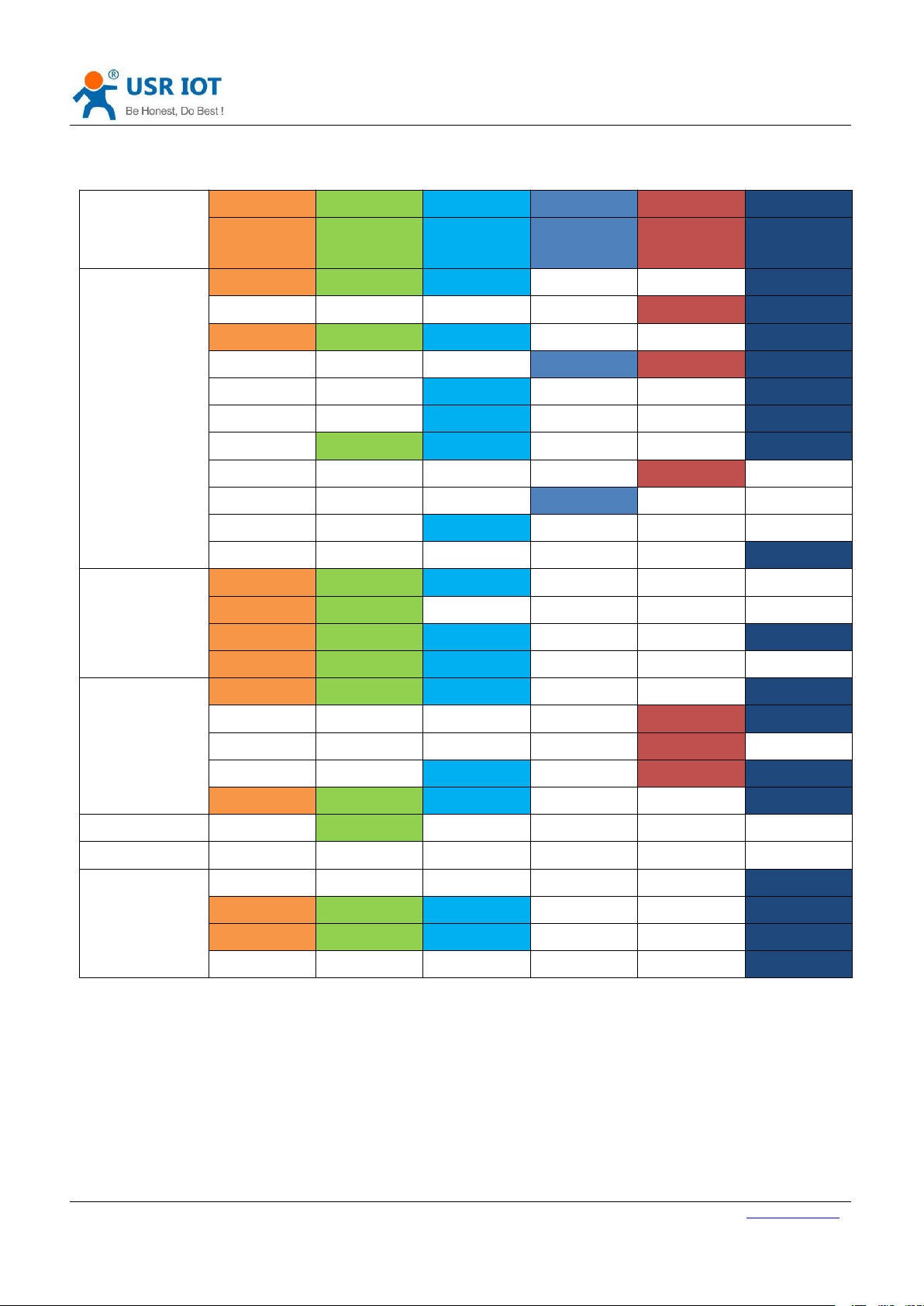
1.4. Frequency Band
G781
G781-43
G781-E
G781-V
G781-A
G781-AU
Operatin
g Band
Operatin
g Band
Operatin
g Band
Operatin
g Band
Operatin
g Band
Operatin
g Band
FDD-LTE
111
1
2
2
333
3
444
5
5
7
7
888
12
13
20
28
TDD-LTE
383838
39
39
404040
40
414141
WCDMA
111
1
2
2
4
555
888
8
CDMA1X
800MHz
CDMA2000-EVDO
GPRS
2
333
3
888
5
8
USR-G781 User Manual Technical Support: h.usriot.com
Figure 10 Frequency Band
1.5. Hardware Introductions
Below is the hardware interface schematic diagram of USR-G781
Page 11
USR-G781 User Manual Technical Support: h.usriot.com
Jinan USR IOT Technology Limited www.usriot.com
11
Figure 11 Hardware interface schematic diagram
Page 12
USR-G781 User Manual Technical Support: h.usriot.com
Jinan USR IOT Technology Limited www.usriot.com
12
2. Product Functions
2.1. APN
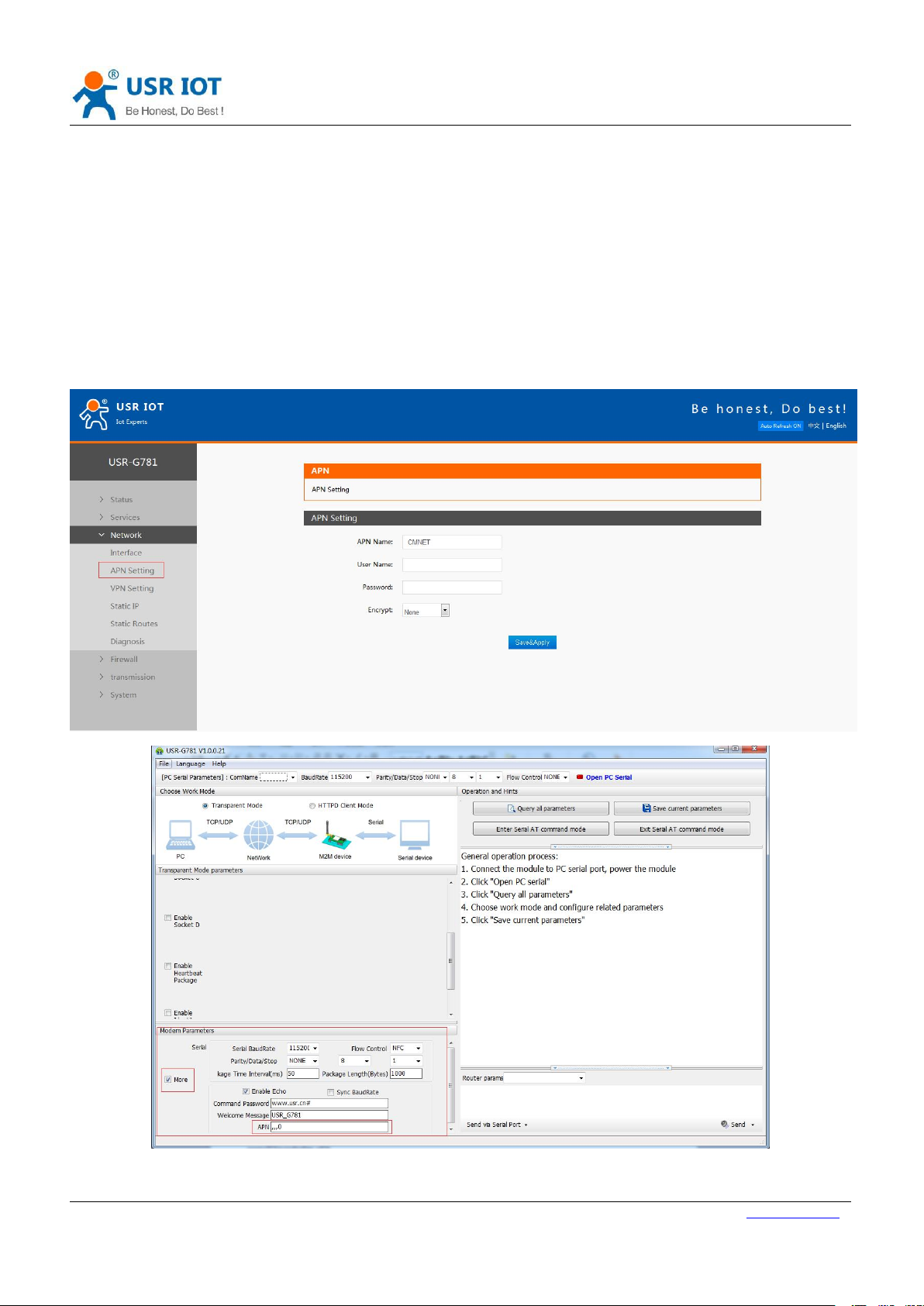
Different operator have different APN(access point name), if you use the SIM card from the operator. You must
know the APN. You can ask your SIM card operator for APN.
There are four parameters about APN. Those are APN Name, User Name, Password and Encrypt. Sometimes only
configure APN Name is enough. User can configure the APN settings by Web Server or Setup software as follows:
Figure 12 APN configuration
Page 13
USR-G781 User Manual Technical Support: h.usriot.com
Jinan USR IOT Technology Limited www.usriot.com
13
2.2. Router Functions
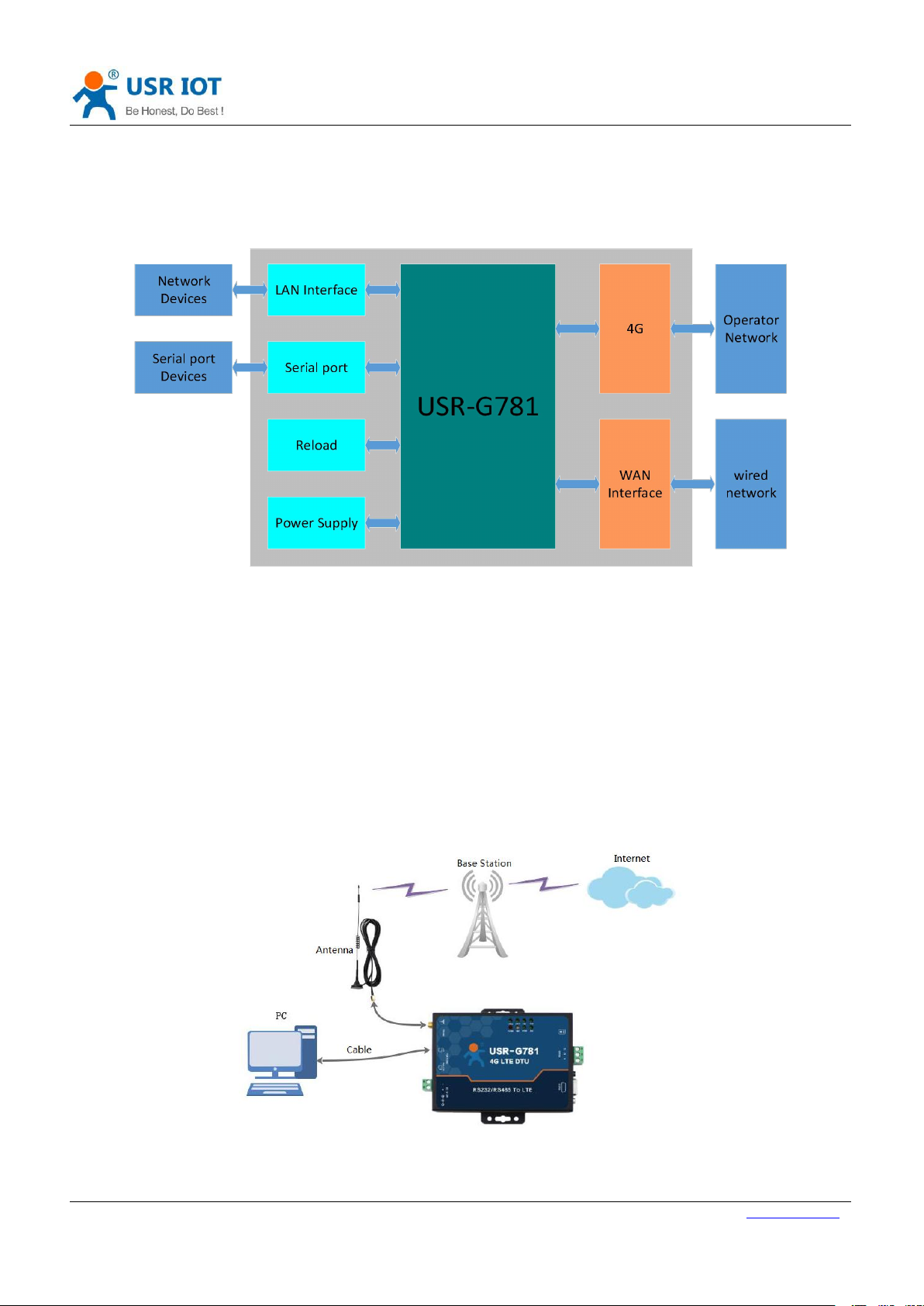
This chapter introduces the Router functions of USR-G781, as the following diagram shown, you can get an
overall knowledge of it.
Figure 13 Router Functions diagram
2.2.1. Configuration procedure
Basic procedure as follows:
Step1: Keep G781 in power off condition.
Step2: Insert SIM card.
Step3: Connect antenna.
Step4: Power the G781.
Step5: Wait about one minute, NET LED light with purple, G781 can connect to 4G network.
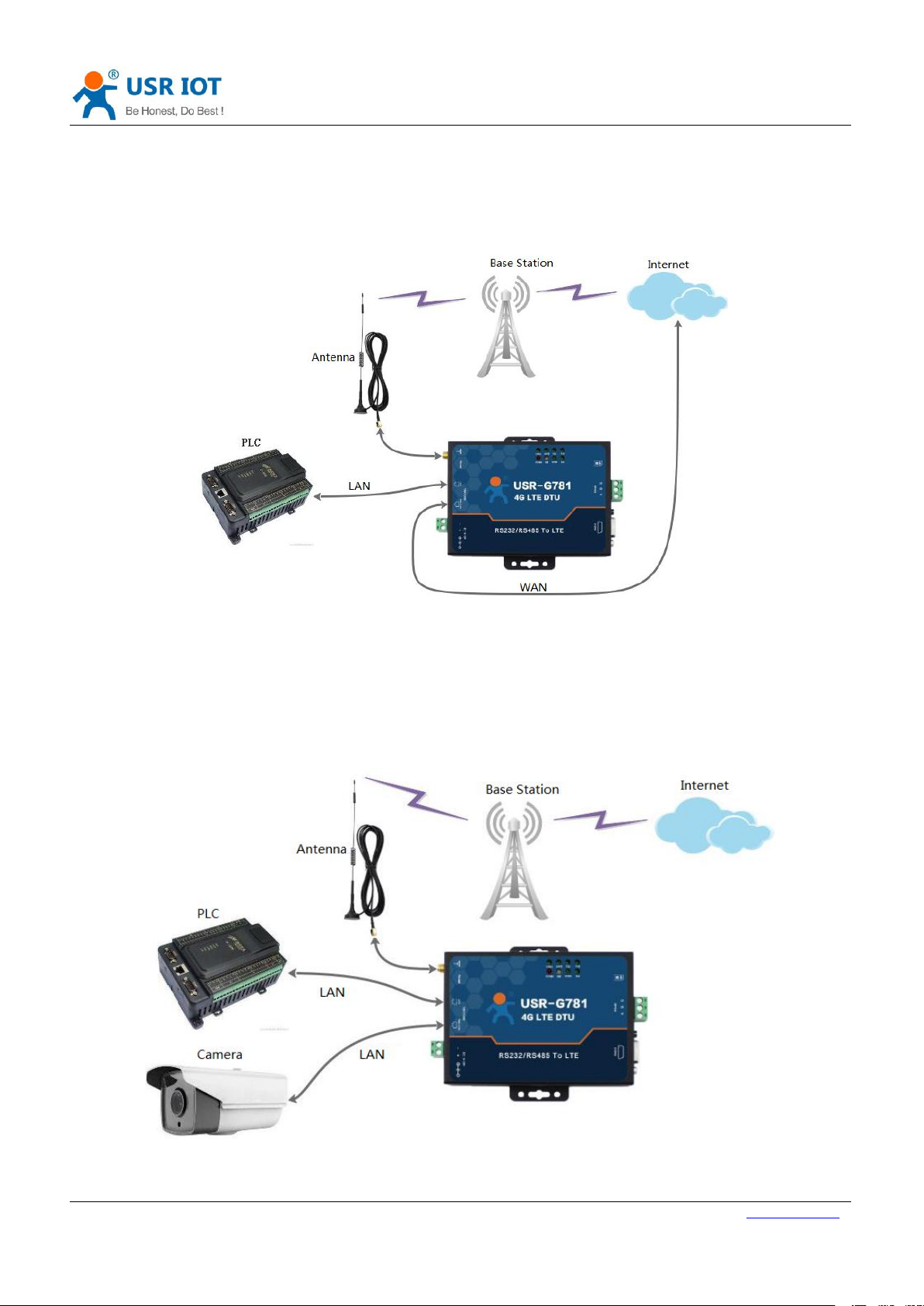
Connection diagram as follow:
Figure 14 Application diagram
User can access network through G781. PC connect to G781 by LAN interface and PC should open DHCP function.
Page 14
Jinan USR IOT Technology Limited www.usriot.com
14
2.2.2. Networking mode
2.2.2.1. WAN+LAN+4G
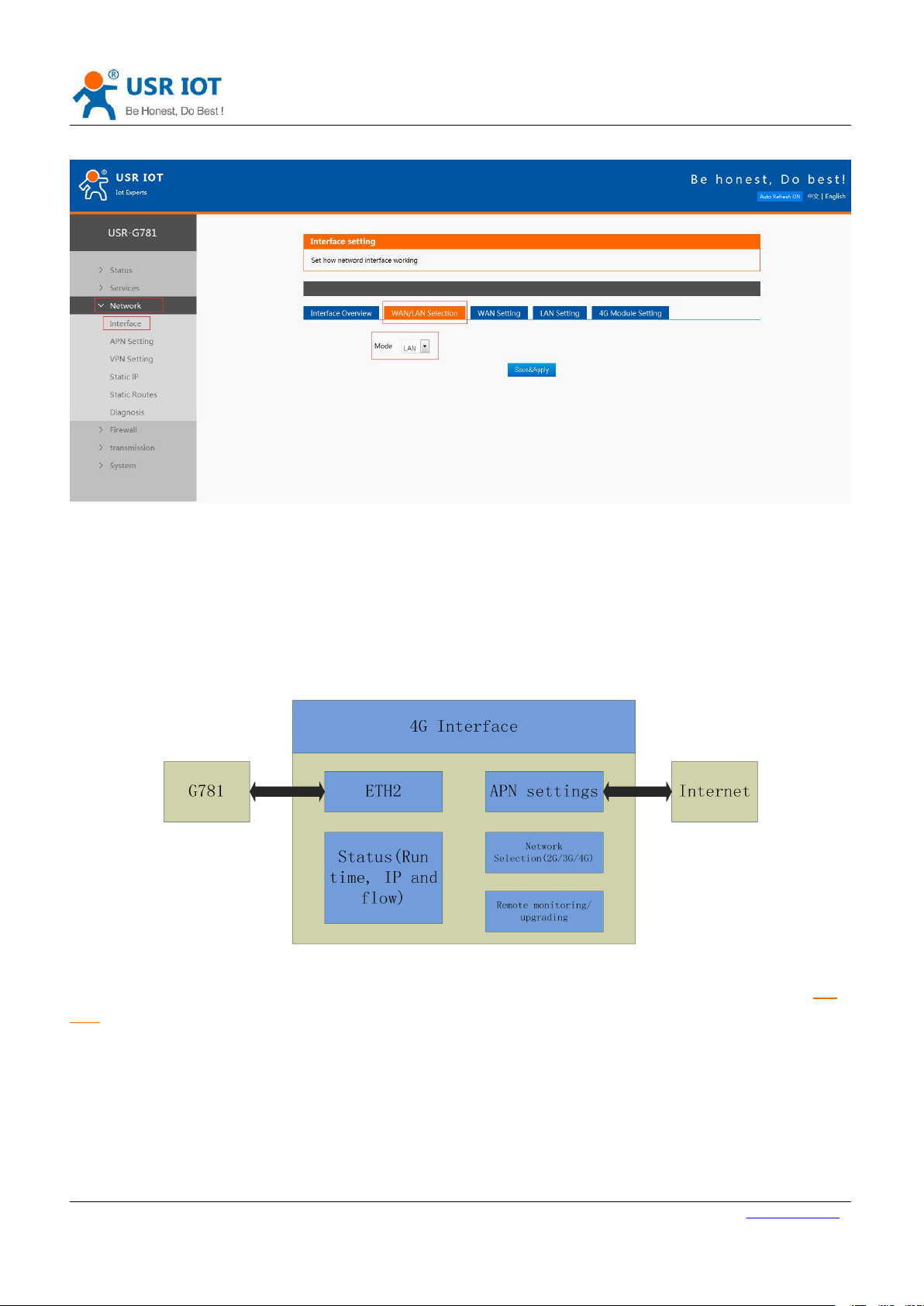
Diagram as follows:
USR-G781 User Manual Technical Support: h.usriot.com
Figure 15 WAN+LAN+4G Application diagram
In this mode, users can connect to Internet through WAN or 4G. Default configuration is WAN has higher priority.
When router can’t connect Internet through WAN, it will change to 4G network.
2.2.2.2. LAN+LAN+4G
Diagram as follows:
Figure 16 LAN+LAN+4G Application diagram
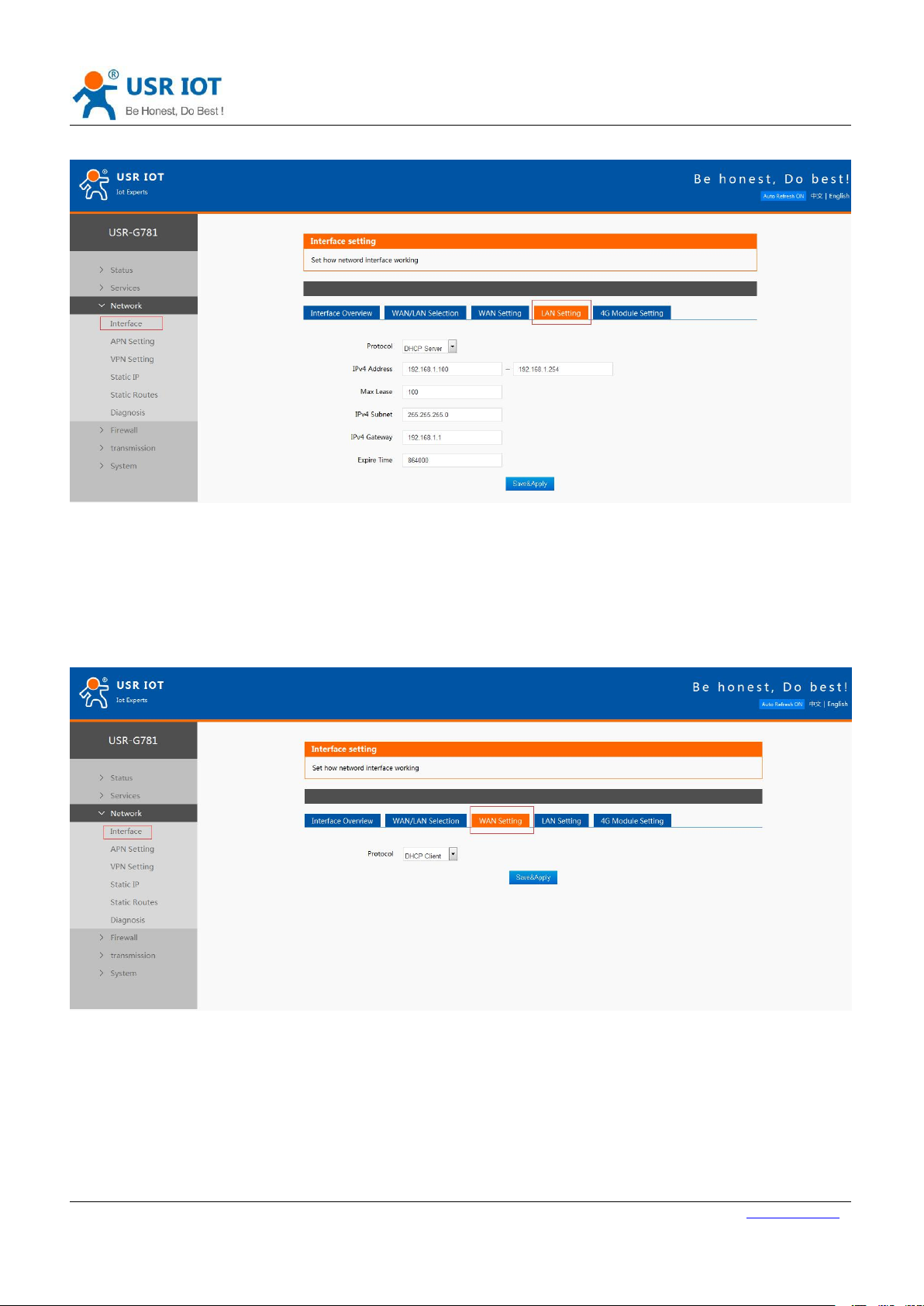
In this mode, two devices can connect to router through LAN and access the Internet by 4G network. To adopt
Page 15
USR-G781 User Manual Technical Support: h.usriot.com
Jinan USR IOT Technology Limited www.usriot.com
15
LAN+LAN+4G mode, user just need set WAN/LAN interface to LAN interface by Web Server as follow:
Figure 17 WAN/LAN interface switch
2.2.3. Features
2.2.3.1. 4G Interface
G781 support one 4G interface to connect Internet. Functional diagram as follows:
Figure 18 4G Interface
When user use 4G interface, the most important thing is to configure the APN parameters. User can refer to 2.1.
APN to configure the APN parameters.
2.2.3.2. LAN Interface
When user set WAN/LAN interface into LAN mode, G781 will have two LAN interface.
Default settings: Static IP address: 192.168.1.1; Subnet mask: 255.255.255.0; Open DHCP Server function.
Page 16
USR-G781 User Manual Technical Support: h.usriot.com
Jinan USR IOT Technology Limited www.usriot.com
16
User can configure LAN interface by Web Server as follow:
Figure 19 LAN interface configuration
2.2.3.3. WAN Interface
G781 has one WAN interface. Support DHCP Client and Static Address, default setting is DHCP Client.
User can configure WAN interface by Web Server as follow:
Figure 20 WAN interface configuration
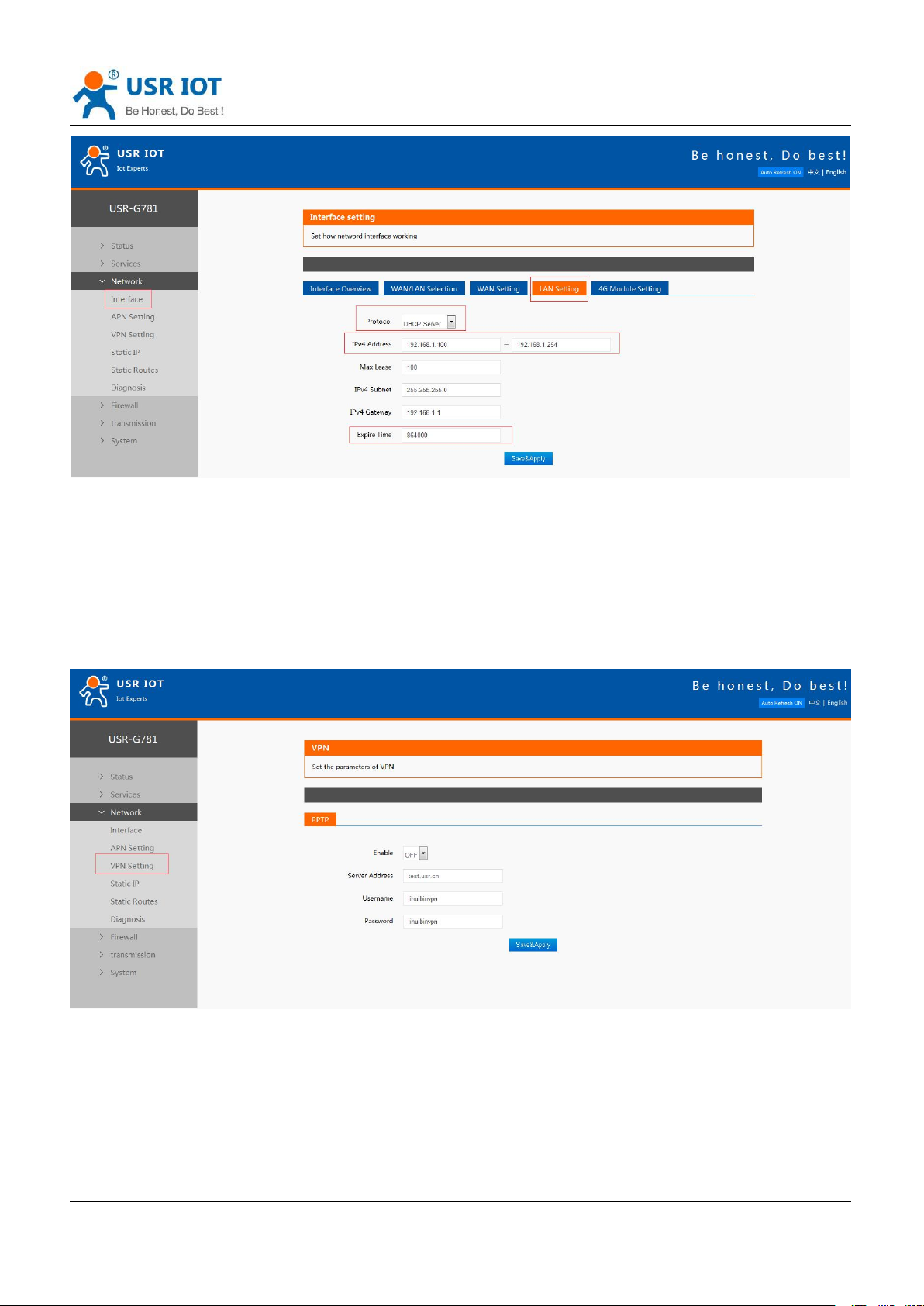
2.2.3.4. DHCP Server function
DHCP default range of distribution from 192.168.1.100 to 192.168.1.254 and default address expire time is
86400 seconds (ten days). Address range and expire time can be changed.
User can configure DHCP Server function parameters by Web Server as follow:
Page 17
Jinan USR IOT Technology Limited www.usriot.com
17
2.2.3.5. VPN function
USR-G781 User Manual Technical Support: h.usriot.com
Figure 21 DHCP Server function configuration
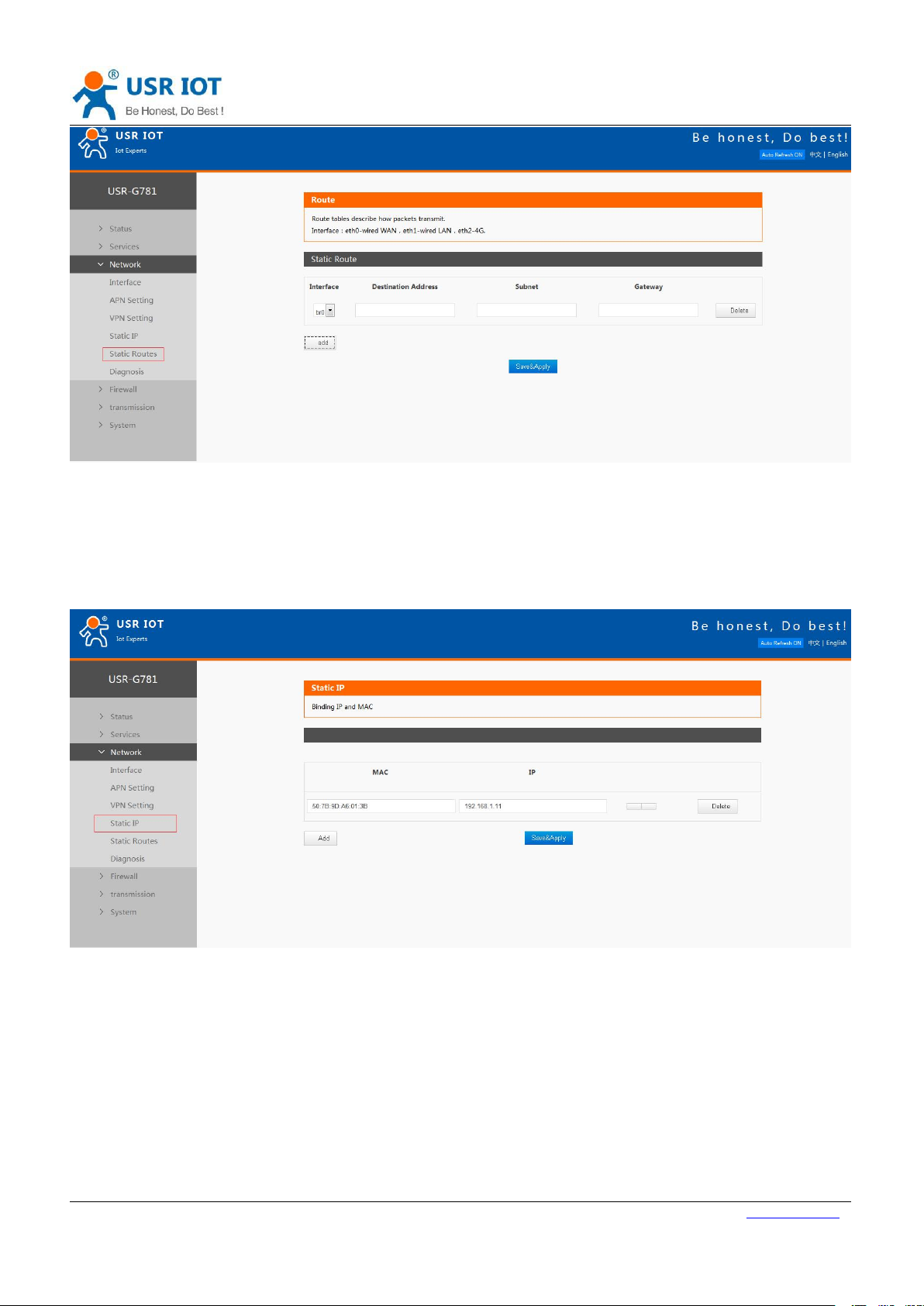
G781 only support PPTP mode to achieve VPN function now. And Subsequent versions will support L2TP, GRE,
openvpn, ipsec mode.
User can configure VPN function by Web Server as follow:
Figure 22 VPN function configuration
2.2.3.6. Static Routes function
User can set G781 Static Route table to achieve self-defined routing rules.
User can configure Static Routes by Web Server as follow:
Page 18
USR-G781 User Manual Technical Support: h.usriot.com
Jinan USR IOT Technology Limited www.usriot.com
18
Figure 23 Static Routes function configuration
2.2.3.7. Static IP binding
User can bind IP address with MAC address and G781 will distribute fixed IP address to some devices.
User can bind IP and MAC by Web Server as follow:
Figure 24 Static IP binding function configuration
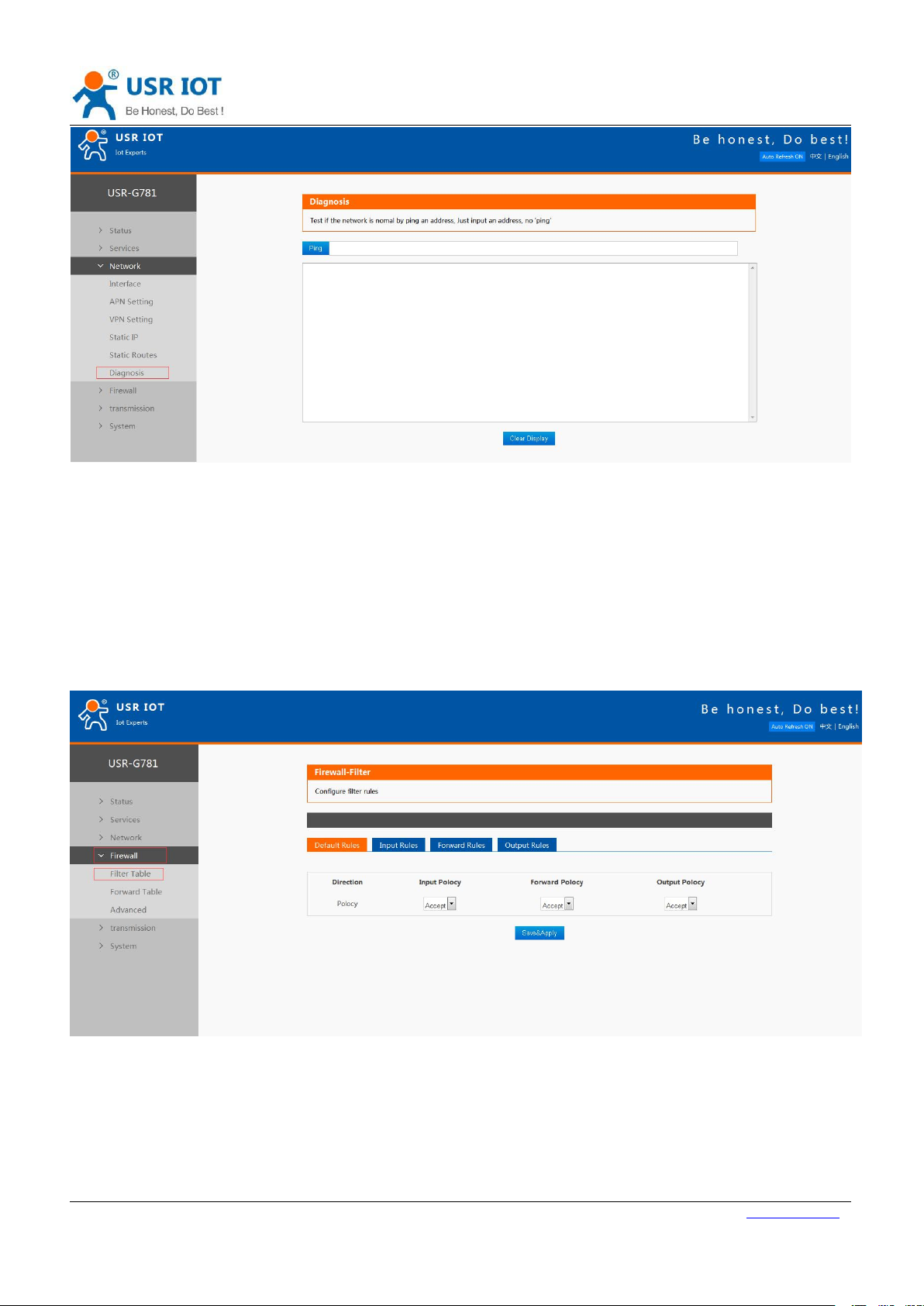
2.2.3.8. Network diagnosis
User can use ping a specified address to check the connection status.
User can use Network diagnosis function by Web Server as follow:
Page 19
USR-G781 User Manual Technical Support: h.usriot.com
Jinan USR IOT Technology Limited www.usriot.com
19
Figure 25 Network diagnosis
2.2.3.9. Firewall
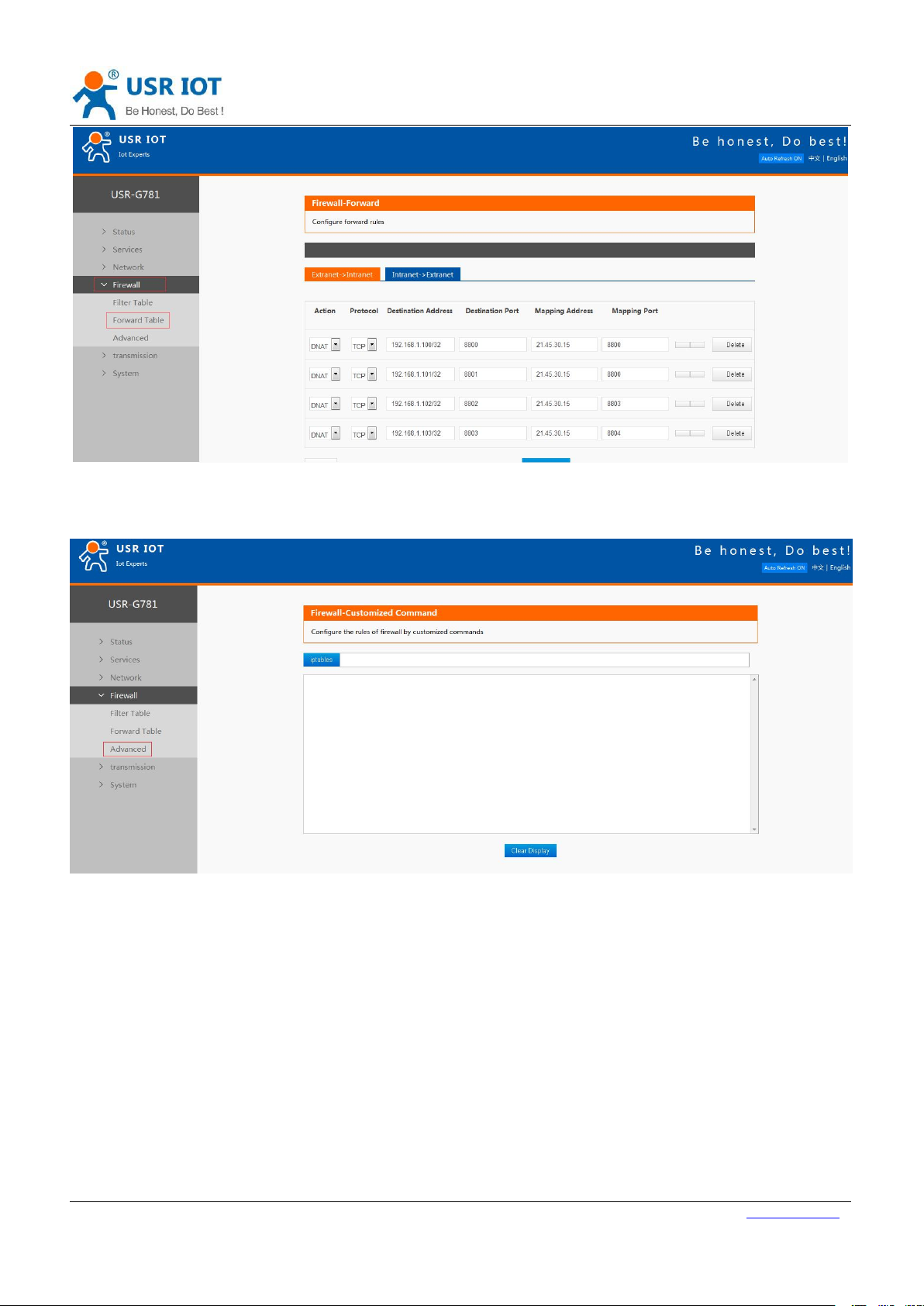
By use Firewall function, user can set firewall Filter Table rules and Forward Table rules to manage Network
security. And user can also add, delete and modify Firewall rules by sending iptables commands.
User can configure Firewall configuration by Web Server as follow:
Filter Table rules:
Figure 26 Filter Table rules configuration
Forward Table rules:
Page 20
Jinan USR IOT Technology Limited www.usriot.com
20
Sending iptables commands:
USR-G781 User Manual Technical Support: h.usriot.com
Figure 27 Forward Table rules configuration
Figure 28 Sending iptables commands
Page 21
USR-G781 User Manual Technical Support: h.usriot.com
Jinan USR IOT Technology Limited www.usriot.com
21
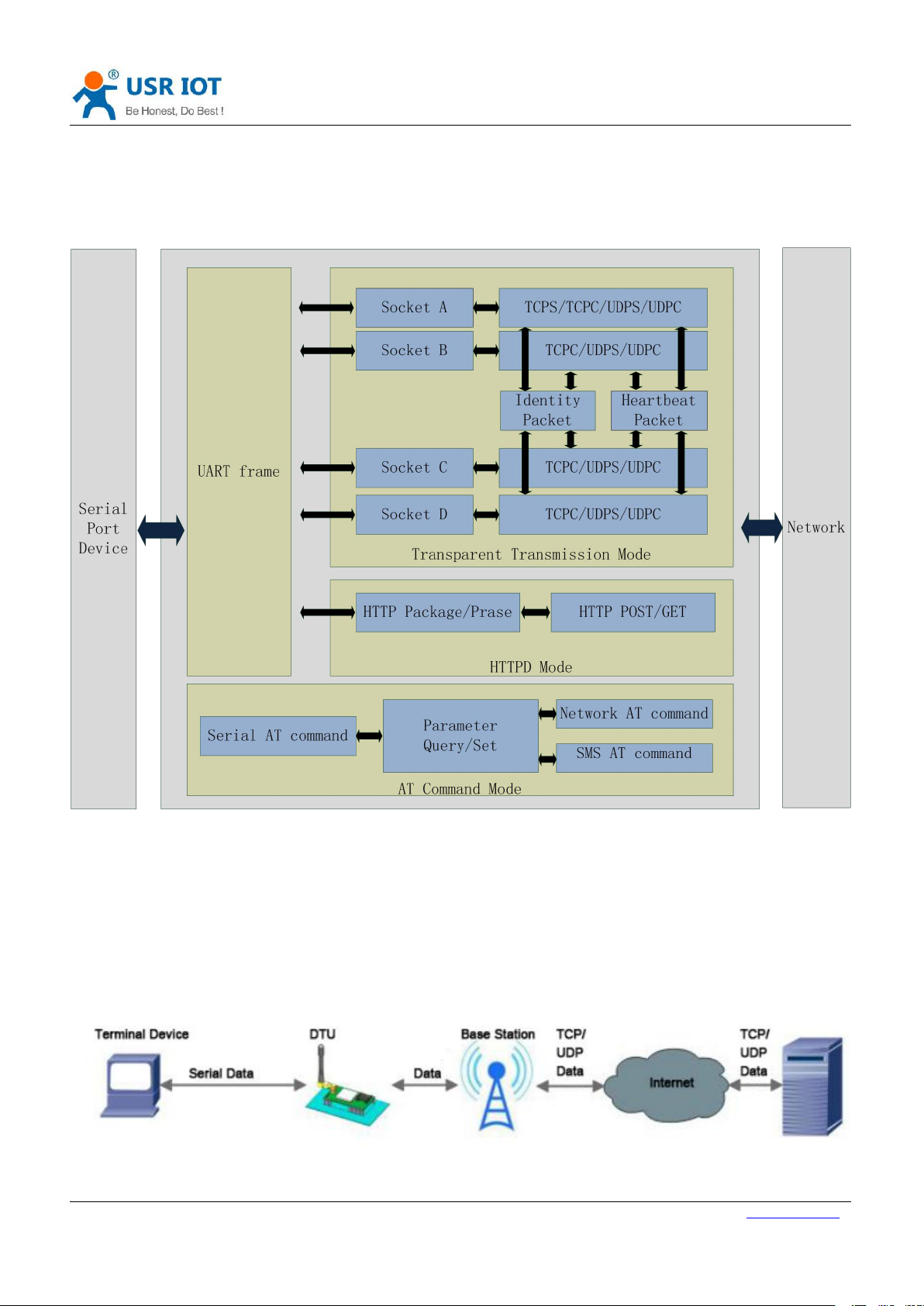
2.3. DTU Functions
This chapter introduces the DTU functions of USR-G781, as the following diagram shown, you can get an overall
knowledge of it.
Figure 29 DTU functions diagram
2.3.1. Work Mode
2.3.1.1. Transparent Mode
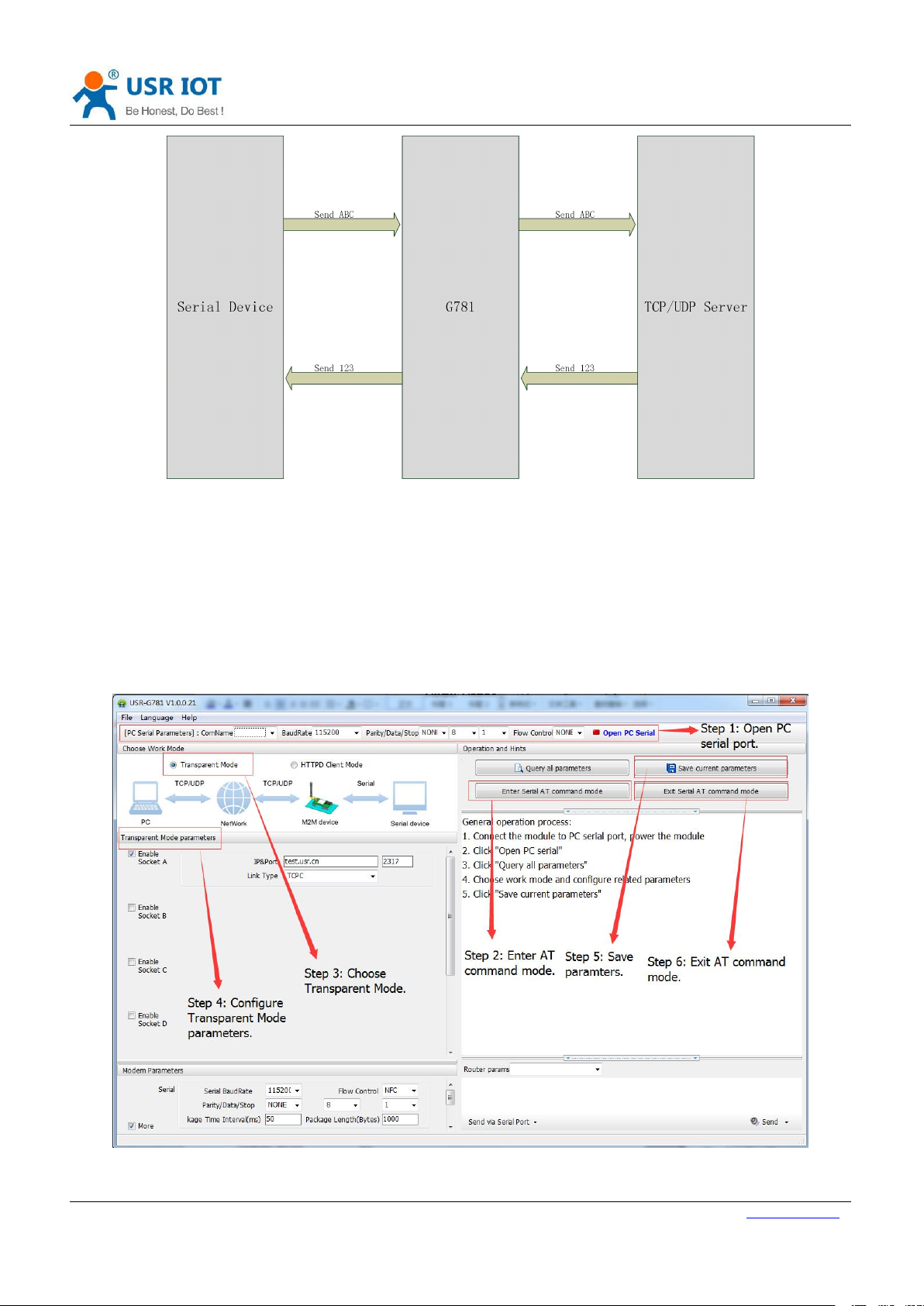
Transparent Mode: What you sent to serial will be forward to network. The communication is bidirectional.
Figure 30 Transparent Mode
Page 22
Jinan USR IOT Technology Limited www.usriot.com
22
<Illustration>:
USR-G781 User Manual Technical Support: h.usriot.com
Figure 31 Transparent mode diagram
USR-G781 supports 4 socket connections simultaneously: socket A, socket B, socket C and socket D, they are
independent. Socket A supports TCP Server, TCP Client, UDP Server and UDP Client. Socket B, socket C and socket
D support TCP Client, UDP Server and UDP Client.
User can configure the Transparent Mode by setup software as follow:
Figure 32 Transparent Mode configuration
Page 23
USR-G781 User Manual Technical Support: h.usriot.com
Jinan USR IOT Technology Limited www.usriot.com
23
2.3.1.2. HTTPD Client Mode
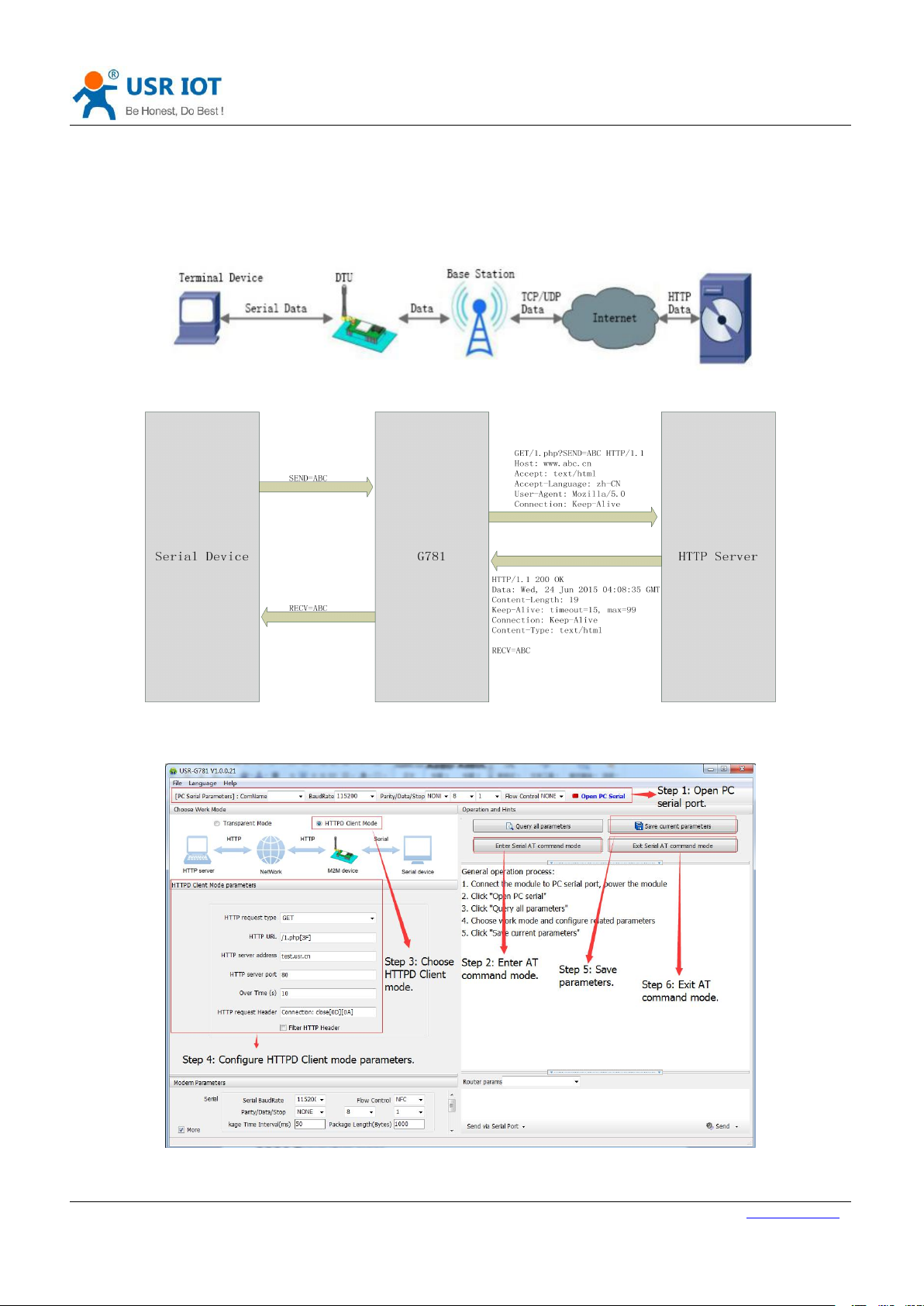
HTTPD Client Mode: DTU will add the HTTP Header for every data from serial and transfer HTTP format data to
Network. User needs to configure the HTTP Header before use this mode. User can use this mode transfer the
serial data to HTTP server.
Figure 33 HTTPD Client Mode
Figure 34 HTTPD Client Mode Diagram
User can configure HTTPD Client mode by setup software as follow:
Figure 35 HTTPD Client mode configuration
Page 24

Jinan USR IOT Technology Limited www.usriot.com
24
2.3.2. Serial Port
Items
Parameters
Baud Rate
300, 600, 1200, 2400, 4800, 9600, 19200, 38400, 57600, 115200,
230400, 460800
Data Bits
7,8
Stop Bits
1,2
Parity
NONE
EVEN
ODD
Flow Control/485
NFC: None Flow Control
485:When you use RS485, please choose this function
2.3.2.1. Parameters range
Figure36 Serial parameters
2.3.2.2. Serial Package Methods
USR-G781 User Manual Technical Support: h.usriot.com
For network speed is faster than serial. Module will put serial data in buffer before sending it to network. The
data will be sent to Network as Package. There are 2 ways to end the package and send package to network -
Time and Length.
2.3.2.2.1. Time Trigger Mode
If no data get from serial over the time threshold, it will end the package and send this package to network. The
range of threshold is from 10ms ~ 60000ms. Default is 50ms. If the serial keeping send data, this package will be
1K bytes.
2.3.2.2.2. Length Trigger Mode
The package will be sent to network when it up to length threshold. The range of length threshold is from 1 to
4096 bytes. Default is 1000 bytes.
2.3.2.3. Baud Rate Synchronization
When module works with USR devices or software, serial parameter will change dynamically according to
network protocol. Customer can modify serial parameter by sending data conformed to specific protocol via
network. It is temporary, when restart DTU, the parameters back to original parameters.
Page 25
USR-G781 User Manual Technical Support: h.usriot.com
Jinan USR IOT Technology Limited www.usriot.com
25
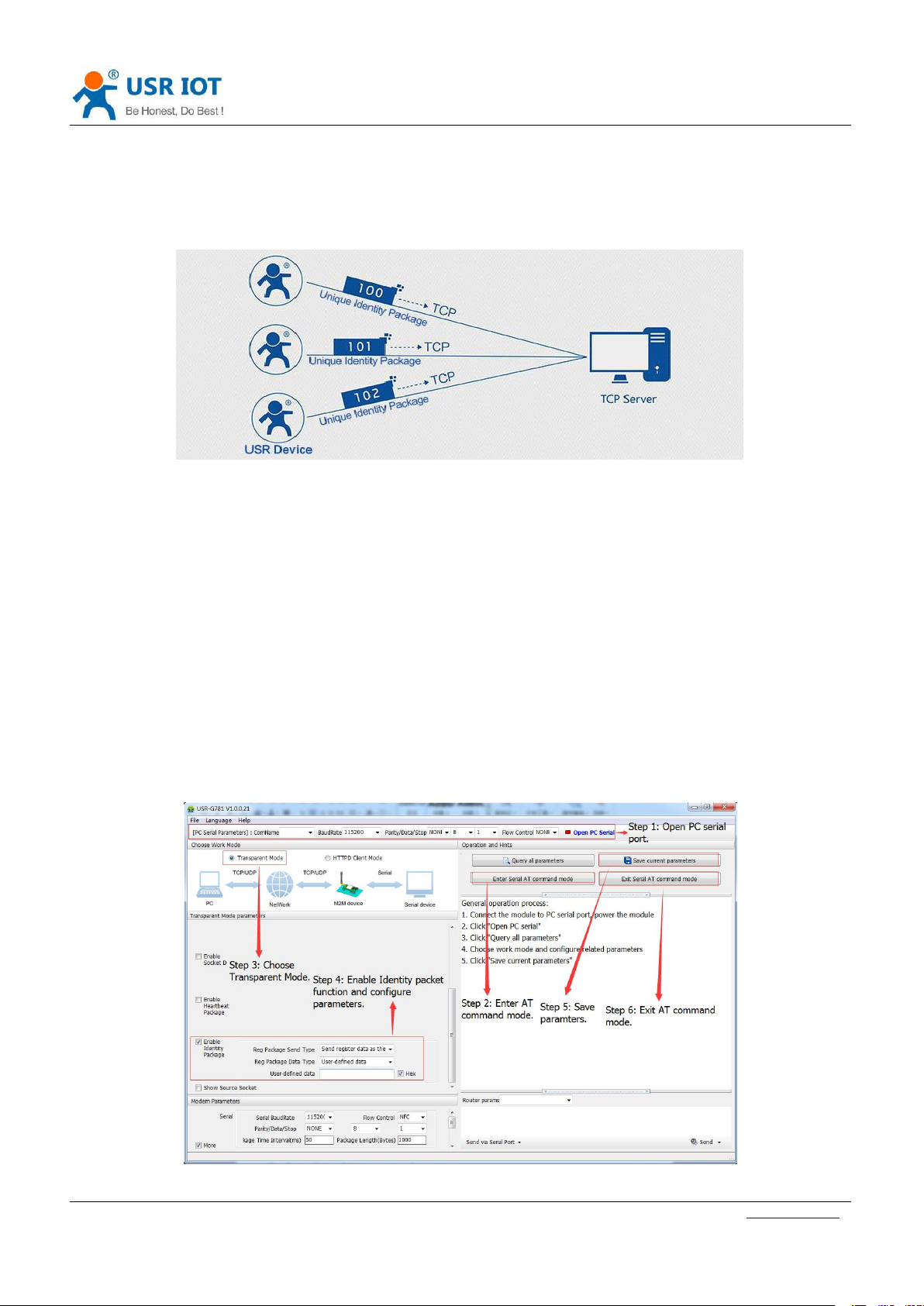
Identity packet will be sent when connection is established. (Only for TCP client)
Identity packet will be added on the front of every data package. (TCP client and UDP client)
ICCID, the unique identifier of SIM card, suitable to the application based on SIM card identification.
IMEI, the unique identifier of DTU, suitable to the application based on device identification.
USR Cloud, the identification code based on USR Cloud platform. For more information about USR
USER, user can use own editable identity packet data.
2.3.3. Features
2.3.3.1. Identity packet Function
Figure 37 Identity packet
Identity packet is used for identify the device when module works as TCP client/UDP client. There are two
sending methods for identity packet.
Type of identity packet: ICCID, IMEI, USR Cloud and USER.
Cloud, please go to cloud.usr.cn/en/.
User can configure identity packet function by setup software as follow:
Figure 38 Identity packet function configuration
Page 26
USR-G781 User Manual Technical Support: h.usriot.com
Jinan USR IOT Technology Limited www.usriot.com
26
2.3.3.2. Heartbeat packet Function
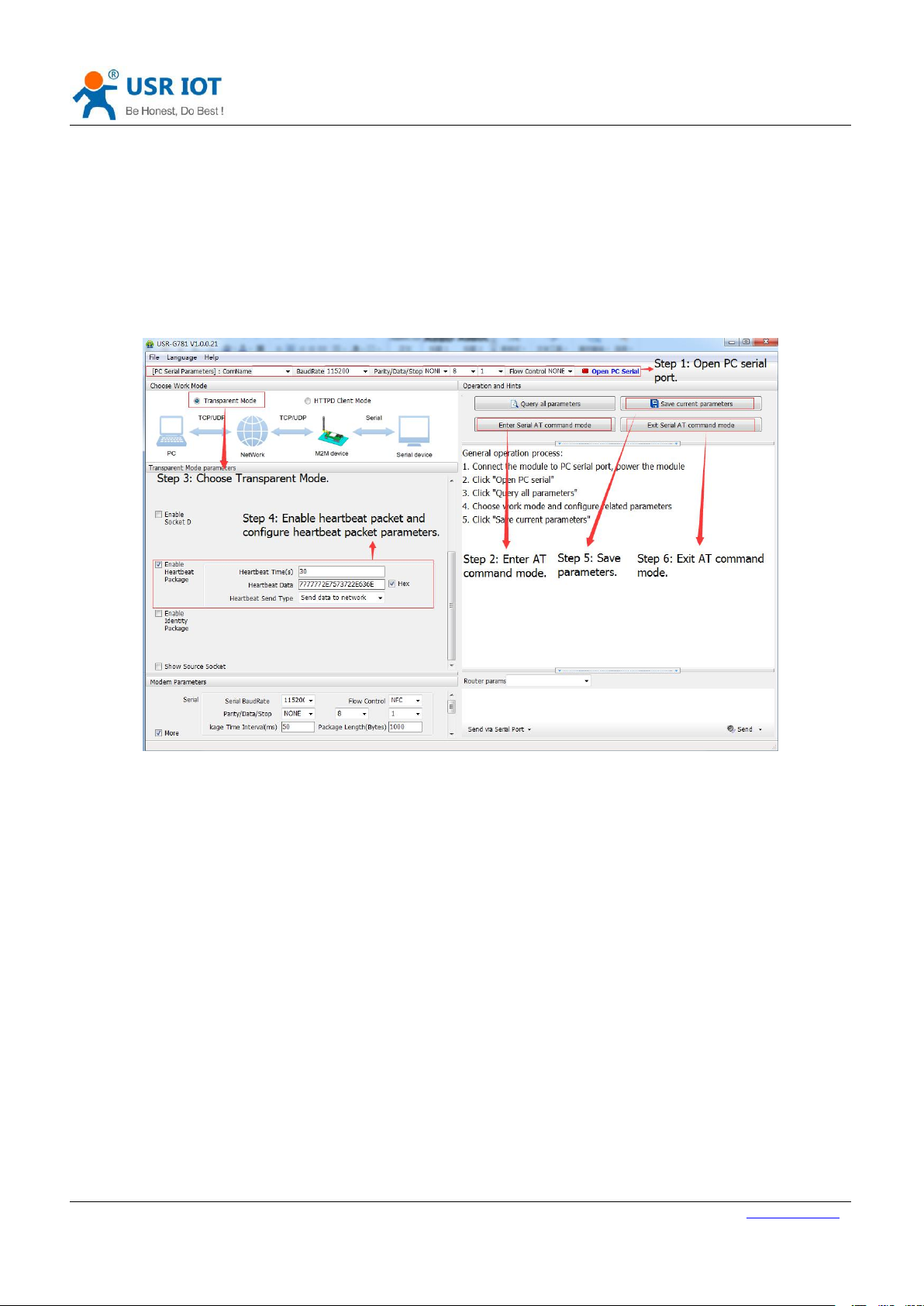
Heartbeat packet: Module will output heartbeat packet data to serial or network periodically. User can configure
the heartbeat packet data and time interval. Serial heartbeat packet can be used for polling Modbus data.
Network heartbeat packet can be used for showing connection status and keep the connection.
Heartbeat packet is only available in transparent mode. User can configure heartbeat packet function by setup
software as follow:
Figure 39 Heartbeat packet function configuration
2.4. Basic functions
2.4.1. Reload by Hardware
User default settings: User can save the settings as User default settings.
Press Reload button for 3~15 seconds and release, USR-G781 will restore user default settings.
Page 27
USR-G781 User Manual Technical Support: h.usriot.com
Jinan USR IOT Technology Limited www.usriot.com
27
3. Parameter Setting
3.1. Web Server Configuration
Parameter
Default settings
Web Server IP address
192.168.1.1
User name
Admin
Password
Admin
There are two ways to configure USR-G781. They are Web Server configuration and AT command. Web Server
configuration mainly configure router functions and AT commands mainly configure DTU functions. We also
provide the setup software based on serial AT command. You can download the setup software in our website
http://www.usriot.com/usr-g781-setup-software-v1-0-0-0/.
User can connect PC to G781 through LAN interface and set PC as DHCP. Then enter Web Server to configure.
Web Server default parameters as follows:
Figure 40 Web Server default parameters
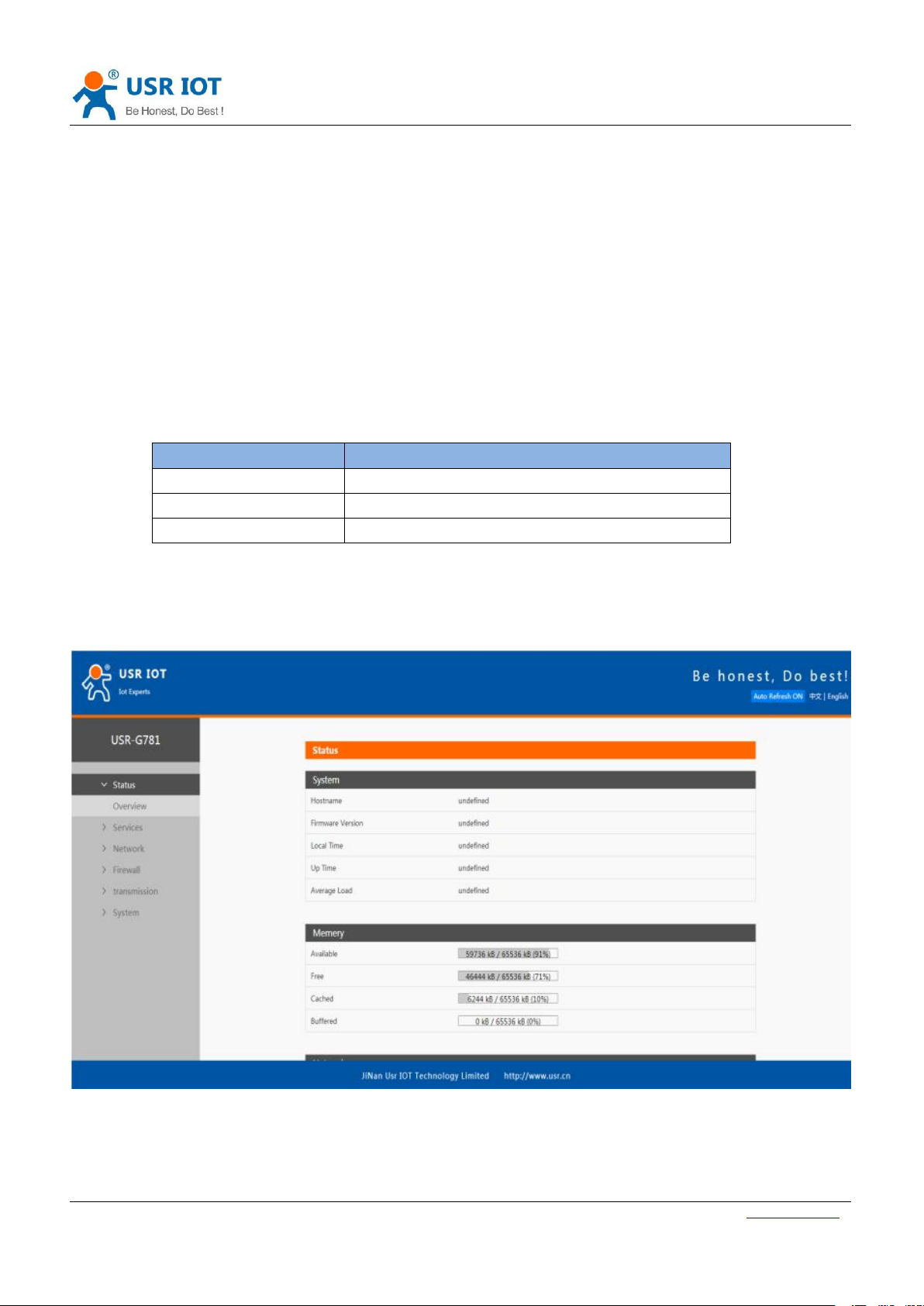
After connecting PC to G781, user can open browser and enter 192.168.1.1 into address bar, then log in user
name and password, user will enter into Web Server. Web Server screenshot as follow:
Figure 41 Web Server configuration
Page 28
USR-G781 User Manual Technical Support: h.usriot.com
Jinan USR IOT Technology Limited www.usriot.com
28
3.2. AT Command
3.2.1.Serial AT Command
3.2.2.Setup software
3.2.3.Transparent AT Command
In transparent mode, SMS mode and HTTPD mode, you can enter AT command mode. Then you can send AT
command to module. Setup software is based on this function. For entering AT command mode, please refer to
this FAQ: http://www.usriot.com/enter-serial-command-mode/.
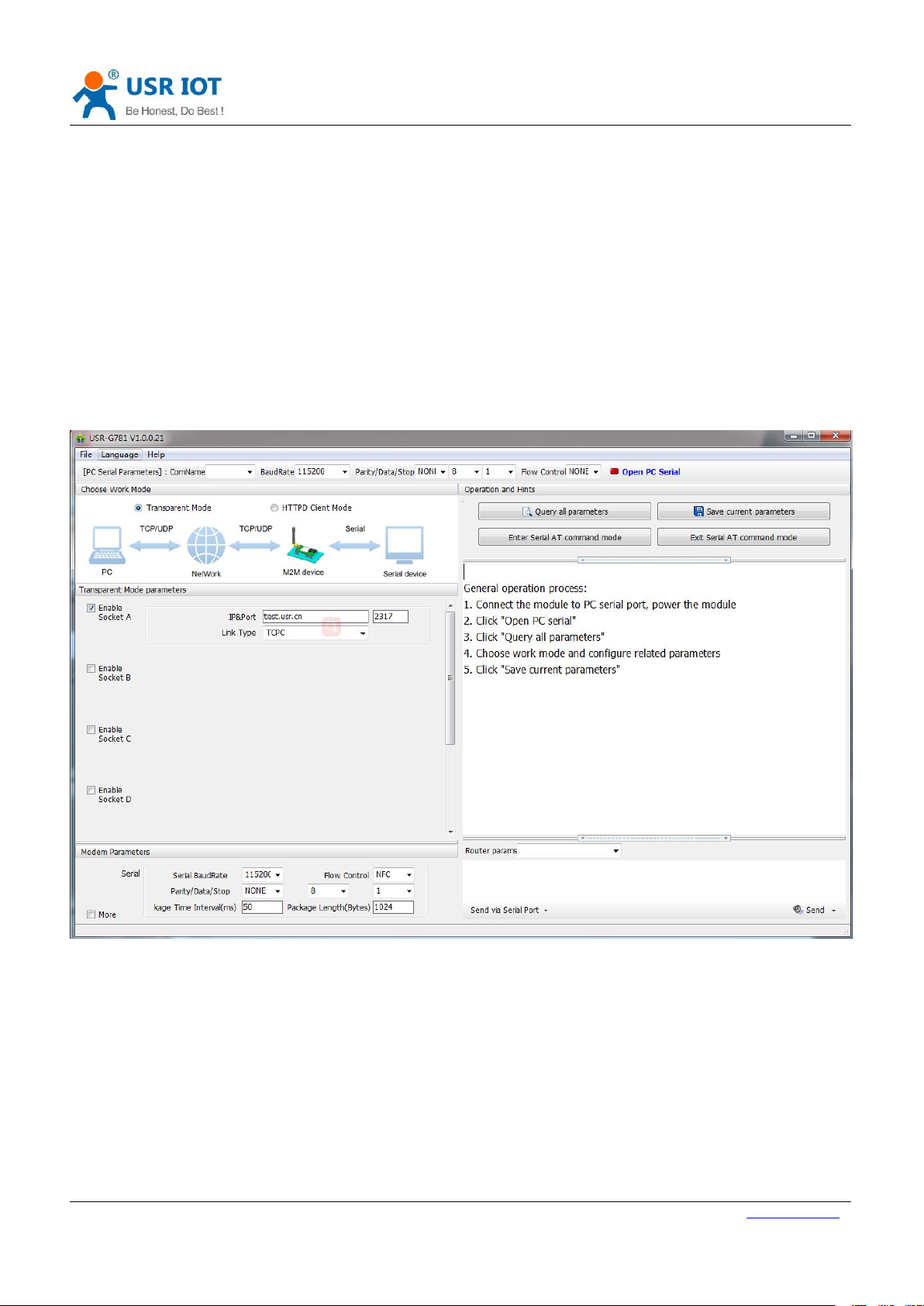
We also provide the setup software based on serial AT command. You can download the setup software in our
website http://www.usriot.com/usr-g781-setup-software-v1-0-0-0/. Software screenshot as follow:
Figure 42 Setup software
When module in transparent mode, you can use “Password+AT command” format to send AT command via serial
or network. If you use transparent AT command, you needn’t enter AT command mode.
Default command password is www.usr.cn# and user can send AT command AT+CMDPW to change password.
Take querying firmware version with default password as an example, user need send www.usr.cn#AT+VER[0D]
([0D] represents carriage return and user must end the whole command with carriage return. It’s same as serial
AT command.).
Page 29

USR-G781 User Manual Technical Support: h.usriot.com
Jinan USR IOT Technology Limited www.usriot.com
29
4. Contact Us
5. Disclaimer
6. Update History
Company: Jinan USR IOT Technology Limited
Address: Floor 11, Building 1, No. 1166 Xinluo Street, Gaoxin District, Jinan, Shandong, 250101, China
Web: www.usriot.com
Support: h.usriot.com
Email: [email protected]
Tel: 86-531-88826739/86-531-55507297
This document provide the information of USR-G781 products, it hasn’t been granted any intellectual property
license by forbidding speak or other ways either explicitly or implicitly. Except the duty declared in sales terms
and conditions, we don’t take any other responsibilities. We don’t warrant the products sales and use explicitly
or implicitly, including particular purpose merchant ability and marketability, the tort liability of any other
patent right, copyright, intellectual property right. We may modify specification and description at any time
without prior notice.
2017-07-25 V1.0.06.01 established.
2017-10-13 V1.0.06.02 updated. Adding descriptions including words and figures about how to configure G781’s
different functions. Modifying some specific words to standard terms. Formatting whole manual arrangement.
 Loading...