

Page 1

Page 2
Thank you for choosing the Uniden EXAI 8985 cordless telephone.
Features
Introduction
This phone is designed to exacting standards that provide reliability,
long life and outstanding performance.
Note: Some illustrations in this manual may differ from the
actual unit for explanation purposes.
• 900 MHz Extended Range
• Secure Digital Transmission
• Answering Device
• 50 Number Caller ID Memory
• 30 Number Memory
TO YOUR NEW PHONE
• 32 Digit Redial
• 3-Line, 16 Character Backlit LCD Handset Display
• Redial, Flash and Pause
• Pulse / Tone Dialing
• 7 Hour Talk Time
• 7 Day Standby Battery Life
• Handset Earpiece and Ringer Volume Control
• Speakerphone
• 3-Way Conference Operation
INTRODUCTION
Page 3
talk flash
del mem
call id
abc def
jklghi
mno
tuvpqrs
oper
tone
wxyz
213
546
879
0
redial/p select/ch
int'com
mute/ring
extended range
vol
DIGITAL 900MHz
speaker
page/int'commute
flash
redial/p
memory
ans on/off
voice memogreeting
status speaker
clock pin volune
playdelete
DIGITAL
extended range
DIGITAL 900MHZ
1
2
3
4
5
6
7
8
15
16
17
20
21
19
14
18
9
10
13
11
12
22
25
26
23
24
27
29
30
31
32
28
33
34 35 36 37
38
44
45
46
47
42
43
41
39
40
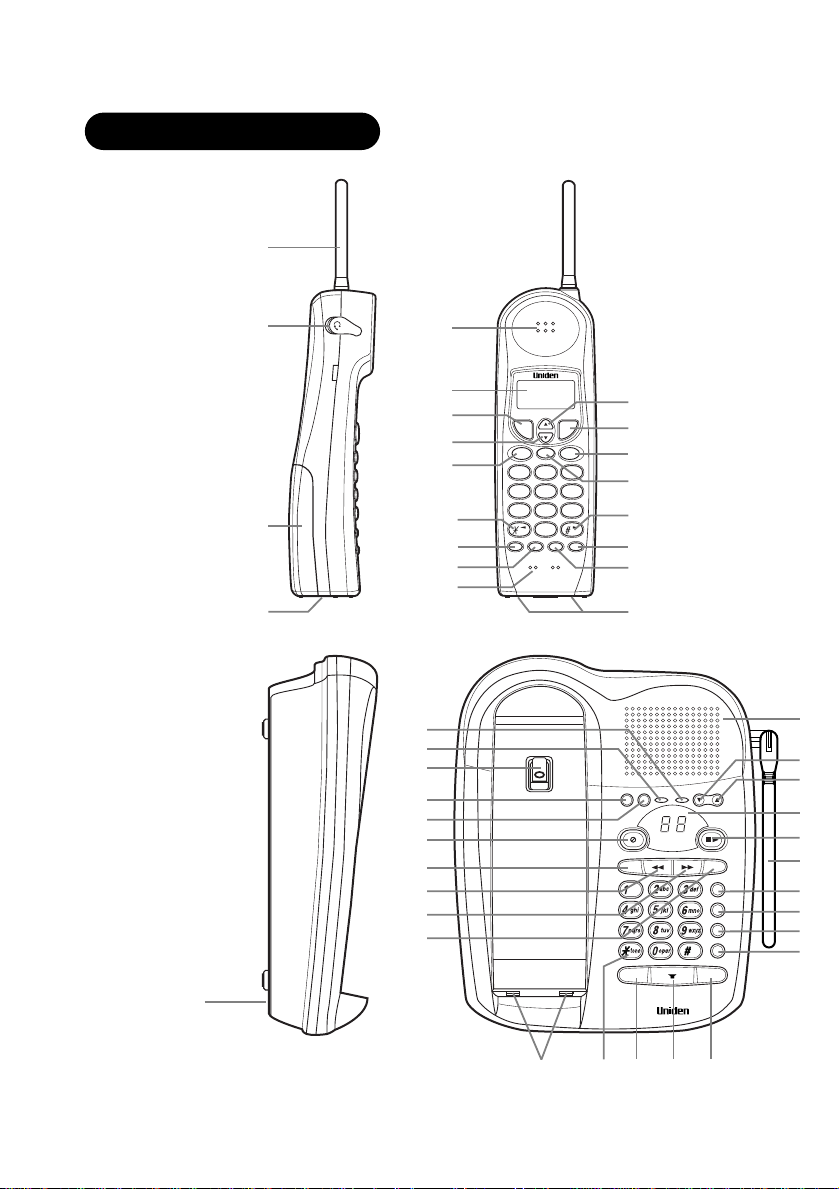
Controls and functions
Page 4
RING TIME REC TIME
2/4/TS ANN/4/1
48
49
50 51 52 53
1. Handset antenna
2. Headset cover
3. Handset battery compartment
4. Handset ring switch
5. Handset speaker
6. LCD display
7. Talk key
8. Volume/Cursor down/
character select key
9. Caller ID key
10. Tone/Backspace key
11. Redial/Pause key
12. Select/Channel key
13. Handset microphone
14. Volume/Cursor up/
Character select key
15. Flash key
16. Memory key
17. Delete key
18. Cursor forward key
19. Mute/Ring key
20. Intercom key
21. Handset contact
22. Base microphone
23. Speaker LED
24. Status LED
25. Handset clip storage
26. Clock key
27. Pin code key
28. Delete key
29. Greeting key
30. Repeat key
31. Skip key
32. Voice memo record key
33. Base contact
34. Tone key
35. Mute key
36. Speaker key
37. Page/Intercom key
38. Base speaker
39. Volume down key
40. Volume up key
41. LED display
42. Play/Stop key
43. Base antenna
44. Answer on/off key
45. Memory key
46. Redial/Pause key
47. Flash key
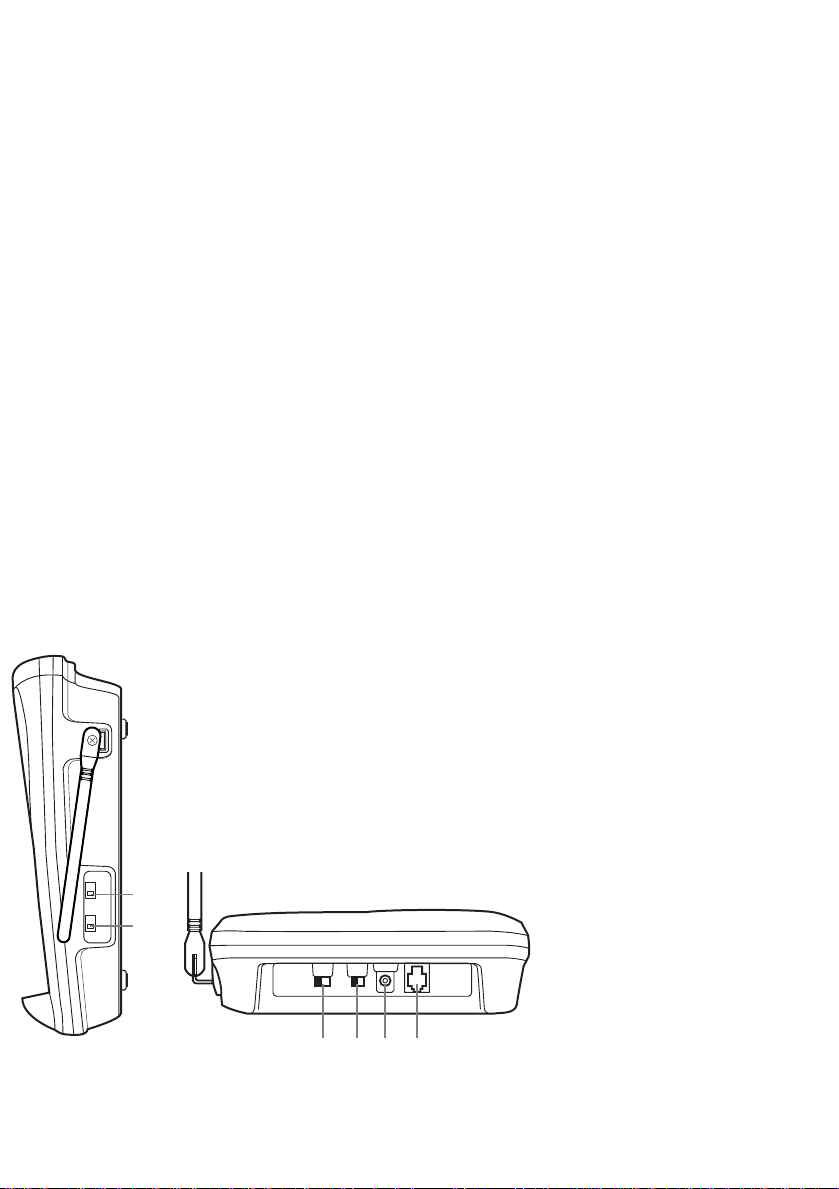
48. Rec time switch
49. Ring time switch
50. Ring volume switch
51. Pulse-Tone switch
52. DC power input
53. Phone jack
Page 5
Introduction / Features...............inside front cover
Contents
Controls and Functions ..............inside front cover
Getting Started
Read this first..........................................................3
Step 1: Checking the package contents ...............4
Step 2: Setting up the base unit ...........................5
Mounting the base unit on a wall ...........8
Step 3: Preparing the battery pack.....................10
Step 4: Setting the Caller ID options..................12
Entering your area code .........................13
Basics
Making a call ........................................................14
Receiving a call ....................................................15
Mute ......................................................................16
Adjusting ringer and earpiece volume................17
Redialing a call .....................................................18
Using the speaker phone ....................................20
Using your EXAI 8985 intercom..........................21
Transferring a call.................................................22
Memory Dialing
Storing phone numbers and names....................23
Making calls with memory dialing......................26
Editing a stored name and/or phone number ...28
Erasing a stored name and phone number........30
3-way Conference Feature
3-way conferencing..............................................32
OF YOUR OWNER’S MANUAL
Caller ID features
Caller ID service...................................................33
When the telephone rings ...................................34
Viewing the Caller ID Message list .....................35
Deleting information from Caller ID list.............36
Using the Caller ID list ........................................38
Using “Caller ID with call waiting” service ........40
The Integrated Answering Device
Features.................................................................41
Setting up your answering system ......................42
Using your answering system .............................46
Additional Information
Changing the digital security code......................52
Installing the beltclip............................................53
Headset installation ..............................................53
Note on power sources .......................................54
Maintenance..........................................................54
Troubleshooting ................................................55
CONTENTS
Specifications .....................................................57
Index ....................................................................58
Getting Started
Basics
Memory Dialing
3-way
Conference
Features
Caller ID
Features
The Integated
Answering
devise
Additional
Information
Page 6
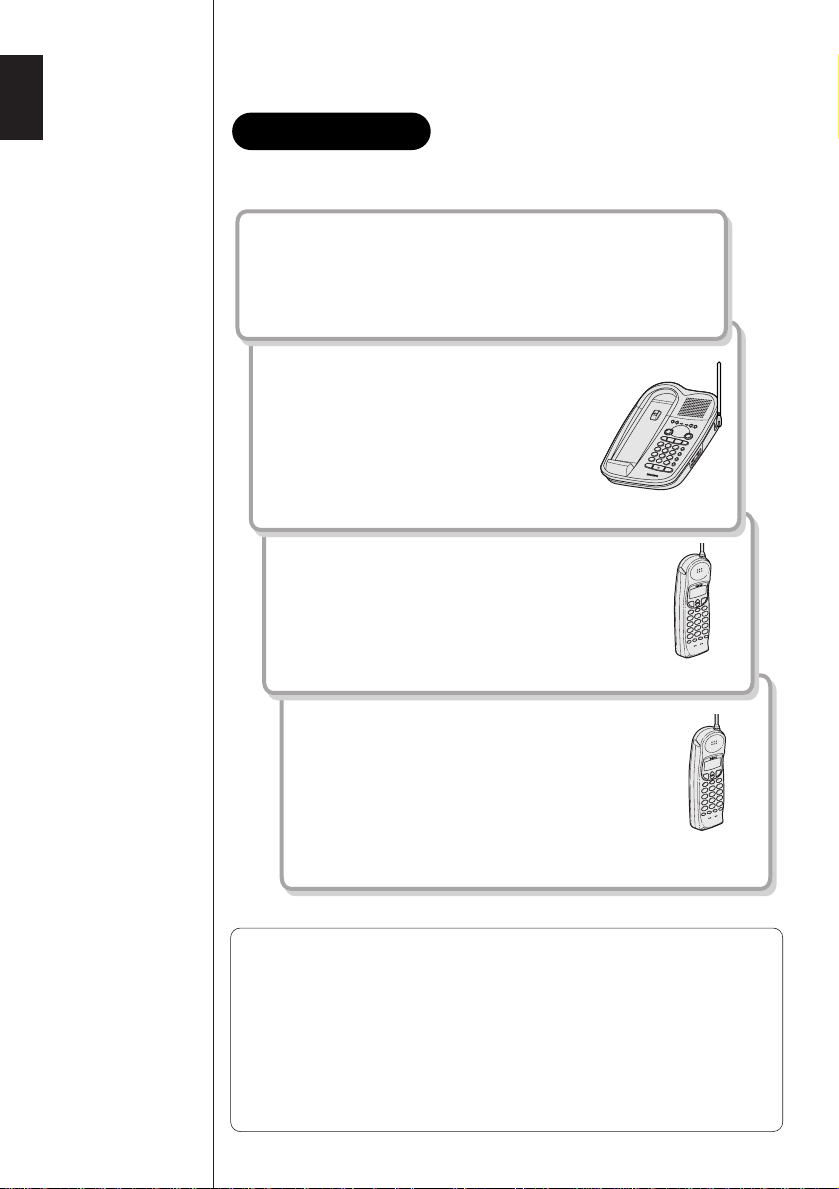
This cordless telephone must be set up before use. Follow these steps;
Read this first
Step 1 (page 4)
Unpack the telephone and accessories.
Step 2 (page 5 to 9)
Next, choose the best location to set
up the base unit.
Base unit
Step 3 (page 10 to11)
Then, insert the battery pack into the handset.
You have to charge the battery pack for more
than 12 hours before using the phone.
Handset
Step 4 (page 12 to 13)
Finally, set Caller ID options and store your
area code in the memory to use the Caller ID
service.
Note: Skip the setting of area code if your
calling area requires 10 digit dialing.
Handset
3
GETTING STARTED
About the digital security code
This cordless telephone uses a digital security code to prevent
unauthorized access to your base unit. This security code prevents
other cordless handsets from making calls through your base unit.
A random security code will be assigned automatically between
your base unit and handset when you charge the battery pack for
the first time.
If you want to reset the security code, see page 52.
Page 7
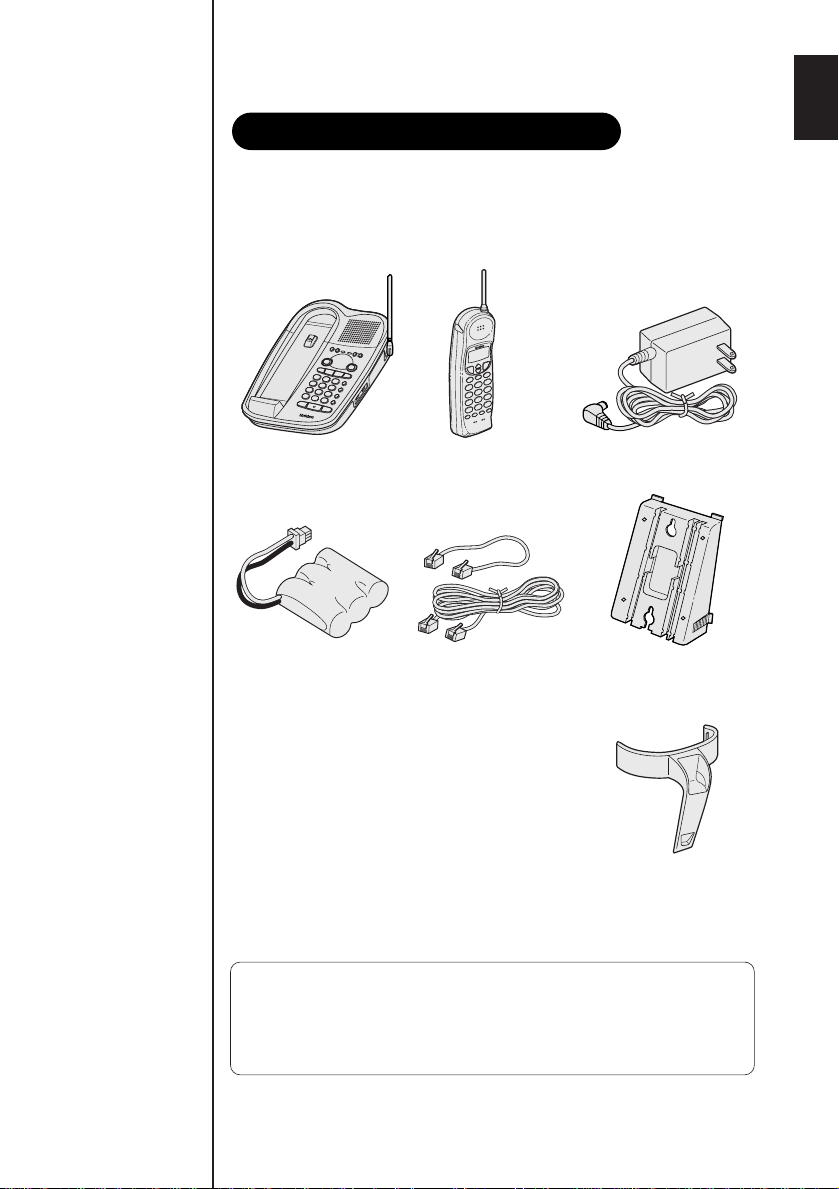
Make sure you have received the following items in the package.
Checking the package contents
If any of these items are missing or damaged, contact the
Parts Department
• Base unit • Handset • AC adapter (AD-420)
(see below).
Uniden
• Rechargeable
battery pack
(BT-905)
• This Owner's Manual
• Precautions and Important Safety Instructions
• Registration Card
Uniden Parts Department
(800) 554-3988
Hours: M-F 8:30 AM to 5:00 PM CST.
We can also be reached on the web at www.uniden.com.
• Telephone line
cord (2)
• Wall mount adapter
• Beltclip
4
Page 8
Do the following steps.
Setting up the base unit
• Choose the best location
• Connect the base unit
• Choose the dialing mode
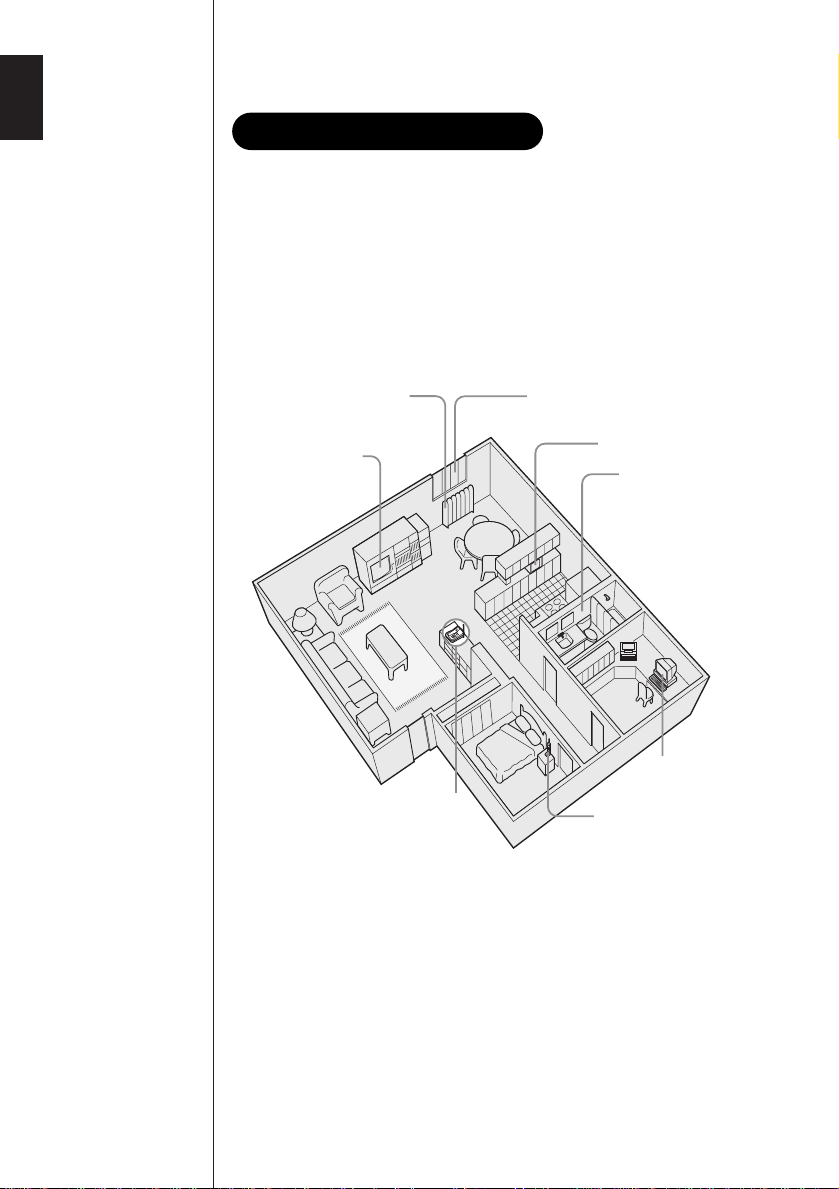
Choose the best location
Before choosing a location for your new phone, read the
INSTALLATION CONSIDERATIONS included in the PRECAUTIONS
AND IMPORTANT SAFETY INSTRUCTIONS brochure. Here are some
important guidelines you should consider:
Avoid heat sources, such as
radiators, air ducts, and sunlight
Avoid television sets
and other electronic
equipment
Choose a central location
Avoid noise sources such as a window
by a street with heavy traffic
Avoid microwave ovens
Avoid excessive
moisture, extremely low
temperatures, dust,
mechanical vibration, or
shock
Avoid personal
computers
Avoid other cordless
telephones
• You should charge your handset for 12-15 hours before using
the phone.
• The location should be close to both a phone jack and a continuous
power outlet which is not switchable.
• Keep the base and handset away from sources of electrical noise
such as motors and fluorescent lighting.
• Be sure there is sufficient space to raise the base antenna
fully vertical.
• The base can be placed on a desk, tabletop or mounted on a
standard wall plate.
5
Page 9
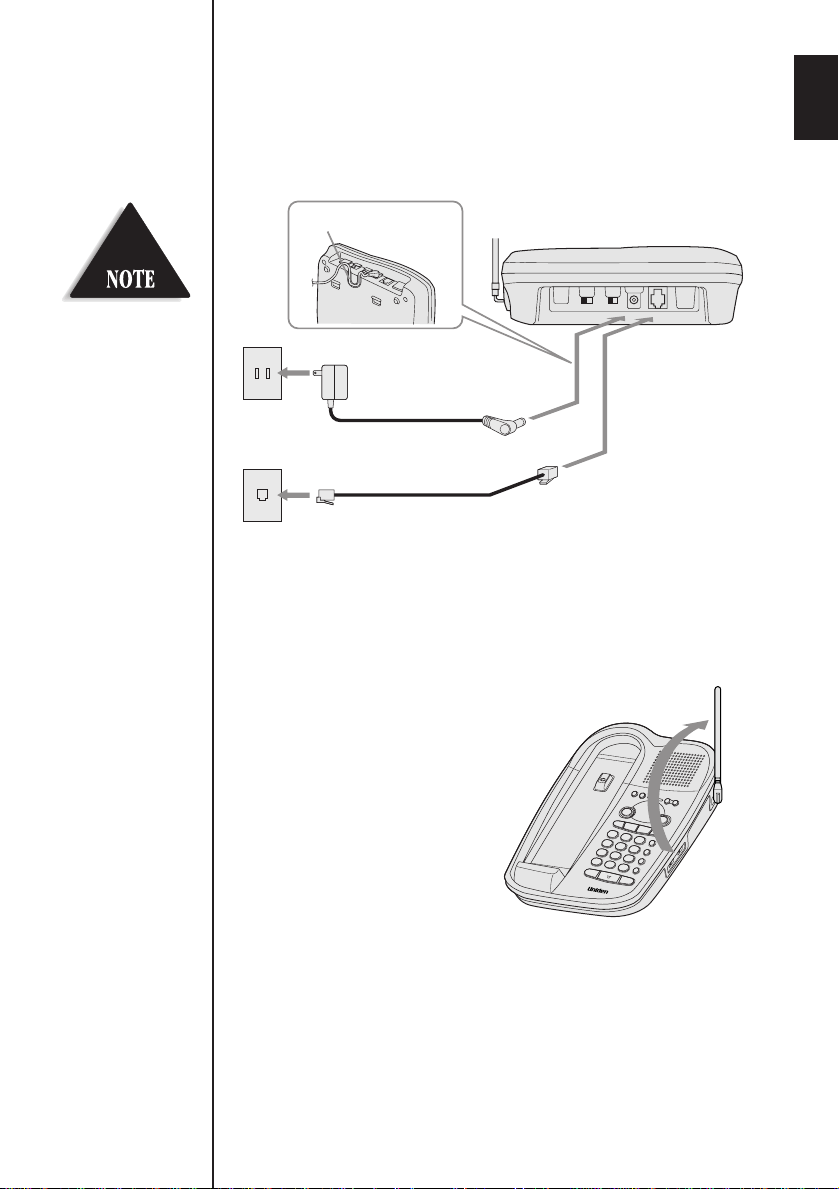
To AC outlet
To telephone outlet
To TEL LINE
To DC IN 9V
AC adapter
(supplied)
Telephone line cord
(supplied)
1
2
Route the cord.
Place the power cord so it
does not create a trip
hazard, or where it could
become chafed and create
a fire or electrical hazard.
Connect the base unit
If you want to install the base unit on the wall, see page 8.
1 Connect the telephone line cord to the TEL LINE jack and to
a telephone outlet.
2 Connect the AC adapter to the DC IN 9V jack and to a
standard 120V AC wall outlet.
3 Set the base unit on a desk or
tabletop and place the handset
on the base unit.
Then raise the antenna to a
vertical position.
6
Page 10
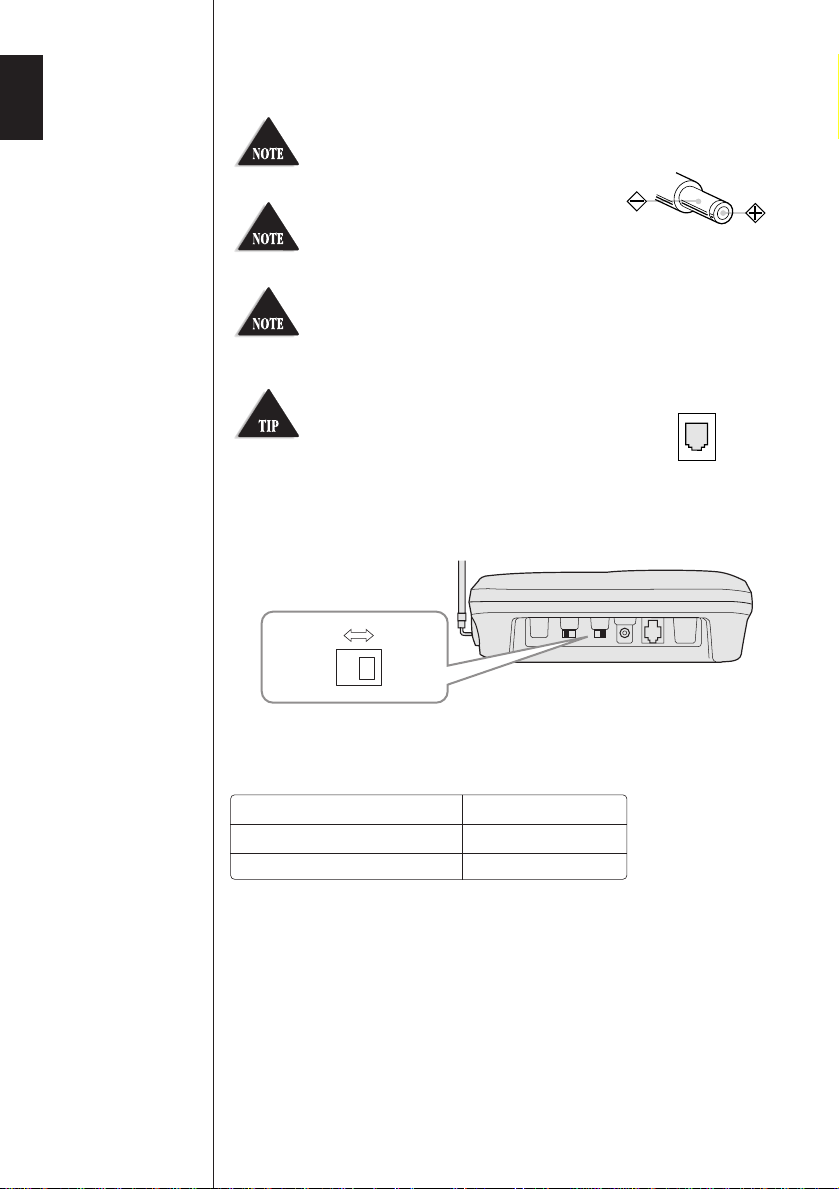
Use only the supplied AD-420 AC
PULSE
TONE
adapter. Do not use any other AC
adapter.
Connect the AC adapter to a
continuous power supply.
Place the base unit close to the
AC outlet so that you can unplug the
AC adapter easily.
Polarity of the plug
If your telephone outlet isn't modular,
contact your telephone company for
assistance.
Modular
Choose the dialing mode
Depending on your dialing system, set the TONE/PULSE switch as
follows:
If your dialing system is Set the switch to
Tone
Pulse
If you aren't sure of your dialing system
Make a trial call with the TONE/PULSE switch set to
If the call connects, leave the switch as is; otherwise, set to
TONE
PULSE
TONE
.
PULSE
.
7
Page 11
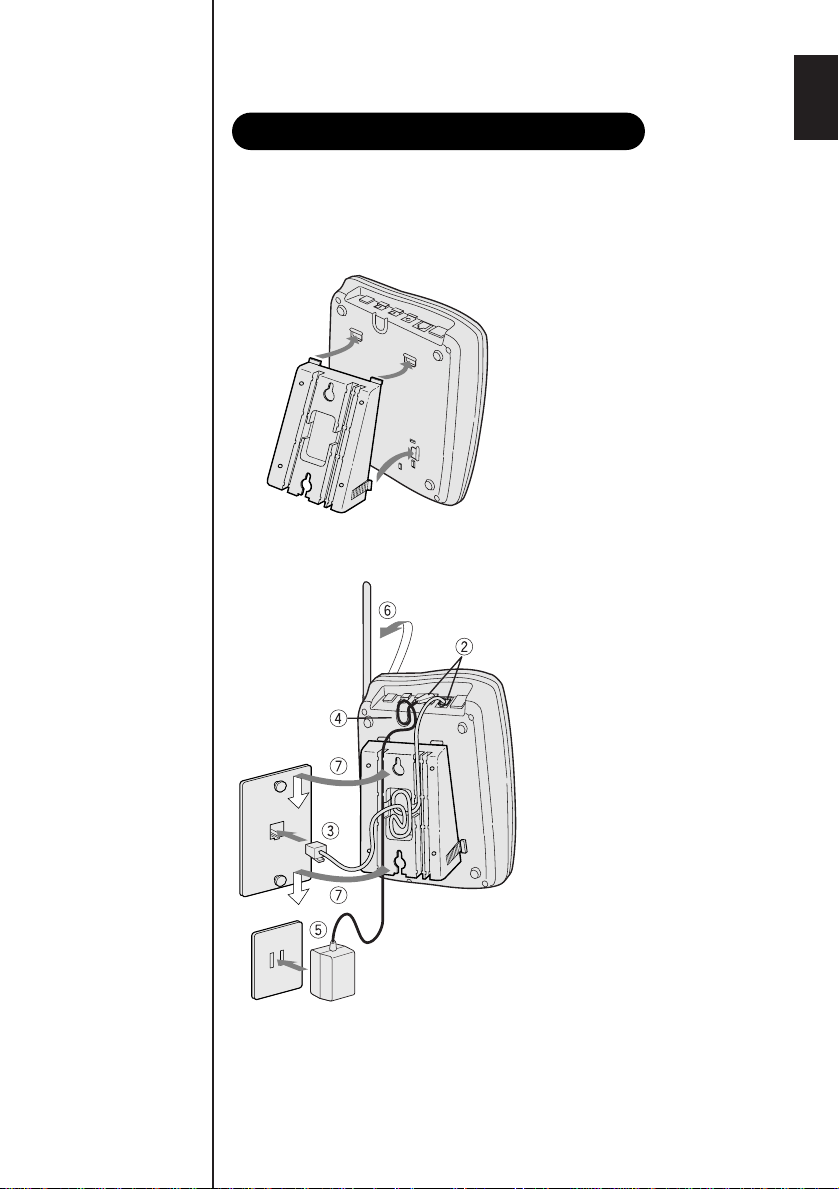
Standard wall plate mounting
AC adapter
Wall plate
AC outlet
Mounting the base unit on a wall
This phone can be mounted on any standard telephone wall
plate.
1
2 - 7
1 Snap the wall mount
adapter into the
notches on the base.
2 Plug the telephone
line cord to the
TEL LINE jack and the
AC adapter to the
DC IN 9V jack.
3 Plug the telephone
line cord into the
telephone outlet.
4 Wrap the AC adapter
cord inside the
molded wiring
channel. Then wrap
the cord around the
strain relief notch.
5 Plug the AC adapter
into a standard
120V AC wall outlet.
6 Raise the antenna to a
vertical position.
7 Align the mounting
slots on the base. with
the mounting posts on
the wall. Push in and
down until the phone
is firmly seated.
8
Page 12
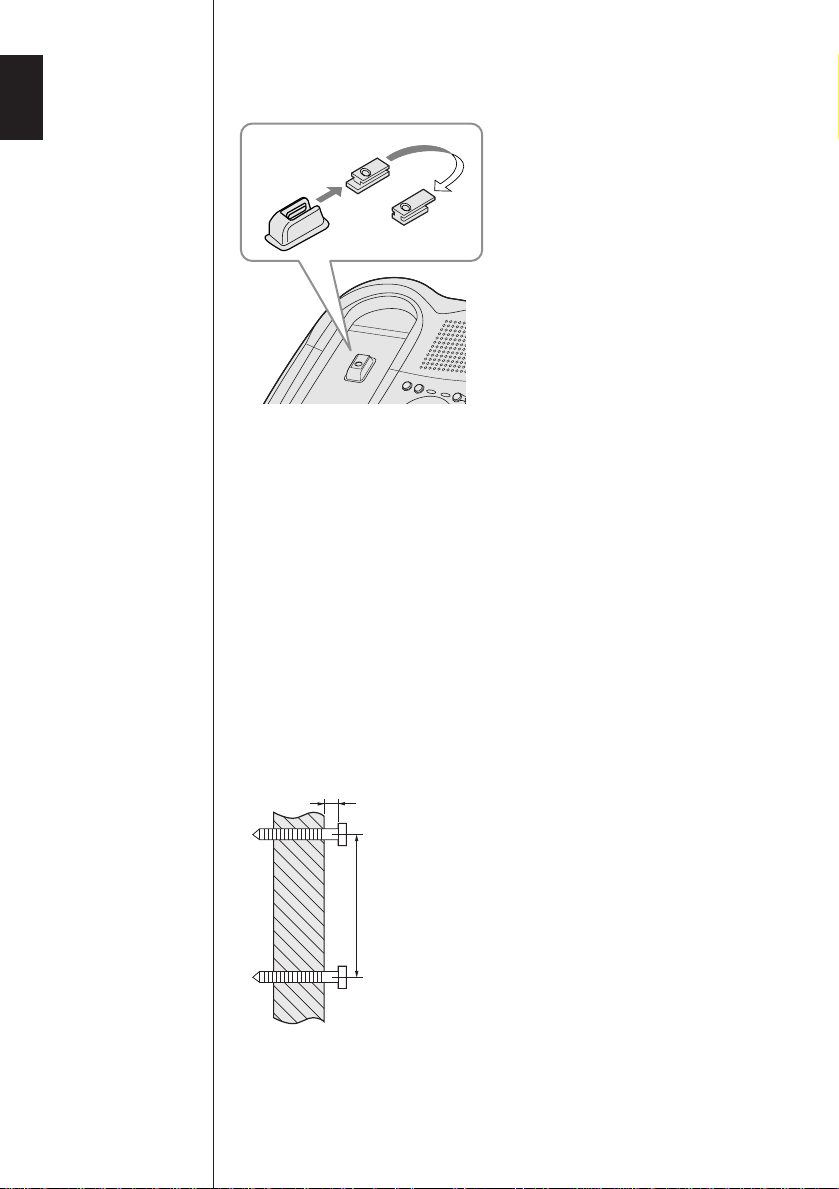
TOP
3/16 in.
3-15/16 in.
8 On the base unit, pull the
Handset retainer
handset retainer out of the slot.
Rotate it clockwise 180 degrees.
9 Flip the retainer from front to
back. Slide it back into the slot
so that the lip of the retainer is
up and the oval is down. The
retainer holds the handset
in place.
Direct wall plate mounting
If you don't have a standard wall plate, you can mount your phone
directly to the wall. Before doing this, consider the following:
• Avoid electrical cables, pipes, or other items behind the mounting
location, that could cause a hazard when inserting screws into
the wall.
• Try to mount your phone within 10 - 15 feet of a working phone
jack to avoid excessive cord lengths.
• Make sure the wall material is capable of supporting the weight of
the base and handset.
• Use
#10 screws with anchoring devices suitable for the wall
material where the base unit will be placed.
9
1 Insert two mounting screws
into the wall, (with their
appropriate anchoring device),
3-15/16 inches apart. Allow
about 3/16 of an inch between
the wall and screwheads for
mounting the phone.
2 Refer to steps 1 through 9 on
page 8 and 9 to mount the
telephone.
Page 13
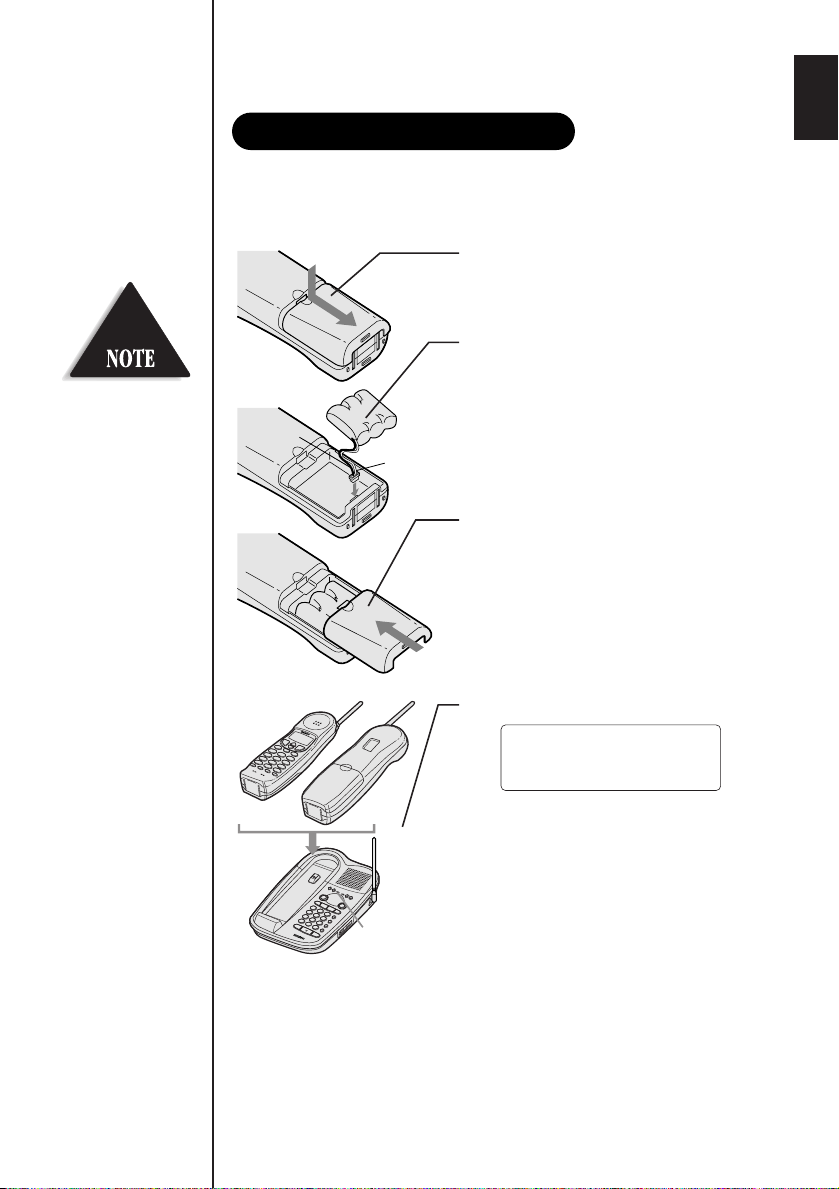
Red
status
LED
Black
Use only Uniden Battery
Preparing the battery pack
Total:00
BT-905.
Charge the battery pack for more than 12-15 hours before you start
using your phone.
1 Remove the battery cover.
2 Connect the battery pack
connector with the correct
polarity (black and red wires),
then insert the battery pack
into the battery compartment.
3 Slide the battery cover forward
until it snaps into place.
4 Place the handset on the base.
Make sure that the
LED of the base unit lights, and
charging begins. Charge the
battery for at least 12-15 hours.
You can place the handset
either side up for charging the
battery.
“
status
”
10
Page 14
Battery use time (per charge)
From fully charged
• Seven hours coutinuous use.
• Seven days when the handset is in the standby mode.
Even when the battery
pack is not being used, it
will gradually
discharge over a long
period. For optimum
performance, be sure to
return the handset to the
base unit after a
telephone call for
charging the battery.
Rechargeable batteries
have a memory effect that
reduces standby and talk
time. To avoid this
memory effect, on a
monthly basis, use the
phone until the Battery
lamp blinks. Then charge
the battery for 15 hours.
When the battery charge becomes low
When the voltage of battery pack in the handset is very low and
needs to be charged, the phone is programmed to eliminate
functions in order to save power. If the battery charge becomes low
Battery lamp blinks. If the phone is in use, the handset beeps.
Complete your conversation as quickly as possible and return the
handset to the base unit for charging.
Cleaning the battery contacts
To maintain a good charge, it is important to clean the battery
contacts on the handset and base unit about once a month. Use a
pencil eraser or other contact cleaner.
Do not use any liquids or solvents.
11
Page 15
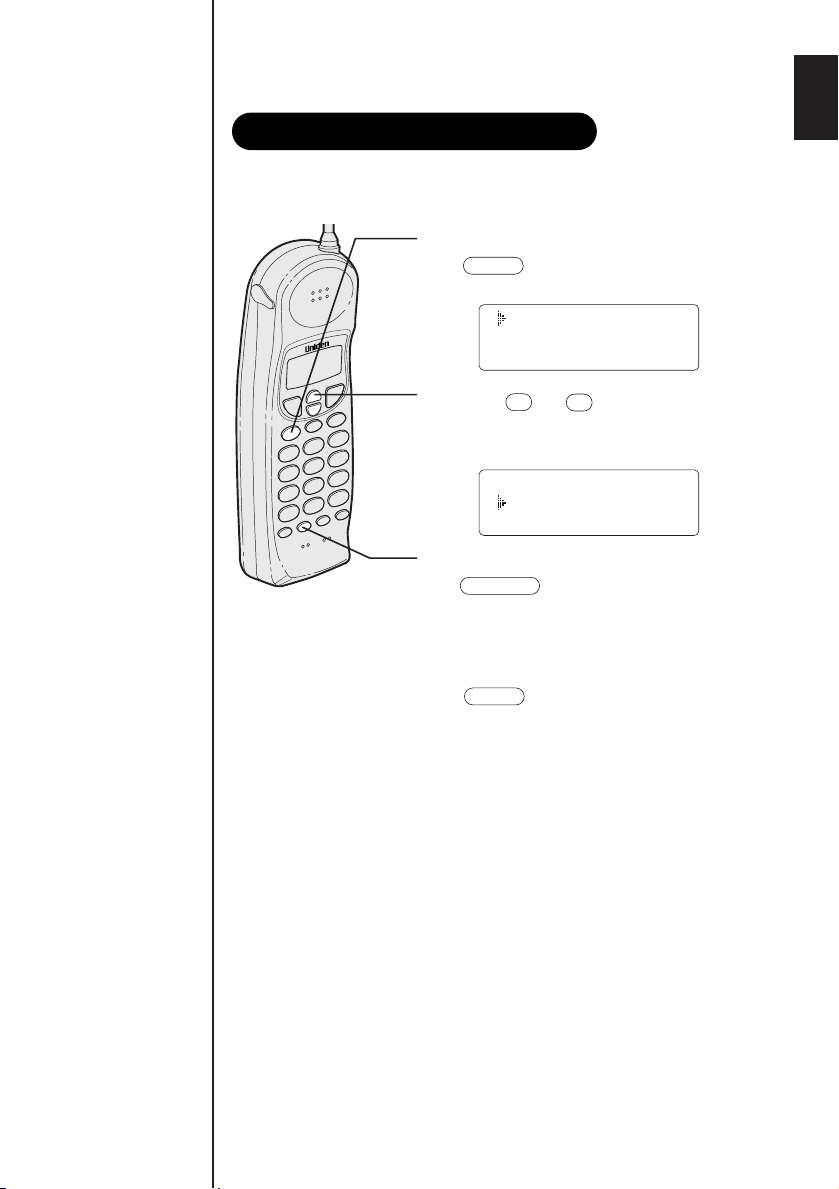
There are three Caller ID options, Auto Talk, CIDCW (Caller ID
call id
1 Auto Talk:Off
2 CIDCW :On
3 Area Code:
ª
1 Auto Talk:Off
2 CIDCW :On
3 Area Code:
•
select/ch
call id
Setting the Caller ID options
with Call Waiting), and Area Code.
1 In the standby mode, hold down
for 2 seconds until the
Caller ID setting appears.
2 Press or to move the cursor
to the item that is to be set.
Example: To select CIDCW
3 For Auto Talk and CIDCW press
to toggle between on and
off. For the Area Code setting please
see page 13.
4 To complete the settings, press
, then the handset returns to
standby mode.
12
Page 16
1 Auto Talk:Off
2 CIDCW :On
3 Area Code:
1 Auto Talk:Off
2 CIDCW :On
3 Area Code:
1 Auto Talk:Off
2 CIDCW :On
3 Area Code:
call id
3
select/ch
0
9
select/ch
call id
1 Auto Talk:Off
2 CIDCW :On
3 Area Code:817
call id
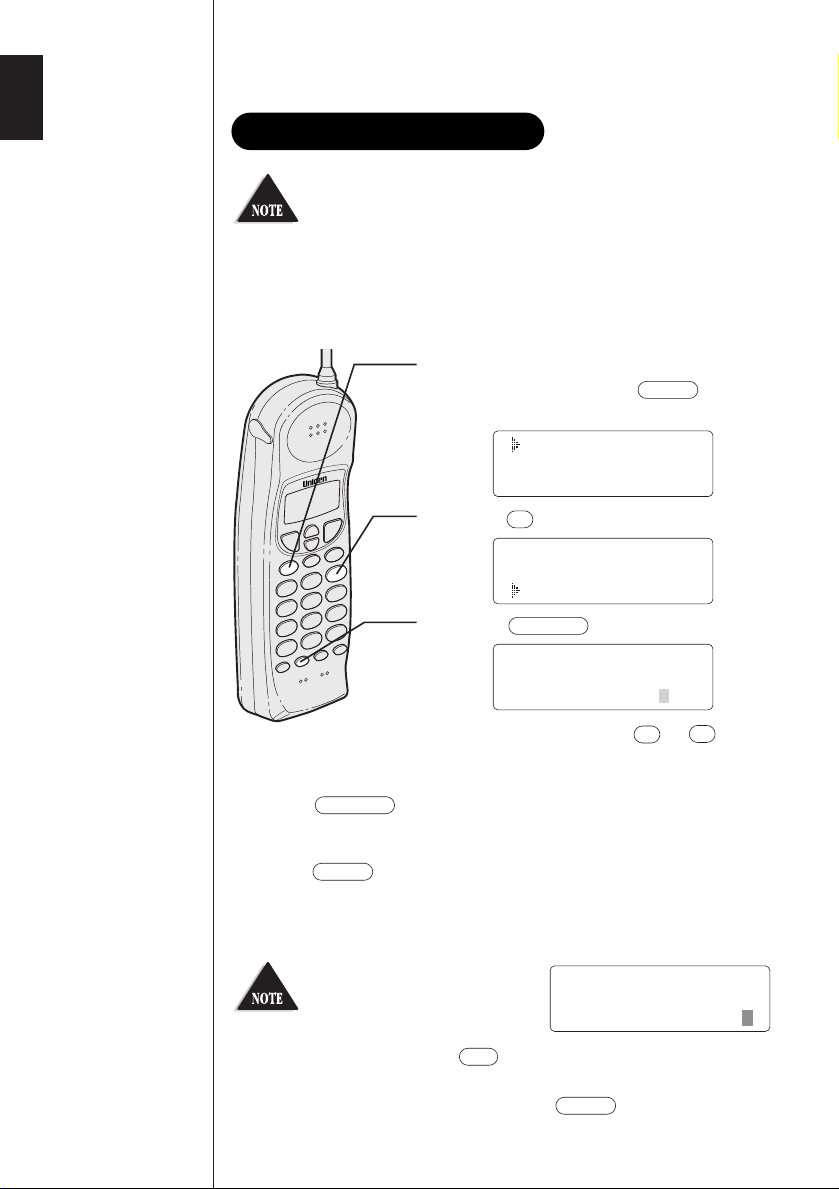
Entering your area code
If your calling area requires 10-digit dialing, skip this step.
del
You may wish to enter your local area code before you use this
phone for the first time, or if you move to a new area. The phone
can then distinguish local or long distance calls to properly dial
directly from the Caller ID record. (See page 38.)
1 When the phone is in the standby
mode, press and hold until the
Caller ID setting screen appears.
2 Press to select “Area Code”.
3 Press .
4 Use the dial buttons ( to ) to
enter the 3-digit area code.
5 Press .
6 Press to complete the setting. Or return the handset to
13
A beep sounds and the displayed area code is entered.
the base unit to complete the setting mode and set the handset
to the standby mode.
When the area code has
already been stored in
memory, the stored area
code will be displayed. To
change it, use the and dial buttons to enter the new
area code.
To complete the setting, press or return the
handset to the base unit.
Page 17
From the handset
select/ch
ª
•
/tone/
0
*
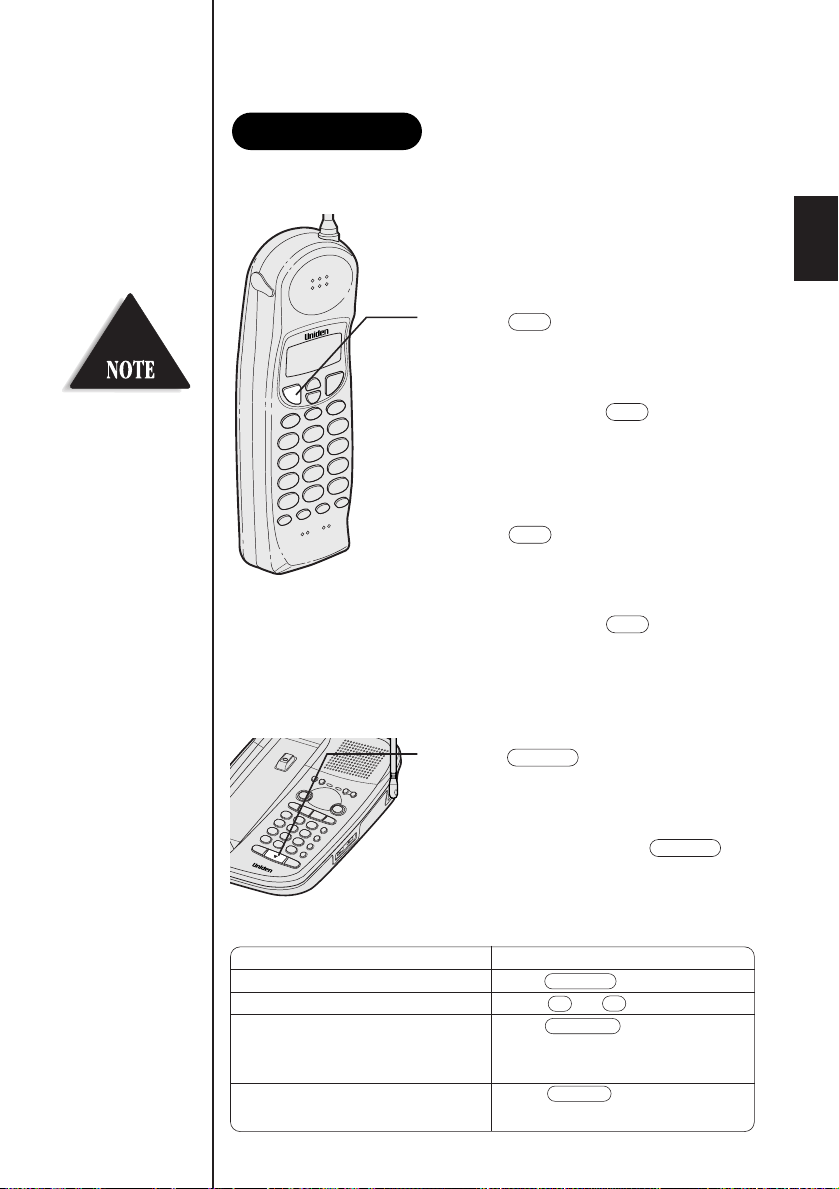
Making a call
talk
talk
speaker
speaker
redial/p
talk
talk
Handset on the base
1 Pick up handset.
2 Press .
3 Dial the phone number.
The phone number can be
up to 32 digits.
BASICS
4 To hang up, press or return the
handset to the base.
Handset off the base
1 Press .
2 Dial the phone number.
3 To hang up, press or return the
handset to the base.
From the base
1 Press .
2 Dial the number on the keypad.
3 To finish the call, press to
hang up.
Other Operations
To Do this
To improve reception Press .
To adjust the earpiece volume Press or during the call.
To temporarily switch to tone dial Press . The following
(When the base is set to pulse numbers dialed will be sent as
mode) tone dialing.
To enter a pause within dialing Press .
sequence dialed
14
Page 18

From the handset
status
LED
Receiving a call
talk
speaker
speaker
talk
1 Phone rings. Calling appears on the
2 Press if not in Auto Talk mode.
3 The call-time display starts when you
4 Press or place the handset on the
From the base
display.
Press any key other than mute key if in
Auto Talk mode. “
flashing on the display. Then the
earpiece ear volume is displayed for 2
seconds.
begin to talk.
base to hang up. The call time will be
displayed for about 5 seconds.
Talk” appears
15
1 The phone rings. The
the base flashes.
status
LED on
2 Press .
3 Press to finish the call.
Page 19
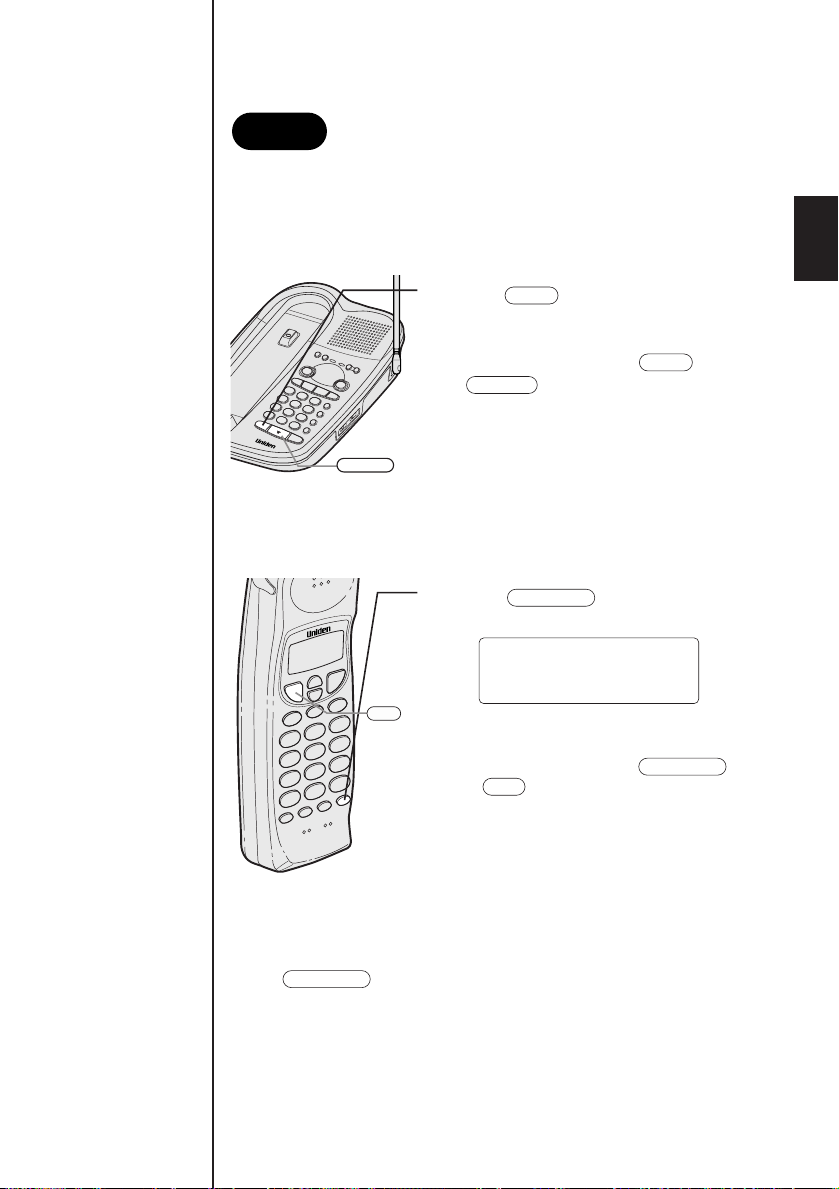
Mute
You can turn off the base or the handset microphone so that the
mute
speaker
mute
speaker
talk
mute/ring
mute/ring
talk
Mute 5:39
mute/ring
person you are talking with cannot hear you.
When speaking with the base
1 Press during a telephone call.
The mocrophone is turned off.
2 To cancel mute, press , or
.
When speaking with the handset
1 Press during a telephone
call.
The microphone is turned off.
2 To cancel mute, press
or .
When phone is ringing
Press when the phone rings. The ringer sound is
turned off.
16
Page 20

Adjusting the ringer and earpiece volume
Handset ringer tone
mute/ring
ringer
off on
Ringer A High
Ringer A Low
Ringer B High
Ringer B Low
mute/ring
mute/ring
mute/ring
mute/ring
•
ª
<High> <Medium><Loud>
ª
•
ª
•
ª
•
<Normal>
RINGER
OFF–ON
volume
•
ª
volume
•
volume
ª
mute/ring
In the standby mode, press
.
Each time is pressed,
the ringer tone setting changes
and the selected ringer tone
sounds for 2 seconds.
Handset ringer switch
This switch turns the handset
ringer on or off.
ringer
off on
Handset earpiece volume
Pressing or during a telephone call will change the
earpiece volume of the handset. This setting will remain in effect
after the telephone call has ended.
When you press in Loud mode or press in Low mode,
error sound beeps.
Base ringer switch
This switch turns the base
ringer on or off.
17
Base speaker volume
To control the speaker volume of the
base, adjust the and
button as desired.
The volume setting from 1 (lowest) to
10 (highest) appears in the message
counter LED.
Page 21

If the recently dialed
Redialing a call
<Redial1>
8178583300
redial/p
redial/p
redial/p
<Redial2>
2145551234
<Redial3>
9725554321
talk
redial/p
redial/p
redial/p
talk
talk
number exceeds 32 digits,
only the first 32 digits are
retained for redialing.
From the handset
The last three phone numbers entered can be quickly redialed.
[On-hook redialing]
1 Press .
The phone number that was last
dialed appears on the display.
2 Press again.
Each press of will display
one of the last three numbers dialed.
Most
recent
3 Press . “Talk” appears
flashing on the display, then the
volume setting is displayed.
4 Then the selected number is dialed.
After about 5 seconds, the call-time
display appears.
5
Press or place the handset on
the base to complete the telephone
call.
The call-time will be displayed for
about 5 seconds.
18
Page 22

From the base
redial/p
speaker
speaker
talk
redial/p
talk
Talk
Talk
<High>
Off-hook redialing
1 Press .
“
Talk” appears flashing on the display.
2 Press .
The last number dialed will be
displayed.
History redial cannot be accessed while
off-hook.
3
Press or place the handset on
the base to complete the telephone
The call-time will be displayed for about
5 seconds.
call.
19
1 Press .
2 To call the last number dialed from the
base, press .
3 Press to finish the call.
Page 23

You may use the phone as speaker phone to answer calls
speaker
12"
Using the speaker phone
speaker
pressing the button on the base. To hung up, press
again.
The base microphone is located
under the phone. Position yourself
approximately 12 inches away from
the base and speaker clearly.
20
Page 24

Intercom from the base to handset
page/int'com
int'com
talk
speaker
page/int'com
speaker
Using your EXAI 8985 intercom
talk
int'com
talk
speaker
1 Press on the base.
The handset beeps.
2 Press or on the handset.
Speak into the mouthpiece to answer
the base.
3
To turn off the intercom, press on
the handset or on the base.
Intercom from the handset to base
1 Press on the handset.
The base beeps.
2 At the base, press or
. Speak into the base
microphone to answer the page.
21
3
To turn off the intercom, press on
the handset or on the base.
Page 25

To transfer from the handset to the base
page/int'com
int'com
talk
speaker
speaker
page/int'com
speaker
int'com
talk
talk
Transferring a call
1 Press on the handset
while speaking on the handset. The
line will be held, and the inter’com
tone will be sounded on the base.
2 Press or on
the base. The intercom mode is
activated and the line is held.
3 To transfer to the base, press
on the handset.
To cancel the transfer, press
on the base.
To transfer from the base to the handset
1 Press on the base
while speaking on the speaker
phone. The line will be held, and
the intercom tone will be sounded
on the handset.
2 Press or on the
handset. The intercom mode is
activated and the line is held.
3 To transfer the handset, press
on the base.
To cancel the transfer, press
on the handset.
22
Page 26

/tone/
0
*
#/
1
select/ch
redial/p
del
mem
Memory Store
01 UNIDEN CORP
02 JOHN DOE
•
ª
Memory Store
02 JOHN DOE
03
0
9
Location No.0
Store Name
select/ch
Edit Memory03
Delete Memory03
Go Back
You must press a key
Storing phone numbers and names
mem
within 20 seconds or the
phone will return to
standby. If you return the
handset in the cradle the
phone will return to
standby too. Press
and you can go to
memory menu at any
time.
Your EXAI 8985 stores up to 20 name/numbers in handset plus 10
numbers in the base.
On the handeset
Example: To store a name (MOM AND DAD)
and number (8175553300) in
memory location 03.
1 Press and hold until
“
Memory Store” is displayed.
2
Press or to scroll
memory number where you would like
to store the number.
Or press the keypad ( to ) to
select the memory location (01 - 20)
where you would like to store the
number.
Example: Enter 03
DIALING
to the
3 Press .
When an empty memory
location is selected,
“
MEMORY
23
Store Name” is
displayed. The cursor flashes
indicating that the display is
ready for the name to be
entered.
If this screen appears, the selected memory location is already
stored. Then you must either change the entry in this location.
Page 27

4 Use the , , , , or keys to
•
ª
/tone/
0
#/ 1del
•
ª
#/
1
/tone/
0
del
Store Number
Store Number
817555330
/tone/
0
#/
1
del
redial/p
select/ch
Memory03 Stored
Memory Store
02 JOHN DOE
03 MOM AND DAD
select/ch
redial/p
enter the name. The name cannot exceed 13 characters.
• Use the and key to scroll through the character
menu. It contains upper and lower case letters, numbers,
punctuation marks and various characters.
• Use and to move the cursor to the
desired location.
• Use key to delete characters as needed.
5 Press .
“
Store Number” is
displayed. The cursor flashes
indicating that the display is
ready for the number to be entered.
6 Use the number keypad or
, , or
keys to enter the
phone number. The phone
number cannot exceed 20 digits.
• Use the key to enter pause in the dialing
sequence. The display shows a “
The pause feature is useful for long distance
calling, credit card dialing, or sequences that
reguire a pause between digits.
• Use the key to delete digits as needed.
P”.
7 Press .
The handset beeps and displays the confirmation screen.
Memory storage is complete.
For example, if you store a name
and number into memory location
number 03, the display shows
“Memory03 Stored”.
After about 2 seconds,
“
Memory Store”
is displayed.
24
Page 28

On the base
memory
status
LED
memory
You can store only numbers in the handset
1 Press .
The
status
LED blinks.
2 Dial the number you wish to store.
3 Press .
Enter the memory location number
(0-9) on the keypad.
The
status
LED goes out.
A confirmation beep indicates the
number is stored.
25
Page 29

Making calls with memory dialing
mem
01 UNIDEN CORP
02 JOHN DOE
03 MOM AND DAD
02 JOHN DOE
03 MOM AND DAD
04
•
ª
15 JOHN SMITH
16 <Memory16>
17
Talk
0123456789012
talk
ª
mem
select/ch
talk
You must press key within
20 seconds or the phone
will return to standby, you
may also press memory to
access a memory menu at
any time.
If you press
before , you can
confirm the name and
number stored in the
selected memory location.
From the handset
[On-hook dialing]
1 Press .
2
The handset displays your
programmed memory locations.
Press the and keys to select
the memory location you would like
to dial.
For example, if the key is pressed
once, the cursor moves down to the next
memory location number.
Or enter the two-digit number with
the number keypad to select the
memory location you would like to dial.
For example, if you pressed 1, 5 on the
keypad, the display shows memory
location number 15 with the cursor in
that line.
To exit the memory
function without dialing,
press . The
handset returns to standby.
3 Press . “Talk” flashes and
the volume setting appears on the
display. Then the displayed number
is dialed.
26
Page 30

talk
Talk
Talk
<High>
Talk 0:00
mem
Talk 0:35
0123456789012
Display a Programmed Number
/tone/
0
#/
1
1
1
01 8178583300
02 5452930
03 8175551212
01 UNIDEN CORP
02 JOHN DOE
03 MOM AND DAD
15 0123456789012
16 011813554329
17
#/
1
/tone/
0
Use the and keys to toggle between the names
display and the numbers display.
Program name Program number
When the stored phone number has 14 or more digits,
“
\ “ is displayed next to the 12th digit. Press to
see the extra digits and to return.
Off-hook dialing
1 Press .
“
Talk” flashes and the volume
setting appears.
27
2 Press .
3 Press the number keypad to select the
memory location (01 - 20) of the desired
phone number.
The selected phone number is
displayed. Then the number is dialed.
Page 31

From the base
speaker
memory
speaker
Editing a stored name and/or phone number
mem
Memory Store
01 UNIDEN CORP
02 JOHN DOE
Memory Store
01 UNIDEN CORP
02 JOHN DOE
•
ª
select/ch
Edit Memory01
Delete Memory01
Go Back
/tone/
0
*
#/
1
redial/p
del
1 Press .
2 Press .
3 Press the number keypad to select
the memory location you wish to
dial.
4 Press to finish the call.
1 Press and hold for 2 seconds.
The display shows the memory
screen and any saved name/number.
2
Press the or keys or number
keypad to select the memory location
(01 - 20) you would like to edit.
(See page 23.)
3 Press .
The following screen appears with
the memory location number that
you have selected in the display.
For example, if you selected memory
location number the display shows
memory 01 as the location in the selected.
28
Page 32

4 Press the or key to
Store Name
UNIDEN CORP
•
ª
select/ch
•
ª
/tone/
0
#/ 1del
Store Number
817858330
select/ch
Memory01 Stored
redial/p
select/ch
del
Memory Store
01 UNIDEN CORP
02 JOHN DOE
mem
/tone/
0
#/
1
1
1
Memory Store
01 8178583300
02 5452930
Memory Store
01 UNIDEN CORP
02 JOHN DOE
1
1
Memory Store
300000
Memory Store
06 011813554329
07
/tone/
0
#/
1
select “
Edit Memory”,
then press .
The following screen appears.
The cursor flashes indicating that the display is ready for the
name to be edited. When a name has not been stored, the
cursor appears at the beginning of the second line
.
5 Press , , , , or to edit the
name. (See page 24.)
To edit only the phone number, skip this step.
6 Press .
The following screen appears.
The cursor flashes indicating
that the display is ready for the number to be edited.
7 Use the dial keypad, , or key to edit the phone
number.
The phone number cannot exceed 20 digits. (See page 24.)
When the phone number will not be edited, skip this step.
8 Press .
The handset beeps and displays
the confirmation screen. The
memory storage is complete.
For example, if you store a name and number into memory location
number 01, the display shows “Memory01 stored”.
After about 2 seconds,
“
Memory Store” is
displayed.
29
9 Press to return to standby mode.
Display a Programmed Number
Use the and key to toggle between the names
display and the numbers display.
Program name Program number
• When the stored phone number has 14 or more digits, “ \” is
displayed next to the 12th digit.
Press to see the extra digits and to return.
Page 33

With the handset
Erasing a stored name and phone number
Memory02 Deleted
del
select/ch
mem
Memory Store
01 UNIDEN CORP
02 JOHN DOE
Memory Store
01 UNIDEN CORP
02 JOHN DOE
•
ª
select/ch
Edit Memory02
Delete Memory02
Go Back
Edit Memory02
Delete Memory02
Go Back
Delete Memory02?
Yes
No
ª
select/ch
•
del
1 Press and hold for 2 seconds.
2
3 Press .
The display shows the memory
screen and any saved name/number.
Press the or keys or number
keypad to select the memory location
(01 - 20) you would like to edit.
The following screen appears with
the memory location number that
you have selected in the display.
For example, if you selected memory
location number, the display shows
memory 02 as the location in the
selected.
4 Press to move the cursor
down to “
command line.
Delete Memory”
5 Press . The following
confirmation screen appears.
6 Press to move the cursor to “Yes”.
7 Press or .
There is a confirmation tone and the entry is deleted. The
following screen appears.
For example, if memory location
number 02 is selected for deletion,
the following display appears as the
confirmation screen.
30
Page 34

memory
memory
status
LED
8 After 2 seconds the display
mem
Memory Store
02
03 MOM AND DAD
returns to the
“
Memory Store” screen.
You may select another number
to delete (return to step 4).
9 Press to return to standby.
With the base
1 Press .
The
status
2 Press again.
3 Enter the memory location number (0-9)
of the number you wish to delete. The
status
LED goes out.
A confirmation beep indicates the
number has been erased.
LED blinks.
31
Page 35

The Uniden EXAI 8985 permits
speaker
talk
3-way conferencing
speaker
talk
3-way conversations between
the handset, base, and outside
line.
Dialing from the 3-way
conversation mode is
possible only from the
handset.
When speaking on the handset
1 Press on the base to join
the 3-way conversation.
This will set the 3-way conversation
mode.
2
Press on the base to hang
up. The handset remains connected to
the outline call.
When speaking on the base
1 Press on the handset to join
the 3-way conversation.
2
Press on the handset to hang
up.
CONFERENCE FEATURES
3-WAY
32
Page 36

Caller ID service
You must subscribe to the Caller ID service from your
telephone company to use this feature.
When the telephone rings, the Caller ID feature allows you to view
the caller's name and phone number on the display before you
answer the phone.
The handset displays the phone number of the incoming call, the
name, time, and the number of calls. Additionally, you can dial the
displayed number, and store the information for memory dialing.
FEATURES
33
CALLER ID
Page 37

5/11 12:30PM 01
UNIDEN CORP
813-858-3300
The date and time received
Caller's name
Caller's phone number
5/11 12:30PM 01
UNIDEN CORP
817-858-3300
5/11 12:30PM 01
UNIDEN CORP
Private Number
5/11 12:30PM 01
Private Name
817-858-3300
5/11 12:30PM 01
UNIDEN CORP
Unknown Number
5/11 12:30PM 01
Unknown Name
817-858-3300
Incomplete Data
When the telephone rings
If you answer a call before
5/11 12:30PM 01
UNI EN CORP
813-8 -3300
the Caller ID message is
received (Example: before
the second ring), the
Caller ID message will not
appear.
1 When the Caller ID message is received, the
status
blinks.
The display shows the caller’s phone number, along with the
date and time. The incoming call information is stored in
Caller ID record.
If the Caller ID service includes the caller’s name, the caller's
name appears on the display (up to 15 letters).
Here are some typical displays;
When the phone number and name
data are received
When invalid data is received
LED
When the call is received
via a telephone company
that does not offer Caller
ID service, the caller's
phone number and name
do not appear. (This
includes international
calls.)
When a private name is received
When an unknown name is received
2 When the telephone is answered, the display changes to
“
When the call is via a
private branch exchange
(PBX), the caller's phone
number and name may
not appear.
Talk”.
When a private number is
received
When an unknown number is
received
Data errors appear
as “
22
”.
34
Page 38

The Caller ID list stores information for up to 50 incoming calls - even
Viewing the Caller ID Message list
call id
New :01
Total:02
ª
5/17 12:30PM 03
UNIDEN CORP
817-858-3300
•
call id
ª
5/17 12:30PM 03
UNIDEN CORP
1-817-858-3300
1•1
•
unanswered calls.
If a call comes in via a
telephone system that does
not offer Caller ID service,
no information is stored.
” appears when
“End
you have received all
messages in the Caller ID
list.
Press to return to the
summary screen.
Each message can be up
to 15 characters for the
phone number and the
name.
1 Press .
When there are new messages you have
not reviewed, “
are displayed. The summary screen shows how many
new calls are stored, along with the total of new calls
and old calls stored in the list.
New” and the number of calls
2 Press to display the latest caller
ID message.
3 Press to see the next message.
Or press to see previous message.
4 Press to return to standby.
Long Distance call settings and cancellation
Press while the incoming call
information is displayed
(in step 2) to return a long
distance call. The prefix “
be displayed at the beginning of the phone number when a long
distance call is set. (When the phone number is 15 digits long, only
“
1” is displayed.) Pressing again will cancel the long distance
call setting.
1-” will
35
Page 39

Deleting information from the Caller ID list
5/17 12:30PM 03
UNIDEN CORP
817-858-3300
del
Delete Message ?
Yes
No
•
ª
del
select/ch
•
ª
call id
While using the
“Delete
Message ?”
screen, if no key is pressed
for more than 20 seconds,
an error tone sounds and
the telephone returns to
standby.
If you get an incoming
call, the deleting operation
is cancelled and the
telephone returns to
standby so you can answer
the call.
The EXAI 8985 stores up to 50 messages. If more new calls are
received, messages stored in the list are deleted beginning with
the oldest message in the list.
Caller ID data can also be deleted manually.
Deleting a Caller ID message
1 Press .
Display the message to be deleted
from the Caller ID list by pressing
or .
2 Press .
3 Press or to select “Yes” or
“
No”.
4 Press or .
When the pointer is at “Yes”:
A beep tone sounds and the next
Caller ID message displayed.
When the pointer is at “No”:
The display returns to the Caller ID
display.
36
Page 40

Deleting all Caller ID name/numbers
New :01
Total:02
del
Delete All ?
Yes
No
•
ª
del
select/ch
call id
Total:00
New :01
Total:02
1 Press .
2 Press .
3 Press or to select “Yes” or
“
No”.
4 Press or .
When the pointer is at “Yes”:
A beep tone sounds and all stored
Caller ID messages are deleted.
When the pointer is at “No”:
The display returns to the summary
screen.
37
Page 41

When a long distance call
5/17 12:30PM 03
UNIDEN CORP
817-858-3300
talk
UNIDEN CORP
8178583300
select/ch
Talk
8178583300
1
call id
•
ª
Using the Caller ID list
select/ch
ª
•
1
has been set, “1” appears
in the display.
You cannot make a call
from the Caller ID list if
your EXAI 8985 is
connected to private
branch exchange (PBX).
Calling a party from the Caller ID list
You can place a call from the Caller ID list.
The EXAI 8985 stores up to 50 messages.
1 Press .
Select the phone number that you
want to dial by pressing or .
2 Press .
The displayed phone number dials
automatically.
Long Distance calls
Pressing while the incoming call information is displayed
(in step 1) will set or cancel a long distance call.
Dial edit
You can edit the phone number of
Caller ID data when you press
after the step 1.
38
Page 42

5/17 12:30PM 03
UNIDEN CORP
817-858-3300
Select Location
01 UNIDEN CORP
02 JONE DOE
mem
5/17 12:30PM 03
UNIDEN CORP
817-858-3300
select/ch
•
ª
Replace Memory ?
Yes
No
•
select/ch
call id
•
ª
You can not store a Caller
ID message if no phone
number appears in the
message.
If no key is pressed for
more than 20 seconds, an
error tone sounds and the
telephone returns to the
standby mode.
Storing Caller ID messages in Memory dialing
Messages shown in the Caller ID list can be stored in memory
dialing.
Using the incoming call information (i.e., Caller ID list), the phone
number of the party on the Caller ID list can be stored in memory
dialing.
1 Press .
Select the phone number to be stored
from the Caller ID list by pressing
or .
2 Press .
3 Press or to select the
memory location.
4 Press .
A beep tone will sound. The number is
stored in memory, and the display
returns to the Caller ID list.
If there is an incoming
call or page, memory
storage is cancelled and
the telephone is set to
receive the incoming call
or page.
39
If a message has
already been stored in
the selected memory
numbers location, a
confirmation screen is displayed. Press to select
“
Yes”. Press to overwrite. The display returns
to the Caller ID list.
Page 43

Using "Caller ID with call waiting" service
“Caller ID” and “Call waiting” are separate services. CIDCW
Talk 10:30
UNIDEN CORP
817-858-3300
flash
flash
(Caller ID on Call Waiting) performs the same as regular
Caller ID on a call waiting number. You must subscribe to
the "Caller ID with call waiting (CIDCW)" service from your
telephone company before you can use the following features.
The “Call waiting” service can also be used independently.
Please contact your telephone company for details.
1 When a new incoming call arrives
during your current telephone call,
the phone number and the name of
the caller is displayed.
2 Press .
You will be able to talk with the
person that has just called. The first
caller will be put on hold.
3 To return to the first caller, press
again.
40
Page 44

The EXAI 8985 has a built-in answering system that answers and
The integrated answering device
Features
records incoming calls.
You can also use your answering system to record a conversation,
leave a voice memo message for others who use the phone, or to
announce a special message to callers when you're away from your
phone.
• Digital Tapeless Recording
• 15 minutes of Recording Time
• Selective Outgoing Message (Greeting)
• Time and Day Stamp
• Remote Message Retrieval and Room Monitor
• Toll Saver
ANSWERING DEVICE
• Conversation Recording
Digital Tapeless Recording allows you to quickly review, save or
delete the messages. You'll never have to worry about a tape
wearing out, jamming, or resetting improperly.
The Integrated Answering System is easy and convenient to use, but
please read through all of the instructions carefully.
41
THE INTEGRATED
Page 45

Setting up your answering system
ans on/off
clock
clock
clock
Press or
clock
ans on/off
clock
multiple times to scroll
through days, hours,
minutes, etc.
Turning the answering system on/off
1 To turn the answering system on,
press . A beep tone will
sound and the current greeting
message is played.
2 To turn the answering system off,
press again.
Setting the clock
The clock on EXAI 8985 Answer System starts when power is
applied to the base. Follow these steps to set the clock to the
correct time.
1 Press and hold until a beep
tone sounds.
2 First, press or until the
correct day of the week is
announced. (Number zero through
six displays on the base as each day
is announced.) Press again
to select the day.
If you don't set the clock
within two minutes, the
system returns to standby.
4 Press or until you hear the correct time setting.
Numbers 1 through 59 display on the base as each minute is
announced. Press again to select the correct time.
5 The LED displays an A or P. Press or until you
hear the correct AM/PM setting.
6 Press again to end the time/day setting.
The EXAI 8985 announces the time that you have set.
3 Next, press or until you
hear the correct hour setting.
Numbers 1 through 12 display on
the base as each hour is announced.
Press again to select the
correct time.
42
Page 46

You can record a greeting
greeting
greeting
play
greeting
greeting
up to 30 second.
Setting your greeting
When you receive a call, the answering system automatically plays
either a preset message or your own greeting.
Preset Message
ª
The following message is prerecorded:
"Hello, no one is available to take your call. Please leave a message
after the tone."
ª
Recording your personal greeting
1 Press and hold until you hear
a long tone. Start recording your
message immediately after you hear the
long tone end.
2 When you finish recording your
message, press or .
A long tone sounds and your message
plays back on the phone.
ª
Choosing between two greetings
1 Press to play the outgoing
message.
Stand within 12 inches in
front of the microphone
and speak clearly when
recording your greeting.
43
2 While the message is playing, press
again to select between your
personal greeting and the prerecorded
message.
Page 47

Selecting the message record time
REC TIME
ANN/4/1
pin
pin
pin
You can set your answering system to record messages up to one
or four minutes long.
One minute option:
move the
switch to 1.
Four minutes option:
move the
switch to 4.
ª
Announce only feature:
The announce only feature plays an outgoing message, but it will
not allow the caller to leave a message. Move the
switch to the
The message counter LED displays “ ” when system is on
standby.
Prerecorded outgoing message for Announce only feature is:
"Hello, no one is available to take your call."
REC TIME
REC TIME
ANN
position.
REC TIME
Selecting a PIN code
To play your messages from a remote location, you will need to
enter a two-digit Personal Identification Number (PIN) code
(00-99). To select a PIN, perform the following steps.
Press or
multiple times to scroll
through numbers on the
display.
1 On the base, press and hold
button until beep sounds, and the
LED displays 00.
2 To set the first number, press
or to scroll from 00 to 90.
When the desired number appears in
the display, press . This selects
the first number.
3 To set the second number, press
or to scroll from 0 to 9.
When the desired number appears in
the display, press . This selects
the second number and then the
entered number is announced.
44
Page 48

Setting ring time switch
RING TIME
2/4/TS
The ring time /toll saver switch
allows you to set the number of
rings the caller hears before the
answering system plays your
outgoing message. You can set
the switch to answer after two
rings or after four rings. In the
TS
(Toll Saver) position, the answering system picks up after two
rings if you have new messages, and after four rings if there are
none. This way, if you call long distance to check your messages,
you can hang up after third ring to avoid billing charges.
45
Page 49

Using your answering system
play
play
To stop playing your
play
messages, press
again.
Playing your message
The base LED shows the number of total messages on the
display. If the display is blinking, then there are new messages
waiting for you. The EXAI 8955 is designed to play your new
messages first. After you play your new messages you can then
play your old messages.
1 Press . The system announces
the number of new and old messages,
then the incoming messages are
played. The time and day each
message was received is announced
after the message is played, and the
message counter LED displays the
number of the current message.
2 When all new messages have
played, a long tone is heard. The
message counter LED stops flashing
to indicate that all of the new
messages have been reviewed.
3 After you have reviewed all your
messages, you can play your old
messages again. Press and
follow the instructions above.
46
Page 50

play
play
Pressing before
play
play
2.5 seconds (4.5 seconds
from remote) of the
message has played causes
the system to scan back
one message.
If you have several
messages, press
until you return to the
message you want to
replay.
Repeating a message
1 Press to review your message.
The number of stored messages is
announced.
2 After a message has played for a few
seconds, press to repeat the
message.
3 Press at any time to stop
reviewing messages and return to
standby. The message counter LED
shows the total number of messages still
on the system.
Skipping a message
1 Press to review your messages.
The number of messages is announced.
Each time is
pressed, the system scans
forward one message.
If you have several
messages, press and hold
message you want to play.
47
2 Press at anytime to skip to the
next message.
3 Press at any time to stop
reviewing your messages and return to
standby. The message counter LED
shows the total number of messages on
the system.
to find the
Page 51

play
delete
When you press delete,
delete
voice memo
voice memo
play
Microphone
you are permanently
deleting the message.
Once deleted, the message
cannot be replayed.
Deleting a message
Deleting individual message
ª
1 Press to review your message.
2 If you decide to delete a message,
press anytime during the
message. The system beeps and
immediately goes to the next
message.
3 After you have played all of your
messages, a long tone sounds on the
base speaker.
ª
Deleting all messages
Press and hold after reviewing your messages. A tone
sounds when all messages are cleared.
Voice memo
The voice memo function allows the user to record a message
(up to 10 minutes) on the base.
The voice memo function
is completely independent
of the outgoing message.
It’s handy for leaving
others a quick message.
A memo message is
treated as a typical
recorded message and will
be added to the stored
messages.
1 Press and hold ,
until you hear a long beep. The
message counter LED blinks.
2 Speak into the microphone.
3 When you have finished, press
or to stop
recording. The system returns to
standby.
48
Page 52

play
voice memo
voice memo
A recorded conversation is
treated as a typical
message and will be added
to the stored messages.
You cannot record a
conversation while
speaking on the base.
Recording a conversation
You can record up to 10 minutes of conversation while you are
making your call from the handset.
1 During the conversation from the
handset. Press and hold
on the base. The unit
begins recording and the LED blinks. A
beep that can be heard by both parties
sounds every 15 seconds.
2 To stop the recording, press
or .
49
Page 53

Remote access away from home
You can operate your answering system from a remote location
using any touch-tone telephone. Use this function to check for
recorded messages, to play or delete messages, even to record a
new outgoing message, and to monitor sounds in the room.
1 Call your telephone number.
You must enter a
command within 15
seconds of entering
command waiting mode
or the answering system
automatically hangs up
and returns to standby.
The system will only
playback messages for
four minutes and then it
returns to command
waiting mode. To continue
playing your message,
press #then 2again
within 15 seconds
2 While the answering machine is activated, press
PIN code.
#
and your
3 The answering system announces the time and day stamp
and the number of messages stored in memory. Then the
message playback automatically begins.
4 You may continue to listen to your massage, or you may
select a command from the following chart.
Command Function
#
then
1
Repeat
#
then
2
Playing your messages
#
then
3
Skipping a message
#
then
4
Deleting a message
#
then
5
Stop message playback
#
then
6
Answering system on
#
then
7
Voice memo record/stop
#
then
8
Outgoing message record/stop
#
then
9
Answer system off
#
then Room monitor
*
5 After all of your messages have played, or the playback time
exceeds 4 minutes, you will hear that the intermittent beeps
indicating that the system is in the command waiting mode.
You may enter another command at this time from the chart
above.
6 When you are finished, hang up to exit the system.
The answering system automatically returns to standby.
50
Page 54

Remote room monitor
You can call your answering system from any touch-tone phone and
monitor sounds in the room where your base is installed.
1 Call your telephone number.
2 While the answering machine is activated, press
code.
#
and your PIN
3 The answering system begins announcing the time and day.
4 Press
5 Press
6 Press
#
then 5 to stop the message.
#
then while the system announces the time and day
stamp. You hear sounds in the room where your phone is
installed. After 15 seconds, the answering system returns to the
command waiting mode.
select another remote function. Or hang up to exit the system.
The answering system automatically returns to standby.
*
#
then to monitor the room for another 15 seconds. Or
*
51
Page 55

page/int'com
Changing the digital security code
page/int'com
If the handset battery pack
is completely discharged
or the battery pack is
removed, the digital
security code will be lost.
If this happens, a new
security code is set
automatically the next
time the battery pack is
charged.
The digital security code is an identification code used to connect
the handset and the base unit. Normally, setting the code is not
necessary.
The first time you charge your handset, the security code is
automatically set. (See page 3.)
In the rare situation that you suspect another cordless telephone
is using the same security code, you can change the code.
1 Remove the handset from the base
unit. Press .
2 While the handset is producing the
paging sound, hold
while placing the handset in the base
unit. The paging tone stops.
Leave the handset on the base
longer than 3 seconds. A random,
new security code is set.
INFORMATION
ADDITIONAL
52
Page 56

To attach the beltclip
headset
jack
Installing the beltclip
Headset installation
To remove the beltclip
Insert the beltclip into the holes
on each side of the handset.
Press down until it clicks.
Pull both sides of the beltclip to
release the tabs from the holes.
Your phone may be used with
an optional headset. To use
this feature, simply plug any
standard 2.5mm headset plug
into the headset jack. Your
phone is ready for hands-free
conversation.
53
Page 57

Battery replacement
Note on power sources
Maintenance
and handling
When the operating time
becomes short, even after a
battery is recharged, please
replace the battery.
With normal usage, your
battery should last about one
year.
Please contact your place of
purchase for a replacement
battery.
Power Failure
During the period that the
power is off, you will not
be able to make or receive
calls with the telephone.
RECYCLING NICKELCADMIUM BATTERIES
NICKELCADMIUM
BATTERIES
MUST BE
Ni-Cd
Nickel-cadmium cells are used
in the battery pack. Please
take your used nickelcadmium battery packs to a
store that recycles nickelcadmium batteries.
DISPOSED OF
PROPERLY.
Caution
• Use the specified battery pack.
• Do not remove the battery from the handset to charge it.
• Never throw the battery into a fire, disassemble it, or heat it.
• Do not remove or damage the battery casing.
When slightly dirty
Wipe with a soft, dry cloth.
When very dirty
Wipe with a soft cloth that has
been dampened with diluted,
neutral detergent. Dry with a
dry cloth.
When the charging
terminals become dirty
Wipe with a pencil eraser or
other contact cleaner.
Caution
Do not use paint thinner,
benzene, alcohol, or other
chemical products. Doing
so may discolor the surface
of the telephone and
damage the finish.
54
Page 58

If your phone is not performing to your expectations, please try
select/ch
talk
Troubleshooting
these simple steps first.
Symptom
The status light won't
come on when the
handset is placed in
the base unit.
YOUR NEW PHONE
The audio sounds
weak and/or scratchy.
Can't make or receive
calls.
The handset doesn't
ring or receive a page.
Suggestion
• Make sure the AC adapter is plugged
into the base unit and wall outlet.
• Make sure the handset is properly
seated in the base unit.
• Make sure the charging contacts on the
handset and base unit are clean.
• Make sure that the base unit antenna is
in a vertical position.
• Move the handset and or base unit to a
different location away from metal
objects or appliances and try again.
• Press to help eliminate
background noise.
• Make sure that you are not too far from
the base.
• Check both ends of the base unit
telephone line cord.
• Make sure the AC adapter is plugged
into the base unit and wall outlet.
• Disconnect the AC adapter for a few
minutes, then reconnect it.
• Reset the digital security code
(See page 52).
• Make sure is pressed.
• The battery pack may be weak. Charge
the battery on the base unit for 12-15
hours.
• The handset may be too far away from
the base unit.
• Place the base unit away from
appliances or metal objects.
• Reset the digital security code
(See page 52).
TROUBLESHOOTING
55
Page 59

Symptom
The caller ID
disappears.
The caller ID does not
display
The answering system
does not work.
Messages are
incomplete.
After a power failure,
the outgoing message
is deleted.
No sounds on the base
unit speaker during call
monitoring or message
playback.
Cannot access remote
call-in features from
another touch-tone
phone.
Suggestion
• The handset was picked up before
the second ring.
• The call was placed through a switch
board.
• Call your local telephone company
to verify your Caller ID service is
current.
• Make sure the base unit is plugged
in.
• Make sure that the answering system
is turned on.
• The incoming messages may be too
long. Remind callers to leave a
brief message.
• The memory may be full. Delete
some or all of the saved messages.
• Record your greeting again.
The default messages should remain.
• Adjust the speaker volume on the
base unit.
• Make sure you are using the correct
PIN number.
• Make sure that the touch-tone phone
you're using can transmit the tone
for at least two seconds. If it
cannnot, you may have to use
another phone to access your
message.
56
Page 60

General
Specifications
The EXAI 8985 complies with FCC Parts 15 and 68.
Frequency control: PLL
Modulation: Frequency shift keying
Operating temperature: 0
°C to +50°C (+32°F to +122°F)
Base unit
RX frequency:
TX frequency:
Power requirements: 9V 350mA (from AC adapter)
Size:
Weight: Approx. 21 oz. (Approx. 594 g)
902.119 MHz to 905.016 MHz (30 channel)
924.997 MHz to 927.894 MHz (30 channel)
8-49/64 in. (W) x 6-57/64 in. (D) x 2-37/64 in. (H)
(222.5 mm (W) x 175 mm (D) x 65.3 mm (H))
Handset
RX frequency:
TX frequency:
Power requirements:
YOUR NEW PHONE
Size (without antenna):
Weight:
Battery: BT905
Specifications, features, and availability of optional
accessories are all subject to change without prior notice.
924.997 MHz to 927.894 MHz (30 channel)
902.119 MHz to 905.016 MHz (30 channel)
Rechargeable Nickel-Cadmium battery pack
7 in. (W) x 2-17/64 in. (D) x 2 in. (H)
(178 mm (W) x 57.6 mm (D) x 51 mm (H))
Approx. 9 oz. (254 g) (including battery)
Capacity 600 mAH, 3.6V
Talk mode 7 hours TYP
Standby mode 7 days TYP
57
SPECIFICATIONS
At Uniden, we’ll take care of you!
If you need any assistance with this product, please call our Customer Hotline at
1-800-297-1023
PLEASE DO NOT RETURN THIS PRODUCT TO THE PLACE OF PURCHASE.
Our Uniden representatives will be happy to help you with any
matters regarding the operation of this unit, available accessories,
or any other related matters.
Thank you for purchasing a Uniden product.
Hours: M-F 7:00 AM to 7:00 PM CST.
Page 61

0 - 9
Index
3-way conferencing..............32
A
Answering device
Features...........................41
Setting up........................42
Using ...............................46
B
Base ringer switch................17
Battery pack
Preparing and charging..10
Replacement and
handling ..........................54
C
Caller ID
Caller ID service.............33
Call Waitong ...................40
Deleting...........................36
Using ...............................38
Viewing...........................35
Channel.................................14
Connection..............................6
D
Dialing mode..........................7
Digital security code ........3, 52
E, F, G
Earpiece volume...................17
H
Headset installation ..............53
I, J, K, L
Intercom................................21
Installing the beltclip............53
M, N, O
Maintenance..........................54
Making a call ........................14
Memory dialing
Making a call
with memory dialing......26
Erasing a stored name
and phone number ........30
INDEX
Storing phone
numbers and names.......23
Mounting the base unit
to a wall..................................8
Mute ......................................16
P, Q
Package contents....................4
R
Receiving a call ....................15
Redialing a call .....................18
Handset ringer tone .............17
Handset ringer switch ..........17
S
Setting up your answering
system
Selecting a PIN code......44
Selecting the
message record time ......44
Setting the clock.............42
Setting ring time switch .45
Setting your greeting......43
Tuerning the answering
systen on/off...................42
Setting up the Base unit ........5
Setting up the Handset ........10
Specifications ........................57
T
Transferring a call.................22
Troubleshooting....................55
U, V, W, X, Y, Z
Using your answering system
Deleting a message ........48
Playing your message ....46
Recording a
conversation ...................49
Remote access
away from home ............50
Remote room monitor....51
Repeating a message......47
Skipping a message .......47
Voice memo....................48
58
Page 62

 Loading...