

Page 1

Intelligent WISP Control
with FiberProtect
™
Model: EP-R8
Page 2

Page 3

Introduction
Thank you for purchasing the Ubiquiti Networks® EdgePoint™
Router. This Quick Start Guide is designed to guide you through
installation and includes the warranty terms.
Package Contents
EdgePoint Router Wall-Mount
Bracket
Metal Straps
(Qty. 2)
Cable Sleeve
Intelligent WISP Control
with FiberProtect
™
Model: EP-R8
Gigabit PoE (54V, 1.5A) with
Mounting Bracket
Power Cord Quick Start
Guide
Installation Requirements
• 7 mm socket wrench
• S2 hex wrench
• Ground wire – min. 10 AWG (5 mm
2
) and max. length: 1m. Asa
safety precaution, ground the EdgePoint to a grounded mast,
pole, tower, or grounding bar.
• Shielded Category 5 (or above) cabling should be used for all
wired Ethernet connections and should be grounded through
the AC ground of the PoE.
• We recommend that you protect your networks from
harmful outdoor environments and destructive ESD events
with industrial-grade, shielded Ethernet cable from Ubiquiti
Networks. For more details, visit: www.ubnt.com/toughcable
TERMS OF USE: Shielded Ethernet cable and earth grounding must be used as conditions of product
warranty. TOUGHCable
™
is designed for outdoor installations. It is the customer’s responsibility to
follow local country regulations, including operation within legal frequency channels, output power,
and Dynamic Frequency Selection (DFS) requirements.
1
Introduction
Page 4

Hardware Overview
Bottom Panel Button
Reset
Button
Description
Reset
There are two methods to reset the EP-R8 to
factory defaults:
• Runtime reset (recommended) The
EP-R8 should be running after bootup is
complete. Press and hold the Reset button
for about 10seconds until the eth7 or SFP2
LED starts flashing and then becomes
solidly lit (the SFP 2 LED is used if there is an
SFP module connected to the SFP 2 port).
After a few seconds, the LED will turn off,
and the EP-R8 will automatically reboot.
• Power-on reset Disconnect power from
the EP-R8. Press and hold the Reset button
while connecting power to the EP-R8. Keep
holding the button until the eth7 or SFP 2
LED starts flashing and then stops flashing
after a few seconds (the SFP 2 LED is used
if there is an SFP module connected to the
SFP 2 port).
2
EdgePoint EP-R8 Quick Start Guide
Page 5

Bottom Panel Console Port
Console
Interface Description
Console
RJ45 serial console port for Command Line
Interface (CLI) management. Use an RJ45-toDB9, serial console cable, also known as a
rollover cable, to connect the Console port to
your computer. (If your computer does not
have a DB9 port, then you will also need a
DB9 adapter.) Then configure the following
settings as needed:
• Baud rate 115200
• Data bits 8
• Parity NONE
• Stop bits 1
• Flow control NONE
3
Hardware Overview
Page 6

Power Options
Either the VDC input or PoE input is used at any one time. If both
input types are connected, only the input type with the highest
voltage will be used; the other can be used as a backup. Any of the
input options can power any of the output options.
Power Input Options
• 54VDC, 6A
• 54V, 1.5A on eth0 (PoE In)
• 54V, 1.5A on PoE In
Power Output Options
• EdgePoint (required)
• Passive 54/24V, 4-Pair PoE on
eth1-eth2
• Passive 24V, 2-Pair PoE on
eth3-eth7
The number of devices that can be powered depends on the
power consumption of the specific devices. For example, if you use
54VDC, 1.5A, then you have 81W of power. If the EdgePoint uses
40W (Max. Power Consumption), then you have 41W available for
passive PoE output. Please check product specifications for the
power consumption values to use in your calculations.
Bottom Panel DC Input
VDC
Interface Description
VDC In
Terminal block connector accepts 54VDC,
6A input (including the Ubiquiti Networks
EdgePower
™
, model EP-54V-150W) to power
the EdgePoint and passive PoE output.
4
EdgePoint EP-R8 Quick Start Guide
Page 7

Bottom Panel RJ45 Ports
PoE In
eth0
eth1-2
eth3-7
Interface
Description
PoE In
Accepts 54V, 1.5A PoE input from a secondary
PoE adapter (not included) to power the
EdgePoint and passive PoE output.
PoE In / eth0
Accepts data and 54V, 1.5A PoE input from
the included Gigabit PoE Adapter to power the
EdgePoint and passive PoE output.
eth1-2
(54/24V
PoE Out)
RJ45 ports support 10/100/1000 Ethernet
connections and passive 54/24V, 4-pair PoE
output for airFiber® devices.
eth3-7
(24V PoE Out)
RJ45 ports support 10/100/1000 Ethernet
connections and passive 24V, 2-pair PoE
output for airMAX® devices.
RJ45 port eth6 or eth7 is active only if the
corresponding SFP port is empty.
Note: The USB port is reserved for future use.
5
Hardware Overview
Page 8
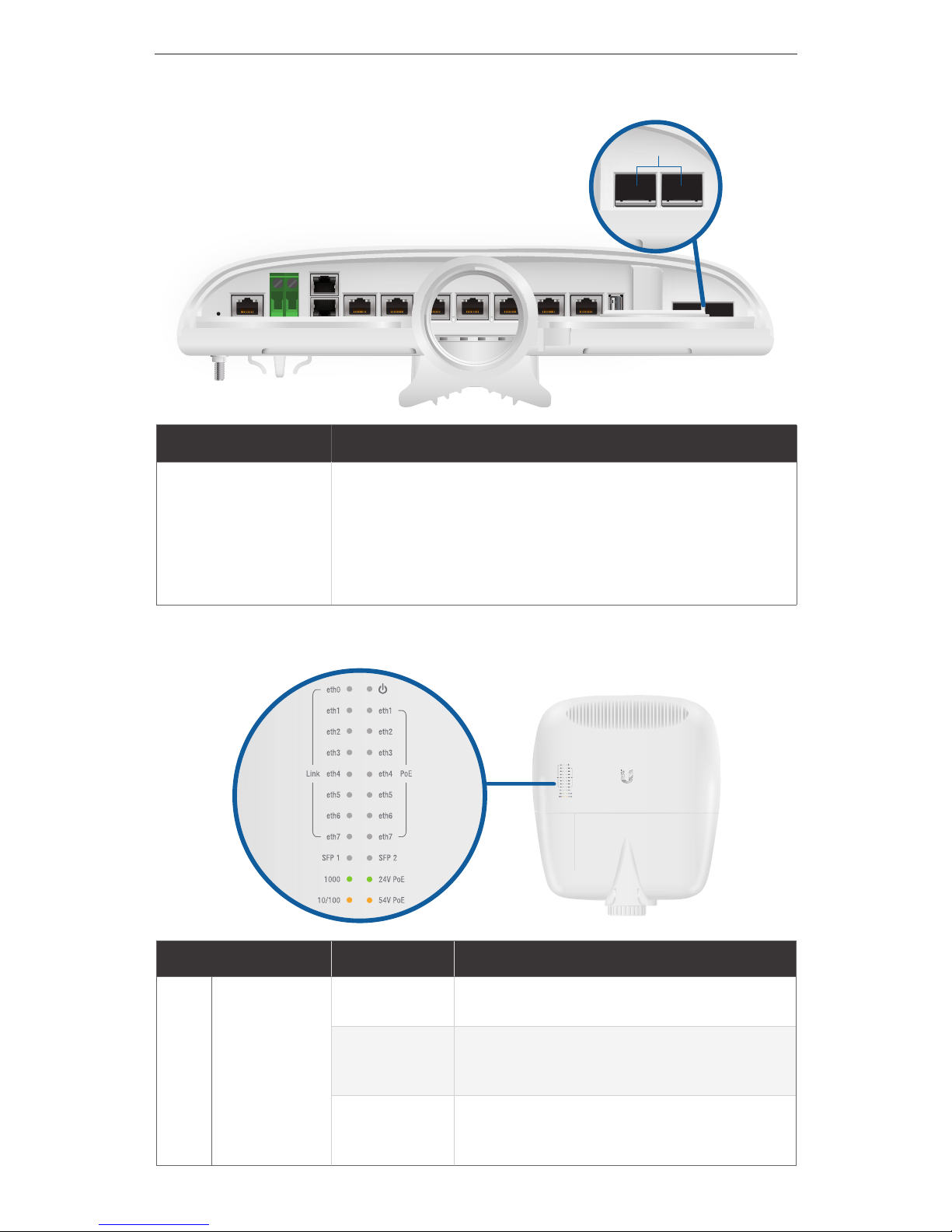
Bottom Panel SFP Ports
SFP 1-2
Interface
Description
SFP 1-2
SFP ports are hot-swappable and support
100 Mbps or Gigabit fiber SFP modules. If an
SFP module is plugged in, then the SFP port
is active, and the corresponding RJ45 port is
deactivated.
Front Panel LEDs
LED State Status
eth0
Speed/
Link/Act
Off No Link
Amber
10/100Mbps Link
Flashing Indicates Activity
Green
1000Mbps (1 Gbps) Link
Flashing Indicates Activity
6
EdgePoint EP-R8 Quick Start Guide
Page 9

LED State Status
power
Green EdgePoint Powered On
eth1-2
Speed/
Link/Act
Off No Link
Amber
10/100Mbps Link
Flashing Indicates Activity
Green
1000Mbps (1 Gbps) Link
Flashing Indicates Activity
PoE
Output
Off No PoE
Amber 54V Passive
Green 24V Passive
eth3-7
Speed/
Link/Act
Off No Link
Amber
10/100Mbps Link
Flashing Indicates Activity
Green
1000Mbps (1 Gbps) Link
Flashing Indicates Activity
PoE
Output
Off No PoE
Green 24V Passive
SFP 1-2
Speed/
Link/Act
Off No Link
Amber
100Mbps Link
Flashing Indicates Activity
Green
1000Mbps (1 Gbps) Link
Flashing Indicates Activity
7
Hardware Overview
Page 10

Back Panel
PicoStation Slot
Lanyard Loop
Pole-Mount
Bracket
Ground
Bonding Point
Lanyard Loop Used for temporary support during installation.
PicoStation®M2HP Slot Used for mounting an optional
PicoStationM2HP (not included) to the back of the EdgePoint. (You
can use the PicoStationM2HP for wireless management of the
EdgePoint.)
Pole-Mount Bracket Used for pole-mounting or in combination
with the included Wall-Mount Bracket for wall-mounting.
Ground Bonding Point Used to secure a ground wire (not
included).
8
EdgePoint EP-R8 Quick Start Guide
Page 11

Attaching the Cable Sleeve
1. Insert and rotate the coupling to attach the Cable Sleeve to the
EdgePoint.
Note: You have two options for using a 2.0-inch NPT
(National Pipe Thread) male conduit (not included):
• Use the conduit instead of the CableSleeve.
• Use the conduit to extend the CableSleeve.
9
Attaching the Cable Sleeve
Page 12
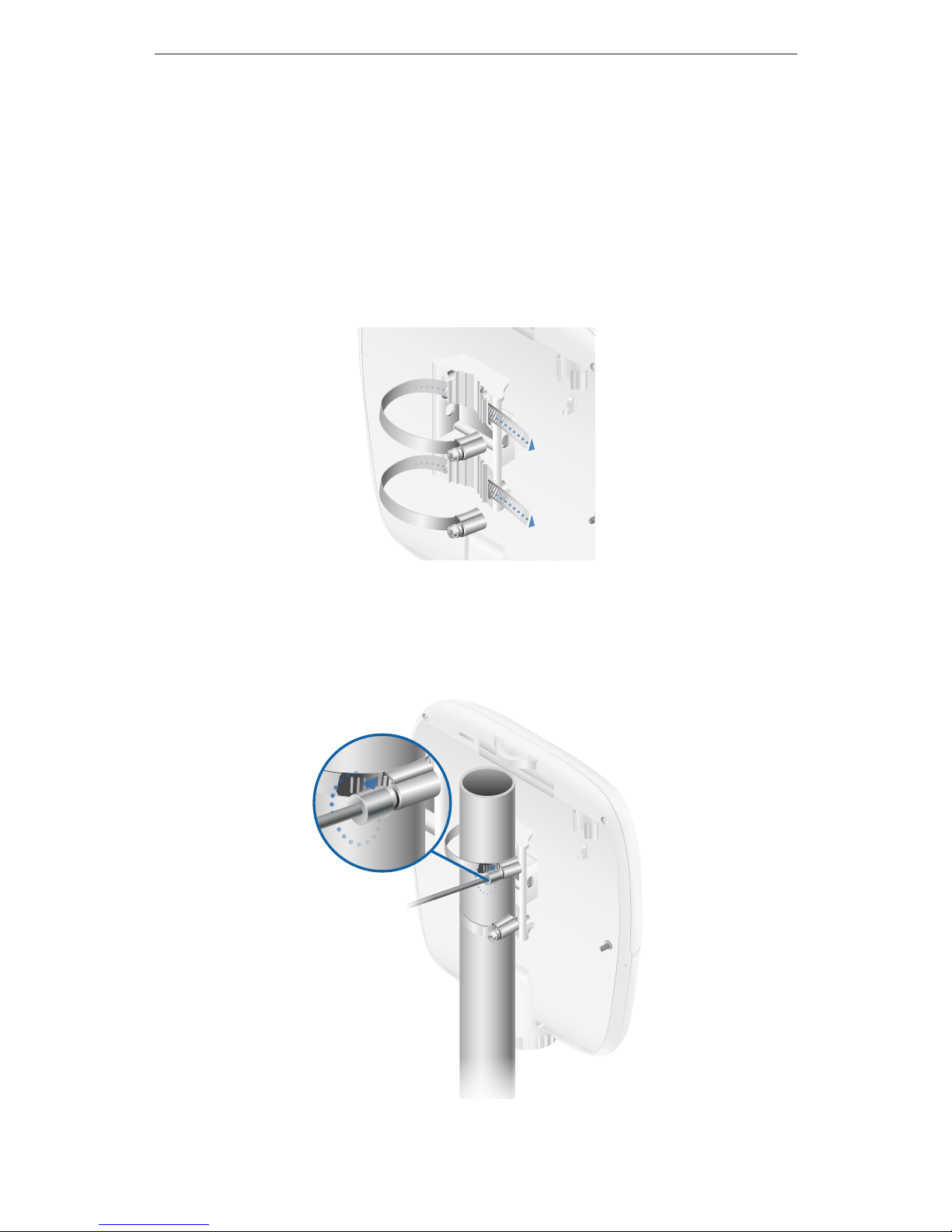
Hardware Installation
You can mount the EdgePoint on a pole or to a wall. Follow the
appropriate instructions for your installation method.
Pole-Mounting
1. Open the two Metal Straps and feed them through the
mounting slots on the back of the EdgePoint.
2. Wrap the Metal Straps around the pole. Use a 7 mm socket
wrench to turn the screws clockwise and securely fasten the
straps to the pole.
3. Proceed to the Grounding the EdgePoint section.
10
EdgePoint EP-R8 Quick Start Guide
Page 13
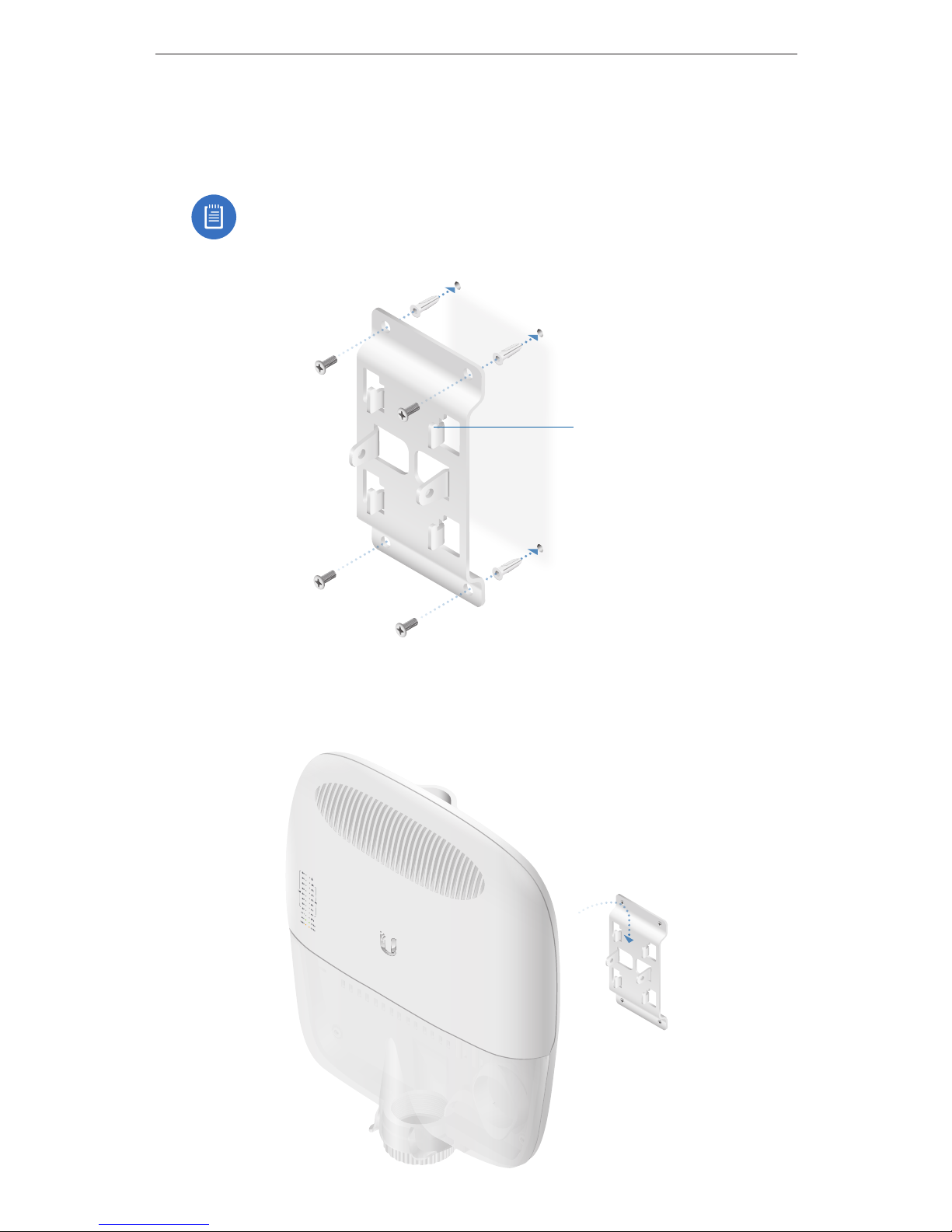
Wall-Mounting
1. Use M8 screws and anchors (not included) to attach the
Wall-Mount Bracket to the wall.
Note: The Wall-Mount Bracket must attach directly to a
stud or other structurally stablesurface.
Tab
Pointing
Up
2. Insert the tabs of the Wall-Mount Bracket into the slots of the
EdgePoint. Slide the EdgePoint down.
11
Hardware Installation
Page 14
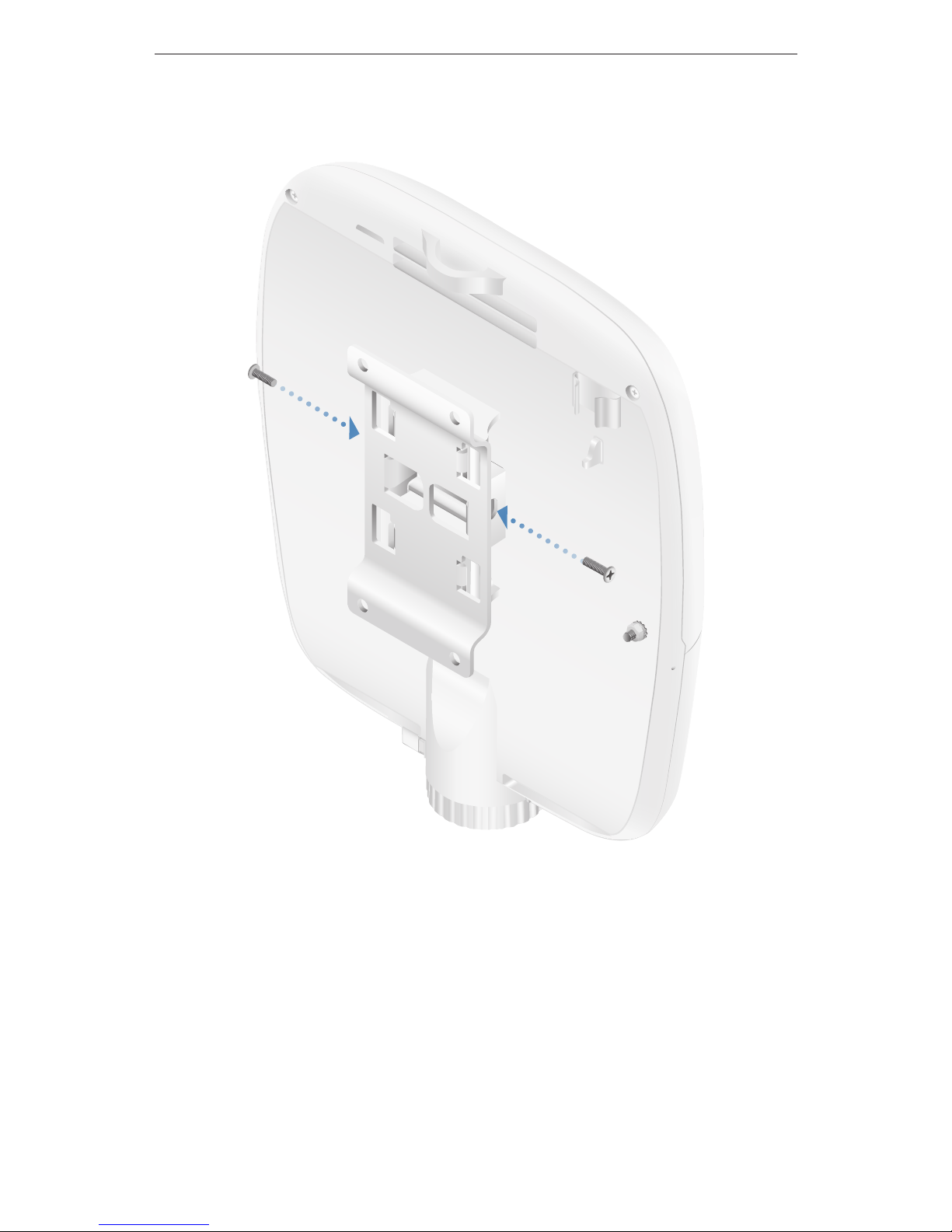
3. Use two M8x10 screws (not included) to attach the EdgePoint
to the Wall-Mount Bracket.
12
EdgePoint EP-R8 Quick Start Guide
Page 15
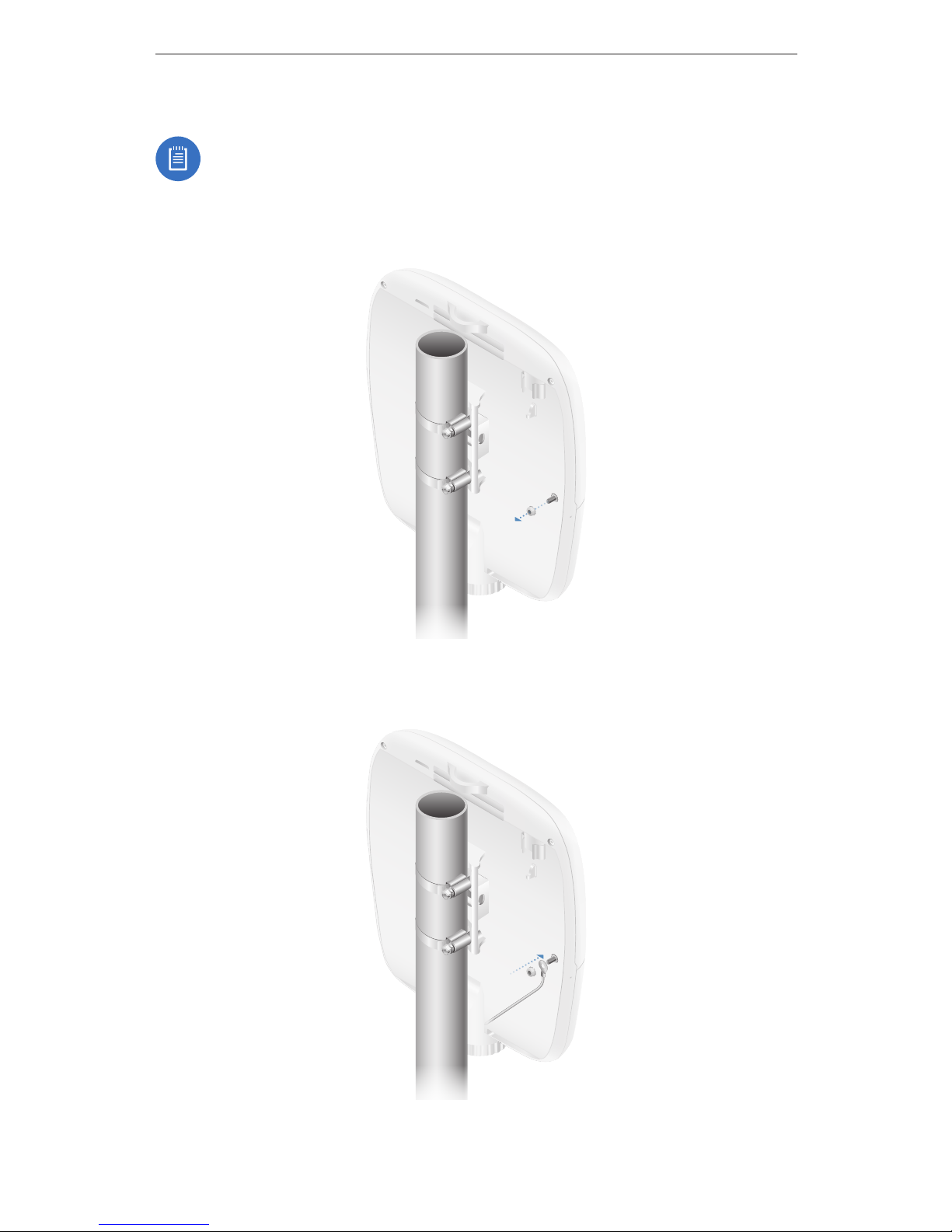
Grounding the EdgePoint
Note: The ground wire should be as short as possible and
no longer than one meter in length.
1. Remove the nut from the Ground Bonding Point located on the
back of the EdgePoint.
2. Attach a ground wire (min. 10 AWG or 5 mm2) to the lug and
replace the nut to secure the wire.
3. Secure the other end of the ground wire to a grounded mast,
pole, tower, or grounding bar.
13
Grounding the EdgePoint
Page 16
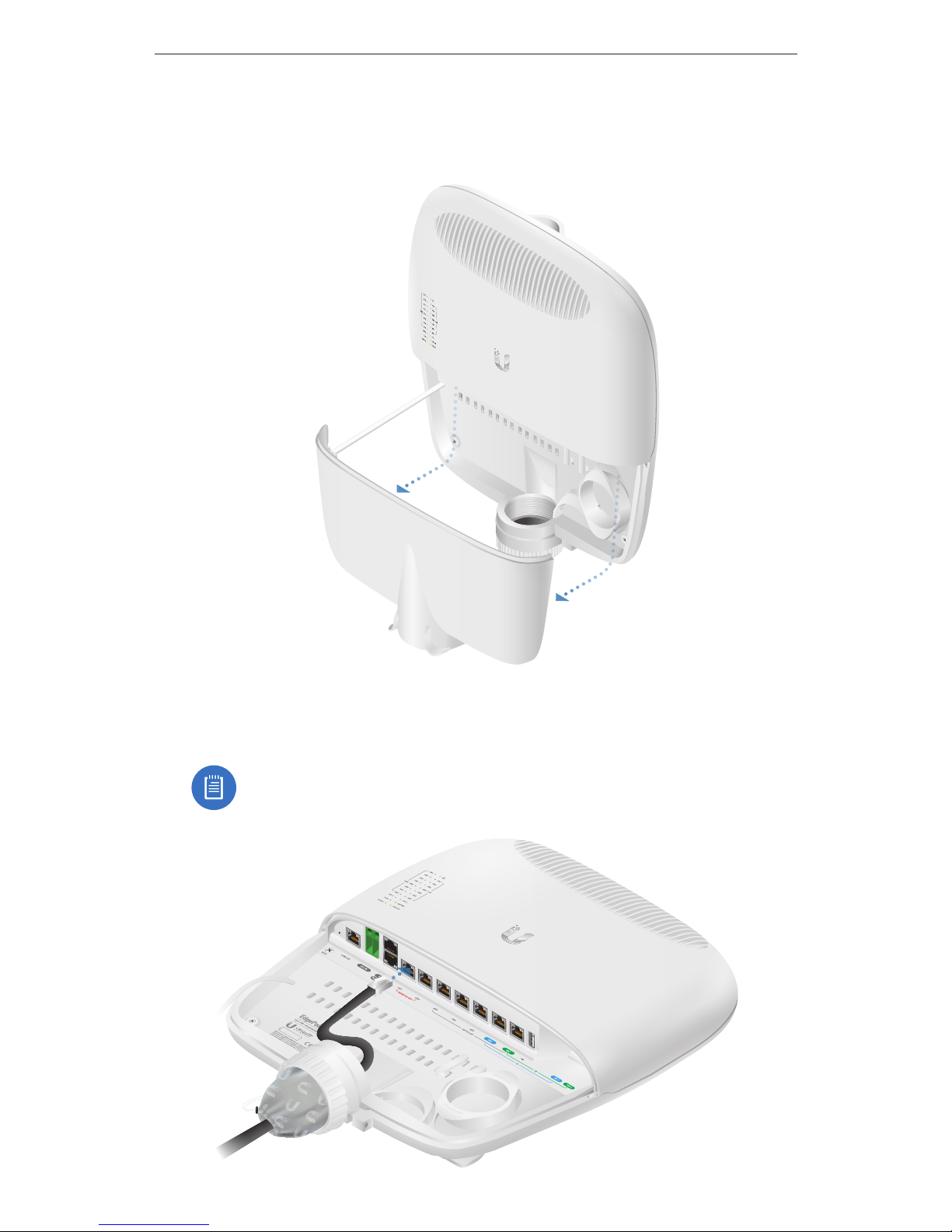
Connecting Ethernet
1. Remove the port cover from the EdgePoint.
2. Feed the Ethernet cables through the Cable Sleeve and connect
them to ports in this range: eth0-eth7.
Note: PoE is disabled by default.
14
EdgePoint EP-R8 Quick Start Guide
Page 17
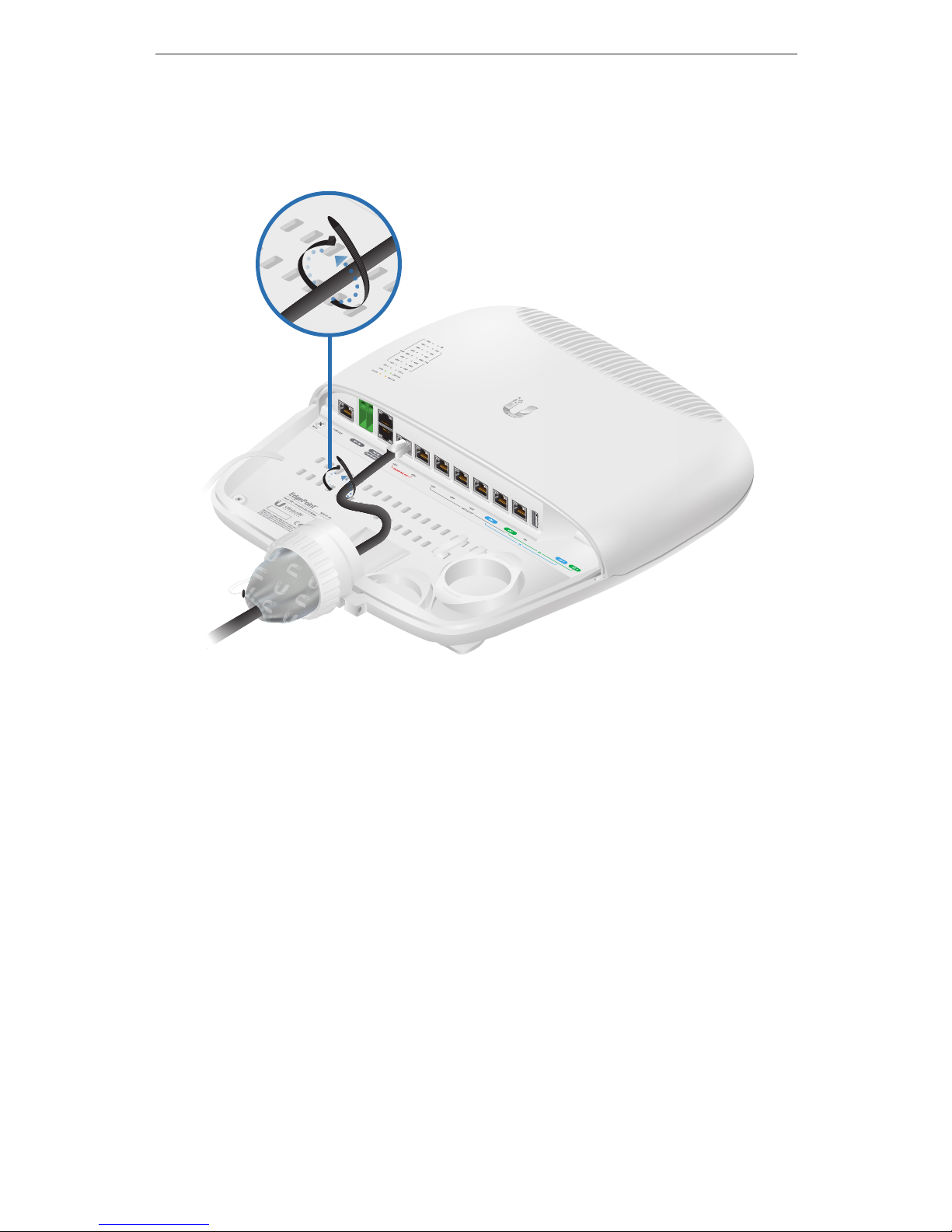
3. You can create a strain relief for any Ethernet cable by feeding
a cable tie (not included) through the tie slot under the cable.
Then wrap the cable tie around the cable and tighten.
4. Connect the other ends of the Ethernet cables to your network
devices.
15
Connecting Ethernet
Page 18
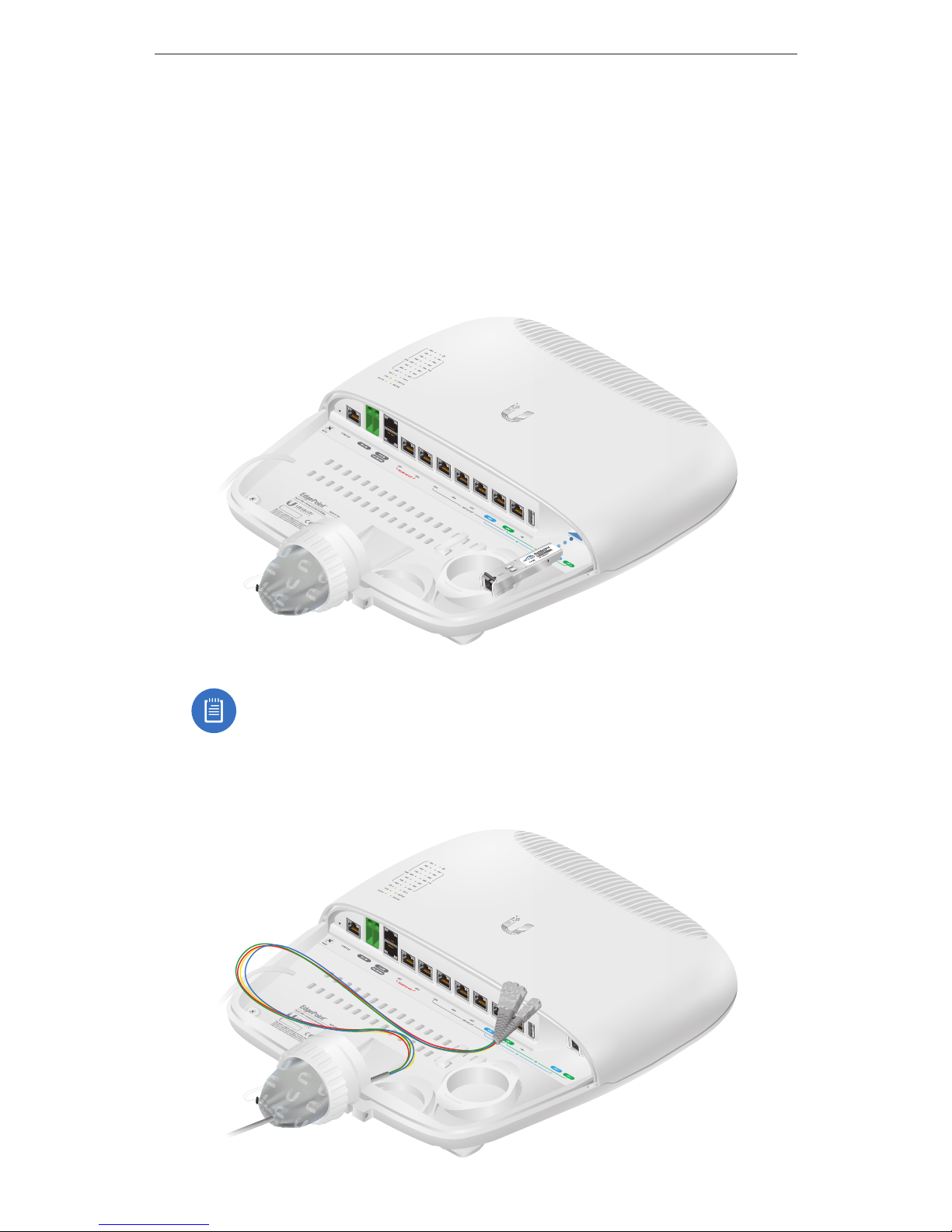
Using SFP Ports (Optional)
For information about compatible fiber SFP modules, visit:
community.ubnt.com/edgemax
To use an SFP port:
1. Remove the protective plug covering the SFP port.
2. Plug a compatible fiber module into the SFP port.
Note: The corresponding RJ45 port will be deactivated.
3. Feed the fiber optic cable through the Cable Sleeve, and
remove the cable jacket from the fiber optic cable.
1000Mbps SM/SC 20KM DDM
Tx1550nm/Rx1310nm
SN: 1308261 79
EF-1000M -20 KM- 15
50
50
50
50
16
EdgePoint EP-R8 Quick Start Guide
Page 19
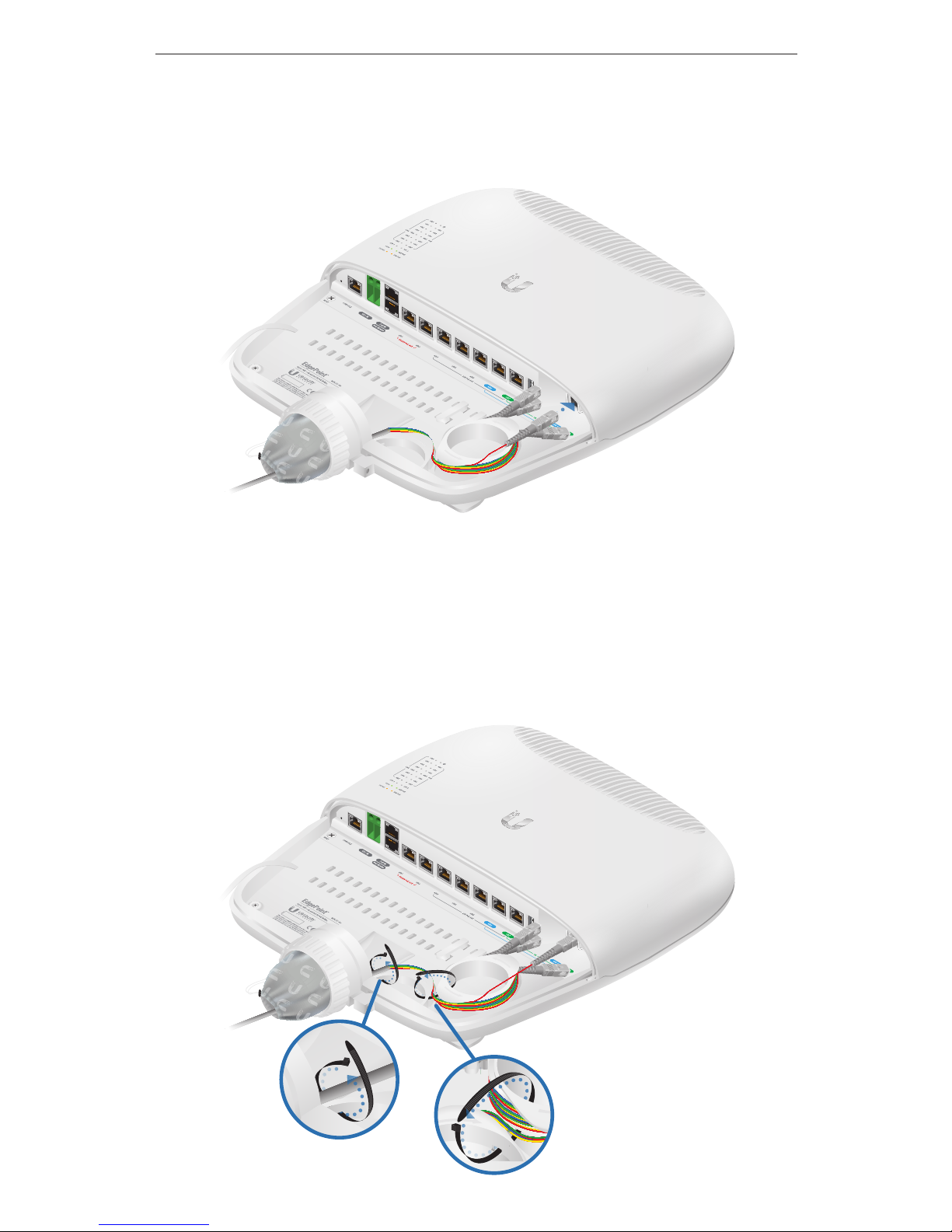
4. Separate the fiber optic strands and spool them around the
strain relief reels in the direction of the arrows. Then connect a
fiber optic strand to the fiber module.
50
50
50
1000Mbps SM/SC 20KM DDM
Tx1550nm/Rx1310nm
SN: 1308261 79
EF-1000M -20 KM- 15
50
5. To finish the strain relief:
a. Feed a cable tie (not included) through the tie slot near the
cable opening.
b. Feed an additional cable tie (not included) through the tie
slots at the bottom of the strain relief reels.
50
50
50
1000Mbps SM/SC 20KM DDM
Tx1550nm/Rx1310nm
SN: 1308261 79
EF-1000M -20 KM- 15
50
17
Using SFP Ports (Optional)
Page 20
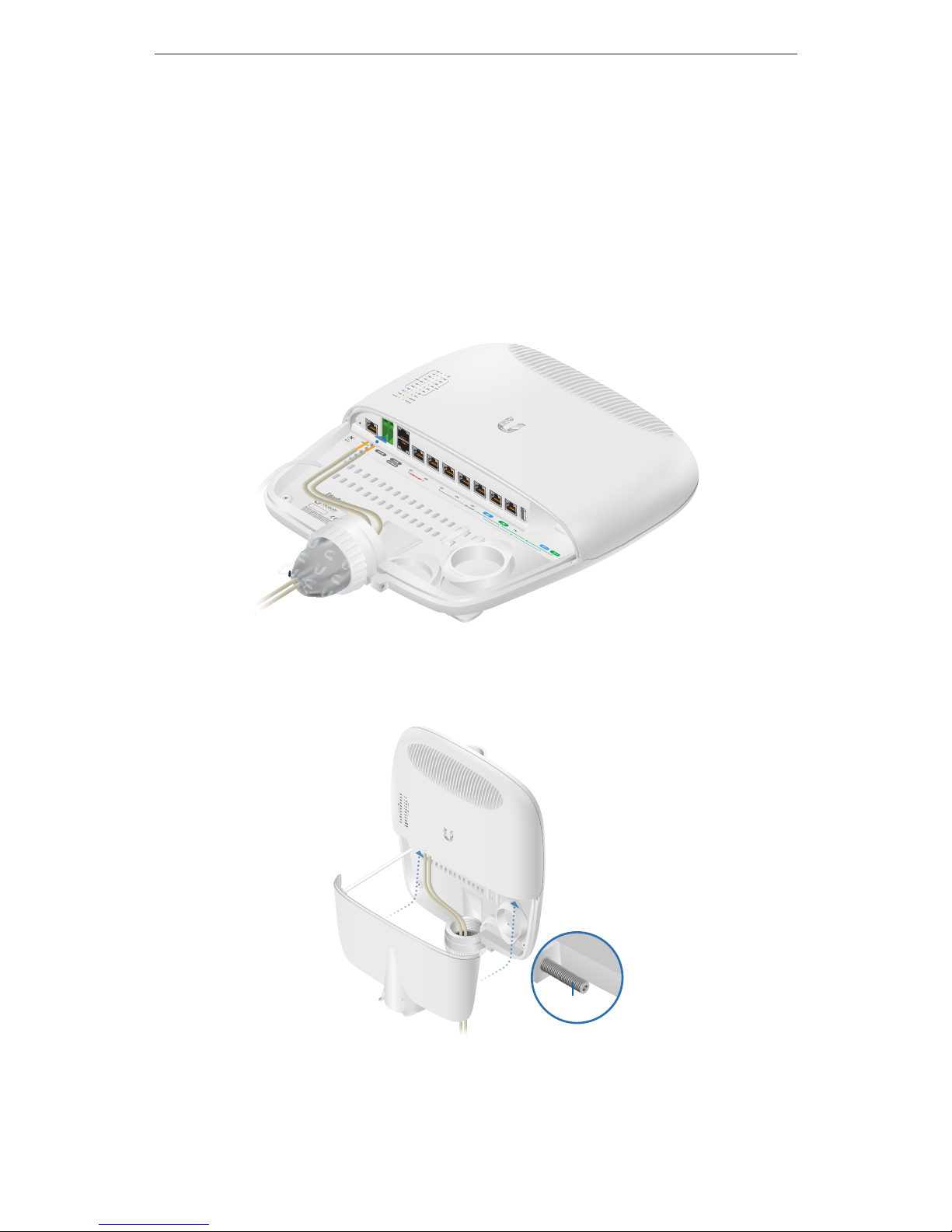
Connecting to Power
Either the VDC input or PoE input is used at any one time. If both
input types are connected, only the input type with the highest
voltage will be used; the other can be used as a backup. Follow the
appropriate instructions for your installation:
Connecting to the 54VDC Input
1. Wire one end of the DC power cable to the VDC terminal block.
2. Replace the port cover and use an S2 hex wrench to tighten
the Screw and secure the port cover.
Screw
3. Wire the other end of the cable to a DC power supply. (Wiring
will depend on your device.)
4. Connect the DC power supply to its power source.
18
EdgePoint EP-R8 Quick Start Guide
Page 21
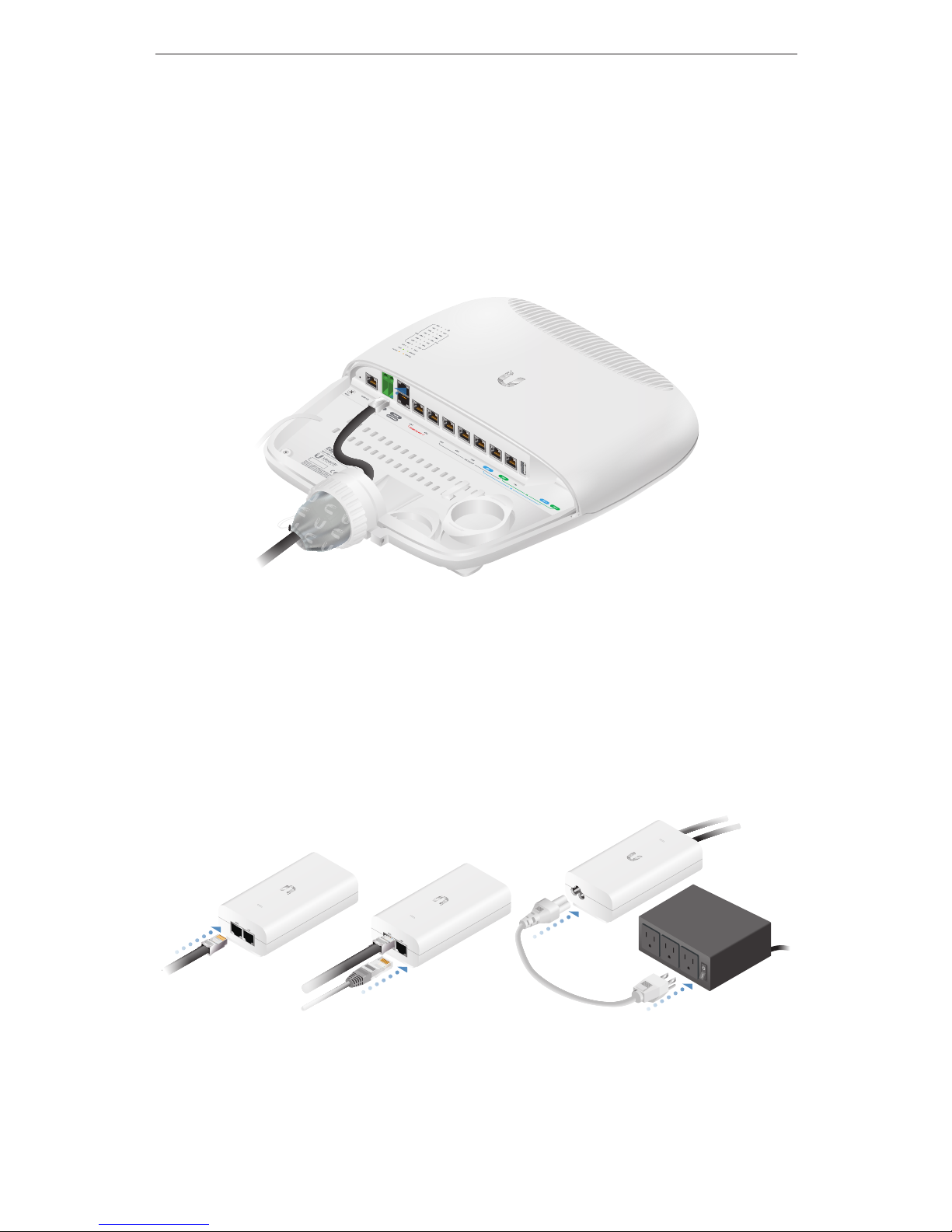
Connecting Power Using PoE
The following instructions show the PoE In / eth0 port; however,
you can use the PoE In port above eth0 instead. You can also use
both ports for additional PoE output power.
1. Connect an Ethernet cable to the PoE In / eth0 port of the
EdgePoint.
2. Connect the other end of the Ethernet cable to the POE port
on the Gigabit PoE adapter.
3. Connect an Ethernet cable from the LAN to the LAN port on
the Gigabit PoE adapter.
4. Connect the Power Cord to the Gigabit PoE adapter. Then plug
the Power Cord into a power outlet.
19
Connecting to Power
Page 22
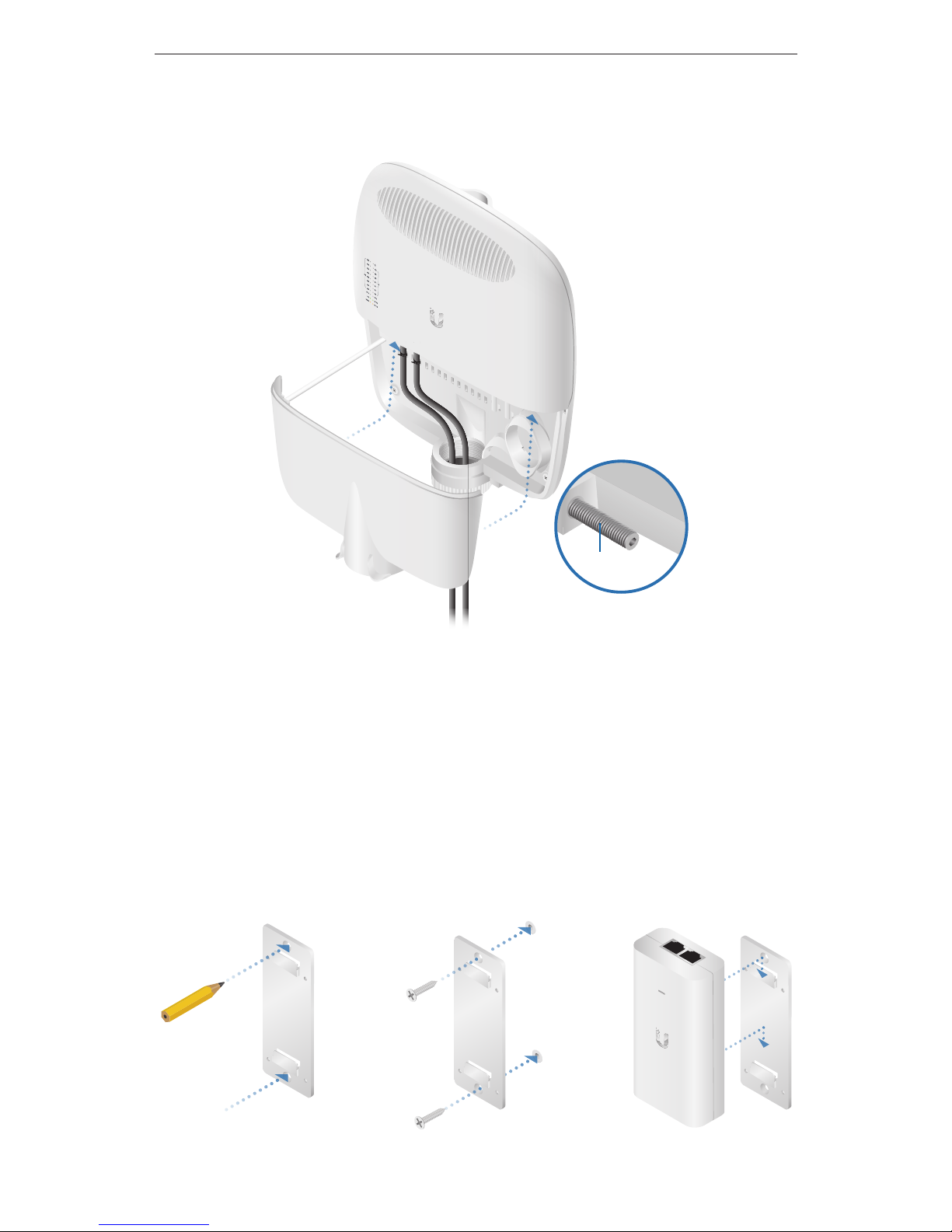
5. When you are finished, replace the port cover and use an
S2hex wrench to tighten the Screw and secure the port cover.
Screw
Mounting the Gigabit PoE Adapter (Optional)
1. Remove the PoE Mounting Bracket from the adapter, place the
bracket at the desired location, and mark the two holes.
2. Pre-drill the holes if necessary, and secure the bracket using
two fasteners (not included).
3. Align the slots on the adapter with the tabs on the PoE
Mounting Bracket, and then slide the adapter down.
20
EdgePoint EP-R8 Quick Start Guide
Page 23
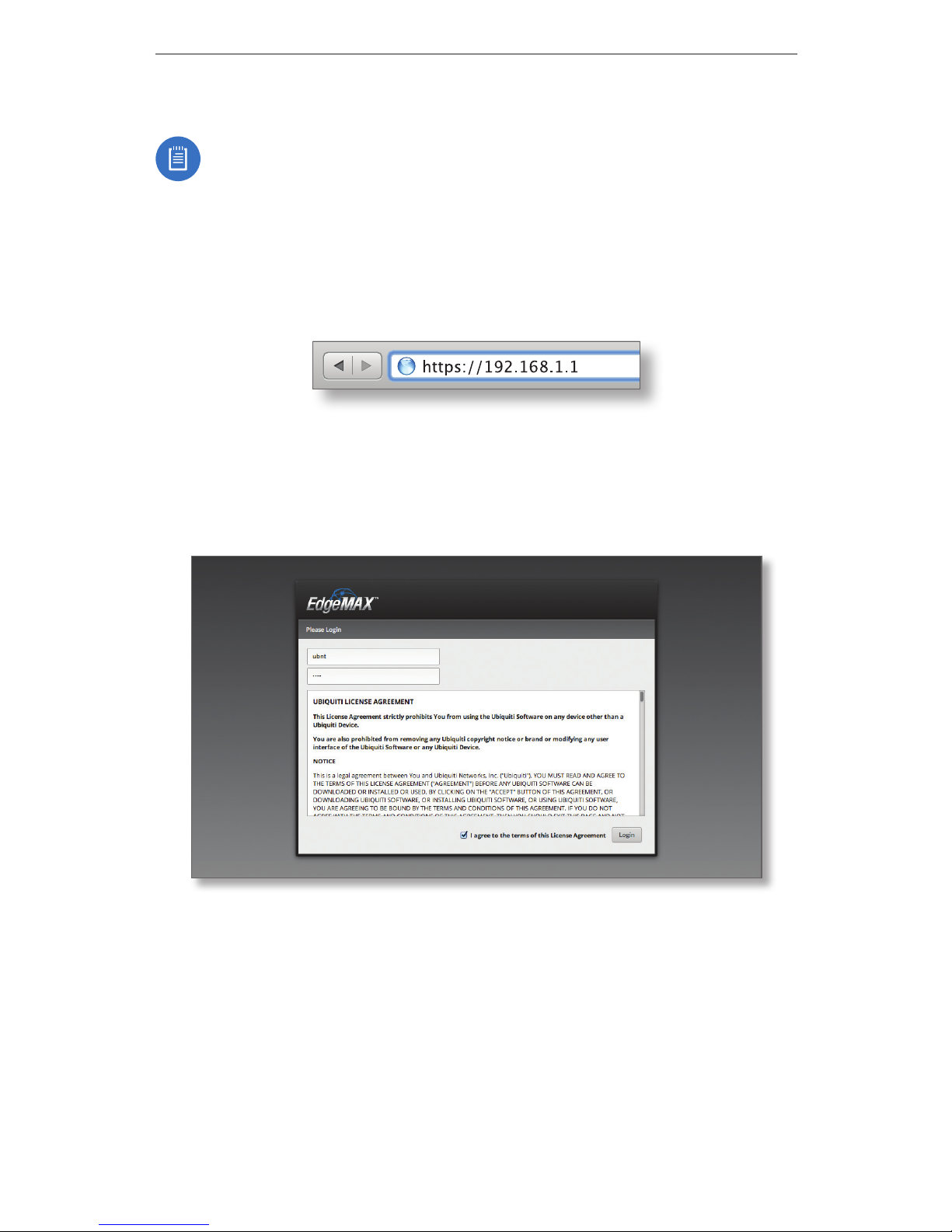
Accessing the EdgeOS® Configuration Interface
Note: Ensure that your host system is connected to the
Gigabit PoE adapter or local network of the EdgePoint.
1. Configure the Ethernet adapter on your host system with a
static IP address on the 192.168.1.x subnet.
2. Launch your web browser. Type https://192.168.1.1 in the
address field. Press enter (PC) or return (Mac).
3. The login screen will appear. Enter ubnt in the Username
and Password fields. Read the Ubiquiti License Agreement,
and check the box next to I agree to the terms of this License
Agreement to accept it. Click Login.
The EdgeOS Configuration Interface will appear, allowing you to
customize your settings as needed. You can click the Wizards tab
to access the Setup Wizard. For information on PoE configuration,
refer to the Configuring PoE Settings section.
21
Accessing the EdgeOS® Configuration Interface
Page 24
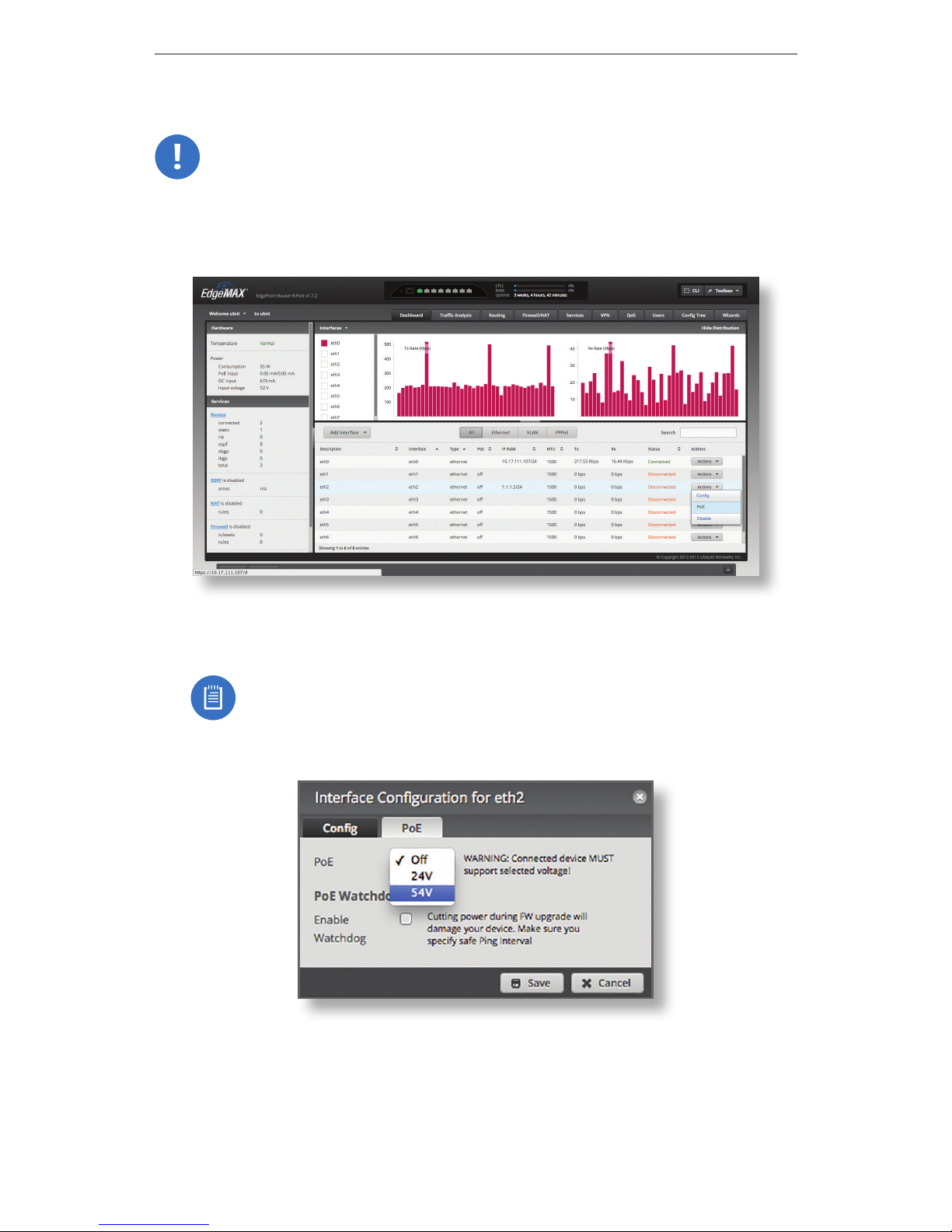
Configuring PoE Settings
WARNING: Before activating 54V or 24V passive PoE,
ensure that the connected device supports PoE and the
suppliedvoltage.
1. Go to Actions > PoE for the interface you want to configure.
2. For eth1-eth2, select 24V or 54V from the PoE drop-down
menu; for eth3-eth7, select 24V from the PoE drop-down menu.
Note: If the PoE screen states that PoE is not supported,
then there is insufficient power. You will need to increase
the power input to the EdgePoint.
3. ClickSave.
For more information, refer to the EdgeOS User Guide, which is
available at documentation.ubnt.com/edgemax
22
EdgePoint EP-R8 Quick Start Guide
Page 25

Specifications
EP-R8
Dimensions
With Wall-Mount
326.6 x 382.7 x 88.8 mm (12.86 x 15.07 x 3.50")
326.6 x 382.7 x 105.5 mm (12.86 x 15.07 x 4.15")
Weight
With Wall-Mount
3.4 kg (7.50 lb)
3.8 kg (8.38 lb)
Max. Power Consumption 40W (Excludes PoE Output)
Power Input
(1) DC Terminal Block or (2) RJ45 (PoE In and eth0)
(Self-Correcting Polarity Protection on DC Terminal
Block Only,
Diode ORed Protection on All Power Inputs)
Power Supply Min. 54V / 0.8A (Excludes PoE Output Power)
VDC Input 54V / 6A
Passive PoE Input (2) 54V / 1.5A, 4-Pair (+1, 2, 4, 5; -3, 6, 7, 8) Passive
PoE, eth0 and PoE In (PoE In: DC Only)
Passive PoE Output (2) 54V or 24V / 1.4A, 4-Pair (+1, 2, 4, 5; -3, 6, 7, 8)
Passive PoE, eth1 to eth2
(5) 24V / 0.7A, 2-Pair (+4, 5; -7, 8) Passive PoE, eth3
to eth7
Power Monitoring (1) DC Terminal Block, Input Power
(2) RJ45, PoE In and eth0, Input Power
Supported Voltage Range 56 to 42VDC
Button Reset
LEDs
System
eth0
eth1 to eth7
SFP
Power
Speed/Link/Activity
Speed/Link/Activity, PoE
Speed/Link/Activity
Ports
Serial Console Port
PoE In Port
Data Ports
(1) RJ45 Serial Port
(1) RJ45 Port
(6) 10/100/1000 RJ45 Ports
(2) 10/100/1000 RJ45/SFP Combination Ports
Processor Dual-Core 600 MHz, MIPS64 with Hardware
Acceleration for Packet Processing
System Memory 2 GB DDR3-1600 RAM
Code Storage 4 GB
Certications CE, FCC, IC
Pole/Wall Mount Yes
Operating Temperature -20 to 65° C (-4 to 149° F)
Operating Humidity 10 - 90% Noncondensing
23
Specifications
Page 26

Safety Notices
1. Read, follow, and keep these instructions.
2. Heed all warnings.
3. Only use attachments/accessories specified by the manufacturer.
WARNING: Do not use this product in location that can be
submerged by water.
WARNING: Avoid using this product during an electrical
storm. There may be a remote risk of electric shock from
lightning.
Electrical Safety Information
1. Compliance is required with respect to voltage, frequency, and current
requirements indicated on the manufacturer’s label. Connection to a
different power source than those specified may result in improper
operation, damage to the equipment or pose a fire hazard if the
limitations are not followed.
2. There are no operator serviceable parts inside this equipment. Service
should be provided only by a qualified service technician.
3. This equipment is provided with a detachable power cord which has
an integral safety ground wire intended for connection to a grounded
safety outlet.
a. Do not substitute the power cord with one that is not the provided
approved type. Never use an adapter plug to connect to a 2-wire
outlet as this will defeat the continuity of the grounding wire.
b. The equipment requires the use of the ground wire as a part of the
safety certification, modification or misuse can provide a shock
hazard that can result in serious injury or death.
c. Contact a qualified electrician or the manufacturer if there are
questions about the installation prior to connecting the equipment.
d. Protective earthing is provided by Listed AC adapter. Building
installation shall provide appropriate short-circuit backup
protection.
e. Protective bonding must be installed in accordance with local
national wiring rules and regulations.
24
EdgePoint EP-R8 Quick Start Guide
Page 27

Limited Warranty
UBIQUITI NETWORKS, Inc (“UBIQUITI NETWORKS”) warrants that the
product(s) furnished hereunder (the “Product(s)”) shall be free from defects
in material and workmanship for a period of one (1) year from the date
of shipment by UBIQUITI NETWORKS under normal use and operation.
UBIQUITI NETWORKS’ sole and exclusive obligation and liability under
the foregoing warranty shall be for UBIQUITI NETWORKS, at its discretion,
to repair or replace any Product that fails to conform to the above
warranty during the above warranty period. The expense of removal and
reinstallation of any Product is not included in this warranty. The warranty
period of any repaired or replaced Product shall not extend beyond its
original term.
Warranty Conditions
The above warranty does not apply if the Product:
(I) has been modified and/or altered, or an addition made thereto,
except by Ubiquiti Networks, or Ubiquiti Networks’ authorized
representatives, or as approved by Ubiquiti Networks in writing;
(II) has been painted, rebranded or physically modified in any way;
(III) has been damaged due to errors or defects in cabling;
(IV) has been subjected to misuse, abuse, negligence, abnormal physical,
electromagnetic or electrical stress, including lightning strikes, or
accident;
(V) has been damaged or impaired as a result of using third party
firmware;
(VI) has no original Ubiquiti MAC label, or is missing any other original
Ubiquiti label(s); or
(VII) has not been received by Ubiquiti within 30 days of issuance of the
RMA.
In addition, the above warranty shall apply only if: the product has been
properly installed and used at all times in accordance, and in all material
respects, with the applicable Product documentation; all Ethernet cabling
runs use CAT5 (or above), and for outdoor installations, shielded Ethernet
cabling is used, and for indoor installations, indoor cabling requirements
are followed.
25
Limited Warranty
Page 28

Returns
No Products will be accepted for replacement or repair without obtaining
a Return Materials Authorization (RMA) number from UBIQUITI NETWORKS
during the warranty period, and the Products being received at UBIQUITI
NETWORKS’ facility freight prepaid in accordance with the RMA process of
UBIQUITI NETWORKS. Products returned without an RMA number will not
be processed and will be returned freight collect or subject to disposal.
Information on the RMA process and obtaining an RMA number can be
found at: www.ubnt.com/support/warranty.
Disclaimer
EXCEPT FOR ANY EXPRESS WARRANTIES PROVIDED HEREIN, UBIQUITI
NETWORKS, ITS AFFILIATES, AND ITS AND THEIR THIRD PARTY DATA,
SERVICE, SOFTWARE AND HARDWARE PROVIDERS HEREBY DISCLAIM
AND MAKE NO OTHER REPRESENTATION OR WARRANTY OF ANY KIND,
EXPRESS, IMPLIED OR STATUTORY, INCLUDING, BUT NOT LIMITED TO,
REPRESENTATIONS, GUARANTEES, OR WARRANTIES OF MERCHANTABILITY,
ACCURACY, QUALITY OF SERVICE OR RESULTS, AVAILABILITY,
SATISFACTORY QUALITY, LACK OF VIRUSES, QUIET ENJOYMENT, FITNESS
FOR A PARTICULAR PURPOSE AND NON-INFRINGEMENT AND ANY
WARRANTIES ARISING FROM ANY COURSE OF DEALING, USAGE OR
TRADE PRACTICE IN CONNECTION WITH SUCH PRODUCTS AND SERVICES.
BUYER ACKNOWLEDGES THAT NEITHER UBIQUITI NETWORKS NOR
ITS THIRD PARTY PROVIDERS CONTROL BUYER’S EQUIPMENT OR THE
TRANSFER OF DATA OVER COMMUNICATIONS FACILITIES, INCLUDING
THE INTERNET, AND THAT THE PRODUCTS AND SERVICES MAY BE
SUBJECT TO LIMITATIONS, INTERRUPTIONS, DELAYS, CANCELLATIONS
AND OTHER PROBLEMS INHERENT IN THE USE OF COMMUNICATIONS
FACILITIES. UBIQUITI NETWORKS, ITS AFFILIATES AND ITS AND THEIR THIRD
PARTY PROVIDERS ARE NOT RESPONSIBLE FOR ANY INTERRUPTIONS,
DELAYS, CANCELLATIONS, DELIVERY FAILURES, DATA LOSS, CONTENT
CORRUPTION, PACKET LOSS, OR OTHER DAMAGE RESULTING FROM ANY
OF THE FOREGOING. In addition, UBIQUITI NETWORKS does not warrant
that the operation of the Products will be error-free or that operation will
be uninterrupted. In no event shall UBIQUITI NETWORKS be responsible
for damages or claims of any nature or description relating to system
performance, including coverage, buyer’s selection of products (including
the Products) for buyer’s application and/or failure of products (including
the Products) to meet government or regulatory requirements.
26
EdgePoint EP-R8 Quick Start Guide
Page 29

Limitation of Liability
EXCEPT TO THE EXTENT PROHIBITED BY LOCAL LAW, IN NO EVENT WILL
UBIQUITI OR ITS SUBSIDIARIES, AFFILIATES OR SUPPLIERS BE LIABLE FOR
DIRECT, SPECIAL, INCIDENTAL, CONSEQUENTIAL OR OTHER DAMAGES
(INCLUDING LOST PROFIT, LOST DATA, OR DOWNTIME COSTS), ARISING
OUT OF THE USE, INABILITY TO USE, OR THE RESULTS OF USE OF THE
PRODUCT, WHETHER BASED IN WARRANTY, CONTRACT, TORT OR OTHER
LEGAL THEORY, AND WHETHER OR NOT ADVISED OF THE POSSIBILITY OF
SUCH DAMAGES.
Note
Some countries, states and provinces do not allow exclusions of implied
warranties or conditions, so the above exclusion may not apply to you.
You may have other rights that vary from country to country, state to
state, or province to province. Some countries, states and provinces do not
allow the exclusion or limitation of liability for incidental or consequential
damages, so the above limitation may not apply to you. EXCEPT TO
THE EXTENT ALLOWED BY LOCAL LAW, THESE WARRANTY TERMS DO
NOT EXCLUDE, RESTRICT OR MODIFY, AND ARE IN ADDITION TO, THE
MANDATORY STATUTORY RIGHTS APPLICABLE TO THE LICENSE OF ANY
SOFTWARE (EMBEDDED IN THE PRODUCT) TO YOU. The United Nations
Convention on Contracts for the International Sale of Goods shall not apply
to any transactions regarding the sale of the Products.
27
Limited Warranty
Page 30

Compliance
FCC
Changes or modifications not expressly approved by the party responsible
for compliance could void the user’s authority to operate the equipment.
This device complies with Part 15 of the FCC Rules. Operation is subject to
the following two conditions:
1. This device may not cause harmful interference, and
2. This device must accept any interference received, including
interference that may cause undesired operation.
NOTE: This equipment has been tested and found to comply with the
limits for a Class A digital device, pursuant to part 15 of the FCC Rules.
These limits are designed to provide reasonable protection against
harmful interference when the equipment is operated in a commercial
environment. This equipment generates, uses, and can radiate radio
frequency energy and, if not installed and used in accordance with
the instruction manual, may cause harmful interference to radio
communications. Operations of this equipment in a residential area is likely
to cause harmful interference in which case the user will be required to
correct the interference at his own expense.
Industry Canada
CAN ICES-3(A)/NMB-3(A)
This Class A digital apparatus complies with Canadian CAN ICES-003.
CAN ICES-3(A)/NMB-3(A)
Cet appareil numérique de la classe A est conforme à la norme NMB-003
du Canada.
Australia and New Zealand
Warning: This is a Class A product. In a domestic environment this
product may cause radio interference in which case the user may be
required to take adequate measures.
CE Marking
CE marking on this product represents the product is in compliance with
all directives that are applicable to it.
28
EdgePoint EP-R8 Quick Start Guide
Page 31

RoHS/WEEE Compliance Statement
English
European Directive 2002/96/EC requires that the equipment bearing
this symbol on the product and/or its packaging must not be disposed
of with unsorted municipal waste. The symbol indicates that this
product should be disposed of separately from regular household waste
streams. It is your responsibility to dispose of this and other electric and
electronic equipment via designated collection facilities appointed by the
government or local authorities. Correct disposal and recycling will help
prevent potential negative consequences to the environment and human
health. For more detailed information about the disposal of your old
equipment, please contact your local authorities, waste disposal service, or
the shop where you purchased the product.
Deutsch
Die Europäische Richtlinie 2002/96/EC verlangt, dass technische
Ausrüstung, die direkt am Gerät und/oder an der Verpackung mit diesem
Symbol versehen ist, nicht zusammen mit unsortiertem Gemeindeabfall
entsorgt werden darf. Das Symbol weist darauf hin, dass das Produkt
von regulärem Haushaltmüll getrennt entsorgt werden sollte. Es
liegt in Ihrer Verantwortung, dieses Gerät und andere elektrische
und elektronische Geräte über die dafür zuständigen und von der
Regierung oder örtlichen Behörden dazu bestimmten Sammelstellen zu
entsorgen. Ordnungsgemäßes Entsorgen und Recyceln trägt dazu bei,
potentielle negative Folgen für Umwelt und die menschliche Gesundheit
zu vermeiden. Wenn Sie weitere Informationen zur Entsorgung Ihrer
Altgeräte benötigen, wenden Sie sich bitte an die örtlichen Behörden oder
städtischen Entsorgungsdienste oder an den Händler, bei dem Sie das
Produkt erworben haben.
29
Compliance
Page 32

Español
La Directiva 2002/96/CE de la UE exige que los equipos que lleven este
símbolo en el propio aparato y/o en su embalaje no deben eliminarse
junto con otros residuos urbanos no seleccionados. El símbolo indica
que el producto en cuestión debe separarse de los residuos domésticos
convencionales con vistas a su eliminación. Es responsabilidad suya
desechar este y cualesquiera otros aparatos eléctricos y electrónicos a
través de los puntos de recogida que ponen a su disposición el gobierno y
las autoridades locales. Al desechar y reciclar correctamente estos aparatos
estará contribuyendo a evitar posibles consecuencias negativas para el
medio ambiente y la salud de las personas. Si desea obtener información
más detallada sobre la eliminación segura de su aparato usado, consulte a
las autoridades locales, al servicio de recogida y eliminación de residuos de
su zona o pregunte en la tienda donde adquirió el producto.
Français
La directive européenne 2002/96/CE exige que l’équipement sur lequel
est apposé ce symbole sur le produit et/ou son emballage ne soit pas jeté
avec les autres ordures ménagères. Ce symbole indique que le produit
doit être éliminé dans un circuit distinct de celui pour les déchets des
ménages. Il est de votre responsabilité de jeter ce matériel ainsi que tout
autre matériel électrique ou électronique par les moyens de collecte
indiqués par le gouvernement et les pouvoirs publics des collectivités
territoriales. L’élimination et le recyclage en bonne et due forme ont pour
but de lutter contre l’impact néfaste potentiel de ce type de produits
sur l’environnement et la santé publique. Pour plus d’informations sur le
mode d’élimination de votre ancien équipement, veuillez prendre contact
avec les pouvoirs publics locaux, le service de traitement des déchets, ou
l’endroit où vous avez acheté le produit.
Italiano
La direttiva europea 2002/96/EC richiede che le apparecchiature
contrassegnate con questo simbolo sul prodotto e/o sull’imballaggio non
siano smaltite insieme ai rifiuti urbani non differenziati. Il simbolo indica
che questo prodotto non deve essere smaltito insieme ai normali rifiuti
domestici. È responsabilità del proprietario smaltire sia questi prodotti sia
le altre apparecchiature elettriche ed elettroniche mediante le specifiche
strutture di raccolta indicate dal governo o dagli enti pubblici locali. Il
corretto smaltimento ed il riciclaggio aiuteranno a prevenire conseguenze
potenzialmente negative per l’ambiente e per la salute dell’essere umano.
Per ricevere informazioni più dettagliate circa lo smaltimento delle vecchie
apparecchiature in Vostro possesso, Vi invitiamo a contattare gli enti
pubblici di competenza, il servizio di smaltimento rifiuti o il negozio nel
quale avete acquistato il prodotto.
30
EdgePoint EP-R8 Quick Start Guide
Page 33

Declaration of Conformity
Česky
[Czech]
UBIQUITI NETWORKS tímto prohlašuje, že toto UBIQUITI NETWORKS
zařízení, je ve shod se základními požadavky a dalšími příslušnými
ustanoveními směrnice 1999/5/ES.
Dansk
[Danish]
Hermed, UBIQUITI NETWORKS, erklærer at denne UBIQUITI
NETWORKS enhed, er i overensstemmelse med de væsentlige krav
og øvrige relevante krav i direktiv 1999/5/EF.
Nederlands
[Dutch]
Hierbij verklaart UBIQUITI NETWORKS, dat deze UBIQUITI
NETWORKS apparaat, in overeenstemming is met de essentiële
eisen en de andere relevante bepalingen van richtlijn 1999/5/EC.
English
Hereby, UBIQUITI NETWORKS, declares that this UBIQUITI
NETWORKS device, is in compliance with the essential requirements
and other relevant provisions of Directive 1999/5/EC.
Eesti
[Estonian]
Käesolevaga UBIQUITI NETWORKS kinnitab, et antud UBIQUITI
NETWORKS seade, on vastavus olulistele nõuetele ja teistele
asjakohastele sätetele direktiivi 1999/5/EÜ.
Suomi
[Finnish]
Täten UBIQUITI NETWORKS vakuuttaa, että tämä UBIQUITI
NETWORKS laite, on yhdenmukainen olennaisten vaatimusten ja
muiden sitä koskevien direktiivin 1999/5/EY.
Français
[French]
Par la présente UBIQUITI NETWORKS déclare que l’appareil UBIQUITI
NETWORKS, est conforme aux exigences essentielles et aux autres
dispositions pertinentes de la directive 1999/5/CE.
Deutsch
[German]
Hiermit erklärt UBIQUITI NETWORKS, dass sich dieses UBIQUITI
NETWORKS Gerät, in Übereinstimmung mit den grundlegenden
Anforderungen und den anderen relevanten Vorschriften der
Richtlinie 1999/5/EG befindet.
Ελληνική
[Greek]
Δια του παρόντος, UBIQUITI NETWORKS, δηλώνει ότι αυτή η
συσκευή UBIQUITI NETWORKS, είναι σε συμμόρφωση με τις βασικές
απαιτήσεις και τις λοιπές σχετικές διατάξεις της οδηγίας 1995/5/ΕΚ.
Magyar
[Hungarian]
Ezennel UBIQUITI NETWORKS kijelenti, hogy ez a UBIQUITI
NETWORKS készülék megfelel az alapvető követelményeknek és
más vonatkozó 1999/5/EK irányelv rendelkezéseit.
Íslenska
[Icelandic]
Hér, UBIQUITI NETWORKS, því yfir að þetta UBIQUITI NETWORKS
tæki er í samræmi við grunnkröfur og önnur viðeigandi ákvæði
tilskipun 1999/5/EC.
Italiano
[Italian]
Con la presente, UBIQUITI NETWORKS, dichiara che questo
dispositivo UBIQUITI NETWORKS, è conforme ai requisiti essenziali
ed alle altre disposizioni pertinenti della direttiva 1999/5/CE.
Latviski
[Latvian]
Ar šo, UBIQUITI NETWORKS, deklarē, ka UBIQUITI NETWORKS
ierīce, ir saskaņā ar būtiskajām prasībām un citiem attiecīgiem
noteikumiem Direktīvā 1999/5/EK.
Lietuviškai
[Lithuanian]
UBIQUITI NETWORKS deklaruoja, kad šis UBIQUITI NETWORKS
įrenginys atitinka esminius reikalavimus ir kitas 1999/5/EB
Direktyvos nuostatas.
Malti
[Maltese]
Hawnhekk, UBIQUITI NETWORKS, tiddikjara li dan il-mezz
UBIQUITI NETWORKS huwa konformi mar-rekwiżiti essenzjali u
dispożizzjonijiet rilevanti oħrajn ta ‘Direttiva 1999/5/EC.
31
Declaration of Conformity
Page 34

Norsk
[Norwegian]
Herved UBIQUITI NETWORKS, erklærer at denne UBIQUITI
NETWORKS enheten, er i samsvar med de grunnleggende kravene
og andre relevante bestemmelser i direktiv 1999/5/EF.
Slovensky
[Slovak]
Týmto UBIQUITI NETWORKS, prehlasuje, že toto UBIQUITI
NETWORKS zariadenie, je v súlade so základnými požiadavkami a
ďalšími relevantnými ustanoveniami smernice 1999/5/ES.
Svenska
[Swedish]
Härmed UBIQUITI NETWORKS, intygar att denna UBIQUITI
NETWORKS enhet är i överensstämmelse med de väsentliga
egenskapskrav och övriga relevanta bestämmelser som framgår av
direktiv 1999/5/EG.
Español
[Spanish]
Por medio de la presente UBIQUITI NETWORKS declara que este
dispositivo UBIQUITI NETWORKS, cumple con los requisitos
esenciales y cualesquiera otras disposiciones aplicables o exigibles
de la Directiva 1999/5/CE.
Polski
[Polish]
Niniejszym, Ubiquiti Networks, oświadcza, że urządzenie UBIQUITI
NETWORKS, jest zgodny z zasadniczymi wymaganiami oraz
pozostałymi stosownymi postanowieniami Dyrektywy 1999/5/EC.
Português
[Portuguese]
UBIQUITI NETWORKS declara que este dispositivo UBIQUITI
NETWORKS, está conforme com os requisitos essenciais e outras
disposições da Directiva 1999/5/CE.
Română
[Romanian]
Prin prezenta, UBIQUITI NETWORKS declară că acest dispozitiv
UBIQUITI NETWORKS este în conformitate cu cerințele esențiale și
alte prevederi relevante ale Directivei 1999/5/CE.
Online Resources
Support support.ubnt.com
Community community.ubnt.com
Downloads downloads.ubnt.com
JL101415
32
EdgePoint EP-R8 Quick Start Guide
Page 35

Page 36

www.ubnt.com
© 2015 Ubiquiti Networks, Inc. All rights reserved. Ubiquiti, Ubiquiti Networks,
the Ubiquiti U logo, the Ubiquiti beam logo, airFiber, airMAX, EdgeMAX, EdgeOS,
EdgePoint, EdgePower, FiberProtect, PicoStation, and TOUGHCable are trademarks
or registered trademarks of Ubiquiti Networks, Inc. in the United States and in other
countries. All other trademarks are the property of their respective owners.
*640-00165-01*
640-00165-01
 Loading...