

Page 1
TORPEDO C.A.B.
Professional Speaker Simulator
User’s Manual
V 1.11- 07/04/2012
Page 2

Page 3

TORPEDO C.A.B. User’s Manual
Manual Version V 1.11- 07/04/2012.
The complete electronic version of this manual, as well as the Two Notes Audio Engineering software and hardware products, are subject to updates. You can download the most recent versions
of the products on the following website: http://www.two-notes.com.
This manual describes the TORPEDO C.A.B. and provides instructions for its operation. It is highly
recommended to read this document before using this product. The contents of this manual have
been thoroughly verified and it is believed, unless stated otherwise, to accurately describe the product at the time of shipment from the factory or download from our website.
Two Notes Audio Engineering is a registered trademark of:
OROSYS SAS
145 rue de la Marbrerie, BAL n°6
34740 Vendargues
France
Tel: +33 (0)484 250 910
Fax: +33 (0)467 595 703
Email: [email protected]
Support: [email protected]
http://www.two-notes.com
This document is the exclusive property of OROSYS SAS. In the interest of product development,
OROSYS SAS reserves the right to change technical specifications, modify and/or cease production without prior notice. OROSYS SAS cannot be held responsible for any damage, accidental or
otherwise, that results from an inappropriate use of the TORPEDO C.A.B.. Please refer to the safety
instructions included in this manual. The reproduction of any part of this document is strictly forbidden
without the written authorization of OROSYS SAS.
All product names and trademarks are the property of their respective owners. Product names
and trademarks found in this document were used during the development of the TORPEDO C.A.B.
product but are in no way associated or affiliated with OROSYS SAS.
Two Notes Audio Engineering TORPEDO C.A.B. 3
Page 4

Page 5

Contents
1 Foreword 7
1 Safety instructions . . . . . . . . . . . . . . . . . . . . . . . . . . . . . . . . . . . . . . . . . . . . 7
1.1 Reader warning . . . . . . . . . . . . . . . . . . . . . . . . . . . . . . . . . . . . . . . . . 7
1.2 Mains power . . . . . . . . . . . . . . . . . . . . . . . . . . . . . . . . . . . . . . . . . . . 7
1.3 Conditions for safe use . . . . . . . . . . . . . . . . . . . . . . . . . . . . . . . . . . . . 7
1.4 Cleaning . . . . . . . . . . . . . . . . . . . . . . . . . . . . . . . . . . . . . . . . . . . . . 7
1.5 Maintenance . . . . . . . . . . . . . . . . . . . . . . . . . . . . . . . . . . . . . . . . . . 8
2 Contents of the package . . . . . . . . . . . . . . . . . . . . . . . . . . . . . . . . . . . . . . . 8
3 Disposal of Waste Equipment by Users in Private Household in the European Union . . . . 8
4 Declaration of conformity . . . . . . . . . . . . . . . . . . . . . . . . . . . . . . . . . . . . . . . 8
5 Warranty . . . . . . . . . . . . . . . . . . . . . . . . . . . . . . . . . . . . . . . . . . . . . . . . . 9
2 About the TORPEDO C.A.B. 11
1 Introducing the TORPEDO C.A.B. . . . . . . . . . . . . . . . . . . . . . . . . . . . . . . . . . . . 11
2 C.A.B. overview . . . . . . . . . . . . . . . . . . . . . . . . . . . . . . . . . . . . . . . . . . . . . 12
3 Only a speaker simulation ? . . . . . . . . . . . . . . . . . . . . . . . . . . . . . . . . . . . . . . 12
3.1 Tube Stage Output . . . . . . . . . . . . . . . . . . . . . . . . . . . . . . . . . . . . . . . 13
3.2 Section EQ . . . . . . . . . . . . . . . . . . . . . . . . . . . . . . . . . . . . . . . . . . . . 13
3.3 The TORPEDO technology, convolution and Impulse Responses . . . . . . . . . . . . 13
3.4 Third-party impulse responses . . . . . . . . . . . . . . . . . . . . . . . . . . . . . . . . 13
3.5 Create your own IRs . . . . . . . . . . . . . . . . . . . . . . . . . . . . . . . . . . . . . . 14
3 Connecting the TORPEDO C.A.B. 15
1 Overview . . . . . . . . . . . . . . . . . . . . . . . . . . . . . . . . . . . . . . . . . . . . . . . . . 15
2 Using the C.A.B with pedals, preamplifier or amplifier . . . . . . . . . . . . . . . . . . . . . . 15
3 Using the C.A.B with another modeling product . . . . . . . . . . . . . . . . . . . . . . . . . 16
4 Remote control . . . . . . . . . . . . . . . . . . . . . . . . . . . . . . . . . . . . . . . . . . . . . 16
4 Configuring and using the TORPEDO C.A.B. 19
1 The TORPEDO C.A.B. interface . . . . . . . . . . . . . . . . . . . . . . . . . . . . . . . . . . . . 19
2 Level control . . . . . . . . . . . . . . . . . . . . . . . . . . . . . . . . . . . . . . . . . . . . . . . 19
3 Programmable Footswitches . . . . . . . . . . . . . . . . . . . . . . . . . . . . . . . . . . . . . 19
4 Three modes: PERFORM, EDIT & SETUP . . . . . . . . . . . . . . . . . . . . . . . . . . . . . . . 20
5 PERFORM mode . . . . . . . . . . . . . . . . . . . . . . . . . . . . . . . . . . . . . . . . . . . . . 20
6 EDIT mode . . . . . . . . . . . . . . . . . . . . . . . . . . . . . . . . . . . . . . . . . . . . . . . . 21
6.1 Power Amp . . . . . . . . . . . . . . . . . . . . . . . . . . . . . . . . . . . . . . . . . . . 22
6.2 Miking . . . . . . . . . . . . . . . . . . . . . . . . . . . . . . . . . . . . . . . . . . . . . . 23
6.3 EQ . . . . . . . . . . . . . . . . . . . . . . . . . . . . . . . . . . . . . . . . . . . . . . . . . 23
7 SETUP mode . . . . . . . . . . . . . . . . . . . . . . . . . . . . . . . . . . . . . . . . . . . . . . . 24
Page 6

8 MIDI setup . . . . . . . . . . . . . . . . . . . . . . . . . . . . . . . . . . . . . . . . . . . . . . . . 25
9 Continuous save, preset save . . . . . . . . . . . . . . . . . . . . . . . . . . . . . . . . . . . . 25
10 Want more cabinets? . . . . . . . . . . . . . . . . . . . . . . . . . . . . . . . . . . . . . . . . . 25
10.1 .tsr files . . . . . . . . . . . . . . . . . . . . . . . . . . . . . . . . . . . . . . . . . . . . . . 26
10.2 .tur files . . . . . . . . . . . . . . . . . . . . . . . . . . . . . . . . . . . . . . . . . . . . . . 26
10.3 Third-party IRs in .WAV or .AIF format . . . . . . . . . . . . . . . . . . . . . . . . . . . . 26
10.4 Uploading new Two Notes cabinets or third-party IRs . . . . . . . . . . . . . . . . . . 27
5 MIDI 29
1 PROGRAM CHANGE (PC) . . . . . . . . . . . . . . . . . . . . . . . . . . . . . . . . . . . . . . . 29
2 CONTROL CHANGE (CC) . . . . . . . . . . . . . . . . . . . . . . . . . . . . . . . . . . . . . . . 29
6 Specifications 31
1 Power Amplifier list . . . . . . . . . . . . . . . . . . . . . . . . . . . . . . . . . . . . . . . . . . . 31
2 Microphones list . . . . . . . . . . . . . . . . . . . . . . . . . . . . . . . . . . . . . . . . . . . . . 31
3 Cabinets list . . . . . . . . . . . . . . . . . . . . . . . . . . . . . . . . . . . . . . . . . . . . . . . 32
4 Technical data . . . . . . . . . . . . . . . . . . . . . . . . . . . . . . . . . . . . . . . . . . . . . 34
7 Technical support 37
1 Two Notes Website . . . . . . . . . . . . . . . . . . . . . . . . . . . . . . . . . . . . . . . . . . . 37
2 By e-mail . . . . . . . . . . . . . . . . . . . . . . . . . . . . . . . . . . . . . . . . . . . . . . . . . 37
Page 7

Foreword
Part 1
Foreword
1 Safety instructions
Before using the product, it is necessary to carefully read and to bear in mind the following information. Keep this document in a safe place as it is important for the protection of the user and the
product. If any malfunction of the machine is suspected, you should always seek the assistance of a
qualified technician.
1.1 Reader warning
The triangle symbol with an exclamation mark indicates important messages
concerning the correct operation of the machine.
1.2 Mains power
Please verify that the voltage required by the mains power adapter matches the voltage in your
country. If not or if unsure, do not connect the machine to the wall outlet. This could result in damages
to the mains power adapter, the machine and injuries to the user. This product must not be used when
there is lightning present. In case of severe weather with a risk of lightning, unplug the power adapter
to reduce the risk of electric shock and fire.
The mains power adapter provided with the machine complies with the standards of the country
where you purchased the product. If replacement is needed, please use a standard compliant
mains power adapter.
1.3 Conditions for safe use
The TORPEDO C.A.B. must never be used near a heat source, near a flame, in the rain, in damp
areas, near any liquid of any sort. When transporting the unit, care needs to be taken to avoid any
shocks that could cause damage that would require the assistance of a qualified technician.
1.4 Cleaning
Always use a piece of dry and soft cloth with no alcohol or solvents for cleaning. Please keep the
unit clean and free from dust.
Two Notes Audio Engineering TORPEDO C.A.B. 7
Page 8
Foreword
1.5 Maintenance
All maintenance operations must be done by service centers approved by OROSYS SAS or by
qualified technicians. Never try to repair the machine by yourself.
2 Contents of the package
The shipped package contains:
1. One TORPEDO C.A.B. unit in a protecting sleeve,
2. One mains power adapter,
3. One USB cable,
4. One user’s manual.
The complete electronic version of this manual, as well as the TORPEDO Remote and TORPEDO
Capture software are subject to updates. You can download the most recent versions of these
products on the following website: http://www.two-notes.com.
3 Disposal of Waste Equipment by Users in Private Household in the
European Union
This symbol on the product or on its packaging indicates that this product must not be disposed of with your other household waste. Instead,
it is your responsibility to dispose of your waste equipment by handing it
over to a designated collection point for the recycling of waste electrical and electronic equipment. The separate collection and recycling
of your waste equipment at the time of disposal will help to conserve
natural resources and ensure that it is recycled in a manner that protects human health and the environment. For more information about
where you can drop off your waste equipment for recycling, please
contact your local city office, your household waste disposal service or
the shop where you purchased the product.
4 Declaration of conformity
Manufacturer: OROSYS SAS
Category of product: digital audio signal processor
Product: TORPEDO C.A.B.
Test Manager: Guillaume Pille
The Two Notes TORPEDO C.A.B. and the provided mains power adapter are certified to be compliant to the CE and FCC standards:
• EN 55103-1 : 1996 and EN 55103-2 : 1996.
• EN 60065 05/2002 + A1 05/2006.
8 Two Notes Audio Engineering TORPEDO C.A.B.
Page 9

Foreword
• EMC directive 89/336/EEC and Low Voltage Directive 73/23/EEC.
• FCC Part 15 : 2008.
• ICES-003 : 2004.
• AS/NZS 3548 class B for Australia and New Zealand.
• IEC : 2008 - CISPR 22 class B.
5 Warranty
OROSYS SARL warrants that this TWO NOTES AUDIO ENGINEERING product shall be free of defects
in parts and workmanship when used under normal operating conditions for a period of two (2) years
from the date of purchase. This warranty shall apply to the original purchaser when purchased from
an Authorized TWO NOTES AUDIO ENGINEERING dealer.
IMPORTANT: PLEASE RETAIN YOUR SALES RECEIPT, AS IT IS YOUR PROOF OF PURCHASE COVERING
YOUR LIMITED WARRANTY. THIS LIMITED WARRANTY IS VOID WITHOUT YOUR SALES RECEIPT.
Defective products that qualify for coverage under this warranty will be repaired or replaced,
(at OROSYS SAS’s sole discretion) with a like or comparable product, without charge. In the event
that warranty service be required, Please contact your authorized TWO NOTES AUDIO ENGINEERING
dealer in order to obtain an RMA to return the complete product to the Authorized TWO NOTES
AUDIO ENGINEERING Service Center closest to you, with proof of purchase, during the applicable
warranty period.
Transportation costs to the service center ARE NOT INCLUDED in this limited warranty. OROSYS SAS
will cover the cost of standard ground return transportation for repairs performed under this warranty.
This limited warranty becomes void if the serial number on the product is defaced or removed,
or if the product has been damaged by alteration, misuse including connection to faulty or unsuitable ancillary equipment, accident including lightning, water, fire, or neglect; or if repair has been
attempted by persons not authorized by OROSYS SAS.
Any implied warranties, including without limitation, any implied warranties of merchantability or
fitness for any particular purpose, imposed under state or provincial law are limited to the duration
of this limited warranty. Some states or provinces do not allow limitations on how long an implied
warranty lasts, so the above limitations may not be applicable.
OROSYS SAS ASSUMES NO LIABILITY FOR PROPERTY DAMAGE RESULTING FROM ANY FAILURE OF THIS
PRODUCT NOR ANY LOSS OF INCOME, SATISFACTION, OR DAMAGES ARISING FROM THE LOSS OF USE
OF SAME DUE TO DEFECTS OR AVAILABILITY OF IT DURING SERVICE.
In case you have to send your TWO NOTES AUDIO ENGINEERING product to any other location,
it is of vital importance to retain the original packing materials. It is very difficult to avoid damage
when shipping the product without these materials. OROSYS SAS is not responsible for damages to
the product due to improper packaging and reserves the right to charge a reboxing fee for any unit
returned for service without the original packing materials.
THE FOREGOING CONSTITUTES THE ONLY WARRANTY MADE BY OROSYS SAS WITH RESPECT TO THE
PRODUCTS AND IS MADE EXPRESSLY IN LIEU OF ALL OTHER WARRANTIES EXPRESSED OR IMPLIED
Two Notes Audio Engineering TORPEDO C.A.B. 9
Page 10

Page 11

Part 2
About the TORPEDO C.A.B.
1 Introducing the TORPEDO C.A.B.
Two Notes Audio Engineering is proud to introduce the TORPEDO C.A.B. (Cabinets in A Box), a version of the critically acclaimed TORPEDO hardware series, optimized for live playing. This product has
been developed through years of technical research, with great attention to the needs of guitarists,
bassists and sound technicians confronted to the challenges of miking instrument amplifiers, on stage
or in the studio. Our goal is to provide ease of use, reliability, versatility and, above all, perfect audio
quality.
The TORPEDO technology was created as an answer to the high pressure musicians have to deal
with: lack of time, limited gear availability, loud amplifiers that cannot be played at desired volume,
as well as bulky and heavy cabinets to carry. In addition, many musicians are more comfortable with
their analog amplifier and effect pedals, and do not want to perform using digital modeling systems,
which may compromise their playing style and sound.
For them, the TORPEDO C.A.B. offers a "virtual" alternative to traditional miking, using a technology
derived from the convolution reverberation, to achieve a degree of realism never experienced with
a simulator previously. The TORPEDO C.A.B. is the perfect line output everybody should have at the
final stage of their pedalboard to send the sound directly to a PA or a recorder.
You can use the TORPEDO C.A.B. on stage or in the studio, after your favorite distortion pedal or
a rack preamplifier, or even after an amplifier modeling unit (with the speaker simulation turned off).
You will be able to explore the unlimited possibilities of the best speaker miking simulator.
The TORPEDO C.A.B. comes with a large library of 45 cabinets (32 factory cabinets + other cabinets
available for download) and 8 microphones among the most commonly used models in the world.
The virtual miking is achieved by choosing one cabinet and one microphone, and fine-tuning the
position of the microphone in front of the cabinet. The TORPEDO allows the user to assume the role
of the sound engineer in a professional studio.
The TORPEDO Technology: to bring you realism and playing comfort, Two Notes has developed a
unique technology based on an adaptation of convolution techniques. Starting with the measurement of an actual cabinet + microphone setup, the TORPEDO C.A.B. can accurately reproduce the
system as it was measured, as well as the microphone’s position in space. In order to take full advantage of these digital algorithms, the highest-quality audio design assures a perfect analog-to-digital
conversion and a huge dynamic range to retain the ultimate playing experience.
This product has been thoroughly tested in professional studio and stage environments and is
the alternative many musicians were waiting for, to achieve a professional sound capture of their
amplified instruments. The TORPEDO C.A.B. will give you the elusive sound of the greatest recording
studios and producers, anytime, anywhere.
Two Notes Audio Engineering TORPEDO C.A.B. 11
Page 12
About the TORPEDO C.A.B.
2 C.A.B. overview
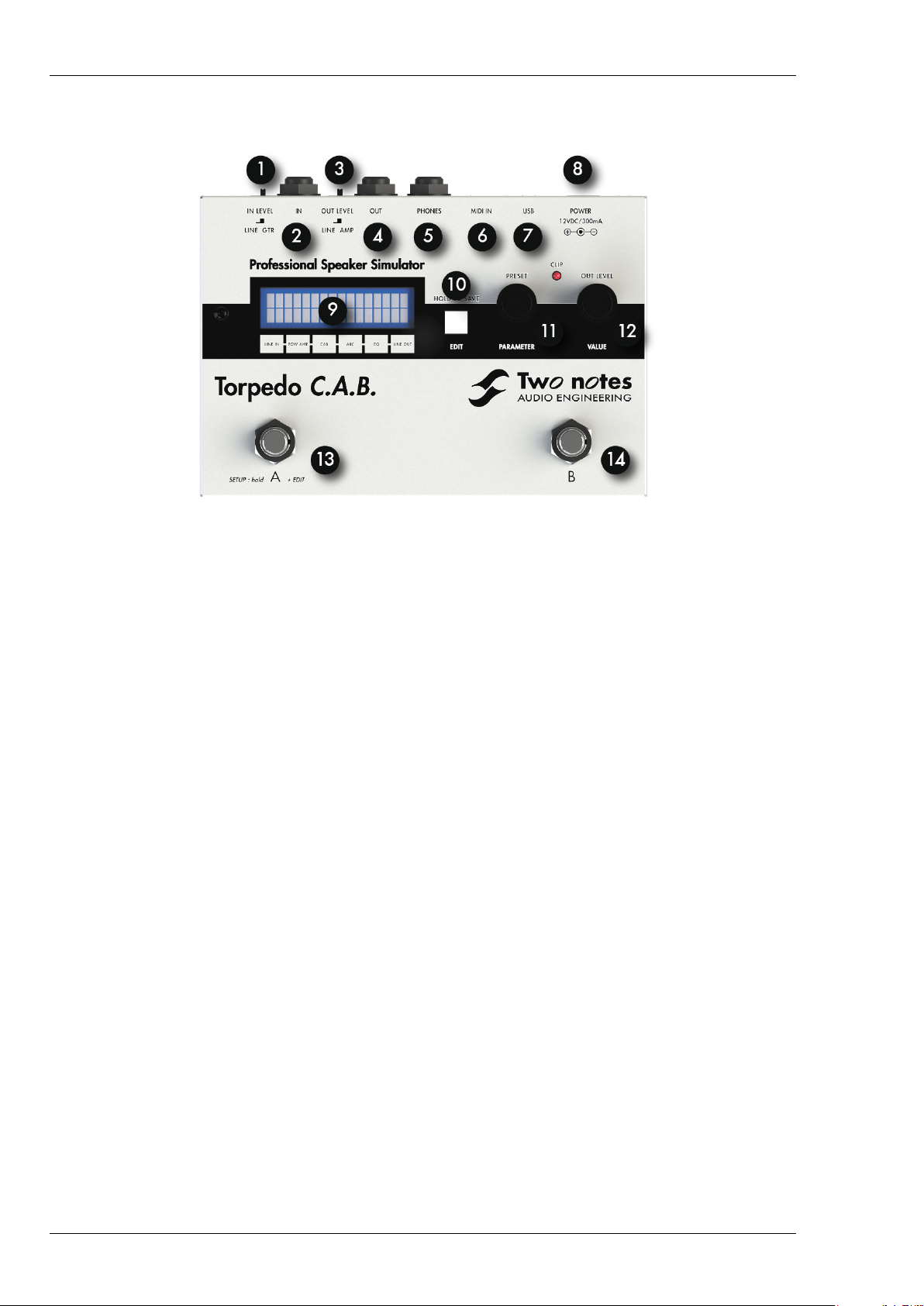
Figure 2.1: Front panel of the TORPEDO C.A.B.
1 Input level selector 5 Phones output 9 Display screen 13 A function footswitch
2 GTR/Line input 6 MIDI IN 10 EDIT/SAVE button 14 B function footswitch
3 Output level selector 7 USB 11 PRESET/PARAMETER encoder
4 AMP/Line output 8 Mains power adapter connector 12 OUT LEVEL/VALUE encoder
3 Only a speaker simulation ?
The TORPEDO C.A.B. is a standalone unit you can bring with you in any situation, whenever silent
playing is needed.
The role of the TORPEDO C.A.B. is to replace the following elements of the traditional guitar or bass
setup:
• the guitar/bass power amplifier
• the speaker cabinet
• the microphone
• the microphone preamplifier
to provide a signal that is the closest possible to a traditional guitar/bass miking in a professional
studio environment.
The miking is achieved in 3 steps with the TORPEDO C.A.B.:
1. choose a power amplifier (or switch it off if you are using a loadbox), a speaker cabinet and a
microphone,
2. place the microphone in the virtual studio,
3. shape the signal (Eq).
12 Two Notes Audio Engineering TORPEDO C.A.B.
Page 13

About the TORPEDO C.A.B.
With each step, Two Notes Audio Engineering implements its know-how to offer the most advanced simulations on the market and ensure total realism both for the musician (playing sensations)
and the listener (sound quality).
You can embed up to 32 Two Notes cabinets in the TORPEDO C.A.B.. Download the free TORPEDO
Remote software (Mac OSX and Windows PC) from the Two Notes website, you will be able to add
and remove the embedded cabinets. There are currently 45 Two Notes cabinets, and new free
cabinets available directly from your TORPEDO Remote software.
3.1 Tube Stage Output
When using a guitar/bass preamplifier with other speaker emulators, the guitarist/bassist may miss
the power amplifier’s contribution to the overall sonic texture. Many musicians get their sound from a
specific use of that element and this possibility is present in the TORPEDO C.A.B..
To do this, Two Notes has developed an original tube-stage modeling, giving you the choice
between 4 different tube models (6L6, EL34, EL84 and KT88) in Push-Pull (PP) in class AB or Single
Ended (SE) in class A configurations. You can push this tube-stage like a conventional amplifier and
look for this subtle and particular distortion.
The TORPEDO C.A.B. can be used as a super-DI for keyboards. The tube-amp simulation feature,
developed for guitarists and bassists, is also very interesting to warm up the sound of a synthesizer,
organ or digital piano.
3.2 Section EQ
When recording guitars or basses, it is common to apply a few effects to shape the sound before
sending it to a PA or a recorder. In the TORPEDO C.A.B. you will find a simple but efficient EQ filter with
two modes, GUITAR or BASS.
3.3 The TORPEDO technology, convolution and Impulse Responses
The impulse response (IR) of a system describes its behavior under the form of a very detailed filter.
The convolution technique uses IRs to simulate the behavior of particular systems, such as reverbs,
speakers, EQ...
It is the most accurate way to simulate sound signatures that are linear (i.e. without distortion)
and time-invariant (i.e. without modulation, compression, hysteresis...). It is particularly well suited for
speaker miking simulation.
Two Notes has developed a unique technology based on an adaptation of convolution techniques. Starting with a measure of a real cabinet + microphone setup, the TORPEDO TORPEDO C.A.B.
can accurately reproduce the system as it was measured, as well as the microphone’s position in
space, by using IR synthesis.
3.4 Third-party impulse responses
The TORPEDO C.A.B. is capable of delivering the best guitar and bass tones by using the TORPEDO
technology, but you can also embed impulse responses you have purchased or downloaded for free
from third-party developers, in WAV or AIFF formats. The TORPEDO C.A.B. may be seen as an "impulse
loader".
You can upload up to 512 third-party IRs in the TORPEDO C.A.B., by using the free TORPEDO Remote software.
Two Notes Audio Engineering TORPEDO C.A.B. 13
Page 14

About the TORPEDO C.A.B.
3.5 Create your own IRs
Download the free TORPEDO Capture software from the Two Notes website. With this software
you will be able to capture your own cabinet + microphone setup and embed its specific sound
signature into the TORPEDO C.A.B..
14 Two Notes Audio Engineering TORPEDO C.A.B.
Page 15
Part 3
Connecting the TORPEDO C.A.B.
1 Overview
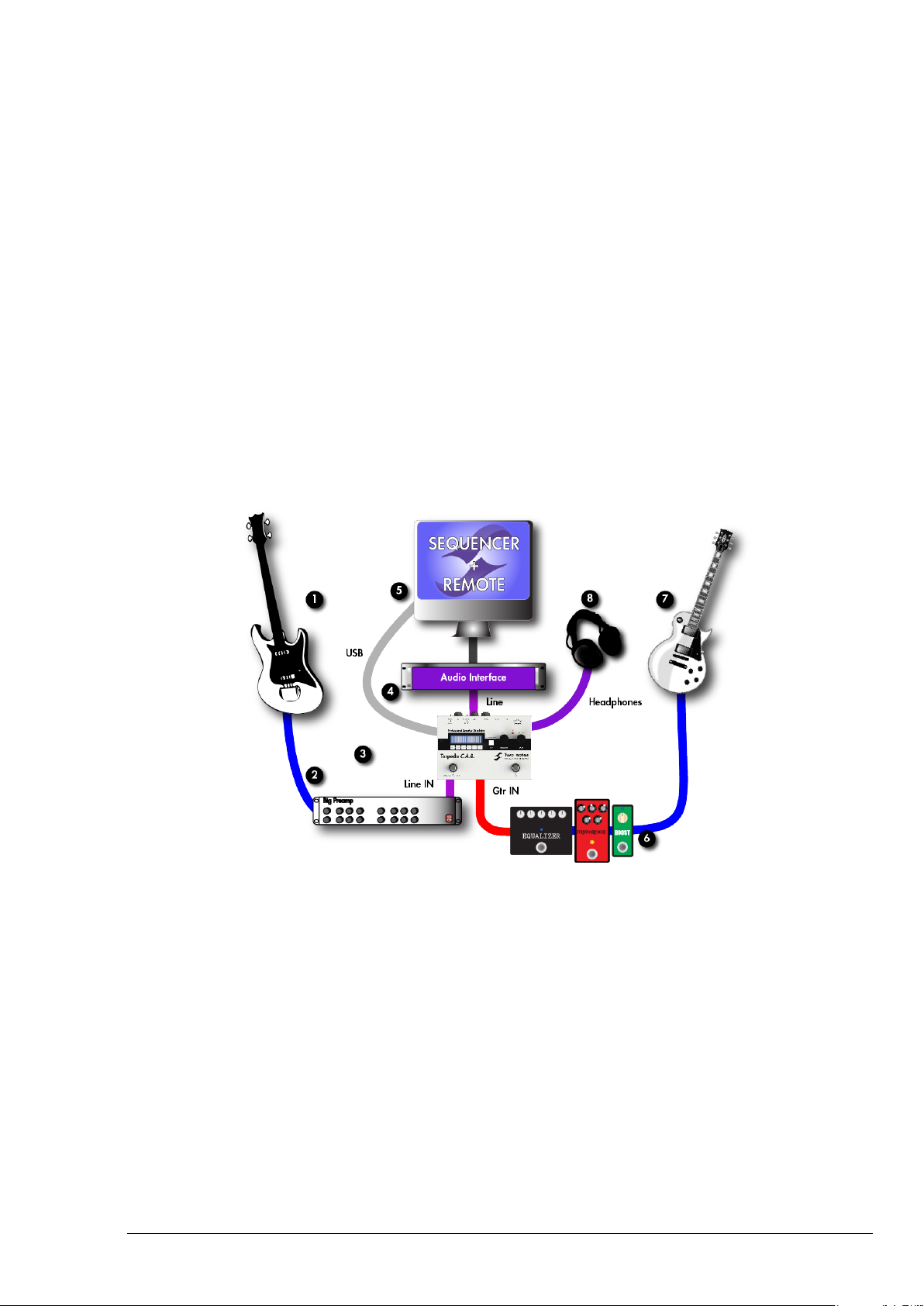
The TORPEDO C.A.B. offers a solution for silent and quality sound pick-up in many situations. The
following illustrations show the most common situations the TORPEDO C.A.B. has been created for.
1 Guitar/bass 3 TORPEDO C.A.B. 5 PC/MAC with TORPEDO Remote 7 Guitar/bass
2 Guitar/bass preamp 4 Audio interface 6 Pedals 8 Headphones
Even if it was designed to go on stage, the TORPEDO C.A.B. will also perfectly fit into a studio, to
bring you the greatest tone with your pedals or preamplifiers, whatever the circumstance.
2 Using the C.A.B with pedals, preamplifier or amplifier
Plug your TORPEDO C.A.B. as the last mono pedal on your pedalboard (for example after your
distortion pedal). Select GTR position on the IN LEVEL selector. If you want to use a preamplifier, plug
its Line Output into the Input of the machine, select the LINE position on the INPUT LEVEL selector.
If you have a guitar or bass amplifier, you have two options to make it work with the TORPEDO
C.A.B.:
Two Notes Audio Engineering TORPEDO C.A.B. 15
Page 16
Connecting the TORPEDO C.A.B.
1. Plug a loadbox into the speaker out, then the loadbox uncompensated Output to the TOR-
PEDO C.A.B.. Avoid any speaker simulation before the TORPEDO C.A.B.. Depending on the
output impedance and level of the loadbox try both INPUT LEVEL selector positions to find the
appropriate Input level.
2. Use the FX loop of the amplifier, plug the Send Output into the TORPEDO C.A.B.. Depending on
the output impedance and level of the FX loop Output try both Input selector positions to find
the appropriate Input level. If you want to send the TORPEDO C.A.B. to the Return Input of your
amplifier, try both OUT LEVEL selector positions to find the appropriate level.
When using the TORPEDO C.A.B. with an amplifier, we recommend switching OFF the Power Amp
simulation section.
Playing in silence is a great feature, but at some point you have to listen to what you play! Here
are a few options to use at home, in the studio or on stage:
1. Listening through the headphones out,
2. Having a local monitoring system on stage, by duplicating the Line OUT with a mixer,
3. Having in-ear monitors or wedge speakers controlled by a sound engineer.
When using a tube amplifier, always make sure that a proper load
(cabinet or loadbox) is connected to the speaker Output.
We recommend putting any modulation, reverb and delay effects AFTER the TORPEDO C.A.B.. This is what is usually done in the studio, especially when using stereo effects. The TORPEDO C.A.B. being MONO,
any stereo signal sent to the unit will be converted to MONO . Moreover, if you set up the Power Amp simulation to a high volume, some
distortion will appear. It is totally different to send reverb or delay into
a distortion stage (like you would do in the effect loop of an amplifier)
and to send a distorted sound into a reverb or a delay (like you will do
by following this advice). Try both and pick the one that fits you.
3 Using the C.A.B with another modeling product
You can use the TORPEDO C.A.B. with other modeling products, hardware or software units. Most
of the time it is not possible to switch off their Power amp simulation section (a whole amplifier is
simulated at a time), we recommend in the case to switch off the Power Amp simulation on the
TORPEDO C.A.B..
4 Remote control
With a MIDI foot controller, you gain access to the Preset navigation and even to parameter
changing in real time. The TORPEDO C.A.B. handles both PROGRAM CHANGE et CONTROL CHANGE
commands.
The TORPEDO C.A.B. is a standalone unit, but you can control it from your computer (PC Windows
or Mac OSX) with the TORPEDO Remote software using a USB connection. Create, save and load
16 Two Notes Audio Engineering TORPEDO C.A.B.
Page 17

Connecting the TORPEDO C.A.B.
presets, load new cabinets or Impulse Response (IR) files. Download the TORPEDO Remote for free
on the Two Notes website.
You will probably find innovative ways to use the TORPEDO C.A.B.. Share with other users your
tips and tricks on the Two Notes user forums and other social networks. Simply go to the Two Notes
website and click on "Community".
Two Notes Audio Engineering TORPEDO C.A.B. 17
Page 18

Page 19

Part 4
Configuring and using the TORPEDO
C.A.B.
1 The TORPEDO C.A.B. interface
The TORPEDO C.A.B. parameters are organized in menus accessible by different push-buttons and
knobs you will see on figure 2.1:
• Two 2-function rotary encoders: PRESET/PARAMETER, OUTPUT LEVEL/VALUE
• One push-button: EDIT/HOLD TO SAVE.
• Two selector switches: INPUT LEVEL and OUTPUT LEVEL.
• A and B programmable footswitches.
When pushing a button or turning an encoder, you will see a parameter moving on the two-line
display (item 3 in figure 2.1).
2 Level control
The Input selector switch (GTR for instrument level, Line for line level) controls the Input gain of the
unit. The TORPEDO C.A.B. is a digital product, it is absolutely critical to avoid any saturation of the
Input signal and avoid the risk of considerably reducing audio quality. The best signal sent to the
TORPEDO C.A.B. will be loud enough to benefit of the full dynamic range of the analog to digital
converter, without distortion.
The Input gain adjustment must be done in presence of an Input signal. The CLIP red led is on in
case of saturation at the Input stage: lower the volume of the unit plugged into the TORPEDO C.A.B.
and/or change the selector switch position.
In case you have different type of sounds that will be sent alternatively to the TORPEDO C.A.B.
(clean, crunch, distortion...), try to limit the volume difference between these different sounds.
3 Programmable Footswitches
The A and B footswitches are programmable. In other words, you can assign two different functions
to A and B you will activate by either a temporary, short click or a long click (hold). The factory setting
is the following:
Two Notes Audio Engineering TORPEDO C.A.B. 19
Page 20
Configuring and using the TORPEDO C.A.B.
Footswitch
A
B
Short click Long click
PRESET - BYPASS
PRESET + MUTE
Please refer to the SETUP mode section to assign special functions to A and B, the different func-
tions are listed below:
Designation
None
Preset -
Preset +
Bypass
PA Bypass
Cab Bypass
EQ Bypass
Mute
Function
Null function.
Change the current preset for the previous one. For example, if you are currently using
the preset 10, this will load preset 09.
Change the current preset for the next one.
Bypass all processing, including OUT Level.
Bypass the Power Amp simulation.
Bypass the cabinet-miking simulation.
Bypass the EQ. Activating the EQ while playing can be interesting to add a frequency
boost, for example.
Mute the Output
4 Three modes: PERFORM, EDIT & SETUP
You will find three different MODES in the TORPEDO C.A.B., giving you access to different parame-
ters:
1. Navigate through the 100 presets in PERFORM mode
2. Edit a preset in EDIT mode
3. Set up the global parameters of the machine in SETUP mode
To see and modify the various parameters, use the appropriate encoders whose function depends
on the current mode.
5 PERFORM mode
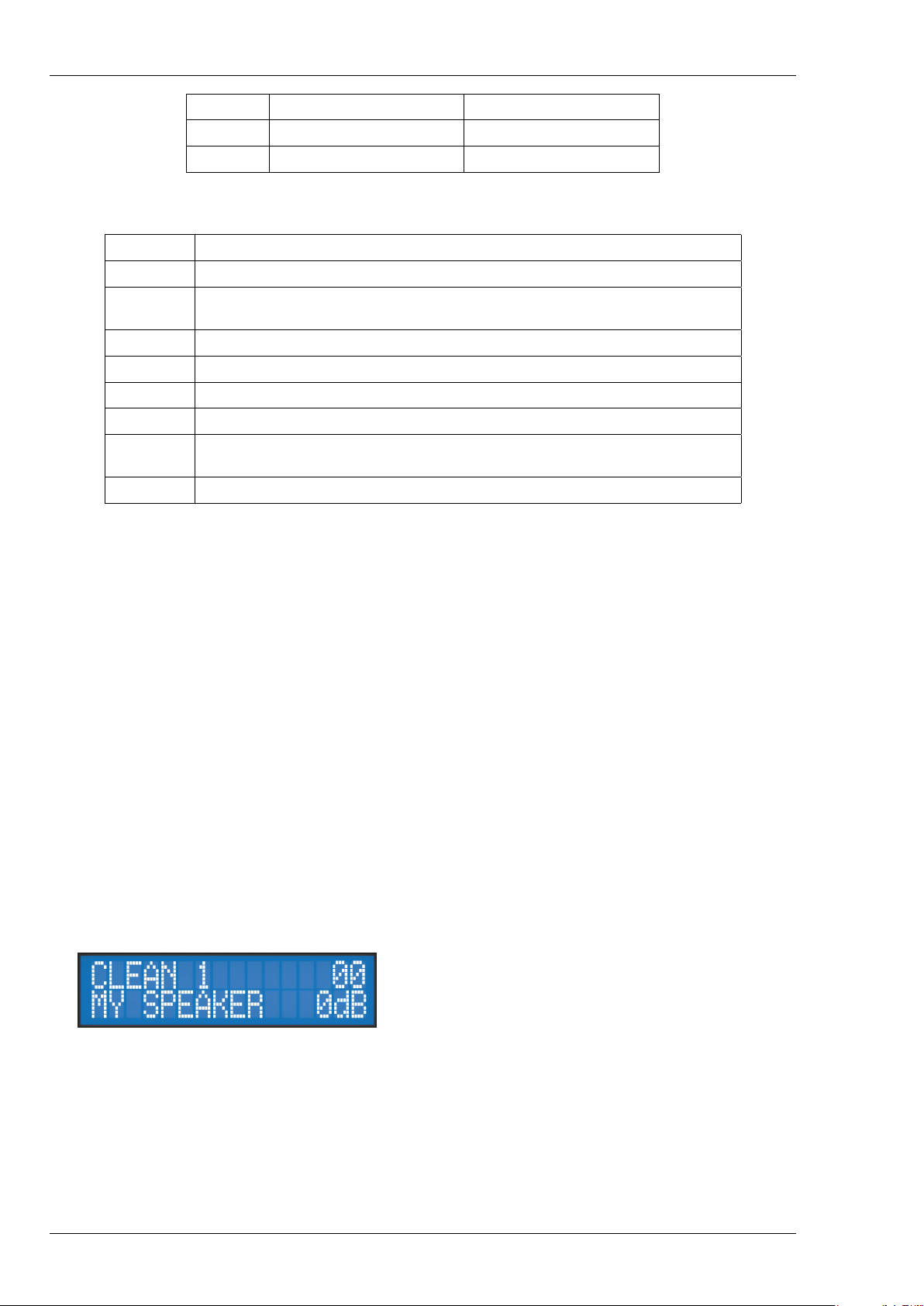
The PERFORM mode is the default mode you will see when first using the TORPEDO C.A.B.. The
following information will be displayed on the screen:
• First line: preset name and number (between
01 and 00 corresponding to preset 100.
• Second line: Cabinet name (or IR name) and
Output volume (OUT LEVEL between -95dB
and +12dB).
In this mode you can navigate the presets and set the Output volume of the machine. You will be
in this mode when playing without editing or modifying any parameter. This way you can have quick
access to the volume in case you have to quickly lower or increase the volume in any situation.
We recommend first looking for a preset that is close to the sound you have in mind, then tweak
the selected preset in EDIT mode.
20 Two Notes Audio Engineering TORPEDO C.A.B.
Page 21
Configuring and using the TORPEDO C.A.B.
The preset’s name is limited to 12 letters or numbers. The authorized
characters are capital A to Z, 0 to 9 and space.
The various functions of the buttons in PERFORM mode are described in the following table:
Button Function
Hold footswitch A & EDIT Switch to SETUP mode
PRESET/PARAMETER Navigate the preset
OUT LEVEL/VALUE Set the Output volume between -95dB and +12dB
HOLD TO SAVE/EDIT (hold) Save a preset between 01 and 00 (preset 100)
HOLD TO SAVE/EDIT (toggle) Switch to EDIT mode
6 EDIT mode
In the EDIT mode, you will have access to all the parameters of a preset. The various functions of
the buttons in PERFORM mode are described in the following table:
Button Function
Hold footswitch A & EDIT Switch to SETUP mode
PRESET/PARAMETER Navigate the parameters
OUT LEVEL/VALUE Modify the selected parameter
HOLD TO SAVE/EDIT (hold) Save a preset between 01 and 00 (preset 100)
HOLD TO SAVE/EDIT (toggle) Switch to PERFORM mode
You will find three modules in the EDIT mode (Power Amp,
Miking and EQ), followed by the Output volume of the preset (this volume setting is saved with the preset, so you can
adjust the levels in order for the presets to be at comparable
volumes).
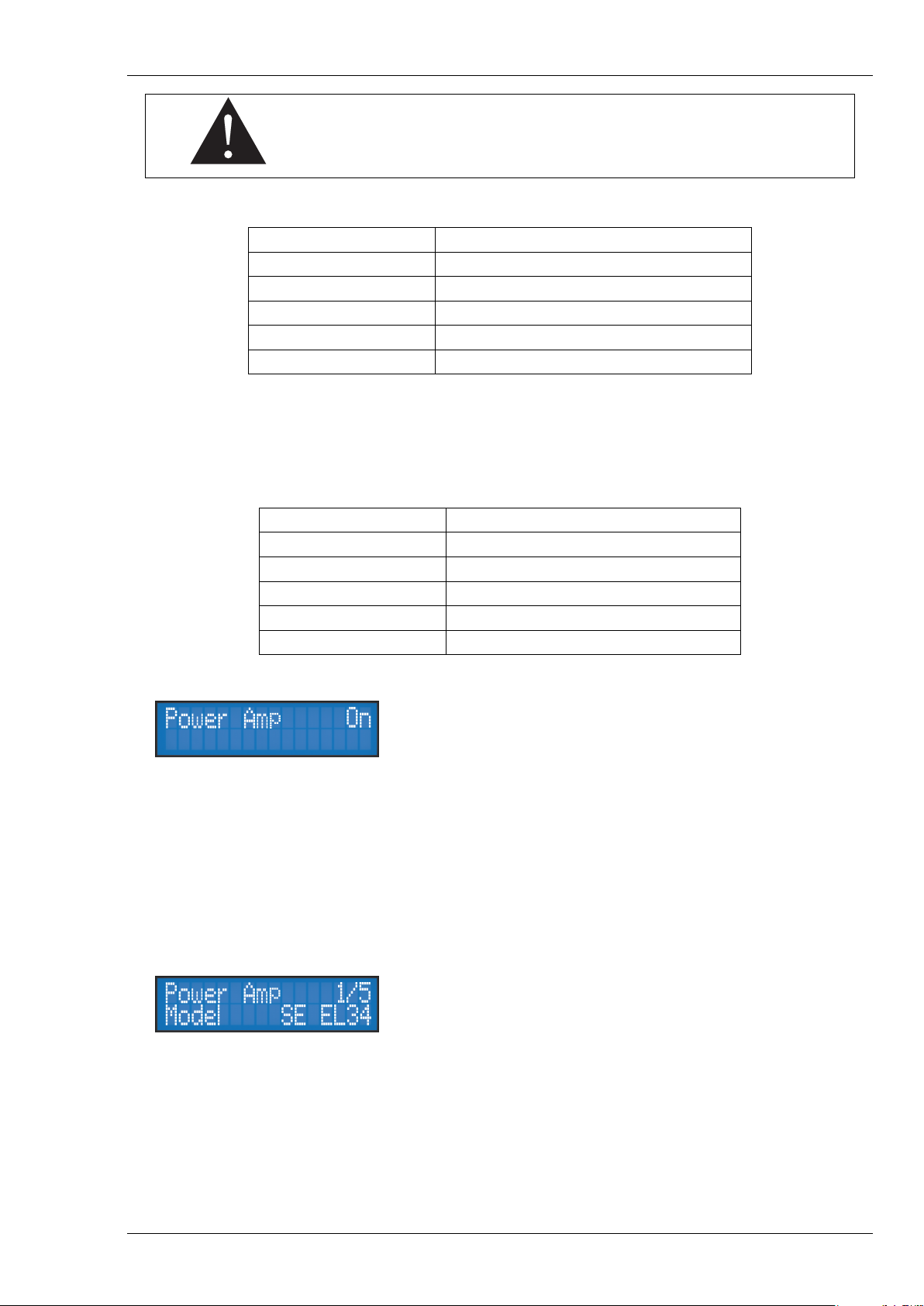
The first line on the screen will display the module’s name and its current state (On, Off, level in dB
for the LEVEL).
Navigate through the modules with the PARAMETER encoder. A module is activated when it is
On. You can change the module’s state with the VALUE encoder. Once the module is On, you have
access to the module’s parameters.
On a parameter’s page (change the page with the PARAMETER encoder), the first line will display the module name,
the parameter index and the number of parameters of the
module.
On the second line you will find the parameter name and its value. Change the value by way
of the VALUE encoder. The following table contains the list of modules, their parameters with the
possible values. All details about the parameters are presented below.
Two Notes Audio Engineering TORPEDO C.A.B. 21
Page 22

Configuring and using the TORPEDO C.A.B.
Module Parameter
Power Amp
Model
Volume
Presence
Depth
Type
Miking
Bank
Cab or File
Mic
Distance
Center
Position
EQ
Mode
120Hz (Guitar) or 50Hz (Bass)
360Hz/120Hz
800Hz/360Hz
2KHz/800Hz
6KHz/4KHz
Level
Value
On or Off
8 models, from SE 6L6 to PP KT88
0 to 30dB
If Model PP: 0 to 100%
0 to 100%
Triode or Pentode
On or Off
Cab/mic, User 0 to User 3 (in User bank, the options Mic, Distance, Center and Position are not available). 32 memory
slots for Cab/mic, 128 per User bank
Cabinet name or IR file name
Microphone name
0 to 100% (i.e. 0 to 10 feet)
0 to 100% (i.e. 0 to cabinet side, length depending on the
real cabinet geometry)
Back or Front
On or Off
Guitar or Bass
-20dB to +20dB
-20dB to +20dB
-20dB to +20dB
-20dB to +20dB
-20dB to +20dB
-95 to 0dB
6.1 Power Amp
When using the TORPEDO C.A.B. with any kind of guitar/bass preamplifier, or even an electric
piano or a synthesizer, you need the color brought by the final stage of a traditional amplifier: the
power amplifier. Plug your device into the Input of the TORPEDO C.A.B. and enjoy the typical sound
of the Two Notes electrically accurate virtual tube power amplifier:
• Power Amp On: Activate the power amplifier simulation by turning this parameter "On" .
• Model: Choose the amplifier topology (Push Pull or Single Ended) and the tube type (6L6, EL34,
EL84 or KT88).
• Volume: Set up the Output volume of your virtual power amplifier.
• Presence: This setting affects the tube stage frequency (loudness).
• Depth: this setting affects the tube-stage frequency (bandwidth).
• Pentode/Triode: Select how the tube is used, either in triode or in pentode mode. Pentode
mode has more headroom and volume than triode.
22 Two Notes Audio Engineering TORPEDO C.A.B.
Page 23
Configuring and using the TORPEDO C.A.B.
6.2 Miking
In the "MIKING" menu, you take the place of the sound engineer. This is where you will find the
"sweet spot", the perfect microphone position.
You have to choose whether you want to use the Two Notes cabinet and microphone combina-
tions (Cab/mic) or a third party IR (User) picked from one of the three User banks.
In Cab/mic mode, you have access to 32 different cabinets, each cabinet can be miked with 1
of the 8 available microphones. Please refer to Part 6 to discover the microphone and cabinet library.
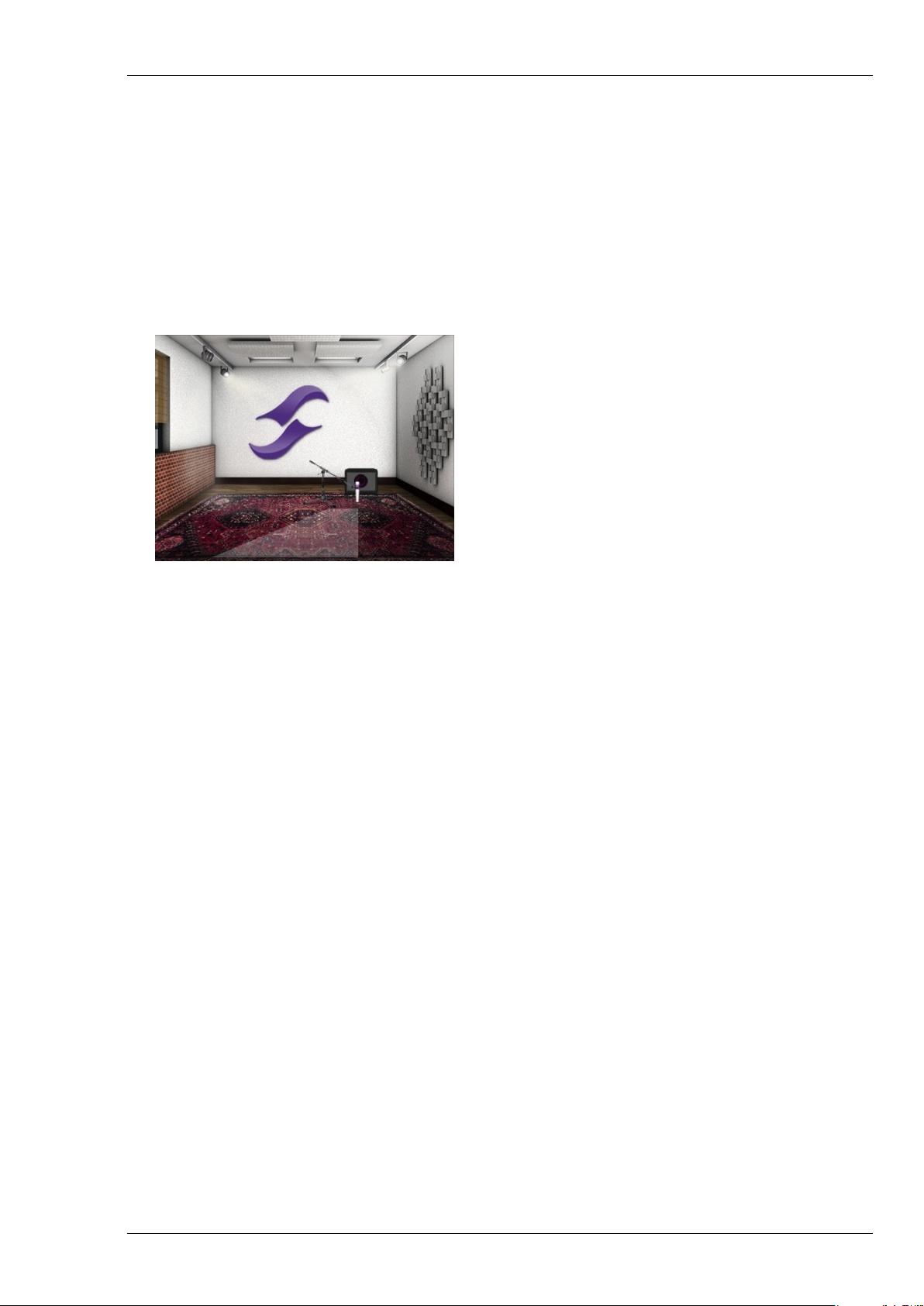
The next step is to place the microphone on the trapezoidal plan (you can see it in the TORPEDO
Remote interface):
• DISTANCE:
Determine the distance between the simulated cabinet and microphone. Placing a
microphone close to the cabinet will result in
a precise sound with a large amount of proximity effect (depending on the chosen microphone). When you move the microphone
away from the cabinet, you increase the proportion of the studio’s acoustics (early reflections) in the overall sound.
Furthermore, depending on the cabinet model used, and especially with the ones with multiple
speakers, moving the microphone away can bring some higher frequencies back. This is simply due
to the directivity of the loudspeakers. At the maximum position (100%), the microphone is placed 3
meters (10 feet) away from the cabinet.
• CENTER: Determine the distance between the axis of the loudspeaker and the microphone
(placed at right angle). The on-axis position (0%) allows the maximum amount of treble frequencies which are highly directional. Moving the microphone away from the axis decreases
the treble, resulting in an enhancement of bass response. At maximum position (100%), the microphone is placed at the edge of the speaker when Distance is 0%, and 1 meter (3 feet) away
from the axis when Distance is 100%.
• POSITION: in standard sound capture, the microphone is usually placed in front of the cabinet.
However, placing the microphone behind the cabinet can be quite interesting. The sound is
usually softer and darker. This is particularly obvious with closed cabinets, less with open ones.
6.3 EQ
This is a simple yet powerful 5-band EQ. Changing the mode (guitar or bass) shifts the band fre-
quencies to focus on the interesting signal frequencies for the corresponding instrument.
• EQ On: Activate the EQ filter.
• MODE: Guitar or Bass mode change the center frequencies of the EQ bands to adapt it to your
instrument.
• 120Hz, 360Hz, 800Hz, 2000Hz, 6000Hz (Guitar mode): center frequency of each band, from the
lowest to the highest. You can adjust the gain, measured in dB, of each band.
Two Notes Audio Engineering TORPEDO C.A.B. 23
Page 24

Configuring and using the TORPEDO C.A.B.
• 50Hz, 120Hz, 360Hz, 800Hz, 4000Hz (Bass mode): center frequency of each band, from the
lowest to the highest. You can adjust the gain, measured in dB, of each band.
7 SETUP mode
Button Function
HOLD TO SAVE/EDIT (toggle) Return to PERFORM mode
PRESET/PARAMETER Navigate the parameters
OUT LEVEL/VALUE Set a parameter value
HOLD TO SAVE/EDIT (hold) Save a preset between 01 and 00 (preset 100)
To enter the SETUP mode, press and hold the A switch, and press the EDIT button.The SETUP mode
groups all the global parameters of the TORPEDO Live. In this mode, you will have access, for example, to the reception of a MIDI command or the syncing of the machine with the TORPEDO Remote.
Parameter
A Sw
A Ho
B Sw
B Ho
MIDI CC
MIDI PC
MIDI CHANNEL
MIDI MONITOR
Value
Short click on A function
Hold A function
Short click on B function
Hold B function
Control Change receive, On or Off
Program Change receive, On or Off
MIDI Channel selection, from 1 to 16 or ALL (the machine listens to all
MIDI channels)
Incoming MIDI command monitoring
• "- -": a command is received on a MIDI channel other than the
one you selected for the machine.
• "In": a command is received on the channel you have selected
for the machine.
REMOTE MONITOR
• No Connection: no active USB connection
• USB Connected: active USB connection
• Remote connected: active USB connection, sync with the TORPEDO remote
Firmware
Serial
Current firmware version of the TORPEDO C.A.B.
Serial number
24 Two Notes Audio Engineering TORPEDO C.A.B.
Page 25

Configuring and using the TORPEDO C.A.B.
8 MIDI setup
The MIDI parameter can be found on the SETUP mode. The TORPEDO C.A.B. handles both preset change commands (PROGRAM CHANGE or PC) and parameter change commands (CONTROL
CHANGE or CC). This way, you can interact with all the parameters on the machine from any kind of
standard MIDI controller, like a MIDI pedalboard or a keyboard.
1. Choose whether the machine is to receive to PROGRAM CHANGE and/or CONTROL CHANGE
commands. For example, if you plan to use the preset switching (PC), the CC receive can be
Off.
2. Set a MIDI channel for the machine to receive. You can choose to receive all channels, which
is useful when you do not know exactly onto which channel the commands are sent.
3. With the MIDI monitor, check the correct reception of the commands by the C.A.B..
9 Continuous save, preset save
The state of the machine is saved in real time, continuously, and is reloaded when you switch on
the machine. The parameters continuously saved are:
• the current preset,
• the modified preset if any (with all its parameters and name),
• the SETUP mode parameters,
• and the OUT LEVEL.
The navigation is not saved (for example if you were in a particular parameter menu). The purpose
is to reload the machine at its initial state, after a power outage on stage, for example.
When you edit a preset, the screen will display a star after the preset number in PERFORM mode.
It is possible to navigate through the presets and to come back to the preset you are editing. This
way, the modified and the non-modified preset can be compared. If you edit a second preset, this
will cancel the modification on the first edited preset if it was not saved. It is only possible to edit one
preset at a time.
Saving a preset can be done from any mode, by holding the HOLD TO SAVE/EDIT button. The
saving process is done in three steps:
1. "Rename & hold...": choose the preset’s name, use PARAM to change the character’s position
and VALUE change the character. Hold the button to go to the next step.
2. "Hold to save to:": Choose where you want to save the preset, the default slot is the current
one. Hold the button to go to the next step.
3. The screen will display "Saving, please wait..." for less than a second, the preset is now saved.
10 Want more cabinets?
It is possible to add new cabinets or IRs files to your TORPEDO C.A.B. using the TORPEDO Remote
software. Download the software from the Two Notes website: http://www.two-notes.com. Take control of the machine through USB, change the parameters, arrange or add/delete cabinets and IR
Two Notes Audio Engineering TORPEDO C.A.B. 25
Page 26
Configuring and using the TORPEDO C.A.B.
files or apply updates. The TORPEDO Remote will detect any new update or new Two Notes cabinets
(requires a working Internet connection).
The install process of the TORPEDO Remote creates two default folders where the Impulses are
stored:
• "Program Files\Two Notes Audio Engineering\Impulses" on Windows™.
• "/Library/Application Support/Two Notes Audio Engineering/Impulses" on MAC™.
All the cabinet files must be stored in in that folder without any subfolders. The TORPEDO Remote
automatically saves the downloaded cabinets in that folder.
10.1 .tsr files
The .tsr files are the official Two Notes cabinet and microphones format. Two Notes provides new
cabinets for free. The TORPEDO Remote will request permission to download them and you will just
need to upload them into your TORPEDO C.A.B..
A .tsr file contains information regarding the cabinet response with 8 microphones variously located in our controlled studio room.
If you ever need to move .tsr files, always remember the TORPEDO Remote will only fetch the files located in the default folder, without subfolders.
10.2 .tur files
The .tur files are created by of the the free TORPEDO Capture software, available on the Two
Notes website. With TORPEDO Capture you will be able to measure the sound signature of your OWN
cabinet and microphone.
To upload a .tur file into your machine, place the file in your default Remote folder (or in a folder
you define in the TORPEDO Remote) and use the Memory Manager of the TORPEDO Remote.
Moving the microphone is not available as an option for IRs files in .tur
format.
10.3 Third-party IRs in .WAV or .AIF format
The TORPEDO C.A.B. is compatible with standard IRs in .WAV or .AIFF format. The remote will handle any kind of resolution, frequency, length, and will follow the process to convert the file into the
TORPEDO format:
1. Normalizing to 0 dB
2. Troncation at 18,66 ms
3. Conversion to 24 bits/48 KHz
To upload a .WAV or AIFF file into your machine, place the file in your default Remote folder (or in a
folder you define in the TORPEDO Remote) and use the Memory Manager of the TORPEDO Remote.
26 Two Notes Audio Engineering TORPEDO C.A.B.
Page 27
Configuring and using the TORPEDO C.A.B.
Moving the microphone is not available for IRs files in .WAV or .AIFF
format.
10.4 Uploading new Two Notes cabinets or third-party IRs
The TORPEDO C.A.B. includes an innovative function named QUICK PREVIEW. Simply select an IR
or a new cabinet in QUICK PREVIEW to load it almost instantaneously. This way you can browse a
huge IR’s folder and listen to the result on the fly. To use this mode:
1. Create a folder where you put all your IRs and select it with the TORPEDO Remote (folder icon
below "IMPULSE").
2. Clik on the QUICK PREVIEW button (on the Remote main window). Choose a cabinet or an IR
file from the gear window.
To permanently upload a Two Notes cabinet or an IR file, when you are in QUICK PREVIEW, simply
click to the SEND button.
When you are not in QUICK PREVIEW mode, open the Memory Manager window in the TORPEDO
Remote software. Simply drag-and-drop files from your computer onto an empty memory slot, wait
for the transfer to be complete and you are ready to bring that new cabinet on stage.
Two Notes Audio Engineering TORPEDO C.A.B. 27
Page 28

Page 29
Part 5
MIDI
Your TORPEDO C.A.B. can receive MIDI PROGRAM CHANGE (PC) and CONTROL CHANGE (C)
commands sent by any kind of MIDI controller connected to the MIDI IN of the machine.
It is important to set up the TORPEDO C.A.B. so it will be listening to the
MIDI control commands. Please refer to part 5.7 of this manual.
1 PROGRAM CHANGE (PC)
Each preset on the TORPEDO C.A.B. has a single program number. Preset 01 of the machine is
triggered by a MIDI PC 00. You can address the 100 presets (from 01 to 00 meaning 100), with MIDI
PC 00 to MIDI PC 99. That way, it is possible to randomly access the preset by sending the appropriate
MIDI PC number.
2 CONTROL CHANGE (CC)
The following table contains the assignment of the parameters of the machine and the MIDI CC
numbers and values.
Two Notes Audio Engineering TORPEDO C.A.B. 29
Page 30

MIDI
Parameter name CC] Range
Power Amp
On/Off 0 0 - 1
Model 1 0 - 7
Volume 2 0 - 30
Presence 3 0 - 127
Depth 4 0 - 127
Character 5 0 - 1
Cab/Mic
On/Off 6 0 - 1
Mode 7 0 - 4
Cab 8 0 - (Cab Qty-1)
User 0 File 9 0 - (File Qty-1)
User 1 File 10 0 - (File Qty-1)
User 2 File 11 0 - (File Qty-1)
User 3 File 12 0 - (File Qty-1)
Mic 13 0 - 7
Distance 14 0 - 127
Center 15 0 - 127
Position 16 0 - 1
Behaviour
0 = Off ; 1 = On
0 = Model ]0 ; 1 = Model ]1...
0 = 0dB% ; 30 = 30dB
0 = 0% ; 63 = 50% ; 127 = 100%
0 = 0% ; 63 = 50% ; 127 = 100%
0 = Triode ; 1 = Pentode
0 = Off ; 1 = On
0 = Cab/Mic ; 1= User 0 ; 2= User1; 3 = User
2 ; 4 = User 3
0 = Cab ]0 ; 1 = Cab ]1...
0 = File ]0 ; 1 = File ]1...
0 = File ]0 ; 1 = File ]1...
0 = File ]0 ; 1 = File ]1...
0 = File ]0 ; 1 = File ]1...
0 = Mic ]0 ; 1 = Mic ]1...
0 = 0% ; 63 = 50% ; 127 = 100%
0 = 0% ; 63 = 50% ; 127 = 100%
0 = Back ; 1 = Front
EQ
On/Off 17 0 - 1
Mode 18 0 - 1
EQ - Low 19 0 - 40
EQ - Low Mid 20 0 - 40
EQ - Mid 21 0 - 40
EQ - High Mid 22 0 - 40
EQ - High 23 0 - 40
GENERAL
Preset Level 24 0 - 107
Out Level 25 0 - 107
Mute 26 0 - 1
Bypass 27 0 - 1
Table 5.1: TORPEDO C.A.B. MIDI map
0 = Off ; 1 = On
0 = Guitar ; 1 = Bass
0 = -20dB ; 20 = 0dB ; 40 = 20dB
0 = -20dB ; 20 = 0dB ; 40 = 20dB
0 = -20dB ; 20 = 0dB ; 40 = 20dB
0 = -20dB ; 20 = 0dB ; 40 = 20dB
0 = -20dB ; 20 = 0dB ; 40 = 20dB
0 = -95dB ; 95 = 0dB
0 = -95dB ; 95 = 0dB ; 107 = 112dB
0 = Off ; 1 = Mute
0 = Bypass ; 1 = The C.A.B. is active
30 Two Notes Audio Engineering TORPEDO C.A.B.
Page 31

Part 6
Specifications
1 Power Amplifier list
Designation
SE 6L6
SE EL34
SE EL84
SE KT88
PP 6L6
PP EL34
PP EL84
PP KT88
Characteristics
Configuration Single Ended - Class A with 6L6
Configuration Single Ended - Class A with EL34
Configuration Single Ended - Class A with EL84
Configuration Single Ended - Class A with KT88
Configuration Push-Pull - Class AB with 6L6
Configuration Push-Pull - Class AB with EL34
Configuration Push-Pull - Class AB with EL84
Configuration Push-Pull - Class AB with KT88
2 Microphones list
Designation
Dynamic 57
Dynamic 421
Knightfall
Condenser 87
Ribbon160
Ribbon121
Bass 20
Bass 5
Inspired by
Dynamic microphone Shure™ SM57
Dynamic microphone Sennheiser™ MD421
Condenser microphone Blue™ Dragonfly
Condenser microphone Neumann™ U87
Ribbon microphone Beyerdynamic™ M160N
Ribbon microphone ruban Royer™ R121
Dynamic microphonee Electrovoice™ RE20
Dynamic microphone Shure™ Beta52
Two Notes Audio Engineering TORPEDO C.A.B. 31
Page 32
Specifications
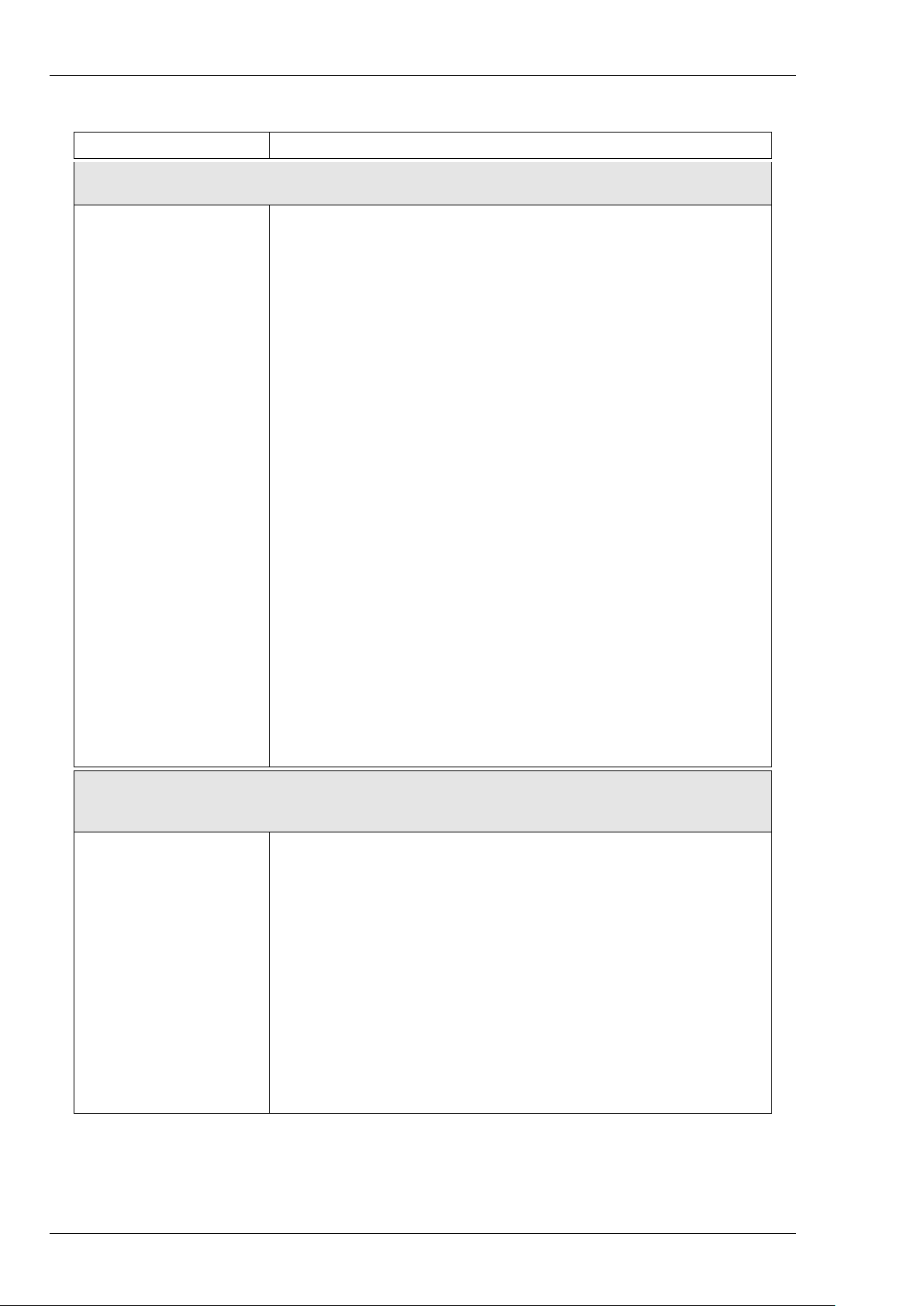
3 Cabinets list
Designation Inspired by
Default factory GUITAR cabinets
2Notes CSG Two Notes Custom 1x12" ElectroVoice® EVM12L
Angl VintC Engl® 4x12" Celestion® V30
Blonde 63 Fender® Bassman ’63 Blonde Tolex Piggy Back 2x12"
Brit 65C Marshall® 1965A 4x10" Celestion® G10L-35 close back
Brit VintC Marshall® Slash Signature 4x12" Celestion® V30 close back
Calif StdC Mesa/Boogie® Rectifier® Standard 4x12" Celestion® V30 close back
Eddie Peavey® 5150 2x12" Sheffield 1200
Free Rock2 VHT® Deliverance 2x12" Eminence® P50E
Green Tri Hughes&Kettner® Triamp 4x12" Celestion® Greenback
Jazz 120 Vintage Roland® JC120 2x12"
JubilGreen Marshall® 2550 2x12" Celestion® Greenback
Kerozen Diezel® 4x12" Celestion® V30
Silver77 Vintage Fender® Twin Reverb® 2x12" orange JBL®
SilverJen Vintage Fender® Twin Reverb® 2x12" Jensen® C12K
The One Brunetti® Neo1512 1x15" + 1x12"
Vibro Utah Vintage 1961 Fender® Vibrolux® 1x12" original Utah speaker
Vibro V30 Vintage 1961 Fender® Vibrolux® 1x12" Celestion® V30
Voice 30 Original Vox® AC30 JMI 2x12" Celestion® « Silver Bell »
Voice 65 1965 Vox® 2x12"
VoiceModrn Vox® V212H, 2x12" Celestion® Alnico Blue
Watt FanC Hiwatt® 2x12" Fane close back
XTCab Bogner® 4x12" Celestion® V30
New GUITAR cabinets to
download with TORPEDO
Remote
BDeLuxe Fender® Blues Deluxe 1x12"
Brit 65O Marshall® 1965A 4x10" Celestion® G10L-35 open back
Brit Std Marshall® JCM900 2x12" Celestion® G12T
Brit VintO Marshall® Slash Signature 4x12" Celestion® V30 open back
Calif C90 Mesa/Boogie® 1x12" Celestion® C90 (Black Shadow)
Calif StdO Mesa/Boogie® Rectifier® Standard 4x12" Celestion® open back
Forest Elmwood® 2x12" Celestion® V30
Free Rock VHT® Deliverance 4x12" Eminence® P50E
JubilV30 Marshall® 2550 2x12" Celestion® V30
StrongBack VHT® Fat Bottom 4x12" Eminence® P50E
Watt FanO Hiwatt® 2x12" Fane open back
32 Two Notes Audio Engineering TORPEDO C.A.B.
Page 33
Designation Inspired by
Default factory BASS cabinets
2Notes CSB Two Notes Custom 1x15"
Alu XL Hartke® XL 4x12"
AZ Ben SWR® Big Ben 1x18"
AZ Work SWR® WorkingMan 4x10"
Calif Low Mesa/Boogie® 2x10"
Fridge Ampeg® 8x10"
Heaven Bot David Eden® 1x15"
Heaven Top David Eden® 4x10"
Marco Markbass® 2x10"
Voice V125 Vox® V125 2x12"
New BASS cabinets to download with TORPEDO Remote
New York Markbass® 4x6"
Rea One AER® Cab One 2x10"
Specifications
Two Notes Audio Engineering TORPEDO C.A.B. 33
Page 34

Specifications
4 Technical data
Designation
GTR/LINE Input
AMP/LINE Output
Characteristics
Jack 6.35mm (1/4") balanced (TRS, Tip/Ring/Sleeve). We recommend the use of a TS
jack cable if the output of the product/instrument you plug into the TORPEDO C.A.B. is
unbalanced.
IN LEVEL switch sets level and impedance of the input.
GTR:
• Max input level 4.7dBu
• Impedance 100KOhms
LINE:
• Max input level 10.3dBu
• Impedance 10KOhms
Jack 6.35mm (1/4") balanced (TRS)
Impedance: 470 Ohms
OUT LEVEL switch sets the output level.
AMP: maximum output levels
• No load, balanced: 10.7dBu
• 10KOhms load, balanced: 10.5dBu
• No load, unbalanced: 4.7dBu
• 10KOhms load, unbalanced: 4.2dBu
Headphones Output
Line: maximum output levels
• No load, balanced: 16.5dBu
• 10KOhms load, balanced: 16.3dBu
• No load, unbalanced: 10.5dBu
• 10KOhms load, unbalanced: 10dBu
Noise: less than -94 dBu from 20 Hz to 20 KHz
MONO out, Jack 6.35mm (1/4") balanced (TRS)
34 Two Notes Audio Engineering TORPEDO C.A.B.
Page 35

Specifications
Designation
ADC
DAC
Frequency response (-1db)
Latency
Power supply
Dimensions
Characteristics
Minimal full-scale input level: 4.7dBu (GTR), 10.3dBu(LINE)
Sampling frequency: 96 KHz
Resolution: 24 bits
Signal to noise ratio: 100 dB
Sampling frequency: 96 KHz
Resolution: 24 bits
Signal to noise ratio: 105 dB
12 - 19 KHz
2.875 ms (Line Input to Line Output)
Mains power adaptator DC Jack 2.1mm, negative center
C.A.B. Input voltage: 12V DC
Power consumption: approx. 3.6W
Current draw: 300mA
Width: 178mm
Depth: 120mm (metal housing only), 127.8mm including connectors
Height: 37mm (metal housing only), 58.3mm including knobs
Weight: 500g
Two Notes Audio Engineering TORPEDO C.A.B. 35
Page 36

Page 37

Part 7
Technical support
Should you encounter a problem with your TORPEDO C.A.B. or if you need help on some technical
aspects, please note that Two Notes Audio Engineering has developed on-line services to give you
fast and efficient technical support.
1 Two Notes Website
On the http://www.two-notes.com website, you will find:
• news about the company and the products (news at the homepage),
• comprehensive information about the TORPEDO C.A.B. and its many applications (FAQ),
• firmware and software update to download (products/TORPEDO C.A.B./downloads),
• new speaker cabinets (products/TORPEDO C.A.B./downloads),
• the Torpedo Capture software (products/TORPEDO C.A.B./downloads),
• an official forum where you can share tips and advice with other Torpedo users (forum).
2 By e-mail
Please contact us at the following e-mail address: [email protected].
Two Notes Audio Engineering TORPEDO C.A.B. 37
 Loading...