

Page 1
Owner's Manual
2-Port USB-C KVM
Docking Station
4K @ 30 Hz, USB 3.2 Gen 1
Model: B003-HC2-DOCK1
Este manual esta disponible en español en la página
Ce manuel est disponible en français sur le site Web
Русскоязычная версия настоящего руководства представлена на
веб-сайте компании Tripp Lite по адресу: tripplite.com/support
deTripp Lite: tripplite.com/support
deTripp Lite : tripplite.com/support
WARRANTY REGISTRATION
Register your product today and be
automatically entered to win an ISOBAR®
surge protector in our monthly drawing!
tripplite.com/warranty
1111 W. 35th Street, Chicago, IL 60609 USA • tripplite.com/support
Copyright © 2020 Tripp Lite. All rights reserved.
USB Type-C™ and USB-C™ are trademarks of USB Implementers Forum
1
Page 2

Package Contents
• 2-Port USB-C KVM Docking Station
• (x2) USB-C to USB-C Cables (M/M), 3.3 ft. (1 m)
• Remote Port Selector
• Owner’s Manual
Optional Accessories
• P569-XXX-CERT Series High-Speed HDMI Cables
• M100-Series USB-A to Lightning Sync/Charge Cables
• U428-Series USB 3.1 Gen 1 USB-A to USB-C Cables
2
Page 3
System Requirements
• Windows® 10 and above, computer with USB-C port and
USB-C DisplayPort Alternate Mode
Note: With Intel 7th-gen Core Processor (Kaby-Lake) and above.
More info about CPU generation, please reference https://www.intel.
com/content/www/us/en/processors/processor-numbers.html
• Mac® OS X 10.12 and above, computer with USB-C port
• Android™ 8.0 and above, smartphone with USB-C port and
USB-C DisplayPort Alternate Mode
Note: Only Samsung and Huawei® support PC-like operation.
Others only support mirror mode. Apple® iPhones are not supported.
• iOS 12.1 and above, iPad Pro® 3rd generation (2018)
Note: For better HID experience, iPad OS 13 and above is
recommended.
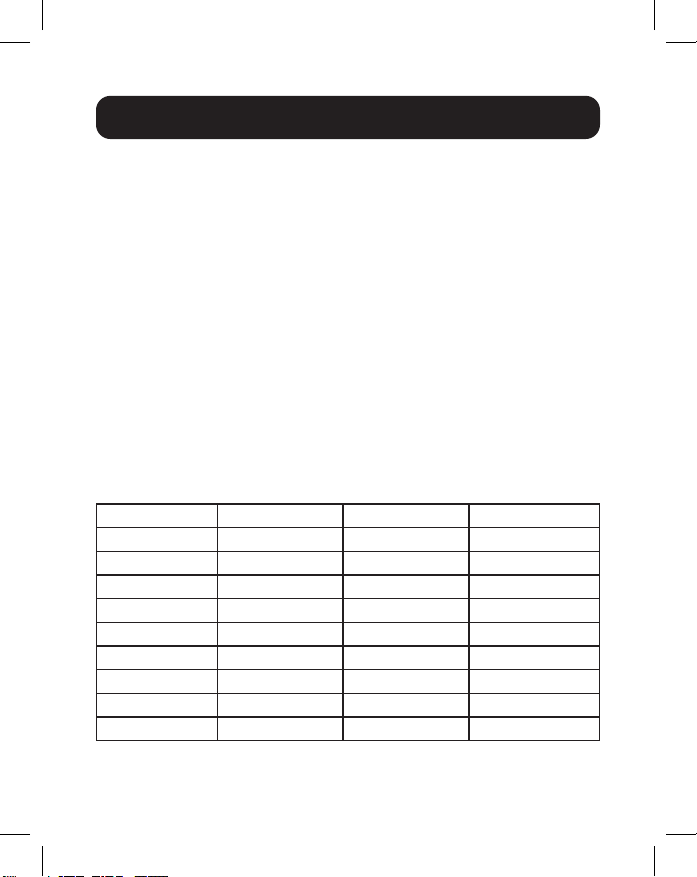
Supporting Mobile Devices
Samsung Huawei HTC LG
Galaxy S8 P20 U11 V20
Galaxy S8+ P20 Pro U Ultra
Galaxy S9
Galaxy S9+
Galaxy S10
Galaxy S10+
Galaxy S10e
Galaxy Note 8
Galaxy Note 9
3
Page 4

Product Features
• Allows a USB-C laptop and a USB-C smartphone* to share one
monitor, keyboard and mouse, as well as USB peripherals.**
• HDMI port supports crystal-clear 4K resolutions up to 3840 x
2160 @ 30 Hz.
• Provides USB PD 3.0 for laptop/computer charging up to 85W
at power profiles of 5/9/15/20V.
• Supports Samsung DeX mode and Huawei Desktop mode.***
• Video DynaSync™ allows continuous real-time switching with
EDID/HDCP monitors and computers.
• Switches between ports using the included remote port
selector.
• Plug-and-play operation with no extra software or external
power supply required
* Apple iPhones are not supported.
** For video output to work through a USB-C port, it must support USB-C
DisplayPort Alternate Mode.
*** Compatible with smartphones launched in 2018 or later that support
USB-C DisplayPort Alternate Mode.
4
Page 5
Feature Identification
USB
HDM I OUTREMOTE
B003-HC2-DOCK1
Front Panel
FPO
1
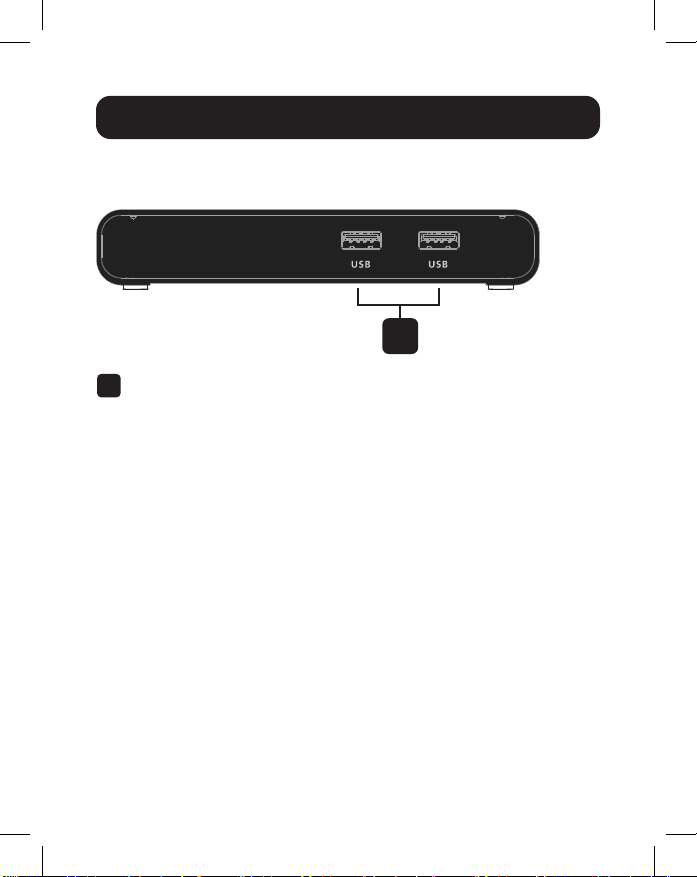
USB 3.2 Gen 1 Type-A Ports:
1
Connects to USB-A peripherals, such as a keyboard,
mouse or thumb drive.
5
Page 6

Feature Identification
Rear Panel
HDM I OUTREMOTE
USB
HOST
USB PD
12345
6
USB-C DC-In Port*:
1
Connects a USB-C power source.
USB-C 3.2 Gen 1 Type-C Port 1 (Laptop)**:
2
Connects a computer with the included USB-C cable.
If you need PD laptop charging, connect your computer
to this port.
USB-C 3.2 Gen 1 Type-C Port 2 (Android: Samsung
3
DeX or Huawei Desktop Mode)***:
Connects a laptop or Android mobile device with the
included USB-C cable.
HDMI Output:
4
Connects to a monitor’s HDMI input with a user-supplied
HDMI cable.
6
Page 7

Feature Identification
2.5 mm Remote Port Selector Jack:
5
Connects the included Remote Port Selector.
Remote Port Selector:
6
Press the button to switch to the next port when
connected to the unit.
* Supports maximum 100W USB-C PD power adapter input. For device
charging, a Limited Power Source (LPS) certified USB-C PD power
adapter over 65W is recommended. The minimum system power
requirement for basic USB functions and video output should be at
least 5V 3A. The first 15W will supply the B003-HC2-DOCK1. The
next 10W will supply the USB-C device connected to the Android port.
The balance of power will supply the USB-C device connected to the
Laptop port.
** Supports USB-C PD laptop charging at 5/9/15/20V output.
*** Supports maximum 5V 2A output.
7
Page 8

Feature Identification
Top Panel
B003-HC2-DOCK1
1 2
Console Indicator LED (Port 1):
1
Illuminates white when the corresponding console is in use.
Console Indicator LED (Port 2):
2
Illuminates white when the corresponding console is in use.
8
Page 9

USB
HOST
HDM I OUTREMOTE
USB PD
B003-HC2-DOCK1
Installation and Operation
Smartphone
MonitorRemote
Laptop
Power Adapter
123 46
HDM I OUTREMOTE
USB
USB PD
HOST
B003-HC2-DOCK1
5
Mouse
9
Keyboard
Page 10

Installation and Operation
Connect a computer or laptop to Port 1 using an included
1
USB-C cable.
Note: Port 1 supports PD 3.0 charging up to 85W at power
profiles of 5/9/15/20V.
Connect a mobile device, computer or laptop to Port 2
2
using an included USB-C cable.
Note: Port 2 supports charging up to 10W (5V 2A). It is
recommended to charge laptops using Port 1 and mobile devices,
such as Android smartphones, using Port 2.
Connect an HDMI-compliant display with a user-supplied
3
HDMI cable.
(Optional) Connect a USB-C power adapter, such as the
4
adapter than came with your laptop.
Note: This port supports up to 100W (20V 5A) maximum input.
A USB-C PD power adapter over 65W is recommended. The first
15W will supply the B003-HC2-DOCK1 itself. The next 10W will
supply the USB-C device connected to Port 2. The balance of
power will supply the USB-C device connected to Port 1.
Connect up to two USB peripherals, such as thumb drives.
5
Connect the included Remote Port Selector.
6
10
Page 11

Port Selection
Press the button on the Remote Port Selector to switch between
the two connected source devices. The Console Indicator LED
will illuminate to show which console port is currently in use.
Note: If the LED begins flashing, please check the power consumption
of your connected USB peripheral.
11
Page 12

Firmware Upgrade
Connect one end of a USB-C cable to your computer and
1
the other end to Port 1 on the docking station.
Note: Do not connect a source to Port 2.
Connect the Remote Port Selector cable to the unit.
2
Press and hold the remote button, then power on the
3
B003-HC2-DOCK1. The LED will blink and unit will enter the
firmware upgrade mode.
Run the Upgrade.bat file and follow the instructions.
4
After a successful firmware upgrade, disconnect the power
5
source to the B003-HC2-DOCK1 to exit the firmware
upgrade mode.
12
Page 13

Specifications
Model B003-HC2-DOCK1
Device Connection 2
Connectors Upstream Computer (x1) USB 3.2 Gen 1 Type-C (Female)
Smartphone (x1) USB 3.2 Gen 1 Type-C (Female)
Downstream USB (x2) USB 3.2 Gen 1 Type-C (Female)
HDMI (x1) HDMI (Female)
Source Selection (x1) 2.5 mm
LED (x2) White
Video Max Res 3840 x 2160 @ 30 Hz
Compliance USB 3.2 Gen 1 Type-C with
Power Delivery Port 1 USB PD 3.0 for laptop charging
Port 2 5V 2A maximum for smartphone
Power Consumption DC: 5V, 1.24W, 406 BTU
Operating Temperature 32° to 104°F (0° to 40°C)
Storage Temperature -4° to 140°F (-20° to 60°C)
Humidity 0 to 80% RH, Non-Condensing
Housing Aluminum
Weight 0.84 lb. (0.38 kg)
Dimensions
* Additional USB-C power adapter is required
DisplayPort Alt Mode (Thunderbolt 3
Compatible); HDCP 1.4
up to 85W; power profiles include
5/9/15/20V*
charging*
5.63 x 4.69 x 0.96 in.
(14.3 x 11.9 x 2.45 cm)
13
Page 14

Warranty and Product Registration
3-Year Limited Warranty
Seller warrants this product, if used in accordance with all applicable
instructions, to be free from original defects in material and workmanship
for a period of 3 years from the date of initial purchase. If the product
should prove defective in material or workmanship within that period,
Seller will repair or replace the product, at its sole discretion.
THIS WARRANTY DOES NOT APPLY TO NORMAL WEAR OR TO DAMAGE
RESULTING FROM ACCIDENT, MISUSE, ABUSE OR NEGLECT. SELLER
MAKES NO EXPRESS WARRANTIES OTHER THAN THE WARRANTY
EXPRESSLY SET FORTH HEREIN. EXCEPT TO THE EXTENT PROHIBITED
BY APPLICABLE LAW, ALL IMPLIED WARRANTIES, INCLUDING ALL
WARRANTIES OF MERCHANTABILITY OR FITNESS, ARE LIMITED IN
DURATION TO THE WARRANTY PERIOD SET FORTH ABOVE; AND
THIS WARRANTY EXPRESSLY EXCLUDES ALL INCIDENTAL AND
CONSEQUENTIAL DAMAGES. (Some states do not allow limitations on
how long an implied warranty lasts, and some states do not allow the
exclusion or limitation of incidental or consequential damages, so the
above limitations or exclusions may not apply to you. This warranty gives
you specific legal rights, and you may have other rights which vary from
jurisdiction to jurisdiction.)
WARNING: The individual user should take care to determine prior
to use whether this device is suitable, adequate or safe for the use
intended. Since individual applications are subject to great variation, the
manufacturer makes no representation or warranty as to the suitability or
fitness of these devices for any specific application.
14
Page 15

Warranty and Product Registration
Product Registration
Visit tripplite.com/warranty today to register your new Tripp Lite product.
You’ll be automatically entered into a drawing for a chance to win a FREE
Tripp Lite product!*
*No purchase necessary. Void where prohibited. Some restrictions apply See
website for details.
Tripp Lite has a policy of continuous improvement. Specifications are
subject to change without notice. Photos and illustrations may differ
slightly from actual products.
15
Page 16

1111 W. 35th Street, Chicago, IL 60609 USA • tripplite.com/support
16
20-07-163 • 93-3C9D_RevB
 Loading...