

Page 1
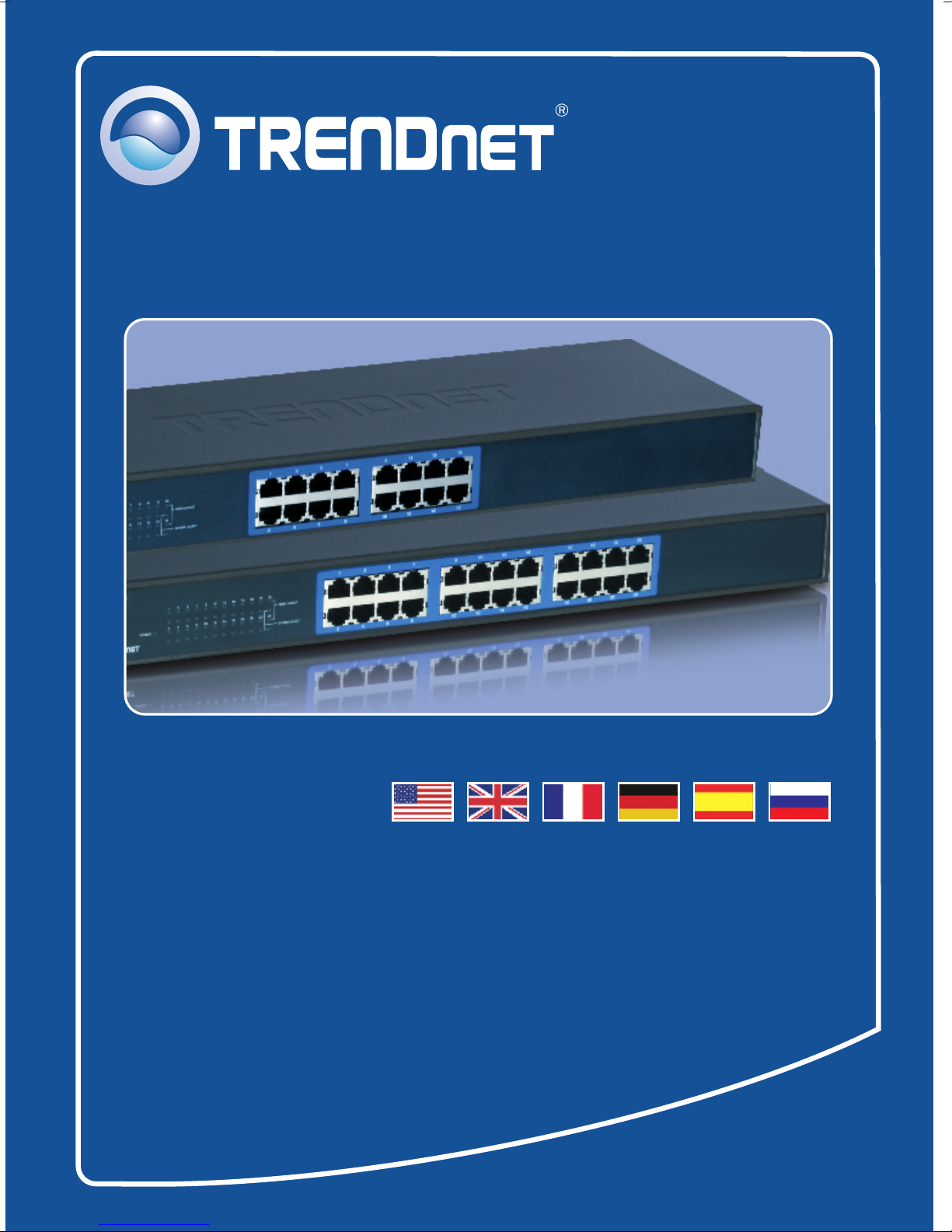
Quick Installation Guide
TEG-S160TX
TEG-S240TX
H/W: D1.0R
Page 2

Table of Contents
Table of Contents
English ......................................................................................................
1. Before You Start
................................................................................
2. Hardware Installation .........................................................................
Technical Specifications .........................................................................................
Troubleshooting ......................................................................................................
1
1
3
4
6
Version 04.02.2008
Page 3

1. Before You Start
Installation Requirements
Computer with Network adapter installed
An environment that is fairly cool and dry
Package Content
TEG-S160TX/TEG-S240TX
User’s Guide
2 mounting brackets and screws
4 Rubber Feet
AC Power Adapter
An environment that is free from strong electromagnetic field generators
(such as motors), vibration, dust and direct exposure to sunlight
Leave at least 10 cm of space at the front and rear of the Switch for
ventilation
EIA Standard, 19 inch rack or sturdy, level surface that can support the
weight of the Switch
1
English
Page 4
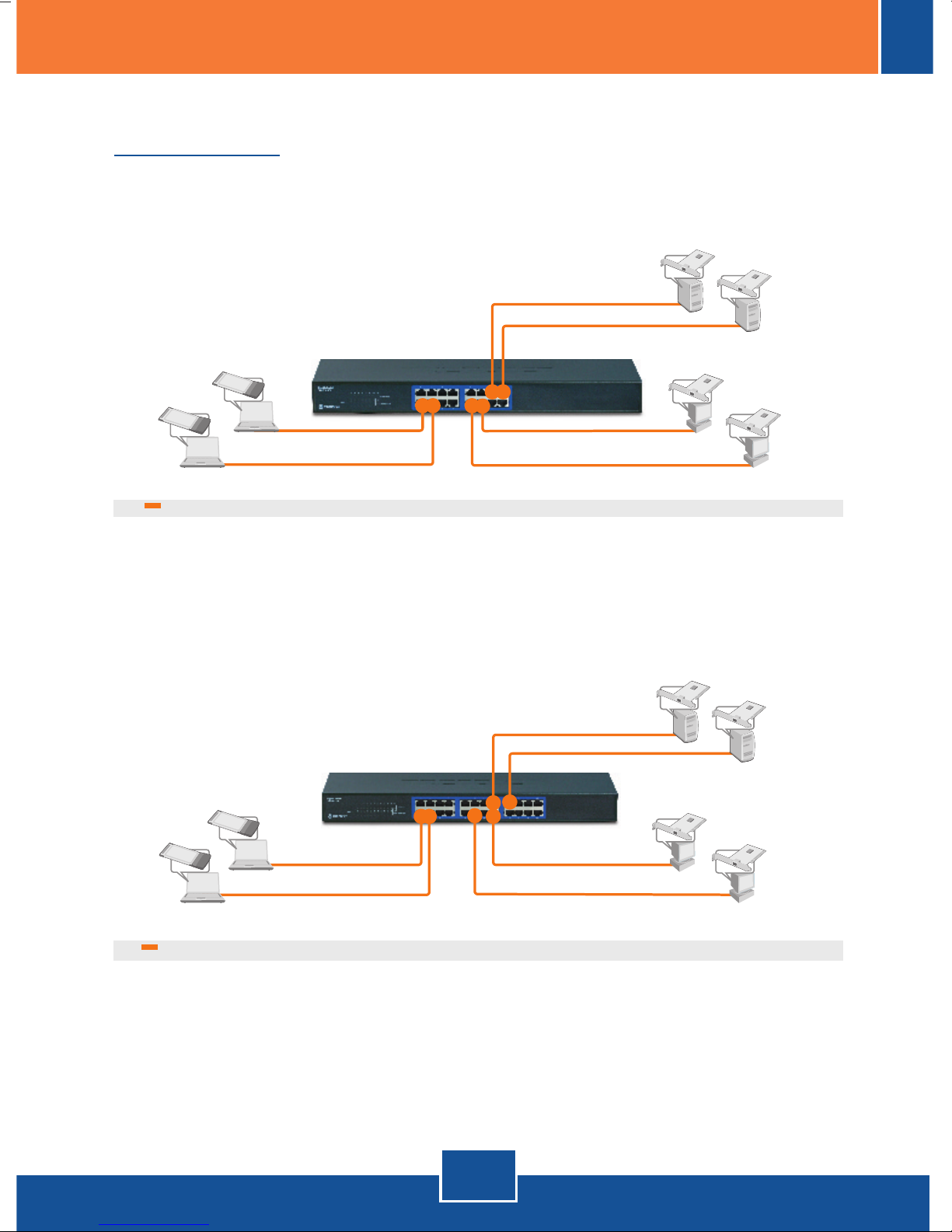
Application
16-Port Gigabit Switch
(TEG-S160TX)
Servers with Gigabit PCI Adapter
(TEG-PCITXR)
Notebooks with
Gigabit
Gigabit PC Card
(TEG-PCBUSR)
24-Port Gigabit Switch
(TEG-S240TX)
Notebooks with
Gigabit
Gigabit PC Card
(TEG-PCBUSR)
Workstations with Gigabit PCI Adapter
Workstations with Gigabit PCI Adapter
(TEG-PCITXR)
Servers with Gigabit PCI Adapter
(TEG-PCITXR)
(TEG-PCITXR)
2
English
Page 5
2. Hardware Installation
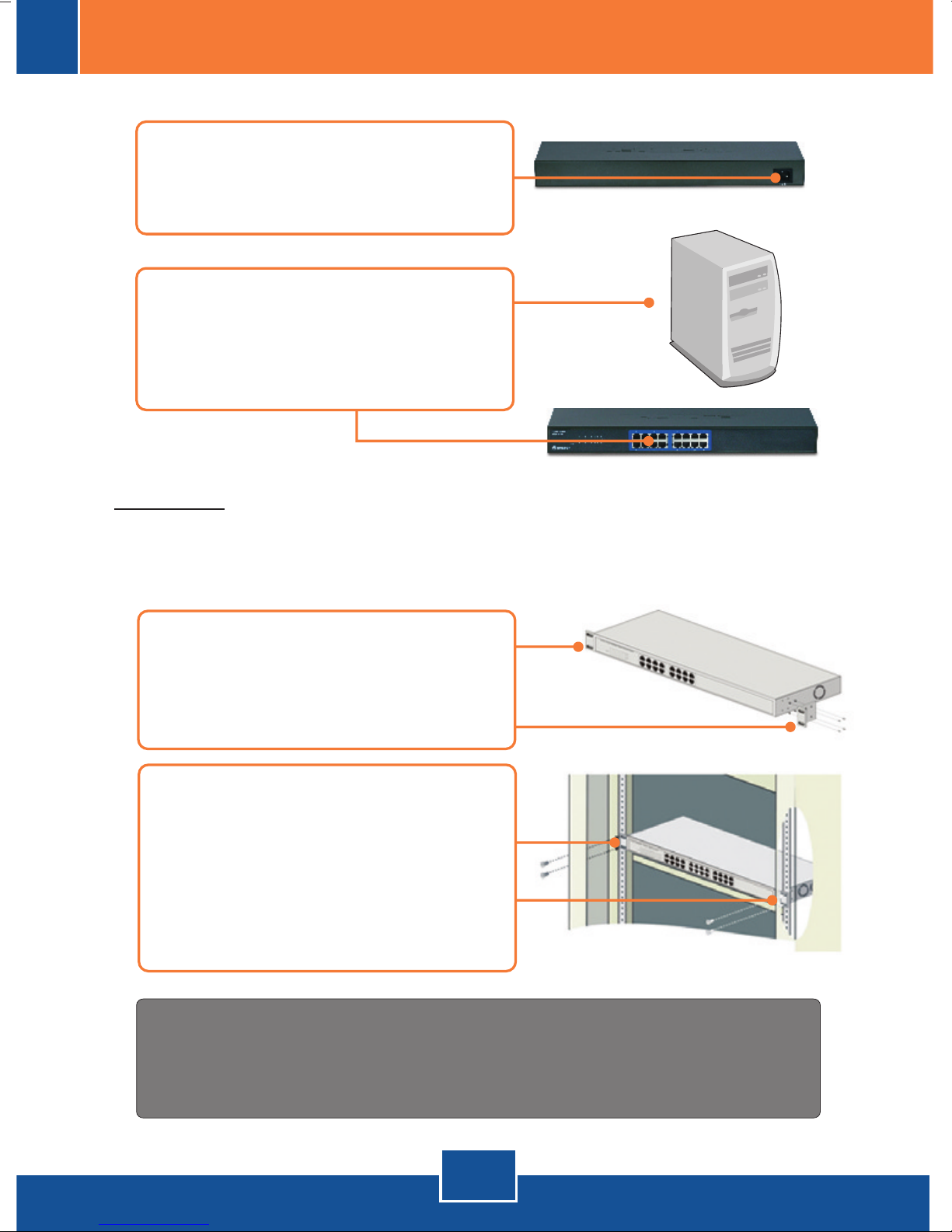
1. Connect the AC Power Adapter to
the TEG-S160TX/TEG-S240TX
and then to a power outlet.
2. Connect a CAT-5e or CAT-6 RJ-45
network cable from the computer to
an available Ethernet port on the
TEG-S160TX/TEG-S240TX.
Rack Mount
The Switch can be mounted in an EIA standard-size, 19-inch rack, which can
be placed in a wiring closet with other equipment.
3. Attach the mounting brackets to
both sides of the chassis and
secure them with the provided
screws.
4. Carefully position the chassis onto
the rack. Align the bracket to the
screw holes on the rack, then use
the screws provided with the
equipment rack to mount the
chassis.
To ensure the highest level of customer service and support, please take a moment to
register your product Online at: www.trendnet.com/register
Register Your Product
Thank you for choosing TRENDnet
3
English
Page 6
Technical Specifications
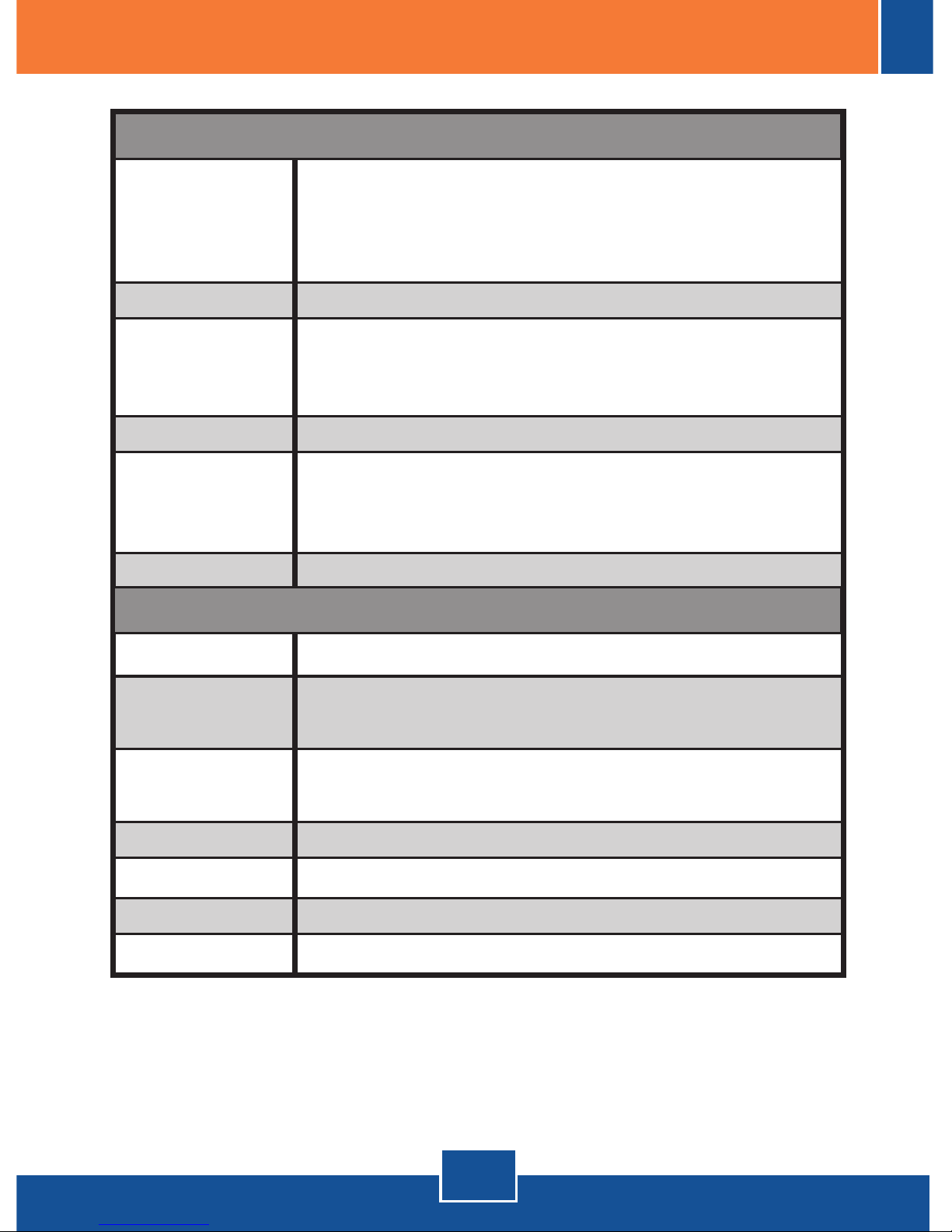
Hardware
IEEE 802.3 10BASE-T Ethernet
Standards
IEEE 802.3u 100BASE-TX Fast Ethernet
IEEE 802.3ab 1000BASE-T
IEEE 802.3x Full-Duplex Flow Control
Protocol
Data Transfer
Rate
Topology
Network Cables
Number of Ports
Power
Power
Consumption
CSMA/CD
Ethernet: 10Mbps (half-duplex), 20Mbps (full-duplex)
Fast Ethernet: 100Mbps (half-duplex), 200Mbps (full-duplex)
Gigabit Ethernet: 2000Mbps (full-duplex)
Star
Ethernet: UTP/STP CAT-3, -4, -5
Fast Ethernet: UTP/STP CAT-5
Gigabit : UTP/STP CAT-5e, CAT-6 (Recommended)
16/24 x 10/100/1000Mbps Auto-Negotiation, Auto-MDIX
Physical and Environmentalware
100-240V AC Universal, 50/60 Hz Internal Power Supply
13.5 Watts. Max (TEG-S160TX)
19 Watts Max (TEG-S240TX)
Temperature
Humidity
Dimensions
Weight
Emissions
Operating: 0° ~ 40° C (32° ~ 104° F)
Storage: -10° ~ 70° C (14° ~ 158° F)
5% ~ 90% (non-condescending)
440 x 140 x 44 mm
3Kg
CE, FCC
4
Page 7
Performance
Transmission
Method
Packet Filtering/
Forwarding Rate
MAC Address
Learning:
RAM Buffer
Filtering Address
Table
Store-and-Forward
10Mbps Ethernet: 14,880pps (packet per second)
100Mbps Fast Ethernet: 148,800pps
1000Mbps Gigabit Ethernet: 1,488,000pps
Self-learning, auto-aging
340KB per device (TEG-S160TX)
500KB per device (TEG-S240TX)
8K entries per device
5
Page 8

Troubleshooting
After connecting the Switch to a power outlet, the LEDs do not turn on.
Q1:
Check the connection of the power adapter to the
A1:
TEG-S240TX
power.
When I connect a computer to the Switch port, the LINK/ACT LED turns on,
Q2:
but the 1000Mbps LED remains off.
First, check the Ethernet Cable. Make sure you are using CAT-5e or CAT-6
A2:
Ethernet Cables. Some CAT-5 cables are not rated to run Gigabit. Second,
make sure that you have a Gigabit Ethernet Adapter installed on your computer.
After I connect my PCs to the Switch, I am unable to share files.
Q3:
First, check the LEDs on the Switch. Make sure the LINK/ACT LED is on.
A3:
Second, check the network cable. The minimum length of the cable is 1.5 meters
and the maximum length of the cable is 100 meters. Third, disable any software
firewall program. Fourth, verify that you have file and printer sharing enabled.
Please contact Microsoft support for more information.
After I connect my PCs to the Switch, I can only get onto the Internet from one
Q4:
computer.
The Switch was not designed to share Internet between multiple computers.
A4:
You need to get an Internet router.
and the power outlet. Also check that the power outlet is receiving
TEG-S160TX/
If you still encounter problems or have any questions regarding the
TEG-S160TX/TEG-S240TX
Department.
please contact TRENDnet's Technical Support
6
Page 9
Certifications
This equipment has been tested and found to comply with FCC and CE Rules.
Operation is subject to the following two conditions:
(1) This device may not cause harmful interference.
(2) This device must accept any interference received. Including interference that may
cause undesired operation.
Waste electrical and electronic products must not
be disposed of with household waste. Please
recycle where facilities exist. Check with you Local
Authority or Retailer for recycling advice.
NOTE: THE MANUFACTURER IS NOT RESPONSIBLE FOR ANY RADIO OR TV
INTERFERENCE CAUSED BY UNAUTHORIZED MODIFICATIONS TO THIS
EQUIPMENT. SUCH MODIFICATIONS COULD VOID THE USER’S AUTHORITY TO
OPERATE THE EQUIPMENT.
ADVERTENCIA EN CASO DE REQUERIR AC ADAPTER
En todos nuestros equipos se mencionan claramente las caracteris-ticas del adaptador de
alimentacón necesario para su funcionamiento El uso de un adaptador distinto al
mencionado puede producir daños fisicos y/o daños al equipo conectado.
Page 10
TRENDnet Technical Support
.
US Canada
24/7 Tech Support
Europe (Germany France Italy Spain Switzerland UK)
Toll Free Telephone: +00800 60 76 76 67
English/Espanol - 24/7
. . . . .
Worldwide
English/Espanol - 24/7
Product Warranty Registration
Please take a moment to register your product online.
Go to TRENDnet’s website at http://www.trendnet.com/register
20675 Manhattan Place
Torrance, CA 90501
USA
Copyright ©2008. All Rights Reserved. TRENDnet.
 Loading...