

Page 1

Quick Installation Guide
TK-210K
Page 2

Table of Contents
Table of Contents
Français .....................................................................................................
1. Avant de commencer .........................................................................
2. Procéder à l’installation .....................................................................
3. Fonctionnement ...............................................................................
Troubleshooting ........................................................................................
1
1
2
4
7
Version 09.28.2007
Page 3

1. Avant de commencer
Configuration du système
Moniteur compatible VGA ou SVGA
Micro et prises pour diffuseurs (non compris)
Windows 98SE/ME/2000/XP/2003/Vista, Linux et Mac OS.
Application
Contenu de l'emballage
TK-210
2 ensembles de câbles KVM
2 ensembles de câbles USB
2 ensembles de câbles audio
Support
PC 2
PC 1
Cables
Cables
2-Port USB and PS/2
KVM Switch with Audio
(TK-210K)
Printer
Scanner
1
Français
Speakers
LCD Monitor
Keyboard
Microphone
Mouse
Page 4

2. Procéder à l’installation
1. Eteignez les deux PC et leurs
périphériques et débranchez tous
les cordons d'alimentation.
2. Branchez le périphérique USB
(non fourni), le micro (non fourni) et
le diffuseur (non fourni) au Switch
KVM.
3. Branchez le clavier PS2, le
moniteur et la souris PS/2 partagés
au port console du Switch KVM .
4. Utilisez les câbles KVM et audio
fournis pour brancher votre PC au
Switch KVM.
5. Allumez le premier ordinateur et
attendez qu'il soit entièrement
démarré.
2
Français
PC 1
Page 5
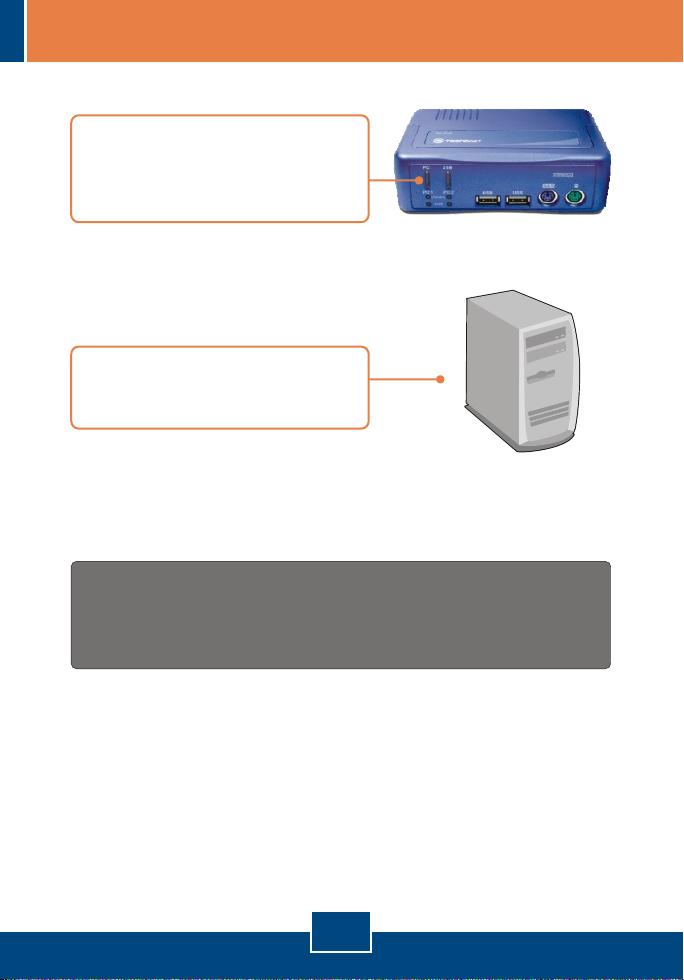
6. Appuyez sur le bouton du panneau
frontal du Switch KVM pour
sélectionner le deuxième
ordinateur.
6. Allumez le deuxième ordinateur et
attendez qu'il soit entièrement
démarré.
L'installation est maintenant complète.
PC 2
Afin d’être sûr de recevoir le meilleur niveau de service clientèle et le meilleur support
possibles, veuillez prendre le temps d’enregistrer votre produit en ligne sur:
www.trendnet.com/register
Nous vous remercions d’avoir choisi Trendnet
3
Français
Enregistrez votre produit
Page 6
3. Fonctionnement
Remarque: Pour passer d'un PC à l'autre, vous pouvez utiliser les boutons du
panneau frontal du Switch KVM, une séquence de touches de raccourci à
l'aide du clavier.
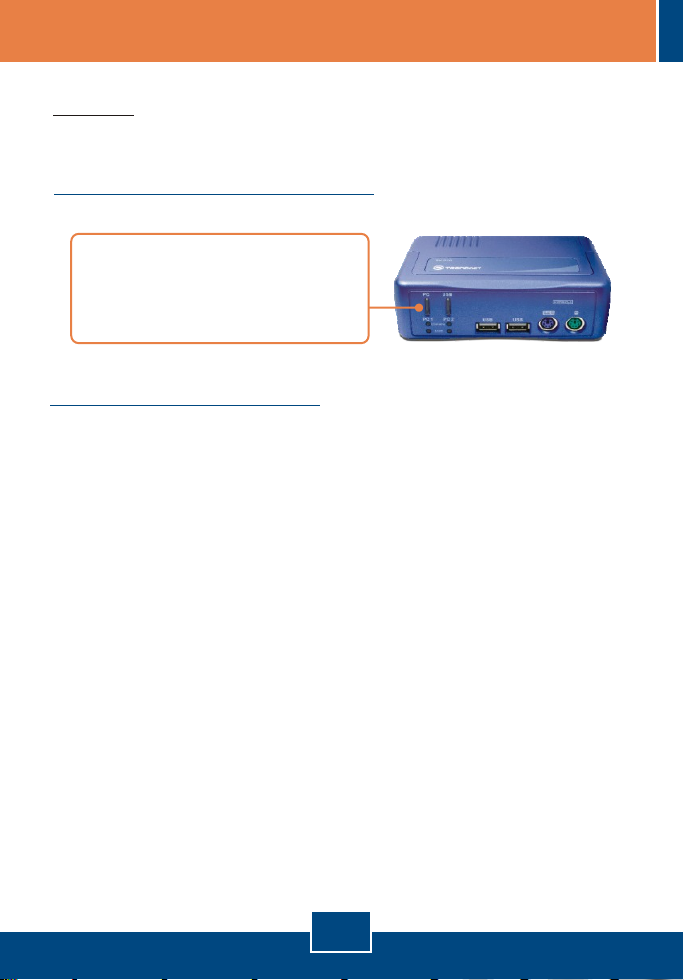
Boutons du panneau frontal
Enfoncer les boutons adéquats du
paneau frontal pour sélectionner
votre PC ou le périphérique USB
désiré
Touches d'accès rapide
Un raccourci clavier consiste en une combinaison de trois touches :
Accès rapide = ScrLk + ScrLk + Touche(s)
Après avoir appuyé sur la touche ScrLk, vous disposez de 2 secondes pour
appuyer à nouveau sur cette dernière. Vous disposez alors de 2 secondes
supplémentaires pour appuyer sur une touche de commande. Si vous
n'enfoncez aucune touche dans les deux secondes, le mode « accès rapide »
est annulé.
4
Français
Page 7
Remarque:
1. Les commandes de raccourci ne fonctionnent qu'avec les touches
numériques de la rangée supérieure
2. Un clavier PS/2 est nécessaire au bon fonctionnement des raccourcis. Si
vous utilisez un clavier USB, les fonctions d’accès rapide sont désactivées.
3. Lors de la liaison au PC, la commutation de port Hub USB et Audio/Mic
s’effectue via la séquence de touches de racourci. Tous les PC, Hub USB et
la commutation Audio/mic sont interconnectés.
4.
Pour les systèmes d'exploitation non PnP (Linux, Windows NT 4.0), veuillez
utiliser les commandes suivantes pour réinitialiser les paramètres de la
souris.
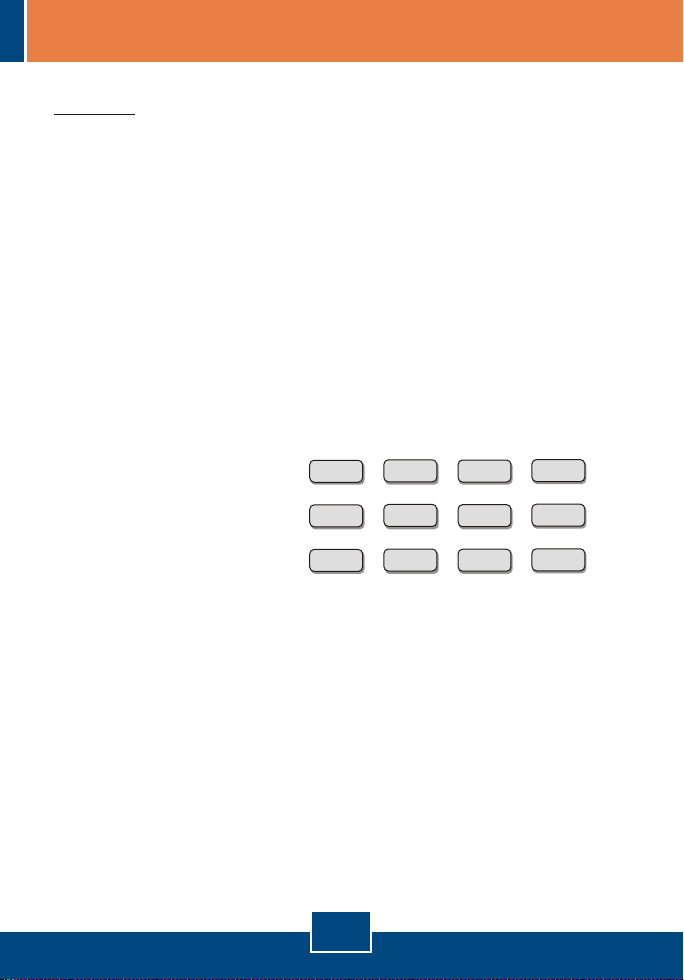
2-key mouse setting:
3-key wheel mouse setting:
5-key wheel mouse setting:
ScrLk
ScrLk
ScrLk
5
Français
ScrLk
+
ScrLk
+
ScrLk
+
M
+
M
+
M
+
1
+
2
+
3
+
Page 8
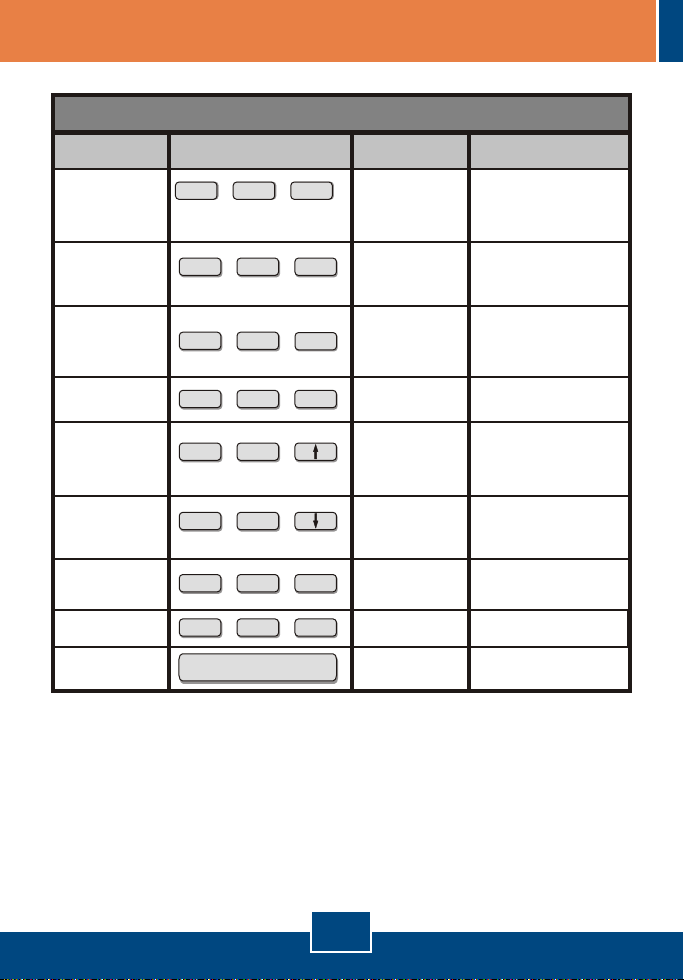
Références rapides pour le TK-210
Commande Combinaison de touches
ScrLk ScrLk X
Uniquement sélection
du canal PC
Sélection du port Hub
Lien entre la
permutation PC et le
port Hub
Suppression du lien
entre la permutation
PC et le port Hub
Canal PC inférieur
suivant
Canal PC supérieur
suivant
Signal sonore On/Off
Recherche
automatique
Arrêt de la recherche
automatique
+ +
(x est une touche numérique située dans la
partie supérieure du clavier)
x = 1 ~ 2 pour le numéro du canal PC
ScrLk ScrLk
+ +
(Fx est une touche de fonction) Fx = F1 ~ F2
ScrLk ScrLk
+ +
ScrLk ScrLk
+ +
ScrLk ScrLk
+ +
ScrLk ScrLk
+ +
ScrLk ScrLk
+ +
ScrLk ScrLk
+ +
Appuyez sur n'importe quelle
touche du clavier
(flèche haut)
(flèche bas)
FX
Z
X
B
S
Panneau frontal
Enfoncez le bouton
PC pour changer de
canal PC
Enfoncez le bouton
USB pour changer
de port Hub USB
- - -
- - -
- - -
- - -
- - -
- - -
Appuyez sur
n'importe quelle touche
Description
Sélectionne le canal PC actif x
(Sélectionnez les ports PC et
Hub USB, si la « liaison »
est activée)
Sélectionne le port hub USB
actif (Sélectionnez les ports PC
et Hub USB, si la « liaison »
est activée)
Permet de relier la permutation
des ports PC et des ports Hub.
(Lorsque cette fonction est
activée, toutes les permutations
PC et/ou port Hub sont reliées)
Supprime le lien entre la
permutation des ports PC et
des ports Hub. (par défaut)
Sélectionne le prochain canal
connecté inférieur.
(Sélectionnez les ports PC et
Hub, si la « liaison » est activée)
Sélectionne le prochain canal
connecté supérieur.
(Sélectionnez les ports PC et
Hub USB, si la « liaison » est
activée)
Permet de connecter/déconnect
er le signal sonore des touches
de raccourci et de la confirmation
de permutation de port
Recherche automatique des
chaînes (durée = 10 secondes)
Arrêter la recherche
automatique.
6
Français
Page 9

Troubleshooting
Where is the power supply? I did not find one in the box.
Q1:
Q2:
Q3:
work.
Q4:
Q5:
Q6:
Mac User: Push Buttons
Linux User: Universal Hot-Key Commands
The TK-210K does not require a power supply. It draws power from your computer's
A1:
USB connection. As long as your KVM switch is connected to the USB or PS/2 port, it will
receive the necessary power to function.
I have the KVM switch connected properly, but my keyboard and mouse don't work.
Please make sure your USB port is working properly by testing it with your other USB
A2:
devices. Once you confirm that the USB port is functional, please reboot your computers,
and try to use the KVM switch again.
I have the KVM switch connected properly, but my microphone and speakers don't
First, make sure your sound card is properly installed on your computers. Second, make
A3:
sure your speakers and microphone work properly when connected directly to your
computer. Third, make sure your speakers and microphone are connected in correct jack on
the KVM switch. Make sure the audio cables are connected to the correct jack on your
computer.
Can I connect and disconnect the USB cables while the computers are turned on?
Yes, you can connect or disconnect the USB cables while the computers are turned on
A4:
because the USB interface is Plug-and-Play and Hot-Pluggable.
Will the KVM switch remember the keyboard settings between computers?
Yes, the KVM switch will remember the keyboard settings when switching between your
A5:
computers. (i.e.: Cap lock, Num key, etc.)
How do I switch from one computer to another with the KVM switch?
PC User: Push Buttons, Hot-Key Commands
A6:
If you still encounter problems or have any questions regarding the TK-210K, please contact
TRENDnet's Technical Support Department.
7
Page 10

Limited Warranty
TRENDnet warrants its products against defects in material and workmanship, under
normal use and service, for the following lengths of time from the date of purchase.
- 2-Year Warranty
TK-210
If a product does not operate as warranted above during the applicable warranty period,
TRENDnet shall, at its option and expense, repair the defective product or deliver to
customer an equivalent product to replace the defective item. All products that are
replaced will become the property of TRENDnet. Replacement products may be new or
reconditioned.
TRENDnet shall not be responsible for any software, firmware, information, or memory
data of customer contained in, stored on, or integrated with any products returned to
TRENDnet pursuant to any warranty.
There are no user serviceable parts inside the product. Do not remove or attempt to
service the product through any unauthorized service center. This warranty is voided if
(i) the product has been modified or repaired by any unauthorized service center, (ii) the
product was subject to accident, abuse, or improper use (iii) the product was subject to
conditions more severe than those specified in the manual.
Warranty service may be obtained by contacting TRENDnet office within the applicable
warranty period for a Return Material Authorization (RMA) number, accompanied by a
copy of the dated proof of the purchase. Products returned to TRENDnet must be preauthorized by TRENDnet with RMA number marked on the outside of the package, and
sent prepaid, insured and packaged appropriately for safe shipment.
8
Page 11

WARRANTIES EXCLUSIVE: IF THE TRENDNET PRODUCT DOES NOT OPERATE
AS WARRANTED ABOVE, THE CUSTOMER’S SOLE REMEDY SHALL BE, AT
TRENDNET’S OPTION, REPAIR OR REPLACEMENT. THE FOREGOING
WARRANTIES AND REMEDIES ARE EXCLUSIVE AND ARE IN LIEU OF ALL OTHER
WARRANTIES, EXPRESSED OR IMPLIED, EITHER IN FACT OR BY OPERATION OF
LAW, STATUTORY OR OTHERWISE, INCLUDING WARRANTIES OF
MERCHANTABILITY AND FITNESS FOR A PARTICULAR PURPOSE. TRENDNET
NEITHER ASSUMES NOR AUTHORIZES ANY OTHER PERSON TO ASSUME FOR IT
ANY OTHER LIABILITY IN CONNECTION WITH THE SALE, INSTALLATION,
MAINTENANCE OR USE OF TRENDNET’S PRODUCTS.
TRENDNET SHALL NOT BE LIABLE UNDER THIS WARRANTY IF ITS TESTING AND
EXAMINATION DISCLOSE THAT THE ALLEGED DEFECT IN THE PRODUCT DOES
NOT EXIST OR WAS CAUSED BY CUSTOMER’S OR ANY THIRD PERSON’S
MISUSE, NEGLECT, IMPROPER INSTALLATION OR TESTING, UNAUTHORIZED
ATTEMPTS TO REPAIR OR MODIFY, OR ANY OTHER CAUSE BEYOND THE
RANGE OF THE INTENDED USE, OR BY ACCIDENT, FIRE, LIGHTNING, OR OTHER
HAZARD.
LIMITATION OF LIABILITY: TO THE FULL EXTENT ALLOWED BY LAW TRENDNET
ALSO EXCLUDES FOR ITSELF AND ITS SUPPLIERS ANY LIABILITY, WHETHER
BASED IN CONTRACT OR TORT (INCLUDING NEGLIGENCE), FOR INCIDENTAL,
CONSEQUENTIAL, INDIRECT, SPECIAL, OR PUNITIVE DAMAGES OF ANY KIND,
OR FOR LOSS OF REVENUE OR PROFITS, LOSS OF BUSINESS, LOSS OF
INFORMATION OR DATE, OR OTHER FINANCIAL LOSS ARISING OUT OF OR IN
CONNECTION WITH THE SALE, INSTALLATION, MAINTENANCE, USE,
PERFORMANCE, FAILURE, OR INTERRUPTION OF THE POSSIBILITY OF SUCH
DAMAGES, AND LIMITS ITS LIABILITY TO REPAIR, REPLACEMENT, OR REFUND
OF THE PURCHASE PRICE PAID, AT TRENDNET’S OPTION. THIS DISCLAIMER OF
LIABILITY FOR DAMAGES WILL NOT BE AFFECTED IF ANY REMEDY PROVIDED
HEREIN SHALL FAIL OF ITS ESSENTIAL PURPOSE.
Governing Law: This Limited Warranty shall be governed by the laws of the state of
California.
Note: AC/DC Power Adapter, Cooling Fan, Power Supply, and Cables carry a 1-Year
Warranty
9
Page 12
Certifications
This equipment has been tested and found to comply with FCC and CE Rules.
Operation is subject to the following two conditions:
(1) This device may not cause harmful interference.
(2) This device must accept any interference received. Including interference that may
cause undesired operation.
Waste electrical and electronic products must not
be disposed of with household waste. Please
recycle where facilities exist. Check with you Local
Authority or Retailer for recycling advice.
NOTE: THE MANUFACTURER IS NOT RESPONSIBLE FOR ANY RADIO OR TV
INTERFERENCE CAUSED BY UNAUTHORIZED MODIFICATIONS TO THIS
EQUIPMENT. SUCH MODIFICATIONS COULD VOID THE USER’S AUTHORITY TO
OPERATE THE EQUIPMENT.
ADVERTENCIA
En todos nuestros equipos se mencionan claramente las caracteristicas del adaptador de
alimentacón necesario para su funcionamiento. El uso de un adaptador distinto al
mencionado puede producir daños fisicos y/o daños al equipo conectado. El adaptador
de alimentación debe operar con voltaje y frecuencia de la energia electrica domiciliaria
existente en el pais o zona de instalación.
Page 13

TRENDnet Technical Support
.
US Canada
Toll Free Telephone: 1(866) 845-3673
24/7 Tech Support
Europe (Germany France Italy Spain Switzerland UK)
Toll Free Telephone: +00800 60 76 76 67
English/Espanol - 24/7
Francais/Deutsch - 11am-8pm, Monday - Friday MET
. . . . .
Worldwide
Telephone: +(31) (0) 20 504 05 35
English/Espanol - 24/7
Francais/Deutsch - 11am-8pm, Monday - Friday MET
Product Warranty Registration
Please take a moment to register your product online.
Go to TRENDnet’s website at http://www.trendnet.com/register
20675 Manhattan Place
Torrance, CA 90501
USA
Copyright ©2007. All Rights Reserved. TRENDnet.
 Loading...