

Page 1

TOPS Installation Instructions
Issue 1
Page 2

Author: Technical Publications
Issue: 1
Date: 18/02/2009
Part Number: TG201036
Copyright: © 2009 Honeywell Technologies Sàrl, ECC Division. All rights reserved.
This manual contains proprietary information that is protected by copyright. No part of this manual may be
reproduced, transcribed, stored in a retrieval system, translated into any language or computer language, or
transmitted in any form whatsoever without the prior consent of the publisher.
Manufactured for and on behalf of the Environmental and Combustion Controls Division of Honeywell
Technologies Sàrl, ZA, La Pièce, 16, 1180 Rolle, Switzerland by its Authorized Representative, Trend Control
Systems Limited.
For information contact:
Trend Control Systems Limited
P.O. Box 34
Horsham
W. Sussex
RH12 2YF
NOTICE: Trend Control Systems Limited makes no representations or warranties of any kind whatsoever with
respect to the contents hereof and specifically disclaims any implied warranties of merchantability or fitness for any
particular purpose. Trend Control Systems Limited shall not be liable for any errors contained herein or for
incidental or consequential damages in connection with the furnishing, performance or use of this material. Trend
Control Systems Limited reserves the right to revise this publication from time to time and make changes in the
content hereof without obligation to notify any person of such revisions or changes.
Windows, Windows XP Professional, Windows XP Home, Windows 2003, and Windows Vista are trademarks of
Microsoft Corporation. BACnet is a trademark of ASHRAE. The Java Runtime Environment (JRE) is a product of
Sun Microsystems Inc.
Please send any comments on this or any other Trend technical publication to [email protected]
Page 3

Table of Contents
TABLE OF CONTENTS
1 ABOUT THESE INSTRUCTIONS................................................................................................................. 5
1.1 Conventions Used in these Instructions .......................................................................................................5
1.2 Contacting Trend.......................................................................................................................................... 5
2 ABOUT TOPS................................................................................................................................................... 7
3 INSTALLATION.............................................................................................................................................. 9
3.1 System Requirements................................................................................................................................... 9
3.2 Install TOPS................................................................................................................................................. 9
3.3 License TOPS ............................................................................................................................................10
3.3.1 Obtain a TOPS Licence ..................................................................................................................10
3.3.2 Install the TOPS Licence ................................................................................................................ 12
3.4 Install the Java Runtime Environment .......................................................................................................13
3.5 Specify the Network Adapter used for the Ethernet Network.................................................................... 14
3.6 Configure TOPS to Bind............................................................................................................................ 15
3.7 Change the TOPS Password.......................................................................................................................16
INDEX........................................................................................................................................................................ 17
TOPS Installation Instructions TG201036 Issue 1, 18/02/2009
3
Page 4

Table of Contents
This page is intentionally left blank.
4
TOPS Installation Instructions TG201036 Issue 1, 18/02/2009
Page 5

About These Instructions
1 ABOUT THESE INSTRUCTIONS
These instructions apply to the Trend Open Protocol Server (TOPS) version 1.1. They provide information about
installing, and licensing TOPS.
About TOPS
This section describes TOPS.
Installation
This section describes how TOPS should be installed, and licensed.
1.1 Conventions Used in these Instructions
There are numerous items and instructions in this manual, the conventions below are designed to make it quick and
easy to find and understand the information.
Menu commands are in bold type.
Buttons and options that you need to select are in bold type.
The names of text boxes and dialogue boxes are in bold type.
Key combinations that you should press appear in normal type. If joined with a plus sign (+), press and
hold the first key while you press the remaining one(s). For example CTRL+P indicates holding down the
control key while pressing P.
Text you should enter is in Italic type.
1.2 Contacting Trend
Head Office
Trend Control Systems Ltd
PO Box 34
Horsham
Sussex
RH12 2YF
England
Tel: +44 (0) 1403 211888
Fax: +44 (0) 1403 241608
Details of regional offices can be found on our Web site.
Internet
Our company web site (www.trend-controls.com) provides information about our products and us, or our support
web site (http://pnet.trend-controls.com).
Technical Support
Our support department provides technical support during normal office hours. Before contacting them ensure that
you have your Technical Support PIN number available, without this we will be unable to provide you with any
support.
Trend Control Systems Ltd.
Technical Support Department
PO Box 34
Horsham
Sussex
RH12 2YF
England
Tel: +44 (0) 1403 226600
Email: [email protected]
Fax: +44 (0) 1403 226310
Technical Publications
Please send any comments on this or any other Trend technical publication to [email protected].
TOPS Installation Instructions TG201036 Issue 1, 18/02/2009
5
Page 6

About These Instructions
This page is intentionally left blank.
6
TOPS Installation Instructions TG201036 Issue 1, 18/02/2009
Page 7

About TOPS
2 ABOUT TOPS
The Trend Open Protocol Server (TOPS) is a Windows based software application that runs on a PC to provide
communication with third party devices (e.g. BACnet devices).
TOPS Installation Instructions TG201036 Issue 1, 18/02/2009
7
Page 8

About TOPS
This page is intentionally left blank.
8
TOPS Installation Instructions TG201036 Issue 1, 18/02/2009
Page 9

Installation
3 INSTALLATION
This section describes how TOPS should be installed to ensure that it operates correctly.
To install TOPS follow the procedure below:
1. Check the PC meet the system requirements see the 'System Requirements' section o f this manual for more
details.
2. Install TOPS as described in the 'Install TOPS' section of this manual.
3. License TOPS as described in the 'License TOPS' section of this manual.
4. Install the JAVA Runtime Environment on the PC that is to be used to configure TOPS as described in the
Install the 'JAVA Runtime Environment' section of this manual.
5. If required configure TOPS to bind as described in the 'Configure TOPS to Bind' section of this manual.
6. If required change the TOPS password as described in the 'Change the TOPS Password' section of this
manual.
7. Configure the TOPS drivers as described in the appropriate TOPS driver configuration manual.
3.1 System Requirements
Before installing TOPS you should ensure that the PC meets the system requirements.
TOPS System Requirements
The specifications below are those recommended to run TOPS. They refer to a standard PC with mouse, keyboard,
hard drive, floppy disk drive, CD drive, monitor, and sound capabilities (optional).
Hardware
1
Processor
2 GHz.
RAM 1 GB
Disk space 40 GB hard disk or larger
Graphics card 128 MB, 1280x1024 resolution.
Network card Ethernet Network Card
Software
2
Operating system Windows XP Professional SP3 with Internet Explorer version 6 SP1 or greater3
1
If TOPS and 963 are to be run on a single PC a dual core processor is recommended.
2
TOPS will only operate on 32 bit operating systems.
3
TOPS will also operate on Windows Vista™ Business4 SP1 and Windows Server 20034 SP2 Standard, and
Enterprise with Internet Explorer version 6 SP1.
3.2 Install TOPS
The installation of the TOPS software is performed by a step-by-step installation program. During the installation
procedure you will be required to enter the serial number for the software. This located on the back of the CD case;
you should keep this number in a safe place.
Only one instance of TOPS can be installed on a single PC.
Note that if the TOPS BACnet driver is to be used it is recommended that TOPS is not used on a PC using DHCP,
unless the DHCP server has been configured to always return the same address for the TOPS PC. However this will
still fail in the event of the DHCP server being lost from the system and the PC attempting to renew its address..
To install TOPS:
1. Log on to the PC as someone with Administrator rights.
2. Insert the CD into the CD-ROM drive, and wait for the installation screen to appear.
Note that if autorun is disabled run Setup.exe from the CD.
3. Follow the instructions on the screen.
TOPS Installation Instructions TG201036 Issue 1, 18/02/2009
9
Page 10
Installation
3.3 License TOPS
Before TOPS can be used, it must be licensed. The licence will allow you to run TOPS on a single PC.
TOPS will not run until it has been licensed.
To license TOPS:
1. Obtain a license as described in the ‘Obtain a TOPS Licence’ section of this manual.
2. Install the licence as described in the ‘Install the TOPS Licence’ section of this manual.
3.3.1 Obtain a TOPS Licence
To
obtain a license:
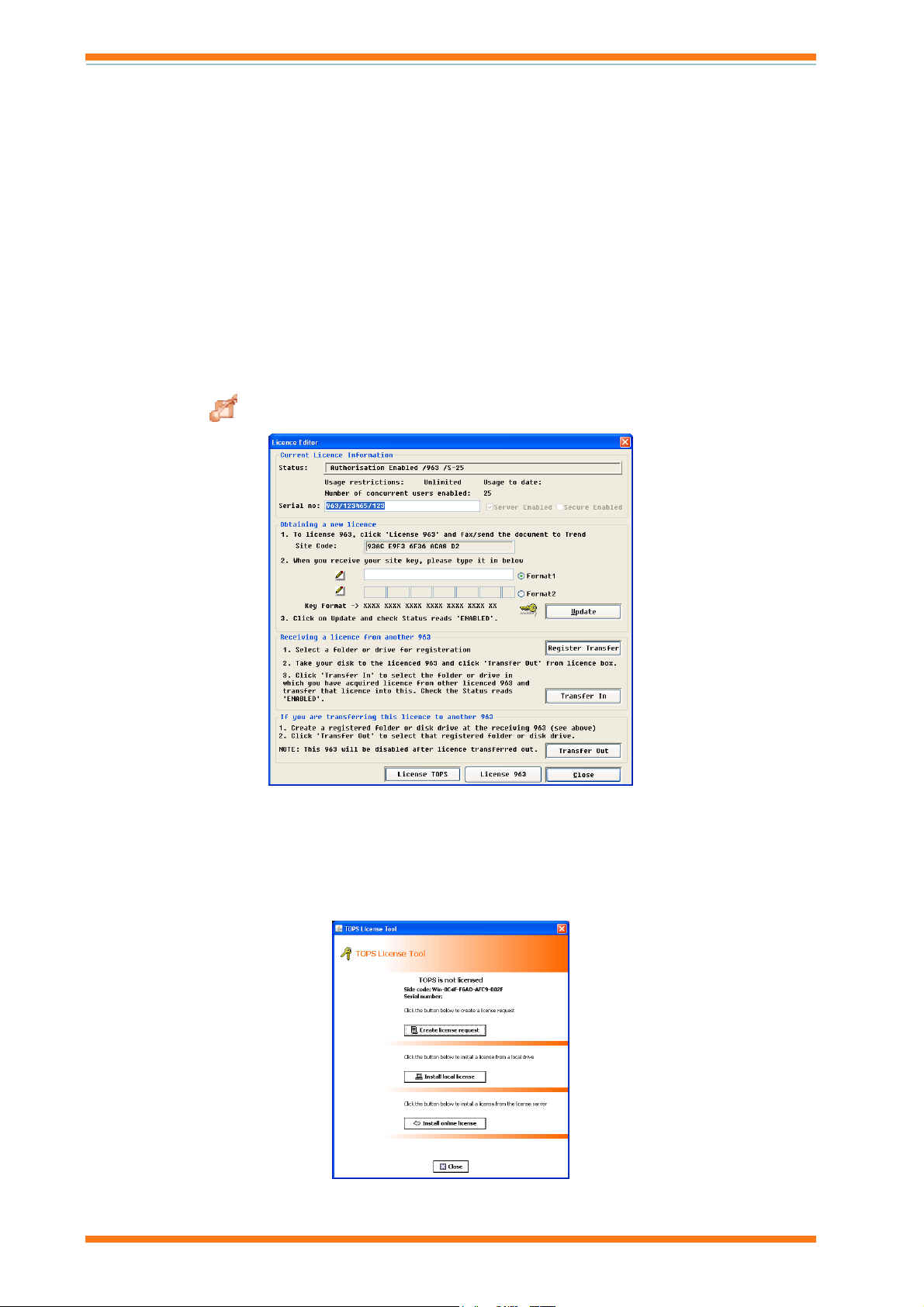
1. Display the TOPS License Tool dialogue box. Access to this dialogue box depends on whether TOPS is
installed on the same PC as 963, or on a different PC.
If TOPS is installed on the same PC as 963
Run 963.
Log in as someone with a PIN level of 99.
Press F1 to display the Information Centre.
Click
. The Licence Editor dialogue box is displayed.
Click License TOPS.
If TOPS is installed on a different PC
On the Start menu point to Programs point to Trend Control Systems and then point to TOPS and
License TOPS.
10
The TOPS License Tool dialogue box is displayed.
Note that it may take some time for the TOPS Licence Tool to be displayed.
TOPS Installation Instructions TG201036 Issue 1, 18/02/2009
Page 11

Installation
2. Click Create License request. The Create license request dialogue box is displayed.
3. In the Contact Name box enter your name.
4. In the Company Name box enter your company name.
5. In the Telephone number box enter your telephone number.
6. In the Fax number box enter your fax number. This is the fax number to which the unlock code will be
faxed.
7. In the Email box enter email address you want the TOPS licence file sent to.
8. In the Site Name box enter the site on which TOPS is to be installed.
9. In the Site Address box enter the address of the site.
10. In the Serial no box enter the serial number. The serial number can be found on the back of the CD case.
11. Click OK. Notepad will now be run with the file 'license_request.txt'.
12. On the File menu click Print in notepad to print out this file.
13. Click Close to close the Create license request dialogue box.
14. Click Close to close the TOPS License Tool dialogue box.
15. Email the ‘license_request.txt’ file (located in c:\trend control systems\TOPS\niagara\licenses\requests) to
[email protected], fax the printout to our Customer Services Department on +44 (0) 1403 226310
or phone customer services on +44 (0)1403 226600.
The customer services department will process your request, and email the TOPS licence file to the
specified email address.
TOPS Installation Instructions TG201036 Issue 1, 18/02/2009
11
Page 12
Installation
3.3.2 Install the TOPS Licence
Once your license request has been processed by customer services you will receive an email with the TOPS license
file attached.
To install TOPS licence:
1. Obtain a TOPS Licence as described in the 'Obtain TOPS Licence' section of this manual.
2. Detach the TOPS license file to an empty directory.
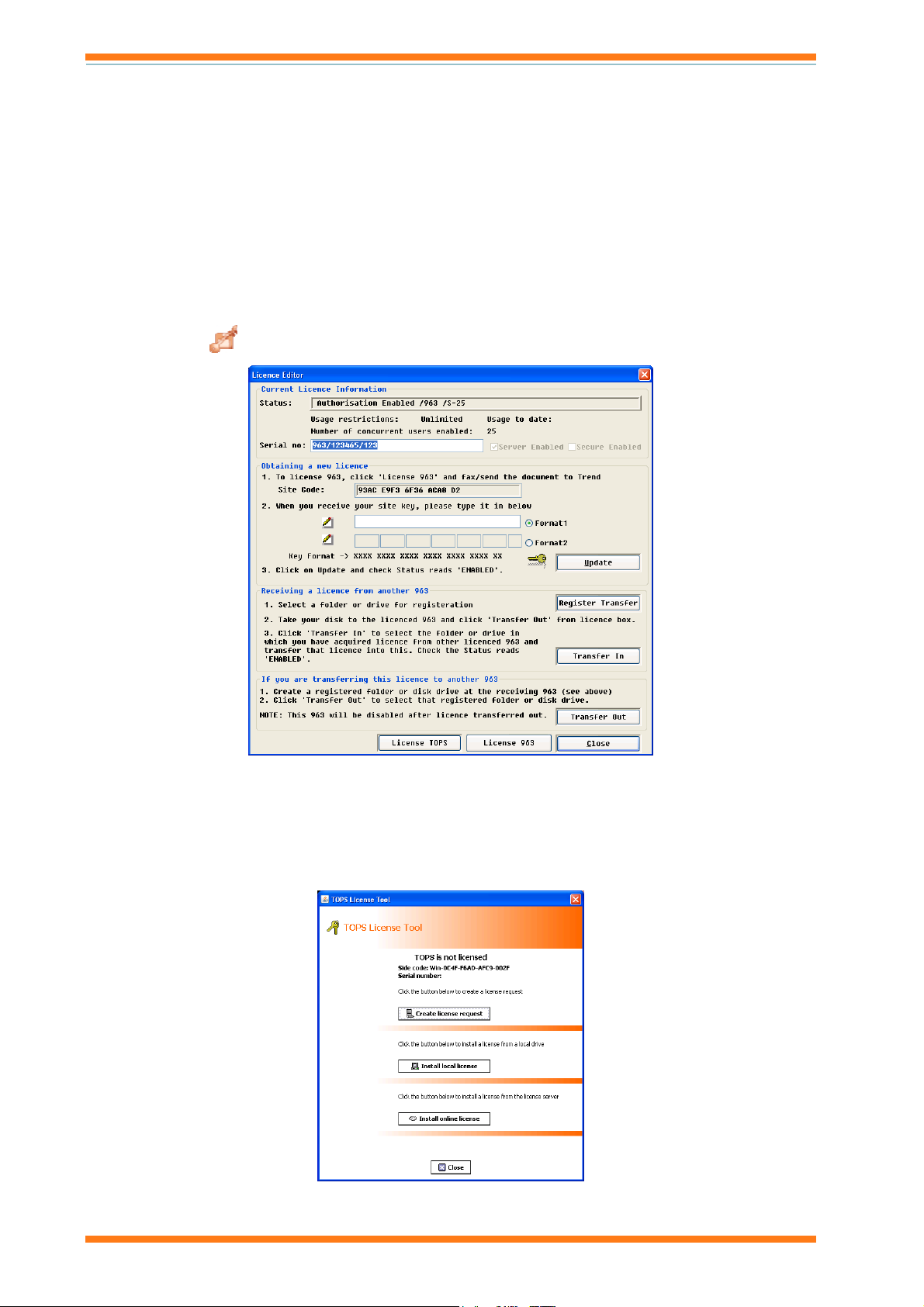
3. Display the TOPS License Tool dialogue box. Access to this dialogue box depends on whether TOPS is
installed on the same PC as 963, or on a different PC.
If TOPS is installed on the same PC as 963
Run 963.
Log in as someone with a PIN level of 99.
Press F1 to display the Information Centre.
Click
. The Licence Editor dialogue box is displayed.
Click License TOPS.
If TOPS is installed on a different PC
On the Start menu point to Programs point to Trend Control Systems and then point to TOPS and
click License TOPS.
The TOPS License Tool dialogue box is displayed.
Note that it may take some time for the TOPS Licence Tool to be displayed.
12
TOPS Installation Instructions TG201036 Issue 1, 18/02/2009
Page 13
4. Install the TOPS licence.
To install a local License
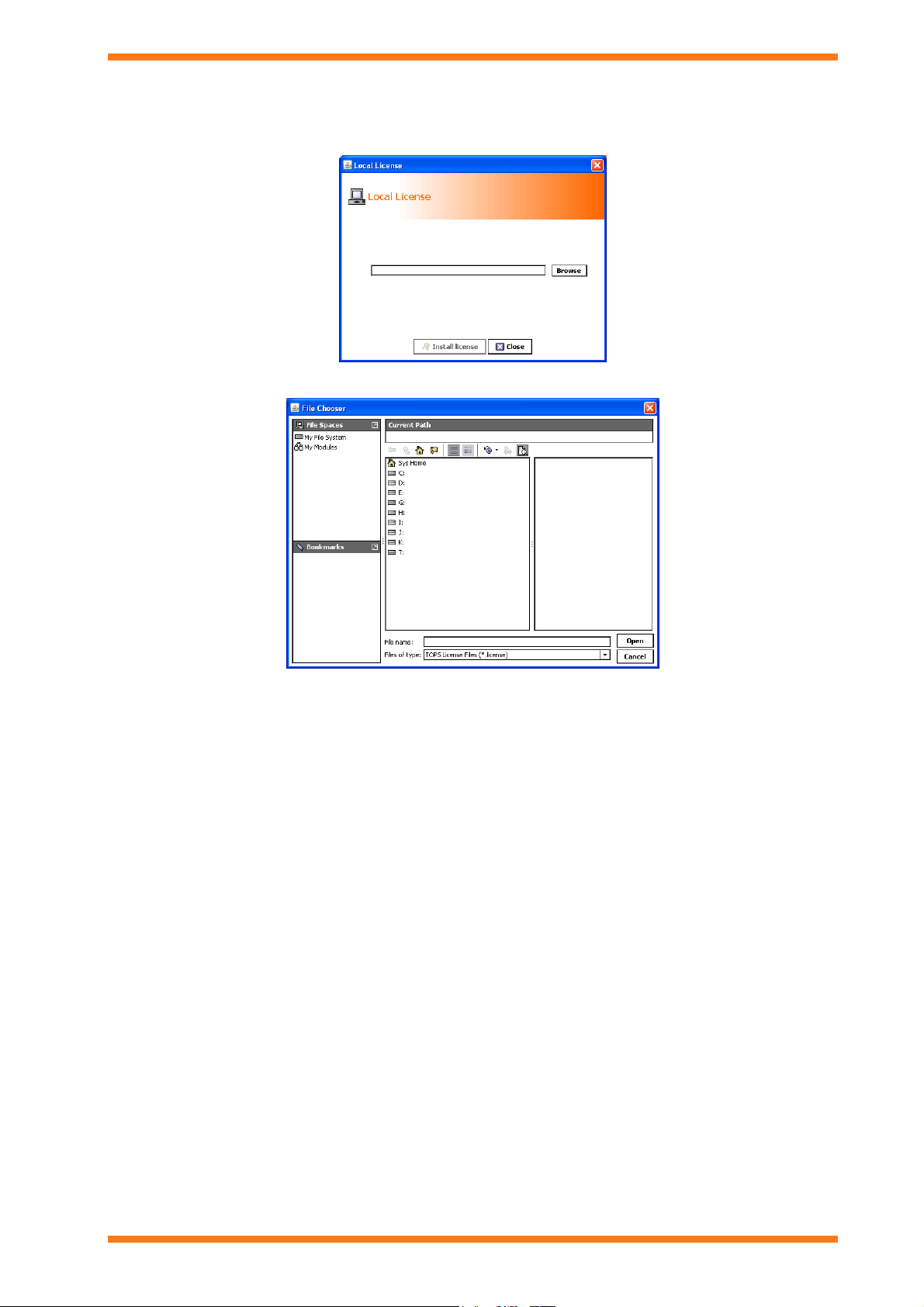
Click Install local license. The Local License dialogue box is displayed.
Click Browse. The File Chooser dialogue box is displayed.
Installation
Browse to the directory to which the TOPS license file was detached.
Click the TOPS license file.
Click Open.
To install the licence from the license server (requires internet connection)
Click Install online license. This causes the licence to automatically downloaded and installed. A
dialogue box is displayed indicating the status.
Once the license has been installed click Close.
If the licence is upgraded at any time, then it can be downloaded again using the same mechanism.
5. Click Close.
3.4 Install the Java Runtime Environment
In order to configure the TOPS driver the SUN Java runtime environment J2SE 6.0 or greater is required on the PC
being used to carry out the configuration. During the standard TOPS installation if it is not already installed the user
if given the option to install it. Therefore if configuration is carried out using the PC running TOPS the Sun Java
runtime environment will be installed. However if another PC is used then the SUN Java runtime environment J2SE
6.0 or greater must be installed on that PC. This installation is included on the TOPS CD in the 'JAVA Installation'
directory and can be installed by navigating to the directory, and running 'jre-6u10-windows-i586-p.exe'.
TOPS Installation Instructions TG201036 Issue 1, 18/02/2009
13
Page 14

Installation
3.5 Specify the Network Adapter used for the Ethernet Network
If TOPS is to bind to the Trend IQ network it will attempt to connect to the Ethernet network using a suitable
network adaptor on the PC on which it is installed. However if more than one network adapter is installed on the PC
it is necessary to specify which network adaptor is to be used.
To specify the network adapter used for the Ethernet Network:
1. On the PC on which TOPS is installed on the Start menu point to Programs, point to Trend Control
Systems, then point to TOPS, and click Start TOPS.
2. Run 963 and log in, if the TOPS site has not been added to the 963's Device Viewer add it as described in
the 'Add a TOPS Site' section of the 963 Engineering Manual (TE200637). Click
and expand the TOPS site, right click
and click TOPS Configuration.
Or
Run the web browser, and enter the IP address or host name of the PC running TOPS followed by ':81'. E.g.
http://171.129.4.9:81. To connect to TOPS on your local PC enter 'http://localhost:81'.
The TOPS Login screen is displayed.
,
3. In the Username box enter 'admin' which is the username required to access TOPS.
4. In the Password box enter the password (default is no password).
5. Click Login. The TOPS Home screen is displayed.
Note that this may take some time.
6. In the TOPS Network pane click to next to 'TopsNetwork', and then click to next to 'TOPS Local Lan
(1)'.
7. Double click
TOPS Host (1). The Device Setup for TOPS Host (1) screen is displayed.
8. In the Network Adapter box select the network adapter TOPS is to use to connect to the Ethernet network.
9. Click Save.
14
TOPS Installation Instructions TG201036 Issue 1, 18/02/2009
Page 15

Installation
3.6 Configure TOPS to Bind
TOPS can operate in one of two ways:
Standalone
Bound to an existing Trend IQ network
The default behaviour for a newly installed TOPS is to operate in standalone mode. In this case it will only
communicate with a Trend device that connect s to its vCNC. When set to bind it will attempt to bind to any existing
Trend IQ network on running on the Ethernet network to which the PC is connected using the standard UDP port for
Trend IQ networks (default port = 57612).
If TOPS is to bind to an existing Trend IQ system network it is necessary disable the standalone mode, specify its
Lan number, and network address on the system. If the network with which it is to bind uses a non standard UDP
port it is also necessary to change the UDP port to match the one being used by the IQ network.
Note that when TOPS is bound to an existing Trend IQ System its own Lan number and network address must be
unique on the entire system, and the Lan number used for TOPS Lans must not be the same as Lans on the site.
To configure TOPS to bind:
1. Specify the network adapter used for the Ethernet network as described in the 'Specify the Network
Adapter used for the Ethernet Network' section of this manual.
2. On the PC on which TOPS is installed on the Start menu point to Programs, point to Trend Control
Systems, then point to TOPS, and click Start TOPS.
3. Run 963 and log in, if the TOPS site has not been added to the 963's Device Viewer add it as described in
the 'Add a TOPS Site' section of the 963 Engineering Manual (TE200637). Click
and expand the TOPS site, right click
and click TOPS Configuration.
Or
Run the web browser, and enter the IP address or host name of the PC running TOPS followed by ':81'. E.g.
http://171.129.4.9:81. To connect to TOPS on your local PC enter 'http://localhost:81'.
The TOPS Login screen is displayed.
,
3. In the Username box enter 'admin' which is the username required to access TOPS.
4. In the Password box enter the password (default is no password).
5. Click Login. The TOPS Home screen is displayed.
Note that this may take some time.
TOPS Installation Instructions TG201036 Issue 1, 18/02/2009
15
Page 16
Installation
6. In the TOPS Network pane click to next to 'TopsNetwork', and then click to next to 'TOPS Local Lan
(1)'.
7. Double click
8. Click Advanced setup.
9. Click Modules.
10. Click Address Page. A new browser window is opened.
11. In the Local Address box enter the network address of TOPS (1, 4 to 119 excluding 10).
12. In the Local LAN box enter the Lan number (1, 4 to 119 excluding 10).
TOPS Host (1). The Device Setup for TOPS Host (1) screen is displayed.
13. Click
.
14. Close the browser window.
15. Click Networks.
16. Click n1. A new browser window is opened.
17. In the Standalone box select Disable.
18. In the UDP port box change the UDP port number to match the UDP port used by the IQ network.
(normally be 57612).
19. Click
.
20. Close the browser window.
21. On the PC on which TOPS is installed on the Start menu point to Programs, point to Trend Control
Systems, then point to TOPS, and click Stop TOPS to close TOPS.
22. On the PC on which TOPS is installed on the Start menu point to Programs, point to Trend Control
Systems, then point to TOPS, and click Start TOPS to restart TOPS.
3.7 Change the TOPS Password
If required the password required to access TOPS can be changed.
To change the TOPS password:
1. Connect to TOPS as described in the 'Connect to TOPS' section of this manual.
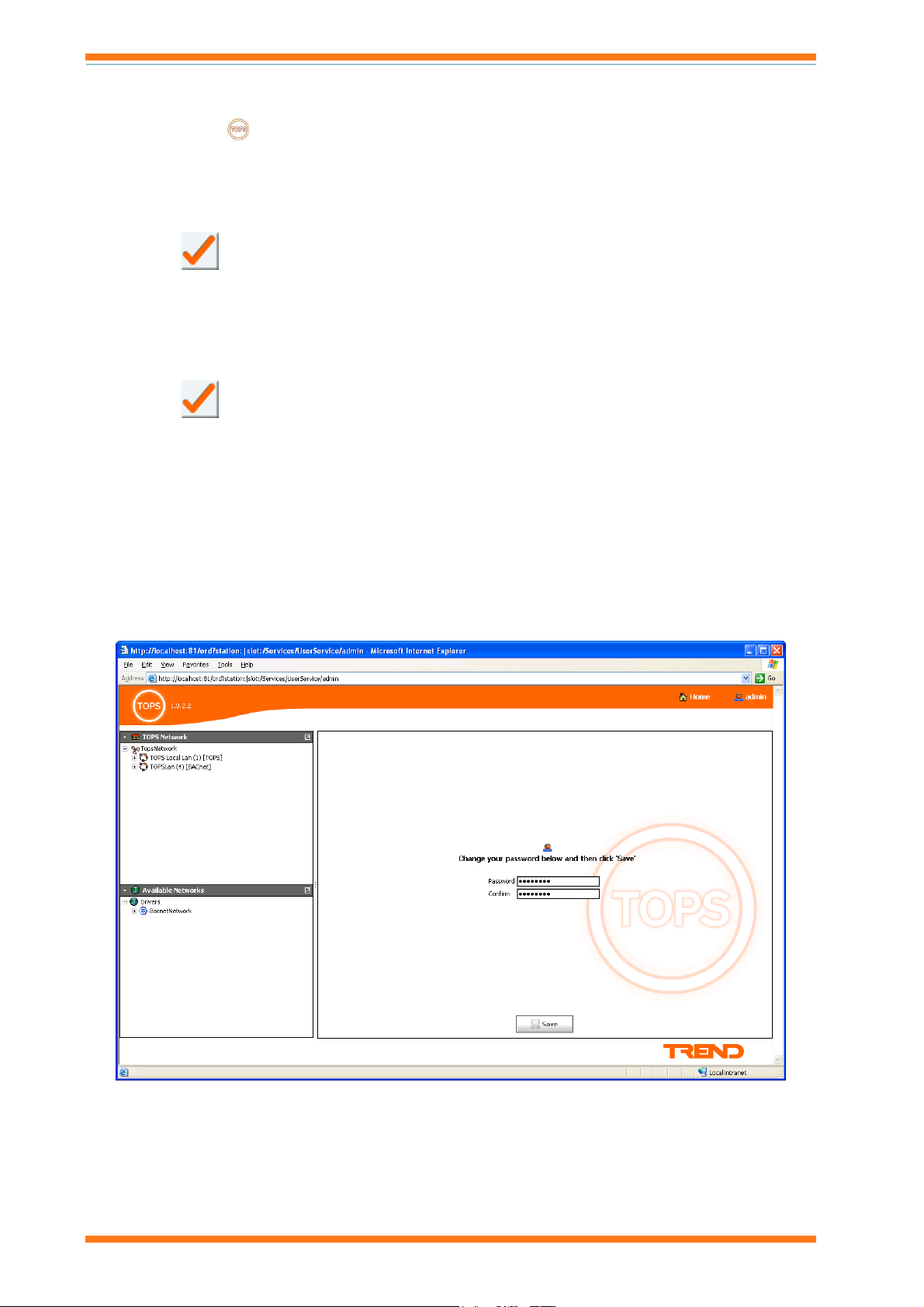
2. Click Admin. The Enter new password screen is displayed.
3. In the Password box enter the new required password.
4. In the Confirm box re enter the password.
5. Click Save.
Important: A record of the password must be kept in a safe place (e.g. a firesafe). There is no password
recovery mechanism. Recovery involves deleting any existing TOPS configuration and re-configuring from
scratch.
16
TOPS Installation Instructions TG201036 Issue 1, 18/02/2009
Page 17

INDEX
Binding
Enable .......................................................................................15
Configure TOPS to Bind ............................................................... 15
Edit
TOPS Password ........................................................................16
Install
JAVA Runtime Environment ...................................................13
Index
JAVA Runtime Environment ........................................................13
Licence
TOPS................................................................................... 10, 12
TOPS
Licence................................................................................ 10, 12
Password ................................................................................... 16
TOPS Installation Instructions TG201036 Issue 1, 18/02/2009
17
Page 18

Index
18
TOPS Installation Instructions TG201036 Issue 1, 18/02/2009
Page 19

Index
TOPS Installation Instructions TG201036 Issue 1, 18/02/2009
19
Page 20

Trend Control Systems Limited
P.O. Box 34, Horsham, West Sussex, RH12 2YF, UK. Tel:+44 (0)1403 211888 Fax:+44 (0)1403 241608 www.trend-controls.com
Trend Control Systems USA
6670 185th Avenue NE, Redmond, Washington 98052, USA. Tel: (425)897-3900, Fax: (425)869-8445 www.trend-controls.com
 Loading...