

Page 1
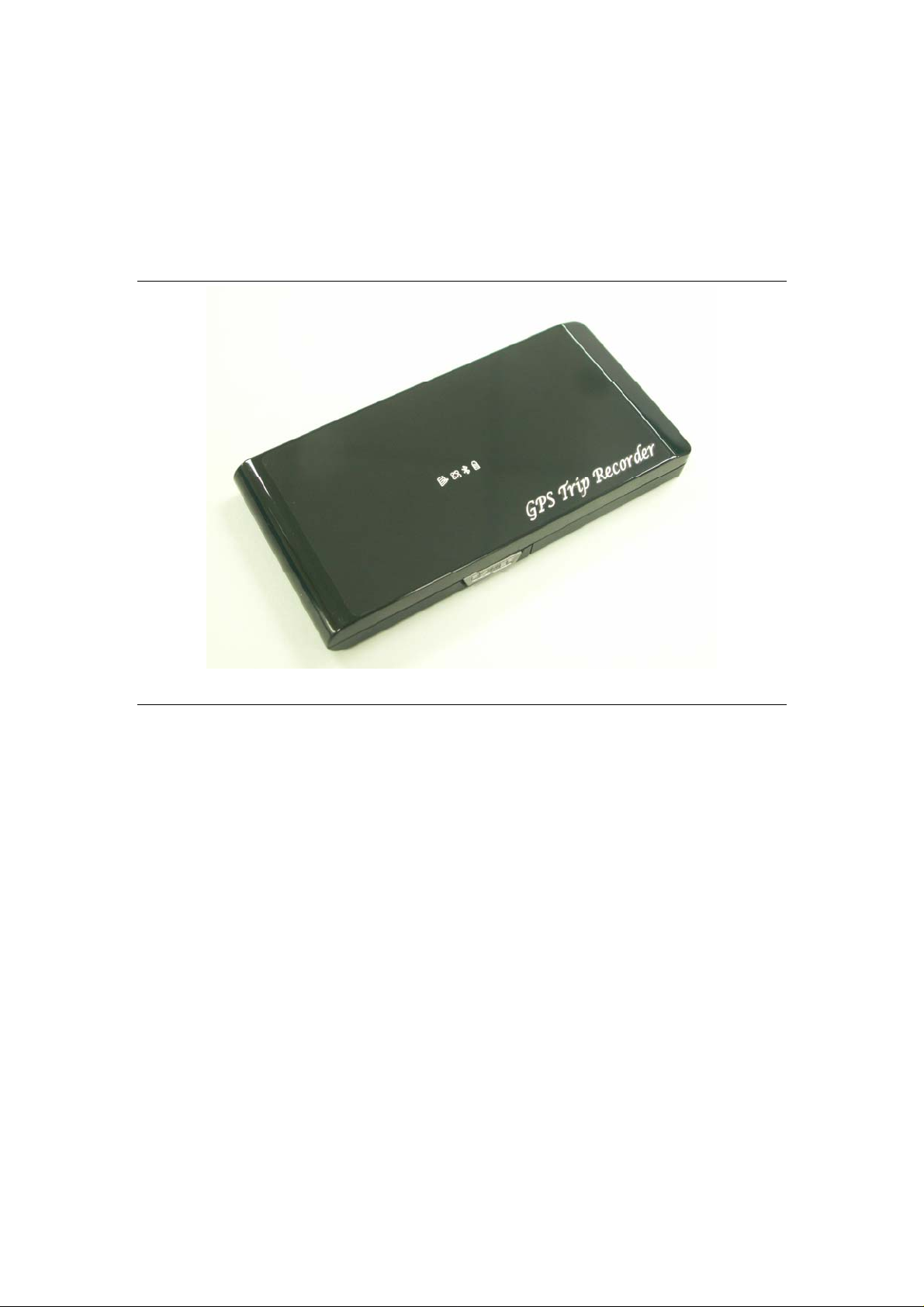
iBT-GPS Bluetooth GPS Data Logger
User’s Manual
Published on 31-Jan-2008
8029602201B
Page 2

Table of Contents
Chapter 1 Before you begin.........................................................................................4
1.1 Note and Warning..........................................................................................4
1.2 Introduction....................................................................................................5
1.3 Features...........................................................................................................5
1.4 Applications....................................................................................................6
1.5 Appearance.....................................................................................................7
1.6 Power & Log Button......................................................................................8
1.7 LED Display ...................................................................................................9
Chapter 2 Getting Started.........................................................................................10
2.1 Checking the package content ....................................................................10
2.2 Getting Started.............................................................................................11
Step 1 Charging Your Battery...................................................................11
Step 2 Turning on the power / perform LOG..........................................12
Step 3 Connecting your handheld device with iBT-GPS........................13
Step 4 Loading your GPS mapping or routing software........................16
Step 5 Starting the application..................................................................16
2.3 Helpful Tips..................................................................................................17
Chapter 3 Using Photo Tagger software..................................................................18
3.1 Execute and install software utility Photo Tagger ....................................18
3.2 Google Earth.................................................................................................18
3.3 Software Utility --- iBT-GPS Photo Tagger ...............................................19
Appendix.....................................................................................................................20
Appendix A. Specifications................................................................................20
Appendix B. locr GPS Photo.............................................................................23
2
Page 3

Appendix C. How to install the hook and cord set..........................................24
Appendix D. Anti Slip Pad................................................................................25
Appendix E. Certification .................................................................................26
Appendix F. Warranty Information.................................................................28
3
Page 4

Chapter 1 Befor e you begin
1.1 Note and Warning
iBT-GPS uses Lithium battery. If iBT-GPS is used in temperature
lower than -10℃ or higher than 60℃, its battery charging capability
will decrease. Please leave the iBT-GPS far from heat or high
temperature environment. In addition, do not expose your iBT-GPS in
temperature higher than 140℉/60℃. If you do not follow these rules,
the battery inside iBT-GPS may overheat, explode or burn itself, and
this will lead to very serious damage. The Lithium battery inside the
iBT-GPS should be recycled.
- While in the hospital, turning off the iBT-GPS is recommended.
Wireless GPS receiver may interfere with medical equipments which
use radio frequency.
- For a long period not using iBT-GPS, take out the battery and store it
in dry/cool places.
- For safety, keep the iBT-GPS and all accessories out of children’s
reach.
- The manufacturer assumes no responsibility for any damages and loss
resulting from the use of this manual, or from deletion of data as a
result of malfunction, dead battery, or from misuse of the product in
any way.
- Use only the supplied and approved accessories. Unauthorized
accessories, modifications or attachments could damage the iBT-GPS,
and may violate regulations governing radio devices.
4
Page 5

- Use a dry, clean soft cloth to clean the unit. Do not use harsh cleaning
solvents, chemicals, or strong detergents.
- Do not attempt to open the iBT-GPS yourself. Unauthorized hacking
may damage the unit, and void your warranty.
1.2 Introduction
This iBT-GPS logger features an all-in-one, cost-effective portable GPS
logging solution. With its on-board memory, it allows you to log your
routes by ways of time/ distance/ speed. Through user friendly software
utility, it shows your track on Google Earth. This data logger is small
and robust, ideal to carry everywhere for applications such as route
tracking, mountain climbing or fleet management.
1.3 Features
MTK GPS chipset 51 channels.
1.
18 hrs operation time.
2.
Embedded with 32Mb memory for saving up to 150,000 way points.
3.
Dual modes for both route recording and navigation.
4.
Smart power saving function for 18 hours operating continuously.
5.
Smart auto sleep & wake up mode support 180hrs on standby.
6.
Tracks can be shown on Google Earth.
7.
WAAS and EGNOS supported for better accuracy.
8.
Support NMEA-0183 GGA, GSA, GSV, RMC, VTG, GLL.
9.
Fully compliant with Bluetooth V1.2
10.
5
Page 6

Support NMEA compliant mapping softwares like TomTom,
11.
Route66…etc.
3 recording methods: by time, by speed, or by distance.
12.
1.4 Applications
- Route recording
- Business trip expense management
- Fleet management
- Driving behavior monitoring
Saving of Point of Interest
-
6
Page 7
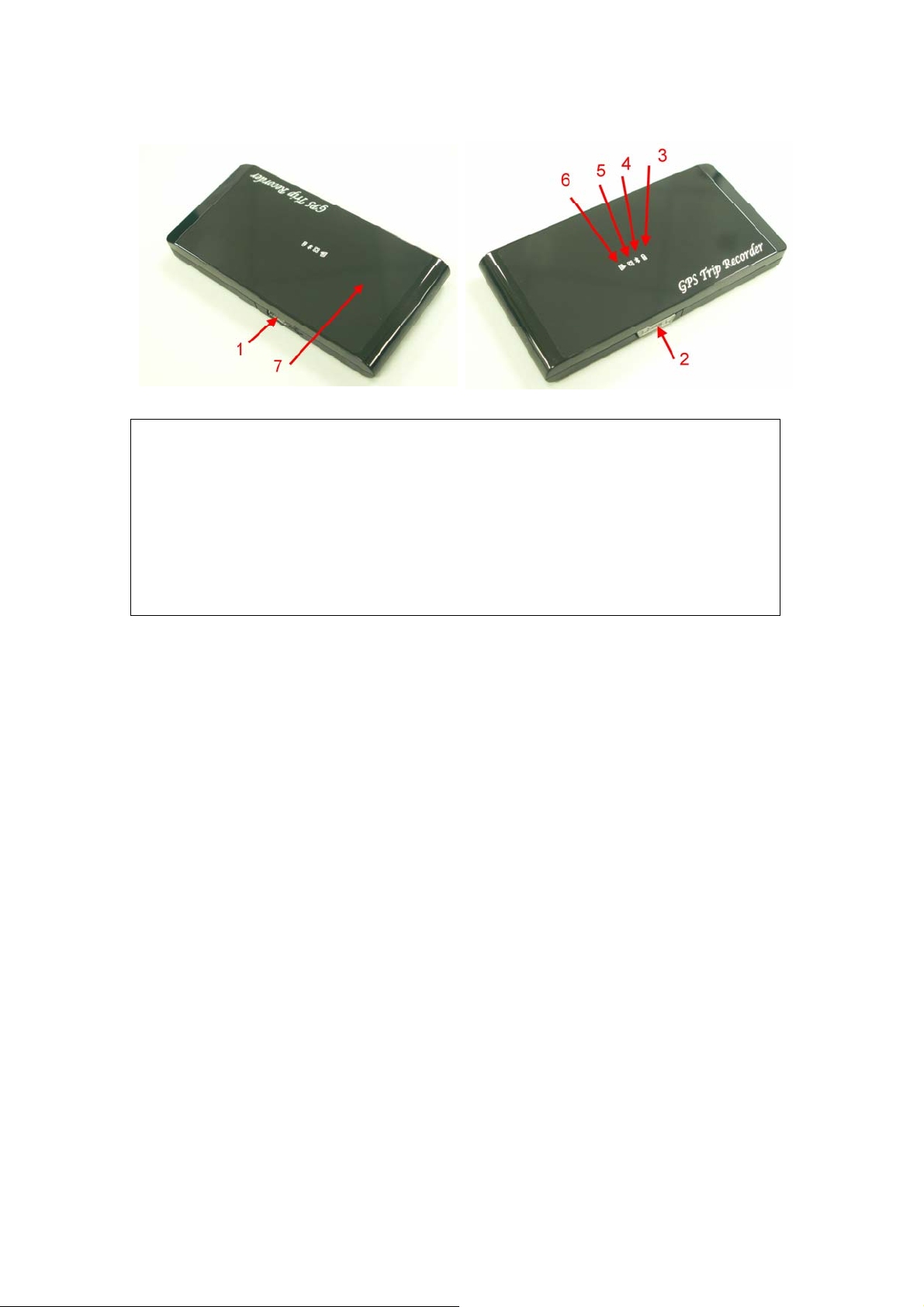
1.5 Appearance
1. Power jack (mini USB type)
2. Power & Log Button
3. Battery status LED (red/green)
4. Bluetooth status LED (blue)
5. GPS status LED (orange)
6. Log status LED (blue)
7. Internal antenna
7
Page 8

1.6 Power & Log Button
Power Switch
Power
On
LOG
Enable
To turn on the power, please click and hold for 3 second, then
you can see the blue LED and orange LED turning on.
To enable LOG mode, please click the Log Button, then you can
see the blue Log status LED blinking. Enable log mode,
navigation function is supported as well.
Log
Disable
Power
Off
To disable LOG mode, please click the Log Button again, then
you won’t see the blue Log status LED blinking.
To turn off the power, please click and hold for 3 seconds, then
you can see the blue LED and red LED blinking 3 times.
Difference between LOG disable and LOG enable:
LOG
disable
LOG
enable
You can use the iBT-GPS as a Bluetooth GPS receiver to
navigate when you have a Bluetooth enabled PDA/
Smartphone in your car. But the logging is off.
In this mode iBT-GPS works as a logger, navigation function is
supported as well.
8
Page 9

1.7 LED Display
The Bluetooth GPS data logger has 4 LED lights, one is Bluetooth Status
nd
LED, the 2
th
the 4
is is LOG Status LED/ Memory used LED:
one is Battery Status LED, the 3rd one is GPS Status LED,
Category SYMBOL COLOR STATUS Function
Bluetooth Status
LED
Battery Status
LED
GPS Status LED
LOG Status LED
Blue
Always
on:
Slowly
Bluetooth on, but not connected
to any Bluetooth devices yet
Sleeping mode
blinking:
Quickly
blinking:
Bluetooth is connected and
ready for data transmission
Red Blinking: The battery is too low
Green Light On: The battery is charging
Green Blinking: The battery is fully charged
Orange
Blue
Always
on:
Quickly
Blinking:
Slowly
Acquiring satellites, GPS
position not fixed
GPS position is fixed,
Navigation
LOG enable
Blinking:
Quickly
The memory space is too low
Blinking:
(20% left now)
Solid The memory is full and stop
9
Page 10

Chapter 2 Getting Started
2.1 Checking the package content
Congratulations on your purchase of the iBT-GPS. Before you start using
iBT-GPS, please make sure if your package includes the following items.
If any item is damaged or missing, please contact your dealer at once.
- Bluetooth GPS Trip Recorder - iBT-GPS x 1
- USB to mini-USB cable x 1
- Traveler Power Adapter x 1 (optional)
- DC cigarette lighter adapter x 1
- Lithium rechargeable battery x 1
- CD Tool x 1 (user manual, software utility)
- User Manual x 1
- PU anti-slip pad x 1
- Hook and Cord Set x 1
*Unit package contents may vary depending on countries without prior
notice.
*NOTE: The Cigarette Adapter can only be used to charge iBT-GPS.
Please don’t make use of it with devices other than iBT-GPS.
10
Page 11

2.2 Getting Started
Please follow the procedure step by step.
Step 1 Charging Your Battery
To charge your iBT-GPS data logger, you have to plug your USB cable
into the power source. Charging time is about 3~4 hours and you can
charge from PC/ Notebook’s USB HOST or from cigarette-lighter in car.
For the 1st time you use the iBT-GPS, please charge battery until it is full
(the green LED blinks). The LED that represents the battery is the
icon (shown in below).
- If the LED is red, that means battery power is critically low. Charge immediately.
- If the LED is green, that means battery is charging now.
- If the green LED is blinking, that means battery is fully charged.
11
Page 12

Step 2 Turning on the power / perform LOG
Power off (Before) Power on (After) Data record
Power Button
Power
On
LOG
Enable
To turn on the power, please click and hold for 3 second, then
you can see the blue LED and orange LED turning on.
To enable LOG mode, please click the Log Button, then you can
see the blue Log status LED blinking. Enable log mode,
navigation function is supported as well.
Log
Disable
Power
Off
To disable LOG mode, please click the Log Button again, then
you won’t see the blue Log status LED blinking.
To turn off the power, please click and hold for 3 seconds, then
you can see the blue LED and red LED blinking 3 times.
Difference between LOG disable and LOG enable:
LOG
disable
You can use the iBT-GPS as a Bluetooth GPS receiver to
navigate when you have a Bluetooth enabled PDA/
Smartphone in your car. But the logging is off.
LOG In this mode iBT-GPS works as a logger, navigation function is
12
Page 13

enable supported as well.
**For further function to download your routes to PC, please refer to
user’s manual: Photo Tagger software > Help > User Manual
Step 3 Connecting your handheld device with iBT-GPS
Please refer to the user manual of PDA to enable the Bluetooth
connectivity. If the connection between your device and iBT-GPS is
successful, the blue LED of iBT-GPS will be blinking.
Below, we provide a common procedure of software installation to set up
your PDA. (For other PDA, the steps may be different. Bluetooth
Manager is a popular program used on Bluetooth device.)
-->
Start -> Bluetooth Manager New
1. Open “Bluetooth Manager” on your pocket pc, and establish a new
connection.
13
Page 14

-->
Explore A Bluetooth device
Tap iBT-GPS
->Next
2. Explore a Bluetooth device, and find the “iBT-GPS”
Passkey 0000 (if your PDA
asks for the passkey)
3. (Optional)
14
Page 15

-->
Select SPP slave->Next Finish
4. Connect to Serial Port Profile (SPP) Slave
-->
Tap and Hold iBT-GPS: SPP
Done
slave, Connect
5. Finish Bluetooth Manager Setup
15
Page 16

Step 4 Loading your GPS mapping or routing software
You should have mapping software on your PDA/ Smartphone/ laptop or
you need to install it before using the iBT-GPS for navigation.
Step 5 Starting the application
Select the correct COM port & baud rate within the application
Note: The Bluetooth device in most of the applications has an
“auto-detect” feature so that you do not need to select the Baud Rate.
16
Page 17

2.3 Helpful Tips
- It’s better to turn off the iBT-GPS when you don’t use it, or the serial Flash's
life can’t last long.
- Some vehicles having heavy metallic sun protecting coating on windshields
may affect GPS signal receptions
- Driving in and around high buildings may affect GPS signal receptions.
- Driving in tunnels or indoor park may affect signal receptions.
- In general, any GPS receiver performs best in open space where it can see
clean sky. Also weather will affect GPS reception – rain & snow contribute
to worse sensitivity.
- Low battery of a PDA or of an iBT-GPS may affect signal receptions.
- Please check the correct “COM” and “Baudrate” of your PDA.
- iBT-GPS output data updates every second, therefore the actual position and
the position shown in your map may have slight time delay. This may
happen when you drive at higher speed or make a turn around a corner.
- Note that iBT-GPS may not work indoors where it can not see the sky.
st
- For the 1
time you use the iBT-GPS, it will take 1 to 3 minutes to obtain the
satellite constellation information and fix your position, this is called “Cold
Start”. If you replace the battery, iBT-GPS will do Cold Start again.
- If your iBT-GPS can’t fix your position for more than 20 minutes, we
suggest you change to another spot with open space and then try again.
17
Page 18

Chapter 3 Using Photo Tagger software
3.1 Execute and install software utility Photo Tagger
Complete GPS Photo Tagger and USB drivers installation (Refer to CD)
3.2 Google Earth
If you computer is not yet installed with Google Earth. Google Earth has
free download version, go download it in the internet first. For more
information, please visit http://earth.google.com/.
18
Page 19

3.3 Software Utility --- iBT-GPS Photo Tagger
For further function to use the Photo Tagger software in detail, please
refer to Photo Tagger user manual:
Photo Tagger software > Help > User Manual
To use a mini-USB cable to connect the iBT-GPS to your PC, you have to
power on the iBT-GPS unit. Please keep in mind to switch to LOG mode
while using Photo Tagger software.
19
Page 20

Appendix
Appendix A. Specifications
General
Frequency L1,1575.42MHZ
C/A Code 1.023MHZ
Datum WGS84
Performance Characteristics
Position Accuracy Without aid: 3.0m 2D-RMS
<3m CEP(50%) without SA(horizontal)
DGPS (WAAS,EGNOS,MSAS):2.5m
Velocity Accuracy Without aid: 0.1m/s
DGPS (WAAS,EGNOS,MSAS):0.05m/s
Acceleration Without aid:<4g
DGPS (WAAS,EGNOS,MSAS):<4g
Timing Accuracy 50 ns RMS
Reacquisition Time <1s
Hot start 1s
Warm start 33s
Cold start 36s
Sensitivity Acquisition:-144dBm
Tracking:-158dBm
Update 1Hz
20
Page 21

Dynamic
Altitude Maximum 18,000m
Velocity Maximum 515m/s
Acceleration Maximum 4g
Power
Input Voltage
Work Hours
Battery
Vin : 5.0V±10%
18hrs
Built-in rechargeable 750mAH Lithium battery
I/O
Available Baud Rates 115200 bps
Protocols NMEA 0183 v3.01
Environment
Operating
Temperature -10 ~ 60C
Storage Temperature -20 ~ 60C
Charging 0 ~ 45C
Bluetooth
Standard Fully compliant with Bluetooth V1.2
Output Power 0dBm (Typical),ClassII
Range Up to 15 meters
Bluetooth Profile Serial Port Profile(SPP)
Frequency 2.4G ~ 2.4835GHz ISM Band
Security Yes
21
Page 22

USB Bridge
Standard Fully compliant with USB2.0
Full - speed 12Mbps
Dimension
93.5 x 46 x 10.8mm
Data Log
32Mb serial Flash ROM
Up to 150,000 way points.
Log GPS data by time interval/ distance/ speed limit.
User can configure settings by using utility.
22
Page 23

Appendix B. locr GPS Photo
With iBT-GPS data logger and locr GPS Photo software, users are
allowed to import geotagging adds information to photos. The position
(latitude/ longitude) then be written into the EXIF header for the further
application. Also, locr GPS Photo can integrated travel log and digital
photos by date/ time to show photos on the map directly.
Please find the installation file for Windows XP/ Vista in CD tool, or go
to http://www.locr.com
for further information.
23
Page 24

Appendix C. How to install the hook and cord set
Step 1 Hook and cord set Step 4 Close the cover of battery
Step 2 Open the cover of battery Step 5 Pierce through the hole
Step 3 Use chord to trap Step 6 Done
24
Page 25

Appendix D. Anti Slip Pad
1) The anti slip pad is made by PU GEL.
2) Without glue or any prior preparation, when you need to move just peel it off
and without any track.
3) It is ideal for place on dashboard of car, truck, yacht... To keep all your goods
not moving (such as: Cellular phone, glasses, radar sensor, coin, key and
valuable goods... Etc. ) When driving around curves, over speed bumps and
sudden stop. Also suitable for office, home...
4) Avoids use on paper and wet object.
5) Multi-function, non-slipping, non-toxic and reusable. Please use clean water
wash up and dry off it.
25
Page 26

Appendix E. Certification
FCC Notices
This device complies with part 15 of the FCC rules. Operation is subject
to the following two conditions:
1. This device may not cause harmful interface, and
2. This device must accept any interference received, including
interference that may cause undesired operation.
FCC RF Exposure requirements:
This device and its antenna(s) must not be co-located or operation in
conjunction with any other antenna or transmitter.
NOTE: THE MANUF ACTURER IS NOT RESPONSIBLE FOR ANY
RADIO OR TV INTERFERENCE CAUSED BY UNAUTHOURIZED
MODIFICATION TO THIS EQUIPMENT. SUCH MODIFICATIONS
COULD VOID THE USER’S AUTHORITY T O OPERATE THE
EQUIPMENT.
26
Page 27

CE Notices
Is herewith confirmed to comply with the requirements set out in the
Council Directive on the Approximation of the Laws of the Member
States relating to Electromagnetic Compatibility (89/336/EEC),
Low-voltage Directive (73/23/EEC) and the Amendment Directive
(93/68/EEC), the procedures given in European Council Directive
99/5/EC and 89/3360EEC.
The equipment was passed. The test was performed according to the
following European standards:
- EN 300 328-2 V.1.2.1 (2001-08)
- EN 301 489-1 V.1.4.1 (2002-04) / EN 301 489-17 V.1.2.1 (2002-04)
- EN 50371: 2002
- EN 60950: 2000
27
Page 28

Appendix F. W arranty Information
Thank you for your purchase of GPS product from the company.
The company warrants this product to be free from defects in materials
and workmanship for one year from the date of purchase. The warranty
for accessories is six months. The stamp of distributor or a copy of the
original sales receipt is required as the proof of purchase for warranty
repairs. The company will, as its sole option, repair or replace any
components, which fail in normal use. Such repair or replacement will be
made at no charge to the customer for parts or labor. The customer is,
however, responsible for any transportation costs.
This warranty does not cover failures due to abuse, misuse, accident or
unauthorized alteration of repairs. The company assumes no
responsibility for special, incidental punitive or consequential damages,
or loss of use.
28
 Loading...