

Page 1
Altum AC™ Quick Start Guide
2.4 GHz WiFi Access Point
Step 1 - Set up a Point-to-Point Link
Follow the steps in the Altum AC Quick Star t Guide “Point-to-Point
Link Configuration” to setup a Altum AC link. You can find this on
the Trango support site http://support.trangosys.com.
Step 2 - Install the 2.4 GHz Omni Antennas
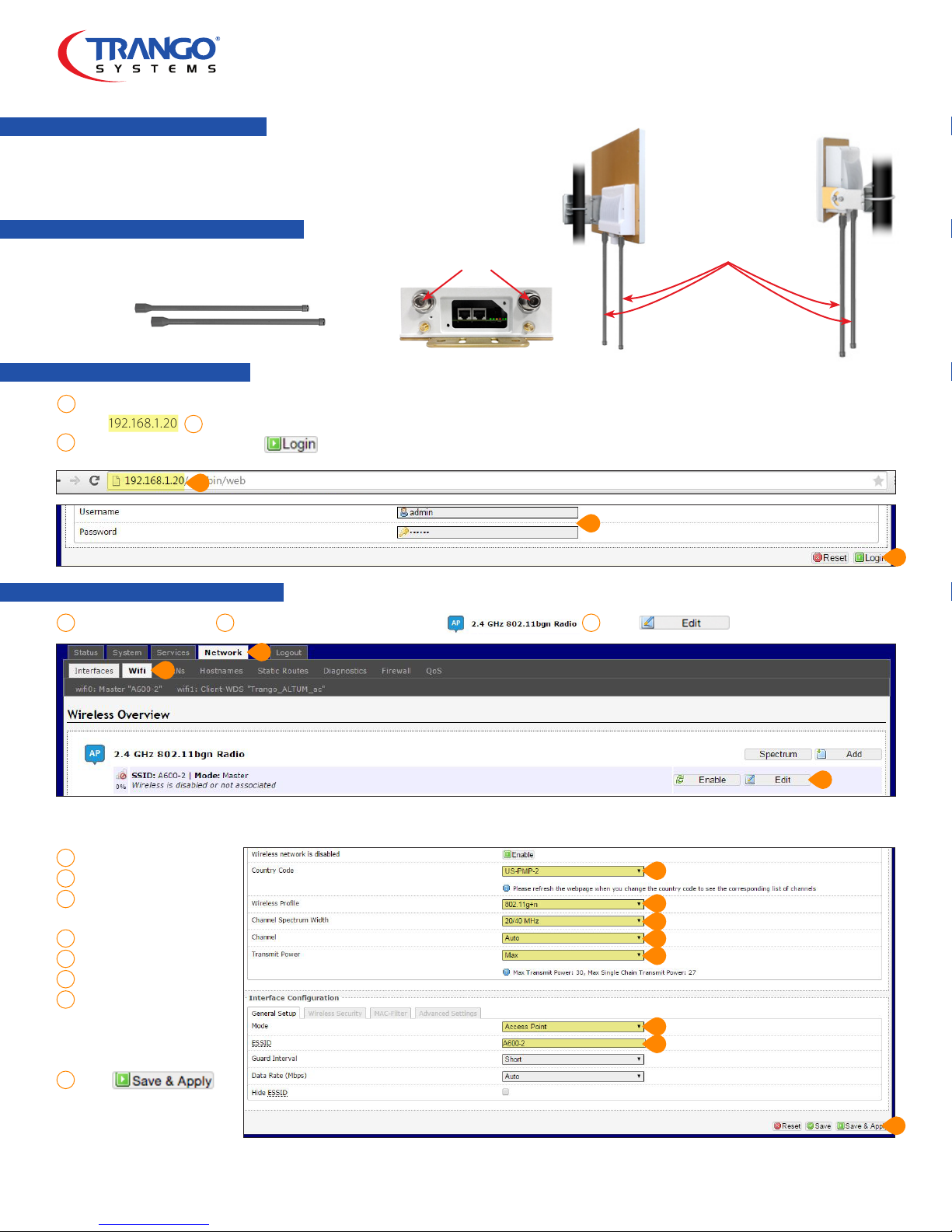
Install t wo 2.4 GHz omni directional antennas to the
N-Type Connectors
two N-Type connectors on the bottom of the Station.
2.4 GHz Omni Antennas
Step 3 - Login to the Station Unit
Navigate to a web browser and enter the IP address for the Station. Our example in the “Point-to-Point Link Coniguration” Quick Staart
1
Guide is 192.168.1.20 Enter your Username and Password. The default Username is admin and Password is trango (case sensitive).
3
Log in to the radio by clicking
2
1
2.4 GHz
Omni Antennas
Installed
Step 4 - Edit the Station’s WiFi Settings
1 2 3
Navigate to Network > Wifi. In the first row that is labeled click
1
2
Set the following:
4
Country Code - US-PTP-2
5
Wireless Profile - 802.11g+n
6
Channel Spectrum Width -
20/40 MHz
7
Channel - Auto
8
Transmit Power - Max
9
Mode - Access Point
10
ESSID - A600-2
(Note: This is the default
ESSID. You can change this
name if you’d like.)
11
Click
2
3
3
4
5
6
7
8
9
10
© Trango Systems • Phone: 858-391-0010 • Email: [email protected] • Web: trangosys.com, support.trangosys.com, store.trangosys.com
11
LT-9073-A Page 1 of 2
Page 2
Step 5 - Set up Wireless Security (Optional)
1 2 3
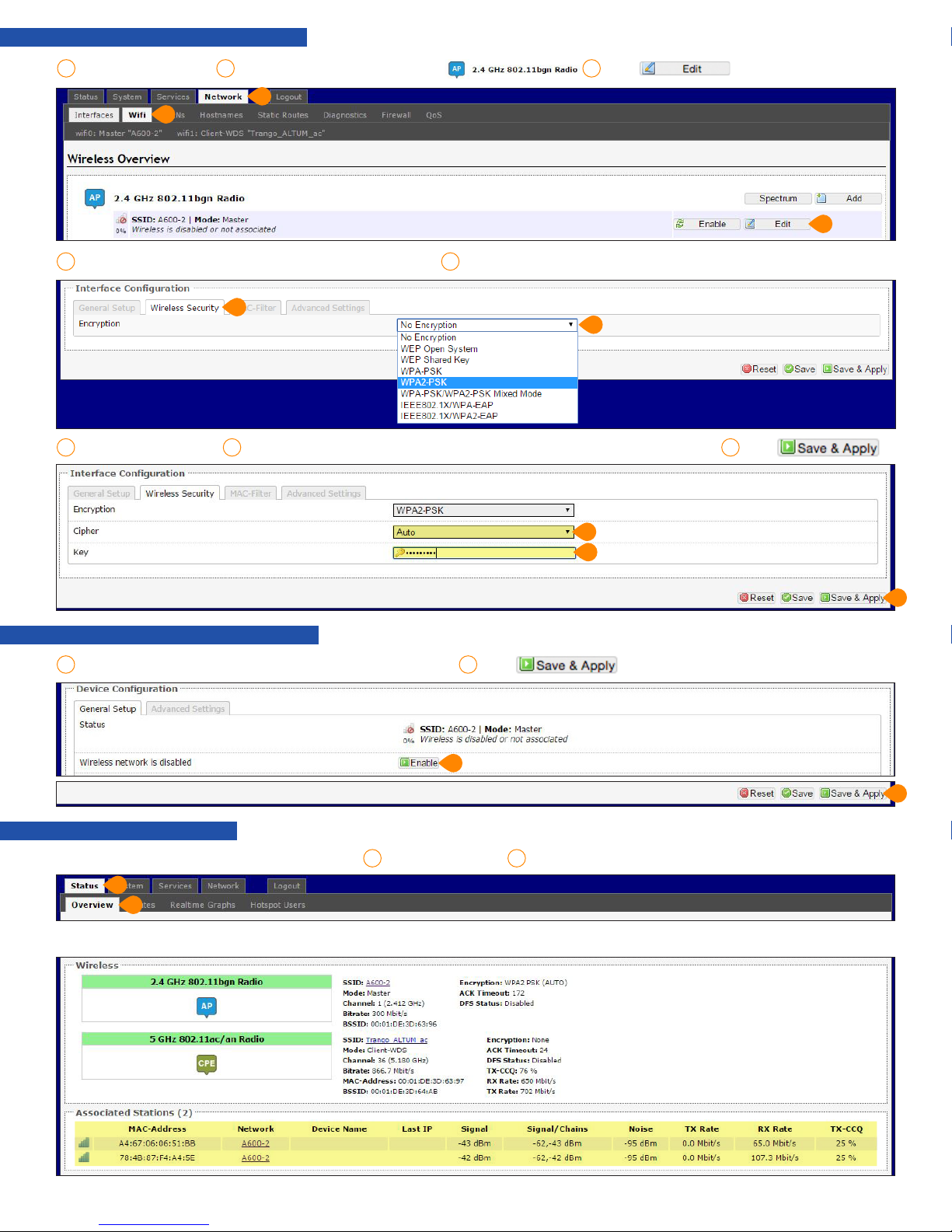
Navigate to Network > Wifi. In the first row that is labeled click
1
2
3 4
Under Interface Configuration select the Wireless Security tab. In the Encryption drop down menu select WPA2-PSK .
3
4
5 6 7
Select Cipher-Auto and set the password key. This key will be required by connected users on the WiFi. Click
3
Step 5 - Enable the 2.4 GHz Wireless Network
1 2
Under Device Configuration > General Setup tab > Select Enable. Click
1
Step 6 - View Connected Users
To view connected users on the WiFi access point, Navigate to Status > Overview.
1 2
1
2
Under Associated Stations the connected users will be displayed.
5
6
7
2
© Trango Systems • Phone: 858-391-0010 • Email: [email protected] • Web: trangosys.com, support.trangosys.com, store.trangosys.com
LT-9073-A Page 2 of 2
 Loading...