

Page 1

TOSHIBA
H
Telecommunications Division
Voice Processing Systems
Installation &
Programming and
Programming Guide
Installation Guide
Release 2
November 1998
Page 2

Publication Information
H
Toshiba Information Systems (UK) Ltd. reserves the
right to change any of this information including, but
not limited to, product characteristics and operating
specifications, without prior notice.
It is intended that the information contained within
this manual is correct at the time of going to print,
however all liability for errors or omissions is
excluded.
Version 2, November 1998
Part No. IVM-TECH-MAN
© Copyright 1998
Toshiba Information Systems (UK) Ltd.
Telecommunications Division
All rights reserved. No part of this manual, covered by
the copyrights hereon, may be reproduced in any form
or by any means—graphic, electronic, or mechanical,
including recording, taping, photocopying, or
information retrieval systems—without express
written permission of the publisher of this material.
Strata and Stratagy are registered trademarks of
Toshiba Information Systems (UK) Ltd.
Trademarks, registered trademarks, and service marks
are the property of their respective owners.
Page 3

Before You Start...
H
Get ready to install Toshiba’s Stratagy DK, one of the most efficient voice
processing systems available! To make this installation go smoothly, before
doing anything else, please read and complete both sides of this
checklist:
Whenever handling Stratagy DK, always wear
1
Do you know how to handle Stratagy DK?
Handle it with loving care and it will last a long time...
2
Do you have everything you need?
Need more details? They’reinsidethe Stratagy DK Installation & Programming Guide.
❐
the anti-static wrist strap (included); keep
the strap by the unit. Always hold the unit by
its edges. Remember that electrostatic charge
from your body, even your own body oils can
damage Stratagy DK.
Never drop or jar Stratagy DK! The unit’s hard
❐
drive is extremely sensitive to dropping or
excessive force during installation.
Temperature changes greater than 20°F cause
❐
condensation on Stratagy DK’s hard drive. Wait
24 hours before installation if there is such a
temperature variation.
What comes shipped: Stratagy DK comes
❐
complete with pre-loaded operating software,
documentation package and the anti-static
wrist strap. Make sure nothing is missing or
damaged.
Local Administration? You’ll need a portable/
❐
desktop PC with DOS 6.2, 5MB hard drive
space, 3.5” 1.44 floppy drive, and
580KB free RAM. You’ll need a 9-pin nullmodem serial cable or Toshiba’s SG-ADMINCABLE cable to connect your PC to
Stratagy DK.
Remote (modem) Administration? Use
❐
Stratagy Admin software (up to 9600 baud) with
Toshiba’s SG-RMOD modem or a Hayescompatible, 14.4 baud, V32.bis modem
connected to Stratagy DK’s serial Port 2; don’t
forget the 9-pin serial cable.
You can also use Stratagy DK’s internal (soft)
❐
2400-baud modem and administrate through its
phone connection.
Stratagy DK I&P R2 November 1998
Refer to the Stratagy Library CD-Rom for more details.
Page 4

Before You Start...
H
3
Is Strata DK ready?
See the Strata DK
Installation /
Maintenance and
Programming
Manuals for details on
a specific Strata DK
product.
Is Strata DK ready?
Make sure Stratagy DK is compatible with your
❐
Strata DK: It works with all DK280 (CPU
software release 2 and higher) and DK16
systems. It will also work with DK40/424.
Always program Strata slot assignments before
❐
installing the Stratagy DK. Use these slot
assignments:
DK424: useauniversalslot,startingwithslot
12 or 13 if an RSIU is in slot 11; never use
slots 27, 28, 31, 37, 38, 47, 48, 51, 57, 58,
67, 68, 71, 77, or 78.
DK280: use any universal slot, starting with
slot 12; never use slots 11, 31 or 51.
DK40: use any expansion cabinet slot.
DK16: use any expansion cabinet slot.
Besuretosetcode31inProgram03forthe
❐
slot where
Stratagy DK will be installed.
All Strata DK’s: if receiving Calling Party
❐
Control (CPC) or Disconnect Clear from the
Exchange, use Program 15 to enable.
Set Program 31 for Voice Mail operation on the
❐
Strata DK ports connected to Stratagy DK.
Always remember to shut down Stratagy
❐
software before powering down Strata DK.
4
Is Strata DK’s DTMF tone detection enabled?
Note
Strata DK needs to recognize Stratagy DK’s
❐
DTMF signaling.
Make sure an RRCS is installed in the DK424/
❐
DK280, a K5RCU in the DK40, or a K4RCU3 in
the DK16.
Run Program 03 and assign these code(s)
❐
where the DTMF receiver is installed:
DK424/DK280 (RRCS installed on the
RCTU): code 92, 93, or 94 for the relevant
slots 00/01.
DK40 (K5RCU): code 98 for slot 00.
DK16 (K4RCU3): code 92 for slot 00
DK40/424 release dates are still as yet to
be confirmed.
Stra tagy DK I&P R2 November 1998
Refer to the Stratagy Library CD-Rom for more details.
Page 5

Do you want to activate the DSS/Busy Lamp feature?
H
MakesureaPDKUcardisinstalledthatis
5
Do you want
to activate the
DSS/Busy
Lamp feature?
6
Are you going to have SMDI?
❐
currently (or can be) programmed for a DSS
Console.
DK424/DK280: When installing Stratagy DK
in an odd-numbered cabinet make sure the
PDKU is in a lower-numbered slot in the
same cabinet. When installing in an evennumbered cabinet, the PDKU must be in a
lower-numbered slot in the preceding oddnumbered cabinet.
DK40/16: setslot11intheBaseCabinetto
code 64.
Set code 64 using Program 03 for the PDKU
❐
slot.
See the Installation & Programming Guide to
❐
program Stratagy DK for this option.
DK424/DK280: SMDI is only available on a “B”
❐
processor or higher.
Make sure a PIOU/PIOUS/RSSU/RSIU card is
❐
available.
Set code 43 in Program 03 for PIOU/PIOUS/
❐
RSSU or code 49 for RSIU/RSIS.
The PIOU/PIOUS/RSSU/RSIU card must be
❐
located close to the Stratagy DK. Install a serial
cable (PPTC1A-5M) between the two.
Before You Start...
Note The RSSU & RSIU PCB’s release dates
Yo u ’ll need an LCD telephone physically
7
Want to
synch.
❐
installedonStrataDK;makesureit’sonthe
first port of the PDKU card (defined in Step 5
above).
See the Installation & Programming Guide to
❐
program Stratagy DK for this option.
Stratagy DK
system time
with Strata
DK?
Stratagy DK I&P R2 November 1998
Refer to the Stratagy Library CD-Rom for more details.
arestillasyettobeconfirmed
Page 6

Before You Start...
H
Don’t forget to wear the anti-static wrist strap
8
All set?
Just a few more things...
❐
during handling.
Be sure Stratagy DK has a jumper installed on
❐
J4.
If you are using an internal modem in the
❐
portable/desktop computer, remember that
Stratagy Admin only works with COM 1 and 2,
not COM 3 or 4.
Do not write over any previous Stratagy Admin
❐
subdirectory on your remote PC when installing
any new versions of the Stratagy Admin
software. Always retain any previous versions
of Admin.
Make sure your
❐
Manuals
Be sure to read the entire Stratagy DK
Installation & Programming guide before
installing.
Remember to back up your database after
❐
installation.
and
Strata I&M/Programming
Stratagy I&M Manuals
are handy.
If you have read and completed this checklist, installation
will be a breeze!
OK, let’s get started!
All set?
Refer to the Stratagy Library CD-Rom for more details.
Stra tagy DK I&P R2 November 1998
Page 7

Contents
H
Chapter 1 - Stratagy DK
What’s Different? ..............................................................................................1-1
Internal Modem ............................................................................................1-1
Stratagy Admin Software .............................................................................1-2
Parameters ....................................................................................................1-2
Main Menu ...................................................................................................1-2
Users Menu – Options Screen .....................................................................1-4
Tokens ..........................................................................................................1-4
Features ........................................................................................................1-5
Installation .........................................................................................................1-5
Local Connection .......................................................................................1-12
Remote Connection ....................................................................................1-13
Local Access ..............................................................................................1-19
Remote Access ...........................................................................................1-19
Quit ............................................................................................................1-21
System Date and Time ...............................................................................1-21
Daylight Time ............................................................................................1-22
Toshiba Plug and Play ...............................................................................1-23
Telephone System Configuration ..............................................................1-24
Stratagy System Configuration ..................................................................1-26
Tools ..........................................................................................................1-32
Trace Diagnostics ......................................................................................1-39
Upgrading Stratagy DK Voice Ports ......................................................... 1-39
Chapter 2 - Configuring Stratagy
System Parameters .............................................................................................2-1
Chapter 3 - System Administrator User ID
System Distribution Lists ..................................................................................3-1
Sending a Message Using a System List .....................................................3-2
System Administration Menu ............................................................................3-2
Stratagy DK I&P R2 November 1998
Refer to the Stratagy Library CD-Rom for more details.
i
Page 8

List of Figures
H
Figure 1-1
Figure 1-2
Figure 1-3
Figure 1-4
Figure 1-5
Figure 1-6
Figure 1-7
Figure 1-8
Figure 1-9
Figure 3-1
Stratagy DK Hardware Components................................................1-1
Navigating the Tools Menu ..............................................................1-3
Stratagy DK424/DK280 PDKU DSS/Busy Lamp Field Slot
Assignment Examples (console_slot_id configured as 0)................1-9
Stratagy DK....................................................................................1-10
RS-232 DB9 to DB9 Cabling.........................................................1-13
RS-232 DB25 to DB25 Cabling.....................................................1-13
Main Menu with Sample Data .......................................................1-20
Main Menu with Sample Data .......................................................1-22
Options Screen with Sample Data..................................................1-28
System Administrator Menu ............................................................3-5
List of Tables
Ta bl e 1 -7
Ta bl e 1 -8
Ta bl e 1 -9
Ta bl e 1 -10
Ta bl e 1 -11
Ta bl e 1 -12
Stratagy Admin Compatibility ........................................................1-2
Stratagy DK Slot Assignment .........................................................1-8
Stratagy DK Status/Port LEDs.......................................................1-11
Admin PC Configuration Fields ....................................................1-16
Defined Tokens Summary .............................................................1-29
Stratagy DK System Configuration Parameters - Definitions and
Settings.............................................................................................2-1
Contents
Stratagy DK I&P R 2 November 1998
Refer to the Stratagy Library CD-Rom for more details.
ii
Page 9
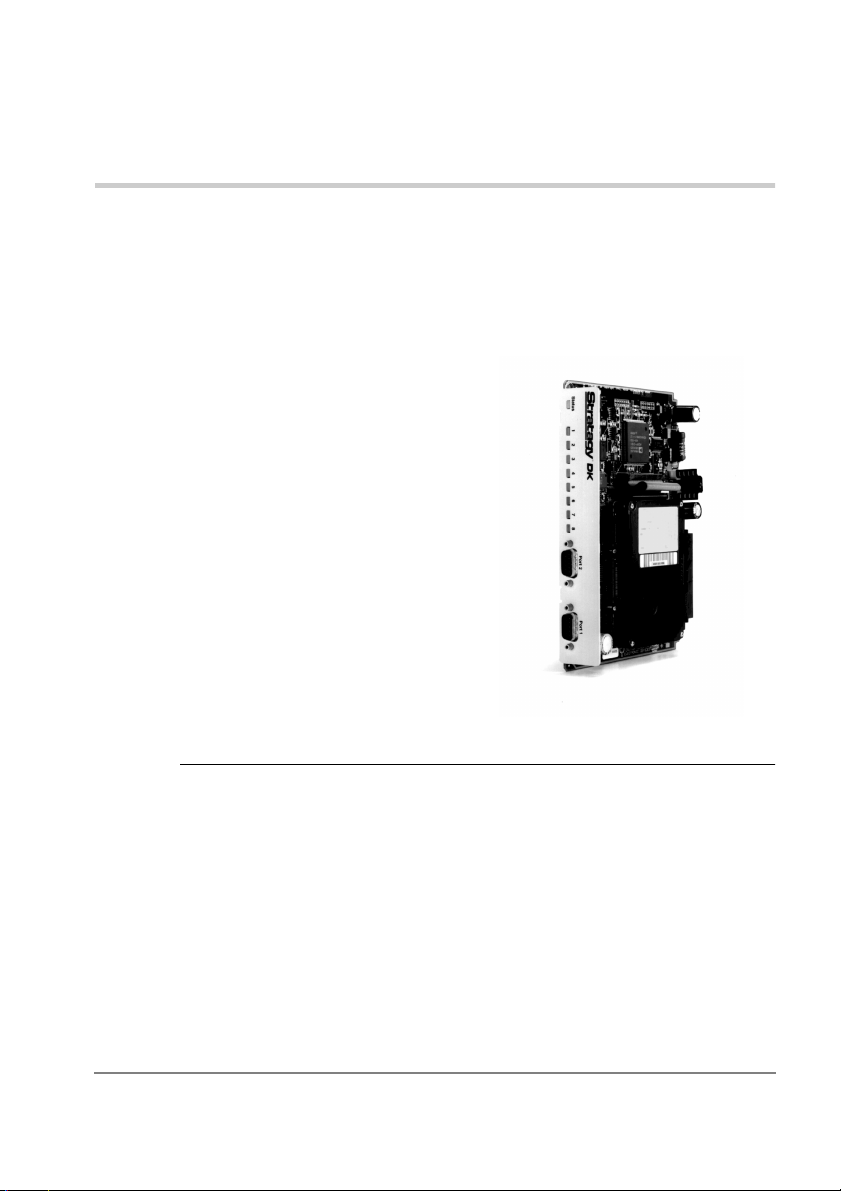
Stratagy DK
H
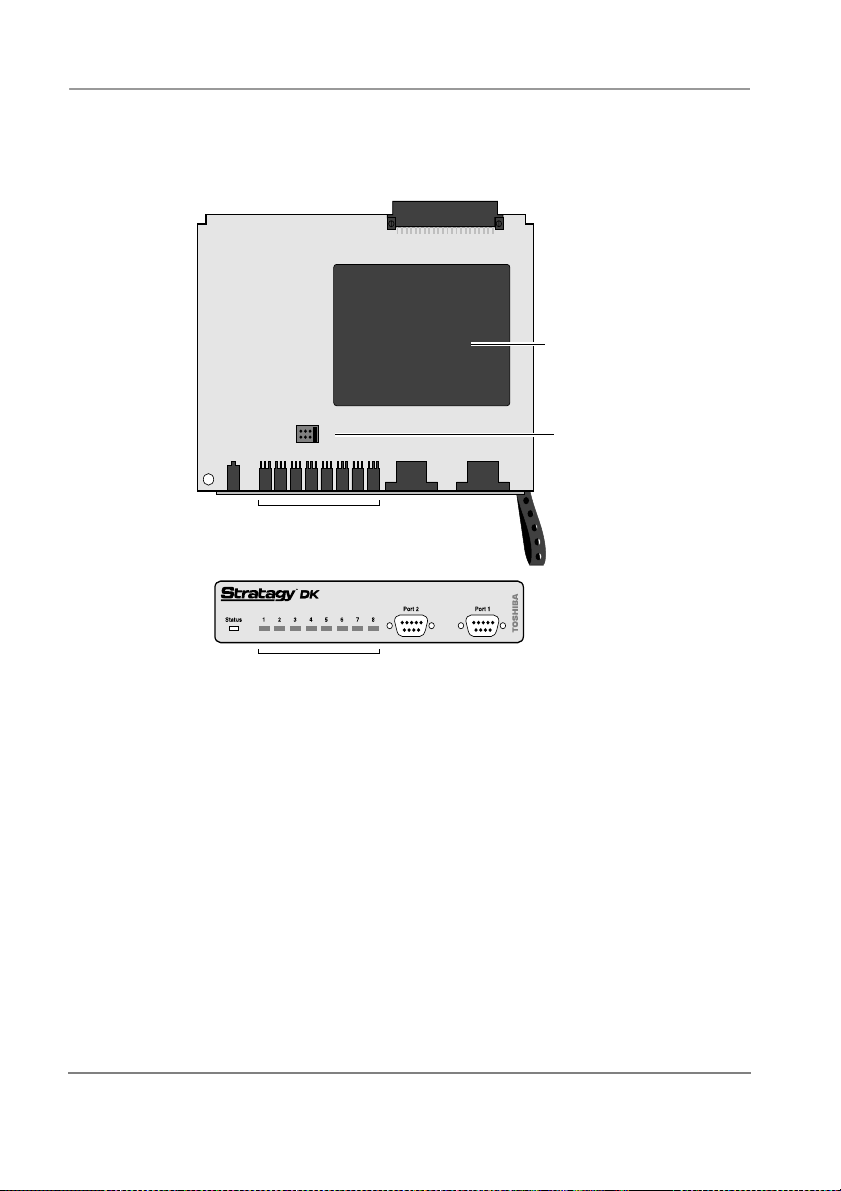
The Stratagy DK voice processing circuit card (see Figure 1-1 for a photograph) supports up
to8ports,providesupto24hoursofstorageandisinstalledinthecardslotofaStrataDK
Base or Expansion Cabinet/KSU.
The supported systems and recommended
software versions are:
Strata DK424
◆
DK280 — Release 2 and higher
◆
Strata DK16/DK40 — all releases
◆
The Stratagy DK requires Stratagy Admin
software, installed on a separate IBMcompatible portable/desktop computer,
for local or remote administration and
maintenance. With the release of the
Stratagy DK, a new enhanced version of
Stratagy Admin (VSA.2N) is available.
This enhanced version provides new
utilities, explained in detail later in this
Guide, for configuring and maintaining
the Stratagy DK.
Voice mail integration is provided by
Strata DK in-band (DTMF) integration.
Strata DK424 and DK280 can also
provide integration using the Simplified
Message Desk Interface (SMDI) output of
the PIOU, PIOUS, RSSU or RSIS SMDI
port.
1
Figure 1-1 Stratagy DK Hardware
Components
Important! The Strata DK40/424 and RSSU/RSIS PCB’s are currently not available in the
United Kingdom
What’s Different?
Internal Modem
The Stratagy DK has an internal (soft) modem that operates at up to 2400 baud and can be
used for remote maintenance.
Stratagy DK I&P R2 November 1998
Refer to the Stratagy Library CD-Rom for more details.
1-1
Page 10

Stratagy DK
H
Stratagy Admin Software
With the release of the Stratagy DK, there is also a version of Stratagy Admin (VSA.2N)
available. Stratagy Admin provides the ability to configure and maintain Stratagy DK.
For Admin software compatability with Stratagy DK see Table 1-13.
Tab le 1 -1 3
Stratagy DK System Software Version Compatible Stratagy Admin Software Version
VDK.2I VSA.2N VSA.2N
Stratagy Admin Compatibility
Parameters
Because of the unique nature of the interaction process between the Stratagy DK and
Strata DK, four new parameters have been added for use exclusively with the Stratagy DK
(See Chapter 2 – Configuring Stratagy Table 2-18 for the definitions and settings for these
parameters).
console_slot_id: designates the PDKU slot. Stratagy uses this slot for DSS/LCD status.
◆
dss_active: tells the Stratagy DK to retrieve BLF busy station information for the
◆
assigned DSS Por t field located on the Users Menu – Options screen (see Step 13
“Program the Mailboxes” on Page 1-27 for information on programming the field).
ksu_time: synchronises Stratagy DK’s system clock with the system clock of the
◆
supporting Strata DK telephone system.
Note When enabled, the system time cannot be changed from the System Administrator
Mailbox.
trace_cap: defines the size of the trace file in kilobytes.
◆
Main Menu
With VSA.2N Admin, the Main Menu has been changed to include a new menu selection,
called Tools, and the time display (in the upper right corner of the menu) has an additional
featureexclusivetotheStratagyDK.Thetimedisplaynowindicateswhetherthe
Stratagy DK is synchronised with the Strata DK KSU (KSU time) or is running on its own
system clock (standard, daylight savings).
What’sDifferent?
1-2
Refer to the Stratagy Library CD-Rom for more details.
Stra tagy DK I&P R2 November 1998
Page 11
What’s Different?
H
Tools
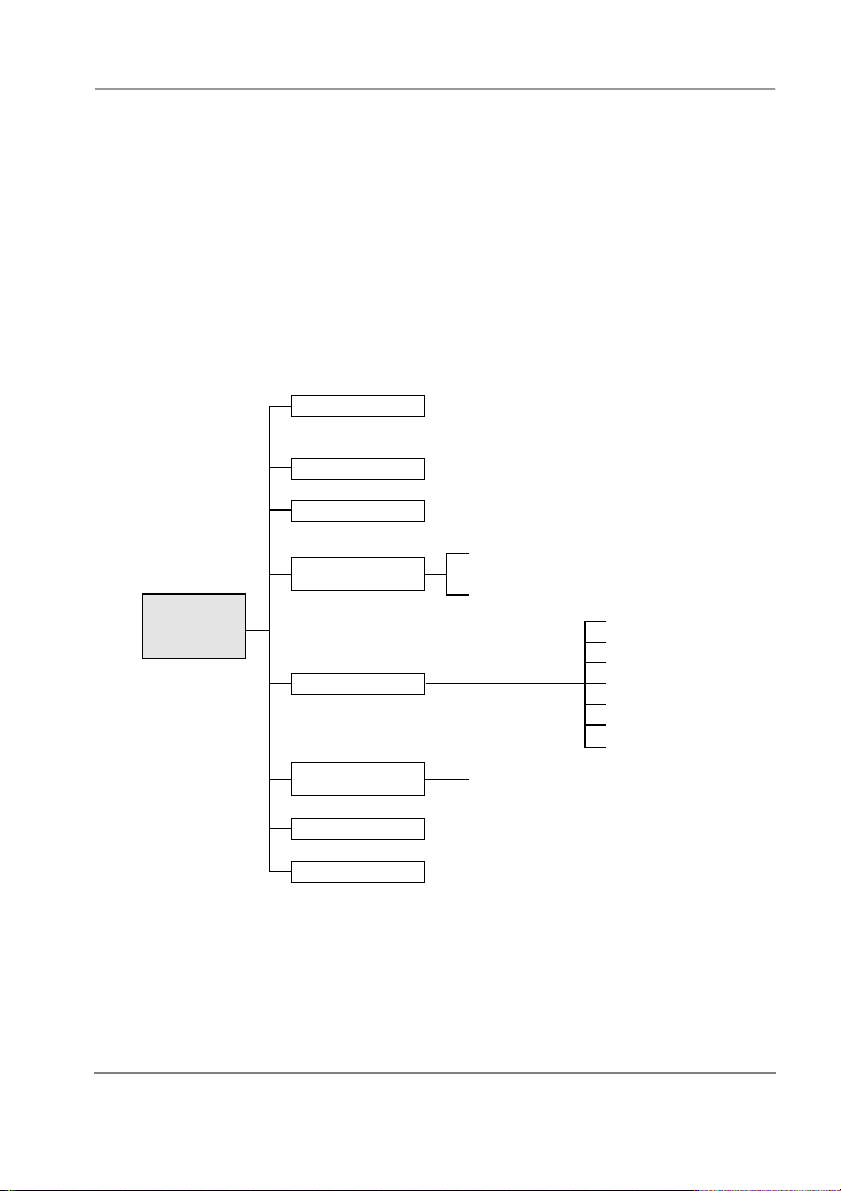
Tools includes the following selections (see Figure 1-2):
◆
◆
◆
◆
For complete details on Toshiba Plug and Play, Telephone System Configuration, and
Stratagy System Configuration, see Step 12 “Configure Stratagy DK” on Page 1-22.For
details on the remaining selections, see Step 16 “Stratagy DK Maintenance” on Page 1-32.
Tools Menu
(select menu item)
2060
Backup Utility
Upgrade Utility
Toshiba Plug and Play
Retrieve Trace File
Backup Utility
Restore Utility
Upgrade Utility
Telephone System
Configuration
Toshiba Plug and Play
Stratagy System
Configuration
Restore Utility
◆
Telephone System Configuration
◆
Stratagy System Configuration
◆
Filecopy
◆
Edit Telephone Systems Dial Codes
(select dial codes)
Edit System Integration Patterns
Parameters
Stratagy DK
Strata DK424
Strata DK424 w/ SMDI
Strata DK280
Strata DK280 w/ SMDI
Strata DK16e
Strata DK16e w/ SMDI
Strata DK16
Retrieve Trace File
Filecopy
Figure 1-2 Navigating the Tools Menu
Stratagy DK I&P R2 November 1998
Refer to the Stratagy Library CD-Rom for more details.
1-3
Page 12

Stratagy DK
H
Stratagy DK System Time
Using the ksu_time parameter, you can synchronise Stratagy DK’s system clock with the
system clock of the supporting Strata DK telephone system. Setting this parameter to true,
disables the daylight_saving_time parameter. The Main Menu screen displays KSU time
when this feature is enabled.
Note An LCD telephone must always be physically installed on the first port of the PDKU
card (defined in console_slot_id parameter). If the message waiting LED has been lit
by the voice mail then Stratagy will be unable to initially synchronise the time.
Users Menu – Options Screen
Yo u ’ll notice some changes in the User Menu – Options screen. The changes (See Figure 1-9
on Page 1-28)are:
AnewfieldcalledDSS Port has been added. This new field replaces the Alternate Rate
◆
feature, which is not available with the Stratagy DK.
The Message Volume feature, although displayed on the screen, is not supported by the
◆
Stratagy DK.
DSS Port
The DSS Port field corresponds to the LED on the DSS/BLF console (0-57). That shows the
“physical” port number of the Strata DK station. This field enables the Stratagy DK to
monitor the Busy Lamp field of a DSS console port to determine if the station is busy before
attempting to transfer.
Tokens
As with all Stratagy systems the Stratagy DK retains all of the robust application
programming that is provided by tokens. Some new tokens are available exclusively for the
Stratagy DK. They are:
◆ KM
◆ KT( )
◆ KS( )
– Enables a portable/desktop computer’s modem to communicate with the
Stratagy DK internal modem (2400 baud) by sending the call to User ID 993.
– Directs calls to a designated User ID when:
◆ DSS function is active (dss_active =true)
◆ DSS port is assigned in the “answering” mailbox
◆ Night Transfer on the DSS console is ON.
– Enables system shut down for stop or system shut down and restart by calling
into the system and accessing a specific mailbox/User ID.
What’sDifferent?
1-4
Refer to the Stratagy Library CD-Rom for more details.
Stra tagy DK I&P R2 November 1998
Page 13

Installation
H
Features
Stratagy DK
Busy Station Identification
The Busy Station Identification feature enables the Stratagy DK to determine if a station is
“busy” without performing a “hook-flash” and transfer. Stratagy DK “reads” thedataofa
DSS console and knows instantly if the station is busy or in Do Not Disturb (DND).
A station in DND mode signals a “busy” conditiontoaDSSconsole.DNDandbusyare
processed the same way by the Stratagy DK (i.e., the Busy chain is executed).
To use this feature you must configure the new “console_slot_id” and “dss_active”
parameters, program the new DSS Port field (see Step 13 “Program the Mailboxes” on Page
1-27), and install/program a PDKU as the DSS console (See “DSS/Busy Lamp Feature” on
Page 1-8 for more information.).
Important! Once the DSS/Busy Lamp feature has been programmed using the two
Night Transfer Alternate Routing
Using the new
available. The feature monitors the DSS Night Transfer key in order to activate the
token for alternate routing applications.
Limiting the Trace File Size
Trace is a diagnostic tool that is designed to assist you in troubleshooting Stratagy’sactivity.
To log the trace data, you can use a text file called TRACE.OUT. The size of the trace file can
be configured using the new “trace_cap” parameter, which defines the size of the trace file in
kilobytes. When the size of the trace file reaches the setting limit, the existing file is
overwritten, beginning with the oldest record.
Installation
You will be handling the Stratagy DK when it is most fragile — unpackaged and exposed.
The Stratagy DK, if handled properly, will give long, reliable service. To insure that the unit
is not damaged during installation or maintenance, follow these precautions.
CAUTION!
Damage may not always be immediately evident (e.g., no physical damage on the
outside of the unit) and system failure may result weeks or months later.
◆ Handle the Stratagy DK with care. Mechanical shock from dropping, shaking,
parameters and the DSS Port field, Stratagy DK must be re-started two times.
The first re-start configures the DSS parameters/field. The second re-start
“loads” the DSS parameters/field into active memory.
token, a new feature called Night Transfer Alternate Routing is now
KT( )
KT( )
excessive force when seating the board into the slot, rocking a connector on or
other activities can severely damage the disk assembly or the disk’s printed
circuit board.
Stratagy DK I&P R2 November 1998
Refer to the Stratagy Library CD-Rom for more details.
1-5
Page 14

Stratagy DK
H
◆ Wear the anti-static wrist strap included in the package. It can also be re-used so
should be left with the Strata DK cabinet. An electrostatic charge from your
body can damage the hard drive or other circuitry permanently.
◆ Hold the Stratagy DK by the edges or the strap and never touch the board’s
surface. Pressure on the printed circuit board or contaminants from your
hands (e.g., skin oil, food particles, hand lotion) can cause component failure.
Step 1: Read Through this Installation Guide First
Before starting the installation, read through these instructions thoroughly. Important
information is included in this Guide that is crucial to a successful installation.
Step 2: Program the Strata DK
Note The following instructions are based on the Stratagy DK being installed in a pre-
existing, or new installation of a Strata DK telephone system. If further information
is required around the Strata DK Programming, see the Programming section of the
relevant Strata DK Installation & Maintenance Manual.
To the Strata DK processor, the Stratagy DK functions as an analogue card (PSTU/RSTU).
Although there are some special program settings required for the Stratagy DK (e.g., DSS/
BLF feature), the Strata DK should be programmed just as it would for any external voice
mail system that is to be connected to it.
Installation
1-6
Important! The Strata DK may need to be reset to initialise some Strata programming
1. Using Program 03–Flexible PCB Slot Assignments set/verify the following slot
Note ForDK16/40:slot11intheBaseCabinetmustbesetforcode64.
assignments. It is important that you make all such assignments
installing the Stratagy DK.
assignments:
◆ Set code 31 for the slot where Stratagy DK is installed (see Step 4 “Install the
Stratagy DK” on Page 1-7).
◆ Enable the Strata DK to receive DTMF signalling from the Stratagy DK:
◆ For DK424/DK280: Set codes 92, 93, or 94 (DK424 only) for slot 00 for the RRCS
installedontheRCTU.
◆ For DK40: Set code 98 for slot 00 for the K5RCU.
◆ For DK16: Set code 92 for slot 00 for the K4RCU3.
◆ Set code 64 for the slot where the PDKU resides. Stratagy DK will monitor this slot
for the DSS/Busy Lamp feature (see “Busy Station Identification” on Page 1-5).
◆ If SMDI is desired with the Strata DK424/DK280: Set PIOU or PIOUS for code 43
or enable the SMDI port.
Stra tagy DK I&P R2 November 1998
Refer to the Stratagy Library CD-Rom for more details.
before
Page 15

Installation
H
Notes
If SMDI Integration is to be used ensure that the COM port selected for SMDI
●
Integration does not conflict with the COM port set for remote/local access (default
port 2). For installation/configuration instructions refer to the Stratagy I & M
Manual - Chapters 1 – Before You Install & Chapter 4 – Configuring Stratagy.
TheDK40CPUsoftwarelevelR1willnotsupportSMDI.
●
2. Program the Strata DK system for voice mail integration. See the Programming section
in the relevant Strata DK Installation & Maintenance Manual for details.
Step 3: Shut Down the Strata DK
Turn off the main power switch to the Strata DK system.
➤
Step 4: Install the Stratagy DK
CAUTION! See cautions above Step 1 on Page 6 before proceeding.
1. Locate the proper slot for the Stratagy DK (see Table 1-14).
2. Ensure that the jumper is installed in the correct position on J4 (See Figure 1-4 on Page
1-10)
3. Insert the card into the appropriate slot, and apply firm, even pressure to ensure proper
mating of connectors. Do not hit the board for proper seating. This may damage the
Stratagy DK components.
Stratagy DK
Stratagy DK I&P R2 November 1998
Refer to the Stratagy Library CD-Rom for more details.
1-7
Page 16
Stratagy DK
H
Installation
Ta bl e 1 -1 4
Stratagy DK Slot Assignment
DK424
Note
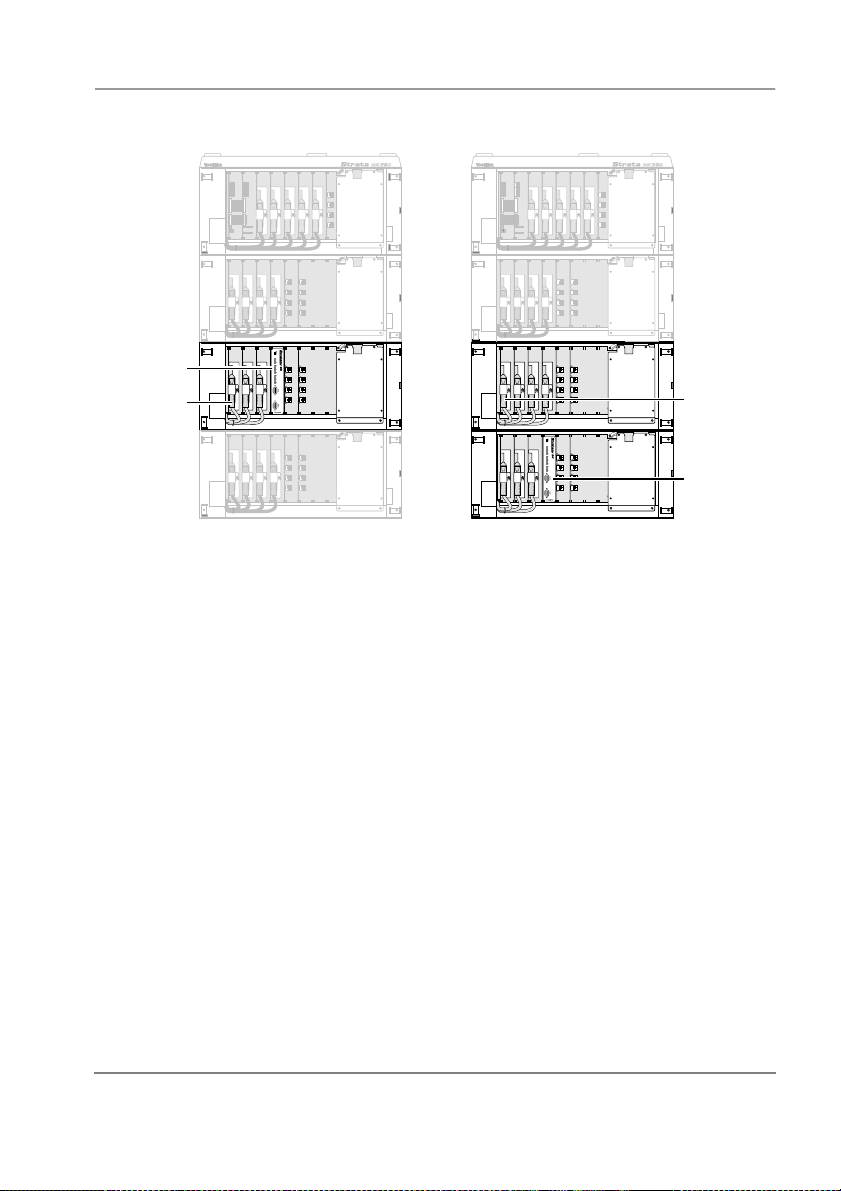
For the DSS/BLF feature, the Stratagy DK must reside in a higher-numbered
slot than the PDKU card that the Stratagy DK will monitor (see Figure 1-3).
Install the card in a universal slot star ting with slot 12 (if a PDKU or PEKU is in slot 11) or
slot 13 (if a RSIU is in slot 11).
Important!
To enable end-to-end signalling, ensure that an RRCS -4, -8 or -12 is installed on the
RCTU, and verify that the RCTU code in Program 03 is for RRCS operation.
Do not install the Stratagy DK in slots 27, 28, 31, 37, 38, 47, 48, 51,
57, 58, 67, 68, 71, 77, or 78.
DK280
Note
For the DSS/BLF feature, the Stratagy DK must reside in a higher-numbered
slot than the PDKU card that the Stratagy DK will monitor (see Figure 1-3).
Install the card in any universal slot (except slots 11, 31 and 51), starting with slot 12 of
the Base Cabinet.
Important!
To enable end-to-end signalling, an RRCS -4, or -8 must be installed on the RCTU. Verify
that the RCTU code in Program 03 is for RRCS operation.
The Stratagy DK does not function when installed in slots 11, 31 or
51.
DK16/40
Install the Stratagy DK in any slot in the Expansion KSU where an eight-port card can be
inserted.
A K4RCU3/K5RCU must be installed in the Base KSU to enable end-to-end signalling.
Note Putting a Stratagy DK into a Strata DK16 or DK40, eliminates eight
extension ports.
DSS/Busy Lamp Feature
For the DSS/Busy Lamp feature to operate (see “Busy Station Identification” on Page 1-5
for detailed information), the Stratagy DK must monitor the DSS/BLF data from a specific
PDKU card. The Strata DK telephone system restricts this capability to certain
configurations:
◆ Stratagy DK cannot be installed in the first slot of any cabinet (i.e., 11~71).
◆ The Stratagy DK can only monitor a PDKU that resides in an odd-numbered cabinet.
◆ Stratagy DK must always be in a higher-numbered slot than the PDKU card, even if
the PDKU is in another cabinet.
When Stratagy DK is installed in an odd-numbered cabinet, the system software
searches for the PDKU in all lower-numbered card slots in that cabinet (as defined in
chapter 2 by the parameter “console_slot_id” on Page 2-4). When the Stratagy DK is
installed in an even-numbered cabinet, the system software searches for the PDKU in all
lower-numbered card slots of the preceding odd-numbered cabinet. If Stratagy DK is
installed in the cabinet above the cabinet the PDKU is installed, Stratagy DK must also
reside in a higher slot (ie PDKU slot 31 Stratagy must be installed in slot 42~46) See
Figure 1-3 on Page 1-9 for examples.
1-8
Refer to the Stratagy Library CD-Rom for more details.
Stra tagy DK I&P R2 November 1998
Page 17
Installation
R11
S11
RCTU
S12
S13
S14
S15
S16
S_3
S_6
S
_7
S
_8
S_1
S_2
S_4
S_5
S_3
S_6
S
_7
S
_8
S_1
S_2
S_4
S_5
R11
S11
RCTU
S12
S13
S14
S15
S16
S_3
S_6
S
_7
S
_8
S_1
S_2
S_4
S_5
H
Stratagy DK
Stratagy DK in Even Number CabinetStratagy DK in Odd Number Cabinet
Cabinet 1
R11
S11
RCTU
S12
S13
S14
S15
S16
Cabinet 2
S_3
S_6
S_7
S_1
S_2
S_8
S_4
S_5
R11
S11
RCTU
S12
S13
S14
S15
S16
S_3
S_6
S_7
S_1
S_2
S_8
S_4
S_5
Stratagy DK
PDKU
S_3 S_6 S_7 S_8S_1 S_2 S_4 S_5
Cabinet 3
S_3 S_6 S_7 S_8S_1 S_2 S_4 S_5
Cabinet 4
S_3
S_6
S_7
S_1
S_2
Figure 1-3 Stratagy DK424/DK280 PDKU DSS/Busy Lamp Field Slot Assignment
Examples (console_slot_id configured as 0)
S_8
S_4
S_5
S_3 S_6 S_7 S_8S_1 S_2 S_4 S_5
Step 5: Verify Stratagy DK is Functioning Properly
Note Each Stratagy DK has been pre-programmed at the factory for out-of-box (plug and
play) operation on the Strata DK280/424. This includes the integration and
configuration parameters, default station (extension number) User ID mailboxes,
and company greeting and instructions.
1. Turn on the main power switch to the Strata DK system and the Stratagy DK performs a
self test while booting-up.
2. Let it proceed without any action from you. During this process the status light is
blinking amber and should turn solid green when finished (see Figure 1-4 and Table 1-
15). The process should take approximately four to five minutes.
PDKU
Stratagy DK
2078
Stratagy DK I&P R2 November 1998
Refer to the Stratagy Library CD-Rom for more details.
1-9
Page 18
Stratagy DK
H
Installation
Backplane Connector
1775
Side
View
Front
View
Status
Light
Port LEDs
Port LEDs
Figure 1-4 Stratagy DK
Hard Drive
J4
Port 2
Port 1
Ensure the jumper
is installed on J4
Strap
1-10
Refer to the Stratagy Library CD-Rom for more details.
Stra tagy DK I&P R2 November 1998
Page 19

Installation
H
Stratagy DK
Tab le 1 -1 5
At boot-up: Dark Port is on-hook and idle.
Dark
Blinking
Amber
Red
While system is operational:
Green
Green
with
Blinking
Amber
Stratagy DK Status/Port LEDs
Status
LED
No power
Power-on, self-test.
Failed self-test. The port LEDs indicate
which test(s) failed:
Por t LED
Green Test Failed
1DRAM
2RTC
3EEPROM
4 EPROM Checksum
5 Hard Disk
6 Integration Processor
7DSP#1
System is operational.
System is operational and hard drive is
active.
Port
LEDs
Green Port is off-hook and in
use.
Step 6: Verify that Voice Playback, Basic Auto Attendant and Ports are
Functioning Correctly
Dial the extension number for each port. Stratagy should (for each port):
➤
◆ AnswerandplaytheToshibaPlugandPlaycompanygreeting(“Thank you for
calling…”), greeting 1 in User ID mailbox 990.
◆ Continue to play the Toshiba Plug and Play caller instructions greeting (“To reach
the person…”), greeting 1 in User ID mailbox 991.
Stratagy DK I&P R2 November 1998
Refer to the Stratagy Library CD-Rom for more details.
1-11
Page 20

Stratagy DK
H
Step 7: Connect Portable/Desktop Computer to Stratagy DK
To program the Stratagy DK, an IBM-compatible portable/desktop computer must be
connected to the Stratagy and have the following:
3.5” 1.44 (high-density) floppy drive
◆
Hard drive with a minimum of 5MB of available disk space
◆
DOS V6.2 or higher must be resident on the hard drive
◆
580KB RAM memory free
◆
Communication between the portable/desktop computer and the Stratagy DK is
accomplished by one of two methods: local or remote.
Stratagy DK uses the serial Port 2 by default to communicate with the portable/desktop
computer (seeFigure1-4). This setting can be changed using the “
in the Stratagy System Configuration file (Chapter 2 – Configuring Stratagy Table 2-18 for
detailed information).
admin_port
Local Connection
Using a null-modem cable, connect the portable/desktop computer to the Stratagy DK.
➤
A prefabricated cable (SG-ADMIN-CABLE), designed expressly for Stratagy Admin
communication with the Stratagy DK, is available from Toshiba.
Installation
” parameter
1-12
Refer to the Stratagy Library CD-Rom for more details.
Stra tagy DK I&P R2 November 1998
Page 21

Installation
H
Stratagy DK
Note For those who wish to purchase individual cabling/connectors/adapters in lieu of
purchasing the Toshiba Stratagy Admin cable, we have provided the following
wiring diagrams.
9-pin
female
1
4
2
3
5
6
7
8
Figure 1-5 RS-232 DB9 to DB9 Cabling
25-pin
female
2
3
4
5
6
7
8
20
-pin
9
fema le
6
3
2
5
1
4
8
7
-pin
9
female
2
3
8
7
1
4
5
6
Figure 1-6 RS-232 DB25 to DB25 Cabling
Stratagy DK I&P R2 November 1998
Refer to the Stratagy Library CD-Rom for more details.
1-13
Page 22

Stratagy DK
H
Remote Connection
Portable/Desktop Computer Modem
Prepare the portable/desktop computer by installing, connecting and configuring a
➤
modem. The modem must be capable of communicating at a minimum of 2400 baud.
Installation
CAUTION! COM 1 or 2 only may be used by the portable/desktop computer.
Internal/External modems configured for COM ports 3 or 4 are not
supported by Stratagy Admin software.
Stratagy Modem
The Stratagy DK can communicate through either an internal or external modem.
Internal
The Stratagy DK has an internal modem that communicates at up to 2400 baud. No
additional equipment is necessary. (See
on Page1-29 for programming information.)
token in Step 14 “Application Programming”
KM
External
An external modem can be installed on the Stratagy DK for a communication speed of 9600
baud. If 9600 baud communication is desired:
1. Equip the Stratagy DK with a Hayes-compatible 14400 V32.bis modem. Toshiba’s
remote/modem (SG-RMOD) has been tested for consistent operation and is
recommended. Use of other modem models cannot be guaranteed for trouble free
operation.
Note The default setting configured for the Stratagy DK remote access is serial port 2
(see Figure 1-4). Local and remote access utilise the same designated serial port on
the Stratagy DK.
2. Connect a telephone line to the modem. Use either a station connected to the telephone
system or a dedicated Exchange line.
Step 8: Load Stratagy Admin Software (VSA.2N or higher)
1. Insert disk 1 of 1 of the Stratagy Admin software into the floppy-disk drive of the
portable/desktop computer.
®
Note If currently running Windows
this by shutting down Windows and selecting the ‘Restart in MS-DOS Mode’,orby
using the MS-DOS program or shell.
prompt type
2. At the
C:\
procedure.
, you will need to obtain a DOS prompt (
a:install c:\admin3
to begin the installation
C:\
). Do
1-14
Refer to the Stratagy Library CD-Rom for more details.
Stra tagy DK I&P R2 November 1998
Page 23

Installation
H
The following messages are displayed:
Install Remote Stratagy Admin software
package to C:\Admin3???
Press Ctrl+C to abort or press any key to
continue...
3. PressanykeytocontinueandtheStratagyAdminprogramisinstalledondriveC:in
subdirectory ADMIN3.
Step 9: Configure Stratagy Admin Software
Settings for the communication port in Stratagy Admin must match the corresponding
parameters set in the Stratagy System Configuration file on the Stratagy DK.
For example, if using COM1 on the portable/desktop computer and serial Port 2 on the
Stratagy DK, the Stratagy Admin Serial Port definitions for COM1 must be identical to the
serial port definitions (i.e. set serial_port) in the Stratagy System Configuration file on the
Stratagy DK.
Note The menu screens detailed in this section are only available with Admin version
VSA.2N or later.
1. From the
The Stratagy Admin Main screen is displayed:
C:\ADMIN3
Stratagy Admin VXX.XX Feb 24 1997
DOS prompt, type
admin
and press
Enter
Stratagy DK
.
1. Connect to Stratagy
2. Configure Admin
ESC/Exit F1/Help
for help with any settings in the Admin Configuration screen.
Note Press
2. Press
Stratagy DK I&P R2 November 1998
Refer to the Stratagy Library CD-Rom for more details.
F1
or highlight the Configure Admin option and press
2
Enter
.
1-15
Page 24
Stratagy DK
H
Installation
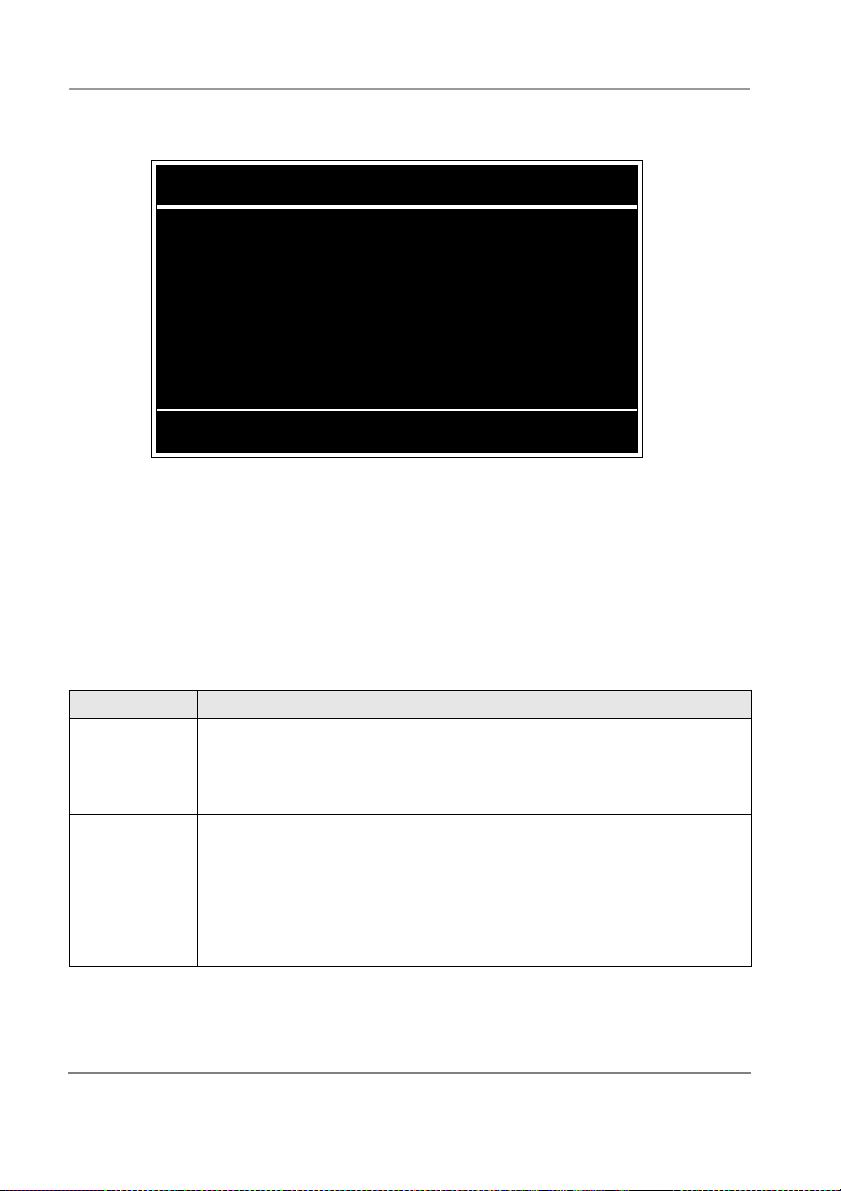
The following screen appears:
Admin PC Configuration
Advertising: Stratagy ADMIN
Log File: remote.LOG
Serial Port: 2
Baud Rate: 9600
Modem Init String: AT&F&C1&D2L0Q0V0X0E1
ESC/Exit F1/Help
Note Press
entries.
3. See Table 1-16 foradescriptionofeachofthefields.Tosaveyourchanges,youmust
press
The program returns to the Admin Main screen.
To exit without saving your changes, you may press
Admin Main screen is displayed.
Ta bl e 1 -1 6
Field Description/Default
Advertising Advertising string that displays when the Main Menu screen blanks after a
Log File System log file name. This log file contains start-up information, any
Admin PC Configuration Fields
specified number of minutes of inactivity (per
install.cfg file).
Possible values: 60-character string. The single quotes are required.
Default: ‘Stratagy ADMIN’
execution error information, system actions, and shutdown information.
Possible values: 8-character file name, plus 3 character extension. The
Default: ‘Remote.LOG’
in the Serial Port and Baud Rate fields to display a pop-up box with valid
F2
or the arrow down(↓) key from the last field (i.e., Modem Init String).
Enter
at any time. The Stratagy
Esc
tmo_blank
Note
It is a good idea to periodically archive or delete this file once or
twice a year, whenever you perform preventive maintenance.
single quotes are required.
parameter in the
1-16
Refer to the Stratagy Library CD-Rom for more details.
Stra tagy DK I&P R2 November 1998
Page 25

Installation
H
Stratagy DK
Tab le 1 -1 6
Field Description/Default
Se r ial Por t Por t numb er
Baud Rate Baud rate of serial port.
Modem Init
String
Admin PC Configuration Fields
Possible values: 1~4
Default: 2
Stratagy Admin software will only support COM ports 1 & 2.
Note
Possible values: 1200, 2400, 9600
Default: 9600
Sets modem initialisation string. The modem initialisation string can be
changed to work with specific brand modems. Refer to the user’s manual for
your individual modem for the initialisation string.
Default: AT&F&C1&D2L0Q0V0X0E1
where:
AT The command that tells the modem to come to Attention.
&F Return to factory defaults.
Instructs the modem to use the factory set parameters.
&C1 Data Carrier Detect (DCD) signal.
Set to on, it indicates presence of a data carrier.
&D2 Data Terminal Ready selected.
L0 Speaker volume.
Off or low volume
Q0 Mode responses.
Enables result codes to be issued to the screen.
V0 Result code format.
Numeric format.
X0 Extended result codes.
Disables monitoring of busy tones unless forced otherwise by
country requirements. Sends only OK, connect, ring, no carrier,
error and no answer result codes.
E1 Command Character Echo.
Enables echoing of the commands to the screen.
(Continued)
Stratagy DK I&P R2 November 1998
Refer to the Stratagy Library CD-Rom for more details.
1-17
Page 26

Stratagy DK
H
Step 10: Access Stratagy DK
Prior to accessing Stratagy, verify that Stratagy is operational by making a test call into the
system.
Note Menu screens detailed in this section are available only in Admin version VSA.2N
or later.
1. From the DOS prompt (C:\ADMIN3), type: admin and press
The following screen is displayed:.
Stratagy Admin VXX.XX Feb 24 1997
1. Connect to Stratagy
2. Configure Admin
ESC/Exit F1/Help
Enter
Installation
.
1-18
Important! The portable/desktop computer must be configured for the correct serial port
2. Press
3. The Admin software prompts for the Stratagy DK’s system password. Enter the
in Stratagy Admin prior to performing Substep 2.
or highlight the Connect to Stratagy option and press
1
password (the default is
The following messages are displayed while the Stratagy Admin software checks for the
portable/desktop computer’s connection to Stratagy:
Stratagy
) and press
Enter
.
Enter
.
Preparing for connection. Please wait.
STRATAGY VX.XX/X.X Jun 19 1994 10:40:43
Copyright (c) 1994-5 Toshiba America Information
Systems, Inc.
Portions copyright (c) 1991-1995 The Automatic
Answer, Inc.
All Rights Reserved.
Depending on whether or not the Stratagy Admin software finds an internal/external
modem connected to the portable/desktop computer, a local or remote connection is
established.
Refer to the Stratagy Library CD-Rom for more details.
Stra tagy DK I&P R2 November 1998
Page 27

Installation
H
Local Access
If a modem is not detected in Substep 3 above, Admin establishes a direct connection and a
version of the standard Main Menu displays (Figure 1-7). Proceed to Step 11 “Main Menu
Options” on Page1-20.
Remote Access
If a modem is detected in Substep 3 on Page 1-18, Stratagy displays the following screen:
Remote Stratagy Connection
Enter the phone number for the remote Stratagy. For
manual dial just press Enter.
Phone number:
ESC/Exit F1/Help
Stratagy Admin software version VSA.2N has two modes of accessing the Stratagy DK
remotely:
Direct Dialling Mode — the Stratagy modem has a dedicated telephone line, enabling
◆
you to dial into the number directly.
Manual Dialling Mode — the Stratagy modem does not have a dedicated telephone line
◆
and an operator must transfer the call to the modem number.
Note Manual dialling requires a standard telephone be connected to the modem being
used on the portable/desktop computer.
Stratagy DK
Direct Dialling Mode
Enter the telephone number (15 digits maximum). Do not use dashes (e.g., 9,7678989).
➤
Press
Once the connection is made to the Stratagy modem, a carrier tone is heard. Admin
synchs up to the modem.
A message reading
and a version of the standard Main Menu displays (see Figure 1-7). Proceed to Step 12
“Configure Stratagy DK”.
Stratagy DK I&P R2 November 1998
Refer to the Stratagy Library CD-Rom for more details.
Enter
.
Connection established
appears briefly on the screen
1-19
Page 28
Stratagy DK
H
Manual Dialling Mode
1. Press
The following messages appear on the screen:
Dial from analog phone attached to the modem.
To Connect press ENTER once you hear carrier. To
Quit press ESC at any time.
2. Go off-hook on the standard telephone and dial the telephone number.
3. Once connection is made to the Stratagy modem, a carrier tone is heard. Press
Adminsynchsuptothemodem.
A message reading
and a version of the standard Main Menu displays (seeFigure1-7). Proceed to Step 11
“Main Menu Options”.
Step 11: Main Menu Options
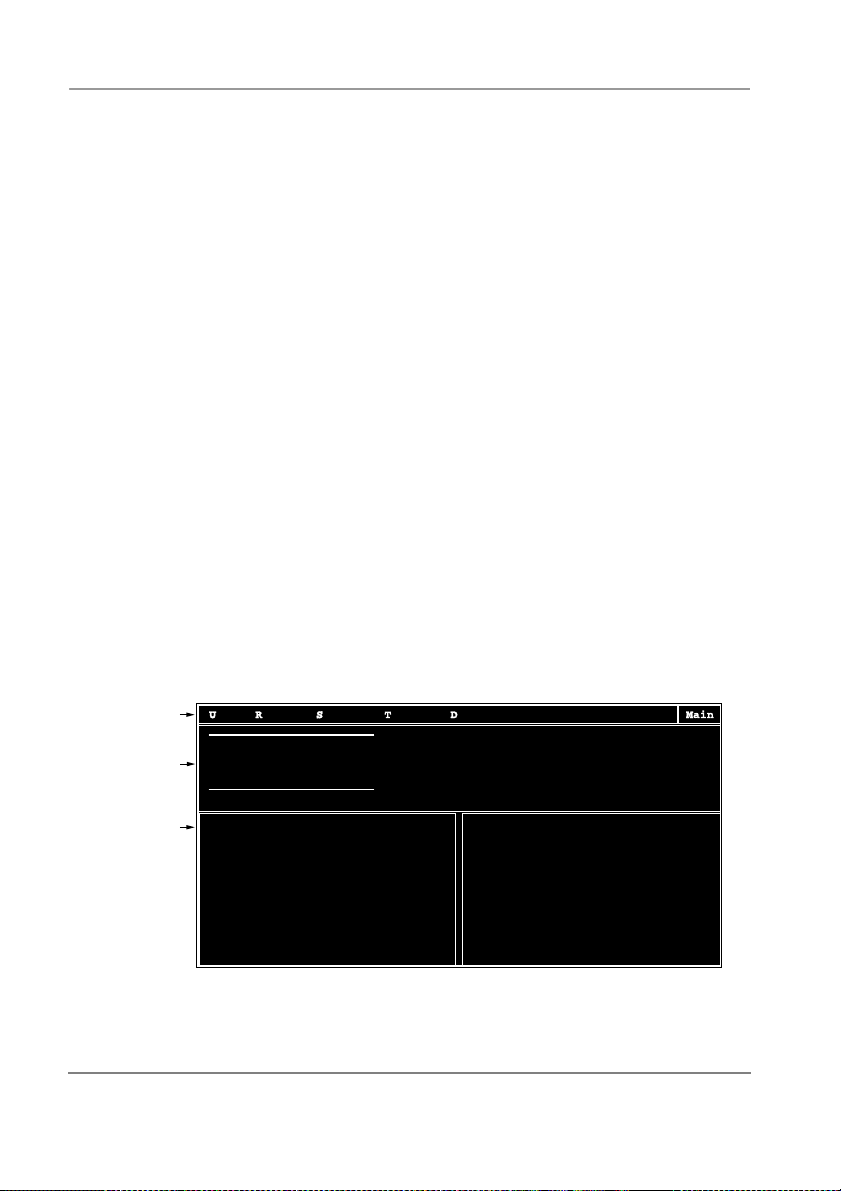
From the Main Menu (Figure 1-7), you can access the following options:
Users: accesses the Users Menu (customising User ID mailboxes). See Chapter 6 –
◆
Users Menu in the Stratagy I & M Manual for information on using the Users Menu
screens.
Reports: generates reports. See “Generating Reports” on Page 17-4 of the Stratagy
◆
I&M Manual for more information.
Shutdown: shuts down the system. See “System Shutdown Via User ID Access” in this
◆
chapter.
Tools: which supplies filecopy, backup, restore, Toshiba plug and play, system
◆
configuration, trace file retrieval, and software upgrade options.
Date/Time: sets system date and time. See “System Date and Time”in this chapter.
◆
Quit: exits Stratagy Admin on remote PC and returns to DOS prompt. Available on
◆
Stratagy Admin software only. See “Quit” in this chapter.
to go to the Manual Dialling Mode screen.
Enter
Connection established
Installation
Enter
appears briefly on the screen
.
1-20
Menu Bar
System
Information
Port
Activity
Statistics
Users Reports
Stratagy VDK .2N/1.03
Voice Processing
TAIS, Inc. Copyright 1994
Strata DK 280
Port User ID Status Calls Port User ID Status CallsLast Last
1/A
2/A
3/A
4/A
990
991
3366
990
Shutdown Tools
Usage:
Users:
Space:
Calls:
Notify Scan
DIAL
IDLE
RECORDING
IDLE
290
181
17
Date/Time
0/98%
101
24:00
1013
At 08/29/94 17:58
17:04
17:02
17:04
09:56
3
Quit KSU time
Started:
Shutdown:
94%
Time:
08/29/94
08/29/94
08/30/94
Figure 1-7 Main Menu with Sample Data
Refer to the Stratagy Library CD-Rom for more details.
Stra tagy DK I&P R2 November 1998
17:04:03
16:58:01
01:30
2090
Page 29

Installation
H
➤
To access the options
1. Press
2. Type the password. (The default password is
Quit
Note AvailableonlyonStratagyAdminsoftware.
the first character of the option (e.g.,
Alt+
Stratagy DK
for the Users Menu).
Alt+U
Stratagy, with the first letter uppercase.)
Important! This function quits the Stratagy Admin program and does not shut down
1. Press
2. The remote PC exits Admin and returns to the DOS prompt.
Alt+Q
Stratagy.
.
System Date and Time
➤
To set date and time
1. From the Main Menu, select Date/Time by pressing
2. Stratagy prompts:
Password?
Type the password and press
uppercase.) The following screen displays:
3. The current date and time settings display, with the date field highlighted.
Use the arrow keys (↑↓) to move between the date and time fields. Or press
the next field.
Type the new date and time settings. The date format is:
. (The default password is Stratagy, with the first letter
Enter
System Date/Time
Date: 22/03/1996
Time: 09:00:13
dd/mm/yyyy
Alt+D.
2463
Enter
to move to
Stratagy DK I&P R2 November 1998
Refer to the Stratagy Library CD-Rom for more details.
1-21
Page 30
Stratagy DK
H
The time format (24-hour clock) is:
hh:mm:ss
When finished, return to the Main Menu.
Note This is only available when the Stratagy DK is synchronised to its own system clock
andnottheStrataDKclock.
Daylight Time
The system time can be configured to change automatically to daylight savings time.
See “daylight_” on Page 2-5 of Chapter 2 – Configuring Stratagy for more information. If the
Daylight Savings option is selected, the top right corner of the main menu will display “Daylight
Savings”,or,“Standard Time”, dependent on whether the system is set to observe British Summer
Time, or GMT repectively. If Stratagy is configured to synchronise to its own system clock, the
displayinthetoprightcornerofthemainmenuisblank,ifStratagyDKhasbeensettosynchronise
with Strata DK this field will display KSU time.
Installation
Important! This feature is only available when Stratagy DK is using its own system clock
and is not synchronised to the Strata DK clock.See“ksu_time” on Page 2-9 for
more information.
Step 12: Configure Stratagy DK
To configure the Stratagy DK, you may need to use the following Tools menu selections:
Toshiba Plug and Play
◆
Telephone System Configuration
◆
Stratagy System Configuration.
◆
For a complete description of the standard menu selections and field descriptions, see the
Stratagy I&M Manual.
Menu Bar
System
Information
Activity
Statistics
Users Reports
Stratagy VDK .2N/1.03
Voice Processing
TAIS, Inc. Copyright 1994
Port User ID Status Calls Port User ID Status CallsLast Last
Port
1/A
2/A
3/A
4/A
Strata DK 280
990
991
3366
990
Shutdown Tools
DIAL
IDLE
RECORDING
IDLE
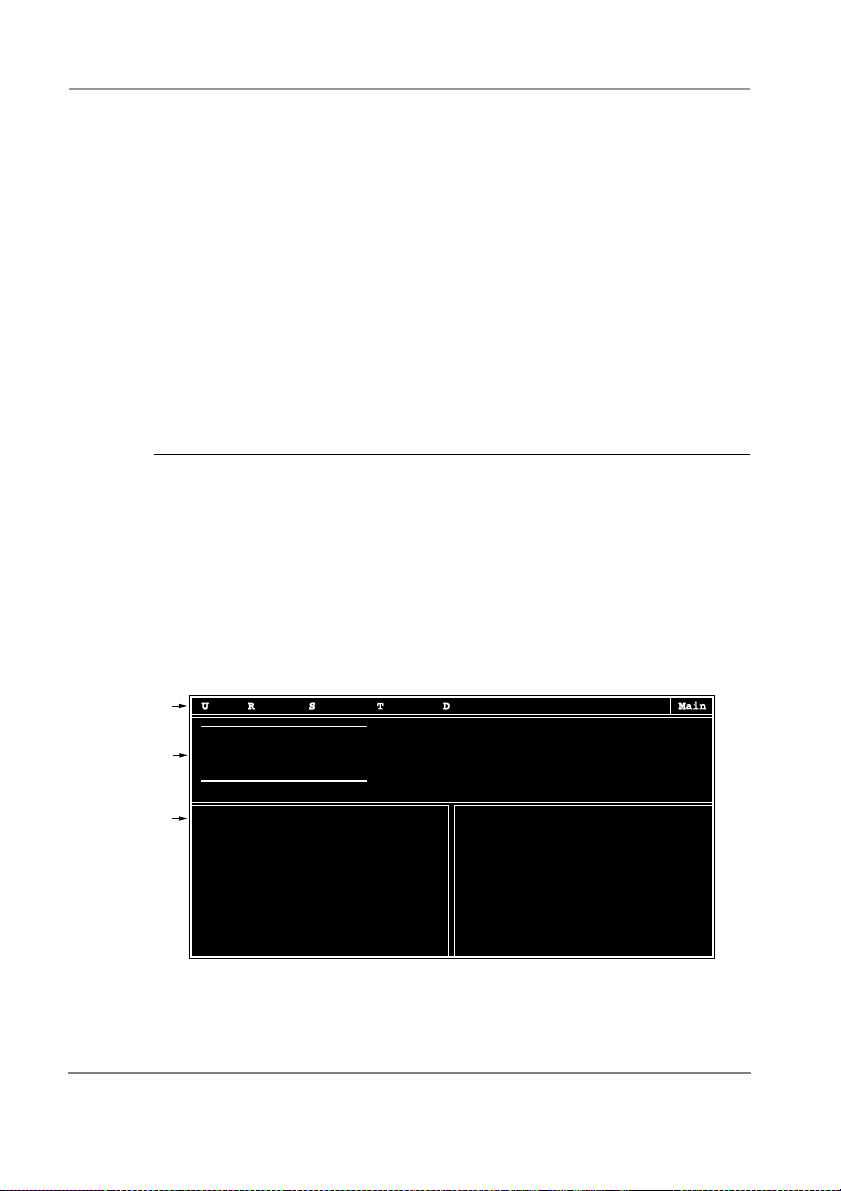
Figure 1-8 Main Menu with Sample Data
Note To display the detailed help for a field, highlight the field and press
arrow keys (↑↓) to scroll through the information. To exit detailed help, press
Date/Time
Usage:
Users:
101
Space:
24:00
Calls:
1013
Notify Scan
At 08/29/94 17:58
17:04
290
17:02
181
17:04
17
09:56
3
0/98%
94%
Quit KSU time
08/29/94
Time:
Started:
Shutdown:
08/29/94
08/30/94
17:04:03
16:58:01
01:30
.Usethe
F1
2090
Esc
.
1-22
Refer to the Stratagy Library CD-Rom for more details.
Stra tagy DK I&P R2 November 1998
Page 31

Installation
H
Stratagy DK
1. Press
2. Type the password. (The default password is
Note Menu screens detailed in this section are available only in Admin version VSA.2N
Alt+t
uppercase.)
or later.
The following screen displays:
1. Backup Utility
2. Restore Utility
3. Upgrade Stratagy software
4. Telephone System Configuration
5. Toshiba Plug and Play
6. Stratagy System Configuration
7. Retrieve Trace File
8. Filecopy
ToshibaPlugandPlay
The Stratagy DK is pre-installed for the DK280/424. If you need to change this selection to a
different Strata DK telephone system, change it now using this selection. Otherwise, go to
“Telephone System Configuration” on Page 1-24.
Selecting this function will:
change all the settings to the new Toshiba telephone system default values
◆
delete any User ID mailbox customisations
◆
install the Strata DK default mailboxes
◆
Note Existing messages and mailbox greetings are not deleted when Plug and Play is
selected. For example, if mailbox 200 has messages and greetings and Toshiba Plug
and Play for DK424 A, B, C/D SMDI is run, then mailbox 200 retains the messages
and greetings from the previous database.
for the Tools submenu.
Tools
Stratagy
,withthefirstletter
Stratagy DK I&P R2 November 1998
Refer to the Stratagy Library CD-Rom for more details.
1-23
Page 32

Stratagy DK
H
1. From the Tools menu, press5. The following menu is displayed:
Toshiba Plug & Play
1. Strata DK14/40
2. Strata DK14/40 SMDI
3. Strata DK424 A,B,C/D
4. Strata DK424 A,B,C/D SMDI
5. Strata DK424 E/F
6. Strata DK424 E/F SMDI
2. Enter the number of the selection.
The Stratagy utility automatically defines the telephone system dial codes and tone
patterns, system integration patterns and default mailboxes for the specific telephone
system.
Installation
Important! For the DK16 & DK40 select number 1. Strata DK14/40. For the DK280
Notes
If you only want to change the PBX type, do not use this function. Instead, set the
●
“pbx_type” parameter in the Stratagy System Configuration screen (See Chapter 2
– Configuring Stratagy Table 2-18 for details).
The DK40 CPU software level R1 will not support SMDI.
●
3. When the Toshiba telephone system is complete, press any key to reboot.
4. The DOS prompt is displayed. To continue, re-enter Stratagy Admin and access the
Tools submenu.
Note The new telephone system designation will display in the Main Menu.
Telephone System Configuration
This function is to be used to modify the following codes/integration patterns:
Telephone system dial codes – Stratagy controls certain actions on your telephone
◆
system by using defined telephone system dial codes. To define the dial codes you must
modify the telephone system dial code parameters.
System integration patterns – Allows modification to the Strata DK integration patterns.
◆
1-24
select number 3. Strata DK424 a, B, C/D. For the DK280 with SMDI select
number 4. Strata DK424 A, B, C/D SMDI
Stra tagy DK I&P R2 November 1998
Refer to the Stratagy Library CD-Rom for more details.
Page 33

Installation
H
Stratagy DK
Note The telephone system configuration is set using the “pbx_type” parameter
(See See Chapter 2 – Configuring Stratagy Table 2-18 for details).
If your system is to be configured for system dial codes or system integration patterns, you
will need to edit them now. As an example:
If your system is configured for voice first, you would:
1. Press
2. From the Telephone System Dial Codes screen, add the suffix
to Edit System Dial Codes.
1
to the line
1-
What to dial AFTER dialling the User ID extension.
3. Press2to save your changes without restarting Stratagy.
Otherwise, go to “Stratagy System Configuration” on Page 1-26.
.Thefollowingmenuisdisplayed:
1. From the Tools menu, press
4
Telephone System Configuration
1. Edit System Dial Codes
2. Edit System Integration Patterns
2. Press
3. After making the change, press
; the Telephone System Dial Codes screen is displayed (SeeFigure4-3 in the
1
Stratagy I&M Manual).
; the System Integration Patterns screen is displayed (SeeFigure4-6 in the
...or press
Stratagy I&M Manual).
2
ESC
Telephone System Configuration
1 Transmit file to Stratagy and Restart
Stratagy
2 Transmit file to Stratagy without
Restarting Stratagy
3 Cancel changes
Stratagy DK I&P R2 November 1998
Refer to the Stratagy Library CD-Rom for more details.
and the following screen displays:
1-25
Page 34

Stratagy DK
H
Installation
Press1; the changes are transmitted to Stratagy and Stratagy is shut down and restarted.
By shutting down and restarting Stratagy, the changes take effect.
; the changes are transmitted to Stratagy but Stratagy is not shut down or
...or press
restarted. Until you restart Stratagy, the changes do not take effect.
...or press
2
; the changes you have made are cancelled and not saved.
3
CAUTION! Care should be taken when making changes and then restarting Stratagy.
In some cases, if invalid information has been entered, Stratagy may not
reboot correctly.
Stratagy System Configuration
Use this function to change Stratagy’s system options and parameters, and define time-out
values. Most Stratagy System Configuration options
We recommend that you modify the system password immediately. All other options have
default values, but may be modified as required.
1. From the Tools menu, press
alphabetical order is displayed.
(See Chapter 2 – Configuring Stratagy Table 2-18 for a complete list and a description
of new parameters added for the Stratagy DK.)
Note Fax settings are not available to the Stratagy DK.
2. Make changes to the parameters (See the Definitions and Settings of “System
Parameters” on Page 4-29 of the
parameters.)
Important!
Take time to review the new parameters in See Chapter 2 – Configuring
Stratagy Table 2-18. They are important to the proper functioning of the
Stratagy DK and its new features.
require modification.
do not
. The system configuration file with all parameters in
6
Stratagy I&M Manual
for instructions on changing the
1-26
Refer to the Stratagy Library CD-Rom for more details.
Stra tagy DK I&P R2 November 1998
Page 35

Installation
H
Stratagy DK
3. Press
. The following menu is displayed:
ESC
Stratagy System Config
1 Transmit file to Stratagy and Restart
Stratagy
2 Transmit file to Stratagy without
Restarting Stratagy
3 Cancel changes
; the changes are transmitted to Stratagy and Stratagy is shut down and restarted.
1
Press
By shutting down and restarting Stratagy, the changes take effect.
; the changes are transmitted to Stratagy but Stratagy is not shut down or
...or press
restarted. Until you restart Stratagy, the changes do not take effect.
...or press
4. Press
5. Press any key to reboot. The DOS prompt is displayed. To continue with Step 13, you
must re-enter Stratagy Admin.
2
; the changes you have made are cancelled and not saved.
3
to save the changes. Stratagy shuts down and restarts.
3
Step 13: Program the Mailboxes
Program the User mailboxes for the customer’s application.
➤
Yo u ’ll notice some changes in the User Menu – Options screen. The changes (see Figure 1-9)
are:
A new field called DSS Port has been added. This new field replaces the Alternate Rate
◆
feature, which is not available with the Stratagy DK.
The Message Volume feature, although displayed on the screen, is not supported by the
◆
Stratagy DK.
Stratagy DK I&P R2 November 1998
Refer to the Stratagy Library CD-Rom for more details.
1-27
Page 36

Stratagy DK
STRATAGY
N
g
g
H
Installation
Menu Bar
User's
Information
Basic
Options
AMIS
Options
Save DDelete CCopy
Auto N
User ID: 215 Comment:
Extension: 215
Directory Name 1: Smith Directory Name 2: Pat
Basic Options:
Do Not Disturb: OFF Lock:OFF Busy Message: SYS Max: 45 Sec
Store Messages: YES Max:180 sec Play Date/Time?: NO Slow Menu : NO
Copy Message To: Record Name?: YES Saved Msg Que : YES
Message Volume: 0 Guests: 0 Message Order : FIFO Caller Menu: NO
Amis Options: Gateway Box: NO AmisSysNumber:
otify TTable
Security Code:
Maximum Rings: 0 (default is 4) Current Greeting: 1 Max: 45 sec
Screen Calls: OFF Lock:OFF ID Call ?: NO Busy Hold : YES
Message Volume field is not
supported by Strata
STRATAGY
Esc/EXIT PgDn/NEXT PgUp/PREV
Info/Status GGroup/Chains
DSS Port: -1 Use At Login : NO
Alternate Rate field is replaced
y DK.
by DSS Port field on Strata
Options
y DK.
2091
Figure 1-9 Options Screen with Sample Data
DSS Port
The DSS Port field corresponds to the “physical” port number of a Strata DK station. This
fieldenablestheStratagyDKtomonitortheBusyLampfieldofaDSSconsoleportto
determine if the station is busy before attempting to transfer.
Due to the Strata DK architecture, only 58 stations can be monitored. User IDs without a
DSS Port setting will transfer calls in the normal fashion.
Important! If the dss_active parameter in the install.cfg file is set to false, this field is
Examples:
Possible values: 0 ~ 57, -1 disables feature
Default: -1 (disabled)
disabled.
◆ For User ID 200, if station 200/Port 000 is programmed under the first key of the
DSS/BLF console, the value entered into the DSS Port must be 0.
◆ For User ID 210, if station 210/Port 010 is programmed under the second key of the
DSS/BLF console, the value entered into the DSS Port must be 1.
1-28
Important! Once the DSS/Busy Lamp feature has been programmed using the two
parameters and the DSS Port field, Stratagy DK must be re-started two times.
The first re-start configures the DSS parameters/field. The second re-start
“loads” the DSS parameters/field into active memory.
All other Users Menu, Auto (Scheduling), and Notify screens remain unchanged. See
Chapter 6 – Users Menu, Chapter 7 – Auto (Scheduling) Menu and Chapter 8 – Notify Menu
in the Stratagy I&M Manual for complete details on using the screens.
Refer to the Stratagy Library CD-Rom for more details.
Stra tagy DK I&P R2 November 1998
Page 37
Installation
H
Step 14: Application Programming
Program the applications.
➤
Note See Chapter 10 – Token Programming in the Stratagy I&M Manual for complete
details on all the Stratagy tokens.
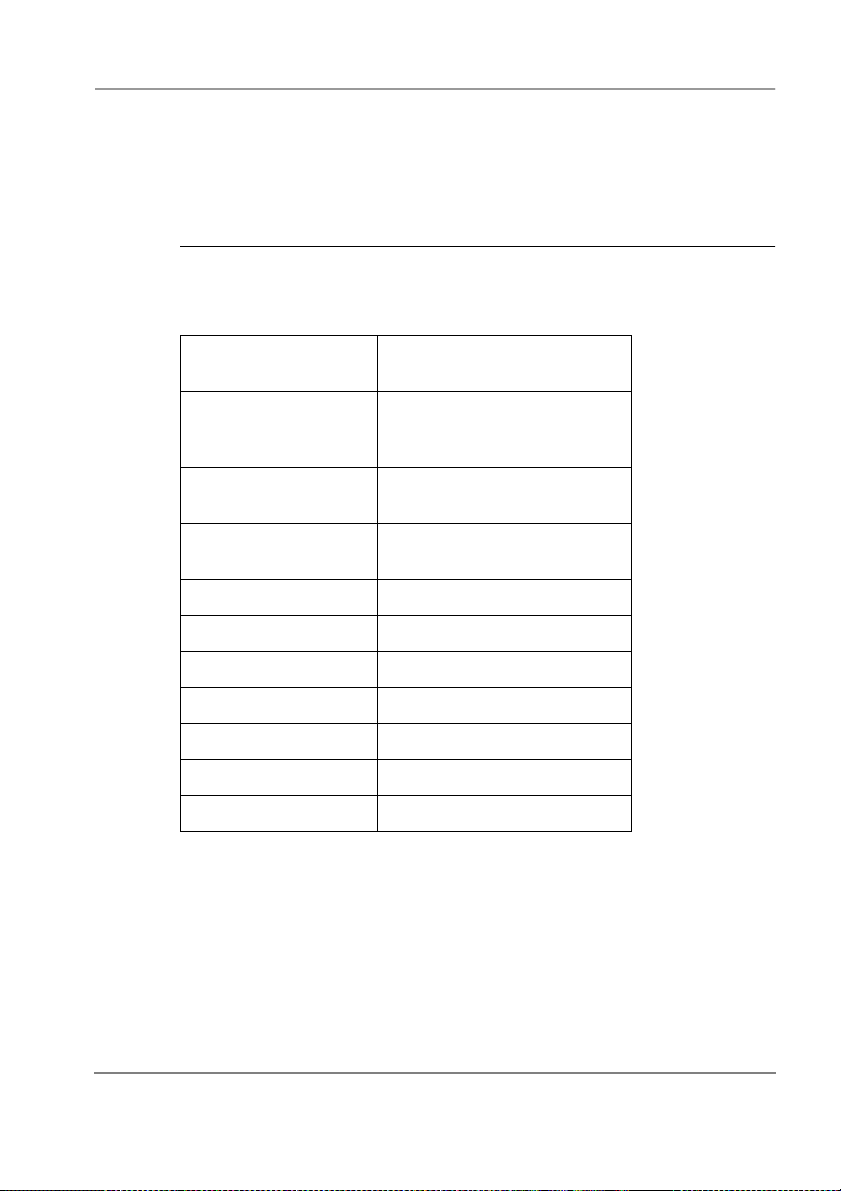
Important! Stratagy DK will not support the following tokens.
Stratagy DK
Tab le 1 -1 7
Defined Tokens Summary
J(file,string)
J(file,””,tokens)
S(port,S,%Sn,
termination,length,
timeout)
T(file,string)
T(file,””,tokens)
V(file,field,item,field,
%Sn[,field,%Sn...])
?(item,file,uid) Exists in file
<(string) Start incremental fax
>(file) Add incremental fax
|(file) Append variables to file
[(file) Read %S variables state
](file) Write %S variables state
{file} Input file
Some new tokens are available exclusively for the Stratagy DK. They are:
◆ KM
◆ KT( )
– Enables a portable/desktop computer’s modem to communicate with the
Stratagy DK internal modem (2400 baud) by sending the call to User ID 993.
Example:
= true), the DSS port is assigned in the “answering” mailbox, and the Night Transfer on
the DSS console is ON.
Syntax:
@KM
– Directs calls to a designated User ID when DSS function is active (dss_active
@KT(XXX)G(YYY)
where:
XXX
Receive fax
Serial port access
Transmit fax
Search for value
BoxnumberusedwhenNightTransferisON.
Stratagy DK I&P R2 November 1998
Refer to the Stratagy Library CD-Rom for more details.
1-29
Page 38
Stratagy DK
H
Installation
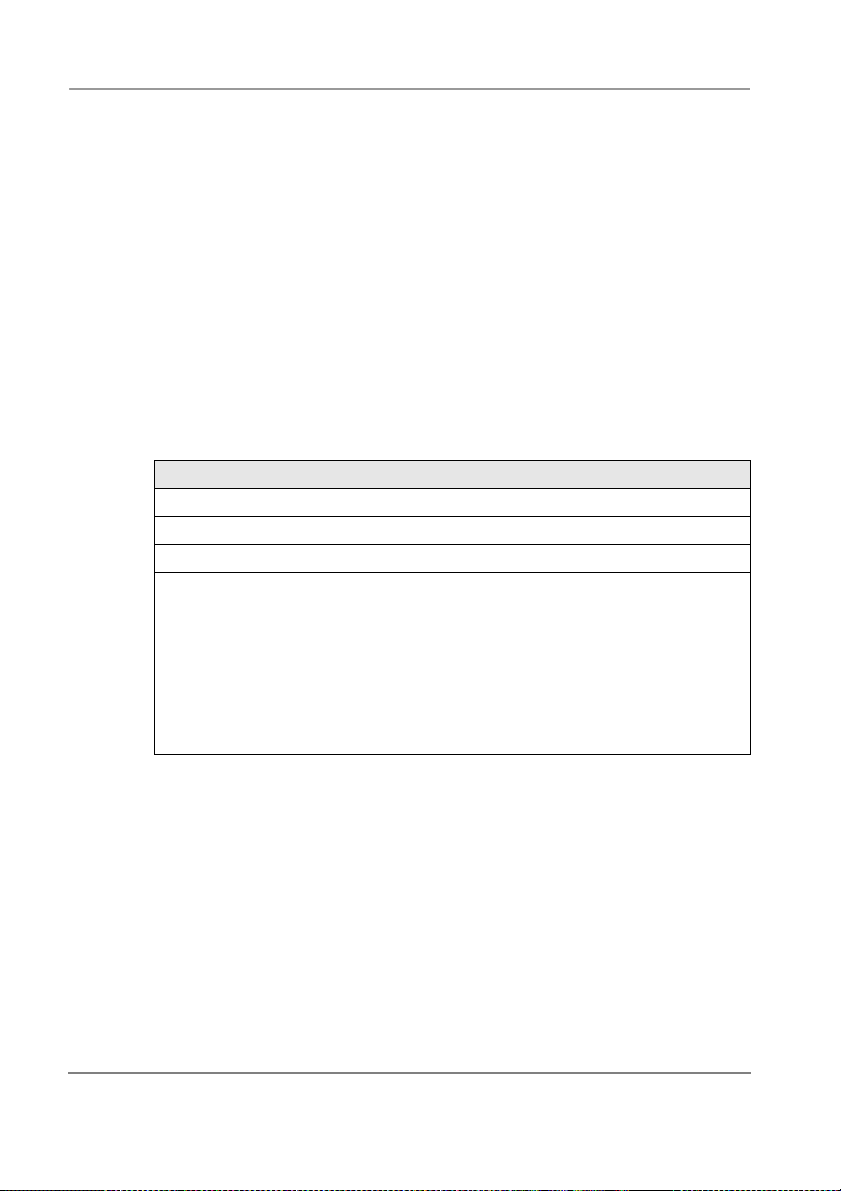
YYY
◆ KS( )
– When a User ID is accessed using the shutdown token, dependant on the
syntax used the syatem will perform a system shutdown for restart, or a system
shutdown for stop.
BoxnumberusedwhenNightTransferisOFF.
Night Transfer Alternate Routing
Using the
available. The feature monitors the DSS/BLF console’s Night Transfer key in order to
activate the
The following is an example on how to program this feature. In this example, we will use:
◆ User ID: 900
◆ User ID when Night Transfer is ON: 901
◆ User ID when Night Transfer is OFF: 990
Program Procedure:
1. Define the Users record to contain:
Extension
Do Not Disturb
Store Messages
DSS Port 59
Note
Important!
2. In the Stratagy System Configuration file:
◆ Select the set box_grt parameter for the specific port and type in
◆ Activate the dss_active parameterandsetitto
3. Access the User ID 901 mailbox via telephone and record greeting 1.
When the Night Transfer key is enabled, calls for the specific port will be routed to User ID
901. When the Night Transfer key is disabled, calls route to the User ID 990.
token a new feature called Night Transfer Alternate Routing is now
KT( )
token for alternate routing applications.
KT( )
User ID 900
@KT(901)G(990)
OFF
NO
(LED 60 of the DSS/BLF must have the default setting (Night
Service)assigned in Strata DK Programming.)
Ensure that the PDKU slot number designated fro the DSS/
BLF console is defined. For more details see
“console_slot_id” on Page 2-4 in Chapter 2 - Configuring
Stratagy. If PDKU is in card slot 11, then console_slot_id
assignment is 0. Strata DK assigns the first port of the slot
64 card as a DSS “host” port.
.
true
900
.
1-30
System Shutdown Via User ID Access
Using the KS token a new feature enabling callers to access a User ID to perform one of two
types of system shutdown is now available. The two types of shutdown are:
◆ System shutdown and stop
◆ System shutdown and restart
Stra tagy DK I&P R2 November 1998
Refer to the Stratagy Library CD-Rom for more details.
Page 39

Installation
H
Stratagy DK
Shutdown and Stop
Syntax:
@KS(1)G(999)
where:
ensures that the port called, in addition to all other calls in progress on any of the
other ports, are cleared down correctly prior to the shutdown.
Note Stratagy DK is shutdown when the status LED is off and all the port LED’sare
KS(1)
constant green.
tells the system that it is to shutdown and stop and G(999)
Shutdown and Restart
Syntax:
@KS(5)G(999)
where:
KS(5)
ports are cleared down correctly prior to the shutdown and restart.
tells the systemto shutdown and restart and G(999) again ensures that all the
Important! Toshiba strongly recommend that User ID’s are set up for both types of
shutdown, and details are given to the system administrator. This will allow
non Stratagy trained engineers to work on the Strata DK and for them if
necessary to fluctuate the Strata DK power without harming Stratagy DK. (see
Step 17 “Shut Down the Stratagy DK” on Page 1-40 for more information)
Step 15: Setting Up the Serial Mailbox
Ensure that a mailbox has been set up for the serial number to be read remotely. This will
facilitate upgrades. The serial number can be found on a label on the bottom edge of the
Stratagy DK, so once installed the Stratagy DK would have to be removed from the Strata
DK to be able to read the serial number.
Probably the easiest way is to record the serial number in the System Administration
Mailbox, User ID999, when the system is first installed. It would be a good idea to use a
greeting that a caller would not hear if they accidentally dialled a wrong extension or digit,
such as greeting 7. To hear the serial number of the Stratagy DK, simply log onto the mailbox
andlistentogreeting7.
Note Once the greeting has been listened to, ensure that the correct greeting is reselected
so that the greeting that contains the serial number is not played to future callers.
Another way would be to program it in the extension field of a User ID, using the P token.
For example, the installer would program the extension field to read: @P(A,B14471)G(999),
where B14471 is the Stratagy DK serial number. To hear the serial number, simply call into
Stratagy DK and dial the user ID that has the token string in the extension field. Stratagy DK
reads the alphanumeric-string in the extension field to the caller, then routes the caller to User
ID 999. This method would also allow technicians access to the system serial number from
the local or remote Admin terminal simply by calling up the extension field in the appropriate
User ID.
Stratagy DK I&P R2 November 1998
Refer to the Stratagy Library CD-Rom for more details.
1-31
Page 40

Stratagy DK
H
Step 16: Stratagy DK Maintenance
To maintain the Stratagy DK, you will need:
Tools (Main Menu selection)
◆
Trace diagnostics
◆
Important!
Toshiba strongly recommends that to complete the installation process, you back up your new
database, mailbox names and greetings.
Tools
The following Tools menu selections will be needed for maintenance of the Stratagy DK (see
Figure 1-2):
Backup Utility
◆
Restore Utility
◆
Upgrade Stratagy software
◆
Retrieve Trace File
◆
Filecopy
◆
Backup Utility
TheStratagyBackupUtilityisusedtobackupinformationfromtheStratagyDKharddrive
to the hard drive of the portable/desktop computer.
Installation
1-32
CAUTION! Because of possible errors that can be induced through the telephone
Backup functions are available for either a customer’s database or mailbox names and
greetings, or both.They consist of:
Database
◆
All mailbox settings and information, Stratagy system configuration settings,
notification templates, auto schedules, and all information concerning the selected
telephone system’s integration information.
Mailbox names and greetings
◆
All names and greetings that have been recorded for all programmed mailboxes
(personal and company).
Backing up your Stratagy system regularly enables you to restore your system with minimal
data loss if the system fails (hard drive failure, etc.).
Note Messages cannot be backed up.
network, Toshiba advises that the Backup Utility be performed onsite.
Stra tagy DK I&P R2 November 1998
Refer to the Stratagy Library CD-Rom for more details.
Page 41

Installation
H
Stratagy DK
1. From the Tools menu, press
. The following menu is displayed:
Enter
Backup
1. Backup Database
2. Backup Names and Greetings
3. Backup Database, Names & Greetings
CAUTION! During the Backup and Restore procedures, the Stratagy DK cannot be
processing calls. When any Backup or Restore function is selected,
Admin will query the Stratagy DK if there are any calls currently in
progress. If calls are in progress, Admin will ask if the calls can be
terminated. If call termination is selected, any current connection will be
disconnected and all ports will be commanded to go off-hook to prevent
any further calls. If call termination is denied, the Backup or Restore
procedure is halted.
During a Backup or Restore, the Stratagy DK is in full operation, only the
ports have been busied out. If the connection between the portable/
desktop computer to the Stratagy DK is dropped, communication can be
re-established by simply accessing Stratagy Admin in the usual manner.
If the connection between the portable/desktop computer and the
Stratagy DK is by way of the internal modem, that connection will be the
only one NOT dropped if a Backup or Restore function is selected. If this
type of connection is dropped, the Stratagy port will go idle and will
accept new incoming calls. Connection to the internal modem can be reestablished through this port.
2. Enter the number of your selection and a second screen requesting a backup directory is
displayed. The directory defaults to
directory, type over the default. Be sure to enter the complete path, including the drive
letter. Press
Note Backup of files to the portable/desktop computer’s floppy-disk drive is not
supported.
If the directory already exists, you are given the option of entering a new directory or
overwriting the file.
3. If you enter selection 2 or 3, you are also asked to enter a beginning and ending mailbox
number. Press
Note Leaving both fields blank defines all mailboxes.
Stratagy DK I&P R2 November 1998
Refer to the Stratagy Library CD-Rom for more details.
Enter
Enter
.
after each entry.
C:\ADMIN3\BACKUP
. If you want a different
1-33
Page 42

Stratagy DK
H
Installation
Once the backup starts, Admin calculates the time the backup will take and displays a
status message.
Backup time 4 min. 49 sec. Continue? [NY]
Important! Since the Backup file is copied to your portable/desktop computer’s hard
Transmitting at: Bytes Per Second being written to hard drive:
9600 bps 800 bytes
4800 bps 400 bytes
2400 bps 200 bytes
Example: If Admin displays a 5 minute backup time and communication is at 9600 bps,
then:
Bytes Per Second values are not exact. Additional amounts have been factored in to
estimate a higher quantity of space than will actually be required.
4. Press
When the backup is complete, the following status message is displayed.
drive, you should verify that there is enough available disk space to
accommodate it. Use the following chart to estimate the required hard drive
space based on the estimated Backup time.
5min.=300secs.
300 secs. x 800 bytes = 240,000 bytes
to continue.
Y
Backup successful. Reboot Stratagy? [NY]
CAUTION! If Stratagy is not rebooted, all ports will remain in an off-hook condition.
1-34
5. Press
Note You will not be able to reconnect to Stratagy using Stratagy Admin until the
to reboot Stratagy.
Y
The portable/desktop computer returns to the
Stratagy DK status light becomes a solid green, Stratagy is operational.
Stratagy DK status light is green. Any attempt prior to that time will fail.
C:\ADMIN3
DOS prompt. When the
Restore Utility
The Stratagy Restore Utility is used to restore information from the portable/desktop
computer’s hard drive to Stratagy’sharddrive.
Refer to the Stratagy Library CD-Rom for more details.
Stra tagy DK I&P R2 November 1998
Page 43

Installation
H
Stratagy DK
CAUTION! Because of possible errors that can be induced through the telephone
Restore functions are available for either a customer’s database or mailbox names and
greetings, or both.
1. From the Tools menu, press
network, Toshiba advises that the Restore Utility be performed onsite.
.Thefollowingmenuisdisplayed:
2
Restore
1. Restore Database
2. Restore Names & Greetings
3. Restore Database, Names & Greetings
CAUTION! Stratagy Voice Processing will be suspended during the restore
2. Enter the number of your selection and a second screen requesting the source directory
is displayed. The directory defaults to
in a different directory, type over the default. Be sure to enter the complete path,
including the drive letter. Press
Note Restoring files from the portable/desktop computer’s floppy-disk drive is not
3. If you enter selection 2 or 3, you are also asked to enter a beginning and ending mailbox
number. Press
Note Leaving both fields blank defines all mailboxes.
Once the restore starts, Admin calculates the time the process will take and displays a
status message.
procedure. Any existing connection is broken. For additional information
on the Restore procedure, see the Caution on Page 1-33.
If you have the file(s)
supported.
Enter
Enter
after each entry.
C:\ADMIN3\BACKUP.
.
Restore time 4 min. 49 sec. Continue? [NY]
to continue.
4. Press
Stratagy DK I&P R2 November 1998
Refer to the Stratagy Library CD-Rom for more details.
Y
1-35
Page 44

Stratagy DK
H
Installation
When the restore is complete, the following status message is displayed.
Restore successful. Reboot Stratagy? [NY]
CAUTION! If Stratagy is not rebooted, all ports will remain in an off-hook condition.
5. Press
Note You will not be able to reconnect to Stratagy using Stratagy Admin until the
to reboot Stratagy.
Y
The portable/desktop computer returns to the
Stratagy DK status light becomes a solid green, Stratagy is operational.
Stratagy DK status light is green. Any attempt prior to that time will fail.
C:\ADMIN3
DOS prompt. When the
Upgrade Stratagy Software
To upgrade Stratagy system software, you will need the correct set of software.
CAUTION! Because of possible errors that can be induced through the telephone
1. From the Tools menu, press
The following menu is displayed:
network, Toshiba advises that the Upgrade Utility be performed onsite.
.
3
Upgrade
WARNING: Stratagy Voice Processing will be
suspended. Any existing
connection will be broken.
Upgrade from directory:
A:
1-36
ESC/Exit F1/Help
2. Place the upgrade disk into the portable/desktop computer’s floppy-disk drive.
3. The default directory is A:. If you need a different drive, type over the default. Press
Enter
.
Stra tagy DK I&P R2 November 1998
Refer to the Stratagy Library CD-Rom for more details.
Page 45

Installation
H
Stratagy DK
When the upgrade procedure is complete, the following message is displayed:
Upgrade successful. Press any key to reboot
Stratagy.
4. Press any key.
The portable/desktop computer returns to the
Stratagy DK status light becomes a solid green, Stratagy is operational.
Note You will not be able to reconnect to Stratagy using Stratagy Admin until the
Stratagy DK status light is green. Any attempt prior to that time will fail.
C:\ADMIN3
DOS prompt. When the
Retrieve Trace File
This function can be used to copy the trace data log file (trace.out) to the portable/desktop
computer’s hard or floppy-disk drive.
Note Thesizeofthetracefilecanbesetusingthe“trace_cap”parameter in the install.cfg
file of Stratagy (See Chapter 2 – Configuring Stratagy Table 2-18 for a description of
the parameter).
.Thefollowingmenuisdisplayed:
1. From the Tools menu, press
Trace file name:
TRACE.OUT
Retrieve to directory:
C:\ADMIN3\TRACE.OUT
7
Retrieve Trace File
ESC/Exit F1/Help
2. The trace file name defaults to
the default. Press
Note Possible files you might want to retrieve are TRACE.OUT and Stratagy.log.
3. Enter the directory to which you want the file to be copied. The default is
C:\ADMIN3\TRACE.OUT.
Press
Enter
If the directory already exists, you are given the option of entering a new directory or
overwriting the file.
Note Be sure to enter the complete path.
Stratagy DK I&P R2 November 1998
Refer to the Stratagy Library CD-Rom for more details.
Enter
.
TRACE.OUT.
.
If you need a different directory, type over the default.
If the file has a different name, type over
1-37
Page 46

Stratagy DK
H
Installation
Filecopy
Use Stratagy Admin’sFilecopyoptiontocopyfilestoandfromtheharddrivesofthe
Stratagy DK and the portable/desktop computer.
. The following menu is displayed:
1. From the Tools menu, press
The following screen displays:
Source System:
Copy From:
Copy To:
8
Filecopy
ESC/Exit F1/Help
2. In the Source System field (where the file currently resides), press
up box of selections. Highlight
for Stratagy and press Enter.
3. In the Copy From field, type the directory name, if necessary, and the file name.
Note If a directory name is not entered, Filecopy searches the Stratagy or Admin directory
(portable/desktop computer) for the file to be copied.
when finished.
4. Press
5. In the Copy To field, type the directory name, if necessary, and the file name.
Note If a directory name is not entered, Filecopy assigns the destination for the file to the
6. Press Enter when finished.While the file is being copied, the following dialogue status
Enter
Stratagy or Admin directory.
box is displayed:
for the portable/desktop computer or
PC
to display a pop-
F2
Stratagy
File copying: Stratagy ? Local, Received
1024 bytes (33%)
When the copy is complete, the following status box is displayed:
Finished copying file in 0.17 minutes,
press any key to continue
1-38
Refer to the Stratagy Library CD-Rom for more details.
Stra tagy DK I&P R2 November 1998
Page 47

Installation
H
7. Press any key to continue.
Trace Diagnostics
Trace is a diagnostic tool that is designed to assist you in troubleshooting Stratagy’sactivity.
When Trace is enabled, it is automatically turned on when Stratagy loads up and logs data
until Stratagy software is shut down.
To log the trace data, you can use a text file called TRACE.OUT. The size of the trace file can
be configured using the “trace_cap” parameter (See Chapter 2 – Configuring Stratagy Table
2-18). This parameter defines the size of the trace file in kilobytes. When the size of the trace
file reaches the setting limit, the existing file is overwritten, beginning with the oldest record.
Enabling Trace Out
➤
To enable Trace Out
Using the Shutdown function on the Stratagy Admin Main Menu, select the option
➤
“Shutdown and Trace CURRENT Version.” For more details, see Step 17 “Shut Down
the Stratagy DK” on Page1-40.
Stratagy shuts down, then restarts in TRACE mode. Trace will run continuously until
Stratagy is shut down. At that point, the Trace stops but data will still reside in the text file
TRACE.OUT.
Note The Stratagy DK must be restarted without the trace running in order to view the
Copying Trace Files
The TRACE.OUT file can be copied to a floppy disk and edited.
Stratagy DK
TRACE.OUT file.
➤
To copy a Trace file to the portable/desktop computer’s floppy-disk or hard drive
1. From the Stratagy Admin Main Menu, press
to select the Retrieve Trace File option.
2. Press
3. Enter the trace file name and the directory to which you want the file to be copied. Press
4. The file may be edited using an available editing program on the portable/desktop
7
Enter
computer.
.
to select the Tools menu.
Alt+T
Upgrading Stratagy DK Voice Ports
Upgrading the number of voice ports on the Stratagy DK, does not require any hardware.
Please call Toshiba Sales Order Processing with the following information:
Dealer Name and Number
◆
Dealer Purchase Order Number
◆
Customer Contact and telephone number
◆
Stratagy DK serial number
◆
Remote system’s password
◆
And the port upgrade will be activated by Toshiba remotely.
Note The Stratagy DK must be restarted for the new ports to be activated.
Stratagy DK I&P R2 November 1998
Refer to the Stratagy Library CD-Rom for more details.
1-39
Page 48

Stratagy DK
H
Step 17: Shut Down the Stratagy DK
Occasionally you will need to shut down, or exit, Stratagy call processing. Circumstances
include:
Turning power off to perform hardware maintenance
◆
Moving the system to another location
◆
Works being carried out on the Strata DK system that require Strata DK system power
◆
off
Installation
CAUTION! Never shut Stratagy down by turning off the Strata DK’s power. Doing so
Important! If work is to be carried out on the Strata DK system that requires its power to
1. From Stratagy Admin’s Main Menu, select Shutdown by pressing
2. Enter the password (the default is “Stratagy”) and press
The following screen displays:
may corrupt the system files that are in use and damage the hard disk.
Perform the following first.
be switched on and off Toshiba strongly recommend that the ‘Shutdown and
Stop for Power Off’ option in the Stratagy DK shutdown menu is selected first.
Alternatively call into the system to select the User ID set for system shutdown
and stop. The Stratagy DK PCB should then be gently pulled forward so that it
is disconnected from the backplane. Only on completion of all works when the
Strata DK is ready for the final power up should Stratagy DK be plugged back
in. Strata DK must be powered off when Stratagy DK is plugged back in.
Alt+S.
.
Enter
Shutdown Menu. ESC/Exit
Shutdown and Restart CURRENT Version
Shutdown and Trace CURRENT Version
Shutdown and Start NEW Version
Shutdown and Start OLD Version
Shutdown, SCANDISK and Restart
Shutdown and STOP for power off
1-40
Refer to the Stratagy Library CD-Rom for more details.
Stra tagy DK I&P R2 November 1998
Page 49

Installation
H
Stratagy DK
The screen enables you to select one of the following options:
◆ Shutdown and Restart CURRENT Version
— Restarts Stratagy (equivalent to pressing the
platform).
◆ Shutdown and Trace CURRENT Version
— Shuts down, then restarts Stratagy in the TRACE mode (TRACE.OUT file is
created) on Stratagy hard drive.
◆ Shutdown and Start NEW Version — Shuts down, then restarts Stratagy using the
new database and new Stratagy system software, if any (see “To sh ib a P lu g a nd P la y”
on Page 1-23).
◆ Shutdown and Start OLD Version — Shuts down, then restarts Stratagy using the
software version previous to the upgraded software.
◆ Shutdown, SCANDISK and Restart — Shuts down, runs ScanDisk program and
then restarts Stratagy.
Note There is no screen interaction during the running of the ScanDisk Utility.
◆ Shutdown and STOP for power off — Takes Stratagy off-line and does not restart it.
Note The “Shutdown and STOP for power off” option is not available when accessing
Stratagy remotely.
3. Highlight your selection and press Enter.
Note Stratagy DK can also be shutdown using the programmed User ID. For more details
see “System Shutdown Via User ID Access” on Page 1-30.
key on the current Stratagy
Esc
Stratagy DK I&P R2 November 1998
Refer to the Stratagy Library CD-Rom for more details.
1-41
Page 50

Stratagy DK
H
Installation
1-42
Refer to the Stratagy Library CD-Rom for more details.
Stra tagy DK I&P R2 November 1998
Page 51

Configuring Stratagy
H
System Parameters
Tab le 2 -1 8
Parameter Description
active_hold Controls how a caller must select to hold for a busy extension.
admin_port In order for Stratagy to communicate with the portable/desktop computer
adpcm_hq Sampling rate for outgoing greetings. The higher the sampling rate (kilobits
Stratagy DK System Configuration Parameters - Definitions and Settings
TRUE:
FA L S E :
Possible values: true, false
Default: true
connected to one of its serial ports, Stratagy needs to know which port is to
be used. This parameter defines the logical port that Stratagy software uses.
Assignment of the logical port to the physical port of the computer is made
using the set
Example: Set this parameter to 1 for logical serial port 1.
CAUTION!
Possible values: 1 (COM1), 2 (COM2), 3(COM3), 4(COM4)
Default: 2
Important!
per second), the better the sound quality. However, the amount of hard drive
space used is also higher.
CAUTION!
Possible values: 32, 64
Recommended value: 64
Default: 64
Caller must continue pressing* to hold for a busy
extension, enter another extension, or leave a message at
the tone.
Caller selects*once to hold for a busy extension and the
system allows the caller to hold until the is either transferred,
selects another extension, or presses
message.
serial_port
parameter.
The connection may fail if the baud parameter for this port
is set higher than 9600 or the serial port definitions for this
port do not correspond to the definitions for the COM port
being used on the portable/desktop computer.
Only COM1 or COM2 is supported
If you change this on an active system, all previously
recorded greetings will be lost.
again to leave a
*
2
Stratagy DK I&P R2 November 1998
Refer to the Stratagy Library CD-Rom for more details.
2-1
Page 52

Configuring Stratagy
H
System Parameters
Ta bl e 2 -1 8
Parameter Description
adpcm_nq Sampling rate for incoming messages. The higher the sampling rate (kilobits
adpcm_pq Sampling rate for the system prompt file. This is predetermined by the
auto_report Report definition file (created using Stratagy’s Main Menu’s Reports
auto_report_
time
begin_rec_
prompt
Stratagy DK System Configuration Parameters - Definitions and
Settings
(Cont.)
per second), the better the sound quality. However, the amount of hard drive
space used is also higher.
CAUTION!
Possible values: 32, 64
Recommended value: 32
Default: 32
sampling rate (kilobits per second), at which the system prompt file was
recorded.
CAUTION!
Default: 32
parameter—See Chapter 17 – System Tracking in the
to be used to generate automatically a report at the time specified by
auto_report_time
Example: ‘daily.rpt’
Possible values: valid DOS file name. The single quotes are required.
Default: (no report name)
When to generate the automatic report using the file specified in
auto_report
Example: 1:30 a.m. is 0130
Possible values: 0 (do not generate the
Default: 0
Whether the system says “Begin recording at the tone, ... or hang up” before
taking a message. This also affects the “to re-record press 2” and “to append
press 3” menu selections during the record menu that is given after a
recording.
TRUE:
FA L S E :
Possible values: true, false
Default: true
If you change this on an active system, all previously
recorded messages will be lost.
Do not change this parameter. All Stratagy system prompt
files are recorded at 32 bits per second sampling rate.
Stratagy I&M Manual
.
. The value is in 24-hour format with the colon (:) omitted.
2:15 p.m. is 1415
The system plays the above prompt.
The system does not play the above prompt. The caller only
hears a tone.
auto_report
), 0001 ~ 2400
.)
2-2
Refer to the Stratagy Library CD-Rom for more details.
Stra tagy DK I&P R2 November 1998
Page 53

System Parameters
H
Configuring Stratagy
Tab le 2 -1 8
Parameter Description
box_idx Sets the User ID as the Directory User ID for all ports or the specified ports.
box_snd Sets the User ID as the Direct Message User ID for all ports or the specified
cancel_busy_
hold
clock_sync Whether the system tries to re-synchronise the DOS software clock with the
Stratagy DK System Configuration Parameters - Definitions and
Settings
(Cont.)
The Directory is a special mode which allows Stratagy to search its User IDs
for a match on the
Directory, See Chapter 19 – Upgrading the System in the
.
Manual
Example: Define this parameter as
Note
Possible values: valid User ID and valid port
Default: 411 – enabled for all ports.
ports. The Direct Message ID allows Stratagy to record a message for a
User ID without having to execute the
ID’s greeting. This is particularly useful for an Operator transferring directly
to voice mail.
Examples: Define this parameter as
Possible values: valid User ID and valid port
Default: 998 – enabled for all ports.
Whether the system allows callers to hold for busy extensions.
TRUE:
FA L S E :
Possible values: true, false
Defa ult: false
PC hardware clock. It may be useful to turn this off (by setting it to FALSE) if
you have another utility controlling the PC clock.
TRUE:
FA L S E :
Possible values: true, false
Default: true
Directory Name
the directory search ID for port 1. If no port is defined, then
411 is enabled for all ports.
Stratagy builds an index file based on information given in the
Directory Name fields. It allows you to use one or more letters to
perform the search, matching all entries possible. For every User
ID that matches, Stratagy plays the name recording—which
really may play any recording you want, if available.
the Direct Message User ID for port 1. If no port is defined, then
998 is enabled for all ports.
Callers cannot hold for busy extensions.
Calls proceed as if a Ring No Answer.
Callers can hold for busy extensions.
Stratagy re-synchronises the DOS software clock with the PC
hardware clock.
Stratagy does not re-synchronise the clocks.
fields. For more information about the
411 1 to set User ID 411 as
box_idx
Extension
box_snd
field and/or hear the User
998 1 to set User ID 998 as
Stratagy I&M
Stratagy DK I&P R2 November 1998
Refer to the Stratagy Library CD-Rom for more details.
2-3
Page 54

Configuring Stratagy
H
System Parameters
Ta bl e 2 -1 8
Parameter Description
cmt_maxlen Number of seconds allowed for recording a list comment for the User
connect_tone Whether Stratagy plays a beep when completing a transfer.
console_slot_idIdentifies to Stratagy the physical slot in the Strata DK which contains the
Stratagy DK System Configuration Parameters - Definitions and
Settings
(Cont.)
parameter of Manage Your Lists.
Possible values: 1 ~ 99 (seconds)
Default: 10
TRUE:
FA L S E :
Possible values: true, false
Default: true
PDKU programmed for DSS console in Program 03 (type 64). The
Stratagy DK monitors this slot for the busy lamp field (See “dss_active”
parameter), KSU system time, and Night Transfer.
For Strata DK16/40:
0 corresponds to card slot S11 for DK16/40.
CAUTION!
For Strata DK424 and DK280:
table.
DK280/DK424 Console_slot_id
Slot Assignment
11, 31, 51 0
12, 32, 52 1
13, 33, 53 2
14, 34, 54 3
15, 35, 55 4
16, 36, 56 5
Important!
Possible values: 0 ~ 5
Default: 0 (zero)
Stratagy plays a beep when completing a transfer.
Stratagy does not play a beep when completing a transfer.
the
console_slot_id
For Strata DK16/40: If this parameter is set to 1,
Stratagy DK is disabled. All ports return “ring no answer”
when dialled.
For this feature to work, the PDKU must reside in an
odd numbered cabinet (See Figure 1-3 on Page 1-9 of
Chapter 1 for examples).
In all applications, the Stratagy DK must reside in a
higher-numbered slot in the same cabinet or next even
numbered cabinet as the PDKU card (defined as
console_slot_id).
isalwayssetto0(zero).SlotID
set this parameter per the following
2-4
Refer to the Stratagy Library CD-Rom for more details.
Stra tagy DK I&P R2 November 1998
Page 55

System Parameters
H
Configuring Stratagy
Tab le 2 -1 8
Parameter Description
daylight_
saving_time
db_locking Whether Stratagy tries to lock a database’s records before reading them.
defaults_box User ID Defaults Box Stratagy uses for the default values when creating a
Stratagy DK System Configuration Parameters - Definitions and
Settings
(Cont.)
Resets Stratagy’s system time to daylight savings time.
TRUE: Stratagy sets the system automatically to daylight savings
time at 2:00 a.m. the last Sunday in March and the last
Sunday in October.
FALSE: Stratagy does not reset system time and continues with
Important!
Possible values: true, false
Defa ult: false
TRUE:
FA L S E :
Possible values: true, false
Defa ult: false
new User ID. The field values in the Defaults Box User ID are copied into a
new User ID upon initialisation.
◆ The default Defaults Box User ID is 997.
◆ User’s Information fields are not copied. The User ID field contains the
new User ID you specified.
fields are not defined. If a
instead of the User ID as the default.
◆ Since guests can only access the User ID that created it and other
guests of that User ID, Stratagy defines
mailbox that created it. For example, if the Guest User ID was created
by User ID 76, then
◆ All other Users Menu Options and Group/Chains fields are copied. All
Notify and Auto records are copied.
◆ Define the Defaults Box settings before creating User IDs. This
initialises all new User IDs with a minimum number of settings. This is
useful for setting default settings such as message light ON/OFF.
Except for Group field values, operates in the same manner as the
guest_defaults
Possible values: valid User ID
Default: 997
standard time (Stratagy clock).
Setting the ksu_time parameter to true, disables this
setting.
Note
The current setting is displayed at the top right
corner of the Main Menu, i.e. Daylight Savings or
Standard Time (
Page 1-22)
Stratagy tries to lock a database’s records before reading
them (read only).
Stratagy does not lock the database’s records.
Security Code
Group 1
parameter.
For details see Daylight Time on
Comment,Extension
Group1
’s value is 76.
, and
is defined, Stratagy uses it
as the User ID of the
Directory Name
Stratagy DK I&P R2 November 1998
Refer to the Stratagy Library CD-Rom for more details.
2-5
Page 56

Configuring Stratagy
H
System Parameters
Ta bl e 2 -1 8
Parameter Description
dir_play_uid Whether the directory search feature plays the User ID of the boxes that it
diskwarn Percentage threshold Stratagy uses for causing a Disk Notify to execute.
dss_active Enables the Stratagy DK to monitor the Busy Lamp Field (BLF) indicators on
dtmf_dly Time between DTMF tones when Stratagy is dialling.
Stratagy DK System Configuration Parameters - Definitions and
Settings
(Cont.)
finds.
TRUE:
FA L S E :
Possible values: true, false
Default: true
This is a remaining percentage threshold.
Example: To have Stratagy notify you when the remaining hard drive
For Stratagy to notify a user (usually the System Administrator) when hard
drive space is low, create a Notify record with the
Chapter 8 – Notify Menu of Stratagy I&M Manual).
Possible values: 1 ~ 99
Default: 5 (Toshiba strongly recommend that this is set to 20)
the Strata DK’s DSS console port to determine if an extension is busy before
attempting to transfer. This parameter corresponds with the
assignment in the Users Option Menu of a User ID.
Important!
Possible values: true, false
Default: false
0: The time is country-dependent (50 ms in the US, 80 ms in the UK).
Possible values: 0, 3 ~ 19 (units of 10 ms)
Default: 0
If a name recording is available, the caller will hear both the
name recording and the digits for that person’sUserID.Ifa
name recording is not available, just the digits will play.
If a name recording is available, that is all that the caller will
hear. If there is no name recording, Stratagy will not present
the entry.
space falls below 20%, use a value of 20.
field set to DISK (See
Ty p e
If this parameter is set to false, the DSS Port field on the
Users Option Menu is disabled.
This is appropriate for almost all cases.
DSS Port
field
2-6
Refer to the Stratagy Library CD-Rom for more details.
Stra tagy DK I&P R2 November 1998
Page 57

System Parameters
H
Configuring Stratagy
Tab le 2 -1 8
Parameter Description
dtmf_gate Before dialling any User ID
dtmf_on Length the system plays the DTMF tones.
future_
delivery
gain_norm Starting volume of the ports.
Stratagy DK System Configuration Parameters - Definitions and
Settings
(Cont.)
was entered since the call last accessed the User ID (usually Caller
Instructions User ID 991) specified in the
(usually Company Greeting User ID 990). This “gate” prevents the transfer of
a dead/phantom call to the Operator on those switches that do not have
disconnect supervision. Stratagy does not perform the “gate” action when
Extension
the
TRUE:
FA L S E :
Possible values: true, false
Default: true (Toshiba recommend that this is set to false)
Examples: 20 is .2 sec (200 ms).
Possible values: 10, 20, ..., 90 (units of 10 ms)
Default: 20 (.2 sec)
Future delivery allows users to specify the time and/or date when a message
will be delivered. When the messages are awaiting future delivery, they are
stored in the User ID specified in this parameter. Therefore, the Future
Delivery User ID cannot be used for any other purpose. The future delivery
messages in this User ID cannot be deleted or listened to by accessing this
User ID mailbox. This User ID mailbox cannot be accessed by a security
code.
The originator of the future delivery message can delete or listen to the
message from his User ID using the Future Delivery Review parameter of
Play Messages.
Possible values: valid User ID
Default: 995
1. The
specified level (Chapter 10 - Token Programming).
2. For the user, the current port volume can be set through the Users
Menu’s Message Volume field and by the user with the Play Message
Controls (See Chapter 6 – Users Menu of the
Possiblevalues: -8,-7,...,0,...,7,8
Default: 0
field begins with @.
Stratagy “gate”s by requesting the caller to “Say yes at the
tone” to complete the chain and transfer.
Do not have Stratagy complete the chain and transfer by
requesting the caller to “Say yes at the tone.”
token enables you to change the volume of the current por t to the
^( )
Extension
field, Stratagy first verifies that DTMF
chain of the initial User ID
Done
Stratagy I&M Manual
).
Stratagy DK I&P R2 November 1998
Refer to the Stratagy Library CD-Rom for more details.
2-7
Page 58

Configuring Stratagy
H
System Parameters
Ta bl e 2 -1 8
Parameter Description
guest_
defaults
guest_min Starting User ID that may be used when creating a Guest User ID. When
guest_max Last User ID that may be used when creating a Guest User ID. When used
Stratagy DK System Configuration Parameters - Definitions and
Settings
(Cont.)
User ID to use for the default values when creating a new Guest User ID.
The field values in the Guest Defaults User ID are copied into a Guest User
ID upon initialisation.
◆ The default Guests Defaults User ID is 996.
◆ User’s Information fields are not copied. The User ID field contains the
new User ID you specified.
fields are not defined. If a
instead of the User ID as the default.
◆ Since guests can only access the User ID that created it and other
guests of that User ID, Stratagy defines
mailbox that created it. For example, if the Guest User ID was created
by User ID 76, then
◆ All other Users Menu Options and Group/Chains fields are copied. All
Notify and Auto records are copied.
◆ Define the Defaults Box settings before creating User IDs. This
initialises all new User IDs with a minimum number of settings. This is
useful for setting default settings such as message light ON/OFF.
Except for the Group field values, operates the same way as the
defaults_box
Possible values: valid User ID
Default: 996
used with the
that can be created.
Examples: If this value is 90000, then the first Guest User ID that is
Possible values: valid User ID smaller than
Default: 90000
with the
can be created.
Example: If this value is 90199, then the last Guest User ID that may be
Possible values: valid User ID larger than the
Default: 90199
parameter.
guest_max
created will have User ID 90000. The second guest will have
User ID 90001, etc.
guest_min
parameter, they limit the number of Guest User IDs that
created is User ID 90199.
Comment,Extension
Security Code
Group1
’s value is 76.
Group 1
parameter, they limit the number of Guest User IDs
guest_max
, and
is defined, Stratagy uses it
as the User ID of the
guest_min
Directory Name
parameter setting
parameter setting
2-8
Refer to the Stratagy Library CD-Rom for more details.
Stra tagy DK I&P R2 November 1998
Page 59

System Parameters
H
Configuring Stratagy
Tab le 2 -1 8
Parameter Description
hangup_
supervision
hot_box Fax Tone Detect User ID Stratagy “jumps” to when Stratagy detects a CNG
ksu_time Synchronises Stratagy DK’s system clock with the system clock of the
Stratagy DK System Configuration Parameters - Definitions and
Settings
(Cont.)
Whether the switch supports Loop Current Off/Drop for hang up supervision.
TRUE:
FA L S E :
Possible values: true, false
Default: true
tone, used to handle incoming faxes. Stratagy will direct calls that emit an
industry standard Fax CNG tone of a specific frequency (factory defined in
the tone table) to the defined User ID.
Syntax: set hot_box XXX
Where: XXX = User ID
set hot_box 994sets all 8 ports to User ID 994
Possible values: valid User ID
Default: 994
supporting Strata DK telephone system.
Information obtained by Stratagy DK from the Strata DK system does not
contain “second” time; therefore, there may be a 1 ~ 60 second difference
between the Strata DK system and the KSU time displayed on the main
menu of the Stratagy Admin program.
Important!
Note
Possible values: true, false
Defa ult: false
If your switch supports Loop Current Off/Drop for hang up
supervision, this parameter should be true. Even if your
switch does not support this capability, it usually has NO
NEGATIVE EFFECT when set to true.
If you notice call transfer problems such as disconnects or
three-way conferencing, try setting this to false. If the
problems are not solved by setting this to false, set it back to
true.
Because the Strata DK uses a 24 hour system clock,
but does not notate a.m./p.m. on the LCD display, it is
necessary to program the correct date and time in the
Stratagy DK Main Menu, Date/Time function, during the
initial installation or when the system has been shut
down for any extended time.
Setting this parameter to true, disables the daylight_saving_time
parameter.
Stratagy DK I&P R2 November 1998
Refer to the Stratagy Library CD-Rom for more details.
2-9
Page 60

Configuring Stratagy
H
System Parameters
Ta bl e 2 -1 8
Parameter Description
login_pound Whether Stratagy says “Finish by pressing the # sign” when requesting the
lognam System log file name. This log file contains start-up information, any
max_dl_inits Number of simultaneous ports that may go off-hook and dial the telephone
max_prompt Number of times a prompt should repeat until deciding to hang up.
min_msg Minimum amount of time a message recording must be before it is
Stratagy DK System Configuration Parameters - Definitions and
Settings
(Cont.)
User ID or the security code during log ins.
If the system is configured with fixed-length User IDs (by changing the
values of a
prompt and attempt to enter a hash sign (#).
fixed_lenX
TRUE:
FA L S E :
Possible values: true, false
Default: true
execution error information, system actions, and shutdown information.
It is a good idea to periodically archive or delete this file once or
Note
twice a year, whenever you perform preventive maintenance.
Possible values: valid DOS file name. The single quotes are required.
Default: ‘Stratagy.LOG’
system initialisation code. This is necessary because some switches are
blocking.
Possible values: 1, 2, ..., number of ports
Default: 2
Possible values: 1 ~ 9
Default: 2
considered valid. Shorter recordings are discarded. In 100 ms units.
parameter), users may be confused if they hear this
Stratagy says the prompt.
Stratagy does not say the prompt.
Default: 10 (1 second)
msg_log Whether Stratagy logs every received message and every User ID that
2-10
checks for messages along with the DTMF entered.
When active, grows quickly. Archive or delete frequently.
Note
Possible values: valid DOS file name. The single quotes are required.
Default: comment line (#set msg_log ‘MSG.LOG’)
To enable, remove the starting # and set the value.
Stra tagy DK I&P R2 November 1998
Refer to the Stratagy Library CD-Rom for more details.
Page 61

System Parameters
H
Configuring Stratagy
Tab le 2 -1 8
Parameter Description
n_ochan Number of dedicated ports (starting at port 1) to reserve for outbound notify
nam_maxlen Maximum number of seconds to allow for recording a User ID’s name. The
new_send When this option is set to ‘Tr u e ’, it allows a User ID to send a message to
notify_
restriction
partial_q_ok This option set to true enables the
password Sets the system password. The password is case sensitive; i.e., uppercase
pbx_type Defines the model of Strata DK that is used as the host system.
Stratagy DK System Configuration Parameters - Definitions and
Settings
(Cont.)
ports. This number must not exceed the total number of available ports.
When set, the defined port will not accept incoming calls.
Important!
Possible values: 0 ~ 24 (number of ports)
Default: 0
name recording is used for directory access and whenever Stratagy tries to
identify the User ID.
Possible values: 1 ~ 99 (seconds)
Default: 5
multiple User ID’s without creating a destination list.
Possible values: true, false
Defa ult: false
Whether Stratagy restricts Notify to use only the defined port. The port still
takes incoming calls. This is particularly useful for those switches that
require message lights to be turned off by the same port that turned them
on.
Possible values: 1, 2, ..., highest port number
Default: comment line (#set notify_restriction 1)
To enable, remove the starting # and set the value.
though not all prompts are completed.
Possible values: true, false
Defa ult: false
letters are different from lowercase letters.
Possible values: up to eight alphabetical characters. The single quotes are
Default: ‘Stratagy’
Possible values: DK1440, DK1440S, DKABCD, DKABCDS, DKEF, DKEFS
Default: DKabcd
Important!
If the value is set to 0, Stratagy will attempt to use the
highest numbered IDLE port. The danger of this is that
Stratagy may inadvertently begin a notification on a port
with an incoming call.
token to save the message even
Q( )
required.
For more details see “Toshiba Plug and Play” on Page
1-23
Stratagy DK I&P R2 November 1998
Refer to the Stratagy Library CD-Rom for more details.
2-11
Page 62

Configuring Stratagy
H
System Parameters
Ta bl e 2 -1 8
Parameter Description
play_skip Number of seconds to rewind or skip forward during message playback
please_hold Whether the system says “Please hold while I try that extension” before
prompt_file Default prompt file that Stratagy should use on an incoming call. This allows
purge Number of days before a message is set for purging/deletion. Whenever a
security_min_
length
security_max
_length
Stratagy DK System Configuration Parameters - Definitions and
Settings
(Cont.)
when a user presses*or#.
Possible values: 1 ~ 99 (seconds)
Default: 5
transferring a caller.
TRUE:
FA L S E :
Possible values: true, false
Default: true
you to redefine the default language prompt file from British. It does not
preclude you from changing the prompt file during the call.
Possible values: valid prompt file. The single quotes are required.
Default: ‘British’
user accesses his User ID and presses
him how many messages he has that will be automatically deleted when he
exits the Main Menu.
CAUTION!
Possible values: 0 (purging disabled), 1 ~ 99 (days)
Default: 0
Minimum length security code that Stratagy will accept as a new security
code when a user attempts to change it from a telephone.
Possible values: 1 ~ 8
Default: 1
Maximum length security code that Stratagy will accept. This also negates
the requirement for the user to press # after entering their security code.
Possible values: 1 ~ 16
Default: 16
The system plays the above prompt.
The system does not play the above prompt and immediately
executes the
appropriate.
Once a message is deleted by purging there is no way to
retrieve it.
dl_dtwait
string or the
to Play Messages, the system tells
1
Extension
string, as
2-12
Refer to the Stratagy Library CD-Rom for more details.
Stra tagy DK I&P R2 November 1998
Page 63

System Parameters
H
Configuring Stratagy
Tab le 2 -1 8
Parameter Description
short_direct_
send
shutdown Designated day and time Stratagy performs automatic shutdown for hard
tape_length When a User selects option
timestamp_
forwards
Stratagy DK System Configuration Parameters - Definitions and
Settings
(Cont.)
What Stratagy plays when the Direct Message User ID (usually 998) is
entered followed by the User ID. (The Direct Message User ID is set using
the
box_snd
TRUE:
FA L S E :
Possible values: true, false
Defa ult: false
drive maintenance.
The first value between the single quotes is the day of week, where:
0 Sunday 4 Thursday
1 Monday 5 Friday
2 Tuesday 6 Saturday
3 Wednesday -1 everyday
The second value between the single quotes is the hour and minute at which
the shutdown occurs. Use the 24-hour format with the colon (:) omitted.
Example: 9:30 p.m. is 2130
Default: ‘2 130’ (Tuesday at 01:30 a.m.)
play) or
minutes to play or delete. Usually defines the length of one side of a tape
that might be used for recording a set of messages in a User ID.
Possible values: 00, 10 ~ 99 (minutes). Setting the value to 00 disables the
Default: 30
Controls the date/time stamp the system uses on a forwarded message.
TRUE:
FA L S E :
Possible values: true, false
Default: true
parameter.)
“You entered” and the User ID’s name recording plays.
User ID’s current greeting plays (as if received a Ring No
Answer).
(Play Messages), and then78(continuous
(continuous delete), this parameter defines the total number of
76
Playback and Delete Continuous features.
Use the date/time that the message was forwarded.
Use the original date and time the message was first
recorded.
1
Stratagy DK I&P R2 November 1998
Refer to the Stratagy Library CD-Rom for more details.
2-13
Page 64

Configuring Stratagy
H
System Parameters
Ta bl e 2 -1 8
Parameter Description
tmo_2digit_
menu
tmo_blank Total number of minutes Stratagy waits before blanking the Main Menu
tmo_dtmf Amount of time Stratagy waits to determine that the caller has finished
tmo_dtmf_
login
tmo_hold Number of seconds before Stratagy attempts to transfer a caller after the
Stratagy DK System Configuration Parameters - Definitions and
Settings
(Cont.)
Amount of time Stratagy waits after receiving the first digit of a two-digit
menu selection.
When playing a message,
replay the current message. If the user presses
elapses, Stratagy rewinds 5 seconds.
Recommended value: 10 ~ 99 (units of 100 ms)
Default: 12 (1.2 seconds)
screen to prevent screen burn-in.
This parameter only blanks the screen if the current screen is
Note
the Main Menu.
The
advertising
Menu screen is blanked.
Possible values: 0 (disabled), 1 ~ 99 (minutes)
Default: 5
entering DTMF digits (provided the caller does not press
Possible values: 10 ~ 99 (units of 100 ms)
Default: 12 (1.2 seconds)
Amount of time Stratagy waits to determine that the caller has finished
entering DTMF digits (provided that the caller does not press
entering the User ID and security code during the log in process.
Recommended value: 10 ~ 99 (units of 100 ms)
Default: 20 (2 seconds)
caller has pressed
When a caller presses
called C:\Stratagy\HOLD.VOX after which Stratagy attempts to transfer the
caller again. If that file is missing, Stratagy is silent for the number of
seconds specified by this parameter.
Note
Default: 20 (seconds)
parameter contains the string that displays when the Main
*
To have callers hear a specialty recording while on hold, record
over HOLD.VOX by accessing the System Administration Menu.
See Chapter 12 – System Administrator User ID in the Stratagy
I&M Manual for details.
means rewind 5 seconds, while
*
and waits until this time
*
#).
to hold for a busy extension.
to hold for a busy extension, Stratagy plays a file
*
1
*
#) when
means
2-14
Refer to the Stratagy Library CD-Rom for more details.
Stra tagy DK I&P R2 November 1998
Page 65

System Parameters
H
Configuring Stratagy
Tab le 2 -1 8
Parameter Description
tmo_idle When this value is greater than 0, it enables a special function in Stratagy to
tmo_menu Amount of time Stratagy waits before repeating a choice menu.
tmo_pickup Minimum amount of time the system waits between an on-hook and off-hook
tmo_resume Number of seconds Stratagy pauses the current message when the user is
tmo_serial Maximum number of seconds Stratagy waits for a response when
tmo_silence Maximum amount of silence time the system waits before deciding to finish a
tmo_sound Maximum amount of sound/dial tone time the system waits before deciding
Stratagy DK System Configuration Parameters - Definitions and
Settings
(Cont.)
go off-hook and back on-hook whenever a port is idle for the specified
number of seconds. This is necessary only under rare circumstances when a
telephone switch may not release a station that is connected to Stratagy
even after Stratagy has gone on-hook.
Default: 0
Possible values: 1 ~ 99 (units of 100 ms)
Default: 20 (2 seconds)
event.
Possible values: 10 ~ 99 (units of 100 ms)
Default: 20 (2 seconds)
listening to one of his/her messages. If this period elapses and the user does
not tell Stratagy to resume, Stratagy automatically continues to play
messages.
Possible values: 0 ~ 255 (seconds)
Default: 30 (seconds)
communicating with peripheral devices through a serial port. Otherwise,
Stratagy could potentially wait forever.
Possible values: 2 ~ 99 (seconds)
Default: 2
recording and hang up.
Possible values: 3 ~ 9 (seconds)
Default: 5
to finish a recording and hang up.
Possible values: 3 ~ 9 (seconds)
Default: 5
Stratagy DK I&P R2 November 1998
Refer to the Stratagy Library CD-Rom for more details.
2-15
Page 66

Configuring Stratagy
H
System Parameters
Ta bl e 2 -1 8
Parameter Description
trace_cap Defines the size of the TRACE.OUT file in kilobytes. When the size of the file
use_pvc Whether Stratagy enables the Rhetorex voice board driver’s Positive Voice
user_log Whether the system makes an entry in the log file specified whenever a User
Stratagy DK System Configuration Parameters - Definitions and
Settings
(Cont.)
reaches its defined maximum, new data begins to overwrite the oldest data
in the file, generating a continuous loop of information.
Possible values: Values vary depending on the amount of Trace information
Default: 1000 (kilobytes = 1 megabyte)
Control feature when dialling and expecting a voice to answer.
TRUE:
FA L S E :
Possible values: true, false
Default: true
ID is accessed via DTMF. The log entry consists of the date, time and User
ID. This is useful for creating a data file which can later be analysed for call
distributions and accesses by dates, days, and times.
Note
Possible values: valid DOS file name. The single quotes are required.
Default: comment line (#set user_log’USERID.LOG’)
To enable, remove the starting # and set the value.
required and the space available on Stratagy’s hard drive. If
this value is set high, it could take an excessive amount of
time to copy the file to the portable/desktop computer. A
standard setting is 1440 for copying the file to the portable/
desktop computer’s floppy-disk drive.
Rhetorex driver’s Positive Voice Control feature enabled.
Rhetorex driver’s Positive Voice Control feature
On some switches, setting this value to false avoids false
answer detects.
When active, grows quickly. Archive or delete frequently.
not
enabled.
Serial Port Definition
baud1 Baud rate for logical serial port 1. This operates on the physical COM port as
baud2 Baud rate for logical serial port 2. This operates on the physical COM port as
databits1 Number of data bits for logical serial port 1.
defined by
Possible values: 300, 1200, 2400, 9600, 19200.
Default: 1200
defined by
Possible values: 300, 1200, 2400, 9600, 19200.
Default: 9600
Possible values: 7, 8
Default: 7
serial_port1
serial_port2
2-16
.
.
Stra tagy DK I&P R2 November 1998
Refer to the Stratagy Library CD-Rom for more details.
Page 67

System Parameters
H
Configuring Stratagy
Tab le 2 -1 8
Parameter Description
databits2 Number of data bits for logical serial port 2.
parity1 Parity to use for logical serial port 1.
parity2 Parity to use for logical serial port 2.
serial_port1 In order for Stratagy to communicate with peripheral devices connected to
serial_port2 In order for Stratagy to communicate with peripheral devices connected to
stopbits1 Number of stop bits to use for logical serial port 1.
stopbits2 Number of stop bits to use for logical serial port 2.
Stratagy DK System Configuration Parameters - Definitions and
Settings
(Cont.)
Possible values: 7, 8
Default: 8
Possible values: none, even, odd, mark, space
Default: even
Possible values: none, even, odd, mark, space
Default: none
COM/RS232 ports, it needs to know which ports are connected. There is a
mapping from the port that Stratagy knows to the physical port on the
computer. This mapping is defined by this parameter. To define serial port 1
as active, simply define the COM port where it should be mapped.
Examples: Set this parameter to 1 to connect serial port 1 (Stratagy) to
Possible values: 0 (not connected), 1 (COM1), 2 (COM2), 3 (COM3), 4
Default: 1
COM/RS232 ports, it needs to know which ports are connected. There is a
mapping from the port that Stratagy knows to the physical port on the
computer. This mapping is defined by this parameter. To define serial port 2
as active, simply define the COM port where it should be mapped.
Examples: Set this parameter to 2 to connect serial port 2 (Stratagy) to
Possible values: 0 (not connected), 1 (COM1), 2 (COM2), 3 (COM3), 4
Default: 2
Possible values: 0, 1, 2
Default: 1
Possible values: 0, 1, 2
Default: 1
COM1.
(COM4)
COM 3 & 4 are not supported by Stratagy DK.
Note
COM2.
(COM4)
Note
COM 3 & 4 are not supported by Stratagy DK.
Stratagy DK I&P R2 November 1998
Refer to the Stratagy Library CD-Rom for more details.
2-17
Page 68
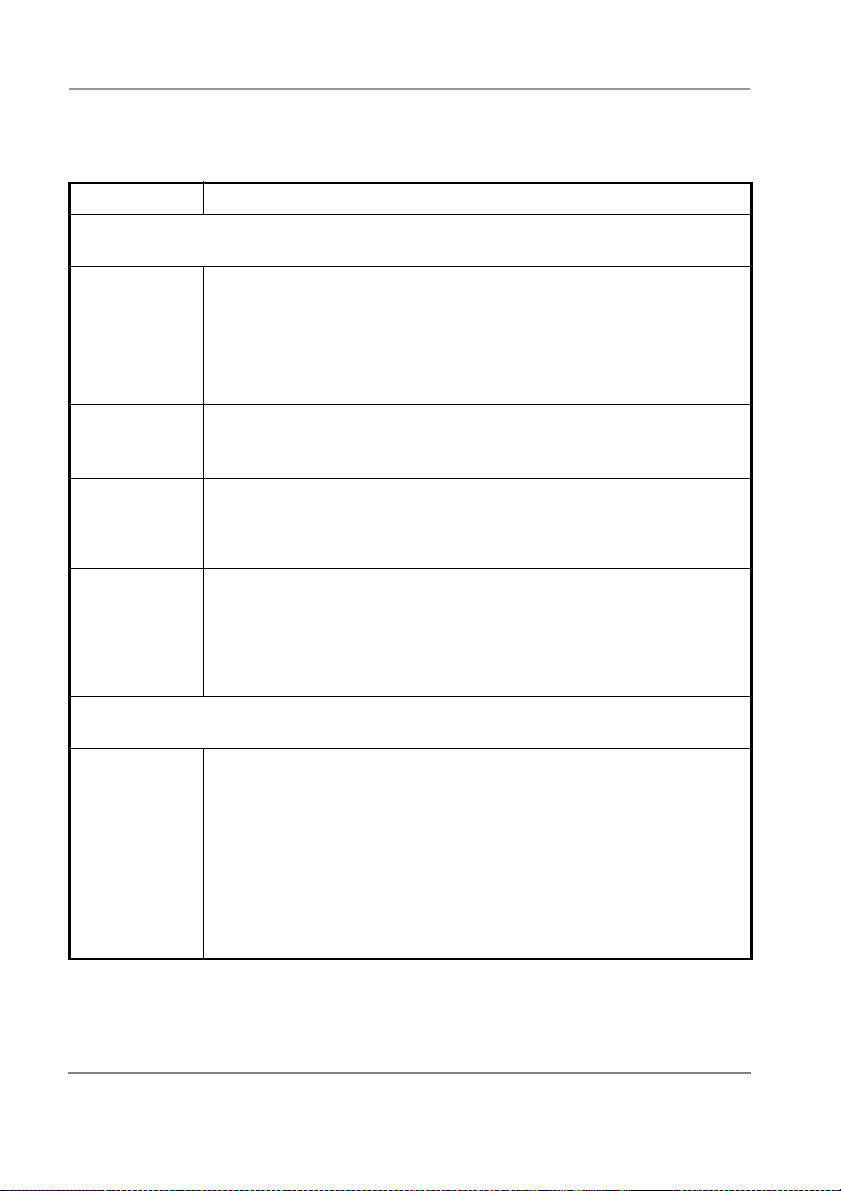
Configuring Stratagy
H
System Parameters
Ta bl e 2 -1 8
Parameter Description
Stratagy DK System Configuration Parameters - Definitions and
Settings
(Cont.)
SMDI/Serial Integration Definition
smdi_base_
port
smdi_port Logical serial port Stratagy uses for SMDI integration.
smdi_pretime
out
smdi_type Protocol Stratagy uses when using RS-232 data integration (outband
Some SMDI installations use logical terminal numbers that do not begin with
1 (for example, if it uses the extension or physical number to define the
terminal). In these situations, you must define the extension number where
port 1 is connected. The system assumes that the extension numbers are
then connected in numerical order to the remaining ports.
Example: 208 (extension number of port in DK280)
Default: 1
Possible values: 0 (disables SMDI integration), 1, 2, 3, 4 (port number)
Default: 0
Maximum number of seconds that an SMDI packet can PRECEDE the
forwarded call.
Possible values: 5 ~ 50 (seconds)
Default: 50
integration).
’smdi’: standard SMDI integration
’s75’: System 75 integration
Possible values: ‘smdi’, ‘s75’ The single quotes are required.
Default: ’smdi’
Per Port Definitions
box_grt Sets the starting User ID for the port given as the last value.
Examples: box_grt 990 1 means that on port 1, a new call starts at User
Possible values: valid User ID and valid port
Default: 990 1
2-18
ID 990.
990 2
.
.
.
990 8
Stra tagy DK I&P R2 November 1998
Refer to the Stratagy Library CD-Rom for more details.
Page 69

System Parameters
H
Configuring Stratagy
Tab le 2 -1 8
Parameter Description
n_rings Number of rings to wait before answering per port. This is useful for those
Stratagy DK System Configuration Parameters - Definitions and
Settings
(Cont.)
telephone systems that do not allow incoming lines to ring in a station hunt
group or do not provide delayed ringing. Also, it may be used to set up
backup answering for a secondary attendant operation.
There is a side effect. When a user wants to pickup his
Note
messages, he must wait the specified number of rings before
Stratagy answers.
Example: To have port 1 answer on the second ring, use set n_rings 2
Possible values: 1 ~ 9 (number of rings); valid port number
Default: 1 1
12
.
.
.
18
1.
Fixed Length User IDs
The fixed length of a User ID is based on its first digit.
fixed_len1 Maximum number of digits Stratagy expects when a caller dials a User ID
fixed_len2 Maximum number of digits Stratagy expects when a caller dials a User ID
beginning with 1.
When changing this value, make certain that it is still possible to log in and
send messages to all existing User ID mailboxes that begin with this digit.
For example, if there are five-digit User ID mailboxes that begin with this
digit, then you should not set the value of this parameter less than five.
Check all User ID mailboxes, including users, guests, and reserved (411,
990, etc.)
Possible values: 1 ~ 8
Default: 8
beginning with 2.
When changing this value, make certain that it is still possible to log in and
send messages to all existing User ID mailboxes that begin with this digit.
For example, if there are five digit User ID mailboxes that begin with this
digit, then you should not set the value of this parameter less than five.
Check all User ID mailboxes, including users, guests, and reserved (411,
990, etc.)
Possible values: 1 ~ 8
Default: 8
Stratagy DK I&P R2 November 1998
Refer to the Stratagy Library CD-Rom for more details.
2-19
Page 70

Configuring Stratagy
H
System Parameters
Ta bl e 2 -1 8
Parameter Description
fixed_len3 Maximum number of digits Stratagy expects when a caller dials a User ID
fixed_len4 Maximum number of digits Stratagy expects when a caller dials a User ID
fixed_len5 Maximum number of digits Stratagy expects when a caller dials a User ID
fixed_len6 Maximum number of digits Stratagy expects when a caller dials a User ID
Stratagy DK System Configuration Parameters - Definitions and
Settings
(Cont.)
beginning with 3.
When changing this value, make certain that it is still possible to log in and
send messages to all existing User ID mailboxes that begin with this digit.
For example, if there are five digit User ID mailboxes that begin with this
digit, then you should not set the value of this parameter less than five.
Check all User ID mailboxes, including users, guests, and reserved (411,
990, etc.)
Possible values: 1 ~ 8
Default: 8
beginning with 4.
When changing this value, make certain that it is still possible to log in and
send messages to all existing User ID mailboxes that begin with this digit.
For example, if there are five digit User ID mailboxes that begin with this
digit, then you should not set the value of this parameter less than five.
Check all User ID mailboxes, including users, guests, and reserved (411,
990, etc.)
Possible values: 1 ~ 8
Default: 8
beginning with 5.
When changing this value, make certain that it is still possible to log in and
send messages to all existing User ID mailboxes that begin with this digit.
For example, if there are five digit User ID mailboxes that begin with this
digit, then you should not set the value of this parameter less than five.
Check all User ID mailboxes, including users, guests, and reserved (411,
990, etc.)
Possible values: 1 ~ 8
Default: 8
beginning with 6.
When changing this value, make certain that it is still possible to log in and
send messages to all existing User ID mailboxes that begin with this digit.
For example, if there are five digit User ID mailboxes that begin with this
digit, then you should not set the value of this parameter less than five.
Check all User ID mailboxes, including users, guests, and reserved (411,
990, etc.)
Possible values: 1 ~ 8
Default: 8
2-20
Refer to the Stratagy Library CD-Rom for more details.
Stra tagy DK I&P R2 November 1998
Page 71

System Parameters
H
Configuring Stratagy
Tab le 2 -1 8
Parameter Description
fixed_len7 Maximum number of digits Stratagy expects when a caller dials a User ID
fixed_len8 Maximum number of digits Stratagy expects when a caller dials a User ID
fixed_len9 Maximum number of digits Stratagy expects when a caller dials a User ID
Stratagy DK System Configuration Parameters - Definitions and
Settings
(Cont.)
beginning with 7.
When changing this value, make certain that it is still possible to log in and
send messages to all existing User ID mailboxes that begin with this digit.
For example, if there are five digit User ID mailboxes that begin with this
digit, then you should not set the value of this parameter less than five.
Check all User ID mailboxes, including users, guests, and reserved (411,
990, etc.)
Possible values: 1 ~ 8
Default: 8
beginning with 8.
When changing this value, make certain that it is still possible to log in and
send messages to all existing User ID mailboxes that begin with this digit.
For example, if there are five digit User ID mailboxes that begin with this
digit, then you should not set the value of this parameter less than five.
Check all User ID mailboxes, including users, guests, and reserved (411,
990, etc.)
Possible values: 1 ~ 8
Default: 8
beginning with 9.
When changing this value, make certain that it is still possible to log in and
send messages to all existing User ID mailboxes that begin with this digit.
For example, if there are five digit User ID mailboxes that begin with this
digit, then you should not set the value of this parameter less than five.
Check all User ID mailboxes, including users, guests, and reserved (411,
990, etc.)
Possible values: 1 ~ 8
Default: 8
Stratagy DK I&P R2 November 1998
Refer to the Stratagy Library CD-Rom for more details.
2-21
Page 72

Configuring Stratagy
H
System Parameters
2-22
Refer to the Stratagy Library CD-Rom for more details.
Stra tagy DK I&P R2 November 1998
Page 73

System Parameters
H
Configuring Stratagy
Stratagy DK I&P R2 November 1998
Refer to the Stratagy Library CD-Rom for more details.
2-23
Page 74

Configuring Stratagy
H
System Parameters
2-24
Refer to the Stratagy Library CD-Rom for more details.
Stra tagy DK I&P R2 November 1998
Page 75

System Administrator
H
User ID
Stratagy has a special User ID mailbox known as the System Administrator User ID mailbox.
It is User ID 999, and you access it through the telephone just as any other User ID mailbox.
Note The System Administrator mailbox (User ID 999) cannot be assigned to another
User ID number.
In addition to normal options available on the Main Menu, the System Administrator’sMain
Menu includes a System Administration option (8).
➤ To select an option on the System Administrator Main Menu
Press the appropriate number or character.
➤
1 Play Messages
2 Send Messages
3 Manage Mailbox
8 System Administration
0 Exit user mode
# Hang up
This Main Menu enables the System Administrator to create system lists and to monitor
system wide functions.
System Distribution Lists
System lists are available as a special attribute of the System Administrator Main Menu, and
are an excellent means of distributing interoffice memos to a large group of people in a timely
manner. The lists also eliminate the need of every user creating a similar personal list.You can
create up to seven system-wide lists. Examples of such lists include all users in the system or
in a specific department and all company managers.
Stratagy processes mail sent to mailing lists as a low priority task. Therefore, it may take
several minutes to send the message to everyone on a large list, especially if the system is
busy.
3
➤
To create a system distribution list
1. Call Stratagy’s extension by pressing
#.
2. Enter the System Administrator User ID security code. The default is 999997 #.
3. Press 3 to select Manage Mailbox from the Main Menu.
4. Press 3 to select Manage your lists from the Manage Mailbox Menu.
Stratagy DK I&P R2 November 1998
Refer to the Stratagy Library CD-Rom for more details.
+ the System Administrator User ID (999)+
*
3-1
Page 76

System Administrator User ID
H
System Administration Menu
5. Select the Distribution List number (
6. Press the appropriate number or character.
Review your current list
1
Add a User ID to the list
2
Delete a User ID from the list
3
Record a list comment
4
Return to previous menu
9
Note To identify or name the list, press4. Stratagy prompts “Enter the comment. Finish
by pressing the#sign.” This comment plays each time the list destination is selected
by the user when sending a message.
7. Press9to return to the Manage Your Lists Submenu. You can create another System
List or press 99 to return to the Main Menu.
Once defined, you can easily add or delete User IDs as needed to the list.
Sending a Message Using a System List
Each system distribution list (1 ~ 7)inUserID999isavailabletoallusersandmaybe
accessed when a user sends or forwards a message to a list.
➤ To send a system list message
1. Access Stratagy from your telephone by pressing
2. Enter your security code + #.
3. Press 2 to select Send Messages from the Main Menu.
4. Press 02 to select a system list destination (1~7).
5. Record your message.
6. Press # to send your message immediately and return to the Main Menu.
For more details, see the Stratagy User Guide.
1 ~ 7
).
+ your User ID number + #.
*
System Administration Menu
System Administration is an option designed for the System Administrator to manage
system-wide functions.
➤
To select an option on the System Administration Menu
1. Press 8 to select System Administration from the System Administrator Main Menu.
2. Press the appropriate number or character.
1 Record system announcement
2 Delete system announcement
3 Record busy-hold music
4 Manage User IDs
5 Add User IDs
6 Set date and time
Review system status
*
9 Return to Main Menu
3-2
Refer to the Stratagy Library CD-Rom for more details.
Stra tagy DK I&P R2 November 1998
Page 77

System Administration Menu
H
– Record the System Announcement
1
System announcements are useful in disseminating system-wide information. With this
option, you can record an announcement that Stratagy plays to every user when he/she
accesses his/her mailbox.
Users can interrupt the system announcement by selecting from the User Main Menu during
playback. However, the announcement plays each time the user accesses his/her mailbox
until it has completely played. Once played in its entirety, Stratagy deletes the announcement
from the user’s mailbox.
– Delete the System Announcement
2
With this option, you can purge a previously recorded system announcement.
– Record the Busy-Hold Music
3
By pressing
extension. Stratagy plays the entire recording before re-trying the busy extension.
When the system is delivered, it plays approximately 30 seconds of music. You can replace
this music with another recording which plays either music or recorded information about
your company or its products and services. To make a recording, you can use the telephone
handset. We recommend that you prepare a professional recording.
– Manage User IDs
4
Manage User IDs enables you to perform special User ID functions.
1
2
3
Changes the Users Menu and Auto and Notify record field values to those specified in
the Defaults Box (default User ID 997). See “CreateaMailbox” on Page 6-2 in the
Stratagy I&M Manual for more information.
4 – Delete User ID
Enter User ID to be deleted and press #. You are asked to confirm the number:
, the busy-hold music is heard by callers when they elect to hold for a busy
*
– Lock User ID prohibits the user access to the mailbox.
– Unlock User ID unlocks a locked User ID.
– Reset User ID clears the User ID specified. Resets the Info/Status field values to 0.
1 - Confirms entry and returns you to the previous menu.
2 - Cancels functions and returns to previous menu.
System Administrator User ID
– Add User IDs
5
Enter the User ID to be added and press #. Stratagy repeats the User ID entered and prompts
you for the following:
1 – Confirms and assigns the User ID, and returns you to the System Administration
Menu.
2 – Erases first entry and prompts you to re-enter the correct number.
3 - Changes the extension number for the User ID.
- Cancels function and returns to the previous menu.
*
If you choose selection 3 above, you must enter the extension number and press #. Stratagy
repeats the extension number entered and prompts you for the following:
Stratagy DK I&P R2 November 1998
Refer to the Stratagy Library CD-Rom for more details.
3-3
Page 78

System Administrator User ID
H
– Confirms and assigns the extension number with a supervised transfer and returns
1
you to previous menu.
– Erases first entry and prompts you to re-enter the correct number.
2
– Marks the extension for blind transfer.
3
– Marks extension for blind transfer with supervised busy.
4
– Cancels function and returns to previous menu.
*
– Set Date and Time
6
To set the date or time, press:
1 – Sets the date
Enter the date in the following format DD/MM/YY (DD = day, MM = month, YY =
year) and press#. You are asked to confirm:
1 - Confirms entry.
2
9 - Cancels function and returns you to the previous menu.
2 – Sets the time
Enter the date in the following format HH/MM (HH = hour, MM = minutes) and press
#. You are asked to confirm:
1 - Confirms entry.
2 - Erases entry and enables you to re-enter the time.
9 - Cancels function and returns you to the previous menu.
9 – Returns to previous menu.
System Administration Menu
- Erases entry and enables you to re-enter the date.
3-4
Refer to the Stratagy Library CD-Rom for more details.
Stra tagy DK I&P R2 November 1998
Page 79
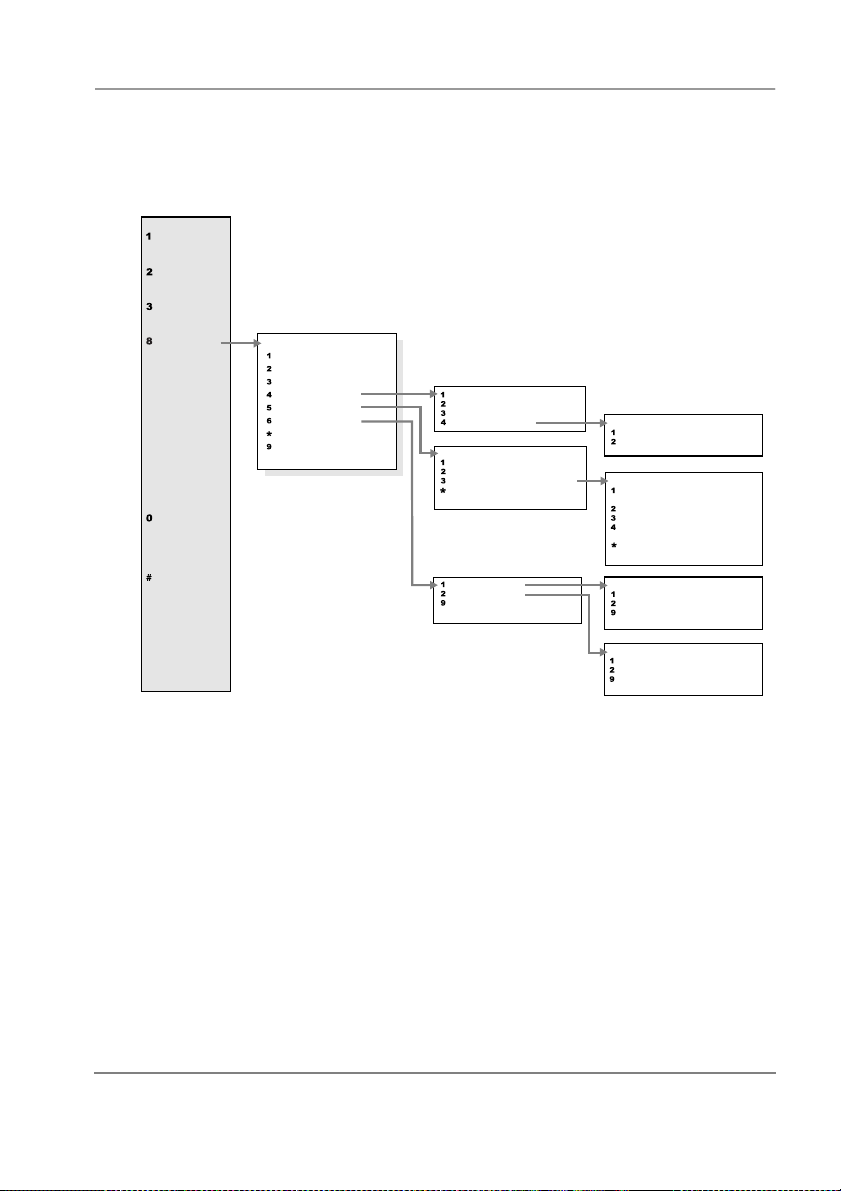
System Administration Menu
H
Main Menu
Play
Messages
Send
Messages
Manage
Mailbox
System
Administration
Exit
User Mode
Hang Up
Select Option
Record System Announcement
Delete System Announcement
Record Busy-Hold Music
Manage User IDs
Add User IDs
Set Date and Time
Review System Status
Return to Main Menu
Figure 3-1 System Administrator Menu
System Administrator User ID
:
Lock User ID
Unlock User ID
Reset User ID
Delete User ID
Enter User ID, press #.
Confirms/returns to previous menu
Erases entry and prompts for re-entry
Changes Extension for User ID
Cancels function/returns to previous
menu
Set the Date
Set the Time
Cancels function/returns to previous
menu
Enter User ID, press #.
Confirms entry
Cancels function/returns to previous
menu
Enter extension, press #.
Confirms entry/assigns supervised
transfer/returns to previous menu
Erases entry and prompts for re-entry
Marks extension for blind transfer
Marks extension for blind transfer
w/supervised busy
Cancels function/returns to previous
menu
Enter date (MM/DD/YY), press #.
Confirms entry
Erases entry and prompts for re-entry
Cancels function/returns to previous
menu
Enter time (HH/MM), press #.
Confirms entry
Erases entry and prompts for re-entry
Cancels function/returns to previous
menu
1601
Stratagy DK I&P R2 November 1998
Refer to the Stratagy Library CD-Rom for more details.
3-5
Page 80

System Administrator User ID
H
System Administration Menu
3-6
Refer to the Stratagy Library CD-Rom for more details.
Stra tagy DK I&P R2 November 1998
Page 81

Index
H
A
active_hold parameter 2-1
add user IDs 3-3
admin_port parameter 2-1
administrator (see system administrator)
adpcm_hq parameter 2-1
adpcm_nq parameter 2-2
adpcm_pq parameter 2-2
auto report time 2-2
auto_report parameter 2-2
B
baud1 ~ 2 parameter 2-16
begin_rec_prompt parameter 2-2
box_grt parameter 2-18
box_idx parameter 2-3
box_snd parameter 2-3
C
cancel_busy_hold parameter 2-3
clock_sync parameter 2-3
cmt_maxlen parameter 2-4
configure Stratagy DK 1-22
connect_tone parameter 2-4
console_id parameter 2-4
copy
files 1-22
D
databits1~2parameter 2-16
date and time (see system date and time)
daylight time 1-22
daylight_saving_time parameter 2-5
db_locking parameter 2-5
defaults box
parameter 2-5
delete
system announcement 3-3
user ID 3-3
dir_play_uid parameter 2-6
diskwarn parameter 2-6
distribution list
system 3-1
dss_active parameter 2-6
dtmf_dly parameter 2-6
dtmf_gate parameter 2-7
dtmf_on parameter 2-7
F
filecopy (see main menu)
fixed length user ID parameters 2-19
future delivery
parameter 2-7
G
gain_norm parameter 2-7
guest defaults
parameter 2-8
guest_max parameter 2-8
guest_min parameter 2-8
H
hangup_supervision parameter 2-9
hot_box parameter 2-9
K
ksu_time parameter 2-10
Stratagy DK I&P R2 November 1998
Refer to the Stratagy Library CD-Rom for more details.
IN-1
Page 82

Index
H
L
local access
connecting the cable 1-11
lock user ID 3-3
login_pound parameter 2-10
lognam parameter 2-10
M
main menu
access 1-21
filecopy 1-22
options 1-20
quit 1-21
system date and time 1-21
manage user IDs 3-3, 3-4
max_dl_inits parameter 2-10
max_prompt parameter 2-10
menu
options screen 1-28
system administrator main menu 3-1
min_msg parameter 2-11
msg_log parameter 2-11
N
n_ochan parameter 2-11
n_rings parameter 2-19
nam_maxlen parameter 2-11
new_send parameter 2-11
notify_restriction parameter 2-11
O
options screen 1-28
P
parameter
n_ochan 2-11
parameters 2-1
active_hold 2-1
admin_port 2-1
adpcm_hq 2-1
adpcm_nq 2-2
adpcm_pq 2-2
auto_report 2-2
auto_report_time 2-2
baud1 ~ 2 2-16
begin_rec_prompt 2-2
box_grt 2-18
box_idx 2-3
box_snd 2-3
cancel_busy_hold 2-3
clock_sync 2-3
cmt_maxlen 2-4
connect_tone 2-4
console_slot_id 2-4
databits1 ~ 2 2-16
daylight_saving_time 2-5
db_locking 2-5
defaults_box 2-5
dir_play_uid 2-6
diskwarn 2-6
dss_active 2-6
dtmf_dly 2-6
dtmf_gate 2-7
dtmf_on 2-7
future_delivery 2-7
gain_norm 2-7
guest_defaults 2-8
guest_max 2-8
guest_min 2-8
hangup_supervision 2-9
hot_box 2-9
ksu_time 2-10
login_pound 2-10
lognam 2-10
max_dl_inits 2-10
max_prompt 2-10
min_msg 2-11
msg_log 2-11
n_ochan 2-11
n_rings 2-19
nam_maxlen 2-11
new_send 2-11
notify_restriction 2-11
parity1 ~ 2 2-17
partial_q_ok 2-11
password 2-12
pbx_type 2-12
IN-2
Refer to the Stratagy Library CD-Rom for more details.
Stra tagy DK I&P R2 November 1998
Page 83

Index
H
per port definitions 2-18
play_skip 2-12
please_hold 2-12
prompt_file 2-12
purge 2-12
security_max_length 2-13
security_min_length 2-12
serial port definitions 2-16
serial_port1 ~ 2 2-17
short_direct_send 2-13
shutdown 2-13
smdi_base_port 2-18
smdi_port 2-18
smdi_pretimeout 2-18
smdi_type 2-18
stopbits1 ~ 2 2-17
tape_length 2-13
timestamp_forwards 2-13
tmo_2digit_menu 2-14
tmo_blank 2-14
tmo_dtmf 2-14
tmo_dtmf_login 2-14
tmo_hold 2-14
tmo_idle 2-15
tmo_menu 2-15
tmo_pickup 2-15
tmo_resume 2-15
tmo_serial 2-15
tmo_silence 2-15
tmo_sound 2-15
trace_cap 2-16
user_log 2-16
user_pvc 2-16
parity1~2parameter 2-17
partial_q_ok parameter 2-11
password 1-21
password parameter 2-12
pbx_type parameter 2-12
per port definitions parameters 2-18
play_skip parameter 2-12
please_hold parameter 2-12
ports
parameters 2-16
per port definitions 2-18
prompt_file parameter 2-12
purge parameter 2-12
Q
quit function 1-21
R
record
busy-hold music 3-3
system announcement 3-3
remote access
manual dialing mode 1-20
reset user ID 3-3
S
security_max_length parameter 2-13
security_min_length parameter 2-12
serial_port1 ~ 2 parameter 2-17
short_direct_send parameter 2-13
shutdown parameter 2-13
SMDI
smdi_base_port parameter 2-18
smdi_port parameter 2-18
smdi_pretimeout parameter 2-18
smdi_type parameter 2-18
stopbits1 ~ 2 parameter 2-17
Stratagy Admin 1-14, 1-19
system
add user IDs 3-3
administrator
distribution list 3-1
main menu 3-1
user ID 3-1
announcement 3-3
date and time 1-21
manage user IDs 3-3, 3-4
parameters 2-1
record the busy-hold music 3-3
System administartor
quick reference map (flowchart) 3-5
system administrator
add user IDs 3-3
delete user ID 3-3
distribution list 3-1
Stratagy DK I&P R2 November 1998
Refer to the Stratagy Library CD-Rom for more details.
IN-3
Page 84

Index
H
lock user ID 3-3
main menu 3-1
manage user IDs 3-3, 3-4
record
busy-hold music 3-3
system announcement 3-3
reset user ID 3-3
sending a message using a system list 3-2
unlock user ID 3-3
user ID 999 3-1
T
tape_length parameter 2-13
time
daylight 1-22
timestamp_forwards parameter 2-13
tmo_2digit_menu parameter 2-14
tmo_blank parameter 2-14
tmo_dtmf parameter 2-14
tmo_dtmf_login parameter 2-14
tmo_hold parameter 2-14
tmo_idle parameter 2-15
tmo_menu parameter 2-15
tmo_pickup parameter 2-15
tmo_resume parameter 2-15
tmo_serial parameter 2-15
tmo_silence parameter 2-15
tmo_sound parameter 2-15
tokens
defined
KM( )
KS( )
KT( )
trace
copying trace files 1-39
trace out
enable 1-39
trace_cap parameter 2-16
internal modem 1-4, 1-29
system shutdown 1-4, 1-30
forwards calls 1-4, 1-29
add 3-3
fixed length parameters 2-19
manage 3-3, 3-4
user_log parameter 2-16
users menu
options screen 1-28
U
unlock user ID 3-3
use_pvc parameter 2-16
user ID
999
IN-4
system administrator user ID 3-1
Stra tagy DK I&P R2 November 1998
Refer to the Stratagy Library CD-Rom for more details.
 Loading...