

Page 1
Telecommunication Systems Division
Call Center Scoreboard Add-on
User Guide
August 2002
Page 2

Publication Information
Toshiba America Information Systems, Inc., Telecommunication
Systems Division, reserves the right, without prior notice, to revise
this information publication for any reason, including, but not limited
to, utilization of new advances in the state of technical arts or to
simply change the design of this document.
Further, Toshiba America Information Systems, Inc.,
Telecommunication Systems Division, also reserves the right,
without prior notice, to make such changes in equipment design or
components as engineering or manufacturing methods may warrant.
SCS-UG-CCSBD-VA
4016220
Version A, August 2002
© Copyright 2002
Toshiba America Information Systems, Inc.
Telecommunication Systems Division
All rights reserved. No part of this manual, covered by the copyrights
hereon, may be reproduced in any form or by any means—graphic,
electronic, or mechanical, including recording, taping, photocopying,
or information retrieval systems—without express written permission
of the publisher of this material.
Strata is a registered trademark of Toshiba Corporation.
Trademarks, registered trademarks , and servi ce marks are the
property of their respective owners.
Page 3

TOSHIBA AMERICA INFORMATION SYSTEMS, INC. (“TAIS”)
A
Y
A
Y
w
Y
A
Telecommunication Systems Division License Agreement
IMPORTANT: THIS LICENSE AGREEMENT (“AGREEMENT”) IS A LEGAL AGREEMENT BETWEEN YOU (“YOU”) AND TAIS. CAREFULLY READ THIS LICENSE AGREEMENT. USE OF ANY
SOFTWARE OR ANY RELATED INFORMATION (COLLECTIVELY, “SOFTWARE”) INSTALLED ON OR SHIPPED WITH A TAIS TELECOMMUNICATION SYSTEM PRODUCT OR OTHERWISE MADE
VAILABLE TO YOU BY TAIS IN WHATEVER FORM OR MEDIA, WILL CONSTITUTE YOUR ACCEPTANCE OF THESE TERMS, UNLESS SEPARATE TERMS ARE PROVIDED BY THE SOFTWARE
SUPPLIER. IF YOU DO NOT AGREE WITH THE TERMS OF THIS LICENSE AGREEMENT, DO NOT INSTALL, COPY OR USE THE SOFTWARE AND PROMPTLY RETURN IT TO THE LOCATION
FROM WHICH YOU OBTAINED IT IN ACCORDANCE WITH APPLICABLE RETURN POLICIES. EXCEPT AS OTHERWISE AUTHORIZED IN WRITING BY TAIS, THIS SOFTWARE IS LICENSED FOR
DISTRIBUTION ONLY TO END-USERS PURSUANT TO THIS LICENSE AGREEMENT.
1. License Grant. The Software is not sold; it is licensed upon payment of applicable charges. TAIS grants to you a personal, non-transferable and non-exclusive right to use the copy of the Software
provided under this License Agreement. You agree you will not copy the Software except as necessary to use it on one TAIS system at a time at one location. Modifying, translating, renting, copying,
distributing, transferring or assigning all or part of the Software, or any rights granted hereunder, to any other persons and removing any proprietary notices, labels or marks from the Software is strictly
prohibited; You agree violation of such restrictions will cause irreparable harm to TAIS and provide grounds for injunctive relief, without notice, against You or any other person in possession of the Software.
ou and any other person whose possession of the software violates this License Agreement shall promptly surrender possession of the Software to TAIS, upon demand. Furthermore, you hereby agree not
to create derivative works based on the Software. TAIS reserves the right to terminate this license and to immediately repossess the software in the event that You or any other person violates this License
greement.
2. Intellectual Property. You acknowledge that no title to the intellectual property in the Software is transferred to you. You further acknowledge that title and full ownership rights to the Software will remain
the exclusive property of TAIS and/or its suppliers, and you will not acquire any rights to the Software, except the license expressly set forth above. You will not remove or change any proprietary notices
contained in or on the Software. The Software is protected under US patent, copyright, trade secret, and/or other proprietary laws, as well as international treaties. Any transfer, use, or copying of the
software in violation of the License Agreement constitutes copyright infringement. You are hereby on notice that any transfer, use, or copying of the Software in violation of this License Agreement constitutes
a willful infringement of copyright.
3. No Reverse Engineering. You agree that you will not attempt, and if you employ employees or engage contractors, you will use your best efforts to prevent your employees and contractors from
attempting to reverse compile, reverse engineer, modify, translate or disassemble the Software in whole or in part. Any failure to comply with the above or any other terms and conditions contained herein will
result in the automatic termination of this license and the reversion of the rights granted hereunder back to TAIS.
4. Limited Warranty. THE SOFTWARE IS PROVIDED “AS IS” WITHOUT WARRANTY OF ANY KIND. TO THE MAXIMUM EXTENT PERMITTED BY APPLICABLE LAW, TAIS AND ITS SUPPLIERS
DISCLAIM ALL WARRANTIES WITH REGARD TO THE SOFTWARE, EITHER EXPRESS OR IMPLIED, INCLUDING, BUT NOT LIMITED TO, THE WARRANTY OF NON-INFRINGEMENT OF THIRD
PARTY RIGHTS, THE WARRANTY OF YEAR 2000 COMPLIANCE, AND THE IMPLIED WARRANTIES OF MERCHANTABILITY AND FITNESS FOR A PARTICULAR PURPOSE. THE ENTIRE RISK AS
TO THE QUALITY AND PERFORMANCE OF THE SOFTWARE IS WITH YOU. NEITHER TAIS NOR ITS SUPPLIERS WARRANT THAT THE FUNCTIONS CONTAINED IN THE SOFTWARE WILL MEET
OUR REQUIREMENTS OR THAT THE OPERATION OF THE SOFTWARE WILL BE UNINTERRUPTED OR ERROR-FREE. HOWEVER, TAIS WARRANTS THAT ANY MEDIA ON WHICH THE
SOFTWARE IS FURNISHED IS FREE FROM DEFECTS IN MATERIAL AND WORKMANSHIP UNDER NORMAL USE FOR A PERIOD OF NINETY (90) DAYS FROM THE DATE OF DELIVERY TO YOU.
5. Limitation Of Liability. TAIS’ ENTIRE LIABILITY AND YOUR SOLE AND EXCLUSIVE REMEDY UNDER THIS LICENSE AGREEMENT SHALL BE AT TAIS’ OPTION REPLACEMENT OF THE MEDIA OR
REFUND OF THE PRICE PAID. TO THE MAXIMUM EXTENT PERMITTED BY APPLICABLE LAW, IN NO EVENT SHALL TAIS OR ITS SUPPLIERS BE LIABLE TO YOU FOR ANY CONSEQUENTIAL,
SPECIAL, INCIDENTAL OR INDIRECT DAMAGES FOR PERSONAL INJURY, LOSS OF BUSINESS PROFITS, BUSINESS INTERRUPTION, LOSS OF BUSINESS INFORMATION/DATA, OR ANY
OTHER PECUNIARY LOSS OF ANY KIND ARISING OUT OF THE USE OR INABILITY TO USE THE SOFTWARE, EVEN IF TAIS OR ITS SUPPLIER HAS BEEN ADVISED OF THE POSSIBILITY OF
SUCH DAMAGES. IN NO EVENT SHALL TAIS OR ITS SUPPLIERS BE LIABLE FOR ANY CLAIM BY A THIRD PARTY.
6. State/Jurisdiction Laws. SOME STATES/JURISDICTIONS DO NOT ALLOW THE EXCLUSION OF IMPLIED WARRANTIES OR LIMITATIONS ON HOW LONG AN IMPLIED WARRANTY MAY LAST, OR
THE EXCLUSION OR LIMITATION OF INCIDENTAL OR CONSEQUENTIAL DAMAGES, SO SUCH LIMITATIONS OR EXCLUSIONS MAY NOT APPLY TO YOU. THIS LIMITED WARRANTY GIVES YOU
SPECIFIC RIGHTS AND YOU MAY ALSO HAVE OTHER RIGHTS WHICH VARY FROM STATE/JURISDICTION TO STATE/JURISDICTION.
7. Export Laws. This License Agreement involves products and/or technical data that may be controlled under the United States Export Administration Regulations and may be subject to the approval of the
United States Department of Commerce prior to export. Any export, directly or indirectly, in contravention of the United States Export Administration Regulations, or any other applicable law, regulation or
order, is prohibited.
8. Governing Law. This License Agreement will be governed by the laws of the State of California, United States of America, excluding its conflict of law provisions.
9. United States Government Restricted Rights. The Software is provided with Restricted Rights. Use, duplication, or disclosure by the United States Government, its agencies and/or instrumentalities is
subject to restrictions as set forth in subparagraph (c)(1)(ii) of The Rights in Technical Data and Computer Software Clause at DFARS 252.227-7013 (October 1988) or subparagraphs (c)(1) and (2) of the
Commercial Computer Software - Restricted Rights at 48 CFR 52.227-19, as applicable.
10. Severability. If any provision of this License Agreement shall be held to be invalid, illegal or unenforceable, the validity, legality and enforceability of the remaining provisions hereof shall not in any way be
affected or impaired.
11. No Waiver. No waiver of any breach of any provision of this License Agreement shall constitute a waiver of any prior, concurrent or subsequent breach of the same or any other provisions hereof, and no
aiver shall be effective unless made in writing and signed by an authorized representative of the waiving party.
OU ACKNOWLEDGE THAT YOU HAVE READ THIS LICENSE AGREEMENT AND THAT YOU UNDERSTAND ITS PROVISIONS. YOU AGREE TO BE BOUND BY ITS TERMS AND CONDITIONS. YOU
FURTHER AGREE THAT THIS LICENSE AGREEMENT CONTAINS THE COMPLETE AND EXCLUSIVE AGREEMENT BETWEEN YOU AND TAIS AND SUPERSEDES ANY PROPOSAL OR PRIOR
GREEMENT, ORAL OR WRITTEN, OR ANY OTHER COMMUNICATION RELATING TO THE SUBJECT MATTER OF THIS LICENSE AGREEMENT.
Toshiba America Information Systems, Inc.
Telecommunication Systems Division
9740 Irvine Boulevard
Irvine, California 92618-1697
United States of America
TSD 081601
5932
Page 4

Page 5

Contents
Introduction
Conventions ...................................................................................................................... iii
Related Documents/Media .................................................................................................iv
Call Center Scoreboard
Requirements ......................................................................................................................2
Wallboard Requirements .................................................................................................3
Installation ...........................................................................................................................5
Starting the Call Center Scoreboard ...................................................................................5
Understanding Call Center Scoreboard Layout ..................................................................6
Viewing Agent Status .........................................................................................................7
Interpreting Agent Activity Window ...............................................................................7
Agent Activity Window Options .......................................................... ......... ................10
Setting Agent Activity Window Alarms ........................................................................11
Printing Agent Activity Window Data .......................................................... ................11
Defining a Statistics Window ...........................................................................................12
Inserting Separator Line ................................................................................................14
Inserting Text Message ..................................................................................................15
Editing Window .............................................................................................................15
Opening Saved Window ................................................................................................15
Saving All Windows ......................................................................................................15
Printing Window Data ...................................................................................................16
Deleting Window ...........................................................................................................16
Defining Alarm Profile .....................................................................................................16
Using Custom Sounds As Alarms .................................................................................17
Creating or Editing Alarm Profile .................................................................................17
Strata CS Call Center Scoreboard 08/02 i
Page 6

Contents
Call Center Scoreboard
Triggering Alarms When Statistics Fall Too Low ........................................................19
Changing Alarm Profile Associated with a Layout .......................................................20
Deleting Alarm Profile From a Layout ..........................................................................20
Designing and Saving a Layout ........................................................................................20
Designing Layout ...........................................................................................................21
Saving Layout ................................................................................................................21
Opening Layout .............................................................................................................22
Using Window or Alarm Profile in More Than One Layout .........................................22
Deleting Window From a Layout ..................................................................................22
Editing Layout ...............................................................................................................22
Sharing Layouts, Windows, and Alarm Profiles ...........................................................23
Call Center Statistics You Can Display ............................................................................24
Sending Statistics to Wallboard Display Unit ..................................................................32
Connecting Wallboard ...................................................................................................32
Sending Window Data to Wallboard .............................................................................32
Changing Adaptive Wallboard Colors ...........................................................................35
Troubleshooting Wallboard Problems ...........................................................................36
Starting Call Center Scoreboard from Command Line ....................................................36
Increasing Call Center Scoreboard Performance ..............................................................37
Reporting Problems to Toshiba .....................................................................................37
Index.......................................................................................................................................39
ii Strata CS Call Center Scoreboard 08/02
Page 7
Introduction
This guide describes how to install, set up, and run the Call Center Scoreboar d Add-on
features for the Strata Communication Server (CS).
Conventions
Conventions Description
Note
Elaborates specific items or references other information.
Within some tables, general notes apply to the entire table
and numbered notes apply to specific items.
Important!
Arial Bold
“Type”
➤
➤
>
Courier Shows a computer keyboard entry or screen display.
See Figure 10
Calls att ention to im portant instructions or information.
Represents telephone buttons.
Indicates entry of a string of text.
Denotes a procedure.
Denotes the step in a one-step procedure.
Denotes a sequence of computer menu or screen selections.
For example: Choose Start > Programs > Call Center
Scoreboard.
Grey words within the printed text denote cross-references.
In the electro nic versi on of thi s document (S tra ta CS Librar y
CD-ROM or FYI Internet download), cross-references
appear in blue hypertext.
Strata CS Call Center Scoreboard User Guide 08/02 iii
Page 8

Introduction
Related Documents/Media
Related Documents/Media
Note Some documents listed here may appear in different versions on the
CD-ROM, FYI, or in print. To find the most current version, check the
version/date in the Publication In formation on the back of the document’s title
page.
The following companion documentation is available:
• Strata CS Qui ck Reference Guide
• Strata CS Qui ck Reference Card
• Strata CS Digital Telephone User Guide
• Strata CS Analog Telephone User Guide
• Strata CS Library CD-ROM
iv Strata CS Call Center Scoreboard User Guide 08/02
Page 9
Call Center Scoreboard
The Call Center Scoreboard Add-on is an invaluable tool for Strata CS call center
managers who need to closely watch critical statistics and receive statistic-based
alarms, or show statistics to groups of agents on wallboards to motivate and inform.
The Call Center Scoreboard can do the following:
• Display 54 different call center statistics, including 37 that are not found in the
Strata CS Client, such as Ring No Answers, Longest Active Waiting Call, and
more. For a complete list of available statistics, see “Call Center Statistic s You Can
Display” on page 24.
• Show a r eal- time view of all agent a ctivi ty, with alarm colors when an ag ent’s time
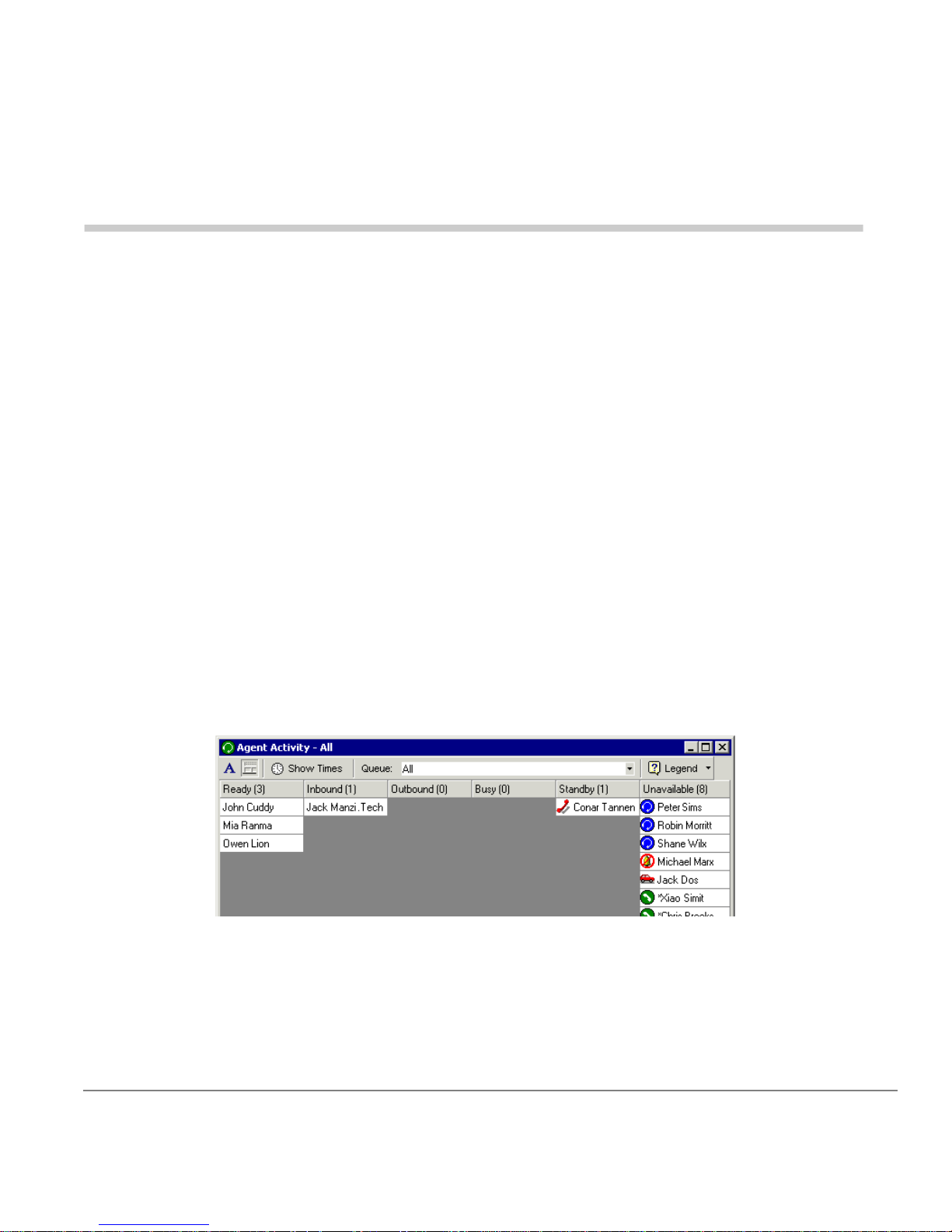
in a state exceeds confi gur abl e thr es hol ds. For exampl e, see at a gla nce how many
agents ar e current ly available to take calls (example show n below). See “Viewing
Agent Status” on page 7.
Stratagy CS Call Center Scoreboard User Guide 08/02 1
Page 10
Call Center Scoreboard
Requirements
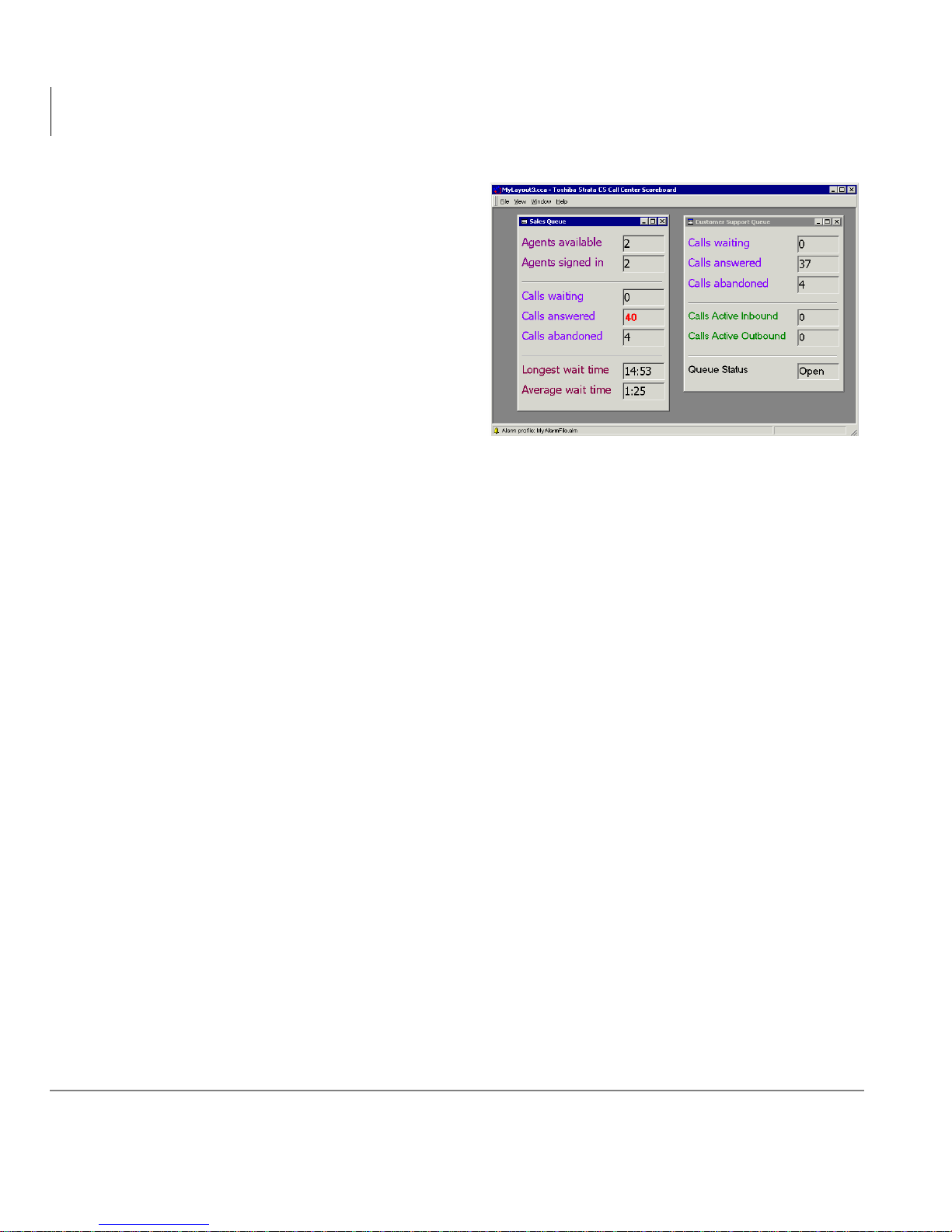
• Maintain one or more custom
windows on-screen where you can
monitor th e call center statistics of
your choice in real time. For
example, monitor a window for
your Sales queue where you see
how many agents are available, the
average length of a call, and the
longest current call. Have the
window display all statistics
together, or save space by having a
one-line window that cycles
through each statistic in turn
(example shown right). See “Defining a Statistics Window” on page 12.
• Trigger alarms when statistics exceed critical values that you define. Alarms can
take the form of changed colors in the Call Center Scoreboard window, sounds,
voice messages, pages or e-mails. See “Defining Alarm Profile” on page 16.
• Connect to a wallboard display device to make call center statistics publicly
visible, keeping your workers motivated and informed. For example, set a
wallboard in view of your agents’ cubicles so they can see scrolling statistics such
as the number of calls on hold and the to tal number of com pleted ca lls for the shift.
You can also broadcast text messages to the wallboard. See “Sending Statistics to
Wallboard Disp lay Unit” on page 32.
Requirements
The following requirements are necessary to run the Call Center Scoreboard:
• Your site must be running a Strata CS 4.0 system with Service Pack 1 or higher.
• Your site must be running a licensed Strata CS call center, set up using Strata CS
call center queues. The Call Center Scoreboard does not work with the ACD
workgroup method of defi ning call cen ters. For inst ructions on se tting up S trata CS
call center queues, see Strata CS Call Center Administrator Guide.
• The PC on which you install the Call Center Scoreboard must also have the
Strata CS Client installed. No additional requirements are necessary for the PC.
2 Stratagy CS Call Center Scoreboard User Guide 08/02
Page 11

Call Center Scoreboard
Requirements
• You must have a t l ea st one Strata CS Client licens e (the license can be shared with
the Strata CS Client, as long as the same user is logged onto the Client and Call
Center Scoreboard).
• You must log in to the Call Center Scoreboard as someone who is an agent in at
least one queue with the following permissions:
• Monitor Queue statistics
• Access Queue call monitor
• Access Queue m ailbox
Note As an altern ative to giving thes e per miss ions to e ver y user who n eeds to use t he
Call Center Scoreboard, you can create a single user called, for example,
“Scoreboard User.” Make the Scoreboard User an observer agent (check This
agent is an obs erver) with the require d permissi ons. Then have y our users l og in
to the Call Center Scoreboard as the Scoreboard User.
Wallboard Requirements
You can connect a physical wallboard display with the Call Center Scoreboard to
publicly display statistics and messages. For instructions, see “Sending Statistics to
Wallboard Disp lay Unit” on page 32.
The following requirements are necessary for using a wallboard with the Call Center
Scoreboard.
General Requirements
• A free COM port on the PC to which the wallboard can connect.
Note If your wallboard supports network connectivity, you do not need a COM port.
• A separately-purchased wallboard display unit from one of the following vendors.
Please contact these vendors directly for sales information, wallboard capabilities,
and technical support.
• Adaptive Micro System s
• Spectrum
Stratagy CS Call Center Scoreboard User Guide 08/02 3
Page 12

Call Center Scoreboard
Requirements
Adaptive Micro Systems Requirements
Contact Adaptive Micro Systems for complete technical and purchasing information
regarding their wallboards and software.
Web site: www.adaptivedisplays.com
Email: [email protected]
Phone: 800-558-7022
Adaptive Micro Sy stems wallboards require their ALPHA messagin g software to test
and configure the wallboard. Before running the wallboard with the Call Center
Scoreboard, try ru nning i t with the ALPHA mess aging s oftwar e to mak e sure it work s.
Note Up to 30 Adaptive wallboards can be supported from one COM port.
Additional blocks of 30 can be connected by purchasing Adaptive repeaters.
The Call Center Scoreboard can send data to up to 99 wallboards, and you can
specify which wallboard receives data from which statistic window. See
“Sending Statistics to Wallboard Display Unit” on page 32.
Spectrum Requirements
Contact Spectrum for complete technical and purchasing information regarding
Spectrum wallboards and Ultra Link software.
Web site: www.specorp.com
Email: [email protected]
Phone: 800-392-5050
Using a Spectrum wallboard requir es one of th e follo wing wallb oard dis play sof tware
packages:
• Spectrum Ultra Link Lite - Provides a basic one-line display that rotates through
the statistics in the window at a pre-set interval rate. The single line displays even
on multi-line wallboards. There is no ability to set color alarms.
• Spect rum Ultra Link II - Offers compl ete access to disp lay and manage q ueue data
with configurable scrolling, blinking and color settings for statistics and alarms.
Features color and sound alarms and can display on single, dual, or multi-line
wallboards, as well as TV monitors, pagers, web pages and screen pops. For
display notes, s ee “Displaying Statistics with the Spectrum Ultra Link II Software”
on page 34.
4 Stratagy CS Call Center Scoreboard User Guide 08/02
Page 13
Call Center Scoreboard
Installation
Note Application software for this add-on application must be downloaded from the
T oshiba FYI site at ht tp://fyi /techsuppor t/software/st ratasyste m/cs. You must be
CS certified to access this site. To obtain an activation license, contact your
Toshiba Customer Service Representative.
1. Locate and run the Setup.exe file for the Call Center Scoreboard.
2. Follow the on-screen installation instructions.
Starting the Call Center Scoreboard
1. Choose Start > Programs > Call Center Scoreboard > Call Center Scoreboard.
Note The first t ime you sta rt the Call C enter Scoreboard, it can take a long time to
come up. Subsequent startups will be faster.
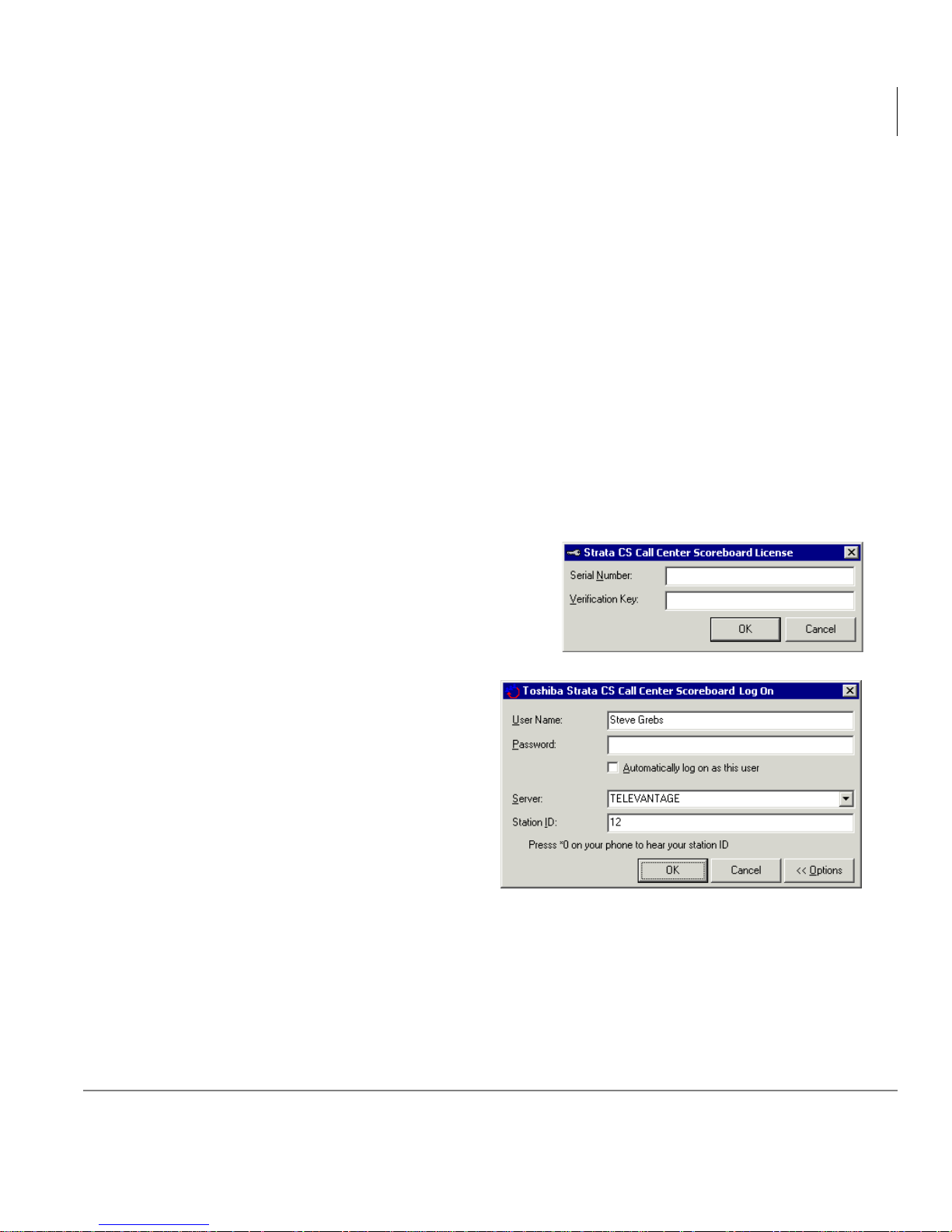
2. The first time y ou start the Call Center
Scoreboard, the Call Center Scoreboard
License dialog box opens (shown right).
Enter the serial nu mb er a nd ver if i cation key
to activate your copy of the software, and
click OK.
Installation
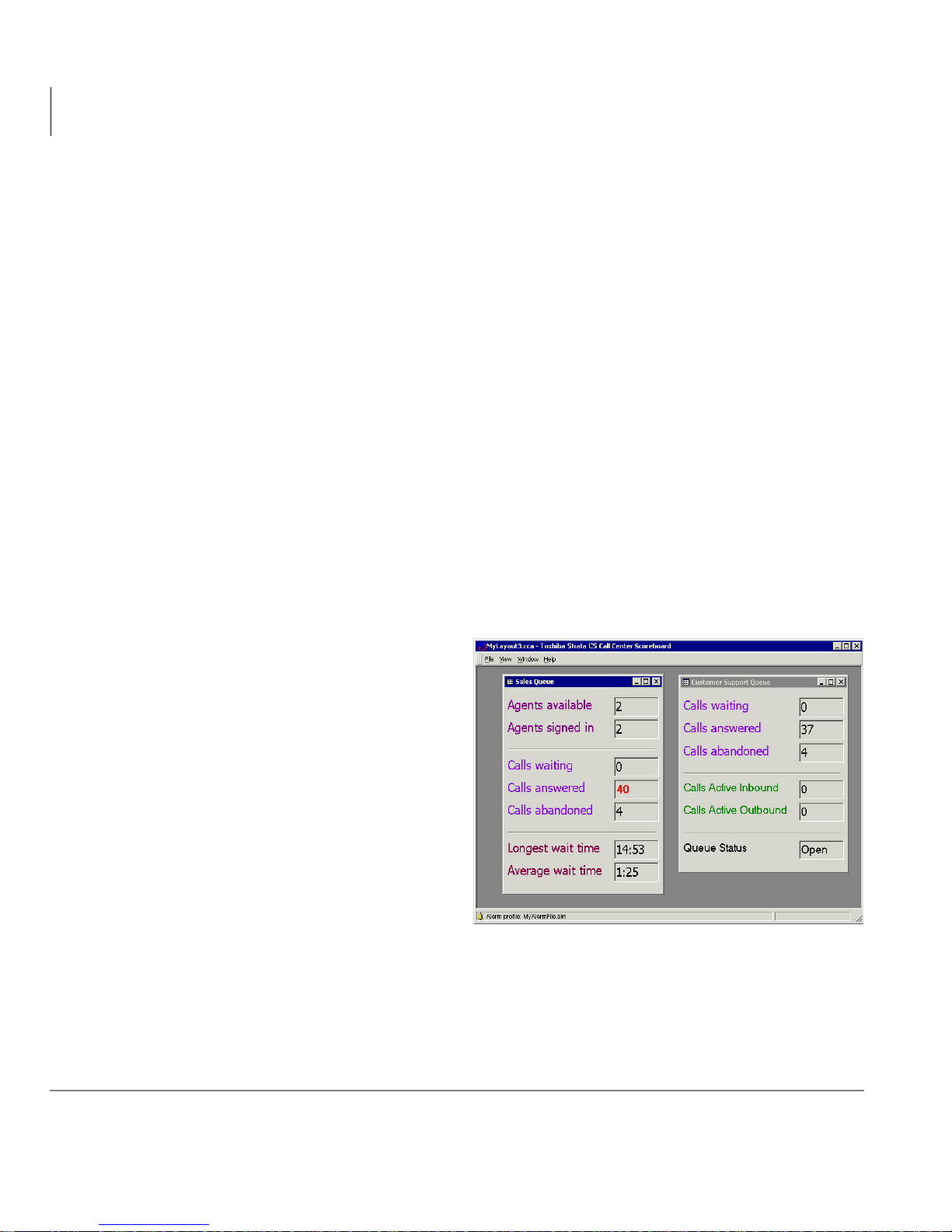
3. The Log On dialog box opens
(shown right).
4. In the User Nam e and Password
fields, enter your Strata CS user
name and password.
5. To skip this logon process in the
future, check the field Automatically
log on as this user.
Note If you check this field, you can
restore password-protected entry later by choosing File > Log on as a different
user. Log on as yourself and uncheck the box.
6. If your site has more than one Strata CS Server on the network, use the Server
drop-down list to select the Server whose call center queues you want to use with
the Call Center Scoreboard.
Stratagy CS Call Center Scoreboard User Guide 08/02 5
Page 14
Call Center Scoreboard
Understanding Call Center Scoreboard Layout
7. In the Station ID field, enter the station ID of your Strata CS phone. To learn the
station ID, pick up the phone and press
8. Click OK.
For command line startup arguments that you can put in a Windows shortcut, see
“Starting Call Center Scoreboard from Command Line” on page 36.
.
Understanding Call Center Scoreboard
Layout
When you first start the Call Center Scoreboard, an empty layout window appears.
The layout can contain two things:
• Statistics windows. You can place as many custom statistic windows in the layout
as you want, and each window can display as many statistics as you want. See
“Defining a Statistics Window” on page 12.
• An alarm profile. The alarm profile defines what alarms trigger on what statistics.
See “Defining Alarm Profile” on page 16.
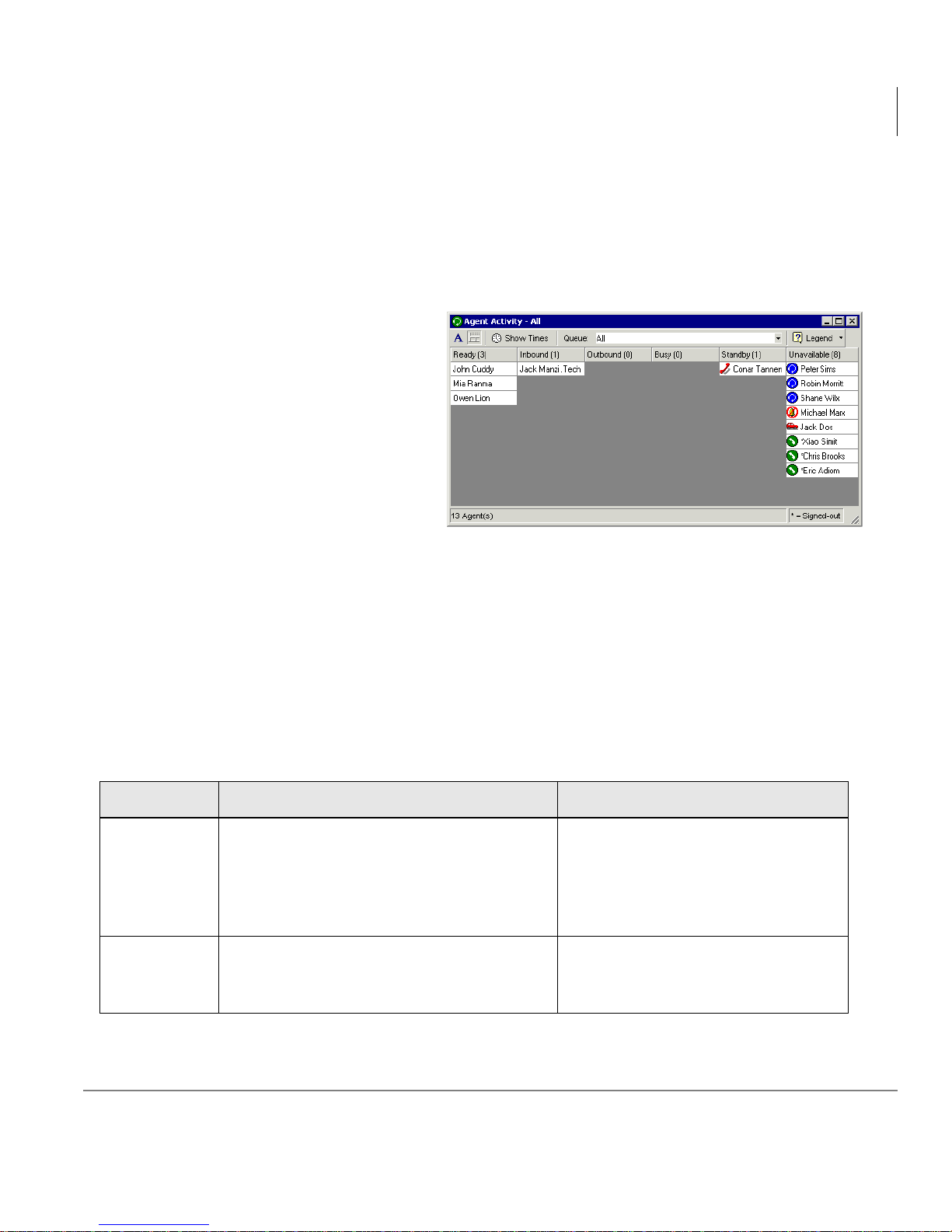
The example shown at right is a
layout with two statistics windows
and an alarm profile defined. The
presence of the alarm profile is
indicate d by the icon in the low er
left corne r.
Once you define a layout, you can
save it for future use. You can store
multiple layouts, each with their
own windows and alarm profiles.
For more information on building
and managing layouts as a whole,
see “Designing and Saving a
Layout” on page 20.
Note You can have the Call Center Scoreboard open with a layout already showing.
See “Starting Call Center Scoreboard from Command Line” on page 36.
6 Stratagy CS Call Center Scoreboard User Guide 08/02
Page 15
Viewin g Agent Sta tu s
The Agent Activity window lets you view the current state of all agents in real time,
and can display colored alarms for agents who have been continuously in a state for a
certain amount of time.
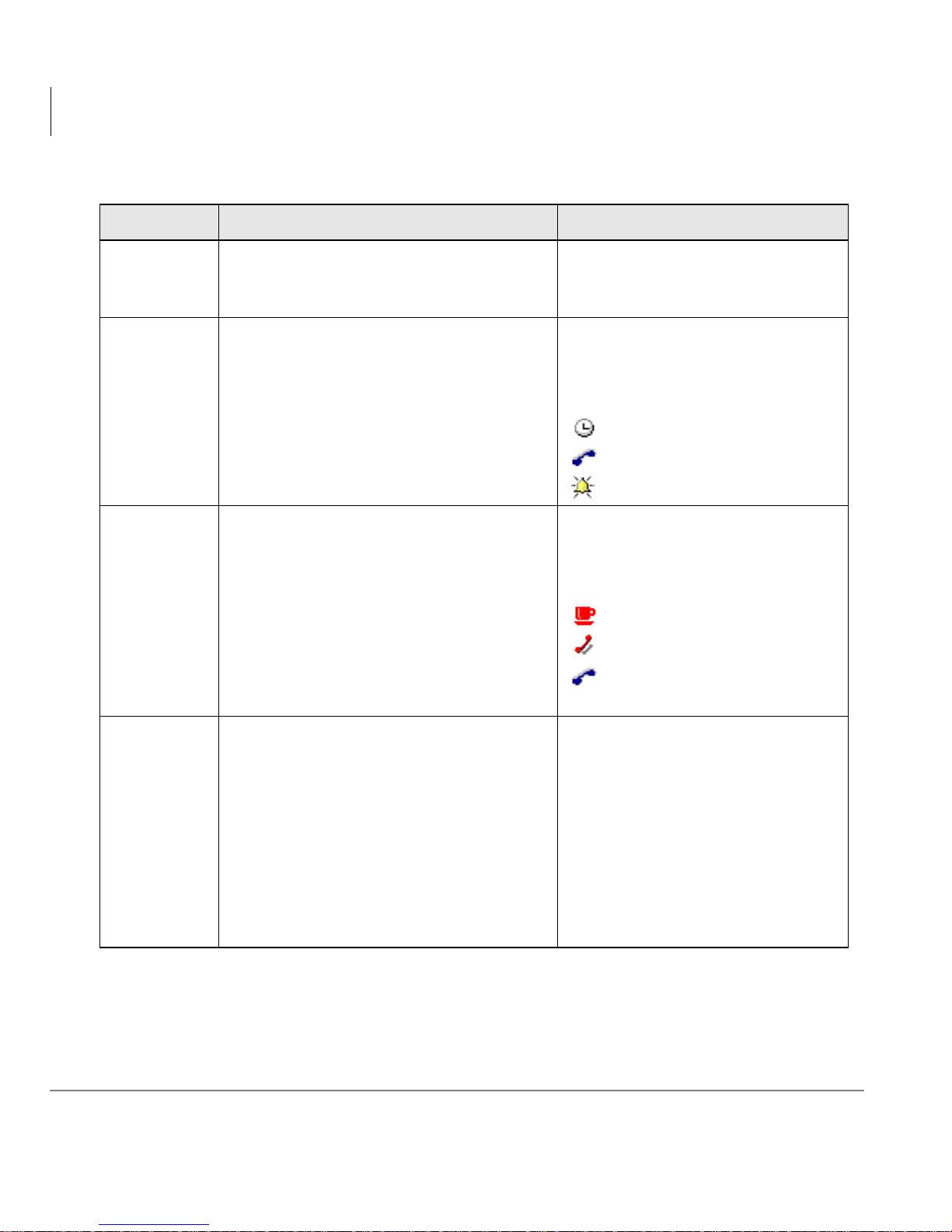
1. To open the Agent Activity
window, choose File > New
Agent Activity. The window
displays all agents according
to the state they’re currently in
(shown right).
2. Choose File > New Agent
Activity m ultiple times to
open multiple windows.
Call Center Scoreboard
Viewing A gent Sta tus
Interpreting Agent Activity Window
The following sections describe the columns and icons that appear in the Agent
Activity window.
Columns and Agent States
The columns in the Agent Activity window correspond to the states that an agent can
be in.
Table 1 Agent Activity Window Columns
Column Agent Is Currently Display N otes
Ready to take a queue call, meaning
signed in, with phone on hook, and in a
Ready
Inbound Currently on an active inbound queue call.
personal status with Queue Calls set to
Yes, such as Available or Available
(Queue Only).
When displaying all queues, the
name of the queue accompanies
each agent.
Stratagy CS Call Center Scoreboard User Guide 08/02 7
Page 16
Call Center Scoreboard
Viewing Agent Status
Table 1 Agent Activity Window Columns
Column Agent Is Currently Display N otes
Outbound
Busy
Standby
Currently on an active outbound queue
call.
Currently either in the W rapup state (in the
Wrapup period following the end of a
queue call), the No Answer state (has
failed to answer one or m ore queu e calls ),
or the Offering state (a queue call is
currently ringing).
Currently either On Brea k, in a n on - que ue
call, accessing voicemail, or using the
Strata CS voice menus.
Note: The on-h ook icon displays for
agents who failed to answer one or more
queue calls and were moved to the On
Break personal status, for example by the
queue feature “If an agent does not
answer, set to break status.”
When displaying all queues, the
name of the queue accompanies
each agent.
When displaying all queues, the
name of the queue accompanies
each agent. The following ico ns
identify agent states :
Wrapup.
No Answer.
Offering.
Agents who are On Break have the
On Break personal status icon.
Other agents show their current
hook state.
On Break.
In a non-queue call.
Moved to On Break status after
a Ring No Answer.
Agents display with the icon for
their current personal status (see
the next table).
Unavailable
Either signed out from the queue or in an y
personal status with the Queue Calls
property set to “No,” such as Available
(Non Queue) or Do Not Disturb.
Agents who are signed ou t have an
asterisk (*) next to their name.
Signed-out agents do not receive
queue calls even when Available.
To begin receiving queue calls, an
agent must be signed in to one or
more queues and Available.
8 Stratagy CS Call Center Scoreboard User Guide 08/02
Page 17
Call Center Scoreboard
Viewing A gent Sta tus
Personal Status Icons
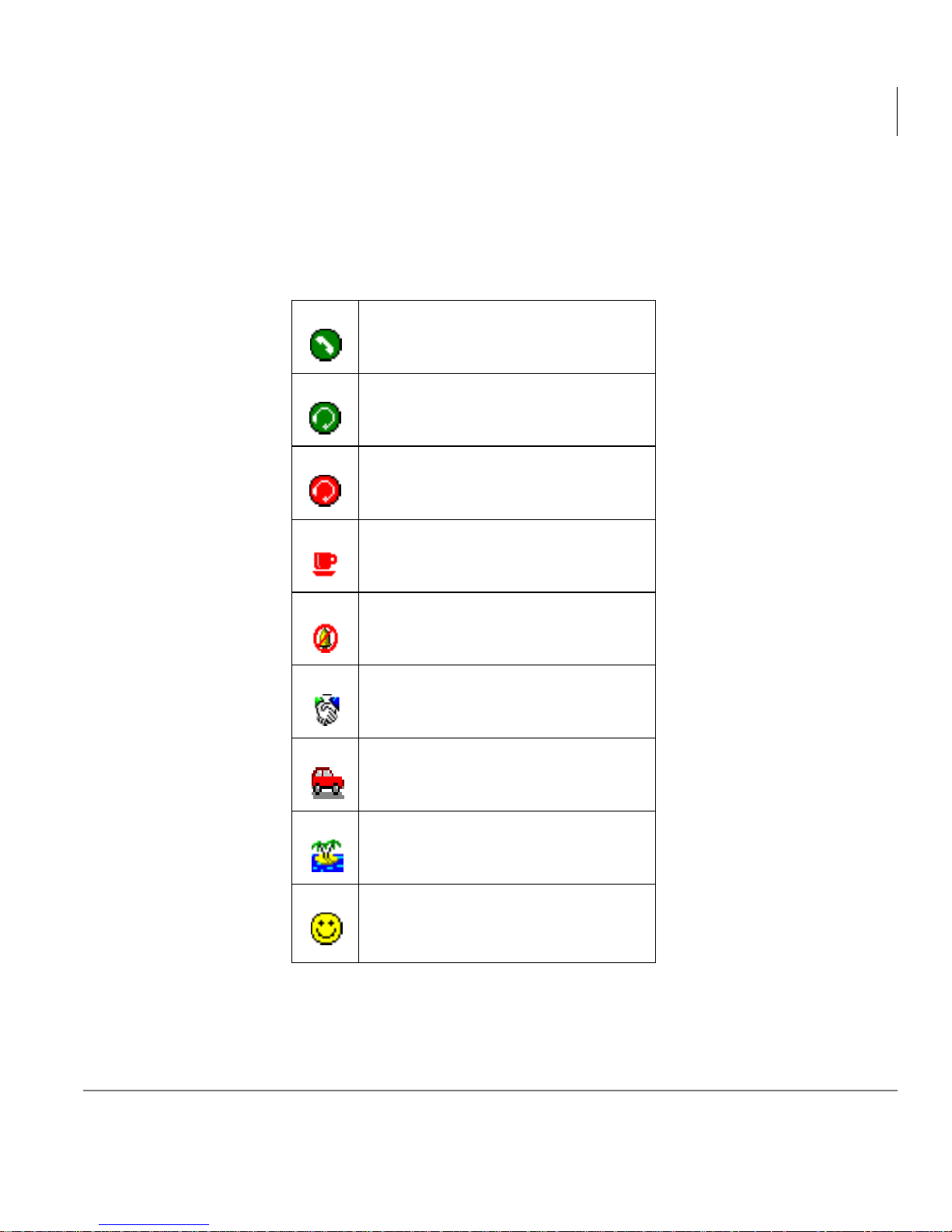
The following table defines each personal status icon. The icons display in the
Unavailable column. Agents in the Available or Available (Queue Only) status are
signed out.
Available.
Available (Queue Only).
Available ( Non-Queue).
On Break.
Do Not Disturb.
In a Meeting.
Out of the Office.
On Vacation.
Custom.
Stratagy CS Call Center Scoreboard User Guide 08/02 9
Page 18
Call Center Scoreboard
Viewing Agent Status
Agent Activity Window Options
The toolbar of the Agent Activity window offers the following options:
• Displaying Agents by Queue
• Displaying Agents’ Time in State
• Customizing Look of Agent Activity Window
Displaying Agents by Queue
➤ To display all agents for all queues, select All from the dr op- down menu at t he t op
of the window. You can also select a specific queue to display only the agents in
that queue.
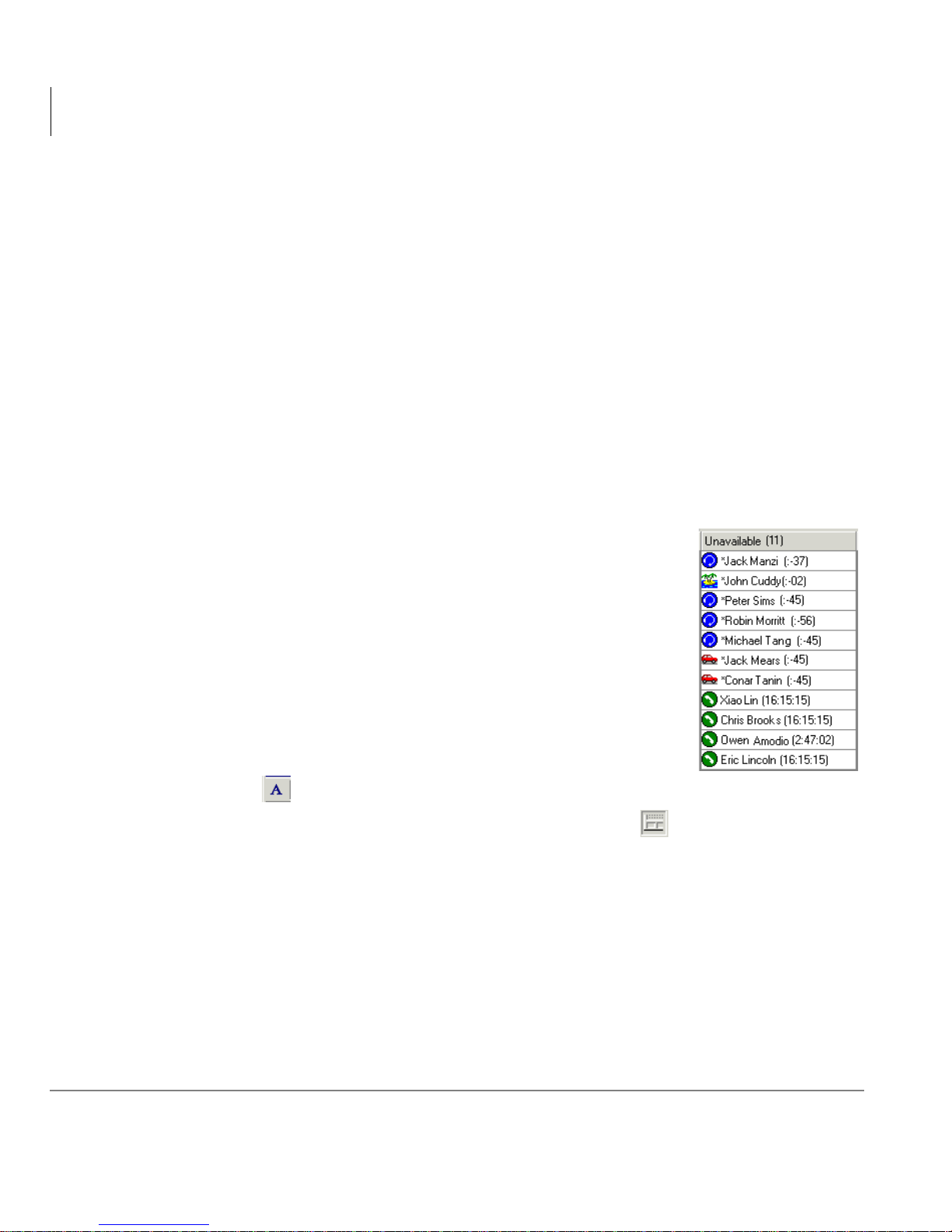
Displaying Agents’ Time in State
➤ Click Show Times to have each agent’s name display with
the amount of time they have spent in their current state
(shown right). Clic k it again to turn off the time display.
Interpreting Agent Activity Window Icons
➤ Click Legend to see a description of each icon in the Agent
Activity window.
Customizing Look of Agent Activity Window
➤ To specify the font for the Agent Activity window, click the
font icon.
➤ To show or hide the status bar, click the status bar icon.
10 Stratagy CS Call Center Scoreboard User Guide 08/02
Page 19

Call Center Scoreboard
Viewing A gent Sta tus
Setting Agent Activity Window Alarms
You can have the Agent Activity window display agents’ names in color when their
time in state exceeds a limit that you define. You can define a different limit for each
state, and for each queue.
You set Agent Activity window alarms the same way you set alarms for a statistics
window (see “Defining Alarm Profile” on page 16). Set alarms on the followi ng
statistics to change colors in the Agent Activity window:
• Longest Active Ready
• Longest Active Talk Time - Inbound
• Longest Active Talk Time - Outbound
• Longest Active Wrapup
• Longest Active Unavailable
• Longest Active Standby
Printing Agent Activity Window Data
➤ Choose File > Print to print the current data in the A gent Activity windo w. If
multiple Agent Acti vity windows are open, each prints t o a separa te page. All open
statistics windows print as well.
Stratagy CS Call Center Scoreboard User Guide 08/02 11
Page 20
Call Center Scoreboard
Defining a Statistics Window
Defining a Statistics Window
The Call Center Scoreboard can display any number of statistics windows, each of
which can contain any number of statistics. For a description of available statistics,
see “Call Center Statistics You Can Display” on page 24.
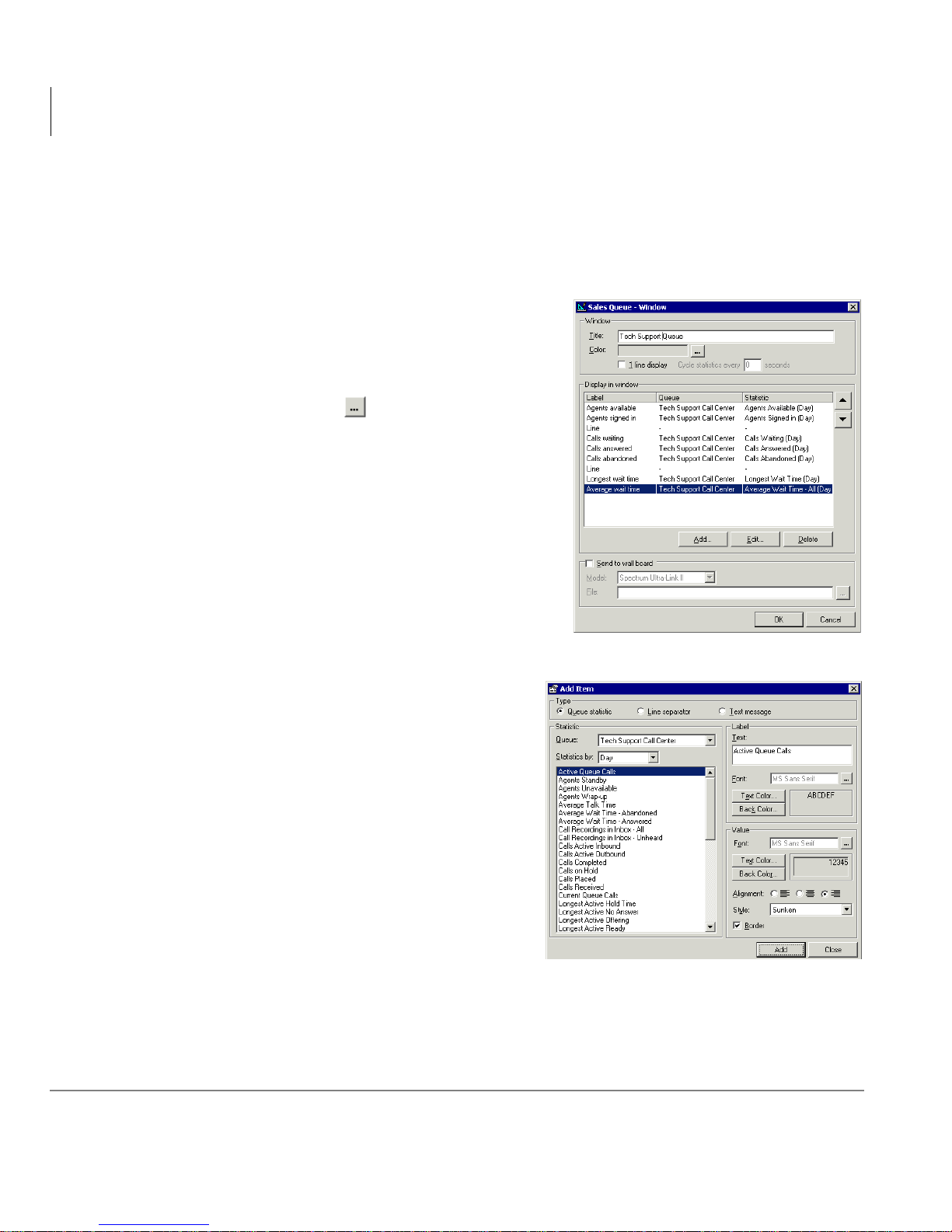
1. Choose File > New Window. The Window
dialog box opens (shown right).
2. I n the Title field, type the title that will appear
in the window’s title bar.
3. Und er Color, click to select the
background color of th e window. The default
is grey.
4. Check the 1 Line display field to have the
window display one statistic at a time,
cycling through them at a speed you define.
Enter the nu mber of sec onds a stat istic shoul d
remain in the window in Cycle statistics
every __ seconds.
Leave the field unchecked to have the
window display all its statistics at once.
5. Under Display in Window, choose which
call center statistics the window displays
and in what order. To select a statistic to
display, click Add. The Add Item dialog
box opens (shown right).
6. In the list of st atistics, click the statistic
you want to display. For an explanation of
the statistics, see “C all Center Statistics
You Can Display” on page 24.
7. I n the Queue field, select which que ue the
statistic will report o n.
Note A single window can contai n statistics
from different queues.
8. In the Statistics by field, select whether the statistic measures queue activity by
day, shift, or period. For example, the Average Wait Time statistic will calculate its
12 Stratagy CS Call Center Scoreboard User Guide 08/02
Page 21
Call Center Scoreboard
Defining a Statistics Window
average based on totals f or the time peri od you select. Totals for “Day” are reset to
zero at midnight. Period and shift are shorter time periods, described in the Strata
CS Call Center Administrator Guide.
For some statistics, you can display the value from the previous shift or period.
This displays a fixed number that you can use to compare with the current shift or
period.
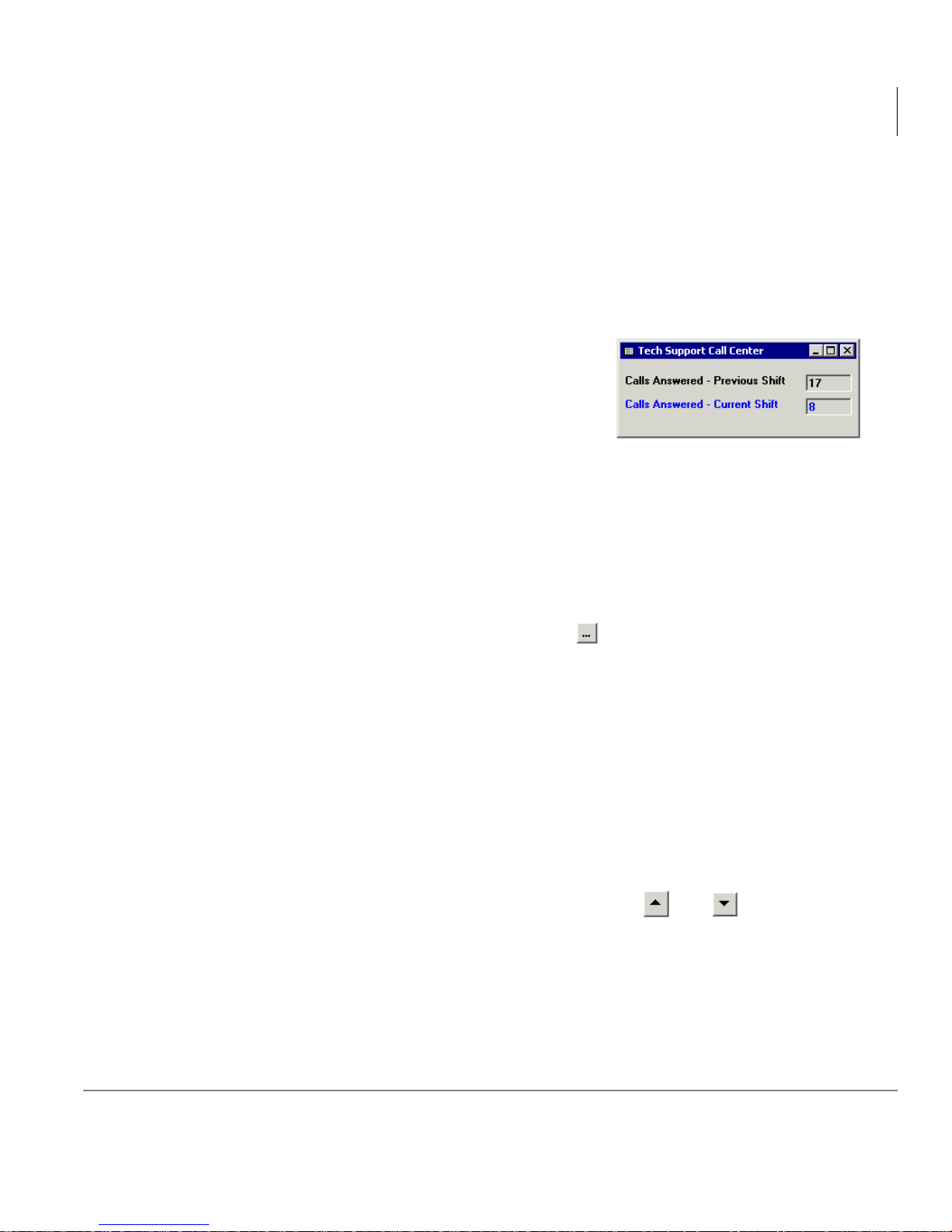
For example, you could have a window display
two statistics: Calls Answered for the previous
shift directl y above Calls Answered fo r the current
shift (example shown at right).
9. In the Text field, type the name of statistic as you
want it to display in the window. The default name is the name of the statistic,
which might be adequate in most cases. However, if you are displaying a statistic
from a previous period or shift, or from a different queue than other statistics in the
window, you should indicate that in the name. For example, if you have a window
display the Agents Available statistic twice, once for the sales queue and once for
the customer support queue, you should add the queue name to the statistic name.
10. In the Label and Value sections, use the controls to define the color, font, and
appearance of the statistic in the window. Click
to select the font of the name
and value.
The Style and Border fields define the box ar ound the valu e. To display the statistic
without a box, uncheck Border.
11. Click Add to add the statistic to the window. It appears in the Window dialog box,
but the Add Item dialog box remains open for you to add more statistics.
12. To add more statistics to the window, repeat steps Ste ps 5~11.
13. When you have added the statistics you want and placed them in the order you
want, click Close to close the Add Item dialog box and return to the Window
dialog box.
14. To arrange the order of statistics in the window, use the and buttons in the
Window dialog box. To add a separator line between two statistics, see the next
section.
15. Click OK to close the Window dialog box. The window is added to the layout.
16. The window is not yet saved. To save it, choose File > Sav e W indow, or File >Save
Layout, which saves the layout and all open windows. Choose a descriptive
Stratagy CS Call Center Scoreboard User Guide 08/02 13
Page 22
Call Center Scoreboard
Defining a Statistics Window
filename for the window. The filename does not appear anywhere in the window,
but will be useful to remember if you later want to open or delete the window.
Once a window is saved, you can add it to any layout you create. See “Using
Window or Alarm Profile in More Than One Layout” on page 22.
You can choose to send a window’s data to a wallboard display unit, in addition to
displaying on-screen. See “Sending Statistics to Wallboard Display Unit” on page
32.
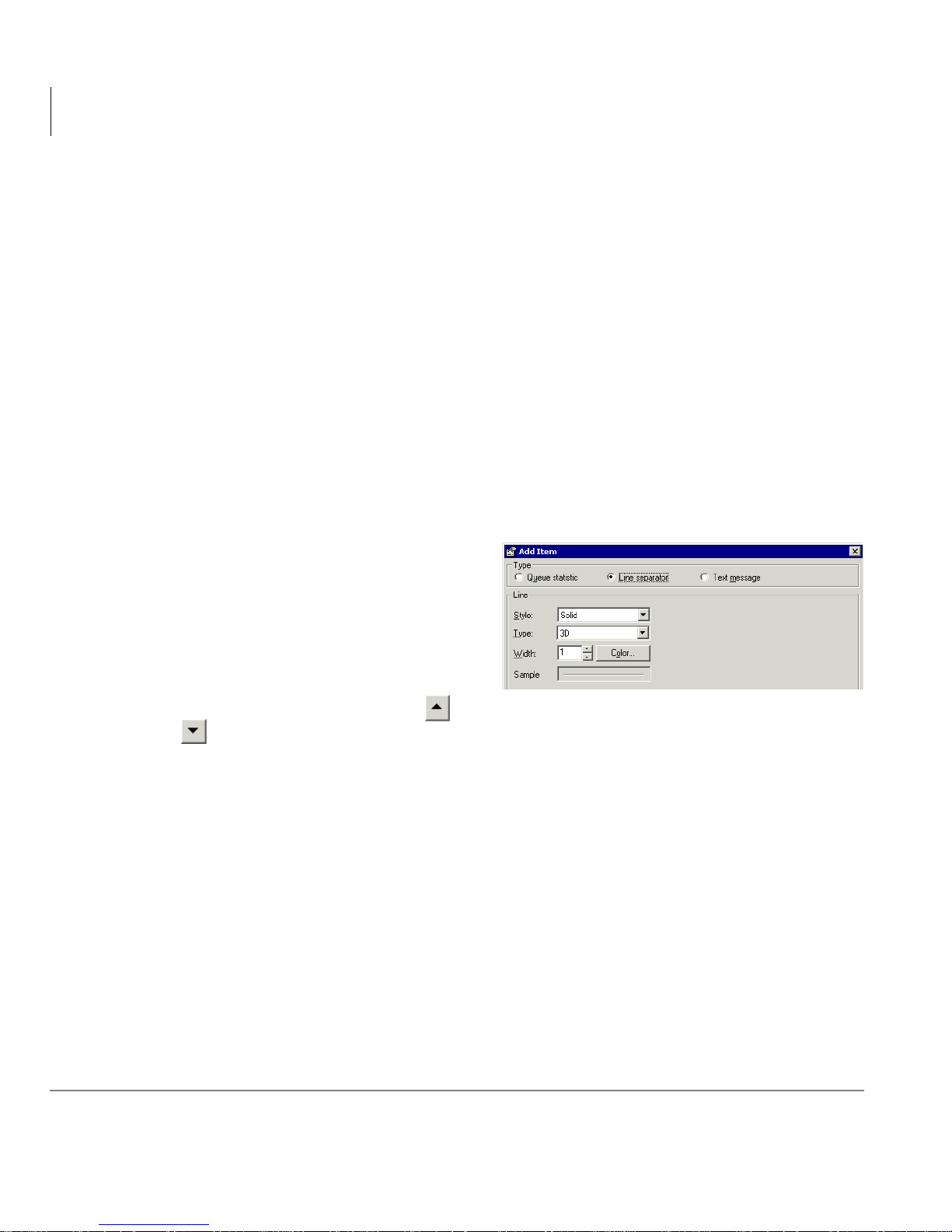
Inserting Se parator Line
You can insert a separator line at any position in a window.
1. If the Window dialog box is not already open, open it by double-clicking the
window you want to edit or choosing View > Window properties.
2. Click Add. The Add Item dialog box opens.
3. Under Type, click Line Separator
(shown right).
4. Use the controls to define the
appearan ce of the l ine.
5. Click OK to add the line to the
window.
6. To reposition the line, use the and
buttons in the Window dialog box.
7. Click OK to close the Window dialog box.
14 Stratagy CS Call Center Scoreboard User Guide 08/02
Page 23
Call Center Scoreboard
Defining a Statistics Window
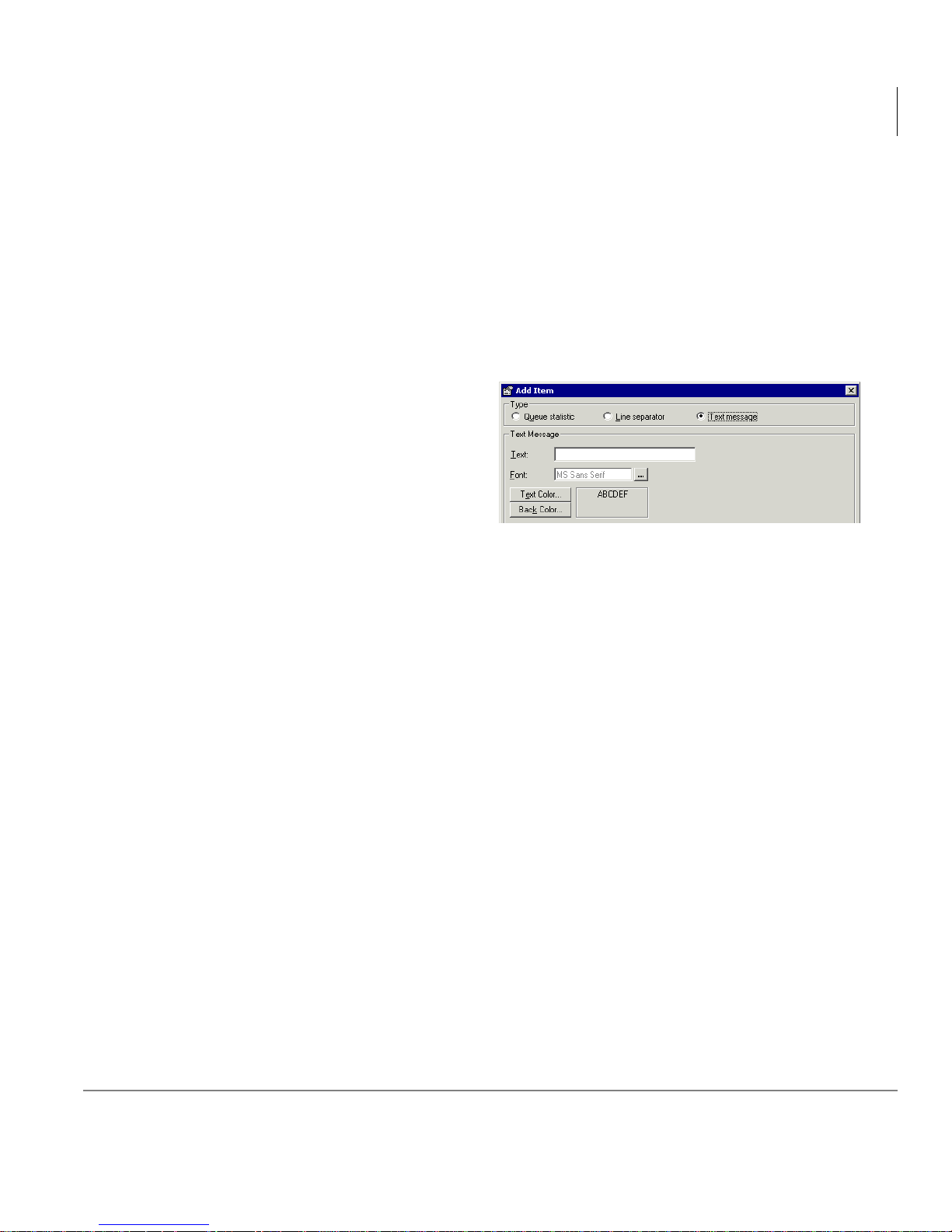
Inserting Text Message
You can insert a line of text at any position in a window.
Note Text messages can be useful for sending motivational or holiday
announcements to a wallboard. See “Sending Statistics to Wallboard Display
Unit” on page 32.
1. If the Window dialog box is not already open, open it by double-clicking the
window you want to edit or choosing View > Window properties.
2. Clic k Add. The Add Item dialog box
opens (shown right).
3. Under Type, click Text message.
4. In the Text field, enter the message
you want to display.
5. Use Font, Text Color and Back
Color controls to d efine the appearance of the message.
6. Click OK.
Editing Window
➤ To edit a window, double-click it or choose View > Window properties. You can
also double-click the window anywhere other than on a statistic value.
Opening Saved Window
➤ To open a saved window, choose File > Open and select the window. Windows
have the file extension .WIN.
You can also add a window to a layout by editing the l ayo ut. See “Editing Layout” on
page 22.
Saving All Windows
➤ To save all windows in the current layout, choose File > Save All Windows. You
can also save all windows by choosing File > Save Layout, which saves all
elements associated with the current layout, including the alarm profile.
Stratagy CS Call Center Scoreboard User Guide 08/02 15
Page 24

Call Center Scoreboard
Defining Alarm Profile
Printing Window Data
➤ T o print the current statistics showing in all windows, choose File > Print. The data
for each open statistic window prints on a separate page. If the Agent Activity
window is open, its data prints as well.
Deleting Window
➤ To remove a window from the layout, click the X in its upper right corner. If you
save the window, you can always open it again in this or another layout.
You can delete a window file manually from disk. This perman ently eliminates the
window and removes it from all layouts in which it appears. The default location for
window files is
Files
. The window’s filename is the one you gave it when you saved the window.
C:\Program Files\Call Center Scoreboard\Data
Defining Alarm Profile
The alarm profile is one of the most important parts of a layout. With it you can set
alarms to trigger whe n a s ta ti st ic me et s or exc eeds a level that you define. Alarms ca n
take the form of a changed color in the window display, a sound that plays over your
computer speakers, and even a voice message automatically sent to your mailbox.
You can also set alarms to trigger when a statistic meets or falls below a certain level.
See “Triggering Alarms When Statistics Fall Too Low” on page 19.
An alarm profile can contain as many different alarms on as many different statistics
as you want. You can create and store as many different alarm profiles as you want,
for use in dif ferent ci rcumstances. Fo r example, you mig ht have one profi le for normal
call volumes and another profile for high call volumes, with higher alarm triggers. A
layout uses one alarm profile at a time, but you can easily change it whenever you
want.
16 Stratagy CS Call Center Scoreboard User Guide 08/02
Page 25
Call Center Scoreboard
Defining Alarm Profile
Using Custom Sounds As Alarms
The Call Center S coreboa rd pro vides a number of so unds to use. You can als o use a ny
.WAV file as your alarm sound. You can create sounds using Strata CS by recording
them and exporting them as .WAV file s. You can also search the Inte rnet for appe aling
.WAV files. Some sound file websites are:
• www.wavcentral.com
• www.webplaces.com/html/sounds.htm
(Toshiba is not responsible for the content of sounds on these or other websites.)
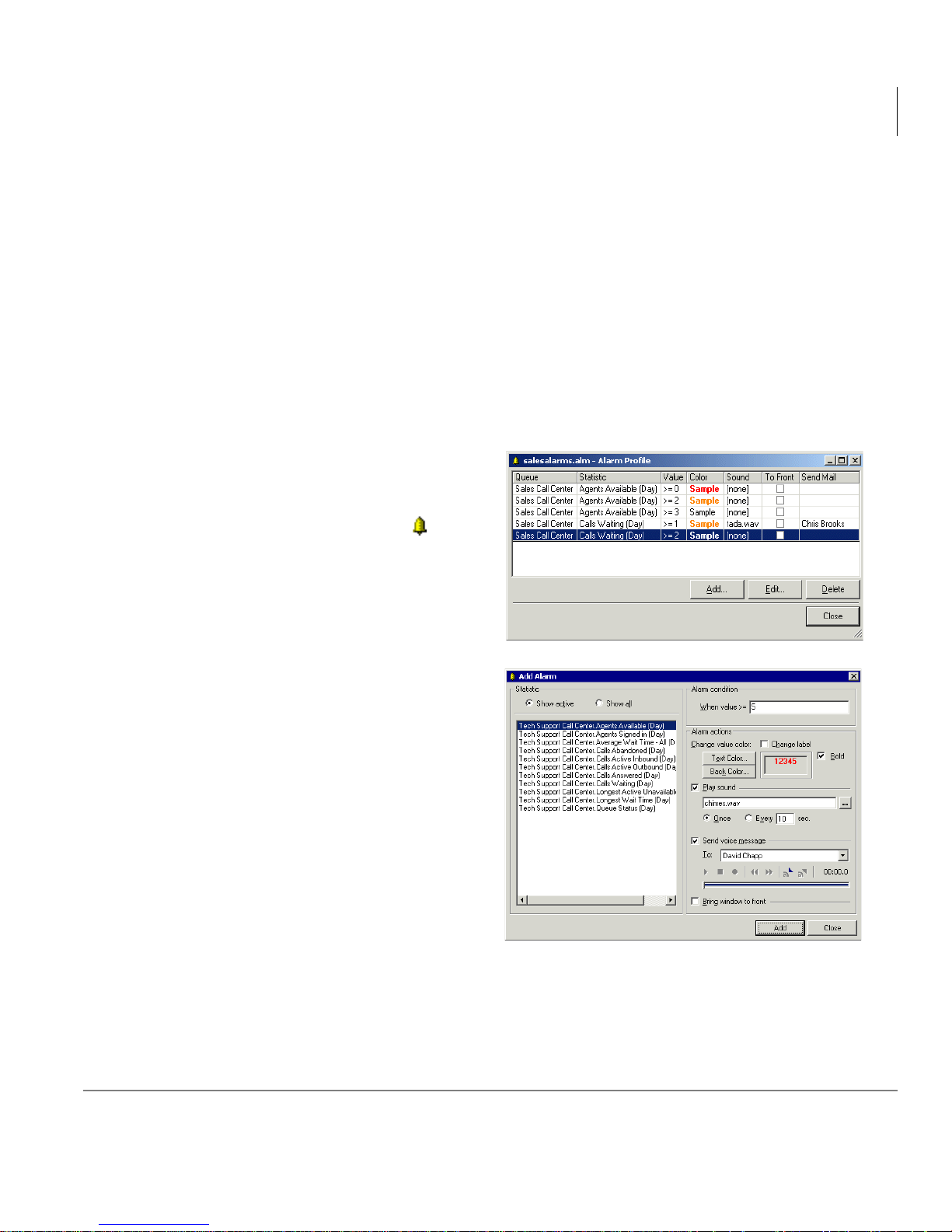
Creating or Editing Alarm Profile
1. Choose View > Alarm Profile. You
can also d ouble-click the alarm icon
in the lower left corner of the C all
Center Scoreboard window
Alarm Profile dialog box opens
(shown right).
.The
2. To add an alarm to the profile, click
Add. The Add New Alarm dialog
box opens (shown right).
3. Under Statistic, click the statistic for
which you want to set an alarm.
To view only the statis tics that are
currently displayed in the layout,
select Show Active. To view all
statistic s, select Sh ow All.
Note You can configure an alarm for
any statistic, but alarms will have
no effe ct unless the corr esponding
statistic is displayed in the layout.
4. Under Alarm Condition, enter the value that will trigger the alarm if met or
exceeded. For example, to have an alarm trigger when there are 10 or more calls
Stratagy CS Call Center Scoreboard User Guide 08/02 17
Page 26

Call Center Scoreboard
Defining Alarm Profile
waiting on hold, select the Calls Waiting statistic and enter 10 as the alarm
condition.
T o have an alarm trigger when a statistic falls below a cer tain level, se e “Triggering
Alarms When Statistics Fall Too Low” on page 19.
When entering the alarm condition for a statistic that measures length of time, use
the format h h:mm:ss to indicat e hours: minutes: seconds. Fo r examp le, To trigger an
alarm when Average Wait Time reaches an hour, enter 01:00:00.
5. Under Alarm Actions, define what form the alarm takes using the following
options.
• Change value color. Changes the color of the value in the statistics window.
Click Text Color and Back Color to specify the t ext an d background colors t hat
mark an alarm.
Check Change label to have th e alarm color apply to the name of the statistic
and the value. If unchecked, only the value will change color. Check Bold to
have the alarm text appear in boldface.
• Play s ound . Chec k to have a sound play over your comput er spe ake rs when the
alarm is triggered. Click
“Using Custom Sounds As Alarms” on page 17 for alternative sources for
sound files.
Click Once to have the sound play once wheneve r the al arm valu e is met. Click
Repeatedly to have the alarm value pla y continuously as long as the alarm val ue
is met or exceeded.
Note For a louder sound, simply connect your sound card to a bigger speaker or an
overhead sound system in your area.
to select the .WAV file of the sound to play. See
• Send voice message. Check to have the Call Center Scoreboard automatically
send a voice message to the user of your choice when the alarm is triggered.
Use the audio controls to record or import the alarm message that will be sent,
then use the drop-down list to select the user who will receive alarm messages.
To send messages to more than one person, or to receive e-mail or pager
notification of alarms, see the next section, “Gener ati ng E-mai l Messag es and
Pages for Alarms.”
• Bring window to front. Check to bring the Call Center Scoreboard to the front
of your desktop when the ala rm trigg ers. The win dow with the alarm stati stic is
brought to the front of the layout and made the active window.
18 Stratagy CS Call Center Scoreboard User Guide 08/02
Page 27

Call Center Scoreboard
Defining Alarm Profile
6. Click OK to ad d this alarm to the al arm profile. It appears in the Alarm Profile
dialog box.
7. Repeat Steps 2~6 to add further alarms to the alarm profile.
8. When the definition of your alarm profile is complete, click Close to close the
Alarm Profile dialog box.
9. To save the alarm pro fi le , choose File > Sa ve Alar m Pr of il e or File > Save Layout,
which saves the layout and the alarm profile.
Generating E-mail Messages and Pages for Alarms
You can automatically receive e-mail and pager notification for alarms by setting the
notification options of the user who receives voice messages on alarms. E-mail
notifications can be send to multiple e-mail addresses.
1. In the Call Center Scorebo ar d, cho ose the option to send a voi ce message when an
alarm is triggered, as described in the previous section.
2. I n the S trata CS Client or Administra tor, configure the user who receives the voice
messages to have e-mail or pager notification sent when new voice messages are
received. For instructions, see Strata CS Client User Guide.
Now whenever an alarm is triggered, you are notified by e-mail, page, or both.
Triggering Alarms When Statistics Fall Too Low
By default, Call Center Scoreb oard alarms are triggered when a sta tistic meets or goes
above a certain va lue . You can also de fine a larms t hat t rigge r when a s tatist ic meet s or
falls below a certain value. To do so, you must define two alarms for the same statistic,
as follows:
1. Set the first alarm to trigger on a value of >= 0. Give this alarm the alarm effect
you want, for example the color red or a sound.
2. Set the second alarm to trigger on your critical low value. For the alarm action,
define the absence of an alarm, for example the color black and no sound.
The result is that the alarm effect triggers when the value meets or falls below the
critical level defined in the second alarm.
Stratagy CS Call Center Scoreboard User Guide 08/02 19
Page 28

Call Center Scoreboard
Designing and Saving a Layout
Example
To trigger a red-color alarm if Available Agents falls to two or below, define the
following alarms:
1. An al ar m that tri gge rs when Available Agents is >=0, and changes the color to re d.
2. An alarm that triggers when Available Agents >=2, and sets the color to black.
Changing Alarm Profile Associated with a Layout
You can associate a new ala rm profil e with t he cur rent l ayout at any time. Choo se F ile
> Open and select the alarm profile. Alarm profiles have the file extension .ALM.
If you want the new alarm profile to remain associated with the layout, be sure to save
the layout by choosing File > Save Layout.
Deleting Alarm Profile From a Layout
To remove an alarm profile from a layout without replacing it with another alarm
profile, do the following:
1. Choose View > Layout. The Layout dialog box opens.
2. Uncheck Alarm Profile.
3. Click OK.
Designing and Saving a Layout
Once you have created an arrangement of windows you like, and an alarm profile to
go with them, you can save the entire layout. The layout stores the appearance and
position of the windows, as well as the alarm profile. You can save multiple layouts
and open any one of them in the Call Center Scoreboard.
The Call Center Scoreboard displays one layout at a time.
Examples of Using Multiple Layouts
• You could have one layout to report on your Sales queue, and another to report on
your Customer Support queue. Because the focus of the queues is different, the
layouts might display different statistics.
20 Stratagy CS Call Center Scoreboard User Guide 08/02
Page 29

Call Center Scoreboard
Designing and Saving a Layout
• You could have two layouts to report on your Support queue, called Support -
Normal and Support - Rush, for use during the normal and heavy volume times of
the day. Both would display exactly the same statistics, but with different alarm
profiles. In the Support - Normal layout, an alarm might trigger if there were 10
calls waiting. In the Support - Rush layout, the alarm would trigger if there were 50
calls waiting.
Designing Layo ut
Whenever you create and arrange windows in the Call Center Scoreboard, you are
designing a layout. Whether you choose to save the layout for future use is up to you.
If you do not save the layout, then the next time you open the Call Center Scoreboard
the blank screen appears and you have to open the window files individually.
Automatically Arranging Windows in a Layout
The Call Center Scoreboard contains several commands for automatically arranging
and aligning windows in the current layout. All are found under the Window menu.
Hiding Status Bar in a Layout
You can show or hide the status bar at the bottom of the layout.
➤ Choose View > Status bar.
Keeping Layout on Top
➤ To fix a layout at the front of your desktop, choose Window > Always on top.
Choose it again to turn the setting off.
Returning to Blank Layout Screen
➤ If you want to r eturn to a blank Call Center Sco reboar d scr een to begin desi gning a
new layout, choose File > Close all Windows. You are prompted to save any
unsaved windows.
Saving Layout
➤ To save the current layout, choose File > Save Layout. Each window in the layout
is saved, as is the layout as a whole.
Stratagy CS Call Center Scoreboard User Guide 08/02 21
Page 30
Call Center Scoreboard
Designing and Saving a Layout
Opening Layout
➤ To open a saved layout in the Call Center Scoreboard, choose File > Open and
select the layout you want to open. Layouts have the file extension .CCA.
The layout you open replaces the layout currently displayed in the Call Center
Scoreboard.
Using Window or Alarm Profile in More Than One
Layout
Because windows and a larm p rofil es a re sa ved i ndivi dually, you can use them i n more
than one layout.
➤ To add a pre-existing window to a layout, choose File > Open and select the
window. Windows have the file extension .WIN.
➤ To add a pre-existing alarm profile to a layout, choose File > Open and select the
alarm profile. Alarm profiles have the file extension .ALM.
Deleting Window From a Layout
➤ To delete a window from a layout, close the window by clicking the X in its upper
right corner, then save the layout.
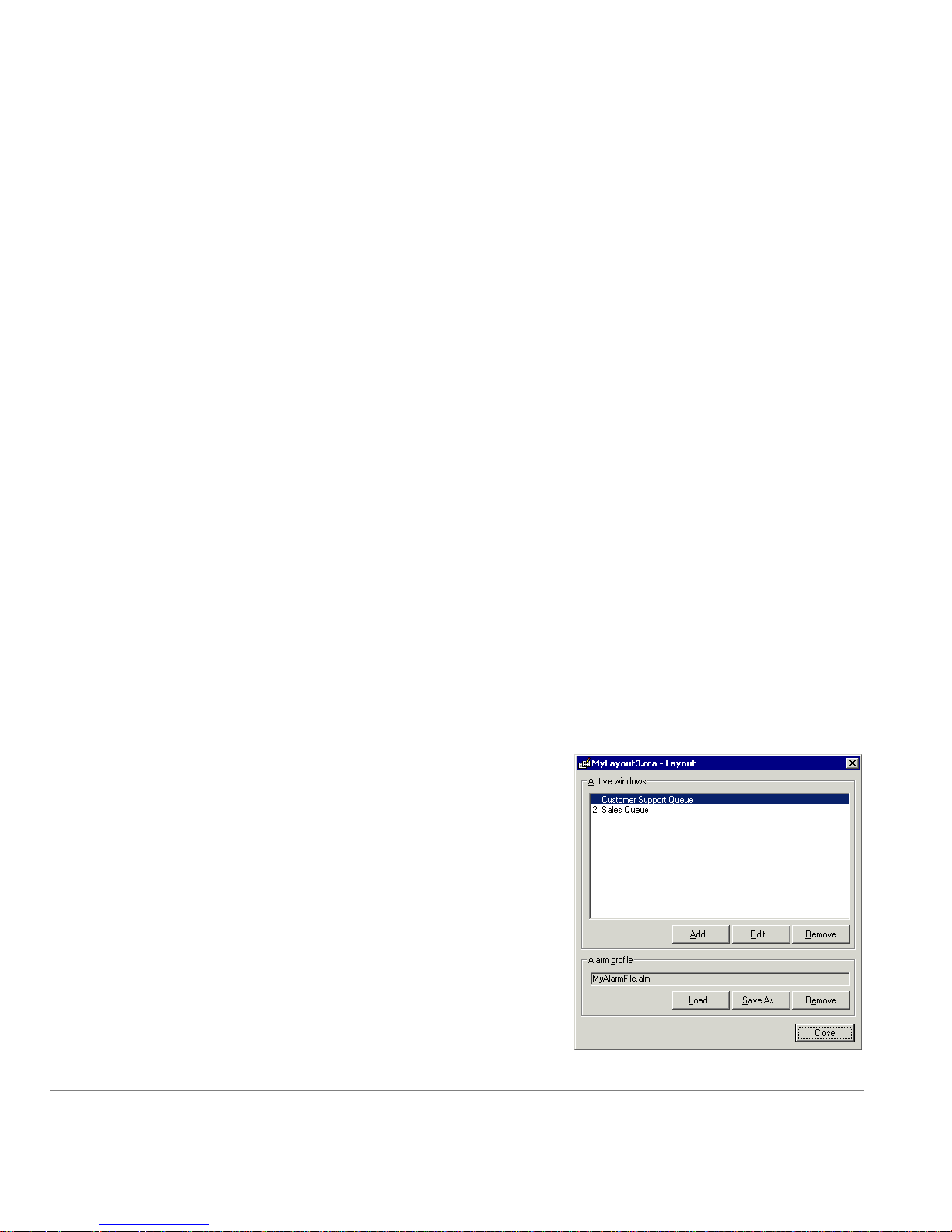
Editing Layout
1. To edit the properties of the current layout,
choose V iew > Layout. The Lay out dialog box
opens (shown right).
2. The dialog box displays the windows and the
alarm profile associated with the layout. You
can modify the layout properties in the
following ways:
• To add a saved window to the l ayout, click
Add and select the window. (To position
the window in the layout, close the dialog
box, position the window by dragging its
title bar, and sa ve the lay out.)
22 Stratagy CS Call Center Scoreboard User Guide 08/02
Page 31

Call Center Scoreboard
Designing and Saving a Layout
• To remove a window from the layout, select the window name and click
Remove.
• To edit a window in the layout, select the window name and click Edit. See
“Defining a Statistics Window” on page 12.
• To add or change the alarm profile associated with the layout, click Load.
• To remove the alarm profile associated with the layout, click Remove.
• To save the associated alarm profile under a different name, click Save As.
Sharing Layouts, Windows, and Alarm P rofiles
Layouts, statistics windows, and alarm profiles are all saved separately. This makes it
easy to build new layouts by combining existing elements, and share elements
between Call Center Scoreboards on different computers.
By default the files for Call Center Scoreboard elements are all stored in the \Data
Files subdire ctory, at
Files
. The fil e extensions are as f ollows:
C:\Program Files\Strata CS Call Center Scoreboard\Data
• Layout files. .CCA
• Window files. .WIN
• Alarm profile files. .ALM
➤ To share elements between computers, you can either copy these files from one
computer to anoth er , or sa ve all fi les to a sh ared ne twork dire ctory and ac cess them
from there.
Note When copying layout files from one computer to another, be sure to also copy
the files for the windows and alarm profile associated with that layout,
otherwise the layout will not load correctly on the new computer.
Stratagy CS Call Center Scoreboard User Guide 08/02 23
Page 32
Call Center Scoreboard
Call Center Statistics You Can Display
Call Center Statistics You Can Display
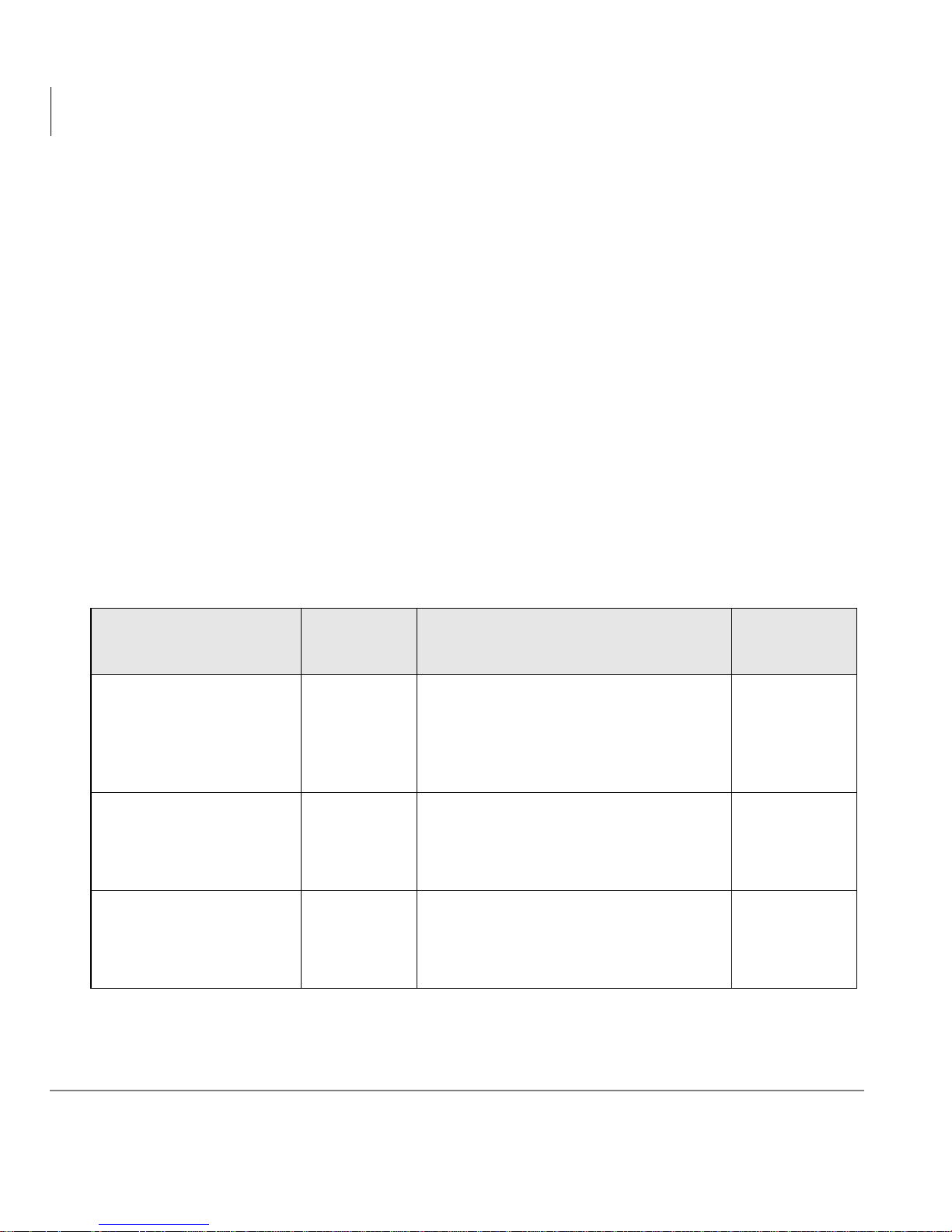
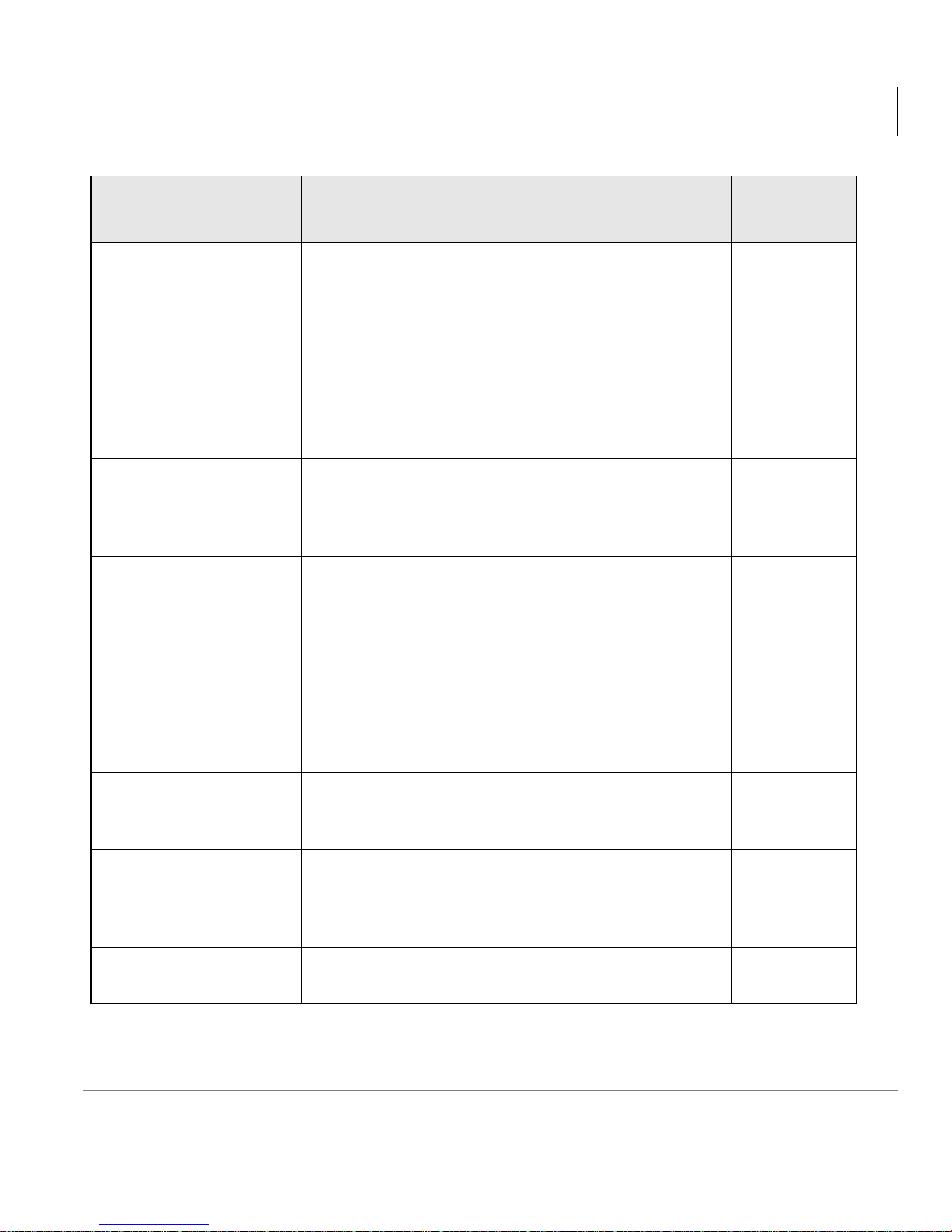
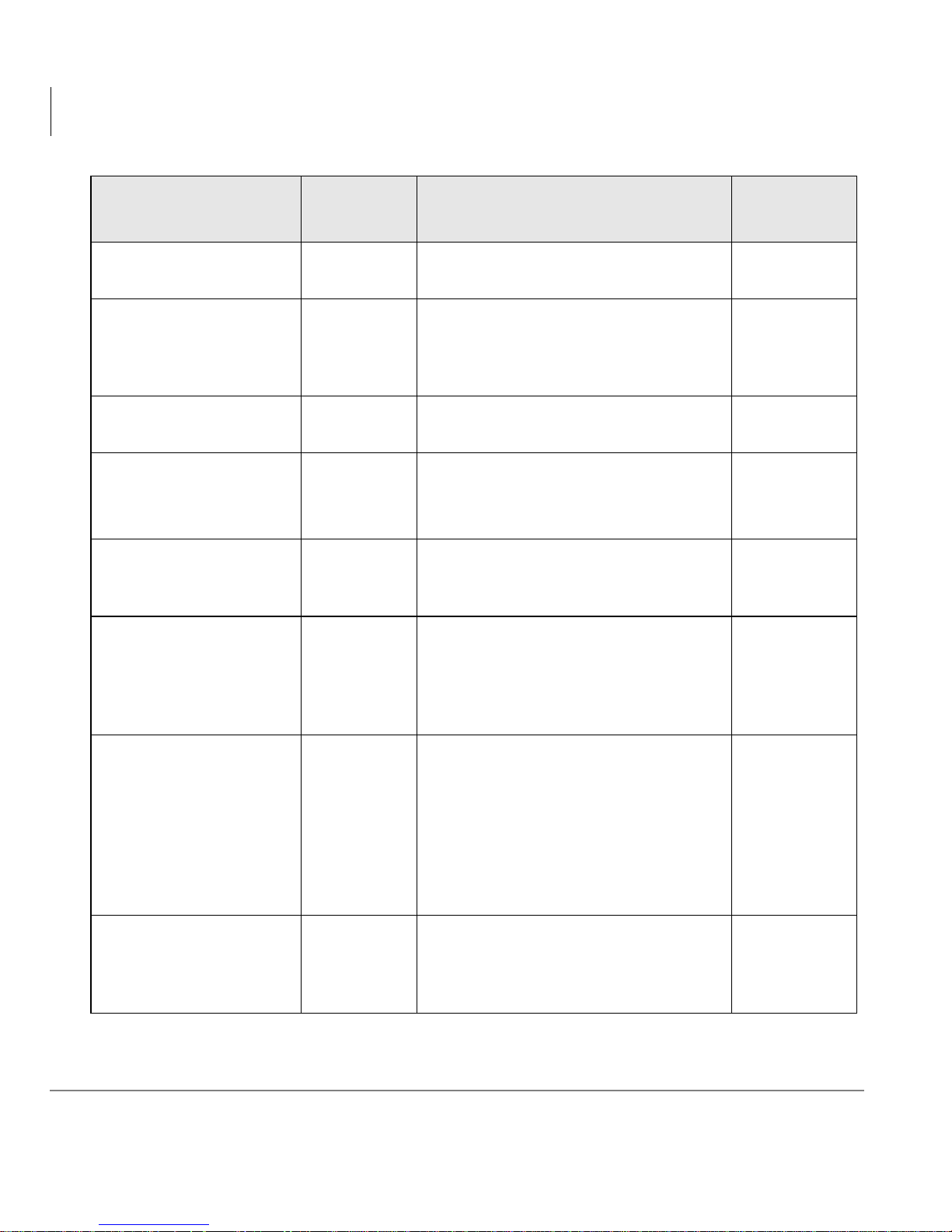
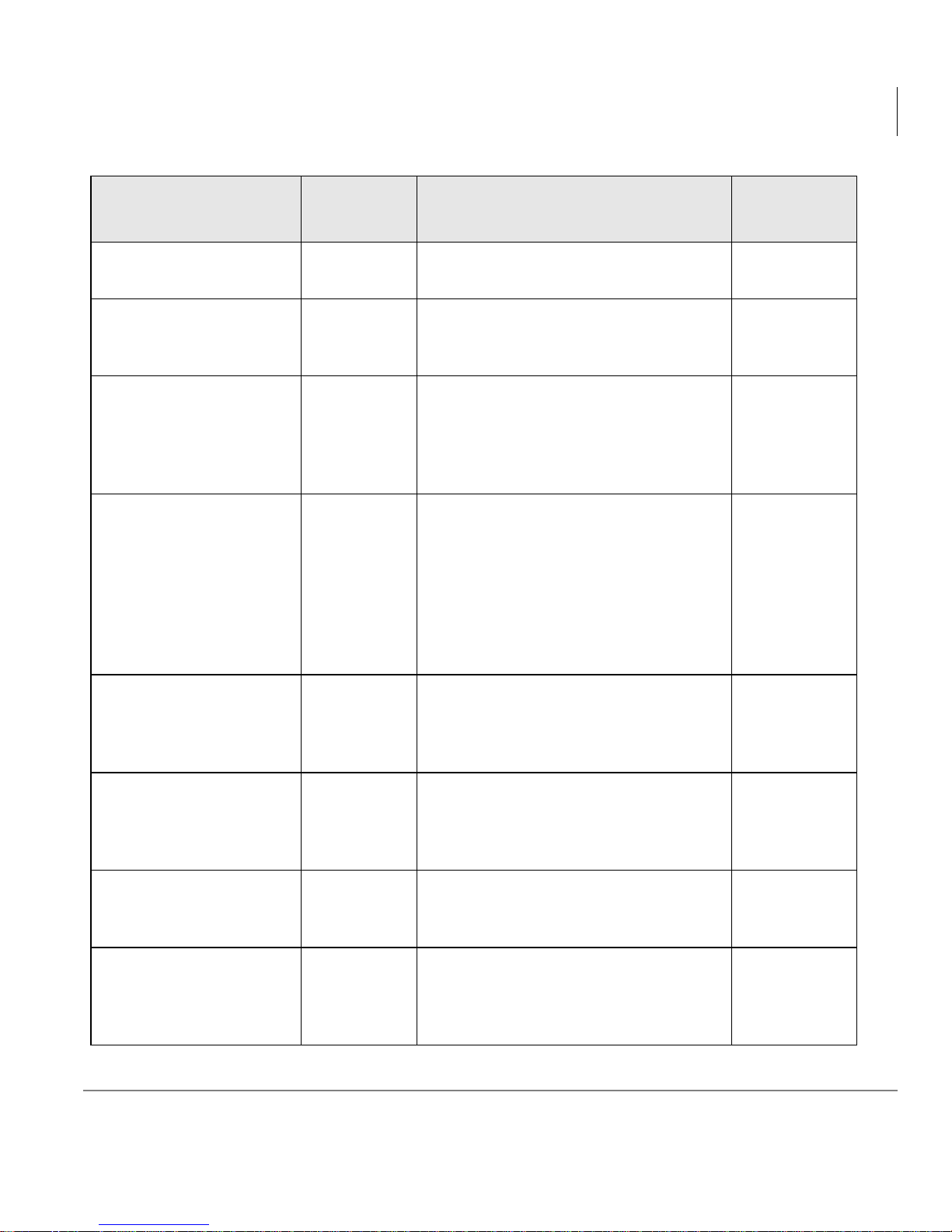
The following table describes all the statistics that you can display in the Call Center
Scoreboard.
Note The statistics monitor a queue as a whole only.
➤ To monitor agent performance, use the Agent Activity window as described in
“Viewing Agent Status” on page 7, and the Client’s Queue Monitor view as
described in the Strata CS Call Center Administrator Guide.
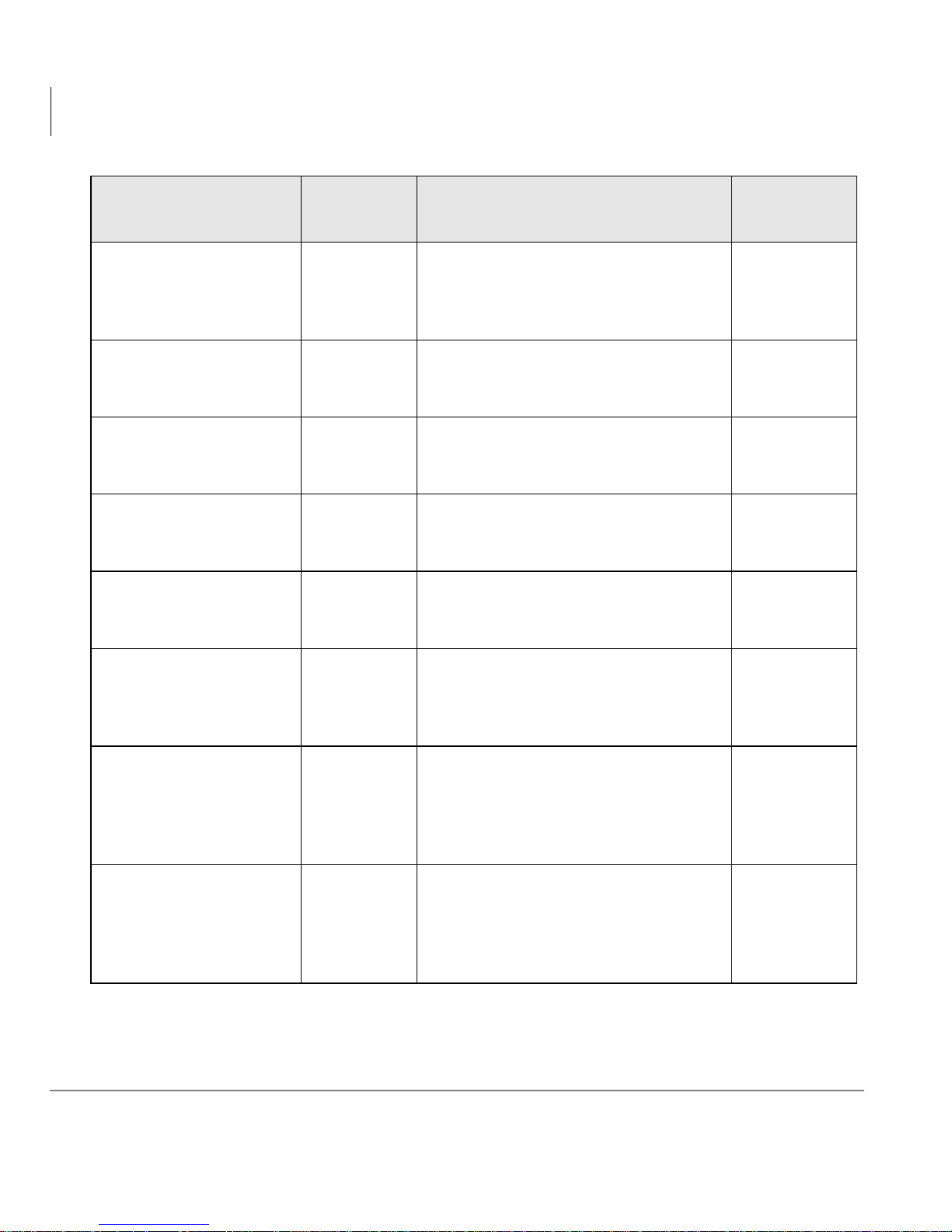
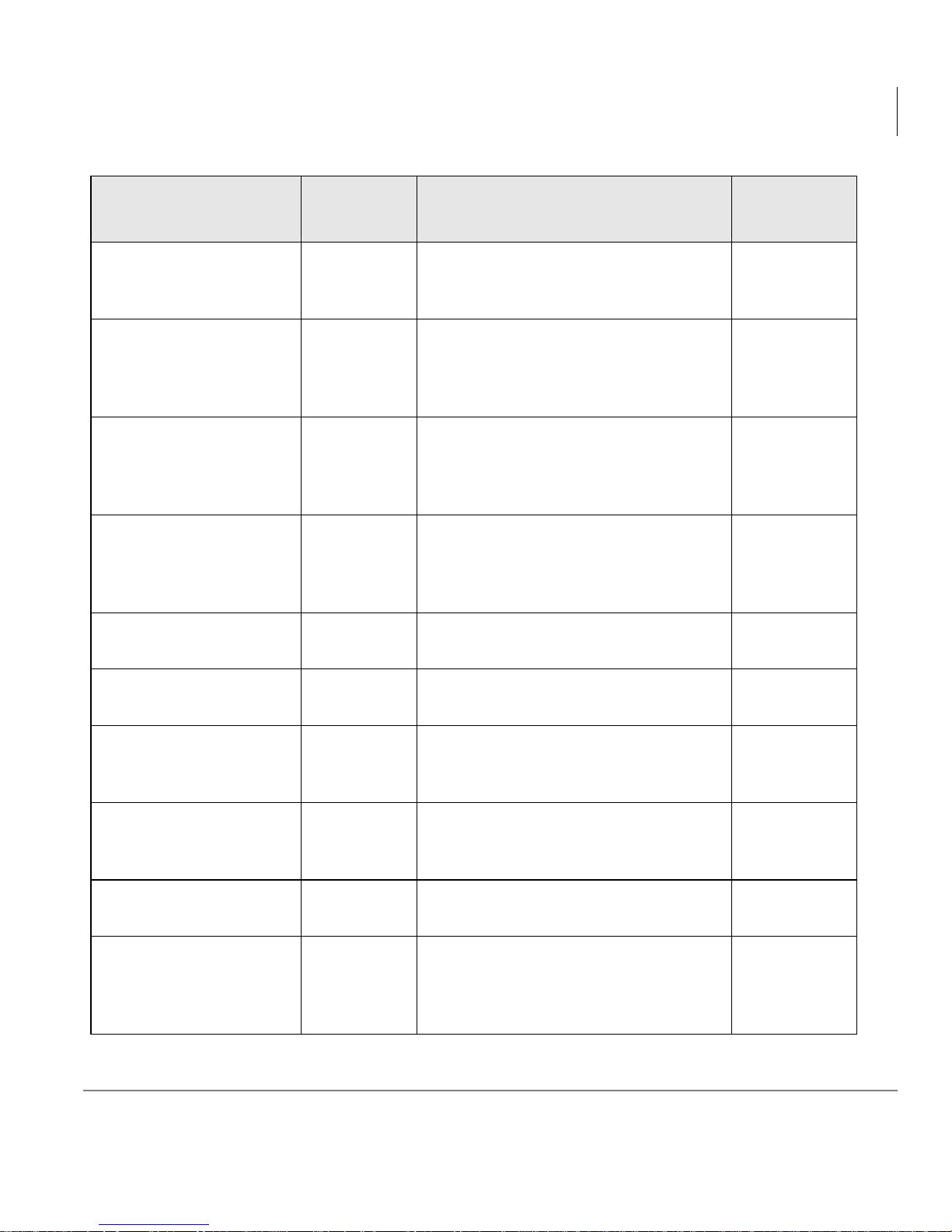
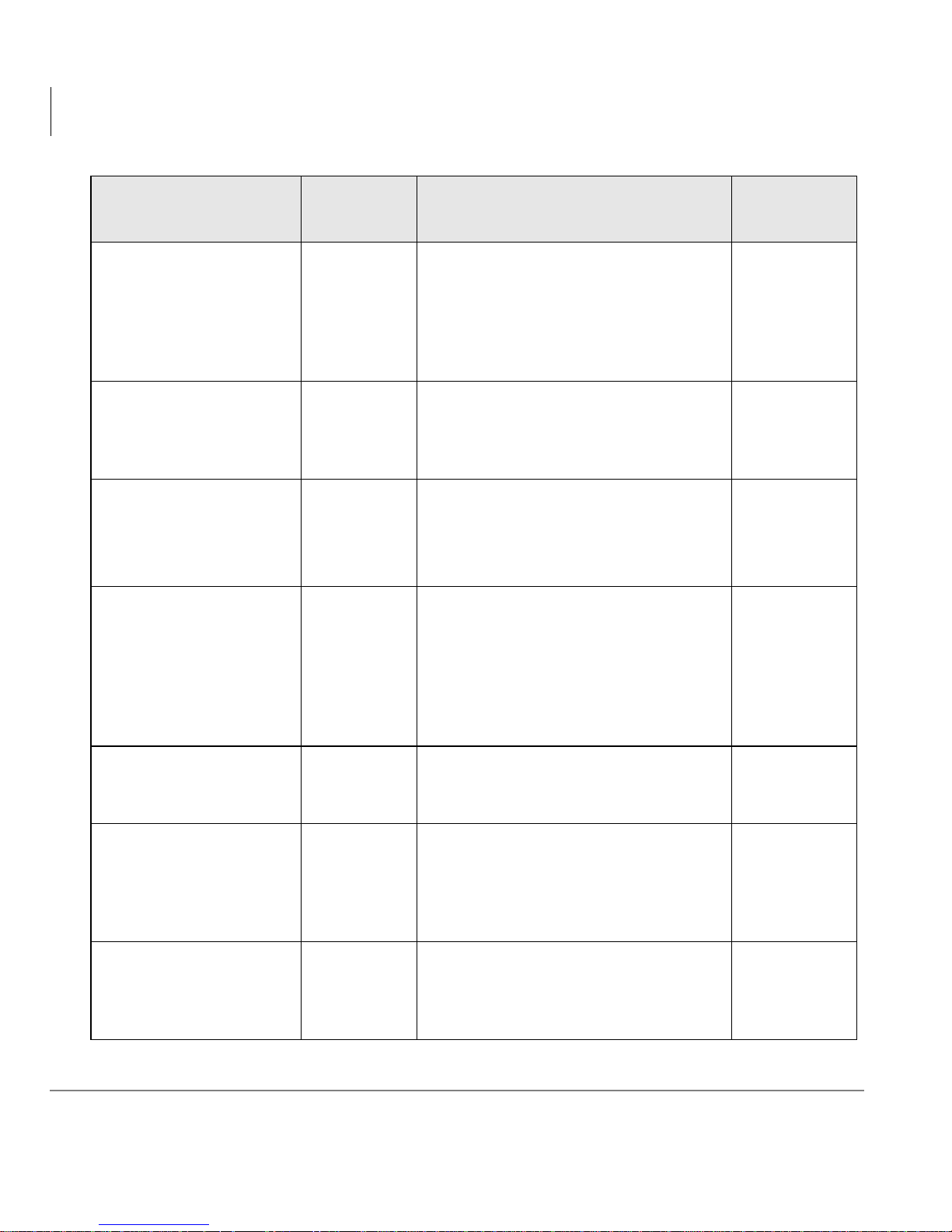
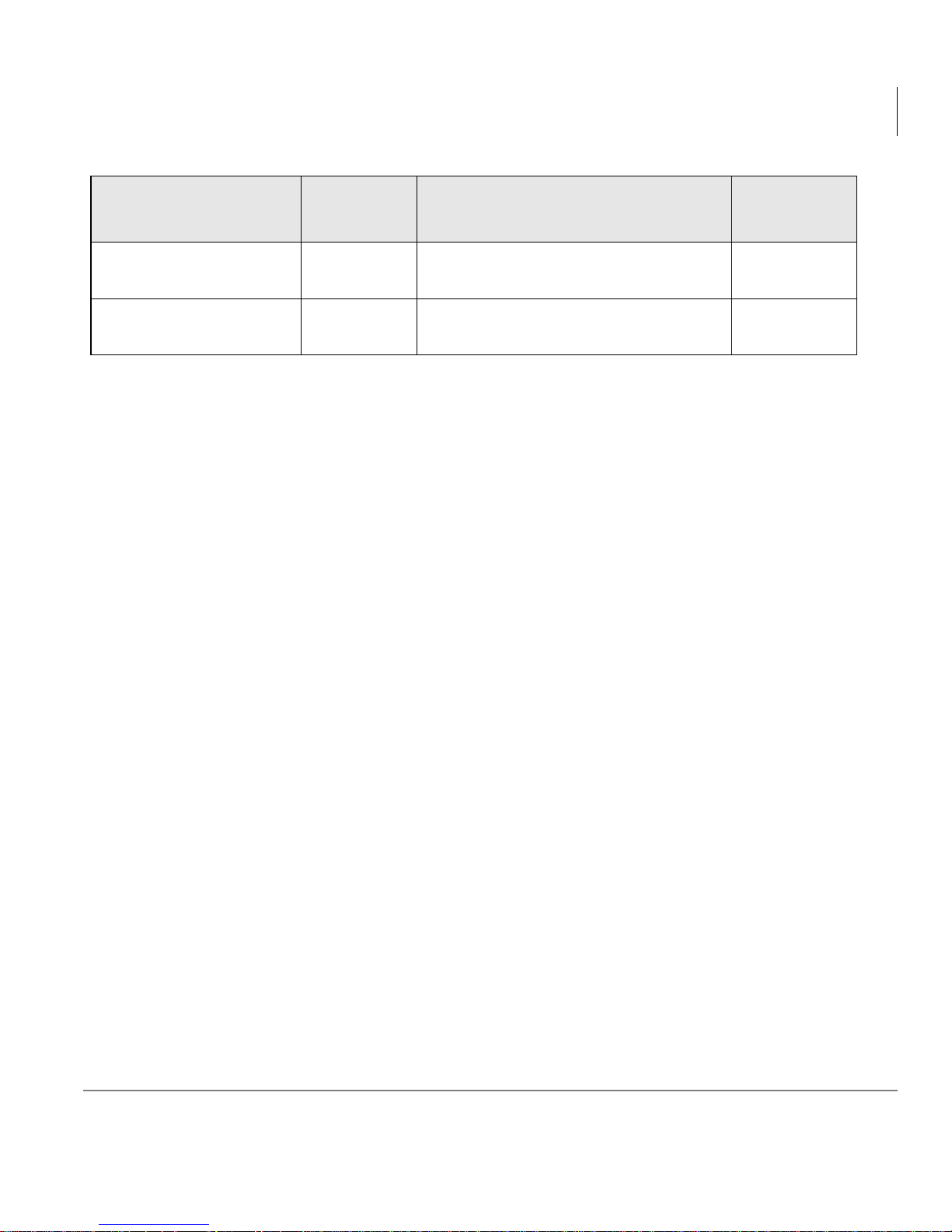
The “Wallboard Code” column contains the acronyms that display in the Spectrum
Ultra Link II software when you use it to send the se statisti cs to a Spectrum wallboa rd.
(See “Sending Statistics to Wallboard Display Unit” on page 32.) The acronyms have
no other use.
The “Scoreboard On ly” column has a check for st at is tics that are av ail able only in th e
Call Center Scoreboard, not in the Queue Monitor.
Note You can choose whether a statistic displays totals for the current day, shift, or
period. See “Defining a Statistics Window” on page 12.
Statistic
Active Queue Calls AQC
Agents Availa ble AAV
Agents Signed In ASI
Wallboard
Code
Description
Number of queue calls currently
connected with an agent. (See also
Calls Active Inbound and Calls
Active Outbound, as well as Current
Queue Calls.)
Number of signed-i n agent s who are in
a personal status that accepts queue
calls, such as Available or Available
(Queue Only).
Number of agent s currently signe d in to
the queue. These agents will receive
incoming queue calls if they are in the
Ready state.
Scoreboard
Only
✕
24 Stratagy CS Call Center Scoreboard User Guide 08/02
Page 33
Call Center Scoreboard
Call Center Statistics You Can Display
Statistic
Agents S tandby AS
Agents Wrap-up AWR
Agents Unavailable AU
Average Talk Time ATT
Wallboard
Code
Description
Number of agents currently in the
Standby state, meani ng that their
personal statu s is On Brea k or th ey are
in a non-queue call.
Number of agents currently in the
wrap-up state. Each agent can have a
unique amount of time for wrap-up,
used to process paperwork following a
call.
Number of agents currently signed in
but in a personal status other than
Available, Available (Queue Only), or
On Break.
Average length of time that callers
have spent connected to an agent
since the beginning of the day, period,
or shift.
Scoreboard
Only
✕
✕
Average length of time spent waiting
Average Wait Time -
Abandoned
Average Wait Time - All AWL
Average Wait Time -
Answered
Call Recordings in
Inbox - All
Stratagy CS Call Center Scoreboard User Guide 08/02 25
AWB
AWA
RIA
for an agent by callers who hung up or
chose a special key option to transfer
or leave voice mai l, since the beginn ing
of the day, period, or shift.
Average leng th of time all call ers spen t
waiting for an agent, since the
beginning of the day, period, or shift.
Average length of time spent waiting
for an agent by callers whose calls
were answered, si nc e the begi nn ing of
the day, period, or shift.
Number of call recordings in the
queue’s Inbox.
✕
Page 34
Call Center Scoreboard
Call Center Statistics You Can Display
Statistic
Call Recordings in
Inbox - Unheard
Calls Abandoned CPB
Calls Active Inbound NAIC
Calls Active Outbound NAOC
Calls An swered PSN
Calls Completed PSC
Wallboard
Code
RIU
Description
Number of unheard call recordings in
the queue’s Inbox.
The number of callers who hung up,
transferred out, or left voice mail while
waiting in the queue, since the
beginning of the day, period, or shift.
Number of inbound queue calls
currently connected with an agent.
Number of current outbound queue
calls.
Number of calls that have been
connected with an agent since the
beginning of the day, period, or shift.
Number of completed calls in which a
caller talked with an agent since the
beginning of the day, period, or shift.
Completed ca lls are c alls that ended by
hanging up or transferring.
Scoreboard
Only
✕
✕
✕
Number of current calls that were
placed on hold by an agent since the
beginning of the day, period, or shift.
Calls On Hold CH
Calls Received REC
This is not the number of calls waiting
in the queue (see Calls Waiting). Calls
already on hold when the Call Center
Scoreboard was started are not
counted.
Number of calls rec eiv ed by the queu e
since the beginning of the day, period,
or shift., whether or not the call was
connected with an agent.
✕
26 Stratagy CS Call Center Scoreboard User Guide 08/02
Page 35
Call Center Scoreboard
Call Center Statistics You Can Display
Statistic
Calls Waiting CW
Calls Placed CP
Current Queue Calls CQC
Longest Active Hold
Time
Wallboard
Code
LAHT
Description
Number of calls cu rrently wa iting for an
available agent.
Number of outbound calls placed from
the queue since the beginning of the
day, period, or shift.
Number of calls currently in t he q ueue.
Includes calls waiting as well as calls
connected with an agent. (See also
Active Queue Calls and Calls
Waiting.)
Longest amount of time a current call
has been on hold. This statistic counts
only calls that have been placed on
hold by an agent, not calls waiting in
the queue (see Long est Activ e Wait
Time). Calls already on hold when the
Call Center Scoreboard was started
are not counted.
Scoreboard
Only
✕
✕
✕
Longest amount of time an agent has
Longest Active
Offering
Longest Active No
Answer
Longest Active Ready LAR
Longest Active
Standby
Stratagy CS Call Center Scoreboard User Guide 08/02 27
LAO
LANA
LAS
been in the Offering state, meaning a
queue call has be en ringing the agent’s
phone.
Longest amount of time an agent has
been in the No Answer state, meaning
the most recent queue calls to the
agent have been unanswered.
Longest amount of time an agent has
been ready to take a queue call.
Shows agent’s nam e.
Longest amount of time an agent has
been in the Sta ndby state, meaning the
agent is On Break or in a non-queue
call. Shows agent’s name.
✕
✕
✕
✕
Page 36
Call Center Scoreboard
Call Center Statistics You Can Display
Statistic
Longest Active Talk
Time - All
Longest Active Talk
Time - Inbound
Longest Active Talk
Time - Outbound
Longest Active
Unavailable
Longest Active Wait
Time
Wallboard
Code
LATA
LATI
LATO
LAU
LACA
Description
Longest amount of time an agent has
been connected on an active inbound
or outbound queue call . Show s a gent’s
name.
Longest amount of time an agent has
been connected on an active inbound
queue call. Shows agent’s nam e.
Longest amount of time an agent has
been connected on a n active ou tbound
queue call. Shows agent’s nam e.
Longest amount of time that an agent
has been unavailable to take queue
calls. Shows agent’s name.
The length of the call that is currently
waiting the longest in the queue for an
available agent.
Scoreboard
Only
✕
✕
✕
✕
✕
Longest Active
Wrapup
Longest Call LC
Longest Talk Time LTT
LAW
Longest amount of time that an agent
has been in the wrap-up period
following the end of a queue call.
Shows agent’s nam e.
Length of the longest single call,
including wait time and time spent
connected with an agent, since the
beginning of the day, period, or shift.
Includes inbound and outbound calls.
Length of the longest single call since
the beginning of the day, period, or
shift, in terms of time the caller spent
connected with an agent. Shows
agent’s name.
✕
28 Stratagy CS Call Center Scoreboard User Guide 08/02
Page 37
Call Center Scoreboard
Call Center Statistics You Can Display
Statistic
Longest Wait Time LWT
Most Calls - All MCL
Most Calls - Answered MCA
Most Calls - Placed MCP
Percent Active Calls
Inbound
Wallboard
Code
PACI
Description
Longest time a caller spent waiting in
queue for an available agent since the
beginning of the day, period, or shift.
Agent who has handled the most calls
from the queue, and the number of
calls, since the beginning of the shift,
or day if no shift is defined.
Agent who has answered the most
inbound calls from the queue, and the
number of calls, since th e beginning of
the shift, or day if no shift is defined.
Agent who has placed the most
outbound cal ls from th e qu eue, and the
number of calls, since th e beginning of
the shift, or day if no shift is defined.
Percentage of active calls that are
inbound calls.
Scoreboard
Only
✕
✕
✕
✕
Percent Active Calls
Outbound
Percent of Agents
Available
Percent of Agents on
Inbound Calls
Percent of Agents on
Outbound Calls
Percent of Agents
Signed in
Stratagy CS Call Center Scoreboard User Guide 08/02 29
PACO
AA
PAIC
PAOC
PAS
Percentage of active calls that are
outbound calls.
Percentage of agents wh o are ready to
take queue call s, com pared to the total
number ag ents in the queue.
Percentage of signed-in agents
currently connected with an inbound
queue call.
Percentage of signed-in agents
currently on an outbound queue call.
Percentage of agents currently signed
in, compared to the total number of
agents in the queue. Note that sign edin agents may not be Available.
✕
✕
✕
✕
Page 38
Call Center Scoreboard
Call Center Statistics You Can Display
Statistic
Percent of Calls
Abandoned
Percent of Calls
Answered
Queue Status STATUS
Ring No Answers RNA
Wallboard
Code
PCB
PCA
Description
Percentage of calls in which the caller
hung up or used a special key to
transfer out of the queue before being
connected with an agent, compared to
the total number of inbound calls
received by the queue.
Percentage of calls in which the caller
was connected with an agent,
compared to the total number of
inbound calls received by the queue.
Open - the queue is currently sending
incoming calls to agents.
Closed - the queue is not currently
sending incoming calls to agents.
Number of times an ag ent in the queu e
has not answered a queue call sent to
them. Note: this statistic is reset to 0
whenever you exit a nd restart the Call
Center Scoreboard. It is also reset to 0
at midnight along with other daily
statistics.
Scoreboard
Only
✕
✕
✕
Total amount of time that callers have
Total Talk Time TTT
Total Wait Time -
Abandoned
Total Wait Time -
Answered
TWB
TWA
spent connected with agent since the
beginning of the day, period, or shift.
Total length of time spent waiting for an
agent by callers w ho h un g up or c ho se
a special key optio n to transfer or leav e
voice mail, since the begi nni ng of the
day, period, or shift.
Total amount of time that cal lers wai ted
for an agent before their calls were
answered, since the beginning of the
day, period, or shift.
✕
✕
✕
30 Stratagy CS Call Center Scoreboard User Guide 08/02
Page 39
Call Center Scoreboard
Call Center Statistics You Can Display
Statistic
Voice Messages in
Inbox - All
Voice Messages in
Inbox - Unheard
Wallboard
Code
MI
UMI
Description
Number number of voice messages in
the queue’s Inbox.
Number of u nhe ard voice message s in
the queue’s Inbox.
Scoreboard
Only
✕
✕
Stratagy CS Call Center Scoreboard User Guide 08/02 31
Page 40

Call Center Scoreboard
Sending Statistics to Wallboard Display Unit
Sending Statistics to Wallboard Display
Unit
With the Call Center Scoreboard you can send call center statistics to a wallboard
scrolling display unit, making them publicly visible.
For additional requirements for using a wallboard, see “Wallboard Requirements” on
page 3.
Each statistics win dow you cr eate has the opti on to send it s stat isti cs to a wall board in
addition to displaying in the layout. All statistics in the window are then sent to the
wallboard. Therefore, if you want to send some statistics to a wallboard and not
others, make sure the two kinds are not defined in the same statistics window.
Connecting Wallboard
Connecting a wallboard to the Call Center Scoreboard involves the following steps:
1. Connect the wallboard to the computer that’s running the Call Center Scoreboard.
2. Install any drivers or other software required by the wallboard.
3. Test the wallboard using the wallboard’s software. If you encounter problems at
this stage, contact the wallboard vendor’s technical support.
Note If you have trouble connecting an Adaptive Micro Systems wallboard, try
moving the cable connection from one socket to the other on the back of the
wallboard.
For complete instructions on installing your wallboard, refer to the wallboard’s
documentation.
Sending Window Data to Wallboard
To send a statistics window’s information to a wallboard display, do the following:
1. Make sure a wallboard is connected to the computer.
2. Edi t the window whos e info rmation you want to send to t he wall board by clic king
it and choosing View > Active Window. The Window dialog box opens.
3. Check Send to Wallboard.
4. From the Model drop-down list, select the wallboard you are using.
32 Stratagy CS Call Center Scoreboard User Guide 08/02
Page 41

Call Center Scoreboard
Sending Statistics to Wallboard Display Unit
5. Fill in the following fields for your type of wallboard and click OK:
Adaptive Micro Systems Wallboards
• Cycle every __ seconds – Specify how often the wallboard refreshes with new
data.
• Port – Specify the COM port on your computer to which the wallboard is
connected. If your wa llboard su pports net work connect ivity, then select TCP/IP
instead.
• Address – If multiple wallboards are connected, you can specify the address of
the wallboard to which this window sends data. If only one wallboard is
connected, or you want this window to send data to all connected wallboards,
leave the default setting of 00.
To find the address of a wallboard, refer to the remote control s etup for that
wallboard.
If your wallboard is connec ted via the networ k, then use this fi eld to specif y the
network address of the LAN adapter. You can enter either an IP address or a
network name provided the computer can resolve it. See your network or call
center ad ministrator for the address to enter.
Important! Before changing any of the above fields for an Adaptive wallboard, you
must r estart the Cal l Center Scoreboard. W ithout a r estart , changes you
make—for example, changing the address—will have no effect.
Adaptive wallboards can reproduce certain colors for statistics and alarms. For a
guide to using color with Adaptive wallboards, see “Changing Adaptive Wallboard
Colors” on page 35.
Spectrum Wallboards
If you are using a Spectrum wallboard, you must use the File field to create the
.DAT file that the wallboard software expects.
➤ To create the .DAT file, click and specify the name and location to which the
file will be saved. You must make sure that path and filename are exactly as the
wallboard expects. See your Spectrum Ultra Link Lite or Ultra Link II
documentation for all .DAT file requirements.
➤ If a .DAT file already exists, you can click and navigate to the fi le to select it.
Stratagy CS Call Center Scoreboard User Guide 08/02 33
Page 42
Call Center Scoreboard
Sending Statistics to Wallboard Display Unit
Displaying Statistics with the Spectrum Ultra Link II Software
When using the Ultra Link II software to configure Call Center Scoreboard statistics
for a wallboard, bear in mind the following notes.
Statistics Appear as Acronyms
In the Ultr a Link II software, Call Center Scoreboard statistics ap pear as acr onyms.
For a key to the acronyms, see “Call Center Statistics You Can Display” on page 24.
All Statistics for All Queues Are Available
In the Ultra Link II software, you may see more statistics available than were
displayed in the Call Center Scoreboard window. The Ultra Link II software makes
available each statistic shown in the window for each queue represented in the
window. For example, if the window shows the Ring No Answer stat for the Sales
queue and the Calls Waiting stat for the Support queue, the Ultra Link II software
would make available both stats for both queues.
Total Window Values Must Be 80 Characters or Less
The Ultra Link II software cannot read statistic values from a Call Center Scoreboard
window in exces s of 80 characte rs. There fore, the diff erent s tatisti cs in a window must
add up to a total display length of 80 characters or less. Be especially aware of
statistics that display an age nt’s name—these take up 15 characters each, so you
would be able to put only five such statistics in a window.
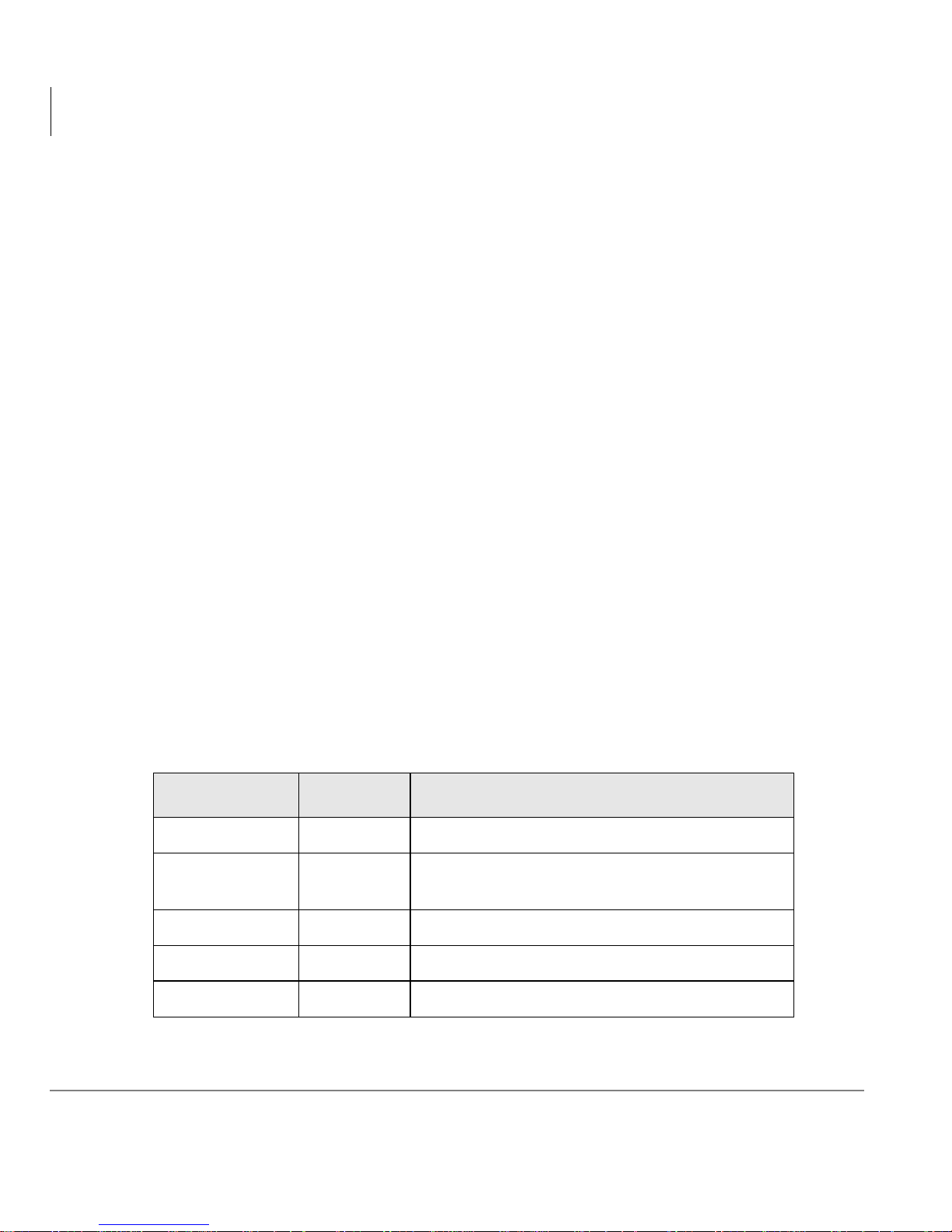
The following table shows the display lengths for each type of statistic.
Type Length Examples
Numbers 3 Agents Available, Ring No Answers
Percentages 7
Time Displays 8 Longest Call, Average Wait Time
Status 10 (Applies only to Queue Status)
Text 15 Most Calls Answered, Most Calls Placed
Percent of Agents Available,
Percent of Calls Abandoned
34 Stratagy CS Call Center Scoreboard User Guide 08/02
Page 43
Call Center Scoreboard
Sending Statistics to Wallboard Display Unit
When calculating the total length of statistics in a window, count each different
statistic once. You do not need to count the following:
• Duplicate statistics. If your window displa ys the same statistic multiple times (for
example, for different queues), they count as one statistic for purposes of the 80character limit.
• Spaces between statistics. Count only the statistic lengths themselves.
Changing Adaptive Wallboard Colors
If you’re using an Adaptive Micro Systems wallboard, you can control the colors of
statistics and alarms on the wallboard within a certain range.
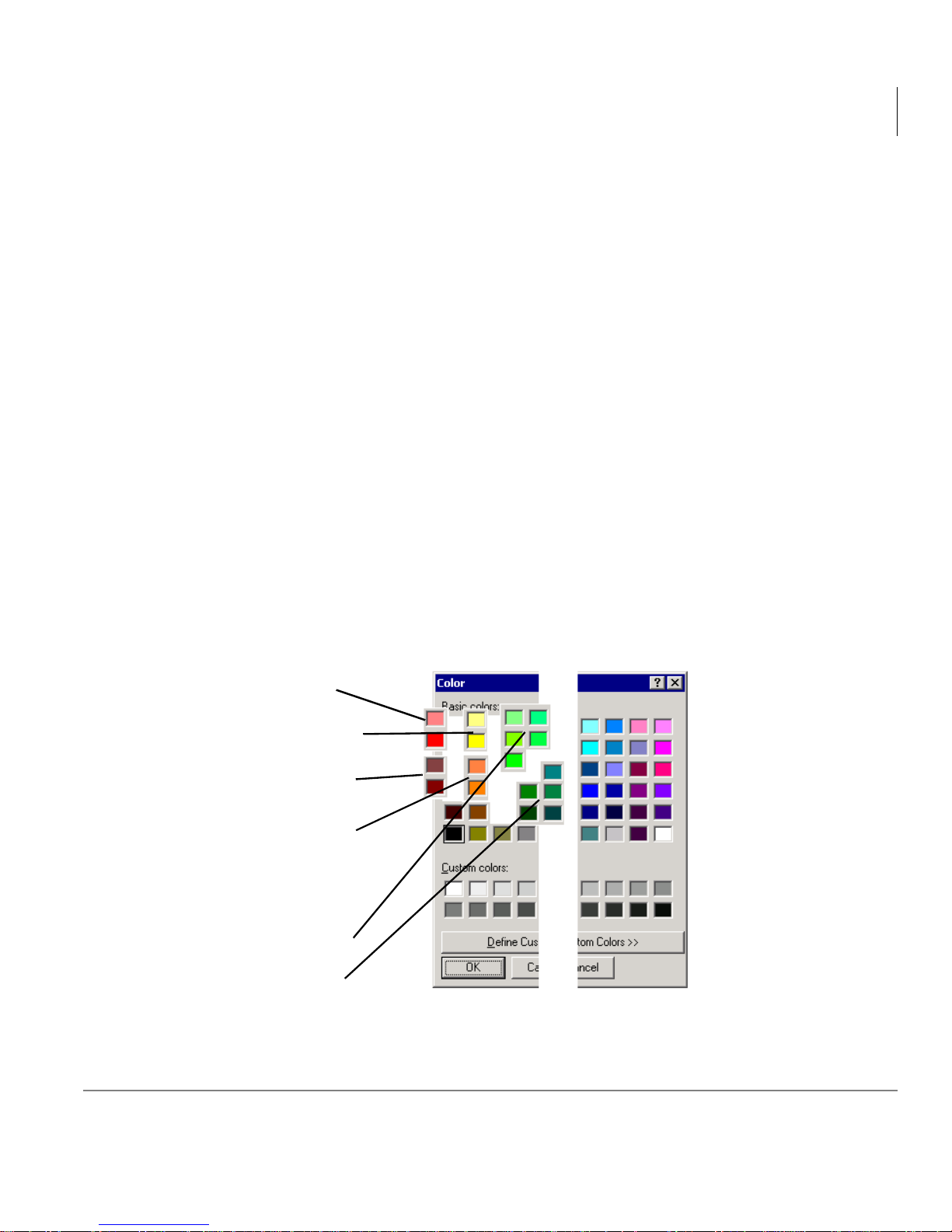
Adaptive wallboards can display three colors: red, orange and green. Each color can
display as bright or dim.
To select statistic and a larm colors for an Adaptive wal lboard, do the following:
1. Create an alarm profile as described in “Defining Alarm Profile” on page 16.
2. Make sure the statistics window is sending its data to an Adaptive wallboard. See
the previous section, “Sending Window Data to Wallboard.”
3. When de finin g the alar m for a st atis tic, clic k Text Color to set the a la rm colo r, then
use the following key. Each labeled grouping corresponds to one wallboard color.
Bright red
Bright orange
Dim red
Dim orange
Bright green
Dim green
Any other color selection displays on the wallboard as an orange label and a green
value.
Stratagy CS Call Center Scoreboard User Guide 08/02 35
Page 44

Call Center Scoreboard
Starting Call Center Scoreboard from Command Line
Troubleshooting Wallboard Problems
If you have problems getting a wallboard to work with the Call Center Scoreboard,
first make sure that the wallboard works correctly with its own software, without
being connected to the Call Center Scoreboard. If not, then contact the wallboard
manufacturer for support (for contact information, see “Wallboard Requirements” on
page 3).
Toshiba support cannot troubleshoot problems if the wallboard does not work
correctly with the wallboard vendor’s own software.
Starting Call Center Scoreboard from
Command Line
Using command line arguments, you can start the Call Center Scoreboard with a
layout, window, or alarm profile already loaded. For example, you could have a
shortcut on your desktop that starts the Call Center Scoreboard with the layout that
monitors your Sales queue . You could a lso p ut the shortc ut i n your co mputer’s Startup
folder so that it starts automatically when your computer starts.
The command line argument is:
TVScoreboard.exe -L [file]
where
Example
C:\Program Files\Strata CS Call Center Scoreboard\TVScoreboard.exe -L
C:\Program Files\Strata CS Call Center Scoreboard\Data
Files\MyLayout.cca
This example loads the Call Center Scoreboard with the layout MyLayout.cca
showing.
[file]
is the path and filename of a layout, window, or alarm profile file.
36 Stratagy CS Call Center Scoreboard User Guide 08/02
Page 45

Call Center Scoreboard
Increasing Call Center Scoreboard Performance
Increasing Call Center Scoreboard
Performance
By default, the Call Center Scoreboard has problem report logging turned on, which
aids in troubleshooting problems. If you are running a large number of open statistic
or Agent Activit y windows, y ou can i ncrease Ca ll Cente r Scoreboar d speed by turning
problem report logging off.
➤ To turn problem report logging off or on, ch oose Help > Problem Report Logging.
If the menu choice is checked, logging is on.
Important! Problem report logging is shared between the Call Center Scoreboard
and the Strata CS Client. With logging turned off, there may be
insufficien t data t o help Toshiba techn ical s upport solve a problem with
either application. If you encounter problems, make sure to turn
logging on, as described in the next section, before contacting Toshiba
technical support.
Reporting Problems to Toshiba
To report technical problems with the Call Center Scoreboard to Toshiba, use the
following procedure to turn on problem report logging and run the Problem Report
Wizard.
1. Close the Strata CS Client if it is running. This ensures that all data in the log file
pertains to the Call Center Scoreboard.
2. In the Call Center Scoreboard, make sure problem report logging is turned on by
choosing Help > Problem Report Logging until the menu choice is checked.
3. Try to duplicate the problem in the Call Center Scoreboard.
4. Run the Problem Report Wizard by choosing Help > Report a Problem.
5. Follow the on-screen instructions to complete the Problem Report Wizard.
6. E-mail the resulting .CAB file to your Strata CS provider.
For more information on using the Problem Report Wizard, see Strata CS Client Use r
Guide, available as an online book from within the Strata CS Client.
Stratagy CS Call Center Scoreboard User Guide 08/02 37
Page 46

Call Center Scoreboard
Increasing Call Center Scoreboard Performance
38 Stratagy CS Call Center Scoreboard User Guide 08/02
Page 47

Index
Symbols
* (asterisk) in Agent Activity window, 8
Numerics
1-line display, 12
A
about this book
conventions, iii
related d ocuments, iv
acronyms for statistics, 24
agent states, viewing, 7
alarm profile
changing, 20
creating, 17
deleting, 20
for Agent A ctivity window, 11
overview, 16
sharing between computers, 23
alarms when statistics fall too low, 19
ALPHA messaging software, 4
C
color
changing on Adaptive wallboards, 35
changing on alarms, 18
specifying for statistics, 13
command line arguments, 36
cycling display option, 12
D
documentation, iv
E
e-mail notification of alarms, 19
I
icons in Agent Act ivity window, viewing ke y
to, 10
installation, 5
L
layout
designing, 21
editing, 22
overview, 20
saving, 21
sharing between computers, 23
legend of Agent Activity window icons, 10
license number entry, 5
Strata CS Call Center Scoreboard User Guide 08/02 39
Page 48

Index
M ~ W
M
message, displaying in a window, 15
N
No Answer state, 8
O
Offering state, 8
one-line display, 12
overview, 1
P
pager notification of alarms, 19
password entry, 5
performance, increasing, 37
permissions needed for login, 3
printing statistics, 11, 16
problems, reporting, 37
R
Report a Problem command, 37
requirements, 2
S
separator line, 14
serial number, 5
Server, selecting, 5
sharing elements between computers, 23
signed-out, defined, 8
sounds
playing on alarms, 18
using custom, 17
starting, 5
states of agents, viewing, 7
statistics window
cycling display option, 12
deleting, 16
editing, 15
printing, 16
saving, 13
sharing between computers, 23
text messages in, 15
Strata CS Server, selecting, 5
T
text message, displaying in a window, 15
time in state, viewing, 10
U
username entry, 5
V
verification key, 5
voice message, sending on alarms, 18
W
wallboards
acronyms for statistics, 24
changing colors on, 35
connecting, 32
requireme nts for, 3
sending data to, 32
using, 32
.WAV files, used for alarm sounds, 17
Wrapup state, 8
40 Strata CS Call Center Scoreboard User Guide 08/02
 Loading...