

Page 1
Advance
tenx technology, inc.
Preliminary Rev 2.0, 2010/11/29
Information
TP6820
Photo Display
User Manual
Tenx reserves the right to change or
discontinue this product without noti ce.
tenx technology inc.
1
Page 2
Advance Information
UM-TP6820_E
Photo Display User Manual
tenx technology, inc.
CONTENTS
PRODUCT NAME ................................................................................................................ 4
TITLE ................................................................................................................................... 4
1. Main Menu Function Instructions .................................................................................. 4
1.1 Multi-Picture Preview .................................................................................... 4
1.2 Delete the Pictur e ........................................................................................ 5
1.3 Return to the Picture .................................................................................... 5
1.4 Function Settings ......................................................................................... 5
1.5 Time/Date Display ....................................................................................... 5
1.6 FM Radio ..................................................................................................... 6
1.7 Shut Down ................................................................................................... 6
1.8 Battery Level ................................................................................................. 6
2. Editor Writer Application Function Instructions ............................................................ 7
2.1 Choose Module and Flash Size ............................................................................. 7
2.2 Fill out PID/VID and product name ........................................................................ 7
2.3 Auto Run files import ............................................................................................. 7
2.4 The picture import .................................................................................................. 7
2.5 Device settings ...................................................................................................... 8
2.6 Operate Function .................................................................................................. 8
3. Image Viewer Application Function Instructions .......................................................... 9
3.1 Shuffle/Repeat Play Mode Preview .............................................................. 9
3.2 Device Settings ........................................................................................... 10
3.3 Format Device ............................................................................................ 10
3.4 Shuffle/Repeat Playing Unsaved Picture .................................................. 11
Preliminary Rev 2.0, 2010/11/29
2
Page 3

Advance Information
UM-TP6820_E
Photo Display User Manual
tenx technology, inc.
3.5 Select the Picture .................................................................................................. 11
3.6 Picture Editing ....................................................................................................... 12
3.7 Picture Saved ........................................................................................................ 12
Preliminary Rev 2.0, 2010/11/29
3
Page 4
Advance Information
UM-TP6820_E
Photo Display User Manual
tenx technology, inc.
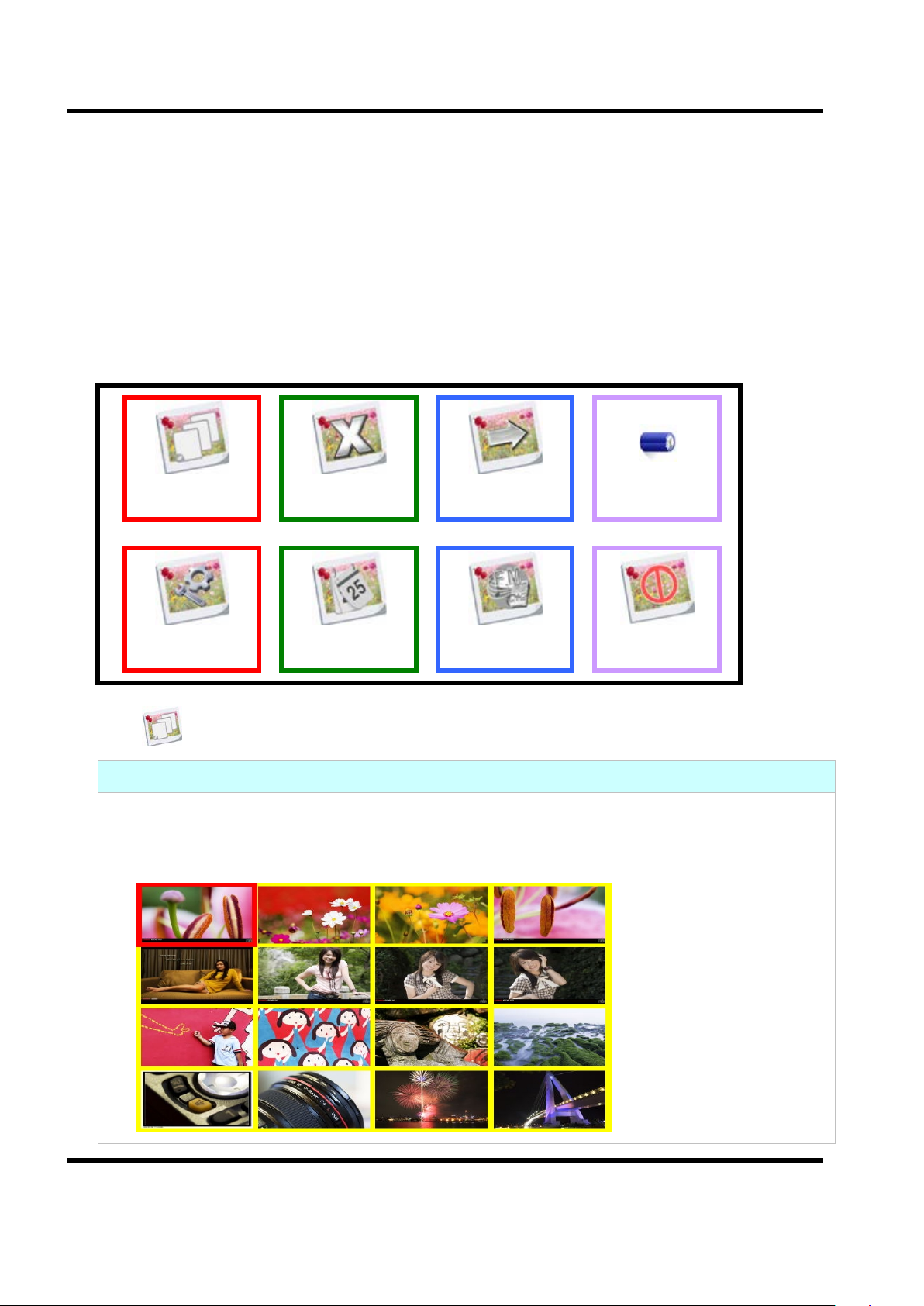
Multi-Picture
Preview
Delete the
Picture
Return to
the Picture
Battery
Level
Function
Settings
Time/Date
Display
FM Radio
Shut Down
PRODUCT NAME
TP6820
TITLE
TP6820 Photo Display Function Definition
1. Main Menu Function Instructions
1.1 Multi-Picture Preview
This function allows 16 pictures to be displayed on the screen at a time, and swiftly
choose the picture that you want.
Just moves the red frame to open this picture by using of the function key: Up, Down,
and then press the Mode button to open the picture.
Function Instructions
Preliminary Rev 2.0, 2010/11/29
4
Page 5
Advance Information
UM-TP6820_E
Photo Display User Manual
tenx technology, inc.
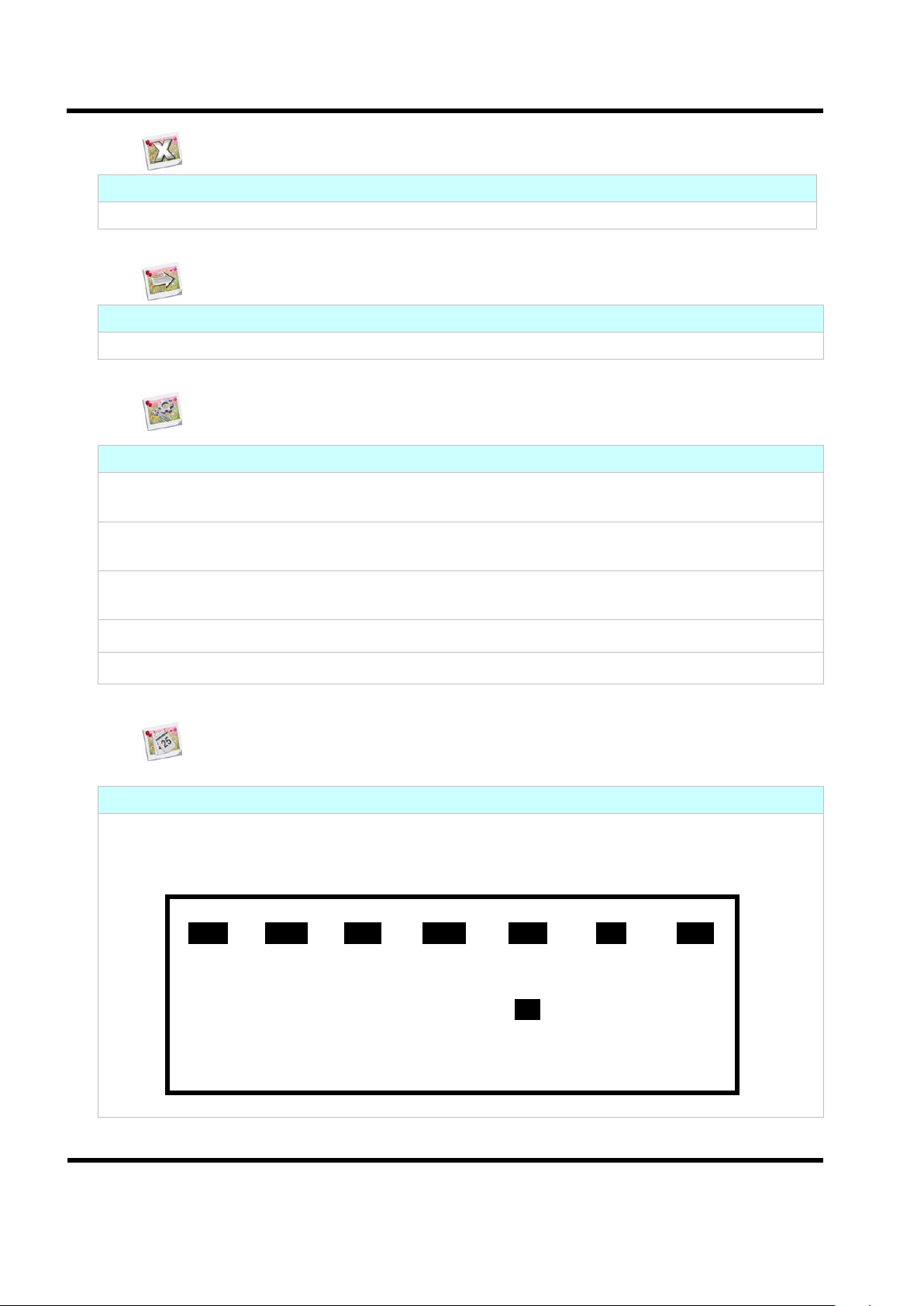
1.2 Delete the Picture
Function Instructions
1.3 Return to the Picture
Function Instructions
Function Instructions
Function Instructions
2008 / 08 / 14 13 : 30
SUN
MON
TUE
WEN
THU
FRI
SAT
1 2
3 4 5 6 7 8 9
10
11
12
13
14
15
16
17
18
19
20
21
22
23
24
25
26
27
28
29
30
31
Delete the current browsing picture(s).
Return to the picture from the main menu screen.
1.4 Function Settings
Auto Slide time : Set the time interval from 0 to 31 seconds for playing images in a
Auto standby : Set auto shutdown after 0 to 31 minutes.
0 indicates no access to the shutdown mode
continuous loop. ( 0 indicates turn repeat mode off )
Brightness Setting : Set background brightness on a scale of 0 to 7
Language : Setting the imported language.
USB Connecting : Connects to the USB port.
1.5 Time/Date Display
This function displays the current time:
By year, month, date, hour, and minute, as shown in Fig below :
( 0 is the darkest, 7 is the brightest. )
Preliminary Rev 2.0, 2010/11/29
5
Page 6
Advance Information
UM-TP6820_E
Photo Display User Manual
tenx technology, inc.
Function Instructions
1.7 Shut Down
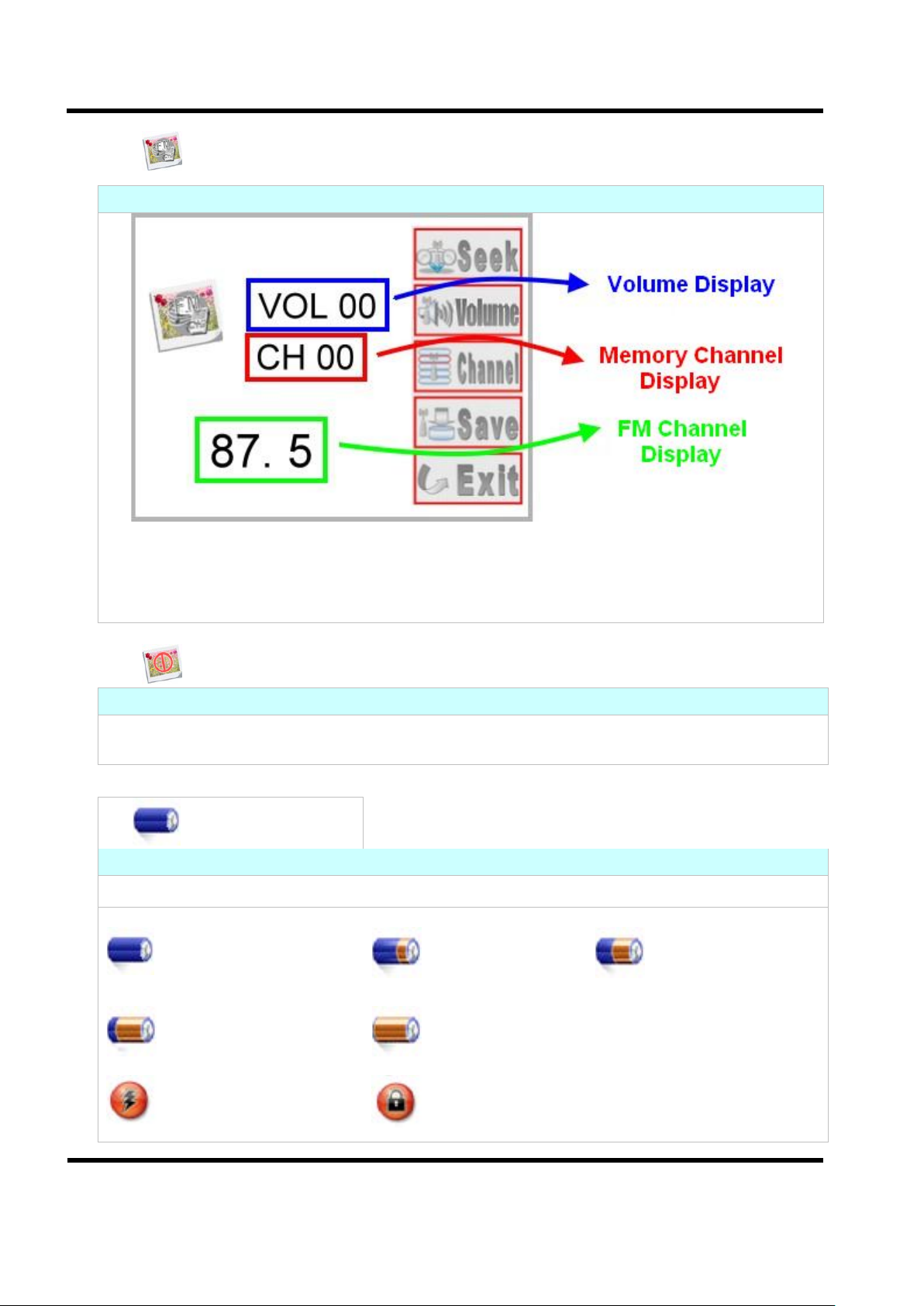
1.8 Battery Level
Function Instructions
Indicates 20%
Indicates an empty Battery. At this time, the device
1.6 FM Radio
Volume Display : Allows adjusting the sound volume on a scale of 0 to 16.
Memory Channel Display : Allows saving up to 10 preset channel in the memory.
FM Channel Display : Display FM channel frequency.
Function Instructions
Shut down:Click the Mode button to turn off.
Note:Turn on:Press the Mode button for 3 seconds to turn on.
A battery icon shows the remaining Battery level.
Indicates the Battery
is fully charged.
remaining
Battery Level.
Battery is being
charged
Indicates 80%
remaining
Battery Level.
will shut off automatically. Please charge!
Lock the key
Indicates 40%
Remaining
Battery Level.
Preliminary Rev 2.0, 2010/11/29
6
Page 7
Advance Information
UM-TP6820_E
Photo Display User Manual
tenx technology, inc.
Function Instructions
Function Instructions
Function Instructions
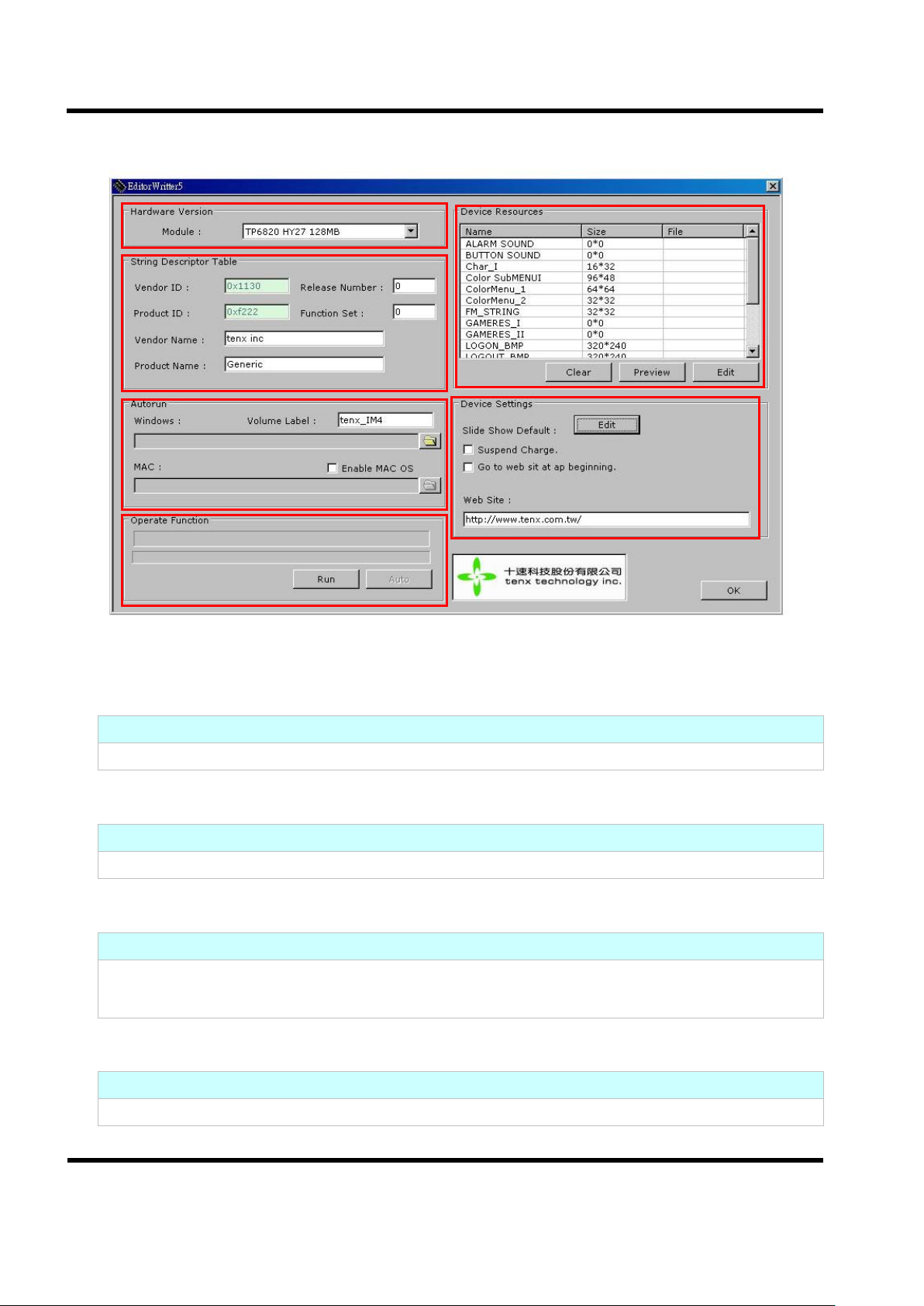
Choose module & flash size
Fill out product info
Auto Run files import
Execute the function
The picture import
Device settings
2. Editor Writer Applica ti on Func t ion Instructions
2.1 Choose Module and Flash Size
Function Instructions
Choose TP6820 HY27 128MB。
2.2 Fill out PID/VID and product name
Fill out PID/VID, manufacturer name, product name.
2.3 Auto Run files import
After the module and flash size are chosen, the Auto Run files will be imported
automatically.
2.4 The picture import
After the module and flash size are chosen, the picture will be imported automatically.
Preliminary Rev 2.0, 2010/11/29
7
Page 8
Advance Information
UM-TP6820_E
Photo Display User Manual
tenx technology, inc.
2.6 Operate Function
Function Instructions
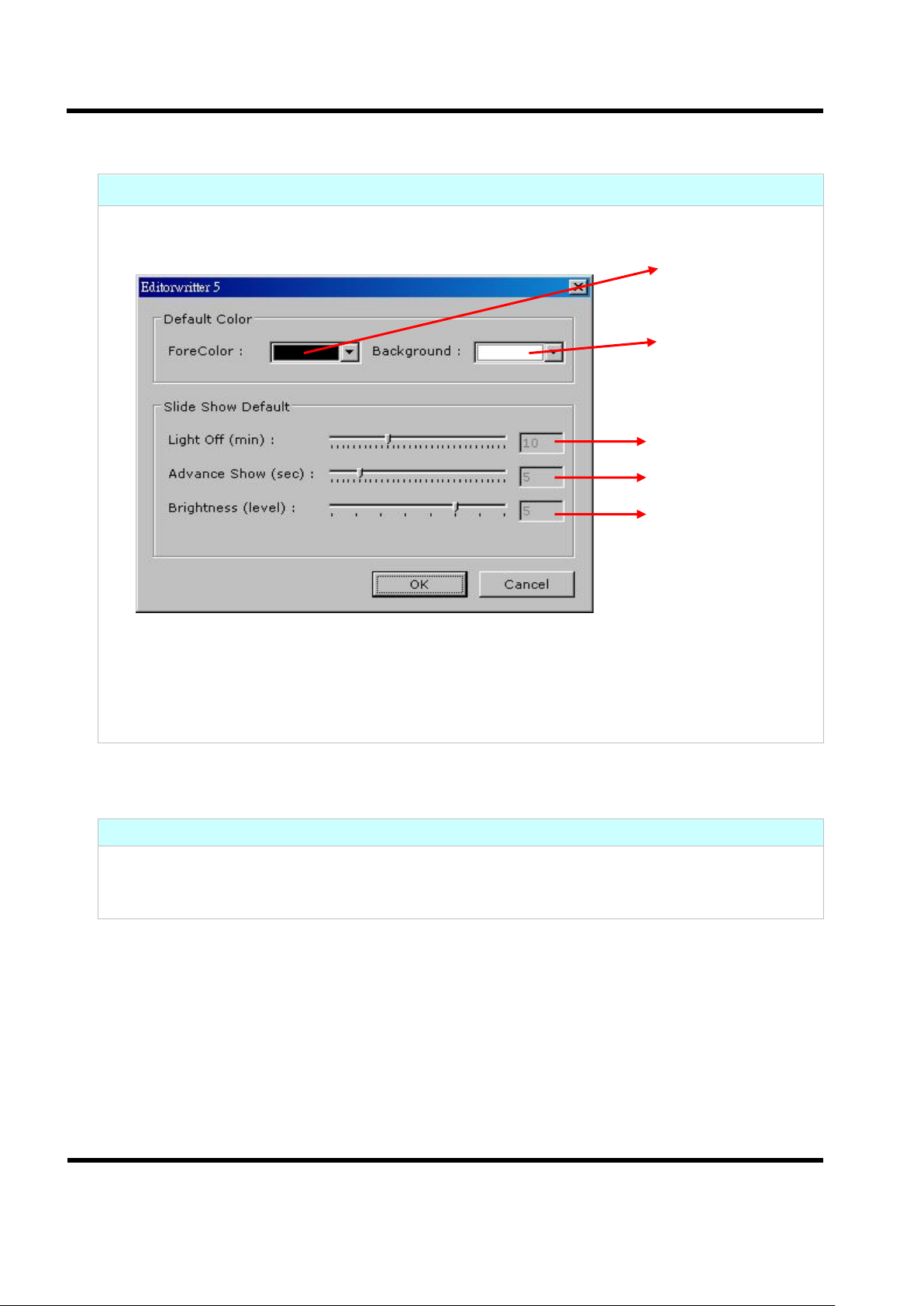
Foreground color
setting
Background color
setting
Shut down time
setting
Shuffle time
setting
Backlight
brightness setting
2.5 Device settings
Function Instructions
1. Edit: user can set the foreground color, background color, shut down time, shuffle time,
and backlight brightness.
2. Suspend Charge: this option is to select whether the battery is charged when it is in Sta
ndby mode; enable this option to charge battery during Standby mode, and disable this
option not to charge the battery during Standby mode.
Note:Please note, do not enable the Suspend Charge option if need to pass USB-IF
Current test standard.
After configuring the product data, picture loading and device settings, click Run button
to proceed loading.
When the data input sequence is completed, click OK button to exit.
Preliminary Rev 2.0, 2010/11/29
8
Page 9
Advance Information
UM-TP6820_E
Photo Display User Manual
tenx technology, inc.
3. Image Viewer Application Function Instructions
3.1 Shuffle/Repeat Play Mode Preview
Function Instructions
Click this function to repeat playing the saved image file.
Preliminary Rev 2.0, 2010/11/29
9
Page 10
Advance Information
UM-TP6820_E
Photo Display User Manual
tenx technology, inc.
Function Instructions
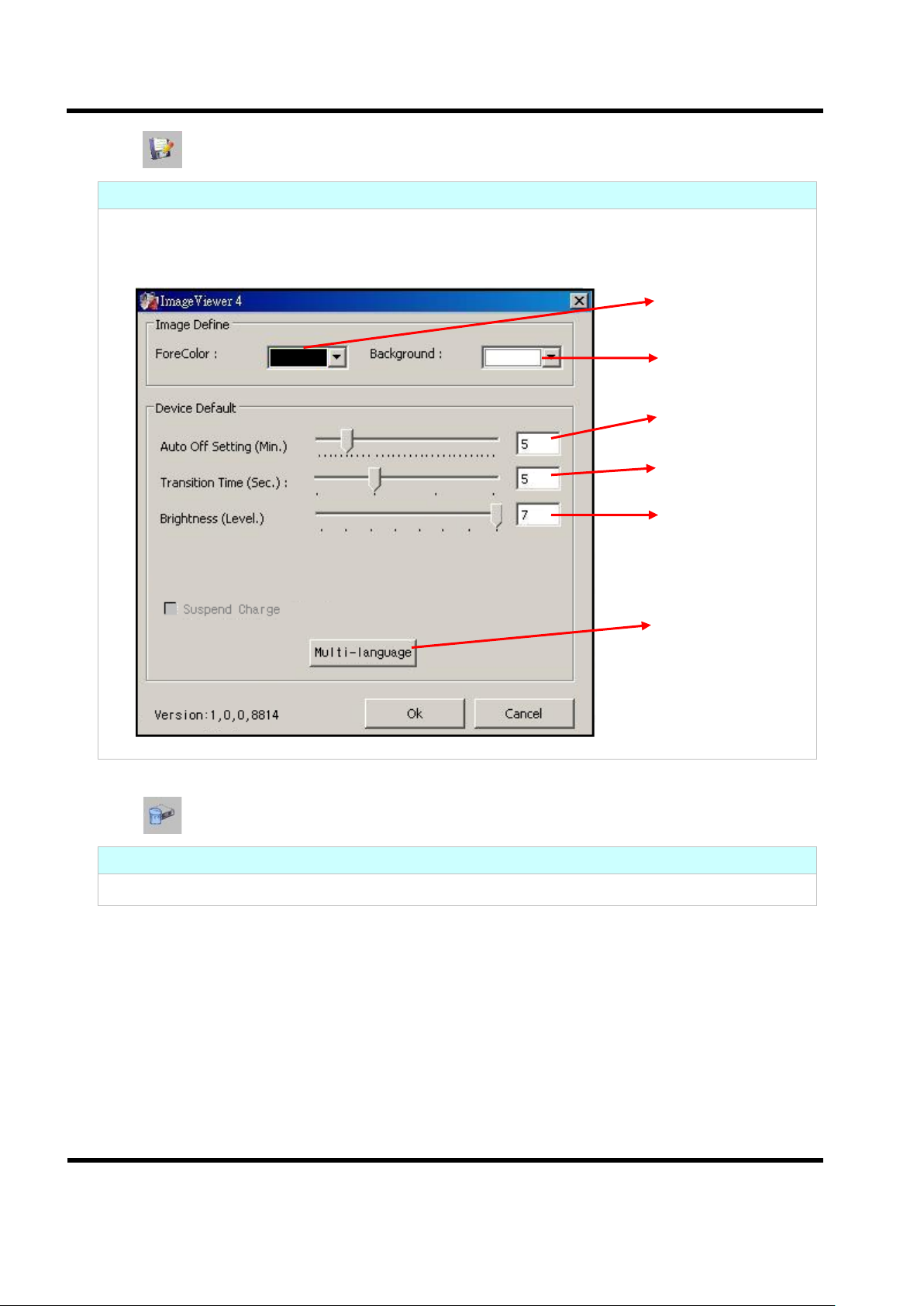
Foreground color
setting
Background color
setting
Shut down time
setting
Shuffle time
setting
Backlight
brightness setting
Multi-language
import
3.2 Device Settings
Click this function to set the foreground color, background color, backlight brightness,
shut down time, shuffle time, multi-language import, etc...
Function Instructions
3.3 Format Device
Click this function to delete all the saved image files and audio files.
10
Preliminary Rev 2.0, 2010/11/29
Page 11
Advance Information
UM-TP6820_E
Photo Display User Manual
tenx technology, inc.
Function Instructions
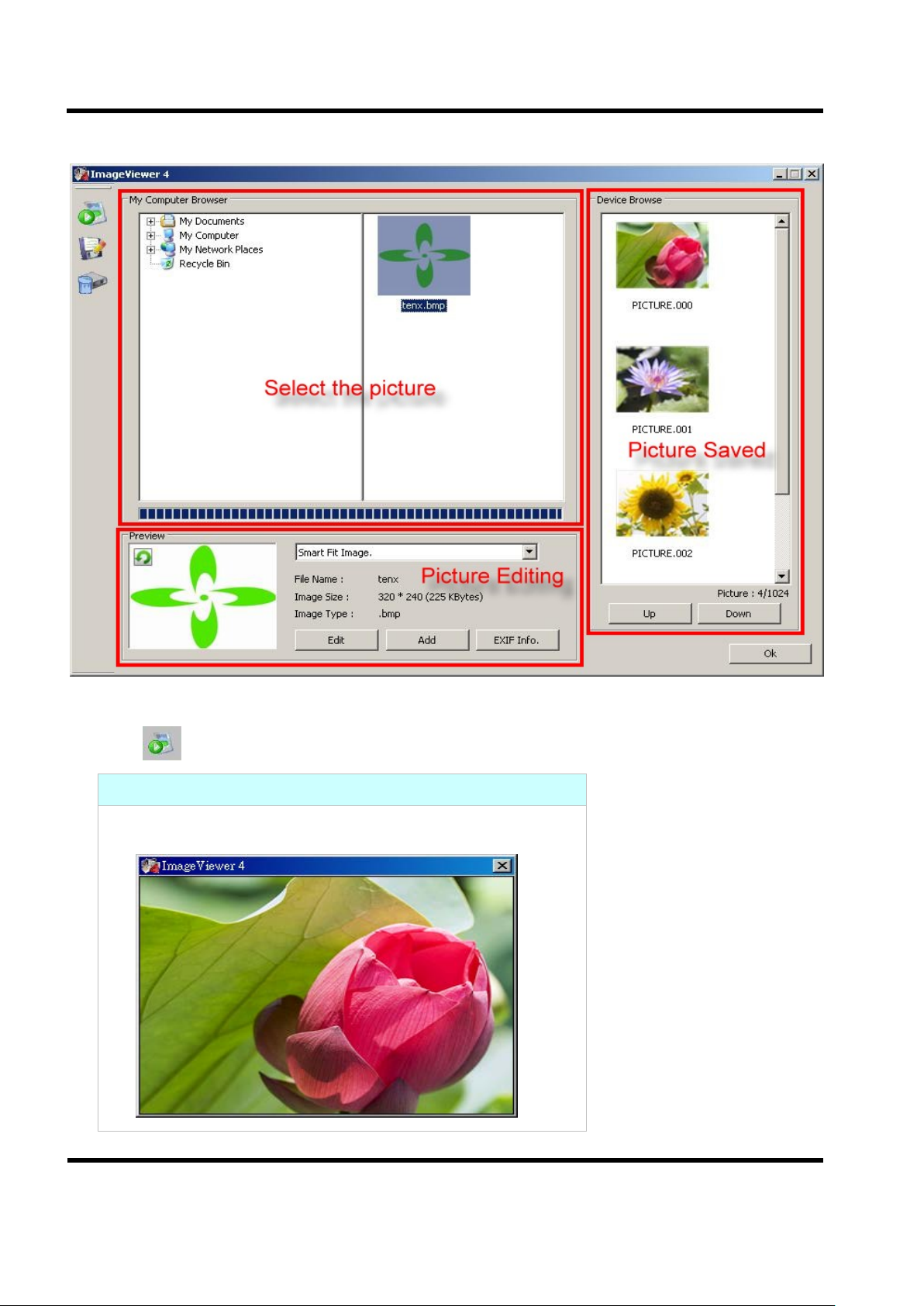
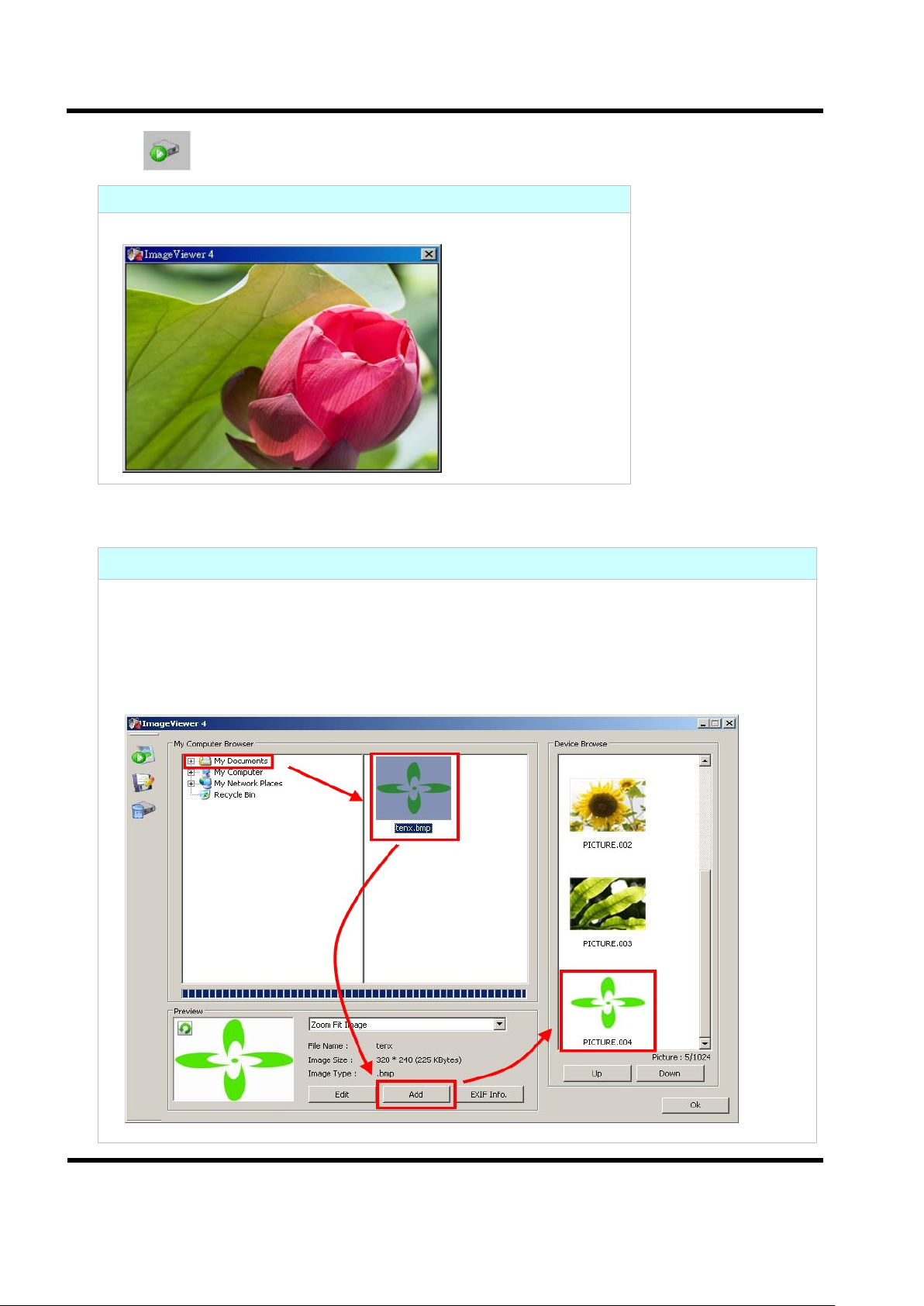
3.5 Select the Picture
3.4 Shuffle/Repeat Playing Unsaved Picture
Click this function to repeat playing unsaved picture in hard disk.
Function Instructions
Click on the image folder or designated location to select the picture that you
want, and click Add button to load the picture. Then you can browse the pictures
loaded on the device.
Note:You may apply smart fill func tion or resizing zoom f unction on the picture
icon. These applications will adjust the picture automatically.
Preliminary Rev 2.0, 2010/11/29
11
Page 12
Advance Information
UM-TP6820_E
Photo Display User Manual
tenx technology, inc.
3.6 Picture Editing
3.7 Picture Saved
Move the loaded picture(s) up or down, and delete while browsing the picture on the
device.
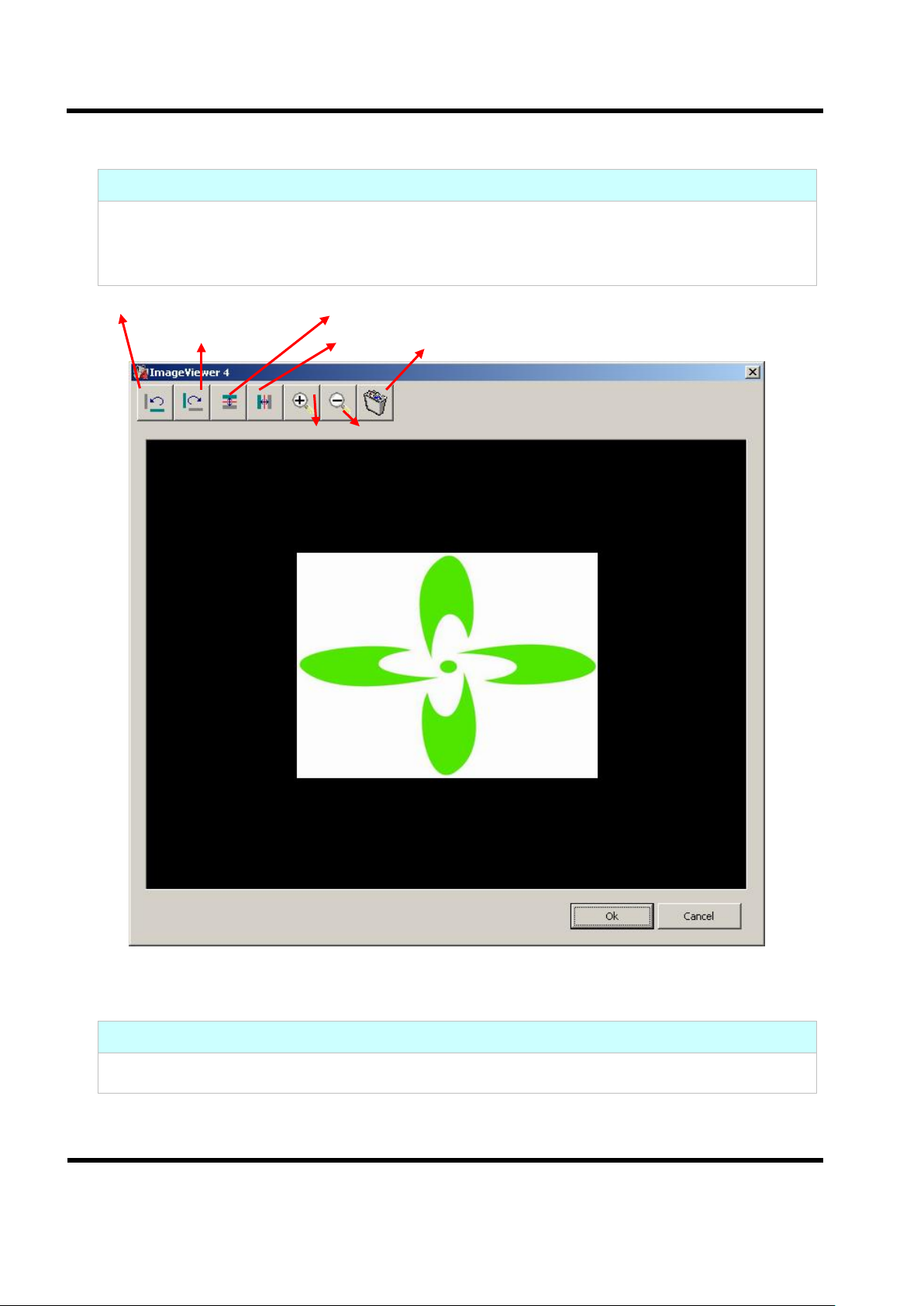
Rotate 90 anticlockwise
Rotate 90 clockwise
Flip horizontal
Flip
vertical
Zoom in
Zoom out
Reload the picture
Function Instructions
Click the image that you choose and click Edit button to rotate the selected image 90
degrees to the left or the right, Flip Horizontal, Flip Vertical, picture zoom in and zoom out,
picture reload, etc…
Preliminary Rev 2.0, 2010/11/29
Function Instructions
12
 Loading...