

Page 1
User Guide
PN: 10741537
Page 2

Norton Internet Security™ User Guide
Documentation version 10.0
Copyright © 2006 Symantec Corporation. All rights reserved.
The Licensed Software and Documentation are deemed to be commercial
computer software as defined in FAR 12.212 and subject to restricted
rights as defined in FAR Section 52.227-19 "Commercial Computer
Software - Restricted Rights" and DFARS 227.7202, “Rights in
Commercial Computer Software or Commercial Computer Software
Documentation”, as applicable, and any successor regulations. Any use,
modification, reproduction release, performance, display or disclosure
of the Licensed Software and Documentation by the U.S. Government
shall be solely in accordance with the terms of this Agreement.
Symantec, the Symantec Logo, Norton, Ghost, GoBack, LiveUpdate,
Norton AntiSpam, Norton AntiVirus, Norton Internet Security, Norton
360, and Norton SystemWorks, are trademarks or registered trademarks
of Symantec Corporation or its affiliates in the U.S. and other countries.
Windows is a trademark of Microsoft Corporation. Other names may be
trademarks of their respective owners.
The product described in this document is distributed under licenses
restricting its use, copying, distribution, and decompilation/reverse
engineering. No part of this document may be reproduced in any form
by any means without prior written authorization of Symantec
Corporation and its licensors, if any.
THE DO CUME NTATION IS PR OVIDED "AS IS" AN D ALL EXPRE SS OR
IMP LIED C ONDITIONS, R EPRESENTATIONS AND WARRANTIES,
INCLUDING ANY IMPLIE D WARRANTY OF MERC HANTABILITY,
FITNE SS FOR A PARTICU LAR PURPOSE OR N ON-INFRI NGE MENT,
ARE DI SCLAIM ED, EXCEPT TO TH E EXTENT THAT SUCH D ISCLAI MERS
ARE HELD TO BE LEGALLY INVALID. SYMANTEC CORPO RATION
SHALL NOT BE LIAB LE FOR INCID ENTAL OR CONSEQUE NTIAL
DAMAGES IN C ONNEC TION WITH TH E FURN ISHI NG PER FORMANC E,
OR US E OF THIS D OCUM ENTATION. THE I NFOR MATION CO NTAINE D
IN THI S DOC UMENTATION IS SU BJECT TO CHANG E WITHOUT N OTICE.
Symantec Corporation
20330 Stevens Creek Blvd.
Cupertino, CA 95014 USA
http://www.symantec.com
Printed in the United States of America.
10 9 8 7 6 5 4 3 2 1
Page 3

Symantec Software License Agreement
Norton Internet Security™
HOW TO OBTAIN A REFUND OF THE MONEY
This Software contains an option to install the
Yahoo! Toolbar during the installation process
following acceptance of this License Agreement.
The legal terms and conditions that govern the
Yahoo! Toolbar are set forth separately in the
full version of this License Agreement on the
Symantec website located at
http://www.symantec.com/about/
profile/policies/eulas/index.jsp.
THE YAHO O! TOOLBAR IS LIC ENSED TO YOU
BY YAHOO! SYMANTE C SHALL NOT HAVE
ANY LIABILITY WITH RESPECT TO THE
YAHOO! TOOLBAR AND EXPRESSLY
DIS CLAIMS ALL WARRANTIES O F ANY KIND
RELATING TO THE YAHOO! TOO LBAR,
INCLUDING BUT NOT LIMITED TO THE
IMP LIED WARRANTIE S OF
MERCHANTABILITY, FITNES S FOR A
PARTICU LAR PURP OSE AND
NON-INFRING EME NT OF INTE LLECTUAL
PROPERTY RI GHTS.
SYMANTEC SO FTWARE SERVI CE LICE NSE
AGREEMENT
IMP ORTANT: PLEASE R EAD THE TERM S AND
CON DITIONS O F THIS LIC ENSE AG REEM ENT
(“LICE NSE AGR EEME NT”) CAREF ULLY BEFORE
USI NG THE SOFTWARE. SYMANTEC
CORPO RATION AND/OR ITS SUBSIDIAR IES
(“SYMANTEC”) IS WILLIN G TO LICE NSE THE
SOFTWARE TO YOU AS THE I NDIVID UAL, THE
COM PANY, OR THE LEGAL E NTITY THAT WILL
BE UTIL IZING TH E SOFTWARE (REF ERENC ED
BELOW AS “YOU” OR “YOUR”) ONLY ON THE
CONDITION THAT YOU ACCEPT ALL OF THE
TERM S OF THIS LI CENS E AGREEM ENT. THIS
IS A LEGAL AN D ENFORCEAB LE CONTRACT
BETWE EN YOU AND SYMANTEC. BY O PENI NG
THIS PACKAGE, BREAKING THE SEAL,
CLIC KING THE “ACCEPT” OR “YES” BUTTON
OR OTHERWI SE IN DICATING ASSENT
ELECTRONICALLY, OR LOADING THE
SOFTWARE, YOU AGRE E TO THE TERM S AND
CON DITIONS O F THIS LIC ENSE AG REEM ENT.
IF YOU DO N OT AGREE TO THE SE TERMS AN D
CON DITIONS, C LICK THE “I D O NOT ACCEPT”
OR “NO” BUTTON OR OTHERWI SE INDICATE
REFUSAL, MAKE NO FURTHER USE OF THE
SOFTWARE, AND CONTACT SYMANTEC
CUSTO MER SERVI CE FOR IN FORMATION ON
YOU PAID FOR THE SOFTWARE (LESS
SHI PPIN G, HANDLIN G, AND ANY APP LICABLE
TAXES EXCEPT I N CERTAIN STATES AND
COU NTRIES WH ERE SHI PPIN G, HANDLING,
AND TAXES ARE RE FUNDABLE) AT ANY TIM E
DURING THE SIXTY (60) DAY PERIOD
FOLLOWING THE DATE OF PURC HASE.
1. License:
The software and documentation, including any
product packaging, (“Documentation”) that
accompanies this license (collectively the
“Software”) is the property of Symantec or its
licensors, and is protected by copyright law.
While Symantec continues to own the Software,
after Your acceptance of this License Agreement
You will have certain rights to use the Software
during the Service Period. The “Service Period”
shall begin on the date of Your initial installation
of the Software, and shall last for the period of
time set forth in the Documentation or the
applicable transaction documentation from the
authorized distributor, reseller or service
provider from which you obtained the Software.
The Software may automatically deactivate and
become non-operational at the end of the Service
Period, and you will not be entitled to receive
any feature or content updates to the Software
unless the Service Period is renewed.
Subscriptions for renewals of the Service Period
will be available in accordance with Symantec’s
support policy posted at
http://www.symantec.com/techsupp/support_policy.html.
This license governs any releases, revisions,
updates or enhancements to the Software that
Symantec may make available to You. Except
as may be modified by the Documentation, Your
rights and obligations with respect to the use
of this Software are as follows.
During the Service Period, You
may:
A. use one copy of the Software on a single
computer. If a greater number of copies is
specified within the applicable Documentation,
or the applicable transaction documentation
from the authorized distributor, reseller or
service provider from which you obtained the
Page 4

Software, you may make the specified number
of copies;
B. make one copy of the Software for archival
purposes, or copy the Software onto the hard
disk of Your computer and retain the original
for archival purposes;
C. use the Software on a network, provided that
You have a licensed copy of the Software for
each computer that can access the Software over
that network;
D. transfer the Software on a permanent basis
to another person or entity, provided that You
retain no copies of the Software and the
transferee agrees to the terms of this license.
Partial transfer of the Software shall not be
permitted. For example, if the Documentation
grants You the right to use three (3) copies of
the Software, only a transfer of all three (3)
copies of the Software would be valid; and
E. use the Software in accordance with any
additional permitted uses set forth below.
You may not:
A. sublicense, rent or lease any portion of the
Software;
B. reverse engineer, decompile, disassemble,
modify, translate, make any attempt to discover
the source code of the Software or create
derivative works from the Software;
C. use the Software as part of a facility
management, timesharing, service provider or
service bureau arrangement, unless you are
using the software as part of a service provided
by an authorized Symantec service provider; or
D. use the Software in any manner that is not
permitted pursuant to this license.
2. Software Feature and Content
Updates:
A. You shall have the right to receive new
features to the Software as such features are
made available by Symantec in its discretion
during Your Service Period. Symantec may, at
its discretion, add, modify or remove features
from the Software at any time with or without
notice to You.
B. Certain Software utilize content that is
updated from time to time, including but not
limited to the following Software: antivirus and
crimeware software utilize updated virus
definitions; antispam software utilize updated
antispam rules; content filtering and
antiphishing software utilize updated URL lists;
some firewall software utilize updated firewall
rules; vulnerability assessment products utilize
updated vulnerability data and web site
authentication software utilize updated lists of
authenticated web pages; these updates are
collectively referred to as “Content Updates” (or
alternatively referred to as “Protection Updates”
or “Security Updates” at times). You shall have
the right to receive Content Updates for the
Software during Your Service Period.
3. Product Installation; Required
Activation:
A. During the installation process, the Software
may uninstall or disable other security products,
or features thereof, if such products or features
are incompatible with the Software or for
purposes of improving the overall functionality
of the Software.
B. There may be technological measures in this
Software that are designed to prevent
unlicensed or illegal use of the Software. You
agree that Symantec may use these measures
to protect Symantec against software piracy.
This Software may contain enforcement
technology that limits the ability to install and
uninstall the Software on a computer to not more
than a finite number of times for a finite number
of computers. This License Agreement and the
Software containing enforcement technology
require activation as further set forth in the
Documentation. The Software will only operate
for a finite period of time prior to Software
activation by You. During activation, You may
be required to provide Your unique product key
accompanying the Software and computer
configuration in the form of an alphanumeric
code over the Internet to verify the authenticity
of the Software. If You do not complete the
activation within the finite period of time set
forth in the Documentation, or as prompted by
the Software, the Software will cease to function
until activation is complete; at which time the
Software functionality will be restored. In the
event that You are not able to activate the
Software over the Internet, or through any other
method specified during the activation process,
You may contact Symantec Customer Support
using the information provided by Symantec
during activation, or as set forth below.
Page 5

4. Privacy; Data Protection:
From time to time, the Software will collect
certain information from the computer on which
it is installed, which may include:
·Information regarding installation of the
Software. This information indicates to
Symantec whether installation of the Software
was successfully completed and is collected by
Symantec for the purpose of evaluating and
improving Symantec’s product installation
success rate. This information will not be
correlated with any personally identifiable
information.
·Information on potential security risks as well
as URLs of websites visited that the Software
deems potentially fraudulent. This information
is collected by Symantec for the purpose of
evaluating and improving the ability of
Symantec’s products to detect malicious
behavior, potentially fraudulent websites and
other Internet security risks. This information
will not be correlated with any personally
identifiable information.
· Portable executable files that are identified as
malware. These files are submitted to Symantec
using the Software’s automatic submission
function. The collected files could contain
personally identifiable information that has been
obtained by the malware without your
permission. Files of this type are being collected
by Symantec only for the purpose of improving
the ability of Symantec’s products to detect
malicious behavior. Symantec will not correlate
these files with any personally identifiable
information. Such automatic submission
function may be deactivated after installation
by following the instructions in the
Documentation for applicable products.
·The name given during initial setup to the
computer on which the Software is being
installed. If collected, the name will be used by
Symantec as an account name for such
computer under which you may elect to receive
additional services and/or under which you may
use certain features of the Software. You may
change the account name at any time after
installation of the Software (recommended).
· Other information used for purposes of
analyzing and improving the functionality of
Symantec’s products. This information will not
be correlated with any personally identifiable
information.
Symantec may disclose the collected information
if asked to do so by a law enforcement official
as required or permitted by law or in response
to a subpoena or other legal process. In order to
promote awareness, detection and prevention
of Internet security risks, Symantec may share
certain information with research organizations
and other security software vendors. Symantec
may also use statistics derived from the
information to track and publish reports on
security risk trends. By using the Software, you
acknowledge and agree that Symantec may
collect, transmit, store, disclose and analyze
such information for these purposes.
5. Sixty (60) Day Money Back
Guarantee:
If You are the original licensee of this copy of
the Software and are not completely satisfied
with it for any reason, please contact Symantec
Customer Service for a refund of the money You
paid for the Software (less shipping, handling,
and any applicable taxes except in certain states
and countries where shipping, handling and
taxes are refundable) at any time during the
sixty (60) day period following the date of
purchase.
6. Limited Warranty:
Symantec warrants that the media on which the
Software is distributed will be free from defects
for a period of sixty (60) days from the date of
delivery of the Software to You. Your sole
remedy in the event of a breach of this warranty
will be that Symantec will, at its option, replace
any defective media returned to Symantec
within the warranty period or refund the money
You paid for the Software. Symantec does not
warrant that the Software will meet Your
requirements or that operation of the Software
will be uninterrupted or that the Software will
be error-free.
TO THE MAXIMUM EXTENT PERMITTED BY
APPLI CABLE LAW, THE ABOVE WARRANTY
IS EXCLUSIVE AN D IN LIEU OF ALL OTHE R
WARRANTIES, WHETHER EXP RESS OR
IMP LIED, I NCLU DING THE IM PLIE D
WARRANTIES OF MERCHANTABILITY,
FITNE SS FOR A PARTICULAR P URPOSE, AN D
NONINFRING EME NT OF INTE LLECTUAL
PRO PERTY RIG HTS. THIS WARRANTY GIVE S
YOU SPE CIF IC LEGAL RI GHTS. YOU MAY
HAVE OTHER RIGHTS, WHICH VARY FROM
STATE TO STATE AND COUNTRY TO CO UNTRY.
Page 6

7. Disclaimer of Damages:
SOM E STATES AN D COUNTRI ES, INC LUDING
MEM BER COUNTRI ES OF TH E EUR OPEAN
ECON OMIC AR EA, DO NOT ALLOW THE
LIMI TATION O R EXCLUS ION OF LIABI LITY FOR
INC IDENTAL OR CON SEQUE NTIAL DAMAGES,
SO THE BELOW LIMITATION OR EXCLUSION
MAY NOT APPLY TO YOU.
TO THE MAXIMUM EXTENT PERMITTED BY
APPLI CABLE LAW AND REGARDLESS OF
WHETH ER ANY REM EDY SET FORTH HE REIN
FAILS OF ITS ESSENTIAL P URPOSE, IN NO
EVENT WI LL SYMANTEC OR ITS LICE NSORS
BE LIABLE TO YOU FO R ANY SPE CIAL,
CONSEQUE NTIAL, INDIRE CT, OR SIMILAR
DAMAGES, INCLUDING ANY LOST P ROF ITS
OR LOST DATA ARISI NG OUT OF THE U SE OR
INABILITY TO USE TH E SOFTWARE EVEN IF
SYMANTEC HAS BE EN ADVISED OF THE
POSSIBI LITY OF S UCH DAMAGES .
IN NO CASE SHALL SYMANTEC’S O R ITS
LICE NSORS’ LIABILITY EXCEED THE
PURCHASE P RICE FOR THE S OFTWARE. The
disclaimers and limitations set forth above will
apply regardless of whether You accept the
Software.
8. U.S. Government Restricted
Rights:
The Software is deemed to be commercial
computer software as defined in FAR 12.212
and subject to restricted rights as defined in
FAR Section 52.227-19 "Commercial Computer
Software - Restricted Rights" and DFARS
227.7202, “Rights in Commercial Computer
Software or Commercial Computer Software
Documentation”, as applicable, and any
successor regulations. Any use, modification,
reproduction release, performance, display or
disclosure of the Software by the U.S.
Government shall be solely in accordance with
the terms of this Agreement.
9. Export Regulation:
You acknowledge that Symantec products and
controlled technology may be subject to the
export and import control laws of the United
States and any country where the product or
controlled technology is manufactured or
received. By using Symantec products and
controlled technology You agree that You will
not violate any such laws. You agree not to
export any Symantec product or controlled
technology to any prohibited country, entity, or
person for which an export license or other
governmental approval is required. Obtaining
necessary licenses and approvals is solely Your
obligation. You agree that You will not export
or sell any Symantec product or controlled
technology for use in connection with chemical,
biological, or nuclear weapons, or missiles
capable of delivering such weapons.
10. General:
If You are located in North America or Latin
America, this License Agreement will be
governed by the laws of the State of California,
United States of America. Otherwise, this
License Agreement will be governed by the laws
of England and Wales. This License Agreement
is the entire agreement between You and
Symantec relating to the Software and: (i)
supersedes all prior or contemporaneous oral
or written communications, proposals, and
representations with respect to its subject
matter; and (ii) prevails over any conflicting or
additional terms of any quote, order,
acknowledgment, or similar communications
between the parties. Notwithstanding the
foregoing, nothing in this License Agreement
will diminish any rights you may have under
existing consumer protection legislation or other
applicable laws in your jurisdiction that may
not be waived by contract. This License
Agreement shall terminate upon Your breach
of any term contained herein and You shall
cease use of and destroy all copies of the
Software. The disclaimers of warranties and
damages and limitations on liability shall
survive termination. The Software is delivered
Ex Works California, U.S.A. or Dublin, Ireland
respectively (ICC INCOTERM S 2000). This
License Agreement may only be modified by
the Documentation or by a written document
that has been signed by both You and Symantec.
Should You have any questions concerning this
License Agreement, or if You desire to contact
Symantec for any reason, please write to: (i)
Symantec Customer Service, 555 International
Way, Springfield, OR 97477, U.S.A., (ii)
Symantec Consumer Support, PO Box 5689,
Dublin 15, Ireland, or (iii) Symantec Customer
Service, 1 Julius Ave, North Ryde, NSW 2113,
Australia.
Page 7

Contents
Chapter 1 Installation
Before you begin . . . .. .. .. .. .. .. .. .. .. .. .. .. .. . .. .. .. .. . 9
Installing and activating Norton Internet
Security . . . .. .. .. .. .. .. .. .. .. . .. .. .. .. .. .. .. .. .. .. 10
If the opening panel does not appear . . .. .. .. .. .. . . 11
Chapter 2 Getting started
Starting Norton Internet Security . . . .. .. .. .. .. .. .. . 13
Activating your product . . . .. .. .. .. . .. .. .. .. .. .. .. .. .. 14
Exploring the main window . . . .. .. .. .. . .. .. .. .. .. .. . 15
Viewing the status of your protection
categories .. . . .. .. .. .. .. .. .. .. .. .. .. .. . .. .. .. .. .. . 17
About the summary status indicator .. . . .. .. .. .. .. . 18
For more information .. . . .. .. .. .. .. .. .. .. .. .. .. .. . .. . 20
Chapter 3 Responding to emergencies
If your product won’t install . . . .. .. .. .. .. .. .. .. .. . .. . 25
If you suspect that your computer is infected with
a virus . . . .. .. .. .. . .. .. .. .. .. .. .. .. .. .. .. .. .. . .. .. . 26
Service and support solutions
Index
Page 8

Contents8
Page 9

Installation
This chapter includes the following topics:
1 Before you begin
1 Installing and activating Norton Internet Security
1 If the opening panel does not appear
Before you begin
Before you begin, you should close all open programs on
your computer and ensure that you are connected to the
Internet.
Norton Internet Security contains an antivirus program.
If you have other antivirus programs that are installed on
your computer, an uninstall panel may appear to help you
remove them. Symantec strongly recommends that you
remove the other antivirus programs. Follow the
instructions on the uninstall panel.
Norton Internet Security contains a firewall program. If
you have other firewall programs that are installed on your
computer, Symantec strongly recommends that you remove
them to prevent installation errors.
For more information, see the user documentation that
came with the firewall program.
During the installation, if a Firewall message appears, click
w
Yes to use the Norton Internet Security firewall.
1
Page 10

Installation
10
Installing and activating Norton Internet Security
Installing and activating Norton Internet
Security
You can install Norton Internet Security from a CD or from
a file that you download.
To install and activate Norton Internet Security
1
Do one of the following:
1 If you install from a CD, insert the CD into the
CD-ROM drive.
1 If you downloaded your copy of Norton Internet
Security, double-click the file that you downloaded.
See “If the opening
panel does not
appear” on page 11.
2
In the opening panel, click Install Norton Internet
Security.
3
Read the License Agreement, type your Product Key if
prompted, and then click I Agree.
If you do not accept the License Agreement, you cannot
continue the installation.
4
In the Installation Options panel, review the options,
and then click Next.
5
In the Pre-Install Scan panel, click Start Scan.
The scan takes a few minutes.
6
In the Installation Confirmation panel, click Next.
7
In the Activation panel, wait for the progress bar to
stop, and then click Next.
8
If the Norton Account panel appears, do one of the
following:
1 If you currently have a Norton account, complete
the Sign in to an existing Norton Account section.
1 If you want to create a new Norton Account,
complete the Create a Norton Account section.
9
Click Next.
10
In the Norton Internet Security Installation Complete
panel, review your subscription details, and then click
Finish.
11
In the Welcome to LiveUpdate panel, click Next to begin
checking for the latest product updates.
Page 11

If the opening panel does not appear
12
On the next LiveUpdate panel, review the list of
available updates, and then click Next to begin the
updates.
This process takes a few minutes.
13
On the final LiveUpdate panel, click Finish.
If the opening panel does not appear
Sometimes a computer’s CD-ROM drive does not
automatically run a CD.
To start the installation from the product CD
1
On your desktop, double-click My Computer.
2
In the My Computer window, double-click the icon for
your CD-ROM drive.
3
In the list of files, double-click CDstart.exe.
11Installation
Page 12

Installation
12
If the opening panel does not appear
Page 13

Getting started
This chapter includes the following topics:
1 Starting Norton Internet Security
1 Activating your product
1 Exploring the main window
1 Viewing the status of your protection categories
1 About the summary status indicator
1 For more information
Starting Norton Internet Security
See “Responding to
status indicators ”
on page 19.
Norton Internet Security protects any computer on which
it is installed. You do not have to start the program to be
protected. If Norton Internet Security detects a situation
that requires your attention, a window opens to help you
resolve it.
At any time, you can start Norton Internet Security to
adjust the settings, review your protection status, or
perform preventive maintenance. All of the program
features can be accessed from the main window.
2
Page 14

Getting started
14
Activating your product
To start Norton Internet Security
4
Do one of the following:
1
In the Windows notification area, double-click the
Norton Internet Security icon.
1
On the Windows taskbar, click Start > All
Programs > Norton Internet Security > Norton
Internet Security.
Activating your product
If you did not activate your product during installation,
you will receive an Activation Needed alert regularly until
you activate the product.
Product activation reduces software piracy and ensures
that you are using authentic Symantec software.
You must activate your product within the time period that
w
is specified by the alert, or your product will stop working.
You can activate your product directly from the Activation
Needed alert. Or, you can use the Activate Your Product
link under the Support bar in the main window. Activation
should take only a few minutes.
To activate your product from the Activation Needed
alert
1
In the alert, click Activate Now.
2
Click OK.
3
In the Activation window, click Next.
4
In the Activation Successful window, click Finish.
To activate your product from the main window
1
At the top of the main window, click the tab for your
product.
2
Open the Support bar.
3
Click Activate your Product.
4
In the Activation window, click Next.
5
In the Activation Successful window, click Finish.
Page 15

Exploring the main window
If you have problems activating
If you cannot connect to the Symantec servers to activate
your product, first check to see if you have parental control
software, either installed or through your ISP, that might
be blocking the connection.
A connectivity problem may occur if you are using parental
control software. If you suspect that parental controls are
blocking the connection, you can configure the parental
controls so that they do not block the activation procedure.
You will need to sign in to your parental control software
as an administrator, or log on to the Internet through your
ISP as an administrator to change your configuration.
If parental controls are not the problem, or if you cannot
reconfigure your parental controls to resolve the issue, you
can activate by phone.
Before you begin, be prepared to write down the code that
w
you may receive at the end of the call.
To activate your product by phone
1
Disconnect from the Internet.
2
In the Connection Problem window, click Activate my
software by phone, and then click Next.
3
In the Phone Activation window, select your country.
4
Use the telephone number that displays in the box to
the right.
5
Follow the voice prompts that are provided.
15Getting started
Exploring the main window
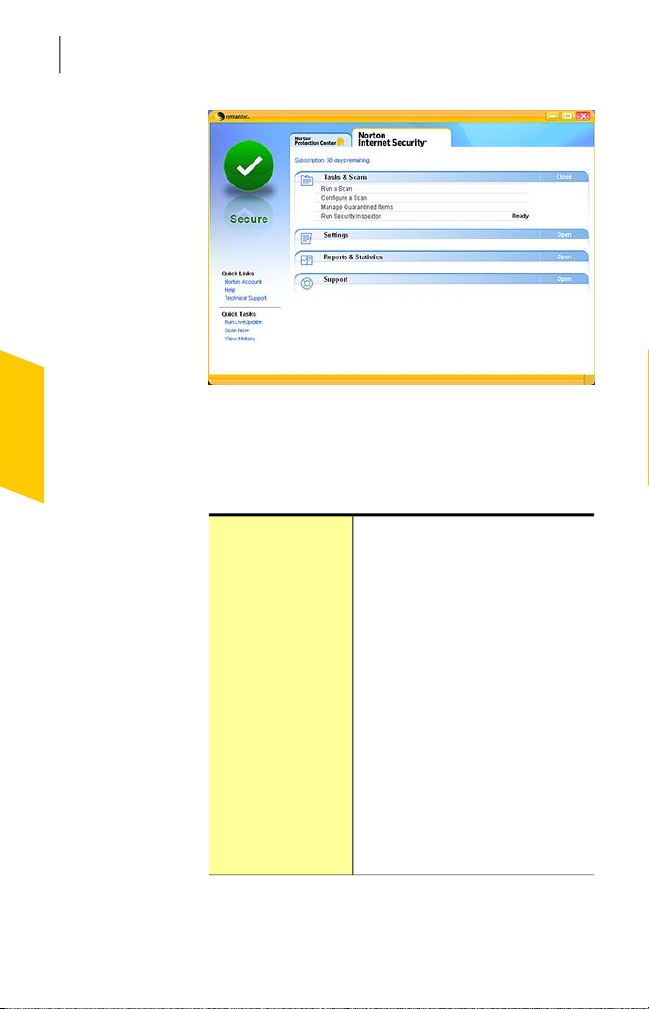
When you start Norton Internet Security, the main window
opens. Links on the left side and option bars in the center
of the main window provide access to all Norton Internet
Security features, options, Help, and Support.
Page 16
Getting started
16
Exploring the main window
See “Starting Norton
Internet Security”
on page 13.
To explore the main window
1
Start Norton Internet Security.
2
On the left side of the main window, under Quick Links
or Quick Tasks, click an option. Your options are:
Quick Links 1 Norton Account lets you manage
all of your Norton product
information from one location.
1 Help opens the Norton Internet
Security online Help.
1 Technical Support lets you view
the Support page of the
Symantec Web site.
Quick Tasks 1 Run LiveUpdate lets you check
for the latest product and
product updates.
1 Scan Now lets you immediately
scan your computer for risks.
1 View History lets you review the
details of your most recent
scans.
Page 17

Viewing the status of your protection categories
3
In the center of the window, click the option bar that
you want to explore. Your options are:
17Getting started
Tasks & Scans
Settings
Reports & Statistics
Support
Lets you run the tasks that are
specific to your product.
Lets you view and customize
options that are specific to your
product.
Lets you view the activity log and
the Online Virus Encyclopedia.
Lets you access technical support,
security information, and
subscription and account
information.
Viewing the status of your protection
categories
Norton Internet Security includes the Norton Protection
Center.
As you use your computer, the Norton Protection Center
monitors how well your computer and activities are
protected from threats, risks, and damage. Before you begin
a task, you can use the Norton Protection Center to
determine if it is safe to continue.
To view the status of your protection categories
See “Starting Norton
Internet Security”
on page 13.
1
In the main window, click the Norton Protection
Center tab.
2
In the Norton Protection Center window, click a
protection category.
3
Review the status of each item in the selected protection
category.
Page 18

Getting started
18
About the summary status indicator
About the protection categories
Depending on the programs that are installed with the
Norton Protection Center, the protection categories can
include the following:
Basic PC Security
Connecting to the
Internet
Transaction Security
Displays the status of protection
categories that are specific to your
product.
Displays the protection status of
your outgoing and incoming email
scanning.
Displays the protection status for
your Internet transactions, if
applicable.
About adjusting a protection category setting
You can increase the protection level for a category by
adjusting a category setting.
Depending on the type of activity, you can turn an item on
or off, change settings, or update the status of a feature
that is out-of-date.
For specific information, you can look up each item in the
Norton Internet Security online Help index.
About the summary status indicator
The Norton Protection Center tab summarizes your current
protection levels for different activities such as emailing
and Web browsing. It estimates a general level of
protection based on the security programs that are installed
on your computer.
Page 19

About the summary status indicator
A status indicator appears on the left side of the main
window. The status levels are as follows:
No action is required on your part.Secure
19Getting started
Needs Attention
At Risk
Some issues require your attention,
but your computer is not at risk.
Some issues threaten your
computer's data or its ability to
perform effectively.
Responding to status indicators
When a status indicator displays a status that requires
your attention, you can take action to improve your
protection status.
To respond to status indicators
4
On the main window, click Fix Now.
If you are using the Media Center Edition of Windows, you
might see a message that requires you to respond or
perform another action. It is recommended that you close
the message and use your desktop PC to perform any tasks.
To respond to a Media Center alert
4
When an alert appears, do one of the following:
1 If you are reading the message on your Media
Center PC, click Next, and then follow the on-screen
message.
1 If you are using an extender, read the message, and
then click OK.
You might need to use your mouse and keyboard
to complete a follow-up activity.
Page 20

Getting started
20
For more information
For more information
The product documentation provides assistance for using
Norton Internet Security. You can find the information that
you need on your computer and on the Symantec Web site.
Accessing Help
Help is available throughout your Symantec product. Help
provides links to information that assists you with the
specific tasks that you want to complete. The online Help
provides a guide to all of the product features and tasks
that you can complete.
To access Help
1
On the main window, under Quick Links, click Help.
2
In the Help window, in the left pane, select a tab. Your
options are:
Displays Help by topicContents
Index
Search
You can print any topic in Help.
To print a topic in Help
1
In the Help window, click the Contents tab.
2
In the Contents list, select the topic that you want to
print, and then click Print.
3
Select whether you want to print only the selected topic,
or the topic and all of the subtopics under it.
4
Click OK.
Lists all keywords for the Help topics
in alphabetical order
Opens a search box in which you
can type a word or a phrase
Page 21

Accessing window or panel Help
Window and panel Help provides help for a window or
panel when you need assistance.
To access window or panel Help
4
Do one of the following:
1 On the Norton Internet Security main window, click
the Task & Scans or Settings bar, click an option,
and then click Help.
1 On the Norton Protection Center main window, click
Learn More.
Accessing the User Guide PDF
You can find the
the CD in PDF format. You must have Adobe® Reader®
installed on your computer to read the PDF.
If you purchased this product as a download, the PDF and
w
Adobe Reader are not included. You must download the
PDF from the Symantec Web site and Adobe Reader from
the Adobe Web site.
To install Adobe Reader from the CD
1
Insert the CD into the CD-ROM drive.
2
In the window that appears, click Browse CD.
3
If applicable, double-click the WINNT folder.
4
In the CD window, double-click the Manual folder.
5
If applicable, double-click the Adobe folder.
6
Double-click the program file.
7
Follow the on-screen instructions to select a folder for
Adobe Reader, and then complete the installation.
Once you install the Adobe Reader, you can read the PDF
from the CD.
To read the User Guide PDF from the CD
1
Insert the CD into the CD-ROM drive.
2
In the window that appears, click Browse CD.
3
If applicable, double-click the WINNT folder.
Norton Internet Security User Guide
For more information
21Getting started
on
Page 22

Getting started
22
For more information
4
In the CD window, double-click the Manual folder.
5
Double-click the PDF.
You can also copy the User Guide to your computer and
read it from there.
To read the User Guide that you copied to your
computer
1
Open the location into which you copied the PDF.
2
Double-click the PDF.
Accessing the Symantec Web site
You can access the Symantec Web site from your product,
and from a browser.
To access the Symantec Web site from your product
1
In the main window, click the Norton Internet
Security tab.
2
Click the Support bar.
Page 23

For more information
3
Select the Symantec Web page that you want to view.
Your options are:
23Getting started
Help & Technical
Support
General Security
Information
Subscription &
Account Information
Visit the Support Web site takes
you to the Support page where you
can access Technical support,
Customer Service, and get
information about viruses and
spyware.
1 Symantec Security Response
takes you to the Security
Response page to update your
protection level and read the
latest information about
antithreat technology.
1 More Symantec Solutions takes
you to the Symantec Store to get
information about all Symantec
products.
1 About Norton Internet Security
takes you to the dialog box that
displays information about this
version of your product.
1 Club Symantec takes you to the
Club Symantec page, which
provides articles, tips, tools,
support, and other useful
information.
1 Activate your product takes you
to the Activation Web page, or
provides your current activation
status.
1 Subscription lets you manage
your subscription.
Page 24

Getting started
24
For more information
To access the Symantec Web site from the Reports &
Statistics section
1
In the main window, click the Norton Internet
Security tab, and then click the Reports & Statistics
bar.
2
Click View Online Virus Encyclopedia.
To access the Symantec Web site in your browser
1
Open your Web browser.
2
Go to the following URL:
www.symantec.com
Page 25

Responding to emergencies
This chapter includes the following topics:
1 If your product won’t install
1 If you suspect that your computer is infected with a
virus
If your product won’t install
The Pre-Install Scan checks your computer for risks that
may prevent successful installation. If you do not run the
Pre-Install Scan, your installation may fail. If this occurs,
you must begin installation again and run the Pre-Install
Scan as directed.
After you run the Pre-Install Scan, you should delete any
installation files that are left behind from your initial
installation attempt.
After you delete the temporary files, you should begin the
installation again and run the Symantec Pre-Install Scan
to be sure that you have resolved the problem.
If you have an Internet connection, you can use the Norton
Removal Tool to delete any remaining installation files.
The Norton Removal Tool is available at the following URL:
www.symantec.com\symnrt
To delete remaining installation files
1
On the Windows taskbar, click Start > Run.
2
In the Run dialog box, type %TEMP%
3
Page 26

Responding to emergencies
26
If you suspect that your computer is infected with a virus
3
Click OK.
4
With the temp folder open, on the Edit menu, click
Select All.
5
Press Delete.
w
If you are not sure which files should be deleted, move
them to a different folder.
6
Close the temp folder window.
If you suspect that your computer is
infected with a virus
If you cannot run the Pre-Install Scan, but you can connect
to the Internet, you can run virus detection from the
Symantec Security Response Web site.
Scanning for viruses with Symantec Security Check
The Web-based Symantec Security Check scan uses the
most current protection updates, including updates that
were released after you purchased your product.
To scan for viruses with Symantec Security Check
1
On the Internet, visit the Symantec Security Response
Web site at the following URL:
http://security.symantec.com
2
In the Symantec Security Check window, click Go.
3
Under Virus Detection, click Start.
4
In the End-User License Agreement window, read the
License Agreement, and then click I accept.
If you do not accept the License Agreement, you cannot
continue the Virus Detection scan.
5
Click Next.
6
In the Privacy Policy window, read the policy, and then
click I consent.
If you do not consent, you cannot continue the Virus
Detection scan.
7
Click Next.
Page 27

Service and support solutions
About online support
Symantec offers a range of technical support and customer
service options on the Internet at the following address:
http://service.symantec.com/techsupp/
On the Symantec support Web site, you can search our
technical support knowledge base for help with technical
issues, such as installing, configuring, or troubleshooting
your Symantec product. You can also find help with
subscriptions, rebates, registration, and other nontechnical
issues.
The Symantec Web site contains answers to the most
common customer questions.
If you received this product when you purchased your
w
computer, your computer manufacturer may be responsible
for providing your support.
About phone support
If you have a question or problem that you cannot resolve
on the support Web site by yourself, the Web site provides
a link to information about fee-based phone support. This
support is available to all registered customers. Click the
link for technical support. The online options display first,
followed by the telephone contact options.
Page 28

Service and support solutions
28
Support for old and discontinued versions
Support for old and discontinued
versions
When Symantec announces that a product will no longer
be marketed or sold, telephone support is discontinued 60
days later. Technical information may still be available
through the support Web site at the following address:
http://service.symantec.com
Subscription policy
This renewable service includes protection updates and
new product features as available throughout the service
period. Please note that features may be added, modified
or removed during the service period.
Service period lengths vary by Symantec product. After
your initial service period ends, you must renew your
service subscription before you can update and use your
protection. When you run LiveUpdate near the end of your
service period, you are prompted to subscribe for a nominal
charge. Simply follow the instructions on the screen to
renew.
Worldwide service and support
Support solutions vary by country. For Symantec and
International Partner locations that are outside of the
United States, contact one of the service and support offices
listed below, or connect to the following address and select
your language:
http://service.symantec.com
Page 29

Worldwide service and support
For each Region, please check the Web site for the
appropriate phone number.
Contact informationRegion
29Service and support solutions
North America
Australia and New
Zealand
Europe, Middle East,
and Africa
Latin America
1 Symantec Corporation
555 International Way
Springfield, OR 97477
U.S.A.
http://www.symantec.com/
1 Symantec Australia
Level 2, 1 Julius Avenue
North Ryde, NSW 2113
Sydney
Australia
http://www.symantec.com/region/reg_ap/
1 Symantec Ltd Consumer Services & Support
PO Box 5689 Blanchardstown
Dublin 15 Ireland
http://www.symantec.com/region/reg_eu/
1 Symantec Brasil
Sevico e Suporte Symantec
Caixa Postal 3037
CEP 06210-970
Brasil
1 Portuguese language support:
Internet:
http://www.service.symantec.com/br/techsupp/
1 Spanish language support:
Internet:
http://www.service.symantec.com/mx/techsupp/
July 25, 2006
Page 30

Service and support solutions
30
Worldwide service and support
Page 31

Index
A
activation
phone 15
problems 15
procedure 14
Adobe Reader
installing 21
using to view PDF 21
B
Basic PC Security 18
C
CD-ROM
opening screen 11
reading User Guide PDF
from 11
starting installation 11
H
Help
accessing 20
printing 20
Symantec service and
support 27
I
installation
from CD 10
problems 25–26
Internet 18
L
LiveUpdate
accessing from the main
window 15
obtaining product
updates 15
M
main window
LiveUpdate 15
options 15
Quick Links 16
Quick Tasks 16
Reports & Statistics 16
Settings 16
Support 15–16
Tasks 16
N
Norton Internet Security
desktop icon 14
Page 32

Index32
Norton Internet
Security
Norton Protection Center
(continued)
main window 16
starting 13
in the Windows task bar 18
protection categories 17
protection levels 18
status indicator 18
P
phone activation 15
Pre-Install Scan
problems running 25
running during install 10
problems
activation 15
installing 11
S
scans
running during install 10
Symantec Security
Check 26
Service and Support 27
status indicators
Media Center 19
responding to 19
Subscription and account
information 22
Symantec Security Check 26
Symantec Web site
accessing from Reports &
Statistics 22
accessing from the Help
menu 22
Symantec Web site
accessing from your
browser 22
accessing from your
product 22
accessing Symantec from
the Help menu 22
Activation 22
Club Symantec 22
More Symantec
Solutions 22
Online Virus
Encyclopeida 22
Security Response 22
support 22
(continued)
T
Technical Support 27
for Norton Internet
Security 22
from Symantec 22
transaction security 18
troubleshooting
activation 15
installation 25
technical support 27
View History 15
U
User Guide PDF
on CD 21
opening 21
V
virus protection
Pre-Install Scan 25
Page 33

33Index
virus protection
Symantec Security
Check 26
(continued)
Page 34

Index34
 Loading...