

Page 1
35mm
A
User manual
Page 2
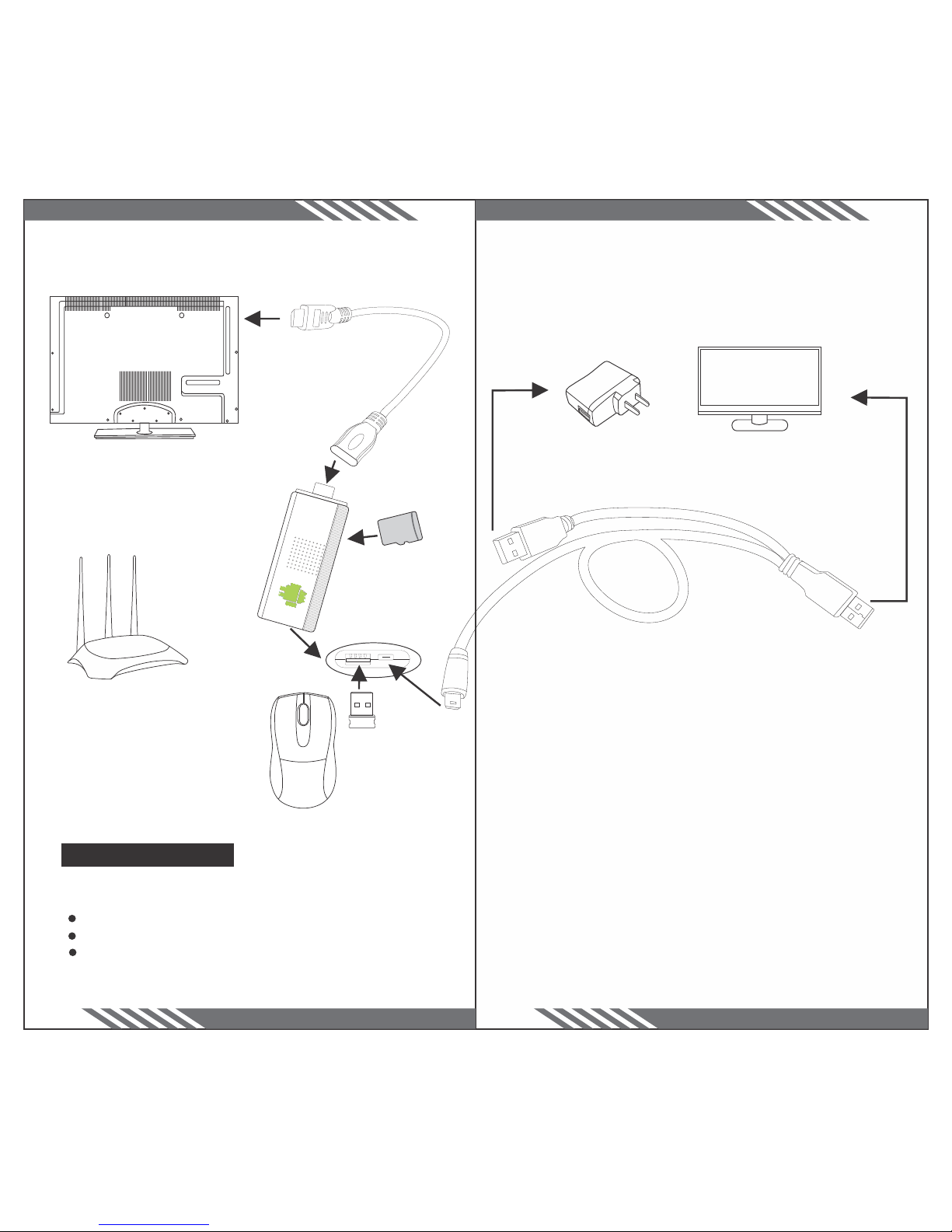
Wireless Mouse
Operation Figure
Note: This product requires the following three
conditions.
TV must have HDMI interface
Home must have wireless network or wired network.
The TF Card, WiFi AP, Wireless mouse not included
in the product.
HDMI interface ,Conected
to the TV HDMI Port
TF Card
Connected to wireless Router
﹞ ﹞ ﹞ ﹞ ﹞ ﹞ ﹞ ﹞ ﹞ ﹞ ﹞ WIFI﹞
5V1A Power adapter
On TV USB inter
or
Quickly set up
Page 3
6. In case of disposal of thr device or accessories,
please refer to your local regulations for proper
disposal instructions.
7.If any problem is encountered using the device,
please contact the local distributor or service center.
We are not responsible for any loss of internal storage
in case of device damage, repair or other reason.
User to follow the istruction manual on the proper use
of device.
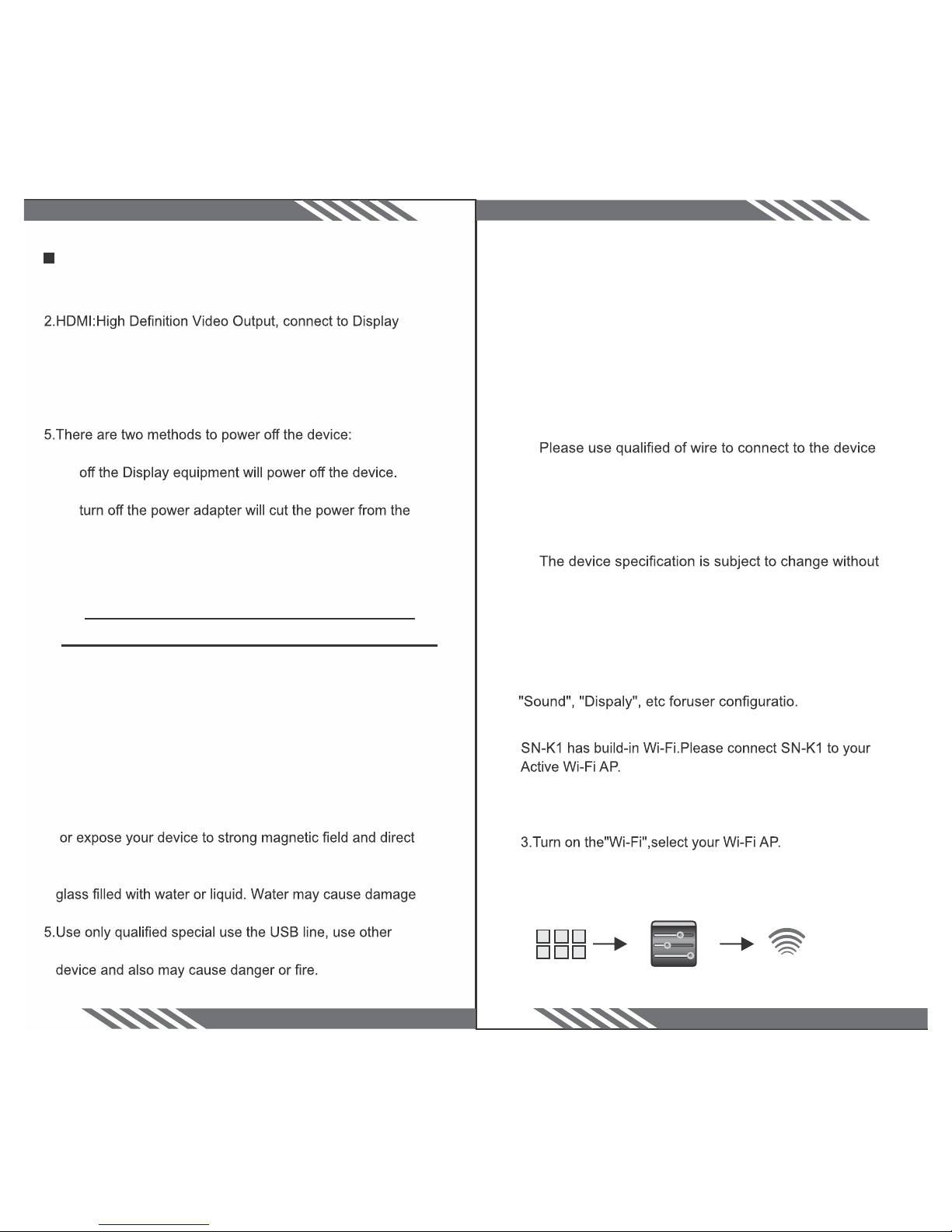
1. Basic setting:
Click" Tool" then click "Settings" enter into "Settings" UI
or in the main screen click right hand side lower corner
"menu", select"Settings", user can select. "Wi-Fi" ,
Warning:
for proper operation.
Non-proper use may cause serious damage to the
device.
This instruction manual picture and indicator icon is
for reference ONLY!
prior notice and we reserve the right to modify the
device.
1.Click the icon in the right top corner, it will display all the
installed application.
2.Click"Settings"open the setting menu.
4.Input the pass word (if needs),click"Connect".wait for
the Wi-Fi connection establish, when it has been done,
a Wi-Fi icon appears in the right bottom corner of the
screen.
Wi-Fi
Settngs
2.Connect to the network
Device Interface
1.MICRO: Micro USB cable input from Power adapter or
Equipment with Standard USB Interface.
such as LCD TV or Monitor with HDMI interface, be
reminded to switch the display output to "HDMI".
3.USB: USB 2.0 high speed interface, used for connecting
to external wired or wireless mouse,keyboard,U-Disk,etc.
4.TF: TF card slot, for memory card.
珨.If the device is powered by the display USB port, turn
媼.If the device is powered by external power adapter,
device.
Warnings cautions and others
Before using your device,read the entire manual and
all saftety instructions to ensure safe and proper use.
1.This device is a electronic product,please do not
disassemble.
2.Prevent shock or drop your device or cause impacts to
your device.
3.Do not use the device under too low or too high temperture,
high humidity,or in areas with high conecntrations of dust,
sunlight for extended periods of time.
4.Keep your device clean,do not place the device near to
to your device.
non-standard power adapter may cause damage to the
Page 4
4.Display size settings
settings such that LCD TV, the display ratio of the horizontal
have large actual display area causes some of the picture
falls outside the screen, while some other TV may have
smaller actual display area causes the picture shown on the
screen becomes a bit small. In this respect, the display
viewing area of the display. Click"Display" in the "Settings"
Menu, click"Output settings" then click "Change display
resize" to adjust the horizontal postitioning and vertical
positing of the display.
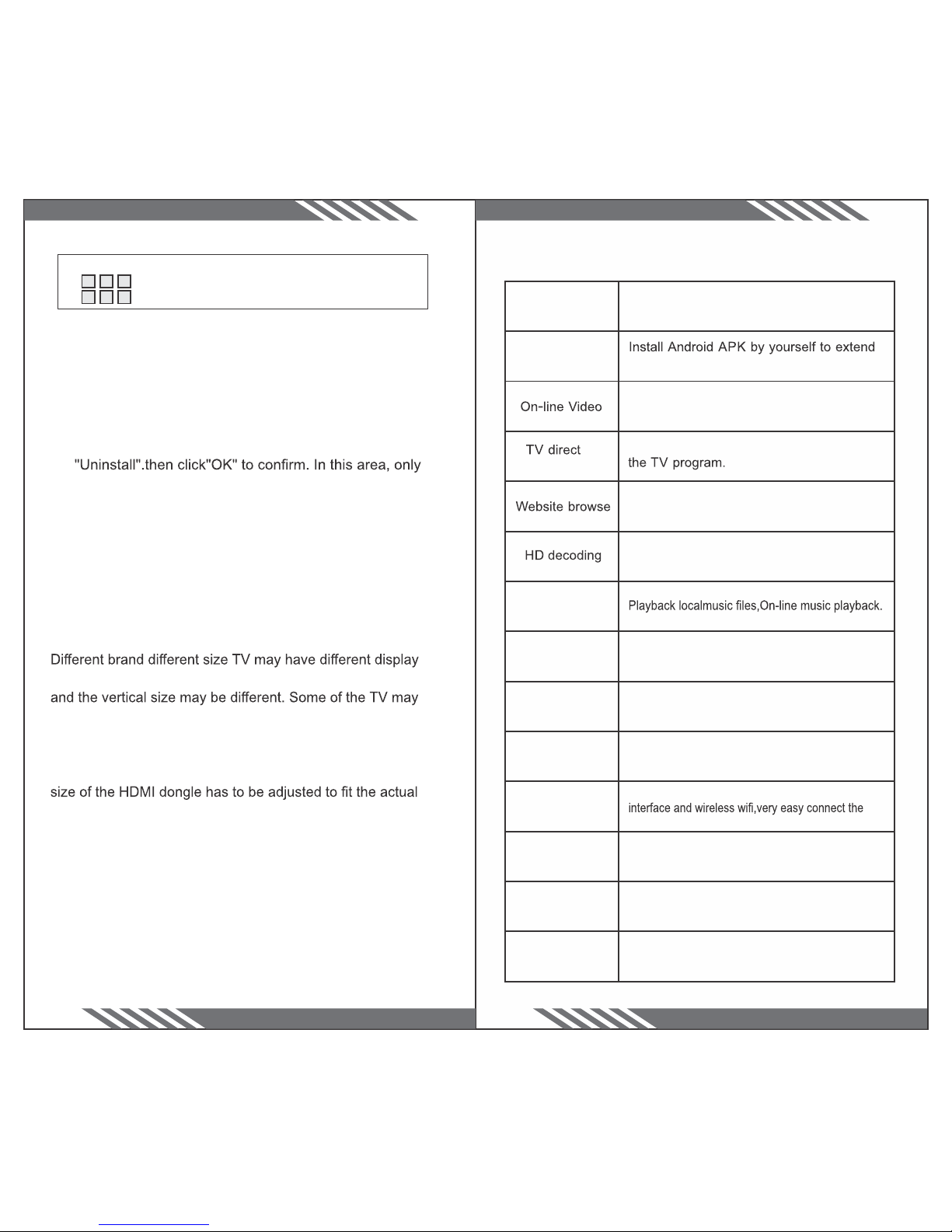
Product basic function:
Smart System
Use Android 4.0 Smart System,
with massive application software.
Game Supplying
functions.
Support On-line playback
transmission
On line free to watch at home and abroad
It have Google browser,sipport to browse any
website, watch the news.
Support FULL HD 1080P playback
Music playback
Picture show
Decoding JPG﹜BMP﹜GIF﹜TIFF﹜PNG of picture
from.
Exquisite surface
Whole surface is very beautiful, Fashion style,
Small volum
Full expand
Outside multiplex USB HOST interface,convenient
to attach mobile storage.
Network connect
Outside international be in common use Rj45 network
network.
Complete output
HDMI 1.4a interface
Comfortably operate
Support USB wired﹜wireless of the keyboard/mouse.
External equipment
Can be connected to wired mouse. wireless mouse,
keyboard,U-disk,TF card,etc.
3.Applicaton Settings
Unknown Source: If user would like to install Applications
(APK) not from the Android Market (or Android Play Store),
user has to select this option.
3.1 Applications Manager
Highlight the application that is to be uninstalled, click
those applications that are installed by user are allowed
to be uninstalled.
3.2 Monitor the applications that is running:
User can click"Running " under "Manage Apps" Menu
and check the running applications.
Storage: Click "Storage" to have a clear picture on the
usage of the memory storage.
In the right top corner of the home page
Remark:
 Loading...