

Page 1
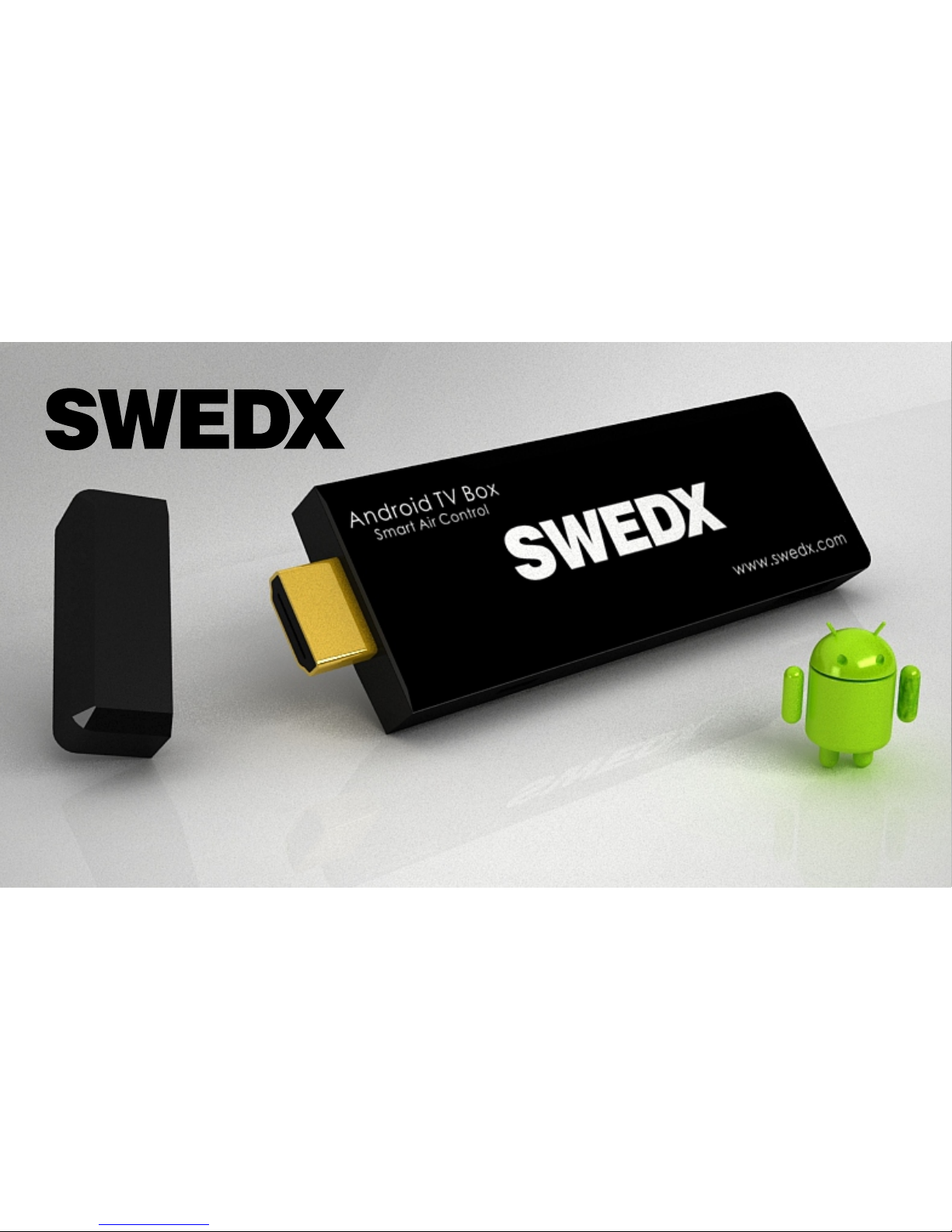
Andorid TV Box
SAB-100 User’s Guide
Page 2
Index
Connect to a TV
Power On
Connect Mouse/Keyboard
Notes
FAQ
Remote Control Lite (Smart Air Control)
Auto Connection
Gesture Control
Keybaord and Voice Control
Remote Display
Remote Sensors Game Controller
Page 3
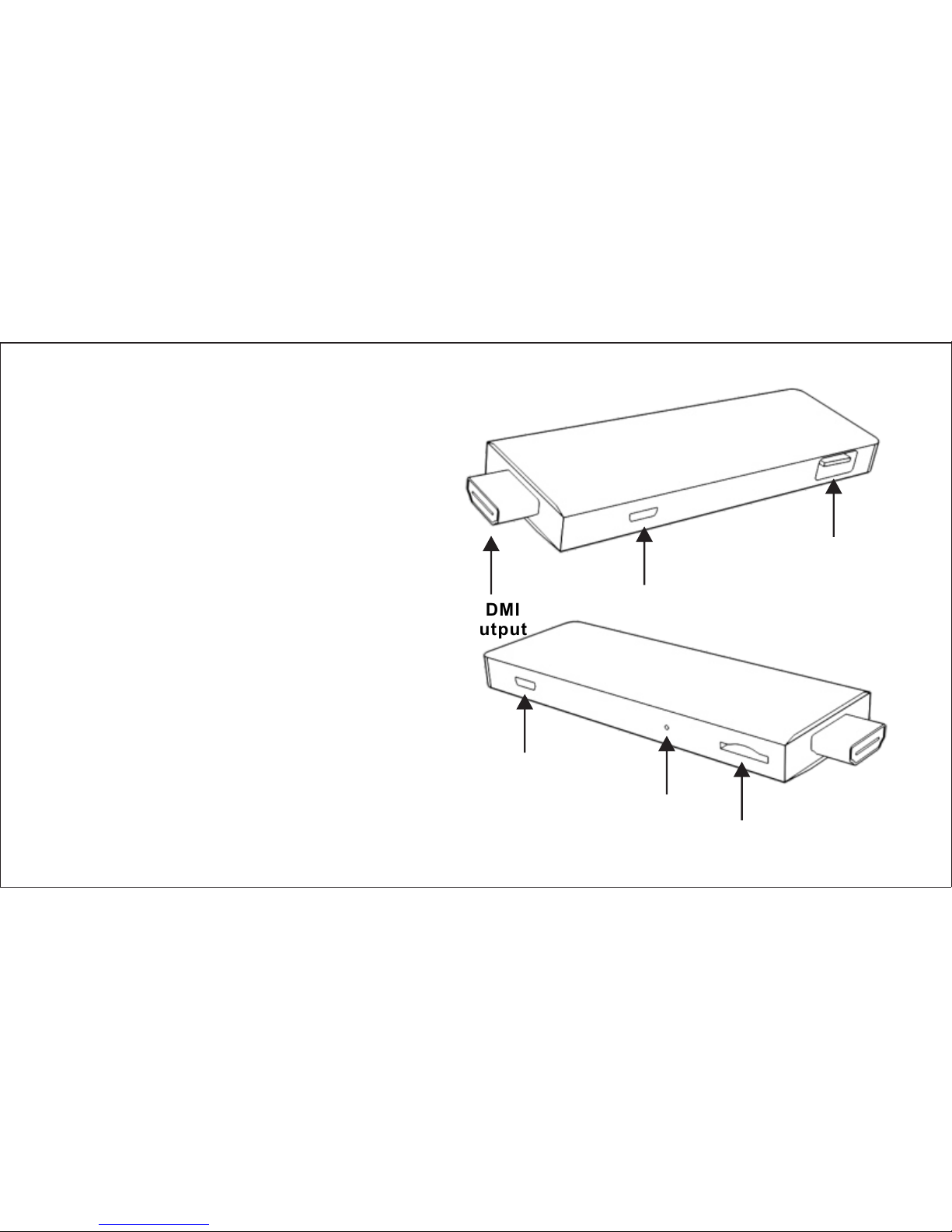
Connect to a TV
Connect the SAB-100 to a TV through
HDMI interface using the included HDMI
extender or directly to the HDMI input in
your TV
Power on the TV and choose the
correspondent HDMI input as the signal
source
Power On
Connect the USB cable between a 5V USB
source and the Power input in the SAB-
100. When connected a LED light will indicate
that the SAB-100 is powered on
Connect a Mouse/Keyboard
You can connect a mouse and/or keyboard by 2
ways. Through the USB input in the SAB-100
(using a USB hub is recommended) or
wirelessly with 2.4 GHz mouse and/or
keyboard. All activations are made through
Single Mouse Click (not double)
USB 2.0
input
Micro USB 2.0
(Power)
HDMI
Output
Micro SD
Micro USB 2.0
(Power)
Reset
Page 4
Remote Control Lite (Smart Air Control)
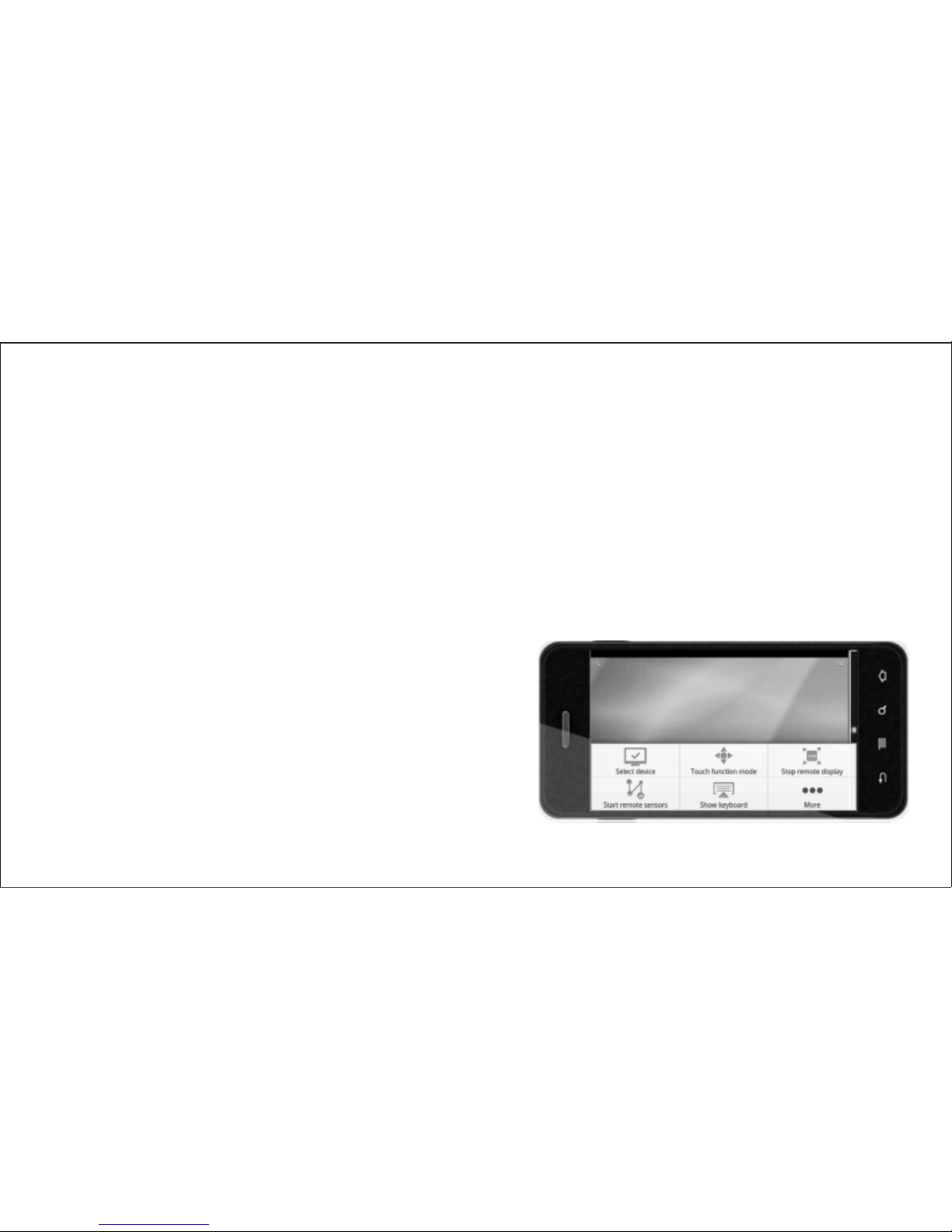
Remote Control Lite will mirror the TV screen to you mobile’s display and you can control the Smart
TV with your mobile.
The app can be downloaded from Google Market or from SWEDX website www.swedx.com for all
android based devices (Ver 2.2 and higher).
For IOS based devices (such as Iphone) the app will be available in Apple App Store soon (Apple
approval pending).
The connection between the SAB-100 and the mobile device is done though WiFi by connecting both
devices to the same wireless network.
Page 5
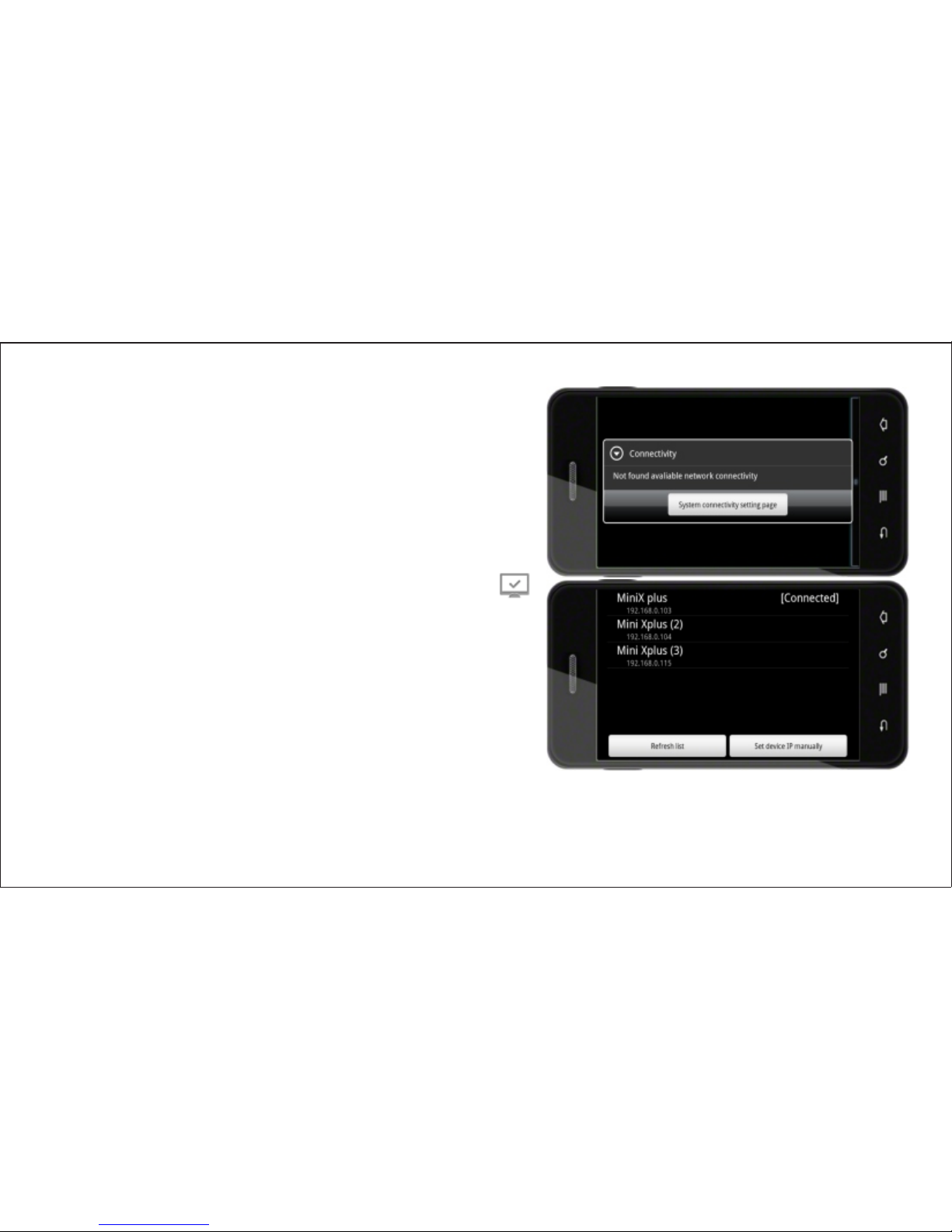
Auto Connection
The app will search for SAB-100 and connect
automatically. If several devices are connected to same
network the historical list is given priority.
If the connection is not succesful a message will be
displayed.
Manual Connection
You can connect the app to the SAB-100 manyally by
selecting the device manually under by pressing on
Page 6
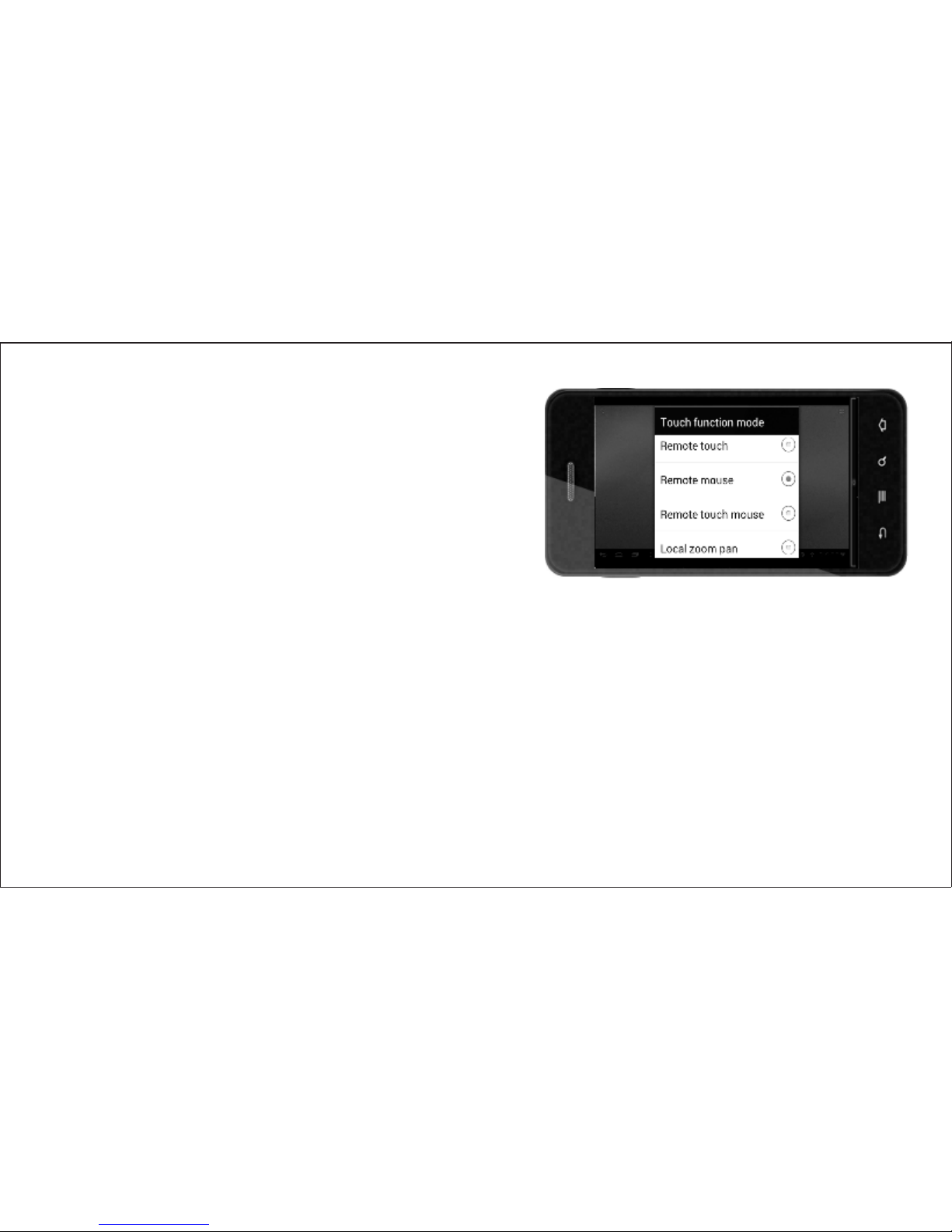
Remote Controller Lite provides four modes of remote
control,
REMOUTE TOUCH
REMOTE MOUSE
REMOTE TOUCH MOUSE
LOCAL ZOOM PAN.
You can alter between the four different move according to
your needs and the way you like to control the screen.
Page 7
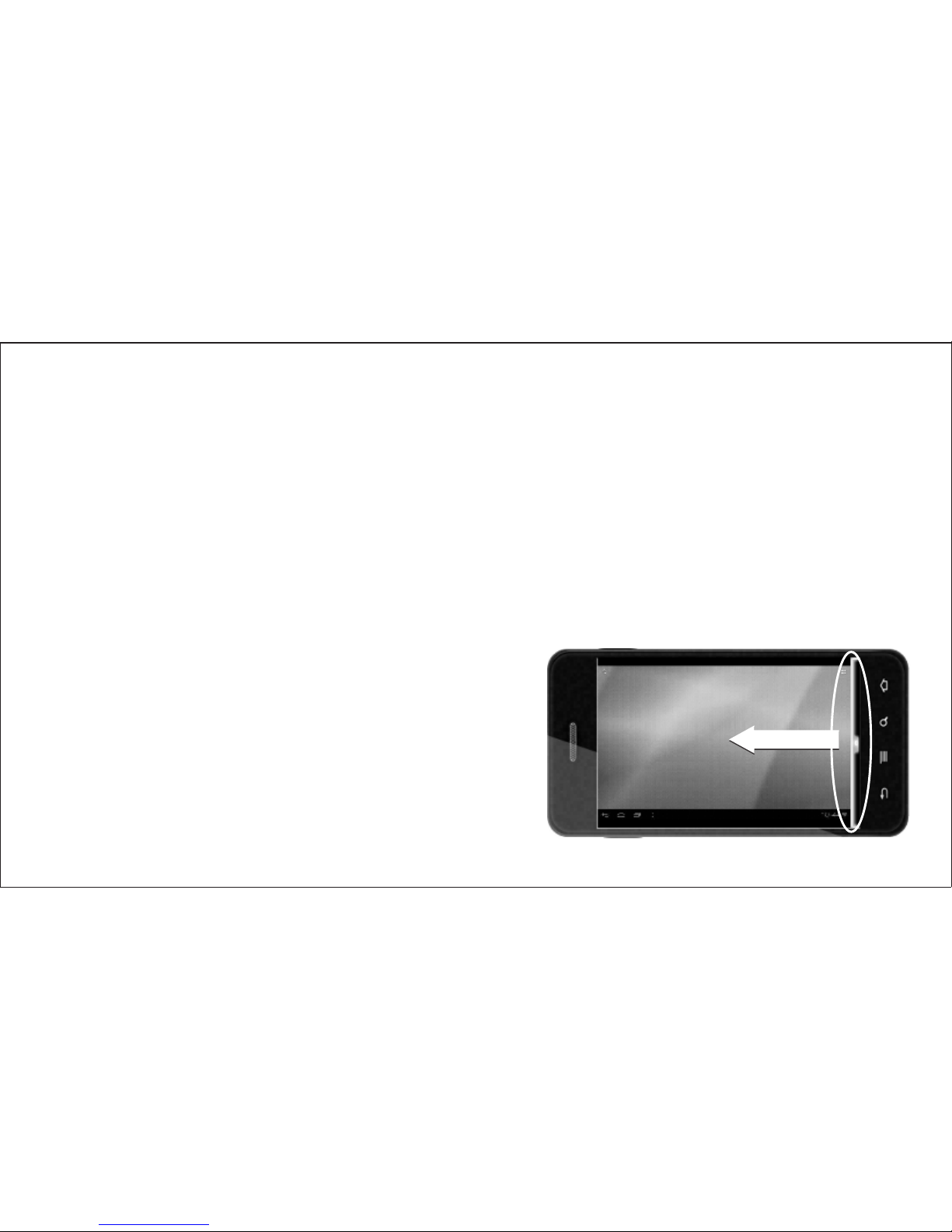
Gesture Control
While you are using any remote mode, you can select the gesture control by sliding the conversion
bar on the bottom of screen. At the same time the other control modes will be disabled.
Page 8
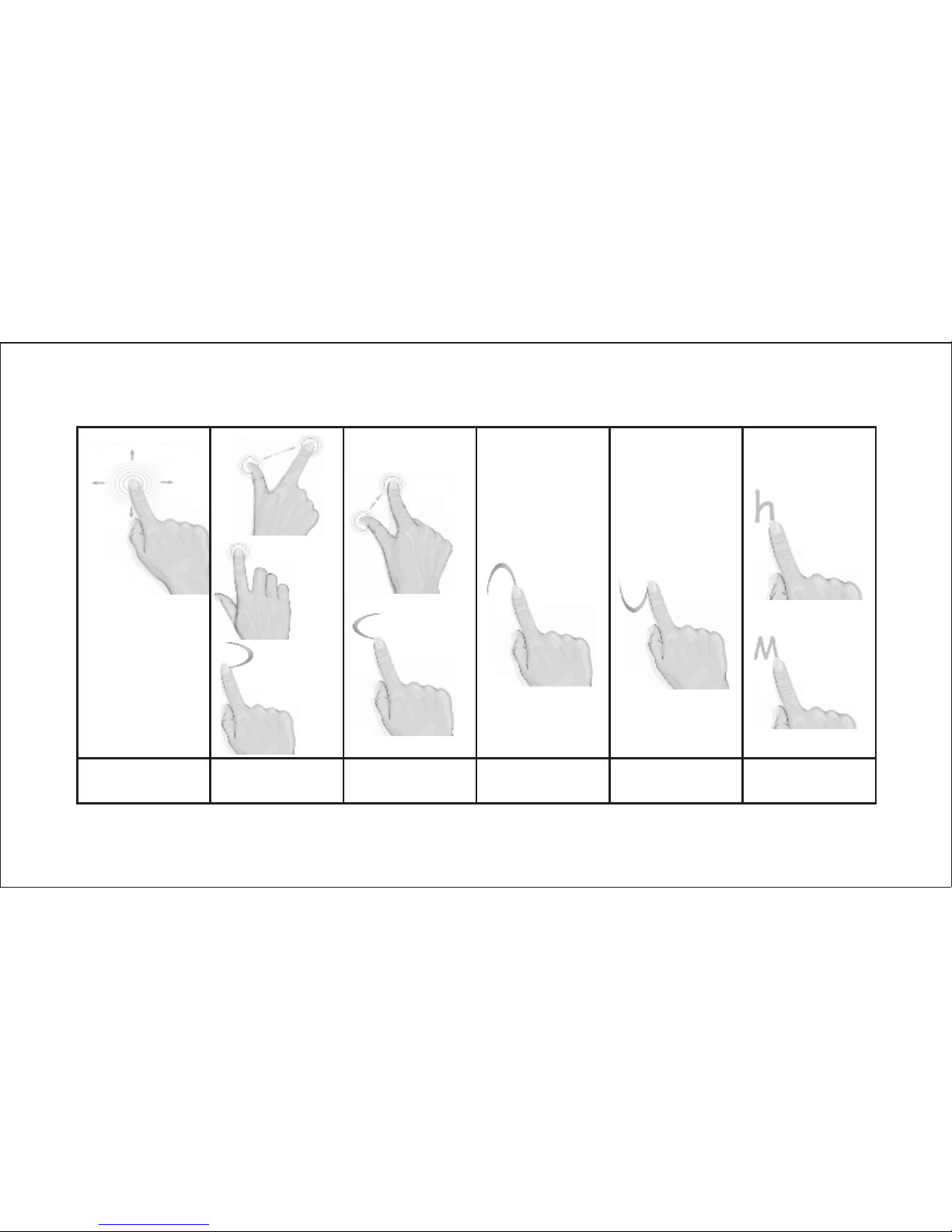
Pinch
Up Arrow
Down Arrow
Home
Left Arrow
Menu
Unpinch
Up
Right
Down
Left
Double tap
Right Arrow
Up、Down、
Left、Right
Enter in the
selected option
Back to the
previous menu
Increase the
Volume
Decrease the
Volume
Back to the main
interface or menu
Page 9
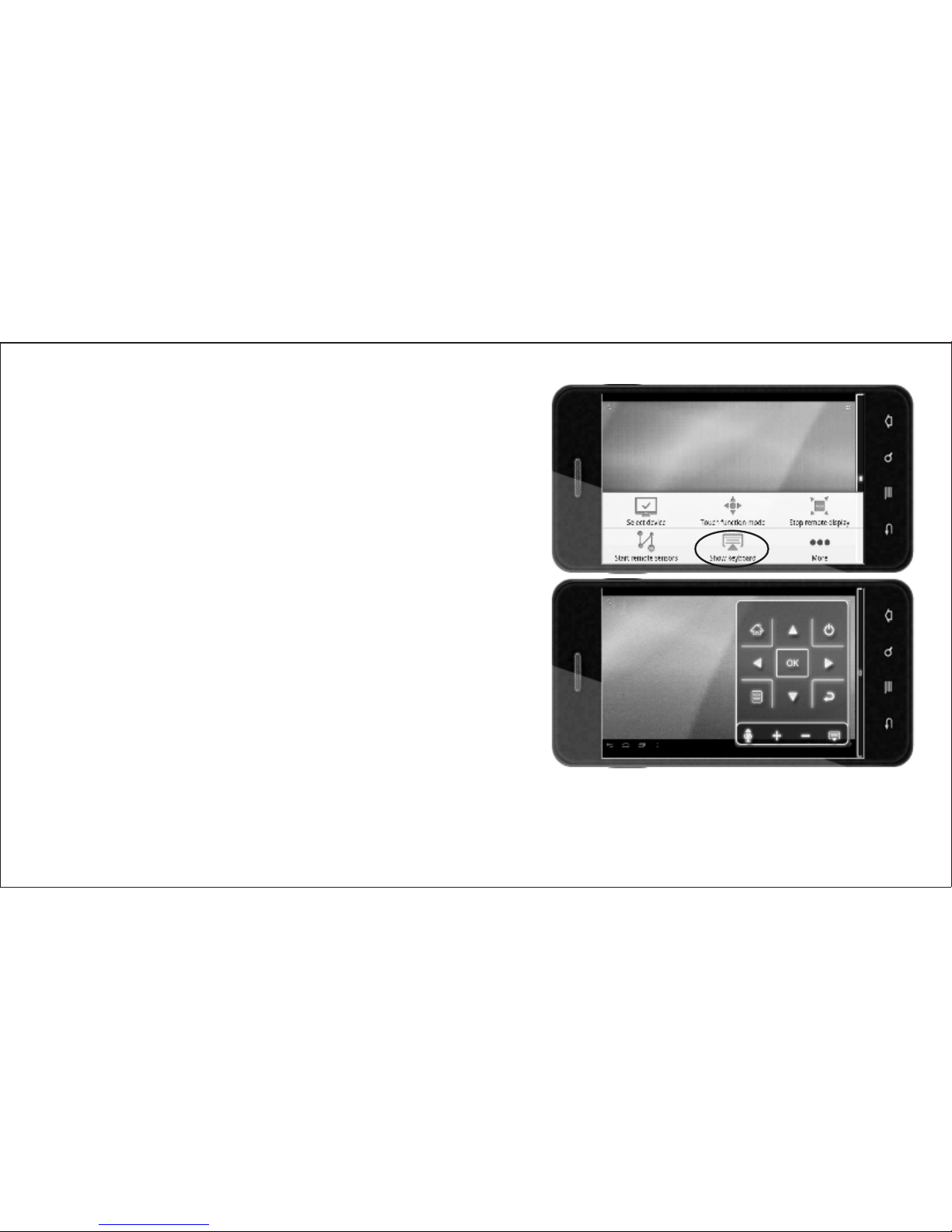
Keybaord and Voice Control
Keyboard Control
If you need to control the Smart TV setting you can show
the keyboard control. You can
Go back to Smart TV home page
Turn On/Off Smart TV
Show Smart TV Menu
Exit the current interface of Smart TV
Hide keyboard
Voice Control
Remote Controller Lite provides Voice Control feature. You
can complete various operations directly by calling the
apllications name or other voice control commands. Check
next page for predefiend commands
Page 10
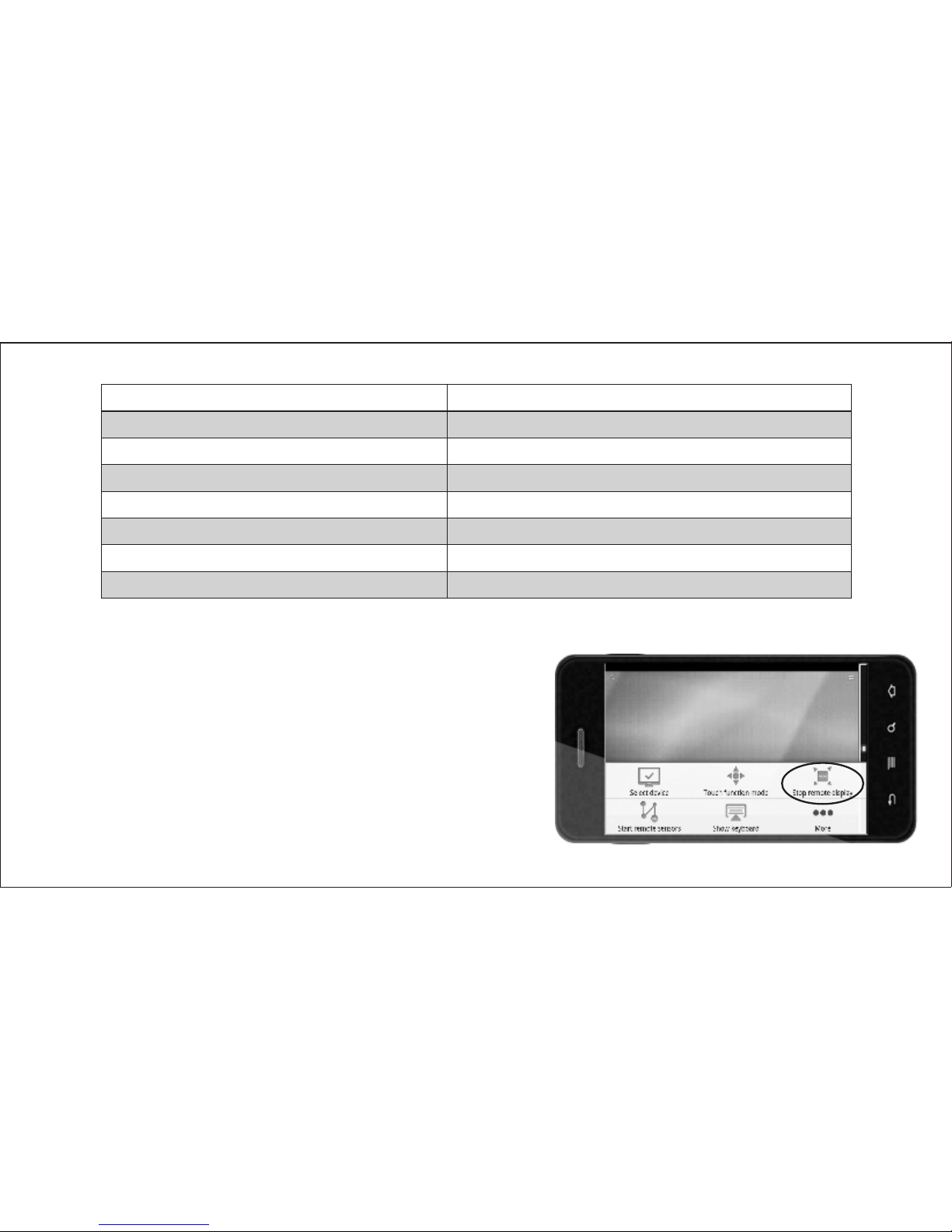
Voice Control Commands
Explanation
Home
Up
Down
Left
Right
Okay
Back
Back to the main interface
Move the cursor up
Move the cursor down
Move the cursor to the left
Move the cursor to the right
Enter in the selected option
Back to the previous menu
Note: This function requires your mobile device to install the application: Voice Search. You can acquire it at
Google Market or www.swedx.com
Remote Display
Start Remote Display function to make your mobile device
display clone the Smart TV screen. It will easier browsing
and other functions. If you turn this feature OFF the cloning
will stop but you can still control the Smart TV
Page 11
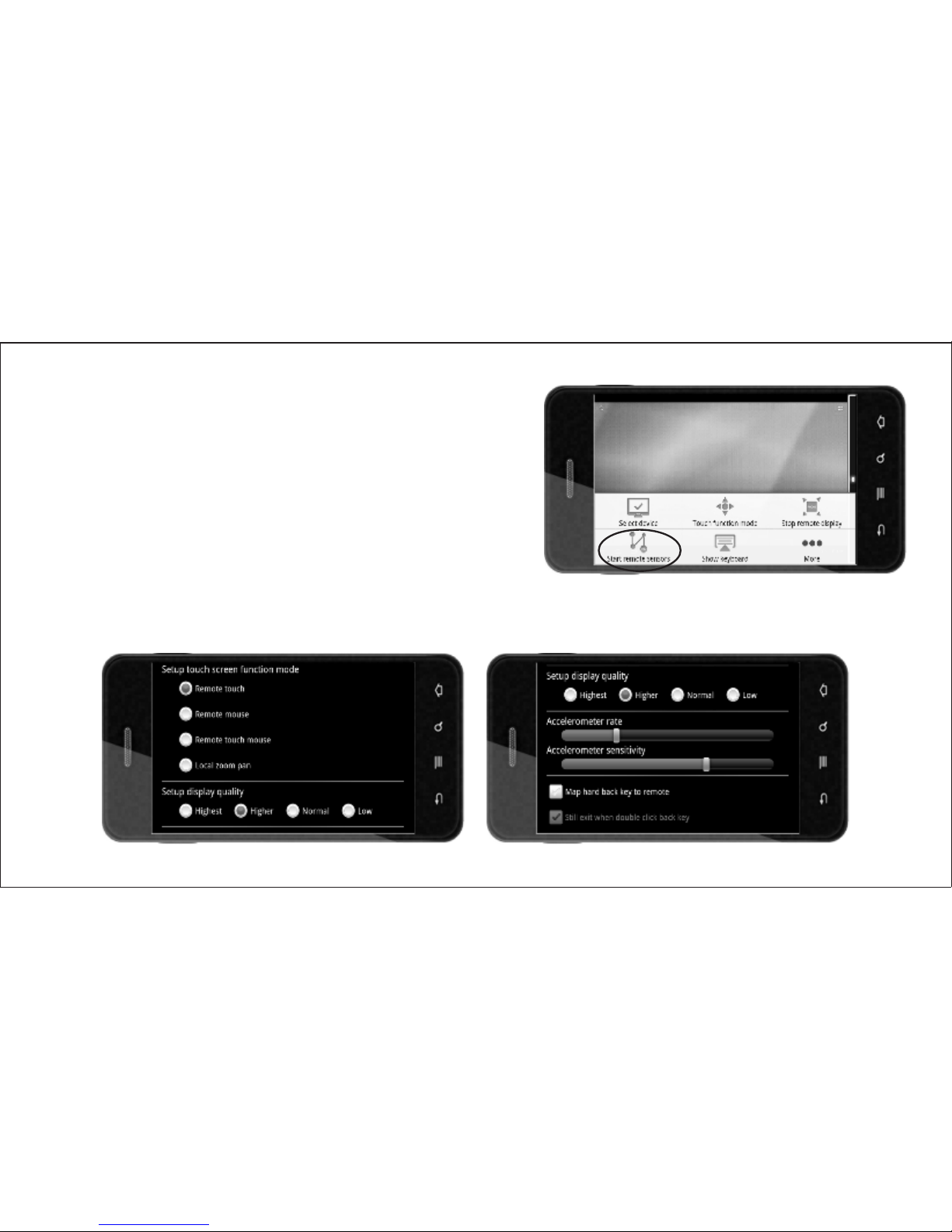
Remote Sensors Game Controller
Start remote sensor will open the gravity sensing function
on your mobile device. You can play gravity sensing
games on the Smart TV. In the settings option you can
adjust the sensitivity of remote sensors according to your
preferences.
Turning off this function will save power.
Page 12
Notes
l If the connection between the mobile device and Smart Tv is unsuccessful, the mobile screen
may show nothing. Click the Menu button on your mobile device and choose SELECT DEVICE
option and select the Smart TV equipment you want to control.
l After Starting Remote Display function, the synchronous graphic of the mobile device may be
sluggish because of the speed of data transmission will be limited by the WIFI network.
Please Select Setup display quality in the SETTINGS option according to the current WIFI
environment.
l If you get familiar with the operation of the SAB-100 you can disable the operating tips by
turning the LESS POPUP INFO off in the SETTINGS option.
FAQ
l If power cable (USB Cable) is already connected but the LED indicator is still OFF, please
check the power adaptor, if you use the TV USB port to supply the power please change to
power adaptor.
l If the device cannot boot to the main screen, please check if the power adaptor is at least
1000mA/5V.
l If the LED indicator is On but there is no HDMI output, please check if the HDMI cable is
connected properly and check if the TV input source has been switched to the correspondent
HDMI input connected to the SAB-100
l Some applications are designed for mobile phones where the resolution differ from the SAB-
100 resolution. Therefore the resolution displayed might be effected by that.
Page 13
Address: Haggviksvagen 25. S-19150 Sollentuna. Sweden
Phone: +46-8-4418444. Fax: +46-8-4418441
E-mail: [email protected] – Internet: www.swedx.com
 Loading...