

Page 1
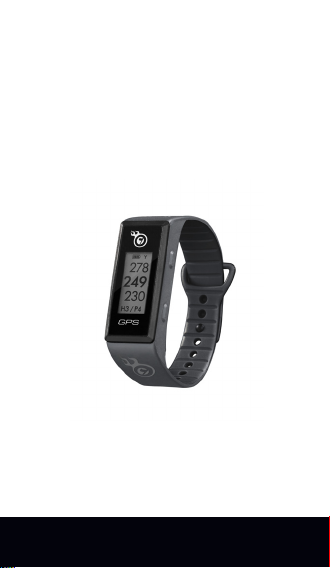
BAND SWAMI
Page 2

SPECIFICATIONS
Product SWAMI Band
# of Courses 38,000+ Worldwide
Battery 170mAh Lithium Ion Polymer
Battery Life Up to 7 hours (Golf Mode)
Weight 1.2 oz
Display Size 1”
Band Length 10”
Up to 8-10 days (Time Mode)
2 INTRODUCTION
Page 3
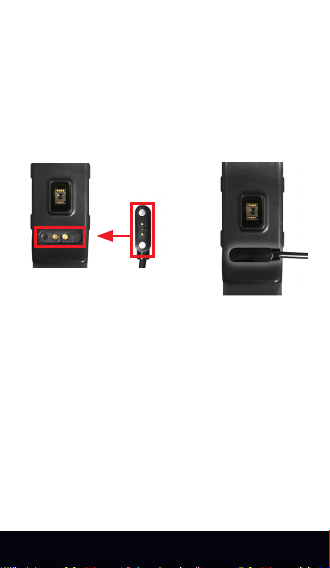
CHARGING
1. Attach the magnetic pins on the charging
cord to the magnetic charging ports located
on the back of the band (under the heart
rate sensor).
2. Be sure the pins are aligned, then insert
the other end of the charging cord into a
USB port or AC adapter (not included).
CHARGING
PORT
CHARGING
PINS
SETTING THE TIME
1. To set the correct time, the device must be
connected to satellites (must be outside). This
can be done by using Golf Mode or by going to
Settings (see page 11).
ENGLISH 3
Page 4
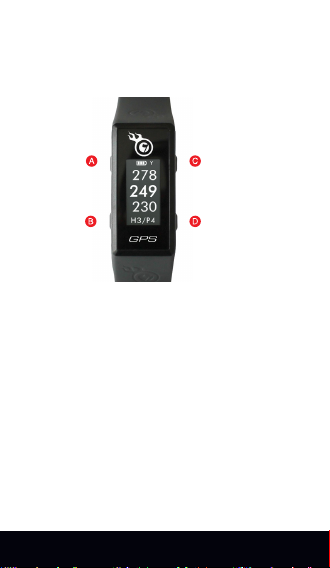
DESCRIPTION OF TERMS
• PRESS - Press & Release button quickly.
• HOLD - Press & Hold button until desired
screen appears or change happens.
A. [ POWER / BACK ] - HOLD to Power On/
Off. Press & Release to return to a previous
screen.
B. [ OK ] - Press & Release to select options.
C. [ UP ] - Press & Release to scroll. HOLD
while in Golf Mode to access Shot Distance
screen.
D. [ DOWN ] - Press & Release to scroll.
HOLD while in Golf Mode to access
Scorecard.
4 HOW TO USE
Page 5
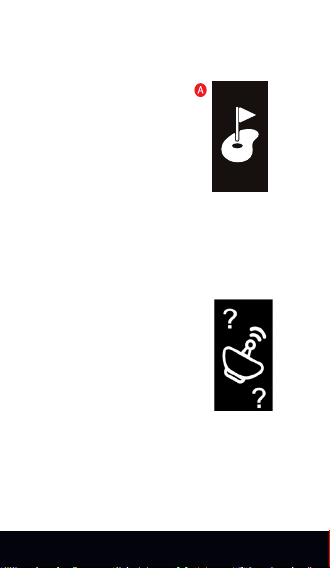
GOLF MODE
1. From Time Screen, Press & Release
the [ DOWN ] button to display
Golf Mode (A).
2. Press & Release the [ OK ] button to
select Golf Mode.
3. Device will begin searching for satellite
signal (Press & Release the [ BACK ] button
to cancel).
4. Once satellite connection is established,
the nearest golf courses will be listed. Use
[
UP / DOWN ] buttons to scroll to desired
course, and then PRESS [ OK ] button to
select the course.
ENGLISH 5
Page 6
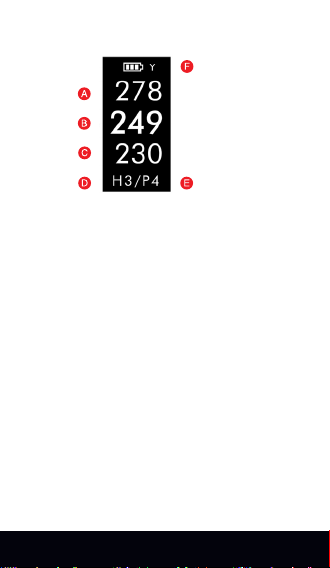
DISPLAY DIAGRAM
A. Distance to the Front of Green
B. Distance to the Center of Green
C. Distance to the Back of Green
D. Hole Number
E. Par for the hole
F. Unit of Measure (Yards or Meters)
5. While on the Play Mode screen, HOLD the
[UP] button to access Shot Distance, or
HOLD the [DOWN] button to access the
Scorecard.
6 HOW TO USE
PLAY MODE
Page 7
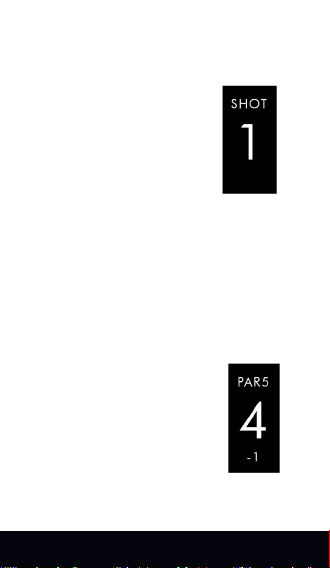
SHOT DISTANCE
1. From the Play Mode Screen, HOLD the
[
UP ] button display Shot Distance.
2. As you travel to your ball, the
distance will begin calculating.
3. Once you arrive at your ball,
the distance displayed is the
distance of your previous shot
(the distance you traveled).
4. Press & Release the [POWER/BACK]
button to exit and return to Play Mode.
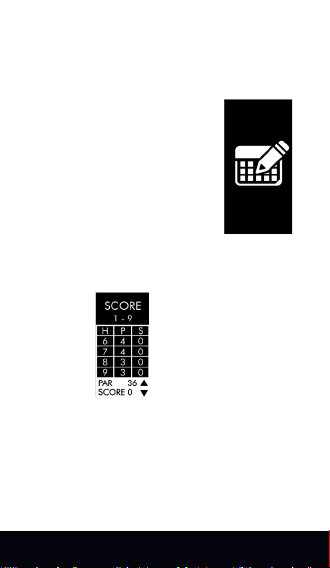
SCORECARD
1. From the Play Mode Screen, HOLD the
[
DOWN] button display the Scorecard.
2. Press & Release the
[UP/DOWN] buttons until your
correct score is displayed.
3. Press & Release the
[POWER/BACK] button to exit
and return to Play Mode.
ENGLISH 7
Page 8

END ROUND
1. To end your round, PRESS
[
POWER/BACK ] button.Scroll to the desired
option then PRESS [OK] button to select.
• Save & Exit - Save Scorecard, end round,
and return to Main Menu.
• Discard & Exit - Discard Scorecard, end
round, and return to Main Menu.
• Cancel - Select to return to Play Mode.
8 HOW TO USE
Page 9
SCORE HISTORY
1. From Time Screen, Press & Release the
[
DOWN ] button until you reach the Score
History screen.
2. Press & Release the [ OK ]
button to select Score History.
3. Use the [UP/DOWN] buttons
to scroll to the scorecard you
would like to view, then PRESS
[OK].
4. Use the [UP/DOWN] buttons to scroll to the
scorecard you would like to view, then PRESS
[OK].
Note: If you have already uploaded the
scorecard to the App, it will no longer
appear on the band.
ENGLISH 9
Page 10

SETTINGS
1. From Time Screen, Press & Release the
[
UP] button until you reach the Settings
screen.
2. Press & Release the [ OK ]
button to select Settings.
3. Use the [UP/DOWN] buttons
to scroll to the setting you would
like to change, then PRESS [OK].
LANGUAGE
1. Use the [UP/DOWN] buttons to select your
desired language, then PRESS [OK] to select.
Choose from: English, Spanish, French,
German, or Japanese.
2. Press & Release the [ POWER/BACK]
button to return to the Main Menu.
10 HOW TO USE
Page 11

TIME SET
1. While in Settings, Use the [UP/DOWN] but-
tons to scroll to the Time Set screen, then
PRESS [OK].
• Auto - will start search for satellite
connection to set the correct time
(must be outside).
• Format - Choose from 24 or 12 hr
time format.
• Daylight - Turn Daylight Savings Time ON or
OFF.
2. Press & Release the [ POWER/BACK]
button to return to the Main Menu.
UNIT OF MEASURE
1. While in Settings, Use the [UP/DOWN]
buttons to scroll to the Y/M screen, then
PRESS [OK].
2. Use the [UP/DOWN] buttons to select Yards
or Meters, then PRESS [OK].
3. Press & Release the [ POWER/BACK]
button to return to the Main Menu.
ENGLISH 11
Page 12
SCREEN DISPLAY
1. While in Settings, Use the [UP/DOWN]
buttons to scroll to the Screen Display screen,
then PRESS [OK].
2. Use the [UP/DOWN] buttons to select Type
1 or 2, then PRESS [OK].
3. Press & Release the [ POWER/BACK]
button to return to the Main Menu.
FREE APP
Search for SWAMI Band in
the Google Play StoreTM or
TM
in iTunes
Note: Compatibility depends on model of Smartphone and
version of operating software. Features may vary or could be
limited due to compatibility conicts.
For AppleTM: Compatible with iOS 9.0 or above.
For AndroidTM: Compatible with OS 5.0 or
above.
*ANDROID IS A TRADEMARK OF GOOGLE INC.
12 HOW TO USE
Page 13
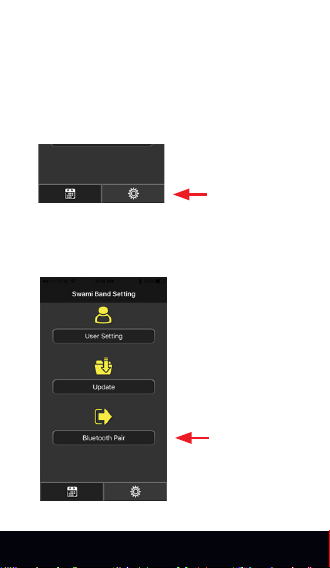
PAIRING BAND WITH APP
1. Make sure the phone you’re pairing to
has Bluetooth enabled and your Swami Band
is powered on.
2. Open the SWAMI BAND App. Select the
settings tab in the bottom right corner.
3. On the settings screen, scroll down to
“Bluetooth Pair” and select.
ENGLISH 13
Page 14
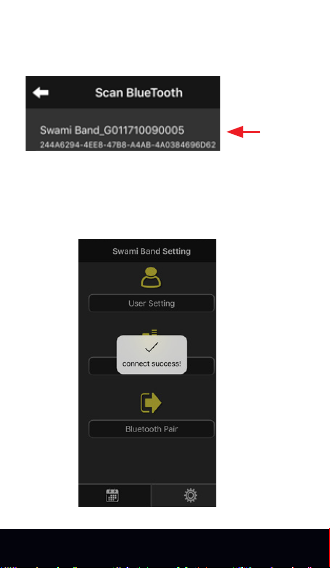
4. Select your specic device when it is listed
under “Scan BlueTooth.”
5. Once you select your SWAMI BAND, the
band will pair with the app. Once the pairing
is successful, “Connect Success” will appear
on the screen.
14 PAIRING
Page 15

WARRANTY POLICY
This product is warranted to be free from
defects for up to (1) year from the original
purchase date. IZZO Golf cannot refund your
purchase unless purchased directly from IZZO
Golf. IZZO Golf will replace or repair any unit
that is determined defective under normal
use within the warranty period. Please call
Customer Service at 888-606-4634 to request
a Return Authorization. All defective products
must be returned to:
IZZO Golf
Attn: Returns Dept.
1635 Commons Parkway
Macedon, NY 14502
Please include a note with your Name,
Address, Phone # and Return Authorization #.
Your replacement will be shipped once we
diagnose the returned unit.
To register your product visit:
www.callawaydmd.com/registration
If you have any other questions or
concerns, please call 1-888-606-4634 or
go to www.callawaydmd.com
WARRANTY 15
Page 16
CAUTION
Global Position System (GPS) was developed
and is managed by the United States
Department of Defense (DOD) which is
responsible for its normal operation and
position precision control; the U.S. is entitled
to affect function or position precision of
the whole system without prior notication
or announcement based on its political
considerations or safety of national defense.
In order to use the device correctly and safely,
you must be aware of the following information
prior to operating the device:
• The device was only designed for the
purpose of leisure and recreation and
is not applicable for industrial or
special measurement.
• The device is only an auxiliary device.
IZZO Golf will not accept any legal liability
for accidents due to mistaken operation, or
any use of the device for measurement.
• Please do not try to dissemble the device
or repair any part of the device discreetly.
• Please do not store the device in places
exposed to direct sunlight or in extremely
high temperatures.
 Loading...