

Page 1
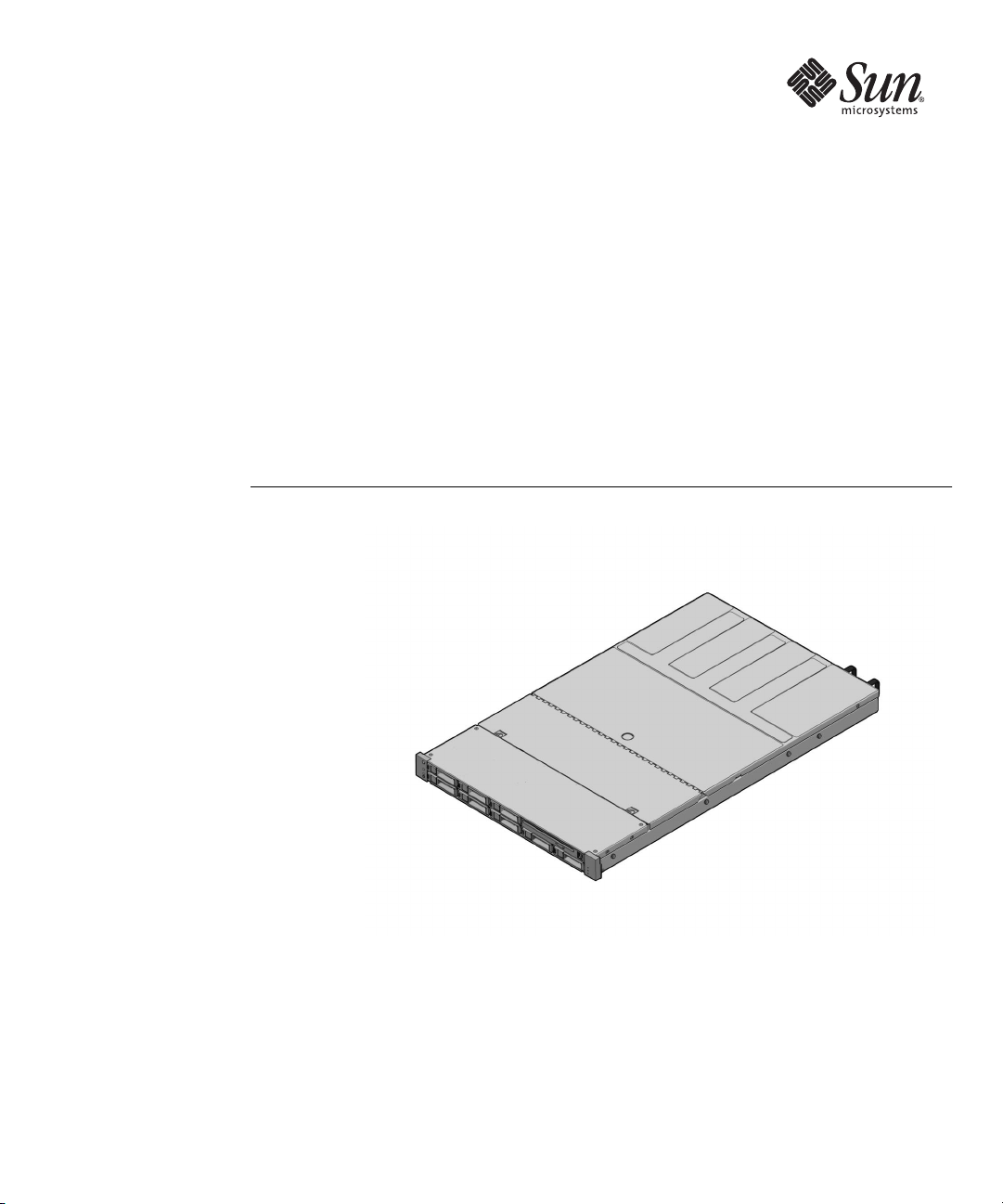
Sun Fire™X4150 Server
Product Notes
Sun Microsystems, Inc.
www.sun.com
Part No. 820-1854-28
February 2010, Revision A
Submit comments about this document at: http://www.sun.com/hwdocs/feedback
Page 2

Copyright © 2010 Sun Microsystems, Inc., 4150 Network Circle, Santa Clara, California 95054, U.S.A. All rights reserved.
THIS PRODUCT CONTAINS CONFIDENTIAL INFORMATION AND TRADE SECRETS OF SUN MICROSYSTEMS, INC. USE,
DISCLOSURE OR REPRODUCTION IS PROHIBITED WITHOUT THE PRIOR EXPRESS WRITTEN PERMISSION OF SUN MICROSYSTEMS,
INC.
This distribution may include materials developed by thirdparties.Sun, Sun Microsystems, the Sun logo, Java, Netra, Solaris, StarOffice, Sun
Ray, Galaxy Sun Fire X and the SunSpectrum Pac (Sunburst design) logo are trademarks or registeredtrademarksofSunMicrosystems, Inc. or
its subsidiaries in the U.S. and other countries. Intel is a trademark or registered trademark of Intel Corporation or its subsidiaries intheUnited
States and other countries. Intel Inside is a trademark or registered trademark of Intel Corporation , or its subsidiaries,s in the UnitedStatesand
other countries.
This product is covered and controlled byU.S.ExportControllawsandmaybesubjectto the export or import laws in other countries. Nuclear,
missile, chemical biological weapons or nuclear maritime end uses or end users, whether direct or indirect, are strictly prohibited. Export or
reexport to countries subject to U.S. embargo or to entities identified on U.S. export exclusion lists, including, but not limited to, the denied
persons and specially designated nationals lists is strictly prohibited.
Use of any spare or replacement CPUs is limited to repair or one-for-one replacement of CPUs in products exported in compliance with U.S. export laws.
Use of CPUs as product upgrades unless authorized by the U.S. Government is strictly prohibited.
Copyright © 2010 Sun Microsystems, Inc., 4150 Network Circle, Santa Clara, California 95054, Etats-Unis. Tous droits réservés.
CE PRODUIT CONTIENT DES INFORMATIONS CONFIDENTIELLES ET DES SECRETS COMMERCIAUX DE SUN MICROSYSTEMS, INC.
SON UTILISATION, SA DIVULGATION ET SA REPRODUCTION SONT INTERDITES SANS L’AUTORISATION EXPRESSE, ECRITE ET
PREALABLE DE SUN MICROSYSTEMS, INC.
Cette distribution peut des éléments développés par des tiers. Sun, Sun Microsystems, le logo Sun, Java, Netra, Solaris, StarOffice, Sun Ray,
Galaxy Sun Fire X et le logo SunSpectrum Pac (Sunburst design) sont des marques de fabrique ou des marques déposées de Sun Microsystems,
Inc., ou ses filiales, aux Etats-Unis et dans d’autres pays. Intel est une marque de fabrique ou une marque déposée de Intel Corporation ou de sa
filiale aux Etats-Unis et dans d’autres pays. Intel Inside est une marque de fabrique ou une marque déposée de Intel Corporation ou de sa filiale
aux Etats-Unis et dans d’autres pays.
Ce produit est soumis à la législation américaine sur le contrôle des exportations et peut être soumis à la règlementation en vigueur dans
d’autres pays dans le domaine des exportations et importations. Les utilisations finales, ou utilisateurs finaux, pour des armes nucléaires, des
missiles, des armes biologiques et chimiques ou du nucléaire maritime, directement ou indirectement, sont strictement interdites. Les
exportations ou reexportations vers les pays sous embargo américain, ou vers des entités figurant sur les listes d’exclusion d’exportation
américaines, y compris, mais de maniere non exhaustive, la liste de personnes qui font objet d’un ordre de ne pas participer,d’une façon directe
ou indirecte, aux exportations des produits ou des services qui sont régis par la législation américaine sur le contrôle des exportations et la liste
de ressortissants spécifiquement désignés, sont rigoureusement interdites.
L’utilisationde pièces détachées ou d’unités centrales de remplacement est limitée aux réparations ou à l’échange standard d’unités centrales
pour les produits exportés, conformément à la législation américaine en matière d’exportation. Sauf autorisation par les autorités des EtatsUnis, l’utilisation d’unités centrales pour procéder à des mises à jour de produits est rigoureusement interdite.
Please
Recycle
Page 3

Sun Fire X4150 Server Product Notes
This document contains late-breaking information and issues for the Sun Fire™
X4150 server.
Note – The information in the English version of the Product Notes might be more
up-to-date than the translated versions.
The following issues are covered in these product notes:
■ “Supported Operating Systems” on page 2
■ “Tools and Drivers CD/DVD” on page 4
■ “Critical Issues” on page 14
■ “Hardware and BIOS” on page 14
■ “System Management Issues” on page 26
■ “Diagnostics Issues” on page 38
■ “Sun Installation Assistant Issues” on page 40
■ “Solaris OS Issues” on page 45
■ “Linux Issues” on page 49
■ “Windows Issues” on page 51
■ “VMware Issues” on page 53
■ “LSI 3081E Host Bus Adapter Issues” on page 54
■ “StorageTek SAS Controller Issues” on page 55
■ “Sun 10G Network Adapter Issues” on page 57
■ “Documentation Issues” on page 57
■ “Fixed Issues” on page 61
1
Page 4

Note – Sun is not responsible for the availability of third-party web sites mentioned
in this document. Sun does not endorse and is not responsible or liable for any
content, advertising, products, or other materials that are available on or through
such sites or resources. Sun will not be responsible or liable for any actual or alleged
damage or loss caused by or in connection with the use of or reliance on any such
content, goods, or services that are available on or through such sites or resources.
Software Information
This section contains the following software information:
■ “Supported Operating Systems” on page 2
■ “Software Options” on page 2
■ “Important: CPLD Update Might Be Required Before Firmware Update” on
page 11
Supported Operating Systems
The following operating systems versions are supported on the Sun Fire X4150
server:
■ Red Hat Enterprise Linux (RHEL 32-bit/64-bit) 4.5, 4.6, 4.7, 4.8, 5.1, 5.2, 5.3, 5.4
■ SUSE Linux Enterprise Server (SLES) 9 SP4 (64-bit), SLES) 10 SP1 (64-bit); SLES 10
SP2 (64-bit), SLES 10 SP3 (64-bit/XEN), SLES 11 (64-bit)
■ Windows Server 2003 EE R2 SP2 (32-bit/64-bit),
■ Windows Server 20008 (32-bit/64-bit), Windows Server 2008 R2 (64-bit)
■ Solaris™ OS 10 5/08, Solaris OS 10 10/08, Solaris OS 10 5/09, Solaris 10 10/09
■ VMware ESX/ESXi 3.5U5, VMware ESX/ESXi 4.0U1
■ OpenSolaris 2009.06
■ Oracle Enterprise Linux (OEL) 4.8, 5.3 (32-bit/64-bit)
Note – Additional information for servers with preinstalled Windows 2003 Server
can be found in “Windows Issues” on page 51.
Software Options
The following software can be ordered to ship with your system or downloaded:
2 Sun Fire X4150 Server Product Notes • February 2010
Page 5

■ “Software Supplemental” on page 3
■ “Tools and Drivers CD/DVD” on page 4
■ “Sun Validation Test Suite” on page 10
■ “Sun Installation Assistant” on page 11
Software Supplemental
The software supplemental releases include BIOS and ILOM updates only. The Tools
and Drivers CD is not updated for these releases. You can download the
supplemental software updates at:
http://www.sun.com/servers/x64/x4150/downloads.jsp
Software Supplemental 3.0.2
Sun Fire X4150 Software Supplemental 3.0.2 firmware package is now available for
download.
The firmware versions include:
■ BIOS: 1ADQW062
■ ILOM: 3.0.3.30 build r48374
The following issue was introduced in 3.0.3.30 build r48374: “Correctable Errors
Incorrectly Listed in the ILOM SEL as a Critical Error” on page 37.
Note – Refer to “Issues Fixed in Software Supplemental 3.0.2” on page 62 for
information on issues that have been fixed with this release.
Software Supplemental 3.0.1
Sun Fire X4150 and X4250 Software Supplemental 3.0.1 firmware package is now
available for download.
The firmware versions include:
■ BIOS: 1ADQW061
■ ILOM: 3.0.3.30 r47608
Note – Refer to “Issues Fixed in Software Supplemental 3.0.1” on page 62 for
information on issues that have been fixed with this release.
Sun Fire X4150 Server Product Notes 3
Page 6

Software Supplemental 2.2.2
Sun Fire X4150 and X4250 Software Supplemental 2.2.2 firmware package is now
available for download.
The firmware versions include:
■ BIOS: 1ADQW060
■ ILOM: 2.0.2.10 r42701
Note – Refer to “Issues Fixed in Software Supplemental 2.2.2” on page 63 for
information on issues that have been fixed with this release.
Tools and Drivers CD/DVD
The Tools and Drivers CD/DVD includes firmware and software for the Sun Fire
X4150 server. The Tools and Drivers CD or DVD is offered as an option to order with
your system. Latest versions of the Tools and Drivers CD/DVD images are available
at the following download site:
http://www.sun.com/servers/x64/x4150/downloads.jsp
Note – See “Important: CPLD Update Might Be Required Before Firmware Update”
on page 11 before updating your system firmware.
Tools and Drivers DVD Version 3.2.0
The most recent software update is Tools and Drivers DVD Version 3.2.0.
The updates for Tools and Drivers 3.2.0 include:
■ ILOM version: 3.0.6.15 Build r52422
■ BIOS: 3B65
■ Sun StorageTek SAS RAID HBA Firmware Update:
■ Firmware version: 16732
■ Sun StorageTek SAS RAID HBA Drivers for Windows (16732), Linux (1.1.5-
2463)
■ Additional driver updates include:
■ RHEL 5.4 (32-bit/64-bit)
■ Solaris OS 10 10/09
4 Sun Fire X4150 Server Product Notes • February 2010
Page 7

■ SLES 11 SP3 (64-bit/XEN)
■ OEL 4.8 and 5.3 (32-bit/64-bit)
■ Intel NIC Driver 14.8
■ AST2000 Driver 090
Additional software updates include:
■ SunVTS Diagnostics CD Bootable CD 7.0 ps7
■ Sun Installation Assistant 2.3.17.0
■ Sun StorageTek PCIe SAS RAID Host Bus Adapter ASM: 17551
Tools and Drivers DVD Version 3.1.1
The most recent software update is Tools and Drivers DVD Version 3.1.1.
The updates for Tools and Drivers 3.1.1 include:
■ ILOM version: 3.0.6.15 Build r50607
■ BIOS: 1ADQW065
■ Sun StorageTek SAS RAID HBA Firmware Update:
■ Firmware version: 16732
■ Sun StorageTek SAS RAID HBA Drivers for Windows (16732), Linux (1.1.5-
2463)
■ Additional driver updates include:
■ RHEL 4.8 (32-bit/64-bit), Solaris 10 10/09, SLES10 SP3(64-bit/XEN), Windows
2008 Server R2 (64-bit)
■ Intel NIC Driver 14.3 for Windows Server 2008
■ AST2000 driver 089
■ ipmitool 1.8.10.2
■ PC Check: 6.23s
Additional software updates include:
■ SunVTS Diagnostics CD Bootable CD 7.0 ps7
■ Sun Installation Assistant 2.3.14.0
■ Sun StorageTek PCIe SAS RAID Host Bus Adapter ASM: 17551
Note – Refer to “Issues Fixed in Tools and Drivers DVD 3.1.1” on page 65 for
information on issues that have been fixed with this release.
Sun Fire X4150 Server Product Notes 5
Page 8

For further information on the ILOM 3.x, refer to the ILOM 3.0 documentation
included in the Sun Fire X4150 server documentation set.
Tools and Drivers DVD Version 3.1.0.
The most recent software update is Tools and Drivers DVD Version 3.1.0.
The updates for Tools and Drivers 3.1.0 include:
■ ILOM version: 3.0.6.15
■ BIOS: 1ADQW063
■ Sun StorageTek SAS RAID HBA Firmware Update:
■ Firmware version: 16732
■ Sun StorageTek SAS RAID HBA Drivers for Windows (16732), Linux (1.1.5-
2463)
■ Additional driver updates include:
■ RHEL 4.8 (32-bit/64-bit), Solaris 10 10/09, SLES10 SP3(64-bit/XEN), Windows
2008 Server R2 (64-bit)
■ Intel NIC Driver 14.3 for Windows Server 2008
■ AST2000 driver 089
■ ipmitool 1.8.10.2
■ PC Check: 6.23s
Additional software updates include:
■ SunVTS Diagnostics CD Bootable CD 7.0 ps7
■ Sun Installation Assistant 2.3.14.0
■ Sun StorageTek PCIe SAS RAID Host Bus Adapter ASM: 17551
Note – Refer to “Issues Fixed in Tools and Drivers DVD 3.1.0” on page 65 for
information on issues that have been fixed with this release.
For further information on the ILOM 3.x, refer to the ILOM 3.0 documentation
included in the Sun Fire X4150 server documentation set.
The following sections contain information on previous Tools and Drivers CD/DVD
updates.
Tools and Drivers DVD v3.0
The updates for Tools and Drivers 3.0.0 include:
6 Sun Fire X4150 Server Product Notes • February 2010
Page 9

■ ILOM version: 3.0.3.30
■ BIOS: 1ADQW060
■ Sun StorageTek SAS RAID HBA Firmware Update:
■ Firmware version: 15872
■ Sun StorageTek SAS RAID HBA Drivers (Windows: 15882, Linux: 2459, Solaris:
15872)
■ Additional driver updates include:
■ RHEL 5.3 (32-bit/64-bit)
■ Intel NIC Driver 13.5
■ AST2000 Driver 088
■ PC Check: 6.22s
■ ipmitool 1.8.10.0
Diagnostics CD Bootable CD Update: SunVTS 7.0 ps4 is also included in this
software update.
Note – Refer to “Issues Fixed in Tools and Drivers DVD 3.0.0” on page 67 for
information on issues that have been fixed with this release.
Tools and Drivers DVD v2.2.1
Tools and Drivers DVD 2.2.1 is the latest ILOM and BIOS update for the Sun Fire
X4150 server. The firmware versions include:
■ ILOM: 2.0.2.10r40317
■ BIOS: 1ADQW058
Note – Refer to “Issues Fixed in Tools and Drivers DVD Version 2.2.1” on page 67
for information on issues that have been fixed with this release.
Tools and Drivers DVD v2.2.0
The firmware versions for this DVD include:
■ ILOM: 2.0.2.10 r39321
■ BIOS: 1ADQW057
Sun Fire X4150 Server Product Notes 7
Page 10

Note – Refer to “Issues Fixed in Tools and Drivers DVD Version 2.2.0” on page 68
for information on issues that have been fixed with this release.
Tools and Drivers DVD v2.1.0
The firmware versions for Tools and Drivers CD 2.1.0 include:
■ BIOS version: 1ADQW054
■ SP version: 2.0.2.6
Prior to installing any supported E0 stepping CPU on an ILOM system, you must
first upgrade the system to 1ADQW054 BIOS. Refer to “Identifying E0 Stepping
Processors” on page 19.
Note – Refer to “Issues Fixed in Tools and Drivers DVD Version 2.1.0” on page 69
for information on issues that have been fixed with this release.
Tools and Drivers CD v2.0
Tools and Drivers CD 2.0 contains firmware for both Embedded Lights Out Manager
(ELOM) and Integrated Lights Out Manager (ILOM) and supports ELOM to ILOM
migration.
Note – If you are using the Qimonda Memory 2GB/DDR2 HYS72T256421EFA-3S-
C2 then you must update to ILOM BIOS 1ADQW052 or ELOM BIOS 1ADQW027.
The firmware versions for ILOM and ELOM are listed in
TABLE 1 Tools and Drivers CD 2.0 Firmware Versions
Firmware Type ILOM ELOM
BIOS version
SP version
1ADQW052 1ADQW026
2.0.2.6 4.0.10
Please note the following regarding the ELOM firmware:
■ If you do not want to transition to ILOM at this time, you can update your system
to the ELOM firmware version shown in the table.
■ If you do plan to transition to ILOM, you first need to update ELOM with the
following transitional ELOM firmware file: X4150-026-450.
8 Sun Fire X4150 Server Product Notes • February 2010
TABLE 1:
Page 11

Refer to the ELOM-to-ILOM Migration User’s Guide for information on migrating
from ELOM to ILOM.
Tools and Drivers DVD v1.3.3
Tools and Drivers DVD 1.3.3 is the latest ELOM update for the Sun Fire X4150
server.
Note – This Tools and Drivers DVD is an update for ELOM only. If you are running
ILOM, use the ILOM version on the Tools and Drivers DVD v 2.1.0.
The firmware versions include:
■ BIOS version: 1ADQW027
■ SP version: 4.0.11
Prior to installing any supported E0 stepping CPU on an ELOM system, you must
first upgrade the system to 1ADQW027 BIOS. Refer to “Identifying E0 Stepping
Processors” on page 19.
Note – Refer to “Issues Fixed in Tools and Drivers CD Version 1.3.3” on page 70 for
information on issues that have been fixed with this release.
Tools and Drivers CD v1.3.2
Tools and Drivers CD 1.3.2 contains the following updates:
■ BIOS version 1ADQW026
■ SP version 4.0.10
Note – To see issues that have been fixed with Tools and Drivers CD version 1.3.2,
please see “Issues Fixed in Tools and Drivers CD Version 1.3.2” on page 71.
Tools and Drivers CD v1.3.1
Tools and Drivers CD 1.3.1 contains the following updates:
■ BIOS version 1ADQW025
■ SP version 4.0.09
Sun Fire X4150 Server Product Notes 9
Page 12

Note – To see issues that have been fixed with Tools and Drivers CD version 1.3.1,
please see “Issues Fixed in Tools and Drivers CD Version 1.3.1” on page 71.
Tools and Drivers CD v1.2
Tools and Drivers CD 1.2 contains the following updates:
■ BIOS version 1ADQW020
■ SP version 4.0.06
■ Windows 2003Reburn_1.2.zip file (contains Sun StorageTek RAID driver
5.2.0.15583)
Note – The Sun StorageTek RAID driver 5.2.0.15583 contains support for the Serial
General Purpose Input/Output (SGPIO) driver, but the SGPIO driver is not WHQL
certified for Windows Server 2003 32-bit.
Tools and Drivers CD v1.1
The following feature enhancements have been added to the Sun Fire X4150 Tools
and Drivers v1.1 CD:
■ Support for Intel Xeon 5200 and 5400 series processors
■ AutoRun utility for installation of Windows drivers
Note – Make sure to read “Important: CPLD Update Might Be Required Before
Firmware Update” on page 11 before using the Tools and Drivers CD v1.1.
Sun Validation Test Suite
Sun Validation Test Suite (SunVTS) provides a comprehensive diagnostic tool that
tests and validates Sun hardware by verifying the connectivity and functionality of
most hardware controllers and devices on Sun platforms. SunVTS software can be
tailored with modifiable test instances and processor-affinity features.
SunVTS is an orderable software option and can also be downloaded from:
http://www.sun.com/oem/products/vts/
For the most up-to-date information on SunVTS software, go to:
10 Sun Fire X4150 Server Product Notes • February 2010
Page 13

http://docs.sun.com/app/docs/prod/test.validate
Make sure to read the most recent product Release Notes before running SunVTS on
your server.
Sun Installation Assistant
The Sun Installation Assistant (SIA) is a tool supported for use with x64 Sun Fire and
Sun Blade servers that assists in the installation of supported Linux and Microsoft
Windows operating systems (OS) and firmware updates. With SIA, you can install
the OS, the appropriate drivers, and if necessary, additional system software by
simply booting the SIA media and following the prompts.
SIA is an orderable software option and can also be downloaded from the Sun
Download page at:
http://www.sun.com/download/index.jsp
Updates to the SIA program can be obtained easily during the SIA installation by
using the Remote Update option in the SIA.
For more information on the Sun Installation Assistant, see the Sun Installation
Assistant for Windows and Linux User’s Guide For Sun Fire and Sun Blade Series Servers.
Important: CPLD Update Might Be Required Before Firmware Update
Starting with the release of the Sun Fire X4150 Tools and Drivers v1.1 CD, support is
included for Intel Xeon 5200 and 5400 series processors This support requires a
CPLD, BIOS and SP firmware update. To perform this update, first update the
CPLD, then update the BIOS and SP firmware.
Updating the CPLD is needed if you are running ELOM only. If you are running
ILOM, you only need to install Solaris patches.
Caution – The CPLD must be updated before the firmware. You must perform these
procedures exactly as described to ensure correct operation of your server.
The upgrade must be performed exactly in this order.
1. Update the system CPLD, BIOS and SP firmware. (ELOM only)
See “Updating the CPLD” on page 12.
Sun Fire X4150 Server Product Notes 11
Page 14

2. Install the Solaris patches (ELOM and ILOM).
See “Installing Solaris Patches” on page 13.
3. Reboot Solaris.
4. Replace the shipped processors with the new Intel Xeon 5300 or 5400 series
processors.
Refer to the Sun Fire X4150 Server Service Manual for information on removing and
installing the processors.
▼ Updating the CPLD
1. Start the Embedded LOM (ELOM) SP web GUI by typing the IP address of the
SP into a browser.
See the Embedded Lights Out Manager Administration Guide for instructions on
using the ELOM web GUI.
2. Copy the file /remoteflash/elom/CPLD/s92v063.jbc to the local drive
from the Tools and Drivers version 1.1 CD.
3. Log in to the SP.
4. Click on the Maintenance Tab and choose Firmware Update.
Shut the server down if you are prompted.
The Firmware Update screen is displayed.
5. From the CPLD Update option, click Browse and navigate to the location of the
flash file.
6. Click Update.
The firmware uploads.
7. After the firmware is uploaded, you are asked to remove AC power for 10
seconds to allow the CPLD to be loaded.
Power the server off and then restart the server.
8. After the CPLD update is finished, the BIOS/SP can be updated from the
bootable Tools and Drivers version 1.1 CD or through the documented TFTP
interface and Web Interface.
See the Embedded Lights Out Manager Administration Guide.
12 Sun Fire X4150 Server Product Notes • February 2010
Page 15

▼ Installing Solaris Patches
1. Download the needed patches.
There are two ways to download the needed patches. The first method is
preferred because it provides the latest version of the patches.
■ Download the latest version of the following patches from
http://sunsolve.sun.com/: 125370 and 127112
Note – 125370 also requires the following additional patches: 118344-14 and 123840-
04 (or greater). 127112 requires the following additional patches: 118344-14,
118855-36, 118919-21, 120012-14, 123840-04, and 125370-06 (or greater).
■ Copy the patches from the Tools and Drivers CD.
a. Mount the Tools and Drivers CD in your Solaris system.
b. Locate the patches that provide support for the Intel Xeon 5200 and 5400
series processors. Access the following directory in the Sun Fire X4150 Tools
and Drivers v1.1 CD:
/<DVD_DRIVE>/drivers/sx86/patches
c. Create a new directory, as required.
d. Copy both patches to the Solaris system.
e. Reboot the system and enter Single User Mode.
Refer to Solaris OS documentation on www.docs.sun.com
f. Copy both patch directories, 125370-06 and 127112-05, to your Solaris system.
2. Run the following commands to add the patches in this order, as there are
dependencies.
a. patchadd 125370-xx
b. patchadd 127112-xx
Where xx is the latest version of each patch. If you are using the patches from the
Tools and Drivers CD, the patch versions are 125370-06 and 127112-05.
3. Reboot the server.
Allow the system to fully boot to the OS, as this installs the Kernel Patches.
4. After the system OS load is finished, shut down the server and then install the
new processors.
Sun Fire X4150 Server Product Notes 13
Page 16

Critical Issues
Serial Console ttya/ttyb for Preinstalled Solaris Has Changed
The serial console settings for Solaris preinstalled distributions has changed for the
release of the Tools and Drivers 1.3.1 CD and beyond.
Make the following changes in the BIOS, as needed, if using Tools and Drivers CD
1.3.1 and beyond.
● To configure preinstalled Solaris using ttya: Set the External Serial Port to SP
and the External Serial Port Config to COM1 (default setting).
● To configure preinstalled Solaris using ttyb: Set the External Serial Port to
SYSTEM and the External Serial Port to Config to COM2.
Hardware and BIOS
The following issues apply to the Sun Fire X4150 server hardware and BIOS:
■ “Hard Drives Can Be Difficult to Remove From Right-Side Drive Bays” on
page 15
■ “32GB SSD Available for Sun Fire X4150” on page 16
■ “Enabling Open I/O AT Feature in BIOS Setup Menu” on page 18
■ “Serial Console Does Not Show the Host Reboot After the Sharing Owner Is Set in
ILOM” on page 18
■ “Possible Firmware Update Needed for Qimonda DIMMs” on page 18
■ “Identifying E0 Stepping Processors” on page 19
■ “BIOS Serial Port Default Settings Have Changed for Tools and Drivers CD 1.3.1”
on page 19
■ “Use of the F12 Key with Remote Keyboard” on page 24
■ “Update LSI 3081E Firmware to the Latest Version” on page 24
■ “DIMM Population Rules” on page 24
■ “Scripting the SP/BIOS Flash Process” on page 25
14 Sun Fire X4150 Server Product Notes • February 2010
Page 17

■ “Front USB Port Cable Limitations” on page 25
■ “Prevent Inadvertent Disconnection of the DVD Assembly When Removing USB
Front Panel Devices” on page 25
Hard Drives Can Be Difficult to Remove From Right-Side Drive Bays
Hard Drives in the right-side drive bays can be difficult to remove.
▼ Workaround
Until a mechanical fix is implemented, use the following procedure to remove hard
drives from right-side drive bays.
1. Press the drive to the right. See Step 1 in the following figure.
2. Push in on the drive, while holding it pressed to the right. See Step 2 in the
following figure.
3. Press the drive eject button and pull on the eject lever. See Step 3 in the
following figure.
4. Use the eject lever to slide the drive out of the bay.
Sun Fire X4150 Server Product Notes 15
Page 18
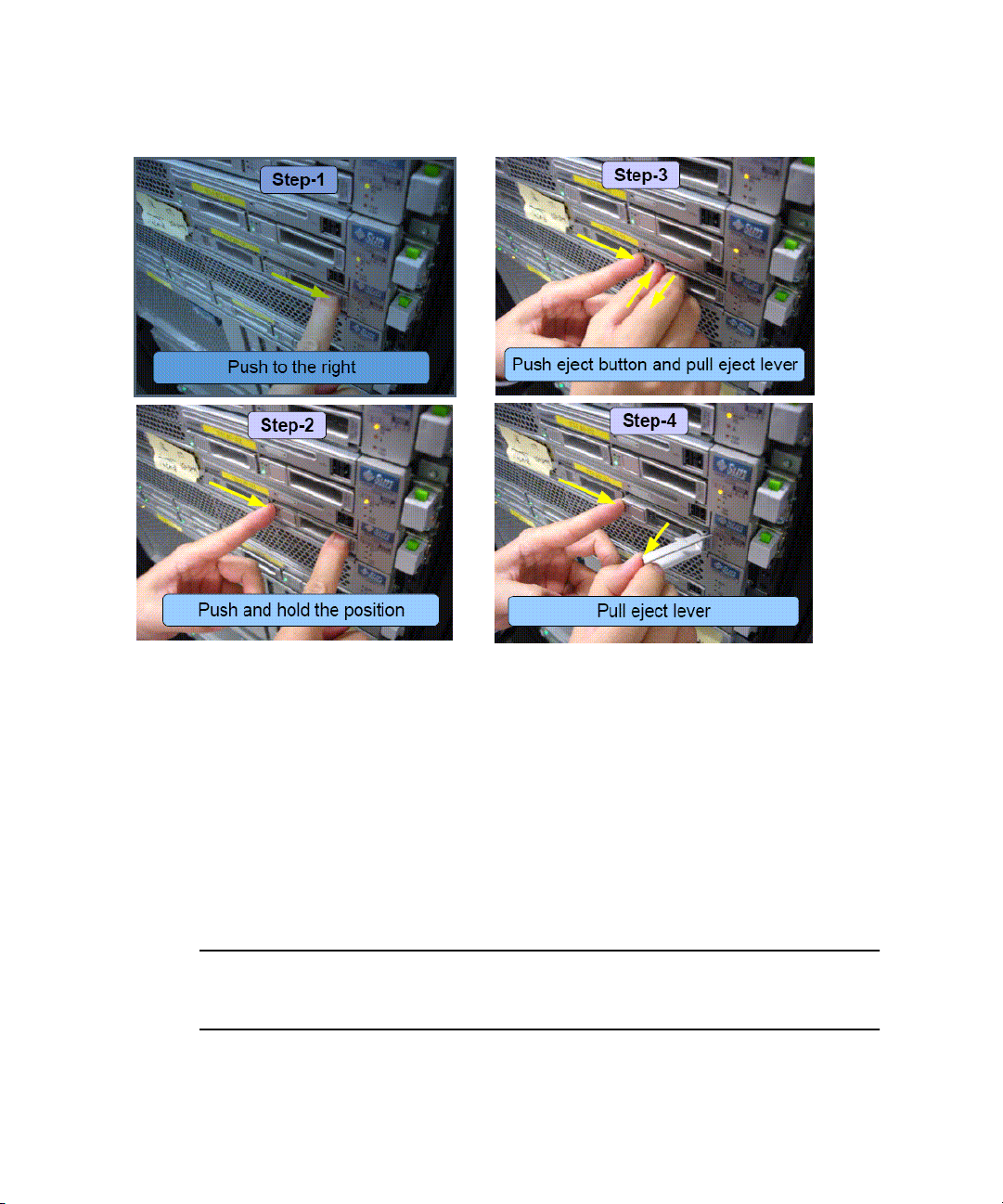
FIGURE 1 Removing Hard Drives From Right-Side Bays
32GB SSD Available for Sun Fire X4150
32GB solid state drives (SSDs) are now available for the Sun Fire X4150 server. Read
the following guidelines before installing SSDs on the server.
There are two configurations for SSDs on the Sun Fire X4150 server that are currently
supported:
■ “SSD Configuration With No SAS Drives Installed” on page 17
■ “SSD Configuration With SAS Drives Installed” on page 17
Note – Some of the procedures for cabling HDDs are documented in the Sun Fire
X4150 Server Service Manual. The service manual will be updated with more detailed
information on installing SSDs at a later date.
16 Sun Fire X4150 Server Product Notes • February 2010
Page 19

SSD Configuration With No SAS Drives Installed
Use the following guidelines for installing SSDs when you don’t plan to install
additional SAS drives:
■ The server must be running a minimum BIOS version 1ADQW057.
■ A maximum of 4 SSDs are currently supported.
■ Use cable kit (X)6389A to connect the SSD drives to the motherboard.
This kit needs to be ordered separately when the SSDs are ordered.
■ Use the following guidelines to install the SSDs:
For HDD slots 0-3:
■ Drives 0-3 plug into the Enterprise South Bridge (ESB) connection on the
motherboard.
■ SSDs or fillers must be used for drive slots 0-3.
■ No SAS HDD can be plugged into slots 0-3, as the ESB does not work with
SAS.
For HDD slots 4-7:
■ No drives can be installed in these slots.
■ Filler panels must be installed in these slots.
SSD Configuration With SAS Drives Installed
Use the following guidelines for installing SSDs when you do plan to install
additional SAS drives:
■ The server must be running a minimum BIOS version 1ADQW057.
■ A maximum of 4 SSDs can be installed.
■ Use cable kit (X)6388A and a SAS HBA to install the drives.
These items need to be ordered separately when the SSDs are ordered.
■ Use an HBA to connect the SATA drives.
■ Use the following guidelines to install the SSDs and additional drives:
For HDD slots 0-3:
■ Drives 0-3 plug into the Enterprise South Bridge (ESB) connection on the
motherboard, using the longer cable with the right angle disk backplane
connector from cable kit (X)6388A.
■ SSDs or fillers must be used for drive slots 0-3.
■ No SAS HDD can be plugged into slots 0-3, as the ESB does not work with
SAS.
For HDD slots 4-7:
Sun Fire X4150 Server Product Notes 17
Page 20

■ Slots 4-7 can be populated with SAS drives.
■ The backplane cable for drives 4-7 is plugged into HBA card port 0 using the
shorter cable from cable kit (X)6388A.
■ HBA port 1 is unpopulated.
Enabling Open I/O AT Feature in BIOS Setup Menu
If you are running Intel I/O AT test tool, you need to enable the feature in the BIOS
menu first.
● In the BIOS Setup menu, select Advanced -> PCI Configuration -> Crystal
Beach/DMA to enable the feature.
Serial Console Does Not Show the Host Reboot After the Sharing Owner Is Set in ILOM
When you change the serial port sharing owner in the ILOM WebGUI or CLI from
the SP to the host, the connect serial port connects, but you see no output.
This issue will be fixed in a future BIOS release.
▼ Workaround
Change the serial port sharing from SP to System using the BIOS menu directly, as
follows:
1. In the BIOS setup menu, select Server -> External Serial Port
2. Change the External Serial Port selection from “SP” to “System”.
Possible Firmware Update Needed for Qimonda DIMMs
If you are using the Qimonda Memory 2GB/DDR2 HYS72T256421EFA-3S-C2, your
server must be running the one of following BIOS versions:
■ ILOM BIOS 1ADQW052. or later
■ ELOM BIOS 1ADQW027 or later
18 Sun Fire X4150 Server Product Notes • February 2010
Page 21

Identifying E0 Stepping Processors
If you have an E0 stepping processor installed in your system, the BIOS has already
been updated. If you receive an E0 stepping processor as a separate option, you can
identify the processor by the labeling on the box. Refer to
product codes that identify each E0 stepping processor.
Note – Prior to installing any supported E0 stepping CPU, you must first upgrade
the system to 1ADQW054 BIOS (for ILOM systems) or 1ADQW027 BIOS (for ELOM
systems). See “Tools and Drivers CD/DVD” on page 4 for more information.
TABLE 2 Product Code Identifiers for E0 Processors
Processor Selection E-0 Product Code
Dual-Core Intel Xeon X5260 processor (6MB L2, 3.33
GHz, 1333 MHz FSB, 80W), RoHS-5.
Quad-Core Intel Xeon E5410 processor (2x6MB L2,
2.33 GHz, 1333 MHz FSB, 80W), RoHS-5.
Quad-Core Intel Xeon E5440 processor (2x6MB L2,
2.83 GHz, 1333 MHz FSB, 80W), RoHS-5.
Quad-Core Intel Xeon X5460 processor (2x6MB L2,
3.16 GHz, 1333 MHz FSB, 120W), RoHS-5.
Quad-Core Intel Xeon L5420 processor (2x6MB L2,
2.5 Ghz, 1333 MHz FSB, 50W), RoHS-5.
Quad-Core Intel Xeon E5450 processor (2x6MB L2,
3.0 GHz, 1333 MHz FSB, 80W), RoHS-5.
Dual-Core Intel Xeon X5270 processor (6MB L2, 3.5
Ghz, 1333 MHz FSB, 80W), RoHS-5.
Quad-Core Intel Xeon L5430 processor (2x6MB L2,
2.66 Ghz, 1333 MHz FSB, 50W), RoHS-5.
Quad-Core Intel Xeon X5470 processor (2x6MB L2,
3.33 GHz, 1333 MHz FSB, 120W), RoHS-5.
AT80573KJ0936M
AT80574KJ053N
AT80574KJ073N
AT80574KJ087N
AT80574JJ060N
AT80574KJ080N
AT80573KJ1006M
AT80574JJ067N
AT80574KJ093N
TABLE 2 for a listing of the
BIOS Serial Port Default Settings Have Changed for Tools and Drivers CD 1.3.1
The BIOS serial port default settings have changed in the Tools and Drivers CD 1.3.1
firmware update. If you are using the serial console, you might need to change your
default settings.
Sun Fire X4150 Server Product Notes 19
Page 22

Prior to the 1.3.1 release, the default settings were COM2/TTYB/115200 and this
version of the firmware changes these to the more accepted defaults of
COM1/TTYA/9600. If you have reconfigured an existing installation to match the
previous defaults of COM2/TTYB/115200, you will need to change your settings.
Note – For new installations of Solaris 10 8/07 or Solaris 10 5/08 with this firmware
update already applied, you do not need to make these changes.
If the serial console was configured and running to display output of the OS on any
release prior to 1.3.1, the OS output will no longer be displayed unless the changes
are made prior to updating the firmware. The following sections contain instructions
for changing the serial console settings for the firmware version that you are using:
■ “Red Hat Linux Enterprise Server (RHEL)” on page 20
■ “SuSE Linux Enterprise Server (SLES)” on page 21
■ “Solaris 10 OS” on page 23
Red Hat Linux Enterprise Server (RHEL)
Minimum versions for this procedure are RHEL 3.7 and RHEL 4.3.
Use the procedure that corresponds to the firmware version that you are using:
■ “Tools and Drivers CD Versions Earlier Than 1.3.1” on page 20
■ “Tools and Drivers CD Versions 1.3.1 or Later” on page 21
Tools and Drivers CD Versions Earlier Than 1.3.1
1. Use a text editor to edit the /etc/grub.conf file.
2. Append the following to the kernel boot parameter line:
console=tty1 console=ttyS1, 115200
For example, the new kernel boot parameter line should look similar to this:
kernel /vmlinux-2.x.x ro root=LABEL/1 rhgb quiet console=tty1
console=ttyS1, 115200
3. Edit /etc/securetty.
a. Add the ttyS1 to the bottom of the file.
b. Save and exit the file.
4. Edit /etc/inittab.
20 Sun Fire X4150 Server Product Notes • February 2010
Page 23

a. Change id:5:initdefault: to id:3:initdefault:
b. Under the section “Run gettys in standard runlevels” add the following as
the first line:
co:2345:respawn:/sbin/agetty ttyS1 115200 vt100B
c. Save and exit the file.
5. Reboot.
Tools and Drivers CD Versions 1.3.1 or Later
1. Use a text editor to edit the /etc/grub.conf file.
2. Append the following to the kernel boot parameter line:
console=tty0 console=ttyS0, 9600
For example, the new kernel boot parameter line should look similar to this:
kernel /vmlinux-2.x.x ro root=LABEL/1 rhgb quiet console=tty1
console=ttyS0, 9600
3. Edit /etc/securetty.
a. Add the ttyS0 to the bottom of the file.
b. Save and exit the file.
4. Edit /etc/inittab.
a. Change id:5:initdefault: to id:3:initdefault:
b. Under the section “Run gettys in standard runlevels” add the following as
the first line:
co:2345:respawn:/sbin/agetty ttyS0 9600 vt100B
c. Save and exit the file.
5. Reboot.
SuSE Linux Enterprise Server (SLES)
Minimum versions for this procedure is SLES 10 SP1 64-bit.
Use the procedure that corresponds to the firmware version that you are using:
■ “Tools and Drivers CD Versions Earlier Than 1.3.1” on page 22
■ “Tools and Drivers CD Versions 1.3.1 or Later” on page 22
Sun Fire X4150 Server Product Notes 21
Page 24

Tools and Drivers CD Versions Earlier Than 1.3.1
1. Use a text editor to edit the /boot/grub/menu.lst file.
2. Append the following to the kernel boot parameter line:
console=ttyS1, 115200
For example, the new kernel boot parameter line should look similar to this:
kernel /boot/vmlinux root=/dev/sda2 resume=/dev/sdal
splash:silent showps console=tty0 console:ttyS1, 115200
3. Edit the /etc/securetty file.
a. Add ttyS1 to the bottom of the file.
b. Save and exit the file.
4. Edit the /etc/inittab file.
a. Change id:5:initdefault: to id:3:initdefault:
b. Under “getty-programs for normal runlevels” add the following line:
S0:12345:respawn:/sbin/agetty -L 115200 ttyS1 vt100
5. Save and exit the file.
6. Reboot.
Tools and Drivers CD Versions 1.3.1 or Later
1. Use a text editor to edit the /boot/grub/menu.lst file.
2. Append the following to the kernel boot parameter line:
console=ttyS0, 9600
For example, the new kernel boot parameter line should look similar to this:
kernel /boot/vmlinux root=/dev/sda2 resume=/dev/sdal
splash:silent showps console=tty0 console:ttyS0, 9600
3. Edit the /etc/securetty file.
a. Add ttyS0 to the bottom of the file.
b. Save and exit the file.
4. Edit the /etc/inittab file.
a. Change id:5:initdefault: to id:3:initdefault:
22 Sun Fire X4150 Server Product Notes • February 2010
Page 25

b. Under “getty-programs for normal runlevels” add the following line:
S0:12345:respawn:/sbin/agetty -L 9600 ttyS0 vt100
5. Save and exit the file.
6. Reboot.
Solaris 10 OS
Use the procedure that corresponds to the firmware version that you are using:
■ “Tools and Drivers CD Versions Earlier Than 1.3.1” on page 23
■ “Tools and Drivers CD Versions 1.3.1 or Later” on page 23
Tools and Drivers CD Versions Earlier Than 1.3.1
1. Edit the /boot/solaris/bootenv.rc file to read:
setprop console “ttyb”
setprop ttyb-mode 115200,8,n,1,-
2. Edit the /boot/grub/menu.lst file to read:
kernel /platform/i86pc/multiboot -B console=ttyb
3. Edit the /kernel/drv/asy.conf file and add the following:
name=”asy” parent=”isa” reg=1,0x2f8,8 interrupts=3;
4. Edit the /var/svc/manifest/system/console-login.xml file to read:
<propval name=’label’ type=’astring’ value=’115200’/>
5. Save and exit the file.
6. Reboot the system using the following command:
reboot -r
Tools and Drivers CD Versions 1.3.1 or Later
1. Edit the /boot/solaris/bootenv.rc file to read:
setprop console “ttya”
setprop ttya-mode 9600,8,n,1,-
2. Edit the /boot/grub/menu.lst file to read:
kernel /platform/i86pc/multiboot -B console=ttya
Sun Fire X4150 Server Product Notes 23
Page 26

3. Edit the /kernel/drv/asy.conf file and add the following:
name=”asy” parent=”isa” reg=1,0x2f8,8 interrupts=3;
4. Edit the /var/svc/manifest/system/console-login.xml file to read:
<propval name=’label’ type=’astring’ value=’9600’/>
5. Save and exit the file.
6. Reboot the system using the following command:
reboot -r
Use of the F12 Key with Remote Keyboard
When using a remote keyboard (a keyboard other than one that is locally connected
to the system) with the Sun Blade X4150 server, pressing the F12 key opens the BIOS
Setup Menu.
Note – Use Ctrl+N on a remote keyboard to enter a PXE menu instead of pressing
F12. If you accidentally press F12, you will enter the BIOS Setup Menu.
This issue will be fixed with the ILOM update of Sun Fire X4150 server.
Update LSI 3081E Firmware to the Latest Version
Make sure that the LSI 3081E SAS HBA firmware is up to date.
Use the latest LSI 3081E firmware found on the Tools and Drivers CD version 1.3.2
or later, which can be downloaded from:
http://www.sun.com/servers/x64/x4150/downloads.jsp
DIMM Population Rules
■ DIMMs must be populated in identical pairs.
■ DIMM pairs are populated in the following DIMM slot order: A0/B0, C0/D0,
A1/B1, C1/D1, etc.
■ DIMMs within a given pair must be identical with respect to size, speed, and
organization.
24 Sun Fire X4150 Server Product Notes • February 2010
Page 27

However, DIMM capacities can be different between different DIMM pairs. For
example, a valid mixed DIMM configuration may have 1GB DIMMs installed in
DIMM Slots A0/B0, and 2GB DIMMs installed in DIMM slots C0/D0.
DIMMS should be installed with the largest module pair size first. For example, (4)
4GB DIMMs and (4) 2GB DIMMS should be installed as follows: A0/B0=4G,
C0/D0=4G, A1/B1=2G, C1/D1=2G
Scripting the SP/BIOS Flash Process
The SP/BIOS flash process includes an “Update Successful” message when the
service processor (SP) flash finishes. This message signals the end of the SP flash
activity only. At this point in the process, the BIOS has not been flashed and
premature termination of the process (for example, a manual reboot) will result in
BIOS corruption. To avoid corrupting the BIOS review the flash sequence below:
Note – Before writing a script to flash the BIOS/SP remotely, observe the sequence
in real-time and test the script on a single system before updating all systems.
1. SP begins the flash process.
2. SP completes the flash process.
3. CLI returns an Update Successful message.
4. The system reboots and the BIOS begins the flash process.
5. The BIOS flash process finishes.
Front USB Port Cable Limitations
The front panel USB ports support only a 3-meter cable to an attached device.
Prevent Inadvertent Disconnection of the DVD Assembly When Removing USB Front Panel Devices
The DVD/USB container assembly can be inadvertently disconnected from the disk
backplane when a direct-connect USB device or USB cable is pulled from a front
panel USB port.
Sun Fire X4150 Server Product Notes 25
Page 28

Workaround
Apply counter-pressure to the DVD assembly when removing a USB device. In
addition, do not remove a USB device when the DVD is operating. This issue will be
addressed in the future with a redesigned DVD assembly.
Important Note on Inserting a Hard Disk Drive
When inserting a hard disk drive, do not extend the lever past 70 degrees. If the
lever is extended past 70 degrees on insertion there is a risk that the right most tab
will break off. The end result of accidentally breaking off the tab is purely cosmetic—
the drive will still function properly if fully inserted.
System Management Issues
With Tools and Drivers CD 2.0, you now have the option to install either ELOM or
ILOM system management software on your system.
Refer to the following documentation for additional information on system
management for the Sun Fire X4150 server:
■ ELOM information: Embedded Lights Out Manager Administration Guide for the Sun
Fire X4150 Server
■ ILOM information: Integrated Lights Out Manager 2.0 User’s Guide
■ ELOM to ILOM transition: ELOM-to-ILOM Migration User’s Guide
The issues in this section fall into one of three categories:
■ “ILOM 3.0 Issues” on page 26
■ “ILOM and ELOM System Management Issues” on page 28
■ “ELOM System Management Issues” on page 34
■ “ILOM System Management Issues” on page 36
ILOM 3.0 Issues
The following issues are specific to ILOM 3.0. Additional ILOM 3.0 information is
available in Sun Integrated Lights Out Manager (ILOM) Feature Updates and Release
Notes. This document is available at:
http://docs.sun.com/app/docs/coll/ilom3.0
26 Sun Fire X4150 Server Product Notes • February 2010
Page 29

The System Shuts Down When CPU Temperature Rises Without SEL or LED Notification (6790299)
When the CPU temperature reaches its upper critical limit, the system shuts down,
though there is no event logged in the system event log (SEL) and the Tempfail LED
does not light.
Do Not Start New Flash Process While SP Is Already in a Flash Process (6778713)
While the SP is being updated (flashed), do not start a new flash process. Wait until
the current flash is completed before you start a new one.
ILOM Update To or From ILOM 3.0 Causes BIOS Version to Not Be Viewable (6789995)
When ILOM is downgraded from ILOM 3.0 to ILOM 2.0 or upgraded from ILOM 2.0
to 3.0, the BIOS version might not appear in the Firmware Upgrade section of the
web interface.
viewable in the Firmware Upgrade section of the ILOM web interface.
TABLE 3 indicates when you can expect to see the BIOS version
TABLE 3 When BIOS Viewable in Web Interface
ILOM State
Upgraded from 2.0 to 3.0 Optional No Yes
Downgraded from 3.0 to 2.0 Mandatory No No
BIOS Update
Required?
Existing BIOS Version
Viewable in Web
Interface?
New BIOS Version
Viewable in Web
Interface?
Workaround
If you can not get the BIOS version from web interface while it is updating, you can
view the BIOS version connected with the ILOM version from these product notes.
See “Tools and Drivers CD/DVD” on page 4.
If the BIOS is currently running and not in update mode, you can obtain the BIOS
version from BIOS Setup utility or ILOM CLI.
Sun Fire X4150 Server Product Notes 27
Page 30

ILOM and ELOM System Management Issues
The issues in this section apply whether you are running ILOM or ELOM. The
following issues are included in this section:
■ “The SP Does Not Retain IP Information After Migrating to the Transitional
ELOM With Tools and Drivers CD 1.0 Firmware” on page 28
■ “Gateway Address Might Not Be Persistant Across Reboots” on page 29
■ “Changing the SP netmask Causes Routing Table Flush” on page 29
■ “Some Virtual USB Flash Devices Do Not Mount in Solaris OS” on page 29
■ “IPMITool 1.8.9.4 or Later Needed to Correctly Display Memory Errors” on
page 30
■ “The Sun Splash Screen in the Serial Console Does Not Display” on page 30
■ “SP Settings Might Revert to Factory Defaults After an Unsaved Update from the
Web GUI or CLI” on page 30
■ “Minimum Supported Version for a Remote Sparc System” on page 30
■ “Solaris Remote Console Session Requires Java Plugin” on page 31
■ “Pop-up Blocker Must Be Disabled to Run Remote Console on Firefox” on
page 31
■ “Remote Console and Virtual Devices on Solaris” on page 32
■ “No Java Support for Red Hat Enterprise Linux 5” on page 32
■ “Virtual Media Considered a USB Device” on page 32
■ “Enable Virtual CD-ROM During Bootup” on page 32
■ “OS Installation Over a Remote Console Requires Unmount and Remount of the
Virtual CD-ROM” on page 32
■ “OS Installation Stops During a Remount of the CD-ROM” on page 32
■ “Minimum Supported Browsers” on page 33
■ “Configuring Java Runtime Environment for Each Browser” on page 33
■ “Streaming Video and KVMS Over IP” on page 33
■ “CD-ROM Direction Must Be Enabled for Floppy Redirection to Work (6666094)”
on page 34
The SP Does Not Retain IP Information After Migrating to the Transitional ELOM With Tools and Drivers CD 1.0 Firmware
This issue applies to the ELOM to ILOM migration process.
28 Sun Fire X4150 Server Product Notes • February 2010
Page 31

If you migrate to the transitional ELOM from the firmware provided in Tools and
Drivers CD release 1.0 (BIOS 1ADQW011 and SP 0.88), the SP will not retain IP
information after migrating to the transitional ELOM.
Workaround
After updating transitional ELOM, log in to the CLI via serial console and fix the IP
address in /SP/network.
You can then can continue with the migration to ILOM process.
Refer to the ELOM-to-ILOM Migration User’s Guide for more information on the
migration process.
Gateway Address Might Not Be Persistant Across Reboots
The Gateway address in the SP might not be persistent across SP reboots (power
cycles). Make sure that the Gateway address is persistent by power cycling the SP
(remove AC power, then power up the system) and checking if the Gateway address
is retained. If it is not, then you must set the Gateway address via the CLI.
If the Gateway address is not persistent, then upon the reboot to the transitional
ELOM during an ILOM update, the SP might not be reachable.
Changing the SP netmask Causes Routing Table Flush
If you change the IP address or netmask of the service processor (SP), the routing
table changes after you update the SP network configuration. Therefore, you need to
re-enter the gateway information or reset the SP.
Some Virtual USB Flash Devices Do Not Mount in Solaris OS
For some USB flash devices, the virtual device appears to be mounted in the ELOM,
but is not actually be mounted.
This issue is under investigation.
Sun Fire X4150 Server Product Notes 29
Page 32

IPMITool 1.8.9.4 or Later Needed to Correctly Display Memory Errors
ipmitool 1.8.9.4 can be obtained from utilities/ipmitool directory from
Tools and Drivers CD.
The Sun Splash Screen in the Serial Console Does Not Display
When booting the system with the console output directed to the serial port, the Sun
splash screen will not appear and you will not see the prompt to press F2 to enter
the BIOS Setup utility. Use the following procedure to disable the Sun splash screen:
▼ Disabling the Sun Splash Screen
1. Press the F2 key to enter the BIOS Setup Utility.
2. Select Boot -> Boot Setting Configuration.
3. Set the boot setting to quiet boot - disable.
This will enable a prompt to press F2.
SP Settings Might Revert to Factory Defaults After an Unsaved Update from the Web GUI or CLI
When updating the SP from the server management web GUI or CLI, be sure to use
the SaveFlag (CLI) or Save Configuration (web GUI) commands to save the updated
information. If not, the factory default settings will be used instead. For example, if
static IP addressing is configured for the SP and a future update to the SP
configurations was not saved, the SP may revert to the default of DHCP addressing.
Minimum Supported Version for a Remote Sparc System
When running the web GUI from a Sparc-based system, Solaris 10 OS is the
minimum version that is supported.
30 Sun Fire X4150 Server Product Notes • February 2010
Page 33

Solaris Remote Console Session Requires Java Plugin
When you launch a Remote Console session on a Solaris system, the system prompts
you for a decision regarding the javaRKVM.jnlp file. You have the following two
options:
● If you are logged in as root, choose the option to open this file with its default
application.
● If you are logged in as a user other than root, do the following:
1. Choose the option to save the file.
2. The javaRKVM.jnlp file will be downloaded and must be run manually.
The download manager will display the location of this file.
3. Move the javaRKVM.jnlp file to the /tmp directory.
% mv /location_of_javaRKVM.JNLP/javaRKVM.JNLP /tmp
Where location_of_javaRKVM.JNLP is the directory where javaRKVM.JNLP
resides.
4. To find the location of the javaws application, type the following in a terminal
window:
% which javaws
5. Execute the following command from the terminal window:
% /location_of_javaws /javaws /tmp/javaRKVM.JNLP
Where location_of_javaws is the directory where javaws resides.
For example, assume the javaws application is run from the /usr/bin directory:
% /usr/bin/javaws /tmp/javaRKVM.JNLP
This will open a Remote Console session. Once the remote console window is
closed, the /tmp/javaRKVM.jnlp is removed.
Pop-up Blocker Must Be Disabled to Run Remote Console on Firefox
If you have a pop-up blocker enabled in the browser that is running the Remote
Console through the ELOM web GUI, the Remote Console is blocked from
launching on Firefox. If you do not see the Remote Console, check to see if the built
in pop-up blocker has blocked it.
Sun Fire X4150 Server Product Notes 31
Page 34

Remote Console and Virtual Devices on Solaris
If you are running Solaris on your Remote Console system, you must log into the
operating system as root (superuser) to mount any virtual devices.
No Java Support for Red Hat Enterprise Linux 5
There is no Java support for Red Hat Enterprise Linux 5.
Virtual Media Considered a USB Device
Virtual media will be considered as a USB device, and will be listed as CD-ROM
device. This setting will over-rule the CD-ROM currently set.
Enable Virtual CD-ROM During Bootup
In order to enable virtual CD-ROM during bootup:
▼ Enabling Virtual CD-ROM During Bootup
1. Press F2 to enter into BIOS menu.
2. Select Boot -> CD/DVD Drives.
3. Select Virtual CDROM as the first drive.
OS Installation Over a Remote Console Requires Unmount and Remount of the Virtual CD-ROM
When installing an operating system remotely using an RKVMS session, each CD
request from an installation requires the user to unmount and mount the virtual CDROM. When a virtual CD is ejected, the OS treats it as a USB device removal, and the
CD must be mounted again to continue the installation.
OS Installation Stops During a Remount of the CD-ROM
The remounting of the CD during an operating system installation causes an error
and the OS cannot access the CD. This will be fixed in a future release.
32 Sun Fire X4150 Server Product Notes • February 2010
Page 35

Minimum Supported Browsers
The following table shows the minimum versions that are supported for running the
ELOM web GUI for the Sun Fire X4150 server on Solaris OS, Linux and Windows
operating systems.
TABLE 4 Version Numbers for Browsers
Solaris x86 RHEL 32-bit RHEL 64-bit SLES 32-bit SLES 64-bit Windows
Mozilla 1.7 1.7.12 1.7.13 1.7.8 1.7.13 N/A
Firefox 1.5.0.4 1.0.7 1.5.0.4 1.5.0.4 1.5.0.4 1.5.0.4
Internet
Explorer
N/A N/A N/A N/A N/A
6
Configuring Java Runtime Environment for Each Browser
Java Runtime Environment (JRE) 5 Update 7 is the minimum supported version for
the browsers to run the ELOM web GUI. Follow the steps below to download the
JRE 5 Update 7 for Mozilla and Firefox browsers.
▼ Configuring the Java Runtime Environment
1. Go to the following URL:
http://www.java.sun.com/
2. Click on the Get Java Software button.
3. Click Download Now in the new window that opens.
The web site displays the appropriate plug-in options for the operating system
that you are running.
4. Click Download to download the appropriate plug-in.
Installation instructions and plug-in verification are also available on this site.
Streaming Video and KVMS Over IP
The keyboard, video, mouse and storage (KVMS) over IP feature of the ELOM SP is
designed for administering your system. Applications requiring heavy video
bandwidth (for example, watching videos) will not perform well with KVMS over IP.
Sun Fire X4150 Server Product Notes 33
Page 36

CD-ROM Direction Must Be Enabled for Floppy Redirection to Work (6666094)
Before attempting a floppy device/floppy image redirection in the Remote Console,
you must first redirect the CDROM device or CDROM image and leave it redirected
while the floppy is redirected.
ELOM System Management Issues
The issues in this section apply to ELOM. The following issues are included in this
section:
■ “ELOM Does Not Allow Passwords With Non-alphanumeric Characters” on
page 34
■ “Set Local Clock With Every SP Reset” on page 34
■ “IPMItool 1.8.8 Returns Incorrect Memory Information” on page 35
■ “IPMItool Commands Might Not Be Able to Establish a Network Connection to
the SP” on page 35
■ “Disabling the Web Interface Time-out Function” on page 35
■ “Remote Console Mouse Performance on Solaris OS” on page 36
■ “Mounting a CD-ROM Does Not Work Properly if Run from a Sun Fire X4150
System” on page 36
■ “Cannot Issue Solaris OS Break Command Through Serial Console” on page 36
ELOM Does Not Allow Passwords With Nonalphanumeric Characters
Passwords for the ELOM must be alphanumeric only. A fix is planned for a later
release of the firmware.
Set Local Clock With Every SP Reset
When SP is reset, the system clock is set back to 1970/1/1 00:00. The SP clock will
not reset unless the OS is booted.
▼ Workaround
1. Log in to the ELOM web GUI.
34 Sun Fire X4150 Server Product Notes • February 2010
Page 37

2. Click the Configuration main tab.
3. Click the Clock Setting submenu tab.
4. Select the NTP server radio button for clock synchronization.
5. Enter the NTP server IP address in the IP address field.
6. Click Submit.
IPMItool 1.8.8 Returns Incorrect Memory Information
Direct Reading of the SPD memory is not supported in IPMItool 1.8.8. Using the
IPMItool fru print command will result in a return of incorrect memory
information. An updated IPMItool utility is required for this to work properly.
Software support has been added for the server.
IPMItool Commands Might Not Be Able to Establish a Network Connection to the SP
If the SP firmware becomes corrupt, IPMItool commands might not complete or fail
to establish a LAN session connection.
Workaround: Using the SP update utility on the Tools and Drivers CD, reflash the SP
firmware using the following command.
upfw s92xxx.bin
Where xxx is the current version of the SP firmware.
Note – This will set the SP back to factory defaults and will remove all current
settings, including users and permissions and rules. Use this procedure with
caution.
Disabling the Web Interface Time-out Function
It is best to disable the web GUI time-out function when performing remote
installations.
▼ Disabling the Web Interface Time-out Function
1. Login to the ELOM web GUI.
Sun Fire X4150 Server Product Notes 35
Page 38

2. Click the Control Tab.
3. Set timeout to disabled.
Remote Console Mouse Performance on Solaris OS
When running the Remote Console on the Solaris 10 operating system, the mouse
performance might be slow. To fix this issue:
1. Log in to the ELOM web GUI and start the Remote Console.
2. Using the Remote Console window, run the following in a Solaris terminal
window on the Sun Fire X4150 system:
type ‘xset m 1 1’
The mouse performance issue should be resolved.
Mounting a CD-ROM Does Not Work Properly if Run from a Sun Fire X4150 System
Running an RKVMS session from a Sun Fire X4150 system running Solaris will not
allow the user to mount a Virtual Device. This must be done from a remote Solaris
system. This is being investigated.
Cannot Issue Solaris OS Break Command Through Serial Console
A Solaris OS break command entered through the ELOM serial console will not
work correctly.
Workaround
Either connect a monitor to the VGA port or initiate an web GUI remote console
session and enter the break command through one of those two methods.
ILOM System Management Issues
The issues in this section apply to ILOM. The following issues are included in this
section:
36 Sun Fire X4150 Server Product Notes • February 2010
Page 39

■ “Correctable Errors Incorrectly Listed in the ILOM SEL as a Critical Error” on
page 37
■ “Must Be Physically Present When Logging Into Serial Console With the Default
Account” on page 37
■ “Time on SP Resets to January 1, 1970, When the System is Power-Cycled
(6739395, 6739868)” on page 37
■ “Selecting the Web Interface Time-out Duration” on page 38
■ “Selecting Mouse Mode Settings According to Host OS” on page 38
■ “Switch Control Between Local Mouse and Host Mouse” on page 38
Correctable Errors Incorrectly Listed in the ILOM SEL as a Critical Error
Correctable errors detected by the background scrubber in ILOM: 3.0.3.30 build
r48374 are incorrectly listed in the ILOM system event log (SEL) as a critical error
with the following description:
Memory Scrub Failed
These messages are caused by Correctable ECC Error, which should have a severity
of minor, not critical. This SEL message will be fixed in a future release.
Must Be Physically Present When Logging Into Serial Console With the Default Account
Physical presence is required when you try to log in with default account from the
serial console. You will need to press the Locate button twice for the system to
recognize your physical presence.
Time on SP Resets to January 1, 1970, When the System is Power-Cycled (6739395, 6739868)
ILOM stores the time in a file every 15 minutes. After the system reboots, the time is
restored to whatever time was last written to that file plus a small delta. So in most
cases, major events have timestamps that are monotonically increasing.
During the boot process, the date might temporarily be displayed as January 1, 1970.
This will automatically change to the current time once the boot process reaches the
timestamp file check.
Sun Fire X4150 Server Product Notes 37
Page 40

▼ Selecting the Web Interface Time-out Duration
It is best to select the web interface time-out duration when performing remote
installations. To choose the web interface time-out duration:
1. Login to the ILOM web interface.
2. Click the System Information Tab and click the Session Time-out Tab.
3. Set timeout to be 15 minutes, 30 minutes, 1 hour, or 3 hours.
4. Click apply.
▼ Selecting Mouse Mode Settings According to Host OS
You need to select the correct mouse mode corresponding to the host OS in order for
your local mouse to manage the host remotely via the ILOM web interface.
1. Select the appropriate mouse mode:
■ Select Absolute mouse mode if your host is running Windows OS or Solaris.
■ Select Relative mouse mode for Linux OS.
2. Reset the SP to apply this change.
Switch Control Between Local Mouse and Host Mouse
In order to switch control between local mouse and host mouse, you can press
“Alt +m”.
Diagnostics Issues
The following topics are contained in this section:
■ “SunVTS Issues” on page 38
■ “Pc-Check Issues” on page 39
SunVTS Issues
The following issue applies to SunVTS diagnostics software.
38 Sun Fire X4150 Server Product Notes • February 2010
Page 41

SunVTS 7.0 ps2 Does Not Support Network Loopback Testing
Running the "Network" test on the X4150 platform will fail due to lack of support in
Solaris OS for the ESB-2 NIC loopback operations.
This will be fixed in a future version of SunVTS 7.0.
Pc-Check Issues
The following issues apply to the Pc-Check diagnostics software.
The following issues are contained in this section:
■ “Pc-Check Fails to Identify RAID Devices” on page 39
■ “Pc-Check Will Hang When Running Keyboard LED Test” on page 39
■ “Serial Port Test Fails” on page 40
■ “Selecting StandBy Power in APM Menu Fails to Recover” on page 40
■ “Keyboard Input Lost After Running USB Controller Test” on page 40
■ “System Hangs After Interrupt Controller Test” on page 40
■ “User Has to Agree to the Licensing Terms Every Time” on page 40
Pc-Check Fails to Identify RAID Devices
After creating a RAID 1 device in the BIOS, the Pc-Check diagnostics software fails
to identify the device as a RAID device. Pc-Check cannot identify that the device is a
RAID device, but Pc-Check can run all HDD tests.
Pc-Check Will Hang When Running Keyboard LED Test
The text for the keyboard LED test is not included in the diagnostics scripts. It can
only can be run manually. This issue is under investigation and you should not
attempt to run this test until a fix is available.
Sun Fire X4150 Server Product Notes 39
Page 42

Serial Port Test Fails
This issue is under investigation and you should not attempt to run this test until a
fix is available.
Selecting StandBy Power in APM Menu Fails to Recover
This issue is under investigation and you should not attempt to run this test until a
fix is available.
Keyboard Input Lost After Running USB Controller Test
This issue is under investigation and you should not attempt to run this test until a
fix is available.
System Hangs After Interrupt Controller Test
This issue is under investigation and you should not attempt to run this test until a
fix is available.
User Has to Agree to the Licensing Terms Every Time
This issue is under investigation.
Sun Installation Assistant Issues
The following issues are related to the use of Sun Installation Assistant (SIA) for
installing an OS on the server:
“Full Power Cycle Needed After Expander Firmware Upgrade (6900072)” on page 41
40 Sun Fire X4150 Server Product Notes • February 2010
Page 43

■ “Minimum SIA Version Required For Windows Server 2008” on page 41
■ “SIA Installation Fails If the .iso Image Is Too Large” on page 42
■ “RHEL 5.2 Installation Fails With dmraid” on page 42
■ “Installing Windows 2003 Using SIA From a NFS Share or FTP Share Does Not
Work” on page 42
■ “Monitor Resolution Might Need to be Reset After Installing Linux Using SIA” on
page 42
■ “Unusable Network Drivers for RHELv5.1 64-bit With Sun Installation Assistant”
on page 43
Full Power Cycle Needed After Expander Firmware Upgrade (6900072)
The SIA 2.3 User ’s Guide states:
How to Upgrade Expander Firmware
After selecting the expander(s) to upgrade, click Next.
Follow the on-screen instructions until the upgrade has completed. Upgraded code
will not be used by the system until after a reboot.
Note – To ensure that the expander firmware upgrade will take effect, after the
upgrade has completed, unplug the power cord and plug it back in.
Minimum SIA Version Required For Windows Server 2008
In order to install Windows Server 2008 on a Sun Fire X4150 server using SIA, you
will need to use SIA version 2.2.1 or later.
For further information on using SIA to install an operating system onto the server,
see Sun Installation Assistant for Windows and Linux User’s Guide available on
http://docs.sun.com.
Sun Fire X4150 Server Product Notes 41
Page 44

SIA Installation Fails If the .iso Image Is Too Large
If the .iso image size of the operating system being installed is bigger than the
/tmp file size, the SIA installation will fail.
This only occurs if the http or ftp installation method is used.
RHEL 5.2 Installation Fails With dmraid
Red Hat Enterprise Linux (RHEL) 5.2 installation via SIA fails when disks with
legacy dmraid information are used.
Workaround
Use a clean RHEL disk without legacy dmraid information.
Installing Windows 2003 Using SIA From a NFS Share or FTP Share Does Not Work
Installing Windows 2003 from a NFS share or FTP share does not work with SIA.
Note – This is planned to be fixed in a future release of SIA.
Monitor Resolution Might Need to be Reset After Installing Linux Using SIA
For most Linux installations using SIA, the monitor resolution will need to be reset
during the first-time-boot configuration, which runs after the OS installation is
completed.
To reset the monitor resolution:
1. Configure the type (make/model) of the monitor.
2. Set the correct monitor resolution.
42 Sun Fire X4150 Server Product Notes • February 2010
Page 45

Unusable Network Drivers for RHELv5.1 64-bit With Sun Installation Assistant
After installing and configuring Red Hat Enterprise Linux (RHEL) v. 5.1 (64-bit), the
network devices are there and mapped as expected, but the interfaces are nonfunctional.
This issue occurs with the following configuration:
■ Network cables are not plugged into all NICs.
If the network cables are plugged in all NICs, this problem does not occur.
■ User chooses to activate all NICs on boot.
If user chooses to activate only the NIC with network cable plugged, this problem
will not occur.
■ User configures all NICs with static IP addresses.
This problem will not occur if DHCP is chosen.
■ User configures the same network/gateway for all NICs.
If different networks are configured for different NICs, this problem is not seen.
▼ Workaround
After booting the installed system, perform the following:
1. Log in as root.
2. Enter the ifdown command for all the interfaces.
ifdown eth0
ifdown eth1
ifdown eth2
ifdown eth3
3. Enter the ifup command for the interface with network cable plugged in.
For example:
ifup eth0
At this point, the network should be up and running.
4. To make this configuration persistent across reboots, you can make only the
interface with network cable active on boot by doing the following:
a. Change to the network-scripts directory.
cd /etc/sysconfig/network-scripts
Sun Fire X4150 Server Product Notes 43
Page 46

b. For the NICs that are not being used, edit the cfg-eth[1...n] file and change
the line ONBOOT=yes to ONBOOT=no.
Note – Keep the ONBOOT=yes setting for the NIC with the network cable.
44 Sun Fire X4150 Server Product Notes • February 2010
Page 47

Solaris OS Issues
This section contains issues that apply to Sun Fire X4150 servers running the Solaris
10 operating system.
Issues contained in this section:
■ “Do Not Install the STK 15872 Driver for Solaris 10 5/09” on page 45
■ “Performing an Initial Installation of Solaris 10 8/07 With 5200/5400 Xeon
Processors Installed” on page 45
■ “Kernel Panic Might Occur During Reboot on Solaris 10 11/06 OS Systems if
More Than One HDD Is Present” on page 47
■ “Solaris 10 OS PreInstall Issues” on page 47
■ “Telnet Vulnerability” on page 48
■ “Solaris Xserver and NIC Interfaces” on page 48
■ “Some KVM Switches Out of Sync Following a Solaris OS Installation” on page 48
Do Not Install the STK 15872 Driver for Solaris 10 5/09
Do not install the driver from the Tools and Drivers CD if you are running Solaris 10
5/09. The Sun StorageTek RAID driver is included in the Solaris 10 5/09
distribution. The STK 15872 driver on the Tools and Drivers CD can be used for
previous versions of Solaris.
Performing an Initial Installation of Solaris 10 8/07 With 5200/5400 Xeon Processors Installed
For Solaris 10 8/07 to operate on the server with 5200 or 5400 Xeon processors, two
patches are required for the OS to boot: 125370-06 and 127112-05. 125370-06 and
127112-05 are the minimum revisions required, but it is recommended that you
apply the latest revisions of these patches.
Note – 125370 also requires the following additional patches: 118344-14, 123840-04
(or greater) and 127112 requires the following additional patches: 118344-14,11885536, 118919-21, 120012-14, 123840-04, 125370-06 (or greater).
Sun Fire X4150 Server Product Notes 45
Page 48

After installing the OS, the system will not boot into Solaris normally until the
required patches are applied. To be able to install the patches, you need to boot the
system into 32-bit mode instead of the normal 64-bit mode.
▼ Booting Into 32-bit mode and Applying the Patches
1. After installing the Solaris OS, let the system reset normally, remove the
Solaris CD/DVD (if inserted), and wait for the system to present the GRUB
menu.
2. At the GRUB menu, before the menu times out and automatically attempts to
boot the newly installed operating system, use the arrow keys to highlight the
Solaris 10 8/07 s10x_u4wos_12b X86 entry and press e to edit this boot
command.
A second menu with two choices appears.
3. Highlight the line containing kernel /platform/i86pc/multiboot and
press e again to edit the entry.
You will now be able to edit the boot command.
4. Add kernel/unix to the end of the line so it looks like this:
grub edit> kernel /platform/i86pc/multiboot kernel/unix
5. Press Return, highlight the command that you just edited, and then press b to
boot into Solaris 32-bit mode.
6. After Solaris finishes booting, log in and download the latest 125370 and 127112
patches to the system from http://sunsolve.sun.com/.
7. Now since the kernel patch should be installed in single user mode halt the
system and perform the same steps as above to edit the GRUB boot command
but this time edit the line so that it looks like this:
grub edit> kernel /platform/i86pc/multiboot kernel/unix -s
This will boot the system into 32-bit single user mode.
The system will prompt for the root password, and then give you a shell prompt.
8. At the prompt, run the following commands to add the patches, in this order, as
there are dependencies.
a. patchadd 125370-xx
b. patchadd 127112-xx
Where xx is the latest version of each patch.
9. When the patches are finished installing, reboot the server.
46 Sun Fire X4150 Server Product Notes • February 2010
Page 49

You should now be able to let the system boot normally into 64-bit Solaris OS.
When Solaris 10 5/08 is released, these steps will not be necessary, since the required
patches will have been integrated into this updated release.
Kernel Panic Might Occur During Reboot on Solaris 10 11/06 OS Systems if More Than One HDD Is Present
This error may occur on the Sun Fire X4150 server running Solaris 10 11/06 OS with
more than one hard disk drive present:
Panic cannot mount root path.
Skipping System dump, no dump device configured
rebooting.....
This is a known issue and bug CR 6584147 is being actively worked on for a
resolution.
Workaround
A reboot of the system will clear this error.
In the rare case where the error is not cleared by a reboot, please boot into Single
User mode to clear the error and, once successfully booted, reboot the system.
Should this scenario also be unsuccessful in clearing the error, power off and boot
the system into Failsafe mode. Once in Failsafe mode, a reboot should clear the error.
Solaris 10 OS PreInstall Issues
The Sun Fire X4150 server with Solaris 10 11/06 OS has a number of patches
included to support the Sun StorageTek SAS controller. Please note that if the
preinstalled image is removed from HD0, you must use the Solaris Recovery DVD
supplied with the Sun Fire X4150 server to reinstall the operating system because it
includes support for your controller and hard disk drives. This issue will be resolved
with the Solaris 10 8/07 OS release.
Sun Fire X4150 Server Product Notes 47
Page 50

Telnet Vulnerability
Solaris 10 OS 6/06 and 11/06 distributions have telnet vulnerability issue in the
in.telnetd(1M) daemon that may allow unauthorized remote users to gain access to a
Solaris host. A patch is available on the Tools and Drivers CD v2.0. Patch 120069-02
addresses the Solaris 10 6/06 and 11/06 telnet vulnerability issue. Apply the patch
manually or run the install.sh script on all Solaris 10 6/06 and 11/06
distributions. For more information, please refer to Sun Security Alert 102802. This
patch will be incorporated into the Solaris preinstall image at a later date.
Solaris Xserver and NIC Interfaces
In order to start the Solaris Xserver, all of the configured network interface cards
(NIC) must be connected to the network. If a NIC is not configured, it does not need
to be connected.
Some KVM Switches Out of Sync Following a Solaris OS Installation
When installing Solaris 10 6/06 in a rack with a KVM switch, the monitor might go
out of sync when the xserver starts to log into the operating system.
▼ Workarounds
Any one of the following can be used as a workaround.
● Install the Solaris OS in text mode, then do the following:
a. Run the install.sh script from the Tools and Drivers CD.
b. Reboot the server.
Running install.sh resolves the issue, as it installs the updated AST2000 VGA
driver. See the Sun Fire X4150 Server Operating System Installation Guide, 820-1853,
for additional instructions on running the install.sh script for Solaris.
● Use KVMS over IP with the ELOM web GUI.
See the Embedded Lights-Out Management Administration Guide, 819-6588 , for
additional instructions on KVMS over IP.
● Install Solaris in GUI mode, then do the following:
a. Boot failsafe or kill the Xserver prior to starting.
48 Sun Fire X4150 Server Product Notes • February 2010
Page 51

b. Run the install.sh script on the Tools and Drivers CD.
See the Sun Fire X4150 Server Operating System Installation Guide, 820-1853, for
additional instructions on running the install.sh script for Solaris.
Linux Issues
The following issues apply to Sun Fire X4150 servers running the supported Red Hat
or SUSE Linux operating systems.
■ “Need to Install LSI Driver on SLES Systems Manually” on page 49
■ “Keystrokes Auto-Repeat” on page 49
■ “Mounting a Virtual USB Drive in RHEL5” on page 50
Need to Install LSI Driver on SLES Systems Manually
LSI drivers need to be manually installed on SLES systems.
▼ Installing the LSI Drivers Manually
1. Locate and download the LSI drivers from the Tools and Drivers CD.
a. Go to the \drivers\linux\RAID\LSI\drivers directory.
b. Copy the RHEL4_SLES9.tar.gz or RHEL5_SLES10.tar.gz file to your
system.
c. Unzip and untar the file and locate the mptlinux-xxx.rpm file.
2. Use the rpm -i mptlinux-xxxxx.rpm to install the driver.
The command install.sh will not install this driver.
Keystrokes Auto-Repeat
When typing characters on a Linux operating system running on the Sun Fire X4150
server, the keystrokes will auto-repeat. You can use the following workaround or
install an updated kernel from Red Hat, see RHSA-2006:0710-7 at the following URL:
Sun Fire X4150 Server Product Notes 49
Page 52

http://rhn.redhat.com/errata/RHSA-2006-0710.html
▼ Workaround
1. Select Preferences - > Keyboard from the desktop menu.
2. Uncheck the selection: keyboard repeats when key is held down.
▼ Mounting a Virtual USB Drive in RHEL5
1. Edit the file /usr/share/hal/fdi/policy/10osvendor/20storagemethods-fdii.
2. Search for the following string: "<match key="volume.fsusage" string=
"filesystem">", which precedes the following commands:
<append key="volume.mount.valid_options" type=
"strlist">codepage=</append>
<append key="volume.mount.valid_options" type=
"strlist">iocharset=</append>
<append key="volume.mount.valid_options" type="strlist">umask=
</append>
<append key="volume.mount.valid_options" type="strlist">uid=
</append>
</match>
</match>
3. Enter the following below the commands listed in step 2:
<!-- Added for the issue that virtual ISO image can’t be
shown -->
<!-- as an icon when this virtual device is inserted to REHL5
system -->
<match key="@block.storage_device:storage.vendor" string=
"Virtual">
<match key="@block.storage_device:storage.model" string=
"DVD/CD-ROM">
<match key="info.category" string="volume">
<match key="block.is_volume" bool="true">
<match key="volume.fsusage" string="">
<merge key="volume.fsusage" type="string">filesystem</merge>
<merge key="volume.fstype" type="string">iso9660</merge>
</match>
</match>
50 Sun Fire X4150 Server Product Notes • February 2010
Page 53

</match>
</match>
</match>
4. Reboot the system.
Windows Issues
The following issues apply to Sun Fire X4150 servers running the supported
Windows Server operating systems.
■ “LSI MegaRaid Storage Manager Does Not Work Properly With Intel Network
Connections in Windows 2003 64-bit” on page 51
■ “Adaptec Driver Cannot Be Updated With the Tools and Drivers CD v2.2.1 (and
earlier) Auto Install” on page 52
■ “Installing the Operating System to Enable Reburn Test” on page 52
■ “Initial Setup of the Factory-Installed Windows Server 2003 R2 Operating
System” on page 52
■ “Recovering the Windows Server 2003 Operating System” on page 53
LSI MegaRaid Storage Manager Does Not Work Properly With Intel Network Connections in Windows 2003 64-bit
After installing the MegaRaid Storage Manager and Intel Network Connections (NIC
Teaming), the mrmonitor service stops unexpectedly and cannot start. This affects
servers running Windows Server 2003 64-bit.
Workaround
Do not install the NIC Teaming software if the LSI Storage Manager software is
required.
Sun Fire X4150 Server Product Notes 51
Page 54

Adaptec Driver Cannot Be Updated With the Tools and Drivers CD v2.2.1 (and earlier) Auto Install
The Adaptec driver cannot be updated with the Tools and Drivers CD v2.2.1 (and
earlier) auto install on Windows Server 2003 (32-bit/64-bit) and Windows Server
2008 (32-bit/64b-bit).
▼ Workaround
Manually install this driver as follows:
1. Open the Windows Device Manager.
2. Right click the device with yellow question mark.
3. Choose Update Driver.
4. Find the driver in \drivers\windows\RAID\StorageTEK\2003 or
\drivers\windows\RAID\StorageTEK\2008.
5. Click OK to install the driver.
Installing the Operating System to Enable Reburn Test
In order to be able to run the reburn diagnostics test, you must install the OS on the
C: drive of the server.
Initial Setup of the Factory-Installed Windows Server 2003 R2 Operating System
Servers shipped with the factory-installed Windows Server 2003 R2 operating
system include a Getting Started Guide. Read this guide before performing the
initial setup of the Windows Server 2003 R2 operating system. For initial setup
procedure, refer to the Sun x64 Servers Windows 2003 R2 Preinstall Release Notes.
52 Sun Fire X4150 Server Product Notes • February 2010
Page 55

Recovering the Windows Server 2003 Operating System
If you need to restore your system to the default factory-installed Windows
operating system, follow the directions in the Sun x64 Servers Windows Server 2003 R2
Recovery Installation Guide enclosed in the optional recovery media kit and posted
online. If you do not have the recovery media kit, contact your support
representative.
VMware Issues
Virtual Machines Running ESX 3.5 Might Hang After ILOM Migration
For ESX 3.5 installed with multiple virtual machines (VMs) booted and operational,
you might encounter the following issue after migrating from ELOM to ILOM.
After shutting down the VMs and upgrading to ILOM, when the ESX host is booted,
the VMs hang at 95% of the startup process, and a yellow bang appears. The
following message is displayed in the "Summary" tab in VI:
msg.uuid.moved:The location of this virtual machine’s
configuration file has changed since it was last powered on.
If the virtual machine has been copied, you should create a new
unique indentifier (UUID). If it has been moved, you should keep
its old identifier.
If you are not sure, create a new identifier.
What do you want to do?
● Select KEEP.
The virtual machine now boots as expected with the same identifier and will operate
properly.
Sun Fire X4150 Server Product Notes 53
Page 56

LSI 3081E Host Bus Adapter Issues
The following issues relate to Sun Fire X4150 servers with the LSI 3081E HBA
installed.
■ “HDD Space Required When Upgrading to a Mirror Configuration” on page 54
■ “Only Upgrade Path That Supports Data Merging” on page 54
■ “Server Might Hang With RAID Configuration in Sync Mode” on page 54
HDD Space Required When Upgrading to a Mirror Configuration
You must leave 100 MB of free unpartitioned space at the end of the hard disk if you
plan on upgrading to a mirrored configuration.
Only Upgrade Path That Supports Data Merging
The only upgrade path that supports data merging is from a single disk to a mirror.
This is a limitation of the card. If you wish to upgrade from a single disk to an IMe
(Integrated Mirror Extension) or an IMS (Integrated Mirror Stripe), the operating
system and its data will be lost and a reinstall/restore will be required.
Server Might Hang With RAID Configuration in Sync Mode
When a RAID set of disks is in sync mode, the server might hang if a reboot is
issued. This hang will cause the disk to lose its RAID configuration. Do not reboot
while a sync is in progress. This issue is being investigated.
54 Sun Fire X4150 Server Product Notes • February 2010
Page 57

StorageTek SAS Controller Issues
The following issues relate to Sun Fire X4150 servers with the Sun StorageTek SAS
Controller installed.
■ “Use StorageTek BIOS Setup Utility to Initialize Drives and Create Array Before
Accessing with the OS” on page 56
■ “RPM Must be Installed Before Installing StorageTek Management Software on
Red Hat Linux 5” on page 56
HBA Driver and Firmware Upgrades to 16732 Firmware
The controller firmware can be flashed using Adaptec Storage Manager (ASM) or the
flash utility (AFU) that is included on the Tools and Driver CD
Use one of the following procedures to flash the firmware:
■ “Using AFU To Flash Firmware with CD” on page 55
■ “Using AFU To Flash Firmware with Floppy” on page 56
▼ Using AFU To Flash Firmware with CD
1. Boot from the Sun Fire X4150 Server Tools and Drivers DVD.
2. At the main menu screen prompt, enter 3 to go into DOS.
3. Change the directory to firmware\SST\ .
4. Type flash.bat, then press Enter to launch the SRL card firmware update
GUI.
5. In the Adaptec flash utility, select Controller, and then select the operation
’Update flash images’.
6. Make sure that the directory for the flash image is correct, and press OK to
begin flash new firmware for your card.
Sun Fire X4150 Server Product Notes 55
Page 58

▼ Using AFU To Flash Firmware with Floppy
1. Copy each *.ufi file individually to a separate floppy disk.
If you don’t do this, you might encounter read errors from one of the files when
flashing the controller.
2. Shut down the operating system and reboot to DOS from a bootable floppy
disk.
3. Insert the floppy with the update files.
4. Run the flash utility program named AFU.EXE to backup the current BIOS and
flash the new BIOS image.
For instructions on how to update the firmware using Adaptec Storage Manager
(ASM), refer to the ASM User’s Guide or the ASM online help.
Use StorageTek BIOS Setup Utility to Initialize Drives and Create Array Before Accessing with the OS
Before the operating system can use hard disks attached to a StorageTek SAS
Controller, the drives must first be initialized and the array created using the
StorageTek BIOS setup utility. The StorageTek BIOS setup utility can be accessed
using the CTRL-A keystroke combination during server POST.
RPM Must be Installed Before Installing StorageTek Management Software on Red Hat Linux 5
To install the StorageTek Management Software on Red Hat Linux 5, an rpm must
first be installed. This is because Java is not supported in Red Hat Linux 5. Use the
rpm that applies to your operating system installation:
■ xorg-x11-deprecated-libs-6.8.1-23.i386.rpm for 32 bit OS
■ xorg-x11-deprecated-libs-6.8.1-23.EL.x86_64.rpm for 64bit OS
They can be found in the /drivers/linux/RAID/StorageTEK/MGMT/version
folder on the Tools and Drivers CD. Copy the appropriate rpm file to your Red Hat
5 system and run the rpm –install command.
56 Sun Fire X4150 Server Product Notes • February 2010
Page 59

Sun 10G Network Adapter Issues
The following issues relate to Sun Fire X4150 servers with the Sun 10G Network
Adapter installed.
■ “Sun 10G Network Adapter Might Require a Firmware Update to Version 3.12”
on page 57
Sun 10G Network Adapter Might Require a Firmware Update to Version 3.12
The Sun 10G network adapter may require a firmware update to version 3.12 or later
for correct operation in the Sun Fire x4150. The link for this firmware update is
below.
http://www.sun.com:80/download/products.xml?id=45a593ce
Documentation Issues
The following issues apply to the Sun Fire X4150 server documentation:
■ “New Operating System Installation Guides Now Available” on page 58
■ “Windows Operating System Installation Guide Now Available” on page 58
■ “Tools and Drivers CD 1.3.1 CD Updates for Operating System Installation
Guide” on page 58
■ “Power Supply LED Illustration in Service Manual Is Incorrect” on page 60
■ “Incorrect Jumper Description in Service Manual” on page 61
■ “Note on USB Floppy Drive for Operating System Installation Guide” on page 64
Sun Fire X4150 Server Product Notes 57
Page 60

New Operating System Installation Guides Now Available
An updated installation guide for Solaris 10. Red Hat Enterprise Linux (RHEL),
SUSE Linux Enterprise Server (SLES), and VMware ESX Server operating systems is
now available. This document combines operating system installation for the Sun
Fire X4150, Sun Fire X4250, and Sun Fire X4450 servers. This document is available
at:
http://docs.sun.com/app/docs/prod/sf.x4150
Windows Operating System Installation Guide Now Available
The following document is now available: Sun Fire X4150, X4250 and X4450 Servers
Windows Operating System Installation Guide.
The information in this document supersedes the information in the Sun Fire X4150
Server Operating System Installation Guide.
Both documents are available at:
http://docs.sun.com/app/docs/prod/sf.x4150
Tools and Drivers CD 1.3.1 CD Updates for Operating System Installation Guide
These notes are specific to BIOS 025 in Tools and Drivers CD 1.3.1. If you are using
an older BIOS, you need to implement the instructions in the Sun Fire X4150, X4250,
and X4450 Servers Operating System Installation Guide for serial redirection when
installing Solaris 10 OS.
ELOM now supports the default serial redirection of TTYA/COM1 versus the older
method (pre -1.3.1 Tools and Drivers CD) that was TTYB/COM2.
Now the Solaris PreInstall and Jumpstart will not require an edit to the kernel miniroot to install via serial console.
Note the following regarding items in the Sun Fire X4150, X4250, and X4450 Servers
Operating System Installation Guide, 820-1853-14:
■ Page: 9 OS Installation Methods
58 Sun Fire X4150 Server Product Notes • February 2010
Page 61

For systems with firmware from Tools and Drivers 1.2 (BIOS 020) and before use
the current OS installation method in the documentation.
For systems with firmware level from Tools and Drivers CD 1.3.1 (BIOS 025) and
later, refer
TABLE 5 Installation Methods
Method Description Instructions
Install from
DVD or CDROM media.
TABLE 5 on Solaris installation methods.
Use the Solaris Installation
Program on the CD or DVD media
to install one server interactively.
Follow the instructions for x86
installation in Solaris 10 Installation
Guide: Basic Installations at:
http://docs.sun.com/app
/docs/doc/817-0544
Install from the
network by
using PXE.
Boot from the
preinstalled
image.
Install from a
serial console.
Use PXE to install the Solaris OS
over the network from remote
DVD or CD images or to automate
the installation process and install
several systems with a JumpStart
installation.
To boot over the network by using
PXE, you need to set up an install
server and a DHCP server, and
configure the BIOS on each server
to boot from the network.
Depending on your configuration,
a Solaris OS image may be
preinstalled on a hard drive.
Use a serial console to install the
Solaris OS in a PXE-based
network installation.
Follow the instructions for an x86
PXE installation, in Solaris 10
Installation Guide: Network-Based
Installations at:
http://docs.sun.com/app
/docs/doc/817-5504
Sun Fire X4150 Server Installation
Guide
Follow the instructions for an x86
PXE installation in Solaris 10
Installation Guide: Network-Based
Installations at:
http://docs.sun.com/app
/docs/doc/817-5504
Perform a
diskless boot.
Boot the Solaris OS on a server
without a hard drive. Use this
method with a PXE-based
network installation.
Follow the instructions for an x86
PXE installation in Solaris 10
Installation Guide: Network-Based
Installations at:
http://docs.sun.com/app
/docs/doc/817-5504
■ Page. 59 Appendix B: Redirecting Solaris Output to the Serial Port
Sun Fire X4150 Server Product Notes 59
Page 62
The instructions in this section are only relevant for Sun Fire X4150 server
firmware 1.2 and below as the default serial redirection settings were
TTYB/COM2.
Tools and Driver release 1.3 and later now have the default serial port set to
TTYA/COM1 (Solaris defaults), so the instructions in this section are not needed.
Power Supply LED Illustration in Service Manual Is Incorrect
The Sun Fire X4150 Server Service Manual, 820-1852-10, has an incorrect description
and diagram of the LEDs located on the system’s power supply.
Figure 3-8 on page 3-14 of the PDF version shows an image of the power supply
where the icons next to the LEDs are incorrect. The "Figure Legend" beneath this
image is also incorrect.
The correct order of the LEDs and LED functions are show in the following table.
Figure Legend
Legend LED Symbol Color Lights when
1
DC Present Green DC power is available.
2
3
Service Required Amber The power supply is faulty. The front
AC Present Green The power supply is plugged in and
~AC
This will be corrected in a future version of the Service Manual.
60 Sun Fire X4150 Server Product Notes • February 2010
and rear panel Service Required
LEDs are also lit if the system detects
a power supply fault.
AC power is available, regardless of
system power state.
Page 63

Incorrect Jumper Description in Service Manual
The Sun Fire X4150 Server Service Manual, 820-1852-10, contains errors in the
procedure to reset BIOS password using a jumper.
Pages 4-33 through 4-35 refer to using jumper J33 to reset the CMOS NVRAM and
change the BIOS password. This is incorrect.
The correct jumper is J23 to both reset the CMOS NVRAM and BIOS password. This
jumper is located near the CR 2032 battery, below the PCIe riser 0.
The remainder of the procedure is correct, and can be followed using the J23 jumper.
Fixed Issues
The following issues have been resolved:
Issues Fixed in Sun Fire X4150 and X4250 Software Supplemental
Refer to the following sections for information on issues that have been fixed in the
software supplemental releases:
■ “Issues Fixed In Software Supplemental 3.2.0” on page 61
■ “Issues Fixed in Software Supplemental 3.0.2” on page 62
■ “Issues Fixed in Software Supplemental 3.0.1” on page 62
■ “Issues Fixed in Software Supplemental 2.2.2” on page 63
Issues Fixed In Software Supplemental 3.2.0
The following issue has been fixed in Sun Fire X4150 and X4250 Software
Supplemental 3.2.0:
VMWare issues fixed:
■ CR 6871221: A server running VMware ESX 4.0 hangs due to a BIOS error.
ILOM Issues fixed:
■ CR 6887273: ILOM 3.0 Daylight Savings time is inconsistent
Sun Fire X4150 Server Product Notes 61
Page 64

■ CR 6870405: ILOM 3.0.6.0 does not report DIMM location when encountering
Memory Configuration Errors
■ CR 6911547: Sun Fire X4450’s manufactured prior to August 2008 returned the
wrong Product Serial number from the ILOM Service Tag.
Upgrading to the current version of ILOM (3.0.3.30 and above) corrects the Product
Serial number automatically.
If you find that the product serial number is not the same as the chassis serial
number on your Sun Fire X4150/X4250/X4450 systems, upgrade your ILOM to the
latest version to fix this problem.
The SEL log in CLI or the Web interface reminds you to reboot ILOM to make the
change take effect. This correction check happens every time ILOM reboots. If the
reboot is not successful, repeat the ILOM reboot to retry.
■ CR 6900133: SYS serial part number is changed after ILOM is upgraded from
2.0.2.10 to 3.0.3.30.
Note – The fru_serial_number was added to show chassis serial number to
avoid confusion when the chassis serial number is different from that of the product.
■ CR 6877870: ILOM does not allow # character in snmp community string.
■ CR 6892806: System hangs during SAS HBA initialization
BIOS issues fixed:
■ CR 6840570: An SMM fix, identified by Intel.
■ CR 6893582: SP unusable after repeated cold reset using ipmitoo.l
■ CR 6773429: Space of /coredump was not managed, so logmgr.log will not
always have enough space
Issues Fixed in Software Supplemental 3.0.2
The following issue has been fixed in Sun Fire X4150 and X4250 Software
Supplemental 3.0.2:
BIOS issue fixed:
■ CR 6871221: A server running VMware ESX 4.0 hangs due to a BIOS error.
Issues Fixed in Software Supplemental 3.0.1
The following issues have been fixed in Sun Fire X4150 and X4250 Software
Supplemental 3.0.1:
62 Sun Fire X4150 Server Product Notes • February 2010
Page 65

ILOM issues fixed:
■ CR6823488 Cannot add an SSH key for automatic password authentication.
■ CR6848980 Unable to run ipmitool -I open sunoem led get command
and view sensors or LEDs via the web at the same time.
■ CR6823516 The number 5 cannot be set as a value for retries under
/SP/clients/dns.
■ CR6862166 BMC IP cannot be changed from DHCP to Static in the BIOS setup
menu.
BIOS issues fixed:
■ CR6870328: Support is needed for Windows 2008 R2 and WLK 1.4 test.
■ CR6852923: Modify the system support CLTT mode.
■ CR6818362: Windows text-mode setup is unable to correctly detect serial console
redirection.
Issues Fixed in Software Supplemental 2.2.2
The following issues have been fixed in Sun Fire X4150 and X4250 Software
Supplemental 2.2.2:
■ CR6805642: Severity of PSU AC lost presence should be critical, not minor.
■ CR6804558: Sun Fire X4150 does not boot OS with full 64 GB memory and 2 dual
10-Gigabit Ethernet Fiber XFP cards (501-7283) installed.
Sun Fire X4150 Server Product Notes 63
Page 66

Correction to Documentation Describing How To Install Intel PROSET Teaming Utility
The Sun Fire X4150 Server Operating System Installation Guide (820-1853-11) includes
directions on installing NIC teaming drivers in Windows 2003 Server that are
inaccurate. Please follow the instructions listed below for proper NIC teaming
software installation:
▼ NIC Teaming Software Installation
1. Install the Ethernet drivers from the Tools and Drivers CD version 1.1, using
your preferred method:
a. Autorun — Insert the Tools and Drivers CD and from the Autorun menu,
choose Install/Update drivers and optional packages.
b. Manually — Access the Ethernet properties and update the driver manually
through Device Manager.
2. Once the Ethernet cards have been installed and IP addresses assigned, run the
Proset installer.
3. The installer is found on the Tools and Drivers CD (starting at version 1.1) in
the following location:
drivers\windows\IntelNic\2003\PROSET\2003_xx
where xx is 32 or 64 bit, use the PROSETDX.msi installer.
4. Follow the instructions on your screen and choose the Advanced Network
Features from the displayed list of options.
5. To access the PROSET Teaming options, access the Ethernet card through
Device Manager and choose Properties.
6. The new tabs installed will be Teaming and VLAN.
Note on USB Floppy Drive for Operating System Installation Guide
In the Sun Fire X4150 Server OS Installation Guide, 820-1853-11, Chapter 5, note that
when installing Windows Server 2003 using the Sun StorageTek Driver diskette, the
external USB floppy drive must be certified for use with 32-bit or 64-bit Windows
Server 2003.
64 Sun Fire X4150 Server Product Notes • February 2010
Page 67

Issues Fixed in Tools and Drivers CD/DVDs
The following sections list issues that have been fixed in the Tools and Drivers
CDs/DVDs:
■ “Issues Fixed in Tools and Drivers DVD 3.1.1” on page 65
■ “Issues Fixed in Tools and Drivers DVD 3.1.0” on page 65
■ “Issues Fixed in Tools and Drivers DVD 3.0.0” on page 67
■ “Issues Fixed in Tools and Drivers DVD Version 2.2.1” on page 67
■ “Issues Fixed in Tools and Drivers DVD Version 2.2.0” on page 68
■ “Issues Fixed in Tools and Drivers DVD Version 2.1.0” on page 69
■ “Issues Fixed in Tools and Drivers DVD Version 2.0” on page 70
■ “Issues Fixed in Tools and Drivers CD Version 1.3.3” on page 70
■ “Issues Fixed in Tools and Drivers CD Version 1.3.2” on page 71
■ “Issues Fixed in Tools and Drivers CD Version 1.3.1” on page 71
To correct the following issues, download the latest Tools and Drivers CD/DVD
from
http://www.sun.com/servers/x64/x4150/downloads.jsp
Issues Fixed in Tools and Drivers DVD 3.1.1
The following BIOS issues have been fixed in Sun Fire X4150 3.1.1 DVD
■ 6905018: System Serial Number shows "To Be Filled By OEM" in BIOS set up
menu
Issues Fixed in Tools and Drivers DVD 3.1.0
The following BIOS issues have been fixed in Sun Fire X4150 3.1.0 DVD:
■ 6881539: When the BIOS finds a DIMM correctable error during memory
initialization, the BIOS disables the DIMM.
■ 6902797: The BIOS and SP treat all emory scrub errors as critical, though there
should be two types: correctable and uncorrectable.
The following ILOM issues have been fixed in Sun Fire X4150 3.1.0 DVD:
■ 6810948: Green LED does not blink while SP boots and during the system POST.
■ 6862498: Add virtual DIMM presence sensors.
■ 6848936: Enable sensor_history_sys_vps_feature.
Sun Fire X4150 Server Product Notes 65
Page 68

■ 6727934: Available power shows 1350 watts but the PSU only has 1100 watts.
■ 6713949: Console redirection fails to start.
■ 6893206: xvmoc-compliance-test fails when a product name has a blank at the
end of the string.
■ 6687590: Back panel and Locate and Alert LEDs are on when the SP comes up.
66 Sun Fire X4150 Server Product Notes • February 2010
Page 69

Remote KVM Does Not Respond Under Some Circumstances (6818246)
The Remote KVM does respond if the connection is terminated ungracefully due to
any of the following actions:
■ Changing the SP’s management IP address with any existing Java Remote
Console (JRC) client sessions running.
■ Unplugging a KVMS session JRC client
■ Disconnecting the network between a JRC client and the SP.
If the remote KVM session does not respond due to any of these conditions, either
reset SP or wait 30 minutes for the remote session to restart.
Issues Fixed in Tools and Drivers DVD 3.0.0
The following issues have been fixed in Sun Fire X4150 3.00 DVD:
ILOM Issues fixed:
■ 6773373: Varying the value of serial port sharing from SP cannot be reflected by
BIOS
■ 6787990: Added chassis intrusion inventory for Sun Fire X4150 and X4250
platforms.
■ 6789637: Severity of memory configuration error should be minor.
■ 6777523: CLI showed the nonexistent target /SYS/FB1/FM3. This should be
hidden.
BIOS issues fixed:
■ 6804558: Server will not boot the OS with full 64GB memory and 2 dual 10-
Gigabit Ethernet Fiber XFP cards (501-7283)
■ 6770829: BIOS should provide CSD ACPI structures to the OS.
■ 6794234: BIOS splash screen duration is too quick for serial console redirect
display to render.
■ 6773373: Varying the value of serial port sharing from SP can not be reflected by
BIOS.
■ 6825225: Unable to update static IP address in BIOS.
Issues Fixed in Tools and Drivers DVD Version 2.2.1
■ CR6771518: The severity should not be critical with a "single-bit error".
Some non-critical events are marked as "critical". These events are changed to
"minor" in Tools and Drivers DVD 2.2.1.
Sun Fire X4150 Server Product Notes 67
Page 70

■ CR6758579: Receiving memory errors in SEL log to non-decodable address.
There are some non-decodable addresses of memory error events sent from the
BIOS. This will be fixed to define a field to support the number of DIMM errors.
■ CR6767086: Chassis "no usable memory" event appears with incorrect sensor
name.
When you power on the system with no usable memory (no DIMMs), the BIOS
reports "no usable memory" and does not power on. The message that appears in
the event log uses the incorrect sensor name.
■ CR6768737: BIOS Restore on AC Power Loss “Last State” setting does not work.
When the "Restore on AC Power Loss" is set to "Last State" from BIOS menu, the
last state is not restored.
■ CR6774048: BIOS sends a hard reset SEL log while system power is on or the
system is power cycled.
When performing a "power on" action, the BIOS will send out a "initiated by hard
reset" event long. This is changed to "initiated by power up" in Tools and Drivers
CD 2.2.1.
Issues Fixed in Tools and Drivers DVD Version 2.2.0
BIOS Issues Fixed
The following issues have been fixed with the BIOS update included on this Tools
and Drivers CD:
■ CR6787270: There are some problems with configuring the Intel Quad Gigabit
Ethernet card
■ CR6728704: When the Solaris prtdiag command is run, cards are shown in the
wrong slots.
■ CR 6743812: When the server is populated with a maximum of 64GB memory (16
x 4GB) and two Neptune option cards are installed, the system hangs up during
POST.
■ CR6743509: The SMBIOS manufacturer field ends with white space.
■ CR6786753: The SATA HDD LED light needs to be implemented via SGPIO.
■ CR6782662: BIOS GUID is different than ILOM UUID. These values should be the
same.
■ CR6750940: Missing memory from the server is not reported as a failure in the
SEL.
■ CR6710644: Severe uncorrectable ECC DIMM errors do not get reported in the
SEL event log of BIOS.
68 Sun Fire X4150 Server Product Notes • February 2010
Page 71

ILOM Issues Fixed
The following issues have been fixed with the ILOM update included on this Tools
and Drivers CD:
■ CR6721746: ILOM cannot detect failure or rotation stop of the PSU’s fan or
monitor PSU fault states.
■ CR6746140: Abnormal date and time in the description of ILOM message.
■ CR6715208: The capiledtest get command returns wrong status codes.
■ CR6742808 Uploading an ILOM .ima file for another platform hangs the system.
■ CR6580094: SUN-HW-TRAP: Wrong traps sent for /SYS/PWRGOOD assertion &
deassertion.
■ CR6762982: sunHwTrapPowerSupplyOk message sent when power supply is
unplugged.
■ CR6698177: ILOM does not allow hyphen "-" character in SNMP community
string.
■ CR6763926: Cannot read FRUID from new paddle board/backplane board.
■ CR6760277: SNMP trap is not sent for fan module removal.
■ CR6727934: Available power does not show correctly in ILOM.
■ CR6767665 LOM does not perform a real reset. Instead it performs a power cycle.
Issues Fixed in Tools and Drivers DVD Version 2.1.0
The following issues are fixed with Tools and Drivers CD version 2.10.
Windows One Click Installation of Disk Management Software Does Not
Work (CR6786766)
The one-click installation function that uses Windows autorun to install the
LSI3081E Management Software and StorageTek Management Software does not
work correctly.
This has been corrected in Tools and Drivers DVD 2.1.0.
Workaround
If you do not update to the 2.1.0 Tools and Drivers DVD, you need to manually
install the software.
Sun Fire X4150 Server Product Notes 69
Page 72

Issues Fixed in Tools and Drivers DVD Version 2.0
The following issues are fixed with Tools and Drivers CD version 2.0.
Setup Utility Error in CLI Mode (CR 6687003)
When using the StorageTek SAS controller setup utility in CLI Mode, the initial
menu is displayed and then "5;00H" is continuously scrolled so that the menu is
scrolled off the screen. This issue have been fixed in ILOM BIOS version 1ADQW052
or later.
Issues Fixed in Tools and Drivers CD Version 1.3.3
The following issues are fixed with Tools and Drivers CD version 1.3.3.
Cannot Use the Firmware Setup Utility for the SG-XPCIE SAS-R-INTZ HBA Card in ELOM Console (CR6687003)
The firmware setup utility for the SG-XPCIE SAS-R-INT-Z HBA card is unusable
through the ELOM console.
Workaround: Use the web GUI Remote Console redirection utility or a locally
attached keyboard and monitor setup to configure the disks so that the OS can be
installed and used.
CMOS Checksum Error Causes System to Wait for User to Press F1
(CR6786763)
When the CMOS checksum error occurs during POST, the POST halts until the user
presses F1.
With this firmware update, optimized defaults are loaded and POST continues when
the checksum error is encountered.
Wrong Slot Shown in prtdiag (CR6728704)
When you run the prtdiag command on a Solaris system when two cards are
installed in slot1 and slot0, the prtdiag reports that slot1 and slot2 are in use.
70 Sun Fire X4150 Server Product Notes • February 2010
Page 73

SNMP Event Traps Not Being Sent for Fan (CR6736433)
When a fan is removed for the system, the Set Platform Event Filter does not set a
trap for the fan.
Add Sensor for PSU Fan Stop Rotation Detection (CR6709927)
When PSU fan rotation stops, it is recorded as an error in SEL and the PSU fail LED
is lit.
Issues Fixed in Tools and Drivers CD Version 1.3.2
The following issues are fixed with Tools and Drivers CD version 1.3.2.
New PSU Flow Chart Implemented (CR6699241)
With this firmware release, the system is able to detect if the PSU or power cord is
removed and records an error in SEL along with the PSU fail LED.
BIOS Setting Missing (CR6786761)
The BIOS setting terminal type=vt100/ansi was inadvertently omitted after
BIOS version 020 (from 1.2 Tools and Driver CD).
A fix for this issue is planned for a later release of the BIOS.
Issues Fixed in Tools and Drivers CD Version 1.3.1
The following issues are fixed with Tools and Drivers CD version 1.3.1.
Incorrect Syntax in Service Processor SEL log Entry With BMC 4.0.08
When Manually Removing a Fan (CR6656761)
When removing a fan from the server, the SEL will log an event indicating that the
fan is present.
Sun Fire X4150 Server Product Notes 71
Page 74

Temperature Threshold Too Low for SG-PCIESAS-R-INT-Z HBA
Firmware Release (CR6687016)
For earlier SG-PCIESAS-R-INT-Z HBA firmware releases, the temperature threshold
was set too low in the HBA firmware. This can cause the StorMan application to
report erroneous over-temperature conditions.
If you encounter the erroneous over-temperature reports, update the HBA firmware
to the latest available version if this issue is seen.
72 Sun Fire X4150 Server Product Notes • February 2010
 Loading...