

Page 1

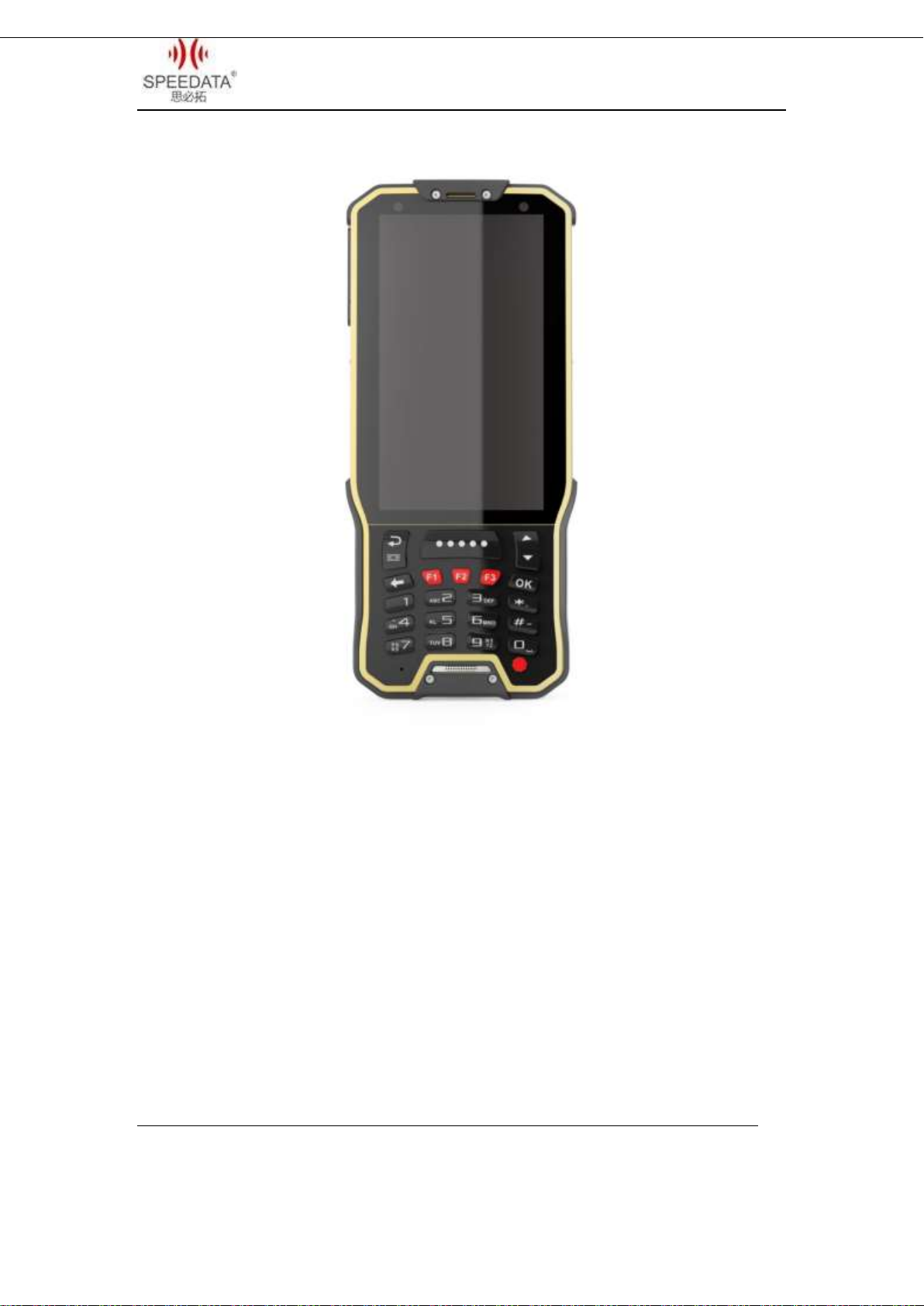
KT40Q
Quick Guide
Android 5.1
Page 2
KT40 Quick Guide V2.0
CATALOGUE
KT40Q SPECIFICATION ............................................................................. 3
External structure .................................................................................... 6
Android 5.1 introduction.......................................................................... 7
Notification Bar Icons............................................................................ 8
Dialing ................................................................................................. 10
Speedata Group LTD
1st floor,2nd building, ShangDi No.6 Street 28#, HaiDian District, Beijing 100085,China2/25
T:(86)010 8234 6858 F:(86)010 8234 6858w w w . s p e e d a t a . c n
Page 3

KT40 Quick Guide V2.0
BASIC INFORMATION
CAMERA .............................................................................................. 11
Shortcut Menu of Notification Bar ...................................................... 12
File Transfer Instructions .................................................................... 13
Main Menu ......................................................................................... 14
Settings Menu ..................................................................................... 17
Wireless Network ............................................................................... 19
Focus Scanning ...................................................................................... 20
Barcode parameter ............................................................................. 21
F1 Key on the keyboard ...................................................................... 23
RFID(optional) .................................................................................. 23
Technical Support Contact ..................................................................... 24
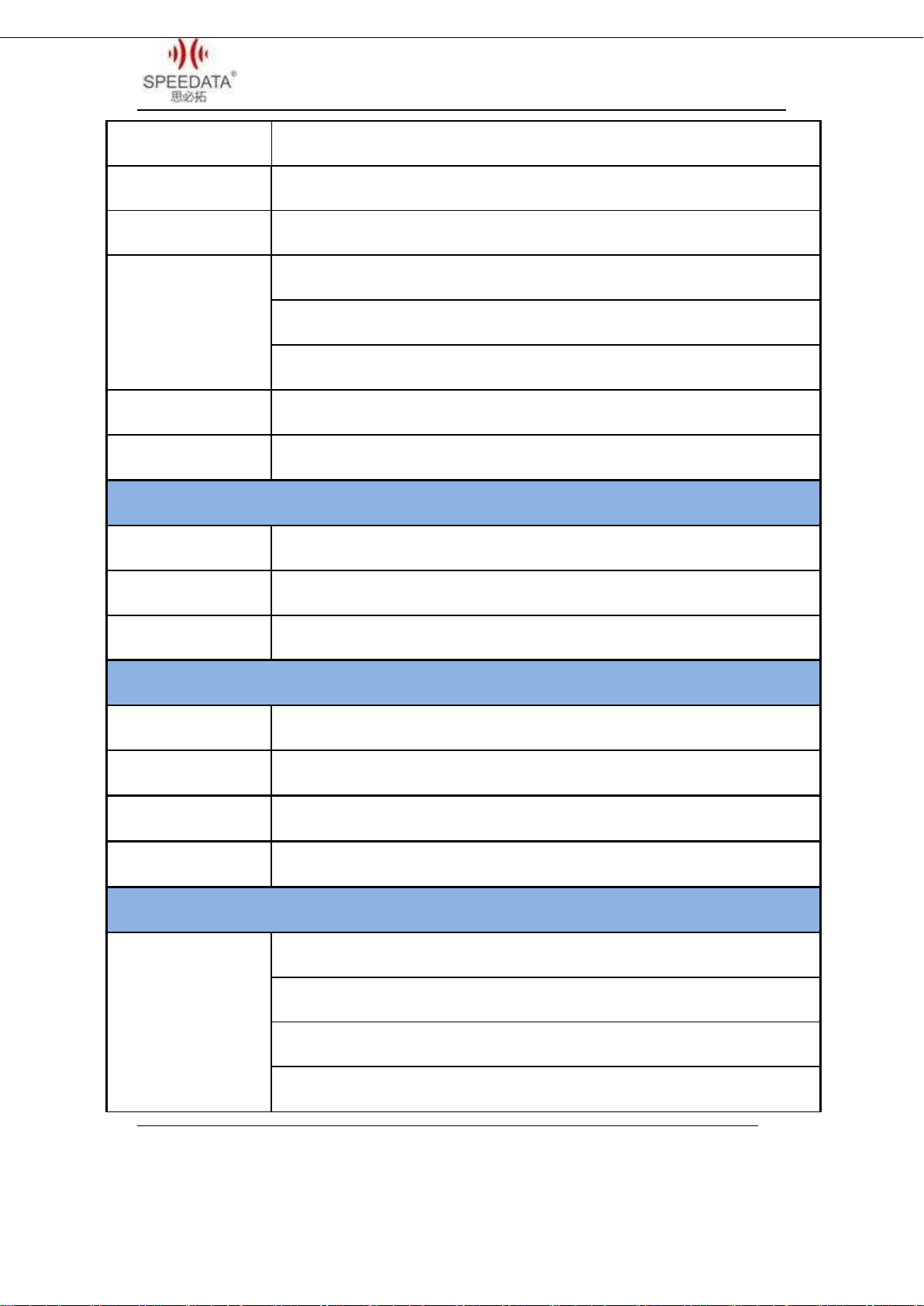
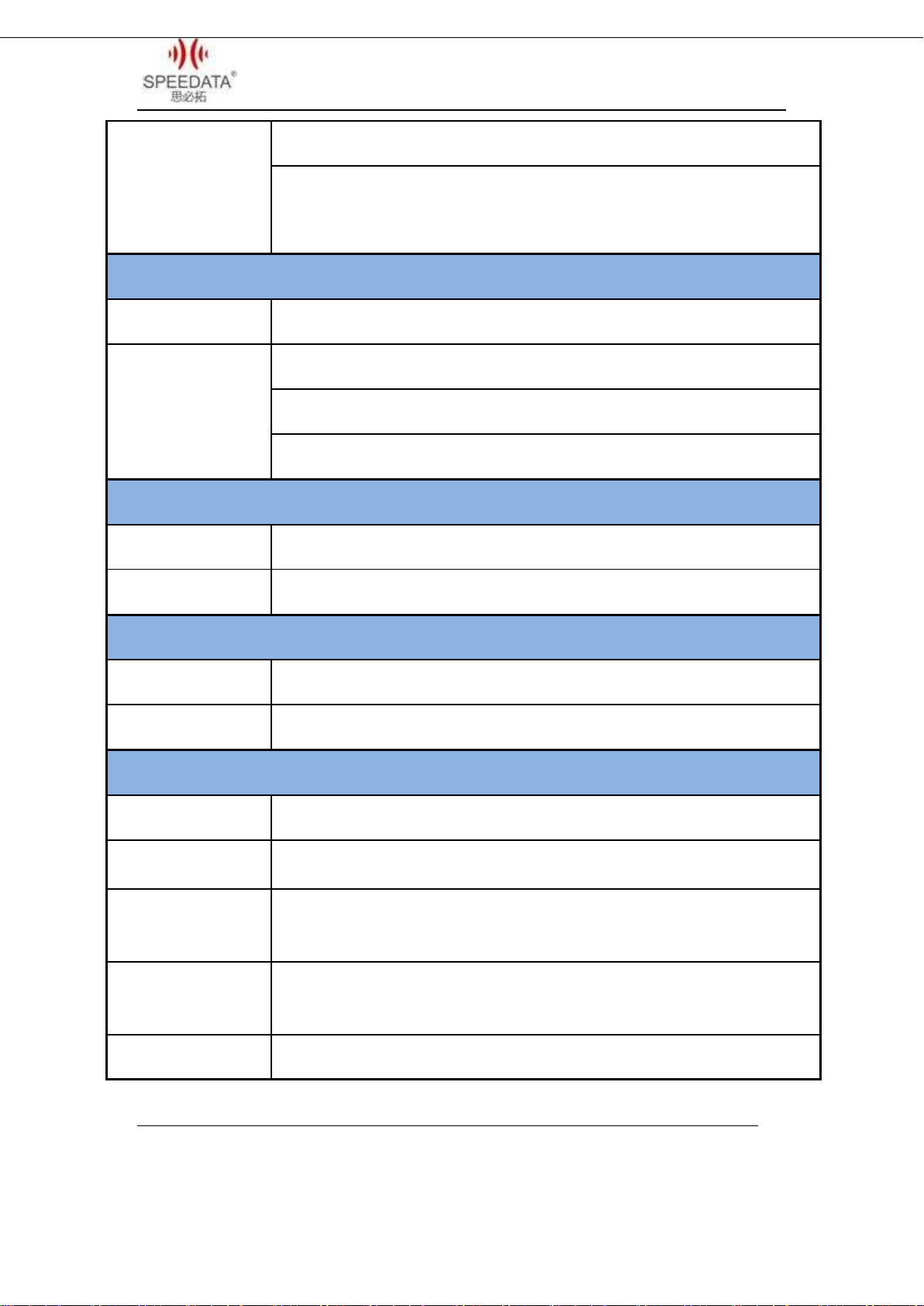
KT40Q SPECIFICATION
Speedata Group LTD
1st floor,2nd building, ShangDi No.6 Street 28#, HaiDian District, Beijing 100085,China3/25
T:(86)010 8234 6858 F:(86)010 8234 6858w w w . s p e e d a t a . c n
Page 4
KT40 Quick Guide V2.0
CPU
Cortex-A53 1.3GHz Quad core
STORAGE&MEMORY
Flash 8GB RAM 1GB
OS
Android 5.1
CONNECTIVITY
1.Bluetooth: v2.1 +EDR/v3.0+HS/v4.1
2.WIFI: 802.11 b/g/n/a 2.4G/5G
3.GPRS /HSPA/EDGE/CDMA2000/TDD/FDD
GPS MODULE
GPS
PC CONNECTOR
USB 2.0 High-Speed
SCREEN
SCREEN SIZE
4.0’’IPS LCD
SCREEN RESOLUTION
480*800
TOUCH SCREEN TYPE
Capacitive Touch screen
VEDIO FUNCTION
MAIN CAMERA
800MP
FOCUS MODE
Auto
SENSOR TYPE
CMOS
FLASH
LED
COMMUNICATION MODULE
COMMUNICATION
SPECTRUM
Support two cards
CDMA&EVDO: 800 MHz(BC0)
2G GSM:850/900/1800/1900 Mhz(B2 B3 B5 B8)
3G TD-SCDMA: 1900/2100 MHZ (B34 B39 )
Speedata Group LTD
1st floor,2nd building, ShangDi No.6 Street 28#, HaiDian District, Beijing 100085,China4/25
T:(86)010 8234 6858 F:(86)010 8234 6858w w w . s p e e d a t a . c n
Page 5
KT40 Quick Guide V2.0
3G WCDMA:850/900/1900/2100 MHz(B1 B2 B5 B8)
4G TDD-LTE : 1900/2300/2500/2600 MHz(B38/B39/B40/B41)
4G FDD-LTE : 1800/2100/2600 MHz (B1/B3/B7)
BARCODE SCANNER
1D SCANNER
Honeywell: N4313
2D SCANNER
Honeywell: N6603(1D/2D)
Motorola: SE4500(1D/2D)
Newland: EM3095(1D/2D)
RFID READER
FREQUENCY
HF 13.56MHz
PROTOCOL
14443A/B, 15693, Mifare NFC
PHYSICAL SPEC
SIZE
166mm*74mm*20mm
BATTERY
4300mAh, 3.8V
WORK ENVIRONMENT
WORK TEMPERATURE
-20℃~60℃
HUMIDITY RANGE
5%~95%(no condensation)
DROP SPECIFICATION
Within the scope of operation,all 6 sides can withstand the impact of falling to
sement floor from 1.5m in height
SCROLL
SPECIFICATION
1000 times 0.5m, 6 rolling contact sides
SEAL GRADE
IP65
Speedata Group LTD
1st floor,2nd building, ShangDi No.6 Street 28#, HaiDian District, Beijing 100085,China5/25
T:(86)010 8234 6858 F:(86)010 8234 6858w w w . s p e e d a t a . c n
Page 6
KT40 Quick Guide V2.0
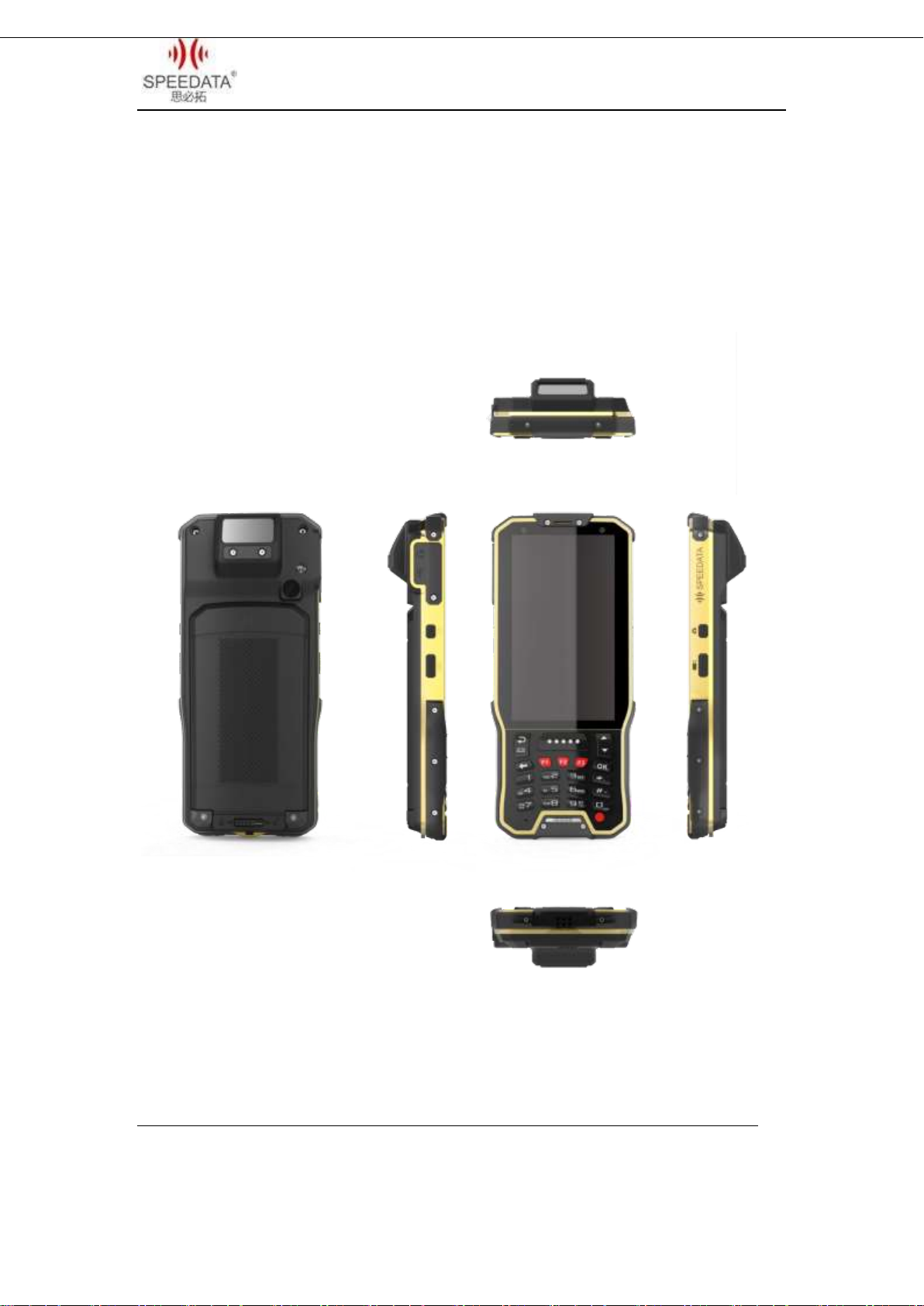
External structure
Speedata Group LTD
1st floor,2nd building, ShangDi No.6 Street 28#, HaiDian District, Beijing 100085,China6/25
T:(86)010 8234 6858 F:(86)010 8234 6858w w w . s p e e d a t a . c n
Page 7

KT40 Quick Guide V2.0
Android 5.1 introduction
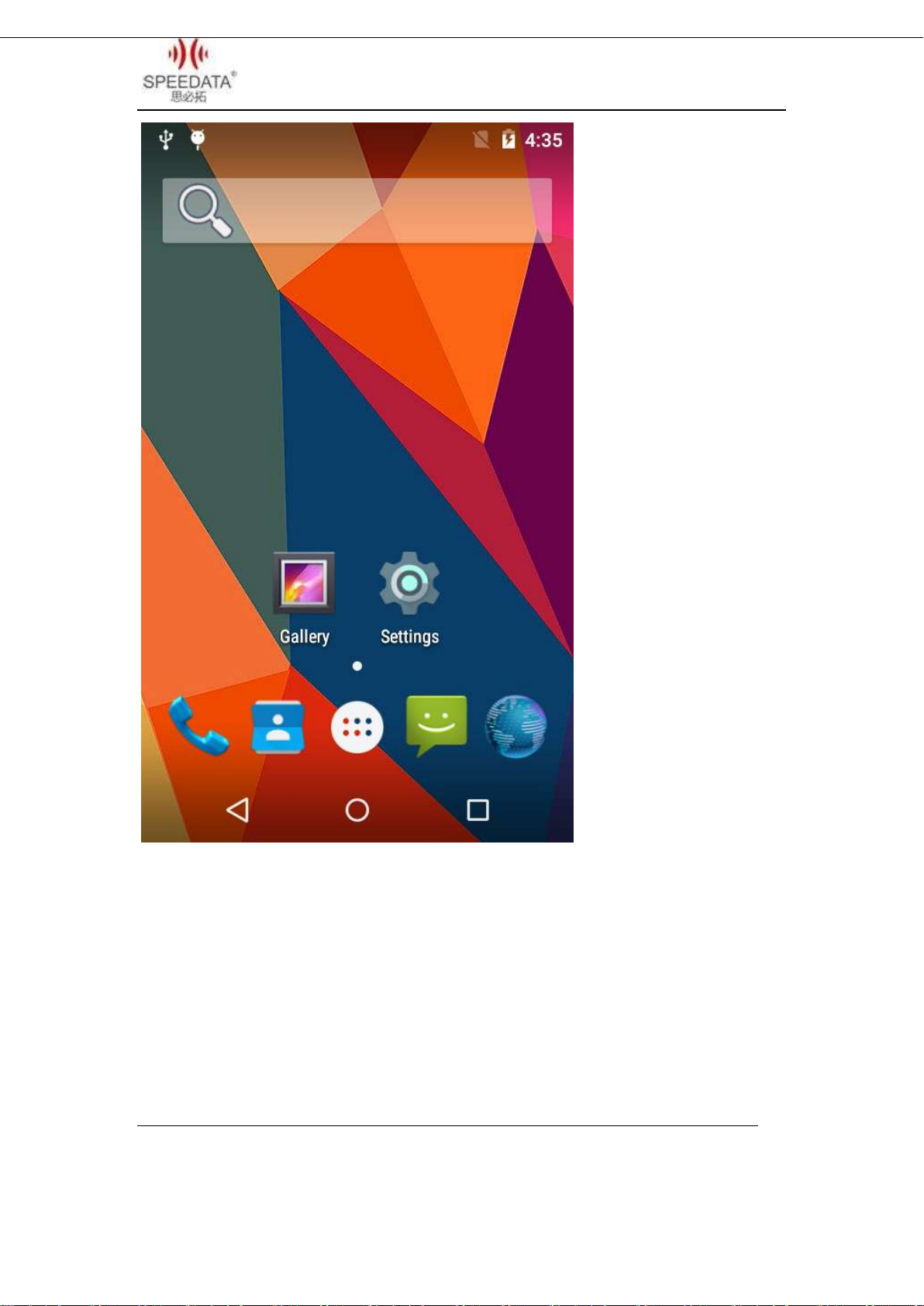
Home screen shows some important information, such as missed calls
and messages. Touch the shortcut menu to make a call, take photos,
check or send messages directly and so on.
Speedata Group LTD
1st floor,2nd building, ShangDi No.6 Street 28#, HaiDian District, Beijing 100085,China7/25
T:(86)010 8234 6858 F:(86)010 8234 6858w w w . s p e e d a t a . c n
Page 8
KT40 Quick Guide V2.0
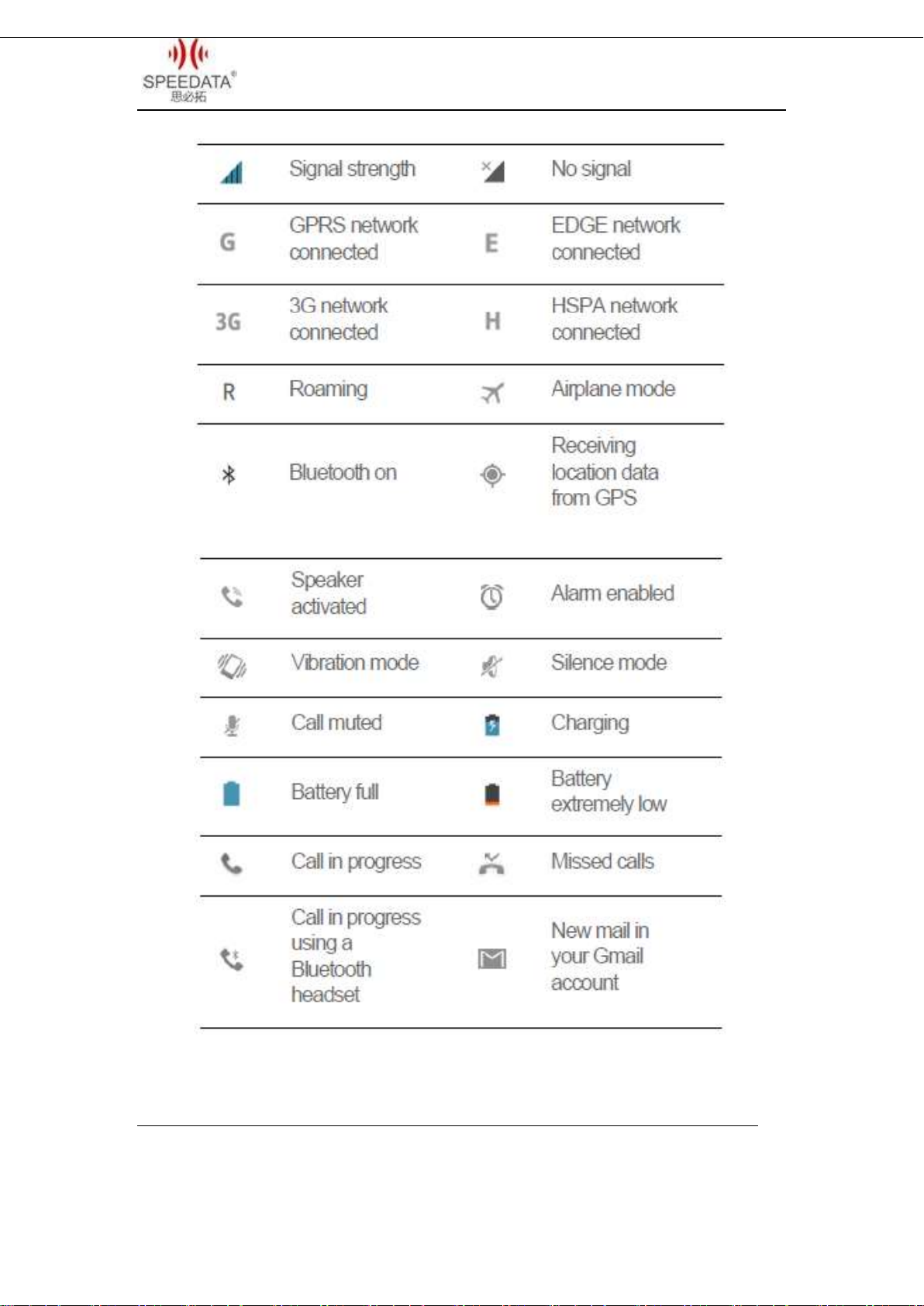
Notification Bar Icons
Speedata Group LTD
1st floor,2nd building, ShangDi No.6 Street 28#, HaiDian District, Beijing 100085,China8/25
T:(86)010 8234 6858 F:(86)010 8234 6858w w w . s p e e d a t a . c n
Page 9
KT40 Quick Guide V2.0
Speedata Group LTD
1st floor,2nd building, ShangDi No.6 Street 28#, HaiDian District, Beijing 100085,China9/25
T:(86)010 8234 6858 F:(86)010 8234 6858w w w . s p e e d a t a . c n
Page 10
KT40 Quick Guide V2.0
Dialing
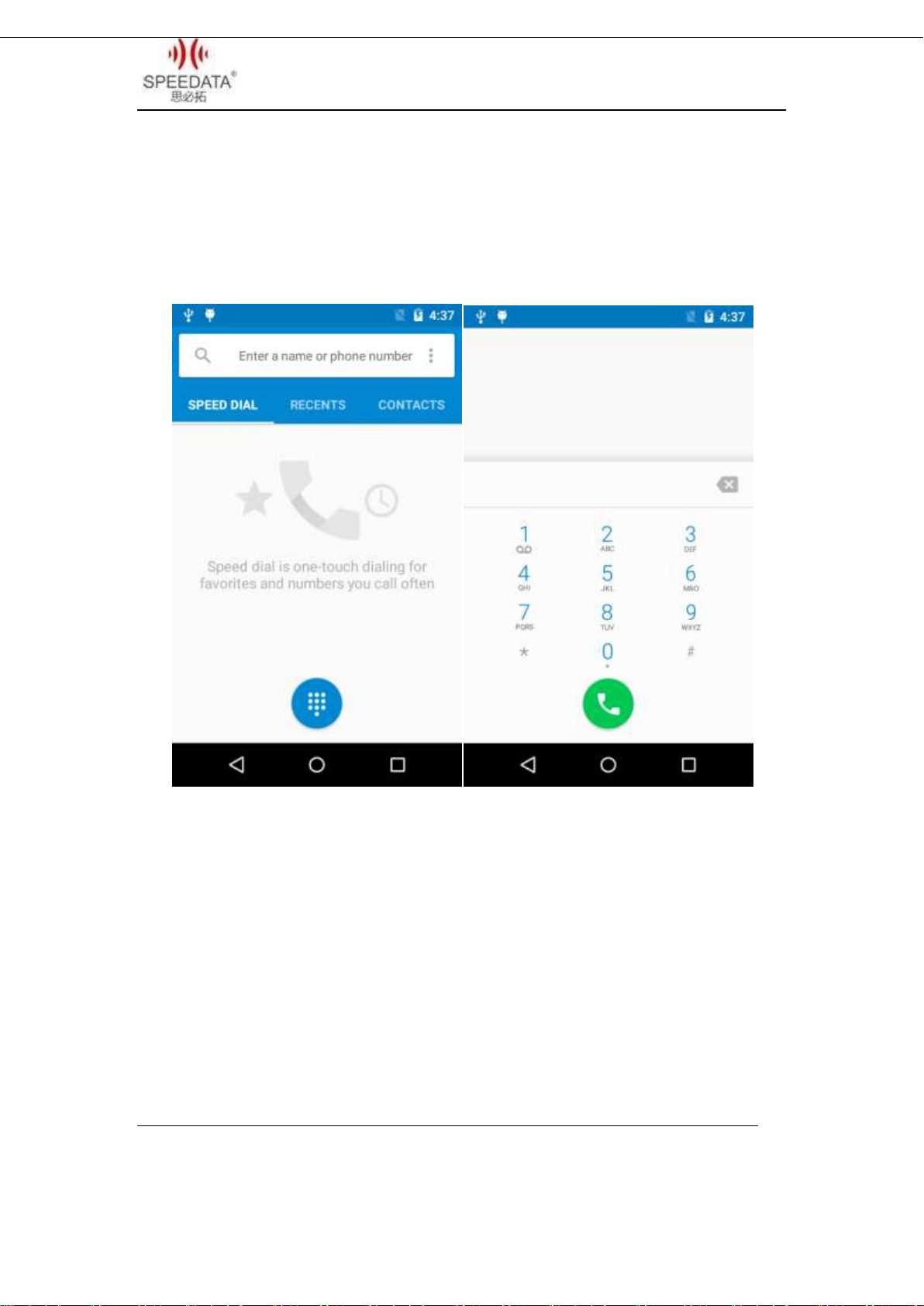
Click Phone at Home Screen into dial interface. As shown in the
figure.
Speedata Group LTD
1st floor,2nd building, ShangDi No.6 Street 28#, HaiDian District, Beijing 100085,China10/25
T:(86)010 8234 6858 F:(86)010 8234 6858w w w . s p e e d a t a . c n
Page 11
KT40 Quick Guide V2.0
You can use the Virtual Dial or press the buttons on
device to input number in the input field. Click the
number you input to call. Delete error input by delete
button. Call Log can view all related records. And you can
see all saved phone number in Contacts.
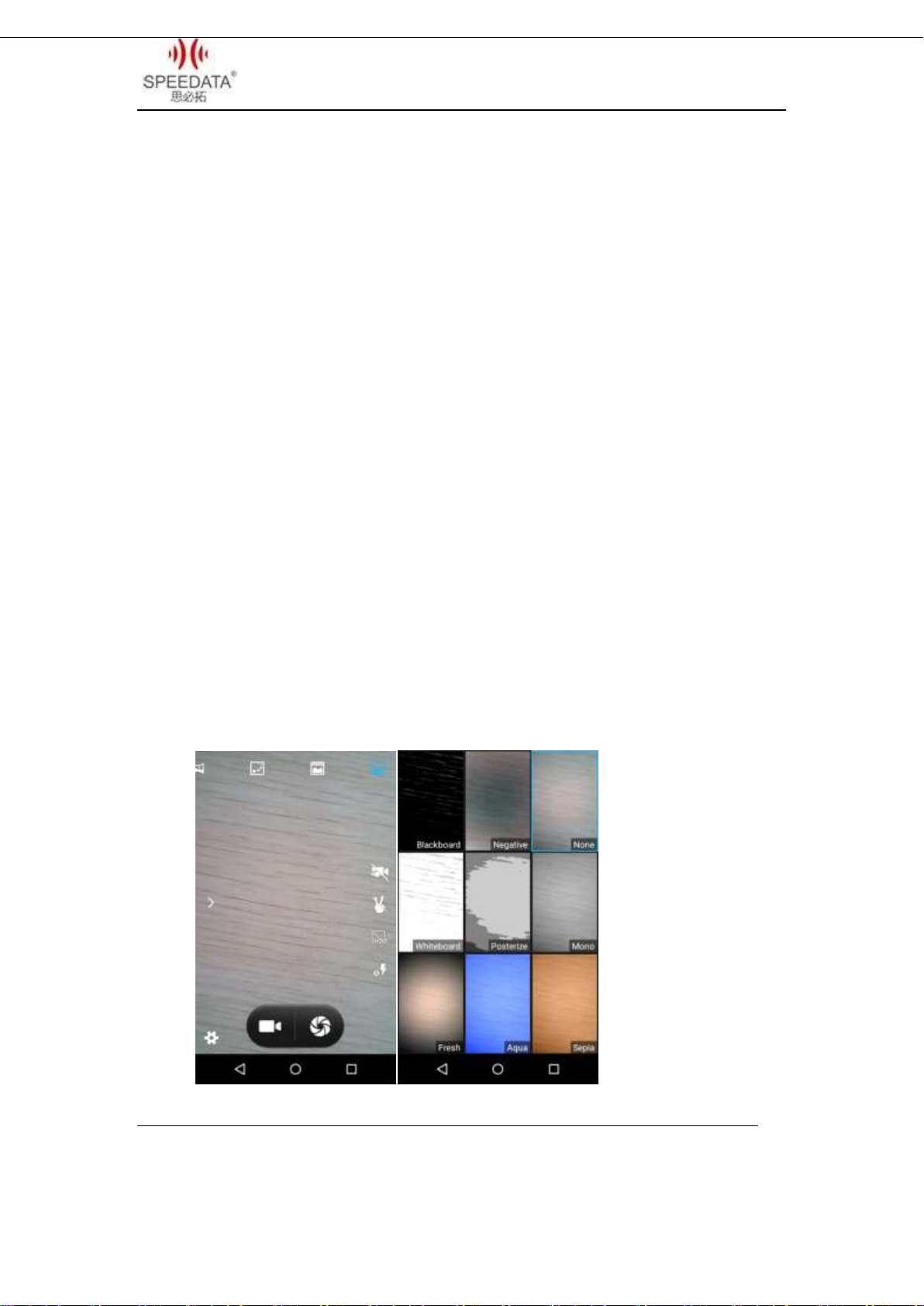
CAMERA
Click camera icon to take pictures and do a set with the setting
button at the bottom left corner.
You can click the direction arrow on the left side to change
different scene modes.
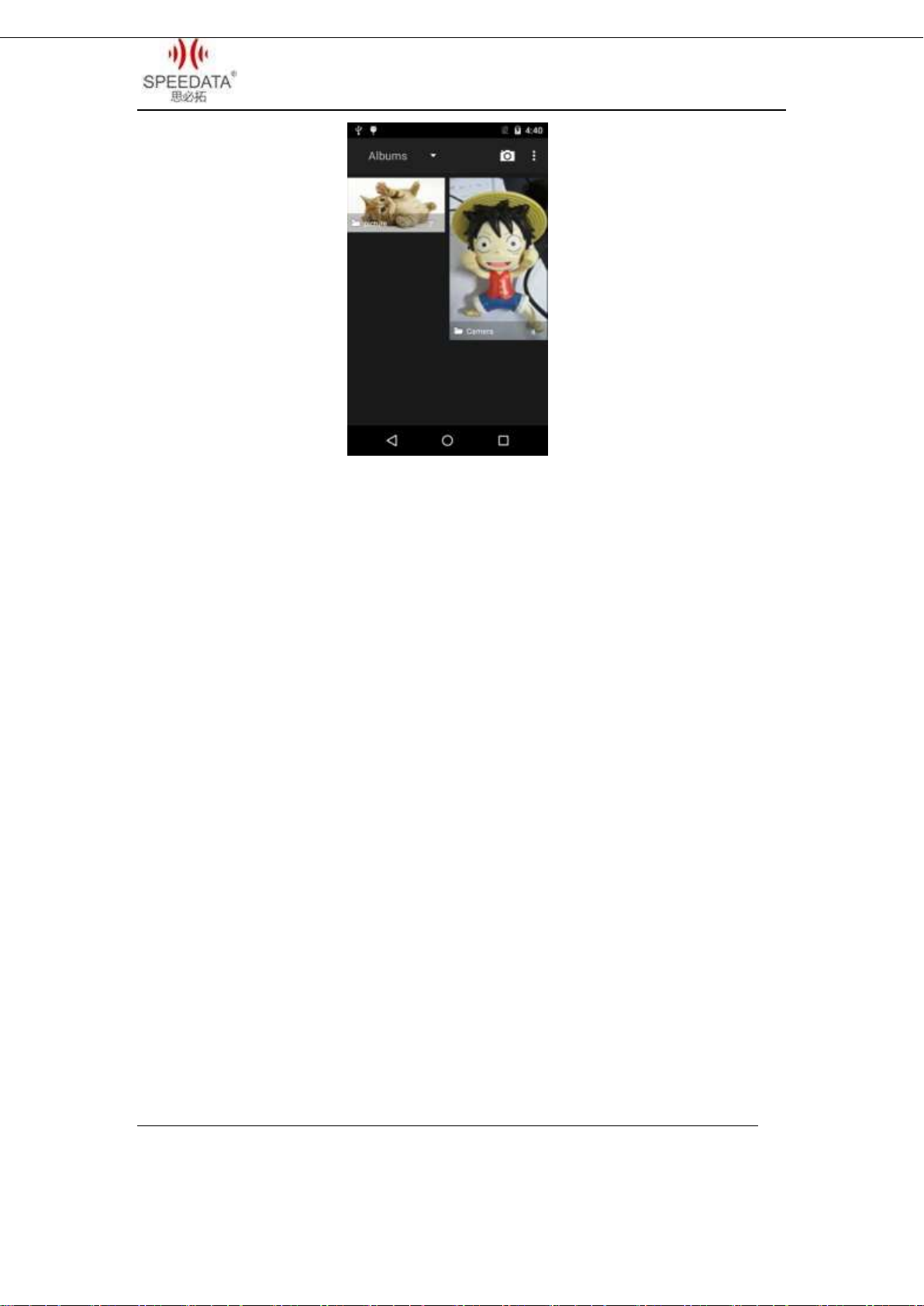
You can find your taken pictures in Gallery.
Speedata Group LTD
1st floor,2nd building, ShangDi No.6 Street 28#, HaiDian District, Beijing 100085,China11/25
T:(86)010 8234 6858 F:(86)010 8234 6858w w w . s p e e d a t a . c n
Page 12
KT40 Quick Guide V2.0
Shortcut Menu of Notification Bar
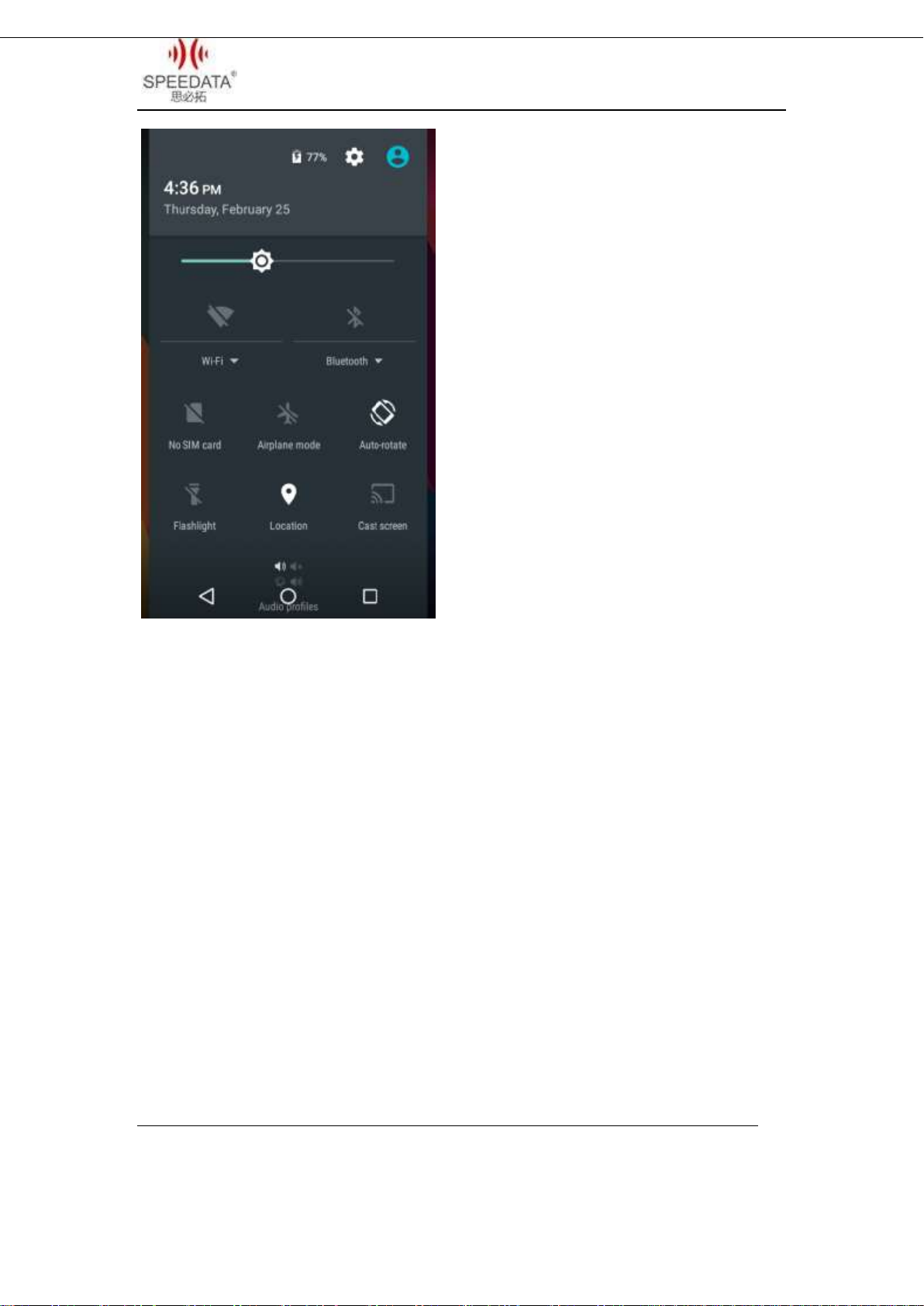
Slide down the Notification Bar twice from the top of the device or
slide down it for one time and click the circular icon at the top right
corner, you will see the following interface and you can set Wi-Fi,
bluetooth etc. directly.
Speedata Group LTD
1st floor,2nd building, ShangDi No.6 Street 28#, HaiDian District, Beijing 100085,China12/25
T:(86)010 8234 6858 F:(86)010 8234 6858w w w . s p e e d a t a . c n
Page 13
KT40 Quick Guide V2.0
There are prompts about connecting USB cable and SIM card status.
Clicking Setting Button to enter system settings directly.
File Transfer Instructions
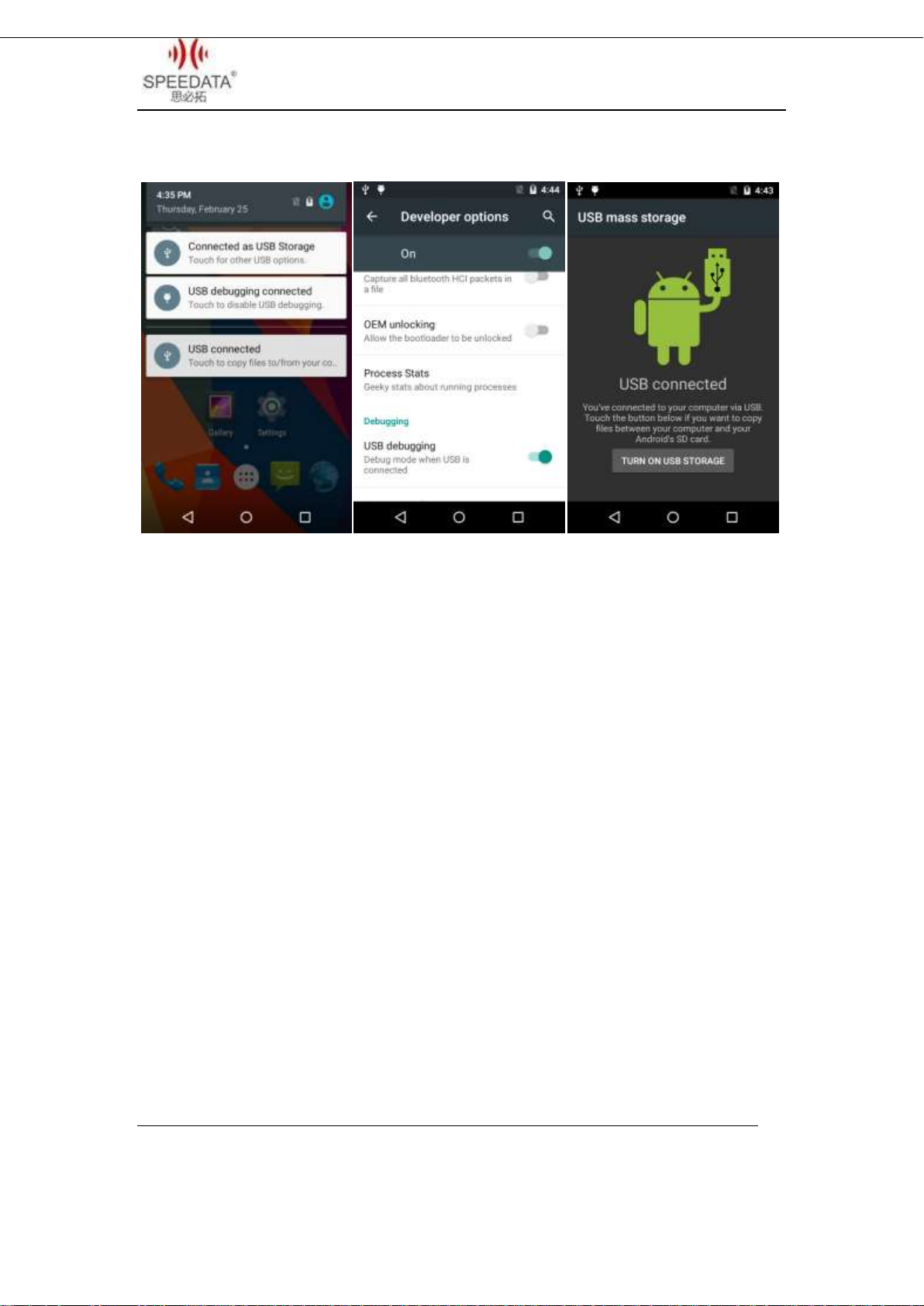
Make sure there’s a SD card in default card slot, check USB
debugging. The specific process is Settings{}Developer
optionsUSBdebugging(It’s checked in default). Connecting device
with PC by USB cable, you will see the first picture after sliding down the
Speedata Group LTD
1st floor,2nd building, ShangDi No.6 Street 28#, HaiDian District, Beijing 100085,China13/25
T:(86)010 8234 6858 F:(86)010 8234 6858w w w . s p e e d a t a . c n
Page 14
KT40 Quick Guide V2.0
Notification Bar.
Click USB connected to get into the second interface. Click Turn
on USB storage, when it is successfully connected, android robot will
turn into orange and a removable storage device will display on
computer.
You can read and write the memory card like operation U disk
now. You can install applications by memory card. Firstly copy installation
files(*.apk) of app to SD card, then turn off USB storage and find the file
in SD card, the specific process is MenuFile Manager. Click and install
it.
Main Menu
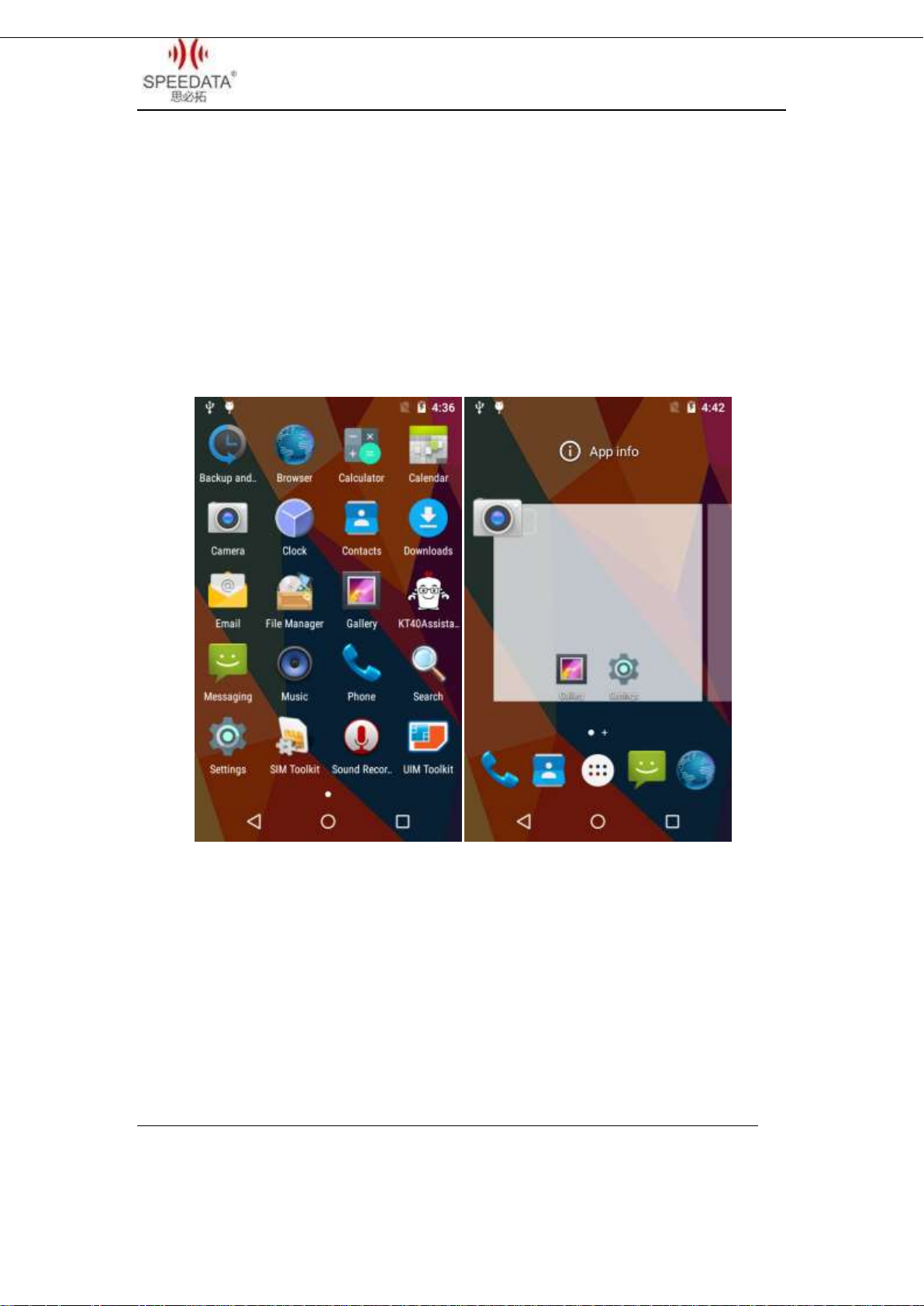
Click Menu in Home Screen, you’ll see the first picture below.
Speedata Group LTD
1st floor,2nd building, ShangDi No.6 Street 28#, HaiDian District, Beijing 100085,China14/25
T:(86)010 8234 6858 F:(86)010 8234 6858w w w . s p e e d a t a . c n
Page 15
KT40 Quick Guide V2.0
All system apps, settings and installed third-party apps are listed here.
Click icon to start it. The screen can’t display completely If there are
too many the icons in the screen, please slide around to show more.
Press any app icon for a little bit longer time and put it in the pop-up
box, shortcut icon can be seen as the second picture.
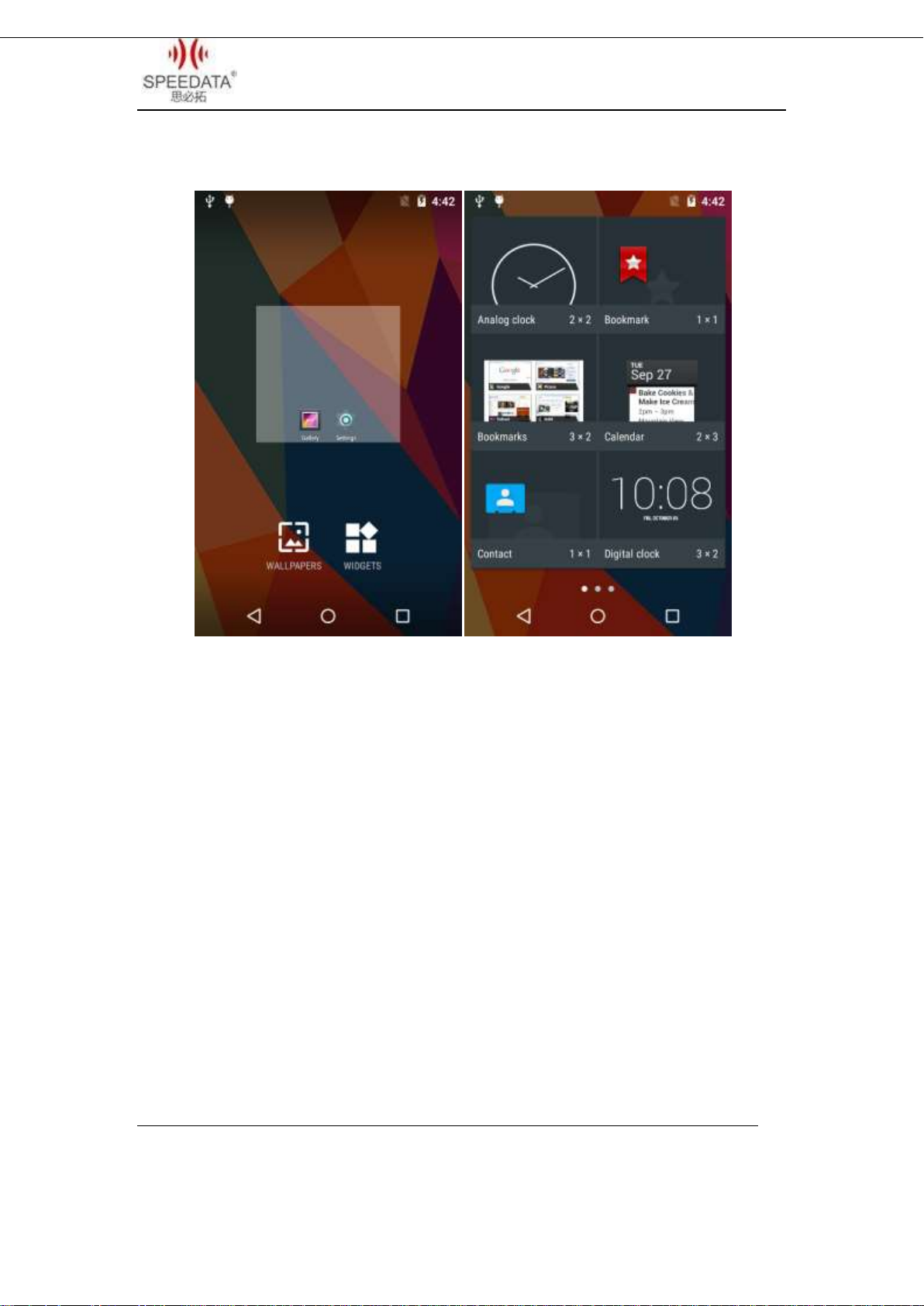
Press the blank screen for a little bit longer time, you will see the first
picture below. You can click WALLPAPERS to change wallpaper. You can
also click WIDGETS, then it will show as in the second picture, long press
any of it to add it to home screen.
Speedata Group LTD
1st floor,2nd building, ShangDi No.6 Street 28#, HaiDian District, Beijing 100085,China15/25
T:(86)010 8234 6858 F:(86)010 8234 6858w w w . s p e e d a t a . c n
Page 16
KT40 Quick Guide V2.0
Speedata Group LTD
1st floor,2nd building, ShangDi No.6 Street 28#, HaiDian District, Beijing 100085,China16/25
T:(86)010 8234 6858 F:(86)010 8234 6858w w w . s p e e d a t a . c n
Page 17

KT40 Quick Guide V2.0
Settings Menu
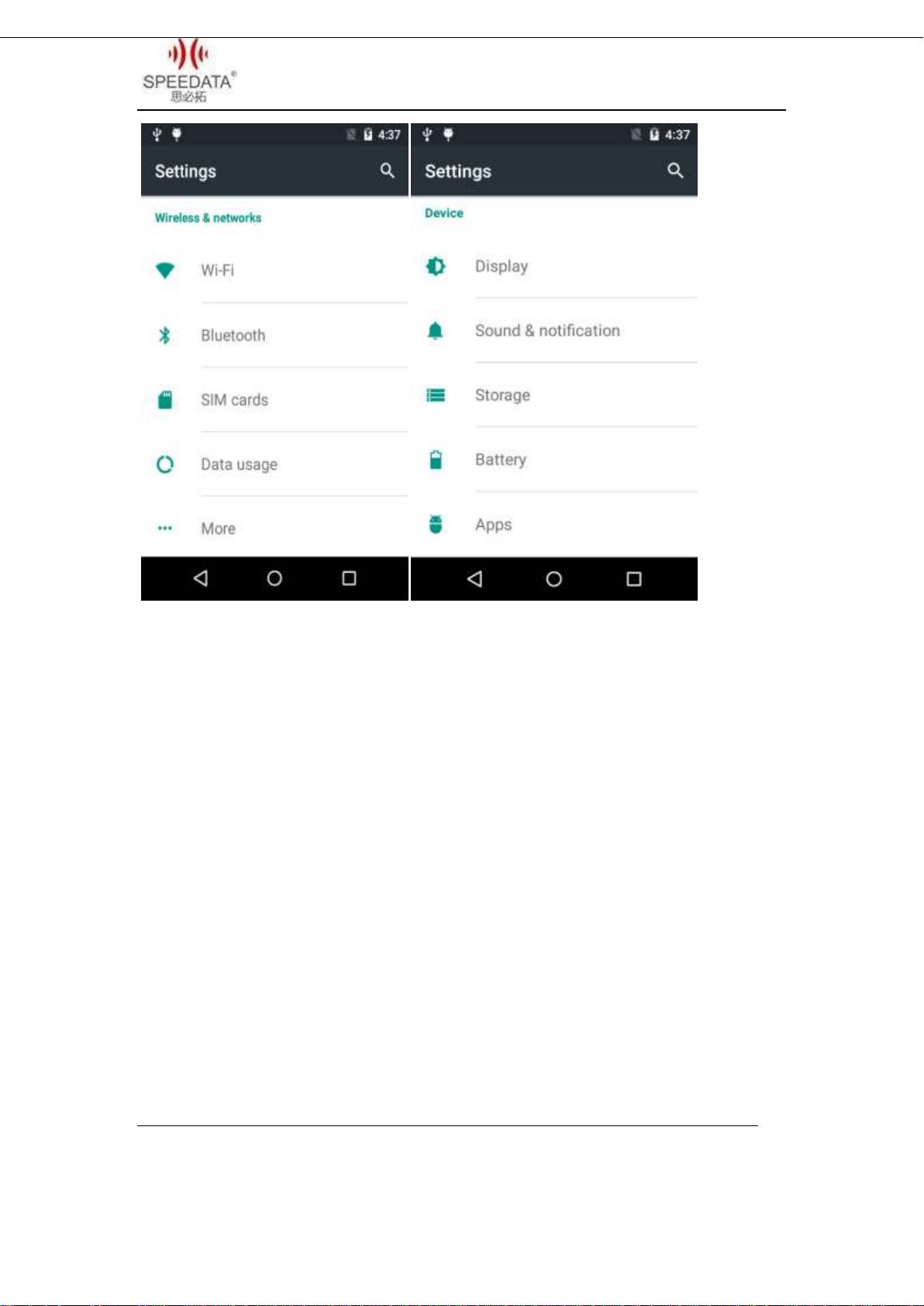
Click Settings in Home Screen, Menu or Notification Bar to enter
the following interface.
All settings about device are listed here. A total of five classes:
WIRELESS & NETWORKS, DEVICE, PERSONAL, ACCOUNT and SYSTEM.
Slide up and down to show more. If you want to use WIFI, please open
Wi-Fi and connect it. Click Sound and remove the tick of Touch sounds if
you want to cancel Touch sounds. The specific process of factory reset in
settings is Backup & reset Factory data reset.
Speedata Group LTD
1st floor,2nd building, ShangDi No.6 Street 28#, HaiDian District, Beijing 100085,China17/25
T:(86)010 8234 6858 F:(86)010 8234 6858w w w . s p e e d a t a . c n
Page 18
KT40 Quick Guide V2.0
Speedata Group LTD
1st floor,2nd building, ShangDi No.6 Street 28#, HaiDian District, Beijing 100085,China18/25
T:(86)010 8234 6858 F:(86)010 8234 6858w w w . s p e e d a t a . c n
Page 19
KT40 Quick Guide V2.0
Wireless Network
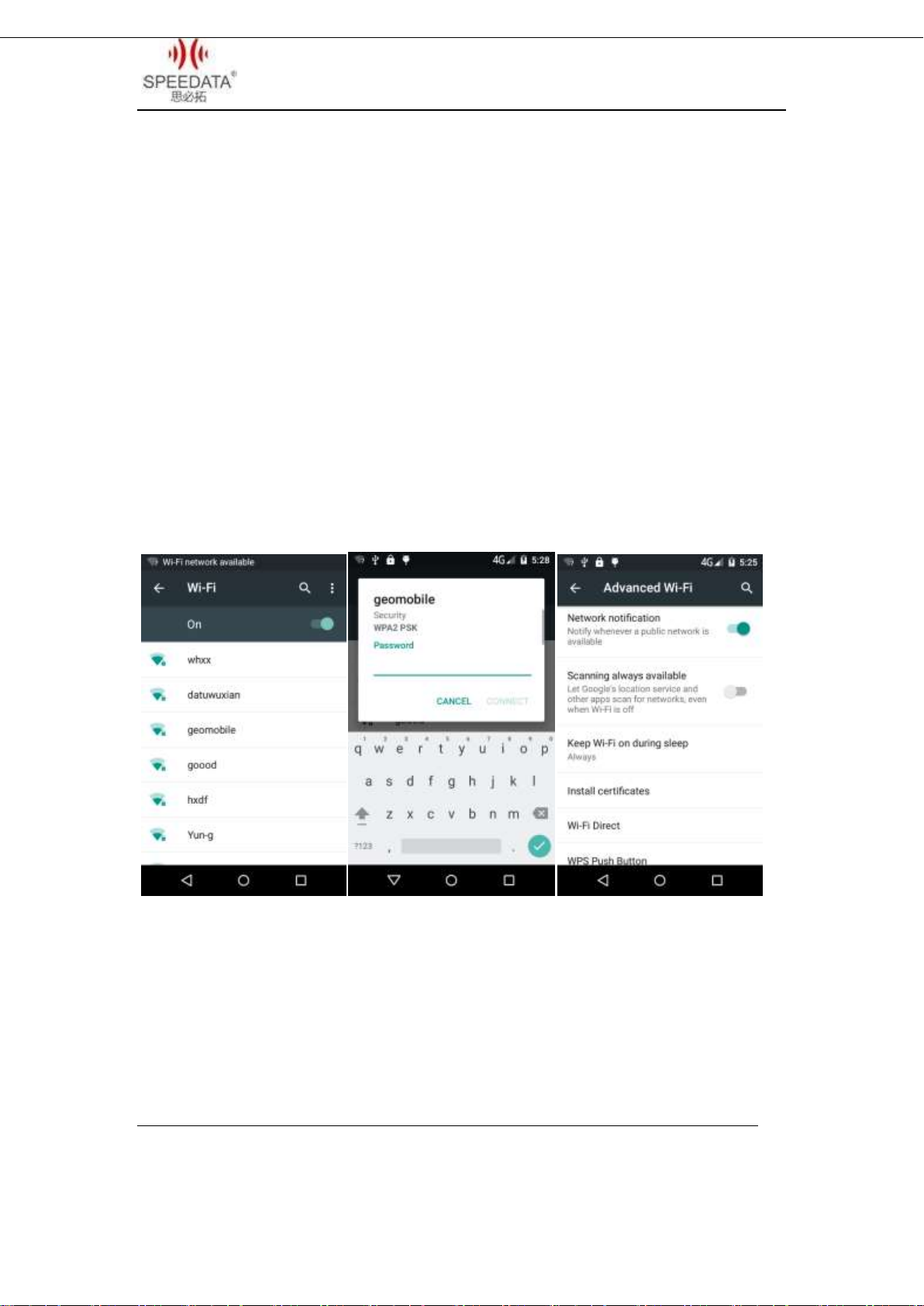
You can surf the net when the device is in wireless network
environment. Go into Settings, turn Wi-Fi ON below WIRELESS &
NETWORKS. Then the network is available. Choose the hotspot you want
to connect directly, input password. If it is a network hidden SSID, please
click the top right corner menu and choose Add network to add it, input
SSID and select the security type. You can also click Advanced Wi-Fi in
the menu to set other advanced options about WI-Fi.
VPN settings steps:
Firstly ensure device has connected to network. Then enter
Speedata Group LTD
1st floor,2nd building, ShangDi No.6 Street 28#, HaiDian District, Beijing 100085,China19/25
T:(86)010 8234 6858 F:(86)010 8234 6858w w w . s p e e d a t a . c n
Page 20
KT40 Quick Guide V2.0
SettingsMore…VPN and do set a kind of screen lock.Click Add VPN
network, input a name like Vpn and server address. Click Save after
inputting the data. Finally, input username and password and connect.
Focus Scanning
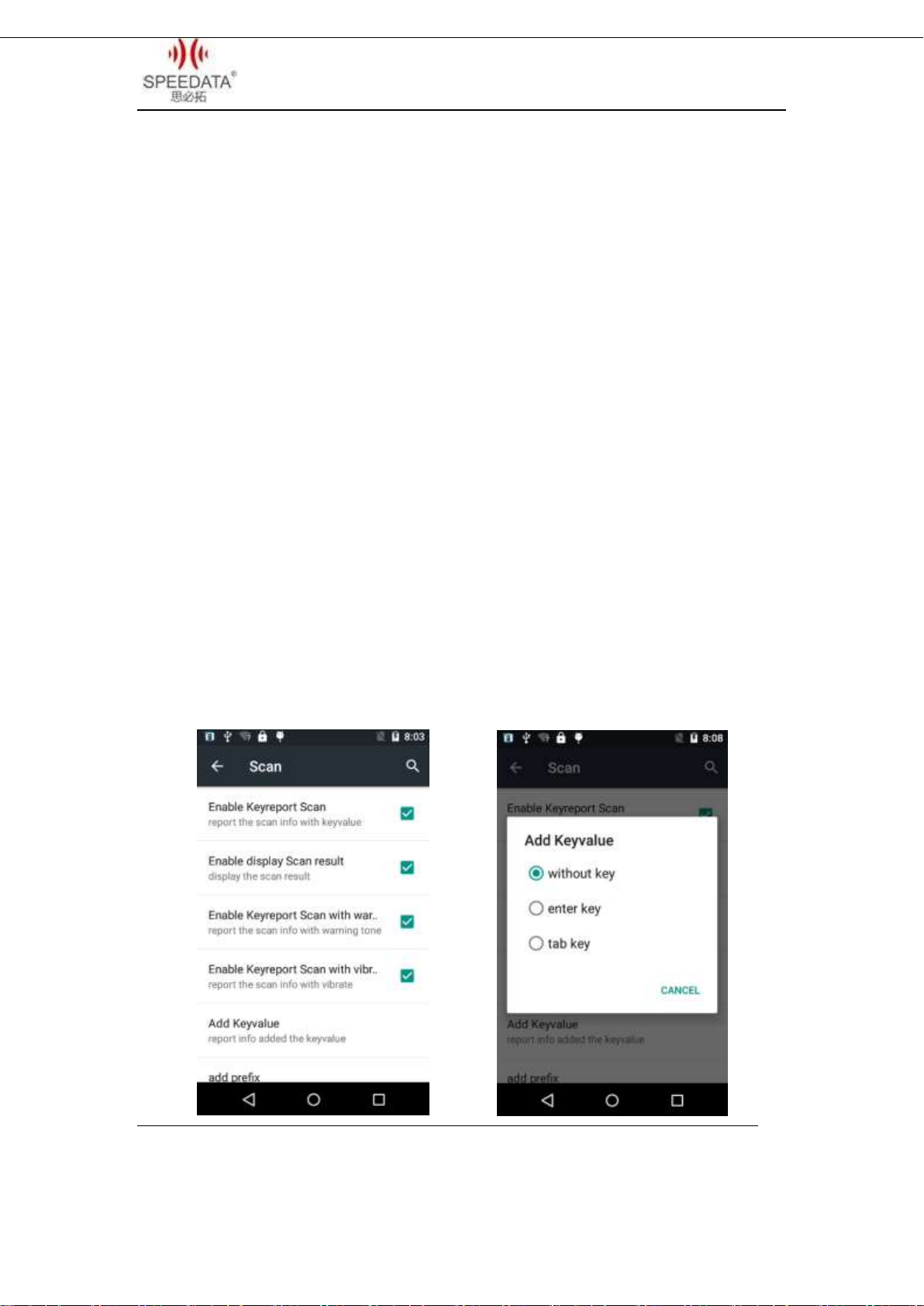
The cursor is in an input status, the device can scan barcode and input
the result to where cursor is by pressing SCAN KEY. Before implement it,
you should do a setting. Go into SettingsScan, and check Enable
Keyreport Scan just like the pictures below. Then you can use Focus
Scanning. Check Enable Keyreport Scan with warning tone to hear a
chime after scanning successfully and you can click Add Keyvalue to
choose different turning results.
Speedata Group LTD
1st floor,2nd building, ShangDi No.6 Street 28#, HaiDian District, Beijing 100085,China20/25
T:(86)010 8234 6858 F:(86)010 8234 6858w w w . s p e e d a t a . c n
Page 21

KT40 Quick Guide V2.0
Add a custom prefix
Include characters in front of the displayed barcode information, and you
can enter any character manually.
Add a custom suffix
After the displayed bar code information is followed by characters, you
can enter any character manually.
Note 1: You should designate the position of cursor before using
Focus Scanning, or you won’t see the messages about barcode.
Note2:The Add Keyvalue under Enable Keyreport Scan is an option for
Focus Scanning. You can choose one to add nothing, a table or an enter
after the barcode messages.
Barcode parameter
Symbology Config
For enabling/disabling,Linear,2D,etc.
Advanced Configuration
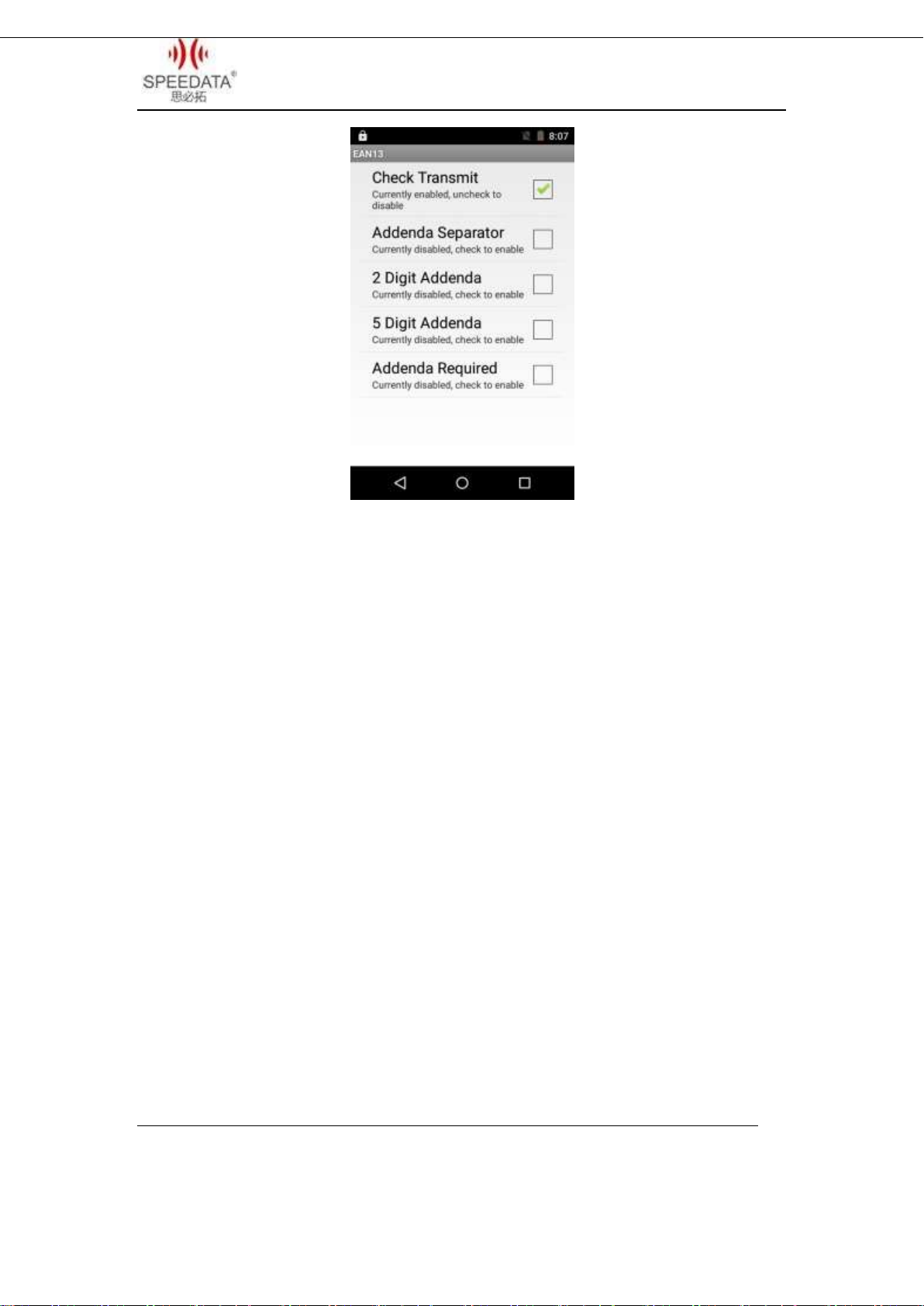
Set the parameters of each type of bar code, here to EAN13 as an
example.
Speedata Group LTD
1st floor,2nd building, ShangDi No.6 Street 28#, HaiDian District, Beijing 100085,China21/25
T:(86)010 8234 6858 F:(86)010 8234 6858w w w . s p e e d a t a . c n
Page 22
KT40 Quick Guide V2.0
Check Transmit:EAN13 last bit for the parity bit ,check the scan results
show parity bit.
Addenda Separator: Need to cooperate with additional code to use,
After checking, there is a space between the regular bar code and the
additional code.
2 Digit Addenda: After checking, allow to read EAN13 with 2 additional
codes added.
5 Digit Addenda: After checking, allow to read EAN13 with 5 additional
codes added.
Addenda Required: After checking, only can be identified to add 2 or 5
Speedata Group LTD
1st floor,2nd building, ShangDi No.6 Street 28#, HaiDian District, Beijing 100085,China22/25
T:(86)010 8234 6858 F:(86)010 8234 6858w w w . s p e e d a t a . c n
Page 23

KT40 Quick Guide V2.0
additional code EAN13, do not recognize the ordinary bar code.
Note 1: After setting the parameters, you need to exit the scan settings,
and then enter the scan settings re-check "enable scan" to take effect.
Note 2: When the device power is less than 15%, the system will
disable the scanning function.
Note 3: Barcode parameter settings, please be careful operation, the
wrong operation will lead to equipment error, for related operations,
please contact us.
F1 Key on the keyboard
You can input numbers, uppercase letters and lowercase letters with
hardware keyboard by pressing F1 key to switch. For example, it inputs
numbers at present time, you can press F1 key one time and then you
can input lowercase letters.
RFID(optional)
If the phone has RFID module,open RFID application. Place a
Mifare One card to the reader range, input a sector number and click
DEMO. The screen will display the information after reading and writing
Speedata Group LTD
1st floor,2nd building, ShangDi No.6 Street 28#, HaiDian District, Beijing 100085,China23/25
T:(86)010 8234 6858 F:(86)010 8234 6858w w w . s p e e d a t a . c n
Page 24

KT40 Quick Guide V2.0
this sector.
When develop application is related to RFID Please contact the
phone manufacturer to get more information.
Technical Support Contact
Customer service 010 – 82346858 - 801
Technical supporter Skype: Android.Speedata
Speedata Group LTD
1st floor,2nd building, ShangDi No.6 Street 28#, HaiDian District, Beijing 100085,China24/25
T:(86)010 8234 6858 F:(86)010 8234 6858w w w . s p e e d a t a . c n
Page 25

KT40 Quick Guide V2.0
Speedata Group LTD
1st floor,2nd building, ShangDi No.6 Street 28#, HaiDian District, Beijing 100085,China25/25
T:(86)010 8234 6858 F:(86)010 8234 6858w w w . s p e e d a t a . c n
 Loading...