

Page 1
Page 2

BlueSoleil™ CE Software Manual
Contents
1 Introduction .................................................................................................. 3
2 Features of BlueSoleilTM for WinCE 1.2.4 ............................................................. 4
2.1 Connection Management................................................................................4
2.2 Device Management.....................................................................................4
2.3 Configuration Management............................................................................. 4
3 Installation BlueSoleilTM from InstallCD.............................................................. 5
3.1 System Requirements................................................................................ 5
3.2 Installation Procedure................................................................................5
3.2.1 Prepare to install ..............................................................................5
3.2.2 Start to install ..................................................................................5
BlueSoleil
4
TM
for WinCE Graphical User Interface ................................................... 6
4.1 Start BlueSoleilTM for WinCE............................................................................ 6
4.2 Notify Menu ............................................................................................... 7
4.3 Operation Windows ......................................................................................9
4.4 Menu and Tool Bar....................................................................................... 9
5 Configure Bluetooth Device............................................................................ 11
5.1 Configure Local Device Information ................................................................. 11
5.2 Configure the paired devices ......................................................................... 12
5.3 Configure OPP Information ........................................................................... 12
5.4 Configure the Bluetooth Transport Layer ........................................................... 13
6 Use the Bluetooth Profiles.............................................................................. 14
6.1 Serial Port Profile....................................................................................... 14
6.1.1 Set up a new SPP connection................................................................ 14
6.1.2 Disconnect the SPP Application ............................................................. 18
6.1.3 Use the SPP Shortcut ......................................................................... 19
6.2 Object Push Profile..................................................................................... 19
6.2.1 Set up a new OPP Connection............................................................... 19
6.2.2 Use the OPP Shortcut......................................................................... 23
7 Print file via the Bluetooth ....................................................................... 23
2
Copyright © 2007, SPECTEC Corporation, http://www.spectec.com.tw
Page 3

BlueSoleil™ CE Software Manual
1 Introduction
BlueSoleilTM for WinCE is a Windows CE-based Bluetooth wireless software suite. It is fully
compliant with the latest Bluetooth SIG specifications.
BlueSoleil
TM
for WinCE V1.2.4 includes two Bluetooth application profiles. The followin g table
indicates which of these profiles is available for client and server devices.
Profile Description Client Server
SPP Serial Port Y Y
OPP Object Push Y Y
This guide describes how to install and use BlueSoleil
♦ How to navigate the main operation windows of BlueSoleil
TM
for WinCE, including:
TM
for WinCE.
♦ How to use the Menu and Tool Bar.
♦ How to configure a Bluetooth device.
♦ How to use the Bluetooth profiles.
3
Copyright © 2007, SPECTEC Corporation, http://www.spectec.com
Page 4

BlueSoleil™ CE Software Manual
2 Features of BlueSoleilTM for WinCE 1.2.4
2.1 Connection Management
The connection is an instance of a Bluetooth profile client-side implementation. Two types of
TM
connection are supported in this version of the BlueSoleil
connection and Object Push connection. Connection management includes the following
operations:
♦ Create New Connection
♦ Rename Connection
♦ Remove Connection
for WinCE software: Serial Port
♦ Connect
♦ Disconnect
♦ Set as Default
2.2 Device Management
Device refers to a device that provides Bluetooth service(s), for example, Headset, Modem,
Notebook, PC, Pocket PC (or PDA) and Handset. Device management includes the following
operations:
♦ Search Devices
♦ Browse Services
♦ Search One Type Of Devices
♦ Stop Searching Devices
2.3 Configuration Management
Configuration management includes:
♦ Local Device Configuration
♦ Paired Devices Configuration
♦ Service Configuration
Copyright © 2007, SPECTEC Corporation, http://www.spectec.com.tw
4
Page 5
BlueSoleil™ CE Software Manual
3 Installation BlueSoleilTM from InstallCD
3.1 System Requirements
¾ Windows CE 4.0/5.0
¾ SDIO Card slot
3.2 Installation Procedure
3.2.1 Prepare to install
1) Connect MC1000 and computer by USB cable.
2) Run Microsoft ActiveSync4.0 or high version to build partnership between MC1000 and
computer.
3.2.2 Start to install
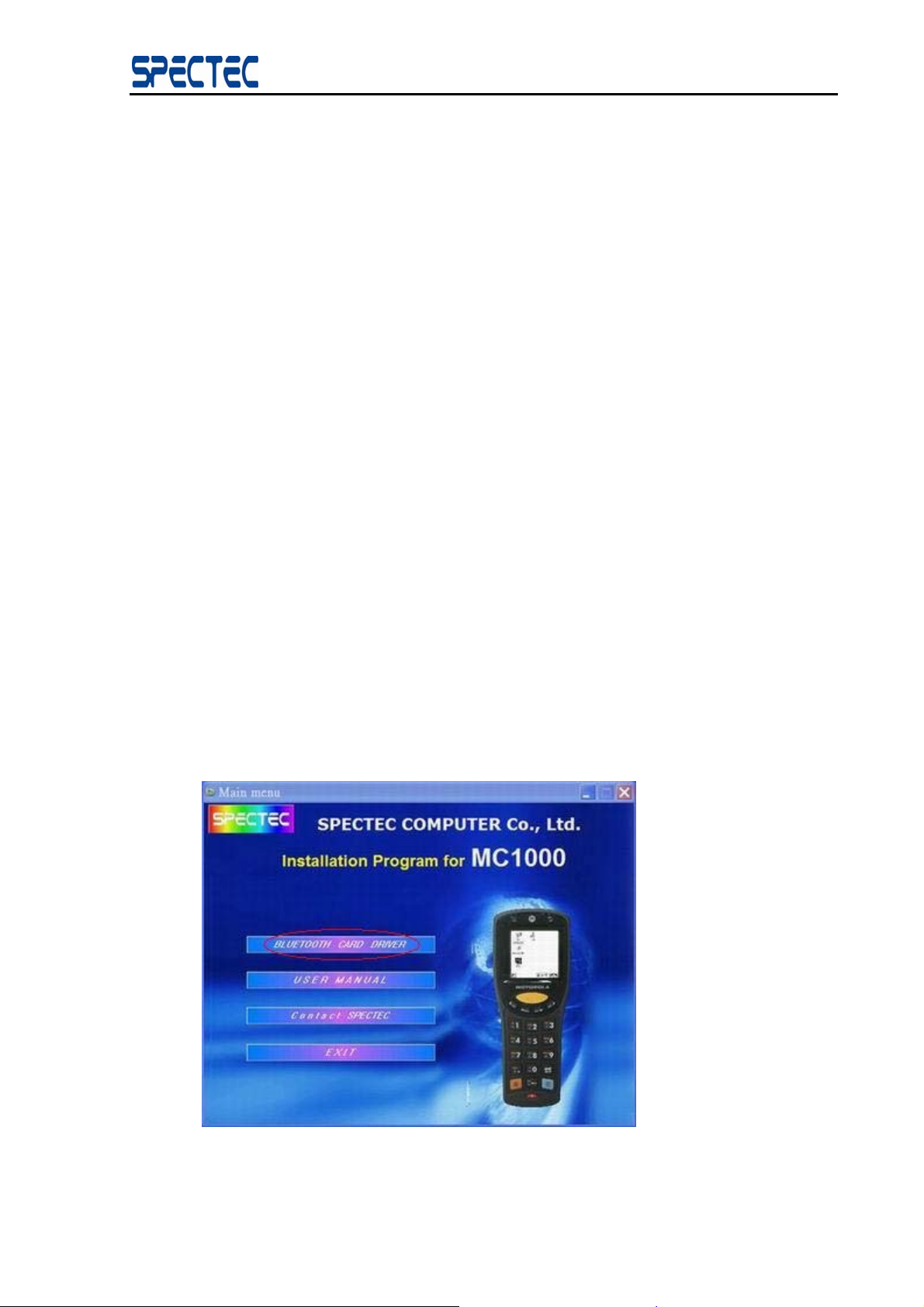
3) Put installCD into CD ROM device, installation program will be launched automatically
(You can also run Install.exe directly from the Install package folder which
download via SPECTEC website), a main manu windows will be pop-up in screen of
desktop/laptop.
Press down “BLUETOOTH CARD DRIVER” to install BlueSoleilTM on MC1000
5
Copyright © 2007, SPECTEC Corporation, http://www.spectec.com
Page 6
BlueSoleil™ CE Software Manual
4 BlueSoleilTM for WinCE Graphical User Interface
4.1 Start BlueSoleilTM for WinCE
Step 1:
After installation, a BlueSoleil
TM
icon appears in the Programs of Windows CE
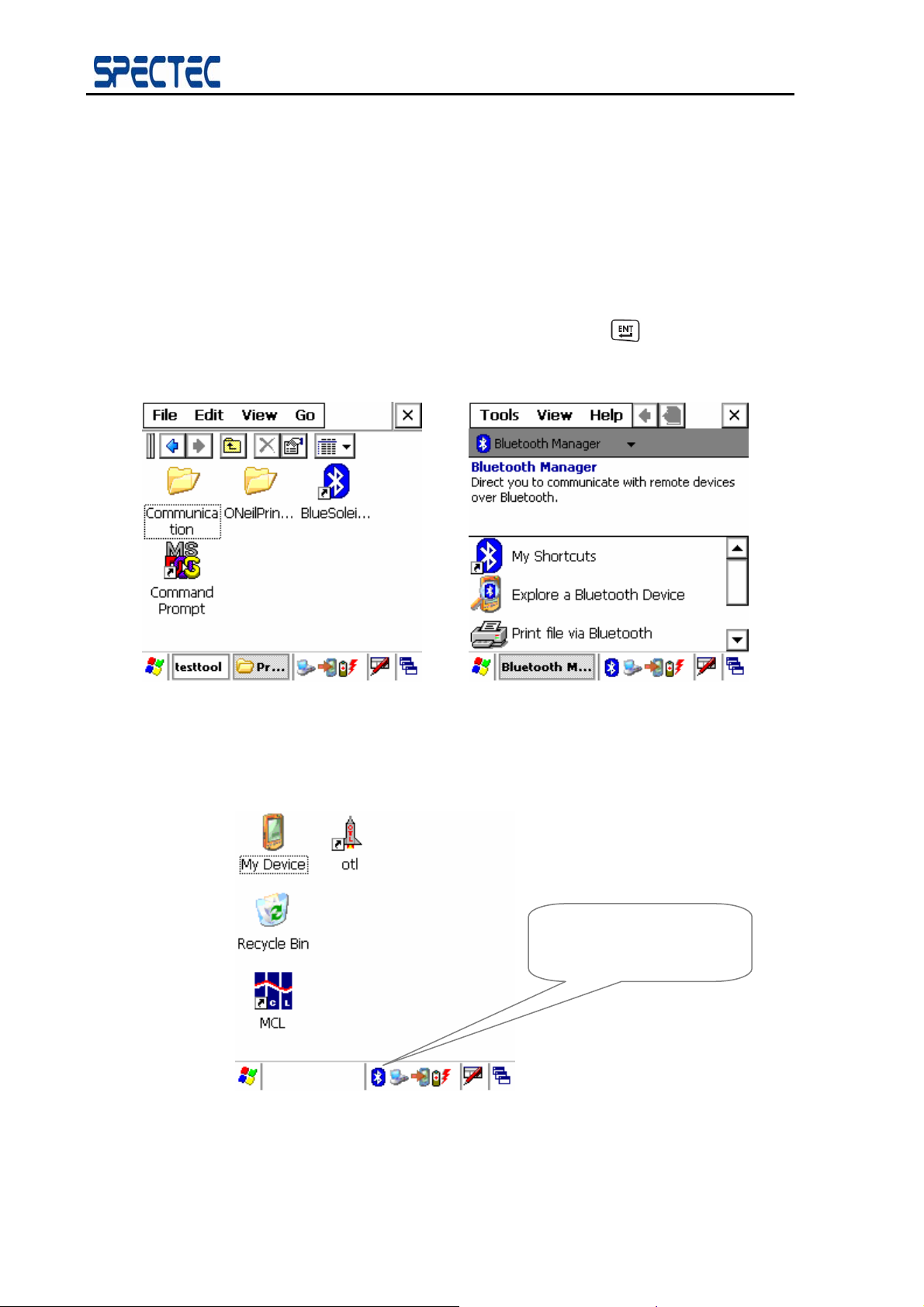
system (Figure 4.1). Select Bluesoleil icon and press “
BlueSoleilTM for WinCE application, If device is correct licensed ,the Bluetooth
Manager windows will auto to show in screen at the time (Figure 4.1.1).
Figure 4.1 BlueSoleil
Step 2:
A Notify icon appears on the bottom right of the screen. (Figure 4.2)
” button to start the
TM
Icon in Programs Menu Figure 4.1.1 Main Window of Bluetooth Manager
Bluetooth Icon
TM
Figure 4.2 BlueSoleil
Copyright © 2007, SPECTEC Corporation, http://www.spectec.com.tw
for WinCE Notify Icon
6
Page 7
4.2 Notify Menu
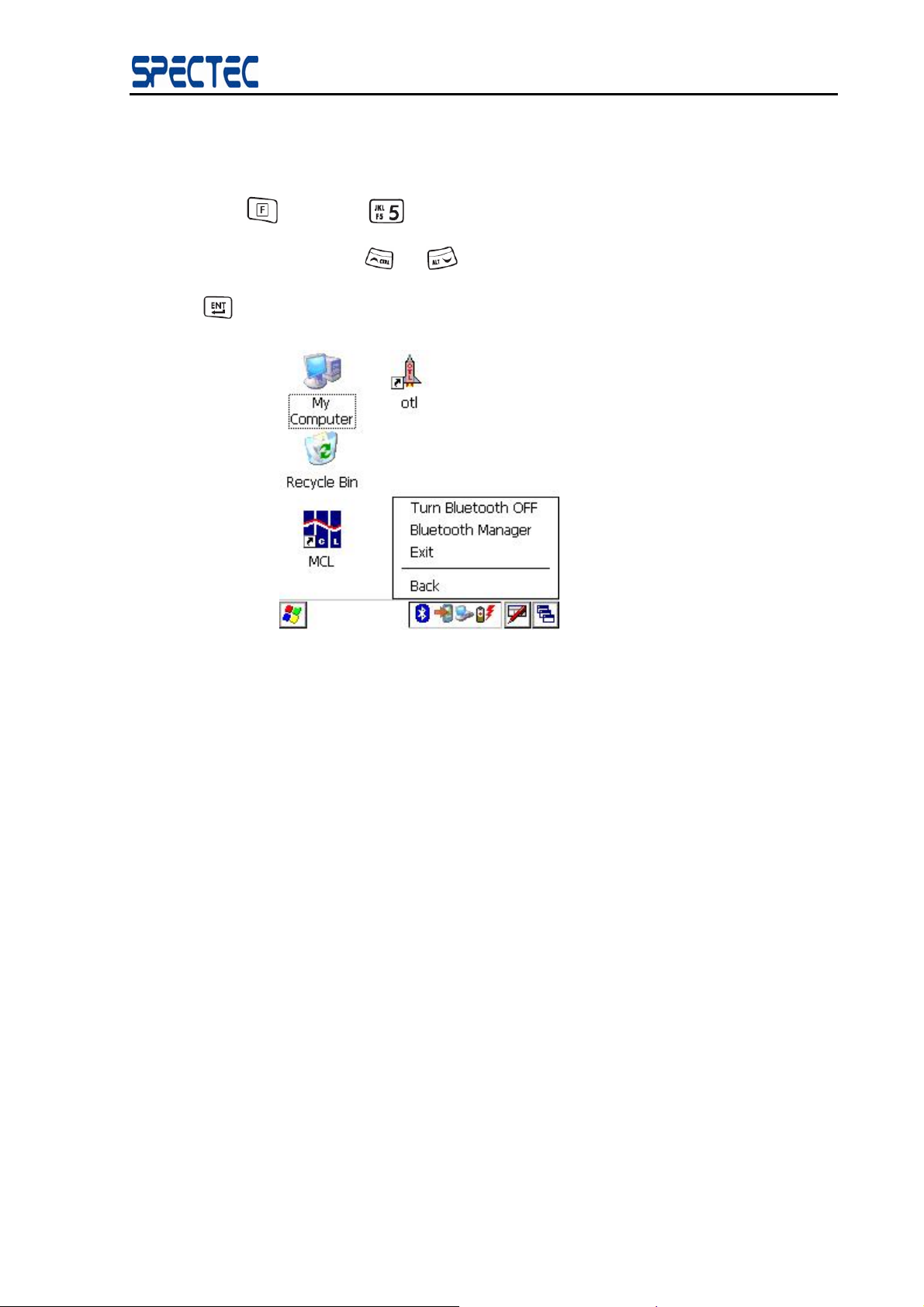
Press “ ” then press “ ” to open notify window. You can open it at any time after
BlueSoleil™ CE Software Manual
BlueSoleil started. Use “
” to confirm. (Figure 4.3)
“
Figure 4.3 Notify Menu
The following menu options are available:
” or “ ” button to choose an item in notify window, then press
♦ Turn Bluetooth Off:
♦ Bluetooth Manager:
♦ Exit:
♦ Back:
.
Step 3:
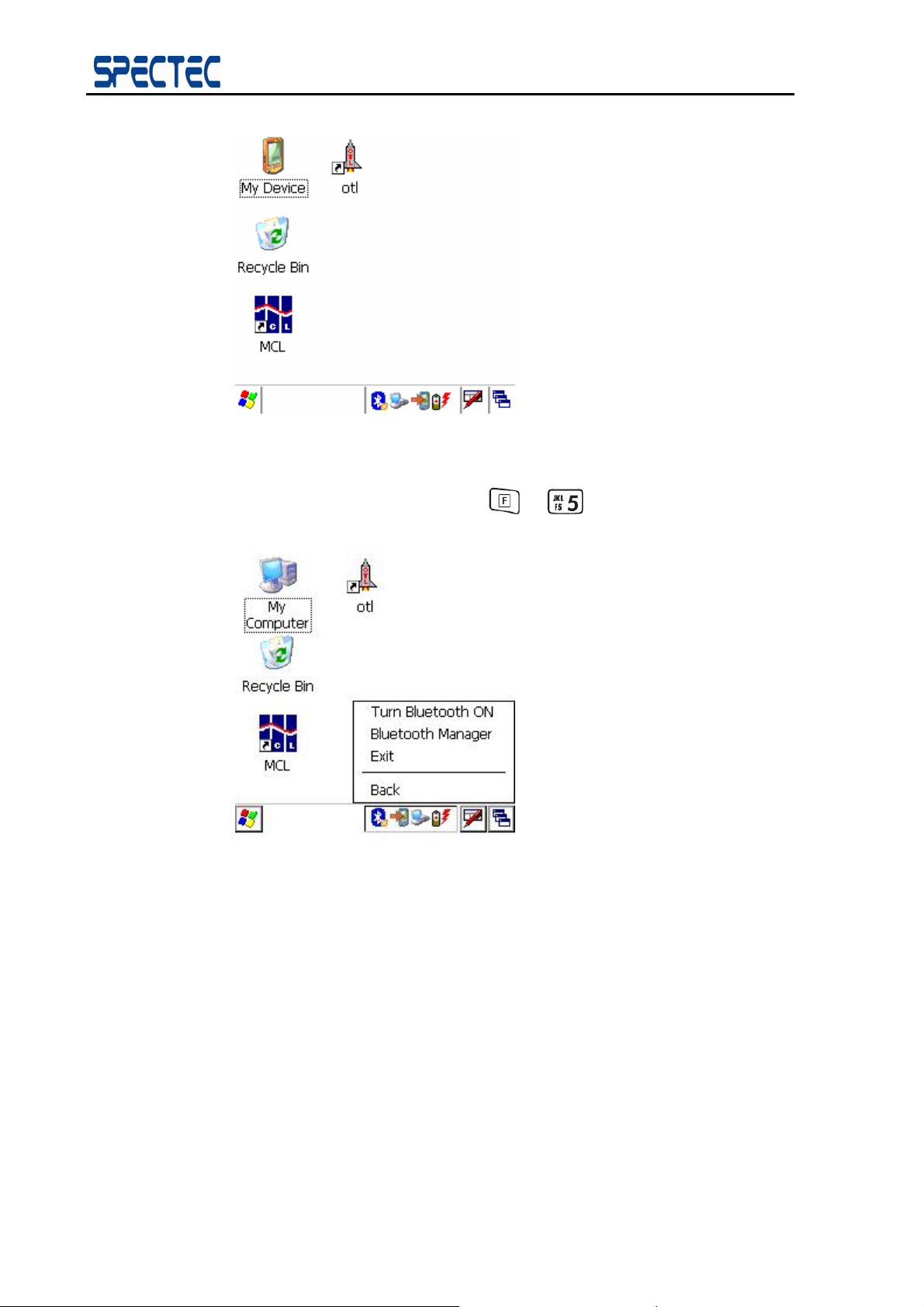
If click “Turn Bluetooth Off “ item . A Notify icon will appears on the
bottom right of the screen. (Figure 4.4)
Turn off the Bluetooth electricity, And the application is
running on the background of the system.
Access the Bluetooth Manager windows. This is the main
function of the application.
Quit BlueSoleil
Go back to the upper
TM
for WinCE.
7
Copyright © 2007, SPECTEC Corporation, http://www.spectec.com
Page 8
BlueSoleil™ CE Software Manual
Figure 4.4 BlueSoleil
TM
for WinCE Notify Icon
Step 4:
If you click the Notify icon or press “
(Figure 4.5)
Figure 4.5 Notify Menu
The following menu options are available:
” + “ ” , a pop-up menu appears.
♦ Turn Bluetooth On:
♦ Bluetooth Manager:
♦ Exit:
♦ Back:
Copyright © 2007, SPECTEC Corporation, http://www.spectec.com.tw
Turn on the Bluetooth electricity, And the application is
running on the foreground of the system.
Access the Bluetooth Manager windows. This is the main
function of the application.
Quit BlueSoleil
TM
for WinCE.
Go back to the upper
8
Page 9
BlueSoleil™ CE Software Manual
4.3 Operation Windows
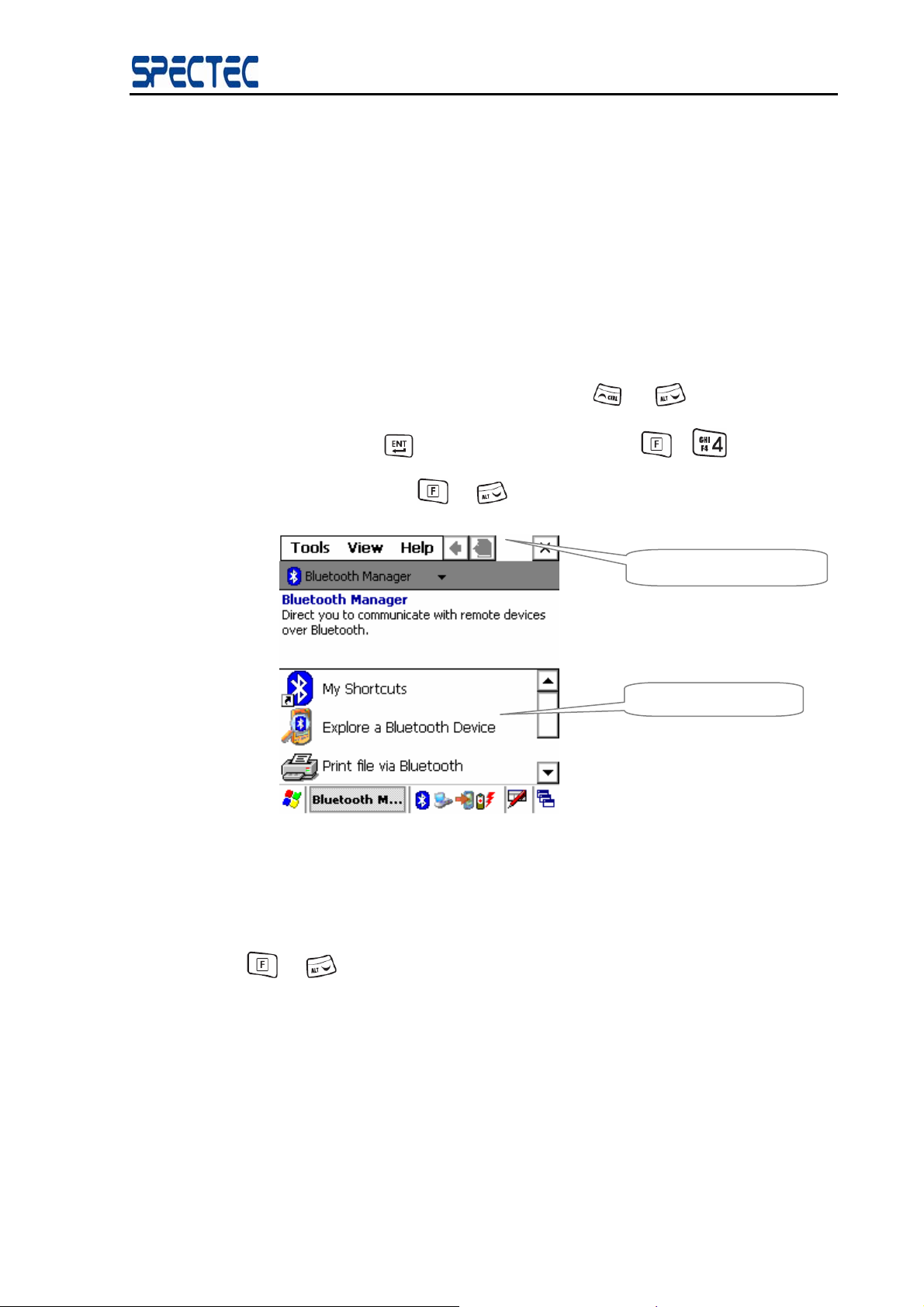
There are one operation windows in BlueSoleilTM for WinCE:
♦ Bluetooth Manager
To navigate these operation windows, click the Bluetooth Manager on the Notify Menu and
enter the main window of the application. You can press “
item in the list, then press “
windows of bluesoleil, or press “
This is the main window of the application. It provides
information of services. And direct you to communicate with
the remote devices over Bluetooth.
” or “ ” button to choose an
” to confirm. You can also press “ ”+“ ” to hide all
” + “ ” twice to access title bar. (Figure 4.6)
Menu and Tool Bar
Service Window
Figure 4.6 Main Window of Bluetooth Manager
4.4 Menu and Tool Bar
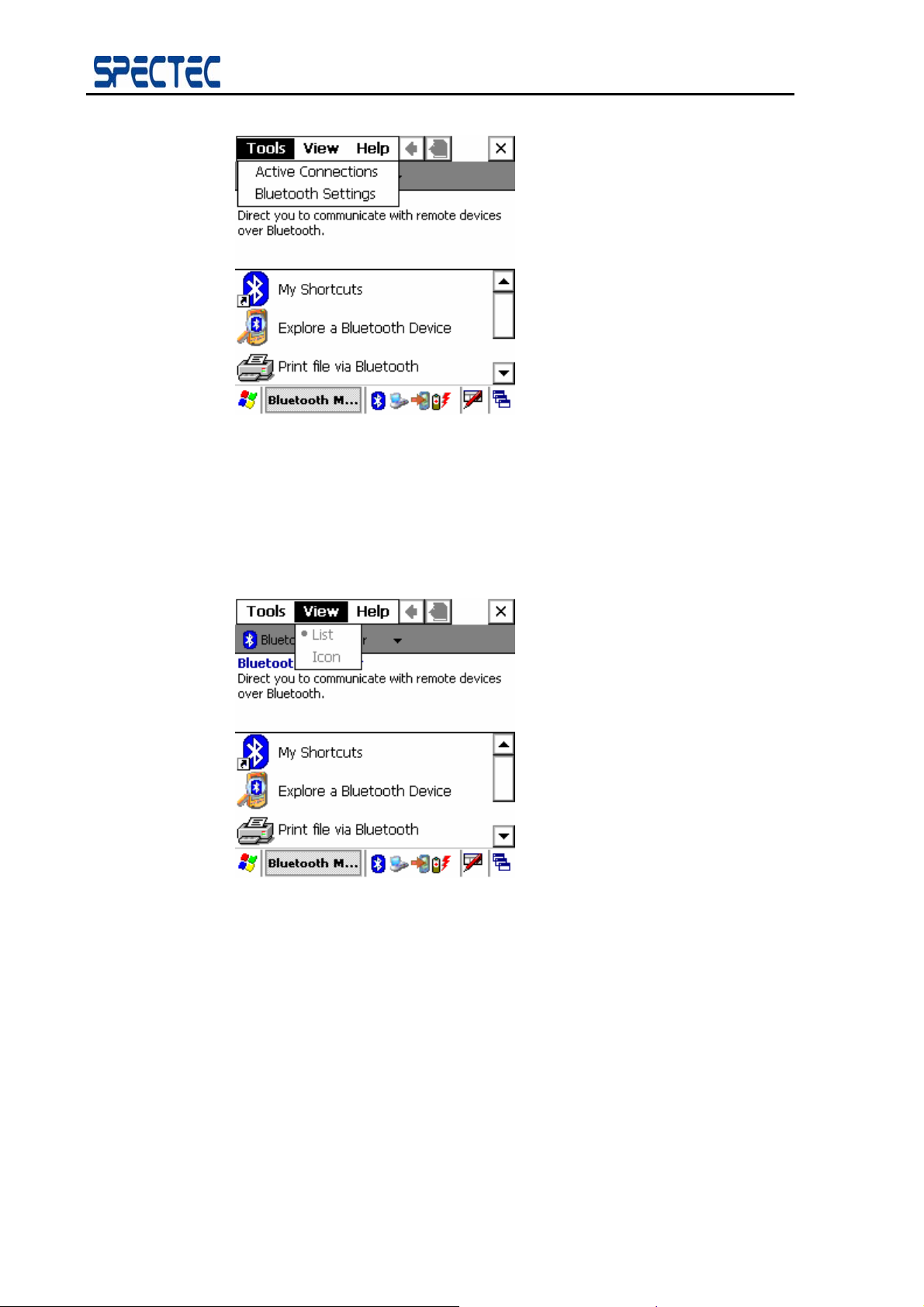
Press “ ” + “ ” twice, it will access title bar. There are three menus on the Menu and
Tool Bar of BlueSoleil
The Tools menu contains the following items (Figure 4.7):
♦ Active Connection
♦ Bluetooth Settings
TM
for WinCE.
Manage the active connection to the remote devices. You
can do operations on the connections.
Config the services property.
9
Copyright © 2007, SPECTEC Corporation, http://www.spectec.com
Page 10
BlueSoleil™ CE Software Manual
Figure 4.7 Items contained in the Tools menu
The View menu contains two items (Figure 4.8):
♦ Icons:
♦ Details:
Figure 4.8 Items contained in the View menu
The Help menu contains one item (Figure 4.9):
♦ About:
Switch to Icon view.
Switch to List view.
Show software version.
10
Copyright © 2007, SPECTEC Corporation, http://www.spectec.com.tw
Page 11
BlueSoleil™ CE Software Manual
Figure 4.9 Items contained in the Help menu
5 Configure Bluetooth Device
5.1 Configure Local Device Information
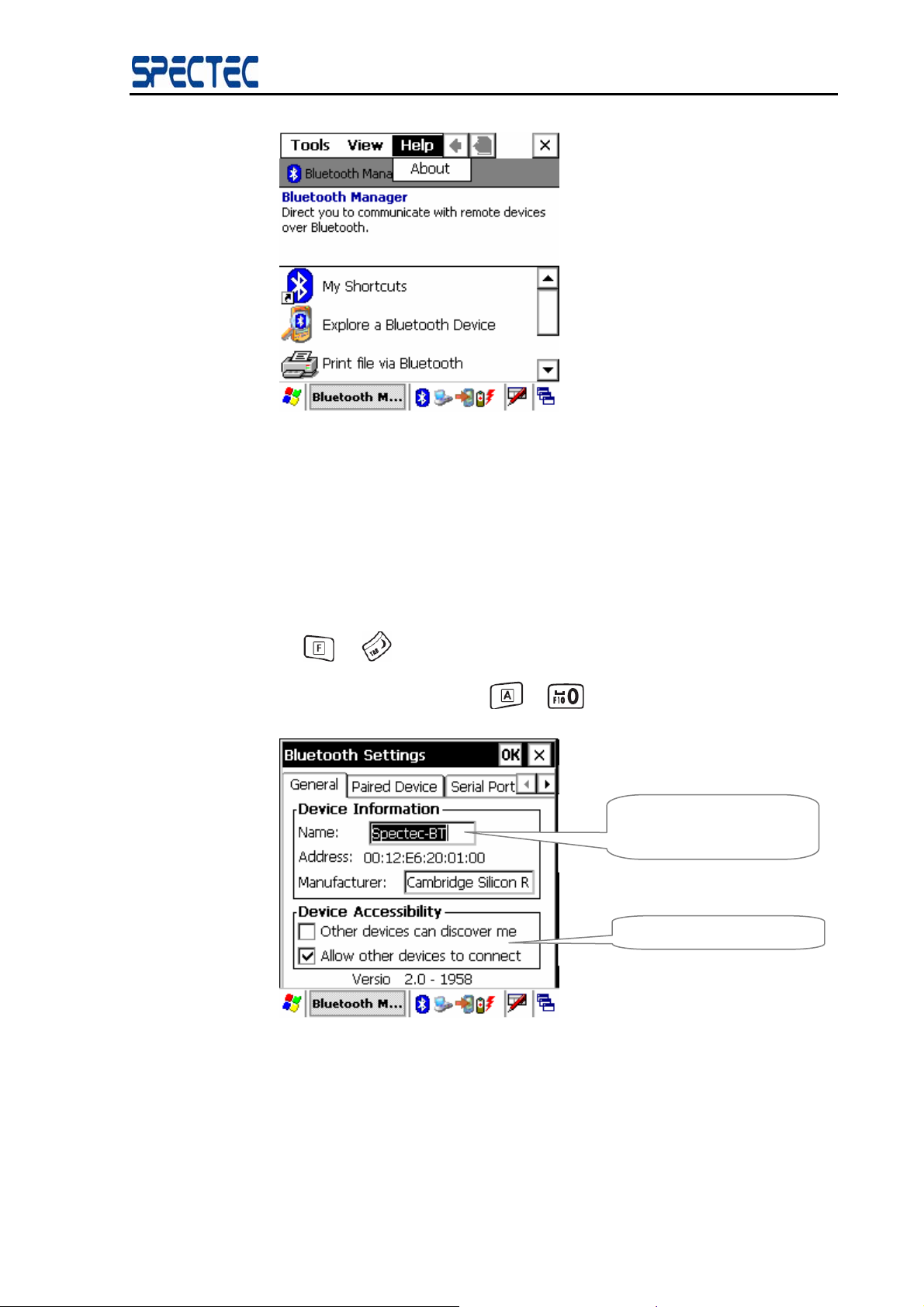
Click Bluetooth settings on the Tools menu. In the popu p Options dialog, click General tab.
you can press “
checkbox’s state, select it and then press “
” + “ ” button to select item you want. If you want to change a
”+ “ ” button. (Figure 5.1)
Change Bluetooth
Device Name
Set Accessibility Mode
Figure 5.1 Local Device Configuration
In the Configure Local Device page, the following operations are available:
♦ Set the Bluetooth device name.
♦ Set whether allow other devices to discover my device.
11
Copyright © 2007, SPECTEC Corporation, http://www.spectec.com
Page 12
BlueSoleil™ CE Software Manual
♦ Set whether allow other devices to connect my device.
5.2 Configure the paired devices
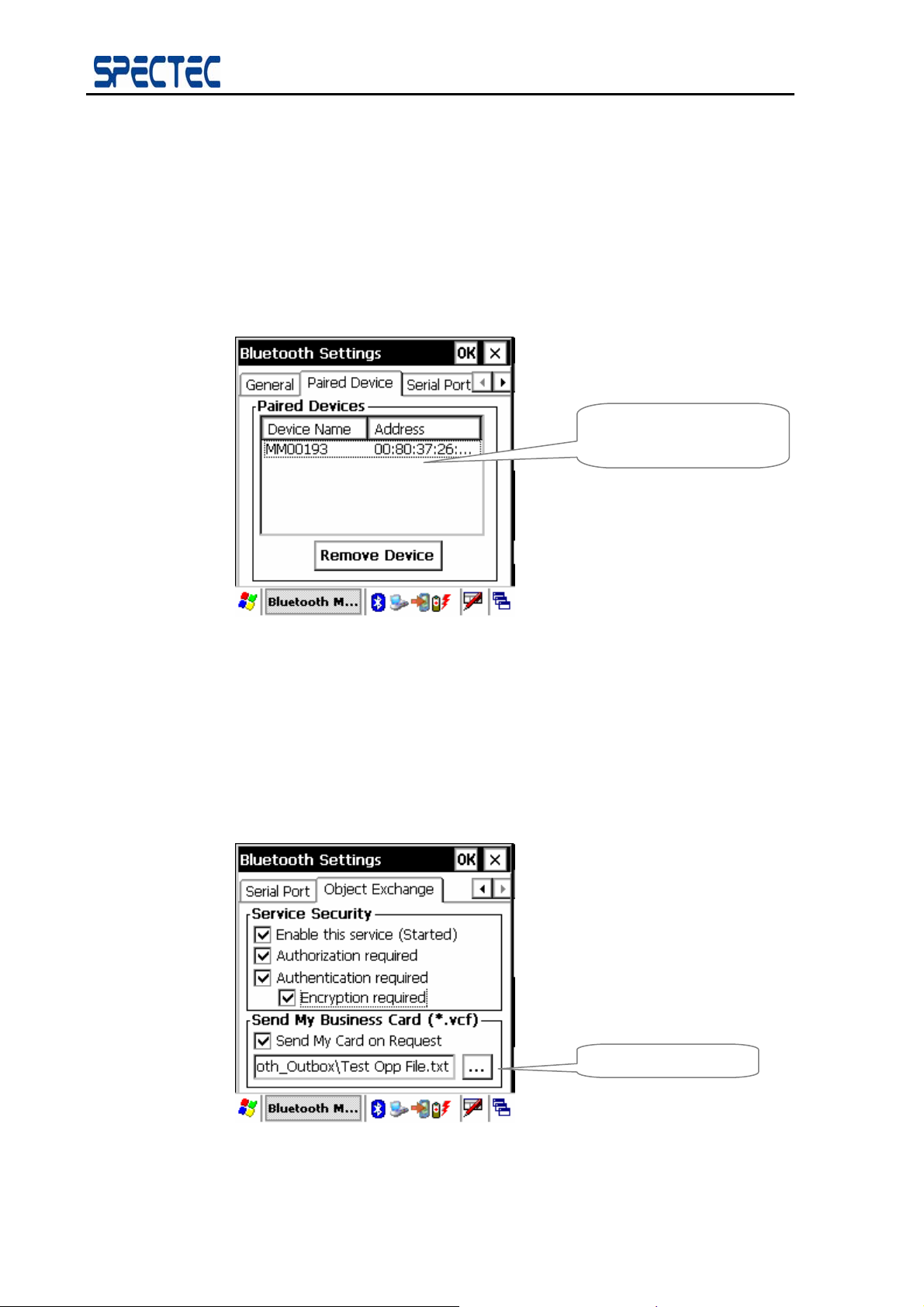
Click Bluetooth settings on the Tools menu. In the popup Options dialog click Paired
Device tab. (Figure 5.2)
Remove a paired device by selecting it and then click the Remove Device button.
Current paired devices
Information.
Figure 5.2 Paired Devices Configuration
5.3 Configure OPP Information
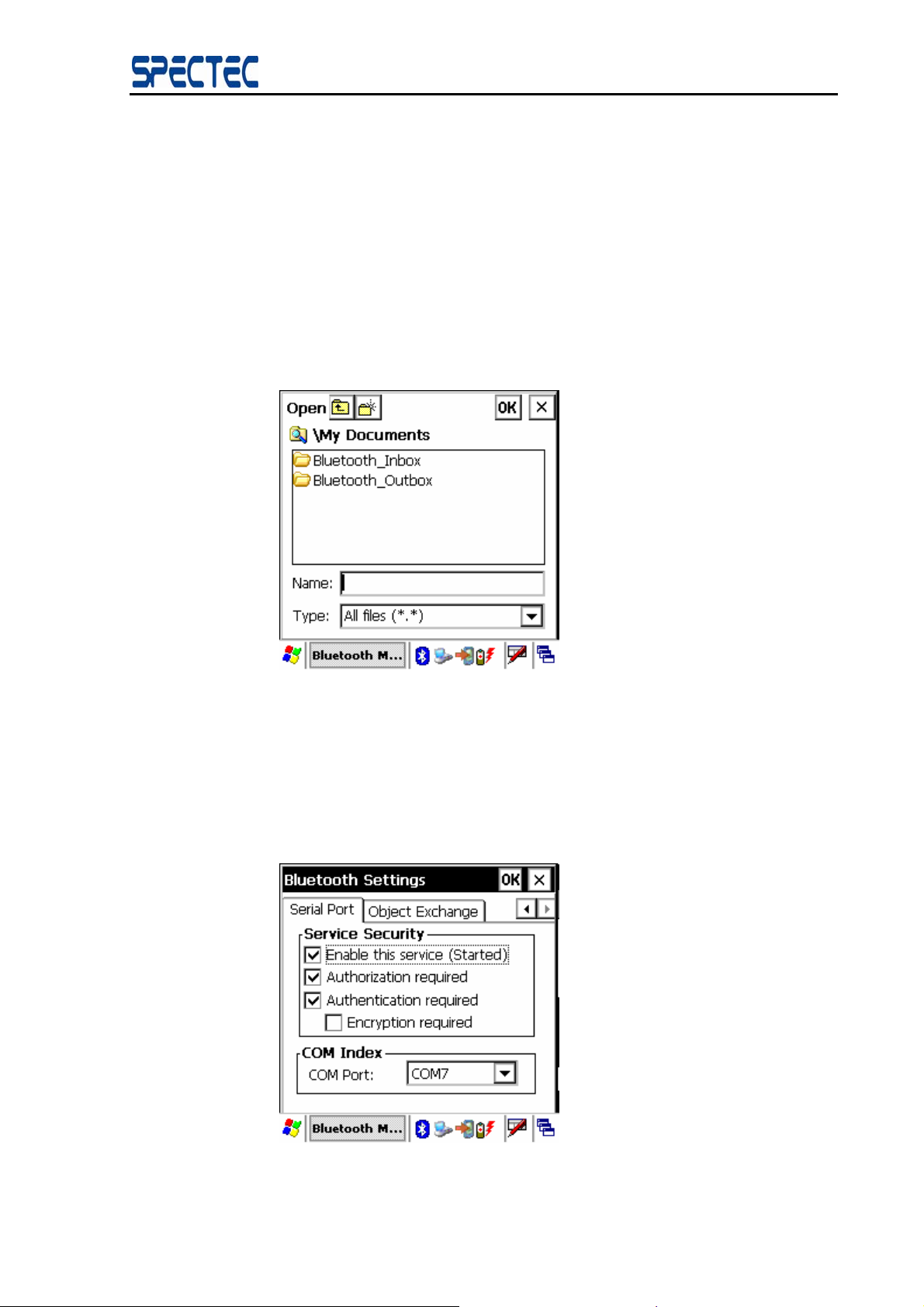
Click Bluetooth settings on the Tools menu. In the popup Options dialog click Object
Exchange tab. (Figure 5.3)
Browse button
Figure 5.3 OPP Configuration
12
Copyright © 2007, SPECTEC Corporation, http://www.spectec.com.tw
Page 13
BlueSoleil™ CE Software Manual
In the Configure OPP page, the following operations are available:
♦ Set Service Security:
♦ Set local OPP Server Send My Card on Request.
Tick the Send My Card on Request checkbox, the local OPP server will send t he default
business card when remote OPP client sends pulling request. Otherwise, the local OPP
server will refuse the pulling request from the remote OPP client.
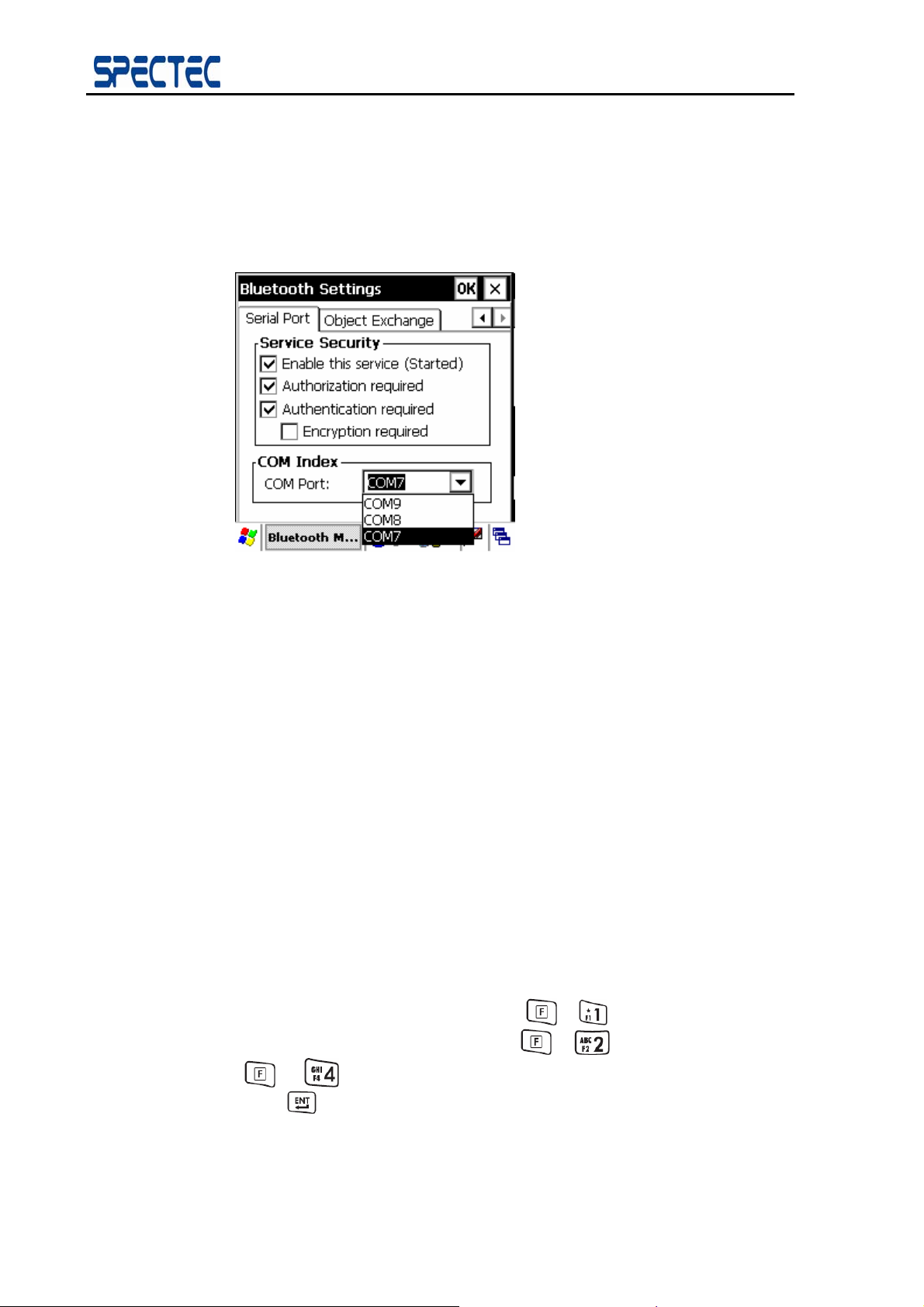
♦ Set Default Business Card.
Click the Browse (…) button. In the Window CE file view program, select a contact item
and then select a file to set as a default file. (Figure 5.4)
Figure 5.4 OPP Default Business Card Configurations
5.4 Configure the Bluetooth Transport Layer
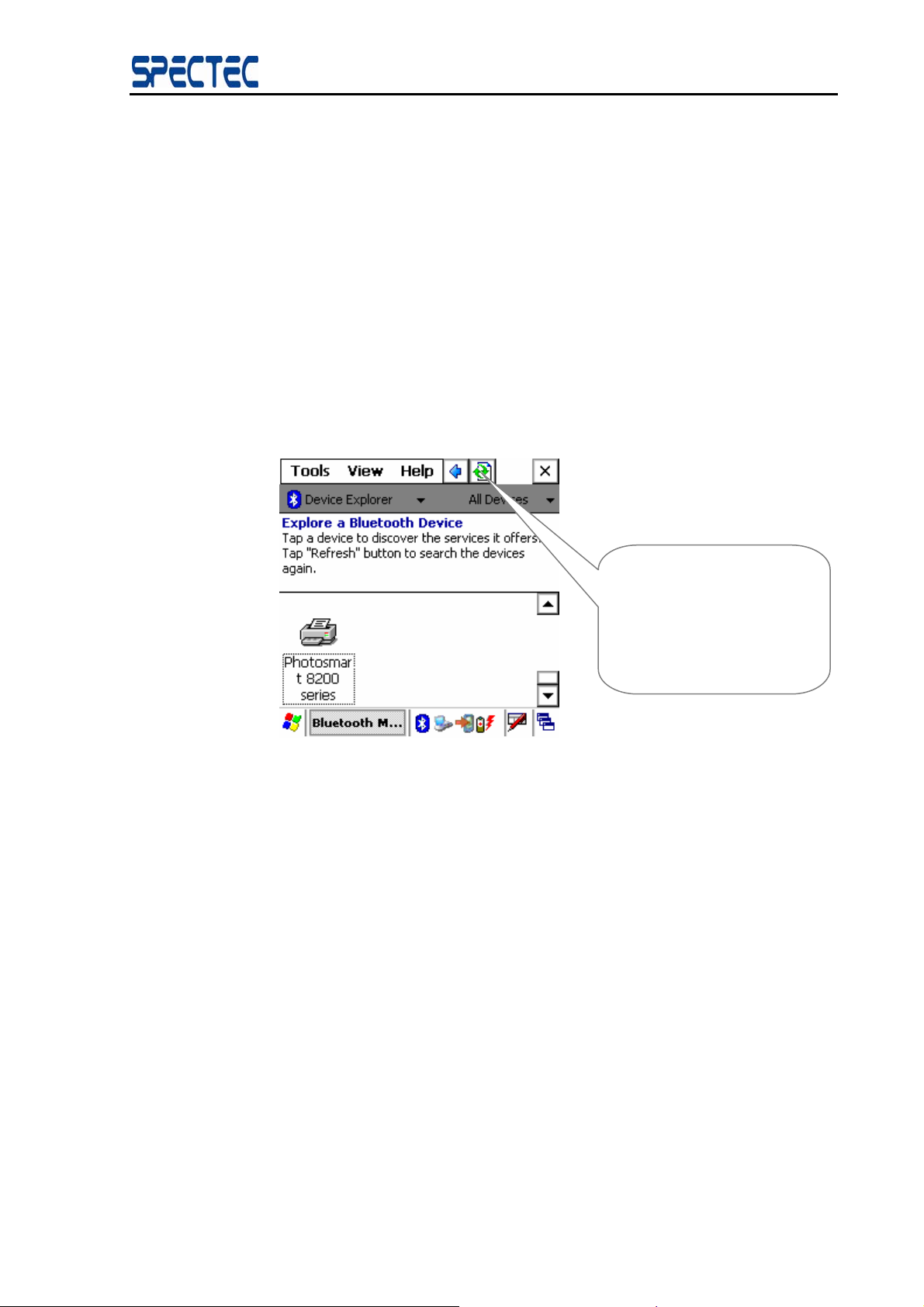
Click Bluetooth settings on the Tools menu. In the popup Options dialog click Serial
Port tab. (Figure 5.5)
Figure 5.5 Bluetooth settings dialog
13
Copyright © 2007, SPECTEC Corporation, http://www.spectec.com
Page 14
BlueSoleil™ CE Software Manual
In the Serial Port page, the following operations are available:
♦ Set Service Security
♦ Select COM index (Figure 5.6)
System has three virtual UART ports: com7, com8, com9 .Anyone will be ok.
Figure 5.6 Selecting COM index
6 Use the Bluetooth Profiles
The following sections outline how to use the Bluetooth Profiles supported by BlueSoleilTM for
WinCE version 1.2.4.
6.1 Serial Port Profile
The Serial Port Profile (SPP) application model can be seen as a client/ server structure.
BlueSoleil™ for WinCE can act as both the SPP server and the client.
6.1.1 Set up a new SPP connection
BlueSoleilTM for WinCE as a SPP Client
Step 1:
Browse devices.
In Device Explore window, you can press “
or go back to previous window by press “
” + “ ” to hide every window of BlueSoleil. After you select an item,
“
press “
Click the Search Devices button to search for the device nearby, click the
device with which you want to establish the SPP connection.
Copyright © 2007, SPECTEC Corporation, http://www.spectec.com.tw
”
14
”+ “ ” to refresh/stop list view,
”+ “ ”. You can also Press
Page 15
BlueSoleil™ CE Software Manual
Note: In the remote devices list, if the device with which you want to connect is
not shown in the remote devices list, please check that whether the device is
power on, the distance between your device and remote device is less than 10
meters and the Bluetooth program is running on the device, then click the
Search Devices button to search for devices nearby again.
If the device still is not shown in the device list, please check that whether the
device connect to other devices. If the connection with other device(s) exists,
first disconnect the connections with other device(s), and then click the Search
Devices button to search for devices nearby again.
If the device’s name is “Unknown”, please check that whether the device
connect to other devices. If the connection with other device(s) exists, first
disconnect the connections with other device(s), and then click the Search
Devices button to search for devices nearby again. Occasionally, you cannot
get the remote device’s name though you have done searching for the device
many times, you can ignore it, and go on the following steps to use SPP
service. (Figure 6.1)
Figure 6.1 Browse Devices
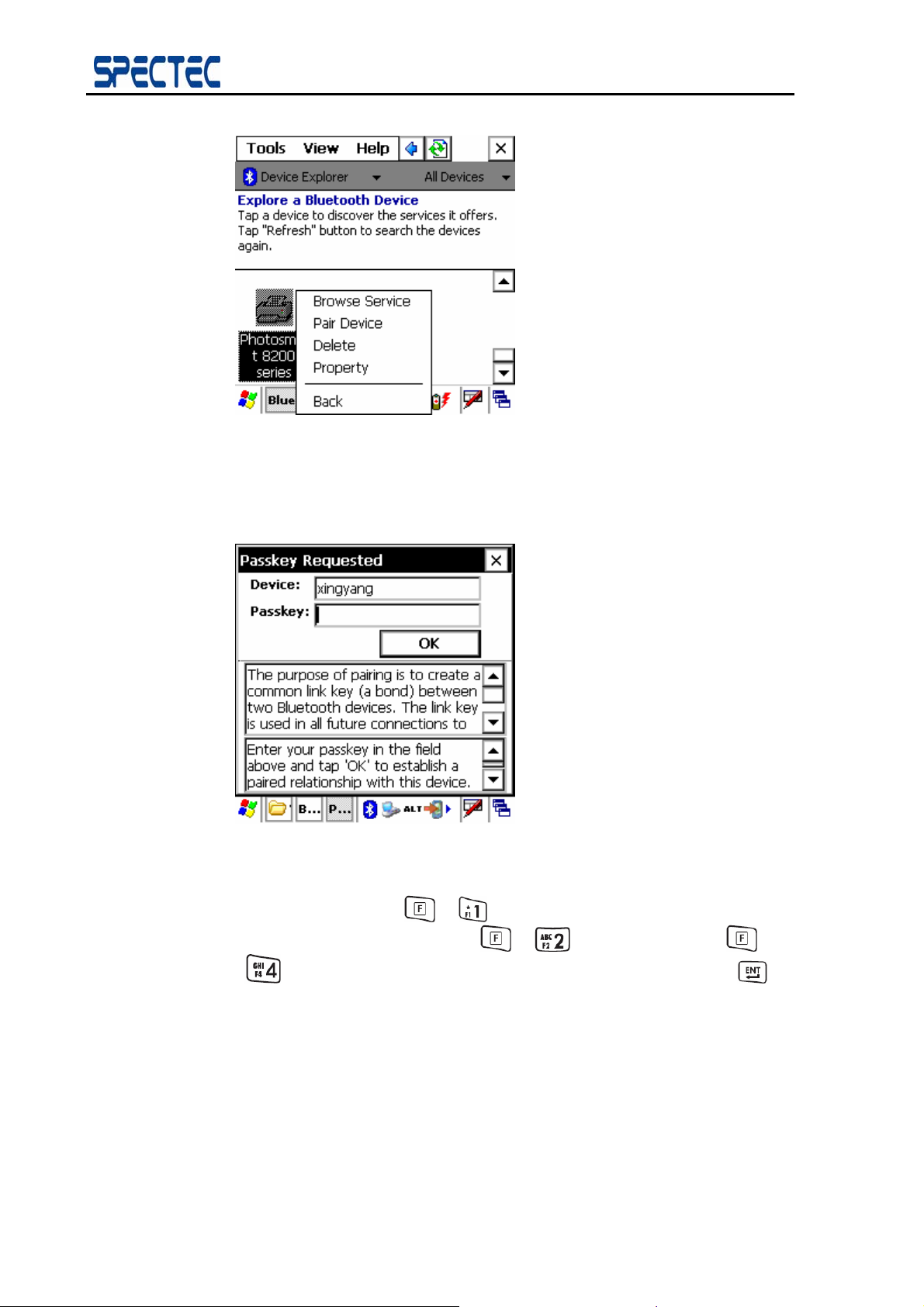
Step 2: Browse Services.
Click the device which you want to establish a SPP connection, and then
choose “Browse service” to browse its available services. (Figure 6.2)
Click the Search
Devices button to start
the search again if the
device is not in the
device window.
15
Copyright © 2007, SPECTEC Corporation, http://www.spectec.com
Page 16
BlueSoleil™ CE Software Manual
Figure 6.2 Browse Services
The application may ask you to exchange a passkey if the devices have not
already been paired. Input the correct passkey by key pad and press OK to
continue the connection. (Figure 6.3)
Figure 6.3 Input Passkeys
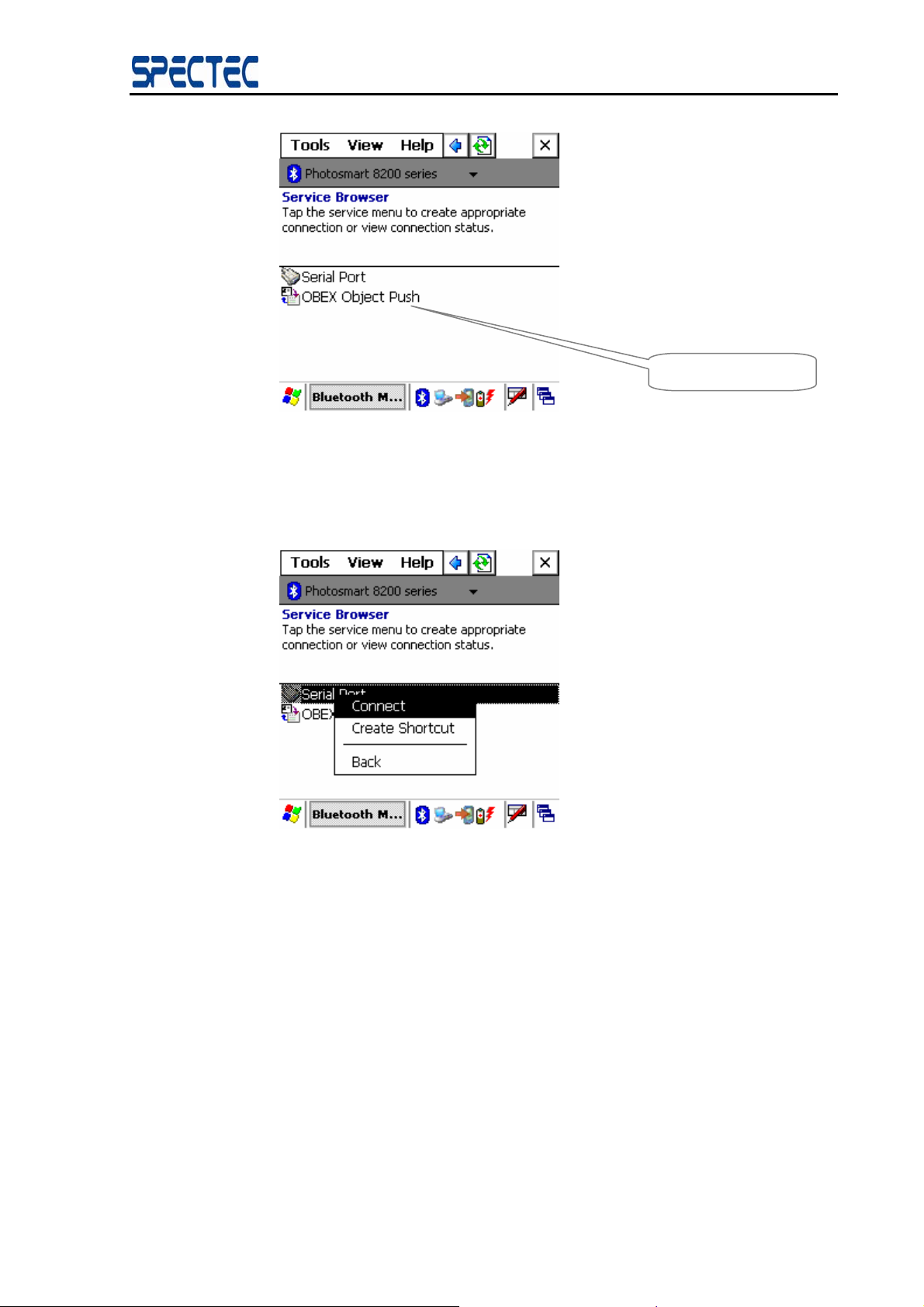
Once the service search is complete, the found service will be listed in service
browse window. Press “
”+ “ ” to refresh/stop refresh list view, or go
back to previous window by press “
” to hide every window of BlueSoleil. Or select an item then press “ ”
“
to operate a service. (Figure 6.4)
16
Copyright © 2007, SPECTEC Corporation, http://www.spectec.com.tw
”+ “ ”. You can also Press “ ” +
Page 17
BlueSoleil™ CE Software Manual
Found services
Figure 6.4 Found Services
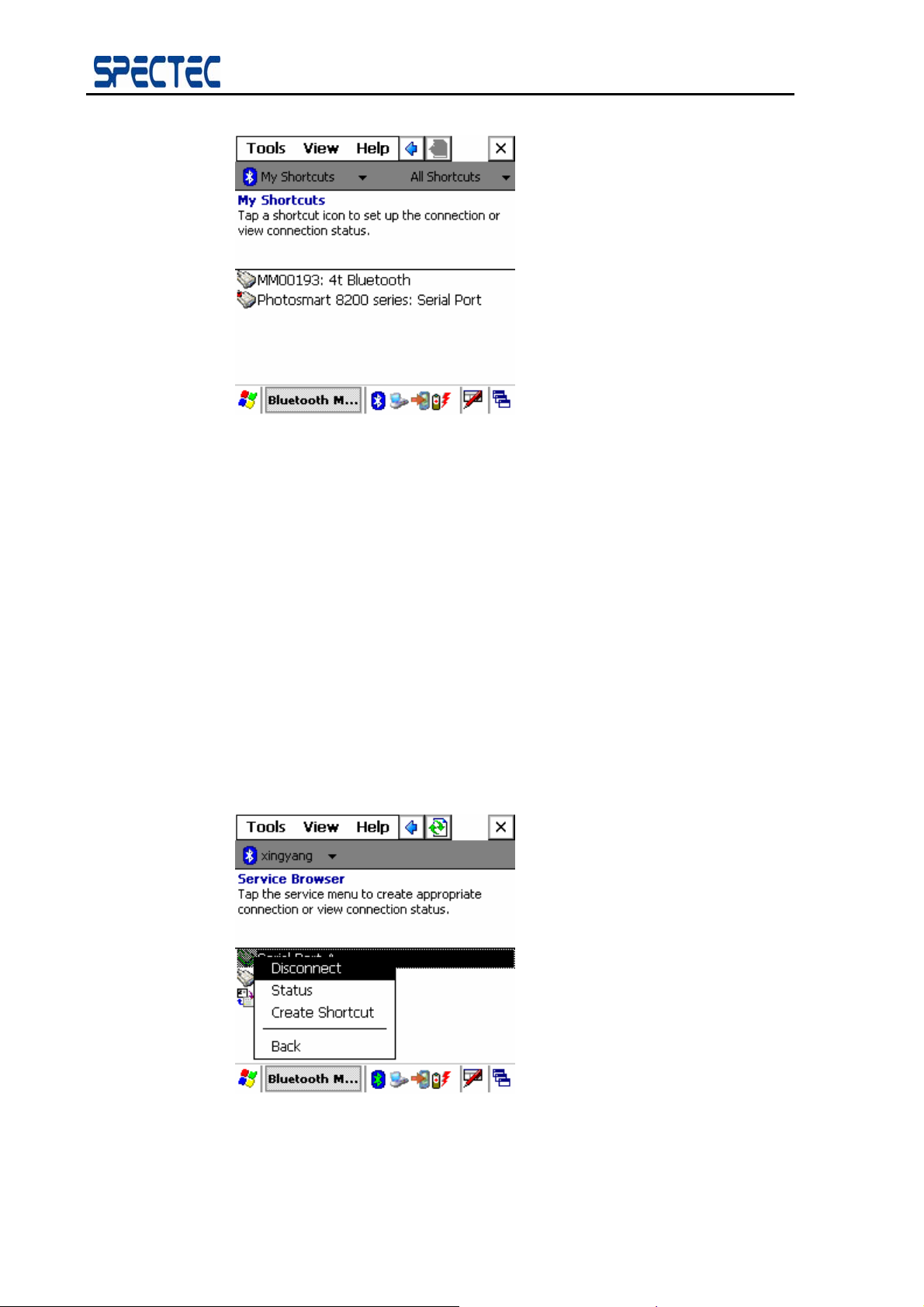
Step 3:
Once the connection is successfully established, a SPP shortcut appears i n the
Connect to SPP server.
Click the SPP service icon then choose “Connect” to connect to the SPP
server. (Figure 6.5)
Figure 6.5 Connect to SPP
Shortcut window. (Figure 6.6)
17
Copyright © 2007, SPECTEC Corporation, http://www.spectec.com
Page 18
BlueSoleil™ CE Software Manual
Figure 6.6 SPP Connection
Step 4: Application
Now you can use the SPP connection. For example:
1. You can print data via SPP profile by using the printer manufacture’s UI.
2. You can create a Bluetooth ActiveSync connection with PC (server) based
on this SPP connection. On the PC side, first create an ActiveSync partnership
using a serial or USB connection. Then select the COM port server use s.
6.1.2 Disconnect the SPP Application
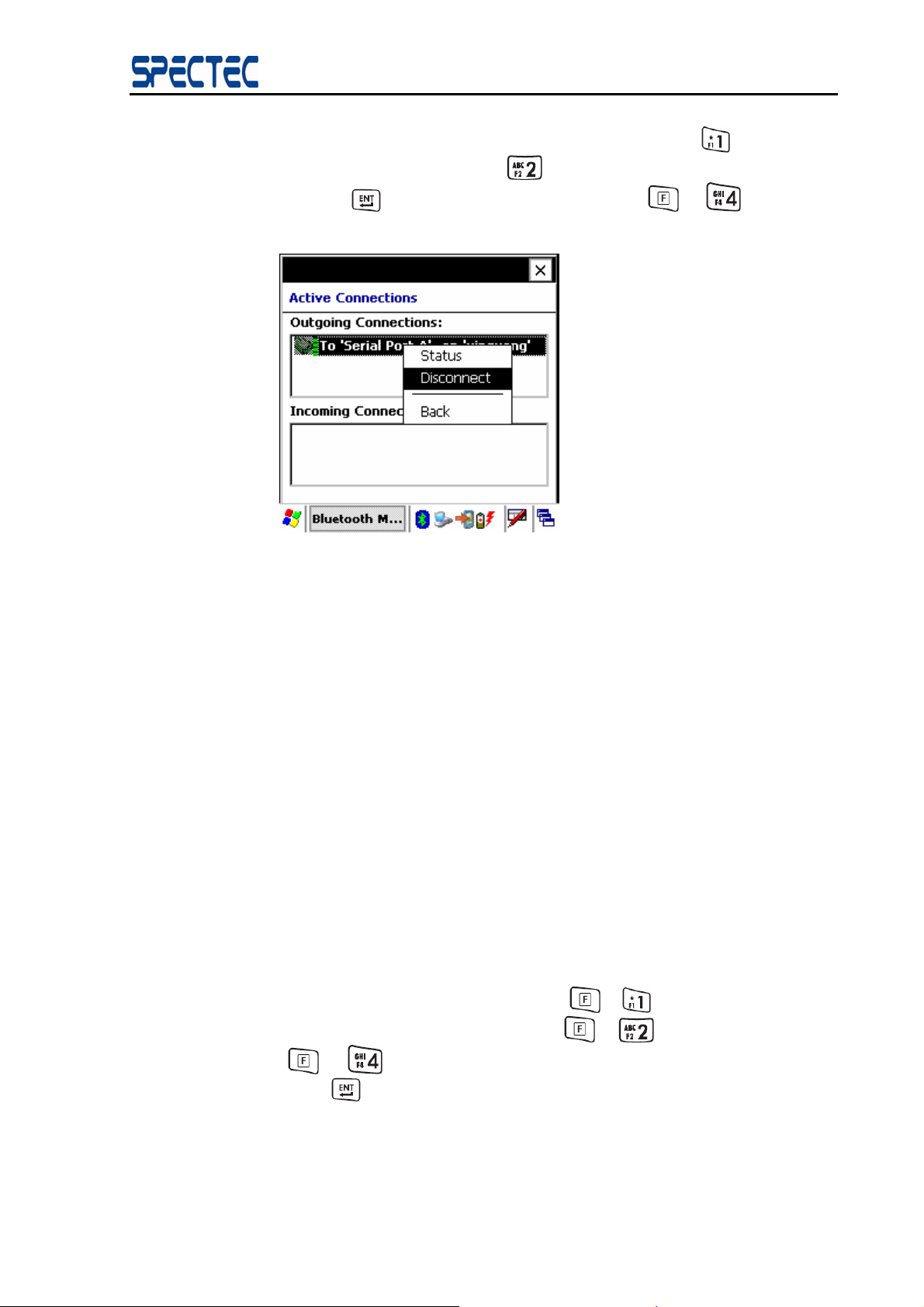
We provide two methods for the SPP application to disconnect SPP connection.
You can disconnect the connection in two ways.
Method 1: Click the SPP shortcut, and click Disconnect on the pop-up menu.
(Figure 6.7)
Figure 6.7 Disconnect from the Pop-up Menu
Method 2: In the Active connection window, select the SPP outgoing
18
Copyright © 2007, SPECTEC Corporation, http://www.spectec.com.tw
Page 19
BlueSoleil™ CE Software Manual
connection and click the Disconnect button. You can press “
select the first list view, or press “
then use “
window. (Figure 6.8)
Figure 6.8 Disconnect from the Status Window
” button to call the popup menu. Press “ ” + “ ” to quit this
” button to select the second list one, and
” button to
6.1.3 Use the SPP Shortcut
Once a new connection is successfully established, a shortcut for the connection is generated.
Double click the particular shortcut icon (represented by the Connection Name) and cli ck
connect on the pop-up menu to re-establish the connection.
6.2 Object Push Profile
The Object Push (OPP) application model can be seen as a client/ server structure.
TM
BlueSoleil
6.2.1 Set up a new OPP Connection
BlueSoleilTM for WinCE as an OPP Client
Step 1:
for WinCE can act as both the OPP client and the OPP server.
Browse devices.
In Device Explore window, you can press “
or go back to previous window by press “
”+ “ ” to refresh/stop list view,
”+ “ ”. You can also Press
” + “ ” to hide every window of BlueSoleil. After you select an item,
“
press “
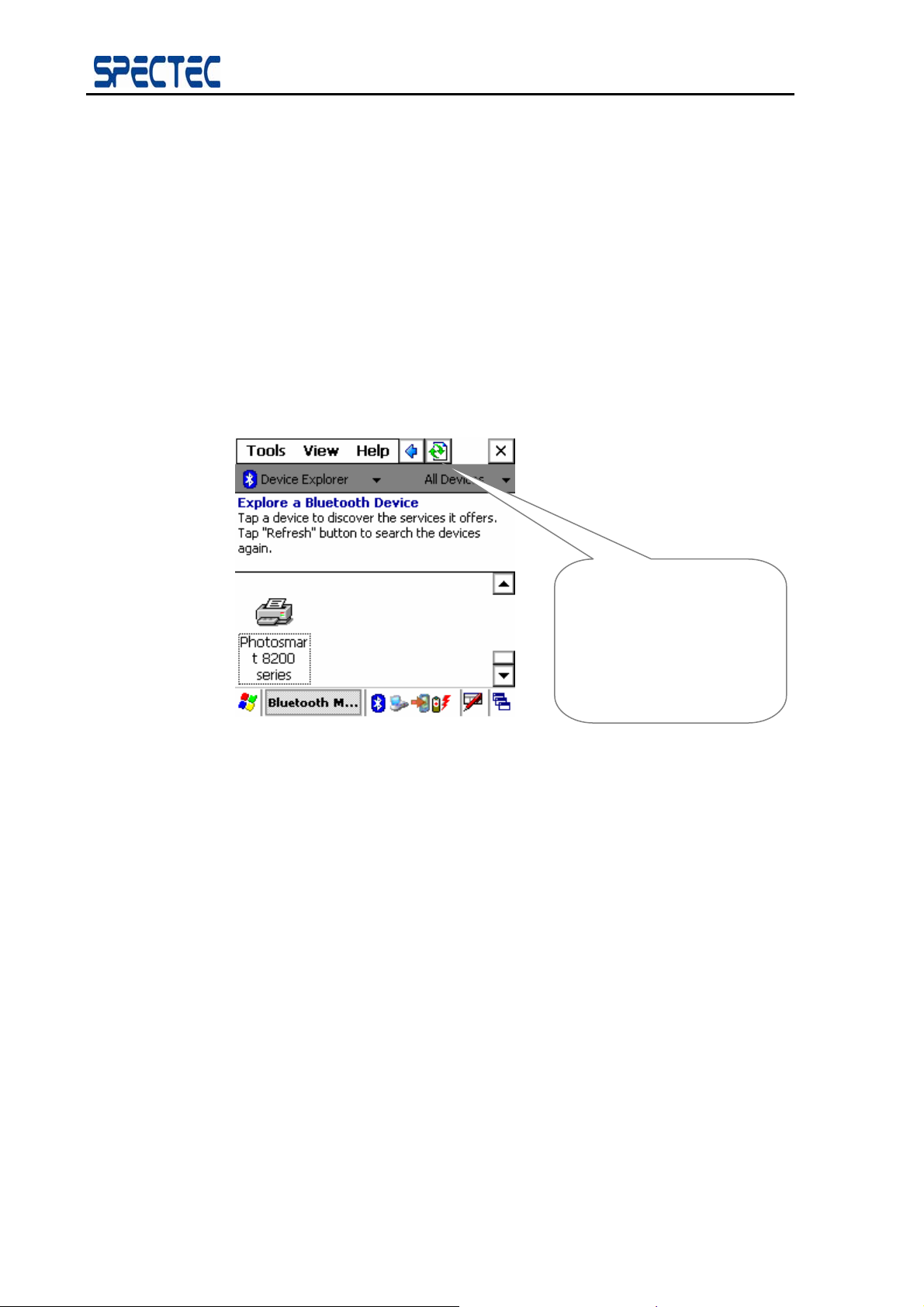
Click the Search Devices button to search for the device nearby, double click
the device with which you want to establish the OPP connection.
Note: In the remote devices list, if the device with which you want to connect is
Copyright © 2007, SPECTEC Corporation, http://www.spectec.com
”
19
Page 20
BlueSoleil™ CE Software Manual
not shown in the remote devices list, please check that whether the device is
power on, the distance between your device and remote device is less than 10
meters and the Bluetooth program is running on the device, then click the
Search Devices button to search for devices nearby again.
If the device still is not shown in the device list, please check that whether the
device connect to other devices. If the connection with other device(s) exists,
first disconnect the connections with other device(s), and then click the Search
Devices button to search for devices nearby again.
If the device’s name is “Unknown”, please check that whether the device
connect to other devices. If the connection with other device(s) exists, first
disconnect the connections with other device(s), and then click the Search
Devices button to search for devices nearby again. Occasionally, you cannot
get the remote device’s name though you have done searching for the device
many times, you can ignore it, and go on the following steps to use OPP
service. (Figure 6.9)
Figure 6.9 Browse Devices
Step 2: Browse services.
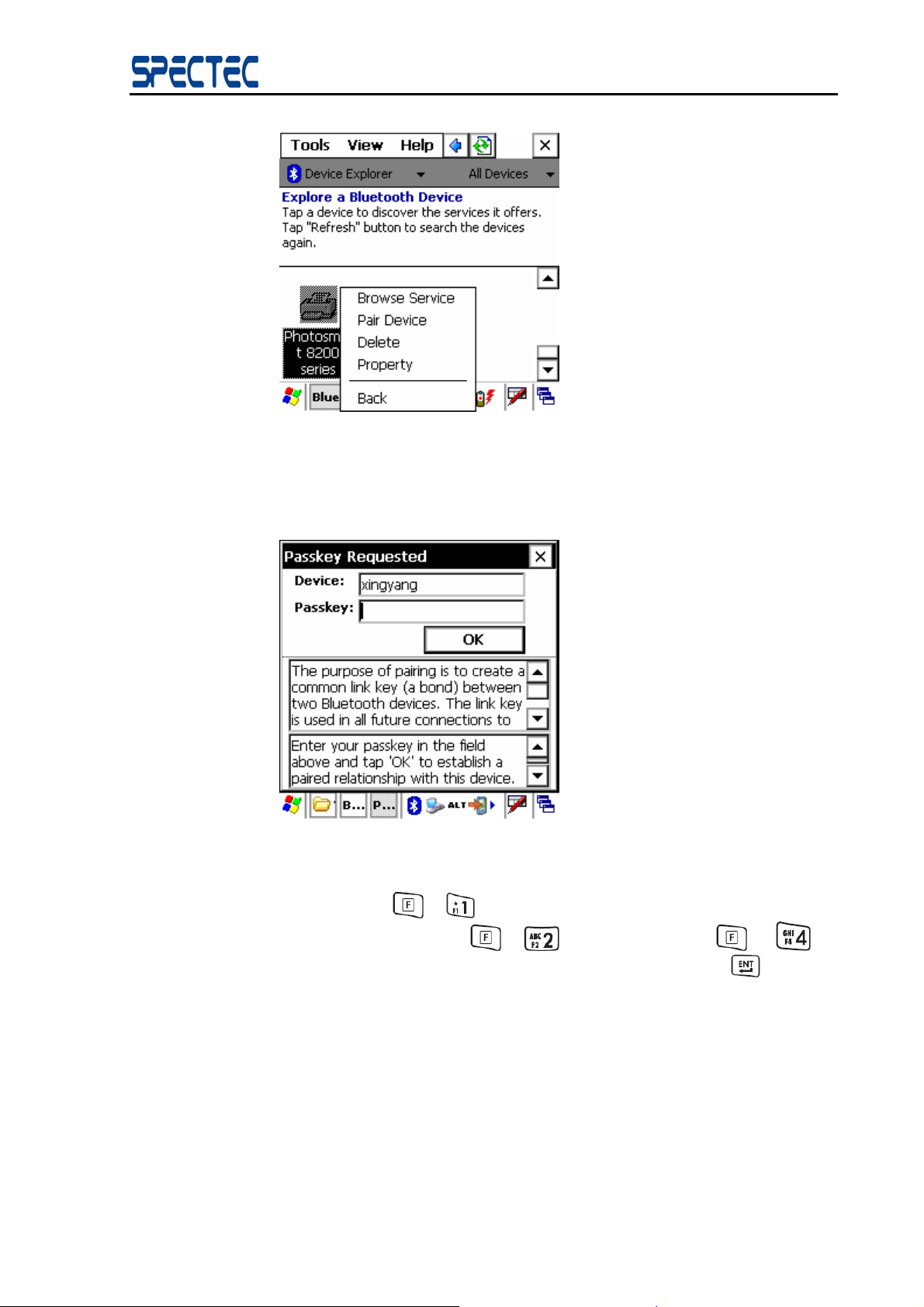
Click the device with which you want to establish an OPP connection then
press “browse service” to browse its available services. (Figure 6.10)
Click the Search
Devices button to start
the search again if the
device is not in the
device window.
20
Copyright © 2007, SPECTEC Corporation, http://www.spectec.com.tw
Page 21
BlueSoleil™ CE Software Manual
Figure 6.10 Browse Services
The application may ask you to exchange a passkey if the devices have not
already been paired. Input the correct passkey and press OK to continue the
connection. (Figure 6.11)
Figure 6.11 Input Passkeys
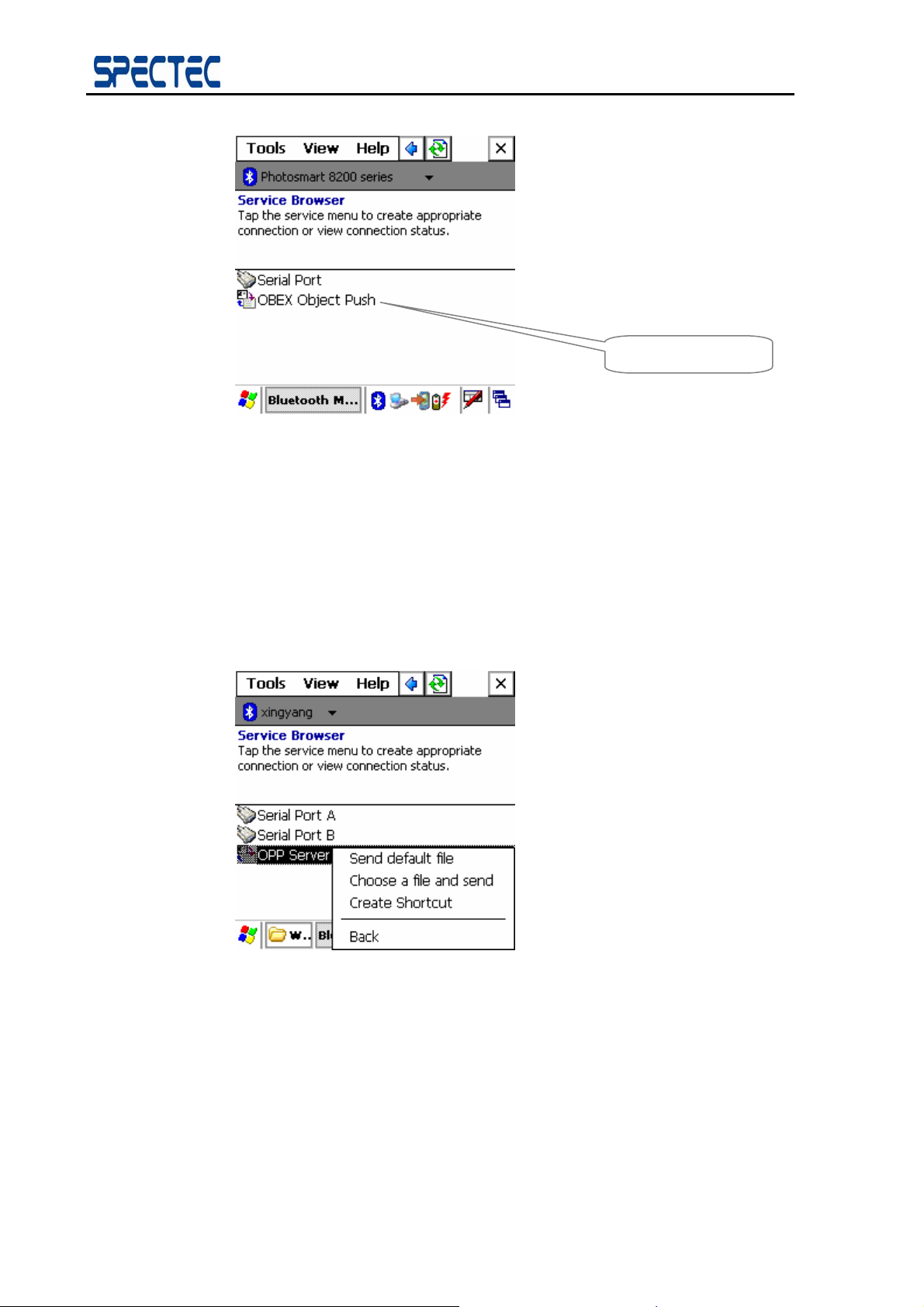
Once the service search is complete, the found service will be list in the
window. Press “
”+ “ ” to refresh/stop refresh list view, or go back to
previous window by press “
”+ “ ”. You can also Press “ ” + “ ”
to hide every window of BlueSoleil. Or select an item then press “
operate a service. (Figure 6.12)
21
Copyright © 2007, SPECTEC Corporation, http://www.spectec.com
” to
Page 22
BlueSoleil™ CE Software Manual
Figure 6.12 Found Services
Step 4: Application
In the OPP Operation Window,
Found services
Click the Send default file item to send the default file which has set in the
OPP configuration window.
Click the Choose and send item to send a specific file, this will also change the
default file path in OPP configuration window.
Click the Create shortcut item to create an OPP shortcut in the Shortcut
window. (Figure 6.13)
Figure 6.13 Connect to OPP Server
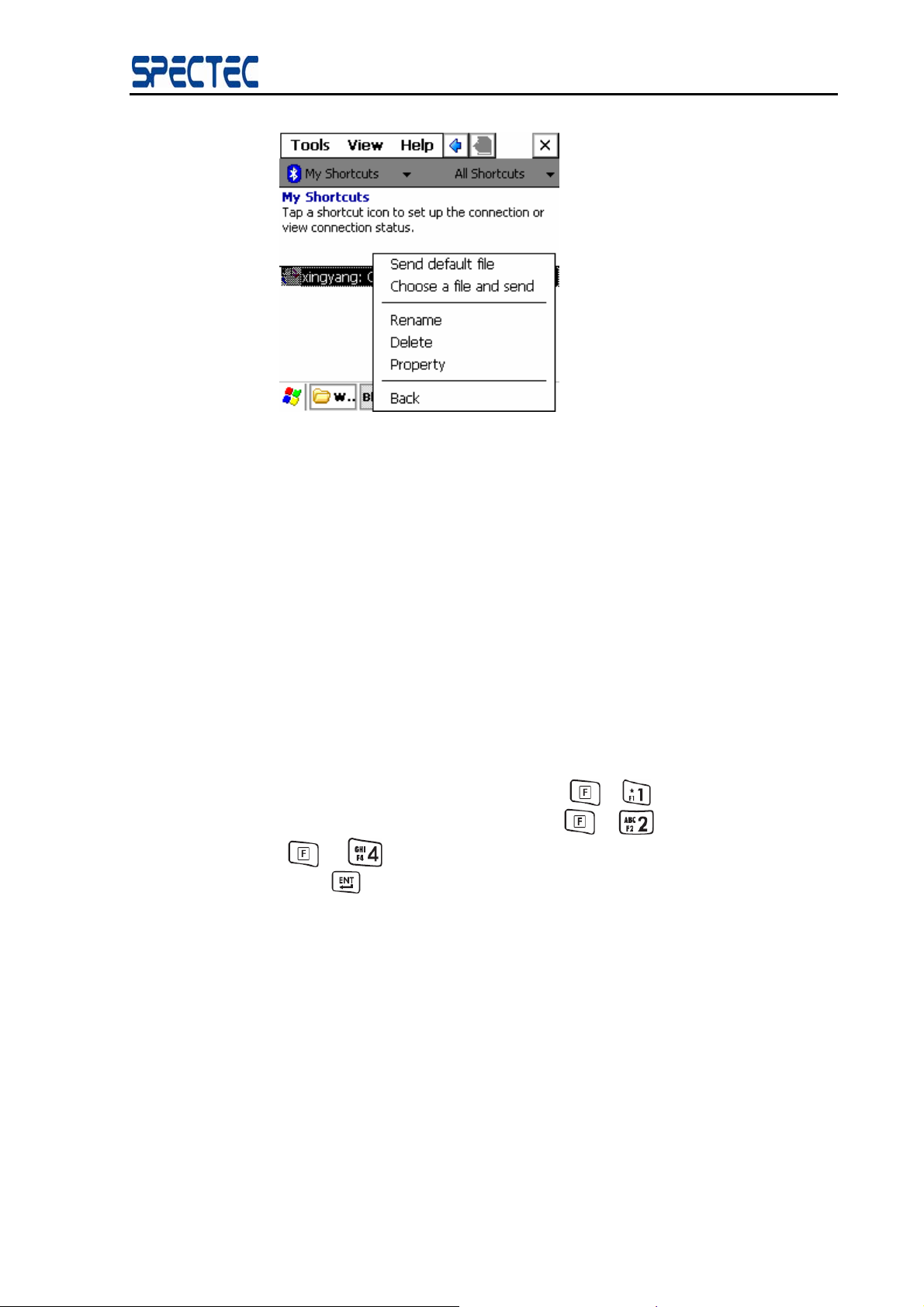
Once you create an OPP shortcut, it appears in the Shortcut window and the
OPP operation window appears. (Figure 6.14)
22
Copyright © 2007, SPECTEC Corporation, http://www.spectec.com.tw
Page 23
BlueSoleil™ CE Software Manual
Figure 6.14 OPP Operation Window
6.2.2 Use the OPP Shortcut
Once a new connection is successfully established, a shortcut for the connection is generated.
Double click the particular shortcut icon (represented by the Connection Name) and cli ck
Send default file or choose a file and send on the pop-up menu to send the right file.
7 Print file via the Bluetooth
The following section outlines how to print file via the Bluetooth provided by
TM
BlueSoleil
Step 1:
.
Browse devices.
In Device Explore window, you can press “
or go back to previous window by press “
” + “ ” to hide every window of BlueSoleil. After you select an item,
“
press “
Click the Print Device via Bluetooth button to search for the device nea rby,
double click the device with which you want to establish the SPP connection.
Note: In the remote devices list, if the device with which you want to connect is
not shown in the remote devices list, please check that whether the device is
power on, the distance between your device and remote device is less than 10
meters and the Bluetooth program is running on the device, then click the
Search Devices button to search for devices nearby again.
If the device still is not shown in the device list, please check that whether the
device connect to other devices. If the connection with other device(s) exists,
first disconnect the connections with other device(s), and then click the Search
Devices button to search for devices nearby again. (Figure 6.1)
”
”+ “ ” to refresh/stop list view,
”+ “ ”. You can also Press
23
Copyright © 2007, SPECTEC Corporation, http://www.spectec.com
Page 24
BlueSoleil™ CE Software Manual
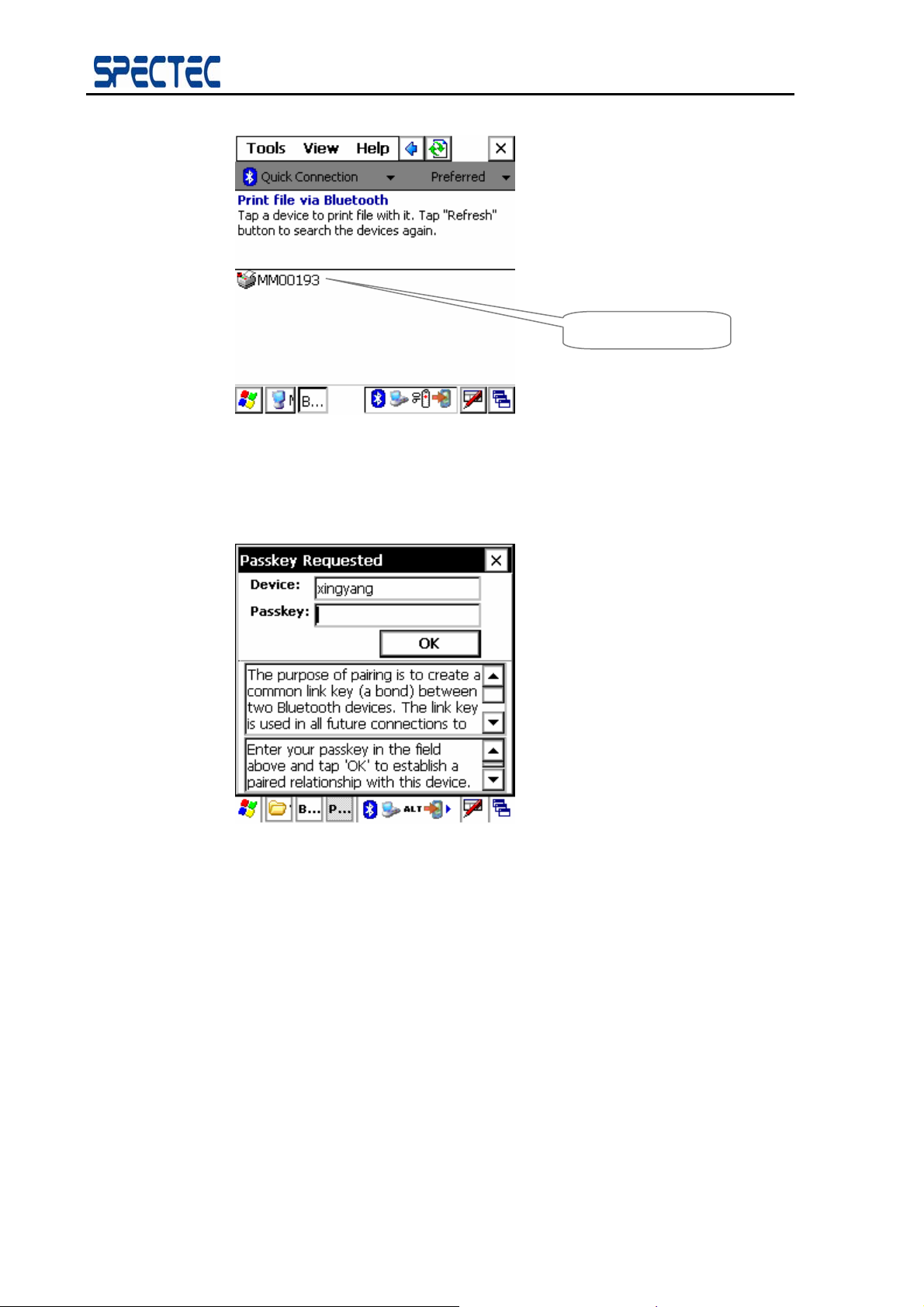
Found device
Figure 7.1 Print file via Bluetooth Operation Window
Step 2: Application
The application may ask you to exchange a passkey if the devices have not
already been paired. Input the correct passkey and press OK to continue the
connection. (Figure 7.2)
Figure 7.2 Input Passkeys
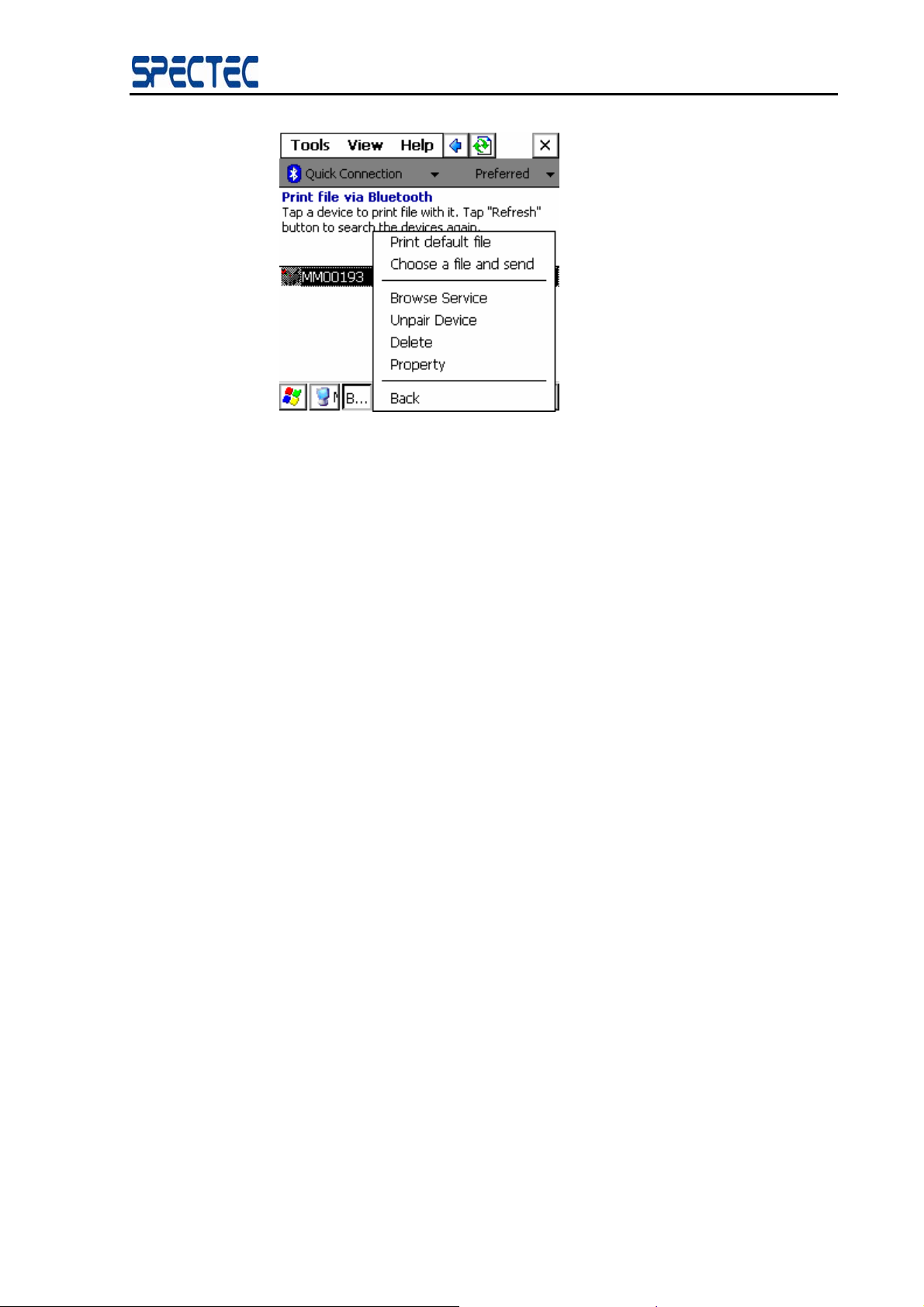
In the Print file via Bluetooth Operation Window,
Click the Send default file item to send the default file which has set in the
OPP configuration window.
Click the Choose and send item to send a specific file, this will also change the
default file path in OPP configuration window. (Figure 6.12)
Note: We recommend you to use printer manufacture’s UI to print data in case
the above 2 ways are not working.
24
Copyright © 2007, SPECTEC Corporation, http://www.spectec.com.tw
Page 25
BlueSoleil™ CE Software Manual
Figure 7.3 Print file via Bluetooth Operation Window
25
Copyright © 2007, SPECTEC Corporation, http://www.spectec.com
 Loading...