

Page 1
Video Projector
4-580-042-13 (1)
Mode d’emploi
Avant d’utiliser l’appareil, veuillez lire attentivement ce manuel ainsi que le Guide
de référence rapide fourni et les conserver pour future référence.
VPL-HW65
Page 2

Table des matières
Emplacement des
commandes
Face avant/droite ................................ 4
Arrière/Dessous ................................. 5
Télécommande .................................. 6
Raccordements et
préparatifs
Installation de l’appareil .................... 7
Réglage de la position de l’image ..... 8
Raccordement à un appareil vidéo ou à
un ordinateur ................................ 12
Projection
Projection de l’image ....................... 14
Mise hors tension ....................... 14
Visionnage d’images vidéo 3D ........ 15
Utilisation des lunettes 3D ......... 15
Sélection du rapport d’aspect en
fonction du signal vidéo ............... 17
Sélection du mode d’affichage de
l’image ......................................... 19
Utilisation des menus
Commande par les menus ................ 20
Menu Image ..................................... 22
Menu Écran ..................................... 28
Menu Réglage .................................. 30
Menu Fonction ................................. 31
Éléments verrouillés à l’aide de
Verrou réglages ....................... 33
Menu Installation ............................. 34
Menu Informations .......................... 37
À propos de la mémoire
préréglée ................................ 37
Utilisation des
fonctionnalités réseau
Affichage de la fenêtre de contrôle de
l’appareil avec un navigateur
Web ...............................................38
Utilisation de la fenêtre de
contrôle ......................................... 39
Changement de page ..................39
Définition de la restriction
d’accès ..................................... 39
Confirmation des informations
relatives à l’appareil ................ 40
Gestion des erreurs
Dépannage ........................................41
Indicateurs d’avertissement ..............44
Listes de messages ........................... 45
Autres
Mise à jour du logiciel .....................47
À propos de x.v.Color ...................... 47
À propos de la fonction 3D
simulé ............................................47
Remplacement de la lampe et du filtre à
air avec nettoyage des orifices de
ventilation (prise d’air) .................48
Nettoyage du filtre à air ................... 51
Fixation du capuchon d’objectif ......52
Nettoyage .........................................52
Spécifications ...................................53
Signaux préprogrammés .............54
Signaux d’entrée et options
réglables/paramétrables ...........56
Signaux 3D compatibles .............57
Signaux 3D et options réglables/
paramétrables ..........................58
Rapport d’aspect .........................59
Motionflow .................................60
2
Page 3

Conditions de mémorisation des
options réglables/
paramétrables .......................... 60
Distance de projection et plage de
déplacement d’objectif ................. 62
Dimensions ...................................... 64
AVIS ET LICENCES DES
LOGICIELS UTILISÉS DANS CE
PRODUIT .................................... 67
Index ................................................ 83
3
Page 4
Emplacement des commandes
Face avant/droite
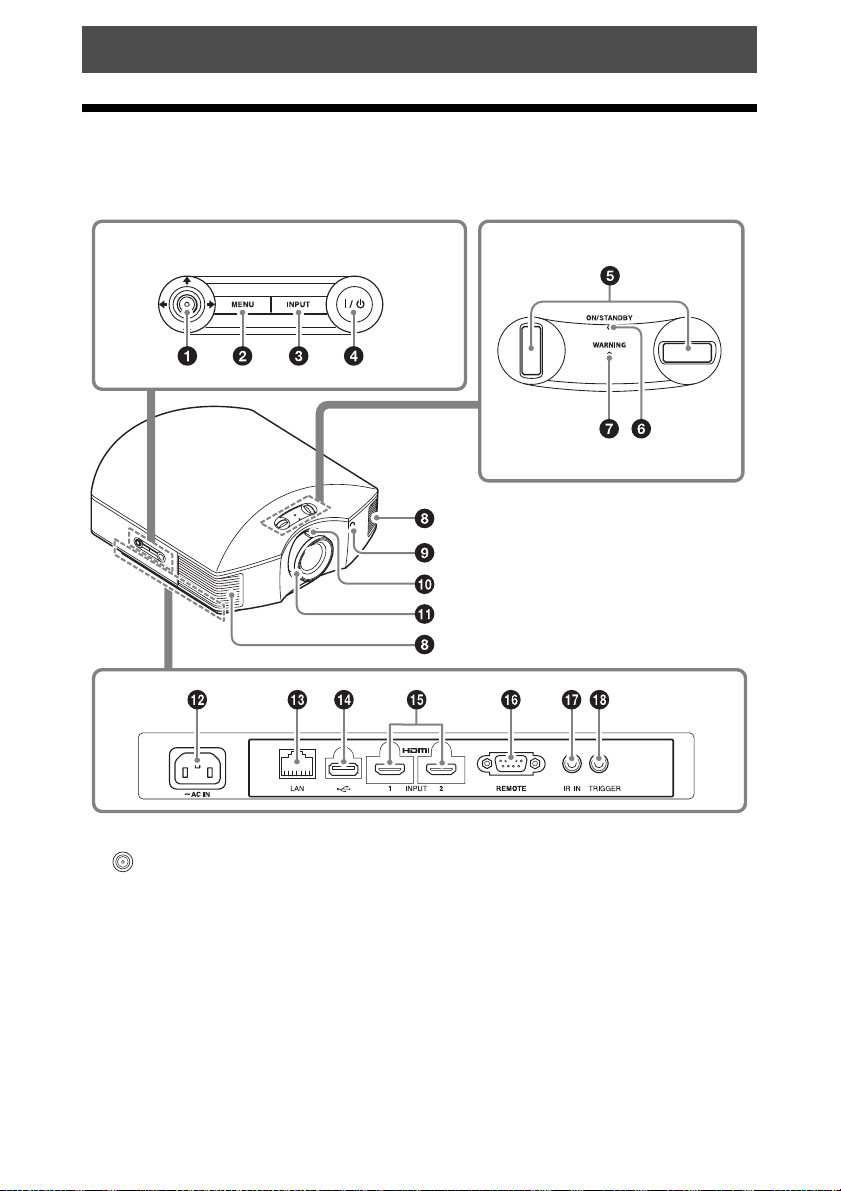
Les boutons du panneau de commande possèdent les mêmes noms que ceux de la
télécommande.
Panneau de commande
a Bouton M/m/</, (flèche)/
(entrée) (page 20)
b Bouton MENU (page 20)
c Bouton INPUT (page 14)
d Bouton ?/1 (ON/STANDBY)
(page 8)
e Molettes de déplacement
d’objectif (page 9)
f Indicateur ON/STANDBY
(page 44)
g Indicateur WARNING (page 44)
h Orifices de ventilation (sortie
d’air)
i Capteur de télécommande
(page 8)
j Commande de zoom (page 10)
k Bague de mise au point
(page 11)
l Prise AC IN (page 8)
4
Page 5
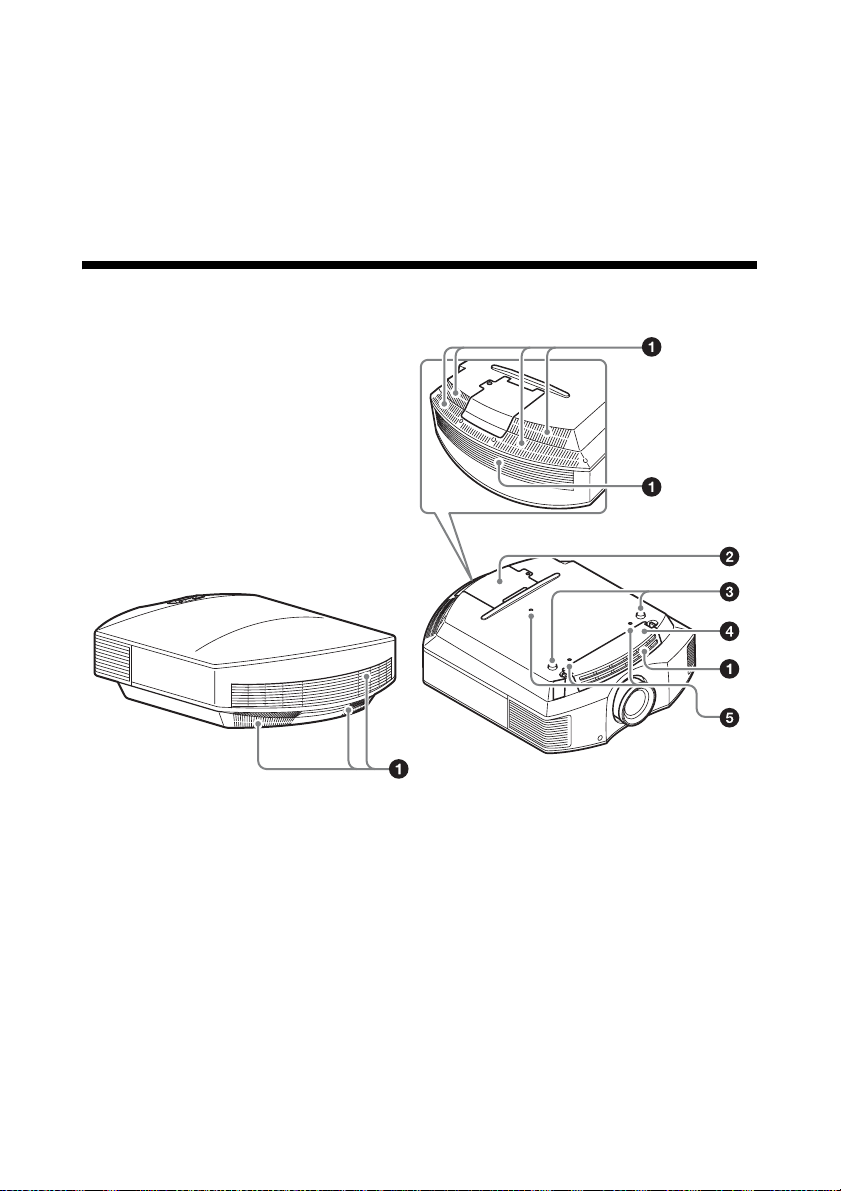
m Connecteur LAN (page 38)
n Connecteur USB (page 47)
o Connecteur HDMI 1/HDMI 2
(page 12)
p Connecteur REMOTE
Se connecte à un ordinateur, etc. pour la
commande à distance.
Arrière/Dessous
q Connecteur IR IN
Reçoit les signaux de commande de
l’appareil.
r Connecteur TRIGGER (page 34)
a Orifices de ventilation (prise
d’air) (page 50)
b Couvercle de la lampe (page 49)
c Pieds avant (réglables)
(page 11)
d Support à filtre (page 50)
e Orifice de fixation du support de
suspension de projecteur
(page 65)
5
Page 6
Télécommande
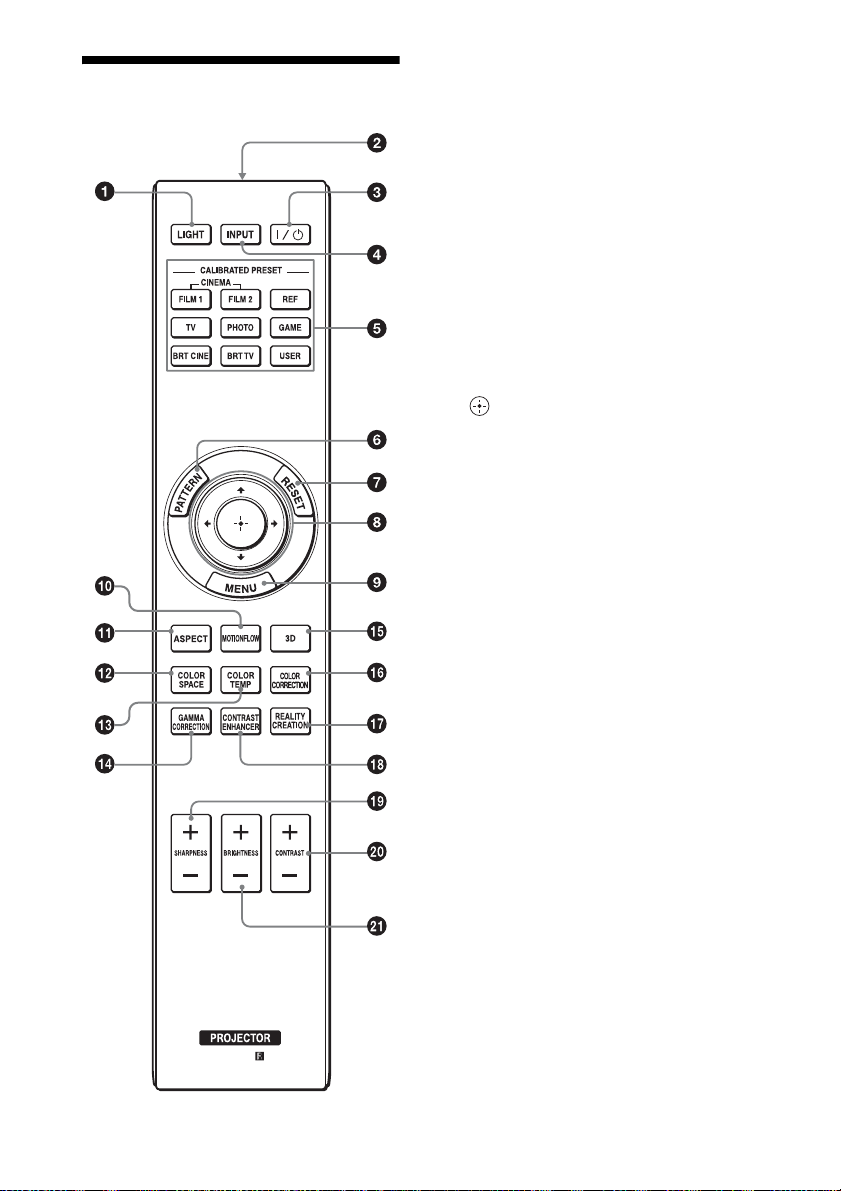
a Bouton LIGHT
Illumine les boutons de la télécommande.
b Émetteur infrarouge
c Bouton ?/1 (ON/STANDBY)
(page 8)
d Bouton INPUT (page 14)
e Boutons CALIBRATED PRESET
(page 19)
f Bouton PATTERN (page 8)
g Bouton RESET (page 21)
h Boutons M/m/</, (flèche)/
(entrée) (page 20)
i Bouton MENU (page 20)
j Bouton MOTIONFLOW (page 24)
k Bouton ASPECT (page 17)
l Bouton COLOR SPACE
(page 27)
m Bouton COLOR TEMP (page 24)
n Bouton GAMMA CORRECTION
(page 26)
o Bouton 3D (page 15)
p Bouton COLOR CORRECTION
(page 26)
q Bouton REALITY CREATION
(page 23)
r Bouton CONTRAST ENHANCER
(page 23)
s Bouton SHARPNESS +/–
(page 25)
t Bouton CONTRAST +/–
(page 24)
u Bouton BRIGHTNESS +/–
(page 24)
6
Page 7
Raccordements et préparatifs
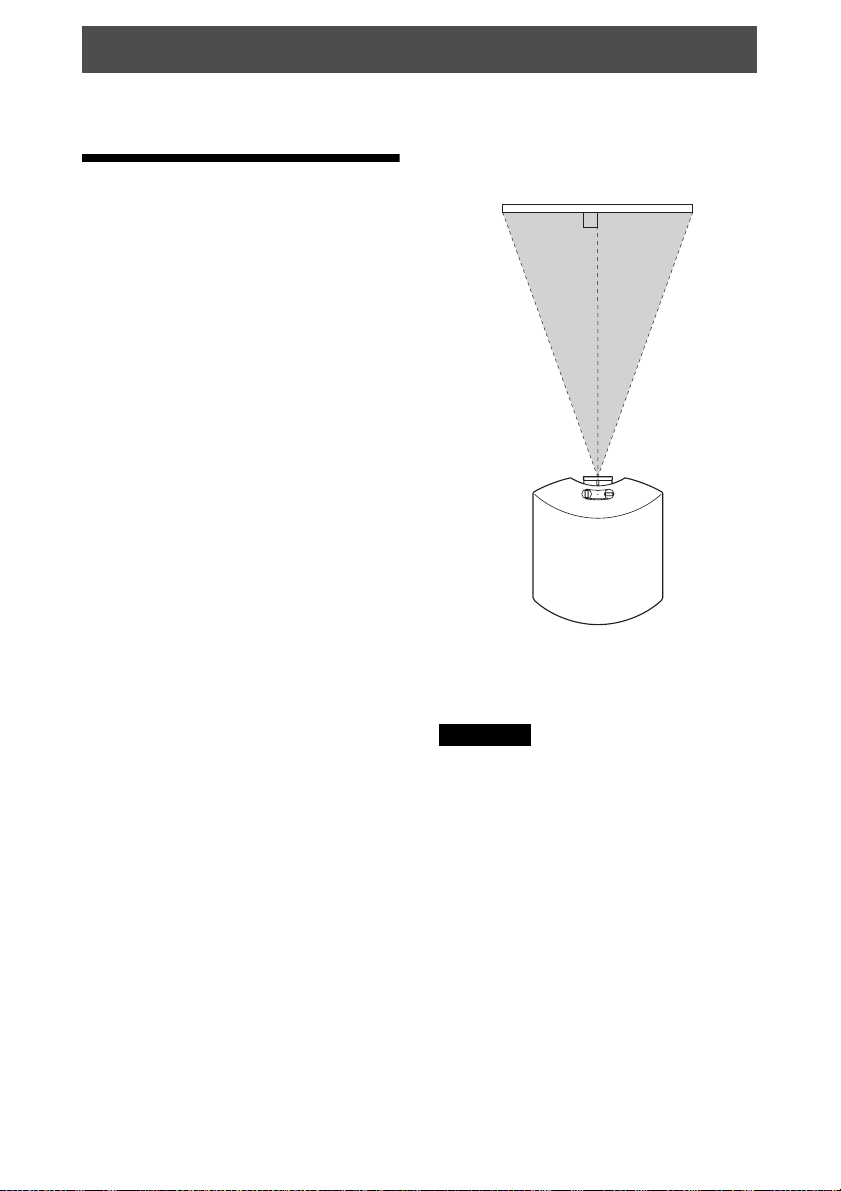
Cette section décrit comment installer l’appareil et l’écran, comment raccorder l’appareil à
partir duquel vous souhaitez projeter l’image, etc.
Vue du haut
Installation de
Écran
l’appareil
Le déplacement d’objectif offre davantage
de choix, ce qui facilite le placement de
l’appareil et le visionnage des images.
La distance qui doit séparer l’appareil de
l’écran lors de l’installation varie suivant la
taille de l’écran ou selon que vous utilisez ou
non les fonctions de déplacement de
l’objectif. Installez cet appareil de façon à ce
qu’il s’ajuste à la taille de votre écran. Pour
plus d’informations sur la distance entre
l’appareil et l’écran (la distance de
projection) et la taille de la vidéo projetée,
reportez-vous à « Distance de projection et
plage de déplacement d’objectif » (page 62).
1 Positionnez l’appareil de façon à ce
que l’objectif soit parallèle à l’écran.
2 Projetez une image sur l’écran et
réglez l’image de sorte qu’elle
s’adapte à la taille de l’écran (page 8).
Remarque
Lorsqu’un écran à surface inégale est utilisé,
des bandes peuvent parfois apparaître sur
l’écran suivant la distance qui sépare l’écran de
l’appareil ou suivant l’agrandissement effectué
avec le zoom. Ceci n’est pas un
dysfonctionnement de l’appareil.
7
Page 8
Réglage de la position de l’image
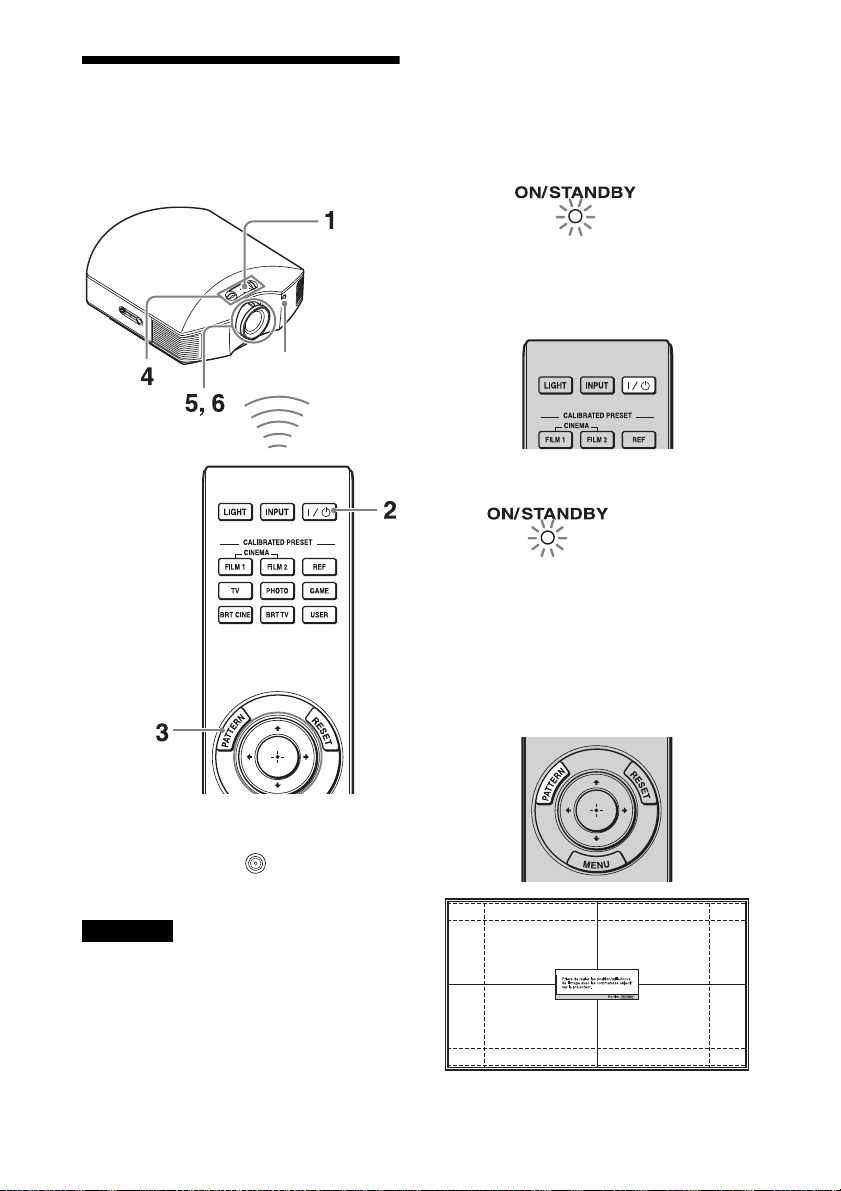
Projetez une image sur l’écran, puis réglez la
position de l’image.
Capteur de
télécommande
1 Après avoir branché le cordon
d’alimentation à l’appareil, branchezle sur une prise murale.
L’indicateur ON/STANDBY s’allume
en rouge et l’appareil passe en mode
veille.
S’allume en rouge.
2 Appuyez sur le bouton ?/1 (ON/
STANDBY) pour mettre l’appareil
sous tension.
L’indicateur ON/STANDBY clignote en
vert, puis demeure allumé en vert.
Clignote en vert
pendant quelques
instants (dizaines de
secondes), puis
s’allume en vert.
3 Affichez un signal de test pour
procéder à des réglages.
Appuyez sur le bouton PATTERN de la
télécommande pour afficher le signal de
test.
Conseil
Les boutons
MENU et M/m/</,/ (joystick) du
panneau latéral de l’appareil fonctionnent de la
même manière que ceux de la télécommande.
Remarque
Suivant l’emplacement d’installation de
l’appareil, il se peut que ne soyez pas en
mesure de l’utiliser à l’aide de la
télécommande. Dans ce cas, dirigez la
télécommande vers l’écran plutôt que vers le
projecteur.
?/1 (ON/STANDBY), INPUT,
8
Page 9
Conseil
Appuyez sur le bouton PATTERN pour effacer
l’affichage du signal de test.
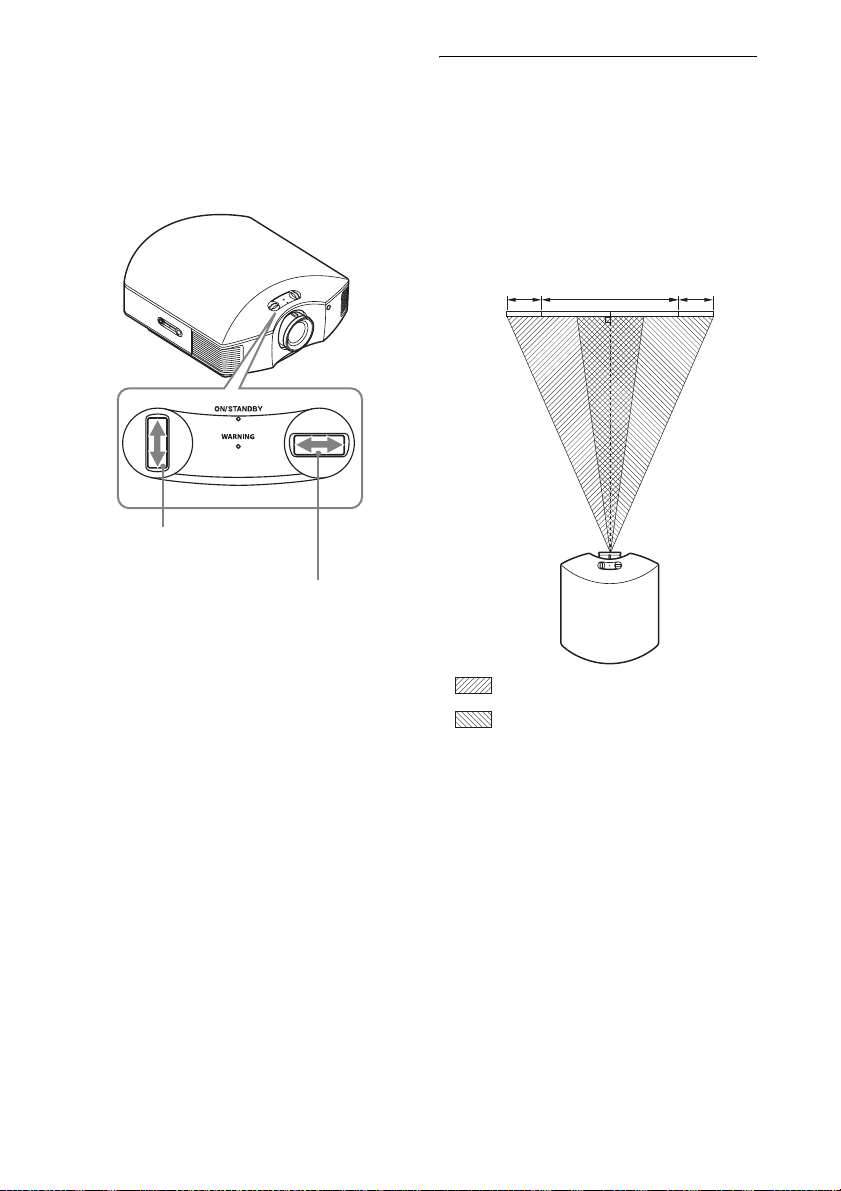
4 Déplacez les deux molettes de
déplacement d’objectif pour régler la
position de l’image.
Pour régler la position verticale
Pour régler la position horizontale
Pour régler la position horizontale
Tournez la molette de déplacement
d’objectif vers la droite ou la gauche.
L’image projetée sur l’écran se décale vers la
droite ou la gauche sur 25 % maximum de la
largeur d’écran en partant du centre de
l’objectif.
Vue du haut
25% 25%1 largeur d’écran
: Position de l’image décalée au
maximum vers la gauche
: Position de l’image décalée au
maximum vers la droite
9
Page 10
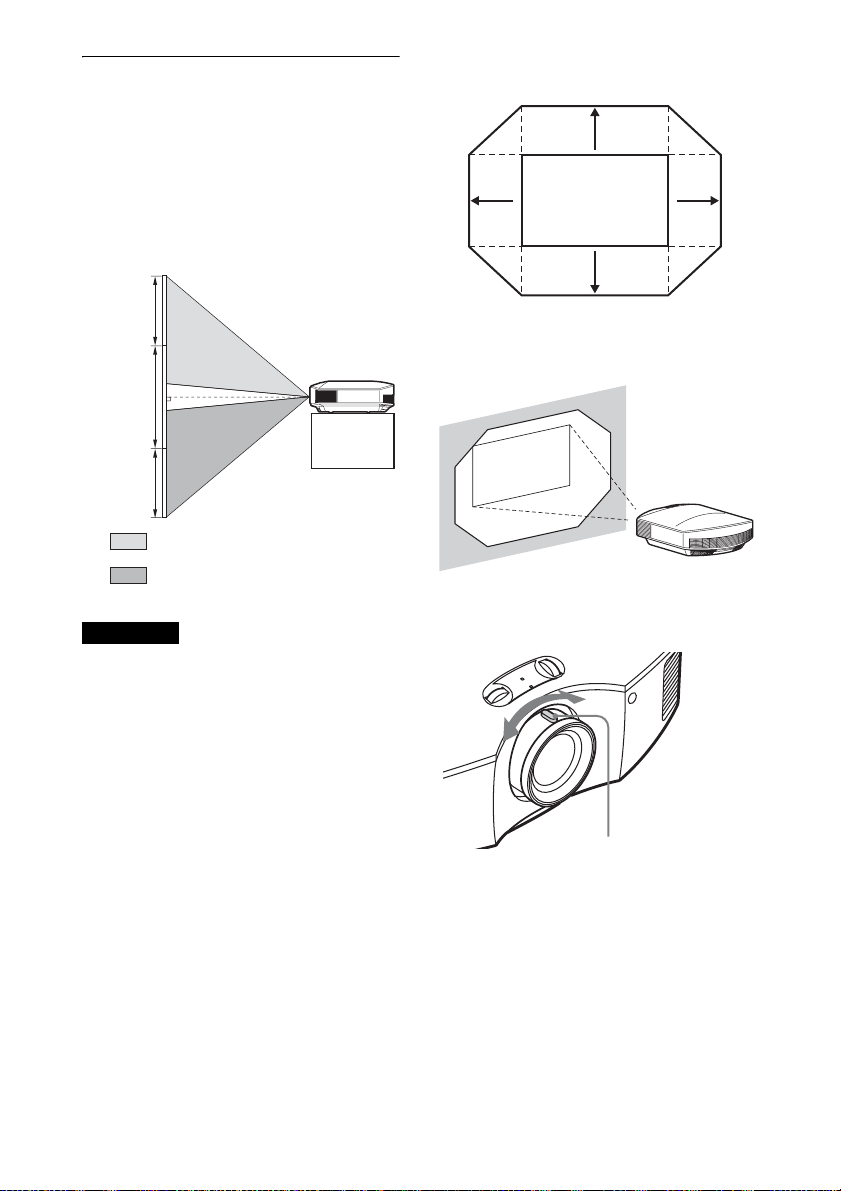
Pour régler la position verticale
Tournez la molette de déplacement
d’objectif vers le haut ou le bas.
L’image projetée sur l’écran se décale vers le
haut ou le bas sur 71 % maximum de la
hauteur d’écran en partant du centre de
l’objectif.
Vue de côté
Plage de déplacement de l’image
projetée
0,71V
Image projetée
0,25H
0,71V
0,25H
71%
1 hauteur
d’écran
71%
: Position de l’image décalée au
maximum vers le haut
: Position de l’image décalée au
maximum vers le bas
Remarques
• La plage de déplacement de l’image projetée
sur l’écran ne peut être réglée que dans la
zone octogonale illustrée ci-dessous. Pour
plus d’informations, reportez-vous à
« Distance de projection et plage de
déplacement d’objectif » (page 62).
• Quand vous utilisez simultanément les
fonctions de déplacement horizontal et
vertical de l’objectif, la distance de
déplacement de l’image projetée à l’écran
varie selon l’importance du réglage du
déplacement de l’objectif.
H: Largeur de l’image projetée
V: Hauteur de l’image projetée
5 Réglez la taille de l’image à l’aide de
la commande de zoom.
Commande de zoom
10
Page 11
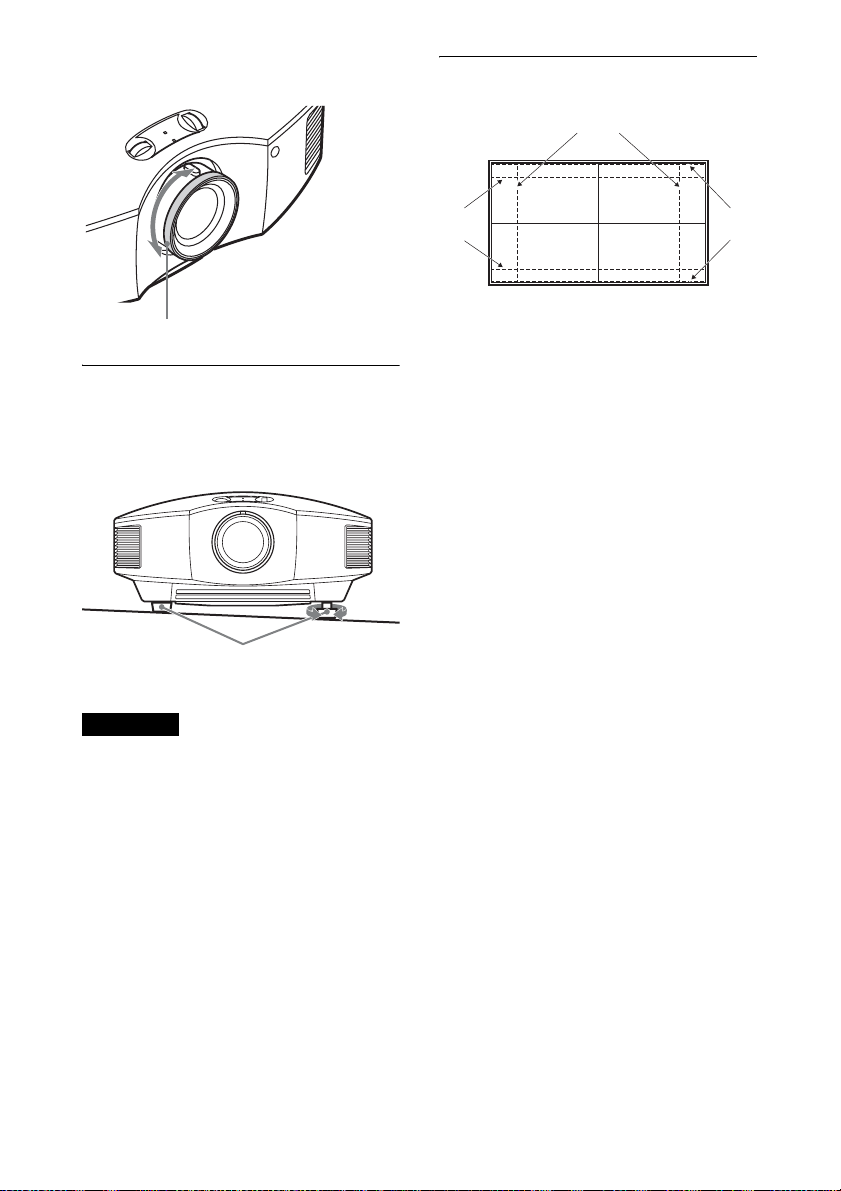
6 Réglez la mise au point à l’aide de la
bague de mise au point.
Fenêtre de réglage de l’objectif
(mire d’essai)
4:3
Bague de mise au point
Pour régler l’inclinaison par rapport
à la surface d’installation
Si vous installez l’appareil sur une surface
inégale, utilisez les pieds avant (réglables)
pour maintenir l’appareil à l’horizontale.
Tournez
Pieds avant
(réglables)
Remarques
• Si l’appareil est incliné vers le haut ou le bas,
l’image projetée peut être trapézoïdale.
• Veillez à ne pas vous coincer les doigts
lorsque vous tournez les pieds avant
(réglables).
pour régler.
2,35:1
Les lignes pointillées indiquent les tailles
d’écran de chaque rapport d’aspect.
1,85:1
11
Page 12
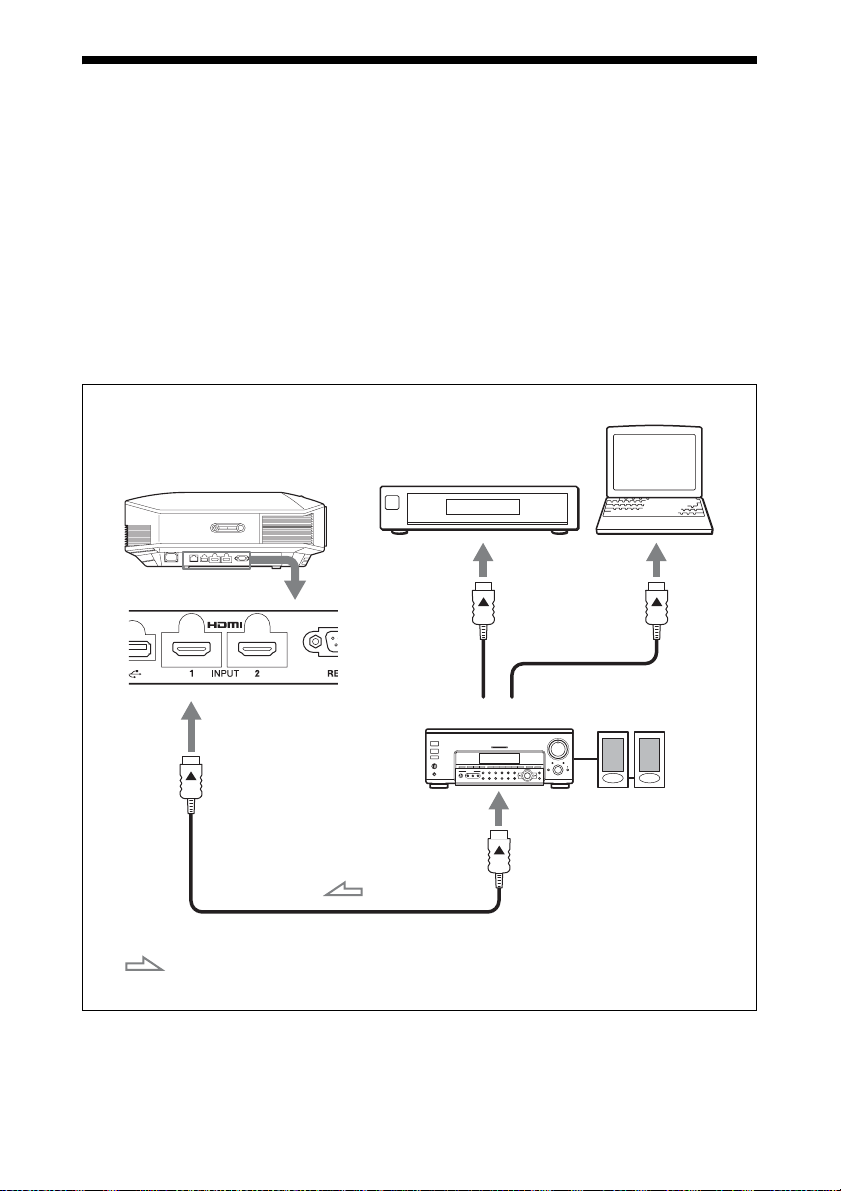
Raccordement à un appareil vidéo ou à un ordinateur
Vous pouvez bénéficier d’une qualité d’image élevée en raccordant un lecteur/enregistreur
DVD, un lecteur/enregistreur Blu-ray Disc ou un système PlayStation
®
équipé d’une sortie
HDMI à l’entrée HDMI de l’appareil.
Lors de l’exécution des raccordements, vous devez procéder comme suit :
• Mettez tous les appareils hors tension avant tout raccordement.
• Utilisez les câbles appropriés pour chaque raccordement.
• Insérez correctement les fiches de câble ; le mauvais raccordement des fiches peut entraîner
un dysfonctionnement ou une piètre qualité d’image. Débranchez les câbles en les tenant par
leur fiche. Ne tirez pas sur le câble proprement dit.
• Reportez-vous au mode d’emploi de l’appareil à raccorder.
Ordinateur
Côté droit de l’appareil
Appareil avec des
connecteurs de sortie HDMI
Amplificateur AV
Haut-parleurs
vers la sortie HDMI
Câble HDMI (non fourni)
: Flux du signal vidéo Utilisez un câble HDMI haute vitesse qui porte le logo du type
de câble. (Il est recommandé d’utiliser des produits Sony.)
12
Page 13

Remarques
• Utilisez un câble HDMI haute vitesse. Si vous utilisez un câble HDMI standard, il est possible que
les images 1080p, DeepColor et vidéo 3D ne s’affichent pas correctement.
• Lorsque vous raccordez un câble HDMI à l’appareil, assurez-vous que le symbole
V de la partie
supérieure de l’entrée HDMI de l’appareil et le symbole v du connecteur du câble sont placés sur
la même position.
• Si l’image d’un appareil raccordé à cet appareil avec un câble HDMI n’est pas claire, vérifiez les
paramètres de l’appareil raccordé.
• Si vous réglez votre ordinateur, un portable par exemple, pour qu’il reproduise le signal à la fois
sur son propre écran et sur cet appareil, il se peut que l’image n’apparaisse pas correctement sur
l’appareil. Réglez votre ordinateur pour qu’il reproduise le signal sur un moniteur externe
uniquement. Pour plus d’informations, reportez-vous au mode d’emploi fourni avec votre
ordinateur. Consultez le fabricant de l’ordinateur pour son paramétrage.
13
Page 14
Projection
Cette section décrit comment utiliser cet appareil pour afficher l’image depuis l’appareil qui lui
est raccordé. Elle décrit aussi comment régler la qualité de l’image suivant vos préférences.
Projection de l’image
1 Mettez sous tension cet appareil et
l’appareil qui y est raccordé.
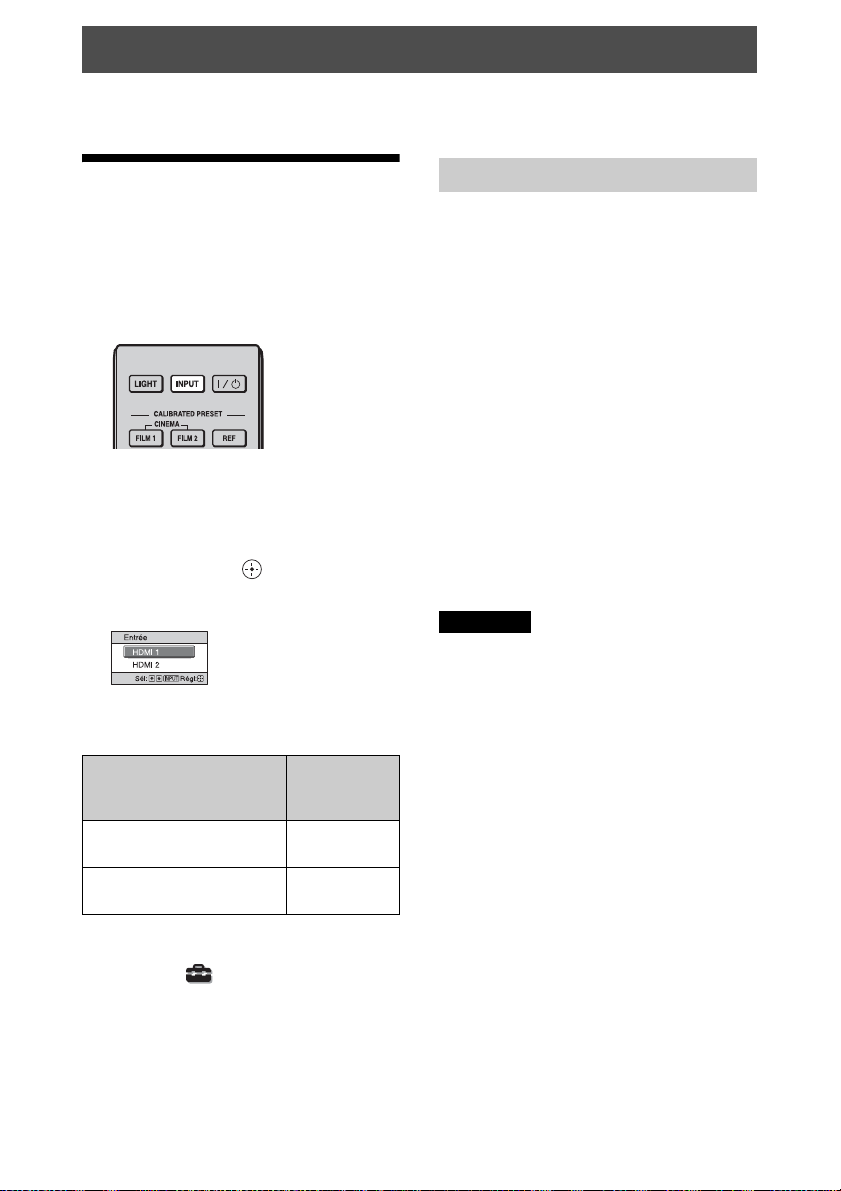
2 Appuyez sur INPUT pour afficher la
palette d’entrée sur l’écran.
3 Sélectionnez le périphérique à partir
duquel vous voulez afficher les
images.
Appuyez plusieurs fois sur INPUT ou
appuyez sur M/m/ (entrée) pour
sélectionner le périphérique à utiliser
pour la projection.
Exemple : Pour afficher l’image provenant
de l’équipement vidéo raccordé au
connecteur HDMI 1 de cet appareil.
Pour afficher l’image
depuis
Appareil raccordé au
connecteur HDMI 1
Appareil raccordé au
connecteur HDMI 2
Appuyez sur
INPUT pour
afficher
HDMI 1
HDMI 2
Mise hors tension
1 Appuyez sur le bouton ?/1 (ON/
STANDBY).
Le message « METTRE HORS
TENSION? » apparaît sur l’écran.
2 Appuyez une nouvelle fois sur le
bouton ?/1 (ON/STANDBY) avant
que le message disparaisse.
L’indicateur ON/STANDBY clignote en
vert et le ventilateur continue à tourner
pour abaisser la température interne.
Le ventilateur s’arrête et l’indicateur
ON/STANDBY cesse de clignoter en
vert pour briller en rouge.
L’alimentation s’arrête complètement et
vous pouvez débrancher le cordon
d’alimentation.
Remarque
Ne jamais débrancher le cordon d’alimentation
lorsque l’indicateur clignote.
Vous pouvez mettre l’appareil hors tension
en maintenant le bouton ?/1 (ON/
STANDBY) enfoncé pendant 1 seconde
environ, plutôt qu’en suivant les étapes cidessus.
Conseil
Lorsque « État » est réglé sur « Off » dans le
menu Réglage , la palette d’entrée
n’apparaît pas. Appuyez sur le bouton INPUT
pour commuter entre les bornes d’entrée.
14
Page 15

Visionnage d’images vidéo 3D
• Toutes les personnes ne perçoivent pas les
images vidéo 3D de la même façon.
• L’effet 3D peut être moindre si la
température ambiante est basse.
Vous pouvez profiter d’images vidéo 3D
puissantes, provenant notamment des jeux
3D et des Blu-ray Discs 3D, en utilisant les
lunettes 3D actives (TDG-BT500A) en
option.
1 Mettez sous tension l’appareil HDMI
pour compatibilité 3D raccordé à cet
appareil, puis entamez la lecture du
contenu 3D.
Pour plus d’informations sur la lecture
d’un contenu 3D, reportez-vous au mode
d’emploi de l’équipement connecté.
2 Mettez l’appareil sous tension et
projetez l’image vidéo 3D sur l’écran.
Pour plus d’informations sur la manière
de projeter l’image, voir « Projection de
l’image » (page 14).
3 Allumez les lunettes 3D, puis mettez-
les et ajustez-les à votre convenance.
Pour plus d’informations sur l’utilisation
des lunettes 3D, reportez-vous à
« Utilisation des lunettes 3D »
(page 15).
Conseils
• Le réglage d’usine par défaut de « Sél.
affichage 2D-3D » est « Auto » pour
permettre la projection automatique des
images vidéo 3D dès que l’appareil détecte
des signaux 3D.
• Pour convertir des images vidéo 3D en
images vidéo 2D, réglez « Sél. affichage 2D3D » sur « 2D » (page 31).
Remarques
• Selon le type de signal, il est possible que
vous ne puissiez pas afficher d’image vidéo
3D. Réglez « Sél. affichage 2D-3D » sur
« 3D » et « Format 3D » sur « Côte à côte »
ou « Dessus-Dessous » en fonction du format
du contenu 3D que vous souhaitez regarder
(page 31).
• Utilisez les lunettes 3D en respectant leur
portée (page 15).
Réglage/Définition des fonctions
3D
Vous pouvez régler/définir les fonctions 3D
en appuyant sur le bouton 3D de la
télécommande ou à l’aide de « Paramètres
3D » du menu Fonction . Pour plus
d’informations, reportez-vous à
« Paramètres 3D » (page 31).
Utilisation des lunettes 3D
1 Mettez sous tension les lunettes 3D et
enregistrez-les sur l’appareil.
Pour plus d’informations sur
l’enregistrement des lunettes 3D,
reportez-vous au mode d’emploi fourni
avec celles-ci.
2 Mettez les lunettes 3D.
3 Placez-vous face à l’écran.
Précautions d’utilisation
Le fonctionnement peut être défaillant si :
• La position de visionnage est trop éloignée
du projecteur
• D’autres dispositifs de communication,
notamment un LAN sans fil (IEEE802.11
b/g/n) ou un micro-ondes opérant dans la
gamme de fréquences des 2,4 GHz, se
trouve à proximité de l’appareil
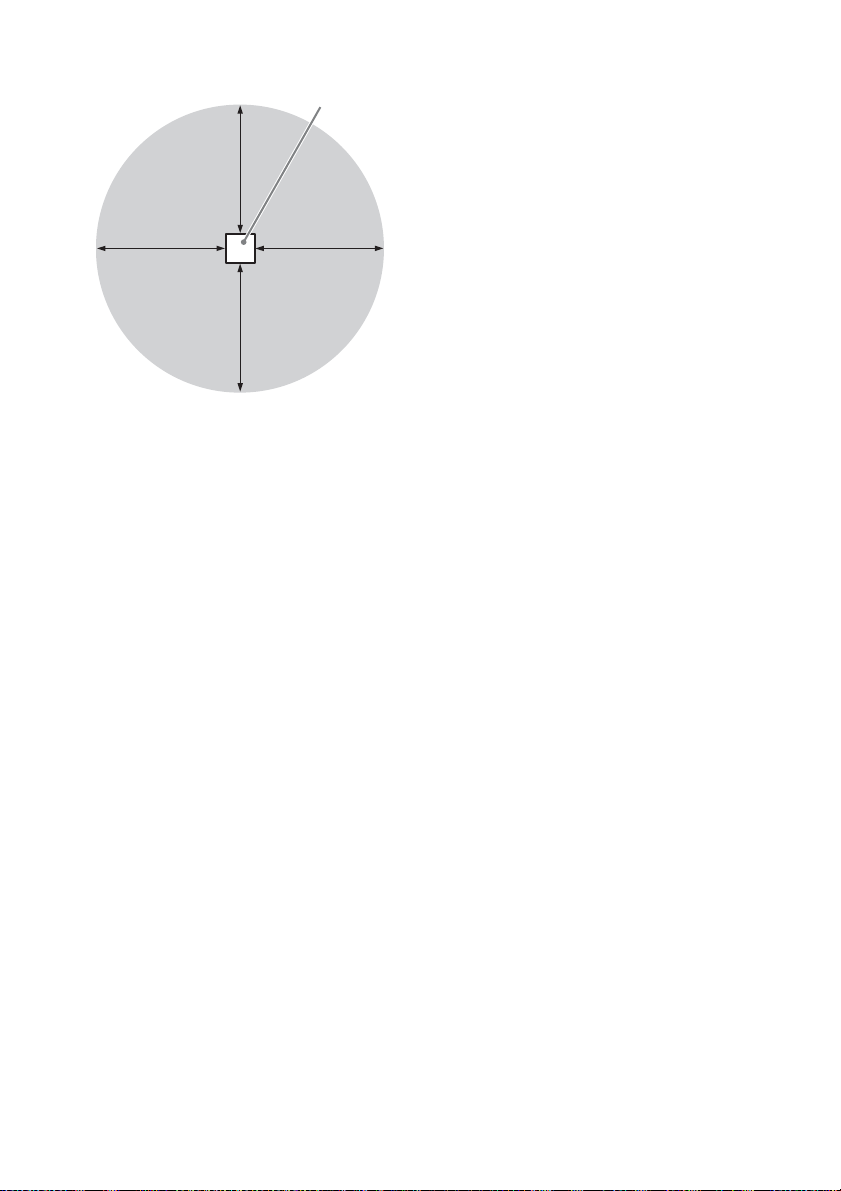
Portée des lunettes 3D
La figure ci-dessous indique la portée des
lunettes 3D. Si vous tentez de regarder des
images vidéo 3D à une distance supérieure
ou installez l’appareil en dehors de la portée
recommandée, il est possible que les lunettes
3D ne puissent pas afficher correctement les
images. De plus, la distance varie selon
l’environnement de la pièce et
l’environnement d’installation de l’appareil.
15
Page 16
Vue d’en haut ou de côté
10 m
10 m
Projecteur
10 m 10 m
16
Page 17
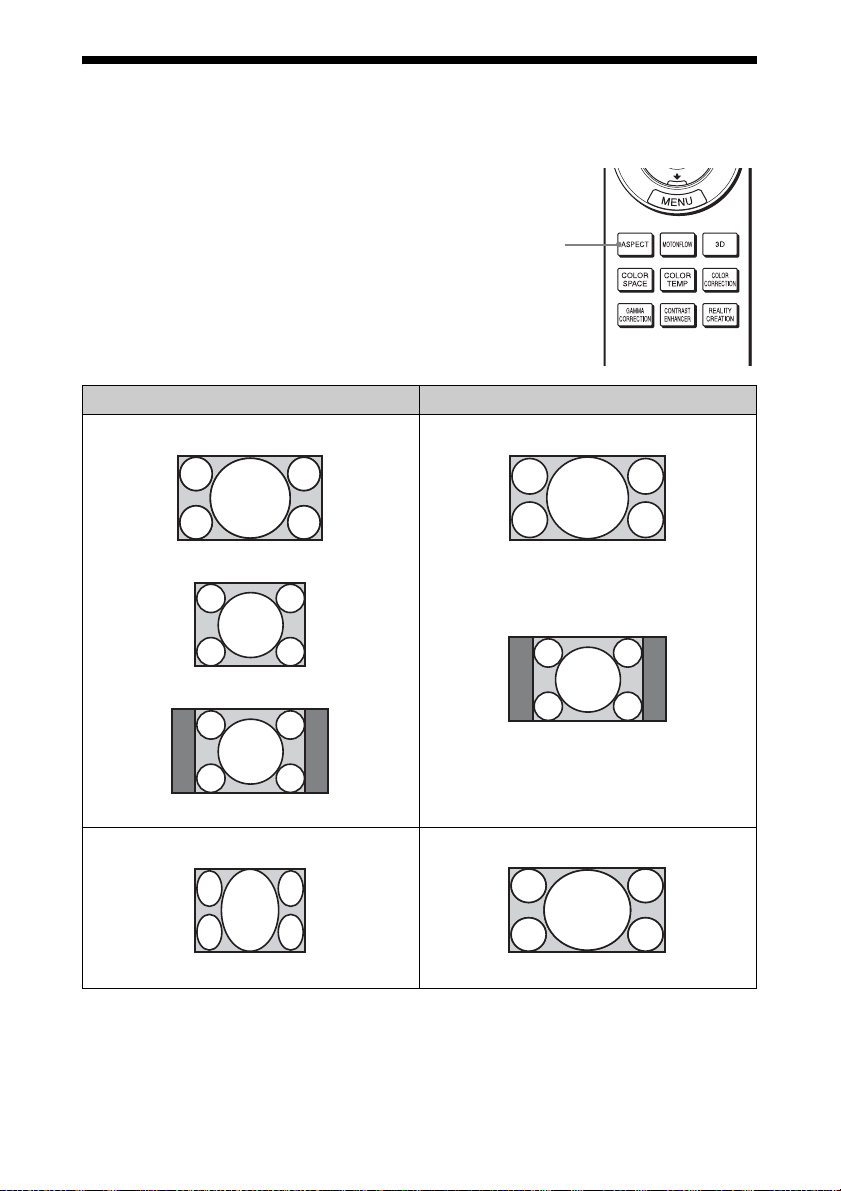
Sélection du rapport d’aspect en fonction du signal vidéo
Vous pouvez sélectionner un rapport
d’aspect adapté au signal vidéo reçu.
Appuyez sur ASPECT.
À chaque pression sur le bouton, vous
pouvez sélectionner le paramètre
« Aspect ». Vous pouvez aussi le
sélectionner à l’aide du menu (page 28).
Image originale Réglage recommandé et images résultantes
1,78:1 (16:9)
1,33:1 (4:3)
1,33:1 (4:3) avec barres latérales
Bouton
ASPECT
Normal
Rétrécie
Etirer
17
Page 18
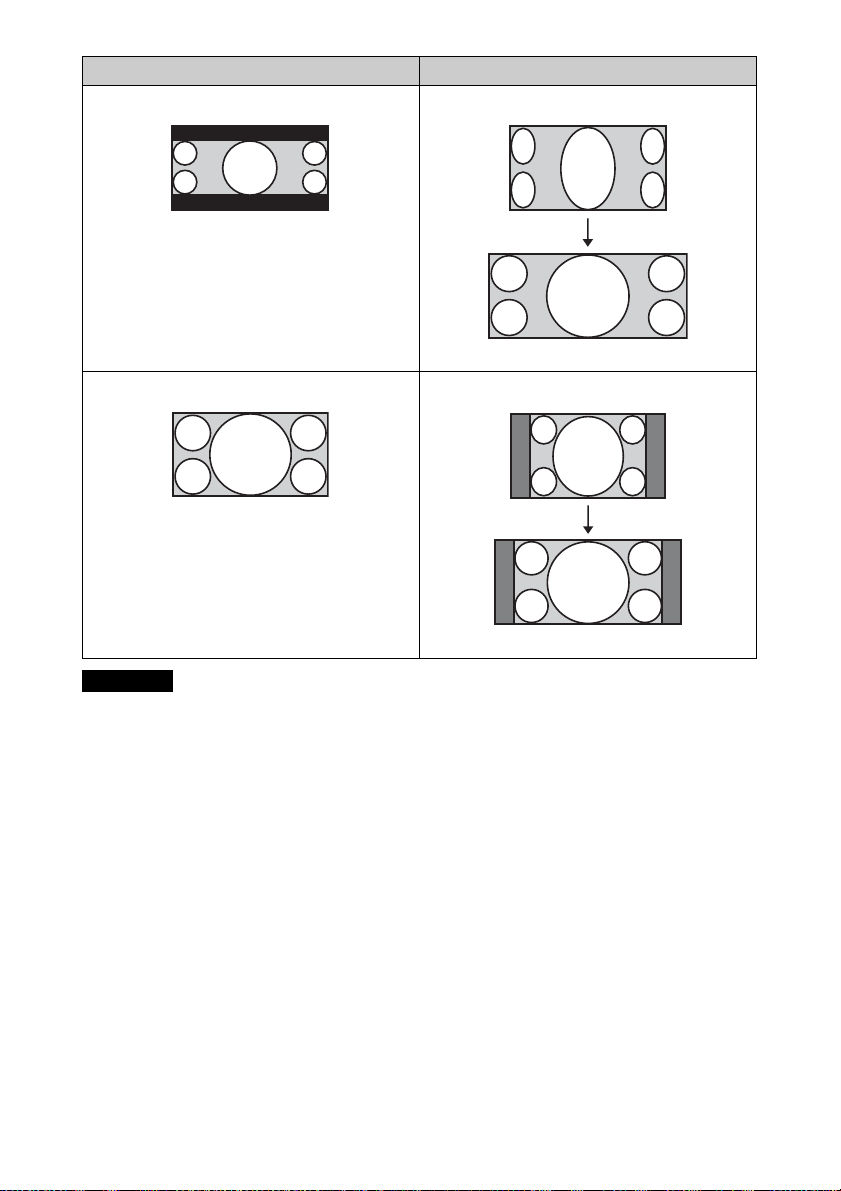
Image originale Réglage recommandé et images résultantes
Etirement V
2,35:1
Lors de l’utilisation d’un objectif anamorphique
Serrer
16:9
Lors de l’utilisation d’un objectif anamorphique
Remarque
Les modes d’aspect disponibles diffèrent
suivant le signal d’entrée (page 59).
Remarques sur le changement du
paramètre « Aspect »
• Sélectionnez le mode d’aspect en tenant
compte du fait que la modification du
rapport d’aspect de l’image originale
résultera en une image d’apparence
différente.
• Remarquez qu’en cas d’utilisation de
l’appareil à des fins lucratives ou pour une
projection publique, la modification de
l’image originale en changeant d’aspect
peut porter atteinte aux droits des auteurs
ou producteurs qui sont protégés
légalement.
18
Page 19
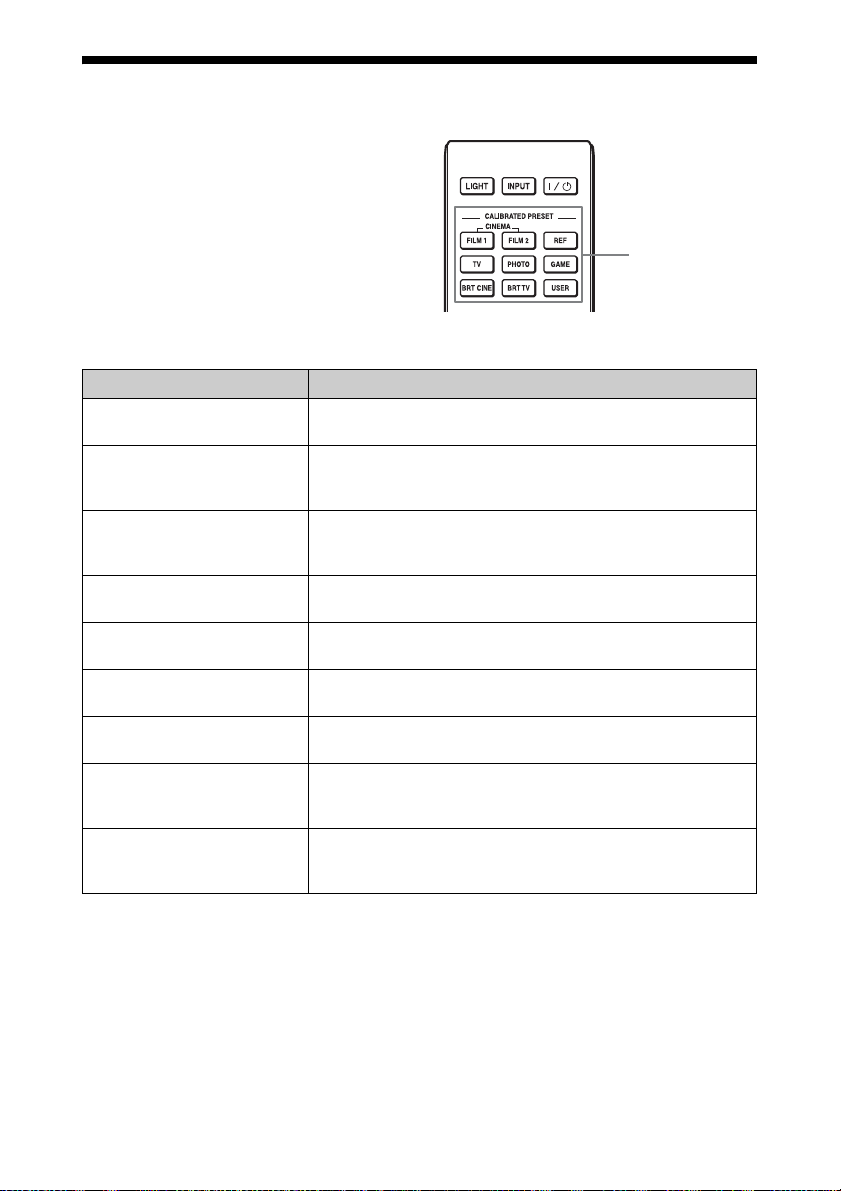
Sélection du mode d’affichage de l’image
Vous pouvez sélectionner le mode
d’affichage de l’image qui convient le mieux
au type de source vidéo ou aux conditions de
la pièce.
Vous pouvez enregistrer et utiliser différents
modes de préréglage respectivement pour la
2D/3D.
Appuyez sur un des boutons
CALIBRATED PRESET.
Paramètres Description
CINEMA FILM 1 Qualité d’image adaptée à la reproduction d’images hautement
dynamiques et nettes, typiques d’un chef-d’œuvre du cinéma.
CINEMA FILM 2 Qualité d’image adaptée à la reproduction de tons riches et de
couleurs dignes du cinéma, en fonction des tons modifiés pour
FILM 1.
REF Configuration de qualité d’image appropriée lorsque vous
souhaitez reproduire fidèlement la qualité d’image d’origine ou
pour profiter de la qualité d’image sans aucun réglage.
TV Qualité d’image adéquate pour regarder des programmes TV, du
sport, des concerts et d’autres images vidéo.
PHOTO Idéal pour la projection d’images fixes provenant d’un appareil
photo numérique.
GAME Qualité d’image adaptée aux jeux, avec des couleurs bien
modulées et une réponse rapide.
BRT CINE Qualité d’image adéquate pour regarder les films dans un
environnement lumineux, comme un séjour.
BRT TV Qualité d’image adéquate pour regarder des programmes TV, du
sport, des concerts et d’autres images vidéo dans un
environnement lumineux, comme un séjour.
USER Règle la qualité de l’image en fonction de votre goût, puis
enregistre le paramètre. Le réglage en usine par défaut est
identique à « REF ».
Boutons
CALIBRATED
PRESET
19
Page 20

Utilisation des menus
Cette section décrit comment effectuer les divers réglages et paramétrages au moyen des
menus.
Remarque
Les écrans de menu utilisés pour les descriptions peuvent être différents de ceux qui s’affichent
réellement sur l’appareil.
Les options qui peuvent être paramétrées
Commande par les menus
L’appareil est doté d’un menu sur écran
permettant d’effectuer divers réglages et
paramétrages. Si vous sélectionnez un nom
d’option suivi d’une flèche (B), la fenêtre de
menu suivante avec options de paramétrage
apparaît.
1 Appuyez sur MENU.
La fenêtre de menu apparaît.
ou réglées au moyen du menu sélectionné
apparaissent. L’option actuellement
sélectionnée est affichée en blanc.
3 Appuyez sur M/m pour sélectionner
une option à configurer ou régler, puis
appuyez sur , ou .
2 Appuyez sur M/m pour sélectionner
une option de menu et appuyez sur ,
ou .
Les paramètres s’affichent sur un menu
local, un menu de paramétrage, un menu
de réglage ou sur la fenêtre de menu
suivante.
Menu local
Paramètres
20
Page 21
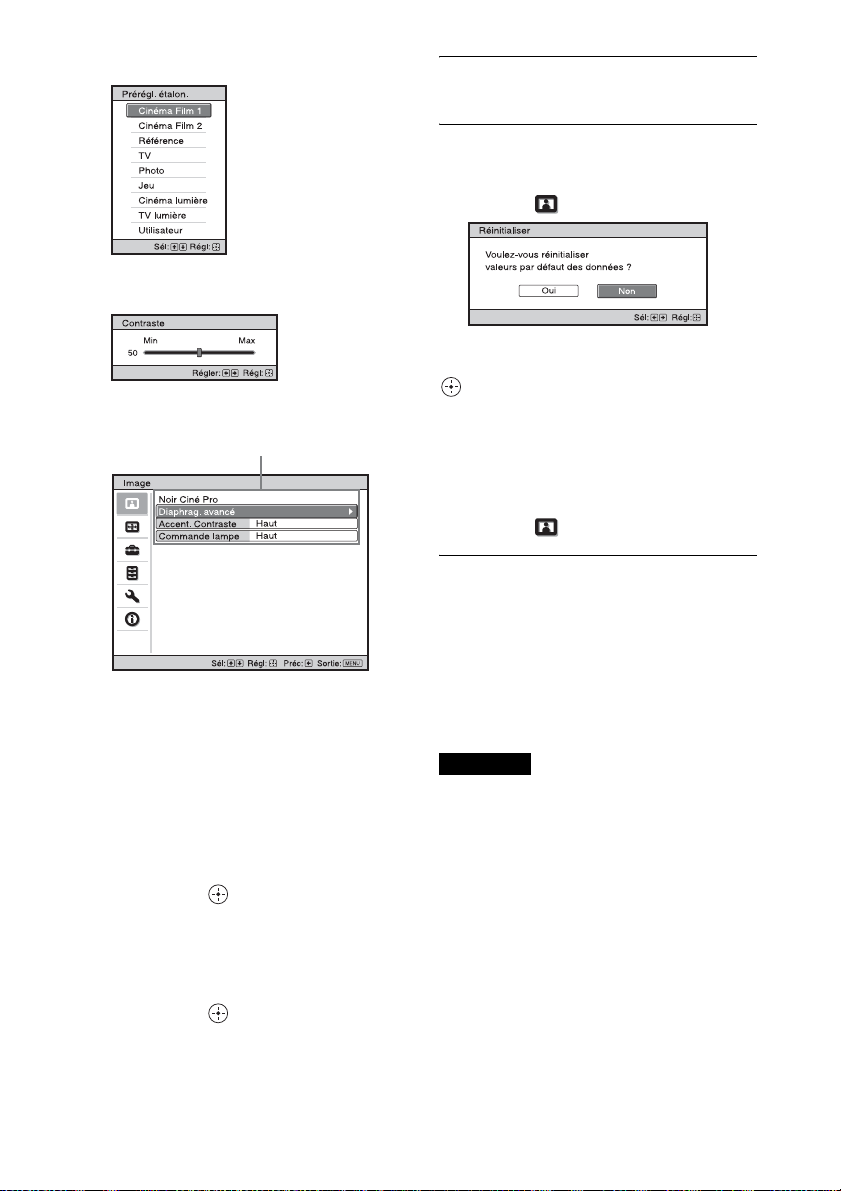
Menu de paramétrage
Menu de réglage
Fenêtre de menu suivante
Paramètres
4 Réglez le paramètre ou ajustez une
option.
Pour changer la valeur d’un
paramètre
Pour augmenter la valeur, appuyez sur
M/,.
Pour diminuer la valeur, appuyez sur
m/<.
Appuyez sur pour mémoriser le
réglage et revenir au menu original.
Pour faire disparaître le menu
Appuyez sur MENU.
Pour réinitialiser l’image qui a été
modifiée
Sélectionnez « Réinitialiser » à partir du
menu Image .
Quand l’écran s’affiche à nouveau,
sélectionnez « Oui » avec < et appuyez sur
.
Tous les réglages suivants retournent à leurs
valeurs d’usine :
« Création réalité », « Noir Ciné Pro »,
« Mot ionflow », « Contra ste », « Lumière »,
« Couleur », « Teinte », « Temp. couleur »,
« Netteté » et « Réglages expert » dans le
menu Image
Pour réinitialiser les paramètres
modifiés
Sélectionnez un paramètre sur l’écran Menu,
puis affichez le menu local, le menu de
paramétrage ou le menu de réglage.
Appuyez sur le bouton RESET de la
télécommande pour réinitialiser les
paramètres sélectionnés à leurs valeurs
d’usine.
Remarque
Le bouton RESET de la télécommande n’est
disponible que lorsque le menu de réglage ou le
menu de paramétrage est sélectionné.
Pour changer le réglage
Appuyez sur M/m pour changer le
réglage.
Appuyez sur pour rétablir l’écran
initial.
Suivant l’option sélectionnée, vous
pouvez parfois rétablir l’écran initial
avec <.
21
Page 22
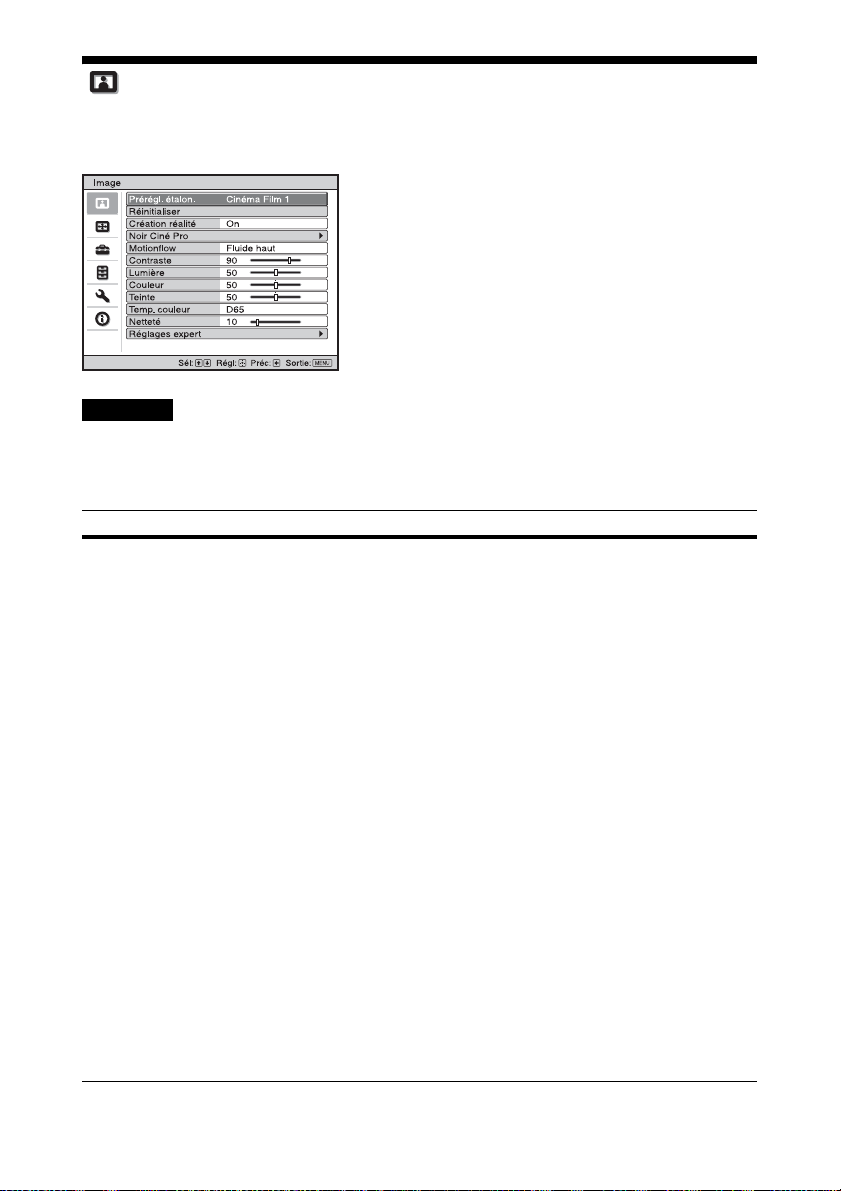
Menu Image
Le menu Image sert à régler l’image.
Remarque
Suivant les types de signal d’entrée, il se peut que ces options ne soient pas disponibles. Pour plus
d’informations, reportez-vous à « Signaux d’entrée et options réglables/paramétrables » (page 56).
Les noms d’option entre parenthèses représentent ceux qui sont imprimés sur la télécommande.
Paramètres Description
Prérégl. étalon.
[CALIBRATED
PRESET]
Vous pouvez sélectionner le mode de visualisation de l’image qui
convient le mieux au type de source vidéo ou d’environnement.
Vous pouvez enregistrer et utiliser différents modes de préréglage
respectivement pour la 2D/3D.
Cinéma Film 1 : Qualité d’image adaptée à la reproduction d’images
hautement dynamiques et nettes, typiques d’un chef-d’œuvre du cinéma.
Cinéma Film 2 : Qualité d’image adaptée à la reproduction de tons
riches et de couleurs dignes du cinéma, en fonction des tons modifiés
pour Cinéma Film 1.
Référence : Configuration de qualité d’image appropriée lorsque vous
souhaitez reproduire fidèlement la qualité d’image d’origine ou pour
profiter de la qualité d’image sans aucun réglage.
TV : Qualité d’image adéquate pour regarder des programmes TV, du
sport, des concerts et d’autres images vidéo.
Photo : Idéal pour la projection d’images fixes provenant d’un appareil
photo numérique.
Jeu : Qualité d’image adaptée aux jeux, avec des couleurs bien
modulées et une réponse rapide.
Cinéma lumière : Qualité d’image adéquate pour regarder les films
dans un environnement lumineux, comme un séjour.
TV lumière : Qualité d’image adéquate pour regarder des programmes
TV, du sport, des concerts et d’autres images vidéo dans un
environnement lumineux, comme un séjour.
Utilisateur : Vous pouvez régler la qualité d’image selon votre goût et
l’enregistrer. Le réglage en usine par défaut est identique à
« Référence ».
Conseil
Toutes les modifications apportées aux paramètres de qualité d’image
sont enregistrées pour chaque entrée.
22
Page 23

Paramètres Description
Réinitialiser Remet tous les réglages du mode Prérégl. étalon. actuellement
sélectionnés à leurs valeurs par défaut (page 21).
Conseil
La réinitialisation n’affecte pas les réglages enregistrés pour les options
de « Temp. couleur ».
Création réalité
[REALITY
CREATION]
Règle les détails et le traitement du bruit des images. (Fonction Superrésolution)
On : Ajuste les réglages de « Création réalité ».
Résolution : Lorsque vous augmentez la valeur de réglage, la texture
et le détail de l’image deviennent plus nets.
Filtrage bruit : Lorsque vous augmentez la valeur de réglage, les
parasites (flou de l’image) deviennent moins visibles.
Test: Oui/Non : Bascule vers « On » et « Off » à une certaine
fréquence afin de vérifier l’effet de « Création réalité ».
Conseil
La position d’affichage de l’état au cours du test est liée au réglage
« Position de menu » (page 30).
Off : La fonction « Création réalité » n’est pas appliquée.
Noir Ciné Pro
Diaphrag. avancé Commande dyn. : Règle la plage de mouvement du diaphragme
(ouverture).
Maximum : Optimise automatiquement le diaphragme (ouverture) et
le traitement du signal selon le niveau de luminosité de la source
d’entrée. Cela donne une image lumineuse au contraste élevé.
Limité : Assure un mouvement plus lent du diaphragme (ouverture) et
une luminosité inférieure à « Maximum » pour obtenir une qualité
d’image adaptée à un visionnage dans une pièce sombre.
Off : La fonction « Commande dyn. » n’est pas appliquée.
Lumière: Plus la valeur est élevée, plus l’image est lumineuse. Plus la
valeur est basse, plus l’image est sombre.
Conseil
Après avoir ajusté « Lumière », réglez « Commande dyn. » en fonction
de la luminosité de la pièce et de l’image proprement dite.
Accent. Contraste
[CONTRAST
ENHANCER]
Corrige automatiquement le niveau des parties claires et foncées afin
d’optimiser le contraste en fonction de la scène.
Augmente la netteté des images et les rend plus dynamiques.
Haut/Moyen/Bas : Vous pouvez régler l’accentuation du contraste.
Off : La fonction d’accentuation du contraste n’est pas appliquée.
Commande lampe Change la puissance de la lampe.
Haut : Augmente la clarté et projette des images plus lumineuses.
Bas : Diminue la clarté et accentue les noirs en atténuant la luminosité.
Conseil
Le paramètre « Bas » réduit le bruit du ventilateur tout en économisant
l’énergie, pour une durée de vie de la lampe plus longue.
23
Page 24

Paramètres Description
Motionflow
[MOTIONFLOW]
Impulsion : Reproduit la qualité d’image originale. L’image peut donc
scintiller, comme au cinéma.
Combinaison : Réduit le flou de mouvement tout en préservant la
luminosité des contenus dont les images défilent à grande vitesse.
Fluide haut : Fluidifie les mouvements de l’image, spécialement dans le
cas d’un film.
Fluide bas : Fluidifie les mouvements de l’image pour une utilisation
ordinaire.
Tru e Cine m a : Les images, notamment celles d’un film créé en
24 images par seconde, sont reproduites à la cadence d’images originale.
Off : La fonction « Motionflow » n’est pas appliquée.
Conseils
• Choisissez « Off » si l’option « Fluide haut », « Fluide bas »,
« Impulsion », « Combinaison » ou « True Cinema » engendre une
image déformée.
• Selon le contenu de l’image, il est possible que vous ne voyez pas
l’effet même si vous avez modifié les réglages.
Contraste
[CONTRAST]
Règle le contraste.
Les valeurs supérieures augmentent la netteté dans les images et les
valeurs inférieures la diminuent.
Vous pouvez effectuer des réglages en appuyant sur le bouton
CONTRAST +/- de la télécommande.
Lumière
[BRIGHTNESS]
Règle la luminosité de l’image.
Plus la valeur est élevée, plus l’image est lumineuse. Plus la valeur est
basse, plus l’image est sombre.
Vous pouvez effectuer des réglages en appuyant sur le bouton
BRIGHTNESS +/- de la télécommande.
Couleur Règle la densité de couleur.
Plus la valeur est élevée, plus l’intensité est grande. Plus la valeur est
basse, plus l’intensité est faible.
Teinte Règle la tonalité de couleur.
Plus la valeur est élevée, plus les tons d’image sont verdâtres. Plus la
valeur est basse, plus l’image devient rougeâtre.
Temp. couleur
[COLOR TEMP]
Permet de régler la température de couleur.
D93 : Équivalent à une température de couleur de 9 300 K
habituellement utilisée dans les téléviseurs. Donne aux couleurs
blanches une teinte bleue.
D75 : Équivalent à une température de couleur de 7 500 K utilisée
comme illuminant standard auxiliaire. Donne une teinte neutre, entre
« D93 » et « D65 ».
D65 :
Équivalent à une température de couleur de 6 500 K utilisée comme
illuminant standard. Donne aux couleurs blanches une teinte rouge.
D55 : Équivalent à une température de couleur de 5 500 K utilisée
comme illuminant standard auxiliaire. Donne aux couleurs blanches une
teinte encore plus rouge.
Personnalisé 1 à 5 : Vous permet de régler, valider et enregistrer en
mémoire votre température de couleur favorite.
Les réglages par défaut au départ d’usine sont les suivants.
Personnalisé 1 :
Personnalisé 2 :
Personnalisé 3 :
Personnalisé 4 :
Le même que le réglage de température couleur « D93 ».
Le même que le réglage de température couleur « D75 ».
Le même que le réglage de température couleur « D65 ».
Le même que le réglage de température couleur « D55 ».
Personnalisé 5 : Réglage qui accorde la priorité à la luminosité.
24
Page 25

Paramètres Description
Conseil
Vous pouvez affecter à chaque réglage la température de couleur de
votre choix.
Netteté
[SHARPNESS]
Rend les contours de l’image plus nets ou réduit les parasites.
Plus la valeur est élevée, plus l’image est nette. Plus la valeur est basse,
plus l’image est douce, ce qui réduit les parasites.
Vous pouvez effectuer des réglages en appuyant sur le bouton
SHARPNESS +/- de la télécommande.
Réglages expert
NR (Réduction du
bruit)
Réduit le flou ou les parasites de l’image.
Auto : Détecte le niveau de bruit afin de réduire automatiquement le flou
ou le bruit de l’image.
Haut/Moyen/Bas : Sélectionnez le réglage qui correspond au flou ou au
bruit de la source du signal d’entrée.
Off : La fonction NR (Réduction du bruit) n’est pas appliquée.
Conseil
Selon la source du signal d’entrée, il est possible que « Auto » ne
permette pas de détecter avec précision le niveau de bruit. Si l’image
n’est pas acceptable avec « Auto », sélectionnez le réglage « Haut »,
« Moyen », « Bas » ou « Off ».
MPEG NR
(MPEG réduction
du bruit)
Réduit le bruit de bloc et le bruit mineur (bruit « mosquito »), tout
particulièrement sur les signaux numériques.
Auto : Détecte le niveau de bruit afin de réduire automatiquement le
bruit de bloc et le bruit mosquito de l’image.
Haut/Moyen/Bas : Sélectionnez un réglage qui correspond au bruit de
bloc et au bruit mosquito de la source du signal d’entrée.
Off : La fonction MPEG NR (Réduction du bruit MPEG) n’est pas
appliquée.
Conseil
Selon la source du signal d’entrée, il est possible que « Auto » ne
permette pas de détecter avec précision le niveau de bruit. Si l’image
n’est pas acceptable avec « Auto », sélectionnez le réglage « Haut »,
« Moyen », « Bas » ou « Off ».
Gradation progr. Facilite la gradation des parties plates des images.
Haut/Moyen/Bas : Vous pouvez régler l’effet de gradation progressive.
Off : La fonction de gradation progressive n’est pas appliquée.
Mode Film D’après la source film que vous avez sélectionnée, crée un paramètre de
lecture.
Auto : Approprié pour reproduire le mouvement d’image d’origine.
Réglez normalement ce paramètre sur « Auto ».
Off : Lit l’image en format progressif sans détecter automatiquement les
signaux vidéo.
25
Page 26
Paramètres Description
Correct. Gamma
[GAMMA
CORRECTION]
Règle les caractéristiques de transfert de la tonalité d’image.
Sélectionnez la tonalité favorite parmi les 10 options.
1.8 : Lumineux Produit une image globalement plus lumineuse.
2.0
2.1
2.2
2.4
2.6 : Sombre Produit une image globalement plus sombre.
Gamma 7 : Simule la courbe gamma d’un film.
Gamma 8 : Accentue la netteté des images. Sélectionnez cette option
lorsque vous visionnez dans un environnement lumineux, notamment
dans un séjour.
Gamma 9 : Produit une image plus lumineuse que Gamma 8.
Gamma 10 : Accentue la netteté des images. Sélectionnez cette option
lorsque vous regardez des programmes TV, par exemple, dans un
environnement lumineux, notamment dans un séjour.
Off : La fonction « Correct. Gamma » n’est pas appliquée.
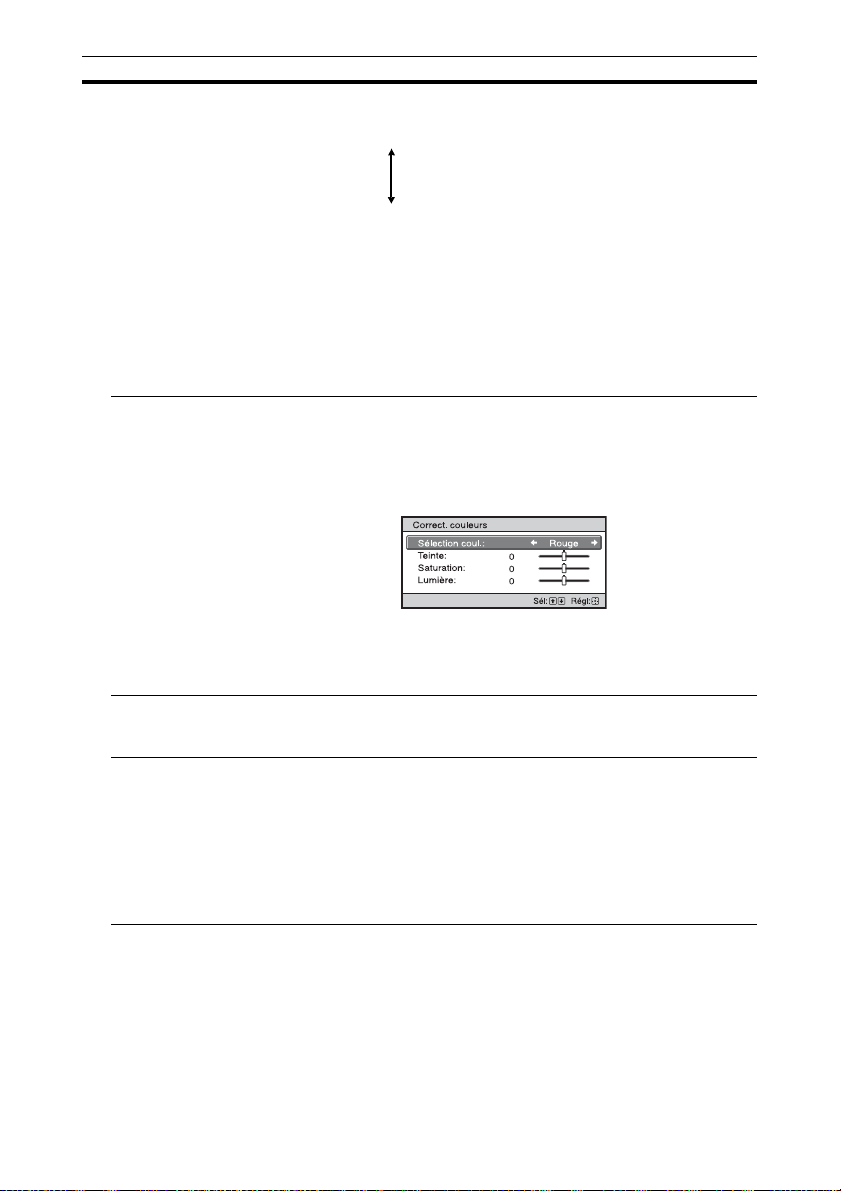
Correct. couleurs
[COLOR
CORRECTION]
On : Règle la Teinte, la Saturation ou la Lumière des couleurs
sélectionnées.
Répétez les étapes 1 et 2 ci-dessous pour spécifier la couleur cible.
1 Appuyez sur M/m pour sélectionner « Sélection coul. », puis appuyez
sur </, pour sélectionner la couleur souhaitée parmi « Rouge »,
«Jaune», «Vert», «Cyan», «Bleu» et «Magenta».
2 Appuyez sur M/m pour sélectionner « Teinte », « Saturation » ou
« Lumière », puis procédez aux réglages en fonction de vos
préférences à l’aide de </, tout en regardant l’image projetée.
Off : L’effet « Correct. couleurs » n’est pas appliqué.
Blanc clair Accentue les blancs vifs.
Haut/Bas : Vous pouvez régler l’effet « Blanc clair ».
Off : L’effet « Blanc clair » n’est pas appliqué.
x.v.Color Réglez cette option lors du raccordement de cet appareil à un autre qui
prend en charge x.v.Color et la visualisation d’un signal vidéo x.v.Color.
On : Vous pouvez visionner un signal vidéo x.v.Color.
Off : La fonction « x.v.Color » n’est pas appliquée.
Pour plus d’informations sur x.v.Color, reportez-vous à « À propos de
x.v.Color » (page 47).
Conseil
Si vous réglez x.v.Color sur « On », le réglage gamma est désactivé.
26
Page 27
Paramètres Description
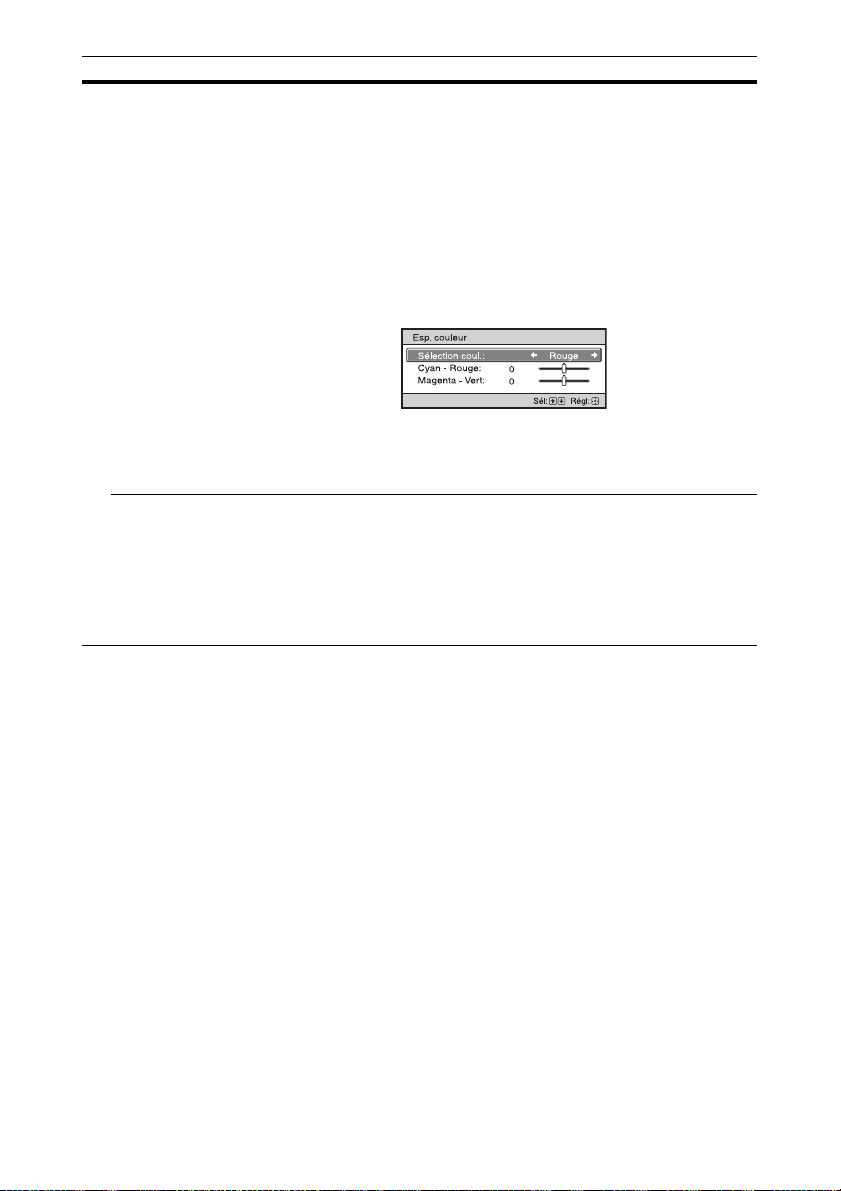
Esp. couleur
[COLOR SPACE]
Convertit l’espace colorimétrique.
BT.709 : Un espace colorimétrique ITU-R BT.709 utilisé pour les
émissions de télévision en haute définition ou pour des Blu-ray Disc.
L’espace colorimétrique équivaut à sRGB.
Esp. couleur 1 : Espace colorimétrique qui convient aux émissions TV
et aux images vidéos : sports, concerts, etc.
Esp. couleur 2 : Espace colorimétrique qui convient aux émissions TV,
émissions sportives, concerts et autres images vidéo dans un
environnement lumineux, notamment un salon.
Esp. couleur 3 : Espace colorimétrique qui convient aux films dans un
environnement lumineux, notamment un salon.
Personnalisé: Vous pouvez définir le réglage de l’espace
colorimétrique.
Conseil
Vous pouvez affecter à chaque réglage l’espace colorimétrique de votre
choix.
Réduc. délai
entrée
Réduit le délai d’affichage d’une vidéo.
On : Reproduit une image vidéo rapide et fluide avec une atténuation de
l’image rémanente.
Off : Désactive la fonction Réduc. délai entrée.
Conseil
Lorsque « Réduc. délai entrée » est réglé sur « On », Motionflow, NR et
MPEG NR ne peuvent pas être réglés.
27
Page 28
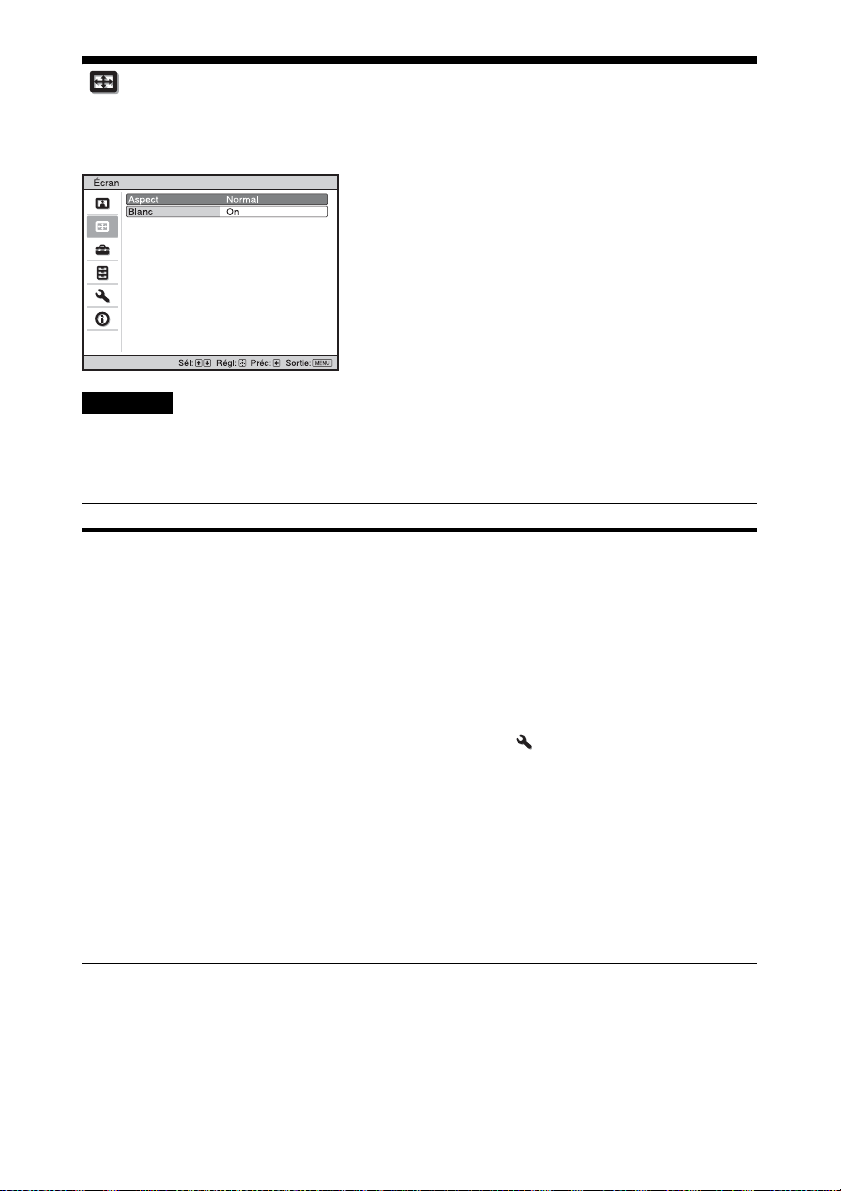
Menu Écran
Vous pouvez régler la taille de l’image, le mode d’aspect, etc.
Remarque
Suivant les types de signal d’entrée, il se peut que ces options ne soient pas disponibles. Pour plus
d’informations, reportez-vous à « Signaux d’entrée et options réglables/paramétrables » (page 56).
Les noms d’option entre parenthèses représentent ceux qui sont imprimés sur la télécommande.
Paramètres Description
Aspect
[ASPECT]
Vous pouvez définir le rapport d’aspect de l’image à afficher pour le
signal d’entrée actuel (page 17).
Vous ne pouvez régler cette fonction qu’en présence d’un signal d’entrée
vidéo.
Normal : La vidéo d’entrée s’affiche dans son rapport d’aspect original,
élargi pour tenir tout l’écran. Ce mode convient au visionnage de vidéos
1,78:1 (16:9) et 1,33:1 (4:3).
Etirement V : Mode le mieux adapté à un écran 2,35:1 pour visionner
une vidéo 2,35:1 avec un objectif anamorphique disponible dans le
commerce.
Lorsque vous sélectionnez « Etirement V » à partir de « Sélect.
déclench. » dans le menu Installation , le connecteur TRIGGER
reproduit un signal 12 V (page 34).
Serrer : Avec ce réglage, les vidéos 1,78:1 (16:9) et 1,33:1 (4:3)
s’affichent dans leur rapport d’aspect correct lorsque vous utilisez un
objectif anamorphique en vente dans le commerce.
Etirer : Affiche une vidéo étirée à 1,33:1 (4:3) comme rapport d’aspect
1,78:1 (16:9).
Conseils
• Les modes d’aspect disponibles diffèrent suivant le signal d’entrée
(page 59).
• Il est impossible de sélectionner le format d’image pour un signal
d’entrée provenant d’un ordinateur (pages 54, 55, 59).
28
Page 29
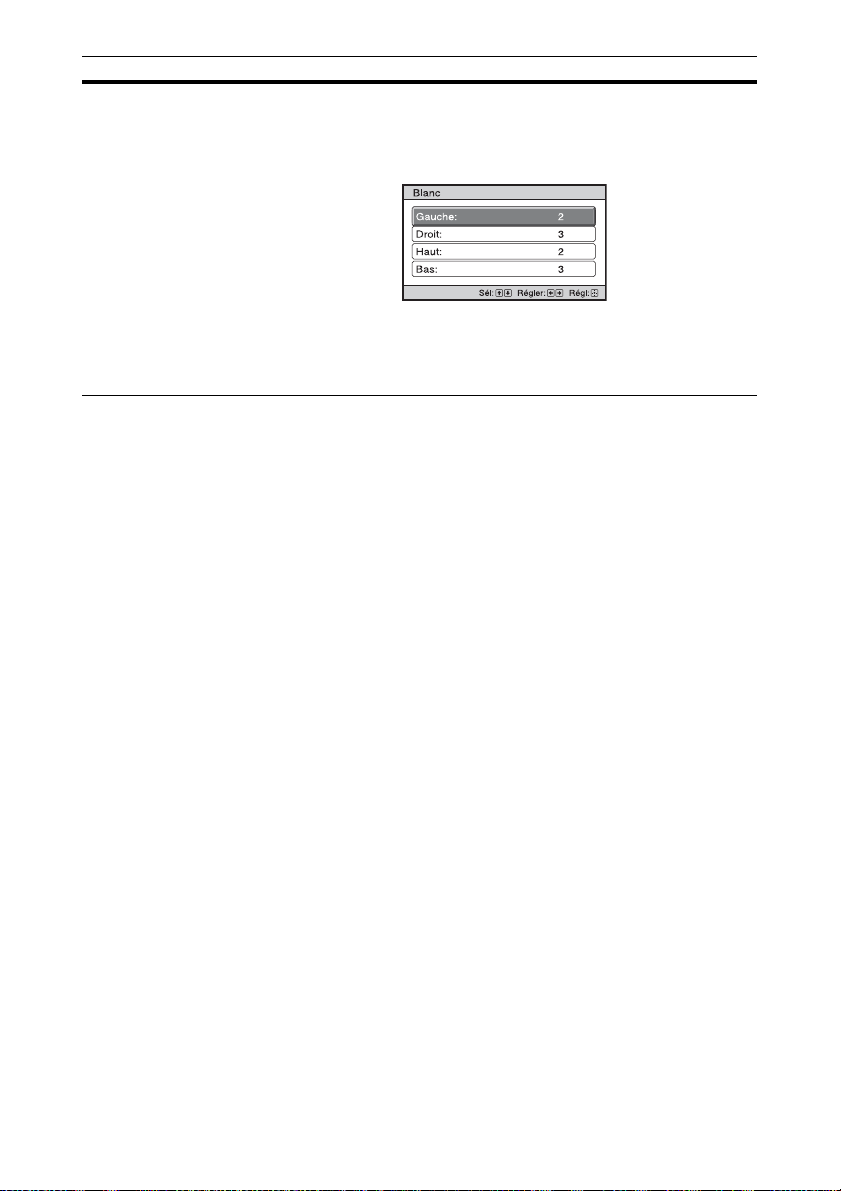
Paramètres Description
Blanc Cette option vous permet de régler la zone affichable dans le périmètre
des quatre directions de l’écran.
On : Sélectionnez le bord à régler en mettant en surbrillance Gauche,
Droit, Haut ou Bas à l’aide des boutons M/m.
Réglez la quantité d’effacement à l’aide des boutons </,.
Off : Désactive la fonction Blanc.
Conseil
Selon le paramètre du rapport d’aspect, l’effacement gauche/droit peut
ne pas être disponible.
29
Page 30
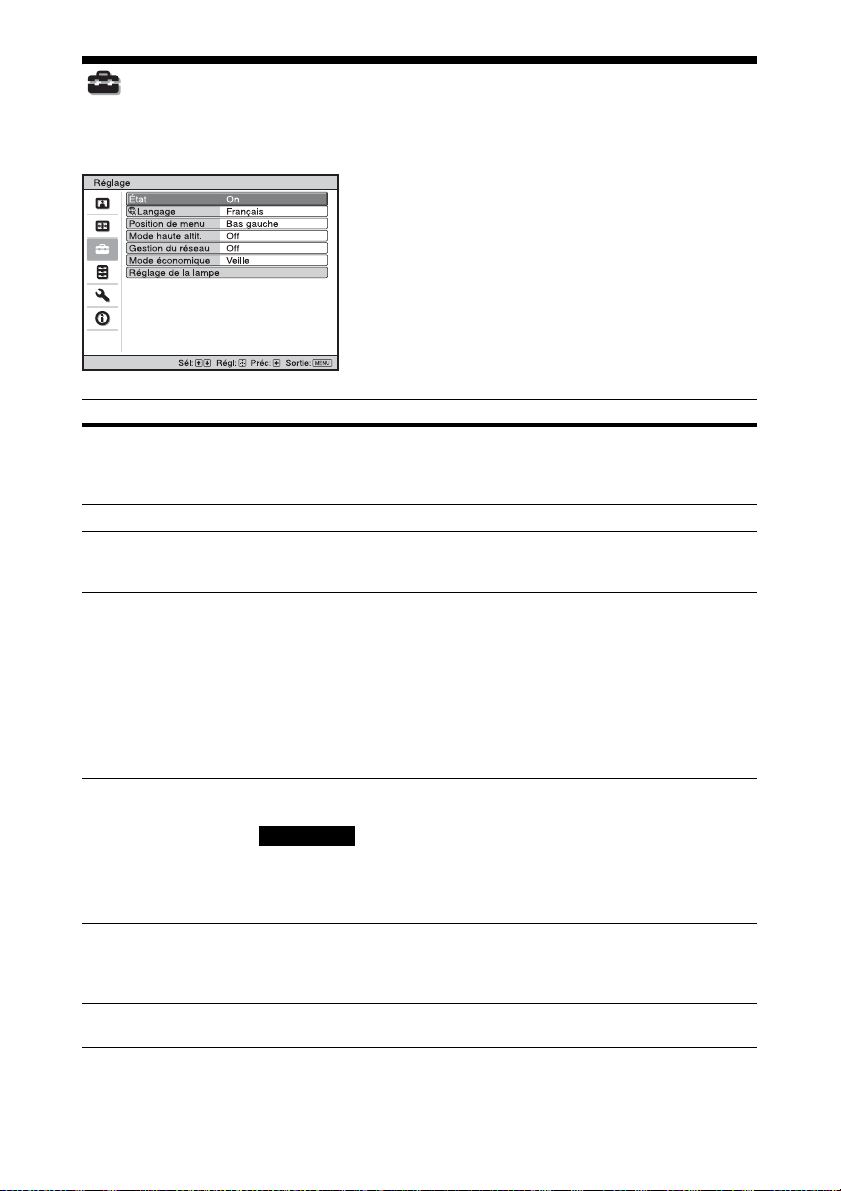
Menu Réglage
Le menu Réglage sert à modifier les réglages d’usine, etc.
Paramètres Description
État Spécifie l’activation ou non de l’affichage sur écran.
Langage Sélectionne la langue des menus et de l’affichage sur écran.
Position de menu Il est possible de modifier la position d’affichage du menu sur l’écran.
Mode haute altit. Règle l’appareil pour qu’il fonctionne sous la pression atmosphérique
Gestion du réseau On : À régler lors de la connexion au réseau et de la communication
Mode économique Définit le mode économique.
Réglage de la lampe Lorsque vous remplacez les lampes, définissez le réglage de lampe
Réglez cette option sur « Off » pour désactiver l’affichage sur écran, à
l’exception de certains menus, du message de mise hors tension et des
messages d’avertissement.
Bas gauche : Affiche le menu sur la partie inférieure gauche de l’écran.
Centre : Affiche le menu au centre de l’écran.
prédominante.
On : Utilisez ce paramètre lorsque vous faites fonctionner l’appareil à
une altitude égale ou supérieure à 1 500 m (environ 4 900 pi).
Off : Utilisez ce paramètre lorsque vous faites fonctionner l’appareil à
une altitude normale.
Conseil
Lorsque cet élément est réglé sur « On », le ventilateur fait légèrement
plus de bruit puisque sa vitesse augmente.
continue avec l’appareil de commande du projecteur.
Remarque
Lorsque Gestion du réseau est réglé sur « On », la fonction réseau est
active en permanence. Réglez Gestion du réseau sur « Off » pour un
usage normal. Si vous le réglez sur « On », la consommation d’énergie
augmente.
Veille : Si aucun signal n’est reçu pendant 10 minutes, le projecteur se
met automatiquement hors tension et passe en mode veille.
Off : Désactive le mode économique.
voulu (page 48).
30
Page 31
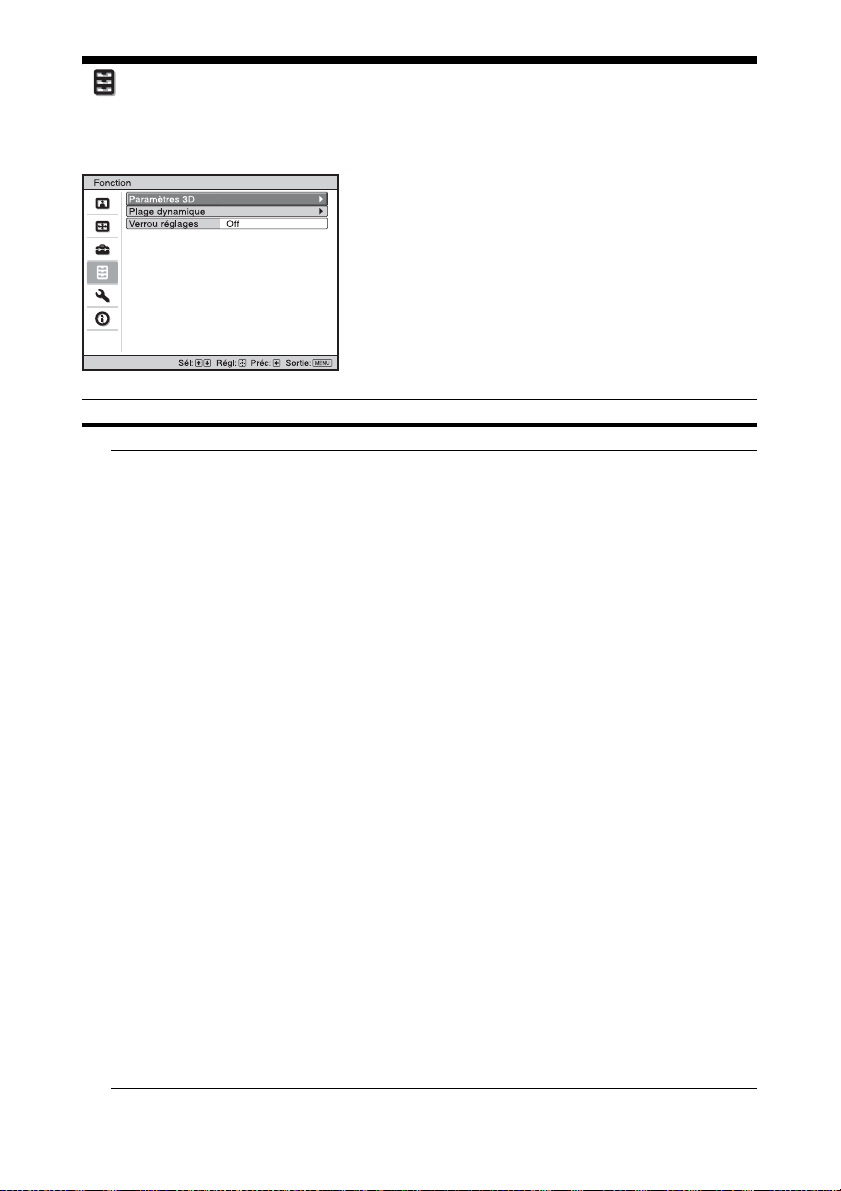
Menu Fonction
Le menu Fonction permet de modifier les paramètres des diverses fonctions de l’appareil.
Paramètres Description
Paramètres 3D Vous pouvez modifier les réglages de la fonction 3D.
Sél. affichage 2D-3DPour commuter les images vidéo sur « 2D » ou « 3D ».
Auto : Affiche les images vidéo 3D lors de la réception de signaux
HDMI avec informations 3D*. Affiche les images vidéo 2D lors de la
réception d’autres signaux.
3D : Affiche les images vidéo 3D en fonction du système 3D sélectionné
dans « Format 3D ». Toutefois, lors de la réception de signaux HDMI
avec informations 3D, l’appareil affiche les images vidéo 3D en fonction
du système 3D de ces signaux HDMI.
2D : Affiche des images vidéo 2D.
* Les informations 3D sont des informations supplémentaires qui
permettent d’identifier le 3D. Certains signaux HDMI possèdent des
informations supplémentaires permettant d’identifier le 3D alors que
d’autres signaux HDMI n’en ont pas.
Format 3D : Réglez le système 3D lorsque les signaux HDMI reçus
n’incluent pas d’informations 3D.
3D simulé : Convertit les images vidéo 2D en images vidéo 3D. Ce
réglage est disponible uniquement lors de la réception de signaux HD.
Selon la source vidéo, l’effet de la fonction 3D simulé peut être limité.
Toutes les personnes ne perçoivent pas les images vidéo 3D de la
même façon.
Côte à côte : Sélectionnez cette option pour afficher des images 3D
sous la forme de deux images similaires, côte à côte.
Dessus-Dessous : Sélectionnez cette option pour afficher des images
3D sous la forme de deux images similaires, l’une au-dessus de l’autre.
Conseils
• « Sél. affichage 2D-3D » ne peut pas être réglé sur « 3D » pour
certaines sources vidéo. Pour connaître les signaux vidéo 3D
disponibles, reportez-vous à « Signaux 3D compatibles » (page 57).
• Selon la taille de l’écran (100 à 120 pouces sont recommandés) et la
source vidéo, l’effet de la fonction 3D simulé peut être limité.
• Le menu apparaît sous la forme d’une image fantôme lorsqu’une
image vidéo 3D est affichée et il est alors préférable d’utiliser les
lunettes 3D.
31
Page 32

Paramètres Description
Luminos. lunettes 3DPour régler la luminosité de l’image lors de la visualisation d’images
vidéo 3D.
Vous pouvez sélectionner la luminosité « Elevée », « Moyenne » ou
« Faible ».
Régl. profondeur 3DPour régler la profondeur des images vidéo 3D à l’écran. Ce réglage est
disponible uniquement lorsque vous sélectionnez un format 3D autre
que « 3D simulé ».
Profondeur
NormalAvant Profondeur
Nous vous recommandons de régler « Régl. profondeur 3D » sur « 0 ».
Il est possible que vous ayez des difficultés à percevoir les images vidéo
3D selon le réglage de « Régl. profondeur 3D ».
Effet 3D simulé Pour régler l’effet 3D lorsque vous convertissez du contenu 2D en
images vidéo 3D. Vous pouvez sélectionner un des effets suivants :
«Haut», «Moyen» ou «Bas».
Conseil
Toutes les personnes ne perçoivent pas de la même façon les images
vidéo 3D converties par la fonction 3D simulé.
Plage dynamique Règle le niveau d’entrée vidéo des connecteurs HDMI 1 et HDMI 2.
Auto : Règle automatiquement le niveau d’entrée vidéo.
Limitée : Le niveau d’entrée vidéo est réglé pour les signaux de 16 à
235.
Plein : Le niveau d’entrée vidéo est réglé pour les signaux de 0 à 255.
Remarque
Si le paramètre de la sortie vidéo de l’appareil HDMI raccordé n’est pas
défini correctement, les parties claires et sombres de la vidéo risquent
d’apparaître trop claires ou trop sombres.
Verrou réglages Verrouille les réglages des options de menu afin d’éviter toute erreur de
fonctionnement (page 33).
Off : Annule Verrou réglages.
Niveau A : Les éléments du Groupe 1 (ci-dessous) ne sont pas affichés
dans le menu et ne sont pas disponibles.
Niveau B : Les éléments du Groupe 1 et du Groupe 2 (ci-dessous) ne
sont pas affichés dans le menu et ne sont pas disponibles.
32
Page 33

Éléments verrouillés à l’aide de Verrou réglages
Groupe 1 Group 2
Menu Image
Réinitialiser
Création réalité
Diaphrag. avancé
Accent. Contraste
Commande lampe
Motionflow
Contraste
Lumière
Couleur
Teinte
Temp. couleur
Netteté
NR
MPEG NR
Gradation progr.
Mode Film
Correct. Gamma
Correct. couleurs
Blanc clair
x.v.Color
Esp. couleur
Menu Réglage
État
Langage
Position de menu
Mode haute altit.
Gestion du réseau
Réglage de la lampe
Menu Fonction
Plage dynamique
Menu Installation
Symétrie
Sélect. déclench.
Alig. panneau
Param. réseau
33
Page 34
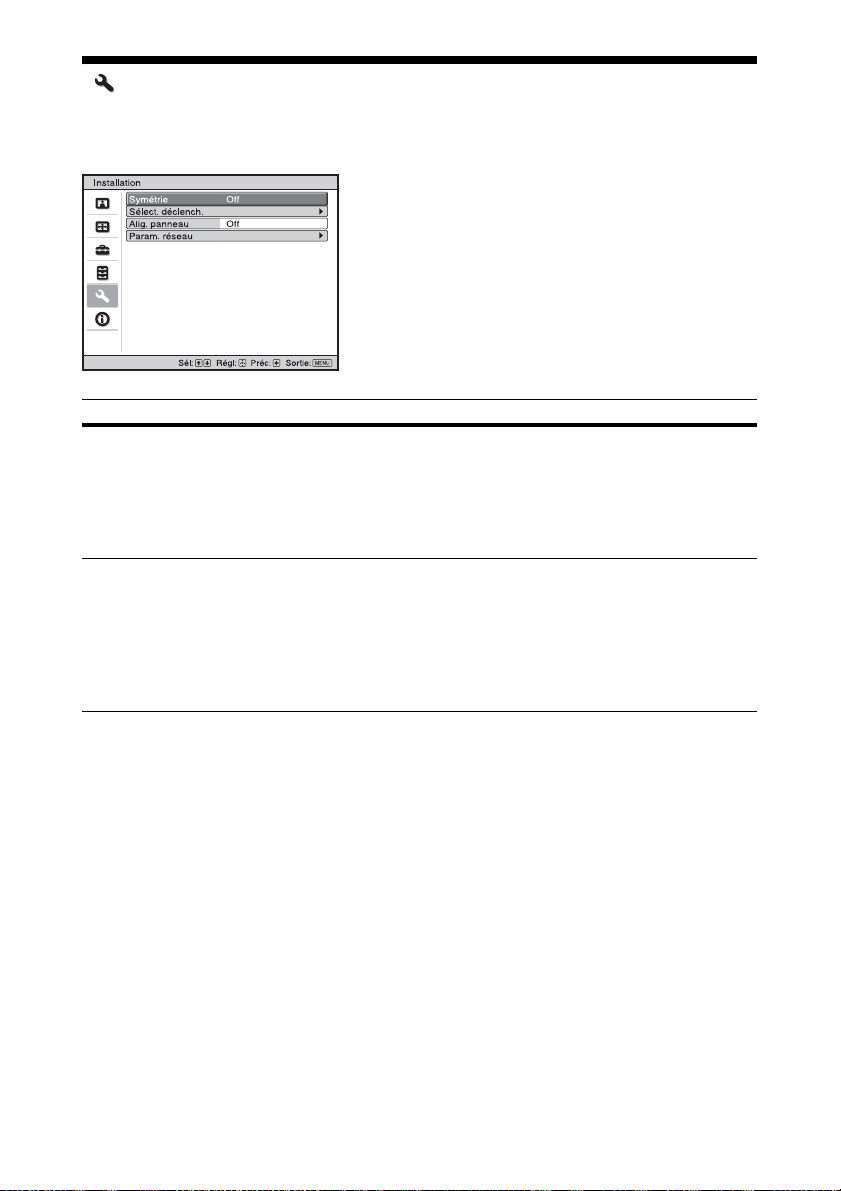
Menu Installation
Le menu Installation permet de modifier les paramètres d’installation.
Paramètres Description
Symétrie Fait pivoter horizontalement et/ou verticalement l’image sur l’écran.
Sélect. déclench. Permet de commuter la fonction de sortie du connecteur TRIGGER.
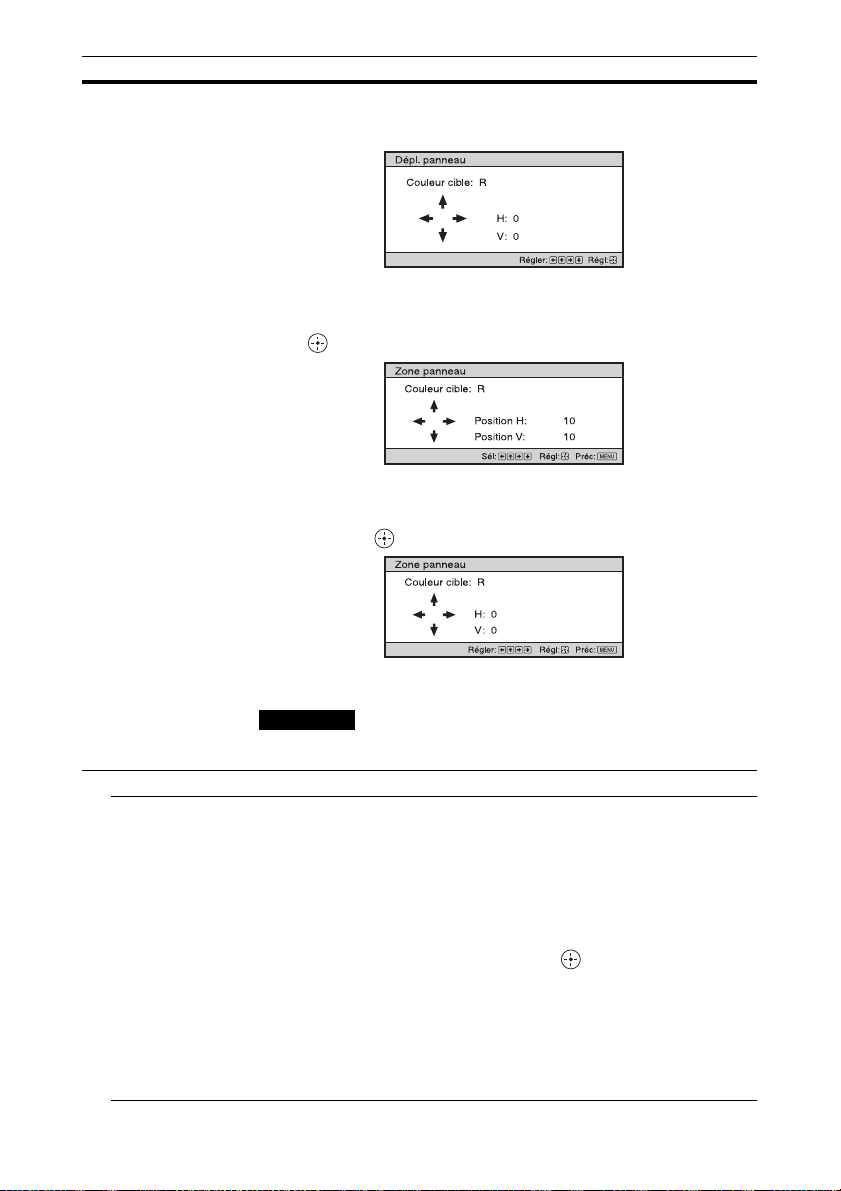
Alig. panneau Cette fonction permet de sélectionner les écarts de couleur des caractères
HV : Fait pivoter l’image horizontalement et verticalement.
H : Fait pivoter l’image horizontalement.
V : Fait pivoter l’image verticalement.
Off : L’image ne pivote pas.
Utilisez cette option pour l’installation en vue de la projection arrière ou
pour l’installation au plafond.
Off : Désactive la fonction du connecteur TRIGGER.
Puissance : Reproduction de signaux de 12 V par le connecteur
TRIGGER lorsque l’appareil est sous tension. Le connecteur TRIGGER
ne reproduit aucun signal lorsque l’appareil est en veille.
Etirement V : Fonctionne avec « Etirement V » du paramètre
« Aspect » (page 28) et reproduit un signal 12 V à partir du connecteur
TRIGGER.
ou de l’image à l’écran.
On : Règle les écarts des couleurs en sélectionnant « Couleur cible » ou
« Mode de régl. ».
Mode de régl. :
Déplacement : Déplace toute l’image et effectue les réglages.
Zone : Sélectionne la plage désirée et effectue les réglages.
Couleur cible: Définit la couleur désirée pour régler les écarts de
couleur. Sélectionnez « R » (Rouge) ou « B » (Bleu) pour effectuer des
réglages basés sur « G » (Vert).
Couleur écran : Sélectionnez « R/G » (Rouge et Vert) ou « R/G/B »
(Blanc, toutes les couleurs) lorsque le paramètre « Couleur cible » est
« R » (Rouge). Sélectionnez « B/G » (Bleu et Vert) ou « R/G/B »
(Blanc, toutes les couleurs) lorsque le paramètre « Couleur cible » est
« B » (Bleu).
Régler : Le réglage de déplacement et le réglage de zone de la couleur
sélectionnés dans « Couleur cible » peuvent être effectués avec les
boutons </,, M/m.
Permet de sélectionner comment effectuer les réglages.
34
Page 35
Paramètres Description
Lorsque « Déplacement » est sélectionné : Affectez les paramètres
du sens horizontal (H) avec les boutons </, et du sens vertical (V)
avec les boutons M/m sur l’écran de réglage du décalage.
Lorsque « Zone » est sélectionné : Sélectionnez la position à régler
avec les boutons </, pour la position horizontale (position H) et
les boutons M/m pour la position verticale (position V), puis appuyez
sur .
Spécifiez la quantité de réglage avec les boutons </, pour le sens
horizontal (sens H) et avec les boutons M/m pour le sens vertical
(sens V). Vous pouvez sélectionner la position à régler de nouveau en
appuyant sur .
Réinitialiser : Rétablit les réglages d’usine.
Off : Les données optimisées ont été préréglées.
Remarque
Selon les réglages effectués ci-dessus, il est possible que les couleurs
deviennent irrégulières ou que la résolution change.
Param. réseau Effectuez les réglages liés au protocole Internet.
Paramètre IPv4 Définition Adress IP : sélectionne la méthode de réglage de l’adresse
IP.
Auto(DHCP) : L’adresse IP est attribuée automatiquement par le
serveur DHCP, comme un routeur.
Manuel : Spécifie manuellement l’adresse IP.
Lorsque « Manuel » est sélectionné pour « Définition Adress IP »,
sélectionnez l’élément avec les boutons </, et saisissez la valeur
avec les boutons M/m. Une fois tous les éléments saisis, sélectionnez
« Appliquer », puis appuyez sur le bouton . Les paramètres saisis
sont enregistrés.
Adresse IP : Règle l’adresse IP de l’appareil.
Masq. sous-rés. : Règle le masque de sous-réseau de l’appareil.
Passer. par déf. : Règle la passerelle par défaut de l’appareil.
Adresse MAC : Affiche l’adresse MAC de l’appareil. Celle-ci ne peut
pas être modifiée.
Appliquer : Active l’adresse IP réglée manuellement.
35
Page 36

Paramètres Description
Informations IPv6 Affiche les informations IPv6.
Lorsque vous réglez l’adresse IP IPv6, faites-le sur un navigateur Web
(page 38).
36
Page 37
Menu Informations
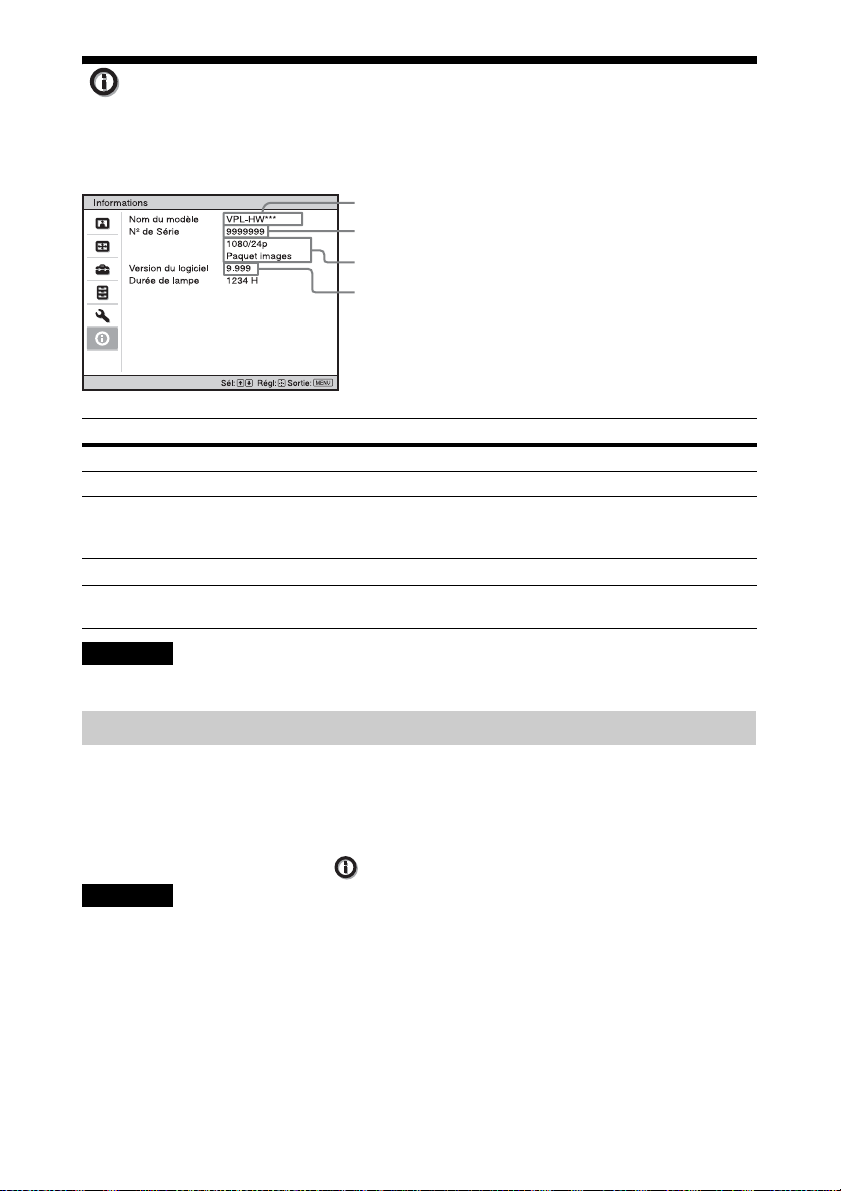
Le menu Informations affiche le nom du modèle, le numéro de série, le type de signal d’entrée,
la version du logiciel et le nombre d’heures cumulées d’utilisation de la lampe.
Nom du modèle
N° de série
Type de signal
Version du logiciel
Éléments Description
Nom du modèle Affiche le nom du modèle
N° de Série Affiche le numéro de série.
Type de signal Affiche le type de signal d’entrée. Lors de la réception de signaux
Version du logiciel Affiche la version du logiciel.
Durée de lampe Indique la durée pendant laquelle la lampe a été allumée (temps total
Remarque
Les affichages énumérés ci-dessus ne sont ni réglables, ni modifiables.
d’entrée avec informations 3D, le type des signaux d’entrée et le format
3D s’affichent.
d’utilisation).
À propos de la mémoire préréglée
Cet appareil possède des données d’image par défaut destinées à ajuster correctement les
données préréglées des signaux d’entrée en fonction des signaux affichés dans « Signaux
préprogrammés » (page 54) (la mémoire préréglée). Lorsque l’appareil reçoit un signal
préprogrammé, il le détecte automatiquement et rappelle les données correspondantes depuis
la mémoire préréglée pour permettre d’obtenir une image optimale. Le type de signal est
affiché dans le menu Informations .
Remarque
Selon le signal d’entrée de l’ordinateur, des parties de l’écran peuvent être masquées ou mal
affichées.
37
Page 38
Utilisation des fonctionnalités réseau
La connexion au réseau vous permet
d’utiliser les fonctionnalités suivantes :
• Vérification de l’état actuel de l’appareil
par le biais d’un navigateur Web.
• Définition des paramètres réseau de
l’appareil.
• Surveillance et contrôle du réseau à
l’aide d’un protocole de contrôle (SDAP
[Advertisement], SDCP [PJ Talk],
DDDP [AMX], Crestron RoomView,
Control4).
Remarques
• Lors du raccordement de ce projecteur au
réseau, consultez la personne qui installe le
réseau. Le réseau doit être sécurisé.
• Lors de l’utilisation de ce projecteur
connecté au réseau, accédez à la fenêtre de
commande via un navigateur Web et
modifiez la limitation d’accès des valeurs
d’usine préréglées (page 40). Il est
recommandé de modifier régulièrement le
mot de passe.
• Lorsque la configuration du navigateur Web
est terminée, fermez-le pour vous
déconnecter.
• Les écrans de menu utilisés pour les
descriptions ci-dessous peuvent varier selon
le modèle que vous utilisez.
• Les navigateurs Web pris en charge sont
Internet Explorer 8/9/10/11.
• La seule langue prise en charge est l’anglais.
• Si le navigateur de votre ordinateur est défini
sur [Utiliser un serveur proxy] lorsque vous
accédez à l’appareil depuis votre ordinateur,
cochez la case pour définir l’accès sans
utiliser de serveur proxy.
• AMX DDDP n’est pas compatible avec
IPv6.
• Ces fonctions réseau sont disponibles quand
l’appareil est sous tension.
Affichage de la fenêtre de contrôle de l’appareil avec un navigateur Web
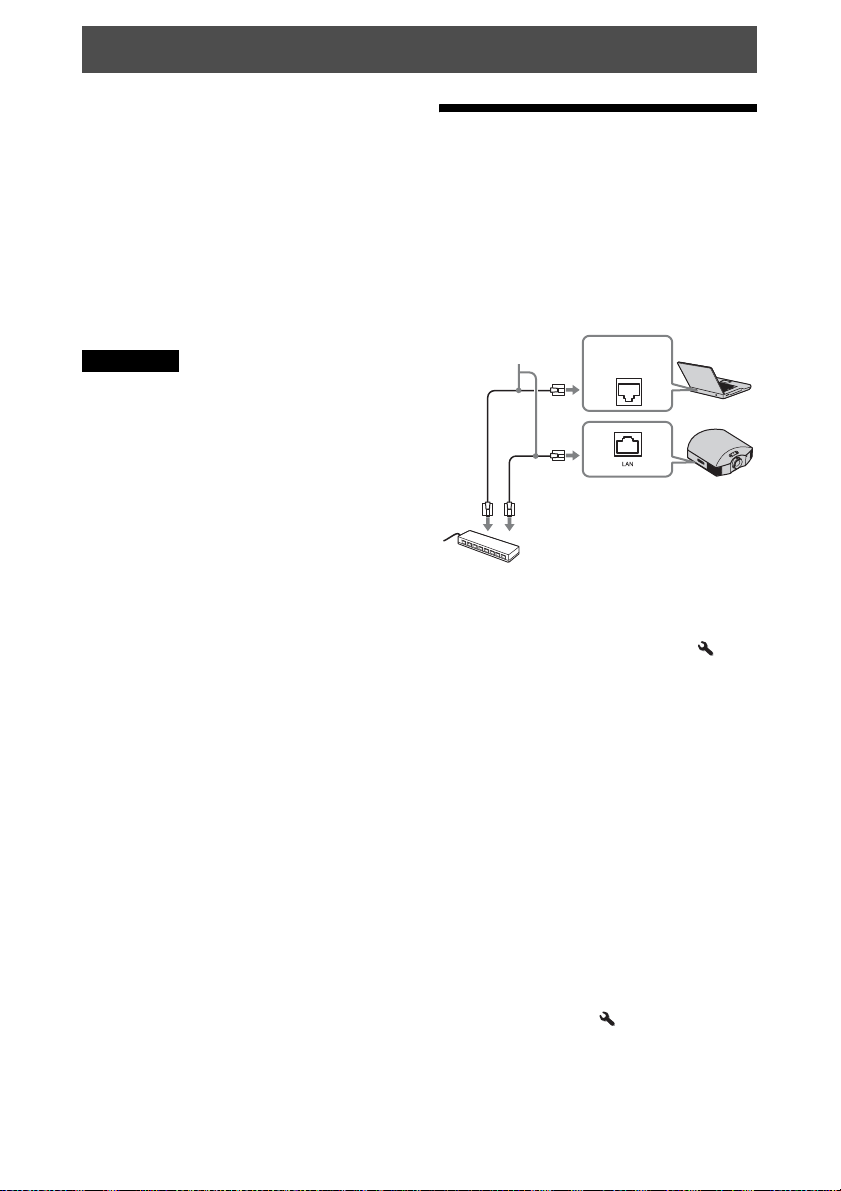
1 Raccordez le câble LAN.
Câble LAN
(type droit)
(non fourni)
Concentrateur, routeur, etc.
2 Définissez les paramètres réseau pour
l’appareil à l’aide de l’option « Param.
réseau » du menu Installation
(page 35).
3 Démarrez un navigateur Web sur
l’ordinateur, saisissez les informations
suivantes dans le champ d’adresse, puis
appuyez sur la touche Entrée de
l’ordinateur.
http://xxx.xxx.xxx.xxx
(xxx.xxx.xxx.xxx : adresse IP de
l’appareil)
Pour une connexion avec
l’adresse IPv6
http://[xxxx:xxxx:- xxxx]
Connecteur
LAN
Vous pouvez vérifier l’adresse IP de
l’appareil sous « Param. réseau » dans le
menu Installation .
38
Page 39
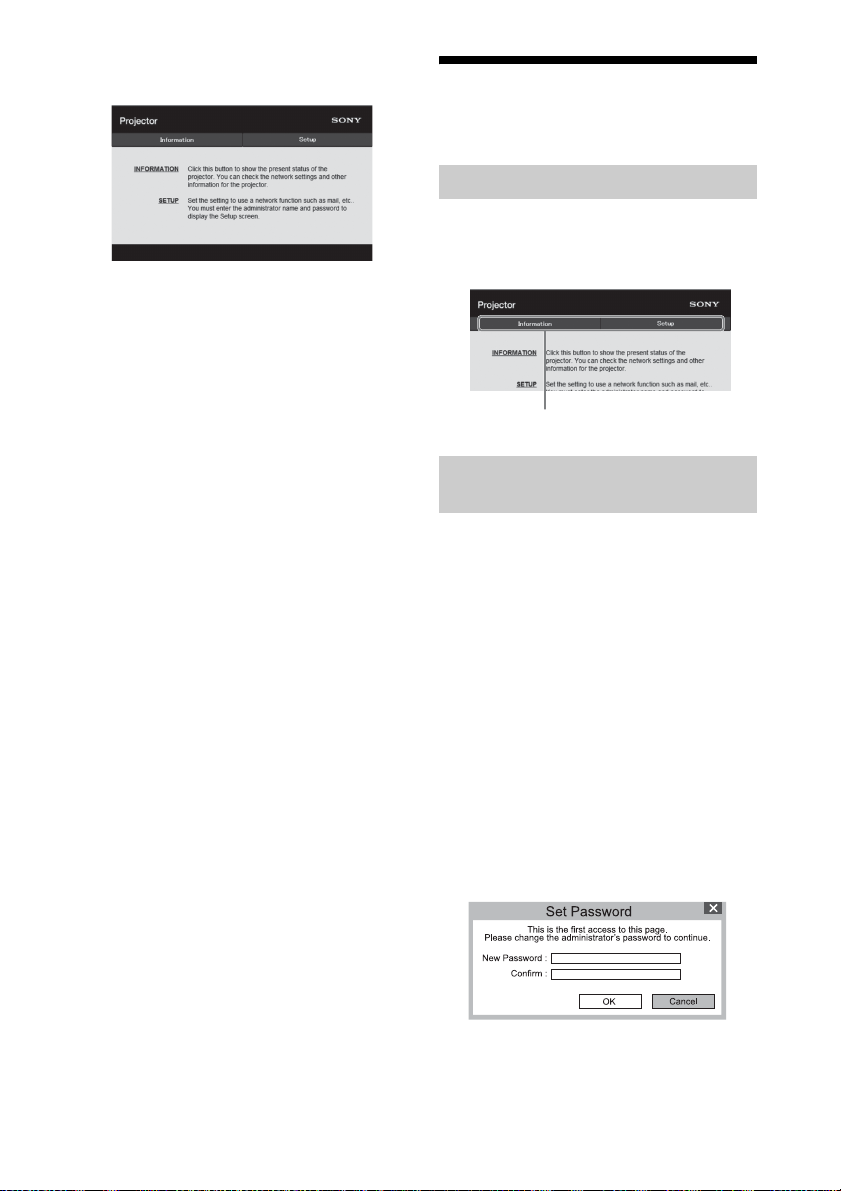
La fenêtre suivante s’affiche dans le
navigateur Web :
Lorsque vous définissez les paramètres
réseau, vous ne pouvez ouvrir la fenêtre
de contrôle qu’en exécutant l’étape 3 de
cette procédure.
Utilisation de la fenêtre de contrôle
Changement de page
Cliquez sur un bouton de changement de
page pour afficher la page de paramètres
souhaitée.
Boutons de changement de page
Définition de la restriction d’accès
Vous pouvez limiter l’accès d’un utilisateur
à une page particulière.
Administrator : Pour autoriser l’accès
à toutes les pages
User : Pour autoriser l’accès à toutes les
pages, à l’exception de la page Setup
La première fois que vous accédez à la page
Setup, entrez « root » comme nom
d’utilisateur et entrez « Projector » comme
mot de passe dans la boîte de dialogue
d’authentification.
La première fois que vous vous connectez,
une fenêtre s’affiche pour vous inviter à
changer le mot de passe. Suivez les
instructions affichées pour modifier le mot
de passe.
Le nom de l’administrateur est prédéfini sur
«root».
39
Page 40
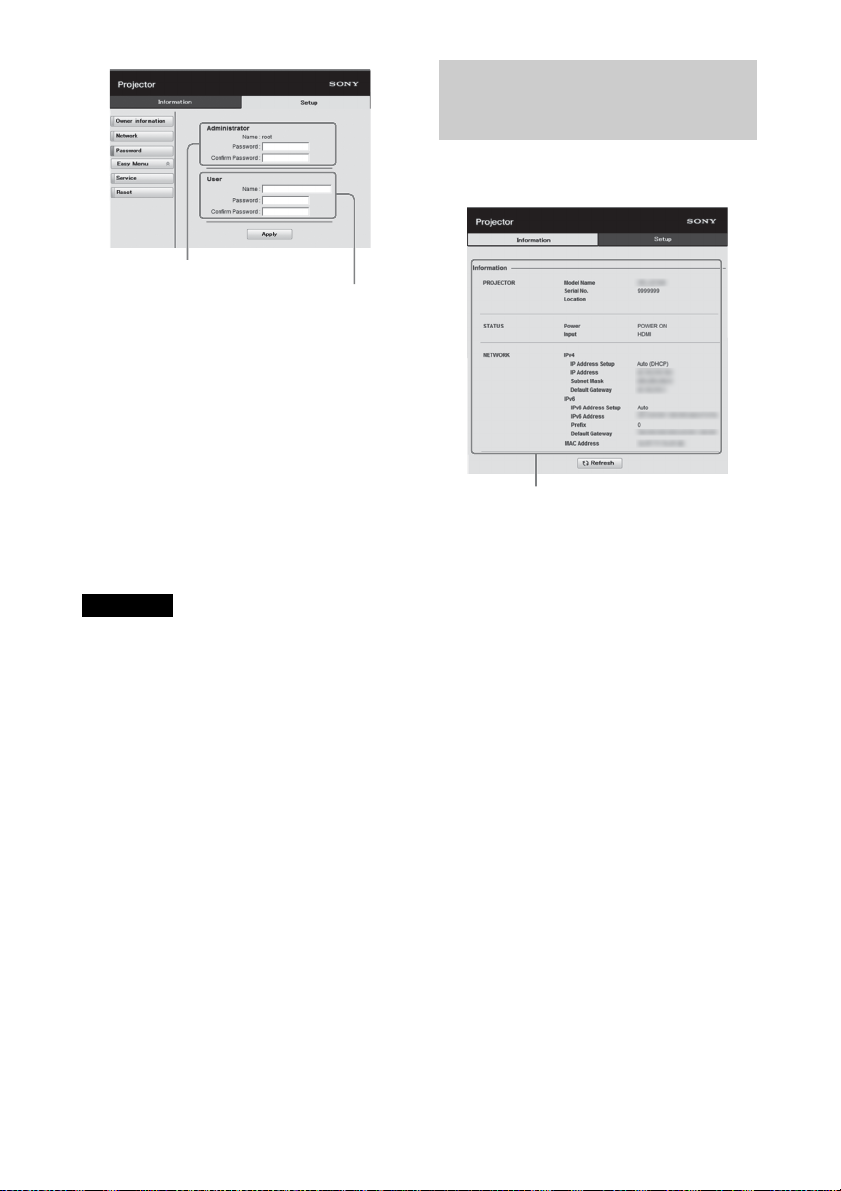
Zone d’entrée de [Administrator]
Zone d’entrée de [User]
Le mot de passe peut être modifié dans la
page Password de la page Setup.
Lorsque vous modifiez le mot de passe,
saisissez le nouveau mot de passe après avoir
effacé le mot de passe (*****) existant.
Le mot de passe de l’administrateur et de
l’utilisateur doit compter de 8 à 16 caractères
et être composé de caractères alphabétiques
et numériques. L’alphabet est sensible à la
casse.
Le mot de passe par défaut « Projector » ne
peut pas être choisi comme nouveau mot de
passe.
Remarque
Si vous avez oublié votre mot de passe,
contactez un technicien Sony agréé.
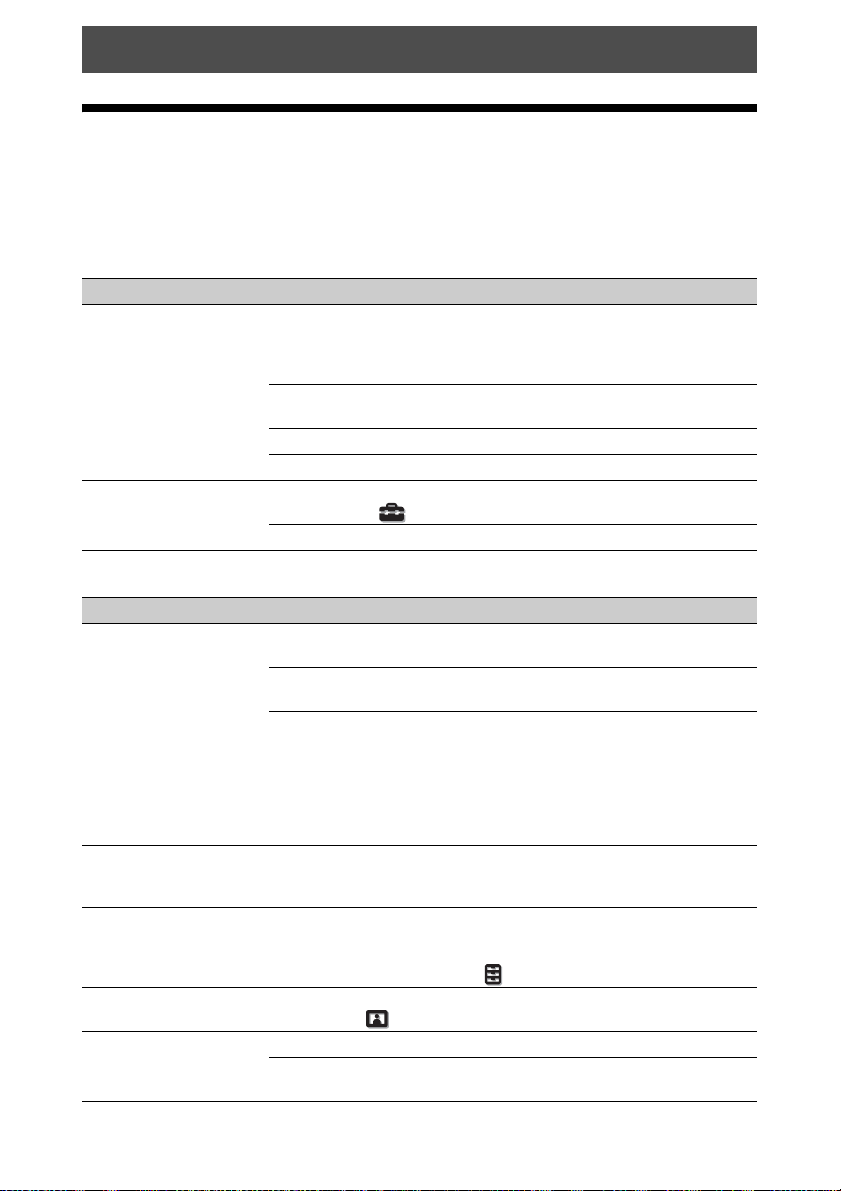
Confirmation des informations relatives à l’appareil
Vous pouvez vérifier les paramètres actuels
du projecteur dans la page Information.
Zone Information
40
Page 41
Gestion des erreurs
Dépannage
Si l’appareil ne fonctionne pas correctement, essayez d’en déterminer la cause et remédiez au
problème comme il est indiqué ci-dessous. Si le problème persiste, consultez le service aprèsvente Sony.
Puissance
Symptôme Cause et remède Page
Le projecteur ne se met
pas sous tension.
Le projecteur se met
soudainement hors
tension.
Il se peut que l’appareil ne s’allume pas si vous l’éteignez
avec le bouton ?/
rallumer peu après. Mettez l’appareil sous tension après
1 minute environ.
Fermez bien le couvercle de la lampe, puis serrez
convenablement les vis.
Fermez convenablement le support à filtre. 50
Vérifiez les indicateurs d’avertissement. 44
Vérifiez que le paramètre « Mode économique » dans le
menu Réglage est défini sur « Veille ».
Réglez « Mode économique » sur « Off ». 30
1 (ON/STANDBY) et essayez de le
Image
Symptôme Cause et remède Page
Pas d’image. Vérifiez si le câble de raccordement est correctement
Des images fantômes
apparaissent à l’écran.
La zone claire ou sombre
de la vidéo apparaît trop
claire ou trop sombre.
L’image est trop sombre. Réglez correctement « Contraste » ou « Lumière » dans le
L’image n’est pas nette. Réglez la mise au point. 11
raccordé à l’appareil externe.
Sélectionnez la source d’entrée correctement au moyen du
bouton INPUT.
Vérifiez si le signal de l’ordinateur est réglé pour la sortie
vers un moniteur externe.
Si le signal de l’ordinateur portable, etc. est reproduit sur
son écran et un moniteur externe, l’image du moniteur
externe risque de ne pas s’afficher correctement. Réglez
votre ordinateur pour reproduire le signal uniquement sur
un moniteur externe.
Les images vidéo sont affichées en 3D. Regardez les images
vidéo 3D à l’aide des lunettes 3D ou réglez « Sél. affichage
2D-3D » sur « 2D ».
Ce symptôme peut se présenter lors de l’entrée d’un niveau
de signal autre que ceux de la norme HDMI. Modifiez le
niveau de sortie de l’appareil raccordé ou modifiez la Plage
dynamique du menu Fonction de l’appareil.
menu Image .
De la condensation s’est formée sur l’objectif. Laissez
l’appareil sous tension pendant environ 2 heures.
–
50
30
12
14
–
15, 31
32
24
–
41
Page 42

Symptôme Cause et remède Page
La couleur des caractères
ou de l’image n’est pas
appropriée.
L’image demeure sur
l’écran. (rémanence)
Sélectionnez le calage des couleurs désiré dans « Alig.
panneau » du menu Installation .
Lorsqu’une image fixe à contraste élevé demeure affichée
longtemps, il peut y avoir de la rémanence sur l’écran. Cette
situation n’est que temporaire. La rémanence sera éliminée
si l’appareil est laissé hors tension pendant un certain
temps.
Affichage sur écran
Symptôme Cause et remède Page
L’affichage sur écran
n’apparaît pas.
Le nom du modèle ne
disparaît pas de l’écran.
Réglez « État » dans le menu Réglage sur « On ». 30
Assurez-vous que l’indicateur ON/STANDBY s’allume en
vert. Lorsque l’indicateur ON/STANDBY clignote en vert,
l’appareil démarre. Attendez qu’il cesse de clignoter et reste
allumé en vert.
Le mode d’affichage de l’appareil peut être défini au
moment de l’achat. Informez-vous auprès de votre
revendeur local ou du personnel agréé de Sony.
Télécommande
Symptôme Cause et remède Page
La télécommande ne
fonctionne pas.
Les piles sont peut-être faibles. Remplacez-les par des piles
neuves.
Insérez les piles avec les pôles dans le bon sens. –
S’il y a une lumière fluorescente près du capteur de
télécommande, l’appareil risque de mal fonctionner.
Vérifiez la position du capteur de télécommande de
l’appareil.
34
–
8
–
–
–
4
42
Page 43
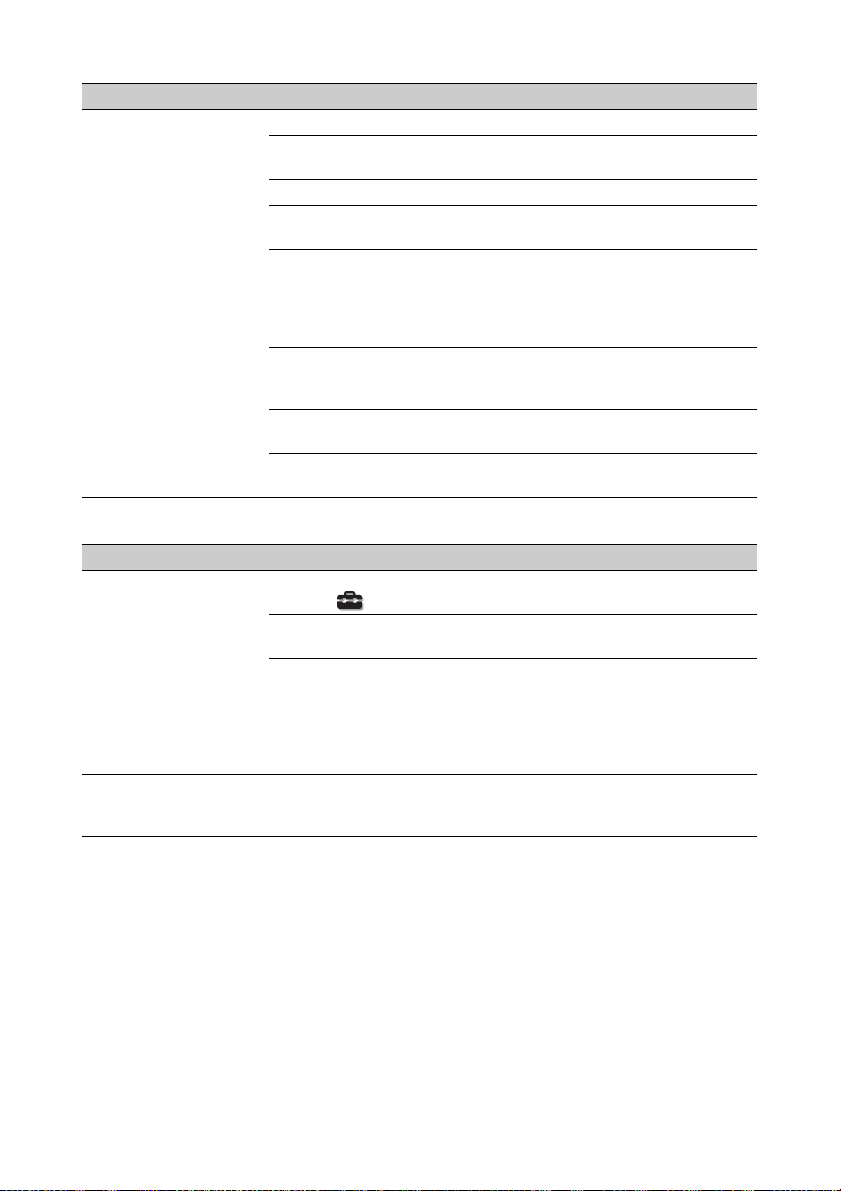
Images vidéo 3D
Symptôme Cause et remède Page
L’image vidéo ne
ressemble pas à une
image vidéo 3D.
Vérifiez si les lunettes 3D sont allumées. 15
Assurez-vous que la batterie des lunettes 3D n’est pas faible
ou insuffisamment chargée.
Réglez « Sél. affichage 2D-3D » sur « Auto » ou « 3D ». 31
Vérifiez si les signaux d’entrée sont compatibles avec les
signaux 3D.
L’entrée des signaux 3D peut être absente selon les
spécifications du sélecteur AV/amplificateur AV/appareil
externe raccordé. En l’absence de signal 3D, vérifiez les
spécifications et/ou les réglages du sélecteur AV/
amplificateur AV/appareil externe.
Lorsque la position de visionnage est trop éloignée de
l’appareil, il est possible que les lunettes 3D ne puissent pas
afficher correctement les images.
La taille de l’écran est inadaptée. Réduisez
l’agrandissement du zoom ou regardez l’écran de plus loin.
Pour plus d’informations, reportez-vous à « Précautions
d’utilisation » de « Utilisation des lunettes 3D ».
Autres
Symptôme Cause et remède Page
Le ventilateur est
bruyant.
Le déplacement de
l’objectif ne peut pas être
réglé.
Vérifiez le réglage de « Mode haute altit. » dans le menu
Réglage .
Assurez-vous que la température de la pièce n’est pas trop
élevée.
Vérifiez les conditions d’installation de l’appareil.
La vitesse du ventilateur augmente pour préserver la
fiabilité des composants du projecteur dans une pièce où la
température est plus élevée que la normale. Le ventilateur
fait légèrement plus de bruit. La température normale est de
25 °C (77 °F) environ.
Le déplacement de l’objectif ne peut pas être réglé au-delà
de la plage de décalage. Réglez le déplacement de l’objectif
dans la plage de décalage.
10, 62
–
57
–
15
62
15
30
–
–
43
Page 44
Indicateurs d’avertissement
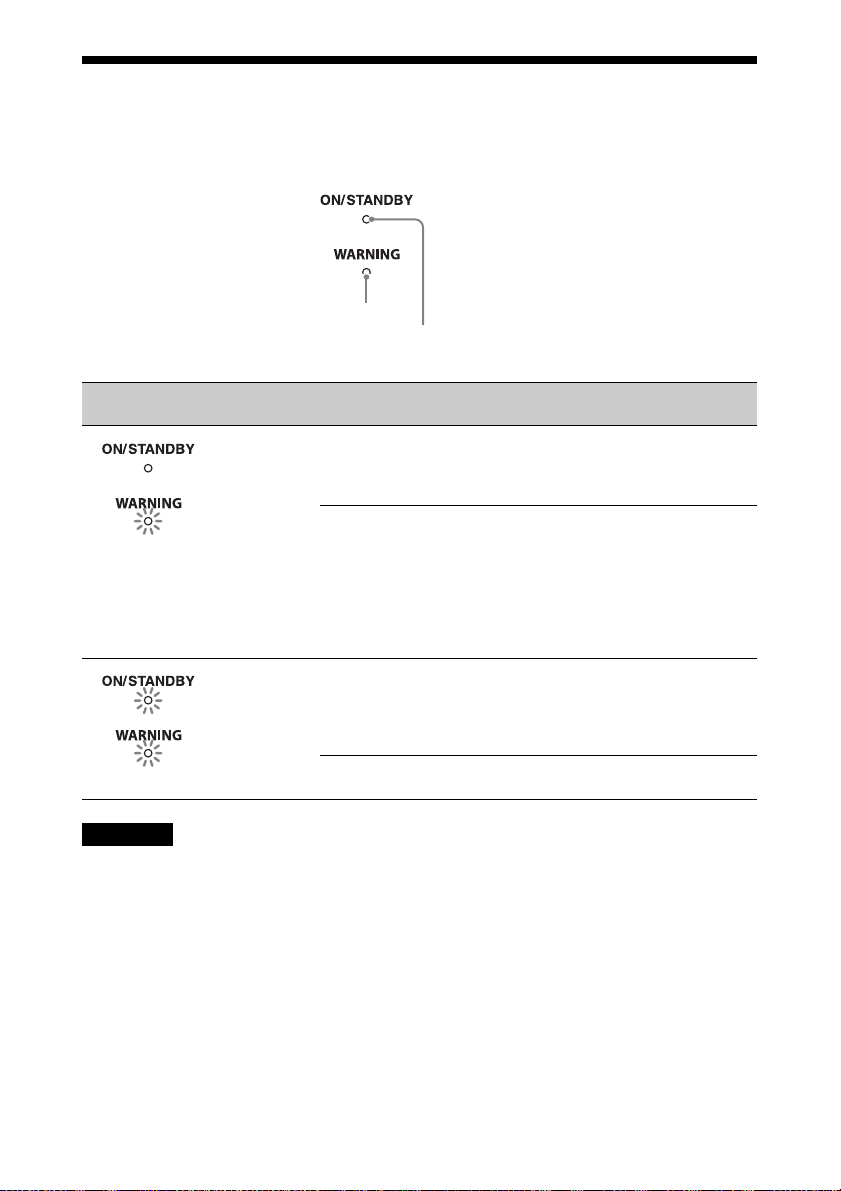
L’indicateur ON/STANDBY ou WARNING s’allume ou clignote en cas de problème
quelconque sur le projecteur.
Indicateur
WARNING
Indicateur
ON/STANDBY
Clignotement/Éclairage des
indicateurs
(Clignote en rouge)
(Clignote en rouge)
(Clignote en rouge)
Les deux indicateurs clignotent
Remarque
Lorsqu’un indicateur d’avertissement autre que celui ci-dessus commence à clignoter et que le
symptôme persiste même après avoir effectué les opérations ci-dessus, consultez le service aprèsvente Sony.
Le nombre de
clignotements
Deux fois Fermez bien le couvercle de la lampe, puis
Trois fois La température de la lampe est
Deux fois La température à l’intérieur du projecteur
Trois fois Le ventilateur est défectueux. Consultez le
Cause et remède
vissez-le solidement (page 50).
Fermez convenablement le support à filtre
(page 50).
anormalement élevée. Mettez hors tension
et attendez que la lampe se refroidisse, puis
remettez sous tension.
Si ce symptôme persiste, la lampe a peutêtre atteint la fin de sa durée de service.
Dans ce cas, remplacez la lampe par une
neuve (page 48).
est anormalement élevée. Assurez-vous
que rien ne colmate les orifices de
ventilation et que l’appareil n’est pas
utilisé à haute altitude.
service après-vente Sony.
44
Page 45

Listes de messages
Messages d’avertissement
Symptôme Cause et remède Page
Surchauffe! Lampe OFF
1 min.
Fréquence est hors
limites!
Remplacer la lampe/
filtre.
Nettoyer le filtre. Le moment est venu de nettoyer le filtre à air. Nettoyez le
Nettoyer le filtre. Avezvous fini? Oui Non
Température de
projecteur élevée Mode
Haute altitude doit être
“On” si le proj est utilisé
à haute altitude
Mode économie réglé.
Projecteur passera auto
en veille ds 1 min.
Mettez le projecteur hors tension. –
Vérifiez si rien ne colmate les orifices de ventilation. 4, 5
Fréquence hors plage. Le signal d’entrée doit être dans la
plage de fréquences prise en charge par l’appareil.
Le moment est venu de remplacer la lampe. Remplacez la
lampe.
Remplacez également le filtre à air. Recommencez le
nettoyage des orifices de ventilation (prise d’air).
Si ce message réapparaît après le remplacement de la lampe
et du filtre, cela signifie que la procédure de remplacement
de la lampe n’est pas terminée. Vérifiez la procédure de
remplacement de la lampe.
Remarque
Pour effacer ce message, appuyez une fois sur n’importe
quel bouton de la télécommande ou du panneau de
commande de l’appareil.
filtre à air.
Remarque
Pour effacer ce message, appuyez une fois sur n’importe
quel bouton de la télécommande ou du panneau de
commande de l’appareil.
Le moment est venu de nettoyer le filtre à air. Nettoyez le
filtre à air.
Si vous avez nettoyé le filtre à air, sélectionnez « Oui ». Si
vous n’avez pas nettoyé le filtre à air, sélectionnez « Non ».
Vérifiez si rien ne colmate les orifices de ventilation. 4, 5
Lorsque vous utilisez l’appareil à haute altitude, réglez
« Mode haute altit. » sur « On ».
Remarque
Lorsque la température interne de l’appareil reste élevée,
« Mode haute altit. » bascule sur « On » en 1 minute, et la
vitesse du ventilateur augmente.
« Mode économique » est réglé sur « Veille ».
Remarque
Si aucun signal n’est reçu, le projecteur se met
automatiquement hors tension au bout d’une minute et
passe en mode veille.
54
48
51
51
30
30
45
Page 46

Messages de mise en garde
Symptôme Cause et remède Page
x
Aucun signal n’est reçu dans l’entrée sélectionnée. Vérifiez
les raccordements.
Non applicable! Appuyez sur le bon bouton.
Le fonctionnement normalement activé par le bouton est
actuellement interdit.
Verrouillage des réglages
activé.
« Verrou réglages » est réglé sur « Niveau A » ou « Niveau
B».
12
–
32
46
Page 47

Autres
Mise à jour du logiciel
Vous pouvez télécharger les fichiers des
mises à jour du logiciel de l’appareil. Copiez
les fichiers téléchargés sur votre mémoire
USB, insérez la mémoire USB dans le port
USB de l’appareil, puis procédez à la mise à
jour.
Pour utiliser les fonctions mises à jour,
insérez une clé USB dans un PC connecté à
Internet.
Téléchargez les fichiers de mise à jour à
partir du site Web Sony suivant :
http://www.pro.sony.eu/
Le site Web explique également comment
installer la mise à jour.
Remarque
Il est possible que l’utilisation de certaines
mémoires USB ne soit pas prises en charge.
Pour plus de détails, consultez le site Web
ci-dessus.
À propos de x.v.Color
• « x.v.Color » est le nom promotionnel
donné aux produits capables de produire
un vaste espace de couleurs sur la base des
spécifications xvYCC et est une marque
de Sony Corporation.
• xvYCC est une norme internationale
appliquée aux spécifications techniques de
l’espace colorimétrique à gamme étendue
pour signaux vidéo. La gamme de couleurs
de xvYCC est plus étendue que la gamme
sRGB couramment utilisée sur les
systèmes de télévision.
À propos de la fonction 3D simulé
• Utilisez la fonction 3D simulé en
n’oubliant pas que les images auront un
aspect différent des images originales,
puisque cette fonction convertit les images
vidéo.
• Notez que si l’appareil est utilisé pour une
projection en public ou à but lucratif,
l’affichage en 3D d’images vidéo 2D par
conversion en 3D simulé peut constituer
une violation des droits des auteurs ou
producteurs, qui sont protégés par la loi.
47
Page 48

Remplacement de la lampe et du filtre à air avec nettoyage des orifices de ventilation (prise d’air)
Voici les outils dont vous avez besoin
pour commencer :
• Une lampe pour projecteur LMP-H210 (en
option)
• Un tournevis cruciforme standard
• Un chiffon (pour protéger des éraflures)
La durée de service de la lampe utilisée
comme source de lumière est limitée.
Lorsque la lampe faiblit, la balance des
couleurs de l’image devient bizarre, ou
« Remplacer la lampe/filtre. » apparaît sur
l’écran. La lampe est peut-être épuisée.
Remplacez la lampe par une neuve sans
tarder.
Utilisez une lampe pour projecteur LMPH210 comme lampe de rechange.
Un filtre à air est fourni avec la lampe pour
projecteur LMP-H210. Lorsque l’on
remplace la lampe, il est également temps de
remplacer le filtre à air.
Il faut toujours remplacer le filtre à air par un
neuf lorsque l’on remplace la lampe.
Nettoyez également les orifices de
ventilation (prise d’air).
Conseil
La durée de vie de la lampe utilisée pour la
source lumineuse varie selon l’environnement
d’installation ou les conditions d’utilisation.
Vous pouvez utiliser la lampe plus longtemps
en patientant plusieurs minutes avant de
l’éteindre, si vous venez juste de l’allumer.
Mise en garde
• La lampe reste chaude après la mise hors
tension de l’appareil avec le bouton
?/1 (ON/STANDBY). Ne la touchez pas,
car vous pourriez vous brûler les doigts.
Avant de remplacer la lampe, attendez au
moins 1 heure pour lui permettre de
refroidir.
• Ne touchez pas la surface de la lampe. Si
vous la touchez, essuyez les empreintes
digitales avec un chiffon doux.
• Prêtez une attention spéciale au
remplacement de la lampe lorsque
l’appareil est installé au plafond.
• Lorsque vous retirez la lampe, assurezvous qu’elle reste en position horizontale,
puis soulevez-la directement vers le haut.
N’inclinez pas la lampe. Si vous retirez la
lampe alors qu’elle est inclinée et si elle se
casse, des morceaux peuvent s’éparpiller
et entraîner des blessures.
• Lors du retrait du filtre à air, procédez
prudemment pour éviter que de la poussière
ne pénètre dans le projecteur.
• Remplacer le filtre à air est crucial pour
maintenir la bonne performance du
projecteur ou pour empêcher son
dysfonctionnement. Lorsqu’un message
d’avertissement pour remplacer le filtre à air
apparaît, remplacez aussitôt celui-ci.
Remarques
• Il faut utiliser une lampe pour projecteur
LMP-H210 pour le remplacement. Si une
lampe autre que LMP-H210 est utilisée,
l’appareil risque de mal fonctionner.
• Assurez-vous de mettre l’appareil hors
tension et de débrancher le cordon
d’alimentation avant de remplacer la lampe,
puis vérifiez que l’indicateur ON/
STANDBY est déjà éteint.
1 Mettez le projecteur hors tension et
débranchez le cordon d’alimentation
secteur.
48
Page 49
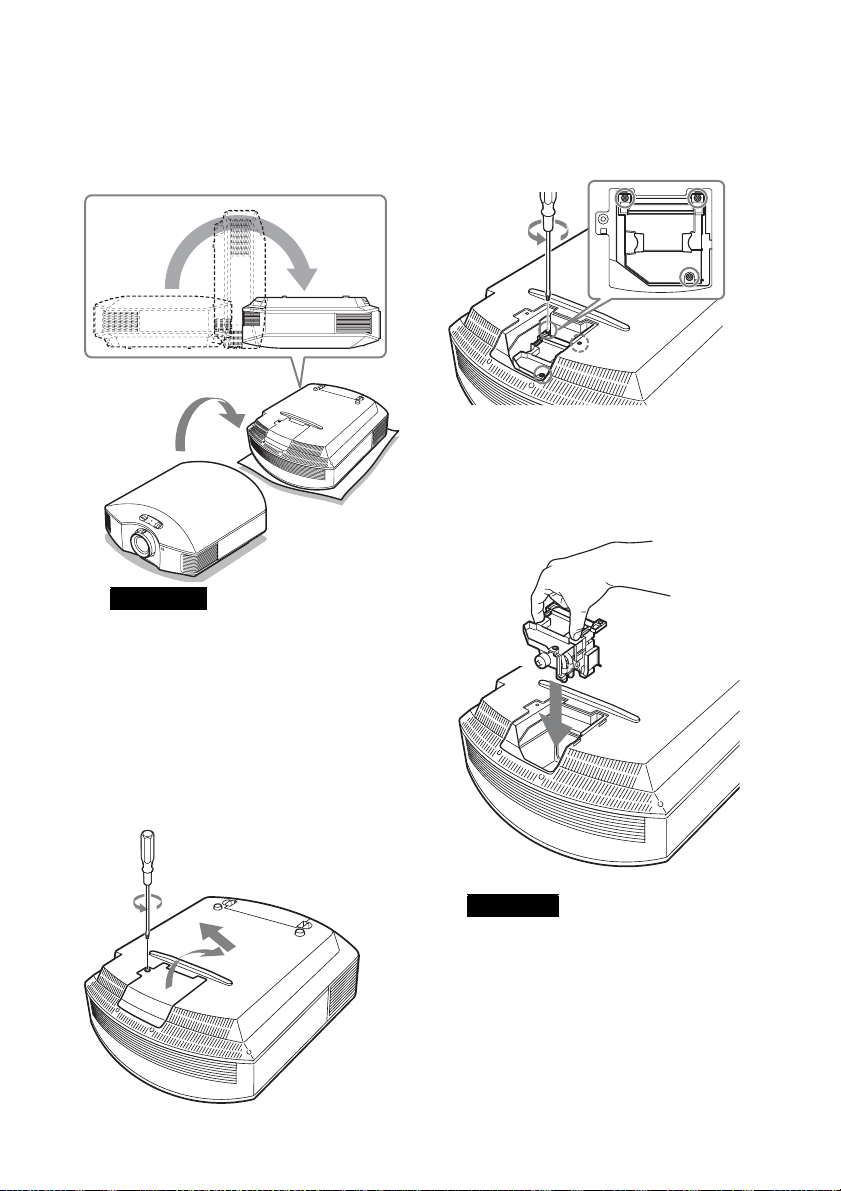
2 Lorsque le projecteur est sur une
surface plane comme un bureau, etc.,
mettez un chiffon sous l’appareil pour
éviter de rayer la surface. Retournez le
projecteur tel qu’illustré, puis placezle sur le chiffon.
Remarques
• Lorsque la lampe se casse, des morceaux
peuvent s’éparpiller si vous ne retournez
pas le projecteur. Cela peut entraîner des
blessures.
• Assurez-vous que le projecteur est posé
sur une surface stable.
4 Desserrez les 3 vis de la lampe à l’aide
du tournevis cruciforme. Maintenez la
poignée vers le haut et retirez la
lampe.
5 Tenez la poignée de la nouvelle lampe
avec la main, puis poussez celle-ci à
l’intérieur entièrement avant de
resserrer les 3 vis.
3 Desserrez la vis du couvercle de lampe
avec un tournevis cruciforme, puis
ouvrez le couvercle de lampe.
Remarque
Veillez à ne pas toucher le bloc optique à
l’intérieur du projecteur.
49
Page 50
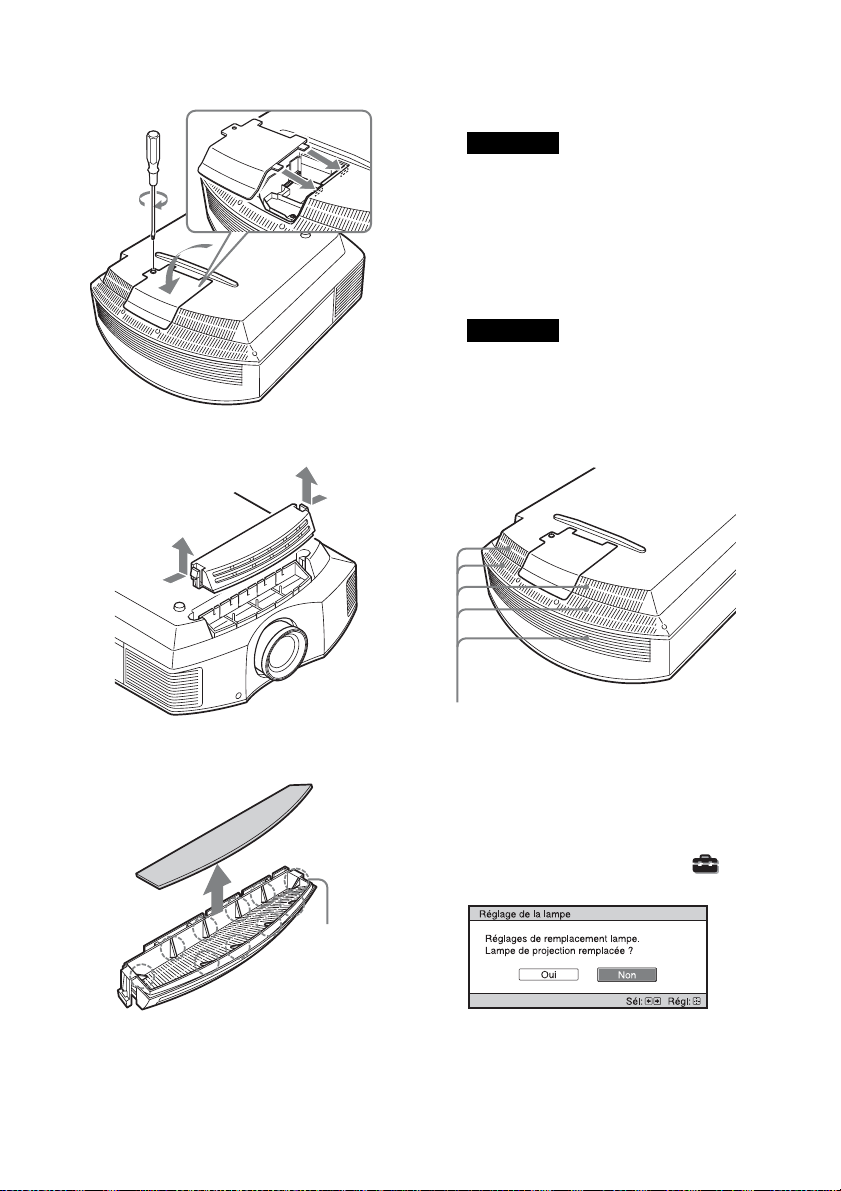
6 Fermez le couvercle de la lampe, puis
vissez-le solidement.
7 Retirez le support du filtre.
9 Fixez le nouveau filtre à air de façon à
ce qu’il entre dans chacune des griffes
(10 positions) du support du filtre.
Remarque
Fixez le filtre à air en l’alignant à la forme
du support du filtre.
Par ailleurs, ne touchez pas le ventilateur
après avoir retiré le filtre à air installé au
fond du projecteur.
10 Fixez le support du filtre.
Remarque
Le projecteur ne se mettra sous tension que
si le support du filtre est bien fermé.
11
Dépoussiérez les orifices de ventilation
(prise d’air) à l’aide d’un chiffon.
8 Retirez le filtre à air.
Orifices de ventilation (prise d’air)
12Remettez l’appareil dans sa position
normale.
13Mettez l’appareil sous tension, puis
sélectionnez l’option de réglage de la
lampe dans le menu Réglage .
L’écran du menu ci-dessous s’affiche.
Griffes
Conseil
Si l’option « Verrou réglages » est définie
sur « Niveau B », configurez-la une fois
sur « Off » (page 32).
50
Page 51
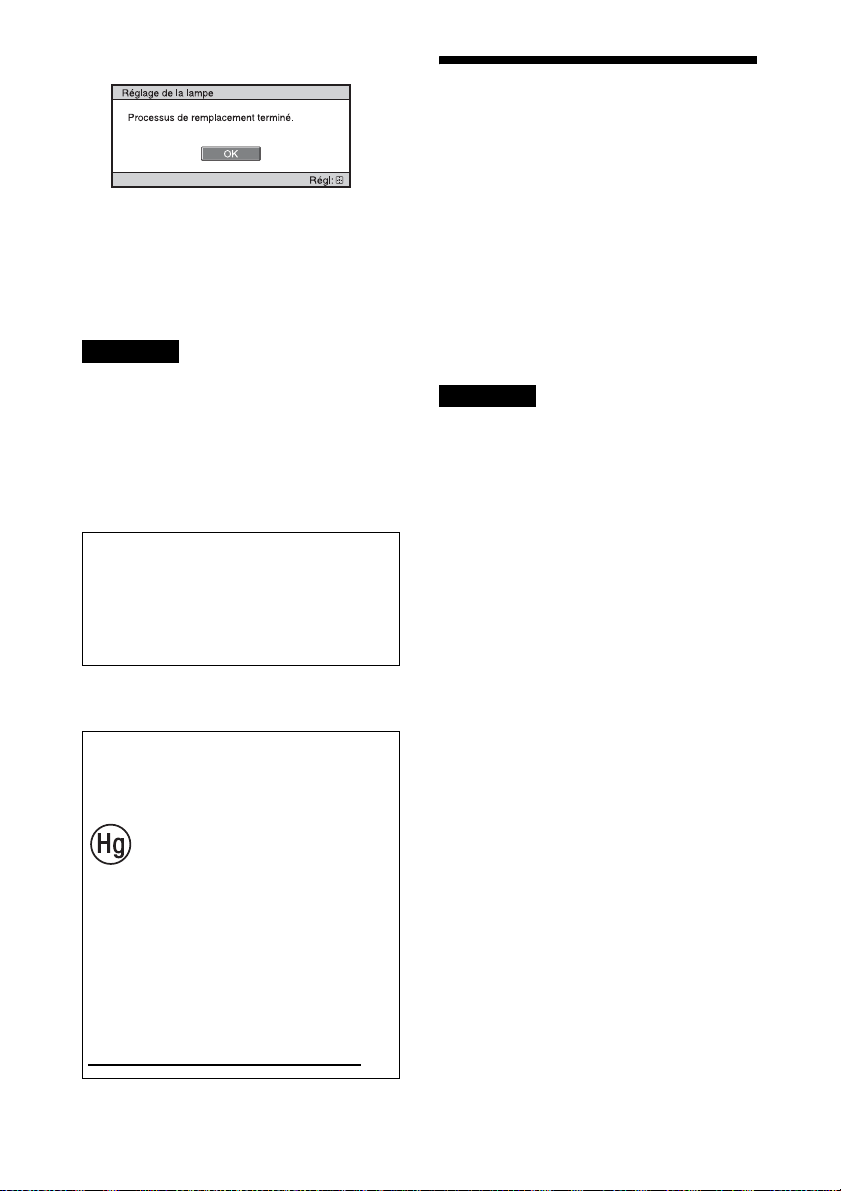
14Sélectionnez « Oui ».
Mise en garde
N’introduisez pas les doigts dans la fente de
remplacement de la lampe et veillez à ce
qu’aucun liquide ou objet ne tombe à
l’intérieur de la fente pour éviter tout risque
d’électrocution ou d’incendie.
Remarques
• L’appareil ne se mettra sous tension que si la
lampe est bien mise en place.
• L’appareil ne se mettra sous tension que si le
couvercle de la lampe est bien fermé.
• Pour effacer un message affiché à l’écran,
appuyez une fois sur un bouton quelconque
de la télécommande ou du panneau de
commande de l’appareil.
Remarque
La lampe contient du mercure. La
réglementation en matière de mise au rebut
pour les tubes fluorescents dépend de votre
lieu de résidence. Respectez la politique
d’élimination des déchets de votre région.
Mettre à disposition de la lampe
usagée
Pour les clients aux
États-Unis et au
Canada
Nettoyage du filtre à air
Lorsque « Nettoyer le filtre. » apparaît sur
l’écran, vous devez nettoyer le filtre à air.
Le filtre à air doit être nettoyé toutes les
1 500 heures. Cette fréquence dépend de
l’environnement et de la manière dont le
projecteur est utilisé. La fréquence de
nettoyage approximative est de 1 500
heures.
Après avoir nettoyé le filtre à air avec une
solution désinfectante, séchez-le dans un
endroit à l’abri de la lumière.
Remarques
• Lorsque vous nettoyez le filtre à air, assurezvous de ne pas l’endommager.
Pour plus de détails sur la fixation et le retrait
du filtre à air, reportez-vous à la rubrique
« Remplacement de la lampe et du filtre à air
avec nettoyage des orifices de ventilation
(prise d’air) » Étapes 7 à 10 (page 50).
• Lors du retrait du filtre à air, procédez
prudemment pour éviter que de la poussière
pénètre dans le projecteur.
• Nettoyer le filtre à air est crucial pour
maintenir la bonne performance du
projecteur ou pour empêcher son
dysfonctionnement. Lorsqu’un message
d’avertissement pour nettoyer le filtre à air
apparaît, nettoyez aussitôt celui-ci.
La lampe contient du
mercure. Disposez selon
les lois locales,
provinciales et fédérales
applicables.
Pour de plus amples
informations, voir
www.sony.com/mercury
51
Page 52
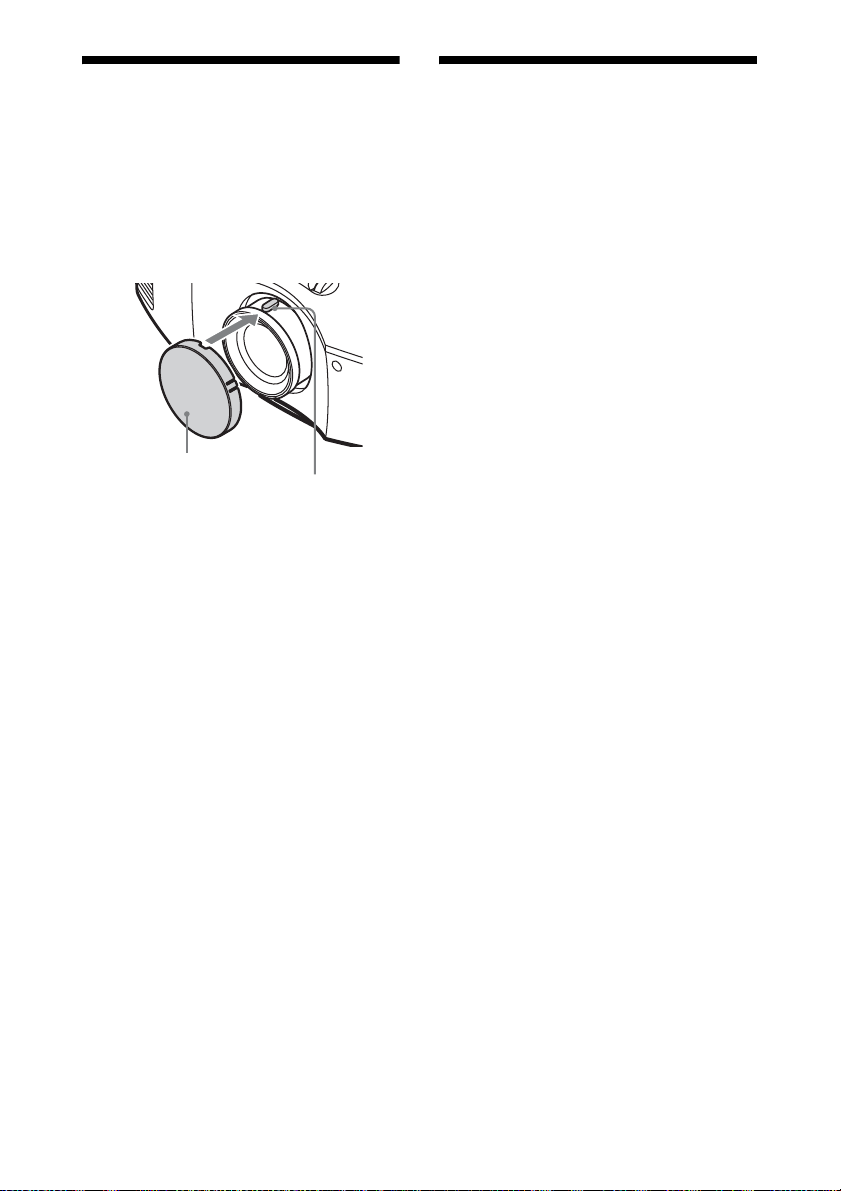
Fixation du
Nettoyage
capuchon d’objectif
Quand vous fixez le capuchon à l’objectif,
positionnez-le en veillant à ce que la partie
concave située sur le côté du capuchon
s’emboîte sur la commande de zoom,
comme illustré.
Capuchon d’objectif
Commande de zoom
Nettoyage de l’objectif
La surface de l’objectif a été spécialement
traitée pour réduire la réflexion de la
lumière.
Comme une erreur d’entretien risque
d’altérer les performances du projecteur,
veuillez à bien respecter les points suivants :
• Essuyez délicatement l’objectif avec une
chiffon doux, notamment un chiffon de
nettoyage ou un tissu de nettoyage pour
verres.
• Les taches tenaces peuvent être éliminées
avec une chiffon doux, notamment un
chiffon de nettoyage ou un tissu de
nettoyage pour verres légèrement humide.
• N’utilisez jamais de solvant tel que de
l’alcool, du benzène ou du diluant, pas
plus que du détergent acide, alcalin ou
abrasif, ou encore une lingette de
nettoyage chimique, car ils
endommageront la surface de l’objectif.
Nettoyage du boîtier
• Pour retirer la poussière qui recouvre le
boîtier, essuyez-le délicatement avec un
chiffon doux. Pour les poussières tenaces,
passez un linge doux légèrement trempé
dans une solution de détergent doux dilué
dans l’eau.
• N’utilisez aucun type de tissu abrasif, de
nettoyant alcalin ou acide, de poudre à
récurer ou de solvant volatile tel qu’alcool,
benzène, diluant ou insecticide.
• Nettoyez le projecteur avec un chiffon
propre. N’utilisez pas un chiffon sale, car
vous risquez de rayer le projecteur.
• La surface de l’écran et le matériau du
boîtier risqueraient d’être endommagés en
cas d’utilisation de tels produits ou de
contact prolongé avec des objets en
caoutchouc ou en vinyle.
52
Page 53

Spécifications
Option Description
Système d’affichage Dalle SXRD, 1 objectif, système de projection
Dispositif
d’affichage
Objectif de projection Objectif zoom 1,6 fois (manuel)
Source de lumière Lampe sous ultra haute pression 215 W
Taille d’écran 40 pouces à 300 pouces (1 016 mm à 7 620 mm) (en
Signaux vidéo pris en charge 480/60p, 576/50p, 720/60p, 720/50p, 1080/60i,
Signaux informatiques pris en charge fH : 19 kHz à 72 kHz
HDMI (2 entrées), conforme à HDCP RVB/Y P
Autres entrées/
sorties
Dimensions extérieures (l/h/p) 407,4 mm × 179,2 mm × 463,9 mm (16
Poids Environ 9 kg (20 li)
Alimentation requise 100 V à 240 V CA, 3,1 A à 1,3 A, 50/60 Hz
Consommation électrique Max. 310 W
Consommation électrique (Veille) 0,4 W
Température de fonctionnement 5 °C à 35 °C (41 °F à 95 °F)
Humidité de fonctionnement 35 % à 85 % (sans condensation)
Température de stockage –20 °C à +60 °C (–4 °F à +140 °F)
Humidité de stockage 10 % à 90 %
Accessoires fournis Reportez-vous à « Vérification des accessoires
Accessoires en option Lampe pour projecteur : LMP-H210 (pour
Taille de la zone
d’affichage
effective
Nombre de pixels 6 220 800 pixels (2 073 600 pixels × 3)
TRIGGER Mini-prise, 12 V CC Max. 100 mA
REMOTE RS-232C : D-sub 9 broches (femelle)
LAN RJ45, 10BASE-T/100BASE-TX
IR IN Mini-prise
USB 5 V CC, Max. 500 mA
Dalle SXRD 0,61 pouce (15,4 mm)
f = 18,7 mm à 29,7 mm
F2,52 à F3,02
diagonale)
1080/50i, 1080/60p, 1080/50p, 1080/24p
fV : 48 Hz à 92 Hz
Résolution maximale 1 920 × 1 080
Pour plus d’informations, reportez-vous à « Signaux
préprogrammés » (page 54).
B/CB PR/CR numérique
1
3
18
/8 pouces)
fournis » dans le Guide de référence rapide fourni.
remplacement)
Support de suspension de projecteur : PSS-H10
Lunettes 3D actives : TDG-BT500A
/8 × 7 1/8 ×
53
Page 54
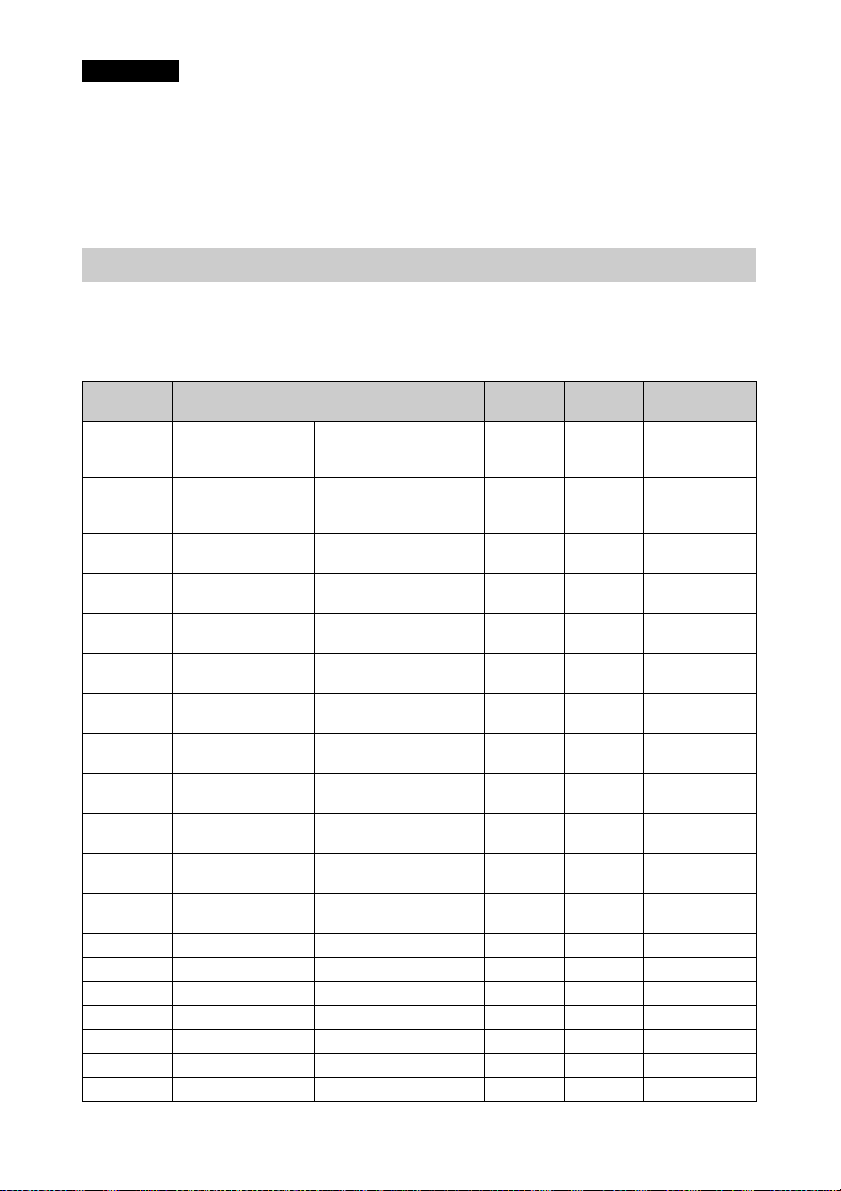
Remarques
• Les valeurs relatives au poids et aux dimensions sont approximatives.
• Tous les accessoires en option ne sont pas disponibles dans tous les pays et régions. Veuillez
consulter le revendeur agréé Sony le plus proche.
• Les informations de ce manuel relatives aux accessoires sont valables en date de septembre 2015.
La conception et les spécifications de cet appareil et de ses accessoires en option sont
susceptibles d’être modifiées sans préavis.
Signaux préprogrammés
Le tableau suivant indique les signaux et formats vidéo pour lesquels la projection est possible
avec ce projecteur.
Lorsqu’un signal autre que le signal préprogrammé indiqué ci-dessous est reçu, il se peut que
l’image ne s’affiche pas correctement.
Mémoire
préréglée n°
5 480/60p 480/60p
6 576/50p 576/50p
7 1080/60i 1080/60i
8 1080/50i 1080/50i
10 720/60p 720/60p
11 720/50p 720/50p
12 1080/60p 1080/60p
13 1080/50p 1080/50p
14 1080/24p 1080/24p
18 720/60p
19 720/50p
20 1080/24p
26 640 × 480 VESA 60 31,469 59,940 H-NEG, V-NEG
32 800 × 600 VESA 60 37,879 60,317 H-POS, V-POS
37 1024 × 768 VESA 60 48,363 60,004 H-NEG, V-NEG
45 1280 × 960 VESA 60 60,000 60,000 H-POS, V-POS
47 1280 × 1024 VESA 60 63,974 60,013 H-POS, V-POS
50 1400 × 1050 SXGA+ 65,317 59,978 H-NEG, V-POS
55 1280 × 768 1280 × 768/60 47,776 59,87 H-NEG, V-POS
Signal préprogrammé (résolution) fH (kHz) fV (Hz) Sync
31,470 60,000 –
31,250 50,000 –
33,750 60,000 –
28,130 50,000 –
45,000 60,000 –
37,500 50,000 –
67,500 60,000 –
56,260 50,000 –
26,973 23,976 –
90,000 60,000 –
75,000 50,000 –
53,946 23,976 –
(Paquet images)
(Paquet images)
(Paquet images)
(NTSC progressif)
(720 × 480p)
(PAL progressif)
(720 × 576p)
(1920 × 1080i)
(1920 × 1080i)
(1280 × 720p)
(1280 × 720p)
(1920 × 1080p)
(1920 × 1080p)
(1920 × 1080p)
720/60p
(1280 × 720p)
720/50p
(1280 × 720p)
1080/24p
(1920 × 1080p)
54
Page 55
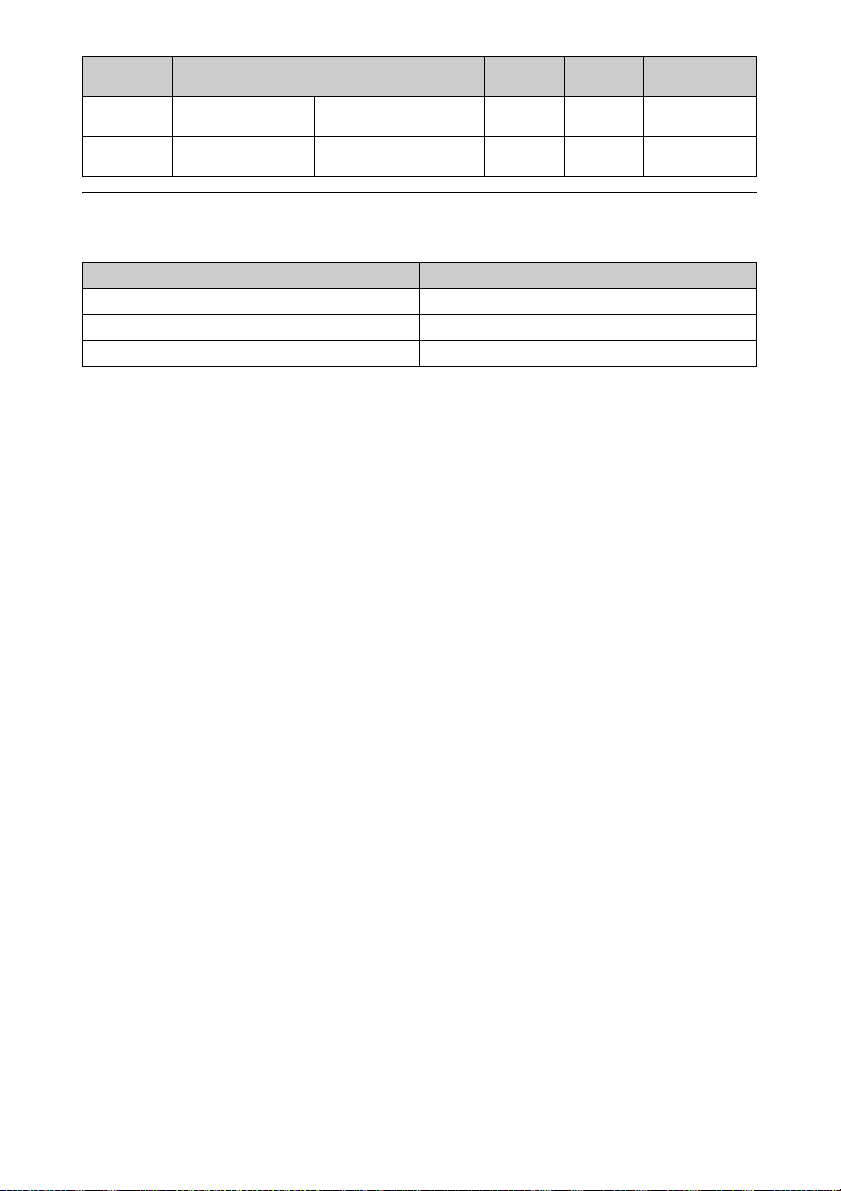
Mémoire
préréglée n°
71 1920 × 1080/60i
72 1920 × 1080/50i
Signal préprogrammé (résolution) fH (kHz) fV (Hz) Sync
(Paquet images)
(Paquet images)
1080/60i
(1920 × 1080i)
1080/50i
(1920 × 1080i)
67,500 60,000 –
56,250 50,000 –
Numéros de mémoire préréglée pour chaque signal d’entrée
Signal numérique
Signal Numéro de mémoire préréglée
Signal à composantes (HDMI 1, 2 connecteurs) 5 à 8, 10 à 14, 18 à 20, 71, 72
Signal GBR vidéo (HDMI 1, 2 connecteurs) 5 à 8, 10 à 14, 18 à 20, 71, 72
Signal informatique (HDMI 1, 2 connecteurs) 10 à 13*, 26, 32, 37, 45, 47, 50, 55
* Il est possible que certains signaux numériques entrés depuis un ordinateur s’affichent comme
numéro de mémoire préréglée de signal à composantes ou vidéo GBR.
55
Page 56
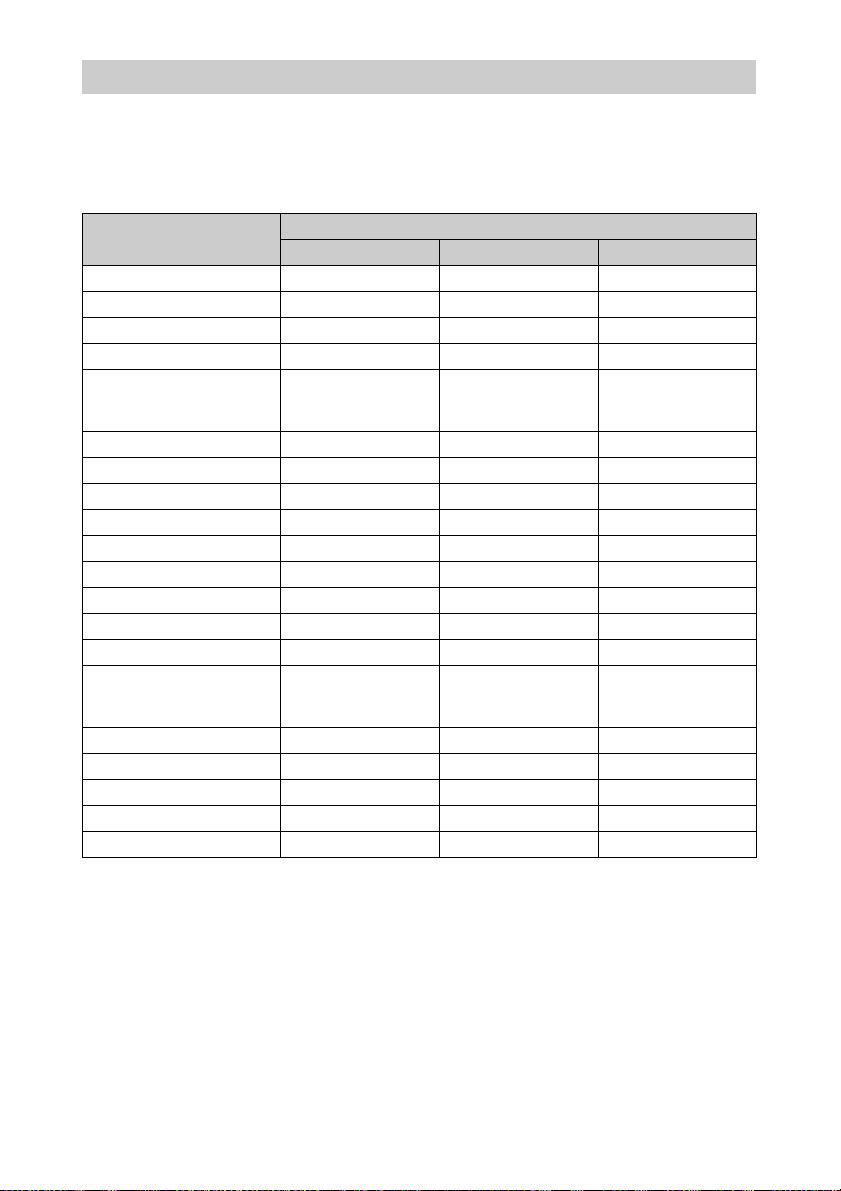
Signaux d’entrée et options réglables/paramétrables
Les options des menus qu’il est possible de régler diffèrent suivant le signal d’entrée. Elles sont
indiquées dans les tableaux suivants. Les options non réglables/définissables n’apparaissent
pas dans le menu.
Menu Image
Option
Création réalité
Diaphrag. avancé
Signal composant Signal GBR vidéo Signal Ordinateur
zz–
zzz
Accent. Contraste zz–
Commande lampe
Motionflow*
1
zzz
z (sauf numéro de
mémoire
préréglée 19)
Contraste
zzz
Lumière zzz
Couleur zz–
Teinte
Temp. couleur
zz–
zzz
Netteté zz–
NR
MPEG NR
zz–
zzz
Gradation progr. zz–
Mode Film
z (sauf numéro de
mémoire
préréglée 14)
Correct. Gamma*
2
zzz
Correct. couleurs zzz
Blanc clair zzz
x.v.Color z ––
Esp. couleur
zzz
Signal d’entrée
z (sauf numéro de
mémoire
préréglée 19)
z (sauf numéro de
mémoire
préréglée 14)
–
–
z : Peut être réglé/défini
– : Ne peut pas être réglé/défini
*1 : Pour plus d’informations, reportez-vous aux tableaux de « Motionflow » (page 60).
*2 : Ce réglage est disponible uniquement lorsque « x.v.Color » est réglé sur « Off ».
56
Page 57
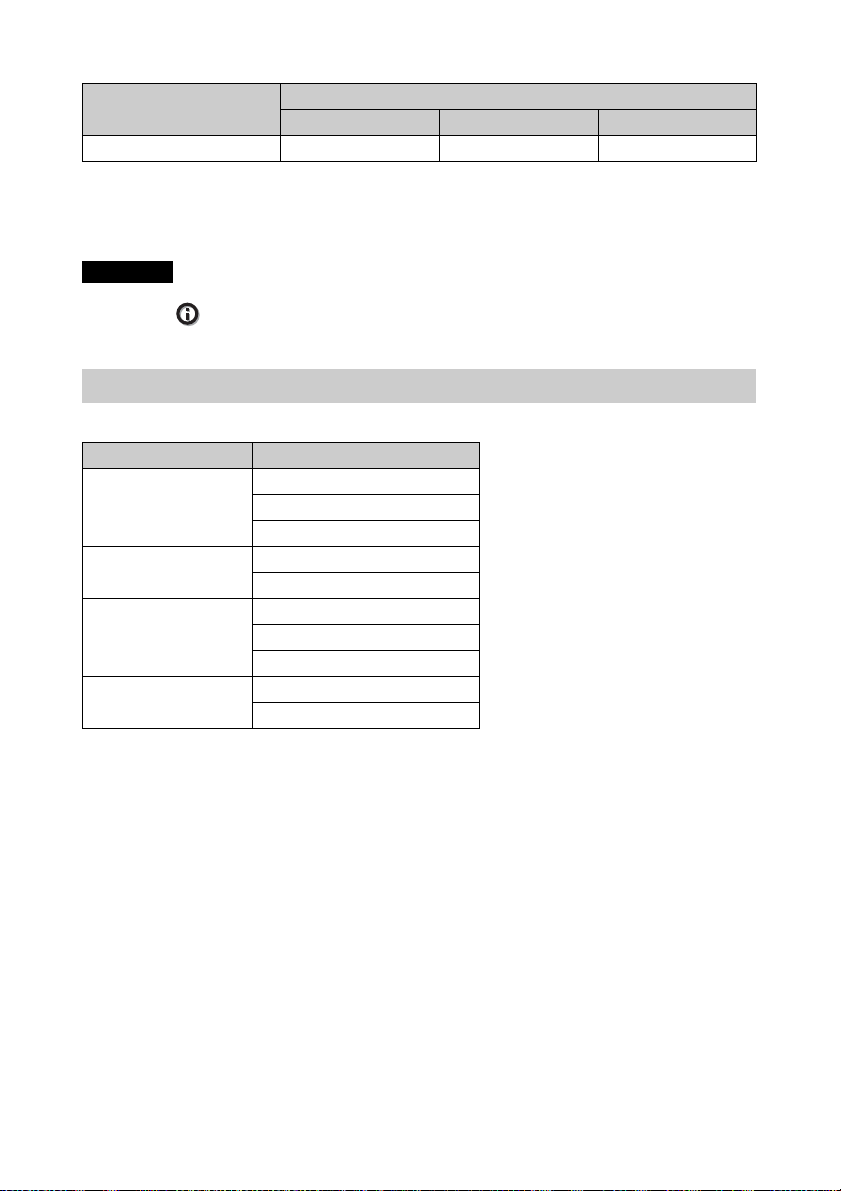
Menu Écran
Option
Aspect
z : Peut être réglé/défini
Signal composant Signal GBR vidéo Signal Ordinateur
zzz*
Signal d’entrée
1
– : Ne peut pas être réglé/défini
*1 : Si le signal d’entrée provient d’un ordinateur, le réglage est impossible quand le rapport
d’aspect est égal ou supérieur à 16:9 (fixé à « Normal »).
Remarque
Lors de la connexion d’un câble HDMI, par exemple, vérifiez le type du signal dans le menu
Informations (page 37) et « Signal numérique » (page 55), puis vérifiez les options réglables/
définissables.
Signaux 3D compatibles
L’appareil prend en charge les types de signaux 3D suivants.
Résolution Format des signaux 3D
720/60p, 720/50p Format Côte à côte
Format Dessus-Dessous*
Paquet images*
1080/60i, 1080/50i Format Côte à côte
Paquet images
1080/24p Format Côte à côte
Format Dessus-Dessous*
Paquet images*
1080/60p, 1080/50p Format Côte à côte
Format Dessus-Dessous
* : Format 3D obligatoire des normes HDMI.
57
Page 58
Signaux 3D et options réglables/paramétrables
Il peut s’avérer impossible de régler/paramétrer certaines options de menu selon les signaux
3D.
Les options qu’il est impossible de régler ne s’affichent pas dans les menus. Les tableaux
suivants indiquent ces options.
Signaux 3D
Option
Création réalité
Diaphrag. avancé – – – –
Commande lampe
Motionflow*
1
NR ––––
MPEG NR ––––
Gradation progr. – – – –
Mode Film –
x.v.Color
2
Aspect*
z : Peut être réglé/défini
– : Ne peut pas être réglé/défini
*1 : L’option n’est pas disponible pour Paquet images/Dessus-Dessous sur 720/60p ou Dessus-
Dessous sur 1080/60p.
*2 : Pour plus d’informations, reportez-vous aux tableaux de « Rapport d’aspect » (page 59).
720/60p,
720/50p
zzzz
zzzz
zzzz
zzzz
zzzz
1080/60i,
1080/50i
z ––
1080/24p 1080/60p,
1080/50p
Lorsque l’appareil est réglé pour convertir des images vidéo 2D en images vidéo 3D, certains
éléments de menu risquent de ne pas être disponibles pour le réglage/la définition, selon les
réglages « Format 3D » du menu Fonction . Les options qu’il est impossible de régler ne
s’affichent pas dans les menus. Les tableaux suivants indiquent ces options.
Option
Création réalité
Dessus-Dessous Côte à côte 3D simulé
zzz
Signaux 3D
Diaphrag. avancé – – –
Commande lampe
Motionflow*
1
zzz
zzz
NR – – z
MPEG NR – – z
Gradation progr. – – z
Mode Film*
2
– zz
x.v.Color zzz
3
Aspect*
z : Peut être réglé/défini
zzz
– : Ne peut pas être réglé/défini
58
Page 59
*1 : L’option n’est pas disponible pour Dessus-Dessous sur 720/60p ou Dessus-Dessous sur 1080/
60p.
*2 : Cette option n’est pas disponible pour 720/60p ou Dessus-Dessous en 1080/60p.
*3 : Pour plus d’informations, reportez-vous aux tableaux de « Rapport d’aspect » (page 59).
Rapport d’aspect
Les options disponibles varient selon le type de signal d’entrée ou le format 3D.
Pour plus de détails, reportez-vous aux tableaux ci-dessous. Les options non disponibles ne
sont pas affichées dans le menu.
2D
Signaux pris en charge
Numéro de mémoire
préréglée (page 54)
1920 × 1080
1280 × 720
7, 8, 10 à 14 5, 6 26, 32, 37, 45, 47, 50, 55
Normal zzz*
Etirement V zz–
Serrer
zz–
Etirer –
*1 : Non affiché dans le menu si réglé sur Normal.
3D
Signaux pris en charge 1920 × 1080, 1280 × 720
Format 3D Côte à côte Dessus-Dessous Paquet images 3D simulé
Numéro de mémoire
préréglée (page 54)
7, 8, 10 à 14 10 à 14 18 à 20, 71, 72 7, 8, 10 à 14
Normal zzzz
Etirement V zzzz
Serrer zzzz
Etirer ––––
720 × 480
720 × 576
z –
Autres
1
59
Page 60
Motionflow
Les options disponibles varient selon le type de signal d’entrée ou le format 3D.
Pour plus de détails, reportez-vous aux tableaux ci-dessous. Les options non disponibles ne
sont pas affichées dans le menu.
2D
1920 × 1080
Signaux pris en charge
Numéro de mémoire préréglée (page 54) 5 à 8, 10 à 13 26, 32, 37, 45, 47, 50, 55
Impulsion z –
Combinaison
Fluide haut
Fluide bas
True Cinema
3D
Signaux pris en
charge
Format 3D Paquet images Dessus-Dessous Côte à côte 3D simulé
Numéro de
mémoire
préréglée
(page 54)
18 19
20, 71,
72
Impulsion –––––– – –
Combinaison–––––– – –
Fluide haut – – z ––zz z
Fluide bas – zz– zz z z
True Cinema–––––– – –
1280 × 720
720 × 480
720 × 576
z –
z –
z –
z –
1920 × 1080, 1280 × 720
10,12 11,13 14 7, 8, 10 à 14 7, 8, 10 à 14
Autres
Conditions de mémorisation des options réglables/paramétrables
Chaque option réglable/paramétrable est mémorisée individuellement pour chaque connecteur
d’entrée. Pour plus de détails, reportez-vous aux tableaux ci-dessous.
Numéros de mémoire préréglée pour chaque signal d’entrée
Entrée Numéros de mémoire préréglée
HDMI 1 (2D) 5 à 8, 10 à 14, 26, 32, 37, 45, 47, 50, 55
HDMI 2 (2D)
HDMI 1 (3D) 7, 8, 10 à 14, 18 à 20, 71, 72
HDMI 2 (3D)
60
Page 61
Menu Image
Option Conditions de mémorisation
Prérégl. étalon. Pour chaque connecteur d’entrée
Réinitialiser Pour chaque connecteur d’entrée et Prérégl. étalon.
Création réalité
Diaphrag. avancé
Accent. Contraste
Commande lampe
Motionflow
Contraste
Lumière
Couleur
Teinte
Temp. couleur
D93-D55
Personnalisé 1-5
Gain R Pour chaque Temp. couleur., D93-D55 et Personnalisé 1-5
Gain G
Gain B
Polarisation R
Polarisation G
Polarisation B
Netteté Pour chaque connecteur d’entrée et Prérégl. étalon.
NR
MPEG NR
Gradation progr.
Mode Film
Correct. Gamma
Correct. couleurs
Blanc clair
x.v.Color
Esp. couleur
61
Page 62
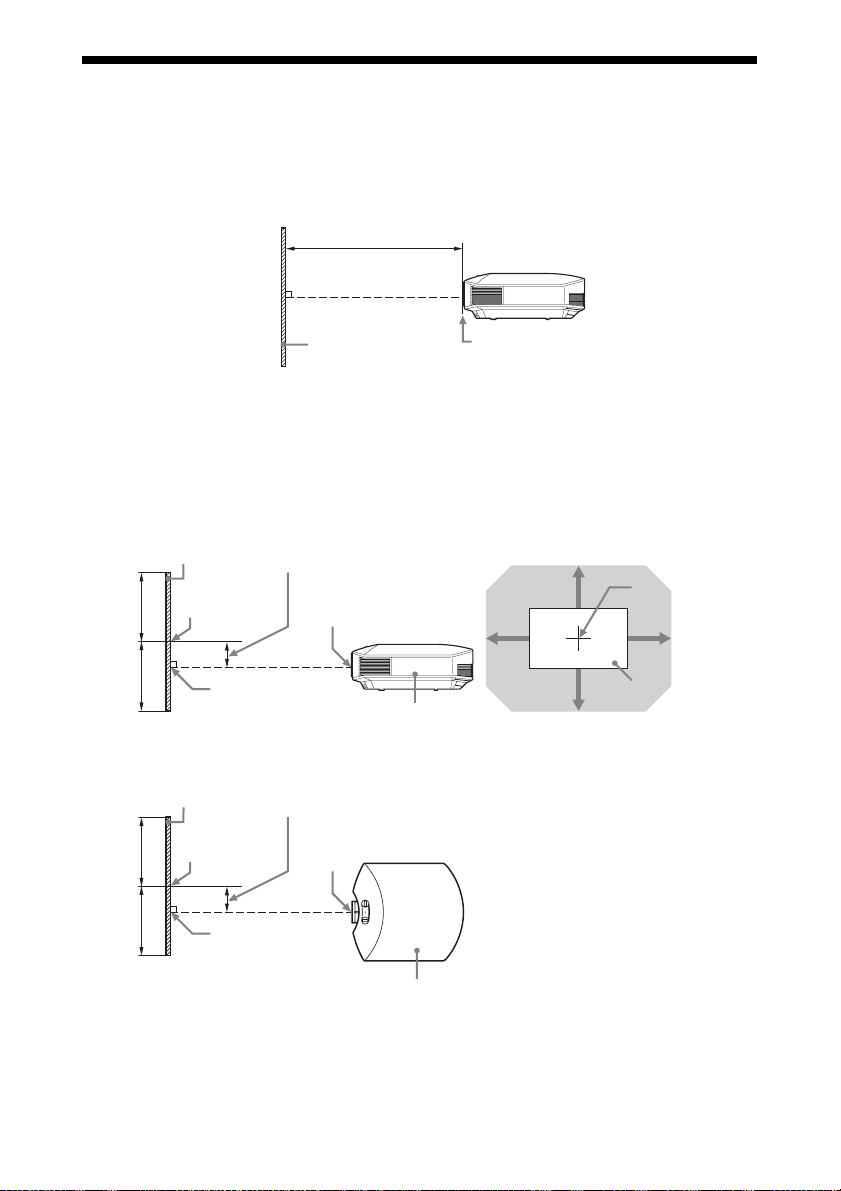
Distance de projection et plage de
Pl
déplacement d’objectif
La distance de projection désigne la distance séparant l’avant de l’objectif de la surface de
projection.
Distance de projection L
Image projetée
Avant de l’objectif
La plage de déplacement d’objectif représente, sous forme de pourcentage (%), la distance de
déplacement de l’objectif par rapport au centre de l’image projetée. La plage de déplacement
de l’objectif est considérée comme égale à 0 % quand le point A de l’illustration (point qui est
perpendiculaire à une ligne tracée entre le centre de l’objectif et celui de l’image projetée) est
aligné avec le centre de l’image projetée ; la pleine largeur ou la pleine hauteur de l’image
projetée est considérée comme égale à 100 %.
age de déplacement
d’objectif
Centre de l’objectif
Côté de l’appareil
Plage de déplacement
d’objectif
Centre de
l’objectif
Centre de
VS +
HS – HS +
VS –
Zone ombrée : plage de déplacement
de l’objectif
l’objectif
Image projetée
50%
50%
50%
50%
Image projetée
Centre de
l’image projetée
A
Image projetée
Centre de
l’image projetée
A
Face supérieure de l’appareil
VS + : Plage de déplacement vertical de l’objectif (haut) [%]
VS – : Plage de déplacement vertical de l’objectif (bas) [%]
HS + : Plage de déplacement horizontal de l’objectif (droite) [%]
HS – : Plage de déplacement horizontal de l’objectif (gauche) [%]
62
Page 63
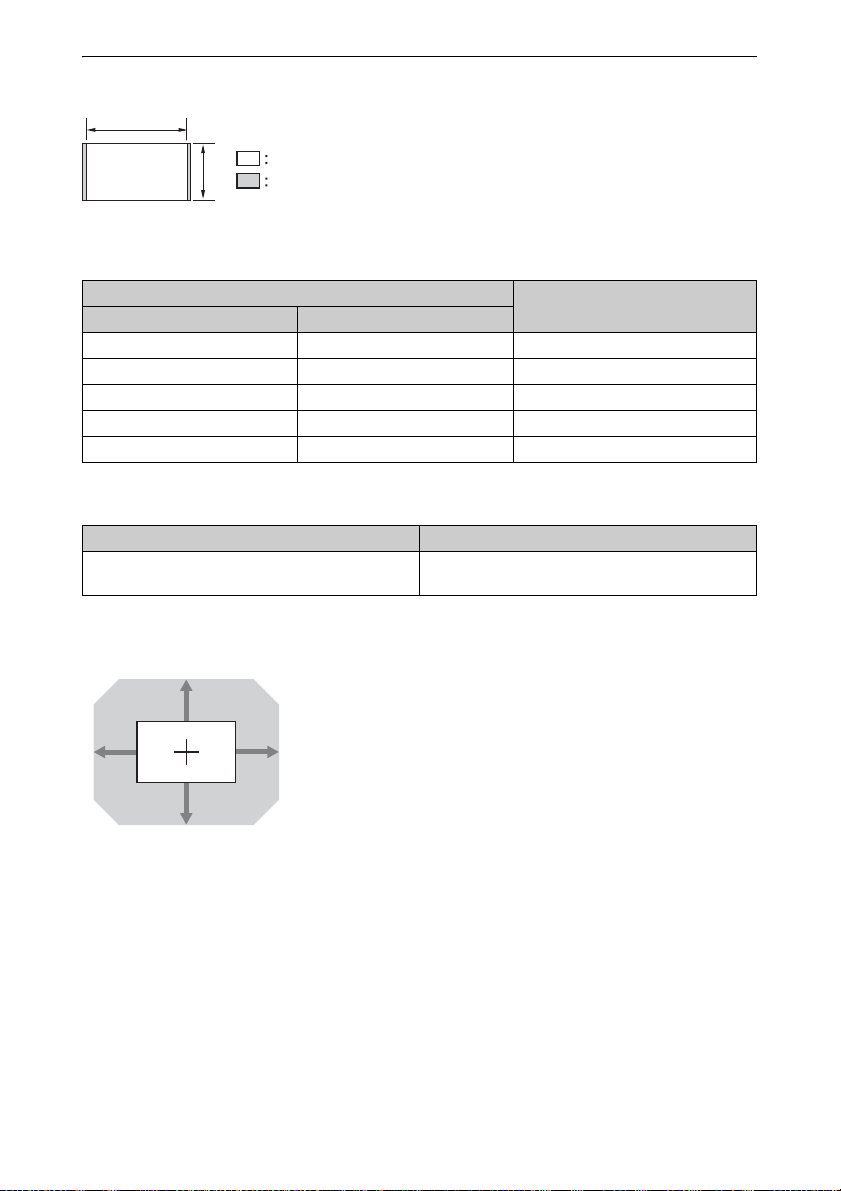
Lors d’une projection au format 1,78:1 (16:9)
1,78
1
Zone d’affichage vidéo
Zone de projection
Distance de projection
Unité : m (pouces)
Taille de l’image de projection
Diagonale Largeur × Hauteur
Distance de projection L
80" (2,03 m) 1,77 × 1,00 (70 × 39) 2,40 – 3,83 (95 – 150)
100" (2,54 m) 2,21 × 1,25 (87 × 49) 3,00 – 4,79 (119 – 188)
120" (3,05 m) 2,66 × 1,49 (105 × 59) 3,61 – 5,76 (142 – 226)
150" (3,81 m) 3,32 × 1,87 (131 × 74) 4,52 – 7,20 (178 – 283)
200" (5,08 m) 4,43 × 2,49 (174 × 98) 6,04 – 9,61 (238 – 378)
Formule de la distance de projection
D : Taille de l’image projetée (diagonale) Unité : m (pouces)
Distance de projection L (longueur minimale) Distance de projection L (longueur maximale)
L = 0,030349 × D – 0,0354
(L = 1,194837 × D – 1,3915)
L = 0,048191 × D – 0,0212
(L = 1,897302 × D – 0,8329)
Plage de déplacement d’objectif
71%
25% 25%
VS + = VS – = 71 – 2,840 × (HS + ou HS –) [%]
HS + = HS – = 25 – 0,352 × (VS + ou VS –) [%]
71%
63
Page 64
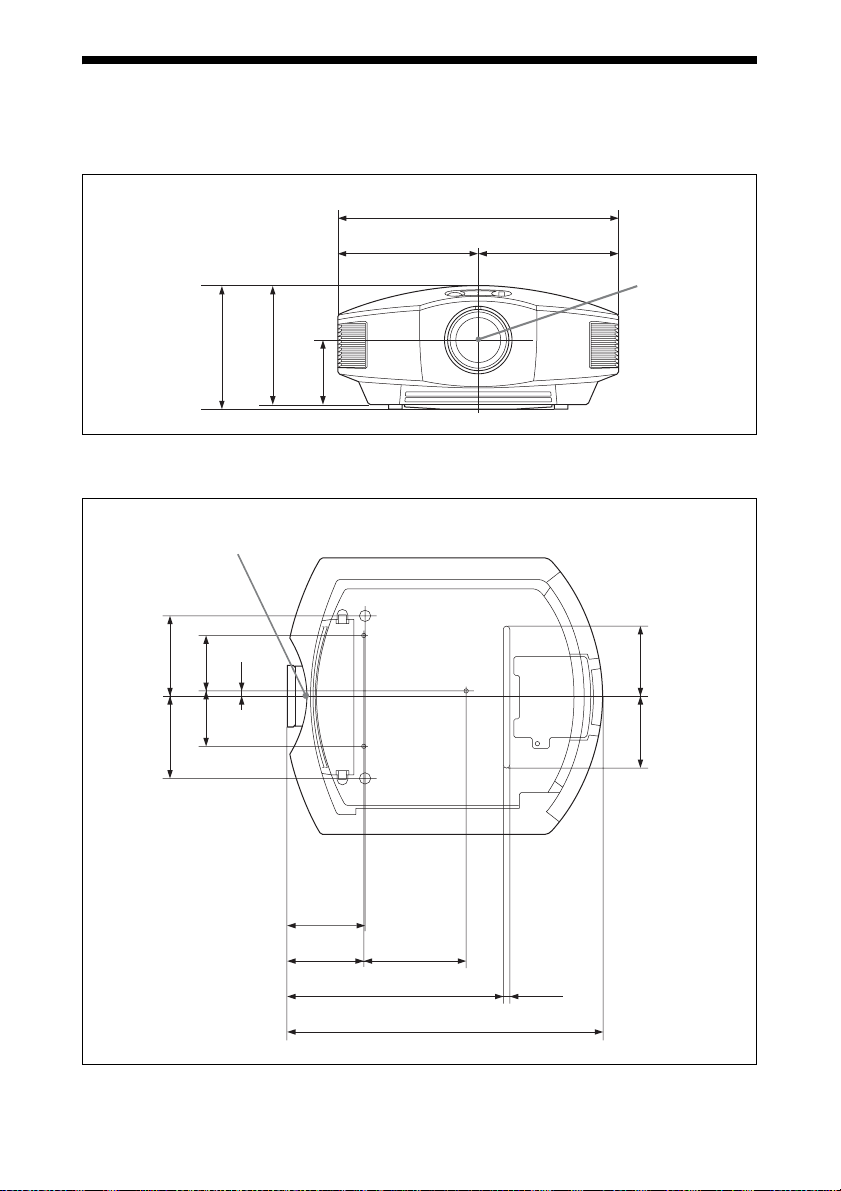
Dimensions
Avant
)
8
/
1
179,3 (7
Dessous
Avant du boîtier
Unité : mm (pouces)
407,4 (16 1/8)
1/
203,7 (8
) 203,7 (8 1/8)
8
Centre de
)
8
/
7
)
4
/
3
172,7 (6
93,5 (3
l’objectif
Unité : mm (pouces)
)
4
)
/
4
3
120 (4
)
4
/
3
120 (4
)
/
1
32
/
11
8 (
81,5 (3
)
4
/
1
81,5 (3
115,9 (4 5/8)
113,7 (4 1/2) 150,6 (6)
316,4 (12 1/2)
465,4 (18 3/8)
14,5 (19/32)
)
4
/
1
107,3 (4
)
4
/
1
107,3 (4
64
Page 65
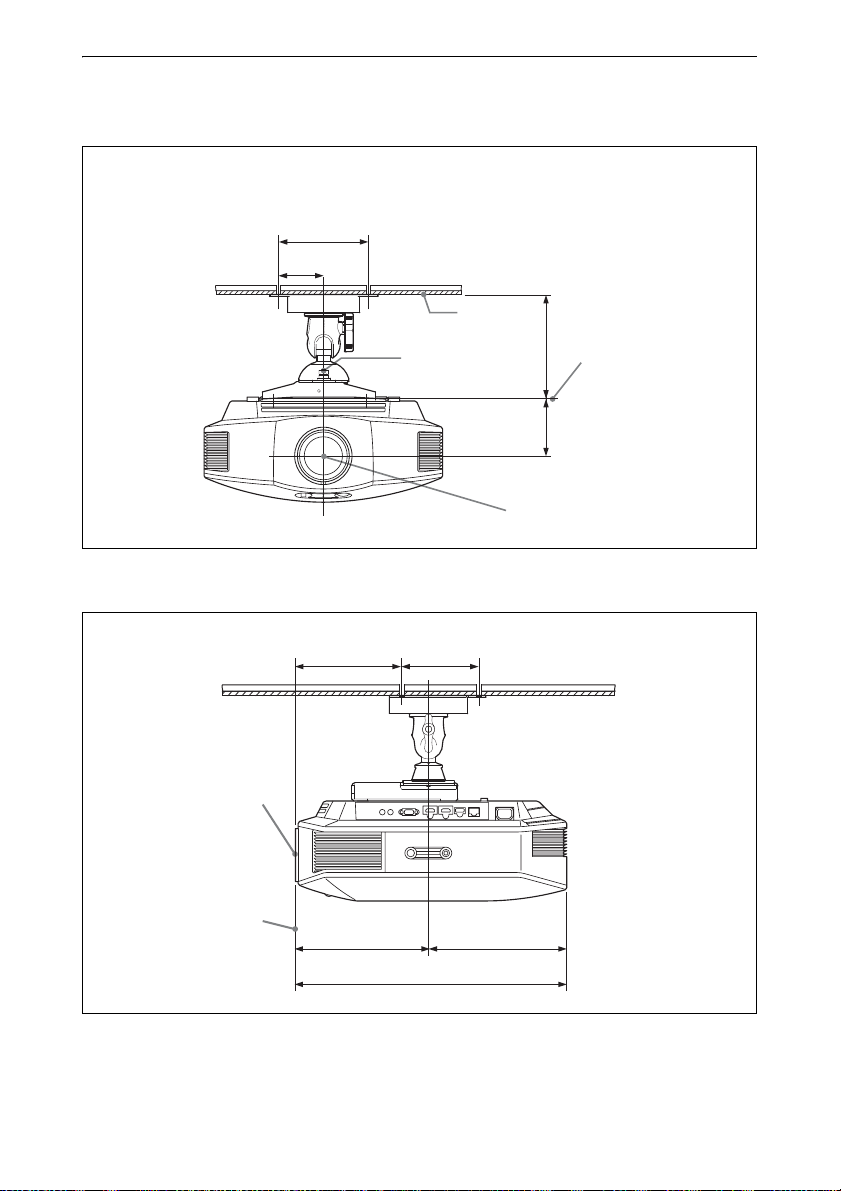
Fixation du support de suspension de projecteur PSS-H10
Vue frontale
150 (6)
75 (3)
Plafond
Unité : mm (pouces)
Vue de côté
Centre de l’objectif
Avant du boîtier
Centre de la tige
de soutien
182,8 (7 1/4) 130 (5 1/8)
227,8 (9)
Centre de l’objectif
236,1 (9 3/8)
La face inférieure de
175 (7)
la pièce de montage
)
4
/
3
93,5 (3
Unité : mm (pouces)
463,9 (18 3/8)
65
Page 66
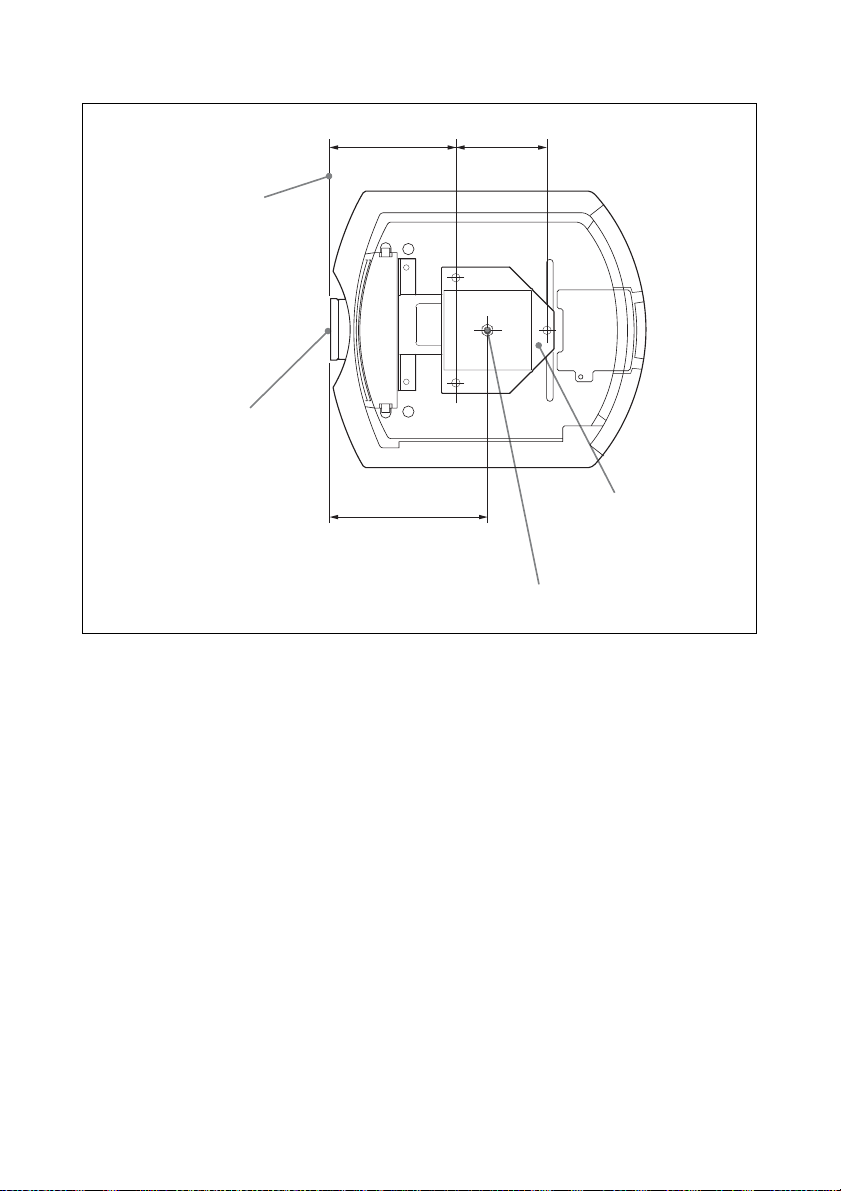
Vue du haut
Centre de l’objectif
Avant du boîtier
1
182,8 (7
/4) 130 (5 1/8)
Unité : mm (pouces)
227,8 (9)
Pièce de montage au
plafond supérieure
Centre de la tige de soutien (Le centre de la tige
de soutien est différent du centre du projecteur.)
66
Page 67

AVIS ET LICENCES DES LOGICIELS UTILISÉS DANS CE PRODUIT
GPL/LGPL LICENSED SOFTWARE
The following GPL executables and LGPL libraries
are used in this product and are subject to the GPL/
LGPL License Agreements included as part of this
documentation:
Package list:
linux-kernel
alsa-lib
busybox
crypto
directfb
dosfstools
e2fsprogs
exceptionmonitor
fuse
gdisk
glib
glibc
iptables
libmicrohttpd
libnuma (in numactl)
procps
pump-autoip
XZ utils
Source code for these executables and libraries, as
well as other executables and libraries, can be
obtained using the following link:
http://oss.sony.net/Products/Linux/
===============================
GNU GENERAL PUBLIC LICENSE
Version 2, June 1991
Copyright (C) 1989, 1991 Free Software Foundation,
Inc., 51 Franklin Street, Fifth Floor, Boston, MA
02110-1301, USA. Everyone is permitt ed to copy and
distribute verbatim copies of this license document,
but changing it is not allowed.
Preamble
The licenses for most software are designed to take
away your freedom to share and change it. By
contrast, the GNU General Public License is intended
to guarantee your freedom to share and change free
software--to make sure the software is free for all its
users. This General Public License applies to most of
the Free Software Foundation’s software and to any
other program whose authors commit to using it.
(Some other Free Software Foundation software is
covered by the GNU Library General Public License
instead.) You can apply it to your programs, too.
When we speak of free software, we are referring to
freedom, not price. Our General Public Licenses are
designed to make sure that you have the freedom to
distribute copies of free software (and charge for this
service if you wish), that you receive source code or
can get it if you want it, that you can change the
software or use pieces of it in new free programs; and
that you know you can do these things.
To protect your rights, we need to make restrictions
that forbid anyone to deny you these rights or to ask
you to surrender the rights. These restrictions
translate to certain responsibilities for you if you
distribute copies of the software, or if you modify it.
For example, if you distribute copies of such a
program, whether gratis or for a fee, you must give
the recipients all the rights that you have. You must
make sure that they, too, receive or can get the source
code. And you must show them these terms so they
know their rights.
We protect your rights with two steps: (1) copyright
the software, and (2) offer you this license which
gives you legal permission to copy, distribute and/or
modify the software.
Also, for each author’s protection and ours, we want
to make certain that everyone understands that there
is no warranty for this free software. If the software is
modified by someone else and passed on, we want its
recipients to know that what they have is not the
original, so that any problems introduced by others
will not reflect on the original authors’ reputations.
Finally, any free program is threatened constantly by
software patents. We wish to avoid the danger that
redistributors of a free program will individually
obtain patent licenses, in effect making the program
proprietary. To pr event t his, we have made it clear that
any patent must be licensed for everyone’s free use or
not licensed at all.
The precise terms and conditions for copying,
distribution and modification follow.
GNU GENERAL PUBLIC LICENSE TERMS
AND CONDITIONS FOR COPYING,
DISTRIBUTION AND MODIFICATION
0. This License applies to any program or other work
which contains a notice placed by the copyright
holder saying it may be distributed under the terms of
this General Public License. The “Program”, below,
refers to any such program or work, and a “work
based on the Program” means either the Program or
any derivative work under copyright law: that is to
say, a work containing the Program or a portion of it,
either verbatim or with modifications and/or
translated into another language. (Hereinafter,
translation is included without limitation in the term
“modification”.) Each licensee is addressed as “you”.
67
Page 68

Activities other than copying, distribution and
modification are not covered by th is License; they are
outside its scope. The act of running the Program is
not restricted, and the output from the Program is
covered only if its contents constit ute a work based on
the Program (independent of having been made by
running the Program). Whether that is true depends
on what the Program does.
1. You may c opy and distribute verbatim copies of the
Program’s source code as you receive it, in any
medium, provided that you conspicuously and
appropriately publish on each copy an appropriate
copyright notice and disclaimer of warranty; keep
intact all the notices that refer to this License and to
the absence of any warranty; and give any other
recipients of the Program a copy of this License along
with the Program.
You may charge a fee for the physical act of
transferring a copy, and you may at your option offer
warranty protection in exchange for a fee.
2. You may modify your copy or copies of the
Program or any portion of it, thus forming a work
based on the Program, and copy and distribute such
modifications or work under the terms of Section 1
above, provided that you also meet all of these
conditions:
a) You must cause the modified files to carry
prominent notices stating that you changed the files
and the date of any change.
b) You must cause any work that you distribute or
publish, that in whole or in part contains or is derived
from the Program or any part thereof, to be licensed
as a whole at no charge to all third parties under the
terms of this License.
c) If the modified program normally rea ds commands
interactively when run, you must cause it, when
started running for such interactive use in the most
ordinary way, to print or display an announcement
including an appropria te copyright notice and a notice
that there is no warranty (or else, saying that you
provide a warranty) and that users may redistribute
the program under these conditions, and telling the
user how to view a copy of this License. (Exception:
if the Program itself is interactive but does not
normally print such an announcement, your work
based on the Program is not required to print an
announcement.)
These requirements apply to the modified work as a
whole. If identifiable sections of that work are not
derived from the Program, and can be reasonably
considered independent and separate works in
themselves, then this License, and its terms, do not
apply to those sections when you distribute them as
separate works. But when you distribute the same
sections as part of a whole which is a work based on
the Program, the distribution of the whole must be on
the terms of this License, whose perm issions for other
licensees extend to the entire whole, and thus to each
and every part regardless of who wrote it.
Thus, it is not the intent of this section to claim rights
or contest your rights to work written entirely by you;
rather, the intent is to exercise the right to control the
distribution of derivative or collective works based on
the Program.
In addition, mere aggregation of another work not
based on the Program with the Program (or with a
work based on the Program) on a volume of a storage
or distribution medium does not bring the other work
under the scope of this License.
3. You may copy and distribute the Program (or a
work based on it, under Section 2) in object code or
executable form under the terms of Sections 1 and 2
above provided that you also do one of the following:
a) Accompany it with the complete corresponding
machine-readable source code, which must be
distributed under the terms of Sections 1 and 2 above
on a medium customarily used for software
interchange; or,
b) Accompany it with a written offer, valid for at least
three years, to give any third party, for a charge no
more than your cost of physically performing source
distribution, a comp lete machine-readable c opy of the
corresponding source code, to be distributed under
the terms of Sections 1 and 2 above on a medium
customarily used for software interchange; or,
c) Accompany it with the information you received as
to the offer to distribute corresponding source code.
(This alternative is allowed only for noncommercial
distribution and only if you received the program in
object code or executable form with such an offer, in
accord with Subsection b above.)
The source code for a work means the preferred form
of the work for making modifications to it. For an
executable work, complete source code means all the
source code for all modules it contains, plus any
associated interface definition files, plus the scripts
used to control compilation and installation of the
executable. However, as a special exception, the
source code distributed need not include anything that
is normally distributed (in either source or binary
form) with the major components (compiler, kernel,
and so on) of the operating system on which the
executable
runs, unless that component itself accompanies the
executable.
If distribution of executable or object code is made by
offering access to copy from a designated place, then
offering equivalent access to copy the source code
from the same place counts as distribution of the
source code, even though third parties are not
compelled to copy the source along with the object
code.
4. You may not copy, modify, sub license, or distribute
the Program except as expressly provided under this
License. Any attempt otherwise to copy, modify,
sublicense or distribute the Program is void, and will
automatically terminate your rights under this
License.
68
Page 69

However, parties who have received copies, or rights,
from you under this License will not have their
licenses terminated so long as such parties remain in
full compliance.
5. You are not required to accept this License, since
you have not signed it. However, nothing else grants
you permission to modify or dist ribute the Prog ram or
its derivative works. These actions are prohibited by
law if you do not accept this License. Therefore, by
modifying or distributing the Program (or any work
based on the Program), you indicate your acceptance
of this License to do so, and all its terms and
conditions for copying, distributing or modifying the
Program or works based on it.
6. Each time you redistribute the Program (or any
work based on the Program), the recipient
automatically receives a license from the original
licensor to copy, distribute or modify the Program
subject to these terms and conditions. You may not
impose any further restrictions on the recipients’
exercise of the rights granted herein. You are not
responsible for enforcing compliance by third parties
to this License.
7. If, as a consequence of a court judgment or
allegation of patent infringement or for any other
reason (not limited to patent issues), conditions are
imposed on you (whether by court order, agreement
or otherwise) that contradict the conditions of this
License, they do not excuse you from the conditions
of this License. If you cannot distribute so as to
satisfy simultaneously your obligations under this
License and any other pertinent obligations, then as a
consequence you may not distribute the Program at
all. For example, if a patent license would not permit
royalty-free redistribution of the Program by all those
who receive copies directly or indirectly through you,
then the only way you could satisfy both it and this
License would be to refrain entirely from distribution
of the Program.
If any portion of this section is held invalid or
unenforceable under any particular circumstance, the
balance of the section is intended to apply and the
section as a whole is intended to apply in other
circumstances. It is not the purpose of this section to
induce you to infringe any patents or other property
right claims or to contest validity of any such claims;
this section has the sole purpose of protecting the
integrity of the free software distribution system,
which is implemented by public license practices.
Many people have made generou s contributions to the
wide range of software distributed through that
system in reliance on consistent application of that
system; it is up to the author/donor to decide if he or
she is willing to distribute software through any other
system and a licensee cannot impose that choice.
This section is intended to make thoroughly clear
what is believed to be a conseque nce of the rest of this
License.
8. If the distribution and/or use of the Program is
restricted in certain countries either by patents or by
copyrighted interfaces, the original copyright holder
who places the Program under this License may add
an explicit geographical distribution limitation
excluding those countries, so that distribution is
permitted only in or among countries not thus
excluded. In such case, this License incorporates the
limitation as if written in the body of this License.
9. The Free Software Foundation may publish revised
and/or new versions of the General Public License
from time to time. Such new versions will be similar
in spirit to the present version, but may differ in detail
to address new problems or concerns.
Each version is given a distinguishing version
number.
If the Program specifies a version number of this
License which applies to it and “any later version”,
you have the option of following the terms and
conditions either of that version or of any later
version published by the Free Software Foundation. If
the Program does not s pecify a version number of this
License, you may choose any version ever published
by the Free Software Foundation.
10. If you wish to incorporate parts of the Program
into other free programs whose distribution
conditions are different, write to the author to ask for
permission. For software which is copyrighted by the
Free Software Foundation, write to the Free Software
Foundation; we sometimes make exceptions for this.
Our decision will be guided by the two goals of
preserving the free status of all derivatives of our free
software and of promoting the sharing and reuse of
software generally.
NO WARRANTY
BECAUSE THE PROGRAM IS LICENSED FREE
OF CHARGE, THERE IS NO WARRANTY FOR
THE PROGRAM, TO THE EXTENT PERMITTED
BY APPLICABLE LAW. EXCEPT WHEN
OTHERWISE STATED IN WRITING THE
COPYRIGHT HOLDERS AND/OR OTHER
PARTIES PROVIDE THE PROGRAM “AS IS”
WITHOUT WARRANTY OF ANY KIND, EITHER
EXPRESSED OR IMPLIED, INCLUDING, BUT
NOT LIMITED TO, THE IMPLIED WARRANTIES
OF MERCHANTABILITY AND FITNESS FOR A
PARTICULAR PURPOSE. THE ENTIRE RISK AS
TO THE QUALITY AND PERFORMANCE OF
THE PROGRAM IS WITH YOU.
SHOULD THE PROGRAM PROVE DEFECTIVE,
YOU ASSUME THE COST OF ALL NECESSARY
SERVICING, REPAIR OR CORRECTION.
IN NO EVENT UNLESS REQUIRED BY
APPLICABLE LAW OR AGREED TO IN
WRITING WILL ANY COPYRIGHT HOLDER,
OR ANY OTHER PARTY WHO MAY MODIFY
AND/OR REDISTRIBUTE THE PROGRAM AS
PERMITTED ABOVE, BE LIABLE TO YOU FOR
69
Page 70

DAMAGES, INCLUDING ANY GENERAL,
SPECIAL, INCIDENTAL OR CONSEQUENTIAL
DAMAGES ARISING OUT OF THE USE OR
INABILITY TO USE THE PROGRAM
(INCLUDING BUT NOT LIMITED TO LOSS OF
DATA OR DATA BEING RENDERED
INACCURATE OR LOSSES SUSTAINED BY YOU
OR THIRD PARTIES OR A FAILURE OF THE
PROGRAM TO OPERATE WITH ANY OTHER
PROGRAMS), EVEN IF SUCH HOLDER OR
OTHER PARTY HAS BEEN ADVISED OF THE
POSSIBILITY OF SUCH DAMAGES.
END OF TERMS AND CONDITIONS
How to Apply These Terms to Your New
Programs
If you develop a new program, and you want it to be
of the greatest possible use to the public, the best way
to achieve this is to make it free software which
everyone can redistribute and change under these
terms.
To do so, attach the following notices to the program.
It is safest to attach them to the start of each source
file to most effectively convey the exclusion of
warranty; and each file should have at least the
“copyright” line and a pointer to where the full notice
is found.
<one line to give the program’s name and a brief idea
of what it does.> Copyright (C) <year> <name of
author>
This program is free software; you can redistribute it
and/or modify it under the terms of the GNU General
Public License as published by the Free Software
Foundation; either version 2 of the License, or (at
your option) any later version.
This program is distributed in the hope that it will be
useful, but WITHOUT ANY WARRANTY; without
even the implied warranty of MERCHANTABILITY
or FITNESS FOR A PARTICULAR PURPOSE. See
the GNU General Public License for more details.
You should have received a copy of the GNU General
Public License along with this program; if not, write
to the Free Software Foundation, Inc., 51 Franklin
Street, Fifth Floor, Boston, MA 02110-1301, USA.
Also add information on how to contact you by
electronic and paper mail.
If the program is interactive, make it output a short
notice like this when it starts in an interactive mode:
Gnomovision version 69, Copyright (C) year name of
author Gnomovision comes with ABSOLU TELY NO
WARRANTY; for details type ‘show w’.
This is free software, and you are welcome to
redistribute it under certain conditions; type ‘show c’
for details.
The hypothetical commands ‘show w’ and ‘show c’
should show the appropriate parts of the General
Public License. Of course, the commands you use
may be called something other than ‘show w’ and
‘show c’; they could even be mouse-clicks or menu
items--whatever suits your program.
You should also get your employer (if you work as a
programmer) or your school, if any, to sign a
“copyright disclaimer” for the program, if necessary.
Here is a sample; alter the names:
Yoyodyne, Inc., hereby disclaims all copyright
interest in the program ‘Gnomovision’ (which makes
passes at compilers) written by James Hacker.
<signature of Ty Coon>, 1 April 1989
Ty Coon, President of Vice
This General Public License does not permit
incorporating your program into proprietary
programs.
If your program is a subroutine library, you may
consider it more useful to permit linking proprietary
applications with the library. If this is what you want
to do, use the GNU Library General Public License
instead of this License.
===============================
GNU LESSER GENERAL PUBLIC
LICENSE
Version 2.1, February 1999
Copyright (C) 1991, 1999 Free Software Foundation,
Inc. 51 Franklin Street, Fifth Floor, Boston, MA
02110-1301, USA. Everyone is permitte d to copy and
distribute verbatim copies of this license document,
but changing it is not allowed.
[This is the first released version of the Lesser GPL.
It also counts as the successor of the GNU Library
Public License, version 2, hence the version number
2.1.]
Preamble
The licenses for most software are designed to take
away your freedom to share and change it. By
contrast, the GNU General Public Licenses are
intended to guarantee your freedom to share and
change free software-to make sure the software is free
for all its users.
This license, the Lesser General Public License,
applies to some specially designated software
packagestypically libraries--of the Free Software
Foundation and other authors who decide to use it.
You can use it too, but we suggest you first think
carefully about whether this license or the ordinary
General Public License is the better strategy to use in
any particular case, based on the explanations below.
When we speak of free software, we are referring to
freedom of use, not price. Our General Public
Licenses are designed to make sure that you have the
freedom to distribute copies of free software (and
charge for this service if you wish); that you receive
source code or can get it if you want it; that you can
change the software and use pieces of it in new free
programs; and that you are informed that you can do
these things.
70
Page 71

To protect your rights, we need to make restrictions
that forbid distributors to deny you these rights or to
ask you to surrender these rights. These restrictions
translate to certain responsibilities for you if you
distribute copies of the library or if you modify it.
For example, if you distribute copies of the library,
whether gratis or for a fee, you must give the
recipients all the rights that we gave you. You must
make sure that they, too, receive or can get the source
code. If you link other code with the library, you must
provide complete object files to the recipients, so that
they can relink them with the library after making
changes to the library and recompiling it. And you
must show them these terms so they know their rights.
We protect your rights with a two-step method: (1) we
copyright the library, and (2) we offer you this
license, which gives you legal permission to copy,
distribute and/or modify the library.
To protect each distributor, we want to make it very
clear that there is no warranty for the free library.
Also, if the library is modified by someone else and
passed on, the recipients should know that what they
have is not the original version, so that the original
author’s reputation will not be affected by problems
that might be introduced by others.
Finally, software patents pose a constant threat to the
existence of any free program. We wish to make sure
that a company cannot effectively restrict the users of
a free program by obtaining a restrictive license from
a patent holder. Therefore, we insist that any patent
license obtained for a version of the library must be
consistent with the full freedom of use specified in
this license.
Most GNU software, including some libraries, is
covered by the ordinary GNU General Public
License. This license, the GNU Lesser General
Public License, appli es to certain designated libraries,
and is quite different from the ordinary General
Public License. We use this license for certain
libraries in order to permit linking those libraries into
non-free programs.
When a program is linked with a library, whether
statically or using a shared library, th e comb ination of
the two is legally speaking a combined work, a
derivative of the original library. The ordinary
General Public License therefore permits such
linking only if the entire combination fits its criteria
of freedom. The Lesser General Public License
permits more lax criteria for linking other code with
the library.
We call this license the “Lesser” General Public
License because it does Less to protect the user’s
freedom than the ordinary General Public License. It
also provides other free software developers Less of
an advantage over competing non-free programs.
These disadvantages are the reason we use the
ordinary General Public License for many libraries.
However, the Lesser license provides advantages in
certain special circumstances.
For example, on rare occasions, there may be a
special need to encourage the widest possible use of a
certain library, so that it becomes a de-facto standard.
To achieve this, non-free programs must be allowed
to use the library. A more frequent case is that a free
library does the same job as widely used non-free
libraries. In this case, there is little to gain by limiting
the free library to free software only, so we use the
Lesser General Public License.
In other cases, permission to use a particular library
in non-free programs enables a greater number of
people to use a large body of free software. For
example, permission to use the GNU C Library in
non-free programs enables many more people to use
the whole GNU operating system, as well as its
variant, the GNU/Linux operating system.
Although the Lesser General Public License is Less
protective of the users’ freedom, it does ensure that
the user of a program that is linked with the Library
has the freedom and the wherewithal to run that
program using a modified version of the Library.
The precise terms and conditions for copying,
distribution and modification follow. Pay close
attention to the difference between a “work based on
the library” and a “work that uses the library”. The
former contains code derived from the library,
whereas the latter must be combined with the library
in order to run.
GNU LESSER GENERAL PUBLIC
LICENSE TERMS AND CONDITIONS FOR
COPYING, DISTRIBUTION AND
MODIFICATION
0. This License Agreement applies to any software
library or other program which contains a notice
placed by the copyright holder or other authorized
party saying it may be distributed under the terms of
this Lesser General Public License (also called “this
License”). Each licensee is addressed as “you”.
A “library” means a collection of software functions
and/or data prepared so as to be conveniently linked
with application programs (which use some of those
functions and data) to form executables.
The “Library”, below, refers to any such software
library or work which has been distributed under
these terms.
A “work based on the Library” means either the
Library or any derivative work under copyright law:
that is to say, a work containing the Library or a
portion of it, either verbatim or with modifications
and/or translated straightforwardly into another
language. (Hereinafter, translation is included
without limitation in the term “modification”.)
“Source code” for a work means the preferred form of
the work for making modifications to it. For a library,
complete source code means all the source code for
all modules it contains, plus any associated interface
definition files, plus the scripts used to control
compilation and installation of the library.
71
Page 72

Activities other than copying, distribution and
modification are not covered by th is License; they are
outside its scope. The act of running a program using
the Library is not restricted, and output from such a
program is covered only if its contents constitute a
work based on the Library (independent of the use of
the Library in a tool for writing it). Whether that is
true depends on what the Library does and what the
program that uses the Library does.
1. You may c opy and distribute verbatim copies of the
Library’s complete source code as you receive it, in
any medium, provided that you conspicuously and
appropriately publish on each copy an appropriate
copyright notice and disclaimer of warranty; keep
intact all the notices that refer to this License and to
the absence of any warranty; and distribute a copy of
this License along with the Library.
You may charge a fee for the physical act of
transferring a copy, and you may at your option offer
warranty protection in exchange for a fee.
2. You may m odify your copy or copies of the Library
or any portion of it, thus forming a work based on the
Library, and copy and distribute such modifications
or work under the terms of Section 1 above, provided
that you also meet all of these conditions:
a) The modified work must itself be a software
library.
b) You must cause the files modified to carry
prominent notices stating that you changed the files
and the date of any change.
c) You must cause the whole of the work to be
licensed at no charge to all third parties under the
terms of this License.
d) If a facility in the modified Library refers to a
function or a table of data to be supplied by an
application program that uses the facility, other than
as an argument passed when the facility is invoked,
then you must make a good faith effort to ensure that,
in the event an application does not supply such
function or table, the facility still operates, and
performs whatever part of its purpose remains
meaningful.
(For example, a function in a library to compute
square roots has a purpose that is entirely welldefined independent of the application. Therefore,
Subsection 2d requires that any application-supplied
function or table used by this function must be
optional: if the application does not supply it, the
square root function must still compute square roots.)
These requirements apply to the modified work as a
whole. If identifiable sections of that work are not
derived from the Library, and can be reasonably
considered independent and separate works in
themselves, then this License, and its terms, do not
apply to those sections when you distribute them as
separate works. But when you distribute the same
sections as part of a whole which is a work based on
the Library, the distribution of the whole must be on
the terms of this License, whose perm issions for other
licensees extend to the entire whole, and thus to each
and every part regardless of who wrote it.
Thus, it is not the intent of this section to claim rights
or contest your rights to work written entirely by you;
rather, the intent is to exercise the right to control the
distribution of derivative or collective works based on
the Library.
In addition, mere aggregation of another work not
based on the Library with the Library (or with a work
based on the Library) on a volume of a storage or
distribution medium does not bring the other work
under the scope of this License.
3. You may opt to apply the terms of the ordinary
GNU General Public License instead of this License
to a given copy of the Library. To do this, you must
alter all the notices that refer to this License, so that
they refer to the ordinary GNU General Public
License, version 2, instead of to this License. (If a
newer version than version 2 of the ordinary GNU
General Public License has appeared, then you can
specify that version inste ad if you wish.) Do not make
any other change in these notices.
Once this change is made in a given copy, it is
irreversible for that copy, so the ordinary GNU
General Public License applies to all subsequent
copies and derivative works made from that copy.
This option is useful when you wish to copy part of
the code of the Library into a program that is not a
library.
4. You may copy and distribute the Library (or a
portion or derivative of it, under Section 2) in object
code or executable form under the terms of Sections
1 and 2 above provided that you accompany it with
the complete corresponding m achi ne-readable source
code, which must be distributed under the terms of
Sections 1 and 2 above on a medium customar ily used
for software interchange.
If distribution of object code is made by offering
access to copy from a designated place, then offering
equivalent access to copy the source code from the
same place satisfies the requirement to distribute the
source code, even though third parties are not
compelled to copy the source along with the object
code.
5. A program that contains no derivative of any
portion of the Library, but is designed to work with
the Library by being compiled or linked with it, is
called a “work that uses the Library”. Such a work, in
isolation, is not a derivative work of the Library, and
therefore falls outside the scope of this License.
However, linking a “work that uses the Library” with
the Library creates an executable that is a derivative
of the Library (because it contains portions of the
Library), rather than a “work that uses the library”.
The executable is therefore covered by this License.
Section 6 states terms for distribution of such
executables.
When a “work that uses the Library” uses material
from a header file that is part of the Library, the object
72
Page 73

code for the work may be a derivative work of the
Library even though the source code is not. Whether
this is true is especially significant if the work can be
linked without the Library, or if the work is itself a
library. The threshold for this to be true is not
precisely defined by law.
If such an object file uses only numerical parameters,
data structure layouts and accessors, and small
macros and small inline functions (ten lines or less in
length), then the use of the object file is unrestricted,
regardless of whether it is legally a derivative work.
(Executables containing this object code plus
portions of the Library will still fall under Section 6.)
Otherwise, if the work is a derivative of the Library,
you may distribute the object code for the work under
the terms of Section 6. Any executables containing
that work also fall under Section 6, whether or not
they are linked directly with the Library itself.
6. As an exception to the Sections above, you may
also combine or link a “work that uses the Library”
with the Library to produce a work containing
portions of the Libr ary, and distribute t hat work under
terms of your choice, provided that the terms permit
modification of the work for the customer’s own use
and reverse engineering for debugging such
modifications.
You must give promine nt notice with each copy of the
work that the Library is used in it and that the Library
and its use are covered by this License. You must
supply a copy of this License. If the work during
execution displays copyright notices, you must
include the copyright notice for the Library among
them, as well as a reference directing the user to the
copy of this License. Also, you must do one of these
things:
a) Accompany the work with the complete
corresponding machine-readable source code for the
Library including whatever changes were used in the
work (which must be distributed u nder Sections 1 and
2 above); and, if the work is an executable linked with
the Library, with the complete machine-readable
“work that uses the Library”, as object code and/or
source code, so that the user can modify the Library
and then relink to produce a modified executable
containing the modified Librar y. (It is understood that
the user who changes the contents of definitions files
in the Library will not necessarily be able to
recompile the application to use the modified
definitions.)
b) Use a suitable shared library mechanism for
linking with the Library. A suitable mechanism is one
that (1) uses at run time a copy of the library already
present on the user’s computer system, rather than
copying library functions into the executable, and (2)
will operate properly with a modified version of the
library, if the user installs one, as long as the modified
version is interface-compatible with the version that
the work was made with.
c) Accompany the work with a written offer, valid for
at least three years, to give the same user the mate ri als
specified in Subsection 6a, above, for a charge no
more than the cost of performing this distribution.
d) If distribution of the work is made by offering
access to copy from a designated place, offer
equivalent access to copy the above specified
materials from the same place.
e) Verify that the user has already received a copy of
these materials or that you have already sent this user
a copy.
For an executable, the required f orm of the “work that
uses the Library” must include any data and utility
programs needed for repr oducing the executable from
it. However, as a special exception, th e materials to be
distributed need not include anything that is normally
distributed (in either source or binary form) with the
major components (compiler, kernel, and so on) of
the operating system on which the executable runs,
unless that component itself accompanies the
executable.
It may happen that this requirement contradicts the
license restrictions of other proprietary libraries that
do not normally accompany the operating system.
Such a contradiction me ans you cannot use both them
and the Library together in an executable that you
distribute.
7. You may place library facilities that are a work
based on the Library side-by-side in a single library
together with other library facilities not covered by
this License, and distribute such a combined library,
provided that the separate distribution of the work
based on the Library and of the other library facilities
is otherwise permitted, and provided that you do the se
two things:
a) Accompany the combined library with a copy of
the same work based on the Library, uncombined
with any other library facilities. This must be
distributed under the terms of the Sections above.
b) Give prominent notice with the combined library
of the fact that part of it is a work based on the
Library, and explaining where to find the
accompanying uncombined form of the same work.
8. You may not copy, modify, su blicense, link with, or
distribute the Library except as expressly provided
under this License. Any attempt otherwise to copy,
modify, sublicense, link with, or distribute the
Library is void, and will a utomatically terminate your
rights under this License. However, parties who have
received copies, or rights, from you under this
License will not have their licenses terminated so
long as such parties remain in full compliance.
9. You are not required to accept this License, since
you have not signed it. However, nothing else grants
you permission to modify or distribute the Library or
its derivative works. These actions are prohibited by
law if you do not accept this License. Therefore, by
modifying or distributing the Library (or any work
based on the Library), you indicate your acceptance
73
Page 74

of this License to do so, and all its terms and
conditions for copying, distributing or modifying the
Library or works based on it.
10. Each time you redistribute the Library (or any
work based on the Library), the recipient
automatically receives a license from the original
licensor to copy, distribute, link with or modify the
Library subject to these terms and conditions. You
may not impose any further restrictions on the
recipients’ exercise of the rights granted herein. You
are not responsible for enforcing compliance by third
parties with this License.
11. If, as a consequence of a court judgment or
allegation of patent infringement or for any other
reason (not limited to patent issues), conditions are
imposed on you (whether by court order, agreement
or otherwise) that contradict the conditions of this
License, they do not excuse you from the conditions
of this License. If you cannot distribute so as to
satisfy simultaneously your obligations under this
License and any other pertinent obligations, then as a
consequence you may n ot distribute the Library at all.
For example, if a patent license would not permit
royalty-free redistribution of the Library by all those
who receive copies directly or indirectly through you,
then the only way you could satisfy both it and this
License would be to refrain entirely from distribution
of the Library.
If any portion of this section is held invalid or
unenforceable under any particular circumstance, the
balance of the section is intended to apply, and the
section as a whole is intended to apply in other
circumstances.
It is not the purpose of this section to induce you to
infringe any patents or other property right claims or
to contest validity of any such claims; this section has
the sole purpose of protecting the integrity of the free
software distribution system which is implemented
by public license practices. Many people have made
generous contributions to the wide range of software
distributed through that system in reliance on
consistent application of that system; it is up to the
author/donor to decide if he or she is willing to
distribute software through any other system and a
licensee cannot impose that choice.
This section is intended to make thoroughly clear
what is believed to be a conseque nce of the rest of this
License.
12. If the distribution and/or use of the Library is
restricted in certain countries either by patents or by
copyrighted interfaces, the original copyright holder
who places the Library unde r this License may add an
explicit geographical distribution limitation
excluding those countries, so that distribution is
permitted only in or among countries not thus
excluded. In such case, this License incorporates the
limitation as if written in the body of this License.
13. The Free Software Foundation may publish
revised and/or new versions of the Lesser General
Public License from time to time. Such new versions
will be similar in spirit to the present version, but may
differ in detail to address new problems or concerns.
Each version is given a distinguishing version
number.
If the Library specifies a version number of this
License which applies to it and “any later version”,
you have the option of following the terms and
conditions either of that version or of any later
version published by the Free Software Foundation. If
the Library does not specify a license versi on number,
you may choose any version ever published by the
Free Software Foundation.
14. If you wish to incorporate parts of the Library
into other free programs whose distribution
conditions are incompatible with these, write to the
author to ask for permission. For software which is
copyrighted by the Free Software Foundation, write
to the Free Software Foundation; we som etimes make
exceptions for this. Our decision will be gui ded by the
two goals of preserving the free status of all
derivatives of our free software and of promoting the
sharing and reuse of software generally.
NO WARRANTY
15. BECAUSE THE LIBRARY IS LICENSED
FREE OF CHARGE, THERE IS NO WARRANTY
FOR THE LIBRARY, TO THE EXTENT
PERMITTED BY APPLICABLE LAW.
EXCEPT WHEN OTHERWISE STATED IN
WRITING THE COPYRIGHT HOLDERS AND/
OR OTHER PARTIES PROVIDE THE LIBRARY
“AS IS” WITHOUT WARRANTY OF ANY KIND,
EITHER EXPRESSED OR IMPLIED,
INCLUDING, BUT NOT LIMITED TO, THE
IMPLIED WARRANTIES OF
MERCHANTABILITY AND FITNESS FOR A
PARTICULAR PURPOSE. THE ENTIRE RISK AS
TO THE QUALITY AND PERFORMANCE OF
THE LIBRARY IS WITH YOU. SHOULD THE
LIBRARY PROVE DEFECTIVE, YOU ASSUME
THE COST OF ALL NECESSARY SERVICING,
REPAIR OR CORRECTION.
16. IN NO EVENT UNLESS REQUIRED BY
APPLICABLE LAW OR AGREED TO IN
WRITING WILL ANY COPYRIGHT HOLDER,
OR ANY OTHER PARTY WHO MAY MODIFY
AND/OR REDISTRIBUTE THE LIBRARY AS
PERMITTED ABOVE, BE LIABLE TO YOU FOR
DAMAGES, INCLUDING ANY GENERAL,
SPECIAL, INCIDENTAL OR CONSEQUENTIAL
DAMAGES ARISING OUT OF THE USE OR
INABILITY TO USE THE LIBRARY
(INCLUDING BUT NOT LIMITED TO LOSS OF
DATA OR DATA BEING RENDERED
INACCURATE OR LOSSES SUSTAINED BY YOU
OR THIRD PARTIES OR A FAILURE OF THE
LIBRARY TO OPERATE WITH ANY OTHER
SOFTWARE), EVEN IF SUCH HOLDER OR
74
Page 75

OTHER PARTY HAS BEEN ADVISED OF THE
POSSIBILITY OF SUCH DAMAGES.
END OF TERMS AND CONDITIONS
How to Apply These Terms to Your New
Libraries
If you develop a new library, and you want it to be of
the greatest possible use to the public, we recommend
making it free software that everyone can redistribute
and change. You can do so by permitting
redistribution under these terms (or, alternatively,
under the terms of the ordinary General Public
License).
To apply these terms, attach the following notices to
the library. It is safest to attach them to the start of
each source file to most effectively convey the
exclusion of warranty; and each file should have at
least the “copyright” line and a pointer to where the
full notice is found.
<one line to give the library’s name and a brief idea of
what it does.>
Copyright (C) <year> <name of author>
This library is free software; you can redistribute it
and/or modify it under the terms of the GNU Lesser
General Public license as published by the Free
Software Foundation; either version 2.1 of the
License, or (at your option) any later version.
This library is distributed in the hope that it will be
useful, but WITHOUT ANY WARRANTY; without
even the implied warranty of MERCHANTABILITY
or FITNESS FOR A PARTICULAR PURPOSE. See
the GNU Lesser General Public License for more
details.
You should have received a copy of the GNU Lesser
General Public License along with this library; if not,
write to the Free Software Foundation, Inc., 51
Franklin Street, Fifth Floor, Boston, MA 021101301, USA.
Also add information on how to contact you by
electronic and paper mail.
You should also get your employer (if you work as a
programmer) or your school, if any, to sign a
“copyright disclaimer” for the library, if necessary.
Here is a sample; alter the names:
Yoyodyne, Inc., hereby disclaims all copyright
interest in the library ‘Frob’ (a library for tweaking
knobs) written by James Random Hacker.
<signature of Ty Coon>, 1 April 1990
Ty Coon, President of Vice
===============================
Notification of BSD
Redistribution and use in source and binary forms,
with or without modification, are permitted provided
that the following conditions are met:
1. Redistributions of source code must retain the
above copyright notice, this list of conditions and the
following disclaimer.
2. Redistributions in binary form must reproduce the
above copyright notice, this list of conditions and the
following disclaimer in the documentation and/or
other materials provided with the distribution.
3. All advertising materials mentioning features or
use of this software must display the following
acknowledgement:
4. Neither the name of the following developers nor
the names of its contributors may be used to endorse
or promote products derived from this software
without specific prior written permission.
THIS SOFTWARE IS PROVIDED BY THE
REGENTS AND CONTRIBUTORS “AS IS” AND
ANY EXPRESS OR IMPLIED WARRANTIES,
INCLUDING, BUT NOT LIMITED TO, THE
IMPLIED WARRANTIES OF
MERCHANTABILITY AND FITNESS FOR A
PARTICULAR PURPOSE ARE DISCLAIMED. IN
NO EVENT SHALL THE REGENTS OR
CONTRIBUTORS BE LIABLE FOR ANY
DIRECT, INDIRECT, INCIDENTAL, SPECIAL,
EXEMPLARY, OR CONSEQUENTIAL
DAMAGES (INCLUDING, BUT NOT LIMITED
TO, PROCUREMENT OF SUBSTITUTE GOODS
OR SERVICES; LOSS OF USE, DATA, OR
PROFITS; OR BUSINESS INTERRUPTION)
HOWEVER CAUSED AND ON ANY THEORY OF
LIABILITY, WHETHER IN CONTRACT, STRICT
LIABILITY, OR TORT (INCLUDING
NEGLIGENCE OR OTHERWISE) ARISING IN
ANY WAY OUT OF THE USE OF THIS
SOFTWARE, EVEN IF ADVISED OF THE
POSSIBILITY OF SUCH DAMAGE.
The following notices are required to satisfy the
license terms of the software that we have mentioned
in this document:
This product includes software developed by the
NetBSD Foundation, Inc. and its contributors.
This product includes software developed by the
University of California, Berkeley and its
contributors.
This product includes software developed for the
NetBSD Project. See http://www.NetBSD.org/ for
information about NetBSD.
This product include s software developed by Christos
Zoulas.
This product includes software developed by Niels
Provos.
This product includes software developed by the
University of California, Lawrence Berkeley
Laboratory.
This product includes software developed by WIDE
Project and its contributors.
This product includes software developed by Brian
Aker.
This product includes software developed by Danga
Interactive, Inc.
===============================
75
Page 76

INDEPENDENT JPEG GROUP
SOFTWARE
This software is based in part on the work of the
Independent JPEG Group.
===============================
SOFTWARE DEVELOPED BY THE
OPENSSL PROJECT FOR USE IN THE
SSL TOOLKIT
LICENSE ISSUES
===============================
The OpenSSL toolkit stays under a dual license, i.e.
both the conditions of the OpenSSL License and the
original SSLeay license apply to the toolkit. See
below for the actual license texts. Actually both
licenses are BSD-style Open Source licenses. In case
of any license issues related to OpenSSL please
contact [email protected].
OpenSSL License
-------------------------------------------===============================
Copyright (c) 1998-2011 The OpenSSL Project. All
rights reserved.
Redistribution and use in source and binary forms,
with or without modification, are permitted provided
that the following conditions are met:
1. Redistributions of source code must retain the
above copyright notice, this list of conditions and the
following disclaimer.
2. Redistributions in binary form must reproduce the
above copyright notice, this list of conditions and the
following disclaimer in the documentation and/or
other materials provided with the distribution.
3. All advertising materials mentioning features or
use of this software must display the following
acknowledgment: “This product includes software
developed by the OpenSSL Project for use in the
OpenSSL Toolkit. (http://www.openssl.org/)”
4. The names “OpenSSL Toolkit” and “OpenSSL
Project” must not be used to endorse or promote
products derived from this software without prior
written permission. For written permission, please
contact [email protected].
5. Products derived from this software may not be
called “OpenSSL” nor may “OpenSSL” appear in
their names without prior written permission of the
OpenSSL Project.
6. Redistributions of any for m whatsoever must retain
the following acknowledgment: “This product
includes software developed by the OpenSSL Project
for use in the OpenSSL Toolkit (http://
www.openssl.org/)”
THIS SOFTWARE IS PROVIDED BY THE
OpenSSL PROJECT “AS IS” AND ANY
EXPRESSED OR IMPLIED WARRANTIES,
INCLUDING, BUT NOT LIMITED TO, THE
IMPLIED WARRANTIES OF
MERCHANTABILITY AND FITNESS FOR A
PARTICULAR PURPOSE ARE DISCLAIMED. IN
NO EVENT SHALL THE OpenSSL PROJECT OR
ITS CONTRIBUTORS BE LIABLE FOR ANY
DIRECT, INDIRECT, INCIDENTAL, SPECIAL,
EXEMPLARY, OR CONSEQUENTIAL
DAMAGES (INCLUDING, BUT NOT LIMITED
TO, PROCUREMENT OF SUBSTITUTE GOODS
OR SERVICES; LOSS OF USE, DATA, OR
PROFITS; OR BUSINESS INTERRUPTION)
HOWEVER CAUSED AND ON ANY THEORY OF
LIABILITY, WHETHER IN CONTRACT, STRICT
LIABILITY, OR TORT (INCLUDING
NEGLIGENCE OR OTHERWISE) ARISING IN
ANY WAY OUT OF THE USE OF THIS
SOFTWARE, EVEN IF ADVISED OF THE
POSSIBILITY OF SUCH DAMAGE.
===============================
This product includes cryptographic software written
by Eric Young ([email protected]). This product
includes software written by Tim Hudson
([email protected]).
Original SSLeay License
-------------------------------------------Copyright (C) 1995-1998 Eric Young
([email protected])
All rights reserved.
This package is an SSL implementation written by
Eric Young ([email protected]).
The implementation was written so as to conform
with Netscapes SSL.
This library is free for commercial and noncommercial use as long as the following conditions
are aheared to. The following conditions apply to all
code found in this distribution, be it the RC4, RSA,
lhash, DES, etc., code; not just the SSL code. The
SSL documentation included with this distribution is
covered by the same copyright terms except that the
holder is Tim Hudson ([email protected]).
Copyright remains Eric Young’s, and as such any
Copyright notices in the code are not to be removed.
If this package is used in a product, Eric Young
should be given attribution as the author of the parts
of the library used.
This can be in the form of a textual message at
program startup or in documentation (online or
textual) provided with the package.
Redistribution and use in source and binary forms,
with or without modification, are permitted provided
that the following conditions are met:
1. Redistributions of source code must retain the
copyright notice, this list of conditions and the
following disclaimer.
2. Redistributions in binary form must reproduce the
above copyright notice, this list of conditions and the
following disclaimer in the documentation and/or
other materials provided with the distribution.
76
Page 77

3. All advertising materials mentioning features or
use of this software must display the following
acknowledgement: “This product includes
cryptographic software written by Eric Young
([email protected])” The word ’cryptographic’ can
be left out if the rouines from the library being used
are not cryptographic related :-).
4. If you include any Windows specific code (or a
derivative thereof) from the apps directory
(application code) you must include an
acknowledgement: “This product includes software
written by Tim Hudson ([email protected])”
THIS SOFTWARE IS PROVIDED BY ERIC
YOUNG “AS IS” AND ANY EXPRESS OR
IMPLIED WARRANTIES, INCLUDING, BUT
NOT LIMITED TO, THE IMPLIED WARRANTIES
OF MERCHANTABILITY AND FITNESS FOR A
PARTICULAR PURPOSE ARE DISCLAIMED. IN
NO EVENT SHALL THE AUTHOR OR
CONTRIBUTORS BE LIABLE FOR ANY
DIRECT, INDIRECT, INCIDENTAL, SPECIAL,
EXEMPLARY, OR CONSEQUENTIAL
DAMAGES (INCLUDING, BUT NOT LIMITED
TO, PROCUREMENT OF SUBSTITUTE GOODS
OR SERVICES; LOSS OF USE, DATA, OR
PROFITS; OR BUSINESS INTERRUPTION)
HOWEVER CAUSED AND ON ANY THEORY OF
LIABILITY, WHETHER IN CONTRACT, STRICT
LIABILITY, OR TORT (INCLUDING
NEGLIGENCE OR OTHERWISE) ARISING IN
ANY WAY OUT OF THE USE OF THIS
SOFTWARE, EVEN IF ADVISED OF THE
POSSIBILITY OF SUCH DAMAGE.
The licence and distribution terms for any publically
available version or derivative of this code cannot be
changed. i.e. this code cannot simply be copied and
put under another distribution licence [including the
GNU Public Licence.]
===============================
FREETYPE/FREETYPE2 SOFTWARE
The software is based in part of the work of the
FreeType Team.
===============================
Notification of MIT
EXPAT
Copyright (c) 1998, 1999, 2000 Thai Open Source
Software Center Ltd and Clark Cooper
Copyright (c) 2001, 2002, 2003, 2004, 2005, 2006
Expat maintainers.
JSONcpp Copyright (c) 2007-2010 Baptiste
Lepilleur
yaml-cpp Copyright (c) 2008 Jesse Beder.
cJSON Copyright (c) 2009 Dave Gamble
GIFLIB Copyright (c) 1997 Eric S. Raymond
PyYAML Copyright (c) 2006 Kirill Simonov
Parson Copyright (c) 2012 - 2014 Krzysztof Gabis
Permission is hereby granted, free of charge, to any
person obtaining a copy of this software and
associated documentation files (the “Software”), to
deal in the Software without restriction, including
without limitation the rights to use, copy, modify,
merge, publish, distribute, sublicense, and/or sell
copies of the Software, and to permit persons to
whom the Software is furnished to do so, subject to
the following conditions:
The above copyright notice and this permission
notice shall be included in all copies or substantial
portions of the Software.
THE SOFTWARE IS PROVIDED “AS IS”,
WITHOUT WARRANTY OF ANY KIND,
EXPRESS OR IMPLIED, INCLUDING BUT NOT
LIMITED TO THE WARRANTIES OF
MERCHANTABILITY, FITNESS FOR A
PARTICULAR PURPOSE AND
NONINFRINGEMENT. IN NO EVENT SHALL
THE AUTHORS OR COPYRIGHT HOLDERS BE
LIABLE FOR ANY CLAIM, DAMAGES OR
OTHER LIABILITY, WHETHER IN AN ACTION
OF CONTRACT, TORT OR OTHERWISE,
ARISING FROM, OUT OF OR IN CONNECTION
WITH THE SOFTWARE OR THE USE OR OTHER
DEALINGS IN THE SOFTWARE.
===============================
CURL SOFTWARE
COPYRIGHT AND PERMISSION NOTICE.
Copyright (c)
1996 - 2012, Daniel Stenberg, <[email protected]>.
All rights reserved.
Permission to use, copy, modify, and distribute this
software for any purpose with or without fee is he reby
granted, provided that the above copyright notice and
this permission notice appear in all copies.
THE SOFTWARE IS PROVIDED “AS IS”,
WITHOUT WARRANTY OF ANY KIND,
EXPRESS OR IMPLIED, INCLUDING BUT NOT
LIMITED TO THE WARRANTIES OF
MERCHANTABILITY, FITNESS FOR A
PARTICULAR PURPOSE AND
NONINFRINGEMENT OF THIRD PARTY
RIGHTS. IN NO EVENT SHALL THE AUTHORS
OR COPYRIGHT HOLDERS BE LIABLE FOR
ANY CLAIM, DAMAGES OR OTHER LIABILITY,
WHETHER IN AN ACTION OF CONTRACT,
TORT OR OTHERWISE, ARISING FROM, OUT
OF OR IN CONNECTION WITH THE SOFTWARE
OR THE USE OR OTHER DEALINGS IN THE
SOFTWARE. Except as contained in this notice, the
name of a copyright holder shall not be used in
advertising or otherwise to promote the sale, use or
other dealings in this Software without prior written
authorization of the copyright holder.
===============================
77
Page 78

klibc and jemalloc
All of the documentation and sof tware included in the
4.4BSD and 4.4BSD-Lite Releases is copyrighted by
The Regents of the University of California.
Copyright 1979, 1980, 1983, 1986, 19 88, 1 989, 1991,
1992, 1993, 1994 The Regents of the University of
California.
All rights reserved.
Redistribution and use in source and binary forms,
with or without modification, are permitted provided
that the following conditions are met:
Redistributions of source code must retain the above
copyright notice, this list of conditions and the
following disclaimer.
Redistributions in binary form must reproduce the
above copyright notice, this list of conditions and the
following disclaimer in the documentation and/or
other materials provided with the distribution.
All advertising materials mentioning
features or use of this software must display
the following acknowledgement:
This product includes software developed by the
University of California, Berkeley and its
contributors.
Neither the name of the University nor the names of
its contributors may be used to endorse or promote
products derived from this software without specific
prior written permission.
THIS SOFTWARE IS PROVIDED BY THE
REGENTS AND CONTRIBUTORS “AS IS’’ AND
ANY EXPRESS OR IMPLIED WARRANTIES,
INCLUDING, BUT NOT LIMITED TO, THE
IMPLIED WARRANTIES OF
MERCHANTABILITY AND FITNESS FOR A
PARTICULAR PURPOSE ARE DISCLAIMED. IN
NO EVENT SHALL THE REGENTS OR
CONTRIBUTORS BE LIABLE FOR ANY
DIRECT, INDIRECT, INCIDENTAL, SPECIAL,
EXEMPLARY, OR CONSEQUENTIAL
DAMAGES (INCLUDING, BUT NOT LIMITED
TO, PROCUREMENT OF SUBSTITUTE GOODS
OR SERVICES; LOSS OF USE, DATA, OR
PROFITS; OR BUSINESS INTERRUPTION)
HOWEVER CAUSED AND ON ANY THEORY OF
LIABILITY, WHETHER IN CONTRACT, STRICT
LIABILITY, OR TORT (INCLUDING
NEGLIGENCE OR OTHERWISE) ARISING IN
ANY WAY OUT OF THE USE OF THIS
SOFTWARE, EVEN IF ADVISED OF THE
POSSIBILITY OF SUCH DAMAGE.
The Institute of Electrical and Electronics Engineers
and the American National Standards Committe e X3,
on Information Processing Systems have given us
permission to reprint portions of their documentation.
In the following statement, the phrase “this text’’
refers
to portions of the system documentation.
Portions of this text are reprinted and reproduced in
electronic form in the second BSD Networking
Software Release, from IEEE Std 1003.1-1988, IEEE
Standard Portable Operating System Interface for
Computer Environments (POSIX), copyright C 1988
by the Institute of Electrical and Electronics
Engineers, Inc. In the event of any discrepancy
between these versions and the original IEEE
Standard, the original IEEE Standard is the referee
document.
In the following statement, the phrase “This
material’’ refers to portions of the system
documentation.
This material is reproduced with permission from
American National Standards Committee X3, on
Information Processing Systems. Computer and
Business Equipment Manufacturers Association
(CBEMA), 311 First St., NW, Suite 500, Washington,
DC
20001-2178. The developmental work of
Programming Language C was completed by the
X3J11 Technical Committee.
The views and conclusions contained in the software
and documentation are those of the authors and
should not be interpreted as representing official
policies, either expressed or implied, of the Regents
of the University of California.
===============================
Big5 Font(DynaComware)
The DynaFont used on the screen display are solely
develop by DynaComware.
===============================
icu(libic)
ICU License - ICU 1.8.1 and later
COPYRIGHT AND PERMISSION NOTICE
Copyright (c) 1995-2012 International Business
Machines Corporation and others
All rights reserved.
Permission is hereby granted, free of charge, to any
person obtaining a copy of this software and
associated documentation files (the “Software”), to
deal in the Software without restriction, including
without limitation the rights to use, copy, modify,
merge, publish, distribute, and/or sell copies of the
Software, and to permit persons to whom the
Software is furnished to do so, provided that the
above copyright notice(s) and this permission notice
appear in all copies of the Software and that both the
above copyright notice(s) and this permission notice
appear in supporting documentation.
THE SOFTWARE IS PROVIDED “AS IS”,
WITHOUT WARRANTY OF ANY KIND,
EXPRESS OR IMPLIED, INCLUDING BUT NOT
LIMITED TO THE WARRANTIES OF
MERCHANTABILITY, FITNESS FOR A
PARTICULAR PURPOSE AND
78
Page 79

NONINFRINGEMENT OF THIRD PARTY
RIGHTS. IN NO EVENT SHALL THE
COPYRIGHT HOLDER OR HOLDERS
INCLUDED IN THIS NOTICE BE LIABLE FOR
ANY CLAIM, OR ANY SPECIAL INDIRECT OR
CONSEQUENTIAL DAMAGES, OR ANY
DAMAGES WHATSOEVER RESULTING FROM
LOSS OF USE, DATA OR PROFITS, WHETHER
IN AN ACTION OF CONTRACT, NEGLIGENCE
OR OTHER TORTIOUS ACTION, ARISING OUT
OF OR IN CONNECTION WITH THE USE OR
PERFORMANCE OF THIS SOFTWARE.
Except as contained in this notice, the name of a
copyright holder shall not be used in advertising or
otherwise to promot e the sale, use or other dealings i n
this Software without prior written authorization of
the copyright holder.
-------------------------------------------All trademarks and registered trademarks mentioned
herein are the property of their respective owners.
===============================
dhcpd
Copyright (c) 2004-2011 by Internet Systems
Consortium, Inc. (“ISC”)
Copyright (c) 1995-2003 by Internet Software
Consortium
Permission to use, copy, modify, and distribute this
software for any purpose with or without fee is hereby
granted, provided that the above copyright notice and
this permission notice appear in all copies.
THE SOFTWARE IS PROVIDED “AS IS” AND ISC
DISCLAIMS ALL WARRANTIES WITH
REGARD TO THIS SOFTWARE INCLUDING
ALL IMPLIED WARRANTIES OF
MERCHANTABILITY AND FITNESS. IN NO
EVENT SHALL ISC BE LIABLE FOR ANY
SPECIAL, DIRECT, INDIRECT, OR
CONSEQUENTIAL DAMAGES OR ANY
DAMAGES WHATSOEVER RESULTING FROM
LOSS OF USE, DATA OR PROFITS, WHETHER
IN AN ACTION OF CONTRACT, NEGLIGENCE
OR OTHER TORTIOUS ACTION, ARISING OUT
OF OR IN CONNECTION WITH THE USE OR
PERFORMANCE OF THIS SOFTWARE.
Internet Systems Consortium, Inc.
950 Charter Street
Redwood City, CA 94063
[email protected]
https://www.isc.org/
===============================
libevent
Libevent is available for use under the following
license, commonly known as the 3-clause (or
“modified”) BSD license:
==============
Copyright (c) 2000-2007 Niels Provos
<[email protected]>
Copyright (c) 2007-2010 Niels Provos and Nick
Mathewson
Redistribution and use in source and binary forms,
with or without modification, are permitted provided
that the following conditions are met:
1. Redistributions of source code must retain the
above copyright notice, this list of conditions and the
following disclaimer.
2. Redistributions in binary form must reproduce the
above copyright notice, this list of conditions and the
following disclaimer in the documentation and/or
other materials provided with the distribution.
3. The name of the author may not be used to endorse
or promote products derived from this software
without specific prior written permission.
THIS SOFTWARE IS PROVIDED BY THE
AUTHOR “AS IS” AND ANY EXPRESS OR
IMPLIED WARRANTIES, INCLUDING, BUT
NOT LIMITED TO, THE IMPLIED WARRANTIES
OF MERCHANTABILITY AND FITNESS FOR A
PARTICULAR PURPOSE ARE DISCLAIMED.
IN NO EVENT SHALL THE AUTHOR BE
LIABLE FOR ANY DIRECT, INDIRECT,
INCIDENTAL, SPECIAL, EXEMPLARY, OR
CONSEQUENTIAL DAMAGES (INCLUDING,
BUT NOT LIMITED TO, PROCUREMENT OF
SUBSTITUTE GOODS OR SERVICES; LOSS OF
USE, DATA, OR PROFITS; OR BUSINESS
INTERRUPTION) HOWEVER CAUSED AND ON
ANY THEORY OF LIABILITY, WHETHER IN
CONTRACT, STRICT LIABILITY, OR TORT
(INCLUDING NEGLIGENCE OR OTHERWISE)
ARISING IN ANY WAY OUT OF THE USE OF
THIS SOFTWARE, EVEN IF ADVISED OF THE
POSSIBILITY OF SUCH DAMAGE.
==============
Portions of Libevent are based on works by others,
also made available by them under the three-clause
BSD license above. The copyright notices are
available in the corresponding so urce files; the license
is as above.
Here’s a list:
log.c:
Copyright (c) 2000 Dug Song
<[email protected]>
Copyright (c) 1993 The Regents of the University of
California.
strlcpy.c:
Copyright (c) 1998 Todd C. Miller
<[email protected]>
win32select.c:
Copyright (c) 2003 Michael A. Davis
<[email protected]>
evport.c:
Copyright (c) 2007 Sun Microsystems
ht-internal.h:
Copyright (c) 2002 Christopher Clark
79
Page 80

minheap-internal.h:
Copyright (c) 2006 Maxim Yegorushkin
<[email protected]>
==============
The arc4module is available under the following,
sometimes called the “OpenBSD” license:
Copyright (c) 1996, David Mazieres <[email protected]>
Copyright (c) 2008, Damien Miller
<[email protected]>
Permission to use, copy, modify, and distribute this
software for any purpose with or without fee is hereby
granted, provided that the above copyright notice and
this permission notice appear in all copies.
THE SOFTWARE IS PROVIDED “AS IS” AND
THE AUTHOR DISCLAIMS ALL WARRANTIES
WITH REGARD TO THIS SOFTWARE
INCLUDING ALL IMPLIED WARRANTIES OF
MERCHANTABILITY AND FITNESS. IN NO
EVENT SHALL THE AUTHOR BE LIABLE FOR
ANY SPECIAL, DIRECT, INDIRECT, OR
CONSEQUENTIAL DAMAGES OR ANY
DAMAGES WHATSOEVER RESULTING FROM
LOSS OF USE, DATA OR PROFITS, WHETHER
IN AN ACTION OF CONTRACT, NEGLIGENCE
OR OTHER TORTIOUS ACTION, ARISING OUT
OF OR IN CONNECTION WITH THE USE OR
PERFORMANCE OF THIS SOFTWARE.
===============================
boost
Boost Software License - Version 1.0 - August 17th,
2003
Permission is hereby granted, free of charge, to any
person or organization obtaining a copy of the
software and accompanying documentation covered
by this license (the “Software”) to use, reproduce,
display, distribute, execute, and transmit the
Software, and to prepare derivative works of the
Software, and to permit third-parties to whom the
Software is furnished to do so, all subject to the
following:
The copyright notices in the Software and this entire
statement, including the above license grant, this
restriction and the following disclaimer, must be
included in all copies of the Software, in whole or in
part, and all derivative works of the Software, unless
such copies or derivative works are solely in the form
of machine-executable object code generated by a
source language processor.
THE SOFTWARE IS PROVIDED “AS IS”,
WITHOUT WARRANTY OF ANY KIND,
EXPRESS OR IMPLIED, INCLUDING BUT NOT
LIMITED TO THE WARRANTIES OF
MERCHANTABILITY, FITNESS FOR A
PARTICULAR PURPOSE, TITLE AND NONINFRINGEMENT. IN NO EVENT SHALL THE
COPYRIGHT HOLDERS OR ANYONE
DISTRIBUTING THE SOFTWARE BE LIABLE
FOR ANY DAMAGES OR OTHER LIABILITY,
WHETHER IN CONTRACT, TORT OR
OTHERWISE, ARISING FROM, OUT OF OR IN
CONNECTION WITH THE SOFTWARE OR THE
USE OR OTHER DEALINGS IN THE
SOFTWARE.
===============================
ppp
Copyrights:
***********
All of the code can be freely used and redistributed.
The individual source files each have their own
copyright and permission notice.
Pppd, pppstats and pppdump are under BSD-style
notices. Some of the pppd plugins are GPL’d. Chat is
public domain.
===============================
ntp
Copyright (c) University of Delaware 1992-2012.
Permission to use, copy, modify, and distribute this
software and its documentation for any purpose with
or without fee is hereby granted, provided that the
above copyright notice appears in all copies and that
both the copyright notice and this permission notice
appear in supporting documentation, and that the
name University of Delaware not be used in
advertising or publicity pertaining to distribution of
the software without specific, written prior
permission. The University of Delaware makes no
representations about the suitability this software for
any purpose. It is provided “as is” without express or
implied warranty.
===============================
libcap
Unless otherwise *explicitly* stated, the following
text describes the licensed conditi ons under which the
contents of this libcap release may be used and
distributed:
Redistribution and use in source and binary forms of
libcap, with or without modification, are permitted
provided that the following conditions are met:
1. Redistributions of source code must retain any
existing copyright notice, and this entire permission
notice in its entirety, including the disclaimer of
warranties.
2. Redistributions in binary form must reproduce all
prior and current copyright notices, this list of
conditions, and the following disclaimer in the
documentation and/or other materials provided with
the distribution.
3. The name of any author ma y not be used to endorse
or promote products derived from this software
without their specific prior written permission.
ALTERNATIVELY, this product may be distributed
under the terms of the GNU General Public License,
80
Page 81

in which case the provisions of the GNU GPL are
required INSTEAD OF the above restrictions. (This
clause is necessary due to a potential conflict between
the GNU GPL and the restrictions contained in a
BSD-style copyright.)
THIS SOFTWARE IS PROVIDED “AS IS’’ AND
ANY EXPRESS OR IMPLIED WARRANTIES,
INCLUDING, BUT NOT LIMITED TO, THE
IMPLIED WARRANTIES OF
MERCHANTABILITY AND FITNESS FOR A
PARTICULAR PURPOSE ARE DISCLAIMED. IN
NO EVENT SHALL THE AUTHOR(S) BE LIABLE
FOR ANY DIRECT, INDIRECT, INCIDENTAL,
SPECIAL, EXEMPLARY, OR CONSEQUENTIAL
DAMAGES (INCLUDING, BUT NOT LIMITED
TO, PROCUREMENT OF SUBSTITUTE GOODS
OR SERVICES; LOSS OF USE, DATA, OR
PROFITS; OR BUSINESS INTERRUPTION)
HOWEVER CAUSED AND ON ANY THEORY OF
LIABILITY, WHETHER IN CONTRACT, STRICT
LIABILITY, OR TORT (INCLUDING
NEGLIGENCE OR OTHERWISE) ARISING IN
ANY WAY OUT OF THE USE OF THIS
SOFTWARE, EVEN IF ADVISED OF THE
POSSIBILITY OF SUCH DAMAGE.
===============================
Python®
Python® is a registered trademark of the Python
Software Foundation.
===============================
lighttpd
Copyright (c) 2004, Jan Kneschke, incremental All
rights reserved.
Redistribution and use in source and binary forms,
with or without modification, are permitted provided
that the following conditions are met:
– Redistributions of source code must retain the
above copyright notice, this list of conditions and
the following disclaimer.
– Redistributions in binary form must reproduce the
above copyright notice, this list of conditions and
the following disclaimer in the documentatio n and/
or other materials provided with the distribution.
– Neither the name of the ‘incremental’ nor the
names of its contributors may be used to endorse
or promote products derived from this software
without specific prior written permission.
THIS SOFTWARE IS PROVIDED BY THE
COPYRIGHT HOLDERS AND CONTRIBUTORS
“AS IS” AND ANY EXPRESS OR IMPLIED
WARRANTIES, INCLUDING, BUT NOT
LIMITED TO, THE IMPLIED WARRANTIES OF
MERCHANTABILITY AND FITNESS FOR A
PARTICULAR PURPOSE ARE DISCLAIMED. IN
NO EVENT SHALL THE COPYRIGHT OWNER
OR CONTRIBUTORS BE LIABLE FOR ANY
DIRECT, INDIRECT, INCIDENTAL, SPECIAL,
EXEMPLARY, OR CONSEQUENTIAL
DAMAGES (INCLUDING, BUT NOT LIMITED
TO, PROCUREMENT OF SUBSTITUTE GOODS
OR SERVICES; LOSS OF USE, DATA, OR
PROFITS; OR BUSINESS INTERRUPTION)
HOWEVER CAUSED AND ON ANY THEORY OF
LIABILITY, WHETHER IN CONTRACT, STRICT
LIABILITY, OR TORT (INCLUDING
NEGLIGENCE OR OTHERWISE) ARISING IN
ANY WAY OUT OF THE USE OF THIS
SOFTWARE, EVEN IF ADVISED OF THE
POSSIBILITY OF SUCH DAMAGE.
===============================
pcre
PCRE LICENCE
-----------PCRE is a library of functions to support regular
expressions whose syntax and semantics are as close
as possible to those of the Perl 5 language.
Release 8 of PCRE is distributed under the terms of
the “BSD” licence, as specified below. The
documentation for PCRE, supplied in the “doc”
directory, is distributed under the same terms as the
software itself.
The basic library functions are written in C and are
freestanding. Also included in the distribution is a set
of C++ wrapper functions.
THE BASIC LIBRARY FUNCTIONS
--------------------------Written by: Philip Hazel
Email local part: ph10
Email domain: cam.ac.uk
University of Cambridge Computing Service,
Cambridge, England.
Copyright (c) 1997-2010 University of Cambridge
All rights reserved.
THE C++ WRAPPER FUNCTIONS
------------------------Contributed by: Google Inc.
Copyright (c) 2007-2010, Google Inc. All rights
reserved.
THE “BSD” LICENCE
----------------Redistribution and use in source and binary forms,
with or without modification, are permitted provided
that the following conditions are met:
* Redistributions of source code must retain the
above copyright notice, this list of conditions and
the following disclaimer.
* Redistributions in binary form must reproduce the
above copyright notice, this list of conditions and
the following disclaimer in the documentation and/
or other materials provided with the distribution.
81
Page 82

* Neither the name of the University of Cambridge
nor the name of Google Inc. nor the names of their
contributors may be used to endorse or promote
products derived from this software without
specific prior written permission.
THIS SOFTWARE IS PROVIDED BY THE
COPYRIGHT HOLDERS AND CONTRIBUTORS
“AS IS” AND ANY EXPRESS OR IMPLIED
WARRANTIES, INCLUDING, BUT NOT
LIMITED TO, THE IMPLIED WARRANTIES OF
MERCHANTABILITY AND FITNESS FOR A
PARTICULAR PURPOSE ARE DISCLAIMED. IN
NO EVENT SHALL THE COPYRIGHT OWNER
OR CONTRIBUTORS BE LIABLE FOR ANY
DIRECT, INDIRECT, INCIDENTAL, SPECIAL,
EXEMPLARY, OR CONSEQUENTIAL
DAMAGES (INCLUDING, BUT NOT LIMITED
TO, PROCUREMENT OF SUBSTITUTE GOODS
OR SERVICES; LOSS OF USE, DATA, OR
PROFITS; OR BUSINESS INTERRUPTION)
HOWEVER CAUSED AND ON ANY THEORY OF
LIABILITY, WHETHER IN CONTRACT, STRICT
LIABILITY, OR TORT (INCLUDING
NEGLIGENCE OR OTHERWISE) ARISING IN
ANY WAY OUT OF THE USE OF THIS
SOFTWARE, EVEN IF ADVISED OF THE
POSSIBILITY OF SUCH DAMAGE.
End
===============================
RSA Data Security’s MD5 License
Copyright (C) 1991-2, RSA Data Security, Inc.
Created 1991. All rights reserved.
License to copy and use this software is granted
provided that it is identified as the “RSA Data
Security, Inc. MD5 Message-Digest Algorithm” in all
material mentioning or referencing this software or
this function.
License is also granted to make and use derivative
works provided that such works are identified as
“derived from the RSA Data Security, Inc. MD5
Message-Digest Algorithm” in all material
mentioning or referencing the derived work.
RSA Data Security, Inc. makes no representations
concerning either t he merchantability of this software
or the suitability of this software for any particular
purpose. It is provided “as is” without express or
implied warranty of any kind.
These notices must be retained in any copies of any
part of this documentation and/or software.
82
Page 83

Index
I
Indicateurs d’avertissement .....................44
A
Accent. Contraste .................................... 23
Alig. panneau .......................................... 34
Aspect
Etirement V ................................... 18, 28
Etirer ............................................. 17, 28
Normal .......................................... 17, 28
Serrer ............................................. 18, 28
B
Blanc ....................................................... 29
Blanc clair ............................................... 26
C
Capteur de télécommande ........................ 4
Commande lampe ................................... 23
Connecteur LAN ................................. 5, 38
Contraste ................................................. 24
Correct. couleurs ..................................... 26
Correct. Gamma ...................................... 26
Couleur ................................................... 24
Création réalité ....................................... 23
D
Dépannage .............................................. 41
Dimensions ............................................. 64
Distance de projection ............................ 63
Distance de projection et plage de
déplacement d’objectif .................... 62
Durée de lampe ....................................... 37
E
Emplacement des commandes
Arrière/Dessous .................................... 5
Face avant/droite ................................... 4
Esp. couleur ............................................ 27
État .......................................................... 30
F
Fenêtre de réglage de l’objectif .............. 11
G
Gestion du réseau .................................... 30
Gradation progr. ...................................... 25
L
Langage ................................................... 30
Lumière ................................................... 24
Lunettes 3D
Portée des lunettes 3D .........................15
Utilisation des lunettes 3D ..................15
M
Menu
Écran ....................................................28
Fonction ............................................... 31
Image ...................................................22
Informations ........................................37
Installation ...........................................34
Réglage ................................................30
Utilisation ............................................20
Messages
Avertissement ......................................45
Mise en garde ...................................... 46
Mise à jour du logiciel .............................47
Mise hors tension ....................................14
Mise sous tension ......................................8
Mode de préréglage
BRT CINE ...........................................19
BRT TV ...............................................19
CINEMA FILM 1 ................................19
CINEMA FILM 2 ................................19
GAME .................................................19
PHOTO ................................................19
REF ......................................................19
TV ........................................................ 19
USER ...................................................19
Mode économique ...................................30
Mode Film ...............................................25
Mode haute altit. ......................................30
Motionflow .............................................. 24
MPEG NR (MPEG réduction du
bruit) ................................................25
N
Netteté ..................................................... 25
Nettoyage ................................................ 52
Noir Ciné Pro .......................................... 23
NR (Réduction du bruit) ..........................25
Numéro de mémoire préréglée ................37
83
Page 84

P
Param. réseau .......................................... 35
Paramètres 3D
Effet 3D simulé ................................... 32
Format 3D ........................................... 31
Luminos. lunettes 3D .......................... 32
Régl. profondeur 3D ........................... 32
Sél. affichage 2D-3D (Sélection) ........ 31
Plage dynamique ..................................... 32
Position de menu .................................... 30
Prérégl. étalon.
Cinéma Film 1 .................................... 22
Cinéma Film 2 .................................... 22
Cinéma lumière ................................... 22
Jeu ....................................................... 22
Photo ................................................... 22
Référence ............................................ 22
TV ....................................................... 22
TV lumière .......................................... 22
Utilisateur ............................................ 22
Projection de l’image .............................. 14
R
Raccordement à un appareil vidéo ou à un
ordinateur ........................................ 12
Réduc. délai entrée ................................. 27
Réglage de la lampe ................................ 30
Réglage de la position de l’image ............. 8
Réglages expert ....................................... 25
Réinitialisation des options ..................... 21
Réinitialiser ............................................. 23
Remplacement de la lampe ..................... 48
Version du logiciel ...................................37
Vidéo 3D .................................................15
X
x.v.Color ............................................26, 47
S
Sélect. déclench. ..................................... 34
Signaux 3D compatibles ......................... 57
Signaux d’entrée et options réglables/
paramétrables .................................. 56
Signaux préprogrammés ......................... 54
Spécifications .......................................... 53
Symétrie .................................................. 34
T
Teinte ...................................................... 24
Télécommande .......................................... 6
Temp. couleur (Température) ................. 24
Type de signal ......................................... 37
V
Verrou réglages ....................................... 32
Informations de marque de
commerce
• « PlayStation » est une marque déposée
de Sony Computer Entertainment Inc.
• Les termes HDMI et HDMI HighDefinition Multimedia Interface, ainsi
que le logo HDMI, sont des marques ou
des marques déposées de HDMI
Licensing LLC aux États-Unis et dans
d’autres pays.
• « Blu-ray » et « Blu-ray Disc » sont des
marques de commerce de Blu-ray Disc
Association.
........................................................................
Ce projecteur prend en charge DeepColor,
x.v.Color, LipSync, les signaux 3D et le
signal d’entrée d’ordinateur conformes aux
normes HDMI. Il prend également en charge
le protocole HDCP.
84
Page 85

© 2015 Sony Corporation
 Loading...