

Sony KV-PG21, KV-PG14, KV-HA21N80, KV-HA21N70, KV-HA14N80 Operating Instructions Manual
...Page 1
4-085-612-12 (1)
Trinitron Color TV
Operating Instructions
• Before operating the unit, please read this manual thoroughly and
retain it for future reference.
KV-PG21
GB
KV-PG14
© 2001 Sony Corporation
N70
Page 2
A Getting Started
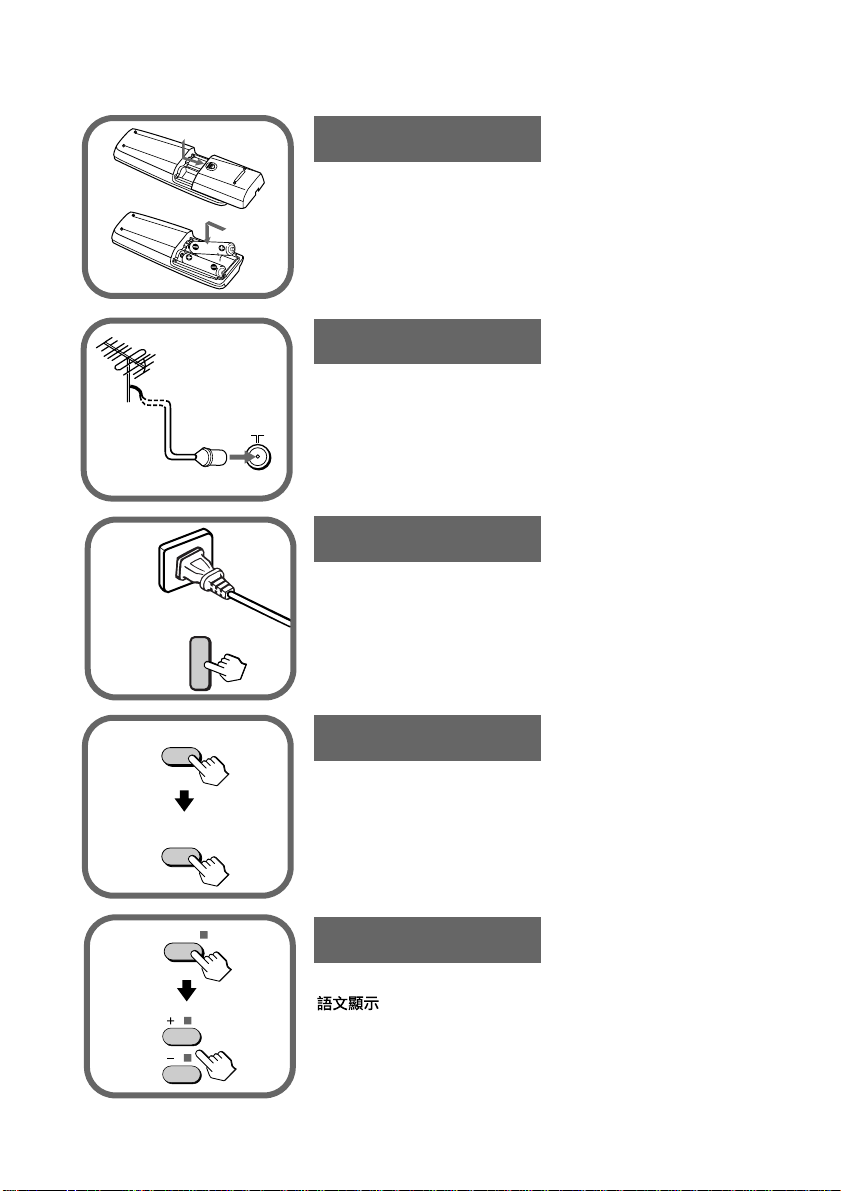
Step 1
b
CABLE
b
Insert the batteries (supplied) into the remote.
Note
• Do not use old batteries nor use different types of batteries
together.
Step 2
Connect the antenna cable (not supplied) to 8
(antenna input) at the rear of the TV.
Tip
• You can also connect your TV to other optional components.
(See E)
Step 3
Plug in the power cord, then press ! on the TV to
turn it on.
!
Step 4
AUTO
PROGRAM
SELECT
Press CABLE on the remote to select “CABLE: ON”,
then press AUTO PROGRAM on the remote to preset
the channels automatically. (See J)
Tip
• To stop the automatic channel presetting, press SELECT.
Step 5
Press SELECT on the remote until “LANGUAGE/
: ENGLISH” appears on the screen, then press
+ or – to change the on-screen display language.
Page 3
B WARNING
• Dangerously high voltages are present inside the TV.
• TV operating voltage: 110 – 240 V AC.
• Do not plug in the power cord until you have completed making all other connections;
otherwise a minimum leakage current might flow through the antenna and other terminals to
ground.
• To avoid battery leakage and damage to the remote, remove the batteries from the remote if
you are not going to use it for several days. If any liquid that leaks from the batteries touches
you, immediately wash it away with water.
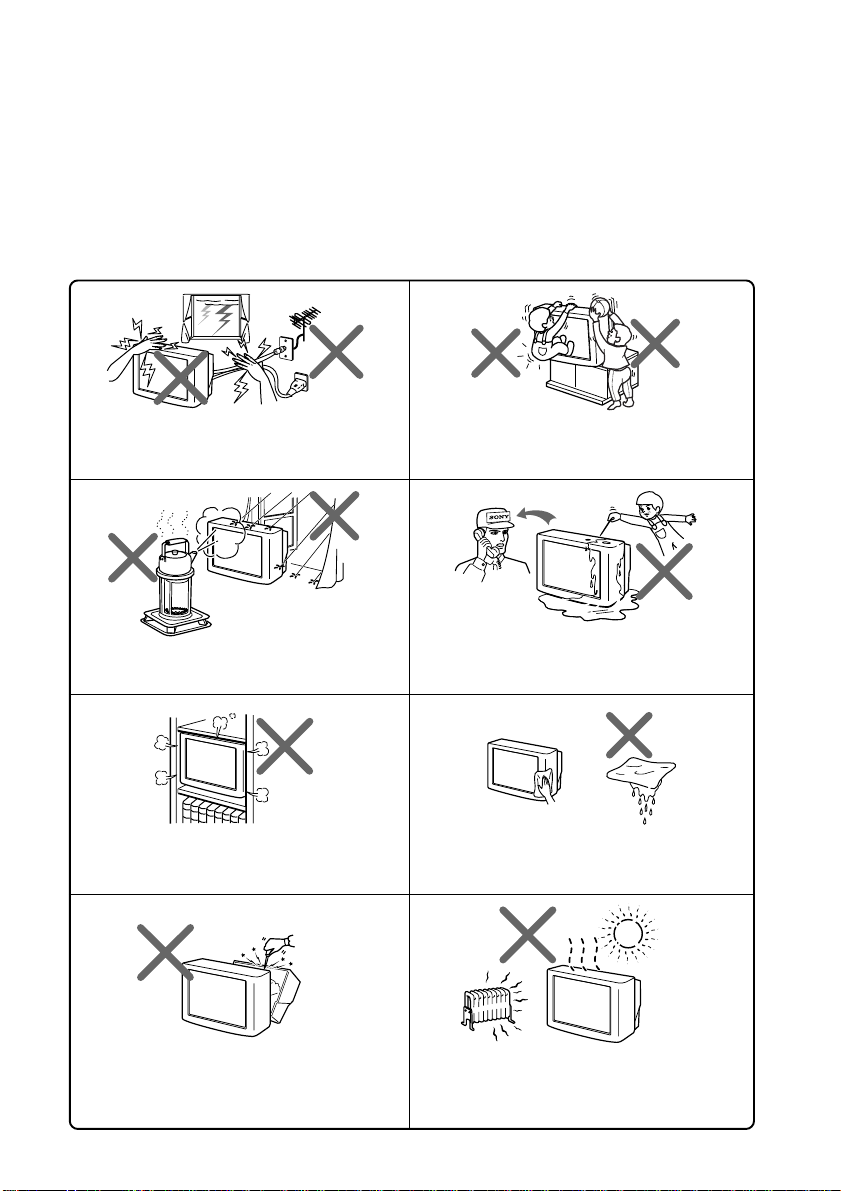
For your own safety, do not touch any part of the
TV, the power cord and the antenna cable during
lightning storms.
To prevent fire or shock hazard, do not expose
the TV to rain or moisture.
Do not block the ventilation openings of the TV.
Do not install the TV in a confined space, such as
a bookcase or built-in cabinet.
For children’s safety, do not leave children alone
with the TV. Do not allow children to climb onto
it.
Do not operate the TV if any liquid or solid object
falls into it. Have it checked immediately by
qualified personnel only.
Clean the TV with a dry and soft cloth. Do not use
benzine, thinner, or any other chemicals to clean
the TV. Do not scratch the picture tube.
Do not open the cabinet and the rear cover of the
TV as high voltages and other hazards are
present inside the TV. Refer servicing and
disposal of the TV to qualified personnel.
Your TV is recommended for home use only.
Do not use the TV in any vehicle or where it may
be subject to excessive dust, heat, moisture or
vibrations.
Page 4
WARNING (continued)
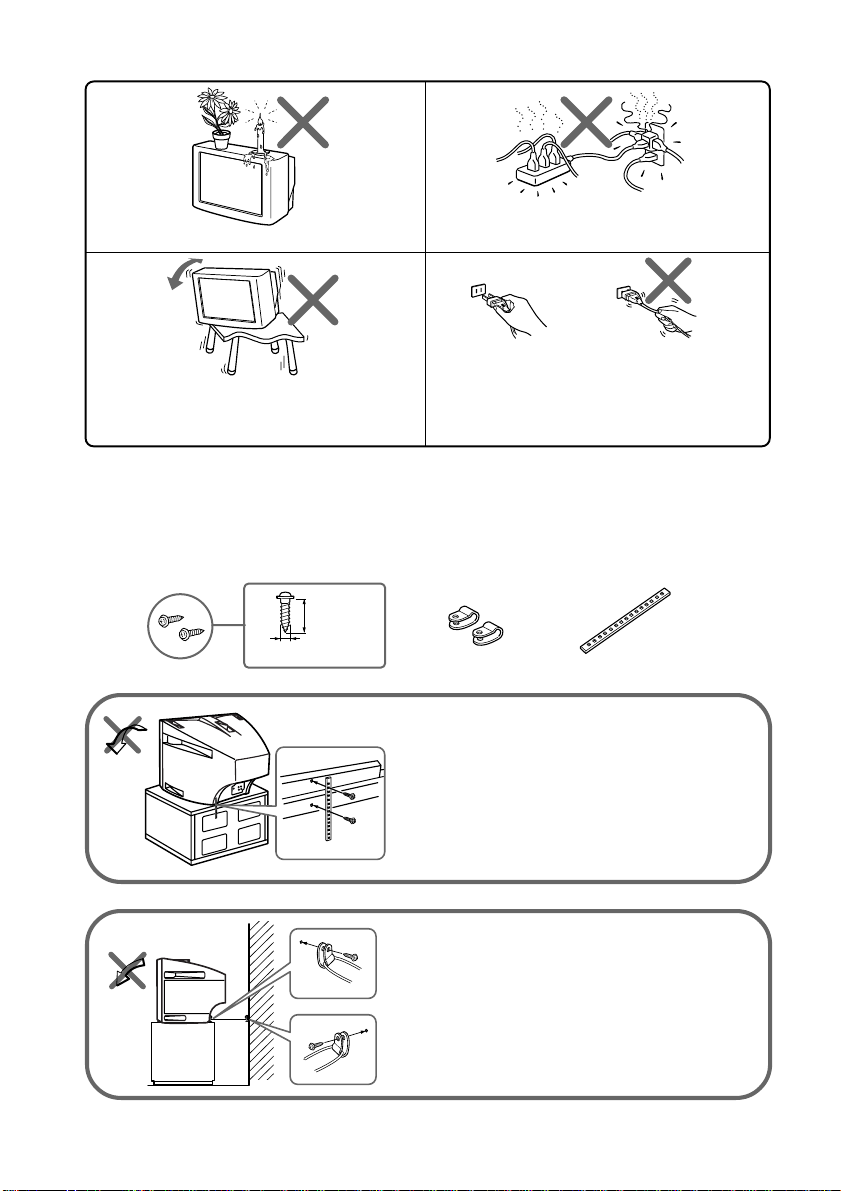
Do not place any objects on the TV.
Install the TV on a stable TV stand and floor
which can support the TV set weight. Ensure that
the TV stand surface is flat and its area is larger
than the bottom area of the TV.
Do not plug in too many appliances to the same
power socket. Do not damage the power cord.
Pull the power cord out by the plug. Do not pull
the power cord itself. Even if your TV is turned
off, it is still connected to the AC power source
(mains) as long as the power cord is plugged in.
Unplug the TV before moving it or if you are not
going to use it for several days.
C Securing the TV
B KV-PG21 only
To prevent the TV from falling, use the supplied screws, clamps and band to secure the TV
20 mm
screws clamps band
3.8 mm
Screw the band to the TV stand and to the
provided hole at the rear of your TV.
.
or
(1) Put a cord or chain through the
clamps.
(2) Screw one clamp to a wall or pillar
and the other clamp to the provided
hole at the rear of your TV.
Note
• Use only the supplied screws. Use of other screws may damage the TV.
Page 5

D TV front and rear panels
TV rear panel
0
AUDIO VIDEO
TV front panel
AUDIO
VIDEO
VIDEO INPUT
9
Button Function
8
SELECT
7
TV/
VIDEO
6
5
1 ! Turn off or turn on the TV.
2 Remote control sensor.
3 STANDBY Standby indicator.
3 WAKE UP Wake Up indicator.
4 CHANNEL +/– Select channel number.
5 VOLUME +/– * Adjust volume.
6 TV/VIDEO Select TV or video input.
7 SELECT Select the desired item.
8 Earphone terminal.
9 VIDEO INPUT Video input terminal.
0 8 Antenna input terminal.
qa VIDEO IN Video input terminal.
qs MONITOR OUT Monitor output terminal.
CHANNELVOLUME
4
VIDEO
IN
MONITOR
OUT
STANDBY/
WAKE UP
3
2
qa
qs
!
1
* You can also use the VOLUME +/– buttons on the TV to work as the +/– buttons on the
remote.
Page 6

E Connecting optional components
Connecting to the video input terminal
TV front panel
VIDEO
VIDEO INPUT
AUDIO
Audio/Video cable
(not supplied)
Camcorder
TV rear panel
Video game
equipment
AUDIO VIDEO
Antenna cable
VIDEO
IN
MONITOR
OUT
(not supplied)
Audio/Video cable
(not supplied)
VCR
Note
• Do not connect video equipment to VIDEO INPUT at the front and VIDEO IN at the rear of
your TV at the same time; otherwise the picture will not be displayed properly on the screen.
Connecting to the monitor output terminal
TV rear panel
AUDIO VIDEO
Audio systemAudio/Video cable
VIDEO
IN
MONITOR
OUT
(not supplied)
VCR
Page 7

F Troubleshooting
If you find any problem while viewing your TV, please check the following
guide. If any problem persists, contact your Sony dealer.
Symptom Solutions
Snowy picture,
noisy sound
No picture, no sound
Good picture, no sound
Dotted lines or stripes
Double images or
“ghosts”
No color
Abnormal color
patches
The STANDBY
indicator on your TV
flashes red several
times after every
three seconds.
TV cabinet creaks.
A "boom" sound is
heard when the TV is
turned on.
• Check the antenna cable and connection on the TV, VCR and on the wall.
• Preset the channel manually again. (See J)
• Check the antenna setup. Contact a Sony dealer for advice.
• Check the power cord, antenna and the VCR connections.
• Press POWER or ! (main power) to turn on the TV.
• Press VOL + to increase the volume level.
• Press MUTING to cancel the muting.
• Do not use a hair dryer or other equipment near the TV.
• Check the antenna setup. Contact a Sony dealer for advice
• Turn off or disconnect the booster if it is in use.
• Check the antenna setup. Contact a Sony dealer for advice.
• Select the appropriate color system. (See J)
• Adjust the color level. (See K)
• Check the antenna setup. Contact a Sony dealer for advice.
• Keep external speakers or other electrical equipment away from the TV.
Press ! (main power) to turn off the TV for about 15 minutes, then turn
it on again to demagnetize the TV.
• Count the number of times the STANDBY indicator flashes. Press !
(main power) to turn off your TV. Contact your nearest Sony service
center.
• Changes in room temperature sometimes make the TV cabinet expand or
contract, making a noise. This does not indicate a malfunction.
• The TV's demagnetizing function is working. This does not indicate a
malfunction.
Page 8

G Specifications
KV-PG21N70 KV-PG14N70
Power requirements 110-240 V AC, 50/60 Hz
Power consumption (W)
Television system M
Color system NTSC3.58, PAL*, PAL 60*, NTSC4.43* * AV IN only
Channel coverage VHF: 2 to 13
8 (Antenna) 75-ohm external terminal
Audio output (Speaker)
Number of terminal
VIDEO
AUDIO
Indicated on the rear of the TV
UHF: 14 to 69
CATV: 1 to 125
3W
Input: 2* Output: 1 Phono jacks; 1 Vp-p, 75 ohms*One input line
Input: 2* Output: 1 Phono jacks; 500 mVrms *
Note
available
One input line
available
(Earphone) Output: 1 Monaural minijack
Picture tube 21 in. 14 in.
Tube size (cm) 54 37 Measured diagonally
Screen size (cm) 51 34 Measured diagonally
Dimensions (w/h/d, mm)
Mass (kg) 25 12
Design and specifications are subject to change without notice.
497 x 458 x 487 375 x 346 x 411
Page 9

H Remote control
qa
qs
qd
qf
qg
qh
qj
qk
ql
w;
wa
MTS
1
4
7
JUMP
SOUND
MODE
FAVORITE
WAKE UP
SLEEP
CABLE
DISPLAYMUTING POWER
VIDEO
TV
3
2
6
5
9
8
ENT
0
VOL CH
AUTO
ADD/
PROGRAM
ERASE
TV
Button Function
1 POWER Turn off temporarily or
1
2 TV Display the TV program.
2
3 ENT Confirm input number
turn on the TV.
4 CH +/– Select channel number.
5 VOL +/– Adjust volume.
6 SELECT Select the desired items.
7 +/– Adjust items.
8 PIC MODE Select picture mode.
3
9 ADD/ERASE
4
0
5
6
7
8
9
0
AUTO PROGRAM
qa MUTING Mute the sound.
qs DISPLAY Display on-screen
qf VIDEO Select TV or video input.
qg 0 – 9 Input numbers.
qh JUMP Jump to previous
Timer operations
Preset channels manually
Preset channels
automatically.
information.
channel number.
ql WAKE UP Set TV to turn on
automatically.
w; SLEEP Set TV to turn off
automatically.
wa CABLE Select the cable TV.
qd MTS
qj SOUND MODE
qk FAVORITE
Not function for your TV.
Not function for your TV.
Not function for your TV.
See
–
–
–
–
–
–
–
K
.
J
J
–
–
–
–
–
I
I
–
–
–
–
Page 10

I Setting the timers
You can turn on and off your TV by using the WAKE UP and SLEEP buttons
respectively.
Setting the Wake Up timer
Press WAKE UP until the desired period of time
1
appears on the screen.
WAKE UP TIMER:0H10M
(After 10 minutes)
WAKE UP TIMER:OFF
(No Wake Up timer) (After 12 hours)
WAKE UP TIMER:12H00M
The Wake Up timer starts immediately after you
have set it.
Select the program number or video input you
2
want to wake up to.
Press POWER, or set the Sleep timer if you want
3
the TV to turn off automatically.
The WAKE UP indicator on the TV lights up
orange when the TV goes into standby mode.
Setting the Sleep timer
POWER
WAKE UP
SLEEP
MTS
1
4
7
JUMP
SOUND
MODE
FAVORITE
WAKE UP
SLEEP
CABLE
DISPLAYMUTING POWER
TV
VIDEO
2
5
8
ENT
0
VOL CH
AUTO
ADD/
PROGRAM
ERASE
TV
3
6
9
Press SLEEP until the desired period of time
appears on the screen.
SLEEP TIMER:30M SLEEP TIMER:60M
(After 30 minutes)
SLEEP TIMER:OFF SLEEP TIMER:90M
(No Sleep timer)
(After 60 minutes)
(After 90 minutes)
The Sleep timer starts immediately after you have
set it.
Notes
• You can also cancel the Wake Up and Sleep timers by turning off the TV’s main power.
• If no buttons or controls are pressed for more than two hours after the TV is turned on using
the Wake Up timer, the TV automatically goes into standby mode.
Page 11

J Presetting channels
You can automatically preset cable TV, VHF or UHF broadcast channels, or
manually preset the channels to receive new channels or channels with a weak
signal.
DISPLAYMUTING POWER
ENT
Number
buttons
CABLE
AUTO
PROGRAM
ADD/ERASE
CH +/–
MTS
1
4
7
JUMP
SOUND
MODE
FAVORITE
WAKE UP
SLEEP
CABLE
VIDEO
2
5
8
0
VOL CH
AUTO
PROGRAM
TV
TV
ENT
ADD/
ERASE
3
6
9
Notes
• If you select “CABLE: ON”, you will be able to receive 125 cable TV channels. If there are no
cable TV channels, you will receive VHF broadcast channels.
• If you select “CABLE: OFF ”, you will be able to receive 68 VHF or UHF broadcast channels
only.
Presetting channels automatically
Press ! on the TV to turn on the TV.
1
Press CABLE to select “CABLE: ON”.
2
Press AUTO PROGRAM on the remote or press
3
SELECT and CHANNEL + on the TV at the same
time for one to two seconds to preset the
channels automatically.
Presetting channels manually
Press the number buttons to select the desired
1
channel number, then press ENT.
Press ADD/ERASE.
2
“+” appears beside the channel number,
indicating that presetting is complete.
Page 12

Presetting channels (continued)
To change the color system setting
If the color is abnormal when receiving programs through the video input terminal.
(1) Press SELECT until “COLOR SYS” appears on the screen.
(2) Press + or – to select the appropriate color system until the color is optimal.
AUTO PAL NTSC3.58 NTSC4.43
To skip program numbers
(1) Press CH +/– until the unused or unwanted channel number appears on the
screen.
(2) Press ADD/ERASE to skip the unused or unwanted channel number.
“–” appears beside the channel number, indicating that disabling is complete.
Note
• To restore the skipped channel number again, preset the channel automatically or manually.
Page 13

K Customizing the picture
You can customize the picture by selecting the picture mode or by adjusting its
settings.
Selecting the picture mode
Press PIC MODE to select the desired picture mode.
Select To
“DYNAMIC” view high contrast pictures.
“STANDARD” view normal contrast pictures.
“SOFT” view mild pictures.
Adjusting the picture setting
1Press SELECT until the desired setting appears.
Each time you press SELECT, the setting item will
change as follows:
PICTURE COLOR BRIGHT
SELECT
+ or –
PIC MODE
MTS
1
4
7
JUMP
SOUND
MODE
FAVORITE
WAKE UP
SLEEP
CABLE
DISPLAYMUTING POWER
VIDEO
TV
2
5
8
ENT
0
VOL CH
AUTO
ADD/
PROGRAM
ERASE
TV
3
6
9
SHARP
Press + or – to adjust the item.
2
To adjust other items, repeat steps 1 to 2.
3
Notes
• “HUE” can be adjusted for the NTSC color system only.
• Reducing “SHARP” can also reduce picture noise.
HUE
 Loading...