

Page 1
Help Guide
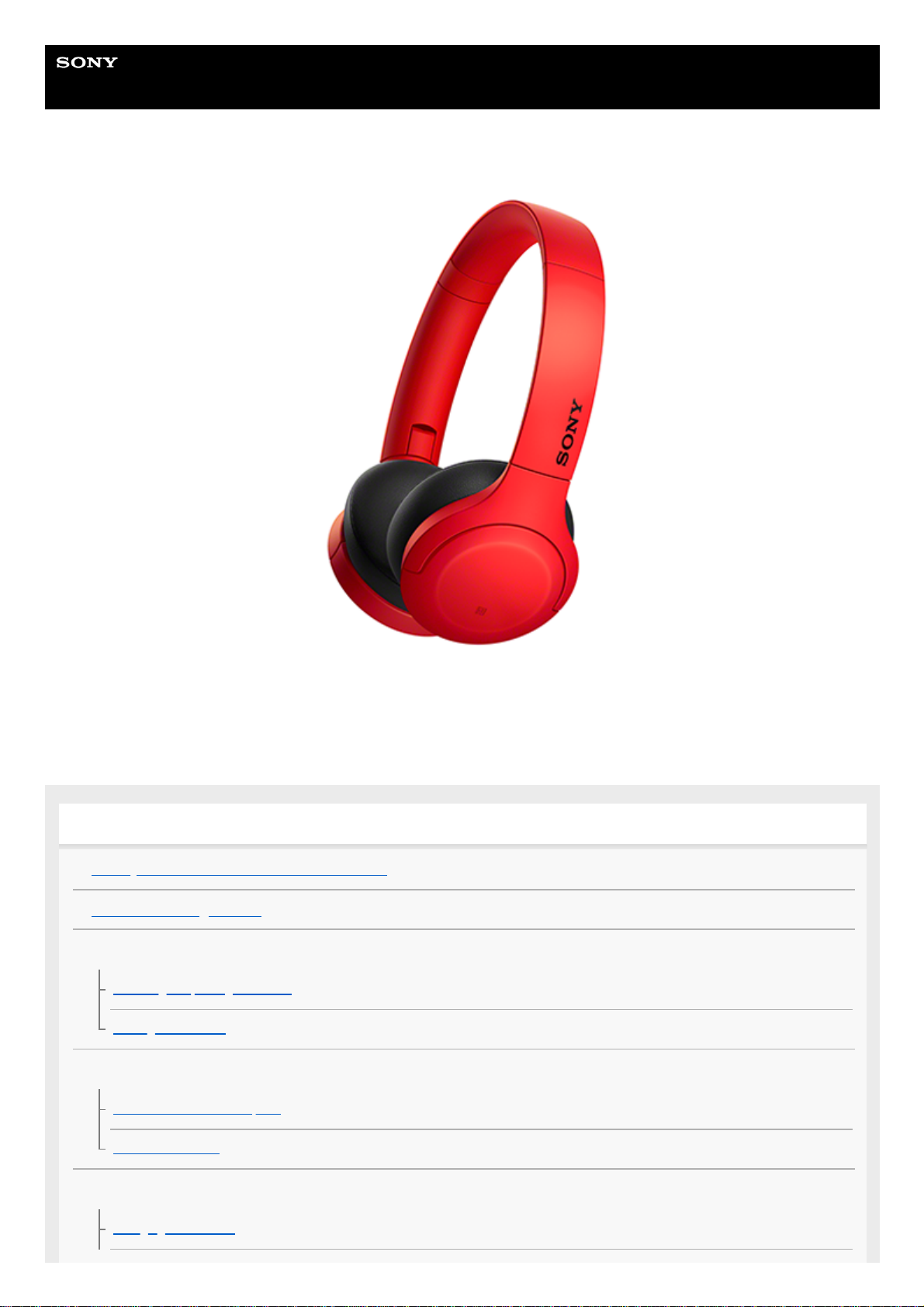
Wireless Stereo Headset
h.ear on 3 Mini Wireless (WH-H810)
Use this manual if you encounter any problems, or have any questions.
Update the software of the headset and “Sony | Headphones Connect” app to the latest version. For details, refer to the
following:
https://www.sony.net/elesupport/
Getting started
What you can do with the Bluetooth function
About the voice guidance
Supplied accessories
Checking the package contents
Folding the headset
Parts and controls
Location and function of parts
About the indicator
Power/Charging
Charging the headset
1
Page 2
Available operating time
Checking the remaining battery charge
Turning on the headset
Turning off the headset
Making connections
How to make a wireless connection to Bluetooth devices
Easy setup with app
Connecting with the “Sony | Headphones Connect” app
Android smartphone
Pairing and connecting with an Android smartphone
Connecting to a paired Android smartphone
One-touch connection (NFC) with an Android smartphone
Disconnecting the Android smartphone with one-touch (NFC)
Switching the device by one-touch (NFC)
iPhone (iOS devices)
Pairing and connecting with an iPhone
Connecting to a paired iPhone
Computers
Pairing and connecting with a computer (Windows 10)
Pairing and connecting with a computer (Windows 8.1)
Pairing and connecting with a computer (Windows 7)
Pairing and connecting with a computer (Mac)
Connecting to a paired computer (Windows 10)
Connecting to a paired computer (Windows 8.1)
Connecting to a paired computer (Windows 7)
Connecting to a paired computer (Mac)
Other Bluetooth devices
Pairing and connecting with other Bluetooth devices
Connecting to a paired Bluetooth device
Multipoint connection
2
Page 3
Connecting the headset to both a music player and a smartphone / mobile phone (multipoint connection)
Connecting the headset to 2 Android smartphones (multipoint connection)
Connecting the headset to an Android smartphone and an iPhone (multipoint connection)
Disconnecting Bluetooth connection (after use)
Using the supplied headphone cable
Listening to music
Listening to music via a Bluetooth connection
Listening to music from a device via Bluetooth connection
Controlling the audio device (Bluetooth connection)
Disconnecting Bluetooth connection (after use)
Sound quality mode
About the sound quality mode
Supported codecs
About the DSEE HX function
Making phone calls
Receiving a call
Making a call
Functions for a phone call
Disconnecting Bluetooth connection (after use)
Using the voice assist function
Using the Google Assistant
Using Amazon Alexa
Using the voice assist function (Google app)
Using the voice assist function (Siri)
Using the apps
What you can do with “Sony | Headphones Connect” app
Installing “Sony | Headphones Connect” app
Important information
Precautions
3
Page 4
License notice
Trademarks
Customer support websites
Troubleshooting
What can I do to solve a problem?
Power/Charging
Unable to turn on the headset.
Charging cannot be done.
Charging time is too long.
The headset cannot be charged even if connecting the headset to a computer.
The remaining battery charge of the headset is not displayed on the screen of smartphone.
Sound
No sound
Low sound level
Low sound quality
Sound skips frequently.
Bluetooth
Pairing cannot be done.
One-touch connection (NFC) does not work.
Unable to make a Bluetooth connection.
Distorted sound
The Bluetooth wireless communication range is short, or the sound skips.
The headset does not operate properly.
Cannot hear a person on a call.
Low voice from callers
The touch sensor control panel does not respond correctly
Resetting or initializing the headset
Resetting the headset
Initializing the headset to restore factory settings
4
Page 5

5-007-463-21(1) Copyright 2019 Sony Corporation
5
Page 6
Help Guide
Wireless Stereo Headset
h.ear on 3 Mini Wireless (WH-H810)
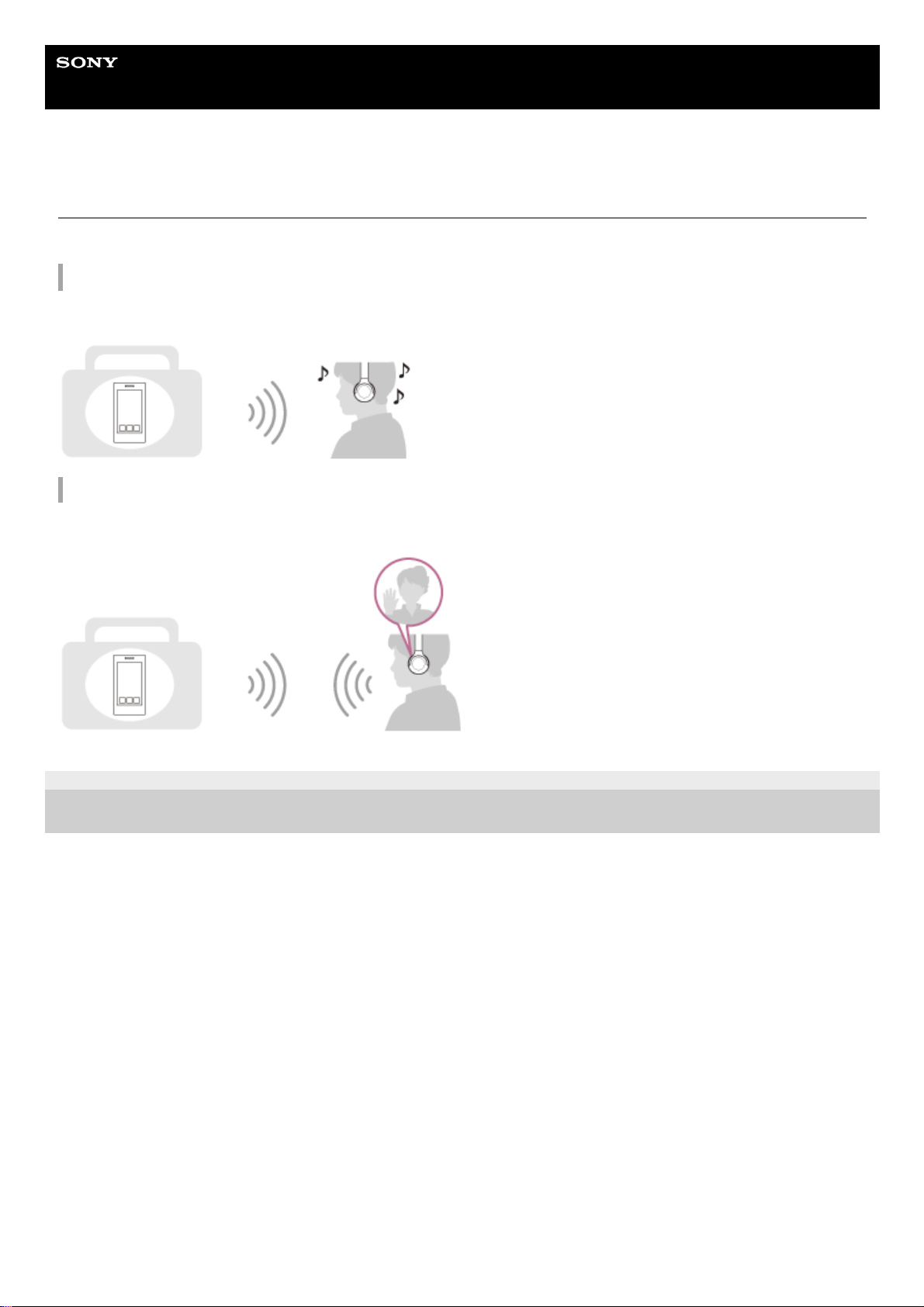
What you can do with the Bluetooth function
The headset uses BLUETOOTH® wireless technology, allowing you to do the following.
Listening to music
You can receive audio signals from a smartphone or music player to enjoy music wirelessly.
Talking on the phone
You can make and receive calls hands-free, while leaving your smartphone or mobile phone in your bag or pocket.
5-007-463-21(1) Copyright 2019 Sony Corporation
6
Page 7

Help Guide
Wireless Stereo Headset
h.ear on 3 Mini Wireless (WH-H810)
About the voice guidance
In the factory setting, you will hear the English voice guidance in the following situations via the headset.
You can change the language of the voice guidance and turn on/off the voice guidance using “Sony | Headphones
Connect” app. For more details, refer to the “Sony | Headphones Connect” app help guide.
https://rd1.sony.net/help/mdr/hpc/h_zz/
When the headset is turned on: “Power on”
When the headset is turned off: “Power off”
When entering pairing mode: “Bluetooth pairing”
When establishing a Bluetooth connection: “Bluetooth connected”
When disconnecting a Bluetooth connection: “Bluetooth disconnected”
When informing the remaining battery charge: “Battery about XX %” (The “XX” value indicates the approximate
remaining charge. Use it as a rough estimate.) / “Battery fully charged”
When the remaining battery charge is low: “Low battery, please recharge headset”
When automatically turning off due to low battery: “Please recharge headset. Power off”
When the Google Assistant is not available on the smartphone connected to the headset even if you press the
Google Assistant button on the headset: “The Google Assistant is not connected”
When Amazon Alexa is not available on the smartphone connected to the headset even if you press the Amazon
Alexa button on the headset: “Either your mobile device isn’t connected; or you need to open the Alexa App and try
again”
Note
It takes about 20 minutes when you change the language of the voice guidance.
When you initialize the headset to restore the factory settings after you change the language of the voice guidance, the language
will also return to the factory setting.
If the voice guidance is not heard after changing the voice guidance language or updating the software, turn the headset off and
on again.
5-007-463-21(1) Copyright 2019 Sony Corporation
7
Page 8
Help Guide
Wireless Stereo Headset
h.ear on 3 Mini Wireless (WH-H810)
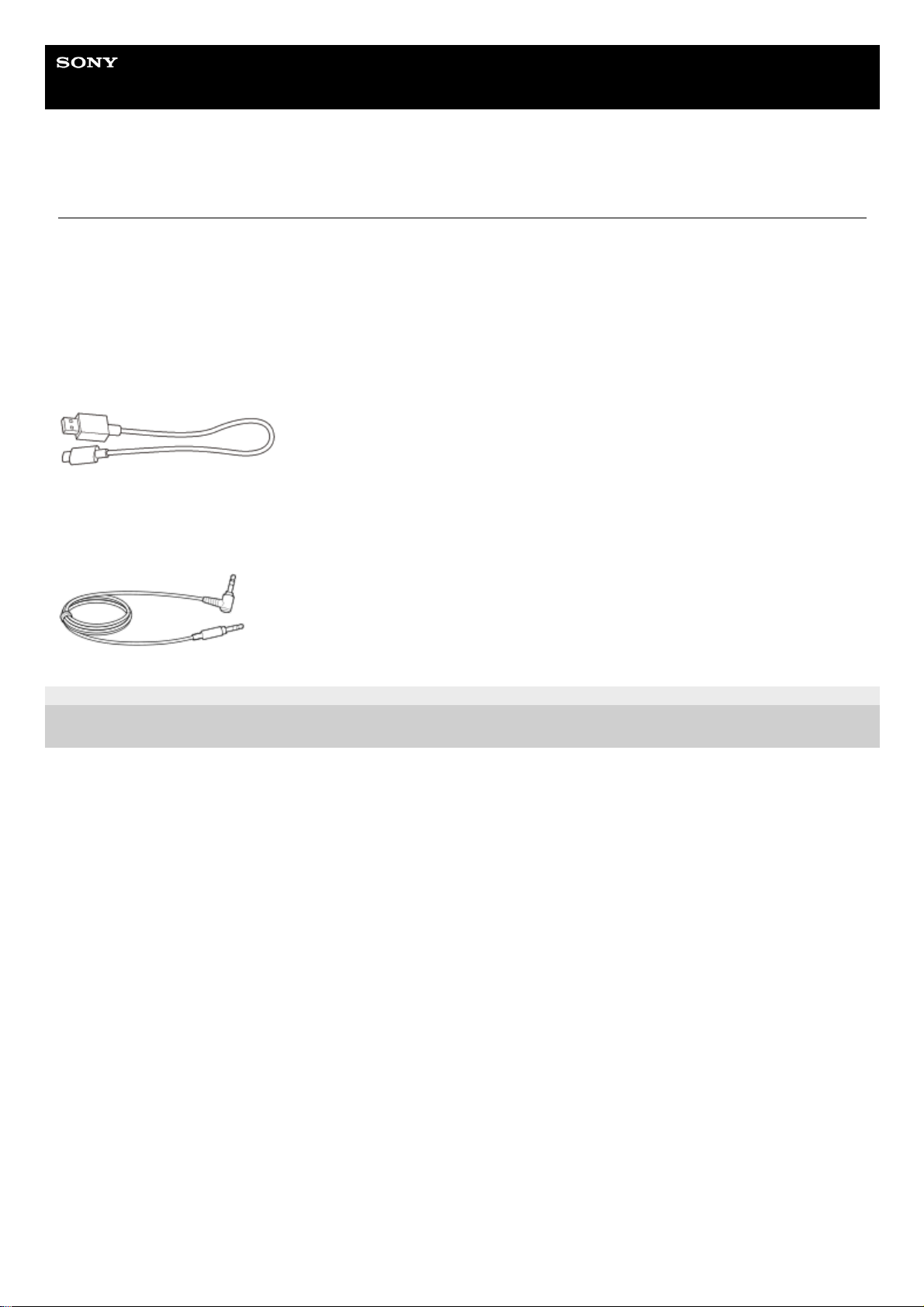
Checking the package contents
After opening the package, check that all of the items in the list are included. If any items are missing, contact your
dealer.
Numbers in ( ) indicate the item amount.
Wireless Stereo Headset
USB Type-C™ cable (USB-A to USB-C™) (approx. 20 cm (7.88 in.)) (1)
Headphone cable (approx. 1.2 m (47.25 in.)) (1)
5-007-463-21(1) Copyright 2019 Sony Corporation
8
Page 9
Help Guide
Wireless Stereo Headset
h.ear on 3 Mini Wireless (WH-H810)
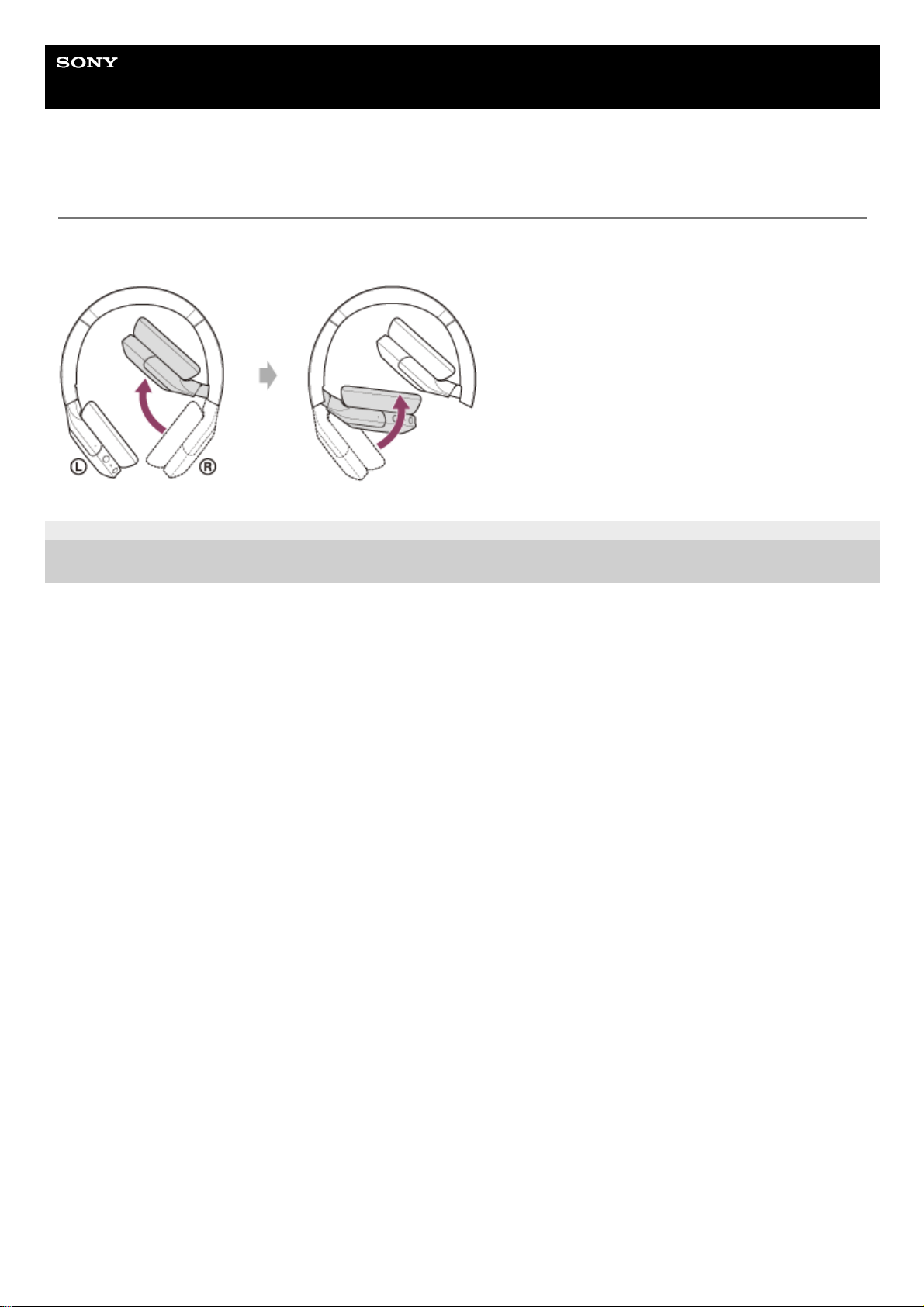
Folding the headset
Fold one unit towards the headband, then fold the other in the same way. You can fold the headset from either the right
side or left side.
5-007-463-21(1) Copyright 2019 Sony Corporation
9
Page 10
Help Guide
Wireless Stereo Headset
h.ear on 3 Mini Wireless (WH-H810)
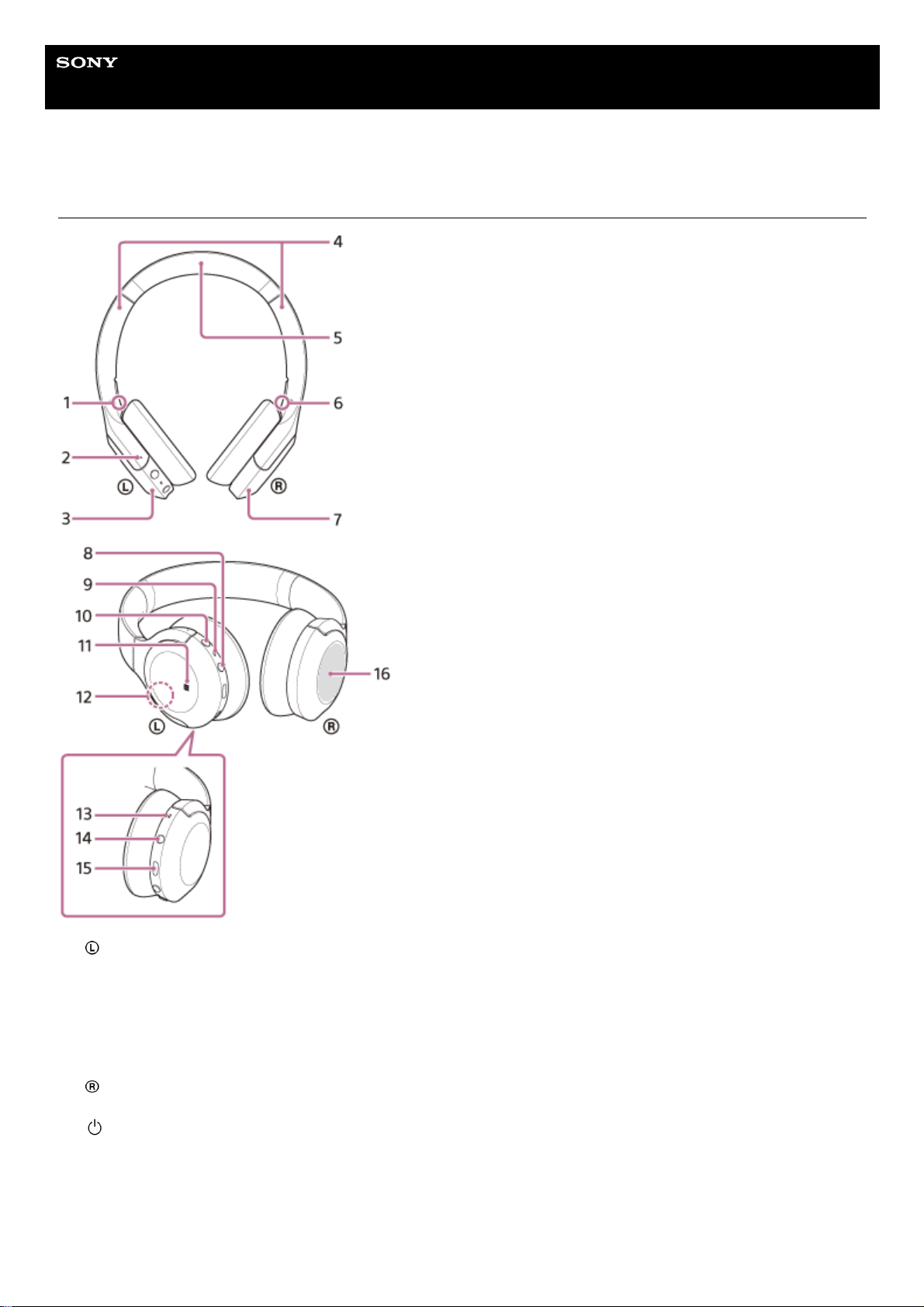
Location and function of parts
(left) mark1.
Tactile dot
There is a tactile dot on the left unit.
2.
Left unit3.
Slider
Slide to adjust the length of the headband.
4.
Headband5.
(right) mark6.
Right unit7.
(power) button8.
Indicator (red/blue)
Lights up in red while charging.
Lights up in red or blue to indicate the power or communication status of the headset.
9.
C (custom) button
Operates when using the voice assist function, etc.
10.
N-Mark11.
10
Page 11

Related Topic
About the indicator
Checking the remaining battery charge
5-007-463-21(1) Copyright 2019 Sony Corporation
Built-in antenna
A Bluetooth antenna is built into the headset.
12.
Microphone
Picks up the sound of your voice when talking on the phone.
13.
Headphone cable input jack
Connect a music player, etc. using the supplied headphone cable. Make sure that you insert the cable until it clicks. If
the plug is not connected correctly, you may not hear the sound properly.
14.
USB Type-C port
Connect the headset to an AC outlet via a commercially available USB AC adaptor or to a computer with the supplied
USB Type-C cable to charge the headset.
15.
Touch sensor control panel
Remotely controls music playback of the connected Bluetooth device or performs other operations using touch
operation.
16.
11
Page 12
Help Guide
Wireless Stereo Headset
h.ear on 3 Mini Wireless (WH-H810)
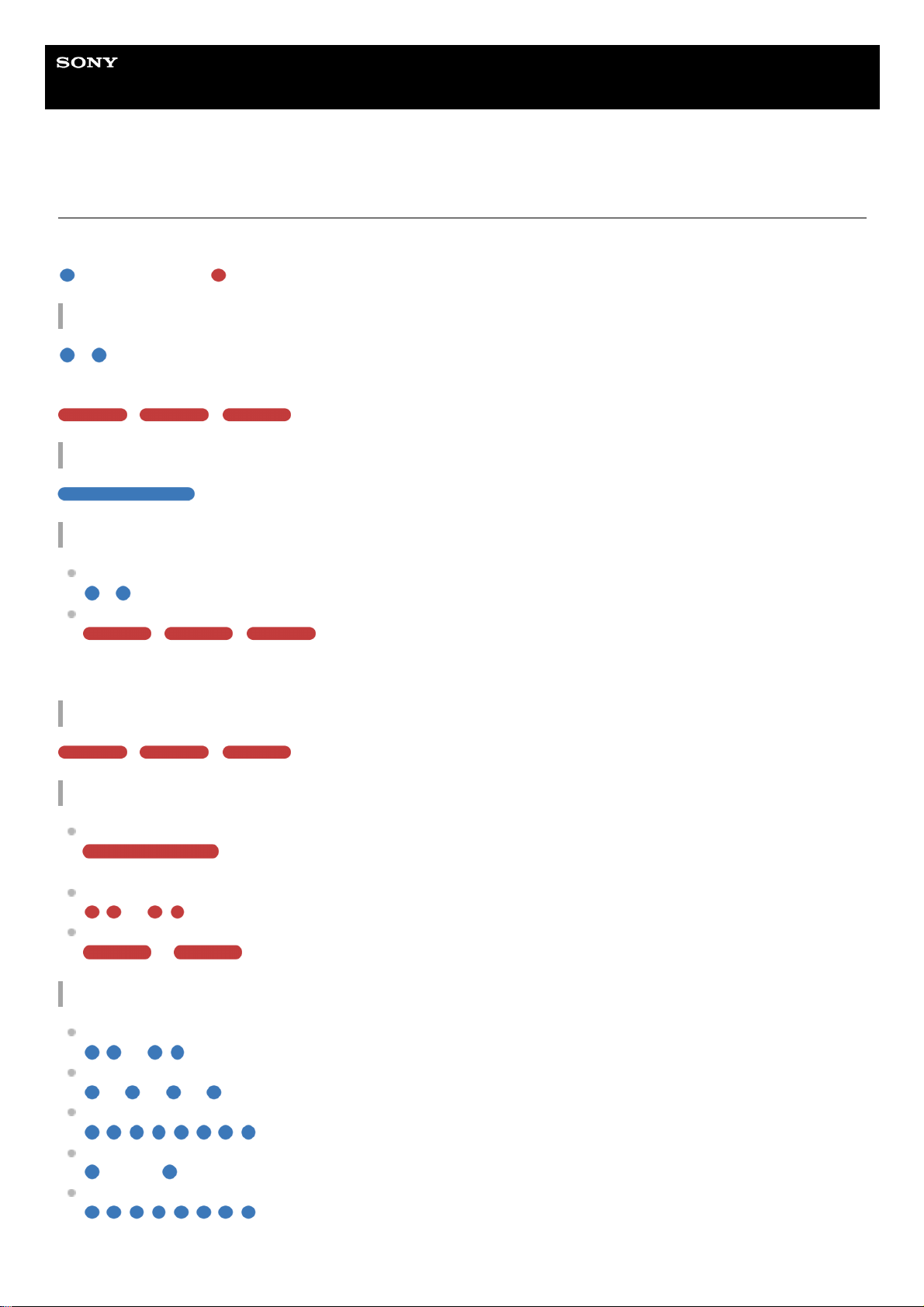
About the indicator
You can check various statuses of the headset by the indicator.
: Turns on in blue / : Turns on in red / -: Turns off
Turning on
- (flashes twice in blue)
In this case, when the remaining battery charge is 20% or lower (requires charging), the indicator lights successively as
follows.
- - (repeatedly flashes slowly in red for about 15 seconds)
Turning off
(lights up in blue for about 2 seconds)
Displaying the remaining battery charge
Remaining charge: More than 20%
- (flashes twice in blue)
Remaining charge: 20% or lower (requires charging)
- - (repeatedly flashes slowly in red for about 15 seconds)
For details, see “Checking the remaining battery charge”.
When the remaining battery charge becomes low
- - (repeatedly flashes slowly in red for about 15 seconds)
Charging
While charging
(lights up in red)
The indicator turns off after charging is complete.
Abnormal temperature
- - - - (repeatedly flashes twice in red)
Abnormal charging
- - - - (repeatedly flashes slowly in red)
Bluetooth function
Device registration (pairing) mode
- - - - (repeatedly flashes twice in blue)
Not connected
- - - - - - - - (repeatedly flashes in blue at about 1-second intervals)
Connection process completed
(repeatedly flashes quickly in blue for about 5 seconds)
Connected
- - - - - - - - - - - - (repeatedly flashes in blue at about 5-second intervals)
Incoming call
(repeatedly flashes quickly in blue)
12
Page 13

The unconnected and connected status indications automatically turn off after a period of time has passed. They start
flashing again for a period of time when some operation is performed. When the remaining battery charge becomes low,
the indicator (red) starts flashing.
Other
Updating software
- - - - (repeatedly flashes slowly in blue)
Initialization completed
(flashes 4 times in blue)
For details, see “Initializing the headset to restore factory settings”.
5-007-463-21(1) Copyright 2019 Sony Corporation
13
Page 14
Help Guide
Wireless Stereo Headset
h.ear on 3 Mini Wireless (WH-H810)
Charging the headset
The headset contains a built-in lithium-ion rechargeable battery. Use the supplied USB Type-C cable to charge the
headset before use.
System requirements for battery charge using USB
USB AC adaptor
A commercially available USB AC adaptor capable of supplying an output current of 0.5 A (500 mA) or more
Personal computer
Personal computer with a standard USB port
We do not guarantee operation on all computers.
Operations using a custom-built or homebuilt computer are not guaranteed.
Hint
The headset can be also charged by connecting the headset to a running computer using the supplied USB Type-C cable.
If charging starts while the headset is turned on, the headset will turn off automatically.
Note
Charging may not be successful with cables other than the supplied USB Type-C cable.
Charging may not be successful depending on the type of USB AC adaptor.
When the headset is connected to an AC outlet or computer, all operations such as turning on the headset, registering or
connecting to Bluetooth devices, and music playback cannot be performed.
The headset cannot be charged when the computer goes into standby (sleep) or hibernation mode. In this case, change the
computer settings, and start charging the headset once again.
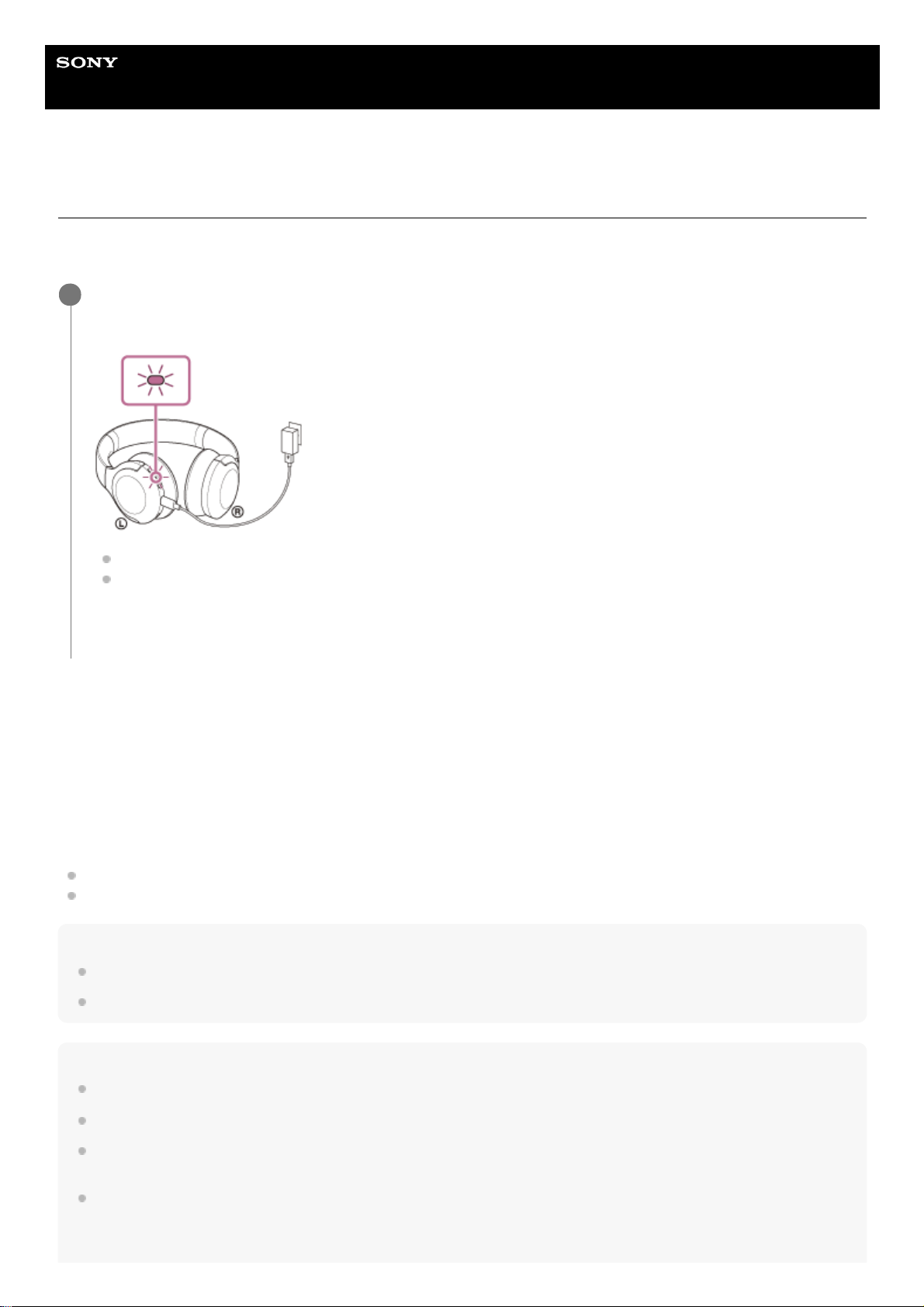
Connect the headset to an AC outlet.
Use the supplied USB Type-C cable and a commercially available USB AC adaptor.
The indicator (red) of the headset lights up.
Charging is completed in about 3 hours (*) and the indicator (red) turns off automatically.
After charging is complete, disconnect the USB Type-C cable.
1
Time required for charging the empty battery to its full capacity. The charging time may differ depending on the conditions of use.
*
14
Page 15

If the headset is not used for a long time, the rechargeable battery usage hours may be reduced. However, the battery life will
improve after a few recharges. If you store the headset for a long time, charge the battery to its full capacity once every 6 months
to avoid over-discharge.
If the headset is not used for a long time, it may take longer to charge the battery.
If the headset detects a problem while charging due to the following causes, the indicator (red) flashes. In this case, charge once
again within the charging temperature range. If the problem persists, consult your nearest Sony dealer.
Ambient temperature exceeds the charging temperature range of 5 °C - 35 °C (41 °F - 95 °F).
There is a problem with the rechargeable battery.
If the headset is not used for a long time, the indicator (red) may not immediately light up when charging. Please wait a moment
until the indicator (red) lights up.
If the usage hours of the built-in rechargeable battery decrease significantly, the battery should be replaced. Consult your nearest
Sony dealer to replace the rechargeable battery.
Avoid exposure to extreme temperature changes, direct sunlight, moisture, sand, dust, and electrical shock. Never leave the
headset in a parked vehicle.
When connecting the headset to a computer, use only the supplied USB Type-C cable, and be sure to directly connect them.
Charging will not be properly completed when the headset is connected through a USB hub.
5-007-463-21(1) Copyright 2019 Sony Corporation
15
Page 16
Help Guide
Wireless Stereo Headset
h.ear on 3 Mini Wireless (WH-H810)
Available operating time
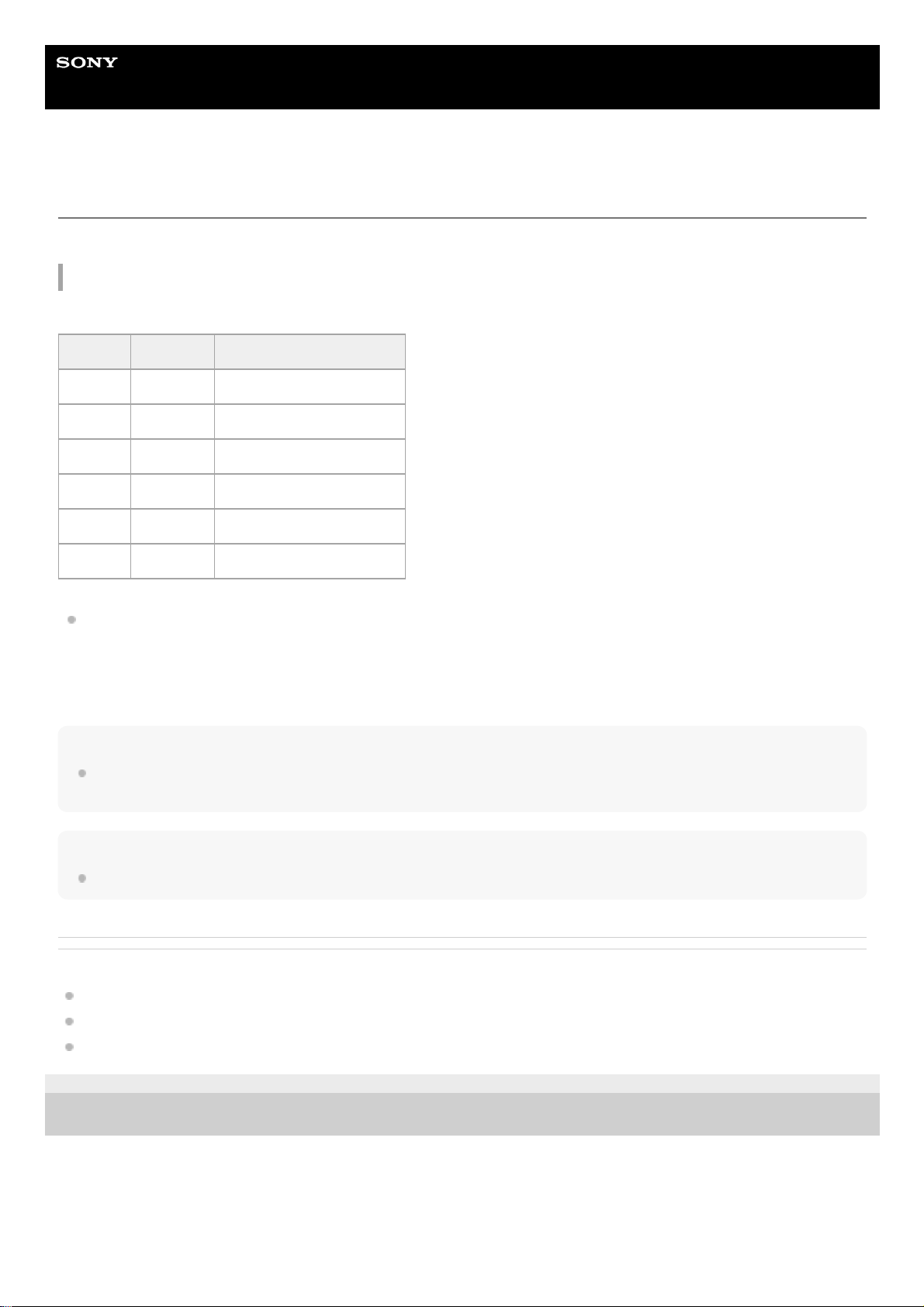
The available operating times of the headset with the battery fully charged are as follows:
Bluetooth connection
Music playback time
About 3.5 hours of music playback is possible after 10 minutes charging.
Communication time: Max. 25 hours
Standby time: Max. 90 hours
Hint
By using the “Sony | Headphones Connect” app, you can check which codec is used for a connection or switch the DSEE HX
function.
Note
Usage hours may be different depending on the settings and conditions of use.
Related Topic
Supported codecs
About the DSEE HX function
What you can do with “Sony | Headphones Connect” app
5-007-463-21(1) Copyright 2019 Sony Corporation
Codec DSEE HX Available operating time
LDAC™ AUTO Max. 13 hours
LDAC OFF Max. 15 hours
AAC AUTO Max. 15 hours
AAC OFF Max. 30 hours
SBC AUTO Max. 15 hours
SBC OFF Max. 30 hours
16
Page 17
Help Guide
Wireless Stereo Headset
h.ear on 3 Mini Wireless (WH-H810)
Checking the remaining battery charge
You can check the remaining battery charge of the rechargeable battery.
When the
(power) button is pressed while the headset power is on, a voice guidance indicating the remaining battery
charge can be heard.
“Battery about XX %” (The “XX” value indicates the approximate remaining charge.)
“Battery fully charged”
The remaining battery charge indicated by the voice guidance may differ from the actual remaining charge in some
cases. Please use it as a rough estimate.
In addition, the indicator (red) flashes for about 15 seconds if the remaining battery charge is 20% or lower when the
headset is turned on.
When the remaining charge becomes low
A warning beep sounds and the color of the operating indicator becomes red. If you hear the voice guidance say, “Low
battery, please recharge headset”, charge the headset as soon as possible.
When the battery becomes completely empty, a warning beep sounds, the voice guidance says, “Please recharge
headset. Power off”, and the headset automatically turns off.
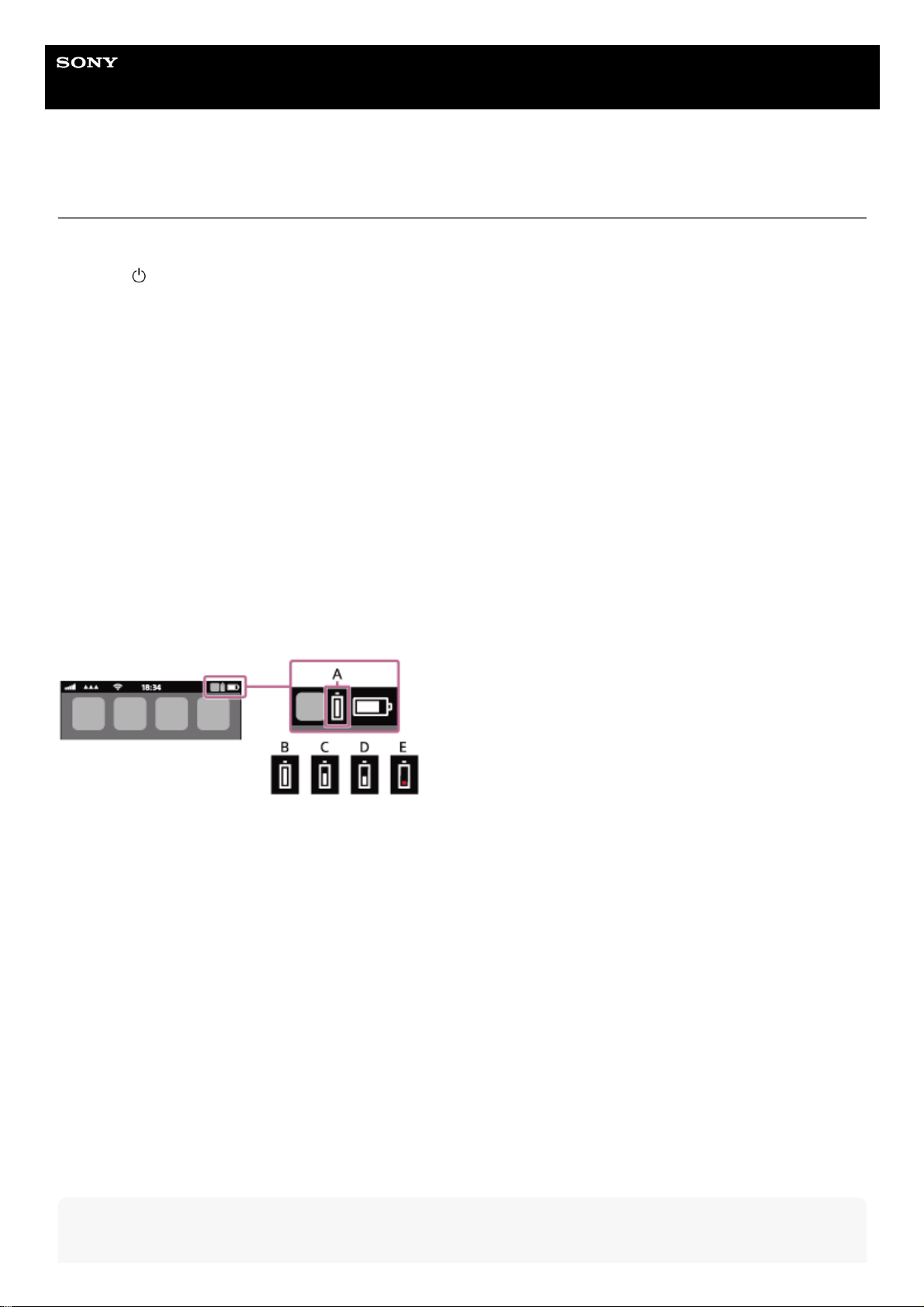
When you are using iPhone or iPod touch
When the headset is connected to an iPhone or iPod touch over an HFP Bluetooth connection, it will show an icon that
indicates the remaining battery charge of the headset on the screen of the iPhone or iPod touch.
A: Remaining battery charge of the headset
B: 100% - 70%
C: 70% - 50%
D: 50% - 20%
E: 20% or lower (requires charging)
The remaining battery charge of the headset is also displayed on the widget of an iPhone or iPod touch running iOS 9 or
later. For more details, refer to the operating instructions supplied with the iPhone or iPod touch.
The remaining charge which is displayed may differ from the actual remaining charge in some cases. Please use it as a
rough estimate.
When you are using an Android smartphone (OS 8.1 or later)
When the headset is connected to an Android smartphone via HFP Bluetooth connection, select [Settings] - [Device
connection] - [Bluetooth] to display the remaining battery charge of the headset where the paired Bluetooth device is
displayed on the smartphone’s screen. It is displayed as “100%”, “70%”, “50%”, or “20%”. For details, refer to the
operating instructions of the Android smartphone.
The remaining charge which is displayed may differ from the actual remaining charge in some cases. Please use it as a
rough estimate.
Hint
17
Page 18

You can also check the remaining battery charge with the “Sony | Headphones Connect” app. Android smartphones and
iPhone/iPod touch both support this app.
Note
If you connect the headset to an iPhone, iPod touch, or Android smartphone with “Media audio” (A2DP) only in a multipoint
connection, the remaining battery charge will not be displayed correctly.
The remaining battery charge may not be properly displayed immediately after a software update or if the headset has not been
used for a long time. In this case, repeatedly charge and discharge the battery multiple times to properly display the remaining
battery charge.
Related Topic
What you can do with “Sony | Headphones Connect” app
5-007-463-21(1) Copyright 2019 Sony Corporation
18
Page 19

Help Guide
Wireless Stereo Headset
h.ear on 3 Mini Wireless (WH-H810)
Turning on the headset
Related Topic
Turning off the headset
5-007-463-21(1) Copyright 2019 Sony Corporation
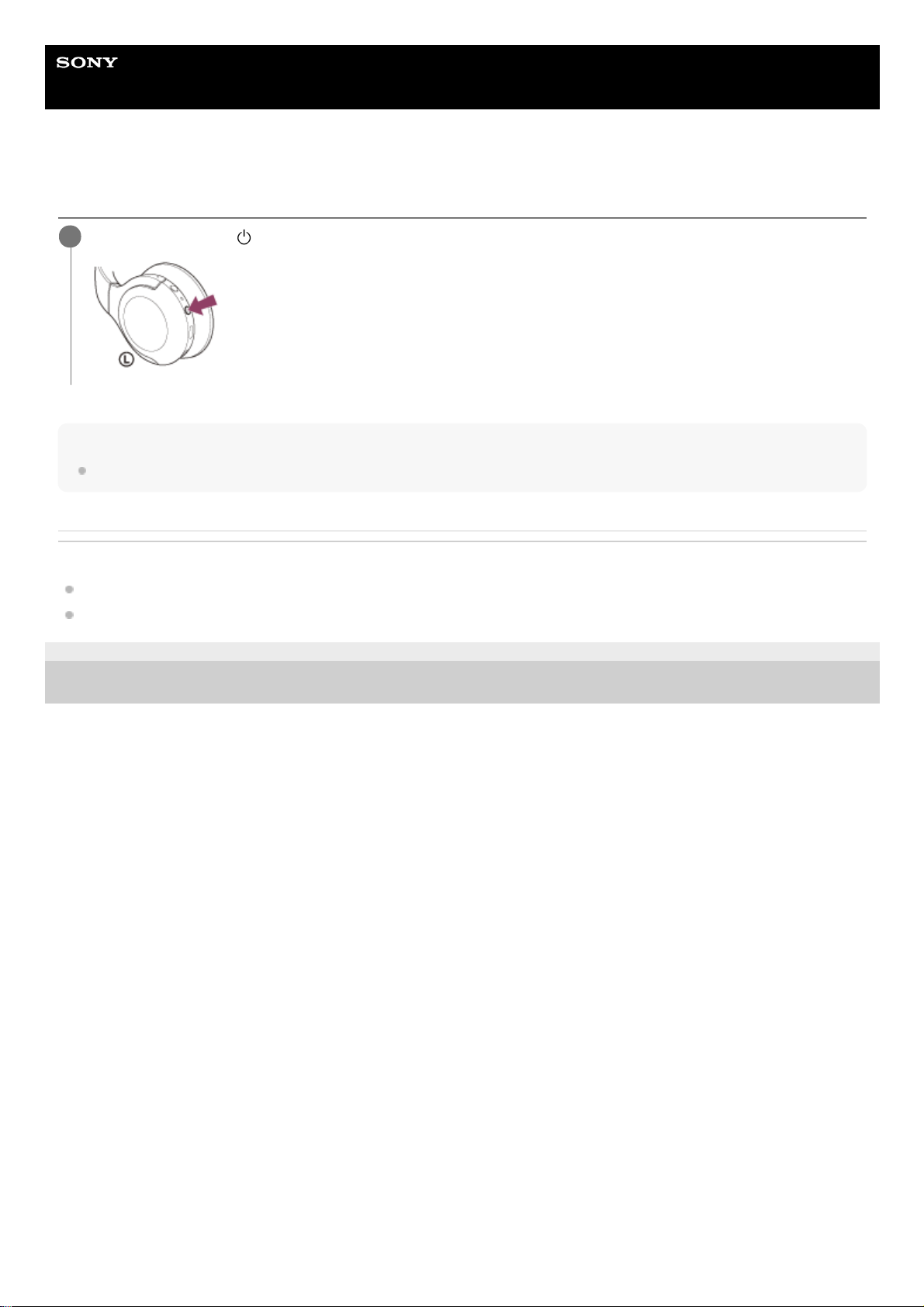
Press and hold the
(power) button for about 2 seconds until the indicator (blue) flashes.
1
19
Page 20
Help Guide
Wireless Stereo Headset
h.ear on 3 Mini Wireless (WH-H810)
Turning off the headset
Hint
You can also turn off the headset with the “Sony | Headphones Connect” app.
Related Topic
Turning on the headset
What you can do with “Sony | Headphones Connect” app
5-007-463-21(1) Copyright 2019 Sony Corporation
Press and hold the
(power) button for about 2 seconds until the indicator (blue) turns off.
1
20
Page 21

Help Guide
Wireless Stereo Headset
h.ear on 3 Mini Wireless (WH-H810)
How to make a wireless connection to Bluetooth devices
You can enjoy music and hands-free calling with the headset wirelessly by using your Bluetooth device’s Bluetooth
function.
Device registration (pairing)
To use the Bluetooth function, both of the connecting devices must be registered in advance. The operation to register a
device is called “device registration (pairing)”.
If the device to be connected does not support one-touch connection (NFC), pair the headset and the device manually.
If the device supports one-touch connection (NFC), you can pair the headset and device and establish a Bluetooth
connection by simply touching the headset with the device.
Connecting to a paired device
Once a device and the headset are paired, there is no need to pair them again. Connect to devices already paired with
the headset using the methods necessary for each device.
5-007-463-21(1) Copyright 2019 Sony Corporation
21
Page 22
Help Guide
Wireless Stereo Headset
h.ear on 3 Mini Wireless (WH-H810)
Connecting with the “Sony | Headphones Connect” app
Launch the “Sony | Headphones Connect” app on your Android™ smartphone/iPhone to connect the headset to a
smartphone or iPhone. For more details, refer to the “Sony | Headphones Connect” app help guide.
https://rd1.sony.net/help/mdr/hpc/h_zz/
Note
The connection with some smartphones and iPhone devices may become unstable when connecting using the “Sony |
Headphones Connect” app. In that case, follow the procedures in “Connecting to a paired Android smartphone”, or “Connecting
to a paired iPhone ” to connect to the headset.
Related Topic
Connecting to a paired Android smartphone
Connecting to a paired iPhone
What you can do with “Sony | Headphones Connect” app
Installing “Sony | Headphones Connect” app
5-007-463-21(1) Copyright 2019 Sony Corporation
22
Page 23
Help Guide
Wireless Stereo Headset
h.ear on 3 Mini Wireless (WH-H810)
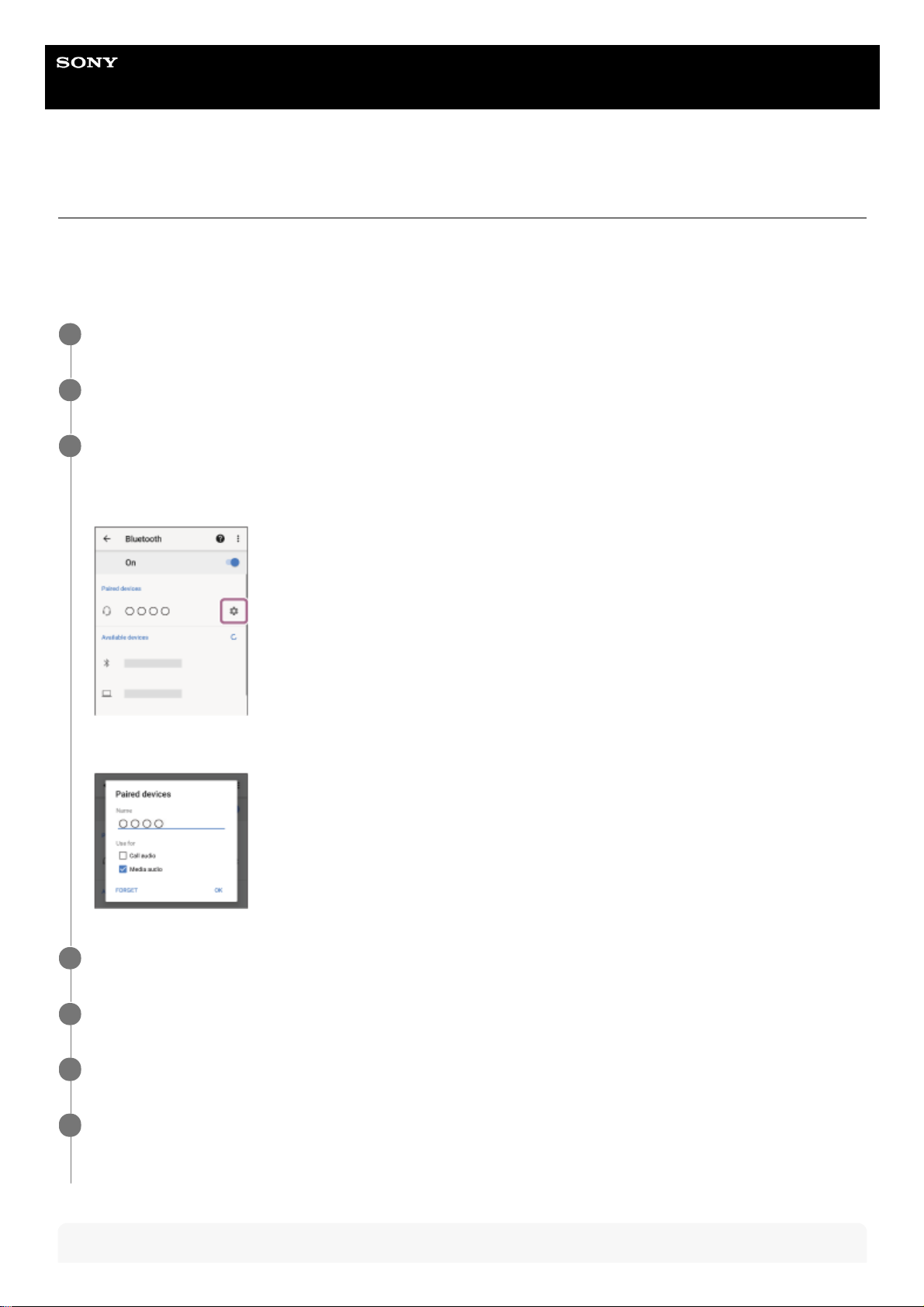
Pairing and connecting with an Android smartphone
The operation to register the device that you wish to connect to is called “pairing”. First, pair a device to use it with the
headset for the first time.
Before starting the operation, make sure of the following:
The Android smartphone is placed within 1 m (3 feet) of the headset.
The headset is charged sufficiently.
The operating instructions of the Android smartphone is in hand.
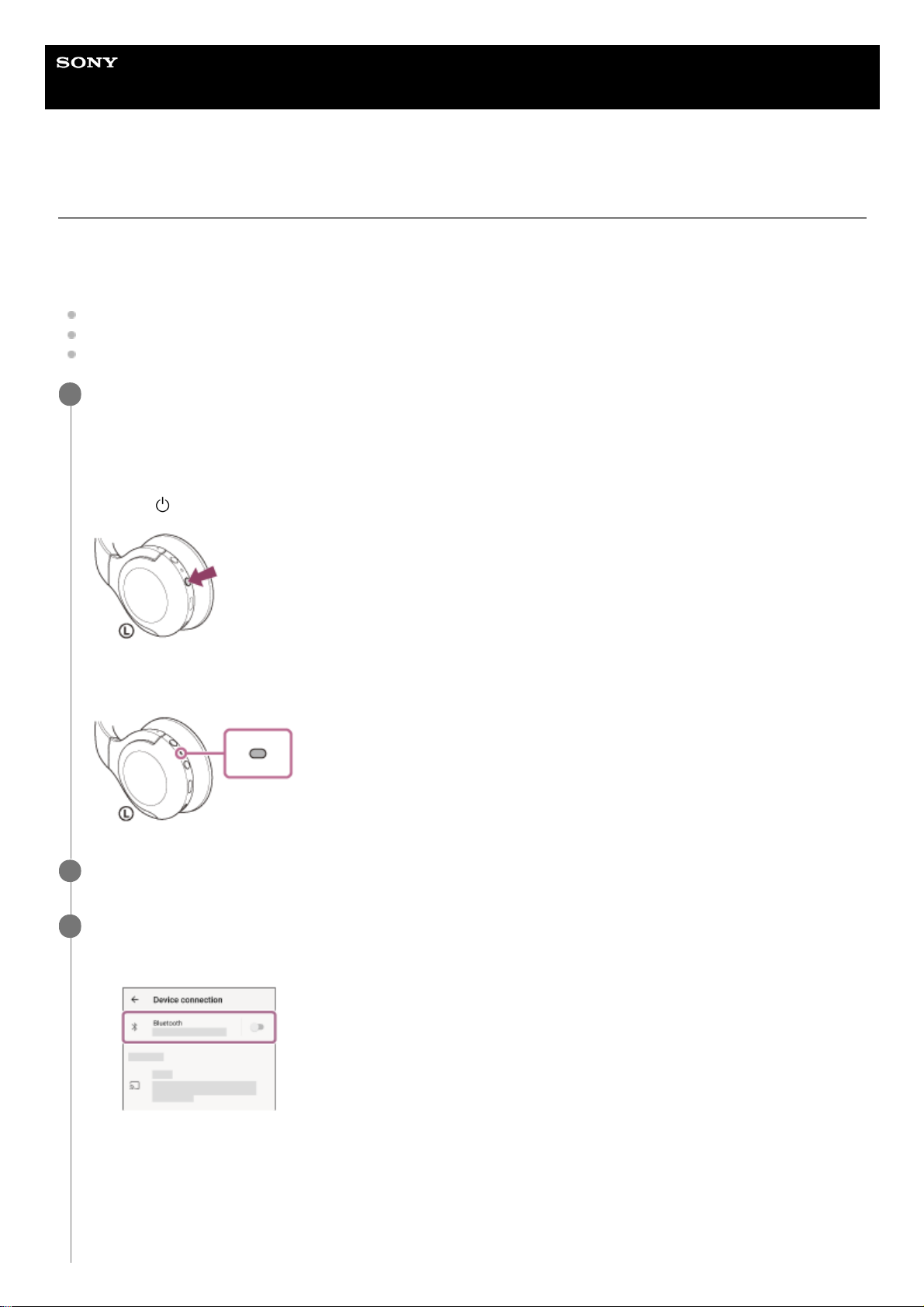
Enter pairing mode on this headset.
Turn on the headset when you pair the headset with a device for the first time after you bought it or after you
initialized the headset (the headset has no pairing information). The headset enters pairing mode automatically. In
this case, proceed to step 2.
When you pair a second or subsequent device (the headset has pairing information for other devices), press and
hold the
(power) button for about 7 seconds.
Check that the indicator (blue) repeatedly flashes twice in a row. You will hear the voice guidance say, “Bluetooth
pairing”.
1
Unlock the screen of the Android smartphone if it is locked.
2
Find the headset on the Android smartphone.
3
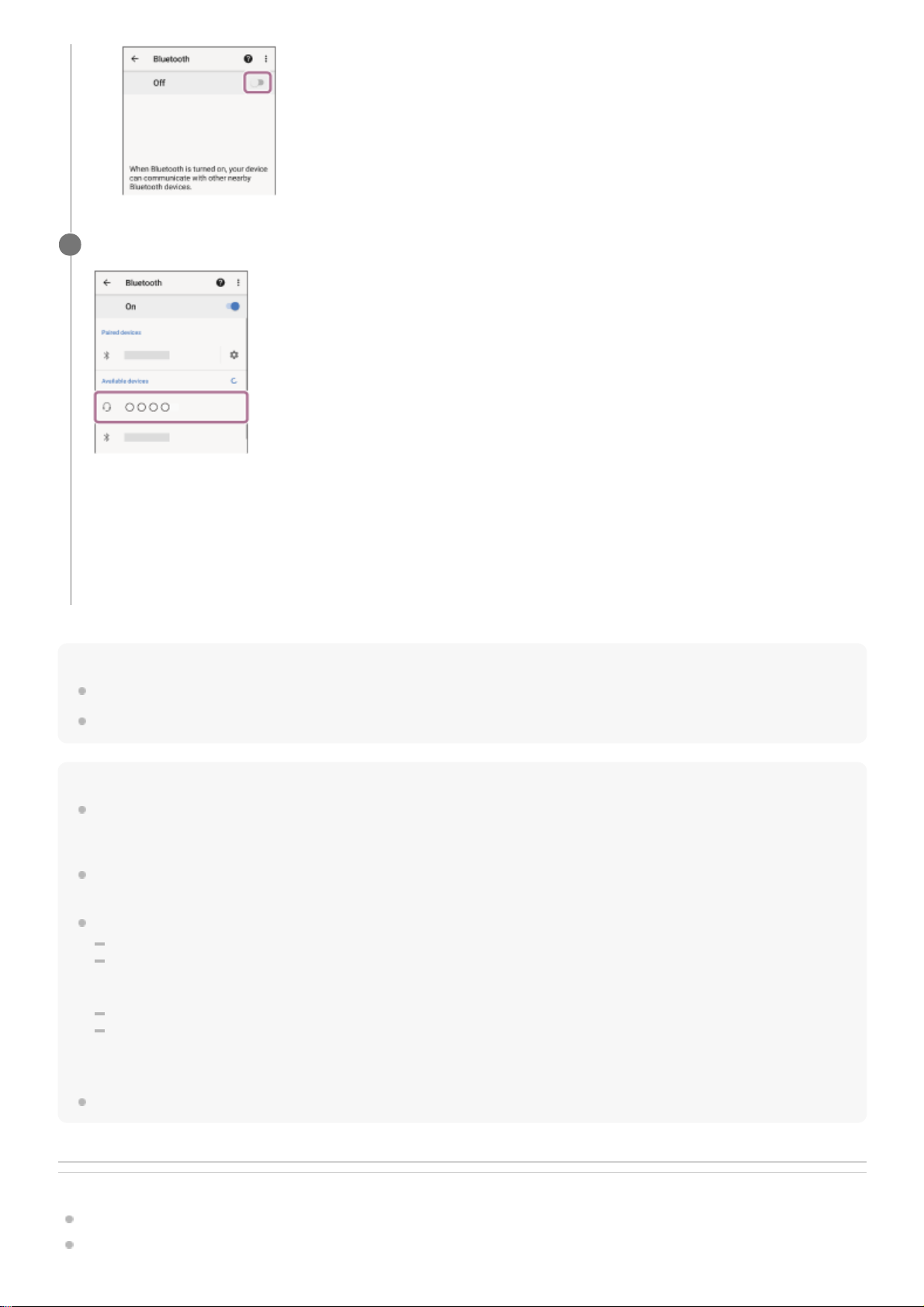
Select [Settings] - [Device connection] - [Bluetooth].
1.
Touch the switch to turn on the Bluetooth function.
2.
23
Page 24
Hint
The operation above is an example. For more details, refer to the operating instructions supplied with the Android smartphone.
To delete all Bluetooth pairing information, see “Initializing the headset to restore factory settings”.
Note
When pairing a device, [WH-H810 (h.ear)], [LE_WH-H810 (h.ear)], or both may be displayed on the connecting device. When
both or [WH-H810 (h.ear)] is displayed, select [WH-H810 (h.ear)]; when [LE_WH-H810 (h.ear)] is displayed, select [LE_WH-H810
(h.ear)].
If pairing is not established within 5 minutes, pairing mode is canceled, and the headset turns off. In this case, start the operation
again from step 1.
Once Bluetooth devices are paired, there is no need to pair them again, except in the following cases:
Pairing information has been deleted after repair, etc.
When a 9th device is paired.
The headset can be paired with up to 8 devices. If a new device is paired after 8 devices are already paired, the registration
information of the paired device with the oldest connection date is overwritten with the information for the new device.
When the pairing information for the headset has been deleted from the Bluetooth device.
When the headset is initialized.
All of the pairing information is deleted. In this case, delete the pairing information for the headset from the device and then pair
them again.
The headset can be paired with multiple devices, but can only play music from 1 paired device at a time.
Related Topic
How to make a wireless connection to Bluetooth devices
Connecting to a paired Android smartphone
Touch [WH-H810 (h.ear)].
If Passkey (*) input is required, input “0000”.
The headset and smartphone are paired and connected with each other. You will hear the voice guidance say,
“Bluetooth connected”.
If they are not connected, see “Connecting to a paired Android smartphone”.
If [WH-H810 (h.ear)] does not appear on the Android smartphone screen, try again from the beginning of step 3.
4
A Passkey may be called “Passcode”, “PIN code”, “PIN number”, or “Password”.
*
24
Page 25

Listening to music from a device via Bluetooth connection
Disconnecting Bluetooth connection (after use)
Initializing the headset to restore factory settings
5-007-463-21(1) Copyright 2019 Sony Corporation
25
Page 26
Help Guide
Wireless Stereo Headset
h.ear on 3 Mini Wireless (WH-H810)
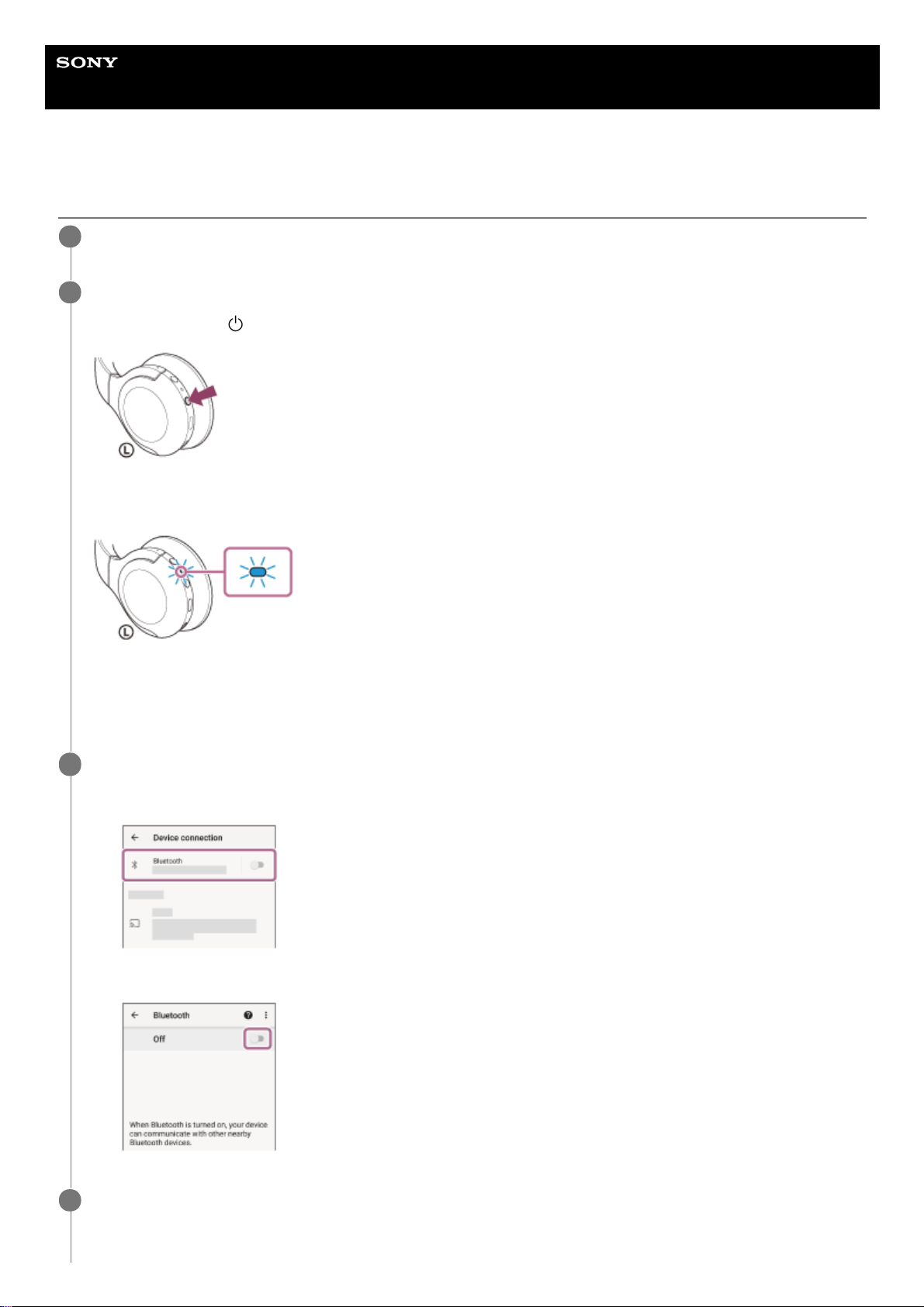
Connecting to a paired Android smartphone
Unlock the screen of the Android smartphone if it is locked.
1
Turn on the headset.
Press and hold the
(power) button for about 2 seconds.
You will hear the voice guidance say, “Power on”. Check that the indicator (blue) continues to flash after you release
your finger from the button.
If it has automatically connected to the last connected device, you will hear the voice guidance say, “Bluetooth
connected”.
Check the connection status on the Android smartphone. If it is not connected, proceed to step 3.
2
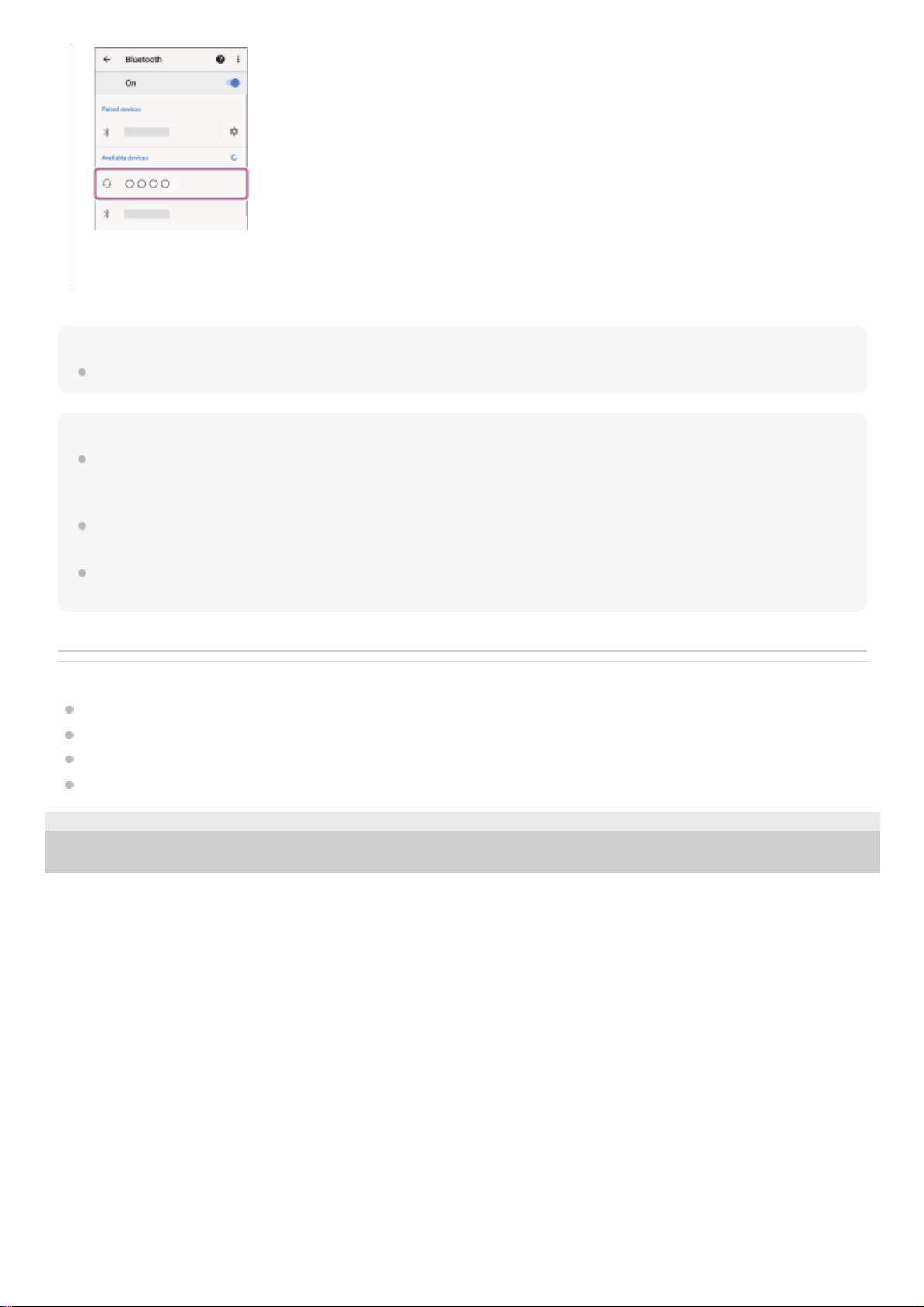
Display the devices paired with the Android smartphone.
3
Select [Settings] - [Device connection] - [Bluetooth].
1.
Touch the switch to turn on the Bluetooth function.
2.
Touch [WH-H810 (h.ear)].
4
26
Page 27
Hint
The operation above is an example. For more details, refer to the operating instructions supplied with the Android smartphone.
Note
When connecting, [WH-H810 (h.ear)], [LE_WH-H810 (h.ear)], or both may be displayed on the connecting device. When both or
[WH-H810 (h.ear)] is displayed, select [WH-H810 (h.ear)]; when [LE_WH-H810 (h.ear)] is displayed, select [LE_WH-H810
(h.ear)].
If the last-connected Bluetooth device is placed near the headset, the headset may connect automatically to the device by simply
turning on the headset. In that case, deactivate the Bluetooth function on the last-connected device or turn off the power.
If you cannot connect your smartphone to the headset, delete the headset pairing information on your smartphone and perform
the pairing again. As for the operations on your smartphone, refer to the operating instructions supplied with the smartphone.
Related Topic
How to make a wireless connection to Bluetooth devices
Pairing and connecting with an Android smartphone
Listening to music from a device via Bluetooth connection
Disconnecting Bluetooth connection (after use)
5-007-463-21(1) Copyright 2019 Sony Corporation
You will hear the voice guidance say, “Bluetooth connected”.
27
Page 28
Help Guide
Wireless Stereo Headset
h.ear on 3 Mini Wireless (WH-H810)
One-touch connection (NFC) with an Android smartphone
By touching the headset with a smartphone, the headset turns on automatically and then pairs and makes a Bluetooth
connection.
Compatible smartphones
NFC-compatible smartphones installed with Android 4.1 or later
What is NFC?
NFC (Near Field Communication) is a technology enabling short-range wireless communication between various
devices, such as smartphones and IC tags. Thanks to the NFC function, data communication — for example, Bluetooth
pairing — can be achieved easily by simply touching NFC-compatible devices together (i.e., at the N-Mark symbol or
location designated on each device).
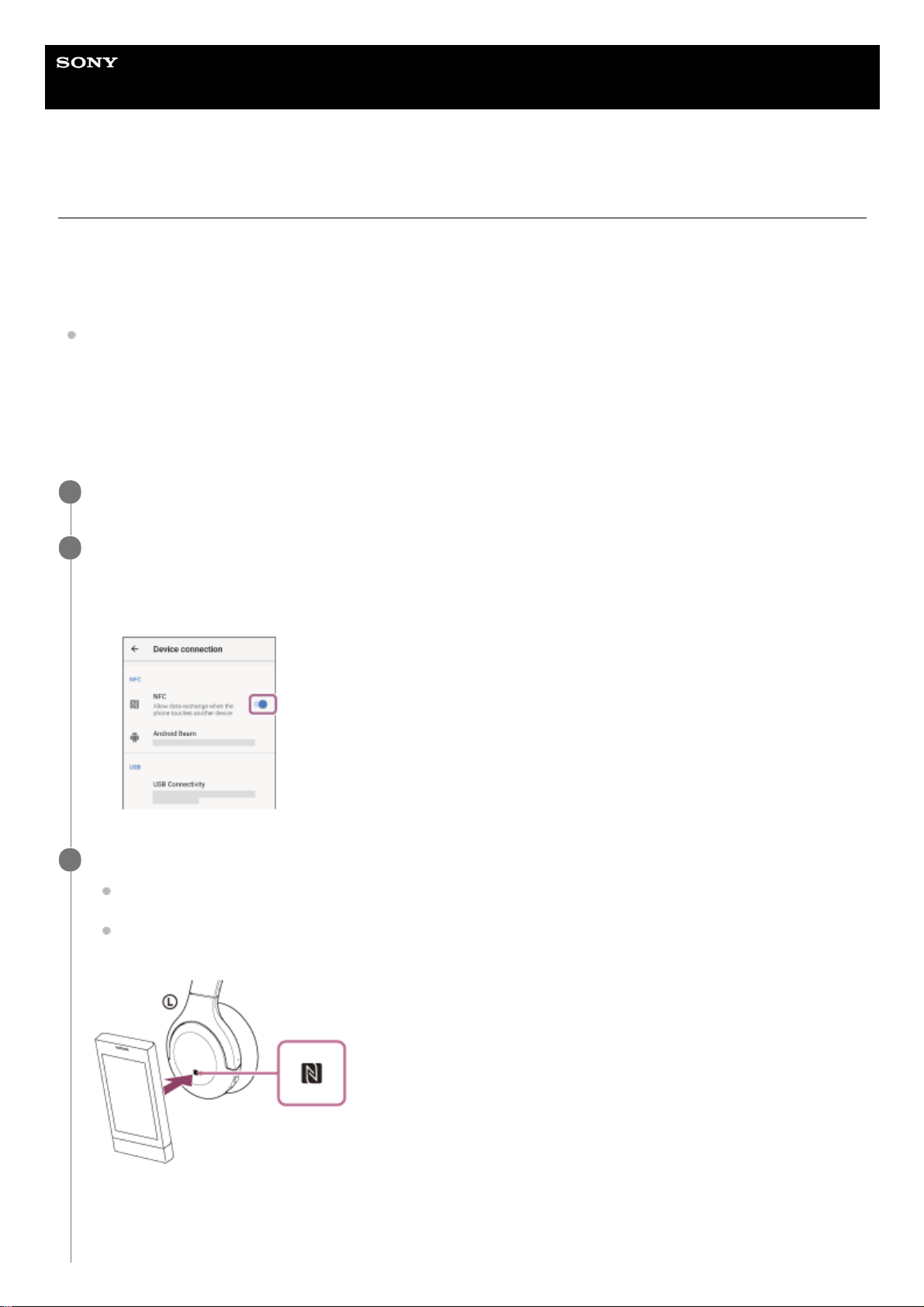
Unlock the screen of the smartphone if it is locked.
1
Turn on the smartphone’s NFC function.
2
Select [Settings] - [Device connection].
1.
Touch the switch to turn on the NFC function.
2.
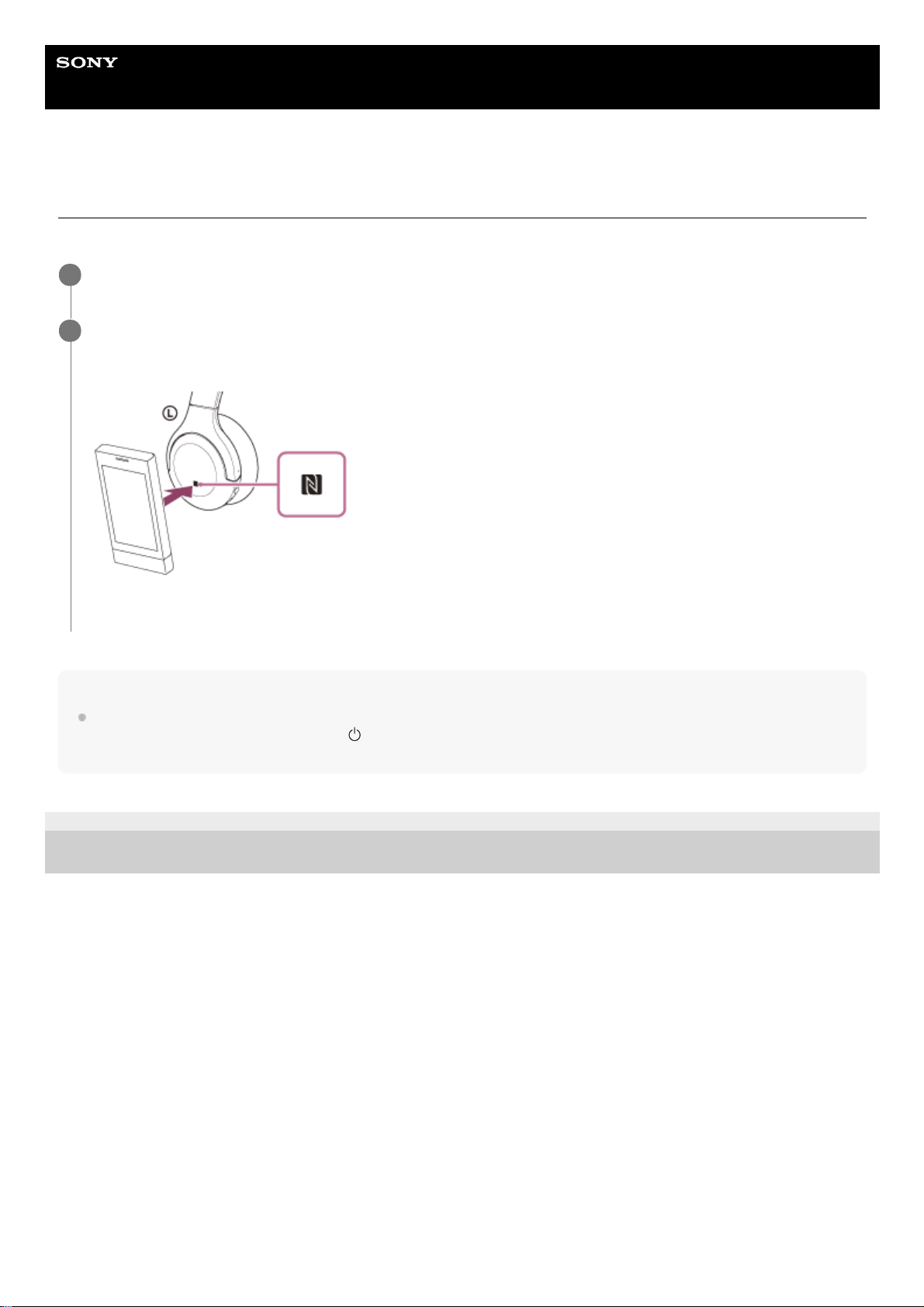
Touch the smartphone with the headset.
Touch the smartphone on the N-Mark of the headset. Keep touching the headset with the smartphone until the
smartphone reacts.
Refer to the operating instructions of the smartphone for the designated location to be touched on the
smartphone.
Follow the on-screen instructions to complete the pairing and connection.
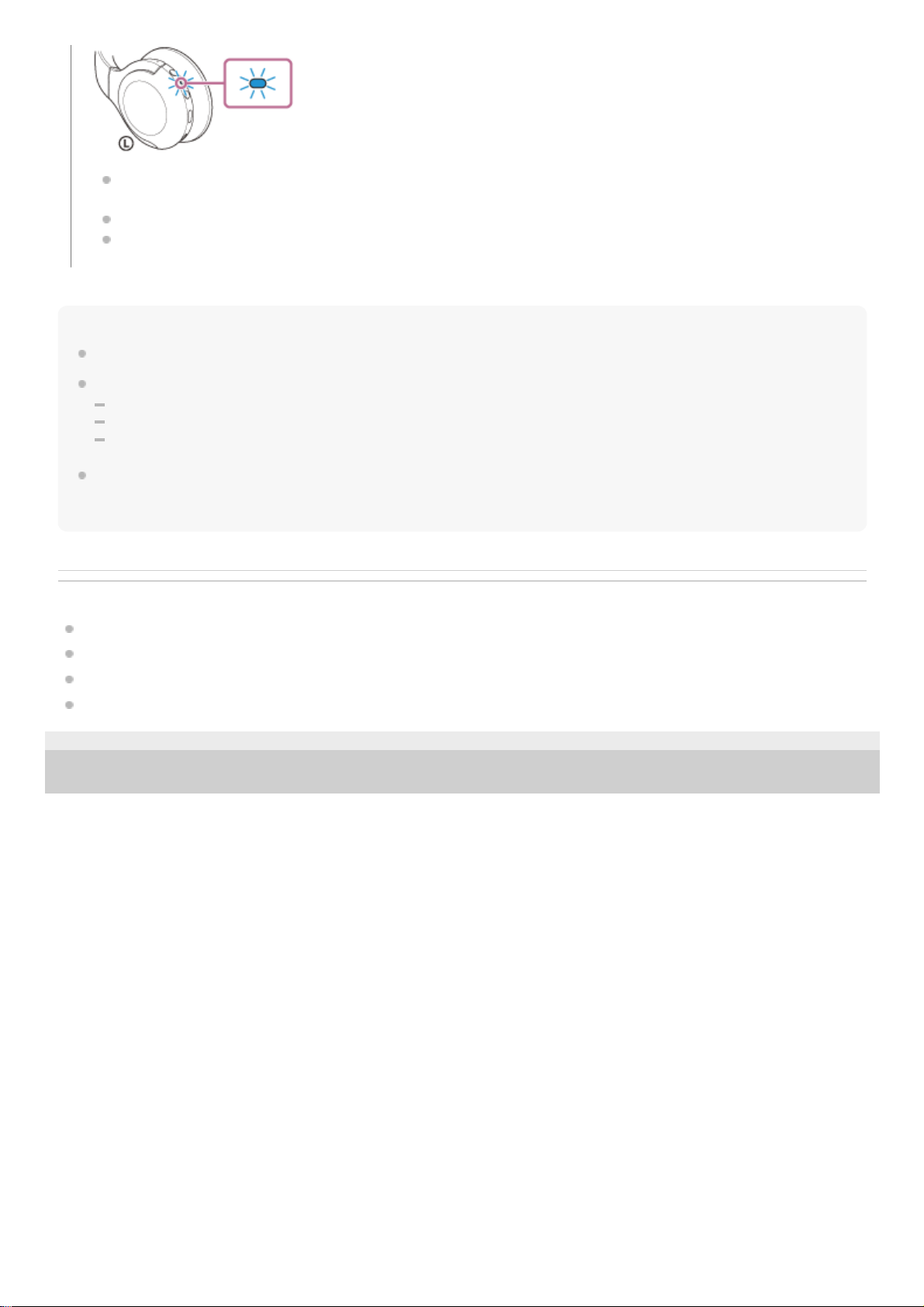
When the headset is connected with the smartphone, the indicator (blue) starts flashing slowly. You will hear the
voice guidance say, “Bluetooth connected”.
3
28
Page 29
Hint
The operation above is an example. For more details, refer to the operating instructions supplied with the Android smartphone.
If you cannot connect the headset, try the following.
Unlock the screen of the smartphone if it is locked, and move the smartphone slowly over the N-Mark.
If the smartphone is in a case, remove the case.
Check that the Bluetooth function of the smartphone is enabled.
If you touch an NFC-compatible smartphone connected to another NFC-compatible device with the headset, the smartphone
terminates the Bluetooth connection with any current devices, and connects to the headset via one-touch (NFC) (One-touch
connection switching).
Related Topic
How to make a wireless connection to Bluetooth devices
Disconnecting the Android smartphone with one-touch (NFC)
Switching the device by one-touch (NFC)
Listening to music from a device via Bluetooth connection
5-007-463-21(1) Copyright 2019 Sony Corporation
To disconnect, touch the smartphone again with the headset. You will hear the voice guidance say, “Bluetooth
disconnected”.
To connect a paired smartphone, perform step 3.
Unlock the screen of the smartphone if it is locked.
29
Page 30
Help Guide
Wireless Stereo Headset
h.ear on 3 Mini Wireless (WH-H810)
Disconnecting the Android smartphone with one-touch (NFC)
You can disconnect the headset from the connected smartphone by touching the headset with it.
Note
Under the settings at the time of purchase, if no operations are performed for about 5 minutes after disconnecting, the headset
automatically turns off. Press and hold the
(power) button for about 2 seconds to turn off the power before that time. You will
hear the voice guidance say, “Power off”, the indicator (blue) turns off, and the headset powers off.
5-007-463-21(1) Copyright 2019 Sony Corporation
Unlock the screen of the smartphone if it is locked.
1
Touch the smartphone with the headset.
Touch the smartphone to the N-Mark on the headset.
You will hear the voice guidance say, “Bluetooth disconnected”.
2
30
Page 31
Help Guide
Wireless Stereo Headset
h.ear on 3 Mini Wireless (WH-H810)
Switching the device by one-touch (NFC)
If you touch an NFC-compatible smartphone to the headset while the headset is connected to another Bluetooth
device, the connection switches to the smartphone (One-touch connection switching). However, the connection
cannot be switched when talking on a headset connected to a Bluetooth-compatible mobile phone.
When an NFC-compatible smartphone is connected to the headset, if the smartphone is touched by another NFCcompatible Bluetooth headset or Bluetooth speaker, the smartphone is disconnected from the headset and
connected to the Bluetooth device.
Note
Unlock the smartphone screen in advance if it is locked.
5-007-463-21(1) Copyright 2019 Sony Corporation
31
Page 32
Help Guide
Wireless Stereo Headset
h.ear on 3 Mini Wireless (WH-H810)
Pairing and connecting with an iPhone
The operation to register the device that you wish to connect to is called “pairing”. First, pair a device to use it with the
headset for the first time.
Before starting the operation, make sure of the following:
The iPhone is placed within 1 m (3 feet) of the headset.
The headset is charged sufficiently.
The operating instructions of the iPhone is in hand.
Enter pairing mode on this headset.
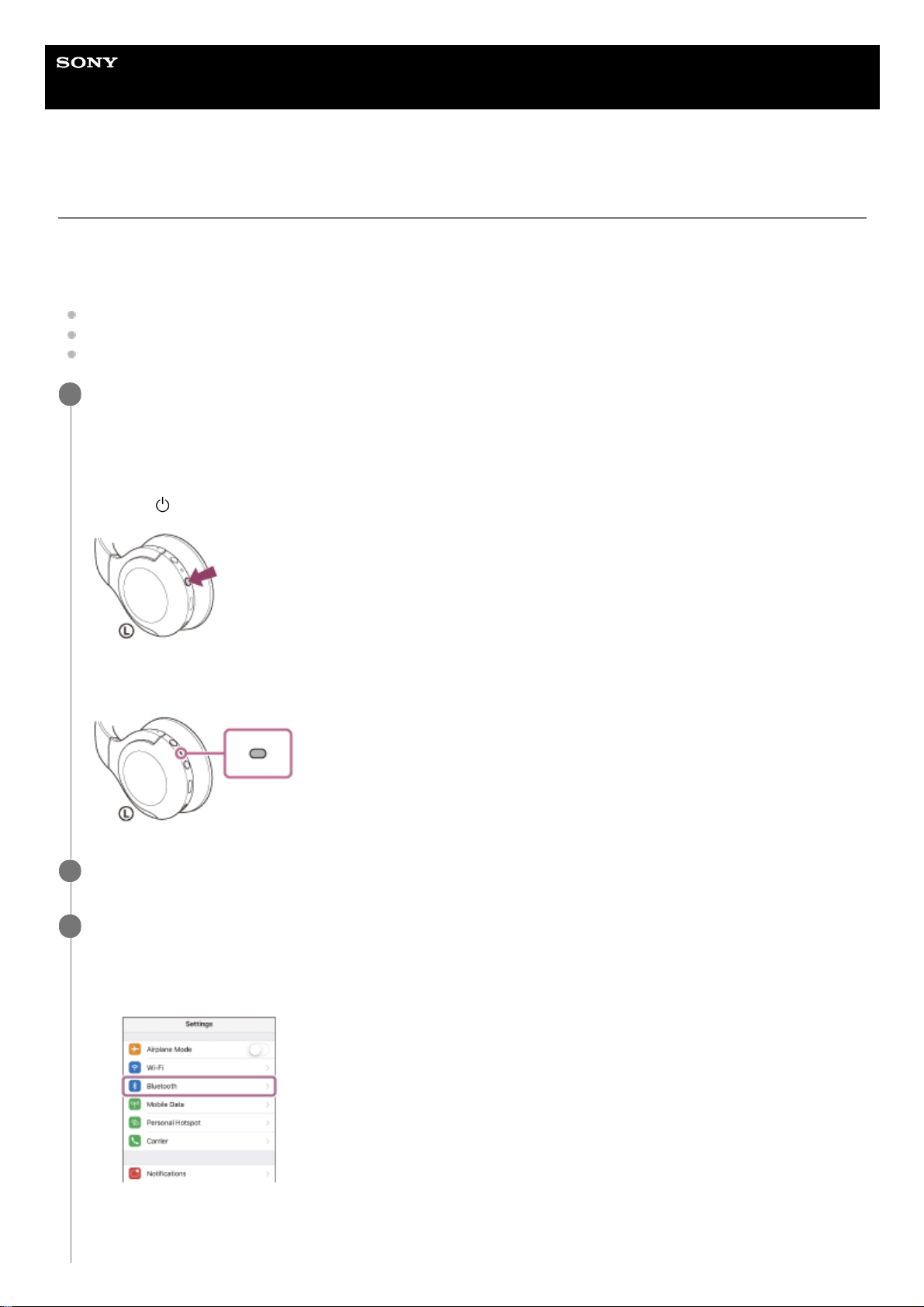
Turn on the headset when you pair the headset with a device for the first time after you bought it or after you
initialized the headset (the headset has no pairing information). The headset enters pairing mode automatically. In
this case, proceed to step 2.
When you pair a second or subsequent device (the headset has pairing information for other devices), press and
hold the
(power) button for about 7 seconds.
Check that the indicator (blue) repeatedly flashes twice in a row. You will hear the voice guidance say, “Bluetooth
pairing”.
1
Unlock the screen of the iPhone if it is locked.
2
Find the headset on the iPhone.
3
Select [Settings].
1.
Touch [Bluetooth].
2.
Touch the switch to turn on the Bluetooth function.
3.
32
Page 33
Hint
The operation above is an example. For more details, refer to the operating instructions supplied with your iPhone.
To delete all Bluetooth pairing information, see “Initializing the headset to restore factory settings”.
Note
When pairing a device, [WH-H810 (h.ear)], [LE_WH-H810 (h.ear)], or both may be displayed on the connecting device. When
both or [WH-H810 (h.ear)] is displayed, select [WH-H810 (h.ear)]; when [LE_WH-H810 (h.ear)] is displayed, select [LE_WH-H810
(h.ear)].
If pairing is not established within 5 minutes, pairing mode is canceled, and the headset turns off. In this case, start the operation
again from step 1.
Once Bluetooth devices are paired, there is no need to pair them again, except in the following cases:
Pairing information has been deleted after repair, etc.
When a 9th device is paired.
The headset can be paired with up to 8 devices. If a new device is paired after 8 devices are already paired, the registration
information of the paired device with the oldest connection date is overwritten with the information for the new device.
When the pairing information for the headset has been deleted from the Bluetooth device.
When the headset is initialized.
All of the pairing information is deleted. In this case, delete the pairing information for the headset from the device and then pair
them again.
The headset can be paired with multiple devices, but can only play music from 1 paired device at a time.
Related Topic
How to make a wireless connection to Bluetooth devices
Connecting to a paired iPhone
Listening to music from a device via Bluetooth connection
Disconnecting Bluetooth connection (after use)
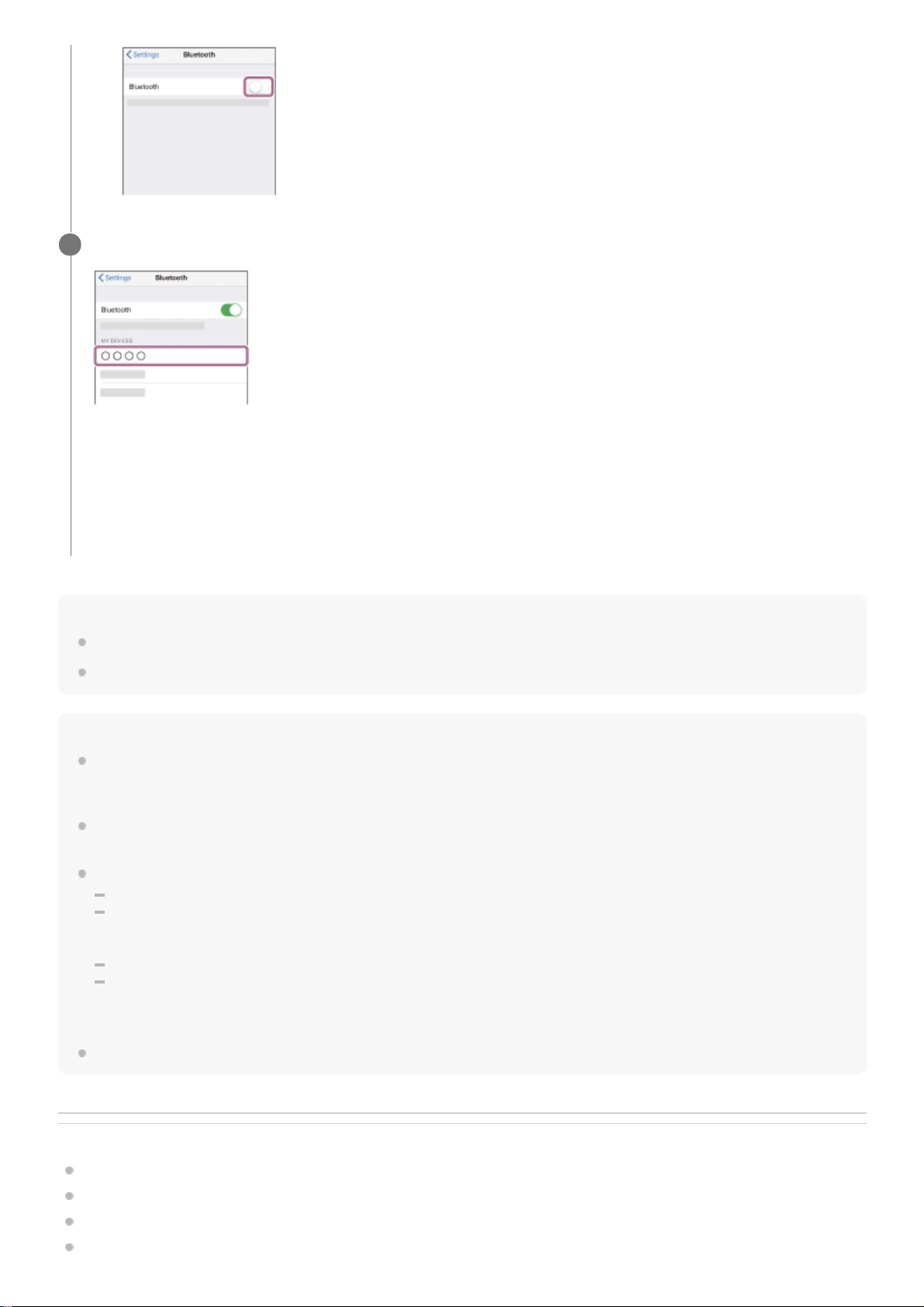
Touch [WH-H810 (h.ear)].
If Passkey (*) input is required, input “0000”.
The headset and iPhone are paired and connected with each other. You will hear the voice guidance say,
“Bluetooth connected”.
If they are not connected, see “Connecting to a paired iPhone ”.
If [WH-H810 (h.ear)] does not appear on the display of the iPhone, try again from the beginning of step 3.
4
A Passkey may be called “Passcode”, “PIN code”, “PIN number”, or “Password”.
*
33
Page 34

Initializing the headset to restore factory settings
5-007-463-21(1) Copyright 2019 Sony Corporation
34
Page 35
Help Guide
Wireless Stereo Headset
h.ear on 3 Mini Wireless (WH-H810)
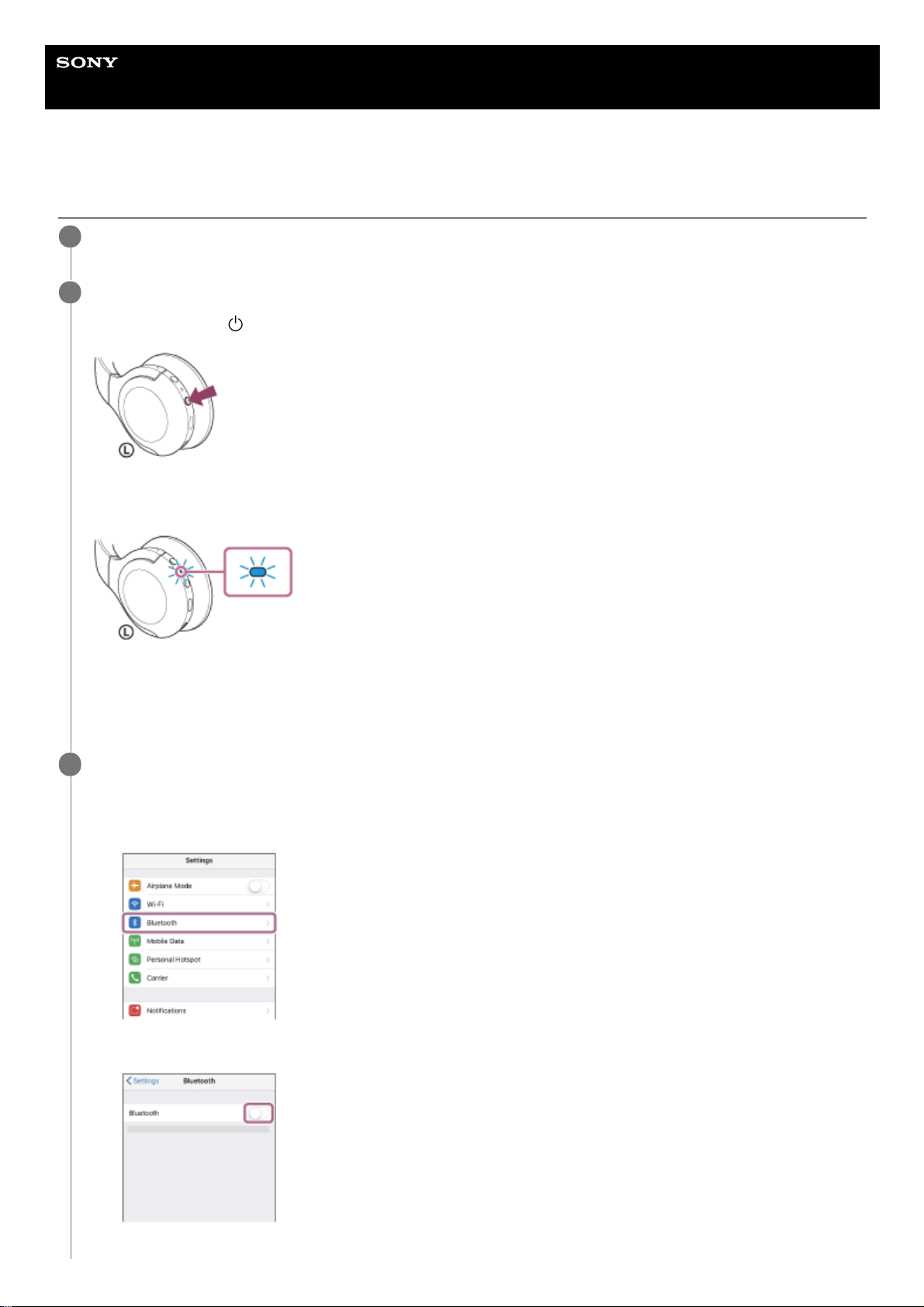
Connecting to a paired iPhone
Unlock the screen of the iPhone if it is locked.
1
Turn on the headset.
Press and hold the
(power) button for about 2 seconds.
You will hear the voice guidance say, “Power on”. Check that the indicator (blue) continues to flash after you release
your finger from the button.
If it has automatically connected to the last connected device, you will hear the voice guidance say, “Bluetooth
connected”.
Check the connection status on the iPhone. If it is not connected, proceed to step 3.
2
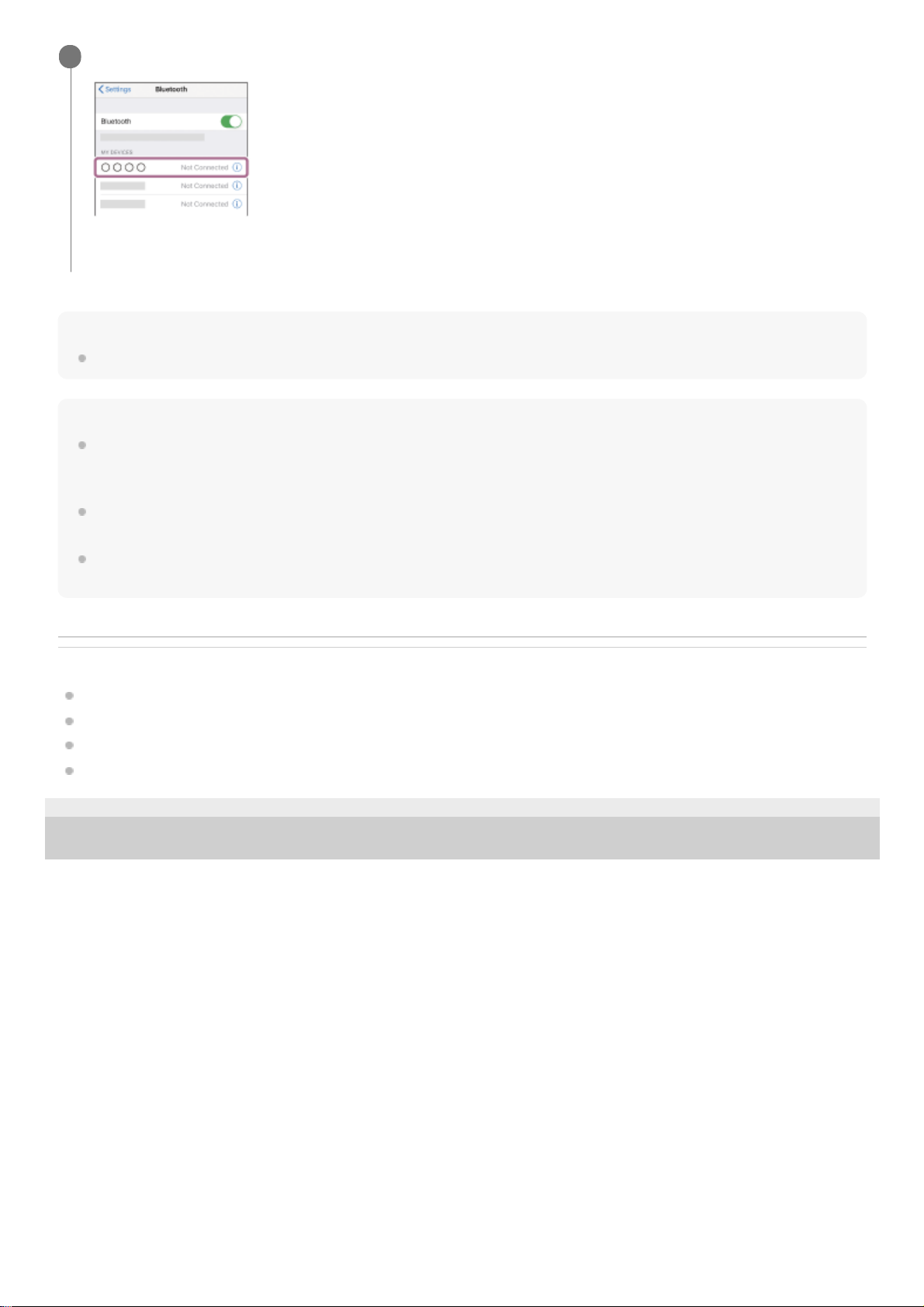
Display the devices paired with the iPhone.
3
Select [Settings].
1.
Touch [Bluetooth].
2.
Touch the switch to turn on the Bluetooth function.
3.
35
Page 36
Hint
The operation above is an example. For more details, refer to the operating instructions supplied with your iPhone.
Note
When connecting, [WH-H810 (h.ear)], [LE_WH-H810 (h.ear)], or both may be displayed on the connecting device. When both or
[WH-H810 (h.ear)] is displayed, select [WH-H810 (h.ear)]; when [LE_WH-H810 (h.ear)] is displayed, select [LE_WH-H810
(h.ear)].
If the last-connected Bluetooth device is placed near the headset, the headset may connect automatically to the device by simply
turning on the headset. In that case, deactivate the Bluetooth function on the last-connected device or turn off the power.
If you cannot connect your iPhone to the headset, delete the headset pairing information on your iPhone and perform the pairing
again. As for the operations on your iPhone, refer to the operating instructions supplied with the iPhone.
Related Topic
How to make a wireless connection to Bluetooth devices
Pairing and connecting with an iPhone
Listening to music from a device via Bluetooth connection
Disconnecting Bluetooth connection (after use)
5-007-463-21(1) Copyright 2019 Sony Corporation
Touch [WH-H810 (h.ear)].
You will hear the voice guidance say, “Bluetooth connected”.
4
36
Page 37
Help Guide
Wireless Stereo Headset
h.ear on 3 Mini Wireless (WH-H810)
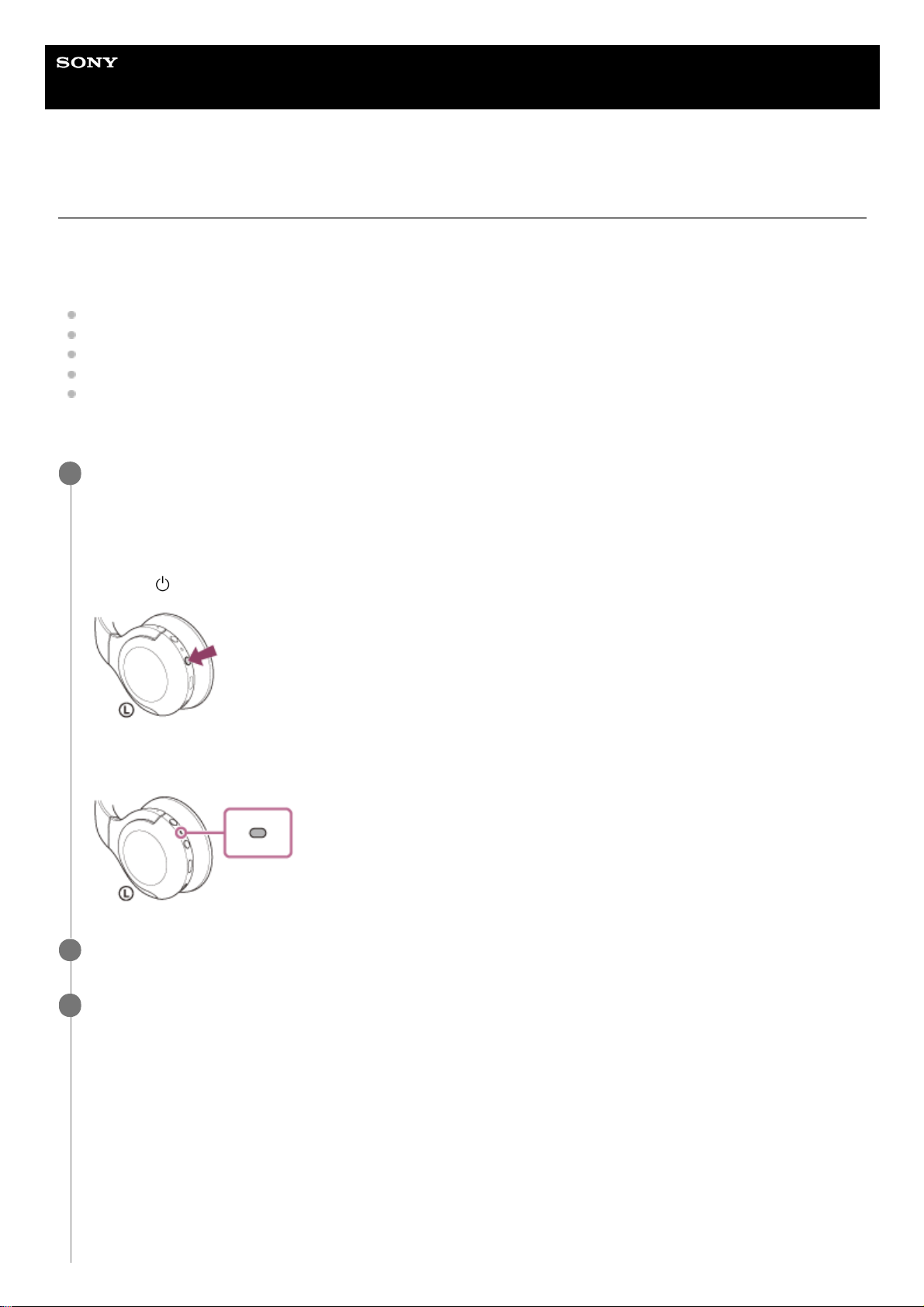
Pairing and connecting with a computer (Windows 10)
The operation to register the device that you wish to connect to is called “pairing”. First, pair a device to use it with the
headset for the first time.
Before starting the operation, make sure of the following:
Your computer has a Bluetooth function that supports music playback connections (A2DP).
The computer is placed within 1 m (3 feet) of the headset.
The headset is charged sufficiently.
The operating instructions of the computer is in hand.
Depending on the computer you are using, the built-in Bluetooth adaptor may need to be turned on. If you do not
know how to turn on the Bluetooth adaptor or are unsure if your computer has a built-in Bluetooth adaptor, refer to
the operating instructions supplied with the computer.
Enter pairing mode on this headset.
Turn on the headset when you pair the headset with a device for the first time after you bought it or after you
initialized the headset (the headset has no pairing information). The headset enters pairing mode automatically. In
this case, proceed to step 2.
When you pair a second or subsequent device (the headset has pairing information for other devices), press and
hold the
(power) button for about 7 seconds.
Check that the indicator (blue) repeatedly flashes twice in a row. You will hear the voice guidance say, “Bluetooth
pairing”.
1
Wake the computer up if the computer is in standby (sleep) or hibernation mode.
2
Register the headset using the computer.
3
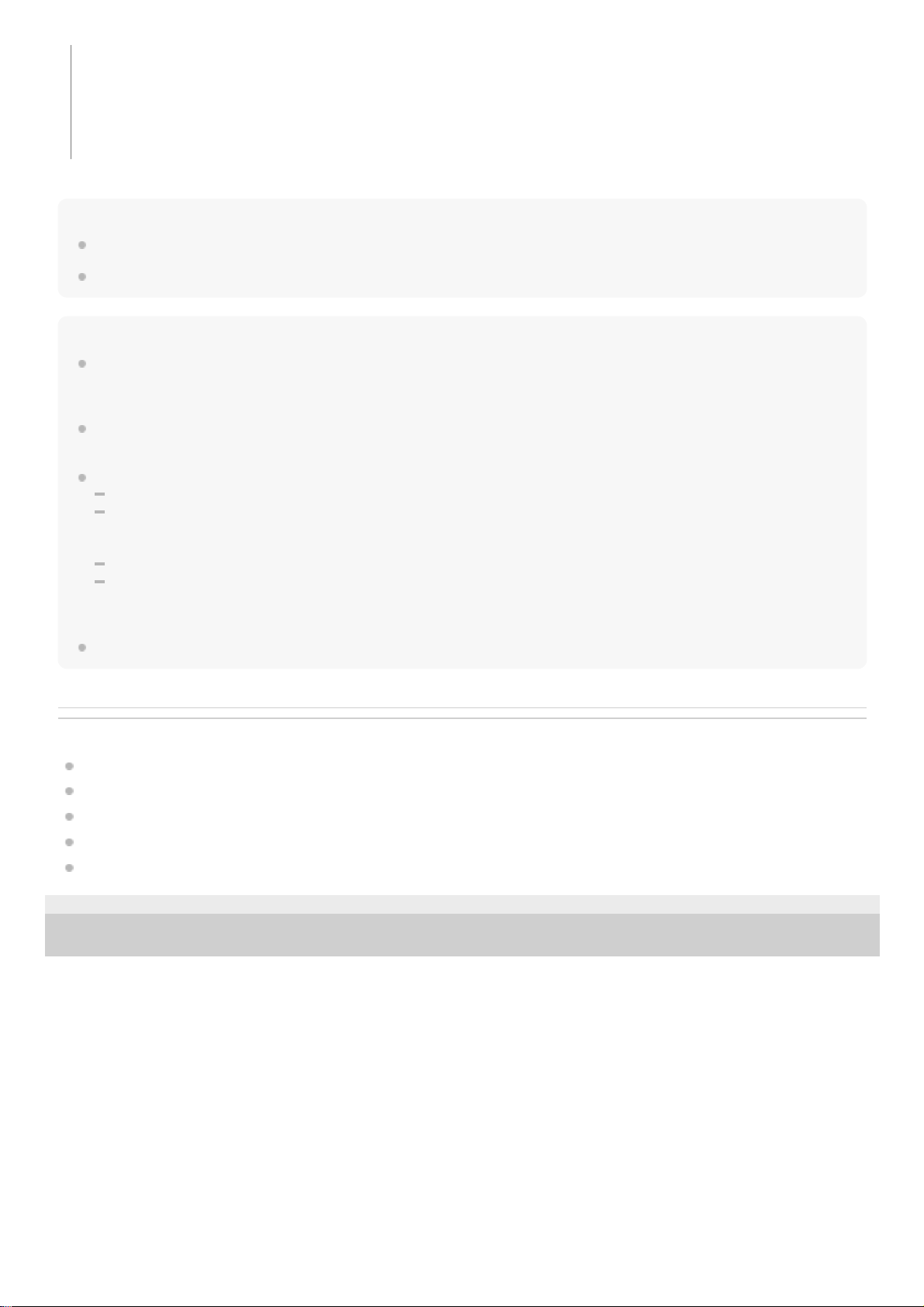
Click the [Start] button, then [Settings].
1.
Click [Devices].
2.
37
Page 38
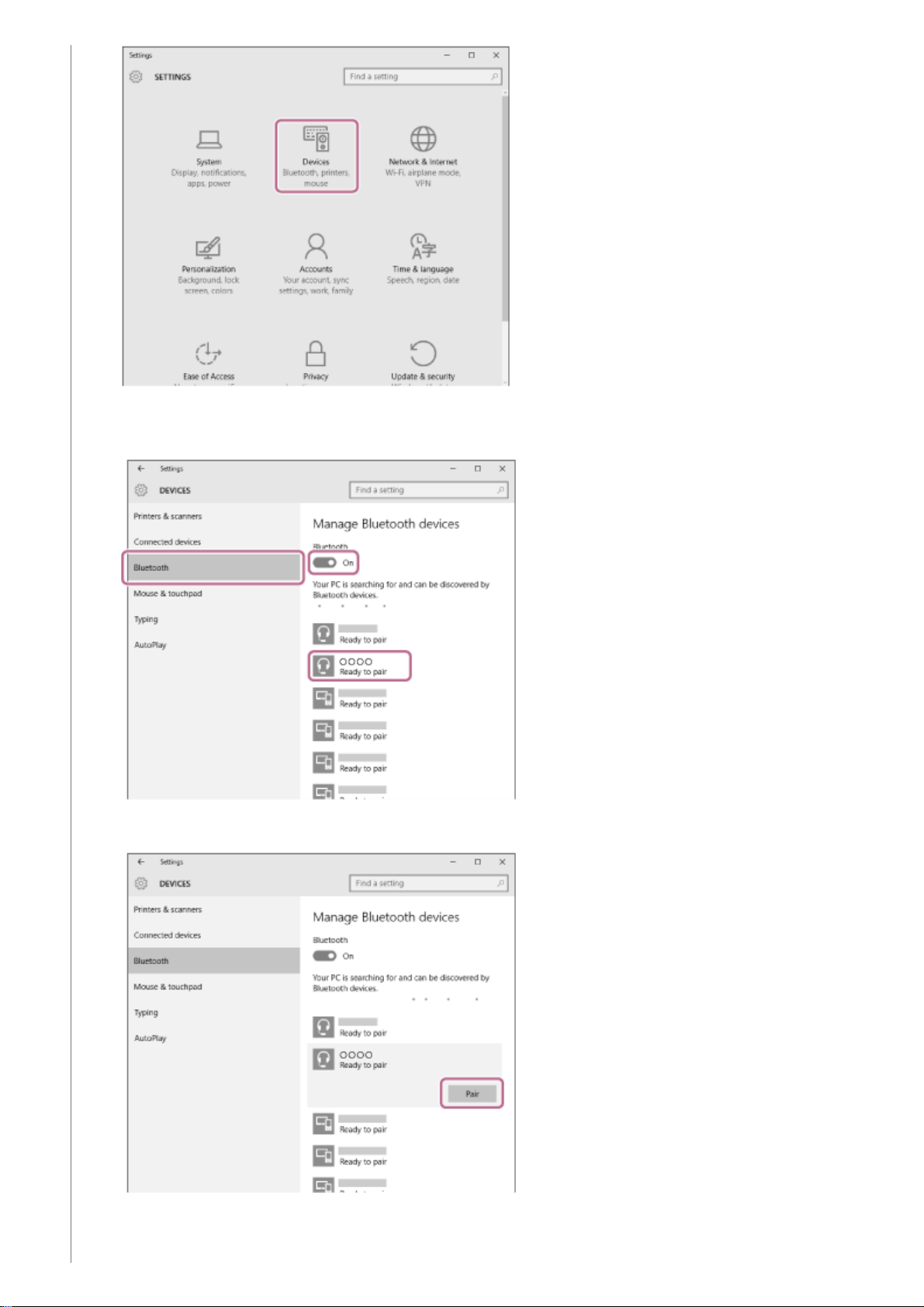
If Passkey (*) input is required, input “0000”.
Click the [Bluetooth] tab, click the [Bluetooth] switch to turn on the Bluetooth function, then select [WH-H810
(h.ear)].
3.
Click [Pair].
4.
38
Page 39
Hint
The operation above is an example. For more details, refer to the operating instructions supplied with the computer.
To delete all Bluetooth pairing information, see “Initializing the headset to restore factory settings”.
Note
When pairing a device, [WH-H810 (h.ear)], [LE_WH-H810 (h.ear)], or both may be displayed on the connecting device. When
both or [WH-H810 (h.ear)] is displayed, select [WH-H810 (h.ear)]; when [LE_WH-H810 (h.ear)] is displayed, select [LE_WH-H810
(h.ear)].
If pairing is not established within 5 minutes, pairing mode is canceled, and the headset turns off. In this case, start the operation
again from step 1.
Once Bluetooth devices are paired, there is no need to pair them again, except in the following cases:
Pairing information has been deleted after repair, etc.
When a 9th device is paired.
The headset can be paired with up to 8 devices. If a new device is paired after 8 devices are already paired, the registration
information of the paired device with the oldest connection date is overwritten with the information for the new device.
When the pairing information for the headset has been deleted from the Bluetooth device.
When the headset is initialized.
All of the pairing information is deleted. In this case, delete the pairing information for the headset from the device and then pair
them again.
The headset can be paired with multiple devices, but can only play music from 1 paired device at a time.
Related Topic
How to make a wireless connection to Bluetooth devices
Connecting to a paired computer (Windows 10)
Listening to music from a device via Bluetooth connection
Disconnecting Bluetooth connection (after use)
Initializing the headset to restore factory settings
5-007-463-21(1) Copyright 2019 Sony Corporation
The headset and computer are paired and connected with each other. You will hear the voice guidance say,
“Bluetooth connected”.
If they are not connected, see “Connecting to a paired computer (Windows 10)”.
If [WH-H810 (h.ear)] does not appear on the computer screen, try again from the beginning of step 3.
A Passkey may be called “Passcode”, “PIN code”, “PIN number”, or “Password”.
*
39
Page 40
Help Guide
Wireless Stereo Headset
h.ear on 3 Mini Wireless (WH-H810)
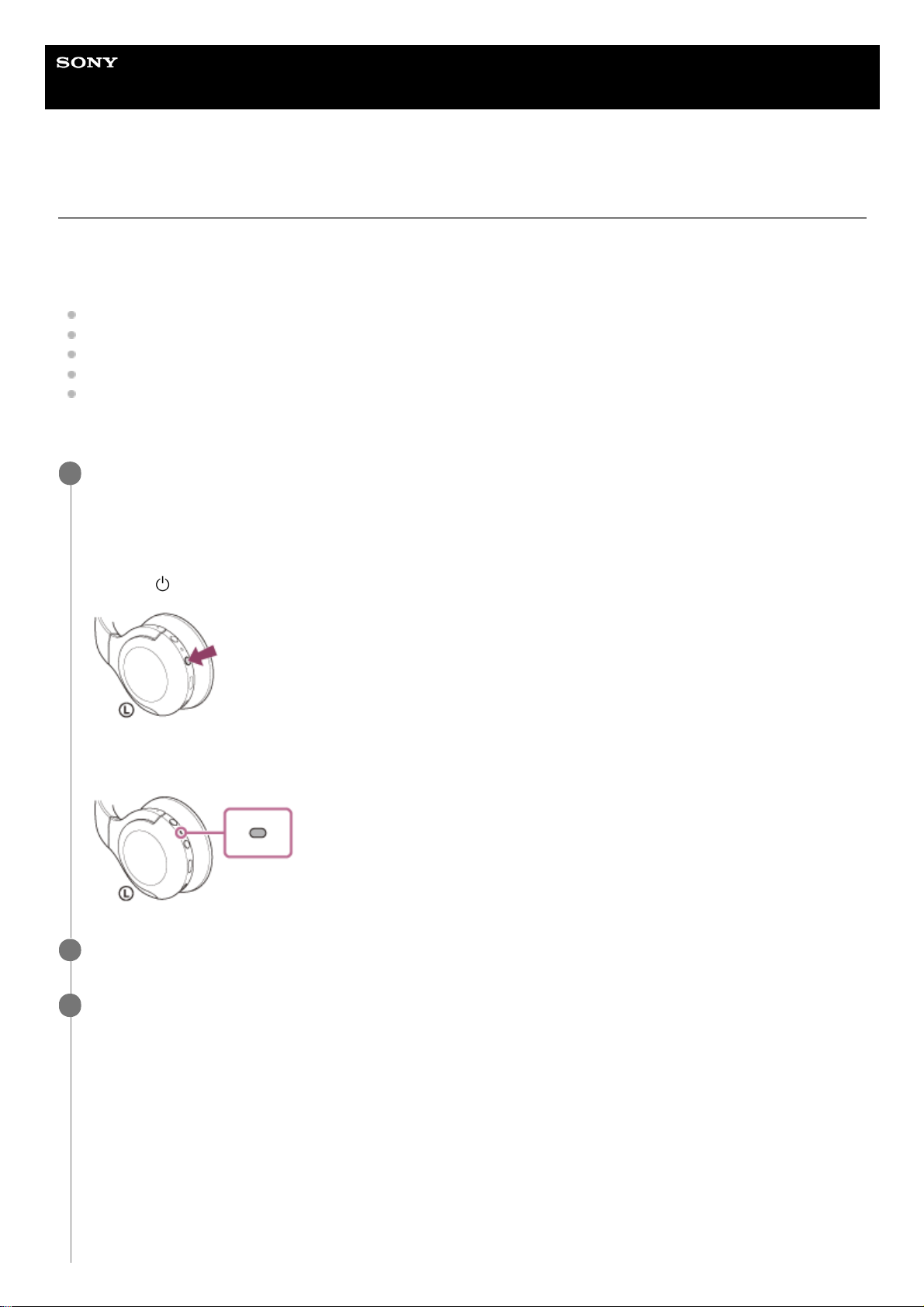
Pairing and connecting with a computer (Windows 8.1)
The operation to register the device that you wish to connect to is called “pairing”. First, pair a device to use it with the
headset for the first time.
Before starting the operation, make sure of the following:
Your computer has a Bluetooth function that supports music playback connections (A2DP).
The computer is placed within 1 m (3 feet) of the headset.
The headset is charged sufficiently.
The operating instructions of the computer is in hand.
Depending on the computer you are using, the built-in Bluetooth adaptor may need to be turned on. If you do not
know how to turn on the Bluetooth adaptor or are unsure if your computer has a built-in Bluetooth adaptor, refer to
the operating instructions supplied with the computer.
Enter pairing mode on this headset.
Turn on the headset when you pair the headset with a device for the first time after you bought it or after you
initialized the headset (the headset has no pairing information). The headset enters pairing mode automatically. In
this case, proceed to step 2.
When you pair a second or subsequent device (the headset has pairing information for other devices), press and
hold the
(power) button for about 7 seconds.
Check that the indicator (blue) repeatedly flashes twice in a row. You will hear the voice guidance say, “Bluetooth
pairing”.
1
Wake the computer up if the computer is in standby (sleep) or hibernation mode.
2
Register the headset using the computer.
3
Move the mouse pointer to the top-right corner of the screen (when using a touch panel, swipe from the right
edge of the screen), then select [Settings] from the Charm Bar.
1.
40
Page 41
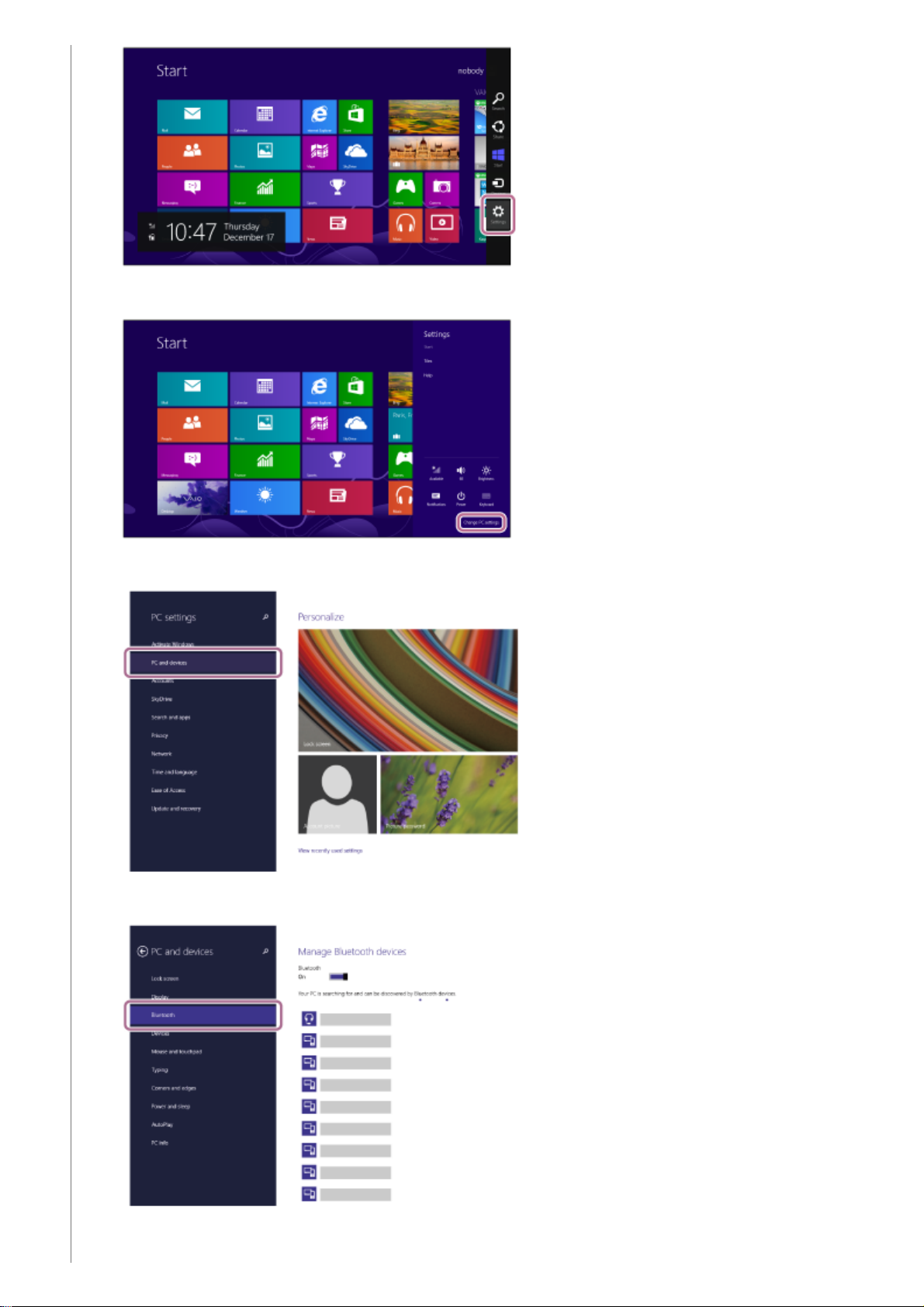
Select [Change PC Settings] of the [Settings] charm.
2.
Select [PC and devices] of [PC Settings].
3.
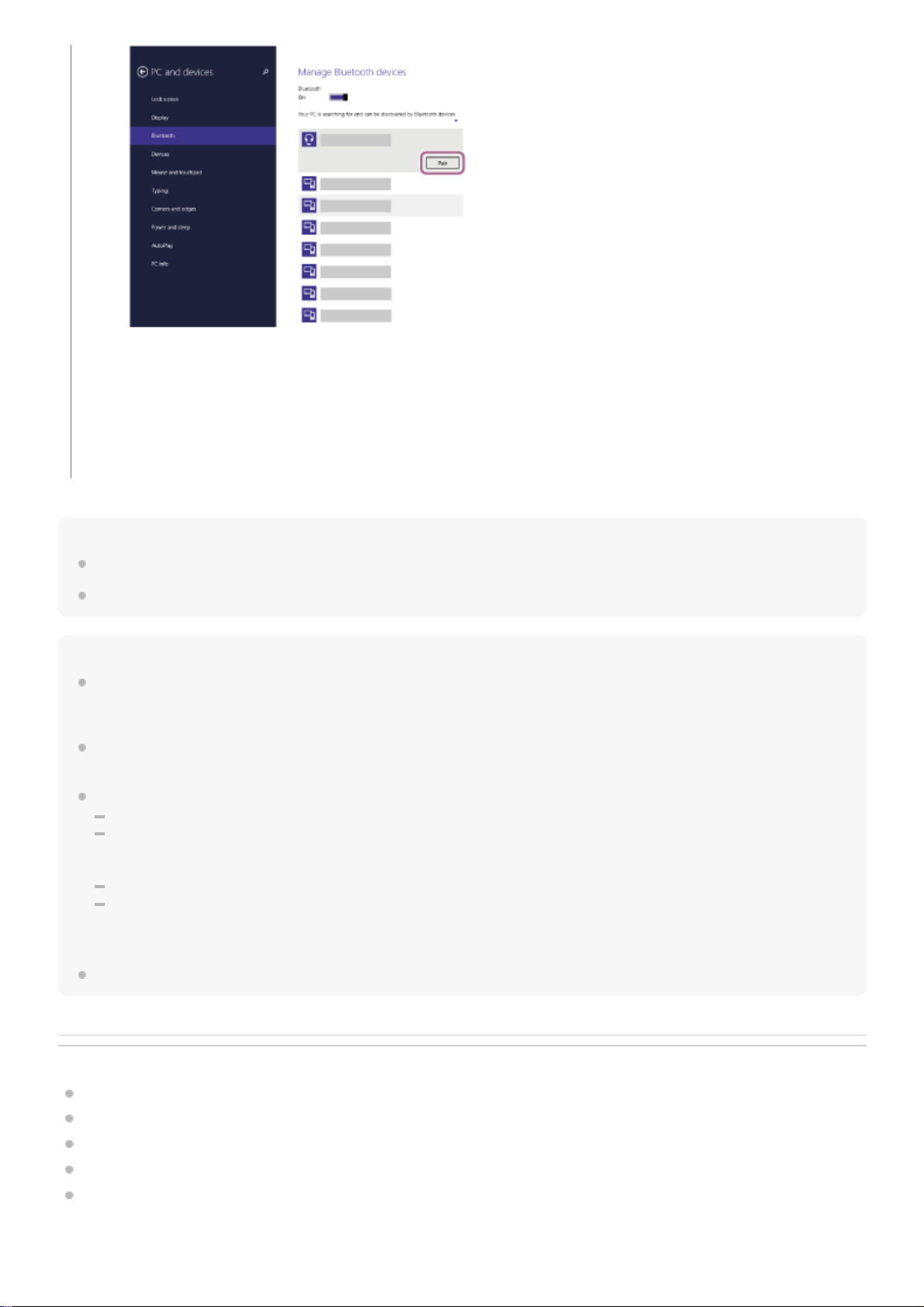
Select [Bluetooth].
4.
Select [WH-H810 (h.ear)], then select [Pair].
5.
41
Page 42
Hint
The operation above is an example. For more details, refer to the operating instructions supplied with the computer.
To delete all Bluetooth pairing information, see “Initializing the headset to restore factory settings”.
Note
When pairing a device, [WH-H810 (h.ear)], [LE_WH-H810 (h.ear)], or both may be displayed on the connecting device. When
both or [WH-H810 (h.ear)] is displayed, select [WH-H810 (h.ear)]; when [LE_WH-H810 (h.ear)] is displayed, select [LE_WH-H810
(h.ear)].
If pairing is not established within 5 minutes, pairing mode is canceled, and the headset turns off. In this case, start the operation
again from step 1.
Once Bluetooth devices are paired, there is no need to pair them again, except in the following cases:
Pairing information has been deleted after repair, etc.
When a 9th device is paired.
The headset can be paired with up to 8 devices. If a new device is paired after 8 devices are already paired, the registration
information of the paired device with the oldest connection date is overwritten with the information for the new device.
When the pairing information for the headset has been deleted from the Bluetooth device.
When the headset is initialized.
All of the pairing information is deleted. In this case, delete the pairing information for the headset from the device and then pair
them again.
The headset can be paired with multiple devices, but can only play music from 1 paired device at a time.
Related Topic
How to make a wireless connection to Bluetooth devices
Connecting to a paired computer (Windows 8.1)
Listening to music from a device via Bluetooth connection
Disconnecting Bluetooth connection (after use)
Initializing the headset to restore factory settings
If Passkey (*) input is required, input “0000”.
The headset and computer are paired and connected with each other. You will hear the voice guidance say,
“Bluetooth connected”.
If they are not connected, see “Connecting to a paired computer (Windows 8.1)”.
If [WH-H810 (h.ear)] does not appear on the computer screen, try again from the beginning of step 3.
A Passkey may be called “Passcode”, “PIN code”, “PIN number”, or “Password”.
*
42
Page 43

5-007-463-21(1) Copyright 2019 Sony Corporation
43
Page 44
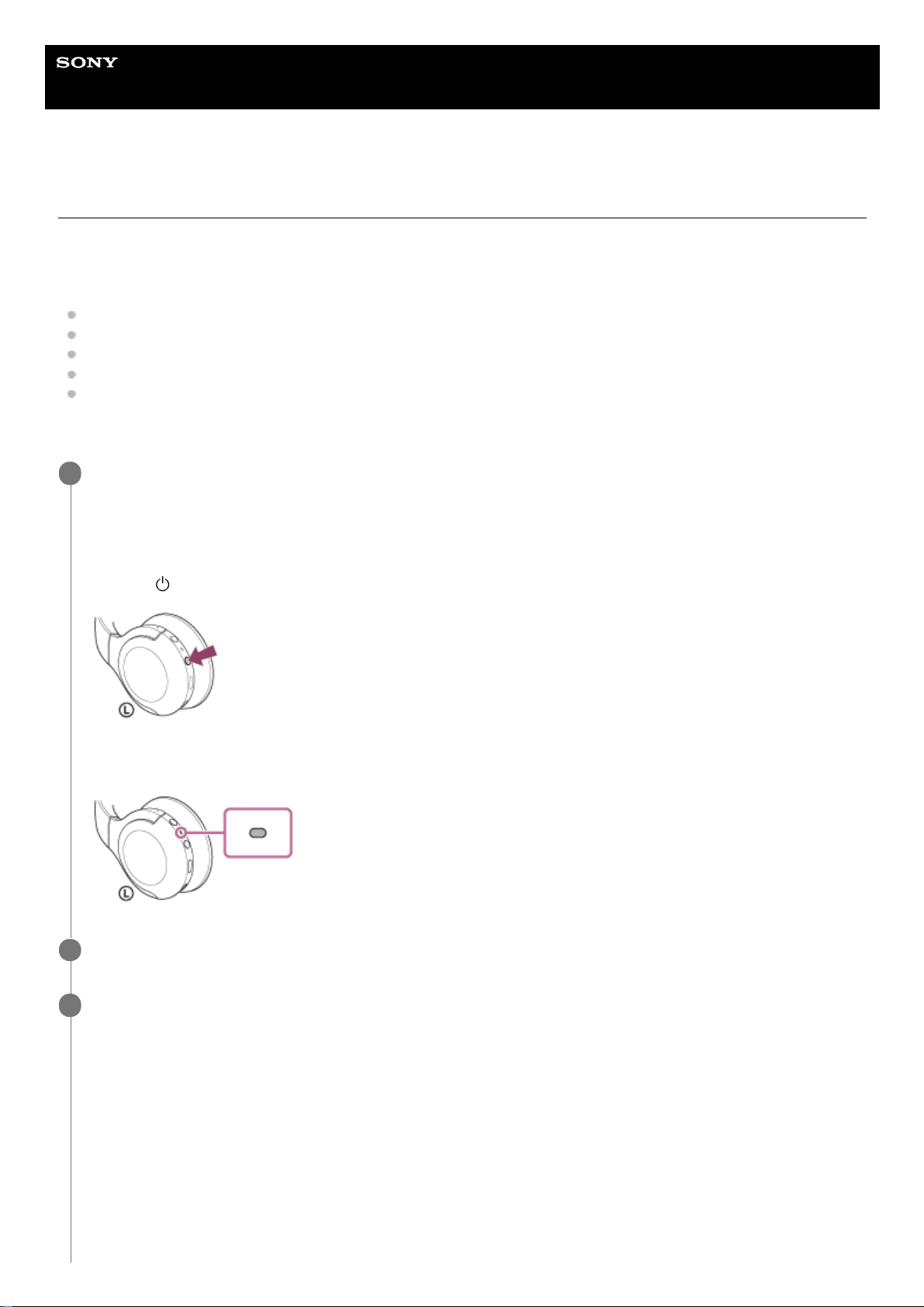
Help Guide
Wireless Stereo Headset
h.ear on 3 Mini Wireless (WH-H810)
Pairing and connecting with a computer (Windows 7)
The operation to register the device that you wish to connect to is called “pairing”. First, pair a device to use it with the
headset for the first time.
Before starting the operation, make sure of the following:
Your computer has a Bluetooth function that supports music playback connections (A2DP).
The computer is placed within 1 m (3 feet) of the headset.
The headset is charged sufficiently.
The operating instructions of the computer is in hand.
Depending on the computer you are using, the built-in Bluetooth adaptor may need to be turned on. If you do not
know how to turn on the Bluetooth adaptor or are unsure if your computer has a built-in Bluetooth adaptor, refer to
the operating instructions supplied with the computer.
Enter pairing mode on this headset.
Turn on the headset when you pair the headset with a device for the first time after you bought it or after you
initialized the headset (the headset has no pairing information). The headset enters pairing mode automatically. In
this case, proceed to step 2.
When you pair a second or subsequent device (the headset has pairing information for other devices), press and
hold the
(power) button for about 7 seconds.
Check that the indicator (blue) repeatedly flashes twice in a row. You will hear the voice guidance say, “Bluetooth
pairing”.
1
Wake the computer up if the computer is in standby (sleep) or hibernation mode.
2
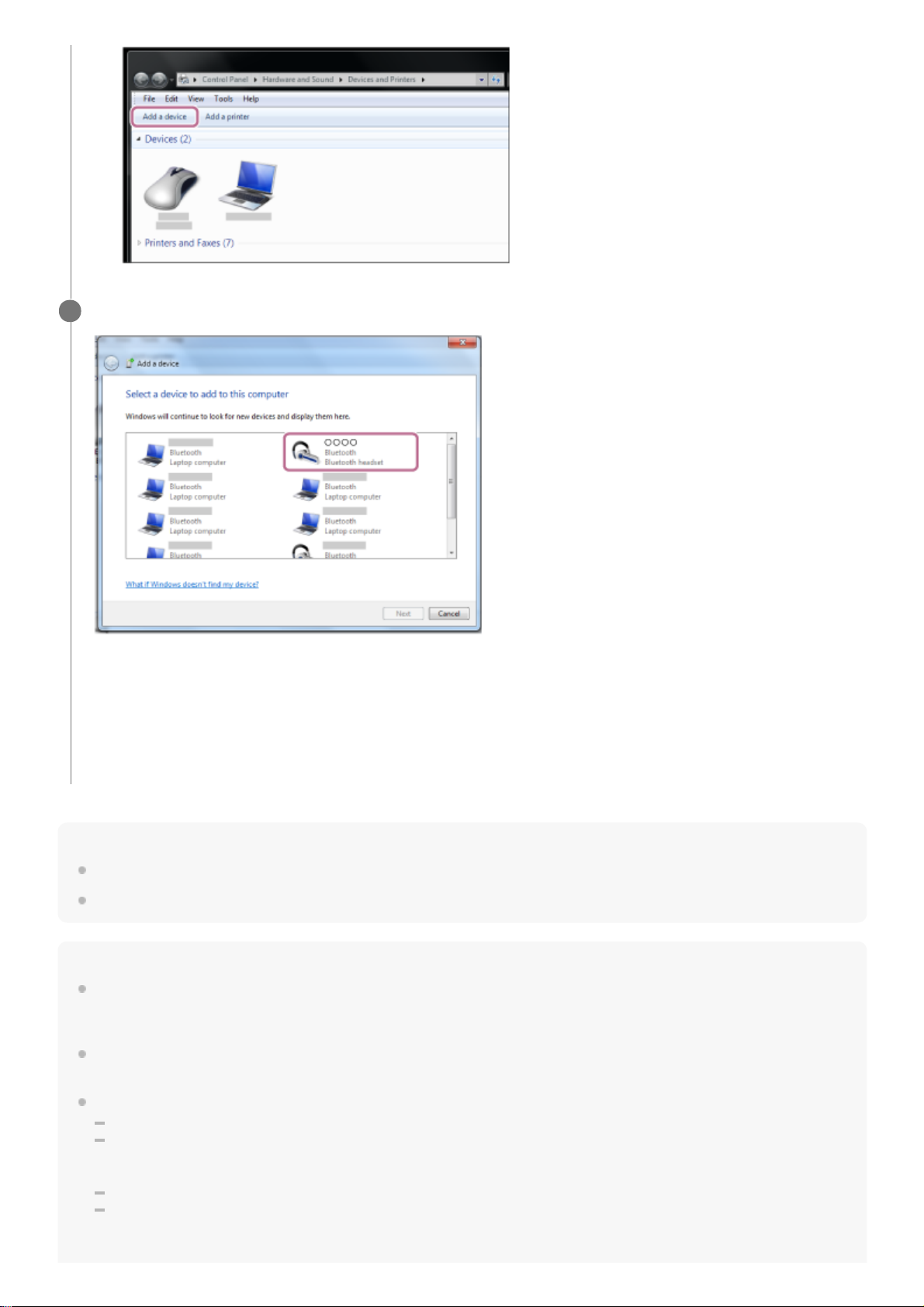
Find the headset using the computer.
3
Click the [Start] button, then [Devices and Printers].
1.
Click [Add a device].
2.
44
Page 45
Hint
The operation above is an example. For more details, refer to the operating instructions supplied with the computer.
To delete all Bluetooth pairing information, see “Initializing the headset to restore factory settings”.
Note
When pairing a device, [WH-H810 (h.ear)], [LE_WH-H810 (h.ear)], or both may be displayed on the connecting device. When
both or [WH-H810 (h.ear)] is displayed, select [WH-H810 (h.ear)]; when [LE_WH-H810 (h.ear)] is displayed, select [LE_WH-H810
(h.ear)].
If pairing is not established within 5 minutes, pairing mode is canceled, and the headset turns off. In this case, start the operation
again from step 1.
Once Bluetooth devices are paired, there is no need to pair them again, except in the following cases:
Pairing information has been deleted after repair, etc.
When a 9th device is paired.
The headset can be paired with up to 8 devices. If a new device is paired after 8 devices are already paired, the registration
information of the paired device with the oldest connection date is overwritten with the information for the new device.
When the pairing information for the headset has been deleted from the Bluetooth device.
When the headset is initialized.
All of the pairing information is deleted. In this case, delete the pairing information for the headset from the device and then pair
them again.
Select [WH-H810 (h.ear)], then click [Next].
If Passkey (*) input is required, input “0000”.
The headset and computer are paired and connected with each other. You will hear the voice guidance say,
“Bluetooth connected”.
If they are not connected, see “Connecting to a paired computer (Windows 7)”.
If [WH-H810 (h.ear)] does not appear on the computer screen, try again from the beginning of step 3.
4
A Passkey may be called “Passcode”, “PIN code”, “PIN number”, or “Password”.
*
45
Page 46

The headset can be paired with multiple devices, but can only play music from 1 paired device at a time.
Related Topic
How to make a wireless connection to Bluetooth devices
Connecting to a paired computer (Windows 7)
Listening to music from a device via Bluetooth connection
Disconnecting Bluetooth connection (after use)
Initializing the headset to restore factory settings
5-007-463-21(1) Copyright 2019 Sony Corporation
46
Page 47
Help Guide
Wireless Stereo Headset
h.ear on 3 Mini Wireless (WH-H810)
Pairing and connecting with a computer (Mac)
The operation to register the device that you wish to connect to is called “pairing”. First, pair a device to use it with the
headset for the first time.
Compatible OS
macOS (version 10.10 or later)
Before starting the operation, make sure of the following:
Your computer has a Bluetooth function that supports music playback connections (A2DP).
The computer is placed within 1 m (3 feet) of the headset.
The headset is charged sufficiently.
The operating instructions of the computer is in hand.
Depending on the computer you are using, the built-in Bluetooth adaptor may need to be turned on. If you do not
know how to turn on the Bluetooth adaptor or are unsure if your computer has a built-in Bluetooth adaptor, refer to
the operating instructions supplied with the computer.
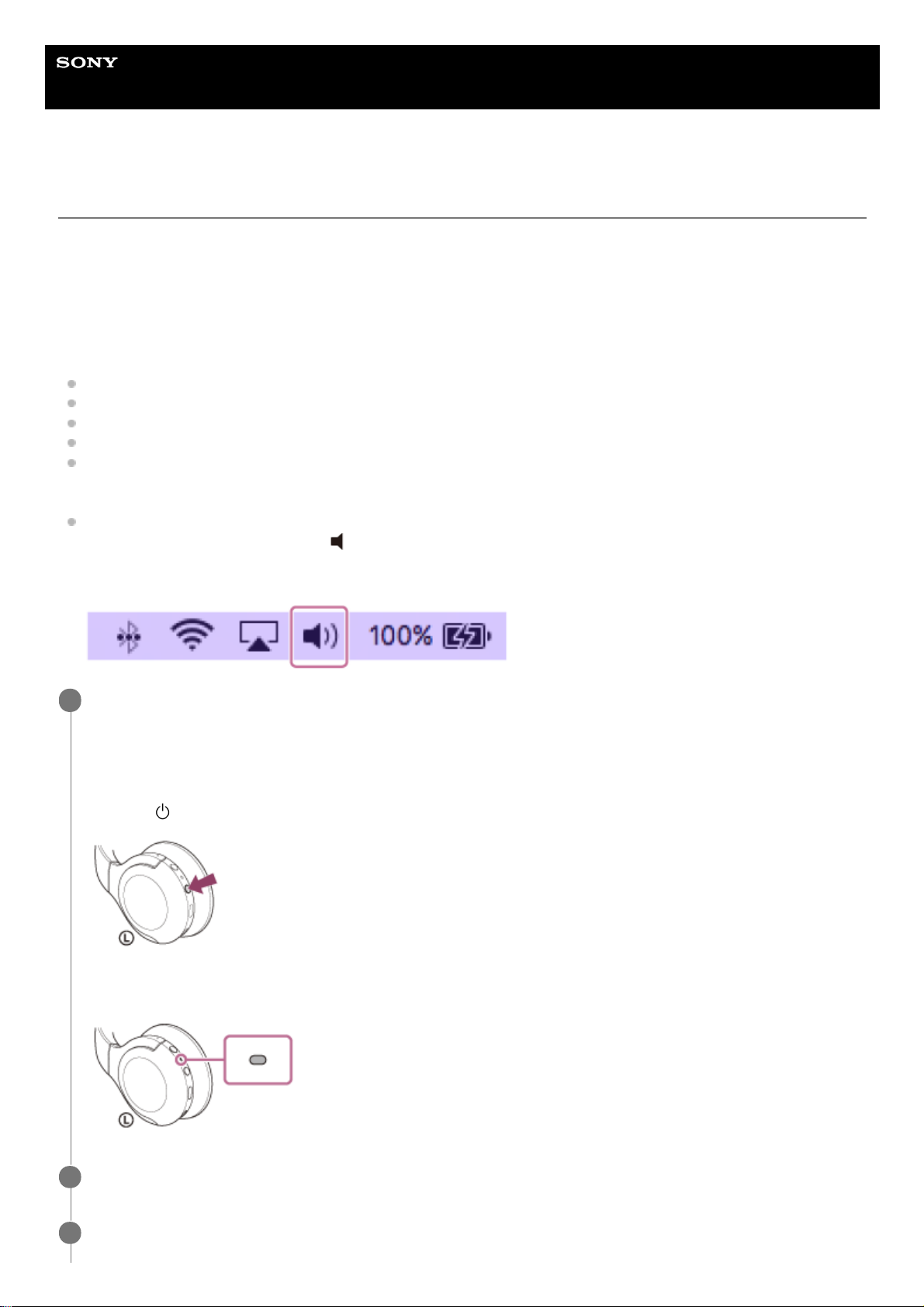
Set the computer speaker to the ON mode.
If the computer speaker is set to the
“OFF” mode, no sound is heard from the headset.
Computer speaker in the ON mode
Enter pairing mode on this headset.
Turn on the headset when you pair the headset with a device for the first time after you bought it or after you
initialized the headset (the headset has no pairing information). The headset enters pairing mode automatically. In
this case, proceed to step 2.
When you pair a second or subsequent device (the headset has pairing information for other devices), press and
hold the
(power) button for about 7 seconds.
Check that the indicator (blue) repeatedly flashes twice in a row. You will hear the voice guidance say, “Bluetooth
pairing”.
1
Wake the computer up if the computer is in standby (sleep) or hibernation mode.
2
Register the headset using the computer.
3
47
Page 48
Hint
The operation above is an example. For more details, refer to the operating instructions supplied with the computer.
To delete all Bluetooth pairing information, see “Initializing the headset to restore factory settings”.
If Passkey (*) input is required, input “0000”.
The headset and computer are paired and connected with each other. You will hear the voice guidance say,
“Bluetooth connected”.
If they are not connected, see “Connecting to a paired computer (Mac)”.
If [WH-H810 (h.ear)] does not appear on the computer screen, try again from the beginning of step 3.
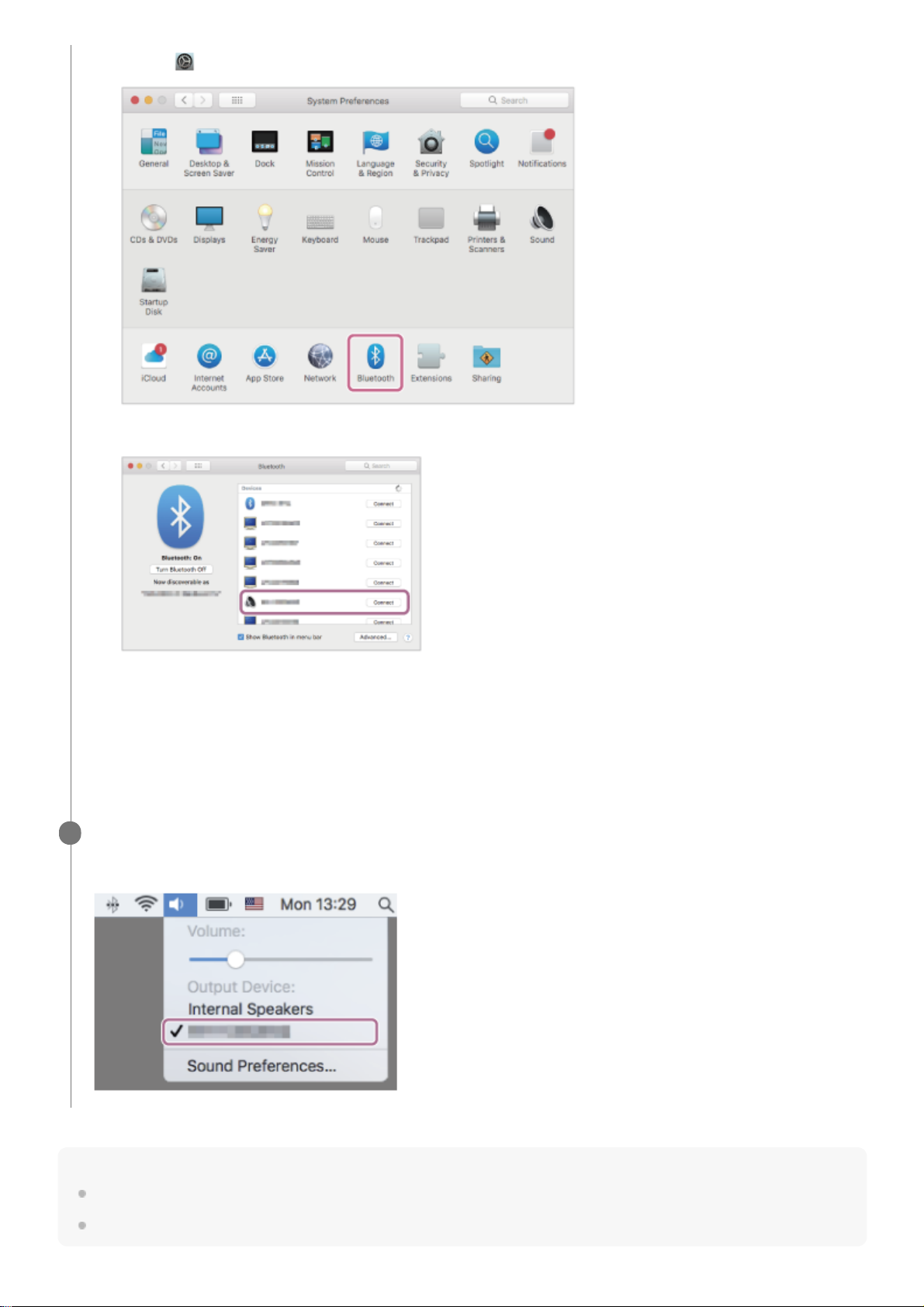
Select [ (System Preferences)] - [Bluetooth] from the task bar in the lower right part of the screen.
1.
Select [WH-H810 (h.ear)] from the [Bluetooth] screen and click [Connect].
2.
A Passkey may be called “Passcode”, “PIN code”, “PIN number”, or “Password”.
*
Click the speaker icon in the upper right part of the screen and select [WH-H810 (h.ear)].
Now you are ready to enjoy music playback on your computer.
4
48
Page 49

Note
When pairing a device, [WH-H810 (h.ear)], [LE_WH-H810 (h.ear)], or both may be displayed on the connecting device. When
both or [WH-H810 (h.ear)] is displayed, select [WH-H810 (h.ear)]; when [LE_WH-H810 (h.ear)] is displayed, select [LE_WH-H810
(h.ear)].
If pairing is not established within 5 minutes, pairing mode is canceled, and the headset turns off. In this case, start the operation
again from step 1.
Once Bluetooth devices are paired, there is no need to pair them again, except in the following cases:
Pairing information has been deleted after repair, etc.
When a 9th device is paired.
The headset can be paired with up to 8 devices. If a new device is paired after 8 devices are already paired, the registration
information of the paired device with the oldest connection date is overwritten with the information for the new device.
When the pairing information for the headset has been deleted from the Bluetooth device.
When the headset is initialized.
All of the pairing information is deleted. In this case, delete the pairing information for the headset from the device and then pair
them again.
The headset can be paired with multiple devices, but can only play music from 1 paired device at a time.
Related Topic
How to make a wireless connection to Bluetooth devices
Connecting to a paired computer (Mac)
Listening to music from a device via Bluetooth connection
Disconnecting Bluetooth connection (after use)
Initializing the headset to restore factory settings
5-007-463-21(1) Copyright 2019 Sony Corporation
49
Page 50
Help Guide
Wireless Stereo Headset
h.ear on 3 Mini Wireless (WH-H810)
Connecting to a paired computer (Windows 10)
Before starting the operation, make sure of the following:
Depending on the computer you are using, the built-in Bluetooth adaptor may need to be turned on. If you do not
know how to turn on the Bluetooth adaptor or are unsure if your computer has a built-in Bluetooth adaptor, refer to
the operating instructions supplied with the computer.
Wake the computer up if the computer is in standby (sleep) or hibernation mode.
1
Turn on the headset.
Press and hold the
(power) button for about 2 seconds.
You will hear the voice guidance say, “Power on”. Check that the indicator (blue) continues to flash after you release
your finger from the button.
If it has automatically connected to the last connected device, you will hear the voice guidance say, “Bluetooth
connected”.
Check the connection status on the computer. If it is not connected, proceed to step 3.
2
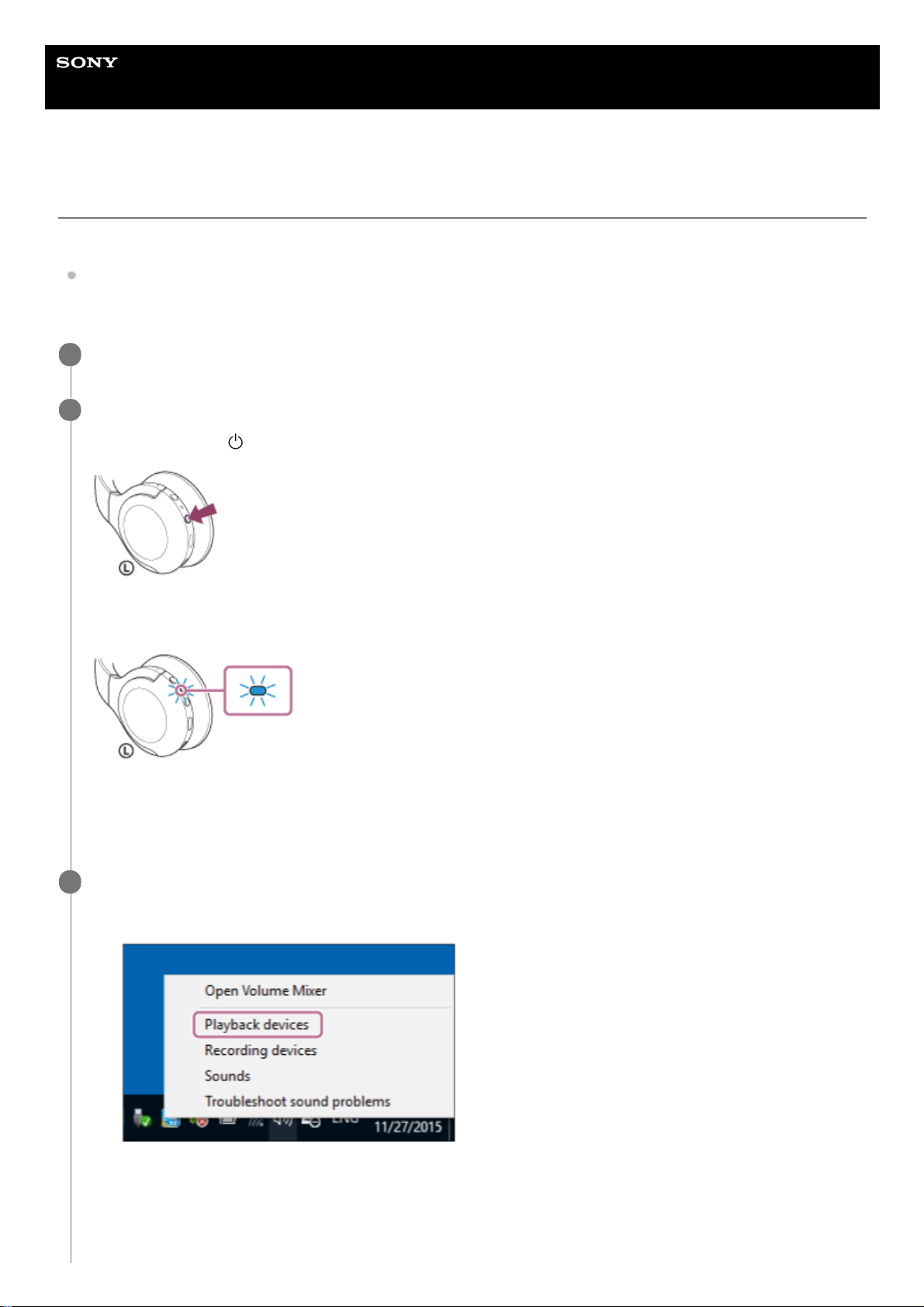
Select the headset using the computer.
3
Right-click the speaker icon on the windows toolbar, then click [Playback devices].
1.
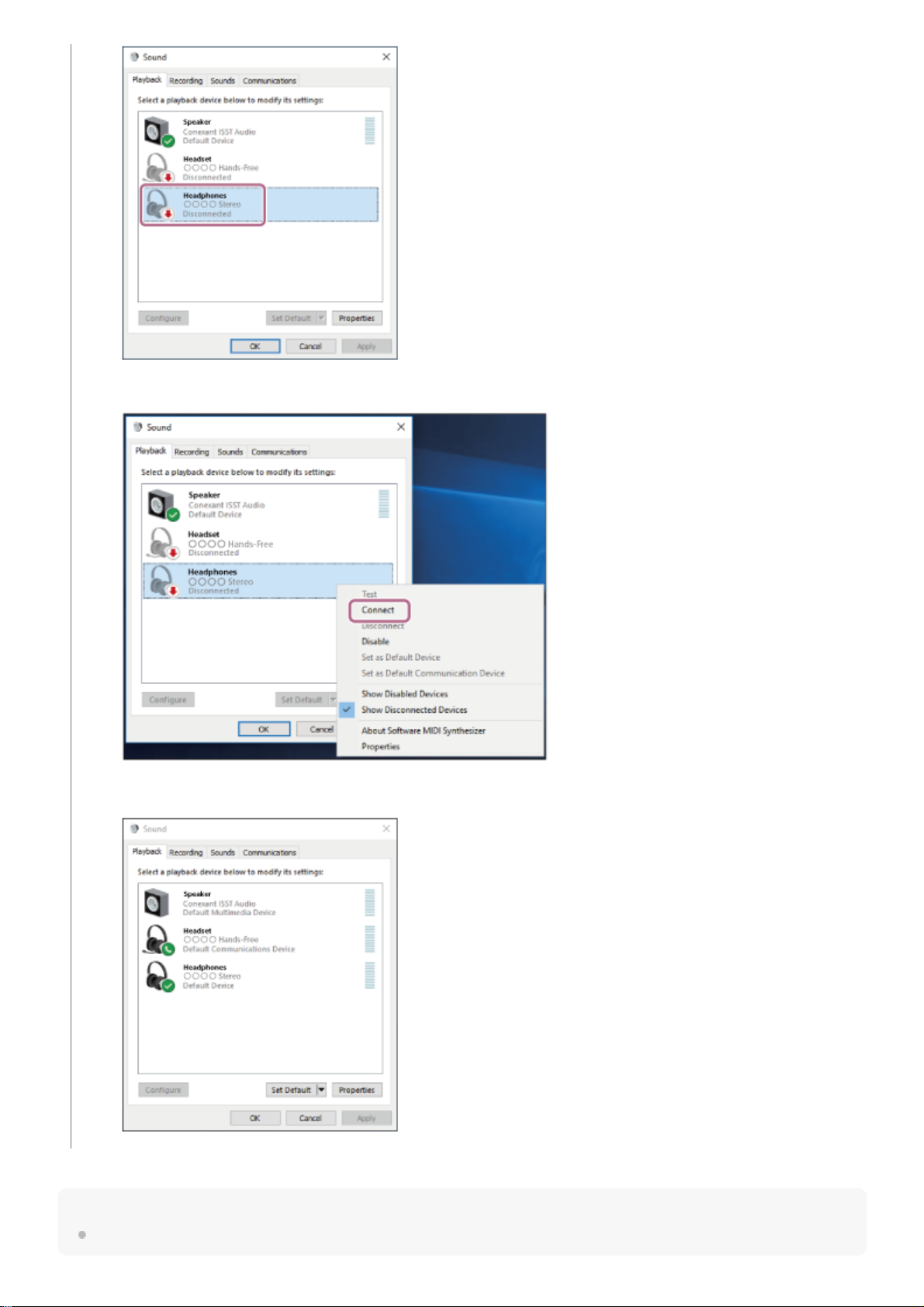
Right-click [WH-H810 (h.ear)].
If [WH-H810 (h.ear)] is not displayed on the [Sound] screen, right-click on the [Sound] screen, then select
[Show Disconnected Devices].
2.
50
Page 51
Hint
The operation above is an example. For more details, refer to the operating instructions supplied with the computer.
Select [Connect] from the displayed menu.
The connection is established. You will hear the voice guidance say, “Bluetooth connected”.
3.
51
Page 52

Note
When connecting, [WH-H810 (h.ear)], [LE_WH-H810 (h.ear)], or both may be displayed on the connecting device. When both or
[WH-H810 (h.ear)] is displayed, select [WH-H810 (h.ear)]; when [LE_WH-H810 (h.ear)] is displayed, select [LE_WH-H810
(h.ear)].
If the music playback sound quality is poor, check that the A2DP function which supports music playback connections is enabled
in the computer settings. For more details, refer to the operating instructions supplied with the computer.
If the last-connected Bluetooth device is placed near the headset, the headset may connect automatically to the device by simply
turning on the headset. In that case, deactivate the Bluetooth function on the last-connected device or turn off the power.
If you cannot connect your computer to the headset, delete the headset pairing information on your computer and perform the
pairing again. For information on how to establish it on your computer, refer to the operating instructions supplied with the
computer.
Related Topic
How to make a wireless connection to Bluetooth devices
Pairing and connecting with a computer (Windows 10)
Listening to music from a device via Bluetooth connection
Disconnecting Bluetooth connection (after use)
5-007-463-21(1) Copyright 2019 Sony Corporation
52
Page 53
Help Guide
Wireless Stereo Headset
h.ear on 3 Mini Wireless (WH-H810)
Connecting to a paired computer (Windows 8.1)
Before starting the operation, make sure of the following:
Depending on the computer you are using, the built-in Bluetooth adaptor may need to be turned on. If you do not
know how to turn on the Bluetooth adaptor or are unsure if your computer has a built-in Bluetooth adaptor, refer to
the operating instructions supplied with the computer.
Wake the computer up if the computer is in standby (sleep) or hibernation mode.
1
Turn on the headset.
Press and hold the
(power) button for about 2 seconds.
You will hear the voice guidance say, “Power on”. Check that the indicator (blue) continues to flash after you release
your finger from the button.
If it has automatically connected to the last connected device, you will hear the voice guidance say, “Bluetooth
connected”.
Check the connection status on the computer. If it is not connected, proceed to step 3.
2
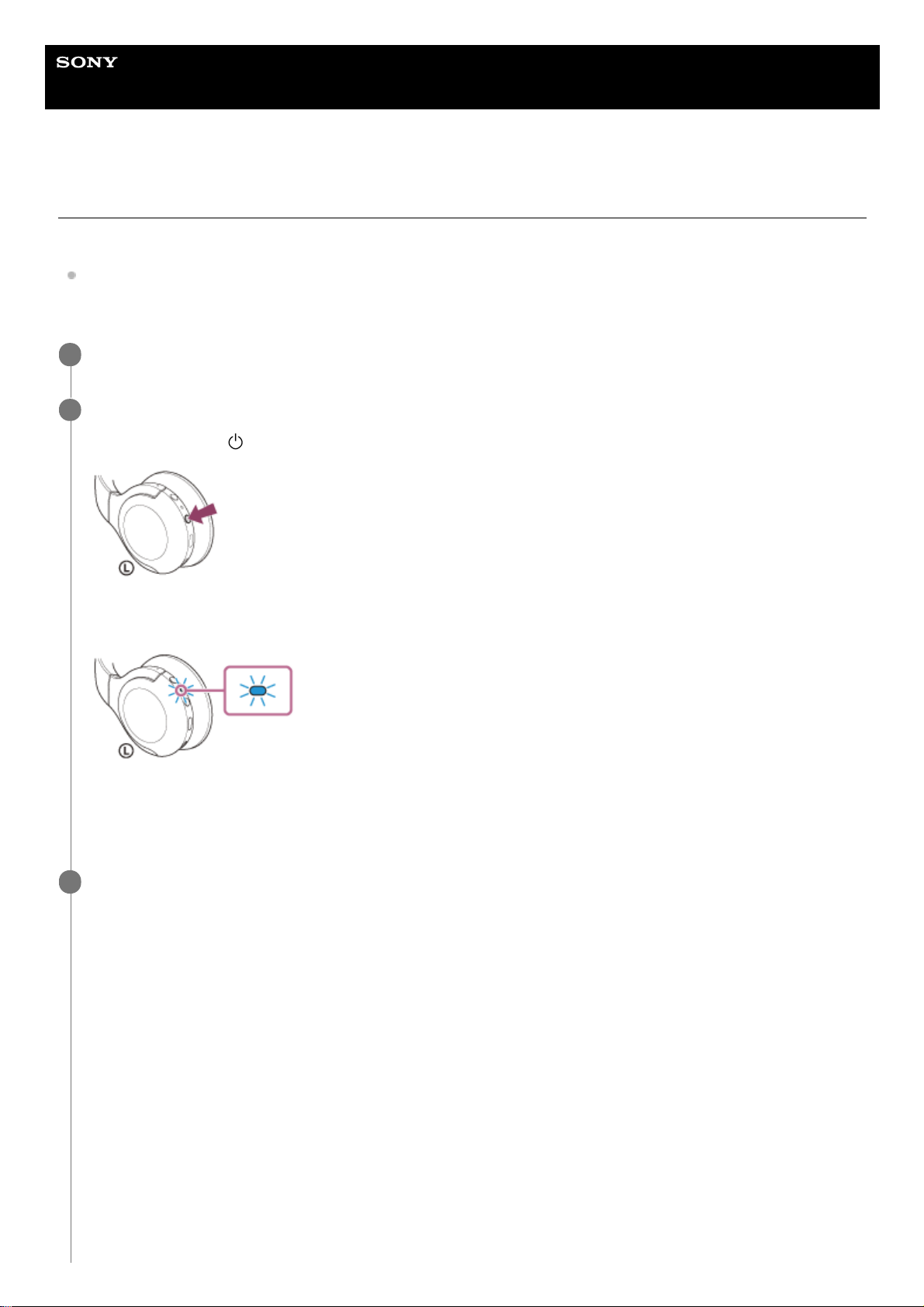
Select the headset using the computer.
3
Select [Desktop] on the Start screen.
1.
Right-click the [Start] button, then select [Control Panel] from the pop-up menu.
2.
Select [Hardware and Sound], then [Sound].
3.
53
Page 54
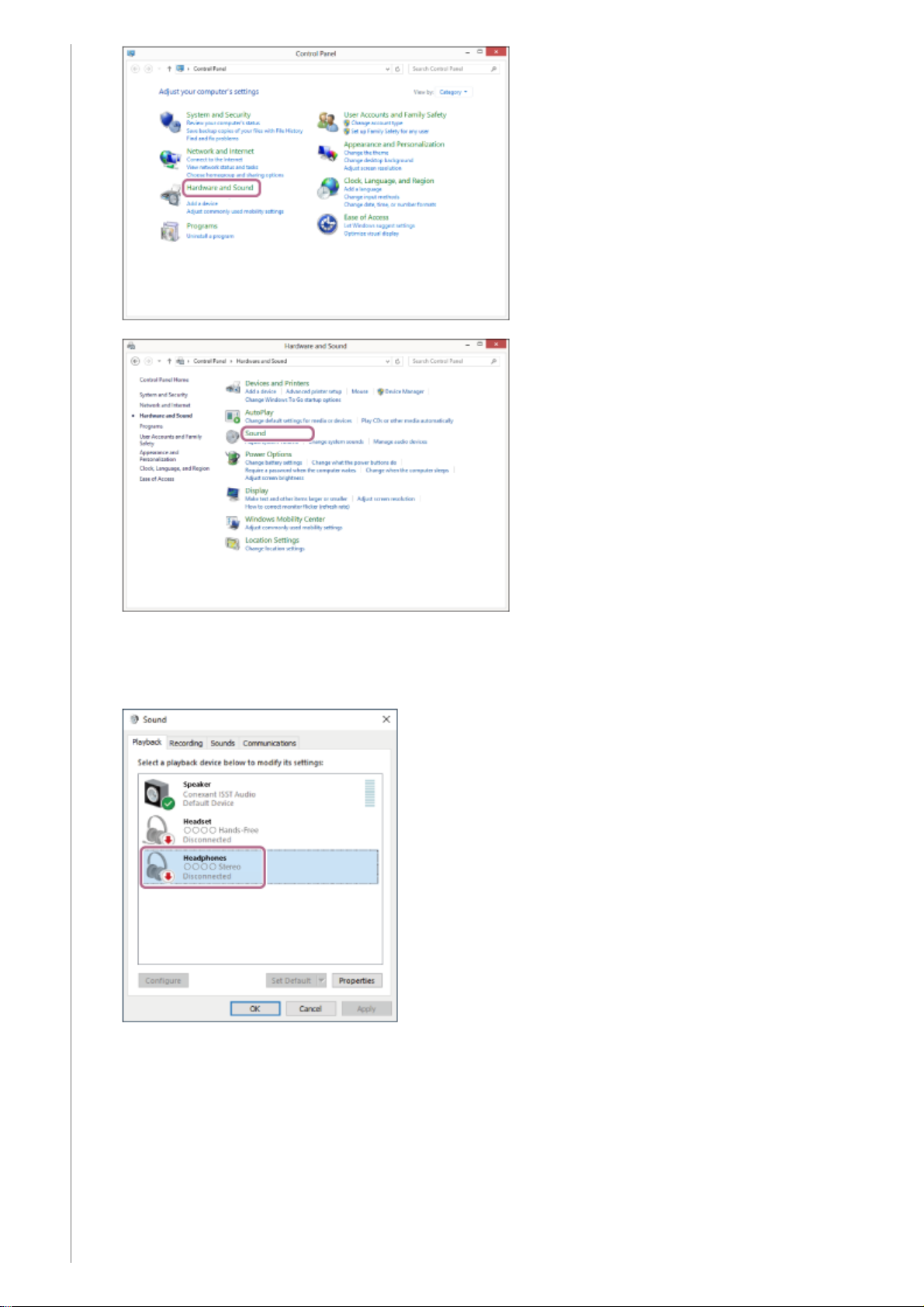
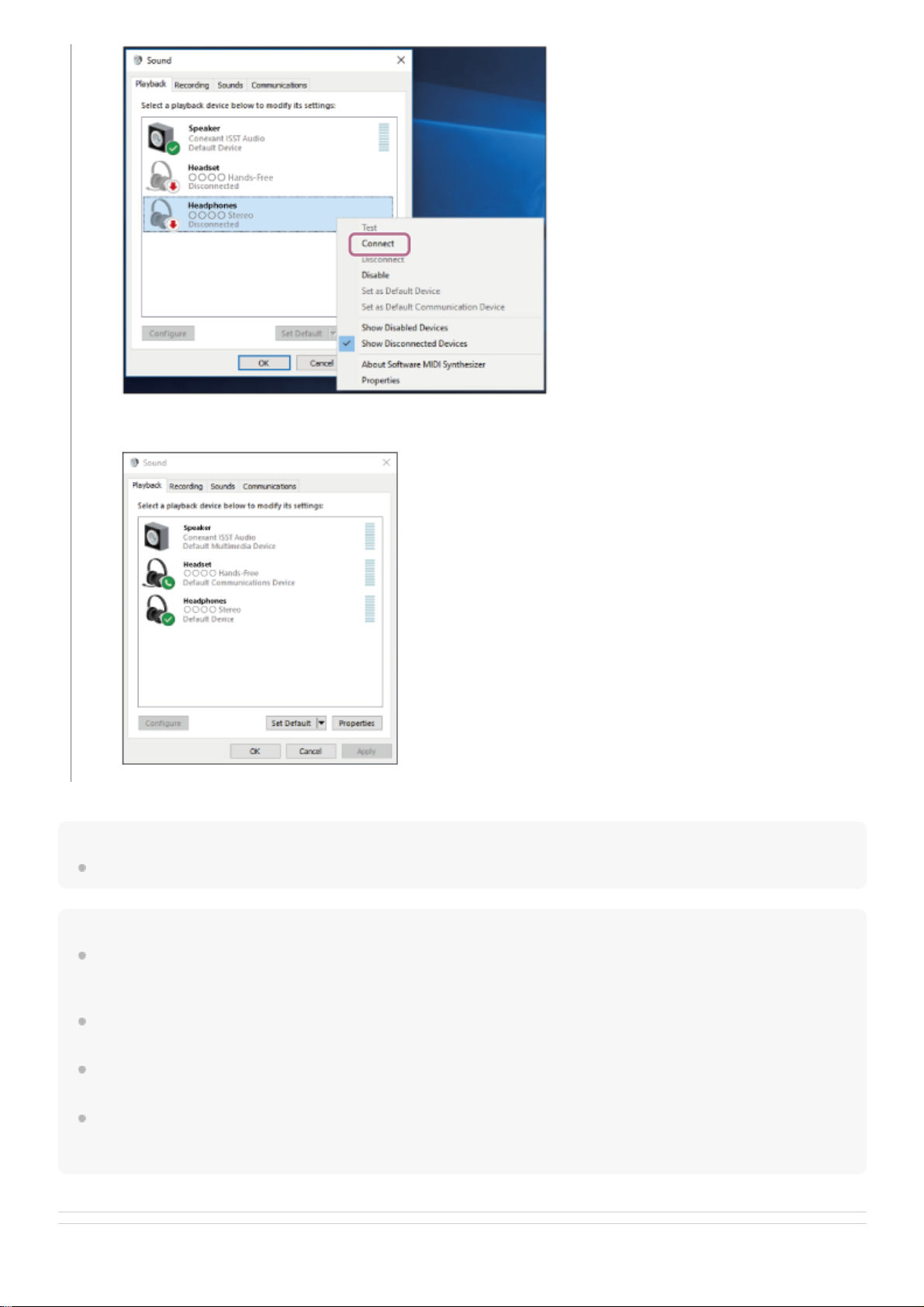
Right-click [WH-H810 (h.ear)].
If [WH-H810 (h.ear)] is not displayed on the [Sound] screen, right-click on the [Sound] screen, then select
[Show Disconnected Devices].
4.
Select [Connect] from the displayed menu.
5.
54
Page 55
Hint
The operation above is an example. For more details, refer to the operating instructions supplied with the computer.
Note
When connecting, [WH-H810 (h.ear)], [LE_WH-H810 (h.ear)], or both may be displayed on the connecting device. When both or
[WH-H810 (h.ear)] is displayed, select [WH-H810 (h.ear)]; when [LE_WH-H810 (h.ear)] is displayed, select [LE_WH-H810
(h.ear)].
If the music playback sound quality is poor, check that the A2DP function which supports music playback connections is enabled
in the computer settings. For more details, refer to the operating instructions supplied with the computer.
If the last-connected Bluetooth device is placed near the headset, the headset may connect automatically to the device by simply
turning on the headset. In that case, deactivate the Bluetooth function on the last-connected device or turn off the power.
If you cannot connect your computer to the headset, delete the headset pairing information on your computer and perform the
pairing again. For information on how to establish it on your computer, refer to the operating instructions supplied with the
computer.
Related Topic
The connection is established. You will hear the voice guidance say, “Bluetooth connected”.
55
Page 56

How to make a wireless connection to Bluetooth devices
Pairing and connecting with a computer (Windows 8.1)
Listening to music from a device via Bluetooth connection
Disconnecting Bluetooth connection (after use)
5-007-463-21(1) Copyright 2019 Sony Corporation
56
Page 57
Help Guide
Wireless Stereo Headset
h.ear on 3 Mini Wireless (WH-H810)
Connecting to a paired computer (Windows 7)
Before starting the operation, make sure of the following:
Depending on the computer you are using, the built-in Bluetooth adaptor may need to be turned on. If you do not
know how to turn on the Bluetooth adaptor or are unsure if your computer has a built-in Bluetooth adaptor, refer to
the operating instructions supplied with the computer.
Wake the computer up if the computer is in standby (sleep) or hibernation mode.
1
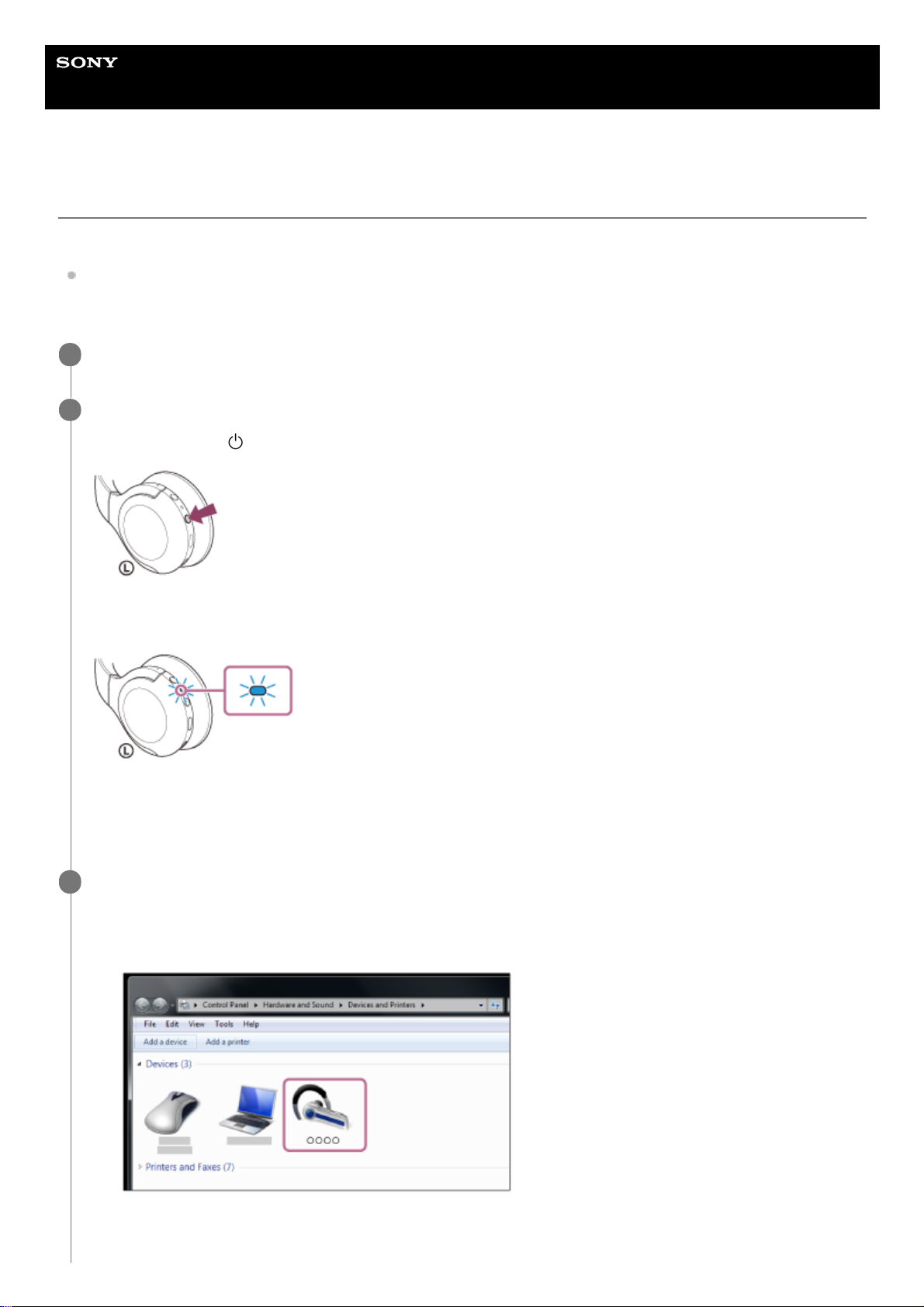
Turn on the headset.
Press and hold the
(power) button for about 2 seconds.
You will hear the voice guidance say, “Power on”. Check that the indicator (blue) continues to flash after you release
your finger from the button.
If it has automatically connected to the last connected device, you will hear the voice guidance say, “Bluetooth
connected”.
Check the connection status on the computer. If it is not connected, proceed to step 3.
2
Select the headset using the computer.
3
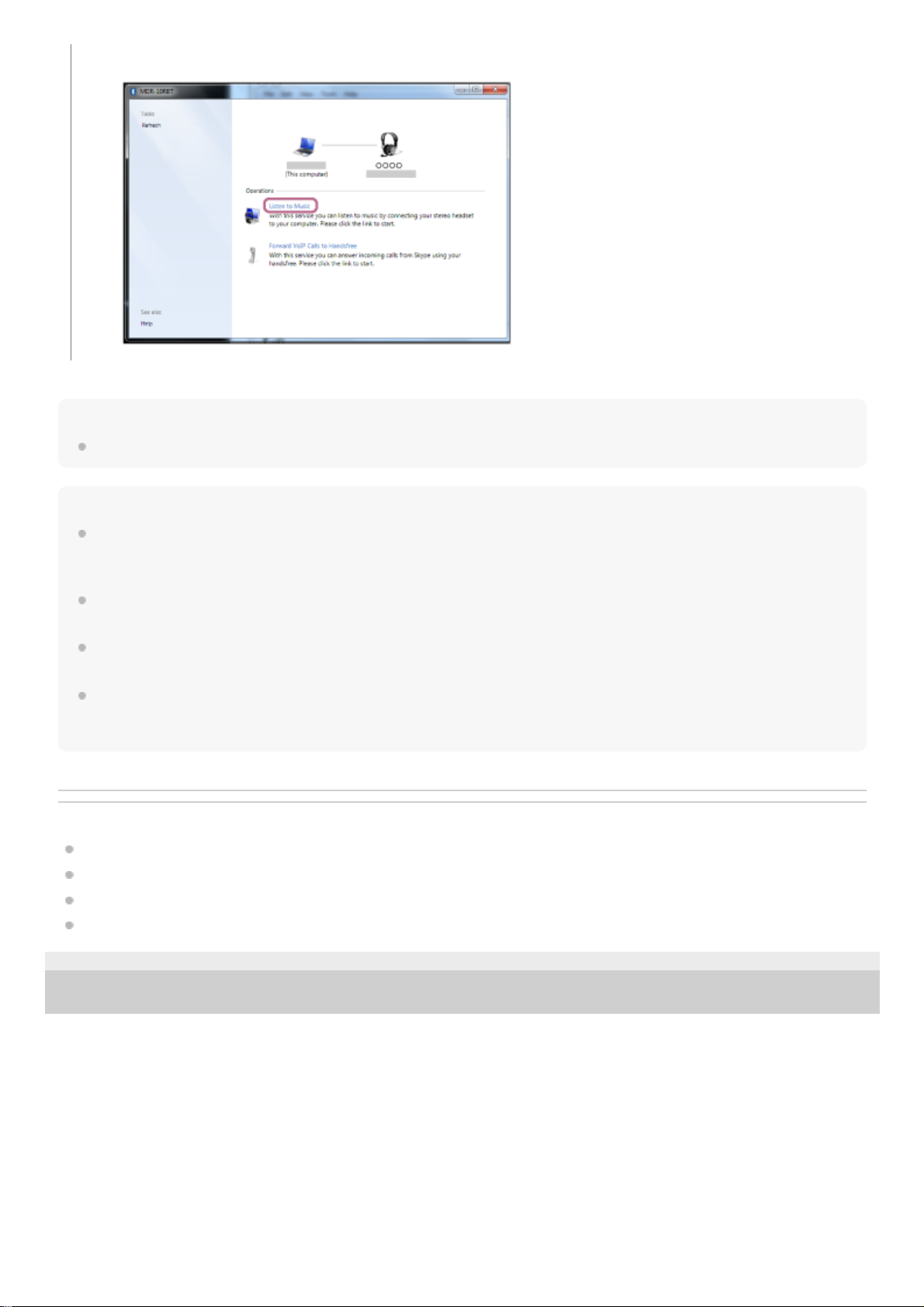
Click the [Start] button, then [Devices and Printers].
1.
Double-click [WH-H810 (h.ear)] of [Devices].
You will hear the voice guidance say, “Bluetooth connected”.
2.
57
Page 58
Hint
The operation above is an example. For more details, refer to the operating instructions supplied with the computer.
Note
When connecting, [WH-H810 (h.ear)], [LE_WH-H810 (h.ear)], or both may be displayed on the connecting device. When both or
[WH-H810 (h.ear)] is displayed, select [WH-H810 (h.ear)]; when [LE_WH-H810 (h.ear)] is displayed, select [LE_WH-H810
(h.ear)].
If the music playback sound quality is poor, check that the A2DP function which supports music playback connections is enabled
in the computer settings. For more details, refer to the operating instructions supplied with the computer.
If the last-connected Bluetooth device is placed near the headset, the headset may connect automatically to the device by simply
turning on the headset. In that case, deactivate the Bluetooth function on the last-connected device or turn off the power.
If you cannot connect your computer to the headset, delete the headset pairing information on your computer and perform the
pairing again. For information on how to establish it on your computer, refer to the operating instructions supplied with the
computer.
Related Topic
How to make a wireless connection to Bluetooth devices
Pairing and connecting with a computer (Windows 7)
Listening to music from a device via Bluetooth connection
Disconnecting Bluetooth connection (after use)
5-007-463-21(1) Copyright 2019 Sony Corporation
Click [Listen to Music].
3.
58
Page 59
Help Guide
Wireless Stereo Headset
h.ear on 3 Mini Wireless (WH-H810)
Connecting to a paired computer (Mac)
Compatible OS
macOS (version 10.10 or later)
Before starting the operation, make sure of the following:
Depending on the computer you are using, the built-in Bluetooth adaptor may need to be turned on. If you do not
know how to turn on the Bluetooth adaptor or are unsure if your computer has a built-in Bluetooth adaptor, refer to
the operating instructions supplied with the computer.
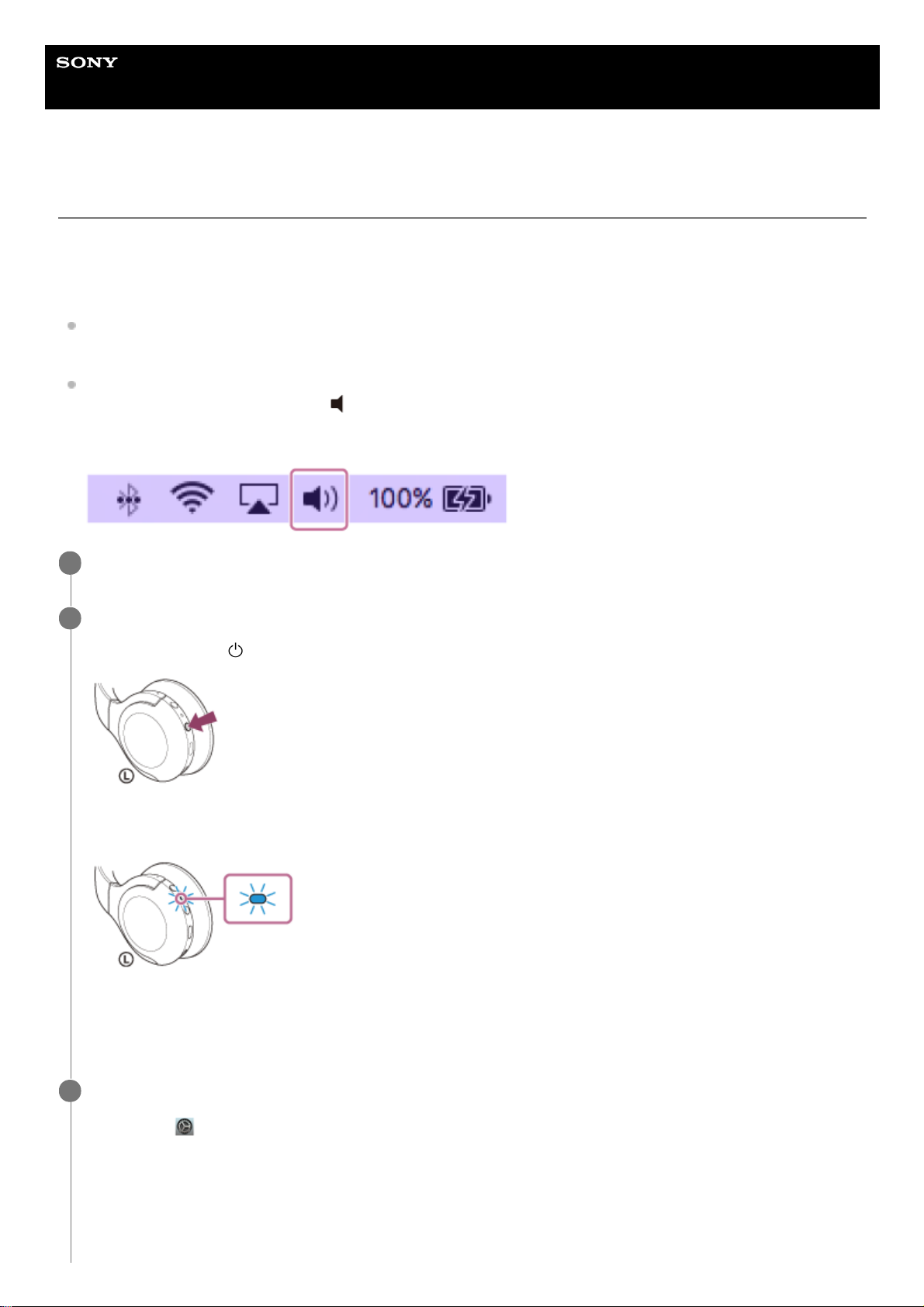
Set the computer speaker to the ON mode.
If the computer speaker is set to the
“OFF” mode, no sound is heard from the headset.
Computer speaker in the ON mode
Wake the computer up if the computer is in standby (sleep) or hibernation mode.
1
Turn on the headset.
Press and hold the
(power) button for about 2 seconds.
You will hear the voice guidance say, “Power on”. Check that the indicator (blue) continues to flash after you release
your finger from the button.
If it has automatically connected to the last connected device, you will hear the voice guidance say, “Bluetooth
connected”.
Check the connection status on the computer. If it is not connected, proceed to step 3.
2
Select the headset using the computer.
3
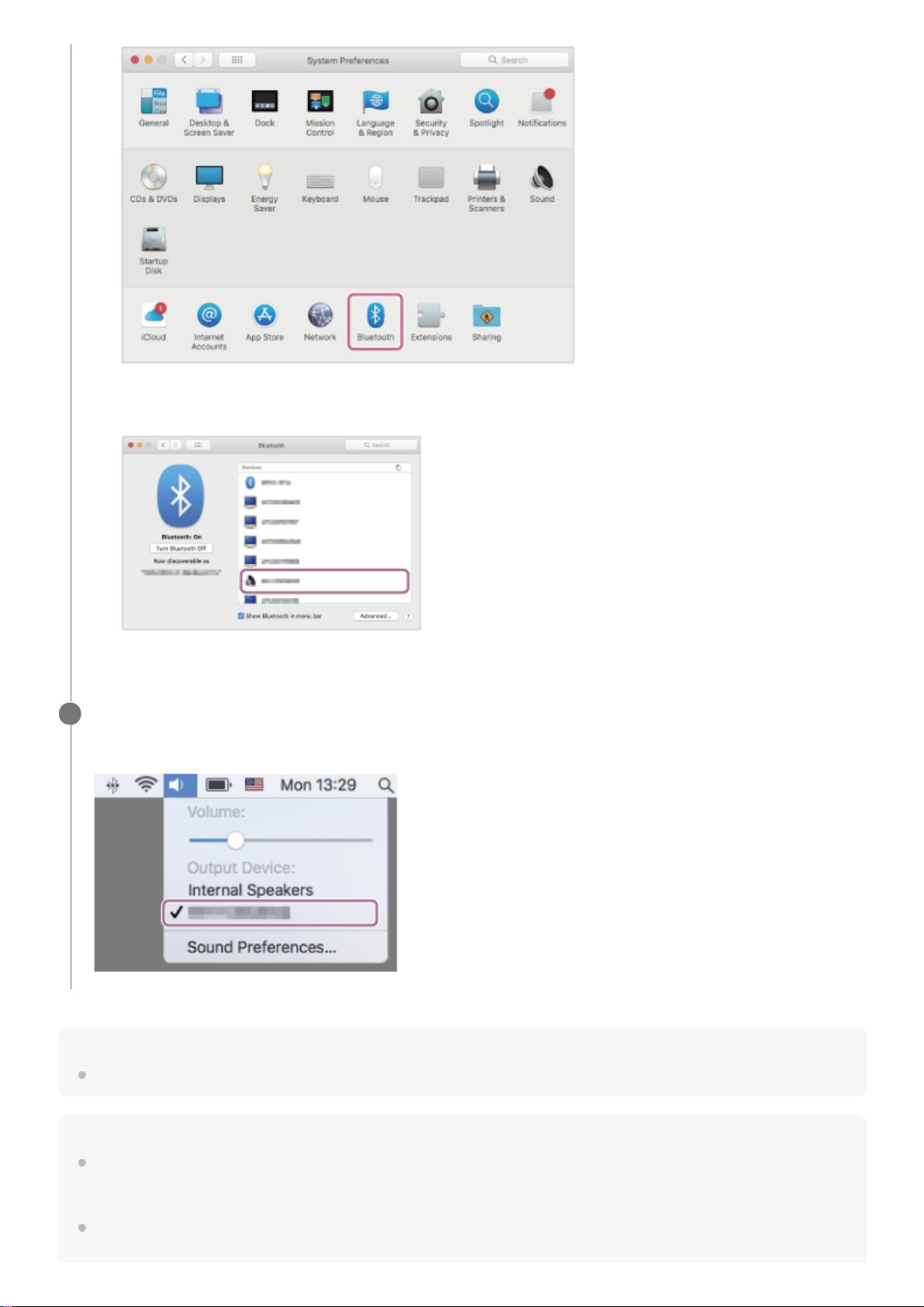
Select [
(System Preferences)] - [Bluetooth] from the task bar in the lower right part of the screen.
1.
59
Page 60
Hint
The operation above is an example. For more details, refer to the operating instructions supplied with the computer.
Note
When connecting, [WH-H810 (h.ear)], [LE_WH-H810 (h.ear)], or both may be displayed on the connecting device. When both or
[WH-H810 (h.ear)] is displayed, select [WH-H810 (h.ear)]; when [LE_WH-H810 (h.ear)] is displayed, select [LE_WH-H810
(h.ear)].
If the music playback sound quality is poor, check that the A2DP function which supports music playback connections is enabled
in the computer settings. For more details, refer to the operating instructions supplied with the computer.
Click [WH-H810 (h.ear)] on the [Bluetooth] screen while pressing the computer Control button and select
[Connect] from the pop up menu.
You will hear the voice guidance say, “Bluetooth connected”.
2.
Click the speaker icon in the upper right part of the screen and select [WH-H810 (h.ear)].
Now you are ready to enjoy music playback on your computer.
4
60
Page 61

If the last-connected Bluetooth device is placed near the headset, the headset may connect automatically to the device by simply
turning on the headset. In that case, deactivate the Bluetooth function on the last-connected device or turn off the power.
If you cannot connect your computer to the headset, delete the headset pairing information on your computer and perform the
pairing again. For information on how to establish it on your computer, refer to the operating instructions supplied with the
computer.
Related Topic
How to make a wireless connection to Bluetooth devices
Pairing and connecting with a computer (Mac)
Listening to music from a device via Bluetooth connection
Disconnecting Bluetooth connection (after use)
5-007-463-21(1) Copyright 2019 Sony Corporation
61
Page 62
Help Guide
Wireless Stereo Headset
h.ear on 3 Mini Wireless (WH-H810)
Pairing and connecting with other Bluetooth devices
The operation to register the device that you wish to connect to is called “pairing”. First, pair a device to use it with the
headset for the first time.
Before starting the operation, make sure of the following:
The Bluetooth device is placed within 1 m (3 feet) of the headset.
The headset is charged sufficiently.
The operating instructions of the Bluetooth device is in hand.
Hint
The operation above is an example. For more details, refer to the operating instructions supplied with the Bluetooth device.
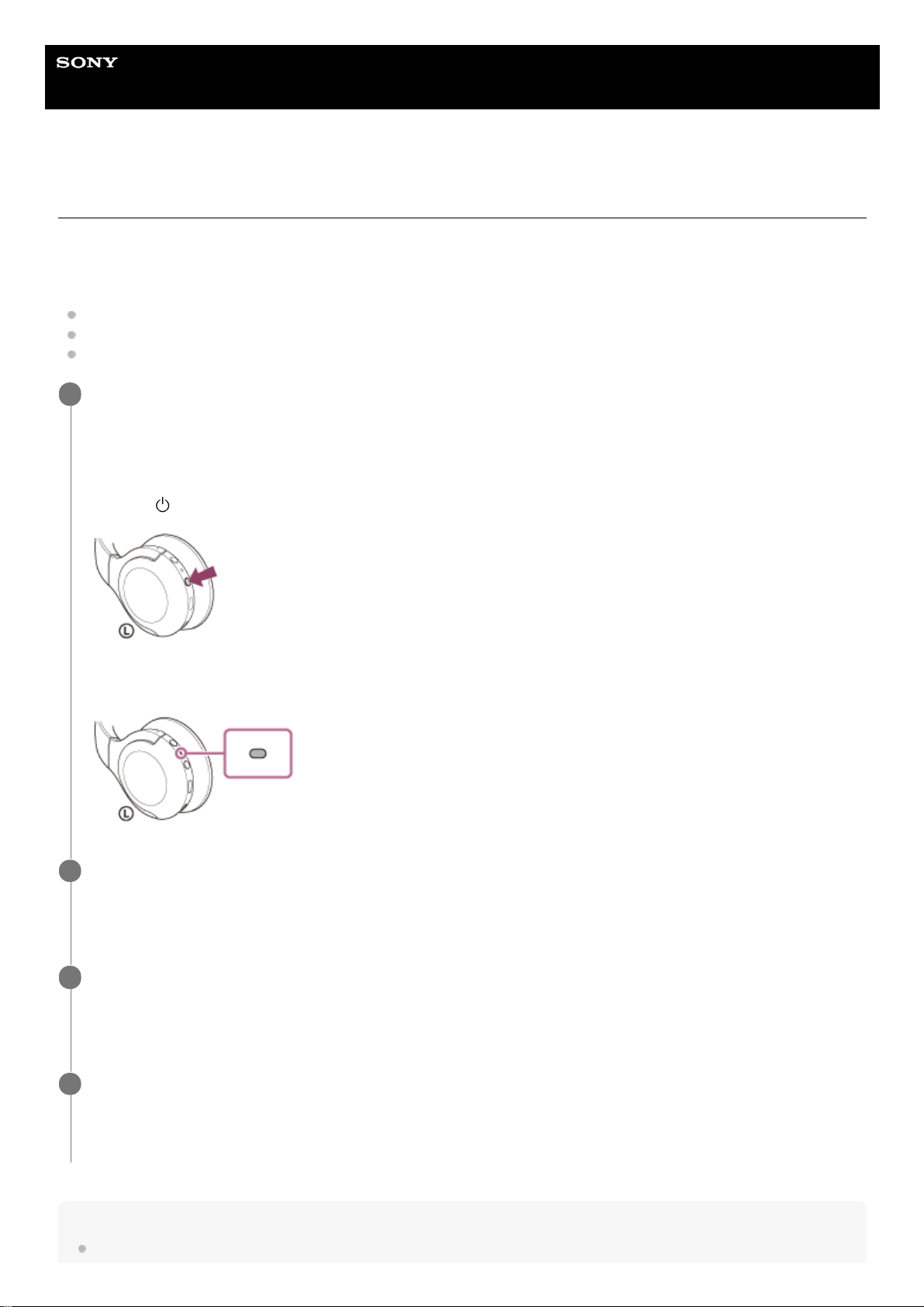
Enter pairing mode on this headset.
Turn on the headset when you pair the headset with a device for the first time after you bought it or after you
initialized the headset (the headset has no pairing information). The headset enters pairing mode automatically. In
this case, proceed to step 2.
When you pair a second or subsequent device (the headset has pairing information for other devices), press and
hold the
(power) button for about 7 seconds.
Check that the indicator (blue) repeatedly flashes twice in a row. You will hear the voice guidance say, “Bluetooth
pairing”.
1
Perform the pairing procedure on the Bluetooth device to search for this headset.
[WH-H810 (h.ear)] will be displayed on the list of detected devices on the screen of the Bluetooth device.
If it is not displayed, repeat from step 1.
2
Select [WH-H810 (h.ear)] displayed on the screen of the Bluetooth device for pairing.
If Passkey (*) input is required, input “0000”.
3
A Passkey may be called “Passcode”, “PIN code”, “PIN number”, or “Password”.
*
Make the Bluetooth connection from the Bluetooth device.
Some devices automatically connect with the headset when the pairing is complete. You will hear the voice
guidance say, “Bluetooth connected”.
4
62
Page 63

To delete all Bluetooth pairing information, see “Initializing the headset to restore factory settings”.
Note
When pairing a device, [WH-H810 (h.ear)], [LE_WH-H810 (h.ear)], or both may be displayed on the connecting device. When
both or [WH-H810 (h.ear)] is displayed, select [WH-H810 (h.ear)]; when [LE_WH-H810 (h.ear)] is displayed, select [LE_WH-H810
(h.ear)].
If pairing is not established within 5 minutes, pairing mode is canceled, and the headset turns off. In this case, start the operation
again from step 1.
Once Bluetooth devices are paired, there is no need to pair them again, except in the following cases:
Pairing information has been deleted after repair, etc.
When a 9th device is paired.
The headset can be paired with up to 8 devices. If a new device is paired after 8 devices are already paired, the registration
information of the paired device with the oldest connection date is overwritten with the information for the new device.
When the pairing information for the headset has been deleted from the Bluetooth device.
When the headset is initialized.
All of the pairing information is deleted. In this case, delete the pairing information for the headset from the device and then pair
them again.
The headset can be paired with multiple devices, but can only play music from 1 paired device at a time.
Related Topic
How to make a wireless connection to Bluetooth devices
Connecting to a paired Bluetooth device
Listening to music from a device via Bluetooth connection
Disconnecting Bluetooth connection (after use)
Initializing the headset to restore factory settings
5-007-463-21(1) Copyright 2019 Sony Corporation
63
Page 64
Help Guide
Wireless Stereo Headset
h.ear on 3 Mini Wireless (WH-H810)
Connecting to a paired Bluetooth device
Hint
The operation above is an example. For more details, refer to the operating instructions supplied with the Bluetooth device.
Note
When connecting, [WH-H810 (h.ear)], [LE_WH-H810 (h.ear)], or both may be displayed on the connecting device. When both or
[WH-H810 (h.ear)] is displayed, select [WH-H810 (h.ear)]; when [LE_WH-H810 (h.ear)] is displayed, select [LE_WH-H810
(h.ear)].
If the last-connected Bluetooth device is placed near the headset, the headset may connect automatically to the device by simply
turning on the headset. In that case, deactivate the Bluetooth function on the last-connected device or turn off the power.
If you cannot connect your Bluetooth device to the headset, delete the headset pairing information on your Bluetooth device and
perform the pairing again. As for the operations on your Bluetooth device, refer to the operating instructions supplied with the
Bluetooth device.
Related Topic
How to make a wireless connection to Bluetooth devices
Pairing and connecting with other Bluetooth devices
Turn on the headset.
Press and hold the
(power) button for about 2 seconds.
You will hear the voice guidance say, “Power on”. Check that the indicator (blue) continues to flash after you release
your finger from the button.
If it has automatically connected to the last connected device, you will hear the voice guidance say, “Bluetooth
connected”.
Check the connection status on the Bluetooth device. If it is not connected, proceed to step 2.
1
Make the Bluetooth connection from the Bluetooth device.
As for the operations on your Bluetooth device, refer to the operating instructions supplied with the Bluetooth
device. When connected, you will hear the voice guidance say, “Bluetooth connected”.
2
64
Page 65

Listening to music from a device via Bluetooth connection
Disconnecting Bluetooth connection (after use)
5-007-463-21(1) Copyright 2019 Sony Corporation
65
Page 66
Help Guide
Wireless Stereo Headset
h.ear on 3 Mini Wireless (WH-H810)
Connecting the headset to both a music player and a smartphone / mobile phone
(multipoint connection)
Multipoint is a function which allows you to connect 2 Bluetooth devices to the headset and use one device for music
playback (A2DP connection) and the other for talking (HFP/HSP connection).
When you wish to use a music player only for music playback and a smartphone only for talking, use a multipoint
connection to the headset for each device. The connecting devices must support the Bluetooth function.
Note
If the smartphone or mobile phone was connected with the headset last time, an HFP or HSP connection is automatically
established when the headset is turned on, and in some cases an A2DP connection is simultaneously established. In that case,
connect from step 2 after disconnecting via smartphone/mobile phone operations.
5-007-463-21(1) Copyright 2019 Sony Corporation
Pair the headset with both the music player and the smartphone/mobile phone.
1
Connect the headset with the music player.
Operate the music player to establish a Bluetooth connection with the headset.
2
Connect the headset to a smartphone or mobile phone.
Operate the smartphone/mobile phone to establish a Bluetooth connection with the headset.
3
66
Page 67
Help Guide
Wireless Stereo Headset
h.ear on 3 Mini Wireless (WH-H810)
Connecting the headset to 2 Android smartphones (multipoint connection)
Usually, when you connect the headset to a smartphone, both the music playback function and the phone call function
are connected simultaneously.
To make a multipoint connection using 2 smartphones to use one for listening to music and the other for making phone
calls, set up to connect to only one function by operating the smartphone.
Hint
Pair the headset with both smartphones, respectively.
1
Use one of the smartphones to establish a Bluetooth connection with the headset.
2
On the smartphone connected to the headset, uncheck either [Call audio] (HFP) or [Media audio] (A2DP).
Operation example: For connecting only through media audio (A2DP)
Touch [Settings] - [Device connection] - [Bluetooth] - the setting icon next to [WH-H810 (h.ear)].
On the [Paired devices] screen, uncheck [Call audio].
3
Use the smartphone to terminate the Bluetooth connection.
4
Use the other smartphone to establish a Bluetooth connection to the headset.
5
In the same way, uncheck the function that you did not uncheck in step 3.
6
Use the first smartphone to establish a Bluetooth connection again.
Both smartphones are connected to the headset with only one function enabled.
7
67
Page 68

The operation above is an example. For more details, refer to the operating instructions supplied with the Android smartphone.
Note
When using multipoint connection, the remaining battery charge of the headset will not be correctly displayed on the screen of the
device that is connected with “Media audio” (A2DP).
Related Topic
Checking the remaining battery charge
5-007-463-21(1) Copyright 2019 Sony Corporation
68
Page 69
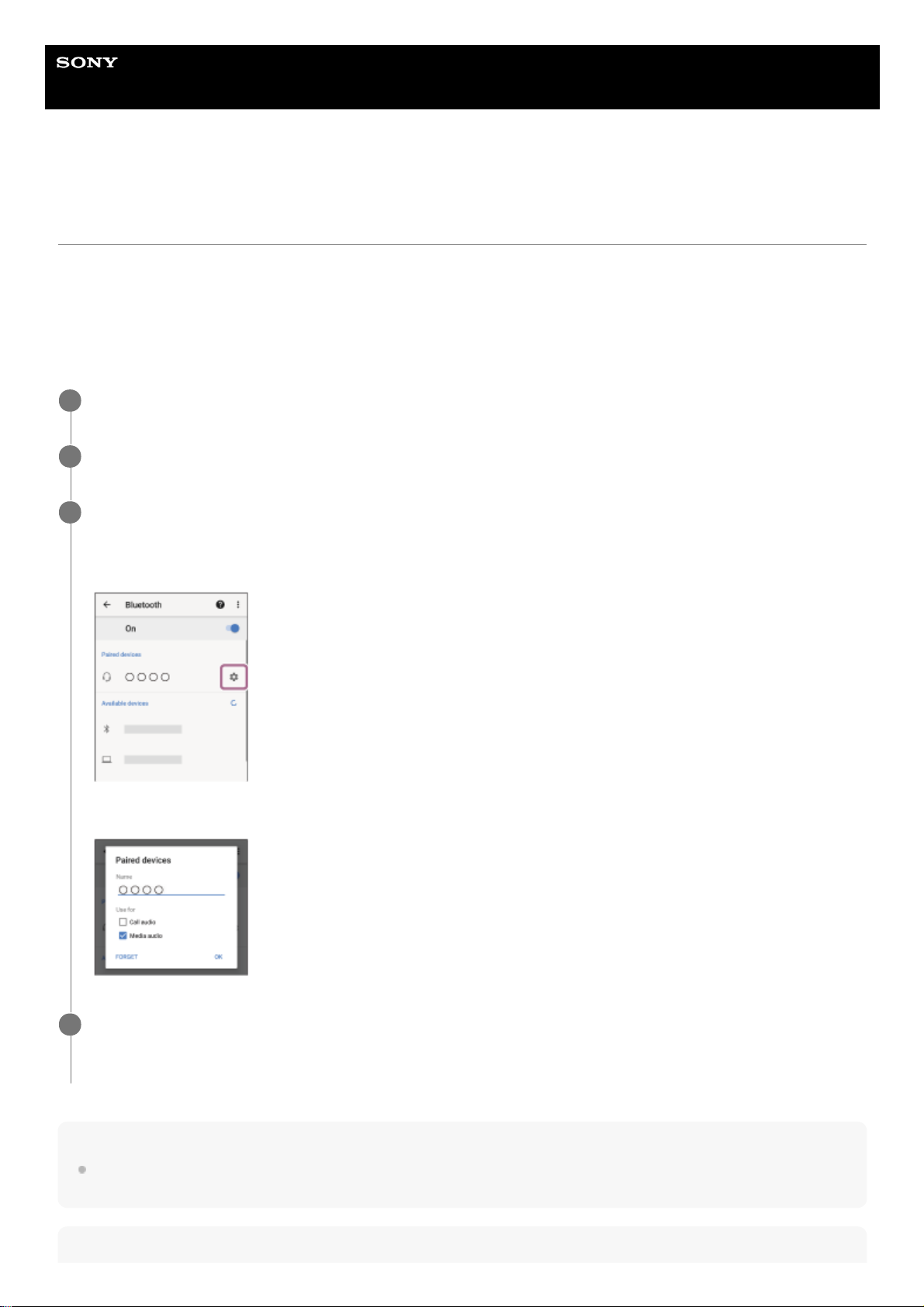
Help Guide
Wireless Stereo Headset
h.ear on 3 Mini Wireless (WH-H810)
Connecting the headset to an Android smartphone and an iPhone (multipoint
connection)
Usually, when you connect the headset to a smartphone, both the music playback function and the phone call function
are connected simultaneously.
To make a multipoint connection using a smartphone and an iPhone to use one for listening to music and the other for
making phone calls, change the settings on the smartphone so that only one of the functions is connected. Connect the
smartphone before connecting the iPhone.
You cannot set the iPhone to connect one function only.
Hint
The operation above is an example. For more details, refer to the operating instructions supplied with the Android smartphone
and iPhone.
Note
Pair the headset with both Android smartphone and iPhone, respectively.
1
Use the smartphone to establish a Bluetooth connection with the headset.
2
On the smartphone connected to the headset, uncheck either [Call audio] (HFP) or [Media audio] (A2DP).
Operation example: For connecting only through media audio (A2DP)
Touch [Settings] - [Device connection] - [Bluetooth] - the setting icon next to [WH-H810 (h.ear)].
On the [Paired devices] screen, uncheck [Call audio].
3
Use the iPhone to establish a Bluetooth connection to the headset.
The iPhone is connected with the function unchecked in step 3.
4
69
Page 70

When using multipoint connection, the remaining battery charge of the headset will not be correctly displayed on the screen of the
device that is connected with “Media audio” (A2DP).
Related Topic
Checking the remaining battery charge
5-007-463-21(1) Copyright 2019 Sony Corporation
70
Page 71
Help Guide
Wireless Stereo Headset
h.ear on 3 Mini Wireless (WH-H810)
Disconnecting Bluetooth connection (after use)
Hint
When you finish playing music, the Bluetooth connection may terminate automatically depending on the Bluetooth device.
Related Topic
Disconnecting the Android smartphone with one-touch (NFC)
Turning off the headset
5-007-463-21(1) Copyright 2019 Sony Corporation
Unlock the screen of the Bluetooth device if it is locked.
1
Touch the one-touch connection (NFC) compatible device again to disconnect it. If the Bluetooth device
does not support one-touch connection (NFC), disconnect the device by operating the device.
When disconnected, you will hear the voice guidance say, “Bluetooth disconnected”.
2
Turn off the headset.
You will hear the voice guidance say, “Power off”.
3
71
Page 72
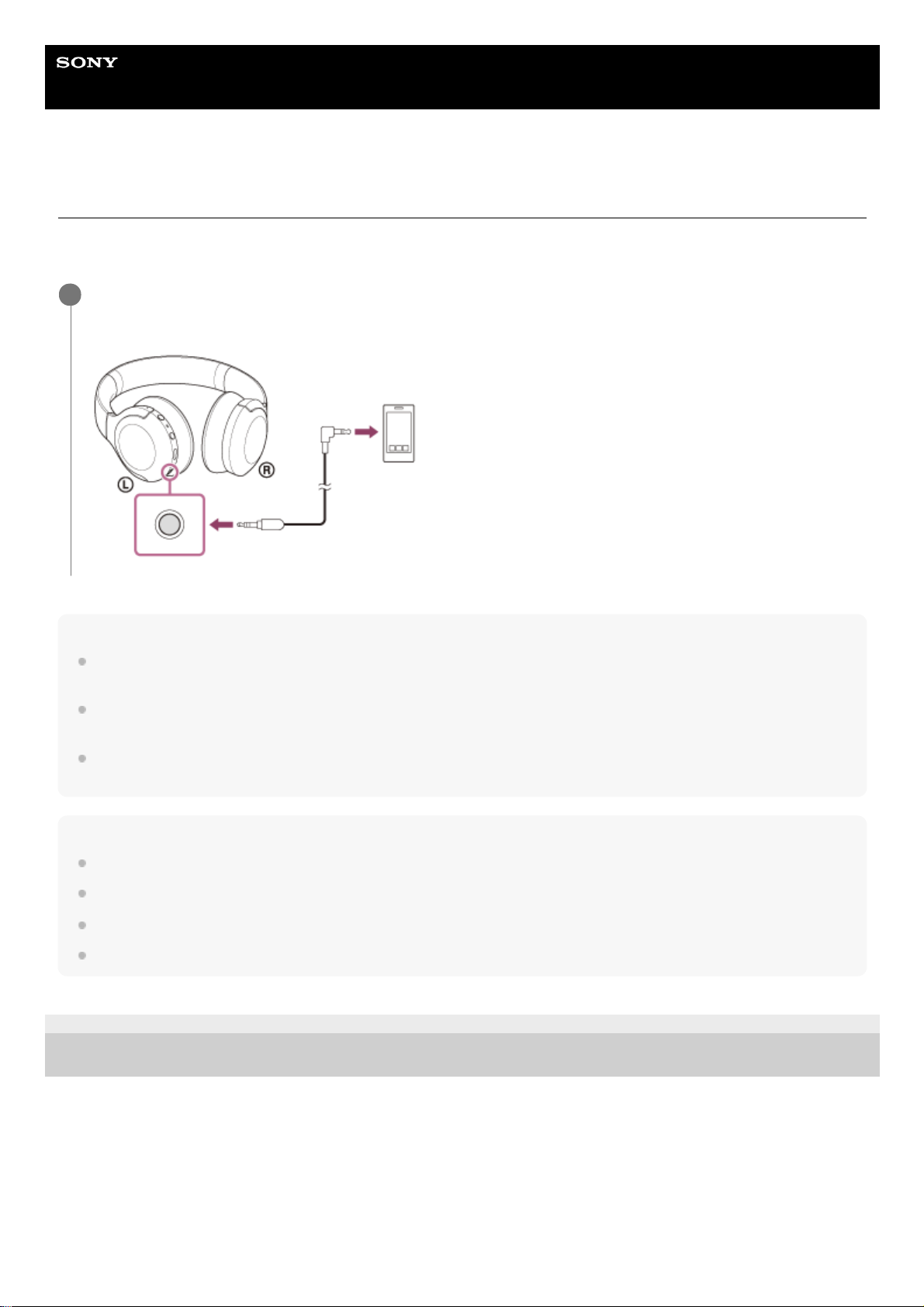
Help Guide
Wireless Stereo Headset
h.ear on 3 Mini Wireless (WH-H810)
Using the supplied headphone cable
If you use the headset at a place where it is restricted to use Bluetooth devices such as on an airplane, you can use the
headset as ordinary wired headphones by connecting a device via the supplied headphone cable.
Hint
You can use the headset as ordinary wired headphones by connecting the supplied headphone cable to the headset even when
the battery becomes empty or you turn the headset off.
When an incoming call arrives, a ring tone is heard via the headset. Answer the call using your smartphone or mobile phone, and
talk using the microphone of the phone. You can hear the caller’s voice from the headset.
If you disconnect the headphone cable from the smartphone or mobile phone, you can talk using the microphone and speaker of
the phone.
Note
Use the supplied headphone cable only.
Make sure you insert the plug firmly.
When using the headphone cable, the Bluetooth function cannot be used.
If connecting the cable to the headset while it is turned on, the headset will turn off automatically.
5-007-463-21(1) Copyright 2019 Sony Corporation
Connect a playback device to the headphone cable input jack with the supplied headphone cable.
Be sure to connect the L-shaped plug into the connecting device.
1
72
Page 73
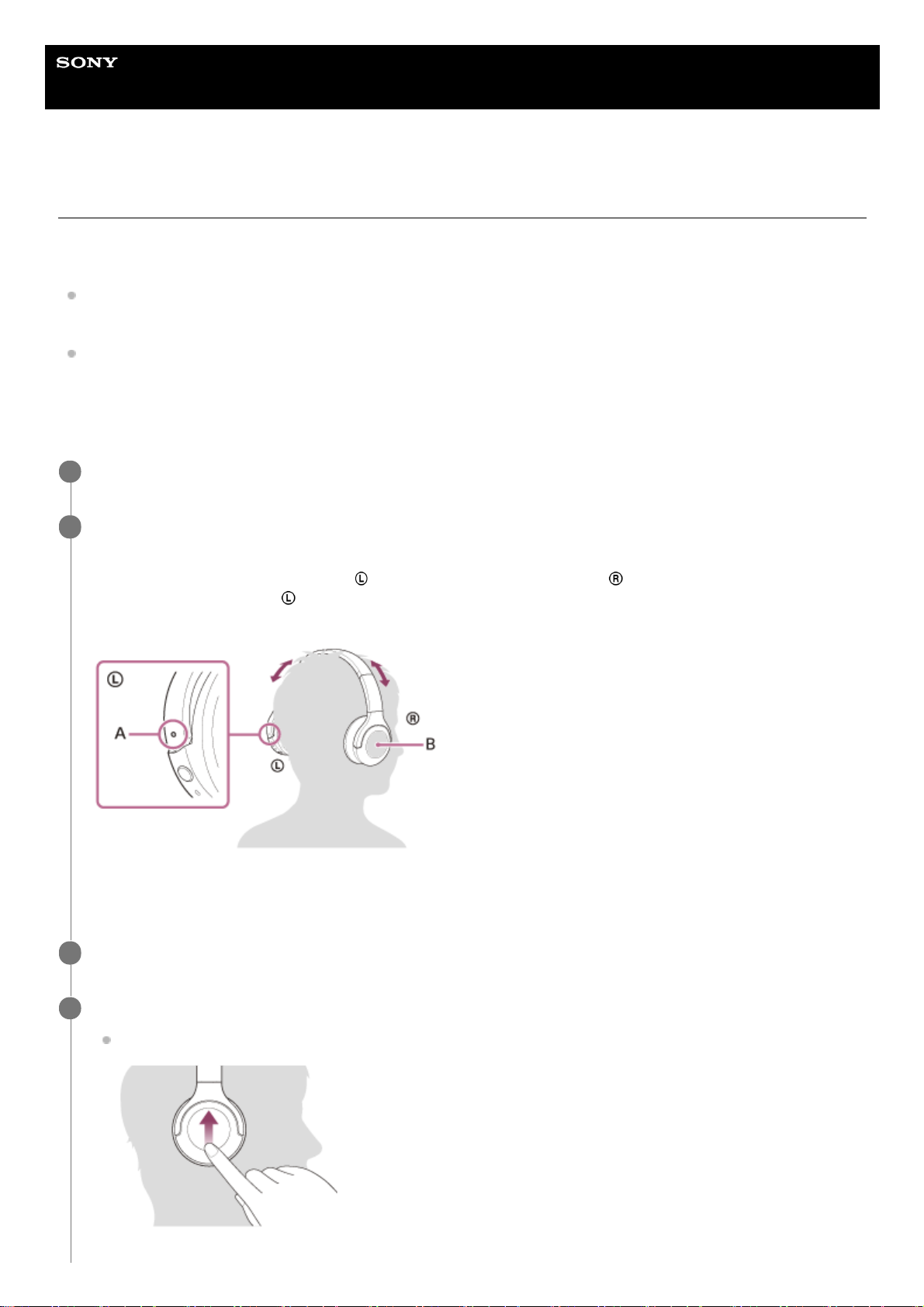
Help Guide
Wireless Stereo Headset
h.ear on 3 Mini Wireless (WH-H810)
Listening to music from a device via Bluetooth connection
If your Bluetooth device supports the following profiles, you can enjoy listening to music and perform basic remote
control operation of the device from your headset via Bluetooth connection.
A2DP(Advanced Audio Distribution Profile)
You can enjoy high-quality music wirelessly.
AVRCP(Audio Video Remote Control Profile)
You can adjust the volume, etc.
The operation may vary depending on the Bluetooth device. Refer to the operating instructions supplied with the
Bluetooth device.
Connect the headset to a Bluetooth device.
1
Put on the headset.
Adjust the length of the headband.
Put the headset on your head with the
(left) mark on your left ear and the (right) mark on your right ear.
There is a tactile dot on the
(left) unit.
Be careful not to come in contact with the touch sensor control panel when you put on the headset.
A: Tactile dot
B: Touch sensor control panel
2
Operate the Bluetooth device to start playback and adjust the volume to a moderate level.
3
Adjust the volume using the touch sensor control panel of the headset.
Increase the volume: Swipe up repeatedly until the volume reaches the desired level.
4
73
Page 74
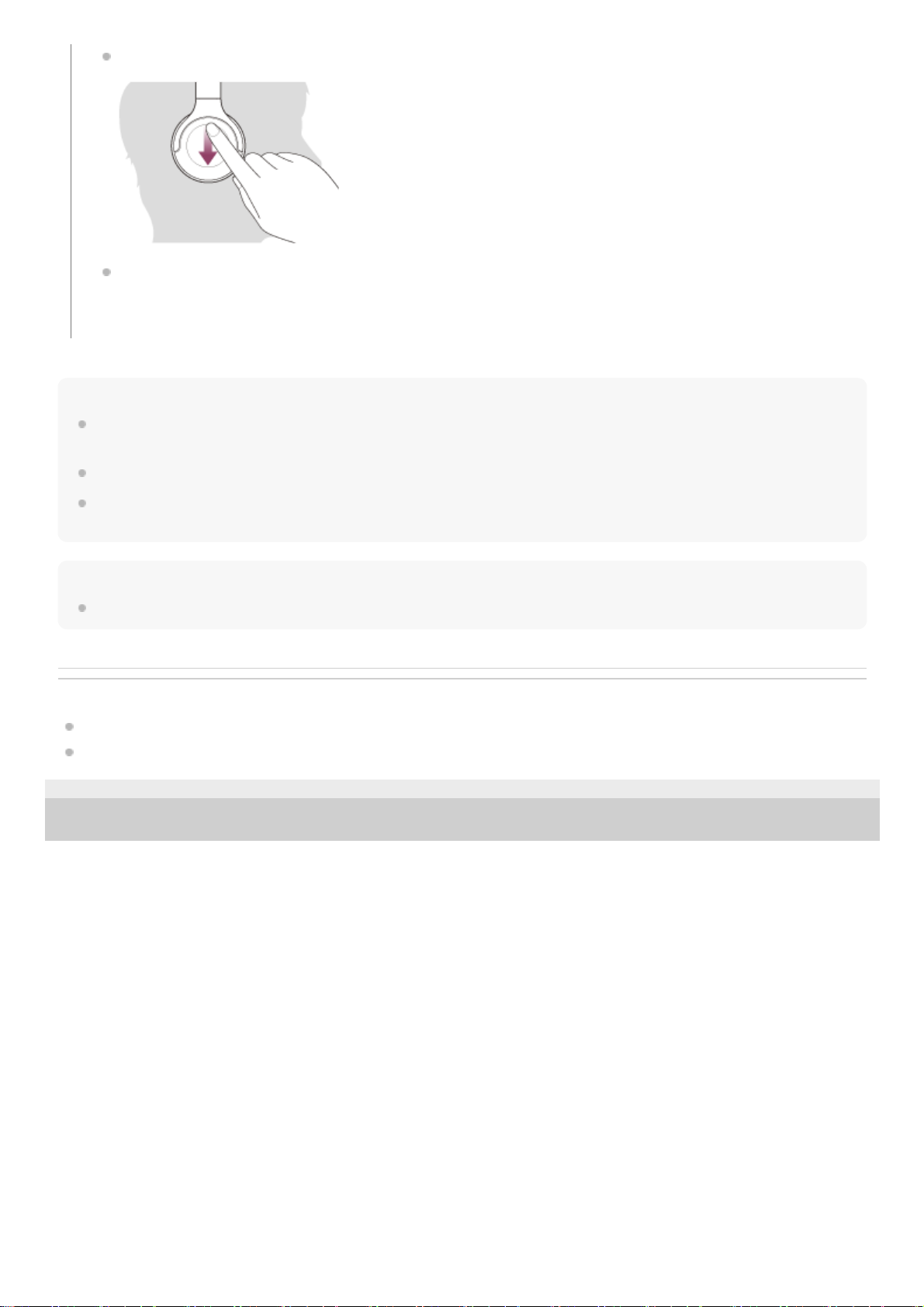
Hint
The headset supports SCMS-T content protection. You can enjoy music and other audio on the headset from a device such as a
mobile phone or portable TV that supports SCMS-T content protection.
Depending on the Bluetooth device, it may be necessary to adjust the volume or set the audio output setting on the device.
The headset volume during a call and during music playback can be independently adjusted. Changing the call volume does not
change the volume of music playback and vice versa.
Note
If the communication condition is poor, the Bluetooth device may react incorrectly to the operation on the headset.
Related Topic
How to make a wireless connection to Bluetooth devices
Controlling the audio device (Bluetooth connection)
5-007-463-21(1) Copyright 2019 Sony Corporation
Decrease the volume: Swipe down repeatedly until the volume reaches the desired level.
To change the volume continuously: Swipe up or down and hold. Release at the desired level.
When the volume reaches the maximum or minimum, an alarm sounds.
74
Page 75
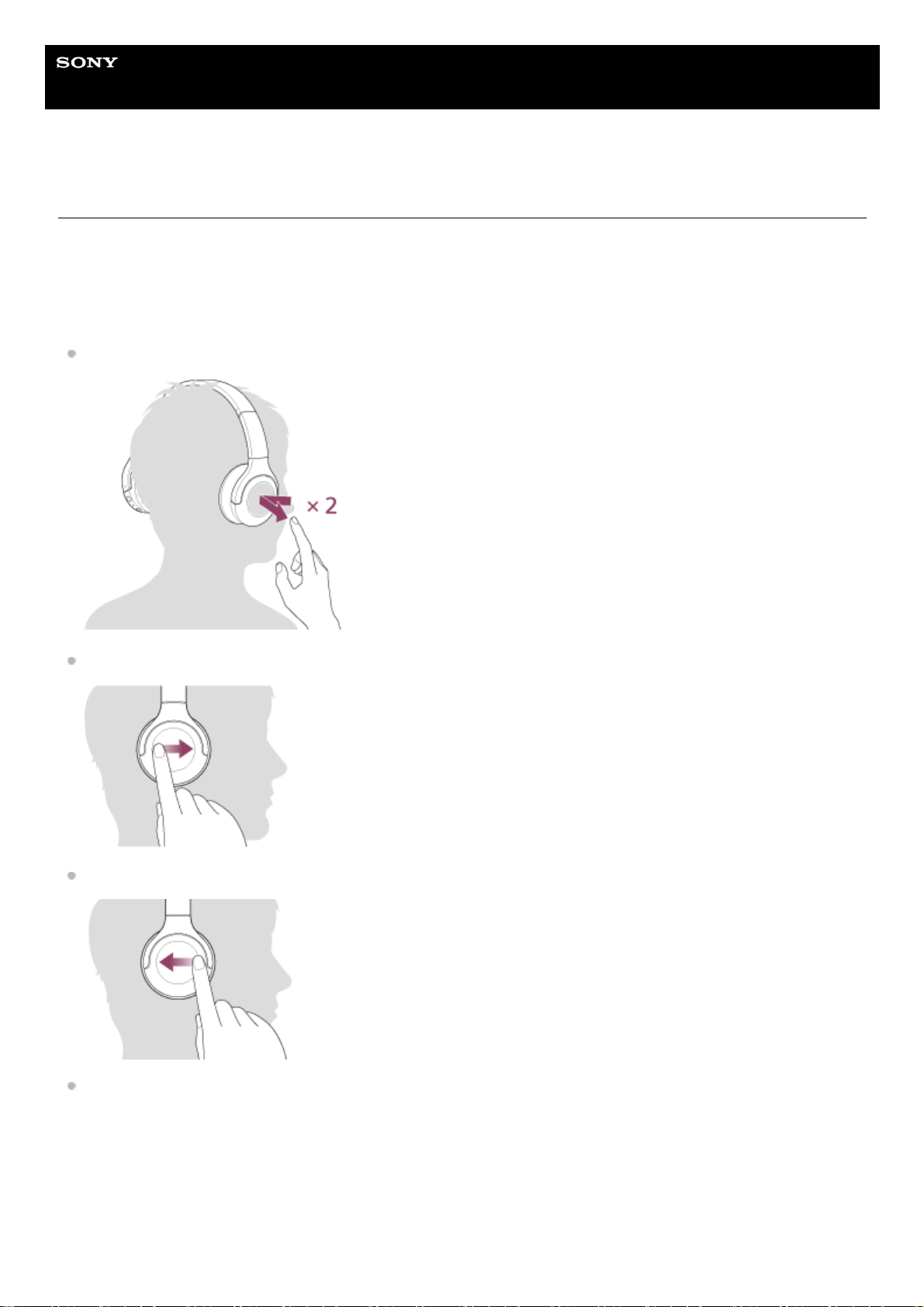
Help Guide
Wireless Stereo Headset
h.ear on 3 Mini Wireless (WH-H810)
Controlling the audio device (Bluetooth connection)
If your Bluetooth device supports the device operating function (compatible protocol: AVRCP), then the following
operations are available. The available functions may vary depending on the Bluetooth device, so refer to the operating
instructions supplied with the device.
You can use the touch sensor control panel to perform the following operations.
Play/Pause: Tap the touch sensor control panel twice quickly (with an interval of about 0.4 seconds).
Skip to the beginning of the next track: Swipe forward and release.
Skip to the beginning of the previous track (or the current track during playback): Swipe backward and release.
Fast-forward: Swipe forward and hold. (It takes a while until fast-forwarding starts.) Release at the desired playback
point.
75
Page 76
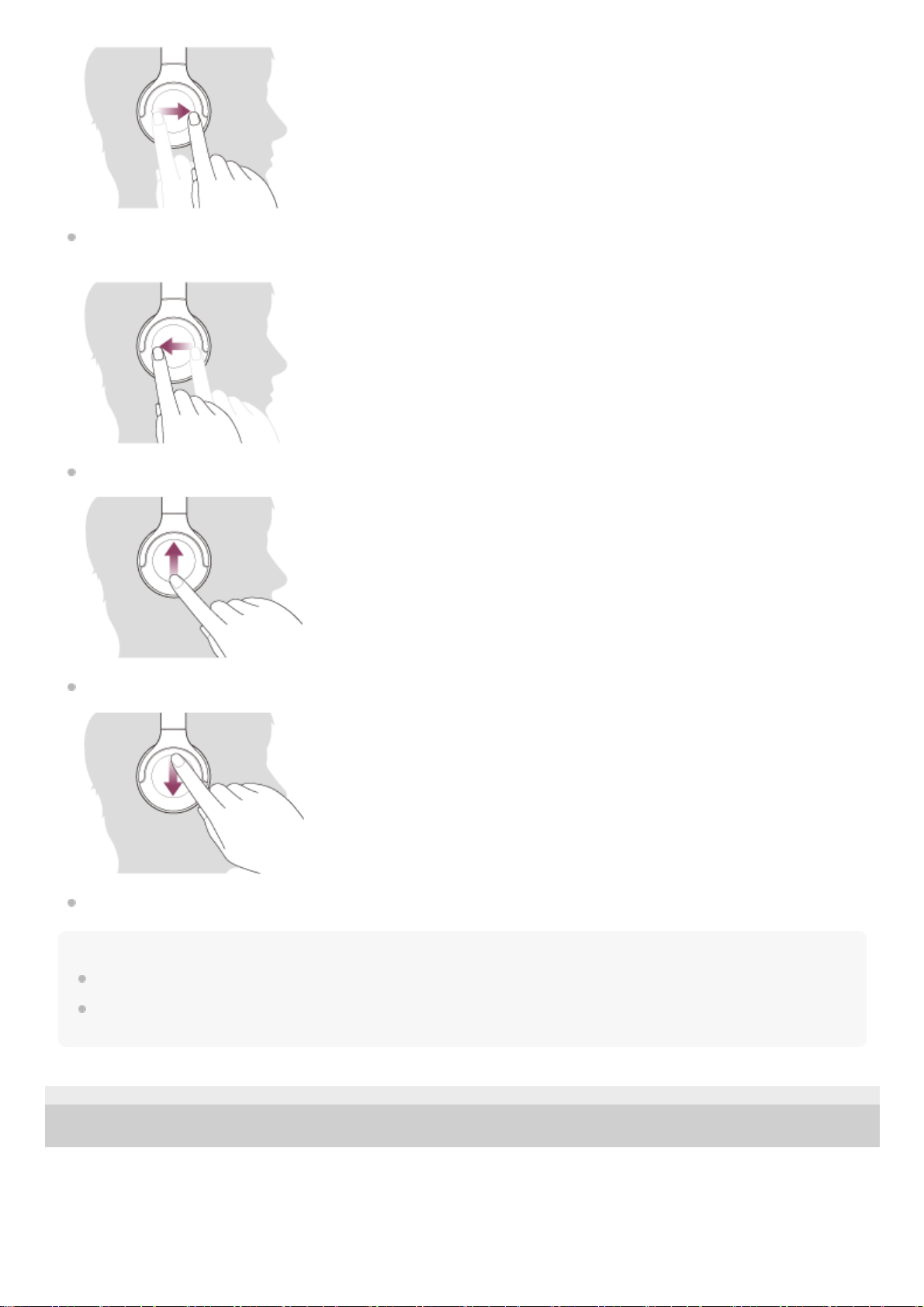
Fast-reverse: Swipe backward and hold. (It takes a while until fast-reversing starts.) Release at the desired playback
point.
Increase the volume: Swipe up repeatedly until the volume reaches the desired level.
Decrease the volume: Swipe down repeatedly until the volume reaches the desired level.
To change the volume continuously: Swipe up or down and hold. Release at the desired level.
Note
If the communication condition is poor, the Bluetooth device may react incorrectly to the operation on the headset.
The available functions may vary depending on the connected device. In some cases, it may operate differently or may not work
at all even when the operations described above are performed.
5-007-463-21(1) Copyright 2019 Sony Corporation
76
Page 77
Help Guide
Wireless Stereo Headset
h.ear on 3 Mini Wireless (WH-H810)
Disconnecting Bluetooth connection (after use)
Hint
When you finish playing music, the Bluetooth connection may terminate automatically depending on the Bluetooth device.
Related Topic
Disconnecting the Android smartphone with one-touch (NFC)
Turning off the headset
5-007-463-21(1) Copyright 2019 Sony Corporation
Unlock the screen of the Bluetooth device if it is locked.
1
Touch the one-touch connection (NFC) compatible device again to disconnect it. If the Bluetooth device
does not support one-touch connection (NFC), disconnect the device by operating the device.
When disconnected, you will hear the voice guidance say, “Bluetooth disconnected”.
2
Turn off the headset.
You will hear the voice guidance say, “Power off”.
3
77
Page 78
Help Guide
Wireless Stereo Headset
h.ear on 3 Mini Wireless (WH-H810)
About the sound quality mode
The following 2 sound quality modes during Bluetooth playback can be selected. You can switch the settings and check
the sound quality mode with the “Sony | Headphones Connect” app.
Priority on sound quality mode: Prioritizes the sound quality (default).
Priority on stable connection mode: Prioritizes the stable connection.
When you want to prioritize the sound quality, select the “Priority on sound quality” mode.
If the connection is unstable, such as when producing only intermittent sound, select the “Priority on stable
connection” mode.
Note
The playback time may shorten depending on the sound quality and the conditions under which you are using the headset.
Depending on the ambient conditions in the area where you are using the headset, intermittent sound may still occur even if the
“Priority on stable connection” mode is selected.
Related Topic
What you can do with “Sony | Headphones Connect” app
5-007-463-21(1) Copyright 2019 Sony Corporation
78
Page 79

Help Guide
Wireless Stereo Headset
h.ear on 3 Mini Wireless (WH-H810)
Supported codecs
A codec is an audio coding algorithm used when transmitting sound via Bluetooth connection.
The headset supports the following 3 codecs for music playback via an A2DP connection: SBC, AAC, and LDAC.
SBC
This is an abbreviation for Subband Codec.
SBC is the standard audio coding technology used in Bluetooth devices.
All Bluetooth devices support SBC.
AAC
This is an abbreviation for Advanced Audio Coding.
AAC is mainly used in Apple products such as iPhone that can provide a higher sound quality than that of SBC.
LDAC
LDAC is an audio coding technology developed by Sony that enables the transmission of High-Resolution (Hi-Res)
Audio content, even over a Bluetooth connection.
Unlike other Bluetooth-compatible coding technologies such as SBC, it operates without any down-conversion of the
High-Resolution Audio content (*), and allows approximately 3 times more data (**) than those other technologies to
be transmitted over a Bluetooth wireless network with unprecedented sound quality, employing efficient coding and
optimized packetization.
With the headset set to the “Priority on sound quality” mode, when music in one of the above codecs is transmitted from
a connected device, the headset switches to that codec automatically and plays back the music in the same codec.
However, depending on the device to be connected with the headset, you may need to set the device beforehand to
listen to music in a different codec on the headset, even if the device supports a codec of higher sound quality than SBC.
Refer to the operating instructions supplied with the device regarding setting the codec.
Related Topic
About the sound quality mode
5-007-463-21(1) Copyright 2019 Sony Corporation
excluding DSD format contents.
*
in comparison with SBC when the bitrate of 990 kbps (96/48 kHz) or 909 kbps (88.2/44.1 kHz) is selected.
**
79
Page 80

Help Guide
Wireless Stereo Headset
h.ear on 3 Mini Wireless (WH-H810)
About the DSEE HX function
The DSEE HX function upscales the compressed sound source data such as that on CDs or MP3 to almost as high a
quality as that of High-Resolution Audio and reproduces the clear, high-range sound that is often lost.
The DSEE HX function can be set up on the “Sony | Headphones Connect” app, and is only available when connected to
the headset via Bluetooth connection.
Depending on the specifications of the playback device, the DSEE HX function may be disabled when transmitting a
compressed sound source using LDAC.
Related Topic
What you can do with “Sony | Headphones Connect” app
5-007-463-21(1) Copyright 2019 Sony Corporation
80
Page 81
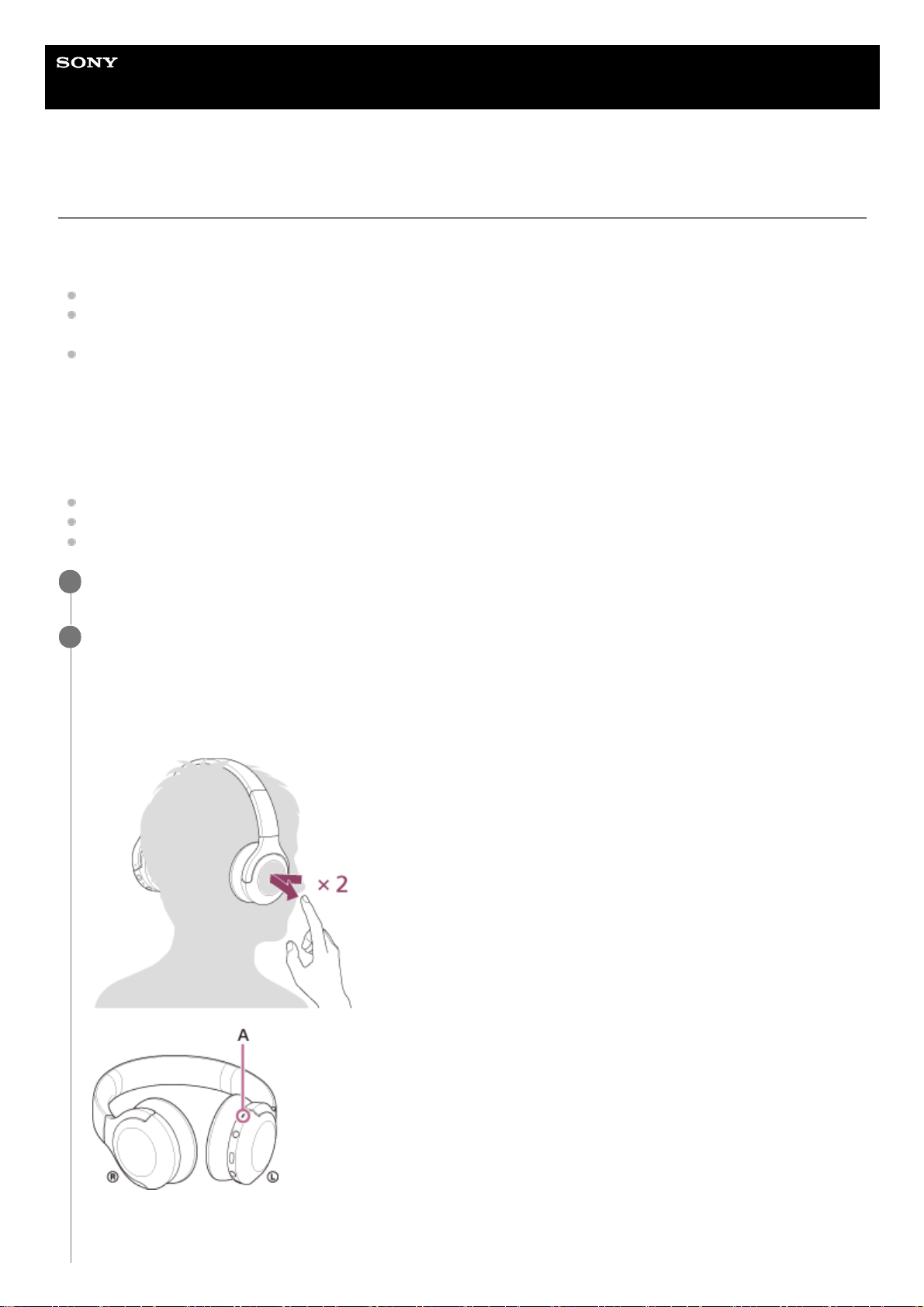
Help Guide
Wireless Stereo Headset
h.ear on 3 Mini Wireless (WH-H810)
Receiving a call
You can enjoy a hands-free call with a smartphone or mobile phone that supports the Bluetooth profile HFP (Hands-free
Profile) or HSP (Headset Profile), via Bluetooth connection.
If your smartphone or mobile phone supports both HFP and HSP, set it to HFP.
The operation may vary depending on the smartphone or mobile phone. Refer to the operating instructions supplied
with the smartphone or mobile phone.
Only ordinary phone calls are supported. Applications for phone calls on smartphones or personal computers are not
supported.
Ring tone
When an incoming call arrives, a ring tone will be heard from the headset, and the indicator (blue) flashes quickly.
You will hear either of following ring tones, depending on your smartphone or mobile phone.
Ring tone set on the headset
Ring tone set on the smartphone or mobile phone
Ring tone set on the smartphone or mobile phone only for a Bluetooth connection
Connect the headset to a smartphone or mobile phone via Bluetooth connection beforehand.
1
When you hear the ring tone, tap the touch sensor control panel twice quickly (with an interval of about 0.4
seconds) to receive the call.
When an incoming call arrives while you are listening to music, playback pauses and a ring tone will be heard from
the headset.
You can talk using the microphone on the headset.
A: Microphone
2
81
Page 82
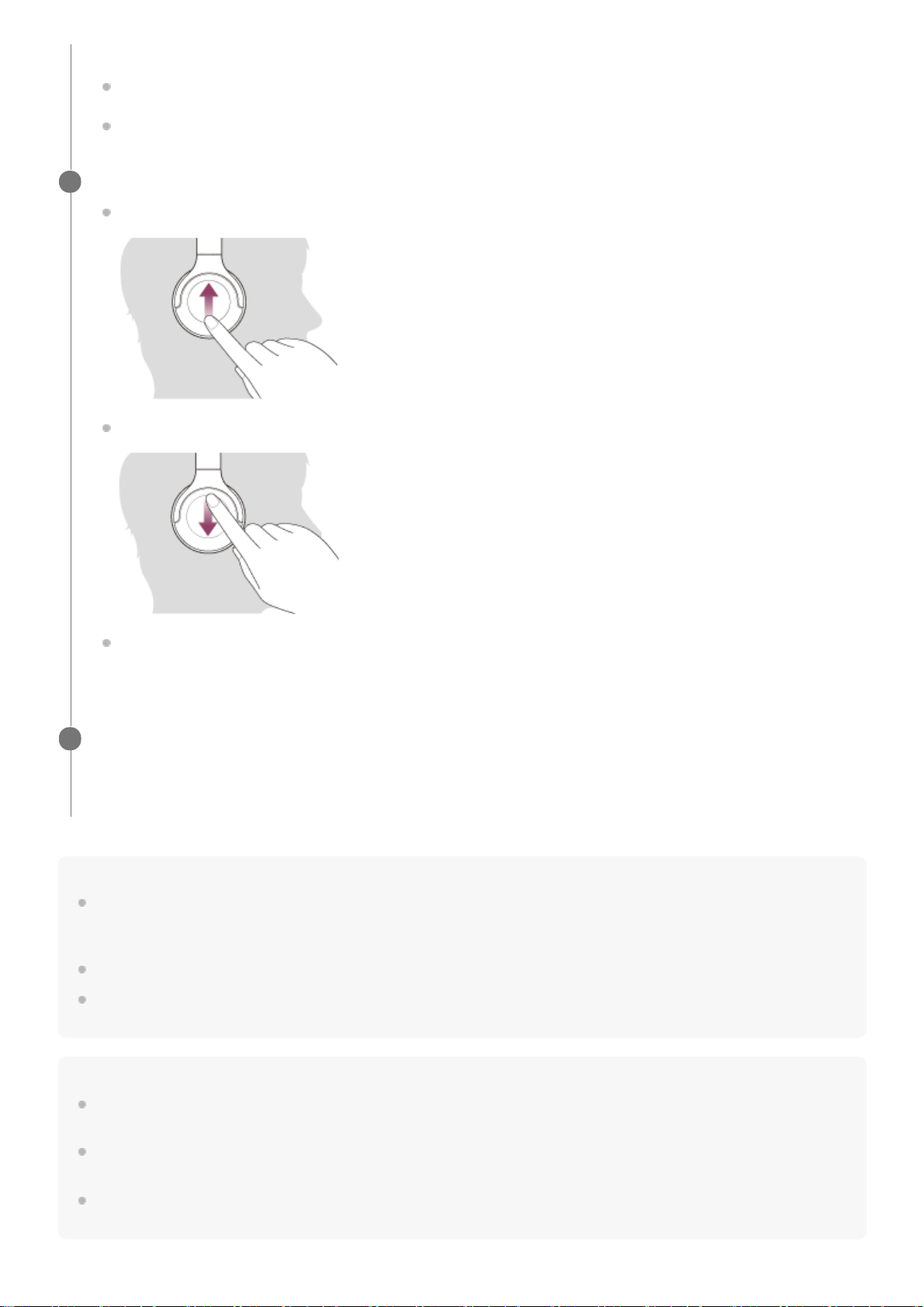
Hint
When receiving a call by operating smartphones or mobile phones, some smartphones or mobile phones receive a call with the
phone instead of the headset by default. With an HFP or HSP connection, switch the call by holding your finger to the headset’s
touch sensor control panel until it switches, or by using your smartphone or mobile phone.
Volume for a call can be adjusted during a telephone conversation only.
The headset volume during a call and during music playback can be independently adjusted. Changing the call volume does not
change the volume of music playback and vice versa.
Note
Depending on the smartphone or mobile phone, when an incoming call arrives while you are listening to music, playback may not
resume automatically even if you finish the call.
Use a smartphone or mobile phone at least 50 cm (19.69 in.) away from the headset. Noise may result if the smartphone or
mobile phone is too close to the headset.
Your voice will be heard from the headset through the headset’s microphone (Sidetone function). In this case, ambient sounds or
the sounds of the headset operation may be heard through the headset, but this is not a malfunction.
If no ring tone is heard via the headset
The headset may not be connected with the smartphone or mobile phone over HFP or HSP. Check the
connection status on the smartphone or mobile phone.
If playback does not pause automatically, operate the headset to pause playback.
Adjust the volume using the touch sensor control panel.
Increase the volume: Swipe up repeatedly until the volume reaches the desired level.
Decrease the volume: Swipe down repeatedly until the volume reaches the desired level.
To change the volume continuously: Swipe up or down and hold. Release at the desired level.
When the volume reaches the maximum or minimum, an alarm sounds.
3
When you finish your phone call, tap the touch sensor control panel twice quickly (with an interval of about
0.4 seconds) to end the call.
If you received a call during music playback, music playback resumes automatically after ending the call.
4
82
Page 83

Related Topic
How to make a wireless connection to Bluetooth devices
Making a call
Functions for a phone call
5-007-463-21(1) Copyright 2019 Sony Corporation
83
Page 84
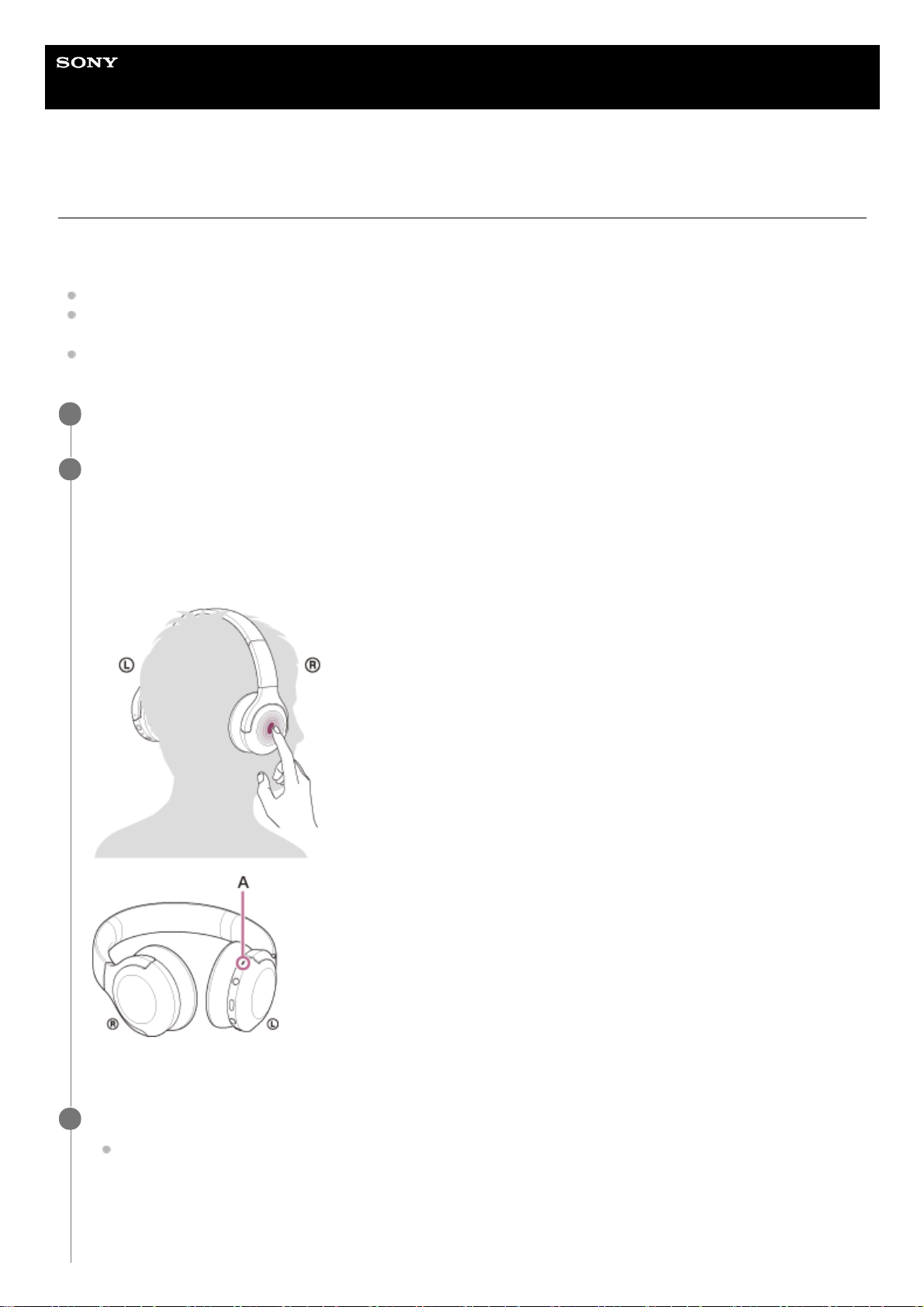
Help Guide
Wireless Stereo Headset
h.ear on 3 Mini Wireless (WH-H810)
Making a call
You can enjoy a hands-free call with a smartphone or mobile phone that supports the Bluetooth profile HFP (Hands-free
Profile) or HSP (Headset Profile), via Bluetooth connection.
If your smartphone or mobile phone supports both HFP and HSP, set it to HFP.
The operation may vary depending on the smartphone or mobile phone. Refer to the operating instructions supplied
with the smartphone or mobile phone.
Only ordinary phone calls are supported. Applications for phone calls on smartphones or personal computers are not
supported.
Connect the headset to a smartphone or mobile phone via Bluetooth connection.
1
Operate your smartphone or mobile phone to make a call.
When you make a call, the dial tone is heard from the headset.
If you make a call while you are listening to music, playback pauses.
If no dial tone is heard via the headset, switch the call device to the headset using your smartphone or mobile
phone or by holding your finger to the touch sensor control panel until the device is switched.
You can talk using the microphone on the headset.
A: Microphone
2
Adjust the volume using the touch sensor control panel.
Increase the volume: Swipe up repeatedly until the volume reaches the desired level.
3
84
Page 85
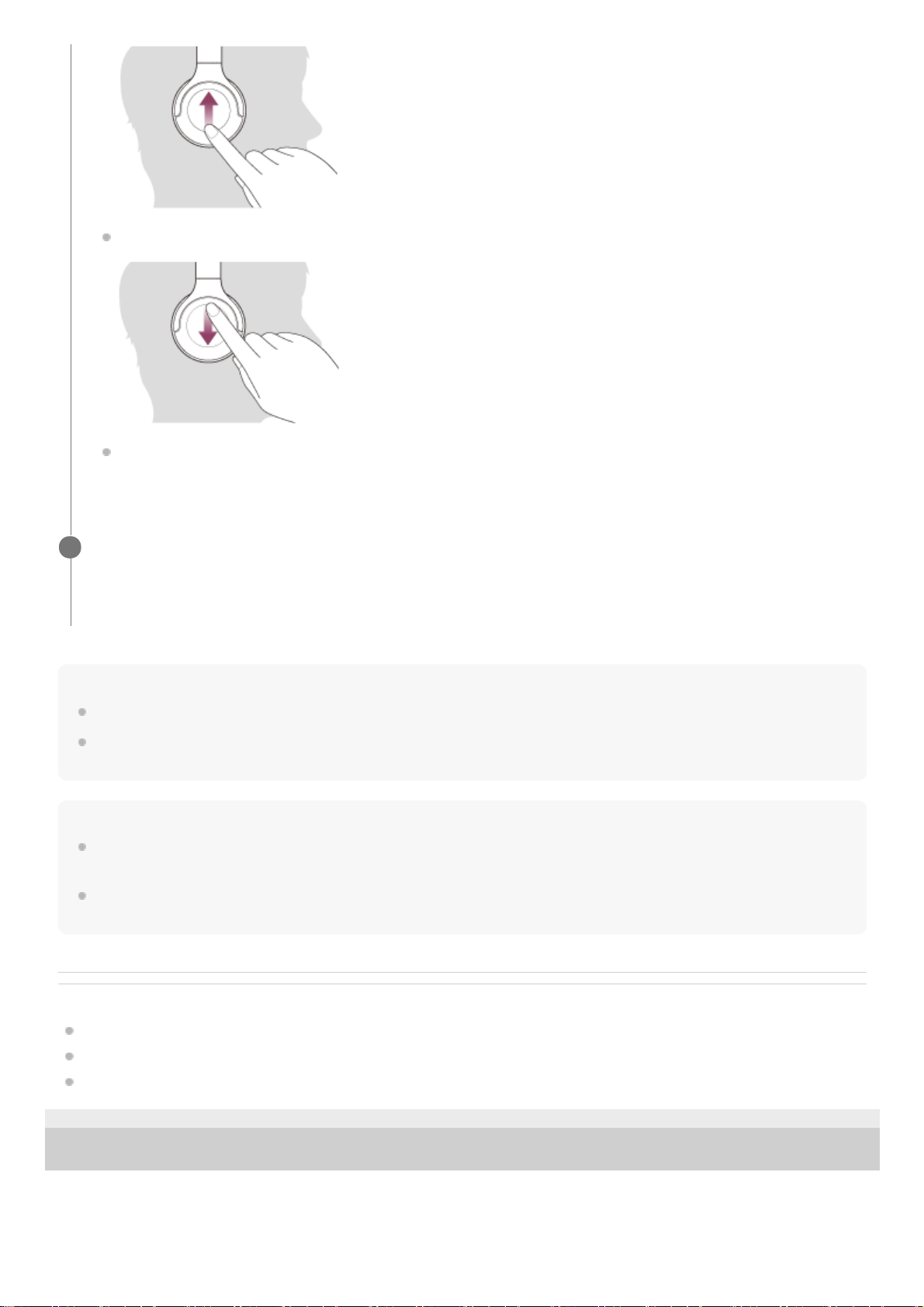
Hint
Volume for a call can be adjusted during a telephone conversation only.
The headset volume during a call and during music playback can be independently adjusted. Changing the call volume does not
change the volume of music playback and vice versa.
Note
Use a smartphone or mobile phone at least 50 cm (19.69 in.) away from the headset. Noise may result if the smartphone or
mobile phone is too close to the headset.
Your voice will be heard from the headset through the headset’s microphone (Sidetone function). In this case, ambient sounds or
the sounds of the headset operation may be heard through the headset, but this is not a malfunction.
Related Topic
How to make a wireless connection to Bluetooth devices
Receiving a call
Functions for a phone call
5-007-463-21(1) Copyright 2019 Sony Corporation
Decrease the volume: Swipe down repeatedly until the volume reaches the desired level.
To change the volume continuously: Swipe up or down and hold. Release at the desired level.
When the volume reaches the maximum or minimum, an alarm sounds.
When you finish your phone call, tap the touch sensor control panel twice quickly (with an interval of about
0.4 seconds) to end the call.
If you made a call during music playback, music playback resumes automatically after ending the call.
4
85
Page 86
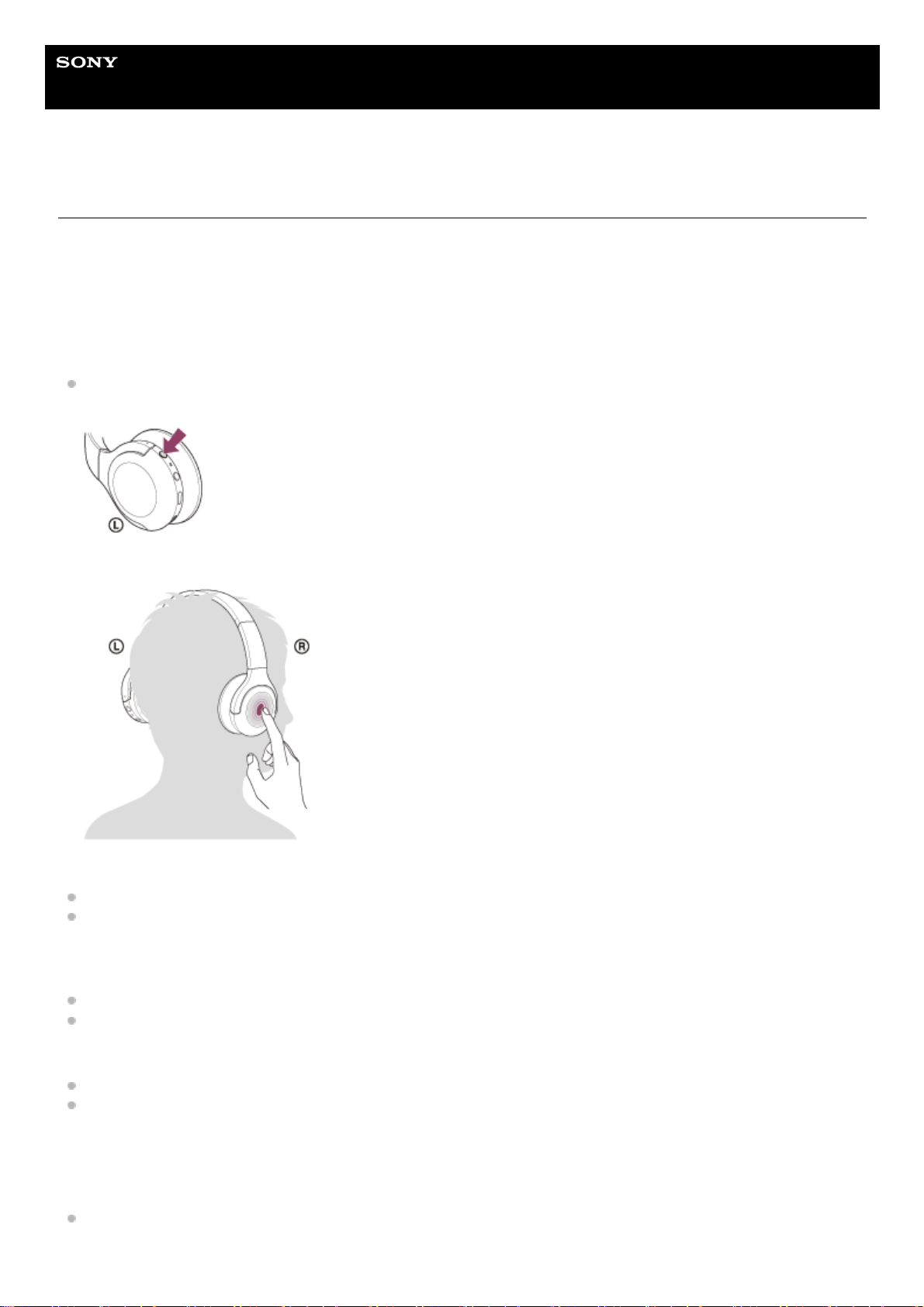
Help Guide
Wireless Stereo Headset
h.ear on 3 Mini Wireless (WH-H810)
Functions for a phone call
The functions available during a call may vary depending on the profile supported by your smartphone or mobile phone.
In addition, even if the profile is the same, the functions may vary depending on the smartphone or mobile phone.
Refer to the operating instructions supplied with the smartphone or mobile phone.
Supported profile: HFP (Hands-free Profile)
During standby/music playback
Press the C (custom) button to start up the voice dial function of the smartphone/mobile phone (*), or activate the
Google app on the Android smartphone or Siri on the iPhone.
You can also start up or activate the above functions by holding your finger to the touch sensor control panel.
Outgoing call
Tap the touch sensor control panel twice quickly (with an interval of about 0.4 seconds) to cancel an outgoing call.
Hold your finger to the touch sensor control panel to switch the call device between the headset and the smartphone
or mobile phone.
Incoming call
Tap the touch sensor control panel twice quickly to answer a call.
Hold your finger to the touch sensor control panel to reject a call.
During call
Tap the touch sensor control panel twice quickly to finish a call.
Hold your finger to the touch sensor control panel to switch the call device between the headset and the smartphone
or mobile phone.
Supported profile: HSP (Headset Profile)
Outgoing call
Tap the touch sensor control panel twice quickly to cancel an outgoing call. (*)
86
Page 87

Incoming call
Tap the touch sensor control panel twice quickly to answer a call.
During call
Tap the touch sensor control panel twice quickly to finish a call. (*)
Note
If the C (custom) button is set as the Google Assistant button, the voice assist function (Google app) is not available.
If the C (custom) button is set as the Google Assistant button, it cannot be used to start up the voice dial function of the
smartphone/mobile phone, or activate Siri on the iPhone using the C (custom) button. When activating Siri, use the touch sensor
control panel.
If the C (custom) button is set as the Amazon Alexa button, the voice assist function (Google app) is not available.
If the C (custom) button is set as the Amazon Alexa button, it cannot be used to start up the voice dial function of the
smartphone/mobile phone, or activate Siri on the iPhone using the C (custom) button. When activating Siri, use the touch sensor
control panel.
Related Topic
Receiving a call
Making a call
5-007-463-21(1) Copyright 2019 Sony Corporation
Some devices may not support this function.
*
87
Page 88
Help Guide
Wireless Stereo Headset
h.ear on 3 Mini Wireless (WH-H810)
Disconnecting Bluetooth connection (after use)
Hint
When you finish playing music, the Bluetooth connection may terminate automatically depending on the Bluetooth device.
Related Topic
Disconnecting the Android smartphone with one-touch (NFC)
Turning off the headset
5-007-463-21(1) Copyright 2019 Sony Corporation
Unlock the screen of the Bluetooth device if it is locked.
1
Touch the one-touch connection (NFC) compatible device again to disconnect it. If the Bluetooth device
does not support one-touch connection (NFC), disconnect the device by operating the device.
When disconnected, you will hear the voice guidance say, “Bluetooth disconnected”.
2
Turn off the headset.
You will hear the voice guidance say, “Power off”.
3
88
Page 89
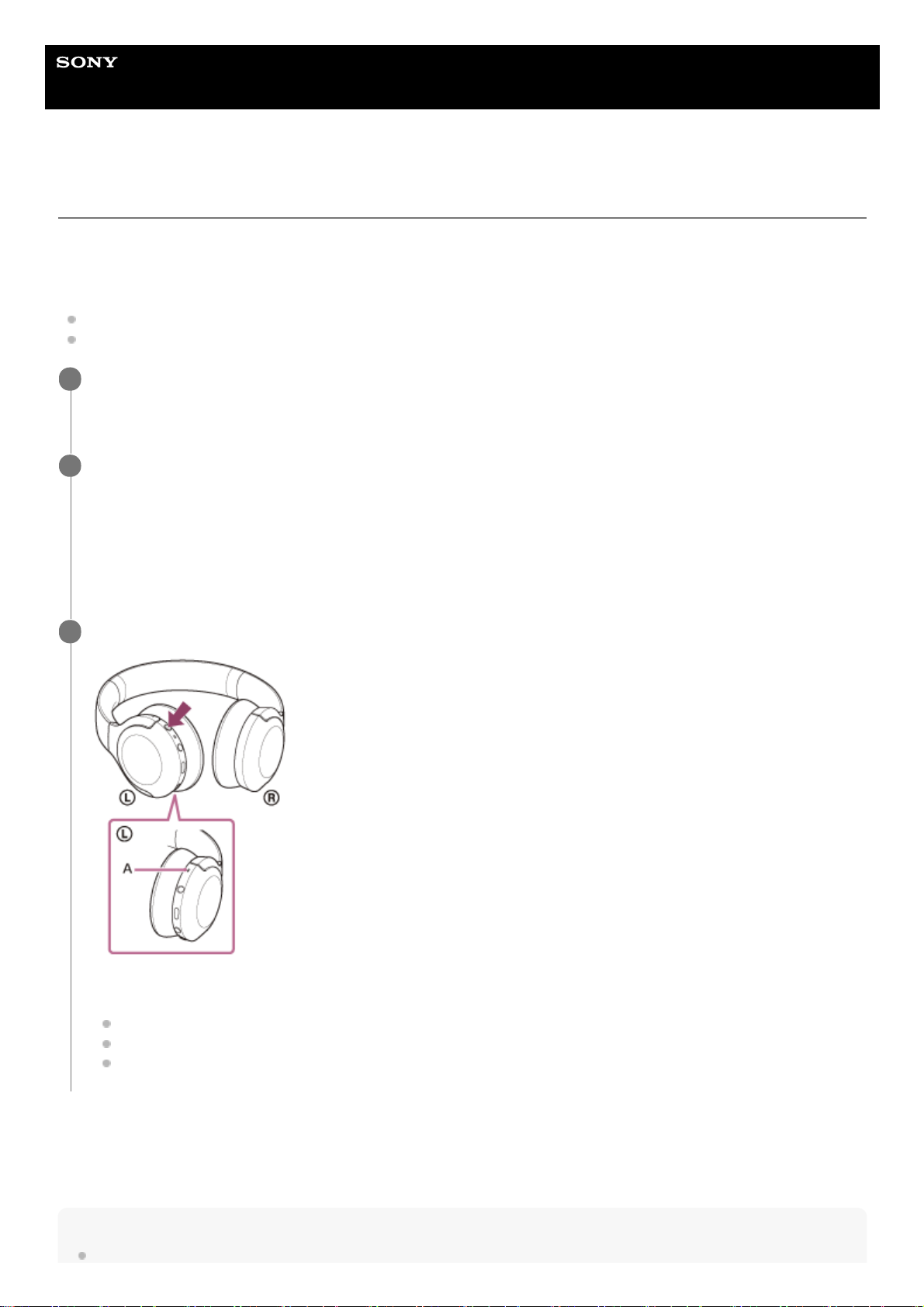
Help Guide
Wireless Stereo Headset
h.ear on 3 Mini Wireless (WH-H810)
Using the Google Assistant
By using the Google Assistant feature that comes with the smartphone, you can speak to the headset’s microphone to
operate the smartphone or perform the search.
Compatible smartphones
Smartphones installed with Android 5.0 or later (The latest version of Google app is required.)
iPhone/iPod touch (Installation of the Google Assistant application is required.)
For details on the Google Assistant, refer to the following website:
https://assistant.google.com
https://g.co/headphones/help
Hint
Check or update the software version of the headset with the “Sony | Headphones Connect” app.
If your smartphone is an iPhone/iPod touch, open the Google Assistant app.
If your smartphone is an Android smartphone, skip this step.
1
Open the “Sony | Headphones Connect” app and set the C (custom) button as the Google Assistant button.
When using the Google Assistant for the first time, open the Google Assistant app and tap the [Finish headphones
setup] button on the Conversation View, and follow the on-screen instructions to complete initial settings for the
Google Assistant.
For details on the “Sony | Headphones Connect” app, refer to the following URL.
https://rd1.sony.net/help/mdr/hpc/h_zz/
2
Press the C (custom) button to use the Google Assistant.
A: Microphone
Press and hold the button: Input a voice command
Press the button once: Notification is read out
Press the button quickly twice: Cancel the voice command
3
89
Page 90

When the Google Assistant is not available for reasons such as not being connected to the network, the voice guidance “The
Google Assistant is not connected” is heard.
If you do not see the [Finish headphones setup] button on the Google Assistant app, please unpair the headphones from the
Bluetooth settings of your smartphone and redo the pairing process.
Note
If the C (custom) button is set as the Google Assistant button in step 2, the voice assist function (Google app) cannot be used.
If the C (custom) button is set as the Google Assistant button in step 2, it cannot be used to start up the voice dial function of the
smartphone/mobile phone, or activate Siri on the iPhone using the C (custom) button. When activating Siri, use the touch sensor
control panel.
If the C (custom) button is set as the Google Assistant button in step 2, the Amazon Alexa function cannot be operated from the
headset.
The Google Assistant may not be used in some countries, regions, or languages.
5-007-463-21(1) Copyright 2019 Sony Corporation
90
Page 91
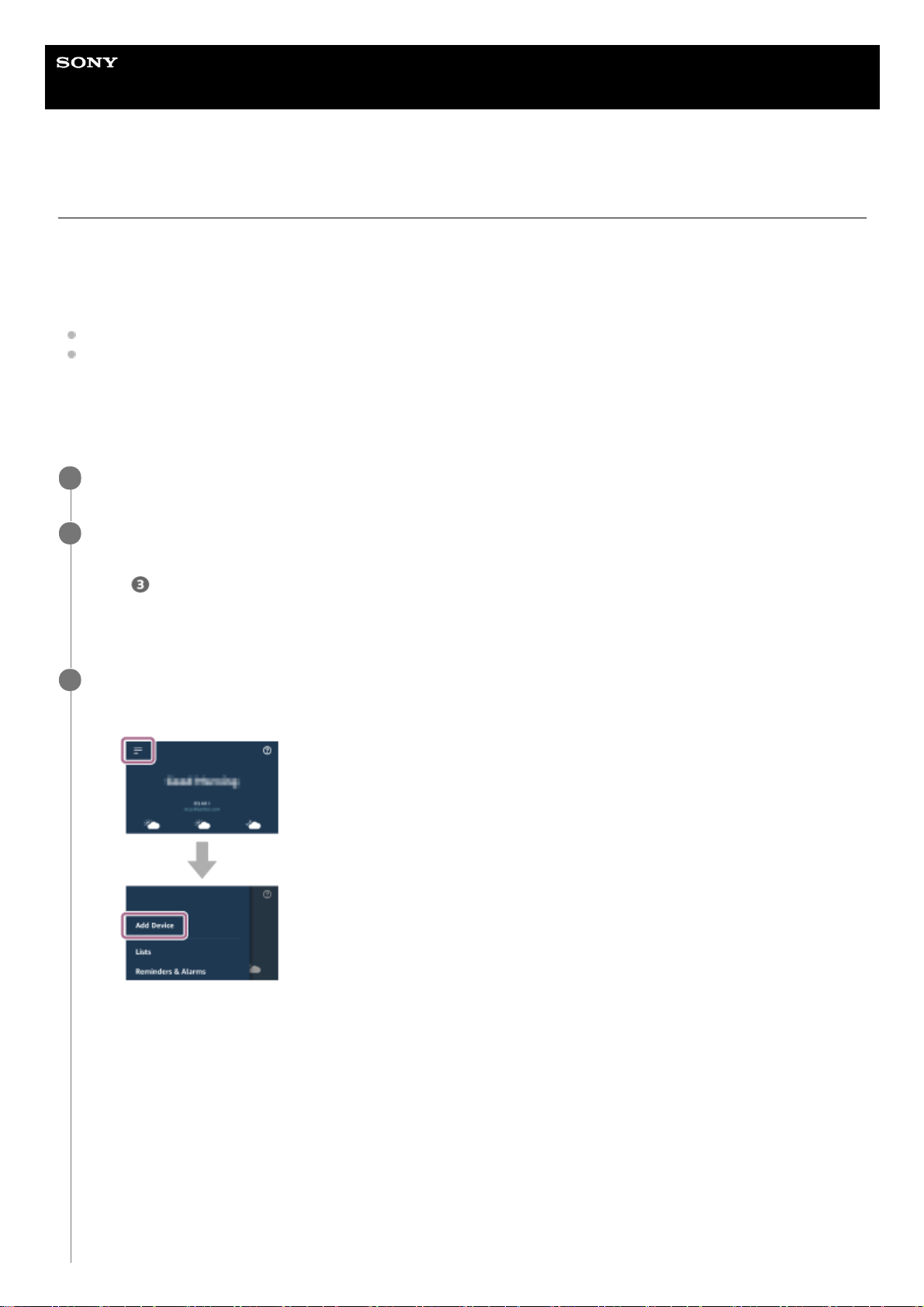
Help Guide
Wireless Stereo Headset
h.ear on 3 Mini Wireless (WH-H810)
Using Amazon Alexa
By using the Amazon Alexa app installed in your smartphone, you can speak to the headset’s microphone to operate the
smartphone or perform the search.
Compatible smartphones
Smartphones installed with Android 5.1 or later, or iOS 10.0 or later.
Installation of the latest Amazon Alexa app is required.
Open the app store on your mobile device.1.
Search for Amazon Alexa app.2.
Select Install.3.
Select Open.4.
Turn on the headset, and connect the headset to the smartphone via Bluetooth connection.
1
Open the Amazon Alexa app.
When you use Amazon Alexa for the first time, you will need to login with your Amazon account, and proceed to
Step
to set up your headset to the Amazon Alexa app.
If you have already set up Amazon Alexa before, but have configured the C (custom) button to function other than
Amazon Alexa, refer to the hint section below to reconfigure the C (custom) button to Amazon Alexa.
2
Perform the initial settings for Amazon Alexa.
3
Touch the menu icon in the upper left corner of the Amazon Alexa app screen, and touch [Add Device].
1.
On the [What type of device are you setting up?] screen, select [Headphones].2.
91
Page 92
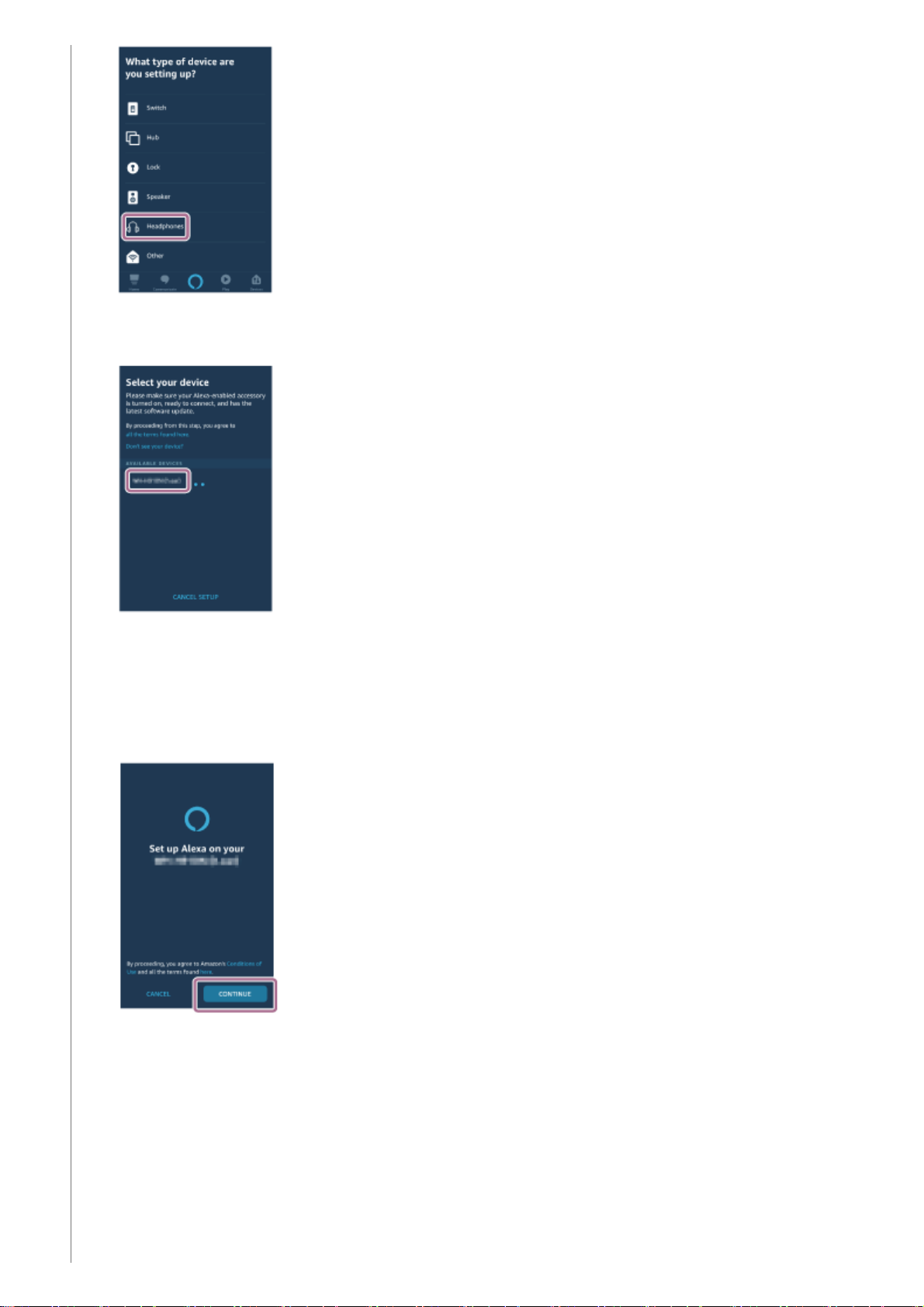
From [AVAILABLE DEVICES] on the [Select your device] screen, select [WH-H810 (h.ear)] or [LE_WH-H810
(h.ear)].
If you cannot find [WH-H810 (h.ear)] or [LE_WH-H810 (h.ear)] in [AVAILABLE DEVICES], the headset is not
connected to the smartphone via Bluetooth connection. Connect the headset to the smartphone via Bluetooth
connection.
3.
On the [Set up Alexa on your WH-H810 (h.ear)] or [Set up Alexa on your LE_WH-H810 (h.ear)] screen, touch
[CONTINUE].
4.
If the [This will override the current voice assistant on this accessory] screen appears, touch [CONTINUE].5.
92
Page 93
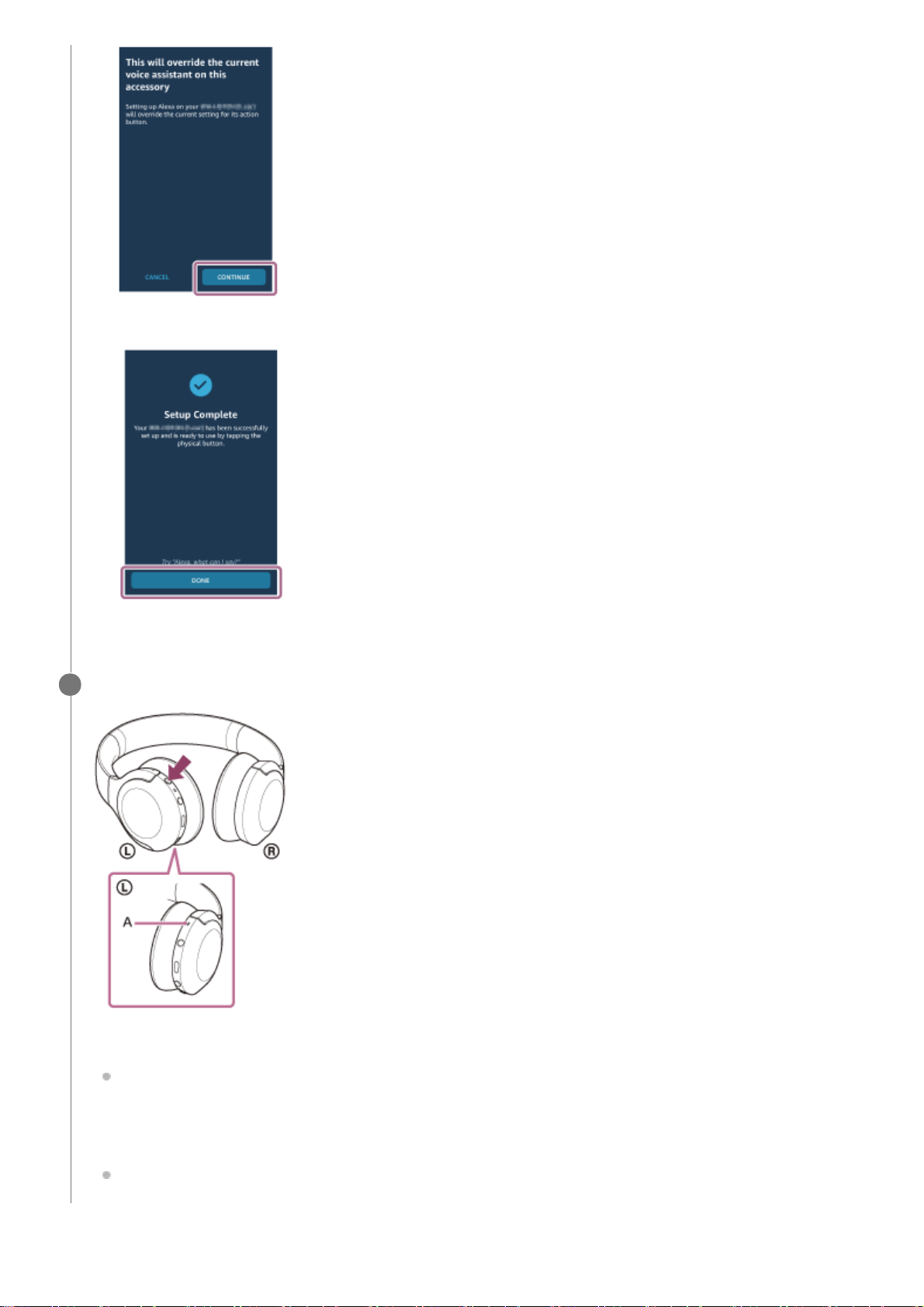
For details on Amazon Alexa and its capability, refer to the following website:
On the [Setup Complete] screen, touch [DONE].
When the initial settings are complete, the C (custom) button on the headset is set as the Amazon Alexa button.
6.
Press the C (custom) button to use Amazon Alexa.
A: Microphone
Press to input a voice command.
Example:
“What is the weather”
“Play music (*)”
* Need Amazon or Prime Music subscription.
If there is no voice, it will be canceled.
4
93
Page 94

https://www.amazon.com/b?node=16067214011
For details on Amazon Alexa, refer to the following website:
https://www.amazon.com/gp/help/customer/display.html?nodeId=G7HPV3YLTGLJEJFK
Hint
When you set up the headset to Amazon Alexa, the C (custom) button will be automatically configured for Amazon Alexa. You
can restore the button back to original function by changing it with the “Sony | Headphones Connect” app. Similarly, you can
reconfigure back to Amazon Alexa if you have previously connected to Amazon Alexa, but have changed to other function.
Check or update the software version of the headset with the “Sony | Headphones Connect” app.
When Amazon Alexa is not available for reasons such as not being connected to the network, the voice guidance “Either your
mobile device isn’t connected; or you need to open the Alexa App and try again” is heard.
Note
If the C (custom) button is set as the Amazon Alexa button, the voice assist function (Google app) cannot be used.
If the C (custom) button is set as the Amazon Alexa button, it cannot be used to start up the voice dial function of the
smartphone/mobile phone, or activate Siri on the iPhone using the C (custom) button. When activating Siri, use the touch sensor
control panel.
If the C (custom) button is set as the Amazon Alexa button, the Google Assistant function cannot be operated from the headset.
Amazon Alexa is not available in all languages and countries/regions. See www.amazon.com/alexa-availability for details.
5-007-463-21(1) Copyright 2019 Sony Corporation
94
Page 95
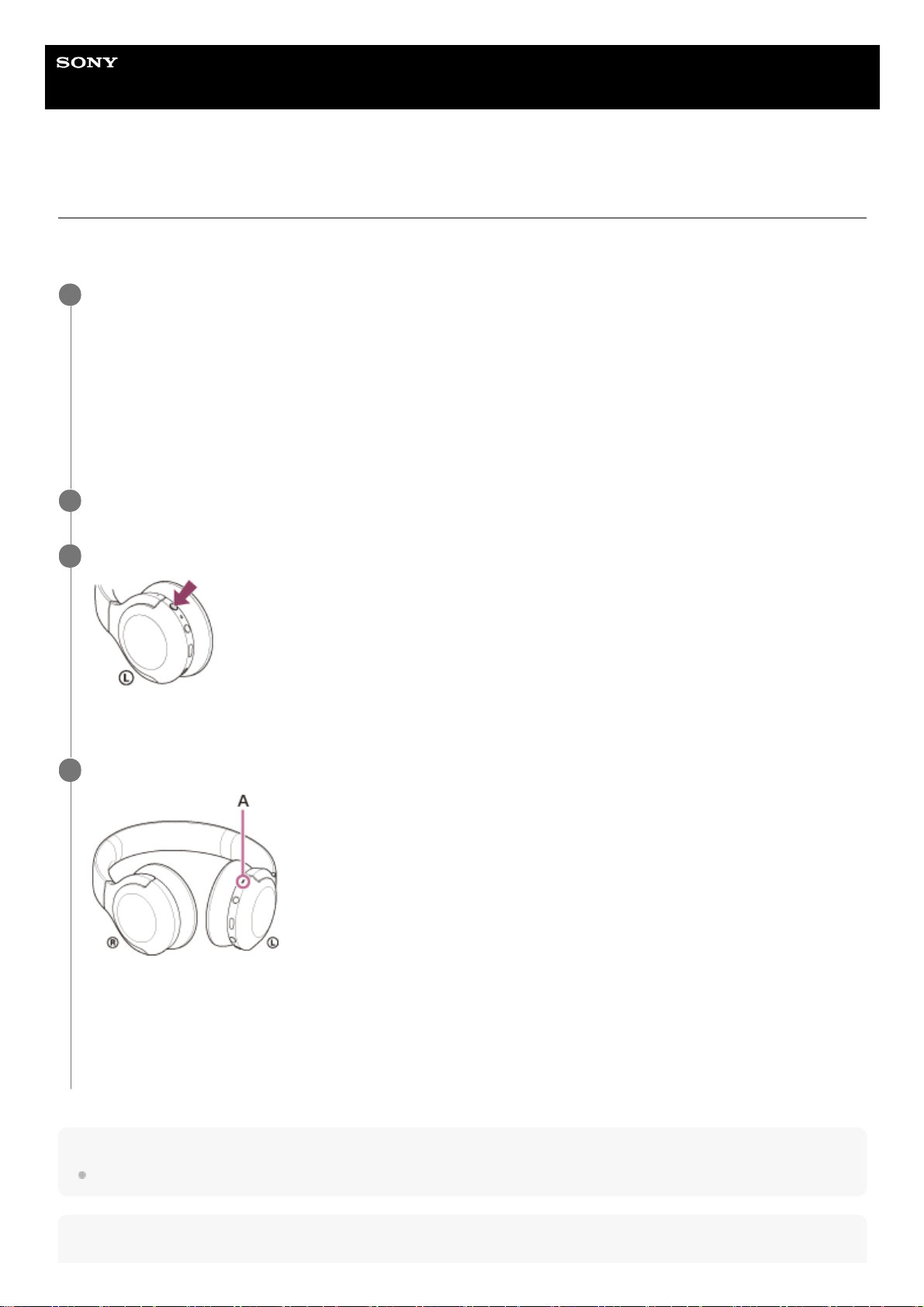
Help Guide
Wireless Stereo Headset
h.ear on 3 Mini Wireless (WH-H810)
Using the voice assist function (Google app)
By using the Google app feature that comes with the Android smartphone, you can speak to the headset’s microphone to
operate the Android smartphone.
Hint
You can also activate the Google app by holding your finger to the touch sensor control panel.
Note
Set the assist and voice input selection to the Google app.
On the Android smartphone, select [Settings] - [Apps & notifications] - [Advanced] - [Default apps] - [Assist & voice
input], and set [Assist app] to the Google app.
The operation above is an example. For details, refer to the operating instructions of the Android smartphone.
Note: The latest version of the Google app may be required.
For details on the Google app, refer to the operating instructions or the support website of the Android smartphone,
or the Google Play store website.
The Google app may not be activated from the headset depending on specifications of the Android smartphone.
1
Connect the headset to the Android smartphone via Bluetooth connection.
2
When the Android smartphone is in standby or playing music, press the C (custom) button on the headset.
The Google app is activated.
3
Make a request to the Google app through the headset’s microphone.
A: Microphone
For details on the apps which work with the Google app, refer to the operating instructions of the Android
smartphone.
After activating the Google app, the voice command is canceled when a certain time has passed without requests.
4
95
Page 96

If the C (custom) button is set as the Google Assistant button, the voice assist function (Google app) is not available.
If the C (custom) button is set as the Amazon Alexa button, the voice assist function (Google app) is not available.
The Google app cannot be activated when you say “Ok Google” even when the Android smartphone’s “Ok Google” setting is on.
When using the voice assist function, your voice will be heard from the headset through the headset’s microphone (Sidetone
function). In this case, ambient sounds or the sounds of the headset operation may be heard through the headset, but this is not
a malfunction.
The Google app may not be activated depending on specifications of the smartphone or application version.
The Google app does not work when connected to a device not compatible with the voice assist function.
5-007-463-21(1) Copyright 2019 Sony Corporation
96
Page 97
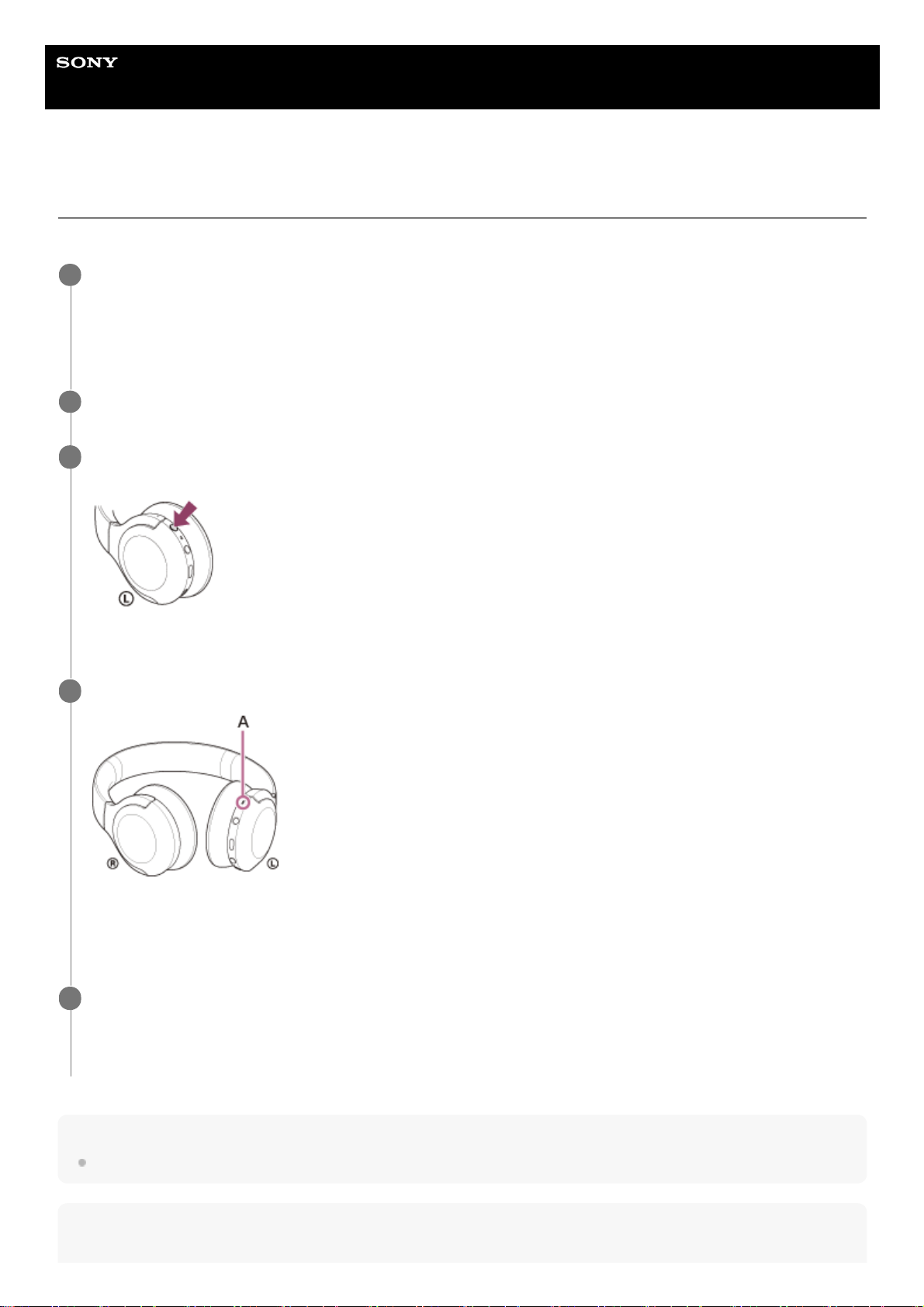
Help Guide
Wireless Stereo Headset
h.ear on 3 Mini Wireless (WH-H810)
Using the voice assist function (Siri)
By using the Siri feature that comes with iPhone, you can speak to the headset’s microphone to operate the iPhone.
Hint
You can also activate Siri by holding your finger to the touch sensor control panel.
Note
Turn Siri on.
On iPhone, select [Settings] - [Siri & Search] to turn [Press Home for Siri] and [Allow Siri When Locked] on.
The operation above is an example. For details, refer to the operating instructions of the iPhone.
Note: For details on Siri, refer to the operating instructions or support website of the iPhone.
1
Connect the headset to the iPhone via Bluetooth connection.
2
When the iPhone is using the Bluetooth connection and is in standby or playing music, press the C
(custom) button on the headset.
Siri is activated.
3
Make a request to Siri through the headset’s microphone.
A: Microphone
For details on the apps which work with Siri, refer to the operating instructions of the iPhone.
4
To continue to request, tap the touch sensor control panel twice quickly (with an interval of about 0.4
seconds) before Siri is deactivated.
After activating Siri, when a certain time has passed without requests, Siri will be deactivated.
5
97
Page 98

If the C (custom) button is set as the Google Assistant button, Siri cannot be activated using the C (custom) button. When
activating Siri, use the touch sensor control panel.
If the C (custom) button is set as the Amazon Alexa button, Siri cannot be activated using the C (custom) button. When activating
Siri, use the touch sensor control panel.
Siri cannot be activated when you say “Hey Siri” even when the iPhone’s “Hey Siri” setting is on.
When using the voice assist function, your voice will be heard from the headset through the headset’s microphone (Sidetone
function). In this case, ambient sounds or the sounds of the headset operation may be heard through the headset, but this is not
a malfunction.
Siri may not be activated depending on specifications of the smartphone or application version.
Siri does not work when connected to a device not compatible with the voice assist function.
5-007-463-21(1) Copyright 2019 Sony Corporation
98
Page 99
Help Guide
Wireless Stereo Headset
h.ear on 3 Mini Wireless (WH-H810)
What you can do with “Sony | Headphones Connect” app
When you connect the smartphone (with the “Sony | Headphones Connect” app installed) and the headset via Bluetooth
connection, you can do the following.
Easy pairing
Display the remaining battery life of the headset
Display the Bluetooth connection codec
Select the Equalizer setting
Customize the Equalizer setting
Switch the sound quality mode by setting the Bluetooth connection mode
Set the DSEE HX (completion for high-range sound) function
Change the function of the C (custom) button
Turn off the headset
Adjust the playback volume
Play/pause music, skip to the beginning of the previous track (or the current track during playback)/skip to the
beginning of the next track
Check the connection status and the settings of the headset
Check the headset software version
Headset software update
Switch the voice guidance language
Voice guidance on/off setting
For details on the “Sony | Headphones Connect” app, refer to the following URL.
https://rd1.sony.net/help/mdr/hpc/h_zz/
Hint
The operation of the “Sony | Headphones Connect” app differs depending on the audio device. The app specifications and screen
design may change without prior notice.
Related Topic
Installing “Sony | Headphones Connect” app
Checking the remaining battery charge
About the sound quality mode
Supported codecs
About the DSEE HX function
5-007-463-21(1) Copyright 2019 Sony Corporation
99
Page 100
Help Guide
Wireless Stereo Headset
h.ear on 3 Mini Wireless (WH-H810)
Installing “Sony | Headphones Connect” app
Related Topic
What you can do with “Sony | Headphones Connect” app
5-007-463-21(1) Copyright 2019 Sony Corporation
Download the “Sony | Headphones Connect” app from the Google Play store or App Store, and install the
app on your smartphone.
For details on the “Sony | Headphones Connect” app, refer to the following URL.
https://rd1.sony.net/help/mdr/hpc/h_zz/
1
After installing the app, launch the “Sony | Headphones Connect” app.
2
100
 Loading...