

Page 1

User guide
Xperia XA1
G3121/G3123/G3125/G3112/G3116
Page 2

Contents
Getting started..............................................................................6
About this User guide.......................................................................6
Overview........................................................................................... 6
Assembly – Single SIM...................................................................... 7
Assembly – Dual SIM.........................................................................8
Screen protection..............................................................................9
Starting your device for the first time.............................................. 9
Why do I need a Google account?................................................... 9
Device security............................................................................. 11
Making sure your device is protected............................................. 11
Screen lock....................................................................................... 11
Unlocking your device automatically..............................................12
SIM card protection......................................................................... 12
Using multiple SIM cards.................................................................13
Finding the IMEI number(s) of your device.....................................13
Finding, locking or erasing a lost device ....................................... 14
Using location services....................................................................14
Learning the basics......................................................................16
Using the touchscreen.................................................................... 16
Turning the screen on or o............................................................18
Smart backlight control...................................................................18
Home screen................................................................................... 18
Application screen.......................................................................... 20
Shortcuts for easy actions...............................................................21
Navigating applications.................................................................. 22
Widgets........................................................................................... 24
Shortcuts and folders......................................................................24
Background and themes................................................................ 25
Taking a screenshot........................................................................26
Notifications....................................................................................26
Icons in the status bar.................................................................... 28
Applications overview.................................................................... 30
Battery and maintenance............................................................33
Charging your device......................................................................33
Battery and power management...................................................34
Updating your device......................................................................35
Maintenance using a computer......................................................37
Storage and memory......................................................................38
Backing up and restoring content..................................................39
2
Page 3

Downloading applications..........................................................43
Downloading applications from Google Play................................ 43
Downloading applications from other sources..............................43
Internet and networks................................................................ 44
Browsing the web...........................................................................44
Internet and MMS settings ............................................................ 44
Wi-Fi................................................................................................ 45
Sharing your mobile data connection............................................47
Controlling data usage................................................................... 48
Selecting a SIM card for data trac............................................... 49
Selecting mobile networks.............................................................50
Synchronising data on your device............................................. 51
Synchronising with online accounts............................................... 51
Synchronising with Microsoft Exchange ActiveSync...................... 51
Basic settings...............................................................................53
Accessing settings.......................................................................... 53
Volume, vibration and sound......................................................... 53
Silence your device with Do not disturb........................................ 54
Screen settings................................................................................55
Screen pinning................................................................................ 56
Application settings........................................................................56
Resetting your applications............................................................58
Language settings.......................................................................... 58
Date and time................................................................................. 58
Enhancing the sound output..........................................................59
Multiple user accounts....................................................................59
Typing text...................................................................................62
On-screen keyboards......................................................................62
Editing text......................................................................................63
Auto-fill............................................................................................63
Calling..........................................................................................64
Making calls.................................................................................... 64
Receiving calls.................................................................................65
Forwarding calls..............................................................................66
Blocking a number.......................................................................... 67
Contacts.......................................................................................68
Adding and editing contacts..........................................................68
Grouping contacts.......................................................................... 69
Transferring contacts...................................................................... 69
Backing up contacts........................................................................70
Messaging and chat.................................................................... 72
Reading and sending messages.................................................... 72
3
Page 4

Messaging settings......................................................................... 73
Video chat....................................................................................... 73
Setting up email.............................................................................. 74
Music and FM radio..................................................................... 75
Transferring music to your device.................................................. 75
Listening to music...........................................................................75
Listening to the radio......................................................................77
Camera.........................................................................................79
Getting to know your camera.........................................................79
Exposure, colour and light conditions............................................82
Setting the right focus.................................................................... 85
People, selfies and smiling faces................................................... 85
Moving objects............................................................................... 86
Using camera apps......................................................................... 87
Resolution and memory.................................................................88
Diagnosing your camera................................................................ 90
Additional camera settings............................................................ 90
Photos and videos in Album.......................................................92
Viewing photos and videos............................................................92
Album home screen menu............................................................. 93
Sharing and managing photos and videos....................................94
Hiding photos and videos.............................................................. 95
Connectivity.................................................................................96
Mirroring the screen of your device wirelessly on a TV.................96
Connecting your device to USB accessories.................................. 96
NFC (Near Field Communication)................................................... 96
Bluetooth wireless technology.......................................................98
Smart apps and features that save you time............................101
Google Feed...................................................................................101
Using your device as a wallet........................................................101
Xperia Actions................................................................................101
Clock and Calendar....................................................................103
Calendar.........................................................................................103
Clock.............................................................................................. 103
Accessibility............................................................................... 106
Magnification................................................................................ 106
Font size........................................................................................ 106
Display size....................................................................................106
Colour correction...........................................................................106
TalkBack.........................................................................................106
Mono audio....................................................................................107
Switch Access.................................................................................107
4
Page 5

Support and legal......................................................................108
Support application.......................................................................108
Restarting, resetting and repairing.............................................. 108
Warranty, SAR and usage guidelines............................................109
Legal information..........................................................................109
5
Page 6
Getting started
About this User guide
This is the Xperia XA1 User guide for the Android™ 8.0 software version. If you're
not sure which software version your device is running, you can check it in the
Settings menu.
System and application updates can present the features in your device in another way than
described in this User guide. The Android version might not be aected in an update. For
more information about software updates, see
To check the current software version of your device
• Find and tap Settings > System > About phone.
The current software version is displayed under Build number.
To find the model number of your device
• Find and tap Settings > System > About phone.
The device model number is displayed under Model.
Limitations to services and features
Some of the services and features described in this User guide may not be
supported in all countries or regions, or by all networks or service providers. The
GSM International Emergency Number can always be used in all countries, regions,
networks and by all service providers, provided that the device is connected to the
mobile network. Please contact your network operator or service provider to
determine the availability of any specific service or feature and whether additional
access or usage fees apply.
The use of certain features and applications described in this guide may require
access to the internet. You may incur data connection charges when you connect
to the internet with your device. Contact your wireless service provider for more
information.
Updating your device
on page 35.
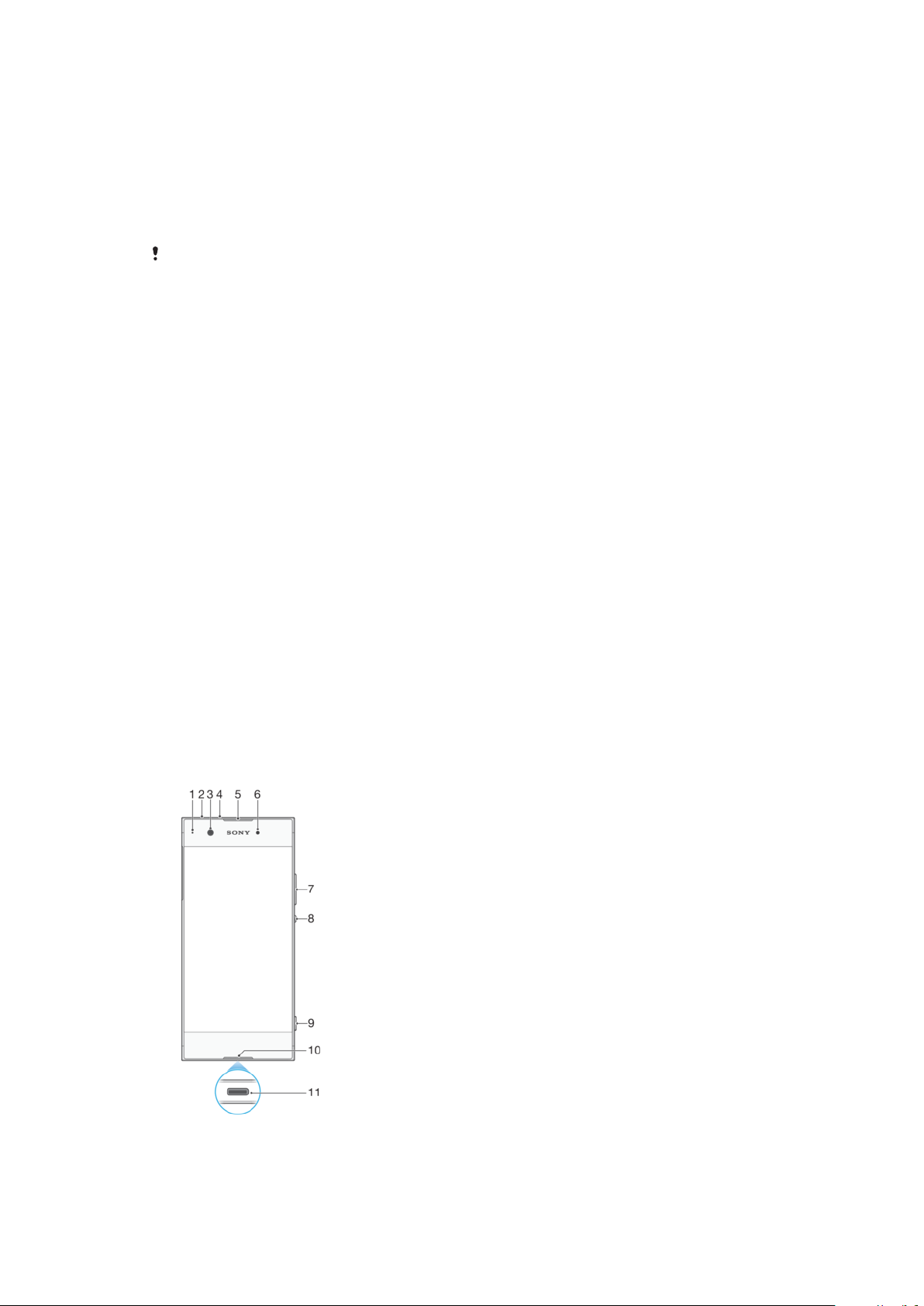
Overview
6
This is an internet version of this publication. © Print only for private use.
Page 7

1. Charging/Notification light
2. Headset jack
3. Front camera lens
4. Second microphone
5. Ear speaker/Second loudspeaker
6. Proximity/Light sensor
7. Volume/Zoom key
8. Power key
9. Camera key
11. Charger/USB Type-C™ cable port
12. Wi-Fi/GPS/Bluetooth antenna area
13. Main camera lens
14. Flashlight
15. Diversity antenna
16. Nano SIM/Memory card slot
17. NFC™ detection area
18. Main antenna area
19. Main loudspeaker
10. Main microphone
Assembly – Single SIM
Your device only supports nano SIM cards. Single SIM devices allow you to use one
SIM card and a memory card.
The nano SIM card and the memory card have separate slots. Make sure you don’t
confuse the two.
For information on how to check if your device is Single SIM or Dual SIM, see
Finding the IMEI number(s) of your device
To prevent data loss, make sure you turn o your device or unmount the memory card
before you drag out the holder to remove the nano SIM card or memory card from the
device.
on page 13.
7
This is an internet version of this publication. © Print only for private use.
Page 8
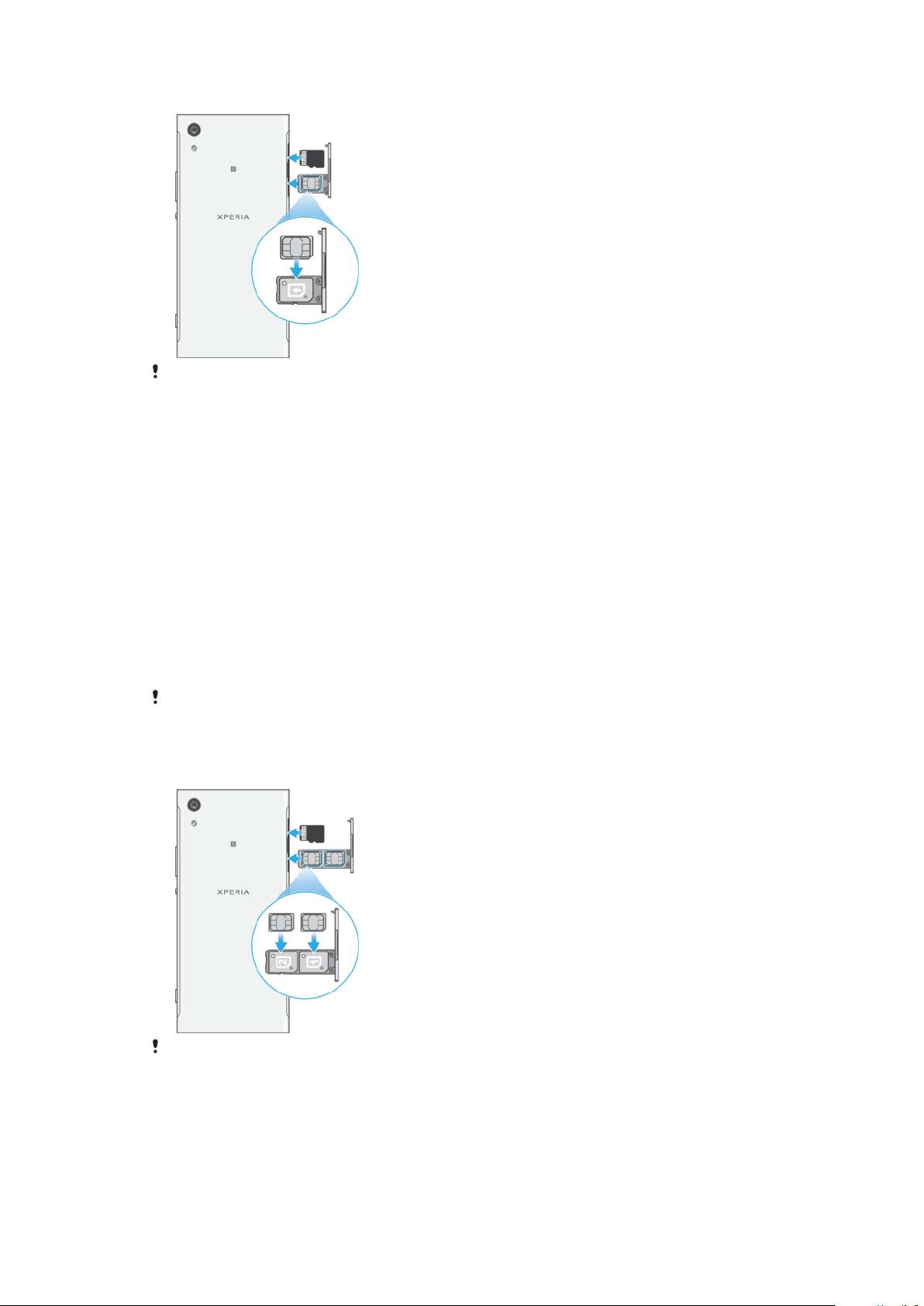
To insert the nano SIM card and the memory card
Do not cut your SIM card, for example using a blade or scissors, as this may damage your
device.
1 Using your fingernail, drag out the SIM card tray.
2 Firmly place the SIM card in the correct orientation as shown in the
illustration.
3 Insert the memory card in the correct orientation into the memory card slot
as shown in the illustration.
4 Gently push the tray back into the slot until it fits into place.
Assembly – Dual SIM
Your device only supports nano SIM cards. Dual SIM devices support the use of one
or two nano SIM cards and a memory card.
Dual SIM devices are not available in all markets or from all operators.
For information on how to check if your device is Single SIM or Dual SIM, see
Finding the IMEI number(s) of your device
To prevent data loss, make sure you turn o your device or unmount the memory card
before you drag out the holder to remove the nano SIM card (or cards) or memory card from
the device.
To insert the nano SIM cards and the memory card
on page 13.
Do not cut your SIM cards, for example using a blade or scissors, as this may damage your
device.
8
This is an internet version of this publication. © Print only for private use.
Page 9

1 Using your fingernail, drag out the SIM card tray.
2 Firmly place the primary SIM card (SIM 1) in the correct orientation in position
(1) as shown in the illustration.
3 Firmly place the additional SIM card (SIM 2) in the correct orientation in
position (2) as shown in the illustration.
4 Insert the memory card in the correct orientation into the memory card slot
as shown in the illustration.
5 Gently push the tray back into the slot until it fits into place.
Screen protection
Before using your device, remove all protection films to enable full functionality.
Screen covers and protectors may help you protect your device against damage.
We recommend you use only those screen covers intended for your Xperia device.
The use of third party screen protection accessories may prevent your device from
working correctly by covering sensors, lenses, speakers, or microphones and can
invalidate the warranty.
Starting your device for the first time
It is recommended that you charge the battery for at least 30 minutes before
starting up your device for the first time. You can still use your device while it is
charging, see
The first time you start your device, a setup guide helps you to configure basic
settings, personalise your device and sign in to your accounts, for example a
Google™ account.
When you buy your device, a basic screen swipe lock is already set. This means
that you have to swipe left or upwards on the screen to unlock it. You can change
the security settings later and add other kinds of screen locks.
Charging your device
on page 33.
To turn on the device
Make sure to use a USB Type-C cable (provided) when charging your device. It is
recommended to charge the battery for at least 30 minutes before you turn on the device
for the first time.
1 Press and hold down the power key until the device vibrates.
2 Enter your SIM card PIN when requested, then tap .
3 Wait a moment for the device to start.
Your SIM card PIN is initially supplied by your network operator, but you can change it later
from the Settings menu.
To turn o the device
1 Press and hold down the power key
2 In the options menu, tap Power o.
It may take a while for the device to shut down.
until the options menu opens.
Why do I need a Google account?
Your Xperia™ device from Sony runs on the Android™ platform developed by
Google. A range of Google applications and services are available on your device
when you purchase it, for example, Gmail™, Google Maps™, YouTube™ and the
Play Store™ application, which gives you access to the Google Play™ online store
for downloading Android applications. To get the most out of these services, you
need a Google account. For example, a Google account enables you to do the
following:
• Download and install applications from Google Play.
• Synchronise your email, contacts and calendar using Gmail.
9
This is an internet version of this publication. © Print only for private use.
Page 10

• Chat with friends using the Duo™ application.
• Synchronise your browsing history and bookmarks using the Google Chrome™
web browser.
• Identify yourself as the authorised user after a software repair using Xperia™
Companion.
• Remotely find, lock or clear a lost or stolen device using the Find my device
services.
For more information about Android and Google, go to
http://support.google.com
It is crucial that you remember your Google account username and password. In some
situations, you may need to identify yourself for security reasons using your Google
account. If you fail to give your Google username and password in such situations, your
device is locked. Also, if you have more than one Google account, make sure to enter the
details for the relevant account.
.
To set up a Google account on your device
1 Find and tap Settings > Users & accounts > Add account > Google.
2 Follow the on-screen instructions to create a Google account, or sign in if
you already have an account.
You can also create a Google account using the setup guide when you first start your
device, or go online later and create an account at
https://myaccount.google.com/
.
To remove a Google account
1 Find and tap Settings > Users & accounts.
2 Select the Google account that you want to remove.
3 Tap REMOVE ACCOUNT.
4 Tap REMOVE ACCOUNT again to confirm.
If you remove your Google account, any security features that are linked to your Google
account will no longer be available.
10
This is an internet version of this publication. © Print only for private use.
Page 11

Device security
Making sure your device is protected
Your device includes security options, strongly recommended in case of loss or
theft.
When using a security option to protect your device, it is crucial to remember the details
provided at set up.
Screen lock
Set a secure screen lock on your device using a PIN, password, pattern or to
prevent others from using your device without permission. Once the screen lock is
set, it is not possible to unlock the screen or erase the content via a Factory Data
Reset without providing the screen lock information.
If you add your contact information on the screen lock, for example your email, this
information can be used to get your device back if you lose it.
Google account
Add a Google account so that you can use the Find my device service. In some
situations, you may also need to identify yourself for security reasons using your
Google account.
Find my device
Use the Find my device service to remotely locate, lock, unlock or erase the content
on a lost device. After you have signed in to your Google account, Find my device
is turned on by default.
SIM card lock
Lock your SIM cards with a PIN to protect your subscription against misuse. The PIN
is required every time you restart your device.
IMEI number
Keep a copy of the IMEI number. If your device is stolen, some network providers
can use this number to stop the device from accessing the network in your country
or region.
Dual SIM devices have two IMEI numbers.
Backup
Back up the content on your device in case your device is damaged, lost or stolen.
Backing up and restoring content
See
on page 39.
Screen lock
When the screen is locked you have to unlock it with a swipe gesture or with your
personal pattern, PIN, password or fingerprint. Initially, the unprotected screen
swipe is set, but it is recommended to use a more secure screen lock to protect
your device.
The security level of each lock type is listed below in order of weakest to strongest:
• Swipe: no protection, but you have quick access to the Home screen.
• Pattern: draw a simple pattern with your finger to unlock your device.
• PIN: enter a numeric PIN of at least four digits to unlock your device.
• Password: enter an alpha-numeric password to unlock your device.
To configure the notifications on the lock screen, see
Notifications
on page 26.
11
This is an internet version of this publication. © Print only for private use.
Page 12

To create or change a screen lock
It is very important that you remember your screen lock when using a pattern, PIN or
password. If you forget this information, it may not be possible to restore important data
such as contacts and messages. See troubleshooting tips for your device at
http://support.sonymobile.com
.
1 Find and tap Settings > Lock screen & security > Screen lock.
2 If requested, confirm your current screen lock.
3 Choose an option and follow the on-screen instructions.
4 When a secure screen lock is used, you can set the power button to lock the
screen, set the screen lock activation time and create a lock screen message
by pressing
If you use a Microsoft Exchange ActiveSync (EAS) account, the EAS security settings may
limit the lock screen type to only a PIN or password. Contact your network administrator to
check the implemented network security policies.
.
Unlocking your device automatically
The Smart Lock feature lets you set your device to unlock automatically in certain
situations, for example, when connected to a Bluetooth device or carrying it with
you.
The Smart Lock feature is available in most markets, countries or regions.
http://www.support.google.com/
Go to
information about the Smart Lock feature.
and search “smart lock” for more
To enable Smart Lock
1 Set a pattern, PIN or password as a screen lock if you have not already done
so.
2 Find and tap Settings > Lock screen & security > Trust agents.
3 Tap the Smart Lock (Google) slider to enable the function if it is not already
on.
4 Tap
.
5 Find and tap Smart Lock.
6 Enter your pattern, PIN or password. You need to enter these credentials to
change your Smart Lock settings.
7 Select a Smart Lock type.
SIM card protection
You can lock and unlock each SIM card that you use in your device with a PIN.
When a SIM card is locked, the subscription linked to the card is protected against
misuse, meaning that you have to enter a PIN every time you start your device.
If you enter the PIN incorrectly too many times, your SIM card will get blocked. You
then need to enter your PUK (Personal Unblocking Key) and a new PIN. Your PIN
and PUK are supplied by your network operator.
To set up a SIM card lock
1 Find and tap Settings > Lock screen & security > SIM card lock.
2 Dual SIM users, select a SIM card.
3 Tap the slider beside Lock SIM card to enable.
4 Enter the SIM card PIN and tap OK. The SIM card lock is now active and you
will be prompted to enter your PIN every time you restart your device.
12
This is an internet version of this publication. © Print only for private use.
Page 13

To change the SIM card PIN
1 Find and tap Settings > Lock screen & security > SIM card lock.
2 Dual SIM users, select a SIM card.
3 Tap Change SIM PIN.
4 Enter the old SIM card PIN and tap OK.
5 Enter the new SIM card PIN and tap OK.
6 Re-type the new SIM card PIN and tap OK.
To unlock a blocked SIM card using the PUK code
1 Enter the PUK code and tap .
2 Enter a new PIN code and tap
.
3 Re-enter the new PIN code and tap .
If you enter an incorrect PUK code too many times, you need to contact your network
operator to get a new SIM card.
Using multiple SIM cards
This function only applies for Dual SIM devices.
Dual SIM devices work with either one or two SIM cards inserted. You can get
incoming communication to both SIM cards and select which number to place
outgoing communication from. Before using multiple SIM cards, you need to
enable them and select a SIM card which will handle data trac.
You can forward calls that come in on SIM 1 to SIM 2 when SIM 1 is unreachable,
and vice versa. This function is called Dual SIM reachability. You must enable it
manually. See
Forwarding calls
on page 66.
To enable or disable the use of two SIM cards
1 Find and tap Settings > Network & Internet > Dual SIM.
2 Tap the SIM slot 1 and SIM slot 2 sliders to enable or disable the SIM cards.
To rename a SIM card
1 Find and tap Settings > Network & Internet > Dual SIM.
2 Select a SIM card and enter a new name for it.
3 Tap OK.
To select which SIM card handles data trac
1 Find and tap Settings > Network & Internet > Dual SIM > Mobile data.
2 Select the SIM card you want to use for data trac.
For higher data speeds, select the SIM card that supports the fastest mobile network, for
example, LTE.
Finding the IMEI number(s) of your device
Your device has one or two unique identification numbers that are referred to as
IMEI or Product ID. You should keep a copy of this. You may require it if your device
is stolen or when contacting support.
Dual SIM devices only: Your device has two IMEI numbers, one for each SIM card
slot.
To view your IMEI number(s) using the dialpad
1 Find and tap
2 Tap
.
.
3 Enter *#06# into the dialpad. The IMEI number(s) are displayed
automatically.
13
This is an internet version of this publication. © Print only for private use.
Page 14
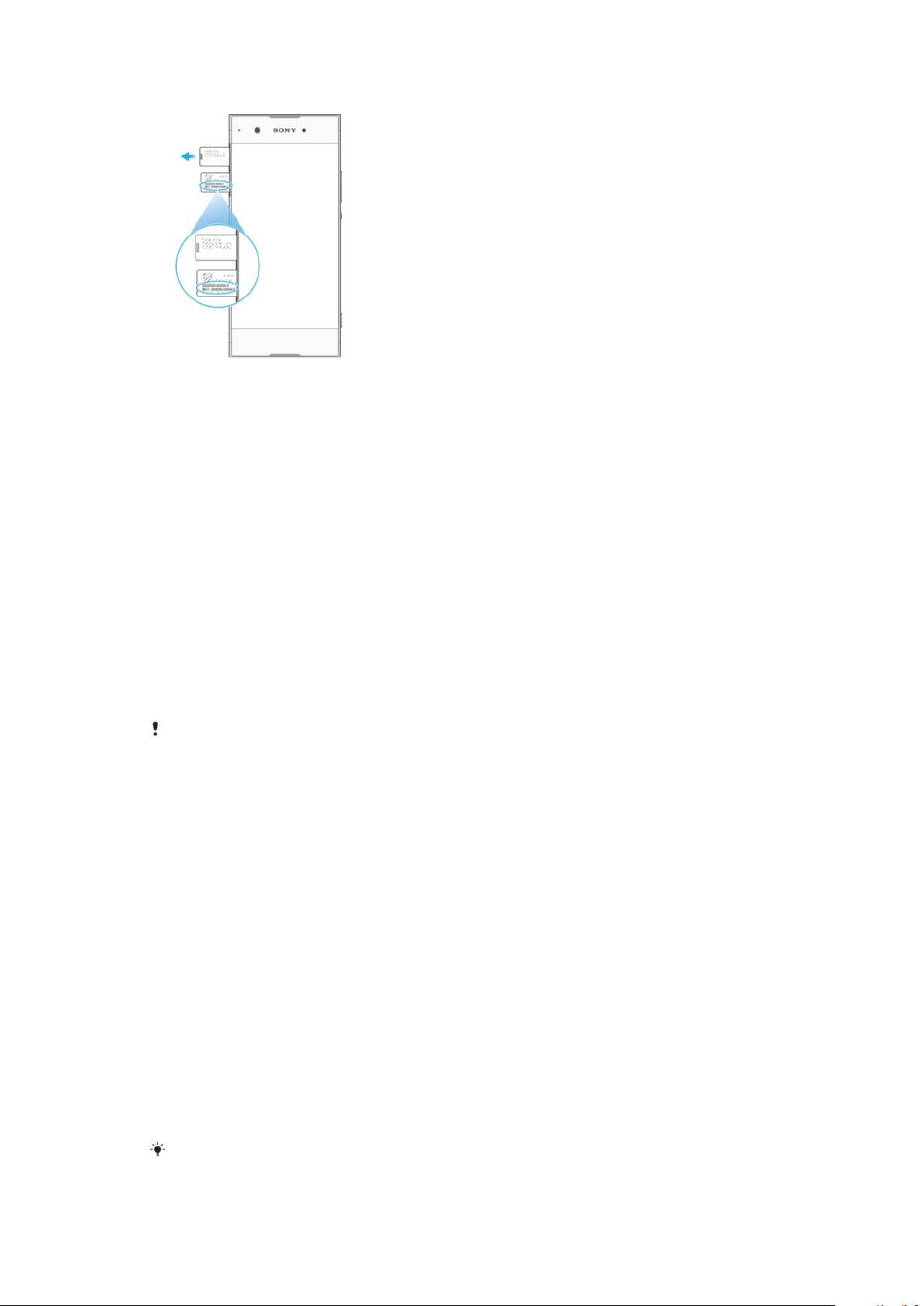
To view your IMEI number(s) on the label strip
1 Drag out the nano SIM card tray.
2 Drag the strip outwards using your fingernail. The strip displays the IMEI
number(s).
Finding, locking or erasing a lost device
Google oers a location and security web service called Find my device. After you
have signed in to a Google account, Find my device is turned on by default. If you
lose your device, you can use Find my device to:
• Find and show where your device is located on a map.
• Lock your device and present a message on the lock screen.
• Unlock your device and reset it by erasing its content.
• Activate the ringer, even if the sound is turned o.
Your device must be turned on, have an internet connection and have the location
service activated. The Find my device service may not be available in all countries
or regions.
For additional information about Find my device, go to
https://www.support.google.com/
and search for “Find my device”.
If you erased the content on your device using Find my device, you must enter the
username and password for a Google account in order to use your device again. This can be
any Google account which you have set up on your device as an owner. If you can’t give this
information during the setup, you won’t be able to use your device at all after a reset.
To verify that your device can be found
• Go to
https://www.google.com/android/find
account.
and sign in using your Google
Using location services
Location services allows applications such as Maps and the camera to determine
your location using Wi-Fi and GPS (Global Positioning System). If you're not within
clear sight to GPS satellites, your location can be determined using the Wi-Fi
function. And if you're not within range of a network, your device can determine
your location using your mobile network.
In order to use your device to find out where you are, you need to enable location
services.
To enable or disable location services
• Find and tap Settings > Lock screen & security > Location. Tap the slider to
enable or disable location services.
You can also enable location services from Settings > Google > Location.
14
This is an internet version of this publication. © Print only for private use.
Page 15
To enable or disable Google Location Sharing
1 Find and tap Settings > Lock screen & security > Location.
2 Tap Google Location Sharing > .
3 Select the time span you want to have the function turned on and choose an
option to select the contact you want to share your location with, then tap
Share. You can also choose the way to share your location by tapping More.
You can also keep track of your location history under Google Location History.
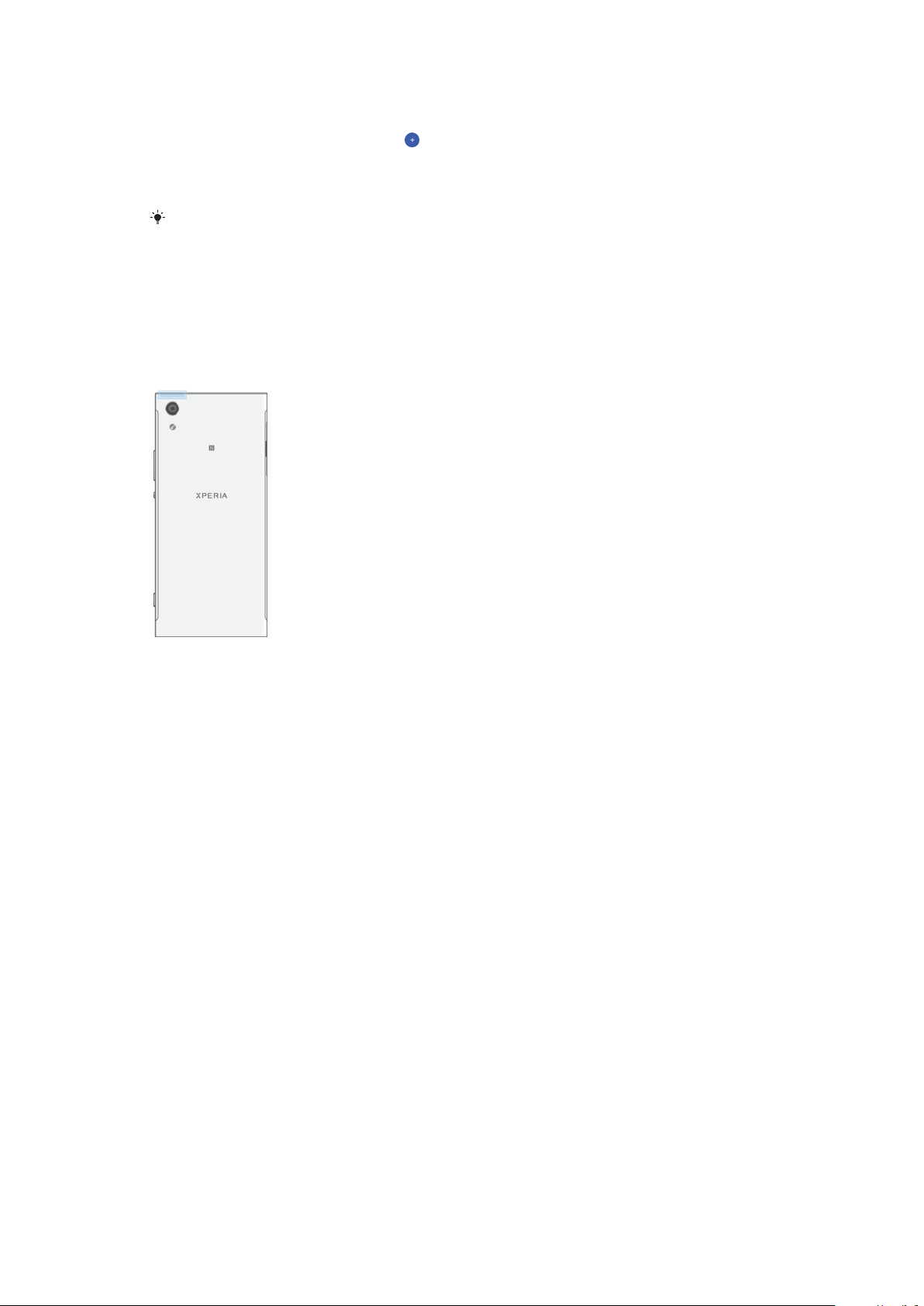
Improving GPS accuracy
The first time you use the GPS function in your device, it can take a few minutes for
your location to be found. To help the search, make sure you have a clear view of
the sky. Stand still and don't cover the GPS antenna (the highlighted area in the
image). GPS signals can pass through clouds and plastic, but not through most
solid objects such as buildings and mountains. If your location isn't found after a
few minutes, move to another location.
15
This is an internet version of this publication. © Print only for private use.
Page 16
Learning the basics
Using the touchscreen
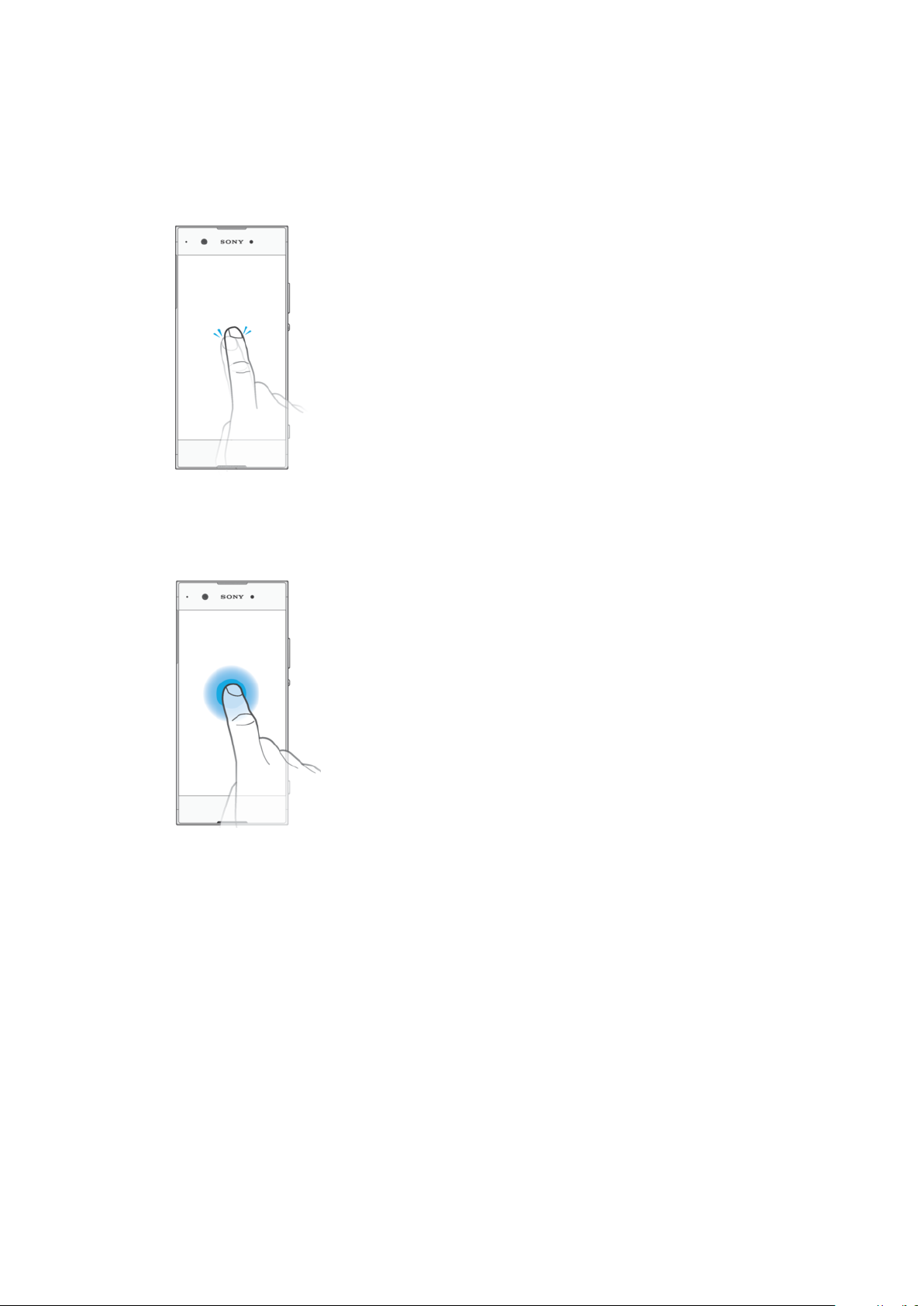
Tapping
• Open or select an item.
• Mark or unmark a checkbox or option.
• Enter text using the on-screen keyboard.
Touching and holding
• Move an item.
• Activate an item-specific menu.
• Activate selection mode, for example, to select several items from a list.
16
This is an internet version of this publication. © Print only for private use.
Page 17
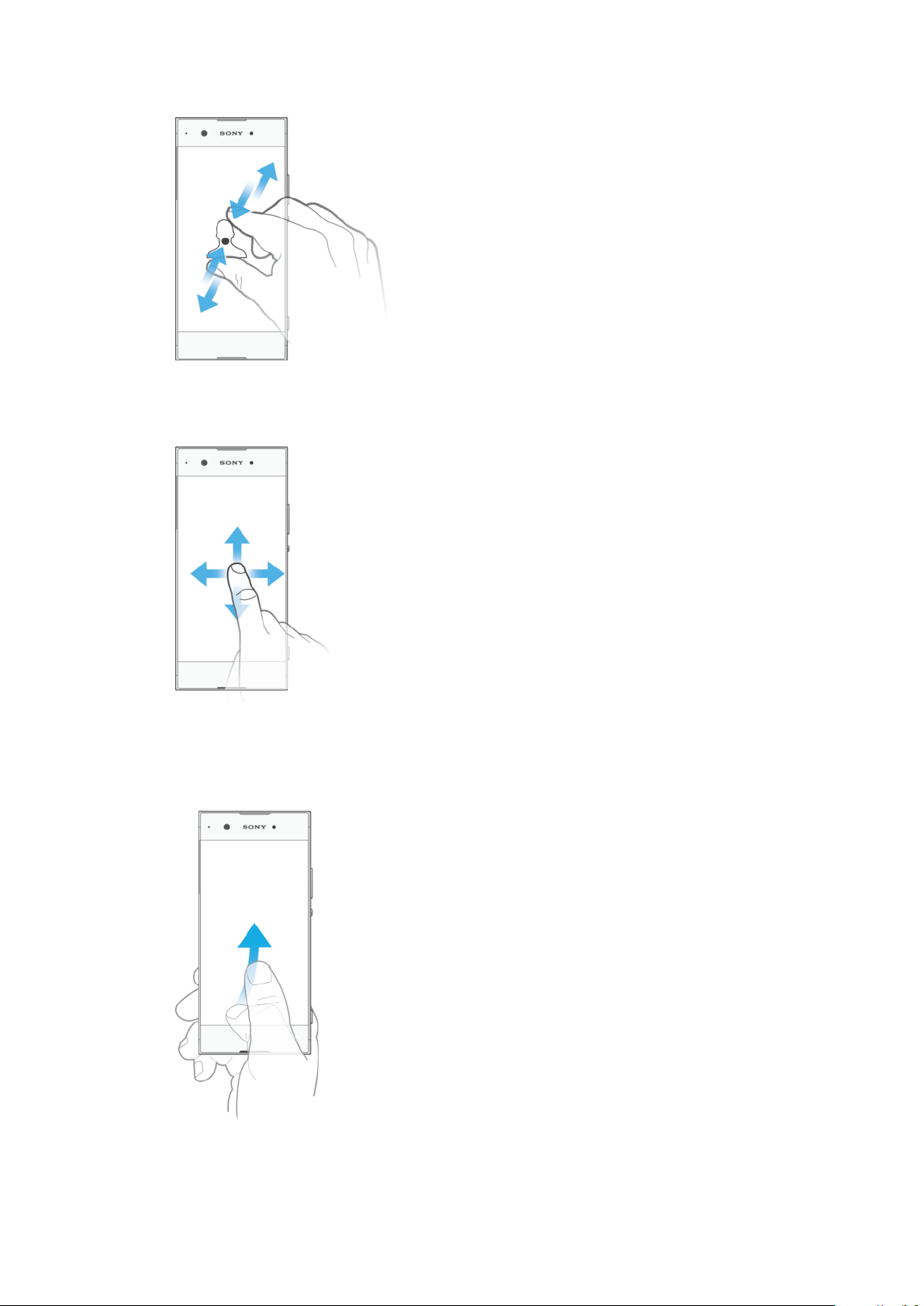
Pinching in and out
• Pinch in and out on web pages, photos and maps, and when you’re taking photos
or shooting videos.
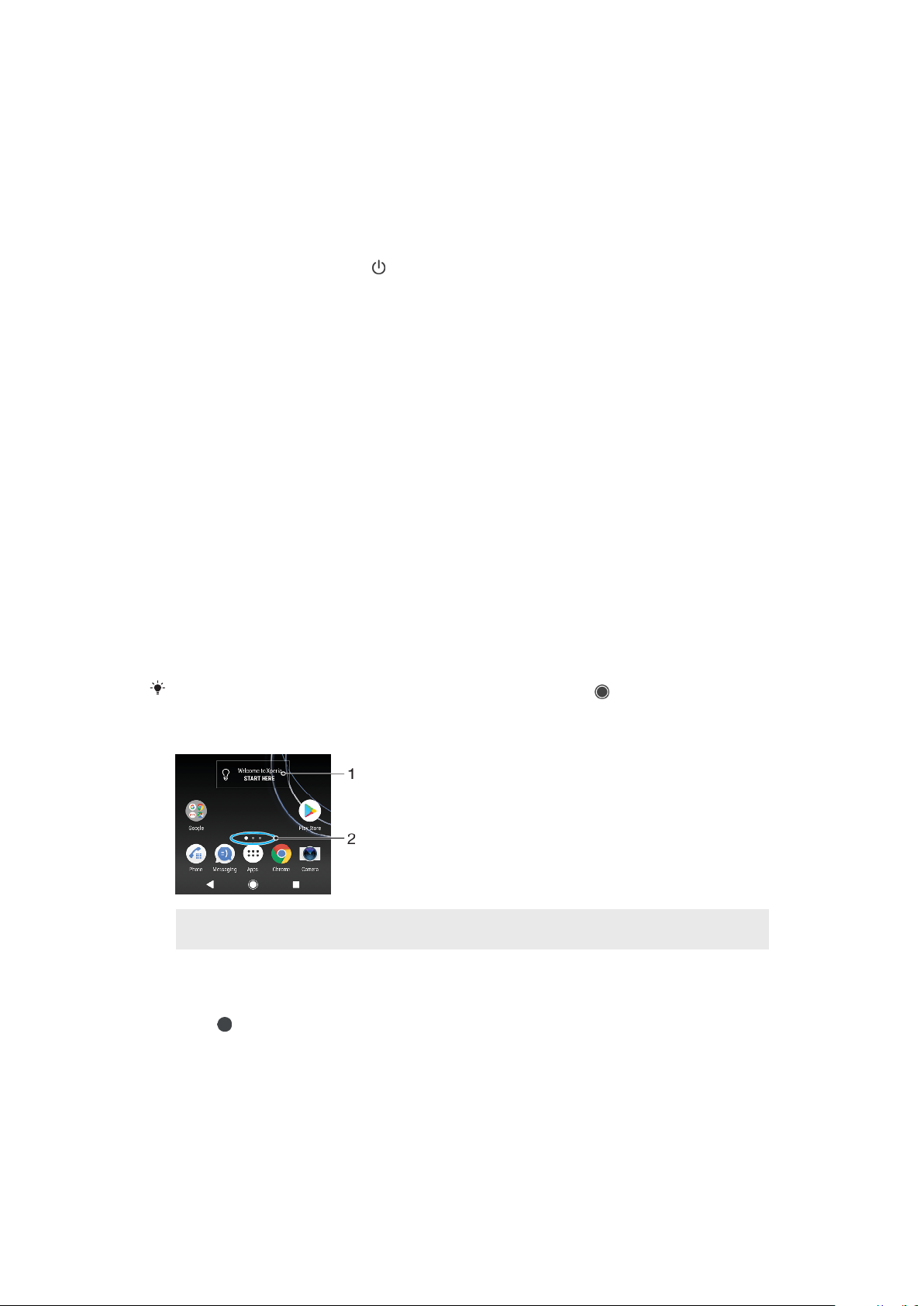
Swiping and scrolling
• Scroll up or down a list.
• Swipe left or right, for example, between Home screen panes.
• Swipe left or right to reveal more options.
Flicking
• Scroll quickly, for example, in a list or on a web page. You can stop the scrolling
movement by tapping the screen.
17
This is an internet version of this publication. © Print only for private use.
Page 18
Turning the screen on or o
When your device is on and left idle for a set period of time, the screen dims and
turns o to save battery power. You can change how long your screen stays active
before it turns o.
When your screen is turned o, your device can be locked or unlocked, depending
on your screen lock setting. See
Screen lock
on page 11.
To turn the screen on or o
• Briefly press the power key .
To adjust the idle time before the screen turns o
1 Find and tap Settings > Display > Sleep.
2 Select an option.
Smart backlight control
The smart backlight control keeps the screen on as long as the device is held in
your hand. Once you put down the device, the screen turns o according to your
sleep setting.
To enable or disable the Smart backlight control function
1 Find and tap Settings > Display > Smart backlight control.
2 Tap the slider to enable or disable the function.
Home screen
The Home screen is the starting point for using your device. It's similar to the
desktop on a computer screen. The number of Home screen panes is represented
by a series of dots at the lower part of the Home screen. The highlighted dot
shows the pane that is currently displayed.
If Google Assistant is enabled, the Home screen icon appears as
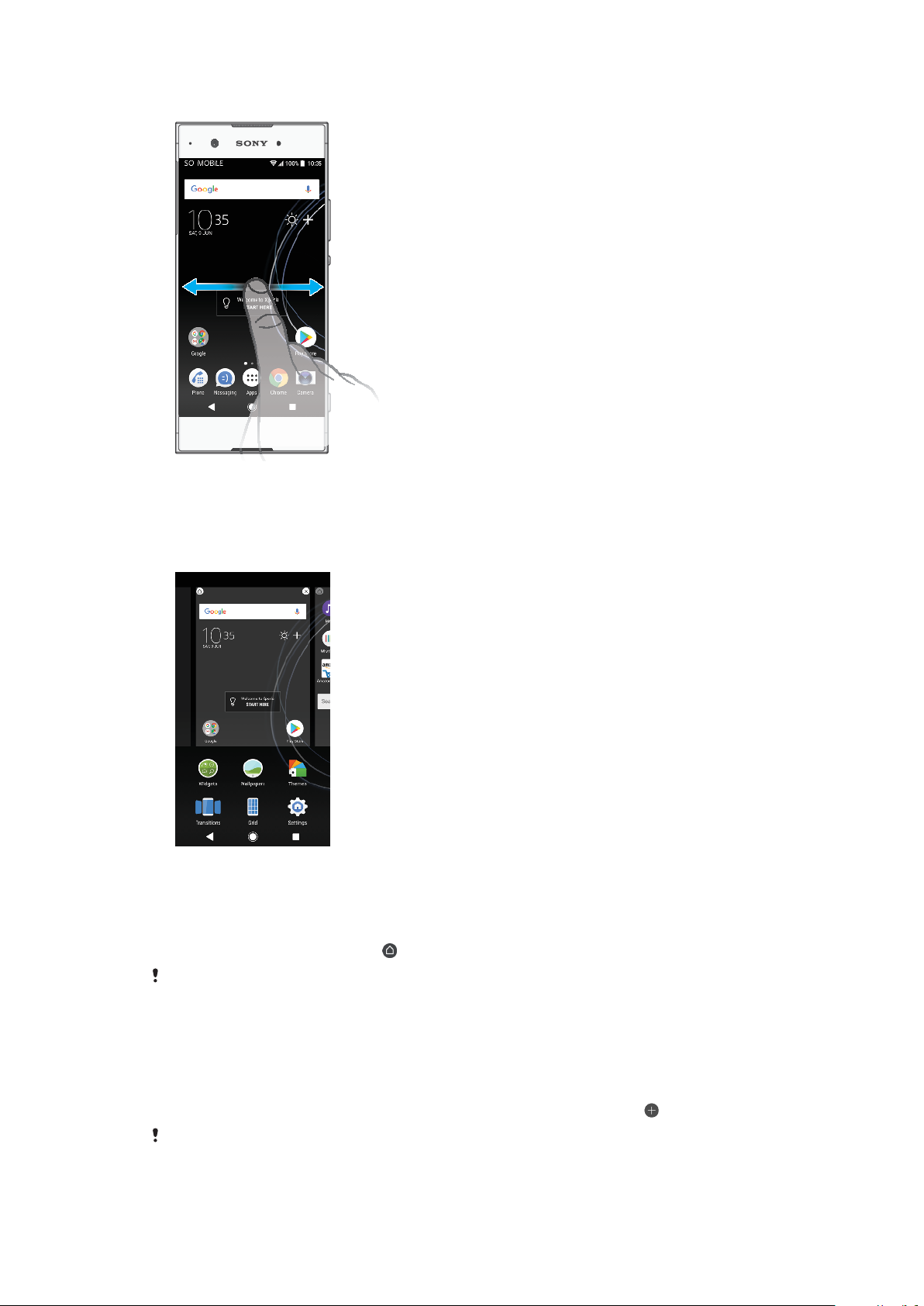
Home screen overview
Welcome to Xperia widget — Tap to open the widget and select a task such as copying content
1
from your old device or setting up Xperia services
2 Dots — Represents the number of Home screen panes
To go to the Home screen
• Press .
in the navigation bar.
18
This is an internet version of this publication. © Print only for private use.
Page 19
To browse the Home screen
Home screen panes
You can add new panes to your Home screen (up to a maximum of twenty panes)
and delete panes. You can also set the pane that you want to use as the main
Home screen pane.
To set a pane as the main Home screen pane
1 Touch and hold an empty area on your Home screen until the device
vibrates.
2 Flick left or right to browse to the pane that you want to set as your main
Home screen pane, then tap
When Google Feed is enabled, the left-most pane is reserved for this service and the main
Home screen pane cannot be changed. For more information, see
page 101.
.
Google Feed
on
To add a pane to your Home screen
1 Touch and hold an empty area on your Home screen until the device
vibrates.
2 To browse the panes, flick all the way to the right or left, then tap
When Google Feed is enabled, the left-most pane is reserved for this service and additional
panes cannot be added to the left. For more information, see
Google Feed
.
on page 101.
19
This is an internet version of this publication. © Print only for private use.
Page 20
To delete a pane from your Home screen
1 Touch and hold an empty area on your Home screen until the device
vibrates.
2 Flick left or right to browse to the pane that you want to delete, then tap
on the top right corner of the pane.
Home screen settings
You can use the Settings shortcut to adjust some basic Home screen settings. For
example, you can adjust the size of icons on your Home screen.
To disable or uninstall an application from the Home screen
Disabling a pre-installed app deletes all data, but the app can be enabled again from
Settings > Apps & notifications > App info. Only downloaded apps can be fully uninstalled.
1 Touch and hold the application you want to disable or uninstall. If it can be
disabled or uninstalled an
2 Tap > Disable if the app came pre-installed on your device or tap > OK
if the app was downloaded and you would like to uninstall it.
To adjust the grid size of the screen
1 Touch and hold an empty area on your Home screen until the device
vibrates.
2 Tap Grid, then select a size.
3 Tap APPLY.
appears.
To adjust the size of icons on your Home screen
1 Touch and hold an empty area on your Home screen until the device
vibrates, then tap
2 Tap Icon size, then select an option.
.
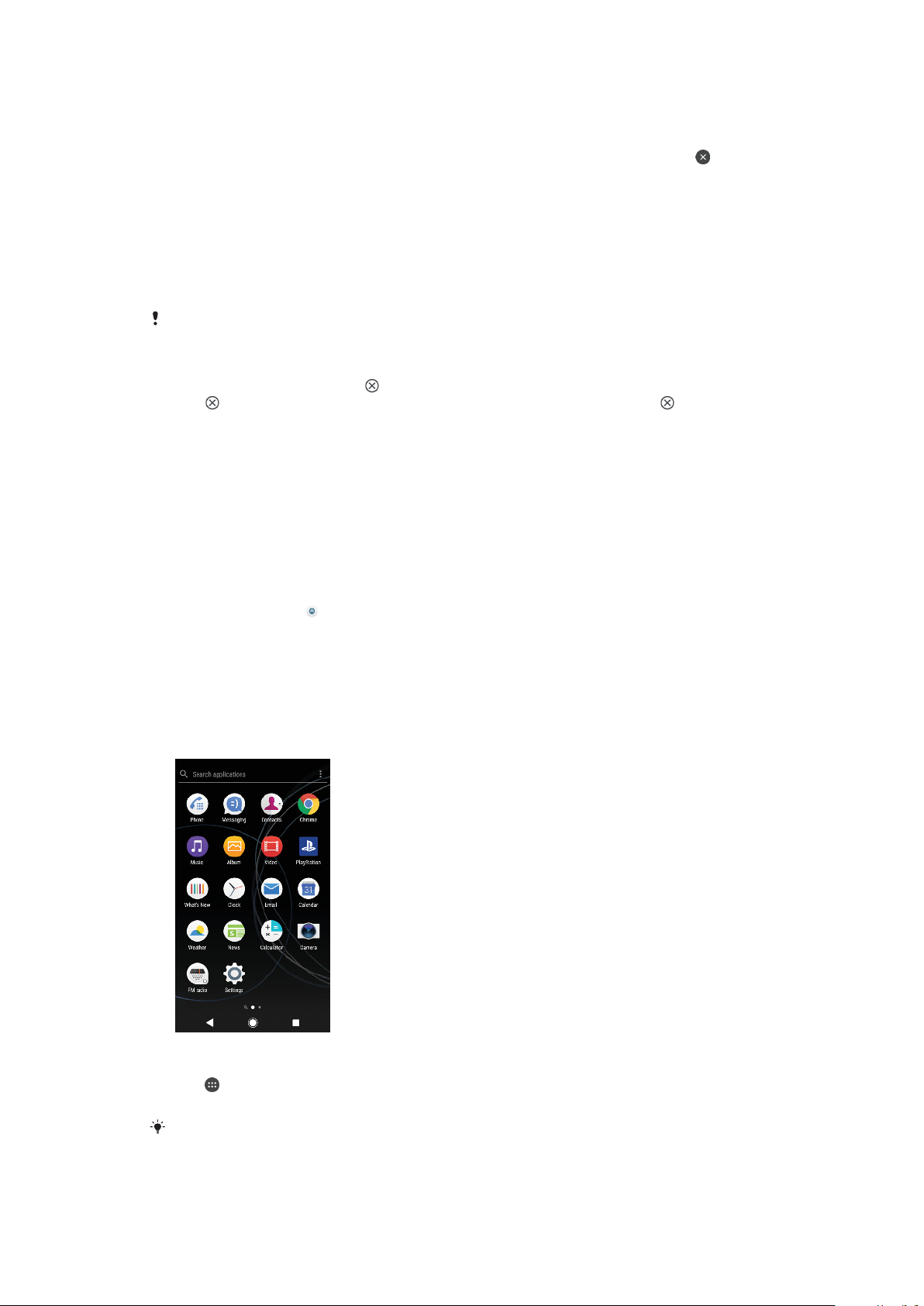
Application screen
The Application screen, which you open from the Home screen, contains the
applications that come pre-installed on your device as well as applications that you
download.
To view all applications on the Application screen
1 Tap
2 Flick left or right on the Application screen.
.
You can also search for recently viewed apps by swiping left from the Application screen.
20
This is an internet version of this publication. © Print only for private use.
Page 21

To enable or disable the recommended apps listings
1 Touch and hold an empty area on your Home screen, then tap .
2 Tap the App recommendations slider.
To open an application from the Application screen
• When the Application screen is open, flick left or right to find the application,
and then tap the application.
To search for an application from the Application screen
1 When the Application screen is open, tap Search applications.
2 Enter the name of the application that you want to search for.
You can also search for applications by swiping right from the Application screen.
To arrange applications on the Application screen
1 When the Application screen is open, tap .
2 Tap Sort apps, then select an option.
To add an application shortcut to the Home screen
1 On the Application screen, touch and hold an application icon until the
device vibrates, then drag the icon to the top of the screen. The Home
screen opens.
2 Drag the icon to the desired location on the Home screen, then release it.
To move an application on the Application screen
1 When the Application screen is open, tap
.
2 Make sure that Own order is selected under Sort apps.
3 Touch and hold the application until the device vibrates, then drag it to the
new location.
Shortcuts for easy actions
You can access shortcuts directly from your app icons to uninstall downloaded
apps or reveal more quick options. For example, long press the Calendar icon to
create a new event or set a reminder. All apps have a shortcut to App info, where
you can adjust notification settings and permissions. You can go to App info by
tapping
To use shortcuts for easy actions
1 Long press the desired app icon on your Home or Application screen.
2 Select from the options that appear. For example, tap
tap
If an
To disable or uninstall an application from the Application screen
Whether an app can be uninstalled or disabled depends on the app, and if it was preinstalled on your device or downloaded. Downloaded apps can be uninstalled. Pre-installed
apps cannot be uninstalled, only disabled if the app supports this. If you disable a preinstalled app, you can enable it again under Settings > Apps & notifications > App info.
.
to go to App info, or
to disable or uninstall the application.
icon is not shown, tap for more options.
1 Touch and hold the application you want to disable or uninstall. If it can be
disabled or uninstalled an appears.
2 Tap
> Disable if the app came pre-installed on your device or tap > OK
if the app was downloaded and you would like to uninstall it.
If an
icon is not shown, tap for more options.
21
This is an internet version of this publication. © Print only for private use.
Page 22
Navigating applications
You can navigate between applications using the navigation keys and the recently
used applications window, which lets you switch easily between all recently used
applications. The navigation keys are the Back key, the Home key, and the Recent
apps key. You can also pop open two applications on the screen at once using the
split screen mode, if the application supports multi-window function. Some
applications get closed when you press the Home key to exit while others are
paused or continue to run in the background. If an application is paused or
running in the background, you can continue where you left o the next time you
open the application.
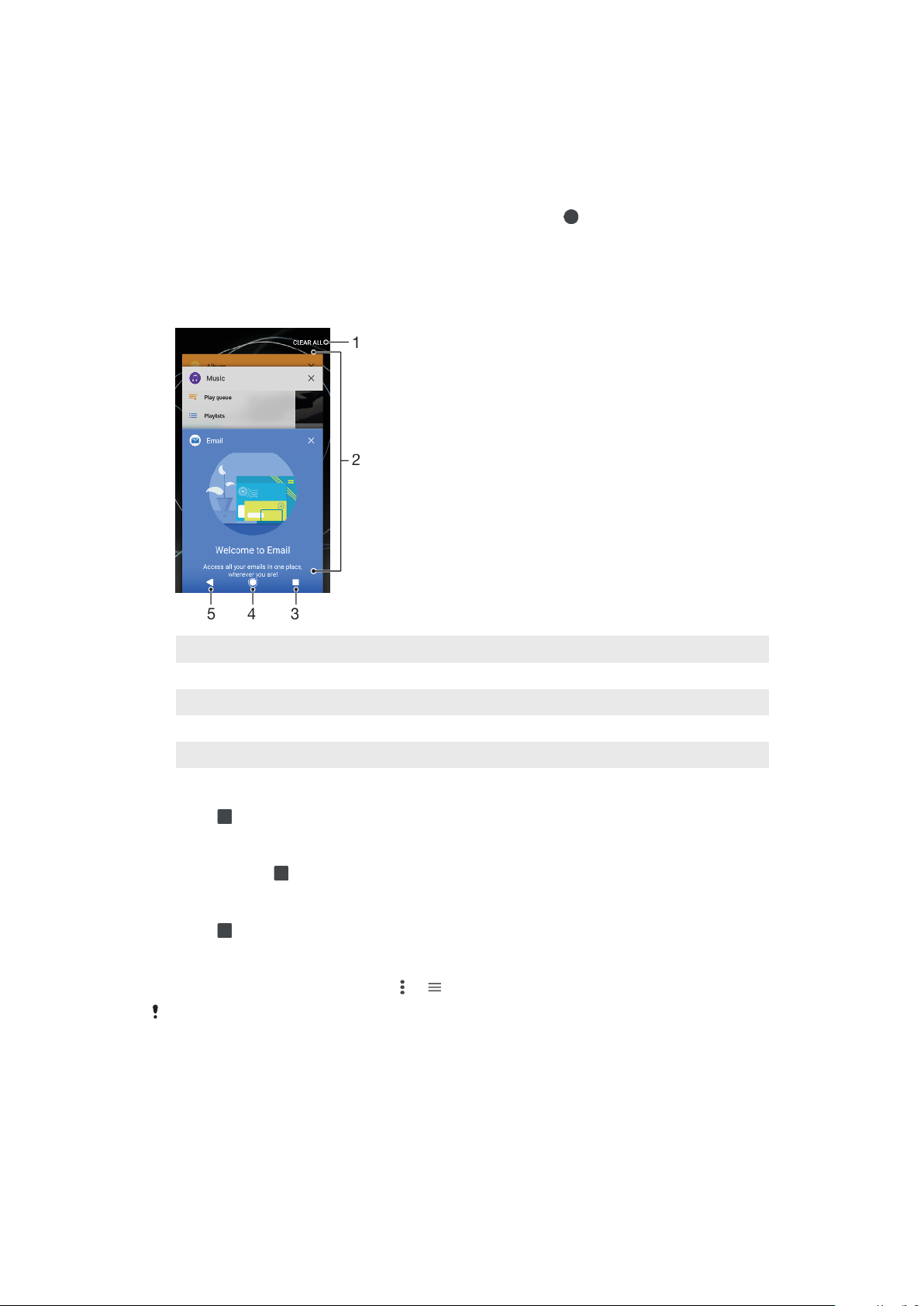
Navigating applications overview
1 Clear all – Close all the recently used applications
2 Recently used applications window – Open a recently used application
3 Recent apps key – Open the recently used applications window and the favourites bar
4 Home key – Exit an application and go back to the Home screen
5 Back key – Go back to the previous screen within an application or close the application
To open the recently used applications window
• Press
.
To quickly switch between recently used applications
• Quickly press
twice.
To close all the recently used applications
• Press and then tap CLEAR ALL.
To open a menu in an application
• While using an application, tap
A menu is not available in all applications.
or .
Split screen mode
Split screen mode enables you to view two applications at once, for example, if
you want to view your email inbox and a web browser at the same time.
22
This is an internet version of this publication. © Print only for private use.
Page 23
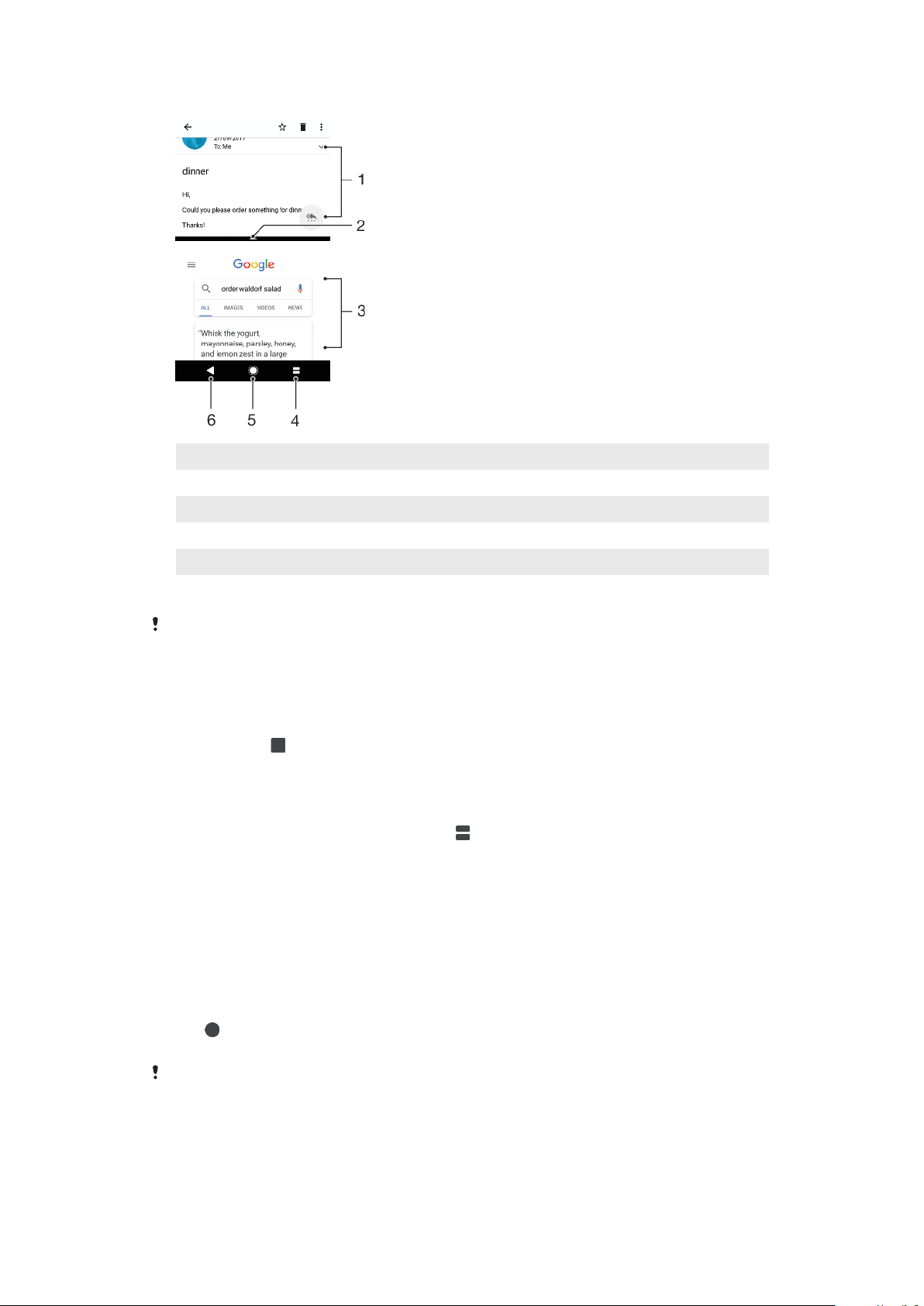
Split screen overview
1 Application 1
2 Split screen border – Drag to resize windows
3 Application 2
4 Split screen key – Select a recently used application
5 Home key – Go back to the Home screen
6 Back key – Go back to the previous screen within an application or close the application
Not all applications support split screen mode.
To use split screen mode
1 Make sure that the two applications that you want to use in split screen
mode are open and running in the background.
2 Open the application that you would like to use in split screen mode, then
tap and hold
. The application will be assigned to the first part of the split
screen.
3 Select the second desired application from the thumbnail list.
4 If you want to resize the split screen windows, drag the split screen border in
the centre.
5 To exit split screen mode, tap and hold
while the split screen windows are
displayed.
One-handed operations
You can activate the one-handed operation mode to use your device with one
hand.
To enable or disable one-handed operations
1 Find and tap Settings > One-handed operations.
2 Tap the Resize screen slider to enable or disable the function.
3 Tap
, then drag your thumb from the right corner to the center of the
screen.
Tap the Optimised apps slider to customize the options for One-handed operations.
23
This is an internet version of this publication. © Print only for private use.
Page 24
To adjust the position of the screen
1 To move the screen to the left side or to the right side, tap or
accordingly.
2 To move the screen upwards or downwards, drag the horizontal stripes at
the edge of the resized screen.
3 To resize the screen, drag the three diagonal stripes at the edge of the
resized screen.
To return to full screen mode, tap .
Widgets
Widgets are small applications that you can use directly on your Home screen.
They also function as shortcuts. For example, the Weather widget allows you to
see basic weather information directly on your Home screen. When you tap the
widget, the full Weather application opens. You can download additional widgets
from Google Play.
To add a widget to the Home screen
1 Touch and hold any empty area on your Home screen until the device
vibrates, then tap Widgets.
2 Find and tap the widget that you want to add.
To resize a widget
1 Touch and hold a widget until the device vibrates, then release it.
2 If the widget can be resized, the Resize option appears. For example, the
Calendar widget is one that can be resized.
3 Tap Resize and drag the dots to shrink or expand the widget.
4 To confirm the new size, tap anywhere on the Home screen.
To move a widget
• Touch and hold the widget until the device vibrates, then drag it to the new
location.
To remove a widget
• Touch and hold the widget until the device vibrates, then drag it to Remove
from home screen.
Shortcuts and folders
Use shortcuts and folders to manage your applications and keep your Home
screen tidy.
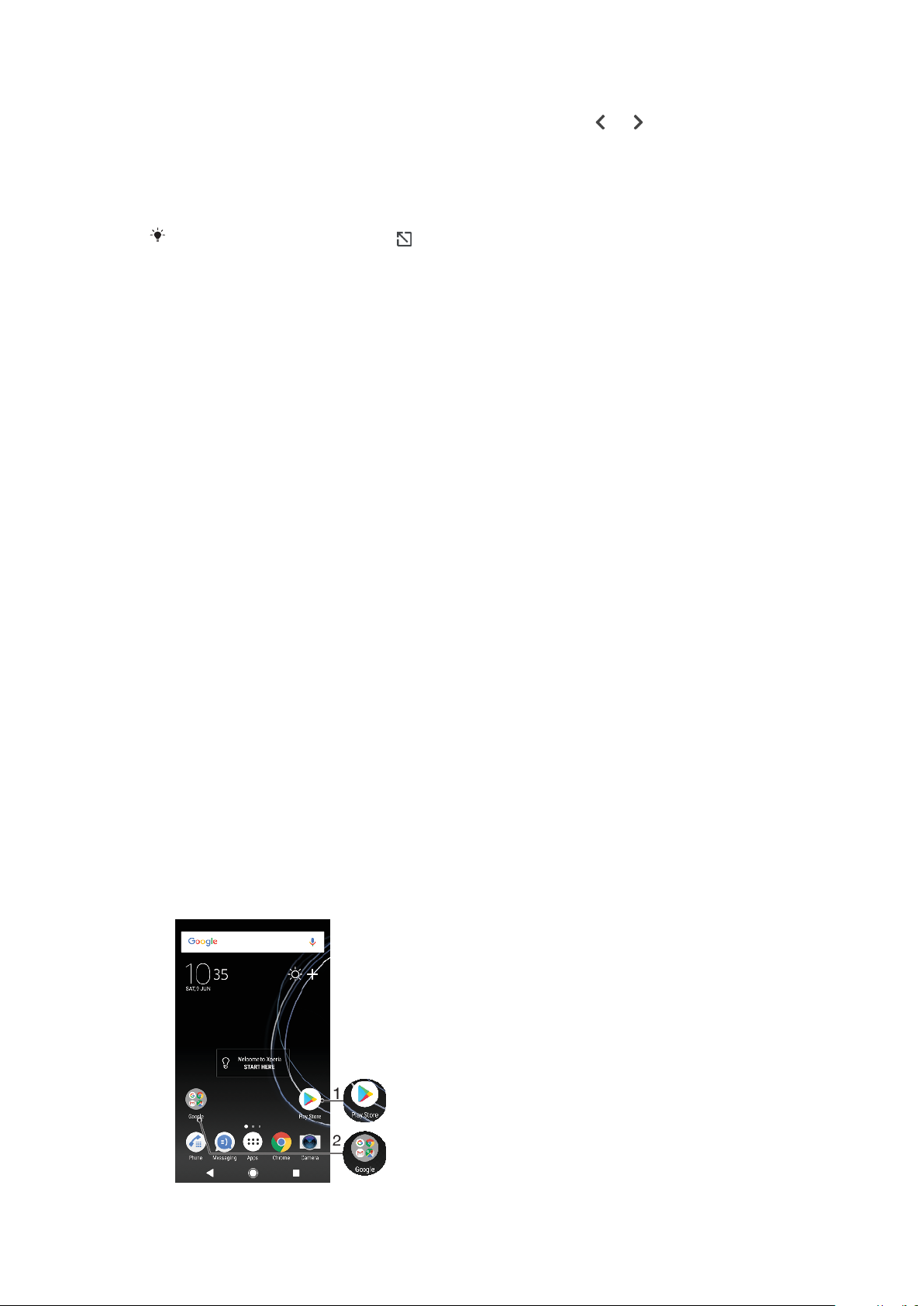
Shortcuts and folders overview
24
This is an internet version of this publication. © Print only for private use.
Page 25

1 Access an application using a shortcut
2 Access a folder containing applications
To add an application shortcut to your Home screen
1 Touch and hold an empty area on your Home screen until the device
vibrates.
2 In the customisation menu, tap Widgets > Shortcuts.
3 Scroll through the list and select an application. The selected application
gets added to the Home screen.
To move an item on the Home screen
• Touch and hold the item until the device vibrates, then drag the item to the
new location.
To remove an item from the Home screen
• Touch and hold the item until the device vibrates, then drag the item to
Remove from home screen on the top of the screen.
To create a folder on the Home screen
• Touch and hold an application icon or a shortcut until the device vibrates,
then drag and drop it on top of another application icon or shortcut.
To add items to a folder on the Home screen
• Touch and hold an item until the device vibrates, then drag the item to the
folder.
To rename a folder on the Home screen
1 Tap the folder to open it.
2 Tap the folder's title bar to show the Folder name field.
3 Enter the new folder name and tap DONE.
Background and themes
Your device comes with a default background, but you can adapt the Home screen
and lock screen to your own style using wallpapers and themes featuring dierent
colours and patterns.
A wallpaper may be used without changing any of the other elements of your
Home screen and lock screen. Live wallpapers add visual eects to your
interactions with the touchscreen, letting the display change dynamically.
Themes can include a wallpaper, a screensaver, title bars, and a sound scheme
that all fit together to create a unique look and feel for your device.
To change your wallpaper
1 Touch and hold any empty area on your Home screen until the device
vibrates.
2 Tap Wallpapers.
3 To set the same wallpaper for the Lock and Home screens, select the
wallpaper and tap APPLY. To set dierent wallpapers, first tap the Lock or
Home screen preview. Choose a wallpaper for that screen and tap SELECT >
APPLY.
You can also use a photo as your wallpaper. Instead of selecting a wallpaper from the
options shown, tap Photos. Choose a photo and tap SELECT > APPLY.
25
This is an internet version of this publication. © Print only for private use.
Page 26
To set a theme
1 Touch and hold an empty area on your Home screen until the device
vibrates.
2 Tap Themes.
3 Choose an option:
• To use an existing theme, select the theme, then tap APPLY THEME.
• To download a new theme, tap GET MORE THEMES.
When you change a theme, the background also changes in some applications.
Taking a screenshot
You can capture still images of any screen on your device as a screenshot.
Screenshots you take are automatically saved in the Album application.
To take a screenshot
1 Long press the power key
2 Tap
1 Double-tap the status bar to display the Notification panel.
2 Tap the screenshot.
.
You can also take a screenshot by pressing and holding the power key and volume down
key at the same time.
To view your screenshot
until a prompt window appears.
Notifications
Notifications inform you of events such as new messages and calendar
notifications as well as activities in progress such as file downloads. Notifications
appear in the following places:
• The status bar
• The notification panel
• The lock screen
• The app icon
To open or close the Notification panel
26
This is an internet version of this publication. © Print only for private use.
Page 27

1 To open the Notification panel, drag the status bar downwards, or simply
double-tap it.
2 To close the Notification panel, drag or flick the panel upwards.
After opening the Notification panel, you can access the Quick settings panel by dragging
the status bar down again.
To take action on a notification in the Notification panel
• Tap the notification.
You can directly reply to chat or email messages in the Notification panel.
To dismiss a notification from the Notification panel
• Swipe the notification left or right.
Not all notifications can be dismissed.
To snooze a notification, drag the notification slowly to the side and tap . Notifications
can be snoozed for 15, 30 minutes or 1 or 2 hours.
To expand a notification on the Notification panel
• Tap
to expand and view more information about the notification without
opening the app.
Not all notifications are expandable.
To clear all notifications from the Notification panel
• Tap CLEAR ALL.
If there is a long list of notifications, scroll down to find the CLEAR ALL button.
To take action on a notification from the lock screen
• Double-tap the notification.
To dismiss a notification from the lock screen
• Swipe the notification left or right.
To expand a notification on the lock screen
• Drag the notification downwards.
Not all notifications are expandable.
Notification display options on the lock screen
Don't show
notifications at all
Show all
notification
content
Hide sensitive
notification
content
You won't get any notifications on the lock screen.
Get all notifications on the lock screen. When you have this setting turned on,
keep in mind that all content (including the content of incoming emails and chat
messages) will be visible on your lock screen unless you designate the relevant
apps as Hide sensitive content in the Apps & notifications settings menu.
You must have a PIN, password, or pattern set up as your screen lock in order
for this setting to be available. Contents hidden is displayed on the lock screen
when sensitive notifications arrive. For example, you'll get a notification for an
incoming email or chat, but the content won't be visible on your lock screen.
27
This is an internet version of this publication. © Print only for private use.
Page 28
To select the notifications to display on the lock screen
1 Find and tap Settings > Apps & notifications > Configure notifications.
2 Tap On the lock screen.
3 Select an option.
You can keep notifications on the lock screen until you swipe to dismiss them. To enable
this feature, tap the Keep notifications on lock screen slider.
Setting the notification level for an app
Allow notification dot Show notification dots.
Allow sound Allow all notifications from the selected app.
On the lock screen Show or hide all notification content on the lock screen.
Interrupts in Priority only Receive notifications from this app even when Do not disturb is set to
You can set notification channels to categorise notification levels. Long press a notification
to change the notification categories.
Priority only.
To set the notification level for an app
1 Find and tap Settings > Apps & notifications > App info.
2 Select the desired app, then tap App notifications.
3 Tap the sliders to adjust notification settings as desired.
Notification light
The notification light informs you about battery status and some other events. For
example, a flashing white light means there is a new message or a missed call. The
notification light is enabled by default but can be disabled manually.
When the notification light is disabled, it only lights up when there is a battery status
warning, for example, when the battery level goes below 15 percent.
To enable or disable the notification light
1 Find and tap Settings > Apps & notifications > Configure notifications.
2 Tap the slider beside Blink light to enable or disable the function.
Icons in the status bar
Status icons
No SIM card
Signal strength
No signal
Roaming
Sending and downloading LTE data
Sending and downloading GPRS data
Sending and downloading EDGE data
Sending and downloading 3G data
This is an internet version of this publication. © Print only for private use.
28
Page 29
Sending and downloading HSPA+ data
Mobile data is disabled
A Wi-Fi connection is enabled and data is being transmitted
A Wi-Fi connection is enabled but there is no internet connection.
This icon also appears when you are trying to connect to a secured Wi-Fi or
captive portal network. After a successful login, the cross mark disappears.
If Google is blocked in your area, the cross mark may appear even when
the device is connected to a Wi-Fi network and there is a working internet
connection.
Battery status
The battery is charging
Airplane mode is activated
The Bluetooth function is activated
The microphone is muted
The speakerphone is on
Do not disturb mode is activated
Vibrate mode
An alarm is set
GPS is activated
Synchronisation is ongoing
Problem with sign-in or synchronisation
Depending on your service provider, network or region, the functions or services
represented by some icons in this list may not be available.
To manage status bar icons
1 Find and tap Settings > Display > System icons.
2 Mark the checkboxes for the system icons that you want to appear in the
status bar.
Notification icons
New text message or multimedia message
Ongoing call
Missed call
Call on hold
Single SIM device: Call forwarding is turned on
Dual SIM device: Call forwarding is turned on
New voicemail message
New email message
Downloading data
Uploading data
29
This is an internet version of this publication. © Print only for private use.
Page 30
Mobile data is disabled
Perform a basic setup of your device
A software update is available
System updates are available
Downloading system updates
Tap to install the downloaded system updates
STAMINA mode is activated
Ultra STAMINA mode is activated
Screenshot captured
Video chat with friends using the Duo™ application
A song is playing
The device is connected to a computer via a USB cable
Internal storage is 75% full — tap to transfer data to a memory card
Warning
More undisplayed notifications
Not all icons that may appear on your device are listed here. This list is for reference
purposes only, and changes may be made without notice.
To block an application from sending notifications
1 Find and tap Settings > Apps & notifications > Configure notifications >
Notifications.
2 Select an application.
3 Tap the slider beside On to block application notifications.
Applications overview
Use the Album application to manage, view and edit your photos and
videos.
Use the Amazon Shopping application to browse, search and buy
thousands of products right from your device.
Use the AVG Protection PRO application to protect your device against
viruses, malware, spyware, phishing attempts and online exploitation.
Use the Calculator application to perform basic calculations.
Use the Calendar application to keep track of events and manage your
appointments.
Use the Camera to take photos and record video clips.
Use the Chrome web browser to navigate and view web pages, text and
images, and manage bookmarks.
Use the Clock application to set various alarms and timers.
Use the Contacts application to manage phone numbers, email addresses
and other contact information.
Use the Google Docs application to create, edit and collaborate with others
on documents.
30
This is an internet version of this publication. © Print only for private use.
Page 31
Use Google Drive application to save your documents and files for easy
access from any device, share them with your friends, and collaborate with
colleagues.
Use the Duo application to chat with friends online.
Use the Files application to access your downloaded applications,
documents and pictures.
Browse and listen to FM radio stations.
Use the Email application to send and receive emails through both personal
and work accounts.
Use the Facebook™ application for social networking with friends, family
members and colleagues around the world.
Use the Gmail application to read, write and organise email messages.
Search for information on your device and on the web.
Enjoy music, movies, apps and games on your device, and get exclusive
access to unique content available only with Xperia devices.
View your current location, find other locations and plan routes using
Google Maps.
Use the Messaging application to send and receive text and multimedia
messages.
The Movie Creator automatically creates short video collages using your
existing photo and video collection.
Use the Music application to organise and play music and audio books.
View news stories from News Suite.
Make phone calls by dialling the number manually or by using the smart
dial function.
Organise, search or browse through all your photos and videos.
Use the Google Play Movies & TV application to watch movies and TV
shows purchased or rented on Google Play.
Discover and play thousands of songs with the Google Play Music
application.
Use the Play Store application to find applications to buy or download free.
Stay connected with your gaming friends and the games you love to play,
shop on the PlayStation®Store, and more.
Optimise settings to suit your own requirements.
Use the Google Sheets application to create, edit and collaborate with
others on spreadsheets.
Use the Sketch application to create and explore images, then share them
with your friends.
Use Google Slides to create, edit and collaborate with others on
presentations.
Use the Support application to access user support on your device. For
example, you can access the User guide and troubleshooting information,
plus tips and tricks.
31
This is an internet version of this publication. © Print only for private use.
Page 32

Use the Video & TV SideView application to play videos on your device and
share content with your friends.
Use the Video application to play videos on your device and share content
with your friends.
Use the Weather application to view weather forecasts.
Use the What’s New application to discover new games, apps and media
content.
Use YouTube to watch videos from users around the world, and share your
own.
Some applications may not be included on your device or may not be supported by all
networks or service providers in all areas.
32
This is an internet version of this publication. © Print only for private use.
Page 33
Battery and maintenance
Charging your device
Always use an original Sony charger and USB Type-C cable intended for your
specific Xperia model. Other chargers and cables may increase charging time, not
charge at all, or may even damage your device. Make sure all USB ports and
connectors are completely dry before inserting the USB Type-C cable.
If the battery is depleted, it may take up to 30 minutes for your device to respond
to the charging. During this time, the screen may remain completely dark, not
showing the charging icon. It can take up to 4 hours for a completely drained
battery to be fully charged.
Your device has an embedded, rechargeable battery that can only be replaced by an
authorised Sony repair centre. Never try to open or take apart the device yourself. Doing so
can cause damage and void your warranty.
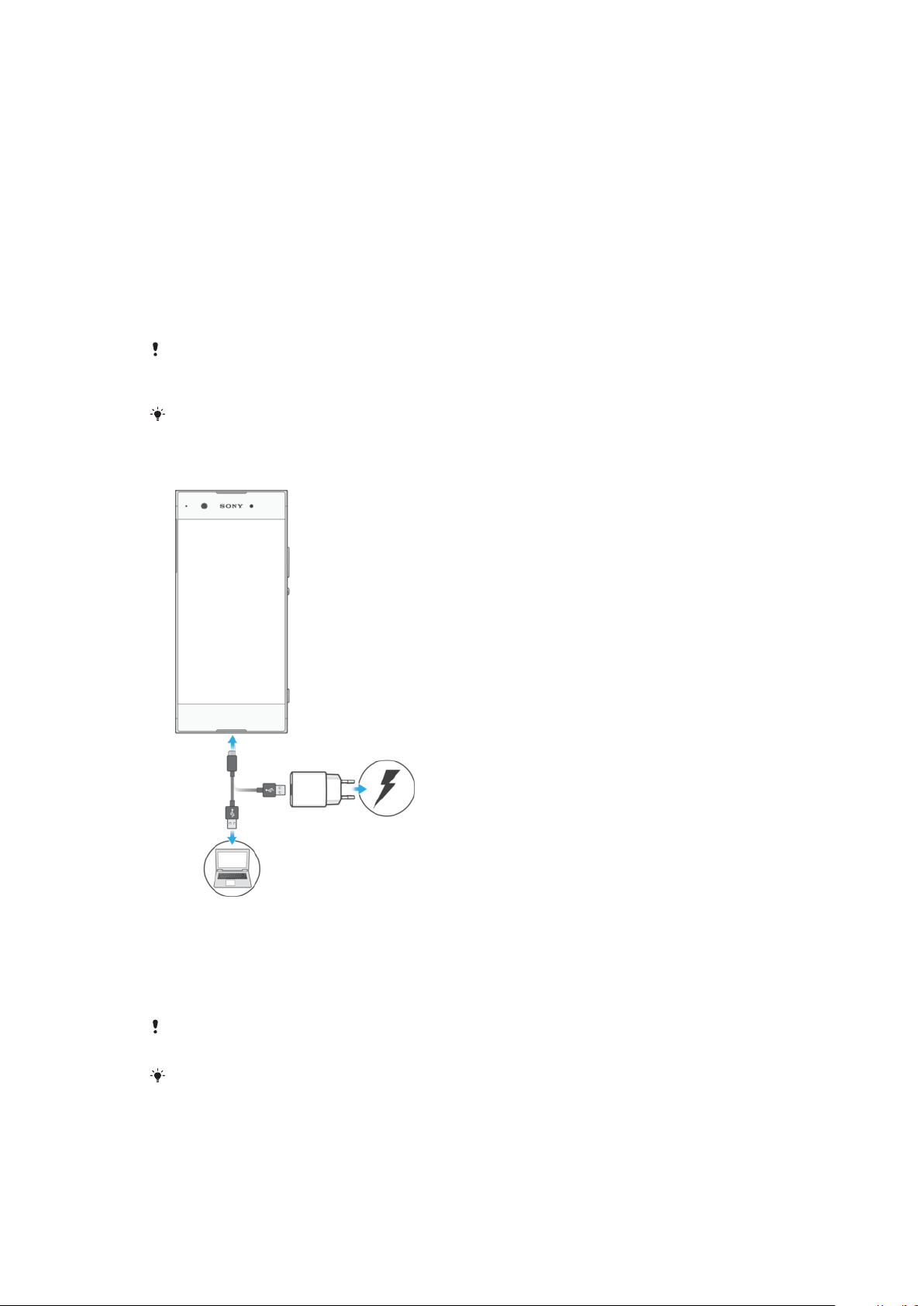
A wall socket charger will charge your device faster than charging via your computer. You
can still use your device while charging.
To charge your device
1 Connect one end of the USB Type-C cable to the charger or to the USB port
of a computer.
2 Connect the other end of the cable to the USB Type-C port on your device.
The notification light illuminates when charging begins.
3 When the device is fully charged, disconnect the cable from your device by
pulling it straight outwards. Make sure not to bend the connector.
It is important to use the USB Type-C cable provided, as other types of USB cables can
damage your device.
If the battery is completely depleted, it may take a few minutes before the notification light
illuminates and the charging icon appears.
33
This is an internet version of this publication. © Print only for private use.
Page 34

Battery notification light status
Green The battery is charging and the battery charge level is greater than 90%
Orange The battery is charging and the battery charge level is less than 90%
Red The battery is charging and the battery charge level is less than 15%
Battery and power management
Your device has an embedded battery. To get the most use from it, keep track of
the power consumed by dierent apps and features. Background power saving
features are activated by default to help you further reduce battery consumption,
and additional power saving modes are available to help you reduce battery
consumption when necessary.
Power saving features lower the priority of certain non-essential device functions.
If you do not want an application to be aected, you can make it exempt in the
Battery optimisation menu. Phone calls and SMS are not aected.
System updates may change the power saving features available on your device.
To review your battery consumption
1 Find and tap Settings > Battery to view the estimated remaining battery
percentage and battery time.
2 Tap Advanced for more details about battery usage.
To view battery consumption for applications
1 Find and tap Settings > Apps & notifications > App info.
2 Select an application and review its battery consumption under Battery.
General usage tips to improve battery performance
The following tips can help you improve battery performance:
• Lower the screen brightness level, see
• Turn o Bluetooth, Wi-Fi and location services when you don't need these
features.
• Turn o your device or use Airplane mode if you are in an area with no or low
network coverage. Otherwise, your device repeatedly scans for available networks,
and this consumes power.
• Use a Wi-Fi network instead of roaming when abroad. Roaming is scanning for
your home network and puts additional demands on your battery as your device
must transmit with a higher output power, see
• Change the synchronisation settings for your email, calendar and contacts, see
Synchronising with online accounts
• Check the applications that have a high battery consumption and consider the
battery saving tips provided on your device for these applications.
• Change the notification level for an application, see
• Turn o the location-sharing permission for an application, see
settings
• Uninstall applications that you are not using, see
• Use a Sony original handsfree device to listen to music. Handsfree devices
consume less battery than your device's loudspeakers.
• Restart your device every now and then.
on page 56.
Screen settings
Wi-Fi
on page 51.
on page 55.
on page 45.
Notifications
on page 26.
Application
Application screen
on page 20.
34
This is an internet version of this publication. © Print only for private use.
Page 35

To make specific applications exempt from optimisation
1 Find and tap Settings > Battery.
2 Tap and select Power-saving exceptions. You will see a list of applications
that are not optimised.
3 To add or remove applications from this exemption list, tap APPS and select
or de-select an application from the list to edit its exception settings.
4 The list of applications that are exempt will get updated according to your
settings.
You can also configure Power-saving exceptions from Settings > Apps & notifications >
Advanced > Special app access > Power-saving feature.
STAMINA mode
Depending on the STAMINA level, dierent features will be restricted or disabled in
order to reduce battery consumption. These include rendering performance,
animation and screen brightness, image enhancement, background app data
syncing, vibration (except for incoming calls), streaming and GPS (while the screen
is o).
If you are sharing a device with multiple users, you may need to log in as the owner, that is,
the primary user, to activate or deactivate STAMINA mode.
To activate or deactivate STAMINA mode
1 Find and tap Settings > Battery.
2 Tap STAMINA mode and tap the slider to activate or deactivate the function.
When STAMINA mode is activated you can select additional options, for
example, adjust the Auto-start percentage.
appears in the status bar.
You can exempt applications from being restricted by STAMINA mode in the Power-saving
exceptions menu.
Ultra STAMINA mode
Your battery time is extensively prolonged, but available apps are limited and
mobile data and Wi-Fi are disabled. Calling and SMS are still available. Your Home
screen is changed and
If you are sharing a device with multiple users, you may need to log in as the owner, that is,
the primary user, to activate or deactivate Ultra STAMINA mode.
To activate Ultra STAMINA mode
1 Find and tap Settings > Battery.
2 Tap Ultra STAMINA mode and then tap Activate.
3 Tap OK.
You cannot exempt applications from being optimised by Ultra STAMINA mode.
To deactivate Ultra STAMINA mode
1 Drag down the status bar to access the Notification panel.
2 Tap the notification Ultra STAMINA mode active.
3 Tap OK.
Deactivating Ultra STAMINA mode will restart your device.
appears in the status bar.
Updating your device
You should update the software on your device to get the latest functionality,
enhancements and bug fixes in order to ensure optimal performance. When a
software update is available, appears in the status bar. You can also check for
new updates manually, or schedule an update.
35
This is an internet version of this publication. © Print only for private use.
Page 36

The easiest way to install a software update is to do it wirelessly from your device.
However, some updates are not available for wireless download. You then need to
use the Xperia Companion software on a PC or Mac computer to update your
device.
Before updating your device, consider the following:
• Ensure you have sucient storage capacity before attempting to update.
• If you are using a device with multiple users, you must log in as the owner, that is,
the primary user, to update the device.
• System and application updates can present the features on your device in another
way than described in this User guide. The Android version might not be aected
after an update.
For more information about software updates, go to
support.sonymobile.com/software/
.
http://
To check for new software
1 If you are using a device with multiple users, make sure you are logged in as
the owner.
2 Find and tap Settings > System > Software update.
If your Xperia device has less than 500 MB of free internal memory available, you are not
notified about new software. Instead you receive a warning in the Notification panel:
“Storage space running out. Some system functions may not work.” If you receive this
notification, free up internal memory to get notifications about new available software.
Updating your device wirelessly
Use the Software update application to update your device software wirelessly. The
updates you can download over a mobile network depend on your operator. It is
recommended to use a Wi-Fi network instead of a mobile network to download
new software so that you can avoid data trac costs.
To install a system update
1 If you are sharing a device with multiple users, make sure you are logged in
as the owner.
2 Find and tap Settings > System > Software update.
3 If a system update is available, tap CONTINUE, then tap INSTALL NOW.
To schedule a system update
1 If you are sharing a device with multiple users, make sure you are logged in
as the owner.
2 Find and tap Settings > System > Software update.
3 If a system update is available, tap CONTINUE, then tap the Schedule
installation slider.
4 Tap OK > Set time.
5 Set the desired time for the software update, then tap OK.
6 Your device will be updated at the set time automatically.
To set up automatic download of system updates
1 Find and tap Settings > System > Software update.
2 Tap
, then tap Settings > Auto download system updates.
3 Select the preferred option.
To enable or disable automatic updates for applications
1 Find and tap Settings > System > Software update.
2 Tap
, then tap Settings > Auto-update apps.
3 Select the preferred option.
36
This is an internet version of this publication. © Print only for private use.
Page 37

To update your device using a computer
1 Using a USB Type-C cable, connect your device to the computer.
2 Make sure that the screen of your device is unlocked, and that the USB
connection mode on the device is set to Transfer files.
3 Open Xperia Companion, if it is not automatically launched.
4 Make sure that the computer can access the internet.
5 Computer: If a new software update is detected, a popup window appears.
Follow the on-screen instructions to run the relevant software updates.
If you don’t have the Xperia Companion software installed on the relevant computer,
connect your device to the computer and follow the on-screen installation instructions.
Make sure that you are using the USB Type-C cable that came with your device and that it is
properly connected to the device and computer.
Maintenance using a computer
Xperia Companion
Xperia Companion is a software service which provides a collection of tools and
applications you can use when you connect your device to a computer. With Xperia
Companion, you can:
• Update or repair your device’s software.
• Transfer your content from an old device using Xperia Transfer.
• Back up and restore content on your computer.
• Sync multimedia content – photos, videos, music and playlists – between your
device and computer.
• Browse files on your device.
To use Xperia Companion, you need an internet-connected computer running one
of the following operating systems:
• Microsoft® Windows® 7 or later
• Mac OS® X 10.11 or later
Learn more and download Xperia Companion for Windows or Mac at
http://support.sonymobile.com/global-en/xperia-companion/
.
Managing files using a computer
Use a USB Type-C cable connection between a Windows computer and your device
to transfer and manage your files.
Once the two devices are connected, you can choose if you want to charge your
device, transfer files, use it as a power supply or use it for MIDI input. Your
computer will detect your device when you select the Transfer files connection
mode. The default connection mode is set to Charge this device.
With Xperia Companion you can access the file system of your device. If you do not
have Xperia Companion installed, you are requested to install it when you connect
your device to the computer.
Always use a USB cable intended for your
completely dry.
specific Xperia model and make sure it is
37
This is an internet version of this publication. © Print only for private use.
Page 38
USB connection mode
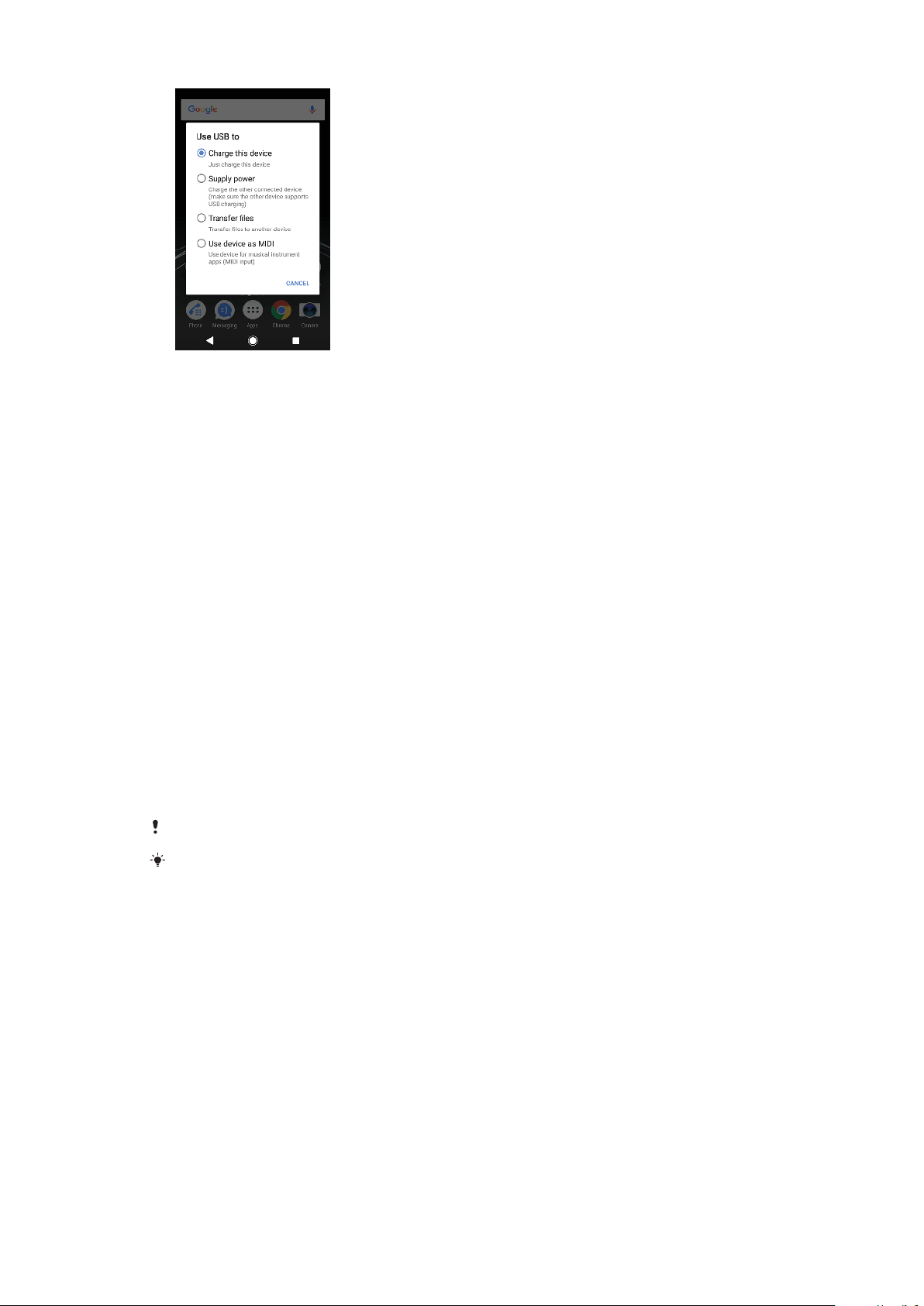
You can use the Transfer files connection mode for managing files and updating
device software. This USB mode is used with Microsoft® Windows® computers.
Charging is enabled by default.
Using the Use device as MIDI mode, your device can function as a MIDI input for
musical instrument apps.
To change USB connection mode
1 Attach a USB Type-C connector to your device.
2 Drag down the Status bar, and then tap USB charging this device under
Android System.
3 Tap Transfer files, Supply power or Use device as MIDI to enable the
desired mode.
Storage and memory
Your device has several dierent storage and memory options:
• The internal storage stores downloaded or transferred content along with personal
settings and data.
• You can use a removable memory card to get more storage space. Media files can
be moved to this type of memory to free up internal storage.
• The RAM (dynamic memory) cannot be used for storage. RAM is used to handle
running applications and the operating system.
You can purchase a memory card separately.
Read more about the use of memory in Android devices by downloading the White paper
for your device at
www.sonymobile.com/support/
.
Improving memory performance
Your device memory tends to fill up as a result of normal usage. If the device starts
to slow down, or applications suddenly shut down, you should consider the
following:
• Always try to keep at least 500 MB of free internal storage available.
• Close running applications that you are not using.
• Clear the cache memory for all applications.
• Uninstall downloaded applications that you don't use.
• Move applications to the memory card if the internal storage is full.
• Transfer photos, videos and music from the internal memory to the memory card.
38
This is an internet version of this publication. © Print only for private use.
Page 39

• If your device can't read content on the memory card, you may need to format the
card. Note that all content on the card gets erased when you format it.
If you are sharing a device with multiple users, you must log in as the owner, that is, the
primary user, to be able to perform certain actions, such as transferring data to the memory
card and formatting the memory card.
To view the memory status
• Find and tap Settings > Storage.
To clear the cache memory for all applications
1 Find and tap Settings > Storage.
2 Tap Other apps, then tap the desired application.
3 Tap CLEAR CACHE.
When you clear the cache memory, you don't lose any important information or settings.
To transfer media files to the memory card
1 Make sure you have a memory card inserted into your device.
2 Find and tap Settings > Storage > Transfer data to SD card.
3 Mark the files that you want to transfer to the memory card.
4 Tap Transfer.
To stop applications and services from running
1 Find and tap Settings > Apps & notifications > App info.
2 Select an application or service, then tap FORCE STOP > OK.
To format the memory card
1 Find and tap Settings > Storage.
2 Tap SD card >
All content on the memory card gets erased when you format it. Make sure you first make
backups of all data that you want to save. To back up your content, you can copy it to a
computer. For more information, see
, then tap Storage settings > Format > Erase & format.
Managing files using a computer
on page 37.
Smart cleaner
Using Smart cleaner you can improve device performance by automatically
optimising storage and memory depending on frequency of app use.
To enable or disable Smart cleaner
1 Find and tap Settings > Assist.
2 Tap Smart cleaner, then tap the slider to enable or disable the function.
You can also modify, copy or delete files manually if you find and tap the Files application.
Backing up and restoring content
Generally, you should not save photos, videos and other personal content solely
on the internal memory of your device. If your device is damaged, lost or stolen,
the data stored on its internal memory may be impossible to recover. It is
recommended to use the Xperia Companion software to make backups which save
your data safely to an external device. This method is especially recommended if
you are updating your device software to a newer Android version.
The Xperia Backup & restore application is recommended for backing up data
before you do a factory data reset. With this application you can back up data to
an online account, an SD card or to an external USB storage device that you have
connected to your device using a USB host adapter.
With the Google Backup & restore application, you can back up data to a Google
server.
39
This is an internet version of this publication. © Print only for private use.
Page 40

Backing up data to a computer
Use the Xperia™ Companion software to back up data from your device to a PC or
an Apple® Mac® computer. You can back up the following types of data:
• Call logs
• Text messages
• Calendar
• Settings
• Media files such as music and videos
• Photos and images
To back up your data using a computer
1 Unlock the screen of your device and connect it to the computer using a USB
Type-C cable.
2 Open the Xperia™ Companion software on your computer if it is not
automatically launched. After a few moments, the computer detects your
device. Make sure to select Transfer files mode on your device.
3 Click Backup on the Xperia™ Companion main screen.
4 Follow the on-screen instructions to back up data from your device.
If you do not have Xperia™ Companion installed, you are requested to install it when you
connect your device to the computer.
To restore your data using a computer
1 Unlock the screen of your device and connect it to the computer using a USB
Type-C cable.
2 Open the Xperia Companion software on your computer if it is not
automatically launched. After a few moments, the computer detects your
device. Make sure to select Transfer files mode on your device.
3 Click
Restore
4 Select a backup file from the backup records, then click Next and follow the
on-screen instructions to restore data to your device.
on the Xperia Companion main screen.
If you do not have Xperia Companion installed, you are requested to install it when you
connect your device to the computer.
Backing up data with the Xperia Backup & restore application
Using the Xperia Backup & restore application, you can make an online or a local
data backup. You can do so manually or turn on the automatic backup function to
save data periodically.
The Xperia Backup & restore application is recommended for backing up data
before you do a factory data reset. With this application you can back up the
following types of data to an online account, an SD card or to an external USB
storage device that you have connected to your device using a USB host adapter:
• Contacts
• Conversations
• Call log
• Calendar
• Email accounts
• Wi-Fi accounts
• Device settings
• Applications
• Xperia Home layout
40
This is an internet version of this publication. © Print only for private use.
Page 41

To set up the automatic backup function
1 If you are backing up content to a USB storage device, make sure the storage
device is connected to your device using a USB host adapter. If you are
backing up to an SD card, make sure that the SD card is mounted properly in
your device. If you are backing up content to an online account, make sure
you have signed in to your account.
2 Find and tap Settings > System.
3 Tap Xperia™ Backup & Restore > Automatic backup.
4 To enable the automatic backup function, tap the slider.
5 Select where to save the backup files.
6 If desired, select a backup frequency, when to back up and the specific data
to back up. Otherwise the backup is completed according to the default
settings.
7 To save your settings, tap
.
To back up content manually
1 If you are backing up to an SD card, make sure the SD card is properly
inserted into your device. If you are backing up content to an online account,
make sure you have signed in to your Google account.
2 Find and tap Settings > System > Xperia™ Backup & Restore.
3 Tap More.
4 Tap Manual backup, then select a backup destination and the data that you
want to back up.
5 Tap BACK UP.
6 After the data is backed up, tap Finish.
To edit a backup file
1 Find and tap Settings > System.
2 Under Xperia™ Backup & Restore, tap More.
3 Tap Edit backup file, then select a backup source and the data types that
you want to delete.
4 Tap Delete data.
5 Tap OK to confirm.
6 After the data is deleted, tap Finish.
To restore backed up content
1 If you are restoring content from a USB storage device, make sure that the
storage device is connected to your device using the USB Host adapter. If
you are restoring content from an SD card, make sure that the SD card is
properly inserted into your device. If you are restoring content from Xperia
Backup & Restore service, make sure you have signed in to your Google
account.
2 Find and tap Settings > System > Xperia™ Backup & Restore.
3 Tap Restore data, then select a restore source and the data that you want to
restore.
4 Tap Restore data.
5 After the content is restored, tap Finish.
Remember that any changes that you make to your data and settings after you create a
backup - such as any new apps you install - get deleted during any subsequent restore
procedure.
Backing up data with the Google Backup & restore application
Using the Google Backup & restore application, you can back up data to a Google
server. You can also turn on the automatic restore function to restore application
data and settings when you reinstall an application.
With this application you can back up the following types of data:
• Applications
• Bookmarks
41
This is an internet version of this publication. © Print only for private use.
Page 42

• Wi-Fi networks
• Other settings
To back up data to a Google account
1 Find and tap Settings > System > Backup.
2 Under Back up to Google Drive, tap Account and choose an account to
back up your files to.
To enable or disable automatic restore when you reinstall an application
1 Find and tap Settings > System > Backup.
2 Tap the Back up to Google Drive slider to enable or disable the automatic
restore .
42
This is an internet version of this publication. © Print only for private use.
Page 43

Downloading applications
Downloading applications from Google Play
Google Play is the ocial online Google store for downloading applications,
games, music, movies and books. It includes both free and paid applications.
Before you start downloading from Google Play, make sure that you have a
working internet connection, preferably over Wi-Fi to limit data trac charges. For
more information, see
To use Google Play, you need to have a Google account. Google Play may not be available
in all countries or regions.
To download an application from Google Play
1 Find and tap .
2 Find an item you wish to download by browsing categories, or by using the
search function.
3 Tap the item to view its details. Follow the on-screen instructions to
complete the installation.
Some applications may need to access data, settings and various functions on your device
in order to work properly. Only install and give permissions to applications that you trust.
You can view the permissions granted to a downloaded application by tapping the
application under Settings > Apps & notifications > App info.
Updating your device
on page 35.
Downloading applications from other sources
When your device is set to allow downloads from sources other than Google Play,
you can download applications directly from other websites by following the
relevant download instructions.
Installing applications of unknown or unreliable origin can damage your device. Download
applications only from reliable sources. Contact the application provider if you have any
questions or concerns.
If you are using a device with multiple users, only the owner, that is, the primary user, can
allow downloads from sources other than Google Play. Changes made by the owner aect
all other users.
To enable or disable the downloading of applications from other sources
1 Find and tap Settings > Apps & notifications.
2 Tap Advanced > Special app access > Install unknown apps
3 Select the source from which you want to allow apps to be installed, then
tap the Allow from this source slider to enable or disable.
43
This is an internet version of this publication. © Print only for private use.
Page 44

Internet and networks
Browsing the web
The Google Chrome web browser for Android devices comes pre-installed in most
markets. Go to
information about how to use this web browser.
To browse the web
1 Find and tap .
2 If you are using Google Chrome for the first time, select to either sign in to a
Google account or browse with Google Chrome anonymously.
3 Enter a search term or web address in the search and address field, then tap
on the keyboard.
Internet and MMS settings
To access the internet, or send multimedia messages without Wi-Fi, you need a
mobile data connection with correct internet and Multimedia Messaging Service
(MMS) settings. Here are some tips:
• For most mobile networks and operators, these settings come pre-installed on
your device so you can start using the internet and sending multimedia messages
right away.
• You can manually check for updates to the internet and MMS settings. If you
change or delete an internet or MMS setting by mistake, download the internet
and MMS settings again.
• Refer to troubleshooting tips for your device at
network coverage, mobile data, and MMS issues.
• If STAMINA mode is activated to save power, all mobile data trac gets paused
when the screen is o. If this causes connection problems, try excluding some
applications and services from being paused, or deactivate STAMINA mode
temporarily.
• If you are sharing a device with multiple users, only the owner, that is, the primary
user, can download internet and messaging settings from the Settings menu, but
the downloaded settings are applicable to all users.
http://support.google.com/chrome
http://support.sonymobile.com
to get more detailed
for
To download internet and MMS settings
1 Find and tap Settings > Network & Internet > Internet settings.
2 Tap ACCEPT. Once the settings have been downloaded successfully,
appears in the status bar and mobile data trac is turned on automatically.
If the settings cannot be downloaded to your device, check the signal strength of your
mobile or Wi-Fi network connections. Move to an open location free from obstructions or
get close to a window and then try again.
To add internet and MMS settings
1 Find and tap Settings > Network & Internet > Mobile network.
2 Dual SIM users, select a SIM card.
3 Tap Access point names >
4 Tap Name and enter a name of your choice, then tap OK.
5 Tap APN and enter the access point name, then tap OK.
6 Enter all other required information. If you don’t know what information is
required, contact your network operator for more details.
7 When you're done, tap
.
, then tap Save.
44
This is an internet version of this publication. © Print only for private use.
Page 45

To view downloaded internet and MMS settings
1 Find and tap Settings > Network & Internet > Mobile network.
2 Dual SIM users, select a SIM card.
3 Tap Access point names.
4 To view more details, tap any of the available items.
Wi-Fi
Use Wi-Fi to surf the internet, download applications, or send and receive emails.
Once you have connected to a Wi-Fi network, your device remembers the network
and automatically connects to it the next time you come within range.
Some Wi-Fi networks require you to log in to a web page before you can get
access. Contact the relevant Wi-Fi network administrator for more information.
Available Wi-Fi networks may be open or secured. Secured networks are indicated
next to the Wi-Fi network name.
by
Some Wi-Fi networks do not show up in the list of available networks because they do not
broadcast their network name (SSID). If you know the network name, you can add it
manually to your list of available Wi-Fi networks.
To turn Wi-Fi on or o
1 Find and tap Settings > Network & Internet > Wi-Fi.
2 Tap the slider to enable or disable Wi-Fi.
It may take a few seconds before Wi-Fi is enabled.
To connect to a Wi-Fi network
1 Find and tap Settings > Network & Internet > Wi-Fi.
2 Tap the slider to turn on Wi-Fi. All available Wi-Fi networks are displayed.
3 Tap a Wi-Fi network to connect to it. For secured networks, enter the relevant
password.
The list of available Wi-Fi networks refreshes automatically. If you cannot connect to a Wi-Fi
network successfully, refer to the relevant troubleshooting tips for your device at
http://support.sonymobile.com
is displayed in the status bar once you are connected.
.
To add a Wi-Fi network manually
1 Find and tap Settings > Network & Internet > Wi-Fi.
2 Scroll down and tap Add network.
3 Enter the Network name information.
4 To select a security type, tap the Security field.
5 If required, enter a password.
6 To edit advanced options such as proxy and IP settings, tap Advanced
options and then edit the options as desired.
7 Tap Save.
Contact your Wi-Fi network administrator to get the network SSID and password.
45
This is an internet version of this publication. © Print only for private use.
Page 46
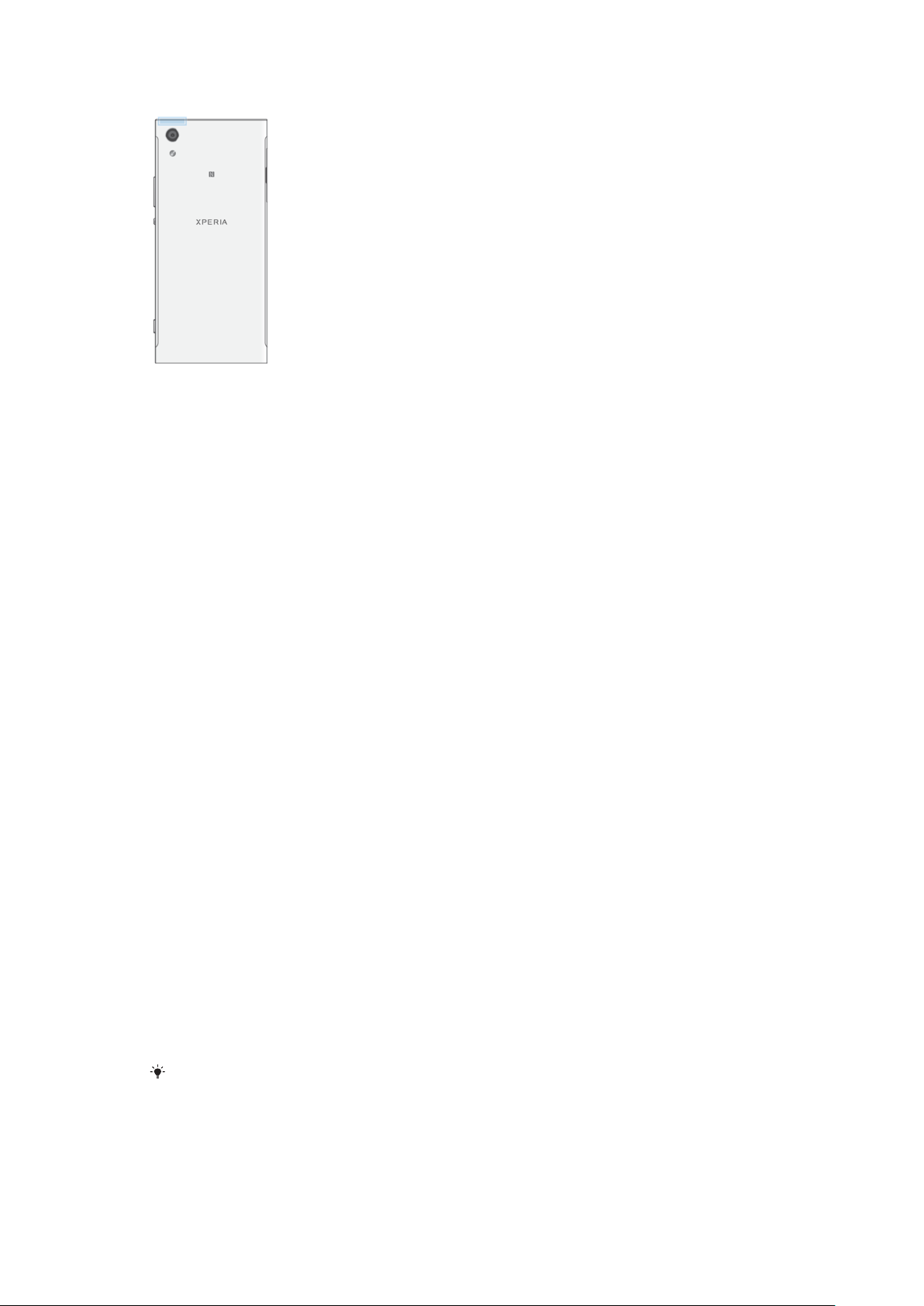
Increasing Wi-Fi signal strength
There are a number of things you can do to improve Wi-Fi reception:
• Move your device closer to the Wi-Fi access point.
• Move the Wi-Fi access point away from any potential obstructions or interference.
• Don’t cover the Wi-Fi antenna area of your device (the highlighted area in the
illustration).
Wi-Fi settings
When you are connected to a Wi-Fi network or when there are Wi-Fi networks
available in your vicinity, you can view the status of these networks. You can also
enable your device to notify you whenever an open Wi-Fi network is detected.
To enable or disable Wi-Fi network notifications
1 Make sure that Wi-Fi is turned on for your device.
2 Find and tap Settings > Network & Internet > Wi-Fi.
3 Tap Wi‑Fi preferences.
4 Tap the Open network notification slider to enable or disable.
To view detailed information about a connected Wi-Fi network
1 Find and tap Settings > Network & Internet > Wi-Fi.
2 Tap the Wi-Fi network that you are currently connected to. Detailed network
information is displayed.
To set a Wi-Fi sleep policy
1 Find and tap Settings > Network & Internet > Wi-Fi.
2 Tap Wi‑Fi preferences > Advanced > Keep Wi-Fi on during sleep.
3 Select an option.
To enable auto network switch
1 Find and tap Settings > Network & Internet > Wi-Fi.
2 Tap Wi‑Fi preferences.
3 Tap the Auto network switch slider and tap ENABLE.
To find the MAC address for your device
1 Find and tap Settings > Network & Internet > Wi-Fi.
2 Tap Wi‑Fi preferences > Advanced.
3 MAC address is displayed in the list.
The Wi-Fi Mac address is also displayed under Settings > System > About phone > Status >
Wi‑Fi MAC address.
Wi-Fi Protected Setup™
Wi-Fi Protected Setup is a wireless networking standard that helps you establish
secure wireless network connections. Wi-Fi Protected Setup makes it easy for you
46
This is an internet version of this publication. © Print only for private use.
Page 47

to set up WPA™ (Wi-Fi Protected Access®) encryption to secure your network. You
can also add new devices to an existing network without entering long passwords.
Use one of these methods to enable Wi-Fi Protected Setup:
• Push button method – simply push a button on a Wi-Fi Protected Setup-supported
device, for example, a router.
• PIN method – your device creates a random PIN, which you enter on the Wi-Fi
Protected Setup-supported device.
To connect to a Wi-Fi network using a Wi-Fi Protected Setup button
1 Find and tap Settings > Network & Internet > Wi-Fi.
2 Turn on Wi-Fi if it is not already on.
3 Tap Wi‑Fi preferences > Advanced > WPS Push Button, then press the Wi-Fi
Protected Setup button on the Wi-Fi Protected Setup-supported device.
To connect to a Wi-Fi network using a Wi-Fi Protected Setup PIN
1 Find and tap Settings > Network & Internet > Wi-Fi.
2 Turn on Wi-Fi if it is not already on.
3 Tap Wi‑Fi preferences > Advanced > WPS PIN Entry.
4 On the Wi-Fi Protected Setup-supported device, enter the PIN that appears
on your device.
Sharing your mobile data connection
You can share your mobile data connection with other devices in several ways.
• USB tethering: share your mobile data connection with a single computer using a
USB cable.
• Portable hotspot: share your mobile data connection with up to 10 other devices
simultaneously, including devices that support WPS technology.
• One-touch portable hotspot: touch devices to start sharing your mobile
connection over Wi-Fi.
• Bluetooth tethering: share your mobile data connection with up to four other
devices via Bluetooth.
To share your data connection using a USB cable
1 Connect your device to a computer, using the USB cable that came with it.
2 Find and tap Settings > Network & Internet > Tethering & portable
hotspot.
3 Tap the USB tethering slider, then tap OK if prompted.
is displayed in the
status bar once you are connected.
4 To stop sharing your data connection, tap the USB tethering slider or
disconnect the USB cable.
You cannot share your device's data connection and SD card over a USB cable at the same
time.
To share your mobile connection by One-touch portable hotspot
1 Make sure that both devices have the NFC function turned on, and that both
screens are active.
2 Find and tap Settings > Network & Internet > Tethering & portable
hotspot.
3 Tap the Portable hotspot slider to enable the function.
4 Tap One-touch portable hotspot. Hold the devices together so that the NFC
detection areas of each device touch, then tap CONNECT.
This function only works with devices that also support NFC Wi-Fi tethering.
47
This is an internet version of this publication. © Print only for private use.
Page 48

To share your mobile data connection with another Bluetooth device
1 Make sure that your device and the other Bluetooth device are paired with
each other and that mobile data trac is activated on your device.
2 Your device: Find and tap Settings > Network & Internet > Tethering &
portable hotspot. Tap the Bluetooth tethering slider to enable the function.
3 Bluetooth device: Set up the device so that it obtains its network
connection using Bluetooth. If the device is a computer, refer to the relevant
instructions to complete the setup. If the device runs on the Android
operating system, tap the settings icon beside the name of the device that it
is paired with under Settings > Connected devices > Bluetooth > Paired
devices, then mark the Internet access checkbox.
4 Your device: Wait for
to appear in the status bar. Once it appears, the
setup is complete.
5 Tap the Bluetooth tethering slider again to disable the function.
The Bluetooth tethering function is turned o every time you turn o your device or turn o
the Bluetooth function.
To use your device as a portable Wi-Fi hotspot
1 Find and tap Settings > Network & Internet > Tethering & portable
hotspot.
2 Tap Portable hotspot settings > Configure hotspot.
3 Enter the Network name information.
4 To select a security type, tap the Security field. If required, enter a password.
5 Tap Save.
6 Tap
and tap the Portable hotspot slider to enable the function.
7 If prompted, tap OK to confirm. appears in the status bar when the
portable Wi-Fi hotspot is active.
8 To stop sharing your data connection via Wi-Fi, tap the Portable hotspot
slider to disable the function.
To allow a Wi-Fi Protected Setup-supported device to use your mobile data
connection
1 Make sure that your device is functioning as a portable Wi-Fi hotspot.
2 Find and tap Settings > Network & Internet > Tethering & portable hotspot
> Portable hotspot settings.
3 Under Configure hotspot, make sure that your portable hotspot is secured
by a password.
4 Tap WPS Push Button, then follow the on-screen instructions. Alternatively,
> WPS PIN Entry, then enter the PIN that appears on the Wi-Fi
tap
Protected Setup-supported device.
To rename or secure your Portable Hotspot
1 Find and tap Settings > Network & Internet > Tethering & portable
hotspot.
2 Tap Portable hotspot settings > Configure hotspot.
3 Enter the Network name information.
4 To select a security type, tap the Security field.
5 If required, enter a password.
6 Tap Save.
Controlling data usage
You can keep track of the amount of data transferred to and from your device over
your mobile data or Wi-Fi connection during a given period. For example, you can
view the amount of data used by individual applications. For data transferred over
48
This is an internet version of this publication. © Print only for private use.
Page 49

your mobile data connection, you can also set data usage warnings and limits to
avoid additional charges.
If you are using a device with multiple users, only the owner, that is, the primary user, can
adjust data usage settings. Adjusting data usage settings can help you keep greater control
over data usage but cannot guarantee the prevention of additional charges.
To help reduce data usage
1 Find and tap Settings > Network & Internet > Data usage > Data Saver.
2 Tap the slider to enable or disable the function.
To turn data trac on or o
1 Find and tap Settings > Network & Internet > Data usage.
2 Tap the Mobile data slider to turn data trac on or o.
When data trac is turned o, your device can still establish Wi-Fi and Bluetooth
connections.
To set a data usage warning
1 Make sure that mobile data trac is turned on.
2 Find and tap Settings > Network & Internet > Data usage > Billing cycle.
3 To set the warning level, tap the slider beside Set data warning.
4 Tap Data warning, enter the desired data limit and tap SET. You receive a
warning notification when the amount of data trac reaches the level you
set.
To set a mobile data limit
1 Make sure that mobile data trac is turned on.
2 Find and tap Settings > Network & Internet > Data usage.
3 Tap Billing cycle and tap the slider beside Set data limit, then tap OK.
4 To set the data usage limit, tap Data limit, enter the desired data limit and
tap SET.
Once your mobile data usage reaches the set limit, mobile data trac on your device gets
turned o automatically.
To control the data usage of individual applications
1 Find and tap Settings > Apps & notifications > App info.
2 Tap the application that you want to control, then tap Data usage.
The performance of individual applications may be aected if you change the related data
usage settings.
To check your data usage
1 Find and tap Settings > Network & Internet > Data usage.
2 To view information about the amount of data transferred via mobile data
connection, tap Mobile data usage. To view information about the amount
of data transferred via Wi-Fi connection, tap Wi-Fi data usage.
Selecting a SIM card for data trac
This function only applies for Dual SIM devices.
If you are using a Dual SIM device, you can select which SIM card handles data at
any given time. You can do this during the initial setup of your device, or you can
select or change it later via the Settings menu.
49
This is an internet version of this publication. © Print only for private use.
Page 50

To change the SIM card used for data trac
1 Find and tap Settings > Network & Internet > Dual SIM > Mobile data.
2 Select the SIM card that you want to use for data trac.
For higher data speeds, select the SIM card that supports the fastest mobile network, for
example, 3G.
Selecting mobile networks
Your device supports the use of up to three dierent networks at the same time.
You can select from the following network mode combinations:
• One WCDMA network
• One GSM network
• One WCDMA and one GSM network
• One LTE, one WCDMA and one GSM network
Your device automatically switches between mobile networks depending on which
mobile networks are available where you are. You can also manually set your
device to use a particular mobile network mode, for example, WCDMA or GSM. If
you are using a Dual SIM device, this applies to each SIM card.
Dierent status icons are displayed in the status bar depending on the type or
mode of network that you are connected to. Refer to
Status icons
see what the dierent status icons look like.
To select a network mode
1 Find and tap Settings > Network & Internet > Mobile network.
2 Dual SIM users, select a SIM card.
3 Tap Preferred network type, then select a network mode.
on page 28 to
To select another network manually
1 Find and tap Settings > Network & Internet > Mobile network.
2 Dual SIM users, select a SIM card.
3 Tap Network operators > Search networks.
4 Select a network.
If you select a network manually, your device will not search for other networks, even if you
move out of range of the manually selected network.
To activate automatic network selection
1 Find and tap Settings > Network & Internet > Mobile network.
2 Dual SIM users, select a SIM card.
3 Tap Network operators > Automatic.
50
This is an internet version of this publication. © Print only for private use.
Page 51

Synchronising data on your device
Synchronising with online accounts
Synchronise your device with contacts, email, calendar events and other
information from online accounts, for example, email accounts such as Gmail™
and Exchange ActiveSync, Facebook™ and Flickr™. You can synchronise data
automatically for such accounts by activating the auto-sync function, or you can
synchronise each account manually.
To set up an online account for synchronisation
1 Tap Settings > Users & accounts > Add account, then select the account
that you want to add.
2 Follow the on-screen instructions to create or sign in to an account.
To synchronise manually with an online account
1 Find and tap Settings > Users & accounts.
2 Tap the name of the account that you want to synchronise with, then tap
Account sync. A list of items appears showing what can be synchronised
with the account.
3 Tap the item that you want to synchronise.
To remove an online account
1 Find and tap Settings > Users & accounts.
2 Select the account, then tap Remove account.
3 Tap Remove account again to confirm.
Synchronising with Microsoft Exchange ActiveSync
If your company uses a Microsoft Exchange ActiveSync account, you can access
your corporate email messages, calendar appointments and contacts directly on
your device. After setup, you can find your information in the Email, Calendar and
Contacts applications.
If you have set up a Microsoft Exchange ActiveSync (EAS) account on your Xperia device,
the EAS security settings may limit the lock screen type to only a PIN or password. This
occurs when your network administrator specifies a lock screen type for all EAS accounts
for enterprise security reasons. Contact the network administrator of your company or
organisation to check what network security policies are implemented for mobile devices.
To set up an EAS account for synchronisation
1 Tap Settings > Users & accounts > Add account > Exchange ActiveSync.
2 Enter your corporate email address and password.
3 Tap NEXT. If a failure occurs, enter the domain and server details for your
account manually and then tap NEXT.
4 Follow the on-screen instructions to complete the setup.
5 Tap Show more sync options to select a synchronisation method, a
synchronisation interval and the data that you want to sync with your device.
6 Tap NEXT, then select how you want to be notified when a new email
arrives.
7 Tap NEXT, enter a name for the corporate account, then tap Finish setup.
8 If prompted, activate the device administrator to allow your corporate server
to set certain security rules on your device, such as disabling voice recording
and using storage encryption.
51
This is an internet version of this publication. © Print only for private use.
Page 52

To remove an EAS account
1 Find and tap Settings > Users & accounts.
2 Select the EAS account that you want to remove.
3 Tap Remove account.
4 Tap Remove account again to confirm.
52
This is an internet version of this publication. © Print only for private use.
Page 53

Basic settings
Accessing settings
View and change settings for your device from the Settings menu. The Settings
menu is accessible from both the Application screen and the Quick settings panel.
To open the device settings menu from the Application screen
• Find and tap Settings.
To view information about your device
• Find and tap Settings > System > About phone.
To access the Quick settings panel
• Drag the status bar downwards using two fingers.
To select which settings to display on the Quick settings panel
1 Using two fingers, drag the status bar fully downwards, then tap
2 To add a setting to the Quick settings panel, drag and drop the icon into the
upper part of the screen. To remove a setting, drag and drop the icon into
the lower part of the screen.
To rearrange the Quick settings panel
1 Drag the status bar fully downwards, then tap
2 Touch and hold an icon, then move it to the desired position.
.
.
To turn on the Torch
1 Drag the status bar downwards using two fingers.
2 Tap
.
Volume, vibration and sound
The volume and vibration can be changed either by using the volume keys or by
changing a setting. Sounds and tones can only be changed from a setting.
App settings can override the selected volume, vibration and sound settings.
Volume and vibration
You can use the volume key to quickly change the ring, media or alarm volumes.
Additionally, you can set your device to vibrate or activate a Do not disturb
option
disturb, see
The ring volume
aects music, videos, games and other media. For example, if you change the
volume while watching a video, the media volume is changed. The alarm volume is
indicated with
To change the volume
1 Press the volume key up or down. This changes the ring and notification
volume.
2 To change the media or alarm volumes, tap
volumes.
to mute sounds and vibrations. For more information about Do not
Silence your device with Do not disturb
aects incoming calls and notifications, and the media volume
.
on page 54.
. Use the sliders to adjust the
Tap a volume icon to quickly turn the volume on or
53
This is an internet version of this publication. © Print only for private use.
o.
Page 54

To activate vibration or Do not disturb mode
1 Press and hold the volume key down until appears to activate vibrate
mode.
2 Release the volume key and press it down again to activate Do not disturb
mode.
To activate sound with vibration for incoming calls
1 Find and tap Settings > Sound.
2 Tap the Also vibrate for calls slider to enable the function.
Sounds and tones
To set the ringtone
1 Find and tap Settings > Sound > Phone ringtone.
2 Dual SIM users, select a SIM card.
3 Select an option from the list or tap
your device.
4 To confirm, tap DONE.
and select a music file that is saved on
To set a specific ringtone for a contact, see
SIM users can set dierent ringtones for each SIM card.
Adding and editing contacts
on page 68. Dual
To set the notification sound
1 Find and tap Settings > Sound > Notification sound.
2 Select a sound from the list or select None to turn o all notification sounds
and set your notifications to vibrate only.
3 To select a music file that is saved on your device, tap
.
4 To confirm, tap DONE.
You can change your app settings to allow a sound from a specific app even when the
notification sound is set to None. See
Notifications
on page 26.
To enable or disable other sounds and tones
1 Find and tap Settings > Sound > Advanced.
2 Tap the sliders to enable or disable the dierent sounds and tones.
Silence your device with Do not disturb
Activate Do not disturb to mute sounds and limit vibrations and visual indications
for situations in which you do not want to be disturbed, for example at night.
To activate Do not disturb
1 Drag the status bar downwards using two fingers to access the Quick
settings panel.
2 Tap
3 Tap
4 Select the limitation level by tapping Total silence, Alarms only or Priority
5 Set how long you want Do not disturb to be activated and tap DONE.
.
to set the limitation level.
only.
Do not disturb can also be activated by pressing the volume key down when your device is
in vibrate mode .
To deactivate Do not disturb
1 Press the volume key up.
2 If Priority only is set, tap Turn o now.
Do not disturb can also be deactivated by tapping
or from the Quick settings panel.
54
This is an internet version of this publication. © Print only for private use.
Page 55

Limitation levels
Total silence
All vibrations and all ring, media and alarm sounds are turned o.
Alarms only
The ring sound is turned o. Alarm and media sounds are still on.
Priority only
You only receive the notifications and calls you have selected. Alarm and
media sounds are still on.
To set up Priority only
1 Find and tap Settings > Sound > Do not disturb > Allowed in Priority only.
2 Tap the sliders to activate one or more options.
You can allow certain apps to bypass the priority. See
To block visual disturbances
1 Find and tap Settings > Sound > Do not disturb > Block visual
disturbances.
2 Tap the sliders to activate one or more options.
Notifications
on page 26.
Automatic rules
You can set automatic rules to activate Do not disturb mode for specific times or
events.
To set an automatic rule
1 Find and tap Settings > Sound > Do not disturb.
2 Tap an automatic rule, for example Weekend.
3 Tap the options to set the rule name, time and behaviours as desired.
4 Tap the slider to activate the rule.
To create a new rule, tap Add more and follow the on-screen instructions.
Screen settings
You can change the screen´s brightness, quality, viewing size and behaviour. For
example, select a bigger font or display size for easier reading or change the icons
you see in the status bar.
If you want to change your background and theme, see
on page 25. To change how long you want to have the screen on before it is turned
o, see
Turning the screen on or o
on page 18.
Background and themes
To change a screen setting
1 Find and tap Settings > Display.
2 Tap the setting you want to change.
3 Use the sliders, checkboxes or additional menus to adjust.
Brightness
Adjust the brightness level with the slider. You can also enable Adaptive brightness
to automatically optimise brightness based on surrounding light.
White balance
Use the sliders to adjust the white balance of your display. To revert to the default
setting, tap
.
55
This is an internet version of this publication. © Print only for private use.
Page 56

Image enhancement
Enhance the quality of photos and videos when viewing them on your device. For
example, use Super-vivid mode to make colours appear more vibrant on-screen.
Screen rotation
Set the screen to rotate automatically when the device is turned, or set it to stay in
portrait view.
Screen saver
Set up a screen saver that automatically displays colours, photos or a slideshow
while your device is docked or charging and the screen is idle. On a device with
multiple users, each user can have individual screen saver settings.
Screen pinning
Use screen pinning to set your device to display only the screen for a specific
application. For example, if you are playing a game and you accidentally touch the
Home navigation key, the screen pinning feature prevents the active game app
screen from being minimised. You can also use this feature when you lend your
device to another person to make it harder for them to access more than one
application. For example, you can lend your device to somebody to take a photo
and pin the screen to the Camera application so that the person can't easily use
other apps such as Email.
Screen pinning is not a security feature and does not fully prevent other users from
unpinning a screen and accessing your device. To protect your data, you should set up your
device to request a screen lock PIN, password or pattern before someone can unpin the
screen.
To enable or disable screen-pinning
1 Find and tap Settings > Lock screen & security > Screen-pinning.
2 Tap the slider to enable or disable the function.
A pattern, PIN or password is not mandatory for screen pinning to work.
To pin a screen
1 Make sure that screen pinning is activated on your device.
2 Open an app and go to the screen that you want to pin.
3 Tap
4 To display the screen pinning icon, swipe upwards and tap .
5 In the window that appears, tap Got it.
• On the pinned screen, touch and hold
.
To unpin a screen
and until the screen is unpinned.
If you selected a security option when you activated the screen pinning function, you have
to enter your pattern, PIN or password to unlock the device before the screen can be
unpinned.
Application settings
Some apps will ask for permissions once you start using them. You can allow or
deny permissions individually for each app, either from the Settings menu or from
the Permission confirm dialog. Permission requirements depend on the app’s
design.
56
This is an internet version of this publication. © Print only for private use.
Page 57

Allowing or denying permissions
You can choose whether to allow or deny permissions when the dialog is shown. If
you have used another Android version previously, most apps will have already
been granted the necessary permissions.
To allow a permission
• To allow a permission, tap Allow. You can mark the Don't ask again
checkbox if you wish.
To deny a permission
• To deny a permission, tap Deny when the dialog is shown.
Some applications can still be used even if you have denied permissions.
Critical permissions
Some permissions are mandatory for apps to work as intended. In such cases, a
dialog will inform you.
To configure applications
1 Find and tap Settings > Apps & notifications.
2 Select a configuration option, for example App info, then choose an
application that you want to configure.
To allow critical permissions
1 Find and tap Settings > Apps & notifications > App permissions.
2 Select an option, then tap the relevant slider to adjust permissions.
Allowing or denying automatic application updates
If the automatic update feature is enabled, your applications get updated without
you being asked, so you may not realise that large volumes of data are being
downloaded. In order to avoid potentially high data transfer costs, you can disable
automatic updates or enable automatic updates only over Wi-Fi connection. You
have to disable the automatic update feature both in the Play Store™ app and the
What's New app (where available) to avoid the automatic updating of apps.
To enable or disable automatic updates for all applications in the Play Store
1 Find and tap
2 Tap
3 Select the preferred option.
1 Find and tap
2 Tap , then tap Settings > Auto-update apps.
3 Select the preferred option.
, then tap Settings > Auto-update apps.
To enable or disable automatic updates for all applications in What’s New
.
.
Application linking
Your device can determine the default app to handle a particular web link. This
means that if the link is set, you don’t need to select an app each time you open a
link. You can change the default app any time you want.
To manage app links from the Settings menu
1 Find and tap Settings > Apps & notifications.
2 Tap Advanced > Default Apps > Opening links.
3 Select an app, and adjust the settings as desired.
57
This is an internet version of this publication. © Print only for private use.
Page 58

Resetting your applications
You can reset an application or clear application data if your application stops
responding or causes issues with your device.
To reset application preferences
1 Find and tap Settings > Apps & notifications.
2 Tap App info > > Reset app preferences, then tap Reset apps.
Resetting application preferences does not delete any application data from your device.
To clear application data
1 Find and tap Settings > Apps & notifications > App info.
2 Select an application or service, then tap Storage > CLEAR DATA > OK.
When you clear application data, data for the selected application is deleted from your
device permanently. The option to clear application data is not available for every
application or service.
To clear application cache
1 Find and tap Settings > Apps & notifications > App info.
2 Select an application or service, then tap Storage > CLEAR CACHE.
The option to clear the application cache is not available for every application or service.
To clear the application default setting
1 Find and tap Settings > Apps & notifications > App info.
2 Select an application or service, then tap Open by default > CLEAR
DEFAULTS.
The option to clear the application default setting is not available for every application or
service.
Language settings
You can select a default language for your device and change it again at a later
time. You can also change the writing language for text input.
To change the language
1 Find and tap Settings > System > Languages & input > Languages.
2 To change the language, drag and drop the desired language to the top of
the list. If the desired language is not currently listed, tap
If you select the wrong language and cannot read the menu texts, find and tap
select the text beside and select the first entry in the menu that opens. You can then
select the language you want.
to add it.
Date and time
You can change the date and time on your device.
To set the date manually
1 Find and tap Settings > System > Date & time.
2 Disable the Automatic date & time function by tapping the slider.
3 Tap Set date.
4 Flick left or right, or use the arrows to set the desired date.
5 Tap OK.
> . Then
58
This is an internet version of this publication. © Print only for private use.
Page 59

To set the time manually
1 Find and tap Settings > System > Date & time.
2 Disable the Automatic date & time function by tapping the slider.
3 Tap Set time.
4 Select the relevant values for the hour and minute.
5 Tap OK.
To set the time zone
1 Find and tap Settings > System > Date & time.
2 Disable the Automatic time zone function by tapping the slider.
3 Tap Select time zone.
4 Select an option.
Enhancing the sound output
You can enhance the sound of your device by manually enabling individual sound
settings such as Equaliser and Surround sound. You can enable the Dynamic
normaliser to minimise volume dierences between songs or videos.
To enhance the sound output automatically
1 Find and tap Settings > Sound > Audio settings.
2 Enable the ClearAudio+ function by tapping the slider.
To adjust the sound settings manually using the Equaliser
1 Find and tap Settings > Sound > Audio settings.
2 If the ClearAudio+ function is enabled, tap the slider to disable it.
3 Tap Sound eects > Equaliser.
4 To adjust the sound manually, drag the frequency band buttons. To choose a
preset arrangement, tap
, select an arrangement, then tap OK to confirm.
The manual adjustment of sound output settings has no eect on voice communication
applications. For example, there is no change in the voice call sound quality.
To minimise volume dierences using the Dynamic normaliser
1 Find and tap Settings > Sound > Audio settings.
2 Enable the Dynamic normaliser function by tapping the slider.
Multiple user accounts
Your device supports multiple user accounts so that dierent users can log in
separately to the device and use it. Multiple user accounts work well in situations
where you share the same device with other people or lend your device to
someone to use for a while. The user who sets up the device for the first time
becomes the owner of the device. Only the owner can manage the accounts of
other users. Apart from the owner account, there are two dierent types of
accounts:
• Regular User: This account type is suitable for someone who regularly uses your
device.
• Guest User: Enable the guest account option for someone who just wants to use
your device temporarily.
Some features are only available to the owner. For example, only the owner can allow
downloads from sources other than Google Play™.
About the Regular User account
By adding Regular User accounts, you can allow dierent users to have dierent
home screens, wallpapers and general settings. They also get separate access to
applications and memory storage for files such as music and photos. You can add
up to seven regular user accounts on your device.
59
This is an internet version of this publication. © Print only for private use.
Page 60

To add a regular user account
1 Make sure you are logged in as the owner, that is, the user who set up the
device for the first time.
2 Find and tap Settings > Users & accounts > Users > Add user.
3 Tap OK. The new account is created.
4 Tap Set up now. The screen locks and an icon representing the newly added
user appears in the top right corner.
5 Unlock the screen by swiping upwards.
6 Follow the on-screen instructions to set up the account for the user.
You can also add a regular user account from the status bar on any screen. Just drag the
status bar fully downwards and tap the user icon, then tap Add user.
To delete a regular user account from your device
1 Make sure you are logged in as the owner.
2 Find and tap Settings > Users & accounts > Users.
3 Tap
beside the name of the user that you want to delete, then tap
Remove user > DELETE.
About the Guest User account
If someone just wants to use your device temporarily, you can enable a guest
account for this user. In guest mode, your device starts up as a freshly installed
system with only the pre-installed apps. Once your guest is finished using your
device, you can wipe the session clean so that the next guest can start fresh. The
guest user account is pre-installed and cannot be deleted.
To activate the guest user account
1 Make sure you are logged in as the owner, that is, the user who set up the
device for the first time.
2 Drag the status bar downwards using two fingers and tap
.
3 Tap Add guest.
To clear the guest session data
1 Make sure you are logged in to the guest account.
2 Find and tap Settings > Users & accounts > Users.
3 Find and tap Remove guest.
4 Tap Remove.
You can also clear the guest session from the status bar on any screen as long as you are
logged in to the guest account. Just drag the status bar downwards using two fingers and
tap the user icon, then tap Remove guest.
Switching between multiple user accounts
To switch between multiple user accounts
1 To view the list of users, drag the status bar downwards using two fingers
then tap
2 Tap the icon representing the user account that you want to switch to. The
lock screen for that user account appears.
When you switch to the guest account, tap Start again if you want to wipe the previous
session or tap Yes, continue to continue the previous session.
.
Settings for multiple user accounts
There are three dierent types of settings on devices with multiple users:
• Settings that can be changed by any user and aect all users. Examples include
language, Wi-Fi, Airplane mode, NFC and Bluetooth®.
• Settings that only aect an individual user account. Examples include automatic
data syncing, screen lock, various accounts added, and wallpaper.
60
This is an internet version of this publication. © Print only for private use.
Page 61

• Settings that are only visible to the owner and aect all users, for example, VPN
settings.
61
This is an internet version of this publication. © Print only for private use.
Page 62
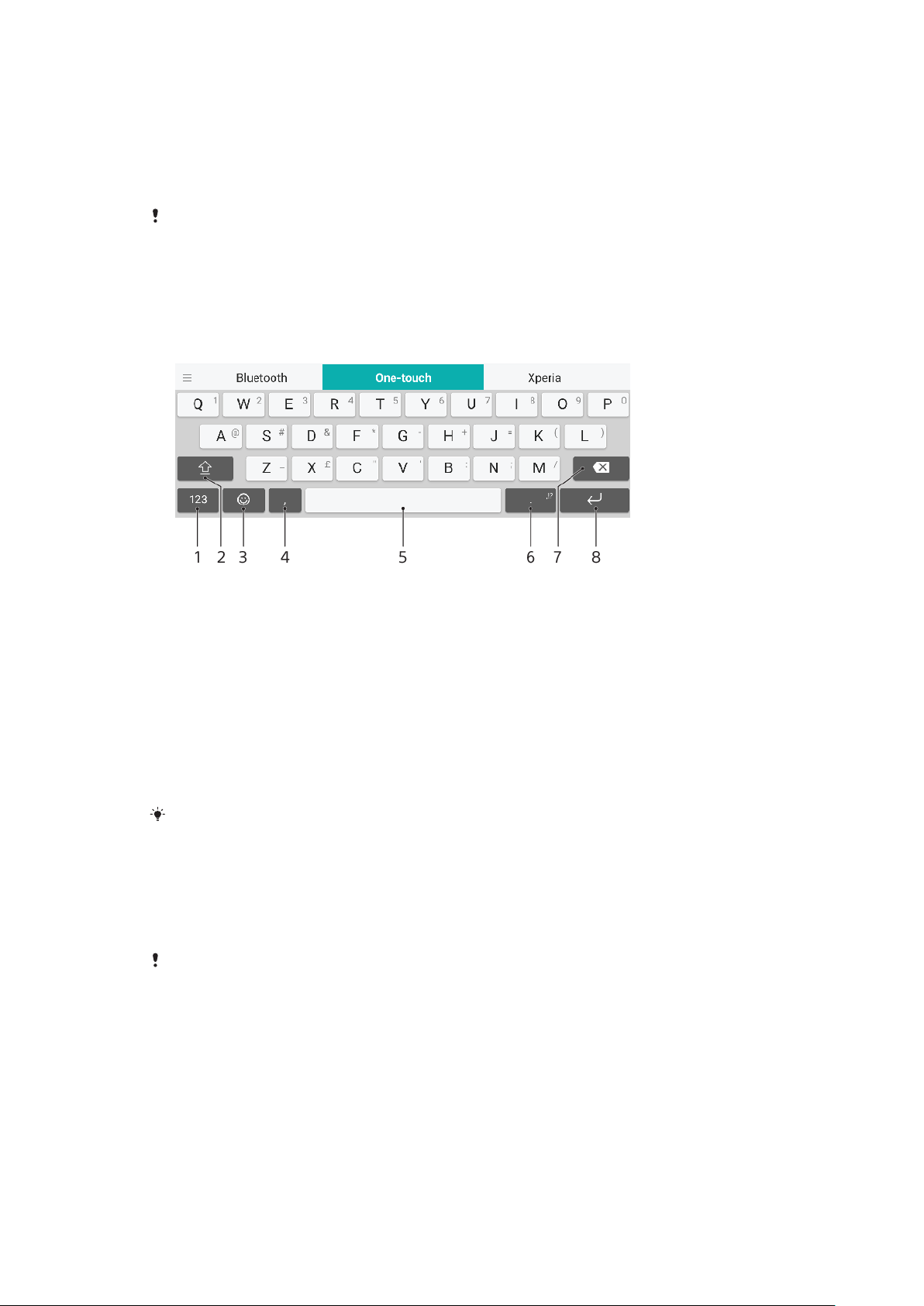
Typing text
On-screen keyboards
There are a number of pre-installed text entry providers on your device.
The default text entry provider may depend on the regional or language settings you use.
One or more text entry providers might not be available in your region.
SwiftKey® keyboard
You can enter text using the on-screen keyboard by tapping each letter
individually, or you can use the SwiftKey flow feature and slide your finger from
letter to letter to form words.
1 Display numbers and symbols
2 Switch between lower case, upper case and all caps
3 Access smileys
4 Enter a comma
5 Enter a space
6 Enter punctuation
7 Delete
8 Enter a carriage return
For more information about SwiftKey, go to
https://swiftkey.com/
.
To display the on-screen keyboard to enter text
• Tap a text entry field.
To use the on-screen keyboard in landscape orientation
• When the on-screen keyboard is displayed, turn the device sideways.
You may need to adjust the settings in some applications to enable landscape orientation.
To switch between dierent on-screen keyboard options
1 Find and tap Settings > System > Languages & input > On-screen
keyboard.
2 Tap Manage keyboards, then tap the slider to enable or disable the
keyboard.
62
This is an internet version of this publication. © Print only for private use.
Page 63

To enter text character by character
1 To enter a character visible on the keyboard, tap the character.
2 To enter a character variant, touch and hold a regular keyboard character to
get a list of available options, then select from the list. For example, to enter
"é", touch and hold "e" until other options appear, then, while keeping your
finger pressed on the keyboard, drag to and select "é".
To enter a period
• After you enter a word, double-tap the space bar.
To enter text using the gesture input function
1 When the on-screen keyboard is displayed, slide your finger from letter to
letter to trace the word that you want to write.
2 After you finish entering a word, lift up your finger. A word suggestion
appears based on the letters that you have traced.
3 If the word that you want does not appear, tap
select accordingly. If the desired option does not appear, delete the entire
word and trace it again, or enter the word by tapping each letter individually.
to see other options and
Editing text
You can select, cut, copy and paste text as you write. You can access the editing
options by double-tapping the entered text. The editing options then become
available via an application bar.
Application bar
The following actions are available on the selected text:
• Cut
• Copy
• Paste
• Share
• Select all
The Paste option only appears when you have text saved on the clipboard.
To select text
1 Double-tap a word to highlight it.
2 You can drag the tabs on both sides of the highlighted word to select more
text.
To edit text
1 Double-tap a word to make the application bar appear.
2 Select the text that you want to edit, then use the application bar to make
your desired changes.
Auto-fill
Auto-fill helps you save time when filling out forms. When you enable an Autofill
service, information such as names, phone numbers, addresses, credit card
information and more is saved for re-use. Auto-fill with Google is enabled by
default, but you can disable it or change to another app as desired.
To select an auto-fill app
1 Find and tap Settings > System > Languages & input.
2 Tap Advanced > Autofill service.
3 Select an option or tap
This is an internet version of this publication. © Print only for private use.
to download a dierent Autofill service.
63
Page 64
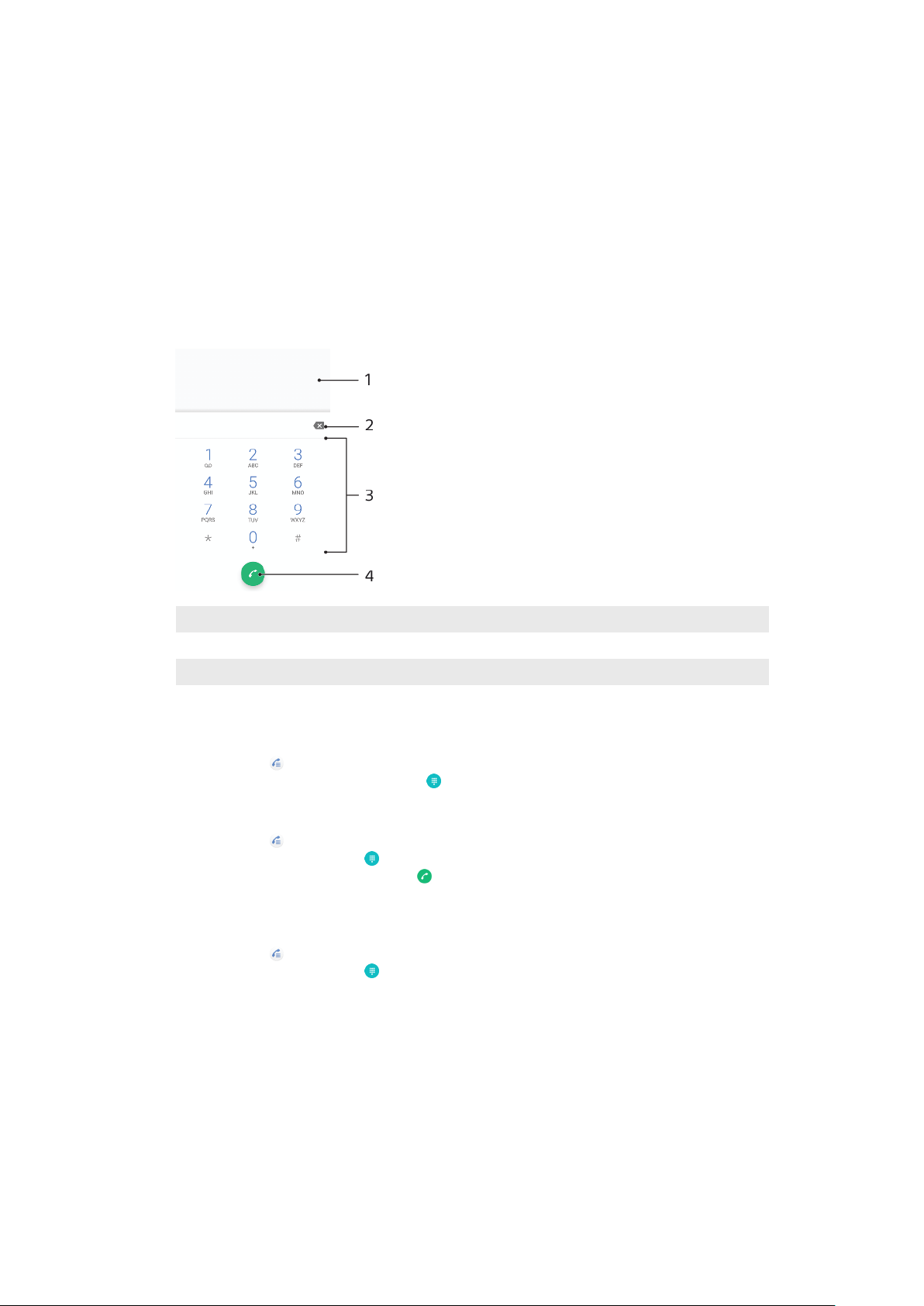
Calling
Making calls
You can make a call by dialling a phone number manually, or use the smart dial
function to quickly find numbers from your contacts list and call logs. To make a
video call, you can use the Duo video chat application on your device.
Dual SIM users can set a default SIM card for placing calls, or have the option to
select the SIM card each time you place a call. Find and tap Settings > Network &
Internet > Dual SIM > Calls to select an option.
Making calls overview
1 Back to call log
2 Delete
3 Dialpad
4 Call button
To open the dialpad
1 Find and tap .
2 If the dialpad does not appear, tap
To dial a phone number
1 Find and tap .
2 If the call log appears, tap
3 Enter the phone number, and tap .
4 Dual SIM users, select a SIM card if prompted.
To make a call using smart dial
1 Find and tap
2 If the call log appears, tap
3 Use the dialpad to enter letters or numbers that correspond to the contact
you want to call. As you enter each letter or number, a list of possible
matches appears.
4 Tap the contact that you want to call.
5 Dual SIM users, select a SIM card if prompted.
.
to display the dialpad.
to display the dialpad.
.
64
This is an internet version of this publication. © Print only for private use.
Page 65

To make an international call
1 Find and tap . The call log is displayed.
2 Tap to display the dialpad.
3 Touch and hold 0 until a “+” sign appears.
4 Enter the country code, the area code without the initial zeros, followed by
the phone number. Then tap .
5 Dual SIM users, select a SIM card if prompted.
To add a direct dial number to your Home screen
1 Touch and hold an empty area on your Home screen.
2 In the customisation menu, tap Widgets > Shortcuts.
3 Scroll through the list of applications and select Direct dial.
4 Select the contact and the number that you want to use as the direct dial
number.
To show or hide your phone number during outgoing calls
1 Find and tap
.
2 Tap > Settings.
3 Dual SIM users, tap Calling accounts, and select a SIM card. Single SIM
users, tap Calls.
4 Tap Additional settings > Caller ID, and choose an option.
This option may not be provided by every operator.
Receiving calls
If you receive an incoming call when the device is in sleep mode or the screen is
locked, the phone application opens in full screen format. For Dual SIM devices, a
SIM icon indicates which SIM card the call is for.
If you receive an incoming call when the screen is active, the incoming call is
displayed as a floating notification, that is, in a minimised window that floats at
the top of whatever screen is open. For Dual SIM devices, SIM1 or SIM2 indicates
which SIM card the call is for. When the notification arrives, you can choose to
answer the call and open the phone application screen, or you can reject the call
and stay on the current screen.
To answer a call when the screen is inactive
• When a call comes in, drag
To answer a call when the screen is active
• When a call comes in, in the heads-up notification that appears at the top of
the screen, tap ANSWER.
Instead of answering the call, you can go to the main phone application screen by tapping
the heads-up notification window. Using this method, you get more options to manage the
call. For example, you can decide to reject the call with a message.
To reject a call when the screen is inactive
• When a call comes in, drag to the left.
to the right.
To reject a call when the screen is active
• When a call comes in, in the heads-up notification that appears at the top of
the screen, tap DECLINE.
Instead of rejecting the call, you can go to the main phone application screen by tapping
the heads-up notification window. This way you get more options to manage the call. For
example, you can decide to reject the call with a message.
To mute the ringtone for an incoming call
• When you receive the call, press the volume key.
65
This is an internet version of this publication. © Print only for private use.
Page 66

Rejecting a call with a text message
You can reject a call with a text message, sent automatically to the caller and
stored in the Messaging conversation with the contact.
You can select from a number of predefined messages available on your device, or
you can create a new message. You can also create your own personalised
messages by editing the predefined ones.
To reject a call with a text message when the screen is inactive
1 When an incoming call arrives, tap Response options.
2 Select a predefined message or tap Write new message.
To reject a call with a text message when the screen is active
1 When you receive a call, tap the notification window where the phone
number or the name of the contact is displayed.
2 Tap Response options.
3 Select a predefined message or tap Write new message.
To reject a second call with a text message
1 When you hear repeated beeps during a call, tap Response options.
2 Select a predefined message or tap Write new message.
To edit the text message used to reject a call
1 Find and tap
2 Tap
3 Dual SIM users, tap Calling accounts, and select a SIM card. Single SIM
4 Tap Reject call with message.
5 Tap the message that you want to edit, then make the necessary changes.
6 Tap OK.
> Settings.
users, tap Calls.
.
Forwarding calls
You can direct calls to a dierent recipient, for example, to another phone number
or another device.
If you are using a Dual SIM device, you can also forward calls that come in on SIM
card 1 to SIM card 2 when SIM card 1 is unreachable, and vice versa. This function is
called Dual SIM reachability. You must enable it manually.
To forward calls
1 Find and tap
2 Tap > Settings.
3 Dual SIM users, tap Calling accounts, and select a SIM card. Single SIM
users, tap Calls.
4 Tap Call forwarding > Voice, then select an option.
5 Enter the number you want to forward calls to, then tap Turn on.
To turn o call forwarding
1 Find and tap
2 Tap > Settings.
3 Dual SIM users, tap Calling accounts, and select a SIM card. Single SIM
users, tap Calls.
4 Tap Call forwarding > Voice.
5 Select an option, then tap Turn o.
To enable the Dual SIM reachability function
.
.
This function only applies for Dual SIM devices.
66
This is an internet version of this publication. © Print only for private use.
Page 67

1 Find and tap Settings > Network & Internet > Dual SIM > Dual SIM
reachability.
2 Tap the slider to enable the function.
3 Tap CONTINUE and follow the on-screen instructions to complete the
procedure.
If the Dual SIM reachability function does not work after you enable it, check that you have
entered the phone numbers correctly for each SIM card. In some cases, the numbers are
detected automatically during setup. Otherwise, you are prompted to enter them manually.
Blocking a number
You can block certain numbers from calling you and from sending you messages.
Select from stored numbers or type in a number yourself.
To block a stored number
1 Find and tap
2 Touch and hold the number you want to block.
3 Tap Block number, then tap BLOCK. Calls and texts from this number are
blocked.
To block a number by typing the number
1 Find and tap
2 Tap > Settings > Call Blocking > Add a number.
3 Enter the phone number you want to block, then tap BLOCK. Calls and texts
from this number are blocked.
.
.
To unblock a blocked number
1 Find and tap
.
2 Tap > Settings > Call Blocking.
3 Tap next to the phone number you want to unblock, then tap UNBLOCK.
Calls and texts from this number are no longer blocked.
67
This is an internet version of this publication. © Print only for private use.
Page 68

Contacts
Adding and editing contacts
You can add, edit or delete contacts on your device and from synchronised
accounts. Add contact pictures or set individual ringtones to personalise contacts.
You can also edit contact information about yourself.
To add a contact
1 Find and tap .
2 Tap .
3 If you're adding a contact for the first time and have multiple accounts
synchronised to your device, select an account. This becomes the default
account for saving your contacts. Later you can select where to save the
contact by tapping
4 Enter or select the desired information for the contact.
5 When you’re finished, tap Save.
> Saving to.
To change the default setting for saving your contacts, tap
Alternatively, select Phone contact to save contacts only to your device. To move an existing
contact to a new account, you must create the contact again and save it to the new
account.
If you add a plus sign and the country code before a contact's phone number, you do not
have to edit the number again when you make calls from abroad.
To edit a contact
1 Find and tap .
2 Tap the contact that you want to edit, then tap .
3 Edit the desired information.
4 When you are finished, tap Save.
Some synchronisation services do not allow you to edit contact details.
To add or remove a contact picture
1 Find and tap .
2 Tap the contact that you want to edit, then tap
3 Tap , then select an option.
4 After the picture is updated, tap Save.
You can also add a picture to a contact directly from the Album application. If you want to
add a picture that is saved to an online account, you must download the picture first.
To personalise the ringtone for a contact
1 Find and tap .
2 Tap the contact that you want to edit, then tap
3 Select a ringtone or tap to select a music file saved on your device.
4 Tap DONE.
> Set ringtone.
and select the new account.
.
To send all calls to voicemail for a contact
1 Find and tap
2 Select the desired contact.
3 Tap
> Route to voicemail.
.
This is an internet version of this publication. © Print only for private use.
68
Page 69

To delete contacts
1 Find and tap .
2 Touch and hold the contact that you want to delete.
3 Tap , then tap DELETE.
4 To delete several or all contacts, mark the checkboxes beside the contacts
that you want to delete.
5 Tap , then tap DELETE.
To edit contact information about yourself
1 Find and tap .
2 Tap
3 Tap , then enter the new information or make the changes you want.
4 When you are finished, tap Save.
1 Find and tap
2 Tap the icon next to the phone number, then tap Save.
3 Select an existing contact, or tap Create new contact.
4 Edit the contact information and tap Save.
> My info.
To create a new contact from a text message
.
Grouping contacts
You can create contact labels to organize groups of related contacts. You can name
your groups as "Family" or "Friends" to dierentiate them from your other contacts.
To create a new label for a group
1 Find and tap
2 Tap
3 Select where to store your contacts.
4 Type a Label name, then tap OK.
1 Find and tap
2 Tap
3 Tap , then tap Delete label.
, then tap Create label.
To delete a group label
, then tap the label you want to delete.
.
.
Transferring contacts
There are several ways to transfer contacts to your new device. You can sync
contacts from an online account or import contacts directly from another device.
If you sync the contacts in your old device with an online account, you can transfer
your contacts to your new device using that account.
You can also copy contacts to a memory card, use Bluetooth technology, or save
contacts to a SIM card. For more specific information about transferring the
contacts from your old device, refer to the relevant User guide.
Find out more about choosing a transfer method at
support.sonymobile.com/
.
http://
Transferring contacts using an online account
If you sync the contacts in your old device or your computer with an online
account, for example, Google Sync™ or Microsoft® Exchange ActiveSync®, you can
transfer your contacts to your new device using that account.
69
This is an internet version of this publication. © Print only for private use.
Page 70

To turn auto-sync data on or o
1 Find and tap .
2 Tap , then tap Settings .
3 Tap Accounts, then tap the Automatically sync data slider to enable or
disable the function.
4 Tap OK.
You need to be signed in to the relevant sync account before you can sync your contacts
with it.
Other methods for transferring contacts
There are several other ways to transfer contacts from your old device to your new
device. For example, you can copy contacts to a memory card, or use Bluetooth
technology. For more specific information about transferring the contacts from
your old device, refer to the relevant User guide.
To import contacts from a memory card
1 Find and tap
2 Tap , then tap Settings > Import > SD card or internal storage (.vcf file).
3 Select where to store your contacts.
4 Tap
, then select SD card.
5 Select the files that you want to import by tapping them.
To import contacts using Bluetooth technology
1 Make sure you have the Bluetooth function turned on and that your device is
set to visible.
2 When you are notified of an incoming file to your device, drag the status bar
downwards and tap the notification to accept the file transfer.
3 Tap Accept to start the file transfer.
4 Drag the status bar downwards. When the transfer is complete, tap the
notification.
5 Tap the received file and select where to store your contacts.
.
To import contacts from a SIM card
1 Find and tap
2 Tap
, then tap Settings > Import.
.
3 Single SIM users, tap Import from SIM card. Dual SIM users, select a SIM
card.
4 Select where to store your contacts.
5 Select contacts to import, then tap Import.
Backing up contacts
You can use internal storage, a memory card or a SIM card to back up contacts.
To export all contacts to a memory card
1 Find and tap
2 Tap
> Settings > Export > to SD card or internal storage (.vcf file).
3 Tap > SD card.
4 Select a destination folder, then tap Save.
To export contacts to a SIM card
When you export contacts to a SIM card, not all information may get exported. This is due to
memory limitations on SIM cards.
.
70
This is an internet version of this publication. © Print only for private use.
Page 71

1 Find and tap .
2 Tap > Settings > Export.
3 Single SIM users, tap Export to SIM card. Dual SIM users, select a SIM card to
export to.
4 Tap OK.
5 Select contacts to export, then tap Export.
6 Select an option, then tap OK.
To export all contacts to internal storage
1 Find and tap .
2 Tap
> Settings > Export > to SD card or internal storage (.vcf file).
3 Tap > Show internal storage.
4 Tap , then tap your device’s model number beside .
5 Select a destination folder or simply tap Save.
71
This is an internet version of this publication. © Print only for private use.
Page 72
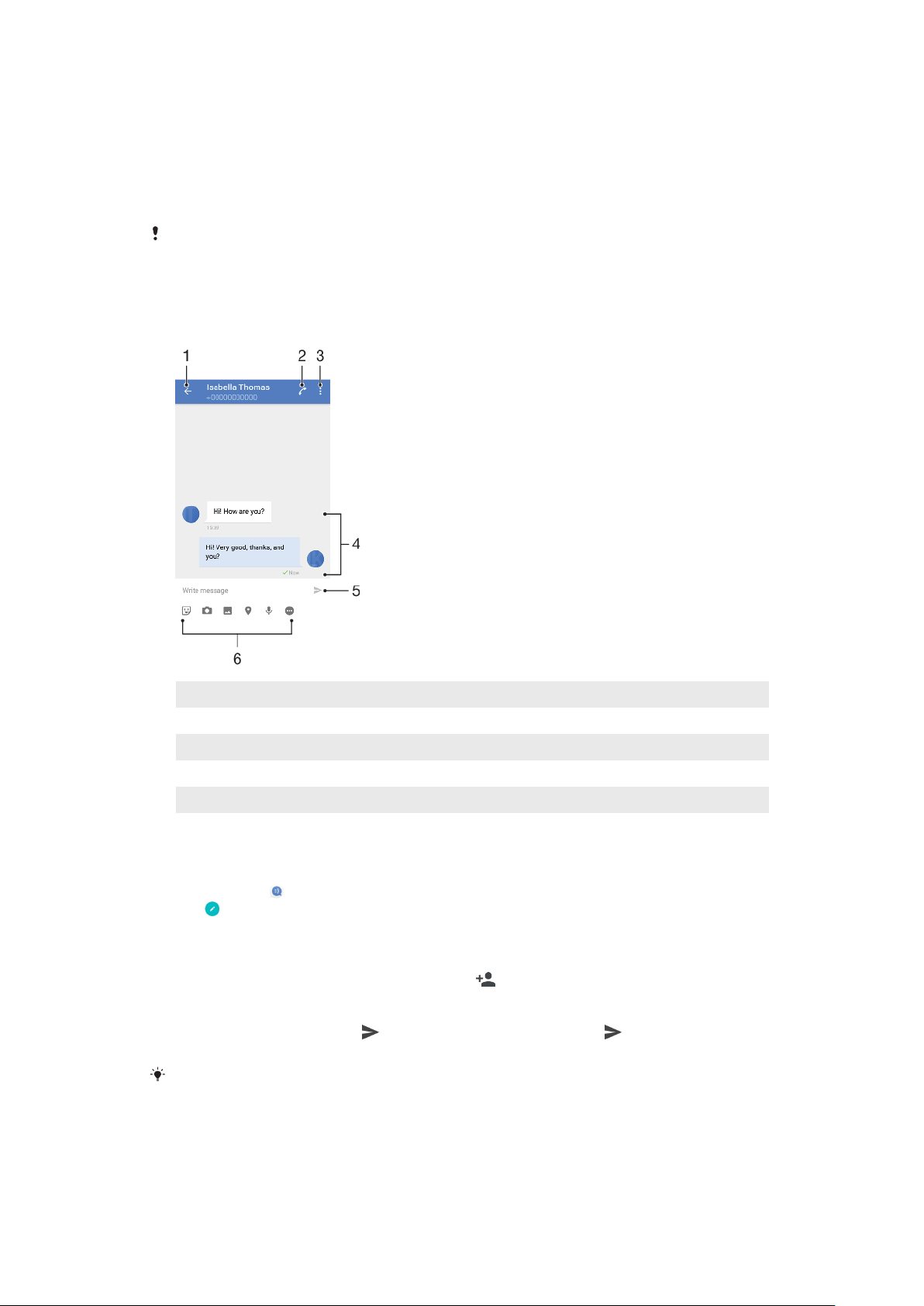
Messaging and chat
Reading and sending messages
The Messaging application shows your messages as conversations, which means
that all messages to and from a particular person are grouped together.
The number of characters that you can send in a single message varies depending on the
operator and the language you use. The maximum size of a multimedia message, which
includes the size of added media files, is also operator dependent. Contact your network
operator for more information.
Messaging overview
1 Go back to the list of conversations
2 Call the message sender
3 View more options
4 Sent and received messages
5 Send a completed message
6 Add attachments
To create and send a message
1 Find and tap .
2 Tap
.
3 Enter the recipient’s name or phone number, then select from the
suggestions that appear. If the recipient is not listed as a contact, enter the
recipient’s number manually.
4 If you want to send a group message, tap
to add more recipients.
5 Enter your message text.
6 If you want to add an attachment, select the relevant attachment option.
7 To send the message, tap
. Dual SIM users, tap one of the buttons
according to which SIM card you wish to use.
If you exit a message before sending, it gets saved as a draft. The conversation gets tagged
with the word Draft.
72
This is an internet version of this publication. © Print only for private use.
Page 73

To read a received message
1 Find and tap .
2 Tap the desired conversation.
3 If the message is not yet downloaded, tap it.
All received messages are saved by default to the device memory.
To reply to a message
1 Find and tap
.
2 Tap the conversation containing the message.
3 Enter your reply and tap . Dual SIM users, tap one of the buttons
according to which SIM card you wish to use.
To forward a message
1 Find and tap
.
2 Tap the conversation containing the desired message.
3 Touch and hold the desired message, then tap Forward message.
4 Select a recent contact from the list or tap
and enter the recipient’s name
or phone number, then select from the suggestions that appear. If the
recipient is not listed as a contact, enter the recipient's number manually.
5 Edit the message if necessary, then tap
. Dual SIM users, tap one of the
buttons according to which SIM card you wish to use.
To save a file contained in a received message
1 Find and tap
.
2 If the message has not been downloaded yet, tap it.
3 To save an audio file, touch and hold the file that you want to save, then
select the desired option.
4 To save an image, double-tap the file that you want to save, tap
, then
select the desired option.
Messaging settings
You can change message notification settings and select whether to enable
message delivery reports.
To change your message notification settings
1 Find and tap Settings > Apps & notifications > App info.
2 Tap Messaging > App notifications > Messages > Sound.
3 Select an option or tap
and select a music file that is saved on your device.
4 To confirm, tap DONE.
You can change the Importance level for receiving message notifications. If the Importance
level is set to Low or Medium, there is no notification sound. To change the Importance
level, tap Importance and select an option.
To enable or disable delivery reports for outgoing messages
1 Find and tap .
2 Tap , then tap Settings.
3 Tap the Delivery report slider to enable or disable the function.
After delivery reports are turned on, a check mark is displayed for messages that have been
successfully delivered.
Video chat
You can use the Google Duo™ video chat application on your device to chat with
friends who also use the application on Android™ and iOS devices.
73
This is an internet version of this publication. © Print only for private use.
Page 74

Go to
https://support.google.com/duo/
to get more detailed information about
how to use this application.
The video call function only works on devices with a front camera.
To use the Duo application
• To use the video chat application, find and tap .
Setting up email
Use the email application on your device to send and receive email messages
through your email accounts. You can have one or several email accounts at the
same time, including corporate Microsoft Exchange ActiveSync accounts.
To set up an email account
1 Find and tap
2 Follow the instructions that appear on the screen to complete the setup.
For some email services, you may need to contact your email service provider for
information on detailed settings for the email account.
To add an extra email account
1 Find and tap .
2 Tap , then tap Settings > Add account.
3 Follow the on-screen instructions. If the settings for the email account
cannot be downloaded automatically, complete the setup manually.
4 When you are finished, tap NEXT.
.
74
This is an internet version of this publication. © Print only for private use.
Page 75
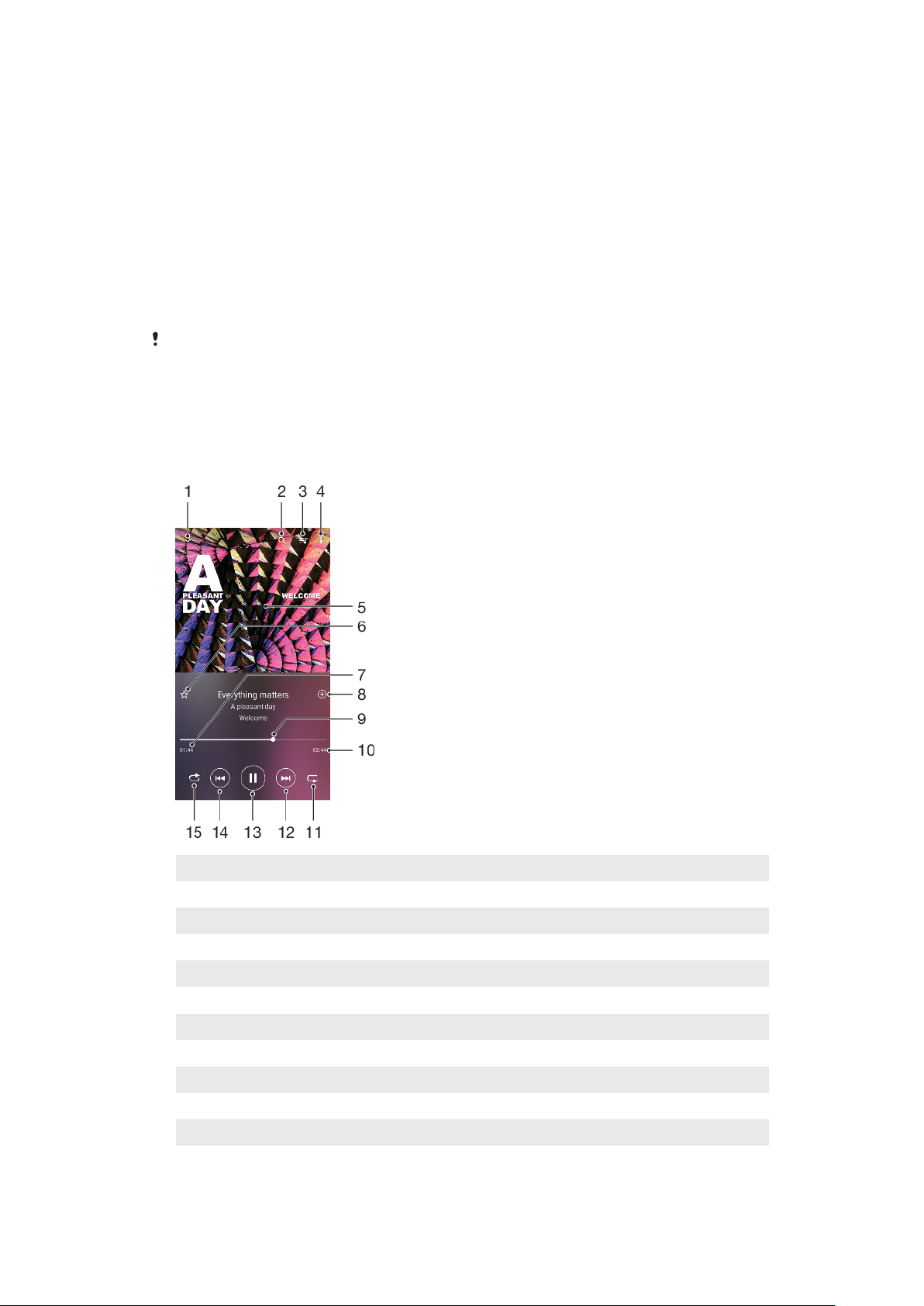
Music and FM radio
Transferring music to your device
There are two ways to transfer music from a computer to your device:
• Connect your device to a computer using a USB Type-C cable. Select Transfer files
on your device and then copy and paste or drag and drop the files using the
computer. See
• You can use the Xperia Companion software to transfer your media files between
the computer and your device. Learn more and download Xperia Companion for
Windows or Mac at
companion/
The Music application may not support all music file formats.
Listening to music
Use the Music application to listen to your favourite music.
Music player overview
Managing files using a computer
http://support.sonymobile.com/global-en/xperia-
.
on page 37.
1 Minimise the full screen player
2 Search all songs saved to your device
3 View the play queue
4 View menu options
5 Album art (if available)
6 Add or remove a song as a favourite
7 Elapsed time of current song
8 Add a song to a playlist
9 Progress indicator – drag or tap along the line to fast-forward or rewind
10 Length of current song
11 Repeat the current song or all songs in the play queue
12 Tap to go to the next song, touch and hold to fast-forward the current song
75
This is an internet version of this publication. © Print only for private use.
Page 76
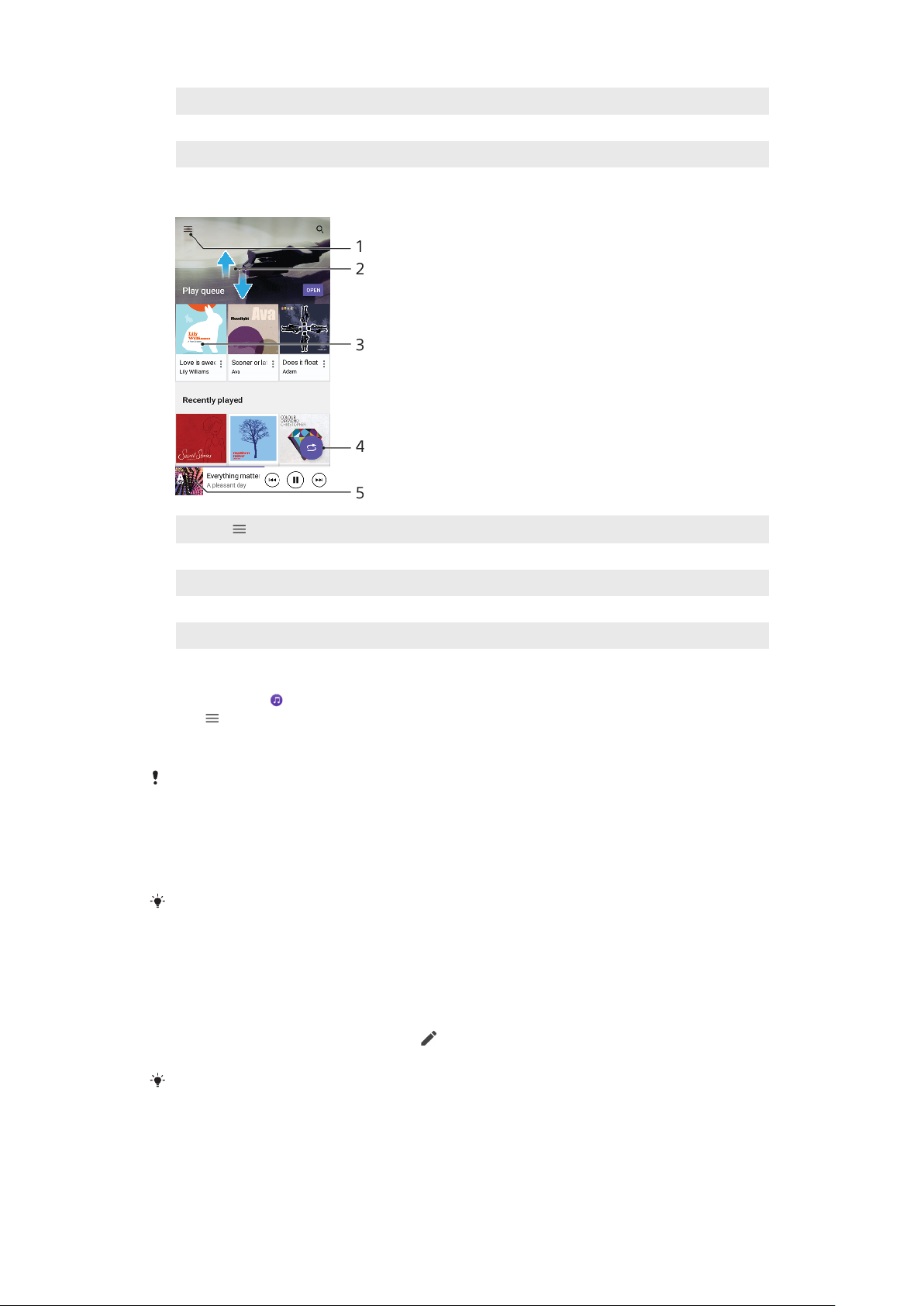
13 Play or pause a song
14 Tap to go to the previous song, touch and hold to rewind the current song
15 Shue songs in the play queue
Music home screen
1
Tap to open the Music menu
2 Scroll up or down to view content
3 Tap to start playing a song in the play queue
4 Play all songs in shue mode
5 Go to the music player screen
To play a song using the Music application
1 Find and tap
.
2 Tap .
3 Select a music category.
4 Tap a song to play it.
You might not be able to play copyright-protected items. Make sure that you have the
necessary rights for the content you wish to use.
To find song-related information online
• While a song is playing in the Music application, tap the album art in the
music player screen and then tap More about this.
Online resources related to the song can include videos on YouTube™, song lyrics, and
artist information on Wikipedia.
To edit music information and download album art
1 While a song is playing in the Music application, tap the album art in the
music player screen and then tap Edit music info.
2 Edit the information as desired.
3 To set or download album art, tap
, then select an option.
4 When you are finished, tap Save.
You can also set album art to download automatically in the Music menu, under Settings.
To adjust the audio volume
• Press the volume key up or down.
76
This is an internet version of this publication. © Print only for private use.
Page 77
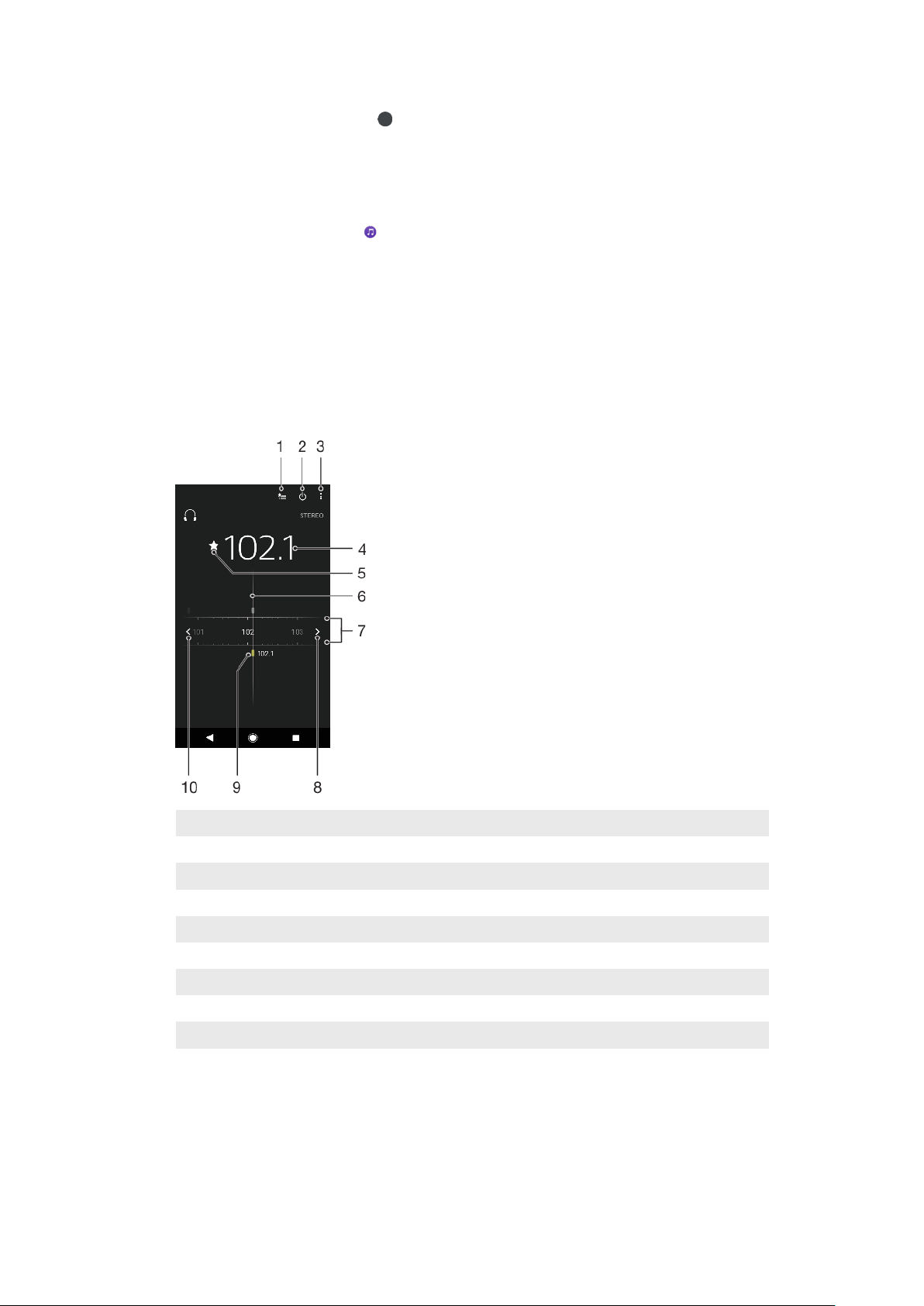
To minimise the Music application
• When a song is playing, tap to go to the Home screen. The Music
application keeps running in the background.
To open the Music application when it is playing in the background
• While a song is playing in the background, drag the status bar downwards
and tap the Music notification.
• Alternatively, find and tap .
Listening to the radio
The FM radio in your device works like any FM radio. For example, you can browse
and listen to FM radio stations and save them as favourites. You must connect a
wired headset or headphones to your device before you can use the radio. This is
because the headset or headphones act as an antenna. After one of these devices
is connected, you can then switch the audio to the speaker, if desired.
FM radio overview
1 Favourites list
2 Radio on/o button
3 View menu options
4 Tuned frequency
5 Save or remove a channel as a favourite
6 Tuning dial
7 Frequency band – drag left or right to move between channels
8 Move up the frequency band to search for a channel
9 A saved favourite channel
10 Move down the frequency band to search for a channel
77
This is an internet version of this publication. © Print only for private use.
Page 78

To listen to the FM radio
1 Connect a headset or a set of headphones to your device.
2 Find and tap . The available channels appear as you scroll through the
frequency band.
When you start the FM radio, available channels appear automatically. If a channel has RDS
information, it appears a few seconds after you start listening to the channel.
To move between radio channels
• Drag the frequency band left or right.
• Alternatively, tap the arrows on either side of the band to jump to the next
clear radio signal.
To start a new search for radio channels
1 When the radio is open, tap
.
2 Tap Search for channels. The radio scans the whole frequency band and
marks all available channels.
To switch the radio sound to the speaker
1 When the radio is open, tap
.
2 Tap Play in speaker.
To switch the sound back to the wired headset or headphones, tap
headphones.
and tap Play in
78
This is an internet version of this publication. © Print only for private use.
Page 79
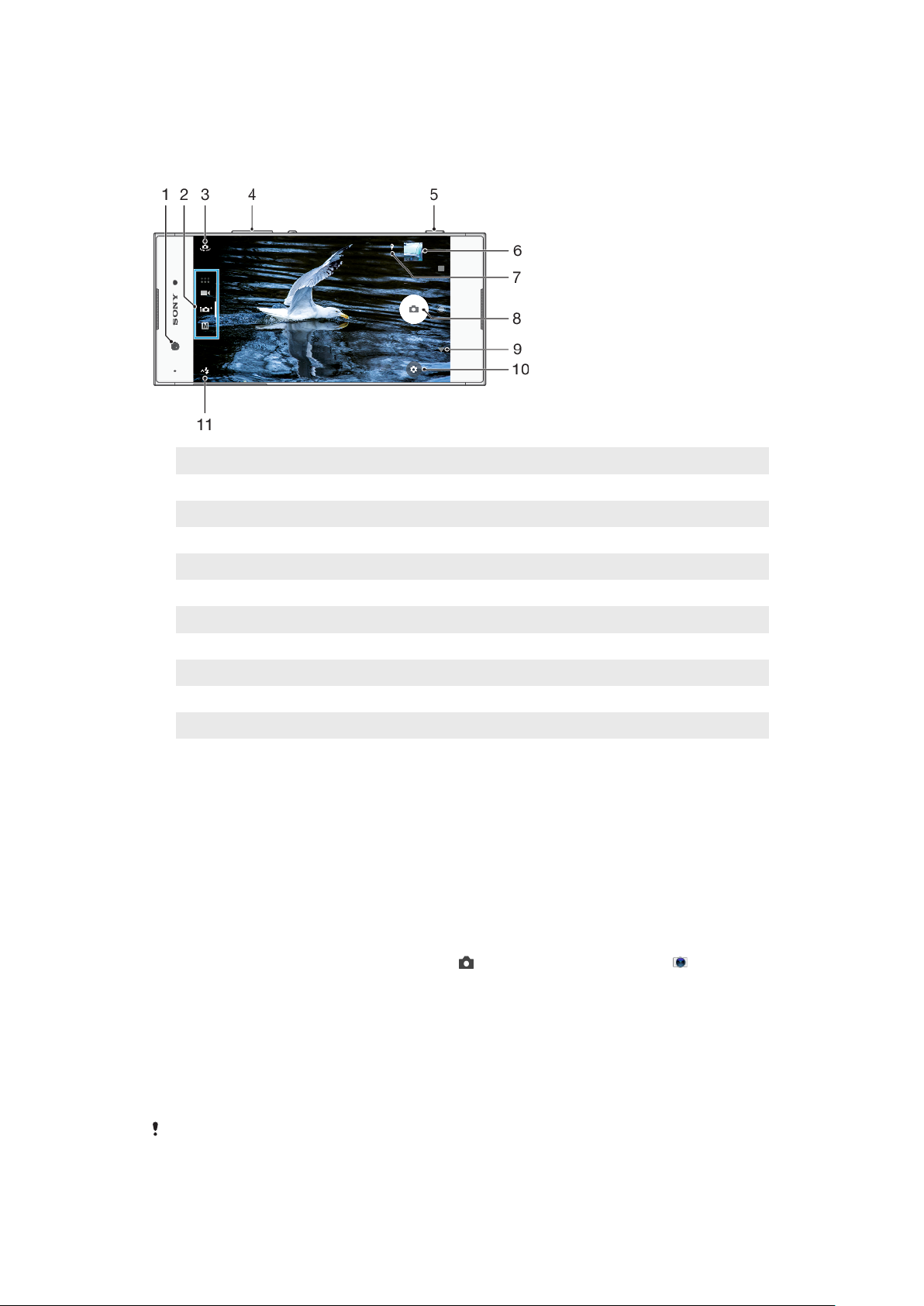
Camera
Getting to know your camera
1 Front camera lens
2 Select the capturing mode
3 Switch between the front and main camera
4 Zoom in or out
5 Use the camera key to activate the camera, take photos or record videos
6 Tap the thumbnail to view, share or edit photos and videos
7 Save your location
8 Use the shutter button to take photos or record videos
9 Go back or exit the camera
10 Capturing mode settings
11 Flash settings
Basic camera tips
• Make sure the lens is clean. A fingerprint or a little dirt can diminish photo quality.
• Use the self-timer when you need extra time to prepare, or to avoid blurred
photos.
• Check your device's memory status often. High resolution photos and videos
consume more memory.
• Read more about
Camera Photography
Taking great pictures with your Xperia™ Camera
.
To launch the camera
• Press the camera key fully down, swipe
the Application screen.
from the lock screen or tap from
or
Xperia™
Capturing modes
Your camera is equipped with four capturing modes. Two are for taking photos, the
Superior auto mode and the Manual mode.
Superior auto optimises settings automatically for many dierent scenarios.
Manual mode is useful when you want more creative control.
Available settings depend on the capturing mode selected.
79
This is an internet version of this publication. © Print only for private use.
Page 80

To select a capturing mode
• When using the camera, swipe the screen to select from photo, video or
Camera apps modes.
Capturing modes overview
Manual
Take photos and manually adjust camera settings
Superior auto
Take photos with settings automatically optimised
Video
Record videos
Camera apps
Use photo and video apps
To switch between the main and front camera
• When using the camera, tap to switch between the main and front
camera.
To use the zoom
• When using the camera, pinch in or out on the camera screen or use the
volume key to zoom.
If you zoom in three or more times, this can aect image quality. Instead, take the photo
without zoom, then crop it.
To take a photo
• When using the camera, press the camera key or tap the shutter button to
take a photo.
To record a video
1 When using the camera, swipe the screen to select
.
2 Press the camera key or tap the shutter button to start or stop recording.
The maximum recording time is 6 hours.
To launch the camera and take a photo at the same time
1 When using the camera, tap , then tap More > Quick launch > Launch and
capture.
2 Close the settings menu and exit the camera. The setting is saved for all
capturing modes.
3 Press and hold the camera key to launch the camera and take a photo.
This feature can also be used for videos. When using the camera, tap
Quick launch > Launch and record video.
, then tap More >
To take a photo by tapping the screen
1 When using the camera, tap
, then tap More > Touch capture > On or
Front camera only.
2 Close the settings menu. The setting is saved in all capturing modes.
3 Tap anywhere on the screen to take a photo.
This feature can also be used for videos.
This is an internet version of this publication. © Print only for private use.
80
Page 81
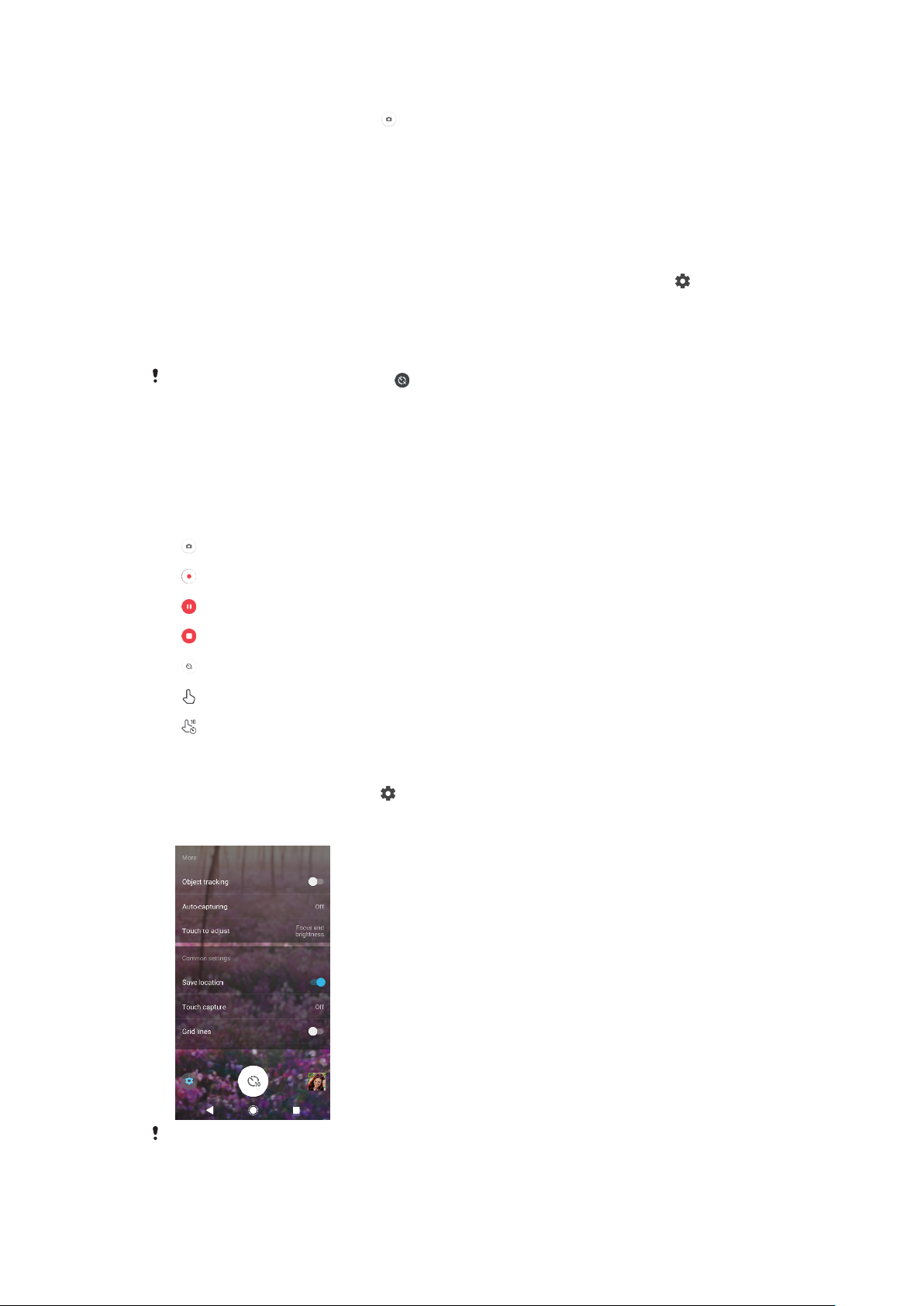
To take a photo when recording a video
• When recording a video, tap . The photo is taken as soon as you release
the shutter button.
Self-timer
Use the Self-timer to get more time to prepare for a photo. It also helps to keep
your device steady and avoid blurred photos.
To use the self-timer with the main camera
1 When using the main camera, select a photo capturing mode and tap
2 Tap Self-timer and select the delay time.
3 Close the settings menu. The Self-timer setting is saved.
4 Press the camera key or tap the shutter button to take a photo. A series of
beeps marks the countdown until the photo is taken.
.
When using the front camera, tap
to set the Self-timer.
Shutter button
The shutter button is used dierently depending on the capturing mode and
activated features.
Shutter button overview
Take a photo
Record a video/Resume recording
Pause a video
Stop recording a video
Self-timer is activated
Touch capture is activated
Touch capture and Self-timer are activated
To adjust camera settings
1 When using the camera, tap
2 Select a setting or press More.
3 When More is selected, swipe the list to view the available settings.
.
Available settings depend on the capturing mode selected.
81
This is an internet version of this publication. © Print only for private use.
Page 82

To view, share or edit photos and videos
1 When using the camera, tap the thumbnail to open a photo or video.
2 Flick left or right to view your photos and videos.
3 Tap the screen, then tap to edit a photo or video.
4 Tap to share a photo or a video.
Your photos and videos are stored in the Album application. See
videos
on page 92 for more options.
Viewing photos and
Exposure, colour and light conditions
Good exposure for your photos requires the right amount of light. The camera
automatically detects and adjusts to ambient light conditions.
Dierent exposures are required, for example, when taking photos of faces,
moving objects or in low light.
Optimising light conditions
• Look for light with direction and colour that gives a scene shape and depth. This
type of light occurs just before sunrise and at sunset. Natural light from a window
is also good.
• For higher quality photos in low light, you need to keep the camera steady. You
can place the camera on a solid surface and use the self-timer.
• Even if light conditions are poor, try to take photos with and without the flash.
Sometimes the quality is better without the flash.
To use the flash
1 When using the camera, tap the flash icon displayed on the screen, for
example
2 If required, change the flash setting.
3 Press the camera key or tap the shutter button to take a photo or record a
video.
.
Available settings depend on the capturing mode selected.
When the background is brighter than the object, use Fill flash to remove unwanted dark
shadows.
Colour, brightness and exposure value
Your camera automatically adjusts the colour, brightness and exposure value by
detecting the light conditions and estimating the colour temperature of ambient
light. Digital cameras can only estimate the colour temperature, so you may need
to adjust the settings to get it correct.
If you experience yellow-coloured photos in indoor environments or bluish photos
when using the flash, try adjusting the colour in Superior auto mode.
To achieve better exposures in low light environments, change the brightness
when using Superior auto and Video modes, or change the exposure value when
using Manual mode.
To adjust the colour and brightness
1 When using the camera, tap
2 Tap Colour and brightness.
3 Drag the sliders to adjust the colour and brightness.
4 Press the camera key or tap the shutter button to take a photo or record a
video.
5 Tap
to reset and close the colour setting.
.
This setting is only available in Superior auto and Video modes.
82
This is an internet version of this publication. © Print only for private use.
Page 83

To adjust the exposure value
1 When using the camera, tap .
2 Tap EV and drag the slider to adjust the exposure value.
3 Close the settings menu. The setting is saved.
4 Press the camera key or tap the shutter button to take a photo.
This setting is only available in Manual mode.
Shutter speed
Shutter speed refers to how long the shutter is open and the camera sensor is
exposed to light.
A fast shutter speed helps to freeze motion, while a slow shutter speed can create
an eect called "motion blur", where moving objects appear blurred along their
line of motion.
The shutter speed is automatically adjusted in Superior auto and Video modes.
To adjust the shutter speed
1 When using the camera, tap
2 Tap SS and drag the slider to adjust the shutter speed.
3 Close the settings menu. The setting is saved.
4 Press the camera key or tap the shutter button to take the photo.
This setting is only available in Manual mode for the main camera.
.
ISO
ISO determines how sensitive your camera is to light. A low ISO number means
lower sensitivity, and a high ISO number means higher sensitivity. Higher
sensitivity can add blur to your photos.
Choose a higher ISO value when taking photos of moving objects or when taking
photos in low light without the flash.
If there is too much light, use the lowest ISO setting to achieve a higher image
quality.
ISO is automatically adjusted in Superior auto and Video modes.
To adjust the ISO value
1 When using the camera, tap
2 Tap ISO and select an ISO value.
3 Close the settings menu.
4 Press the camera key or tap the shutter button to take a photo.
This setting is only available in Manual mode for the main camera.
.
Strong backlight (HDR)
Strong backlight (HDR) can be adjusted manually or automatically, depending on
the capturing mode. When HDR is automatically adjusted, it is indicated by .
Manual
Adjust HDR manually for both main and front cameras.
Superior auto
HDR is automatically adjusted for both main and front cameras.
Video
Adjust HDR manually for the main camera. HDR is automatically adjusted
for the front camera.
83
This is an internet version of this publication. © Print only for private use.
Page 84

To adjust towards a strong backlight
1 When using the camera, tap .
2 Tap the HDR slider to enable the function.
3 Close the settings menu. The setting is saved.
4 Press the camera key or tap the shutter button to take a photo.
This setting is only available in Manual mode.
White balance
In Superior auto and Video modes, white balance adjustments are automatic. You
can adjust the white balance manually in Manual mode.
To adjust the white balance
1 When using the camera, tap
2 Tap WB and select one of the pre-defined light conditions, for example .
3 Close the settings menu. The setting is saved.
4 Press the camera key or tap the shutter button to take a photo.
This setting is only available in Manual mode.
.
White balance settings
Auto
Adjust the colour balance automatically
Cloudy
Adjust the colour balance for a cloudy sky
Daylight
Adjust the colour balance for sunny outdoor conditions
Fluorescent
Adjust the colour balance for fluorescent lighting
Incandescent
Adjust the colour balance for warm lighting conditions, such as under light
bulbs
Optimising exposure
Exposure metering measures the amount of light that strikes an object, to optimise
exposure.
Exposure metering is automatically adjusted in Superior auto and Video modes.
You can adjust the exposure manually in Manual mode for the main camera, for
example to change the exposure for a specific part of the photo.
To adjust the exposure with metering
1 When using the camera, tap
2 Tap More > Metering.
3 Select an exposure option and close the settings menu. The setting is saved.
4 Press the camera key or tap the shutter button to take a photo.
.
This setting is only available in Manual mode for the main camera.
84
This is an internet version of this publication. © Print only for private use.
Page 85
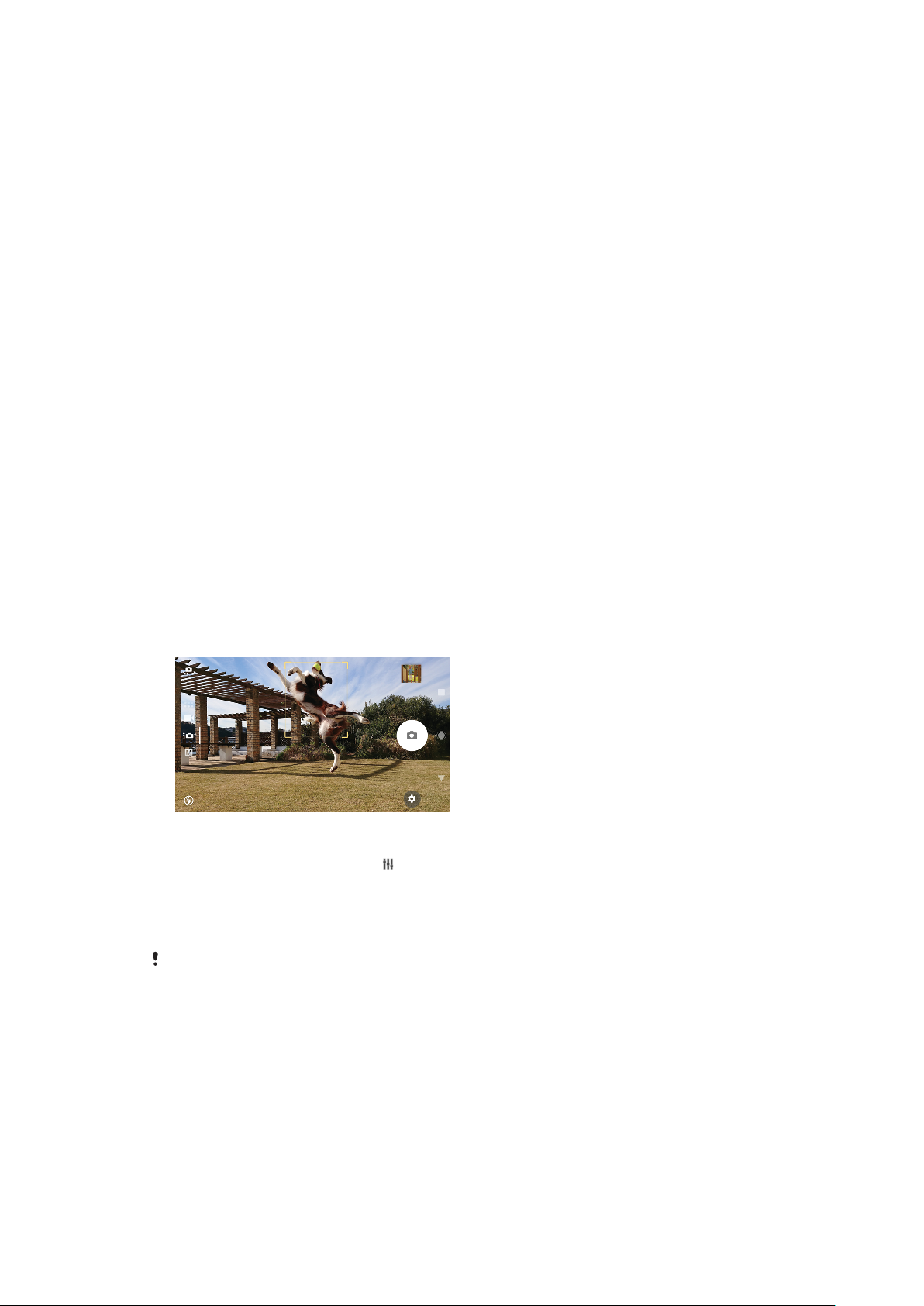
Metering settings
Face
Measures the amount of light on a face, and adjusts the exposure so that the face
is neither too dark nor too bright
Centre
Determines the centre of the image, and sets the exposure based on the
brightness of the object
Spot
Adjusts the exposure for a very small part of the object
Touch
Allows you to touch the screen to determine the object or area where exposure
should be optimised
Setting the right focus
The camera automatically sets the focus and detects faces in all capturing modes.
It can also detect and track a moving object. A yellow frame indicates the face or
moving object that is in focus.
One way to change the focus area is to move your camera around with the camera
key half pressed. Once the focus is set, the circular frame turns blue. This
technique can be used, for example, to change the focus to a person who is at the
side of a group photo.
You can also tap the screen to focus on a specific area, or set a specific focus
distance. These options are only available for the main camera and depend on the
capturing mode selected.
To set the focus distance
1 When using the camera, tap .
2 Tap Focus.
3 Tap the slider to adjust the focus distance.
4 Close the settings menu. The setting is saved.
5 Press the camera key or tap the shutter button to take a photo.
This setting is only available in Manual mode for the main camera.
People, selfies and smiling faces
Faces in focus are indicated with a coloured frame. Tap any frame to select a face
to focus on.
Use Smile Shutter to automatically take a photo when a person smiles. If you are
recording a video, a photo is taken each time a smile is detected.
85
This is an internet version of this publication. © Print only for private use.
Page 86

Taking photos and videos of people
• Consider the camera orientation. Use portrait for close-up photos, to fill the frame.
Use landscape for close-up group photos, or to capture an object in the
background.
• Place the camera on a solid surface and use the self-timer
photos.
To focus on another face
• Before taking a photo or recording a video, tap one of the frames to select a
face to focus on.
To take a photo when someone smiles
1 When using the camera, tap
2 Tap More > Auto-capturing > Smile Shutter.
3 Close the settings menu. The setting is saved for the capturing mode
selected.
4 When a smile is detected, the camera automatically takes a photo.
.
to prevent blurred
This feature can also be used for videos. When using the camera, tap
capturing (video) > Smile Shutter.
To take a selfie
1 When using the camera, select a photo or video capturing mode for your
selfie.
2 Tap
3 Tap
4 Press the camera key or tap the shutter button to take a selfie.
To activate the selfie timer with the palm of your hand
1 When using the camera, tap to activate the front camera.
2 Tap
3 Tap More > Auto-capturing > Hand Shutter and close the settings menu.
The setting is saved.
4 Turn your palm with your fingers straight up towards the camera.
5 When the camera detects your hand, the timer starts and a selfie is taken.
to activate the front camera.
if you want to use the self-timer.
Turn on the Soft Skin Eect to soften skin tones when taking selfies.
.
> More > Auto-
Moving objects
When taking photos and recording videos of moving objects, timing is important
for good results.
Object tracking can track a moving object automatically.
When recording videos, you can use SteadyShot™ to compensate for camera
movements and steady the frame.
Capturing moving objects
• Try not to follow the object. Instead, find a position where the object has to pass in
front of you.
86
This is an internet version of this publication. © Print only for private use.
Page 87

• Consider changing the exposure to a faster shutter speed or a higher ISO to freeze
motion.
To track an object
1 When using the main camera, tap .
2 Tap More and tap the Object tracking slider to enable.
3 Close the settings menu. The setting is saved.
4 Select an object to track by touching it in the viewfinder.
5 Press the camera key or tap the shutter button to take a photo.
This feature can also be used for videos.
To record a steady video
1 When using the camera, swipe the screen to select
2 Tap
3 Tap More and tap the SteadyShot™ slider to enable.
4 Close the settings menu. The setting is saved.
5 Press the camera key or tap the shutter button to record a video.
.
.
Using camera apps
Use camera apps to boost creativity and modify your photos and videos, and share
with friends. You can create virtual scenes, panoramic photos and more.
Read about our camera apps on the
Photo and video apps page
.
AR eect
AR eect is the augmented reality app that lets you apply fantastical worlds to
your photos or videos. You can add smileys, paper puppets, dinosaurs and more.
To take a photo or record a video with an AR eect
1 When using the camera, swipe the screen to select
2 Tap
3 Press the camera key or tap the shutter button to take a photo or record a
and select a scene.
video.
.
Panorama
Use the Panorama app to take wide-angle and panoramic photos.
To take a panoramic photo
1 When using the camera, swipe the screen to select
2 Tap
3 Press the camera key or tap the shutter button.
4 Move the camera slowly and steadily in the direction of movement indicated
.
on the screen.
.
Creative eect
With the Creative eect app you can preset eects and colour filters before taking
a photo or recording a video.
87
This is an internet version of this publication. © Print only for private use.
Page 88

To take a photo or record a video with a creative eect
1 When using the camera, swipe the screen to select .
2 Tap .
3 Swipe to browse filters, or tap a filter to preview the eect.
4 Tap to apply the filter and return to the camera screen.
5 Press the camera key or tap the shutter button to take a photo or record a
video.
6 Tap to switch filters.
Sound Photo
Record a background sound and take a photo at the same time with the Sound
Photo app.
To record a background sound with a photo
1 When using the camera, swipe the screen to select
2 Tap
3 Press the camera key or tap the shutter button to start recording and take a
.
photo. The recording stops automatically.
.
Timeshift burst
The camera takes a burst of 61 photos in a window of two seconds – one second
before and after you tap the on-screen camera button.
To use Timeshift burst
1 When using the camera, swipe the screen to select
2 Tap .
3 Press the camera key or tap the shutter button to take the photos. The
photos taken appear in thumbnail view.
4 Scroll through the thumbnails and select the photo that you want to save,
then tap
.
.
Resolution and memory
The number of photos and videos you can store depends on the resolution or MP
(megapixel) value used and video length.
High resolution photos and videos take up more memory, so keep in mind that a
lower resolution can be suitable for everyday use.
Check the memory status from time to time. When the memory is full, you can
transfer photos and videos to another storage device to free up memory. See
Managing files using a computer
Choose whether to store photos and videos on your device’s internal storage or on
an SD card using the Data storage option in the camera settings menu.
To change the resolution
1 When using the camera, tap
2 Tap Resolution or Video resolution.
3 Select the resolution and close the settings menu. The setting is saved for
the selected capturing mode.
You can set the resolution separately for each capturing mode.
Photo resolutions
Main camera:
on page 37.
.
88
This is an internet version of this publication. © Print only for private use.
Page 89

23MP
5520×4144 (4:3)
23 megapixel resolution with 4:3 aspect ratio. Suitable for photos you want to
view on non-widescreen displays or print in high resolution.
20MP
5984×3376 (16:9)
20 megapixel resolution with 16:9 aspect ratio. Suitable for photos you want to
view on widescreen displays.
12MP
4000×3008 (4:3). 12MP resolution with 4:3 aspect ratio. Suitable for photos you
want to view on non-widescreen displays or print in high resolution.
12MP
4624×2608 (16:9). 12MP resolution with 16:9 aspect ratio. Suitable for photos you
want to view on widescreen displays.
Front camera:
8MP
3264×2448 (4:3)
8 megapixel resolution with 4:3 aspect ratio. Suitable for photos you want to view
on non-widescreen displays or print in high resolution.
5MP
3072×1728 (16:9)
5 megapixel picture size with 16:9 aspect ratio. Suitable for photos that you want
to view on non-widescreen displays or print in high resolution.
Video resolutions
HD refers to High Definition, while fps refers to Frames Per Second. A higher fps
rate provides a smoother video, at the cost of a larger file size. The aspect ratio is
the relationship between the width and the height, where the width is the first
number.
Main camera:
Full HD (30 fps)
1920×1080 (16:9). Full HD format with 30 fps and 16:9 aspect ratio.
HD
1280×720 (16:9). HD format with 16:9 aspect ratio.
VGA
640×480 (4:3). VGA (Video Graphics Array) format with 4:3 aspect ratio.
MMS
Record videos suitable for sending in multimedia messages. The recording time
of this video format is limited so that video files can fit in a multimedia message.
Front camera:
Full HD
1920×1080 (16:9). Full HD format with 16:9 aspect ratio.
89
This is an internet version of this publication. © Print only for private use.
Page 90
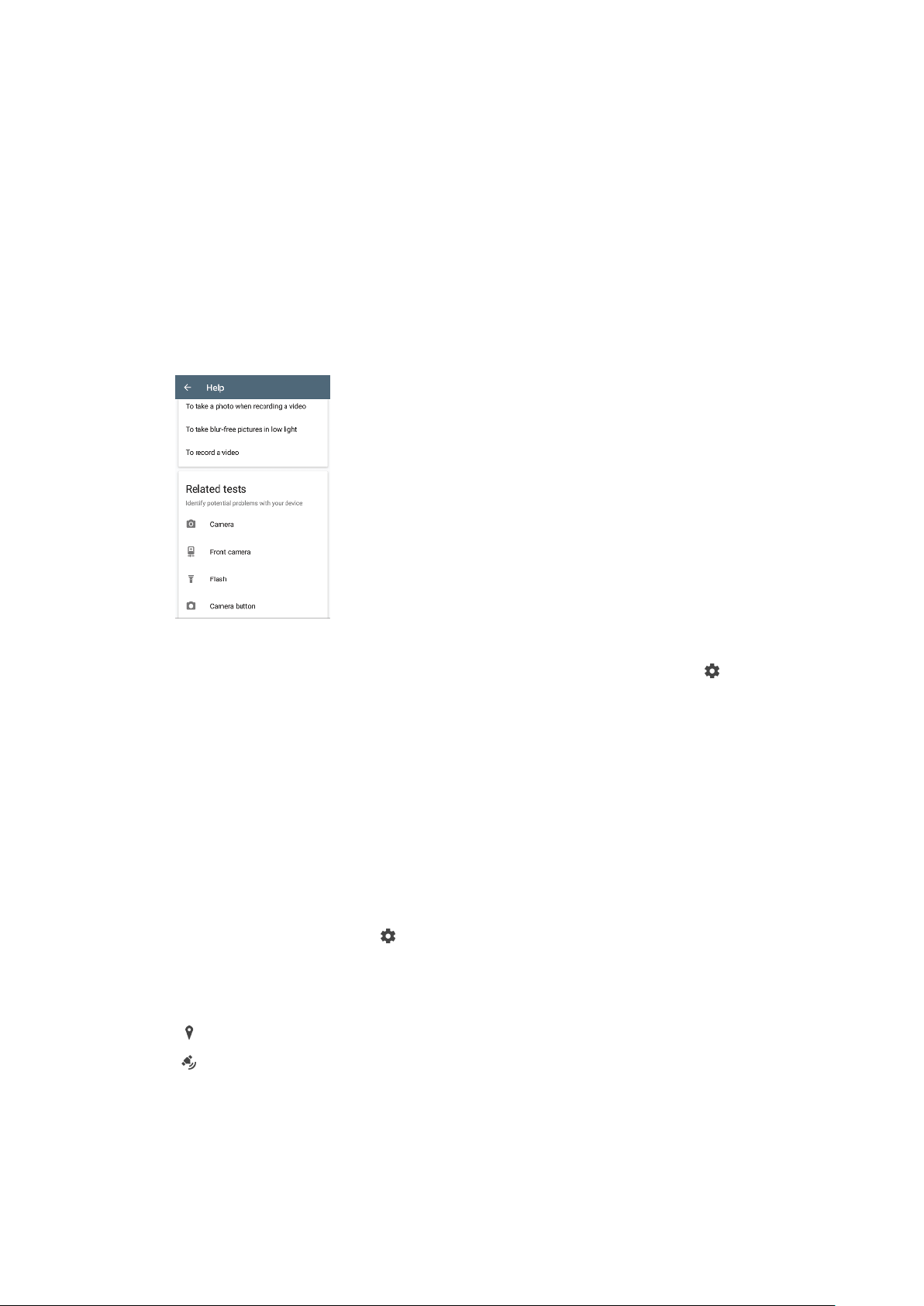
HD
1280×720 (16:9). HD format with 16:9 aspect ratio.
VGA
640×480 (4:3). VGA (Video Graphics Array) format with 4:3 aspect ratio.
MMS
Record videos suitable for sending in multimedia messages. The recording time
of this video format is limited so that video files can fit in a multimedia message.
Diagnosing your camera
If your camera isn´t working properly, you can run a diagnostics test to identify if
there is a problem with the main camera, front camera, flash or camera key.
To run a diagnostics test of your camera
1 Make sure you are connected to the internet. When using the camera, tap
2 Tap More.
3 Tap Help and select Camera, Front camera, Flash or Camera button.
4 Follow the instructions that appear on your screen.
Additional camera settings
Geotagging
You can save your photos and videos with the location where they were taken, this
is called geotagging. The option to geotag your photos and videos requires a
wireless network and that the GPS function is enabled.
To turn on geotagging
1 When using the camera, tap
2 Tap More and tap the Save location slider to enable. The setting is saved.
Geotagging status icons
The geographical position is saved.
The geographical position is not found.
.
.
Grid lines
With Grid lines, you can apply the “Rule of Thirds” and place important objects
along the grid lines or their intersections. By not always having the object in the
middle of the frame, you can make your photos and videos more interesting.
90
This is an internet version of this publication. © Print only for private use.
Page 91

To activate or deactivate the grid lines
1 When using the camera, tap .
2 Tap More and tap the Grid lines slider to enable or disable. The setting is
saved.
Photo preview settings
You can choose to preview photos as soon as you take them.
To activate or deactivate previewing
1 When using the camera, tap .
2 Tap More > Auto photo preview and select an option. The setting is saved.
Previewing settings
On After you take a photo, a preview appears in the lower right corner
of the screen for three seconds before it is saved.
Front
camera
only
O No preview appears. The photo is saved directly.
After you take a photo with the front camera, a preview appears in
the lower right corner of the screen for three seconds before it is
saved.
Dierent ways to use the volume key
You can change the way you use the volume key.
To change how the volume key is used
1 When using the camera, tap
2 Tap More > Use Volume key as and select an option. The setting is saved.
.
Volume key settings
Zoom Use the volume key to zoom in or out.
Volume The volume key is deactivated for the camera.
Shutter Use the volume key as a shutter button for photos and videos.
Sound
When Sound is activated, the camera makes a sound when you take a photo or
when you start or stop a video recording. Additionally, when you use the self-timer
the countdown is indicated by a series of beeps.
To activate or deactivate sound
1 When using the camera, tap
2 Tap More and tap the Sound slider to enable or disable. The setting is
saved.
This is an internet version of this publication. © Print only for private use.
.
91
Page 92
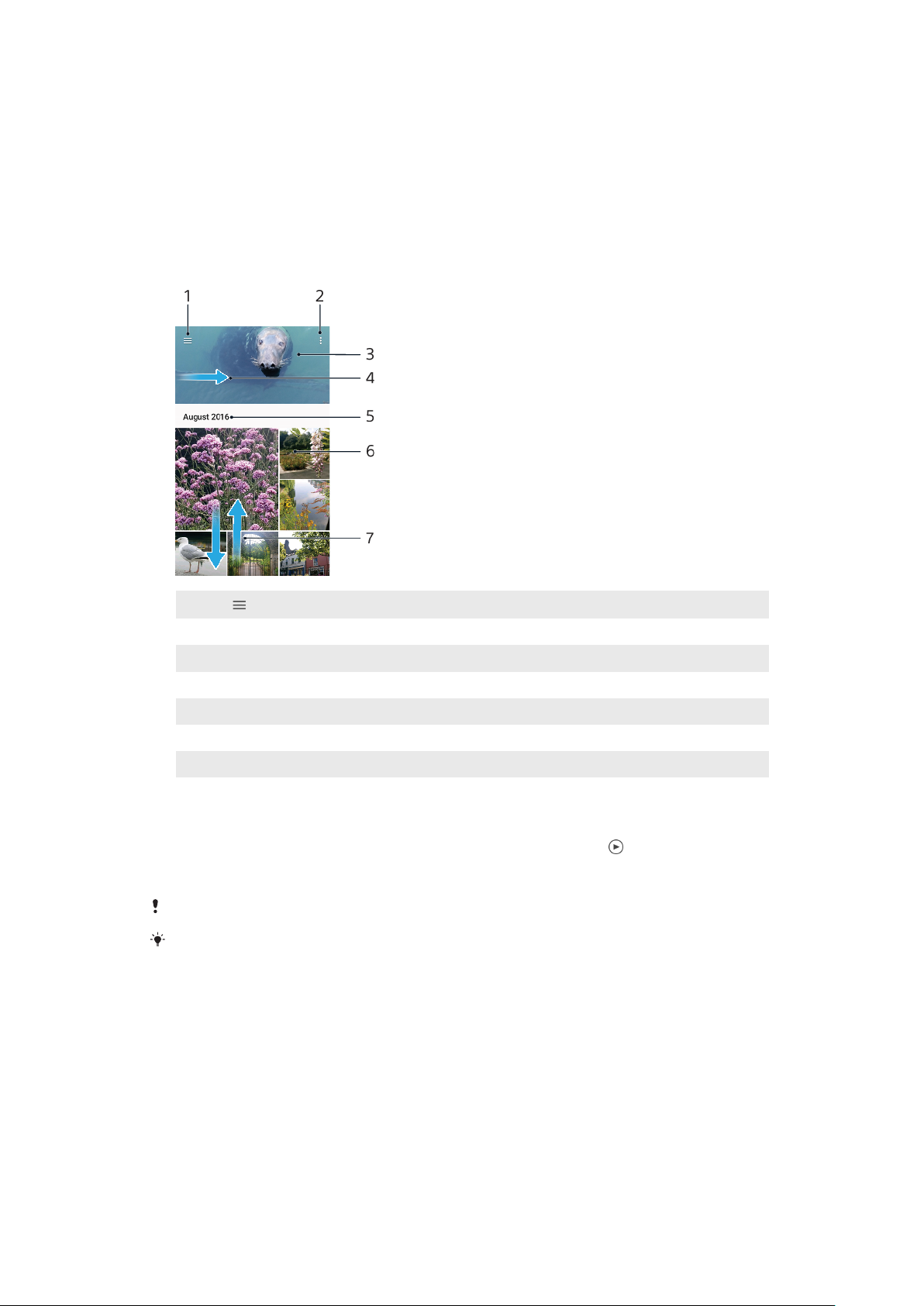
Photos and videos in Album
Viewing photos and videos
Use the Album application to view photos and play videos that you’ve taken with
your camera, or to view similar content that you've saved to your device. All photos
and videos are displayed in a chronologically ordered grid.
Album overview
1
Tap to open the Album home screen menu
2 View menu options
3 View a slideshow of your photos and videos
4 Drag the left edge of the screen to the right to open the Album home screen menu
5 View the date of items in the group
6 Tap a photo or video to view it
7 Scroll up or down to view content
To view photos and videos
1 Find and tap Album.
2 Tap a photo or video that you want to view. If prompted, tap
.
3 Flick left to view the next photo or video. Flick right to view the previous
photo or video.
The Album application may not support all file formats.
You can set the screen to rotate automatically when your device is turned sideways. To
enable or disable this feature, find and tap Settings > Display > Device rotation.
To change the size of the thumbnails
• When viewing thumbnails of photos and videos in Album, spread two
fingers apart to zoom in, or pinch two fingers together to zoom out.
To zoom a photo
• When you are viewing a photo, spread two fingers apart to zoom in, or pinch two
fingers together to zoom out.
92
This is an internet version of this publication. © Print only for private use.
Page 93
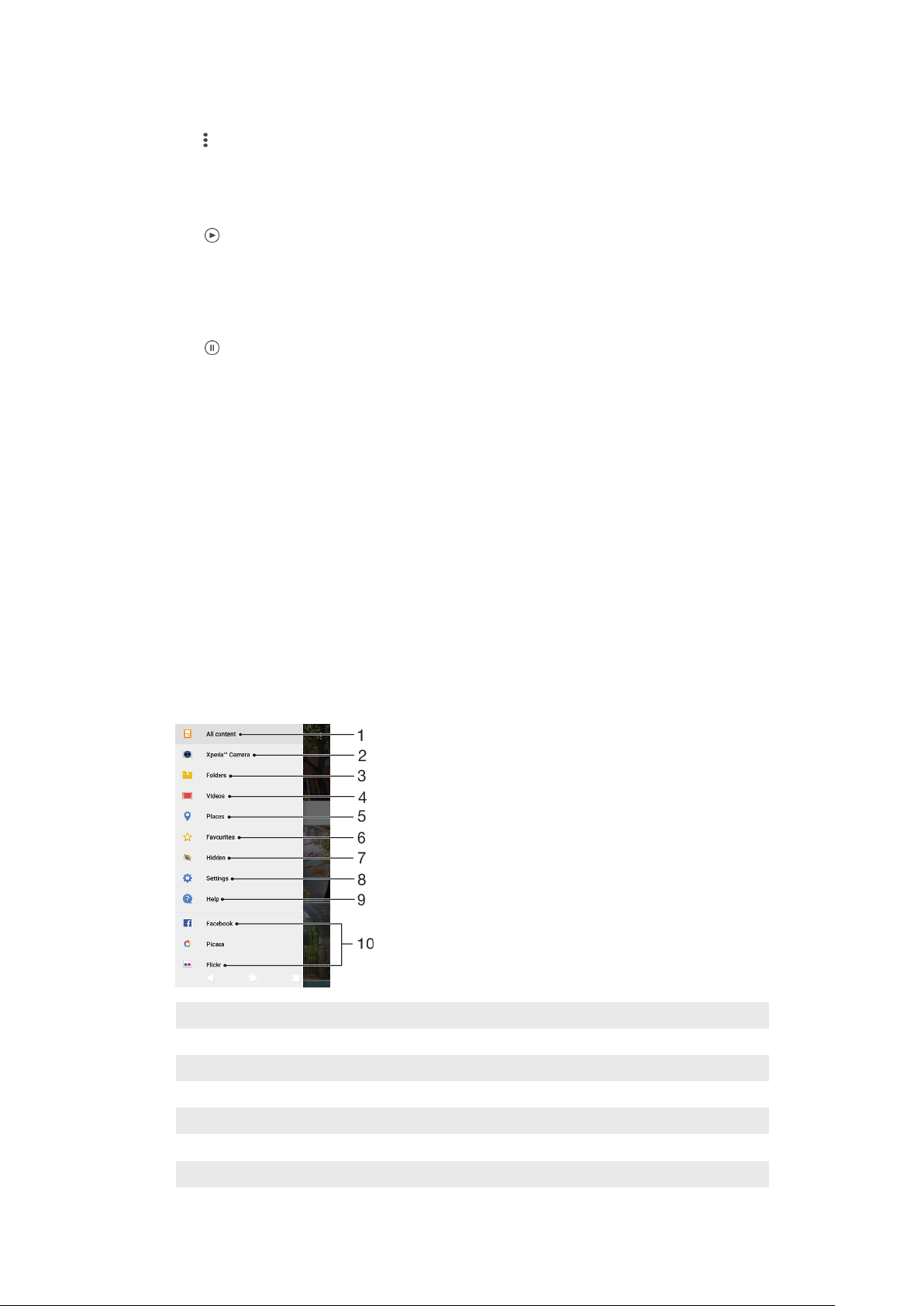
To watch a slideshow of your photos
1 When you are viewing a photo, tap the screen to display the toolbars, then
tap > Slideshow to start playing all the photos in an album.
2 Tap a photo to end the slideshow.
To play a video
1 In Album, find and tap the video that you want to play.
2 Tap .
3 If the playback controls are not displayed, tap the screen to display them. To
hide the controls, tap the screen again.
To pause a video
1 When a video is playing, tap the screen to display the controls.
2 Tap
.
To fast-forward and rewind a video
1 When a video is playing, tap the screen to display the controls.
2 Drag the progress bar marker left to rewind, or right to fast-forward.
To adjust the sound volume of a video
• Press the volume key up or down.
Album home screen menu
From the Album home screen menu you can browse your photo albums, including
photos and videos taken using special eects, as well as content that you have
shared online via services such as Picasa™ and Facebook. Once you are logged in
to such platforms, you can manage content and view online images. From the
Album application, you can also add geotags to photos, perform basic editing
tasks, and use methods such as Bluetooth wireless technology and email to share
content.
Album menu overview
Return to the Album application home screen to view all content
1
2 View all photos and videos taken with your device's camera
3 View all photos and videos saved on your device in dierent folders
4 View all videos saved on your device
5 View your photos on a map or in Globe view
6 View your favourite photos and videos
7 View photos and videos that you have hidden from view
93
This is an internet version of this publication. © Print only for private use.
Page 94

8 Open the Settings menu for the Album application
9 Open web support
10 View photos from online services
To view photos from online services in Album
1 Find and tap Album, then tap .
2 Tap the desired online service, then follow the on-screen instructions to get
started. All available online albums that you have uploaded to the service
are displayed.
3 Tap any album to view its content, then tap a photo in the album.
4 Flick left to view the next photo or video. Flick right to view the previous
photo or video.
Sharing and managing photos and videos
You can share photos and videos that are saved on your device. You can also
manage photos in batches or link photos to contacts. To free up space and avoid
unpredictable data loss, regularly transfer your photos and videos to a computer or
external storage device. See
You might not be able to copy, send or transfer copyright-protected items. Some items may
not send if the file size is too large.
Managing files using a computer
To share a photo or video
1 In Album, find and tap the photo or video that you want to share.
2 Tap the screen to display the toolbars, then tap
.
3 Tap the application that you want to use to share the photo, then follow the
steps to send it.
on page 37.
To use a photo as a contact picture
1 When you are viewing a photo, tap the screen to display the toolbars, then
> Use as > Contact photo.
tap
2 Select a contact, then edit the photo as desired.
3 Tap Save.
To use a photo as wallpaper
1 When you are viewing a photo, tap the screen to display the toolbars, then
> Use as > Wallpaper.
tap
2 Select an option, then edit the photo as desired.
3 Tap Save.
To rotate a photo
1 When you are viewing a photo, tap the screen to display the toolbars, then
.
tap
2 Tap Rotate, then select an option. The photo is saved in the new orientation.
To delete a photo or video
1 When you are viewing a photo, tap the screen to display the toolbars, then
.
tap
2 Tap Delete.
To work with batches of photos or videos in Album
1 When viewing thumbnails of photos and videos in Album, touch and hold an
item until it is highlighted.
2 Tap other items that you want to work with to select them. If you want to
select all items, tap
, then tap Select all.
3 Use the tools in the toolbar to work with your selected items.
94
This is an internet version of this publication. © Print only for private use.
Page 95

Hiding photos and videos
You can hide any photos and videos from the Album home screen. Once photos
and videos are hidden from the Album home screen, they can only be viewed from
the Hidden folder.
To hide a photo or video
1 In Album, find and tap the photo or video that you want to hide.
2 Tap the screen to display the toolbars, then tap .
3 Tap Hide > OK.
To view your hidden photos and videos
1 In Album, tap
2 Tap a photo or video to view it.
3 Flick left to view the next photo or video. Flick right to view the previous
photo or video.
To unhide a photo or video
1 In Album, tap
2 Tap a photo or video that you want to unhide.
3 Tap the screen to display the toolbars, then tap .
4 Tap Don't hide.
, then tap Hidden.
, then tap Hidden.
95
This is an internet version of this publication. © Print only for private use.
Page 96

Connectivity
Mirroring the screen of your device wirelessly on a TV
You can use the Screen mirroring feature to show the screen of your device on a TV
or other large display without using a cable connection. Wi-Fi Direct® technology
creates a wireless connection between the two devices, so you can sit back and
enjoy your favourite photos from the comfort of your couch. You can also use this
feature to listen to music from your device using the TV's speakers.
When using Screen mirroring, the image quality may sometimes be negatively impacted if
there is interference from other Wi-Fi networks.
To mirror the screen of your device on a TV screen
1 TV: Follow the instructions in the User guide of your TV to turn on the Screen
mirroring function.
2 Your device: Find and tap Settings > Device connection > Screen
mirroring.
3 Tap Start.
4 Tap OK and select a device.
Your TV must support Screen mirroring based on Wi-Fi CERTIFIED Miracast
to work. If your TV does not support Screen mirroring, you may need to purchase a wireless
display adapter separately. Also, when using Screen mirroring, do not cover the Wi-Fi
antenna area of your device.
To stop screen mirroring between devices
1 Find and tap Settings > Device connection > Screen mirroring.
2 Tap Disconnect, then tap OK.
You can also stop screen mirroring by tapping the notification in the status bar of your
device. Drag the status bar downwards and tap Disconnect, then tap OK.
™
for the function
Connecting your device to USB accessories
You can use a USB Type-C host adapter to connect your device to USB accessories
such as USB mass storage devices, game controllers, USB keyboards and USB mice.
If the USB accessory has a USB Type-C connector, a USB Type-C host adapter is not
necessary.
USB Type-C host adapters are sold separately. Sony does not guarantee that all
USB accessories are supported by your device.
This device has a capless USB Type-C port. If your device gets exposed to water, ensure that
the port is completely dry before connecting a USB Type-C cable.
NFC (Near Field Communication)
Use NFC (Near Field Communication) to share data with other devices, such as
videos, photos, web page addresses, music files or contacts. You can also use NFC
to scan tags that give you more information about a product or service, and tags
that activate certain functions on your device.
NFC is a wireless technology with a maximum range of one centimetre, so the
devices sharing data must be held close to each other. Before you can use NFC,
you must first turn on the NFC function, and the screen of your device must be
active and unlocked.
The NFC detection area is located on the back of the device. Hold your device close
to another device or an NFC reader so that the NFC detection areas touch.
96
This is an internet version of this publication. © Print only for private use.
Page 97
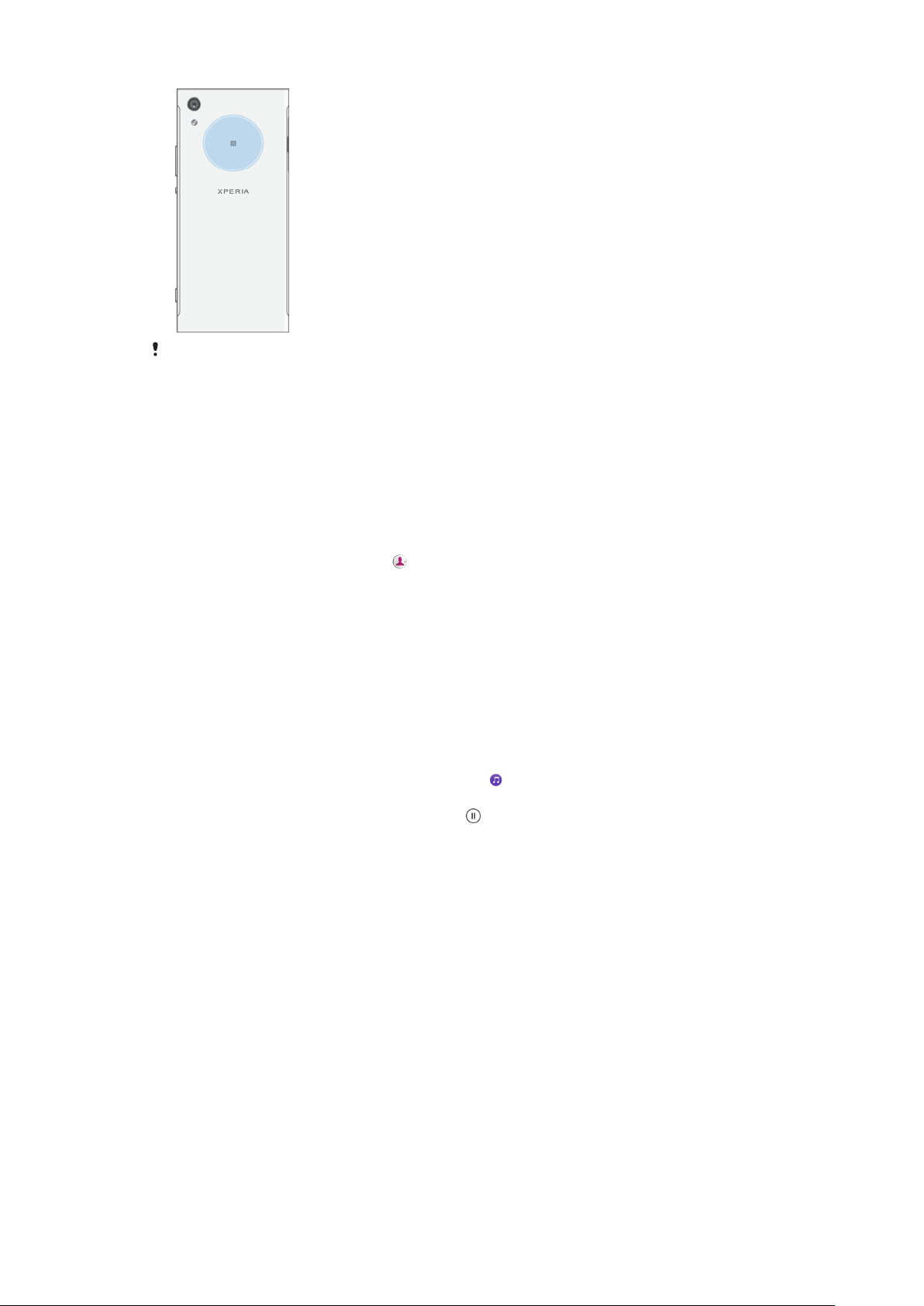
NFC may not be available in all countries or regions. Using certain apps, some NFC functions
can be enabled even when the device is switched o. Note that not all devices support this
feature.
To enable or disable the NFC function
1 Find and tap Settings > Device connection.
2 Tap the NFC slider.
To share a contact with another device using NFC
1 Make sure that both devices have the NFC function turned on, and that both
screens are active and unlocked.
2 To view contacts, find and tap
.
3 Tap the contact that you want to share.
4 Hold your device and the receiving device close to each other so that the
NFC detection areas of each device touch. When the devices connect, a
thumbnail of the contact appears.
5 Tap the thumbnail to start the transfer.
6 When the transfer is done, the contact information is saved on the receiving
device and displayed on its screen.
To share a music file with another device using NFC
1 Make sure that both your device and the receiving device have the NFC
function turned on, and that both screens are active and unlocked.
2 To open the Music application, find and tap
.
3 Select a music category and browse to the track you want to share.
4 Tap the track to play it. You can then tap
to pause the track. The transfer
works whether the track is playing or paused.
5 Make sure the track is displayed on full screen.
6 Hold your device and the receiving device close to each other so that the
NFC detection areas of each device touch. When the devices connect, a
thumbnail of the track appears.
7 Tap the thumbnail to start the transfer.
8 When the transfer is done, the music file is saved on the receiving device.
9 To display the music file, drag down the status bar to open the Notification
panel, and then tap Beam complete.
97
This is an internet version of this publication. © Print only for private use.
Page 98

To share a photo or video with another device using NFC
1 Make sure that both devices have the NFC function turned on, and that both
screens are active and unlocked.
2 To view photos and videos on your device, find and tap Album.
3 Tap the photo or video that you want to share.
4 Hold your device and the receiving device close to each other so that the
NFC detection areas of each device touch. When the devices connect, a
thumbnail of the photo or video appears.
5 Tap the thumbnail to start the transfer.
6 When the transfer is done, the photo or video is saved on the receiving
device.
7 To display the photo or video, drag down the status bar to open the
Notification panel, and then tap Beam complete.
To share a web address with another device using NFC
1 Make sure that both devices have the NFC function turned on, and that both
screens are active and unlocked.
2 To open the web browser, find and tap
3 Load the web page that you want to share.
4 Hold your device and the receiving device close to each other so that the
NFC detection areas of each device touch. When the devices connect, a
thumbnail of the web page appears.
5 Tap the thumbnail to start the transfer.
6 When the transfer is done, the web page is displayed on the screen of the
receiving device.
.
Scanning NFC tags
Your device can scan various kinds of NFC tags to receive additional information,
such as a web address. For example, it can scan embedded tags on a poster, on a
billboard advertisement, or beside a product in a retail store.
To scan an NFC tag
1 Make sure that your device has the NFC function turned on and that the
screen is active and unlocked.
2 Place your device over the tag so that the NFC detection area touches it.
Your device scans the tag and displays the content collected. Tap the
content of the tag to open it.
Connecting to an NFC compatible device
You can connect your device to other NFC compatible devices produced by Sony,
such as speakers or headphones. When establishing this kind of connection, refer
to the User guide of the compatible device for more information.
Bluetooth wireless technology
Use the Bluetooth function to send files to other Bluetooth compatible devices, or
to connect to handsfree accessories. Bluetooth connections work better within 10
metres (33 feet), with no solid objects in between. In some cases you have to
manually pair your device with other Bluetooth devices.
Interoperability and compatibility among Bluetooth devices can vary.
If you are using a device with multiple users, each user can change the Bluetooth settings,
and the changes aect all users.
98
This is an internet version of this publication. © Print only for private use.
Page 99

To turn the Bluetooth function on or o
1 Find and tap Settings > Device connection > Bluetooth.
2 Tap the Bluetooth slider to enable or disable the function.
You can also turn Bluetooth on or o from the Quick settings panel.
Naming your device
You can give your device a name. This name is shown to other devices after you
have turned on the Bluetooth function and your device is set to visible.
To give your device a name
1 Make sure that the Bluetooth function is turned on.
2 Find and tap Settings > Device connection > Bluetooth.
3 Tap
> Rename this device.
4 Enter a name for your device.
5 Tap RENAME.
Pairing with another Bluetooth device
When you pair your device with another device, you can for example connect your
device to a Bluetooth headset or a Bluetooth car kit, and use these other devices to
share music.
Once you pair your device with another Bluetooth device, your device remembers
this pairing. When pairing your device with a Bluetooth device for the first time,
you may need to enter a passcode. Your device will automatically try the generic
passcode 0000. If this does not work, refer to the user guide for your Bluetooth
device to get the device passcode. You do not need to re-enter the passcode the
next time you connect to a previously paired Bluetooth device.
Some Bluetooth devices, for example, most Bluetooth headsets, require you to both pair
and connect with the other device.
You can pair your device with several Bluetooth devices, but you can only connect to one
Bluetooth profile at the same time.
To pair your device with another Bluetooth device
1 Make sure that the device you want to pair with has the Bluetooth function
activated and is visible to other Bluetooth devices.
2 Find and tap Settings > Device connection > Bluetooth.
3 Tap the Bluetooth slider to enable the function. A list of the available
Bluetooth devices appears.
4 Tap the Bluetooth device that you want to pair with.
5 Enter a passcode, if required, or confirm the same passcode on both devices.
To connect your device to another Bluetooth device
1 Find and tap Settings > Device connection > Bluetooth.
2 Tap the Bluetooth device that you want to connect to.
To unpair a Bluetooth device
1 Find and tap Settings > Device connection > Bluetooth.
2 Under Paired devices, tap
beside the name of the device that you want to
unpair.
3 Tap Forget.
Sending and receiving items using Bluetooth technology
Use Bluetooth technology to share items with other Bluetooth compatible devices
such as phones or computers. You can send and receive the following kinds of
items:
• Photos and videos
99
This is an internet version of this publication. © Print only for private use.
Page 100

• Music and other audio files
• Web pages
To send items using Bluetooth
1 Make sure the Bluetooth function is turned on for the receiving device, and
that the device is visible to other Bluetooth devices.
2 Open the application on the sending device which contains the item that
you want to send. Scroll to the item.
3 Depending on the app and the item you want to send, you may need to
touch and hold or open the item, then tap .
4 Select Bluetooth.
5 Turn on Bluetooth if prompted.
6 Tap the name of the receiving device.
7 On the receiving device, accept the connection if prompted.
8 On the sending device, confirm the transfer to the receiving device, if
prompted.
9 Accept the incoming item on the receiving device.
To receive items using Bluetooth
1 Make sure that the Bluetooth function is on and is visible to other Bluetooth
devices.
2 The sending device now starts sending data to your device.
3 If prompted, enter the same passcode on both devices, or confirm the
suggested passcode.
4 When you are notified of an incoming file to your device, drag the status bar
downwards and tap the notification to accept the file transfer.
5 Tap Accept to start the file transfer.
6 To view the progress of the transfer, drag the status bar downwards.
7 To open a received item, drag the status bar downwards and tap the relevant
notification.
To view files you have received using Bluetooth
1 Find and tap Settings > Device connection > Bluetooth.
2 Tap
and select Show files received.
100
This is an internet version of this publication. © Print only for private use.
 Loading...