

Page 1
A-BOJ-100-12(1)
CLIE Paint Version 1.0
Operating Instructions
©2001 by Sony Corporation
Page 2

• CLIE, “Memory Stick”, MEMORY STICKTM, and PictureGear are trademarks of Sony Corporation.
• Microsoft and Windows are registered trademarks of Microsoft Corporation in the U.S. and other
countries.
• Palm OS, Graffiti, and HotSync are registered trademarks of Palm, Inc. or its subsidiaries. Palm
Desktop and the HotSync logo are trademarks of Palm, Inc. or its subsidiaries.
• All other trademarks are trademarks of their respective owners. In the text of this Operating Manual,
and ® marks are not written.
• Before using this software, please read the Software License Agreement that is supplied with CLIE
handheld.
❒ Copying all or part of the contents of this software, sample images, and operating Manual,
or renting the software are prohibited by copyright laws.
❒ The Company is not liable for damage or loss resulting from the use of this software, or for
any claim from a third party.
❒ The Company assumes no responsibility aside from the replacement of media due to
manufacturing fault.
❒ This software must not be used in a system other than that specified.
❒ The software specifications may be subject to change without notice.
TM
2
Page 3

Table of Contents
What you can do with CLIE Paint application ............................................. 4
Installing ............................................................................................................. 5
Starting up .......................................................................................................... 6
Starting up from the home screen ............................................................ 6
Starting up from PictureGear Pocket ....................................................... 6
Drawing/ How to look at the screen..............................................................7
Storing an edited picture ................................................................................ 11
Returning to the home screen ................................................................. 11
3
Page 4

What you can do with CLIE Paint application
CLIE Paint is the application to input the handwritings to the image
saved in CLIE handheld.
You can add letters or marks to the image selected from the image list in
PictureGear Pocket ver 2.1, and also enjoy painting on a white window.
Input image data is converted into the PGP format* and saved in CLIE
handheld.
Note that it is not saved in the “memory stick”.
* Input image data is converted into a 16-bit color image of PictureGear Pocket
format (PGPF). Please note the following.
- CLIE Paint is not adaptable for an 8-bit color image.
- If your CLIE handheld is a monochrome model, images are
displayed in black and white.
4
Page 5
Installing
You can install CLIE Paint into the CLIE handheld, through the hard disk
of your computer.
In case this application is included in the CD-ROM that is supplied
with CLIE handheld, read the following explanation.
In case this application is included in the CD-ROM that is supplied
with any accessory such as Memory Stick Camera, etc., refer to its
Operating Manual.
Install CLIE Palm Desktop software from the supplied CD-ROM into
your computer, and connect the cradle to it.
1 Double-click the Palm Desktop for CLIE icon on the Windows
2 Click Install.
3 Select a user name from the user list.
4 Click Add.
5 Double-click the CLIE Paint folder.
6 Double-click the following folder.
7 Double-click the following file.
8 Repeat step 4 to 6 and double-click CPStamp.pdb.
9 Click Done.
10 Press the HotSync button on the cradle.
desktop.
The Palm Desktop for CLIE software starts.
The Install Tool dialog box appears.
Make sure that the Add-on folder is selected.
If the Add-on folder is not selected, select it manually.
At the default setup, the Add-on folder is stored in the Sony
Handheld folder of the Program Files folder.
•For PEG-T615C: Color folder
•For PEG-T415: Mono folder
•For PEG-T615C: CLIEPaint.prc
•For PEG-T415: CLIEPaint_m.prc
The selected file is added to the File Name list.
CPStamp.pdb is added to the File Name list.
The file specified in step 6 is installed on your CLIE handheld during
the HotSync operation.
5
Page 6

Starting up
Starting up from the home screen
1 On the home screen, rotate the Jog Dial navigator to select
the [CLIE Paint] icon and then press the Jog Dial navigator.
You can also start up CLIE Paint by tapping the [CLIE Paint] icon.
2 Tap one of four screen sizes; 320x320, 320x240, 160x160 and
160x120.
A white paper is displayed in the screen size you have selected.
Starting up from PictureGear Pocket
Tap on the screen with PictureGear Pocket in full screen
mode.
CLIE Paint starts and you can edit the screen that has been selected,
using it as a base.
You cannot choose a picture that is in the Memory Stick
If you tap
PictureGear Pocket, a message appears and CLIE Paint does not start.
If you have a picture you wish to edit in the Memory Stick, store the
picture in the CLIE handheld by PictureGear Pocket before starting CLIE
Paint. For the storage procedure , please refer to the Operating Manual of
PictureGear Pocket.
while a picture in the Memory Stick is displayed by
6
Page 7

Drawing/ How to look at the screen
The screen that is shown below appears when you start CLIE Paint.
You can operate CLIE Paint by tapping the buttons that are on the lower
part of the screen.
Operating icons
Tapping these icons switches the screens.
Menu:
The following dialogues are displayed.
-New image: Displays a new white screen.
-Load image: Imports a PGP-formatted picture from the
CLIE handheld and displays it.
-Over-write: Over-write a data (Original data will not
be kept).
-Save as: Save as a new data (Original data will be
kept).
-Cancel: Returns to the edit screen.
-i button: Displays the information on copyright,
version, etc.
Undo/Redo:
Cancels the last operation you did.
7
Page 8

Color palette
You can select the color or grayscale for painting, letters, etc. by tapping
the color palette.
If your CLIE handheld is adaptable for monochrome screen
Choose from 16-step grayscale of the first stratum .
If your CLIE handheld is adaptable for color screen
The screen is shown in two strata. Usually, a typical color is shown in the
first stratum.
Tapping the big button located on the lower left part of the color palette
shows the second stratum and calls up the color picker, so you have
more colors to choose from.
To adjust the color tone, slide the R/G/B color-level bars.
8
Page 9

Tool icons
You can draw on the screen. Tap the icons to select a tool and draw on
the screen with the stylus.
Tool-switching bar: Tapping
this bar switches the tool
icons as follows.
Pen:
Draws lines and pictures in the color you have selected.
Eraser:
Erases lines, pictures or letters on a drawing screen. You
cannot erase original pictures including photographs.
Images that have been stored once cannot be erased with
Eraser.
You can erase what you wrote or drew with the
following tools: Pen, Line, Circle, Quadrilateral, Cornerrounded quadrilateral, Letter, Stamp, Spray, Shading off
and Mosaic.
Syringe:
Takes colors in from a drawing screen.
Move:
Scrolls a screen up and down.
Line:
Draws a straight line in the color you have selected.
Circle (Without/with painting):
Draws a circle in the color you have selected.
9
Page 10
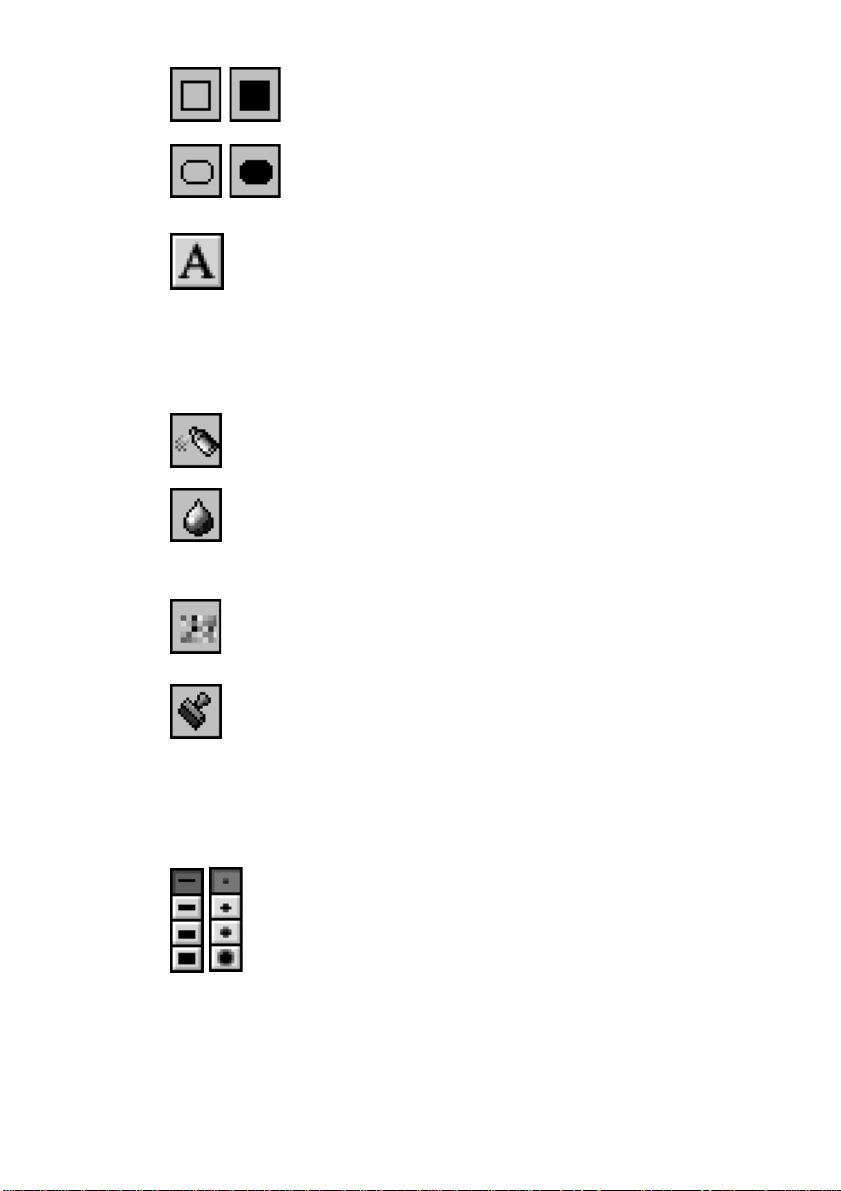
Quadrilateral (Without/with painting):
Draws a quadrilateral in the color you have selected.
Corner-rounded quadrilateral (Without/with painting):
Draws a corner-rounded quadrilateral in the color you
have selected.
Letter:
Writes letters on a picture, using CLIE’s screen keyboard
or Graffiti.
Tapping OK on the screen after inputting letters circles
the letters in a dotted line. You can move the letters by
dragging the circled part with the stylus. Tap the outside
of the dotted line to fix the letters.
Spray:
Creates a spray effect in the color you have selected.
Shading off:
Directly shades off the line of the part you have traced
with stylus on a picture. (For grayscale, shadings will be
made in monochrome.)
Mosaic:
Directly creates a mosaic effect (on the part you have
enclosed by the Quadrilateral tool) on a picture.
Stamp:
Stamps some kinds of patterns.
Tapping stamp on the screen, the selected stamp is
circled with a dotted line. You can move the stamp by
dragging the circled part with the stylus. Tap the outside
of the dotted line to fix the stamp. When you want to use
the same stamp pattern, tap the screen again.
Thickness/Spray range(When the Spray is selected):
Selects one of four different thicknesses for the Pen,
Eraser, Line, Circle, Quadrilateral, Corner-rounded
quadrilateral, Letter tools and Shading off.
When letters are selected, you can change the font size
using this thickness tool.
When Spray is selected, you can select the extent for the
spray effect.
10
Page 11

Storing an edited picture
1 Tap .
The Store dialogue box appears.
2 Tap [Over-write] or [Save As].
When you select [Over-write], the data of the edited picture will be
written over its original data and stored. Therefore, the original data
will not be kept.
When you select [Save As], the data of the edited picture will be
newly stored separately from its original data. Enter a name for the
new data.
3 Tap [OK].
The picture that has been stored in bitmap format is saved in CLIE
handheld in PGP format.
Saving a picture can take time depending on its data size.
Notes
•If you edit and save a color picture with monochrome device of CLIE Paint , it
will be saved in monochrome. Be particularly careful when you try to save it by
writing it over its original color picture because the original picture will not be
kept in this case.
•If you press the buttons or tap the icons to switch applications while editing a
picture, a dialogue box appears. At this time, if you press the buttons or tap the
icons again, the applications will be switched without saving the edited picture.
Returning to the home screen
Tap Home .
The home screen appears.
When tapping Home while editing a picture, the dialogue box
appears.
To return to the home screen without saving the edited picture, tap
[OK].
To return to the home screen after saving the edited picture, tap
[Cancel], save the picture by following the above procedure, and tap
Home
again.
11
Page 12

12
 Loading...