

Page 1
CS
GB
进行配对并与
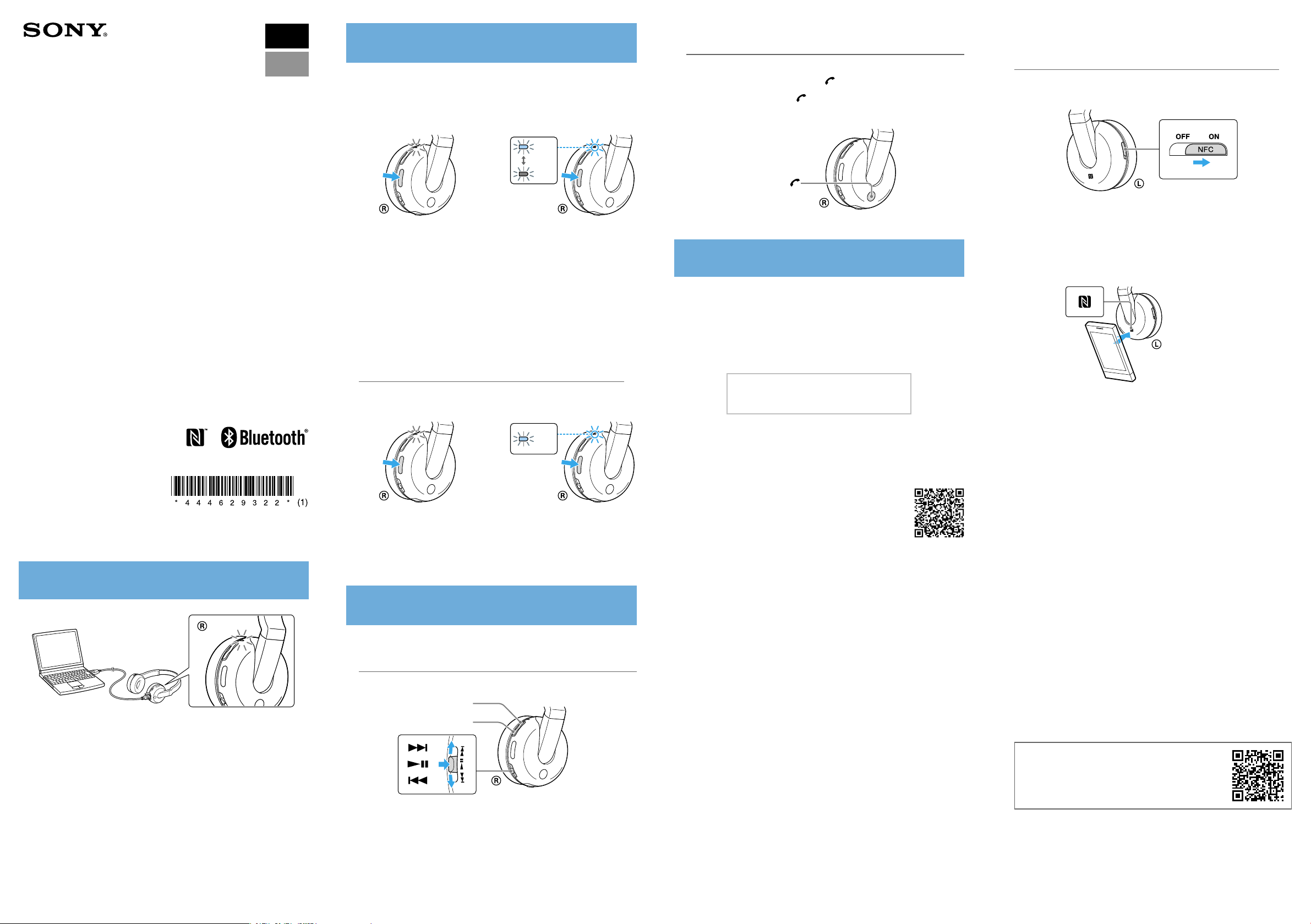
进行配对前,请给本装置充电。
1 将
Bluetooth
Bluetooth
设备放在本装置1m的范围内。
设备连接
2 在本装置上确认配对模式。
拨打电话/接听电话
配置协议:HSP、HFP
使用移动电话拨打电话。
若要结束通话,可按本装置上的 按钮。
当有来电呼入时,可按 按钮。
如果您正在听音乐时有来电呼入,可使用相同的方式进行操作。
一触即可连接智能手机
将本装置与智能手机接触,本装置便会自动打开,随后进行
配对和
Bluetooth
连接。
1 在本装置上将NFC开关设为ON。
快速入门指南
无线立体声耳机
Quick Start Guide
Wireless Stereo Headset
DR-BTN200
© 2013
索尼公司 Sony Corporation
中国印刷 Printed in China
4-446-293-22(1)
给本装置充电
当本装置与电脑连接后立即开始充电。最多约4.5小时后完
成充电,指示灯(红色)随后自动熄灭。
在本装置关闭的情况下,按住
POWER按钮7秒钟以上。
在
Bluetooth
3
当
Bluetooth
择“DR-BTN200”。
如果需要在
“0000”。
与
Bluetooth
4
设备上执行配对步骤以检测本装置。
设备的显示屏上出现检测到的设备列表后,选
Bluetooth
设备建立
设备的显示屏上输入密钥,请输入
Bluetooth
与已配对的设备进行连接
1 打开本装置的电源。
在本装置关闭的情况下,按住POWER按
钮约2秒钟。
2 与
Bluetooth
听音乐和打电话
在与
Bluetooth
听音乐
配置协议:A2DP、AVRCP
在
Bluetooth
设备建立
设备建立
设备上开始播放。
Bluetooth
Bluetooth
VOL+
VOL−
蓝色
红色
确认在释放按钮后指示灯交替闪烁蓝
色和红色。
连接。
蓝色
连接。
连接后操作本装置。
一触即连智能手机(NFC)
NFC(近场通信)是一种可在各种设备(如移动电话和IC标签等)
之间进行短程无线通信的技术。有了NFC功能,只需在NFC兼容设
备上触碰相关标记或指定位置,便可轻松进行数据通信。
使用NFC功能,可以自动打开本装置,随后与
配对和连接。
兼容智能手机
内置NFC功能的智能手机
(操作系统:Android2.3.3或更高版本,
不包括Android3.x
智能手机准备工作
需要在智能手机上安装NFC功能的应用程序。
从GooglePlay上下载应用程序“NFC轻松连接”并进行安装。
1下载并安装应用程序“NFC轻松连接”。
请访问以下网站:
http://www.sonystyle.com.cn/app/download/
NFC/index.htm
通过二维码:
使用二维码读取应用程序。
2设置智能手机以便可以使用NFC功能。
详情请参阅智能手机的使用说明书。
关于“NFC轻松连接”应用程序
“NFC轻松连接”是Sony独创的Android手机应用程序,可在
GooglePlayStore上获取。
如欲详细了解其功能,请搜索“NFC轻松连接”并下载该免费
应用程序。
在某些国家或地区,可能没有提供该应用程序的下载。
)
Bluetooth
设备进行
提示
根据智能手机的情况,您可能无需下载“NFC轻松连接”就可通
过轻触将本机与您的智能手机相连。在该情况下,操作和说明书
可能与此处所述会有不同。更多详情,请参考智能手机附带的手
册。
2 在智能手机上启动应用程序“NFC轻松连接”。
确认已显示应用程序的画面。
3 用智能手机接触本装置。
用智能手机接触本装置上的N标记部分。
保持将本装置与智能手机相接触,
直至智能手机震动。
请按照画面上的说明完成连接。
若要断开连接,可再次接触智能手机。
可以选择其他NFC兼容
参阅帮助指南。
Bluetooth
设备的声音。有关详情,请
关于如何操作本装置的详细说明,请参阅电
脑或智能手机上的帮助指南。
http://rd1.sony.net/help/mdr/
dr-btn200/cn/
Bluetooth
Corporation对此标记的使用是经过许可的。
N标记是NFCForum,Inc.在美国和其他国家/地区的商标或注册
商标。
Android是GoogleInc.的商标。
其他商标和品牌名称均属于其各自所有者。
文字标记和标志归BluetoothSIG,Inc.所有,Sony
Page 2
GB
Pairing and connecting with the
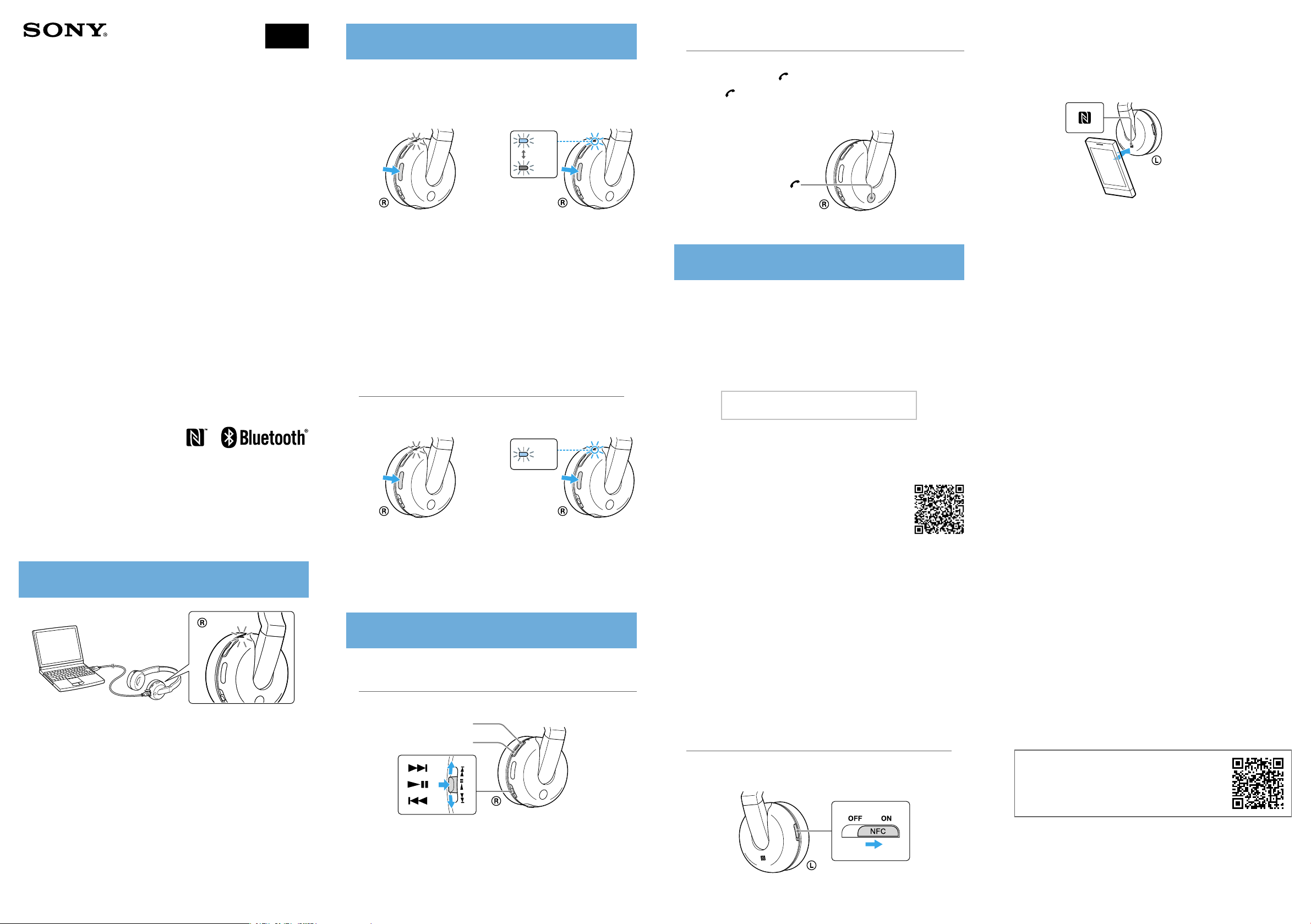
Before pairing, charge this unit.
Place the
1
Bluetooth
device within 1 meter of this unit.
2 Enter pairing mode on this unit.
Bluetooth
device
Making a call/Receiving a call
Profile: HSP, HFP
Operate your mobile phone to make a call.
To terminate a call, press the button on the unit.
Press the button on the unit when an incoming call arrives.
Operate in the same way when an incoming call arrives while you are listening to the
music.
2 Start the app “NFC Easy Connect” on the smartphone.
Make sure that the application screen is displayed.
3 Touch this unit with the smartphone.
Touch the smartphone on the N marked part of this unit.
Quick Start Guide
Wireless Stereo Headset
DR-BTN200
Charging the unit
Blue
Red
Press and hold the POWER button
for more than 7 seconds while this
unit is turned off.
Perform the pairing procedure on the
3
detect this unit.
When the list of detected devices appears on the display of the
Bluetooth
If passkey input is required on the display of a
“0000.”
Make the
4
device, select “DR-BTN200.”
Bluetooth
connection from the
Make sure that the indicator flashes
blue and red alternately after you
release the button.
Bluetooth
Bluetooth
Connecting with the paired device
Turn on the unit.
1
Blue
Press and hold the POWER button for
about 2 seconds while this unit is turned
off.
Make the
2
Bluetooth
connection from the
Listening and Calling
Operate the unit after making
Bluetooth
connection with your
Listening to music
Profile: A2DP, AVRCP
device to
device, input
Bluetooth
Bluetooth
Bluetooth
device.
device.
device.
One touch connection with a smartphone (NFC)
NFC (Near Field Communication) is a technology enabling short-range
wireless communication between various devices, such as mobile phones
and IC tags. Thanks to the NFC function, data communication can be
achieved easily just by touching the relevant symbol or designated location
on NFC compatible devices.
By using the NFC function, the unit is turned on automatically and then
paired and connected with a
Compatible smartphones
Smartphones with the NFC function built-in
(OS: Android 2.3.3 or later, excluding Android 3.x)
Preparation on the smartphone
An app for the NFC function needs to be installed on the smartphone.
Download the app “NFC Easy Connect” from the Google Play, and install it
1 Download and install the app “NFC Easy Connect.”
Access the following Web site:
http://www.sonystyle.com.cn/app/download/NFC/
index.htm
By the two-dimensional code:
Use a two-dimensional code reader app.
2 Set the smartphone so that the NFC function can be used.
For details, refer to the instructions of the smartphone.
About “NFC Easy Connect” App
“NFC Easy Connect” is Sony’s original app for Android Phone available at
Google Play Store.
To find out more about the functions, search for “NFC Easy Connect” and
download the free app.
The App may not be available in some countries and/or regions.
Tip
Depending on your smartphone, you may not need to download “NFC Easy
Connect” to connect the unit with your smartphone by one touch. In that
case, the operation and specifications may be different from the description
here. For details, refer to the manual supplied with your smartphone.
Bluetooth
device.
Keep touching the unit with the smartphone
until the smartphone vibrates.
Follow the on-screen instructions to complete the connection.
To disconnect, touch the smartphone again.
You can select the sound from other NFC compatible
devices. For details, refer to the Help Guide.
Bluetooth
Charging starts when the unit and the computer are connected.
Charging is completed in about 4.5 hours at most and the indicator
(red) goes off automatically.
Start playback on the
Bluetooth
VOL+
VOL−
device.
Connecting with the smartphone by One touch
By touching the unit with the smartphone, the unit is turned on automatically and
then proceeds to pairing and
Set the NFC switch to ON on this unit.
1
Bluetooth
connection.
On how to operate the unit in detail, please read the
Help Guide on your computer or smart phone.
http://rd1.sony.net/help/mdr/
dr-btn200/cn/
The
Bluetooth
and any use of such marks by Sony Corporation is under license.
The N Mark is a trademark or registered trademark of NFC Forum, Inc. in
the United States and in other countries.
Android is a trademark of Google Inc.
Other trademarks and trade names are those of their respective owners.
word mark and logos are owned by the Bluetooth SIG, Inc.
 Loading...