

Page 1

4K SxS Player
4-472-268-11 (1)
Operating Instructions
BKM-XP1
© 2013 Sony Corporation
Page 2
Overview
The BKM-XP1 is the optional equipment for the PVMX300 Professional Video Monitor, and attached to the
back of the monitor.
The BKM-XP1 has an SxS memory card slot, and can
play the XAVC contents (4K/HD) that are recorded on
an SxS memory card on the monitor.
Preparation
Playable format
The BKM-XP1 can play clips of the following format
that are recorded on an SxS memory card.
XAVC Intra 4096 × 2160, 23.98P/25P/29.97P/50P/
59.94P
XAVC Intra 1920 × 1080, 23.98P/25P/29.97P/50P/
59.94P
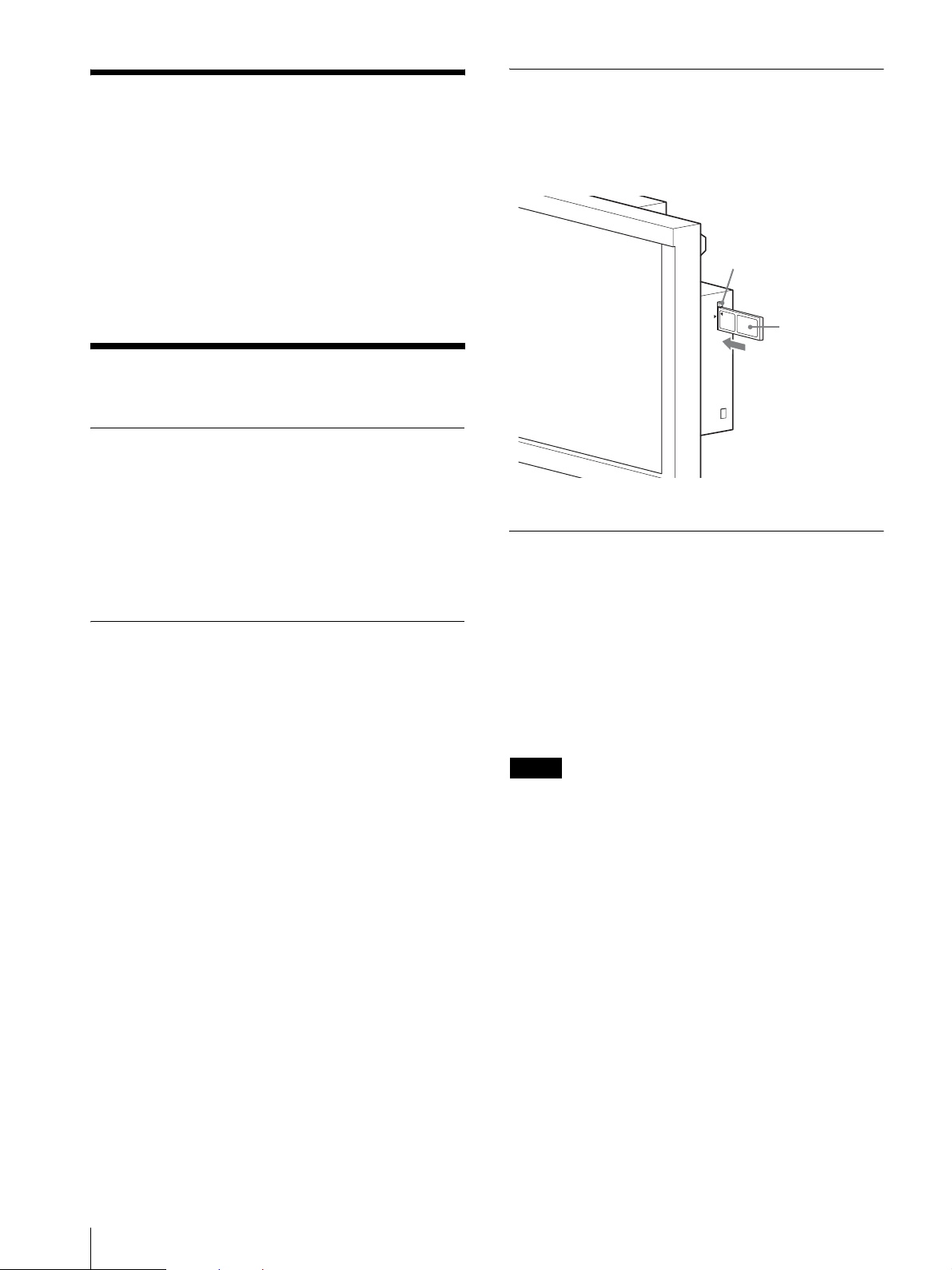
Inserting an SxS Memory Card
Insert the SxS memory card into the card slot, aligning
the triangle mark on the card with the triangle mark on
the slot.
SxS memory card
removal button
SxS memory
card
Removing an SxS Memory Card
1
Select Z (Eject) on the global menu (page 4), and
select “Yes” for the displayed message.
About SxS Memory Cards
Use the following Sony SxS memory cards.
Operations are not guaranteed with other memory cards.
•SxS PRO+
SBP-128B, SBP-64B: XAVC 4K (4096 × 2160),
XAVC HD (1920 × 1080)
•SxS PRO
SBP-64A, SBP-32: XAVC HD (1920 × 1080) P
These memory cards comply with the ExpressCard
standard.
For details on using SxS memory cards and usage-related
precautions, refer to the instruction manual for the SxS memory
card.
SxS and SxS PRO are trademarks of Sony Corporation.
The ExpressCard word mark and logo are owned by
Personal Computer Memory Card International
Association (PCMCIA) and are licensed to Sony
Corporation. All other trademarks are the property of
their respective owners.
2
Press the SxS memory card removal button on the
card slot.
3
Press in the button again, and remove the memory
card.
Note
Data integrity is not guaranteed if the AC power cord of
the monitor is disconnected or a memory card is
removed while it is being accessed. Data on the card
may be destroyed. To ensure a memory card can be
removed safety while the monitor is turned on, select Z
(Eject) on the global menu before you remove the
memory card.
2
Overview / Preparation
Page 3
Using the BKM-XP1
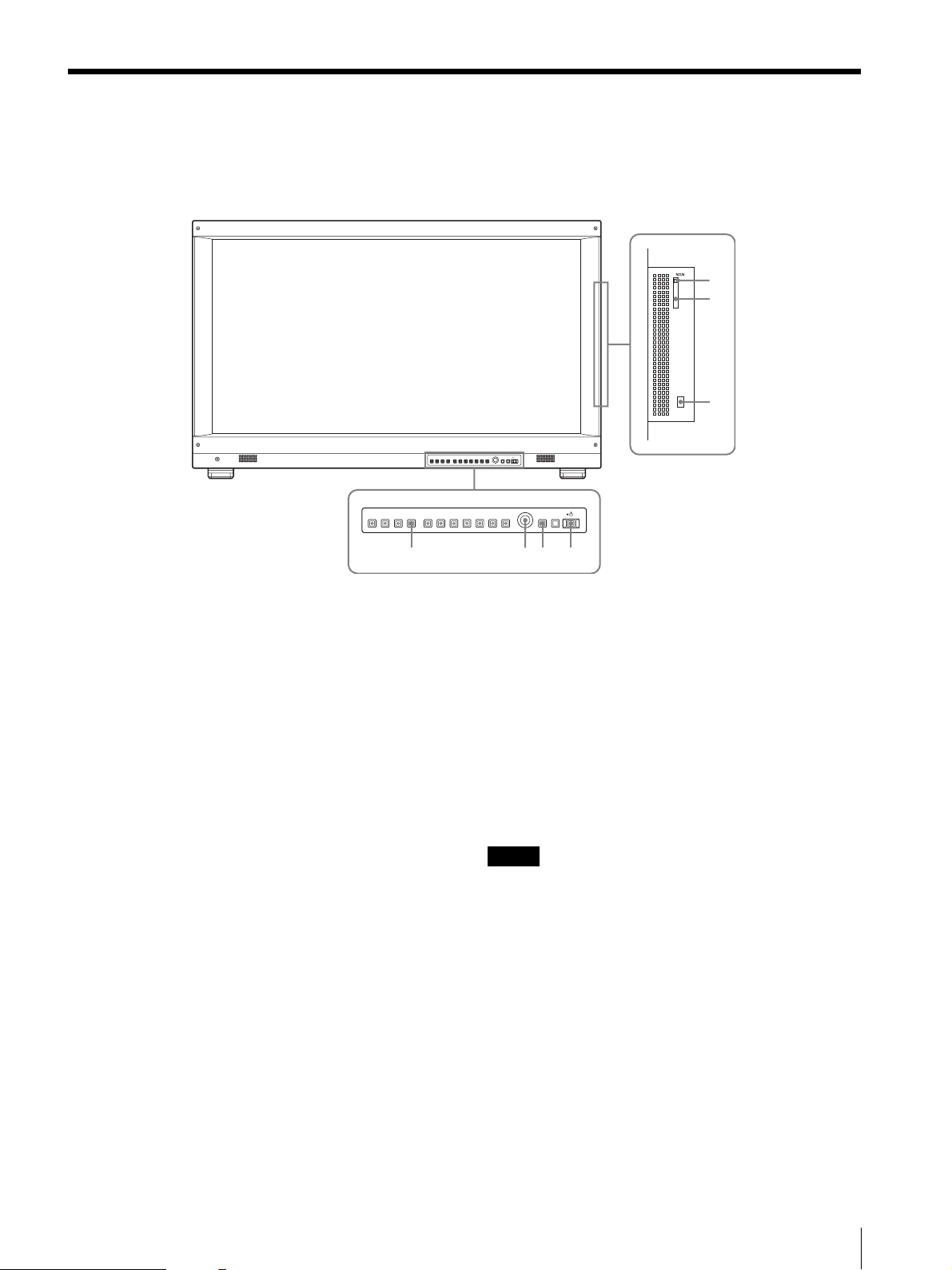
Operate the BKM-XP1 with the buttons on the front panel of the monitor, or mouse that is connected to the MOUSE
connector.
5
6
7
SDI HDMI PC
OPTION
F1 F2 F3 F4 F5 F6 F7
BACK MENU
4213
a OPTION button
Press to set the monitor’s input for the BKM-XP1’s
signal.
b Menu selection control
Turn to select the global menu item or clip, then press to
confirm.
For details about operations such as playback and pause,
see “Operations during playback/pause” (on page 5).
c BACK button
Press to stop playback and return to the clip list screen.
Press when the cursor is on the list view area to move the
cursor to the global menu.
d 1 (standby) switch
Press to turn the power on when the monitor is in
standby mode.
e SxS memory card removal button
Press to remove an SxS memory card.
f SxS memory card slot
Insert an SxS memory card to the slot.
g MOUSE connector
Connect a mouse (Sony VGP-UMS32 recommended).
Note
Operations are not guaranteed when other than the
specified equipment is connected.
Using the BKM-XP1
3
Page 4
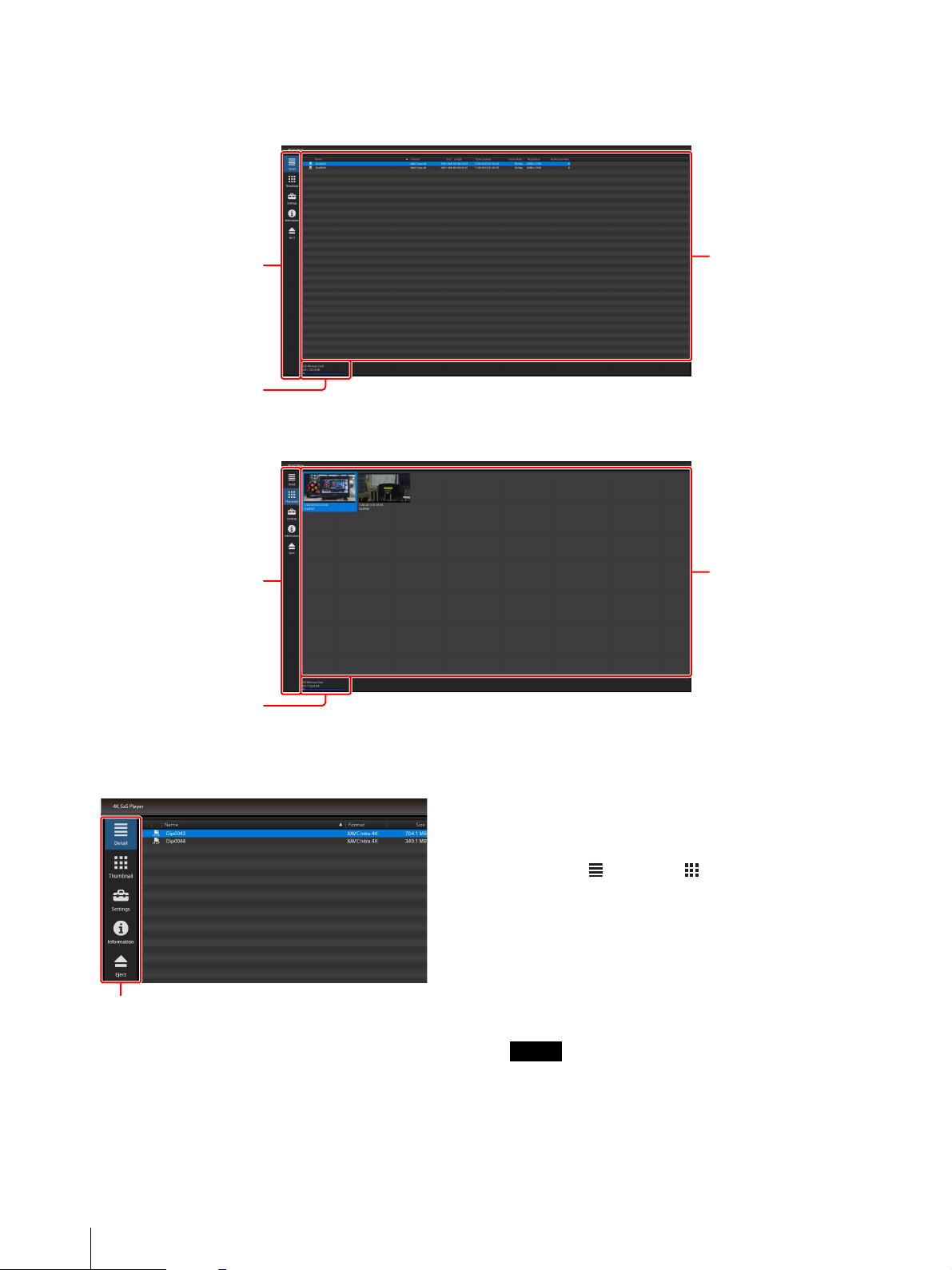
Clip list screen
File list screen
Global menu
Capacity of the
SxS memory card
Global menu
Capacity of the
SxS memory card
List view area
(File list)
Thumbnail list screen
List view area
(Thumbnail list)
Global menu
Global menu
You can switch between the file list and thumbnail list,
display the setting menu or information, and remove an
SxS memory card, using the global menu.
1
Press the 1 (standby) switch to turn the monitor on.
2
Press the OPTION button.
The clip list screen appears.
3
Select (Detail) or (Thumbnail) on the global
menu.
The file list or thumbnail list appears on the list
view area.
4
Select a clip for playback from the list view area.
Playback starts.
Notes
• A clip that cannot be played is not displayed.
• Sound recorded on the clip is not played.
4
Using the BKM-XP1
Page 5
Operations during playback/pause
To Operations on the monitor Operations of the mouse
Play/pause Press the menu selection control.
Fast forward
(2× t 4× t 8× t 16×)
Fast reverse
(1× t 2× t 4× t 8× t
16×)
Skip to the top of the next
clip.
Return to the top of the
previous clip.
Skip to the top of the
current clip.
Skip to the end of the
current clip.
Play frame by frame. Turn the menu selection control to the right in pause
Play frame by frame in
reverse.
Stop playback and return to
the clip list screen.
(Return to normal speed from fast forward/fast
reverse.)
Turn the menu selection control to the right. Press and hold the left mouse button, and move the
Turn the menu selection control to the left. Press and hold the left mouse button, and move the
Turn the menu selection control to the right while
pressing the menu selection button.
Turn the menu selection control to the left while
pressing the menu selection button.
– Press and hold the right mouse button, and move the
– Press and hold the right mouse button, and move the
mode.
Turn the menu selection control to the left in pause
mode.
Press the BACK button. Left double click.
Left click.
(Return to normal speed from fast forward/fast
reverse.)
mouse to the right during playback.
mouse to the left during playback.
Press and hold the right mouse button, and move the
mouse to the right.
Press and hold the right mouse button, and move the
mouse to the left.
mouse forward.
mouse toward you.
Turn the wheel forward in pause mode.
Turn the wheel toward you in pause mode.
To change to another input signal
Press the input select button of the monitor.
To sort items on the list view area (for the
file list only)
Click the heading of the item that you want to sort. The
item order on the list switches between ascending and
descending order.
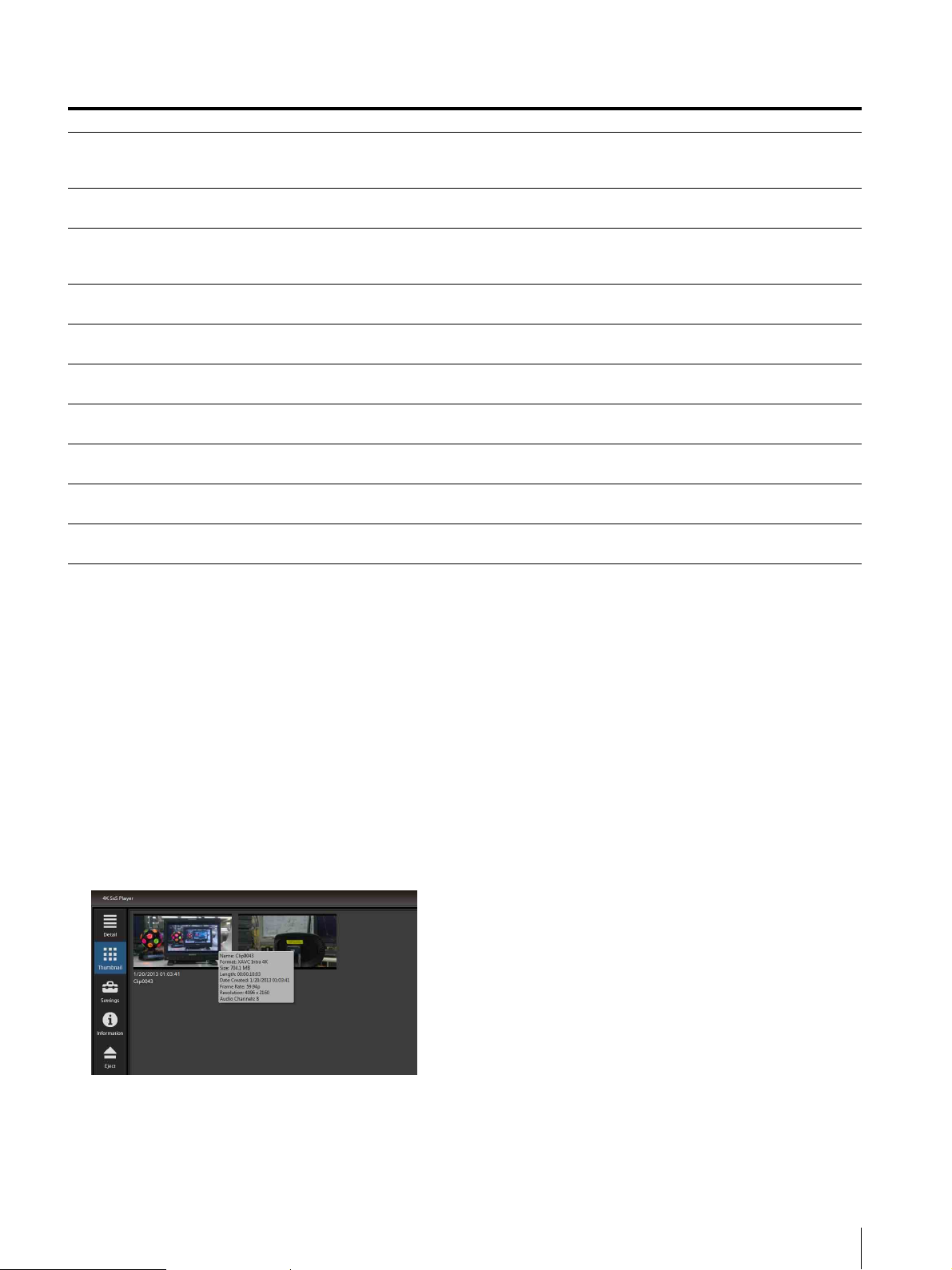
To display a tooltip
The clip’s information appears for 5 seconds when you
move the cursor to the clip on the list view area.
To turn the power off
Press the 1 (standby) switch to turn the monitor off.
When the BKM-XP1 is playing, the monitor turns off
after stopping playback.
Using the BKM-XP1
5
Page 6
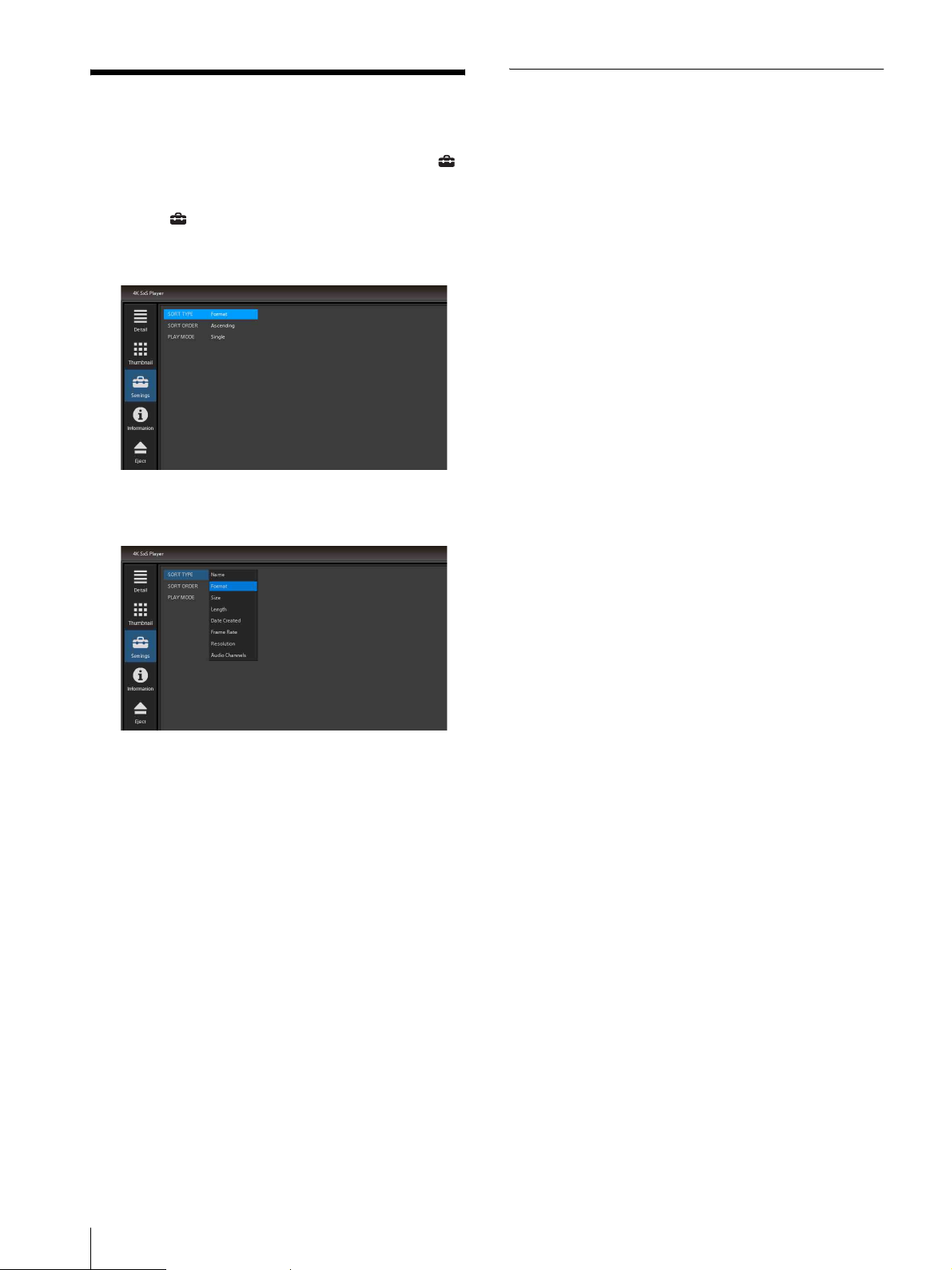
Setting
You can set the display and playback method from
(Settings) on the global menu (page 4).
1
Select (Settings) on the global menu.
The setting menu appears.
List of items
SORT TYPE
Set the items that are sorted on the file list.
Name (Clip name)
Format
Size
Length (Duration)
Date Created
Frame Rate
Resolution
Audio Channels
SORT ORDER
Select the item order on the list from ascending /
descending order.
Ascending
Descending
2
Select the setting item from the menu.
PLAY MODE
Set the playback mode of the clip.
Single: 1 clip playback.
Repeat: Repeats 1 clip.
6
Setting
Page 7
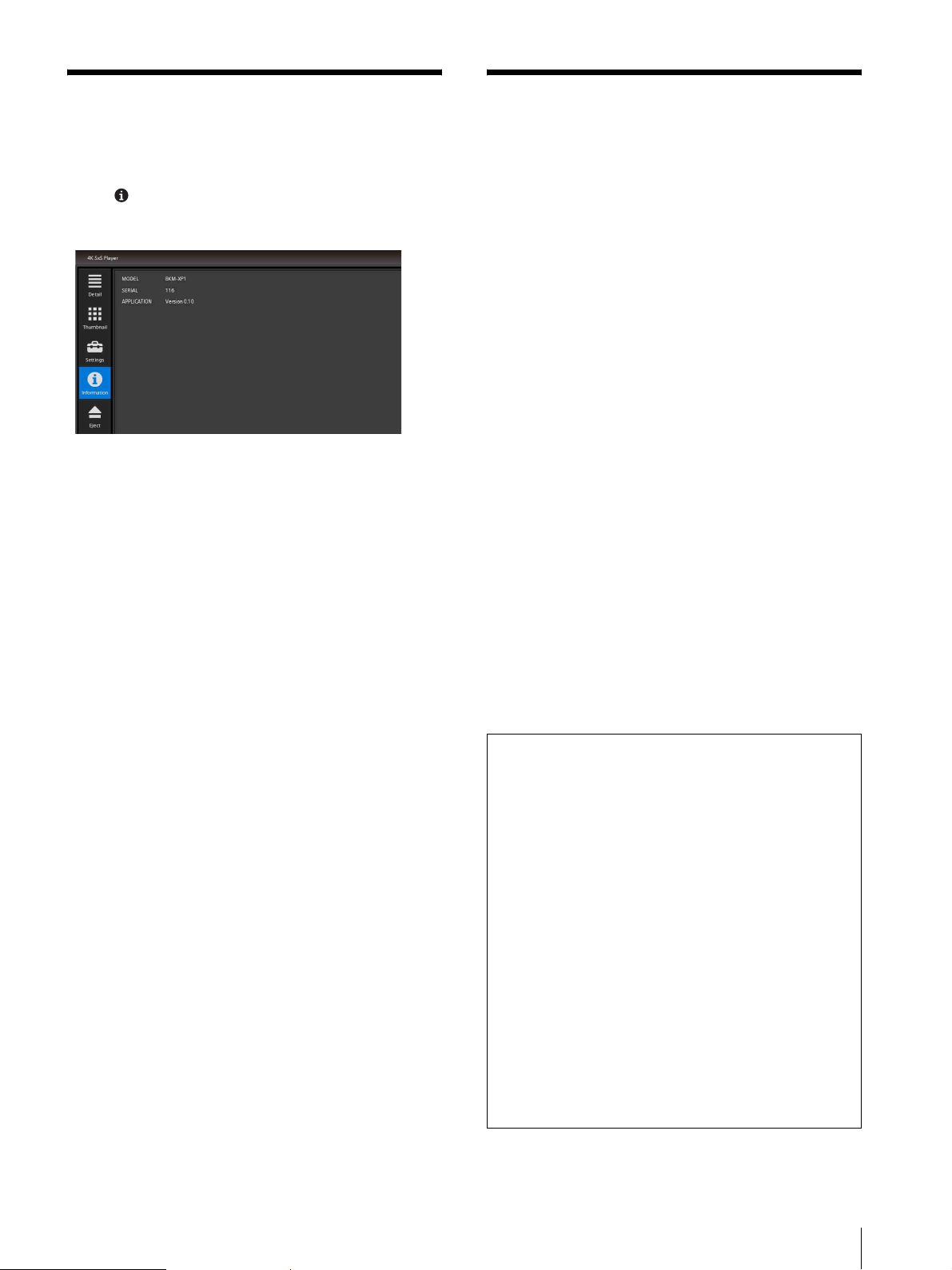
Displaying the BKM-XP1 information
Select (Information) to display the serial number and
software version of the BKM-XP1.
Specifications
General
Power requirements
12 V (supplied from the monitor)
Power consumption
Approx. 20 W
Operating conditions
Temperature 0°C to 35°C (32°F to 95°F)
Optimum temperature
20°C to 30°C (68°F to 86°F)
Humidity 30% to 85% (no condensation)
Storage and transport conditions
Temperature –20°C to +60°C (–4°F to +140°F)
Humidity 0% to 90%
Maximum external dimensions (w/h/d)
Approx. 158 × 242 × 66 mm (6
5
9
/8 × 2 5/8 inches) (not including
the projected parts)
Mass Approx. 1.0 kg (2 lb 3.3 oz)
Input/output connectors
MOUSE For a Sony mouse VGP-UMS32 (1)
1
/4 ×
Accessories supplied
Before Using This Unit (1)
Operating Instructions (CD-ROM) (1)
INSTALLATION MANUAL (1)
Design and specifications are subject to change without
notice.
Notes
• Always verify that the unit is operating properly
before use. SONY WILL NOT BE LIABLE FOR
DAMAGES OF ANY KIND INCLUDING, BUT
NOT LIMITED TO, COMPENSATION OR
REIMBURSEMENT ON ACCOUNT OF THE
LOSS OF PRESENT OR PROSPECTIVE
PROFITS DUE TO FAILURE OF THIS UNIT,
EITHER DURING THE WARRANTY PERIOD
OR AFTER EXPIRATION OF THE
WARRANTY, OR FOR ANY OTHER REASON
WHATSOEVER.
• SONY WILL NOT BE LIABLE FOR CLAIMS OF
ANY KIND MADE BY USERS OF THIS UNIT
OR MADE BY THIRD PARTIES.
• SONY WILL NOT BE LIABLE FOR THE
TERMINATION OR DISCONTINUATION OF
ANY SERVICES RELATED TO THIS UNIT
THAT MAY RESULT DUE TO
CIRCUMSTANCES OF ANY KIND.
Displaying the BKM-XP1 information / Specifications
7
Page 8

Licenses
MPEG-4 visual patent portfolio license
THIS PRODUCT IS LICENSED UNDER THE
MPEG-4 VISUAL PATENT PORTFOLIO LICENSE
FOR THE PERSONAL AND NON-COMMERCIAL
USE OF A CONSUMER FOR
(i) ENCODING VIDEO IN COMPLIANCE WITH
THE MPEG-4 VISUAL STANDARD (“MPEG-4
VIDEO”)
AND/OR
(ii) DECODING MPEG-4 VIDEO THAT WAS
ENCODED BY A CONSUMER ENGAGED IN A
PERSONAL AND NON-COMMERCIAL ACTIVITY
AND/OR WAS OBTAINED FROM A VIDEO
PROVIDER LICENSED BY MPEG LA TO PROVIDE
MPEG-4 VIDEO.
NO LICENSE IS GRANTED OR SHALL BE
IMPLIED FOR ANY OTHER USE. ADDITIONAL
INFORMATION INCLUDING THAT RELATING
TO PROMOTIONAL, INTERNAL AND
COMMERCIAL USES AND LICENSING MAY BE
OBTAINED FROM MPEG LA, LLC. SEE
HTTP://WWW.MPEGLA.COM
MPEG LA is offering licenses for (i) manufacturing/
sales of any storage media storing MPEG-4 Visual video
information (ii) distribution/broadcasting of MPEG-4
Visual video information in any manner (such as online
video distribution service, internet broadcasting, TV
broadcasting). Other usage of this product may be
required to obtain license from MPEGLA. Please
contact MPEG LA for any further information. MPEG
LA, L.L.C., 250 STEELE STREET, SUITE 300,
DENVER, COLORADO 80206,
http://www.mpegla.com
MPEG-2 video patent portfolio license
ANY USE OF THIS PRODUCT OTHER THAN
CONSUMER PERSONAL USE IN ANY MANNER
THAT COMPLIES WITH THE MPEG-2 STANDARD
FOR ENCODING VIDEO INFORMATION FOR
PACKAGED MEDIA IS EXPRESSLY PROHIBITED
WITHOUT A LICENSE UNDER APPLICABLE
PATENTS IN THE MPEG-2 PATENT PORTFOLIO,
WHICH LICENSE IS AVAILABLE FROM MPEG
LA, L.L.C., 250 STEELE STREET, SUITE 300,
DENVER, COLORADO 80206.
“PACKAGED MEDIA” means any storage media
storing MPEG-2 video information such as DVD movie
which are sold/distributed to general consumers. Disc
replicators or sellers of the PACKAGED MEDIA need
to obtain licenses for their own business from MPEG
LA. Please contact MPEG LA for any further
information. MPEG LA, L.L.C., 250 STEELE
STREET, SUITE 300, DENVER, COLORADO 80206
http://www.mpegla.com
Open software licenses
On the basis of license contracts between Sony and the
software copyright holders, this product uses open
software.
To meet the requirements of the software copyright
holders, Sony is obligated to inform you of the content
of these licenses.
For the content of these licenses, see “License1.pdf” in
the “License” folder of the supplied CD-ROM.
Microsoft software licenses
On the basis of license contracts between Sony and the
software copyright holders, this product uses Microsoft
software.
To meet the requirements of the software copyright
holders, Sony is obligated to inform you of the content
of these licenses.
For the content of these licenses, see
“License2_GB.pdf” in the “License” folder of the
supplied CD-ROM.
Sony Corporation
 Loading...