

Page 1
Television
Reference Guide
4-562-214-E3(1)
Before operating the TV,
please read this manual
thoroughly and retain it for
future reference.
产品注册
为了给您提供更多更完善的服
务, 我们已经开通了 “ 网上产
品注册 ” 服务项目,凡购买我
们的产品,并上网注册后,您将
获更多优惠。
详情请点击
http://www.sony.com.cn/
productclub
KD-75X8500C / 65X8500C / 55X8500C / 49X8300C / 43X8300C
Page 2

Table of Contents
Safety Information . . . . . . . . . . . 6
Precautions. . . . . . . . . . . . . . . . . 10
Parts and Controls . . . . . . . .12
Controls and Indicators . . . . . . . 12
Inputs and Outputs . . . . . . . . . . 13
Using Remote Control . . . . .16
Remote Control Parts
Description . . . . . . . . . . . . . . . . . 16
Using the Touchpad Remote
Control . . . . . . . . . . . . . . . . . . . .18
Launching the Touchpad
Remote Control Introduction/
Tutorial . . . . . . . . . . . . . . . . . . . . 18
Connecting the TV . . . . . . . .19
Connecting MHL Device . . . . . .19
Troubleshooting. . . . . . . . . 20
Troubles and Solutions . . . . . . 20
Specifications . . . . . . . . . . . 22
Introduction
Thank you for choosing this Sony
oduct.
pr
Note
•Images and illustrations used in
S
tartup Guide and this manual are
for reference only and may differ
from actual product appearance.
无线相关规定
①不得擅自更改发射频率、加大发射
功率 ( 包括额外加装射频功率放大
器 ),不得擅自外接天线或改用其它
天线。
发射
②使用时不得对各种合法的无线电业
生有害干扰;一旦发现有干扰现
务产
象时,应立即停止使用,并采取措施
消除干扰后方可继续使用。
③使用微功率无线电设备,必须忍受
无线电业务的干扰或工业、科学
各种
及医疗应用设备的辐射干扰。
④不得在飞机和机场附近使用。
⑤该频段的无线接入系统仅限室内使
, 且距离同频段的卫星无线电测定
用
(空对地)业务和卫星固定(空对地)
业务的地球站大于 3km。
Notes on using Internet features
•You agree to comply with any and
all terms and conditions that any
content on the Web may require
for said content’s service and
usage.
•Your ability to access Internet
ontent is subject to your Internet
c
provider’s service and terms, and
your network environment.
•Sony shall have no responsibility
or Internet content.
f
GB
2
Page 3

•Sony may add, change,
discontinue, remove, or suspend
any services or Sony content
services, temporarily or
permanently, at any time, without
notice and without liability.
•By using this feature, you agree to
be bound by
above terms and
conditions.
Location of the identification label
Labels for the Model No. and Power
Supply rating are located on the
rear of the TV.
GB
3
Page 4
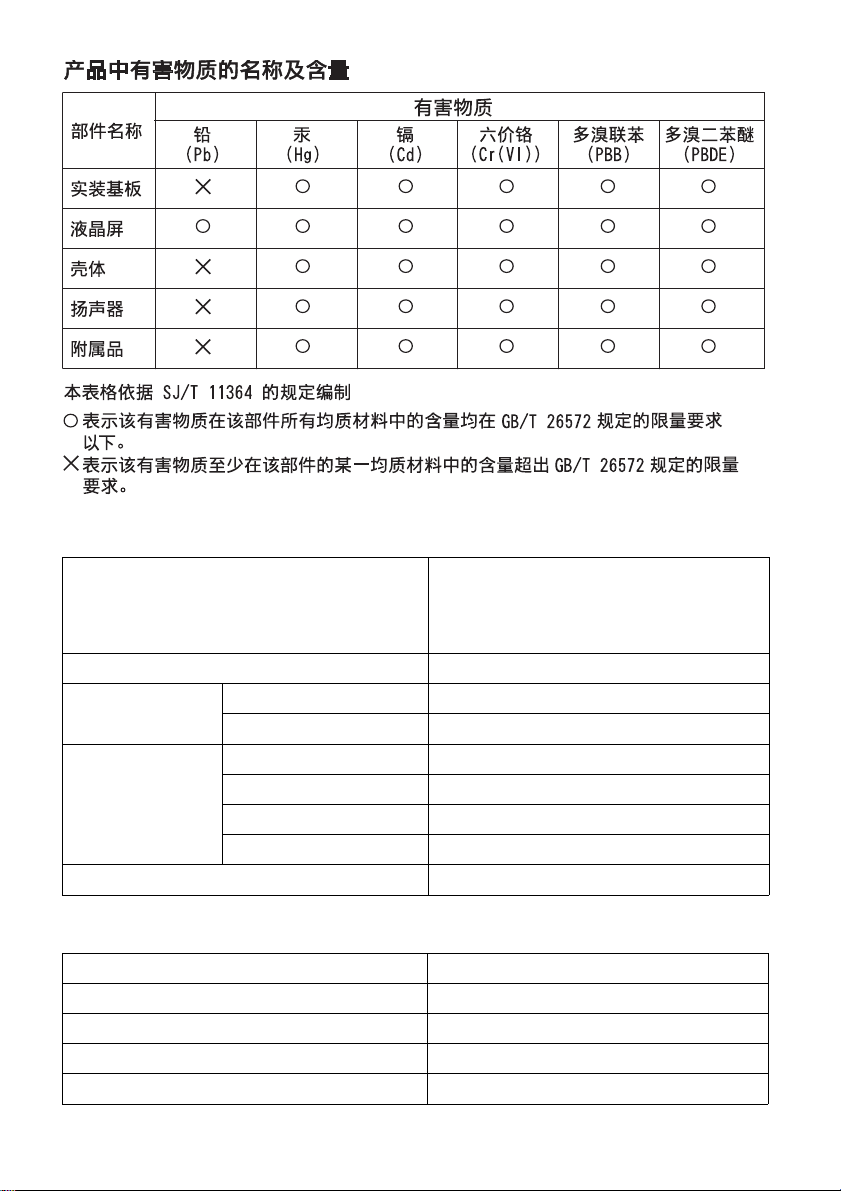
无线局域网功能的主要技术参数及其指标值
频率范围
频率容限
2.4 GHz ≤ 22 MHz
占用带宽
5 GHz ≤ 80 MHz
2.4 GHz ≤ 20 dBm (EIRP)
5.15 GHz-5.25 GHz ≤ 23 dBm (EIRP)
发射功率
5.25 GHz-5.35 GHz ≤ 20 dBm (EIRP)
5.725 GHz-5.850 GHz ≤ 33 dBm (EIRP)
杂散发射限值
蓝牙功能的主要技术参数及其指标值
2.4000 GHz-2.4835 GHz/
5.15 GHz-5.25 GHz/
5.25 GHz-5.35 GHz/
5.725 GHz-5.850 GHz
≤ 20 ppm
≤ -30 dBm
频率范围
频率容限
占用带宽
发射功率
杂散发射限值
GB
4
2.4000 GHz-2.4835 GHz
≤ 20 ppm
≤ 2 MHz
≤ 4 dBm (EIRP)
≤ -30 dBm
Page 5
安全信息
警告
GB
5
Page 6
Safety Information
Screw
Wall-Mount
Bracket
8 mm - 12 mm
TV's rear cover
WARNING
Batteries must not be exposed to
excessive heat such as sunshine,
fire or the like.
Installation/Set-up
Install and use the TV set in
accordance with the instructions
below in order to avoid any risk of
fire, electrical shock or damage
and/or injuries.
Installation
•The TV set should be installed near
an easily ac
outlet (mains socket).
•Place the TV set on a stable, level
face to avoid it from falling
sur
down and cause personal injury or
damage to the TV.
•Install the TV where it cannot be
d, pushed, or knocked over.
pulle
•Only qualified service personnel
should c
•For safety reasons, it is strongly
ecommended that you use Sony
r
Wall-Mount Bracket. For details,
consult Sony service centre hotline
400 810 9000.
cessible AC power
arry out wall installations.
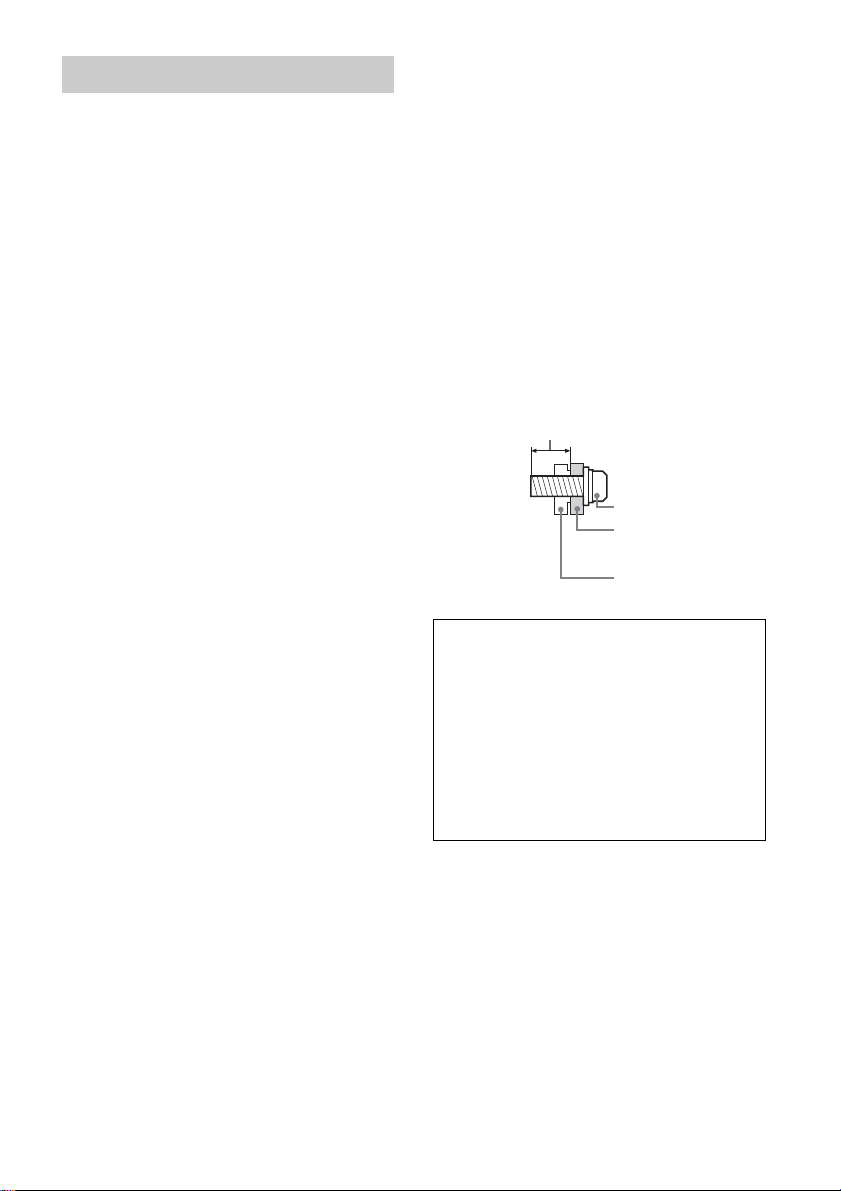
•Be sure to use the screws supplied
th the Wall-Mount Bracket when
wi
attaching the Wall-Mount Bracket
to the TV set. The supplied screws
are designed as indicated by
illustration when measured from
the attaching surface of the WallMount Bracket.
The diameter and length of the
crews differ depending on the
s
Wall-Mount Bracket model.
Use of screws other than those
supplie
d may result in internal
damage to the TV set or cause it to
fall, etc.
For product protection and
safety reasons, Sony strongly
recommends that you use the
Wall-Mount Bracket model
designed for your TV and the
wall-mounting of your TV
should be performed by Sony
dealers or licensed
contractors.
GB
6
Page 7
Transporti ng
30 cm
10 cm
10 cm
10 cm
Leave at least this space
around the set.
30 cm
10 cm
10 cm
Leave at least this space
around the set.
6 cm
Air circulation is blocked.
Wall Wall
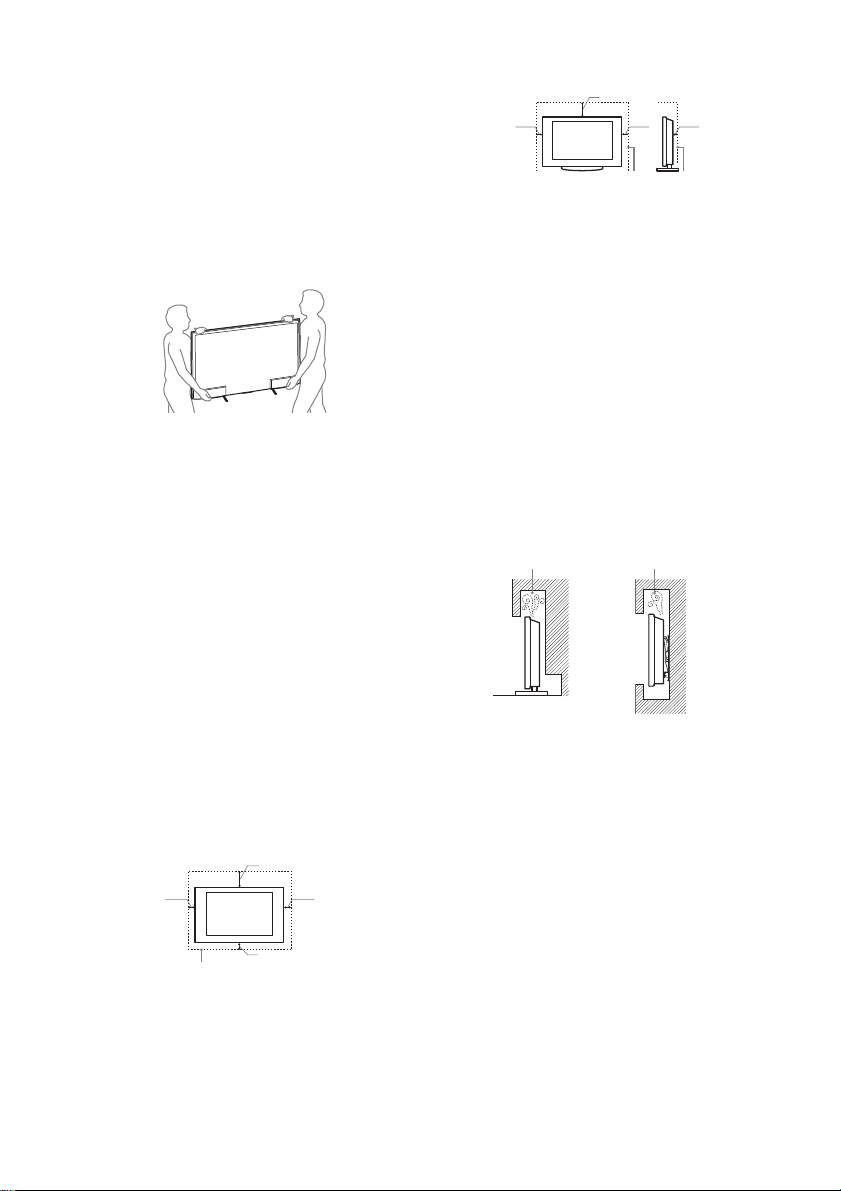
•Before transporting the TV set,
onnect all cables.
disc
•Two or three people are needed to
ansport a large TV set.
tr
•When transporting the TV set by
nd, hold it as shown below. Do
ha
not put stress on the LCD panel
and the frame around the screen.
•When transporting the TV set, do
subject it to jolts or excessive
not
vibration.
•When transporting the TV set for
epairs or when moving, pack it
r
using the original carton and
packing material.
Ventilation
•Never cover the ventilation holes
sert anything in the cabinet.
or in
•Leave space around the TV set as
shown below
.
•It is strongly recommended that
you use
a Sony Wall-Mount Bracket
in order to provide adequate air
circulation.
Installed on the wall
alled with stand
Inst
•To ensure proper ventilation and
revent the collection of dirt or
p
dust:
Do no
t lay the TV set flat, install
upside down, backwards, or
sideways.
Do no
t place the TV set on a
shelf, rug, bed or in a closet.
Do no
t cover the TV set with a
cloth, such as curtains, or items
such as newspapers, etc.
Do no
t install the TV set as
shown below.
AC power cord (Mains lead)
Handle the AC power cord (mains
lead) and outlet (mains socket) as
follows in order to avoid any risk of
fire, electrical shock or damage
and/or injuries:
Inser
O
When
t the plug fully into the AC
power outlet (mains socket).
perate the TV set on a 220 V AC
supply only.
wiring cables, be sure to
unplug the AC power cord (mains
lead) for your safety and take care
not to catch your feet on the
cables.
7
GB
Page 8
Disconnect the AC power cord
(mains lead) from the AC power
outlet (mains socket) before
working on or moving the TV set.
ep the AC power cord (mains
Ke
lead) away from heat sources.
Unplug the A
C power plug (mains
plug) and clean it regularly. If the
plug is covered with dust and it
picks up moisture, its insulation
may deteriorate, which could
result in a fire.
Note
•Do not pinch, bend, or twist the AC
wer cord (mains lead)
po
excessively.
The core conductors may be
xposed or broken.
e
•Do not modify the AC power cord
(mains lead).
•Do not put anything heavy on the
C power cord (mains lead).
A
•Do not pull on the AC power cord
(mains lead) itself when
onnecting the AC power cord
disc
(mains lead).
•Do not connect too many
ances to the same AC power
appli
outlet (mains socket).
•Do not use a poor fitting AC power
utlet (mains socket).
o
Prohibited Usage
Do not install/use the TV set in
locations, environments or
situations such as those listed
below, or the TV set may
malfunction and cause a fire,
electrical shock, damage and/or
injuries.
Location:
•Outdoors (in direct sunlight), at the
seashor
e, on a ship or other vessel,
inside a vehicle, in medical
institutions, unstable locations,
near water, rain, moisture or
smoke.
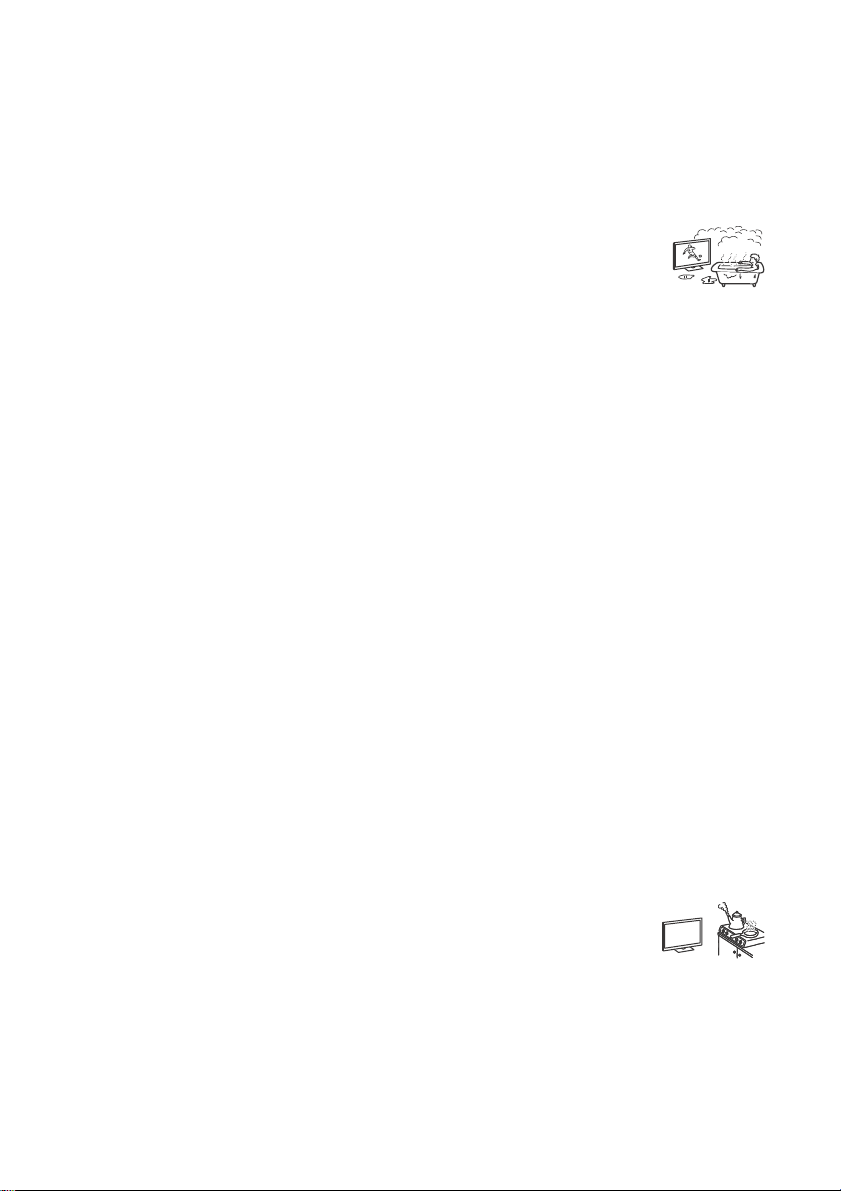
•If the TV is placed in
the changing r
oom of a
public bath or hot
spring, the TV may be
damaged by airborne sulphur, etc.
•For best picture quality, do not
xpose the screen to direct
e
illumination or sunlight.
•Avoid moving the TV from a cold
ea to a warm area. Sudden room
ar
temperature changes may cause
moisture condensation. This may
cause the TV to show poor picture
and/or poor colour. Should this
occur, allow moisture to evaporate
completely before powering the TV
on.
Environment:
•Places that are hot, humid, or
xcessively dusty; where insects
e
may enter; where it might be
exposed to mechanical vibration,
near flammable objects (candles,
etc). The TV set shall not be
exposed to dripping or splashing
and no objects filled with liquids,
such as vases, shall be placed on
the TV.
•Do not place the TV in
humid or dusty
a
space, or in a room
with oily smoke or steam (near
cooking tables or humidifiers). Fire,
electric shock, or warping may
result.
GB
8
Page 9
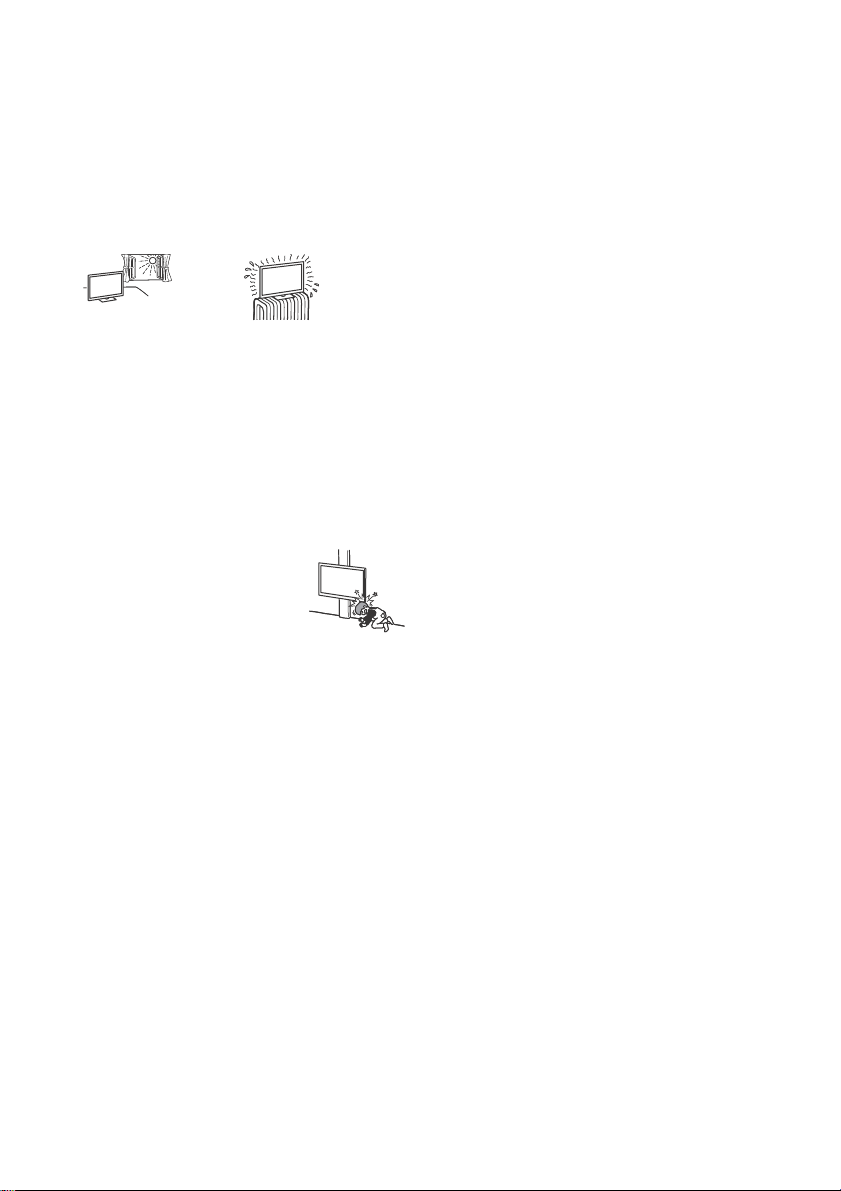
•Do not install the TV in places
subject to extreme temperature
such as in direct sunlight, near a
radiator or a heating vent. The TV
may overheat in such condition
which can cause deformation of
the enclosure and/or TV
malfunction.
Situation:
•Do not use when your hands are
t, with the cabinet removed, or
we
with attachments not
recommended by the
manufacturer. Disconnect the TV
set from AC power outlet (mains
socket) and antenna (aerial) during
lightning storms.
•Do not install the TV so
t it sticks out into
tha
an open space. Injury
or damage from a
person or object
bumping into the TV may result.
Broken pieces:
•Do not throw anything at the TV
t. The screen glass may break by
se
the impact and cause serious
injury.
•If the surface of the TV set cracks,
not touch it until you have
do
unplugged the AC power cord
(mains lead). Otherwise electric
shock may result.
When not in use
•If you will not be using the TV set
for several days, the TV set should
be disconnected from the AC
power (mains) for environmental
and safety reasons.
•As the TV set is not disconnected
om the AC power (mains) when
fr
the TV set is just turned off, pull the
plug from the AC power outlet
(mains socket) to disconnect the
TV set completely.
•However, some TV sets may have
eatures that require the TV set to
f
be left in standby to work correctly.
For children
•Do not allow children to climb on
the TV set.
•Keep small accessories out of the
each of children, so that they are
r
not mistakenly swallowed.
Handling of the batteries
The batteries should keep away
from children. If child swallowed the
batteries, consult to doctor
immediately.
Outer case broken battery should
t contact to water.
no
GB
9
Page 10

If the following problems occur...
Turn off the TV set and unplug the
AC power cord (mains lead)
immediately if any of the following
problems occur.
Ask your dealer or Sony service
entre to have it checked by
c
qualified service personnel.
When:
C power cord (mains lead) is
A
damaged.
oor fitting of AC power outlet
P
(mains socket).
TV se
Any li
t is damaged by being
dropped, hit or having something
thrown at it.
quid or solid object falls
through openings in the cabinet.
About LCD Monitor Temperature
When the LCD Monitor is used for
an extended period, the panel
surrounds become warm. You may
feel hot when touching there by the
hand.
Precautions
Viewing the TV
•View the TV in moderate light, as
viewing the TV in poor light or
during long period of time, strains
your eyes.
•When using headphones, adjust
lume so as to avoid
the vo
excessive levels, as hearing
damage may result.
LCD Screen
•Although the LCD screen is made
with high-precision technology
and 99.99% or more of the pixels
are effective, black dots may
appear or bright points of light
(red, blue, or green) may appear
constantly on the LCD screen. This
is a structural property of the LCD
screen and is not a malfunction.
•Do not push or scratch the front
, or place objects on top of this
filter
TV set. The image may be uneven
or the LCD screen may be
damaged.
•If this TV set is used in a cold place,
a smear may oc
the picture may become dark. This
does not indicate a failure. These
phenomena disappear as the
temperature rises.
•Ghosting may occur when still
es are displayed
pictur
continuously. It may disappear
after a few moments.
•The screen and cabinet get warm
en this TV set is in use. This is
wh
not a malfunction.
•The LCD screen contains a small
amount of
your local ordinances and
regulations for disposal.
cur in the picture or
liquid crystal. Follow
10
GB
Page 11
Handling and cleaning the screen
surface/cabinet of the TV set
Be sure to unplug the AC power
cord (mains lead) connected to the
TV set from AC power outlet (mains
socket) before cleaning.
To avoid material degradation or
een coating degradation,
scr
observe the following precautions.
•To remove dust from the screen
face/cabinet, wipe gently with a
sur
soft cloth. If dust is persistent,
wipe with a soft cloth slightly
moistened with a diluted mild
detergent solution.
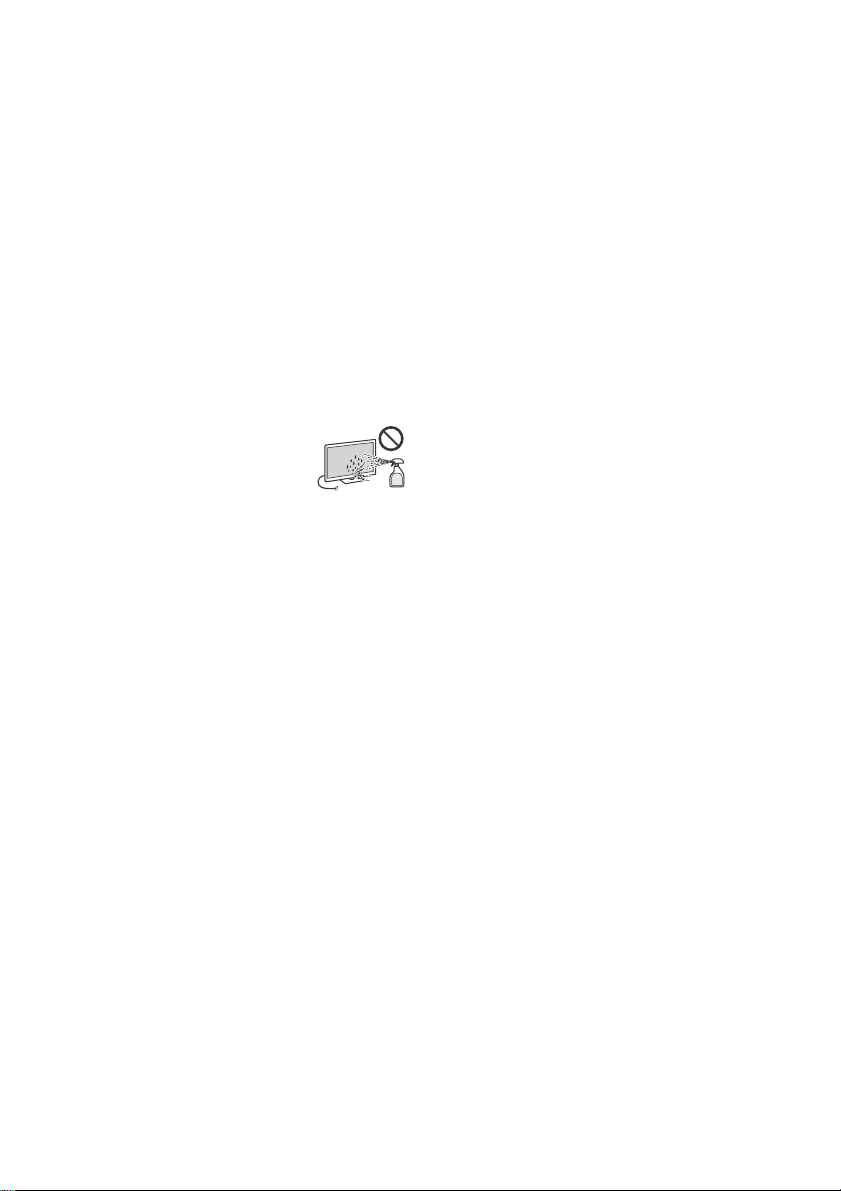
•Never spray water or
tergent directly on
de
the TV set. It may drip
to the bottom of the
screen or exterior parts and enter
the TV set, and may cause damage
to the TV set.
•Never use any type of abrasive
pad, alkaline/acid cleaner
scouring powder, or volatile
solvent, such as alcohol, benzene,
thinner or insecticide. Using such
materials or maintaining
prolonged contact with rubber or
vinyl materials may result in
damage to the screen surface and
cabinet material.
•Periodic vacuuming of the
ation openings is
ventil
recommended to ensure to proper
ventilation.
•When adjusting the angle of the
set, move it slowly so as to
TV
prevent the TV set from moving or
slipping off from its table stand.
,
Optional Equipment
•Keep optional components or any
equipment emitting
electromagnetic radiation away
from the TV set. Otherwise picture
distortion and/or noisy sound may
occur.
Wireless Function of the unit
•Do not operate this unit near
medical equipment (pacemaker,
etc.), as malfunction of the medical
equipment may result.
•Although this unit transmits/
eceives scrambled signals, be
r
careful of unauthorised
interception. We cannot be
responsible for any trouble as a
result.
Caution about handling the
remote control
•When replacing the battery, set the
polarity correctly. Do not short, recharge, force discharge, mixing old
and new batteries. Prohibit
soldering, disassembling, heating
and putting in fire. Remove empty
battery from the product
immediately.
•Dispose of batteries in an
ronmentally friendly way.
envi
Certain regions may regulate the
disposal of batteries. Please
consult your local authority.
•Handle the remote control with
are. Do not drop or step on it, or
c
spill liquid of any kind onto it.
•Do not place the remote control in
location near a heat source, a
a
place subject to direct sunlight, or
a damp room.
GB
11
Page 12
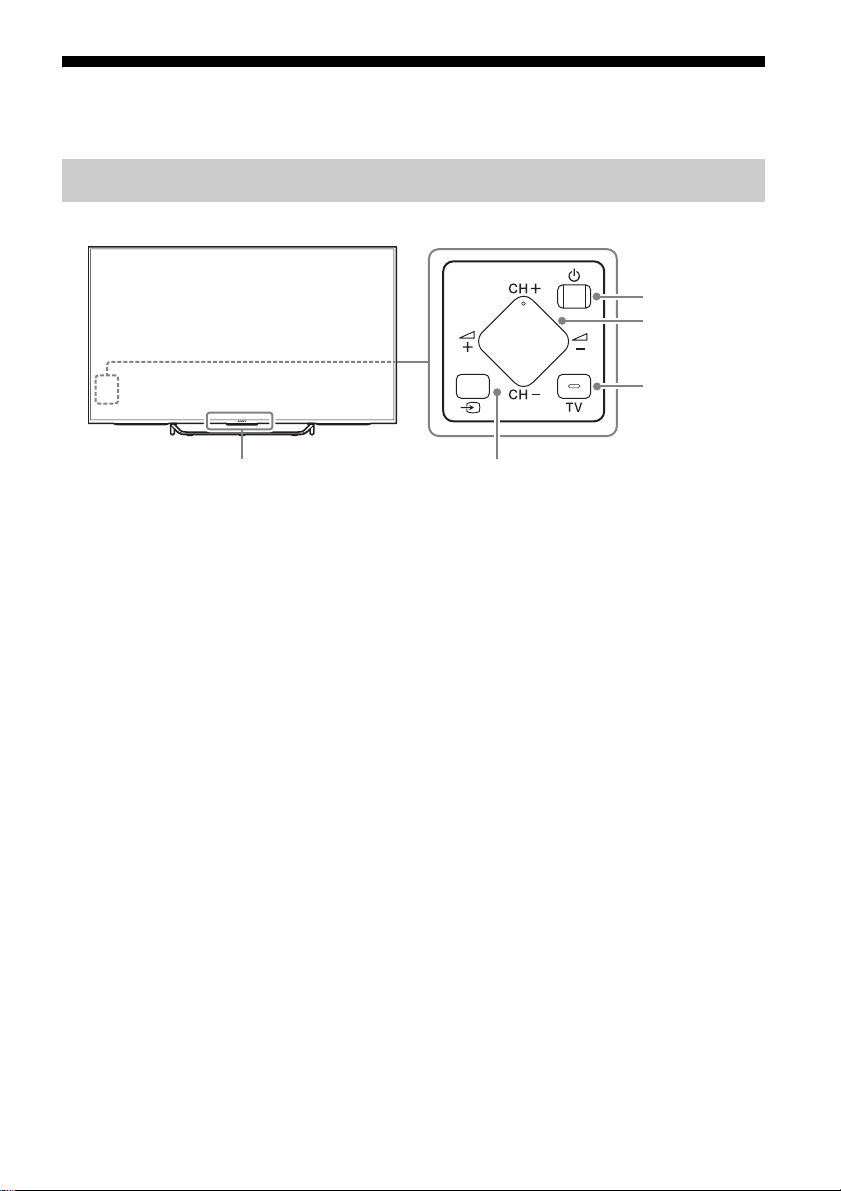
Parts and Controls
Ȫ
ȫ
Ȭ
ȭ
Controls and Indicators
Remote Control sensor* / Light
sensor*
The illumination LED lights up or
blinks ac
the TV.
•White
•Cyan
•Amber
/ Illumination LED
cording to the status of
When turning on the TV/picture
off mode/s
When connecting with a mobile
devic
Timer is set.
oftware update, etc.
e wirelessly.
(P
CH +/- (Channel)
TV
(In
* Do not place anything near the sensor.
ower)
+/- (V
Switch to a TV channel or input
rom other applications.
f
Display and select the input
sour
olume)
put select)
ce.
GB
12
Page 13
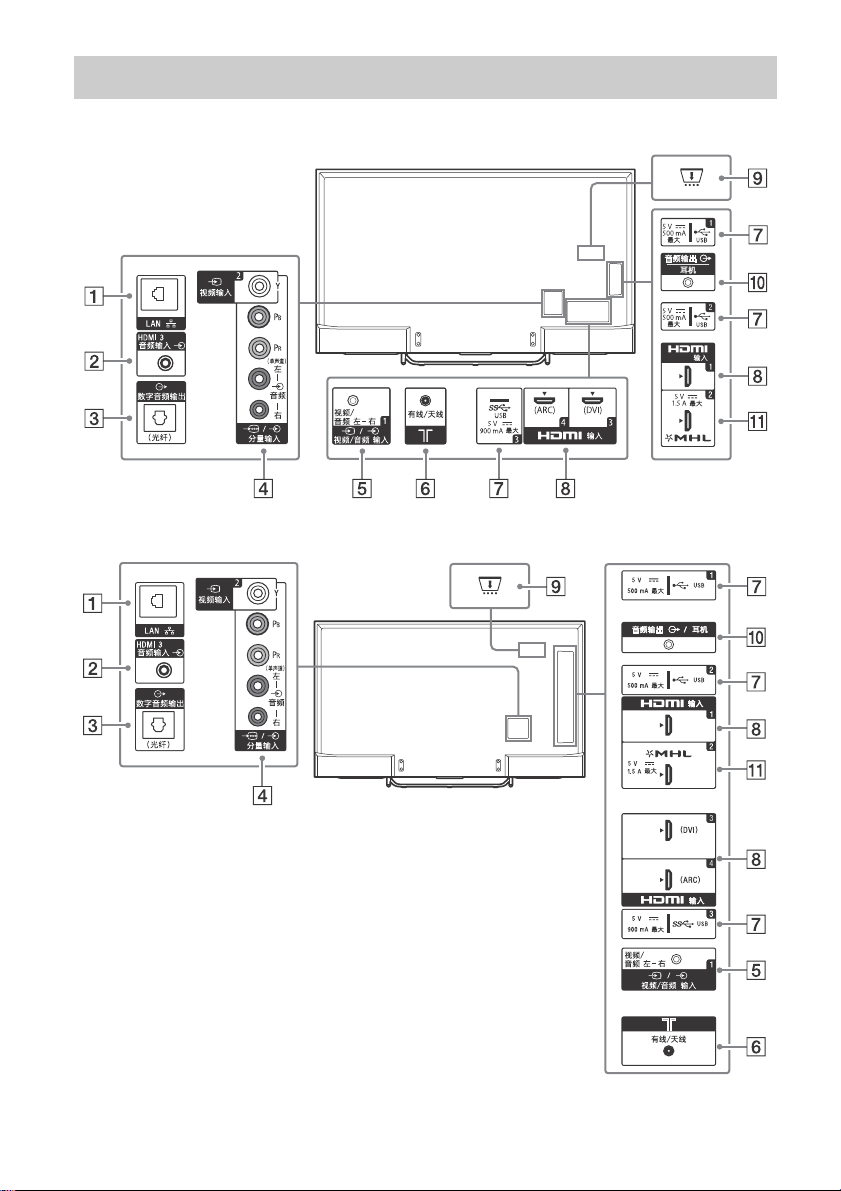
Inputs and Outputs
KD-75/65/55X8500C
KD-49/43X8300C
GB
13
Page 14
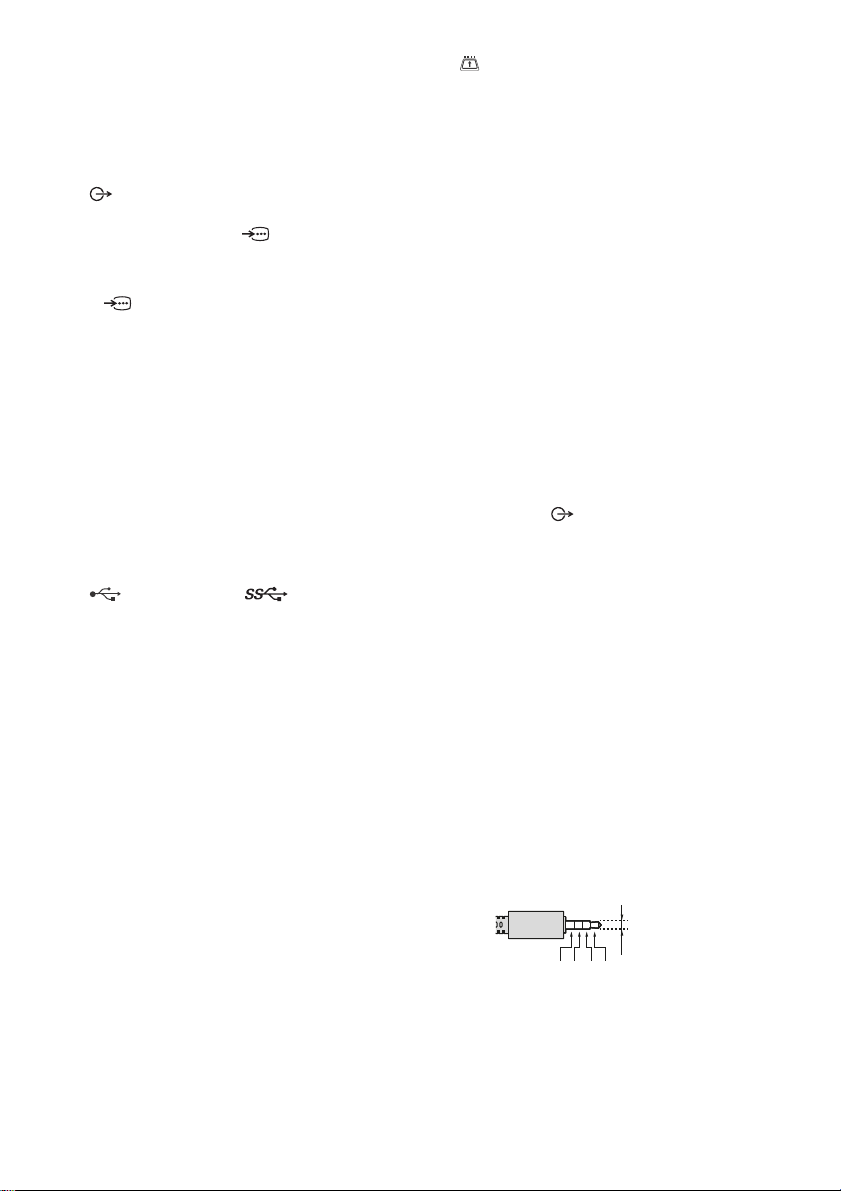
LAN
3.5 mm
1
2
3
4
1: 左
2: 视频
3: 接地
4: 右
HDMI 3 音频输入
For HDMI 3 analogue audio
co
nnection.
数字音频输出 (光纤)
视频输入 2, / 分量输入
• For a composite connection:
Use VIDEO IN 2, and (L/R
OMPONENT IN*1.
/ C
) of
• For a component connection:
Use Y, P
/
B, PR, and (L/R).
视频 / 音频输入 1
For a composite connection, use
the
supplied Analogue Extension
*1*2
Cable
.
(C
onditional Access Module)
• Provides access to pay TV
vices. For details, refer to the
ser
instruction manual supplied
with your CAM.
• Do not insert the smart card
ectly into the TV CAM slot. It
dir
must be fitted into the
Conditional Access Module
provided by your authorised
dealer.
• CAM is not supported in some
ountries/areas. Check with
c
your authorised dealer.
• A CAM message may appear
en you switch to a digital
wh
programme after using the
Internet video.
有
(
HD
14
线 / 天线
Connect to your cable or antenna
(aerial).
USB 1/2), (USB 3)
• Connecting a large USB device
may
interfere with other
connected devices beside it.
• When connecting a large USB
e, connect to the USB 1
devic
jack.
MI 输入 1/3/4
• If the device has a DVI jack,
co
nnect it to HDMI 输入 3
through a DVI - HDMI adaptor
interface (not supplied), and
connect the device's audio out
jack to HDMI 3 音频输入 .
• If connecting a digital audio
em that is compatible with
syst
Audio Return Channel (ARC)
technology, use HDMI 输入 4. If
not, an additional connection
with 数字音频输出 (光纤) is
necessary.
GB
频输出 / 耳机
音
• To listen to the TV’s sound
th
rough the connected
equipment, press 主菜单. Select
[Settings] [Sound]
[Headphone/A
udio out] and
then select the desired item.
MI 输入 2/MHL
HD
• You can connect your MHL
(M
obile High-definition Link)
device using an HD quality MHL
cable.
*1 When connecting mono equipment, connect
to the 左 ( 单声道 ) audio jack.
*2 Only on limited region/country/TV model.
Page 15
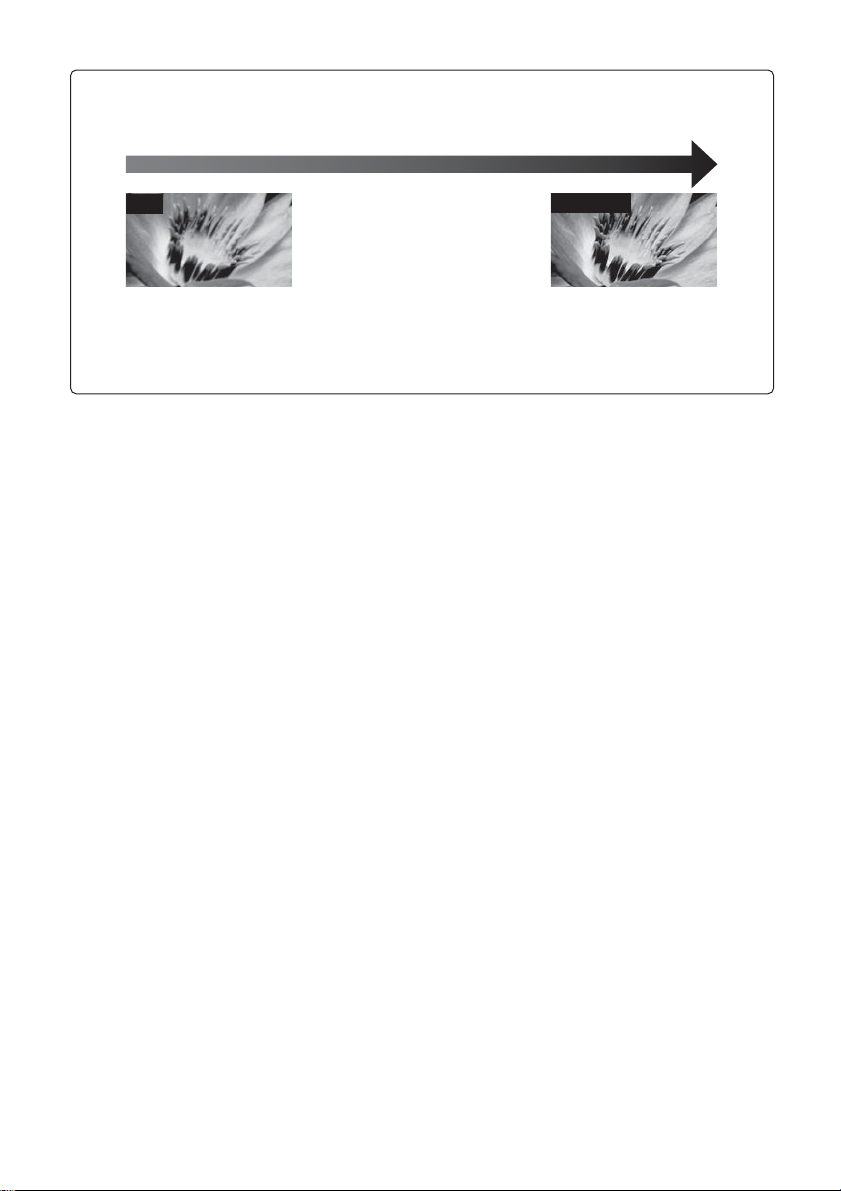
SD
4K / HD
Picture Quality
•AV composite cable
• Antenna (aerial) cable
Standard definition (SD) videos have
picture signals with a vertical
resolution of 480 (NTSC) or 576
(PAL/SECAM) lines.
• Component
cable
•HDMI cable
High definition (HD) videos have picture
signals with a vertical resolution of 720
or 1,080 lines. (For 4K vertical resolution:
2,160 lines)
GB
15
Page 16
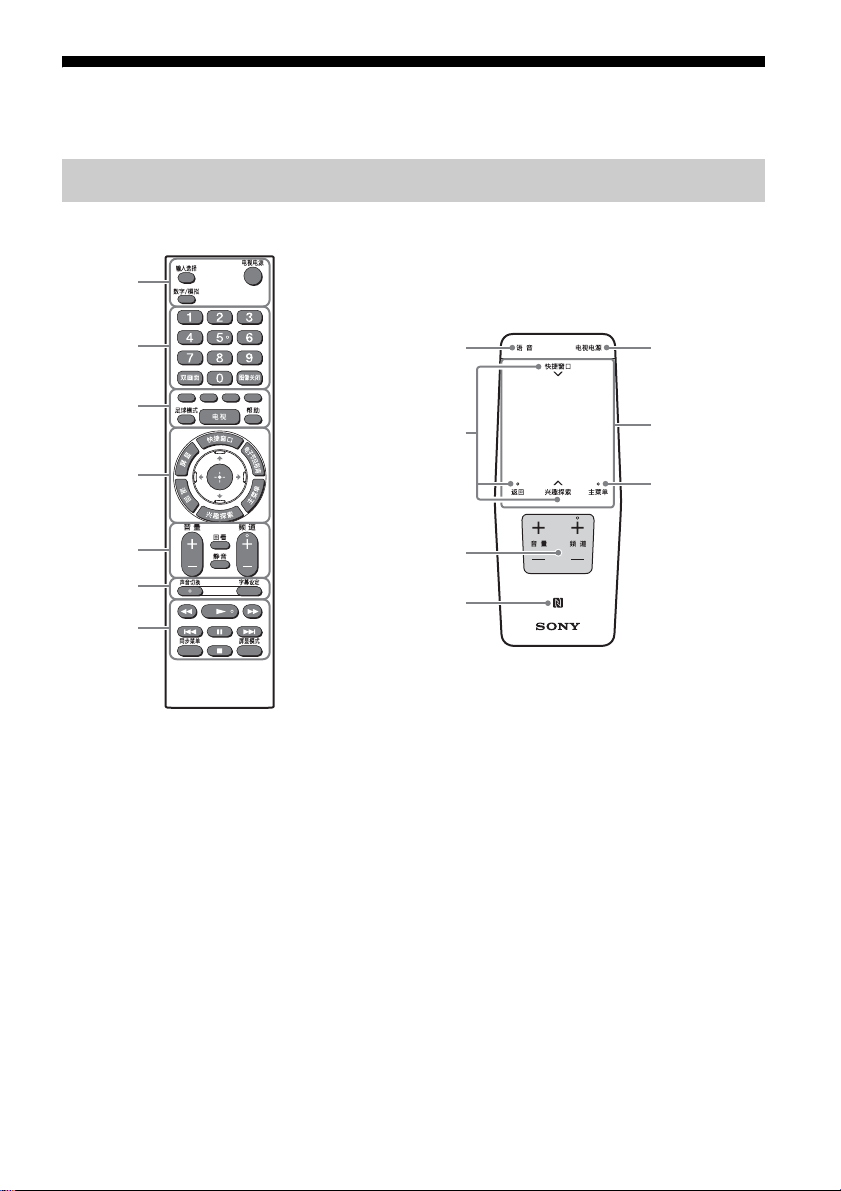
Using Remote Control
Ȫ
ȩ
ȫ
Ȭ
ȭ
Ȯ
ȯ
IR (infrared) Remote Control
ȱ
Ȳ
ȩ
Ȭ
Ȭ
ȭ
Touchpad Remote Control
For models with supplied Touchpad
Remote Control.
Remote Control Parts Description
输入选择
Display and select the input
ce.
sour
电视电源
Turn on or turn off the TV
andby mode).
(st
数字/模拟
Switch between digital and
analogue mode
GB
16
.
mber buttons
Nu
双画面
*1 *2
Display two pictures
simultaneously.
图象关闭
Turn picture off, and sound
mains on.
re
Page 17

Colour buttons
Execute correspondent function
hat time.
at t
足球模式
Turn Live Football Mode on or off
hen the feature is available).
(w
电视
Switch to a TV channel or input
rom other applications.
f
帮助
Display Help Menu.
捷窗口
快
Display a list of contextual
unctions.
f
You can also display it by slide
your finger from 快捷窗口
down
on the Touchpad Remote
Control.
音量 +/–
Adjusts volume.
回看
Jump back and forth between
two channe
ls or inputs. The TV
alternates between the current
channel or input and the last
channel or input that was
selected.
静音
Mute the sound. Press again to
estore the sound.
r
频道 +/–
Select the channel.
声音切
换
Change the language for the
ogramme currently being
pr
viewed.
屏显
Display information.
电子节目指南
*1
Display the digital programme
guide.
返回
Return to previous screen.
主菜单
Display the TV Home Menu.
兴趣探索
Bring up the Content Bar to
ch for content.
sear
You can also launch Content Bar
by slide
up your finger from 兴趣
探索 on the Touchpad Remote
Control.
//// (It
em select/Enter)
字幕设定
Turn subtitles on or off (when the
fe
ature is available).
//////
Operate media contents on TV
onnected BRAVIA Sync-
and c
compatible device.
同步菜单
Display the BRAVIA Sync Menu.
屏显模式
Change the screen format.
语音 (Micr
ophone)
Use Voice Function. (e.g., Search
rious content by voice.)
va
ouchpad
T
Operate the TV with the
uchpad.
to
GB
17
Page 18
(NFC)
Touch the device (e.g. some
els of Xperia) corresponding
mod
to the One-touch mirroring
function, then its screen is
displayed on the TV.
*1 The location, availability and function of
remote control button may vary depending
on your country/region/TV model.
*2 Twin Picture function will be available from
July 2015. You will receive Twin Picture
function automatically as a network software
upgrade. Make sure your TV is connected to
the Internet. If you do not have a network
connection, you will be able to download the
software from the Sony support website
using your PC. For details on how to upgrade,
please visit the Sony support website
service.sony.com.cn.
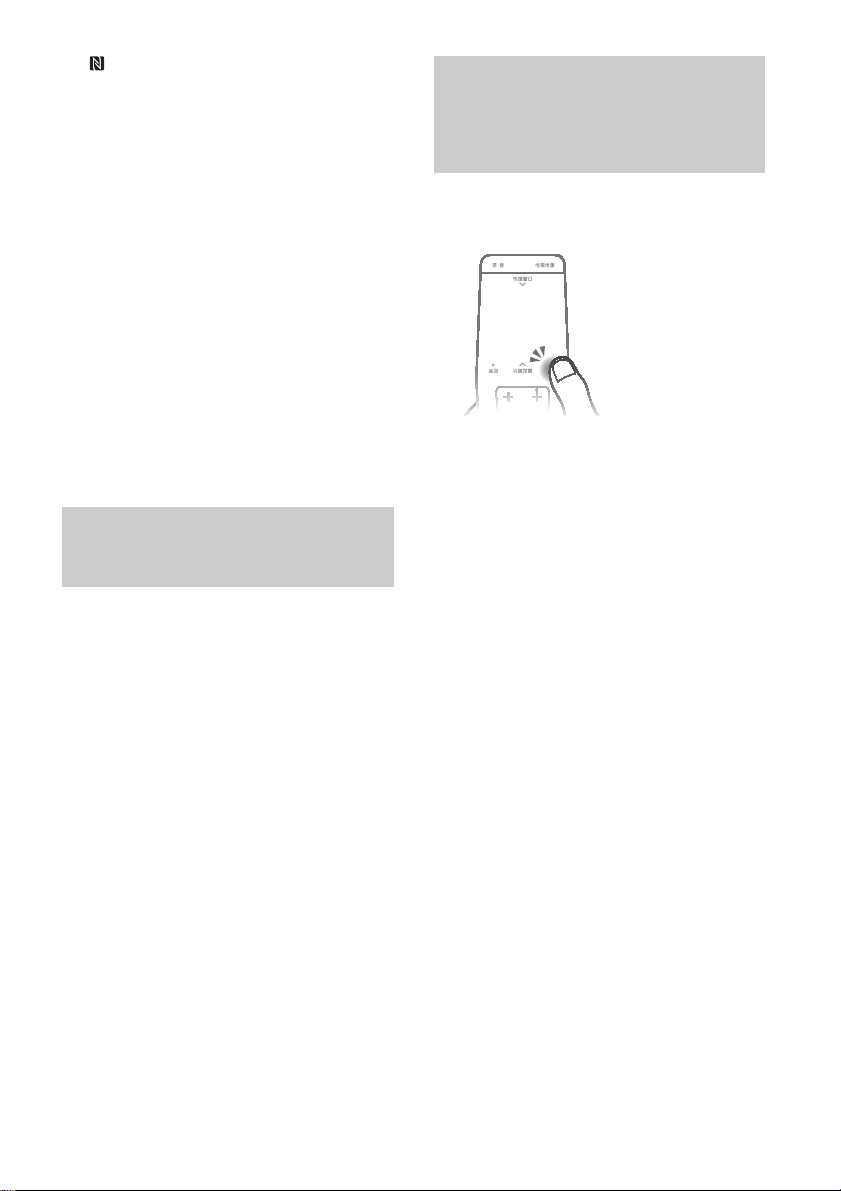
Using the Touchpad Remote Control
Touchpad Remote Control can only
be used after pairing with the TV.
To pair, follow the pairing screen
instruction.
Pairing screen can be displayed by
ressing the button on the TV
p
for 5 seconds, or select [Settings] [Touchpad Remote Control
settings] - [Pair Touchpad Remote
ntrol].
Co
Launching the Touchpad Remote Control Introduction/Tutorial
1 Press 主菜单 .
2 Select [Settings] - [Touchpad
Remote Control settings] [Start Introduction/Tutorial].
18
GB
Page 19
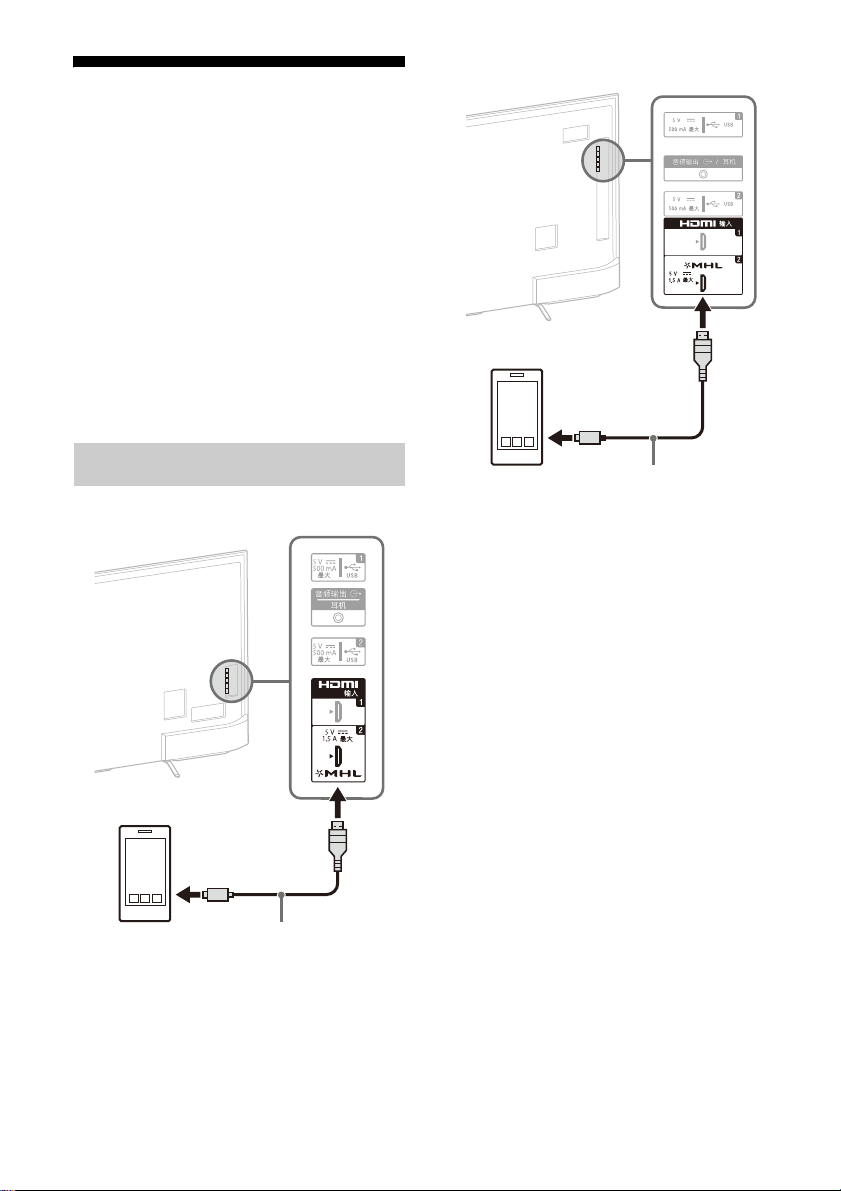
Connecting the TV
Use authorized MHL
CABLE with MHL logo
(not supplied)
MHL device
Use authorized MHL
CABLE with MHL logo
(not supplied)
MHL device
Note
• 在将电视机与有线网络连接时,请
务必在天线电缆与有线网络端子之
间接入随机提供的天线隔离器。否
则可能会引起着火等危险。
• 如果有线网络端子的形状特殊、无
法与天线隔离器连接,请另行购买
可将二者匹配的转接头连接使用。
• To select an input device
connected to the TV, press 输入选
择 .
Connecting MHL Device
KD-75/65/55X8500C
KD-49/43X8300C
The TV simultaneously charges the
MHL-compatible connected device
playing album/music/video
while
files. You can use the TV remote
control to control the connected
MHL-compatible device.
Note
• If [MHL charging during standby] is set
to [On], you can continue charging the
MHL-compatible device even when the
TV is in standby mode.
• Use authorized MHL 3 CABLE with MHL
logo for 4K smartphone or mobile
devices.
19
GB
Page 20

Troubleshooting
In order to keep your TV software
up-to-date, it is necessary to
download the latest software
information via the digital
broadcasting system or internet and
to update the software. Select
[Update Now] to start a software
update. The illumination LED
flashes white while the software is
updating. Do not unplug the AC
power cord (mains lead) during the
software update. If you do, the
software update may not finish
completely, and it may cause a
software malfunction. Software
updates can take up to 30 minutes.
If you do not wish to update the
software automatically, press 主菜单
and select [Help] [System
oftware update] [Automatic
s
ftware download] [Off].
so
When you unplug the TV and plug it
in, the TV may not be able to
in aga
turn on for a while even if you press
电视电源 on the remote control or
on the TV because it takes time
to initialize the system. Wait for
about 10 to 20 seconds, then
operate it again.
When the illumination LED is
flashing red, count how many
times it flashes (interval time is
three seconds).
If the illumination LED flashes red,
reset the TV by disconnecting the
AC power cord (mains lead) for two
minutes, then turn on the TV.
If the problem persists, contact your
aler or Sony service centre with
de
the number of times the
illumination LED flashes red
(interval time is three seconds).
Disconnect the AC power cord
(mains lead), and inform your
dealer or Sony service centre.
When the illumination LED is
not flashing, check the items as
follows.
You can also refer to
[Troubleshooting] in the Help Guide
or perform self-diagnosis by
selecting [Help]
diagnostics]. If the problem
persists, have your TV serviced by
qualified service personnel.
[Self
Troubles and Solutions
There is no picture (screen is
dark) and no sound.
Check the antenna (aerial)/
cable connection.
Connect the TV to AC power
(mains), and press on the TV
or 电视电源 on the remote
control.
Some programmes cannot be
tuned
Check the antenna (aerial)/
The remote control does not
func
Replace the batteries.
.
cable connection.
tion.
20
GB
Page 21
The [Parental lock] password
Rear of TV
has been forgotten.
Enter 9999 for the PIN code.
(PIN code 9999 is always
accepted.)
The TV surrounds become
rm.
wa
When the TV is used for an
extended period, the TV
surrounds become warm.
You may feel hot when
touching the
re by the hand.
The illumination LED is turned
on.
If you do not wish to light up
the illumination LED, you can
turn it off.
Press 主菜单 , then
select
[Settings] [Illumination LED]
[Off].
Frozen audio or video, a blank
een, or the TV does not
scr
respond to TV or remote
control buttons.
Perform a simple reset of the
TV by unplugging the AC power
cord (mains lead) for two
minutes, then plug it in again.
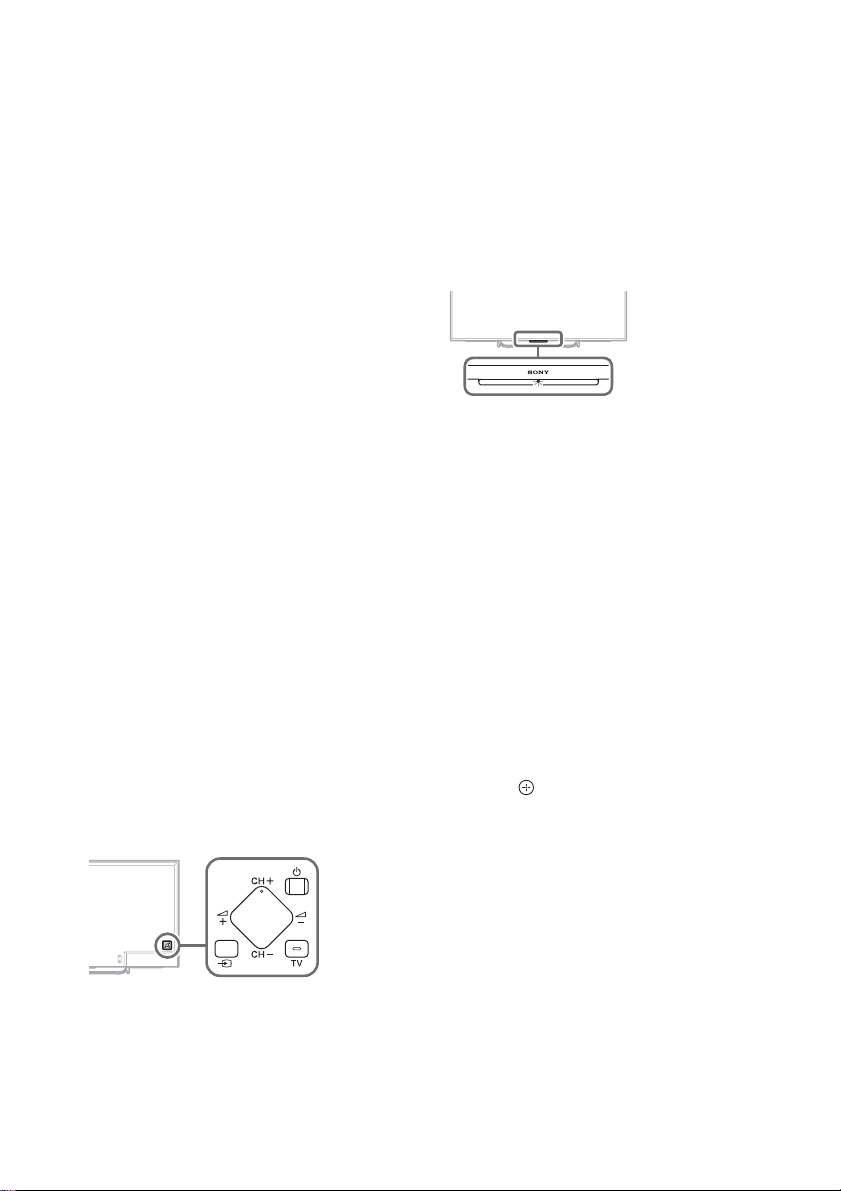
The , CH+/–, +/–, an
d
TV buttons cannot be located
on the TV.
See below illustration for
location of the buttons on the
TV.
Cannot connect to a wireless
outer by WPS (Wi-Fi Protected
r
Setup).
If you use WEP security, select
[Easy] [Wi-Fi] [Connect by
scan list]. Then,
select the
network name (SSID) you want
to connect.
Cannot find the required
etwork name in network
n
setup.
Select [[Manual entry]] and
press to enter network
name.
GB
21
Page 22

Specifications
System
Panel system
LCD (Liquid Crystal Display) Panel,
LED Backlight (Edge
KD-55X8500C, KD-49/43X8300C,
ect LED: KD-75/65X8500C)
Dir
TV system
Analogue: D/K, I, B/G, M
Digital: GB20600-2006/DVB-C*
Colour system/video system
Analogue: PAL, SECAM, NTSC4.43,
.58
NTSC3
Digital: Refer to the Help Guide
Channel coverage
Analogue: VHF/UHF/Cable
Digital: GB20600-2006/DVB-C*
Sound output
8 W + 8 W (at 7 % distortion)
Wireless technology
Protocol IEEE802.11ac/a/b/g/n
Bluetooth Version 4.1
* This function may not work due to
fferent cities, please contact
di
Sony China hotline
400 810 9000 for details.
Input/Output jacks
Antenna (aerial)/Cable
75 ohm external terminal for VHF/
F
UH
VIDEO/AUDIO IN 1
/
Video/Audio input (mini jack)
/ COMPONENT IN
BPR (Component Video): 1080p
YP
(50, 60 Hz), 1080i (50, 60 Hz), 720p
(50, 60 Hz), 576p, 576i, 480p, 480i
Audio input (phono pin jack)
LED:
VIDEO IN 2
Video input (common phono pin
with Y input)
HDMI IN 1, 2, 3, 4 (Support 4K
solution)
re
Video:
*1*2
4096 × 2160p (50, 60 Hz)
4096 × 2160p (24 Hz)
*2
3840 × 2160p (50, 60 Hz)
,
,
*1
,
3840 × 2160p (24, 25, 30 Hz),
1080p (30, 50, 60 Hz), 1080/24p,
1080i (50
, 60 Hz), 720p (30, 50,
60 Hz), 720/24p, 576p, 576i, 480p,
480i, P
*1
*2
C Formats
YCbCr 4:2:0 / 8bit only
3840 × 2160p is displayed when
4096 × 2160p is input
Audio: 5.1 channel linear PCM: 32,
1, 48, 88.2, 96, 176.4 and 192
44.
kHz, 16, 20 and 24 bits, Dolby
Digital and DTS
ARC (Audio Return Channel) (HDMI
4 only)
IN
MHL (HDMI IN 2)
Video:
4096 × 2160p (24 Hz)*, 3840 × 2160p
(24, 25, 30 Hz), 1080p (30, 50, 60
Hz), 1080/24p, 1080i (50, 60 Hz),
720p (30, 50, 60 Hz), 720/24p, 576p,
576i, 480p, 480i
* 3840 × 2160p is displayed when
4096 × 2160p is input
Audio: 5.1 channel linear PCM: 32,
1, 48, 88.2, 96, 176.4 and 192
44.
kHz, 16, 20 and 24 bits, Dolby
Digital and DTS
DIGITAL AUDIO OUT (OPTICAL)
Digital optical jack (Two channel
inear PCM, Dolby Digital, DTS)
l
HDMI 3 AUDIO IN
Analogue audio input (Stereo mini
ck)
ja
22
GB
Page 23
AUDIO OUT /Headphone (Stereo
mini jack)
Headphone, Audio output,
bwoofer
Su
CAM (Conditional Access Module)
slot
1, 2, 3
USB port 1 and 2 support High
ed USB (USB2.0).
Spe
USB port 3 supports Super Speed
B (USB3.0).
US
LAN
10BASE-T/100BASE-TX connector
epending on the operating
(D
environment of the network,
connection speed may differ.
10BASE-T/100BASE-TX
communication rate and
communication quality are not
guaranteed for this TV.)
Others
Optional accessories
Touchpad Remote Control:
RMF-TX100C (KD-49/43X8300C)
Wireless Subwoofer: SWF-BR100
MHL Cable: DLC-MC30
4K media player: FMP-X10
Camera and Microphone Unit:
CMU-BR
300
Product usage condition
Environment temperature
5 ºC – 35 ºC
Humidity
20 % – 80 %
Air pressure
86 kPa – 106 kPa
Power and others
Power requirements
220 V AC, 50 Hz
Viewing screen size (diagonal)
prox.)
(Ap
KD-75X8500C: 189.34 cm (75 inch)
KD-65X8500C: 163.90 cm (65 inch)
KD-55X8500C: 138.78 cm (55 inch)
KD-49X8300C: 123.20 cm (49 inch)
KD-43X8300C: 107.99 cm (43 inch)
Display resolution
3,840 dots (horizontal) × 2,160 lines
tical)
(ver
Power consumption
KD-75X8500C: 398 W
KD-65X8500C: 261 W
KD-55X8500C: 202 W
KD-49X8300C: 150 W
KD-43X8300C: 135 W
能效等级
*1
3级
Standby Power Consumption
*1 *2
Below than 0.5 W
Dimensions (Approx.) (w × h × d)
with Ta b l e-Top Stand
KD-75X8500C: 1,675 × 1,019 ×
323 mm
KD-65X8500C: 1,453 × 892 ×
265 mm
KD-55X8500C: 1,236 × 759 ×
222 mm
KD-49X8300C: 1,093 × 679 ×
201 mm
KD-43X8300C: 961 × 604 × 189 mm
without Table-Top Stand
KD-75X8500C: 1,675 × 970 × 79 mm
KD-65X8500C: 1,453 × 844 × 78 mm
KD-55X8500C: 1,236 × 722 × 60 mm
KD-49X8300C: 1,093 × 643 × 60 mm
KD-43X8300C: 961 × 568 × 60 mm
23
GB
Page 24
Mass (Approx.)
with Ta b l e-Top Stand
KD-75X8500C: 36.3 kg
KD-65X8500C: 25.5 kg
KD-55X8500C: 21.0 kg
KD-49X8300C: 15.4 kg
KD-43X8300C: 12.8 kg
without Table-Top Stand
KD-75X8500C: 34.8 kg
KD-65X8500C: 24.1 kg
KD-55X8500C: 19.9 kg
KD-49X8300C: 14.4 kg
KD-43X8300C: 11.8 kg
*1
根据 GB 24850-2013 《平板电视能
效限定值及能效等级》的规定。待
机消耗功率是等电视机完成所需的
内部处理达到稳定后的值。
*2
Standby power consumption will
increase when your TV is
connected to the network.
Note
• Do not remove the dummy
card from TV CAM (Conditional
Access Module) slot other than
to insert a smart card fitted in
CAM.
• Optional accessories
ailability depends on
av
countries/region/TV model/
stock.
• Design and specifications are
s
ubject to change without
notice.
• 产品的
能效指数详见能效标识。
• This TV set incorporates MHL 3.
Trademark information
•The terms HDMI and HDMI HighDefinition Multimedia Interface,
and the HDMI Logo are trademarks
or registered trademarks of HDMI
Licensing LLC in the United States
and other countries.
•Manufactured under license from
Dolby Labor
Dolby and the double-D symbol
e trademarks of Dolby
ar
Laboratories.
•“BRAVIA” and are
trademarks of Sony Corporation.
•Gracenote, Gracenote eyeQ,
acenote VideoID, Gracenote
Gr
Video Explore, the Gracenote logo
and logotype, and the “Powered
by Gracenote” logo are either
registered trademarks or
trademarks of Gracenote in the
United States and/or other
countries.
•Opera® Devices SDK from Opera
Softw
2014 Opera Software ASA. All
rights reserved.
•Wi-Fi, Wi-Fi Direct, Miracast and
Wi-Fi P
trademarks or registered
trademarks of
Wi-Fi Alliance.
•MHL, Mobile High-Definition Link
the MHL Logo are trademarks
and
or registered trademarks of MHL
Licensing, LLC.
atories.
are ASA. Copyright 1995-
rotected Setup are
24
GB
Page 25
•For DTS patents, see
http://patents.dts.com.
factured under license from
Manu
DTS, Inc.
DTS, the Symbol, & DTS and the
ymbol together are registered
S
trademarks, and DTS Digital
Surround is a trademark of DTS,
Inc. © DTS, Inc. All Rights
Reserved.
•Designed with UEI Technology
TM
Under License from Universal
Electronics Inc. Portions © UEI
2000 – 2014
•The Bluetooth® word mark and
logos ar
e owned by the Bluetooth
SIG, Inc. and any use of such marks
by Sony Corporation is under
license. Other trademarks and
trade names are those of their
respective owners.
• 2015 RealNetworks, Inc. Patents
Pending. All rights reserved.
RealNe
tworks logo is a trademark
of RealNetworks, Inc.
USB-IF SuperSpeed USB Trident logo
•
is a registered trademark of USB
Implementers Forum, Inc.
•TUXERA is a registered trademark
of Tuxera Inc. in the US and other
countries.
25
GB
Page 26
For models with supplied
Touchpad Remote Control:
•The N Mark is a trademark or
registered trademark of NFC
Forum, Inc. in the United States
and in other countries.
26
GB
Page 27

Page 28
制造商:
上海索广映像有限公司
上海市浦东新区川沙路 3777 号
邮编:201201
产品标准号:
•KD-75/65X8500C: Q31/0115000076C006-2015
•KD-55X8500C/49X8300C/43X8300C: Q31/0115000076C005-2015
产品标准号若有变更,请以产品外包装标注为准
Customer Support and Contact:
http://service.sony.com.cn/TV/index.htm
http://www.sony.com.cn/
出版日期:2015 年 3 月
© 2015 Sony Corporation Printed in China
 Loading...