

Page 1

SonicOS 7
DPI-SSL
Administration Guide
Page 2

Contents
About DPI-SSL 3
Using DPI-SSL 3
Supported Features 3
Support for Local CRL 4
TLS Certificate Status Request Extension 4
Blocking of SSH X11 Forwarding 4
Support for ECDSA-Related Ciphers 5
DPI-SSL and CFS HTTPS Content Filtering Work Independently 5
Original Port Numbers Retained in Decrypted Packets 6
Security Services 6
Deployment Scenarios 6
Proxy Deployment 6
Customizing DPI-SSL 7
Connections per Appliance Model 7
Configuring the DPI-SSL/TLS Client 8
Decryption Services > DPI-SSL/TLS Client 8
Viewing DPI-SSL Status 9
Deploying the DPI-SSL/TLS Client 9
Configuring General Settings 9
Selecting the Re-Signing Certificate Authority 12
Configuring Exclusions and Inclusions 13
Configuring DPI-SSL/TLS Server Settings 26
Decryption Services > DPI-SSL/TLS Server 26
About DPI-SSL/TLS Server Settings 27
Configuring General DPI-SSL/TLS Server Settings 27
Configuring Exclusions and Inclusions 27
Configuring Server-to-Certificate Pairings 28
SonicWall Support 30
About This Document 31
SonicOS 7 DPI-SSL Administration Guide
Contents
2
Page 3

About DPI-SSL
NOTE: DPI-SSL is a separate, licensed feature that provides inspection of encrypted HTTPS traffic and
other SSL-based IPv4 and IPv6 traffic.
Topics:
l Using DPI-SSL
l Deployment Scenarios
l Customizing DPI-SSL
l Connections per Appliance Model
1
Using DPI-SSL
Topics:
l Supported Features
l Security Services
Supported Features
Deep Packet Inspection of Secure Socket Layer (DPI-SSL) extends SonicWall’s Deep Packet Inspection
technology to the inspection of encrypted HTTPS traffic and other SSL-based traffic. The SSL traffic is
decrypted (intercepted) transparently, scanned for threats, and then re-encrypted and, if no threats or
vulnerabilities are found, sent along to its destination.
DPI-SSL provides additional security, application control, and data-leakage prevention for analyzing
encrypted HTTPS and other SSL-based traffic. DPI-SSL supports:
l Transport Layer Security (TLS) Handshake Protocol 1.2 and earlier versions – The TLS 1.2
communication protocol is supported during SSL inspection/decryption between the firewall and the
server in DPI-SSL deployments (previously, TLS 1.2 was only supported between client and firewall).
SonicOS also supports TLS 1.2 in other areas as well.
l SHA-256 – All re-signed server certificates are signed with the SHA-256 hash algorithm.
SonicOS 7 DPI-SSL Administration Guide
About DPI-SSL
3
Page 4

l Perfect Forward Secrecy (PFS) – Perfect Forward Secrecy-based ciphers and other stronger ciphers
are prioritized over weak ciphers in the advertised cipher suite. As a result, the client or server is not
expected to negotiate a weak cipher unless the client or server does not support a strong cipher.
DPI-SSL also supports application-level Bandwidth Management over SSL tunnels. App Rules HTTP
bandwidth management policies also applies to content that is accessed over HTTPS when DPI-SSL is
enabled for App Rules.
DPI-SSL for both client and server can be controlled by Access Rules.
Topics:
l Support for Local CRL
l TLS Certificate Status Request Extension
l Blocking of SSH X11 Forwarding
l Support for ECDSA-Related Cipher
l DPI-SSL and CFS HTTPS Content Filtering Work Independentlyt
l Original Port Numbers Retained in Decrypted Packets
Support for Local CRL
A Certificate Revocation List (CRL) is a list of digital certificates that have been revoked by the issuing
Certificate Authority (CA) before their scheduled expiration date and should no longer be trusted. A problem
with contacting the CA for this list is that the browser cannot confirm whether it has reached the CA’s servers
or if an attacker has intercepted the connection to bypass the revocation check.
Local CRL is relative to typical CRL (or online CRL). For typical CRL, the client needs to download the CLR
from a CRL distribution point. If the client is unable to download the CRL, then by default, the client trusts
the certificate. Contrary to typical CRL, Local CRL maintains a list of revoked certificates locally in import
memory for DPI-SSL to verify whether the certificate has been revoked.
For further information about this feature, contact Technical Support.
TLS Certificate Status Request Extension
DPI-SSL supports the TLS Certificate Status Request extension (formally known as OCSP stapling). By
supporting this extension, the certificate status information is delivered to the DPI-SSL client through an
already established channel, thereby reducing overhead and improving performance.
Blocking of SSH X11 Forwarding
NOTE: X11 Forwarding requires a valid SonicWall DPI-SSH license.
X is a popular window system for Unix workstations. Using X, a user can run remote X applications that open
their windows on the user’s local display (and vice versa, running local applications on remote displays). If
the remote server is outside after a firewall and administrator have blocked remote connections, user can
still use SSH tunneling to get the X display on a local machine. A user can thus circumvent the applicationbased security policies on the firewall, thereby creating security risks. As X protocol sessions between
applications and X servers are not encrypted while being transmitted over a network, an X11 protocol
SonicOS 7 DPI-SSL Administration Guide
About DPI-SSL
4
Page 5

connection can be routed through an SSH connection to provide security and stronger authentication. This
feature is called X11 forwarding An SSH client requests X forwarding when it connects to an SSH server
(assuming X forwarding is enabled in the client). If the server allows X forwarding for this connection, login
proceeds normally, but the server takes some special steps behind the scenes. In addition to handling the
terminal session, the server sets itself up as a proxy X server running on the remote machine and sets the
DISPLAY environment variable in the remote shell to point to the proxy X display. If an X client program is
run, it connects to the proxy. The proxy behaves just like a real X server, and in turn instructs the SSH client
to behave as a proxy X client, connecting to the X server on the local machine. The SSH client and server
then cooperate to pass X protocol information back and forth over the SSH pipe between the two X sessions,
and the X client program appears on your screen just as if it had connected directly to your display. DPI-SSH
X11 forwarding supports these clients:
l SSH client for Cygwin
l Putty •secureCRT
l SSH on Ubutu
l SSH on centos
DPI-SSH X11 Forwarding supports the SSH servers on:
l Fedora
l Ubuntu
SSH X11 Forwarding supports both route mode and wire mode. For:
l Wire mode, SSH X11 Forwarding is only supported in the secure (active DPI of inline traffic) mode.
l Route mode, here is no limitation.
The maximum number of connections supported for SSH X11 Forwarding is same as for DPI-SSH:
1000.DPI-SSH.
Support for ECDSA-Related Ciphers
DPI-SSL Client supports ECDSA (Elliptic Curve Digital Signature Algorithm) ciphers:
l TLS_ECDHE_ECDSA_WIATH_AES_128_GCM_SHA256
l TLS_ECDH_RSA_WITH_AES_128_GCM_SHA256
DPI-SSL and CFS HTTPS Content Filtering Work Independently
DPI-SSL and CFS HTTPS content filtering can be enabled at the same time and function as follows:
l If DPI-SSL Client Inspection is disabled, Content Filter Service filters HTTPS connections.
l If DPI-SSL Client Inspection is enabled, but the Content Filter option is not selected, Content Filter
Service filters HTTPS connections.
l If DPI-SSL Client Inspection is enabled and the Content Filter option is selected, CFS does not filter
HTTPS connections.
SonicOS 7 DPI-SSL Administration Guide
About DPI-SSL
5
Page 6

Original Port Numbers Retained in Decrypted Packets
For encrypted connections DPI-SSL/DPI-SSH connections, the decrypted packet shows the destination port
as 80 (in the case of HTTPS). When the decrypted packets are observed in packet capture/Wireshark, they
now retain the original port numbers. The port number change applies only to the packet capture and not to
the actual packet or connection cache.
Security Services
The following security services and features can use DPI-SSL:
Gateway Anti-Virus Content Filtering
Gateway Anti-Spyware Application Firewall
Intrusion Prevention
Deployment Scenarios
DPI-SSL has two main deployment scenarios:
l Client DPI-SSL: Used to inspect HTTPS traffic when clients on the appliance’s LAN access content
located on the WAN. Exclusions to DPI-SSL can be made on a common-name or category basis.
l Server DPI-SSL: Used to inspect HTTPS traffic when remote clients connect over the WAN to
access content located on the appliance’s LAN.
Proxy Deployment
DPI-SSL supports proxy deployment, where all client browsers are configured to redirect to a proxy server,
but an appliance sits between the client browsers and the proxy server. All DPI-SSL features are supported
in this scenario, including supporting domain exclusions when the domain is part of a virtual hosting server,
or in some cloud deployments, wherein the same server IP can be used by multiple domains.
Additionally, typical data center server farms are fronted with a load balancer and/or reverse SSL Proxy to
offload SSL processing on the servers. For a load balancer fronting the servers and doing decryption, the
appliance usually only sees the IP of the load balancer, and the load balancer decrypts the content and
determines the specific server to assign this connection to. DPI-SSL now has a global policy option to
disable an IP-based exclusion cache. The exclusions continues to work even if the IP-based exclusion cache
is off.
SonicOS 7 DPI-SSL Administration Guide
About DPI-SSL
6
Page 7

Customizing DPI-SSL
IMPORTANT: Add the NetExtender SSL VPN gateway to the DPI SSL IP-address exclusion list. As
NetExtender traffic is PPP-encapsulated, having SSL VPN decrypt such traffic does not produce
meaningful results.
In general, the policy of DPI-SSL is to secure any and all traffic that flows through the appliance. This may or
may not meet your security needs, so DPI-SSL allows you to customize what is processed.
DPI-SSL comes with a list (database) of built-in (default) domains excluded from DPI processing. You can
add to this list at any time, remove any entries you’ve added, and/or toggle built-in entries between
exclusion from and inclusion in DPI processing. DPI-SSL also allows you to exclude or include domains by
common name or category (for example, banking or health care).
Excluded sites, whether by common name or category, however, can become a security risk that can be
exploited in the future by exploit kits that circumvent the appliance and are downloaded to client machines or
by a man-in-the-middle hijacker presenting a fake server site/certificate to an unsuspecting client. To
prevent such risks, DPI-SSL allows excluded sites to be authenticated before exclusion.
As the percentage of HTTPS connections increase in your network and new https sites appear, it is
improbable for even the latest SonicOS version to contain a complete list of built-in/default exclusions.
Some HTTPS connections fail when DPI-SSL interception occurs due to the inherent implementation of a
new client app or the server implementation, and these sites might need to be excluded on the appliance to
provide a seamless user experience. SonicOS keeps a log of these failed connections that you can
troubleshoot and use to add any trusted entries to the exclusion list.
In addition to excluding/including sites, DPI-SSL provides both global authentication policy and a granular
exception policy to the global one. For example, with a global policy to authenticate connection, some
connections may be blocked that are in essence safe, such as new trusted CA certificates or a a self-signed
server certificate of a private (or local-to-enterprise deployment) secure cloud solution. The granular option
allows you to exclude individual domains from the global authentication policy.
You can configure exclusions for a domain that is part of a list of domains supported by the same server
(certificate). That is, some server certificates contain multiple domain names, but you want to exclude just
one of these domains without having to exclude all of the domains served by a single server certificate. For
example, you can exclude youtube.com without having to exclude any other domain, such as google.com,
even though *.google.com is the common name of the server certificate that has youtube.com listed as an
alternate domain under Subject Alternate-Name extension.
Connections per Appliance Model
To learn about the hardware model and its maximum concurrent connections to perform the Client DPI-SSL
inspections, refer to the following platform datasheets: SonicWall TZ Series.
Refer to the SonicWall resources page for more information about our Product Series. Search for high-end,
mid-range, entry level, and virtual firewall details, such as Maximum connections (DPI SSL), from the By
Product Series drop-down menu.
SonicOS 7 DPI-SSL Administration Guide
About DPI-SSL
7
Page 8
Configuring the DPI-SSL/TLS Client
Topics:
l Decryption Services > DPI-SSL/TLS Client
l Viewing DPI-SSL Status
l Deploying the DPI-SSL/TLS Client
Decryption Services > DPI-SSL/TLS Client
2
TIP: For information about DPI-SSL, see About DPI-SSL.
SonicOS 7 DPI-SSL Administration Guide
Configuring the DPI-SSL/TLS Client
8
Page 9

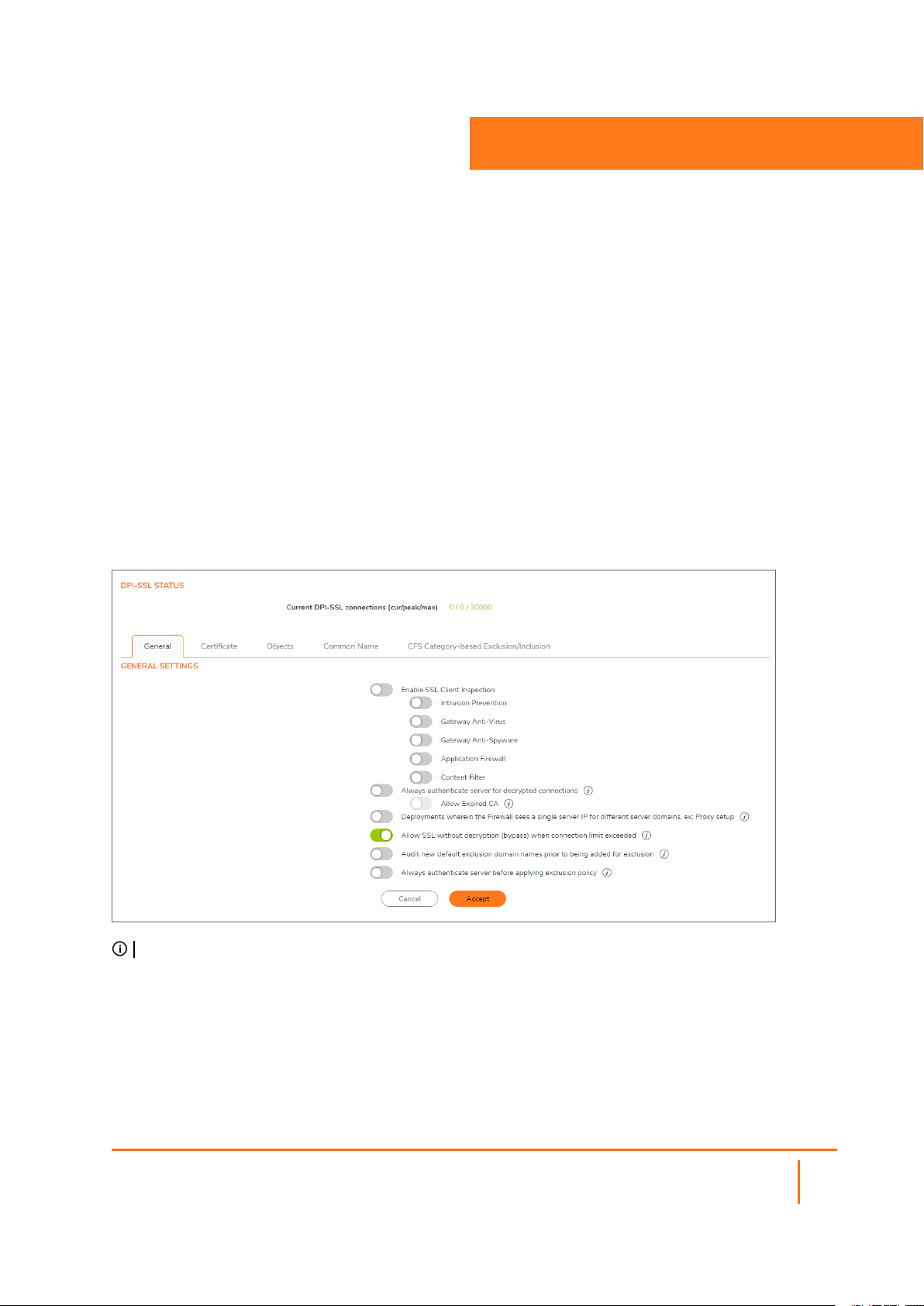
Viewing DPI-SSL Status
The DPI-SSL Status section displays the current DPI-SSL connections, peak connections, and maximum
connections.
Deploying the DPI-SSL/TLS Client
The DPI-SSL/TLS Client deployment scenario typically is used to inspect HTTPS traffic when clients on the
LAN browse content located on the WAN. In this scenario, the firewall typically does not own the certificates
and private keys for the content it is inspecting. After performing DPI-SSL inspection, the appliance re-writes
the certificate sent by the remote server and signs this newly generated certificate with the certificate
specified in the Client DPI-SSL configuration. By default, this is the firewall certificate authority (CA)
certificate, but a different certificate can be specified. Users should be instructed to add the certificate to
their browser’s trusted list to avoid certificate trust errors.
Topics:
l Configuring General Settings
l Selecting the Re-Signing Certificate Authority
l Configuring Exclusions and Inclusions
l Excluding/Including by Common Name
l Client DPI-SSL Examples
Configuring General Settings
Topics:
l Enabling SSL Client Inspection
l Enabling DPI-SSL Client on a Zone
l Enabling DPI-SSL Server on a Zone
Enabling SSL Client Inspection
To enable SSL Client inspection:
1.
Navigate to POLICY | DPI-SSL > Client SSL.
2.
Click General.
SonicOS 7 DPI-SSL Administration Guide
Configuring the DPI-SSL/TLS Client
9
Page 10
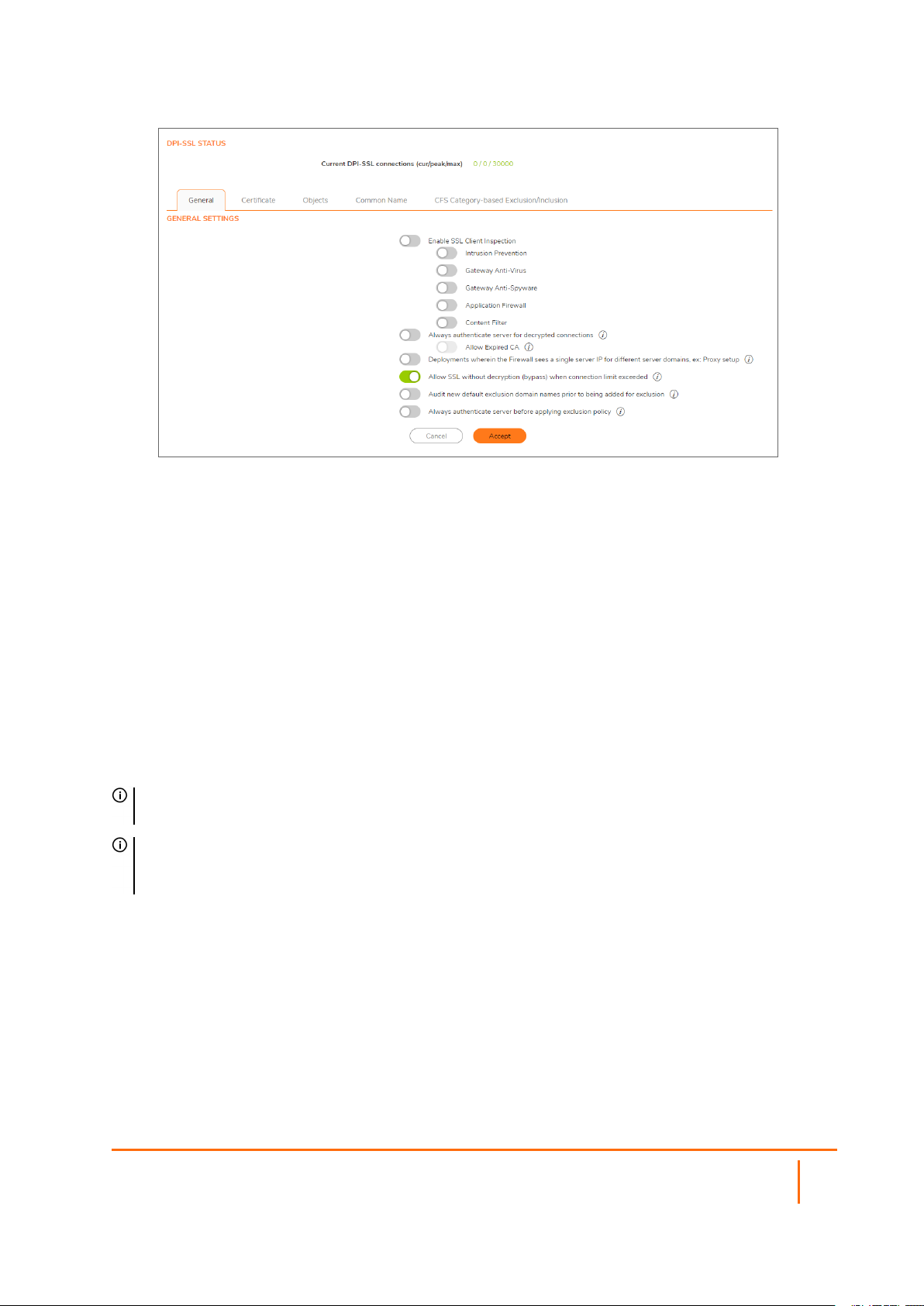
3.
Select Enable SSL Client Inspection. This option is not selected by default..
4.
Select one or more services with which to perform inspection; none are selected by default:
l Intrusion Prevention
l Gateway Anti-Virus
l Gateway Anti-Spyware
l Application Firewall
l Content Filter
5.
To authenticate servers for decrypted/intercepted connections, select Always authenticate server
for decrypted connections. When enabled, DPI-SSL blocks connections:
l To sites with untrusted certificates.
l If the domain name in the Client Hello cannot be validated against the Server Certificate for
the connection.
This option is not selected by default. When this option is selected, Allow Expired CA becomes available.
IMPORTANT: Only enable this option if you need a high level of security. Blocked connections show up
in the connection failures list, as described in Showing Connection Failures.
TIP: If you enable this option, use the Skip CFS Category-based Exclusion option (see
Excluding/Including Common Names) to exclude a particular domain or domains from this global
authenticate option. This is useful to override any server authentication-related failures of trusted sites.
6.
To allow expired or intermediate CAs, select Allow Expired CS. This option is not selected by
default. If it is not selected, connections are blocked if the domain name in the Client Hello cannot be
validated against the server certificate for the connections.
7.
To disable use of the server IP address-based dynamic cache for exclusion, select Deployments
wherein the Firewall sees a single server IP for different server domains, ex: Proxy setup.
This option is not selected by default.
This option is useful for proxy deployments, where all client browsers redirect to a proxy server, including if
appliance is between the client browsers and the proxy server. All DPI-SSL features are supported, including
SonicOS 7 DPI-SSL Administration Guide
Configuring the DPI-SSL/TLS Client
10
Page 11

domain exclusions when the domain is part of a virtual hosting server, as part of a server farm fronted with a
load balancer, or in some cloud deployments, wherein the same server IP can be used by multiple domains.
In such deployments, all server IPs as seen by the appliance are the proxy server’s IP. It is, therefore,
imperative that in proxy deployments, IP-based exclusion cache is disabled. Enabling this option does not
affect SonicOS’s capability to perform exclusions.
8.
By default, new connections over the DPI-SSL connection limit are bypassed. To allow new
connections to bypass decryption instead of being dropped when the connection limit is exceeded,
select the Allow SSL without decryption (bypass) when connection limit exceeded checkbox. This
option is selected by default.
To ensure new connections over the DPI-SSL connection limit are dropped, deselect/disable this checkbox.
9.
To audit new, built-in exclusion domain names before they are added for exclusion, select the Audit
new built-in exclusion domain names prior to being added for exclusion checkbox. By default, this
checkbox is not enabled.
When this option is enabled, whenever changes to the built-in exclusion list occur, for example, an upgrade
to a new firmware image or other system-related actions, a notification pop-up dialog displays over the
Decryption Services > DPI-SSL/TLS Client page with the changes. You can inspect/audit the new
changes and accept or reject any, some, or all of the new changes to the built-in exclusion list. At this point,
the run-time exclusion list is updated to reflect the new changes.
If this option is disabled, SonicOS accepts all new changes to the built-in exclusion list and adds them
automatically.
10.
To always authenticate a server before applying a common-name or category exclusion policy, select
the Always authenticate server before applying exclusion policy checkbox. This option is not
selected by default. When enabled, DPI-SSL blocks excluded connections:
l To sites with untrusted certificates.
l If the domain name in the Client Hello cannot be validated against the Server Certificate for
the connection.
This is a useful feature to authenticate the server connection before applying exclusion policies. Enabling
this option ensures that the appliance does not blindly apply exclusion on connections and thereby create a
security hole for exclusion sites or sites belonging to excluded categories. This is especially relevant when
banking sites, as a category, are excluded.
By validating both the server certificate and the domain name in the Client Hello before applying an
exclusion policy, SonicOS can reject untrusted sites and potentially block a type of zero-day attack from
taking place. The SonicOS implementation takes the “trust-but-verify” approach to ensure that a domain
name that matches the exclusion policy criteria is validated first, thus preventing an unsuspecting client from
phishing or URL-redirect-related attacks.
IMPORTANT: If you are excluding alternate domains in the Subject-Alternate-Name extension, it is
recommended that you enable this option.
TIP: If you enable this option, use the Skip CFS Category-based Exclusion option (see
Excluding/Including Common Names) to exclude a particular domain or domains from this global
authenticate option. This is useful to override any server authentication-related failures of trusted sites.
11.
Click Accept.
SonicOS 7 DPI-SSL Administration Guide
Configuring the DPI-SSL/TLS Client
11
Page 12

Enabling DPI-SSL Client on a Zone
To enable DPI-SSL Client on a zone:
1.
Navigate to OBJECT | Match Objects > Zones.
2.
Click the Edit icon for the zone to be configured. The Edit Zone dialog displays.
3.
Select Enable SSL Client Inspection. This option is not selected by default.
4.
Finish configuring the zone.
5.
Click OK.
6.
Repeat Step 2 through Step 5 for each zone on which to enable DPI-SSL client inspection.
Enabling DPI-SSL Server on a Zone
To enable DPI-SSL Server on a zone:
1.
Navigate to Navigate to POLICY | DPI-SSL > Server SSL.
TIP: For information about configuring DPI-SSL servers, see Configuring DPI-SSL/TLS Server Settings.
2.
Select Enable SSL Server Inspection. This option is not selected by default.
3.
Select one or more types of inspection.
4.
Click ACCEPT.
5.
Navigate to OBJECT | Match Objects > Zones.
6.
Click the Edit icon for the zone to be configured. The Edit Zone dialog displays.
7.
Select Enable SSL Server Inspection. This option is not selected by default.
8.
Finish configuring the zone.
9.
Click OK.
10.
Repeat Step 6 through Step 8 for each zone on which to enable DPI-SSL server inspection
Selecting the Re-Signing Certificate Authority
The re-signing certificate replaces the original certificate signing authority only if that authority certificate is
trusted by the firewall. If the authority is not trusted, then the certificate is self-signed. To avoid certificate
errors, choose a certificate that is trusted by devices protected by DPI-SSL.
NOTE: For information about requesting/creating a DPI SSL Certificate Authority (CA) certificate, see
the Knowledge Base article, How to request/create DPI-SSL Certificate Authority (CA) certificates for
the purpose of DPI-SSL certificate resigning (SW14090).
To select a re-signing certificate:
1.
Navigate to the POLICY | DPI-SSL > Client SSL page.
2.
Click Certificate.
SonicOS 7 DPI-SSL Administration Guide
Configuring the DPI-SSL/TLS Client
12
Page 13
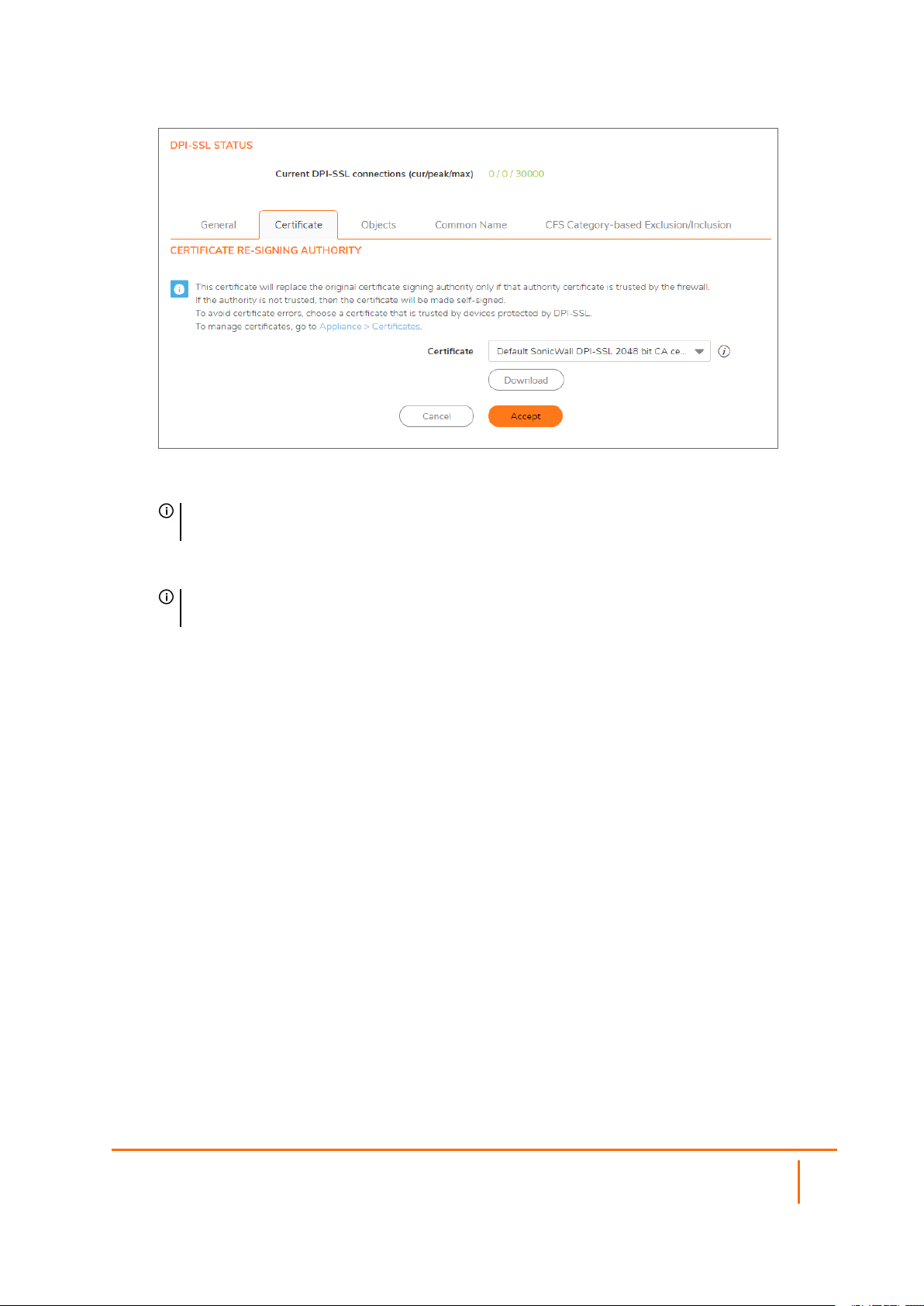
3.
Select the certificate to use from the Certificate drop-down menu. By default, DPI-SSL uses the
Default SonicWall DPI-SSL CA certificate to re-sign traffic that has been inspected.
NOTE: If the certificate you want is not listed, you can import it from the DEVICE | Settings >
Certificates page.
4.
To download the selected certificate to the firewall, click the (download) link. The Opening
filename dialog appears.
TIP: To view available certificates, click on the (Manage Certificates) link to display the
DEVICE | Settings > Certificates page.
a.
Ensure the Save File radio button is selected.
b.
Click OK.
The file is downloaded.
5.
Click Accept.
Adding Trust to the Browser
For a re-signing certificate authority to successfully re-sign certificates, browsers have to trust the certificate
authority. Such trust can be established by having the re-signing certificate imported into the browser's
trusted CA list. Follow your browser’s instructions for importing re-signing certificates.
Configuring Exclusions and Inclusions
By default, when DPI-SSL is enabled, it applies to all traffic on the appliance. You can customize to which
traffic DPI-SSL inspection applies:
l Exclusion/Inclusion lists exclude/include specified objects and groups
l Common Name exclusions excludes specified host names
l CFS Category-based Exclusion/Inclusion excludes or includes specified categories based on
CFS categories
SonicOS 7 DPI-SSL Administration Guide
Configuring the DPI-SSL/TLS Client
13
Page 14

This customization allows individual exclusion/inclusion of alternate names for a domain that is part of a list
of domains supported by the same server (certificate). In deployments that process a large amount of traffic,
to reduce the CPU impact of DPI-SSL and to prevent the appliance from reaching the maximum number of
concurrent DPI-SSL inspected connections, it can be useful to exclude trusted sources.
NOTE: If DPI-SSL is enabled on the firewall when using Google Drive, Apple iTunes, or any other
application with pinned certificates, the application may fail to connect to the server. To allow the
application to connect, exclude the associated domains from DPI-SSL; for example, to allow Google
Drive to work, exclude:
.google.com
.googleapis.com
.gstatic.com
As Google uses one certificate for all its applications, excluding these domains allows Google
applications to bypass DPI-SSL.
Alternatively, exclude the client machines from DPI-SSL.
Topics:
l Excluding/Including Objects/Groups
l Excluding/Including by Common Name
l Specifying CFS Category-based Exclusions/Inclusions
l Content Filtering
l App Rules
Excluding/Including Objects/Groups
To customize DPI-SSL client inspection:
1.
Navigate to the POLICY | DPI-SSL > Client SSL page.
2.
Click Objects.
SonicOS 7 DPI-SSL Administration Guide
Configuring the DPI-SSL/TLS Client
14
Page 15
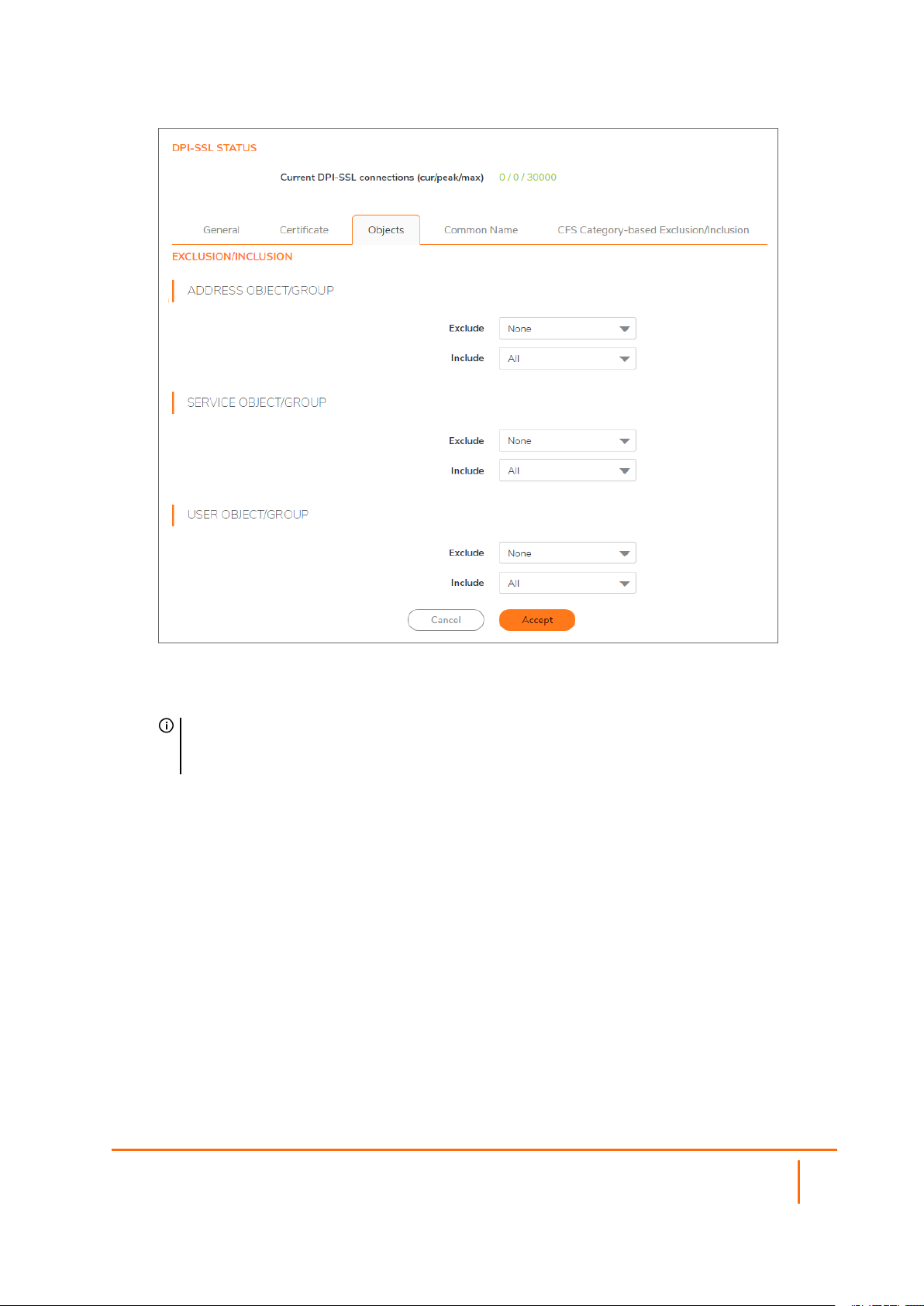
3.
From the Address Object/Group Exclude and Include drop-down menus, select an address
object or group to exclude or include from DPI-SSL inspection. By default, Exclude is set to None
and Include is set to All.
TIP: The Include drop-down menu can be used to fine tune the specified exclusion list. For
example, by selecting the Remote-office-California address object in the Exclude drop-down
menu and the Remote-office-Oakland address object in the Include drop-down menu.
4.
From the Service Object/Group Exclude and Include drop-down menus, select an address object
or group to exclude or include from DPI-SSL inspection. By default, Exclude is set to None and
Include is set to All.
5.
From the User Object/Group Exclude and Include drop-down menus, select an address object or
group to exclude or include from DPI-SSL inspection. By default, Exclude is set to None and
Include is set to All.
6.
Click Accept.
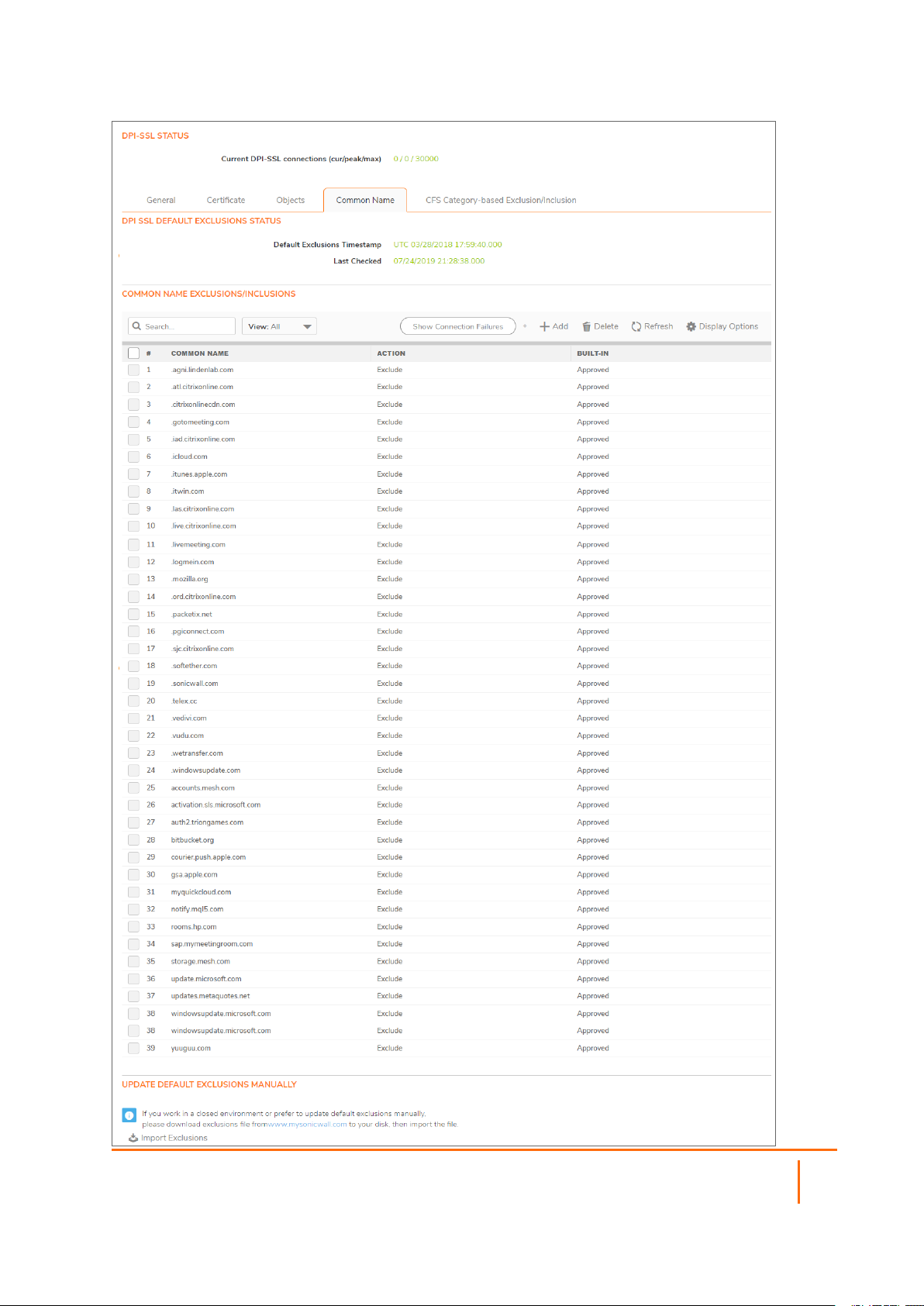
Excluding/Including by Common Name
You can add trusted domain names to the exclusion list. Adding trusted domains to the Built-in exclusion
database reduces the CPU effect of DPI-SSL and prevents he appliance from reaching the maximum
number of concurrent DPI-SSL inspected connections.
SonicOS 7 DPI-SSL Administration Guide
Configuring the DPI-SSL/TLS Client
15
Page 16
SonicOS 7 DPI-SSL Administration Guide
Configuring the DPI-SSL/TLS Client
16
Page 17
Topics:
l Viewing Status of DPI SSL Default Exclusions
l Excluding/Including Common Names
l Deleting Custom Common Names
l Showing Connection Failures
l Updating Default Exclusions Manually
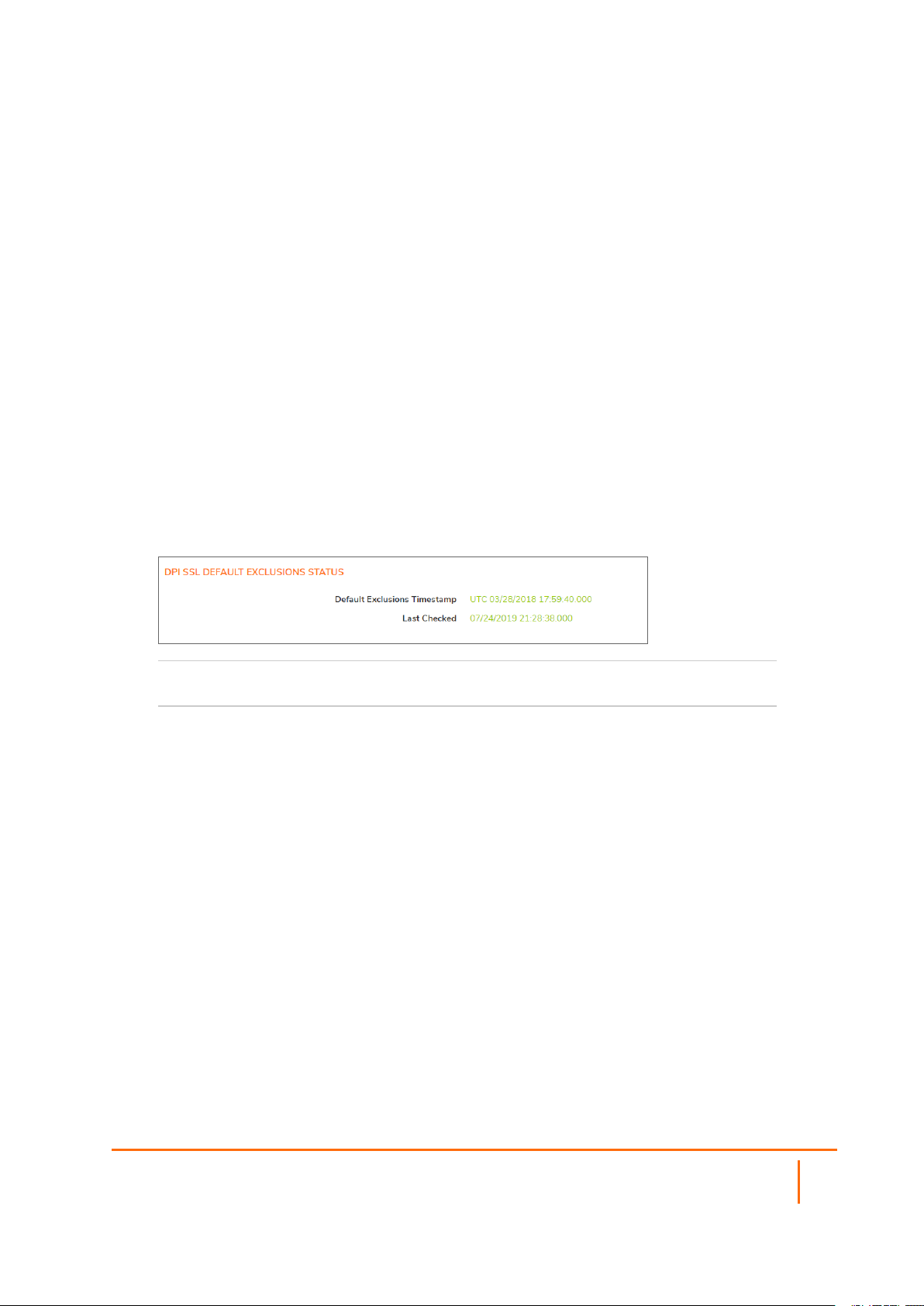
Viewing Status of DPI SSL Default Exclusions
The firewall periodically checks for updates to the DPI SSL default exclusions database on MySonicWall and
displays the latest status of the database in the DPI SSL Default Exclusions Status section. You can update
the database on the firewall manually, as described in Updating Default Exclusions Manually.
To view the status of default exclusions:
1.
Navigate to POLICY | DPI-SSL > Client Server.
2.
Click Common Name.
3.
Scroll to DPI SSL Default Exclusions Status.
Default Exclusions Timestamp
Date and time the default exclusions database was
updated.
Last Checked
Date and time the firewall checked the default exclusions
database.
Excluding/Including Common Names
To exclude/include entities by common name:
1.
Navigate to the POLICY | DPI-SSL > Client SSL page.
2.
Click Common Name.
3.
Scroll to Common Name: Exclusions/Inclusions.
SonicOS 7 DPI-SSL Administration Guide
Configuring the DPI-SSL/TLS Client
17
Page 18
4.
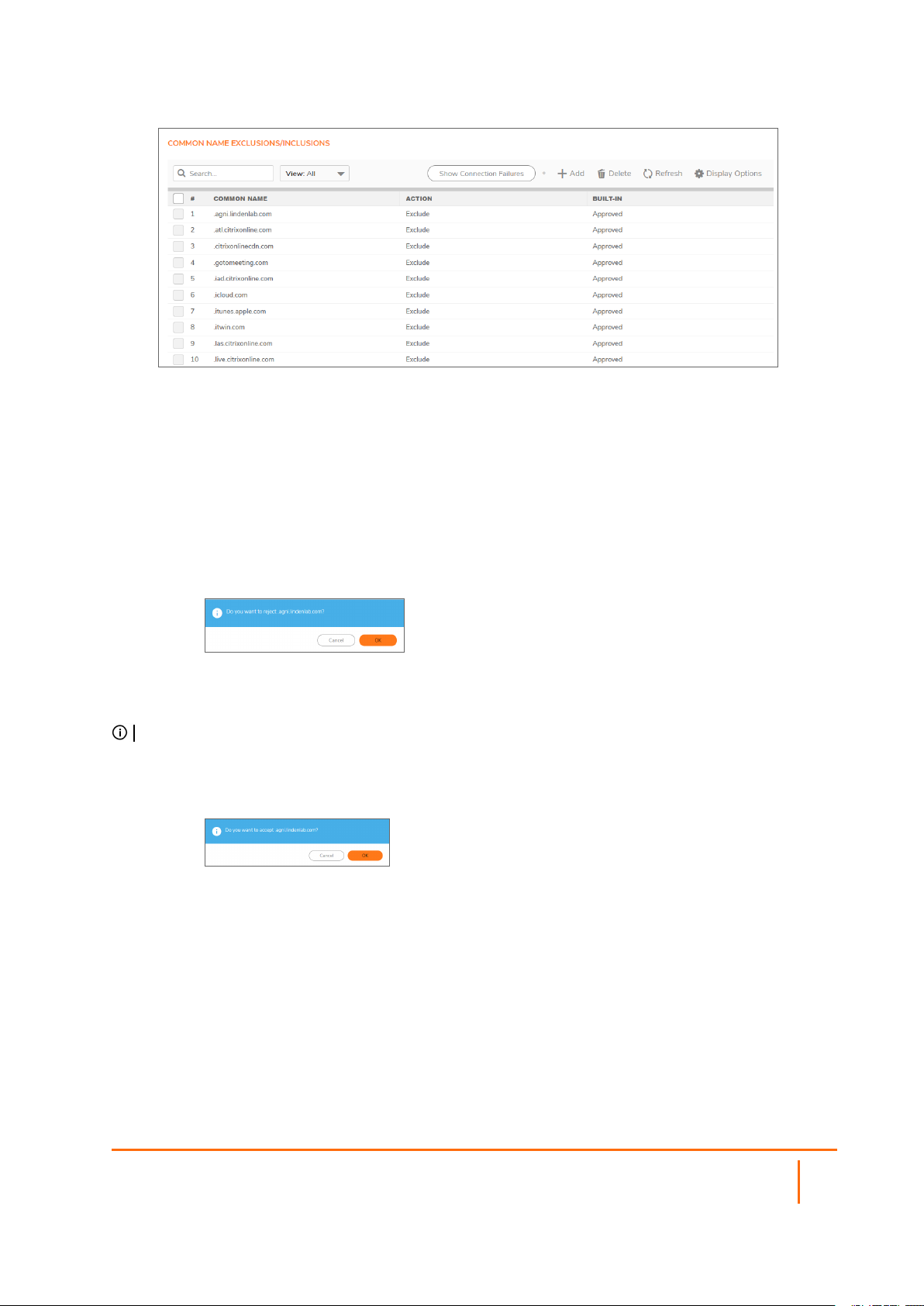
You can control the display of the common names by selecting the following options:
l View options:
l All – Displays all common names.
l Default – Displays the default common names (excludes Custom).
l Custom – Displays only common names you have added.
5.
By default, all Built-in common names are approved. You can reject the approval of a Built-in
common name by:
a.
Clicking the Reject this built-in name icon in the Configure column for the common name.
A confirmation message displays.
b.
Click OK.
The Reject icon becomes an Accept icon, and Approved in the Built-in column becomes Rejected.
TIP: Built-in common names cannot be modified or deleted, but you can reject or accept them.
To accept a rejected Built-in common name:
a.
Click its Accept this built in name icon. A confirmation message displays.
b.
Click OK.
SonicOS 7 DPI-SSL Administration Guide
Configuring the DPI-SSL/TLS Client
18
Page 19
6.
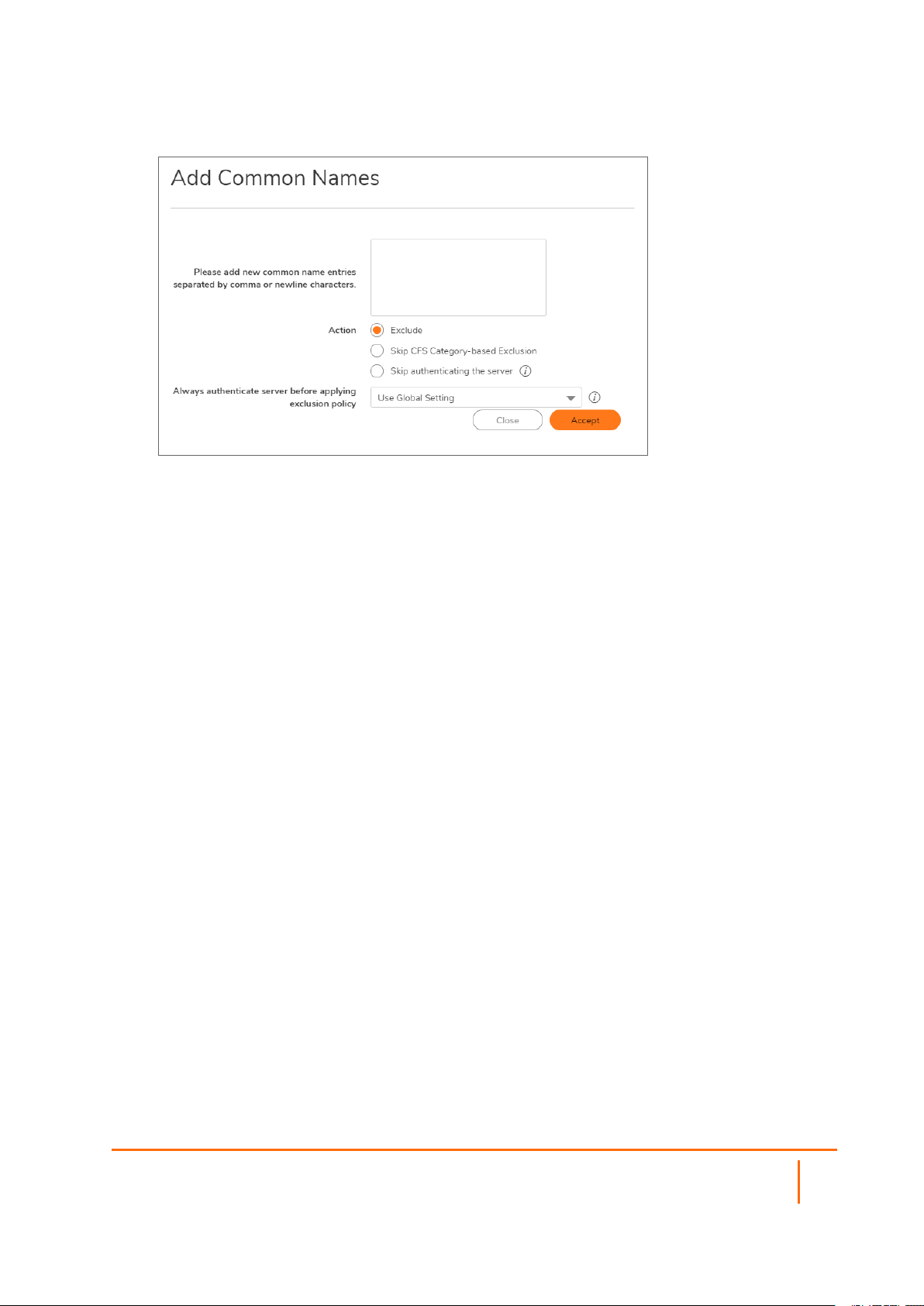
To add a custom common name, click +Add. The Add Common Names dialog displays.
a.
Add one or more common names in the field. Separate multiple entries with commas or
newline characters.
b.
Specify the type of Action:
l Exclude (default)
l Skip CFS Category-based Exclusion
l Skip authenticating the server to opt out of authenticating the server for this
domain if doing so results in the connection being blocked. Enable this option only if
the server is a trusted domain.
c.
DPI-SSL dynamically determines if a connection should be intercepted (included) or excluded,
based on policy or configuration. When DPI-SSL extracts the domain name for the
connection, exclusion information is readily available for subsequent connections to the same
server/domain.
To Enable or Disable use of dynamic exclusion cache (both server IP and common-name
based), select an option from the Always authenticate server before applying exclusion
policy drop-down menu. Use Global Setting is selected by default.
d.
Click Accept.
The Common Name Exclusions/Inclusions table is updated, with Custom in the Built-in
column. If the Always authenticate server before applying exclusion policy option has
been selected, an Information icon displays next to Custom in the Built-in column.
Mouse over the Information icon to see which custom attributes were selected. If a common
name was added through the Connection Failure List, the Information icon indicates the
type of failure:
l Skip CFS category exclusion
l Skip Server authentication
l Failed to authenticate server
l Failed Client handshake
l Failed Server handshake
To delete the entry, click the Delete icon in the Configure column.
7.
You can search for common names by specifying a filter.
SonicOS 7 DPI-SSL Administration Guide
Configuring the DPI-SSL/TLS Client
19
Page 20
a.
In the Filter field, enter a name by specifying the name in this syntax:
name:mycommonname.
b.
Click Filter.
8.
Click Accept.
Deleting Custom Common Names
To delete custom common names:
1.
Do one of the following:
l Clicking a custom common name’s Delete icon in the Configure column.
l Selecting the name in the Exclusions, and then clicking Delete.
l Clicking Delete All to delete all custom common names. A confirmation message displays.
Click OK.
2.
Click Accept.
Showing Connection Failures
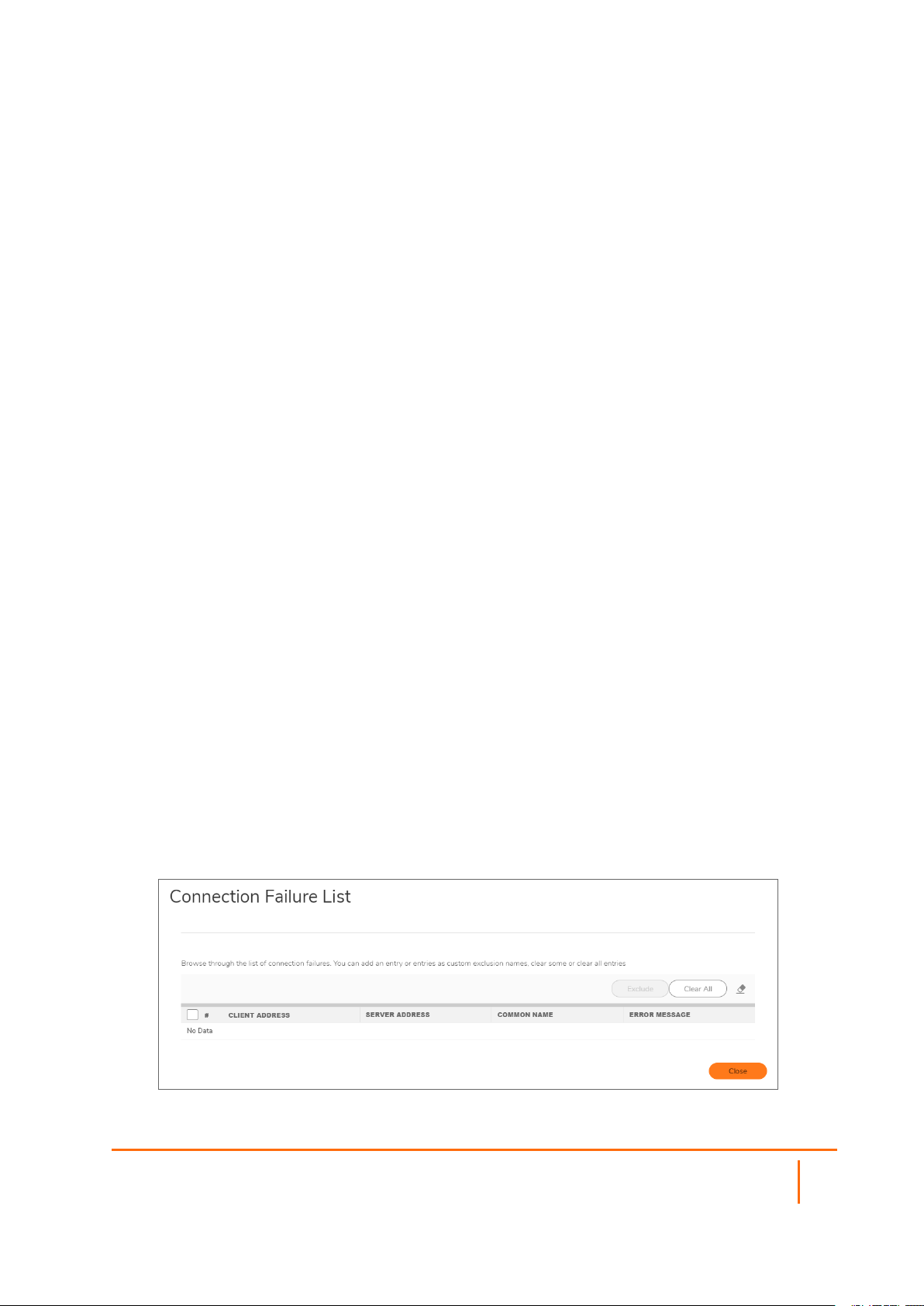
SonicOS keeps a list of recent DPI-SSL client-related connection failures. This is a powerful feature that:
l Lists DPI-SSL failed connections.
l Allows you to audit the failed connections.
l Provide a mechanism to automatically exclude some failing domains.
The dialog displays the run-time connection failures. The connection failures could be any of the following
reasons:
l Failure to handshake with the Client
l Failure to handshake with the Server
l Failed to validate the domain name in the Client Hello
l Failure to authenticate the server (the server certificate issuer is not trusted)
The failure list is only available at run-time. The number logged for each failure is limited to ensure a single
failure type does not overrun the entire buffer.
To use the connection failure list:
1.
Click Show Connection Failures. The Connection Failure List dialog displays.
SonicOS 7 DPI-SSL Administration Guide
Configuring the DPI-SSL/TLS Client
20
Page 21
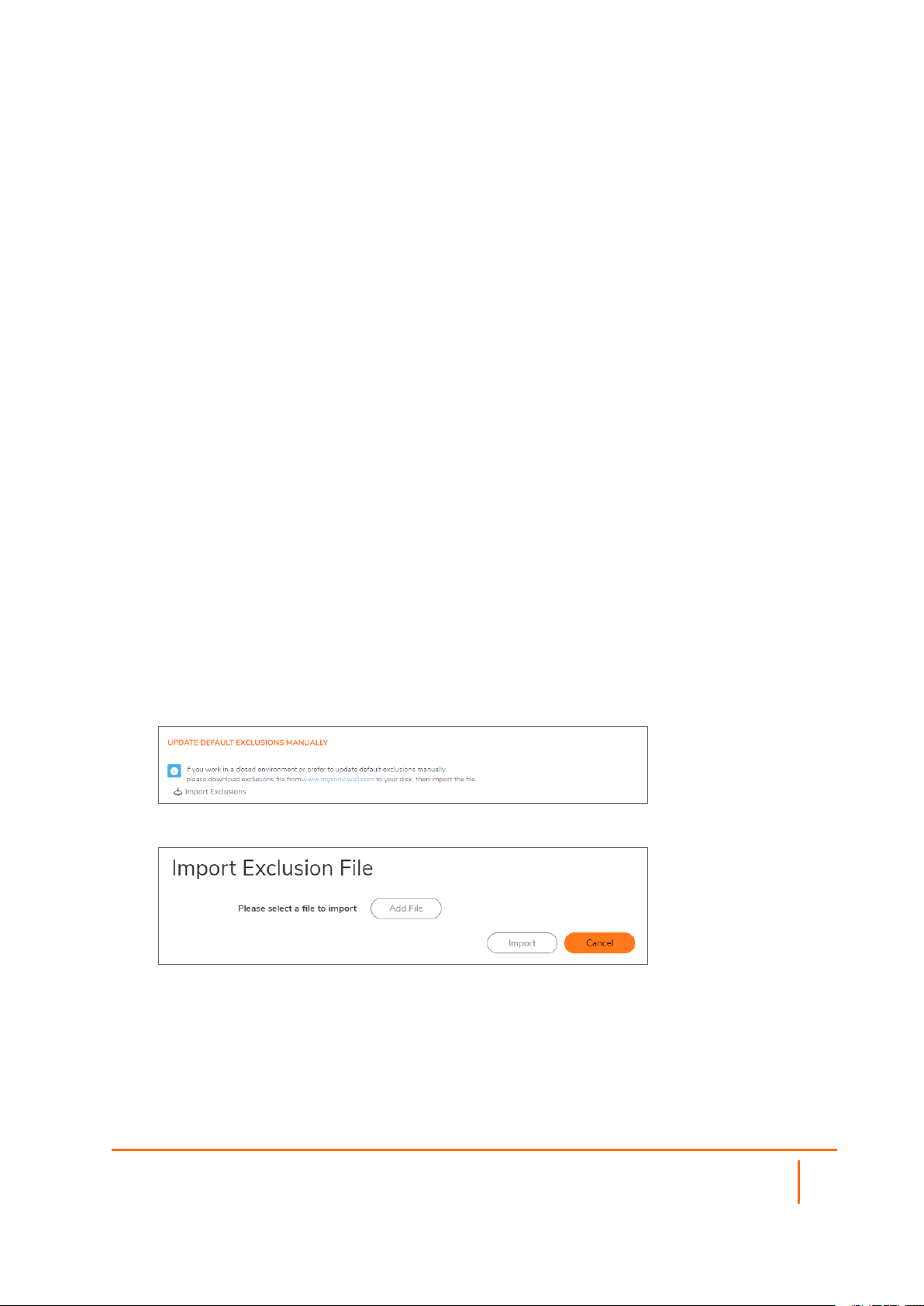
Each entry in this lists displays the:
l Client Address
l Server Address
l Common Name – The common name of the failed connection’s domain. You can edit this
entry inline before adding it to the automatic exclusion list.
l Error Message – Provides contextual information associated with the connection that
enables you to make appropriate choices about excluding this connection.
2.
To add an entry to the exclusion list:
a.
Select the entry.
b.
Make any edits to the entry.
c.
Click Exclude.
3.
To delete an entry:
a.
Select it.
b.
Click Clear.
4.
To delete all entries, click Clear All.
5.
When you have finished, click Close.
Updating Default Exclusions Manually
If your environment is closed or you prefer to update default exclusions manually, you can download the
default exclusions database from www.MySonicWall.com and then import them.
To update default exclusions manually:
1.
Import the default exclusions database from www.MySonicWall.com.
2.
Navigate to the POLICY | DPI-SSL > Client SSL page.
3.
Scroll to the Update Default Exclusions Manually section.
4.
Click IMPORT EXCLUSIONS. The Import Exclusion File dialog displays.
5.
Click Add File. The File Upload dialog displays.
6.
Open the downloaded default exclusions database file.
7.
The Common Name Exclusions/Inclusions table and the status of the default database used by
the firewall in the DPI SSL Default Exclusions Status section are updated.
SonicOS 7 DPI-SSL Administration Guide
Configuring the DPI-SSL/TLS Client
21
Page 22
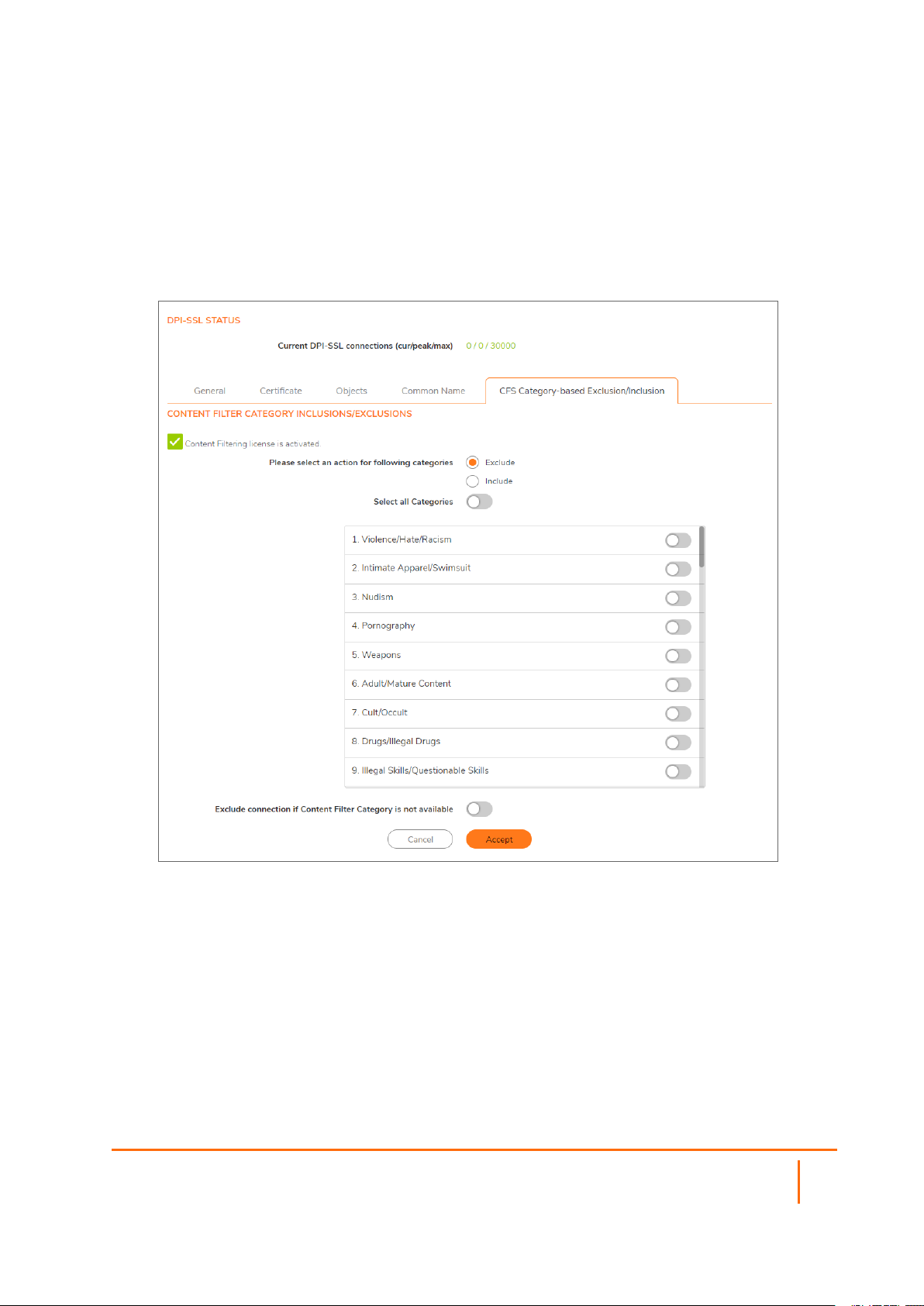
Specifying CFS Category-based Exclusions/Inclusions
You can exclude/include entities by content filter categories.
To specify CFS category-based exclusions/inclusions::
1.
Navigate to the POLICY | DPI-SSL > Client SSL page.
2.
Click CFS Category-based Exclusions/Inclusions.
The status of the list is shown by an icon at the top of the view. A green icon indicates Content
Filtering is licensed, a red icon that it is not.
3.
Choose whether you want to include or exclude the selected categories by clicking either:
l Exclude (default)
l Include
By default, all categories are unselected.
4.
Optionally, repeat Step 3 and Step 4 to create the opposite list.
5.
Select the categories to be included/excluded. To select all categories, click Select all Categories.
6.
Optionally, to exclude a connection if the content filter category information for a domain is not
available to DPI-SSL, select the Exclude connection if Content Filter Category is not available
SonicOS 7 DPI-SSL Administration Guide
Configuring the DPI-SSL/TLS Client
22
Page 23
checkbox. This option is not selected by default.
In most cases, category information for a HTTPS domain is available locally in the firewall cache.
When the category information is not locally available, DPI-SSL obtains the category information
from the cloud without blocking the client or server communication. In rare cases, the category
information is not available for DPI-SSL to make a decision. By default, such sites are inspected in
DPI-SSL.
7.
Click Accept.
Client DPI-SSL Examples
Topics:
l Content Filtering
l App Rules
Content Filtering
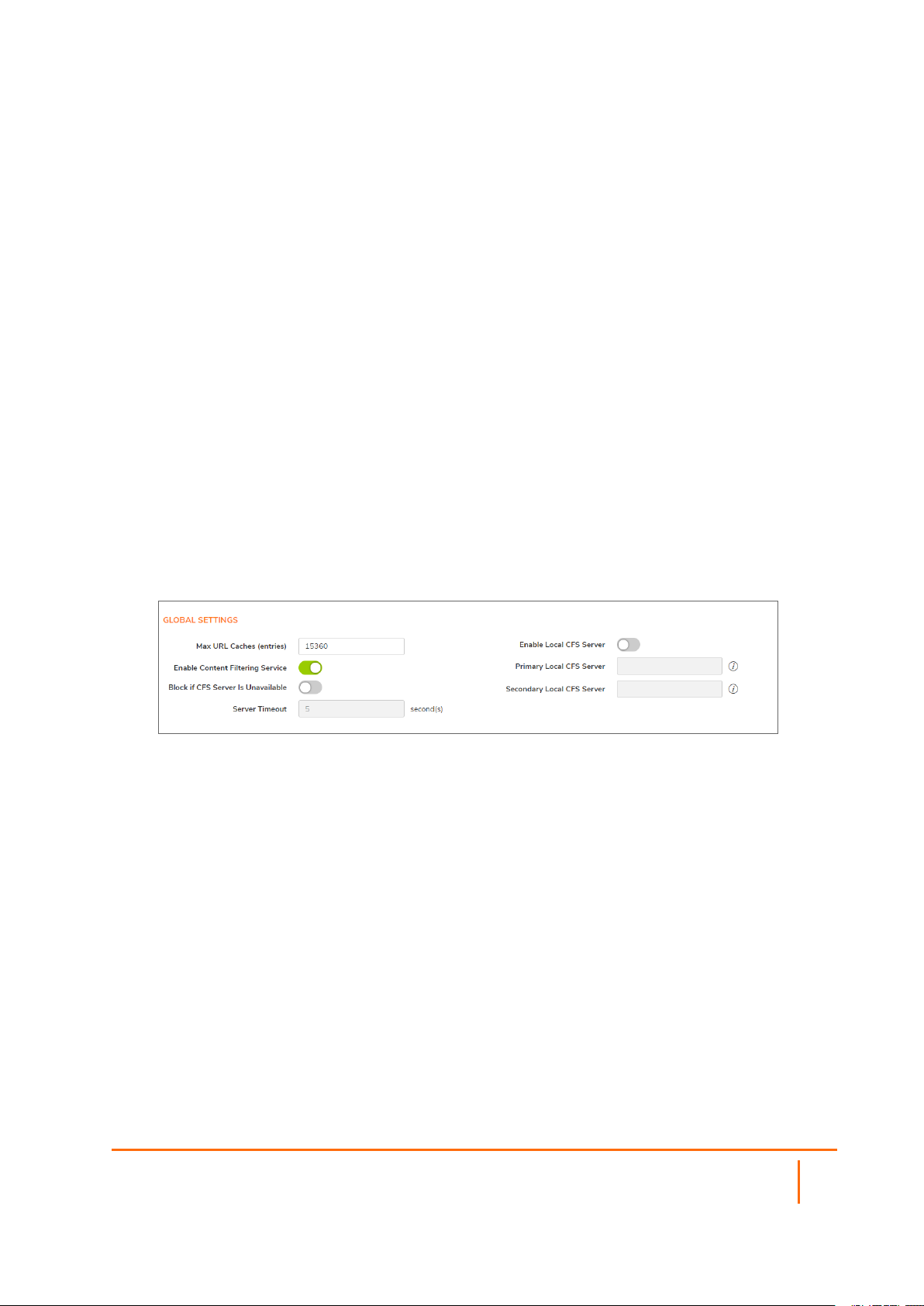
To perform SonicWall Content Filtering on HTTPS and SSL-based traffic using DPI-SSL:
1.
Navigate to POLICY | Security Services > Content Filter.
2.
Ensure SonicWall CFS is selected for the Content Filter Type from the drop-down menu.
3.
Scroll to the Global Settings section.
4.
Select Enable Content Filtering Service.
5.
Click Accept.
6.
Navigate to the POLICY | DPI-SSL > Client SSL page.
7.
Click General.
SonicOS 7 DPI-SSL Administration Guide
Configuring the DPI-SSL/TLS Client
23
Page 24
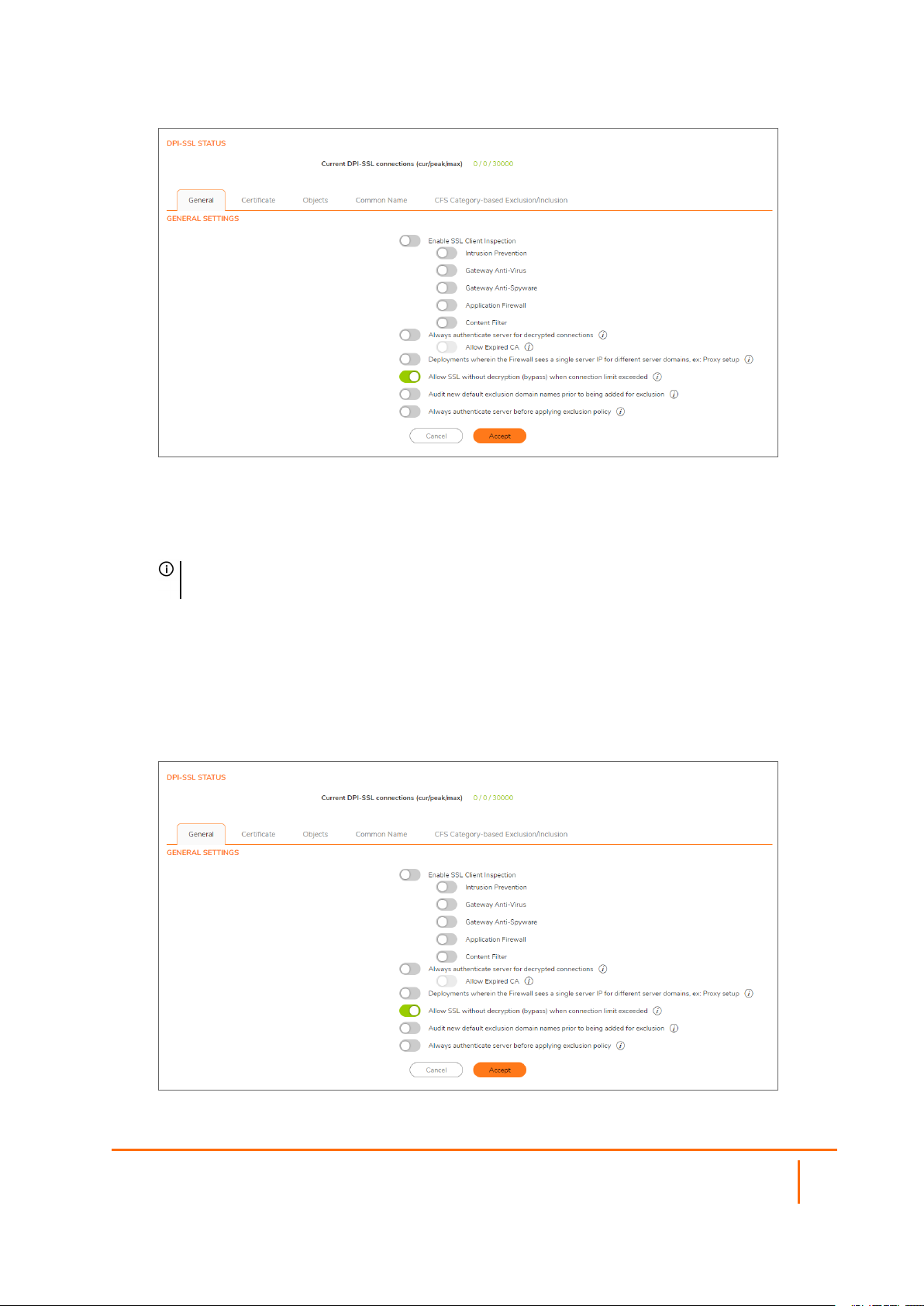
8.
Select the Enable SSL Inspection checkbox.
9.
Select the Content Filter checkbox.
10.
Click Accept.
11.
Navigate to a blocked site using the HTTPS protocol to verify that it is properly blocked.
NOTE: For content filtering over DPI-SSL, the first time HTTPS access is blocked results in a
blank page being displayed. If the page is refreshed, the user sees the firewall block page.
App Rules
To filter by application firewall rules, you need to enable them on both the POLICY | DPI-SSL > Client SSL
page and the POLICY | Rules and Policies > App Control page.
1.
Navigate to the POLICY | DPI-SSL > Client SSL page.
2.
Click General.
SonicOS 7 DPI-SSL Administration Guide
Configuring the DPI-SSL/TLS Client
24
Page 25

3.
Select the Enable SSL Client Inspection checkbox.
4.
Select the Application Firewall checkbox.
5.
Click Accept.
6.
Navigate to POLICY | Rules and Policies > App Control page.
7.
Scroll to the App Rules Global Settings section.
8.
Select Enable App Control. This option is not selected by default.
9.
Configure an HTTP Client policy to block Microsoft Internet Explorer browser with block page as an
action for the policy.
10.
Click Accept.
11.
Access any website using the HTTPS protocol with Internet Explorer to verify it is blocked.
SonicOS 7 DPI-SSL Administration Guide
Configuring the DPI-SSL/TLS Client
25
Page 26
Configuring DPI-SSL/TLS Server
Settings
Topics:
l Decryption Services > DPI-SSL/TLS Server
l About DPI-SSL/TLS Server Settings
Decryption Services > DPI-SSL/TLS Server
3
NOTE: For information about DPI SSL, see About DPI-SSL.
The Server DPI-SSL deployment scenario is typically used to inspect HTTPS traffic when remote clients
connect over the WAN to access content located on the firewall’s LAN. Server DPI-SSL allows you to
configure pairings of an address object and certificate. When the appliance detects SSL connections to the
address object, it presents the paired certificate and negotiates SSL with the connecting client.
Afterward, if the pairing defines the server to be cleartext, then a standard TCP connection is made to the
server on the original (post NAT remapping) port. If the pairing is not defined to be cleartext, then an SSL
connection to the server is negotiated. This allows for end-to-end encryption of the connection.
SonicOS 7 DPI-SSL Administration Guide
Configuring DPI-SSL/TLS Server Settings
26
Page 27

NOTE: In this deployment scenario, the owner of the firewall owns the certificates and private keys of
the origin content servers. You would have to import the server's original certificate onto the appliance
and create an appropriate server IP address to server certificate mappings in the Server DPI-SSL UI.
About DPI-SSL/TLS Server Settings
Topics:
l Configuring General DPI-SSL/TLS Server Settings
l Configuring Exclusions and Inclusions
l Configuring Server-to-Certificate Pairings
Configuring General DPI-SSL/TLS Server Settings
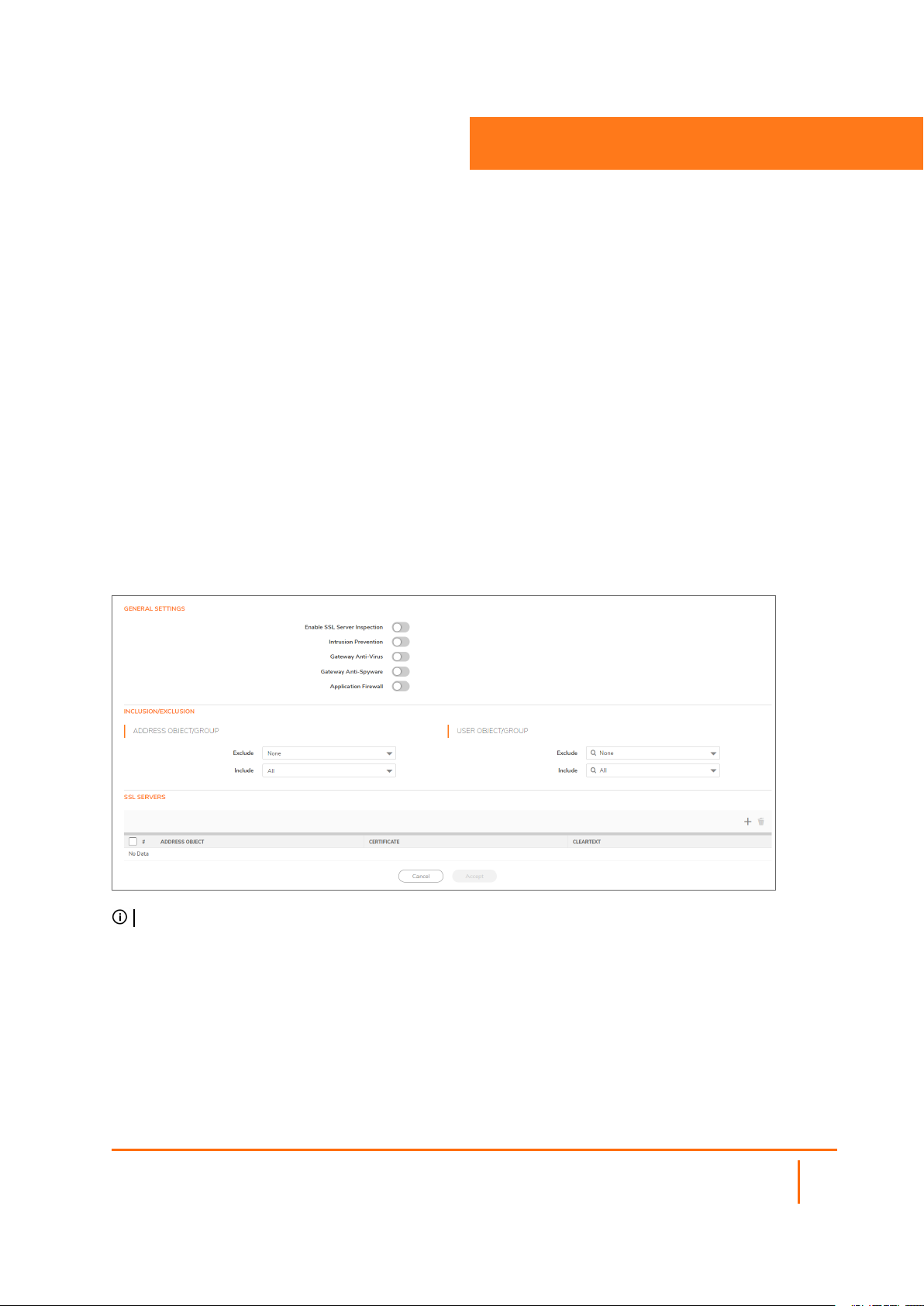
To enable Server DPI-SSL inspection:
1.
Navigate to the POLICY | DPI-SSL > Server SSL page.
2.
Scroll to the General Settings section.
3.
Select Enable SSL Server Inspection.
4.
Select one or more of the services with which to perform inspection:
l Intrusion Prevention
l Gateway Anti-Virus
l Gateway Anti-Spyware
l Application Firewall
5.
Click Accept.
6.
Scroll down to the SSL Servers section to configure the server or servers to which DPI-SSL
inspection is applied. See Configuring Server-to-Certificate Pairings.
Configuring Exclusions and Inclusions
By default, the DPI-SSL applies to all traffic on the appliance when it is enabled. You can configure
inclusion/exclusion lists to customize to which traffic DPI-SSL inspection applies. The Inclusion/Exclusion
lists provide the ability to specify certain objects or groups. In deployments that process a large amount of
traffic, to reduce the CPU impact of DPI-SSL and to prevent the appliance from reaching the maximum
number of concurrent DPI-SSL inspected connections, it can be useful to exclude trusted sources.
SonicOS 7 DPI-SSL Administration Guide
Configuring DPI-SSL/TLS Server Settings
27
Page 28
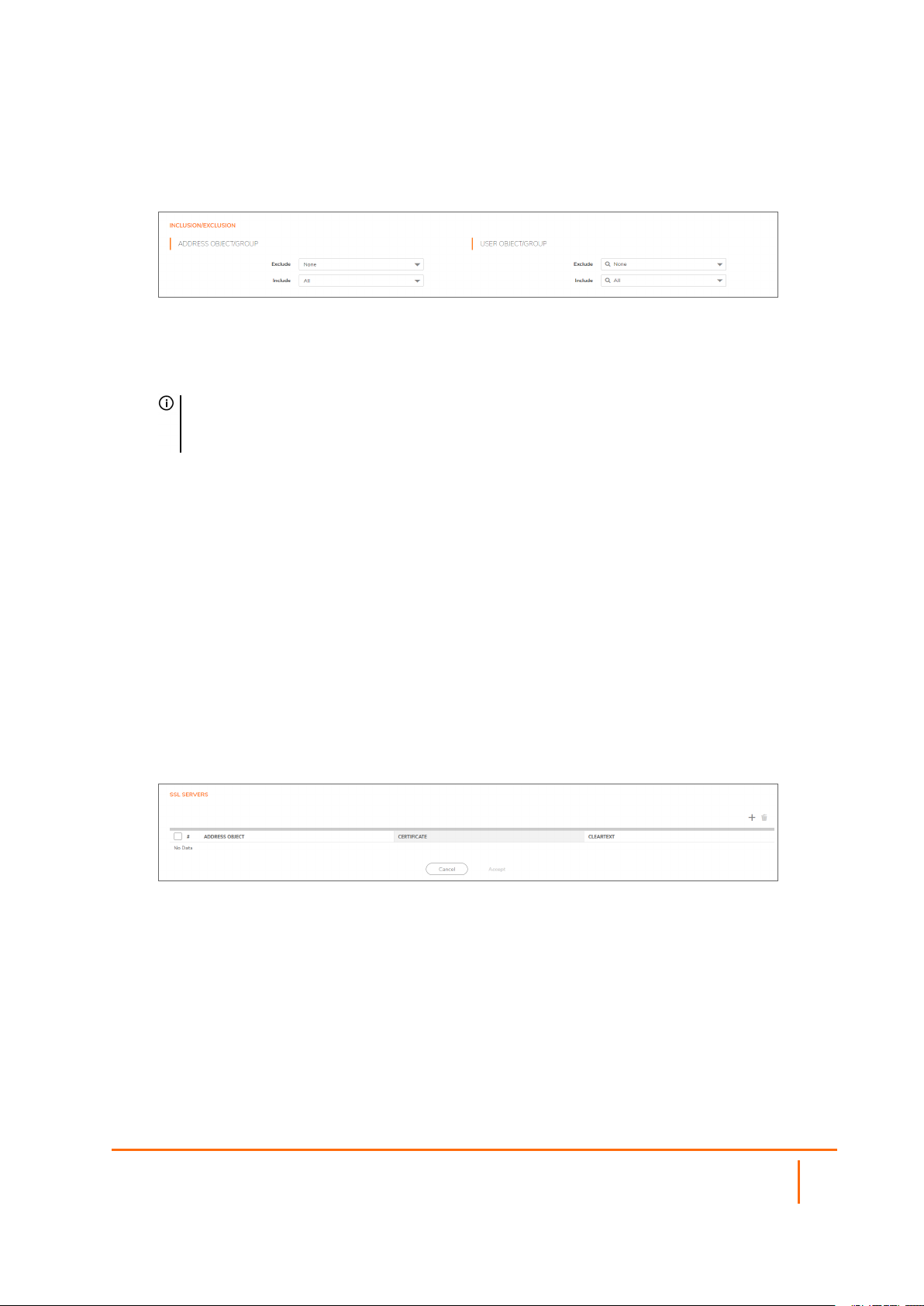
To customize DPI-SSL server inspection:
1.
Navigate to the POLICY | DPI-SSL > Server SSL page.
2.
Scroll to the Inclusion/Exclusion section.
3.
From Address Object/Group Exclude, select an address object or group to exclude from DPI-SSL
inspection. By default, Exclude is set to None.
4.
From Address Object/Group Include, select an address object or group to include in DPI-SSL
inspection. By default, Include is set to All.
TIP: Include can be used to fine tune the specified exclusion list. For example, by selecting the
Remote-office-California address object from Exclude and the Remote-office-Oakland
address object from Include.
5.
From User Object/Group Exclude, select an address object or group to exclude from DPI-SSL
inspection. By default, Exclude is set to None.
6.
From User Object/Group Include, select an address object or group to include in DPI-SSL
inspection. By default, Include is set to All.
7.
Click Accept.
Configuring Server-to-Certificate Pairings
Server DPI-SSL inspection requires that you specify which certificate is used to sign traffic for each server
that has DPI-SSL inspection performed on its traffic.
To configure a server-to-certificate pairing:
1.
Navigate to the POLICY | DPI-SSL > Server SSL page.
2.
Scroll to the SSL Servers section.
3.
Click +Add. The Server DPI-SSL - SSL Server Setting dialog displays.
SonicOS 7 DPI-SSL Administration Guide
Configuring DPI-SSL/TLS Server Settings
28
Page 29
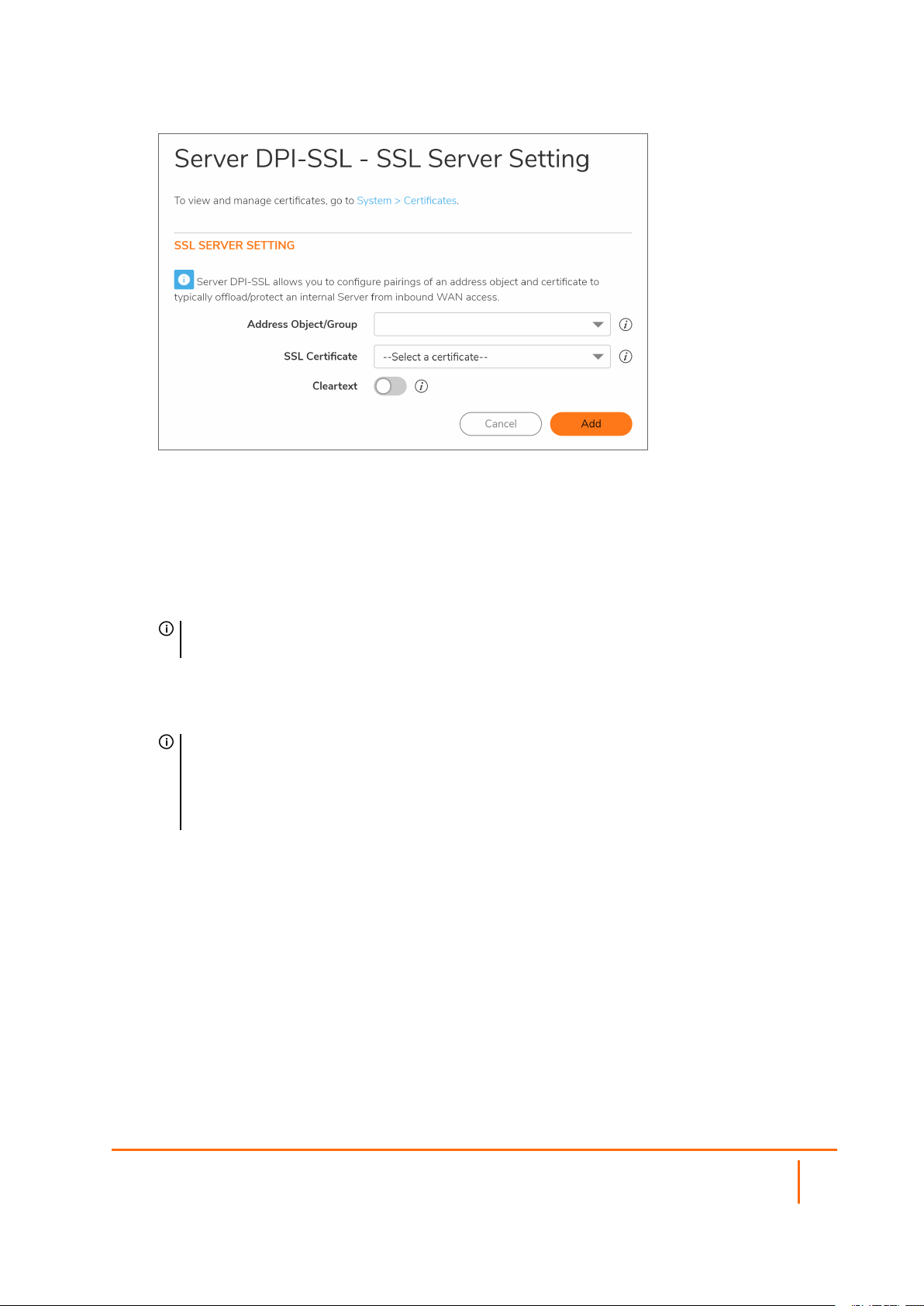
4.
From Address Object/Group, select the address object or group for the server or servers to which
you want to apply DPI-SSL inspection.
5.
From SSL Certificate, select the certificate to be used to sign the traffic for the server. This
certificate is used to sign traffic for each server that has DPI-SSL Server inspection performed on its
traffic. For more information on:
l Importing a new certificate to the appliance, see Selecting the Re-Signing Certificate Authority.
l Creating a Linux certificate.
TIP: Clicking the (Manage Certificates) link displays the DEVICE | Settings > Certificates
page.
6.
Select Cleartext to enable SSL offloading. When adding server-to-certificate pairs, the Cleartext
option provides a method of sending unencrypted data onto a server. This option is not selected by
default.
IMPORTANT: For such a configuration to work properly, a NAT policy needs to be created for
this server on the POLICY | Rules and Policies > NAT Rules page to map traffic destined for
the offload server from an SSL port to a non-SSL port. Traffic must be sent over a port other than
443. For example, for HTTPS traffic used with SSL offloading, an inbound NAT policy remapping
traffic from port 443 to port 80 needs to be created for things to work properly.
7.
Click Add.
SonicOS 7 DPI-SSL Administration Guide
Configuring DPI-SSL/TLS Server Settings
29
Page 30

SonicWall Support
Technical support is available to customers who have purchased SonicWall products with a valid
maintenance contract.
The Support Portal provides self-help tools you can use to solve problems quickly and independently, 24
hours a day, 365 days a year. To access the Support Portal, go to https://www.sonicwall.com/support.
The Support Portal enables you to:
l View knowledge base articles and technical documentation
l View and participate in the Community forum discussions at
https://community.sonicwall.com/technology-and-support.
l View video tutorials
l Access https://mysonicwall.com
l Learn about SonicWall professional services
l Review SonicWall Support services and warranty information
l Register for training and certification
l Request technical support or customer service
4
To contact SonicWall Support, visit https://www.sonicwall.com/support/contact-support.
SonicOS 7 DPI-SSL Administration Guide
30
SonicWall Support
Page 31

About This Document
NOTE: A NOTE icon indicates supporting information.
IMPORTANT: An IMPORTANT icon indicates supporting information.
TIP: A TIP icon indicates helpful information.
CAUTION: A CAUTION icon indicates potential damage to hardware or loss of data if
instructions are not followed.
WARNING: A WARNING icon indicates a potential for property damage, personal injury, or
death.
SonicOS DPI-SSL Administration Guide
Updated - January 2021
Software Version - 7
232-005334-10 Rev B
Copyright © 2021 SonicWallInc. All rights reserved.
The information in this document is provided in connection with SonicWalland/or its affiliates’products. No license, express or
implied, by estoppel or otherwise, to any intellectual property right is granted by this document or in connection with the sale of
products. EXCEPT AS SET FORTH IN THE TERMS AND CONDITIONS AS SPECIFIED IN THE LICENSE AGREEMENT FOR
THIS PRODUCT, SONICWALL AND/OR IT S AFFILIATES ASSUME NO LIABILITY WHATSOEVER AND DISCLAIMS ANY
EXPRESS, IMPLIED OR STATUT ORY WARRANTY RELATING TO ITS PRODUCTS INCLUDING, BUT NOT LIMITED TO,
THE IMPLIED WARRANTY OF MERCHANTABILIT Y, FITNESS FOR A PARTICULAR PURPOSE, OR NON-INFRINGEMENT.
IN NO EVENT SHALL SONICWALL AND/OR ITS AFFILIATES BE LIABLE FOR ANY DIRECT, INDIRECT, CONSEQUENTIAL,
PUNITIVE, SPECIAL OR INCIDENTAL DAMAGES(INCLUDING, WIT HOUT LIMITATION, DAMAGES FOR LOSS OF
PROFITS, BUSINESS INTERRUPTION OR LOSSOF INFORMATION) ARISING OUT OF THE USE OR INABILITY T O USE
THIS DOCUMENT, EVEN IF SONICWALL AND/OR ITS AFFILIATES HAVE BEEN ADVISED OF THE POSSIBILITY OF SUCH
DAMAGES. SonicWall and/or its affiliates make no r epresentationsor warr anties with respect to the accuracy or completeness of
the contents of thisdocument and reserves the right to make changes to specifications and product descriptionsat anytime without
notice. and/or its affiliates do not make any commitment to update the information contained in this document.
For more information, visit https://www.sonicwall.com/legal.
End User Product Agreement
To view the SonicWall End User Product Agreement, go to: https://www.sonicwall.com/legal/end-user-product-agreements/.
Open Source Code
SonicWall Inc. isable to provide a machine-readable copyof open source code with restrictive licensessuch as GPL, LGPL, AGPL
when applicable per license requirements. To obtain a complete machine-readable copy, send your written requests, along with
certified check or money order in the amount of USD 25.00 payable to “SonicWall Inc.”, to:
General Public License Source Code Request
Attn: Jennifer Anderson
1033 McCarthy Blvd
Milpitas, CA 95035
SonicOS 7 DPI-SSL Administration Guide
SonicWall Support
31
 Loading...