

Page 1

™
Barricade
Cable/DSL Broadband Broadband Router with VPN
Cable/DSL Broadband Router with VPN
◆ EZ 3-click Installation Wizard
• Simple 3 step installation utility allows for easy configuration
◆ Configurable Parental Control
• Protect your family by limiting access to web sites with URL
and keyword blocking
◆ Stateful Packet Inspection Firewall
Plus
◆ Firewall – Client Privileges, Intrusion Detection, NAT
◆ Built-inVPN Tunneling capability
◆ Multi-user Access (up to 253), Single-user Account
User Guide
SMC7004FW
Page 2

Page 3

Barricade™ Plus
Broadband Router with VPN
User Guide
From SMC’s Barricade line of Broadband Routers
Sept 2002
Revision Number: R01
Page 4

COMPLIANCES
FCC - Class B
This equipment has been tested and found to comply with the limits for a Class B
digital device, pursuant to Part 15 of the FCC Rules. These limits are designed to
provide reasonable protection against harmful interference in a residential installation.
This equipment generates, uses and can radiate radio frequency energy and, if not
installed and used in accordance with instructions, may cause harmful interference to
radio communications. However, there is no guarantee that the interference will not
occur in a particular installation. If this equipment does cause harmful interference to
radio or television reception, which can be determined by turning the equipment off
and on, the user is encouraged to try to correct the interference by one or more of the
following measures:
• Reorient the receiving antenna
• Increase the separation between the equipment and receiver
• Connect the equipment into an outlet on a circuit different from that to which the
receiver is connected
• Consult the dealer or an experienced radio/TV technician for help
EC Conformance Declaration - Class B
SMC contact for these products in Europe is:
SMC Networks Europe,
Edificio Conata II,
Calle Fructuós Gelabert 6-8, 2
08970 - Sant Joan Despí,
Barcelona, Spain.
This information technology equipment complies with the requirements of the
Council Directive 89/336/EEC on the Approximation of the laws of the Member
States relating to Electromagnetic Compatibility and 73/23/EEC for electrical
equipment used within certain voltage limits and the Amendment Directive 93/68/
EEC. For the evaluation of the compliance with these Directives, the following
standards were applied:
RFI
Emission:
Immunity: * Product family standard according to EN 55024:1998
* Limit class B according to EN 55022:1998
* Limit class A for harmonic current emission according to EN 61000-3-2/
1995
* Limitation of voltage fluctuation and flicker in low-voltage supply system
according to EN 61000-3-3/1995
o
, 4a,
iii
Page 5

C
OMPLIANCES
* Electrostatic Discharge according to EN 61000-4-2:1995 (Contact Discharge:
±4 kV, Air Discharge: ±8 kV)
* Radio-frequency electromagnetic field according to EN 61000-4-3: 1996 (80
- 1000MHz with 1kHz AM 80% Modulation: 3V/m)
* Electrical fast transient/burst according to EN 61000-4-4:1995(AC/DC
power supply: ±1kV, Data/Signal lines: ±0.5kV)
* Surge immunity test according to EN 61000-4-5:1995(AC/DC Line to Line:
±1kV, AC/DC Line to Earth: ±2kV )
* Immunity to conducted disturbances, Induced by radio-frequency fields: EN
61000-4-6:1996(0.15 - 80MHz with 1kHz AM 80% Modulation: 3V/m)
* Power frequency magnetic field immunity test according to EN
61000-4-8:1993(1A/m at frequency 50Hz)
* Voltage dips, short interruptions and voltage variations immunity test
according to EN 61000-4-11:1994(>95% Reduction @10ms, 30% Reduction
@500ms, >95% Reduction @5000ms)
LVD: * EN60950(A1/1992; A2/1993; A3/1993; A4/1995; A11/1997)
Industry Canada - Class B
This digital apparatus does not exceed the Class B limits for radio noise emissions from
digital apparatus as set out in the interference-causing equipment standard entitled
“Digital Apparatus,” ICES-003 of the Department of Communications.
Cet appareil numérique respecte les limites de bruits radioélectriques applicables aux
appareils numériques de Classe B prescrites dans la norme sur le matériel brouilleur:
“Appareils Numériques,” NMB-003 édictée par le ministère des Communications.
iv
Page 6

C
OMPLIANCES
Safety Compliance
Underwriters Laboratories Compliance Statement
Important! Before making connections, make sure you have the correct cord set.
Check it (read the label on the cable) against the following:
Operating Voltage Cord Set Specifications
120 Volts UL Listed/CSA Certified Cord Set
Minimum 18 AWG
Type SVT or SJT three conductor cord
Maximum length of 15 feet
Parallel blade, grounding type attachment plug rated
15A, 125V
240 Volts (Europe only) Cord Set with H05VV-F cord having three conductors
The unit automatically matches the connected input voltage. Therefore, no additional
adjustments are necessary when connecting it to any input voltage within the range
marked on the rear panel.
with minimum diameter of 0.75 mm
IEC-320 receptacle
Male plug rated 10A, 250V
Wichtige Sicherheitshinweise (Germany)
1. Bitte lesen Sie diese Hinweise sorgfältig durch.
2. Heben Sie diese Anleitung für den späteren Gebrauch auf.
3. Vor jedem Reinigen ist das Gerät vom Stromnetz zu trennen. Verwenden Sie keine
Flüssigoder Aerosolreiniger. Am besten eignet sich ein angefeuchtetes Tuch zur
Reinigung.
4. Die Netzanschlu ßsteckdose soll nahe dem Gerät angebracht und leicht zugänglich
sein.
5. Das Gerät ist vor Feuchtigkeit zu schützen.
6. Bei der Aufstellung des Gerätes ist auf sicheren Stand zu achten. Ein Kippen oder
Fallen könnte Beschädigungen hervorrufen.
7. Die Belüftungsöffnungen dienen der Luftzirkulation, die das Gerät vor Überhitzung schützt. Sorgen Sie dafür, daß diese Öffnungen nicht abgedeckt werden.
8. Beachten Sie beim Anschluß an das Stromnetz die Anschlußwerte.
9. Verlegen Sie die Netzanschlußleitung so, daß niemand darüber fallen kann. Es
sollte auch nichts auf der Leitung abgestellt werden.
10. Alle Hinweise und Warnungen, die sich am Gerät befinden, sind zu beachten.
2
v
Page 7

C
OMPLIANCES
11. Wird das Gerät über einen längeren Zeitraum nicht benutzt, sollten Sie es vom
Stromnetz trennen. Somit wird im Falle einer Überspannung eine Beschädigung
vermieden.
12. Durch die Lüftungsöffnungen dürfen niemals Gegenstände oder Flüssigkeiten in
das Gerät gelangen. Dies könnte einen Brand bzw. elektrischen Schlag auslösen.
13. Öffnen sie niemals das Gerät. Das Gerät darf aus Gründen der elektrischen Sicherheit nur von authorisiertem Servicepersonal geöffnet werden.
14. Wenn folgende Situationen auftreten ist das Gerät vom Stromnetz zu trennen und
von einer qualifizierten Servicestelle zu überprüfen:
a. Netzkabel oder Netzstecker sind beschädigt.
b. Flüssigkeit ist in das Gerät eingedrungen.
c. Das Gerät war Feuchtigkeit ausgesetzt.
d. Wenn das Gerät nicht der Bedienungsanleitung entsprechend funktioniert oder
Sie mit Hilfe dieser Anleitung keine Verbesserung erzielen.
e. Das Gerät ist gefallen und/oder das Gehäuse ist beschädigt.
f. Wenn das Gerät deutliche Anzeichen eines Defektes aufweist.
15. Stellen Sie sicher, da? die Stromversorgung dieses Ger‰tes nach der EN 60950
gepr¸ft ist. Ausgangswerte der Stromversorgung sollten die Werte von AC 7,5-8V,
50-60Hz nicht ¸ber oder unterschreiten sowie den minimalen Strom von 1A nicht
unterschreiten..
Der arbeitsplatzbezogene Schalldruckpegel nach DIN 45 635 Teil 1000 beträgt 70dB(A)
oder weniger.
vi
Page 8

T
ABLE OF CONTENTS
T
ABLE OF
C
ONTENTS
1 Introduction . . . . . . . . . . . . . . . . . . . . . . . . . . . . . . . . . . 1-1
About the Barricade Plus . . . . . . . . . . . . . . . . . . . . . . . . . . . . . . . . . . . . . 1-1
Features and Benefits . . . . . . . . . . . . . . . . . . . . . . . . . . . . . . . . . . . . . . . . 1-2
Applications . . . . . . . . . . . . . . . . . . . . . . . . . . . . . . . . . . . . . . . . . . . . . . . 1-3
2 Installation . . . . . . . . . . . . . . . . . . . . . . . . . . . . . . . . . . 2-1
Package Contents . . . . . . . . . . . . . . . . . . . . . . . . . . . . . . . . . . . . . . . . . . . 2-1
Description of Hardware . . . . . . . . . . . . . . . . . . . . . . . . . . . . . . . . . . . . . 2-2
System Requirements . . . . . . . . . . . . . . . . . . . . . . . . . . . . . . . . . . . . . . . . 2-4
Connect the System . . . . . . . . . . . . . . . . . . . . . . . . . . . . . . . . . . . . . . . . . 2-5
Basic Installation Procedure . . . . . . . . . . . . . . . . . . . . . . . . . . . . . 2-5
Attach to Your Network Using Ethernet Cabling . . . . . . . 2-6
Attach the Barricade Plus to the Internet . . . . . . . . . . . . . . 2-8
Connecting the Power Adapter . . . . . . . . . . . . . . . . . . . . . . 2-8
Verify Port Status . . . . . . . . . . . . . . . . . . . . . . . . . . . . . . . . . . . . . 2-9
3 Configuring Client PCs . . . . . . . . . . . . . . . . . . . . . . . . 3-1
TCP/IP Configuration . . . . . . . . . . . . . . . . . . . . . . . . . . . . . . . . . . . . . . . 3-1
4 Configuring the Barricade Plus . . . . . . . . . . . . . . . . . 4-1
Navigating the Web Browser Interface . . . . . . . . . . . . . . . . . . . . . . . . . . 4-2
Making Configuration Changes . . . . . . . . . . . . . . . . . . . . . . . . . . 4-3
Setup Wizard . . . . . . . . . . . . . . . . . . . . . . . . . . . . . . . . . . . . . . . . . . . . . . 4-3
Broadband Type . . . . . . . . . . . . . . . . . . . . . . . . . . . . . . . . . . . . . . 4-3
Cable Modem . . . . . . . . . . . . . . . . . . . . . . . . . . . . . . . . . . . . 4-4
Fixed-IP xDSL . . . . . . . . . . . . . . . . . . . . . . . . . . . . . . . . . . . 4-5
PPPoE . . . . . . . . . . . . . . . . . . . . . . . . . . . . . . . . . . . . . . . . . . 4-6
Advanced Setup Menu . . . . . . . . . . . . . . . . . . . . . . . . . . . . . . . . . . . . . . . 4-7
Navigating the Web Browser Interface . . . . . . . . . . . . . . . . . . . . . . . . . . 4-7
Main Menu . . . . . . . . . . . . . . . . . . . . . . . . . . . . . . . . . . . . . . . . . . 4-8
Making Configuration Changes . . . . . . . . . . . . . . . . . . . . . . . . . 4-10
System Settings . . . . . . . . . . . . . . . . . . . . . . . . . . . . . . . . . . . . . . . . . . . . 4-11
vii
Page 9

T
ABLE OF CONTENTS
Set Time Zone . . . . . . . . . . . . . . . . . . . . . . . . . . . . . . . . . . . . . . 4-11
Setting a Password . . . . . . . . . . . . . . . . . . . . . . . . . . . . . . . . . . . 4-12
Remote Management . . . . . . . . . . . . . . . . . . . . . . . . . . . . . . . . . 4-13
Network Settings . . . . . . . . . . . . . . . . . . . . . . . . . . . . . . . . . . . . . . . . . . 4-14
WAN Configuration . . . . . . . . . . . . . . . . . . . . . . . . . . . . . . . . . . 4-14
Dynamic IP Address – DHCP . . . . . . . . . . . . . . . . . . . . . . 4-15
PPP over Ethernet – PPPoE . . . . . . . . . . . . . . . . . . . . . . . 4-16
Static IP Address – Fixed IP . . . . . . . . . . . . . . . . . . . . . . . 4-17
DNS Configuration . . . . . . . . . . . . . . . . . . . . . . . . . . . . . . . 4-18
LAN Gateway and DHCP Settings . . . . . . . . . . . . . . . . . . . . . . 4-19
Configuring Client Services . . . . . . . . . . . . . . . . . . . . . . . . . . . . . . . . . . 4-20
NAT - Network Address Translation . . . . . . . . . . . . . . . . . . . . 4-20
Address Mapping . . . . . . . . . . . . . . . . . . . . . . . . . . . . . . . . 4-21
Virtual Server . . . . . . . . . . . . . . . . . . . . . . . . . . . . . . . . . . . . 4-22
Firewall Protection . . . . . . . . . . . . . . . . . . . . . . . . . . . . . . . . . . . 4-23
Access Control . . . . . . . . . . . . . . . . . . . . . . . . . . . . . . . . . . 4-24
URL Blocking Sites . . . . . . . . . . . . . . . . . . . . . . . . . . . . . . . 4-26
Schedule Rule . . . . . . . . . . . . . . . . . . . . . . . . . . . . . . . . . . . 4-27
Intrusion Detection . . . . . . . . . . . . . . . . . . . . . . . . . . . . . . . 4-29
Virtual Private Networks (VPN) Tunnel . . . . . . . . . . . . . . 4-32
SNMP . . . . . . . . . . . . . . . . . . . . . . . . . . . . . . . . . . . . . . . . . 4-36
Tools . . . . . . . . . . . . . . . . . . . . . . . . . . . . . . . . . . . . . . . . . . 4-39
Status . . . . . . . . . . . . . . . . . . . . . . . . . . . . . . . . . . . . . . . . . . 4-43
5 Configuring Client TCP/IP . . . . . . . . . . . . . . . . . . . . . 5-1
Installing TCP/IP Protocol on Your PC . . . . . . . . . . . . . . . . . . . . . . . . 5-1
Windows 95/98/ME . . . . . . . . . . . . . . . . . . . . . . . . . . . . . . . . . . 5-1
Windows 2000 . . . . . . . . . . . . . . . . . . . . . . . . . . . . . . . . . . . . . . . 5-3
Setting TCP/IP to Work with the Barricade Plus . . . . . . . . . . . . . . . . . 5-5
Windows 95/98/ME . . . . . . . . . . . . . . . . . . . . . . . . . . . . . . . . . . 5-5
Windows 2000 . . . . . . . . . . . . . . . . . . . . . . . . . . . . . . . . . . . . . . . 5-6
Windows XP . . . . . . . . . . . . . . . . . . . . . . . . . . . . . . . . . . . . . . . . . 5-7
Configuring Your Computer with Windows 95/98/ME . . . . . . 5-8
Step 1. Configure TCP/IP Settings . . . . . . . . . . . . . . . . . . . 5-8
Step 2. Disable HTTP Proxy . . . . . . . . . . . . . . . . . . . . . . . 5-11
Step 3. Obtain IP Settings from Your Barricade Plus . . . . 5-13
Configuring Your Computer with Windows 2000 . . . . . . . . . . 5-15
viii
Page 10

T
AB LE OF CONTEN TS
Step 1. Configure TCP/ IP Settings . . . . . . . . . . . . . . . . . . 5-15
Step 2. Disable HTTP Proxy . . . . . . . . . . . . . . . . . . . . . . . 5-18
Step 3. Obtain IP Settings From Your Barricade Plus . . . 5-20
Configuring Your Computer with Windows XP . . . . . . . . . . . 5-22
Step 1. Configure TCP/ IP Settings . . . . . . . . . . . . . . . . . . 5-22
Step 2. Disable HTTP Proxy . . . . . . . . . . . . . . . . . . . . . . . 5-25
Step 3. Obtain IP Settings From Your Barricade Plus . . . 5-27
Configuring Your Computer with Windows NT 4.0 . . . . . . . . 5-29
Step 1. Configure TCP/ IP Settings . . . . . . . . . . . . . . . . . . 5-29
Step 2. Disable HTTP Proxy . . . . . . . . . . . . . . . . . . . . . . . 5-33
Step 3. Obtain IP Settings From Your Barricade Plus . . . 5-35
Configuring Your Macintosh Computer . . . . . . . . . . . . . . . . . . 5-36
Step 1. Configure TCP/ IP Settings . . . . . . . . . . . . . . . . . . 5-36
Step 2. Disable HTTP Proxy . . . . . . . . . . . . . . . . . . . . . . . 5-38
Step 3. Obtain IP Settings From Your Barricade Plus . . . 5-41
Dynamic IP Allocation via a DHCP Server . . . . . . . . . . . . . . . 5-43
Manual IP Configuration . . . . . . . . . . . . . . . . . . . . . . . . . . . . . . 5-44
Verifying Your TCP/IP Connection . . . . . . . . . . . . . . . . . . . . . 5-45
A Troubleshooting . . . . . . . . . . . . . . . . . . . . . . . . . . . . . A-1
B Cables . . . . . . . . . . . . . . . . . . . . . . . . . . . . . . . . . . . . . . B-1
Ethernet Cable . . . . . . . . . . . . . . . . . . . . . . . . . . . . . . . . . . . . . . . . . . . . .B-1
Specifications . . . . . . . . . . . . . . . . . . . . . . . . . . . . . . . . . . . . . . . .B-1
Twisted-pair Cable . . . . . . . . . . . . . . . . . . . . . . . . . . . . . . . . . . . .B-1
Straight-through Cable . . . . . . . . . . . . . . . . . . . . . . . . . . . . .B-2
Crossover Cable . . . . . . . . . . . . . . . . . . . . . . . . . . . . . . . . . .B-2
RJ-45 Port Pin Assignments . . . . . . . . . . . . . . . . . . . . . . . . . . . . . . . . . .B-3
C Specifications . . . . . . . . . . . . . . . . . . . . . . . . . . . . . . . . C-1
D Ordering Information . . . . . . . . . . . . . . . . . . . . . . . . .D-1
NOTE:
For information on PPTP, DDNS and UPnP please visit
www.smc-europe.com or contact the SMC technical support team.
ix
Page 11

T
ABLE OF CONTENTS
x
Page 12

C
HAPTER
I
NTRODUCTION
Congratulations on your purchase of the Barricade™ Plus Broadband
Router with VPN. SMC is proud to provide you with a powerful yet
simple communication device for connecting your local area network
(LAN) to the Internet. For those who want to surf the Internet in the
most secure way, this Broadband Router provides a convenient and
powerful solution.
About the Barricade Plus
The Barricade Plus provides Internet access to multiple users by
sharing a single-user account. The most outstanding feature of the
Barricade Plus is
Network (VPN) services.
This new Barricade Plus technology provides many secure and
cost-effective functions. It is simple to configure and can be up and
running in minutes.
its extensive firewall protection and Virtual Private
1
1-1
Page 13

F
EATURES AND BENEFITS
Features and Benefits
• Internet connection to xDSL or cable modem via a 10/100 Mbps
WAN port
• Local network connection via 10/100 Mbps Ethernet ports
• DHCP for dynamic IP configuration, and DNS for domain name
mapping
• Firewall with Stateful Packet Inspection, client privileges,
intrusion detection, VPN, and NAT
• NAT also enables multi-user access with a single-user account,
and virtual server functionality (providing protected access to
Internet services such as Web, FTP, mail and Telnet)
• Supports VPN (Virtual Private Network) tunneling with IPSec and
PPTP
• User-definable application sensing tunnel supports applications
requiring multiple connections
• Easy setup through a Web browser on any operating system
that supports TCP/IP
• Compatible with all popular Internet applications
1-2
Page 14

Applications
Many advanced applications are provided by the Barricade Plus, such
as:
• LAN Access
The Barricade Plus provides connectivity to 10/100 Mbps
devices, making it easy to create a network in small offices or
homes.
• Internet Access
This device supports Internet access through an xDSL, or Cable
connection. Since many DSL providers use PPPoE to establish
communications with end users, the Barricade Plus includes a
built-in client for this protocol, eliminating the need to install
this service on your computer.
• Shared IP Address
The Barricade Plus provides Internet access for up to 253 users
with a shared IP address. Using only one ISP account, multiple
users on your network can browse the Web at the same time.
I
NTRODUCTION
•Virtual Server
If you have a fixed IP address, you can set up the Barricade Plus
to act as a virtual host for network address translation. Remote
users access various services at your site using a constant IP
address. Then, depending on the requested service (or port
number), the Barricade Plus can route the request to the
appropriate server (at another internal IP address). This
secures your network from direct attack by hackers, and
provides more flexible management by allowing you to
change internal IP addresses without affecting outside access
to your network.
1-3
Page 15

A
PPLICATIONS
• DMZ Host Support
Allows a networked computer to be fully exposed to the
Internet. This function is used when the special application
sensing tunnel feature is insufficient to allow an application to
function correctly.
• Security
The Barricade Plus supports security features that can deny
Internet access to specified users, or filter all requests for specific
services the administrator does not want to serve. The Barricade
Plus’ firewall can also block common hacker attacks, including
IP Spoofing, Land Attack, Ping of Death, IP with zero length,
Smurf Attack, UDP port loopback, Snork Attack, TCP null
scan, and TCP SYN flooding.
• Stateful Packet Inspection
Stateful Packet Inspection (SPI) is one of the firewall features
provided by the Barricade Plus. The SPI ensures that the data coming
into your network was requested by an end node computer on your
network. The Barricade Plus examines the incoming data and
compares it to a database of trusted information. As traffic leaves the
network it is defined by certain characteristics. Incoming information
is then compared to these sets of characteristics. If the incoming data
matches the predefined set of characteristics the incoming traffic is
allowed. If no match is found the incoming traffic is discarded.
• Virtual Private Network (VPN)
The Barricade Plus supports two of the most commonly used
VPN protocols – PPTP and IPSec. These protocols allow remote
users to establish a secure connection to their corporate network.
If your service provider supports VPNs, then any of these
protocols can be used to create an authenticated and encrypted
tunnel for passing secure data over the Internet (i.e., a
1-4
Page 16

I
NTRODUCTION
traditionally shared data network). The VPN protocols
supported by the Barricade Plus are briefly described below.
• Point-to-Point Tunneling Protocol – Provides a secure tunnel
for remote client access to a PPTP security gateway. PPTP
includes provisions for call origination and flow control
required by ISPs.
• IP Security – Provides IP network-layer encryption. IPSec
can support large encryption networks (such as the
Internet) by using digital certificates for device
authentication.
1-5
Page 17

A
PPLICATIONS
1-6
Page 18

C
HAPTER
I
NSTALLATION
Before installing the Barricade™ Plus Broadband Router, verify that you
have all the items listed under “Package Contents.” If any of the items are
missing or damaged, contact your local SMC distributor. Also be sure that
you have all the necessary cabling before installing the Barricade Plus.
After installing the Barricade Plus, refer to the Web-based configuration
program in Chapter 4 for information on configuring the router.
Package Contents
After unpacking the Barricade Plus Broadband Firewall Router,
check the contents of the box to be sure you have received the following
components:
• Barricade Plus Broadband Router
• Power adapter 12V
2
• One CAT-5 Ethernet cable
• Four rubber feet
• CD with this User Guide and EZ 3-Click Installation Wizard
• Quick Installation Guide
• SMC Warranty Registration Card
Immediately inform your dealer in the event of any incorrect,
missing or damaged parts. If possible, please retain the carton and
original packing materials in case there is a need to return the
product.
2-1
Page 19

I
NSTALLATION
Please fill out and return the Warranty Registration Card to SMC or
register on SMC’s Web site at www.smc-europe.com. The Barricade Plus
Broadband Router with VPN is covered by a limited lifetime
warranty.
Description of Hardware
The Barricade Plus can be connected to the Internet or to a remote
site using its RJ-45 WAN port. It can be connected directly to your
PC or to a local area network using any of the Fast Ethernet LAN
ports.
Access speed to the Internet depends on your service type.
Full-rate ADSL can provide up to 8 Mbps downstream and 640
Mbps upstream. G.lite (or splitterless) ADSL provides up to 1.5
Mbps downstream and 512 Kbps upstream. Cable modems can
provide up to 36 Mbps downstream and 2 Mbps upstream. However,
you should note that the actual rate provided by specific service
providers may vary dramatically from these upper limits.
Although access speed to the Internet is determined by the modem
type connected to your Barricade Plus, data passing between
devices connected to your local area network can run up to
100 Mbps over the Fast Ethernet ports.
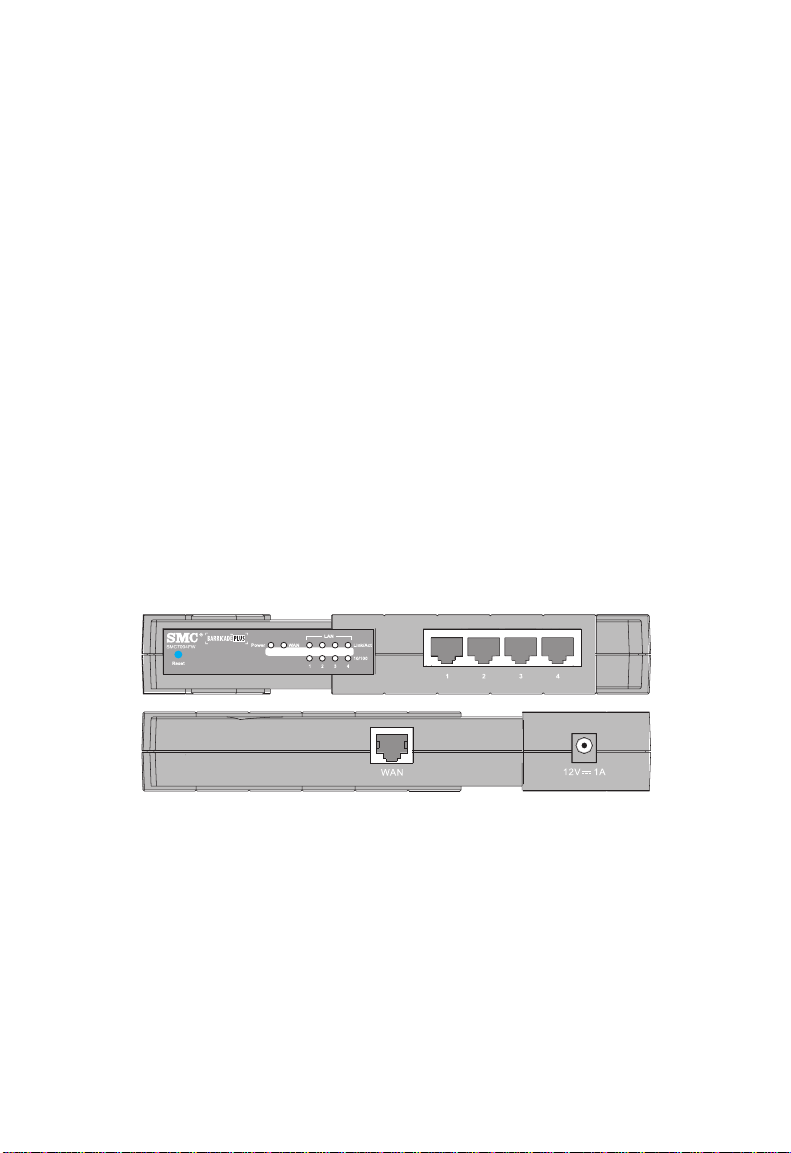
The Barricade Plus includes an LED display on the front panel for
system power and port indications that simplifies installation and
network troubleshooting. It also provides 4 RJ-45 LAN ports on the
front panel, as well as one RJ-45 WAN port on the rear panel.
2-2
Page 20
I
NSTALLATION
• 4 RJ-45 ports for connection to a 10BASE-T/100BASE-TX
Ethernet Local Area Network (LAN). These ports can autonegotiate the operating speed to 10/100 Mbps, the mode to
half/full duplex, and the pin signals to MDI/MDI-X (i.e.,
allowing these ports to be connected to any network device
with straight-through cable). These ports can be connected
directly to a PC or to a server equipped with an Ethernet
network interface card, or to a networking device such as an
Ethernet hub or switch.
• One RJ-45 port for connection to an xDSL or cable modem. This
port is fixed at 10/100 Mbps, full duplex. This port only
supports MDI-X pin signals, so you will have to use either
straight- through or crossover cable depending on the port type
used on the modem.
The following figure shows the components of the Barricade Plus:
SMC7004FW
Figure 2-1. Front and Rear Panels
2-3
Page 21

I
NSTALLATION
Item Description
Reset
Button
LEDs Power, WAN and LAN port status indicators.
LAN
Ports
WAN
Port
Power
Inlet
Use this button to reset the power and restore the default
factory settings.
(See Verify Port Status on page 2-9.)
Fast Ethernet ports (RJ-45). Connect devices on your local
area network to these ports (such as a PC, hub or switch).
WAN port (RJ-45). Connect your cable modem, xDSL
modem, or an Ethernet router to this port.
Connect the included power adapter to this inlet.
Warning: Using the wrong type of power adapter may
cause damage.
System Requirements
You must have an ISP that meets the following minimum
requirements:
• Internet access from your Internet Service Provider (ISP) using an
xDSL modem, or cable modem.
• A PC using a fixed IP address or dynamic IP address assignment
via DHCP, as well as a gateway server address and DNS server
address from your service provider.
• A computer equipped with a 10 Mbps, 100 Mbps, or 10/100
Mbps Fast Ethernet card, or a USB-to-Ethernet converter.
2-4
Page 22

• TCP/IP network protocol installed on each PC that needs to
access the Internet.
• A Java-enabled Web browser, such as Microsoft Internet
Explorer 5.0 or above or Netscape Communicator 4.0 or above
installed on one PC at your site for configuring the Barricade
Plus.
Connect the System
The Barricade Plus can be positioned at any convenient location in
your office or home. No special wiring or cooling requirements are
needed. You should, however comply with the following
guidelines:
• Keep the Barricade Plus away from any heating devices.
• Do not place the Barricade Plus in a dusty or wet environment.
You should also remember to turn off the power, remove the power
cord from the outlet, and keep your hands dry when you install the
Barricade Plus.
I
NSTALLATION
Basic Installation Procedure
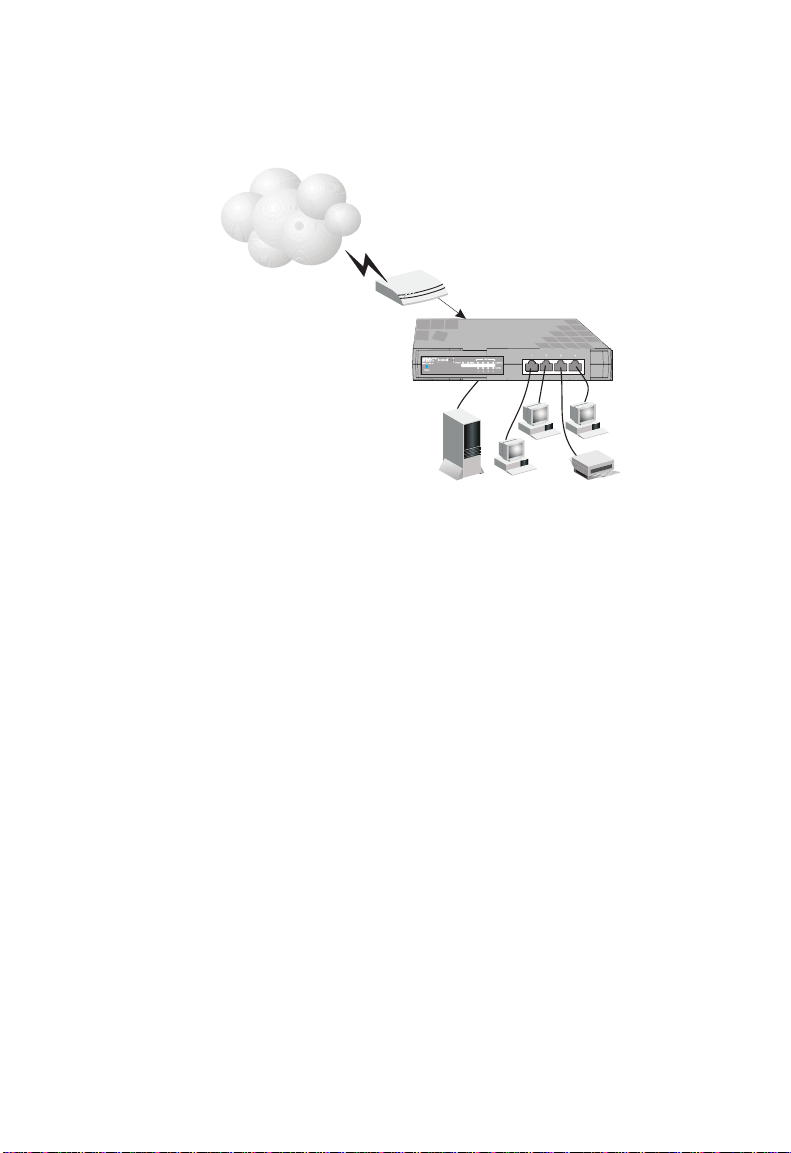
1. Connect the LAN:
PC, or to a hub or switch. Run Ethernet cable from one of the
LAN ports on the front of the Barricade Plus to your computer’s
network adapter or to another network device.
2. Connect the WAN: Prepare an Ethernet cable for connecting the
Barricade Plus to a cable/xDSL modem or Ethernet router.
You can connect the Barricade Plus to your
2-5
Page 23
I
NSTALLATION
3. Power on: Connect the power adapter to the Barricade Plus.
Internet
Internet
Access
Device
SMC7004FW
Broadband Router
SOHO Office or Residence
Figure 2-2. Connecting the Barricade Plus
Attach to Your Network Using Ethernet Cabling
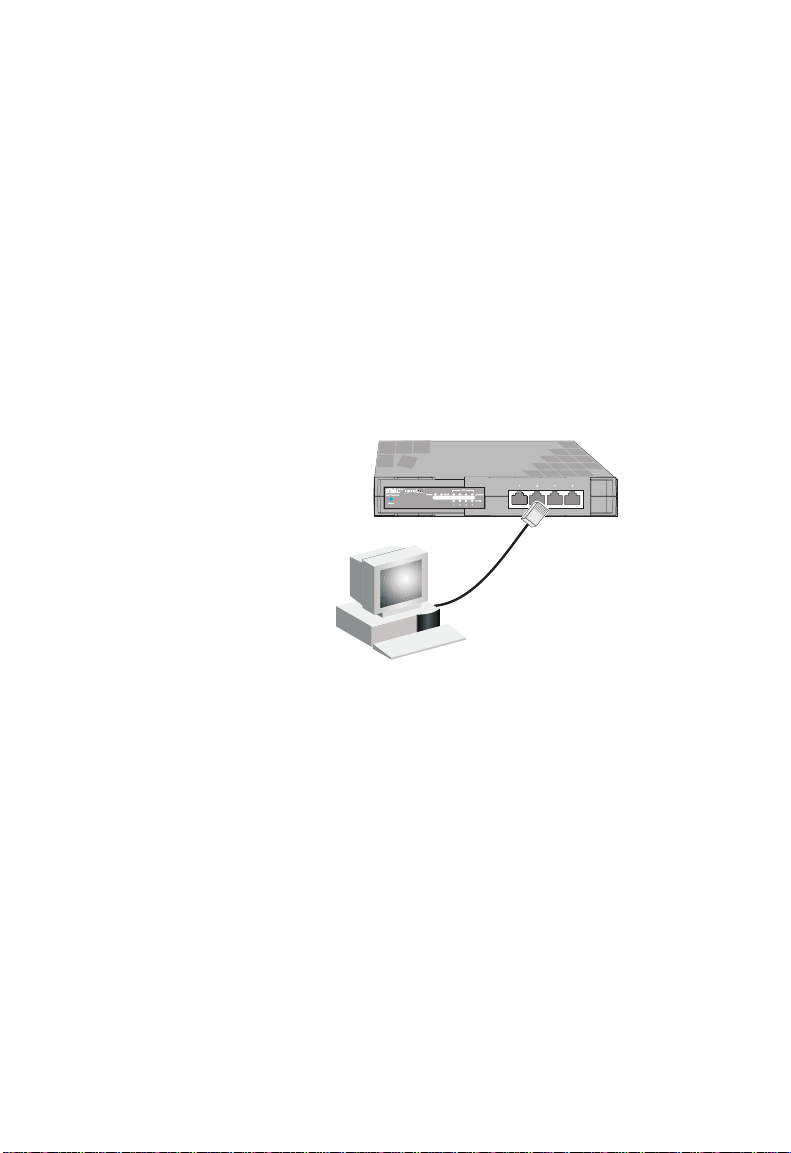
The 4 LAN ports on the Barricade Plus can auto-negotiate the
connection speed to 10 Mbps Ethernet or 100 Mbps Fast Ethernet,
as well as the transmission mode to half-duplex or full-duplex. These
LAN ports support auto-configuration for pin signals (auto-MDI/
MDI-X) that allow you to use straight-through cabling for connecting
the Barricade Plus to any network device. (See Appendix B for details
on wiring.)
Use twisted-pair cabling to connect any of the 4 LAN ports on the
Barricade Plus to an Ethernet adapter on your PC. Otherwise, you
can cascade any of LAN ports on the Barricade Plus to an Ethernet
hub or switch, and then connect your PC or other network
equipment to the hub or switch. When inserting an RJ-45 plug, be
sure the tab on the plug clicks into position to ensure that it is
properly seated.
2-6
Page 24
I
NSTALLATION
Warning: Do not plug a phone jack connector into any RJ-45 port.
This may damage the Barricade Plus. Instead, use only
twisted-pair cables with RJ-45 connectors that conform
with FCC standards.
Notes: 1. Use 100-ohm shielded or unshielded twisted-pair cable
with RJ-45 connectors for all connections. Use Category
3, 4 or 5 for connections that operate at 10 Mbps, and
Category 5 for connections that operate at 100 Mbps.
2. Make sure each twisted-pair cable does not exceed 100
meters (328 feet).
Figure 2-3. Making LAN Connections
2-7
Page 25
I
NSTALLATION
Attach the Barricade Plus to the Internet
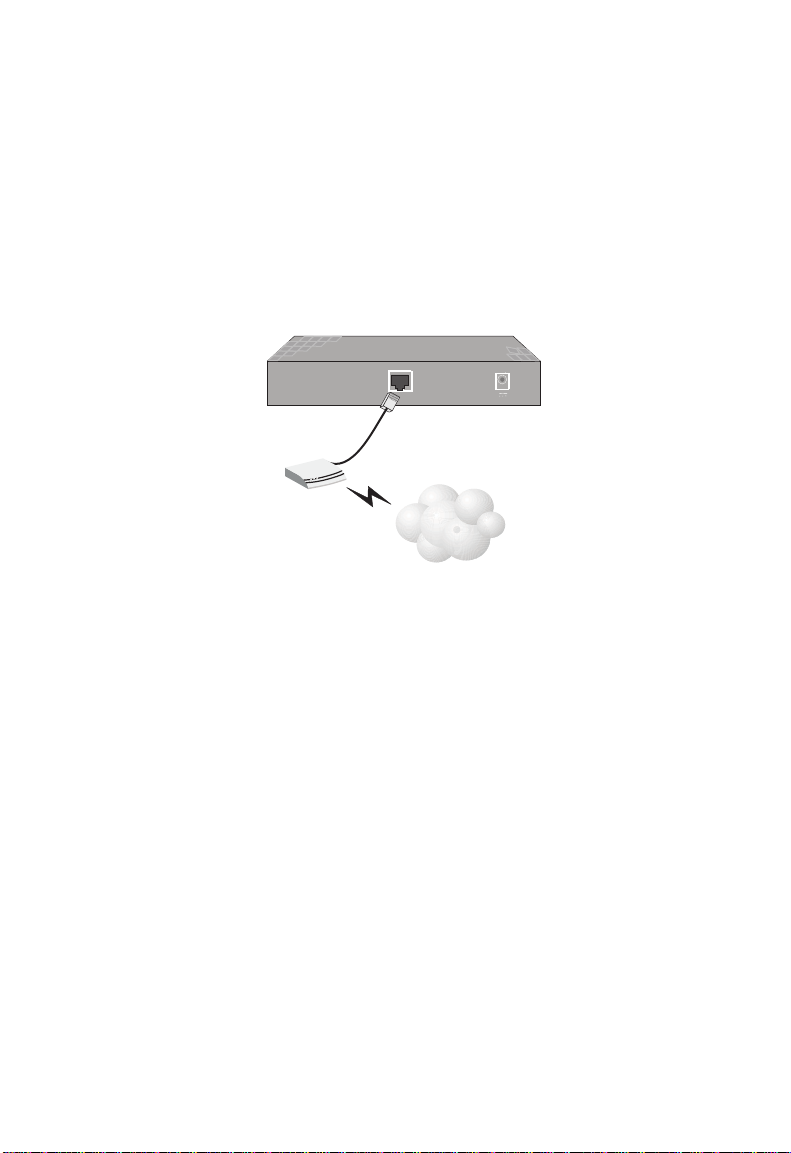
If Internet services are provided through an xDSL or cable modem,
use unshielded or shielded twisted-pair Ethernet cable (Category 3 or
greater) with RJ-45 plugs to connect the broadband modem directly
to the WAN port on the Barricade Plus. Use either straight through
or crossover cabling depending on the port type provided by the
modem (see Appendix B).
12V 1A
ISP
DSL/Cable
Modem
WAN
(Primary)
Figure 2-4. Making WAN Connections
Note: When connecting to the WAN port, use 100-ohm Category 3,
4 or 5 shielded or unshielded twisted-pair cable with RJ-45
connectors at both ends for all connections.
Connecting the Power Adapter
Plug the power adapter into the power socket on the Barricade Plus,
and the other end into a power outlet. Check the indicator marked
Power on the front panel to be sure it is on. If the Power i
does not light up, refer to Troubleshooting in Appendix A
ndicator
.
2-8
Page 26

Verify Port Status
I
NSTALLATION
Check the power and port indicators as shown in the following table
LED Condition Status
Power
(Green)
WAN
(Green)
Link/Act
(Green)
10/100
(Amber)
On Barricade Plus is receiving power.
On The WAN port has established a valid network
connection and operates at 10 Mbps.
Flashing The WAN port is transmitting or receiving
traffic at 100 Mbps.
On The indicated LAN port has established a valid
network connection.
Flashing The indicated LAN port is transmitting or
receiving traffic.
On
Off The indicated LAN port is operating at 10 Mbps.
The indicated LAN port is operating at 100
Mbps.
.
2-9
Page 27

I
NSTALLATION
2-10
Page 28

C
HAPTER
C
ONFIGURING
C
LIENT
TCP/IP Configuration
To access the Internet through the Barricade™ Plus Broadband
Router with VPN, you must configure the network settings of the
computers on your LAN to use the same IP subnet as the Barricade
Plus. The default network settings for the Barricade Plus are:
Gateway IP Address: 192.168.2.1
Subnet Mask: 255.255.255.0
Note: These settings can be changed to fit your network
requirements, but you must first configure at least one
computer as described in Chapter 5 to access the Barricade
Plus’ Web configuration interface. (See Chapter 4 for
information on configuring the Barricade Plus.)
If you have not previously configured TCP/IP for your computer,
refer to “Installing TCP/IP Protocol on Your PC” on page 5-1.
3
PC
S
All PCs connected to the Barricade Plus must be set to the same IP
subnet as the Barricade Plus. The default subnet address of the
Barricade Plus is 192.168.2.X (where X means 2–254) and the subnet
mask is 255.255.255.0. You can set the IP address for client PCs either
by automatically obtaining an IP address from the Barricade Plus’
DHCP service or by manual configuration. See “Setting TCP/IP to
Work with the Barricade Plus” on page 5-5.
3-1
Page 29

TCP/IP C
ONFIGURATION
3-2
Page 30
C
HAPTER
C
ONFIGURING THE
B
ARRICADE
After you have configured TCP/IP on a client computer, you can
use a Web browser to configure the Barricade
Router with VPN. The Barricade Plus can be configured by any
Java-supported browser including Internet Explorer 4.0 or above,
or Netscape Navigator 4.0 or above. Using the Web management
interface, you can configure the Barricade Plus and view statistics
to monitor network activity.
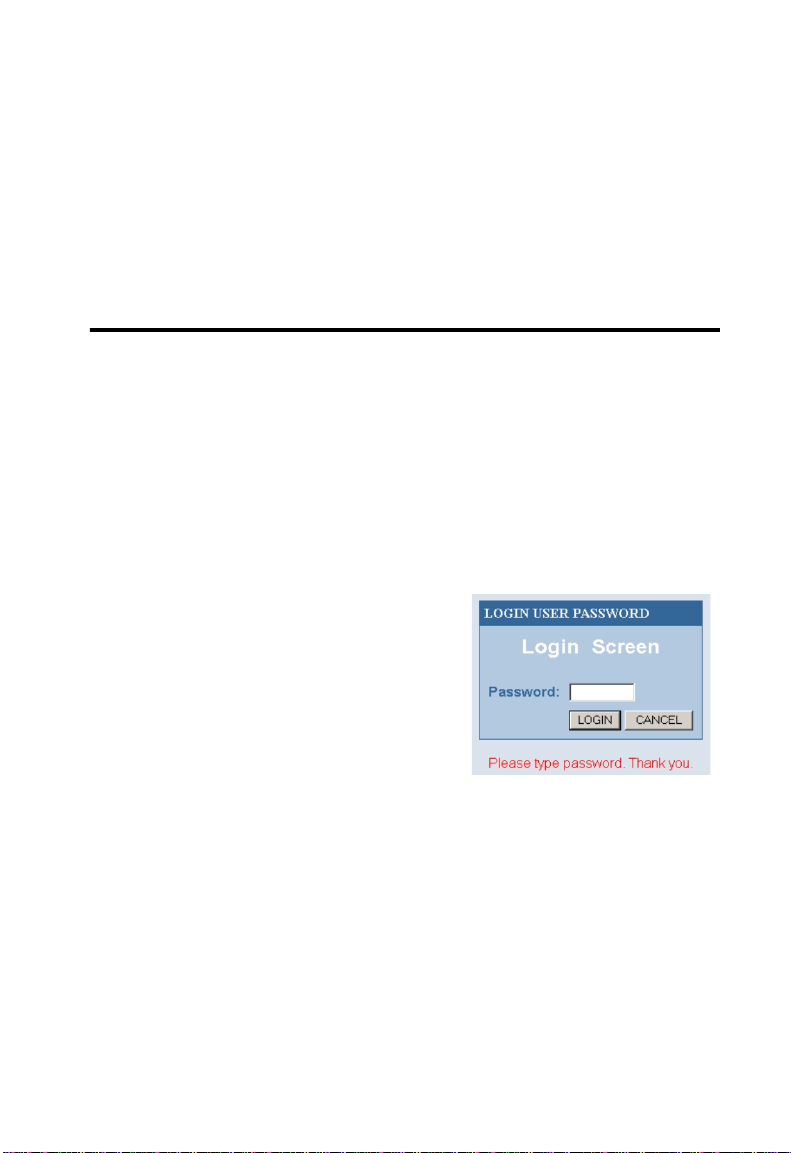
To access the Barricade Plus’
management interface, enter the IP
address of the Barricade Plus in your
Web browser http://192.168.2.1
Then login the Barricade Plus system
with no password (by default, there is
no password).
™ Plus Broadband
P
4
LUS
Note: For some browsers it may be necessary to include “:88” after
the management IP address. For example,
http://192.168.2.1:88
4-1
Page 31

N
AVIGATING THE WEB BROWSER INTERFACE
The home page displays the “Setup Wizard” and “Advanced Setup”
options.
Navigating the Web Browser Interface
The Barricade Plus’ management interface features a Setup Wizard and an
Advanced Setup section. Use the Setup Wizard if you want to quickly
setup the Barricade Plus for use with a cable modem or DSL modem.
Advanced setup supports more advanced functions like hacker attack
detection, IP and MAC address filtering, intrusion detection, virtual server
setup, virtual DMZ hosts, as well as other advanced functions.
4-2
Page 32

C
ONFIGURING THE BARRICADE PLUS
Making Configuration Changes
Configurable parameters have a dialog box. Once a configuration change
has been made on a page, be sure to click the “Apply” or “Next” button at
the bottom of the page to enable the new setting.
To ensure proper screen refresh after a command entry, be sure that
Internet Explorer 5.0 is configured as follows: Under the menu “Tools/
Internet Options/General/Temporary Internet Files/Settings,” the setting
for “Check for newer versions of stored pages” should be “Every visit to
the page.”
Setup Wizard
Broadband Type
Select the type of broadband connection you have.
4-3
Page 33

S
ETUP WIZARD
Cable Modem
Your ISP may have given you a host name. If so, enter it into this field.
Click “Finish” to complete the setup. The Status page will open to allow
you to view the connection status, as well as other information. See
“Status” on page 4-43 for details.
4-4
Page 34

C
ONFIGURING THE BARRICADE PLUS
Fixed-IP xDSL
Some xDSL Internet Service Providers may assign a fixed (static) IP
address for your gateway. If you have been provided with this information,
choose this option and enter the assigned IP address, subnet mask,
gateway IP, and DNS IP addresses for the Barricade.
Click “Finish” to complete the setup. The Status page will open to allow
you to view the connection status, as well as other information. See
“Status” on page 4-43 for details.
4-5
Page 35

S
ETUP WIZARD
PPPoE
Enter the PPPoE user name and p assword assigned by your Service
Provider. The Service Name is normally optional, but may be required by
some ser vice providers.
Leave the Maximum Transmission Unit (MTU) on the default value (1454)
unless you have a particular reason to change it.
Enter a Maximum Idle Time (in minutes) to define a maximum period of
time for which the Internet connection is maintained during inactivity. If
the connection is inactive for longer than the Maximum Idle Time, it will
be dropped. Enable the Auto-reconnect option to automatically
re-establish the connection as soon as y ou attempt to access the Internet
again.
Attention:
Please be aware that the setting "Maximum Idle Time" to "0" and/or "
Auto-Reconnect" enabled can cause an increase of your telephone bill if
you not operate on a flat-rate. For detailled information contact
www.smc-europe.com or your local SMC support team.
4-6
Page 36

C
ONFIGURING THE BARRICADE PLUS
Advanced Setup Menu
Selecting the “Advanced Setup” displays the main menu on the left-hand
side of the screen and descriptive information on the right-hand side. The
Main Menu links are used to navigate to other menus that display
configuration parameters and statistics.
Navigating the Web Browser Interface
The Barricade Plus’ advanced management interface includes nine key
menus – System, WAN, LAN, NAT, Firewall, VPN, SNMP, Tools, and
Status. The System menu provides general information on the current
settings and how to configure the Barricade Plus. The WAN, LAN, NAT,
Firewall, VPN, and SNMP menus are used to configure the LAN and
WAN interface, as well as other functions. While the Tools menu is used to
backup the Barricade Plus, restore the factory settings, update the
firmware, or reset the Barricade Plus. The Status menu is used to see the
connection status for the Barricade Plus’ WAN/LAN interfaces, firmware,
and hardware version numbers, any illegal attempts to access your network,
4-7
Page 37

N
AVIGATING THE WEB BROWSER INTERFACE
as well as information on all DHCP client PCs currently connected on
your network.
Main Menu
Using the Web management interface, you can define system parameters,
manage and control the Barricade Plus and its ports, or monitor network
conditions. The following table briefly describes the selections available
from this “Advanced Setup” screen.
Menu Description
System Menu Configures TCP/IP settings and client services.
Time Zone Sets the local time zone.
Password Settings Sets the password for administrator access.
Remote Management Sets the IP address for remote management
WAN Menu • Specifies the Internet connection type: (1)
LAN Menu Sets the TCP/IP configuration of the Barricade
NAT Menu Configures system IP settings, including:
Firewall Menu Configures a variety of packet filtering and
station.
Dynamic IP host configuration and the
physical MAC address of each media
interface, (2) PPPoE configuration, or (3)
Static IP and gateway address.
• Specifies DNS servers to use for domain
name resolution.
Plus’ LAN interface and all DHCP clients.
• Address Mapping
•Virtual Server
specialized functions, including:
• Access Control
•URL Blocking
• Schedule Rule
•Intrusion Detection
• DMZ (Demilitarized Zone)
4-8
Page 38

C
ONFIGURING THE BARRICADE PLUS
Menu Description
VPN Menu Provides three Virtual Private Network tunnels for
secure Internet communication.
IPsec Configures inbound and outbound Security
Association (SA).
PPTP • Authorizes remote users using the PPTP
tunneling protocol.
• Authenticates a PPTP tunnel to the destination
host and authorizes the IP address range to
assign to the client users.
SNMP Menu Displays and modifies parameters for the
Community Configures the community strings authorized
Trap Specify management stations that will receive
Tools Menu Contains options to reset the system, restore
Configuration Tools Allows you to backup the system
Firmware Upgrade Upgrades the system with the latest firmware
Reset Reboots the system and retains all of your
Status Menu Displays WAN/LAN connection status,
Simple Network Management Protocol
(SNMP).
for management access. Up to 5 community
names may be entered.
authentication failure messages or other
unsolicited message from the SNMP agent. Up
to 5 trap managers may be entered.
configuration settings, or update system
firmware.
configurations, restore the saved backup
configuration file, or restore all configuration
settings to the factory defaults.
obtained from SMC’s website at
www.smc.com
configuration settings.
firmware and hardware version numbers, as
well as information on all DHCP client PCs
connected
4-9
Page 39

N
AVIGATING THE WEB BROWSER INTERFACE
Menu Description
Help Menu Contains information for product support,
troubleshooting, and network terminology.
Home Button Go to the overview page of this Web
management interface
Logout Button Exit the Barricade Plus system.
Making Configuration Changes
Configurable parameters have a dialog box or a drop-down list.
Once a configuration change has been made on a page, be sure to
click the “APPLY” button at the bottom of the page to confirm
the new settings.
Note: To ensure proper screen refresh after a command entry, be sure
that Internet Explorer 5.0 is configured as follows: Under the
menu “Tools/Internet Options/General/Temporary Internet
Files/Settings,” the setting for “Check for newer versions of
stored pages” should be “Every visit to the page.”
4-10
Page 40

C
ONFIGURING THE BARRICADE PLUS
System Settings
Set Time Zone
Set the time zone for the Barricade Plus. This information is used for log
entries and client filtering.
4-11
Page 41

S
YSTEM SETTINGS
Setting a Password
If this is your first time to access the Barricade Plus, you should define a
new password, record it and put it in a safe place. From the “Advanced
Setup” menu, select “System” and click on “Password Settings” and follow
the instructions on the screen.
Use this menu to restrict management access based on a specific password.
Anyone can access the “Setup Wizard,” “Advanced Setup” and Help
menus, but you must enter a password to access the configuration options
provided by the “Setup Wizard” and “Advanced Setup” menus. By default,
there is no password, so please assign a password to the Barricade Plus as
soon as possible, and store it in a safe place.
Passwords can contain from 3–12 alphanumeric characters, and are
case-sensitive.
Note: If your password is lost, or you cannot gain access to the
management interface, press the Reset button on the front panel
(holding it down for at least five seconds) to restore the factory
defaults.
4-12
Page 42

C
ONFIGURING THE BARRICADE PLUS
Remote Management
By default, management access is only available to users on your local
network. However, you can also manage the Barricade Plus from a remote
host by adding the IP address of an administrator to this screen.
Note: If you specify an IP address of 0.0.0.0, any host can manage the
Barricade Plus. You can also manage the Barricade from a remote
host by typing “http://192.168.2.1:8080” in the “Address” field of
your Web browser.
4-13
Page 43

N
ETWORK SETTINGS
Network Settings
You can use the “Setup Wizard” to change the required settings, or you
can select the basic configuration items you need to change from the
“Setup Wizard” screen. (Refer to Quick Installation Guide for configuring
basic settings using the “Setup Wizard”.)
Use the “Advanced Setup” menu to configure the WAN connection
options, the LAN interface (including TCP/IP parameters for the
Barricade Plus’ gateway address, DHCP address pool for dynamic client
address allocation), and other advanced services.
WAN Configuration
Specify the WAN connection type required by your Internet Service
Provider, then click “More Configuration” to provide detailed
configuration parameters for the selected connection type.
Specify one of the first three options to configure a WAN connection
through the RJ-45 port (i.e., a connection to an xDSL modem or cable
modem).
4-14
Page 44

C
ONFIGURING THE BARRICADE PLUS
Dynamic IP Address – DHCP
The Host Name is optional, but may be required by some ISPs.
The default MAC address is set to the WAN’s physical interface on
the Barricade Plus. Use this address when registering for Internet
service, and do not change it unless required by your ISP. You can
use the “Clone MAC Address” button to copy the MAC address of
the Ethernet Card installed by your ISP (in your PC) and replace
the WAN MAC address with this MAC address.
4-15
Page 45

N
ETW ORK SETTINGS
PPP over Ethernet - PPPoE
Enter the PPPoE user name and password assigned by your ISP.
The Service Name is normally optional, but may be required by
some providers.
Specify the value of MTU (Maximum Transmission Unit) for proper
Internet access such as browsing web sites and using E-mail.
(Default: 1454)
Enter the maximum idle time for the Barricade Plus (in seconds).
Note:
If you are not using a flaterate, please be aware that the setting
"Maximum Idle Time" at " 0" and/or "Auto-Reconnect" enabled can
cause an increase of your telephone bill. For detailled information please
contact your local SMC support team.
4-16
Page 46

C
ONFIGURING THE BARRICADE PLUS
Static IP Address – Fixed IP
If your Internet Service Provider has assigned a fixed address,
enter the assigned address and Subnet Mask for the Barricade Plus,
then enter the gateway address of your ISP.
Note: You may need a fixed address if you want to provide Internet
services, such as a Web server or FTP server.
4-17
Page 47

N
ETWORK SETTINGS
DNS Configuration
Domain Name Servers are used to map an IP address to the equivalent
domain name (e.g., www.smc.com). Your ISP should provide the IP
address for one or more domain name servers. Enter those addresses
on this screen.
4-18
Page 48

C
ONFIGURING THE BARRICADE PLUS
LAN Gateway and DHCP Settings
Configure the gateway address of the Barricade Plus. To
dynamically assign the IP address for client PCs, enable the DHCP
Server, set the lease time, and then specify the address range. Also
remember to configure all of your client PCs for dynamic address
allocation.
Valid IP addresses consist of four numbers, and are separated by
periods. The first three fields are the network portion, and can be
from 0–255, while the last field is the host portion and can be from
1–254. However, remember not to include the gateway address of
the Barricade Plus in the client address pool. If you change the
pool range, make sure the first three octets match the gateway’s IP
address, i.e., 192.168.2.xxx.
Note: Verify that your IP address pool is from 192.168.2.2 to
192.168.2.255, your Subnet Mask is 255.255.255.0 and your
Default Gateway is 192.168.2.1.
4-19
Page 49

C
ONFIGURING CLIENT SERVICES
Configuring Client Services
The Barricade Plus includes a broad range of client services, including
firewall protection, VPN tunneling , network address translation,
virtual server, address mapping, DMZ, and restricted Internet access
for specified clients. You can configure these functions by
selecting specific items from the menu on the left of the screen.
NAT - Network Address Translation
Some applications require multiple connections, such as Internet
gaming, videoconferencing, Internet telephony and others. These
applications may not work when Network Address Translation
(NAT) is enabled. If you need to run applications that require
multiple connections, use the following screen to specify the
additional public ports to be opened for each application.
4-20
Page 50

Address Mapping
C
ONFIGURING THE BARRICADE PLUS
Use the “Address Mapping” option to limit the number of public IP
addresses required from the ISP and maintain the privacy and security of
the local network.
4-21
Page 51

C
ONFIGURING CLIENT SERVICES
Virtual Server
If you configure the Barricade Plus as a virtual server, remote users
accessing services such as Web or FTP at your local site via public
IP addresses can be automatically redirected to local servers
configured with private IP addresses. In other words, depending
on the requested service (TCP/UDP port number), the Barricade
Plus redirects the external service request to the appropriate server
(located at another internal IP address).
The WAN interface must have a fixed IP address to utilize this
function. For example, if you set Type/Public Port to TCP/80
(HTTP or Web) and the Private IP/Port to 192.168.2.2/80, then all
HTTP request from outside users will be transferred to 192.168.2.2.
Therefore, by just entering the IP Address provided by the ISP,
Internet users can access the service they need at the local address
to which you redirect them.
4-22
Page 52

C
ONFIGURING THE BARRICADE PLUS
Some of the more common TCP service ports include:
HTTP: 80, FTP: 21, Telnet: 23 and POP3: 110.
Firewall Protection
The Barricade Plus’ firewall can provide the access control of
connected client PCs, block common hacker attacks, including IP
Spoofing, Land Attack, Ping of Death, IP with zero length, Smurf
Attack, UDP port loopback, Snork Attack, TCP null scan, and TCP
SYN flooding. The firewall does not significantly affect system
performance, so we advise leaving it enabled to protect your network
users.
Note: When you select the “Enable” radio button of the “Enable or
disable Firewall module function” field, be sure press the
“APPLY” button.
4-23
Page 53

C
ONFIGURING CLIENT SERVICES
Access Control
Using this option allows you to specify different privileges for the client
PCs.
The following items are included in the “Access Control” screen:
Field Description
Normal Filtering Table Displays the IP address and filtering status of
the connected client PC
MAC Filtering Table Displays the MAC address of the client PC
Remote Management
Allows you to set the IP
address of an
administrator for a remote management
Note: Click on “Add PC” and define the appropriate settings for
client PC services (as shown in the following screen).
4-24
Page 54

C
ONFIGURING THE BARRICADE PLUS
4-25
Page 55

C
ONFIGURING CLIENT SERVICES
URL Blocking Sites
Using the above screen to block access to the Web sites specified
in the table.
4-26
Page 56

C
ONFIGURING THE BARRICADE PLUS
Schedule Rule
You can filter Internet access for local clients based on the “Rule
Name,” and time of day.
1. Click on “Add Schedule Rule”
2. Define the appropriate settings for a schedule rule (as shown
in the following screen).
4-27
Page 57

C
ONFIGURING CLIENT SERVICES
3. Click “OK” and then the “APPLY” button to save your settings.
(as shown on previous page)
4-28
Page 58

Intrusion Detection
C
ONFIGURING THE BARRICADE PLUS
The Intrusion Detection feature of the Barricade Plus limits the access of
the incoming traffic from the WAN port. When the SPI feature is turned
on, all the incoming packets will be blocked unless certain types of traffic
types are checked by the users. When the user checkes certain types of
traffic, only the particular type of traffic initiated from the Internal LAN
will be allowed. For example, if the user only checks “FTP service” from
the Stateful Packet Inspection page, all the incoming traffic will be blocked
except the FTP connection initiated from the local LAN.
4-29
Page 59

C
ONFIGURING CLIENT SERVICES
• Stateful Packet Inspection
This option allows you to select different application types that are
using dynamic port numbers. If you need to use the Stateful
Packet Inspection (SPI) for blocking packets, click on the “Yes”
radio button in the “Enable SPI and Anti-DoS firewall protection”
field and then check the inspection type that you need, such as
Packet Fragmentation, TCP Connection, UDP Session, FTP Service,
H.323 Service and TFTP Service.
• Hacker Prevention Feature
The Barricade Plus’ firewall inspects packets at the application
layer, and maintains TCP and UDP session information, including
timeouts and number of active sessions, provides the ability to
detect and prevent certain types of network attacks such as DoS
attacks.
Network attacks that deny access to a network device are called
denial-of-service (DoS) attacks. Denials of Service (DoS) attacks are aimed
at devices and networks with a connection to the Internet. Their goal is
not to steal information, but to disable a device or network so users no
longer have access to network resource.
By using the above inspected information and timeout/threshold critieria,
the Barricade Plus provides the following DoS attack preventions: Ping of
Death (Ping flood) attack, SYN flood attack, IP fragment attack (Teardrop
Attack), Brute-force attack, Land Attack, IP Spoofing attack, IP with zero
length, TCP null scan (Port Scan Attack), UDP port loopback, Snork
Attack etc..
Note: The firewall does not significantly affect system performance, so
we advise enabling the prevention features to protect your network
users.
• When hackers attempt to enter your network, we can alert you
by e-mail
4-30
Page 60

C
ONFIGURING THE BARRICADE PLUS
Enter your E-mail address for alerting hacker access.
Specify your E-mail servers, user name and password.
• Connection Policy
Enter the appropriate values for TCP/UDP sessions
• DoS Criteria and Port Scan Criteria
Setup DoS and port scan criteria in the spaces provided.
DMZ (Demilitarized Zone)
If you have a client PC that cannot run an Internet application
properly from behind the firewall, then you can open the client up
to unrestricted two-way Internet access. Enter the IP address of a
DMZ host to this screen. Adding a client to the DMZ (Demilitarized
Zone) may expose your local network to a variety of security risks,
so only use this option as a last resort.
4-31
Page 61

C
ONFIGURING CLIENT SERVICES
Virtual Private Networks (VPN) Tunnel
VPN provides a flexible and secure network to the authenticate users
through IPsec (IP Security) and PPTP (Point-to-Point Tunneling Protocol)
sessions.
4-32
Page 62

C
ONFIGURING THE BARRICADE PLUS
IPsec
IPsec is a set of protocols that offers more secure security services in the
extranet VPNs.
On the IPsec screen, select “Yes” in the “Enable IPsec” field for using the
IPsec service, and choose the appropriate tunnel (Tunnel 1 - 3) as required.
Then you have to define the authentication algorithms of the Security
Association (SA) by entering appropriate values in the “Inbound SA” and
“Outbound SA” fields for using IPsec security control.
Notes: 1. Besure the two sides of the VPN tunnel have the same security
information.
2. Provide the “Remote IP Address” to remotely log on the
network.
4-33
Page 63

C
ONFIGURING CLIENT SERVICES
PPTP
Point-to-Point Tunneling Protocol (PPTP) allows the secure remote access
over the Internet by simply dialing in a local point provided by an ISP. The
following screen display the account information of the authorized remote
users and the IP address range to assign to those users.
Click “Edit” on the screen to setup a PPTP session.
4-34
Page 64

C
ONFIGURING THE BAR RICAD E PLUS
Using the above screen allows client PCs to establish a normal PPTP
session and provides hassle-free configuration of the PPTP client on each
client PC.
For detailled information on PPTP contact your local SMC support team.
4-35
Page 65

C
ONFIGURING CLIENT SERVICES
SNMP
Use the SNMP configuration screen to display and modify
parameters for the Simple Network Management Protocol (SNMP).
A computer attached to the network, called a Network Management
Station (NMS), can be used to access this information. Access rights
to the agent are controlled by community strings. To communicate
with the Barricade Plus, the NMS must first submit a valid
community string for authentication. The options for configuring
community strings and related trap functions are described in the
following sections.
4-36
Page 66

C
ONFIGURING THE BARRICADE PLUS
Community
Community: A community name authorized for management
access.
Access: Management access is restricted to Read only or Read/
Write.
Valid: Sets administrative status of entry to enabled or
disabled.
Note: Up to 5 community names may be entered.
4-37
Page 67

C
ONFIGURING CLIENT SERVICES
Trap
IP Address: IP address of the trap manager.
Community: A community specified for trap management.
Version: Sets trap status of entry to disabled, or enabled with
V1 or V2c.
4-38
Page 68

C
ONFIGURING THE BARRICADE PLUS
Tools
You can use the “Tools” menu to restore factory settings, update
firmware, or reboot the Barricade Plus.
4-39
Page 69

C
ONFIGURING CLIENT SERVICES
Configuration Tools
The “Backup” option allows you to save your Barricade Plus’
configuration to a file named config.bin on your PC. You can then click on
the “Restore” radio button to restore the saved backup configuration file.
Selecting the “Restore to Factory Defaults” can restore the factory
settings.
4-40
Page 70

C
ONFIGURING THE BARRICADE PLUS
Firmware Upgrade
Use this screen to update the latest firmware using a file provided by SMC.
Note: For latest firmware version information, visit SMC’s Web site at
http://www.smc-europe.com
4-41
Page 71

C
ONFIGURING CLIENT SERVICES
Reset
If the Barricade Plus stops responding, you can click on the “Apply”
button to refresh the gateway. The saved configurations of the Barricade
Plus will not be changed back to factory default settings after resetting the
gateway.
Note: If you use the reset button on the front panel, the Barricade Plus
performs a power reset and restores the factory settings.
4-42
Page 72

C
ONFIGURING THE BARRICADE PLUS
Status
You can use the following screen to display WAN/LAN connection status,
firmware and hardware version numbers, as well as information on all
DHCP clients connected to your network.
4-43
Page 73

C
ONFIGURING CLIENT SERVICES
The following items are included in this screen:
Field Description
INTERNET Displays WAN connection type and status.
GATEWAY Displays system IP settings, as well as DHCP,
INFORMATION Displays the number of attached clients, the
Release Click on this button to disconnect from the
Renew Click on this button to reconnect to the
Security Log Displays any illegal attempts to access your
DHCP Client Log Displays information on all DHCP clients on
NAT, PPTP Client and PPTP Server Firewall.
firmware versions, the physical MAC address
for each media interface, as well as the
hardware version and serial number.
Internet.
Internet via cable/DSL modem.
network.
your network.
4-44
Page 74

C
HAPTER
C
ONFIGURING
C
LIENT
TCP/IP
If you have not previously installed the TCP/IP protocol on your
client PCs, refer to the following section. If you need information on
how to configure a TCP/IP address on a PC, refer to “Setting TCP/
IP to Work with the Barricade Plus” on page 5-5.
Installing TCP/IP Protocol on Your PC
The following procedures uses Windows 98 as an example. The
procedure for other Windows systems may be similar but not
identical. If you are using another Windows system, refer to the
on-line help for advice.
Windows 95/98/ME
1. Click the “Start” button and choose “Settings,” then click
“Control Panel.”
5
2. Double click the “Network” icon and select the “Configuration”
tab in the Network window.
3. Click the “Add” button to add the network component to your
PC.
5-1
Page 75

I
NSTALLING
TCP/IP P
4. Double click “Protocol” to add the TCP/IP protocol.
5. Select the “Microsoft” item in the manufacturers list. And choose
“TCP/IP” in the Network Protocols. Click the “OK” button to
return to the Network window.
ROTOCOL ON YOUR
PC
6. The TCP/IP protocol will be listed in the Network window.
Click “OK” to complete the install procedure and restart your PC
to enable the TCP/IP protocol.
5-2
Page 76

C
ONFIGURING CLIENT
Windows 2000
1. Click the “Start” button and choose “Settings,” then click
“Control Panel.”
2. Double click the “Network and Dial-up Connections” icon, then
“Local Area Connection” icon, and press the “Properties” button
in the “General” tab.
3. Click the “install...” button to add the network component to
your PC.
4. Double click on “Protocol” to add the TCP/IP protocol.
TCP/IP
5-3
Page 77

I
NSTALLING
TCP/IP P
5. Choose “Internet Protocol (TCP/IP)” in the Network Protocols.
Click the “OK” button to return to the Network window.
6. The TCP/IP protocol will be listed in the Network window.
Click “OK” to complete the install procedure.
ROTOCOL ON YOUR
PC
5-4
Page 78

C
ONFIGURING CLIENT
TCP/IP
Setting TCP/IP to Work with the Barricade Plus
Windows 95/98/ME
1. Click the “Start” button and choose “Settings,” then click
“Control Panel.”
2. Double click the “Network” icon. Select the TCP/IP line that has
been assigned to your network card in the “Configuration” tab of
the Network window.
3. Click the “Properties” button to set the TCP/IP protocol for the
Barricade Plus.
4. You can dynamically assign TCP/IP address settings to a client,
or you can manually configure a client with address settings to
meet your specific network requirements. (Note that the default
IP address of the Barricade Plus is 192.168.2.1.)
5-5
Page 79

S
ETTING
TCP/IP TO W
ORK WITH THE BARRICADE PLUS
Windows 2000
1. Click the “Start” button and choose “Settings,” then click
“Control Panel.”
2. Double click the “Network and Dial-up Connections” icon, then
“Local Area Connection” icon, and press the “Properties” button
in the “General” tab.
3. Select the TCP/IP line that has been assigned to your network
card in the “Local Area Connection Properties” window.
4. Click the “Properties” button to set the TCP/IP protocol for the
Barricade Plus.
5. You can dynamically assign TCP/IP address settings to a client,
or you can manually configure a client with address settings to
meet your specific network requirements. (Note that the default
IP address of the Barricade Plus is 192.168.2.1.)
5-6
Page 80

C
ONFIGURING CLIENT
Windows XP
1. Click the “start” button and choose “Control Panel.”
2. Select the “Network and Internet Connections” icon,
then click the “Network Connections” icon, and double
click on the “LAN or High-Speed Internet.”
3. Press the “Properties” button in the “General” tab.
4. Select the TCP/IP line that has been assigned to your network
card in the “Local Area Connection Properties” window.
5. Click the “Properties” button to set the TCP/IP protocol for the
Barricade Plus.
TCP/IP
6. You can dynamically assign TCP/IP address settings to a client,
or you can manually configure a client with address settings to
meet your specific network requirements. (Note that the default
IP address of the Barricade Plus is 192.168.2.1.)
5-7
Page 81

S
ETTING
TCP/IP TO W
ORK WITH THE BARRICADE PLUS
Configuring Your Computer with Windows 95/98/ME
You may find that the instructions here do not exactly match your
version of Windows. This is because these steps and screenshots were
created from Windows 98. Windows 95 and Windows Millennium
Edition are very similar, but not identical, to Windows 98.
Step 1. Configure TCP/IP Settings
After you have completed the hardware setup by connecting your
devices, you need to configure your computer to connect to your
Barricade Plus. You need to determine how your ISP issues your IP
address. Many ISPs issue these numbers automatically using a
networking technology known as Dynamic Host Configuration
Protocol, or DHCP. Other ISPs will specify your IP address and
associated numbers, which you must enter manually. This is also
known as a static IP address. How your ISP assigns your IP address
determines how you will configure your computer.
1. From the Windows
desktop, click the "Start"
button. Choose "Settings,"
then click "Control Panel."
5-8
Page 82

2. From "Control
Panel," double-click
the "Network" icon.
3. In the "Network"
window, under the
"Configuration" tab,
double-click the "TCP/IP"
entry that is listed with
your network card.
C
ONFIGURING CLIENT
TCP/IP
5-9
Page 83

S
ETTING
TCP/IP TO W
4. Select the "IP Address" tab.
If "Obtain an IP address
automatically" is already
selected, your computer is
already configured for DHCP.
Click "Cancel" to close each
window, and skip to Step 2
"Disable HTTP Proxy."
ORK WITH THE BARRICADE PLUS
5. Locate your IP address and
Subnet Mask. Record them
in the spaces provided
below.
6. Click the "Gateway" tab and
record the numbers listed
under "Installed gateways."
5-10
Page 84

C
ONFIGURING CLIENT
TCP/IP
7. Click the "DNS
Configuration" tab. Locate
the DNS servers listed under
"DNS Server Search Order."
Record the listed addresses.
8. After writing down your
settings, check to make sure
you have recorded them
correctly. Click the "IP
Address" tab and then click
"Obtain an IP address
automatically." Click OK.
9. Windows may need
your Windows 95/98/
ME CD to copy some
files. After it finishes
copying, it will then
prompt you to restart
your system. Click "Yes" and your computer will shut down and
restart.
TCP/IP Configuration Setting
IP Address ____.____.____.____
Subnet Mask ____.____.____.____
Primary DNS Server ____.____.____.____
Secondary DNS Server ____.____.____.____
Default Gateway ____.____.____.____
Step 2. Disable HTTP Proxy
You will need to verify that the "HTTP Proxy" feature of your Web
browser is disabled. This is so that your Web browser will be able to
view the configuration pages inside your Barricade Plus. The
following steps are for Internet Explorer and for Netscape.
Determine which browser you use and follow the appropriate steps.
5-11
Page 85

S
ETTING
TCP/IP TO W
Internet Explorer
1. Open Internet Explorer
and click the stop button.
Click "Tools," then
"Internet Options."
2. In the "Internet
Options" window click
the "Connections" tab.
Next, click the "LAN
Settings..." button.
3. Clear all the
checkboxes.
ORK WITH THE BARRICADE PLUS
4. Click "OK," and then
click "OK" again to close
the "Internet Options"
window.
5-12
Page 86

C
ONFIGURING CLIENT
Netscape
1. Open Netscape and click the stop
button. Click "Edit," then click
"Preferences..."
2. In the
"Preferences"
window, under
"Category"
double-click
"Advanced,"
then click
"Proxies." Select
"Direct
connection to
the Internet."
Click "OK."
3. Repeat these
steps for each Windows 95/98/Me computer connected to your
Barricade Plus.
TCP/IP
Step 3. Obtain IP Settings from Your Barricade Plus
Now that you have configured your computer to connect to your
Barricade Plus, it needs to obtain new network settings. By releasing
any old IP settings and renewing them with settings from your
Barricade Plus, you will also verify that you have configured your
computer correctly.
5-13
Page 87

S
ETTING
TCP/IP TO W
1. Click "Start," then "Run..."
2. Type "WINIPCFG" and
click "OK." It may take a
minute or two for the "IP
Configuration" window to
appear.
3. From the drop-down menu,
select your network card.
Click "Release" and then
"Renew." Verify that your
IP address is now
192.168.2.xxx, your Subnet
Mask is 255.255.255.0 and
your Default Gateway is
192.168. 2.1. These values
confirm that your Barricade Plus is functioning. Click "OK" to
close the "IP Configuration" window.
ORK WITH THE BARRICADE PLUS
5-14
Page 88

C
ONFIGURING CLIENT
Configuring Your Computer with Windows 2000
Step 1. Configure TCP/IP Settings
After you have completed the hardware setup, you need to configure
your computer to connect to your Barricade Plus. You also need to
determine how your ISP issues your IP address. Many ISPs issue these
numbers automatically, using a networking technology known as
Dynamic Host Configuration Protocol, or DHCP. Other ISPs will
specify your IP address and associated numbers, which you must
enter manually. This is also known as a static IP address. How your
ISP assigns your IP address determines how you will configure your
computer.
Here is what to do:
1. From the Windows
desktop, click the "Start"
button. Choose
"Settings," then click
"Control Panel."
TCP/IP
5-15
Page 89

S
ETTING
TCP/IP TO W
2. Double-click the
"Network &
Dial-Up
Connections" icon.
3. Double-click the
icon that corresponds
to the connection to
your Barricade Plus.
ORK WITH THE BARRICADE PLUS
4. Click "Properties."
5-16
Page 90

5. Double-click "Internet
Protocol (TCP/IP)."
6. All the information that
you need to record is on
the "Internet Protocol
(TCP/IP) Properties"
dialog box. Use the
spaces below to record
the information.
C
ONFIGURING CLIENT
TCP/IP
If "Obtain an IP address
automatically" and "Obtain
DNS server address
automatically" are already
selected, your computer is
already configured for
DHCP. Click "Cancel" to
close each window, and skip
to Step 2 "Disable HTTP
Proxy."
5-17
Page 91

S
ETTING
TCP/IP TO W
ORK WITH THE BARRICADE PLUS
7. Select "Obtain an IP address automatically" and then select
"Obtain DNS server address automatically." Then click "OK."
Click "OK" or "Close" to close each window.
TCP/IP Configuration Setting
IP Address ____.____.____.____
Subnet Mask ____.____.____.____
Primary DNS Server ____.____.____.____
Secondary DNS Server ____.____.____.____
Default Gateway ____.____.____.____
Step 2. Disable HTTP Proxy
You will need to verify that the "HTTP Proxy" feature of your Web
browser is disabled. This is so that your Web browser will be able to
view the configuration pages inside your Barricade Plus. The
following steps are for Internet Explorer and for Netscape.
Determine which browser you use and follow the appropriate steps.
Internet Explorer
1. Open Internet Explorer
and click the stop button.
Click "Tools," then
"Internet Options."
5-18
Page 92

2. In the "Internet
Options" window click
the "Connections" tab.
Next, click the "LAN
Settings..." button.
3. Clear all the
checkboxes.
4. Click "OK," and then
click "OK" again to close
the "Internet Options"
window.
C
ONFIGURING CLIENT
TCP/IP
Netscape
1. Open Netscape and click the stop
button. Click "Edit," then click
"Preferences..."
5-19
Page 93

S
ETTING
TCP/IP TO W
2. In the
"Preferences"
window, under
"Category"
double-click
"Advanced,"
then click
"Proxies." Select
"Direct
connection to
the Internet."
Click "OK."
Step 3. Obtain IP Settings From Your Barricade Plus
Now that you have configured your computer to connect to your
Barricade Plus, it needs to obtain new network settings. By releasing
any old IP settings and renewing them with settings from your
Barricade Plus, you will also verify that you have configured your
computer correctly.
ORK WITH THE BARRICADE PLUS
1. From the Windows
desktop, click the
"Start" button, then
"Programs," then
"Accessories," and
then click
"Command
Prompt."
5-20
Page 94

C
ONFIGURING CLIENT
2. In the "Command Prompt" window, type "IPCONFIG /
RELEASE" and press the <ENTER> key.
3. Type "IPCONFIG /RENEW" and press the <ENTER> key.
Verify that your IP address is now 192.168.2.xxx (2-255), your
Subnet Mask is 255.255.255.0 and your Default Gateway is
192.168.2.1. These values confirm that your Barricade Plus is
functioning.
TCP/IP
Type "EXIT" and press <ENTER> to close the "Command
Prompt" window.
5-21
Page 95

S
ETTING
TCP/IP TO W
ORK WITH THE BARRICADE PLUS
Configuring Your Computer with Windows XP
Step 1. Configure TCP/IP Settings
After you have completed the hardware setup, you need to configure
your computer to connect to your Barricade Plus. You also need to
determine how your ISP issues your IP address. Many ISPs issue these
numbers automatically, using a networking technology known as
Dynamic Host Configuration Protocol, or DHCP. Other ISPs will
specify your IP address and associated numbers, which you must
enter manually. This is also known as a static IP address. How your
ISP assigns your IP address determines how you will configure your
computer.
Here is what to do:
1. From the Windows
desktop, click the "start"
button. Choose "Control
Panel."
5-22
Page 96

2. Select the “Network
and Internet
Connections” icon,
then click the
“Network
Connections” icon.
3. Double click on the
“LAN or High-Speed
Internet.”
C
ONFIGURING CLIENT
TCP/IP
4. Click "Properties."
5-23
Page 97

S
ETTING
TCP/IP TO W
5. Double-click "Internet
Protocol (TCP/IP)."
6. All the information
that you need to
record is on the
"Internet Protocol
(TCP/IP) Properties"
dialog box. Use the
spaces below to record
the information.
ORK WITH THE BARRICADE PLUS
If "Obtain an IP address
automatically" and
"Obtain DNS server
address automatically" are
already selected, your
computer is already
configured for DHCP.
Click "Cancel" to close
each window, and skip to
Step 2 "Disable HTTP Proxy."
5-24
Page 98

C
ONFIGURING CLIENT
TCP/IP
7. Select "Obtain an IP address automatically" and then select
"Obtain DNS server address automatically." Then click "OK."
Click "OK" or "Close" to close each window.
TCP/IP Configuration Setting
IP Address ____.____.____.____
Subnet Mask ____.____.____.____
Primary DNS Server ____.____.____.____
Secondary DNS Server ____.____.____.____
Default Gateway ____.____.____.____
Step 2. Disable HTTP Proxy
You will need to verify that the "HTTP Proxy" feature of your Web
browser is disabled. This is so that your Web browser will be able to
view the configuration pages inside your Barricade Plus. The
following steps are for Internet Explorer and for Netscape.
Determine which browser you use and follow the appropriate steps.
Internet Explorer
1. Open Internet Explorer
and click the stop
button. Click "Tools,"
then "Internet Options."
5-25
Page 99

S
ETTING
TCP/IP TO W
2. In the "Internet
Options" window click
the "Connections" tab.
Next, click the "LAN
Settings..." button.
3. Clear all the
checkboxes.
4. Click "OK," and then
click "OK" again to close
the "Internet Options"
window.
ORK WITH THE BARRICADE PLUS
5-26
Page 100

C
ONFIGURING CLIENT
Step 3. Obtain IP Settings From Your Barricade Plus
Now that you have configured your computer to connect to your
Barricade Plus, it needs to obtain new network settings. By releasing
any old IP settings and renewing them with settings from your
Barricade Plus, you will also verify that you have configured your
computer correctly.
1. From the Windows desktop, click the "Start" button, then
"Programs," then "Accessories," and then click "Command
Prompt."
TCP/IP
5-27
 Loading...