

Page 1

TigerSwitch 10/100
24-Port Layer 3 Switch
◆ 24 10BASE-T/100BASE-TX ports
◆ Optional 1000BASE-LX, 1000BASE-SX, 1000BASE-T
or 100BASE-FX modules
◆ 8.8 Gbps aggregate bandwidth
◆ Support for redundant power unit
◆ Spanning Tree Protocol
◆ Supports 2, 4 or 8-port trunks
◆ QoS support for two-level priority
◆ Full support for VLANs with GVRP
◆ IGMP multicast filtering and snooping
◆ Layer 3 routing with RIP, RIP-2, OSPF-2, DVMRP
◆ Security filtering based on MAC or IP address
Installation Guide
SMC6724L3
Page 2

Page 3

TigerSwitch 10/100
Installation Guide
From SMC’s Tiger line of feature-rich workgroup LAN solutions
6 Hughes
Irvine, CA 92618
Phone: (949) 707-2400
June 2001
Pub. # 150668-102 R01
Page 4

Information furnished by SMC Networks, Inc. (SMC) is believed to
be accurate and reliable. However, no responsibility is assumed by
SMC for its use, nor for any infringements of patents or other rights
of third parties which may result from its use. No license is granted
by implication or otherwise under any patent or patent rights of
SMC. SMC reserves the right to change specifications at any time
without notice.
Copyright © 2000 by
SMC Networks, Inc.
6 Hughes
Irvine, CA 92618
All rights reserved. Printed in Taiwan
Trademarks:
SMC is a registered trademark; and EZ Switch, TigerStack and TigerSwitch are trademarks of
SMC Networks, Inc. Other product and company names are trademarks or registered
trademarks of their respective holders.
Page 5

L
IMITED
Limited Warranty Statement: SMC Networks, Inc. (“SMC”) warrants its products
to be free from defects in workmanship and materials, under normal use and
service, for the applicable warranty term. All SMC products carry a standard 90-day
limited warranty from the date of purchase from SMC or its Authorized Reseller.
SMC may, at its own discretion, repair or replace any product not operating as
warranted with a similar or functionally equivalent product, during the applicable
warranty term. SMC will endeavor to repair or replace any product returned under
warranty within 30 days of receipt of the product.
The standard limited warranty can be upgraded to a Limited Lifetime* warranty by
registering new products within 30 days of purchase from SMC or its Authorized
Reseller. Registration can be accomplished via the enclosed product registration
card or online via the SMC web site. Failure to register will not affect the standard
limited warranty. The Limited Lifetime warranty covers a product during the Life of
that Product, which is defined as the period of time during which the product is an
“Active” SMC product. A product is considered to be “Active” while it is listed on
the current SMC price list. As new technologies emerge, older technologies become
obsolete and SMC will, at its discretion, replace an older product in its product line
with one that incorporates these newer technologies. At that point, the obsolete
product is discontinued and is no longer an “Active” SMC product. A list of
discontinued products with their respective dates of discontinuance can be found at
http://www.smc.com/smc/pages_html/support.html.
All products that are replaced become the property of SMC. Replacement products
may be either new or reconditioned. Any replaced or repaired product carries
either a 30-day limited warranty or the remainder of the initial warranty, whichever
is longer. SMC is not responsible for any custom software or firmware,
configuration information, or memory data of Customer contained in, stored on, or
integrated with any products returned to SMC pursuant to any warranty. Products
returned to SMC should have any customer-installed accessory or add-on
components, such as expansion modules, removed prior to returning the product
for replacement. SMC is not responsible for these items if they are returned with the
product.
Customers must contact SMC for a Return Material Authorization number prior to
returning any product to SMC. Proof of purchase may be required. Any product
returned to SMC without a valid Return Material Authorization (RMA) number
clearly marked on the outside of the package will be returned to customers at
customer’s expense. For warranty claims within North America, please call our
toll-free customer support number at (800) 762-4968. Customers are responsible for
all shipping charges from their facility to SMC. SMC is responsible for return
shipping charges from SMC to customer.
W
ARRANTY
i
Page 6

L
IMITED WARRANTY
WARRANTIES EXCLUSIVE: IF AN SMC PRODUCT DOES NOT OPERATE AS
WARRANTED ABOVE, CUSTOMER’S SOLE REMEDY SHALL BE REPAIR OR
REPLACEMENT OF THE PRODUCT IN QUESTION, AT SMC’S OPTION. THE
FOREGOING WARRANTIES AND REMEDIES ARE EXCLUSIVE AND ARE IN LIEU
OF ALL OTHER WARRANTIES OR CONDITIONS, EXPRESS OR IMPLIED, EITHER
IN FACT OR BY OPERATION OF LAW, STATUTORY OR OTHERWISE, INCLUDING
WARRANTIES OR CONDITIONS OF MERCHANTABILITY AND FITNESS FOR A
PARTICULAR PURPOSE. SMC NEITHER ASSUMES NOR AUTHORIZES ANY OTHER
PERSON TO ASSUME FOR IT ANY OTHER LIABILITY IN CONNECTION WITH
THE SALE, INSTALLATION, MAINTENANCE OR USE OF ITS PRODUCTS. SMC
SHALL NOT BE LIABLE UNDER THIS WARRANTY IF ITS TESTING AND
EXAMINATION DISCLOSE THE ALLEGED DEFECT IN THE PRODUCT DOES NOT
EXIST OR WAS CAUSED BY CUSTOMER’S OR ANY THIRD PERSON’S MISUSE,
NEGLECT, IMPROPER INSTALLATION OR TESTING, UNAUTHORIZED ATTEMPTS
TO REPAIR, OR ANY OTHER CAUSE BEYOND THE RANGE OF THE INTENDED
USE, OR BY ACCIDENT, FIRE, LIGHTNING, OR OTHER HAZARD.
LIMITATION OF LIABILITY: IN NO EVENT, WHETHER BASED IN CONTRACT OR
TORT (INCLUDING NEGLIGENCE), SHALL SMC BE LIABLE FOR INCIDENTAL,
CONSEQUENTIAL, INDIRECT, SPECIAL, OR PUNITIVE DAMAGES OF ANY KIND,
OR FOR LOSS OF REVENUE, LOSS OF BUSINESS, OR OTHER FINANCIAL LOSS
ARISING OUT OF OR IN CONNECTION WITH THE SALE, INSTALLATION,
MAINTENANCE, USE, PERFORMANCE, FAILURE, OR INTERRUPTION OF ITS
PRODUCTS, EVEN IF SMC OR ITS AUTHORIZED RESELLER HAS BEEN ADVISED
OF THE POSSIBILITY OF SUCH DAMAGES.
SOME STATES DO NOT ALLOW THE EXCLUSION OF IMPLIED WARRANTIES OR
THE LIMITATION OF INCIDENTAL OR CONSEQUENTIAL DAMAGES FOR
CONSUMER PRODUCTS, SO THE ABOVE LIMITATIONS AND EXCLUSIONS MAY
NOT APPLY TO YOU. THIS WARRANTY GIVES YOU SPECIFIC LEGAL RIGHTS,
WHICH MAY VARY FROM STATE TO STATE. NOTHING IN THIS WARRANTY
SHALL BE TAKEN TO AFFECT YOUR STATUTORY RIGHTS.
* SMC will provide warranty service for one year following discontinuance from the
active SMC price list. Under the limited lifetime warranty, internal and external
power supplies, fans, and cables are covered by a standard one-year warranty from
date of purchase.
SMC Networks, Inc.
6 Hughes
Irvine, CA 92618
ii
Page 7

C
OMPLIANCES
FCC - Class A
This equipment generates, uses, and can radiate radio frequency energy and, if not
installed and used in accordance with the instruction manual, may cause interference to
radio communications. It has been tested and found to comply with the limits for a
Class A computing device pursuant to Subpart B of Part 15 of FCC Rules, which are
designed to provide reasonable protection against such interference when operated in a
commercial environment. Operation of this equipment in a residential area is likely to
cause interference, in which case the user, at his own expense, will be required to take
whatever measures may be required to correct the interference. You are cautioned that
changes or modifications not expressly approved by the party responsible for
compliance could void your authority to operate the equipment.
You may use unshielded twisted-pair (UTP) cable for RJ-45 connections
greater for 10 Mbps connections, Category 5 for 100 Mbps connections and Category 5
or 5e for 1000 Mbps connections. Use 50/125 or 62.5/125 micron multimode fiber optic
cable, or 9/125 micron single-mode cable, for SC or ST-type connections.
War ni ngs; 1.
Wear an anti-static wrist strap or take other suitable measures to prevent
electrostatic discharge when handling this equipment.
2.
When connecting this hub to a power outlet, connect the field ground
lead on the tri-pole power plug to a valid earth ground line to prevent
electrical hazards.
—
Category 3 or
EC Conformance Declaration - Class A
SMC contact for these products in Europe is:
SMC Networks Europe,
Edificio Conata II,
Calle Fructuós Gelabert 6-8,
08970 - Sant Joan Despí, Barcelona, Spain.
This information technology equipment complies with the requirements of the Council
Directive 89/336/EEC on the Approximation of the laws of the Member States relating to
Electromagnetic Compatibility and 73/23/EEC for electrical equipment used within
certain voltage limits and the Amendment Directive 93/68/EEC. For the evaluation of the
compliance with these Directives, the following standards were applied:
2o, 4a,
RFI Emission:
• Limit class A according to EN 55022:1998
• Limit class A for harmonic current emission according to
EN 61000-3-2/1995
• Limitation of voltage fluctuation and flicker in low-voltage
supply system according to EN 61000-3-3/1995
iii
Page 8

C
OMPLIANCES
Immunity:
LVD:
War ni ng:
device. Les raccordeurs ne sont pas utilisé pour le systéme téléphonique!
• Product family standard according to EN 55024:1998
• Electrostatic Discharge according to EN 61000-4-2:1995
(Contact Discharge: ±4 kV, Air Discharge: ±8 kV)
• Radio-frequency electromagnetic field according to
EN 61000-4-3:1996 (80 - 1000 MHz with 1 kHz AM 80%
Modulation: 3 V/m)
• Electrical fast transient/burst according to EN 61000-4-4:1995
(AC/DC power supply: ±1 kV, Data/Signal lines: ±0.5 kV)
• Surge immunity test according to EN 61000-4-5:1995
(AC/DC Line to Line: ±1 kV, AC/DC Line to Earth: ±2 kV)
• Immunity to conducted disturbances, Induced by
radio-frequency fields: EN 61000-4-6:1996 (0.15 - 80 MHz with
1 kHz AM 80% Modulation: 3 V/m)
• Power frequency magnetic field immunity test according to
EN 61000-4-8:1993 (1 A/m at frequency 50 Hz)
• Voltage dips, short interruptions and voltage variations immunity
test according to EN 61000-4-11:1994 (>95% Reduction @10 ms,
30% Reduction @500 ms, >95% Reduction @5000 ms)
• EN 60950 (A1/1992; A2/1993; A3/1993; A4/1995; A11/1997)
Do not plug a phone jack connector in the RJ-45 port. This may damage this
iv
Page 9

C
OMPLIANCES
Industry Canada - Class A
This digital apparatus does not exceed the Class A limits for radio noise emissions from
digital apparatus as set out in the interference-causing equipment standard entitled
“Digital Apparatus,” ICES-003 of the Department of Communications.
Cet appareil numérique respecte les limites de bruits radioélectriques applicables aux
appareils numériques de Classe A prescrites dans la norme sur le matériel brouilleur:
“Appareils Numériques,” NMB-003 édictée par le ministère des Communications.
Japan VCCI Class A
Taiwan BSMI Class A
Australia AS/NZS 3548 (1995) - Class A
SMC contact for products in Australia is:
SMC Communications Pty. Ltd.
Suite 18, 12 Tryon Road,
Lindfield NSW2070,
Phone: 61-2-94160437
Fax: 61-2-94160474
v
Page 10
C
OMPLIANCES
Safety Compliance
Warning: Fiber Optic Port Safety
CLASS I
LASER DEVICE
Avertissment: Ports pour fibres optiques - sécurité sur le
plan optique
DISPOSITIF LASER
DE CLASSE I
Warnhinweis: Faseroptikanschlüsse - Optische Sicherheit
LASERGER
DER KLASSE I
ÄT
Underwriters Laboratories Compliance Statement
Important!
Check it (read the label on the cable) against the following:
Operating Voltage Cord Set Specifications
120 Volts UL Listed/CSA Certified Cord Set
240 Volts (Europe only) Cord Set with H05VV-F cord having three
Before making connections, make sure you have the correct cord set.
When using a fiber optic port, never look at the transmit
laser while it is powered on. Also, never look directly at
the fiber TX port and fiber cable ends when they are
powered on.
Ne regardez jamais le laser tant qu’il est sous tension.
Ne regardez jamais directement le port TX
(Transmission) à fibres optiques et les embouts de
câbles à fibres optiques tant qu’ils sont sous tension.
Niemals ein Übertragungslaser betrachten, während
dieses eingeschaltet ist. Niemals direkt auf den
Faser-TX-Anschluß und auf die Faserkabelenden
schauen, während diese eingeschaltet sind.
Minimum 18 AWG
Type SVT or SJT three conductor cord
Maximum length of 15 feet
Parallel blade, grounding type attachment plug
rated 15 A, 125 V
conductors with minimum diameter of 0.75 mm
IEC-320 receptacle
Male plug rated 10 A, 250 V
2
The unit automatically matches the connected input voltage. Therefore, no additional
adjustments are necessary when connecting it to any input voltage within the range
marked on the rear panel.
vi
Page 11

C
OMPLIANCES
Wichtige Sicherheitshinweise (Germany)
1. Bitte lesen Sie diese Hinweise sorgfältig durch.
2. Heben Sie diese Anleitung für den späteren Gebrauch auf.
3. Vor jedem Reinigen ist das Gerät vom Stromnetz zu trennen. Verwenden Sie keine
Flüssigoder Aerosolreiniger. Am besten eignet sich ein angefeuchtetes Tuch zur
Reinigung.
4. Die Netzanschlu ßsteckdose soll nahe dem Gerät angebracht und leicht zugänglich
sein.
5. Das Gerät ist vor Feuchtigkeit zu schützen.
6. Bei der Aufstellung des Gerätes ist auf sicheren Stand zu achten. Ein Kippen oder
Fallen könnte Beschädigungen hervorrufen.
7. Die Belüftungsöffnungen dienen der Luftzirkulation, die das Gerät vor Überhitzung
schützt. Sorgen Sie dafür, daß diese Öffnungen nicht abgedeckt werden.
8. Beachten Sie beim Anschluß an das Stromnetz die Anschlußwerte.
9. Verlegen Sie die Netzanschlußleitung so, daß niemand darüber fallen kann. Es sollte
auch nichts auf der Leitung abgestellt werden.
10. Alle Hinweise und Warnungen, die sich am Gerät befinden, sind zu beachten.
11. Wird das Gerät über einen längeren Zeitraum nicht benutzt, sollten Sie es vom
Stromnetz trennen. Somit wird im Falle einer Überspannung eine Beschädigung
vermieden.
12. Durch die Lüftungsöffnungen dürfen niemals Gegenstände oder Flüssigkeiten in das
Gerät gelangen. Dies könnte einen Brand bzw. elektrischen Schlag auslösen.
13. Öffnen sie niemals das Gerät. Das Gerät darf aus Gründen der elektrischen
Sicherheit nur von authorisiertem Servicepersonal geöffnet werden.
14. Wenn folgende Situationen auftreten ist das Gerät vom Stromnetz zu trennen und
von einer qualifizierten Servicestelle zu überprüfen:
a. Netzkabel oder Netzstecker sind beschädigt.
b. Flüssigkeit ist in das Gerät eingedrungen.
c. Das Gerät war Feuchtigkeit ausgesetzt.
d. Wenn das Gerät nicht der Bedienungsanleitung entsprechend funktioniert oder
Sie mit Hilfe dieser Anleitung keine Verbesserung erzielen.
e. Das Gerät ist gefallen und/oder das Gehäuse ist beschädigt.
f. Wenn das Gerät deutliche Anzeichen eines Defektes aufweist.
15. Zum Netzanschluß dieses Gerätes ist eine geprüfte Leitung zu verwenden. Für einen
Nennstrom bis 6 A und einem Gerätegewicht größer 3 kg ist eine Leitung nicht
leichter als H05VV-F, 3G, 0.75 mm
Der arbeitsplatzbezogene Schalldruckpegel nach DIN 45 635 Teil 1000 beträgt 70 dB(A)
oder weniger.
2
einzusetzen.
vii
Page 12

C
OMPLIANCES
viii
Page 13

T
ABLE OF
C
ONTENTS
1 About the TigerSwitch 10/100 . . . . . . . . . . . . . . 1-1
Overview . . . . . . . . . . . . . . . . . . . . . . . . . . . . . . . . . . . . . . . 1-1
Switch Architecture . . . . . . . . . . . . . . . . . . . . . . . . . . . . 1-2
Switching Method . . . . . . . . . . . . . . . . . . . . . . . . . 1-2
Management Options . . . . . . . . . . . . . . . . . . . . . . . . . . 1-3
Spanning Tree Protocol . . . . . . . . . . . . . . . . . . . . . 1-3
VLANs . . . . . . . . . . . . . . . . . . . . . . . . . . . . . . . . . . 1-4
Multicast Switching . . . . . . . . . . . . . . . . . . . . . . . . . 1-4
Traffic Priority . . . . . . . . . . . . . . . . . . . . . . . . . . . . 1-5
Layer 3 Routing . . . . . . . . . . . . . . . . . . . . . . . . . . . 1-5
Description of Hardware . . . . . . . . . . . . . . . . . . . . . . . . . . . . 1-6
10BASE-T/100BASE-TX Ports . . . . . . . . . . . . . . . . . . . . 1-6
Status LEDs . . . . . . . . . . . . . . . . . . . . . . . . . . . . . . . . . 1-7
Optional Media Extender Modules . . . . . . . . . . . . . . . . 1-8
Optional 1000BASE-SX Module (SMC6724L2GSSC) . 1-8
Optional 1000BASE-LX Module (SMC6724L2GLSC) . 1-9
Optional 1000BASE-T Module (SMC6724L2GT) . . . . 1-9
Optional 100BASE-FX Module (SMC6724L2FSSC) . . 1-10
Optional 100BASE-FX Module (SMC6724L2FMSC) . 1-10
Optional Redundant Power Unit . . . . . . . . . . . . . . . . . 1-11
Power Supply Receptacles . . . . . . . . . . . . . . . . . . . . . 1-11
Features and Benefits . . . . . . . . . . . . . . . . . . . . . . . . . . . . . . 1-12
Connectivity . . . . . . . . . . . . . . . . . . . . . . . . . . . . . . . . 1-12
Expandability . . . . . . . . . . . . . . . . . . . . . . . . . . . . . . . 1-12
Performance . . . . . . . . . . . . . . . . . . . . . . . . . . . . . . . . 1-13
Management . . . . . . . . . . . . . . . . . . . . . . . . . . . . . . . 1-14
2 Network Planning . . . . . . . . . . . . . . . . . . . . . . . 2-1
Introduction to Switching . . . . . . . . . . . . . . . . . . . . . . . . . . . . 2-1
Sample Applications . . . . . . . . . . . . . . . . . . . . . . . . . . . . . . . 2-2
Collapsed Backbone . . . . . . . . . . . . . . . . . . . . . . . . . . . 2-2
Central Wiring Closet . . . . . . . . . . . . . . . . . . . . . . . . . . 2-3
Remote Connections with Fiber Cable . . . . . . . . . . . . . . 2-4
Making VLAN Connections . . . . . . . . . . . . . . . . . . . . . . 2-5
Using Layer 3 Routing . . . . . . . . . . . . . . . . . . . . . . . . . 2-6
Connectivity Rules . . . . . . . . . . . . . . . . . . . . . . . . . . . . . . . . . 2-7
ix
Page 14

T
ABLE OF CONTENTS
1000 Mbps Gigabit Ethernet Collision Domain . . . . . . . 2-7
Maximum Fast Ethernet Cable Distance . . . . . . . . . 2-8
SMC 3-2 Rule for Class II Repeaters . . . . . . . . . . . . 2-8
SMC 2-1 Rule for Class I Repeaters . . . . . . . . . . . . 2-8
Maximum Network Diameter Using Repeaters . . . . 2-8
10 Mbps Ethernet Collision Domain . . . . . . . . . . . . . . . 2-9
SMC 5-4-3 Rule . . . . . . . . . . . . . . . . . . . . . . . . . . 2-9
Maximum Ethernet Cable Distance . . . . . . . . . . . . 2-9
Application Notes . . . . . . . . . . . . . . . . . . . . . . . . . . . . . . . . 2-10
3 Installing the Switch . . . . . . . . . . . . . . . . . . . . . .3-1
Selecting a Site . . . . . . . . . . . . . . . . . . . . . . . . . . . . . . . . . . . 3-1
Equipment Checklist . . . . . . . . . . . . . . . . . . . . . . . . . . . . . . . 3-2
Package Contents . . . . . . . . . . . . . . . . . . . . . . . . . . . . 3-2
Optional Rack-Mounting Equipment . . . . . . . . . . . . . . . 3-2
Mounting . . . . . . . . . . . . . . . . . . . . . . . . . . . . . . . . . . . . . . . 3-3
Rack Mounting . . . . . . . . . . . . . . . . . . . . . . . . . . . . . . 3-3
Desktop or Shelf Mounting . . . . . . . . . . . . . . . . . . . . . 3-5
Installing an Optional Module into the Switch . . . . . . . 3-6
Connecting to a Power Source . . . . . . . . . . . . . . . . . . . . . . . 3-7
4 Making Network Connections . . . . . . . . . . . . . .4-1
Connecting Network Devices . . . . . . . . . . . . . . . . . . . . . . . . 4-1
Twisted-Pair Devices . . . . . . . . . . . . . . . . . . . . . . . . . . . . . . . 4-2
Cabling Guidelines . . . . . . . . . . . . . . . . . . . . . . . . . . . 4-2
Connecting to PCs, Servers, Hubs and Switches . . . . . . 4-3
Wiring Closet Connections . . . . . . . . . . . . . . . . . . . . . . 4-4
Fiber Optic Devices . . . . . . . . . . . . . . . . . . . . . . . . . . . . . . . 4-5
A Troubleshooting . . . . . . . . . . . . . . . . . . . . . . . . . .A-1
Diagnosing Switch Indicators . . . . . . . . . . . . . . . . . . . . . . . . A-1
Power and Cooling Problems . . . . . . . . . . . . . . . . . . . . . . . . A-2
Installation . . . . . . . . . . . . . . . . . . . . . . . . . . . . . . . . . . . . . . A-2
In-Band Access . . . . . . . . . . . . . . . . . . . . . . . . . . . . . . . . . . . A-2
B Cables . . . . . . . . . . . . . . . . . . . . . . . . . . . . . . . . . .B-1
Specifications . . . . . . . . . . . . . . . . . . . . . . . . . . . . . . . . . . . . B-1
x
Page 15

T
ABLE OF CONTENTS
Twisted-Pair Cable and Pin Assignments . . . . . . . . . . . . . . . . .B-2
100BASE-TX/10BASE-T Pin Assignments . . . . . . . . . . . .B-3
1000BASE-T Pin Assignments . . . . . . . . . . . . . . . . . . . .B-4
1000BASE-T Cable Requirements . . . . . . . . . . . . . . . . .B-5
Cable Testing for Existing Category 5 Cable . . . . . .B-5
Adjusting Existing Category 5 Cabling to Run 1000BASE-T
B-5
Console Port Pin Assignments . . . . . . . . . . . . . . . . . . . . . . . .B-6
DB-9 Port Pin Assignments . . . . . . . . . . . . . . . . . . . . . .B-7
Console Port to 9-Pin COM Port on PC . . . . . . . . . . . . .B-7
Console Port to 25-Pin DCE Port on Modem . . . . . . . . .B-7
Console Port to 25-Pin DTE Port on PC . . . . . . . . . . . . .B-8
C Specifications . . . . . . . . . . . . . . . . . . . . . . . . . . . . C-1
Physical Characteristics . . . . . . . . . . . . . . . . . . . . . . . . . . . . .C-1
Switch Features . . . . . . . . . . . . . . . . . . . . . . . . . . . . . . . . . . .C-3
Management Features . . . . . . . . . . . . . . . . . . . . . . . . . . . . . .C-4
Standards . . . . . . . . . . . . . . . . . . . . . . . . . . . . . . . . . . . . . . .C-4
Compliances . . . . . . . . . . . . . . . . . . . . . . . . . . . . . . . . . . . . .C-5
Warranty . . . . . . . . . . . . . . . . . . . . . . . . . . . . . . . . . . . . . . . .C-5
Slide-in Modules . . . . . . . . . . . . . . . . . . . . . . . . . . . . . . . . . .C-5
1000BASE-SX Extender Module . . . . . . . . . . . . . . . . . . .C-5
1000BASE-LX Extender Module . . . . . . . . . . . . . . . . . . .C-6
1000BASE-T Extender Module . . . . . . . . . . . . . . . . . . . .C-6
100BASE-FX Extender Modules . . . . . . . . . . . . . . . . . . .C-7
D Ordering Information . . . . . . . . . . . . . . . . . . . . . D-1
Glossary
Index
xi
Page 16

T
ABLE OF CONTENTS
xii
Page 17

Overview
T
IGERSWITCH
C
HAPTER
A
BOUT THE
10/100
1
SMC’s TigerSwitch™ 10/100 is an intelligent multilayer (Layer 2 and 3)
switch with 24 10BASE-T/100BASE-TX ports plus two slots on the
rear panel for slide-in 1000BASE-LX, 1000BASE-SX, 1000BASE-T or
100BASE-FX modules. This switch can easily tame your network
with full support for Spanning Tree Protocol, Multicast Switching,
Virtual LANs, and IP routing. It brings order to poorly performing
networks by segregating them into separate broadcast domains
with IEEE 802.3Q compliant VLANs, empowers multimedia
applications with multicast switching and QoS services, and
eliminates conventional router bottlenecks.
It can be used to augment or completely replace slow legacy routers,
off-loading local IP traffic to release valuable resources for non-IP
routing or WAN access. With wire-speed performance for both
Layer 2 switching and Layer 3 routing, this switch can significantly
improve the throughput between IP segments or VLANs.
1-1
Page 18
A
BOUT THE TIGERSWITCH
10/100
Mode Selection
Display selection includes:
Collision, activity,
duplex mode, speed
123456 789101112
Link
Status
Link
Status
18 19
131415 16
17
M1
COL
ACT
FDX
100M
Status
M2
20
21 222324
System Indicators
Power, Redundant Power, SNMP, Console
Power Socket
100-240 V
50-60 Hz 3 A
10/100 Mbps RJ-45 Ports
12345
131415
16
Redundant Power
Socket
DCInput
V
A
3.3
30
6
5
12
0.7
6
18
17
Console Port
Use this port for console
or modem connection
Port Status Indicators
Link - On: link/enable; Off: no link;
Status - Depends on mode selection
7891011
1920212223
12
24
Media Slots
1000BASE-LX, 1000BASE-SX,
1000BASE-T or 100BASE-FX modules
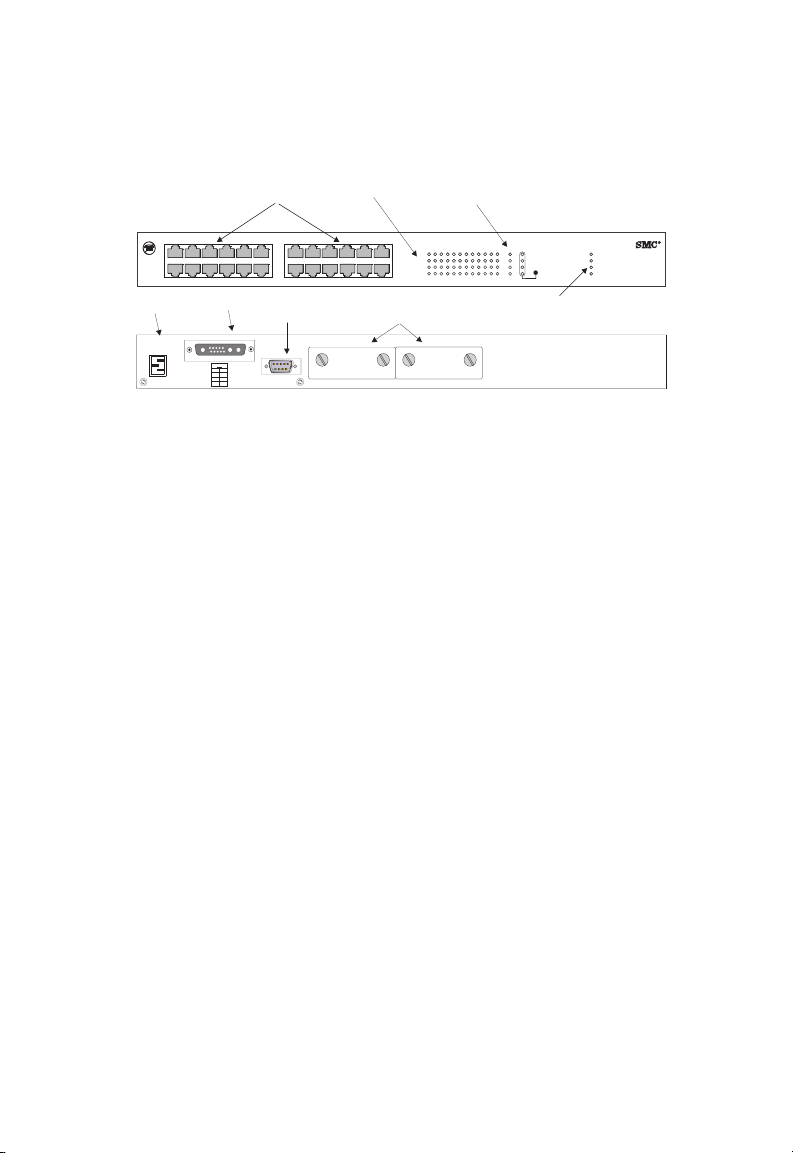
Figure 1-1. Front and Rear Panels
Switch Architecture
The TigerSwitch 10/100 employs a wire-speed, non-blocking
switching fabric. This permits simultaneous wire-speed transport of
multiple packets at low latency on all ports. This switch also
features full-duplex capability on all ports, which effectively
doubles the bandwidth of each connection.
Switching Method
For communications between different VLANs, this switch uses IP
routing with RIP, RIPv2, OSPFv2 or DVMRP protocol. For
communications within the same VLAN, the switch uses
store-and-forward switching to ensure maximum data integrity. In
store-and-forward switching mode, the entire packet must be
received into a buffer and checked for validity before being
forwarded. This prevents errors from being propagated throughout
the network.
TigerSwitch 10/100
Power
6724L3
RPU
SNMP
Console
1-2
Page 19

A
BOUT THE TIGERSWITCH
Management Options
This switch contains a comprehensive array of LEDs for “at-a-
glance” monitoring of network and port status. It also includes a
built-in network management agent that allows the switch to be
managed in-band using SNMP or RMON (Groups 1, 2, 3 and 9)
protocols, with a Web browser, or remotely via Telnet. The switch
provides an RS-232 serial port (DB-9 connector) on the rear panel
for out-of-band management. A PC may be connected to this port
for configuration and monitoring out-of band via a full-handshaking
null-modem cable. You can also make a remote connection to this
port via modems. (See Appendix B for wiring options.)
This switch provides a wide range of advanced performanceenhancing features. Port-based and tagged VLANs, plus support
for automatic GVRP VLAN registration and GMRP multicast group
registration provide traffic security and efficient use of network
bandwidth. QoS priority queueing ensures the minimum delay for
moving real-time multimedia data across the network. Flow
control eliminates the loss of packets due to bottlenecks caused by
port saturation. Broadcast storm control prevents broadcast traffic
storms from engulfing the network. Layer 3 routing can be used to
connect segregated subnets and VLANs. Some of this switch’s
advanced features are described below. For a detailed description,
refer to the Management Guide.
10/100
Spanning Tree Protocol
The TigerSwitch 10/100 supports IEEE 802.1D Spanning Tree
Protocol. This protocol adds a level of fault tolerance by allowing
two or more redundant connections to be created between a pair
of LAN segments. When there are multiple physical paths between
segments, the protocol will choose a single path and disable all
others to ensure that only one route exists between any two
stations on the network. This prevents the creation of network
loops. However, if the chosen path should fail for any reason, an
alternate path will be activated to maintain the connection.
1-3
Page 20

A
BOUT THE TIGERSWITCH
The default setting for the Spanning Tree Protocol is “enabled.”
This protocol may be configured out-of-band via the serial console
port, or in-band via the Web interface, Telnet, or SNMP network
management software.
VLANs
The TigerSwitch 10/100 supports up to 256 VLANs. A Virtual LAN
is a collection of network nodes that share the same collision
domain regardless of their physical location or connection point in
the network. By segmenting your network into VLANs, you can:
• Eliminate broadcast storms which severely degrade
performance in a flat network.
• Simplify network management for node changes/moves by
remotely configuring VLAN membership for any port, rather
than having to manually change the node’s IP address.
• Provide data security by restricting all traffic to the originating
VLAN, except where a connection is explicitly defined via the
switch’s routing service.
10/100
Multicast Switching
Specific multicast traffic can be assigned to its own VLAN to ensure
that it does not interfere with normal network traffic and to
guarantee real-time delivery by setting the required priority level
for the designated VLAN. The switch uses IGMP Snooping and
GMRP at Layer 2, and IGMP at Layer 3 to manage multicast group
registration.
1-4
Page 21

A
BOUT THE TIGERSWITCH
Traffic Priority
This switch provides Quality of Service (QoS) by prioritizing each
packet based on the required level of service, using two distinct
categories with Weighted Fair Queuing. It uses IEEE 802.1p and
802.1Q tags to prioritize incoming traffic based on input from the
end-station application. These functions can be used to provide
independent priorities for delay-sensitive data and best-effort data.
Layer 3 Routing
The TigerSwitch 10/100 provides Layer 3 IP routing. To maintain a
high rate of throughput, the switch forwards all intra-segment
traffic, and routes only traffic that passes outside the segment. By
providing wire-speed routing, you can easily link your network
segments or VLANs together without having to deal with the
bottlenecks or configuration hassles normally associated with
conventional routers.
Most traffic can be routed based on information maintained within
the switch’s own database. If the address is not in the switching
database, the switch will use RIP, RIPv2 or OSPFv2 protocol to
request the address. If the address still cannot be found, the switch
can pass the packet to a default router for handling.
10/100
The switch uses DVMRP protocol to determine the routing for
multicast packets. If no hosts have subscribed to the indicated
multicast service, the packet will be dropped.
1-5
Page 22

A
BOUT THE TIGERSWITCH
10/100
Description of Hardware
10BASE-T/100BASE-TX Ports
These are dual-speed RJ-45 ports. Because all ports on this switch
support automatic MDI/MDI-X operation, you can use
straight-through cables for all network connections to PCs or
servers, or to other switches or hubs. (See“100BASE-TX/10BASE-T
Pin Assignments” on page B-3.)
Each of these ports support IEEE 802.3x auto-negotiation, so the
optimum transmission mode (half or full duplex), and data rate (10
or 100 Mbps) can be selected automatically. If a device connected
to one of these ports does not support auto-negotiation, the
communication mode of that port can be configured manually.
Each port also supports auto-negotiation of flow control, so the
switch can automatically prevent port buffers from becoming
saturated.
1-6
Page 23
A
BOUT THE TIGERSWITCH
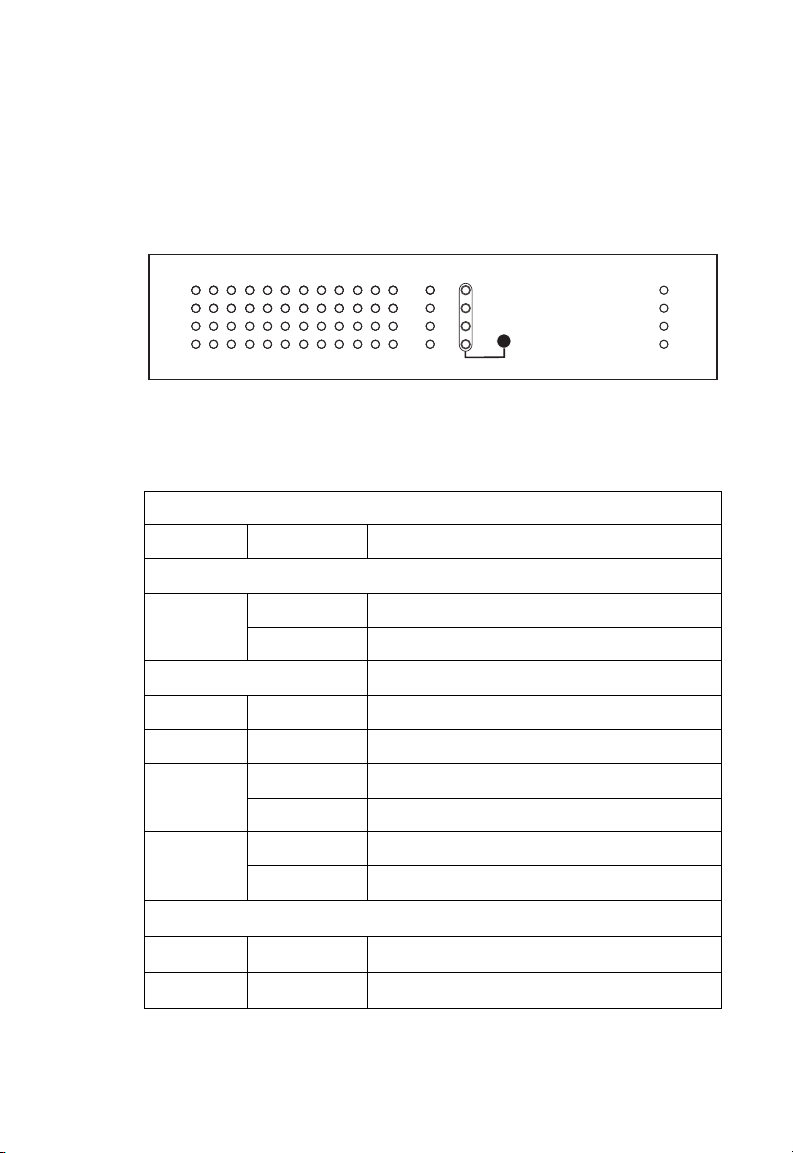
Status LEDs
The LEDs, which are located on the front panel for easy viewing,
are shown below and described in the following table.
10/100
123 456 7 89101112
Link
Status
Link
Status
131415 16
18 19
20
17
21 222324
M1
COL
ACT
FDX
100M
M2
Status
Figure 1-2. Port and System LEDs
Port Status LEDs
LED Condition Status
RJ-45 Ports
Link On Port has a valid connection, port enabled
Flashing Port has a valid connection, port disabled
Status
COL
ACT
FDX
100M
*
*
*
*
Flashing Indicates collision on half-duplex links
On Shows that traffic is crossing the port
On Port is operating at full duplex
Off Port is operating at half duplex
*
On Port is operating at 100 Mbps
Off Port is operating at 10 Mbps
Displays state for selected status mode
Power
RPU
SNMP
Console
Module Ports
Status
Activitity
* Use the Status button to select LED display mode.
On A module is installed in this port
On Traffic is passing through the port
1-7
Page 24
A
BOUT THE TIGERSWITCH
LED Condition Status
PWR On Switch is receiving power
RPU On Redundant power unit is receiving power
FAN On Fan is not functioning properly
SNMP Flashing Switch has processed an SNMP command
10/100
System Status LEDs
Console On One or more management connections
established (console, modem or Telnet)
Optional Media Extender Modules
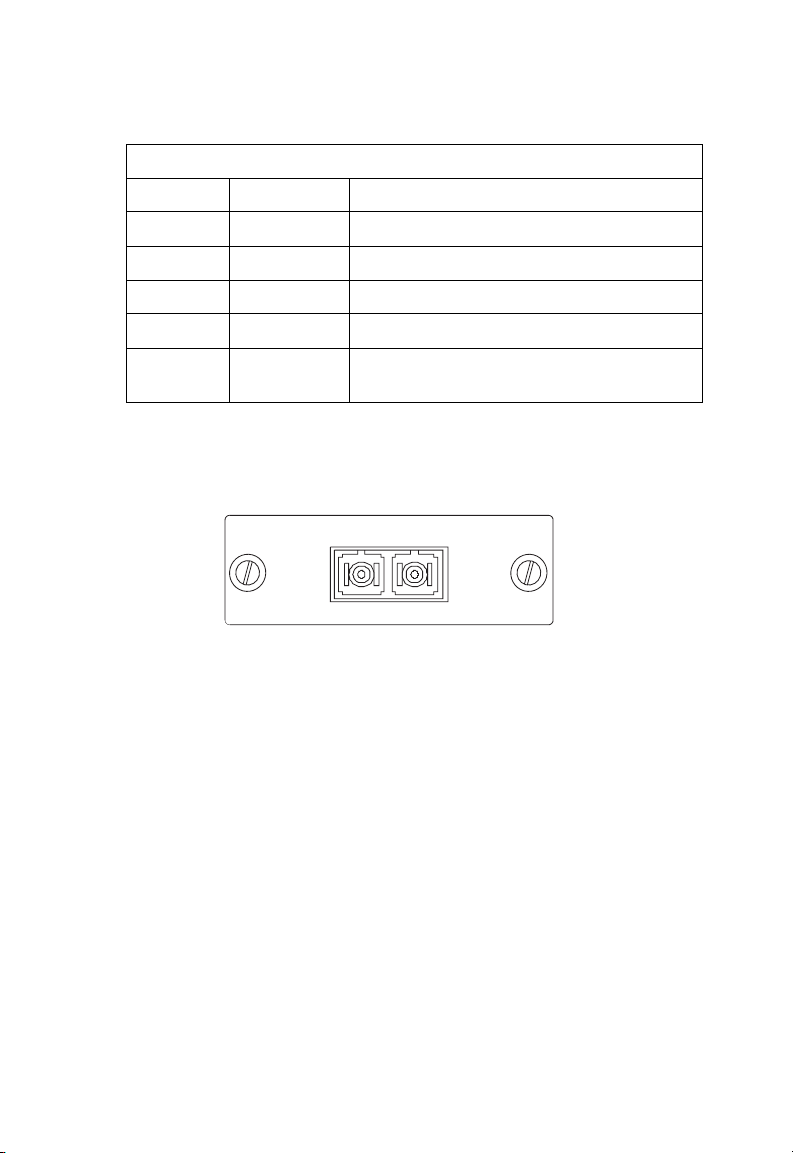
Optional 1000BASE-SX Module (SMC6724L2GSSC)
1000BASE SX-SC Expansion Module
RX
SMC6724GSSC
Figure 1-3. Single-Port 1000BASE-SX Gigabit Module
Using multimode fiber optic cable, the 1000BASE-SX port can be
connected to a remote site up to 550 m (1805 ft.) away. The
1000BASE-SX Gigabit module operates at 1 Gbps, with support for
full-duplex mode and flow control. This module is fitted with an
SC connector, but you can attach an ST plug to the switch using
the SC-ST Converter (Part Number: 99-012034-091).
TX
1-8
Page 25
A
BOUT THE TIGERSWITCH
10/100
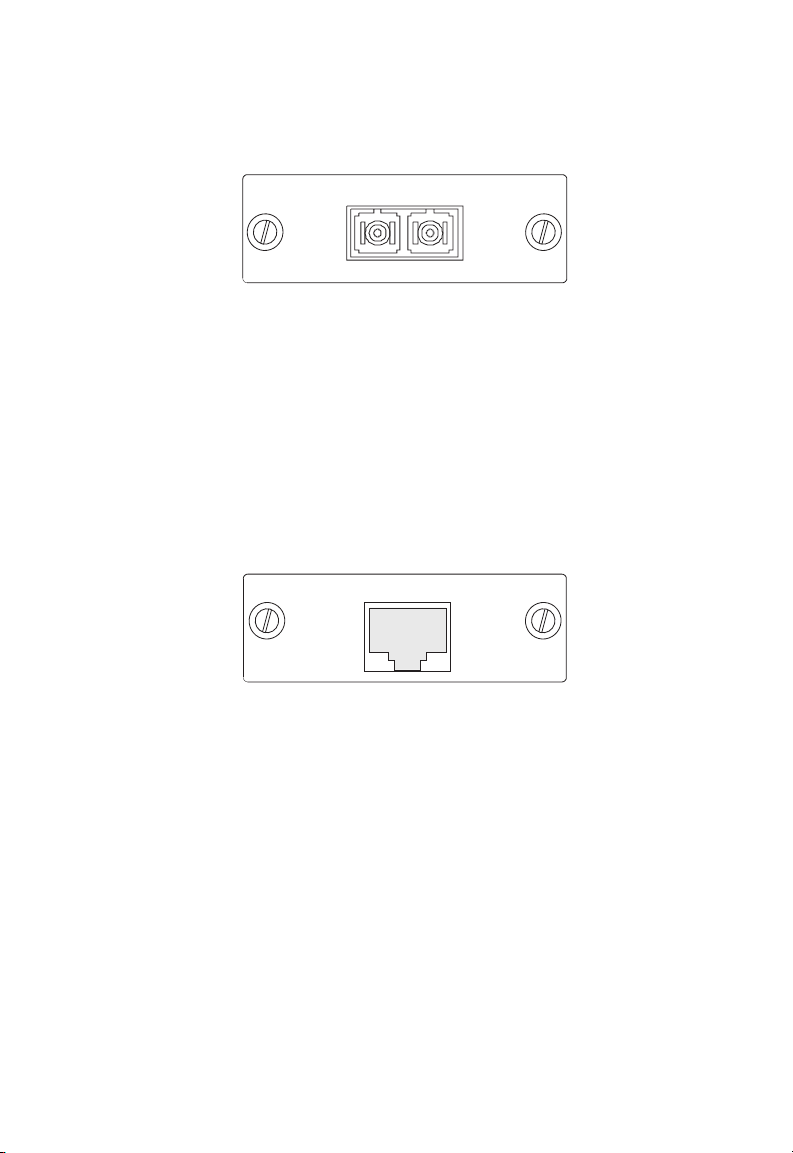
Optional 1000BASE-LX Module (SMC6724L2GLSC)
1000BASE LX-SC Expansion Module
RX
SMC6724GLSC
TX
Figure 1-4. Single-Port 1000BASE-LX Gigabit Module
Using single-mode fiber optic cable, the 1000BASE-LX port can be
connected to a remote site up to 5 km (16404 ft.) away. The
1000BASE-LX Gigabit module operates at 1 Gbps, with support for
full-duplex mode and flow control. This module is fitted with an
SC connector, but you can attach an ST plug to the switch using
the SC-ST Converter (Part Number: 99-012034-091).
Optional 1000BASE-T Module (SMC6724L2GT)
1000BASE-T Module
SMC6724L2GT
Figure 1-5. Single-Port 1000BASE-T Gigabit Module
Using Category 5 or 5e cable you can connect to another device
up to 100 m (328 ft.) away. The 1000BASE-T module operates at
1 Gbps, full duplex, and supports auto-negotiation of flow control.
Note that you should first test the cable installation for IEEE
802.3ab compliance. See “1000BASE-T Cable Requirements” on
page B-5.
1-9
Page 26
A
BOUT THE TIGERSWITCH
10/100
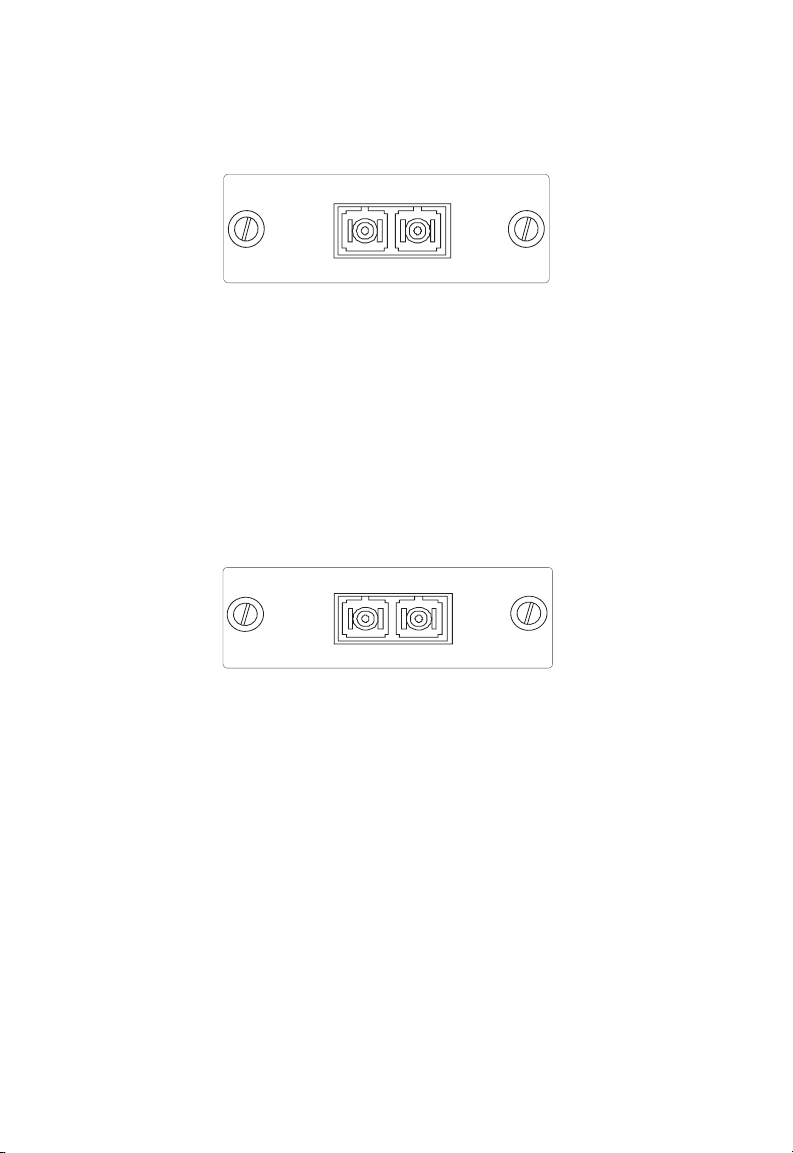
Optional 100BASE-FX Module (SMC6724L2FSSC)
100BASE-FX Single-Mode Module
RX
SMC6724L2FSSC
TX
Figure 1-6. Single-Port 100BASE-FX Single-Mode Module
Using single-mode fiber optic cable, the 100BASE-FX port can be
connected to a remote site up to 20 km (12.43 miles) away. The
100BASE-FX module operates at 100 Mbps, with support for
full-duplex mode and flow control. This module is fitted with an
SC connector, but you can attach an ST plug to the switch using
the SC-ST Converter (Part Number: 99-012034-091).
Optional 100BASE-FX Module (SMC6724L2FMSC)
100BASE-FX Multimode Module
RX
SMC6724L2FMSC
TX
Figure 1-7. Single-Port 100BASE-FX Multimode Module
Using multimode fiber optic cable, the 100BASE-FX port can be
connected to a remote site up to 2 km (1.24 miles) away. The
100BASE-FX module operates at 100 Mbps, with support for
full-duplex mode and flow control. This module is fitted with an
SC connector, but you can attach an ST plug to the switch using
the SC-ST Converter (Part Number: 99-012034-091).
1-10
Page 27

A
BOUT THE TIGERSWITCH
Optional Redundant Power Unit
SMC provides an optional Redundant Power Unit (RPU),
SMCRPU150W, that can supply power to the switch in the event of
failure of the internal power supply.
Power Supply Receptacles
There are two power receptacles on the rear panel of the switch.
The standard power receptacle is for the AC power cord. The
receptacle labeled “DC Input” is for the optional Redundant Power
Unit (RPU).
100-240 V
50-60 Hz 3 A
Figure 1-8. Power Supply Receptacles
10/100
1-11
Page 28

A
BOUT THE TIGERSWITCH
10/100
Features and Benefits
Connectivity
◆ 24 dual-speed ports for easy Fast Ethernet integration and for
protection of your investment in legacy LAN equipment
◆ Auto-negotiation enables each RJ-45 port to automatically
select the optimum communication mode (half or full duplex)
if this feature is supported by the attached device; otherwise the
port can be configured manually
◆ Independent RJ-45 10BASE-T/100BASE-TX ports with support
for auto MDI/MDI-X
◆ Unshielded (UTP) cable supported on all RJ-45 ports: Category
3, 4 or 5 for 10 Mbps connections and Category 5 for 100 Mbps
connections
◆ IEEE 802.3 Ethernet, 802.3u Fast Ethernet, 802.3z and 802.3ab
Gigabit Ethernet compliance ensures compatibility with
standards-based hubs, network cards and switches from any
vendor
Expandability
◆ Optional single-port 1000BASE-SX Gigabit module that can run
up to 550 meters (using 50/125 micron, 500 MHz/km
multimode fiber cable), and operates at 1 Gbps, full duplex,
with auto-negotiation for flow control.
◆ Optional single-port 1000BASE-LX Gigabit module that can run
up to 5 km (using 9/125 micron single-mode fiber cable), and
operates at 1 Gbps, full duplex, with auto-negotiation for flow
control.
1-12
Page 29

A
BOUT THE TIGERSWITCH
◆ Optional single-port 1000BASE-T Gigabit module that can run
up to 100 meters (using 100-ohm Category 5 or 5e unshielded
twisted-pair (UTP) or shielded twisted-pair (STP) cable), and
operates at 1 Gbps, full duplex, with auto negotiation for flow
control.
◆ Optional single-port 100BASE-FX modules that can run up to
2 km (using 62.5/125 or 50/125 micron, multimode fiber cable),
or 20 km (using 9/125 micron single-mode fiber cable) and
operate at 100 Mbps, full duplex, with auto-negotiation for flow
control.
Performance
◆ Transparent bridging
◆ Aggregate bandwidth of up to 8.8 Gbps
◆ Switching Table with a total of 12K entries .
◆ Provides Store-and-Forward switching for intra-VLAN traffic,
and IP routing for inter-VLAN traffic
10/100
◆ Supports wire-speed switching at Layer 2, and wire-speed
routing at Layer 3
◆ Supports flow control, using back pressure for half duplex and
IEEE 802.3x for full duplex
◆ Broadcast Storm Control
◆ Includes support for an optional Redundant Power Unit
◆ Desktop or rack-mountable
◆ Limited lifetime warranty
1-13
Page 30

A
BOUT THE TIGERSWITCH
10/100
Management
◆ “At-a-glance” LEDs for easy troubleshooting
◆ Network management agent:
• Manages switch in-band or out-of-band
• Supports Telnet, SNMP/RMON and Web-based interface
• Spanning Tree Protocol for redundant network connections
• VLAN Support with up to 256 groups, port-based or with
802.1Q VLAN tagging, and GVRP for automatic VLAN
learning
• IP-based Layer 3 routing with RIP/RIPv2, OSPFv2 and
DVMRP
• Quality of Service (QoS) supports two levels of priority and
Weighted Fair Queueing
• Multicast Switching based on IGMP Snooping, with GMRP
for automatic group registration
1-14
• Port trunking supported for 2, 4 or 8-port groups
Page 31

C
HAPTER
N
ETWORK
P
LANNING
Introduction to Switching
A network switch allows simultaneous transmission of multiple
packets via non-crossbar switching. This means that it can partition
a network more efficiently than bridges or routers. The switch has,
therefore, been recognized as one of the most important building
blocks for today’s networking technology.
When performance bottlenecks are caused by congestion at the
network access point (such as the network card for a high-volume
file server), the device experiencing congestion (server, power
user or hub) can be attached directly to a switched port. And, by
using full-duplex mode, the bandwidth of the dedicated segment
can be doubled to maximize throughput.
When networks are based on repeater (hub) technology, the
maximum distance between end stations is limited. For Ethernet,
there may be up to four hubs between any pair of stations; for Fast
Ethernet, the maximum is two. This is known as the hop count.
However, a switch turns the hop count back to zero, so
subdividing the network into smaller and more manageable
segments, and linking them to the larger network by means of a
switch, removes this limitation.
2
A switch can be easily configured in any Ethernet or Fast Ethernet
network to significantly boost bandwidth while using conventional
cabling and network cards.
2-1
Page 32

N
ETWORK PLANNING
Sample Applications
The TigerSwitch 10/100 is not only designed to segment your
network, but also to provide a wide range of options in setting up
network connections and linking VLANs or IP subnets. Some
typical applications are described below.
Collapsed Backbone
The TigerSwitch 10/100 is an excellent choice for mixed Ethernet
and Fast Ethernet installations where significant growth is
expected in the near future. You can easily build on this basic
configuration, adding direct full-duplex connections to
workstations or servers. When the time comes for further
expansion, just cascade the TigerSwitch to an Ethernet or Fast
Ethernet hub or switch.
In the figure below, the TigerSwitch 10/100 is operating as a
collapsed backbone for a small LAN. It is providing dedicated 20
Mbps full-duplex connections to workstations and 200 Mbps fullduplex connections to power users and servers.
1234567891011
131415
18192021222324
17
16
...
Servers
200 Mbps
Full Duplex
Figure 2-1. Collapsed Backbone
2-2
12
...
Workstations
200 Mbps
Full Duplex
123456789101112
Link
Status
Link
Status
131415 16
17
M1
COL
ACT
FDX
100M
Status
M2
18 19
20
21 222324
TigerSwitch10/100
Power
6724L3
RPU
SNMP
Console
...
Workstations
20 Mbps
Full Duplex
Page 33

N
ETWORK PLANNING
Central Wiring Closet
With 24 parallel bridging ports (i.e., 24 distinct collision domains),
the TigerSwitch 10/100 can collapse a complex network down into
a single efficient bridged node, increasing overall bandwidth and
throughput.
In the figure below, the 10BASE-T/100BASE-TX ports on the
TigerSwitch are providing 100 Mbps connectivity for up to 24
segments through SMC’s TigerStack II 10/100 hubs. In addition, the
switch is also connecting servers at 200 Mbps.
TigerSwitch 10/100
1234567891011
131415
18192021222324
17
16
12
123456789101112
Link
Status
Link
Status
131415 16
TigerStack II 10/100 Stack
.
.
.
.
.
.
.
.
.
.
.
.
10/100 Mbps Segments
...
...
Figure 2-2. Central Wiring Closet
M1
M2
18 19
20
21 222324
17
TigerSwitch10/100
Power
COL
ACT
FDX
100M
6724L3
RPU
SNMP
Console
Status
Server Farm
2-3
Page 34

N
ETWORK PLANNING
Remote Connections with Fiber Cable
Fiber optic technology allows for longer cabling than any other
media type. A 100 Mbps multimode fiber (MMF) link can run up to
2 km, and a 100 Mbps single-mode fiber (SMF) link can run as far
as 20 km. A 1000BASE-LX SMF Gigabit link can also connect to a
site up to 5 km away. This allows the TigerSwitch 100 to serve as a
collapsed backbone, providing direct connectivity for a
widespread LAN. The 100BASE-FX SMF module can be used to
interconnect remote Fast Ethernet segments. While a Gigabit
module can be used for a high-speed connection between floors
in the same building, or to connect to other buildings in a campus
setting. The figure below illustrates a TigerSwitch 100 stack
connecting multiple segments with fiber cable.
Headquarters
1234567891011
131415
18192021222324
17
16
12
100BASE-FX SMF
Server Farm
Remote Switch
(20 km)
Remote Switch
4
10/100 Mbps Segments
...
Figure 2-3. Collapsed Backbone Using Fiber Cable
2-4
123456789101112
Link
Status
Link
Status
M1
COL
ACT
FDX
100M
M2
18 19
20
131415 16
21 222324
17
1000BASE-LX SMF
(5 kilometers)
4
...
TigerSwitch10/100
Power
6724L3
RPU
SNMP
Console
Status
Page 35

N
ETWORK PLANNING
Making VLAN Connections
VLANs can be based on port groups, or each data frame can be
explicitly tagged to identify the VLAN group it belongs to. When
using port-based VLANs, ports can either be assigned to one
specific group or to all groups. Port-based VLANs are suitable for
small networks. A single switch can be easily configured to
support several VLAN groups for various organizational entities
(such as Finance and Marketing).
When you expand port-based VLANs across several switches, you
need to make a separate connection for each VLAN group. This
approach is, however, inconsistent with the Spanning Tree
Protocol, which can easily segregate ports that belong to the same
VLAN. When VLANs cross separate switches, it is therefore better
to use VLAN tagging. This allows you to assign multiple VLAN
groups to the “trunk” ports (that is, tagged ports) connecting
different switches.
R&D
Testing
VLAN 2
VLAN 1
Tagged
Ports
1234567891011
131415
Untagged Ports
Finance
VLAN 3
VLAN 4
18192021222324
17
16
VLAN
unaware
switch
Marketing
12
Finance
VLAN 3
123456789101112
Link
Status
Link
Status
18 19
131415 16
17
Tagged Port
M1
COL
ACT
FDX
100M
M2
20
21 222324
TigerSwitch10/100
Power
6724L3
RPU
SNMP
Console
Status
VLAN
aware
switch
R&D
Testing
VLAN 1
VLAN 2
Figure 2-4. Making VLAN Connections
Note: When connecting to a switch that does not support IEEE
802.1Q VLAN tags, use untagged ports.
2-5
Page 36

N
ETWORK PLANNING
Using Layer 3 Routing
VLANs can significantly enhance network performance and
security. However, if you use conventional routers to interconnect
VLANs, you can lose most of your performance advantage. The
TigerSwitch 10/100 therefore provides wire-speed routing which
allows you to eliminate your conventional IP routers, except for a
router to handle non-IP protocols and a gateway router linked to
the WAN. Just assign an IP address to any VLANs that need to
communicate. The switch will continue to segregate Layer 2 traffic
based on VLANs, but will now provide inter-VLAN connections for
IP applications. This switch will perform IP routing for specified
VLAN groups, a directly connected subnetwork, a remote IP
subnetwork or host address, a subnetwork broadcast address, a
switch IP address on a specific IP subnetwork, or an IP multicast
address.
12345
131415
16
17
6
18
7891011
1920212223
R&D
Testing
VLAN 1
VLAN 2
Figure 2-5. IP Routing for Unicast Traffic
2-6
12
24
1234567 89101112
Link
Status
Link
Status
131415 16
17
IP Network 1
M1
COL
ACT
FDX
100M
Status
M2
18 19
20
21 222324
TigerSwitch 10/100
Power
6724L3
RPU
SNMP
Console
IP Network 2
Page 37

N
ETWORK PLANNING
Connectivity Rules
When adding hubs (repeaters) to your network, please follow the
connectivity rules listed below for Ethernet, Fast Ethernet, or
Gigabit Ethernet. However, note that because switches break up
the path for connected devices into separate collision domains,
you should not include the switch or connected cabling in your
calculations for cascade length involving other devices.
1000 Mbps Gigabit Ethernet Collision Domain
Maximum 1000BASE-T Gigabit Ethernet Cable Length
Cable Type Maximum Cable Length
Category 5, 5e 100-ohm UTP or STP 100 m (328 ft)
Maximum 1000BASE-SX Gigabit Ethernet Cable Length
Fiber Size Fiber Bandwidth Maximum Cable Length
62.5/125
micron
multimode fiber
50/125 micron
multimode fiber
160 MHz/km 2-220 m (7-722 ft)
200 MHz/km 2-275 m (7-902 ft)
400 MHz/km 2-500 m (7-1641 ft)
500 MHz/km 2-550 m (7-1805 ft)
Maximum 1000BASE-LX Gigabit Ethernet Cable Length
Fiber Size Fiber Bandwidth Maximum Cable Length
9/125 micron
single-mode fiber
N/A 2 m - 5 km (7 - 16404 ft)
2-7
Page 38

N
ETWORK PLANNING
Maximum Fast Ethernet Cable Distance
Type Cable Type Max. Cable Length
100BASE-TX Category 5 100-ohm UTP or STP 100 m (328 ft.)
100BASE-FX
Multimode
100BASE-FX
Single-Mode
50/125 or 62.5/125 micron core
multimode fiber (MMF)
9/125 micron core single-mode
fiber (SMF)
2 km (1.24 miles)
20 km (12.43 miles)
SMC 3-2 Rule for Class II Repeaters
Between any two PCs or other stations in the same 100BASE-TX
collision domain, there may be:
• up to 3 link segments
• up to 2 Class II repeaters (hubs)
SMC 2-1 Rule for Class I Repeaters
Between any two PCs or other stations in the same 100BASE-TX
collision domain, there may be:
• up to 2 link segments and
• up to 1 Class I repeater (hub)
Maximum Network Diameter Using Repeaters
Repeater Type
and Number
1 Class I 200 m (656 ft)
1 Class II 200 m (656 ft)
2 Class II 205 m (672.4 ft)
Twisted Pair
100BASE-TX
2-8
Page 39

10 Mbps Ethernet Collision Domain
SMC 5-4-3 Rule
Between any two PCs or other stations in the same 10 Mbps collision
domain, there may be:
• up to 5 link segments in series
• up to 4 repeaters (hubs)
• up to 3 populated cable segments, that is, segments attached to
two or more PCs (coax networks only)*
* The remaining two segments are unpopulated; these are known as
inter-repeater links or IRLs. This distinction between populated and
unpopulated segments is significant for coax networks only.
Maximum Ethernet Cable Distance
Cable Type Maximum Length
Twisted Pair, Categories 3, 4, 5 100 m (328 ft)
Thin Coax 185 m (607 ft)
External Transceiver Drop 50 m (165 ft)
N
ETWORK PLANNING
2-9
Page 40

N
ETWORK PLANNING
Application Notes
1. Full-duplex operation only applies to point-to-point access
(such as when a switch is attached to a workstation, server or
another switch). When the switch is connected to a hub, both
devices must operate in half-duplex mode.
2. When a switch is connected to a hub or any kind of shared
media, remember to turn off back pressure to prevent the
attached port from being frequently partitioned due to the
jamming packets.
3. For network applications that require routing between
dissimilar network types, you can attach the TigerSwitch 10/100
units directly to a router. However, if you have to interconnect
distinct VLANs or IP subnets, you can take advantage of the
Layer 3 routing provided by this switch.
4. The modules are fitted with SC connectors, but you can attach
an ST plug to the switch using SMC’s optional SC-to-ST plug
converter (Part Number: 99-012034-091, for 62.5/125 micron
cable only). If you do use an ST plug converter, be sure you
run cable from the Rx (Tx) port on the module to the Tx (Rx)
port on the target device.
5. As a general rule:
- the length of Gigabit fiber optic cable for a single switched
link should not exceed 550 m (1805 ft) for multimode fiber or
5 km (16404 ft) for single-mode fiber.
- the length of 100BASE-FX fiber optic cable for a single
switched link should not exceed 2km (1.24 miles) for
multimode fiber or 20 km (2.43 miles) for single-mode fiber.
However, power budget constraints must also be considered
when calculating the maximum cable length for your specific
environment.
2-10
Page 41

C
HAPTER
I
NSTALLING THE
S
Selecting a Site
TigerSwitch 10/100 units can be mounted in a standard 19-inch
equipment rack or on a flat surface. Be sure to follow the
guidelines below when choosing a location.
◆ The site should:
• be at the center of all the devices you want to link and near
a power outlet.
• be able to maintain its temperature within 0 to 50 °C and
its humidity within 5% to 95%, non-condensing
• provide adequate space (approximately two inches) on all
sides for proper air flow
• be accessible for installing, cabling and maintaining the
devices
3
WITCH
• allow the status LEDs to be clearly visible
◆ Make sure twisted-pair cable is always routed away from power
lines, fluorescent lighting fixtures and other sources of electrical
interference, such as radios and transmitters.
◆ Make sure that a separate grounded power outlet that provides
100 to 240 VAC, 50 to 60 Hz, is within 8 feet of each device and
is powered from an independent circuit breaker. As with any
equipment, using a filter or surge suppressor is recommended.
3-1
Page 42

I
NSTALLING THE SWITCH
Equipment Checklist
After unpacking the TigerSwitch 10/100, check the contents to be
sure you have received all the components. Then, before
beginning the installation, be sure you have all other necessary
installation equipment.
Package Contents
◆ TigerSwitch 10/100 unit (SMC6724L3)
◆ Four adhesive foot pads
◆ Bracket Mounting Kit containing two brackets and four screws
for attaching the brackets to the switch
◆ Power Cord—either US, Continental Europe or UK
◆ RS-232 console cable
◆ This Installation Guide
◆ Management Guide
◆ SMC Warranty Registration Card—be sure to complete and
return to SMC
Optional Rack-Mounting Equipment
If you plan to rack-mount the switch, be sure to have the
following equipment available:
◆ Four mounting screws for each device you plan to install in a
rack—these are not included
◆ A screwdriver (Phillips or flathead, depending on the type of
screws used)
3-2
Page 43

I
NSTALLING THE SWITCH
Mounting
A TigerSwitch 10/100 unit can be mounted in a standard 19-inch
equipment rack or on a desktop or shelf. Mounting instructions for
each type of site follow.
Installing Optional Modules: Before mounting the switch, be
sure you install any optional modules. If you have purchased an
optional slide-in 1000BASE-LX, 1000BASE-SX, 1000BASE-T or
100BASE-FX media expansion module, install it now, following the
instructions provided on page 3-6.
Rack Mounting
Before rack mounting the switch, pay particular attention to the
following factors:
◆ Temperature: Since the temperature within a rack assembly
may be higher than the ambient room temperature, check that
the rack-environment temperature is within the specified
operating temperature range. (See page C-2.)
◆ Mechanical Loading: Do not place any equipment on top of a
rack-mounted unit.
◆ Circuit Overloading: Be sure that the supply circuit to the rack
assembly is not overloaded.
◆ Grounding: Rack-mounted equipment should be properly
grounded. Particular attention should be given to supply
connections other than direct connections to the mains.
3-3
Page 44

I
NSTALLING THE SWITCH
To rack-mount devices:
1. Attach the brackets to the device using the screws provided in
the Bracket Mounting Kit.
1
2
3
4
5
6
1
3
1
4
7
8
1
5
1
6
1
7
9
1
0
11
1
1
8
2
1
9
2
0
2
1
1
L
i
n
2
k
2
2
3
4
Sta
5
t
u
s
2
3
6
7
8
L
i
n
2
k
4
9
10
11
Sta
t
u
12
s
M
1
13
14
15
16
COL
17
18
19
ACT
20
21
22
23
FDX
24
M
2
100M
Power
Sta
t
u
s
TigerSwitch10/100
RPU
SNMP
6724L3
Console
Figure 3-1. Attaching the Brackets
2. Mount the device in the rack, using four rack-mounting screws
(not provided).
1
2
3
4
5
6
1
3
1
4
1
5
7
8
9
1
1
6
1
7
1
0
11
1
8
1
9
2
2
0
2
1
1
L
i
n
2
k
2
2
3
4
Sta
5
t
u
s
2
3
L
i
n
2
k
4
Sta
t
u
s
13
14
15
16
17
Figure 3-2. Installing the Switch in a Rack
3-4
6
7
8
9
10
11
12
M
1
COL
18
19
ACT
20
21
22
23
FDX
24
M
2
100M
Power
Sta
t
u
s
TigerSwitch10/100
RPU
SNMP
6724L3
Console
Page 45

I
NSTALLING THE SWITCH
3. If installing a single switch only, turn to “Connecting to a
Power Source” at the end of this chapter.
4. If installing multiple switches, mount them in the rack, one
below the other, in any order.
5. If also installing RPUs, mount them in the rack below the other
devices.
Desktop or Shelf Mounting
1. Attach the four adhesive feet to the bottom of the first switch.
Console
6724L3
0/100
1
SNMP
witch
S
Tiger
RPU
s
tu
Sta
Power
100M
2
M
24
FDX
23
22
21
ACT
20
19
18
COL
17
16
15
14
1
13
M
12
s
u
t
11
Sta
10
9
k
8
n
24
i
L
7
6
s
5
4
23
u
t
Sta
3
2
22
k
n
i
L
1
21
20
12
19
11
10
18
17
9
16
8
15
7
14
6
13
5
4
3
2
1
Figure 3-3. Attaching the Adhesive Feet
2. Set the device on a flat surface near an AC power source,
making sure there are at least two inches of space on all sides
for proper air flow.
3. If installing a single switch only, go to “Connecting to a Power
Source” at the end of this chapter.
4. If installing multiple switches, attach four adhesive feet to each
one. Place each device squarely on top of the one below, in
any order.
5. If also installing RPUs, place them close to the stack.
3-5
Page 46

I
NSTALLING THE SWITCH
1000BASESX-SC Expansion Module
S
M
C
6
7
2
4
L
2
G
S
S
C
TX
RX
Installing an Optional Module into the Switch
Caution: DO NOT install slide-in modules with the switch
powered on. Be sure you power off the switch before
installing any module.
To install an optional module into the switch, do the following:
1. Disconnect power to the switch.
2. Remove the blank metal plate (or a previously installed
module) from the appropriate slot by removing the two screws
with a flat-head screwdriver.
3. Before opening the package that contains the module, touch
the bag to the switch casing to discharge any potential static
electricity. Also, it is recommended to use an ESD wrist strap
during installation.
4. Remove the module from the anti-static shielded bag.
5. Holding the module level, guide it into the carrier rails on each
side and gently push it all the way into the slot, ensuring that it
firmly engages with the connector.
3-6
Page 47

I
NSTALLING THE SWITCH
6. If you are sure the module is properly mated with the
connector, tighten the retainer screws by hand to secure the
module in the slot.
7. Connect power to the switch.
Connecting to a Power Source
To connect a device to a power source:
1. Insert the power cable plug directly into the receptacle located
at the back of the device.
100-240 V
50-60 Hz 3 A
DC Input
V
A
3.3
30
6
5
12
0.7
Figure 3-4. Power Receptacle
2. Plug the other end of the cable into a grounded, 3-pin socket.
Note: For International use, you may need to change the AC line
cord. You must use a line cord set that has been approved
for the receptacle type in your country.
3. Check the front-panel LEDs as the device is powered on to be
sure the Power LED is lit. If not, check that the power cable is
correctly plugged in.
4. If you have a purchased Redundant Power Unit, connect it to
the device and to an AC power source now, following the
instructions included with the package.
3-7
Page 48

I
NSTALLING THE SWITCH
3-8
Page 49

C
HAPTER
M
AKING
C
Connecting Network Devices
The TigerSwitch 10/100 is designed to interconnect multiple
segments (or collision domains). It may be connected to network
cards in PCs and servers, as well as to Ethernet and Fast Ethernet
hubs, switches or routers. It may also be connected to devices
using the optional 1000BASE-LX, 1000BASE-SX, 1000BASE-T or
100BASE-FX modules.
Note: Before connecting cables, you may want to first configure
the Spanning Tree Protocol to avoid network loops. Refer
to the Management Guide for more information.
N
ETWORK
ONNECTIONS
4
4-1
Page 50

M
AKING NETWORK CONNECTIONS
Twisted-Pair Devices
Each device requires an unshielded twisted-pair (UTP) cable with
RJ-45 connectors at both ends. For 100BASE-TX connections,
Category 5 cable is required; for 10BASE-T, Category 3, 4 or 5
cable can be used.
Cabling Guidelines
The RJ-45 ports on the switch support automatic MDI/MDI-X
operation, so you can use standard straight-through twisted-pair
cables to connect to any other network device (PCs, servers,
switches, routers, or hubs).
See Appendix B for further information on cabling.
Caution: Do not plug a phone jack connector into an
RJ-45 port. This will damage the switch. Use only
twisted-pair cables with RJ-45 connectors that conform to
FCC standards.
4-2
Page 51

M
AKING NETWORK CONNECTIONS
Connecting to PCs, Servers, Hubs and Switches
1. Attach one end of a twisted-pair cable segment to the device’s
RJ-45 connector.
Figure 4-1. Making Twisted-Pair Connections
2. If the device is a network card and the TigerSwitch is in the
wiring closet, attach the other end of the cable segment to a
modular wall outlet that is connected to the wiring closet (see
“Wiring Closet Connections” on the next page). Otherwise,
attach the other end to an available port on the switch.
Make sure each twisted pair cable does not exceed 100 meters
(328 ft) in length.
Note: When connected to a shared collision domain (such as a
hub with multiple workstations), switch ports must be
set to half-duplex mode and back pressure flow control
disabled.
3. As each connection is made, the green Link LED (on the
TigerSwitch) corresponding to each port will light to indicate
that the connection is valid.
4-3
Page 52

M
Status
AKING NETWORK CONNECTIONS
Wiring Closet Connections
Today, the punch-down block is an integral part of many of the
newer equipment racks. It is actually part of the patch panel.
Instructions for making connections in the wiring closet with this
type of equipment follow.
1. Attach one end of a patch cable to an available port on the
switch, and the other end to the patch panel.
2. If not already in place, attach one end of a cable segment to
the back of the patch panel where the punch-down block is
located, and the other end to a modular wall outlet.
3. Label the cables to simplify future troubleshooting.
SMC TigerSwitch 10/100
1234567891011
12
12 3 4 5 67 8 910 1112
M1
TigerSwitch10 /10 0
Power
Link
6724L3
COL
ACT
RPU
Status
FDX
Link
SNMP
100M
Status
Console
Status
1819
20
13141516
21222324
17
16
18192021222324
17
M2
131415
Equipment Rack
(side view)
Patch Panel
Figure 4-2. Wiring Closet Connections
4-4
Punch-Down Block
Wall
Page 53

M
AKING NETWORK CONNECTIONS
Fiber Optic Devices
An optional slide-in 100BASE-FX module may be used for
backbone and long distance connections. A 1000BASE-X module
may also be used for a backbone connection between switches, or
for connecting to a high-speed server.
Each multimode fiber optic port requires 50/125 or 62.5/125
micron multimode fiber optic cabling with an SC connector at both
ends. If you need to connect to a device with 62.5/125 micron
cable that has ST-type connectors, SMC provides an optional SC-ST
Converter (Part Number: 99-012034-091).
Each single-mode fiber port requires 9/125 micron single-mode
fiber optic cable with an SC connector at both ends.
Caution: This switch uses lasers to transmit signals over fiber
optic cable. The lasers are compliant with the
requirements of a Class 1 Laser Product and are
inherently eye safe in normal operation. However, you
should never look directly at a transmit port when it is
powered on.
1. Remove and keep the SC port’s rubber cover. When not
connected to a fiber cable, the rubber cover should be
replaced to protect the optics.
2. Check that the fiber terminators are clean. You can clean the
cable plugs by wiping them gently with a clean tissue or cotton
ball moistened with a little ethanol. Dirty fiber terminators on
fiber optic cables will impair the quality of the light transmitted
through the cable and lead to degraded performance on the
port.
4-5
Page 54

M
AKING NETWORK CONNECTIONS
3. Connect one end of the cable to the SC port on the switch and
the other end to the SC port on the other device. Since SC
connectors are keyed, the cable can be attached in only one
orientation.
Figure 4-3. Making SC Port Connections
4. As a connection is made, check the green Link LED on the
switch corresponding to the port to be sure that the connection
is valid.
Note: If you use the optional SC-ST Converter, be sure to connect
the converter’s Tx (Rx) port to the Rx (Tx) port on the other
device.
The 100BASE-FX fiber optic ports operate only at 100 Mbps, full
duplex. You can run a single-mode fiber link up to 20 kilometers
(12.43 miles). However, note that power budget constraints must
also be considered when calculating the maximum cable length for
your specific environment.
The 1000BASE-SX and 1000BASE-LX fiber optic ports operate at 1
Gbps full duplex, with auto-negotiation of flow control. The
maximum length for fiber optic cable operating at Gigabit speed
will depend on the fiber type as listed under “1000 Mbps Gigabit
Ethernet Collision Domain” on page 2-7.
4-6
Page 55

A
PPENDIX
T
ROUBLESHOOTING
A
Diagnosing Switch Indicators
Troubleshooting Chart
Symptom Action
Power LED is Off • Internal or redundant power supply has failed or
is disconnected.
• Check connections between the switch, the
power cord, the wall outlet, and the RPU if you
are using one.
• Contact SMC Tech Support.
Power LED is Flashing • The switch is either downloading firmware or
running the Power-On Self-Diagnostics Test
(POST). If this LED does not stop flashing, then
POST has failed, and you should contact SMC
Technical Support.
Link LED is Off • Verify that the switch and attached device are
powered on.
• Be sure the cable is plugged into both the switch
and corresponding device.
• Verify that the proper cable type is used and its
length does not exceed specified limits.
• Check the adapter on the attached device and
cable connections for possible defects. Replace
the defective adapter or cable if necessary.
A-1
Page 56

T
ROUBLESHOOTING
Power and Cooling Problems
If the power indicator does not turn on when the power cord is
plugged in, you may have a problem with the power outlet, power
cord, or internal power supply. However, if the unit powers off
after running for a while, check for loose power connections,
power losses or surges at the power outlet, and verify that the fans
on the unit are unobstructed and running prior to shutdown. If
you still cannot isolate the problem, then the internal power
supply may be defective. In this case, contact SMC Technical
Support for assistance.
Installation
Verify that all system components have been properly installed. If
one or more components appear to be malfunctioning (such as the
power cord or network cabling), test them in an alternate
environment where you are sure that all the other components are
functioning properly.
In-Band Access
You can access the management agent in the switch from
anywhere within the attached network using Telnet, a Web
browser, or other network management software such as
EliteView. However, you must first configure the switch with a
valid IP address, subnet mask, and default gateway. If you have
trouble establishing a link to the management agent, check to see
if you have a valid network connection. Then verify that you
entered the correct IP address. Also, be sure the port through
which you are connecting to the switch has not been disabled. If it
has not been disabled, then check the network cabling that runs
between your remote location and the switch.
A-2
Page 57

T
ROUBLE SHOOTING
Note: You can configure the management agent to accept one to
four simultaneous Telnet sessions. If the maximum number
of sessions already exists, an additional Telnet connection
will not be able to log into the system.
A-3
Page 58

T
ROUBLESHOOTING
A-4
Page 59

Specifications
Cable Type Max. Length Connector
10BASE-T Cat. 3, 4, 5 100-ohm UTP 100 m (328 ft) RJ-45
100BASE-TX Cat. 5 100-ohm UTP 100 m (328 ft) RJ-45
100BASE-FX 50/125 or 62.5/125 micron
core multimode fiber
(MMF)
100BASE-FX 9/125 9 micron core
single-mode fiber (SMF)
1000BASE-SX 50/125 or 62.5/125 micron
core MMF
1000BASE-LX 9/125 micron SMF 5 km (3.12 miles) SC or ST
1000BASE-T Cat. 5, 5e 100-ohm UTP 100 m (328 ft) RJ-45
A
PPENDIX
Cable Types and Specifications
2 km (1.24 miles) SC or ST
20 km (12.43
miles)
See the following
table
C
ABLES
SC orST
SC or ST
B
1000BASE-SX Fiber Specifications
Fiber Diameter Fiber Bandwidth Maximum Cable Length
62.5/125 micron
MMF
50/125 micron MMF 400 MHz/km 2-500 m (7-1641 ft)
Note: If you need to connect to a device with 62.5/125 micron
cable that has ST-type connectors, SMC provides an
optional SC-ST Converter (Part Number: 99-012034-091).
160 MHz/km 2-220 m (7-722 ft)
200 MHz/km 2-275 m (7-902 ft)
500 MHz/km 2-550 m (7-1805 ft)
B-1
Page 60

C
ABLES
Twisted-Pair Cable and Pin Assignments
Caution: DO NOT plug a phone jack connector into any RJ-45
port. Use only twisted-pair cables with RJ-45 connectors
that conform with FCC standards.
For 100BASE-TX/10BASE-T connections, a twisted-pair cable must
have two pairs of wires. Each wire pair is identified by two
different colors. For example, one wire might be red and the other,
red with white stripes. Also, an RJ-45 connector must be attached
to both ends of the cable.
Caution: Each wire pair must be attached to the RJ-45 connectors
in a specific orientation. (See “Cabling Guidelines” on
page 4-2 for an explanation.)
Figure B-1 illustrates how the pins on the RJ-45 connector are
numbered. Be sure to hold the connectors in the same orientation
when attaching the wires to the pins.
8
1
Figure B-1. RJ-45 Connector Pin Numbers
B-2
8
1
Page 61

100BASE-TX/10BASE-T Pin Assignments
With 100BASE-TX/10BASE-T cable, pins 1 and 2 are used for
transmitting data, and pins 3 and 6 for receiving data.
RJ-45 Pin Assignments
Pin Number
1Tx+
2Tx-
3Rx+
6Rx-
1: The “+” and “-” signs represent the polarity of
the wires that make up each wire pair.
Assignment
Because all ports on this switch support automatic MDI/MDI-X
operation, you can use straight-through cables for all network
connections to PCs or servers, or to other switches or hubs. In
straight-through cable, pins 1, 2, 3, and 6, at one end of the cable,
are connected straight through to pins 1, 2, 3 and 6 at the other
end of the cable. The table below shows the 10BASE-T/
100BASE-TX MDI and MDI-X port pinouts.
1
C
ABLES
Pin MDI-X Signal Name MDI Signal Name
1 Receive Data plus (RD+) Transmit Data plus (TD+)
2 Receive Data minus (RD-) Transmit Data minus (TD-)
3 Transmit Data plus (TD+) Receive Data plus (RD+)
6 Transmit Data minus (TD-) Receive Data minus (RD-)
4,5,7,8 Not Used Not Used
B-3
Page 62

C
ABLES
1000BASE-T Pin Assignments
1000BASE-T ports switch support automatic MDI/MDI-X operation,
so you can use straight-through cables for all network connections
to PCs or servers, or to other switches or hubs.
The table below shows the 1000BASE-T MDI and MDI-X port
pinouts. These ports require that all four pairs of wires be
connected. Note that for 1000BASE-T operation, all four pairs of
wires are used for both transmit and receive.
Use 100-ohm Category 5 or 5e unshielded twisted-pair (UTP) or
shielded twisted-pair (STP) cable for 1000BASE-T connections.
Also be sure
exceed 100 meters (328 feet)
Pin MDI Signal Name MDI-X Signal Name
1 Transmit Data plus (TD1+) Transmit Data plus (TD2 +)
2 Receive Data minus (RD1-) Receive Data minus (RD2-)
3 Transmit Data plus (TD2+) Transmit Data plus (TD1+)
4 Transmit Data plus (TD3+) Transmit Data plus (TD4+)
5 Receive Data minus (RD3-) Receive Data minus (RD4-)
6 Receive Data minus (RD2-) Receive Data minus (RD1-)
7 Transmit Data plus (TD4+) Transmit Data plus (TD3+)
8 Receive Data minus (RD4-) Receive Data minus (RD3-)
that the length of any twisted-pair connection does not
.
B-4
Page 63

1000BASE-T Cable Requirements
All Category 5 UTP cables that are used for 100BASE-TX
connections should also work for 1000BASE-T, providing that all
four wire pairs are connected. However, it is recommended that
for all critical connections, or any new cable installations, Category
5e (enhanced Category 5) cable should be used. The Category 5e
specification includes test parameters that are only
recommendations for Category 5. Therefore, the first step in
preparing existing Category 5 cabling for running 1000BASE-T is a
simple test of the cable installation to be sure that it complies with
the IEEE 802.3ab standards.
Cable Testing for Existing Category 5 Cable
Installed Category 5 cabling must pass tests for Attenuation,
Near-End Crosstalk (NEXT), and Far-End Crosstalk (FEXT). This
cable testing information is specified in the ANSI/TIA/EIA-TSB-67
standard. Additionally, cables must also pass test parameters for
Return Loss and Equal-Level Far-End Crosstalk (ELFEXT). These
tests are specified in the ANSI/TIA/EIA-TSB-95 Bulletin, “The
Additional Transmission Performance Guidelines for 100 Ohm
4-Pair Category 5 Cabling.”
C
ABLES
Note that when testing your cable installation, be sure to include
all patch cables between switches and end devices.
Adjusting Existing Category 5 Cabling to Run 1000BASE-T
If your existing Category 5 installation does not meet one of the
test parameters for 1000BASE-T, there are basically three measures
that can be applied to try and correct the problem:
1. Replace any Category 5 patch cables with high-performance
Category 5e cables.
2. Reduce the number of connectors used in the link.
3. Reconnect some of the connectors in the link.
B-5
Page 64

C
ABLES
Console Port Pin Assignments
The DB-9 serial port on the switch’s rear panel is used to connect
to the switch for out-of-band console configuration. The on-board
menu-driven configuration program can be accessed from a
terminal, a PC running a terminal emulation program, or from a
remote location via a modem connection. The pin assignments
used to connect to the serial port are provided in the following
tables.
Figure B-2. DB-9 Console Port Pin Numbers
DB-9 Port Pin Assignments
EIA
Circuit
CF 109 DCD (Data Carrier Detected) 1 1 8 <-----BB 104 RxD (Received Data) 2 2 3 <-----BA 103 TxD (Transmitted Data) 3 3 2 ------>
CD 108.2 DTR (Data Terminal Ready) 4 4 20 ------>
AB 102 SG (Signal Ground) 5 5 7 ------CC 107 DSR (Data Set Ready) 6 6 6 <-----CA 105 RTS (Request-to-Send) 7 7 4 ------>
CB 106 CTS (Clear-to-Send) 8 8 5 <-----CE 125 RI (Ring Indicator) 9 9 22 <------
CCITT
Signal
Description Switch’s
DB9 DTE
Pin #
PC DB9
DTE
Pin #
Modem
DB25
DCE Pin #
Signal
Direction
DTE-DCE
B-6
Page 65

Console Port to 9-Pin COM Port on PC
Switch’s 9-Pin
Serial Port
1 DCD ----------- DCD ------------ 1
2 RXD <--------- TXD ------------ 3
3 TXD ----------- RXD ----------> 2
4 DTR ----------- DSR ----------> 6
5 SGND ----------- SGND ---------- 5
6 DSR ----------- DTR ------------ 4
7 RTS ----------- CTS -----------> 8
8 CTS <--------- RTS ------------- 7
9 RI ----------- RI --------------- 9
CCITT Signal PC’s 9-Pin
COM Port
Console Port to 25-Pin DCE Port on Modem
C
ABLES
Switch’s 9-Pin
Serial Port
1 <--------- DCD ------------ 8
2 <--------- RXD ------------ 3
3 ----------- TXD ----------> 2
4 ----------- DTR ----------> 20
5 ----------- SGND ---------- 7
6 <--------- DSR ------------ 6
7 ----------- RTS -----------> 4
8 <--------- CTS ------------- 5
9 <--------- RI --------------- 22
CCITT Signal Modem’s 25-Pin
Console Port to 25-Pin DTE Port on PC
Switch’s 9-Pin
Serial Port
1 DCD 8 DCD
2 RXD 3 TXD
3 TXD 2 RXD
4 DTR 20 DTR
5 SGND 7 SGND
6 DSR 6 DSR
7 RTS 4 RTS
8 CTS 5 CTS
9 RI 22 RI
Null Modem PC’s 25-Pin
11
23
32
48
520
67
74
95
20 6
DCE Port
DTE Port
B-7
Page 66

C
ABLES
B-8
Page 67

A
PPENDIX
S
PECIFICATIONS
Physical Characteristics
Ports
24 10BASE-T/100BASE-TX, with auto-negotiation
Network Interface
10BASE-T: RJ-45 (100-ohm, UTP cable; Categories 3, 4, 5)
100BASE-TX: RJ-45 (100-ohm, UTP cable; Category 5)
Ports 1-24: RJ-45 connector, auto MDI/MDI-X
Buffer Architecture
4 Mbytes
Aggregate Bandwidth
8.8 Gbps
Switching Database
32K MAC address entries
64K IP address entries
C
LEDs
System: Power, RPU, SNMP, Console
Port: Link, Status (COL, ACT, FDX, 100M)
Weight
5.1 kg (11.24 lbs)
Size
44.0 x 28.5 x 6.4 cm (17.4 x 11.2 x 2.5 in.)
C-1
Page 68

S
PECIFICATIONS
Temperature
Operating: 0 to 50
Storage: -40 to 70 °C (-40 to 158 °F)
Humidity
Operating: 5% to 95%
AC Input
100 to 240 V, 50 to 60 Hz
Power Supply
Internal, auto-ranging transformer: 90 to 260 VAC, 47 to 63 Hz
Redundant DC input
Power Consumption
61 Watts maximum
Heat Dissipation
208 BTU/hr maximum
Maximum Current
3 A @ 110 VAC
2 A @ 240 VAC
°C (32 to 122 °F)
C-2
Page 69

Switch Features
Spanning Tree Protocol
Forwarding Mode
Intra-VLAN: Store-and-forward
Inter-VLAN: IP routing (using RIP, RIP2, OSPF2, DVMRP)
Throughput
Layer 2: wire speed
Layer 3: wire speed
Flow Control
Full Duplex: IEEE 802.3x
Half Duplex: Back pressure
Broadcast Storm Suppression
Traffic throttled above a critical threshold
VLAN Support
Up to 256 groups; port-based or with 802.1Q VLAN tagging,
GVRP for automatic VLAN learning
S
PECIFICATIONS
Layer 3 Routing
IP-based with RIP, RIP2, OSPF2 and DVMRP support,
ICMP Router Discovery messages locate neighboring routers
Multicast Switching
IGMP Snooping, with GMRP for automatic group registration
Quality of Service
Supports two levels of priority and Weighted Fair Queueing
(which can be configured by VLAN tag, port or MAC address)
C-3
Page 70

S
PECIFICATIONS
Management Features
In-Band Management
Telnet, Web-based HTTP, or SNMP manager
(EliteView Network Management software provided free)
Out-of-Band Management
RS-232 DB-9 console port
Software Loading
TFTP in-band or XModem out-of-band
MIB Support
MIB II (RFC 1213), Bridge MIB (RFC 1493), RIP2 MIB (RFC 1389),
VLAN MIB (Internet draft), SMC’s private MIB,
OSPF MIB (RFC 1850, 2096), DVMRP MIB (Internet draft)
RMON Support
Groups 1, 2, 3, 9 (Statistics, History, Alarm, Event)
Additional Features
Port Trunks
Port Mirroring
Standards
IEEE 802.3 Ethernet, IEEE 802.3u Fast Ethernet,
IEEE 802.1D Spanning Tree Protocol and traffic priorities,
IEEE 802.1p priority tags, IEEE 802.1Q VLAN,
IEEE 802.3ac VLAN tagging,
IEEE 802.3x full-duplex flow control (ISO/IEC 8802-3)
SNMP (RFC 1157), RMON (RFC 1757 groups 1,2,3,9),
ARP (RFC 826), RIP (RFC 1058), RIPv2 (RFC 2453),
OSPF2 (RFC 2096), DVMRP (RFC 1075), IGMP (RFC 1112),
ICMP (RFC 792)
C-4
Page 71

Compliances
CE Mark
Emissions
FCC Class A
Industry Canada Class A
EN55022 (CISPR 22) Class A
EN 61000-3-2/3
VCCI Class A
C-Tick - AS/NZS 3548 (1995) Class A
Immunity
EN 61000-4-2/3/4/5/6/8/11
Safety
CSA/NRTL (CSA 22.2.950 & UL 1950)
EN60950 (TÜV/GS)
Warranty
S
PECIFICATIONS
Limited lifetime
Slide-in Modules
1000BASE-SX Extender Module
Model
SMC6724L2GSSC
Ports
1 1000BASE-SX SC-type port
Network Interface
SC connector, 50/125 or 62.5/125 micron multimode fiber cable
C-5
Page 72

S
PECIFICATIONS
Standards
IEEE 802.3z Gigabit Ethernet
1000BASE-LX Extender Module
Model
SMC6724L2GLSC
Ports
1 1000BASE-LX SC-type port
Network Interface
SC connector, 9/125 micron single-mode fiber
Standards
IEEE 802.3z
1000BASE-T Extender Module
Model
SMC6724L2GT
Ports
1 1000BASE-T RJ-45 port
Network Interface
RJ-45 connector, 100-ohm Category 5 or 5e twisted-pair cable
(using all four wire pairs)
Standards
IEEE 802.3ab
C-6
Page 73

100BASE-FX Extender Modules
Models
SMC6724L2FSSC, SMC6724L2FMSC
Ports
1 100BASE-FX
Network Interface
SMC6724L2FSSC:
9/125 micron single-mode fiber cable
SMC6724L2FMSC
50/125 or 62.5/125 micron multimode fiber cable
Standards
IEEE 802.3u Fast Ethernet
ISO/IEC 8802-3
S
PECIFICATIONS
C-7
Page 74

S
PECIFICATIONS
C-8
Page 75

A
PPENDIX
O
RDERING INFORMATION
TigerSwitch 10/100 Products and Accessories
Product Number Description
SMC6724L2 24-port Fast Ethernet switch with two media
SMC6724L2GSSC Gigabit module with one 1000BASE-SX
SMC6724L2GSST SMC6724L2GSSC + SC-ST converter
SMC6724L2GLSC Gigabit module with one 1000BASE-LX
SMC6724L2GT Gigabit module with one 1000BASE-T port
SMC6724L2FSSC Extender module with one 100BASE-FX
SMC6724L2FMSC Extender module with one 100BASE-FX
SMC6724L2FMST SMC6724L2FMSC + SC-ST converter
99-012034-091 SC to ST plug converter for fiber optic module
SMCRPU150W
* Also available in models for Continental Europe and the UK.
*
expansion slots
multimode fiber port (SC-type connector)
single-mode port (SC-type connector)
(RJ-45 connector)
single-mode fiber port (SC-type connector)
multimode fiber port (SC-type connector)
Redundant power unit with cables, supports
one device
D
D-1
Page 76

O
RDERING INFORMATION
D-2
Page 77

G
LOSSARY
10BASE-T
IEEE 802.3 specification for 10 Mbps Ethernet over two pairs of
Category 3, 4, or 5 UTP cable.
100BASE-TX
IEEE 802.3u specification for 100 Mbps Fast Ethernet over two
pairs of Category 5 UTP cable.
100BASE-FX
IEEE 802.3u specification for 100 Mbps Fast Ethernet over two
strands of 50/125 or 62.5/125 micron core fiber cable.
1000BASE-SX
IEEE 802.3z specification for Gigabit Ethernet over two strands of
50/125 or 62.5/125 micron core fiber cable.
1000BASE-LX
IEEE 802.3z specification for Gigabit Ethernet over two strands of
50/125, 62.5/125 or 9/125 micron core fiber cable.
1000BASE-T
IEEE 802.3ab specification for Gigabit Ethernet over 100-ohm
Category 5 or 5e twisted-pair cable (using all four wire pairs).
Auto-Negotiation
Signalling method allowing each node to select its optimum
operational mode (e.g., 10 Mbps or 100 Mbps and half or full
duplex) based on the capabilities of the node to which it is
connected.
Glossary-1
Page 78

G
LOSSARY
Bandwidth
The difference between the highest and lowest frequencies
available for network signals. Also synonymous with wire speed,
the actual speed of the data transmission along the cable.
Collision
A condition in which packets transmitted over the cable interfere
with each other. Their interference makes both signals unintelligible.
Collision Domain
Single CSMA/CD LAN segment.
CSMA/CD
CSMA/CD (Carrier Sense Multiple Access/Collision Detect) is the
communication method employed by Ethernet, Fast Ethernet, or
Gigabit Ethernet.
End Station
A workstation, server, or other device that does not forward traffic.
Ethernet
A network communication system developed and standardized by
DEC, Intel, and Xerox, using baseband transmission, CSMA/CD
access, logical bus topology, and coaxial cable. The successor IEEE
802.3 standard provides for integration into the OSI model and
extends the physical layer and media with repeaters and
implementations that operate on fiber, thin coax and twisted-pair
cable.
Fast Ethernet
A 100 Mbps network communication system based on Ethernet
and the CSMA/CD access method.
Glossary-2
Page 79

Gigabit Ethernet
A 1000 Mbps network communication system based on Ethernet
and the CSMA/CD access method.
Full Duplex
Transmission method that allows two network devices to transmit
and receive concurrently, effectively doubling the bandwidth of
that link.
IEEE
Institute of Electrical and Electronic Engineers.
IEEE 802.3
Defines carrier sense multiple access with collision detection
(CSMA/CD) access method and physical layer specifications.
IEEE 802.3u
Defines CSMA/CD access method and physical layer specifications
for 100BASE Fast Ethernet.
G
LOSSARY
IEEE 802.3x
Defines Ethernet frame start/stop requests and timers used for
flow control on full-duplex links.
IEEE 802.3z
Defines CSMA/CD access method and physical layer specifications
for 1000BASE Gigabit Ethernet.
Local Area Network (LAN)
A group of interconnected computer and support devices.
LAN Segment
Separate LAN or collision domain.
Glossary-3
Page 80

G
LOSSARY
LED
Light emitting diode used for monitoring a device or network
condition.
Local Area Network
A group of interconnected computers and support devices.
Media Access Control (MAC)
A portion of the networking protocol that governs access to the
transmission medium, facilitating the exchange of data between
network nodes.
MIB
An acronym for Management Information Base. It is a set of
database objects that contains information about the device.
Network Diameter
Wire distance between two end stations in the same collision
domain.
Open Shortest Path First (OSPF)
OSPF is a link state routing protocol that functions better over a
larger network such as the Internet, as opposed to distance vector
routing protocols such as RIP. It includes features such as
unlimited hop count, authentication of routing updates, and
Variable Length Subnet Masks (VLSM).
Redundant Power Unit (RPU)
A backup power supply that automatically takes over in case the
primary power supply should fail.
RJ-45 Connector
A connector for twisted-pair wiring.
Glossary-4
Page 81

Routing Information Protocol (RIP)
The RIP protocol attempts to find the shortest route to another
device by minimizing the distance vector, or hop count, which
serves as a rough proxy for transmission cost. RIP-2 is a
compatible upgrade to RIP. It adds useful capabilities for subnet
routing, authentication, and multicast transmissions.
Straight-through Port
An RJ-45 port which does not cross the receive and transmit
signals internally (MDI) so it can be connected with
straight-through twisted-pair cable to any device having a
crossover port (MDI-X). Also referred to as a “Daisy-Chain” port.
Switched Ports
Ports that are on separate collision domains or LAN segments.
Transmission Control Protocol/Internet Protocol (TCP/IP)
Protocol suite that includes TCP as the primary transport protocol,
and IP as the network layer protocol.
G
LOSSARY
UTP
Unshielded twisted-pair cable.
Virtual LAN (VLAN)
A Virtual LAN is a collection of network nodes that share the same
collision domain regardless of their physical location or connection
point in the network. A VLAN serves as a logical workgroup with
no physical barriers, allowing users to share information and
resources as though located on the same LAN.
Glossary-5
Page 82

G
LOSSARY
Glossary-6
Page 83

I
NDEX
Numerics
10 Mbps connectivity rules 2-9
1000 Mbps connectivity rules 2-7
1000BASE-LX
connections 4-5
1000BASE-SX
connections 4-5
100BASE cable lengths 2-8
100BASE-FX C-7
connections 4-5
100BASE-TX ports 1-6
10BASE cable lengths 2-9
10BASE-T ports 1-6
A
accessories, ordering D-1
address table size C-1
adhesive feet, attaching 3-5
air flow requirements 3-1
applications 2-2
central wiring closet 2-3
collapsed backbone 2-2
layer 3 routing 2-6
remote connections with fiber 2-4
VLAN connections 2-5
B
brackets, attaching 3-4
broadcast storm control 1-3
buffer size C-1
buffers, saturation of 1-6
C
cable
lengths 2-8
, 2-9
specifications B-1
CE Mark iii
cleaning fiber terminators 4-5
compliances iii
EMC C-5
safety C-5
connectivity rules
10 Mbps 2-9
1000 Mbps 2-7
console port 1-3
pin assignments B-6
contents of package 3-2
cooling problems A-2
cord sets, international 3-7
D
DC input 1-11
desktop mounting 3-5
device connections 4-1
E
EC conformance iii
electrical interference, avoiding 3-1
EMC/safety compliance iii
equipment checklist 3-2
Ethernet connectivity rules 2-9
F
fault tolerance, Spanning Tree 1-3
FCC compliance iii
features C-3
management 1-14
switch 1-12
fiber cables 4-5
flow control, IEEE 802.3x 1-6
front panel of switch 1-2
Index-1
Page 84

I
NDEX
full duplex connectivity 2-1
G
Gigabit Ethernet cable lengths 2-7
GMRP 1-3
grounding for racks 3-3
GVRP 1-3
I
IEEE 802.3 Ethernet 1-12
IEEE 802.3u Fast Ethernet 1-12
IEEE 802.3x flow control 1-6
IEEE 802.3z Gigabit Ethernet 1-12
indicators, LED 1-7
installation
connecting devices to the
switch 4-3
desktop or shelf mounting 3-5
installing optional modules 3-3
port connections 4-2
power requirements 3-1
problems A-2
rack mounting 3-3
RPUs in racks 3-5
site requirements 3-1
wiring closet connections 4-4
IP routing 1-2
OSPF 1-5
RIP 1-5
RIPv2 1-5
, 4-5
L
laser safety vi, 4-5
layer-3 routing 1-3
LED indicators
100M 1-7
ACT 1-7
, 1-5
COL 1-7
Console 1-8
FAN 1-8
FDX 1-7
Link 1-7
problems A-1
PWR 1-8
RPU 1-8
SNMP 1-8
Status 1-7
limited warranty C-5
location requirements 3-1
M
management
agent 1-3
features 1-14
out-of-band 1-3
SNMP 1-3
Telnet 1-4
Web-based 1-3
MIB support C-4
modules
1000BASE-LX C-6
1000BASE-SX C-5
1000BASE-T C-6
slide-in C-5
mounting the switch
in a rack 3-3
on a desktop or shelf 3-5
multicast routing
DVMRP 1-5
multicast switching 1-4
GMRP 1-4
IGMP 1-4
IGMP Snooping 1-4
multimode fiber optic cables 4-5
, C-4
Index-2
Page 85

I
NDEX
N
network 4-5
connections 4-2
examples 2-2
null-modem cable 1-3
, 4-5
O
optional
modules C-5
installation 3-3
redundant power unit 1-11
ordering information D-1
OSPF 1-5
out-of-band management 1-3
P
package contents 3-2
pin assignments B-2
1000BASE-T B-4
100BASE-TX/10BASE-T B-3
25-pin DCE port B-7
25-pin DTE port B-8
console port B-6
DB-9 B-6
port saturation 1-3
port-based VLANs 2-5
ports, connecting to 4-2, 4-5
power, connecting to 3-7
priority queues 1-5
problems, troubleshooting A-1
, 1-6
Q
QoS 1-3
R
rack mounting 3-3
rear panel of switch 1-2
rear panel receptacles 1-11
redundant power unit 1-11
RIP 1-5
RIPv2 1-5
RJ-45 port connections 4-2
RJ-45 ports 1-6
pinouts B-4
RMON 1-3
routing applications 2-10
RPU
connecting 3-7
installing in a rack 3-5
installing on a desktop 3-5
optional redundant power
unit 1-11
RS-232 port 1-3
rubber foot pads, attaching 3-5
S
safety compliance vi
sample applications 2-2
SC port connections 4-5
screws for rack mounting 3-2
SC-ST Converter 4-5
serial port 1-3
site selelction 3-1
SNMP agent 1-3
Spanning Tree Protocol 1-3
specifications
compliances C-5
environmental C-2
physical C-1
power C-2
standards
compliance iii
IEEE C-4
, 4-6
, 2-5, 4-1
, C-5
Index-3
Page 86

I
NDEX
status LEDs 1-7
store-and-forward 1-2
surge suppressor, using 3-1
switch architecture 1-2
switching
introduction to 2-1
method 1-2
T
tags
priority 1-5
VLAN 2-5
Telnet 1-4
temperature within a rack 3-3
traffic priority 1-5
troubleshooting
in-band access A-2
power and cooling problems A-2
switch indicators A-1
twisted-pair connections 4-2
, A-3
U
UL compliance vi
V
VCCI compliance v
VLANs 1-3
tagging 2-5
, 1-4, 2-5
W
warranty C-5
Web-based management 1-3
Weighted Fair Queuing 1-5
Index-4
Page 87

Page 88

FOR TECHNICAL SUPPORT, CALL:
From U.S.A. and Canada (24 hours, 7 days a week)
(800) SMC-4-YOU; (949) 707-2400; (949) 707-2460 (Fax)
From Europe (8:00 AM - 5:30 PM UK Greenwich Mean Time)
44 (0) 1189 748740; 44 (0) 1189 748741 (Fax)
INTERNET
E-mail addresses:
techsupport@smc.com
european.techsupport@smc-europe.com
Driver updates:
http://www.smc.com/support.html
World Wide Web:
http://www.smc.com/
FTP Site:
ftp.smc.com
FOR LITERATURE OR ADVERTISING RESPONSE, CALL:
U.S.A. and Canada: (800) SMC-4-YOU; Fax (949) 707-2460
Spain: 34-93-477-4920; Fax 34-93-477-3774
UK: 44 (0) 1189 748700; Fax 44 (0) 1189 748701
Southern Europe: 33 (1) 41.18.68.68; Fax 33 (1) 41.18.68.69
Central/Eastern Europe: 49 (0) 89 92861-200; Fax 49 (0) 89 92861-230
Nordic: 46 (8) 564 33145; Fax 46 (8) 87 62 62
Middle East: 971-48818410; Fax 971-48817993
South Africa: 27 (0) 11-3936491; Fax 27 (0) 11-3936491
PRC: 86-10-6235-4958; Fax 86-10-6235-4962
Taiwan: 886-2-2659-9669; Fax 886-2-2659-9666
Asia Pacific: (65) 238 6556; Fax (65) 238 6466
Korea: 82-2-553-0860; Fax 82-2-553-7202
Japan: 81-45-224-2332; Fax 81-45-224-2331
Australia: 61-2-9416-0437; Fax 61-2-9416-0474
India: 91-22-8204437; Fax 91-22-8204443
6 Hughes
Irvine, CA 92618
Phone: (949) 707-2400
Model Number: SMC6724L3
Publication Number: 150668-102
Revision Number: F0.32 E062001-R01
 Loading...