

Page 1
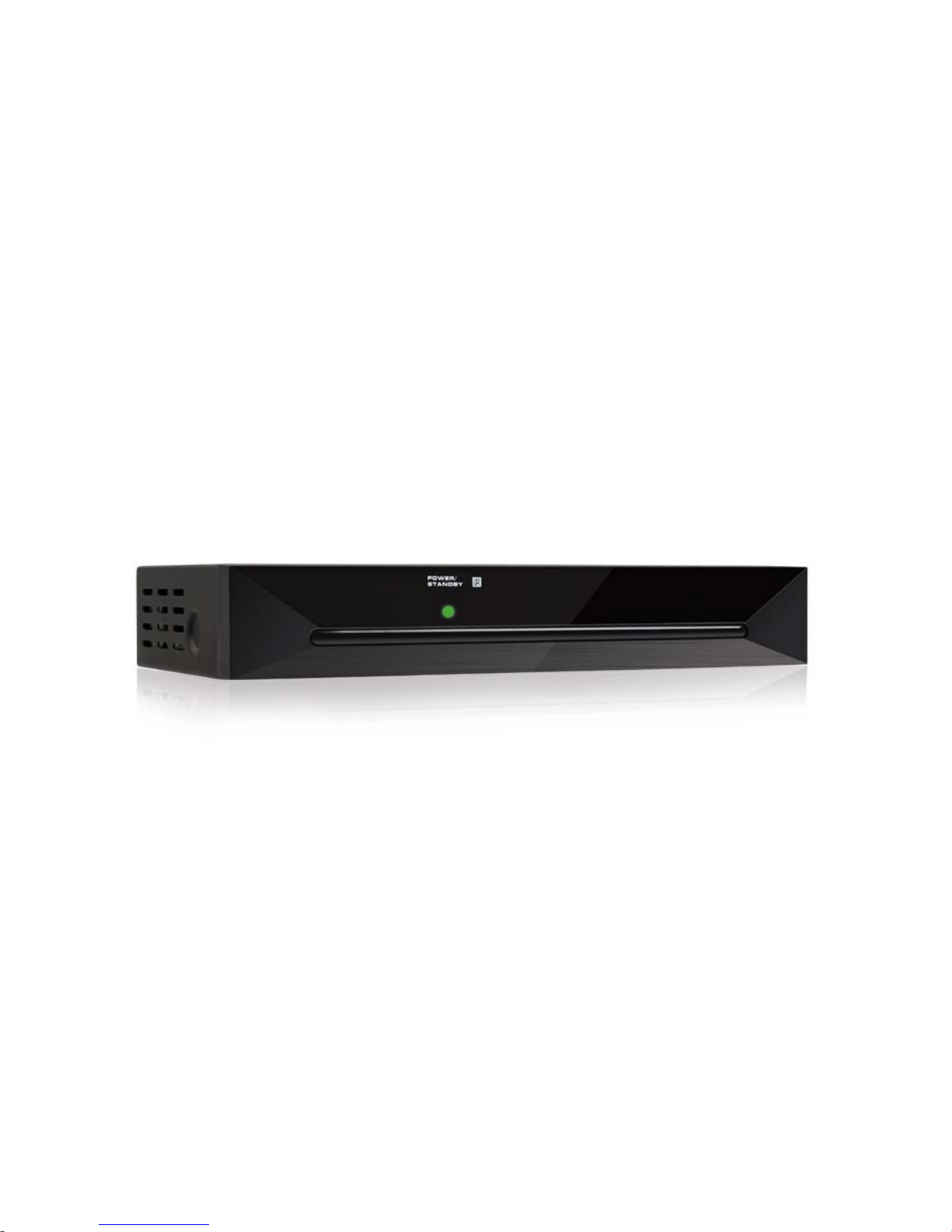
Digital Cable Receiver
SCART - Digital Audio
User Manual
Version: 30.04.2014 - English
Page 2

Introduction
2
Introduction
Dear customer,
Thank you for buying a cable receiver from the
house of smart.
This user manual provides information on
• placement
• installation,
• adjustment
• operation,
• cleaning and disposal of the receiver.
Please carefully read the user manual before
operating the receiver.
We hope you enjoy your receiver.
Your
smart electronic GmbH
Industriestraße 29
78112 St. Georgen
Germany
Service hotline: +49 (0) 7724 9478-555
Telefax: +49 (0) 7724 9478-333
E-mail: service@smart-electronic.de
© smart electronic GmbH 2014
All rights, technical changes, errors as well as printing
mistakes reserved. Any reproducing or copying of the
contents requires prior written permission from smart.
Table of Contents
1 User Information ...................................... 3
1.1 Use of this Manual ..................... 3
1.2 Signs, Symbols, Layout .............. 4
2 Product Description ................................. 4
2.1 Scope of Delivery ....................... 4
2.2 Receiver ..................................... 4
2.2.1 Front Panel ................................. 4
2.2.2 Rear Panel ................................. 4
2.3 Remote Control .......................... 5
2.4 Save Energy ............................... 5
2.5 Guarantee .................................. 5
3 Safety Instructions ................................... 6
3.1 Intended Use .............................. 6
3.2 Risks in Case of Intended
Use ............................................. 6
3.3 Location ...................................... 6
3.4 Handling of Batteries .................. 7
3.5 Notes on Product Liability .......... 7
4 Installation of the Receiver ..................... 7
4.1 Connection Scheme ................... 7
4.2 Connect TV Cable ...................... 7
4.3 Connect TV Set .......................... 7
4.4 Connect Home Cinema
System ....................................... 7
4.5 Insert Batteries of Remote
Control ........................................ 8
5 Basic Operation ........................................ 8
5.1 First Comissioning ...................... 8
5.1.1 Switch on Receiver .................... 8
5.1.2 Welcome .................................... 8
5.1.3 Auto Scan ................................... 8
5.2 Select Operation Mode .............. 8
5.3 Call/Leave Menu ........................ 8
5.4 Menu Navigation ........................ 9
5.5 Parental Lock ............................. 9
5.6 Set Time ..................................... 9
5.7 Watching TV ............................. 10
5.7.1 Direct Channel Selection .......... 10
5.7.2 Channel Selection via
Selection Window ..................... 10
5.7.3 Channel Selection via Search
Function ................................... 11
5.7.4 Channel Information ................. 12
5.7.5 Recall ....................................... 12
Page 3

Table of Contents
3
5.7.6
EPG .......................................... 12
5.7.7 Audio Settings .......................... 13
5.7.8 Teletext ..................................... 13
5.7.9 Subtitles .................................... 14
5.7.10 TV Standard ............................. 14
5.7.11 Aspect Mode ............................ 14
5.7.11.1 Setting the Aspect Mode
with the V-MODE key ............... 14
5.7.11.2 Setting the Aspect Mode
via the Menu ............................. 14
5.7.12 Videosignalformat ..................... 14
6 Extended Settings and Functions ........ 15
6.1 Channel Search ........................ 15
6.1.1 Automatic Channel Scan .......... 15
6.1.2 Manual Channel Scan .............. 15
6.2 TV Channel List / Radio
Channel List ............................. 16
6.2.1 Add Channel to Favorites ......... 16
6.2.2 Provide Channels with
Password Protection (Lock
Against Unauthorized
Access) ..................................... 16
6.2.3 Skip Channels when
Switching from Channel to
Channel (Zapping).................... 16
6.2.4 Move a Channel to Another
Channel Position: ..................... 17
6.2.5 Rename Channels .................... 17
6.2.6 Delete Individual Channels
from Channel List ..................... 17
6.2.7 Delete All Channels ................. 17
6.3 Rename Favorite Lists ............. 17
6.4 Language Setting ..................... 18
6.5 Timer ........................................ 18
6.6 OSD Setting ............................. 18
6.6.1 Undertext Display .................... 18
6.6.2 Hide OSD ................................. 19
6.6.3 OSD Transparency .................. 19
6.6.4 Automatic Standby Function .... 19
6.7 Software Version ..................... 19
6.8 Factory Settings ....................... 19
7 Cleaning .................................................. 19
8 Transport and Decommissioning ......... 19
9 Troubleshooting .................................... 20
10 Disposal .................................................. 21
11 Technical Data ....................................... 21
11.1 General Information ................. 21
11.2 Remote Control ........................ 21
11.3 Mains Adapter .......................... 21
11.4 Connections ............................. 21
11.5 Temperature ............................ 21
11.6 Dimensions and Weight ........... 21
12 Declaration of Conformity ..................... 22
1 User Information
1.1 Use of this Manual
• Please carefully read this user manual
before operating the device for the first
time.
• Please note all warnings and notes includ-
ed in this user manual.
• Consider this user manual to be an integral
part of the product, and store it at a well
accessible location.
• This user manual should also be enclosed
when handing over the device to a third
party.
• In case of loss or if you want to check new
functions, the most current version of the
user manual can be downloaded from the
internet page which is mentioned on the
extension page (menu item service).
Page 4
Product Description
4
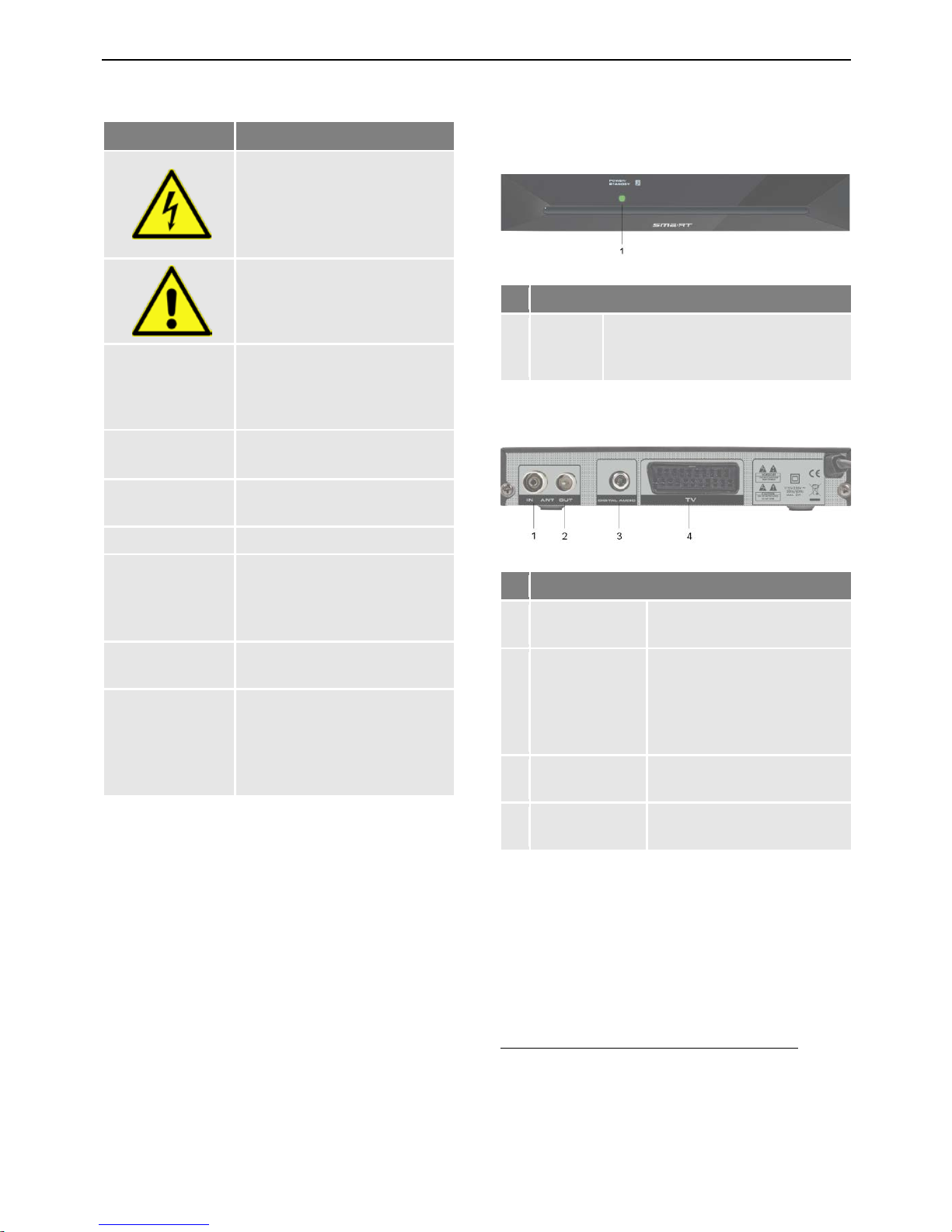
1.2 Signs, Symbols, Layout
Symbol/layout
Meaning
WARNING
Danger due to electric
shock with possible severe
bodily injury
CAUTION
Warning of possible physical damage
NOTE
Useful information and
hints
You are requested to per-
form an action.
1.
2.
Perform these steps in the
stated order.
List
italics
The various possibilities of
settings as well as image
captions are stated in
ital-
ics
.
bold
The designations of keys
are printed in bold letters.
bold & italics
Menu windows and menu
items (that often include
further hidden menu items
or direct settings) are print-
ed in
bold & italic
type
2 Product Description
2.1 Scope of Delivery
• cable receiver
• remote control
• 2 batteries (AAA) for remote control
• user manual
2.2 Receiver
2.2.1 Front Panel
No.
Description
1
LED
LED, lights green during opera-
tion (when mains is connected)
and red during standby mode.
2.2.2 Rear Panel
No.
Description
1
ANT IN
Connection for TV cable
(DVB-C
0F
1
)
2
ANT OUT
Loop-through cable
signal for connection of
further receivers, a video
cassette recorder or a TV
device
3
DIGITAL
AUDIO
Digital RCA audio out
(SPDIF)
4
TV
SCART connection for TV
device (analog)
1
DVB-C = Standard for transmission of digital TV and
radio broadcasting programs in the cable network.
This includes both programs of public and private
broadcasting. Depending on cable network provider,
receiving of programs of private stations can be
subject to payment of a fee.
Page 5
Product Description
5
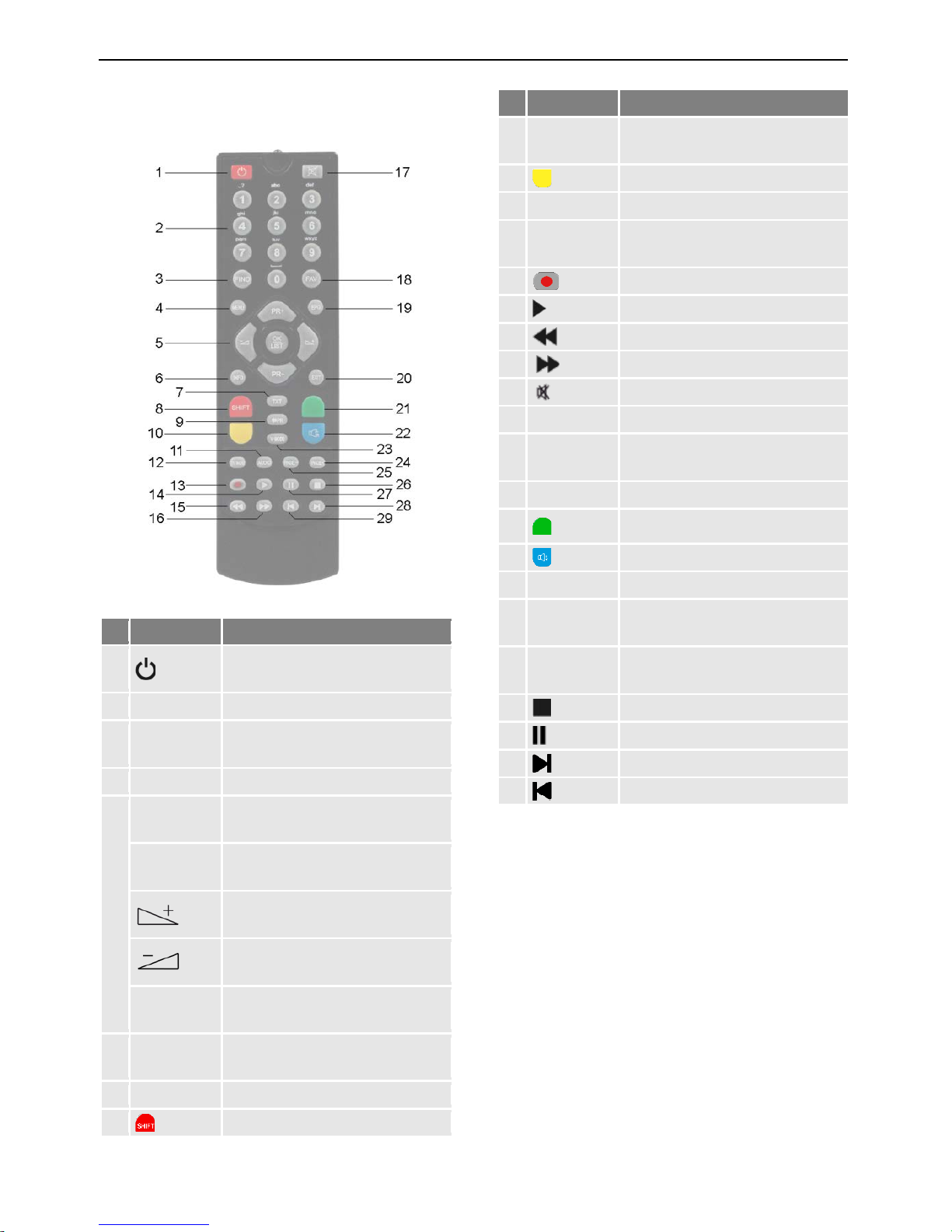
2.3 Remote Control
No.
Key
Description
1
Switch between operational
and standby mode.
2
0 - 9
Direct channel selection
3
FIND
Call of channel search function
4
MENU
Call main menu
5
PR+
Channel + or up-navigation in
menu
PR-
Channel - or down-navigation
in menu
Volume + or menu navigation
to the right
Volume - or menu navigation
to the left
OK/LIST
Display channel list / confirm
menu item
6
INFO
Display information on current
channel
7
TXT
Display / hide teletext
8 Red function key
No.
Key
Description
9
PR
Switch of previously selected
channels
10 Yellow function key
11
AUDIO
Selection of audio format
12
TV/RADIO
Switch between TV and radio
mode
13 Not used
14 Not used
15 Not used
16 Not used
17 Mute
18
FAV
Call list of favorites
19
EPG
Call of EPG (Electronic Program Guide)
20
EXIT
Exit menu or menu item
21
Green function key
22 Blue function key
23
V-MODE
Switch aspect mode
24
PAGE+
10 entries up in menu / channel list
25
PAGE-
10 entries down in menu /
channel list
26 Not used
27 Not used
28 Not used
29 Not used
2.4 Save Energy
The receiver is equipped with particularly
energy-saving electric and electronic components. Furthermore, a sophisticated energy
management helps to save energy:
Thus, energy consumption during Save Energy
Standby Mode is reduced to less than
0.5 Watt!
2.5 Guarantee
The warranty of the cable receiver of smart
electronic GmbH corresponds to the legal
regulations at the time of purchase.
Page 6
Safety Instructions
6
3 Safety Instructions
3.1 Intended Use
The cable receiver is intended for private receiving of unencrypted digital cable television
(DVB-C). It is exclusively intended for such
purpose and must be used exclusively for such
purpose.
Any other use is deemed to be unintended use.
3.2 Risks in Case of Intended Use
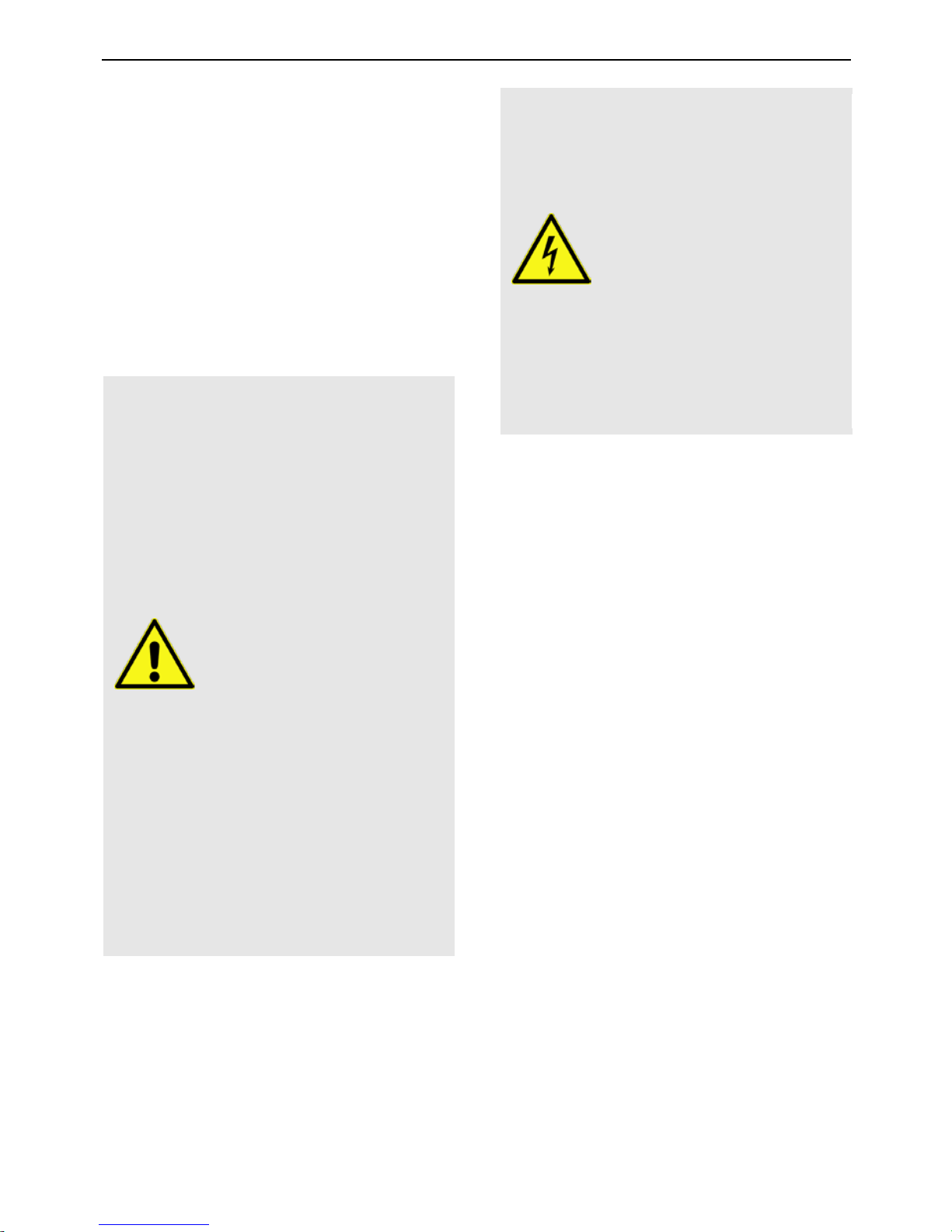
CAUTION!
Humidity, wrong mains volt-
age and/or wrong mains
frequency, lightning stroke
or mechanical overload may
cause malfunction of or
damage to the device.
Ensure that the receiver
(in particular the mains
plug) and the remote control are not exposed to
any humidity. Example:
Do not place filled flower
vases or similar onto the
receiver.
Only connect the receiver
to 175…250 V ~, 50/60
Hz.
Disconnect mains plug in
case of thunderstorms or
malfunction.
Do not place heavy items
onto the receiver.
Do not bend or squeeze
the cable.
WARNING!
Risk of electric shock when
contacting mains voltage.
Damage to housing,
mains cable or improper
repair may result in contact to mains voltage.
Do not place heavy items
onto the receiver.
Do not bend or squeeze
the cable.
Repairs of plug, cable or
receiver should only be
performed by qualified
specialists.
3.3 Location
Place the receiver onto a solid and level
surface.
Protect the receiver from humidity, heat,
dust and dirt.
Do not place items filled with liquid, e.g.
flower vases, onto the receiver.
Protect the receiver from dripping and
splash water.
Do not place burning items, e.g. burning
candles, onto the receiver.
Ensure sufficient ventilation (ventilation
slots must not be blocked): the receiver
should have a distance of at least five centimeters to its surrounding elements on all
sides.
Ensure that the ventilation openings are
not covered by objects such as newspapers, table cloths, curtains etc.
Only operate the receiver in moderate
climate (not in tropical climate).
Place the receiver so that the mains plug
can be disconnected at any time, correspondingly disconnecting the device from
the mains.
Page 7
Installation of the Receiver
7
If the device is transported from
cold to hot environment, then
condensing humidity may build
up in the device.
Do not connect the device, but
leave it switched-off for some
hours.
3.4 Handling of Batteries
• Batteries should always be out of chil-
dren's reach.
• Leaking batteries cause damage to the
environment and the remote control.
• Batteries should not be exposed to ex-
treme heat, e.g. sunlight, fire etc.
Dispose of the batteries in accordance with
the applicable legal regulations (see chapter Disposal, page 21).
3.5 Notes on Product Liability
In the following cases, the intended protection
of the device may be limited. Then, liability
regarding function of the device correspondingly passes over to the operator:
• The device is not used in accordance with
the user manual.
• The device is used out of the field of appli-
cation as described above.
• The operator performs unauthorized
changes of the device.
4 Installation of the Receiver
CAUTION!
First connect the receiver
to the cable connection
and any other devices before connecting the mains
plug to the power outlet.
Please also note the user
manuals of the other devices.
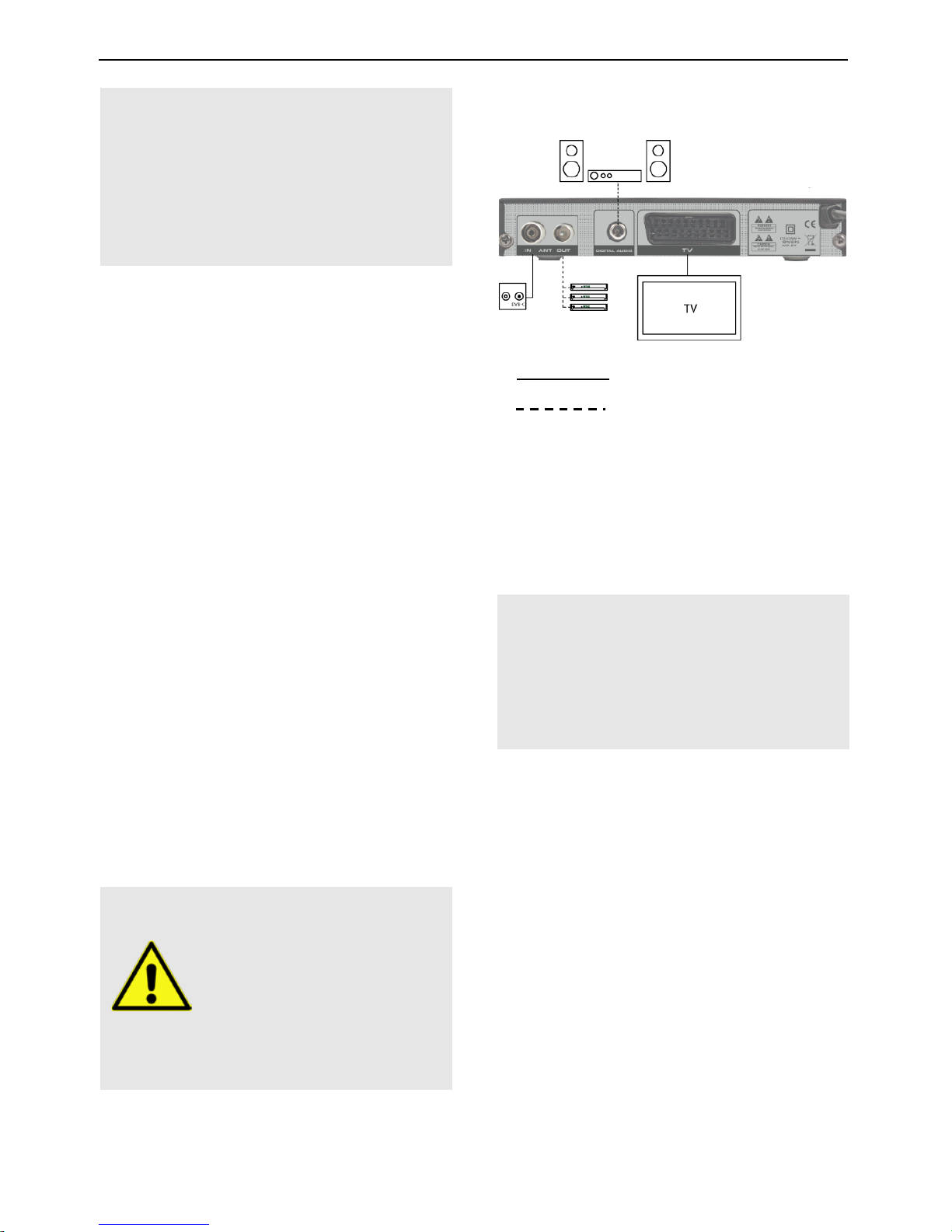
4.1 Connection Scheme
default connection
optional connection
4.2 Connect TV Cable
Connect the TV cable to the receiver con-
nection ANT IN.
Further receivers can be connected at the
connection ANT OUT. The signal is looped
through from input ANT IN.
If your receiver is in sleep mode
(deep standby) or the device was
disconnected from power (via power switch or by pulling the plug),
there is no or just a weakened signal
at ANT OUT.
4.3 Connect TV Set
Connect TV set and receiver by using a
SCART cable.
4.4 Connect Home Cinema System
To improve audio playback, you can connect
to the receiver - additionally to the TV set - also
a multichannel home cinema system or a hi-fi
system. There are various possibilities for
connection. Your type of connection depends
on the connection possibilities of your home
cinema system.
Connect the home cinema system and the
receiver (DIGITAL AUDIO) by using an
RCA cable.
Page 8

Basic Operation
8
4.5 Insert Batteries of Remote Control
This describes the steps for inserting new
batteries of the remote control or for replacing empty batteries:
1. Open the battery compartment on the
bottom side of the remote control. Remove
the cover of the battery compartment.
2. Place the two batteries 1.5 V (type: AAA).
Ensure correct polarity!
3. Close the battery compartment
Replace the batteries if certain
remote control functions are
not
performed any more or are performed incorrectly.
When replacing batteries, al-
ways ensure that all batteries
are replaced.
5 Basic Operation
This chapter describes the required steps to be
able to use the offer of radio and TV channels
provided via wide-band cable
1F
2
.
5.1 First Comissioning
5.1.1 Switch on Receiver
1. Switch on all connected devices.
2. Ensure that the correct AV input is selected
at the TV set (i.e. that the signals from the
receiver are displayed).
3. Connect the mains plug to the power outlet
to switch on the receiver.
5.1.2 Welcome
The default
Language (Sprache)
is
Deutsch.
The default
Country (Land)
is
Deutschland.
Ensure that the entries are correct; you
may change the values, if required.
2
The radio and TV programs available via wide-band
cable depend on your respective cable network
provider.
Using the keys PR+ and PR, go to the key
Start search and press OK to start auto-
matic channel search.
5.1.3 Auto Scan
The TV cable is now scanned for any available
channels. Such search then creates the channel lists with
TV Channels
and
Radio Chan-
nels
.
1. After end of search, please confirm the
corresponding message by pressing OK.
2. Leave the menu by pressing the EXIT key
until the screen shows the TV picture.
The menu item
Auto search
can
always be accessed via the menu
Installation
.
5.2 Select Operation Mode
TV is the operation mode after first
switching-on of the receiver (or after
restoration of factory settings).
You can select between the operation
modes TV (TV channels) and RADIO (radio
channels) as follows:
Press the key TV/RADIO on the remote
control.
Press again the key TV/RADIO to return to
the previous operation mode.
5.3 Call/Leave Menu
To call the menu, press the key MENU (of
the remote control or at the receiver). The
menu is called.
Press the EXIT key to leave the menu or to
go back one step.
In could be possible that you have
to press EXIT several times to go
back to TV mode.
Page 9

Basic Operation
9
5.4 Menu Navigation
The menu items with the settings for TV and
radio can be respectively accessed in the two
operation modes TV and Radio.
For menu navigation, you can use both the
keys at the receiver as well as the remote
control:
Press PR+ to select the menu item above.
Press PR- to select the menu item below.
Press to change resp. increase the
selected value or to get on the right side of
the screen.
Press to change resp. decrease the
selected value or to get on the left side of
the screen.
Instead of changing a value by
using the keys and ,
with many menu items you can also
press the OK key, select a new value from the list, and confirm such
value by again pressing the OK key.
Active menu items are color-marked.
Although most settings for TV operation are
made, you can also make some further settings via the menu.
5.5 Parental Lock
In the submenu
Parental Lock
you can lock
access to certain menus by using a PIN (e.g.
for protection of your settings) or block selection of certain channels by using a PIN.
Access the submenu
Parental Lock
as fol-
lows:
1. Press the MENU key.
2. Select the menu
System setup
.
3. Select
Parental lock
and confirm by
pressing OK.
After entry of password, you may
− set if access to the submenus is pro-
tected by password,
by selecting the
Menu lock
and select-
ing
Off
or On by using the keys
or ;
− set if certain channels are to be locked
by a PIN,
by selecting
Channel lock
and select-
ing
Off
or On by using the keys
or ; or
− change the password:
Select the field
New Password
.
Enter a new password.
Go to the field
Confirm Password
.
Again enter the new password.
Predefined, both the menu and the
program lock are on. The default
password is
0000
.
4. Press OK to save your changes and to
leave the submenu.
5. Leave the menu by pressing EXIT until the
screen shows the TV picture.
Instead of completely leaving the
menu, you can also further stay in
the menu - or in the submenu - to
perform further settings.
5.6 Set Time
Reasonable operation of the receiver require
setting of system time. By default, the receiver
is set to
GMT
2F
3
usage
, i.e. date and time are
taken from the received signal. Time zone is
set to GMT + 1 hour (+ 1:00) by default. Required changes can be made in the submenu
Local Time Setting
:
1. Select the menu
System setup
(see
above).
2. Select the submenu
Local Time Setting
and confirm by pressing OK.
3. Select the item
GMT usage
and switch on
or off
GMT usage
by using the keys
or .
On
= automatic time setting via cable sig-
nal is activated.
3
GMT = Greenwich Mean Time
Page 10

Basic Operation
10
Off
= automatic time setting via cable sig-
nal is deactivated.
It is recommended to keep the presetting
(GMT usage On).
4. Select the item
GMT offset
and select your
time zone by using the keys or
; for example, the time zone of Ger-
many, Austria and Switzerland is
UTC + 1:00
.
5. Select the item
Summer time
and switch
Summer time Off
or On by using the keys
or .
Please verify the pre
settings
and correct them, if required.
Please also consider corresponding change of those settings.
6. If automatic time setting (
GMT usage
) is
switched off, then date and time should be
manually entered:
For this, select the item
Date
, select the
position to be changed by using the keys
or , and enter the current date
by using the numeric keys. Then, select the
item
Time
, select the position to be
changed by using the keys or ,
and enter the current time by using the
numeric keys.
7. Leave the menu by pressing EXIT until the
screen shows the TV picture.
5.7 Watching TV
You have several possibilities to select a channel:
• Direct channel selection;
• Channel selection via selection window;
and
• Channel selection via search function;
as explained in the three following sections.
5.7.1 Direct Channel Selection
Select the desired channel by using the
keys PR+ and PR-.
With each change of channel, an information
window with information on the current channel will be displayed:
No.
Description
1
Current operation mode: TV
2
Channel name of current channel
3
Date
4
Time
5
Channel number of current channel in
current channel list
6
Start time, name and end of current
program
7
Start time, name and end of next program
8
Status bar: indicates how much of the
current program is already over
9
Current program is broadcasted with
subtitles.
10
Current channel is broadcasted with teletext.
11
Current channel is broadcasted with
EPG
3F
4
.
Press the INFO
key to call this
window at any time.
Set display time at
OSD
timeout
.
Press EXIT
two times to close
the information window.
5.7.2 Channel Selection via Selection Win-
dow
1. Press the OK key to display a selection
window with all available channels (2).
2. Select the channel list with the desired
channel by using the keys or
4
EPG = Electronic Program Guide
Page 11

Basic Operation
11
(1)
or
Press the FAV key to select from your favorite lists.
3. Select the channel to be displayed (3) by
using the keys PR+ and PR- for single
steps or PAGE+ and PAGE- for steps of
ten, and confirm your selection by pressing
OK.
The channel will be correspondingly
switched.
Channel selection window:
No.
Description
1
Display of current channel list
2
Channels included in the current channel
list 3 Marked channel
4
Frequency of current channel (example:
33800 is 338.00 MHz)
5
Symbol rate of current channel (in
megasymbols/second)
6
Modulation of current channel (QAM-16,
QAM-32, QAM-64, QAM-128, QAM-256)
7
Scroll bar – shows position of current
channel in channel list
4. Press OK or EXIT to close the selection
window.
5.7.3 Channel Selection via Search Function
The channel lists can be quite comprehensive;
correspondingly, the receiver offers the possibility to search for channels in the list:
1. Press the FIND key to open this window:
2. Select the first character of the channel
name you search for by using the keys
0 - 9 of the remote control.
Via the function keys, you can access these
functions:
− Press the red function key (CAPS) to
switch between upper case and lower
case.
− Press the green function key (DEL) to
delete the respectively selected character.
− Press the yellow function key (OK) to
accept the changes made so far and to
close the window Rename.
− Press the blue function key (CAN-
CEL) to discard the changes made so
far and to close the window Rename.
As soon as you entered the first character a
second window will open, showing all channels
starting with this character (in most cases, the
first character is a letter).
1.
Page 12

Basic Operation
12
2.
Press EXIT to close window 1, provided
that selection is sufficiently arranged for
your purposes. Now, you can select the
desired channel in window 2 by using the
keys PR+ and PR-, and confirm by pressing OK.
Return to entry of characters (see above) to
further limit channel selection.
5.7.4 Channel Information
Press the INFO key twice. The window on
the right will be displayed:
No.
Description
1
Name of the channel
2
Reception mode
3
DVB-C-Transponder (frequency / modulation / symbol rate)
4
DVB-C PIDs for video, audio, PCR
4F
5
5
Signal intensity
6
Signal quality
5
PID = Packet IDentifier, each table or each elementary stream in a transport stream is identified by a 13bit PID. PCR = Program Clock Reference; required to
enable the decoder to perform correct presentation
regarding time and speed.
5.7.5 Recall
Press the PR key to go to the last
viewed channel.
5.7.6 EPG
The Electronic Program Guide is a comfortable
tool, replacing a printed TV guide.
Press the EPG key of the remote control.
The window
EPG
will open.
No.
Description
1
Channel number and name of the current
channel.
2
Name, start time and end time of selected
program.
3
Day to which the displayed data apply.
4
All channels included in the current chan-
nel list.
5
Current and next program with a
timeframe of approx. 1.5 hours for the
marked channel.
6
Illustration of the colored function keys
and their functions.
7
Thumbnail of selected channel.
Press OK to open a window with detailed
information on the selected program.
Press the OK key or the EXIT key to close
such window.
Press the keys PR+ and PR- to flip through
all available channels.
Press the keys and to page
back and forward respectively one program within a channel.
Page 13

Basic Operation
13
The current program is marked with .
Press the red function key to access the
window
Time
:
Here, select the function on the bottom by
using the keys and :
Press OK when is selected to go to
the current program. The current program is marked with .
Press OK when is selected to
go one program forward or back.
Press OK when is selected to
go two hours forward or back.
Press OK when is selected to
go one day forward or back.
Press OK when is selected or press
EXIT to close the window Time and to
return to the EPG window.
Press the green function key to include
channel, date, switch-on time and duration
of the marked program into a timer. The
Timer mode
is set to
Once
by default;
Timer service
is set to
Channel
.
Press the blue function key to leave the
EPG
window and return to the window
Single EPG
.
Press the EXIT key to leave the
EPG
win-
dow and return to the TV program.
5.7.7 Audio Settings
1. Press the key AUDIO.
2. Select the audio mode by using the keys
and .
Depending on the selected channel and
the current program, the following modes
are available:
Left - Right - Stereo - Mono.
3. Press the keys PR+ or PR- to select another language or Dolby AC3 (Dolby Digital) as far as provided by the TV station.
4. After selecting the desired audio mode,
leave the menu by pressing the EXIT key.
5.7.8 Teletext
Teletext is an information system displayed on
your TV set. Teletext is only possible if the
selected channel supports such function. The
information is organized in the main pages and
sub pages.
Press the key TXT to activate teletext.
If subtitles are offered for the program in
the selected channel, a selection window
appears.
Press the keys and to select
Teletext
.
Press OK to switch on teletext. The first
teletext page no. 100.
If subtitles are offered for the program
in the selected channel, immediately
after pressing TXT the first teletext
page no. 100 is displayed.
To navigate inside teletext proceed as follows:
Key function
Keys 0 ... 9 of
the remote control
Direct input of a page
number
PR+
Next main page
PR-
Previous main page
(if there
are sub pages)
Next sub page
(if there
are sub pages)
Previous sub page or
AUTO
: automatic switch
from one sub page to
another
Page 14

Basic Operation
14
Press the EXIT or TXT key to deactivate
teletext.
5.7.9 Subtitles
If subtitles are offered for the program in
the selected channel, these can be activated as follows:
1. Press the keys TXT to open the selection
window
Subtitles/Teletext.
2. Press the keys and to select
Subtitle
and confirm with OK. Another
window
Subtitle language
appears.
3. With the keys PR+ or PR- select a line
Subtitle language
and confirm your selection with OK to activate subtitles. Only if
several subtitle languages are being sent
there will appear several lines
Subtitle lan-
guage
. If for example only German subti-
tles are sent,
deu(D)
is preset as subtitle
language.
To switch off the subtitles proceed as follows:
1. Press the key TXT to open the selection
window
Subtitles/Teletext
.
2. Press the keys and to select
Subtitle
and confirm with OK. Another
window
Subtitle language
appears.
3. With the keys PR+ or PR- select the line
SUB OFF
and confirm your selection with
OK to deactivate the subtitles.
5.7.10 TV Standard
1. Select the item
TV System
in the menu
System Setup
and press OK.
2. Select the item
Display Mode
and press
OK.
3. With the keys PR+ und PR- select the TV
standard fitting to your system. You can
select between
Auto, PAL, PAL-M, PAL-N,
NTSC, SECAM
. With
Auto
the receiver se-
lects the matching standard.
4. Confirm your selection with OK.
5.7.11 Aspect Mode
5.7.11.1 Setting the Aspect Mode with the V-MODE
key
Press the V-MODE key several times to set
the aspect ratio. Possible values:
Auto, 4:3PS, 4:3LB, 16:9LB
(see below ta-
ble).
5.7.11.2 Setting the Aspect Mode via the Menu
In the menu
System setup
, select the
submenu
TV system
and then the menu
item
Aspect mode
to set the aspect ratio
by using the keys and .
Value
Meaning
Auto
Default setting: the receiver selects
optimum value
4:3PS
For playback with a 4:3 screen, PS
= Pan & Scan:
• 4:3 program: picture is opti-
mally displayed.
• 16:9 program: picture height
is adjusted to screen; picture
information on the right and
left are missing.
4:3LB
For playback with a 4:3 screen, LB
= Letterbox
• 4:3 program: picture is opti-
mally displayed.
• 16:9 program: picture width is
adjusted to screen; lacking
height is filled up by black
bars.
16:9
For playback with a 16:9 TV set
5.7.12 Videosignalformat
1. Select the item
TV System
in the menu
System Setup
and press OK.
2. Select the item
Video Output
and press
OK.
3. Select the video output format. You can
select between
RGB
and
CVBS
.
4. Confirm your selection with OK.
Page 15

Extended Settings and Functions
15
6 Extended Settings and Func-
tions
6.1 Channel Search
If you want to start channel scan during ongoing operation (e.g. if your cable network
provider changed channel allocation) then you
have two possibilities:
6.1.1 Automatic Channel Scan
1. Press the key MENU.
2. Select the menu
Installation
by using the
keys PR+ and PR-.
3. Select
Auto search
and confirm by press-
ing OK.
4. Enter at First Frequency the frequency
where the scan should start, using the numeric keys of the remote control and the
keys and .
5. Enter at Second Frequency the frequency
where the scan should end, using the numeric keys of the remote control and the
keys and .
6. Enter at Symbol Rate the value predetermined by your cable network provider, using the numeric keys of the remote control
and the keys and .
7. Select at Scan Mode the QAM value predetermined by your cable network provid-
er, using the keys and .
8. Select Search and press OK to start the
scan and to transfer the found channels to
the channel lists.
6.1.2 Manual Channel Scan
Instead of using Auto Scan, you can also
manually set the DVB-C channels:
1. Press the key MENU.
2. Select the menu
Installation
by using the
keys PR+ and PR-.
3. Select
Quick search
and confirm by
pressing OK. The window on the right will
open.
Signal strength and signal quality are displayed
on the bottom of the window. Now you can
perform manual channel scan.
1. Enter at Frequency the desired frequency
where you want to search, using the numeric keys of the remote control and the
keys and .
2. Enter at Symbol Rate the value predetermined by your cable network provider, using the numeric keys of the remote control
and the keys and .
3. Select at Scan Mode the QAM value predetermined by your cable network provid-
er, using the keys and .
4. Select at Network Search if you want to
search for an individual channel (
No
) or all
channels of a channel network (
Yes
), e.g.
PRO7, SAT1, KABEL1, SIXX using the keys
and .
5. Select Search and press OK to start the
search and to transfer the found channels
with this frequency to the channel lists.
Page 16

Extended Settings and Functions
16
6.2 TV Channel List / Radio Channel
List
You can individually customize the lists. There
are various available possibilities for editing.
For reasons of simplification, only editing of TV
lists will be explained in the following. Editing
of radio channel lists will be performed corresponding to editing of TV channel lists.
1. In the menu Edit Channel, go to the submenu TV Channel List.
2. Press OK to open the window TV Channel
List.
With the editing processes described in the
following you will be respectively asked - when
leaving the Edit Channel menu (or when changing the channel list or when selecting another
function) - if you want to overwrite the factoryset channel program list, i.e. you may accept
the performed changes (
Yes
- then the channel
list will be correspondingly changed) or discard
them (
No
- then the original channel list will not
be changed).
6.2.1 Add Channel to Favorites
1. Mark the corresponding channel by using
the keys PR+ and PR-.
2. Press the key FAV and confirm by pressing
OK.
A selection window with the eight available
favorite lists will open.
3. Select the favorite list to which the channel
is to be allocated by using the keys PR+
and PR-, and confirm by pressing OK. The
respective favorite list is correspondingly
marked.
4. The channels allocated to a group of favorites will be marked in the channel lists.
5. Press the key FAV once again or the key
EXIT to leave the function Favorite.
6.2.2 Provide Channels with Password Pro-
tection (Lock Against Unauthorized Access)
1. Mark the corresponding channel by using
the keys PR+ and PR-.
2. Press the red function key (SHIFT).
3. Confirm by pressing OK. You will be requested to enter a password.
4. Enter a password. Locked channels are
marked in the channel lists .
5. Again press the red function key (SHIFT)
to leave the function Lock.
From now on, first the password
has to be entered to be able to
watch such a locked channel.
6.2.3 Skip Channels when Switching from
Channel to Channel (Zapping)
1. Mark the corresponding channel by using
the keys PR+ and PR-.
2. Press the green function key.
3. Confirm by pressing OK.
Channels to be skipped are marked in the
channel lists.
4. Again press the green function key to
leave the function Lock.
Page 17

Extended Settings and Functions
17
From now on, the channel is
skipped when switching from one
channel to the next (zapping).
6.2.4 Move a Channel to Another Channel
Position:
1. Press the yellow function key to activate
the function Move.
2. Mark the channel to be moved by using the
keys PR+ and PR-, and confirm by pressing OK.
The channel to be moved is marked in the
channel list.
3. Select the new channel position to which
the channel should be moved to by using
the keys PR+ and PR-, and again press
OK.
4. Press the yellow function key to leave the
function Move.
6.2.5 Rename Channels
1. In the submenu
Edit Channel – TV Chan-
nel List
, press the blue function key
(L/R).
2. Press the green function key to activate
the renaming process.
3. Mark the channel to be renamed by using
the keys PR+ and PR-, and confirm by
pressing OK.
4. The window Rename will be displayed.
− Select the character to be changed by
using the keys and .
− Enter the new character respectively
by using the numeric keys of the remote control.
− Press the red function key (CAPS) to
switch between upper case and lower
case.
− Press the green function key (DEL) to
delete the respectively selected character.
− Press the yellow function key (OK) to
accept the changes made so far and to
close the window Rename.
− Press the blue function key (CAN-
CEL) to discard the changes made so
far and to close the window Rename.
5. Press the green function key to leave the
Rename mode.
6.2.6 Delete Individual Channels from Chan-
nel List
1. In the submenu
Edit Channel – TV Chan-
nel List
, press the blue function key
(Edit).
2. Again press the blue function key (Delete)
to access the delete mode.
3. Mark the channel to be deleted by using
the keys PR+ and PR-, and confirm by
pressing OK. The respective channel is
correspondingly marked. Repeat step 3 as
long as all channels to be deleted are
marked.
4. Again press the blue function key (Delete)
or the EXIT key to leave the delete mode.
5. If you agree to overwrite the factory-set
channel list when leaving the menu (see
above), the marked channels will be deleted.
6.2.7 Delete All Channels
To delete all channels
1. Select
Delete All
in the menu
Edit Chan-
nel
.
2. Press OK. You will be asked if you want to
delete all channels.
3. Select the answer
Yes
or No by using the
keys and , and confirm by
pressing OK.
After deletion of all channels, all
channel lists will be empty and
should be newly created!
6.3 Rename Favorite Lists
In the submenu Favorite of the menu
System
Setup
you can rename favorite lists.
1. Select the favorite list to be edited by using
the keys PR+ and PR-, and confirm by
pressing OK.
Page 18

Extended Settings and Functions
18
2. The window Rename will be displayed.
See section 6.2.5.
Press the
blue function key (L/R)
key to
return to the submenu
Favorite
and press
EXIT to leave the submenu.
6.4 Language Setting
Select the sub-menu
Language
in the
menu
System Setup
and press OK. The
window
Language
opens.
Select
Language
to set the OSD language.
Select
First Audio
to set the preferred
language for the TV sound.
Select
Second Audio
to set an alternative
language for the TV sound, in case the first
language is not available.
Select
Subtitle Language
to set the preferred language for subtitles (per default
OSD language and subtitle language are
the same).
Select
Teletext
to set the preferred language for teletext (per default OSD language and teletext language are the same).
6.5 Timer
In the sub-menu
Timer
of the receiver you can
program, edit and delete up to eight different
events (channel switch).
1. In the sub-menu
Timer Setting
, mark a
timer by using the keys PR+ and PR-.
2. Press the OK key to open the timer.
3. Mark the line
Timer Mode
by using the
keys PR+ and PR-.
4. You can select from the following possibili-
ties by using the
keys and :
Value
Meaning
Off
The timer is deactivated.
Once
Single event (only once).
Daily
Event occurs every day at the
same time (e.g. the news program
every day)
5. Mark the line Wakeup Channel by using
the keys PR+ and PR-, and select the
channel to be displayed by using the keys
and .
6. Mark the line Wakeup Date by using the
keys PR+ and PR-, and enter the date by
using the numeric keys.
7. Mark the line On Time by using the keys
PR+ and PR-, and enter the on time by using the numeric keys.
8. Mark the line Duration by using the keys
PR+ and PR-, and enter duration of the
program by using the numeric keys.
You can go from letter to letter (position to position) in the date and
time fields by pressing the keys
and .
9. Mark the button Save by using the keys
PR+ and PR-, and confirm by pressing OK
(or select Cancel and confirm by pressing
OK if you want to cancel programming –
then you will return to the sub-menu Timer
Setting).
You can directly add programs
marked in EPG to the
timers. This significantly facilitates
programming as you do not have to
make settings for channel, date and
time.
6.6 OSD Setting
Select in the menu
System setup
the
submenu
OSD
5F
6
Setting
and press OK.
6.6.1 Undertext Display
Using the keys / , set whether
subtitles are displayed always (in the language you set in the section „Language
Setting“, page 18). Default value is
Off
.
6
OSD = On Screen Display
Page 19

Cleaning
19
6.6.2 Hide OSD
Using the keys and , set the
number of seconds after which the OSD
should be hidden. You may set values from
1 to 10 seconds
.
Default value is
5
s (factory setting).
6.6.3 OSD Transparency
Select transparency of the on-screen menu
by using the
keys and .
You may set values from
0% (OFF)
(no
transparency) to
40%
(almost transparent).
Default value is
OFF
.
6.6.4 Automatic Standby Function
Based on current EC regulations,
this receiver is equipped with an
energy saving system. After three
hours, the receiver will automatically
switch to energy save mode (energy
consumption of less than 0.5 W)
unless a function is triggered via
remote control during such period
(e.g. volume change or switching of
channels). You can deactivate the
automatic standby function via the
menu.
1. Select in the menu
System setup
the
submenu
OSD Setting
and press OK.
2. Select
Auto Standby
to switch on or
switch off the automatic standby function,
using the keys and (factory
setting is Auto Standby
On
).
6.7 Software Version
The submenu
Information
of the menu
Tools
displays the current version number of the
receiver’s software.
6.8 Factory Settings
If you erroneously saved wrong settings or if
you want to pass on the receiver without your
settings, then you can reset the receiver to the
factory settings (reset):
To reset the receiver:
1. In the menu
Tools
, select the submenu
Factory Settings
.
2. Press the OK key.
You will be asked if you want to reset the
receiver and delete individual settings.
3. Select Yes or No by using the keys
und , and then press OK.
After resetting your receiver, the language
selection menu will be displayed.
7 Cleaning
WARNING!
There is the risk of electric
shock when cleaning the
receiver!
Always disconnect mains
plug from power outlet
before cleaning.
Never clean the receiver
using a damp cloth.
Always ensure that no
liquid enters the receiver.
CAUTION!
There is the risk of damag-
ing the receiver when cleaning the receiver!
Do not use solvent-
containing cleaning
agents like petroleum
ether or thinner.
Clean the housing of the
receiver using a dry cloth.
8 Transport and Decommission-
ing
Proceed as follows if you want to transport
the receiver of if you do not want to use the
receiver any more:
1. Disconnect the receiver and all connected
devices from power supply.
2. Disconnect any cables connected to the
receiver.
Page 20

Troubleshooting
20
3. Remove the batteries from the remote
control.
4. Put receiver, cables and remote control
into the original packaging.
5. Store the receiver and the accessory parts
at a dry and dust-free location.
6. Protect the receiver from freeze.
9 Troubleshooting
This section includes a list of general errors
that could occur with operation of the receiver.
Each error states a possible cause and solutions.
Symptom:
• The display does not light.
Possible cause(s):
• The power cord is not connected.
• The power switch is not switched on.
Solution:
• Connect the power cord to the power
outlet.
•
Switch on the power switch.
Symptom:
• No audio or video; the receiver states
"OFF" and the red LED lights up.
Possible cause(s):
• The receiver is in standby mode.
Solution:
• Press the POWER key to switch on the
receiver.
Symptom:
• No audio or video.
Possible cause(s):
• No signal or only weak signal.
Solution:
• Check the cable connections to the
receiver and from the receiver to the
connected devices; fasten cables, if required.
Symptom:
• The TV set does not show a picture.
Possible cause(s):
• The system is not correctly connected.
Solution:
• Verify connection of cable and fasten
cable, if required.
Symptom:
• Picture only in black and white and/or
incorrect synchronization.
Possible cause(s):
• The video format of your receiver is not
correctly set.
Solution:
• Adapt broadcast television system of
the receiver to the broadcast television
system of the TV set.
Symptom:
• The remote control does not operate.
Possible cause(s):
• The batteries are empty.
• The remote control shows into wrong
direction.
Solution(s):
• Replace empty batteries with new
batteries.
• Direct the remote control towards the
front panel of the receiver.
Symptom:
• Display flashes
Possible cause(s):
• Short circuit at ANT IN.
Solution(s):
• Pull off antenna plug from ANT IN and
check the same.
• Verify that your cable installation is
properly installed.
If the malfunction still cannot be remedied,
then please contact your specialist dealer.
Service Hotline
In case of technical problems, connection
problems or general questions on settings
call the
Service Hotline: +49 (0) 7724 9478-555
Page 21

Disposal
21
Fax: +49 (0) 7724 9478-333
E-mail: service@smart-electronic.de
10 Disposal
CAUTION!
Do not dispose of the re-
ceiver and the batteries in
normal household refuse!
Please ask your municipal
administration on possibilities for environmentally
friendly and proper disposal
of the receiver.
Please take the batteries to
a collecting point.
The WEEE6F7 symbol on the
product and its packaging
states that this product is an
electrics or electronic device.
Do not dispose of such device
in the household refuse, but
take it to your local municipal
collecting point (collection station).
Your contribution to disposal of
this product will protect the environment and the health of all
people. Material recycling helps
to reduce consumption of raw
materials.
11 Technical Data
7
WEEE = Waste Electrical and Electronic Equipment.
The WEEE directive is the EC directive 2002/96/EC on
reduction of the increasing amount of waste from
electrical and electronic equipment not used any
more. Its objective is prevention, reduction and
environmentally friendly disposal of the increasing
amounts of electronic waste.
11.1 General Information
• Standby Save
Energy mode
• 8 favorite lists
• EPG
• Timer
Input frequency range
51 MHz ~ 858 MHz
Input impedance
75Ω
Band width
7 / 8 MHz
QAM
16 / 32 / 64 / 128 /
256
11.2 Remote Control
Range
up to 7 m
Batteries
2 x type AAA
11.3 Mains Adapter
Power consumption
in standby
less than 0.5 W
Mains voltage
175 - 250 V ~,
50/60 Hz
11.4 Connections
Cable in
Coax
Tuner LOOP
THROUGH
Coax
Audio out
1 x RCA digital audio
(SPDIF)
Video out
1 x SCART connector
(EURO AV)
11.5 Temperature
Operating temperature
+5° C to +40° C
Storage temperature
-40° C to +65° C
11.6 Dimensions and Weight
Width
180 mm
Height
32 mm
Depth
100 mm
Weight
Approx. 0.3 kg
Page 22

Declaration of Conformity
22
12 Declaration of Conformity
The company smart electronic GmbH, Industriestraße 29, 78112 St. Georgen, Germany
herby declares that this product meets the
following directives and standards:
• Directive on electromagnetic compati-
bility 2004/108/EC
− EN 55013:2001+A1:2003+A2:2006
− EN 55020:
2007+A11:2011
− EN 61000-3-2:
2006+A1:2009+A2:2009
− EN 61000-3-3
:2008
• Low voltage directive 2006/95/EC
− EN
60065:
2002+A1:2006+A11:2008+A2:2010+
A12:2011
Page 23

Index
23
Index
Aspect Mode .............................................. 14
Audio Settings ............................................ 13
Auto Scan ..................................................... 8
Automatic Channel Scan ............................ 15
Automatic Standby Function ...................... 19
Batteries
Handling .................................................... 7
Inserting .................................................... 8
Channel Information ................................... 12
Channel Search .......................................... 15
Automatic ............................................ 8, 15
Manual .................................................... 15
Channel Selection
Direct ....................................................... 10
Search Function ...................................... 11
Selection Window ................................... 10
Cleaning ...................................................... 19
Connecting
Home Cinema System .............................. 7
TV Cable ................................................... 7
TV Set ....................................................... 7
Connection Scheme ..................................... 7
Damage ........................................................ 6
Declaration of Conformity .......................... 22
Decommissioning ....................................... 19
Delete All Channels .................................... 17
Delete Individual Channels ......................... 17
Delivery ......................................................... 4
Direct Channel Selection ............................ 10
Disposal ...................................................... 21
Editing the Channel Lists ............................ 16
Electric shock ............................................... 6
Extended Settings and Functions .............. 15
Factory Settings ......................................... 19
Favorite Lists
Adding Channels ..................................... 16
Renaming ................................................ 17
First Comissioning ........................................ 8
Front Panel ................................................... 4
Guarantee ..................................................... 5
Intended Use ................................................ 6
Language Setting ....................................... 18
Layout ........................................................... 4
Location ........................................................ 6
Malfunction ................................................... 6
Manual Channel Scan ................................ 15
Menu
Call/Leave .................................................. 8
Navigation.................................................. 9
Move a Channel .......................................... 17
Operation Mode ............................................ 8
OSD Setting ................................................ 18
Parental Lock ................................................ 9
Password Protection ................................... 16
Product Description ...................................... 4
Product Liability ............................................ 7
Provide Channels with Password
Protection ................................................ 16
Rear Panel ..................................................... 4
Recall .......................................................... 12
Receiver Front Panel ..................................... 4
Receiver Rear Panel ......................................
4
Remote Control ............................................. 5
Rename Channels ....................................... 17
Risks ............................................................. 6
Safety Instructions ........................................ 6
Save Energy .................................................. 5
Scope of Delivery .......................................... 4
Service Hotline ............................................ 20
Set Time ........................................................ 9
Signs ............................................................. 4
Skip Channels ............................................. 16
Software Version ......................................... 19
Standard ..................................................... 14
Standby ....................................................... 19
Subtitles ...................................................... 14
Switch on Receiver ....................................... 8
Switching to the last viewed channel.......... 12
Symbols ........................................................ 4
Technical Data ............................................ 21
Teletext ....................................................... 13
Time .............................................................. 9
Timer ........................................................... 18
Transport ..................................................... 19
Troubleshooting .......................................... 20
TV Standard ................................................ 14
Undertext display ........................................ 18
Use of this Manual ........................................ 3
User Information ........................................... 3
Watching TV ................................................ 10
Welcome ....................................................... 8
Zapping ....................................................... 16
Page 24

Doc-ID: 14041401
 Loading...