

Page 1
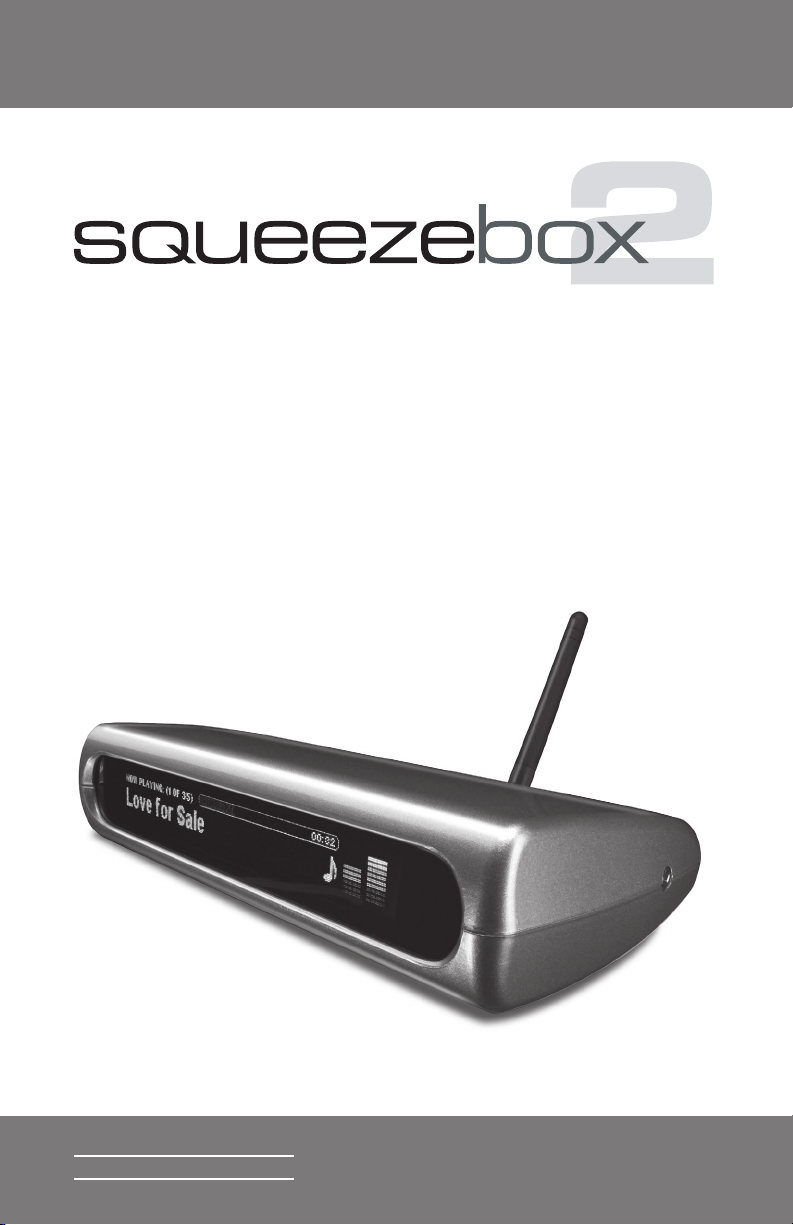
Squeezebox2 Owner’s Guide
SLIM DEVICESSLIM DEVICES
Owner’s Guide
1
Page 2

Page 3

Squeezebox2 Owner’s Guide
SLIM DEVICES
About Squeezebox2
3
System Requirements
3
Troubleshooting
Table of Contents
1
Page 4

2
SLIM DEVICES
Squeezebox2 Owner’s Guide
Page 5

Squeezebox2 Owner’s Guide
SLIM DEVICES
Thank you for purchasing a Squeezebox2 network music player. Squeezebox2
This user guide includes setup and basic operating instructions for your new
About Squeezebox2
slimdevices.com/
System Requirements
3
http://www.
Page 6

4
SLIM DEVICES
You can put all the fi les in a single directory, or create a series of
Before You Begin
http ://www.slimdevices.com/download
Squeezebox2 Owner’s Guide
Page 7

Squeezebox2 Owner’s Guide
SLIM DEVICES
The SlimServer Setup Wizard starts.
Next
to accept the default value at each panel. If you want to
When you have fi nished confi guring your installation, the Setup
Install
The SlimServer is installed and the “Completing the SlimServer
The SlimServer control panel opens.
Installing the SlimServer Software
Installing on Windows:
Hint: You may see an ‘Open File - Security Warning’, if so, click Run.
5
Installing on Mac OS X:
Page 8

6
SLIM DEVICES
Squeezebox2 Owner’s Guide
Installing on Linux or Other Operating System:
Page 9
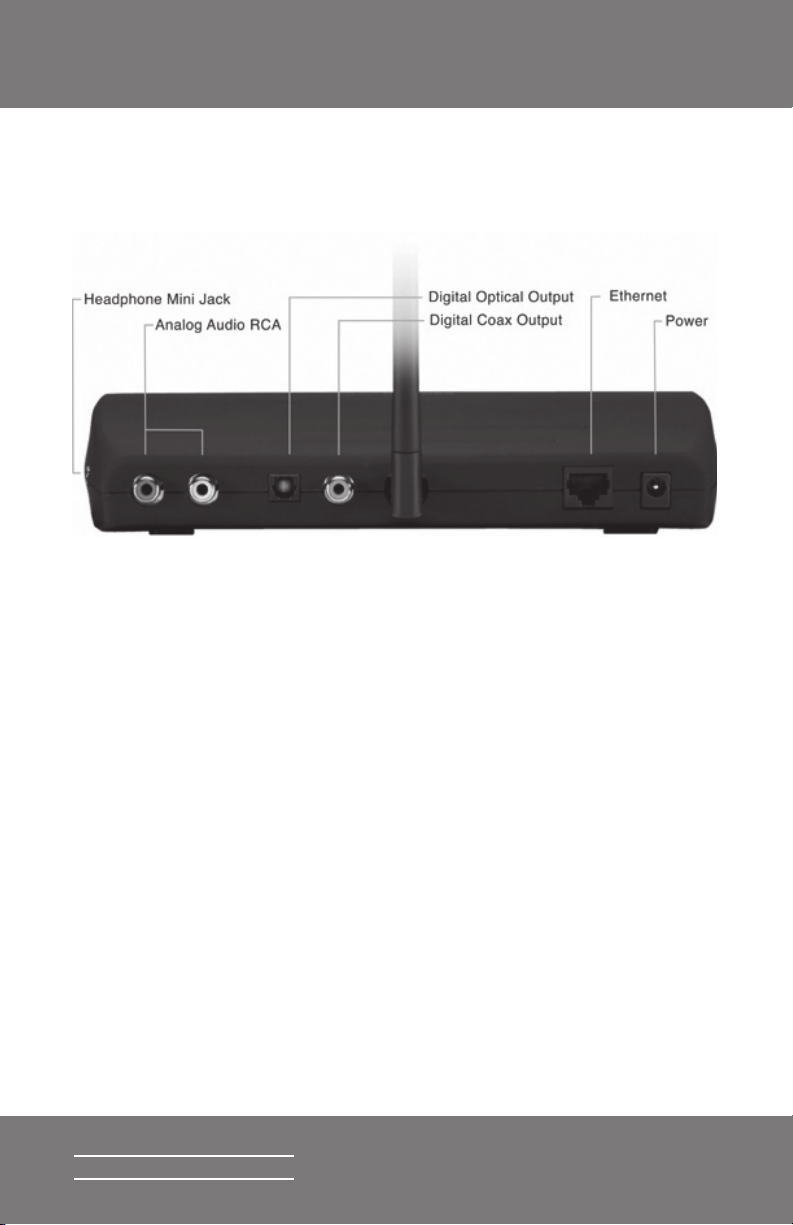
Squeezebox2 Owner’s Guide
SLIM DEVICES
You can also connect a digital optical cable to the square connector
You can leave Squeezebox2 plugged in at all times. When not in
different power supply; this may damage the player.
Connecting Squeezebox2
7
Page 10

8
SLIM DEVICES
The
menu option is displayed.
and
arrows on the remote.
arrow.
If you have a wired-only Squeezebox2, skip to step 5.
If you have a wireless Squeezebox2:
arrow on the remote until you fi nd the local
arrow on the remote to select your
If your router is not broadcasting your network name (also
arrow.
You can choose from
WEP
WPA Personal
arrow.
arrow.
Confi guring Squeezebox2
Set Up Networking
Squeezebox2 Owner’s Guide
Hint: Failure to select the appropriate region may violate local laws.
Page 11

Squeezebox2 Owner’s Guide
SLIM DEVICES
Squeezebox2 connects to your wireless network. If
arrow.
Use leading zeroes to specify numbers with fewer than 3 digits,
arrow on the remote to move to each one.
Squeezebox2 will scan your local network to fi nd the computer
arrow to scroll to the one you want to use.
arrow on the remote.
Hint: WEP keys consist of a string of ten or twenty-six digits or letters A
through F. WPA passwords are a string of letters, numbers or punctuation.
9
Connecting to SlimServer
Hint: If you want to go back to setup later press the LEFT arrow on the
remote down and hold it for fi ve seconds. Squeezebox2 will return to the
Set Up Networking menu.
Page 12

10
SLIM DEVICES
to put Squeezebox2 into
VOLUME
buttons to adjust the
to immediately begin the current
to scan
to pause the current song. Press
again to continue. Press and hold
to stop playback.
to skip to the next song. Press and
to scan forward through the current
arrows to
displays
the next
to go out of the current list.
to go into the item or to display
to play the songs contained within
while
Using the Remote
Squeezebox2 Owner’s Guide
Page 13

Squeezebox2 Owner’s Guide
SLIM DEVICES
ADD
to append the displayed selection to the end of the current playlist. If
• Genre, artist or album—Squeezebox2 adds all the songs for the
to search for Albums, Artists, or Songs. When Squeezebox2
arrow to enter your search text.
button once for “A,” twice for “B,” three times for “C,”
to cycle through punctuation.
to see the results of your search.
to cycle between the following settings:
Hint: To save a playlist, press NOW PLAYING then press and hold PLAY.
You will be prompted to save the current playlist for use later.
Hint: You can press and hold ADD to insert the item on the screen to be
played immediately after the currently playing song.
Hint: When in the Now Playing list: Press ADD to remove the visible song
from the playlist. Press and hold
ADD to move the song from the current
playlist and to the end of the Zapped Songs playlist.
11
Hint: In sorted lists such as lists of artists, albums or genres, press
the number buttons to jump to the fi rst item that starts with the
corresponding letter.
Hint: In unsorted lists such as playlists, press a number button to jump
proportionally through the list.
Page 14

12
SLIM DEVICES
to cycle between the following settings:
to tell Squeezebox2 to turn itself off in 15 minutes. Add 15 minute
repeatedly. If you
until the player displays
to display the song you are listening to. Press
again to cycle through different display formats for the now playing
to cycle between different display font sizes. You can do this while
to cycle through Squeezebox2 display brightness levels. You
Squeezebox2 Owner’s Guide
Page 15

Squeezebox2 Owner’s Guide
SLIM DEVICES
arrow more than once to get there.
and
arrows to fi nd the
option.
option is displayed.
You can scroll down to browse by artist or genre, new music,
arrow to
and
arrows to scroll through the list.
to play all the songs associated with the displayed item.
to jump to the list of songs that you have
and
arrow to return to the main
menu.
If you are using the computer where you installed SlimServer, go
If you are using a different computer on the same local network
Playing Your Music
Using the Remote to Play Music
Hint: If you want to play the selected songs after the songs that
you are already listening to, press
end of the list.
ADD and they will be added to the
13
Using the Web Interface to Play Music
http://localhost:9000
“http://<IPaddress>:9000
Hint: Windows users can use the SlimServer application to bring up the
web interface automatically on their SlimServer computer. Mac users
Page 16

14
SLIM DEVICES
You can enter the name of the song, artist or album you are looking for in two
arrow to move on.
arrows to enter letters or numbers:
or
arrows until the character you want is
arrow once to advance one space to the right.
arrow.
arrow twice to run the search.
) one, two, three or four times
(zero) button for a space.
button repeatedly to cycle through punctuation.
arrow to erase letters. Press and hold to erase more
arrow when you are fi nished entering text to run
can use the SlimServer pane in System Preferences to bring up the web
interface.
Searching for Music with the Remote
Hint: You don’t have to enter the entire album name, artist name, or
song title to search successfully; just enter the fi rst few letters and press
RIGHT, then scroll down through the results using the DOWN arrow.
Squeezebox2 Owner’s Guide
Page 17

Squeezebox2 Owner’s Guide
SLIM DEVICES
You can use the remote control or the web interface to create playlists and
To specify a playlists folder:
Server Settings
link.
To create a playlist using the web interface:
Now
playlist.
button on the right side of the
To create a playlist using the remote control:
ADD
Now Playing
playlist.
and then press and hold
on the remote. Using the remote keypad, enter the name you
arrow.
Creating and Saving a Playlist
15
Page 18

16
SLIM DEVICES
You can listen to hundreds of internet radio stations with Squeezebox2. To
to go back to
more than once.)
to scroll to
to scroll through a list of internet radio providers.
is a frequently updated list of stations
to enter a provider’s area. Use the arrow buttons to
to tune into the station. It may take a few seconds to
To play an internet radio station that’s not shown in the Internet Radio area:
Listening to Internet Radio
Squeezebox2 Owner’s Guide
Page 19

Squeezebox2 Owner’s Guide
SLIM DEVICES
To choose a graphic visualizer to display all the time:
several times to cycle through the visualizer choices.
To choose a graphic visualizer to display as a screensaver:
arrow on the remote for fi ve seconds to
to scroll to the
selection and press
Special Features
Graphic Visualizers
17
Using Squeezebox2 as a Wireless Bridge
Page 20

18
SLIM DEVICES
and then press
Squeezebox2 will now crossfade between tracks as you specifi ed.
To view an existing RSS feed:
to go back to
to scroll to
Crossfading Between Tracks
Squeezebox2 Owner’s Guide
RSS News Ticker
Page 21

Squeezebox2 Owner’s Guide
SLIM DEVICES
to scroll to the
option. Press
to scroll through the list of available news feeds.
to view the list of items in that feed, press again to
To change the list of RSS feeds available on Squeezebox2:
You can replace the existing subscriptions, add one to the end, or delete them
To view RSS feeds as a screensaver:
Any number of Squeezebox2, Squeezebox or SLIMP3 on your network can
To synchronize multiple players with the web interface:
19
Controlling Multiple Squeezeboxes with One SlimServer
Page 22

20
SLIM DEVICES
The followingt tips and answers to frequently asked questions will help resolve
arrow for fi ve seconds to bring Squeezebox2 back to
on the remote
prompt.
You can connect Squeezebox2 directly to your computer (without a local
The confi guration software for your wireless device can show the key in
Try using the following URL:
Troubleshooting
How do I get back to the Squeezebox2 setup menu?
How do I reset Squeezebox2 to factory default settings?
The player doesn’t obtain an IP address.
Can I connect Squeezebox2 directly to my computer?
Squeezebox2 Owner’s Guide
I can’t enter my wireless password.
The web interface won’t come up, even though Squeezebox2 is working.
http://127.0.0.1:9000/
http://
Page 23

Squeezebox2 Owner’s Guide
SLIM DEVICES
and hit enter. In the DOS window,
and hit enter.
and hit enter.
This could be due to a fi rewall being active on the computer.
Add an exception for the following three ports by clicking ‘Add Port...’:
• Port number: 3483 (TCP) - Name: SlimServer Control
• Port number: 3483 (UDP) - Name: SlimDiscovery
• Port Number: 9000 (TCP) - Name: SlimServer Web
Third-party Firewalls: Examples of third party software fi rewalls include:
How do I fi nd the IP address of the computer where I have installed
SlimServer?
Squeezebox2 can’t connect to my computer running SlimServer.
21
Page 24

22
SLIM DEVICES
You can create links or shortcuts to other folders and place them in your
My computer is displaying an error that says that another device on my
network is using the same IP address.
I’m trying to use a mapped network drive like Y:\ for my Music Folder on my
Windows computer and it does not work.
Squeezebox2 Owner’s Guide
Hint: The user account for the service must be protected by a password
for this to work.
How do I use multiple folders or disks with my music library?
I added some music to my library but it’s not showing up.
Page 25

Squeezebox2 Owner’s Guide
SLIM DEVICES
The new music will not appear in your music library on the SlimServer until the
Some of the songs in my iTunes library don’t show up on Squeezebox2 or
say STOPPED when I try to play them. What’s up with that?
Getting More Information
Where can I fi nd more documentation?
23
http://www.slimdevices.com/faq.html
Whom can I contact for help?
Page 26

24
SLIM DEVICES
This equipment has been tested and found to comply with the limits for a Class B digital device,
The user may fi nd the following publication prepared by the Federal Communications Commission
Available exclusively from the Superintendent of Documents, Government Printing Offi ce, Washington,
This equipment has been tested and found to comply with the limits for a Class B or Class 2 digital
The user may fi nd the following publication prepared by the Federal Communications Commission
Available exclusively from the Superintendent of Documents, Government Printing Offi ce, Washington,
This Class B digital apparatus meets all requirements of the Canadian Interference-Causing Equipment
Squeezebox2 Owner’s Guide
Page 27

Page 28

26
SLIM DEVICESSLIM DEVICES
Squeezebox2 Owner’s Guide
 Loading...