

Page 1
The Sintefex Audio
CX2000
Sampled Digital
Stereo Compressor
Users Manual
interstage
Phistersvej 31, 2900 Hellerup, Danmark
Telefon 3946 0000, fax 3946 0040
www.interstage.dk
- pro audio with a smile
Page 2

Page 2
Sintefex CX2000 Sampled Digital Compressor Copyright © 2001 Sintefex Audio Lda
Page 3

Page 3
User Guide version 1.0 Copyright © 2001 Sintefex Audio Lda
SINTEFEX
CX2000
Sampled Digital Stereo
Compressor
User Guide v1.0
Notice: Whilst all reasonable effort has been made to ensure that the information in this
manual is accurate, Sintefex Audio Lda accepts no liability for inadvertent errors,
omissions or changes in operating software or hardware specification referred to in this
manual.
This edition 28th May 2001
Sintefex Audio Lda is incorporated with limited liability in Portugal. web: www.sintefex.com
Head office: S. Marcos da Serra, P-8375 Portugal tel: (+351) 282 361748 fax: 282 361749
Page 4

Page 4
Sintefex CX2000 Sampled Digital Compressor Copyright © 2001 Sintefex Audio Lda
Page 5

Page 5
User Guide version 1.0 Copyright © 2001 Sintefex Audio Lda
1 Contents
1 Contents.................................................................................................................................. 5
2 Introduction............................................................................................................................6
Welcome to the SINTEFEX CX2000 Sampled Compressor 6
Firmware Versions 7
About this Guide 7
3 Installing the CX2000 .............................................................................................................7
Positioning the CX2000 7
Connecting the CX2000 8
4 The CX2000 Controls.............................................................................................................9
MENU OFF 9
MENU ON 13
5 Advanced Options................................................................................................................17
Startup 17
USB Remote Control using CX2000 software 18
MIDI Remote Control using CX2000 software 19
MIDI Parameter Control using any sequencer 19
6 Messages...............................................................................................................................22
7 Technical Specification.........................................................................................................23
Overview 23
Digital Processes 24
8 Acknowledgements, Disclaimers and Licensing .................................................................25
Sintefex Audio Lda is incorporated with limited liability in Portugal. web: www.sintefex.com
Head office: S. Marcos da Serra, P-8375 Portugal tel: (+351) 282 361748 fax: 282 361749
Page 6
Page 6
Sintefex CX2000 Sampled Digital Compressor Copyright © 2001 Sintefex Audio Lda
2 Introduction
Welcome to the SINTEFEX CX2000 Sampled Compressor
Welcome to the unique Sintefex technology of the CX2000 sampled stereo compressor.
This product includes the proprietary Sintefex Dynamic Convolution technology to bring the signal
processing qualities of classic analogue compressors into an all-digital world.
The CX2000 Sampled Compressor stores internally 8 compressor samples/profiles at each sampling rate
and 100 user programs.
In addition, if used under remote control, unlimited additional compressor profiles are available from the
web based library of sampled compressors.
USB remote control software for the PC is included with this product.
What is a Sampled Compressor?
Digital Signal Processing can be very clean but digital compressors do not add any of the fine texture to
the sound that classic analogue compressors have been used for and sought after for years.
One technical reason for the rather boring sound of digital compressors is that that the process carried out
by the digital signal processors is usually very simple. That's why on many computer systems you can
run multiple compressors in real time using just a small DSP farm or even the native processor of the PC.
It has to be a simple calculation to be quick and it sounds simply uninteresting.
Sintefex Audio have invented a way of sampling the signal path of classic analogue equipment and
recreating that sound digitally. It is not an approximation for analogue processing thought up by some
computer whizz-kid but uses the actual samples form the original equipment.
Sintefex Audio's unique Dynamic Convolution algorithm uses about 1000 parameters gathered from the
original device to generate a complex signal process that involves some heavy number crunching. You
will hear instantly that it adds colour to the audio signal path that you would otherwise have to get from
analogue equipment.
Of course the advantages of the digital system is that the processing can be identical in two channels of a
stereo mix, and be repeatable for any further use of the effect. Analogue gear has a habit of not working
when you need it or adding unpleasant side effects like hum and noise, and bad stereo matching gives
image shifting.
The CX2000 stores a set of 8 classic compressor samples at each sampling rate and gives you 100 user
program stores for your settings. An unlimited number of compressors can be available if the CX2000 is
linked to computer using its USB port for remote operation.
The combined cost of a stereo pair of each of the stored compressors in a standard CX2000 would not
leave much change from $50,000US!
Page 7
Page 7
User Guide version 1.0 Copyright © 2001 Sintefex Audio Lda
Firmware Versions
Firmware versions are occasionally updated to improve the operating functionality of the CX2000
compressor. Firmware updates are available free of charge by customer download from our web site and
may be installed using USB connection from a PC.
About this Guide
The CX2000 sampled stereo compressor is easy to use and will present no problems to the audio
engineer. This guide explains issues specific to the CX2000 user interface but is not a technical manual
on the process of Dynamic Convolution or Audio Engineering.
Options
The CX2000 sampled stereo compressor is available with two main optional features:
• 96k option - this extends the available sample rates from 48k maximum to 96k maximum.
• Analogue conversion option. This provides analogue inputs and output on balanced XLR connectors
at programmable analogue levels between +10dBu and +27dBu.
This guide covers all aspects of the CX2000. If an option is not available on your unit, the feature will not
of course operate as described, but you will get an indication that you have selected an unavailable
option.
3 Installing the CX2000
Positioning the CX2000
The CX2000 is a standard 1U 19" rack unit. As is standard practice, if fitted in a fixed installation the
unit may be safely supported from the front panel. However, if the rack in which it is fitted is in a mobile
installation support must be provided at the rear to prevent risk of front panel distortion when the rack
installation is exposed to mechanical shock.
The CX2000 dissipates approximately 35 watts (depending on options fitted and sampling rate selected)
and is designed to be well ventilated in an ambient temperature of less than 30 degrees centigrade. One
rack unit of space should be allowed above the unit for ventilation. If mounted above heat generating
equipment it is usually necessary in addition to allow at least one rack unit of space below the unit.
Ventilation holes must not be covered under any circumstances and adequate flow of air must be
permitted to either side of the unit.
Sintefex Audio Lda is incorporated with limited liability in Portugal. web: www.sintefex.com
Head office: S. Marcos da Serra, P-8375 Portugal tel: (+351) 282 361748 fax: 282 361749
Page 8
Page 8
Sintefex CX2000 Sampled Digital Compressor Copyright © 2001 Sintefex Audio Lda
Connecting the CX2000
Connection is straightforward with connections familiar to audio engineers.
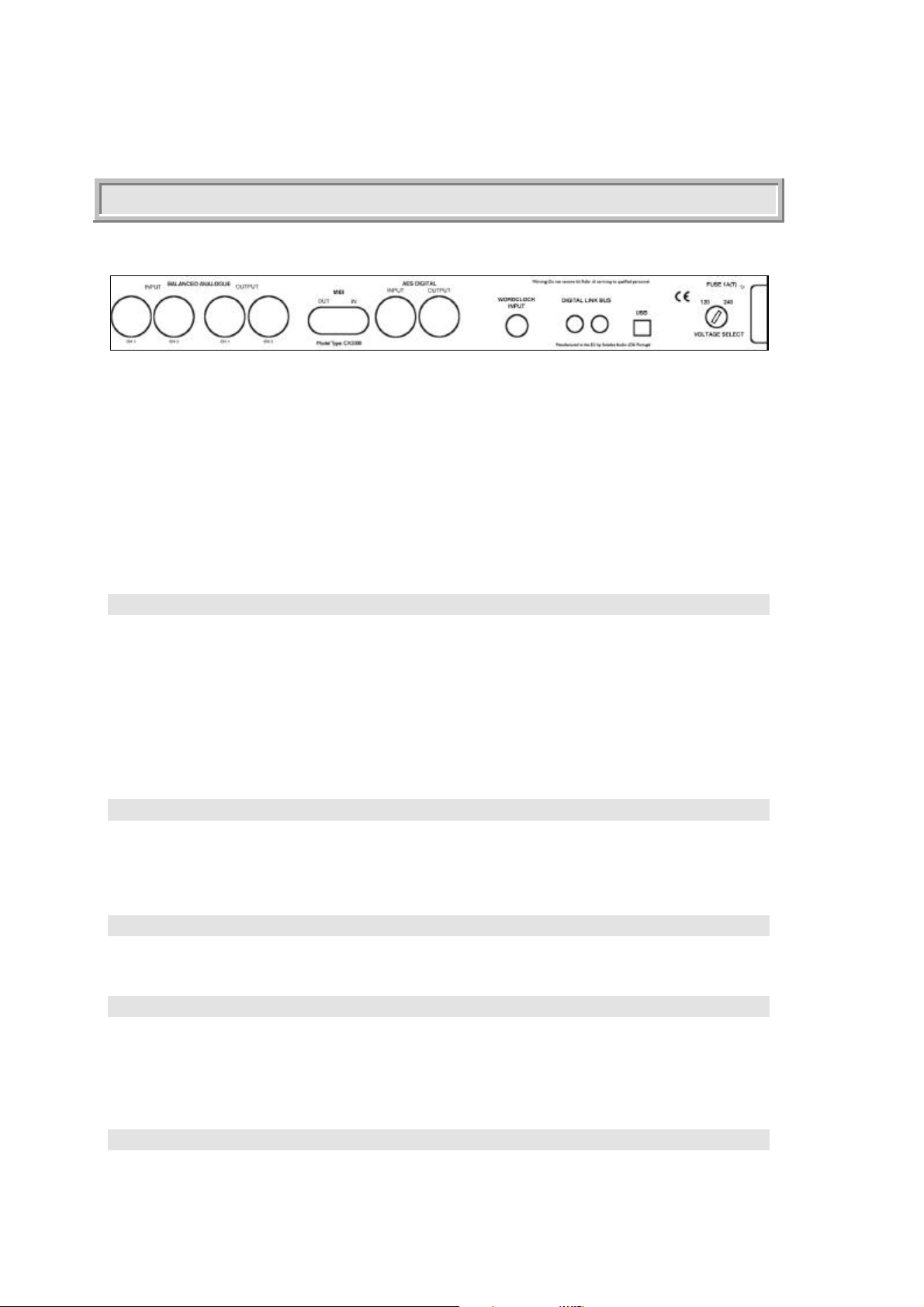
A diagram of the rear panel shows
• ANALOGUE INPUTS (if analogue option fitted), CH1, CH2
• ANALOGUE OUTPUTS (if analogue option fitted), CH1, CH2
• MIDI OUT and IN
• AES DIGITAL, IN and OUT (2 channels per connector)
• WORDCLOCK INPUT
• DIGITAL LINK BUS IN and OUT
• USB data connection to PC
• Voltage Selector
• AC POWER INLET with 1A(T) FUSE
AC Power
Power should be applied to the IEC mains input after verifying that the voltage regulator is set correctly
for the territory you are in and the mains voltage you have available. For supply voltages in range 105 120 VAC select voltage setting 120 and for 210 - 240 VAC select 240.
WARNING: CONNECTION TO A 220 - 240V SUPPLY WITH SELECTOR AT 120 WILL VOID
WARANTY AND MAY DAMAGE THE UNIT. SAFETY MECHANISMS WILL PREVENT FIRE
HAZARD ONLY IF CORRECT FUSE IS FITTED. FITTING ANY FUSE OTHER THAN TYPE 1
AMP (T) WILL VOID WARANTY AND MAY CAUSE HAZARDS.
Balanced Analogue
XLR Analogue Audio inputs and outputs (if this option is fitted) are electronically balanced and the
levels for peak digital can be adjusted from the front panel (See "Input Level Adjust" later). Pin 2 is
wired "hot".
AES Digital
XLR AES digital allows two-channel digital input and output.
Gain linkage and computer connection
The digital link bus is of use in connecting multiple units to link gain reduction digitally across more than
two channels.
The USB connection allows the CX2000 to be connected to a PC for remote control and software update.
Connection to an unbalanced system
Page 9
Page 9
User Guide version 1.0 Copyright © 2001 Sintefex Audio Lda
Unbalanced input signals should be wired with signal to pin 2 and ground to pin 3. It is preferable not to
connect pin 1 to the source ground to allow the balanced input circuitry of the CX2000 to reject any hum
loop signals.
Unbalanced output from the CX2000 should be taken from pin 2 (signal) and pin 3 (screen). You may
need to experiment with connection of pin 1 to the screen in addition depending on the grounding
characteristics of the next device in the chain.
Unbalanced output levels should be limited to +22dBu peak as the CX2000 can only generate analogue
levels in excess of this into fully balanced inputs. The analogue levels are selected from the front panel.
4 The CX2000 Controls
Overview of the front panel
The CX2000 sampled stereo compressor can be used
• as a stereo compressor with one set of controls for both channels,
• as two mono compressors completely independently,
• as two separate compressors but with gain linked.
MENU OFF
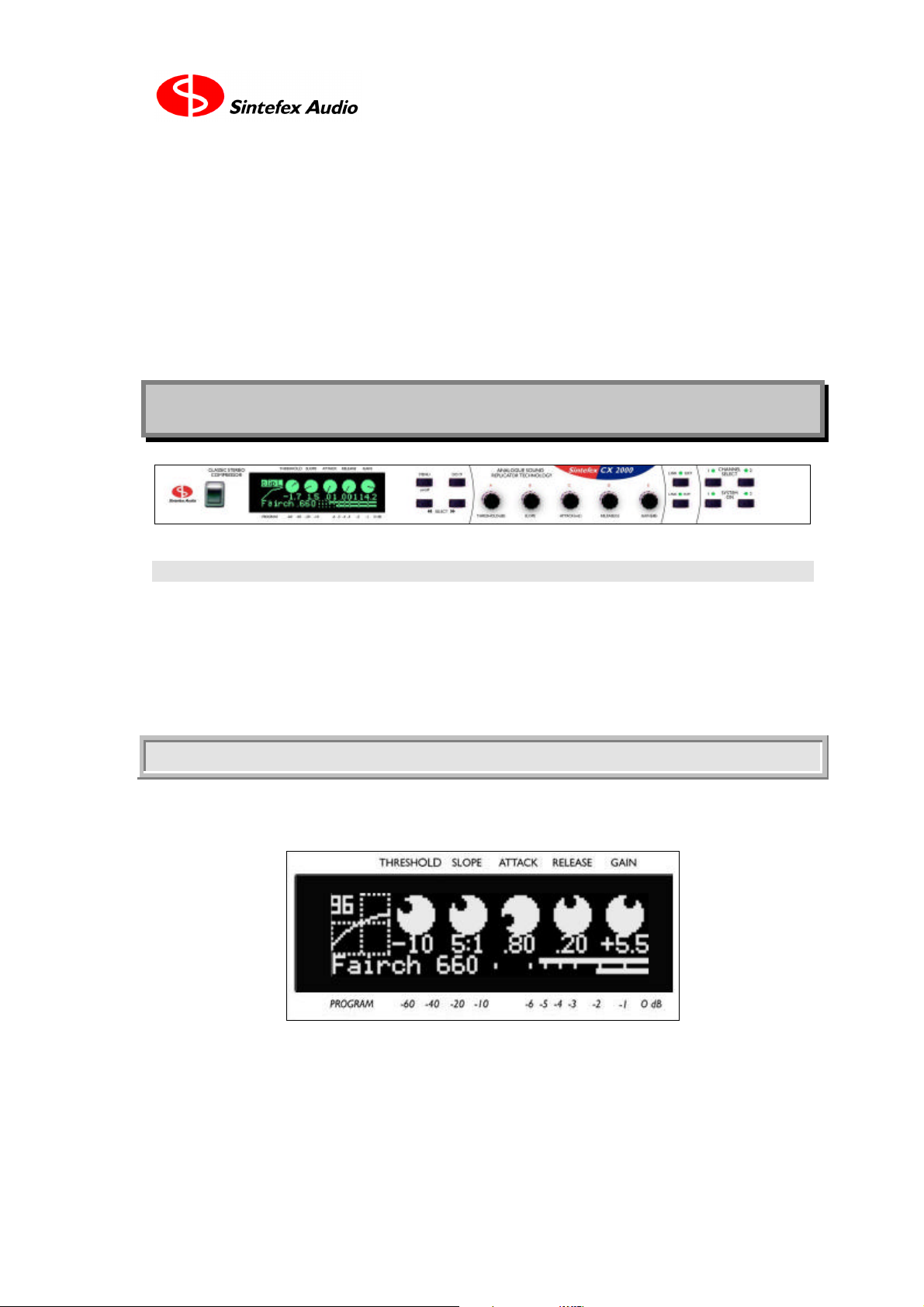
In normal mode the menu system is off. The display appears as shown here:
This is the sort of display you see during normal operation. It shows the gain reduction as a high
precision bar graph as well as the exact settings of them main compressor controls.
The gain reduction metering can show gain reduction or levels down to -60dB but when gain reduction is
less than about 15dB the full compressor or program name is shown at the left.
Sintefex Audio Lda is incorporated with limited liability in Portugal. web: www.sintefex.com
Head office: S. Marcos da Serra, P-8375 Portugal tel: (+351) 282 361748 fax: 282 361749
Page 10
Page 10
Sintefex CX2000 Sampled Digital Compressor Copyright © 2001 Sintefex Audio Lda
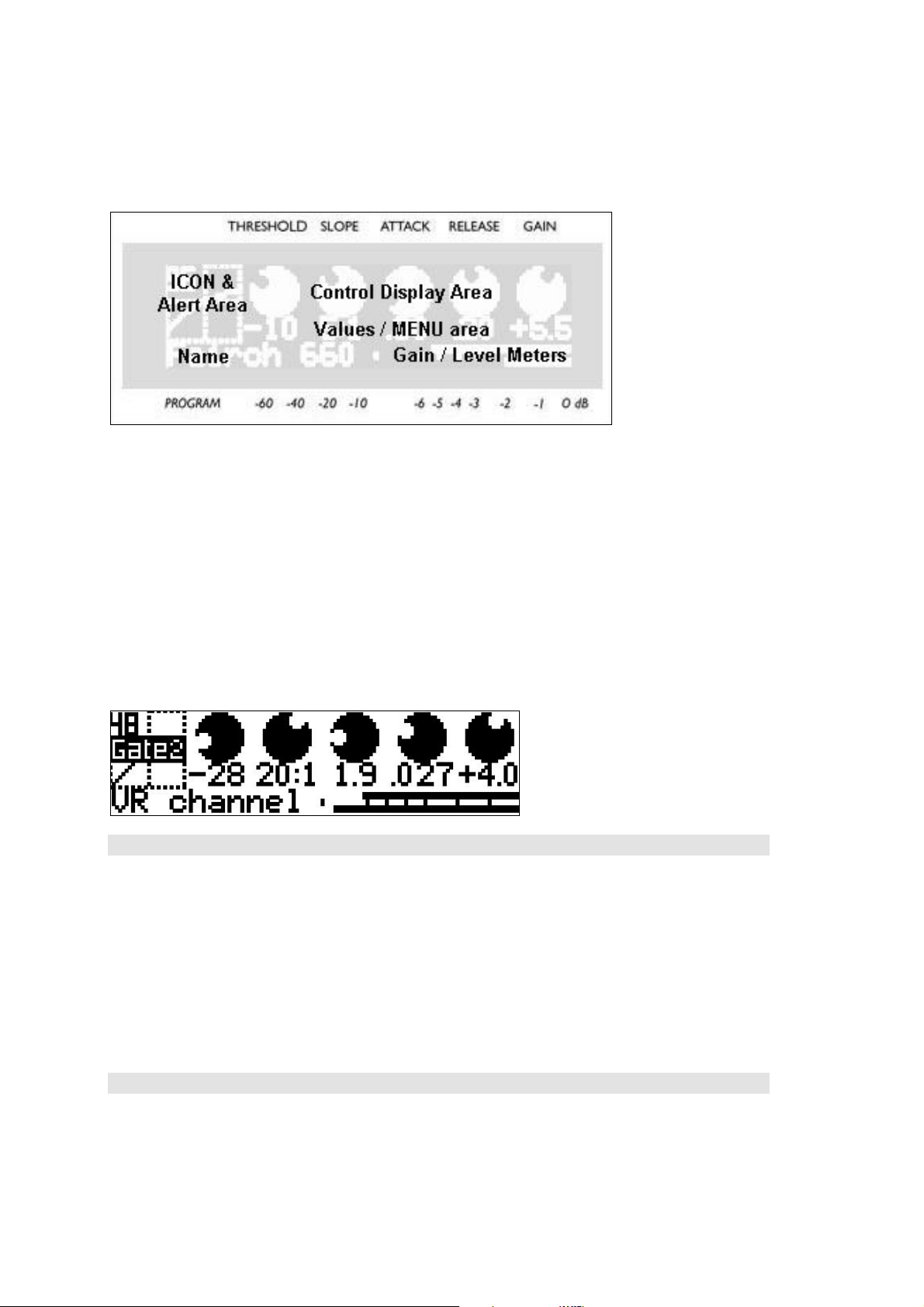
The screen generally shows events in several different areas as shown below:
The ICON is different for every page displayed and gives a quick visual indication of the current display.
During this main display the current sampling rate is at the top left.
The ICON area also flashes up alerts to indicate alerts as shown below.
The Control Display Area shows indications of the 5 main knob settings.
Beneath the Control Area the current values for the controls are normally displayed but this is also the
MENU area.
To make the printed version easier to read we will show screen pictures as "black on white" from now on.
So for example a typical screen showing that channel 2 is gated is may be like this>
ALERT conditions
These conditions keep you informed of intermittent clips on input or output, and whether the
expander/gate is cutting in.
CLIP1, CLIP2 indicates clip of the digital and analogue output - reduce the makeup gain
InClip1, InClip2 indicates clip of the digital or analogue input - reduce the signal into the CX2000 or
adjust the analogue sensitivity
GATE1, GATE2 indicates that the gate has started to reduce the gain
exp1, exp2 indicates that expander has started to reduce the gain
WARNING conditions
Warning conditions flash their messages in the ALERT area. These are related to external digital signal
quality on any external clock signal or external digital audio signal.
Page 11

Page 11
User Guide version 1.0 Copyright © 2001 Sintefex Audio Lda
External clock or digital inputs can suffer from two errors: Lock at the wrong frequency or failure to lock
due to signal missing or corrupt. These conditions result in a two-line message, shown here in order of
importance:
CLOK
UNLK the clock reference signal is invalid so CX2000 cannot lock
INP
UNLK the input signal is invalid so CX2000 cannot recover signal from it
All the errors say either CLOK or INP on the top line to indicate if the problem is with the clock
reference or the audio data. If both are a problem (for example if they are the same input) the CLOCK
error will generally be shown as if the CX2000 cannot lock to the clock it cannot do anything!
Here are some of the other data errors that can be reported
UNLK the signal is invalid so CX2000 cannot achieve lock
DATA the signal has check errors (CRCC) CX2000 cannot recover signal from it
conf the signal is poor but usable - you may get glitches
berr the signal has errors (bi-phase) but may be usable
prty the signal has parity errors but may be usable
If all the signals are good you can also get warnings if the sample rate received differs from that selected
on CX2000. To clear these error messages, either change the reference signal or select CX2000 to the
new sample rate. You will see for example
RATE
48.0
This tells you that you are receiving 48k but CX2000 is set to a different rate.
CX2000 does not automatically change sampling rate as it can often happen that that you know the rate
you want to work at but the external signal is intermittently in error (for example a DAT with mixed
sample rates recorded). Under these conditions you do not want CX2000 to keep changing to match the
intermittent signal.
Main Display
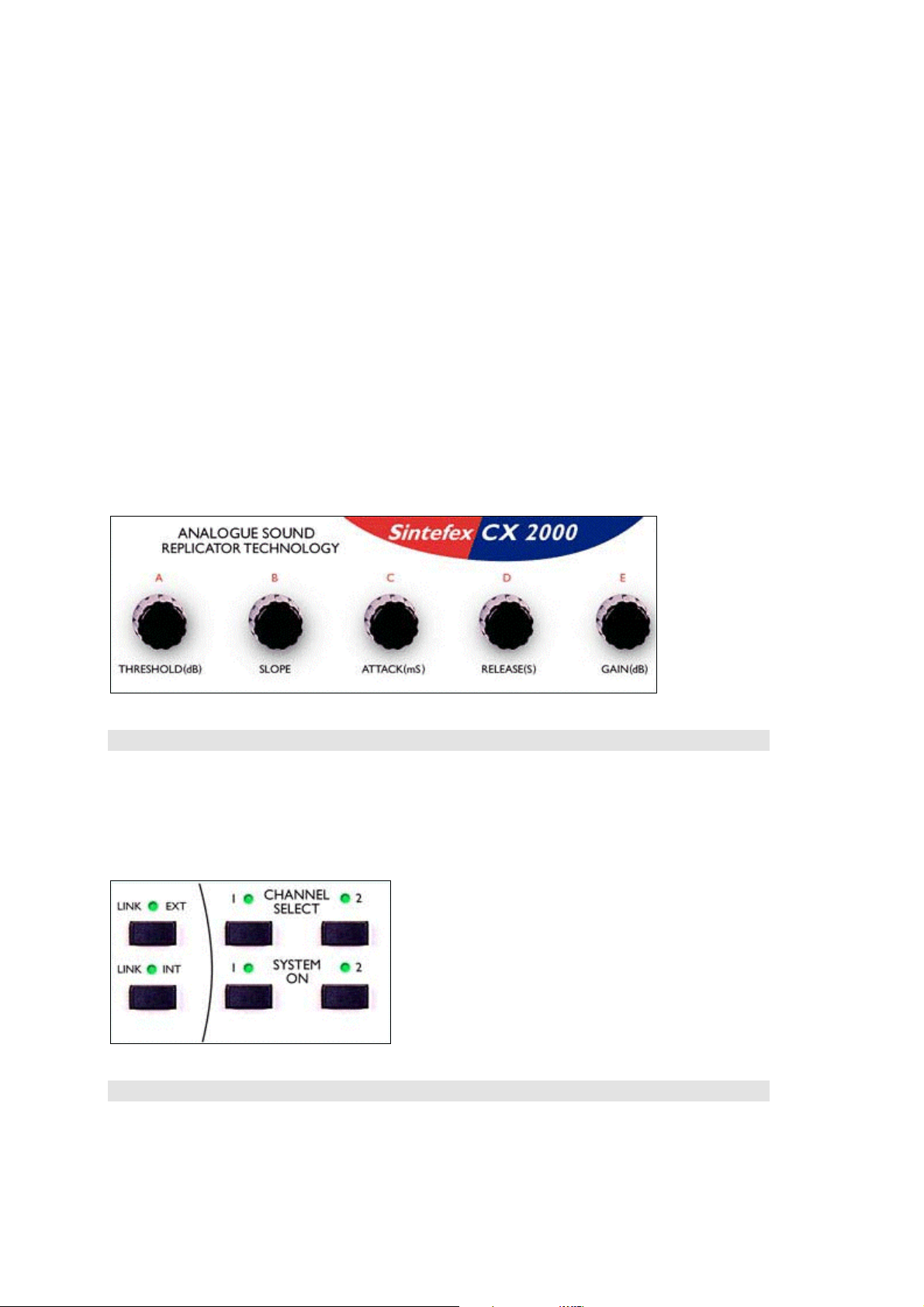
The control display area shows the 5 main controls of the compressor. These are directly controlled by
the 5 knobs. A graphic illustration shows the approximate position of the knob and there is an accurate
display under each knob for those who want to keep an eye on the numbers.
The units are as indicated on the control knobs:
• Threshold is in dB relative to peak digital signal,
• Slope is a simple ratio as defined by the original sampled machine, but is generally the number of dB
the input signal has to increase to get a 1dB increase in output level.
• Attack is in milliseconds (mS)
• Release is in seconds (S).
• The final "make up gain" is in dB.
Sintefex Audio Lda is incorporated with limited liability in Portugal. web: www.sintefex.com
Head office: S. Marcos da Serra, P-8375 Portugal tel: (+351) 282 361748 fax: 282 361749
Page 12
Page 12
Sintefex CX2000 Sampled Digital Compressor Copyright © 2001 Sintefex Audio Lda
At the bottom of the display, the name of current program is displayed at the left, and the gain reduction
metering is shown at the right, with channel 1 above channel 2.
If the gain reduction exceeds about 14dB the meter extends to a full 60dB range as indicated on the
legend below the display. Metering is precise to 0.1dB down to -3dB and better than 0.2dB down to
-10dB.
The main compressor settings are clearly displayed and are viewable from a good distance. In addition,
the gain reduction metering is active and precise allowing you to see the exact amount of gain reducton
applied.
• If you have selected to monitor the EQ of the side-chain (see later) the compressor is bypassed.
In this case the message "Sidechain EQ Mon" appears instead of the control values to warn
you that the compressor is not being monitored.
To the left of the parameter display there is a graphic indicating the compressor curve in operation and in
addition this area shows warnings of clip on either channel. Other indications appear in this area to
indicate gating or expansion and the occasional digital condition such as loss of lock, etc.
Main Controls
Compressor Parameters can be adjusted by turning the matching main control knob as shown above.
Select and Bypass Controls
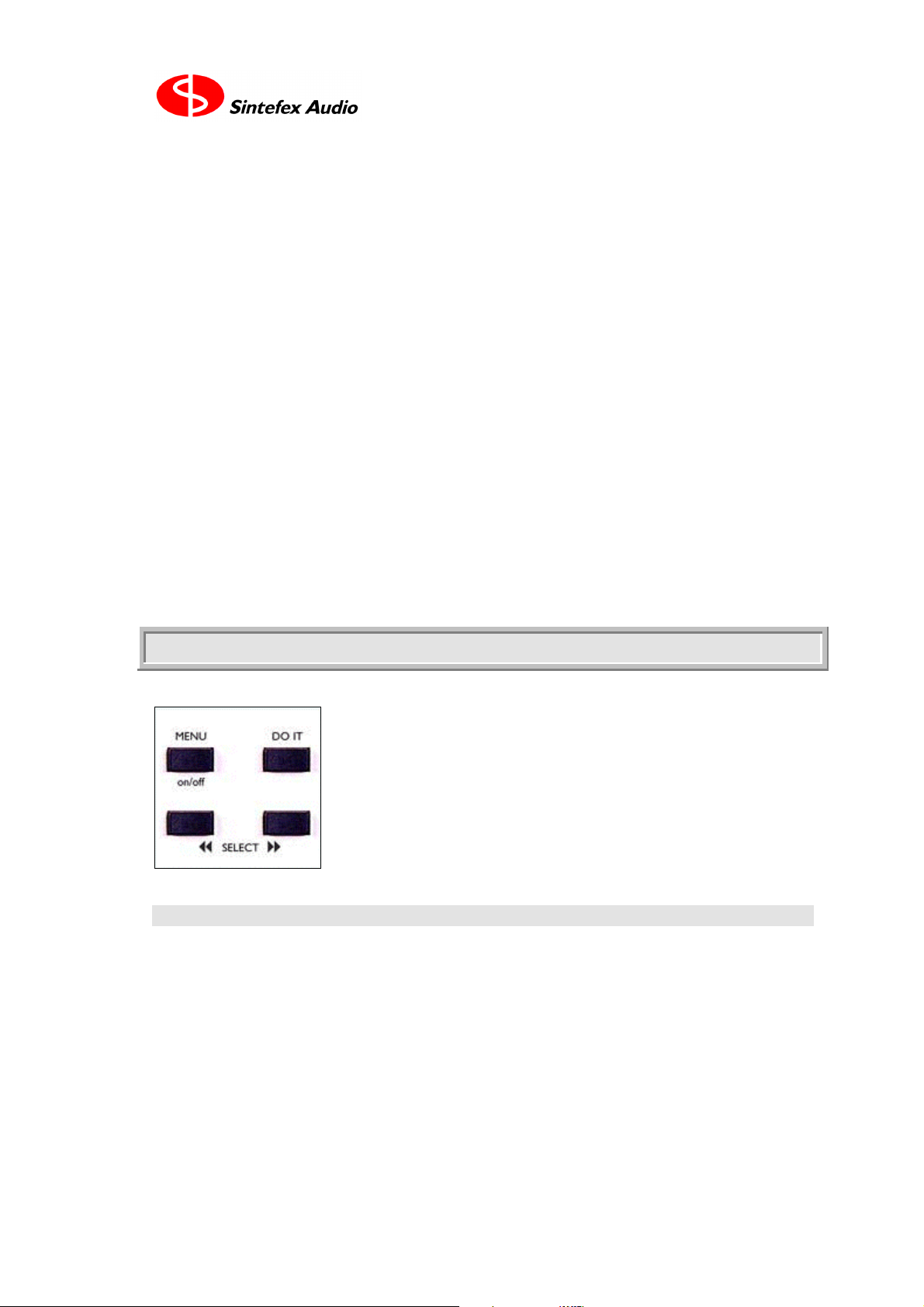
If operating as two independent mono channels, the CHANNEL SELECT buttons select the channel
which the controls affect and which is displayed.
Page 13
Page 13
User Guide version 1.0 Copyright © 2001 Sintefex Audio Lda
If both CHANNEL SELECT buttons are pressed together the system can be switched to stereo mode,
with one set of controls applying to both channels. This is called "GANGED OPERATION" and is
indicated by both channel select LEDs being illuminated.
The channel whose SELECT button was pressed first when ganging them has its settings applied to both
channels.
When in stereo mode, holding one of the buttons down while touching the other channels will un-gang
the channels so they can be operated independently again.
If you inadvertently ganged two separate compressors and want to undo the mistake, simply un-ganging
them without having altered any of the controls will restore the previous un-ganged state. However, if a
setting has been altered the separate settings will be lost unless you saved them first.
Each channel can be ON or BYPASSED by pressing the SYSTEM ON button. Note that these are
ganged together if in ganged mode.
When BYPASSED, the digital data is passed unaltered from input to output. If you are using analogue
connection, the signal is still digitised and converted back to analogue again at the preset analogue levels.
The LINK INT allows gain linkage to be on or off regardless of whether the channels are ganged.
The LINK EXT allows more sophisticated use of gain linking including between multiple units. See the
section on Advanced Options for more information.
MENU ON
Menu Controls
The MENU on/off button always calls up or dismisses the menu options.
The SELECT << and SELECT >> buttons will also call up the menu system if it is off.
MENU OPTIONS are displayed on a horizontal banner, which the SELECT buttons scroll left and right
so that the current option is central and flashing.
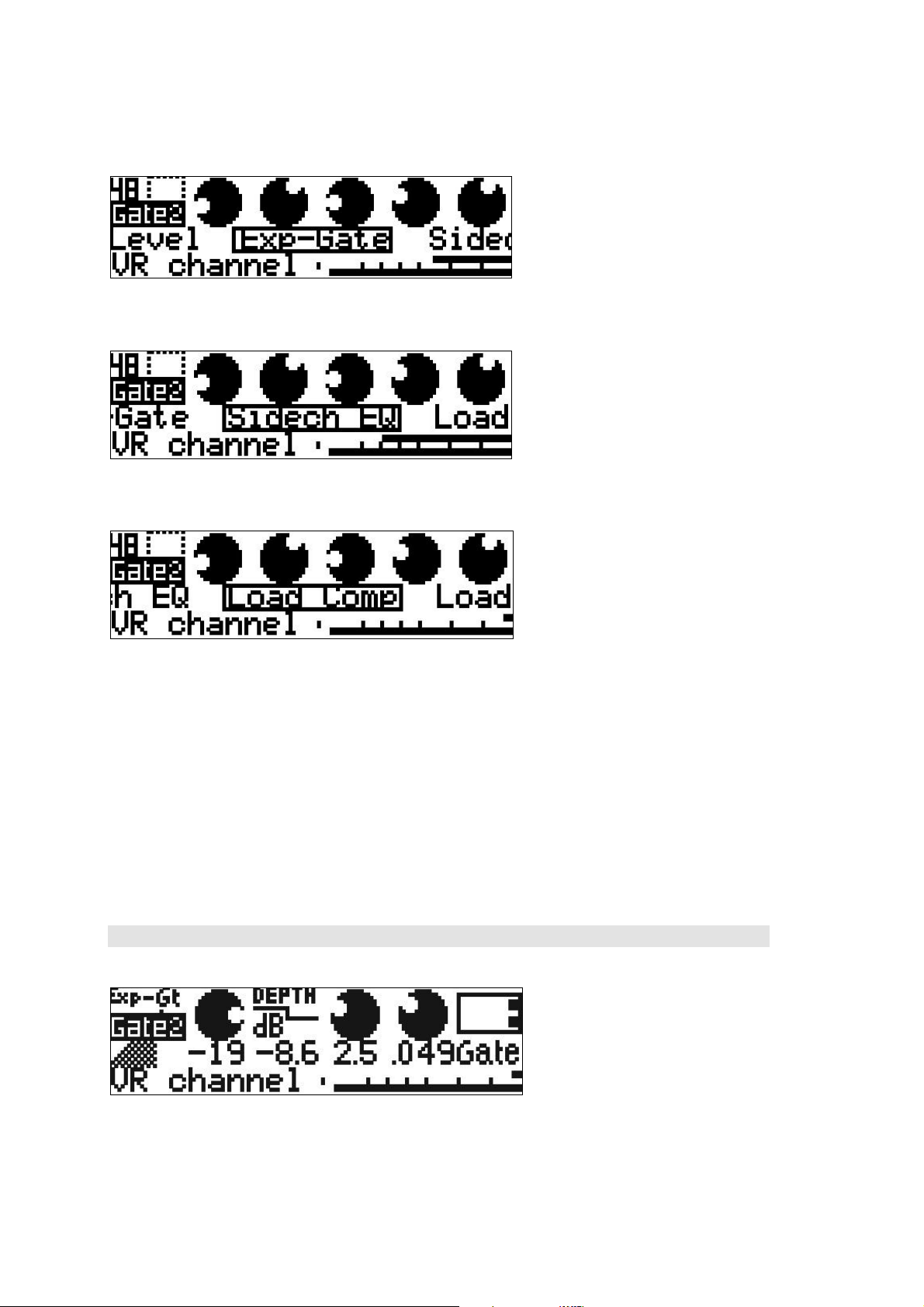
For example the first time you press MENU you may get the Expander Gate options as shown here...
Sintefex Audio Lda is incorporated with limited liability in Portugal. web: www.sintefex.com
Head office: S. Marcos da Serra, P-8375 Portugal tel: (+351) 282 361748 fax: 282 361749
Page 14
Page 14
Sintefex CX2000 Sampled Digital Compressor Copyright © 2001 Sintefex Audio Lda
Press >> and the display moves right to show the sidechain EQ option...
Press >> again and you get the Load Compressor option displayed...
DO IT will select the flashing option.
The display will prompt you if pressing the DO IT button is required to implement a change, for example
a selection of sample rate.
Some menu options will present a set of knobs that can be controlled with the matching knob from the
main control. This is used for such things as side-chain EQ, expander gate control, and setting analogue
levels.
In addition touching one of the main controls will dismiss any menu option UNLESS the menu option is
showing a display to be controlled by one or more of the knobs, allowing compressor parameters to be
adjusted again.
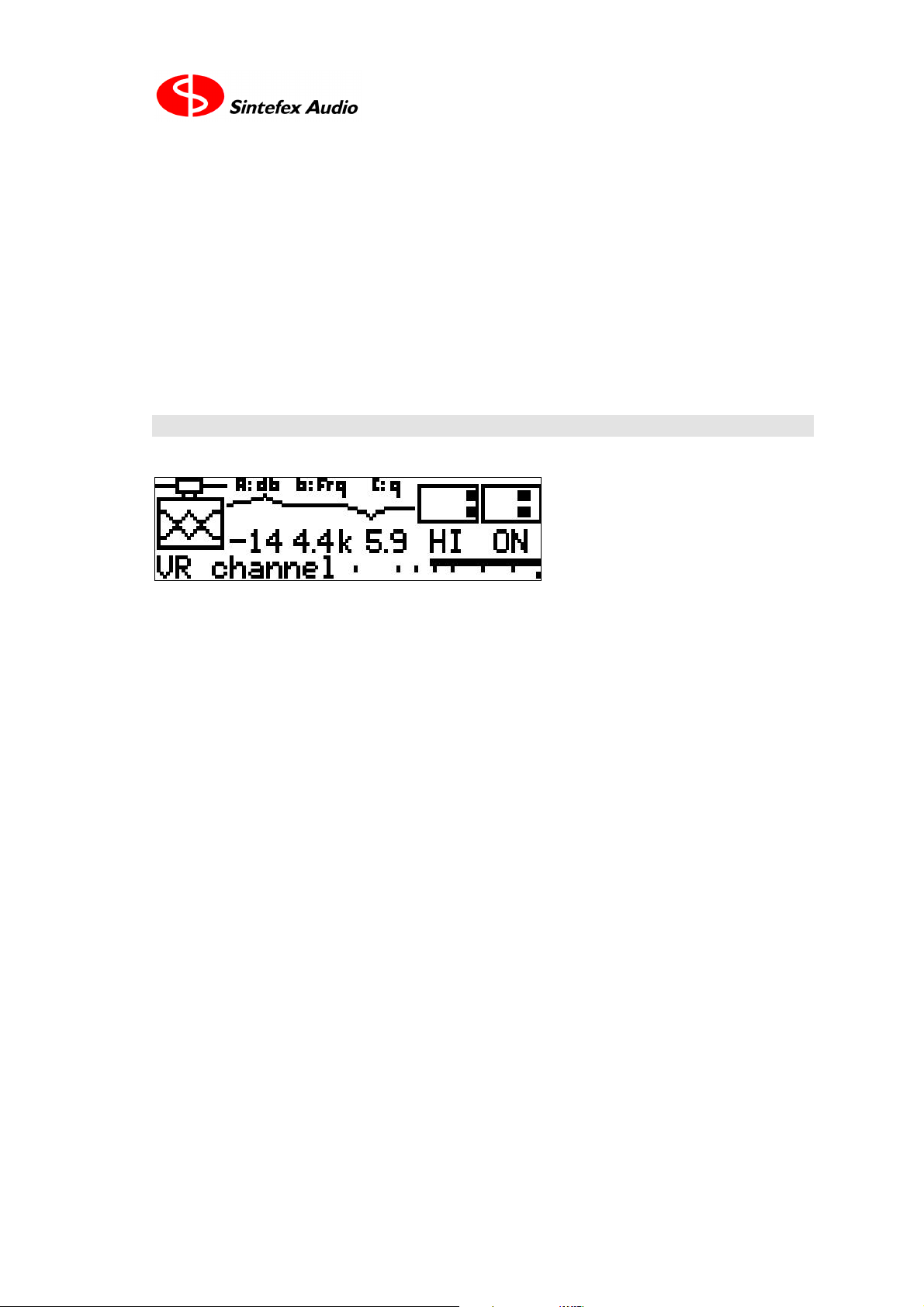
Expander Gate
The 5 controls A - E are similar to the compressor controls.
• Control A ("Threshold") sets the threshold below which the expander gate will operate.
Page 15
Page 15
User Guide version 1.0 Copyright © 2001 Sintefex Audio Lda
• Control B ("Depth") selects the maximum gain reduction the expander gate will give.
• Control C ("Attack") sets the recovery time (in milliseconds) that the expander gate will open when
the signal exceeds the threshold.
• Control D ("Release") sets the time in seconds that the expander gate will close off after the signal
falls below the threshold.
• Control E selects whether the Expander Gate is "OFF" (central position), in Expander mode (LEFT
position) or Gate mode (RIGHT position).
The expander gate is based on a 2:1 expansion slope and is not a sampled expander. It does however use
the signal path of the selected compressor simulation. It is available with all simulated compressors even
if the original unit did not have this function.
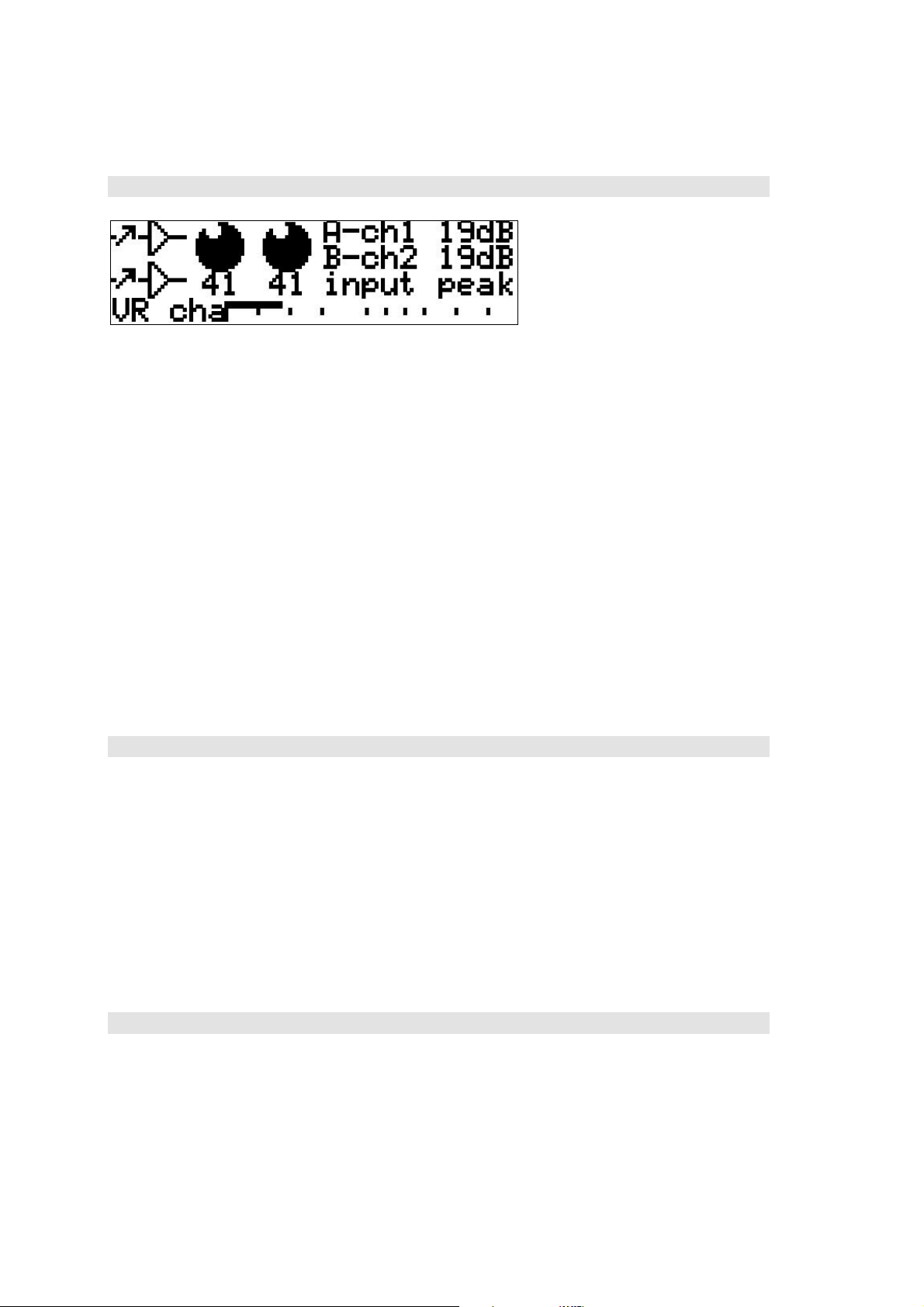
Side-chain EQ
The Side-Chain EQ is a 3-band parametric EQ which can be in four modes:
OFF: has no effect
MON: Monitoring of the side-chain EQ with the compressor signal path and gain reduction bypassed.
ON: Switched into the side-chain of the compressor.
PRE: Switched into the main signal path before the compressor, allowing you to do some digital EQ
before the main compressor function of the CX2000.
The mode is selected with control 'E'.
• If you leave the side-chain in the MON position (which bypasses the compressor/gate so you
can monitor the settings) you will get a warning in the main compressor and gate screens to say
"Sidechain EQ Mon". Otherwise you might not realise why you are not getting any gain
reduction effect.
Control 'D' selects which of the three bands you are controlling, LOW, MID or HI. This control does not
directly change any audible parameter. Although the sections are called LOW, MID and HI they each
have the same frequency range so can be used in any way you prefer.
Controls A, B and C affect the band selected by control D.
• Control A alters the gain from -25dB to +25dB at the selected frequency,
• Control B alters the frequency from 20Hz to 20kHz
• Control C alters the Q from 1 (wide) to 10 (narrow).
• Control D selects the band to control
• Control E selects whether the EQ is on and how it is connected.
Sintefex Audio Lda is incorporated with limited liability in Portugal. web: www.sintefex.com
Head office: S. Marcos da Serra, P-8375 Portugal tel: (+351) 282 361748 fax: 282 361749
Page 16
Page 16
Sintefex CX2000 Sampled Digital Compressor Copyright © 2001 Sintefex Audio Lda
Input Level Adjust
Most other menu options are self explanatory and allow you to select sample rates, clock source and (if
you have an analogue board fitted) the source of audio (analogue or digital).
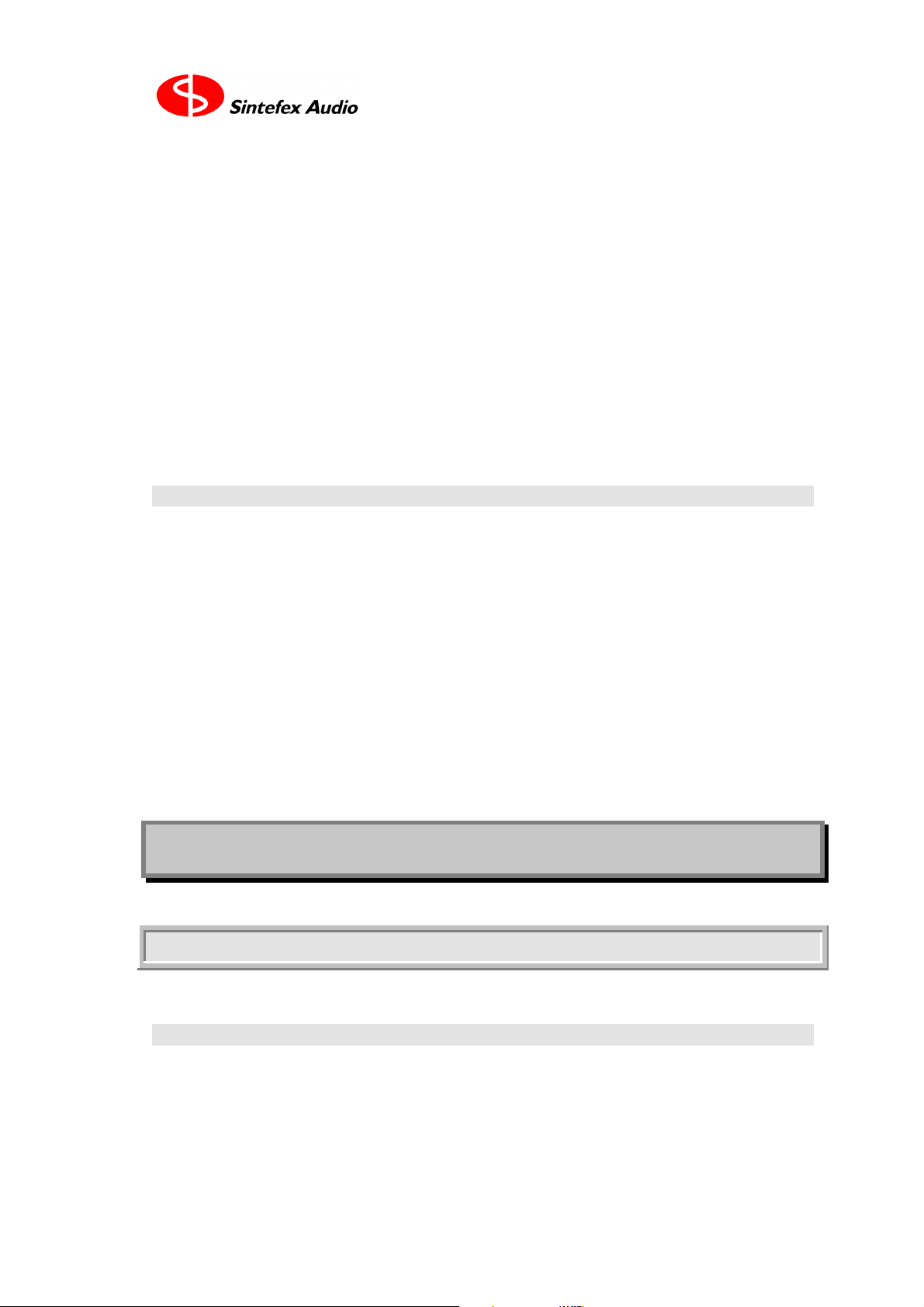
If you have an analogue converter board fitted you can adjust the sensitivity of the analogue section by
selecting the "Input Level" menu option.
The metering changes to a display of the input level to the CX2000, and the two controls A and B alter
the sensitivity of the channel 1 and channel 2 inputs independently.
The settings range from 0 - 100 which cover an analogue range of 30dBu for peak digital to about 7dBu
for peak digital. The decibel display shows for any chosen setting the analogue level you will need to
apply to get peak digital input into the CX2000. Therefore as you turn "down" the level, the reading for
peak digital will increase.
The output levels are adjusted in the same way, except 0 corresponds to a muted output, and 100
corresponds to about +28dBu output level. Note that to get the very highest level without clipping you
must not feed the CX2000 into an unbalanced input, which would limit the output level before clip to
about +22dBu.
Loading a Compressor Sample
Select "Load Comp" and press "DO IT".
Control 'A' allows you to switch amongst the compressor samples built into the CX2000. When you have
the one you want shown on the display, press "DO IT" to load this sample.
Your current settings for threshold, attack, release and makeup gain are preserved but the effect may be
quite different from the previous compressor sample you were using due to differences in the way the
sampled compressors gain characteristics vary.
In addition, the maximum compression slope you may select is limited by what was available on the
original compressor. So if you had selected 25:1 before you changed compressors, and you load a
compressor with a maximum slope of 10:1, the slope of 10:1 will be selected.
Loading a Saved Program
Select "Load Prog" and press "DO IT". The currently selected channel is loaded if not stereo ganged.
Both channels are loaded if stereo ganged.
Control 'A' allows you to step through any user programs. Empty memories will be shown as empty and
cannot be loaded.
Page 17
Page 17
User Guide version 1.0 Copyright © 2001 Sintefex Audio Lda
Loading One or Both Channels
A saved program stores both channel settings, however if you load a mono channel, only the currently
active channel is loaded, and this is loaded from the channel that was active when the program was saved.
If you want to load both channels, select stereo mode by ganging the channels before pressing "DO IT".
Both channels will be loaded, and if they were not ganged into stereo, the system will switch to separate
channels.
If you want to load say the channel 2 setting of a program into channel 1, and it was saved with channel 1
active, first switch the CX2000 to stereo ganged mode, then load the program. Swap to channel 2 active
and save the program again.
The next time you load the program into a single channel you will get the channel 2 settings into
whichever channel is active when you load.
Saving a Program
Select "Save Prog" and press "DO IT".
Control 'A' allows you to step through any user programs.
You will see the names of saved programs, or "memory empty" when you select an empty memory.
To see the suggested name to save the program number, press DO IT or press either << SELECT >>
button. This positions a highlight area of 4 characters over the name. Control knobs B - E can then be
used to alter each of the 4 characters in the field.
Once the edit name is displayed, when you press DO IT the current setup will be saved in the selected
memory with the name shown. If the memory was not empty the previous contents will be lost.
The CX2000 suggests a name that is either the last program loaded or the current compressor model
selected if no program has been loaded.
5 Advanced Options
Startup
On switch on, the CX2000 resumes the last operations it was doing when powered off.
Test Start-Up Modes
The CX2000 stores its operating firmware internally in flash memory. In the unlikely event of this being
corrupted, the system will start in a programming mode and will display
"User Interaction Mode".
Sintefex Audio Lda is incorporated with limited liability in Portugal. web: www.sintefex.com
Head office: S. Marcos da Serra, P-8375 Portugal tel: (+351) 282 361748 fax: 282 361749
Page 18

Page 18
Sintefex CX2000 Sampled Digital Compressor Copyright © 2001 Sintefex Audio Lda
This allows new firmware to be loaded from a PC running Sintefex CX2000 remote control software
using the USB port, and also allows a test of flash memory in case this has developed a fault.
Certain keys have special effects on the system startup, as follows:
• "MENU (on/off)" BUTTON held during power on
This causes operation to stop in the STARTUP ROM which allows new operating software to be loaded
to CX2000 system as mentioned above.
• "DO IT" BUTTON held during power on
This displays start-up messages which may help diagnose a problem, for example if part of the DSP or
memory subsystem develops a fault.
• "SELECT >>" BUTTON held during power on
This prevents the system restoring to its state that it was in at power down. This allows a clean start if a
peculiar operational mode was in force when the system was last powered down.
• "CHANNEL SELECT 2" -AND- "LINK INT" pressed together
This causes a "power-on reset" and would only be used if there is a system problem and it is not desired
to power down and up again.
USB Remote Control using CX2000 software
Universal Serial Bus is the latest desktop bus allowing efficient connection of peripherals to PCs. It is
designed to be much faster than the serial ports common on PCs, and more versatile than the parallel port
for connecting external devices.
USB is connected using a single lead that carries data in both directions. It is connected from the PC end
(“upstream”) which uses a wide flat connector, towards the external device (“downstream”) which uses a
squarer connector.
Most PCs have a one or two USB ports and USB external devices have a single socket or a captured
cable. The CX2000 has a socket for the squarer downstream end of the cable.
The signal can be split using a “hub” so one connection from the host can split multiple ways to many
downstream external devices. Hubs can be plugged into hubs with only two limits:
1. A maximum of 5 hubs can be placed between the host and the external device. (But be careful - a
host PC often has a hub built in which counts as one. meaning only 4 external hubs are allowed), and
2. A maximum of 126 devices can connect to a single host root port. Of course a host can have more
than one root port but for now 126 devices is probably plenty.
A cable must be a maximum of 5 metres and by using five 5m cables and 4 hubs you can place the
external device up to 25 metres from the host PC.
So the physical connection can be a single USB cable from the PC to CX2000, or a string of cables and
hubs.
Page 19
Page 19
User Guide version 1.0 Copyright © 2001 Sintefex Audio Lda
The PC must be running Windows 98, Windows 2000 or better. Windows 95 or NT does not have USB
support.
USB cables may be hot-plugged without switching off either the PC or the Replicator.
When the CX2000 is first attached to the PC the operating system will notice the connection. It will
request that the disk containing the Sintefex Audio CX2000 remote control software is inserted so that
the drivers can be installed. In the event of any problems please check our web-site for any updated
drivers or software.
Once drivers are installed you can run the CX2000 software supplied with the product (the latest version
is available free of charge from our web-site if there is a problem with the supplied disc). Installation
notes are included with the software, and use is straightforward.
MIDI Remote Control using CX2000 software
It is possible to remote control the CX2000 from a PC running Sintefex Audio CX2000 software using
the MIDI port (but it is recommended that USB be used instead for a faster mode of operation).
This method requires a PC MIDI OUT to be connected to the CX2000 MIDI IN (connector closest to
AES Digital Input XLR). The CX2000 MIDI OUT (connector closest to CH 2 analogue output) must be
connected to a MIDI IN on the same PC.
Run the CX2000 software and select the MIDI option and select the MIDI ports you are using on the PC.
There is a test feature to confirm connection to help get the cabling correct.
NOTE: You must have MIDI connected both to and from the PC as it requires two-way communications.
MIDI Parameter Control using any sequencer
The CX2000 may be controlled by means of a MIDI sequencer, or in fact one CX2000 can send its
parameters to another in real time as they are altered. For this operation it is only necessary to connect to
MIDI IN of the CX2000 (connector closest to AES Digital Input XLR) if you are sending MIDI
instructions to the CX2000, or to the CX2000 MIDI OUT (connector closest to CH 2 analogue output) if
you are receiving parameter changes from the CX2000 into a sequencer.
MIDI is always enabled to receive or transmit. It powers up in OMNI ON mode and may be switched to
OMNI OFF by means of a MIDI mode OMNI OFF command addressed to its BASIC CHANNEL, which
is preset to MIDI channel 1.
Each major parameter correspond to a note on a musical keyboard. All parameters have a range of 101
values (internally 0 - 100) and these are mapped to MIDI note velocities of 26 to 127.
When the CX2000 receives a "note on" message in the range above the corresponding parameter will be
set to the new value specified. If the CX2000 is set for stereo operation both channels will be updated
from a parameter addressed to either channel.
Note off messages or notes with a velocity of zero are ignored.
Sintefex Audio Lda is incorporated with limited liability in Portugal. web: www.sintefex.com
Head office: S. Marcos da Serra, P-8375 Portugal tel: (+351) 282 361748 fax: 282 361749
Page 20

Page 20
Sintefex CX2000 Sampled Digital Compressor Copyright © 2001 Sintefex Audio Lda
The CX2000 will generate a note on at a new value when a control is altered, followed by the same note
at zero velocity. (this then appears as a short note event in a sequencer). If the CX2000 is in stereo mode
a note will be transmitted for both channels altered.
At switch-on or when a user program is loaded the CX2000 will transmit all its settings as a short burst of
notes. This could be used at the start of a song to set all the parameters to a known value when a
sequencer is started.
As usual in MIDI operation be careful not to create a MIDI LOOP. If the CX2000 receives a parameter
change note it will change the parameter and re-transmit the change. This could be received by a
sequencer which could cause the message to be transmitted again. In fact if the CX2000 receives a
parameter change to the same value as it is already set to it will not re-transmit, as it only transmits
changes. For more information refer to you sequencer instruction manual or a MIDI reference book.
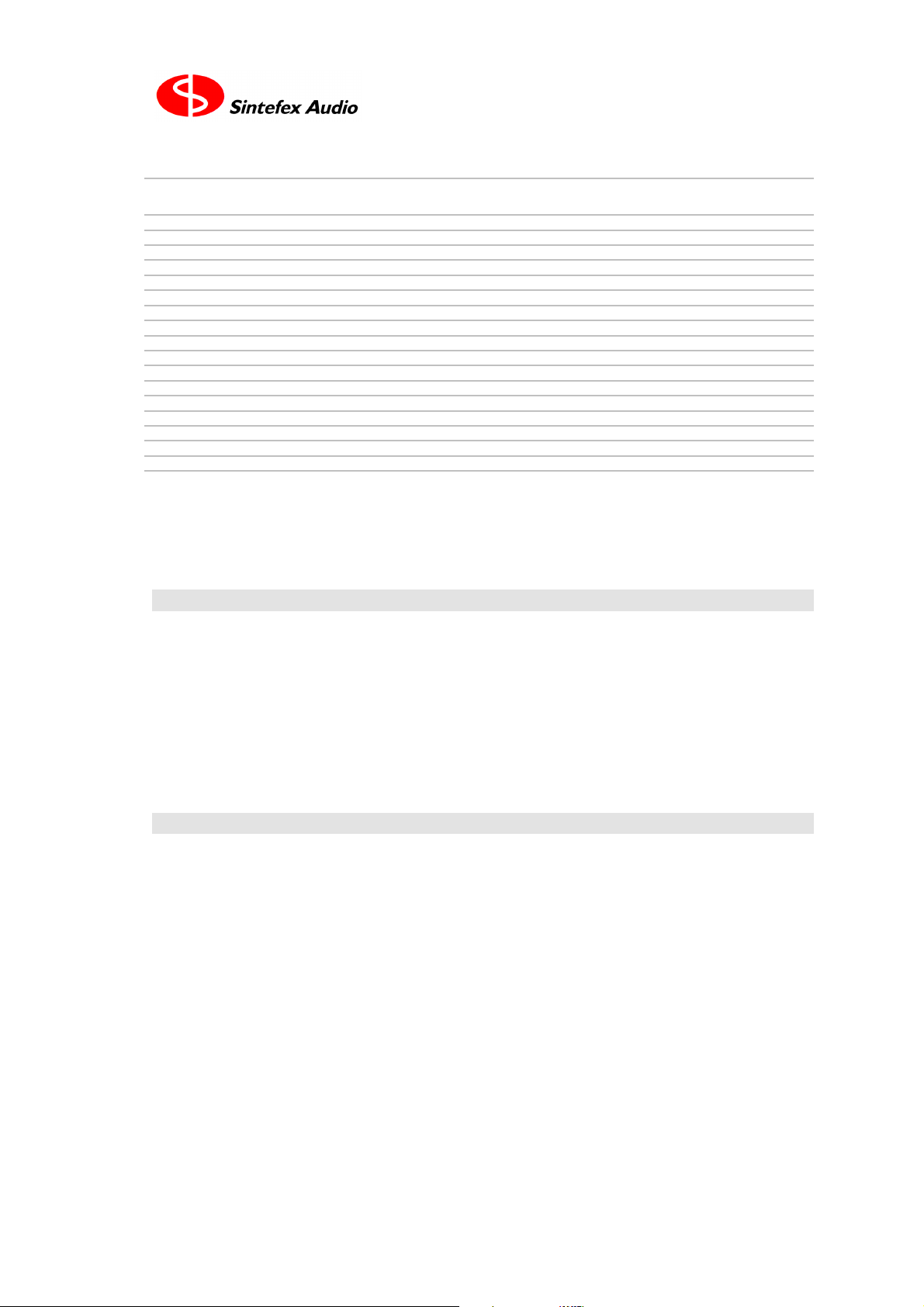
See the table for how the musical notes are mapped to CX2000 parameters.
TABLE OF MAPPING OF NOTES TO CX2000 FUNCTIONS / MIDI INTERFACE
MIDI
NOTE
0 - 31 reserved (see note 3)
32 E0 user control ch1/ch2/stereo n/a 26=chan 1, 64=chan 2 only, 127=stereo (note 5)
33 F0 reserved
34 bypass 1 26 = bypass, 127 = system on
35 G0 bypass 2
36 compressor model 1 this is the selected compressor sound
37 A0 compressor model 2
38 gain link internal n/a 26 = off, 127 = on
39 B0 gain link external n/a 26 = off, 127 = on
40 - 41 reserved
42 D1 sidechain EQ 1 26 = off, 64 = on, 96 = monitor, 127 = pre
43 sidechain EQ 2
44- 45 reserved
46 exp/gate 1 26 = off, 64 = exp, 127 = gate
47 G1 exp/gate 2
48 - 63 reserved
64 C3 threshold 1 middle C, (see note 1)
65 threshold 2
66 D3 slope 1 (note 4)
67 slope 2
68 E3 attack 1
69 F3 attack 2 (note 3)
70 release 1
71 G3 release 2
72 gain 1
73 A3 gain 2
74 reserved 1
75 B3 reserved 2
76 C4 exp/gate threshold 1
77 exp/gate threshold 2
78 D4 exp/gate reserved 1
79 exp/gate reserved 2
80 E4 exp/gate attack 1
81 F4 exp/gate attack 2
82 exp/gate release 1
83 G4 exp/gate release 2
84 exp/gate depth 1
85 A4 exp/gate depth 2
86 exp/gate reserved 1
87 B4 exp/gate reserved 2
88 C5 sidechain gain 1 band 1 of sidechain equaliser
89 sidechain gain 2
MUSIC
NOTE
FUNCTION CHAN REMARKS / VALUES
Page 21
Page 21
User Guide version 1.0 Copyright © 2001 Sintefex Audio Lda
MIDI
NOTE
90 D5 sidechain freq 1
91 sidechain freq 2
92 E5 sudechain Q 1
93 F5 sudechain Q 2
94 sidechain gain 1 band 2 of sidechain equaliser
95 G5 sidechain gain 2
96 sidechain freq 1
97 A5 sidechain freq 2
98 sudechain Q 1
99 B5 sudechain Q 2
100 C6 sidechain gain 1 band 3 of sidechain equaliser
101 sidechain gain 2
102 D6 sidechain freq 1
103 sidechain freq 2
104 E6 sudechain Q 1
105 F6 sudechain Q 2
106- 127 reserved
NOTE 1: internal values in range 0 - 100 are transmitted as MIDI values 26 - 127.
NOTE 2: Internal values on/off are transmitted as MIDI values 26 or 127.
NOTE 3: reserved values are either not transmitted or always sent as 0 (intensity 26)
NOTE 4: with this and various other parameters not every different setting corresponds to a different value, The mapping can
depend on the compressor model.
NOTE 5: If target machine is set to stereo mode, a new value directed at either channel will set both channels to a new value.
MUSIC
NOTE
FUNCTION CHAN REMARKS / VALUES
Program Change
The standard MIDI program change command may select any user program 1 - 100. You will need to
allow a few seconds after issuing such a command for the CX2000 to complete the program change,
which will only work if the selected program is not empty.
Program loads affect the currently selected channel only. To load both channels be sure to select the
CX2000 to stereo control mode before issuing a program load. This may then load two different mono
compressors and switch the CX2000 back to twin mono operation.
The CX2000 does not transmit program change commands.
SYSEX
The CX2000 responds to proprietary SYSEX messages for remote control. These are handled by Sintefex
Audio CX2000 PC remote control software and require a 2-way MIDI connection to the computer
running the software.
Sintefex Audio Lda is incorporated with limited liability in Portugal. web: www.sintefex.com
Head office: S. Marcos da Serra, P-8375 Portugal tel: (+351) 282 361748 fax: 282 361749
Page 22
Page 22
Sintefex CX2000 Sampled Digital Compressor Copyright © 2001 Sintefex Audio Lda
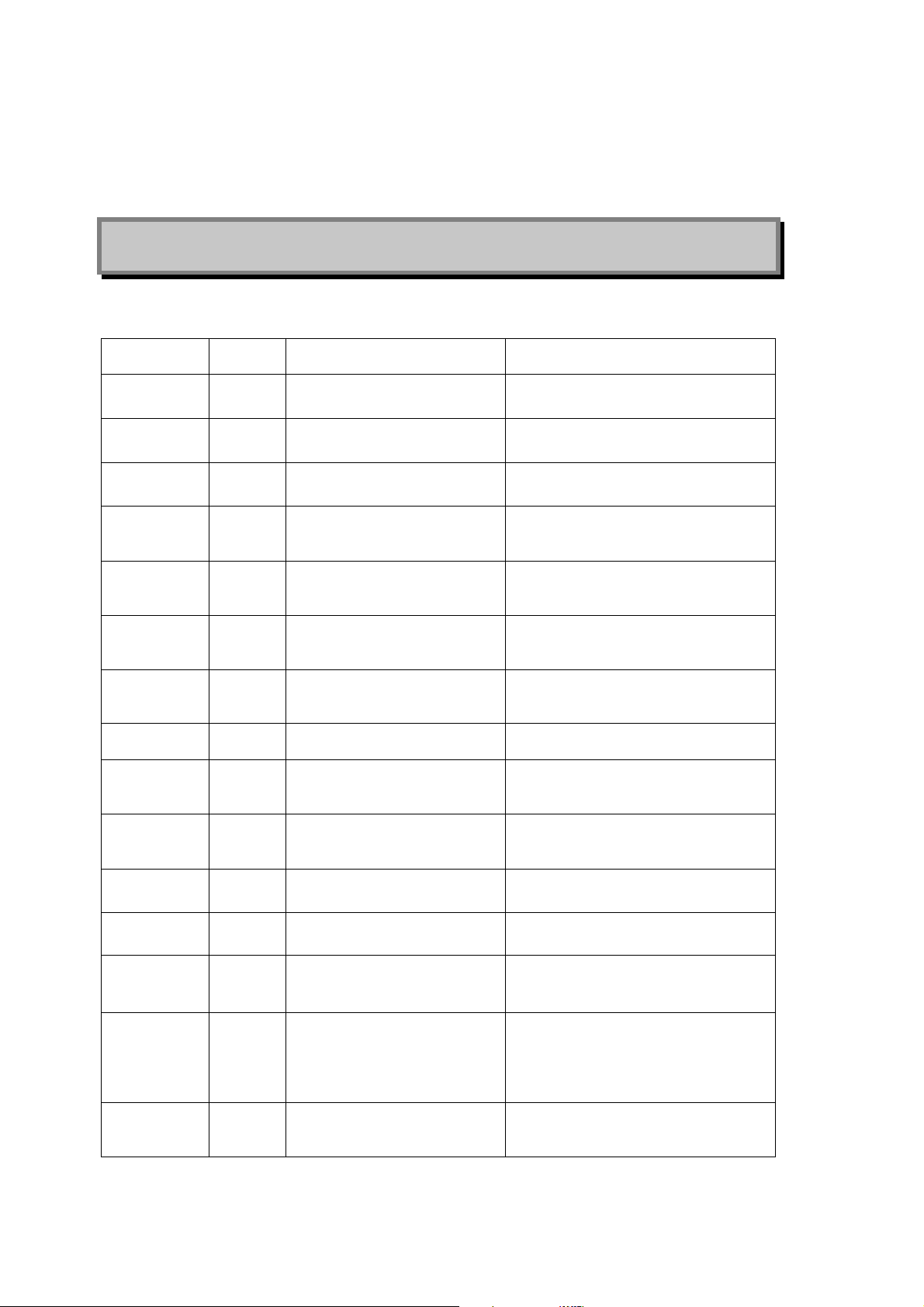
6 Messages
Summary of messages you may get and what to do...
Message AppearsinMeans Action
CLIP1,
CLIP2
InClip1,
InClip2
GATE1,
GATE2
exp1, exp2
CLOK
UNLK
INP
UNLK
DATA
conf
berr
prty
RATE
48.0
High sample
rate option
not fitted
Analogue
conv'ter
option not
fitted
Must save on
host
Sidechain EQ
Mon
Alert
Area
Alert
Area
Alert
Area
Alert
Area
Alert
Area
Alert
Area
Alert
Area
Alert
Area
Alert
Area
Alert
Area
Alert
Area
Control
Area
Control
Area
Legend
Area
Legend
Area
indicates clip of the digital and
analogue output
indicates clip of the digital or
analogue input
indicates that the gate has
started to reduce the gain
indicates that expander has
started to reduce the gain
the clock reference signal is
invalid so CX2000 cannot lock
the input signal is invalid so
CX2000 cannot recover signal
from it
Clock or Digital Input signal has
check errors (CRCC) CX2000
cannot recover signal from it
Clock or Digital Input signal is
poor but usable.
Clock or Digital Input signal
has errors (bi-phase) but may be
usable
Clock or Digital Input signal
has parity errors but may be
usable
Clock or Digital Input is at the
wrong sample rate (shown).
CX2000 does not have the 96k
option fitted.
CX2000 does not have analogue
converters fitted.
You are remote controlling
CX2000 and have loaded a
compressor model not in the
CX2000 firmware, so it cannot
be saved within the CX2000.
The Sidechain EQ is set to
MONITOR, so the compressor
is bypassed
reduce the makeup gain
reduce the signal into the CX2000 or
adjust the analogue sensitivity
Adjust the gate/expander controls if this
is not wanted
as above
Select a valid clock source, or use auto
clock and change input to analogue
input., or check wiring
Check wiring or change to analogue
input
Check wiring or change signal source.
Check wiring, choose a better source or
you may get glitches.
As above
As above
Change the sample rate of CX2000 to
match the signal or vice-versa
Work up to 48k maximum or purchase
the upgrade.
Use digital input and output only or
purchase the upgrade.
Simply reload the same effect from the
remote control PC next time you want to
use it. Save the settings on the PC.
Go the Sidech EQ menu and select it
into the sidechain (ON), OFF or PREcompressor to hear compression
Page 23

Page 23
User Guide version 1.0 Copyright © 2001 Sintefex Audio Lda
7 Technical Specification
Overview
• Channels: 2
• 2 channel compressor/equaliser running at up to 96kHz* sampling rate for high sample rate
compression. (Channels may be used independently).
• Balanced professional input and output on both analogue and digital connections.
• Analogue levels software programmable on both input and output.
• 24-bit analogue conversion (optional), 24-bit digital processing, up to 24-bit digital i/o.
• Single cable AES operation at all sampling rates using high speed digital audio transmitters and
receivers.
• External sync to BNC Word clock or AES input.
• Sample rates from 30kHz to 96kHz*.
• Digital LINK interface for unique digital gain link interconnection (subject to software update)
• MIDI input and output for remote control from sequencer/keyboard and for remote operation.
• USB port for high speed interconnection to suitably equipped desktop computer.
• Processing latency: Typically better than 30 samples digital in to digital out (subject to change in the
course of continuing development) plus any inherent delay in sample loaded as peak energy may not
be at start of sample response.
*48kHz is available as standard, 96kHz is an option.
Inputs
AES XLR balanced input (2-channel):
Meets AES-3 1992 specification. Also supports up to 96kHz 2-channel sampling as proposed for
standard revision. AES embedded data is not processed or routed to output. Consumer data format can
also be received. Emphasis is not supported.
This input may also be used as digital reference input for analogue or digital applications.
2 channel electronically balanced XLR Analogue inputs (optional):
Programmable +10 - +27dBu (± 1dB) for peak digital sine wave, at least 10k impedance.
Outputs
AES XLR balanced output (2-channel):
Meets AES-3 1992 specification when wired to appropriate XLR connector using approved cable types.
Also supports up to 96kHz 2-channel sampling as proposed for standard revision.
Sintefex Audio Lda is incorporated with limited liability in Portugal. web: www.sintefex.com
Head office: S. Marcos da Serra, P-8375 Portugal tel: (+351) 282 361748 fax: 282 361749
Page 24

Page 24
Sintefex CX2000 Sampled Digital Compressor Copyright © 2001 Sintefex Audio Lda
2 channel electronically balanced XLR outputs (optional):
Programmable: off to +27dBu (± 1dB) from peak digital sine wave. Should not be set above 22dBu if
connected to an unbalanced input.
Inputs (auxiliary)
LINK Digital Input:
Unique Digital Gain Linkage input confirming to 2-channel IEC958 on phono (RCA jack) connector.*
Outputs (auxiliary)
LINK Digital Output:
Unique Digital Gain Linkage output confirming to 2-channel IEC958 on phono (RCA jack) connector*
Data/Reference Connections
Word clock: 75ohm BNC TTL level word clock input. System sample rate may be synchronised to this
signal.*
MIDI in and out: Allows serial remote control and sequencing of major parameters, as well as upload
and download of effect data.
USB interface: for connection to personal computers.
*Word clock sync is not available when digital gain linkage operation is required as might be needed in
multi-channel installations. Such multi-channel systems should be referenced to AES clock. Digital gain
linkage is not supported by version 1.0 software but will be the subject of a free software upgrade in due
course as part of our process of continual improvement.
Digital Processes
Total Processing:
• 9 SHARC® floating point digital signal processor in 96k system. (5 in 48k system).
• Maximum Processing: 800Mflops per channel.
• Patented proprietary Dynamic Convolution Algorithm supports unique analogue signal path
simulation.
Page 25
Page 25
User Guide version 1.0 Copyright © 2001 Sintefex Audio Lda
8 Acknowledgements,
Disclaimers and Licensing
SHARC is a registered trademark of Analog Devices Inc,.
All other trade marks are the properties of their respective owners.
Sintefex Audio Lda specifically states that any reference to other manufacturers and their products in this
document does not imply any endorsement of Sintefex Audio products by them, or vice versa.
Whilst all reasonable effort has been made to ensure that the information in this manual is accurate,
Sintefex Audio Lda accepts no liability for inadvertent errors, omissions or changes in operating software
or hardware specification referred to in this manual.
All software incorporated in or supplied for Sintefex Audio Products is supplied under licence for use on
the Sintefex Audio hardware or other use as specifically licensed. All rights to the software are the
property of Sintefex Audio Lda or its suppliers and the user is not permitted to make unauthorised copies
or to reverse engineer any aspects of the software or hardware. Aspects of the software and hardware are
covered by international patent application and other rights.
Sintefex Audio Lda is incorporated with limited liability in Portugal. web: www.sintefex.com
Head office: S. Marcos da Serra, P-8375 Portugal tel: (+351) 282 361748 fax: 282 361749
interstage
Phistersvej 31, 2900 Hellerup, Danmark
Telefon 3946 0000, fax 3946 0040
www.interstage.dk
- pro audio with a smile
Page 26
Remote Control
Software for the
CX2000
Sampled Digital
Stereo Compressor
(PC Version)
Users Guide
interstage
Phistersvej 31, 2900 Hellerup, Danmark
Telefon 3946 0000, fax 3946 0040
www.interstage.dk
- pro audio with a smile
Page 27

Page 2
Sintefex CX2000 Remote Control (PC) Copyright © 2001 Sintefex Audio Lda
Page 28

Page 3
User Guide version 1.0 Copyright © 2001 Sintefex Audio Lda
Remote Control Software
for the CX2000
Sampled Digital Stereo
Compressor
(PC Version)
User Guide v1.1
Notice: Whilst all reasonable effort has been made to ensure that the information in this
manual is accurate, Sintefex Audio Lda accepts no liability for inadvertent errors,
omissions or changes in operating software or hardware specification referred to in this
manual.
This edition 2nd July 2001
Sintefex Audio Lda is incorporated with limited liability in Portugal. web: www.sintefex.com
Head office: S. Marcos da Serra, P-8375 Portugal tel: (+351) 282 361748 fax: 282 361749
Page 29
Page 4
Sintefex CX2000 Remote Control (PC) Copyright © 2001 Sintefex Audio Lda
1 Contents
1 Contents..................................................................................................................................4
2 Introduction............................................................................................................................4
3 Using the CX2000 Remote Control Software ........................................................................5
Starting the Program 5
Opening Control Windows 5
Using Extended Compressor Models 5
4 The Main Window/Menu....................................................................................................... 6
The Menu Bar 6
5 The Main Controls Display....................................................................................................8
6 Sidechain EQ Display.............................................................................................................9
7 Compressor Curve Display..................................................................................................10
8 Expander/Gate Display........................................................................................................10
9 Updating CX2000 Operating Firmware and Compressor Banks .......................................11
Before Updating Firmware 11
Before Updating Compressor Banks 13
The Updating Operation 13
10 Installing the CX2000 PC software ...................................................................................... 15
Installing the Sintefex USB Device driver 15
Trouble? 16
MIDI 18
11 List of File Extension Used by CX2000 Software...............................................................18
12 Acknowledgements, Disclaimers and Licensing.................................................................18
2 Introduction
The CX2000 remote control software is a simple application that allows the user to operate the CX2000
hardware from a PC equipped with a USB port and running the Windows Operating System. Note that
the software is optimised for use with USB as it allows much faster communication than MIDI.
This software also allows updating of the firmware and compressor models stored inside the CX2000 in
line with improvements that are made available occasionally via the Sintefex audio web site
www.sintefex.com.
Page 30
Page 5
User Guide version 1.0 Copyright © 2001 Sintefex Audio Lda
3 Using the CX2000 Remote
Control Software
Starting the Program
Open Windows Explorer and select the disk and directory in which the CX2000 software resides. You
will see the CX2000 icon and this can be started by double clicking on the icon. You can instead drag this
icon to your desktop to create a shortcut that you can use in future to run the program.
The icon look a bit like this....
When you run this software for the first time* you are presented with the Main Application Window and
the Main Controls Window. When you run the program in future, the windows you had open and their
sizes and positions are remembered.
When you turn remote control on (it starts the way you left the program the previous time) the CX2000
software will upload the current settings from the CX2000 hardware and display these for you to adjust.
*See the section "Installing the CX2000 PC software" if you have not already done this.
Opening Control Windows
The Main Window is described below. Under its "View" menu you can select a number of control
windows to display on the screen. Some of these can be resized to fit your screen layout.
Using Extended Compressor Models
The Main Window "File" menu allows you to "load compressor from PC". This allows you to use
additional compressor samples not installed in compressor bank of the CX2000 hardware when operating
under remote control.
When you download a compressor model not in the CX2000 bank, the CX2000 hardware stops
automatically keeping track of adjustments you make.
The CX2000 hardware normally keeps storing adjustments so that if it is powered down it always restarts
doing exactly what it was doing at power down. However if you have downloaded a compressor model
the CX2000 can no longer restore the condition as the compressor model is not "on-board". You will
need to restore the compressor from the PC next time you power-up. For this reason it is best to use onboard compressor models whenever you are working in real-time situations where automatic power-up
operation is required.
Sintefex Audio Lda is incorporated with limited liability in Portugal. web: www.sintefex.com
Head office: S. Marcos da Serra, P-8375 Portugal tel: (+351) 282 361748 fax: 282 361749
Page 31
Page 6
Sintefex CX2000 Remote Control (PC) Copyright © 2001 Sintefex Audio Lda
4 The Main Window/Menu
This window controls the rest of the program.
When you run the remote control software for the first time, the program will automatically attempt to
connect to the CX2000 hardware via a USB connection. When the software is run on subsequent
occasions, the connection will only be made automatically if the program was previously closed whilst
remote control was still on.
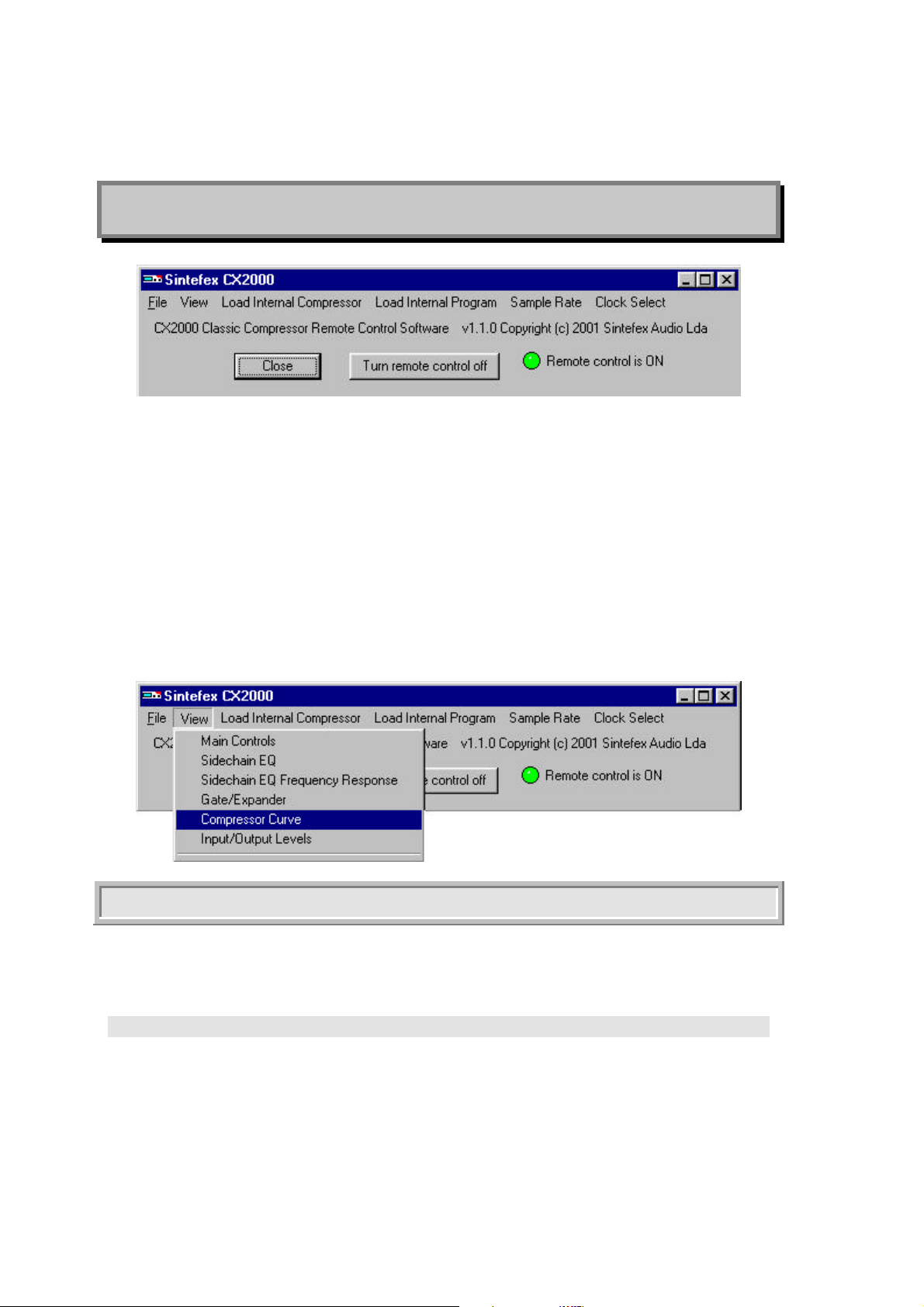
The “Turn remote control on/off” button does exactly what it says; the text inside the button changes
according to what will happen if it is pressed.
If you have any problems with Windows trying to connect to the CX2000 hardware, see the section
"Installing the CX2000 PC software".
The main control screens are selected by using the VIEW menu as shown here...
The Menu Bar
This allows you to load programs, compressors, set the sample rate, download firmware updates, select
the type of input clock and more.
File Menu
This gives the following options:
• Load Current State From PC - Allows the user to load a previously saved setup configuration, i.e.
which compressors should be installed and the settings applied to them.
• Save Current State To PC - Allows the user to save the current settings being used.
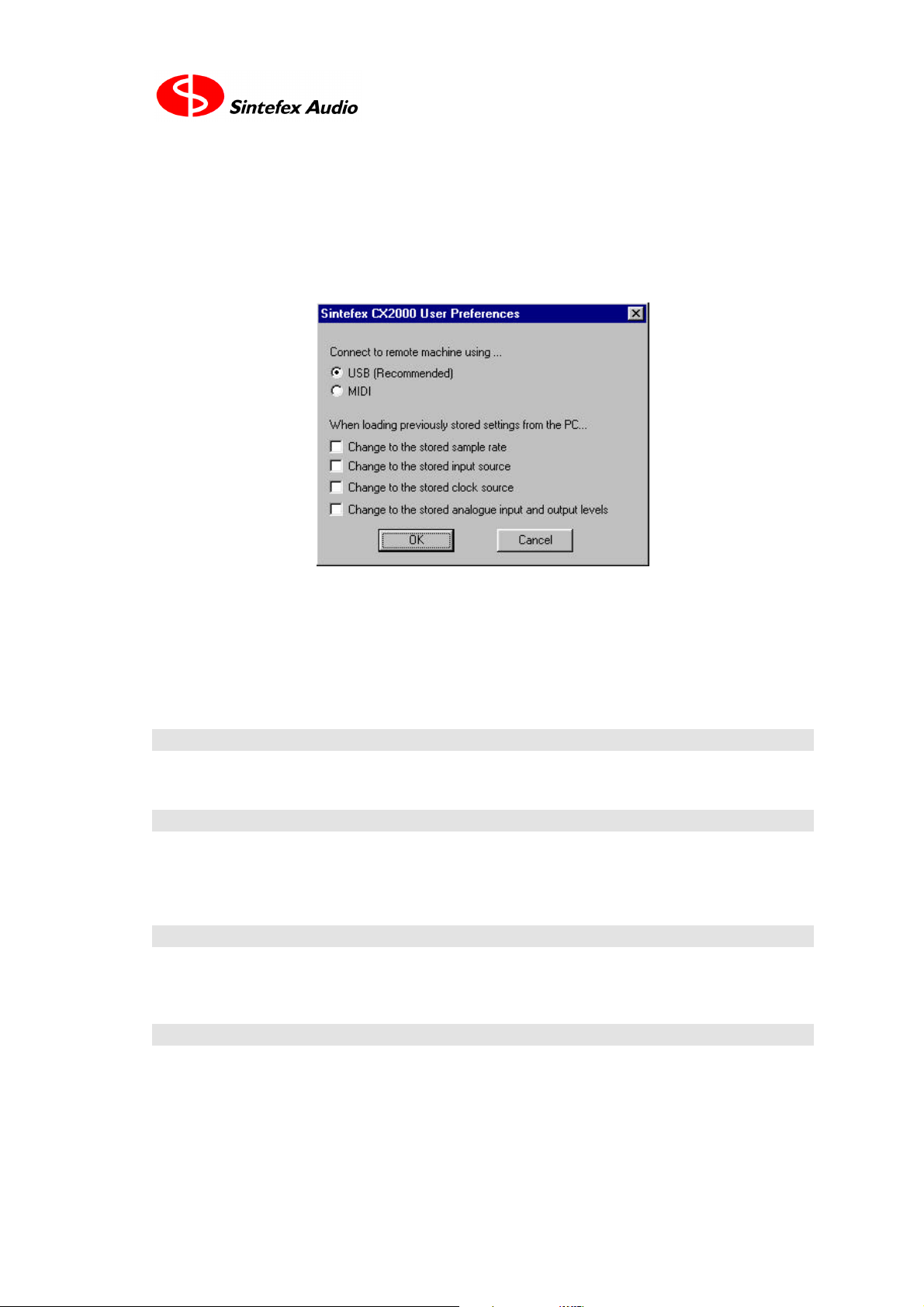
• Preferences – This allows the user to select what type of remote control connection they want to use.
Page 32
Page 7
User Guide version 1.0 Copyright © 2001 Sintefex Audio Lda
It is recommended that USB is selected, as the communication is much faster and more reliable.
Normally, when settings are saved on the PC and reloaded, you don't want the sample rate or the input
selection of the CX2000 to change; you just want a sound setting you have used before to be loaded. The
four options shown here can be ticked however if these items are to be changed when a program is loaded
to match the setting they were at when the program was saved.
• Load Compressor from PC – Use this to load an individual compressor (.cxx file) stored on the PC,
rather than one of the internal compressors stored on the hardware
• Hardware Update – Use this to update the firmware (.cxs file) or the compressor bank (.cxp file) stored
in the CX2000 hardware. Simply select which file you want to load into the hardware and wait. Note: if
at any stage nothing appears to have happened for a minute or so the operation has probably failed. Close
the progress window and try again. The entire operation takes between about two and five minutes,
depending on your PC specifications.
View Menu
Use this to display the controls you want to use. The most important of these will be discussed later.
Load Internal Compressor
Use this to load one of the compressors from the hardware compressor bank. If the system is stereo
ganged then the compressor selected will be loaded to both channels, otherwise the user is given the
option of channel 1, 2 or both.
Load Internal Program
Selecting this and then List Programs brings up a list of all the saved programs on the CX2000 hardware.
If no programs have been saved then the list will not appear.
Sample Rate
This allows you to change the sample rate currently being used on the CX2000 hardware.
Sintefex Audio Lda is incorporated with limited liability in Portugal. web: www.sintefex.com
Head office: S. Marcos da Serra, P-8375 Portugal tel: (+351) 282 361748 fax: 282 361749
Page 33
Page 8
Sintefex CX2000 Remote Control (PC) Copyright © 2001 Sintefex Audio Lda
Clock Select
This allows you to select which sample rate reference clock the CX2000 hardware uses for its digital
sampling. If you are using a digital input the input must be in synchronisation with the reference selected.
Automatic is the best setting unless the CX2000 is to be the master reference in a looped back system.
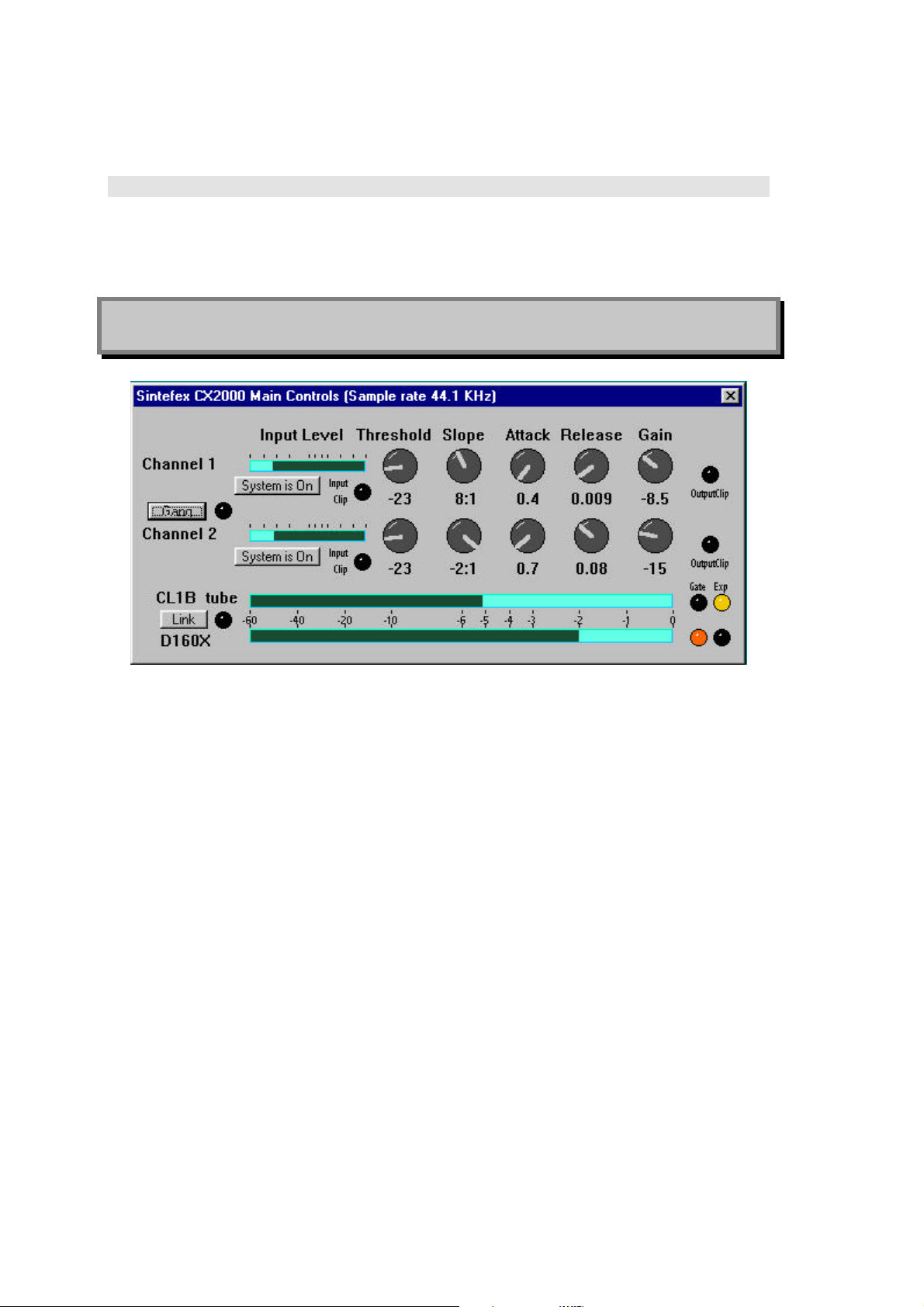
5 The Main Controls Display
This display automatically appears every time you run the program.
Use the knobs to adjust the compressor threshold, slope, attack, release and gain on either channel. To
adjust a knob, click on the knob and slide the mouse up or down until the desired setting is reached. Do
not attempt to "rotate" the mouse cursor around the knob centre as is done in some programs.
The bar meters to the left of the threshold knobs can monitor either Input or Output levels. To switch
between Input and Output monitoring, click on one of the meters. The legending above each meter
corresponds to that used on the gain reduction meters.
The Gang button forces the setting of one channel to be the same as the other. When the CX2000 is
ganged the knobs for each channel change simultaneously as would be used for stereo operation. (Note
that this is not the same as gain linking between channels which is separately selected - see below).
If the CX2000 is selected to "Ganged" operation when the settings on both channels are different, you are
requested to confirm whether the channel 1 or the channel 2 settings are to be applied to both channels to
bring them into step.
The System On/Off buttons are used to activate or bypass the CX2000 on that channel. Bypass is a digital
operation and passes the digital signal in directly to the digital signal out. This means that analogue users
should be aware that the signal is still passing through the analogue to digital converters and back again.
The analogue gain trim settings still apply although all digital gain is set to unity. In "bypass" the system
delay is the same as when in operation, subject to any variations in frequency dependent delay of a
particular samples analogue compressor, or to any delays inherent in compressors loaded from the PC
which may vary from those stored in the internal compressor bank.
Page 34
Page 9
User Guide version 1.0 Copyright © 2001 Sintefex Audio Lda
The two large meters at the bottom of the display represent the gain reduction in dB for each channel and
are the sum of the compressor gain reduction and any expander / gate gain reduction.
The currently loaded compressor sample on each channel is displayed to the left of each meter and
indicators for whether the gate or expander is currently active are on the right.
The Link button provides gain linkage across the two channels. This links the gain of the compressor
sections so that whichever channel is demanding the most gain reduction has its gain reduction applied to
both channels equally.
The current sample rate is displayed in the title bar. (This can be altered in the main window).
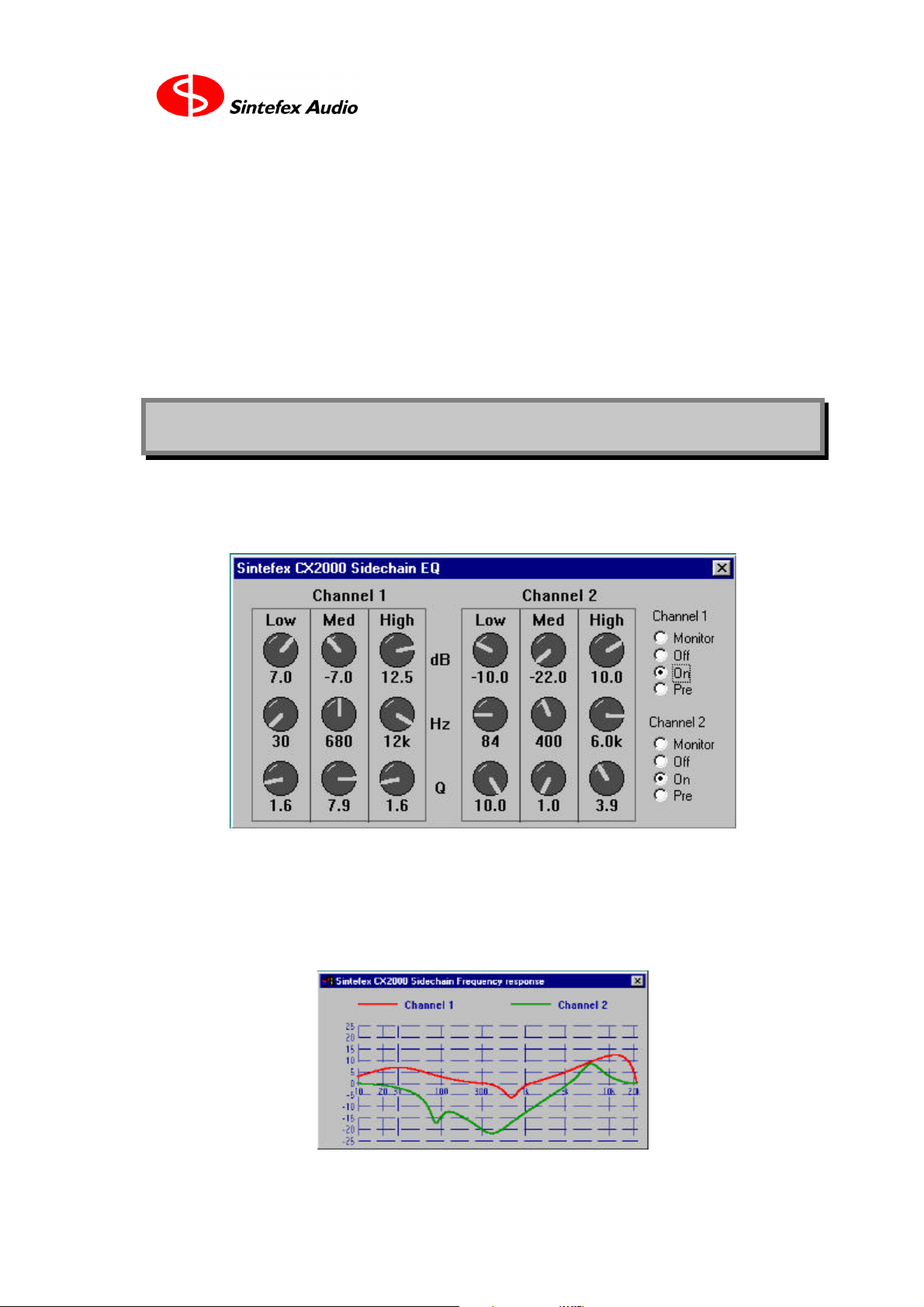
6 Sidechain EQ Display
The 3 band parametric equaliser may be seen here. It is possible to select the EQ to be OFF, MONITOR
(in which case compressor is bypassed), into the compressor side-chain ("On"), or into the main signal
path before the compressor ("Pre").
Each band of the equaliser has a gain control offering up to 25dB boost or cut, a frequency range from
20Hz to 20kHz and a width control (Q) from wide at the lowest setting (1.0) to narrow at the highest
setting (10.0). Although the bands are labelled "Low", "Med" and "High" they are in fact identical in
frequency range - the designations are just recommendations for ease of use.
It is also possible to get an accurate graph of the EQ curve.
Sintefex Audio Lda is incorporated with limited liability in Portugal. web: www.sintefex.com
Head office: S. Marcos da Serra, P-8375 Portugal tel: (+351) 282 361748 fax: 282 361749
Page 35
Page 10
Sintefex CX2000 Remote Control (PC) Copyright © 2001 Sintefex Audio Lda
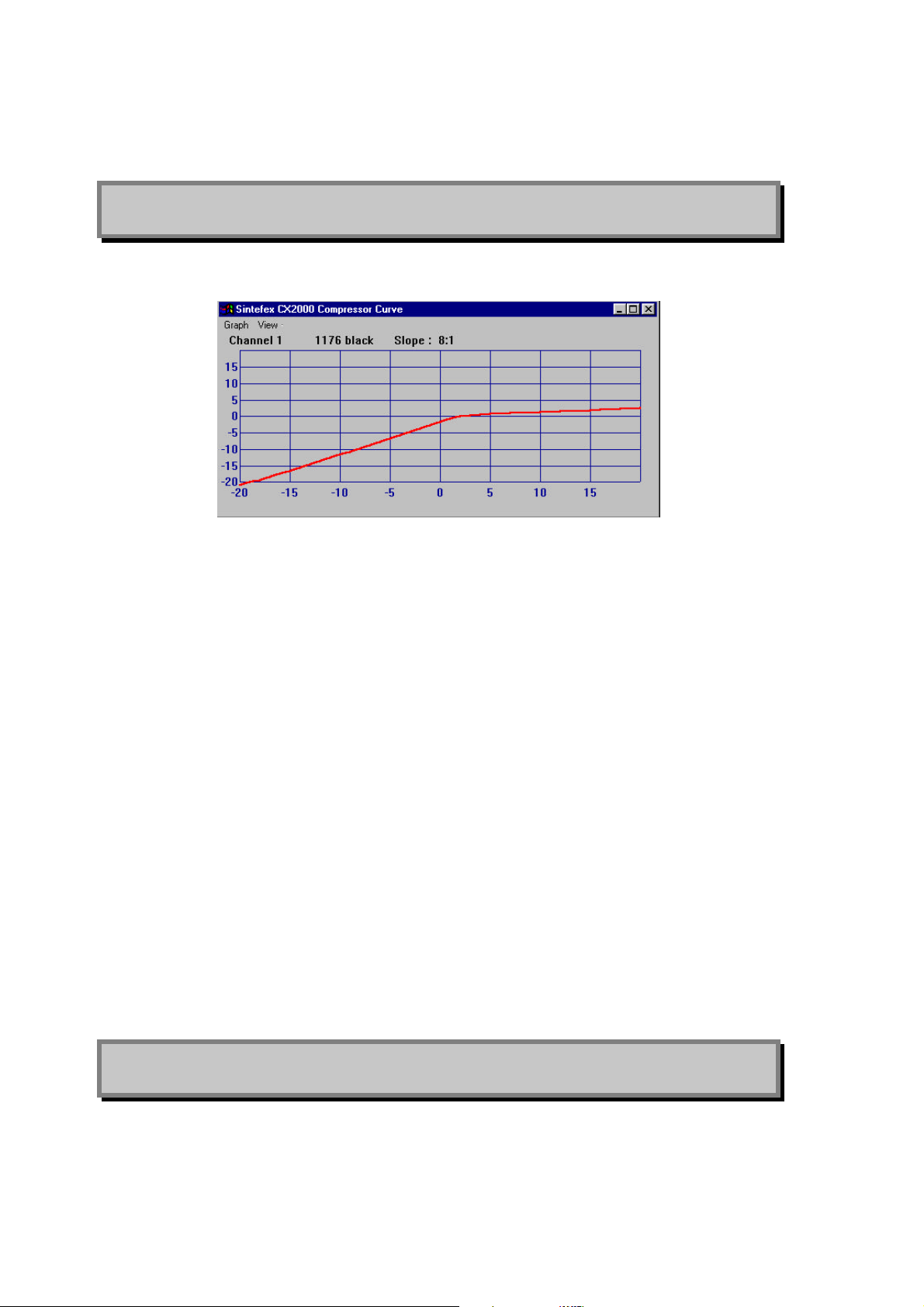
7 Compressor Curve Display
The curve of the compressor can be displayed as shown here.
This indicates the input level along the bottom of the graph and the corresponding output level up the left
hand side (in dB).
This graph graphically illustrates the way different compressors have markedly different transfer curves.
Try comparing the curves from two classic compressors, the 1176 and the Fairchild to see how different
two analogue compressors can be in terms of the transfer curve.
You can also see clearly with the 1176 sample how many different curves were taken from the same
compressor and these are selected as you adjust the slope control. The changes in threshold level that
occur are directly as sampled from the original machine so re-creates the effect of selecting different
slopes would have as on the original. In this example, curves of 4:1, 8:1 12:1 and 20:1 were sampled
from the front panel buttons, with 25:1 being a combination of buttons and "limit" corresponding to
pressing all the buttons in on the 1176. You can see that this drops the threshold and alters the shape of
curve to give the characteristic sound of that setting on the 1176.
If you select a curve, for example 5:1 that was not available on the original machine, the CX2000 uses
the 4:1 and 8:1 curves to calculate the appropriate intermediate setting, allowing you more freedom that
on the original equipment. In fact the CX2000 can generate intermediate curves all the way down to 1:1
for subtle compression effects even when such gentler curves were not available on the original
equipment. For example the LA2 offers only "limit" on the original machine, and this is the curve you
will get when you choose "limit" on the CX2000. However you can go for a lower slope and still retain
the sound of the LA2.
The CX2000 can even handle negative slopes for "Dynamic Reversal" as you will find when you
experiment with samples of compressors that offered this option.
Use the View menu option to select which channels’ curve is displayed.
8 Expander/Gate Display
The CX2000 sampled digital stereo compressor provides an expander gate option even when the original
sampled equipment did not offer this option. This enables dynamic range to be restored after
Page 36
Page 11
User Guide version 1.0 Copyright © 2001 Sintefex Audio Lda
compression, or more dramatic gating effects to be achieved while using either the character rich
analogue sound of a sampled compressor or the internal digital compressor channels.
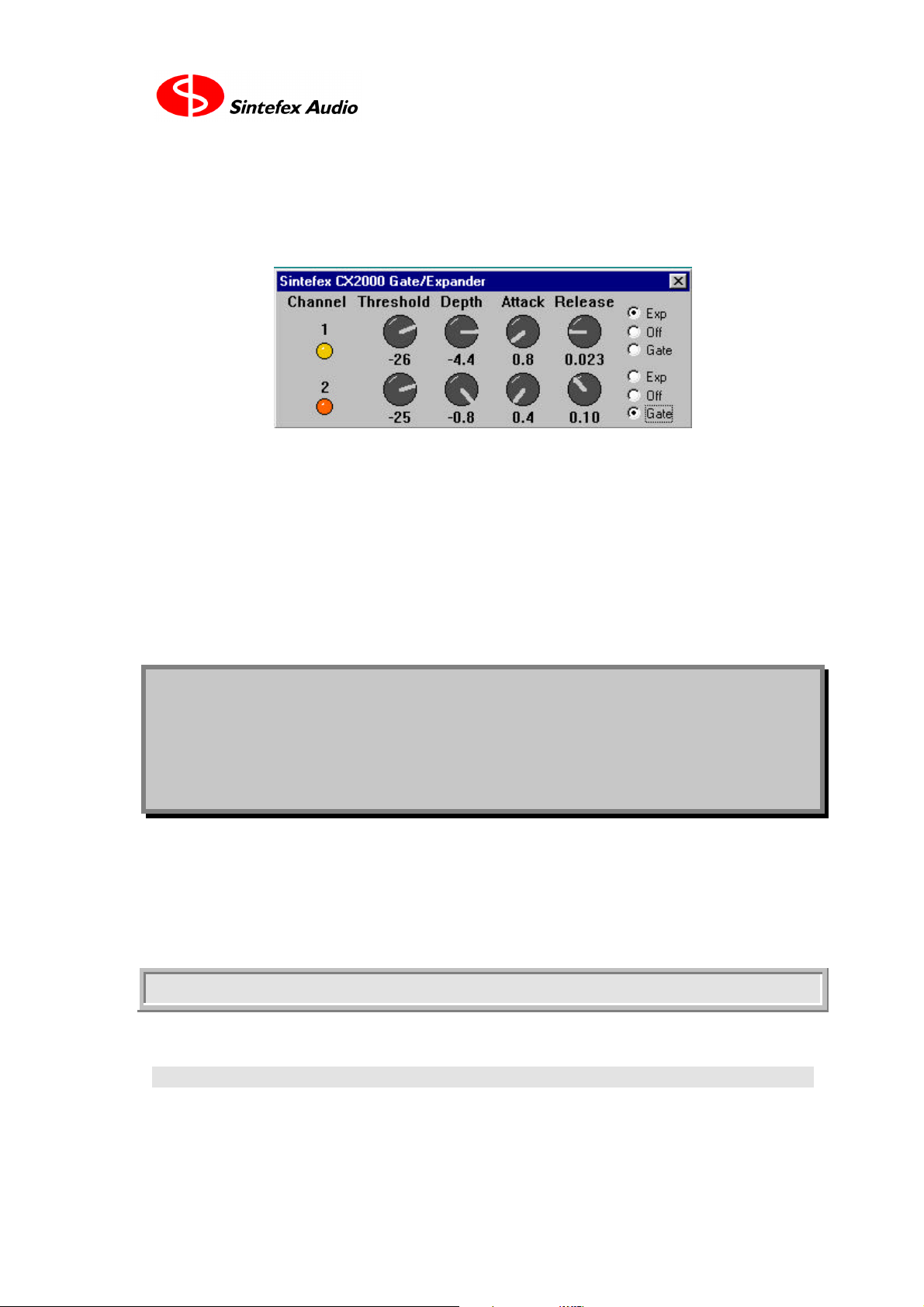
The expander/gate may be displayed as shown here.
Threshold indicates the levels below which the expansion gating begins to take effect. The CX2000
expands the signal at the slope of 2:1 below this threshold with a maximum depth indicated by the depth
control. This allows precise control of the expansion option of the CX2000.
When the input signal falls below the threshold the signal attenuates according to the time constant set by
"Release", and when a louder signal occurs the gain recovers according to "Attack" time constant.
Gating differs from expansion in that once the signal is attenuated, a proportionally louder signal is
required to open the gate which then usually opens fully as the signal is progressively admitted. A fast
attack is usually used to allow dramatic gating on percussion or a quick restoration of gain when for
example a vocal part comes back in again.
9 Updating CX2000 Operating
Firmware and Compressor
Banks
The CX2000 Sampled Digital Stereo compressor is supplied with operating firmware and set of
compressors installed. Follow the steps below to update either the firmware or the compressor banks
stored in the internal memory of the CX2000.
This program will always tell you if the new firmware or data you are about to download is the same as
already installed. If it is, you do not need to continue with the load, but you can load it again if you want.
Before Updating Firmware
You only need to update firmware if the version installed is not the current version.
What is the Latest Version?
Visit our web site at www.sintefex.com to determine the latest version of operating software and
download any version you want to install.
Sintefex Audio Lda is incorporated with limited liability in Portugal. web: www.sintefex.com
Head office: S. Marcos da Serra, P-8375 Portugal tel: (+351) 282 361748 fax: 282 361749
Page 37

Page 12
Sintefex CX2000 Remote Control (PC) Copyright © 2001 Sintefex Audio Lda
First we recommend you download and install the latest remote control software. Installation details for
this are at the end of this guide.
Which Firmware Version Do I Have Already Installed?
You can find out the firmware version installed by powering the system on while holding down the "DO
IT" button. You will see some start-up messages. Keep the "DO IT" button held until you have seen the
following:
Sintefex CX2000
Compressor/Gate
96k DSP analogue
ver 1.0.0 ( c ) 2001
This last line contains the version number. After a few seconds this message will be replaced by the
normal operating screen. If this is the latest version you will not need to update the firmware.
Note that a digital only system will say "digital" rather than "analogue" and a system without the 96
option will say "48k" rather than "96k."
Firmware Not Installed
If no firmware is installed, when you switch on the CX2000 you will see
Sintefex CX2000
Compressor/Gate
96k DSP analogue
Normal start failed
This then changes to
h/w:23/03/2001(16)
Start ver 1.0.2-6
( c ) 2001
<<-remote test->>
If you press the left select button this advances to the following
Start ver 1.0.2-6
( c ) 2001
<<-remote test->>
usb ad=0 cf=0 0
Once you have made a USB connection to a PC and installed the drivers as described below you will see
the "ad" and "cf" figures advance (typically to 2 but it depends on the PC). The final digit shows the
number of USB transfers and while you download firmware you will see this steadily advance.
Bypassing Installed Firmware
You can force the system to enter the start up ROM by turning the system on while holding down the
MENU button. You will see messages similar to the above and can proceeed to download firmware and
comrpessor banks as described below.
Page 38
Page 13
User Guide version 1.0 Copyright © 2001 Sintefex Audio Lda
Before Updating Compressor Banks
Sintefex Audio makes the set of compressor banks available as a single file with the extension .CXP.
This contains a set of 8 compressors at each of the 4 main sample rates.
This is rarely updated and the date of the last update is 18th June 2001.
You will only need to do this update if you received your CX2000 machine before that date. However it
does no harm to re-install the compressor bank at any future time.
The set of compressors has been carefully adjusted for equal system delay, and optimal phase and gain
(although there are slight variations due to the analogue nature of the samples). This optimises phase
differences when compressing multiple channels using different compressor models.
The Updating Operation
CX2000 Software Installed and Operating Normally
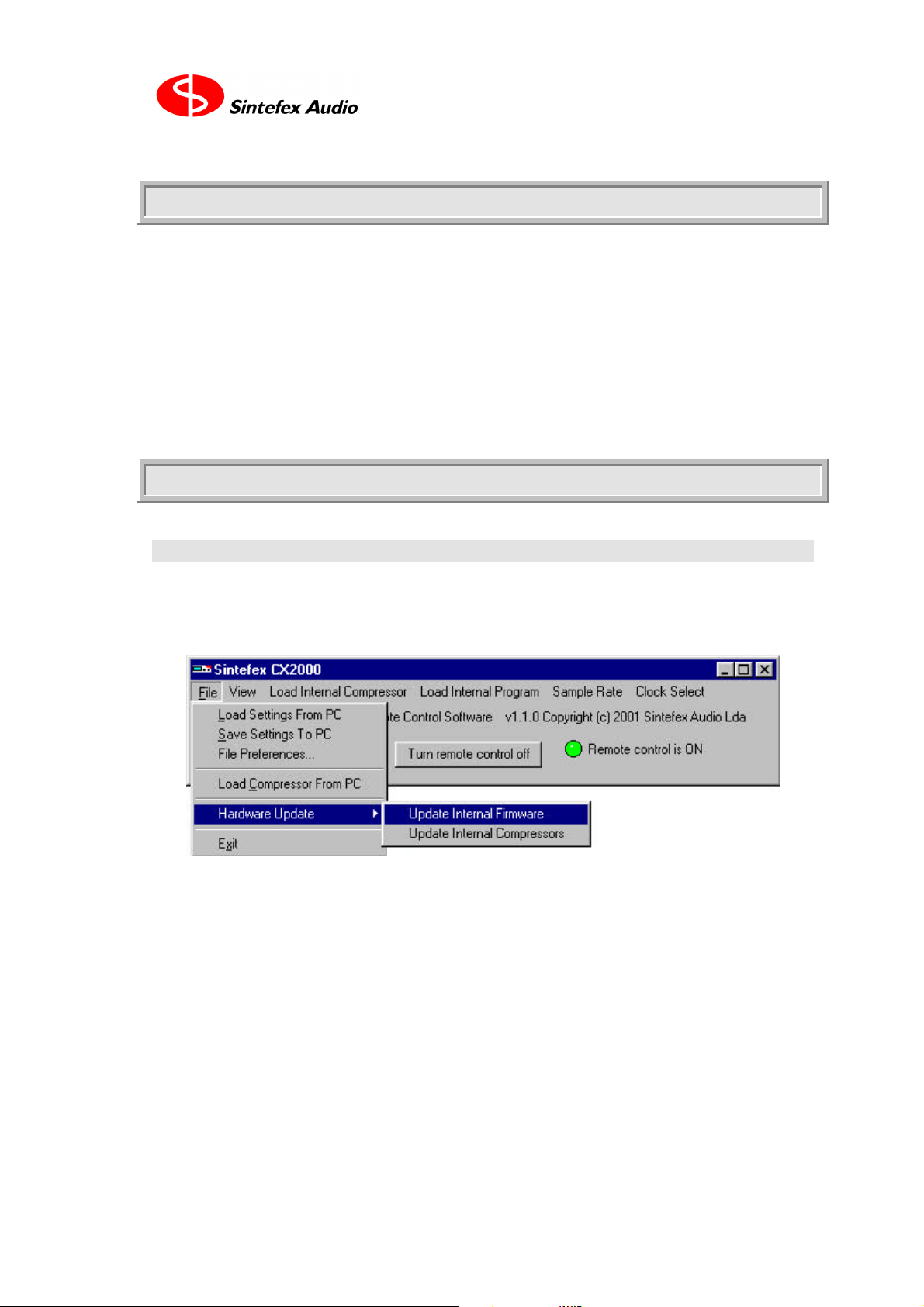
If the CX2000 remote control software is installed and operating, simply select the menu option
File | Hardware Update
then select either "Update Internal Firmware" or "Update Internal Compressors".
You are prompted to select the file name to send. Operating software always has the extension .cxs and
the compressor bank always has the extension .cxp.
NOTE: Before downloading the firmware the CX2000 application compares the data already installed on
the hardware with the image to download. This can take several minutes, especially if the images are the
same. Please wait for the status messages to show the complete process of downloading. If the image
already on the hardware is the same as the image you are about to download you will be asked if you
wish to proceed. There is no need to do the download in this case.
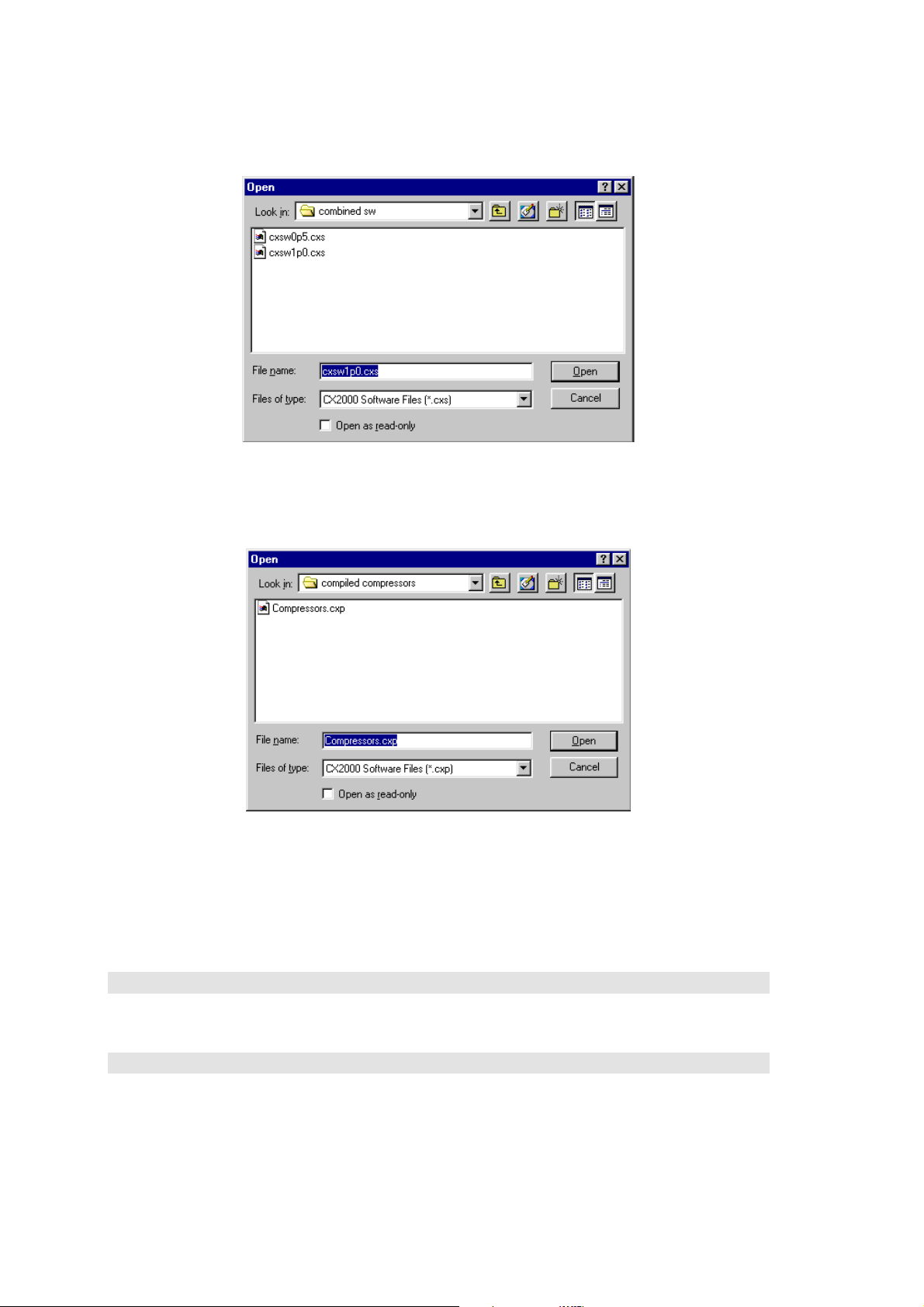
So selecting "Update Internal Firmware" shows a screen like this in which you must navigate to the
location in which you downloaded the CXP file from the web.
Sintefex Audio Lda is incorporated with limited liability in Portugal. web: www.sintefex.com
Head office: S. Marcos da Serra, P-8375 Portugal tel: (+351) 282 361748 fax: 282 361749
Page 39
Page 14
Sintefex CX2000 Remote Control (PC) Copyright © 2001 Sintefex Audio Lda
Press Open to start the download and watch the progress display.
Selecting "Update Internal Compressors" shows a screen like this in which you must navigate to the
location in which you downloaded the CXS file from the web.
Press Open to start the download and watch the progress display.
NOTE: Before downloading the compressor data the CX2000 application compares the data already
installed on the hardware with the image to download. This can take several minutes, especially if the
images are the same. Please wait for the status messages to show the complete process of downloading.
If the image already on the hardware is the same as the image you are about to download you will be
asked if you wish to proceed. There is no need to do the download in this case.
CX2000 Software Not Installed
If CX2000 is not currently operating, install it and enable remote control to complete the steps above.
CX2000 Software Installed, CX2000 Hardware in Start-up ROM
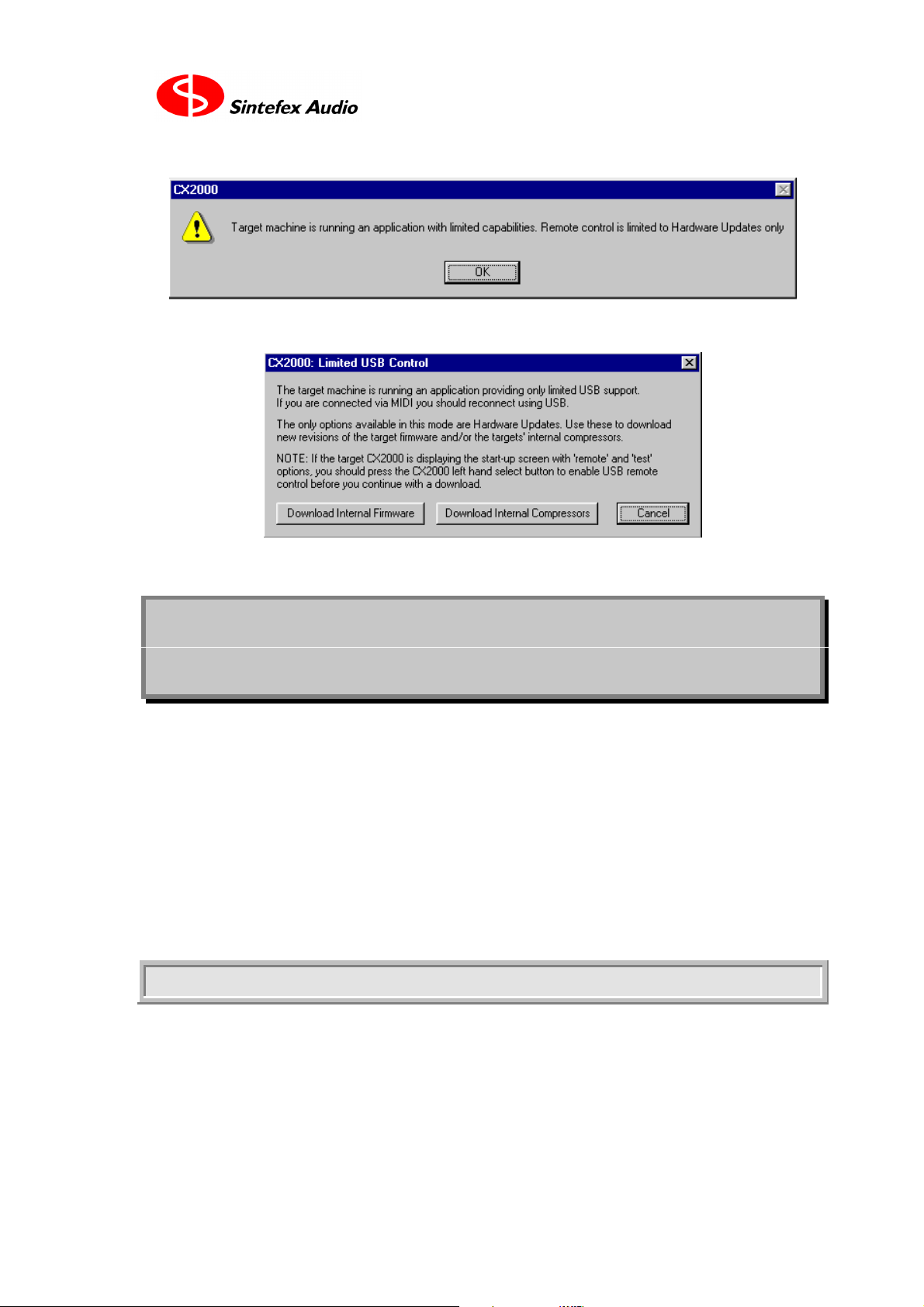
If the CX2000 is operating in its start-up ROM (perhaps because it has no firmware installed, or a
previous load failed for some reason), then when you turn the remote control on, or when you first start
the program, you will see
Page 40
Page 15
User Guide version 1.0 Copyright © 2001 Sintefex Audio Lda
When you press OK you will get...
You can go straight to the download stage by pressing either of the two buttons.
10 Installing the CX2000 PC
software
The CX2000 software for PC requires you to have a CX2000 sampled digital stereo compressor
connected to the PC by means of a standard USB connection. The software is supplied with a set of USB
drivers which should be installed when prompted by Windows. You will need to be running at minimum
Windows 98 (second edition) or the Windows 2000 operating systems for USB to work correctly.
The software does not need any fancy "install" operation as it comprises just a few files that all placed
together when you unzip the file you download from the internet (see "Starting the Program" above).
However like any new hardware attached to your PC you do need software "drivers" to tell Windows
how to talk to the hardware. Installing these is described below.
If you think you have installed the drivers but when you try and connect using the CX2000 software, you
see get nasty messages, see the section labelled "Trouble" below.
Installing the Sintefex USB Device driver
These are the steps required to install the Sintefex Devices USB driver that is required for the remote
control software. There are two possible methods for installing the driver depending on whether the
CX2000 hardware has been connected to your computer (via the USB).
NOTE: if you have downloaded the software from the Sintefex Audio web page, ignore any requests to
insert a disk and use the windows browser buttons to find the correct directory (e.g. step 10)
Sintefex Audio Lda is incorporated with limited liability in Portugal. web: www.sintefex.com
Head office: S. Marcos da Serra, P-8375 Portugal tel: (+351) 282 361748 fax: 282 361749
Page 41
Page 16
Sintefex CX2000 Remote Control (PC) Copyright © 2001 Sintefex Audio Lda
Method 1. - CX2000 has not been plugged in
1. Start the "Add New Hardware" wizard from the Control Panel
2. On the first and second screens click Next
3. On the third screen, when asked if you want windows to search for new hardware, select "No, I want to
select the hardware from a list" and click Next
4. From the list of Hardware types, select "Other Devices" and click Next
5. Ignore any Manufacturer and Model lists displayed and click "Have Disk"
6. At the "Install From Disk" dialog box, use Browse to select the "Sintefex Devices Driver" directory
which is located within same the directory as "CX2000.exe"
7. Ensure that the file "_SignalProcessors.inf" is selected and click OK in both dialog boxes.
8. Back in the Add New Hardware dialog box, click Next
9. Click Next on the screen beginning "The hardware you are installing is Plug and Play compatible"
10. If you are installing this from a location on your hard disk you should get a message saying "Please
insert the disk labelled 'Replicator Software Disc', and then click OK", Click OK.
11. In the "Copying Files" box, use browse, as before to get back to same location as in Step 6, and click
OK until you the you are returned to the Add New Hardware wizard.
12. The new driver should now be installed on your computer. You may be asked to restart your
computer, if not just click Finish.
Method 2 - CX2000 has been plugged in
1. Plugging in the CX2000 hardware to your computer via USB and turning it on should start windows
automatically searching for a driver and will start the Add New Hardware wizard.
2. In the first screen of the Add New Hardware wizard, select Search for the best driver... and click Next
3. Select "Specify a location" and use the Browse button to find the 'Sintefex Devices driver' directory
and click next.
4. Follow the same procedure given above from step 10 to complete the installation.
Trouble?
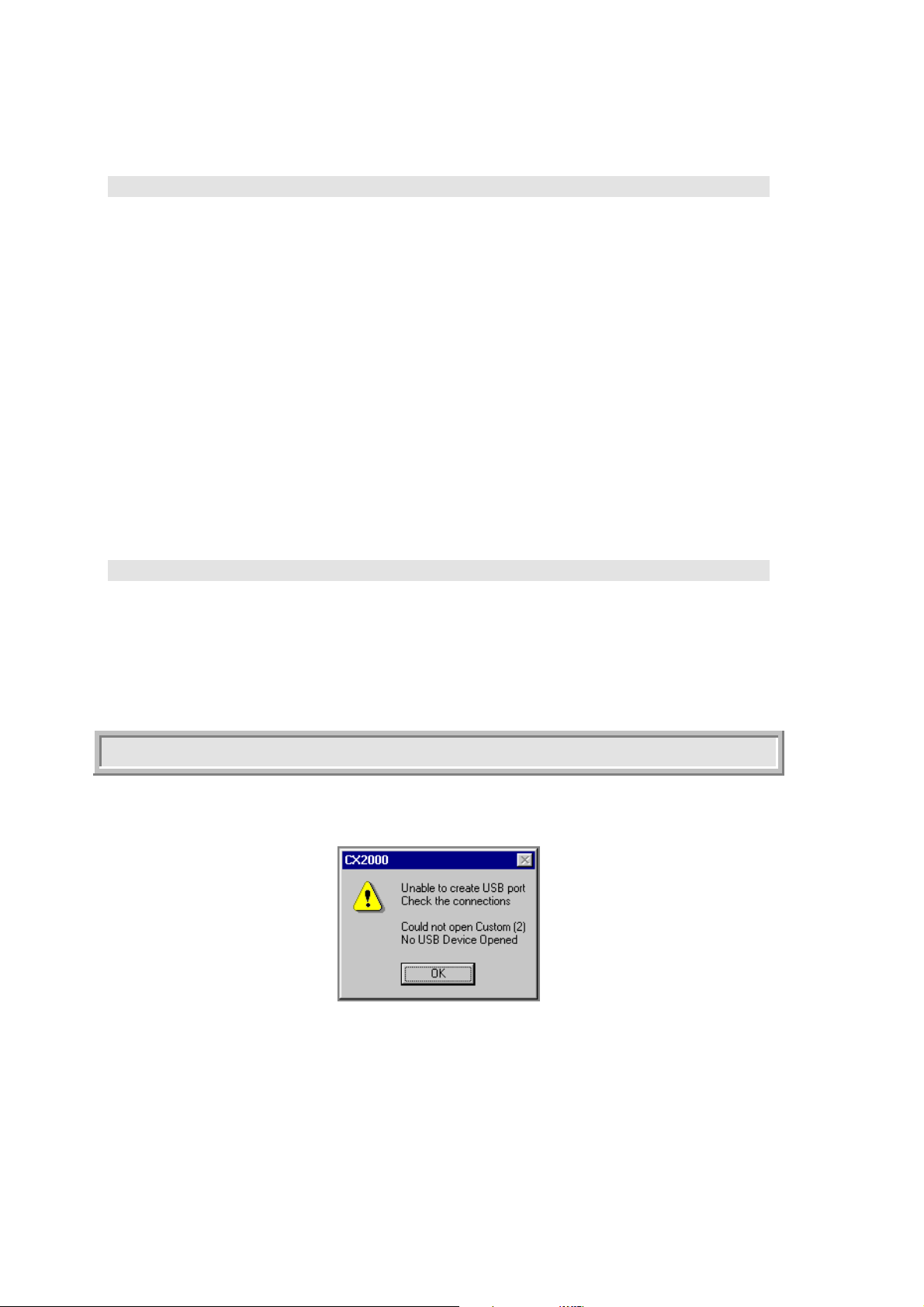
If you think you have installed the drivers but when you try and connect using the CX2000 software, you
see this...
(or something similar as the exact message can depend on what other devices are attached to the PC)
there are two likely problems:
1. The driver is okay but the CX2000 hardware is switched off, or the USB cable is not connected
properly, or
2. The driver is not installed properly or is out of date.
In the first case try unplugging and re-plugging the USB cable, make sure the CX2000 is on and running,
or try different USB sockets on your PC. If no luck, assume the second case:
Page 42
Page 17
User Guide version 1.0 Copyright © 2001 Sintefex Audio Lda
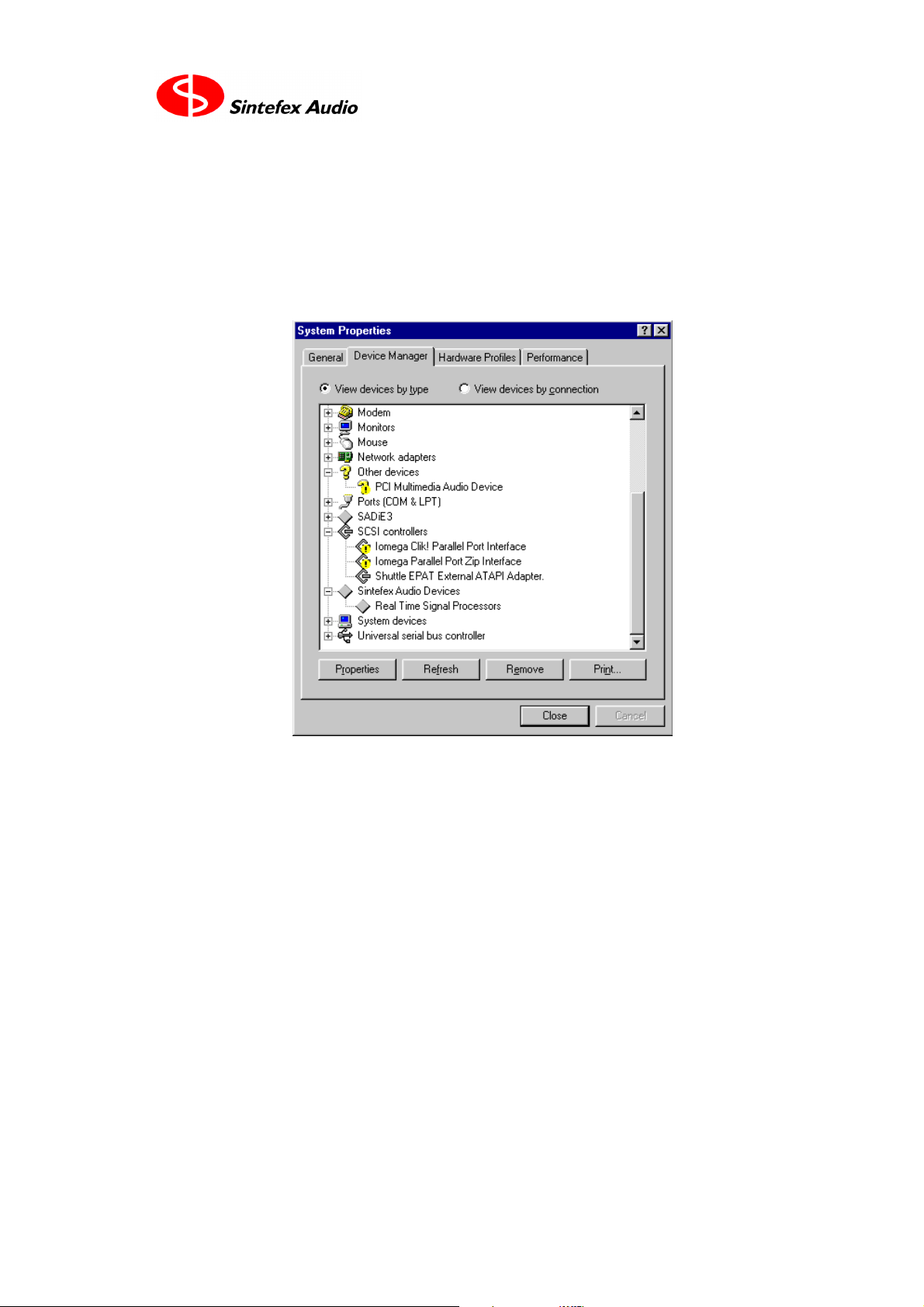
Windows can keep hold of old drivers even if you think you have updated them. Try looking in the
Control Panel | System and selecting the Device Manager tab. You should see something like the screen
shown below.
The entry for Sintefex Audio Devices will only appear if the CX2000 is connected properly, so if it is
there you can be pretty sure about the connections.
(Users of older drivers from Sintefex Audio may see the words "FX8000 Replicator" instead of "Real
Time Signal Processors". If so select that in the next step)
If you select the "Real Time Signal Processors" under "Sintefex Audio Devices" and select "Properties",
then select the "Drivers" tab then "Driver File details" you can check that the version of "sfxusb.sys" is at
least v1.1.0.0. Later versions may be available by the time you read this.
In any event, proceed to install the latest drivers in your most recent download as follows:
• Select "Update Drivers", "Next" then "Display a list of all the drivers in a specific location".
• Select "Have Disk" and browse to the drivers subdirectory of the new software (if this is the second
or third time you have done this you can usually find the last directory you went to by pressing the
drop down arrow and scrolling to the top of the list).
• Press okay and even if Windows says that the drivers are not newer than those you already have, tell
it to continue.
• Windows is now likely to ignore the directory you just selected and ask you to insert a disk. Once
again browse to the download directory's drivers subdirectory. Again it is at the top of the drop down
list in the directory box, so Windows actually knew all the time where to go but was just winding
you up.
• Now Windows should tell you it has installed everything okay and hopefully you can continue to run
the CX2000 software.
Sintefex Audio Lda is incorporated with limited liability in Portugal. web: www.sintefex.com
Head office: S. Marcos da Serra, P-8375 Portugal tel: (+351) 282 361748 fax: 282 361749
Page 43
Page 18
Sintefex CX2000 Remote Control (PC) Copyright © 2001 Sintefex Audio Lda
MIDI
The CX2000 software can be used for remote control over MIDI provided the PC is fitted with a standard
MIDI adapter. Two cables will be needed, one from PC to CX2000, and the other from CX2000 to the
PC as the communications is two directional.
Please note that USB operation is preferred to MIDI operation because MIDI is rather slow for the
exchange of data, and it is better to leave the MIDI ports of the CX2000 available for use of the CX2000
with your sequencer for real time remote control. See the CX2000 user manual for details. Also some
PCs have problems with MIDI due to connection quality and Windows software support.
11 List of File Extension
Used by CX2000 Software
File extensions identify the file type to Windows. Users often hide these but there are times when you
need to know what they are. This table summarises the main file types used by the CX2000 Remote
Control application for Windows.
extension means
CXF Saved CX2000 Compressor Settings
.CXP Complete bank of compressors for installation onto CX2000 hardware
.CXS Firmware for installation onto CX2000 hardware.
.CXX Individual compressor model for use on CX2000 hardware under remote software
control, extending the available compressor models
.EXE Executable file for the CX2000 Windows application
.DLL Dynamic Link Library containing parts of the CX2000 software application
.SYS Driver files for installation to allow Windows to talk to the CX2000 hardware over
the USB port.
.INF Information file to tell Windows how to load the drivers for the USB interface.
12 Acknowledgements,
Disclaimers and Licensing
All trade marks are the properties of their respective owners.
Sintefex Audio Lda specifically states that any reference to other manufacturers and their products in this
document does not imply any endorsement of Sintefex Audio products by them, or vice versa.
Whilst all reasonable effort has been made to ensure that the information in this manual is accurate,
Sintefex Audio Lda accepts no liability for inadvertent errors, omissions or changes in operating software
or hardware specification referred to in this manual.
Page 44

Page 19
User Guide version 1.0 Copyright © 2001 Sintefex Audio Lda
All software including firmware incorporated in or supplied for Sintefex Audio Products is supplied
under licence for use on the Sintefex Audio hardware or other use as specifically licensed. All rights to
the software are the property of Sintefex Audio Lda or its suppliers and the user is not permitted to make
unauthorised copies or to reverse engineer any aspects of the software or hardware. Aspects of the
software and hardware are covered by international patent application and other rights.
Some files distributed may be the copyright of other manufacturers/persons in which case they are
distributed by permission and are subject to additional licence conditions of the original manufacturers.
Please contact us if you require more details.
Software supplied for PC remote control and demonstration is supplied free of charge for evaluation and
use by bona fide customers under the strict understanding that Sintefex Audio Lda does not warrant the
software as suitable for any specific task and accepts no liability for any loss consequential on use to the
maximum extent that such liability can be excluded under governing laws.
Sintefex Audio Lda reserves the right to alter the terms of software licensing at its sole discretion,
including the revocation of all rights to use.
Sintefex Audio Lda is incorporated with limited liability in Portugal. web: www.sintefex.com
Head office: S. Marcos da Serra, P-8375 Portugal tel: (+351) 282 361748 fax: 282 361749
interstage
Phistersvej 31, 2900 Hellerup, Danmark
Telefon 3946 0000, fax 3946 0040
www.interstage.dk
- pro audio with a smile
Page 45

Page 1
Technical Documentation Copyright © 2001
CX2000 Compressor Models
last update 25/10/01
Compressor Models Stored in CX2000 Firmware
The firmware contains 8 sampled compressor models and 4 digital compressor models. These are as
follows:
# Name Notes
1
2
3
4
5
6
7
8
9
10
11
12
1176 black
Fairch 660
LA 2A
LA 3A
CL1B tube
SA TLA 100
D160X
VR channel
digi1 hard
digi2 soft
digi3 soft
digi4 soft
Sample of classic black front Urei unit
Sample of this classic tube compressor with unique sound
Sample of Teletronix tube levelling amp
Sample of Teletronix/Urei levelling amp with compressor option
Sample of Tubetech CL1B
Sample of Summit Audio TLA100A levelling amp
Sample of dbx 160x including dynamic reversal
Sample of Neve VR channel strip compressor
digital compressor with hard knee
digital compressor with softer knee
digital compressor with softer knee
digital compressor with softer knee
Compressor Models Available Under PC Remote Control
If you are using remote control from a PC, you can load a growing number of compressors which we
make available for download from our web site.
• THESE ARE NOT STORED ON THE CX2000 AND CAN ONLY BE USED WHEN UNDER
REMOTE CONTROL.
# Name Notes
1
2
3
4
5
6
7
8
9
10
11
12
13
14
1176 black
Fairch 660
LA 2A
LA 3A
CL1B tube
SA TLA 100
D160X
VR channel
d160
Opti Lev
Smart
ales 3630
red 7 mic in
red 7 line in
Sample of classic black front Urei unit
Sample of this classic tube compressor with unique sound
Sample of Teletronix tube levelling amp
Sample of Teletronix/Urei levelling amp with compressor option
Sample of Tubetech CL1B
Sample of Summit Audio TLA100A levelling amp
Sample of dbx 160x including dynamic reversal
Sample of Neve VR channel strip compressor
Sample of dbx 160 compressor
Sample of Manley electro-optical levelling amp
Sample of “smart research” version of SSL compressor
Sample of Alesis AL3630
Sample of mic channel and dynamics processor
Sample of mic channel and dynamics processor (line input)
All information is supplied in good faith but does not represent a basis for contract.
Sintefex Audio Lda is incorporated with limited liability in Portugal. web: www.sintefex.com
Head office: S. Marcos da Serra, P-8375 Portugal tel: (+351) 282 361748 fax: 282 361749
interstage
Phistersvej 31, 2900 Hellerup, Danmark
Telefon 3946 0000, fax 3946 0040
www.interstage.dk
- pro audio with a smile
Page 46
Bank: Sample / Program
# Name s/r Notes
1
2
3
4
5
6
7
8
9
10
11
12
13
14
15
16
17
18
19
20
21
22
23
24
25
26
27
28
29
30
31
32
33
34
35
36
37
38
39
40
41
42
43
Page 1
Sintefex Audio Lda is incorporated with limited liability in Portugal. web: www.sintefex.com
Head office: S. Marcos da Serra, P-8375 Portugal tel: (+351) 282 361748 fax: 282 361749
interstage
Phistersvej 31, 2900 Hellerup, Danmark
Telefon 3946 0000, fax 3946 0040
www.interstage.dk
- pro audio with a smile
Page 47
Page 2
Bank: Sample / Program
# Name s/r Notes
44
45
46
47
48
49
50
51
52
53
54
55
56
57
58
59
60
61
62
63
64
65
66
67
68
69
70
71
72
73
74
75
76
77
78
79
80
81
82
83
84
85
86
interstage
Phistersvej 31, 2900 Hellerup, Danmark
Telefon 3946 0000, fax 3946 0040
www.interstage.dk
- pro audio with a smile
Page 48
Bank: Sample / Program
# Name s/r Notes
87
88
89
90
91
92
93
94
95
96
97
98
99
100
101
102
103
104
105
106
107
108
109
110
111
112
113
114
115
116
117
118
119
120
121
122
123
124
125
126
127
128
Page 3
Sintefex Audio Lda is incorporated with limited liability in Portugal. web: www.sintefex.com
Head office: S. Marcos da Serra, P-8375 Portugal tel: (+351) 282 361748 fax: 282 361749
interstage
Phistersvej 31, 2900 Hellerup, Danmark
Telefon 3946 0000, fax 3946 0040
www.interstage.dk
- pro audio with a smile
 Loading...