

Page 1
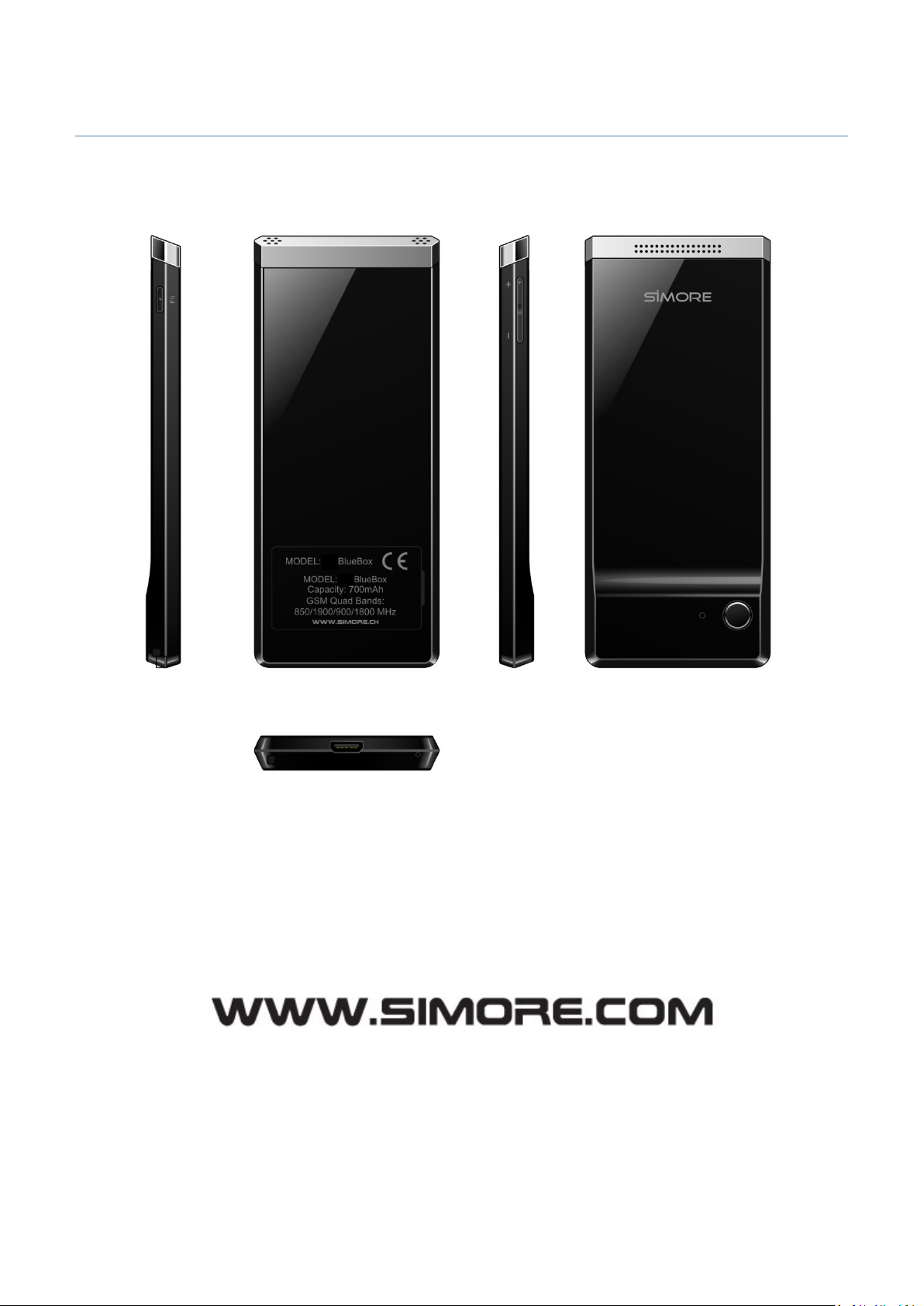
SIMore G2 BlueBox
User Manual
English Version
SIMore © - All rights reserved
Page 2

SIMore G2 - Quick Start
1. Download SIMore App available on Google Play.
2. Turn ON the Bluetooth connection on your Android device.
3. Remove the SIM cover and install SIM cards (GSM, GPRS, EDGE) in G2 BlueBox.
Disable SIM card PIN codes before inserting them into the SIMore Bluebox
4. Power ON SIMore G2 device
5. Open Android’s bluetooth Settings: Settings Bluetooth find the SIMore device and click
on”SIMore” to connect it.
6. Click on SIMore to “Pair” the device and enter the PIN code: 888888
7. Open SIMore App: SIMore Settings Connection Settings click on”SIMore” device's
name to connect it.
The connection is successful when you hear a prompt tone.
8. Open the SIMore App and you are now ready to use it.
1. Summary
1.1 SIMORE G2 BLUEBOX PRESENTATION
1.2 Main features of SIMore G2 BlueBox
1.3 More information about SIMore G2 BlueBox
2. Controls for the SIMore G2 BlueBox
2.1.1 Charging the battery and installing SIM cards
2.1.2 Startup, Shutdown, Restore factory settings
3. Installation Guide for
3.1 Before Installation
3.2 Downloading and installing the SIMore App for Android OS version
Connect SIMore G2 BlueBox to your Android OS device
3.3
4. How to use SIMore G2 BlueBox (Android version)
4.1 Voice
4.2 SMS
4.3
5. SIMore G2 BlueBox (ANDROID VERSION) Application management
5.1 Ringtone Settings
5.2 Vibration Settings
5.3 Connecting to an Android device
5.4 Resolving Connection Issues on Android OS version devices
6. Attention
6.1 Avoiding Interferences
6.2 Safe Driving
6.3 Accessories
6.4 Water Resitance
6.5 Environment
7.
calls
Contacts & Phonebook
Warranty Information
Android version (SIMore G2 Bluebox)
Page 3
1. Summary
1.1 SIMore G2 BlueBox Presentation
SIMore G2 Bluebox is compatible with Android devices.
SIMore BlueBox is a Bluetooth dual and triple-SIM adapter compatible with most Android devices
(Smartphones and tablets).
Insert two GSM Micro-SIM cards into the SIMore G2 BlueBox and transform your phone into a triple-SIM
phone with three SIM cards active on your Android OS device through a wireless Bluetooth connection.
1.2 Main features of SIMore G2 BlueBox
A) Transforms your Android OS smartphone or tablet into a triple-SIM standby mobile phone.
B) Ultra slim; very easy to carry; can be placed into a wallet or a billfold.
C) Connects to your Android OS device through wireless Bluetooth connection.
D) Micro USB charger.
1.3 More information about SIMore G2 BlueBox
You can visit the website http://www.simore.com for more information about the product, FAQs, and other
related information.
The company reserves the right to modify this User Manual without notice; please go to
http://www.simore.com for the latest version of our User Manual.
2. SIMore G2 BlueBox Controls
2.1.1 Charging and Installing SIM cards
A. Charge the battery by using the Micro-USB cable provided in the kit.
B. You must disable the SIM card(s) PIN code before inserting them into the SIMore BlueBox.
C. Remove the SIM cover and install your SIM cards (GSM, GPRS, EDGE).
Page 4

Ensure SIMore G2 Bluebox is in OFF position before inserting SIM cards.
Note: SIMore BlueBox does not support hot swap of the SIM card. After the SIM cards are installed, you
must first power OFF your SIMore Blue Box and restart it, then you can activate the SIMore Triple Blue Box in
the pending connection state.
2.1.2 Startup, Shutdown, Restore factory settings
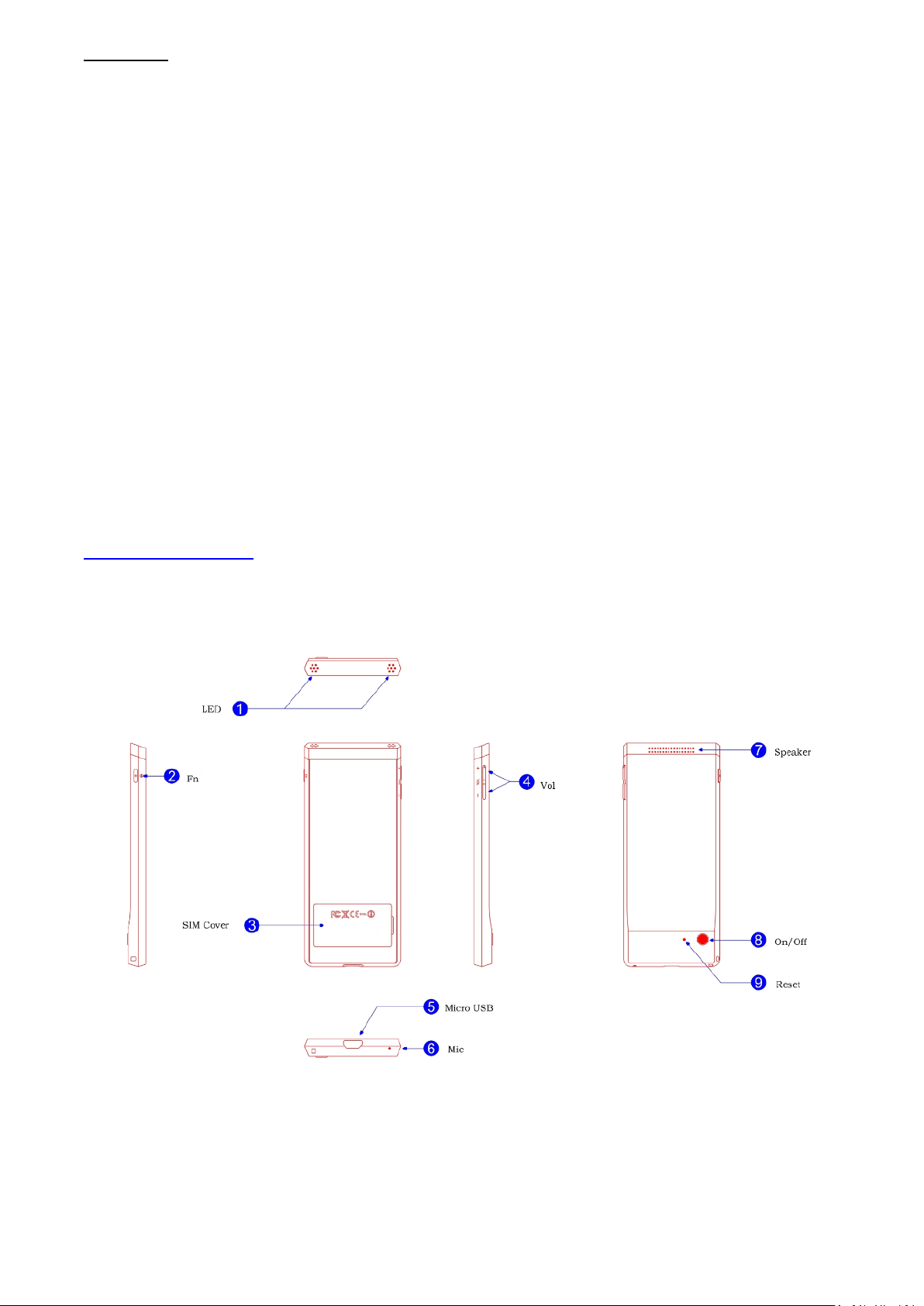
A. Startup: Press on the round button located on the right-hand corner of the device for 3 seconds.
When SIMore Bluebox is ON, a white light will flash on the top of the device.
B. Shutdown: Press on the round button for 3 seconds.
When SIMore Bluebox is OFF, a red, white and blue light will flash at the same time.
C. Battery indicator: Green light = Battery 100% charged - Light flashing Red and Yellow = Battery charging
D. Connected to the mobile: Green light flashing
E. Restore factory settings: Under the startup status, use a thimble or other similar tool to aim at the reset
hole and press on it for 3 seconds. The device will shutdown automatically.
3. User Guide for Android devices (SIMore G2 Bluebox)
SIMore G2 Bluebox is compatible with most of Android OS devices.
3.1 Before Installation
Disable SIM card PIN codes before inserting them into the SIMore Bluebox device.
Remove the SIM cover and install SIM cards (GSM, GPRS, EDGE).
Be sure the SIMore G2 Bluebox is in the OFF position before inserting SIM cards.
Press on the round button on the right hand corner of the device for 3 seconds, and release it after the light
at the top of the device turns white.
3.2 Downloading and installing the SIMore Application for Android OS
A. Turn ON WiFi connection.
B. Ensure your Android device is well connected to the Internet.
C. Download SIMore App available on Google Play
Alternatively: you can also download SIMore App by entering the link herafter in your internet browser
http://106.186.29.40/simore-G2 (Picture 15 appears).
D. Click on the SIMore icon to download and install the SIMore application.
E. Go to your Android device’s OS “Application Download” find and click on SIMore to achieve the
installation procedure.
When SIMore software installation is done, the SIMore icon appears in your main application menu.
Note: During installation, you may encounter a problem: Install blocked. If you do, just click on the button
“Settings security Unknown sources”.
3.3 Connecting the SIMore G2 Bluebox to an Android OS device
A. Turn ON the Bluetooth connection on your Android device
Page 5
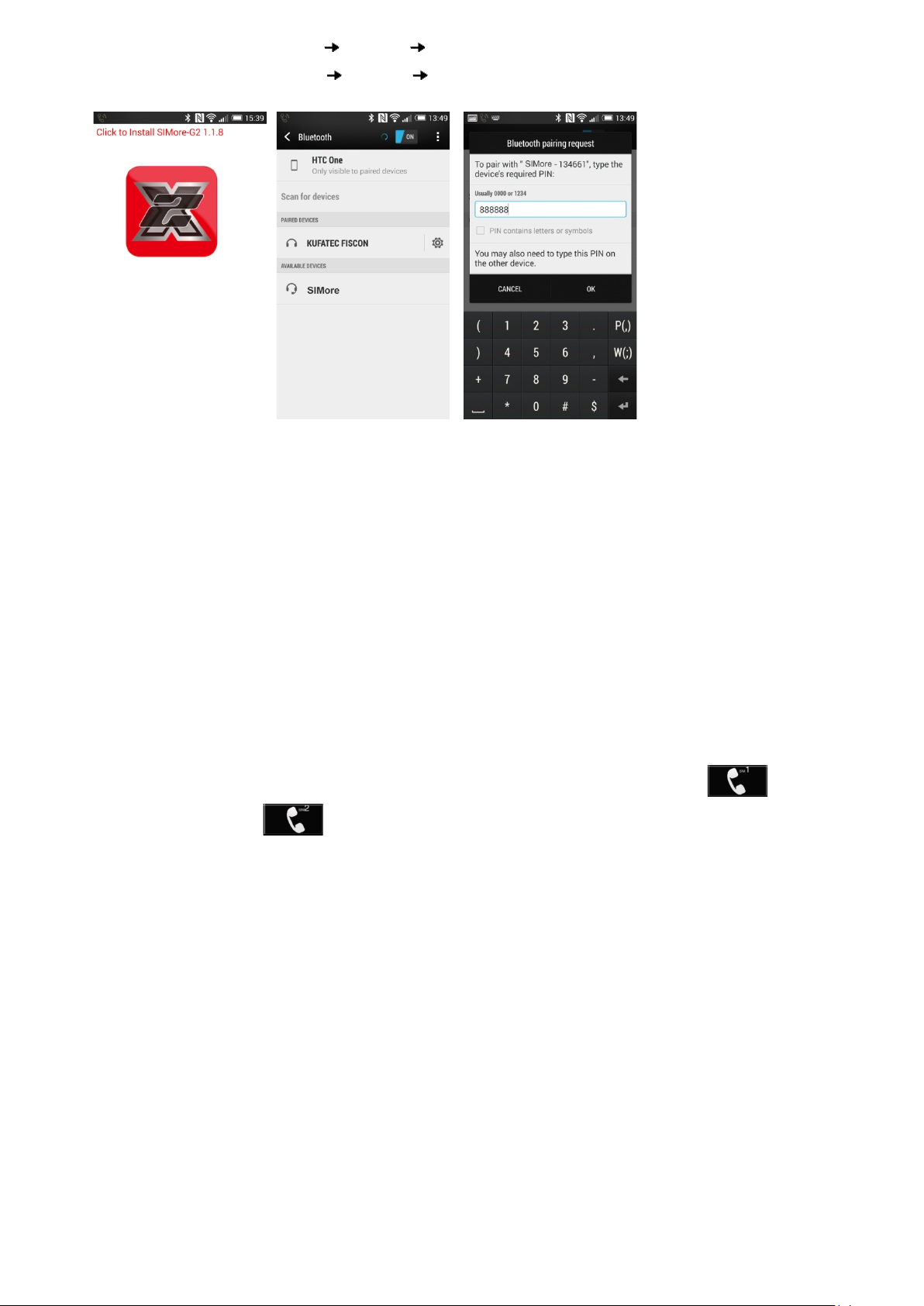
Open Android’s Settings: Settings Bluetooth Be sure “Bluetooth” is turned ON
Open Android’s Settings: Settings Bluetooth find the SIMore device and click on”SIMore” to connect
(image 16)
(picture 15) (picture 16) (picture 17)
B. Click on SIMore to “Pair” the device and enter the PIN code: 888888 (picture 17)
C. Open SIMore Settings : SIMore->Settings->Connection Settings-> click on”SIMore” name to connect.
The connection is successful when you hear a prompt tone.
D. Open the SIMore App and you are now ready to use it.
Note: Each SIMore G2 BlueBox device has its own Bluetooth ID. If you cannot find the device Bluetooth ID,
please refer to the ID sticker located on the SIM cover on the backside of the device to find the Bluetooth
number.
4. How to use the SIMore G2 BlueBox (Android version)
4.1 Voice Calls
4.1.1
To make a phone call: Click on “Keypad” and enter the number, then click on to make
a call with the SIM 1 or to make a call with the SIM 2 (as shown in picture 18).
4.1.2 To answer a call: When a call comes in, the mobile is ringing to inform user of a new incoming call.
(picture 19).
Page 6
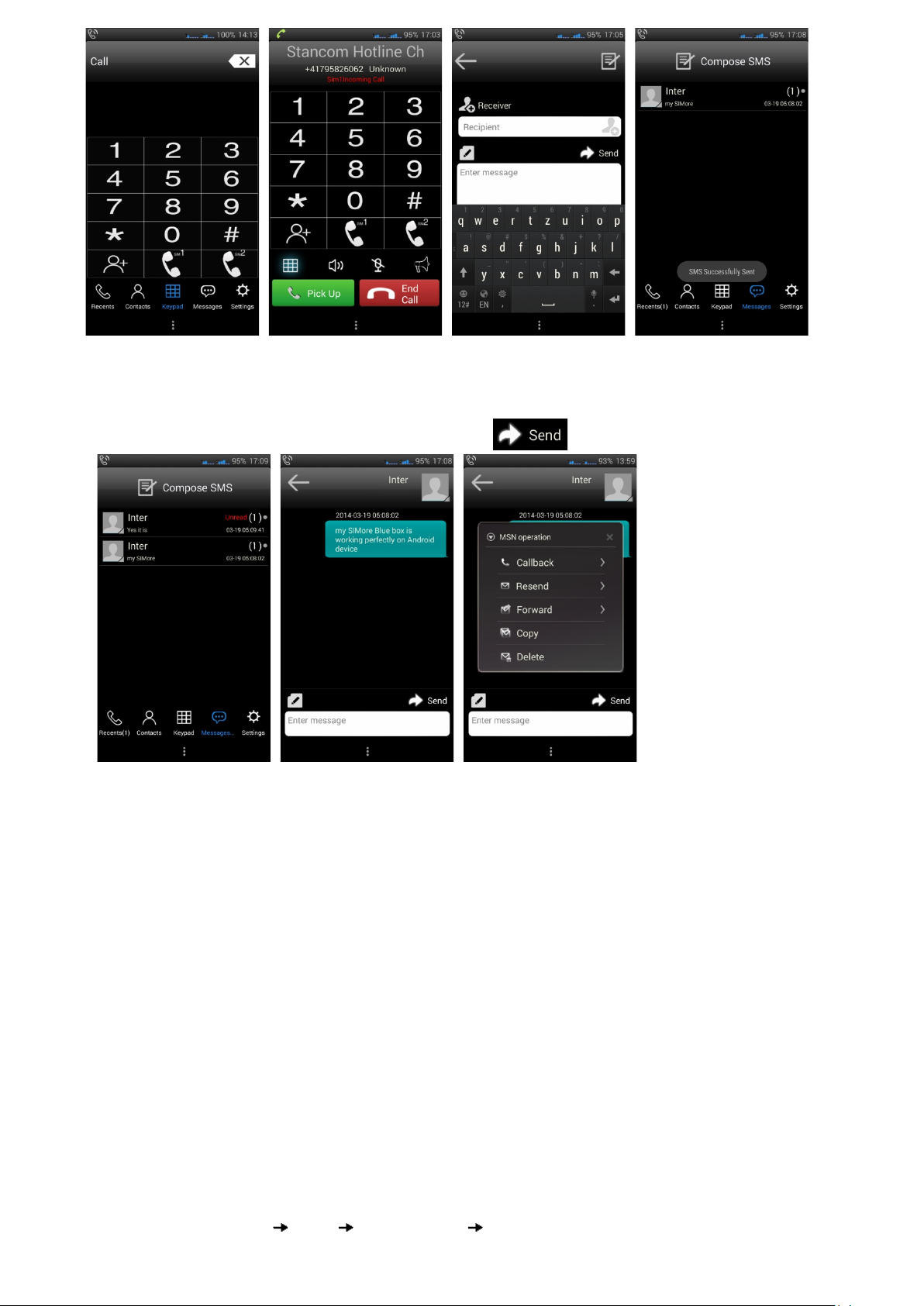
(picture 18) (picture 19) (picture 20) (picture 21)
4.2. SMS
4.2.1 Sending SMS: Go to “Message” and click on “Compose SMS” to compose a new message, enter the
number or select one in the Contacts list, then click on the button (pictures 20 & 21).
(picture 22) (picture 23) (picture 23)
4.2.2 Receiving SMS:
Once notified by a text message and/or SMS tone cue, open the SMS menu to view messages.
4.2.3 SMS List: Messages from the same phone number will be shown in a chat log format. There will be a
“Send failure” message if you failed to send an SMS. Draft messages will be labeled “Draft”. Unread
messages will be labeled “Unread”. (picture 22)
4.2.4 Mass SMS:
Send mass SMS messages by entering phone numbers directly or selecting from the phonebook. Be sure and
place a comma between each phone number.
4.2.5 Deleting SMS Messages (Delete all SMS messages attached to one number):
Select an SMS message from the SMS list, then press and hold. When a window pops up, you can then
choose to delete messages.
4.2.6 Callback, Delete (Delete single SMS), Resend, Copy: Open SMS from SMS list, choose one SMS, then
press and hold. When a window pops up, you can then choose to delete messages. (picture 23)
4.3.
Contacts & Phonebook
4.3.1 Importing Contacts from your Phonebook:
Open SIMore app: “SIMore Setting Device Manager Sync Contacts”.
Page 7

5. SIMORE G2 BLUEBOX (ANDROID VERSION) APPLICATION MANAGEMENT
5.1 Ringtone settings
Open SIMore app “SIMore Setting Ringtone”.
You can manage your call ringtone, your SMS ringtone and your connection status alert in the list.
5.2 Vibration Mode
Open SIMore app “SIMore Setting Vibration settings”.
You can manage and choose “Call vibrate” for incoming calls, “SMS vibrate” for SMS and “Device vibrate”.
5.3
Connecting to an Android device
A: Connect SIMore BlueBox to an Android device
Open SIMore app “SIMore Setting connection Settings select « SIMore » in the list to Pair.
B: Disconnect SIMore BlueBox from an Android device
Open SIMore app “SIMore Setting connection Settings Click on « Disconnect”.
8.4 Resolving Bluetooth connection issues on Android OS devices
If you are facing connection issues between the SIMore Bluebox and your Android device:
A. Be sure the PIN codes of the SIM cards inserted in SIMore device have been disable.
B. Open Android’s Settings : “Settings Bluetooth click on “SIMore” Unpair”
C. Open Android’s Settings : “Settings Bluetooth select “SIMore” in the Bluetooth list Pair”
Attention
6.
Avoidance Interferences
6.1
The SIMore BlueBox device will shut down in places where required shutdown of mobile equipment is
mandatory or unsafe, such as: airplanes, areas near medical equipment, fuel stations, chemicals, explosives,
or blasting zones.
6.2
Safe Driving
For your safety, please do not use SIMore BlueBox device while driving or operating a vehicle.
6.3
Accessories
Please only use verified accessories and batteries. The use of incompatible accessories may damage the
SIMore BlueBox.
6.4
Water Resistance
The SIMore BlueBox device is NOT waterproof, so please keep it dry. Do not use liquid or a wet cloth
containing strong detergents to clean your SIMore BlueBox. Make sure the device does not get close to any
liquid. If such situation occurs, please contact our customer service department or an authorized repair shop
6.5
Environment
Avoid using the SIMore BlueBox device in excessive high or low temperature environments. Also, avoid using
the SIMore BlueBox device for long periods of time in intense sunlight or in a high humidity environment.
<Please Note>: The Company will bear no responsibility for the consequences caused by the failure to
observe the recommendations mentioned above or from improper usage.
Page 8

7.
Warranty Information
Thanks for purchasing the SIMore BlueBox; please make note of the following:
7.1 We provide a one-year limited warranty based on the purchase date and under normal usage.
7.2 In the warranty period, you can take your SIMore Bluebox to the reseller or just mail it to the repair
center with the invoice and Warranty Card if the product is out of work (please check the general sales
conditions and the return policy of the reseller).
7.3 The warranty does not apply:
- To cosmetic damage, including but not limited to scratches, dents, broken pins or connectors, connectors
damaged, cracked, missing or broken, cracked components on the circuit board, cover battered, deep
scratches, components and / or damaged printed circuit, etc.
- To damage caused by misuse, for example: self-disassembling or other human factors.
- To damage caused by dropping the device, liquid contact, fire, earthquake or other external causes.
- If the Warranty Card or the invoice is not available or the Warranty Card has been altered (without the
reseller’s stamp, or does not match the product ID #.)
- The warranty is invalid without the reseller’s stamp or signature.
 Loading...