

Page 1
Industrial Controls
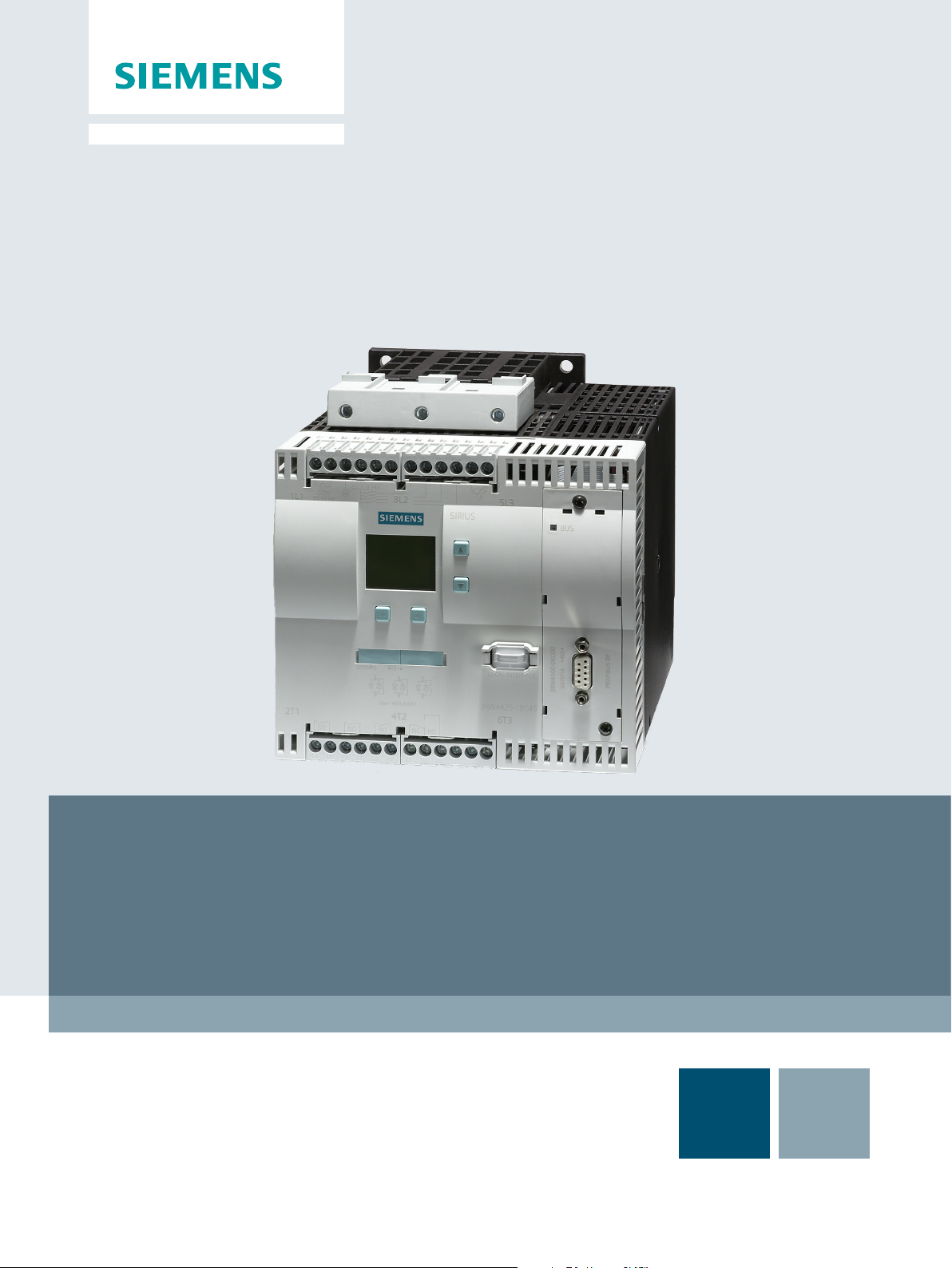
Function Block Library SIRIUS Soft Starter 3RW44 for SIMATIC PCS 7
SIRIUS Soft Starter 3RW44 PCS 7 Library V8.2
Getting Started
Edition 07/2016
Answers for industry.
Page 2

Page 3
SIRIUS Soft Starter 3RW44 PCS 7
Library V8.2
___________________
___________________
___________________
___________________
___________________
___________________
___________________
Industrial Controls
SIRIUS Soft Starter 3RW44
SIRIUS Soft Starter 3RW44 PCS 7
Library V8.2
Getting Started
07/2016
A5E36563533002A/RS
Preface
1
Security information
2
Product specific security
information
3
Introduction
4
Getting Started
5
References
6
List of Abbreviations
7
-AA/001
Page 4
Siemens AG
Division Digital Factory
Postfach 48 48
90026 NÜRNBERG
GERMANY
3ZX1012-0CS16-2CC1
Ⓟ
Copyright © Siemens AG 2016.
All rights reserved
Legal information
Warning notice system
DANGER
indicates that death or severe personal injury will result if proper precautions are not taken.
WARNING
indicates that death or severe personal injury may result if proper precautions are not taken.
CAUTION
indicates that minor personal injury can result if proper precautions are not taken.
NOTICE
indicates that property damage can result if proper precautions are not taken.
Qualified Personnel
personnel qualified
Proper use of Siemens products
WARNING
Siemens products may only be used for the applications described in the catalog and in the relevant technical
ambient conditions must be complied with. The information in the relevant documentation must be observed.
Trademarks
Disclaimer of Liability
This manual contains notices you have to observe in order to ensure your personal safety, as well as to prevent
damage to property. The notices referring to your personal safety are highlighted in the manual by a safety alert
symbol, notices referring only to property damage have no safety alert symbol. These notices shown below are
graded according to the degree of danger.
If more than one degree of danger is present, the warning notice representing the highest degree of danger will
be used. A notice warning of injury to persons with a safety alert symbol may also include a warning relating to
property damage.
The product/system described in this documentation may be operated only by
task in accordance with the relevant documentation, in particular its warning notices and safety instructions.
Qualified personnel are those who, based on their training and experience, are capable of identifying risks and
avoiding potential hazards when working with these products/systems.
Note the following:
for the specific
documentation. If products and components from other manufacturers are used, these must be recommended
or approved by Siemens. Proper transport, storage, installation, assembly, commissioning, operation and
maintenance are required to ensure that the products operate safely and without any problems. The permissible
All names identified by ® are registered trademarks of Siemens AG. The remaining trademarks in this publication
may be trademarks whose use by third parties for their own purposes could violate the rights of the owner.
We have reviewed the contents of this publication to ensure consistency with the hardware and software
described. Since variance cannot be precluded entirely, we cannot guarantee full consistency. However, the
information in this publication is reviewed regularly and any necessary corrections are included in subsequent
editions.
07/2016 Subject to change
Page 5

Table of contents
1 Preface ...................................................................................................................................................... 7
2 Security information ................................................................................................................................. 11
3 Product specific security information........................................................................................................ 13
4 Introduction .............................................................................................................................................. 15
5 Getting Started ........................................................................................................................................ 17
6 References .............................................................................................................................................. 35
7 List of Abbreviations ................................................................................................................................ 37
4.1 Introduction ............................................................................................................................. 15
5.1 Installation ............................................................................................................................... 17
5.2 HW Config ............................................................................................................................... 18
5.3 CFC ......................................................................................................................................... 20
5.4 Operator Station ...................................................................................................................... 25
7.1 Abbreviations .......................................................................................................................... 37
SIRIUS Soft Starter 3RW44 PCS 7 Library V8.2
Getting Started, 07/2016, A5E36563533002A/RS-AA/001
5
Page 6

Table of contents
SIRIUS Soft Starter 3RW44 PCS 7 Library V8.2
6 Getting Started, 07/2016, A5E36563533002A/RS-AA/001
Page 7

1
Brief description
Requirements
Conventions
The Getting Started of the PCS 7 library for SIRIUS Soft Starter uses a simple example
project to show you the basic procedures:
● Basic configuration steps
● Handling and monitoring different signal blocks
● Parameterization
This Getting Started manual is intended to be an introduction and largely dispenses with
detailed information and background information.
Basic knowledge of creating a PCS 7 project is necessary. You will find information about
this in the Process Control System PCS 7; Getting Started (V8.0 or higher with APL)
documentation on the Internet
(https://support.industry.siemens.com/cs/document/109485954
).
This documentation contains designations of the software interface elements. If you have
installed a multi-language package for the operating system, some of the designations will
be displayed in the base language of the operating system after a language switch and will,
therefore, differ from the designations used in this documentation.
SIRIUS Soft Starter 3RW44 PCS 7 Library V8.2
Getting Started, 07/2016, A5E36563533002A/RS-AA/001
7
Page 8
Preface
Software required for the Getting Started of the PCS 7 block library for Soft Starters
Note
The versions required depend on the version of PCS 7 installed.
Hardware required for creating an example project
Order number
Description
DPV1 functionality following a Y link.
● You can execute the example project on any PC or programming device on which the
following software is installed:
– Windows operating system
– Internet Explorer
– Message Queuing service
– SQL server
You can find further relevant details in the following manuals:
– SIMATIC Process Control System PCS 7 PC Configuration and Authorization (V8.0)
on the Internet (https://support.industry.siemens.com/cs/document/68157327/
– SIMATIC Process Control System PCS 7 Released Modules (V8.0) on the Internet
(https://support.industry.siemens.com/cs/document/109736547/
).
).
● You create the PCS 7 project with SIMATIC Manager.
To do so, follow the instructions in the Process Control System PCS 7; Getting Started
documentation.
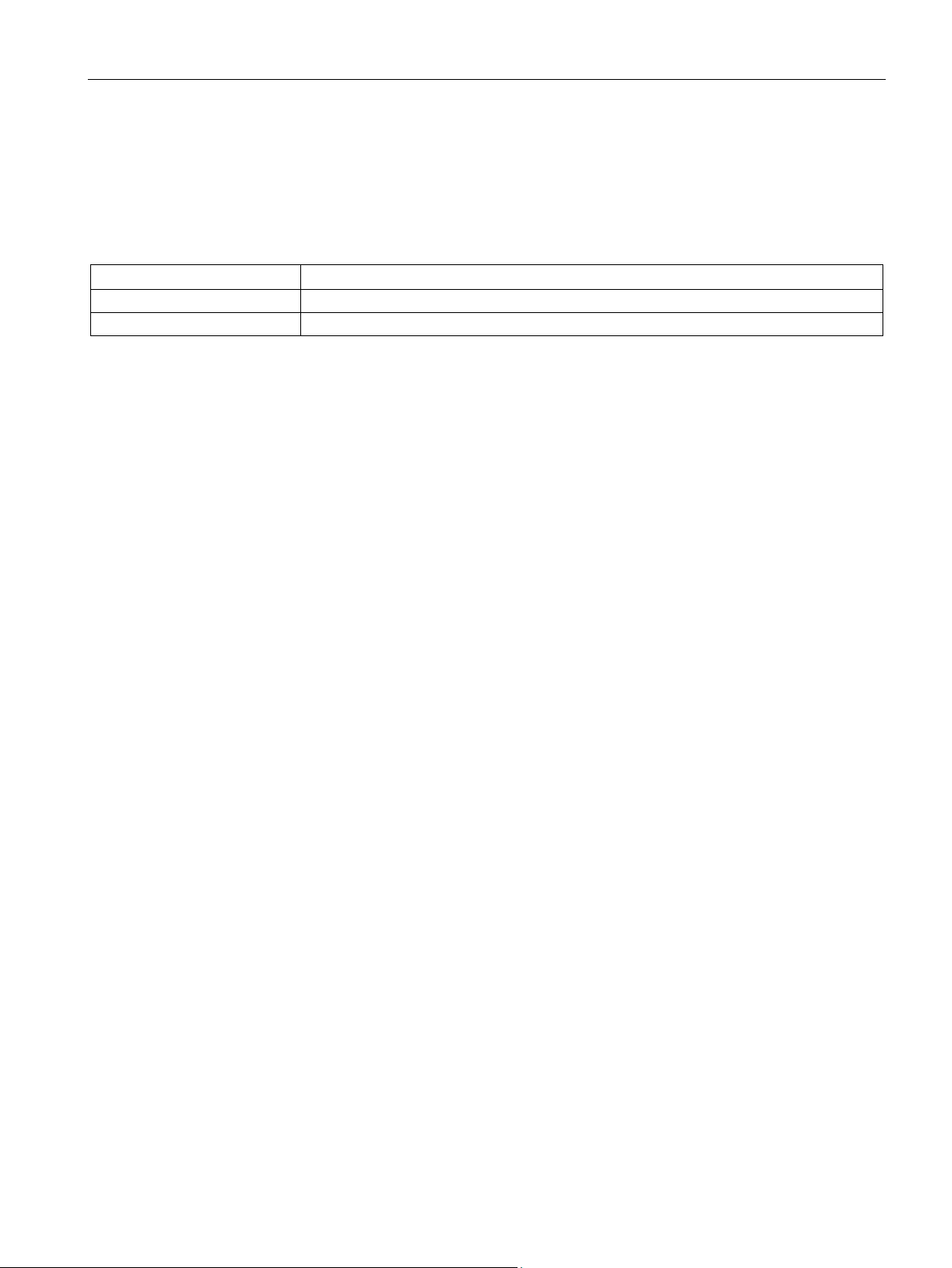
Table 1- 1 Soft Starter hardware
3RW4422-1BC44 SIRIUS Soft Starter, values with 400 V, 40 DEG., Standard: 29 A, 15 KW, inside-delta
circuit: 50 A, 22 KW, 200 … 460 V AC, 230 V AC, screw terminals
3RW4900-0KC00 Communication board PROFIBUS for SIRIUS Soft Starter 3RW44
Note on the firmware version
If the Soft Starter is operated as a DP slave following a Y link with a firmware version
<=*E03*, no DPV1 functionality is available. Firmware version >=*E04* is required for
SIRIUS Soft Starter 3RW44 PCS 7 Library V8.2
8 Getting Started, 07/2016, A5E36563533002A/RS-AA/001
Page 9
Preface
Creating a PCS 7 project
Order number
Description
6ES7 410-5HX08-0AB0
SIMATIC S7-400, CPU 410-5H with 1*DP and 2*PN interfaces
This PCS 7 example project was created with the following hardware for the automation
station (AS):
Table 1- 2 Hardware - Automation station 1: Configuration direct on the master system
6ES7 407-0KA02-0AA0 SIMATIC S7-400, power supply PS 407 10A, AC 120/230V/10A standard PS
SIRIUS Soft Starter 3RW44 PCS 7 Library V8.2
Getting Started, 07/2016, A5E36563533002A/RS-AA/001
9
Page 10

Preface
SIRIUS Soft Starter 3RW44 PCS 7 Library V8.2
10 Getting Started, 07/2016, A5E36563533002A/RS-AA/001
Page 11

2
Siemens provides products and solutions with industrial security functions that support the
secure operation of plants, systems, machines and networks.
In order to protect plants, systems, machines and networks against cyber threats, it is
necessary to implement – and continuously maintain – a holistic, state-of-the-art industrial
security concept. Siemens’ products and solutions only form one element of such a concept.
Customer is responsible to prevent unauthorized access to its plants, systems, machines
and networks. Systems, machines and components should only be connected to the
enterprise network or the internet if and to the extent necessary and with appropriate security
measures (e.g. use of firewalls and network segmentation) in place.
Additionally, Siemens’ guidance on appropriate security measures should be taken into
account. For more information about industrial security, please visit:
h
www.siemens.com/industrialsecurity
ttp://
iemens’ products and solutions undergo continuous development to make them more
S
secure. Siemens strongly recommends to apply product updates as soon as available and to
always use the latest product versions. Use of product versions that are no longer supported,
and failure to apply latest updates may increase customer’s exposure to cyber threats.
To stay informed about product updates, subscribe to the Siemens Industrial Security RSS
Feed under:
http://www.siemens.com/industrialsecurity
SIRIUS Soft Starter 3RW44 PCS 7 Library V8.2
Getting Started, 07/2016, A5E36563533002A/RS-AA/001
11
Page 12

Security information
SIRIUS Soft Starter 3RW44 PCS 7 Library V8.2
12 Getting Started, 07/2016, A5E36563533002A/RS-AA/001
Page 13

3
Product specific security information
This library is designed to run under the PCS 7 environment. Therefore, it is recommended
to follow the security principles for PCS 7 to support a secure operation, such as:
● User rights
● Password protection of
– WinCC
For more information, click here
(https://support.industry.siemens.com/cs/document/60119725
).
SIRIUS Soft Starter 3RW44 PCS 7 Library V8.2
Getting Started, 07/2016, A5E36563533002A/RS-AA/001
13
Page 14

Product specific security information
SIRIUS Soft Starter 3RW44 PCS 7 Library V8.2
14 Getting Started, 07/2016, A5E36563533002A/RS-AA/001
Page 15

Introduction
4.1 Introduction
Introduction
This document explains the basic principles of using the PCS 7 Library for Soft Starter
3RW44. The PCS 7 Library for Soft Starter 3RW44 is designed according to APL standards
for both, blocks and faceplates. This library contains CFC templates to fulfill the control
function of a Soft Starter device.
For reducing configuration time, a module driver generator is included with this library. By
using this driver generator it is ensured that all necessary interconnections will be handled
automatically by the system and the device is ready to operate in PCS 7 environment.
Custom configuration can be done by the user as well. User manual and online help will give
detailed information about the blocks and their input and output pins.
This document will guide you through the necessary steps for using the template and the
module driver generator in a PCS 7 environment using a sample project. This sample uses
minimum hardware, single station, one PLC connected to one Soft Starter via PROFIBUS.
Prerequisites
4
User
PCS 7 knowledge:
● Project creation
● HW-Config
● CFC-Editor
● WinCC-Explorer
● WinCC
Refer "Process Control System PCS 7 Getting Started
(https://support.industry.siemens.com/cs/document/109485954)" for further details. You can
find the manuals for your PCS 7 Version in the manual collection.
SIRIUS Soft Starter 3RW44 PCS 7 Library V8.2
Getting Started, 07/2016, A5E36563533002A/RS-AA/001
15
Page 16

Introduction
4.1 Introduction
System
● Installed and compatible PCS 7 version
● Installed Soft Starter 3RW44 library
● PCS 7 Multiproject (created by Project-Wizard).
Refer to Readme-File for this library for software details and steps to follow to migrate the
existing project.
Communication
Active communication network between Engineering Station (ES)/Operator Station (OS) and
the PLC.
SIRIUS Soft Starter 3RW44 PCS 7 Library V8.2
16 Getting Started, 07/2016, A5E36563533002A/RS-AA/001
Page 17

5
5.1
Installation
Installation
AS
OS
Single Station
X
X
AS OS
Engineering Station
X
-
The Setup program will guide you through the required steps. Use "< Back" and "Next >"
buttons to navigate through the screens during the installation process. The installation
program supports German and English. You can choose your language at the initial screen.
The Library Soft Starter 3RW44 has two components:
● AS = Components for Automation System
● OS = Components for Operator Station
For example, this library has:
● Library for Soft Starter 3RW44 PCS 7 V8.2 AS
● Faceplates for Soft Starter 3RW44 PCS 7 V8.2 OS
Installation program will ask you to decide, which product you want to install. Below is the
decision matrix:
"X" - required, "-" - not required
Distributed System
Operator Station - X
SIRIUS Soft Starter 3RW44 PCS 7 Library V8.2
Getting Started, 07/2016, A5E36563533002A/RS-AA/001
17
Page 18
Getting Started
5.2
HW Config
HW Config
Standard
Communication
Integration
Catalog path
starter
EDD
PROFIBUS DP > Switching Devices
> Motor starter > Direct soft starter
EDD
GSD
Station Window
Station
Window
Configuration via
PDM
Object Properties
Station Window
Parameter configuration:
GSD
Properties
Parameters
EDD
Configuration via PDM
5.2 HW Config
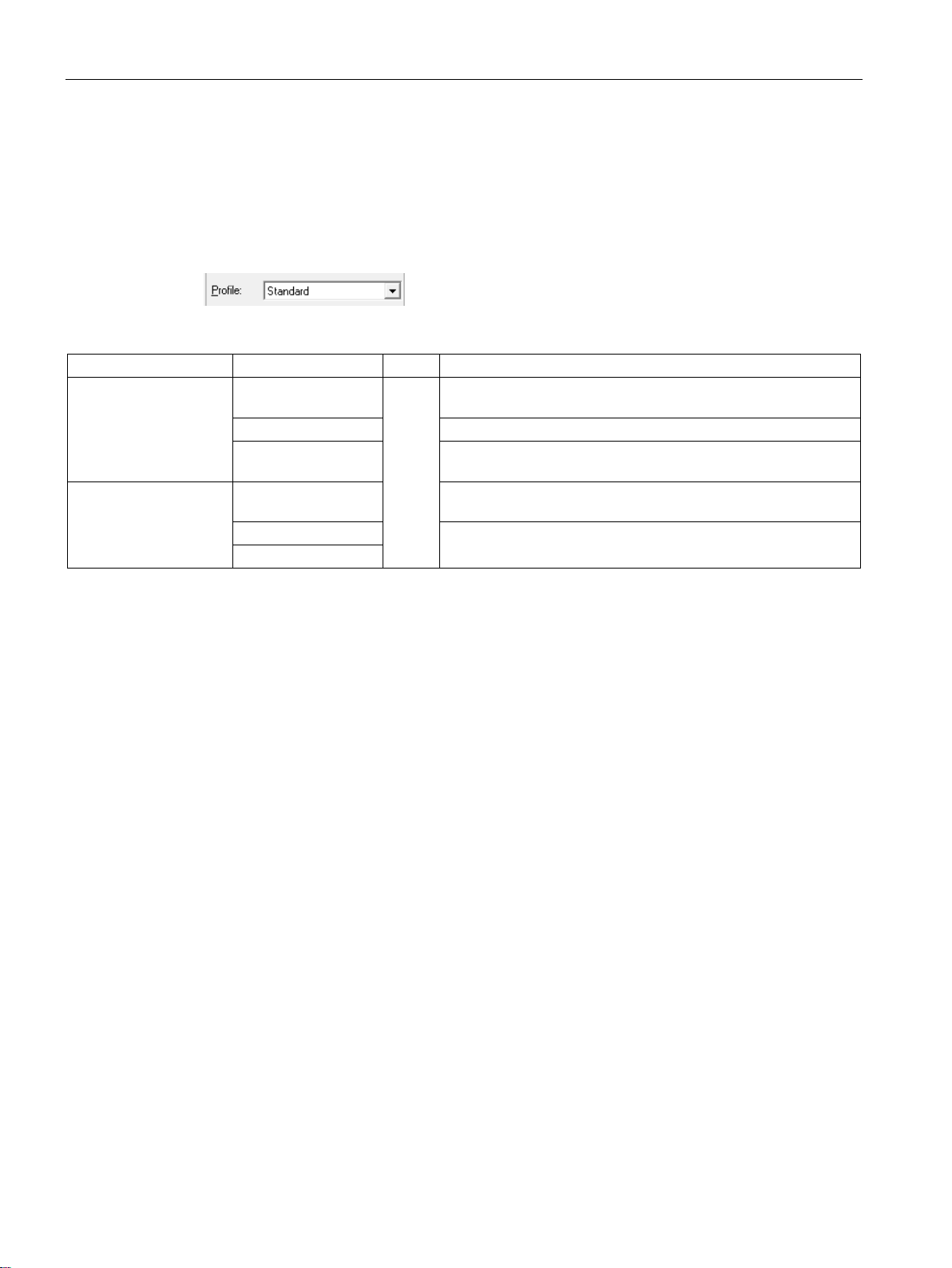
Open HW-Config and switch the hardware catalog profile to
:
Below are the Soft Starter objects for:
PROFIBUS OM1 at PROFIBUS DP > Switching Devices > Motor starter > Direct soft
2,3
2,3
GSD
PROFIBUS DP > Additional Field Devices > Switching Devices
PROFINET OM1 PROFINET IO > Switching devices > Motor starter > Direct soft
starter > 3RW44
1,4
1,4
1
Select the Soft Starter object according to the existing hardware. By selecting an object
PROFINET IO > Switching devices > Motor starter > GSD5 >
Direct soft starter > 3RW44
inside the hardware catalog, additional information will be displayed in the information area,
at the bottom of the hardware catalog (e.g.: article number).
2
Once the Soft Starter object is instantiated inside the
, you need to configure
a module which matches the existing hardware. Select the correct module by its article
number and drag and drop it to slot 1 of the instantiated Soft Starter object inside
3
EDD and GSD objects support a variety of different Firmware-Versions. Choose the one
.
which supports the hardware version.
4
The same object is used for GSD and EDD integration in HW-Config.
for EDD support needs to be activated by the user in
(Alt+Return) of
the Soft Starter object.
5
Folder entry GSD will be created in case of parallel integration of Soft Starter OM,
integrated via Soft Starter ES.
Drag and drop the desired Soft Starter-Object into the
PROFIBUS resp. PROFINET line.
Double click the module in slot one of the Soft Starter object. The
Switch to the tab
If
SIMATIC PDM. Use PDM to configure the Soft Starter device.
SIRIUS Soft Starter 3RW44 PCS 7 Library V8.2
18 Getting Started, 07/2016, A5E36563533002A/RS-AA/001
and connect it with
.
dialog opens.
is activated, a double click on the Soft Starter object opens
Page 19
Getting Started
OM
Soft Starter ES
Properties
Parameter
Parameter. Soft Starter ES
Input address
Note
Note it down or insert it in symbol table of HW
Options > Symbol Table
Ctrl+Alt+T)
for l
5.2 HW Config
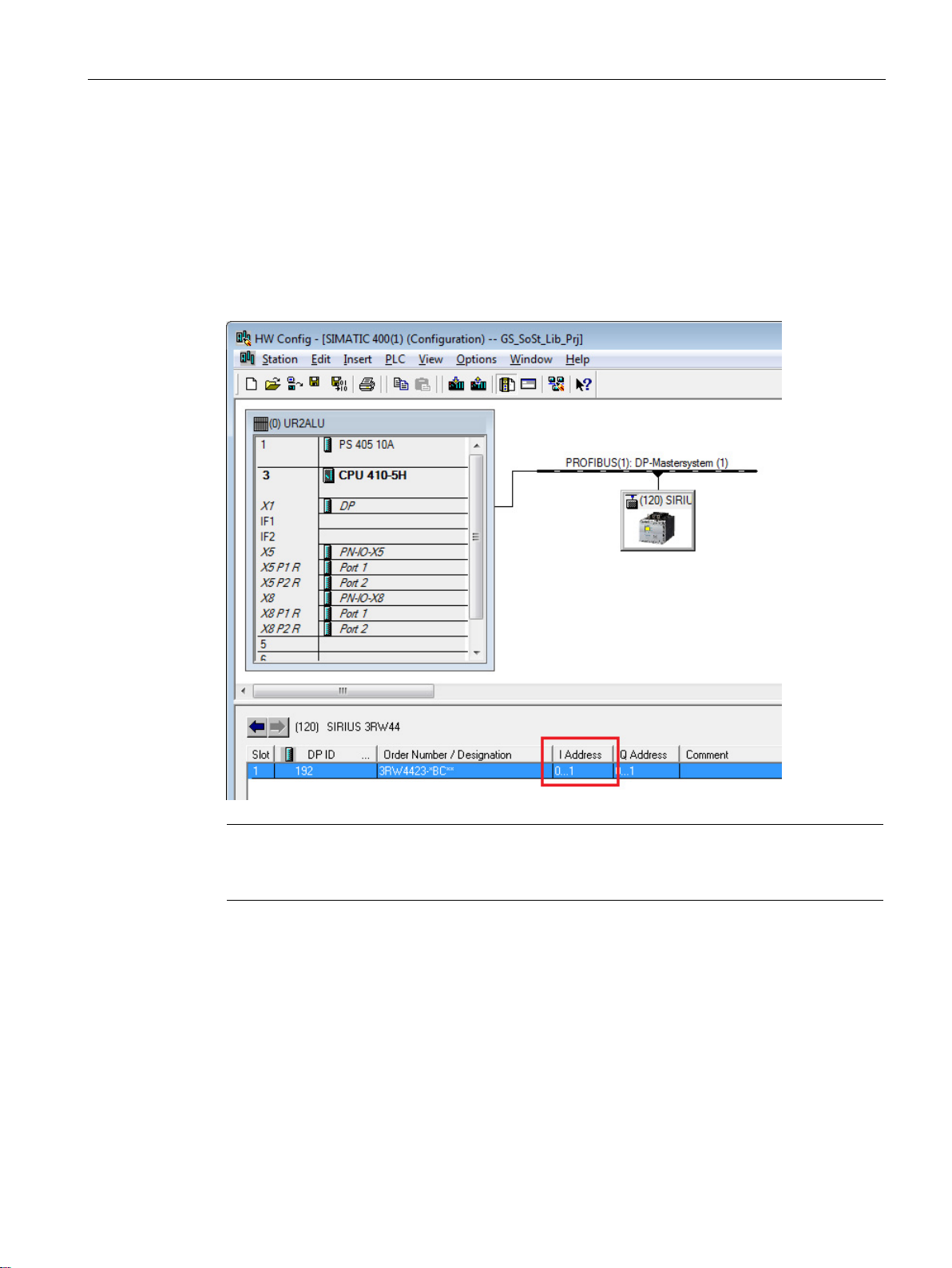
Use
Config by double clicking the module in slot 1 of the Soft Starter object. The
dialog opens. Switch to tab
to configure the Soft Starter device. It may be activated out of HW-
and click the button
opens.
Retrieve the input address of the Soft Starter device.
ater usage.
SIRIUS Soft Starter 3RW44 PCS 7 Library V8.2
Getting Started, 07/2016, A5E36563533002A/RS-AA/001
-Config (
or
19
Page 20
Getting Started
5.3
CFC
Libraries
5.3 CFC
Master data library
CFC Template
For using the library in a plant, it is recommended to store the Soft Starter template in the
Master data library. Since this would be beyond the scope of this document, we recommend
you to take a look in: Process Control System PCS 7 CFC for SIMATIC S7 Function manual
(https://support.industry.siemens.com/cs/document/109736727
With the template stored in the Master data library, follow the below steps.
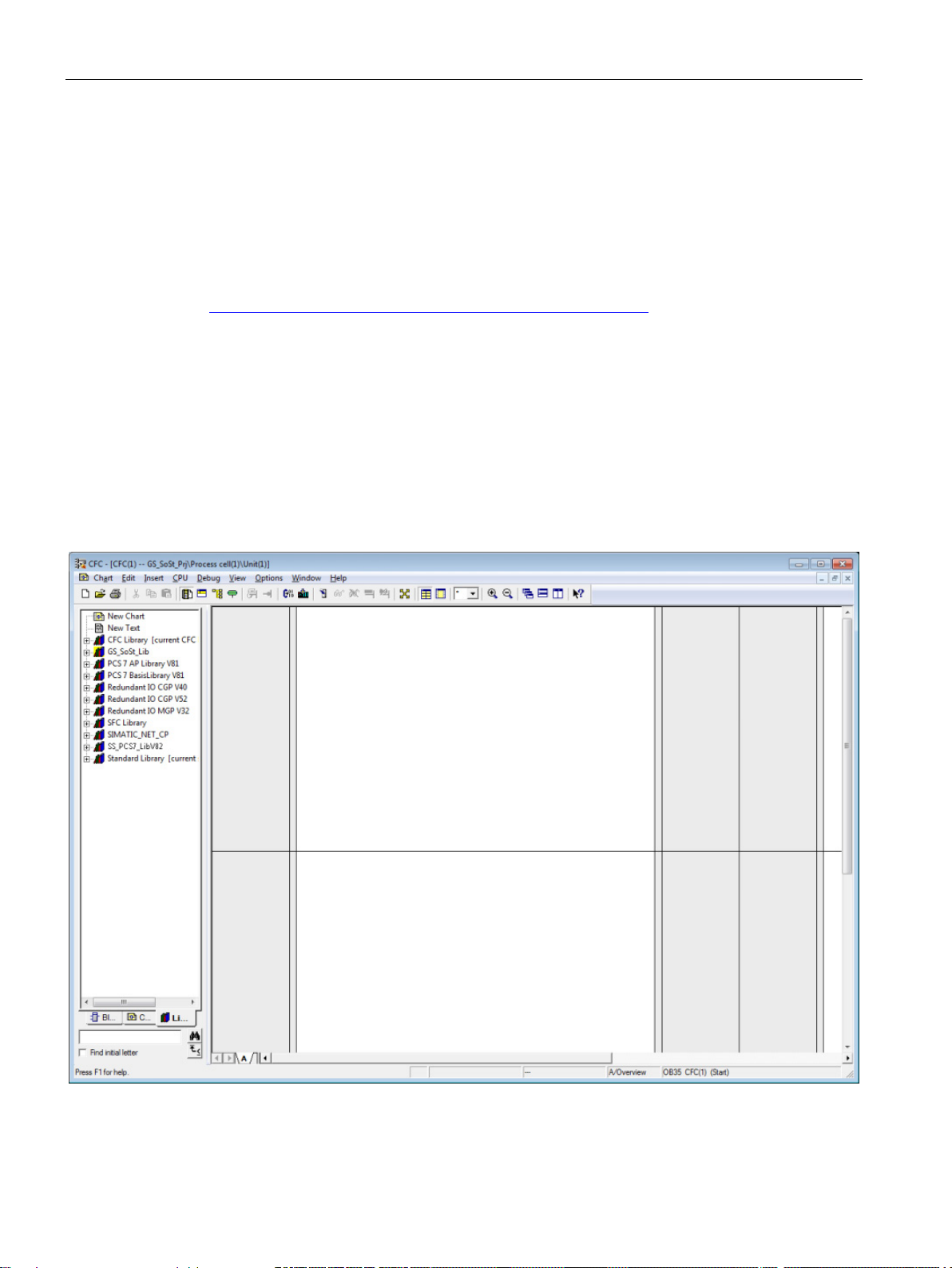
1. Open CFC-Editor by double clicking on the desired CFC-Object.
2. Select the tab
Soft Starter PCS 7 Library were placed in the Master data library, you will find them in
the project library folder (Notation: "Project Name"+"_Lib" e.g.: GS_SoSt_Lib).
Otherwise you will find the templates in the Soft Starter Library (e.g.: SS_PCS7_LibV82)
, located underneath the Catalog view. If the templates of 3RW44
).
SIRIUS Soft Starter 3RW44 PCS 7 Library V8.2
20 Getting Started, 07/2016, A5E36563533002A/RS-AA/001
Page 21
Getting Started
Blocks
Charts
Direct_Soft_Starter
Direct_Soft_Starter
Direct_Soft_Starter
Direct_Soft_Starter
Open
5.3 CFC
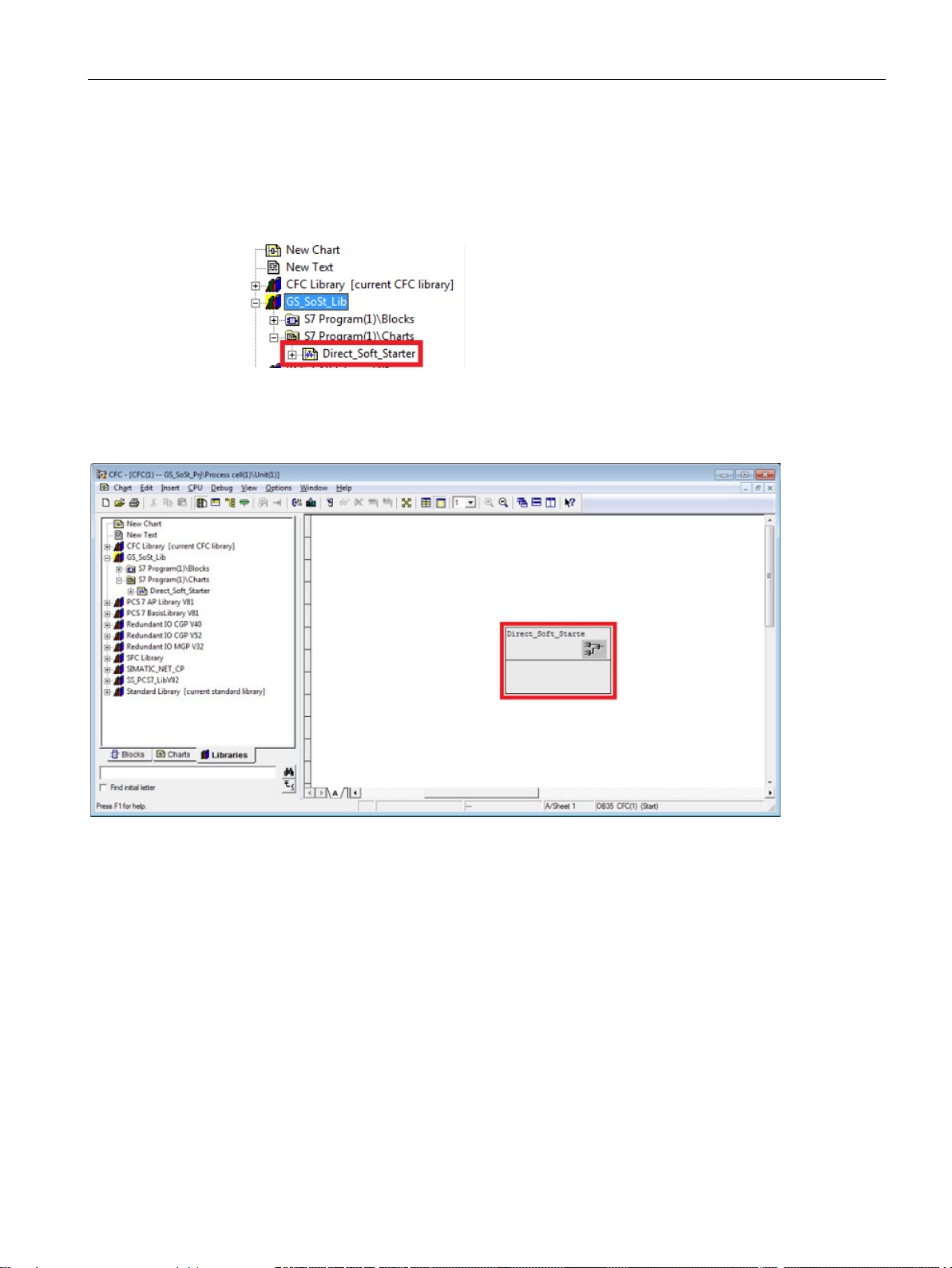
3. Expand the Master data library node ("ProjName" + "_Lib" e.g.: GS_SoSt_Lib). You will
find two nodes:
–
–
4. Expand the Charts node. Now you will see the
template.
5. Drag the
in the Chart view.
The
object by pressing the left mouse button and drop the object
template is now instantiated.
Open the Template
1. Right click on the instantiated
. The template opens in a new chart view.
SIRIUS Soft Starter 3RW44 PCS 7 Library V8.2
Getting Started, 07/2016, A5E36563533002A/RS-AA/001
template in the chart view and select
21
Page 22
Getting Started
Set I/O
Input address of 3RW44 Soft Starter device
Input address of 3RW44 Soft Starter device
Interconnection to
Address.
IW0
5.3 CFC
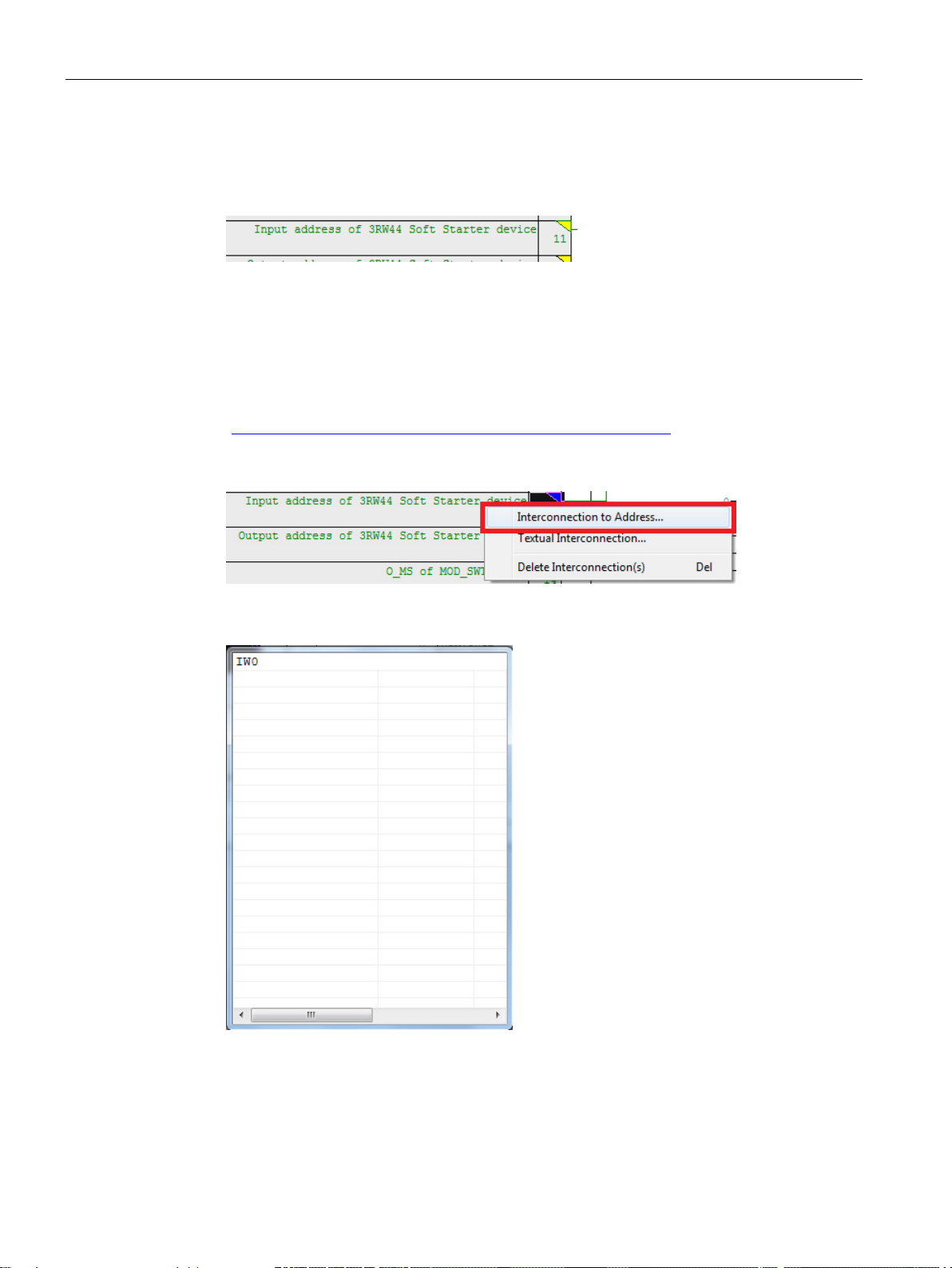
1. Scroll to the left, till you see the sheet bar. There you will find a textual interconnection
named
Now you have two options:
– Setting the HW input address manually, as seen in HW-Config.
– Use symbol table for selecting the input address.
Since this is a short example, we will just hand over the devices input address as it is
displayed in HW-Config. We recommend using the symbol table for large projects. Refer
"SIMATIC Process Control System PCS 7 Engineering System
(https://support.industry.siemens.com/cs/document/109485969
.
)".
2. Right click on
A symbol table like dialog opens.
Insert the input address, in this case:
and select
.
3. Confirm the input value by pressing enter. Now the blocks input address is connected to
the devices input address.
SIRIUS Soft Starter 3RW44 PCS 7 Library V8.2
22 Getting Started, 07/2016, A5E36563533002A/RS-AA/001
Page 23
Getting Started
SSMeas, SSStat
Interconnection to Address
Note
If you do not want to use the additional functions, you are free to delete the function blocks in
question or all blocks in sheet 2.
Result:
Chart > Compile > Chart as Program
Ctrl+B
Generate module drivers
Logs
Close
5.3 CFC
SSMeas and SSStat
If you want to use measurement and/or statistic values (
device, you need to switch to sheet view 2 in the CFC plan. There you will find the additional
blocks for the mentioned functions.
Repeat the
Generate module drivers
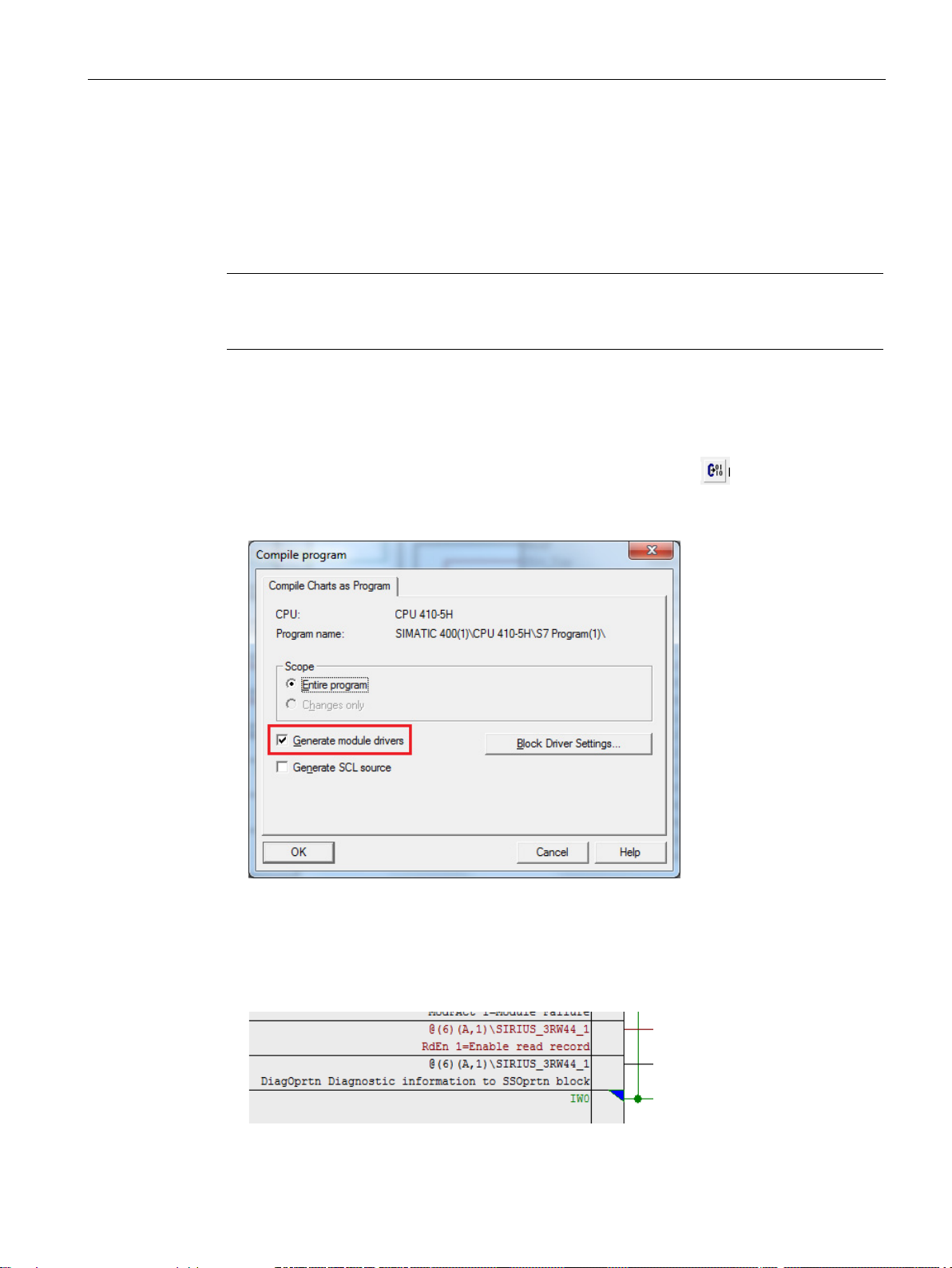
1. Go to
Compile dialog opens.
2. Ensure that the option
steps from above for this sheet.
Basic block set up is now complete.
or hit
is checked in.
) for the Soft Starter
or click in the toolbar. The
3. Confirm dialog with the OK-Button. After compilation has finished,
displayed.
4. Confirm this dialog by the
button.
5. Back in the chart view, hit F5. The view will be updated and you will see all textual
interconnections replaced by the according block interconnection.
SIRIUS Soft Starter 3RW44 PCS 7 Library V8.2
Getting Started, 07/2016, A5E36563533002A/RS-AA/001
dialog will be
23
Page 24

Getting Started
CPU > Download
CTRL+L
Result:
5.3 CFC
Download
The CFC-Template is now ready for download.
Go to
Template set up is now complete and ready to use.
or hit
or use in the toolbar.
SIRIUS Soft Starter 3RW44 PCS 7 Library V8.2
24 Getting Started, 07/2016, A5E36563533002A/RS-AA/001
Page 25
Getting Started
5.4
Operator Station
Operator Station
Block Icons
Activate Block icons
SSOprtn
SSOprtn
SSOprtn
Object Properties
5.4 Operator Station
Block icons and faceplates are inserted in the project while compiling the Operator Station
(OS). Compile the OS.
You can find details on how to work with the Operator Station in the manual: SIMATIC
Process Control System PCS 7 Operator Station.
(https://support.industry.siemens.com/cs/document/109485970
)
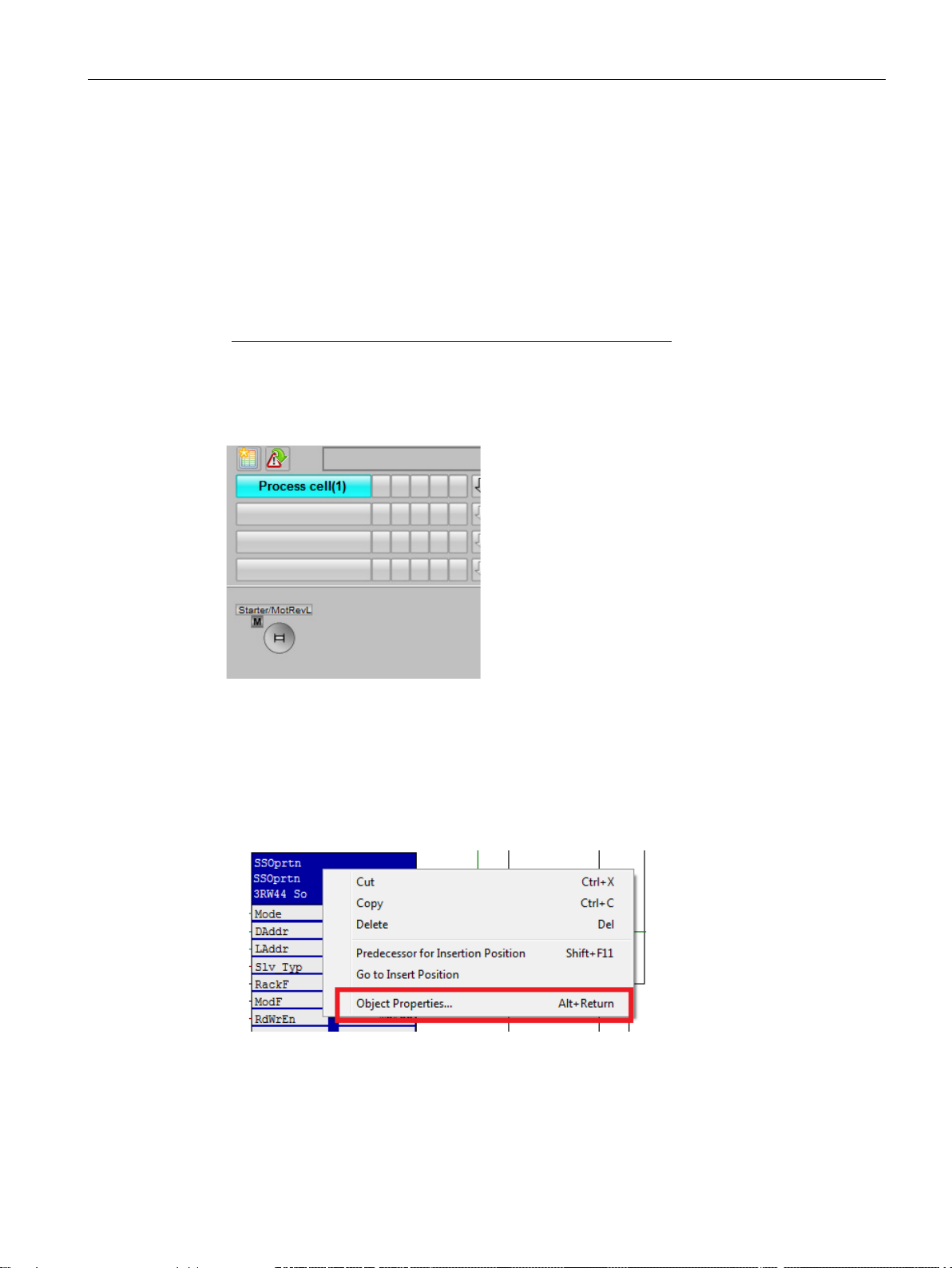
After activating WinCC you will find the block icon for the motor block:
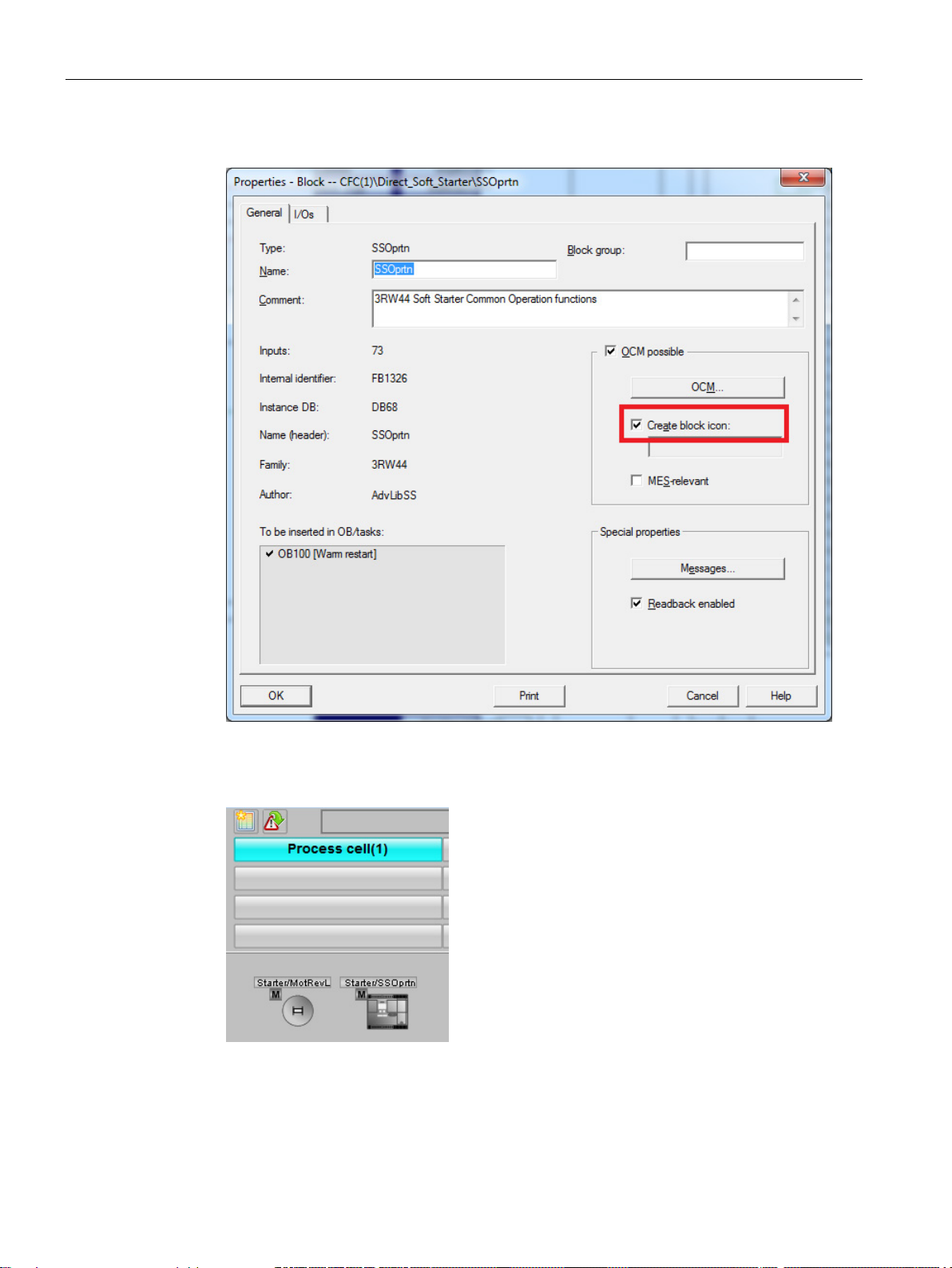
This library is also shipped with block icon for
need
1. Open CFC-Editor.
2. Select the
3. Right click and select
block icon you can simply activate it:
block.
in the context menu.
. It is disabled by default setting. If you
SIRIUS Soft Starter 3RW44 PCS 7 Library V8.2
Getting Started, 07/2016, A5E36563533002A/RS-AA/001
25
Page 26
Getting Started
Create block icon
Properties
MotRevL
SSOprtn
5.4 Operator Station
4. Check in the checkbox for
.
5. Confirm the
dialog by clicking OK.
6. Compile the OS and activate WinCC. Now you will find two block icons:
.
and
SIRIUS Soft Starter 3RW44 PCS 7 Library V8.2
26 Getting Started, 07/2016, A5E36563533002A/RS-AA/001
Page 27
Getting Started
MotRevL
SSOprtn
APL - MotRevL
5.4 Operator Station
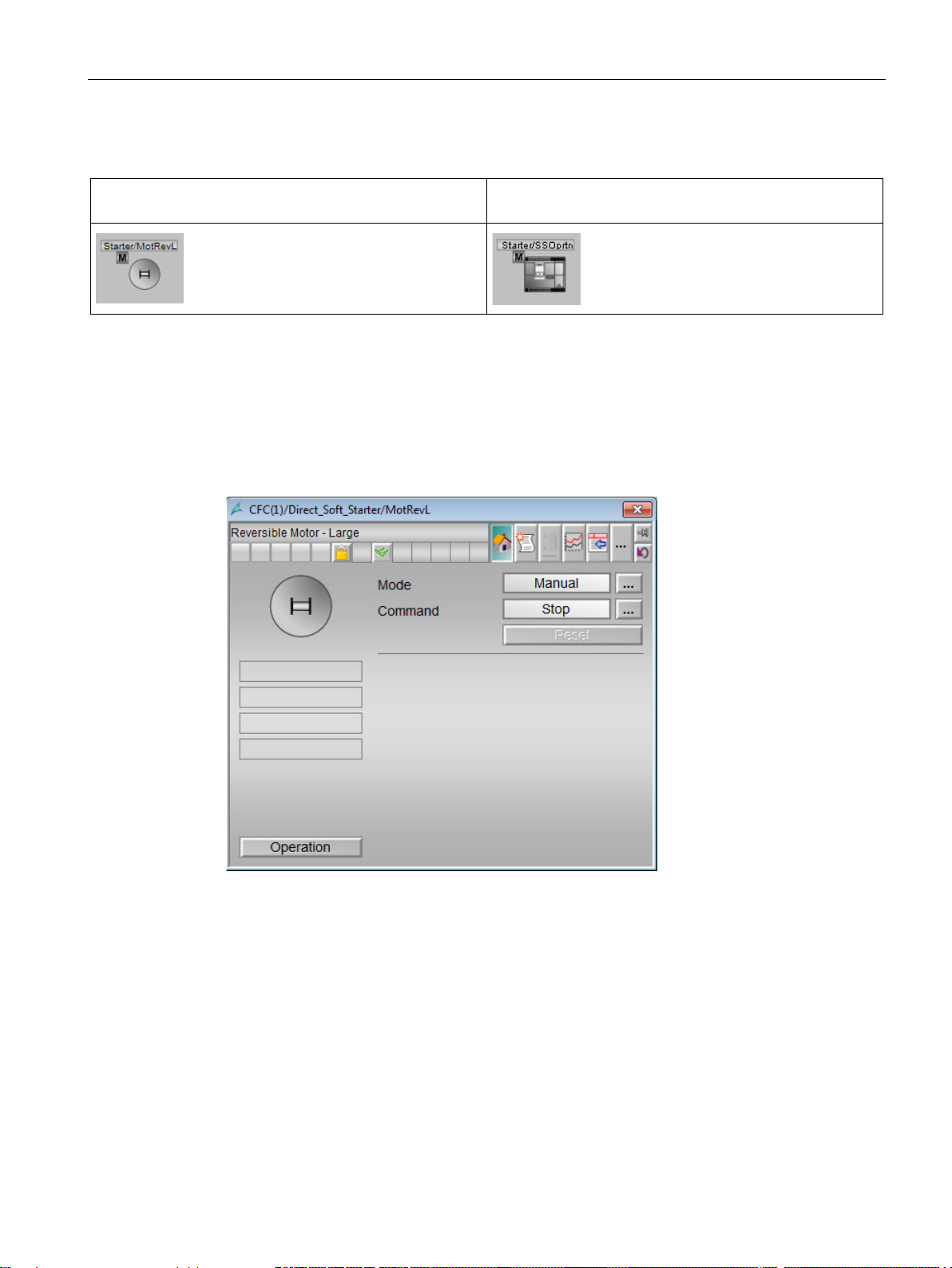
The block icons in detail are:
Reversible Motor - Large
Soft Starter Common Operation functions
Faceplates
The block icons give a general feedback of the current device status to the user. Open a
faceplate for detailed information about the device.
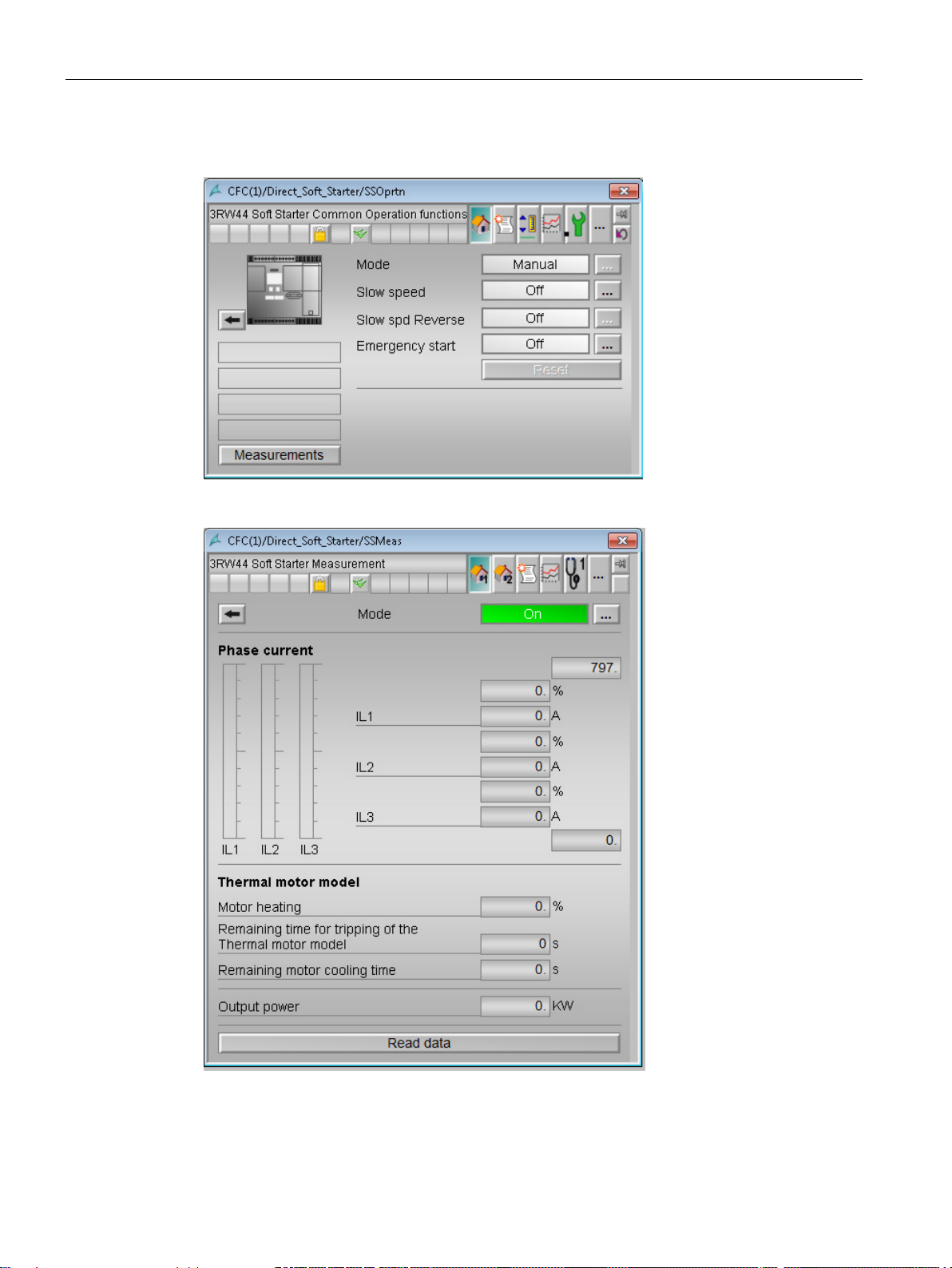
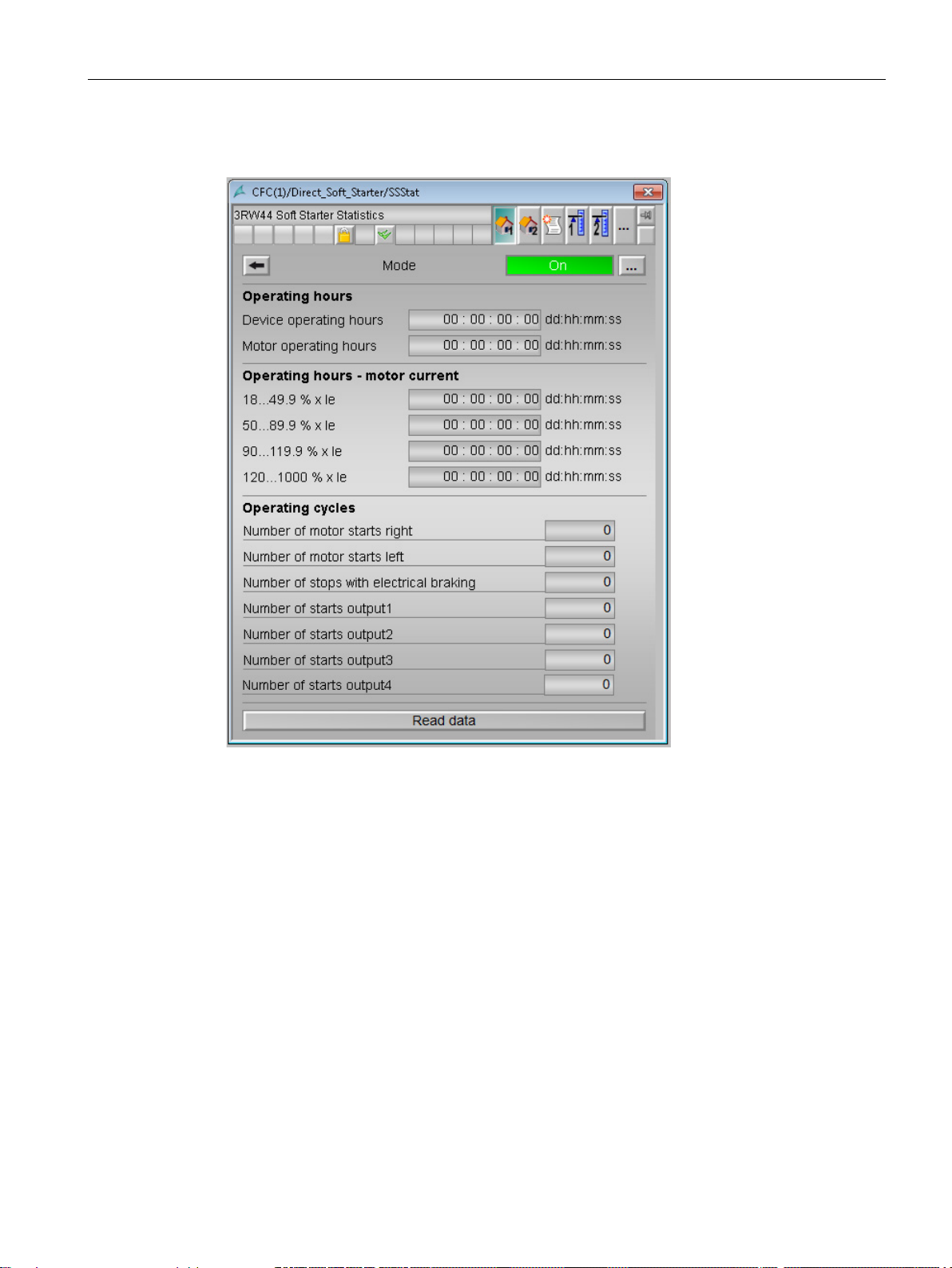
Standard faceplates of the block icons:
SIRIUS Soft Starter 3RW44 PCS 7 Library V8.2
Getting Started, 07/2016, A5E36563533002A/RS-AA/001
27
Page 28
Getting Started
SSOprtn
SSMeas
5.4 Operator Station
SIRIUS Soft Starter 3RW44 PCS 7 Library V8.2
28 Getting Started, 07/2016, A5E36563533002A/RS-AA/001
Page 29
Getting Started
SSStat
5.4 Operator Station
SIRIUS Soft Starter 3RW44 PCS 7 Library V8.2
Getting Started, 07/2016, A5E36563533002A/RS-AA/001
29
Page 30
Getting Started
5.4 Operator Station
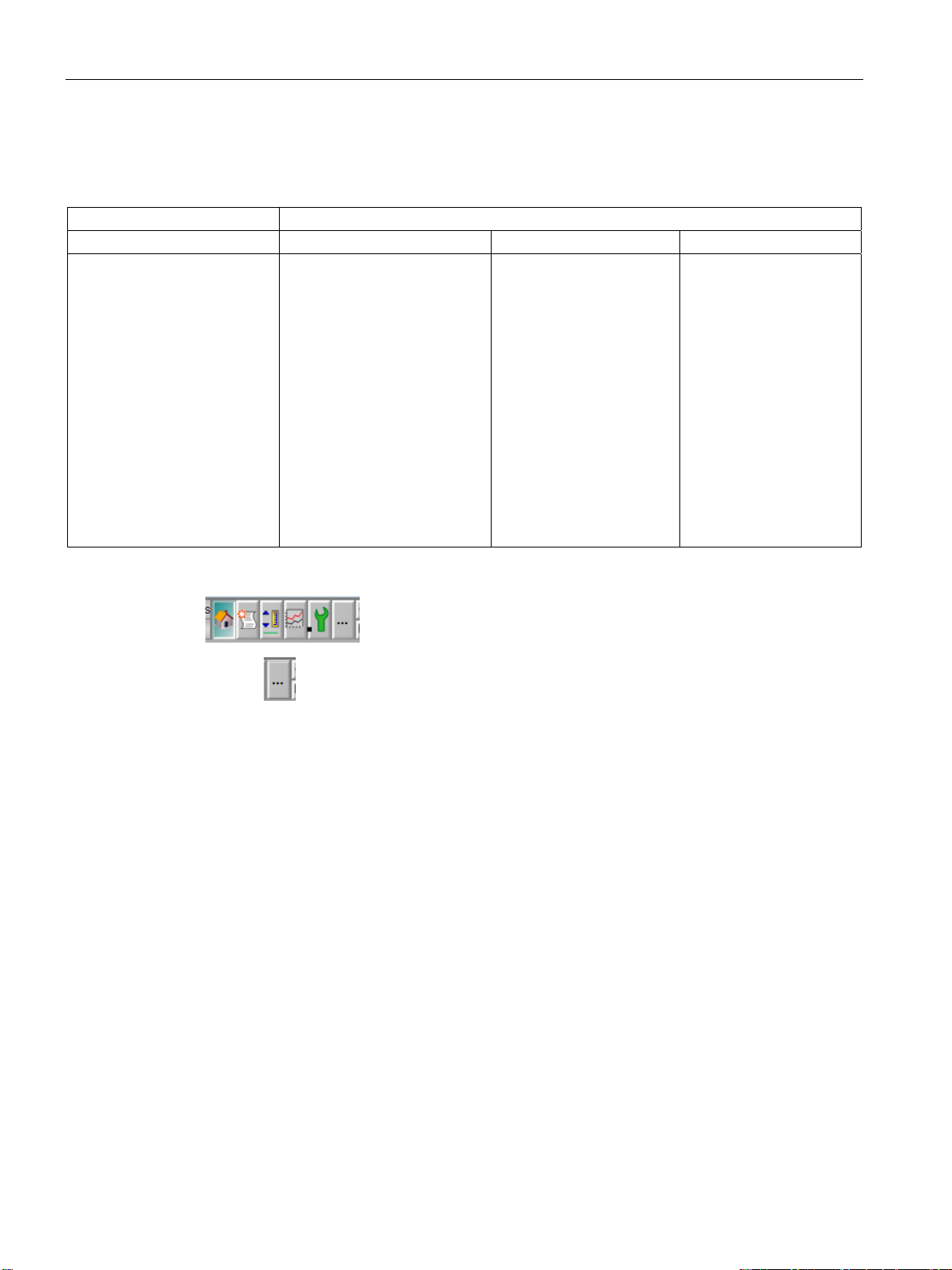
Faceplate-Views
Each faceplate provides multiple views:
APL Soft Starter Library
MotRevL SSOprtn SSMeas SSStat
• Default
• Messages
• Trend
• Parameters
• Preview
• Memo
• Batch
• Default
• Messages
• Limits AV
• Trends
• Maintenance
• Preview
• StationDiag
• ControlDiag
• DeviceDiag
• ParameterDiag
• ProcessImage
• Batch
• Standard 1
• Standard 2
• Messages
• Trends
• Protection Diag
• Preview
• Batch
• Standard 1
• Standard 2
• Messages
• MaxPointer1
• MaxPointer2 Preview
• Logbook
• Batch
You can switch between the single views by clicking the demanded view button.
Click on to open additional view buttons.
Faceplate
s may be pinned or closed according to the demands of the user. Further
information on how to use the faceplates can be found in the online help, shipped with this
library or in the user manual provided for this library.
SIRIUS Soft Starter 3RW44 PCS 7 Library V8.2
30 Getting Started, 07/2016, A5E36563533002A/RS-AA/001
Page 31
Getting Started
MotRevL.
Operation.
SSOprtn
5.4 Operator Station
Navigation between faceplates
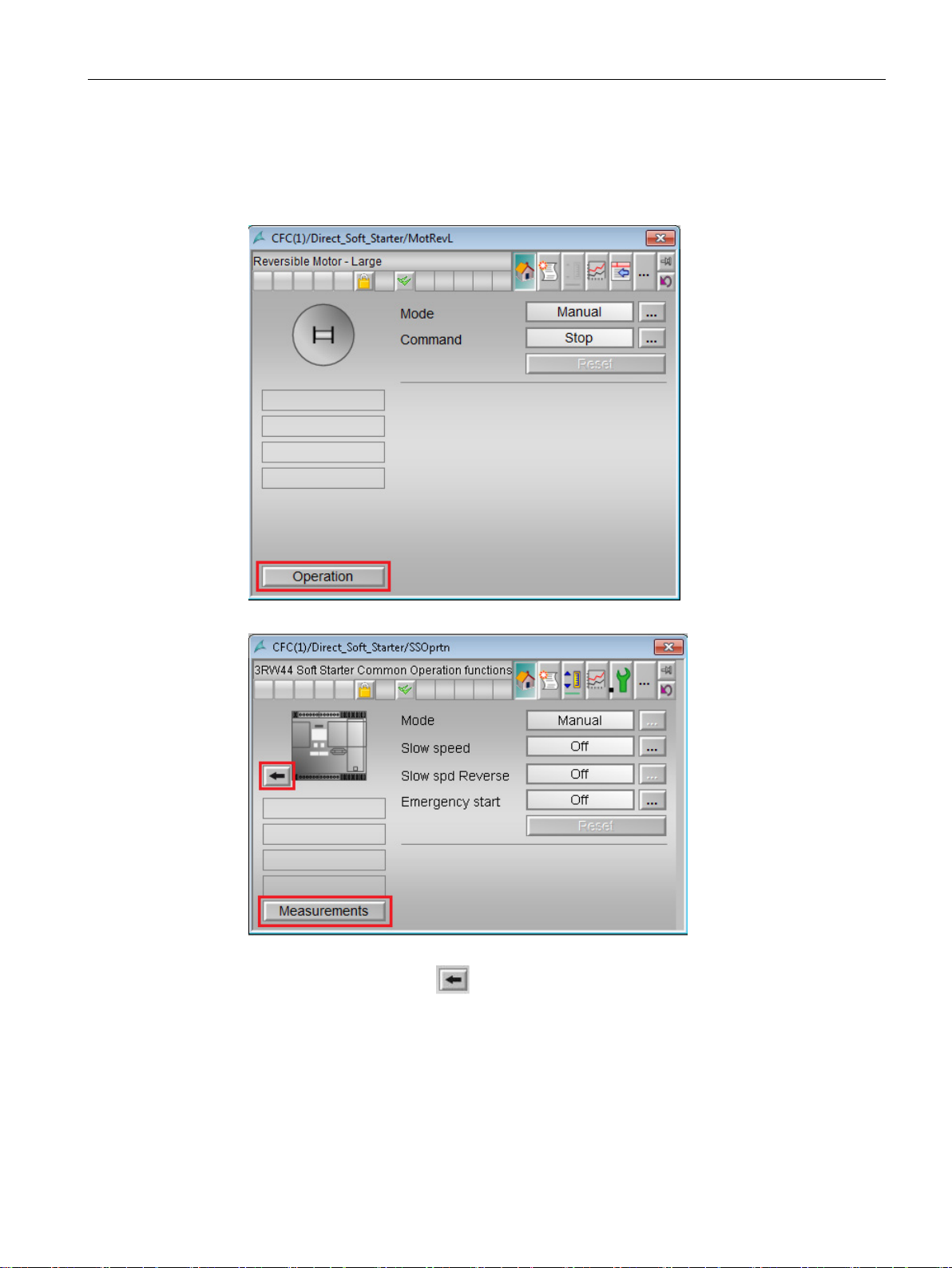
1. Open the Standard view of block
2. Click on the button
faceplate opens.
Click on navigation button
SIRIUS Soft Starter 3RW44 PCS 7 Library V8.2
Getting Started, 07/2016, A5E36563533002A/RS-AA/001
to return to the calling faceplate.
31
Page 32
Getting Started
Measurements
SSMeas
5.4 Operator Station
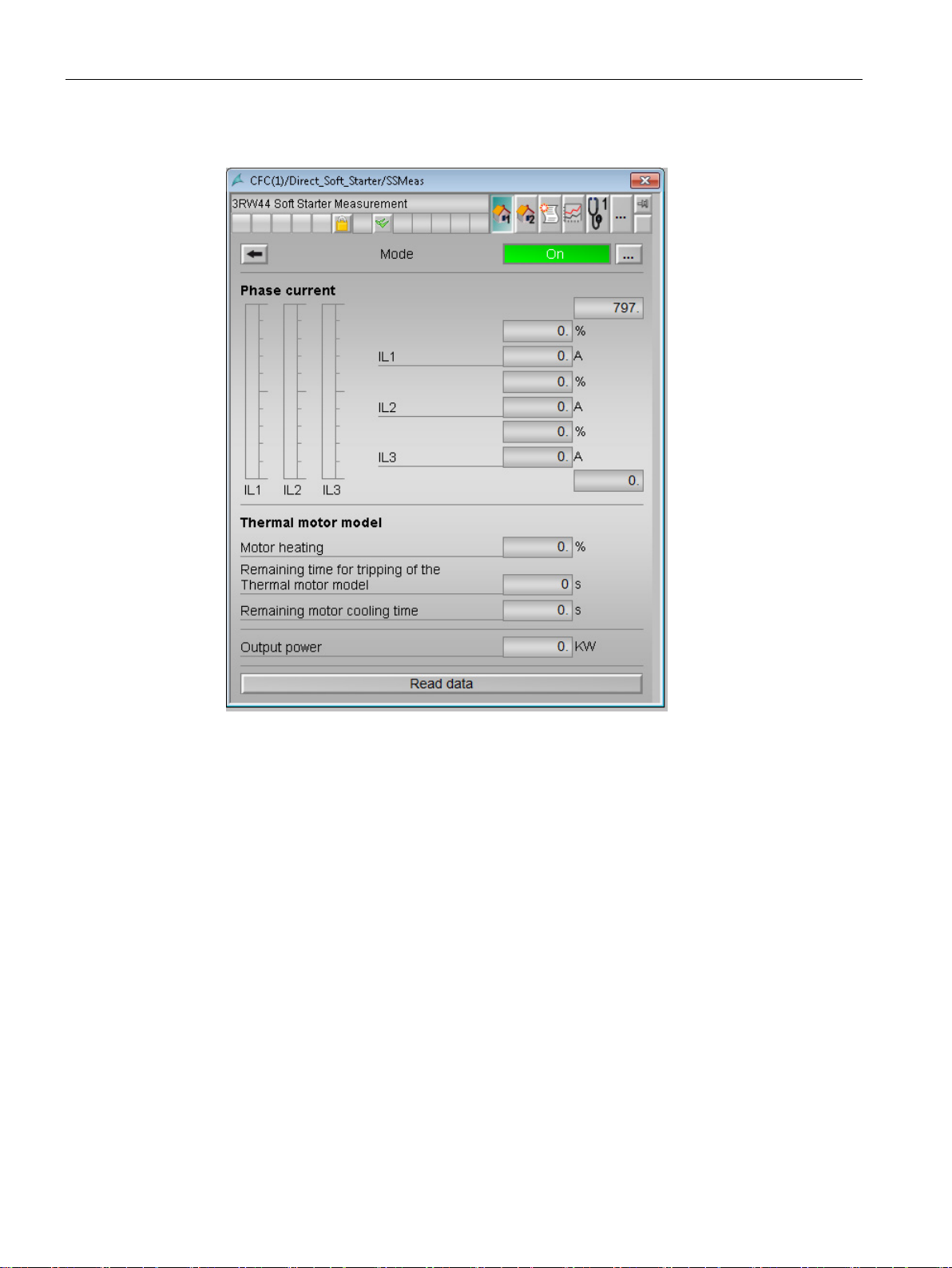
3. Click on the
button to open the
faceplate.
SIRIUS Soft Starter 3RW44 PCS 7 Library V8.2
32 Getting Started, 07/2016, A5E36563533002A/RS-AA/001
Page 33
Getting Started
SSStat
SSOprtn
Preview
Statistics
5.4 Operator Station
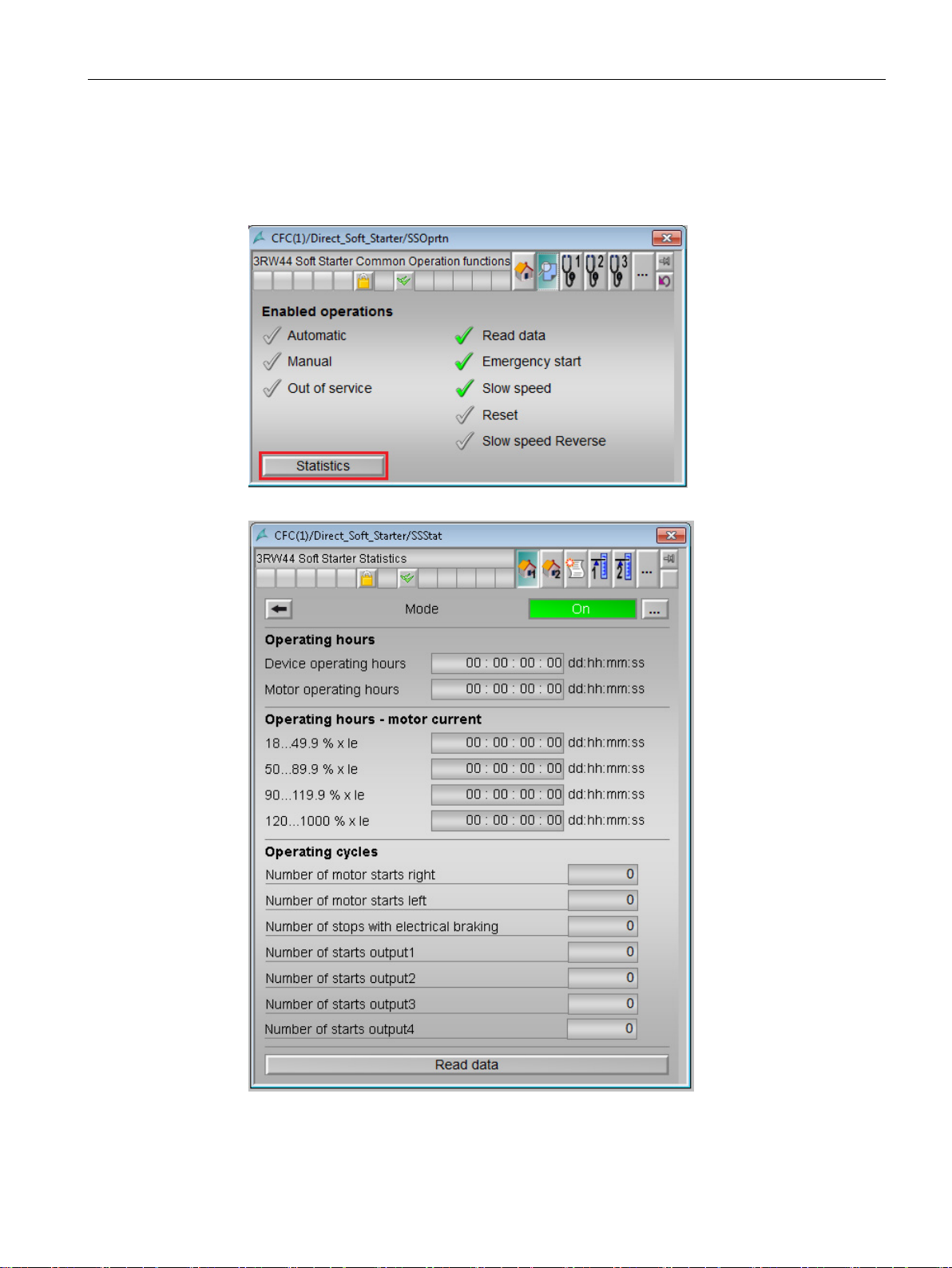
1. Open faceplate
2. Click the
button.
The SSStat Faceplate opens.
and switch to view
.
SIRIUS Soft Starter 3RW44 PCS 7 Library V8.2
Getting Started, 07/2016, A5E36563533002A/RS-AA/001
33
Page 34

Getting Started
Note
Use the navigation button
SSMeas
SSStat
corresponding SSOprtn
5.4 Operator Station
at
faceplate.
or
faceplate to return to the
SIRIUS Soft Starter 3RW44 PCS 7 Library V8.2
34 Getting Started, 07/2016, A5E36563533002A/RS-AA/001
Page 35

6
More information
Additional information can be found as follows:
● For PCS 7 V8.1: "Process Control System PCS 7 Getting Started Part 1 (V8.1)"
(https://support.industry.siemens.com/cs/document/103141812
● For PCS 7 V8.2: "Process Control System PCS 7 Getting Started Part 1 (V8.2)"
(https://support.industry.siemens.com/cs/document/109485954
● Programming and Operating Manual: "PCS 7 Library 3RW44 Soft Starter V8.2".
(https://support.industry.siemens.com/cs/document/109474959/
● Process Control System PCS 7 CFC for SIMATIC S7 Function manual.
(https://support.industry.siemens.com/cs/document/109736727
● SIMATIC Process Control System PCS 7 Operator Station.
(https://support.industry.siemens.com/cs/document/109485970
)
)
)
)
)
● SIMATIC Process Control System PCS 7 PC Configuration and Authorization (V8.0) on
the Internet (https://support.industry.siemens.com/cs/document/68157327
● SIMATIC Process Control System PCS 7 Released Modules (V8.0) on the Internet
(https://support.industry.siemens.com/cs/document/109736547
● WinCC, for more information, click here
(https://support.industry.siemens.com/cs/document/60119725
).
).
).
SIRIUS Soft Starter 3RW44 PCS 7 Library V8.2
Getting Started, 07/2016, A5E36563533002A/RS-AA/001
35
Page 36

References
SIRIUS Soft Starter 3RW44 PCS 7 Library V8.2
36 Getting Started, 07/2016, A5E36563533002A/RS-AA/001
Page 37

A
List of Abbreviations
7.1 Abbreviations
Overview
Table 7- 1 Meaning of abbreviations
bbreviation Meaning
AS Automation station
CFC Continuous Function Chart
EDD Electronic device description
GSD Generic Station Description
HMI Human machine interface
HW Config "Hardware configuration" module in the SIMATIC Manager
OM Object manager
OS Operator station
PCS 7 Process Control System 7
CPU Central Processing Unit
SS Soft Starter
7
SIRIUS Soft Starter 3RW44 PCS 7 Library V8.2
Getting Started, 07/2016, A5E36563533002A/RS-AA/001
37
Page 38

List of Abbreviations
7.1 Abbreviations
SIRIUS Soft Starter 3RW44 PCS 7 Library V8.2
38 Getting Started, 07/2016, A5E36563533002A/RS-AA/001
 Loading...