

Page 1
SIMATIC Field PG M4
_
_
_
_
_
_
_
_
_
_
_
_
SIMATIC
Programming device
SIMATIC Field PG M4
Getting Started
_________________
Introduction
_________________
Description
_________________
Application planning
_________________
Installing and connecting
_________________
Commissioning
_________________
Appendix
1
2
3
4
5
A
10/2012
A5E31347325-AA
Page 2
Legal information
Warning notice system
This manual contains notices you have to observe in order to ensure your personal safety, as well as to prevent
damage to property. The notices referring to your personal safety are highlighted in the manual by a safety alert
symbol, notices referring only to property damage have no safety alert symbol. These notices shown below are
graded according to the degree of danger.
DANGER
indicates that death or severe personal injury will result if proper precautions are not taken.
WARNING
indicates that death or severe personal injury may result if proper precautions are not taken.
CAUTION
indicates that minor personal injury can result if proper precautions are not taken.
NOTICE
indicates that property damage can result if proper precautions are not taken.
If more than one degree of danger is present, the warning notice representing the highest degree of danger will
be used. A notice warning of injury to persons with a safety alert symbol may also include a warning relating to
property damage.
Qualified Personnel
The product/system described in this documentation may be operated only by personnel qualified for the specific
task in accordance with the relevant documentation, in particular its warning notices and safety instructions.
Qualified personnel are those who, based on their training and experience, are capable of identifying risks and
avoiding potential hazards when working with these products/systems.
Proper use of Siemens products
Note the following:
WARNING
Siemens products may only be used for the applications described in the catalog and in the relevant technical
documentation. If products and components from other manufacturers are used, these must be recommended
or approved by Siemens. Proper transport, storage, installation, assembly, commissioning, operation and
maintenance are required to ensure that the products operate safely and without any problems. The permissible
ambient conditions must be complied with. The information in the relevant documentation must be observed.
Trademarks
All names identified by ® are registered trademarks of Siemens AG. The remaining trademarks in this publication
may be trademarks whose use by third parties for their own purposes could violate the rights of the owner.
Disclaimer of Liability
We have reviewed the contents of this publication to ensure consistency with the hardware and software
described. Since variance cannot be precluded entirely, we cannot guarantee full consistency. However, the
information in this publication is reviewed regularly and any necessary corrections are included in subsequent
editions.
Siemens AG
Industry Sector
Postfach 48 48
90026 NÜRNBERG
GERMANY
A5E31347325-AA
Ⓟ 10/2012 Technical data subject to change
Copyright © Siemens AG 2012.
All rights reserved
Page 3

Table of contents
1 Introduction................................................................................................................................................ 4
2
Description................................................................................................................................................. 5
2.1
2.2
2.2.1
2.2.2
Application planning................................................................................................................................. 11
3
3.1
3.2
4
Installing and connecting ......................................................................................................................... 13
4.1
4.2
4.3
5
Commissioning ........................................................................................................................................ 17
5.1
5.2
A
Appendix.................................................................................................................................................. 20
A.1
A.2
Exterior design ...............................................................................................................................5
Operator controls ...........................................................................................................................8
On/off button ..................................................................................................................................8
Touchpad .....................................................................................................................................10
Unpacking and checking the delivery unit ...................................................................................11
Device identification data.............................................................................................................11
Positioning the device ..................................................................................................................13
Connecting peripherals ................................................................................................................14
Connecting the device to power...................................................................................................15
Requirements for commissioning.................................................................................................17
Initial commissioning - initial startup ............................................................................................17
Guidelines and declarations.........................................................................................................20
Certificates and approvals ...........................................................................................................21
A.3
SIMATIC Field PG M4
Getting Started, 10/2012, A5E31347325-AA
Service and support.....................................................................................................................22
3
Page 4

Introduction
Purpose of this documentation
This Getting Started documentation contains instructions and information that you need for
commissioning and using the SIMATIC Field PG M4.
Where is this documentation valid?
This documentation is valid for all available versions of the SIMATIC Field PG M4 and
describes the delivery state as of December 2012.
SIMATIC Field PG M4 operating instructions
The operating instructions are available on the included "Software for Field PG" DVD. To
read and print the operating instructions, select the corresponding document in the
Welcome.pdf.
The operating instructions provide many useful topics dealing with items such as hardware
expansion options, changing the device configuration and technical data.
The operating instructions also contain a Declaration of Conformity for the device, with
respect to safety and EMC requirements.
Safety information
1
Always follow the instructions in this manual and in the operating instructions in order to
avoid personal injury and damage to assets. The warnings are highlighted by a warning
triangle and presented in different forms based on the degree of hazard.
Conventions
The terms "PG" or "device" are also used to refer to the SIMATIC Field PG M4 product in
this documentation.
SIMATIC Field PG M4
4 Getting Started, 10/2012, A5E31347325-AA
Page 5
Description
2.1 Exterior design
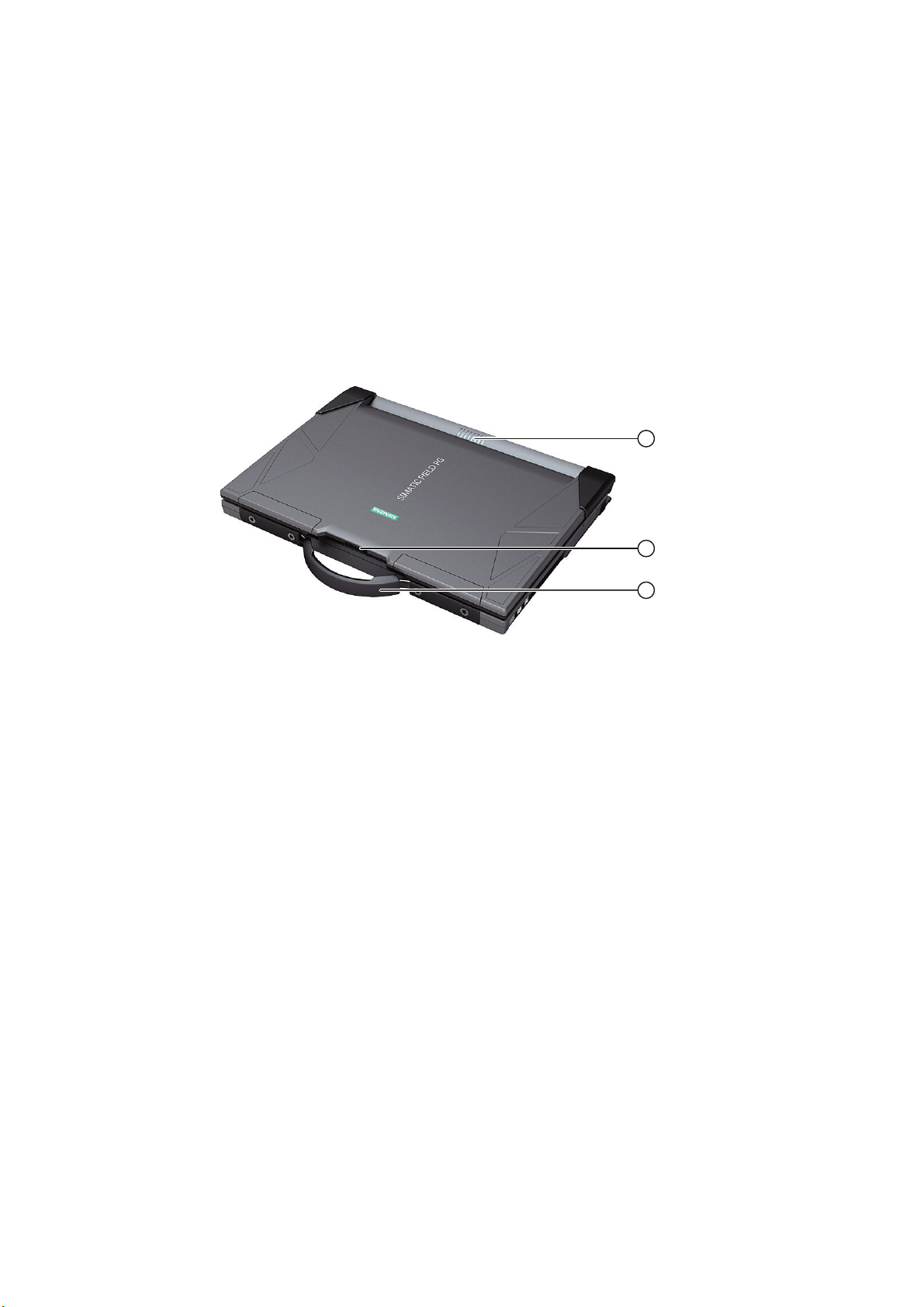
View with closed display
① System and keyboard LEDs
② Display latch
③ Device handle
2
SIMATIC Field PG M4
Getting Started, 10/2012, A5E31347325-AA
5
Page 6
Description
2.1 Exterior design
Front view with display open
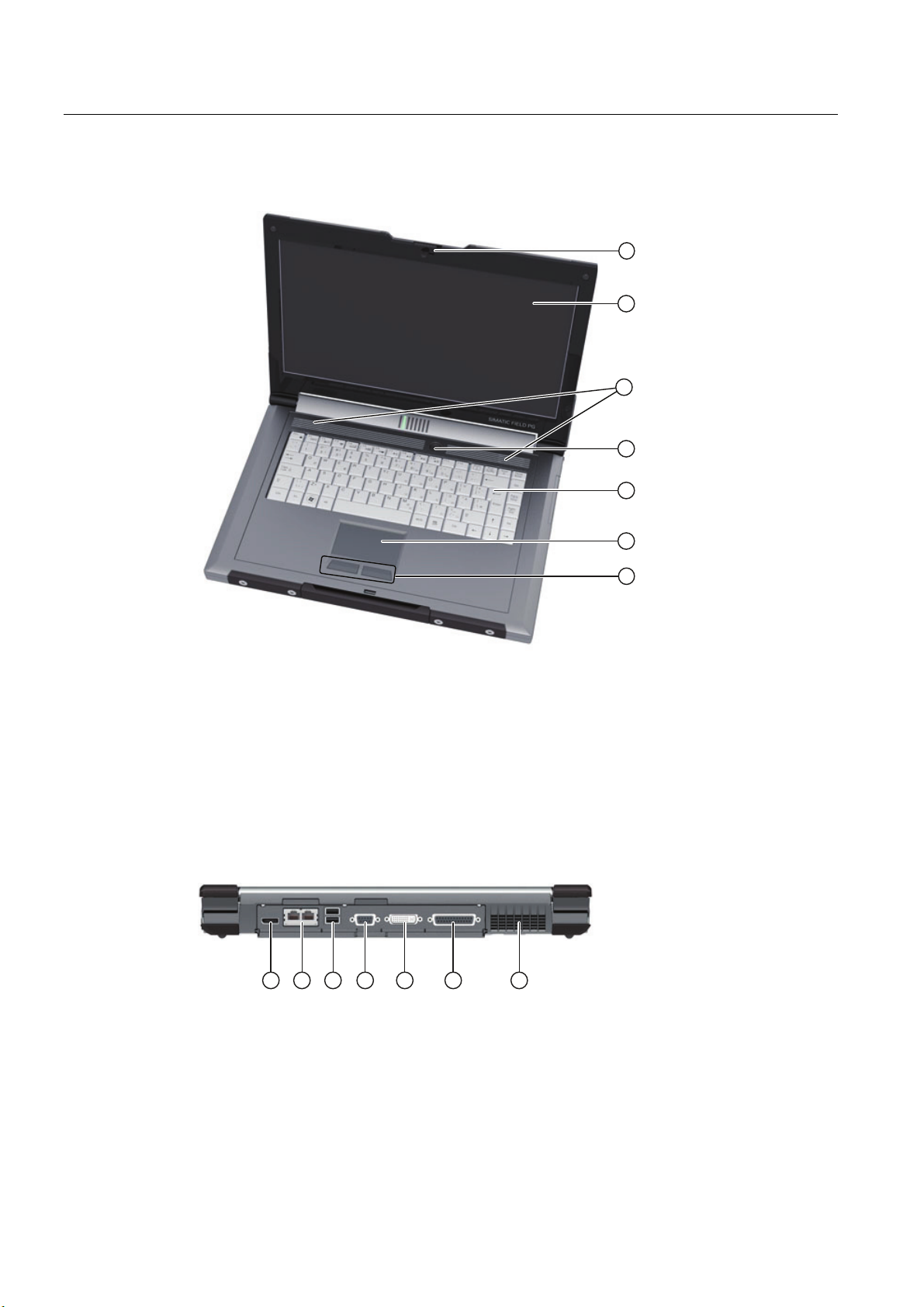
View from rear
① Display latch
② Display
③ Stereo speakers
④ On/off button (power)
⑤ Keyboard
⑥ Touchpad
⑦ Mouse buttons
① DisplayPort
② 2 x Ethernet
③ 2 x USB 3.0
④ MPI/DP
⑤ DVI-I
⑥ RS232/TTY (TTY functionality, depending on the HW configuration variant)
⑦ Ventilation air outlet
SIMATIC Field PG M4
6 Getting Started, 10/2012, A5E31347325-AA
Page 7
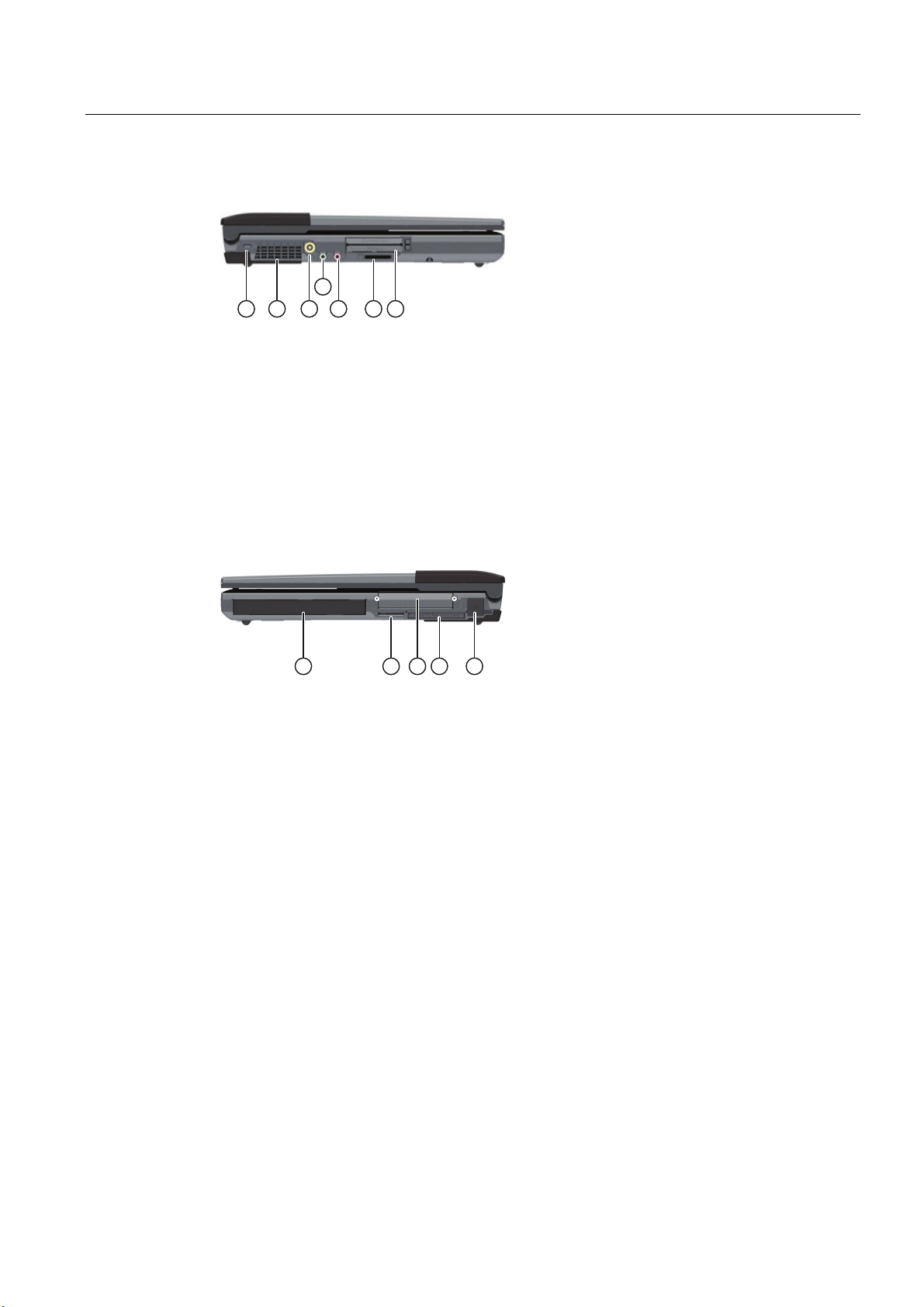
Description
2.1 Exterior design
View of left side
① Opening for Kensington lock
② Ventilation air inlet
③ DC IN 19 V
④ Headphones
⑤ Microphone
⑥ Media Card Reader (port for SMC, SDHC, MMC (Multi Media Card - not SIMATIC MMC), xD,
and MS Pro)
⑦ Express card and PC card slot
View of right side
① Optical drive
② SIMATIC Micro Memory Card interface
③ Exchangeable hard disk unit
④ Memory card interface
⑤ 2 x USB port, with cover
Top port: USB 2.0
Bottom port: USB charger
SIMATIC Field PG M4
Getting Started, 10/2012, A5E31347325-AA
7
Page 8
Description
2.2 Operator controls
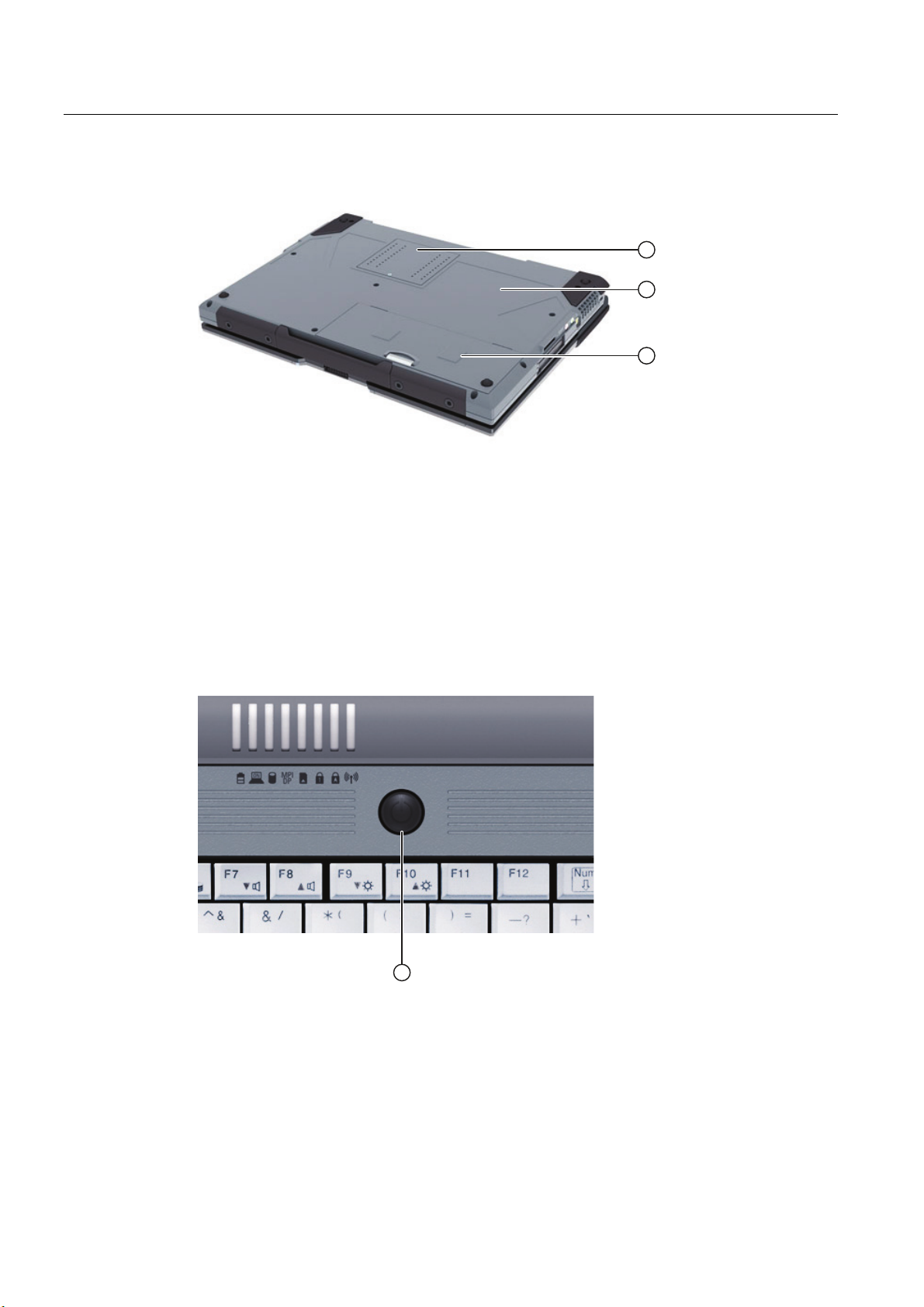
View from below
① Cover for memory modules
② Rating plate
③ Rechargeable battery
2.2 Operator controls
2.2.1 On/off button
① The on/off button (power) has the following functions:
Switch PG on/off (hold the button down for approximately 1 second; the response depends
on the Windows power options settings)
Switch PG off in the event of a fault (hold down for more than 5 seconds)
SIMATIC Field PG M4
8 Getting Started, 10/2012, A5E31347325-AA
Page 9

Description
2.2 Operator controls
Possible operating states
You may press the ON/OFF button (power button), or close the display panel (lid switch), or
use the Windows Start menu to switch the PG from normal mode to one of the following
operating states:
● Standby mode (Save to RAM),
● Hibernate (save to disk), default setting
● Off (Windows is brought down).
When the device is brought down from Windows, the device automatically switches off. If the
device is not in Windows, it can be switched off using the on/off button.
Note
You can use Settings > Control Panel > Power Options in Windows XP to assign a response
to the on/off button and the lid. You can also assign these settings to the hot keys FN + F5
and Fn + F6.
Note
In accordance with the settings in the Windows Power Options, the Field PG supports
different operating states. The Power Options have been preset by the factory in such a way
that in the factory state the device always adopts defined operating states (On, Standby,
Hibernation, Off).
By changing these settings, and by adding extra hardware (such as USB components) or
software to the device, you can modify the operating states so that the device cannot switch
to Hibernation or Standby mode. Even though the screen display is dark, relevant
consumers remain switched on in the device.
Please remember to always bring down the Field PG or set it to Hibernation prior to
transporting in the backpack. When the device is in these states, all the status LEDs on the
device go off when you disconnect the power supply. This way you can ensure the device is
not switched on and the battery is not unintentionally discharged during transportation.
Press the on/off button briefly to reactivate the PG from Standby mode or Hibernation. In
Standby mode the device LED flashes, and in Hibernation all the displays are switched off.
SIMATIC Field PG M4
Getting Started, 10/2012, A5E31347325-AA
9
Page 10
Description
2.2 Operator controls
2.2.2 Touchpad
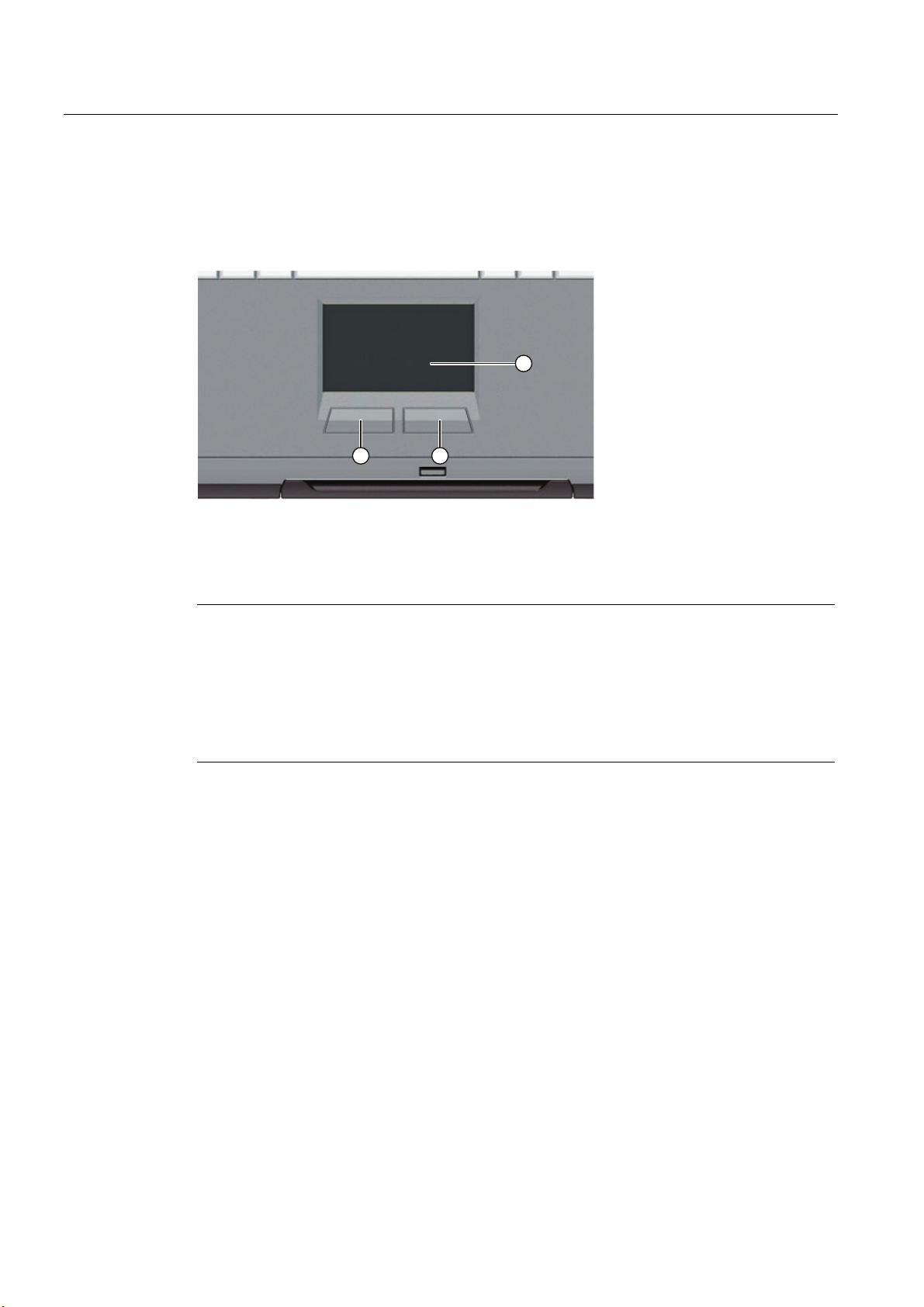
Touchpad and mouse buttons
① The touchpad can be used in many programs (with mouse operation) as an input device for
controlling the cursor and selecting menus.
② Pressing the left mouse button selects an object. The response to the right button depends on
the user program.
Note
The touchpad function (mouse pointer and mouse buttons) can be enabled and disabled with
the hotkey Fn + F4.
You can configure the advanced touchpad functions under "Mouse" in the Windows Control
Panel. The technical principle used means that it is possible to make unintentional mouse
clicks with the touchpad when it is used in a "noisy" environment. In such environments, it is
a good idea to disable the tap function in the touchpad driver, and to use the mouse buttons.
SIMATIC Field PG M4
10 Getting Started, 10/2012, A5E31347325-AA
Page 11

Application planning
3.1 Unpacking and checking the delivery unit
Unpacking the device
Note the following points when you unpack the unit
● It is advisable not to dispose of the original packing material. Keep it in case you have to
transport the unit again.
● Please keep the documentation in a safe place. It is required for initial commissioning and
is part of the device.
● Check the delivery unit for any visible transport damage.
● Check the delivery and your specially ordered accessories against the packaging list to
ensure nothing is missing. Please inform your local dealer of any disagreements or
transport damages.
3.2 Device identification data
3
Noting the device identification data
The device can be identified uniquely with the help of these numbers in case of repairs or
theft.
Serial number S VP ...
Order No. 6ES ...
Microsoft Windows Product Key
Ethernet address 1
Ethernet address 2
Enter the following data in the table:
● Serial number
The serial number (S VP) is located on the rating plate on the bottom of the device.
SIMATIC Field PG M4
Getting Started, 10/2012, A5E31347325-AA
11
Page 12
Application planning
3.2 Device identification data
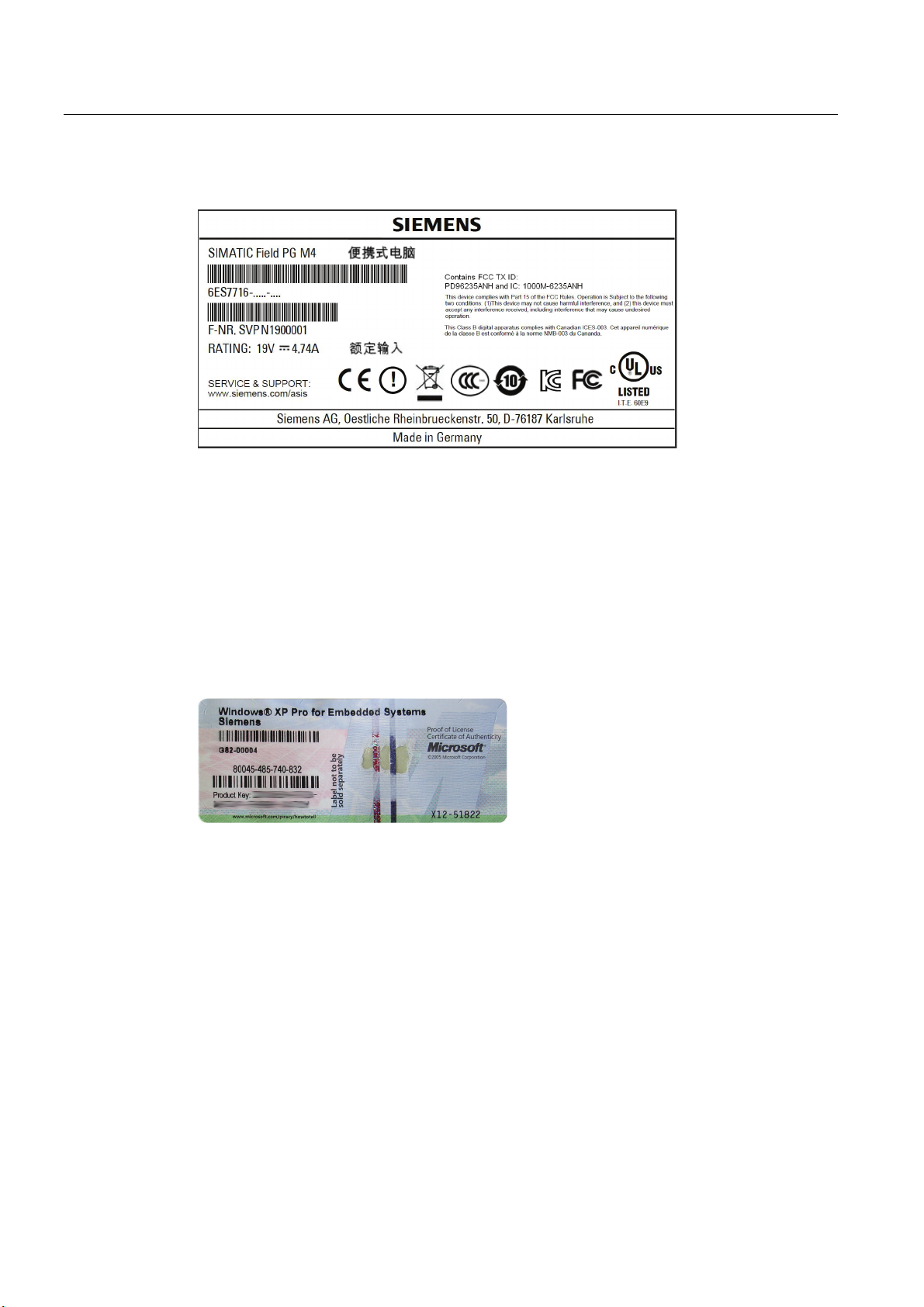
Rating plate
● Order number of the device
● Ethernet address
The Ethernet addresses of the device are listed in the BIOS Setup (ESC key >
Icon "SCU") at Advanced > Peripheral Configuration.
COA label
● Microsoft Windows "Product Key" on the "Certificate of Authenticity" (COA). The Product
Key is always required to reinstall the operating system.
The COA label is stuck to the bottom on the device.
SIMATIC Field PG M4
12 Getting Started, 10/2012, A5E31347325-AA
Page 13
Installing and connecting
4.1 Positioning the device
WARNING
The outer housing is made of Magnesium. If it comes into contact with open flame, there is
a risk of fire / spreading fire.
NOTICE
Always set the PG down on its underside, otherwise there is a risk that it will fall over and
damage sensitive components.
● Position the programming device to ensure comfortable operation and safety.
● Position the programming device with its bottom on a flat surface and at a comfortable
height and distance.
4
● Ensure that a power outlet is easily accessible near your workplace.
● Ensure that there is enough space for connecting peripherals.
● Do not obstruct any ventilation slots when you position the device.
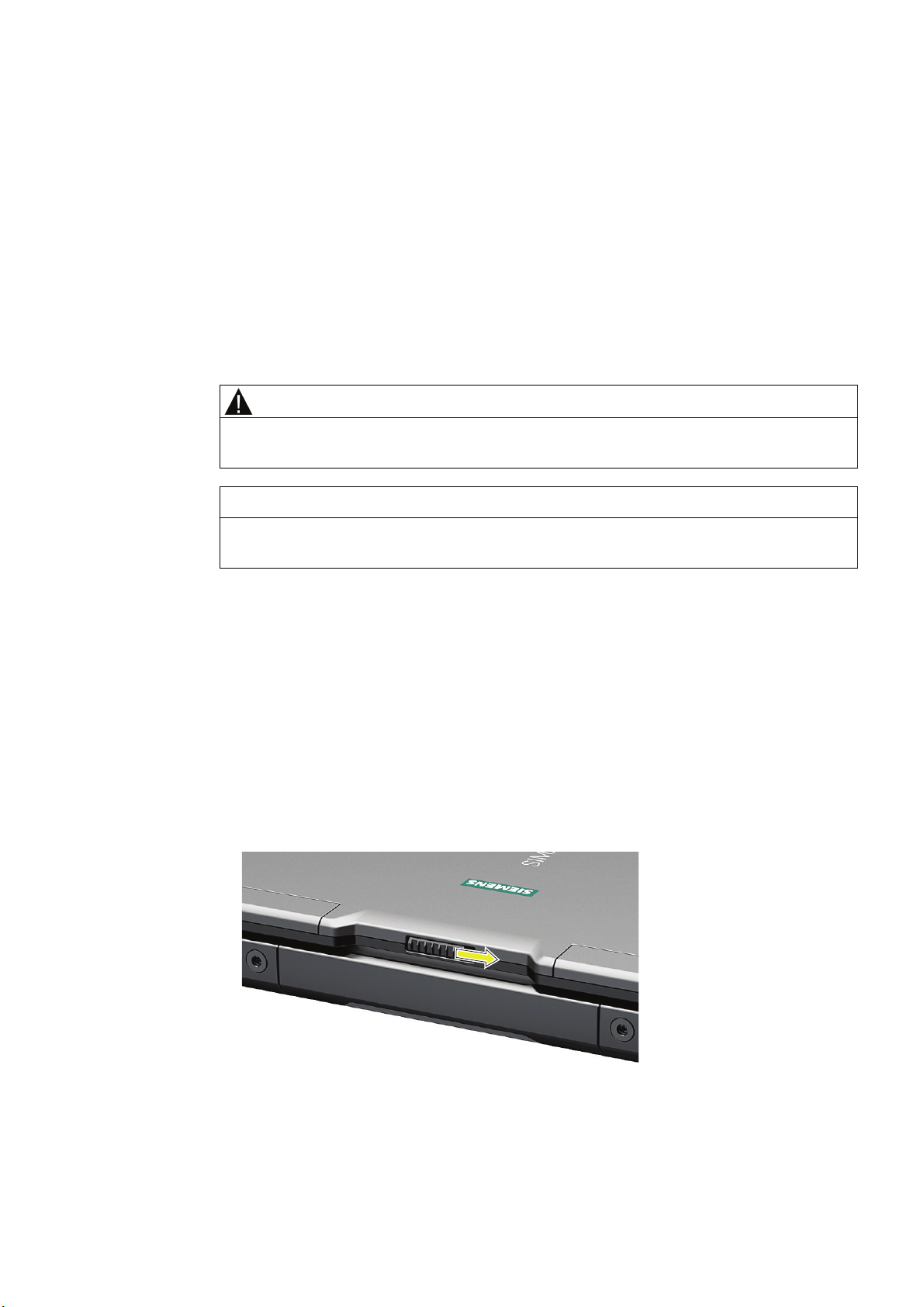
● Open the display by sliding the latch in the direction of the arrow.
● Flip the display open and adjust it to a convenient viewing angle. The display can be
adjusted to any inclination angle between 0 and 150
o
.
SIMATIC Field PG M4
Getting Started, 10/2012, A5E31347325-AA
13
Page 14
Installing and connecting
4.2 Connecting peripherals
4.2 Connecting peripherals
To be noted before you connect the device
NOTICE
I/O devices that do not support hot-plugging
Peripheral devices that are incapable of hot-plugging may only be connected after the
device has been disconnected from the power supply.
NOTICE
Observe the documentation of your I/O devices
Strictly adhere to the specifications for peripheral equipment.
Equipotential bonding of the signal cable shields
When you connect long signal cables (particularly with connections between buildings),
make sure the signal cables are always integrated into the local equipotential bonding
system (connecting the cable shielding to the protective conductor).
Connect USB devices
Connect devices such as drives, mouse, keyboard, and printer to the USB 2.0 and USB 3.0
ports.
WARNING
Connect the microphone
You can connect an external microphone to the 3.5 mm jack for the microphone (pink).
To run a microphone recording, select:
● The Windows XP Start menu: All Programs > Accessories > Multimedia > Audio recorder
● In Windows 7: All Programs > Accessories > Audio recorder.
Connect headphones
You can connect headphones or external speakers that are equipped with a 3.5 mm stereo
jack plug to the headphones jack (green).
You can control the volume using the speaker button on the taskbar, or using hotkey
Fn + F7 / F8.
SIMATIC Field PG M4
14 Getting Started, 10/2012, A5E31347325-AA
Page 15
Installing and connecting
4.3 Connecting the device to power
4.3 Connecting the device to power
To be noted before you connect the device
Note
The external power unit supplies power to the Field PG in line operation with 120 V and 230
V power supply networks. The setting of the voltage range takes place automatically.
WARNING
Do not connect or disconnect power and data cables during thunderstorms.
WARNING
The device is designed only to be used in grounded power supply systems (TN systems to
VDE 0100, part 300, or IEC 60364-3).
It must not be used in ungrounded, or impedance-grounded power systems (IT systems).
WARNING
The Field PG may only be operated using the supplied power supply and / or using the
supplied battery.
The external power supply may not be covered (risk of overheating).
CAUTION
The mains connector must be disconnected to fully isolate the device from mains.
Localized information
Outside of the USA and Canada, operation on a 230 V power supply:
This device is equipped with a safety-tested power cord. If you choose not to use this cable,
you must use a flexible cable of the following type: At least 18 AWG (0.82 mm
cross-section, and 15 A/250 V connector. The cable set must conform to the safety
regulations of the country in which the devices are installed, and bear the prescribed
markings in each case.
SIMATIC Field PG M4
Getting Started, 10/2012, A5E31347325-AA
2
) conductor
15
Page 16
Installing and connecting
4.3 Connecting the device to power
For the USA and Canada:
For the United States and Canada, a CSA or UL-listed power cord must be used.
The connector must be compliant with NEMA 1-15P.
120 V/240 V supply voltage
A flexible cable with UL approval and CSA marking must be used. In addition, the cable must
exhibit the following properties:
● 3-wire SPT-2 or SVT,
● At least 18 AWG conductor cross-section
● Max. length of 4.5 m
● Connector 15 A, min. 125 V
Connecting
Steps for connecting the device to mains
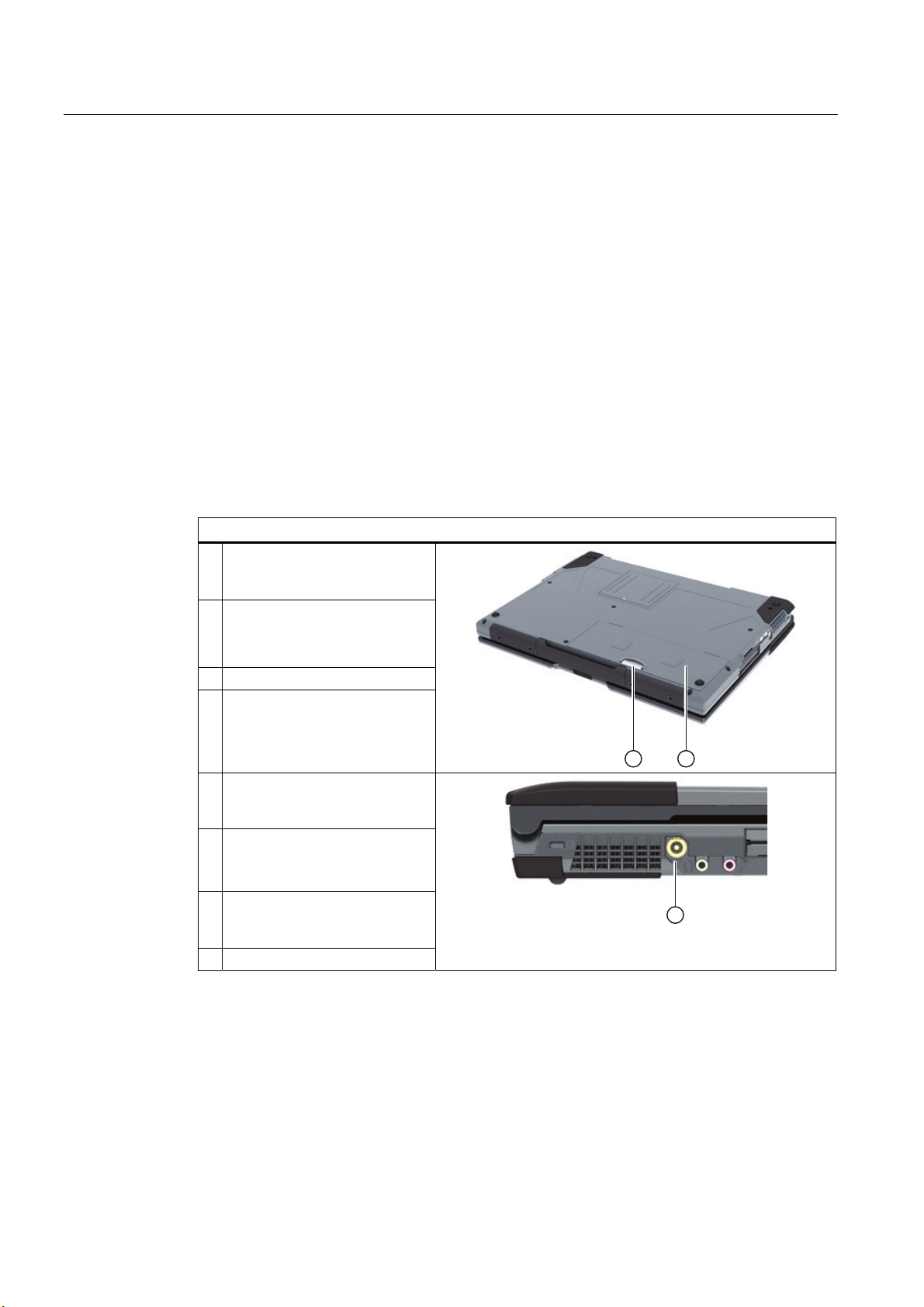
1 Turn the PG over so that it is
lying on the table with its display
unit closed.
2
Release ① the battery cover
② on the bottom of the device
and open it.
3 Insert the battery.
4 Close the cover and turn the
device over again.
5 Insert the supplied power supply
cable into the external power
supply.
6 Insert the low-voltage connector
into the connection ① on the
device.
7 Plug the external power supply
into a socket with a grounded
protective conductor.
8 Turn the PG over again.
SIMATIC Field PG M4
16 Getting Started, 10/2012, A5E31347325-AA
Page 17

Commissioning
5.1 Requirements for commissioning
The operating system and system software of your device are preinstalled on the hard disk.
5.2 Initial commissioning - initial startup
NOTICE
Risk of damage to the device!
Allow the device to warm up slowly to room temperature before you start it up. If you notice
any condensation, wait around 12 hours before you switch on the device.
Note
5
Procedure
The programming device may not be switched off at any time during the installation process.
Do not change the default BIOS settings, otherwise the operating system setup may become
corrupted.
The operating system is set up automatically on the programming device when it is first
started. The following tasks need to be performed:
1. Press the ON/OFF button for approximately 1 second.
The PG conducts a self-test. The following message is output during the self-test:
Press Esc for boot options
2. Wait until this message is cleared, then follow the instructions on the screen.
3. Type in the Product Key as required.
You find this key on the "Certificate of Authentication", in the "Product Key" line.
4. Automatic restart
SIMATIC Field PG M4
Getting Started, 10/2012, A5E31347325-AA
17
Page 18

Commissioning
5.2 Initial commissioning - initial startup
After you have entered all necessary information and set up the operating system, the PG is
automatically restarted and then displays the user interface of the respective operating
system.
From now on, after you switch on the PC, the user interface of the operating system is
automatically opened when the startup routine is completed.
Startup with Microsoft Windows
The menus, dialogs, and keyboard layout are set up in English under Windows. Use the
Control Panel to change to another language and keyboard layout.
For Windows XP
1. Select:
"Start > Control Panel > Regional and Language"
2. You can make the desired changes in the "Regional Settings", "Languages" and
"Advanced" tabs.
For Windows 7
Editing the settings for language, region and formats of the registered user account
1. Select:
"Start > Control Panel > Clock, Language, and Region > Regional and Language
Options"
2. You can make your changes in the "Formats" and "Location und Keyboards and
Languages" tabs.
Editing the settings for language, region and formats of the system account and default user
account
1. Select:
"Start > Control Panel > Clock, Language, and Region > Regional and Language
Options"
2. You can make your changes in the "Administrative" tab. Click the respective button to
copy the settings.
For more information, refer to chapter "Setting up the language selection by means of
Multilingual User Interface (MUI)
(http://support.automation.siemens.
com/WW/view/en/10805333/133300)".
SIMATIC Field PG M4
18 Getting Started, 10/2012, A5E31347325-AA
 Loading...