

Page 1

SIMATIC
Process Control System PCS 7
SIMATIC BATCH V8.2
Preface
1
Operating Manual
Security information
Product introduction and
installation
What's new?
Technological basics
complying with ISA-88.01
Introduction to SIMATIC
BATCH
Engineering
Rational engineering
2
3
4
5
6
7
8
BATCH Control Center
BATCH Recipe Editor
BATCH OS controls
Recommended procedure
Appendix
Context help references
9
10
11
12
13
14
02/2016
A5E35958174-AA
Page 2
Legal information
Warning notice system
This manual contains notices you have to observe in order to ensure your personal safety, as well as to prevent
damage to property. The notices referring to your personal safety are highlighted in the manual by a safety alert
symbol, notices referring only to property damage have no safety alert symbol. These notices shown below are
graded according to the degree of danger.
DANGER
indicates that death or severe personal injury will result if proper precautions are not taken.
WARNING
indicates that death or severe personal injury may result if proper precautions are not taken.
CAUTION
indicates that minor personal injury can result if proper precautions are not taken.
NOTICE
indicates that property damage can result if proper precautions are not taken.
If more than one degree of danger is present, the warning notice representing the highest degree of danger will be
used. A notice warning of injury to persons with a safety alert symbol may also include a warning relating to property
damage.
Qualified Personnel
The product/system described in this documentation may be operated only by personnel qualified for the specific
task in accordance with the relevant documentation, in particular its warning notices and safety instructions. Qualified
personnel are those who, based on their training and experience, are capable of identifying risks and avoiding
potential hazards when working with these products/systems.
Proper use of Siemens products
Note the following:
WARNING
Siemens products may only be used for the applications described in the catalog and in the relevant technical
documentation. If products and components from other manufacturers are used, these must be recommended or
approved by Siemens. Proper transport, storage, installation, assembly, commissioning, operation and
maintenance are required to ensure that the products operate safely and without any problems. The permissible
ambient conditions must be complied with. The information in the relevant documentation must be observed.
Trademarks
All names identified by ® are registered trademarks of Siemens AG. The remaining trademarks in this publication
may be trademarks whose use by third parties for their own purposes could violate the rights of the owner.
Disclaimer of Liability
We have reviewed the contents of this publication to ensure consistency with the hardware and software described.
Since variance cannot be precluded entirely, we cannot guarantee full consistency. However, the information in
this publication is reviewed regularly and any necessary corrections are included in subsequent editions.
Siemens AG
Division Process Industries and Drives
Postfach 48 48
90026 NÜRNBERG
GERMANY
A5E35958174-AA
Ⓟ 04/2016 Subject to change
Copyright © Siemens AG 2016.
All rights reserved
Page 3

Table of contents
1 Preface.......................................................................................................................................................27
2 Security information....................................................................................................................................29
3 Product introduction and installation...........................................................................................................31
3.1 What is SIMATIC BATCH?....................................................................................................31
3.2 Functions of SIMATIC BATCH...............................................................................................32
3.3 Components of SIMATIC BATCH..........................................................................................32
3.3.1 BATCH interface blocks.........................................................................................................32
3.3.2 BATCH configuration dialog...................................................................................................34
3.3.3 BATCH Launch Coordinator..................................................................................................35
3.3.4 BATCH control server............................................................................................................36
3.3.5 BATCH CDV..........................................................................................................................37
3.3.6 Batch Control Center (BatchCC)............................................................................................38
3.3.7 BATCH Recipe Editor............................................................................................................40
3.3.8 Assembling BATCH data in reports.......................................................................................41
3.3.9 BATCH OS controls...............................................................................................................41
3.4 Operating modes in SIMATIC BATCH...................................................................................42
3.4.1 Introducing the operating modes "AS-based" and "PC-based"..............................................42
3.4.2 Concept expansion................................................................................................................43
3.4.3 Shifting of the recipe logic to the AS......................................................................................44
3.4.4 Recipe levels and sequence of a recipe................................................................................47
3.4.5 Recipe processing in runtime.................................................................................................48
3.5 Possible configurations..........................................................................................................48
3.5.1 System software architecture.................................................................................................48
3.5.2 Distribution of the SIMATIC program packages.....................................................................50
3.5.3 Client / server architecture of SIMATIC BATCH....................................................................51
3.5.4 Interface to MES/ERP............................................................................................................53
3.5.5 Redundancy...........................................................................................................................54
3.5.5.1 Introduction............................................................................................................................54
3.5.5.2 Example configuration - Fault-tolerant Batch Control............................................................55
3.5.5.3 Behavior in runtime................................................................................................................56
3.5.5.4 Data replication......................................................................................................................57
3.5.5.5 Configuration of the redundant BATCH server......................................................................60
3.5.5.6 Information on network connections......................................................................................62
3.5.5.7 Configuring network connections...........................................................................................62
3.5.5.8 Important additional information.............................................................................................63
3.5.5.9 Automatic hot restart..............................................................................................................64
3.5.5.10 Failure behavior of the BATCH server in AS-based mode.....................................................66
3.6 Configuration limits.................................................................................................................66
3.6.1 Definition of configuration limits.............................................................................................66
3.6.2 Structures of batch process cells ..........................................................................................68
3.6.3 Basics for calculating the performance of both operating modes..........................................69
3.6.4 Measured results for calculating the performance of both operating modes.........................71
SIMATIC BATCH V8.2
Operating Manual, 02/2016, A5E35958174-AA 3
Page 4

Table of contents
3.7 Security aspects.....................................................................................................................75
3.8 Configuring the security settings on the SIMATIC BATCH server.........................................77
3.9 Installation..............................................................................................................................79
3.9.1 Delivery type of SIMATIC BATCH..........................................................................................79
3.9.2 SIMATIC BATCH Basic..........................................................................................................80
3.9.3 Requirements for installation..................................................................................................81
3.9.4 Readme file with the latest information..................................................................................82
3.9.5 Authorizations........................................................................................................................83
3.9.6 Installing the components of SIMATIC BATCH......................................................................86
3.10 Plant update...........................................................................................................................89
3.11 Time-of-day synchronization..................................................................................................93
3.12 System properties..................................................................................................................93
3.13 Using online help....................................................................................................................95
3.13.1 Using help..............................................................................................................................95
3.13.2 Search....................................................................................................................................95
3.13.3 Navigation..............................................................................................................................98
4 What's new?.............................................................................................................................................101
4.1 Accompanying focus for OS Control Properties...................................................................101
4.2 New order list for the OS Controls.......................................................................................101
4.3 Batch status symbol "Completed" at order folder.................................................................101
4.4 Extended continuous mode..................................................................................................102
4.5 Specification of order quantity in BatchCC and OS Controls...............................................102
4.6 Expansions in the "Batch properties" dialog........................................................................102
4.7 Unique IDs for batch elements.............................................................................................103
4.8 Monitoring time for batch and step commands....................................................................103
4.9 Display of the configured conditions of a transition..............................................................103
4.10 Increasing security for communication.................................................................................103
4.11 Connecting automatically to a project..................................................................................104
4.12 Archiving method "SQL Server"...........................................................................................104
5 Technological basics complying with ISA-88.01.......................................................................................105
5.1 Which standards is SIMATIC BATCH based on?................................................................105
5.2 Introduction of technological terms......................................................................................105
5.3 Basic structure of a recipe....................................................................................................108
5.4 Material and production data (formula)................................................................................109
5.5 Basic structure of a recipe procedure..................................................................................110
5.6 Relationship between master recipe, formula and control recipe........................................110
5.7 What is a formula category?................................................................................................111
5.8 Internal and external formulas..............................................................................................112
SIMATIC BATCH V8.2
4 Operating Manual, 02/2016, A5E35958174-AA
Page 5

Table of contents
5.9 ANSI/ISA-88.01 models ......................................................................................................112
5.9.1 Overview of the ISA-88 standard models.............................................................................112
5.9.2 Procedural control model.....................................................................................................114
5.9.3 Physical model.....................................................................................................................115
5.9.4 Process model.....................................................................................................................117
6 Introduction to SIMATIC BATCH..............................................................................................................119
6.1 Getting started......................................................................................................................119
6.2 Process cell configuration....................................................................................................120
6.3 Permission management.....................................................................................................120
6.4 Recipe creation....................................................................................................................120
6.5 Process mode......................................................................................................................120
7 Engineering..............................................................................................................................................121
7.1 Basic engineering for PCS 7................................................................................................122
7.1.1 Using the PCS 7 Wizard......................................................................................................123
7.1.2 Configuring BATCH servers, BATCH clients and AS...........................................................124
7.1.2.1 Installing on BATCH servers and BATCH clients.................................................................124
7.1.2.2 Basics of configuration.........................................................................................................124
7.1.2.3 Configuring the BATCH server.............................................................................................126
7.1.2.4 Configuring the BATCH clients............................................................................................127
7.1.2.5 Adapting the CPU for AS-based mode................................................................................129
7.1.3 Plant hierarchy.....................................................................................................................130
7.1.3.1 Structure of the plant hierarchy............................................................................................130
7.1.3.2 Procedure for creating the plant hierarchy...........................................................................132
7.1.3.3 Specifying basic settings of the plant hierarchy...................................................................133
7.1.3.4 Rules for inserting CFC charts.............................................................................................134
7.1.3.5 "Process cell" hierarchy folder.............................................................................................136
7.1.3.6 "Unit" hierarchy folder..........................................................................................................136
7.1.3.7 "Equipment module" hierarchy folder...................................................................................137
7.1.3.8 Assigning the "Process cell", "Unit" or "Equipment phase" object type................................138
7.1.3.9 Specifying predecessors for a unit.......................................................................................138
7.1.3.10 Extending the plant hierarchy by adding neutral folders......................................................139
7.1.3.11 Relationship between plant hierarchy, blocks and recipes..................................................141
7.1.4 Creating an equipment module............................................................................................143
7.1.4.1 Introduction..........................................................................................................................143
7.1.4.2 Optimum installation of the blocks for AS-based mode.......................................................146
7.1.4.3 Structure of the unit with the UNIT_PLC interface block......................................................146
7.1.4.4 Self-terminating equipment phases......................................................................................148
7.1.4.5 Non-self-terminating equipment phase ...............................................................................149
7.1.4.6 Setting up the equipment module with interface blocks IEPH and IEOP.............................151
7.1.4.7 Setting up the equipment module with SFC types...............................................................155
7.1.4.8 Setting up process tags with the TAG_COLL interface block..............................................161
7.1.5 Dynamic unit parameters.....................................................................................................162
7.1.6 Creating and inserting user process tag types in CFC charts..............................................164
7.1.6.1 Creating and inserting user process tag types in CFC charts..............................................164
7.1.6.2 First option: Create new function block................................................................................164
7.1.6.3 Second option: Create CFC chart and compile it as a block type........................................167
7.1.7 Equipment properties and their use.....................................................................................169
7.1.7.1 Introduction..........................................................................................................................169
SIMATIC BATCH V8.2
Operating Manual, 02/2016, A5E35958174-AA 5
Page 6

Table of contents
7.1.7.2 Creating equipment properties.............................................................................................170
7.1.7.3 Assigning equipment properties to the units........................................................................170
7.1.7.4 Configuring unit groups........................................................................................................171
7.1.8 Configuring transfer of archive data from WinCC archives..................................................172
7.1.9 Clearing up blocks in CFC data management.....................................................................175
7.2 PC station (PCS 7 OS / WinCC Explorer)............................................................................176
7.2.1 Compiling the OS.................................................................................................................176
7.2.2 PCS 7 OS - change project type..........................................................................................177
7.3 BATCH engineering.............................................................................................................178
7.3.1 BATCH configuration dialog.................................................................................................178
7.3.2 BATCH engineering overview..............................................................................................188
7.3.3 Symbols in the BATCH configuration dialog........................................................................190
7.3.4 Automatic parameter assignment of the BATCH blocks......................................................191
7.3.5 How to compile and download the process cell data...........................................................192
7.3.6 Display number of units........................................................................................................194
7.3.7 Configuring control strategies..............................................................................................195
7.3.8 Assigning control strategies.................................................................................................197
7.3.9 Obtaining the memory configuration and setting the allocation...........................................198
7.3.10 Compiling the Batch process cell data in single project engineering...................................200
7.3.11 Compiling the process cell data in multiproject engineering................................................200
7.3.12 Compiling and Downloading Batch Process Cell Data .......................................................202
7.3.13 Multiple instantiation of the same block types within a unit..................................................205
7.3.14 Simultaneous compilation and download.............................................................................207
7.3.15 Communication monitoring..................................................................................................208
7.3.16 Working with several process cell projects..........................................................................209
7.3.17 Downloading to the target system, changes........................................................................210
7.3.18 Specifying the type description of the process cell..............................................................211
7.3.18.1 Type description of the process cell.....................................................................................211
7.3.18.2 Type description for the individual project............................................................................212
7.3.18.3 Executable functions in a single project...............................................................................214
7.3.18.4 Type description in a multiproject.........................................................................................215
7.3.18.5 Executable functions in a multiproject..................................................................................217
7.3.18.6 Executable functions in a project of a multiproject...............................................................218
7.3.18.7 Executable functions in a removed project..........................................................................219
7.3.18.8 Propagating a type description to other projects (multiproject)............................................220
8 Rational engineering.................................................................................................................................221
8.1 Difference between single project and multiproject engineering..........................................221
8.2 Single project engineering....................................................................................................221
8.2.1 Removing projects for editing and restoring them................................................................221
8.2.2 Flow chart: Engineering procedure for a single project........................................................222
8.3 Multiproject engineering ......................................................................................................224
8.3.1 General information..............................................................................................................224
8.3.2 Importing remote process cells............................................................................................225
8.3.3 Preparing ES data for SIMATIC BATCH..............................................................................226
8.3.4 PCS 7 - change project type................................................................................................226
8.4 Central multiproject engineering..........................................................................................227
8.4.1 Flow chart: Engineering procedure for a multiproject...........................................................227
8.5 Distributed multiproject engineering ....................................................................................230
SIMATIC BATCH V8.2
6 Operating Manual, 02/2016, A5E35958174-AA
Page 7

Table of contents
8.5.1 Overview and important initial considerations......................................................................230
8.5.2 Step 1: Archive and remove project(s) and master data library in the CMP........................233
8.5.3 Step 2: Restoring and inserting project(s) and master data library in the DMP, and
adapting the project..............................................................................................................233
8.5.4 Step 3: Editing, testing and archiving project(s) in the DMP................................................235
8.5.5 Step 4: Restoring and inserting project(s) in the CMP.........................................................236
8.5.6 Errors sources in distributed multiproject engineering with SIMATIC BATCH.....................238
8.6 Operation of SIMATIC BATCH with more than one PCS 7 OS...........................................240
9 BATCH Control Center.............................................................................................................................243
9.1 Starting and operating..........................................................................................................243
9.1.1 Information on the BATCH Launch Coordinator..................................................................243
9.1.2 Starting BatchCC.................................................................................................................245
9.1.3 Getting Help.........................................................................................................................246
9.1.4 User interface and operation................................................................................................247
9.1.4.1 Layout of the main window (BatchCC).................................................................................247
9.1.4.2 Project and user settings......................................................................................................251
9.1.4.3 User-specific session information........................................................................................252
9.1.4.4 Customization of the properties dialogs for RPEs................................................................254
9.1.4.5 Properties dialogs in BatchCC, viewer and OS controls......................................................254
9.1.4.6 Expand or reduce parameter display...................................................................................255
9.1.4.7 Creating and manipulating objects.......................................................................................256
9.1.4.8 Overview lists.......................................................................................................................259
9.1.4.9 Output window for messages...............................................................................................263
9.1.4.10 Extended batch information.................................................................................................264
9.1.4.11 Shortcut window...................................................................................................................266
9.1.4.12 Log.......................................................................................................................................267
9.1.4.13 Editing window with BATCH objects....................................................................................269
9.1.4.14 Window for displaying active applications............................................................................269
9.1.5 Objects and object hierarchy................................................................................................270
9.1.5.1 Objects and object hierarchy................................................................................................270
9.1.5.2 Libraries with library operations...........................................................................................272
9.1.5.3 Master recipes......................................................................................................................273
9.1.5.4 Formulas..............................................................................................................................274
9.1.5.5 Production orders.................................................................................................................275
9.1.5.6 Materials...............................................................................................................................277
9.1.5.7 Permission management.....................................................................................................277
9.2 Specifying user permissions................................................................................................278
9.2.1 Introduction to permission management..............................................................................278
9.2.2 Specifying user permissions................................................................................................281
9.2.3 Changing user permissions..................................................................................................285
9.2.4 Display of user permissions.................................................................................................286
9.2.5 Generating and displaying an info file with individual permissions......................................287
9.2.6 Setting up the emergency operator......................................................................................288
9.3 Reading in the ES data........................................................................................................289
9.3.1 Reading process cell data into SIMATIC BATCH................................................................289
9.3.2 Updating process cell data after changes in the engineering system..................................290
9.3.3 Updating a BATCH process cell...........................................................................................292
9.4 Specifying the materials.......................................................................................................293
9.4.1 Editing materials...................................................................................................................293
SIMATIC BATCH V8.2
Operating Manual, 02/2016, A5E35958174-AA 7
Page 8

Table of contents
9.4.2 Changing the quality............................................................................................................294
9.5 Recipes................................................................................................................................295
9.5.1 Flow chart: How to create and edit a master recipe.............................................................295
9.5.2 Flowchart: How to create/edit a library operation.................................................................296
9.5.3 Basics of recipe creation......................................................................................................297
9.5.3.1 Relationship between header parameters, formula category and external formula.............297
9.5.3.2 Interconnecting parameters.................................................................................................298
9.5.4 Editing master recipes..........................................................................................................299
9.5.4.1 How to configure a master recipe........................................................................................299
9.5.4.2 Creating a new master recipe..............................................................................................301
9.5.4.3 Opening and editing recipes................................................................................................302
9.5.4.4 Specifying the master recipes..............................................................................................302
9.5.4.5 Creating a new formula category.........................................................................................304
9.5.4.6 Specifying the formula category properties..........................................................................304
9.5.4.7 Creating a new external formula..........................................................................................305
9.5.4.8 Specifying the properties of the formula...............................................................................306
9.5.4.9 Interconnecting master recipe header parameters with external formula............................307
9.5.4.10 Working with the recipe overview list...................................................................................309
9.5.4.11 Working with the formula overview......................................................................................310
9.5.5 Working with libraries...........................................................................................................312
9.5.5.1 How to configure library operations......................................................................................312
9.5.6 Status and validity of recipes...............................................................................................313
9.5.6.1 Status changes and validation ............................................................................................313
9.5.6.2 Validation of recipes.............................................................................................................315
9.5.6.3 Releasing recipes for testing................................................................................................316
9.5.6.4 Releasing recipes for production..........................................................................................317
9.5.6.5 Validating formulas...............................................................................................................317
9.5.6.6 Status of the recipes and status changes............................................................................318
9.5.6.7 Status of the formula and status changes............................................................................319
9.5.6.8 Working with externally created modules for validation.......................................................319
9.5.7 Creating reports...................................................................................................................320
9.5.7.1 Printing recipes....................................................................................................................320
9.5.8 Exporting/importing..............................................................................................................321
9.5.8.1 Exporting/importing batch objects........................................................................................321
9.5.8.2 Exporting using assistants...................................................................................................322
9.5.8.3 Importing with the wizard.....................................................................................................322
9.5.8.4 Tooltips and shortcut menu of the import wizard.................................................................324
9.5.8.5 BatchML ..............................................................................................................................325
9.5.9 Comparing recipe objects....................................................................................................327
9.5.9.1 Window with comparison overview......................................................................................327
9.5.9.2 Basic principles of the display and interpretation.................................................................329
9.5.9.3 Special displays and interpretations.....................................................................................333
9.5.9.4 Formula comparison............................................................................................................346
9.6 Batch Planning.....................................................................................................................347
9.6.1 Flow chart: How to create/edit a batch.................................................................................347
9.6.2 Planning batches..................................................................................................................348
9.6.2.1 How to configure batches.....................................................................................................348
9.6.2.2 Creating a new production order..........................................................................................350
9.6.2.3 Assigning batches to a production order..............................................................................351
9.6.2.4 Displaying the properties of a production order...................................................................353
9.6.2.5 Adding batches to a production order..................................................................................354
SIMATIC BATCH V8.2
8 Operating Manual, 02/2016, A5E35958174-AA
Page 9

Table of contents
9.6.2.6 Specifying the properties of the batch..................................................................................355
9.6.2.7 Setting the start mode of the batch processing....................................................................357
9.6.2.8 Displaying unit allocation and changing it if necessary........................................................358
9.6.2.9 Displaying formula parameters and modifying them if necessary........................................359
9.6.2.10 Displaying the chaining of a batch.......................................................................................359
9.6.2.11 Scheduling batches; chaining batches.................................................................................359
9.6.2.12 Displaying the run time of a batch........................................................................................362
9.6.2.13 Planning the unit allocation..................................................................................................363
9.6.2.14 Possible limit violations when adjusting the volume.............................................................365
9.6.3 Opening the control recipe for the batch..............................................................................371
9.6.3.1 Opening the control recipe for the batch..............................................................................371
9.6.3.2 Icons in the control recipe view............................................................................................371
9.6.3.3 Overview of the control recipes............................................................................................371
9.6.4 Processing status of the batches.........................................................................................372
9.6.4.1 Status of the batches...........................................................................................................372
9.6.4.2 Releasing batches................................................................................................................374
9.6.4.3 Locking a batch....................................................................................................................374
9.6.4.4 Canceling a batch................................................................................................................375
9.7 Electronic signature..............................................................................................................375
9.7.1 Specifying electronic signatures...........................................................................................375
9.7.2 Signing operator actions......................................................................................................378
9.7.3 Forcing comment entry........................................................................................................379
9.8 Batch control........................................................................................................................380
9.8.1 Requirements for batch processing.....................................................................................380
9.8.2 Flow chart: How is a batch started and controlled?.............................................................381
9.8.3 Basics of batch control.........................................................................................................382
9.8.3.1 Principle of Batch Control.....................................................................................................382
9.8.3.2 Order of batch processing....................................................................................................382
9.8.3.3 Executing a batch.................................................................................................................384
9.8.3.4 Processing the recipe structure............................................................................................387
9.8.3.5 Status changes of equipment phases..................................................................................388
9.8.3.6 Status changes with batches...............................................................................................391
9.8.3.7 Status changes with recipe steps.........................................................................................394
9.8.3.8 Self-terminating and non self-terminating recipe phase.......................................................396
9.8.3.9 Parameter trigger and start lock...........................................................................................398
9.8.3.10 Continuous operation of equipment phases.........................................................................400
9.8.3.11 Extended continuous mode of equipment phases...............................................................404
9.8.4 Starting batch control...........................................................................................................407
9.8.4.1 Working with lists for Batch Control.....................................................................................407
9.8.4.2 Opening the control recipe...................................................................................................409
9.8.4.3 Releasing a batch................................................................................................................411
9.8.4.4 Starting batch processing.....................................................................................................412
9.8.4.5 Locking a batch....................................................................................................................414
9.8.4.6 Canceling a batch................................................................................................................414
9.8.5 Operator control during batch control...................................................................................414
9.8.5.1 Commands for controlling batches.......................................................................................414
9.8.5.2 Operator commands for recipe steps...................................................................................416
9.8.5.3 Manual jump.........................................................................................................................420
9.8.5.4 Time out when transmitting operator commands.................................................................422
9.8.5.5 Entering comments on a running batch...............................................................................422
9.8.5.6 Displaying operator dialogs during runtime..........................................................................423
SIMATIC BATCH V8.2
Operating Manual, 02/2016, A5E35958174-AA 9
Page 10

Table of contents
9.8.5.7 Operator prompts via group display in WinCC.....................................................................424
9.8.5.8 Setting breakpoints..............................................................................................................425
9.8.5.9 States of a transition............................................................................................................426
9.8.5.10 States of a transition condition.............................................................................................427
9.8.5.11 Overview of batch step statuses..........................................................................................427
9.8.5.12 Idle statuses of batch steps..................................................................................................429
9.8.5.13 Allocation statuses of batch steps........................................................................................432
9.8.5.14 Additional status identifier....................................................................................................434
9.8.5.15 Status display at the order folder.........................................................................................439
9.8.5.16 Aborting a batch when no AS connection is available.........................................................441
9.8.5.17 Operation of batches after restart of CPU, SFC types ........................................................442
9.8.5.18 Operation of batches after restart of CPU, SFC and batch interface blocks........................447
9.8.6 Changes control during batch processing............................................................................449
9.8.6.1 Changing setpoints..............................................................................................................449
9.8.6.2 Changing the unit allocation.................................................................................................451
9.8.6.3 Resuming a batch at the old position after changing a unit.................................................452
9.8.7 Display of operator and status messages............................................................................456
9.8.7.1 Displaying messages...........................................................................................................456
9.8.7.2 Localizing causes of messages in the control recipe...........................................................457
9.8.8 Online structure changes (OSC)..........................................................................................458
9.8.8.1 What does the online structure change offer?.....................................................................458
9.8.8.2 Scope of services and features............................................................................................459
9.8.8.3 Limitations............................................................................................................................460
9.8.8.4 API and SBS behavior.........................................................................................................461
9.8.8.5 Batch behavior ....................................................................................................................461
9.8.8.6 Requirements.......................................................................................................................461
9.8.8.7 Display of recipe elements...................................................................................................462
9.8.8.8 How do I perform an online structure change?....................................................................464
9.8.8.9 Save batch as master recipe................................................................................................466
9.9 Report creation and archiving of batch data........................................................................467
9.9.1 Preparations and settings....................................................................................................467
9.9.1.1 Basic principles ...................................................................................................................467
9.9.1.2 Create SQL Server database...............................................................................................468
9.9.1.3 Setting up an SQL server.....................................................................................................470
9.9.1.4 PH archive server.................................................................................................................471
9.9.2 Object reports.......................................................................................................................477
9.9.2.1 Using and operating reports.................................................................................................477
9.9.2.2 Report creation of batches...................................................................................................480
9.9.3 Displaying archived batches................................................................................................483
9.9.3.1 Viewer for archived batches.................................................................................................483
9.9.3.2 Displaying archived batches from the SQL Server..............................................................487
10 BATCH Recipe Editor...............................................................................................................................489
10.1 Introduction..........................................................................................................................489
10.2 Starting and operating..........................................................................................................490
10.2.1 Starting the BATCH Recipe Editor.......................................................................................490
10.2.2 Requirements for working with the BATCH Recipe Editor...................................................491
10.2.3 User interface and operation................................................................................................492
10.2.3.1 Layout of the main window (Recipe Editor)..........................................................................492
10.2.3.2 Possibilities for adapting the edit window.............................................................................495
10.2.3.3 Project and user settings......................................................................................................496
SIMATIC BATCH V8.2
10 Operating Manual, 02/2016, A5E35958174-AA
Page 11

Table of contents
10.2.3.4 Creating and manipulating objects.......................................................................................497
10.2.3.5 Selecting objects..................................................................................................................499
10.3 Recipe topology...................................................................................................................500
10.3.1 Flat recipes...........................................................................................................................500
10.3.1.1 Structure of flat recipes........................................................................................................500
10.3.1.2 Use of substructures in the BATCH Recipe Editor...............................................................500
10.3.2 Hierarchical recipes..............................................................................................................502
10.3.2.1 Hierarchical recipes..............................................................................................................502
10.3.2.2 Hierarchical recipes with ROPs............................................................................................502
10.3.2.3 Hierarchical recipes with RPHs............................................................................................503
10.3.2.4 Hierarchical recipes with ROPs and RPHs..........................................................................504
10.3.2.5 Implementation of the hierarchy in the BATCH Recipe Editor.............................................504
10.3.2.6 Synchronization between recipe unit procedures................................................................507
10.3.3 Necessary and possible structure elements of the recipe....................................................510
10.3.3.1 Structure elements of recipes..............................................................................................510
10.3.3.2 Recipe procedure (RP)........................................................................................................511
10.3.3.3 Recipe unit procedure (RUP)...............................................................................................512
10.3.3.4 Recipe operation (ROP).......................................................................................................512
10.3.3.5 Recipe steps in a recipe operation (RPH)............................................................................512
10.3.3.6 Substructure.........................................................................................................................512
10.3.3.7 Library reference..................................................................................................................513
10.3.3.8 Operator instruction..............................................................................................................513
10.3.3.9 Step placeholder..................................................................................................................513
10.3.3.10 Transition placeholder..........................................................................................................514
10.3.3.11 Command step.....................................................................................................................514
10.3.3.12 Parameter step.....................................................................................................................514
10.3.3.13 Simultaneous branch...........................................................................................................514
10.3.3.14 Alternative branch................................................................................................................514
10.3.3.15 Synchronization line.............................................................................................................515
10.3.3.16 Synchronization point...........................................................................................................515
10.3.3.17 Monitoring............................................................................................................................515
10.3.3.18 Transition.............................................................................................................................515
10.3.3.19 Loop.....................................................................................................................................515
10.3.3.20 Jump....................................................................................................................................515
10.4 Creating recipes...................................................................................................................516
10.4.1 Notes on creating recipes ...................................................................................................516
10.4.2 How to edit a flat recipe........................................................................................................520
10.4.3 How to edit a hierarchical recipe..........................................................................................521
10.4.4 Unit allocation.......................................................................................................................523
10.4.4.1 Assignment of the unit with a flat recipe...............................................................................523
10.4.4.2 Assignment of the unit with a hierarchical recipe.................................................................524
10.4.4.3 Specifying units using conditions.........................................................................................525
10.4.4.4 Unit selection via conditions for a flat recipe........................................................................526
10.4.4.5 Unit selection via conditions for a hierarchical recipe..........................................................527
10.4.4.6 Process cell optimization with online assignment of a unit..................................................529
10.4.4.7 Supplemental information about online assignment of a unit for flat recipes.......................532
10.4.5 Inserting and labeling recipe elements.................................................................................532
10.4.5.1 Recipe procedural element (Insert menu)............................................................................532
10.4.5.2 Recipe phase/operation (Insert menu).................................................................................533
10.4.5.3 Library reference (Insert menu)............................................................................................534
10.4.5.4 Operator instruction (Insert menu).......................................................................................534
SIMATIC BATCH V8.2
Operating Manual, 02/2016, A5E35958174-AA 11
Page 12

Table of contents
10.4.5.5 Command step (Insert menu)..............................................................................................535
10.4.5.6 Example of a command step................................................................................................537
10.4.5.7 Simultaneous branch (Insert menu).....................................................................................539
10.4.5.8 Synchronization (Insert menu).............................................................................................540
10.4.5.9 Monitoring (Insert menu)......................................................................................................541
10.4.5.10 Example of monitoring.........................................................................................................543
10.4.5.11 Transition (Insert menu).......................................................................................................546
10.4.5.12 Alternative branch (Insert menu...........................................................................................546
10.4.5.13 Loop (Insert menu)...............................................................................................................547
10.4.5.14 Jump (Insert menu)..............................................................................................................548
10.4.5.15 Example of a recipe jump.....................................................................................................550
10.4.5.16 Configuring synchronization lines........................................................................................556
10.4.5.17 Working with substructures..................................................................................................558
10.4.5.18 Adding comments to structure elements..............................................................................559
10.4.5.19 Filtering library references....................................................................................................559
10.4.6 Setting recipe properties......................................................................................................560
10.4.6.1 Passing formula parameters in the recipe............................................................................560
10.4.6.2 Parameter interconnections.................................................................................................561
10.4.6.3 Setting the properties of the recipe header parameters.......................................................562
10.4.6.4 Setting the properties of steps.............................................................................................564
10.4.6.5 Specifying recipe limits.........................................................................................................567
10.4.6.6 Setting a recipe phase for "Continuous operation"..............................................................569
10.4.6.7 Setting the control strategy of a recipe phase......................................................................569
10.4.6.8 Allowing online modification of setpoints..............................................................................570
10.4.6.9 Setting the properties for transitions....................................................................................570
10.4.6.10 Configuring expanded status in transitions..........................................................................572
10.4.6.11 Information on the ROP monitoring time..............................................................................574
10.4.6.12 Selecting types of locations for transfer parameters ...........................................................576
10.4.6.13 Specifying the properties of the library objects....................................................................576
10.4.6.14 Overview of the properties of master recipes.......................................................................577
10.4.6.15 Scaling functions..................................................................................................................579
10.4.6.16 Configuring synchronization with SIMATIC IT......................................................................581
10.5 Other functions.....................................................................................................................581
10.5.1 Saving recipes and library objects.......................................................................................581
10.5.2 Validating recipes.................................................................................................................582
10.5.3 Releasing a recipe for testing or production.........................................................................582
10.5.4 Revoking a release..............................................................................................................583
11 BATCH OS controls..................................................................................................................................585
11.1 Introduction..........................................................................................................................585
11.2 Configuration in the Graphics Designer...............................................................................588
11.2.1 Inserting a control in a PCS 7 OS process picture...............................................................588
11.2.2 Concept of communication channels...................................................................................589
11.2.3 Opening a control as a picture window................................................................................589
11.2.4 Editing the BATCH template screen for multi-VGA..............................................................591
11.2.5 Displaying two BATCH process cells in one process picture ..............................................592
11.2.6 Simple batch creation...........................................................................................................596
11.3 Operations in process mode ...............................................................................................597
11.3.1 Control: SIMATIC BATCH OS Master .................................................................................597
11.3.2 Control: SIMATIC BATCH OS Process Cell........................................................................600
11.3.3 Control: SIMATIC BATCH OS Allocation ............................................................................605
SIMATIC BATCH V8.2
12 Operating Manual, 02/2016, A5E35958174-AA
Page 13

Table of contents
11.3.4 Control: SIMATIC BATCH OS Properties ...........................................................................610
11.3.5 Control: SIMATIC BATCH OS Batch Creation.....................................................................619
11.3.6 Control: SIMATIC BATCH OS Monitor.................................................................................621
11.4 Applications in process mode..............................................................................................624
11.4.1 Display actual quantity.........................................................................................................624
11.4.2 Showing tooltips...................................................................................................................625
11.4.3 Color text boxes...................................................................................................................625
11.4.4 User settings........................................................................................................................626
11.4.5 Making Runtime help available............................................................................................627
11.4.6 Chaining batches ................................................................................................................628
11.4.7 Mode and GAP time settings for chained batches...............................................................631
11.4.8 Display of parameter interconnections.................................................................................632
11.4.9 Searching batches...............................................................................................................633
11.4.10 Display of transfer parameters.............................................................................................634
11.4.11 Assigning materials..............................................................................................................634
11.4.12 Instruction in the operator dialog..........................................................................................635
11.4.13 Visualization and operator control of transition conditions...................................................636
11.4.14 Positioning BATCH OS controls...........................................................................................637
11.4.15 Filtering in BATCH OS controls............................................................................................637
11.4.16 Visualization and operation of control recipes .....................................................................638
11.5 Control properties references...............................................................................................641
11.5.1 SIMATIC BATCH OS master...............................................................................................641
11.5.1.1 CommunicationChannel.......................................................................................................641
11.5.1.2 DisplayMode........................................................................................................................642
11.5.1.3 ProjectName........................................................................................................................642
11.5.1.4 DBIdent................................................................................................................................642
11.5.1.5 ProjectListColumnWidth.......................................................................................................643
11.5.1.6 ProjectListColumnOrderAndVisibility...................................................................................643
11.5.1.7 ProjectListColumnResizeEnabled........................................................................................643
11.5.1.8 ProjectListColumnFilterVisible.............................................................................................643
11.5.1.9 ToolbarOrderAndVisibility....................................................................................................644
11.5.1.10 ToolbarVisible......................................................................................................................644
11.5.1.11 ContextMenuEnabled...........................................................................................................645
11.5.1.12 PropertiesTabOrderAndVisibility..........................................................................................645
11.5.1.13 TooltipsEnabled...................................................................................................................646
11.5.1.14 UserRightsPriority................................................................................................................646
11.5.1.15 AutoConnect........................................................................................................................646
11.5.2 SIMATIC BATCH OS Allocation...........................................................................................647
11.5.2.1 CommunicationChannel.......................................................................................................647
11.5.2.2 FilterUnitName.....................................................................................................................647
11.5.2.3 ColumnWidth........................................................................................................................647
11.5.2.4 ColumnOrderAndVisibility....................................................................................................648
11.5.2.5 ColumnResizeEnabled.........................................................................................................648
11.5.2.6 ColumnFilterVisible..............................................................................................................648
11.5.2.7 ToolbarOrderAndVisibility....................................................................................................649
11.5.2.8 ToolbarVisible......................................................................................................................650
11.5.3 SIMATIC BATCH OS Properties..........................................................................................650
11.5.3.1 CommunicationChannel.......................................................................................................650
11.5.3.2 OrderCategoryName............................................................................................................650
11.5.3.3 OrderName..........................................................................................................................650
11.5.3.4 BatchName..........................................................................................................................651
SIMATIC BATCH V8.2
Operating Manual, 02/2016, A5E35958174-AA 13
Page 14

Table of contents
11.5.3.5 BatchID................................................................................................................................651
11.5.3.6 TreeVisible...........................................................................................................................651
11.5.3.7 ToolbarOrderAndVisibility....................................................................................................651
11.5.3.8 ToolbarVisible......................................................................................................................653
11.5.3.9 ParametersListColumnOrderAndVisibility............................................................................653
11.5.3.10 ParametersListColumnWidth...............................................................................................654
11.5.3.11 ParametersListColumnResizeEnabled................................................................................655
11.5.3.12 ParametersListColumnFilterVisible......................................................................................655
11.5.3.13 AllocationsListColumnWidth.................................................................................................656
11.5.3.14 AllocationsListColumnOrderAndVisibility.............................................................................656
11.5.3.15 AllocationsListColumnResizeEnabled..................................................................................656
11.5.3.16 AllocationsListColumnFilterVisible.......................................................................................657
11.5.4 SIMATIC BATCH OS Batch Creation..................................................................................657
11.5.4.1 CommunicationChannel.......................................................................................................657
11.5.4.2 OrderCategoryName............................................................................................................657
11.5.4.3 OrderName..........................................................................................................................657
11.5.4.4 FilterRecipeEnabled.............................................................................................................657
11.5.4.5 FilterFormulaEnabled...........................................................................................................658
11.5.4.6 FilterUnitName.....................................................................................................................658
11.5.4.7 FilterClassName...................................................................................................................658
11.5.4.8 FilterGroupName..................................................................................................................658
11.5.4.9 FilterProductName...............................................................................................................658
11.5.4.10 FilterFormulaCategoryName................................................................................................659
11.5.4.11 FilterRecipeName................................................................................................................659
11.5.4.12 FilterFormulaName..............................................................................................................659
11.5.4.13 RecipeName........................................................................................................................659
11.5.4.14 FormulaName......................................................................................................................659
11.5.4.15 RecipeID..............................................................................................................................659
11.5.4.16 FormulaID............................................................................................................................660
11.5.4.17 BrowseRecipeOrFormulaVisible..........................................................................................660
11.5.4.18 RecipeOrFormulaEnabled....................................................................................................660
11.5.4.19 BrowseOrderAndOrderCatVisible........................................................................................660
11.5.4.20 OrderAndOrderCatEnabled..................................................................................................660
11.5.4.21 BatchSizeEnabled................................................................................................................661
11.5.4.22 BatchSize.............................................................................................................................661
11.5.4.23 BatchCountEnabled.............................................................................................................661
11.5.4.24 BatchCount..........................................................................................................................661
11.5.4.25 StartTimeVisible...................................................................................................................661
11.5.4.26 StartModeVisible..................................................................................................................662
11.5.4.27 StartMode.............................................................................................................................662
11.5.4.28 AutoReleaseBatchVisible.....................................................................................................662
11.5.4.29 AutoReleaseBatch...............................................................................................................662
11.5.4.30 BatchNamePattern...............................................................................................................662
11.5.4.31 BatchNamePatternVisible....................................................................................................663
11.5.4.32 BatchDescription..................................................................................................................663
11.5.4.33 BatchDescriptionVisible.......................................................................................................663
11.5.4.34 StartTrigger..........................................................................................................................663
11.5.4.35 ToolbarOrderAndVisibility....................................................................................................663
11.5.4.36 ToolbarVisible......................................................................................................................664
11.5.4.37 RecipeOrFormulaListColumnWidth......................................................................................664
11.5.4.38 RecipeOrFormulaListColumnOrderAndVisibility..................................................................665
11.5.4.39 RecipeOrFormulaListColumnResizeEnabled.......................................................................665
SIMATIC BATCH V8.2
14 Operating Manual, 02/2016, A5E35958174-AA
Page 15

Table of contents
11.5.4.40 RecipeOrFormulaListColumnFilterVisible............................................................................665
11.5.5 SIMATIC BATCH OS Monitor..............................................................................................665
11.5.5.1 CommunicationChannel.......................................................................................................665
11.5.5.2 ColumnWidth........................................................................................................................666
11.5.5.3 ColumnOrderAndVisibility....................................................................................................666
11.5.5.4 ColumnResizeEnabled.........................................................................................................666
11.5.5.5 ColumnFilterVisible..............................................................................................................666
11.5.5.6 ToolbarOrderAndVisibility....................................................................................................667
11.5.5.7 ToolbarVisible......................................................................................................................667
11.5.6 SIMATIC BATCH OS Process Cell......................................................................................667
11.5.6.1 CommunicationChannel.......................................................................................................667
11.5.6.2 FilterOrderCategoryName....................................................................................................668
11.5.6.3 FilterOrderName..................................................................................................................668
11.5.6.4 TabOrderAndVisibility..........................................................................................................668
11.5.6.5 TreeVisible...........................................................................................................................669
11.5.6.6 ColumnWidth........................................................................................................................669
11.5.6.7 ColumnOrderAndVisibility....................................................................................................670
11.5.6.8 ColumnResizeEnabled.........................................................................................................671
11.5.6.9 ColumnFilterVisible..............................................................................................................671
11.5.6.10 ToolbarOrderAndVisibility....................................................................................................671
11.5.6.11 ToolbarVisible......................................................................................................................672
12 Recommended procedure........................................................................................................................673
12.1 How do I restore a SIMATIC BATCH server to its original state?........................................673
12.2 What should I know about the BATCH project database?...................................................674
12.3 How does SIMATIC BATCH stop automatically on specific events?...................................674
12.4 What effects do changes to SFC types have on SIMATIC BATCH?...................................676
12.5 How are IEPH/IEOP blocks connected to the user blocks?.................................................681
12.6 How are transfer parameters configured and used?............................................................686
12.7 How do I use S7-PLCSIM with SIMATIC BATCH for AS-based operation?........................687
12.8 How do I configure and use dynamic unit parameters?.......................................................689
12.8.1 How do I configure parameter steps?..................................................................................689
12.8.2 How do I configure parameter groups?................................................................................695
12.8.3 How do I configure conditions for the unit allocation?..........................................................708
13 Appendix...................................................................................................................................................713
13.1 Batch standard definitions ...................................................................................................713
13.2 Abbreviations.......................................................................................................................714
13.3 Keyboard commands...........................................................................................................716
13.3.1 Key combinations for menu commands...............................................................................716
13.3.2 Key commands for menu commands...................................................................................716
13.3.3 Moving the mouse pointer when editing texts......................................................................718
13.3.4 Moving the mouse pointer in the menu bar/shortcut menu..................................................718
13.3.5 Moving the mouse pointer in dialog boxes...........................................................................719
13.3.6 Selecting texts with key commands.....................................................................................719
13.3.7 Accessing help with key commands....................................................................................720
13.3.8 International/German key names.........................................................................................720
13.3.9 Numeric pad international/German......................................................................................720
SIMATIC BATCH V8.2
Operating Manual, 02/2016, A5E35958174-AA 15
Page 16

Table of contents
13.4 Command line parameters for BatchCC..............................................................................721
14 Context help references...........................................................................................................................723
14.1 Dialogs.................................................................................................................................723
14.1.1 BCC and RE dialog box user settings..................................................................................723
14.1.1.1 "Format" tab.........................................................................................................................723
14.1.1.2 "Dimensions" tab..................................................................................................................724
14.1.1.3 "Zoom" tab...........................................................................................................................725
14.1.1.4 "Font" tab ............................................................................................................................725
14.1.1.5 "Language" tab.....................................................................................................................726
14.1.2 BCC and RE dialog box project settings..............................................................................726
14.1.2.1 Display ................................................................................................................................726
14.1.2.2 General................................................................................................................................728
14.1.2.3 Warning/Error.......................................................................................................................732
14.1.2.4 Color settings.......................................................................................................................734
14.1.2.5 Versioning............................................................................................................................735
14.1.2.6 Used Plug-in Modules .........................................................................................................736
14.1.2.7 Installed plug-in modules dialog box....................................................................................738
14.1.2.8 Electronic signatures............................................................................................................739
14.1.2.9 Batches > Settings...............................................................................................................741
14.1.2.10 Batches > Predefined batch name.......................................................................................743
14.1.2.11 Batches > Archiving > Archiving method.............................................................................745
14.1.2.12 Batches > Archiving > Creating reports...............................................................................750
14.1.2.13 Batches > Archiving > Process data archive........................................................................751
14.1.2.14 Backup > Settings................................................................................................................752
14.1.2.15 Backup > Automatic backup.................................................................................................753
14.1.2.16 Report creation.....................................................................................................................754
14.1.3 BCC Properties dialog box shared tab.................................................................................756
14.1.3.1 "Allocation" tab.....................................................................................................................756
14.1.3.2 "Input material" tab (Procedure/Step/Formula/Batch properties).........................................758
14.1.3.3 "Dependencies" tab..............................................................................................................762
14.1.3.4 "ESIG" tab............................................................................................................................762
14.1.3.5 "Recipe" dialog box..............................................................................................................763
14.1.3.6 "Change Log" tab (Library/Recipe/Formula/Batch/Material properties)...............................764
14.1.3.7 "Condition" tab (Recipe procedure/Batch properties)..........................................................765
14.1.3.8 "Allocations" tab (Recipe procedure/Batch properties)........................................................770
14.1.3.9 "Process tags" tab (RP, RUP, ROP properties)...................................................................772
14.1.3.10 "Parameters" tab (Procedure/Step/Formula/Batch properties)............................................772
14.1.3.11 "Output material" tab (Procedure/Step/Formula/Batch properties)......................................777
14.1.3.12 "Transfer parameter" tab......................................................................................................781
14.1.4 BCC Library Properties dialog box.......................................................................................783
14.1.4.1 "General" tab (Library operation properties)........................................................................783
14.1.4.2 "Allocations" tab (Library operation properties)....................................................................783
14.1.5 BCC Recipe Properties dialog box.......................................................................................784
14.1.5.1 "General" tab (Recipe procedure properties).......................................................................784
14.1.5.2 Parameter selection.............................................................................................................786
14.1.5.3 "Product" tab (Recipe procedure properties).......................................................................787
14.1.6 BCC Formula Properties dialog box.....................................................................................789
14.1.6.1 "General" tab (Formula property).........................................................................................789
14.1.6.2 "Product" tab (formula property)...........................................................................................789
14.1.7 BCC Order (Batch) Properties dialog box............................................................................790
14.1.7.1 "Add batch" dialog box (creating batches)...........................................................................790
SIMATIC BATCH V8.2
16 Operating Manual, 02/2016, A5E35958174-AA
Page 17

Table of contents
14.1.7.2 "Comments" tab...................................................................................................................792
14.1.7.3 "General" tab (Properties of a batch)...................................................................................793
14.1.7.4 "Chaining" tab (Create order)...............................................................................................794
14.1.7.5 Select batch.........................................................................................................................796
14.1.8 BCC Material Properties dialog box.....................................................................................796
14.1.8.1 "Qualities" tab (Materials).....................................................................................................796
14.1.8.2 "General" (Materials) tab......................................................................................................796
14.1.8.3 "Change log" tab..................................................................................................................797
14.1.9 BCC tab................................................................................................................................797
14.1.9.1 "Select formula or master recipe" dialog box (creating an order).........................................797
14.1.9.2 "Change of candidates" dialog box......................................................................................798
14.1.9.3 "Backup/Restore" dialog......................................................................................................799
14.1.9.4 "Assignment" tab in the "Updating the process cell" dialog.................................................800
14.1.9.5 "Preview" tab in the "Updating the process cell" dialog.......................................................804
14.1.9.6 "Create batches" dialog box.................................................................................................805
14.1.9.7 "Copy formula" dialog...........................................................................................................806
14.1.9.8 "Add comment" dialog box...................................................................................................806
14.1.9.9 "Comment on messages" dialog box...................................................................................806
14.1.9.10 "Import objects from file" dialog............................................................................................807
14.1.9.11 "Quality" dialog (Materials)...................................................................................................807
14.1.9.12 "General" tab (Order category property)..............................................................................807
14.1.9.13 "General" tab (Plug-in details)..............................................................................................808
14.1.9.14 "General" tab (New order category).....................................................................................808
14.1.9.15 "General" tab (Properties of an order)..................................................................................808
14.1.9.16 "General" tab (Create order)................................................................................................809
14.1.9.17 "General" tab (RPH unit class properties)............................................................................809
14.1.9.18 "General" tab (Command step properties)...........................................................................810
14.1.9.19 "General" tab (Library operation unit class properties)........................................................811
14.1.9.20 "Batches" tab (Properties of an order).................................................................................812
14.1.9.21 "Batches" tab (Create order)................................................................................................813
14.1.9.22 Tab "Batch messages" (settings).........................................................................................814
14.1.9.23 Tab "Batch messages" (settings).........................................................................................815
14.1.9.24 "Rename ..." tab...................................................................................................................815
14.1.9.25 "Candidates" tab..................................................................................................................815
14.1.9.26 "Computers and units" tab...................................................................................................816
14.1.9.27 "Advanced" tab (plug-in details)...........................................................................................816
14.1.10 RE tab..................................................................................................................................817
14.1.10.1 "Synchronization" tab...........................................................................................................817
14.1.10.2 "Select the material" dialog box...........................................................................................817
14.1.10.3 "Synchronization line" dialog box.........................................................................................818
14.1.10.4 "General" tab (RPH unit class properties)............................................................................818
14.1.10.5 "General" tab (RPH unit names properties).........................................................................820
14.1.10.6 "General" tab (ROP properties)............................................................................................821
14.1.10.7 "General" tab (ROP sequence properties)...........................................................................822
14.1.10.8 "General" tab (transition properties).....................................................................................823
14.1.10.9 "General" tab (jump properties)............................................................................................823
14.1.10.10 "General" tab (Command step properties)...........................................................................824
14.1.10.11 "General" tab (RUP properties)............................................................................................825
14.1.10.12 "General" tab........................................................................................................................826
14.1.10.13 "Instruction" tab (operator instruction properties).................................................................827
14.1.10.14 "Condition" tab (transition properties)..................................................................................829
14.1.10.15 "Allocation list" tab (library reference properties).................................................................833
SIMATIC BATCH V8.2
Operating Manual, 02/2016, A5E35958174-AA 17
Page 18

Table of contents
14.1.10.16 "Description" tab (ROP, RPH properties).............................................................................833
14.1.10.17 "Subcondition" tab................................................................................................................833
14.1.11 Dialog boxes........................................................................................................................833
14.1.11.1 "Validate" dialog box............................................................................................................833
14.1.11.2 "No candidates available" dialog box...................................................................................834
14.1.11.3 "Change log" dialog..............................................................................................................835
14.1.11.4 "Select project" dialog..........................................................................................................836
14.1.11.5 "Create new formula category" dialog box...........................................................................836
14.1.11.6 "Information" dialog box.......................................................................................................836
14.1.11.7 ""Folder" dialog box (Properties)..........................................................................................837
14.1.11.8 "View permissions of the logged in user" tab.......................................................................838
14.1.11.9 "Permissions management" dialog......................................................................................838
14.1.11.10 "Configure roles" dialog box.................................................................................................841
14.1.11.11 Dialog box "SIMATIC BATCH: Sign"....................................................................................841
14.1.11.12 "Select unit" dialog box........................................................................................................843
14.1.11.13 Create SQL Server database dialog box.............................................................................844
14.1.11.14 "Export" dialog box...............................................................................................................844
14.1.11.15 Select PCell, Recipe, Library dialog.....................................................................................845
14.1.11.16 "Save as..." dialog................................................................................................................845
14.1.11.17 "Select standard role" dialog................................................................................................846
14.1.11.18 "Manage logons" dialog.......................................................................................................846
14.1.11.19 "Location" dialog..................................................................................................................846
14.1.11.20 "Find" dialog.........................................................................................................................847
14.1.11.21 Batch process cell (process cell object)...............................................................................850
14.1.11.22 Batch objects (Insert menu).................................................................................................850
14.1.11.23 BATCH application...............................................................................................................851
14.1.11.24 BATCH application (stdby)...................................................................................................851
14.1.11.25 BATCH application client.....................................................................................................852
14.1.11.26 SIMATIC BATCH.................................................................................................................852
14.1.11.27 Batch types in a library or within a project............................................................................853
14.1.11.28 WinCC archive variable........................................................................................................854
14.1.11.29 "Display" additional function.................................................................................................854
14.1.11.30 Control strategies of ............................................................................................................854
14.1.11.31 WinCC archive variable........................................................................................................855
14.1.11.32 "Display" additional function.................................................................................................855
14.1.11.33 Computer settings (shortcut menu BATCH start coordinator)..............................................855
14.1.11.34 User credentials...................................................................................................................856
14.1.12 SIMATIC BATCH configuration dialog ................................................................................857
14.1.12.1 "S7 program" selection.........................................................................................................857
14.1.12.2 "CPU" selection....................................................................................................................858
14.1.12.3 "S7 program" selection.........................................................................................................860
14.1.12.4 "Connections" selection.......................................................................................................862
14.1.12.5 "Stations" selection..............................................................................................................863
14.1.12.6 "Station" selection................................................................................................................865
14.1.12.7 "Multiproject/Project" selection.............................................................................................866
14.1.12.8 "Batch process cell" selection..............................................................................................867
14.1.12.9 "Batch types" selection in a multiproject..............................................................................869
14.1.12.10 Selection of "BATCH types in the project of a multiproject".................................................871
14.1.12.11 "Data types" selection..........................................................................................................872
14.1.12.12 "Data type" selection............................................................................................................874
14.1.12.13 "Data type parameters" selection.........................................................................................875
14.1.12.14 "Units of measure" selection................................................................................................877
SIMATIC BATCH V8.2
18 Operating Manual, 02/2016, A5E35958174-AA
Page 19

Table of contents
14.1.12.15 "Unit of measure" selection..................................................................................................878
14.1.12.16 "Operation types" selection..................................................................................................879
14.1.12.17 "Operation type" selection....................................................................................................881
14.1.12.18 "Operation type parameters" selection.................................................................................882
14.1.12.19 "Phase types" selection........................................................................................................884
14.1.12.20 "Phase type_EPH" selection................................................................................................886
14.1.12.21 "Phase type_AF" selection...................................................................................................888
14.1.12.22 "Phase type parameters_EPH" selection.............................................................................890
14.1.12.23 "Phase type parameters_AF" selection................................................................................892
14.1.12.24 "Process tag types" selection...............................................................................................894
14.1.12.25 "Process tag type" selection for the TAG_COLL block........................................................896
14.1.12.26 "Process tag type" selection for the TRANS block...............................................................897
14.1.12.27 "Process tag type parameters" selection for the TAG_COLL block.....................................898
14.1.12.28 "Process tag type parameter" selection for the TRANS block.............................................900
14.1.12.29 "Process tag instance parameters" selection.......................................................................902
14.1.12.30 "Process cell" selection (V4.02)...........................................................................................904
14.1.12.31 "Process tag" selection........................................................................................................906
14.1.12.32 "Process tag parameters" selection.....................................................................................907
14.1.12.33 "Equipment properties" selection.........................................................................................909
14.1.12.34 "Equipment properties parameters (type)" selection............................................................910
14.1.12.35 "Equipment property parameters (instance)" selection........................................................912
14.1.12.36 Selection "unit".....................................................................................................................913
14.1.12.37 "Equipment module (EMOD)" selection...............................................................................915
14.1.12.38 "Neutral folder" selection......................................................................................................916
14.1.12.39 "EPH" selection....................................................................................................................918
14.1.12.40 "EPH parameters" selection.................................................................................................919
14.1.12.41 "EOP" selection....................................................................................................................921
14.1.12.42 "EOP parameters" selection.................................................................................................923
14.1.12.43 "Batch types in project removed for editing" selection, master characteristic......................925
14.1.12.44 "Batch types in project removed for editing" selection, slave characteristic.........................926
14.1.12.45 Convergence of "Batch instances" selection........................................................................928
14.1.12.46 Translate "Batch instances" selection..................................................................................929
14.1.12.47 Selection of "batch types in the multiproject" ......................................................................930
14.1.12.48 Selection of "BATCH types in the project of a multiproject".................................................932
14.1.12.49 Selection of "BATCH types in the project"...........................................................................933
14.1.12.50 "AF" selection.......................................................................................................................935
14.1.12.51 "AF parameter" selection.....................................................................................................936
14.1.12.52 Download Batch process cell ..............................................................................................938
14.1.12.53 Generate types.....................................................................................................................939
14.1.12.54 Propagate types...................................................................................................................941
14.1.12.55 Merge/compile......................................................................................................................942
14.1.12.56 Check/convert ES data........................................................................................................943
14.1.12.57 "Distribution" tab...................................................................................................................944
14.1.12.58 "OS objects" tab...................................................................................................................945
14.1.12.59 "Project languages" tab........................................................................................................946
14.1.12.60 "System characteristics" tab.................................................................................................946
14.1.12.61 "Process cells" tab...............................................................................................................947
14.1.12.62 "Chart folder" tab..................................................................................................................949
14.1.12.63 "Connections" tab.................................................................................................................951
14.1.12.64 "External process cells" selection........................................................................................953
14.1.12.65 "Process cell" selection........................................................................................................954
14.1.12.66 Control strategies of.............................................................................................................955
SIMATIC BATCH V8.2
Operating Manual, 02/2016, A5E35958174-AA 19
Page 20

Table of contents
14.1.12.67 Parameter groups of the batch process cell.........................................................................956
14.1.12.68 "Batch types" selection.........................................................................................................956
14.1.12.69 "Batch instances" selection..................................................................................................957
14.1.13 SIMATIC BATCH configuration dialog (Pcell Control Center)..............................................959
14.1.13.1 "Batch types" selection, PCC...............................................................................................959
14.1.13.2 "Data types (General)" selection, PCC................................................................................962
14.1.13.3 "Data type" selection, PCC..................................................................................................965
14.1.13.4 "Data type parameter" selection, PCC.................................................................................968
14.1.13.5 "Units (General)" selection, PCC.........................................................................................971
14.1.13.6 "Unit" selection, PCC...........................................................................................................973
14.1.13.7 "Operation types (General)" selection, PCC........................................................................976
14.1.13.8 "Operation type" selection, PCC..........................................................................................979
14.1.13.9 "Operation type parameter" selection, PCC.........................................................................982
14.1.13.10 "Process types (General)" selection, PCC...........................................................................985
14.1.13.11 "Function type" selection, PCC............................................................................................988
14.1.13.12 "Function type parameter" selection, PCC...........................................................................991
14.1.13.13 "Process tag types (General)" selection, PCC.....................................................................994
14.1.13.14 "Process tag type" selection, PCC.......................................................................................997
14.1.13.15 "Process tag type parameter" selection, PCC....................................................................1000
14.1.13.16 "Equipment properties (General)" selection, PCC.............................................................1003
14.1.13.17 "Equipment property" selection, PCC................................................................................1005
14.1.13.18 "Batch instances" selection, PCC......................................................................................1008
14.1.13.19 "Process cell" selection, PCC............................................................................................1011
14.1.13.20 "Unit class" selection, PCC................................................................................................1014
14.1.13.21 "Equipment property" (instance) selection, PCC...............................................................1017
14.1.13.22 "Equipment module (EMOD)" selection, PCC....................................................................1020
14.1.13.23 "Neutral folder" selection, PCC..........................................................................................1023
14.1.13.24 "EPH" selection, PCC........................................................................................................1026
14.1.13.25 "EPH parameters" selection, PCC.....................................................................................1028
14.1.13.26 "EOP" selection, PCC........................................................................................................1031
14.1.13.27 "EOP parameters" selection, PCC.....................................................................................1034
14.1.13.28 "Process tag" selection, PCC.............................................................................................1037
14.1.13.29 "Process tag parameter" selection, PCC...........................................................................1040
14.1.14 Dialogs from within the SIMATIC Manager........................................................................1043
14.1.14.1 "General" object properties tab of the batch process cell..................................................1043
14.1.14.2 "General" object properties tab of the BATCH applications...............................................1044
14.1.14.3 "Merge / Compile" tab........................................................................................................1044
14.1.14.4 "Download" tab ..................................................................................................................1046
14.2 BCC menu commands.......................................................................................................1048
14.2.1 Program menu...................................................................................................................1048
14.2.1.1 New process cell (Program menu).....................................................................................1048
14.2.1.2 Updating of the process cell ..............................................................................................1048
14.2.1.3 Print (Program menu).........................................................................................................1048
14.2.1.4 Print preview......................................................................................................................1048
14.2.1.5 Print setup..........................................................................................................................1049
14.2.2 Edit menu...........................................................................................................................1049
14.2.2.1 Validate master recipe (Edit menu)....................................................................................1049
14.2.2.2 Validate library operation (Edit menu)................................................................................1049
14.2.2.3 Validate formula (Edit menu)..............................................................................................1050
14.2.2.4 Validate batch (Edit menu).................................................................................................1050
14.2.2.5 Rename (Edit menu)..........................................................................................................1050
14.2.2.6 Create new formula category (Edit menu).........................................................................1051
SIMATIC BATCH V8.2
20 Operating Manual, 02/2016, A5E35958174-AA
Page 21

Table of contents
14.2.2.7 Create new formula (Edit menu)........................................................................................1051
14.2.2.8 Create new order category (Edit menu).............................................................................1051
14.2.2.9 New order (Edit menu).......................................................................................................1051
14.2.2.10 New (Edit menu)................................................................................................................1051
14.2.2.11 Create new batch (Edit menu)...........................................................................................1051
14.2.2.12 Create new library structure (Edit menu)...........................................................................1052
14.2.2.13 Create new library operation (Edit menu)..........................................................................1052
14.2.2.14 Create new quality (Edit menu)..........................................................................................1052
14.2.2.15 Create new material (Edit menu).......................................................................................1052
14.2.2.16 Create new flat master recipe (Edit menu).........................................................................1052
14.2.2.17 Create new hierarchical master recipe (Edit menu)...........................................................1052
14.2.2.18 Open library operation (Edit menu)....................................................................................1052
14.2.2.19 Open list of process cell (Edit menu).................................................................................1053
14.2.2.20 Open list of orders (Edit menu)..........................................................................................1053
14.2.2.21 Open list of library operations (Edit menu).........................................................................1053
14.2.2.22 Open list of batches (Edit menu)........................................................................................1053
14.2.2.23 Open list of formula categories (Edit menu).......................................................................1053
14.2.2.24 Open the list of formulas (Edit menu).................................................................................1053
14.2.2.25 Open list of master recipes (Edit menu).............................................................................1053
14.2.2.26 Open list of recipe categories (Edit menu).........................................................................1053
14.2.2.27 Open list of materials (Edit menu)......................................................................................1053
14.2.2.28 Open master recipe (Edit menu)........................................................................................1053
14.2.2.29 Print....................................................................................................................................1054
14.2.2.30 Print preview .....................................................................................................................1054
14.2.2.31 Properties of an order category (Edit menu)......................................................................1054
14.2.2.32 Properties of a library operation (Edit menu).....................................................................1054
14.2.2.33 Properties of a formula category (Edit menu)....................................................................1054
14.2.2.34 Properties of a formula (Edit menu)...................................................................................1054
14.2.2.35 Quality properties (Edit menu)...........................................................................................1055
14.2.2.36 Properties of an order (Edit menu).....................................................................................1055
14.2.2.37 Display properties of master recipe (Edit menu)................................................................1055
14.2.2.38 Folder properties (Edit menu)............................................................................................1055
14.2.2.39 Material properties (Edit menu)..........................................................................................1055
14.2.2.40 Batch properties (Edit menu).............................................................................................1055
14.2.2.41 Release library operation for testing (Edit menu)...............................................................1055
14.2.2.42 Release library operation for production (Edit menu).........................................................1056
14.2.2.43 Revoke release of formula (Edit menu)..............................................................................1056
14.2.2.44 Release formula (Edit menu).............................................................................................1057
14.2.2.45 Release master recipe for testing (Edit menu)...................................................................1057
14.2.2.46 Release master recipe for production (Edit menu).............................................................1058
14.2.2.47 Release for testing (Edit menu)..........................................................................................1059
14.2.2.48 Revoke release of library operation (Edit menu)................................................................1059
14.2.2.49 Revoke release of master recipe (Edit menu)....................................................................1059
14.2.2.50 Release for production (Edit menu)...................................................................................1060
14.2.2.51 Copy formula (Edit menu)..................................................................................................1060
14.2.2.52 Unlock (Edit menu).............................................................................................................1060
14.2.2.53 Delete order category (Edit menu).....................................................................................1061
14.2.2.54 Delete library operation (Edit menu)..................................................................................1061
14.2.2.55 Delete batch (Edit menu)...................................................................................................1061
14.2.2.56 Delete formula category (Edit menu).................................................................................1061
14.2.2.57 Delete formula (Edit menu)................................................................................................1062
14.2.2.58 Delete quality (Edit menu)..................................................................................................1062
SIMATIC BATCH V8.2
Operating Manual, 02/2016, A5E35958174-AA 21
Page 22

Table of contents
14.2.2.59 Delete order (Edit menu)....................................................................................................1062
14.2.2.60 Delete master recipe (Edit menu)......................................................................................1062
14.2.2.61 Delete object (Edit menu)...................................................................................................1063
14.2.2.62 Delete material (Edit menu)...............................................................................................1063
14.2.2.63 Deleting shortcuts .............................................................................................................1063
14.2.2.64 Delete all shortcuts ............................................................................................................1063
14.2.2.65 Displaying list of order categories (Edit menu)...................................................................1063
14.2.2.66 Display list of materials (Edit menu)...................................................................................1063
14.2.2.67 Archive batches (Edit menu)..............................................................................................1063
14.2.2.68 Archive batch (Edit menu)..................................................................................................1064
14.2.2.69 Export library......................................................................................................................1064
14.2.2.70 Export master recipe..........................................................................................................1064
14.2.2.71 Find (Edit menu).................................................................................................................1064
14.2.2.72 Export formula category.....................................................................................................1064
14.2.2.73 Export (Options menu).......................................................................................................1064
14.2.2.74 Create folder (Edit menu)...................................................................................................1064
14.2.2.75 Compare (Edit menu).........................................................................................................1064
14.2.2.76 Compare with (Edit menu).................................................................................................1065
14.2.2.77 Update element (Edit menu)..............................................................................................1065
14.2.2.78 Insert new object (Edit menu)............................................................................................1065
14.2.3 Control menu......................................................................................................................1065
14.2.3.1 Abort (Control menu)..........................................................................................................1065
14.2.3.2 Abort (emergency) (Control menu)....................................................................................1067
14.2.3.3 Close (Control menu).........................................................................................................1067
14.2.3.4 Comment on batch (control menu).....................................................................................1068
14.2.3.5 Comment on batch element (Control menu)......................................................................1068
14.2.3.6 Resume (Control menu).....................................................................................................1068
14.2.3.7 Release (Control menu).....................................................................................................1068
14.2.3.8 Pause after step (Control menu)........................................................................................1068
14.2.3.9 Hold immediately (Control menu).......................................................................................1068
14.2.3.10 Unlock (Control menu).......................................................................................................1068
14.2.3.11 Lock (Control menu)...........................................................................................................1068
14.2.3.12 Start (Control menu)...........................................................................................................1069
14.2.3.13 Stop (Control menu)...........................................................................................................1069
14.2.3.14 Cancel (Control menu).......................................................................................................1070
14.2.3.15 Open control recipe (Control menu)...................................................................................1070
14.2.3.16 Save as recipe (Control menu)..........................................................................................1070
14.2.3.17 Start (Control menu > Structure change)...........................................................................1071
14.2.3.18 Accept changes (Control menu > Structure change).........................................................1071
14.2.3.19 Reject changes (Control menu > Structure change)..........................................................1072
14.2.4 Planning menu...................................................................................................................1072
14.2.4.1 Order category list (Planning menu)..................................................................................1072
14.2.4.2 Batch result list (Planning menu).......................................................................................1072
14.2.4.3 Batch planning list (Planning menu)...................................................................................1073
14.2.4.4 Batch status list (Planning menu).......................................................................................1073
14.2.4.5 Set order of batches (Planning menu)...............................................................................1074
14.2.4.6 Production order list (Planning menu)................................................................................1075
14.2.4.7 Unit allocation (Planning menu).........................................................................................1075
14.2.5 Options menu.....................................................................................................................1075
14.2.5.1 Log off (Options menu)......................................................................................................1075
14.2.5.2 Permission management (Options menu)..........................................................................1075
14.2.5.3 Roles management (Options menu)..................................................................................1075
SIMATIC BATCH V8.2
22 Operating Manual, 02/2016, A5E35958174-AA
Page 23

Table of contents
14.2.5.4 Backup (Options menu).....................................................................................................1076
14.2.5.5 Restore (Options menu).....................................................................................................1076
14.2.5.6 Export (Options menu).......................................................................................................1078
14.2.5.7 Import (Options menu).......................................................................................................1078
14.2.5.8 Logbook (Options menu)....................................................................................................1078
14.2.5.9 Active applications (Options menu)....................................................................................1079
14.2.5.10 Compress data (Options menu).........................................................................................1079
14.2.5.11 Start Recipe Editor (Options menu)...................................................................................1079
14.2.5.12 Start viewer for archived batches (Options menu).............................................................1079
14.2.5.13 Always on top (Options menu)...........................................................................................1079
14.2.5.14 Migration > Finalize (Options menu)..................................................................................1079
14.2.5.15 Migration > Prepare (Options menu)..................................................................................1079
14.2.6 View menu.........................................................................................................................1080
14.2.6.1 Toolbar (View menu)..........................................................................................................1080
14.2.6.2 Control bar (View menu)....................................................................................................1080
14.2.6.3 Shortcuts (View menu).......................................................................................................1081
14.2.6.4 Full view Control recipe (View menu).................................................................................1081
14.2.6.5 Output (View menu)...........................................................................................................1081
14.2.6.6 Extended batch information (View menu)..........................................................................1081
14.2.6.7 Project: (View menu)..........................................................................................................1082
14.2.6.8 Update tree view (View menu)...........................................................................................1082
14.2.7 Options > Import... menu....................................................................................................1082
14.2.7.1 Import - Select Objects.......................................................................................................1082
14.2.7.2 Import - Assign Objects......................................................................................................1083
14.2.7.3 Import - Process cell Update..............................................................................................1085
14.2.7.4 Import - Assign Parameters...............................................................................................1086
14.2.7.5 Import - overview................................................................................................................1088
14.2.8 Control bar.........................................................................................................................1089
14.2.8.1 Zoom in .............................................................................................................................1089
14.2.8.2 Zoom out ...........................................................................................................................1089
14.2.8.3 Resetting the zoom factor..................................................................................................1089
14.2.8.4 Optimal zoom factor...........................................................................................................1090
14.2.8.5 Close substructure ............................................................................................................1090
14.2.9 Window menu....................................................................................................................1090
14.2.9.1 Update (Window menu).....................................................................................................1090
14.2.10 Functionality of the viewer for archived batches................................................................1090
14.2.10.1 Open and display archive file (mainly XML).......................................................................1090
14.2.10.2 Open and display archive from PH....................................................................................1090
14.2.10.3 Dialog "Find batches".........................................................................................................1091
14.2.10.4 Toolbar (View menu)..........................................................................................................1092
14.2.10.5 Control recipe in the viewer for archived batches..............................................................1092
14.3 RE menu commands..........................................................................................................1092
14.3.1 Recipe menu......................................................................................................................1092
14.3.1.1 New > Hierarchical recipe (Recipe menu)..........................................................................1092
14.3.1.2 New > Flat recipe (Recipe menu).......................................................................................1093
14.3.1.3 New > Library element: Recipe operation (Recipe menu).................................................1093
14.3.1.4 New > Library element: Substructure (Recipe menu)........................................................1093
14.3.1.5 Open... (Recipe menu).......................................................................................................1093
14.3.1.6 Open library object... (Recipe menu).................................................................................1093
14.3.1.7 Close (Recipe menu).........................................................................................................1094
14.3.1.8 Save (Recipe menu)..........................................................................................................1094
14.3.1.9 Save as... (Recipe menu)...................................................................................................1094
SIMATIC BATCH V8.2
Operating Manual, 02/2016, A5E35958174-AA 23
Page 24

Table of contents
14.3.1.10 Save graphic ... (Recipe menu)..........................................................................................1094
14.3.1.11 Header parameters... (Recipe menu).................................................................................1094
14.3.1.12 Check validity (Recipe menu)............................................................................................1095
14.3.1.13 Release for testing (Recipe menu).....................................................................................1095
14.3.1.14 Release for production (Recipe menu)..............................................................................1095
14.3.1.15 Revoke Release (Recipe menu)........................................................................................1095
14.3.1.16 Print... (Recipe menu)........................................................................................................1096
14.3.1.17 Print preview......................................................................................................................1096
14.3.1.18 Print preview graphic (Recipe menu).................................................................................1096
14.3.1.19 Print graphic (Recipe menu)..............................................................................................1096
14.3.1.20 Last recipes edited (recipe menu)......................................................................................1097
14.3.1.21 Last edited libraries (Recipe menu)...................................................................................1097
14.3.1.22 Dialog "Save as" (BATCH Recipe Editor)..........................................................................1097
14.3.1.23 Difference - release for testing or release for production...................................................1097
14.3.2 Edit menu...........................................................................................................................1098
14.3.2.1 Undo (Edit menu)...............................................................................................................1098
14.3.2.2 Redo (Edit menu)...............................................................................................................1098
14.3.2.3 Copy (Edit menu)...............................................................................................................1098
14.3.2.4 Delete (Edit menu).............................................................................................................1098
14.3.2.5 Go to > Next error (Edit menu)...........................................................................................1099
14.3.2.6 Go to > Previous error (Edit menu)....................................................................................1099
14.3.2.7 Properties (Edit menu).......................................................................................................1099
14.3.2.8 Open object (Edit menu)....................................................................................................1100
14.3.2.9 Text... (Edit menu)..............................................................................................................1100
14.3.2.10 Dissolve substructure (Edit menu).....................................................................................1100
14.3.2.11 Hide in substructure (Edit menu)........................................................................................1100
14.3.2.12 Select (Edit menu)..............................................................................................................1101
14.3.3 View menu.........................................................................................................................1101
14.3.3.1 Fit automatically (View menu)............................................................................................1101
14.3.3.2 Select zoom area (View menu)..........................................................................................1101
14.3.3.3 Toolbars > Standard (View menu).....................................................................................1102
14.3.3.4 Toolbars > Insert (View menu)...........................................................................................1102
14.3.3.5 Status bar (View menu)......................................................................................................1102
14.3.4 Options menu.....................................................................................................................1103
14.3.4.1 Always in Foreground (Options menu)...............................................................................1103
14.3.4.2 Display all errors (Options menu).......................................................................................1103
14.3.4.3 Display errors (Options menu)...........................................................................................1103
14.3.4.4 Clear error indicators (Options menu)................................................................................1103
14.3.5 Window menu....................................................................................................................1104
14.3.5.1 New window (Window menu).............................................................................................1104
14.4 BCC and RE.......................................................................................................................1104
14.4.1 Connection status to the BATCH Control Server...............................................................1104
14.4.2 Logged-on user..................................................................................................................1105
14.4.3 Print preview......................................................................................................................1105
14.4.4 Exit.....................................................................................................................................1105
14.5 BCC and RE Edit menu.....................................................................................................1106
14.5.1 Cut (Edit menu)..................................................................................................................1106
14.5.2 Copy (Edit menu)...............................................................................................................1106
14.5.3 Insert (Edit menu)...............................................................................................................1107
14.5.4 Select all (Edit menu).........................................................................................................1107
14.5.5 "Find" dialog.......................................................................................................................1108
SIMATIC BATCH V8.2
24 Operating Manual, 02/2016, A5E35958174-AA
Page 25

Table of contents
14.6 BCC and RE Options menu...............................................................................................1111
14.6.1 Important system messages (Options menu)....................................................................1111
14.6.2 Settings > User settings (Options menu)...........................................................................1111
14.6.3 Settings > Project settings (Options menu)........................................................................1112
14.7 BCC and RE View menu....................................................................................................1112
14.7.1 Display labelling (View menu)............................................................................................1112
14.7.2 Pinning recipe/batch headers (View menu).......................................................................1113
14.8 BCC and RE Window menu...............................................................................................1113
14.8.1 Cascade (Window menu)...................................................................................................1113
14.8.2 Horizontal (Window menu).................................................................................................1113
14.8.3 Vertically (Window menu)..................................................................................................1113
14.8.4 Arrange icons (Window menu)...........................................................................................1113
14.8.5 Close all (Window menu)...................................................................................................1114
14.8.6 Window management (Window menu)..............................................................................1114
14.9 BCC and RE Help menu....................................................................................................1114
14.9.1 Introduction (Help menu)....................................................................................................1114
14.9.2 Getting started (Help menu)...............................................................................................1114
14.9.3 Using help (Help menu).....................................................................................................1115
14.9.4 Help topics (Help menu).....................................................................................................1115
14.9.5 Info (Help menu)................................................................................................................1115
14.10 Shortcut menu commands.................................................................................................1115
14.10.1 Start step............................................................................................................................1115
14.10.2 Pause step (after step).......................................................................................................1116
14.10.3 Hold step (immediately).....................................................................................................1116
14.10.4 Resume step......................................................................................................................1117
14.10.5 Complete step....................................................................................................................1117
14.10.6 Stop step............................................................................................................................1117
14.10.7 Abort step ..........................................................................................................................1118
14.10.8 Abort step (emergency)......................................................................................................1118
14.10.9 Unlock step........................................................................................................................1118
14.10.10 Reset step..........................................................................................................................1119
14.10.11 Set breakpoint....................................................................................................................1119
14.10.12 Remove breakpoint............................................................................................................1119
14.10.13 Comment on batch element...............................................................................................1119
14.10.14 Comment on messages.....................................................................................................1119
14.10.15 Sign....................................................................................................................................1119
14.10.16 Select unit..........................................................................................................................1120
14.10.17 Release unit.......................................................................................................................1120
14.10.18 Reset unit...........................................................................................................................1120
14.10.19 Open overview...................................................................................................................1120
14.10.20 Open pane.........................................................................................................................1121
14.10.21 Control recipe: Batch..........................................................................................................1121
14.10.22 Number of queued jobs......................................................................................................1121
14.10.23 Current job being processed..............................................................................................1121
14.10.24 Cancel queued jobs...........................................................................................................1121
14.11 Transition wizard................................................................................................................1122
14.11.1 "General" transition condition (1/5) dialog box...................................................................1122
14.11.2 "Operand 1/2" parameter (2/5) dialog box.........................................................................1122
14.11.3 "Operand1/2" dialog box process tag (2/5)........................................................................1123
SIMATIC BATCH V8.2
Operating Manual, 02/2016, A5E35958174-AA 25
Page 26

Table of contents
14.11.4 "Operand 1/2" recipe element (2/5) dialog box .................................................................1123
14.11.5 "Operator" (3/5) dialog box.................................................................................................1124
14.11.6 "Equation editor" (4/5) dialog box.......................................................................................1124
14.11.7 "Operand 2" (4/5) dialog box..............................................................................................1125
14.11.8 "Select operand" dialog box...............................................................................................1125
14.12 Help function for object cannot be executed......................................................................1126
14.12.1 Updating the process cell...................................................................................................1126
14.12.2 Check validity (Edit menu).................................................................................................1126
14.12.3 Archive (Edit menu)............................................................................................................1126
14.12.4 Revoke release (Edit menu)...............................................................................................1126
14.12.5 Unlocking...........................................................................................................................1126
14.12.6 Details (Edit menu).............................................................................................................1126
14.12.7 Print (Edit menu)................................................................................................................1126
14.12.8 Print preview (Edit menu)...................................................................................................1126
14.12.9 Properties (Edit menu).......................................................................................................1127
14.12.10 Export (Edit menu).............................................................................................................1127
14.12.11 Find (Edit menu).................................................................................................................1127
14.12.12 Copy the object (Edit menu)...............................................................................................1127
14.12.13 Delete (Edit menu).............................................................................................................1127
14.12.14 New (Edit menu)................................................................................................................1127
14.12.15 Open (Edit menu)...............................................................................................................1127
14.12.16 Renaming ..........................................................................................................................1127
Glossary.................................................................................................................................................1129
Index.......................................................................................................................................................1141
SIMATIC BATCH V8.2
26 Operating Manual, 02/2016, A5E35958174-AA
Page 27

Preface
Purpose of the "SIMATIC BATCH" manual
This documentation provides you with a complete overview of the automation of discontinuous
batch processes with SIMATIC BATCH. The documentation supports you in installing and
commissioning the software. The procedures for process cell configuration and the creation
of batch recipes are described.
You will find information about the software components, areas of application, configuration
options, and commissioning of SIMATIC BATCH in the SIMATIC PCS 7 environment.
The following basic questions are answered in this document:
● What is SIMATIC BATCH?
● What are the software components that make up SIMATIC BATCH?
● Which areas of application is SIMATIC BATCH suitable for in the SIMATIC environment?
● How is SIMATIC BATCH planned, configured and operated in the PCS 7 environment?
● How do you migrate your existing BATCH project to a project that uses the new functions
of this version?
Validity of the manual
1
This manual is valid for the SIMATIC BATCH V8.2 software package.
Language support for the SIMATIC BATCH software and the documentation
The following languages are supported:
● Engineering components and documentation: English, German, French, Chinese and
Japanese
● Runtime components: English, German, French, Spanish, Italian, Chinese and Japanese
Readme files
You will find important information regarding installation on the system / product DVD in the
following documents:
● SIMATIC PCS 7:
● SIMATIC BATCH:
–
Readme
–
What's new
During the SIMATIC BATCH installation routine, you are given the opportunity to open the
readme file and read its contents. Following installation, the documents are available in
SIMATIC > Product Notes > Language Selection.
PCS 7 Readme
SIMATIC BATCH V8.2
Operating Manual, 02/2016, A5E35958174-AA 27
Page 28

Preface
Documentation relating to SIMATIC BATCH
The following table shows the documentation relating to SIMATIC BATCH at a glance. You
can find the documentation in PDF format after installation of SIMATIC BATCH under Start >
SIMATIC > Documentation > Language selection.
Documentation as manual Contents
SIMATIC BATCH
manual
SIMATIC BATCH Blocks
Manual
SIMATIC BATCH - Report Views
Programming Manual
SIMATIC BATCH - COM API
Manual
Additional documents and online help files can be found in the installation path of SIMATIC
BATCH:
Basic and reference information that explains the procedures for configuration and rec‐
ipe creation with SIMATIC BATCH.
Reference information that explains the function, layout, integration, and interconnection
of blocks in the CFC or SFC editor.
Explains how you create your own report templates for reading out the SQL database.
Describes all contents and structures of the BATCH data in the SQL database.
Describes the Application Programming Interface (API) for BATCH object and data ac‐
cess. Examples with source code show how the interface is used.
Documentation as
manual/online help
SIMATIC BATCH - PlugIn concept
Manual, Programming Manual available in English only
SIMATIC BATCH - Report Views
online help
SIMATIC BATCH - COM API
online help
SIMATIC BATCH PCC API
Manual
Storage location and content
Path: \\ProgramData\Siemens\Automation\Batch\Example\PlugIn
This description contains instructions that enable you to develop your own plug-in mod‐
ules for SIMATIC BATCH. This involves an external validity check which is used instead
of the SIMATIC BATCH check.
Path on the SIMATIC BATCH server: \\ProgramData\Siemens\Automation\Batch\Ex‐
ample\Views
Path: \\ProgramData\Siemens\Automation\Batch\Example\BFApi\_doc
“As of SIMATIC BATCH V8.2, you obtain the document from technical support”.
The document contains a C-interface specially tailored to the plant configuration of
SIMATIC BATCH.
With this interface, you can write user-specific applications.
Options for accessing the documentation related to SIMATIC BATCH and SIMATIC PCS 7
You can conveniently access all of the documentation for SIMATIC PCS 7 on the PCS 7 web
page www.siemens.com/pcs7-documentation (http://www.automation.siemens.com/mcms/
industrial-automation-systems-simatic/en/manual-overview/tech-doc-pcs7/Pages/
Default.aspx).
Additional helpful documents, FAQs, applications, and tools can be found on the Siemens
Industry Online Support page at http://support.automation.siemens.com (http://
support.automation.siemens.com).
My Documentation Manager (http://support.automation.siemens.com/WW/view/en/
38715968) gives you the option of compiling specific documentation contents into your own
manual.
SIMATIC BATCH V8.2
28 Operating Manual, 02/2016, A5E35958174-AA
Page 29

Security information
Siemens provides products and solutions with industrial security functions that support the
secure operation of plants, solutions, machines, equipment and/or networks. They are
important components in a holistic industrial security concept. With this in mind, Siemens’
products and solutions undergo continuous development. Siemens recommends strongly that
you regularly check for product updates.
For the secure operation of Siemens products and solutions, it is necessary to take suitable
preventive action (e.g. cell protection concept) and integrate each component into a holistic,
state-of-the-art industrial security concept. Third-party products that may be in use should also
be considered. You can find more information about industrial security under: http://
www.siemens.com/industrialsecurity
To stay informed about product updates as they occur, sign up for a product-specific
newsletter. You can find additional information on this at: http://
support.automation.siemens.com.
2
SIMATIC BATCH V8.2
Operating Manual, 02/2016, A5E35958174-AA 29
Page 30

Security information
SIMATIC BATCH V8.2
30 Operating Manual, 02/2016, A5E35958174-AA
Page 31

Product introduction and installation
3.1 What is SIMATIC BATCH?
What is SIMATIC BATCH?
SIMATIC BATCH is a SIMATIC PCS 7 program package with which discontinuous processes,
known as batch processes, can be configured, planned, controlled and logged.
Simple batch processes with configurable sequential control systems are automated with the
CFC and SFC tools included in the PCS 7 Engineering System. When you have more complex
requirement of a recipe control strategy, you use SIMATIC BATCH. With SIMATIC BATCH,
recipe structures are designed, modified and started graphically on an operator station or on
a separate PC.
All process and operator data can be collected for a specific batch during batch execution and
can then be processed and printed out in a batch report.
Possible applications of SIMATIC BATCH
SIMATIC BATCH is suitable for batch processes of any complexity. It provides simple support
for batch applications ranging from small to extremely large.
3
The outstanding features of SIMATIC BATCH are as follows:
● Simple, graphic recipe creation
● Control and monitoring of recipe execution with the same graphic representation as used
in recipe creation
● Two modes for working through the recipe logic, PC-based and AS-based
● Control strategy with data from multiple programmable logic controllers
● Integrated permission management with detailed access permissions
● Integrated logging of all events (including manual intervention) for comprehensive
production documentation
● Simple and clear batch planning, when required with interfacing to higher-level PPS systems
● Modular expandability
● Application of NAMUR and ISA-88 standards
SIMATIC BATCH V8.2
Operating Manual, 02/2016, A5E35958174-AA 31
Page 32

Product introduction and installation
3.3 Components of SIMATIC BATCH
3.2 Functions of SIMATIC BATCH
SIMATIC BATCH supports you throughout all the stages involved in the automation of batch
processes. The functions provided by SIMATIC BATCH can be divided into four basic areas:
● Recipe system:
Creation and management of any number of master recipes and library operations
● Batch planning:
Planning and replanning of batches and production orders
● Batch control:
Execution, visualization and control of batches released for production and the
corresponding control recipes as well as visualization of the current unit allocation
● Batch data management:
Acquisition, storage and report creation of batch data
3.3 Components of SIMATIC BATCH
3.3.1 BATCH interface blocks
Introduction
SIMATIC BATCH uses the new functionality of the SFC types in the engineering system to
define operation and phase types. As an alternative, SIMATIC BATCH continues to provide
special interface blocks as the communications interface to the processing programs on the
automation system. These blocks known as BATCH interface blocks ship with SIMATIC
BATCH as a block library.
Additional information: "Setting up the equipment module with interface blocks IEPH and
IEOP (Page 151)"
Definition
The BATCH interface blocks form the communications interface between SIMATIC BATCH
and the processing programs of the process cell control system in the automation system. The
BATCH interface blocks are implemented as CFC blocks and are inserted in the CFC charts
according to their function and stored in the corresponding hierarchy folders in the plant view
in the SIMATIC Manager.
SIMATIC BATCH V8.2
32 Operating Manual, 02/2016, A5E35958174-AA
Page 33

Functions
Product introduction and installation
3.3 Components of SIMATIC BATCH
Using the BATCH interface blocks along with SIMATIC BATCH, makes the following functions
available:
● Controlling the running of the process:
The IEPH/IEOP blocks are used for this purpose. These provide the commands (for
example start or hold) of the recipe control steps from the batch control to the processing
blocks (for example: SFC_CTL or user blocks). The processing blocks report their current
statuses back to the batch control.
● Allocating or releasing a unit by a control recipe:
The UNIT_PLC block is used for this purpose.
● You use the TAG_COLL blocks to collect process values to create transition conditions and
for logging measured value sequences in the batch report.
● Transferring setpoints and process values:
The IEPAR blocks are used for this purpose. The batch control writes the recipe parameters
(setpoints) for the processing blocks to these blocks via the IEPH/IEOP blocks. The
processing blocks write the result data (process values) to the IEPAR blocks so that they
can be stored as batch data by the batch control once again using the IEPH/IEOP blocks.
SIMATIC BATCH V8.2
Operating Manual, 02/2016, A5E35958174-AA 33
Page 34
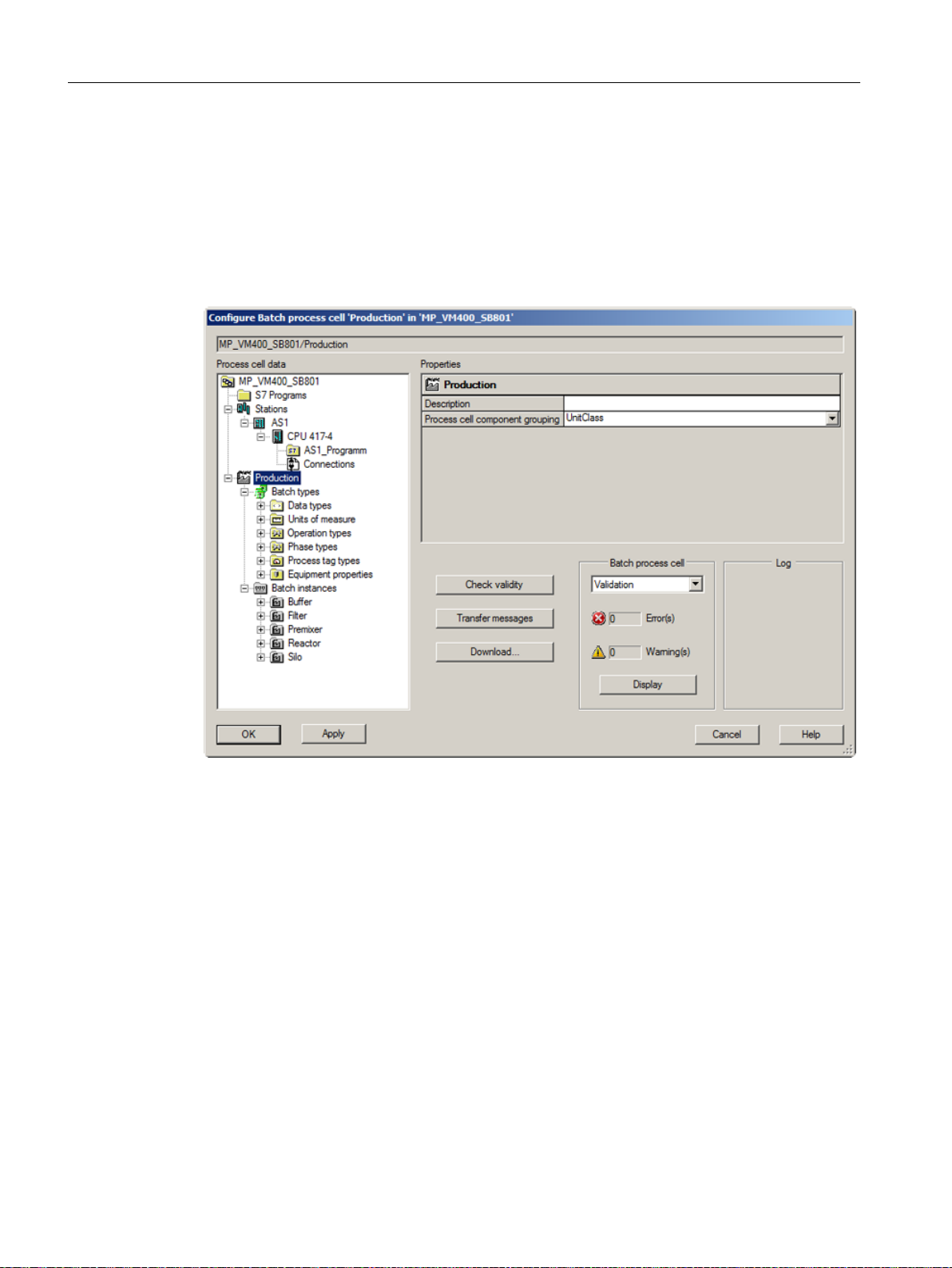
Product introduction and installation
3.3 Components of SIMATIC BATCH
3.3.2 BATCH configuration dialog
Software components in the SIMATIC Manager
The BATCH configuration dialog is opened in the SIMATIC Manager using the Options >
SIMATIC BATCH menu. As an alternative, you can also open it using the "SIMATIC BATCH"
shortcut menu of any object in the SIMATIC Manager.
Functions in the BATCH configuration dialog
In the BATCH configuration dialog, the following tasks are performed after you have created
the basic automation (SFC / CFC) in the SIMATIC Manager:
● Updating, compiling and downloading the S7 program (objects)
● Updating, compiling and downloading stations (SIMATIC station, for example SIMATIC
S7-400)
– CPU for example 417-4, specifying the memory configuration and assignment for the
recipe logic
– Compiling and downloading the S7 program (charts) The CFC charts of the units
assigned to the S7 program are opened.
– Displaying, updating, compiling and downloading connections
SIMATIC BATCH V8.2
34 Operating Manual, 02/2016, A5E35958174-AA
Page 35

● Batch process cell
– Validating the batch process cell
– Transferring messages of the batch process cell to the higher-level PCS 7 OS
– Downloading a batch process cell
● Generating, creating and deleting batch types
● Propagating batch types in a multiproject
● Compiling, creating and deleting batch instances.
● Merging batch instances in a multiproject
Additional information
BATCH engineering (Page 178)
3.3.3 BATCH Launch Coordinator
Product introduction and installation
3.3 Components of SIMATIC BATCH
The BATCH Launch Coordinator is responsible for the following:
● Operator control and monitoring of SIMATIC BATCH
● Monitoring the BATCH server applications
The icon of the BATCH Launch Coordinator is displayed within the task bar. If you right-click
the icon, a shortcut menu opens in which commands are available for selection. Additional
information can be found in the first reference below.
Image 3-1 BATCH Launch Coordinator shortcut menu
Startup characteristics
The BATCH Launch Coordinator can be started automatically or manually. For automatic start
after computer logon, the Batch process cell must be loaded and WinCC Runtime must be
activated.
If the BATCH Launch Coordinator is not started automatically, start it using the Start > All
Programs > Siemens Automation > SIMATIC > Batch > SIMATIC BATCH Launch
Coordinator command.
Starting the BatchCC
The BATCH Launch Coordinator creates the preconditions for starting BatchCC. BatchCC
cannot be connected to the database of the loaded batch process cell until SIMATIC BATCH
displays the status "running". BatchCC will display a corresponding information dialog on
startup until SIMATIC BATCH is ready.
SIMATIC BATCH V8.2
Operating Manual, 02/2016, A5E35958174-AA 35
Page 36

Product introduction and installation
3.3 Components of SIMATIC BATCH
Additional information
Information on the BATCH Launch Coordinator (Page 243)
"System characteristics" tab (Page 946)
3.3.4 BATCH control server
Definition
The BATCH Control Server is a component of SIMATIC BATCH. The BATCH Control Server
handles communication with the process and controls and monitors execution of the current
batches.
The BATCH Control Server does not have its own user interface. The BATCH Control Server
is started using the Launch Coordinator on the BATCH server or, in a redundant system, on
both BATCH servers.
BATCH Control Server tasks
The BATCH Control Server (BCS) performs a variety of detailed tasks. The most important
functions are the following:
● Establishing a communication connection to the automation system
● Generating the control recipe
● Downloading the control recipe to the automation system
● Processing the recipe synchronization
● Generating messages on the server status
● Controlling the redundancy mechanisms
● Failure monitoring (watchdog)
To acquire batch data (messages), there is a connection to the message server and to the
process data acquisition of the PCS 7 OS (WinCC).
Establishing a communication connection to the automation system
The BCS in conjunction with the communication channel (via S7 DOS) ensures the
communication with the process. It monitors the execution of the current batches.
In contrast to the PC-based concept, the AS-based concept has direct process access via the
communication channel.
Transferring step information and control recipe requests
The BCS transfers data to the AS via the S7 DOS communication channel. Commands and
parameters are sent to the automation system. The BCS receives status and process values.
SIMATIC BATCH V8.2
36 Operating Manual, 02/2016, A5E35958174-AA
Page 37

Generating the control recipe
Once a batch has been started in the BatchCC or on the PCS 7 OS, the BCS allocates the
unit on the AS, generates the associated control recipe, and sends it to the AS.
Downloading the control recipe to the automation system
The complete control recipe for one unit is loaded in a permanently assigned data block on
the AS using S7 communication.
All of the step and recipe structure data is stored in the data block.
Processing the recipe synchronization
If a synchronization line is reached during execution of a control recipe, the automation system
sends a frame to the BCS. In addition to the batch ID, the frame also contains the
synchronization number that is unique within a recipe.
A signal is sent to the AS when all units involved in synchronization reach the synchronization
line. The batch execution is then resumed simultaneously in all units.
Product introduction and installation
3.3 Components of SIMATIC BATCH
Generating messages on the server status
The BATCH Control Server generates status messages for the BatchCC and the AS link. The
messages are stored along with the corresponding message numbers in PCS 7 Alarm Logging.
Generating the batch report
After a batch is started, the batch data is saved in the online data storage of SIMATIC BATCH.
In order to display and/or print out batch data, a print preview window and the batch report are
available.
Checking state of process cells in the event of a problem in the automation system
In the event of a problem in the AS (AS in STOP), the active automation functions go into error
mode. Depending on the setting under Properties > "AS operating parameters" tab under "SFC
start-up after CPU restart", the SFC / SFC type is automatically reset or retains its state.
Operator intervention is needed in both cases. We would only recommend a restart or
resumption of the function once the state of the process cells has been checked.
3.3.5 BATCH CDV
Definition
BATCH CDV (batch data management) is a component of SIMATIC BATCH. It is a server
component responsible for acquisition, storage and reporting of batch data.
BATCH CDV does not have its own user interface. BATCH CDV is controlled as a server
application by the BATCH Launch Coordinator service. The status of the application is
SIMATIC BATCH V8.2
Operating Manual, 02/2016, A5E35958174-AA 37
Page 38

Product introduction and installation
3.3 Components of SIMATIC BATCH
displayed via the "BATCH Status" button in the shortcut menu of the BATCH Launch
Coordinator.
Functions
The “BATCH CDV” server handles the following three tasks:
● Collects and stores WinCC messages.
● Collects and stores WinCC measured values. Only the measured values configured in the
running batches are collected and stored.
● Closing batches. This process is divided into two steps. The transition state "Closing" leads
to the final state "Closed".
Saving measured value and message data
BATCH CDV was enhanced so that the collected measured value and message data can only
be written to the hard disk when sufficient disk space is available.
In addition, a batch can only take the "Closed" status when all batch-specific measured value
data have been collected and written to the hard disk.
Note
Batches can no longer be closed if there is not enough space on the hard disk.
Cause:
A batch can only take the "Closed" status after it has first taken the "Closing" status and all
batch-specific measured value and message data have been collected and written to the hard
disk. If there is not enough hard disk space, the collected measured value and message data
cannot be saved.
Remedy:
As soon as there is enough hard disk space, the pending measured value and message data
is written to the hard disk. If a batch has the "Closing" status at this point in time, it is
automatically closed after the pending measured value and message data has been saved.
3.3.6 Batch Control Center (BatchCC)
Definition
The BATCH Control Center (BatchCC) is the central component in SIMATIC BATCH for batch
planning and batch control. The BATCH Control Center manages all the data relevant to
SIMATIC BATCH. This means all BatchCC data can also be displayed in reports.
The Batch Control Center is started on the BATCH servers according to the settings made in
the BATCH Launch Coordinator.
SIMATIC BATCH V8.2
38 Operating Manual, 02/2016, A5E35958174-AA
Page 39
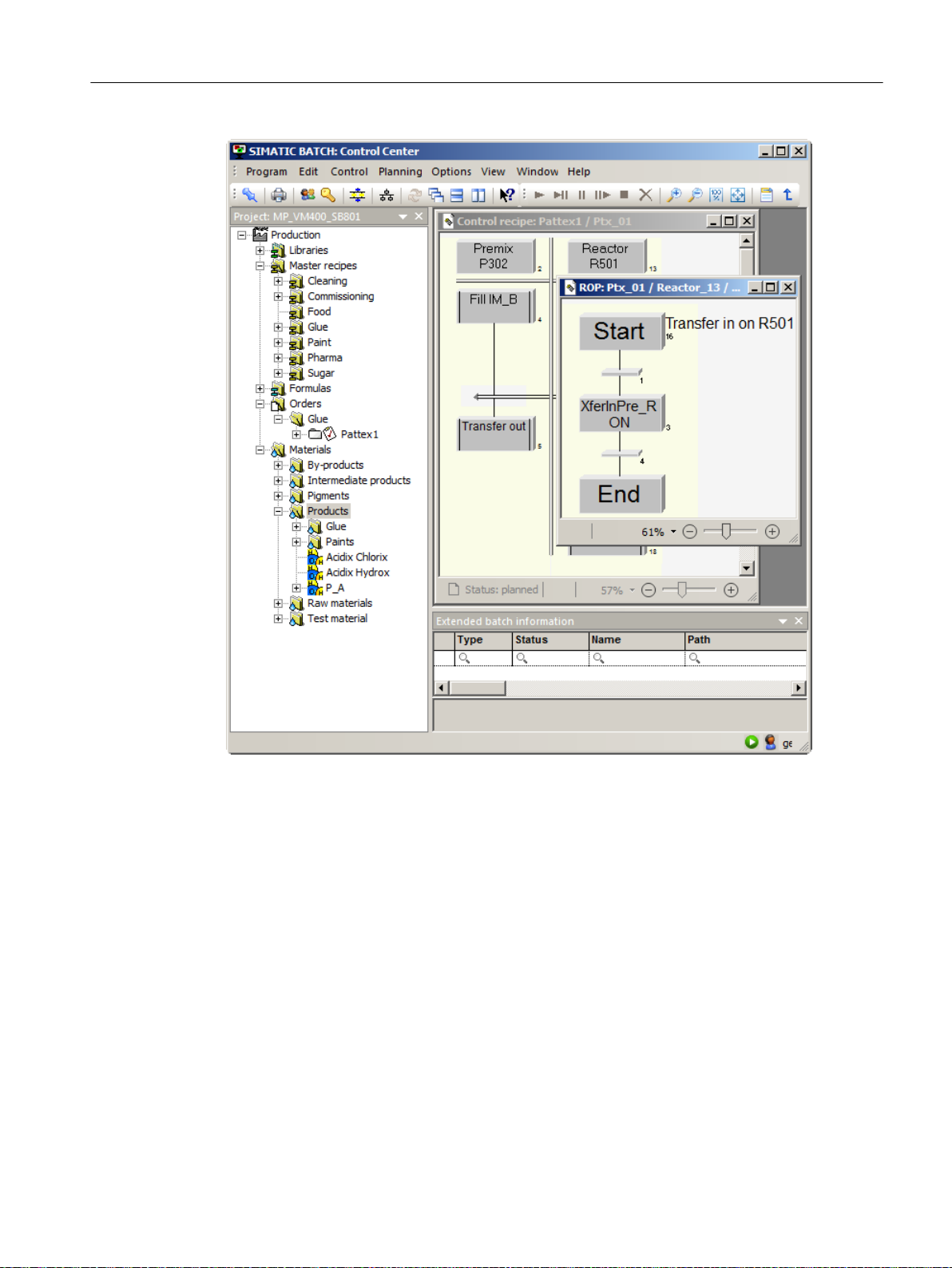
Product introduction and installation
3.3 Components of SIMATIC BATCH
Functions
With the BATCH Control Center, you can do the following:
● Read in the process cell data from the basic control
● Specify the user permissions for all functions of BATCH
● Define the names and codes of the materials used
● Manage master recipes and start the BATCH Recipe Editor to configure the recipe structure
● Manage libraries with recipe elements (library operations)
● Edit and manage the formula categories and corresponding formulas
● Plan production orders using master recipes and batches
● Start and control batch executions
● Monitor and troubleshoot batch executions
● Display recipe and batch data in reports.
SIMATIC BATCH V8.2
Operating Manual, 02/2016, A5E35958174-AA 39
Page 40
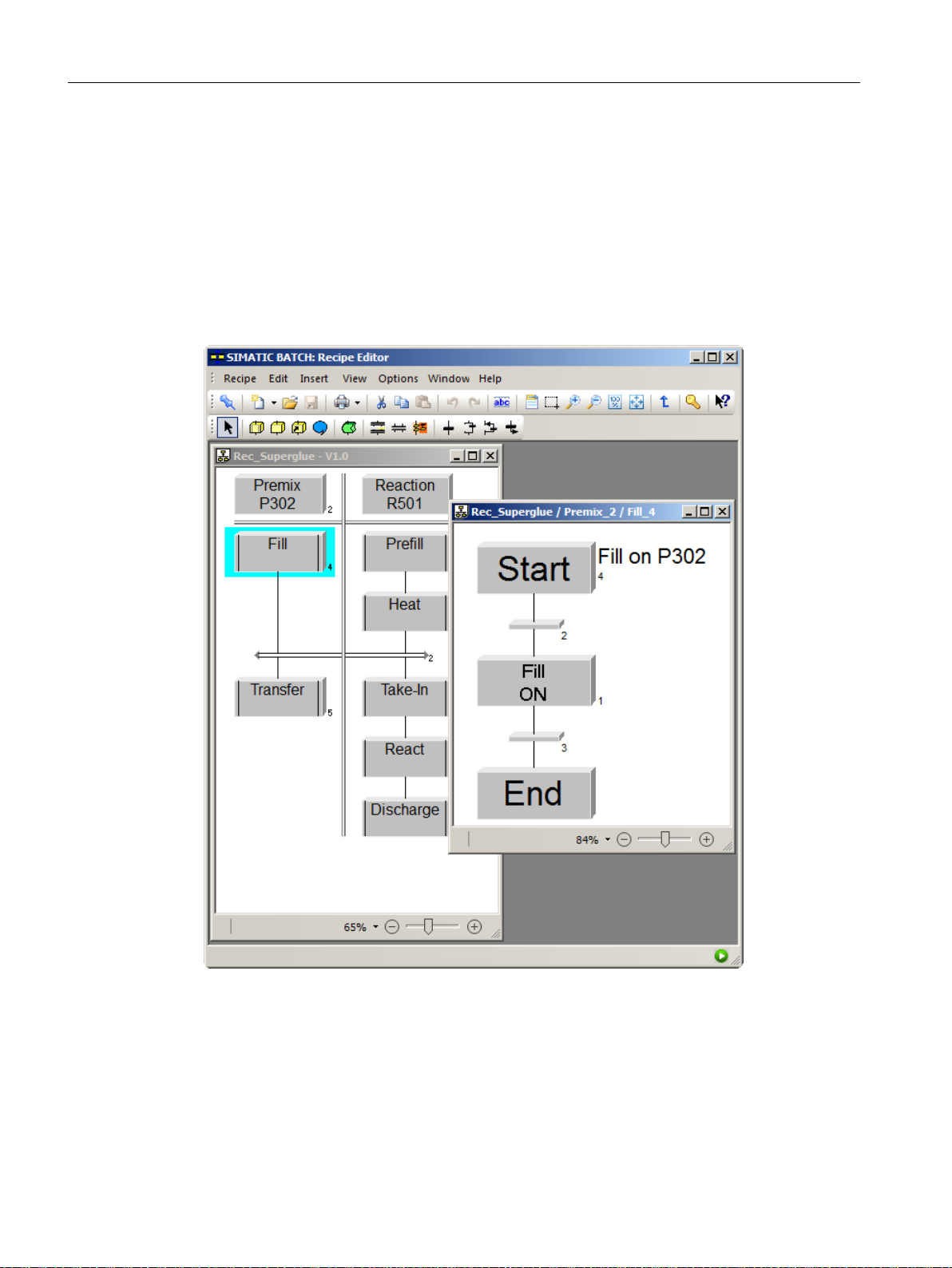
Product introduction and installation
3.3 Components of SIMATIC BATCH
3.3.7 BATCH Recipe Editor
Definition
The BATCH Recipe Editor (RE) is part of SIMATIC BATCH and provides you with a graphical
user interface for creating and modifying master recipes and library operations. Recipe creation
is based on the BATCH objects from the BATCH process cell configuration in the engineering
system (ES) of SIMATIC PCS 7, for example, by ISA-88 type definition of the process cell,
units and equipment modules.
Functions
With the BATCH Recipe Editor, you can do the following:
● Create new master recipes and library operations.
● Modify existing master recipes and library operations (structural or parameter
modifications).
SIMATIC BATCH V8.2
40 Operating Manual, 02/2016, A5E35958174-AA
Page 41

● Display the master recipes and library operations in reports.
● Release master recipes and library operations for testing or for production.
● Validate recipes.
When performing these tasks, the familiar functions known from MS Windows programs such
as paste, cut, copy, undo and redo can be used on single or grouped objects.
3.3.8 Assembling BATCH data in reports
Reports
Printed reports ensure the documentation of your batch processes. Reports for the following
objects are available with SIMATIC BATCH:
● BATCH process cell
● Libraries
● Master recipes
Product introduction and installation
3.3 Components of SIMATIC BATCH
● Formulas
● Batches
The standard report templates are provided for all types of reports. Report templates are used
for clear and structured visualization of the data. The shortcut menu of a selected object
contains the "Print" and "Print Preview" commands for objects. Commands for navigating,
viewing, printing, and exporting reports are included in a toolbar of the print preview window.
Additional information
Object reports (Page 477)
3.3.9 BATCH OS controls
OLE custom controls (OCX) for SIMATIC BATCH
We provide you with SIMATIC BATCH OS controls for operating and monitoring batch
processes on a PCS 7 OS client. In a template screen that is available after installing SIMATIC
BATCH, you will find all the BATCH OS controls for operator control and monitoring of a Batch
process cell.
Graphical user interface on a PCS 7 OS
You can use the BATCH OS controls as a graphical user interface (GUI). They are configured
in the WinCC Graphics Designer for process mode. In process mode (WinCC Runtime), all
the necessary interventions for batch mode can be implemented from a PCS 7 OS using
BATCH OS controls.
SIMATIC BATCH V8.2
Operating Manual, 02/2016, A5E35958174-AA 41
Page 42

Product introduction and installation
3.4 Operating modes in SIMATIC BATCH
Additional information
SIMATIC BATCH OS controls (Page 585)
3.4 Operating modes in SIMATIC BATCH
3.4.1 Introducing the operating modes "AS-based" and "PC-based"
New BATCH block for both operating modes
When you create the master recipes, you can specify whether or not they are processed ASbased or a PC-based for each recipe unit procedure (RUP). This is only possible if the new
block "UNIT_PLC" from supplied block library is configured in the relevant RUP.
What makes the AS-based operating mode possible?
The AS-based mode can only be implemented by using the new unit block "UNIT_PLC". With
the new AS-based mode, you can influence recipes being processed on the AS using the
UNIT_PLC block.
Note
Units with more than one AS
AS-based operation is not possible in units that have more than one AS on which the equipment
phases/operations are configured. In projects with such units, the AS-based operating mode
must be disabled in the BATCH configuration dialog (0% memory allocation).
Which functions are not supported in the AS-based operating mode?
● Flat recipes are not available.
● The "online structure changes (OSC)" from SIMATIC BATCH version 7.1 SP1 with which
structure changes could be made to the recipe logic during the running of a batch is not
possible in AS-based mode.
Memory requirements of the CPU and runtimes in AS-based mode
The following table provides an overview of the amount of CPU memory occupied by SIMATIC
BATCH blocks in the AS-based mode.
Memory allocations Description Memory required in KB
Static part. Occupied by system. Communication (Event Send) 56
Function blocks 60
Function calls 41
SIMATIC BATCH V8.2
42 Operating Manual, 02/2016, A5E35958174-AA
Page 43

Product introduction and installation
3.4 Operating modes in SIMATIC BATCH
Memory allocations Description Memory required in KB
Dynamic part. Occupied by settings in
the BATCH configuration dialog.
per unit 57
per recipe unit procedure (RUP) 128
The following table shows the runtimes of the most important recipe structures that result from
the processing of a recipe unit procedure and are required to calculate a cycle time.
Recipe structure AS runtime
Completing recipe phase (average measured value) 1.8 ms
Updating setpoint (average measured value) 0.07 ms
Processing a transition (average measured value) 4 ms
Starting recipe phase (average measured value) 1.9 ms
Processing a recipe phase (average measured value) 2 ms
You can find an example of how to determine the memory requirements and the runtime in
the section "Measured results for calculating the performance of both operating modes
(Page 71)".
3.4.2 Concept expansion
Reason for expansion of the concept
Continuously increasing demands for higher product quality while simultaneously maintaining
full plant capacity have caused a variety of branches in the manufacturing industry to improve
and optimize their batch processes again and again.
For example, the food and beverage industry thus expect deterministic and above all fast step
change times from a batch control system because slow step changes can result in a reduction
in product output.
Requirements for fast batch processes
The determining logic of step changes is a basic requirement for both fast and parallel process
sequences, which need to be synchronized to specific steps. Fast process sequences, for
example, enable configuration of exact deceleration points for dosing, while precise parallel
sequences accelerate the material transfer to synchronization steps.
The following requirements must be met to obtain the needed fast batch processes:
● Clear reduction of the step change times to less than one second
● Clearly defined deterministics for the step change times for batch processing
SIMATIC BATCH V8.2
Operating Manual, 02/2016, A5E35958174-AA 43
Page 44

Product introduction and installation
3.4 Operating modes in SIMATIC BATCH
Characteristics of SIMATIC BATCH
When compared with previous versions of SIMATIC BATCH, this version allows faster batch
control. The following features characterize SIMATIC BATCH in AS-based mode:
● Shifting of the recipe logic to the automation system (BATCH block UNIT_PLC)
● Reduction of the communication paths and communication traffic
● Shorter reaction times
● SFC time optimization due to event-driven calls
Compatibility with SIMATIC PCS 7 and SIMATIC BATCH
The proven functionalities, such as engineering, convenient recipe management, and operator
control and monitoring of the process, remain available. Added to this are the deterministic
algorithm and the performance at step changes while the runtime system on the AS is activated.
Hierarchical recipes are created in three levels: RUP, ROP, and RPH. These recipes are
executed in the automation system as batches. Either the BATCH Control Center or the
BATCH OS controls are used for operator control and monitoring of recipes.
Online functionalities, such as creating and starting batches, are available not only in BatchCC
but also with the new BATCH OS controls on a PCS 7 OS.
Offline and project functions, such as "Updating process cell", "Permission management",
"Role management", and the creation of materials, formulas, and formula categories continue
to be used exclusively in BatchCC.
Recipes for AS-based operation continue to be created with the Recipe Editor of SIMATIC
BATCH and their use is checked there. For recipes that have parts executed on the AS,
additional constraints were included in the validation. There is a check to determine whether
free memory blocks are available on the AS to execute selected recipe parts during runtime.
Use of existing recipes
With suitable system knowledge, existing hierarchical recipes from previous versions of
SIMATIC BATCH can be reconfigured for AS-based operation.
3.4.3 Shifting of the recipe logic to the AS
Acceleration of recipe execution steps
An essential measure for accelerating recipe execution steps is the shifting of the recipe logic
from the BATCH control server to the automation system. It results in substantially faster as
well as deterministic step change times.
In comparison to a server, the automation system operates deterministically because the
individual cycles of organization blocks are controlled in it. On the server, in contrast, the
execution times of the cycles can vary depending on the load of the CPU.
Moving the recipe logic also results in changes to the system architecture. As can be seen in
the figure "Shifting the recipe logic", the BATCH control server is connected to the AS via a
SIMATIC BATCH V8.2
44 Operating Manual, 02/2016, A5E35958174-AA
Page 45

Product introduction and installation
3.4 Operating modes in SIMATIC BATCH
separate communication channel (S7DOS). The result is shorter and simplified communication
paths.
Communication path between BATCH control server and automation system
The new concept in AS-based mode uses a direct communication channel for faster and more
stable data exchange between the BATCH control server and the automation system. This
channel is based on S7 DOS and allows the BATCH control server direct access to the process.
The communication channel has the following tasks:
● Downloading blocks with the control recipe for the sequence of a unit
● Sending control commands to the recipe control
● Transferring step data from the automation system to the BATCH control server
● Transferring setpoint values, process values and measured values from the automation
system to the BATCH control server
The communication connections between AS and BCS are created automatically by the
BATCH configuration dialog.
Data communication between the server and automation system
The following figure, "Reducing the communication volume" shows how the individual software
components were changed to reduce the volume of communication.
SIMATIC BATCH V8.2
Operating Manual, 02/2016, A5E35958174-AA 45
Page 46
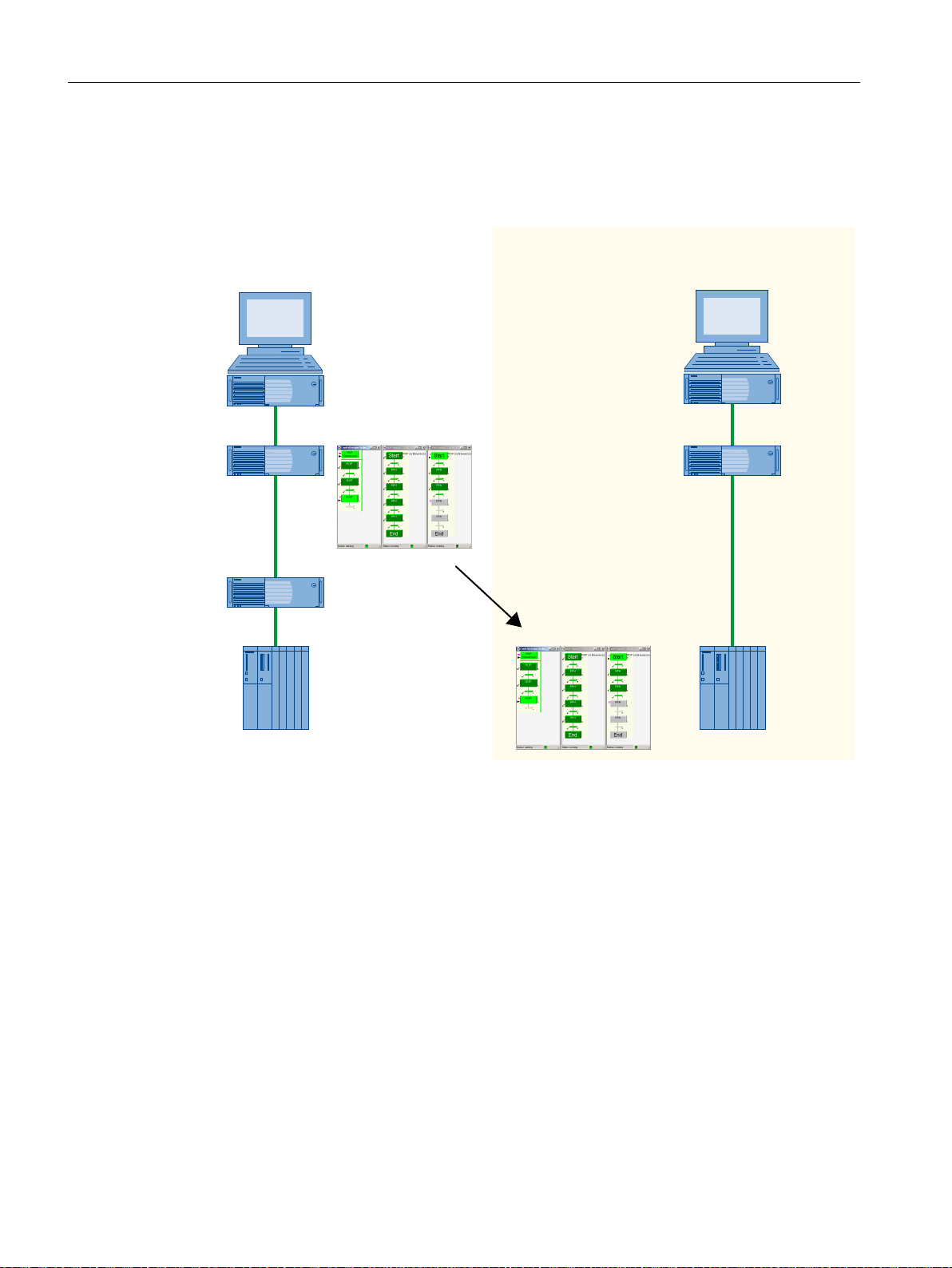
%$7&+&OLHQW
3&626&OLHQW
%$7&+
&RQWURO6HUYHU
3&6266HUYHU
$6
$6
%$7&+&OLHQW
3&626&OLHQW
%$7&+
&RQWURO6HUYHU
3&6266HUYHU
5HGXQGDQF\
RSWLRQDO
5HFLSH
ORJLF
5HFLSH
ORJLF
6,0$7,&%$7&+$6EDVHG6,0$7,&%$7&+3&EDVHG
Product introduction and installation
3.4 Operating modes in SIMATIC BATCH
Impact on the processing time and memory of the AS
The greater the number of currently active unit recipes on the AS, the less memory space or
processing time is available for the remaining automation tasks on the AS.
Image 3-2 Shifting the recipe logic
Operator control of the process on a PCS 7 OS using BATCH OS controls
Which recipe phases continue to be processed in the BATCH control server?
46 Operating Manual, 02/2016, A5E35958174-AA
To create and operate batches including visualization of the control recipes of currently running
batches, SIMATIC BATCH provides a template screen on a PCS 7 OS with all the necessary
BATCH OS controls.
The following list shows all recipe phases that are still processed in the BATCH control server
in AS-based mode:
● Unit allocation (preferred unit, the longest out of use, operator selection and process
parameters)
● Synchronization lines between two units
SIMATIC BATCH V8.2
Page 47

● Cross-unit transitions and command steps
● Operator instructions
Additional information
Obtaining the memory configuration and setting the allocation (Page 198)
BATCH OS controls (Page 585)
3.4.4 Recipe levels and sequence of a recipe
Recipe levels and recipe logic
In AS-based mode, SIMATIC BATCH allows a reduction and a reproducibility of step change
times with the following recipe control runtime functions that have been shifted to the
automation system:
● Unit/RUP level
Product introduction and installation
3.4 Operating modes in SIMATIC BATCH
Recipe execution
● Recipe level 1/ROP level
● Recipe level 2/RPH level
● Logic of the individual control units
Recipe level 2 / RPH level contains the recipe logic and its accelerated execution via the SFC
type or SFC chart.
The logic of the individual control units describes the user configuration on the AS.
The system blocks required for recipe control and the runtime system are grouped together in
the SIMATIC BATCH blocks library.
The mapping of the recipe execution in the AS is made with the following block classes:
1. RUP level -> UNIT_PLC block
2. ROP level -> EOP block (level 1)
3. RPH level -> EPH block (level 2)
Recipes in the automation systems are assigned to the units as control recipes. This property
allows the distribution of a project over several automation systems.
If communication with the SIMATIC BATCH control server is interrupted, the AS continues to
run to the next synchronization line in the recipe or to a reference (transition or command block)
to another unit recipe. Events are temporarily stored on a unit-specific basis until the configured
communication buffers are full.
The volume of data that may be put into interim storage depends on the corresponding volume
of batch communication.
SIMATIC BATCH V8.2
Operating Manual, 02/2016, A5E35958174-AA 47
Page 48

Product introduction and installation
3.5 Possible configurations
3.4.5 Recipe processing in runtime
Control recipe definition
The complete controller information required to execute a batch in the automation system is
called the control recipe. This information is distributed over units and loaded into the
automation system by the BATCH control server. Each unit is assigned one or more data
blocks for storage of unit recipes.
Control recipe request from the AS
A control recipe is requested by the AS. The unit recipe procedure is then generated in the
BATCH control server and loaded into the data block for the UNIT block.
The start of a unit is initiated by:
● The order system (BatchCC) on the BATCH control server
● The SIMATIC BATCH OS controls on the PCS 7 OS
Recipe synchronization
Recipe synchronizations are loaded in the AS with the control recipe. When a recipe
synchronization line is reached during the control of a unit, the the following individual actions
occur:
● The AS sends a frame to the recipe synchronization in the BATCH control server. In addition
to the batch ID, the frame also contains the synchronization number that is unique within
a recipe.
● The BATCH control server determines the participants of the synchronization with the first
frame. The synchronization definition is read for the recipe for this purpose. The definition
includes the recipe unit procedures (RUPs) involved in the synchronization.
● The BATCH control server determines the unit candidates for this batch. The candidate
information includes which unit is selected for this RUP in the current batch.
● If the conditions of a synchronization are met, the BATCH control server will set an
"acknowledgment bit". The acknowledgment bit is set in the AS for each participating unit.
● The execution in all units is then simultaneously resumed in the AS.
3.5 Possible configurations
3.5.1 System software architecture
System and software architecture.
The following figure shows the hardware components involved in the system (colored gray)
that are interconnected via bus systems (colored brown) Software program packages or parts
of software program packages (colored white) of SIMATIC BATCH are shown for each
SIMATIC BATCH V8.2
48 Operating Manual, 02/2016, A5E35958174-AA
Page 49
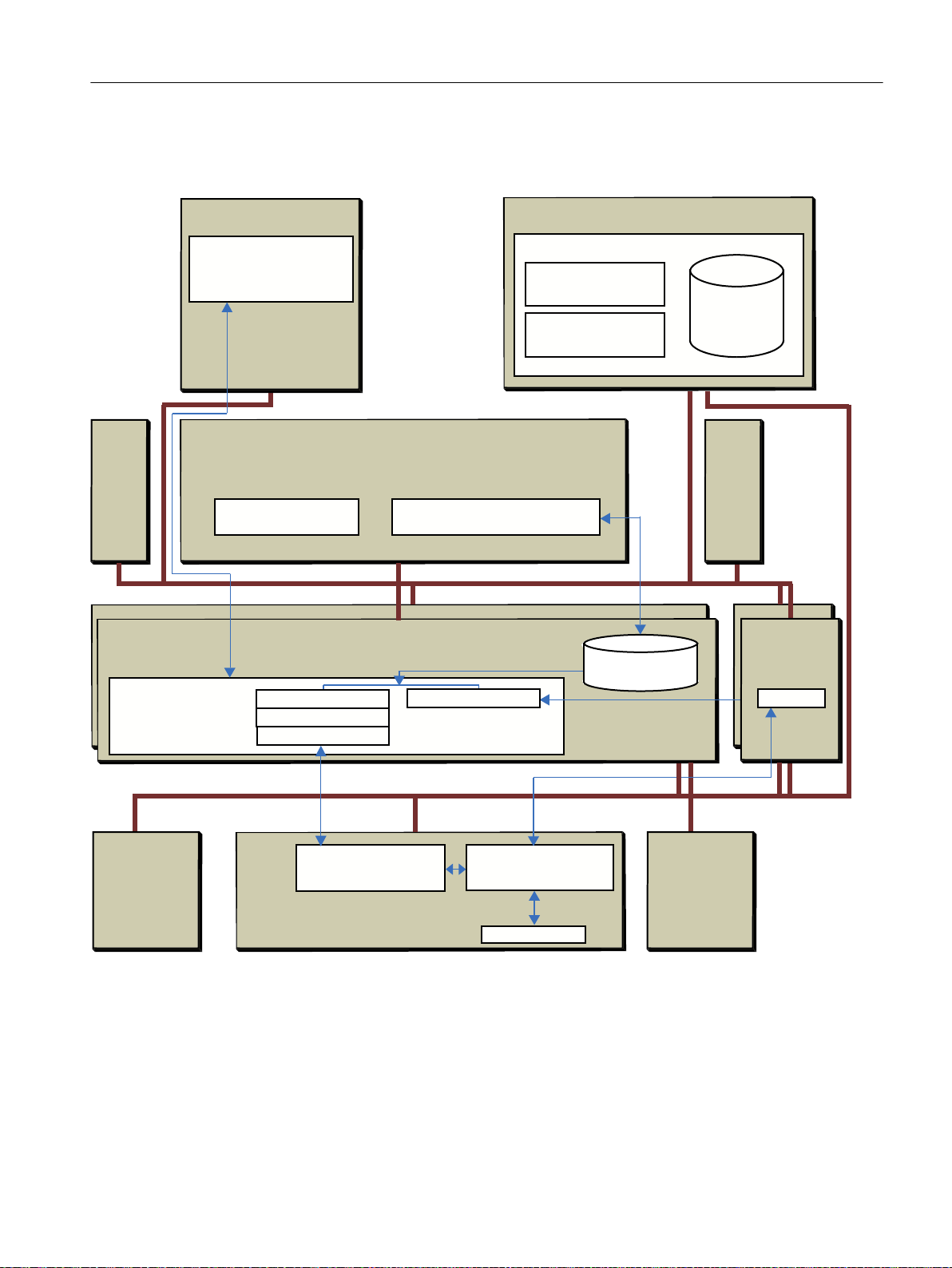
6,0$7,&%$7&+
GDWDEDVH
6,0$7,&
6
6,0$7,&
6
6,0$7,&%$7&+
$6EDVHGSURFHVVLQJRI
WKHFRQWUROUHFLSH
5HFLSHSKDVHORJLF
6)&W\SHRU,(3+
EORFN
6LJQDOPRGXOH
6,0$7,&
6
3URFHGXUDO
FRQWUROPRGHO
(40ILOH
6,0$7,&%$7&+
FOLHQW
6,0$7,&%$7&+
DGYDQFHGUHSRUW
%$7&+&RQWURO&HQWHU%DWFK&&
5HGXQGDQW6,0$7,&%$7&+VHUYHU
%$7&+
&RQWUROVHUYHU
$6EDVHGPRGH
6,0$7,&%$7&+
&OLHQW
6,0$7,&0DQDJHU
(QJLQHHULQJVWDWLRQ(6
6,0$7,&%$7&+
&RQILJXUDWLRQGLDORJ
6,0$7,&%$7&+
%ORFNV
6,0$7,&%$7&+
&OLHQW
$6FRPPXQLFDWLRQ
5HFLSHFRQYHUWHU
3&EDVHGPRGH
3&626FOLHQW
%$7&+26FRQWUROV2&;
%$7&+UHFLSHHGLWRU5(
9LVXDOL]HEDWFKHV
&UHDWHEDWFKHV
&RQWUROEDWFKHV
6,0$7,&%$7&+
VHUYHU
3&626
VHUYHU
$6FRPP
3ODQWEXV
7HUPLQDOEXV
Product introduction and installation
3.5 Possible configurations
hardware component involved in the process. Blue lines with directional arrows roughly show
the interaction of the components of the software packages.
SIMATIC BATCH V8.2
Operating Manual, 02/2016, A5E35958174-AA 49
Page 50

Product introduction and installation
3.5 Possible configurations
3.5.2 Distribution of the SIMATIC program packages
SIMATIC software packages and their distribution variants
When installing these SIMATIC software packages on PCs, the following main distribution
variants are possible.
Variant Name Installation of the SIMATIC program Assessment and purpose
1 Single station
system
2 Simple multi‐
ple station
system
3 Multiple sta‐
tion system
All program packages are installed on one PC
Example: Engineering station (ES), OS server, OS cli‐
ents, BATCH server, BATCH client, RC server, RC cli‐
ent.
Installation of the program packages for an ES and the
installation of all other program packages on a sepa‐
rate PC.
Example: OS server, OS client, BATCH server,
BATCH client, RC server, RC client.
All program packages are installed on different PCs
The following program packages can be installed on
different PCs.
Example: Single PC as ES, single PC as BATCH serv‐
er, single PC as OS server, single PC as RC server,
single PC as BATCH client, OS client and RC client,
Process connection to AS from this PC.
Limited performance, engineering and
process mode not separate. For exam‐
ple for small process cells or when work‐
ing with Getting Started.
Process connection to the AS from the
ES and the separate PC. Better per‐
formance. Engineering and process
mode separated. Industrial system.
Process connection to AS from the ES,
from BATCH server and OS server.
Best performance in conjunction with a
fast network. Engineering and process
mode separated. Industrial system.
Data storage systems
SIMATIC BATCH operates with the following three databases:
● Project DB: Storage of user permissions
● Offline DB: Storage of recipes, formulas, materials
● Online DB: Storage of the batches
During installation, the BATCH databases or BATCH shared folder with the databases are
created in the specified location on your hard disk or in a new folder path.
BATCH server
When you install the BATCH server program package on a PC, the following BATCH
applications are installed:
● BATCH control server (BCS)
● Batch data management (CDV)
● SIMATIC BATCH Server (SBS)
● BATCH databases
● BATCH Launch Coordinator
SIMATIC BATCH V8.2
50 Operating Manual, 02/2016, A5E35958174-AA
Page 51

BATCH clients
When you install the BATCH client program package on a PC, the following BATCH
applications are installed:
● Batch Control Center (BatchCC / BCC)
● BATCH Recipe Editor (RE)
● BATCH OS controls
● API interface
Additional information
You will find a detailed description of the possible distribution of the SIMATIC BATCH program
packages in the manual
Process Control System PCS 7; PC Configuration and Authorizations
3.5.3 Client / server architecture of SIMATIC BATCH
Product introduction and installation
3.5 Possible configurations
Client/server architecture
The SIMATIC BATCH software package is normally installed on more than one PC. PCs are
set up as BATCH clients are always at least one PC as BATCH server. All the BATCH stations
involved work with the same process cell project. The BATCH server provides the services for
the BATCH clients that form the interface to the operator, in other words function as operator
control terminals.
PC-based mode: Interaction with PCS 7 OS server
In process mode (runtime), SIMATIC BATCH is linked to the PCS 7 OS servers.
The communication with the automation system, for example write recipe parameters or read
process values, is via the data manager of the PCS 7 OS server. In other words, a BATCH
server does not need its own interface to the automation system for the PC-based mode.
The "BATCH server" and "OS Server" program packages should, whenever possible, be
installed on separate PCs to improve performance. In the batch process cell configuration, the
PCS 7 OS servers that are relevant for the batches are made known to the BATCH server.
BATCH clients can run on a separate PC as well as together with an OS client on a PC. The
PC configuration of this mode is shown in the following figure.
SIMATIC BATCH V8.2
Operating Manual, 02/2016, A5E35958174-AA 51
Page 52
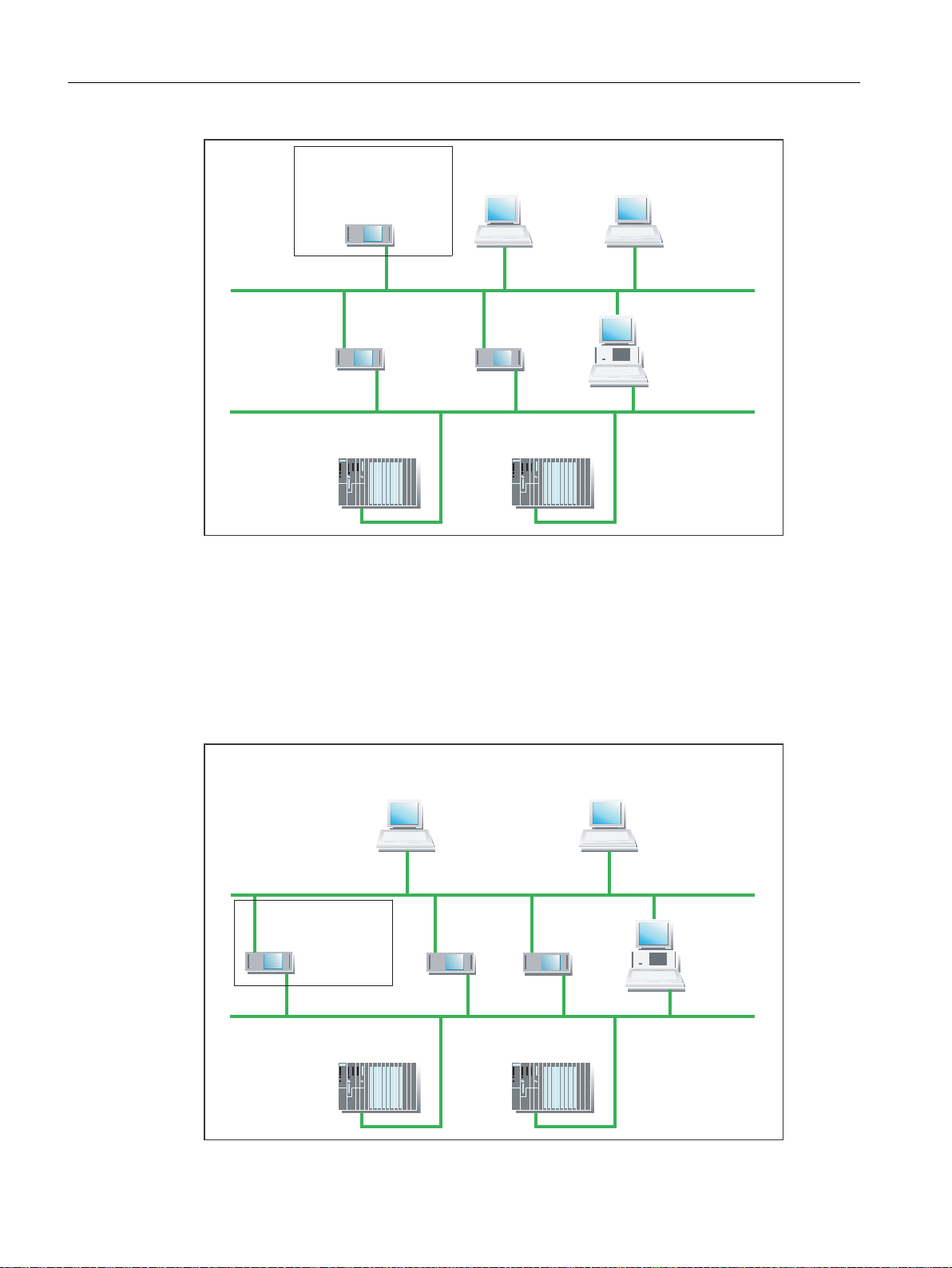
%$7&+VHUYHU
6,0$7,&%$7&+
%$7&+&RQWURO6HUYHU
GDWDVWRUDJHV\VWHP
%$7&+FOLHQW
3&62626FOLHQW
%$7&+FOLHQW
7HUPLQDOEXV
3&626
26VHUYHU
3&626
26VHUYHU
(QJLQHHULQJ
6WDWLRQ
3ODQWEXV
6,0$7,&6
6,0$7,&6
6,0$7,&%$7&+
%$7&+VHUYHU
%$7&+&RQWURO
6HUYHUGDWD
VWRUDJHV\VWHP
%$7&+FOLHQW
3&62626FOLHQW
%$7&+FOLHQW
7HUPLQDOEXV
3&626
26VHUYHU
3&626
26VHUYHU
(QJLQHHULQJ
6WDWLRQ
3ODQWEXV
6,0$7,&6
6,0$7,&6
Product introduction and installation
3.5 Possible configurations
AS-based mode: Interaction with the automation system
In contrast to the PC-based mode, a BATCH server in the AS-based mode requires a network
connection to both the terminal and plant bus. This ensures direct communication between
the BATCH server and the AS via a separate communication channel. Via this channel, the
control recipes on the automation system are accessed while the runtime system is operating.
To accelerate a step change, for example, switch to next signals are set in the control recipe
and therefore in the automation system.
SIMATIC BATCH V8.2
52 Operating Manual, 02/2016, A5E35958174-AA
Page 53

Product introduction and installation
3.5 Possible configurations
multiple station system (distributed system)
SIMATIC BATCH supports the model of multiple station systems or distributed systems. This
means that you can install the software program package relevant to the application on every
PC of a multiple station system. You can, for example, configure your project in such a way
that all stations involved including the AS can be accessed from an engineering station.
Simple multiple station system (distributed system with a PCS 7 OS as BATCH server and OS
server)
The configuration described up to now applies to a multiple station system or distributed
system. For small projects, there may be only one PCS 7 OS. In this case, the BATCH server
and the OS server are installed on this PCS 7 OS. This PC must have the process connection
to the AS. The ES is installed on a separate PC. This provides a network connection to the
terminal and plant bus and therefore to BATCH clients and the AS.
Configuration on an engineering station
BATCH servers, BATCH clients and OS servers and OS clients are configured in the SIMATIC
Manager of the Engineering Station and downloaded from there to the target stations.
Maximum number of BATCH clients
A maximum of 32 BATCH clients can be connected to one BATCH server.
3.5.4 Interface to MES/ERP
With the
of SIMATIC BATCH to an OEM system or to any MES/ERP application. The API interface
offers a COM connection (data format XML).
To learn about the possible uses and configuring options, please refer to the associated online
help or manual. You will find the online help named "bfapicm_a.chm" in the following path "..
\SIEMENS\BATCH\Api_Example\BFApi\_doc". Double-click on the file to open the online help.
The manual can be opened as a PDF file under Start > All Programs > Siemens Automation
> SIMATIC > Documentation > English > SIMATIC BATCH - COM API.
SIMATIC BATCH - COM API
interface, you can link the online and offline functions
SIMATIC BATCH V8.2
Operating Manual, 02/2016, A5E35958174-AA 53
Page 54

Product introduction and installation
3.5 Possible configurations
3.5.5 Redundancy
3.5.5.1 Introduction
Availability
To increase the availability of the batch control and to allow a software update during operation,
SIMATIC BATCH provides the option of installing a redundant BATCH server. If there is a
failure in the redundant system, there is a standby/master failover between the redundant
BATCH servers.
Redundancy is achieved with redundant BATCH servers each with local data management.
To safeguard data and to allow the batch applications to access the current data, the data is
constantly synchronized between the two local data management systems - a data replication.
This ensures that after the failure of one BATCH Control Server or database server, the
redundant server can continue to work with the same data without the loss of data or gaps in
the documentation.
Configuring and commissioning
Note
Requirements
To establish the software and hardware requirements and when configuring and
commissioning redundant servers in the SIMATIC PCS 7 system, you should always consult
your Siemens representative.
References for redundant PCS 7 OS
An introduction to the general redundancy mechanisms is provided in the function manual
Process Control System PCS 7; Fault-tolerant Process Control Systems
is on the "PCS 7; Electronic Manuals" CD. This is general documentation describing the overall
concept of availability in PCS 7. This also includes, for example, more information on the
redundant PCS 7 OS.
. This documentation
SIMATIC BATCH V8.2
54 Operating Manual, 02/2016, A5E35958174-AA
Page 55
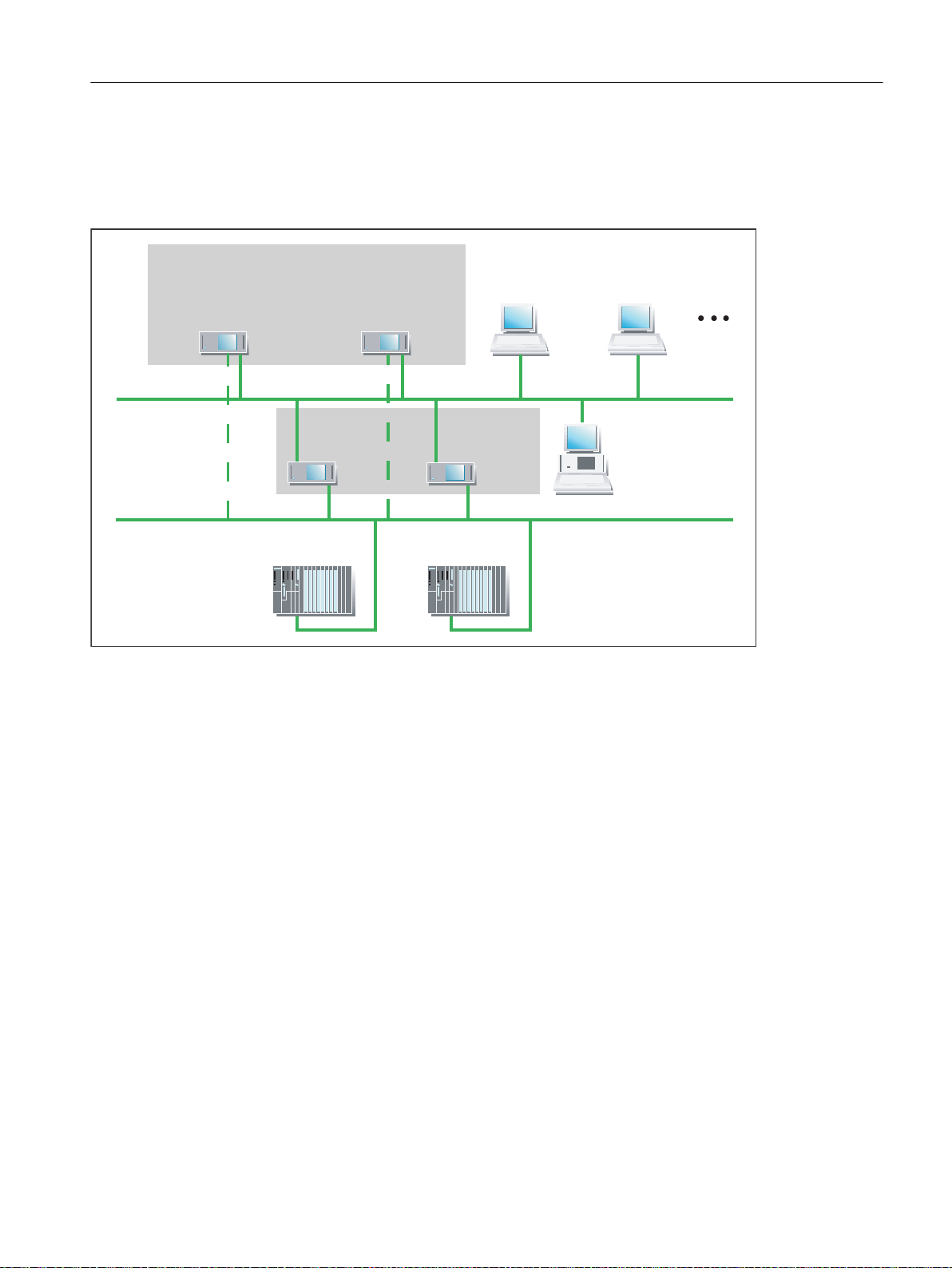
3.5.5.2 Example configuration - Fault-tolerant Batch Control
6,0$7,&%$7&+
%$7&+6HUYHU
%$7&+&RQWU6HUYHU
'%6HUYHU
6,0$7,&%$7&+
%$7&+6HUYHU
%$7&+&RQWU6HUYHU
'%6HUYHU
%$7&+&OLHQW
3&626
26&OLHQW
%$7&+&OLHQW
7HUPLQDOEXV
3&626
266HUYHU
3&626
266HUYHU
UHGXQGDQW
(QJLQHHULQJ
6WDWLRQ
3URFHVVEXV
6,0$7,&6
6,0$7,&6
The figure below shows an example configuration with a redundant BATCH server and
redundant PCS 7 OS (WinCC):
Product introduction and installation
3.5 Possible configurations
(1) Redundant BATCH server
(2) OS redundancy of the standard PCS 7 operator stations
Redundancy is achieved with two BATCH servers with a standby/master failover. The
redundancy of the BATCH servers ensures the following if a BATCH server fails:
● All BATCH clients (with the BATCH Recipe Editor and BatchCC (batch planning, batch
control)) are immediately operable again following the failover and
● permanent acquisition of the Batch data continues.
The redundancy of the distributed PCS 7 operator stations with an interface to the SIMATIC
S7-400 is achieved by interconnected OS servers with data synchronization and backup of
the archive data. The WinCC archives of the redundant OS servers are synchronized and
contain the same data. The functionality is implemented with the "Redundancy" optional
software of WinCC. For a description of the "Redundancy" optional software, refer to the
manual
The redundancy of the PCS 7 operator stations ensures that the batch processes will continue
uninterrupted even if one of the two OS servers fails. The operator remains informed about
the status of the process cell and can still intervene in the process.
SIMATIC HMI; Options
.
SIMATIC BATCH V8.2
Operating Manual, 02/2016, A5E35958174-AA 55
Page 56

Product introduction and installation
3.5 Possible configurations
3.5.5.3 Behavior in runtime
Failover of the BATCH server
The BATCH Control Server and Batch data management (Batch CDV) are permanently active
on both redundant BATCH servers. From the prospective of the BATCH server, there is no
preferred server; in other words, both BATCH servers access the same OS server when there
are no failures in the system.
If the BATCH server configured as the master fails, there is a failover to the BATCH server
(standby). This then becomes the master.
Possible causes of a failover
● Failure of the BATCH server PC (master), e.g. hardware fault or "blue screen"
● Failure of the network connection of the BATCH server PC. The BATCH server no longer
detects a client or its redundant BATCH server.
● Failure of a BATCH server application, e.g. BATCH Control Server, batch data
management (CDV), SIMATIC BATCH Server (SBS).
Failover of the BATCH clients
If the BATCH server (master) fails, the BATCH clients automatically fail over to the standby
BATCH server.
Startup, hot restart of the BATCH clients
Note
Failover time
Following a failover of the BATCH servers, the BATCH clients can only be operated again after
a certain time has elapsed.
A message window opens informing you that the BATCH server is currently not obtainable.
The message window disappears after a successful failover. This indicates that the server
application is ready for operation again. If the redundant BATCH server is not ready to take
over, the message "BATCH server is in error state (postponed)" is displayed on the PCS 7
OS. When the redundant BATCH server becomes ready to take over, the redundant BATCH
server automatically takes over the server application.
As long as the message window is displayed, the BATCH client cannot be operated. You can,
however, close the client application by clicking the "Quit application" button. On completion
of the failover, the BATCH client can be started again.
Process control messages
In the event of a failover, a process control message is displayed on the message OS.
SIMATIC BATCH V8.2
56 Operating Manual, 02/2016, A5E35958174-AA
Page 57

Product introduction and installation
3.5 Possible configurations
3.5.5.4 Data replication
Synchronizing databases
Each redundant BATCH server of a server pair (master, standby) has its own local database.
To continually synchronize the two local databases, an independent second network adapter
is used for each of the two server PCs. The following tasks are performed via this connection:
● Lifebeat monitoring of the redundant partners
● Data replication
● Data consistency between the redundant partners
This ensures that both BATCH server always use the same database.
Redundancy switchover, start sequence of the BATCH servers, database synchronization with WinCC
message
● An interruption of the replication connection (extra network adapter in both redundant
SIMATIC BATCH server PCs with network cable) affects the communication between the
AS and the BATCH server. The communication is blocked for approximately 20 s. This
means that the process (batch) continues running but its visualization in the BATCH Control
Center or in the BATCH OS controls is updated after a delay of up to 20 s.
● When starting a redundant BATCH server or during a redundancy switchover, the
databases of the standby server are synchronized with the databases of the master server.
Do not abort the copy procedure needed for this, e.g. by powering down/switching off one
of the BATCH servers. If you do, you will have to reset the BATCH database of the standby
server.
● A "Restart dialog" appears on the previous master once a switchover to a redundant pair
of servers caused by an error has occurred. Please follow the restart request to correctly
restart the PC. All active programs are closed when you acknowledge the restart request.
SIMATIC BATCH V8.2
Operating Manual, 02/2016, A5E35958174-AA 57
Page 58
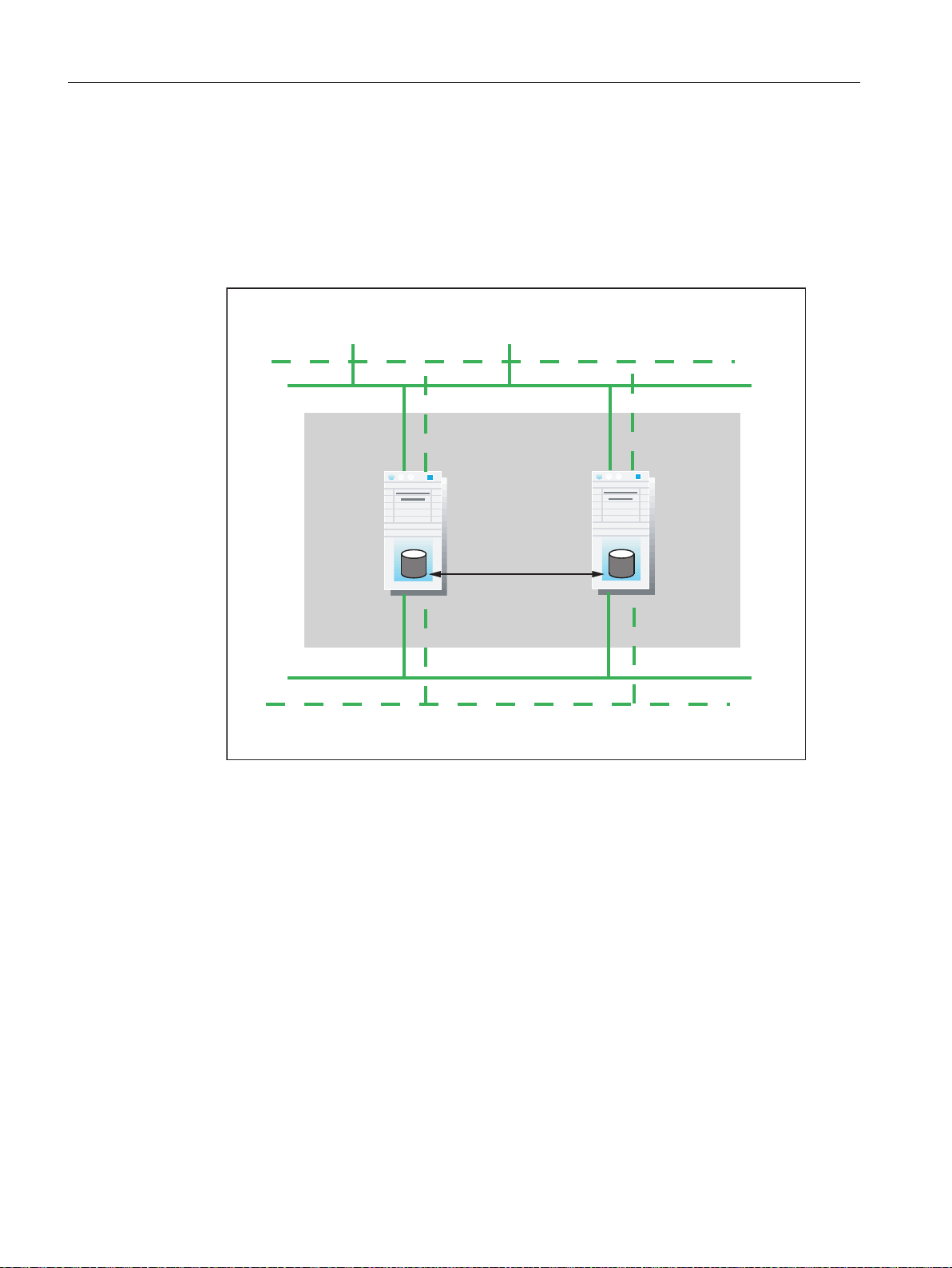
5HGXQGDQW
%$7&+VHUYHU
)DXOWWROHUDQW
UHSOLFDWLRQ
VROXWLRQ
'DWDEDVH
V\QFKURQLVDWLRQ
%$7&+
VHUYHU
%$7&+
VHUYHU
7HUPLQDOEXV
3ODQWEXV
Product introduction and installation
3.5 Possible configurations
● If you power down both BATCH servers on a redundant system with a time lag, when
restarting the BATCH server you will have to firstly restart the server you powered down
last. If you don't do this, there is a risk of you losing batch measurements and messages
from the period of the time lag.
● When starting and ending database synchronization between the master and standby
servers, the WinCC messages "Data synchronization started" and "Data synchronization
complete" are produced.
Hardware requirements
● Redundant BATCH servers always require an additional network adapter independent from
the terminal and plant bus. These network adapters can be of the same type.
● The additional network adapters must be installed in your PCs (redundant BATCH server
pair) in free PCI slots.
● Make sure that you read the information in the relevant SIMATIC PCS 7 documents,
especially the document
58 Operating Manual, 02/2016, A5E35958174-AA
PCS 7 - PC Configuration and Authorization
.
SIMATIC BATCH V8.2
Page 59

Software requirements
● Installation of SIMATIC PCS 7
● Batch data replication is performed exclusively via an independent, additional network
adapter in both PCs.
● The network adapters are configured within the operating system (IP addresses and subnet
mask).
– Subnet mask: The network adapter for the data replication must not be in the same
– The addresses (IP and subnet mask) of the two PCs must be in the same network,
Configuration
The network configuration of the independent network adapter for a redundant BATCH system
is project-independent. It is performed in the "Simatic Shell" system folder in Windows Explorer.
1. Right-click on the "Simatic Shell" folder and select the shortcut menu command
"Redundancy Settings ...".
Product introduction and installation
3.5 Possible configurations
subnet as the network adapter for the communication with the BATCH clients via the
terminal bus/with the AS via the plant bus.
otherwise no communication is possible between the redundancy partners.
Result
2. In the "Serial Interface" area, select "none, or the following symbol "-------------".
3. In the "Network adapter" area, select the adapter that has been configured and is now
available.
4. Close the dialog with "OK".
5. Open the "Network connections" dialog. Open the "Advanced Settings" dialog with the
menu command Advanced > Advanced Settings. Use the buttons in this dialog to set your
connections in the correct order. First configure the "Terminal bus" and "Plant bus"
connection and then the "Batch replication connection".
Note
Check that a log is not selected in the adapter settings for the plant bus (file and print
sharing).
6. Repeat steps 1-5 for the redundancy partner.
You have now configured the required communication for the redundancy partners and can
no perform database replication for SIMATIC BATCH.
SIMATIC BATCH V8.2
Operating Manual, 02/2016, A5E35958174-AA 59
Page 60

Product introduction and installation
3.5 Possible configurations
3.5.5.5 Configuration of the redundant BATCH server
Configuration of applications on objects
WARNING
Computer names
Configuring applications (WinCC, SIMATIC BATCH, ...) on separate "SIMATIC PC station"
objects and then merging them to create one PC station by assigning the same computer
name to the "SIMATIC PC station" objects is not permitted.
Follow the steps in the SIMATIC Manager outlined below:
1. Select the project in the Component view.
2. Select the menu command Insert > Station > SIMATIC PC Station.
Result: A new SIMATIC PC station is inserted in the current project.
SIMATIC BATCH V8.2
60 Operating Manual, 02/2016, A5E35958174-AA
Page 61
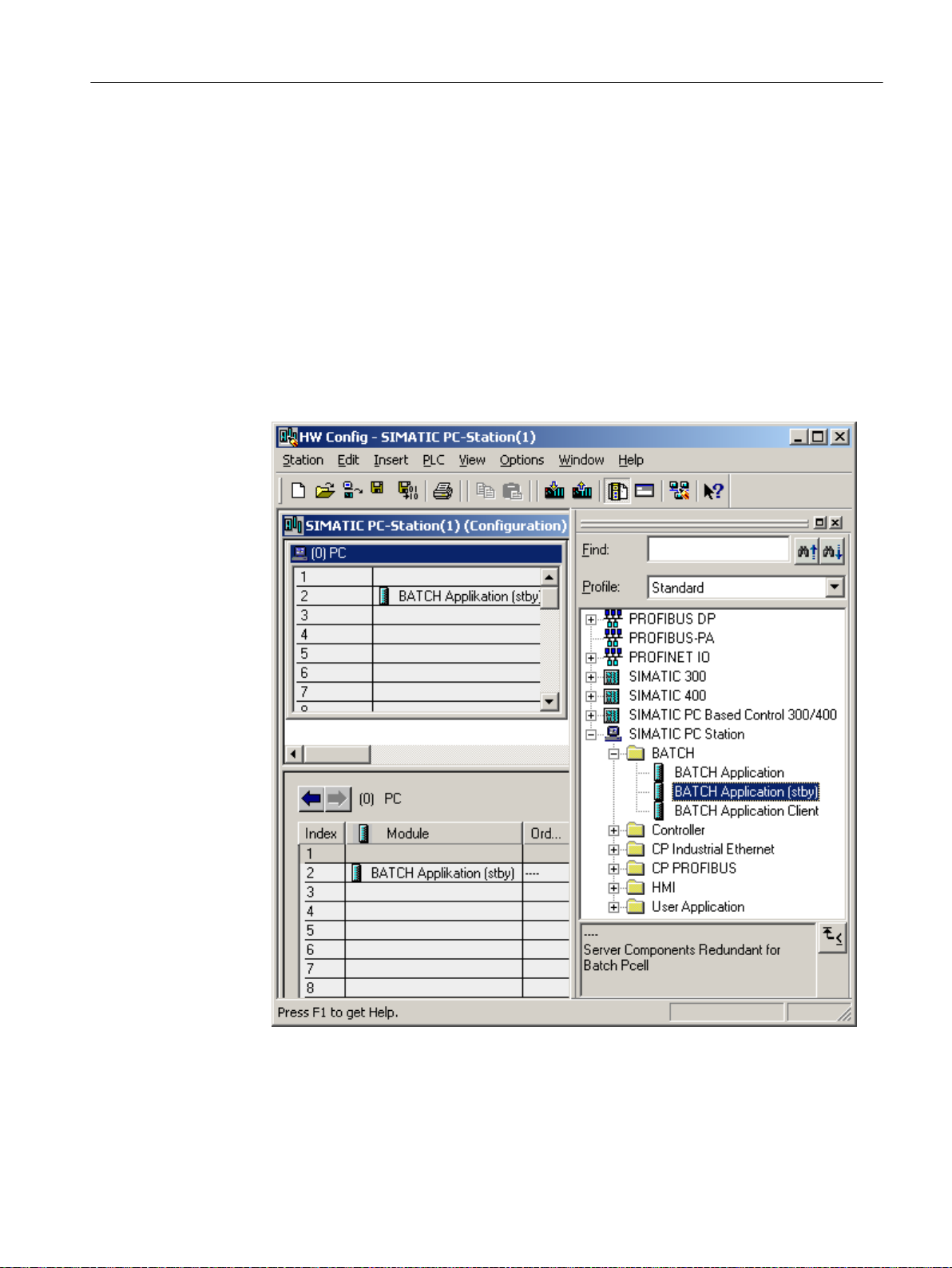
Product introduction and installation
3.5 Possible configurations
3. Set the computer name of the PC station.
– To do this, select the SIMATIC PC station.
– Select the menu command Edit > Object properties.
– Enter the computer name in the last field.
4. Configure this SIMATIC PC station in HW Config.
– To do this, select the SIMATIC PC station.
– Select the menu command Edit > Open object.
Result: HW Config opens.
– Insert a batch application from the hardware catalog:
Path in the hardware catalog: Standard > SIMATIC PC-Station > BATCH > BATCH
application (stby).
Select the menu command Station > Save and compile.
SIMATIC BATCH V8.2
Operating Manual, 02/2016, A5E35958174-AA 61
Page 62

Product introduction and installation
3.5 Possible configurations
Result:
The inserted "BATCH application (stby)" object appears in the Component view below the
SIMATIC PC station.
3.5.5.6 Information on network connections
Requirements:
The following are requirements for network adapter, serial connection and redundancy
connection:
● A redundant BATCH server must have a second network connection independent of the
terminal bus and plant bus. This is used for BATCH data replication.
● The serial connection (COM interface) may no longer be used in conjunction with SIMATIC
BATCH. It must be removed from "old systems".
● In principle, the redundant connection between both BATCH servers can be produced using
a crossed network cable (cross over cable) or a switch.
3.5.5.7 Configuring network connections
Introduction
Network configuration of a redundant batch system is not dependent on the project. There is
therefore no need for configuration of batch redundancy in batch engineering, as was
previously undertaken in the project settings in the BATCH configuration dialog.
Procedure
1. Network configuration for the redundant BATCH server is undertaken via the "Simatic Shell"
folder in Windows Explorer. You will find more information in the online help for SIMATIC
BATCH in the Redundancy > Data replication section.
2. If you are installing BATCH and WinCC servers on a PC, ensure that you use the following
settings in the "Redundancy" WinCC Editor:
– Connection to redundant partner via serial interface: Select "none".
– Connection to redundant partner via network adapter (MAC address): Select the network
adapter you used for data replication and close the dialog using the "OK" button.
SIMATIC BATCH V8.2
62 Operating Manual, 02/2016, A5E35958174-AA
Page 63

3.5.5.8 Important additional information
Redundant server pair
● In a compact system (WinCC server and batch server on same PCs), the "Start SIMATIC
BATCH automatically after starting WinCC" setting should only be made once the BATCH
process cell (database) has been created. If this is not done, booting the system will be
interrupted with an error under the precondition "Just one server switched on, no client
started, BATCH process cell still not created".
● In a distributed system (WinCC server and batch server on different PCs), the "Start
SIMATIC BATCH automatically after starting WinCC" setting is blocked.
● When starting a redundant BATCH server or during a redundancy switchover, the
databases of the standby server are synchronized with the databases of the master server.
Do not abort the copy procedure needed for this, e.g. by powering down/switching off one
of the BATCH servers. Otherwise, the database of the standby server will have to be reset.
● If a redundancy failover occurs during active client applications, e.g., during actions such
as archiving of batches, reading in of process cell data, starting a print preview or a print,
the current actions may be adversely affected.
Product introduction and installation
3.5 Possible configurations
● A "Restart dialog" appears on the previous master once a switchover to a redundant pair
of servers caused by an error has occurred. Please follow the restart request to correctly
restart the PC. You should first close active programs.
● Both when starting and ending database synchronization between master and standby, the
WinCC messages "Data synchronization started" and "Data synchronization complete" are
produced.
● Batch data management There are no longer any restrictions for the start order of the
BATCH server in a redundant system. The system automatically connects to the valid
project database. You should, however note that following any total system failure in a
distributed system, the servers must be started up in the following order. First start the
WinCC server and wait until its redundant WinCC server is synchronized. Start the BATCH
server only when this completed.
Downloading the BATCH process cell data
When loading the BATCH process cell data from the BATCH configuration dialog, both the
BATCH server (master and standby) and all BATCH clients defined in the project are supplied
with data. However, this data is not valid in the BATCH system immediately after downloading,
but rather not until a defined point in time when this data is applied by the BATCH system.
Data is applied through the following actions:
● The distribution of the components and the BATCH server configuration, e.g. CDV on/off,
are applied during startup of the BATCH server PC (master and standby).
● The BATCH process cell data is applied in the BCC through the active user action "Update
process cell".
In the case of a redundant system, the BATCH process cell data is not automatically
synchronized on the redundant BATCH server when just one BATCH server PC is started up.
This means that when you restart a BATCH server, it is imperative that you also restart its
SIMATIC BATCH V8.2
Operating Manual, 02/2016, A5E35958174-AA 63
Page 64

Product introduction and installation
3.5 Possible configurations
redundant BATCH server. Inconsistent BATCH process cell data between redundant partners
could lead to the following situations, for example:
● Messages and measured values are recorded on the master (CDV on) but not on its standby
(CDV off).
● Communication between the redundant BATCH servers may be faulty.
● Errors may occur in the recording of messages and measured values by the PCS 7 OS.
● Completely different BATCH process cells may be present on the two BATCH servers
because the databases are not synchronized.
Additional information
BATCH engineering (Page 178)
3.5.5.9 Automatic hot restart
What safety strategies are there when using redundancy?
A redundant server pair provides protection for your process against failure. New mechanisms
are available to ensure that there is a failover and hot restart if a problem occurs.
● Prevention on exiting a SIMATIC server application with redundancy
● Automatic hot restart of server applications after problem; cannot be recognized by the user
● Isolation of SIMATIC BATCH server in an error state
● Isolation of the server applications in an error state
● Automatic hot restart of a SIMATIC BATCH server after status check of the partner server
Prevention on exiting a SIMATIC server application
If you want to exit a SIMATIC server application (WinCC server, BATCH server, Route Control
server) for whatever reason, you must make sure that the partner server is fully capable of
taking over. In other words, all the applications running on the server must also run on the
partner server and be ready for operation.
If the result of the application check is negative, a warning dialog is displayed when you exit
a server application informing you that the partner server is not fully capable of taking over
and you will be asked whether you really want a redundancy changeover to the partner server.
If you click "Yes", the server application will be exited even though the partner server is not
ready to take over.
If you click "No", the dialog will be closed without any action being taken.
Automatic hot restart of SIMATIC server application
An automatic hot restart does not require any operator control. The process runs in the
background. The BATCH server applications can be restarted automatically when a problem
occurred. This does not affect redundancy.
SIMATIC BATCH V8.2
64 Operating Manual, 02/2016, A5E35958174-AA
Page 65

Product introduction and installation
3.5 Possible configurations
The aim is to keep running in process mode at all times. If a SIMATIC server application
changes to the error state and needs to be exited, make sure that it is restarted automatically.
The following requirements must be met before SIMATIC server applications will restart
automatically:
● Requirements for installation: As of these versions, the restart mechanisms are included
in the software packages to be installed.
– SIMATIC PCS 7 V6.1 SP4 or higher
– SIMATIC BATCH V6.1 SP3 HF18
● Requirements for configuration:
– Automatic hot restart and isolation of the SIMATIC BATCH server are only supported
in a redundant configuration.
– All the mechanisms are available for the following redundant environments: Redundant
WinCC server, redundant BATCH server, redundant Process Historian, redundant
maintenance server and redundant Route Control server.
● Requirements in the operating system and project settings:
– WinCC Autostart must be configured so that the next time the PC is started up, the
corresponding project is opened and activated in the WinCC Explorer. The "AutoStart
configuration" dialog is available from the Start menu with Start > SIMATIC > WinCC >
Autostart.
– In the BATCH Launch Coordinator, one of the two options "Start SIMATIC BATCH
automatically after starting WinCC" or "Start SIMATIC BATCH automatically,
independent of WinCC" must be activated.
– If you also use SIMATIC Route Control, turn on the automatic activation in the shortcut
menu of the Route Control server.
An automatic hot restart following a server application error, can run as follows:
● Initial situation: Server and partner server are ready for operation
● Error on the server
● Partner server becomes master
● The dialog for a restart is ready to start on the server.
● All network connections (terminal bus, plant bus, crossover connection) are terminated.
The network adapters of this terminal bus and crossover connection are disabled. The
server is isolated.
● After a dynamic time dependent on the system, the server automatically acknowledges the
restart request with "OK" and is restarted.
● Once the server returns, the databases of the partner server and server are synchronized.
SIMATIC BATCH V8.2
Operating Manual, 02/2016, A5E35958174-AA 65
Page 66

Product introduction and installation
3.6 Configuration limits
3.5.5.10 Failure behavior of the BATCH server in AS-based mode
Failure of the BATCH server
In AS-based mode, batches are processed in the CPU. If the BATCH server fails, any batches
that have started are processed to the end if the BATCH server does not need to intervene in
the recipe execution, for example for synchronization or due to an operator dialog. Otherwise,
the individual units used in the control recipe continue to the next synchronization line and then
wait for communication with the BATCH server.
The situation still remains that if there is a sudden failure of the SIMATIC BATCH standby PC
(hardware defect, power failure, network connection to the database broken down), the BATCH
server can no longer store the AS frames in the database of the standby PC (redundant storage
for data backup/replication). The timeout time for recognizing the failure is set to 20 seconds
for technical reasons. If more frames are generated in the AS within these 20 seconds than
the internal AS buffer can store, the batches currently running on the AS change to the "Held"
status. This default setting can be changed for specific units in the AS.
Additional information is available in the manual SIMATIC BATCH Blocks V8.0 > Interface
blocks > BATCH interface blocks > UNIT_PLC > Command interface for influencing the entire
unit.
Temporarily storing events in the AS in the buffer memory
If the communication from the AS to the BATCH server breaks down or the server itself fails,
batch processing in the automation system continues until the next synchronization line or to
the end of the batch. This is also the response in a redundant scenario during the failover
phase and in the event of both BATCH servers failing. The corresponding events (the number
depends on the size of the AS memory) are stored temporarily in the AS until they are fetched
by the runtime component of the BATCH server.
When the buffer is full, the AS sends a message to the PCS 7 OS. You can use a parameter
on the UNIT_PLC block to specify whether the control recipe should continue to run or whether
the unit should switch to a previously defined state.
Additional information is available in the manual SIMATIC BATCH blocks V8.0> Interface
blocks > BATCH interface blocks > UNIT_PLC > Settings for communication monitoring and
for the communication buffer.
3.6 Configuration limits
3.6.1 Definition of configuration limits
Definition
The quantity structure in SIMATIC BATCH describes the quantitative load on the process
control system when executing batch processes. A distinction is made between the quantity
structure for AS-based and PC-based modes.
SIMATIC BATCH V8.2
66 Operating Manual, 02/2016, A5E35958174-AA
Page 67

Product introduction and installation
3.6 Configuration limits
Based on the quantity structure, you can calculate the number of BATCH servers and the
number of automation systems for the planned process cell and select suitable dimensions for
them. The load can also be analyzed in advance. This is intended to reduce the automation
costs and to improve the quality, yield, safety, process cell utilization and productivity.
Quantity structure information can, however, only provide a rough guide for planning the
components of a process cell. For example, batches with a short duration (minutes up to a few
hours) with large numbers of setpoints put significantly more load on a SIMATIC BATCH server
(PC-based operation) or an automation system (AS-based operation) than batches with few
setpoints and a duration of several days.
SIMATIC BATCH V8.2
Operating Manual, 02/2016, A5E35958174-AA 67
Page 68
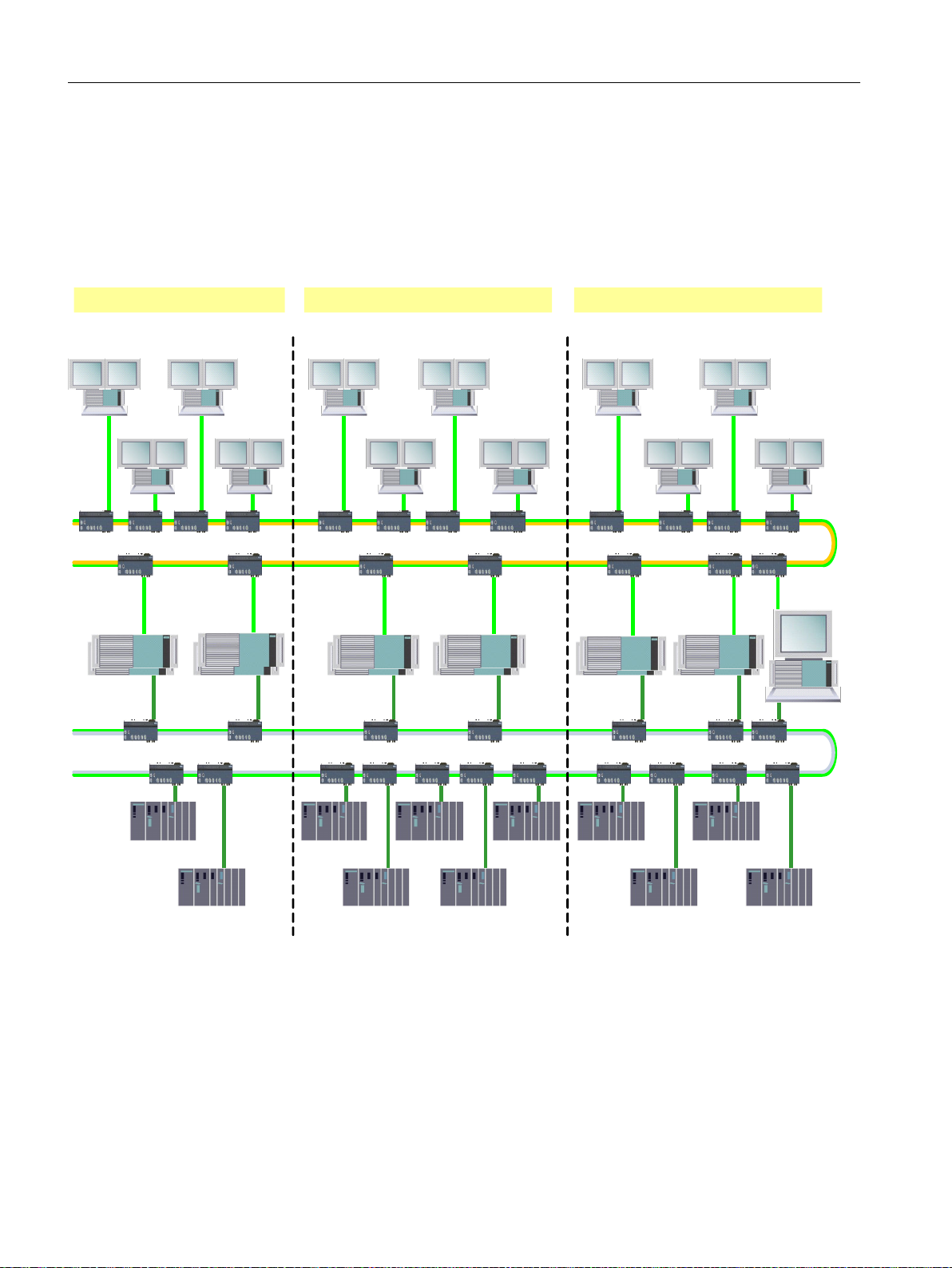
%DWFKSURFHVVFHOO
&OLHQW26&OLHQW26
7HUPLQDOEXV
(6
$6
&OLHQW
%$7&+
&OLHQW
%$7&+
6HUYHU
UHGXQGDQW
%$7&+
$6
$6
$6
$6$6
$6
$6
$6
$6
$6
3ODQWEXV
%DWFKSURFHVVFHOO%DWFKSURFHVVFHOO
6HUYHU
UHGXQGDQW
26
6HUYHU
UHGXQGDQW
%$7&+
6HUYHU
UHGXQGDQW
26
6HUYHU
UHGXQGDQW
%$7&+
6HUYHU
UHGXQGDQW
26
&OLHQW26&OLHQW26&OLHQW26&OLHQW26
&OLHQW
%$7&+
&OLHQW
%$7&+
&OLHQW
%$7&+
&OLHQW
%$7&+
Product introduction and installation
3.6 Configuration limits
3.6.2 Structures of batch process cells
Process cell configuration with SIMATIC BATCH
One possible structure of a complex SIMATIC BATCH process cell is shown in the following
figure.
Image 3-3 Process cell configuration
Operating batch process cells
The "Process cell configuration" figure shows that three batch process cells can exist
completely independently of each other on one common terminal and plant bus. Normally,
however, one batch process cell is adequate. A distribution over several batch process cells
is necessary only with very complex process engineering plants with an extremely large
quantity structure.
SIMATIC BATCH V8.2
68 Operating Manual, 02/2016, A5E35958174-AA
Page 69

Redundant SIMATIC servers increase robustness and protect against failures. For the ASbased mode, a BATCH server pair must always have a network connection to the terminal
and to the plant bus.
The automation system (AS) is connected to the plant bus and communicates with the servers.
You run process control and process operation on clients.
Process cell design
Important characteristic values for the dimensions of your batch process cell are as follows:
● Number of automation systems per batch process cell
● Number of clients per batch process cell
● Number of servers per batch process cell
● Number of batch process cells in a process control system
● Here, you need to take the performance specifications of SIMATIC PCS 7 into account.
Additional information
Product introduction and installation
3.6 Configuration limits
●
PCS 7 - Configuration Manual Engineering System, Connecting Network Nodes to Ethernet
●
PCS 7 - PC Configurations and Authorizations
3.6.3 Basics for calculating the performance of both operating modes
The data shown provides you with guide values that indicate which load states related to typical
data or basic data can be reached in your BATCH process cell both in PC-based and AS-based
mode and how you can select suitable dimensions for your process cell. This allows you to
estimate overload situations in advance and to include these in your planning.
The measured results are shown in the following section "Measured results for calculating the
performance of both modes".
Hardware and software basics
The following hardware and software was used:
● Automation system used CPU 417-4XT05-0AB0
● The PC used for the measurements is equipped with the hardware recommended by
SIMATIC PCS 7
● In PC-based mode, the blocks relevant to SIMATIC BATCH are installed in OB32 (1 second
cycle), recommendation from the section "Introduction" (Page 143)
SIMATIC BATCH V8.2
Operating Manual, 02/2016, A5E35958174-AA 69
Page 70

Product introduction and installation
3.6 Configuration limits
Engineering data (equipment properties)
Number of units 50
Number of materials 100
Number of qualities per material 2
Recipe data
To calculate the performance data, a hierarchical recipe with the following characteristic data
is used.
Configured recipe data in the BATCH Control Center:
Number of RUPs per RP 10
Number of ROPs per RUP 10
Number of RPHs per ROP 15
Number of RPHs in simultaneous branches 5
Number of transitions per ROP 15
Number of conditions per transition 5
Number of header parameters per recipe / formula 100 / 10
Number of parameters per RPH 15
Number of parameters per control strategy 10
Number of active RUPs per RP 3
Number of process tags per RUP 5
Number of process tags per ROP 3
Number of configured electronic signatures (ESIG) in an RP 3
Number of of active RPHs within a batch 3
Batch data
Number of planned batches 100
Number of batches per order 100
Number of batches to be created simultaneously 100
Number of released batches 100
Number of batches to be released simultaneously 100
Number of batches running simultaneously 100
Number of of active RPHs within a batch 3 PC-based
30 AS-based
Number of of active RPHs within a batch process cell 30 PC-based
350 AS-based
Number of opened batches (control recipes) on all BATCH clients 30
Number of batches to be completed simultaneously 50
Number of batches to be archived simultaneously 30
Number of batches to be deleted simultaneously 30
Number of active BATCH clients (BATCH Control Center) 5
SIMATIC BATCH V8.2
70 Operating Manual, 02/2016, A5E35958174-AA
Page 71

Product introduction and installation
3.6 Configuration limits
Duration of the RPH 10 min
Duration of the transition 10 s
Acquisition cycle of the archive tags 10 s
Execution of step change simultaneous
3.6.4 Measured results for calculating the performance of both operating modes
The measured values depend on the project, the equipment and load of the PC being used
and can differ from the times shown here. The times were calculated with the hardware
recommended by SIMATIC PCS 7.
Result, measured value (offline)
For the measured times, it is assumed that the step changes execute simultaneously and are
not processed with a time offset. Simultaneous step changes mean maximum load.
Acquired data:
Action Runtime
Creating a recipe / library < 2 s
Deleting a recipe / library < 4 s
Creating a formula < 2 s
Deleting a formula < 2 s
Creating a material < 2 s
Deleting a material < 2 s
Releasing for testing / production < 90 s
Opening a recipe / library < 4 s
Checking a recipe for validity / releasing < 75 s
Creating an order < 2 s
Creating a batch < 20 s
Release batch < 75 s
Result, measured value (online)
When processing the basic recipe described, a PC equipped with a size of the SIMATIC
BATCH online database has a 30% processor load.
Definition of step change: A step change means that a recipe phase was completed, a transition
run through and the following recipe phase was started. This means that at least 3 recipe
objects are involved in a step change. In practice, however, there are often more than 3 recipe
objects involved, for example in simultaneous branches, alternative branches or when there
is synchronization. As an average value, approximately 5-7 recipe objects are assumed per
step change.
Action Runtime
Start batch < 3 s
HOLD command < 2 s!
SIMATIC BATCH V8.2
Operating Manual, 02/2016, A5E35958174-AA 71
Page 72

Product introduction and installation
3.6 Configuration limits
Action Runtime
RESUME after HOLD command < 2
PAUSE command < 2 s
RESUME after PAUSE command < 2 s
Close batch 5 to 10 min
Archive batch < 50 s
Change parameter < 3 s
Step change time 4 s PC-based
Result of the AS runtimes for AS-based mode
The measured results shown in the following table serve as the basis for the calculations made
below.
Recipe structure AS runtime
Completing recipe phase (average measured value) 1.8 ms
Updating setpoint (average measured value) 0.07 ms
Processing a transition (average measured value) 4 ms
Starting recipe phase (average measured value) 1.9 ms
Processing a recipe phase (average measured value) 2 ms
< 1 ms AS-based
These measured values result in a step change time of 8.4 ms (1.8 ms + 5 * 0.07 ms + 4 ms
+ 1.9 ms + 5 * 0.07 ms) for a recipe phase with 5 parameters. As a result, with, for example,
100 simultaneously active recipe phases and 32 simultaneous step changes, the recipe
processing time can be calculated as follows:
Recipe processing time = 32 * 8.4 ms + 100 * 2 ms = 469 ms.
This calculation does not, however, apply to parallel branches, alternative branches or when
there is synchronization since more than three recipe objects are then involved in a step
change. 32 simultaneous step changes with such constructs would lead to a loss of
performance.
A reduction in the number of simultaneous step changes increases the number of
simultaneously active recipe phases and vice versa.
To guarantee optimum performance in the automation systems, remember the following:
● The calculated total cycle time (times for communication, firmware, recipe processing and
user program) should always be shorter than the cycle time of the OB in which the
UNIT_PLC and the user blocks are installed.
● Take into account all the CPU requirements relating to the cycle time (you should also refer
to the documentation for the automation system S7-400 CPU Data).
SIMATIC BATCH V8.2
72 Operating Manual, 02/2016, A5E35958174-AA
Page 73

Product introduction and installation
3.6 Configuration limits
Distributed over all the automation systems connected to the BCS, the BCS can:
● Have a brief peak load (max. 1 s) of up to 200 simultaneous step changes. In this case, a
maximum of 200 recipe phases that do not execute a step change can also be active. To
ensure that the BCS and AS continue to operate synchronized with each other following
such peak loads, you must ensure a recovery time of that least 60 s.
● Be run in continuous operation with not significantly more than 350 simultaneous, active
recipe phases. In this case, an average of 2 step changes may be active per second.
Result of the determination of memory requirements (data blocks) for AS-based mode
The following table shows the minimum memory requirements (data blocks) of the CPU for
AS-based mode.
Memory allocations Description Memory requirements in KB
Static part. Occupied by system. Communication (Event Send) 56
Function blocks 60
Function calls 41
Dynamic part. Occupied by settings in
the BATCH configuration dialog.
per unit 57
per recipe unit procedure (RUP) 128
Based on the recipe data from the section "Basics for calculating the performance of both
modes", the actual memory requirements can be calculated as shown below.
Note
For this performance determination, the units must be configured within one automation
system and the recipe unit procedures must all be active at the same time.
Sample calculation (AS-based mode only)
Memory allocations Description Memory requirements in KB
Static part. Occupied by system. Communication (Event Send) 56
Function blocks 60
Function calls 41
Dynamic part. Occupied by settings in
the BATCH configuration dialog.
Memory requirements Total in KB: 2007
10 units 570
10 simultaneously running recipe unit
procedures (RUP)
1280
Based on this calculation, it can be seen that the AS requires at least 2007 KB of memory for
the recipe logic. You set the memory required for the recipe logic as a percentage of the entire
work memory in the BATCH configuration dialog for the CPU.
To determine the amount of required memory for a CPU, you need to add the standard BATCH
blocks (SFC type, SFC, IEPH etc.) and the blocks for process control (drivers, actuators,
sensors etc.).
SIMATIC BATCH V8.2
Operating Manual, 02/2016, A5E35958174-AA 73
Page 74

Product introduction and installation
3.6 Configuration limits
Typical performance data for the two operating modes
The following quantity structure for AS-based mode represents a complex process cell.
Requirement for the AS: A recipe of the size shown below can be downloaded to and processed
for the recipe logic assuming that the AS has a work memory capacity of 30 MB, 60% of which
is being utilized.
Result: The following table specifies from a SIMATIC BATCH perspective how the automation
system can be configured taking into account the conditions listed above.
Automation system (AS)
Setpoints/parameters per RPH
48 setpoints/parameters per recipe phase with a maximum of 5 text
string setpoints/parameters and a maximum of 32 characters per
text string
RPHs per ROP
96 recipe phases and transitions (total quantity) per recipe operation
(ROP)
ROPs per RUP
20 recipe operations (ROPs) per recipe unit procedure (RUP)
RUPs per AS
16 units per AS with 48 setpoints/parameters per recipe phase
(RPH)
BATCH capacity limits Number
Number of batches that can run simultaneously in a batch process cell 64
Number of recipe phases (RPH) that can run simultaneously in a batch 150
Number of recipe phases that can run simultaneously in a batch process cell 300
Regardless of the data listed in the table above, in each AS a maximum of 100 recipe objects,
for example recipe operations, recipe phases and transitions, may change their status per
second. In this case, the time taken for recipe processing accounts for approximately 60 to
70% of the maximum automation system cycle load.
We recommend that you do not process more than 300 active recipe phases on a BATCH
server (nor a redundant server).
Note
Number of recipe phases running simultaneously
Depending on the frequency and how often step changes occur, the SIMATIC BATCH server
can process significantly more than 300 active equipment phases/operations.
Report creation and archiving
SIMATIC BATCH can process data (XML archive file) up a maximum of 200 MB in a report.
This applies only when using the XML format with SIMATIC BATCH version V7.0 or earlier.
With SIMATIC BATCH V7.0 SP1 or later, this restriction no longer applies to reports due to
the use of a new XML format.
SIMATIC BATCH V8.2
74 Operating Manual, 02/2016, A5E35958174-AA
Page 75

Product introduction and installation
3.7 Security aspects
This quantity of data is made up as follows:
● Size of the batch process cell (PCell)
● Number of recipe phases/recipe operations run through Also include multiple processing
in loops.
● Number of recipe parameters
● Number of trends and the number of measured values per trend. Also take into account
the duration of the recording and cycle time.
The following average data quantities can be used for an estimate:
● approx. 1.1 MB for 100 recipe phases
● approx. 0.5 MB for 100 recipe parameters
● approx. 0.05 MB for 1 trend with 300 measured values
● approx. 0.1 MB for 1 trend with 600 measured values
The situation could be critical with the following recipe constellations:
● Recipe phases run through large numbers of loops.
● Incorrect cycle times are configured for trend archives in WinCC.
The number of measured values is calculated from the duration of the trend divided by the
acquisition cycle time (for example 6000 s runtime for the trend / 10 sec. cycle time = 600
measured values). The number of measured values for trends can be limited to approximately
1000 measured values that are adequate for a good overview. A maximum of 50000 measured
values are possible per trend.
Note
A cycle time of 1 second and 24 hours runtime mean 86400 measured values.
A recipe with 1500 recipe phases would result in an archive data size of approximately 30 MB
for approximately 6 hours runtime.
Exceeding the specified recommendations means that batch reports and possibly also the
archiving of batches are no longer possible.
3.7 Security aspects
With the increasing networking of processes in automation, matters concerning all aspects of
IT security are becoming more and more important. Consider all security aspects before
commissioning the hardware and software. You will find information about this with the
following link: www.siemens.com/pcs7-documentation (
mcms/industrial-automation-systems-simatic/en/manual-overview/tech-doc-pcs7/Pages/
Default.aspx)
http://www.automation.siemens.com/
SIMATIC BATCH V8.2
Operating Manual, 02/2016, A5E35958174-AA 75
Page 76

Product introduction and installation
3.7 Security aspects
SIMATIC PCS 7 makes the following documentation available:
● PCS 7 Compendium Part F - Industrial Security
This document presents the "Defense in Depth" security concept with example
configurations.
● SIMATIC PCS 7 Security Manuals
These documents contain important information on the following topics:
– Security concept
– Virus scanners
Note
Security aspects of SIMATIC BATCH
Shared directories, data, and archives must be continuously protected by suitable security
mechanisms. Note this for the following functions, in particular:
● Archiving batches (Batches > Archiving > Archiving method (Page 745)
) If you are using one of the following methods for archiving, the storage locations of the
archives must be protected:
– "Directory"
– "FTP server"
● Protecting backup files (Backup (Page 1076)/Restore) (Page 1076) and Export/Import
(Page 321)
You must protect these files (.sbx) because SIMATIC BATCH does not provide recognized
protection mechanisms for these files at present. One possibility is to create access
permissions for accessing the directory.
● Printing in process mode in the BatchCC/BATCH recipe editor
To avoid intervention in the operating system, devices/printers such as XPS printers or PDF
printers must not exist or not be selectable in print dialogs. Remove such devices or printers
in the Windows Control Panel.
● Settings for secure process mode
To prevent intervention in the operating system, you need to configure the user rights
accordingly. Remove all rights that are not absolutely necessary for process mode.
We recommend that you do not grant rights for the commands "Back up", "Export" and
"Import" for process mode, as these commands could allow intervention in the operation
system.
The assignment of rights enables you to regulate all access in accordance with your own
wishes and thus guarantee secure process mode.
SIMATIC BATCH system
To increase security, we recommend that you use the "NTLM" mode for communication of the
SIMATIC BATCH system.
SIMATIC BATCH V8.2
76 Operating Manual, 02/2016, A5E35958174-AA
Page 77

Product introduction and installation
3.8 Configuring the security settings on the SIMATIC BATCH server
Additional information
● You will find information about the "NTLM" mode in the following section:
Configuring the security settings on the SIMATIC BATCH server (Page 77).
● You will find information on the archiving method "SQL Server" in the sections:
– Basic principles (Page 467)
– Create SQL Server database (Page 468)
– Setting up an SQL server (Page 470)
– Batches > Archiving > Archiving method (Page 745)
– User credentials (Page 856)
3.8 Configuring the security settings on the SIMATIC BATCH server
Security settings
You can increase the security of the communication of the SIMATIC BATCH system.
We recommend that you set the "NTLM" mode.
● For a new installation of version V8.2, the following applies:
On completion of the setup, configure the “NTLM” mode manually on all servers involved.
● The following applies to updates of a version lower then V8.2:
The system is automatically configured in the "Compatible" mode.
To use the increased security, configure the "NTLM" mode manually for all servers involved.
Note
With a redundant server set the same mode on both servers.
Requirements for manual configuration
● In Windows a user account (login) incl. password has been created.
● The user is a member of the SIMATIC BATCH group and a member of the administrators
group..
● The user has the right "Login as service" (1).
● We recommend that you set the runtime of the password so that it never elapses.
● BATCH Runtime and the BATCH project are exited.
Procedure
1. Right-click on the symbol "BATCH Launch Coordinator" in the Windows taskbar.
2. Select the command "Change security settings ...".
SIMATIC BATCH V8.2
Operating Manual, 02/2016, A5E35958174-AA 77
Page 78

Product introduction and installation
3.8 Configuring the security settings on the SIMATIC BATCH server
3. Click on the "Yes" button. in the "User Account Control" dialog box.
4. Select the "NTLM (recommended)" option.
5. Enter the user name in the "Login" input box.
– For the local user
" \User name"
Note
Even if "dots" are shown in the input box for the password, you need to enter a valid
password.
– For the user of a domain
"Domain\User name"
6. Enter the password in the input box.
7. Click on the "OK" button.
8. Select the command BATCH Project > Start"
Result
The SIMATIC BATCH server system uses the NTLM mode.
Note
If the password elapses, the user is disabled or deleted, the SIMATIC BATCH server system
does not operate.
"Compatible" mode
If the "NTLM" mode does not work correctly, change the mode to "Compatible".
In this mode, the SIMATIC BATCH server system operates as in the past.
Additional information
You will find information on security aspects the section Security aspects (Page 75).
(1) You will find information on the right "Login as service" in the documentation of Windows.
SIMATIC BATCH V8.2
78 Operating Manual, 02/2016, A5E35958174-AA
Page 79

3.9 Installation
3.9.1 Delivery type of SIMATIC BATCH
Program packages
SIMATIC BATCH is delivered in different program packages for engineering and process mode
(Runtime). Within the setup of SIMATIC PCS 7, you choose the appropriate programs for
installation depending on the intended use of the PC.
The following program packages are available for SIMATIC BATCH:
Table 3-1 BATCH program packages and their components
Product introduction and installation
3.9 Installation
Intended use Program
package
PC as engineering Station
(ES) with BATCH engineering.
PC as BATCH Single Station
with all available BATCH com‐
ponents for engineering and
runtime (WinCC and BATCH).
PC as classical BATCH Server
with BATCH Runtime
PC as OS Server with WinCC
Runtime, BATCH Faceplates,
and BATCH Communication
Connector
PC as OS Client with BATCH
Faceplates
BATCH engi‐
neering
BATCH Sin‐
gle Station
BATCH Serv‐
er
OS Server for
BATCH
OS Client for
BATCH
Components Authorizations
● BATCH Base
● BATCH Builder
● BATCH Blocks
● BATCH WinCC Client Options
● BATCH WinCC Server Options
● BATCH WinCC APL Client
Options
● BATCH Base
● BATCH Builder
● BATCH Fast Objects
● BATCH Client
● BATCH Server
● BATCH Blocks
● BATCH WinCC Client Options or
BATCH WinCC APL Client
Options
● BATCH WinCC Server Options
● BATCH Base
● BATCH Server
● BATCH Fast Objects
● BATCH WinCC Server Options
● BATCH WinCC Client Options or
BATCH WinCC APL Client
Options
● BATCH WinCC Client Options or
BATCH WinCC APL Client
Options
Without license
● BATCH Server or BATCH
Single Station System
● BATCH Single Station User or
BATCH Client and BATCH
Recipe System
● BATCH Unit
● BATCH Server or
BATCH Single Station System
● BATCH Unit
Without license
Without license
SIMATIC BATCH V8.2
Operating Manual, 02/2016, A5E35958174-AA 79
Page 80

Product introduction and installation
3.9 Installation
Intended use Program
package
PC as classic BATCH Client BATCH Client
Information server on which
the SIMATIC BATCH reports
are created
-
You install the required SIMATIC BATCH software package on the appropriate PCs depending
on the type of system you have. The accompanying authorizations are required to use the
BATCH software packages. The acquired authorizations are managed with the Automation
License Manager.
The SIMATIC BATCH COM API package is an optional package for SIMATIC BATCH. It
provides you with an interface for accessing SIMATIC BATCH data and initiating actions with
function calls. If authorization is not available, you still have read access to the data. With
authorization, you also have write access to the data.
Additional information
Authorizations (Page 83)
Components Authorizations
● BATCH Base
● BATCH Client
● Information Server - BATCH
Options
BATCH Single Station User or
BATCH Client and BATCH Recipe
System
Without license
3.9.2 SIMATIC BATCH Basic
Authorization characteristics of SIMATIC BATCH Basic
SIMATIC BATCH Basic requires no separate installation. A BATCH client that checks the
authorizations on a BATCH server to distinguish SIMATIC BATCH and SIMATIC BATCH
Basic. The scope of functions for BATCH clients depends on the authorizations transferred to
the BATCH server. BATCH clients are, for example, instances of BatchCC, BATCH OS
controls or API clients.
If a BATCH server contains both the authorization for SIMATIC BATCH and SIMATIC BATCH
Basic, the higher authorization is used with full functionality.
Functional scope of SIMATIC BATCH Basic
The following functions are not available or only available in restricted form in SIMATIC BATCH
Basic:
● The "Libraries" and "Formulas" folders are not displayed in the project tree of BatchCC.
The libraries and formulas can therefore not be used.
If you import a system backup containing libraries or formulas, the two folders and the
objects they contain are shown in BatchCC. In this case, the library or formula can be
released, but not the recipe that uses the library or formula.
● No "Synchronization" tab in the properties dialog for recipe engineering. This means the
connection to MES (MES_Sync_Request) cannot be configured or used.
SIMATIC BATCH V8.2
80 Operating Manual, 02/2016, A5E35958174-AA
Page 81

● No "Transfer parameters" tab in the properties dialog for recipe engineering. This means
the connection to SIMATIC Route Control cannot be configured or used.
● No release of recipes that contain command steps or monitoring objects. A list of errors
preventing release is displayed for the plausibility check and and attention is drawn to
insufficient licenses.
● No OSC. This means recipe structures cannot be changed in runtime.
● No electronic signatures (ESIG). This means that electronic signatures cannot be
configured in the recipe engineering or subsequently used in batches.
● The use of the following extended recipe structure elements (extended SFC structures) is
not possible:
– Insertion of library references
– Insertion of command steps
– Insertion of monitoring
Display of the reduced range of functions in the user interfaces
If you authorize SIMATIC BATCH Basic, the functions described above are either not displayed
in the interface menus and dialogs, or they are grayed out. In both cases, the functions are
not available.
Product introduction and installation
3.9 Installation
Handling of structural elements from recipes through restore and import
Recipes that you obtain through import or restore in BatchCC are subjected to a plausibility
check. If these recipes contain elements such as "Monitoring", "Command step" or "Library
reference", the plausibility test will fail because the contained recipe elements are not
authorized. Save these recipes with a new name, remove the objects preventing release, and
release the recipe once again.
3.9.3 Requirements for installation
Important information in the readme files
When installing SIMATIC BATCH, the hardware and software requirements for SIMATIC PCS
7 apply. The requirements for the installations are described in the file "PCS 7 readme" and
in the "SIMATIC BATCH readme".
You will find the following information in the file"SIMATIC BATCH Readme" or "sbreadme.mht":
● The hardware requirements for the systems to be installed
● Software requirements for the systems to be installed
● Required disk space
● Latest information and limitations
SIMATIC BATCH V8.2
Operating Manual, 02/2016, A5E35958174-AA 81
Page 82

Product introduction and installation
3.9 Installation
Both files can be found on the product DVD and you should read them prior to installation.
They will provide you with important information on installation. You can find the "PCS 7
Readme" in the main directory of the data medium with the name "pcs7-readme.rtf" and the
"SIMATIC BATCH readme" in the subdirectory "..\60_SB__V8.0\SBBASEEU\setup" with the
name "sb-readme.mht". You can display and read both files on the monitor or print them out.
After installing the software packages, the two files are stored in the following path: Start >
SIMATIC > Information > Language selection > PCS 7 - Readme / SIMATIC BATCH readme.
Installation procedure
SIMATIC BATCH contains a setup program that installs the software automatically. Depending
on the operating system configuration, the setup program starts automatically once the DVD
is inserted in the drive. If this does not happen, you can start the setup program manually from
the DVD.
The wizard started with the setup program guides you through the installation procedure step
by step and, after querying the user data and required configuration, starts the actual
installation process.
Access permissions for the operating system set by SIMATIC BATCH
After the installation, SIMATIC BATCH configures the local group "SIMATIC BATCH" in the
Windows user and group management. The members of this group have full access to the
SIMATIC BATCH shared folder "sbdata" . The user who installed SIMATIC BATCH and the
local administrator are entered automatically in this group. Additional members of this group
must be added manually by an administrator.
Additional information
● Make sure that you read the latest information on SIMATIC BATCH in the "sb-readme.mht"
file on the software DVD.
● You fill find detailed information about the installation requirements of the PC stations for
PCS 7 plants in the manual "PCS 7 - PC Configuration and Authorization".
3.9.4 Readme file with the latest information
Readme file
Note
Make sure that you read the latest information on SIMATIC BATCH in the SB readme file on
the software DVD.
SIMATIC BATCH V8.2
82 Operating Manual, 02/2016, A5E35958174-AA
Page 83

How to open the readme file:
Product introduction and installation
3.9 Installation
● Double-click on the sb
● During the product setup, click the "Readme" button in the right hand pane for the "BATCH
Base ..." component or
● from the Start menu of Windows:
Start > SIMATIC > Information > English > SIMATIC BATCH - Readme
3.9.5 Authorizations
General information
To use SIMATIC BATCH software, you require authorizations (licenses, license keys).
Software protected in this way may only be used if the Automation License Manager (ALM)
finds installed authorizations for the relevant installed software package. See the table below
for SIMATIC BATCH client authorizations. In ALM, you can configure which PC in the network
should be searched for licenses. SIMATIC BATCH server authorizations must be located on
the SIMATIC BATCH server concerned, as the employed SIMATIC BATCH software will
search for them there. If the appropriate authorizations are not detected, a dialog regularly
appears informing you of the missing authorizations, which is inconvenient while you are
working.
The authorizations required for SIMATIC BATCH are on the authorization data medium that
ships with the product.
-
readme.mht on the DVD ROM,
To transfer the authorization from the authorization data medium to the hard disk of the PG/
PC, use the "Automation License Manager" program in the Windows start menu under Start
> Programs > Siemens Automation > Automation License Manager.
If you have followed the SIMATIC PCS 7 installation instructions, you will already have
transferred the required authorizations from the authorization data medium to the hard disk of
the PG/PC during the installation of SIMATIC PCS 7. If not, you can subsequently transfer the
required authorizations to the PCs or back to the authorization data medium at any time using
the "Automation License Manager" program.
Transferring authorizations
The number of individual authorizations is recorded by a counter. When transferring a
authorization from the authorization data medium to the hard disk of a PC, the counter on the
data medium is decremented by 1. If the counter (number of authorizations) reads "zero", no
more authorizations are available on the authorization data medium.
You can find detailed information on handling authorizations in the basic help of the SIMATIC
Manager and in the Automation License Manager help.
SIMATIC BATCH V8.2
Operating Manual, 02/2016, A5E35958174-AA 83
Page 84

Product introduction and installation
3.9 Installation
Adding authorizations
If you require a larger number of units due the requirements of your project, you will need to
use ALM to transfer a new, extended authorization from the authorization data medium to the
relevant PC. Licenses for units for SIMATIC BATCH are derived from the number of
"UNIT_PLC" unit blocks used.
Maximum distribution of SIMATIC BATCH software for use with all option packages
Depending on the use of a PC, e.g. as a BATCH server (BATCH master server, BATCH
standby server) or BATCH client, different authorizations are required on the relevant PC.
The following authorizations are available for SIMATIC BATCH:
Intended use License Key / Product Version Note
SIMATIC BATCH server BATCH Server V8.2 This license is required on a BATCH server PC. In the
case of a redundant configuration, this license is required
on both BATCH server PCs.
If this license is available on a BATCH server, it offers a
connected BATCH client the full range of functions in
BatchCC.
BATCH Basic V8.2 This license is required on a BATCH server PC. In the
case of a redundant configuration, this license is required
on both BATCH server PCs.
If this license is available on a BATCH server, it offers a
connected BATCH client a limited range of functions in
BatchCC.
BATCH 1 Unit V8.2 This license is required on BATCH server PCs. In the
case of a redundant configuration, this license is required
on both BATCH server PCs. The number 1 indicates the
number of possible, configurable units.
BATCH 10 Units V8.2 This license is required on BATCH server PCs. In the
case of a redundant configuration, this license is required
on both BATCH server PCs. The number 10 indicates
the number of possible, configurable units.
BATCH 50 Units V8.2 This license is required on BATCH server PCs. In the
case of a redundant configuration, this license is required
on both BATCH server PCs. The number 50 indicates
the number of possible, configurable units.
BATCH API V8.2 This license is required on BATCH server PCs. In the
case of a redundant configuration, this license is required
on both BATCH server PCs. The license authorizes you
to use the Application Programming Interface.
Upgrade package
BATCH server
BATCH Single Station
System
V8.2 Entitles you to install the latest updates of SIMATIC
BATCH on a BATCH server.
V8.2 This is a license bundle, containing the following individ‐
ual licenses: BATCH Server.
SIMATIC BATCH V8.2
84 Operating Manual, 02/2016, A5E35958174-AA
Page 85

Product introduction and installation
3.9 Installation
Intended use License Key / Product Version Note
SIMATIC BATCH Client BATCH Client V8.2 This license is required on each PC on which BatchCC
is to be installed and used, regardless of whether this is
a BATCH server or a BATCH client. Any number of
BatchCC and BATCH OS Control instances can be star‐
ted and operated on this PC.
BATCH Recipe System V8.2 This license is required on each PC on which recipe en‐
gineering is to be performed, regardless of whether this
is a BATCH server or a BATCH client.
Upgrade package
BATCH Client
BATCH Single Station
User
V8.2 Entitles you to install the latest updates of SIMATIC
BATCH on a BATCH client.
V8.2 This is a license bundle, containing the following individ‐
ual licenses: BATCH Client and BATCH Recipe Editor.
SB server products: You must have one of the BATCH UNIT authorizations on a SIMATIC
BATCH server. Depending on the number of configured units in your BATCH process cell, it
may be necessary to transfer additional UNIT authorizations. UNITs and authorizations can
be summed or counted here. Example: With a BATCH 10 UNITs and a BATCH 50 UNITs, you
can operate a BATCH process cell with 60 units.
SB client products: The SIMATIC BATCH client authorizations are searched for both locally
on a specified PC and on a PC specified in the network. The method of searching for
authorizations in the network must be configured in the Automation License Manager.
SIMATIC BATCH server authorizations, such as BATCH UNIT authorizations, are searched
for on the SB server. The message about missing authorizations is, however, output on a
SIMATIC BATCH client.
Note
BATCH engineering: The number of units is the sum of the "UNIT_PLC" BATCH interface
blocks. The number of configured and used units is displayed in the log that can be opened
from the BATCH configuration dialog.
Note
Missing authorizations
If neither trial licenses nor BATCH licenses are detected on BATCH PCs, all the actions you
want to perform on BATCH clients are prohibited, except for the operation of batches that are
already active. You can continue to operate, complete, and archive active batches.
Additional information
Display number of units (Page 194)
You can find more information in the following PDF documents:
Automation License Manager - Manual
PCS 7 - PC configuration and authorizations
SIMATIC BATCH V8.2
Operating Manual, 02/2016, A5E35958174-AA 85
Page 86

Product introduction and installation
3.9 Installation
3.9.6 Installing the components of SIMATIC BATCH
Installation
You start the SIMATIC BATCH installation programs during the SIMATIC PCS 7 system setup.
On-screen prompts guide you step by step through the entire installation. The SIMATIC PCS
7 system setup is started with the normal Windows procedure for installing software.
Note
Make sure that you read the information on installing SIMATIC BATCH in the
The readme file is on the same DVD as SIMATIC BATCH. You will find detailed information
on installing and configuring the PC stations for SIMATIC PCS 7 process cells in the manual
Process Control System PCS 7; PC Configuration and Authorization
Installation options for the software components
The installation program of SIMATIC BATCH guides you through the installation.
Note that with a multiple station system, the installation program must be run on every client/
server PC.
At the start of the installation, the following software components are available for selection:
● BATCH Base (basic software, API; does not need to be selected as it is installed
automatically)
● BATCH Builder (BATCH engineering)
● BATCH Client (Batch Control Center, BATCH Recipe Editor)
● BATCH Fastobjects (for database server)
● BATCH server (BATCH control server, batch data management)
● BATCH WinCC Client Options or BATCH WinCC APL Client Options (block icons and
faceplates in classic or APL design, BATCH OS controls, and BATCH online help)
SB-readme
.
file.
● BATCH WinCC Server Options (block icons and faceplates in classic or APL design)
● BATCH blocks (SIMATIC BATCH blocks)
● Information Server BATCH Options (templates for batch reports on an Information Server)
All components are installed automatically. At the end of the installation, you will be asked for
the path where you want to create the BATCH shared folder (database folder) "sbdata". The
location suggested as standard will vary depending on the operating system. You can also
specify your own folder path. Note that, depending on the operating system, it may be a hidden
folder that you only make visible by changing certain folder options.
You can find the folder path to the BATCH shared folder as follows: Open the "Shares" folder
in Computer Management under System > Shared Folders > Shares. The shared folder name
is "BATCH" and the folder path is also displayed.
SIMATIC BATCH V8.2
86 Operating Manual, 02/2016, A5E35958174-AA
Page 87

BATCH BUILDER (BATCH Engineering)
Note
BATCH engineering is only installed if SIMATIC PCS 7 (SIMATIC Manager) has already been
installed on the ES PC. It is possible to install only BATCH engineering on an ES PC without
client or server functionality. This installation is perfectly adequate for configuring batch objects
and their distribution. The BATCH blocks must be installed separately, if required.
BATCH WinCC Client Options or BATCH WinCC APL Client Options
BATCH faceplates and block icons are supplied in two variants:
● In the standard classic "BATCH WinCC Client Options" form
● In the style of the Advanced Process Library "BATCH WinCC APL Client Options"
Note
Installation of Client Options
Product introduction and installation
3.9 Installation
Only one selection is possible during installation.
If one variant is already installed, SIMATIC BATCH setup only offers an update for this variant.
However, you can convert to the other variant at any time after you have uninstalled the
previous variant. Make sure that the same variant of the "BATCH WinCC Options" is installed
and used throughout the entire system (ES, OS server, OS clients).
The following steps are crucial for automatic update to the new picture objects in APL style:
● Installation of the "BATCH WinCC APL Client Options" component
● Plant Hierarchy - Create / update block icons or compile the OS with the "Picture Tree"
option.
Note
Manually update process pictures which do not include automatically created and
interconnected picture objects. Picture objects which you have copied manually from the
"@PCS7Typicals_Batch.pdl" file and pasted into your process pictures are deleted.
● Running the OS Project Editor in WinCC.
SIMATIC BATCH V8.2
Operating Manual, 02/2016, A5E35958174-AA 87
Page 88

Product introduction and installation
3.9 Installation
Note
Web plugins
A special web plugin is available for both variants of the WinCC Client Options. Depending on
your selection, the corresponding web plugin is installed on a web server using the following
path:
C:\ProgramFiles\Common Files\Siemens\webplugins
The Web Configurator copies the installed web plugin to the following path:
C:\Program Files\SIEMENS\WINCC\Webnavigator\Server\Web\install\custom
A web client receives its plugin from this path.
If you select a variant change of the faceplates, the corresponding web plugin is deleted in the
following path.
C:\Program Files\Common Files\Siemens\webplugins
However, the Web Configurator does not delete the corresponding web plugin under C:
\Program Files\SIEMENS\WINCC\Webnavigator\Server\Web\install\custom. Both web
plugins can then be installed on the web client which can result in errors.
There are several options to prevent that an incorrect web plugin in installed on a web client:
● Always install the currently used web plugin on the web client in the end
● Only install the currently used web plugin on new web clients
● Delete the previous web plugin manually in the following path C:\Program Files\SIEMENS
\WINCC\Webnavigator\Server\Web\install\custom
Uninstalling
Note
If you remove SIMATIC BATCH, you must always do this before removing the plant hierarchy
(SIMATIC PH).
Installation in a redundant system
Note
A few particular requirements must be observed in a redundant PCS 7 system. A detailed
description of the installation can be found in section "Redundancy (Page 54)".
SIMATIC BATCH V8.2
88 Operating Manual, 02/2016, A5E35958174-AA
Page 89

3.10 Plant update
Introduction
The following section describes the basic procedure for a plant update.
Read the information in the "PCS 7 Readme" file before beginning the system update.
A plant update includes:
● Replacement of existing hardware, such as PC, AS memory, network adapters
● If applicable, the installation of new operating systems, such as Windows 7 and Windows
Server 2008 R2 64-bit
● Installation or reinstallation of SIMATIC PCS 7 with SIMATIC BATCH = software update.
For the update, there are two possible options:
– With use of new functions
– Without use of new functions
● Update of PCS 7 project with SIMATIC BATCH = project update
Product introduction and installation
3.10 Plant update
Notes
● It is possible to use a "PC image" for the supported operating systems.
● If you select a 64-bit operating system, you may need to replace existing CP1613 A1 type
communications processors with a new CP1613 A2 for BATCH servers, BATCH clients
and the ES.
● If you use the "AS-based" mode, it may be necessary to expand the memory of your
automation systems.
● Software update during operation (SUIR)
Older versions cannot be upgraded to version SIMATIC BATCH V8.2 during operation.
The software update is once again supported in later versions.
With the redundant SIMATIC BATCH server both servers must be completed using the
SIMATIC BATCH start coordinator before a software update may be started.
Before the servers can be restarted in redundant mode the security settings on both servers
must be set to the same mode (either only “Compatible" or only “NTLM”). If this is not the
case, this can lead to disturbances in operation.
With a software update of the servers the server security setting is initially set to
"Compatible".
With a new installation of servers before starting the server the server security setting
(“Compatible" or “NTLM”) must be made.
The restrictions do not apply to service packs and updates within the version SIMATIC
BATCH V8.2.
For more information about making the security settings data, refer to the section
“Configuring the security settings on the SIMATIC BATCH server (Page 77)“
SIMATIC BATCH V8.2
Operating Manual, 02/2016, A5E35958174-AA 89
Page 90

Product introduction and installation
3.10 Plant update
● As of SIMATIC BATCH V7.0, enumerations are supported for the BOOL data type. If you
use this type, now it will be interpreted as ENUM and no longer as BOOL. This results in a
type change during generation, which means that the plausibility check will mark the release
of such recipe objects as invalid when you update the plant in BatchCC. If you want to use
recipe parameters of the Enumeration data type in master recipes, configure the ENUM
data type instead of BOOL in the PCS 7 engineering.
● If you have configured a redundancy status display of the SIMATIC BATCH server in a
process picture on a WinCC client in a previous version of SIMATIC BATCH, it must be
removed in order to update the system to SIMATIC BATCH V8.2. Instead, use the icons in
the status bar of BatchCC to display and check the status of the BATCH server.
Software update
You can update PCS 7 projects of the following SIMATIC BATCH versions SIMATIC BATCH
V8.2:
● SB AS based
– SB AS based V6.1 (incl. SPs and HFs) (only with Siemens Support)
– SB AS based V7.0 (incl. SPs and HFs)
● SB
– SB V6.0 (up to SP3 and HFs) via SB V6.0 via SB V6.1 SP3
– SB 7.0 (incl. SPs and HFs)
– SB 7.1 (incl. SPs and HFs)
– SB V8.0 (incl. SPs and UPDs)
– SB V8.1 (incl. SPs and UPDs)
Special notes
If the software was updated from one of the following versions to SB V8.0, SB V8.1 or SB V8.2,
the SB data can only be updated using Restore (in the BCC).
● SB V6.0 (up to SP4 including HFs)
● SB V6.1 (incl. SP3 and HFs)
● SB V7.0 (incl. SP1 and HFs)
● SB V7.1 (incl. SP1 and HFs)
● SB V7.1 (incl. SP2 and HFs)
Preparations for a software update
1. Archive closed batches in the BATCH Control Center.
2. Create a backup of your BATCH process cell in the BATCH Control Center.
3. Archive your PCS 7 project in the SIMATIC Manager.
4. If necessary, replace existing hardware, such as PC, AS memory, network adapters.
SIMATIC BATCH V8.2
90 Operating Manual, 02/2016, A5E35958174-AA
Page 91

5. Select the recommended Windows operating systems for the PCs of your process cell
configuration (SB servers, SB ).
6. Install the operating system.
You can use images that have already been created.
Software update (standard)
1. Update the software on the engineering station (ES).
2. Update the software on the SB server computer.
3. Update the software on the SB client computer.
4. After a successful update and reboot of the computer, start your SB system.
Note
Since on a single station system, the SB server and the SB clients are installed on one
computer, a software update is only required once.
Product introduction and installation
3.10 Plant update
Software update during operation (SUIR)
To keep the process continuously controllable during a software update, a redundant SB server
is required.
Note the following order during the procedure:
1. Update the software on the engineering station (ES).
2. Update at least one SB client and the SB standby server.
3. Start the updated SB client and the SB standby server after successful updating and
rebooting the computers..
4. Check the status of the SB server.
The SB server data on the standby server are compared completely with the master server
when the standby server reports the status "Listening".
You can check the status of the SIMATIC BATCH server using the symbol of the BATCH
start coordinator or using the shortcut menu command "BATCH status...”.
5. Check the corresponding WinCC status messages in the Alarm Logging "CDV on BATCH
server "server name": CDV is ready for operation".
The message is only displayed when no PH is configured.
The SB standby server is ready to take over when the WinCC status message is displayed.
6. Shut down the SB master server.
This produces a redundancy failover.
The updated SB standby server becomes the SB master server.
7. Update the previous SB master server and all clients that have not yet been updated.
8. After a successful update and reboot of the computers, start the previous SB master server
and the SB clients.
The previous SB master server is now the SB standby server.
SIMATIC BATCH V8.2
Operating Manual, 02/2016, A5E35958174-AA 91
Page 92

Product introduction and installation
3.10 Plant update
9. Check the status of the SB server.
The SB server data on the standby server are compared completely with the master server
when the standby server reports the status "Listening".
You can check the status of the SIMATIC BATCH server using the symbol of the BATCH
start coordinator or using the shortcut menu command "BATCH status...”.
10.Check the corresponding WinCC status message in the Alarm Logging "CDV on BATCH
server "server name": CDV is ready for operation".
The message is only displayed when no PH is configured.
11.The update of the redundant SB system is now complete.
Note
Older versions cannot be upgraded to version SB V8.2 during operation.
Note the paragraph “Software update during operation (SUIR)” in the section”Notes”.
Procedure after a software update
1. Authorize all the PCS 7 software components used on all PCs in the Automation License
Manager.
2. Retrieve your PCS 7 project in the SIMATIC Manager.
3. In HW Config, configure new hardware components, for example, a new communications
processor.
4. Open all the current block libraries and update the blocks used in your PCS 7 project with
the command Options > Charts > Update block types.
5. If you use the "AS-based" mode, the "IUNIT_BLOCK" block from older SIMATIC BATCH
versions must be replaced in all CFC charts by the extended block, "UNIT_PLC". To do
this, drag it directly from the SIMATIC BATCH V8.2 library to the corresponding CFC charts
and interconnect it again if necessary.
6. Update the "UNIT_PLC" block in the CFC editor under Options > Block types... > New
version .... This transfers the block from the chart folder to the block folder, "Offline".
7. Compile and download the CFC charts to the automation system.
8. Compile all PCS 7 operator stations (server, clients). Then, open each individual PCS 7
OS station within your PCS 7 project on the ES and run the OS project editor. When the
WinCC Explorer is closed for each PCS 7 OS, download the current data to the appropriate
destination stations.
SIMATIC BATCH V8.2
92 Operating Manual, 02/2016, A5E35958174-AA
Page 93

9. Perform the following configurations in the BATCH configuration dialog:
– If you use the "AS-based" mode, specify the current memory configuration and select
the percent to be allocated to the recipe logic in the AS.
– Generate and propagate batch types
– Compile and merge BATCH instances
– Adapt and update settings, if necessary
– Transfer BATCH messages to the relevant PCS 7 OS
– Download BATCH server. You may be notified about other actions that need to be
performed. Process cell data can only be downloaded to the BATCH server after
performing the remaining actions.
10.Start process mode on all servers (OS, BATCH).
11.Perform a restore on a BATCH client and update the process cell data in BatchCC.
3.11 Time-of-day synchronization
Product introduction and installation
3.12 System properties
Time-of-day synchronization of all components involved
PCS 7 time-of-day synchronization must be planned, configured and used with SIMATIC
BATCH.
The time on the AS serves as the basis for the time stamping of recipe element status
transitions. This time must be synchronized with the time of the PCS 7 OS server and the
clients so that entries in the BATCH reports and message list can be put into correct
chronological order.
Additional information
● Set time of day (Page 480)
● Additional information can be found on the Siemens Industry Online Support page by
entering the manual title:
PCS 7 Time Synchronization
3.12 System properties
System properties
Note the following system properties for your configuration:
● Batches that use flat recipes cannot be executed in AS-based mode.
● Visualization and operator control of batches with flat recipes is not supported in the BATCH
OS controls.
● The interface blocks from SIMATIC BATCH V4.x contained in your project can continue to
be used in SIMATIC BATCH. A reconfiguration is not possible, however.
SIMATIC BATCH V8.2
Operating Manual, 02/2016, A5E35958174-AA 93
Page 94

Product introduction and installation
3.12 System properties
● Valid only for recipe unit procedures (RUPs) executed in AS-based mode: Character strings
containing more than 32 characters are truncated. Example: STRING values within
transition conditions. At the start of the batch, a recipe conversion takes place in which
character strings exceeding 32 characters are truncated.
● Number formats: When numbers are entered, displayed, and used further within SIMATIC
BATCH, a comma is converted to a period. This means that a period is used as the decimal
separator. A thousand separator is not used or displayed.
● In batch logs, process values are always output for the configured control strategy in the
master recipe. If there is a control strategy discrepancy between SIMATIC BATCH and the
function or operation type (EPH/EOP), the process values for the parameters are not fully
logged.
Impermissible characters
The following characters are not permitted when assigning names in SIMATIC Manager: " / \
[ ] : | < > + ; , ? " * = . ! @ { } space
The names "EPH", "EOP", "UNIT", and "UNIT_PLC" are key words. Please do not use these
names for name assignment of an SFC type in SIMATIC Manager. In addition, the following
characters are not permitted when assigning names (name of the control strategy): Special
characters except underscore and space
When the name of the control strategy is changed, for example, from "CONTSTRAT1" to
"contstrat1" in the characteristics dialog for SFC types, this change to the control strategy name
is not applied after the generation of the batch types.
The following characters are not permitted when assigning names of WinCC projects: , ; : ! ?
" ' + = / \ @ * % [ ] { } < > space
The following characters are not permitted in AS/OS connection names: : ? " ' \ * % space
The following characters are not permitted when assigning names of hierarchy folders: " ' / \
%
The following characters are not permitted in global declarations (enumerations): space " % .
' \ ? * : @
Note
Also note the extensive information in the online help of PCS 7 OS (WinCC Information
System). Search there for "impermissible characters". We recommend that you never use
special characters when configuring in the SIMATIC Manager. The only exception is the special
character [ _ ] (underscore).
SIMATIC BATCH V8.2
94 Operating Manual, 02/2016, A5E35958174-AA
Page 95

3.13 Using online help
3.13.1 Using help
Introduction
Information on SIMATIC BATCH is described centrally in the SIMATIC BATCH online help.
Contents
For configuration the SIMATIC BATCH online help offers access at any time to the complete
documentation, which consists of the following components:
● Online help
● Release notes with important up-to-date information on SIMATIC BATCH
● SIMATIC BATCH installation instructions
Product introduction and installation
3.13 Using online help
Open SIMATIC BATCH help
● In the BATCH Control Center or in the recipe editor open the SIMATIC BATCH online help
via the "Help Topics" menu item in the "Help" menu. Alternatively you can open the SIMATIC
BATCH online help via the <F1> button.
● If you are using the SIMATIC Manager, open the SIMATIC BATCH online help by selecting
an object in any view and then selecting "SIMATIC BATCH" in the context menu. In the
BATCH configuration dialog "Configure batch process cell..." click on help.
3.13.2 Search
Searching in the online help
Introduction
The "Search" tab offers various options for configuring your search for maximum effectiveness.
SIMATIC BATCH V8.2
Operating Manual, 02/2016, A5E35958174-AA 95
Page 96

Product introduction and installation
3.13 Using online help
Expanding a search
To search for a complex term, use "*" as a wildcard. The asterisk stands for any character in
any quantity
● Example: Searching for "*alarms" locates all topics containing the following words:
"Alarms," "system alarms" "analog alarms" and "discrete alarms".
Note
In addition to the "*", the search item must contain at least one other non-wildcard character.
If you do not know the exact spelling of a term or you are searching for a series of terms, use
"?" as a wildcard. The question mark stands for any single character at this position.
● Example: Searching for "T?p?" locates all topics containing the following words: "Type",
"Tips", but not "Types".
Full-text search
To perform a full-text search, use quotation marks.
● Example: The "configuring graphic" search string returns all topics containing these words.
Search with Boolean expressions
You can perform a search with a logic operation by linking the search strings with the Boolean
operators AND, OR, NEAR or NOT. Click the arrow next to "Enter search strings".
● Example: The search string "graphic" AND "configuring" returns all topics containing the
word "graphic" and the word "configuring".
● Example: The search string "graphic" OR "configuring" returns all topics containing either
the word "graphic" or the word "configuring," or both.
● Example: The search string "graphic" NOT "function key" returns all topics containing the
word "graphic" but not the term "function key".
● Example: The search string "graphic" NEAR "configuring" returns all topics containing the
word "graphic" and, within the next eight words, the word "configuring," or vice versa.
Note
When a search string contains one of the words AND, OR, NEAR, or NOT, the search item
is interpreted as a Boolean expression. To nest a Boolean expression, use parentheses.
Example: ("Graphic" AND "configuring") OR ("Graphic" NOT "function key").
Search for similar words
To search for words with similar spelling, enable "Search for similar words".
● Example: When "Search for similar words" is enabled, the search string "Mayor" returns all
topics containing the words "Mayer," "Moyer," and "Meyor".
SIMATIC BATCH V8.2
96 Operating Manual, 02/2016, A5E35958174-AA
Page 97

Search in titles
To restrict the search for the search string to topic headers, enable "Search in titles only".
Search in search results
To restrict the search to those topics returned by the last search, enable "Search previous
results". This sets a closer range of topics found.
Note
To search across all topics again, disable "Search previous results".
Sorting search results
To sort the topics found in alphabetical order, click "Title" or "Position". The topics are sorted
in alphabetical order according to their title or position. The parent chapter associated with the
topic found is indicated under "Position".
Product introduction and installation
3.13 Using online help
Reusing a search
In order to reuse one of the recent search strings, click the 'Enter search strings" arrow. Select
a search string from the recent list, then click "Show topics".
Note
A search string is added to the recent list only if at least one topic was found containing the
search string.
Highlighting search strings
In the view of a topic found, all instances of the search string are highlighted.
Note
Click the "Options" toolbar button to enable or disable highlighting of search strings.
Search within the topic
To search for terms within a topic, press <Ctrl+F>. You can search for whole words only, define
the search direction, or case-sensitive. When "Whole words only" is disabled, the search string
"Process" returns the term "ProcessValue" also. When "Whole words only" is enabled, only
the word "process" is found.
SIMATIC BATCH V8.2
Operating Manual, 02/2016, A5E35958174-AA 97
Page 98
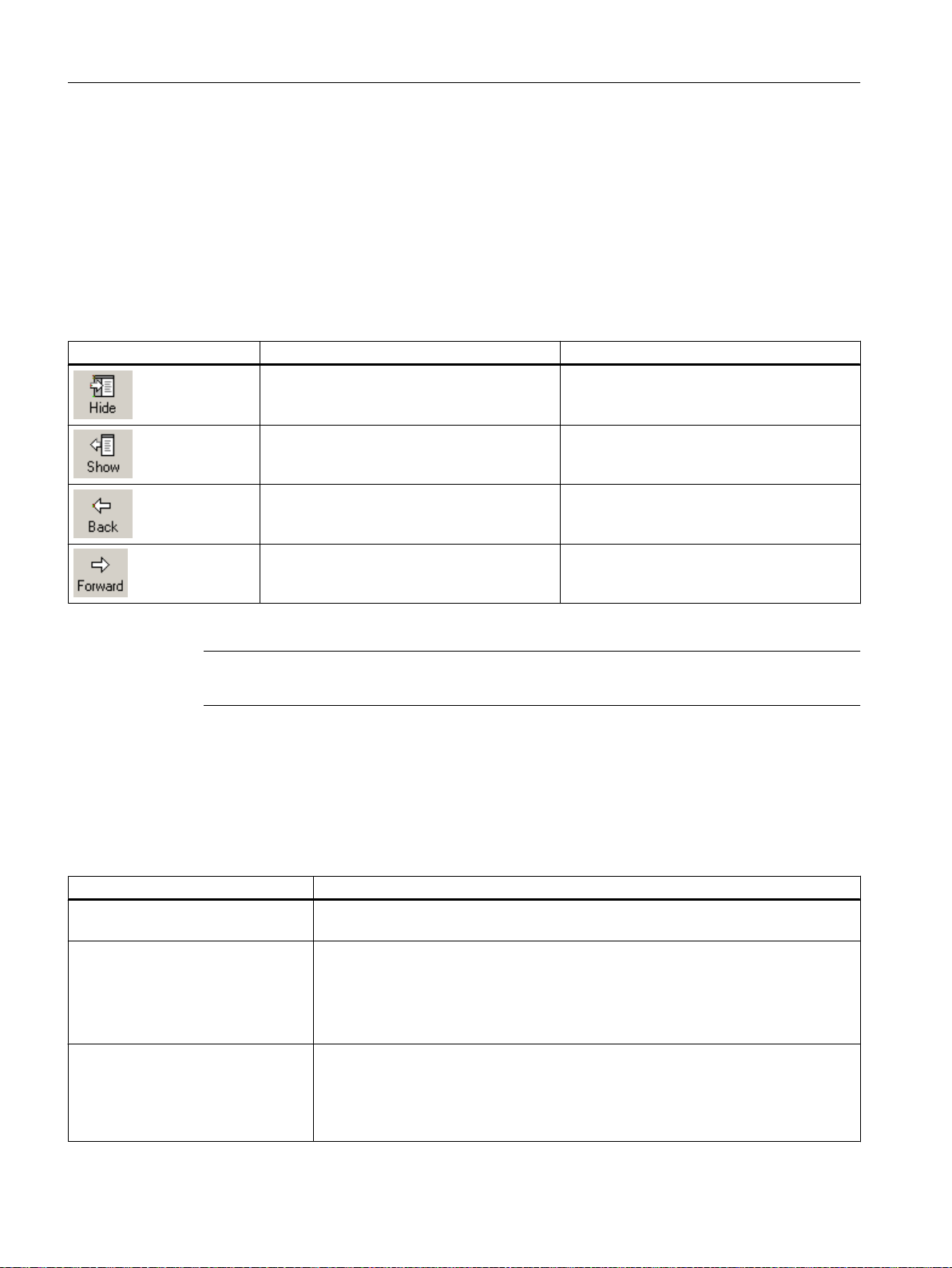
Product introduction and installation
3.13 Using online help
3.13.3 Navigation
SIMATIC BATCH online help
To access a chapter, click on one of the main topics in the navigation window. The subordinate
topics are shown in the right side of the display window.
SIMATIC BATCH online help toolbar
Symbol Brief description Availability
Hides the navigation area containing the tabs.
In this case the SIMATIC BATCH online help
requires less space on the screen.
Shows the navigation area containing the
tabs.
Navigates to the recently opened topic. This is not the first topic shown.
The navigation area is shown.
The navigation area is hidden.
Navigates to the next topic in a recent list of
topics.
The topic is not the last in the list of recent
topics.
Note
Icons labels are shown in the operating system language.
Tabs in the navigation area
The SIMATIC BATCH online help in the navigation area has multiple tabs. You access the
online help topics differently in each tab.
Tab Meaning
Contents In the table of contents you have direct access to every topic of the SIMATIC BATCH
online help.
Index
You can also open the "Index" tab di‐
rectly in SIMATIC BATCH in the
"Help" menu via the "Index" com‐
mand.
Searching
You can also open the "Search" tab
directly in SIMATIC BATCH in the
"Help" menu via the "Search" com‐
mand.
Use keywords to find specific topics in the index. The string entered must match one
of the keywords in the index. A keyword is assigned one or several topics.
To display one of the topics found click on the "Display" button. You can also open a
displayed topic by double-clicking it.
To display the structure of the content of the displayed topic, click the "Contents" tab.
A search item is used to conduct a full-text search for topics. Click on the "Show
topics" button. Topics containing the search item in the header or text are located. To
display one of the topics found click on the "Display" button. You can also open a
displayed topic by double-clicking it.
To display the structure of the content of the displayed topic, click the "Contents" tab.
SIMATIC BATCH V8.2
98 Operating Manual, 02/2016, A5E35958174-AA
Page 99
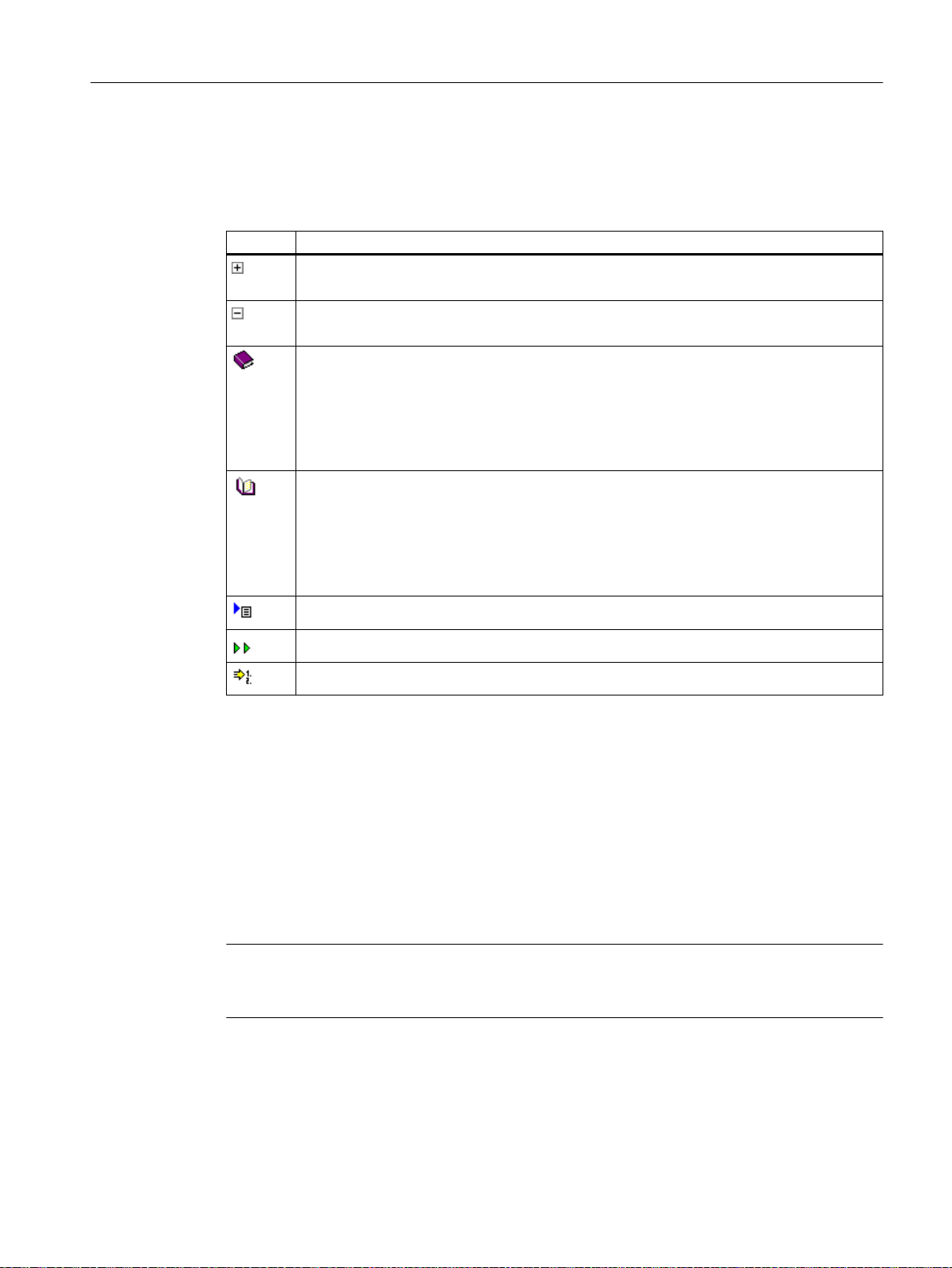
"Contents" tab
Product introduction and installation
3.13 Using online help
Topics are organized into sections and subsections in the table of contents.
The buttons in the "Contents" tab have the following meaning:
Symbol Meaning
Click the icon to display the subsections and topics included in this section.
The topic is displayed unchanged in the topic area.
Click the icon to hide the subsections and topics included in this section.
The topic is displayed unchanged in the topic area.
Click the icon to display the overview for this section.
Double-click the icon to display the overview for this section and, simultaneously, the sub‐
sections and topics included in this section.
Select the "Open all" command in the shortcut menu for this icon to display the overview for
this section and, simultaneously, all subsections and topics of the table of contents.
Navigate to subsections and topics of this section in the overview in the topic area.
Click the icon to display the overview for this section.
Double-click the icon to display the overview for this section and, simultaneously, to hide
the subsections and topics included in this section.
Select the "Close all" command in the shortcut menu for this button to display the overview
for this section and, simultaneously, to hide all subsections and topics of the table of contents.
Navigate to subsections and topics of this section in the overview in the topic area.
This is a "Basics" topic.
This is an "Example" topic.
This is an "Operating instruction" topic.
"Search" tab
The other search options are described in the "Search" section.
Navigation bar in the display window
The SIMATIC BATCH online help has a navigation bar that is located at the top of the display
window. The navigation bar provides links to other topics. The links are organized by link type.
If you move the cursor to a link type, a list of additional links is displayed. Clicking a link brings
you to the required information.
Note
A link type is not available in the navigation bar if no links of that type exist for the displayed
topic.
SIMATIC BATCH V8.2
Operating Manual, 02/2016, A5E35958174-AA 99
Page 100
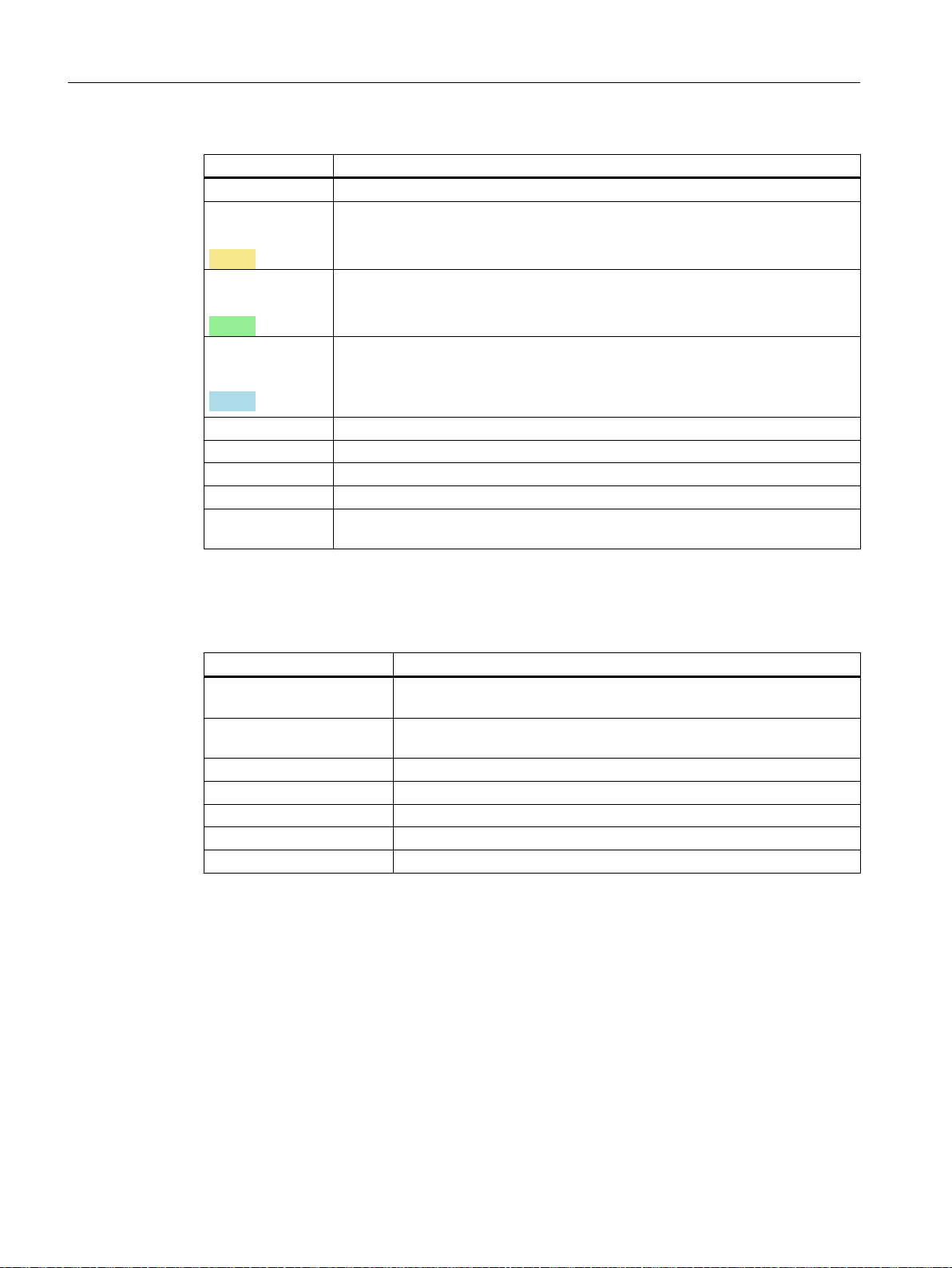
Product introduction and installation
3.13 Using online help
Link type Meaning
In the section Links to headers of the displayed topic.
Instructions
Color:
Links to handling instructions.
Subjects that are classified as Operating instruction, whose title bars are shown
in light brown in the display window.
Examples
Color:
Basic principles
Color:
Events Events of previously viewed links.
Options > Start This calls the main help page.
Options > Back Navigates to the recently opened topic.
Options > Next Navigates to the next topic in a recent list of topics.
Options > Glossa‐ryOpens the help glossary.
Navigating with the keyboard
Instead of the mouse, use the keyboard to navigate.
Operation Function
<Right> Displays in the table of contents the subsections and topics included in
<Left> Hides in the table of contents the subsections and topics included in the
<Up> Moves one row up in the table of contents.
<Down> Moves one row down in the table of contents.
<Page up> Scrolls upwards in the table of contents.
<Page down> Scrolls downwards in the table of contents.
<Enter> or <Input> Open or close the selected chapter
Links to examples.
Subjects that are classified as Example, whose title bars are shown in light green
in the display window.
See also links to background information e.g. definitions, details, GUI.
Subjects that are classified as Basics, whose title bars are shown in light blue in
the display window.
the section.
section.
SIMATIC BATCH V8.2
100 Operating Manual, 02/2016, A5E35958174-AA
 Loading...