

Page 1

II. About Print Server Card
This chapter explains about Print Server Card.
II. About Print Server Card ........................................................... 2-1
Print Server Card ......................................................................... 2-2
Print Server Card Environment .................................................... 2-3
Hardware...................................................................................... 2-4
Familiarize Yourself with the Connectors and LED.................... 2-4
Connect to Network................................................................... 2-5
Test Report and Parameters ........................................................ 2-6
Status Page............................................................................... 2-6
Parameter Configuration ........................................................... 2-8
What W e Support....................................................................... 2-11
Function .................................................................................. 2-11
Hardware Specification ........................................................... 2-12
Software Specification............................................................. 2-13
Page 2

Print Server Card Users Manual
Print Server Card
The Print Server Card is a multi-protocol print server. Print Server Card provides network
connectivity to your printers so that the printer can be shared by numbers of users on your
network. Print Server Card supports TCP/IP, IPX/SPX, AppleTalk and NetBEUI protocols.
Configuration tools are available in Windows and Macintosh environments including a WWW
browser.
2-2About Print Server Card
Page 3

Print Server Card Users Manual
Print Server Card Environment
Required items to connect Print Server Card.
A device to connect to network.
*Twisted pair cable (in 100 Base-TX use category 5)
*Printer
Network Computer
Windows95/98/Me, NT4.0, 2000 (TCP/IP, NetWare, NetBEUI)
UNIX
NetWare
Macintosh (AppleTalk)
2-3About Print Server Card
Page 4
Print Server Card Users Manual
Hardware
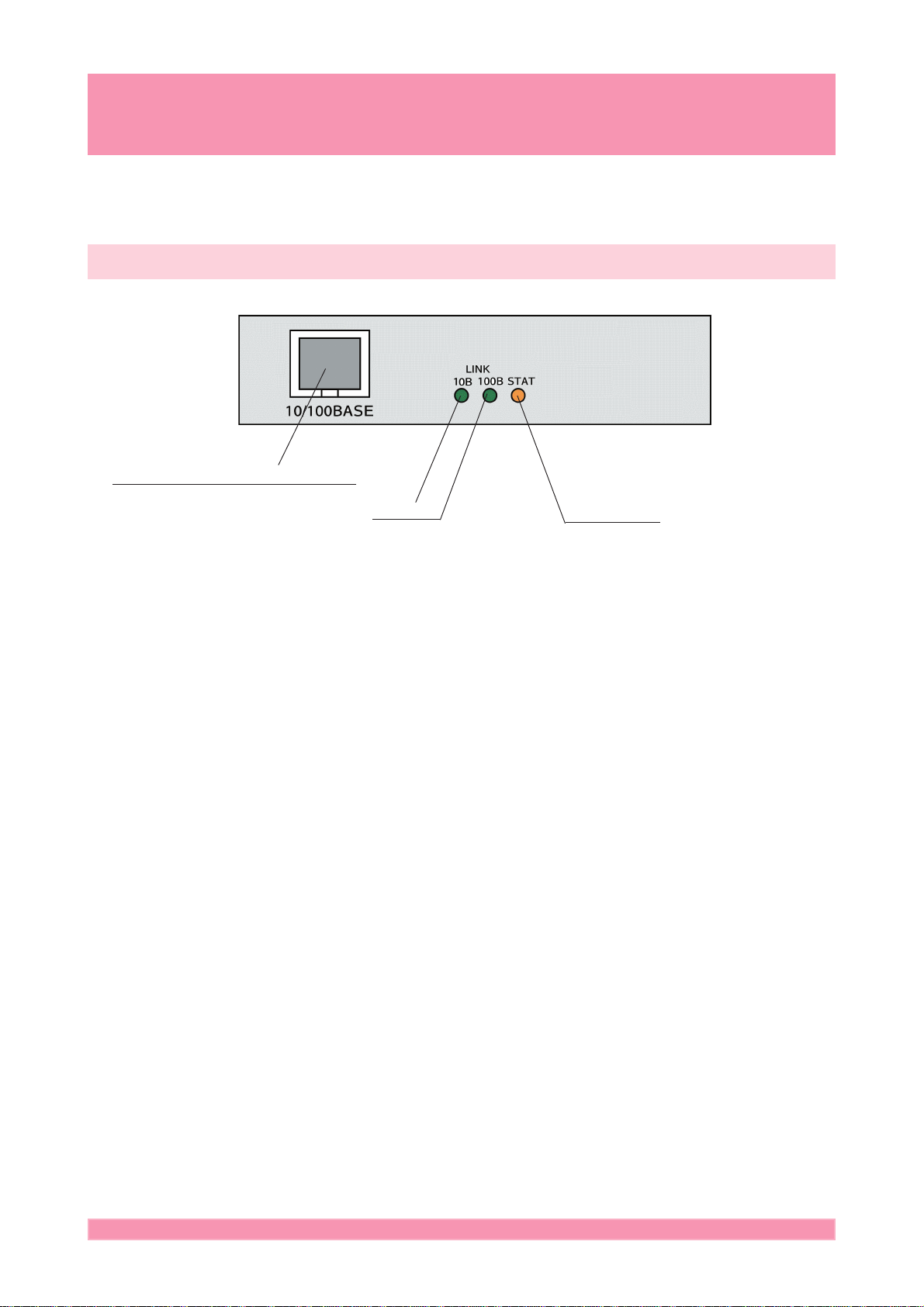
Familiarize Yourself with the Connectors and LED
10BASE-T/100BASE-TX Connector
LINK LED
*10BASE-T/100BASE-TX Connector
Connects twisted pair cable. (Use category 5 for 100Base-TX)
*10BASE-T LINK LED (Green)
Lights while connected to the network with 10BASE-T.
*100BASE-TX LINK LED (Green)
Lights while connected to the network with 100BASE-TX.
*STATUS LED (Orange)
Lights while the power is supplied. Blinks while receiving.
STATUS LED
2-4About Print Server Card
Page 5
Print Server Card Users Manual
Connect to Network
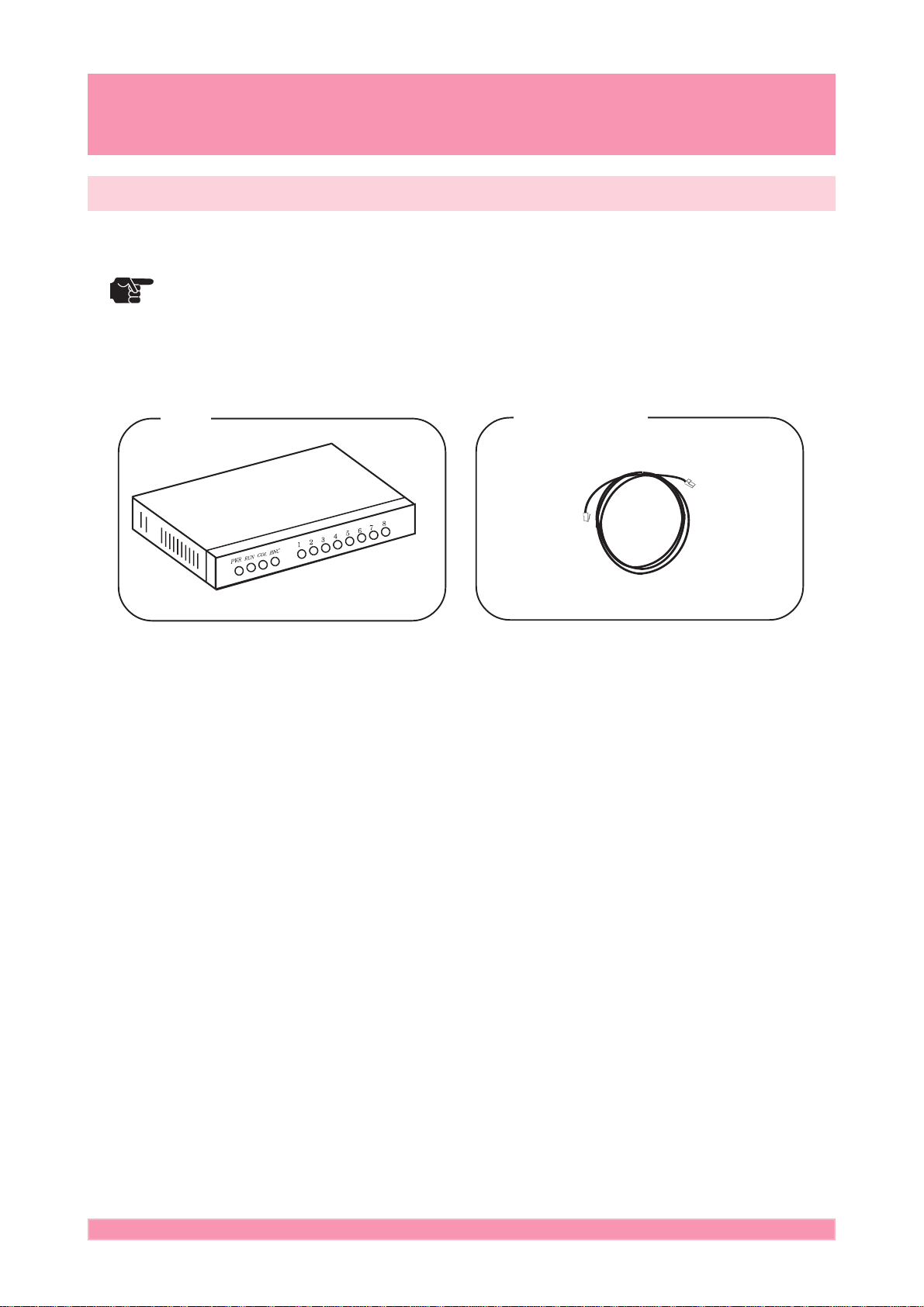
Prepare the following items to connect Print Server Card to the network.
* If you are using in 100BASE-TX environment, prepare HUB for 100BASE and twisted pair
TIP
cable (category 5).
HUB
1. Be sure that the printer power is off. Connect the 10/100 Base twisted pair cable to
Print Server Card.
2. Connect the other end of the cable to the HUB.
3. Turn on the printer . Be sure that the printer is turned on properly.
Twisted pair cable
2-5About Print Server Card
Page 6

Print Server Card Users Manual
Test Report and Parameters
Status Page
Network status of Print Server Card can be checked by printing status page. You can print
the status page by selecting “Yes” for “Print status page after bootup” in setup tools.
<Example of the System status report>
Sharp AR-NC5J Version 01.00.03 [00:80:92:00:15:CC]
Copyright(C) 2001 SHARP CORPORATION
Copyright(C) 2001 Japan Computer Industry Inc.
*** System status report ***
[GENERAL]
model name Sharp AR-NC5J
version 01.00.03
printer name
link status 100BASE-TX
duplex mode HALF
Hardware addr 00:80:92:00:15:CC
Status print YES
[TCP/IP]
status enabled
DHCP/BOOTP enabled
IP address 192.168.40.148(DHCP)
subnet mask 255.255.255.0
gateway 192.168.40.254
DHCP server 192.168.40.192
DHCP lease time 91980sec.
[NetWare]
status enabled
packet type 802.2
network number 00000001
print mode PSERVER
pserver name SC0015CC
NDS Tree MH
NDS context
2-6About Print Server Card
Page 7

Print Server Card Users Manual
[AppleTalk]
status enabled
zone name TEST01
type name LaserWriter
object name SC0015CC
[NetBEUI]
status enabled
computer name SC0015CC
workgroup name Sharp-Printer
master browser SC00000C
2-7About Print Server Card
Page 8
Print Server Card Users Manual
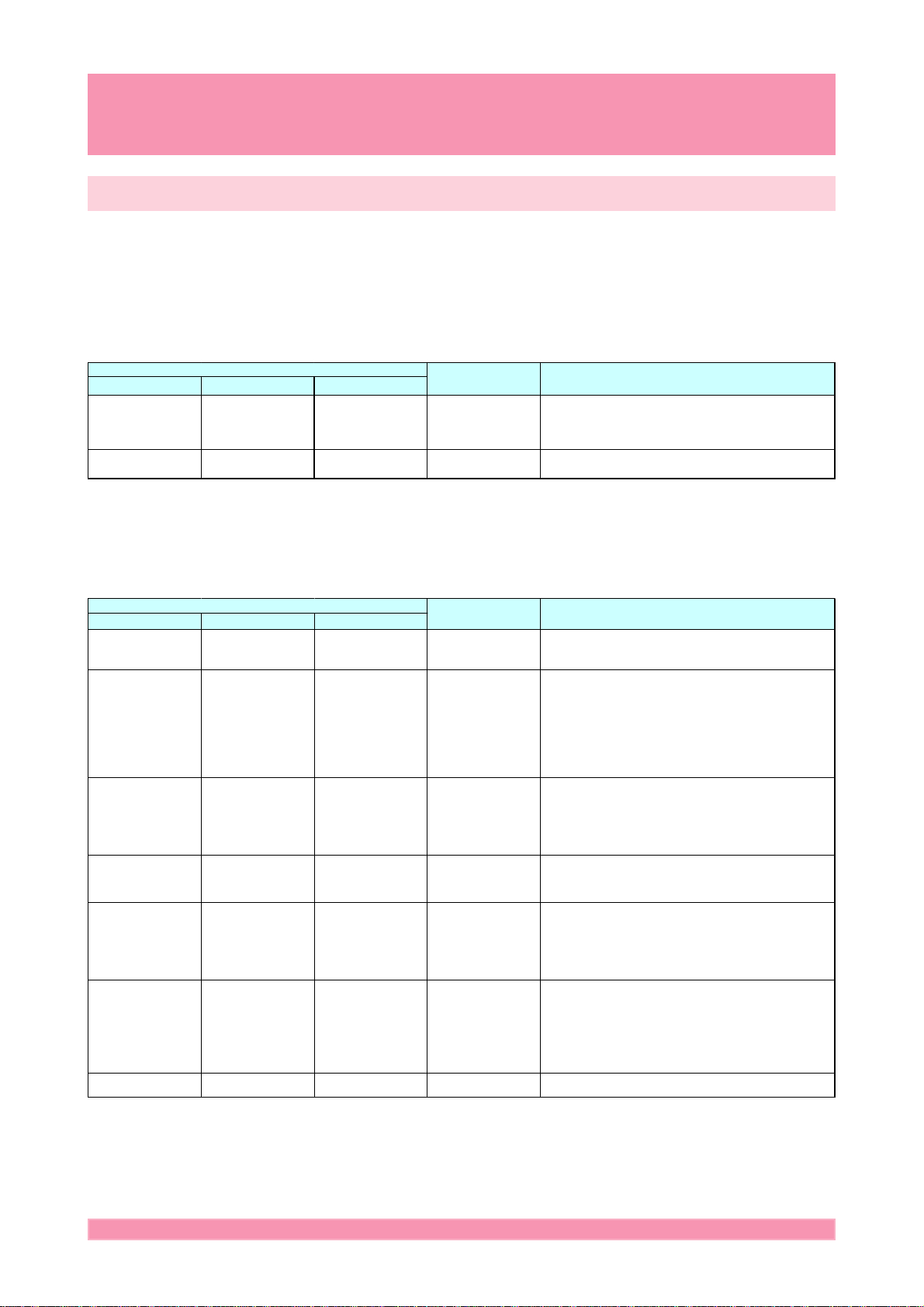
Parameter Configuration
After you have finished installing Print Server Card, you need to configure the functions.
Below are the explanations on how to configure.
GeneralGeneral
General
GeneralGeneral
Telnet Web page NICManager
Change admin
Password
Print status page after
bootup
TCP/IPTCP/IP
TCP/IP
TCP/IPTCP/IP
Change admin
Password
Print status page after
bootup
Change admin
Password
Print status page after
bootup
Factory DefaultName Explanation
Sharp Setup pas sword for adm inistrator. This password will be
used for Telnet, Web page, and setup utility.
Note: The c harac ter you are typing is displayed as "* ".
NO Select whether print s tatus page or not.
Telnet Web page NICManager
TCP/IP Protocol TCP/IP Protocol Use TC P/IP Protocol ENABLE Enable or disable TCP/IP protocol. This influenc es LPR,
DHCP/BOOTP DHCP/BOOTP Use DHCP/BOOTP ENABLE Enable or disable D HCP/BOO TP. This is a pr otoc ol which
RARP RARP Use RARP ENABLE Enable or disable RARP. RARP is a protocol which
IP Address IP Address IP Addres s 0.0.0.0 Assign IP address. The value must be configured in the
Subnet Mask Subnet Mask Subnet Mask 0.0.0.0 Assign subnet mas k. The value must be configured in the
Default Gateway Default Gateway Default Gateway 0.0.0.0 Assign gateway IP address. The value must be configured
Use FTP/LPD Banner Use FTP/LPD Banner Use FTP/LPD Banner NO Set to print banner page when using FTP/LPR printing.
Factory DefaultName Explanation
FTP, TELNET, SNMP, HTTP and Setup utility (for TCP/IP).
acquires IP address from DHCP/BOOTP server when
booted. In order to use this function with Print Server Card,
a DHCP/BOOTP server must exist in the netw ork and be
properly setup. Print Server Card will automatically
acknowledge. The IP address that replies first will be
assigned.
acquires IP addres s from RARP server when booted. In
order to use this function with Print Server C ard, a RAPP
server must exist within the same subnetwork and be
properly setup.
form at of four part series of numbers separated by decim al
points, such as “xxx.xxx.xxx.xxx”.
form at of four part series of numbers separated by decim al
points, suc h as “xxx.xxx.xxx.xxx”. If you set as 0.0.0.0, this
sec tion will be invalid and subnet mas k will be set
according to the IP address class.
in the format of four part s eries of numbers separated by
decim al points, suc h as “xxx.xxx.xxx.xxx”.
Gateway must reside within the same subnetwork as Print
Server Card. If you set as 0.0.0.0, this sec tion will be
invalid.
2-8About Print Server Card
Page 9

NetWareNetWare
NetWare
NetWareNetWare
Print Server Card Users Manual
Telnet Web page NICManager
NetWare Protocol NetWare Protocol Use NetW are
Protocol
Fram e Type Fram e Type Fram e Type 802.2 Setup default frame type used by Print Server Card. W hen
Operation Mode Operation Mode Operation Mode PSERVER Setup operation mode(print s erver/remote printer) for Print
Printer Name Printer Name Printer Name SCxxxxxx-prn1
Print Server Name Print Server Name Print Server Name SCxxxxxx (xxxxxx is
Login Password Login Password Password None (no password) Set the password for Print Server Card to log in to the file
Job Polling (s ec.) Job Polling (s ec.) Job Polling Tim e
(Second)
Bindary Mode Bindary Mode Bindary Setup ENABLE Select whether to use bindery mode or not. If you do not
FSER VER Name 1-8 FSER VER Name 1-8 File Ser ver to be
connected
Factory DefaultName Explanation
ENABLE Enable or dis able NetWare protoc ol. This will influenc e the
(xxxxxx is last s ix
number of Ethernet
address.)
last six num ber of
Ethernet address.)
4 Set the interval to check for print jobs. We recommend
"" You may define the name of the file server the printer
ability to use print s erver, remote printer and
Setup Utility (for IPX/SPX).
Print Server Card can not operate with the frame type set
up, it will autom atically change to different frame type.
Server Card. W hen Print Server Card can not operate with
the operation m ode set up, it will automatically c hange to
different operation mode.
Setup “Printer” name which will be registered to NetWare
server. This name must be same as the “Printer” name
regis tered to NetW are s erver.
Setup print server name when Print Server Card is working
in print server mode. This name will be used to identify the
printer within the network when using NetWare protocol.
Therefore set up individual name. The name will be used
as login name when logging into the NetWare server.
server. The password c an be up to 31 letters. If you set
password for Print Server Card, you must set the sam e
password on file server (You can s et the passw ord on file
server in PCO NSOLE). W hen you want Print Server Card
to connect to several file server, all the passwords m ust be
the same.
*Note: Print Server Card has default password of null.
Therefore you can set password to Print Server Card but
not in “Printserver Inform ation” and still manage to connect
and print. However, this is a very special situation and we
recommend that you put same password in Print Server
Card and “Print Server Information”.
default time.
chec k the box, only NDS mode will be used. Unless you
want to use only NDS mode, check the box for Bindery
Setup.
connects to with up to 31 letters. Once you setup the file
server name the Print Server Card will connect to the
server. If this section is left as blank, Print Server Card will
search for a server and connect to it.
NDS Tree NDS Tree NDS Tree "" Specify the NDS tree. Normally, Print Server Card will
NDS Context NDS Context NDS Context "" Specify the context used by NDS in print server mode. Add
PSERVER Name 1-8 PSERVER Name 1-8 Print Server to be
connected 1-8
Job Timeout (sec.) Job Timeout (sec.) Time Out (Second) 10 Time in seconds for Print Server Card to rec ognizes the
"" You may define the name of the print server to which the
automatically detect the tree name. However, when there
are several trees existing within the network, you must add
the nam e.
the context on the file s erver whic h that you cr eated the
print server.
Print Server Card connects. Once you setup the print
server name, the Print Server Card will connect to it. If this
sec tion is left as blank, Print Server Card will autom atically
search for server and connect to it.
end of a job in remote printer mode. W e recom mend
default time.
2-9About Print Server Card
Page 10

Print Server Card Users Manual
AppleTalkAppleTalk
AppleTalk
AppleTalkAppleTalk
Telnet Web Page NICManager
AppleTalk Protoc ol AppleTalk Protocol Use AppleTalk
Zone Name Zone Name Zone Name "*" Setup zone name that Print Server Card belongs. If this is
Printer Name Printer Name Printer Nam e SCxxxxxx (xxxxxx is
NetBEUINetBEUI
NetBEUI
NetBEUINetBEUI
Telnet Web Page NICManager
NetBEUI Protocol NetBEUI Protocol Use NetBEUI Protocol ENABLE Enabe or disable NetBEUI protocol
Com puter Nam e Com puter Nam e Com puter Nam e SCxxxxxx (xxxxxx is
Workgroup Workgroup Workgroup "Sharp-Printer" Set the workgr oup which P rint Server C ard belongs to.
Comment Comment Comment "Sharp AR-NC5J" Add an explanation for Print Server Card. The explanation
Protocol
Factory DefaultName Explanation
ENABLE Enable or disable AppleTalk Protocol.
"*", Print Server Card will automatically belong to zone
name where AppleTalk router is set.
last six num ber of
Ethernet address.)
Factory DefaultName Explanation
last six num ber of
Ethernet address.)
Setup AppleTalk printer name. The name you set here can
be seen from “Chooser”. D o not us e AppleTalk Protocol
symbol (= :@*) here.
Add com puter name. The nam e you add here will be
shown as the computer in W indows Explorer. Make sure
you give an individual name.
Add a default or existing workgroup name. If you add a
workgroup name that does not exist, it will not be indicated
as w orkgroup.
here will be shown as a comment in Windows Explorer.
2-10About Print Server Card
Page 11

Print Server Card Users Manual
What We Support
Below is information on Print Server Card’s function.
Function
Automatic IP address configuration with DHCP, BOOTP, RARP
DHCP/BOOTP
The Print Server Card is equipped with DHCP/BOOTP protocol. The IP address can be set within the network
where the DHCP/BOOTP server is operating. If you enable DHCP/BOOTP option, you can configure TCP/IP
information which is set on DHCP/BOOTP server.
* The DHCP protocol is implemented in accordance with RFC2131/2132. It is complying with
TIP
WindowsNT DHCP Server.
* Please contact your network administrator to use DHCP functions.
RARP
The Print Server Card is equipped with RARP protocol. The IP address can be set within the network where the
RARP server is operating. If you enable RARP option, you can set IP address which is set on RARP server.
IPP (TCP/IP)
The Print Server Card is equipped with IPP protocol (IPP Ver.1.0) which enables you to print via the internet.
You can print to printers in remote places as you are accessing to Web using HTTP.
WWW Browser
The Print Server Card is equipped with HTTP server and you can access to Print Server Card for configuration.
If your network is connected to internet, you can access Sharp homepage.
* To use the HTTP function, you need a WWW browser “Internet Explorer4.0 or higher” or
TIP
“Netscape Navigator4.0 or higher”. If you use other browser, be sure it is compatible to
HTTP1.0(RFC1945) and HTML2.0(RFC1866).
* You have to assign an IP address on Print Server Card and enable TCP/IP when using HTTP.
2-11About Print Server Card
Page 12

Print Server Card Users Manual
Hardware Specification
CPU
JCI FALCON 32bit RISC chip
Memory
RAM :4MByte
FLASHROM :1MByte
Network Interface
10BASE-T/100BASE-TX 1 port (Automatic 10/100BASE switching)
Printer Interface
Interface Exclusively for Sharp
Others
Status LED: Status, 10Base-T LINK, 100Base-TX LINK, total of three
2-12About Print Server Card
Page 13

Print Server Card Users Manual
Software Specification
Support Protocol
TCP/IP, IPX/SPX, AppleTalk, NetBEUI (can be used simultaneously)
TCP/IP
Network layer :ARP, RARP, ICMP, IP
Session layer :TCP, UDP
Application layer :LPR, FTP, TELNET,DHCP, BOOTP, SNMP, HTTP, IPP
IP Address can be set with Setup Utility.
NetWare
RPRINTER mode (up to 8 servers)
PSERVER mode (up to 8 servers, 32 queues)
IEEE802.2, IEEE802.3, Ethernet-II, SNAP recognize frame types automatically.
EtherTalk
ELAP, AARP, DDP, AEP, NBP, RTMP, ZIP, ATP, PAP, AppleTalk phase2
Printer name can be set with setup utility.
NetBEUI
SMB, NetBIOS
2-13About Print Server Card
 Loading...