

Page 1
E1 SAFETY PRECAUTIONS
ENGLISH
Contents
E1 [ SAFETY
PRECAUTIONS ]
E2 [ ACCESSORIES ]
E3 [ BEFORE
OPERATING
TELEVISION ]
• Connecting to an
antenna
• Connecting to an
antenna via a VCR
E4 [ PART NAMES ]
• TV set
• Using headphone
• Remote control
• Installing batteries in the
remote control unit
COLOUR TELEVISION
OPERATION MANUAL
Please read this operation manual
carefully before using the colour
television.
E5 [ BASIC OPERATION ]
• Turn on the power
• On-screen display
language selection
• Channel selection
• Adjusting volume
E6 [ PRESETTING
CHANNELS ]
• Auto channel tuning
• Manual channel tuning
E7 [ SETTING AND
ADJUSTMENT ]
• Channel setting
• Picture adjustment
E8 [ TIMER SETTING ]
• Off timer
• On timer
• Reminder on-screen
timer
21JF2-SA
21JF2-GA
21JF2-SM
E9 [ FEATURES ]
• Blue screen
E10[ USEFUL
FEATURES ]
• Channel/Timer display
• Mute
• Channel recall
• TV/Video selection
E11[ CONNECTIONS ]
• Connecting to video
equipment
E
12 [ TROUBLESHOOTING ]
E13[ SPECIFICATIONS ]
TINS-B996WJZZ%
05P09-MSF
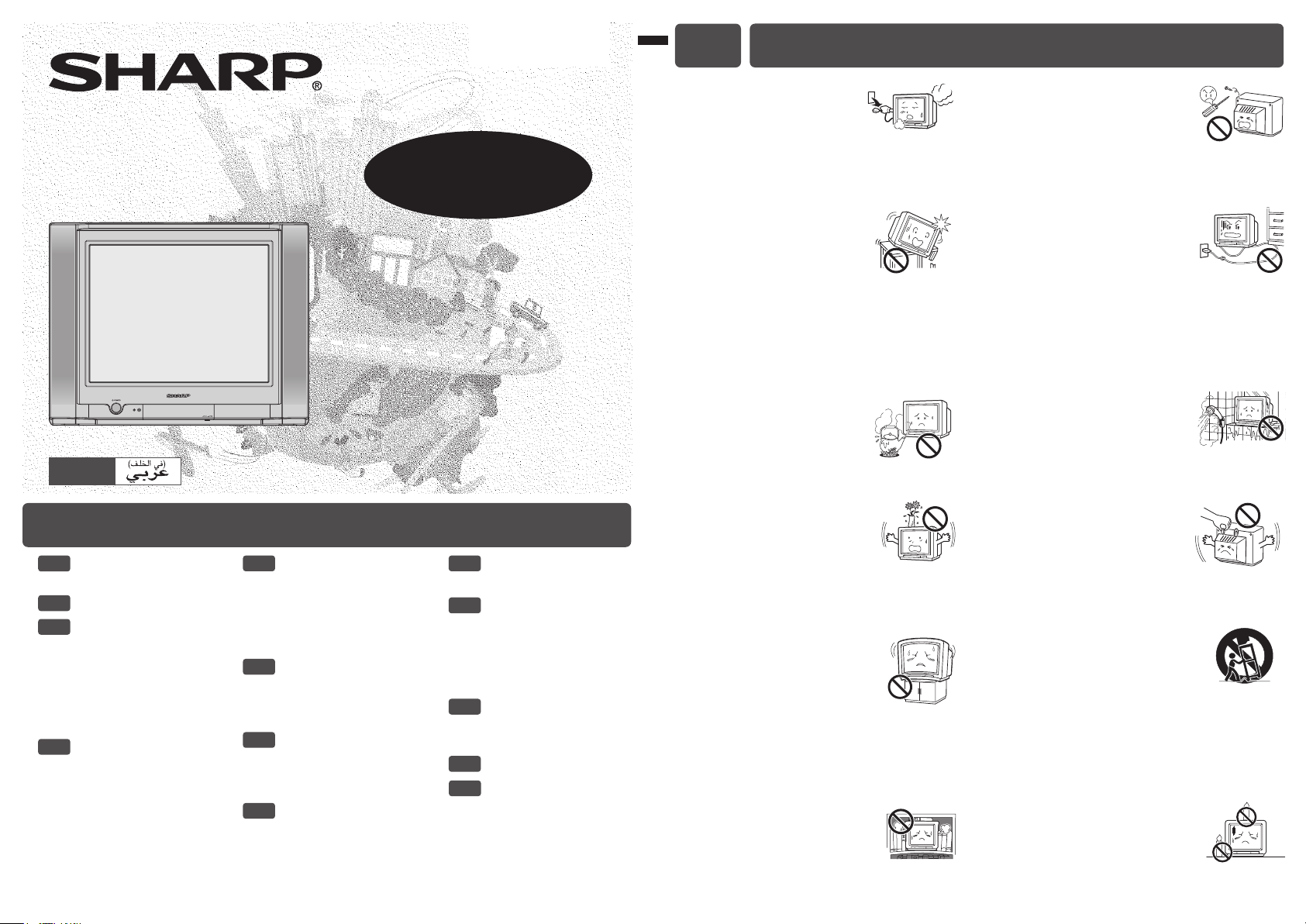
Damage
Turn off the power and unplug
the power cord from the wall
outlet immediately if the TV set begins to make
any unusual noises or gives off smoke or an
unusual smell. Then call your dealer for service.
Unstable surface
and shocks
Do not place this TV set on an
unstable cart, stand, shelf, or table. The TV set
may fall, causing serious injury to a child or
adult, and serious damage to the set. Sharp
recommends securing the TV set to a stable
surface or wall to prevent the set from falling
due to sudden shocks or impact.
Moisture
To prevent electrical shock, do
not use the TV set in an
excessively damp place.
Liquid entry
Do not place a flower vase
or anything else containing liquid
on the TV set, as liquid spilt on the TV set can
cause electrical shock or failure.
TV Set position
Do place the TV set onto an even
stand, table or track which size is
bigger than the TV set.
If the TV set is put onto a smaller
size or uneven stand, table or track may cause
the TV cabinet distort.
Do not put or insert anything between TV set
and the stand, table or track.
Ventilation
Do not place this TV set in a
confined area, such as on a
1
bookshelf or in a built-in case. Leave adequate
space behind the TV for proper ventilation.
Servicing
To reduce the risk of electric
shock, do not remove the back
of the cabinet. This TV set
contains dangerous voltage.
Power-cord
protection
To prevent electrical shock, do
not subject the AC power cord to damage by
bending or twisting it, or by placing heavy items
on top of it and do not place the AC power cord
under the TV set. If the AC power cord becomes
damaged, unplug it from the wall outlet
immediately and call your dealer for service.
Water
To prevent fire or electrical
shock, do not place the TV set
near a bathroom, swimming pool or other area
where it may become wet.
Object entry
Never insert or drop any metallic
or inflammable objects into the
ventilation openings of the TV set, as this can
cause fire, electrical shock, or electrical failure.
Uneven surface and
excessive force
Television equipment and cart
combination should be moved with care. Quick
stops, excessive force, and uneven surfaces
may cause the equipment and cart combination
to overturn.
Fire prevention
To prevent fire, never place any
type of candle or naked flames on
the top or near the TV set.
Page 2
E4 PART NAMESE2 ACCESSORIES
The following accessories are included with this television.
Remote Control Size-AA batteries
Operation manual
E3 BEFORE OPERATING TELEVISION
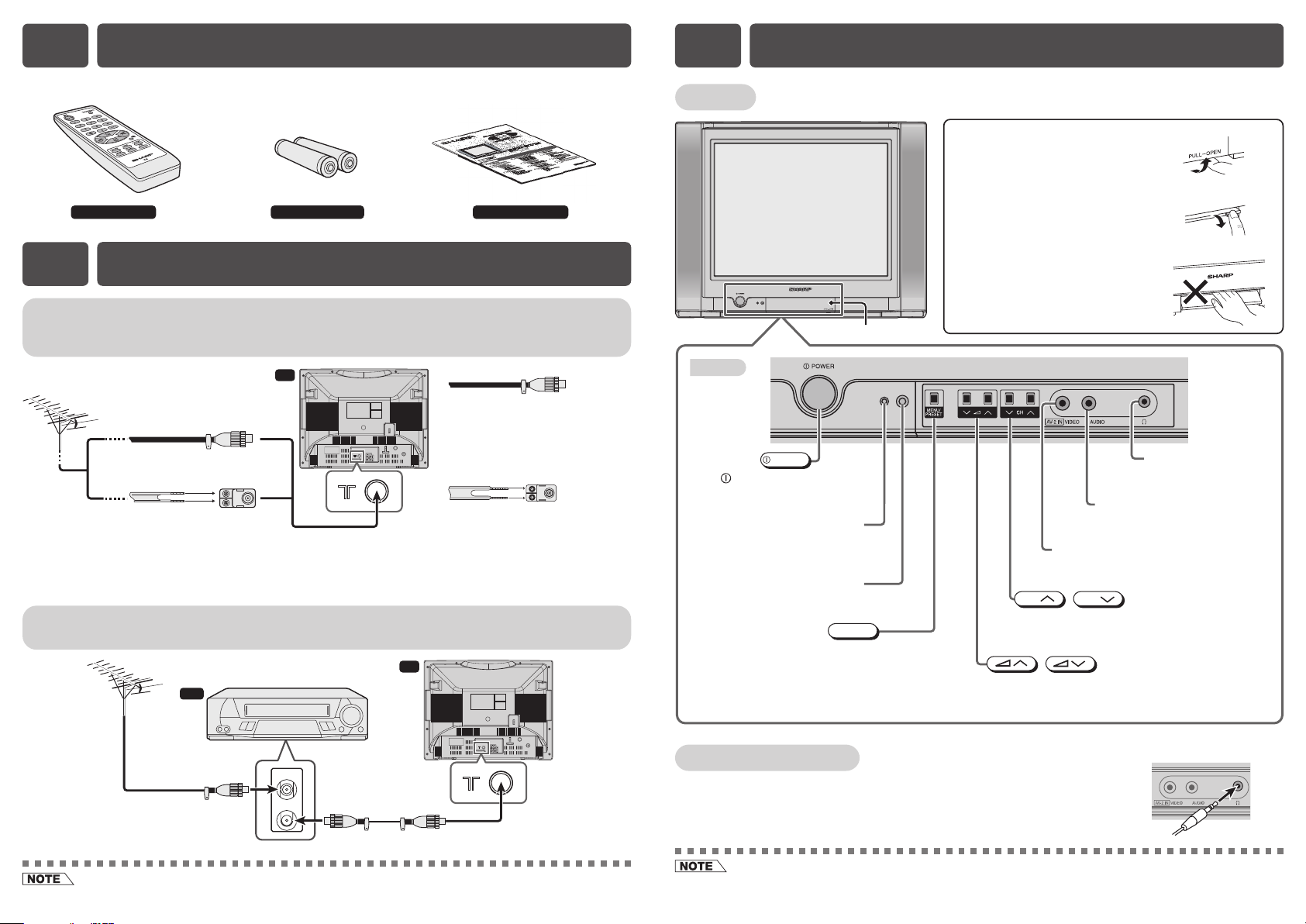
Connecting to an antenna
To enjoy a clearer picture, use an outdoor antenna. The following is a brief explanation of the
types of connections that are used for coaxial and feeder cables.
TV
If your outdoor antenna uses a
Standard DIN45325 plug (IEC169-2)
75-ohm coaxial cable (round cable)
(not supplied)
300-ohm twin-lead
flat feeder
(not supplied)
75-ohm impedance
converter
(not supplied)
Antenna in
Connecting to an antenna via a VCR
You can also connect the TV set to the tuner on a VCR using the connection shown below.
VCR
75-ohm coaxial cable with a
standard DIN45325 plug (IEC
169-2), plug it into the antenna
jack at the rear of the set.
If your outdoor antenna uses a
300-ohm twin-lead flat feeder,
connect a 300-ohm to 75-ohm
impedance converter and plug
it into the antenna jack at the
rear of the set.
TV
TV set
Bottom
POWER
POWER switch
Turns on and off the
main power
Power can be turned on by the
remote control when the indicator
Infrared sensor window
Receives the infrared wave from
.
Power indicator
is dimly.
the remote control.
MENU/PRESET button
Tunes the channels.
Used for MENU setup
Door
MENU/PRESET
To open the door
Using the projection located under
the “PULL-OPEN” indication, pull
and lift the door open.
To close the door
Using the projection, lower the door
until closed.
Caution:
• When opening or closing the door, do
not insert your fingers into the gap
between the door and front panel. This
may result in an injury.
Headphone jack
Use to listen to the audio
with headphone.
Audio input terminals (AV-2)
Connects to a camcorder,
video game, etc.
Video input terminal (AV-2)
Connects to a camcorder,
video game, etc.
CH
Channel up/down buttons
Selects the channels.
Tunes or sets the channels.
.
Volume up/down buttons
Adjusts the volume.
Makes adjustments in PRESET
CH
/
/
.
To antenna in
terminal
• When using the RF terminal connection, set the TV to channel zero to make initial adjustments for the VCR.
To RF out
terminal
Antenna in
Using headphone
[ Behind the door ]
Insert headphone plug into headphone jack to listen to audio with
headphone.
• The audio from the speakers is turned off.
• To avoid injuring your hearing, do not put on the headphone before plugging them into the headphone jack and before
the power is turned on.
Page 3
E5 BASIC OPERATIONE4 PART NAMES (Continued)
Remote control
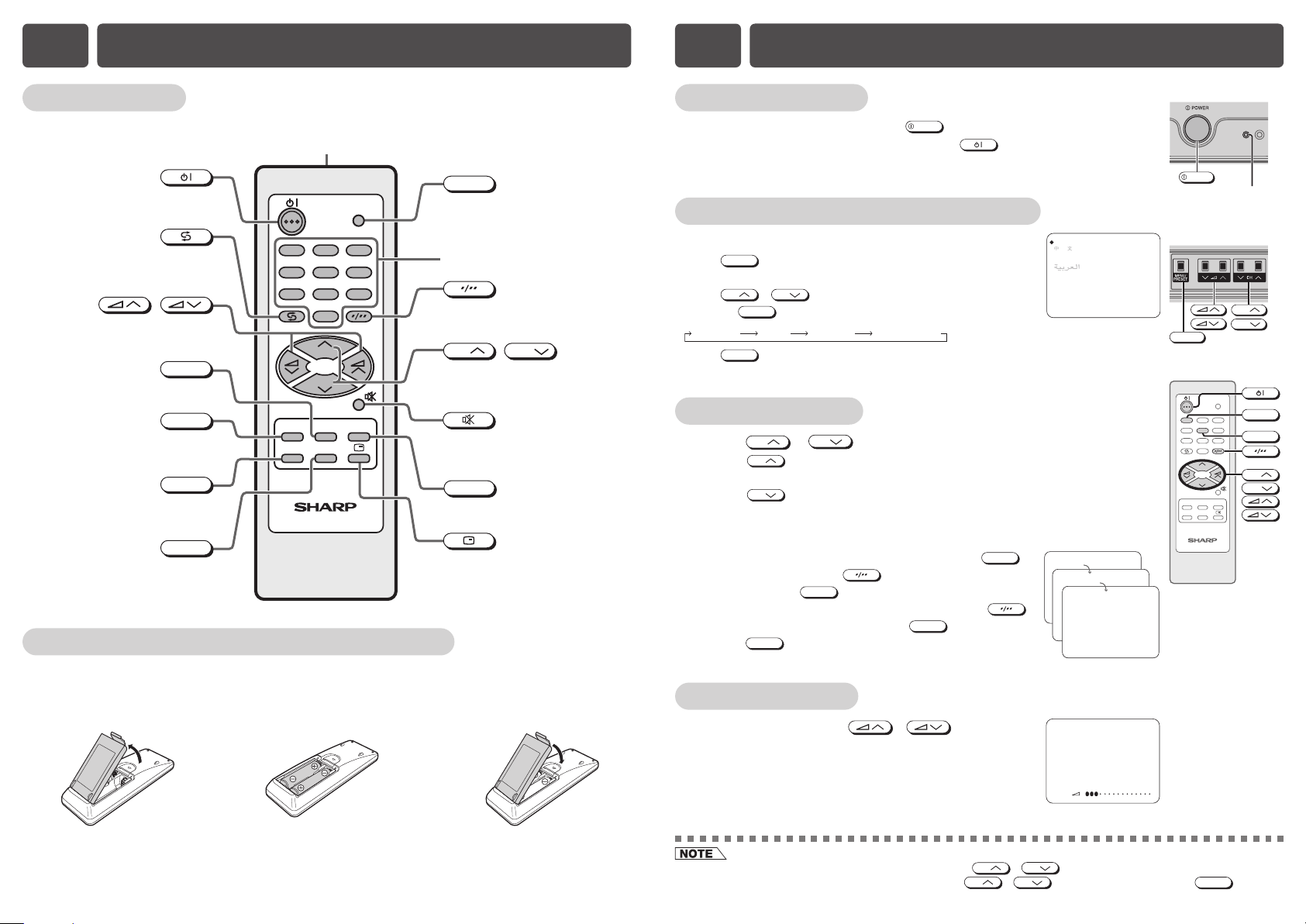
Infrared transmitter window
Aim this window at the infrared
sensor window on your TV set
.
Turns the TV on or to Standby mode.
TV/VIDEO
1
2
5
8
0
CH
CH
TIMERFEATURE
NORMAL
3
6
9
PICTURE
Returns to previously viewed channel.
/
Adjusts the volume.
Used for MENU setup
TIMER
Calls the TIMER screen.
FEATURE
Calls the FEATURE screen.
CH-SET
4
7
.
CH-SET
Calls the CH-SETTING screen.
TV
NORMAL
Resets all settings.
Installing batteries in the remote control unit
TV/VIDEO
Switches between TV broadcasts
and A/V input programmes
.
Number buttons
Switches between one- or two-digit
mode channel selection.
CH
Selects the channel.
Used for MENU setup
Mutes the sound and restores
sound to previous level
PICTURE
/
CH
.
.
Calls the PICTURE screen.
Displays the channel and timer
settings on the screen.
Turn on the power
• When the power indicator is off, press
• When the power indicator lights up dimly, press on the remote
control. The power indicator changes to bright and a picture appears.
POWER
.
On-screen display language selection
TV set
• Press
• Press
• Pressing
• Press
MENU/PRESET
for more than two seconds, the language select
mode appear.
CH
Language MANUAL
MENU/PRESET
CH
/
MENU/PRESET
changes the screen as shown below.
AUTO
until normal screen appears.
to select desired language.
Normal screen
ENGLISH
FRANÇAIS
BAHASA MELAYU
Channel selection
! Using
• Press
CH
CH
1 / 2 / ... / 98 / 99 / AV 1 / AV2 / 0 / 1 / 2 ...
• Press
CH
1 / 0 / AV2 / AV1 / 99 / 98 / ... / 2 / 1 / 0 ...
@ With the number buttons (on remote control)
• To select a one-digit channel, such as 5, press
“5-” is indicated, press to select one-digit input,
and then press
• To select a two-digit channel, such as 15, press
to select the two-digit input. Press
press
5
CH
/
and channels change as shown below.
and channels change as shown below.
5
again.
1
, and then
.
5
. If
-1-
15
PAL
B/G
[ TV Set (Bottom) ]
POWER
Power indicator
[ Behind the door ]
CH
MENU/PRESET
1
4
728
CH-SET
CH
TV/VIDEO
5
0
CH
CH
TIMERFEATURE
NORMAL
TV
1
3
6
5
9
CH
CH
PICTURE
With your thumbnail, pull
up at the slit to open the
a
battery cover.
Insert two batteries
(size AA).
b
Replace the battery
cover.
c
Adjusting volume
! Adjust volume using / .
• The volume bar disappears approximately three seconds
after the volume has been adjusted.
• Channels that have been skipped cannot be selected by
• The AV1, AV2 input channels cannot be selected using
these channel.
VOLUME 10
CH
CH
CH
/
/
.
CH
on the remote control. Use
TV/VIDEO
to select
Page 4

E7 SETTING AND ADJUSTMENTE6 PRESETTING CHANNELS
Auto channel tuning
Automatically tunes in and presets receivable TV stations.
! Press
@ Press
MENU/PRESET
for more than two seconds.
MENU/PRESET
again to display AUTO mode screen.
• Pressing
MENU/PRESET
changes the screen as shown below.
Language MANUAL
AUTO
Normal screen
# Press / on TV set.
• All the TV stations in your area that can be received by
the TV set are automatically preset between channels 1
to 99.
• The screen shows whatever is on channel 1 when auto
channel preset is finished.
Manual channel tuning
Enables manual channel tuning to a desired TV station.
! Press
@ Press
# Press
$ Press / on TV set to locate channel you wish to preset to current
MENU/PRESET
for more than two seconds.
MENU/PRESET
twice to display MANUAL mode
screen.
• Pressing
MENU/PRESET
changes the screen as shown below.
Language MANUAL
AUTO
CH
/
CH
or number buttons to
Normal screen
select channel position.
channel position.
• Search is initiated and when a TV signal is received during the search, the search stops.
AUTO(B/G)
VHF 1
48.25MH
z
MANUAL(B/G)
VHF 1
48.25MH
z
[ Behind the door ]
1
PAL
B/G
MENU/PRESET
1
4
5
728
0
CH
CH
TIMERFEATURE
NORMAL
CH-SET
TV
TV/VIDEO
3
6
9
PICTURE
Number
buttons
CH
CH
Channel setting
Enables individual channel setting.
CH-SET
! Press
@ Press
to call CH-SETTING screen.
CH
/
CH
to select desired setting.
# Each time you press / , setting for
individual items changes as follows:
• POSITION
The channel position changes to the higher or lower number.
• COLOUR
AUTO SECAM
PA L
• SOUND
B/G D/KI
• SKIP
ON OFF
Channel numbers with a “ ” mark on the left are set to SKIP. To turn off SKIP, press the number
buttons to select the desired channel and then set “SKIP” to “OFF”.
• FINE
The frequency changes to allow fine tuning.
CH-SET
$ Press
to return to normal screen.
• When you select AV1, AV2 for the channel position, the
CH-SETTING menu changes as shown on the right and
the colour mode changes in the following order:
AUTO SECAM
PAL
N443
N443
N358
CH-SETTING
POSITION CH27
COLOUR AUTO
SOUND B/G
SKIP OFF
FINE
:SELECT
CH
:ADJUST
CH-SETTING
POSITION AV1
COLOUR AUTO
:SELECT
CH
:ADJUST
168.25MHz
1
4
728
CH-SET
TV/VIDEO
3
6
5
0
CH
CH
TIMERFEATURE
NORMAL
TV
CH
9
CH
PICTURE
CH-SET
% Repeat steps 3 and 4 above, to preset channel positions for other broadcasts.
^ Press
• AUTO PRESET stores all receivable channels including those which may be very weak and not clearly visible. To
preset only those channels designated for the local viewing region, use MANUAL PRESET.
MENU/PRESET
again to display normal screen.
• Switching COLOUR system:
Set the system to “AUTO” for normal TV reception. The AUTO mode automatically detects the receiving signal system
and changes the reception system of the TV set. When the picture is not stable, switching to an appropriate system
may improve the picture quality.
• When using FINE, the channel number changes from green to yellow.
Page 5

E8 TIMER SETTINGE7 SETTING AND ADJUSTMENT (Continued)
Picture adjustment
! Press
@ Press
# Adjust using / .
• Wait for approximately three seconds to return to PICTURE menu.
$ Repeat steps 2 and 3 above to adjust other items.
% Press
The following table lists the adjustment items shown in the PICTURE menu and how they
change as you press
Selected item Press Press
CONTRAST
COLOUR
BRIGHTNESS
TINT
SHARPNESS
WHITE TEMP
*: TINT can only be selected and adjusted when receiving NTSC broadcasts. (AV only)
• WHITE TEMP can only be adjusted on PICTURE menu.
PICTURE
to call PICTURE screen.
CH
PICTURE
CH
/
to return to normal screen.
to select adjustment items.
/ .
To decrease contrast
For less colour intensity
For less brightness
To move tint toward red
For less sharpness
To more reddish
background
- +
- +
- +
- +
To increase contrast
For more colour intensity
For more brightness
To move tint toward green
For more sharpness
To more bluish background
PICTURE
CONTRAST 50
COLOUR 0
BRIGHTNESS +10
TINT
SHARPNESS -10
WHITE TEMP
CONTRAST
-
TV/VIDEO
1
3
4
6
CH-SET
728
5
0
CH
CH
TIMERFEATURE
NORMAL
TV
CH
9
CH
PICTURE
PICTURE
NORMAL
Off timer
Automatically turns power off after a set length of time has passed.
TIMER
! Press
@ Press
# Press / to set time for TV to turn
off.
50
+
• Maximum time that can be preset is 12 hours and 50
minutes. Timer start to count down after setting.
$ Press
• Five minutes before the preset length of time expires, the remaining time
appears on the screen.
• A flashing display of the remaining time appears during the last few seconds.
When the preset length of time has passed, the TV set enters the Standby
mode.
On timer
Automatically turns power on after a set length of time has passed.
! Press
@ Press
# Press / to set time for TV to turn
on.
• Maximum time that can be preset is 12 hours and 50
minutes. Timer start to count down after setting.
$ Press
% Press / to set the channel.
^ Repeat step 4 to 5 above to select and set the
“VOLUME”.
& Press
* Press to put TV set into Standby mode.
• Power indicator will flash to indicate On Timer is set.
• When the preset length of time setting has passed, the power turns on and a
picture appears on the screen.
• The ON TIMER speaker volume gradually increases from zero to preset
volume.
to call TIMER screen.
CH
TIMER
TIMER
CH
CH
TIMER
CH
/
to return to normal screen.
to call TIMER screen.
/
/
to return to normal screen.
to select “OFF ”.
CH
to select “ON ”.
CH
to select “POSITION”.
TIMER
OFF --:--
ON --:--
POSITION
VOLUME
TIMER
OFF 2:30
ON --:--
POSITION
VOLUME
TIMER
OFF --:--
ON 8:00
POSITION
VOLUME
TIMER
OFF --:-ON 8:00
POSITION
VOLUME
TIMER
OFF --:-ON 8:00
POSITION
VOLUME
--:--
--:--
--
--
--:--
CH28
--
--:--
CH28
20
--:--
0:05
OFF
0:04
OFF
OFF
0:03
OFF
0:02
OFF
0:01
OFF
0:00
Flashing
TV/VIDEO
1
3
4
6
728
CH-SET
5
0
CH
CH
TIMERFEATURE
NORMAL
TV
CH
9
CH
PICTURE
TIMER
[ TV Set (Bottom) ]
Power indicator
(Flashing)
• Pressing
NORMAL
while a PICTURE selection is displayed, only the selected mode is reset to the standard (factory-
setting) position.
• Pressing
NORMAL
while a PICTURE menu screen is displayed will reset all the item of PICTURE menu to the standard
(factory-setting) position.
• The Off timer is cancelled if the power is turned off or set to the Standby mode using on the remote control or
POWER
• The On Timer is cancelled if the power is turned off using
on the TV set, or if the power is otherwise interrupted.
POWER
.
• If the TV set is turned on by the On Timer, then the TV set will be automatically turned off in two hours if no buttons
are pressed on the TV set or remote control.
Page 6

E10 USEFUL FEATURESE8 TIMER SETTING (Continued)
Reminder on-screen timer
Lets you know when a preset length of time has passed by displaying a countdown timer on
the screen. This is useful for timer cooking while you watch TV.
TIMER
! Press
@ Press
to call TIMER screen.
CH
CH
/
to select “ ”.
# Press / to set time.
• Maximum time that can be preset is 12 hours and 50
minutes.
• The right example shows that the Reminder will be
activated after one hour 50 minutes.
TIMER
$ Press
• Five minutes before the preset length of time expires (in
the example, after one hour and 45 minutes) and each
minute thereafter, the remaining time appears on the
screen for several seconds.
• When the preset length of time has passed, “ 0:00”
flashes in red.
to return to normal screen.
TIMER
OFF --:-ON --:--
POSITION
VOLUME
TIMER
OFF --:-ON --:--
POSITION
VOLUME
--:--
1:50
0:05
0:04
0:03
0:02
0:01
0:00
Flashing
CH-SET
1
4
728
TV/VIDEO
3
6
5
9
0
CH
CH
TIMERFEATURE
PICTURE
NORMAL
TV
E9 FEATURES
Blue screen
Automatically turns the screen blue if a broadcast signal is not received.
! Press
FEATURE
@ Press / to select “BLUE BACK” to “ON” or “OFF”.
to call FEATURE screen.
FEATURE
BLUE BACK
CH
CH
FEATURE
TIMER
ON
Channel / Timer display
Displays the current channel number, the timer, and other settings on the screen.
! Press .
• The time remaining on the Off timer, On timer, and
Reminder appears on the screen.
• When no timer is set, the channel number, colour and
OFF 2:30
ON 8:00
1:50
sound system appear on the screen.
• Press again to clear these current settings
display on the screen.
PAL
B/G
5
@ Press again, the channel number, colour
and sound system appear on the screen.
Mute
Silences the sound.
! Press .
• Press , “ ” appears on the screen, and the sound
is silenced.
@ Press , the volume returns to its previous
level.
• Mute will be cancelled if the is pressed at any time.
1
4
728
CH-SET
TV/VIDEO
3
5
6
9
0
CH
CH
TIMERFEATURE
PICTURE
NORMAL
TV
# Press
When BLUE BACK is set to “ON”.
No signal
FEATURE
to return to normal screen.
Blue screen TV off (Indicator)
after 5 seconds
after 15 minutes
Standby mode
Power indicator
lights up dimly
:ADJUST
• This function also works in the Standby mode. Power is automatically turned on five minutes before the preset length
of time expires. The TV set automatically returns to the Standby mode approximately 1 minute if no buttons are
pressed on the TV set or remote control.
• The Reminder is cancelled if
POWER
on the TV set is pressed or if the power is otherwise interrupted.
• Poor reception due to weak signals and too much noise may activate BLUE BACK, despite the presence of a
broadcast signal. To continue watching TV under these conditions, switch “BLUE BACK” to “OFF”.
• When Off timer is set, the OFF TIMER setting has priority over BLUE BACK.
Page 7

E11 CONNECTIONSE10 USEFUL FEATURES (Continued)
Channel recall
Switches back to the channel you were watching just before the current channel.
Press .
• The channel previously viewed returns to the screen.
Example:
After switching from channel 5 to channel 7, is pressed,
the channel will change to channel 5. Press again to
5
PAL
7
PAL
5
PAL
7
PAL
return to channel 7.
TV / Video selection
Switches between TV broadcasts and AV input programmes.
• Each time you press the
AV1, AV2 and TV programme.
TV/VIDEO
, the input switches between
AV1
AV2
25
PAL
B/G
CH-SET
1
4
728
Connecting to video equipment
Enjoy playback from a video disc player, VCR or other video equipment by connecting them to
this TV set using the Audio/Video in terminals.
Example use of front terminals
TV
TV/VIDEO
TV/VIDEO
3
6
5
Number
9
buttons
0
CH
CH
TIMERFEATURE
PICTURE
NORMAL
TV
Behind the door
Yellow : To VIDEO
White : To AUDIO
Camcorder
To Audio/Video
out terminal
Example use of rear terminals
TV
For Playback
DVD Playe
r
Yellow : To VIDEO
White : To AU DI O
For Recording and Editing
VCR
Video Game
s
VCR
To Audio/
Video out
VCR
terminals
To Audio/
Video out
terminals
To Audio/
Video in
terminals
• The audiovisual cords required to connect the TV set with video equipment may differ from those shown in the above
diagram. See the operation manual of your video equipment for connection details.
• The above recording and editing connections are for intended solely for personal use and not for the illegal copying of
audiovisual material protected by copyright laws.
Page 8

E13 SPECIFICATIONSE12 TROUBLESHOOTING
The following problems do not always indicate a hardware failure. Therefore, please use the
troubleshooting guide below before calling for repair service.
If, after following the guide none of the remedies work, unplug the TV set and call for service.
Quick
Service
Check List
Possible Causes/Remedies
Try a new channel to check for possible station
trouble.
TV not plugged in.
Outlet power OFF.
POWER switch of TV not ON.
Antenna not connected to terminal at the back
of the TV set.
If outside antenna is used, check for broken
wires.
Check for local interference.
Turn OFF using the POWER switch,
then turn ON again after a minute.
Adjust COLOUR control.
Problems
Remote control does not work.
Bars on screen.
Picture distorted.
Picture rolls vertically.
No colour.
Poor reception on some channels.
Picture weak.
Picture lines or streaks.
Picture ghosting.
Picture blurred.
Sound OK, picture poor.
Picture OK, sound poor.
MODEL 21JF2-SA 21JF2-GA 21JF2-SM
Receiving System World multi 18 system
Reception Channels
No picture or sound.
Receiving Frequency 48.25 MHz – 863.25 MHz
Channel Tuning 100-Channel Electronic Tuner with Full Auto Tuning System
Picture Tube 21-Inch Flat CRT (53 cm / 51 cm viewable screen size)
Terminals Audio/video input × 2 (front × 1, rear × 1), Audio/video output × 1 (rear),
Sound Output 2.5 W (RMS) × 2, total 5 W (RMS)
Power Source AC 110 – 240V, 50/60 Hz
Power Consumption 95 W
Dimensions 605 (W) × 468 (H) × 482 (D) mm
Weight 21.7 kg (Approx.)
TV Broadcasts/ PAL-I SECAM-B/G
VCR Playback PAL-B/G SECAM D/K, K1
VCR Playback NTSC 4.43/5.5 MHz/60 Hz
VCR Playback SECAM-L (French SECAM)
(Using Video-in terminals) PAL 60 Hz
Laserdisc Player Playback PAL 5.5 MHz/60 Hz
(Using RF-in terminals) PAL 6.0 MHz/60 Hz
PAL-B/G VHF E2–E12 ch
SECAM-B/G
PAL-D/K VHF C1–C12 ch, R1–R12 ch
SECAM-D/K, K1
PAL-I VHF B–J ch
CATV S1–S20 ch, S21–S41 ch (Hyper)
PAL-D/K
NTSC 4.43/6.0 MHz/60 Hz
NTSC 4.43/6.5 MHz/60 Hz
NTSC 4.43/5.5 MHz/50 Hz
NTSC 4.43/6.0 MHz/50 Hz
NTSC 4.43/6.5 MHz/50 Hz
SECAM-I (6.0 MHz)
NTSC 3.58 MHz
PAL 6.5 MHz/60 Hz
UHF E21–E69 ch
UHF C13–C57 ch, R21–R69 ch
UHF 21–69 ch (Hong Kong)
Headphone jack × 1 (front)
Check batteries in the remote control.
Try fine tuning to correct.
Contrast setting in picture mode might be all
the way to the minus side. Press the
NORMAL button on the remote control to
correct.
Increase the volume.
This unit is equipped with a microprocessor. Its performance could be adversely affected by external
electrical noise or interference. If this should happen, unplug the unit and plug it in again after a few
minutes.
• Design and specifications are subject to change without notice.
• Receiving system: These receiving systems, encompassing all currently available technology, include those with
planned broadcast, videotape and laserdisc hardware and software.
SHARP CORPORATION
 Loading...