

Page 1

XDAP USER MANUAL
XDAP USER MANUAL
.
SERVOTEST
JUN/2025
Page 2

XDAP USER MANUAL
Contents
1 Software Introduction ................................................................................................... 12
1.1 Advantages ............................................................................................................ 12
1.2 Version and Copyright .......................................................................................... 13
1.3 Software Update .................................................................................................... 14
1.4 Main Interface ....................................................................................................... 15
1.5 Main interface parameter setting ........................................................................... 16
1.6 Shortcut key settings .............................................................................................. 18
2 Basic Functions ............................................................................................................ 20
2.1 Load and Save ....................................................................................................... 20
2.1.1 Double click to open ....................................................................................... 20
2.1.2 Drag and Drop ................................................................................................ 22
2.1.3 Previous and Next........................................................................................... 22
2.1.4 Resource Manager .......................................................................................... 23
2.1.5 Formats Supported.......................................................................................... 23
2.1.6 Save ................................................................................................................ 23
2.1.7 Save As ........................................................................................................... 24
2.1.8 Reload ............................................................................................................. 24
2.1.9 Reveal In Explorer .......................................................................................... 24
2.2 Custom commands Edit ......................................................................................... 24
2.3 Function Target Channel ....................................................................................... 25
2.4 File Tab .................................................................................................................. 26
2.4.1 Close File ........................................................................................................ 26
2.4.2 Tab Menu ....................................................................................................... 26
2.5 Edit Channel Order ................................................................................................ 28
2.6 Operation History .................................................................................................. 28
2.7 Saved Bins ............................................................................................................. 29
2.8 Sub-window ........................................................................................................... 29
2.8.1 Sub-window Zoom ......................................................................................... 31
2.8.2 Sub-window Menu ......................................................................................... 32
Page 3

XDAP USER MANUAL
2.9 Select Channel ....................................................................................................... 33
2.10 Time Domain Sub-Window Home Page ............................................................. 34
2.10.1 Save .............................................................................................................. 34
2.10.2 Save a Copy .................................................................................................. 34
2.10.3 Import Data ................................................................................................... 35
2.10.4 Export Data ................................................................................................... 36
2.10.5 Export Picture ............................................................................................... 37
2.10.6 Delete Channel ............................................................................................. 37
2.10.7 Copy Figure .................................................................................................. 38
2.10.8 Place Label ................................................................................................... 39
2.10.9 Set X Limit ................................................................................................... 40
2.10.10 Get X Limit................................................................................................. 41
2.10.11 Set Mark ..................................................................................................... 41
2.10.12 Get Mark ..................................................................................................... 41
2.11 Frequency Domain Sub-Window Home Page ..................................................... 42
2.11.1 Import Data ................................................................................................... 42
2.11.2 Export Data ................................................................................................... 42
2.11.3 Export Picture ............................................................................................... 42
2.11.4 Delete Channel ............................................................................................. 42
2.11.5 Copy Figure .................................................................................................. 43
2.11.6 Place Label ................................................................................................... 43
2.11.7 Set X Limit ................................................................................................... 43
2.11.8 Get X Limit................................................................................................... 43
2.11.9 Set Mark ....................................................................................................... 43
2.11.10 Get Mark ..................................................................................................... 43
3 View Menu ................................................................................................................... 44
3.1 Main Window View Page ..................................................................................... 44
3.1.1 Close Windows ............................................................................................... 44
3.1.2 Switch Window .............................................................................................. 44
3.1.3 Memory Usage ............................................................................................... 44
3.1.4 Data File Information ..................................................................................... 45
Page 4

XDAP USER MANUAL
3.2 Time domain Sub-Window View Page ................................................................. 45
3.2.1 Crosshair ......................................................................................................... 45
3.2.2 Dual Cursor .................................................................................................... 46
3.2.3 Legend Location ............................................................................................. 46
3.2.4 Grid On ........................................................................................................... 46
3.2.5 Line Type ....................................................................................................... 47
3.2.6 Line Color ....................................................................................................... 48
3.2.7 Y-axis type...................................................................................................... 48
3.2.8 X-axis type...................................................................................................... 48
3.2.9 Y-axis range.................................................................................................... 49
3.2.10 X-axis range.................................................................................................. 50
3.2.11 Swap X-Y ..................................................................................................... 50
3.2.12 Reset Size ..................................................................................................... 50
3.3 Frequency Domain Sub-Window View Page ........................................................ 50
3.3.1 Crosshair ......................................................................................................... 50
3.3.2 Dual Cursor .................................................................................................... 50
3.3.3 Legend Location ............................................................................................. 50
3.3.4 Grid On ........................................................................................................... 51
3.3.5 Line Type ....................................................................................................... 51
3.3.6 Line Color ....................................................................................................... 51
3.3.7 Y-axis type...................................................................................................... 51
3.3.8 X-axis type...................................................................................................... 51
3.3.9 Y-axis range.................................................................................................... 51
3.3.10 X-axis range.................................................................................................. 51
3.3.11 Swap X-Y ..................................................................................................... 51
3.3.12 Reset Size ..................................................................................................... 51
4 Editor Menu .................................................................................................................. 52
4.1 Edit Single Channels ............................................................................................. 52
4.1.1 Computation ................................................................................................... 52
4.1.2 Scaling Y ........................................................................................................ 53
4.1.3 Normalized Y ................................................................................................. 53
Page 5

XDAP USER MANUAL
4.1.4 Envelope ......................................................................................................... 54
4.1.5 Taper ............................................................................................................... 54
4.1.6 Remove Mean ................................................................................................. 55
4.1.7 Remove Trend ................................................................................................ 55
4.1.8 Smooth ............................................................................................................ 55
4.1.9 FFT Filter ....................................................................................................... 56
4.2 Edit Multiple Channels .......................................................................................... 56
4.2.1 New Start ........................................................................................................ 57
4.2.2 New End ......................................................................................................... 57
4.2.3 Cut Discard ..................................................................................................... 57
4.2.4 Taper All ......................................................................................................... 58
4.2.5 Smooth ............................................................................................................ 59
4.2.6 FFT Filter ....................................................................................................... 59
4.2.7 Time Comp ..................................................................................................... 59
4.2.8 Resample ........................................................................................................ 60
4.3 Channel Information .............................................................................................. 61
4.3.1 Rename Channel ............................................................................................. 61
4.3.2 Range and Unit ............................................................................................... 61
4.4 Time domain Sub-Window Editor Page ................................................................ 61
4.4.1 Differential ..................................................................................................... 61
4.4.2 Integrator ........................................................................................................ 61
4.4.3 Computation ................................................................................................... 62
4.4.4 Scale Y ........................................................................................................... 62
4.4.5 Normalize ....................................................................................................... 62
4.4.6 Remove Mean ................................................................................................. 62
4.4.7 Remove Trend ................................................................................................ 62
4.4.8 Smooth ............................................................................................................ 63
4.4.9 FFT Filter ....................................................................................................... 63
4.4.10 Absolute ........................................................................................................ 63
4.4.11 Reference ...................................................................................................... 63
4.4.12 Undo ............................................................................................................. 64
Page 6

XDAP USER MANUAL
4.4.13 Redo .............................................................................................................. 64
4.5 Frequency Domain Sub-Window Editor Page ...................................................... 64
4.5.1 Differential ..................................................................................................... 64
4.5.2 Integrator ........................................................................................................ 64
4.5.3 Computation ................................................................................................... 65
4.5.4 Smooth ............................................................................................................ 65
4.5.5 Reference ........................................................................................................ 65
4.5.6 Selected Channel Information ........................................................................ 65
4.5.7 Frequency Analysis Parameter ....................................................................... 65
4.5.8 Undo ............................................................................................................... 65
4.5.9 Redo ................................................................................................................ 65
5 Analysis Menu .............................................................................................................. 66
5.1 Main Window analysis Page Time Domain Part ................................................... 66
5.1.1 Math. Sub ....................................................................................................... 66
5.1.2 Math. Mult ...................................................................................................... 66
5.1.3 Computation ................................................................................................... 66
5.1.4 Statistics .......................................................................................................... 67
5.1.5 Histogram ....................................................................................................... 68
5.1.6 Level Crossing ................................................................................................ 69
5.1.7 X-Y ................................................................................................................. 69
5.1.8 Correlation ...................................................................................................... 69
5.2 Time Domain Sub-Window Analysis Page ........................................................... 69
5.2.1 Curve Fitting ................................................................................................... 69
5.2.2 Statistics .......................................................................................................... 69
5.2.3 Histogram ....................................................................................................... 69
5.2.4 Level Crossing ................................................................................................ 69
5.2.5 Peak Valley ..................................................................................................... 70
5.2.6 Correlation ...................................................................................................... 70
5.3 Frequency Domain Window Analysis Page .......................................................... 70
5.3.1 PSD ................................................................................................................. 70
5.3.2 Transfer Function ........................................................................................... 71
Page 7

XDAP USER MANUAL
5.3.3 FFT ................................................................................................................. 72
5.3.4 FRS ................................................................................................................. 72
5.3.5 Coherence ....................................................................................................... 73
5.3.6 Cross-PSD ...................................................................................................... 74
5.3.7 PSD Error ....................................................................................................... 75
5.3.8 FRS Error ....................................................................................................... 75
5.3.9 Frequency Analysis Parameter ....................................................................... 75
5.4 Analysis Module Settings ...................................................................................... 76
6 Utility Menu ................................................................................................................. 77
6.1 Waveforms ............................................................................................................ 77
6.1.1 DC Value ........................................................................................................ 77
6.1.2 Sinusoids ........................................................................................................ 77
6.1.3 Sine Beats ....................................................................................................... 78
6.1.4 Decaying Sines ............................................................................................... 79
6.1.5 Triangular ....................................................................................................... 79
6.1.6 Sawtooth ......................................................................................................... 80
6.1.7 Square ............................................................................................................. 81
6.1.8 Sweep ............................................................................................................. 82
6.1.9 Ramp .............................................................................................................. 83
6.2 File Operation ........................................................................................................ 84
6.2.1 Concatenate files ............................................................................................ 84
6.2.2 Split Duration ................................................................................................. 84
6.2.3 Combine with file ........................................................................................... 85
6.2.4 Add Ch from file ............................................................................................ 85
6.2.5 New Blank Sef ................................................................................................ 85
7 Fatigue Menu ................................................................................................................ 86
7.1 Cumulative Damage .............................................................................................. 86
7.1.1 Pseudo Damage .............................................................................................. 86
7.1.2 Stress Damage ................................................................................................ 87
7.2 Fatigue Counting ................................................................................................... 88
7.2.1 Rainflow Counting ......................................................................................... 88
Page 8

XDAP USER MANUAL
7.2.2 RangePair Counting ........................................................................................ 89
7.2.3 Level Crossing ................................................................................................ 90
7.3 Counting Option .................................................................................................... 91
7.3.1 X/Y Bins ......................................................................................................... 91
7.3.2 Hysteresis Filter .............................................................................................. 91
7.3.3 RP Filter ......................................................................................................... 91
7.3.4 Material Name ................................................................................................ 91
7.3.5 Correction Method .......................................................................................... 91
7.3.6 S-N Intercept S-N ........................................................................................... 92
7.3.7 S-N Slope ....................................................................................................... 92
7.3.8 SE ................................................................................................................... 92
7.3.9 UTS ................................................................................................................ 92
7.3.10 Material Manager ......................................................................................... 92
7.4 Fatigue Analysis Settings ...................................................................................... 93
8 Macro and Script Recording Module ........................................................................... 94
8.1 Recording xDAP Scripts ....................................................................................... 94
8.2 Execution of scripts ............................................................................................... 94
8.3 Editing Scripts ....................................................................................................... 94
8.4 Methods Callable by Scripts in xDAP ................................................................... 95
8.4.1 sOpen(string file) ............................................................................................ 95
8.4.2 sClose(string name) ........................................................................................ 96
8.4.3 sMsgBox(string message) .............................................................................. 96
8.4.4 sLog(sring message) ....................................................................................... 97
8.4.5 sSwitchActiveDocument(int index) ............................................................... 97
8.4.6 sSwitchActiveDocument(string name) ........................................................... 97
8.4.7 sDocument(string name) ................................................................................ 97
8.4.8 sSelectBin(string bin) ..................................................................................... 97
8.4.9 sEmptyBin(string bin) .................................................................................... 97
8.4.10 sClearBinSelections() ................................................................................... 98
8.4.11 sShowFrequencyDomain(params Channel[] channels) ................................ 98
8.4.12 sShowTimeDomain(params Channel[] channels) ........................................ 98
Page 9

XDAP USER MANUAL
8.5 Properties of dap .................................................................................................... 98
8.5.1 ActiveDocument ............................................................................................. 98
8.5.2 ActiveDocument Properties ............................................................................ 99
8.6 ActiveDocument Methods ..................................................................................... 99
8.6.1 sChannel(int index) ........................................................................................ 99
8.6.2 sChannel(string channelName)....................................................................... 99
8.6.3 sGetChannel(int index) ................................................................................. 100
8.6.4 sGetChannel(string channelName) ............................................................... 100
8.6.5 sNewChannel() ............................................................................................. 100
8.6.6 sClone(int index) .......................................................................................... 100
8.6.7 sClone(string channelName) ........................................................................ 100
8.6.8 sRename(int index, string channelName) ..................................................... 100
8.6.9 sChangeUnitY(int index, string unitY) ........................................................ 100
8.6.10 sChangeScale(int index, double scale) ....................................................... 101
8.6.11 sSaveToBin(Channel channel, int dataType = 0) ....................................... 101
8.6.12 sShowFrequencyDomain(params Channel[] channels) .............................. 102
8.6.13 sShowTimeDomain(params Channel[] channels) ...................................... 102
8.6.14 sMoveChannel(int[] indexes) ..................................................................... 102
8.6.15 sSelectAllChannles() .................................................................................. 102
8.6.16 sClearSelections() ....................................................................................... 102
8.6.17 sSave() ........................................................................................................ 102
8.6.18 sSaveAs(string ext) ..................................................................................... 103
8.6.19 sSaveToBin(string bin) ............................................................................... 103
8.6.20 sDeleteSelectedChannels() ......................................................................... 103
8.6.21 sRecallBins() .............................................................................................. 103
8.6.22 sOpenZoomWindow() ................................................................................ 103
8.6.23 sCloseActiveZoomWindow() ..................................................................... 103
8.6.24 sApplyMathFormulas(string expression) ................................................... 103
8.6.25 sAmplifyY(double factor) .......................................................................... 103
8.6.26 sNormalizeY() ............................................................................................ 103
8.6.27 sEnvelope(double start, double end, double depth) .................................... 103
Page 10

XDAP USER MANUAL
8.6.28 sTaper(double start, double end, int range) ................................................ 103
8.6.29 sRemoveMean() ......................................................................................... 104
8.6.30 sRemoveTrend(int order) ........................................................................... 104
8.6.31 sSmooth(int points) .................................................................................... 104
8.6.32 sFftFilter(double highPassFreq, double lowPassFreq, bool bPass = true, bool
bNotch = false) .............................................................................................................. 104
8.6.33 sNewStart(double startTime) ...................................................................... 104
8.6.34 sNewEndTime(double endTime) ............................................................... 104
8.6.35 sCutDiscard(double newStart, double newEnd, bool invert) ..................... 104
8.6.36 sTimeCompress(double factor) .................................................................. 104
8.6.37 sResample(double newSampleRate) .......................................................... 104
8.6.38 sSelectYChannels(int[] indexes) ................................................................ 105
8.6.39 sSelectXChannels(int[] indexes) ................................................................ 105
8.6.40 sBasicMathOperations(string operation) .................................................... 105
8.6.41 sAnalysisMathExpression(string expression) ............................................. 105
8.6.42 sCorrelation() .............................................................................................. 106
8.6.43 sCoherence() ............................................................................................... 106
8.6.44 sCrossLevel() .............................................................................................. 106
8.6.45 sPsd() .......................................................................................................... 106
8.6.46 sFrsLog() .................................................................................................... 106
8.6.47 sFrsLine() ................................................................................................... 106
8.6.48 sFFT(int type) ............................................................................................. 106
8.6.49 sTransFunc(int type) ................................................................................... 106
8.6.50 sCrossPSD() ............................................................................................... 106
8.6.51 sPSDError() ................................................................................................ 106
8.6.52 sFrsError(int type) ...................................................................................... 106
8.6.53 sRelativeDamage() ..................................................................................... 106
8.6.54 sRainFlow() ................................................................................................ 106
8.6.55 sRangePairCount() ..................................................................................... 106
8.6.56 sXY() .......................................................................................................... 106
8.6.57 sCombine(string file) .................................................................................. 106
Page 11

XDAP USER MANUAL
8.6.58 sAddChannelFromFile(string file) ............................................................. 106
8.6.59 sChildren(int index) .................................................................................... 106
8.6.60 sSetCrossFileOperation(string name) ......................................................... 107
8.7 Channel Classes ................................................................................................... 107
8.8 Time Domain Subwindow Method ..................................................................... 107
8.8.1 sSaveToBin(string bin) ................................................................................. 107
8.8.2 sDifferential(string type) .............................................................................. 107
8.8.3 sIntegrator(string type, double highPassFreq, double lowPassFreq, double
offset) ............................................................................................................................. 107
8.8.4 sMathExpression(string expression)............................................................. 107
8.8.5 sSmooth(int points) ...................................................................................... 108
8.9 Frequency Domain Window Method .................................................................. 108
8.9.1 sAmplifyY(double factor) ............................................................................ 108
8.9.2 sNormalizeY() .............................................................................................. 108
8.9.3 sUnscaleY() .................................................................................................. 108
8.9.4 sRemoveMean() ........................................................................................... 108
8.9.5 sRemoveTrend(int order) ............................................................................. 108
8.9.6 sAbsolute() ................................................................................................... 108
8.9.7 sFftFilter(double highPassFreq, double lowPassFreq, bool bPass = true) ... 108
9 External call sDAP to open file .................................................................................. 109
9.1.1 Open file ..................................................................................................... 109
9.1.2 Display data .................................................................................................. 109
9.1.3 Execute Script ............................................................................................... 110
10 sDAP calls External DLL Libraries for Data analysis.............................................. 111
Page 12

XDAP USER MANUAL
1 Software Introduction
1.1 Advantages
• Fully adopts C# algorithm, detached from MATLAB algorithm and MCR
environment, the interface adopts WPF layout, more concise and efficient operation
interface (Fluent Ribbon), and supports light and dark themes.
• Support for more data formats (refer to Table 2-2 Formats Supported).
• Adopt more efficient operation logic (drag-and-drop, cross-file operation,
multi-channel operation).
• Support shortcut key operation, shortcut keys Customizable.
• The interface can switch between Chinese and English (more languages if
needed), and paths, channel names, units, etc. support special characters such as
Chinese.
• Some editing operations with edit preview functions (Envelope, Taper, Cut-
Discard, etc.).
• Added advanced editing operations (edit points, detrending items, complex
custom formulas, etc.) to greatly improve the efficiency of some algorithms (resampling
when there are many decimal points in the sampling period).
• Edit operations support undo and redo functions.
• Added some practical analysis functions (short-time Fourier transform, PSD
Error, FRS Error, cross-power spectroscopy, cross-correlation analysis, kurtosis,
steepness, etc.).
• Supports fatigue analysis such as rainflow counting and pseudo-damage.
• Support macro recording and editing functions.
• Supports calling external custom algorithm DLLs and functions that are called
externally.
• Help documentation is in the form of interactive web pages and the operation
process is displayed in the form of animations, engineers It can be improved, such as
viewing, feedback, interaction, editing, and adding.
• Upgradeable online.
Page 13
XDAP USER MANUAL
1.2 Version and Copyright
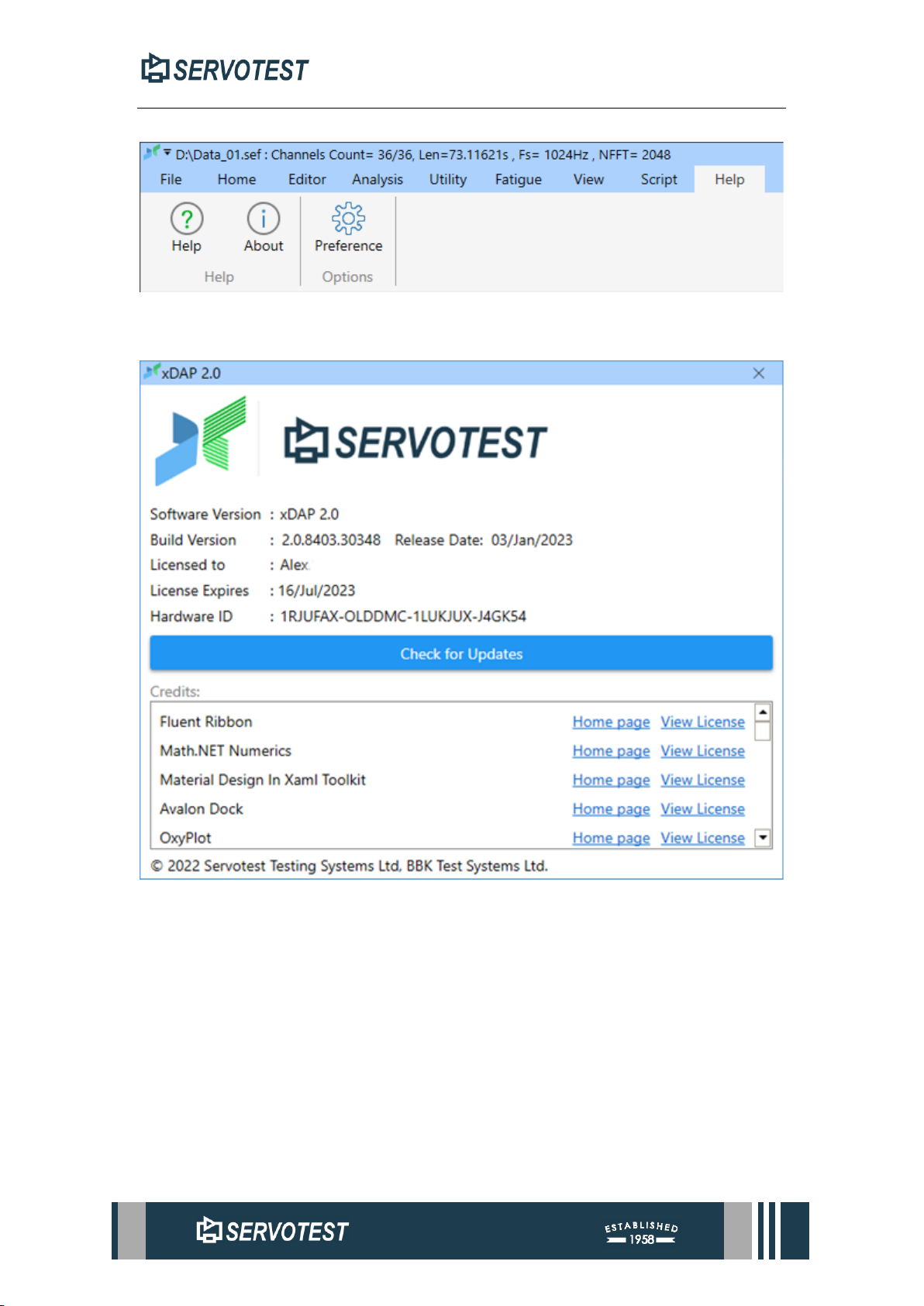
Figure 1-1 Help Menu
Figure 1-2 “About” Page
As shown above, click "About" to open the information page. Information such as
version and License are displayed.
Page 14
XDAP USER MANUAL
1.3 Software Update
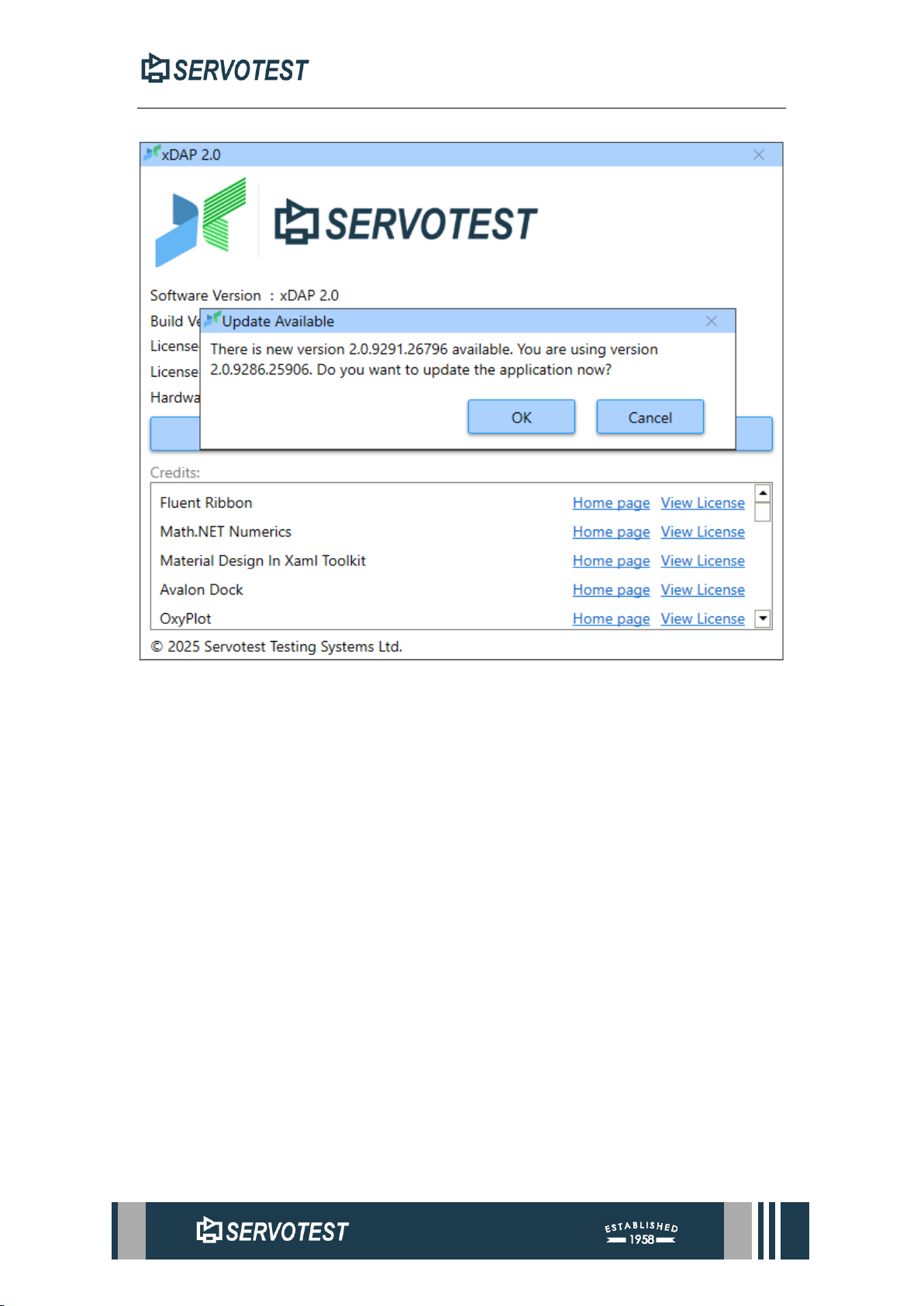
Figure 1-3 Update Page
Click the "Check for Updates" button to automatically execute the update
procedure. If there is an update, please click OK, and the software will automatically
install the update. (Figure 1-3 Update Page)
Please make sure the network environment is normal before updating.
Page 15
XDAP USER MANUAL
1.4 Main Interface
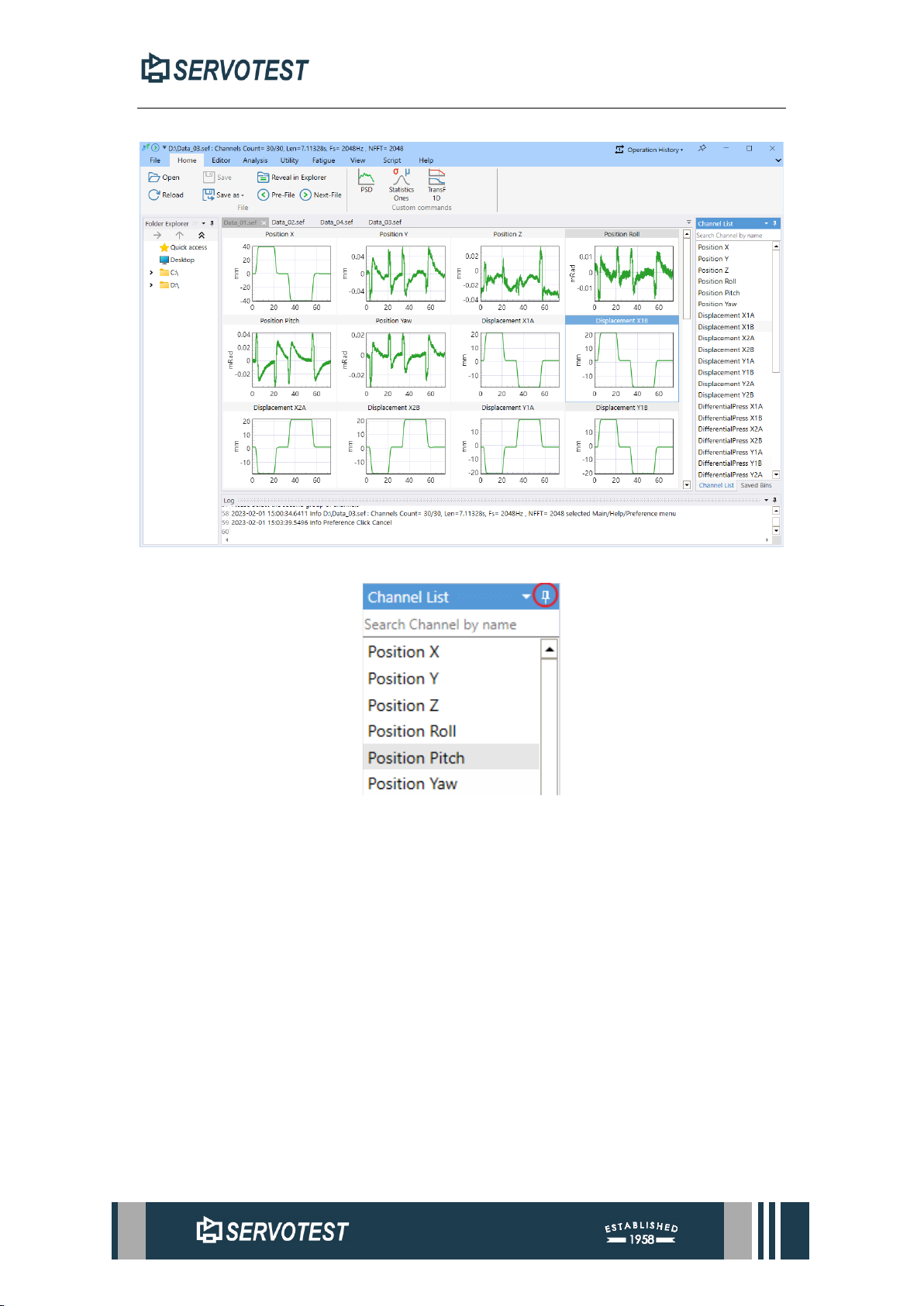
Figure 1-4 Main interface
Figure 1-5 Thumbtack Button
The main interface consists of five parts, Menu, Resource manager, Channel list
and Saved bins, Log, Display window. The menu includes File, Home, Editor, Analysis,
Utility, Fatigue, View, Script Editing, and Settings. (Figure 1-4 Main interface)
The thumbtack button can switch mode to lock or auto-hide. (Figure 1-5
Thumbtack Button)
Page 16
XDAP USER MANUAL
1.5 Main interface parameter setting
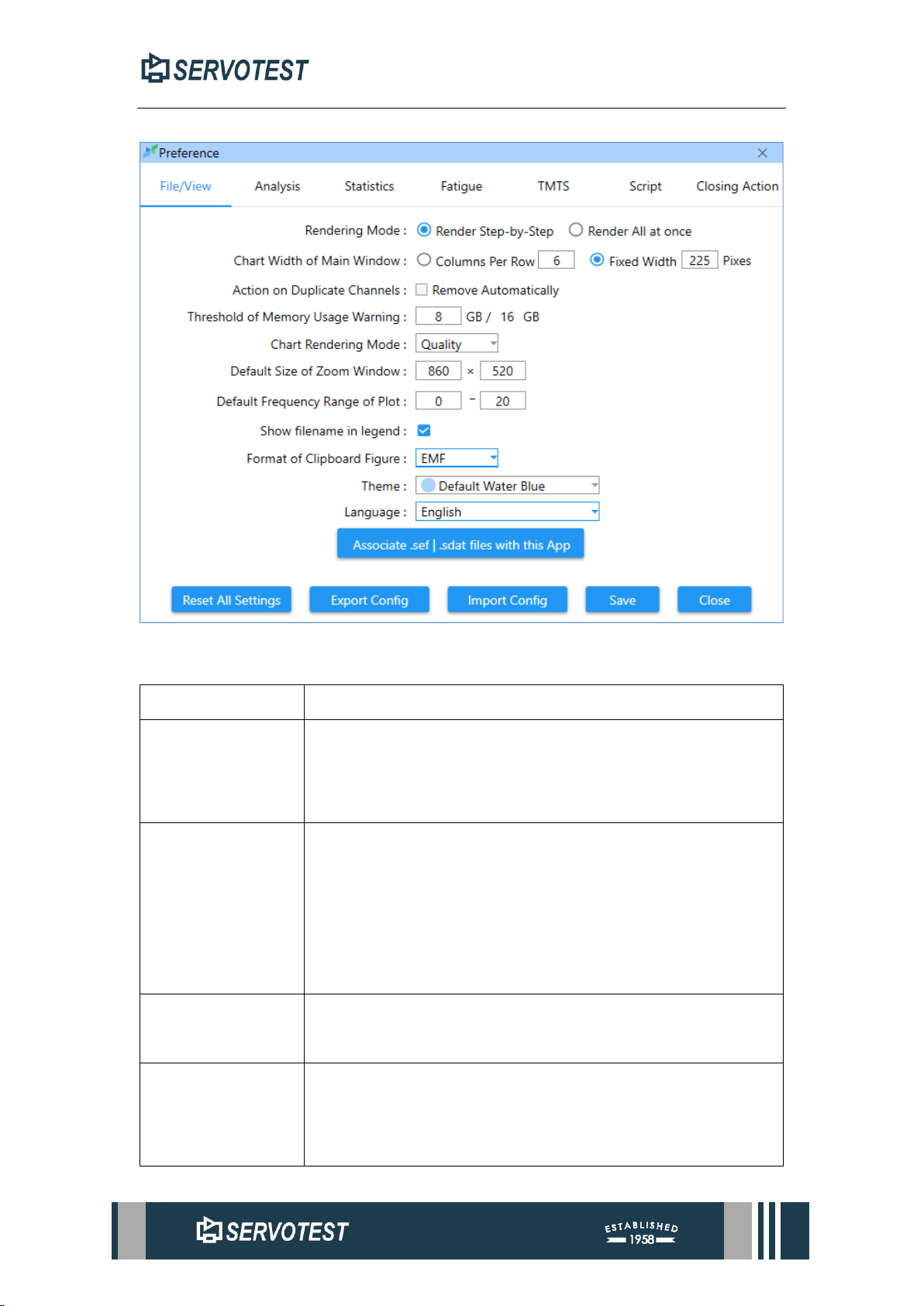
Figure 1-6 Preference: File/View
Table 1-1 Preferences and Interpretations
Options
Function explanation.
Rendering Mode
Render Step by Step: rendering the chart while reading the sef
file;
Render All at once: Render all at once.
Chart Width of
Main Window
Columns Per Row: The main window displays a fixed number
of charts per row, xDap will automatically adjust the width of
Chart when using this option;
Fixed Width: The width of the chart is fixed, and xDap
automatically adjusts the number of displayed rows.
Action on
Duplicate Channels
If selected. Automatically remove channels with duplicate
names when opening a file.
Threshold of
Memory Usage
Warning
When the memory usage of xDap reaches this value, a warning
will pop up when opening a new sef file.
Page 17
XDAP USER MANUAL
Chart Rendering
Mode
Speed: Speed first;
Sheldon: Adaptive;
Quality: Quality first;
Default Size of
Zoom Window
Default size of zoom window in time domain and frequency
domain.
Default Frequency
Range of Plot
The frequency range displayed by default when the frequency
domain view opens the sub-window.
Show filename in
legend
The icon legend can optionally include the file name to
improve the discrimination of the same channel but different
data sources. Whether it is included by default can be set in
Preference.
Format of
Clipboard Figure
Format copied when copying icons.
Theme
Theme used by xDap.
Language
The language displayed on the interface.
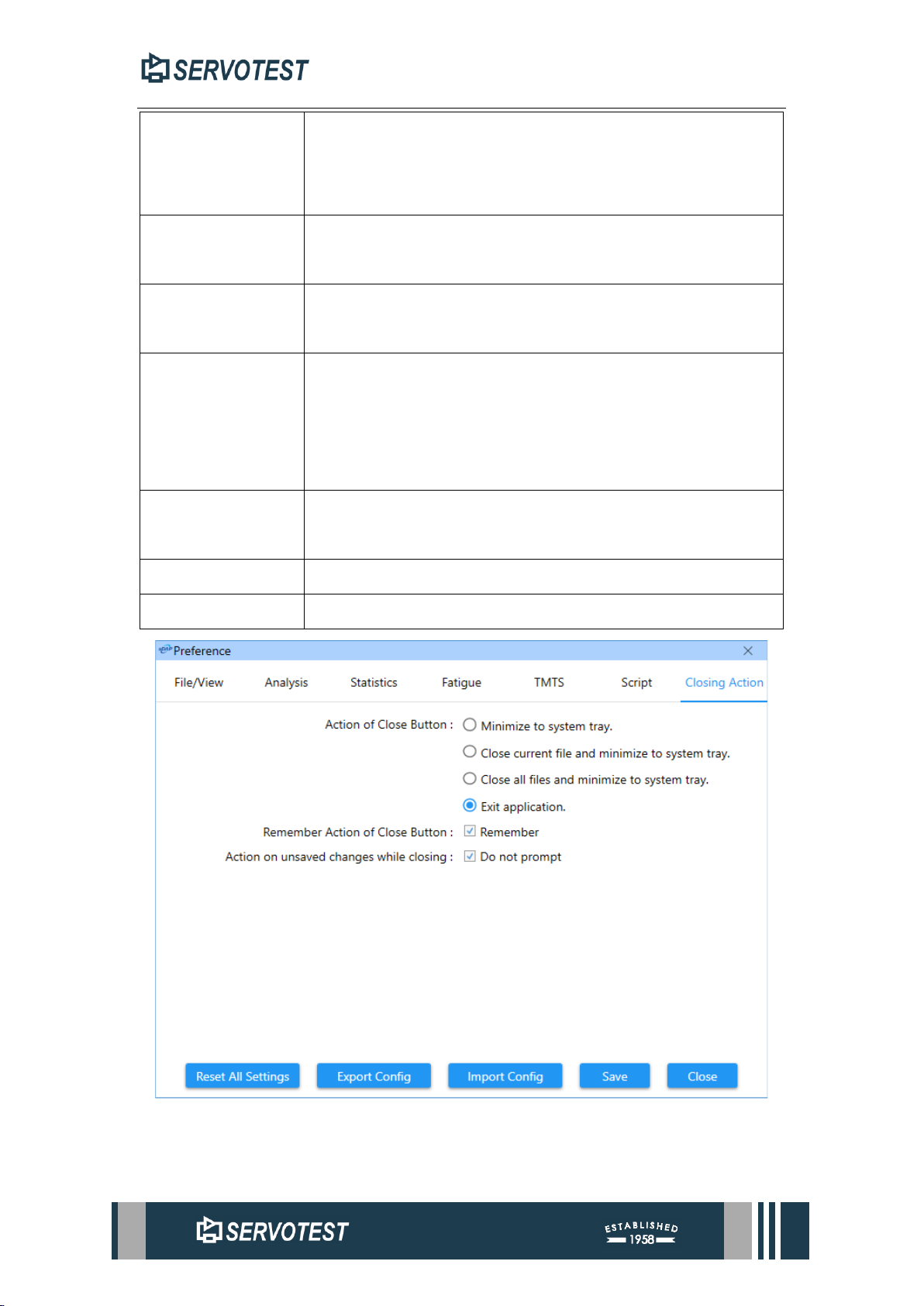
Figure 1-7 Preference: Closing Action
Page 18
XDAP USER MANUAL
Table 1-2 Closing Action
Action of Close Button.
Set the action to be performed when the close button of
the main xDap form is clicked:
Minimize to system tray; Close current file and minimize
to system tray; close all files and minimize to system tray;
Exit application.
Remember Action of
Close Button.
Remember action of close button of xDap main form
without asking.
Action on unsaved
changes while closing.
After editing data in the sub-form, whether to prompt to
save when closing the sub-form.
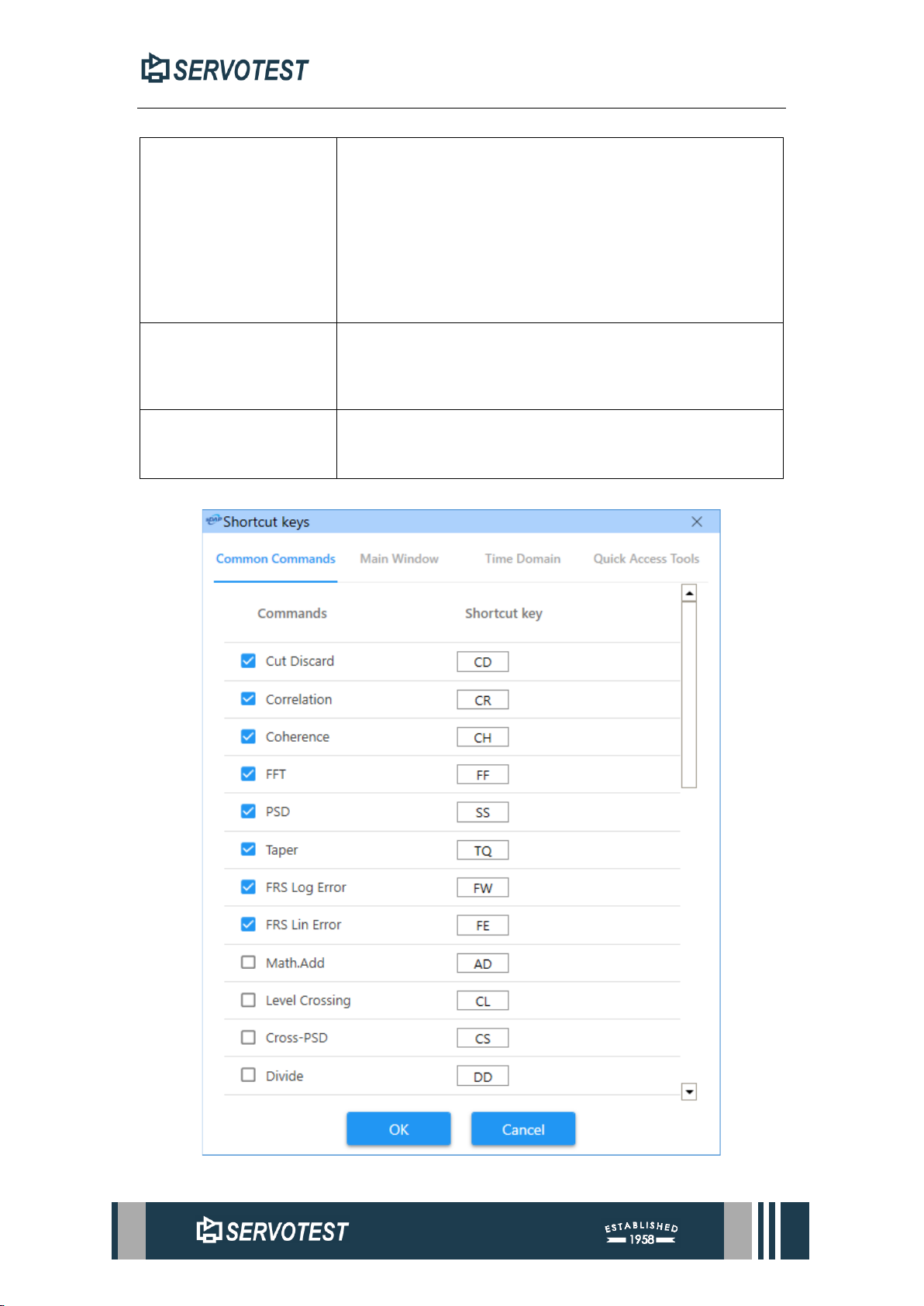
1.6 Shortcut key settings
Figure 1-8 Shortcut
Page 19
XDAP USER MANUAL
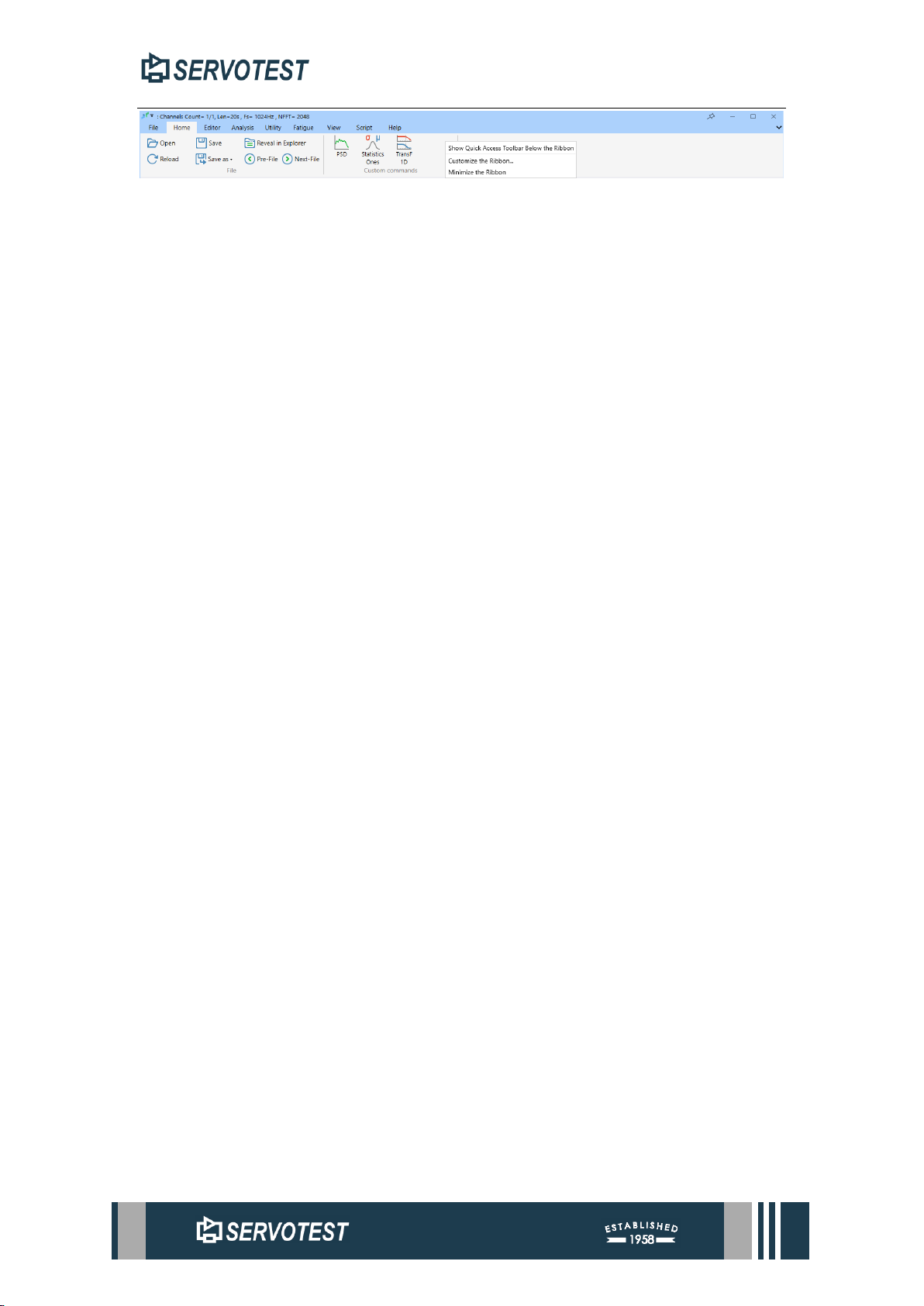
Figure 1-9 Ribbon Menu
To open the shortcut Settings window:
a. right-click on the Ribbon menu and select Custom Ribbon. (Figure 1-9
Ribbon Menu)
b. Click the shortcut key in the File menu.
The shortcut key of xDap consists of two letters. When using it, press the set two
letters in sequence, and the interval between pressing the keys should not exceed 2
seconds.
When the check box in Common Commands is checked, the command will be
added to Common Commands in the Start menu.
Page 20
XDAP USER MANUAL
2 Basic Functions
2.1 Load and Save
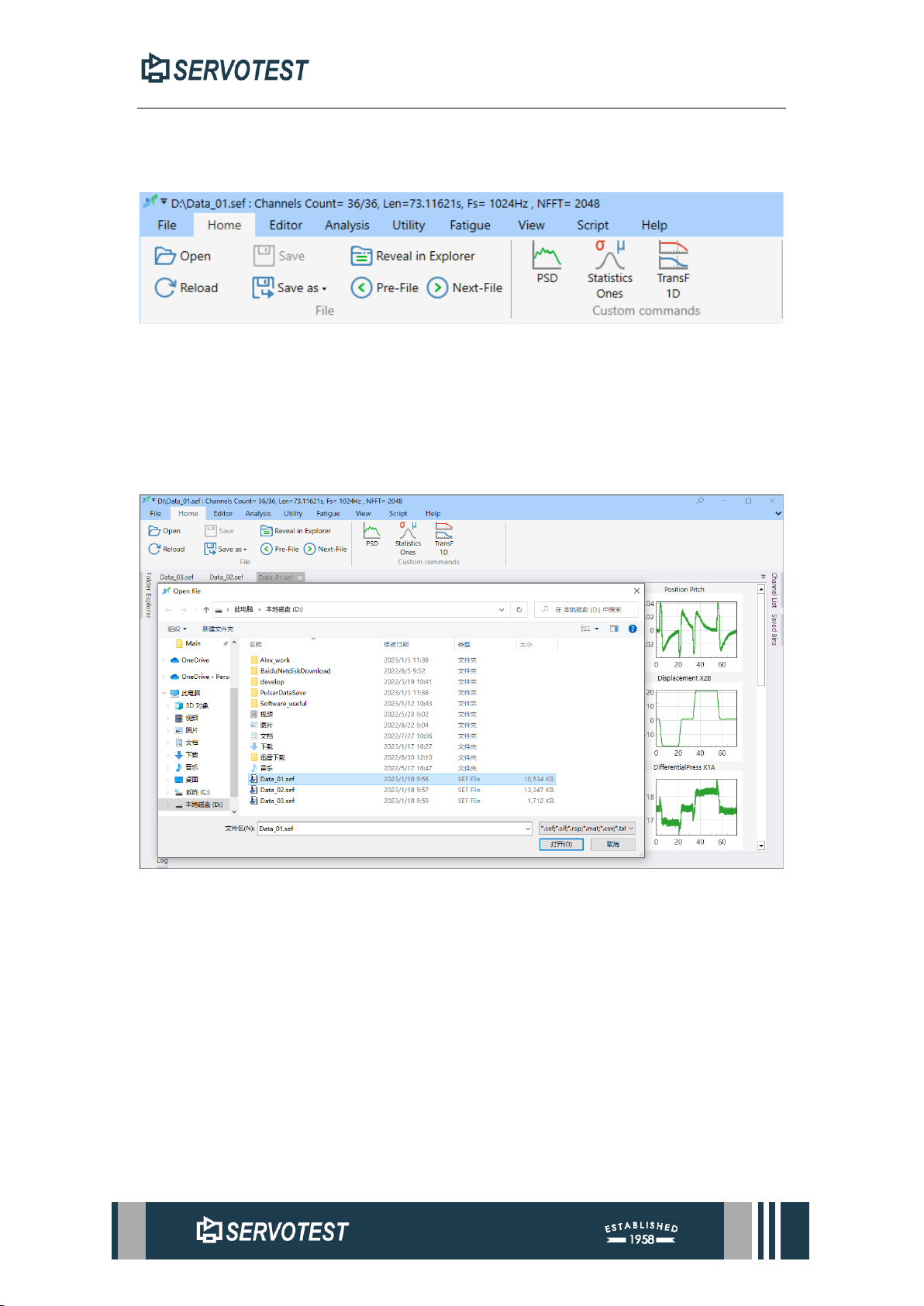
Figure 2-1 Main window: Home
The Home menu provides function buttons for opening and saving files.
2.1.1 Double click to open
Click Open in the File menu.
(1) Open the sef file, double-click Sef file to open (need to set association).
Figure 2-2 Open the Sef File
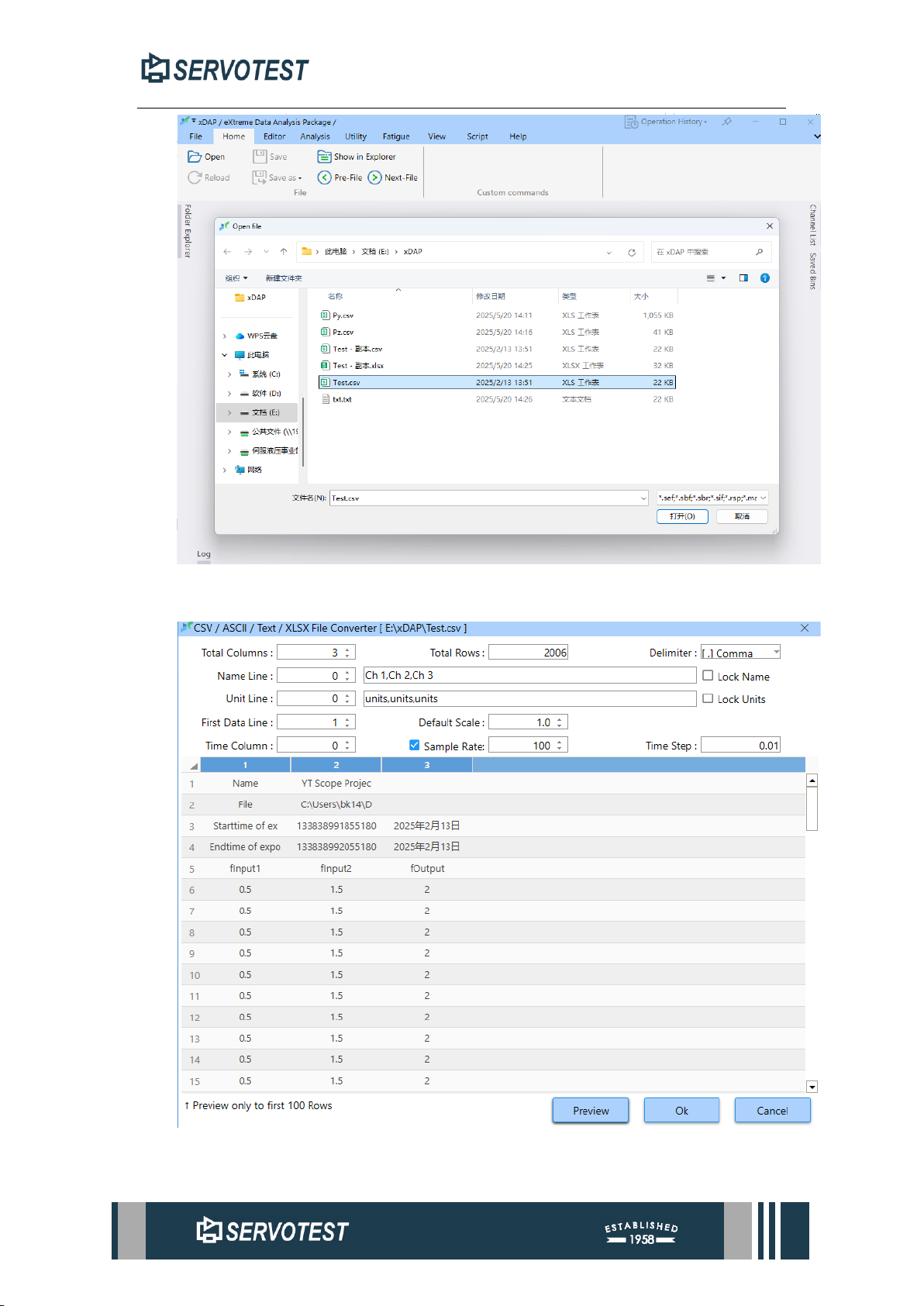
(2) Open the csv/txt file.
Step 1: Click ‘Open’ and select the csv file.
Page 21
XDAP USER MANUAL
Figure 2-3 Open the Csv File
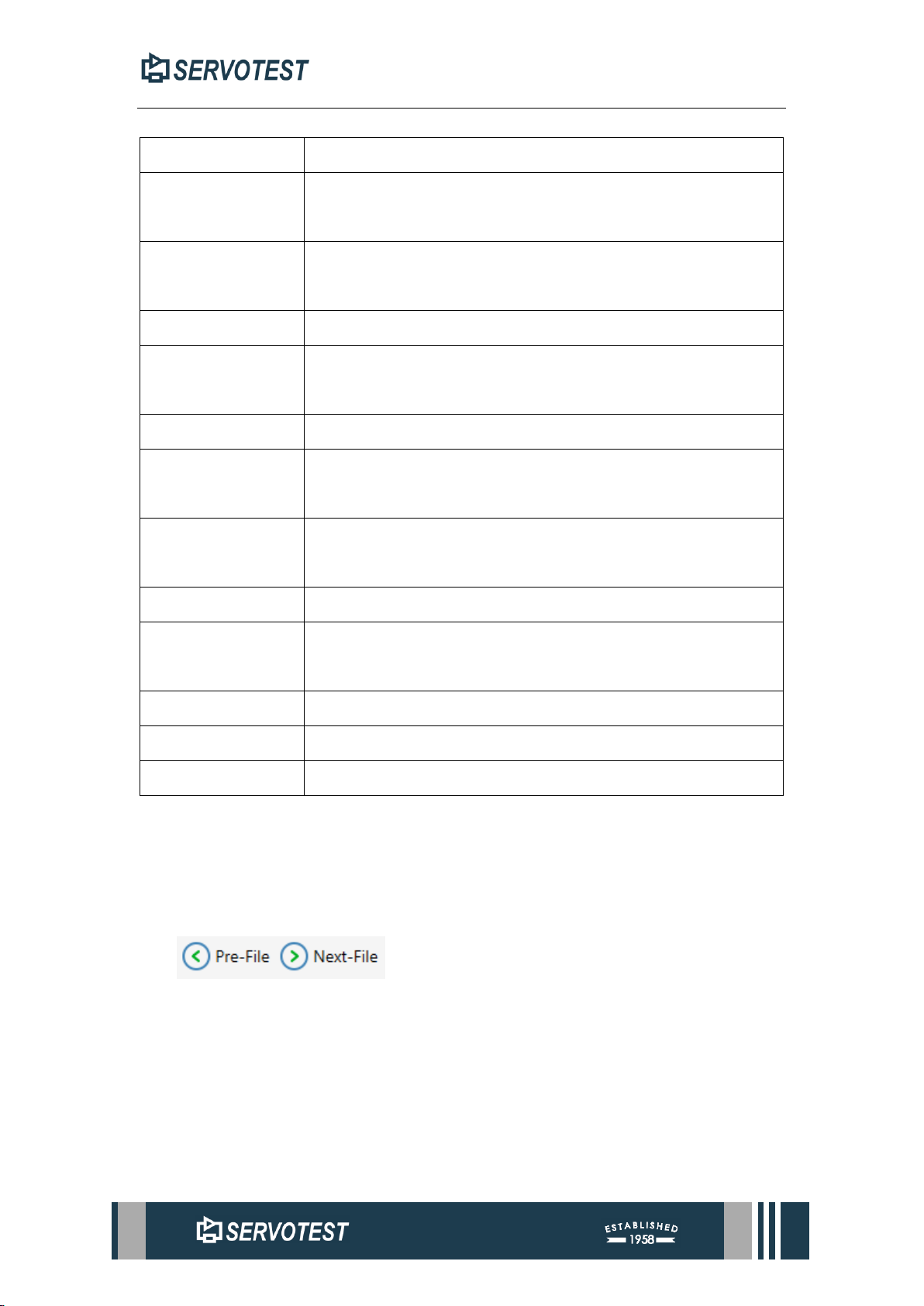
Step 2: Select the csv file, click ‘Open,’ and a new window will pop up.
Figure 2-4 Preview Window
Page 22
XDAP USER MANUAL
Table 2-1 Preview interface parameters
Parameter
Description
Total Columns
Display the total number of columns of data automatically
recognised when opening a file.
Name Line
Set the row number where the preview interface data name is
located.
Unit Line
Set the row number of the data unit in the preview interface.
First Data Line
Set the row number of the first row of data in the preview
interface.
Time Column
Set the column number for the preview interface time.
Total Rows
Displays the total number of lines in the file automatically
recognised by opening the file (blank lines are not counted).
Delimiter
Separator options, four main ones: [\t]Tab, [,]Comma,
[ ]Space, [;]Semi-Colon.
Lock Name
Restriction on row number setting for data naming.
Lock Units
Restricts the setting of the row number where the data unit is
located.
Default Scale
Set the default scale.
Sample Rate
Setting the sampling frequency.
Time Step
Display sampling time.
2.1.2 Drag and Drop
Drag the file onto the xDap main menu to open it.
2.1.3 Previous and Next
Click the "Pre-File" and "Next-File" buttons in the “Home” menu to open files in
order.
Page 23
XDAP USER MANUAL
2.1.4 Resource Manager
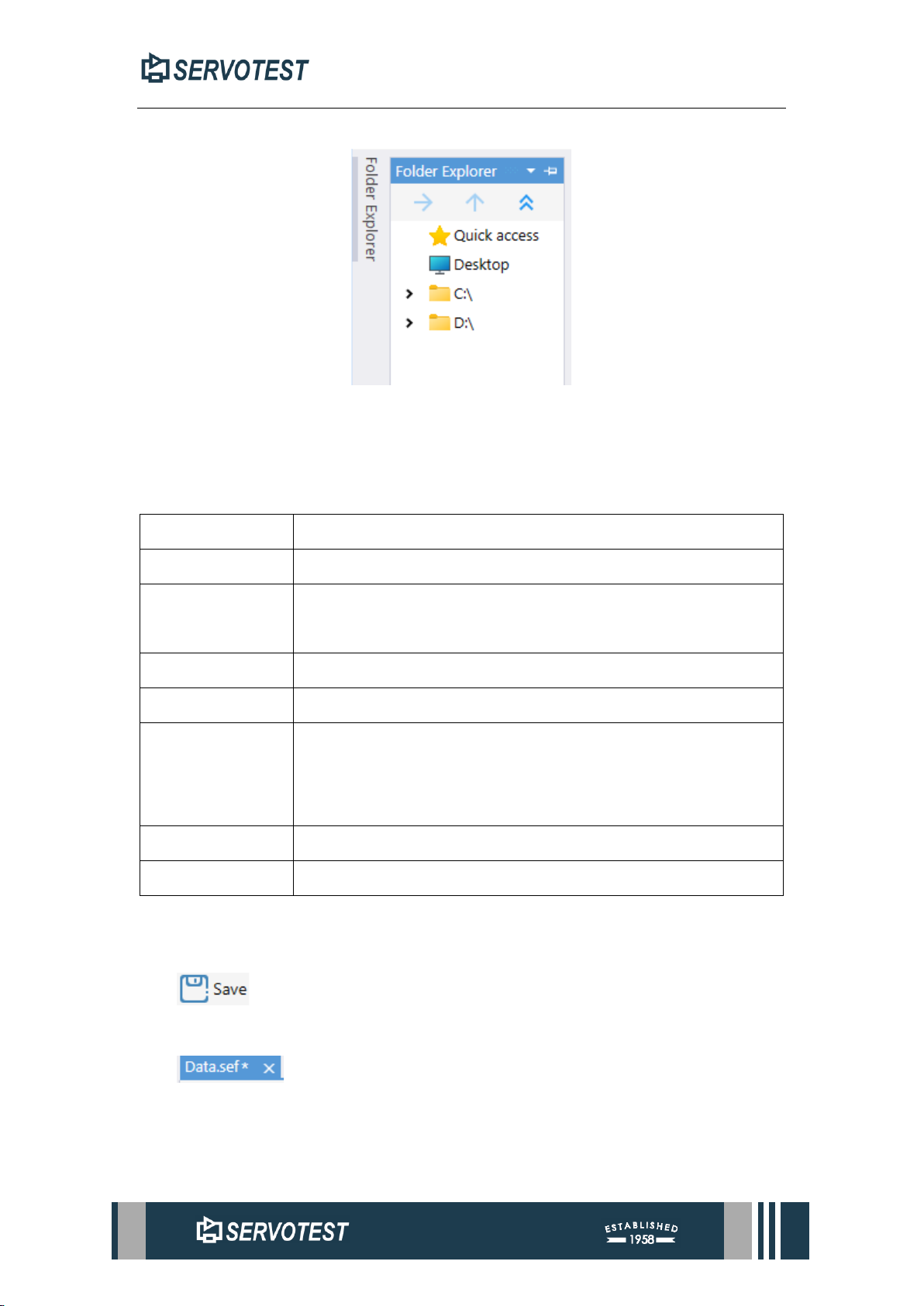
Figure 2-5 Folder Explorer
Open the file in the explorer on the left side of the main interface.
2.1.5 Formats Supported
Table 2-2 Formats Supported
Extensions
Format Description
sef
Servotest Private binary format.
mat
A mat-file is the data file format MATLAB® software uses for
saving data to your disk.
sif/sie
SoMat eDAQ Data Format.
rsp/rpc
MTS RPC-III, MTS software data format.
csv
A csv (comma-separated values) file is a text file that has a
specific format which allows data to be saved in a table
structured format.
xlsx/xls
Microsoft General table file format.
txt(ASCII)
ASCII format.
2.1.6 Save
Saves the edited signal data to the original file, replacing the original data.
Unsaved files are marked with a "*".
Page 24
XDAP USER MANUAL
2.1.7 Save As
Save the file as a new file, the supported formats refer to Table 2-2 Formats
Supported.
2.1.8 Reload
Reload the file, and the unsaved file will prompt whether to save it.
2.1.9 Reveal In Explorer
Open the folder where the file is located.
2.2 Custom commands Edit
Figure 2-6 Custom Commands
Edit Custom commands as in Figure 1-8 Shortcut and Figure 1-9 Ribbon Menu.
Please refer to Section 1.6.
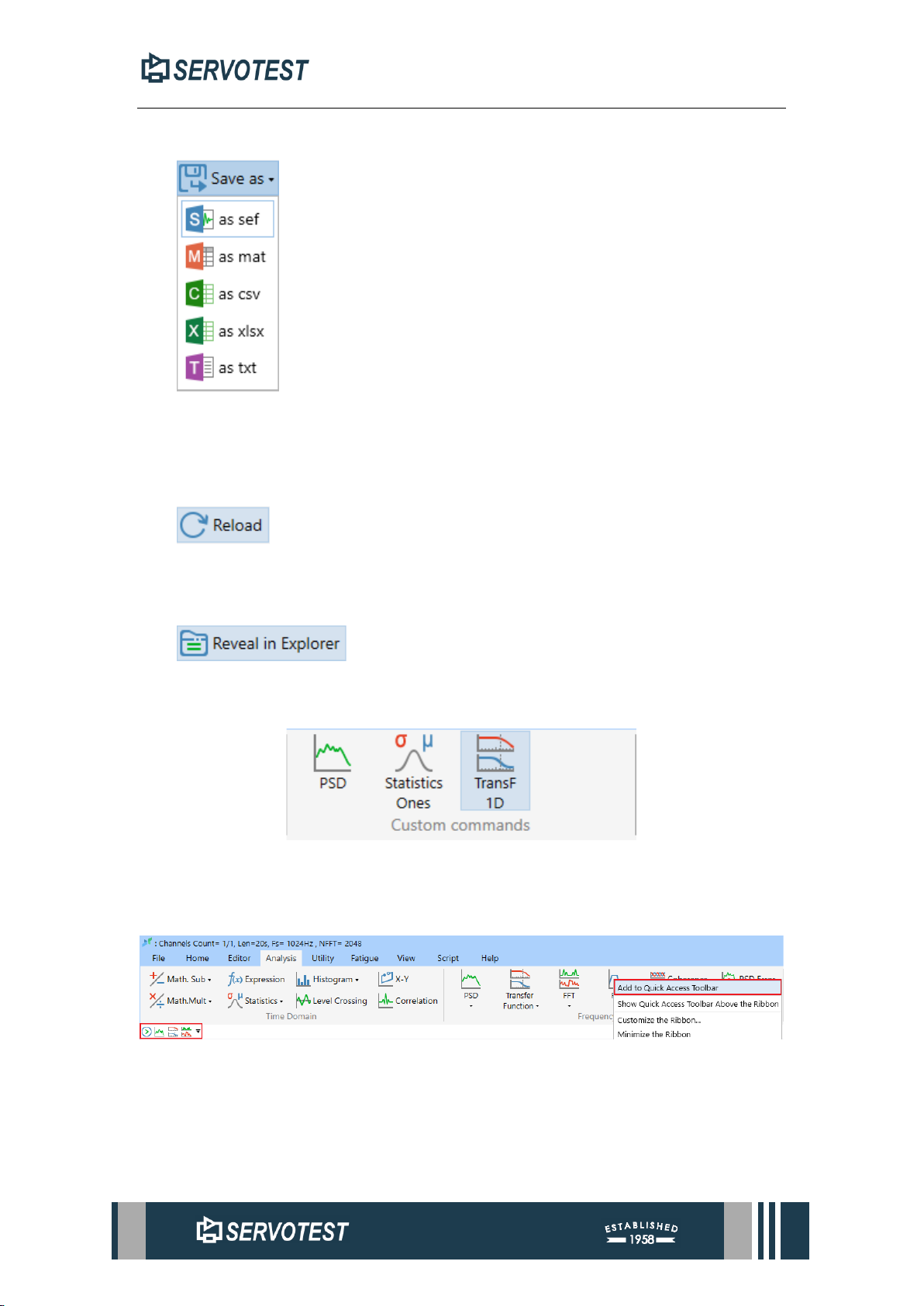
Figure 2-7 Toolbar
As shown in Figure 2-7 Toolbar, the operation in the red box can add the function
to the fast -way toolbar.
Page 25
XDAP USER MANUAL
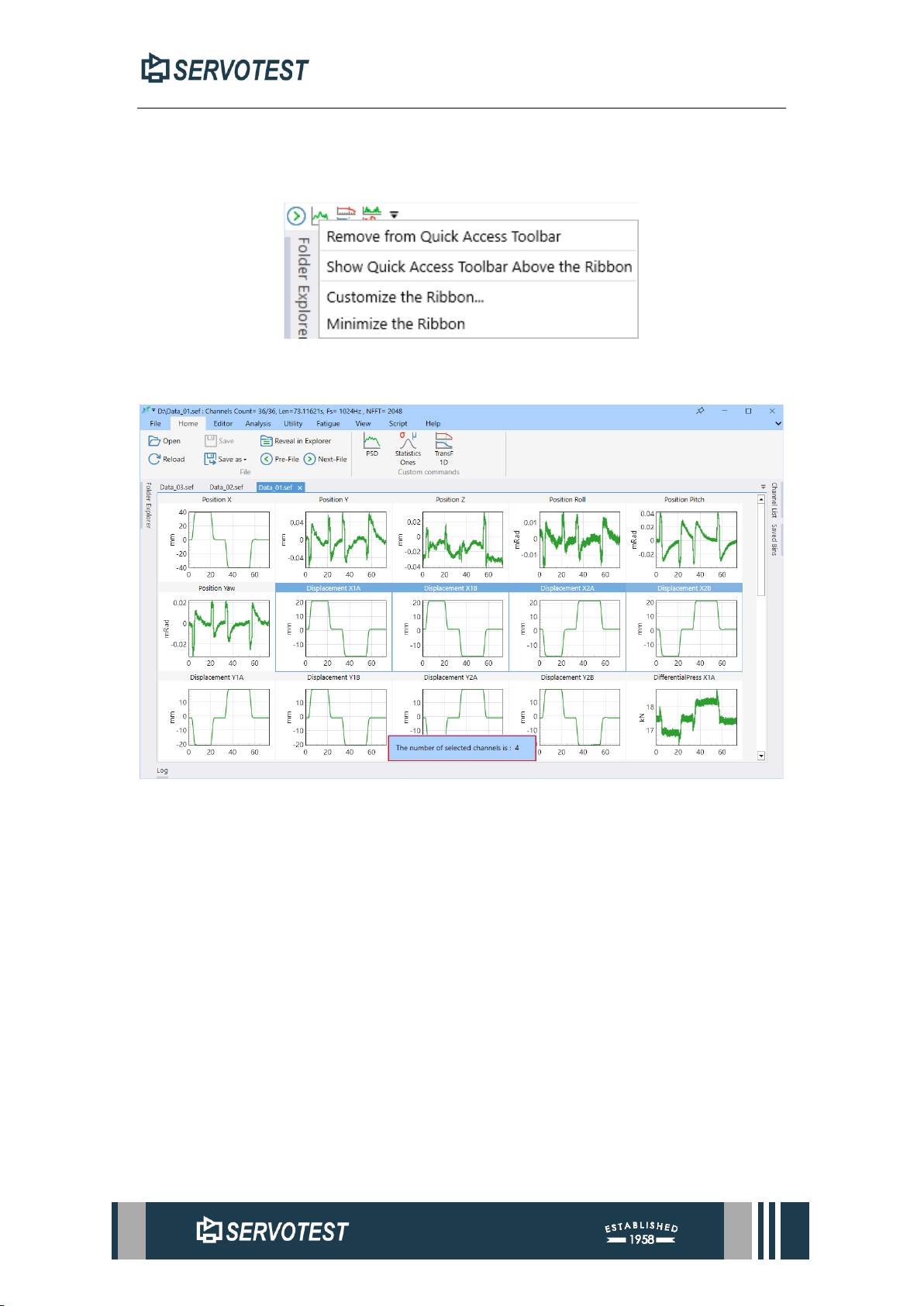
As shown in Figure 2-8 Toolbar Menu, “Remove from Quick Access Toolbar”
can be removed from the toolbar. “Show Quick Access Toolbar Above the Ribbon” can
change the position of the shortcut toolbar.
Figure 2-8 Toolbar Menu
2.3 Function Target Channel
Figure 2-9 Selected channels
As shown in Figure 2-9 Selected channels, for some function buttons whose
target is a single channel, generally press the button first, and then select the desired
channel. To analyze multiple channels, you can use the Ctrl and Shift keys to select
multiple channels. For example, the PSD command.
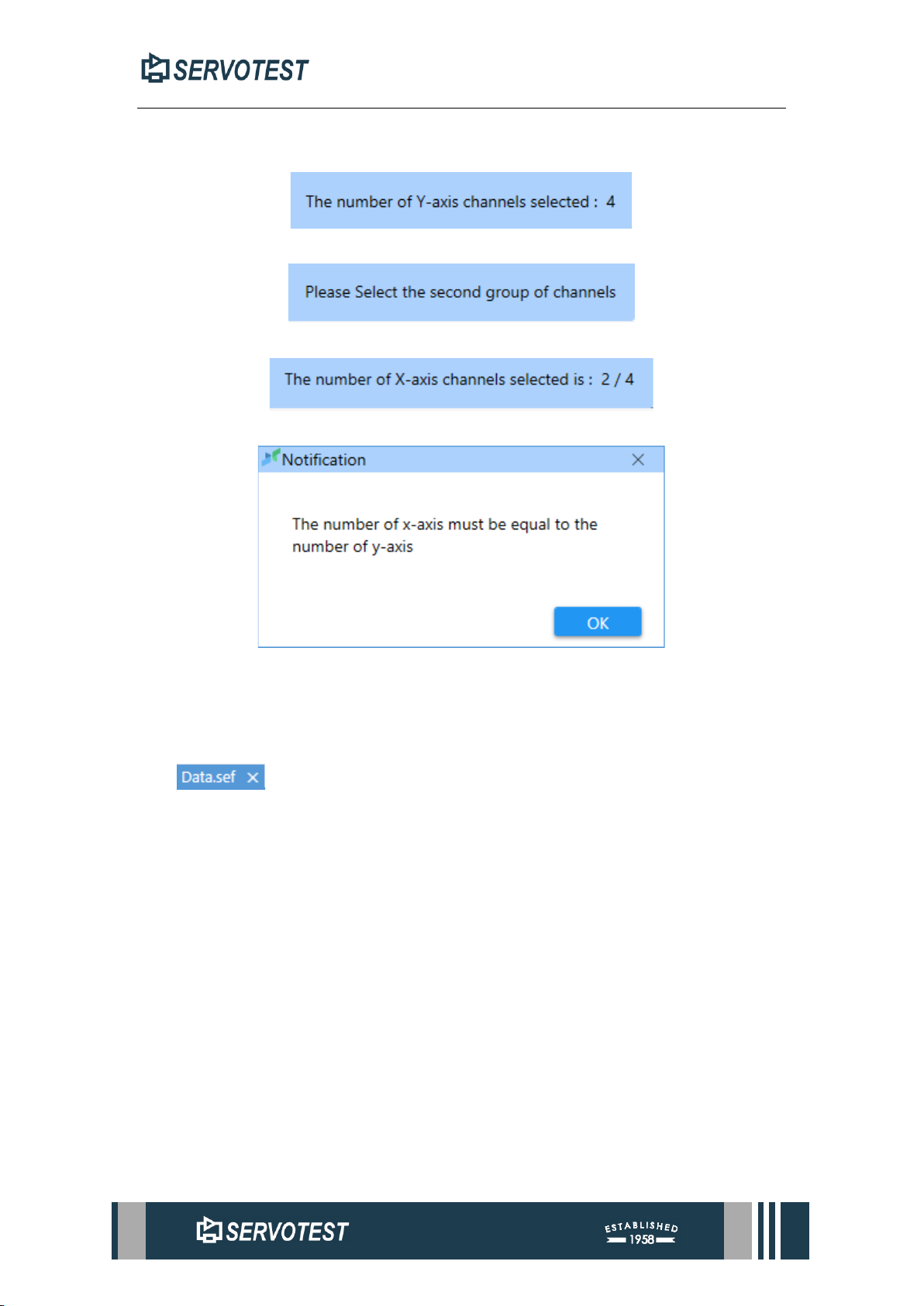
As shown in Figure 2-10 Y-axis channels、Figure 2-11 select another set of
channels、 Figure 2-12 X-axis channels, for some function buttons, the target is dual
channel, such as transfer function. The numerator is selected first, and the denominator
is selected second. If you need to analyze multiple channels, you can first press and
hold the Ctrl key to select multiple channels as the numerator, and then press and hold
to select the corresponding number of channels as the denominator. This function
analyzes channels of different files simultaneously.
Page 26
XDAP USER MANUAL
As shown in Figure 2-13 Notification, the number of target channels of the two
sets of dual-channel functions must be the same.
Figure 2-10 Y-axis channels
Figure 2-11 select another set of channels
Figure 2-12 X-axis channels
Figure 2-13 Notification
2.4 File Tab
2.4.1 Close File
To close the file just click the "╳" on the left of the tab
2.4.2 Tab Menu
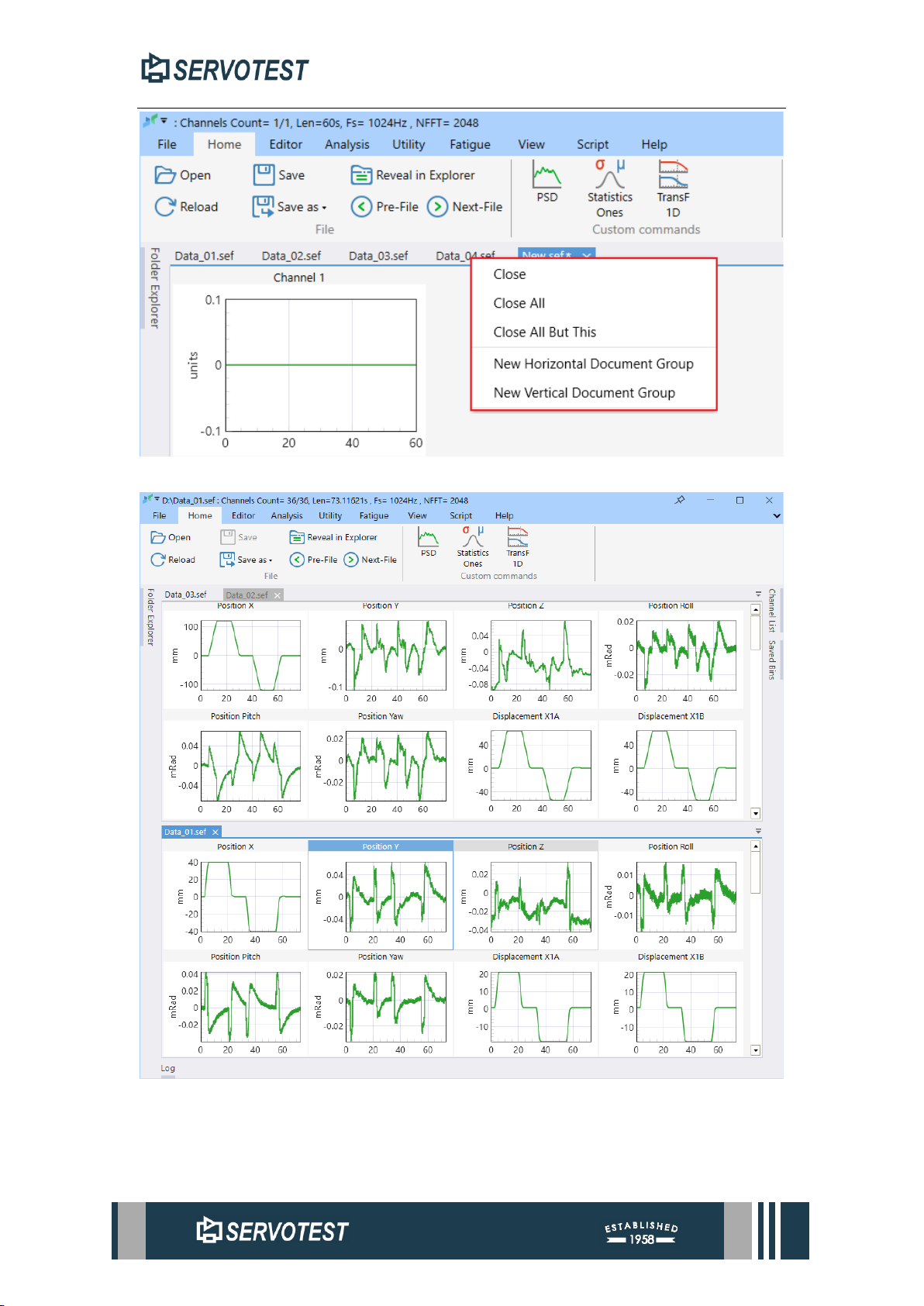
Right-clicking on a tab opens a menu of commands, as shown in the Figure below.
They are respectively closing the current tab file, closing all files and closing other files
except the current file.
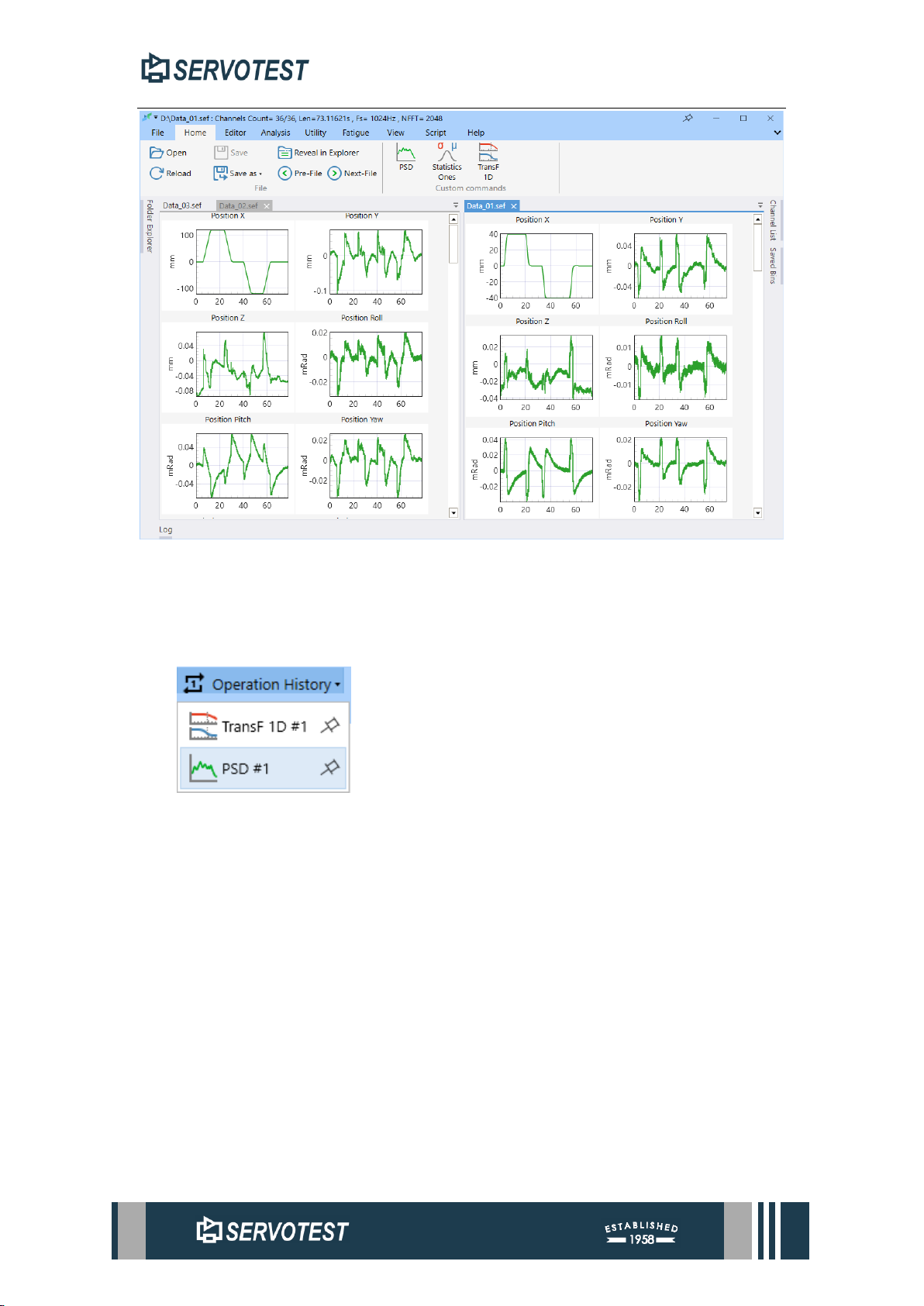
Different files can also be opened at the same time through the button, which is
divided into two view modes: horizontal layout and vertical layout. (Figure 2-15
Horizontal Layout & Figure 2-16 Vertical Layout)
To restore just right click and select restore.
Page 27
XDAP USER MANUAL
Figure 2-14 Tab Menu
Figure 2-15 Horizontal Layout
Page 28
XDAP USER MANUAL
Figure 2-16 Vertical Layout
2.5 Edit Channel Order
Select a channel and drag to change the order of the channels.
2.6 Operation History
The operation history function can quickly perform the same operation, and only
supports commonly used analysis functions such as TF, FFT, PSD, etc.
Page 29
XDAP USER MANUAL
2.7 Saved Bins
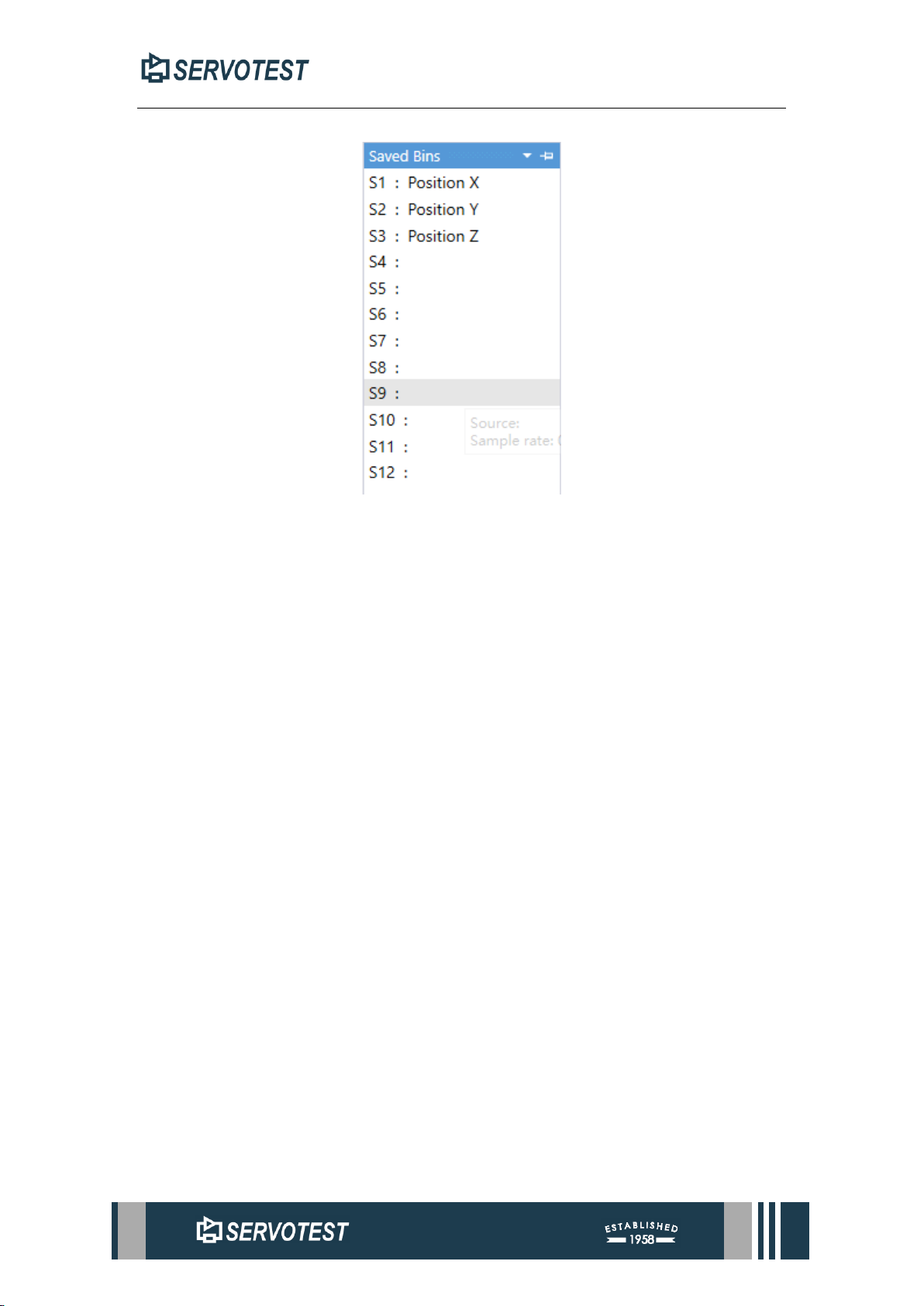
Figure 2-17 Saved Bins
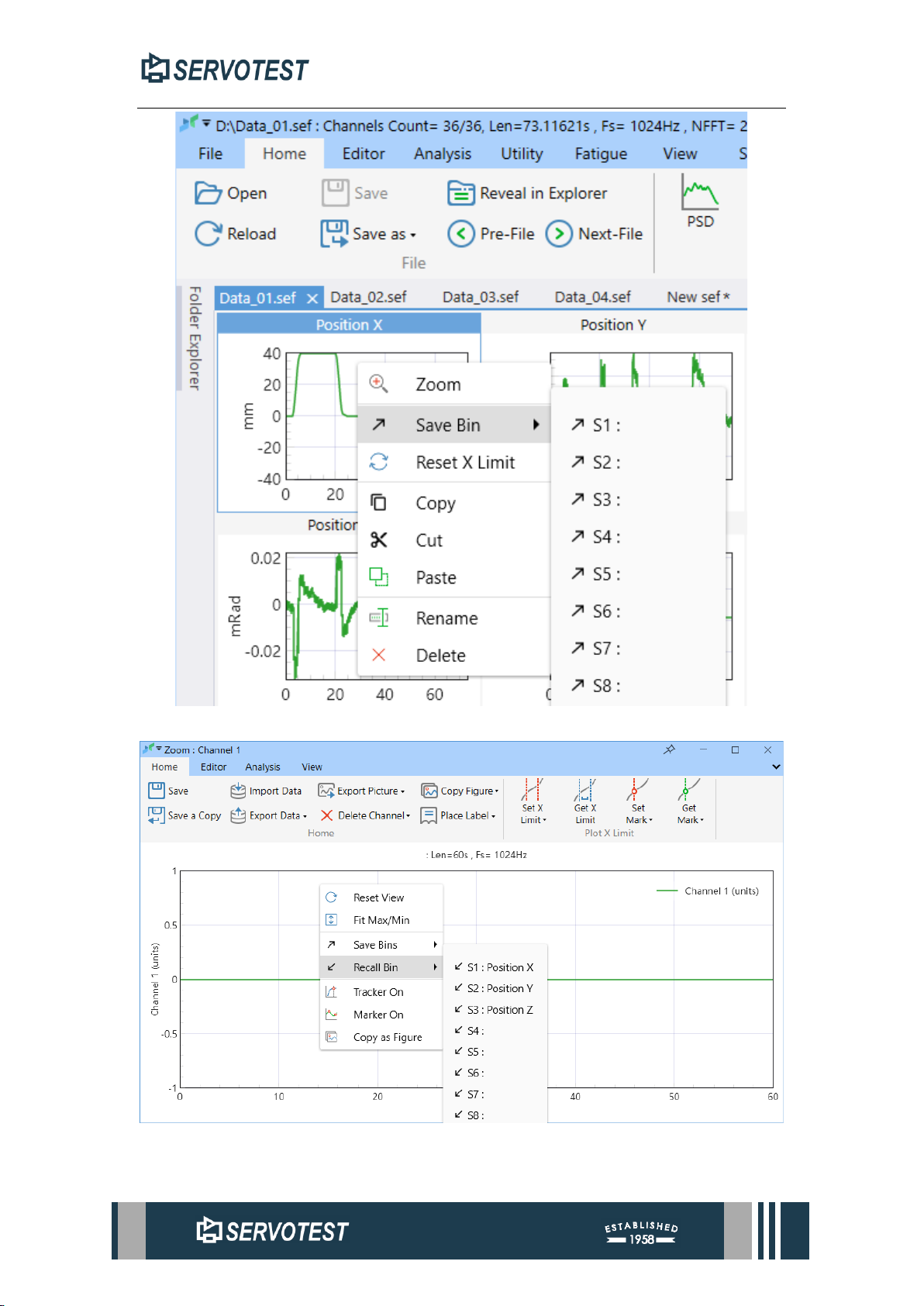
xDap provides the function of saving and recalling channel data. After selecting
the channel, right-click to open the menu, as shown in the figure, select "Save Bin" to
temporarily save the channel to the software. Additionally, the software will save
channel data even after closing the file or modifying it. It can also be saved and recalled
in a sub-window.
This feature also supports batch operations.
2.8 Sub-window
The software provides two different windows, divided into time domain sub-
window and frequency domain sub-window. The time domain sub-window can be
opened by double-clicking or the time domain analysis function. The window opened
by the frequency domain analysis function is a frequency domain sub-window.
The functions provided by the two sub-windows are partially different. In addition,
sub-window editing, and operations are only valid for the current sub-window.
Page 30
XDAP USER MANUAL
Figure 2-18 Save Bin
Figure 2-19 Recall Bin
Page 31
XDAP USER MANUAL
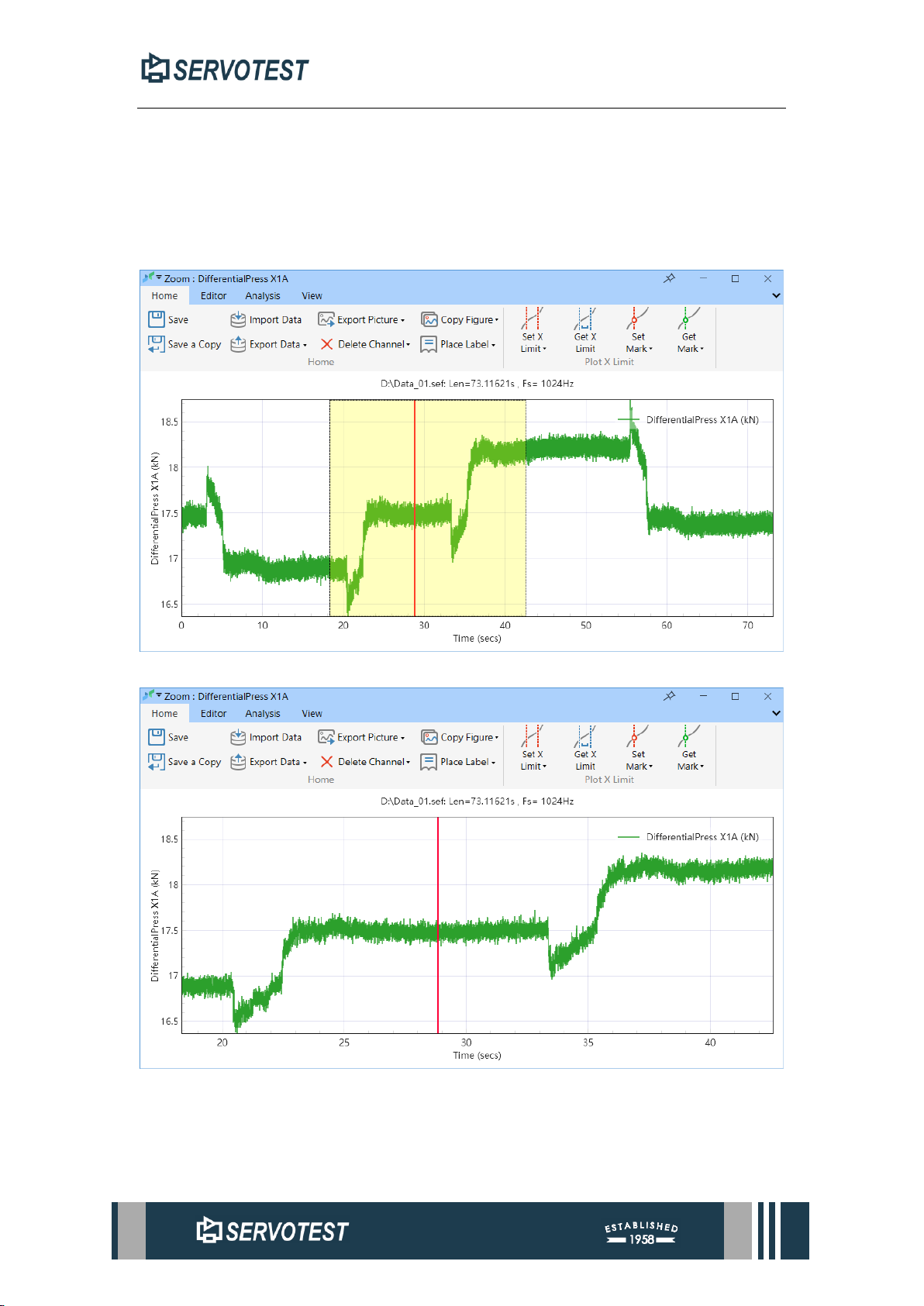
2.8.1 Sub-window Zoom
Press and hold the left mouse button to select a part of the data to zoom, and the
window displays a piece of data. When the cursor is on the coordinate axis, there will
be a complete piece of data based on the X-axis or Y-axis.
The selection process and effect are shown in the figure below.
Figure 2-20 Y-axis partial scaling
Figure 2-21 Result of X-axis partial scaling
Page 32
XDAP USER MANUAL
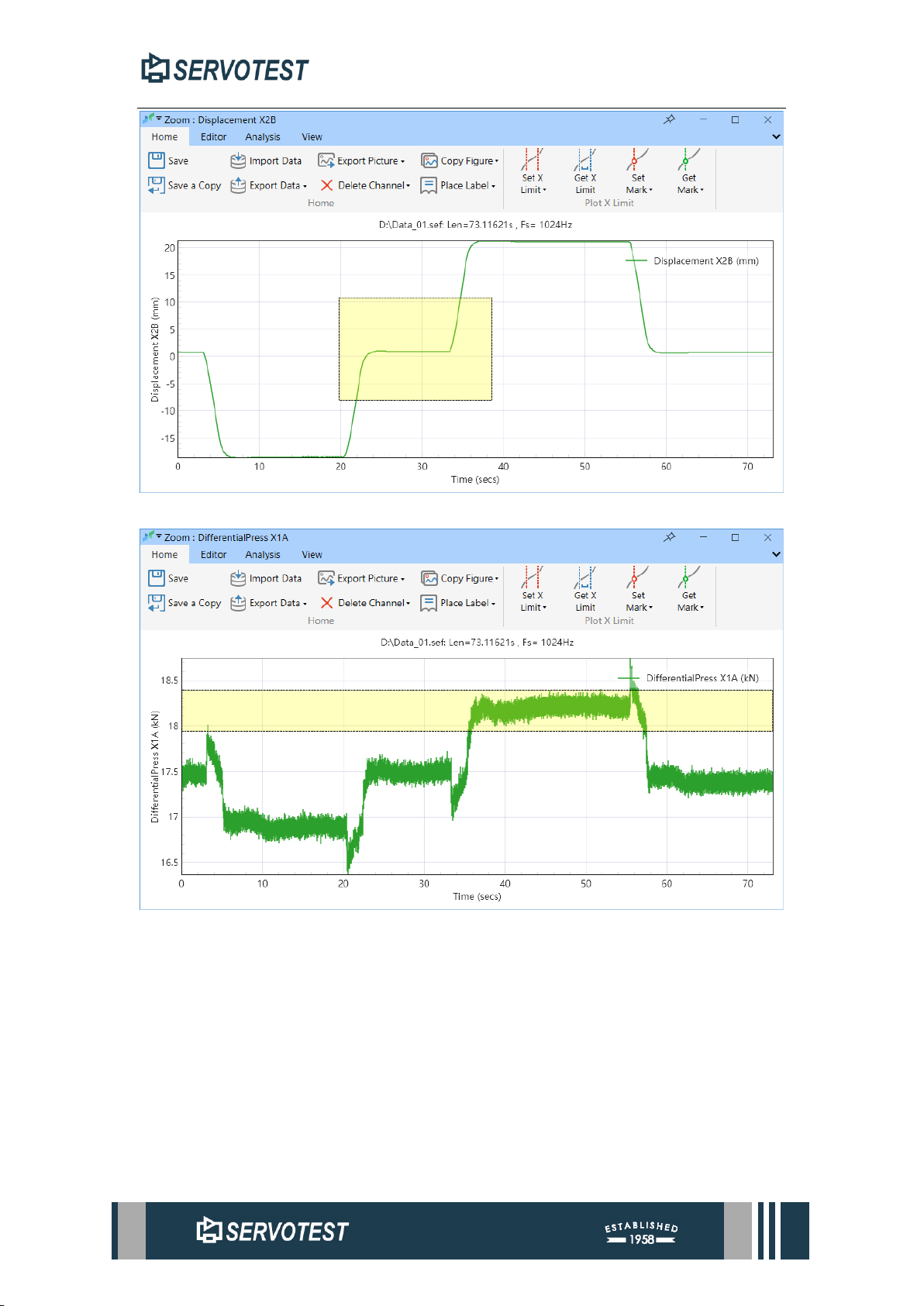
Figure 2-22 Partial Scaling
Figure 2-23 Figure 2-24 Y-axis partial scaling
The size can also be adjusted by the mouse wheel, and the range of displayed data
can be moved by pressing and holding the mouse wheel. Double-click the data area to
reset the view range.
2.8.2 Sub-window Menu
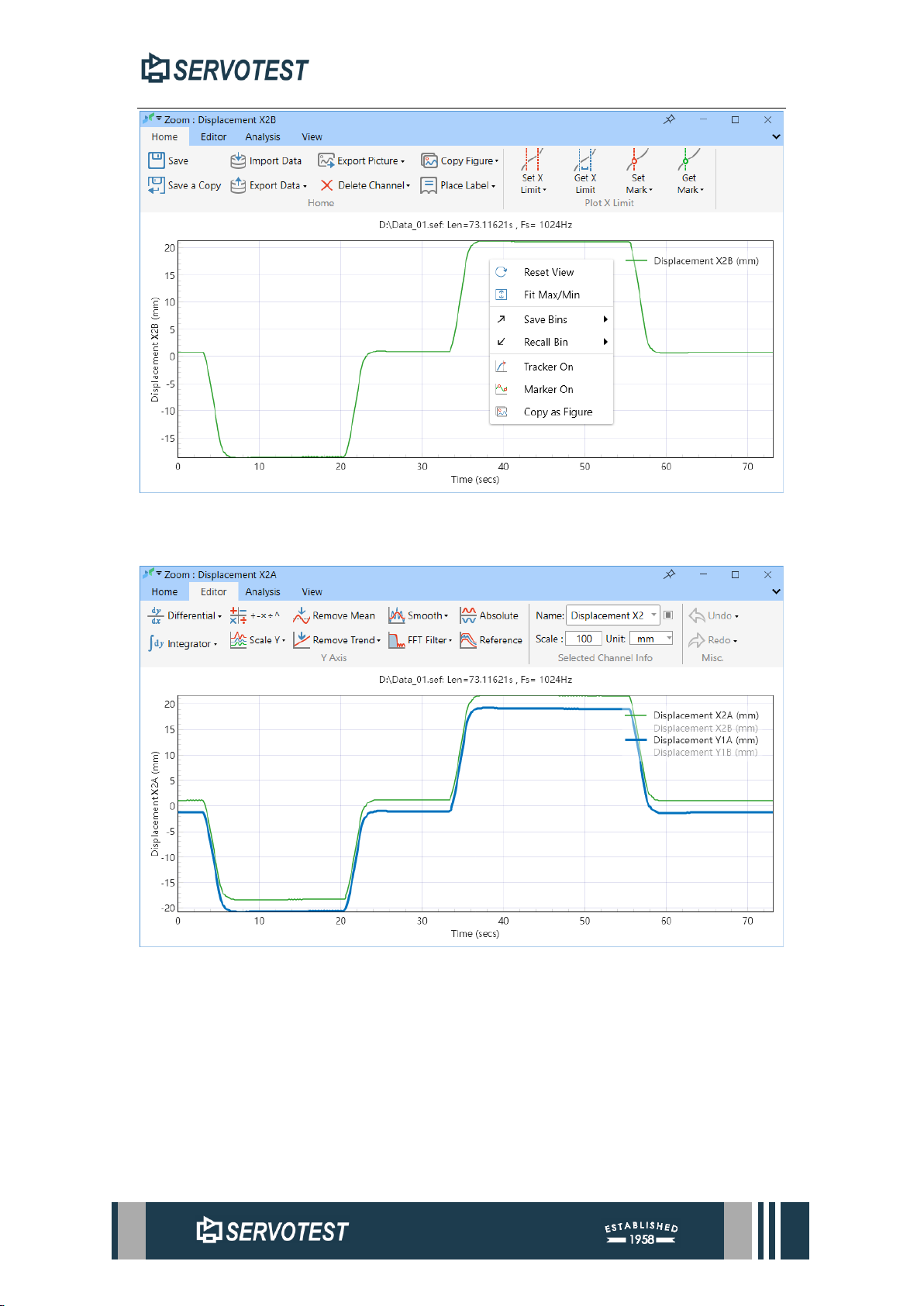
Right-click in the data area of the sub-window to open the menu. Functions include
resetting axis limits, auto-adjusting axis limits, saving and recalling channels, turning
on data markers and Tracker, copying images.
Page 33
XDAP USER MANUAL
Figure 2-25 Sub-window Menu
2.9 Select Channel
Figure 2-26 Select Channel
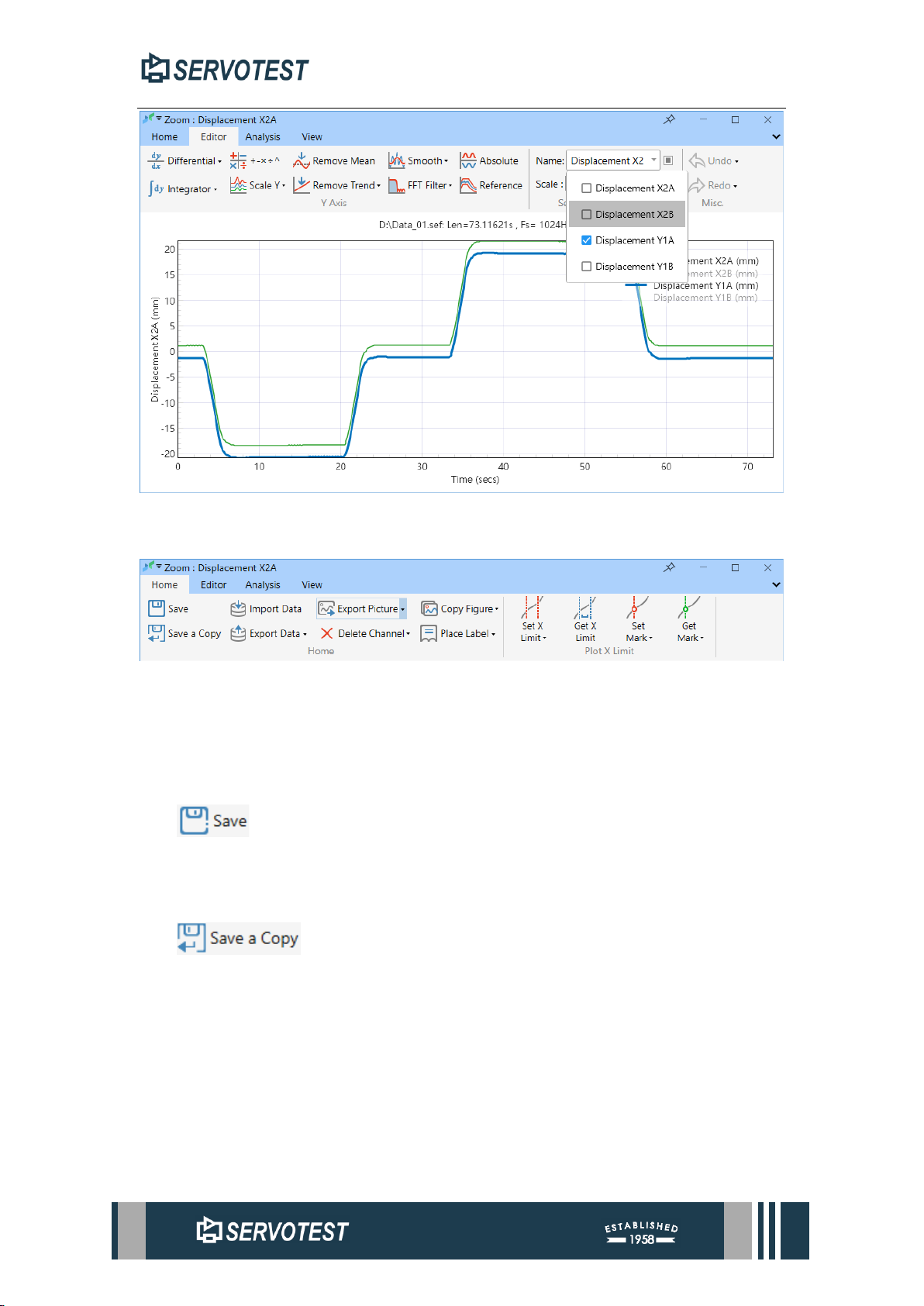
As shown in Figure 2-26 Select Channel, click the line to select the channel, and
the selected channel will be displayed in bold. Click the icon on the right to turn on or
off a certain channel, and the turned off channel will not be displayed.
As shown in Figure 2-27 Select Channel, Select a channel in the edit menu, the
selected channel will be displayed in bold.
Page 34
XDAP USER MANUAL
Figure 2-27 Select Channel
2.10 Time Domain Sub-Window Home Page
Figure 2-28 Time Domain Sub-Window Home Page
The time domain analysis mainly includes twelve buttons, and the “Home” menu
mainly provides functions such as accessing and reading data and adjusting markers.
2.10.1 Save
Saves the edited signal data to the original file, replacing the original data.
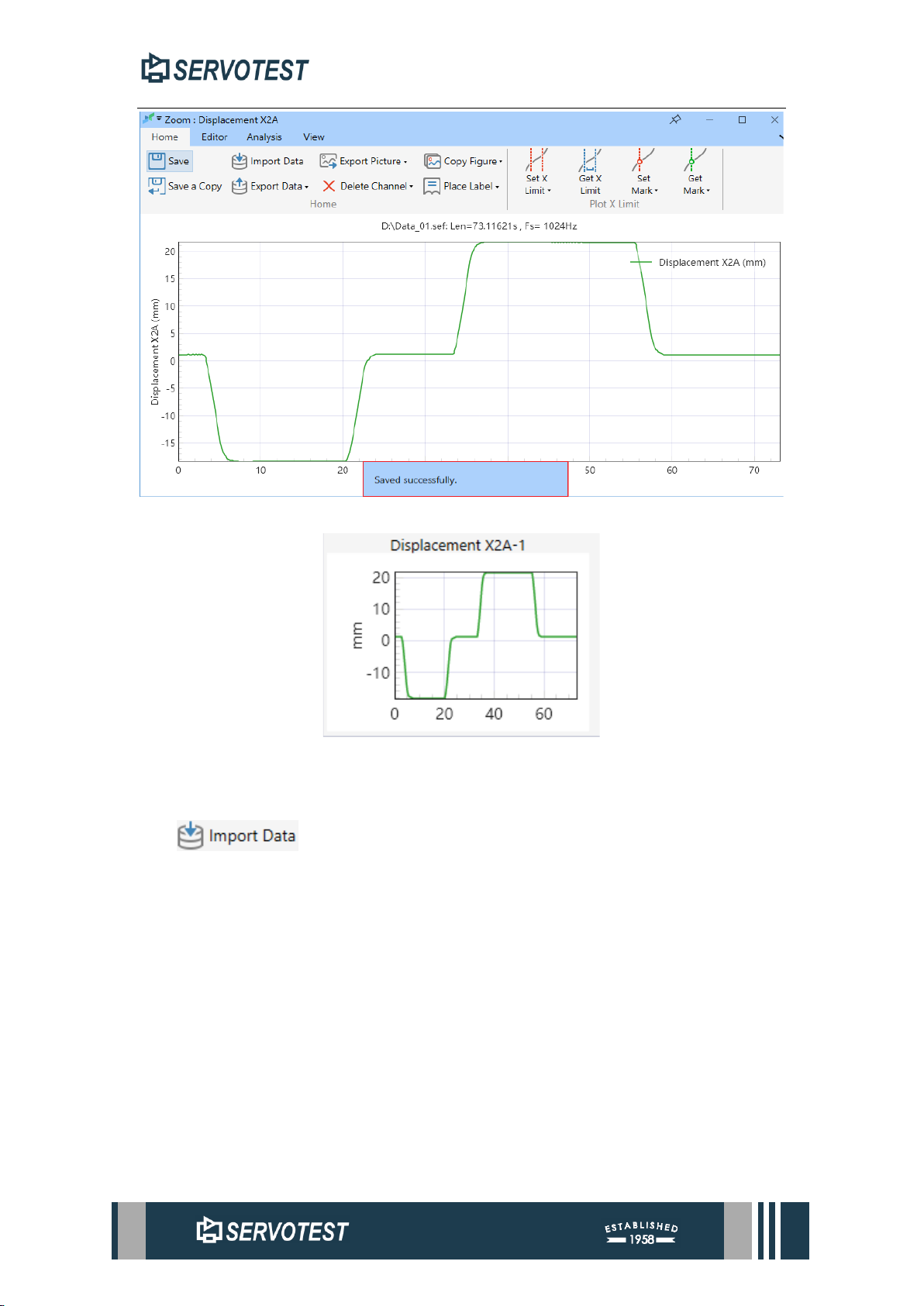
2.10.2 Save a Copy
Saves the edited signal data as a new channel to the original file (does not replace
the original data). The saving result is shown in the figure below. The software will
automatically add a serial number based on the original channel name. If you need to
change, please refer to 4.3.
Page 35
XDAP USER MANUAL
Figure 2-29 Notification
Figure 2-30 results
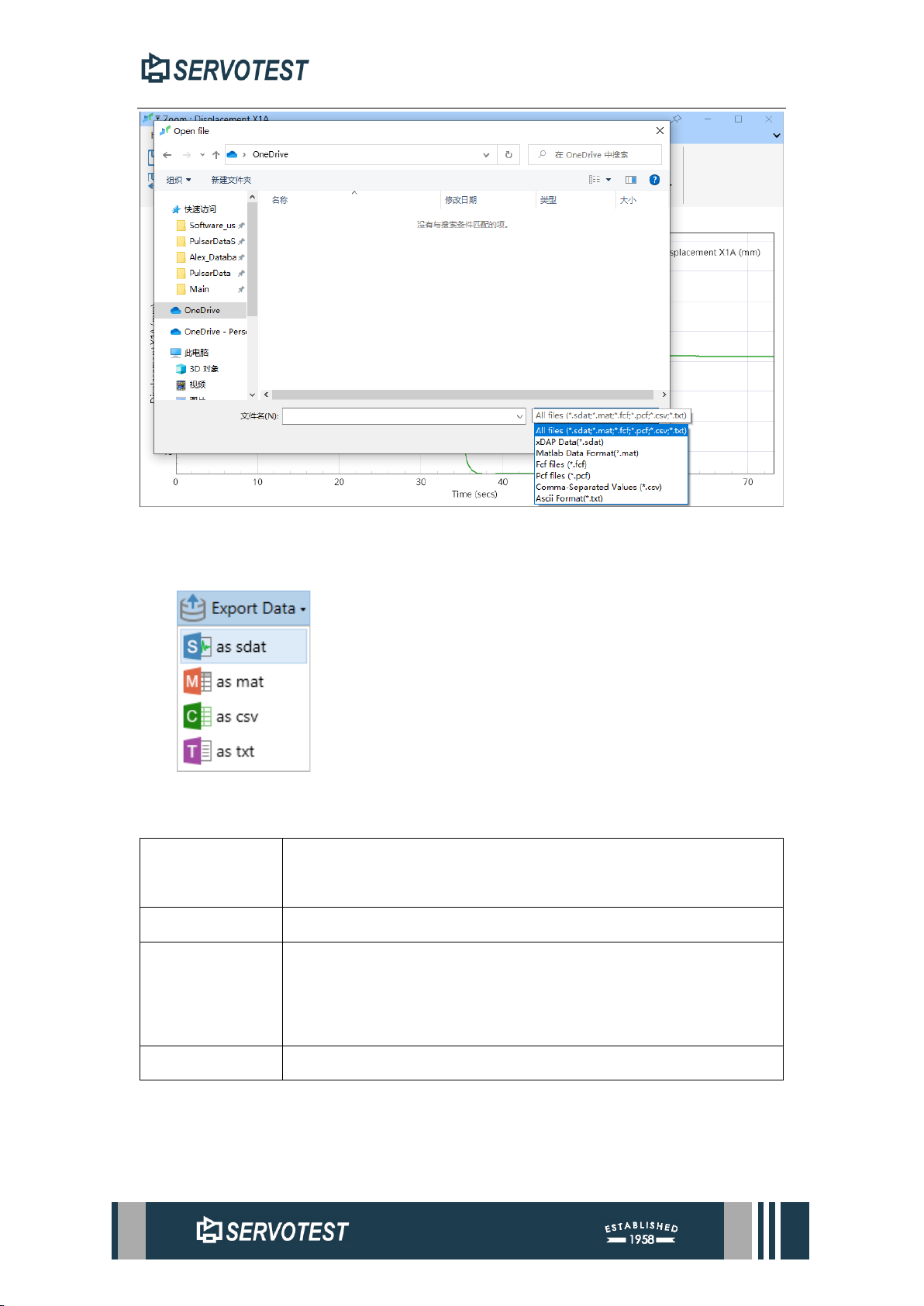
2.10.3 Import Data
Import data in Table 2-2 Formats Supported formats.
Page 36
XDAP USER MANUAL
Figure 2-31 Import Data
2.10.4 Export Data
Exports the data displayed to the following formats.
Table 2-3 supported formats
mat
A mat-file is the data file format MATLAB® software uses for
saving data to your disk.
sdat
A type of data file.
csv
A csv (comma-separated values) file is a text file that has a
specific format which allows data to be saved in a table structured
format.
txt
ASCII format.
Page 37
XDAP USER MANUAL
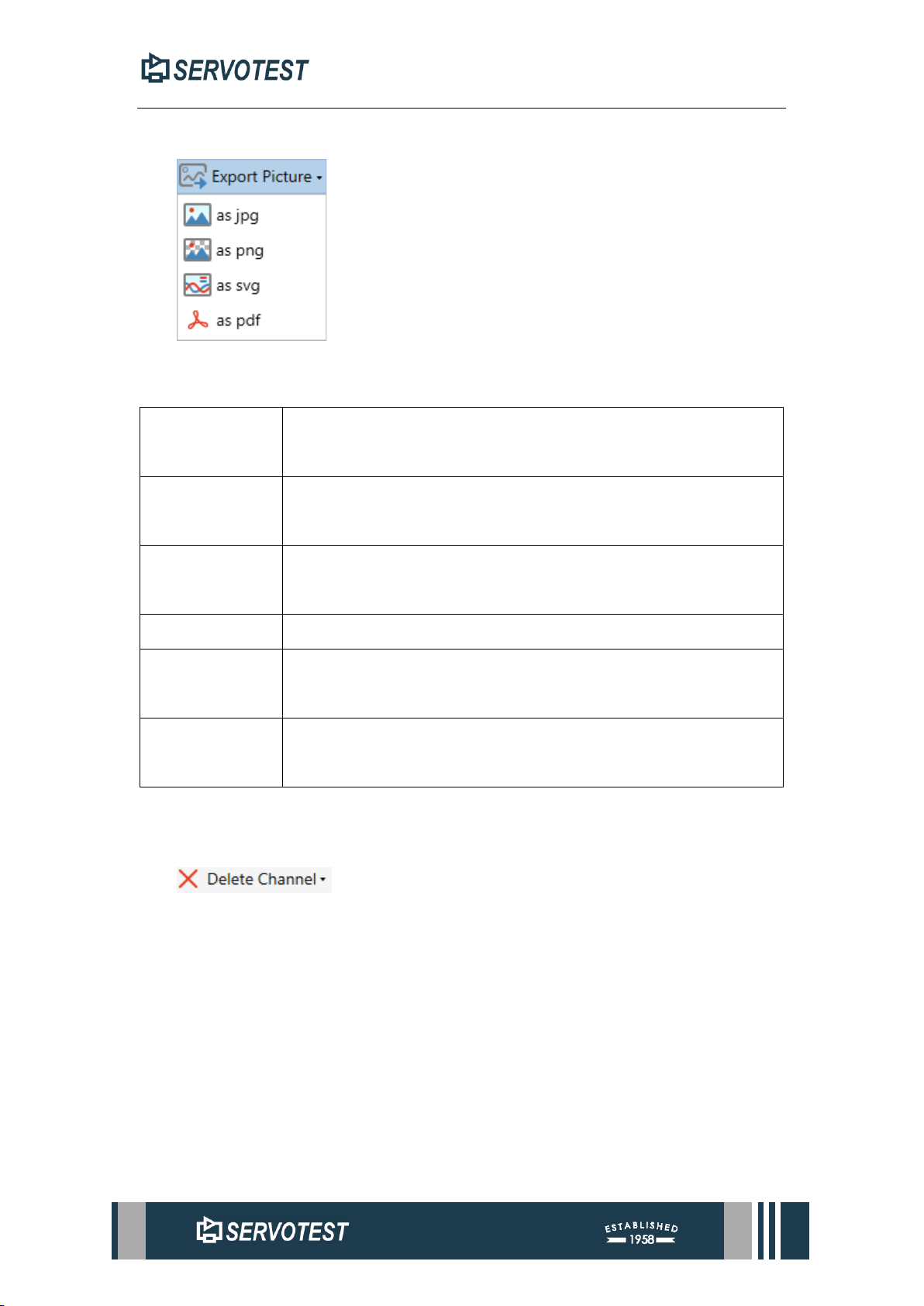
2.10.5 Export Picture
Exports the current chart as an image file. Support exporting the following formats.
Table 2-4 supported formats
png
png is short for Portable Network Graphic, a type of raster image
file.
jpg
jpg is a widely used compressed image format for containing
digital images.。
svg
Scalable Vector Graphics (svg) is a web-friendly vector file
format.
pdf
pdf is an abbreviation that stands for Portable Document Format.
bmp
The bmp format is an uncompressed raster file designed to display
high-quality images on Windows and store printable photos.
emf
An emf file is a Windows file format designed to store large
amounts of image detail for high quality printing.
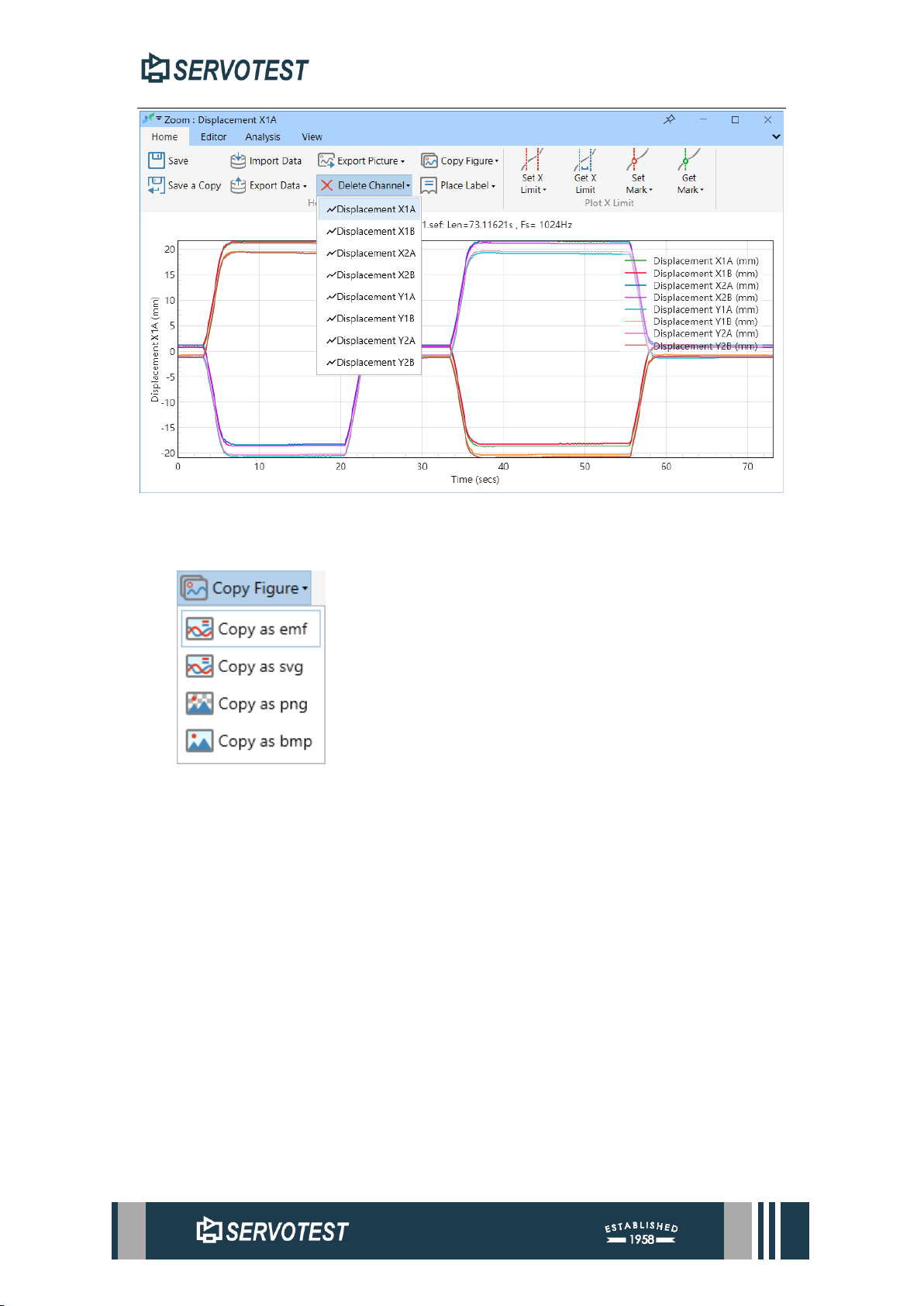
2.10.6 Delete Channel
Removes the channel from the current chart. Keep at least one channel in the chart
and cannot delete them all.
Page 38
XDAP USER MANUAL
Figure 2-32 Delete Channel
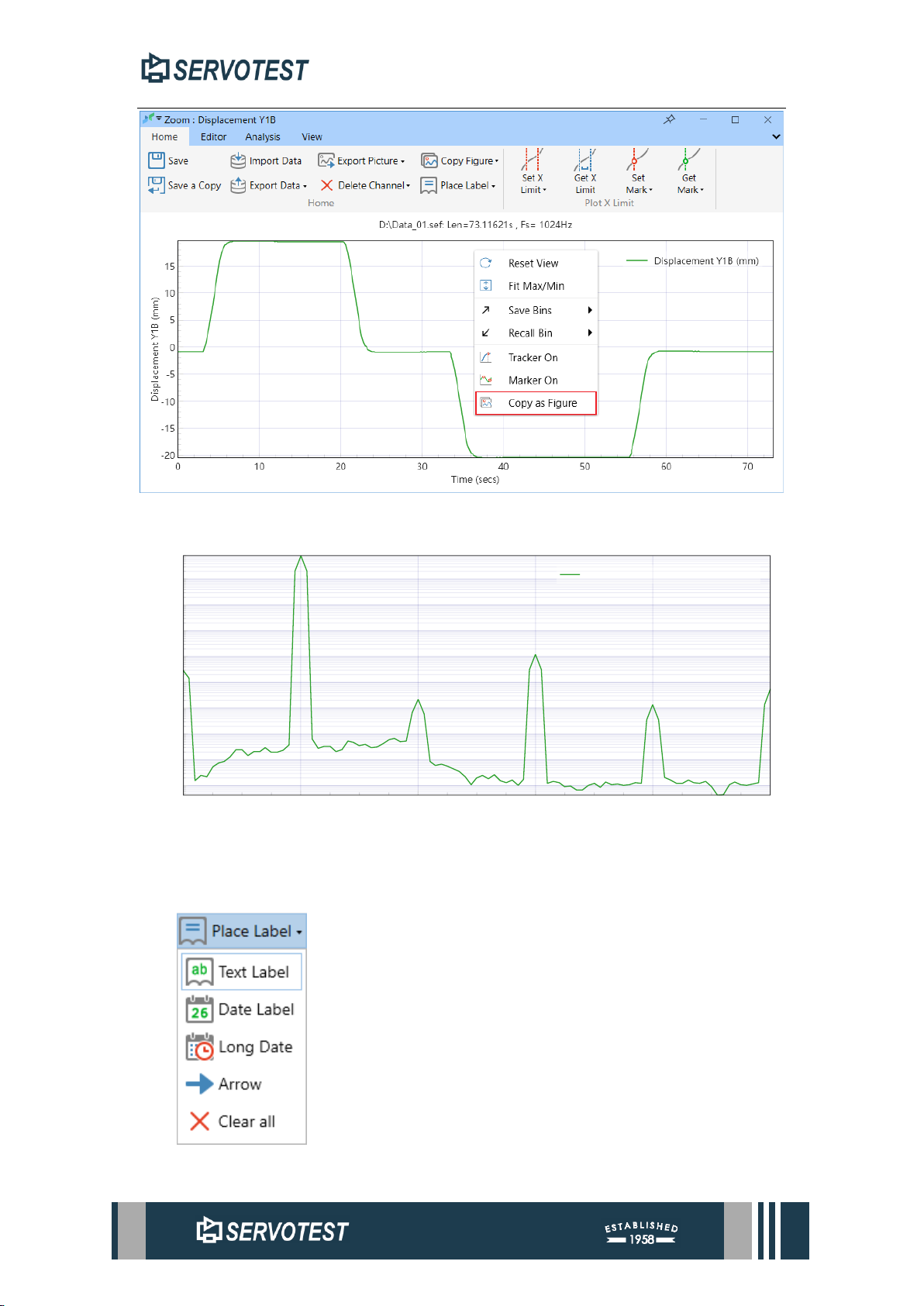
2.10.7 Copy Figure
Copies the current chart to the clipboard. Supports copying svg, png, and bmp
formats. Please refer to Table 2-4 supported formats. Right -click on the blank area
to copy the picture, the format is the default format of the settings.
Page 39
XDAP USER MANUAL
Figure 2-33 Copy as Figure
Figure 2-34 Copy example
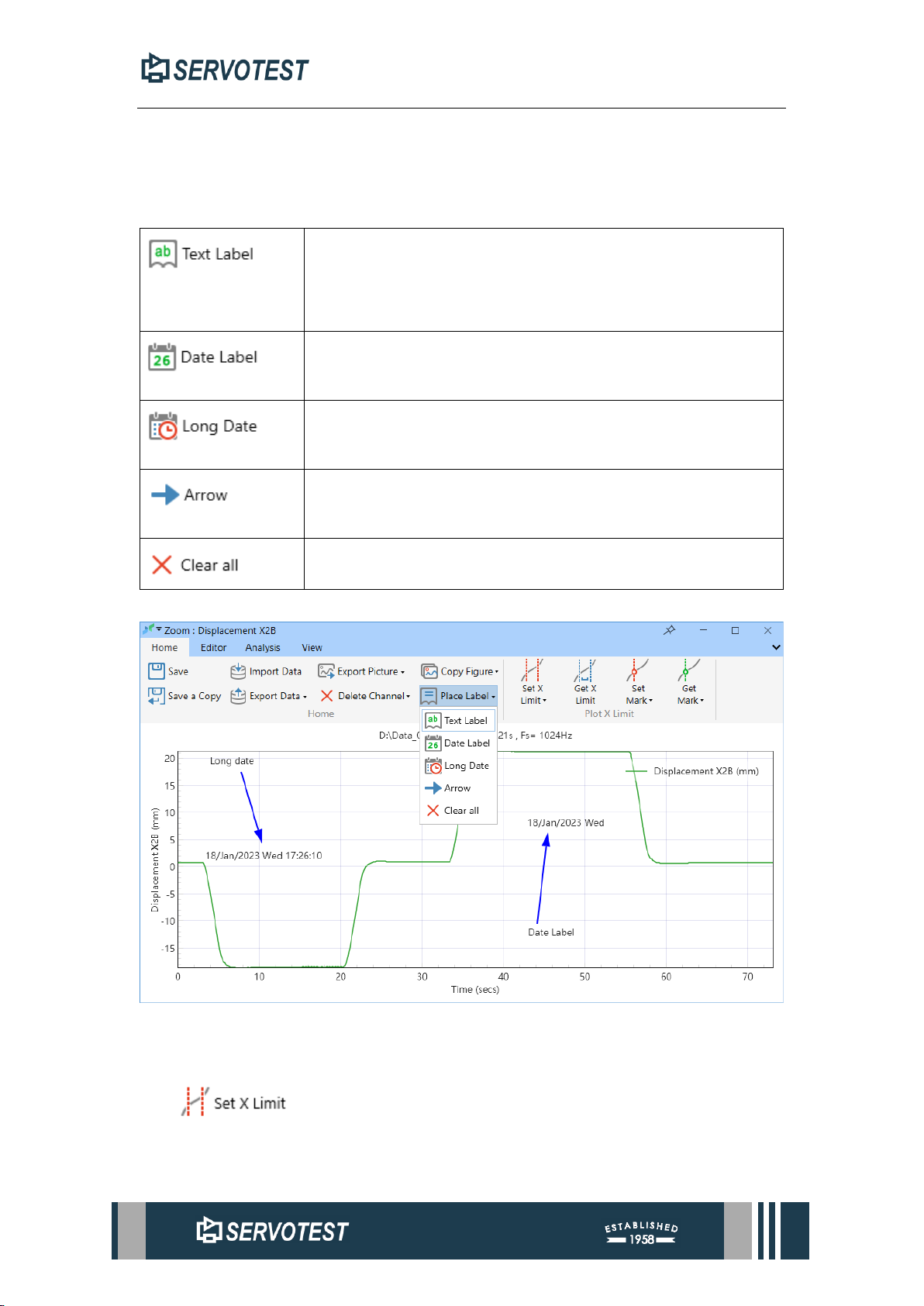
2.10.8 Place Label
Page 40
XDAP USER MANUAL
Add Labels to the chart. Hold down the Ctrl key and drag the label with the left
mouse button to move the position of the label. Hold down the Alt key and click on the
tag to delete the tag.
Table 2-5 Label
Add a text label: Click the button, enter the text you want to
add in the pop-up form, and then click the left mouse button
on the chart.
Add a date label: Click the button and click the left mouse
button on the chart.
Add long date labels: Click the button and click the left mouse
button on the chart.
Add arrow labels: Click the button, hold down the left mouse
button on the chart and drag the drawing arrows.
Remove the label on the chart.
Figure 2-35 Place Label
2.10.9 Set X Limit
Saves the range displayed on the current X-axis and automatically zooms to that
range when other channels are opened.
Page 41
XDAP USER MANUAL
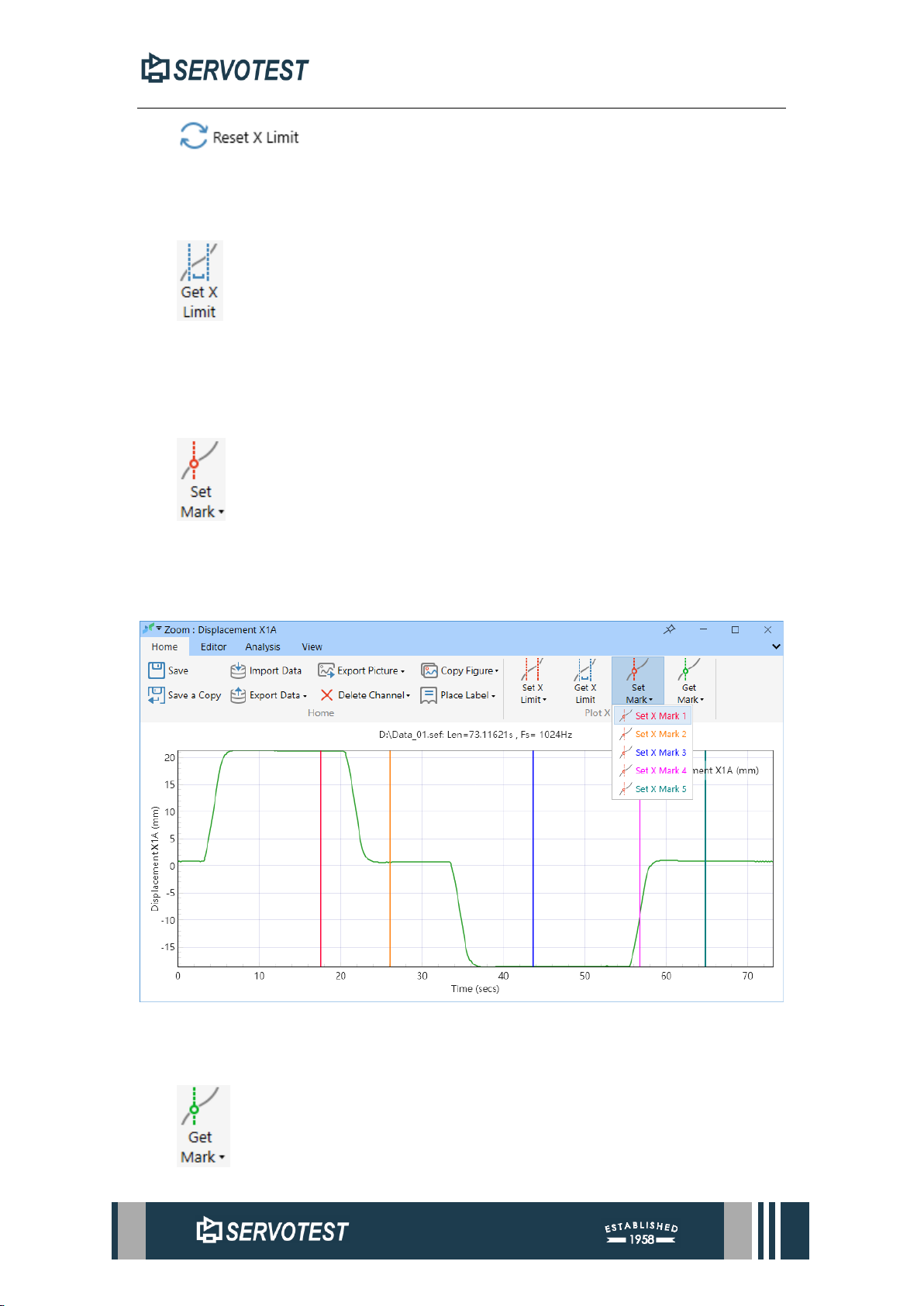
Reset X-axis range Resets saved X-axis display range.
2.10.10 Get X Limit
Zooms the display range of the current chart X-axis to the saved X-axis display
range.
2.10.11 Set Mark
Sets markers on the chart, up to 5 marks. Hold down the Ctrl key and drag the
marker line with the left mouse button to modify the position of the marker. Hold down
the Alt key and click the marker line with the left mouse button to delete the marker.
Figure 2-36 Set Mark
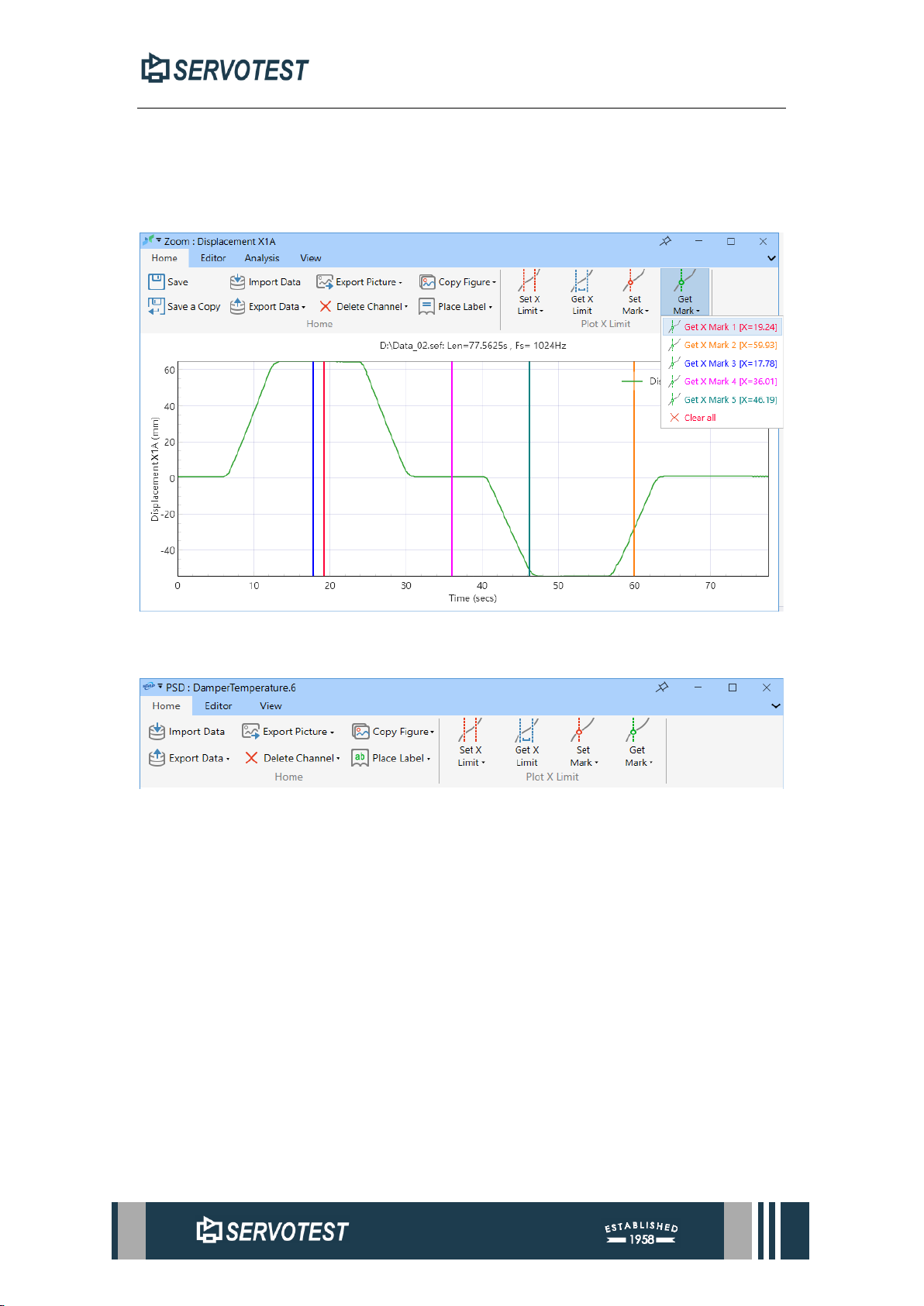
2.10.12 Get Mark
Page 42
XDAP USER MANUAL
Adds markers set in other charts to the current chart or adds deleted markers back
to the chart. Marker records use X-axis values without units. Therefore, the values
under the frequency domain window and the time domain window are the same but the
units are different.
Figure 2-37 Get X Mark
2.11 Frequency Domain Sub-Window Home Page
Figure 2-38 Frequency Domain Sub-Window Home Page
The frequency domain analysis sub-window menu mainly includes ten buttons.
the operations, and functions of which are like those of the time domain sub-window.
2.11.1 Import Data
Please refer to Section 2.10.3
2.11.2 Export Data
Please refer to Section 2.10.4
2.11.3 Export Picture
Please refer to Section 2.10.5
2.11.4 Delete Channel
Please refer to Section 2.10.6
Page 43

XDAP USER MANUAL
2.11.5 Copy Figure
Please refer to Section 2.10.7
2.11.6 Place Label
Please refer to Section 2.10.8
2.11.7 Set X Limit
Please refer to Section 2.10.9
2.11.8 Get X Limit
Please refer to Section 2.10.10
2.11.9 Set Mark
Please refer to Section 2.10.11
2.11.10 Get Mark
Please refer to Section 2.10.12
Page 44
XDAP USER MANUAL
3 View Menu
3.1 Main Window View Page
Figure 3-1 Main Window View Page
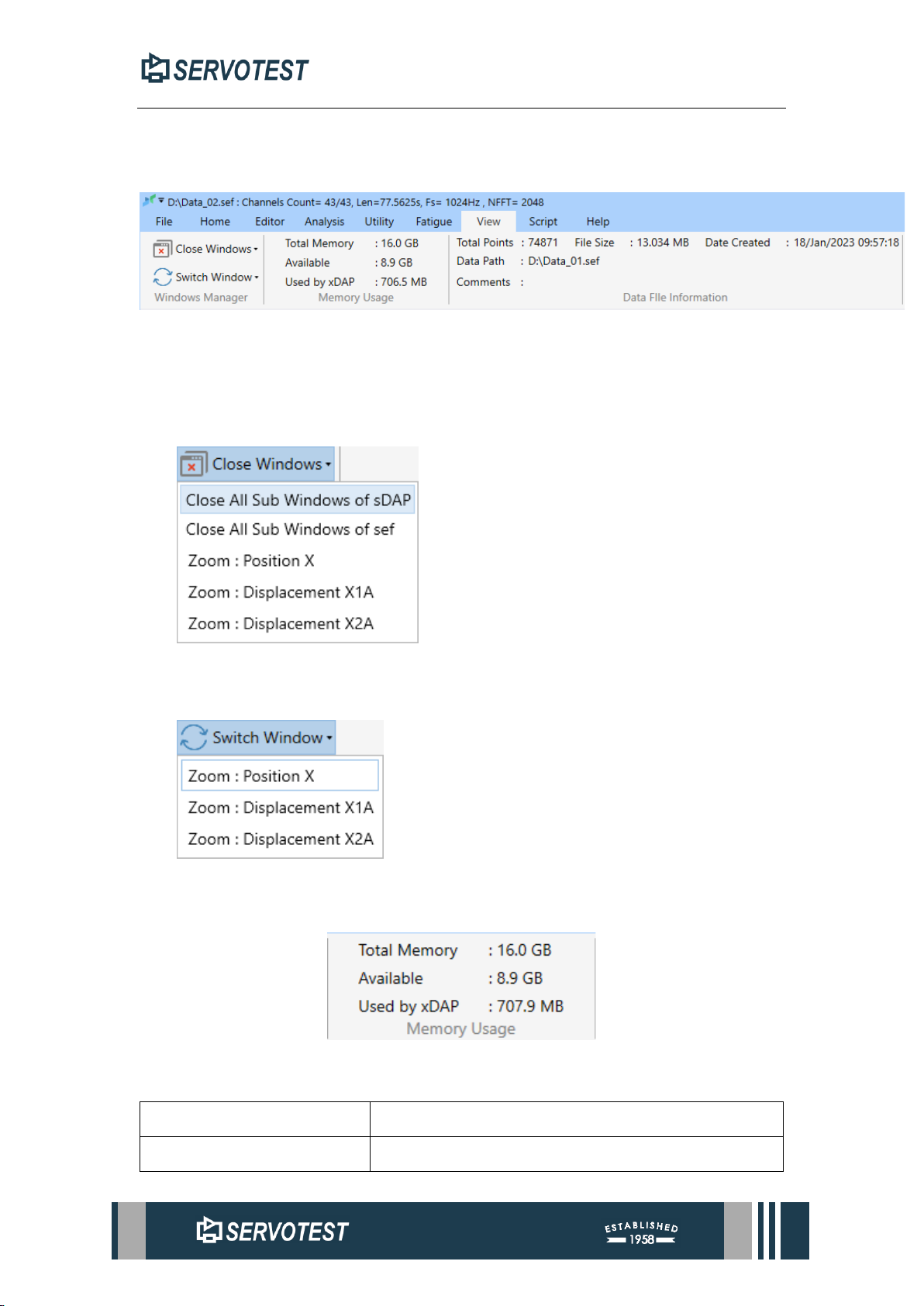
The main page view menu bar mainly includes Memory Usage, File Information
and Window Switching.
3.1.1 Close Windows
Drop-down option to close all or some sub-windows.
3.1.2 Switch Window
Toggle option to switch the window that is displayed on top.
3.1.3 Memory Usage
Figure 3-2 Memory Usage
Table 3-1 Memory Usage
Total Memory
The total memory size of the device hardware.
Available
Alarm limits set in settings.
Page 45
XDAP USER MANUAL
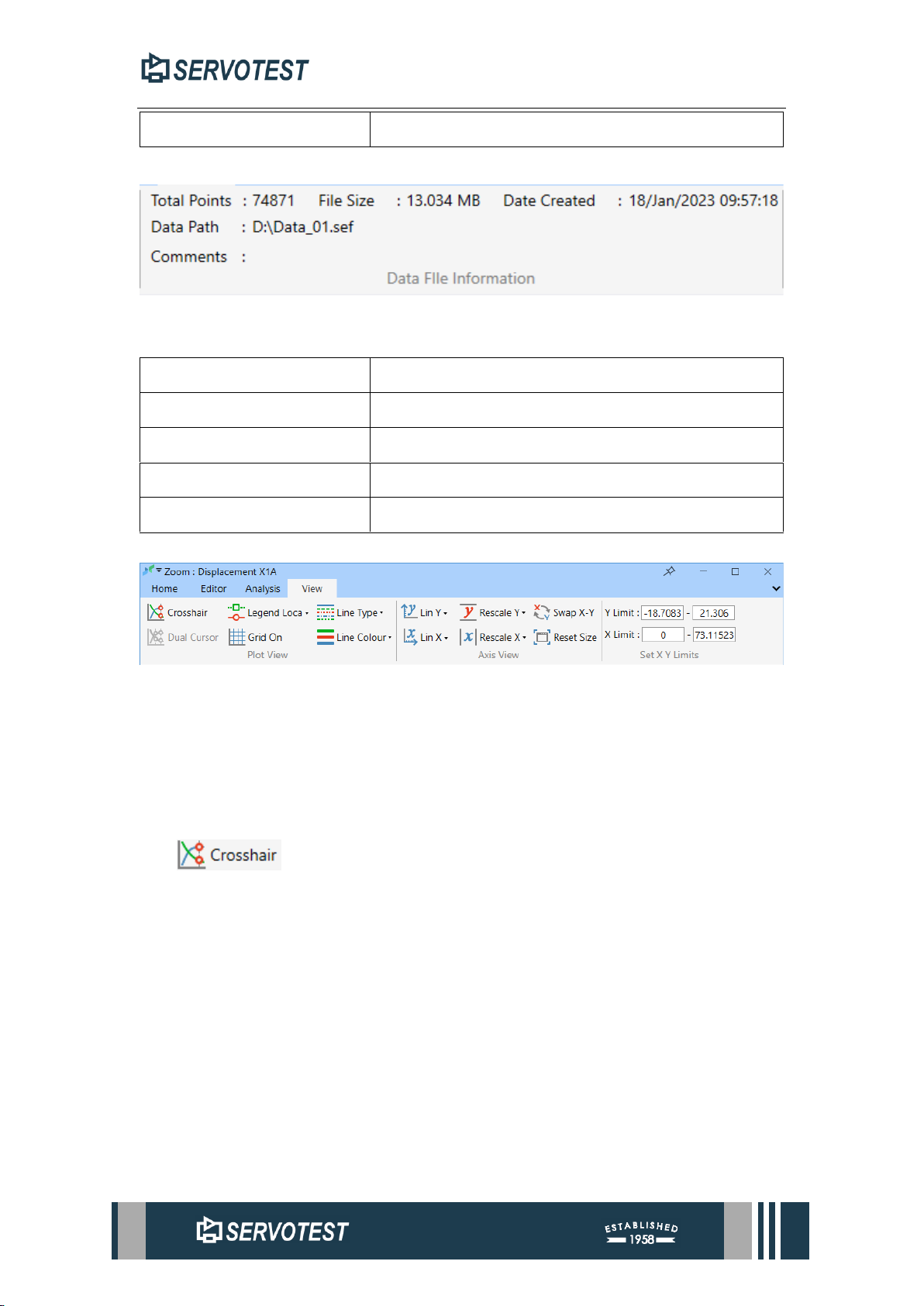
Used by xDap
Memory used by open data files.
3.1.4 Data File Information
Figure 3-3 Data File Information
Table 3-2 Data File Information
Total Points
The total number of points in the data.
File Size
File size.
Date Created
Time the file was created.
Data Path
Where the data is stored.
Comments
Notes on the file.
3.2 Time domain Sub-Window View Page
Figure 3-4 Time domain Sub-Window View Page
Double-click to open the channel or use functions such as time domain analysis to
open the time domain sub-window. It mainly includes buttons such as view tool and
coordinate system adjustment.
3.2.1 Crosshair
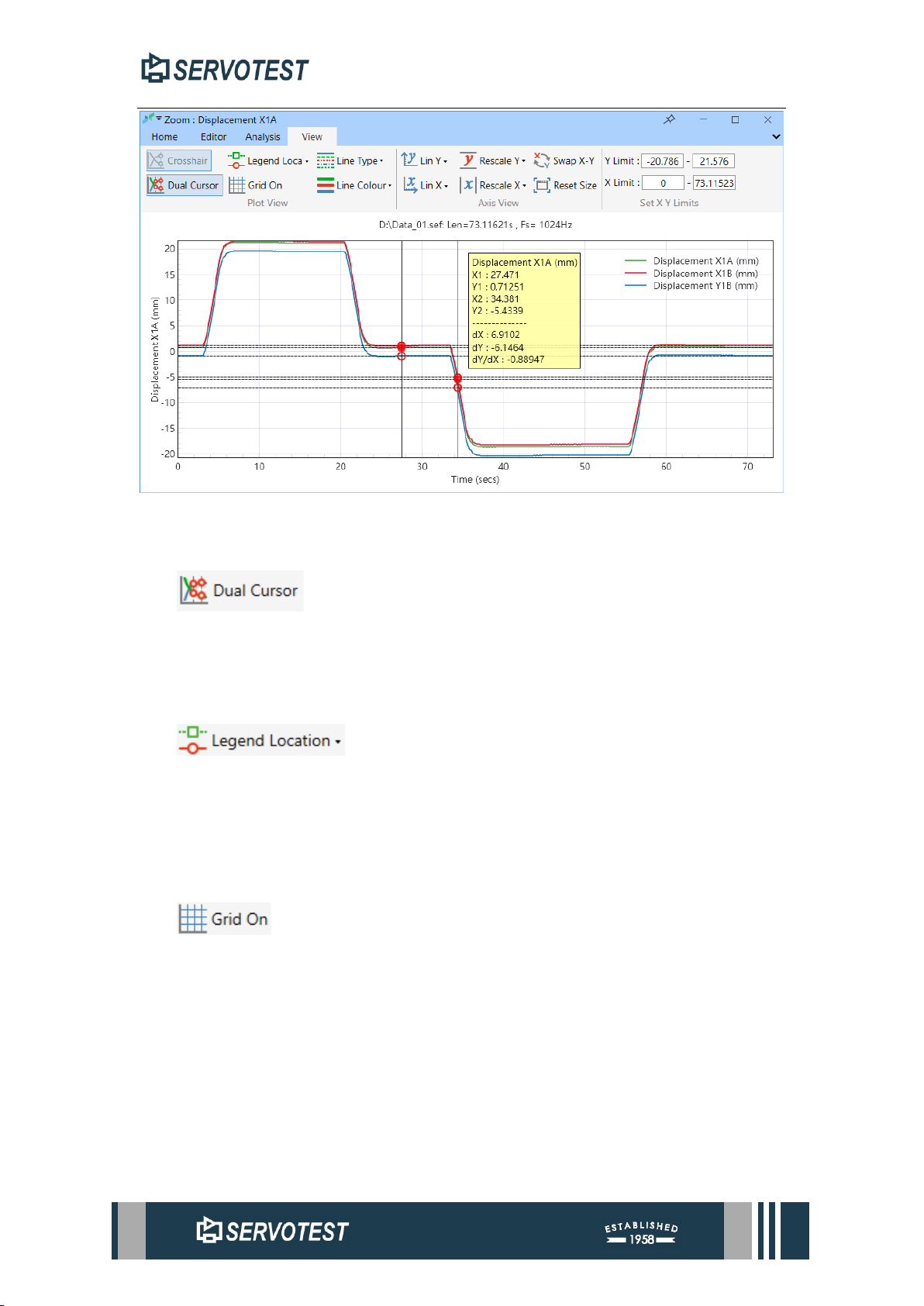
Read data from multiple channels simultaneously. In the Crosshair state, the
software supports the left and right arrows on the keyboard to move frame by frame.
The displayed information includes the coordinates and delta values of the channels.
Among them, X2 and Y2 are the point information on the currently selected channel.
Page 46
XDAP USER MANUAL
Figure 3-5 Crosshair
3.2.2 Dual Cursor
Create a second readout marker. It's the same as the first one, drag to move.
(Figure 3-5 Crosshair)
3.2.3 Legend Location
Adjusts the position of the legend. Clicking the button legend position will move
in the top right, bottom right, bottom left, and top left positions of the chart.
Click the legend switch button in the drop-down menu to hide or show the legend.
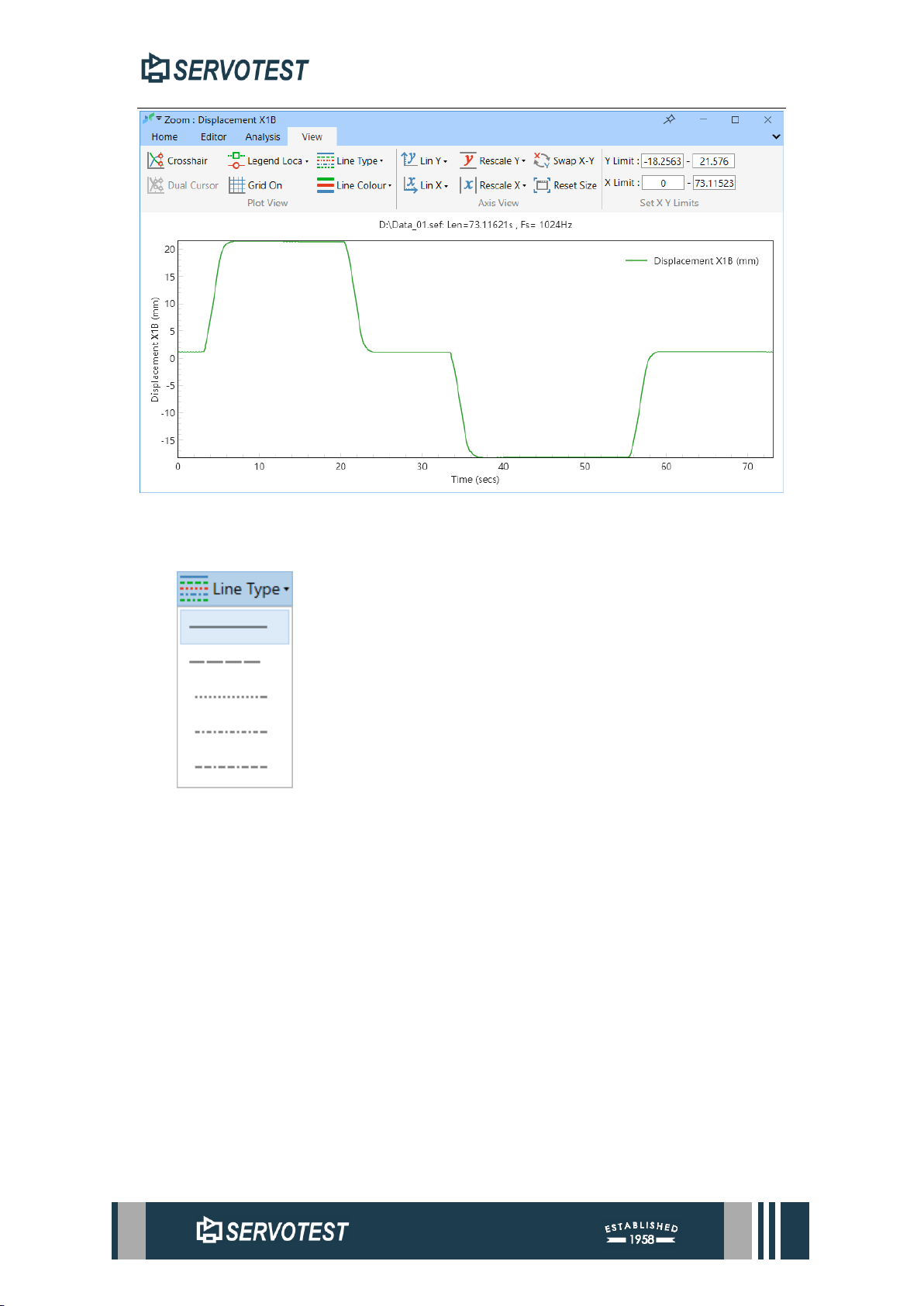
3.2.4 Grid On
Hide or show the chart’s gridlines..
Page 47
XDAP USER MANUAL
Figure 3-6 Grid Off
3.2.5 Line Type
Modifies the style of the currently selected line in the chart.
Page 48
XDAP USER MANUAL
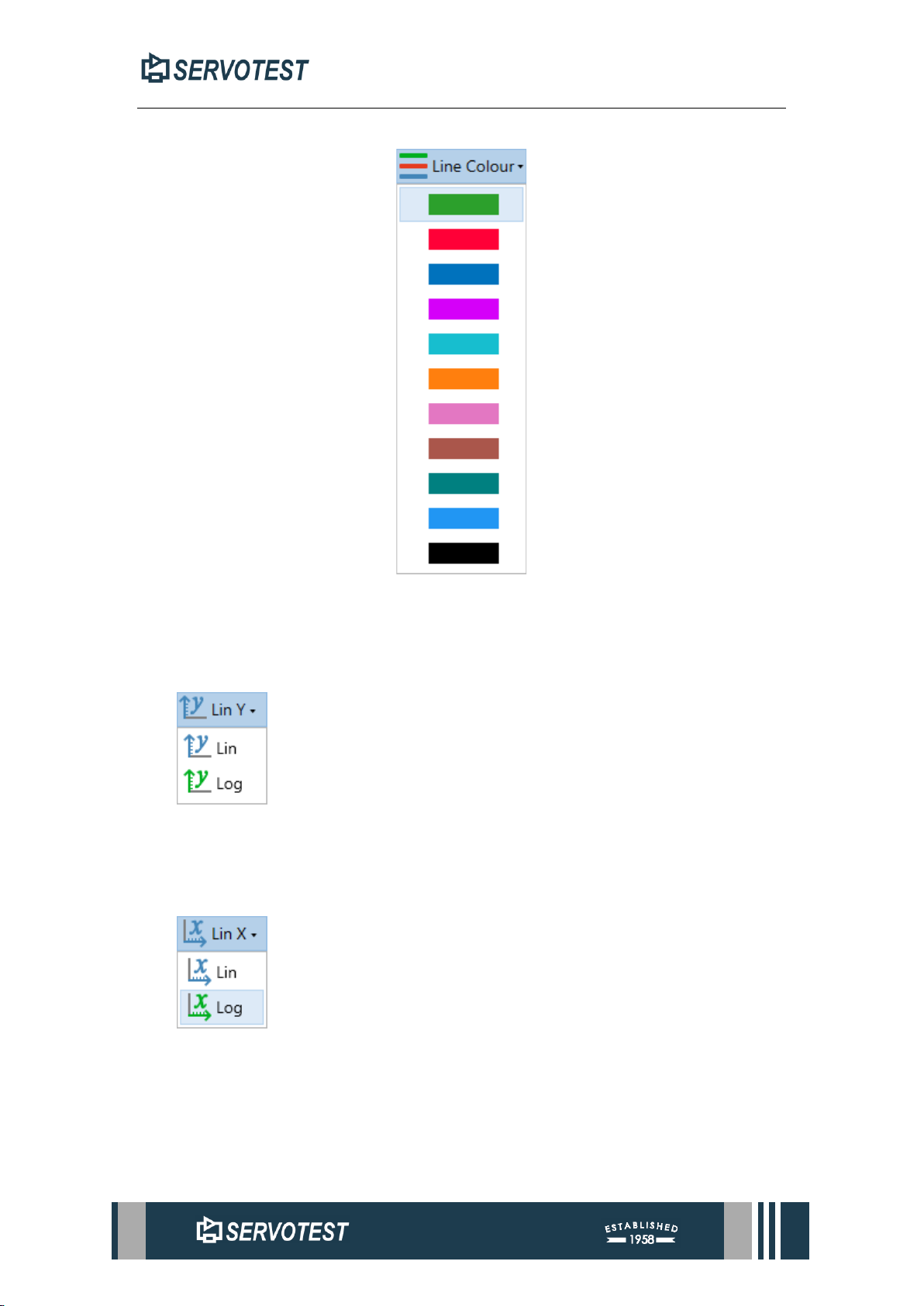
3.2.6 Line Color
Figure 3-7 Line Colour
Modifies the color of the currently selected line in the chart.
3.2.7 Y-axis type
Toggles the type of Y-axis and selects logarithmic or linear coordinates in the
drop-down menu.
3.2.8 X-axis type
Toggles the type of X-axis and selects logarithmic or linear coordinates in the
drop-down menu.
Page 49
XDAP USER MANUAL
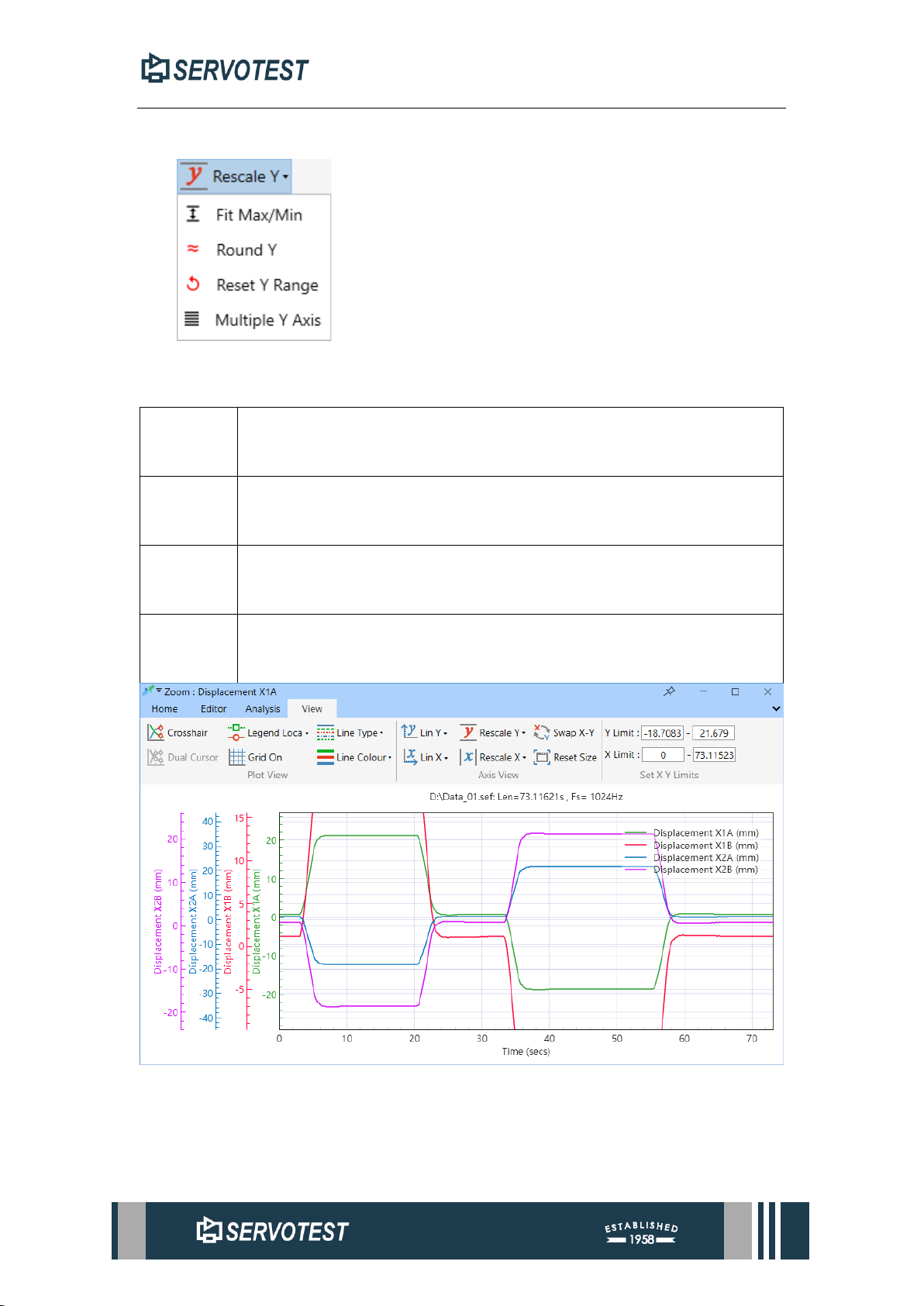
3.2.9 Y-axis range
Adjusts the range displayed on the Y-axis.
Table 3-3 Y-axis range button
Fit
Max/Min
Displays the chart as a range of maximum and minimum values on the
Y-axis.
Round Y
The maximum and minimum value of the entire Y-axis of the circle is
an integer multiple of the chart Major tick.
Reset Y
Range
Resets the Y-axis display range to the default range.
Multiple
Y-axis
Displays multiple Y-axes, each line on the chart corresponds to a Y-axis,
and the corresponding lines can be scaled or moved individually.
Figure 3-8 Multiple Y-axis
Page 50
XDAP USER MANUAL
3.2.10 X-axis range
Table 3-4 X-axis range button
Round X
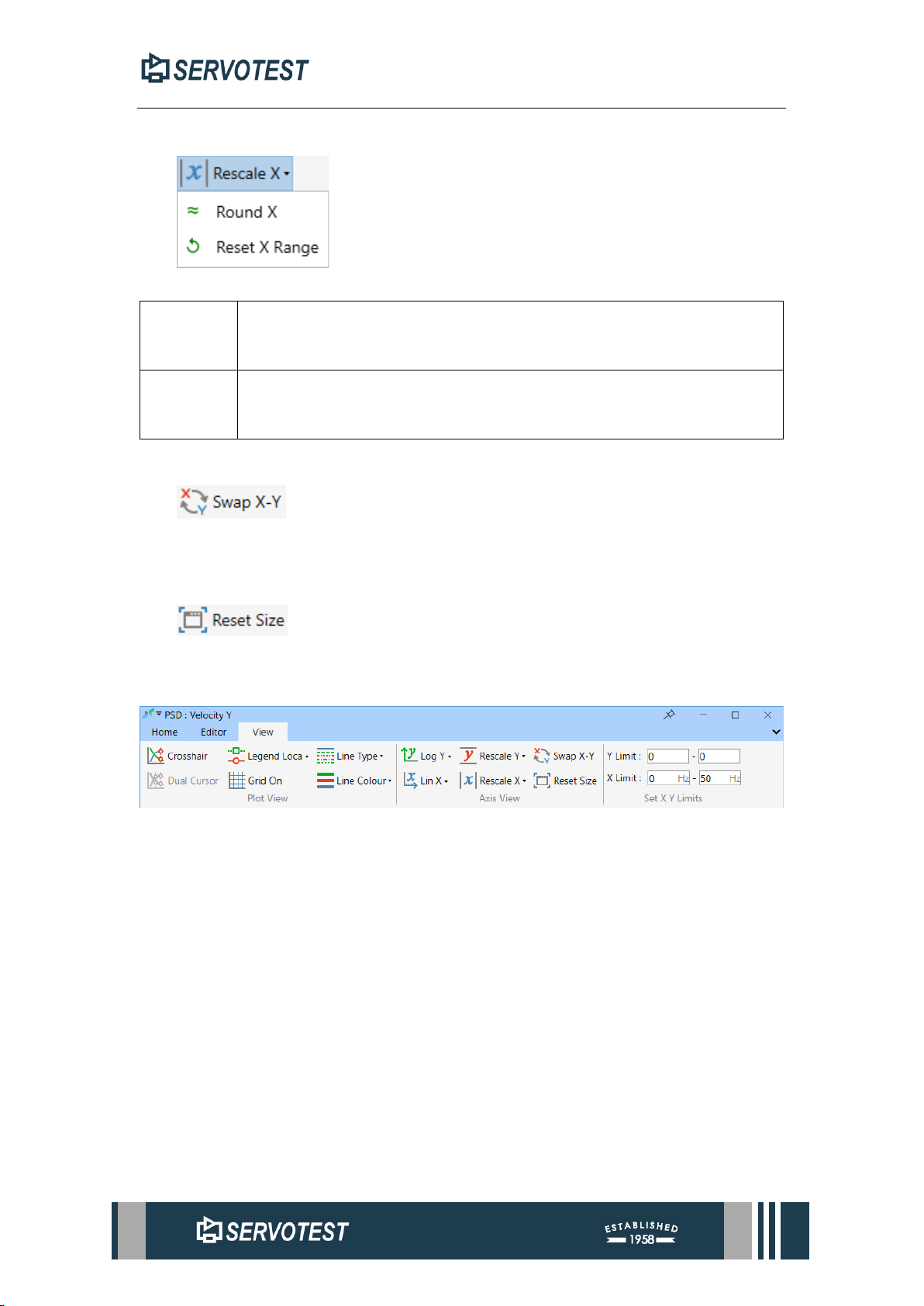
The maximum and minimum value of the entire X-axis of the circle is
an integer multiple of the chart’s Major tick.
Reset X
Range
Resets the X-axis display range to the default range.
3.2.11 Swap X-Y
Exchanges data on the X-Axes and Y-Axes.
3.2.12 Reset Size
Resets the size of the current form to the default size.
3.3 Frequency Domain Sub-Window View Page
Figure 3-9 Frequency Domain Sub-Window View Page
Generally, use frequency domain analysis to open the frequency domain sub-
window. The operation is similar to the time domain sub-window, and the setting
parameters are independent.
3.3.1 Crosshair
Please refer to Section 3.2.1.
3.3.2 Dual Cursor
Please refer to Section 3.2.2.
3.3.3 Legend Location
Please refer to Section 3.2.3.
Page 51
XDAP USER MANUAL
3.3.4 Grid On
Please refer to Section 3.2.4.
3.3.5 Line Type
Please refer to Section 3.2.5.
3.3.6 Line Color
Please refer to Section 3.2.6.
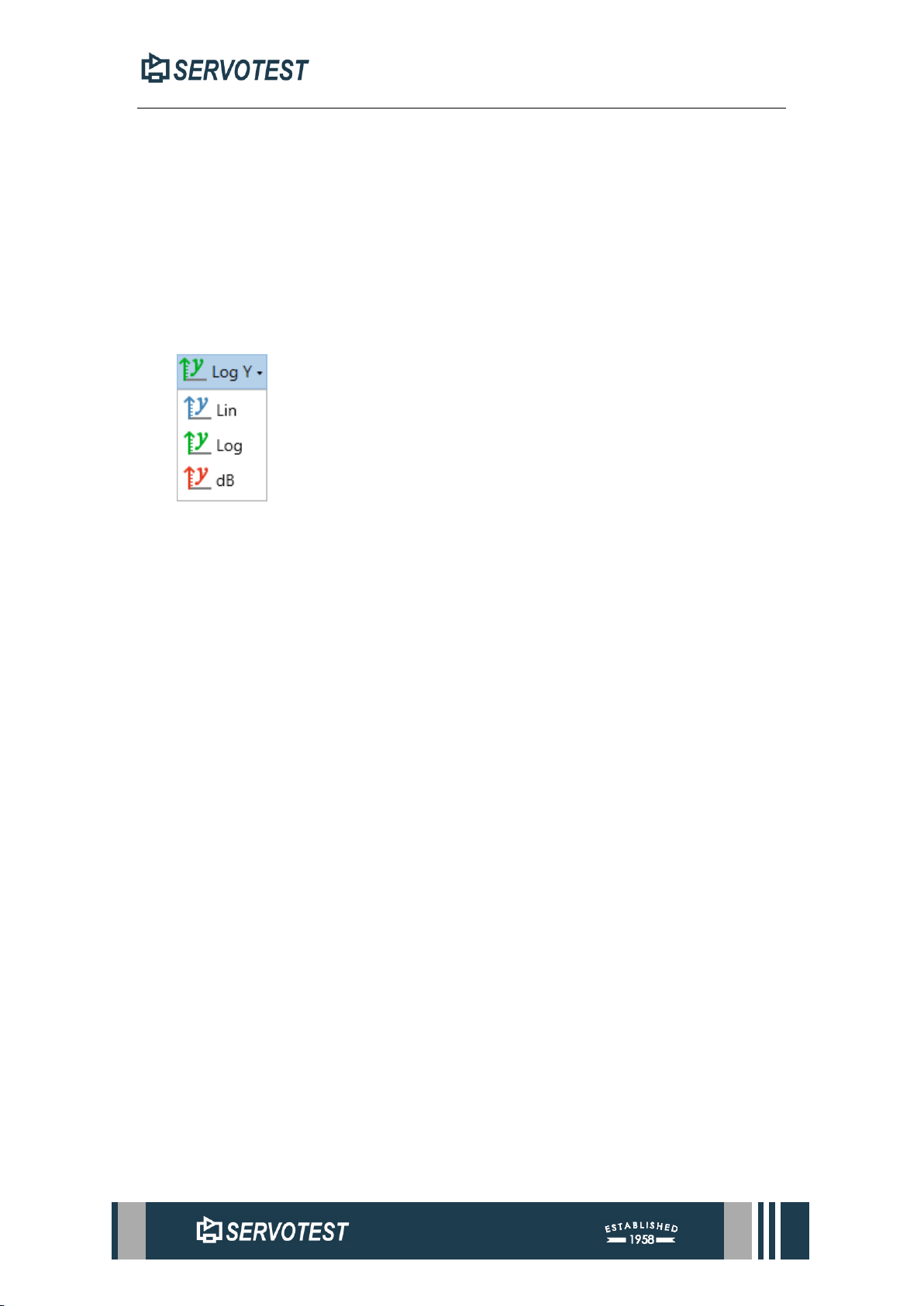
3.3.7 Y-axis type
Added dB units on top of time domain.
3.3.8 X-axis type
Please refer to Section 3.2.8.
3.3.9 Y-axis range
Please refer to Section 3.2.9.
3.3.10 X-axis range
Please refer to Section 3.2.10.
3.3.11 Swap X-Y
Please refer to Section 3.2.11.
3.3.12 Reset Size
Please refer to Section 3.2.12.
Page 52
XDAP USER MANUAL
4 Editor Menu
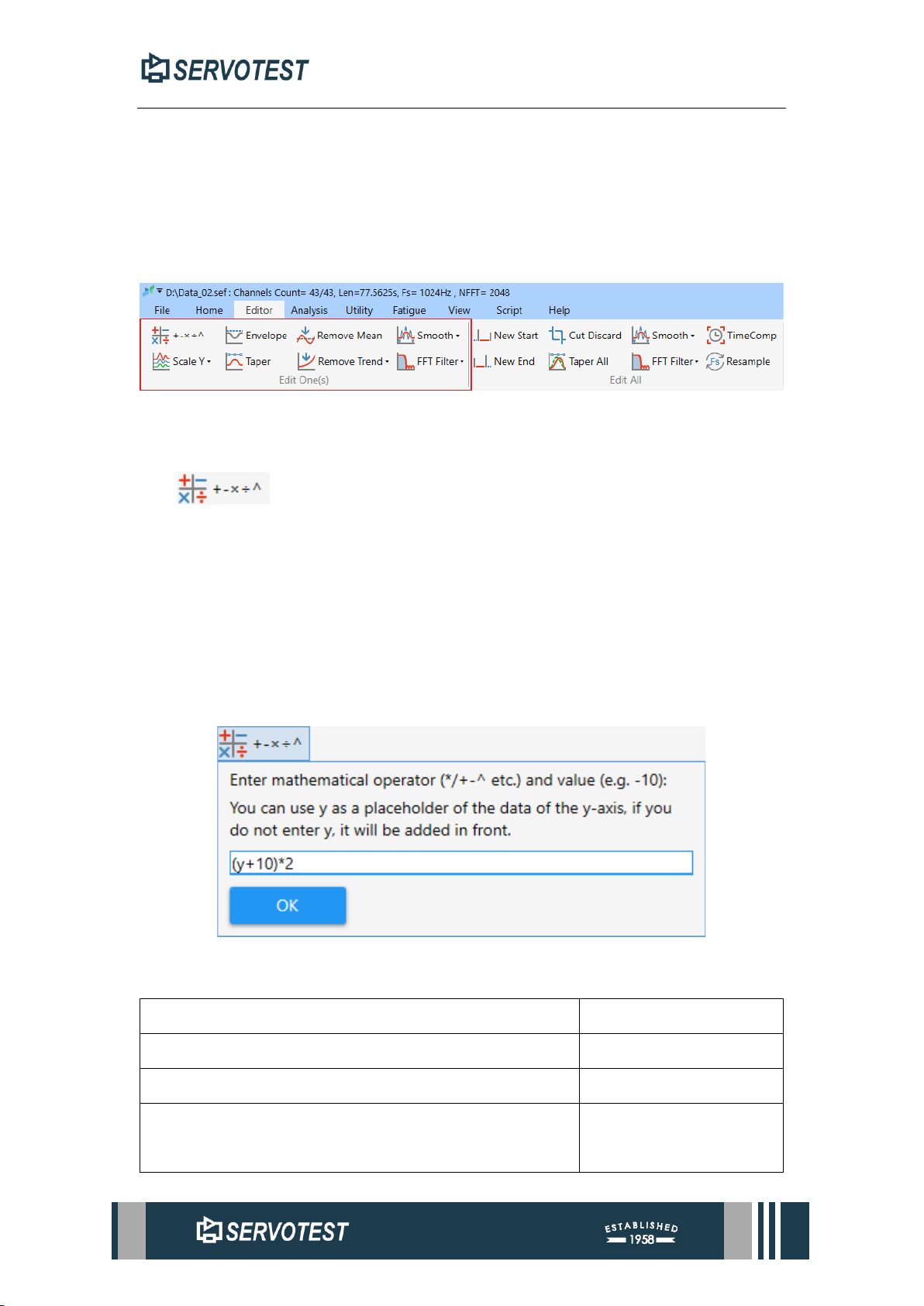
4.1 Edit Single Channels
Operations in Edit Single Channel apply to the selected channel or channels.
Commands targeting multiple channels will analyze them separately, plotting the
results in the same window.
Figure 4-1 Single channels part
4.1.1 Computation
The computation function performs basic mathematical operations for the Y-axis
data of the selected channel. Click the button to enter the mathematical expression to
be executed in the pop -up window. There is no y in the formula, and y will be added
by default at the beginning of the expression. For the expression of Y at the beginning,
you need to manually enter Y, such as log (𝑦).
Then click the OK mouse pointer to become a cross and select the channel to edit.
Operators supported by this function refer to Table 4-1 operator list.
Figure 4-2 Computation
Table 4-1 operator list
“+、-、*、/”
Fundamental operations.
^
Square.
"sin、cos、tan、cot、sec、csc"
Trigonometric functions.
"arcsin、arccos、arctan、arccot、arcsec、arccsc、acsc"
Inverse trigonometric
function.
Page 53
XDAP USER MANUAL
"asin、acos、atan、acontan、asec、acosec、acot"
Inverse trigonometric
function.
"sh/sinh(Hyperbolic sine)、ch/cosh、th/tanh、cth/cotanh、
sch/sech、csch/cosech、cth/cotanh"
Hyperbolic function.
"arsh/arsinh(Inverse hyperbolic sine) 、 arch/arcosh 、
arth/artanh 、 arcth/arcotanh 、 arsch/arsech 、
arcsch/arcosech"
Inverse hyperbolic
function.
"sqrt、sqr(Special case of Power function, Power node
with 2 as the power)、cbrt(Special case of Power function,
Power node with (1/3) as the power)"
Square root & cube root.
"log、ln(special case of logarithm where the base equals
e)"
Logarithmic function.
"abs"
Absolute value.
"sgn/sign/signum(Sign Function (Signum)) "
Sign function.
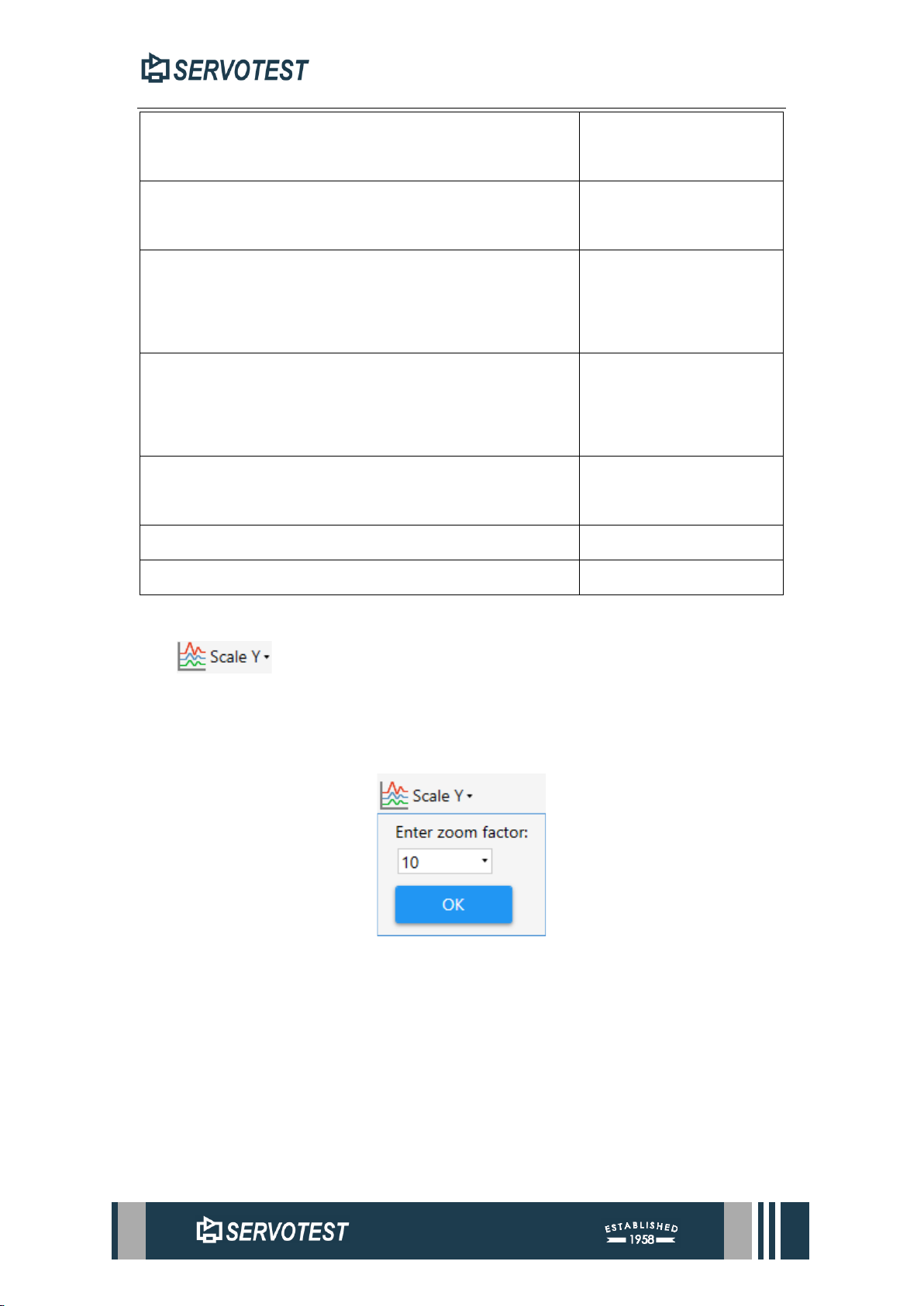
4.1.2 Scaling Y
The scaling Y-axis function is zoomed in proportion to the Y -axis data of the
selected channel. Click the button, select or enter the zoom coefficient in the pop -up
window, click the OK mouse pointer to become a cross, and select the channel to edit.
Figure 4-3 Scaling Y
4.1.3 Normalized Y
The normalized is in the drop-down menu of Scale Y, use this function to
normalize the Y-axis data of the selected channel. xDap divides each data on the Y-axis
by the value with the largest absolute value in the data. Click the button in the drop-
down menu, the mouse pointer turns to a cross and select the channel you want to
normalize.
Page 54
XDAP USER MANUAL
4.1.4 Envelope
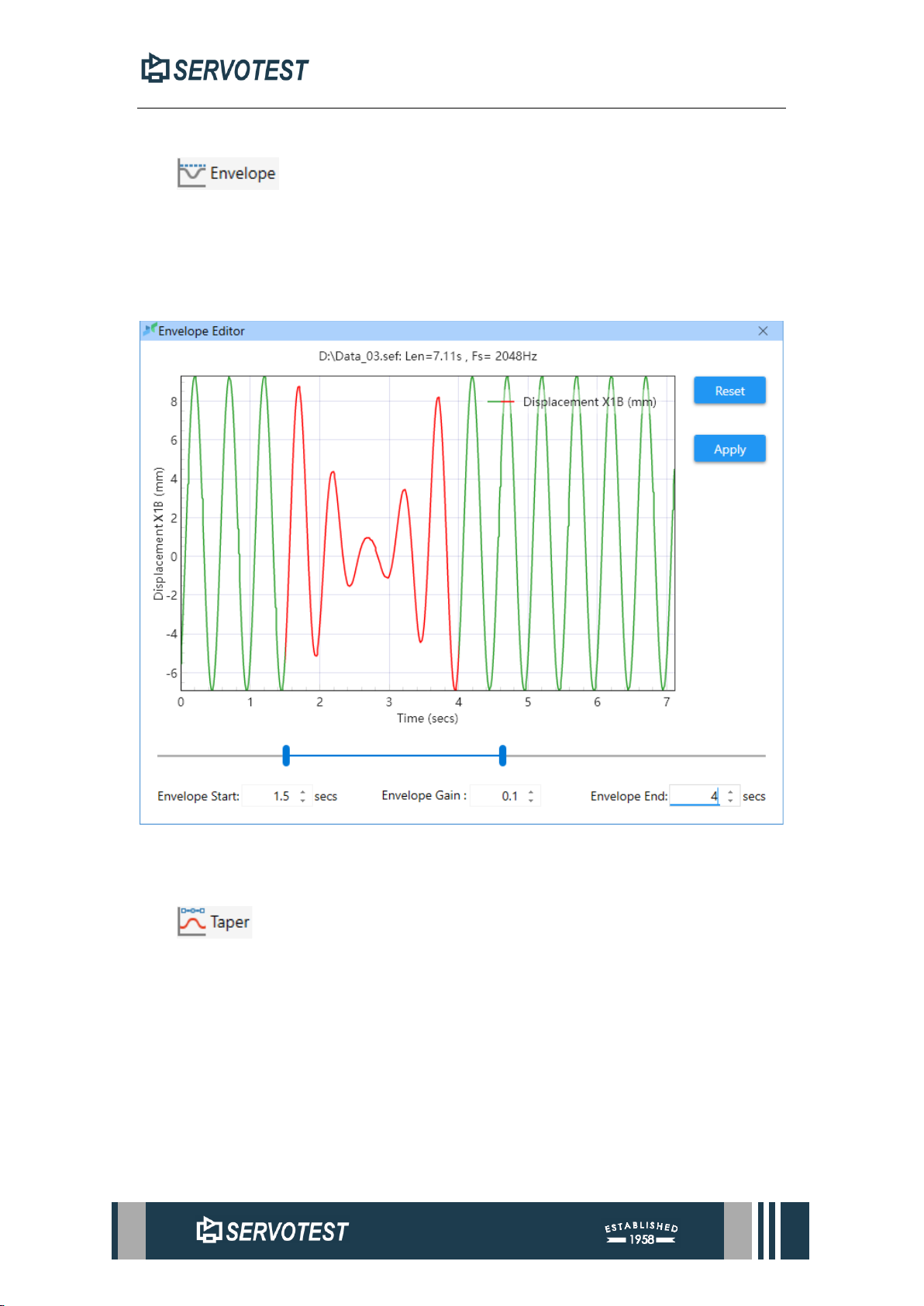
The Envelope function is smoothly treated with the specified part of the selected
channel. Click the operation button, select the channel to be processed, enter the start
time, Envelope gain, and end time in the pop-up window, and click the apply button to
apply the operation.
Figure 4-4 Envelope Editor
4.1.5 Taper
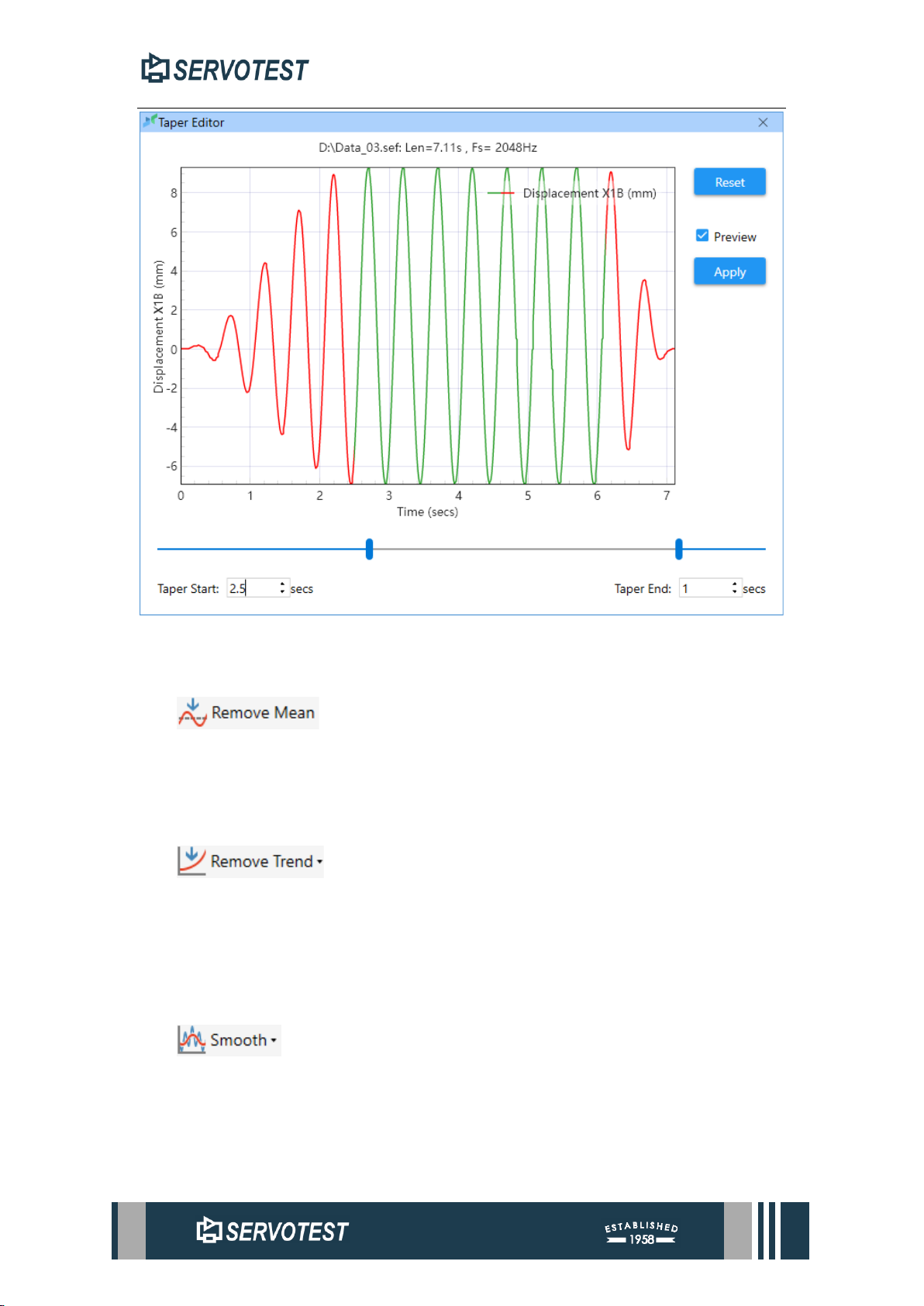
The taper function is smoothly treated with the first and tail part of the selected
channel. Click the button, select the channel to be processed, enter the start time and
end time in the pop-up window, and click the Apply button to apply the operation.
Page 55
XDAP USER MANUAL
Figure 4-5 Taper Editor
4.1.6 Remove Mean
Remove Mean function on the data removal of the selected channel. Click the
button, and the mouse pointer becomes a passing channel after the cross shape.
4.1.7 Remove Trend
Remove trend function to remove the trend value of the selected channel. Select
the order to be removed in the drop -down menu, and then select the channel to be
removed.
4.1.8 Smooth
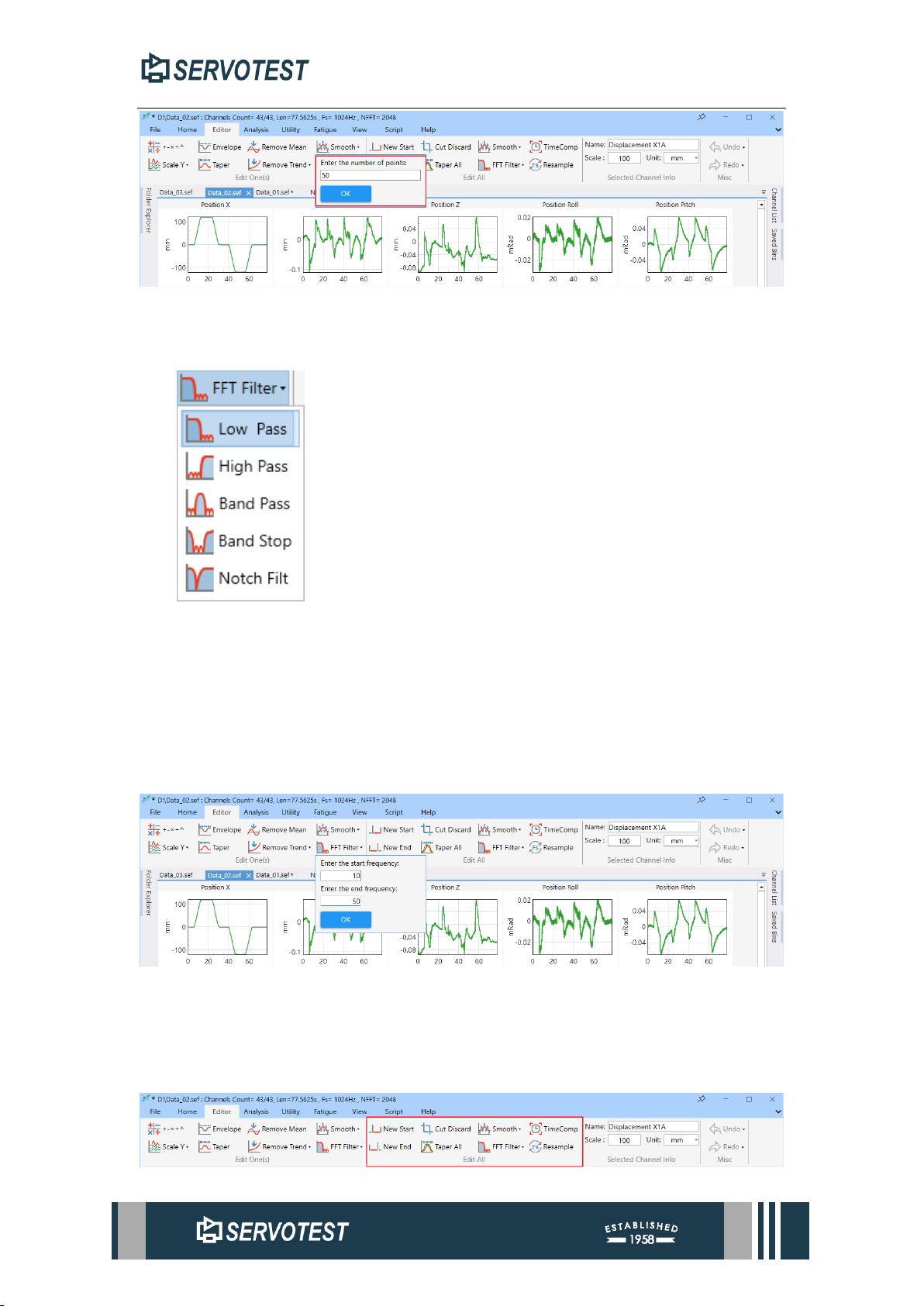
The smooth function is filtered on the average value of the selected channel data
according to the number of input points. Select 50 points of filtering at 50 points in the
drop -down menu or n point average filtering.
Page 56
XDAP USER MANUAL
Figure 4-6 Smooth
4.1.9 FFT Filter
The FFT filter function of the selected channel is used for FFT -based filtering,
which is usually used to remove or weaken the noise in the signal or the frequency
unwanted. FFT filtering is divided into five types: low -pass filtering, high -pass
filtering, banded filtering, blocking filtering, and trap filter.
First select the filter type to be used, then enter the parameter, and finally select
the passage to be filtered.
Figure 4-7 FFT Filter
4.2 Edit Multiple Channels
Edit selected multiple channels. For some functions, edit all channels if not
selected
Page 57
XDAP USER MANUAL
Figure 4-8 All channels Part
4.2.1 New Start
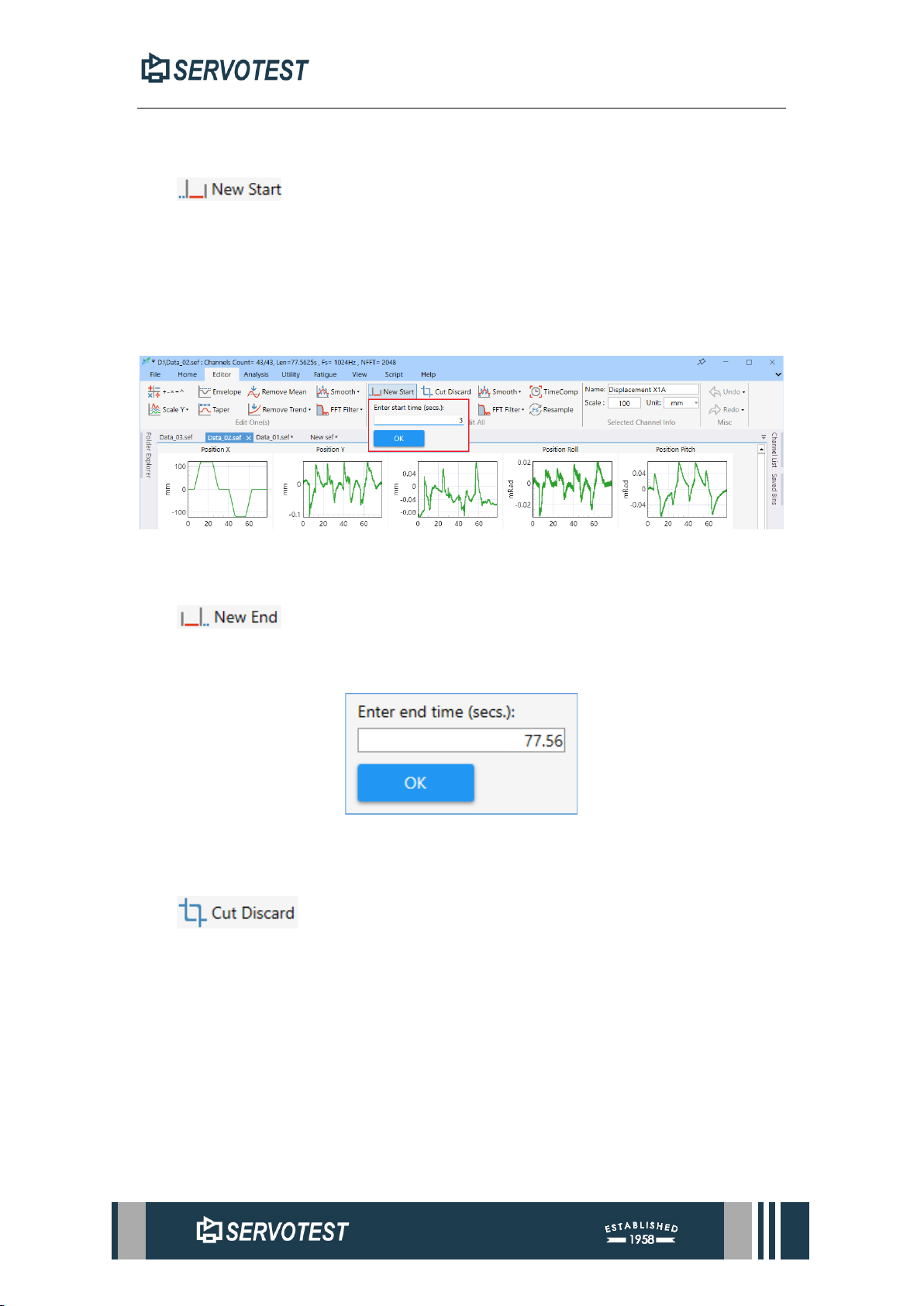
New start function is used to adjust the start time of the data. Click the Action
button, enter a new start time in the pop-up form, and click OK to apply the action. If
the entered time is positive, the data from 0 to the new start time is truncated from the
channel; If the time entered is negative, the absolute value of the extension from the
beginning of the channel to the new start time is 0, and the extension data value is 0.
Figure 4-9 New Start
4.2.2 New End
New end function is used to adjust the end time of the data. Click the Action button,
enter a new end time in the pop-up form, and click OK to apply the action.
Figure 4-10 New End
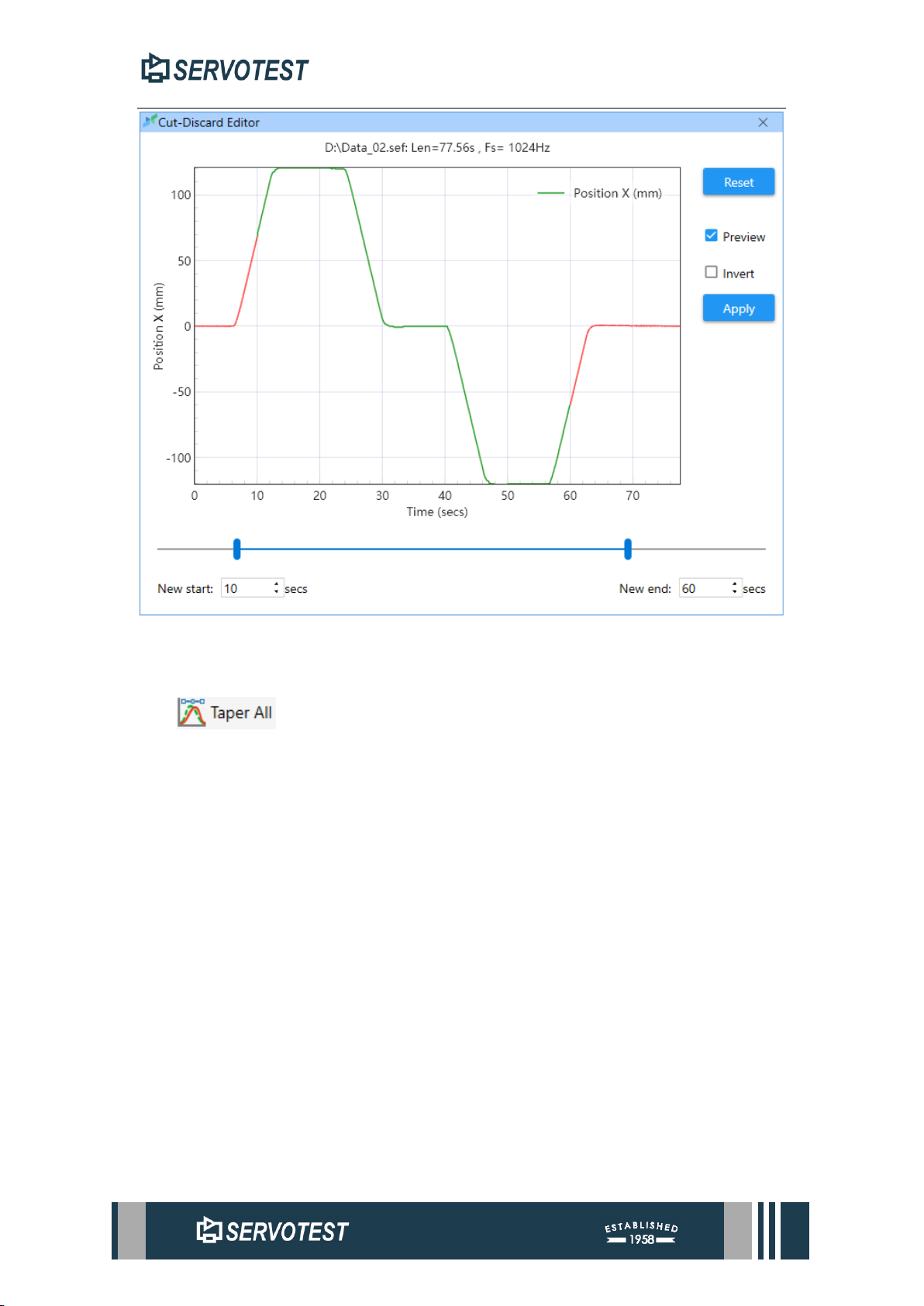
4.2.3 Cut Discard
The cut discard function is used to cut a part of the data from the channel data.
Click the Actions button to open the trim data editing window. The editing window
provides a preview of the trimming result, the red part is the data to be trimmed, and
the green part is the retained data. Check Invert to deselect the data to be cut.
Page 58
XDAP USER MANUAL
Figure 4-11 Cut Discard Editor
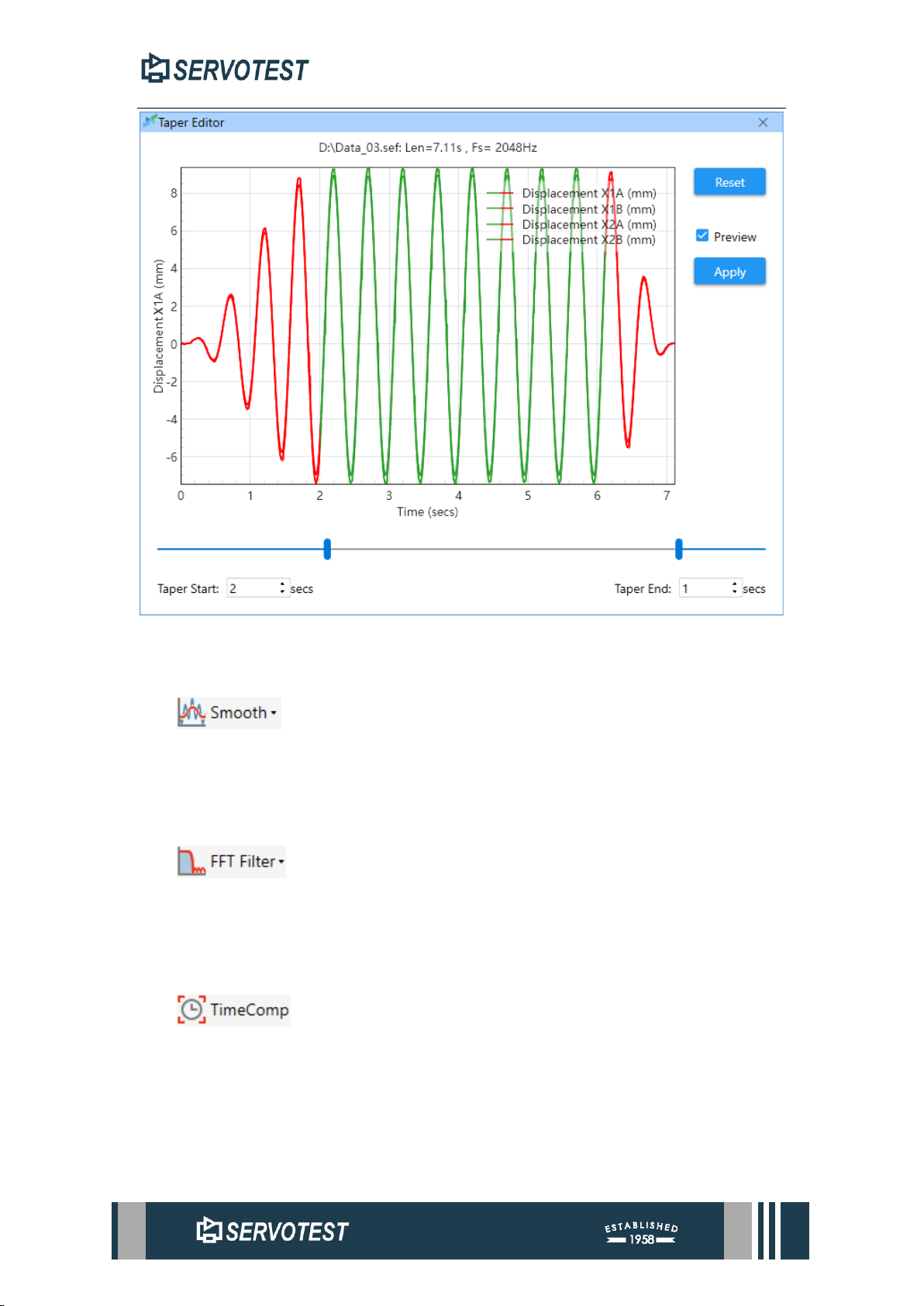
4.2.4 Taper All
The taper all function is used to smooth the data of all selected channels. After
clicking the operation button, the editing window will be opened directly, select the
time period to be smoothed, and click Apply to apply the operation.
Page 59
XDAP USER MANUAL
Figure 4-12 Taper All Function
4.2.5 Smooth
The smooth function is the same as editing waveform smoothing in a single
channel, the main difference is that this function is applied to all channel data.
4.2.6 FFT Filter
The FFT filter function is the same as editing the FFT filter in a single channel,
the main difference is that this function is applied to all channel data.
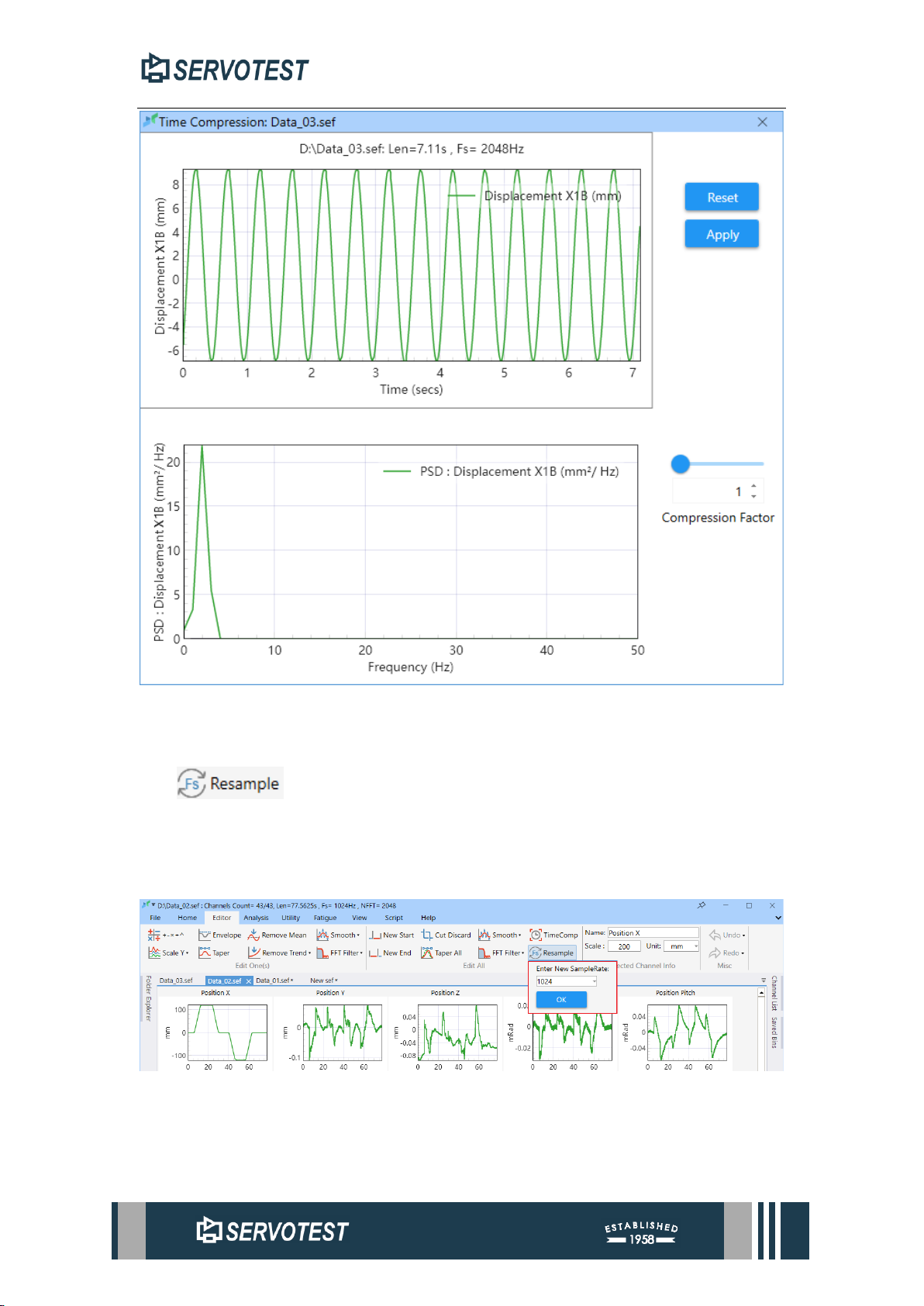
4.2.7 Time Comp
The time compression function is mainly used to compress the time length of
channel data. Click the Action button to open the Time Compression Edit window.
Input the compression factor, you can preview the PSD image before compression and
after compression in the chart on the left, click Apply for this operation.
Page 60
XDAP USER MANUAL
Figure 4-13 Time Compression
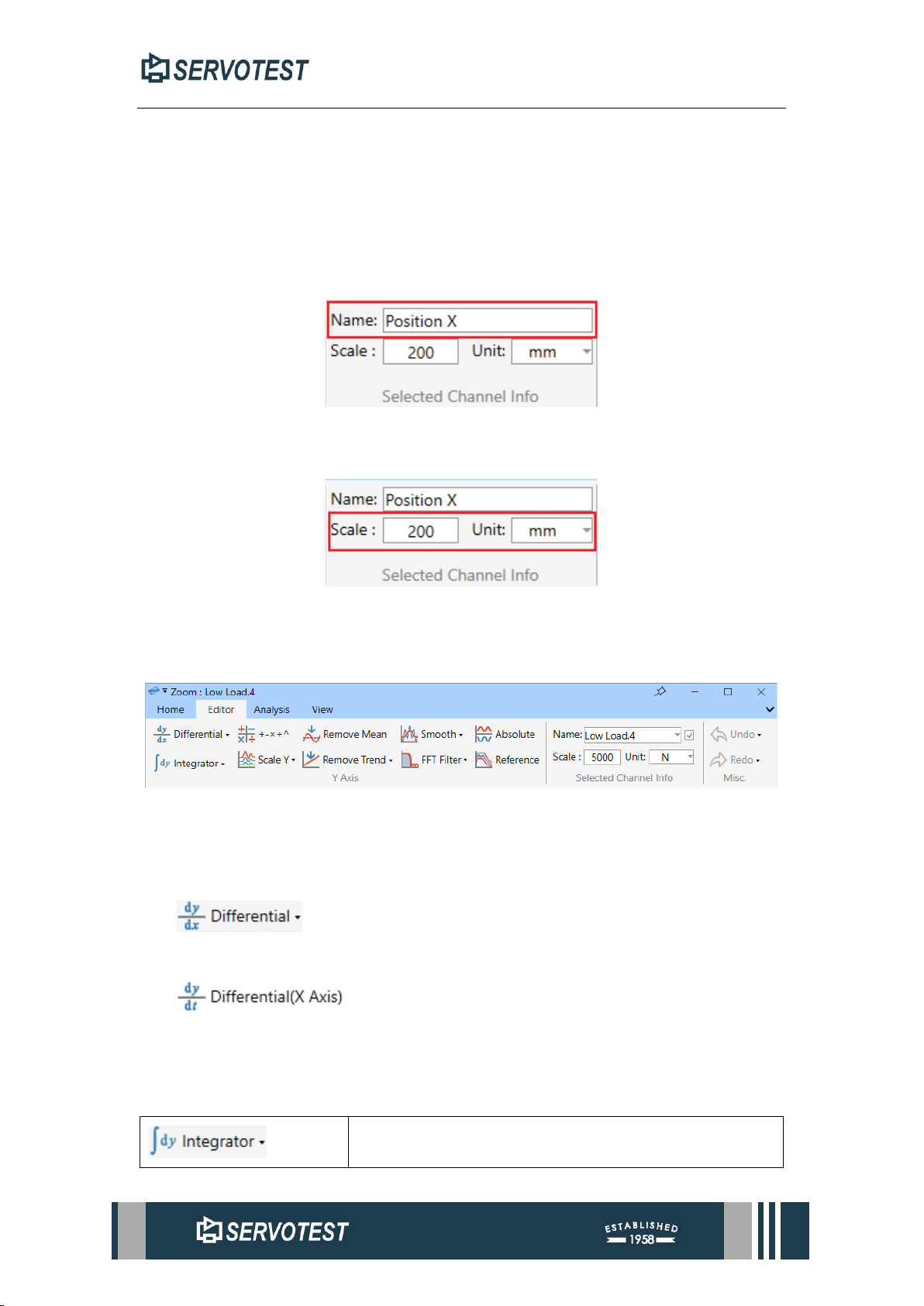
4.2.8 Resample
The resample function is used to convert the sampling rate of the signal. Click the
operation button, input or select the preview sampling rate, click OK to apply the
operation.
Figure 4-14 Resample
Page 61
XDAP USER MANUAL
4.3 Channel Information
The channel information is displayed in the main window and two seed windows,
and the functions are consistent.
4.3.1 Rename Channel
Select a channel, you can modify the name of the channel in the channel
information area and press the Enter key to apply the changes after modification.
Figure 4-15 Rename Channel
4.3.2 Range and Unit
Figure 4-16 Range and Unit
At the red box, the range and unit can be modified.
4.4 Time domain Sub-Window Editor Page
Figure 4-17 Time domain Sub-Window Editor Page
The operation target of this part is the channel opened in the current window.
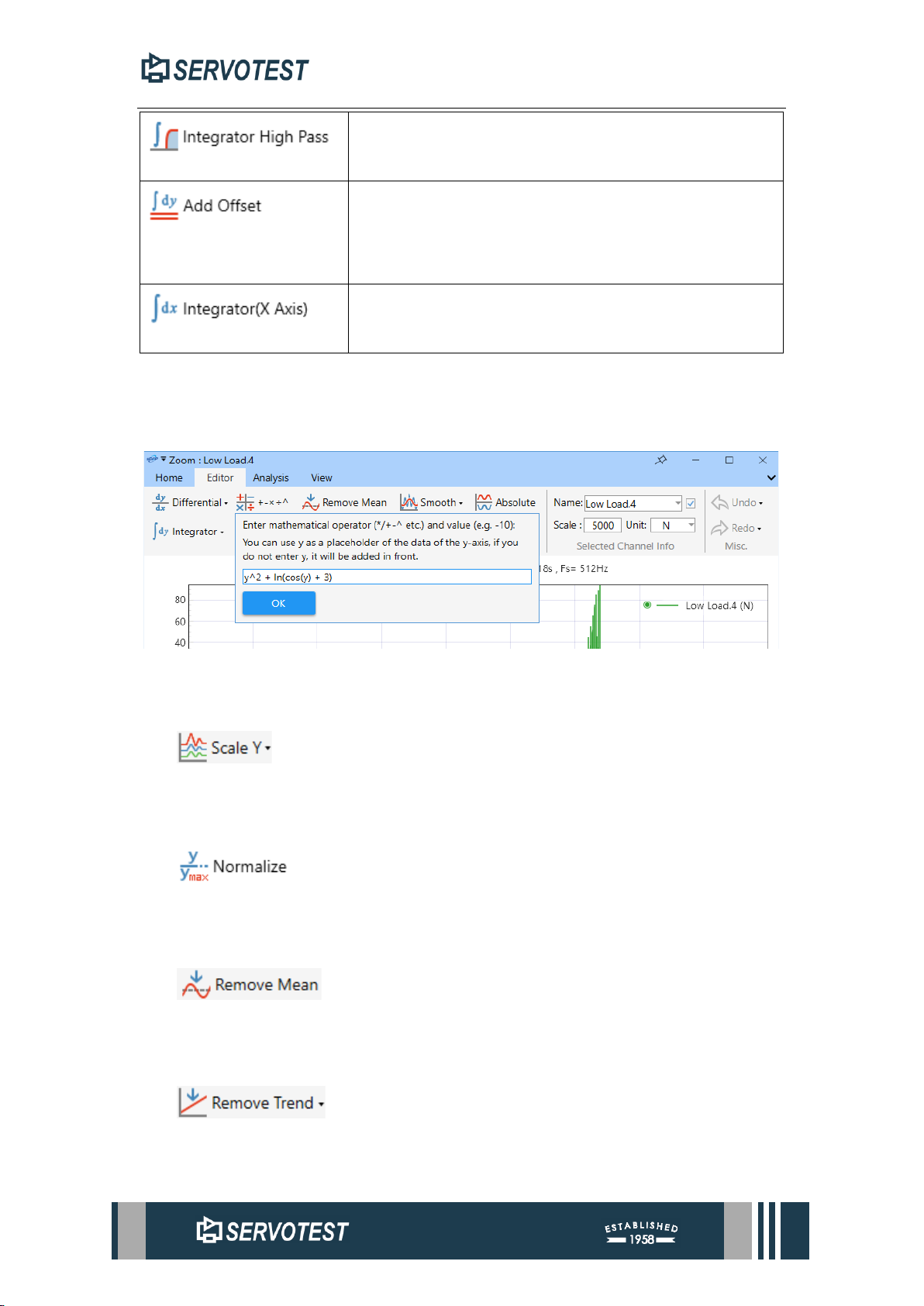
4.4.1 Differential
Calculates the differentiation of the data displayed by the current chart.
Calculates the differentiation of the X-axis data of the current chart.
4.4.2 Integrator
Table 4-2 Integrator button
Calculates the integral of the current chart data.
Page 62
XDAP USER MANUAL
Performs high-pass filtering on the data in the current
chart before calculating the integral.
Calculates the integral of the data displayed in the
current chart and adds an offset to the calculation result.
Calculates the integration of the X-axis data of the
current chart.
4.4.3 Computation
Please refer to Section 4.1.1 and Table 4-1
Figure 4-18 Computation
4.4.4 Scale Y
scales the data on the Y-axis according to the scale entered.
4.4.5 Normalize
normalizes Y-axis data.
4.4.6 Remove Mean
removes the mean of the signal data in the chart.
4.4.7 Remove Trend
removes the trend of the signal data in the chart, and the order to remove can be
selected in the drop-down menu.
Page 63
XDAP USER MANUAL
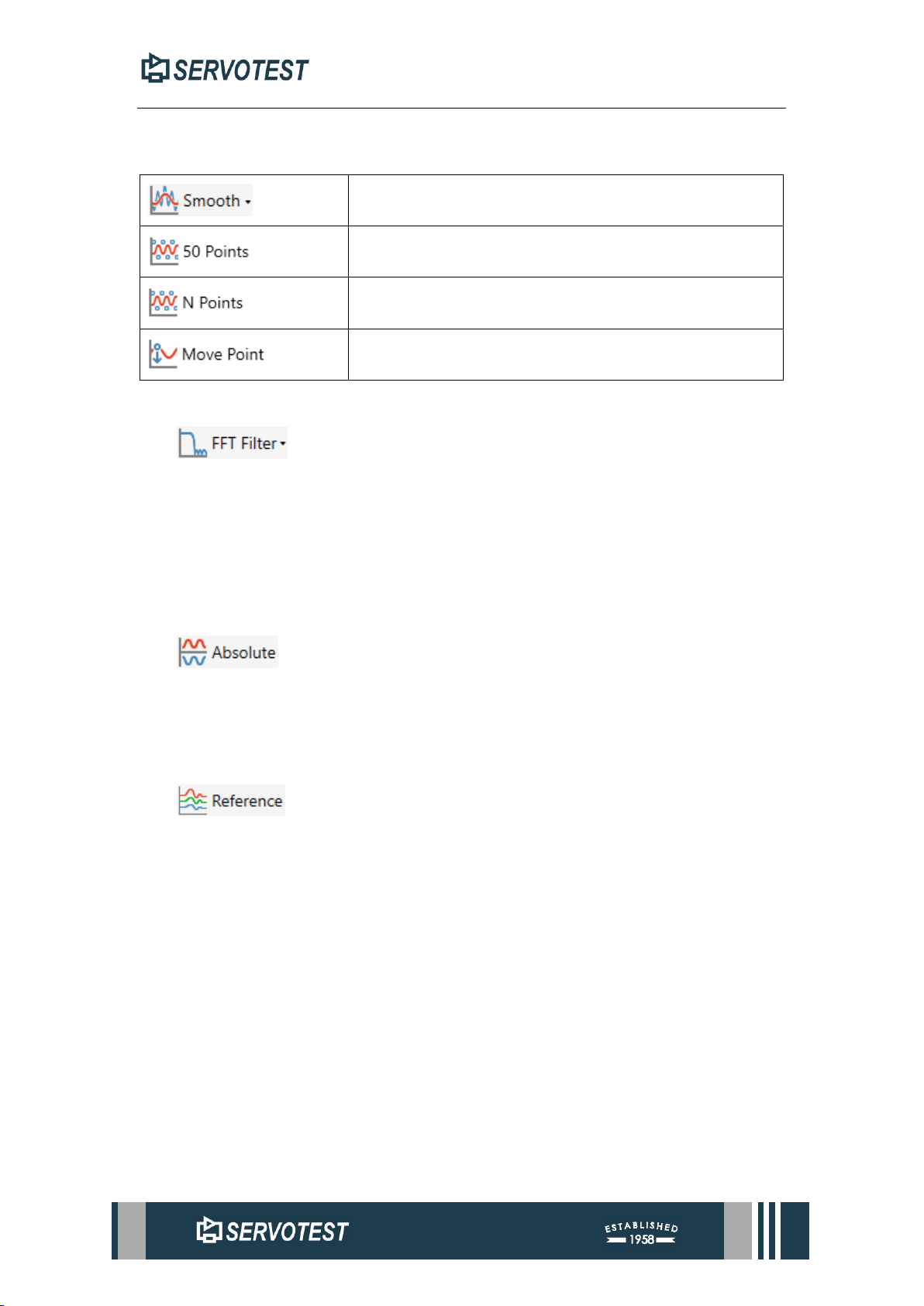
4.4.8 Smooth
Table 4-3 Smooth Button
smooths the signal data in the chart.
Smooth filtering is performed at 50 points.
Smooth filtering according to the input points.
Moves the data points on the currently selected line.
4.4.9 FFT Filter
This function performs FFT-based filtering on the data of the current channel,
usually to remove or attenuate noise or unwanted frequencies in the signal.
FFT filtering is divided into four categories: low-pass filtering, high-pass filtering,
band-pass filtering, and band-stop filtering.
4.4.10 Absolute
This function is used to calculate the absolute value of the Y-axis data in the
current chart.
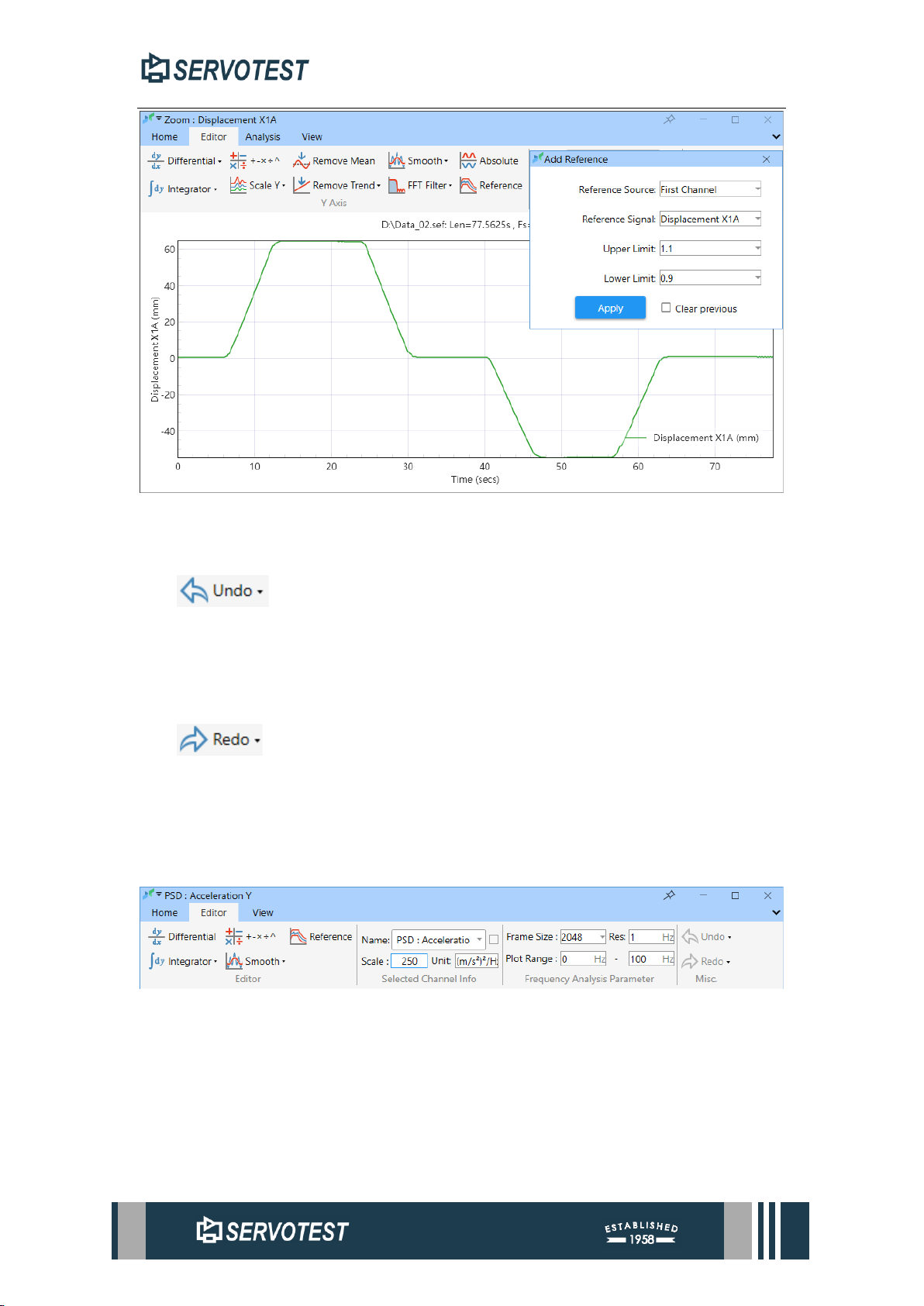
4.4.11 Reference
adds a reference line to the current chart.
Page 64
XDAP USER MANUAL
Figure 4-19 Add Reference
4.4.12 Undo
Undo an edit operation with up to ten steps. You can click the arrow in the lower
right corner to select the step you want to undo in the drop-down list.
4.4.13 Redo
Redoes the undone operation and can redo up to ten steps. You can click the
arrow in the lower right corner to select which step you want to redo in the dropdown list.
4.5 Frequency Domain Sub-Window Editor Page
Figure 4-20 Frequency Domain Sub-Window Editor Page
4.5.1 Differential
Please refer to Section 4.4.1
4.5.2 Integrator
Please refer to Section 4.4.2
Page 65
XDAP USER MANUAL
4.5.3 Computation
Please refer to Section 4.1.1 and Table 4-1
4.5.4 Smooth
Please refer to Section 4.4.8
4.5.5 Reference
Please refer to Section 4.4.11
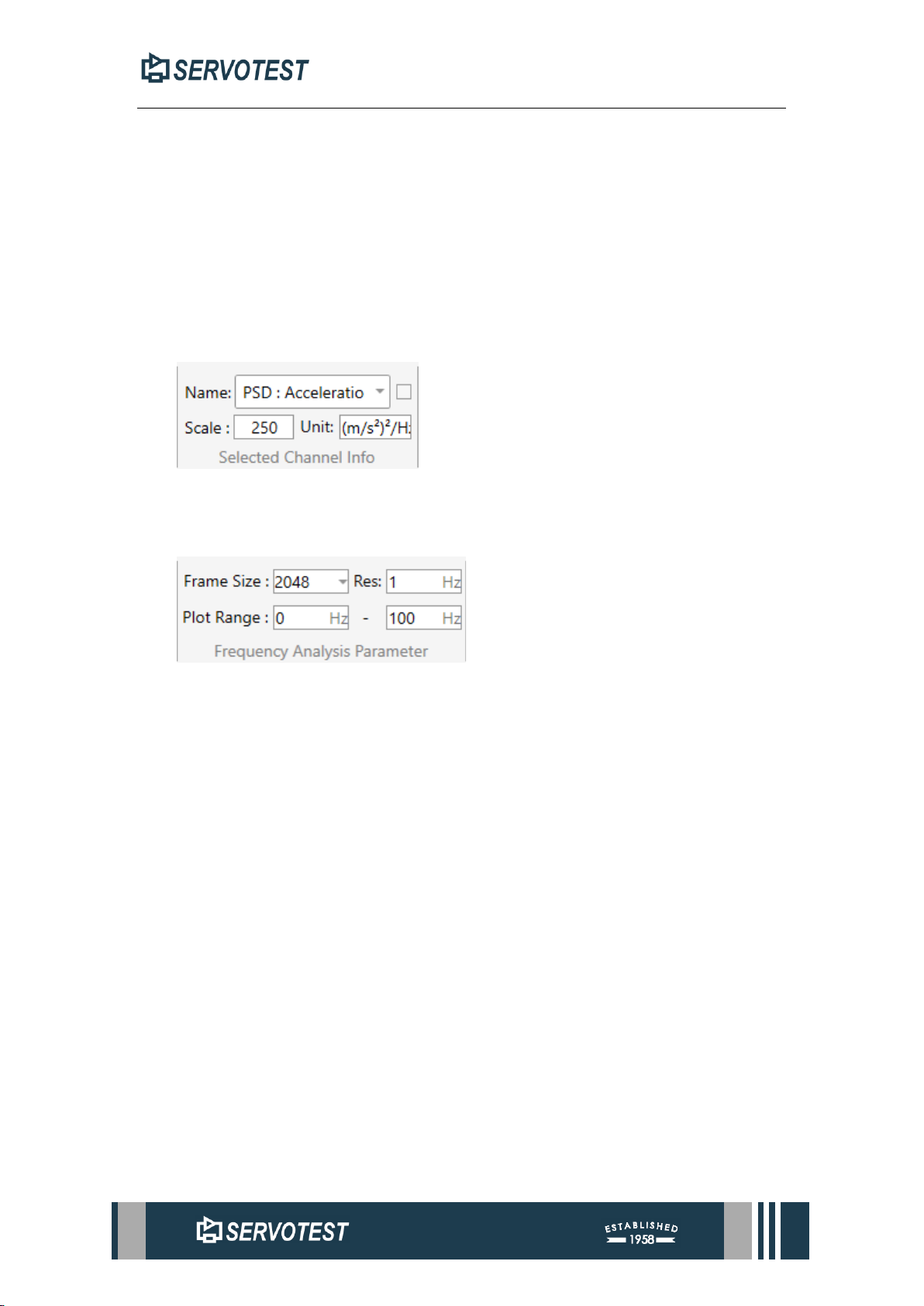
4.5.6 Selected Channel Information
The channel name, range and unit can be modified.
4.5.7 Frequency Analysis Parameter
This window can modify and display the frame size, RES and drawing frequency
range.
4.5.8 Undo
Please refer to Section 4.4.12
4.5.9 Redo
Please refer to Section 4.4.13
Page 66
XDAP USER MANUAL
5 Analysis Menu
5.1 Main Window analysis Page Time Domain Part
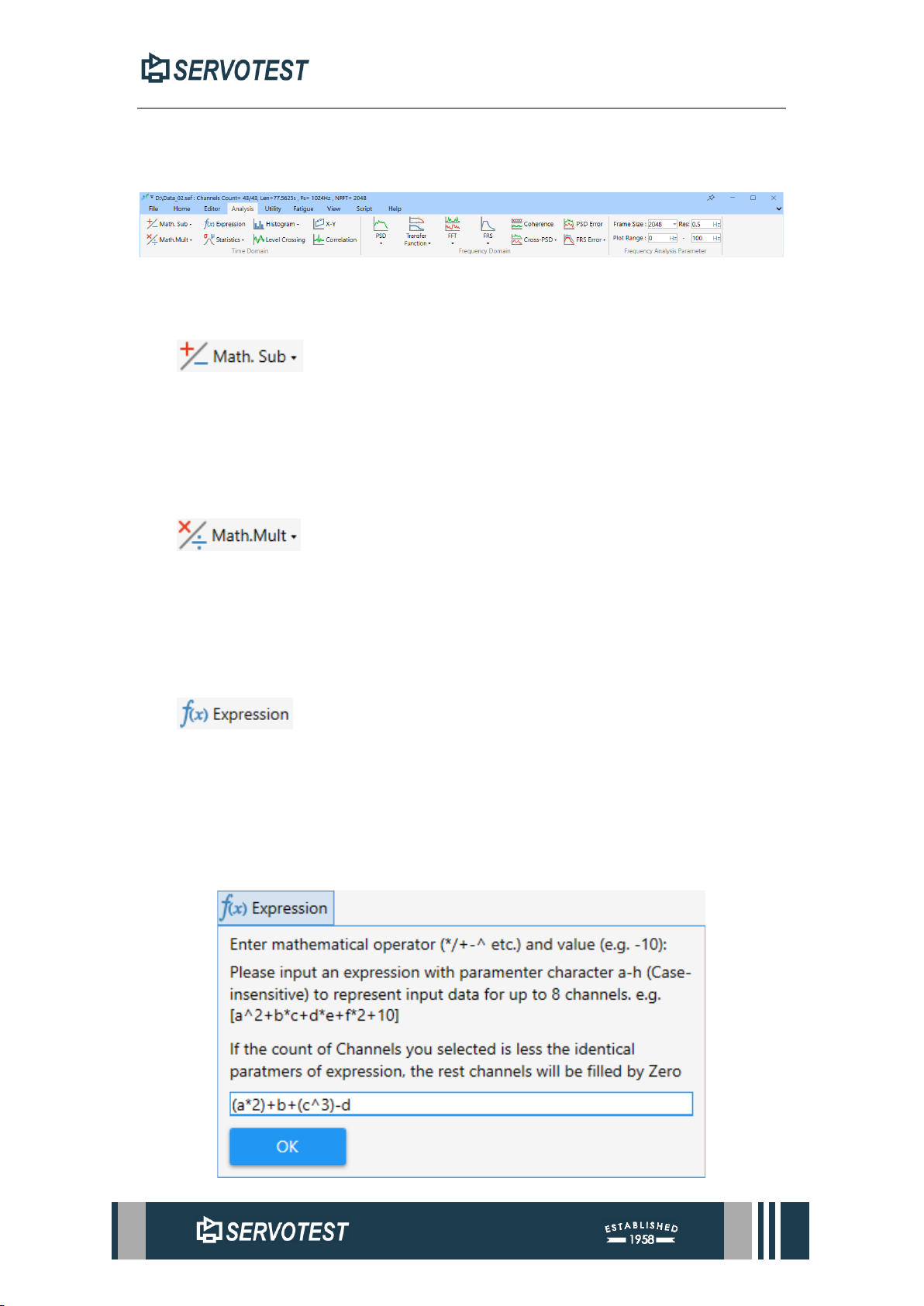
Figure 5-1 Main Window analysis Page
5.1.1 Math. Sub
This function is used to add or subtract data from two sets of channels. When
performing a subtraction operation, the data of the first set of channels is used as the
subtraction, and the data of the second set of channels is used as the subtraction.
5.1.2 Math. Mult
Multiply and divide is used to multiply or divide data from two sets of channels.
When performing a division operation, the data of the first set of channels is used as
the divisor, and the remaining data of the second set is used as the divisor.
5.1.3 Computation
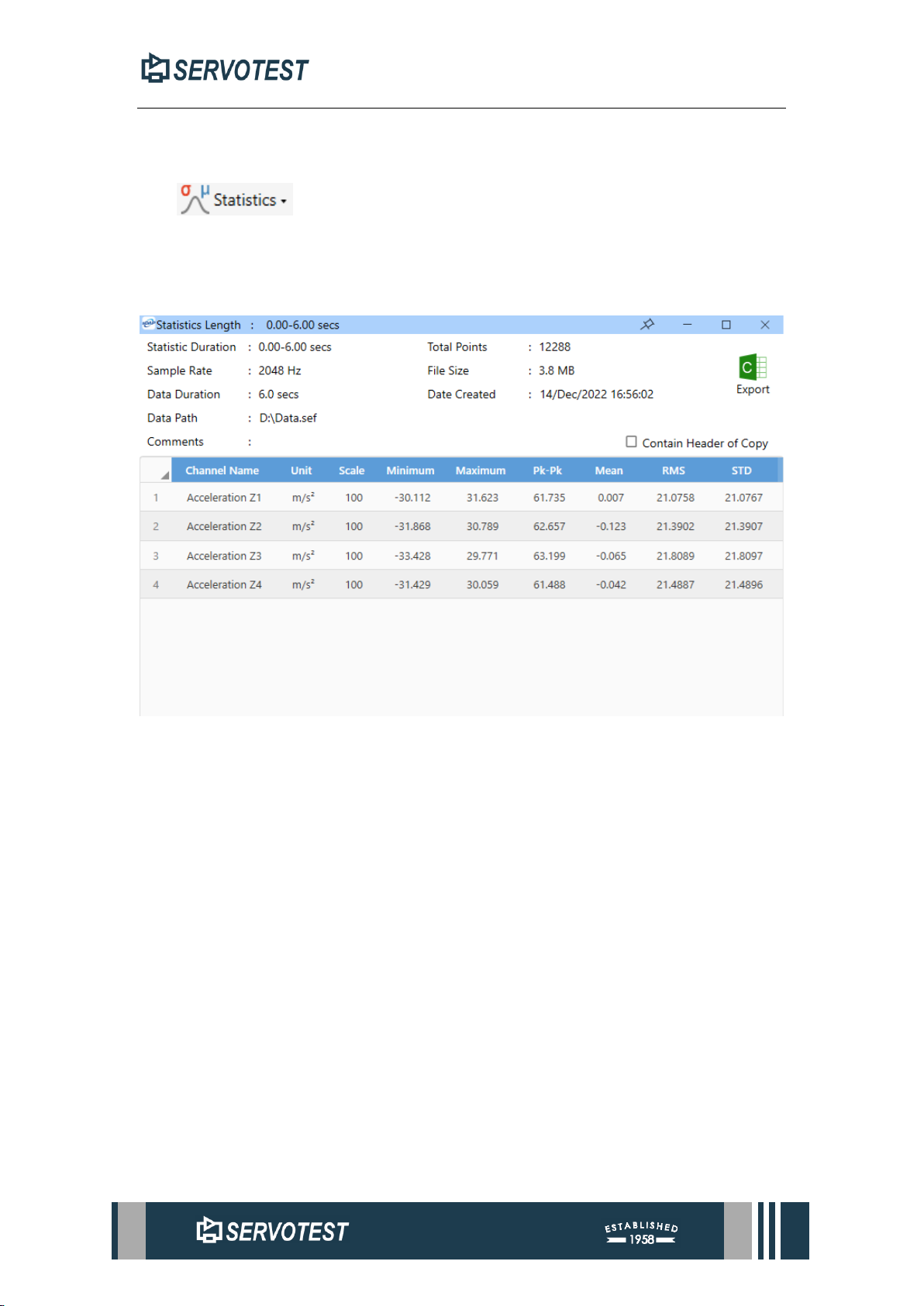
This part of the math supports up to 8 channels. Use a, b, c to h as labels for the 8
channels in the process of editing the formula. Then select the corresponding number
of channels to complete the operation. Subsequent markers are either padded with 0 if
fewer channels are selected than markers used.
For available operators, please refer to Section 4.1.1 and Table 4-1.
Page 67
XDAP USER MANUAL
Figure 5-2 Computation
5.1.4 Statistics
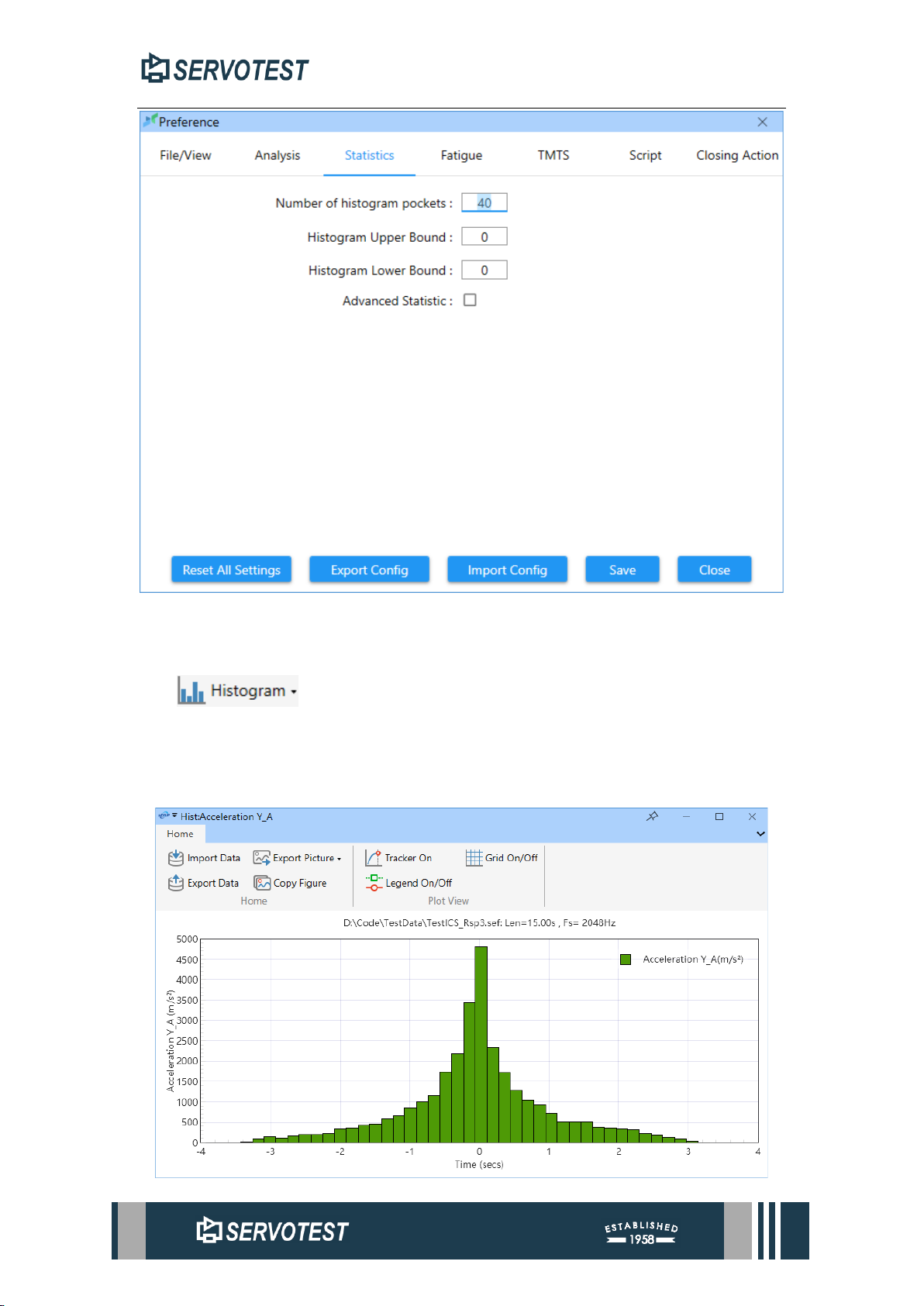
This function is used to count the maximum, minimum, peak-to-peak, average,
skewness, steepness, root mean square, standard deviation, etc. of the selected channel
or all channels.
Figure 5-3 5.1.4 Statistics
The statistical settings are as shown in the figure below.
Page 68
XDAP USER MANUAL
Figure 5-4 statistics settings
5.1.5 Histogram
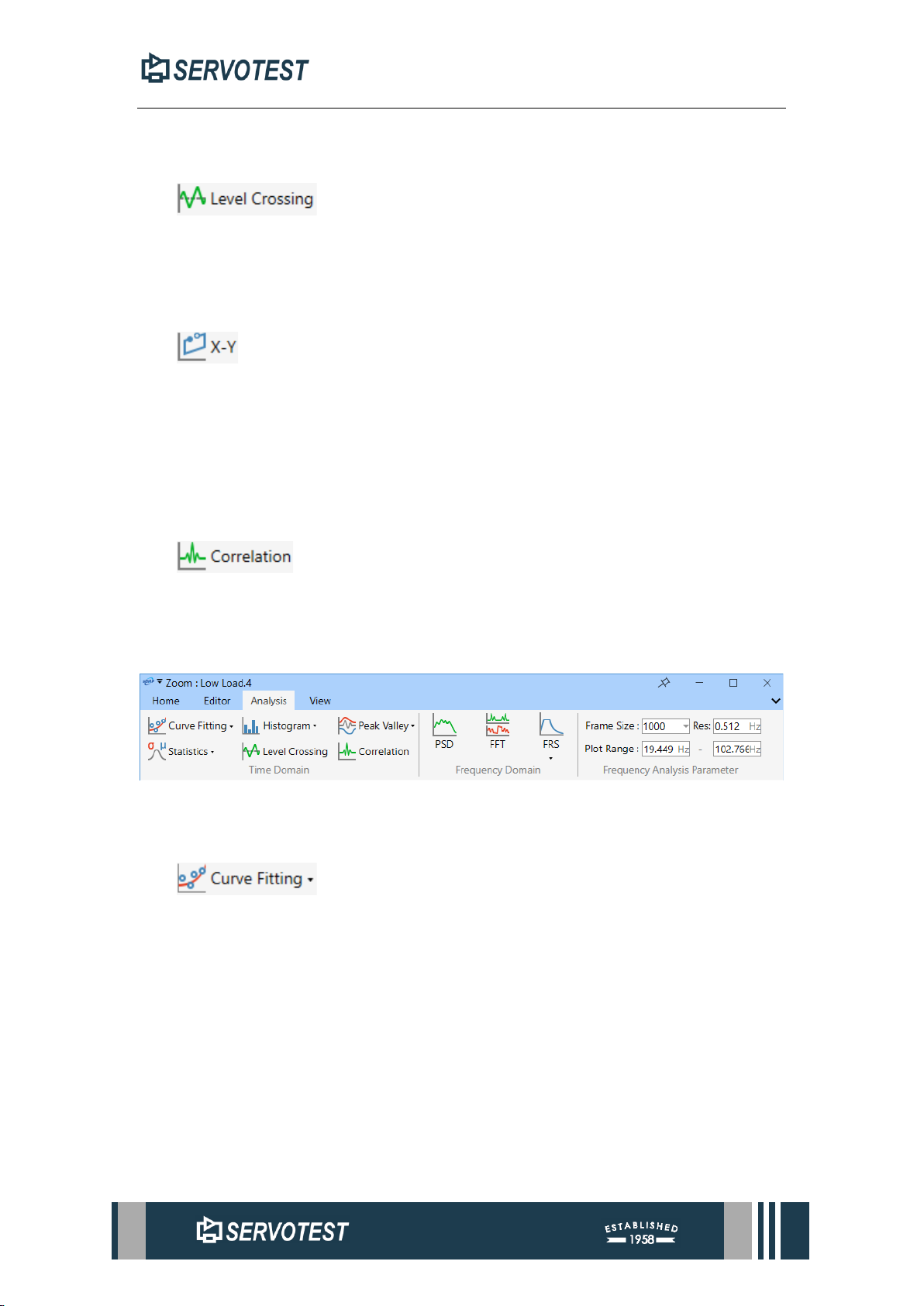
This function is used to count the frequency of the occurrence of signals in each
interval. Click the Histogram button in the Analysis menu to select the channels you
want to count.
Page 69
XDAP USER MANUAL
Figure 5-5 Histogram
5.1.6 Level Crossing
This function is used to calculate the count of continuous loading time history.
Click Level Crossing in the Analysis menu and select the channel to be calculated.
5.1.7 X-Y
This function shows the correlation between two sets of signals as an xy curve.
Click the X-Y button in the Analysis menu to select two sets of signals, the first set of
signals will be used as the Y-axis of the graph, and the second set of signals will be
used as the X-axis of the graph.
5.1.8 Correlation
This function is used to calculate the similarity of two sets of time-correlated
signals. Click the Correlation button in the Analysis menu to select two sets of channels.
5.2 Time Domain Sub-Window Analysis Page
Figure 5-6 Time Domain Sub-Window Analysis Page
5.2.1 Curve Fitting
Curves the data in the current chart. You can select the order of fit in the drop-
down menu or enter the order of fit.
5.2.2 Statistics
Please refer to Section 5.1.4
5.2.3 Histogram
Please refer to Section 5.1.5
5.2.4 Level Crossing
Please refer to Section 5.1.6
Page 70
XDAP USER MANUAL
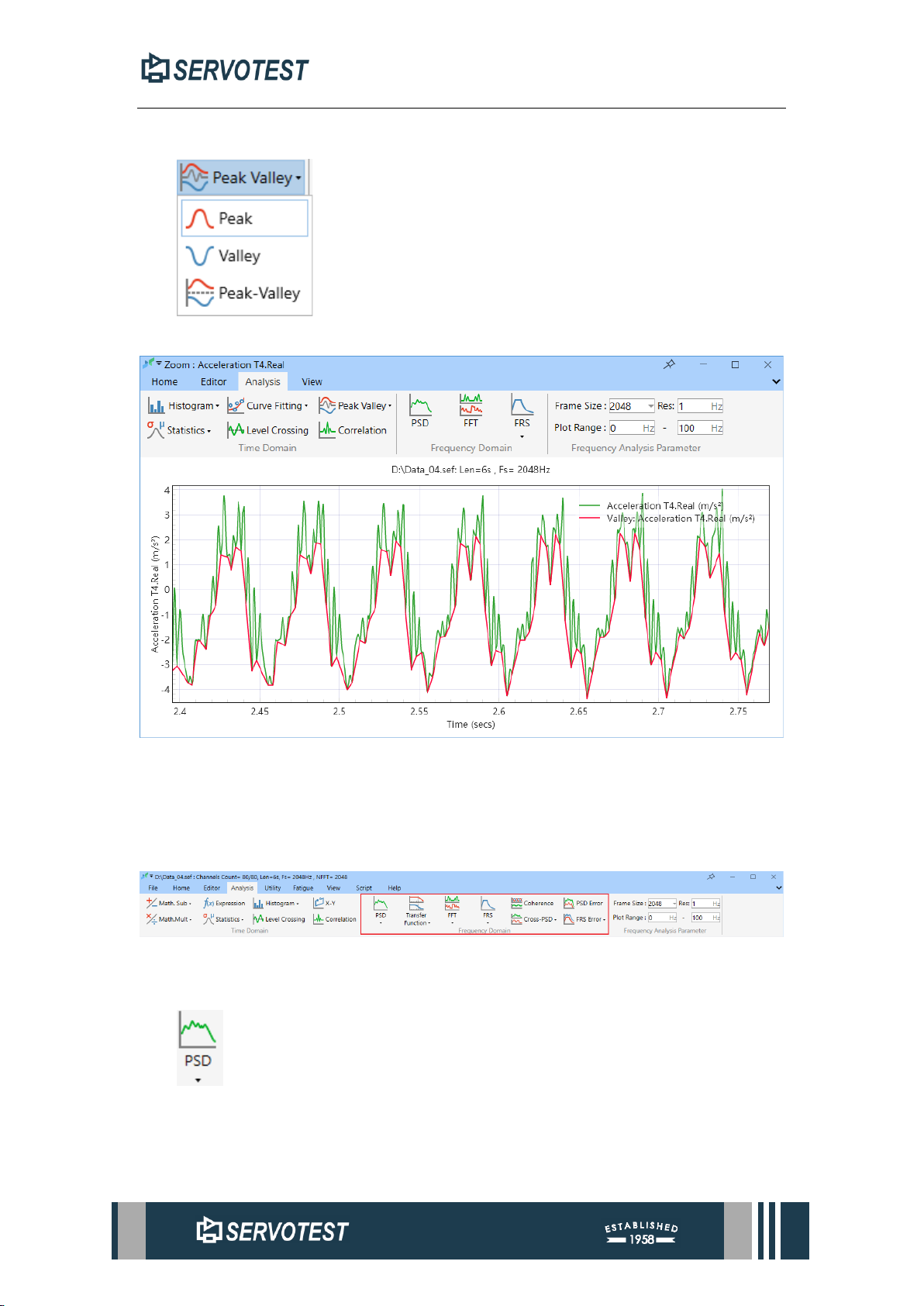
5.2.5 Peak Valley
shows the peak or valley value of the data in the current chart.
Figure 5-7 Peak Valley: Valley
5.2.6 Correlation
Please refer to Section 5.1.8
5.3 Frequency Domain Window Analysis Page
Figure 5-8 Frequency Domain Window Analysis Page
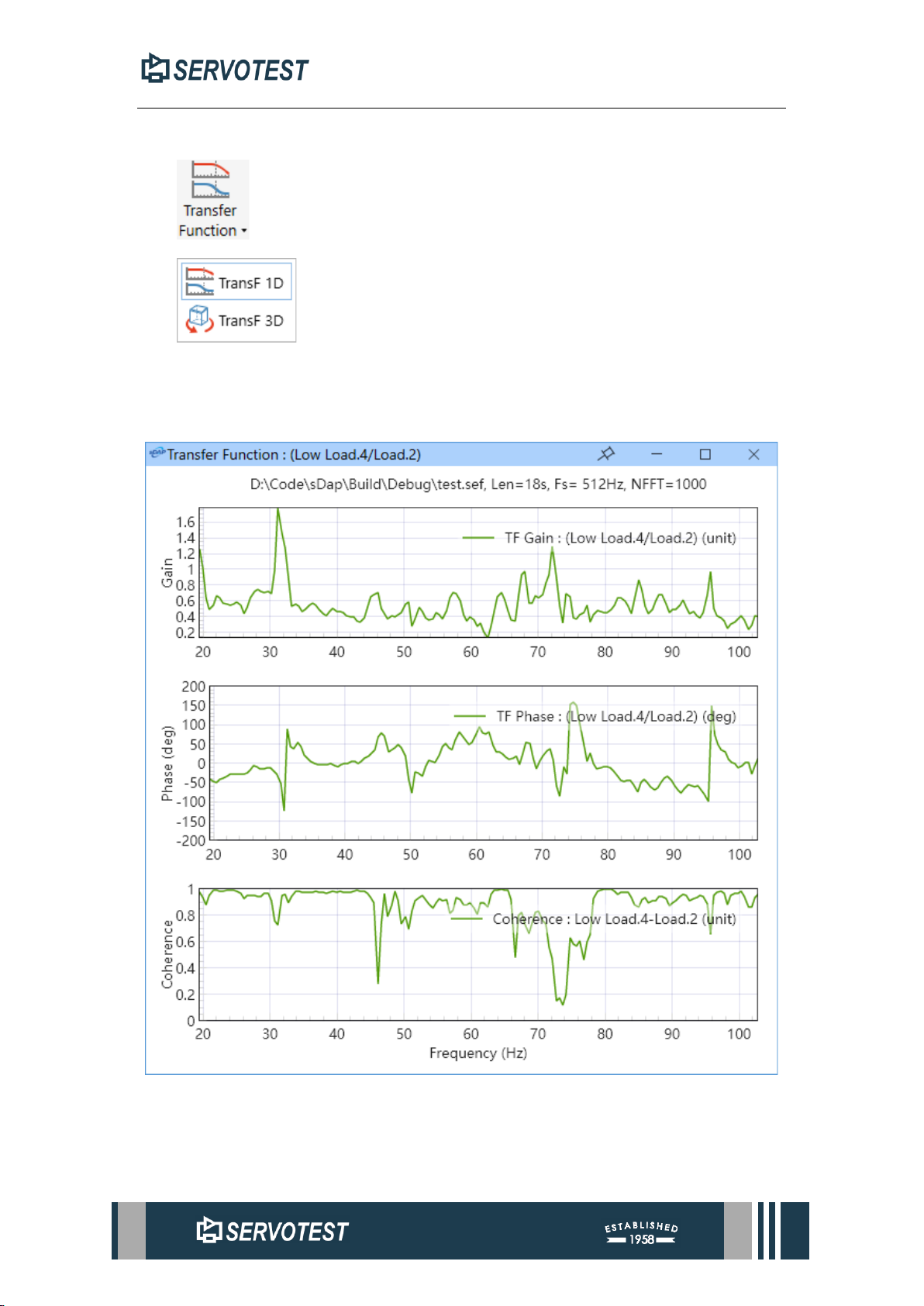
5.3.1 PSD
This function is used to measure the power of the signal vs. frequency. Click the
PSD button in the Analysis menu to select the channel you want to analyze.
Page 71
XDAP USER MANUAL
5.3.2 Transfer Function
These functions used to calculate the relationship between the output signal and
the input signal. Click the Transfer Function button of the Analysis menu to select two
sets of channels.
Figure 5-9 Transfer Function
Page 72
XDAP USER MANUAL
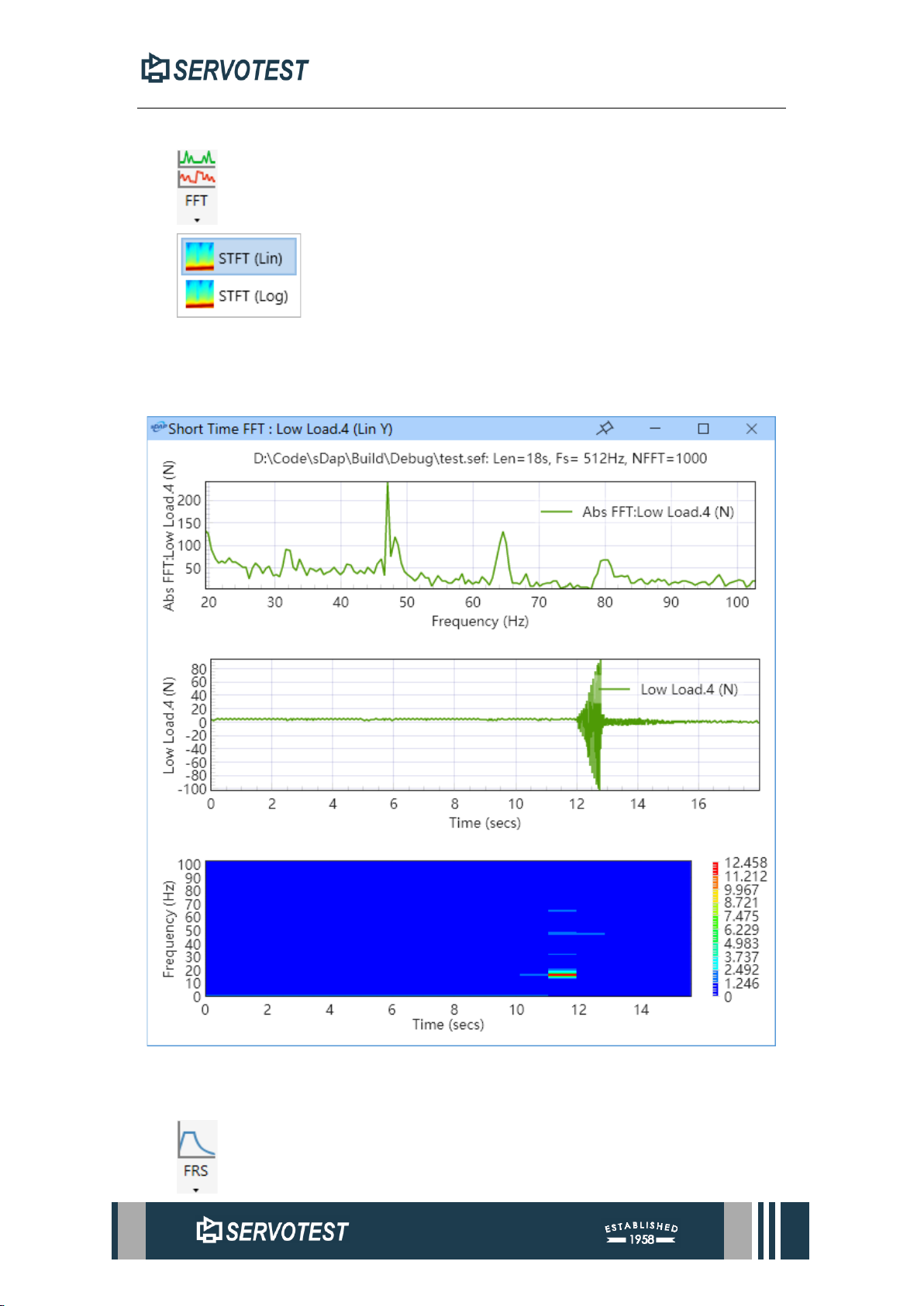
5.3.3 FFT
This function is used to convert a time domain signal to a frequency domain signal.
Click the FFT button of the Analysis menu to select the channel to which you want to
apply the feature.
Figure 5-10 Shot Time FFT
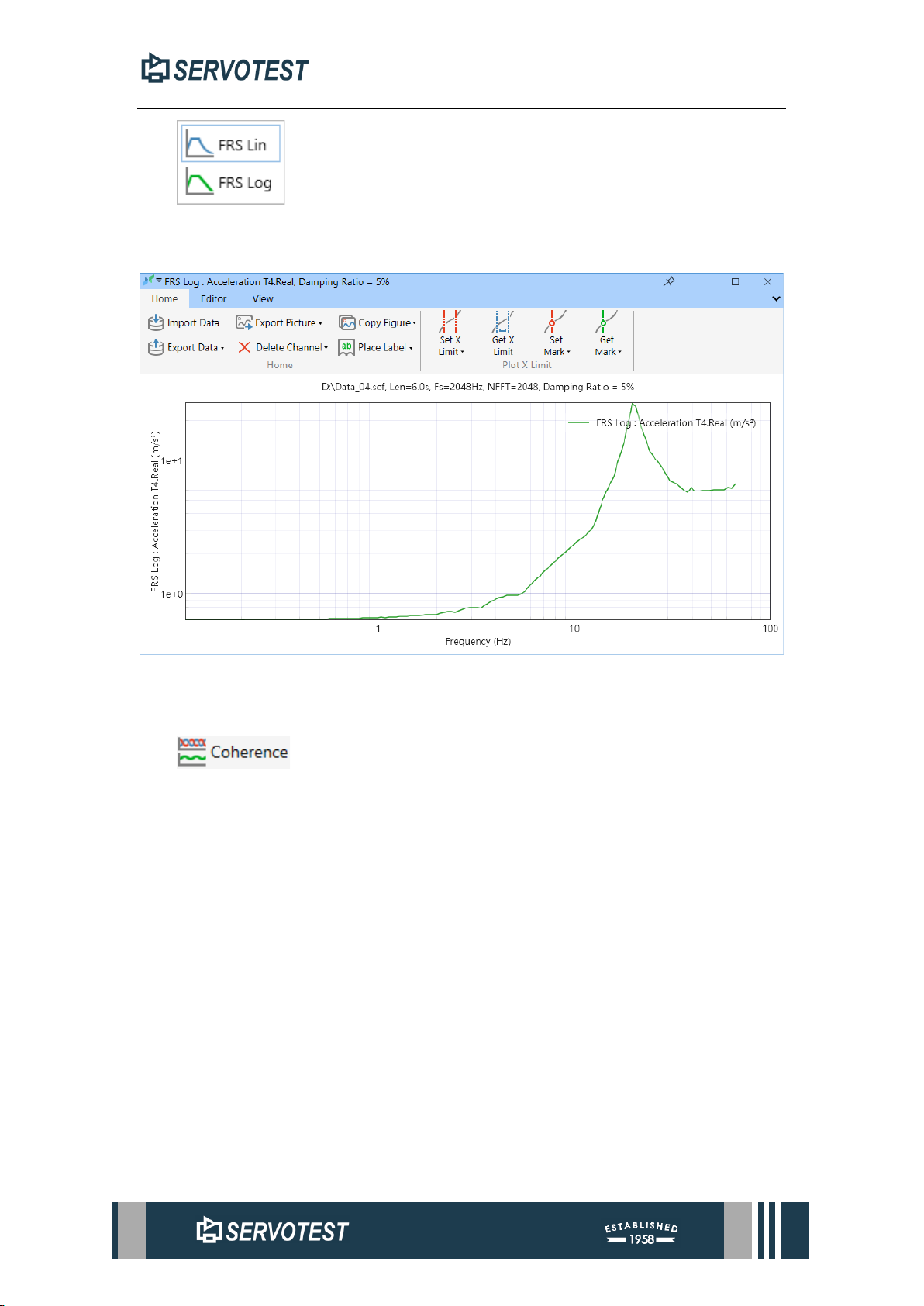
5.3.4 FRS
Page 73
XDAP USER MANUAL
The function target is a single channel, analyze the target response spectrum and
open the result, as shown in the figure below.
Figure 5-11 FRS Result
5.3.5 Coherence
This function is used to calculate the degree of linear dependence between two-
time signals and frequencies. Click the Coherence button in the Analysis menu to select
two sets of channels.
Page 74
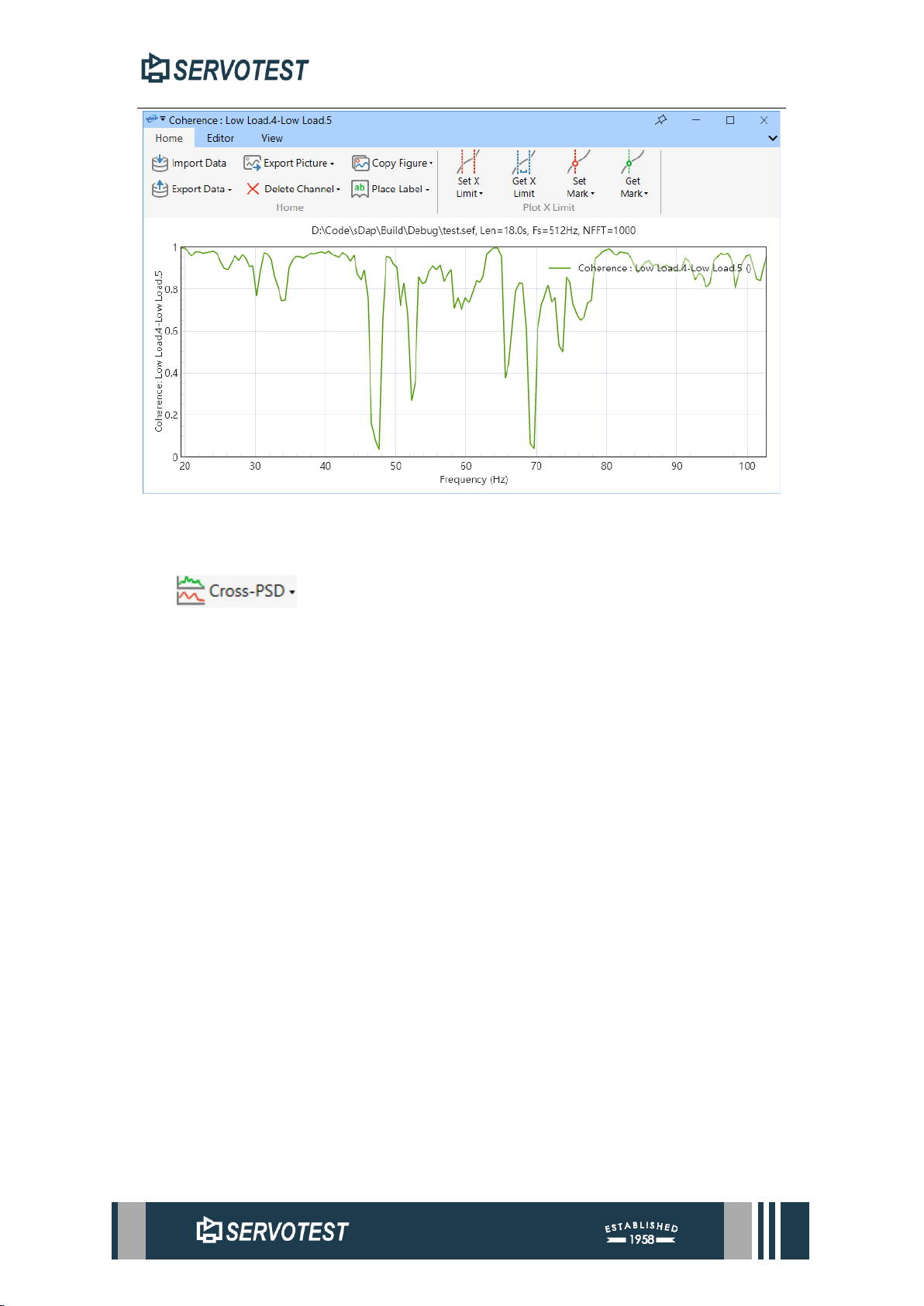
XDAP USER MANUAL
Figure 5-12 Coherence
5.3.6 Cross-PSD
This function is used to compare the power spectra of two sets of signals. Click
the Cross-PSD button in the Analysis menu to select two sets of channels.
Page 75
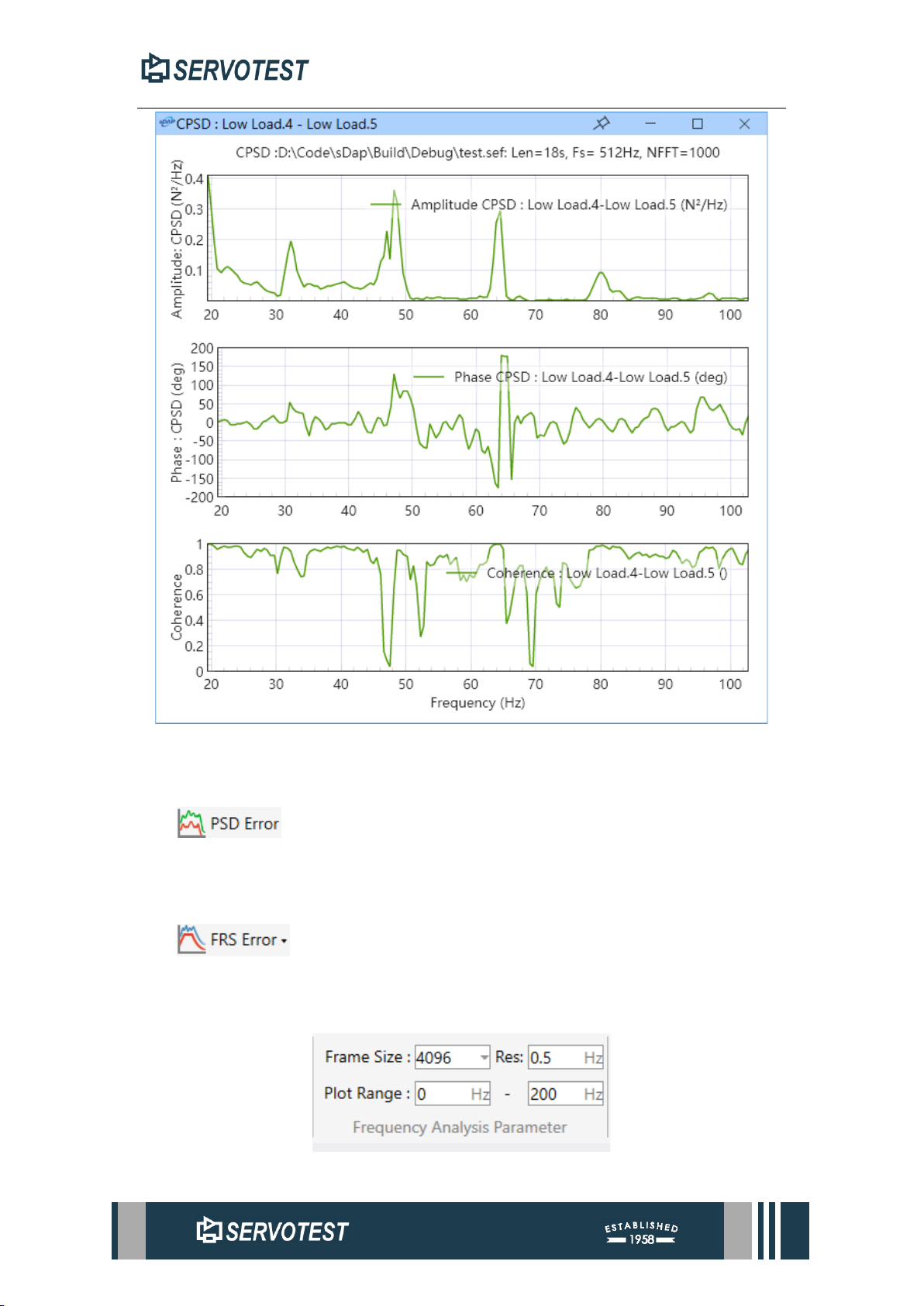
XDAP USER MANUAL
Figure 5-13 Cross-PSD
5.3.7 PSD Error
This function is used to estimate the power spectral density error.
5.3.8 FRS Error
This function is used to estimate the frequency response spectrum error.
5.3.9 Frequency Analysis Parameter
Figure 5-14 Frequency Analysis Parameter
Page 76
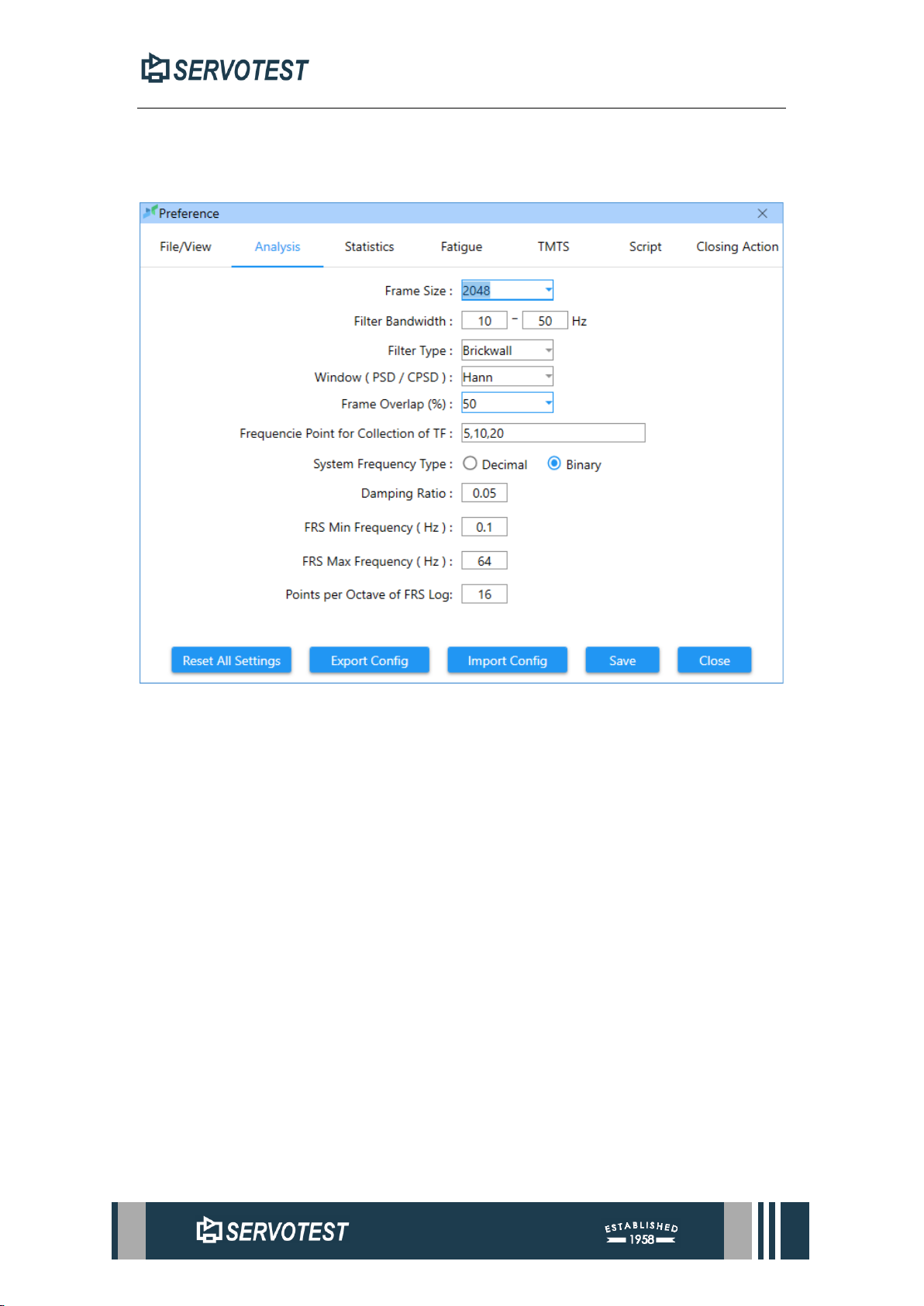
XDAP USER MANUAL
This function is used to adjust the settings of frequency analysis parameters,
including frame size, drawing range, etc.
5.4 Analysis Module Settings
Figure 5-15 Analysis Module Settings
Page 77
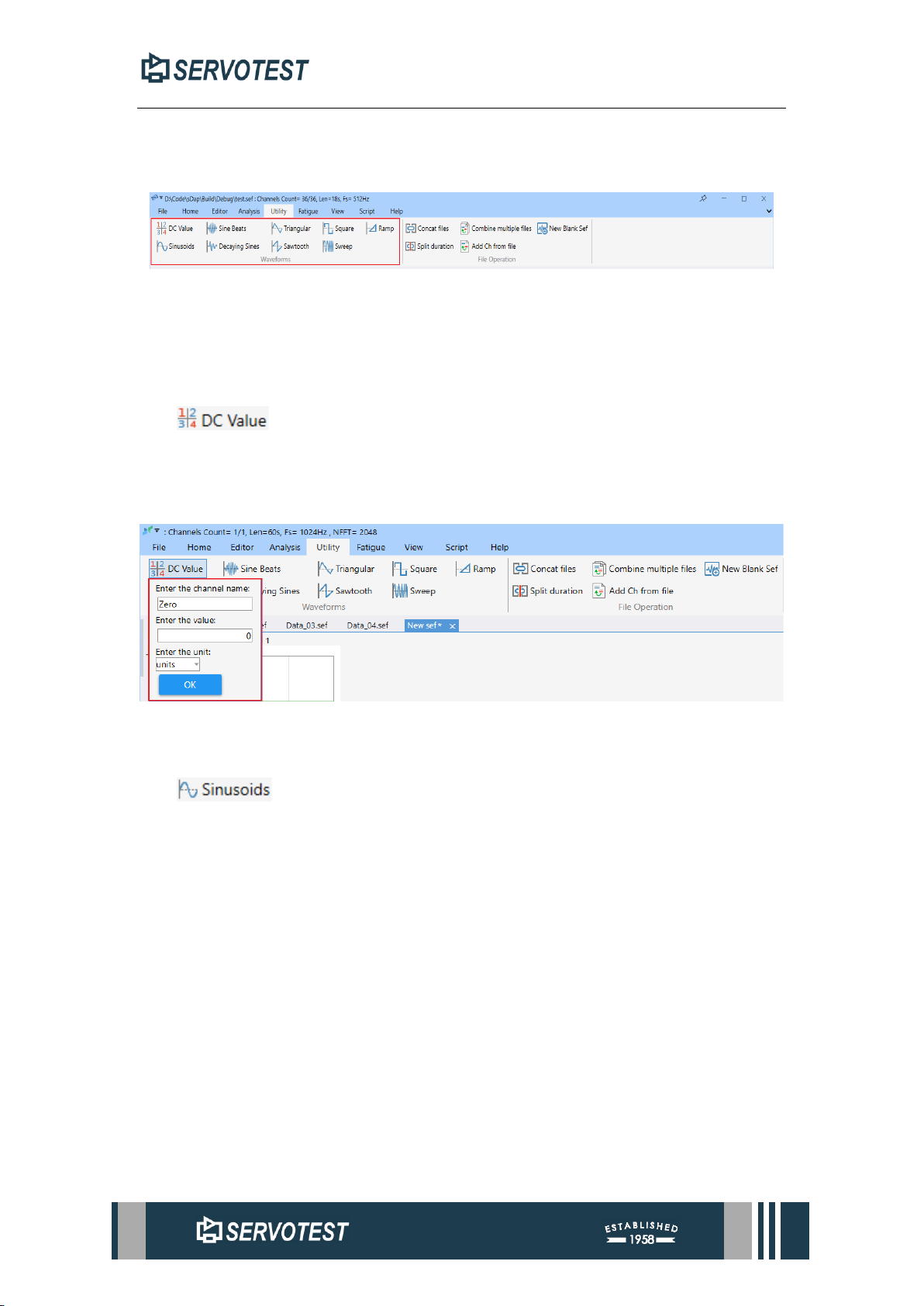
XDAP USER MANUAL
6 Utility Menu
6.1 Waveforms
Figure 6-1 Waveform tools
This part is used to make various required waveforms, and the software provides
9 kinds of waveforms and splicing functions.
6.1.1 DC Value
This function is used to generate constant value signal data. Click the DC Value
button of the Utility menu, enter the channel name, value, and unit, and click the OK
button.
Figure 6-2 DC Value
6.1.2 Sinusoids
This function is used to generate a sine wave. Click the Sinusoids button in the
Utility menu to open the waveform parameter setting window. After setting the
parameters, click the Preview button to preview the waveform, click the Add to Sef
button to add the waveform to the file, click the Save Config button to save the set
parameters locally, and click Load Config to load the saved parameters.
The frequency, amplitude, number of cycles, delay time before and after and total
number of times of the waveform can be adjusted.
Page 78
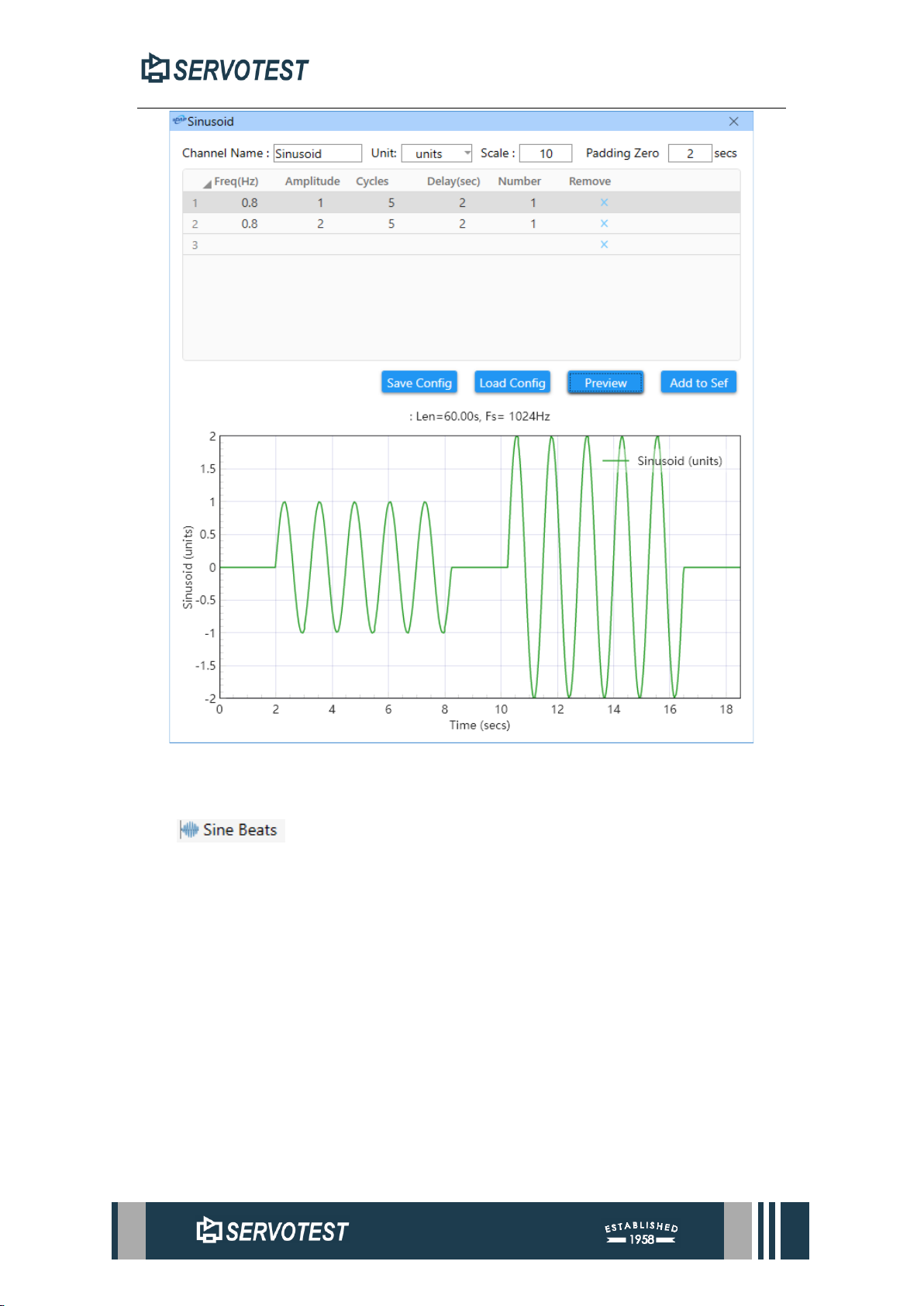
XDAP USER MANUAL
Figure 6-3 Sinusoids
6.1.3 Sine Beats
This function is used to generate a sine beat. Click the Sine Beats button in the
Utility menu to open the waveform parameter setting window. After setting the
parameters, click the Preview button to preview the waveform, and click the Add to Sef
button to add the waveform to the file.
The frequency, amplitude, number of cycles, delay time before and after and total
number of times of the waveform can be adjusted.
Page 79
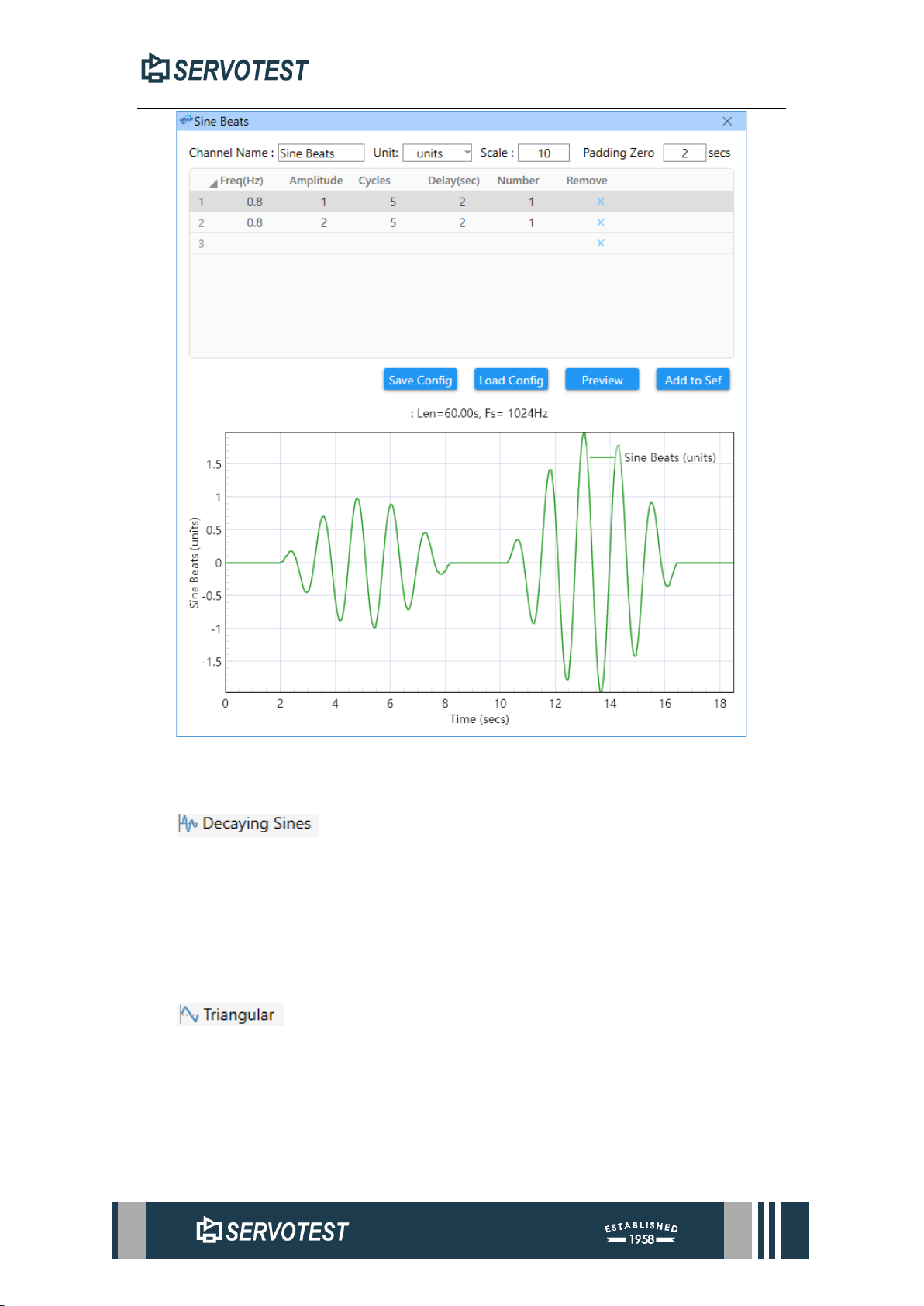
XDAP USER MANUAL
Figure 6-4 Sine Beats
6.1.4 Decaying Sines
This function is used to generate decay sine waves. Click the Decaying Sines
button of the Utility menu to open the waveform parameter settings window. After
setting the parameters, click the Preview button to preview the waveform, and click the
Add to Sef button to add the waveform to the file. Operation is similar to other functions.
6.1.5 Triangular
This function is used to generate a triangular waveform. Click the Triangular
button in the Utility menu to open the waveform parameter setting window. After
setting the parameters, click the Preview button to preview the waveform, and click the
Add to Sef button to add the waveform to the file. Operation is similar to other functions.
Page 80
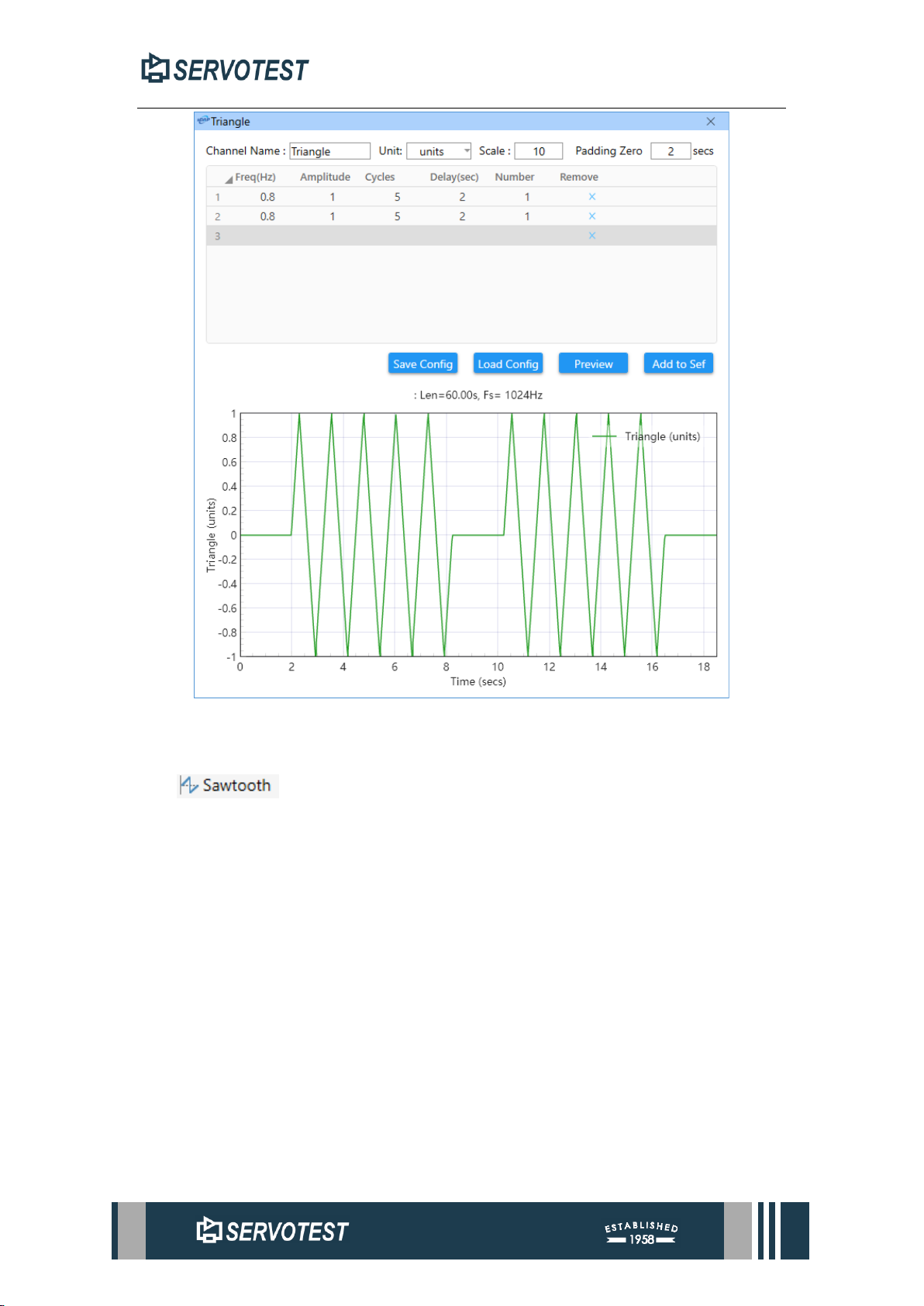
XDAP USER MANUAL
Figure 6-5 Triangular
6.1.6 Sawtooth
This function is used to generate a sawtooth waveform. Click the Sawtooth button
in the Utility menu to open the waveform parameter setting window. After setting the
parameters, click the Preview button to preview the waveform, and click the Add to Sef
button to add the waveform to the file.
Operation is similar to other functions.
Page 81
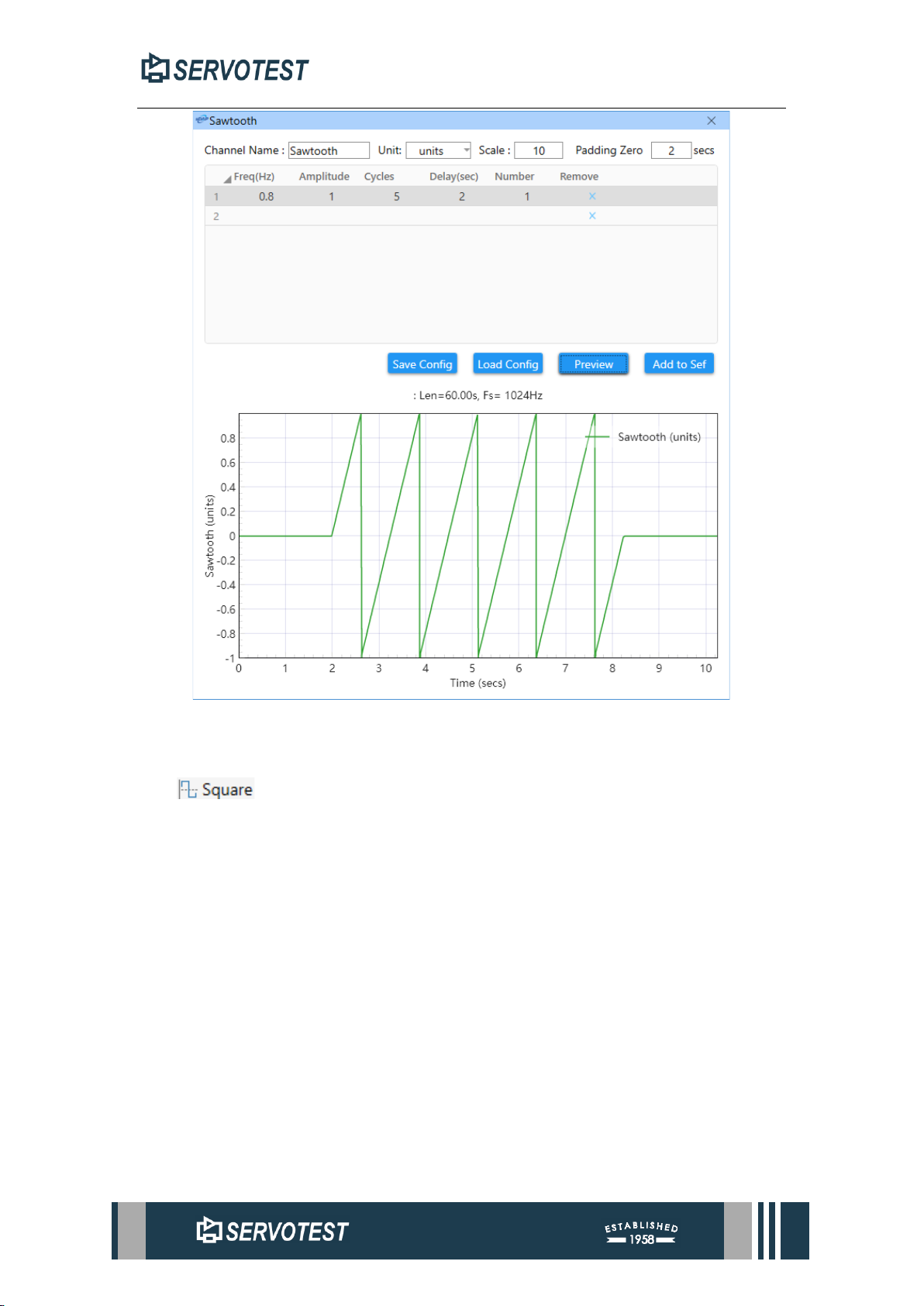
XDAP USER MANUAL
Figure 6-6 Sawtooth
6.1.7 Square
This function is used to generate a square wave. Click the Square button in the
Utility menu to open the waveform parameter setting window. After setting the
parameters, click the Preview button to preview the waveform, and click the Add to Sef
button to add the waveform to the file.
Operation is similar to other functions.
Page 82
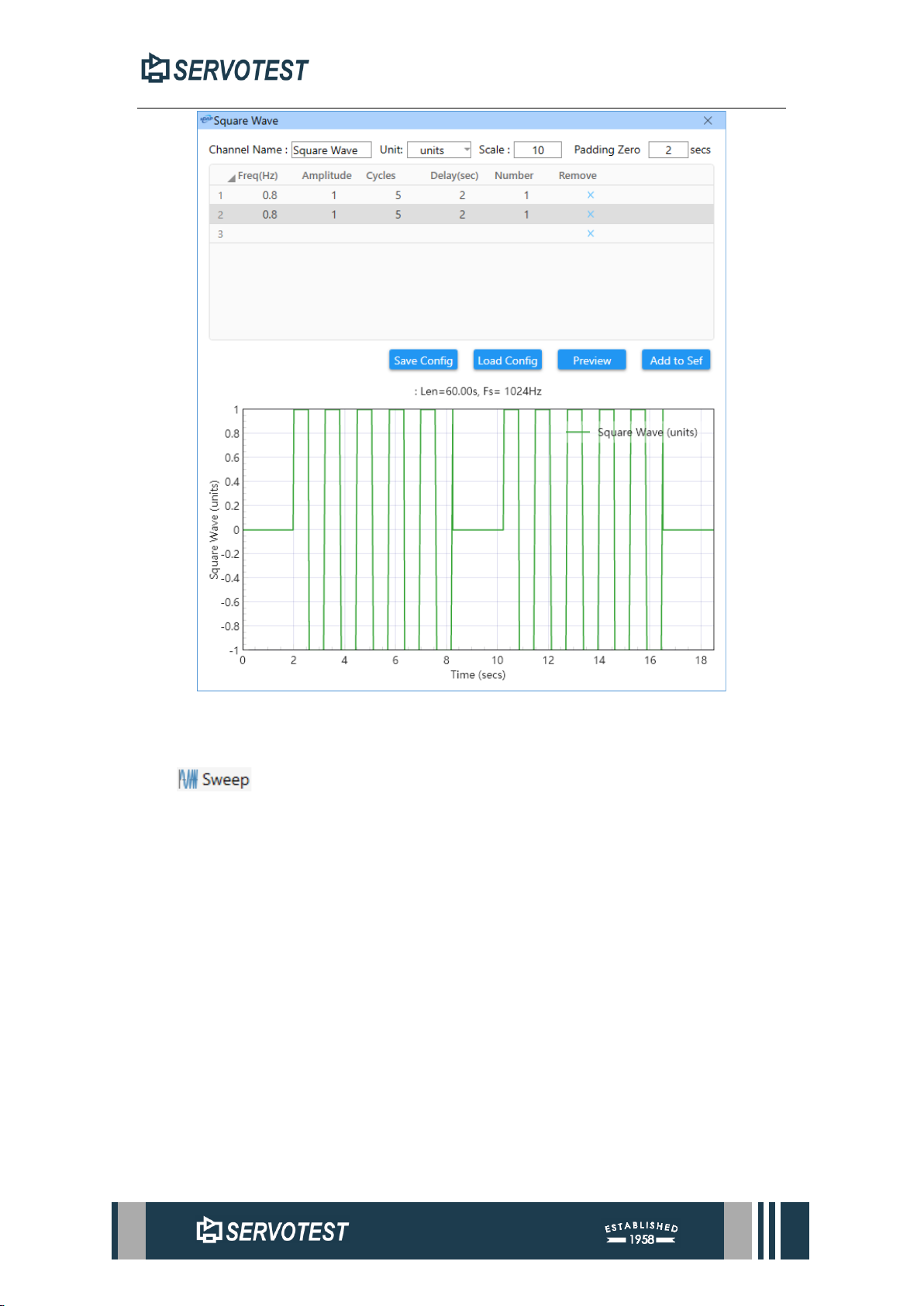
XDAP USER MANUAL
Figure 6-7 Square
6.1.8 Sweep
This function is used to generate a sinusoidal waveform. Click the Sweep button
in the Utility menu to open the parameter setting window. After setting the parameters,
click the Preview button to preview the waveform, and click the Add to Sef button to
add the waveform to the file.
Page 83
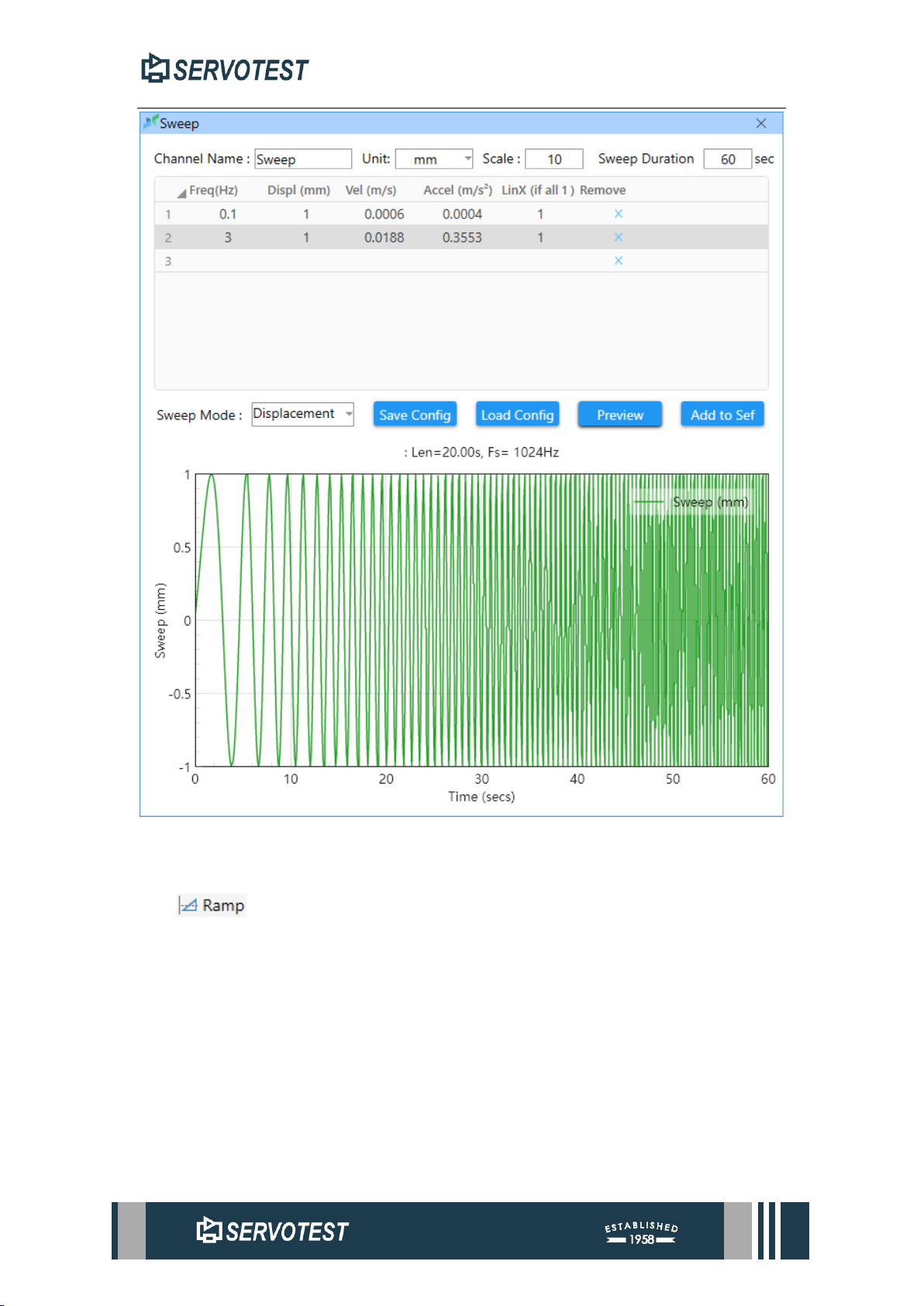
XDAP USER MANUAL
Figure 6-8 Sweep
6.1.9 Ramp
This function is used to generate ramp waveform. Click the Ramp button in the
Utility menu to open the waveform parameter setting window. After setting the
parameters, click the Preview button to preview the waveform, and click the Add to Sef
button to add the waveform to the file.
Page 84
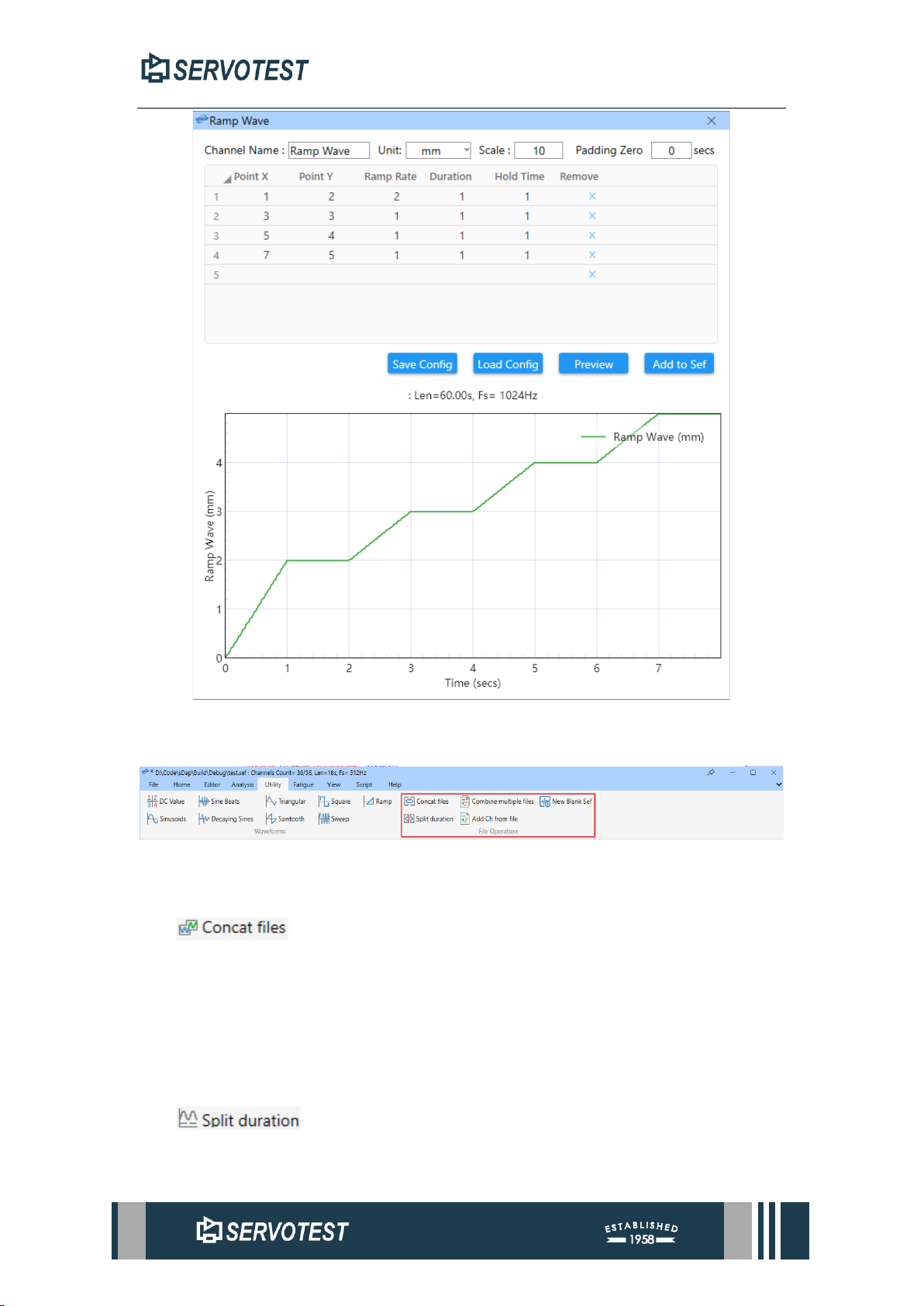
XDAP USER MANUAL
Figure 6-9 Ramp
6.2 File Operation
Figure 6-10 File Operation
6.2.1 Concatenate files
This function connects the channel in the selected wave file with the channel in
the currently opened file. The number of channels of the selected file and the currently
opened file must be the same. Click the Concat files button of the Utility menu, and
select the Sef files to be concatenated.
6.2.2 Split Duration
Page 85
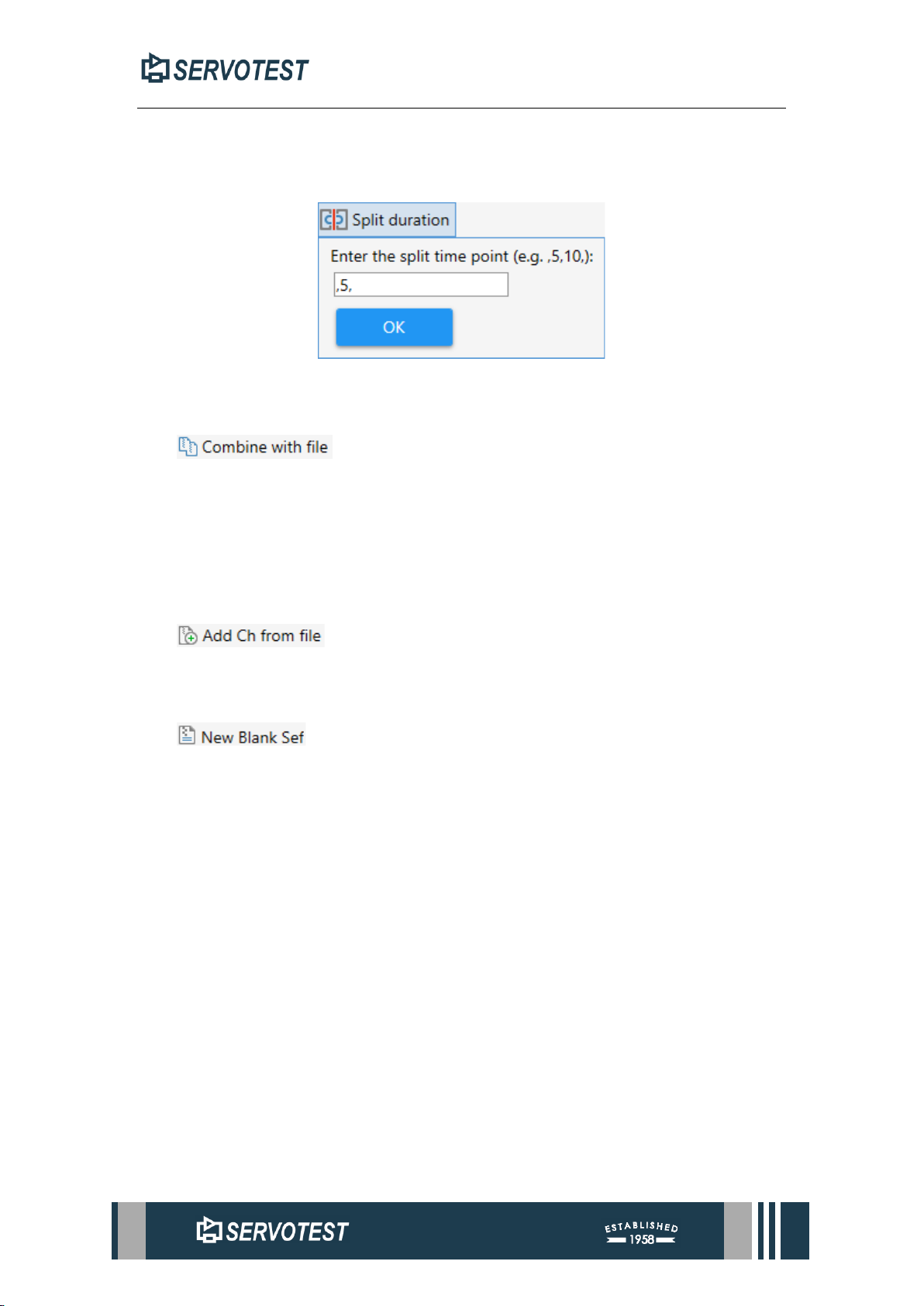
XDAP USER MANUAL
This function is used to split the currently opened signal file into multiple files
according to the set time. Click the Split duration button in the Utility menu, enter the
time to be split in the pop-up window, and click the OK button.
Figure 6-11 Split Duration
6.2.3 Combine with file
Combines multiple SEF files into a single file (appends channels from the selected
file to the end of the first file).
Click the Combine with file button in the Utility menu and select the files you
want to merge.
6.2.4 Add Ch from file
This adds a channel from the selected file to the currently open file.
6.2.5 New Blank Sef
Create a new Sef file.
Page 86
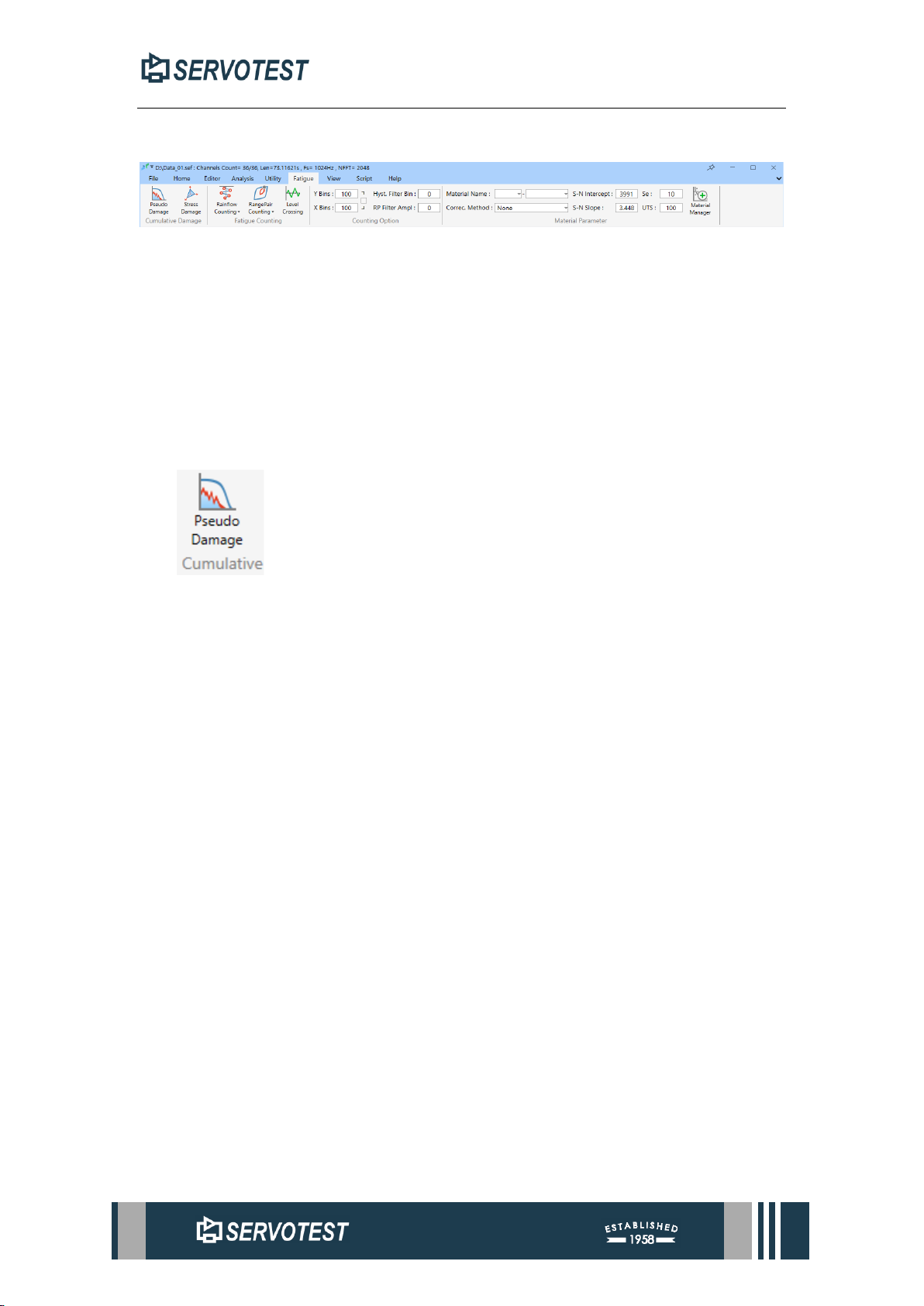
XDAP USER MANUAL
7 Fatigue Menu
Figure 7-1 Fatigue Analysis
The fatigue analysis module includes a damage calculation part and a fatigue
counting part. There are generally two common methods for damage calculation,
namely pseudo damage and stress damage. Commonly used counting methods are
rainflow counting, in addition to Range Pair counting and level Crossing counting.
7.1 Cumulative Damage
7.1.1 Pseudo Damage
This function provides the result of calculating pseudo-damages, targeting a single
channel. Pseudo damage, also known as relative damage, is not actual stress damage,
and is used to estimate the difference between different situations. The results obtained
are as shown in the figure below. Each figure can be double-clicked to enlarge, and
right clicked to copy.
Page 87
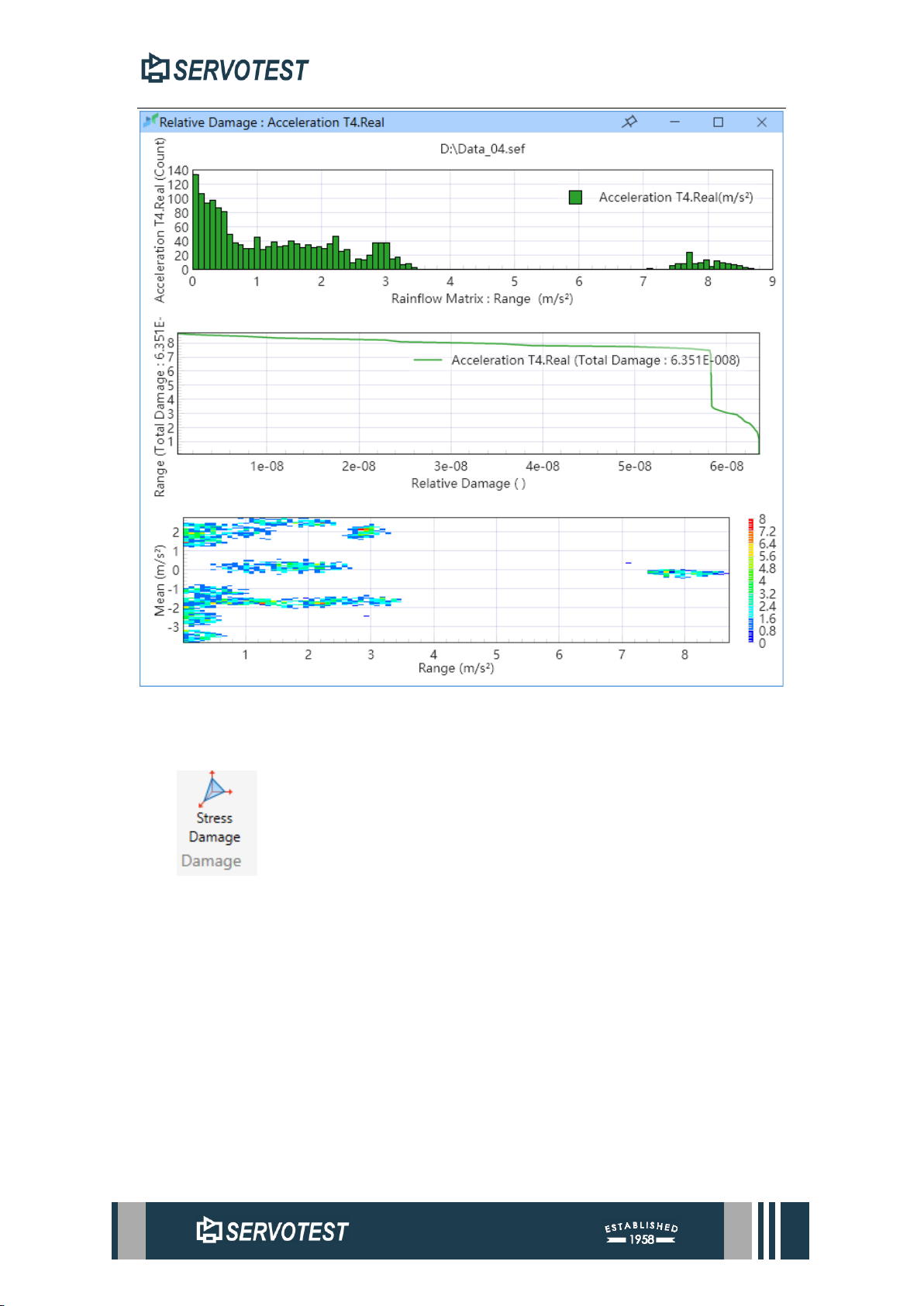
XDAP USER MANUAL
Figure 7-2 Pseudo Damage
7.1.2 Stress Damage
This function is used to calculate stress damage, and the display form of the result
is shown in the figure below.
Page 88
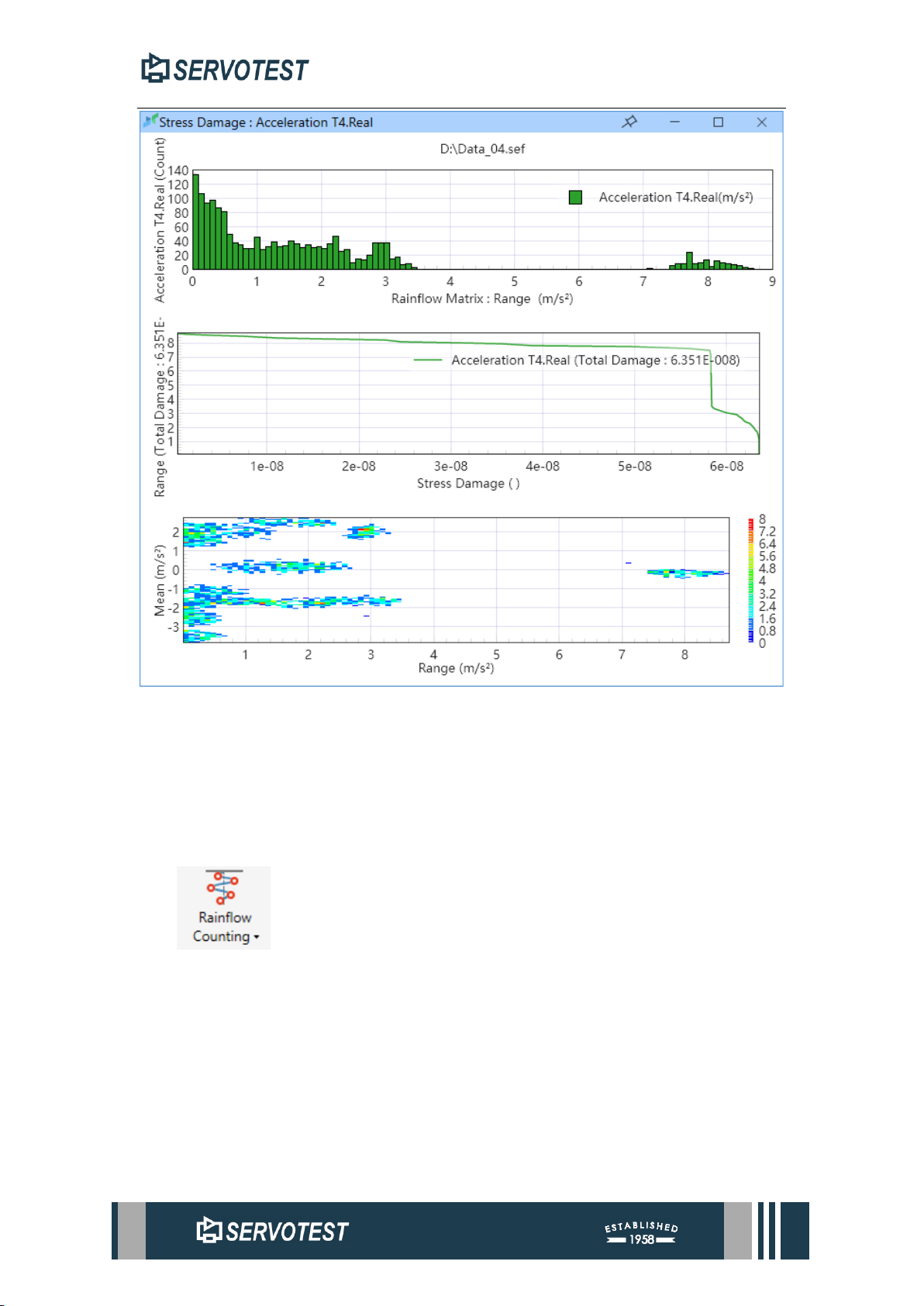
XDAP USER MANUAL
Figure 7-3 Stress Damage
7.2 Fatigue Counting
Fatigue counting is used to estimate fatigue life. This section provides three fatigue
counting methods, rainflow counting, Range Pair counting and Level Crossing counting.
7.2.1 Rainflow Counting
This part provides rainflow counting function, which is a kind of fatigue counting
method.
Counting methods are divided into From-To and Range-Mean. Range-Mean can
be derived from From-To results, but From-To results cannot be derived from Range-
Mean results.
Page 89
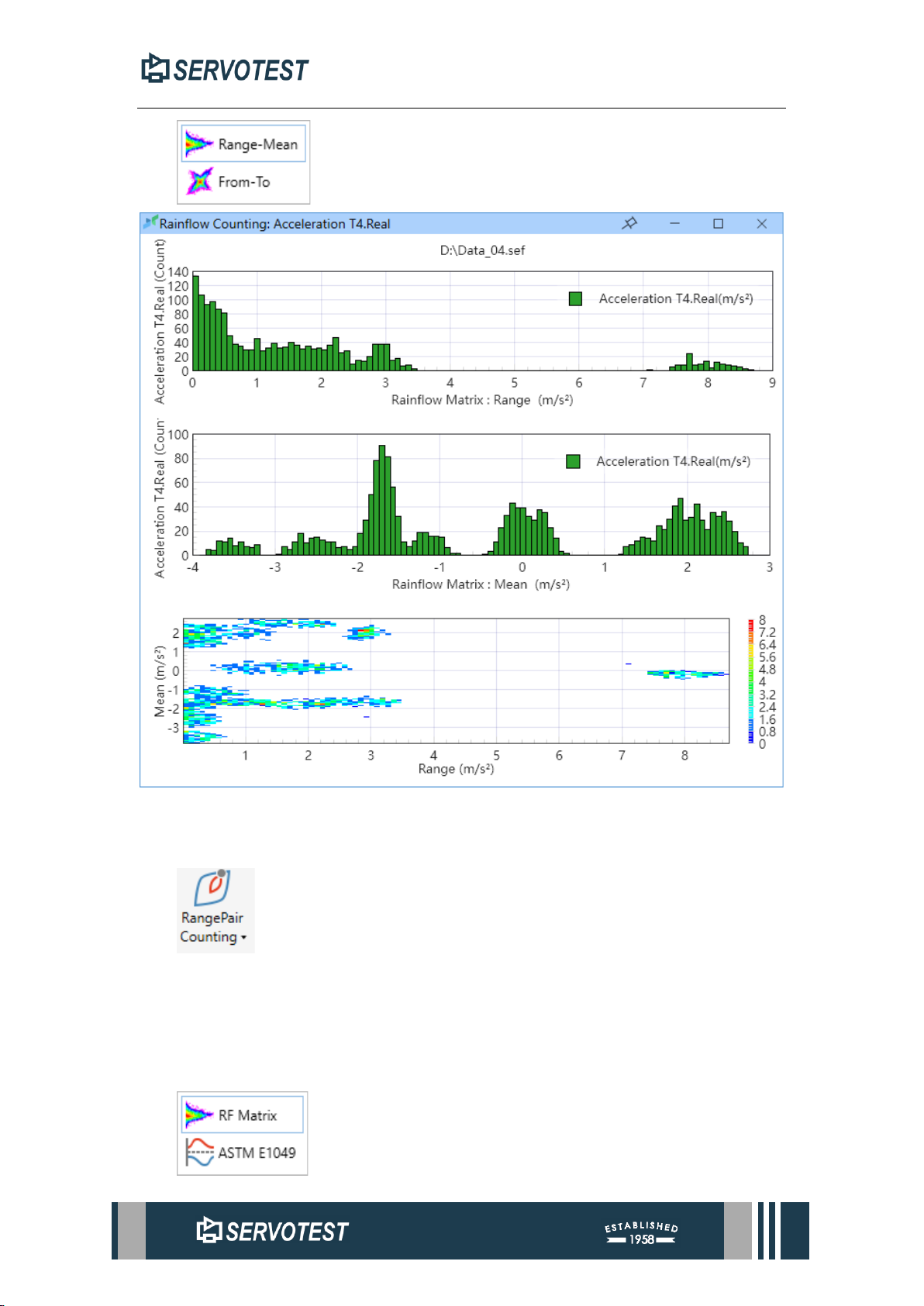
XDAP USER MANUAL
Figure 7-4 Rainflow Counting: Range-Mean
7.2.2 RangePair Counting
The RangePair counting method is based on the rainflow counting method and
carries out projection and cumulative counting along the Y-axis, which is a kind of
"compression" of the rainflow counting method. This feature provides two standard
RangePair counting methods, RangePair acc. Rainflow and E1049−85.
Page 90
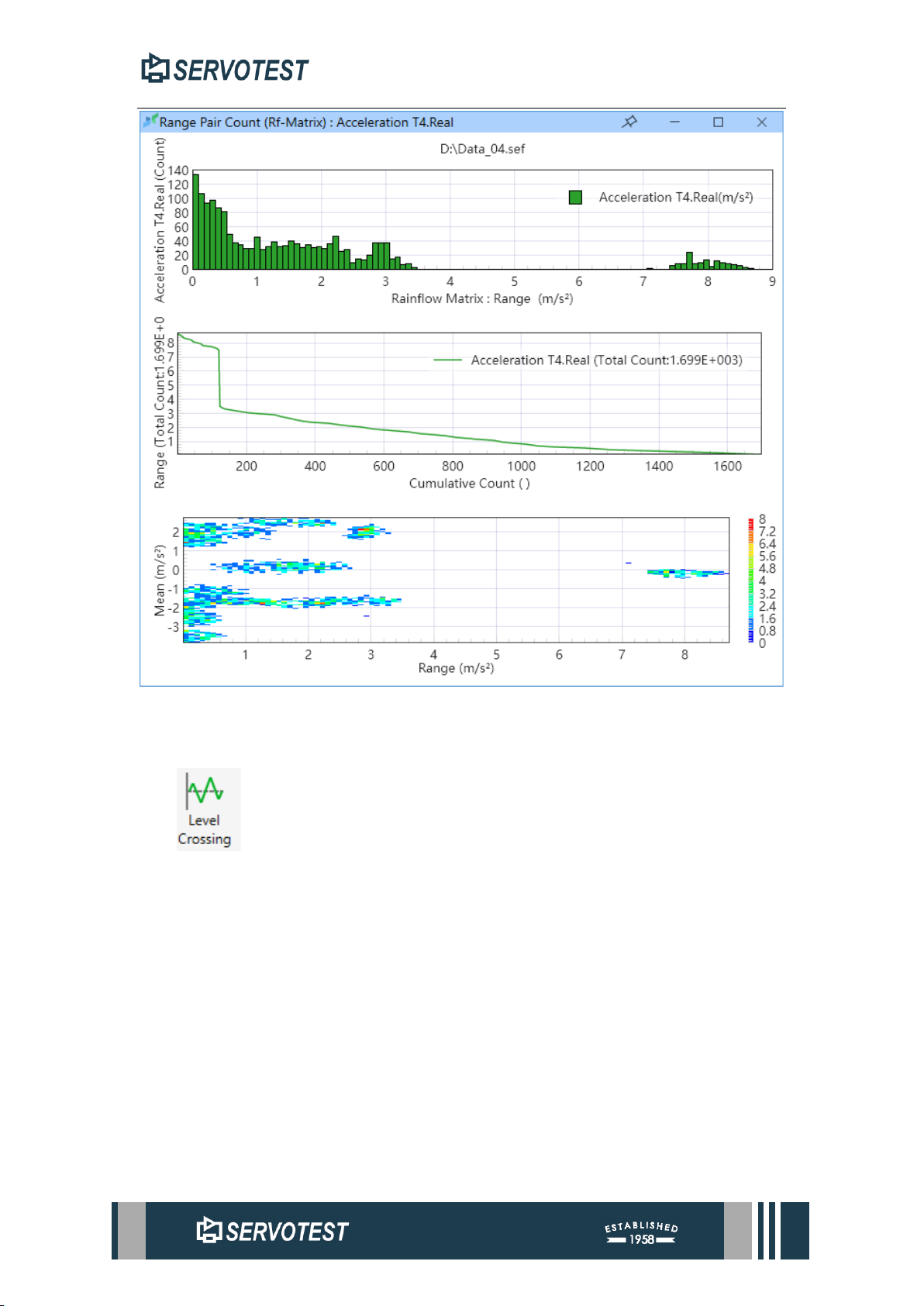
XDAP USER MANUAL
Figure 7-5 RangePair Counting: RF Matrix
7.2.3 Level Crossing
This function provides wear level counting function. After counting the maximum
and minimum values, the amplitude is divided into multiple sections. The number of
intersections between each section and the time series is the corresponding number of
cycles. The positive crossing is calculated in the interval (≥) above the Mean value,
and in the Mean Areas below the value count as negative crossings.
Page 91
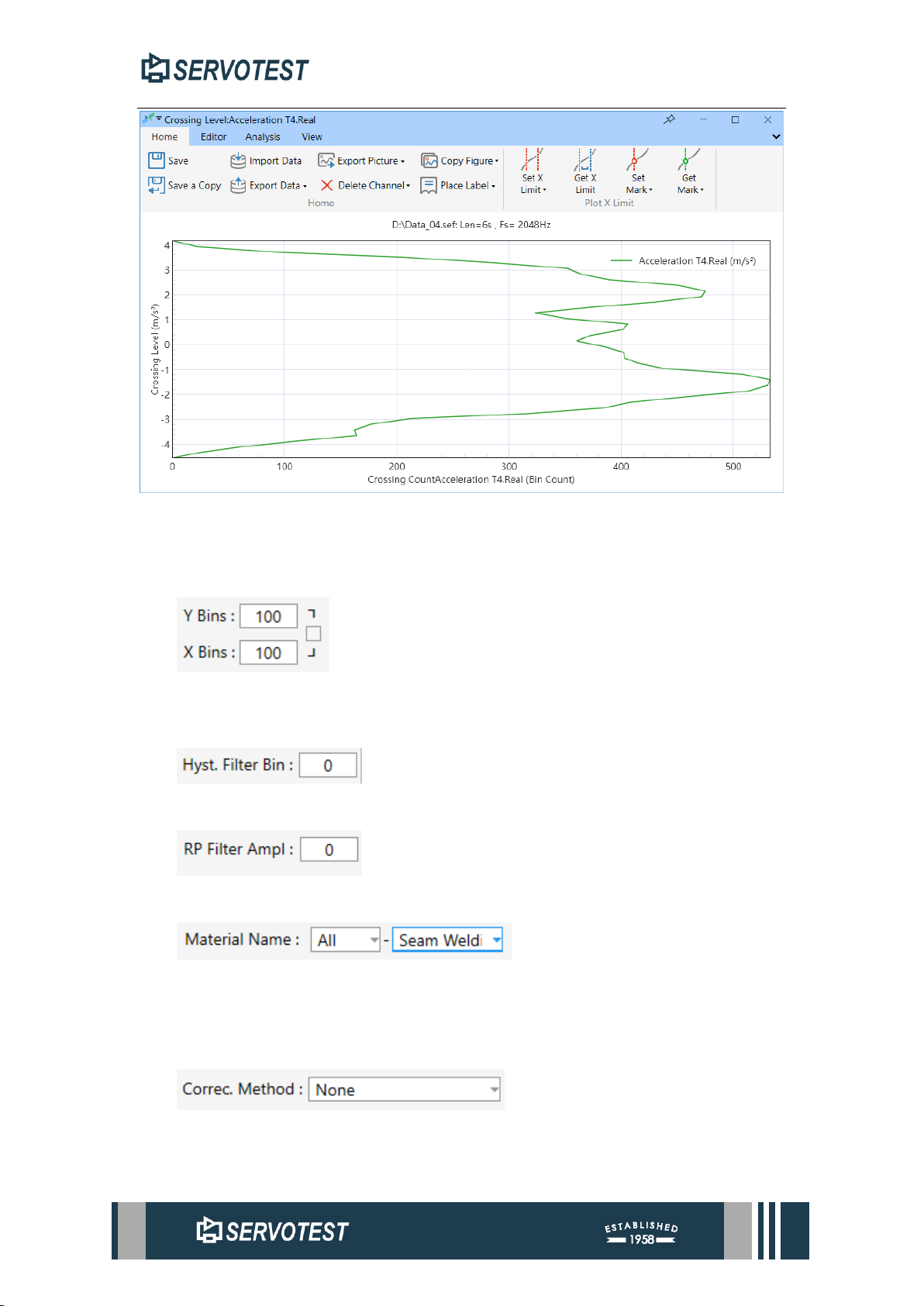
XDAP USER MANUAL
Figure 7-6 Level Crossing
7.3 Counting Option
7.3.1 X/Y Bins
This parameter changes the value range of X and Y.
7.3.2 Hysteresis Filter
7.3.3 RP Filter
7.3.4 Material Name
Select the name of the material, and the material properties can be found in the
material management later.
7.3.5 Correction Method
Page 92
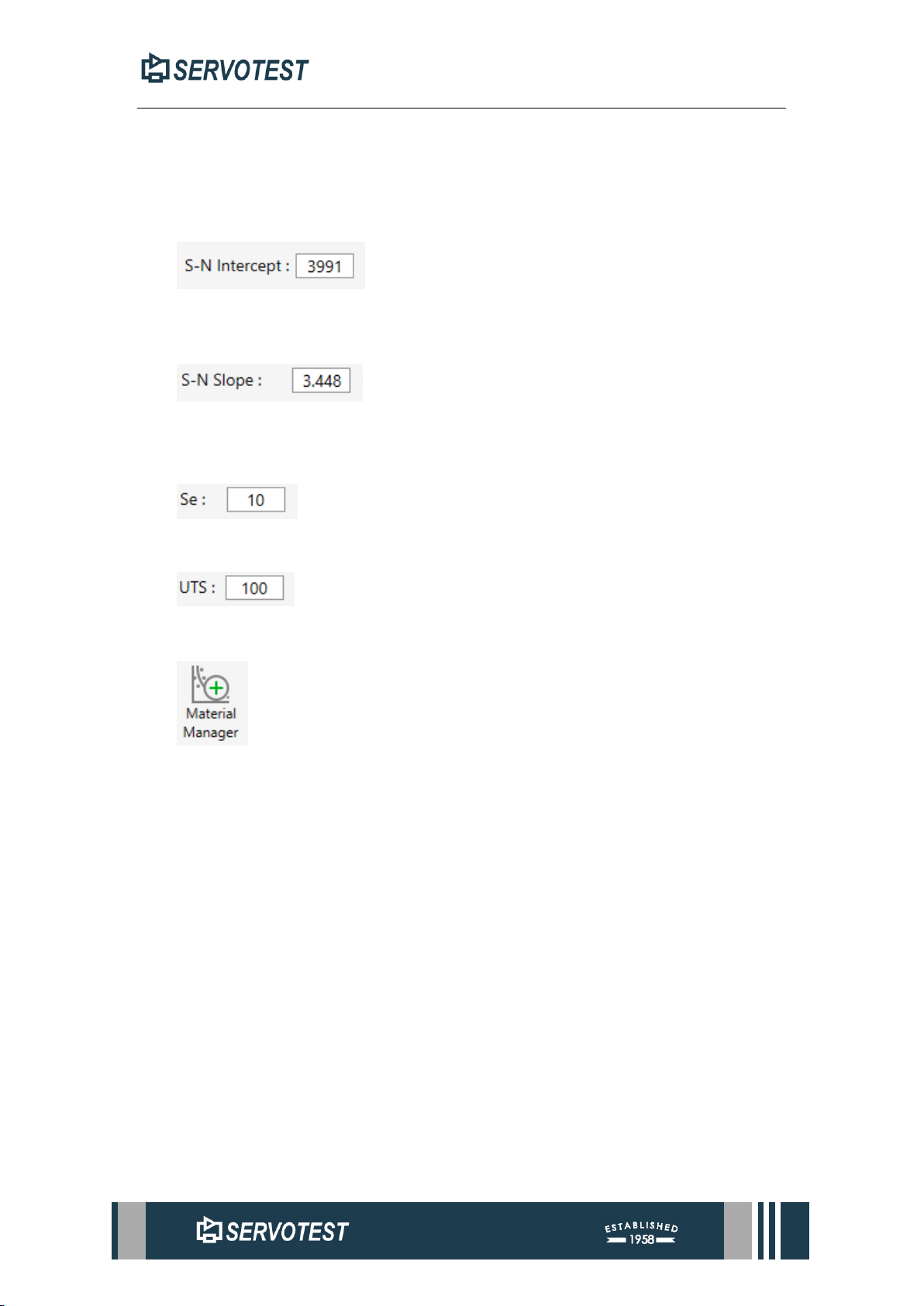
XDAP USER MANUAL
The correction method in the calculation process of the average stress will be
"simplified during the calculation process, which will lead to the loss of part of the
original information. It needs to be corrected for different situations.
7.3.6 S-N Intercept S-N
The slope value of the S-N curve.
7.3.7 S-N Slope
The intercept value of the S-N curve.
7.3.8 SE
7.3.9 UTS
7.3.10 Material Manager
Page 93
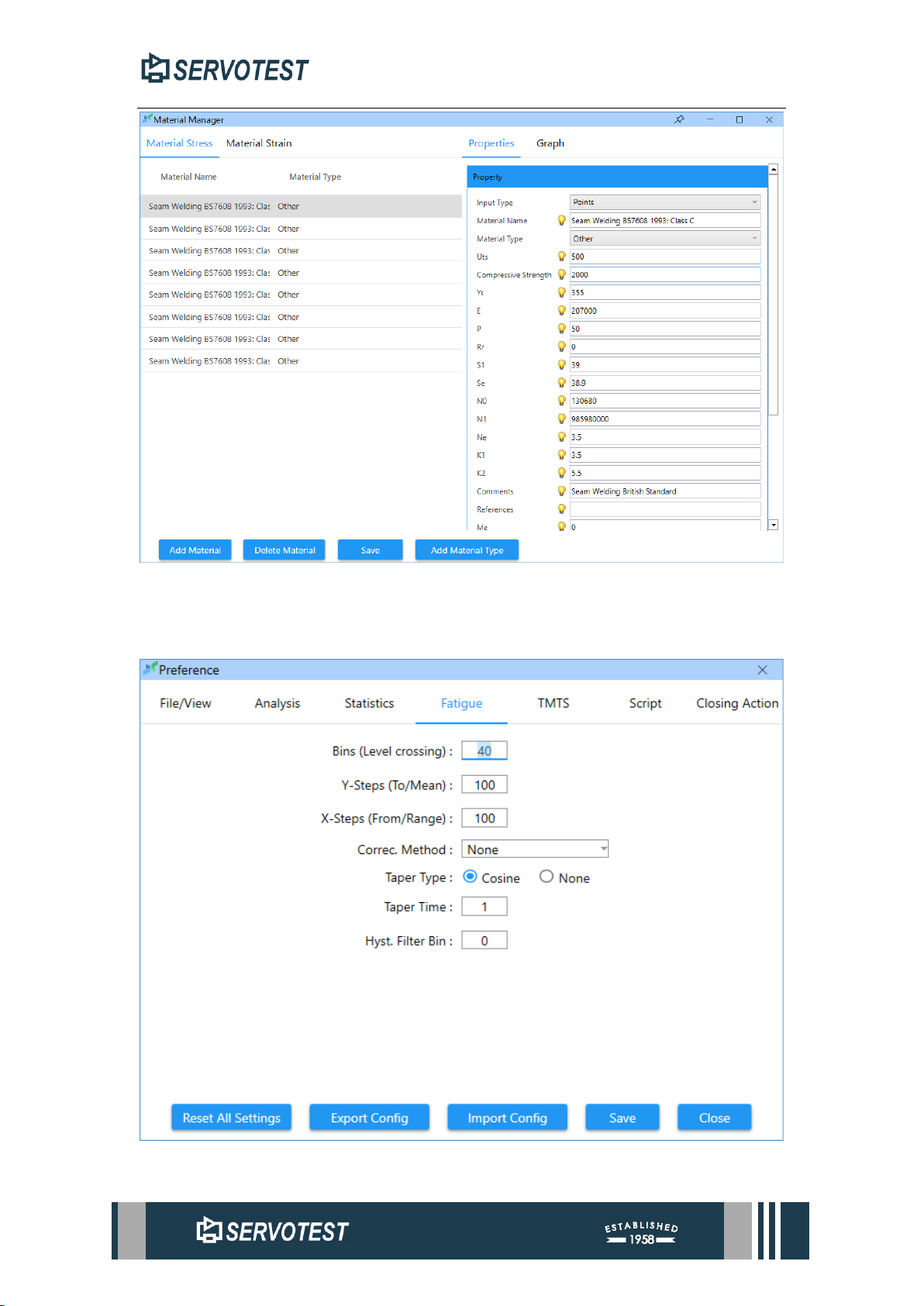
XDAP USER MANUAL
Figure 7-7 Material Manager
7.4 Fatigue Analysis Settings
Figure 7-8 Fatigue Analysis Settings
Page 94

XDAP USER MANUAL
8 Macro and Script Recording Module
The script is written in Python (Python 2.7) and interacts with xDAP via
IronPython.
Python 2.7.18 documentation,IronPython .NET Integration documentation
8.1 Recording xDAP Scripts
Using the recording mode automatically records user actions as scripts, which can
then be run repeatedly to execute those actions. Recording Script Steps:
1) Select the script tab.
2) Click the Record Script button.
3) Enter a script name and click OK.
4) Execute the operation to be recorded (e.g., edit channel data, analyse, etc.).
5) Click Stop Recording when the operation is finished. xDAP will automatically
save the script and add it to the script list.
8.2 Execution of scripts
Repeated operations can be performed automatically using scripts. Execute the
script steps:
1) Select the script tab.
2) Select the script to be executed in the drop-down list or browse for the script
to be executed by clicking the Browse button on the right side of the drop-
down box.
3) Open the file to which you want to apply the script (you do not need to open
the file manually if it is opened in the script).
4) Click the Execute Script button.
8.3 Editing Scripts
In addition to generating scripts by recording, users can also edit scripts manually.
Any valid Python script can be executed in xDAP. For example the following script
calculates the factorial of a number:
def factorial(x):
if x == 1:
return 1
else:
return (x * factorial(x-1))
def main():
num = 5
Page 95
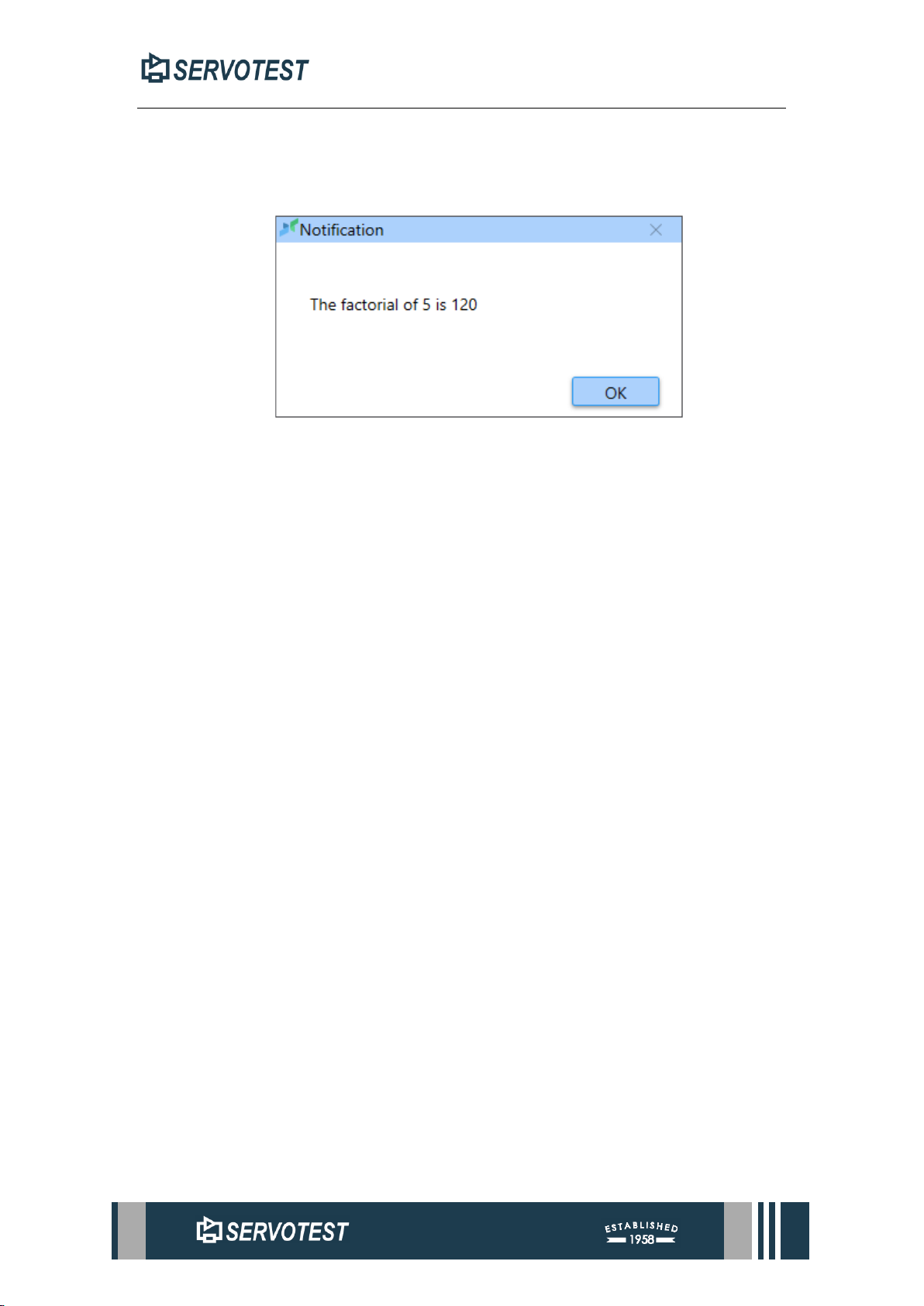
XDAP USER MANUAL
result = factorial(num)
dap.sMsgBox("The factorial of " + str(num) + " is " + str(result))
Execute the above script to get the following result:
• Steps to edit a script in xDAP:
1) Select the script tab.
2) Select the script to be edited in the drop-down box.
3) Click the Edit Script button.
4) When you are done editing, right-click in the editing window and select Save
to save the script.
It is also possible to edit scripts in other editors and then execute them in xDAP.
8.4 Methods Callable by Scripts in xDAP
Use the dap global variable in the script to access xDAP.
Methods of dap
(All the methods in xDAP for use by scripts begin with s.) :
8.4.1 sOpen(string file)
Description: opens a self-file. xDAP uses asynchronous loading of channels, when
using this method to open a file you must wait for the channel to finish loading before
performing other operations, or subscribe to the event FileLoadCompletedEvent to
perform other operations.
IronPython example:
def callBack(str):
dap.sSwitchActiveDocument(str)
dap.ActiveDocument.sClearSelections()
dap.ActiveDocument.sChannel(0)
dap.ActiveDocument.sOpenZoomWindow()
def main():
Page 96

XDAP USER MANUAL
dap.FileLoadCompletedEvent += callBack
dap.sOpen('D:\\TestData\\test.sef')
CPython example:
class CallableHandler(object):
def __init__(self):
self.value = None
def __call__(self, str):
dap.sSwitchActiveDocument(str)
dap.ActiveDocument.sClearSelections()
dap.ActiveDocument.sChannel(0)
dap.ActiveDocument.sOpenZoomWindow()
def main():
handler = CallableHandler()
dap.FileLoadCompletedEvent += handler
dap.sOpen('D:\\TestData\\Test.sef')
dap.sOnFileOpened('Test.sef')
IronPython also supports this writeup, and the above writeup is recommended if
you use IronPython to execute code.
Parameters: file: file path.
Example: dap.sOpen(‘D:\\TestData\\test.sef’)
8.4.2 sClose(string name)
Description: Closes the open file.
Parameters: name: name of the document (usually a file name).
dap.sClose('test.sef')
8.4.3 sMsgBox(string message)
Description: A pop-up message.
Parameters: message: the message to be popped up.
dap.sMsgBox('Hello xDAP.')
Page 97

XDAP USER MANUAL
8.4.4 sLog(sring message)
Description: Record the log.
8.4.5 sSwitchActiveDocument(int index)
Description: Use the index to switch the currently active document.
Parameters: index: index of the current document in the list of all open documents.
dap.sSwitchActiveDocument(2)
8.4.6 sSwitchActiveDocument(string name)
Description: Toggles the currently active document using the document name.
Parameters: name: name of the document.
dap.sSwitchActiveDocument('test.sef')
8.4.7 sDocument(string name)
Description: Selects a document using its name. When selecting a document using
this method, the selected document does not have to be the currently active document
for all scripts to be applied.
Parameters: name: name of the document.
dap.sDocument('test.sef').sClearSelections()
dap.sDocument('test.sef').sChannel(1)
dap.sDocument('test.sef').sDeleteSelectedChannels()
dap.sDocument('test.sef').sSave()
8.4.8 sSelectBin(string bin)
Description: Select bin.
Parameter: bin: Bin name (S1, S2......).
dap.sSelectBin('S1')
8.4.9 sEmptyBin(string bin)
Description: Clears Bin's data.
Parameters: bin: Bin name.
dap.sEmptyBin('S1')
Page 98

XDAP USER MANUAL
8.4.10 sClearBinSelections()
Description: Clear the selection status of all Bin.
8.4.11 sShowFrequencyDomain(params Channel[] channels)
Description: Displays the data for the channel in the frequency domain analysis
form.
Parameters: channels: array of channel data.
8.4.12 sShowTimeDomain(params Channel[] channels)
Description: Displays the channel's data in the Time Domain Analysis form.
Parameters: channels: array of channel data.
8.5 Properties of dap
The properties of dap are used to get the active documents under the current
instance for switching documents.
8.5.1 ActiveDocument
Description: The currently active document.
In order to seek the channels of two files for cross-file channel selection and seek
the transfer function function, the process is as follows:
dap.sSwitchActiveDocument(1) # Switch to open document 1, (the serial
number index starts at 0, which is actually the 2nd sef tag from the left),
dap.ActiveDocument.sSetCrossFileOperation('TransFunc1DIsChecked') #
Activate the Transfer Function 1D feature
dap.ActiveDocument.sClearSelections() # Clear selected list
dap.ActiveDocument.sSelectYChannels(1) # Select index 1 as the Y channel,
dap.sSwitchActiveDocument(0) # Switch to the open document 0 (the first sef
tag on the far left),
dap.ActiveDocument.sSelectXChannels(0) # Select index 0 as the X channel,
dap.ActiveDocument.sTransFunc(0) # Select index 1 as the Y channel,
dap.ActiveDocument.sChildren(0)
dap.ActiveDocument.sChildren(0)
dap.ActiveDocument.sResetCursor()
Page 99

XDAP USER MANUAL
8.5.2 ActiveDocument Properties
sChildren(0)
To be completed
ActiveResultWindow
To be completed
ActiveZoomChild
To be completed
8.6 ActiveDocument Methods
Methods that target channels must call sChannel(int index) or sChannel(string
channelName) to select a channel before they are invoked.
8.6.1 sChannel(int index)
Description: Select channels based on their indices and add them to the selected
list. Subsequent operations will be performed on all channels in the list.
Parameters: index: The index of the channel.
Return value: Channel. Any modifications made to the returned channel will be
updated to the original channel.
Example: Delete several channels from a file, such as channels 0-3 and 5:
dap.sSwitchActiveDocument(0)
dap.ActiveDocument.sClearSelections()
dap.ActiveDocument.sChannel(0)
dap.ActiveDocument.sChannel(1)
dap.ActiveDocument.sChannel(2)
dap.ActiveDocument.sChannel(3)
dap.ActiveDocument.sChannel(5)
dap.ActiveDocument.sDeleteSelectedChannels()
dap.ActiveDocument.sChannel(0)
dap.ActiveDocument.sResetCursor()
8.6.2 sChannel(string channelName)
Description: Select a channel based on the channel name.
Parameters: channelName: Channel name.
Return value: Channel. Any modifications made to the returned channel will be
updated to the original channel.
dap.ActiveDocument.sChannel('Load.1')
Page 100

XDAP USER MANUAL
8.6.3 sGetChannel(int index)
Description: Retrieves channel data based on the channel index.
Parameters: index: Channel index.
Return value: Channel. Any modifications made to the returned channel will be
updated to the original channel.
channel = dap.ActiveDocument.sGetChannel(1)
8.6.4 sGetChannel(string channelName)
Description: Obtains channel data based on the channel name.
Parameters: channelName: Channel name.
Return value: Channel. Any modifications made to the returned channel will be
updated to the original channel.
channel = dap.ActiveDocument.sGetChannel('Velocity')
8.6.5 sNewChannel()
Description: Create a new channel instance.
8.6.6 sClone(int index)
Description: Returns a copy of the channel data at the specified index.
Parameters: index: The index of the channel.
Return value: Channel: Channel data. This data is a copy of the channel data at the
specified index. Modifications to this channel data will not affect the original channel
data.
8.6.7 sClone(string channelName)
Description: Returns a copy of the channel data at the specified index.
Parameters: channelName: The name of the channel.
Return value: Channel: Channel data. This data is a copy of the channel data at the
specified index. Modifications to this channel data will not affect the original channel
data.
8.6.8 sRename(int index, string channelName)
Description: Modify channel name.
Parameters: index: Channel index. channelName: New channel name.
8.6.9 sChangeUnitY(int index, string unitY)
Description: Modifies the unit of the Y-axis data for the channel.
Parameters: index: Channel index. unitY: New unit.
 Loading...