

Page 1
Servotest Pulsar Digital Control System
Servotest Systems Ltd, UK
Pulsar User Guide
EZFlow Toolbox
2010 Servotest Systems Ltd. All rights reserved. Issue 01.00.01
Page 2

Contents
Contents
Introduction.............................................................................................................................1
1.1 Output parameter..........................................................................................................1
1.2 Input parameters...........................................................................................................1
2. Specific applications.............................................................................................................2
2.1 Asymmetric drive generator – SigGen.exe....................................................................3
Number of parameters for SigGen.................................................................................................3
Example.........................................................................................................................................3
2.2 ICS in EZFlow – EZFlowICS.exe...................................................................................4
Number of parameters for EZFlowICS...........................................................................................4
2.3 Analyse Damper Tests – AnalyseDamperTest.exe.......................................................7
Number of parameters for AnalyseDamperTest...........................................................................7
Examples.......................................................................................................................................7
2.4 Save Damper Tests – SaveDamperTest.exe................................................................8
Number of parameters for SaveDamperTest.................................................................................8
Example.........................................................................................................................................8
2.5 Converting Servotest files to Wintax2 – SaveAsWintax.exe..........................................9
Number of parameters for SaveAsWintax.....................................................................................9
Example.........................................................................................................................................9
Appendix A Contacting Servotest................................................................................1
. .................................................................................................................................1
ii
Page 3

Table Of Figures
Table of Figures
Figure 1: External Command action configuration..............................................................1
Figure 2: Asymmetric Drive Generator if no parameters are specified..............................3
Figure 3: The whole sequence for ICS in EZFlow.................................................................4
Figure 4 : The initialisation panel...........................................................................................5
Figure 5 : EZFlowICS help window.......................................................................................6
Figure 6: Asymmetric damper test analysis...........................................................................7
Figure 7: SaveDamperTest if no parameters are specified...................................................8
Figure 8: SaveAsWintax if no filename is passed as parameter...........................................9
iii
Page 4
EZFlow Toolbox
Introduction
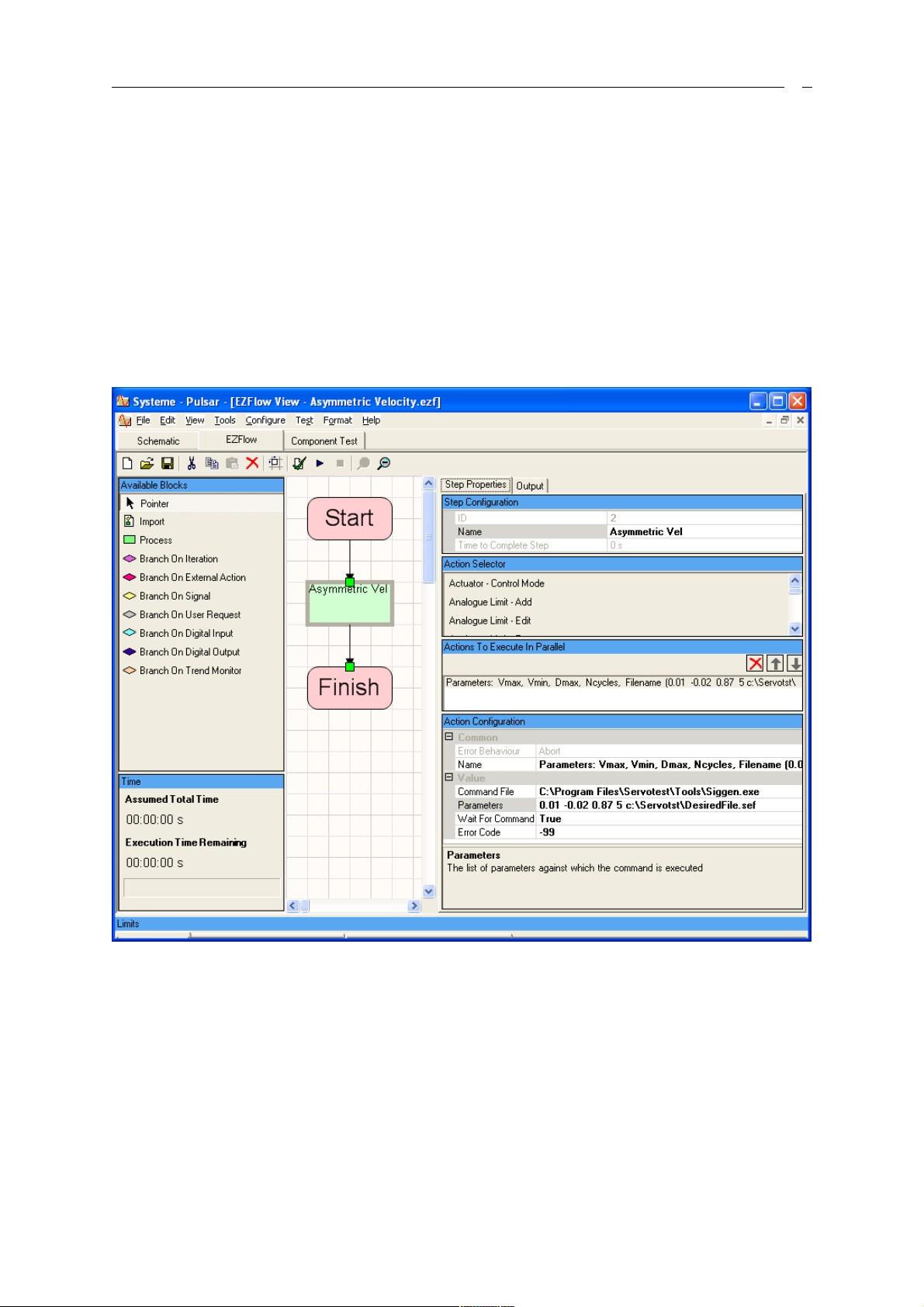
This document illustrates the use and calling syntax of pre-programmed applications that
can be called from EZFlow sequences using the “Run – External Command” action (see
Figure 1). These applications are DOS executables (.exe) that should be placed in the
Pulsar Tools directory (i.e. C:\Program Files\Servotest\Tools).
1.1 Output parameter
For error handling considerations these applications usually return an integer which the
EZFlow environment can use to check if the application exited successfully.
Figure 1: External Command action configuration
By default the error code assumed by EZFlow is –99 but this can be changed in the Action
configuration.
The decision making block “Branch on External Action” can be used by EZFlow to take one
path or another according the value returned by the application.
1.2 Input parameters
These external applications can run with or without input parameters. If some parameters
are required (as in Figure 1) they must be specified by character strings separated by
spaces.
1
Page 5

EZFlow Toolbox
Note: In the case of strings that already contain spaces they must be specified between
double quotes (e.g. “C:\Program Files” instead of C:\Program Files).
2. Specific applications
This section presents some of the EZFlow tools that have been pre-programmed.
Note: these are usually Matlab-based executables so they follow Matlab’s convention in
terms of decimal point. The decimal point is always a dot, never a comma, irrespective of
the regional language settings.
2
Page 6
EZFlow Toolbox
2.1 Asymmetric drive generator – SigGen.exe
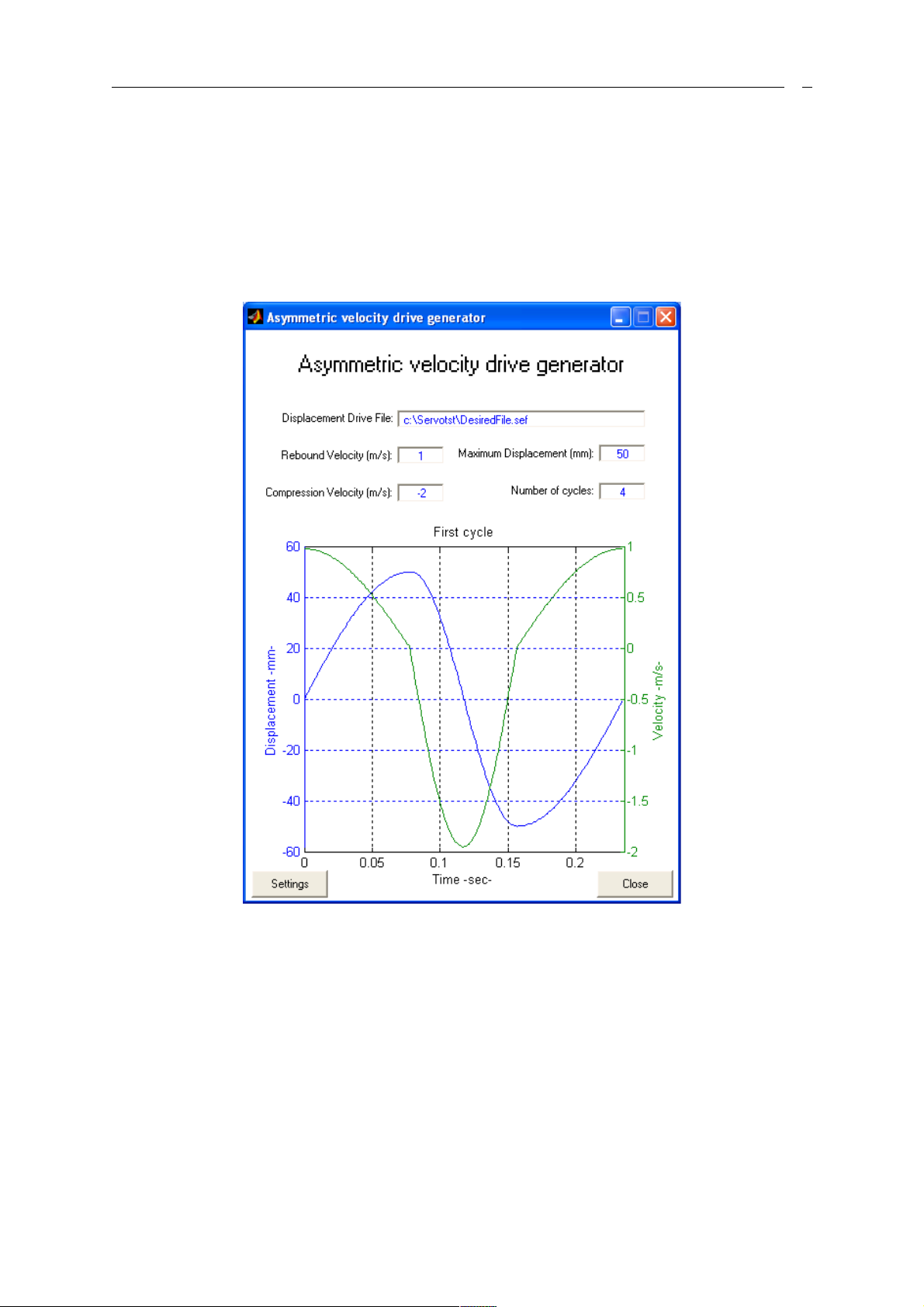
SigGen.exe is used to generate an asymmetric displacement file, typically for testing
dampers at unequal rebound and compression velocities.
The parameters required are the Rebound and Compression velocities, the maximum
displacement allowed, the number of cycles (>=3) and the filename to save the data to. The
file can then be used as the drive file in Replay or, more likely, as the desired file in an ICS
or an EZFlow ICS iteration session.
Figure 2: Asymmetric Drive Generator if no parameters are specified
Number of parameters for SigGen
0. SigGen, in which case the user is prompted for the parameters
1. SigGen Help, to display this message.
2. SigGen ReboundVel, CompressionVel, MaxDisp, Ncycles, Filename, where
Filename should include the full path and have a .sef extension.
Example
SigGen 1.5 -3.0 50 5 "c:\Servotst\Desired File.sef"
3
Page 7
EZFlow Toolbox
2.2 ICS in EZFlow – EZFlowICS.exe
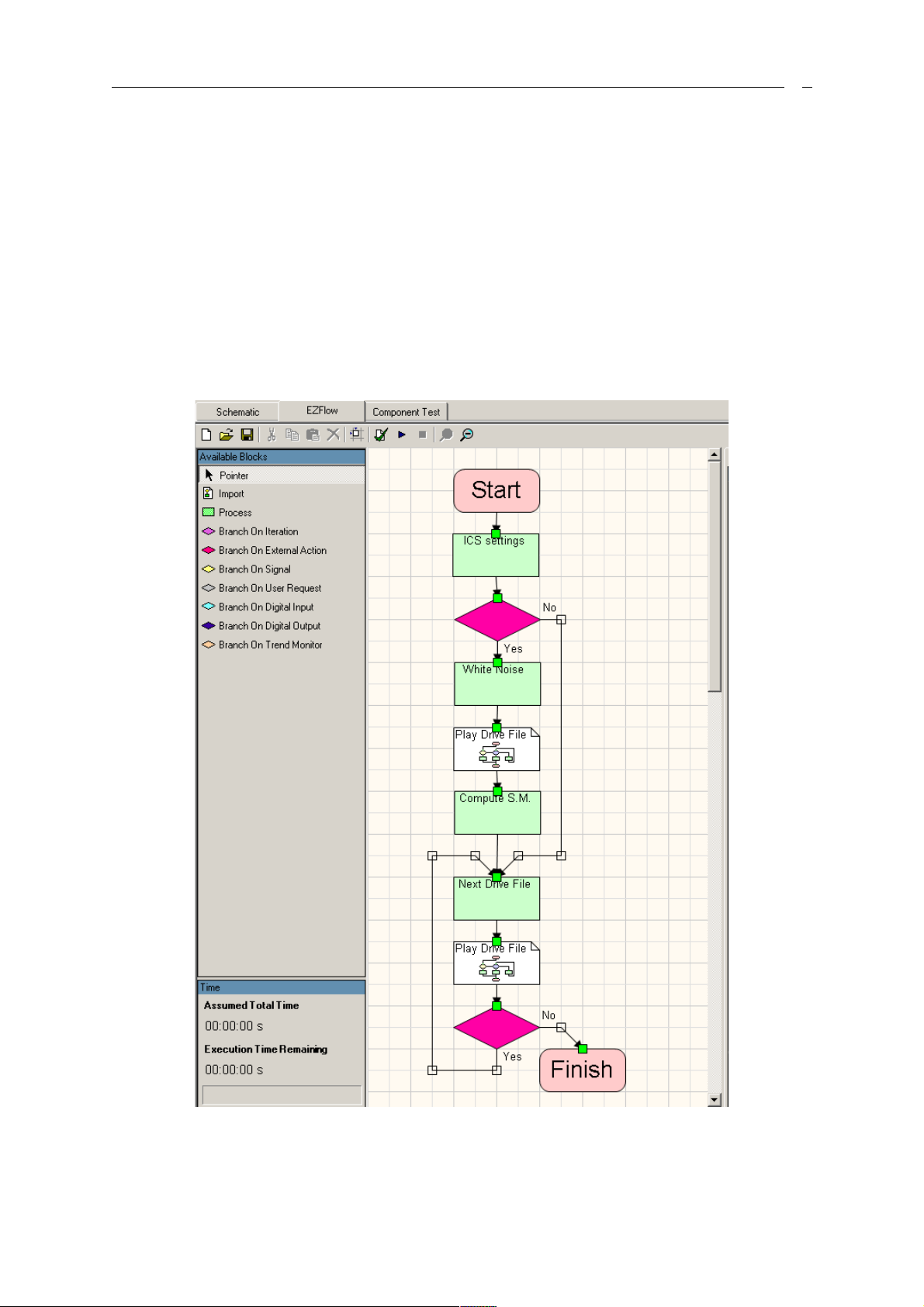
EZFlowICS is used on single axis systems to iterate towards desired displacement or load
time histories. Figure 3 shows the EZFlow sequence that implements the whole procedure.
At each stage of the sequence the application EZFlowICS.exe is exectuted. EZFlowICS.exe
performs various actions according to the parameter strings it is passed. Parameters should
be within inverted commas and separated by spaces.
Number of parameters for EZFlowICS
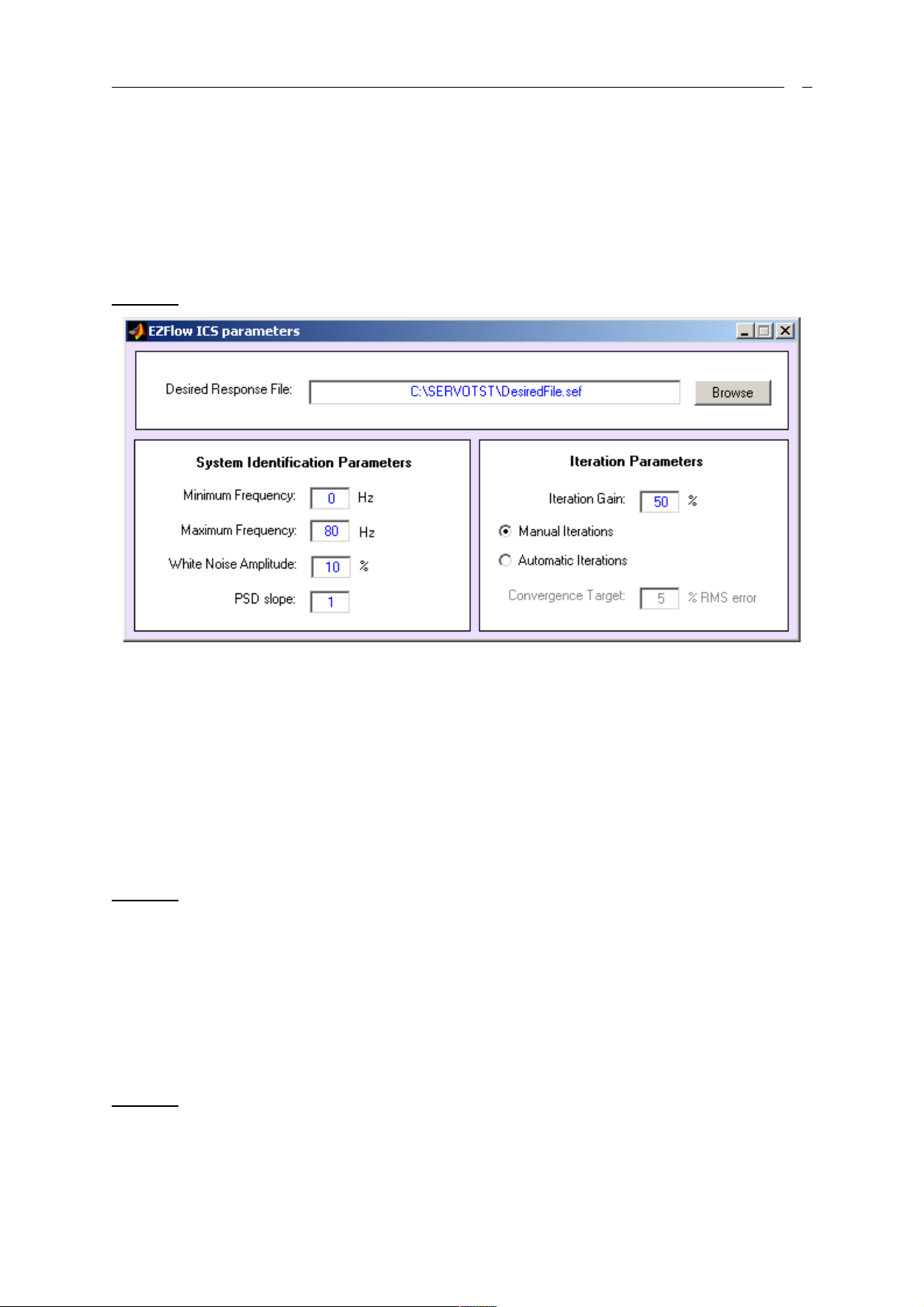
EZFlowICS : If no parameter is passed EZFlowICS will display the initialisation panel where
the user is asked to select the desired file and several other parameters necessary to
perform the iterations (see Figure 4).
Figure 3: The whole sequence for ICS in EZFlow
4
Page 8
EZFlow Toolbox
EZFlowICS "Re-identify?" "0"or"1" (i.e. 1 optional parameter)
The parameter "Re-identify?" is used to ask the user whether the system matrix
identification is necessary, in which case an excitation drive will first be played before the
iterations begin.
The optional parameter is used if the user does not want to be asked the question. If this
second parameter is "1" the identification will automatically be performed, if it is "0" it won''t
and the previously identified system matrix will be used.
Example: EZFlowICS "Re-identify?" "1"
Figure 4 : The initialisation panel
EZFlowICS "White Noise" "0"or"1" "0"or"1" (i.e. 2 optional parameters).
The parameter "White Noise" indicates that EZFlowICS should generate an excitation drive
file to be played to the rig as part of the identification procedure.
The first optional parameter is used to display the file before playing it. Use "1" to view the
file, and "0" otherwise.
The second optional parameter, if it is set to "1" indicates that the desired file it-self should
be used as the excitation during the identification procedure. This is appropriate if the
desired file has a wide range frequency content.
Example: EZFlowICS "White Noise" "1" "0"
EZFlowICS "Compute SM" "0"or"1" (i.e. 1 optional parameter).
The parameter "Compute SM" tells the application to calculate the new system matrix (or
transfer function) based on the rig's response to the excitation file.
The optional parameter is used to display the transfer function and coherence plots so the
user can decide whether to use it as part of the iteration process or to re-identify it based on
a new excitation file.
Example: EZFlowICS "Compute SM" "1"
5
Page 9
EZFlow Toolbox
EZFlowICS "Next Drive" "0"or"1" (i.e. 1 optional parameter).
The parameter "Next Drive" indicates that the next drive file should be computed based on
the previous response and the desired file.
The optional parameter is used to display the file before playing it. Use "1" to view the file,
and "0" otherwise.
Example: EZFlowICS "Next Drive" "1"
EZFlowICS "Iterate further?"
The parameter "Iterate further?" is used to ask the user whether to continue with or stop the
iteration process. The percentage RMS error is displayed together with information about
the convergence or divergence of the process.
Example: EZFlowICS "Iterate further?"
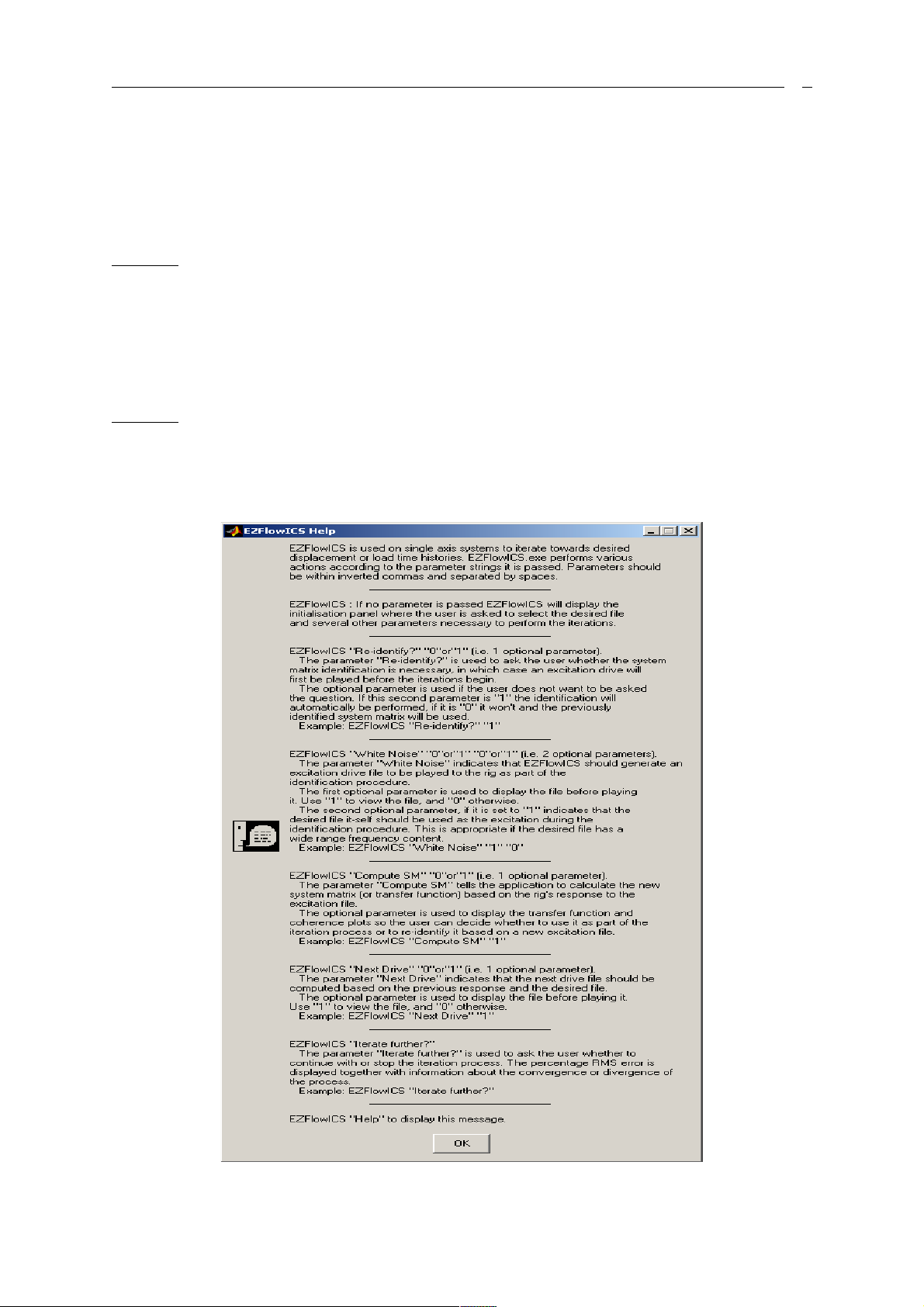
EZFlowICS "Help" to display the help window shown in Figure 5.
Figure 5 : EZFlowICS help window
6
Page 10
EZFlow Toolbox
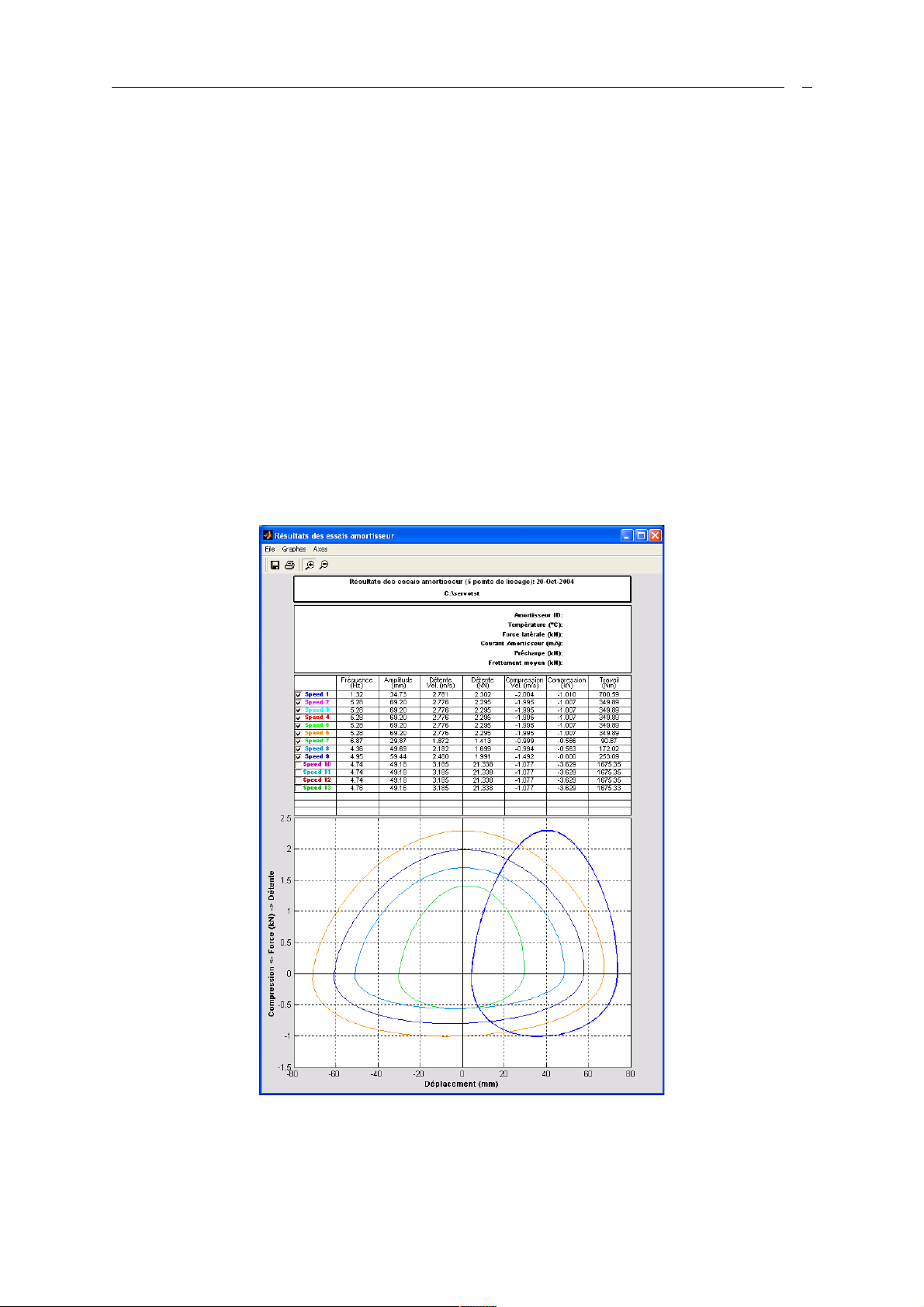
2.3 Analyse Damper Tests – AnalyseDamperTest.exe
AnalyseDamperTest.exe is used to display the results of one or more standard Pulsar
Damper Test files. Files must contain at least one full cycle of data and the first three
channels should be Displacement, Load and Velocity.
Number of parameters for AnalyseDamperTest
0. AnalyseDamperTest, in which case the user is prompted for the data file to be
displayed',...
1. AnalyseDamperTest Filename, to display the file specified by Filename (Filename
must include the full path).',...
or AnalyseDamperTest TestDirectory, to display all the files in the specified
Directory. In this case the files must be called Speed_1.sef, Speed_2.sef .. Speed_N.sef,
where N<=16.',...
or AnalyseDamperTest Help, to display this message.',...
Examples
AnalyseDamperTest "C:\Data\Damper Test Results\Speed_1.sef"
AnalyseDamperTest "C:\Data\Damper Test Results"
Figure 6: Asymmetric damper test analysis
7
Page 11
EZFlow Toolbox
2.4 Save Damper Tests – SaveDamperTest.exe
SaveDamperTest.exe is used to move a damper test data file to an existing damper test
directory already containing standard Pulsar Damper Test files Speed_1.sef,
Speed_2.sef, ..., Speed_N-1.sef.
The file will have any unnecessary leading and trailing data removed and will automatically
be renamed Speed_N.sef (with N<17).
The function AnalyseDamperTest can then be called and passed the directory name to
display the results of Speed_1.sef, Speed_2.sef .. Speed_N.sef on a standard Pulsar
Damper Test graph
Number of parameters for SaveDamperTest
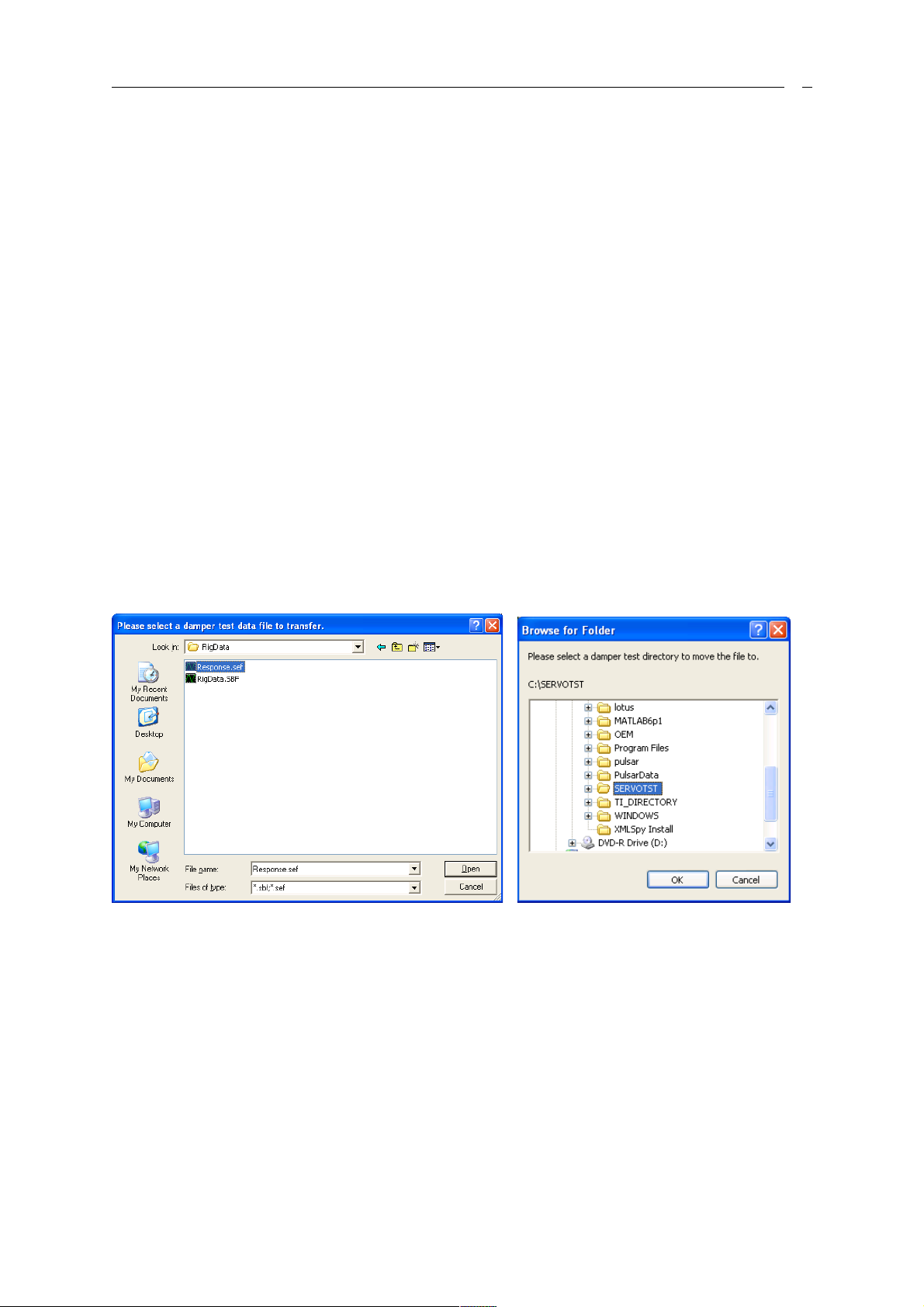
0. SaveDamperTest, in which case the user is prompted for the filename and the
directory (see Figure 7).
1. SaveDamperTest Help, to display this message.
2. SaveDamperTest Filename NewDirectory, where Filename should include the full
path.
Example
SaveDamperTest "C:\Response Files\Resp.sef" "C:\Data\Damper Test Results"
Figure 7: SaveDamperTest if no parameters are specified
8
Page 12
EZFlow Toolbox
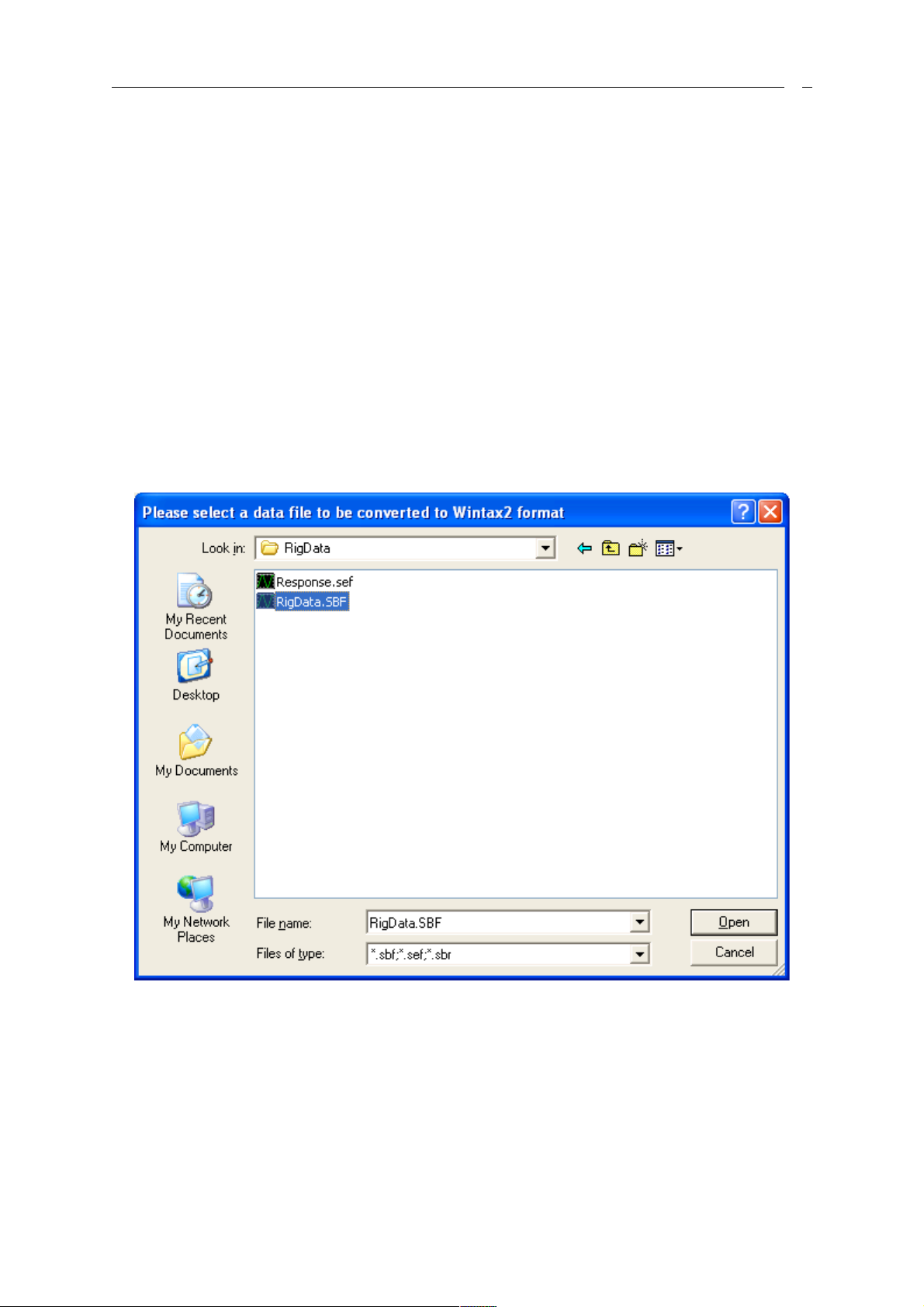
2.5 Converting Servotest files to Wintax2 – SaveAsWintax.exe
SaveAsWintax.exe is used to convert a user-selected Servotest file into a Wintax2 .bin file.
If the original file has a logging rate that is incompatible the Wintax2 format, the file is
automatically resampled at the nearest valid rate.
Number of parameters for SaveAsWintax
0. SaveAsWintax, in which case the user is prompted for the file to be converted
1. SaveAsWintax Filename, where Filename must contain the whole path of the
servotest file to be converted
or SaveAsWintax Help, to display this message.
Example
SaveAsWintax "C:\Response Files\Resp.sef"
Figure 8: SaveAsWintax if no filename is passed as parameter
9
Page 13

Contacting Servotest
Appendix A Contacting Servotest
Servotest Testing Systems Ltd
Unit 1 Beta Way
Thorpe
TW20 8RE
Telephone: +44 (0) 1784 274410
Fax: +44 (0) 1784 274438
Software support line: +44 (0) 1784 274410
Fax: +44 (0) 1784 274438
E-mail: [email protected]
. . . . . . . . . . . . . . . . . . . . . . . . . . . . . . . . . . . . . . . . . . . . . . . . . . . . . . . . . . . . . . . . . . . . . . . . . . . . . . . . . . . . . . . . . . . . . . . . . . .
. . . . . . . . . . . . . . . . . . . . . . . . . . . . . . . . . . . . . . . . . . . . . . . . . . . . . . . . . . . . . . . . . . . . . . . . . . . . . . . . . . . . . . . . . . . . . . . . . . .
. . . . . . . . . . . . . . . . . . . . . . . . . . . . . . . . . . . . . . . . . . . . . . . . . . . . . . . . . . . . . . . . . . . . . . . . . . . . . . . . . . . . . . . . . . . . . . . . . . .
. . . . . . . . . . . . . . . . . . . . . . . . . . . . . . . . . . . . . . . . . . . . . . . . . . . . . . . . . . . . . . . . . . . . . . . . . . . . . . . . . . . . . . . . . . . . . . . . . . .
. . . . . . . . . . . . . . . . . . . . . . . . . . . . . . . . . . . . . . . . . . . . . . . . . . . . . . . . . . . . . . . . . . . . . . . . . . . . . . . . . . . . . . . . . . . . . . . . . . .
. . . . . . . . . . . . . . . . . . . . . . . . . . . . . . . . . . . . . . . . . . . . . . . . . . . . . . . . . . . . . . . . . . . . . . . . . . . . . . . . . . . . . . . . . . . . . . . . . . .
. . . . . . . . . . . . . . . . . . . . . . . . . . . . . . . . . . . . . . . . . . . . . . . . . . . . . . . . . . . . . . . . . . . . . . . . . . . . . . . . . . . . . . . . . . . . . . . . . . .
. . . . . . . . . . . . . . . . . . . . . . . . . . . . . . . . . . . . .
1
 Loading...