

Page 1
evolution wireless G4
100 series
Instruction Manual
Sennheiser electronic GmbH & Co. KG
Am Labor 1, 30900 Wedemark, Germany, www.sennheiser.com
ew 100 G4 - v2.2
Page 2

Overview 6
ew 100 G4 series products 7
EM 100 G4 rack receiver 8
SKM 100 G4 handheld transmitter 9
SK 100 G4 bodypack transmitter 10
Accessories 11
Microphones and cables 12
Microphone modules 12
Headset and Lavalier microphones 12
Line/instrument cables 13
Rechargeable battery and charger 14
BA 2015 rechargeable battery 14
L 2015 charger 14
LA 2 charging adapter 15
Accessories for rack mounting 16
GA 3 rack mount kit 16
AM 2 antenna front mounting kit 16
Antennas and accessories 17
Omni-directional antennas 17
Directional antennas 17
Antenna splitter 17
Antenna amplifiers 17
Antenna cables 17
Additional accessories 18
Color labeling set 18
Microphone clamp 18
The frequency bank system 19
Installing and starting up ew 100 G4 series devices
20
Installing the EM 100 G4 21
Connectors on the rear of the device 22
Product overview for the rear side of the EM 100 G4 22
Connecting/disconnecting the EM 100 G4 to/from the
power supply system 23
Creating a data network 24
Setting up a multi-channel system with more than 12
receivers 25
Outputting audio signals 26
Connecting antennas 27
Installing the EM 100 G4 in a rack 28
Mounting a single receiver in a rack 29
Mounting two receivers side by side in a rack 30
Installing the SKM 100 G4 31
Inserting and removing the batteries/rechargeable batteries 32
Battery status 33
Replacing the microphone module 34
Changing the colored ring 35
Installing the SK 100 G4 36
Inserting and removing the batteries/rechargeable bat-
1
Page 3

teries 37
Battery status 38
Connecting a microphone to the SK 100 G4 39
Connecting an instrument or line source to the SK 100 G4
40
Attaching the bodypack transmitter to clothing 41
Installing the ASA 214 42
Connectors on the rear of the device 43
Product overview for the rear side of the ASA 214 43
Connecting/disconnecting the ASA 214 to/from the power supply system 44
Connecting receivers to the ASA 214 45
Connecting antennas 47
Connecting remote antennas 47
Connecting rod antennas 47
Information on antenna amplifiers and cable lengths 48
Configuring multi-channel systems 50
Option 1: Two antennas supply a 4-channel system 50
Option 2: Two 4-channel systems are interconnected
51
Option 3: Two antennas supply a 8-channel system 51
Installing the ASA 214 in a rack 52
Mounting a single antenna splitter in a rack 53
Mounting two antenna splitters side by side in a rack
55
Using ew 100 G4 series devices 56
Using the EM 100 G4 58
Operating elements on the front of the device 59
Product overview for the front of the EM 100 G4 59
Switching the EM 100 G4 on and off 60
Muting the audio output 61
Lock-off function 62
Displays on the EM 100 G4 display panel 63
Buttons for navigating through the menu 63
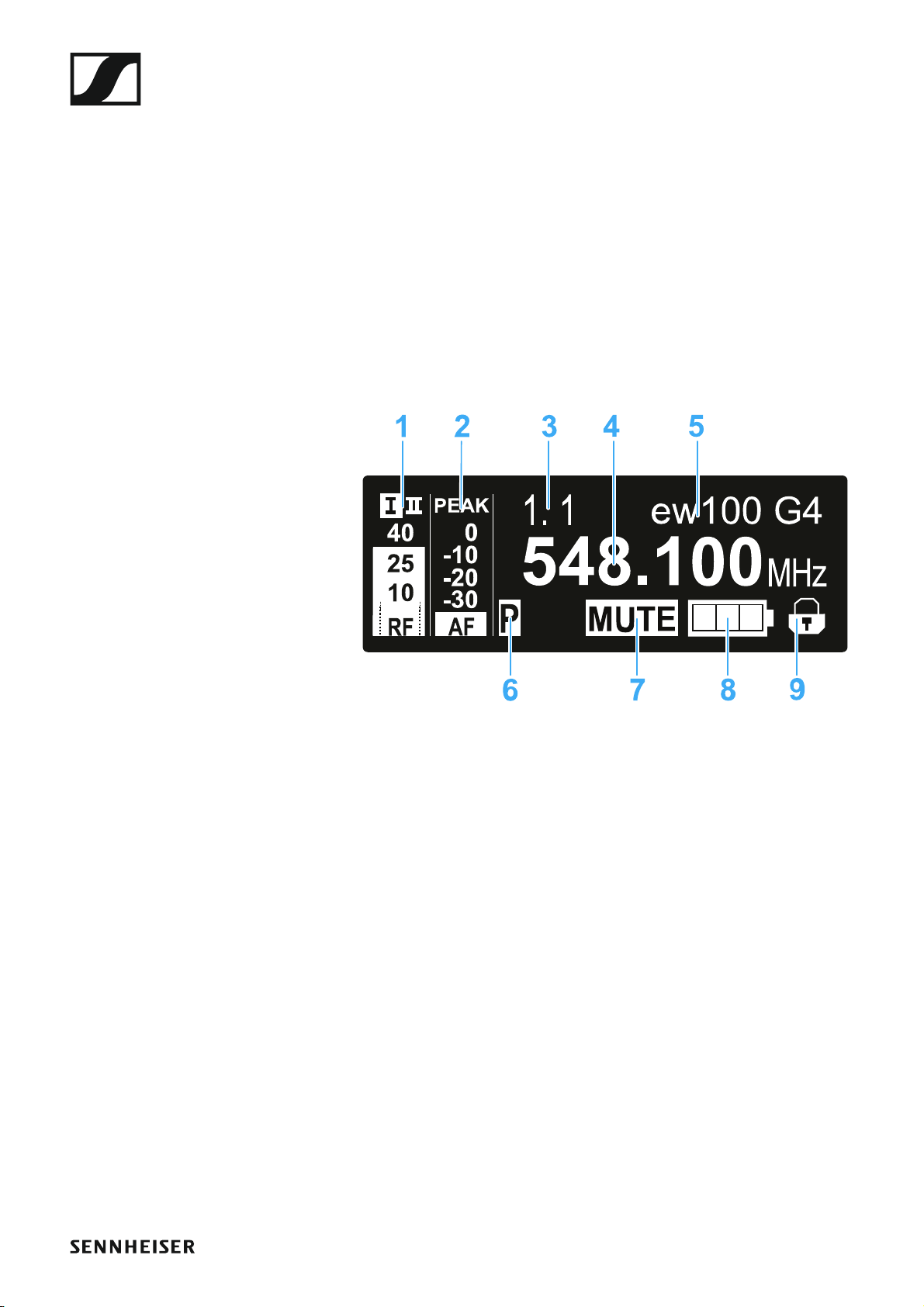
Home screen 65
Receiver Parameters standard display 65
Soundcheck standard display 66
RF Min 66
RF Max 67
AF Max 67
Guitar Tuner standard display 67
Setting options in the menu 68
Menu structure 69
Squelch menu item 70
Easy Setup menu item 72
Scan New List 72
Current List 73
Reset 73
Performing multi-channel frequency setup 73
Setting up a multi-channel system with more than 12
receivers 75
2
Page 4

Frequency Preset menu item 76
Name menu item 77
AF Out menu item 78
Equalizer menu item 79
Auto Lock menu item 80
Advanced menu item 81
Advanced -> Tune menu item 82
Only adjusting the frequency 82
Setting the channel and frequency 82
Advanced -> Guitar Tuner menu item 83
Advanced -> Pilot Tone menu item 83
Advanced -> LCD Contrast menu item 84
Advanced -> Reset menu item 84
Advanced -> Software Revision menu item 84
Using the SKM 100 G4 85
Operating elements of the SKM 100 G4 handheld transmitter 86
Switching the SKM 100 G4 handheld transmitter on and
off 87
Muting the handheld transmitter (AF mute) 88
SKM 100 G4 88
SKM 100 G4-S 88
Deactivating the RF signal (RF mute) 89
Lock-off function 90
Displays on the SKM 100 G4 handheld transmitter display panel 91
Select a standard display 92
Buttons for navigating the SKM 100 G4 menu 93
Navigating through the menu 93
Making changes in a menu item 93
Setting options in the menu 94
Sensitivity menu item 95
Frequency Preset menu item 96
Name menu item 96
Auto Lock menu item 97
Advanced menu item 98
Advanced > Tune menu item 99
Only adjusting the frequency 99
Setting the channel and frequency 99
Advanced > Mute Mode menu item (SKM 100 G4-S only)
100
Advanced > Pilot Tone menu item 100
Advanced > LCD Contrast menu item 100
Advanced > Reset menu item 101
Advanced > Software Revision menu item 101
Using the SK 100 G4 102
Operating elements of the SK 100 G4 bodypack transmitter 103
Switching the SK 100 G4 bodypack transmitter on and off
104
Muting the bodypack transmitter (AF mute) 105
3
Page 5

Deactivating the RF signal (RF mute) 106
Deactivating the RF signal with the MUTE switch 106
Deactivating the RF signal with the ON/OFF button 108
Lock-off function 109
Displays on the SK 100 G4 bodypack transmitter display
panel 110
Select a standard display 111
Buttons for navigating the SK 100 G4 menu 112
Navigating through the menu 112
Making changes in a menu item 112
Setting options in the menu 113
Sensitivity menu item 114
Frequency Preset menu item 114
Name menu item 115
Auto Lock menu item 115
Advanced menu item 116
Advanced > Tune menu item 117
Only adjusting the frequency 117
Setting the channel and frequency 117
Advanced > Mute Mode menu item 118
Advanced > Cable Emulation menu item 118
Advanced > Pilot Tone menu item 119
Advanced > LCD Contrast menu item 119
Advanced > Reset menu item 119
Advanced > Software Revision menu item 119
Establishing a radio link 120
Setting notes 120
Synchronizing devices 121
Using the ASA 214 123
Operating elements on the front of the device 124
Switching the ASA 214 on and off 125
Overview 126
Product variants 127
EM 100 G4 product variants 127
Made in Germany 127
Assembled in the USA 127
SKM 100 G4 product variants 128
Made in Germany 128
Assembled in the USA 128
SK 100 G4 product variants 129
Made in Germany 129
Assembled in the USA 129
Frequency tables 130
Specifications 131
EM 100 G4 132
RF characteristics 132
AF characteristics 133
Overall device 133
SKM 100 G4 134
RF characteristics 134
4
Page 6

AF characteristics 134
Overall device 135
SK 100 G4 136
RF characteristics 136
AF characteristics 136
Overall device 137
ASA 214 138
Specifications 138
Block diagram 139
Pin assignment 140
3.5 mm stereo jack plug 140
3.5 mm mic jack plug 140
3.5 mm line jack plug 140
6.3 mm stereo jack plug, balanced (audio in/loop out)
140
6.3 mm mono jack plug, unbalanced 141
6.3 mm stereo jack plug for headphone jack 141
XLR-3 plug, balanced 141
Hollow jack plug for power supply 141
Cleaning and maintenance 142
Cleaning the sound inlet basket of the microphone mo-
dule 142
5
Page 7
Overview
PRODUCT INFORMATION
Overview
You can find information about the individual products in the ew 100 G4 series under “ew 100 G4 series products”.
For information about the available accessories, see “Accessories”.
You can find information about the ew 100 G4 series frequency bank system under “The frequency bank system”.
6
Page 8

ew 100 G4 series products
ew 100 G4 series products
You can also find more information here:
• A variety of frequency variants are available from the individual products. You can find more information under “Product variants”.
•You can find technical specifications about the individual products under “Specifications”.
• You can find information about installing the products under “Installing
and starting up ew 100 G4 series devices”.
• You can find information about operating the products under “Using
ew 100 G4 series devices”.
7
Page 9
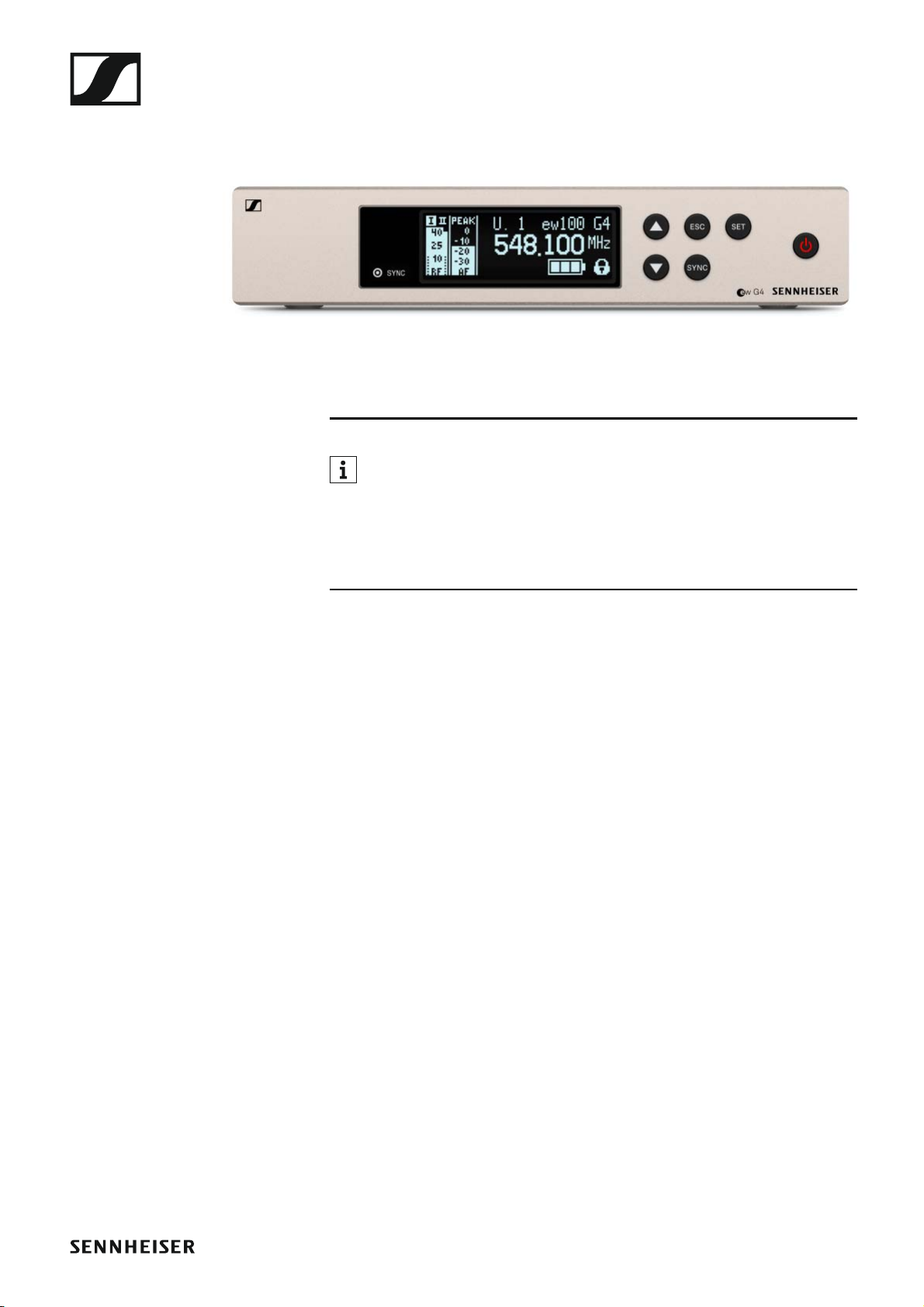
EM 100 G4 rack receiver
►
You can find more detailed information about the EM 100 G4 in the
following sections:
• Installation and Startup: “Installing the EM 100 G4”
• Operation: “Using the EM 100 G4”
• Technical Data: “EM 100 G4”
8
Page 10
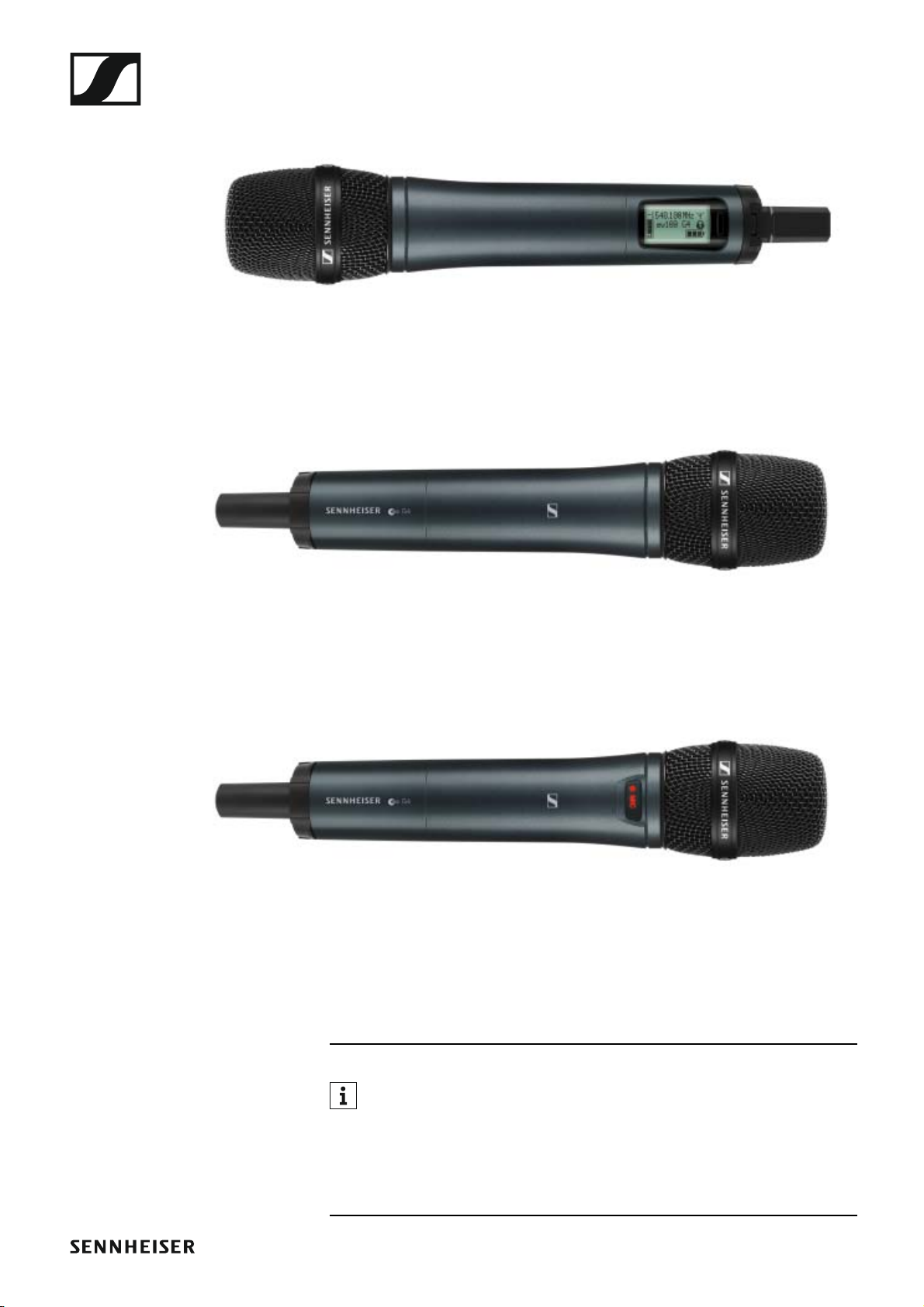
SKM 100 G4 handheld transmitter
►
SKM 100 G4 variant:
►
SKM 100 G4-S variant:
►
The SKM 100 G4 handheld transmitter is also available in the SKM 100 G4S variant with an integrated mute switch.
You can find more detailed information about the SKM 100 G4 in the
following sections:
• Installation and Startup: “Installing the SKM 100 G4”
• Operation: “Using the SKM 100 G4”
• Technical Data: “SKM 100 G4”
9
Page 11
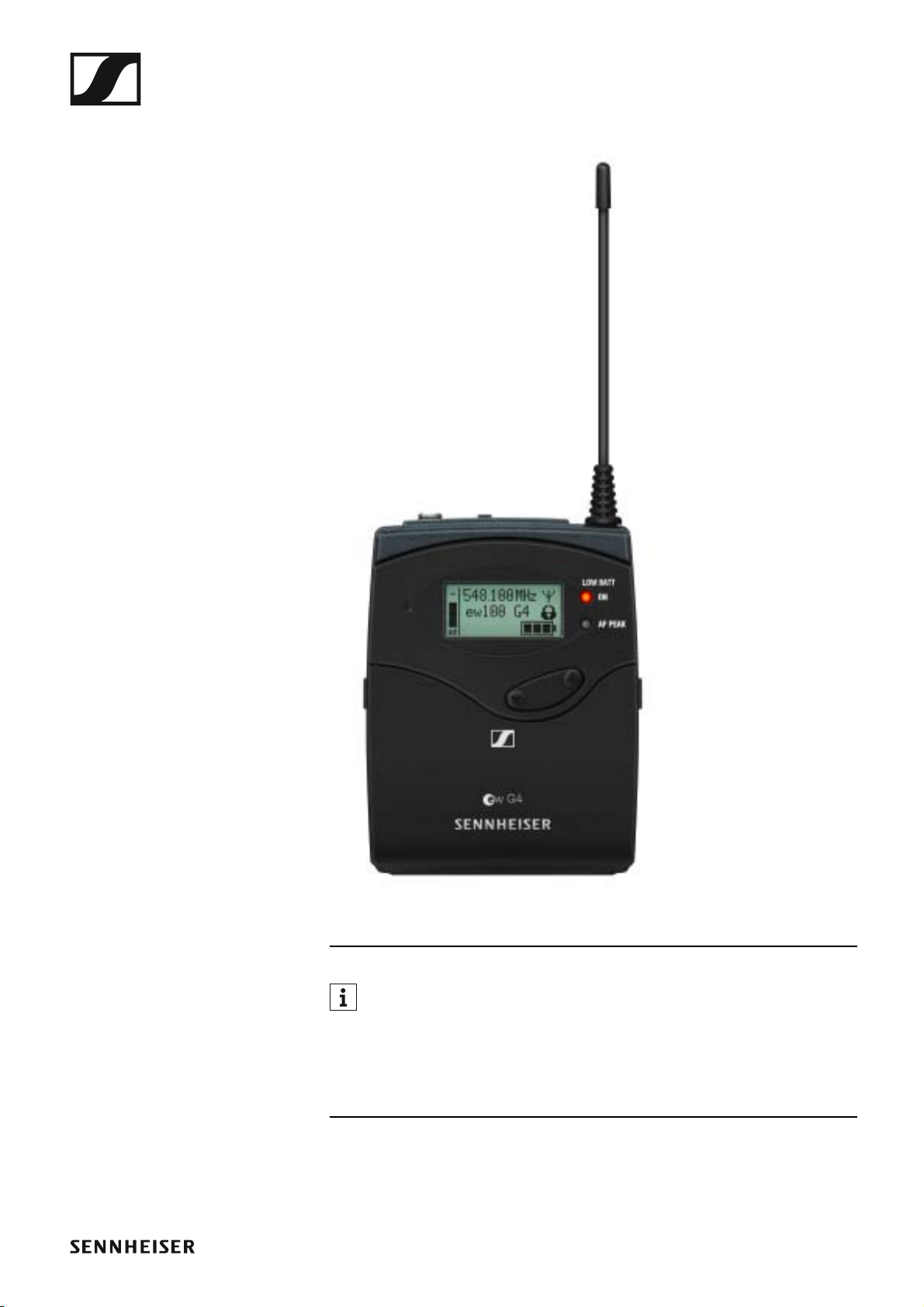
SK 100 G4 bodypack transmitter
►
You can find more detailed information about the SK 100 G4 in the
following sections:
• Installation and Startup: “Installing the SK 100 G4”
• Operation: “Using the SK 100 G4”
• Technical Data: “SK 100 G4”
10
Page 12

Accessories
A variety of accessories are available for the ew 100 G4 series.
Accessories
11
Page 13
Accessories
Microphones and cables
Microphone modules
We recommend using the following microphone modules with the
SKM 100 G4 and SKM 100 G4-S handheld transmitters.
►
Module Features Article
no.
MMD 835-1 BK Dynamic, cardioid, black 502575
MMD 845-1 BK Dynamic, super-cardioid, black 502576
MME 865-1 BK Capacitor, super-cardioid, black 502581
MMD 935-1 BK Dynamic, cardioid, black 502577
MMD 945-1 BK Dynamic, super-cardioid, black 502579
MMK 965-1 BK Capacitor, switchable
502582
Cardioid/super-cardioid, black
MMK 965-1 NI Capacitor, switchable
502584
Cardioid/super-cardioid, nickel
MMD 42-1 Dynamic, omni-directional, black 506772
You can find more information about the individual microphone modules on their respective product pages at www.sennheiser.com.
Headset and Lavalier microphones
We recommend using the following Lavalier microphones and headset microphones with the SK 100 G4 bodypack transmitter.
►
Microphone Features Article
no.
ME 2-II Lavalier microphone, omni-direc-
507437
tional, black
ME 3-II Headset microphone, cardioid,
506295
black
ME 4-N Lavalier microphone, cardioid,
black
MKE 1-ew Lavalier microphone, omni-direc-
tional, black
MKE 1-ew-3 Lavalier microphone, omni-direc-
tional, beige
MKE 2-ew Gold Lavalier microphone, omni-direc-
tional, black
MKE 2 ew-3 Gold Lavalier microphone, omni-direc-
tional, beige
MKE 40-ew Lavalier microphone, cardioid,
black
005020
502876
502879
009831
009832
500527
12
Page 14
Accessories
Microphone Features Article
no.
SL Headmic 1 BE Headband microphone, omni-di-
506272
rectional,
beige
SL Headmic 1 BK Headband microphone, omni-di-
506271
rectional,
black
SL Headmic 1 SB Headband microphone, omni-di-
506904
rectional,
silver
You can find more information about the individual microphones on
their respective product pages at www.sennheiser.com.
Line/instrument cables
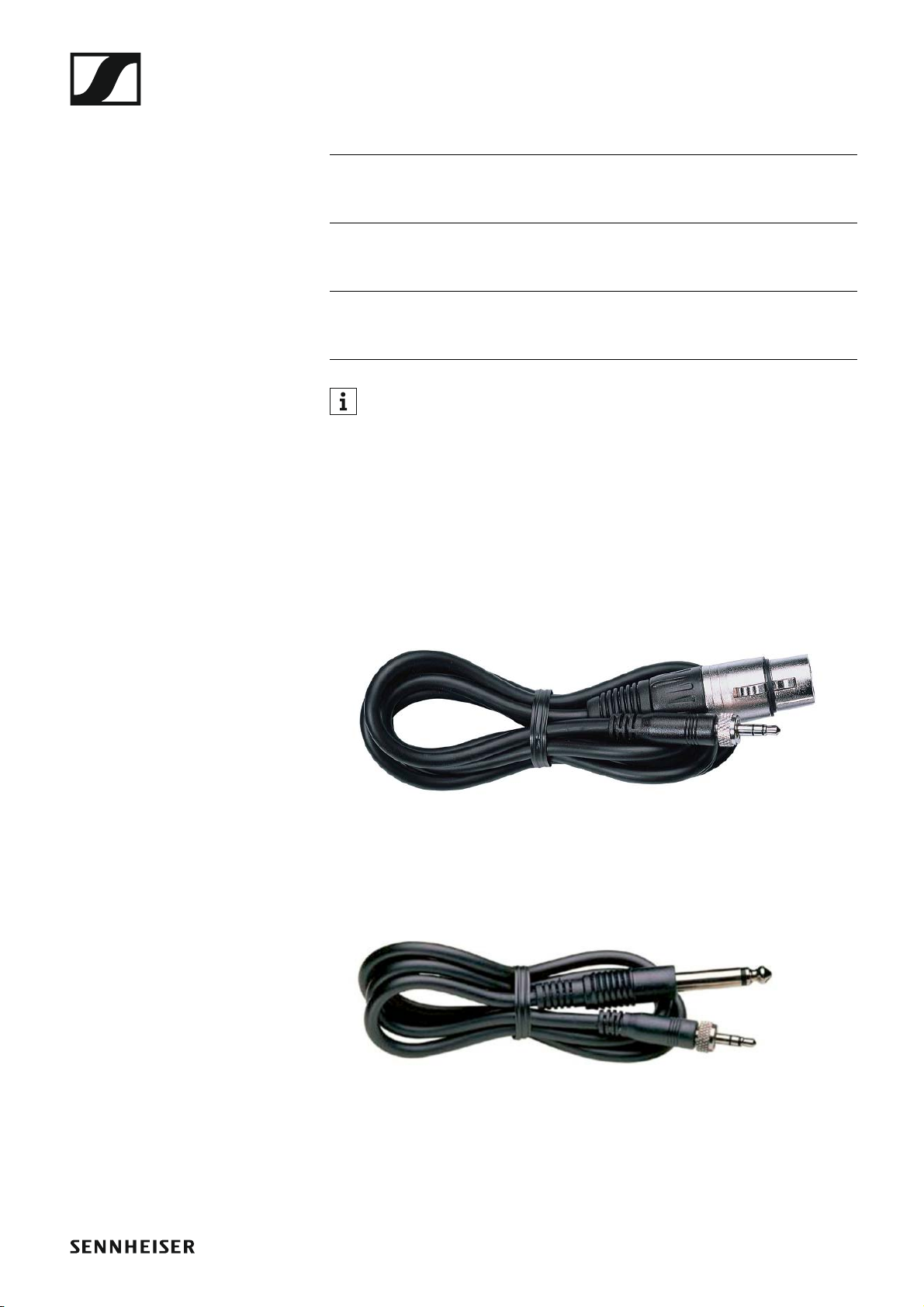
The following cables are available to connect instruments and line sources
to the SK 100 G4 bodypack transmitter:
• Sennheiser CL 2
Line cable with XLR-3F plug on lockable 3.5 mm jack plug, article no.
004840
►
• Sennheiser Ci 1-N
Guitar cable with 6.3 mm jack plug on lockable 3.5 mm jack plug, article
no. 005021
►
13
Page 15
Accessories
Rechargeable battery and charger
BA 2015 rechargeable battery
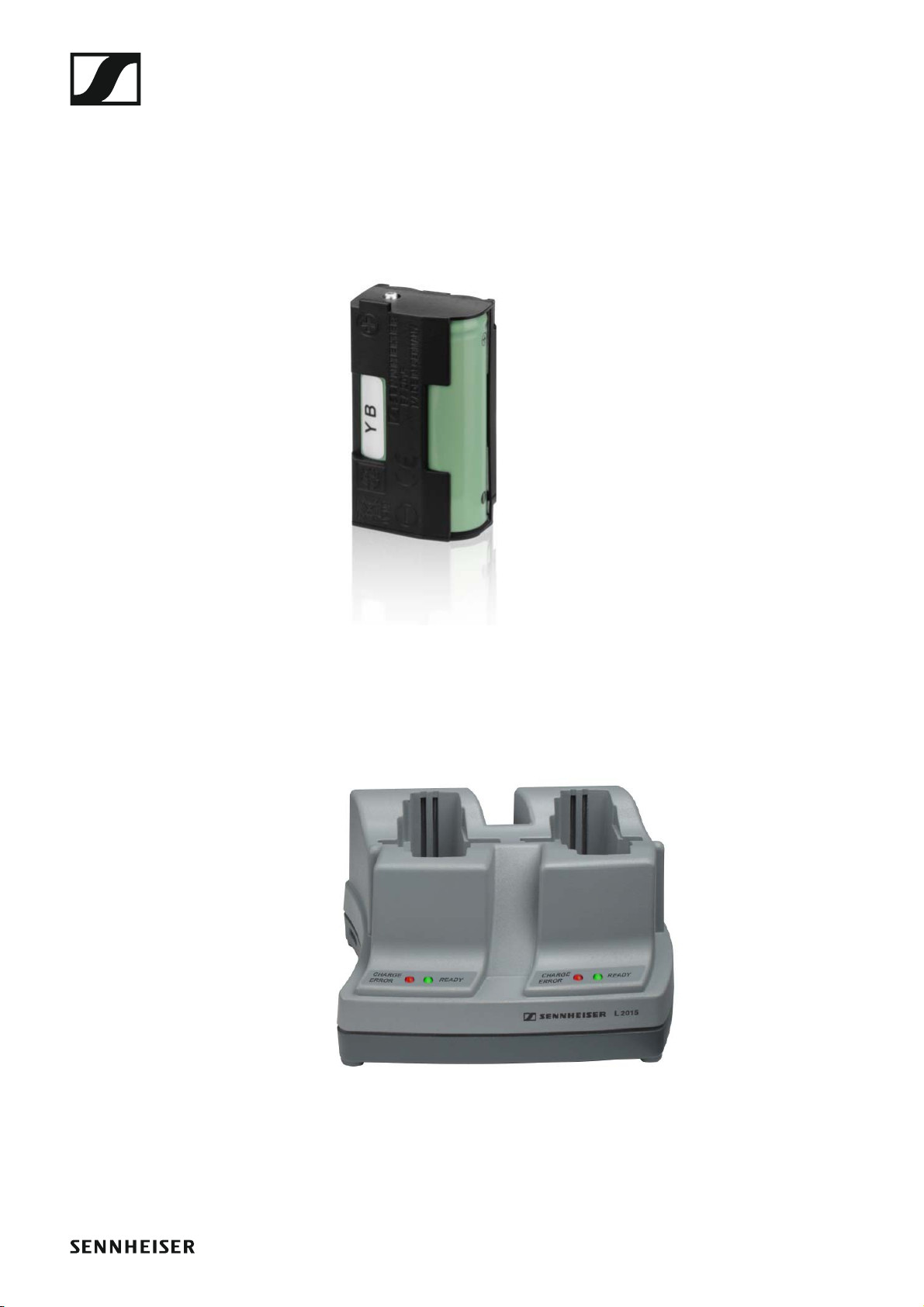
The BA 2015 rechargeable battery is designed for use with evolution wireless G4 series handheld transmitters, bodypack transmitters and
bodypack receivers.
Article no. 009950
►
L2015 charger
The BA 2015 rechargeable battery can be charged in the L 2015 charger on
its own or inside of the bodypack transmitter/bodypack receiver.
Article no. 009828
►
14
Page 16
Accessories
LA 2 charging adapter
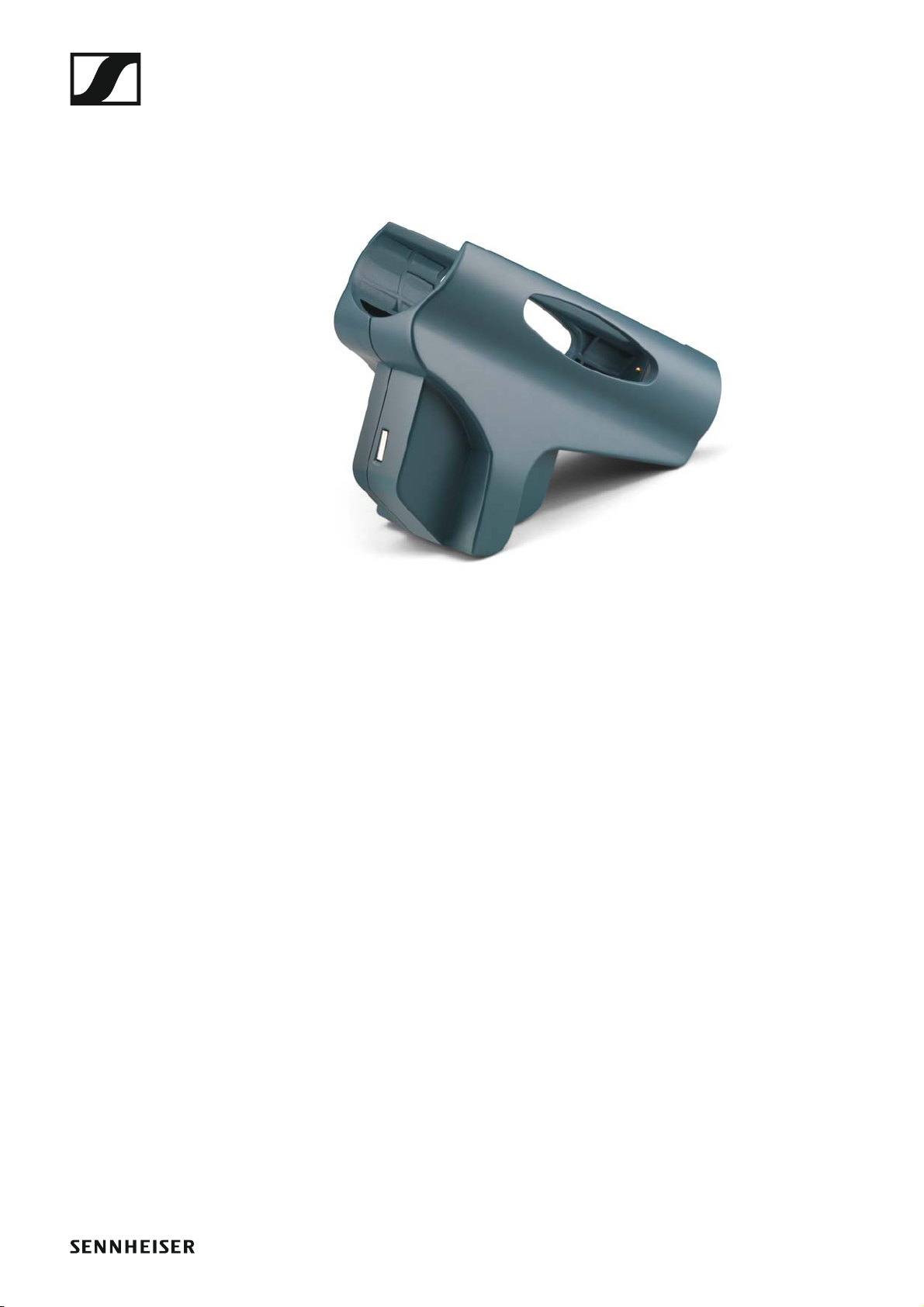
Charging adapter for L 2015 charger for charging SKM G4 handheld transmitters with installed BA 2015 rechargeable battery.
Article no. 503162
►
15
Page 17
Accessories
Accessories for rack mounting
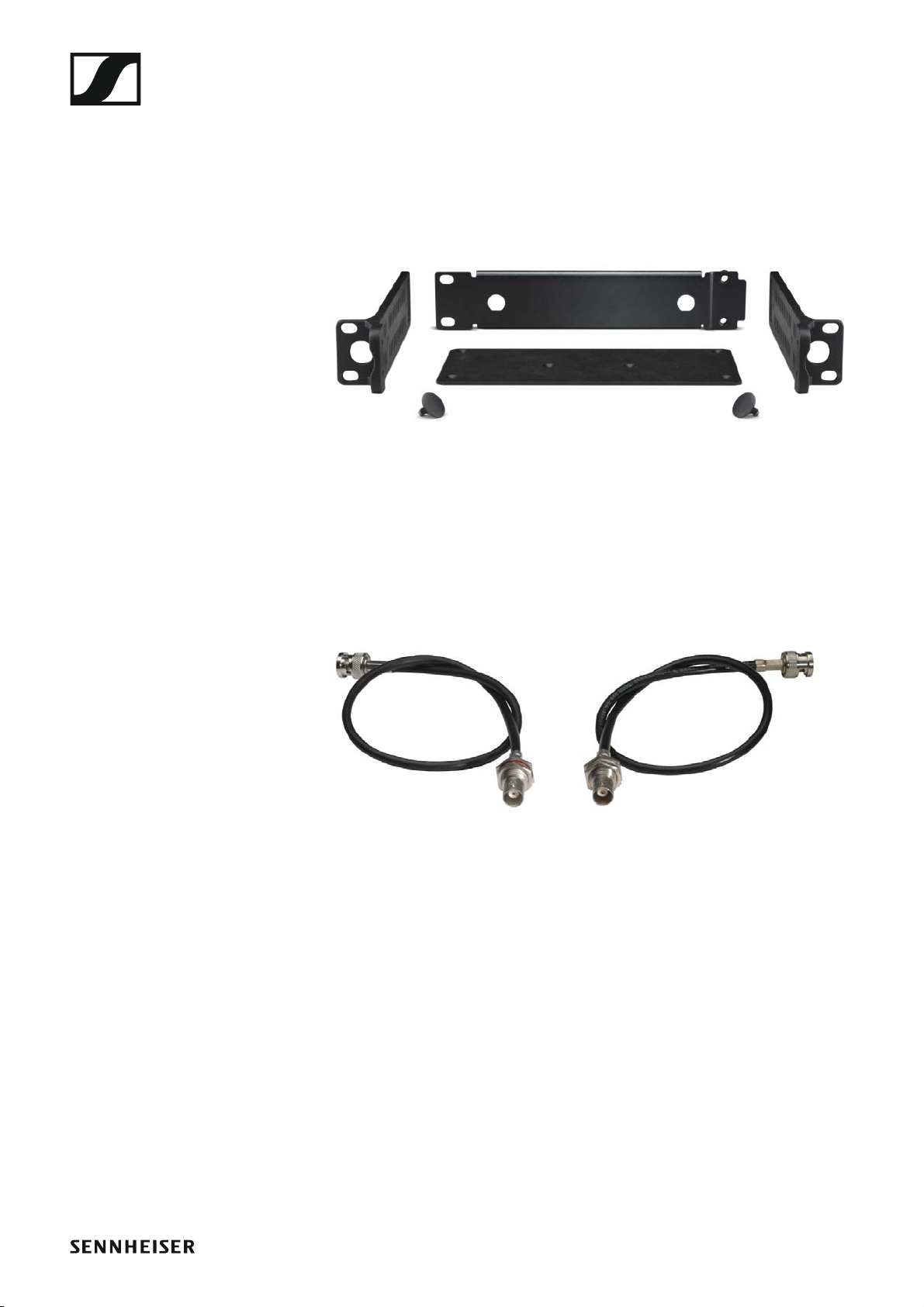
GA 3 rack mount kit
19” rack adapter for mounting the EM 100 G4, EM 300-500 G4 or
SR IEM G4 in a 19” rack.
Article no. 503167
►
AM 2 antenna front mounting kit
Antenna front mounting kit for installing antenna connections on the front
of the rack when using the EM 100 G4, EM 300-500 G4 or SR IEM G4 together with the GA 3 rack mounting kit.
Article no. 009912
►
►
16
Page 18
Accessories
Antennas and accessories
The following antenna components are available as accessory parts.
Omni-directional antennas
• A 1031-U, passive omni-directional antenna, article no. 004645
Directional antennas
• A 2003 UHF, passive directional antenna, article no. 003658
• AD 1800, passive directional antenna, 1.8 GHz range, article no. 504916
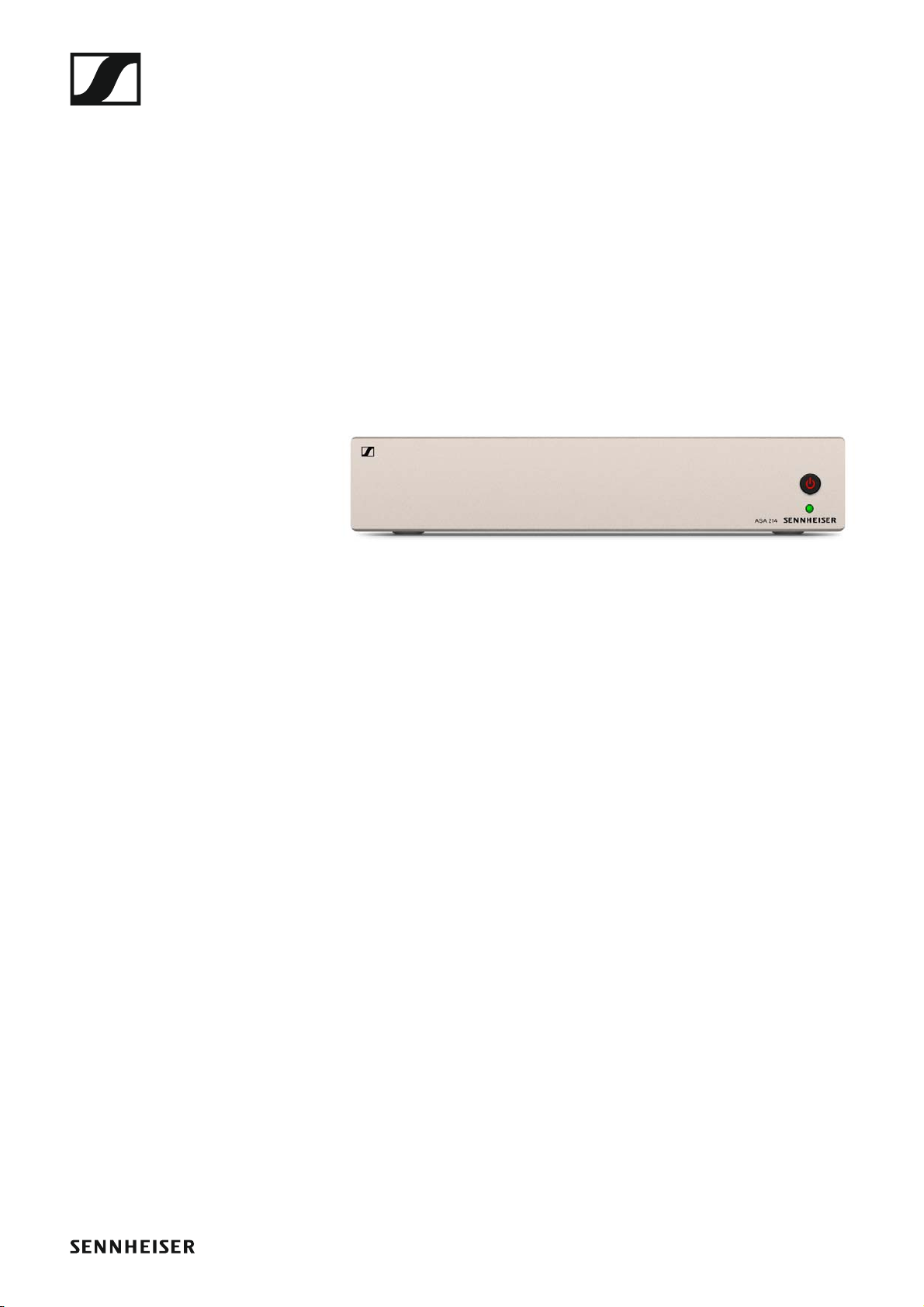
Antenna splitter
►
• ASA 214, active antenna splitter 2×1:4
• ASA 214-UHF variant, 470 – 870 MHz, article no. 508241
• ASA 214-1G8 variant, 1785 – 1800 MHz, article no. 508242
• See “Installing the ASA 214” and “Using the ASA 214”
Antenna amplifiers
• AB 3700, broadband antenna amplifier, article no. 502196
• AB 3, antenna amplifier, up to 42 MHz bandwidth
• AB 3-A variant, frequency range A, article no. 502567
• AB 3-A1 variant, frequency range A1, article no. 507367
• AB 3-B variant, frequency range B, article no. 502568
• AB 3-C variant, frequency range C, article no. 502569
• AB 3-D variant, frequency range D, article no. 502570
• AB 3-E variant, frequency range E, article no. 502571
• AB 3-G variant, frequency range G, article no. 502572
• AB 3-GB variant, frequency range GB, article no. 504680
• AB 3-K variant, frequency range K, article no. 505550
• AB 3-1G8 variant, frequency range 1G8, article no. 504915
Antenna cables
• GZL 1019, BNC/BNC coaxial cable, antenna cable with 50 Ω characteristic (wave) impedance
• GZL 1019-A1 variant, 1 m (3 ft), article no. 002324
• GZL 1019-A5 variant, 5 m (16 ft), article no. 002325
• GZL 1019-A10 variant, 10 m (32 ft), article no. 002326
17
Page 19

Accessories
Additional accessories
Color labeling set
• KEN 2, color labeling set for SKM handheld transmitters, article no.
530195
►
Microphone clamp
• MZQ 1, microphone clamp for SKM handheld transmitters, article no.
076670
►
18
Page 20
The frequency bank system
The frequency bank system
There are different frequency ranges in the UHF band available for transmission.
The following frequency ranges are available for the ew 100 G4 series:
• A1 range: 470 – 516 MHz
• A range: 516 – 558 MHz
• AS range: 520 – 558 MHz
• G range: 566 – 608 MHz
• GB range: 606 – 648 MHz
• B range: 626 – 668 MHz
• C range: 734 – 776 MHz
• D range: 780 – 822 MHz
• TH range: 794 – 806 MHz
• JB range: 806 – 810 MHz
• E range: 823 – 865 MHz
• K+ range: 925 – 937.5 MHz
• 1G8 range: 1785 – 1800 MHz
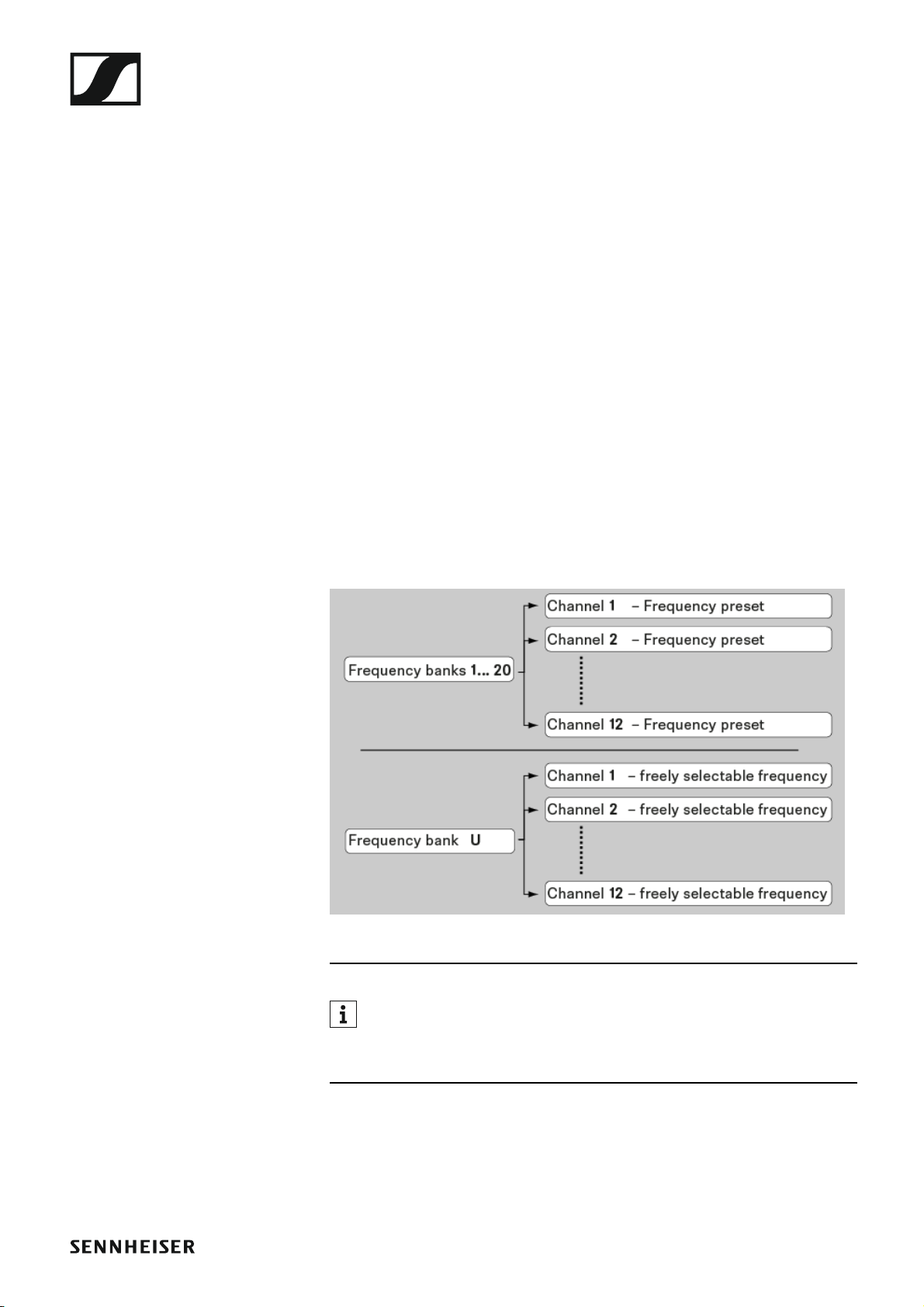
Every frequency range has 21 frequency banks with up to 12 channels:
►
You can find information about the frequency presets in the frequency tables of the respective frequency ranges under “Frequency tables”.
19
Page 21
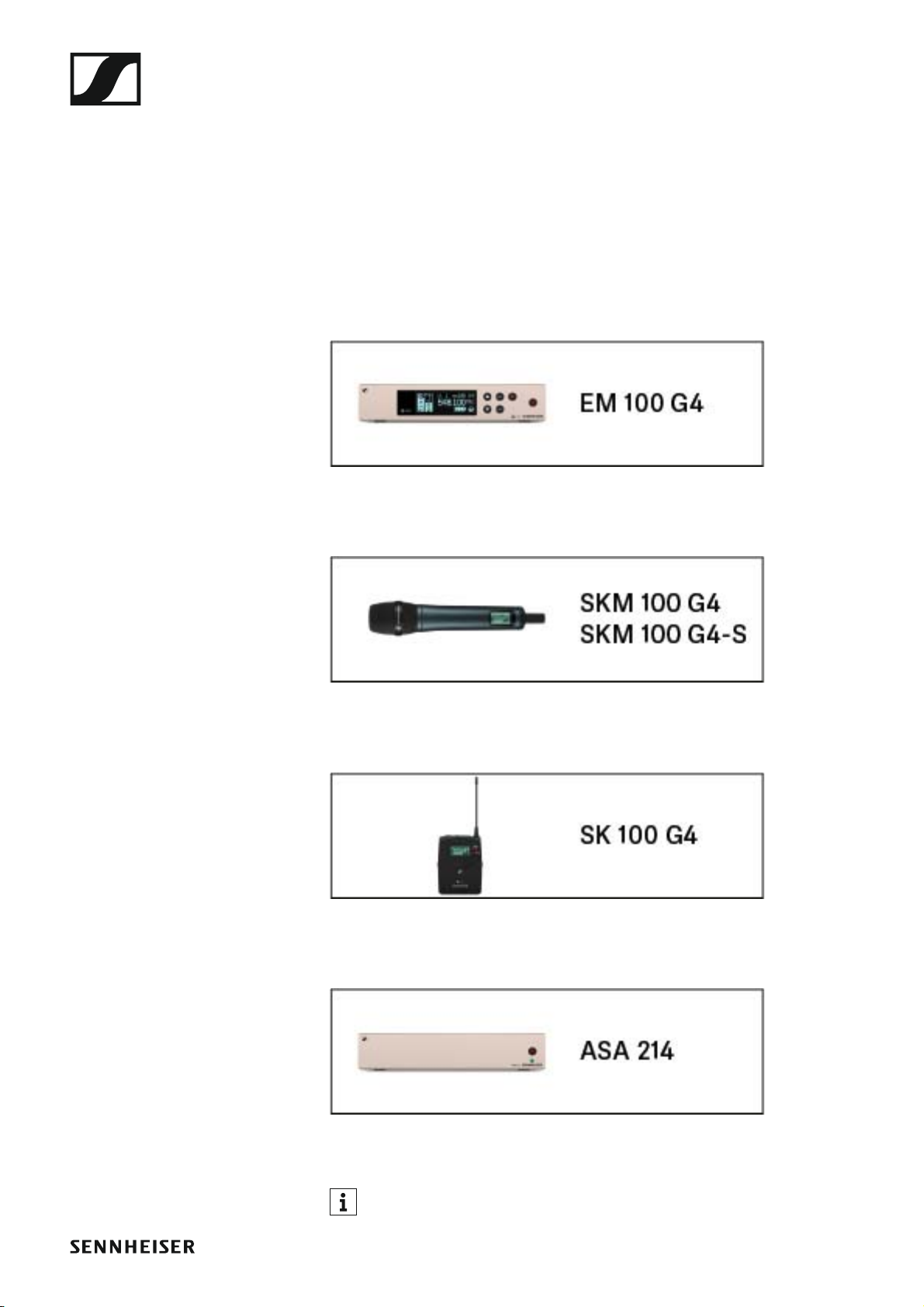
Installing and starting up ew 100 G4 series devices
INSTALLATION
Installing and starting up ew 100 G4 series devices
You can find information about installing and connecting ew 100 G4 series
devices in the following sections.
• EM 100 G4 rack receiver >> “Installing the EM 100 G4”
• SKM 100 G4(-S) handheld transmitter >> “Installing the SKM 100 G4”
• SK 100 G4 bodypack transmitter >> “Installing the SK 100 G4”
• ASA 214 antenna splitter>> “Installing the ASA 214”
You can find information about operating the products under “Using
ew 100 G4 series devices”.
20
Page 22

Installing the EM 100 G4
Installing the EM 100 G4
These sections contain detailed information about installing and starting
up the EM 100 G4.
You can find information about operating the EM 100 G4 under “Using the
EM 100 G4”.
21
Page 23

Installing the EM 100 G4
Connectors on the rear of the device
Product overview for the rear side of the EM 100 G4
►
1 Strain relief for the cable of the power supply unit
• See “Connecting/disconnecting the EM 100 G4 to/from the power
supply system”
2 Connecting cables for the power supply unit (DC IN)
• See “Connecting/disconnecting the EM 100 G4 to/from the power
supply system”
3 XLR-3 socket for audio output, balanced (AF OUT BAL)
• See “Outputting audio signals”
4 6.3 mm jack socket for audio output, unbalanced (AF OUT UNBAL)
• See “Outputting audio signals”
5 RJ-10 interface (DATA)
• See “Creating a data network”
6 RJ-10 interface (DATA)
• See “Creating a data network”
7 BNC socket, antenna input II (ANT II) with remote power supply unit
• See “Connecting antennas”
8 BNC socket, antenna input I (ANT I) with remote power supply unit
• See “Connecting antennas”
22
Page 24

Installing the EM 100 G4
Connecting/disconnecting the EM 100 G4 to/from the power supply system
Only use the supplied power supply unit. It is designed for your receiver
and ensures safe operation.
To connect the EM 100 G4 to the power supply system:
▷ Insert the plug of the power supply unit into the DC IN socket of the re-
ceiver.
▷ Pass the cable of the power supply unit through the cable grip.
▷ Slide the supplied country adapter onto the power supply unit.
▷ Plug the power supply unit into the wall socket.
To completely disconnect the EM 100 G4 from the power supply system:
▷ Unplug the power supply unit from the wall socket.
▷ Unplug the power supply unit from the DC IN socket of the receiver.
23
Page 25
Installing the EM 100 G4
Creating a data network
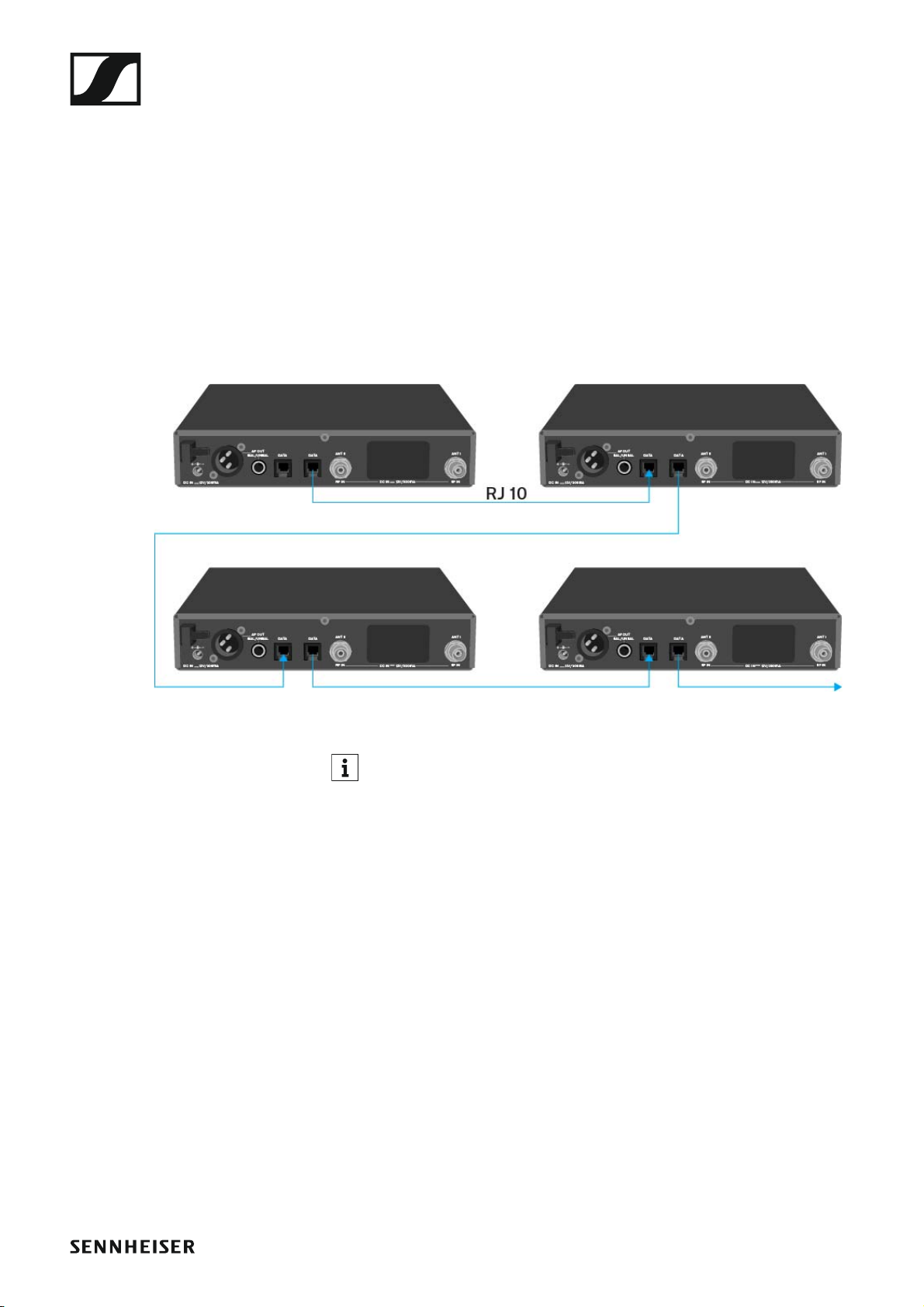
You can cascade multiple EM 100 G4s to a multi-channel system using the
two DATA RJ-10 interfaces (up to 12 receivers). You can perform a frequency setup for the entire multi-channel system via this data network using the
Easy Setup function.
The setup only works when all of the receivers have the same frequency
range.
▷ Connect the receivers to create a multi-channel system using the sup-
plied RJ-10 cables as shown in the diagram.
Both RJ-10 sockets are interchangeable. There is no set order for cabling.
►
You can find more information about the Easy Setup function under
“Easy Setup menu item”.
24
Page 26
Installing the EM 100 G4
Setting up a multi-channel system with more than 12 receivers
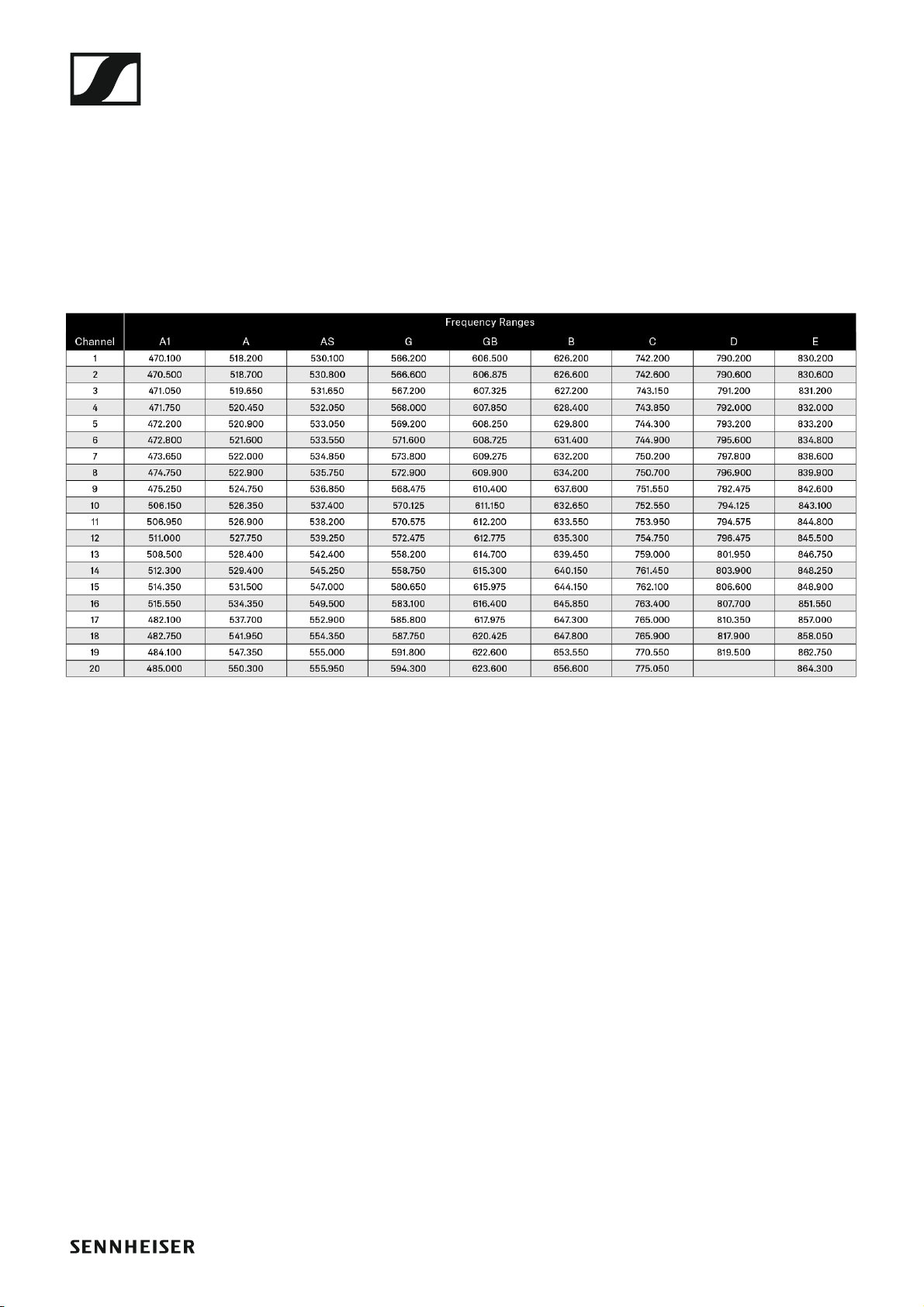
You can use the Easy Setup function to automatically set up a maximum
of 12 receivers.
If you assign the frequencies manually, however, you can use up to 20 receivers in a multi-channel system (not possible in the TH, JB, K+ and 1G8
frequency ranges).
▷ To do so, set a frequency manually in each receiver (see “Advanced ->
Tune menu item”).
▷ Use the frequencies from the following table.
►
25
Page 27
Installing the EM 100 G4
Outputting audio signals
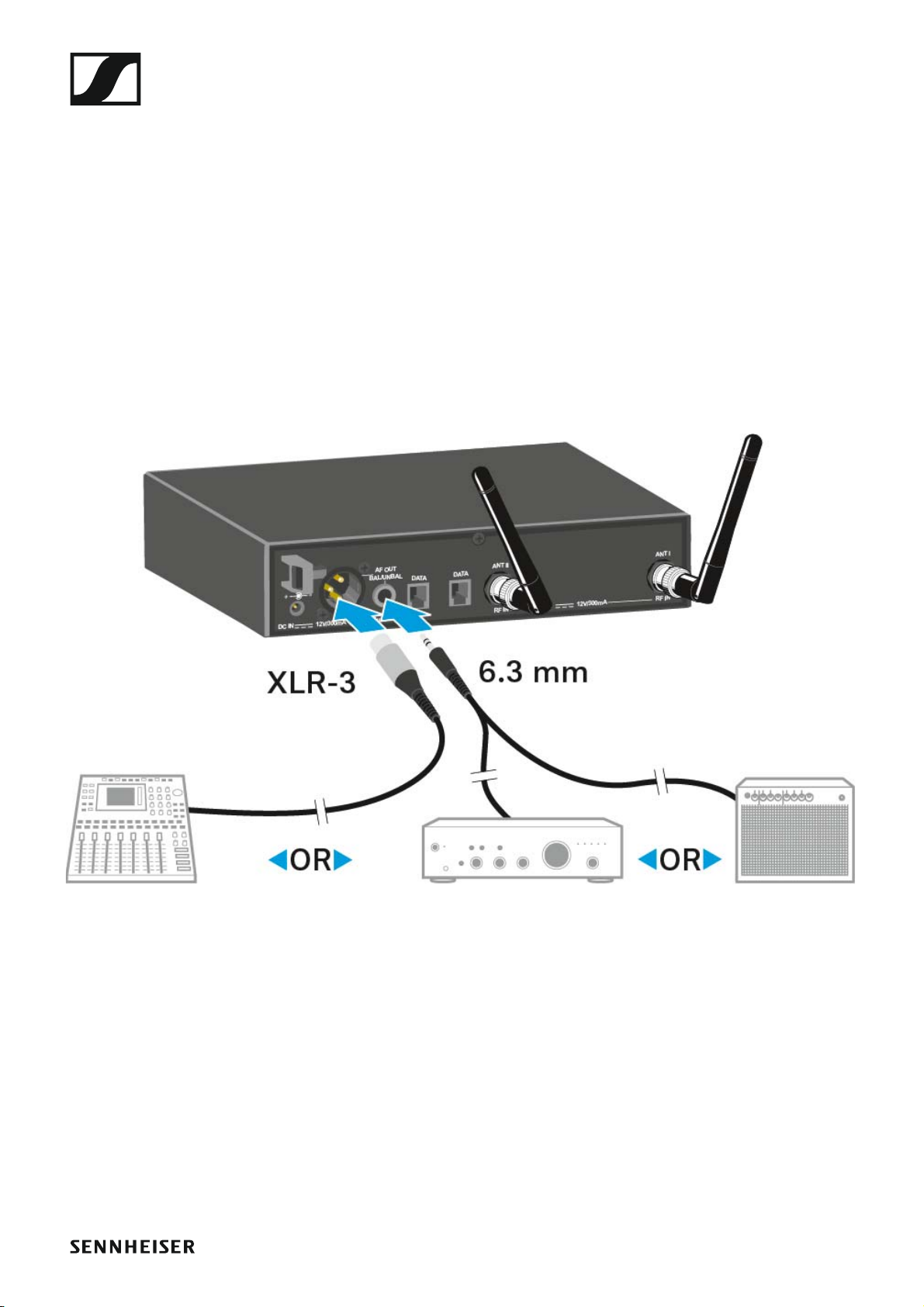
The EM 100 G4 has a balanced XLR-3M output socket and an unbalanced
6.3 mm jack output socket.
▷ Always use only one of the two AF OUT output sockets for each chan-
nel.
To connect an XLR cable:
▷ Plug the XLR cable into the AF OUT BAL socket of the EM 100 G4.
To connect a jack cable:
▷ Plug the jack cable into the AF OUT UNBAL socket of the EM 100 G4.
26
Page 28
Installing the EM 100 G4
Connecting antennas
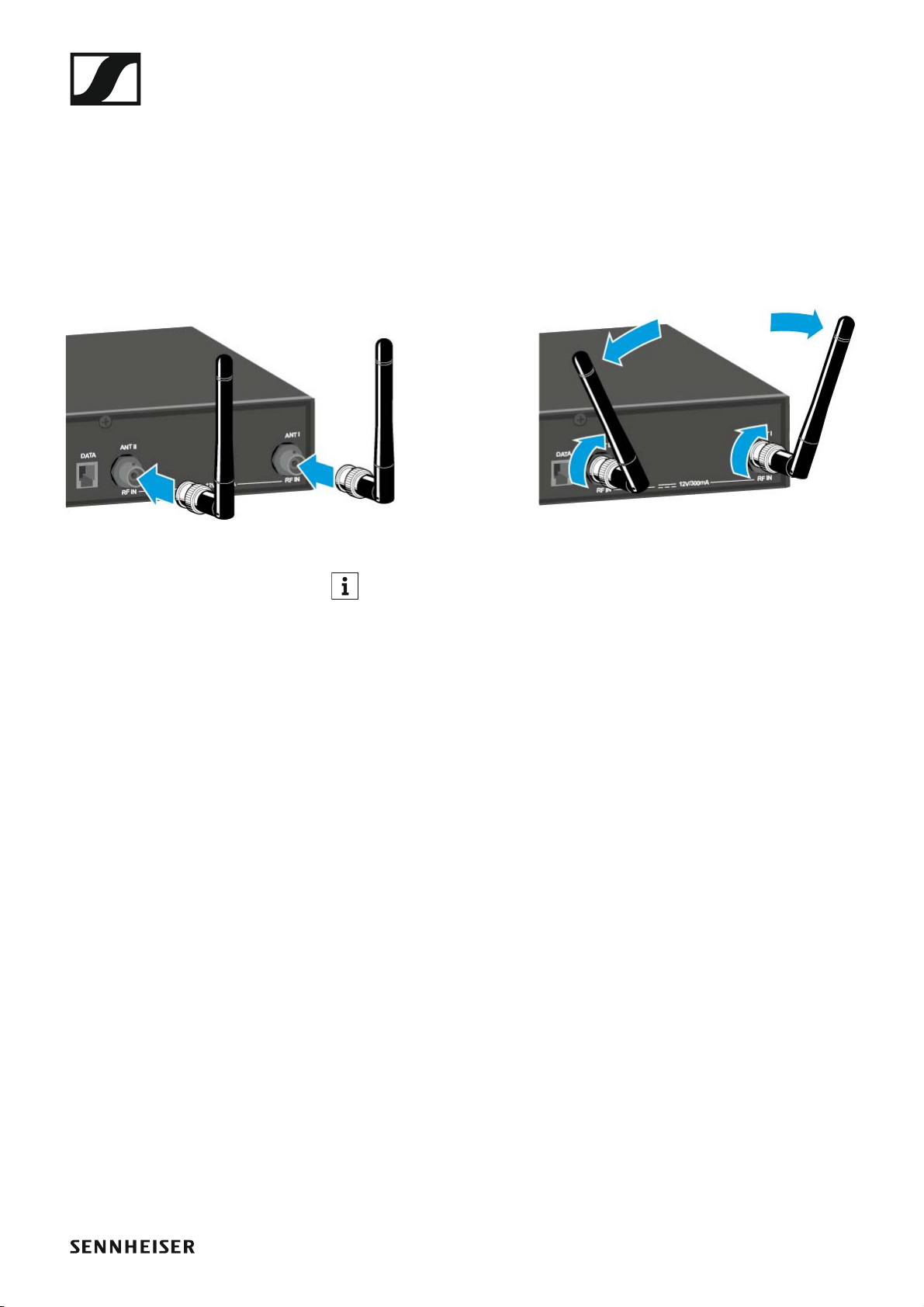
To connect the supplied rod antennas:
▷ Connect the first rod antenna to the ANT I socket on the rear side of the
EM 100 G4.
▷ Connect the second rod antenna to the ANT II socket on the rear side
of the EM 100 G4.
▷ Gently angle the rod antennas to the left and right as shown in the fig-
ure.
If you are using more than one receiver, we recommend using remote
antennas and the ASA 214 antenna splitter. You can find more information here:
•“Installing the ASA214”
•“Using the ASA214”
27
Page 29

Installing the EM 100 G4
Installing the EM 100 G4 in a rack
CAUTION
Rack mounting poses risks
When installing the device in a closed or multi-rack assembly, please consider that, during operation, the ambient temperature, the mechanical
loading and the electrical potentials will be different from those of devices
which are not mounted into a rack.
▷ Make sure that the ambient temperature within the rack does not ex-
ceed the permissible temperature limit specified in the specifications.
See “EM 100 G4”.
▷ Ensure sufficient ventilation; if necessary, provide additional ventila-
tion.
▷ Make sure that the mechanical loading of the rack is even.
▷ When connecting to the power supply system, observe the information
indicated on the type plate. Avoid circuit overloading. If necessary, provide overcurrent protection.
▷ When rack mounting, please note that intrinsically harmless leakage
currents of the individual power supply units may accumulate, thereby
exceeding the allowable limit value. As a remedy, ground the rack via
an additional ground connection.
28
Page 30
Installing the EM 100 G4
Mounting a single receiver in a rack
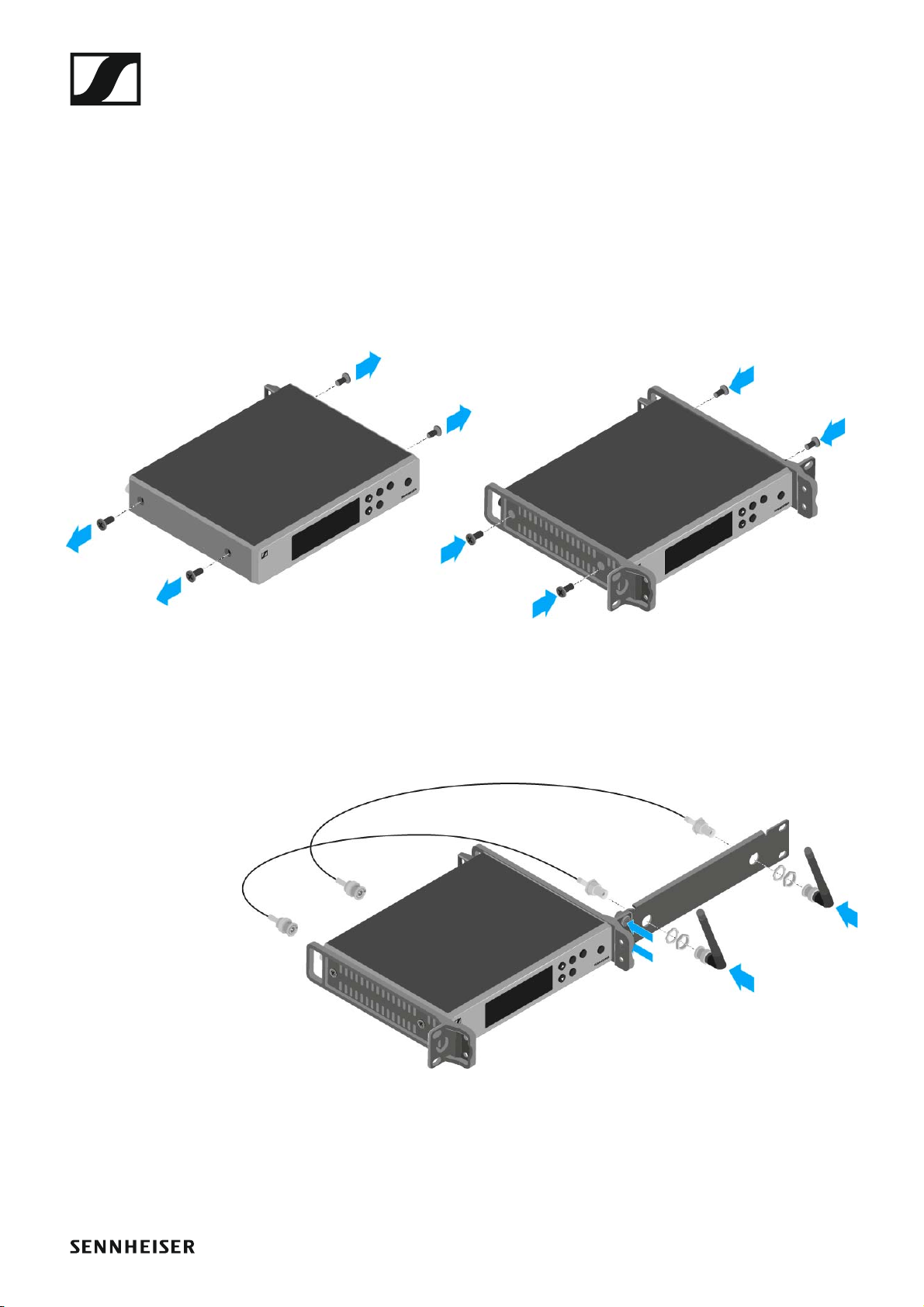
To mount the receiver in a rack, you will need the GA 3 rack mounting kit
(optional accessory).
To fasten the mounting angle of the GA 3 rack mounting kit:
▷ Unscrew and remove the two recessed head screws (M4x8) on each
side of the receiver.
▷ Secure both of the the mounting angles to the sides of the receiver us-
ing the previously removed recessed head screws.
►
▷ Secure the blanking plate to one of the mounting angles using two re-
cessed head screws (M6x10).
▷ Attach the AM 2 antenna front mounting set (optional accessory) and
mount the rod antennas on the blanking plate (right diagram).
►
▷ Slide the receiver with the mounted blanking plate into the 19" rack.
▷ Secure the mounting angle and the blanking plate to the 19" rack.
▷ Align the mounted antennas in a V-shape.
29
Page 31
Installing the EM 100 G4
Mounting two receivers side by side in a rack
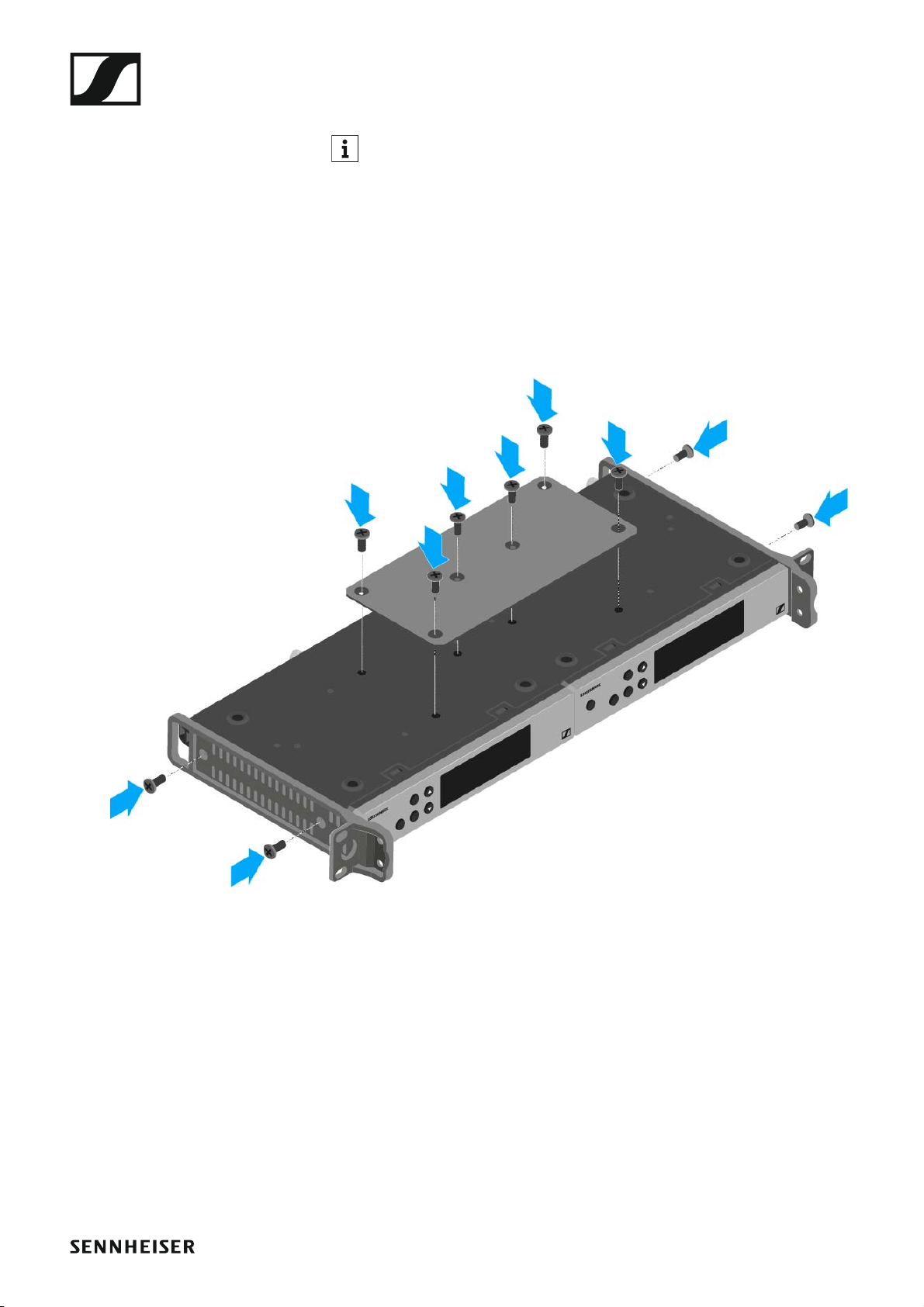
When you mount two receivers side by side, it is only possible to front
mount antennas when you use the ASA 214 antenna splitter in combination with the AM 2 front mounting kit and an additional GA 3 rack
mounting kit,
To mount the receiver using the GA 3 rack mounting kit (optional accessory):
▷ Place both receivers upside down and side by side on an even surface.
▷ Secure the jointing plate to the transmitters using the six recessed
head screws (M3x6).
▷ Secure the mounting angle.
►
30
Page 32

Installing the SKM 100 G4
Installing the SKM 100 G4
These sections contain detailed information about installing and starting
up the SKM 100 G4.
You can find information about operating the SKM 100 G4 under “Using
the SKM 100 G4”.
31
Page 33
Installing the SKM 100 G4
Inserting and removing the batteries/rechargeable batteries
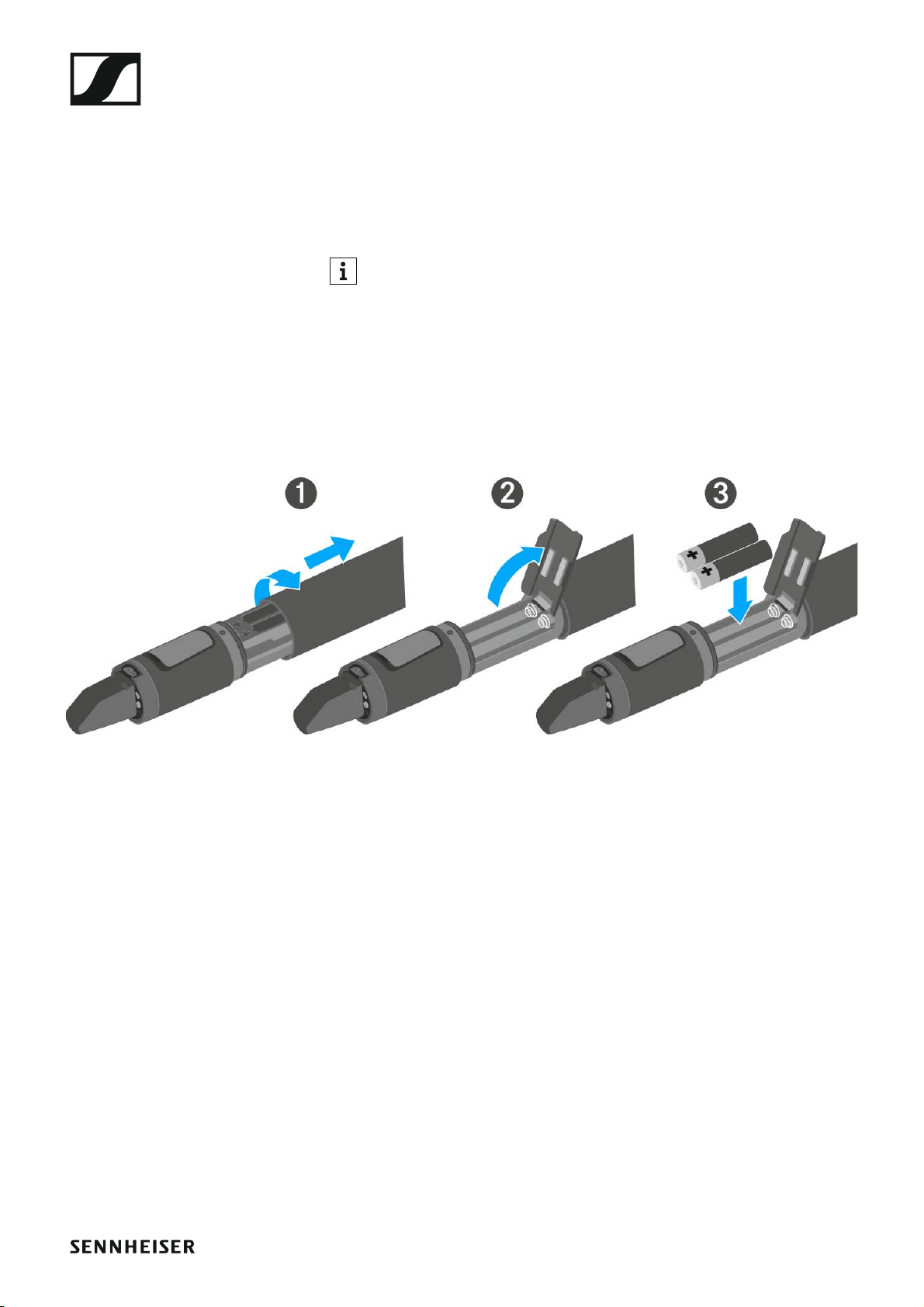
You can operate the wireless microphone either with batteries (AA, 1.5 V)
or with the rechargeable Sennheiser BA 2015 battery.
▷ Screw the rear part of the wireless microphone in the direction of the
arrow (counter-clockwise) off of the handle of the wireless microphone.
When you remove the wireless microphone during operation, mute is
automatically activated. MUTE appears in the display panel. When
you screw the microphone back together, mute is deactivated.
▷ Pull the rear part of the wireless microphone all the way out.
▷ Open the cover of the battery compartment.
▷ Place the batteries or the BA 2015 rechargeable battery in the battery
compartment as shown on the cover. Please observe correct polarity
when inserting the batteries/accupack.
▷ Close the cover.
▷ Push the battery compartment into the handle of the wireless micro-
phone.
▷ Screw the rear part of the wireless microphone back onto the handle.
32
Page 34
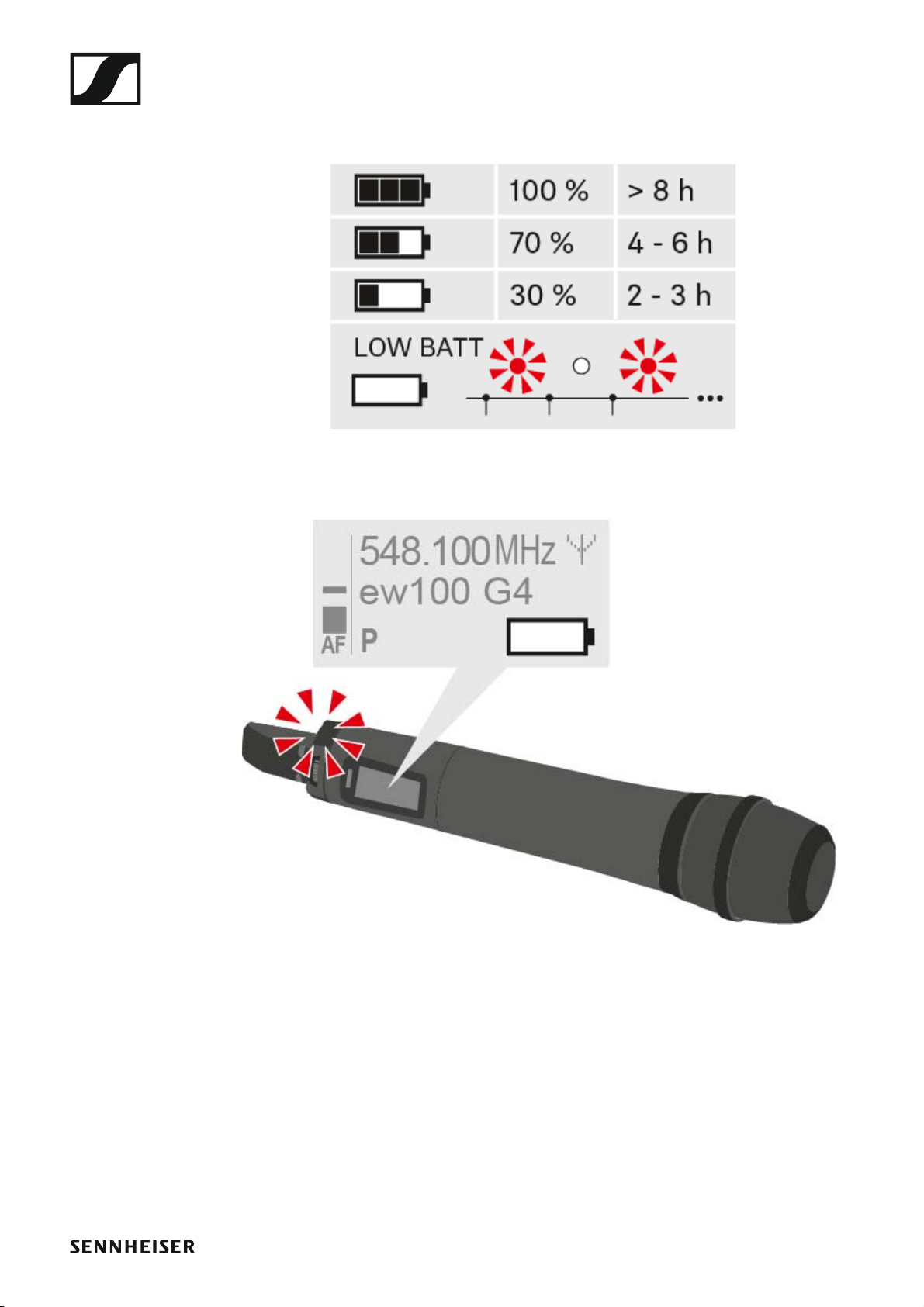
Battery status
Charge status of the batteries:
►
Installing the SKM 100 G4
Charge status is critical (LOW BATT):
►
33
Page 35
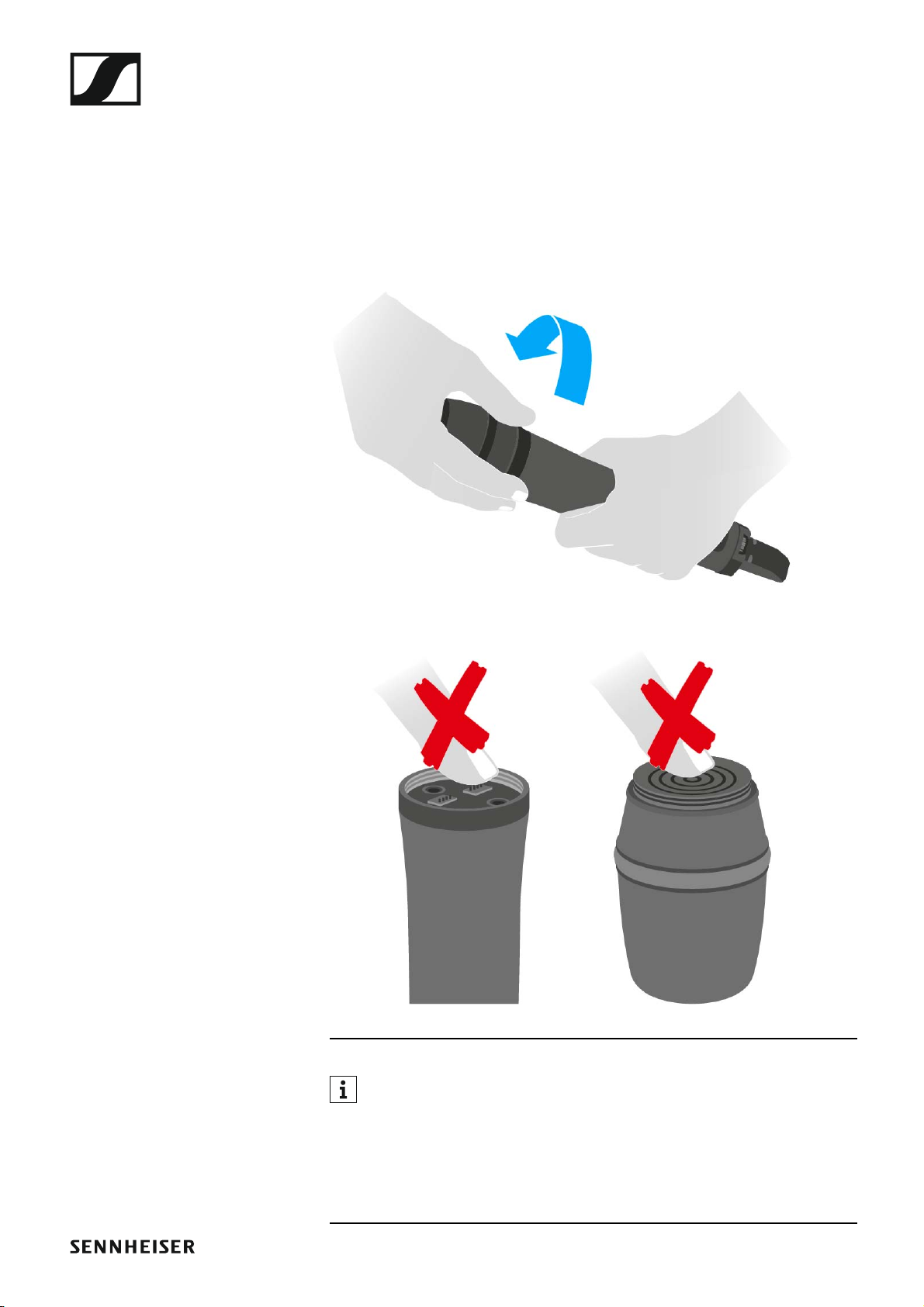
Installing the SKM 100 G4
Replacing the microphone module
You can find a list of the recommended microphone modules for the handheld transmitter under “Microphones and cables”.
To change the microphone module:
▷ Unscrew the microphone module.
▷ Screw the desired microphone module on.
►
Do not touch the wireless microphone contacts or the microphone
module contacts. If you touch the contacts, they may become dirty or
bent.
When you unscrew the microphone module during operation, mute is automatically activated. MUTE appears in the display panel. When you screw
the microphone module back on, mute is deactivated.
34
Page 36
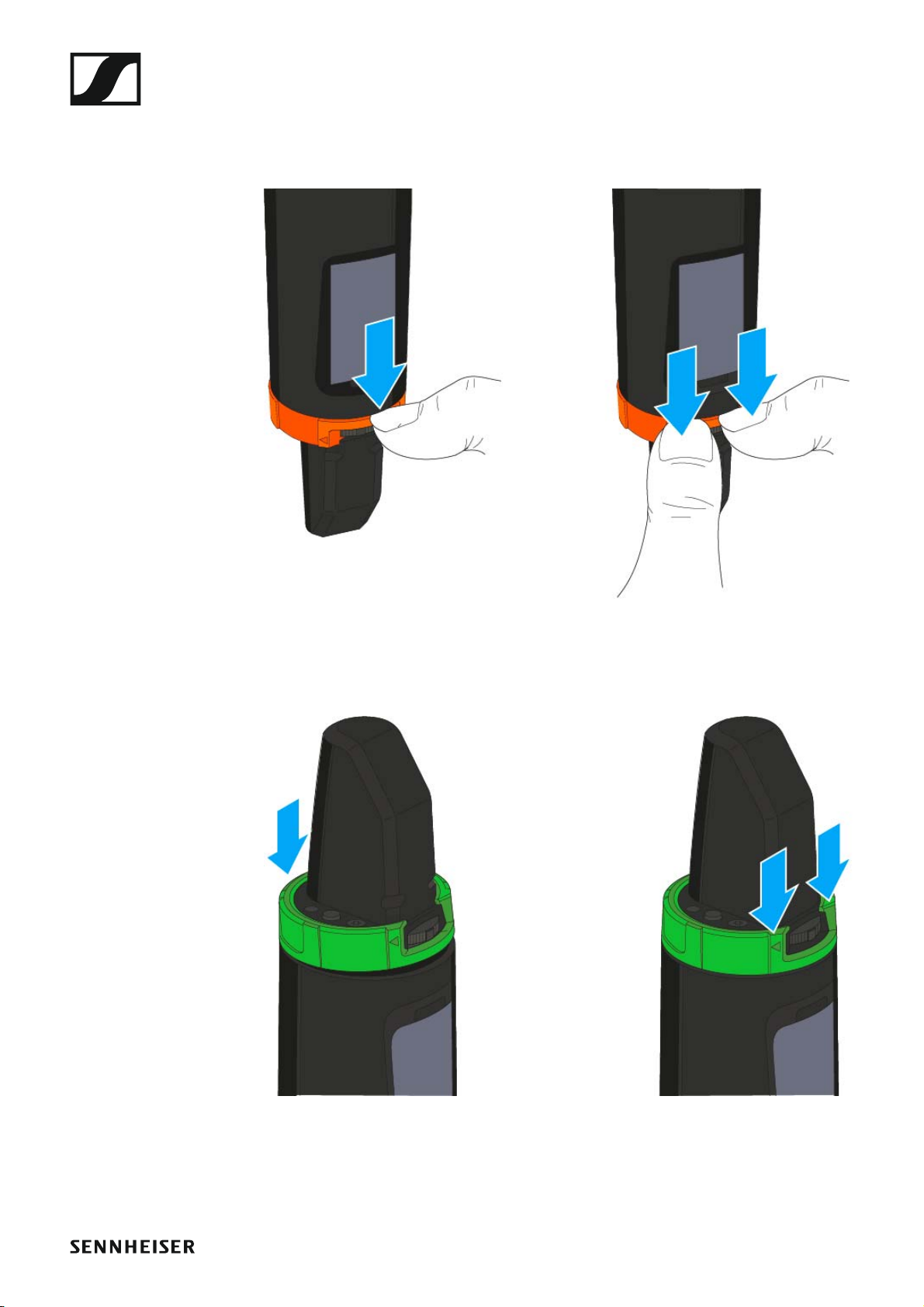
Installing the SKM 100 G4
Changing the colored ring
To change the colored ring:
▷ Pull the colored ring off as shown in the diagram.
►
▷ Attached a colored ring in the color you want as shown in the diagram.
►
35
Page 37

Installing the SK 100 G4
Installing the SK 100 G4
These sections contain detailed information about installing and starting
up the SK 100 G4.
You can find information about operating the SK 100 G4 under “Using the
SK 100 G4”.
36
Page 38
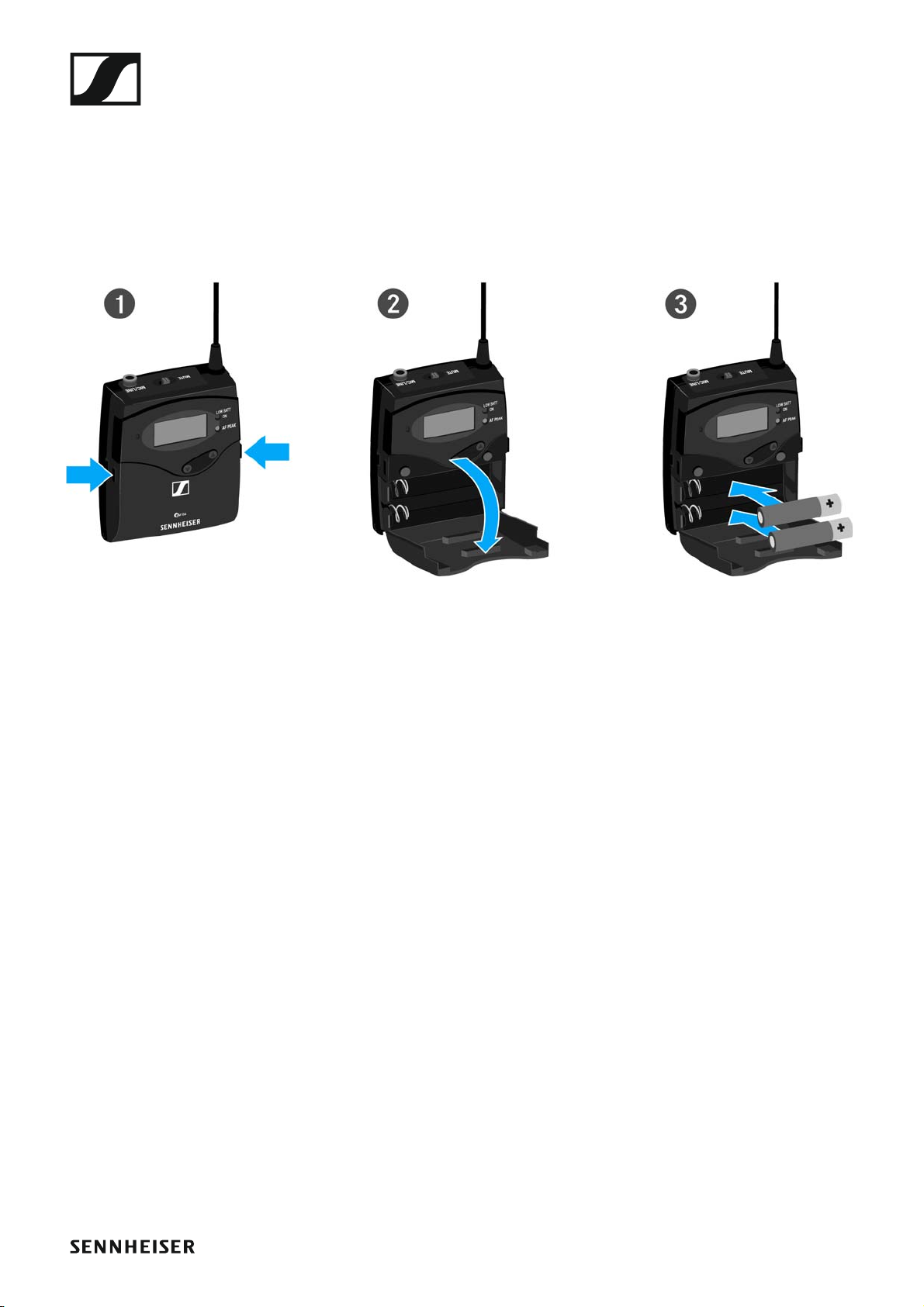
Installing the SK 100 G4
Inserting and removing the batteries/rechargeable batteries
You can operate the bodypack transmitter either with batteries (AA, 1.5 V)
or with the rechargeable Sennheiser BA 2015 battery.
▷ Press the two catches and open the battery compartment cover.
▷ Insert the batteries or the rechargeable battery as shown below. Please
observe correct polarity when inserting the batteries.
►
▷ Close the battery compartment.
The cover locks into place with an audible click.
37
Page 39
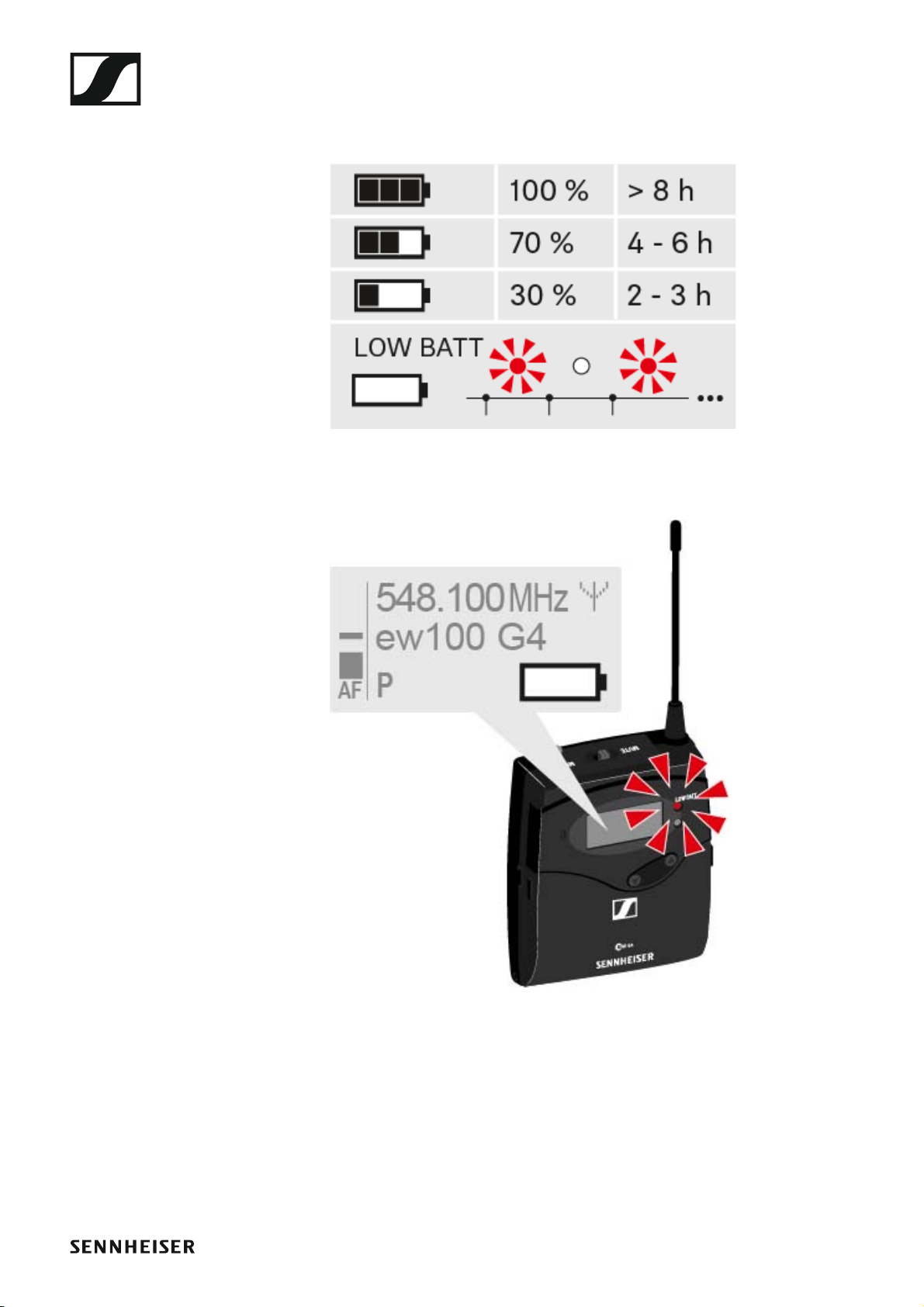
Battery status
Charge status of the batteries:
►
Installing the SK 100 G4
Charge status is critical (LOW BATT):
►
38
Page 40

Installing the SK 100 G4
Connecting a microphone to the SK 100 G4
You can find a list of recommended Lavalier and headset microphones for
the bodypack transmitter under “Microphones and cables”.
To connect a microphone to the bodypack transmitter:
▷ Insert the cable’s 3.5 mm jack plug into the MIC/LINE socket on the
bodypack transmitter as shown in the diagram.
▷ Screw the plug’s coupling ring onto the audio socket thread of the
bodypack transmitter.
39
Page 41
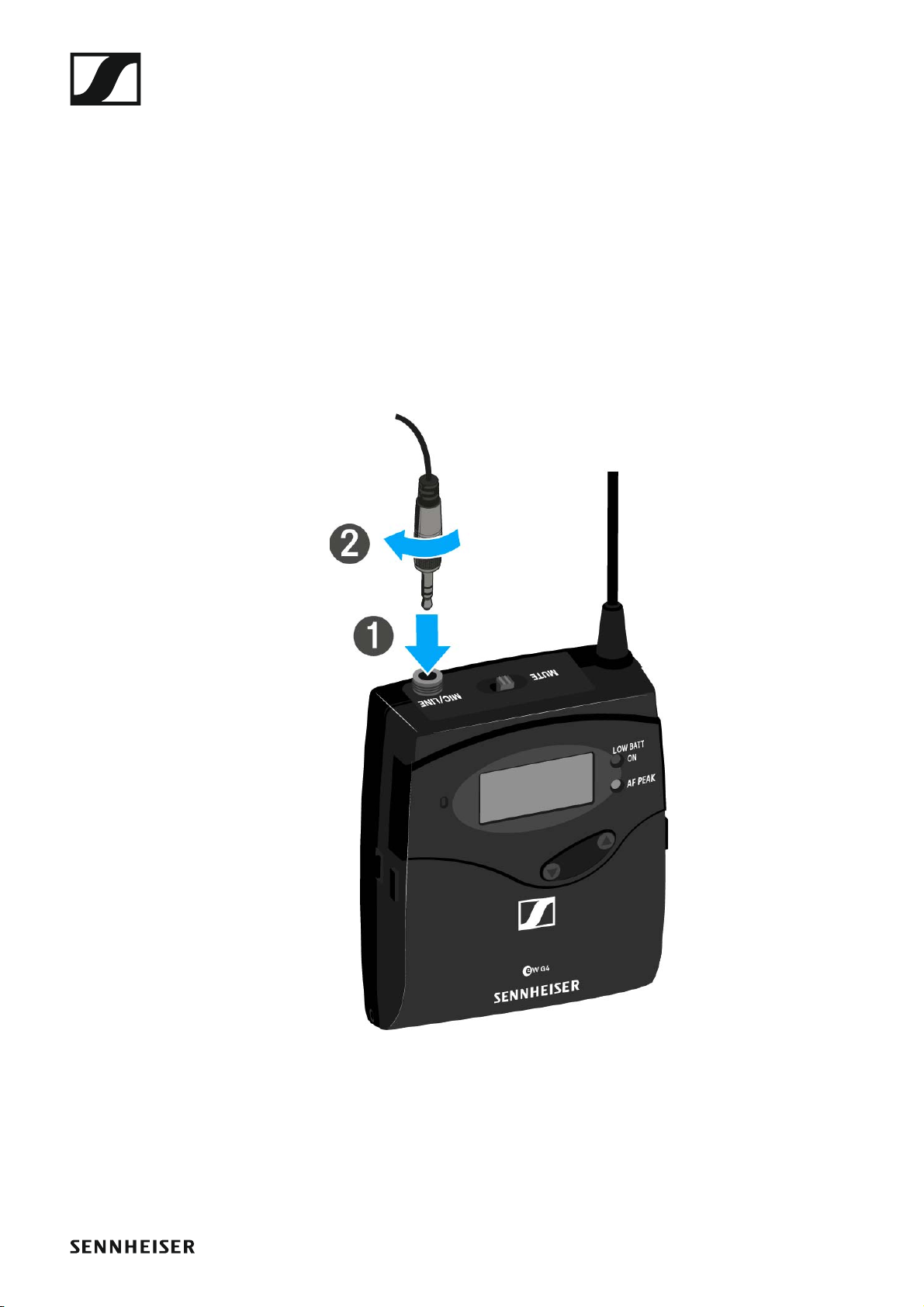
Installing the SK 100 G4
Connecting an instrument or line source to the SK 100 G4
You can connect instruments or audio sources with a line level to the
bodypack transmitter.
To do this, you will need the Ci 1-N (6.3 mm jack plug on a lockable 3.5 mm
jack plug) or CL 2 (XLR-3F plug on lockable 3.5 mm jack plug) Sennheiser
cables.
To connect an instrument or line source to bodypack transmitter:
▷ Insert the cable’s 3.5 mm jack plug into the MIC/LINE socket on the
bodypack transmitter as shown in the diagram.
▷ Screw the plug’s coupling ring onto the audio socket thread of the
bodypack transmitter.
►
40
Page 42
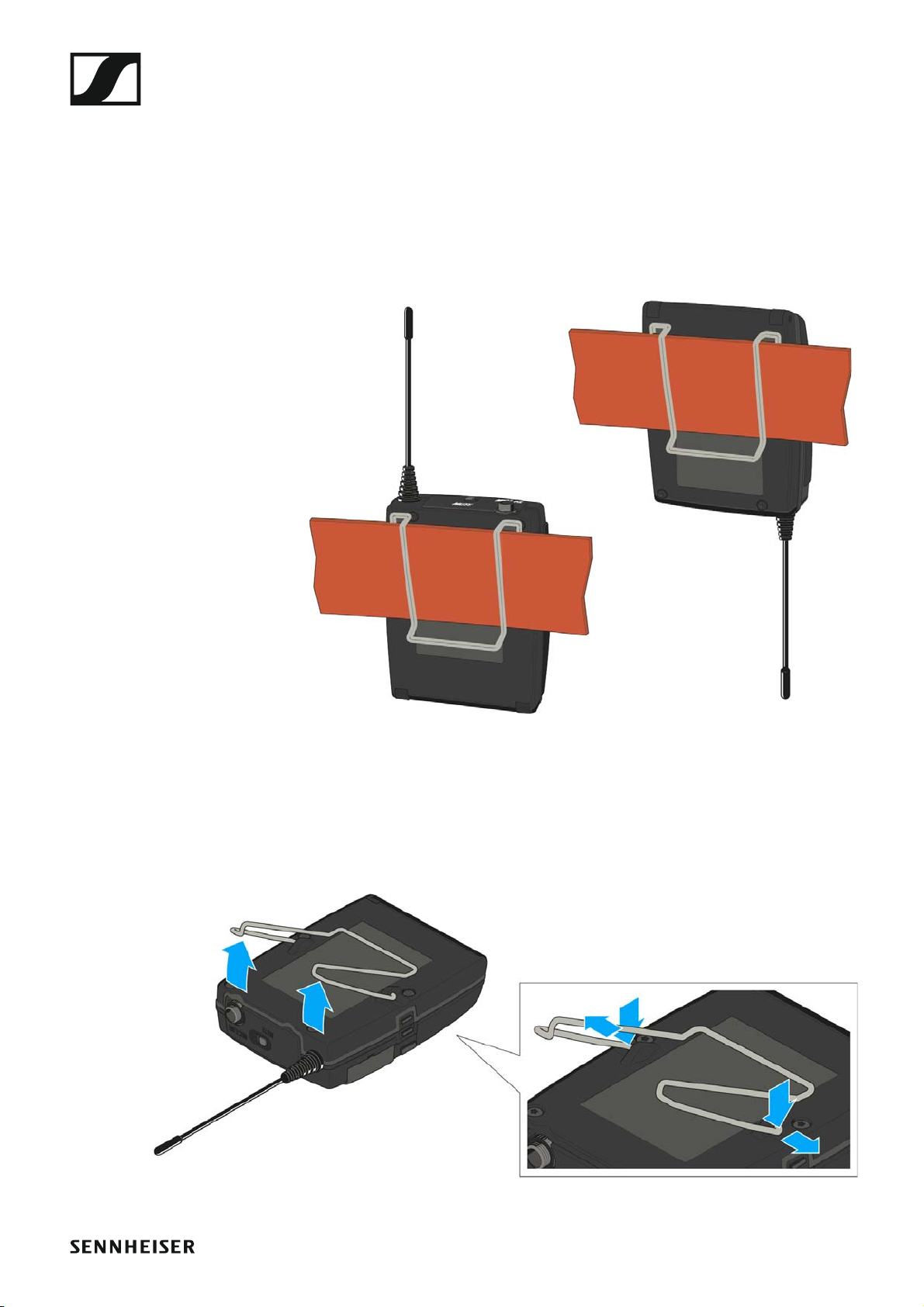
Installing the SK 100 G4
Attaching the bodypack transmitter to clothing
You can use the belt clip to attach the bodypack transmitter to your waistband or on a guitar strap.
The belt clip is detachable so that you can also attach the bodypack transmitter with the antenna pointing downwards. To do so, withdraw the belt
clip from its fixing points and attach it the other way round.
The belt clip is secured so that it cannot slide out of its fixing points accidentally.
►
To detach the belt clip:
▷ Lift the belt clip as shown in the diagram.
▷ Press one side of the clip downward on the fixing hole and pull it out of
the transmitter housing.
▷ Do the same thing on the other side.
41
Page 43

Installing the ASA 214
Installing the ASA 214
These sections contain detailed information about installing and starting
up the ASA 214.
You can find information about operating the ASA 214 under “Using the
ASA 214”.
42
Page 44
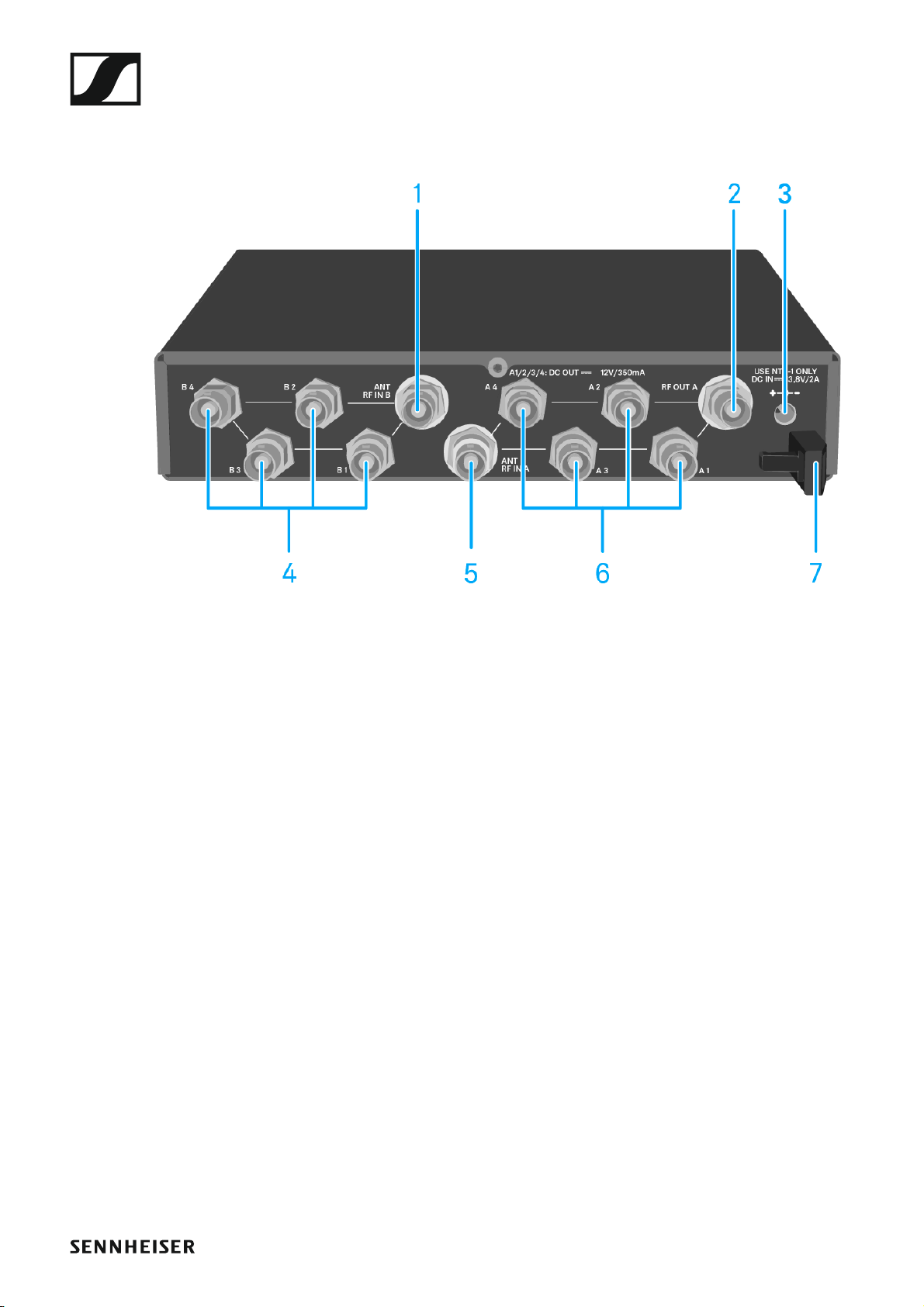
Connectors on the rear of the device
Product overview for the rear side of the ASA 214
►
Installing the ASA 214
1 ANT RF IN B BNC socket
• Antenna input of diversity branch B
• See “Connecting antennas”
2 RF OUT A BNC socket
• RF output only for connecting an additional ASA 214 to build an 8channel diversity system
• See “Configuring multi-channel systems”
3 DC INsocket
• To connect the NT 1-1 power supply unit
• See “Connecting/disconnecting the ASA 214 to/from the power supply system”
4 4 BNC sockets B1 to B4
• RF outputs of diversity branch B for connection to the receiver
• See “Connecting receivers to the ASA 214”
5 ANT RF IN A BNC socket
• Antenna input of diversity branch A
• See “Connecting antennas”
6 4 BNC sockets A1 to A4
• RF outputs of diversity branch A for connection to the receiver
• Every one of these RF outputs can also provide voltage to a receiver.
• See “Connecting receivers to the ASA 214”
7 Strain relief for the cable of the power supply unit
• See “Connecting/disconnecting the ASA 214 to/from the power supply system”
43
Page 45
Installing the ASA 214
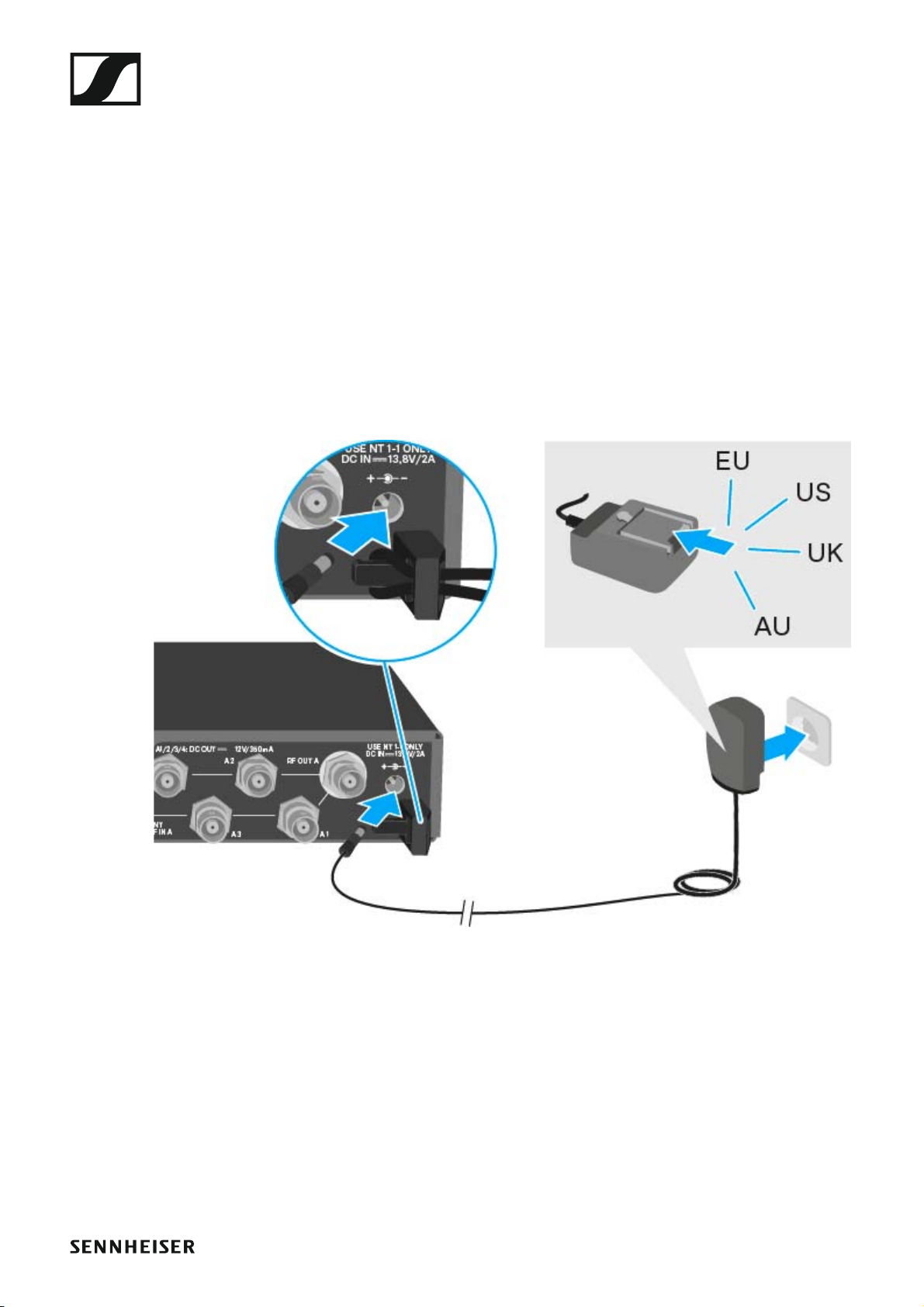
Connecting/disconnecting the ASA 214 to/from the power supply system
To supply power to the ASA 214, the connected receivers and any antenna
amplifiers used, you will need the NT 1-1 power supply unit.
Only use the supplied NT 1-1 power supply unit. It is designed for your antenna splitter and ensures safe operation.
To connect the ASA 214 antenna splitter to the power supply system:
▷ Plug the hollow jack plug of the power supply unit into the DC IN socket
of the antenna splitter.
▷ Pass the cable of the power supply unit through the cable grip.
▷ Slide the supplied country adapter onto the power supply unit.
▷ Plug the power supply unit into the wall socket.
To completely disconnect the ASA 214 antenna splitter from the power
supply system:
▷ Unplug the power supply unit from the wall socket.
▷ Unplug the hollow jack plug of the power supply unit from the DC IN
socket of the antenna splitter.
44
Page 46

Installing the ASA 214
Connecting receivers to the ASA 214
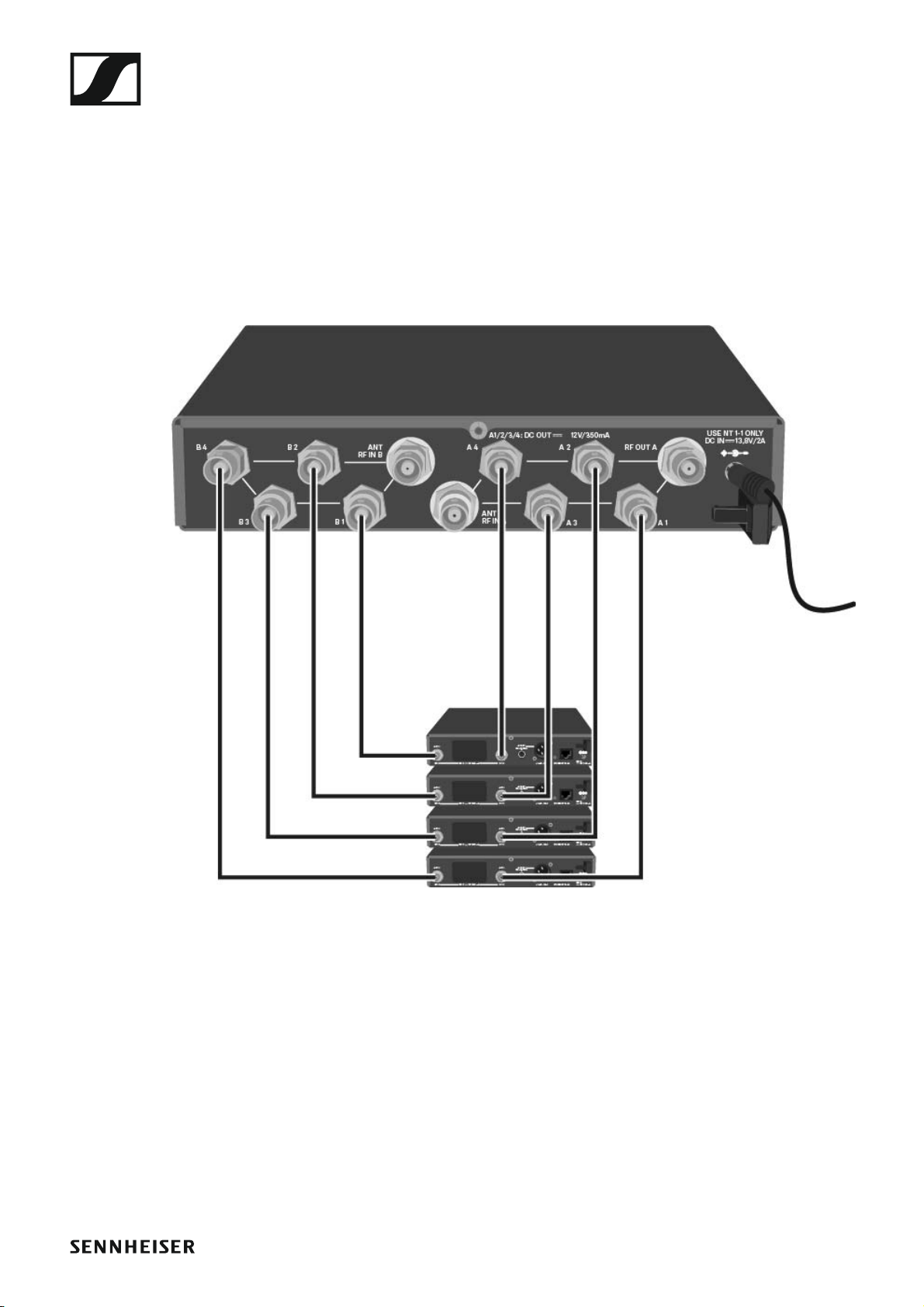
You can connect and operate up to four stationary receivers to the
ASA 214.
Sennheiser receivers of the ew G4 and ew G3 series can also be supplied
with power from the ASA 214.
The following receivers are compatible:
evolution wireless G4:
•EM 100 G4
•EM 300-500 G4
evolution wireless G3:
•EM 100 G3
•EM 300 G3
• EM 500 G3
2000 series:
• EM 2000 (with its own power supply)
• EM 2050 (with its own power supply)
45
Page 47
Installing the ASA 214
To connect the receivers to the ASA 214 antenna splitter:
▷ Connect one of the receiver’s antenna inputs to one of the BNC sockets
A1 to A4 using one of the supplied BNC cables.
The compatible receivers listed above do not require their own power
supply. They are powered via the BNC sockets A1 to A4.
▷ Connect the receiver’s other antenna input to one of the BNC sockets
B1 to B4 using one of the supplied BNC cables.
46
Page 48
Installing the ASA 214
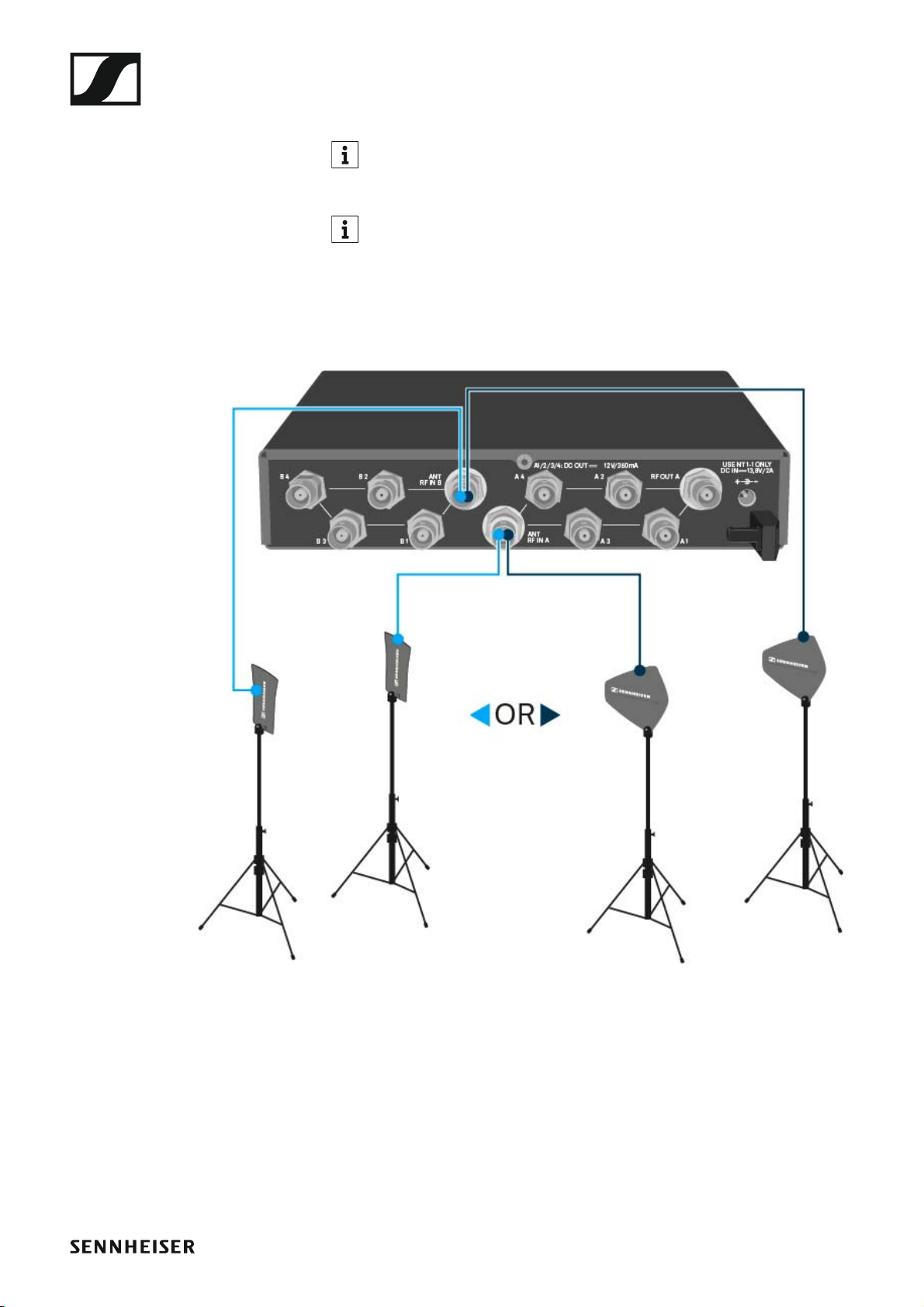
Connecting antennas
For more information about antennas and antenna accessories, see
“Antennas and accessories”.
In order to ensure optimal reception even in the case of poor reception conditions, we recommend using remote antennas.
Connecting remote antennas
▷ Mount two antennas or a combination of an antenna and an antenna
amplifier to the BNC sockets ANT RF IN A and ANT RF IN B.
►
Connecting rod antennas
▷ Mount the antennas to the BNC sockets ANT RF IN A and ANT RF IN B.
▷ Align the antennas in a V-shape in order to ensure the best possible re-
ception.
47
Page 49
Installing the ASA 214
Max. cable length
RG 58 GZL 5000
Number
of AB 3
or AB 4
Frequency range
around
Device
ASA 214
(AB 3 &
AB 4)
500 MHz 0 8 m 16 m
1 36 m 72 m
2 64 m 128 m
0 7 m 14 m
1 30 m 60 m
2 53 m 106 m
0 6 m 12 m
1 26 m 52 m
2 46 m 92 m
0
700 MHz
900 MHz
1800
MHz
ASA 214
- 1G8
(AB 3)
4 m 8 m
1 16 m 36 m
2 28 m 64 m
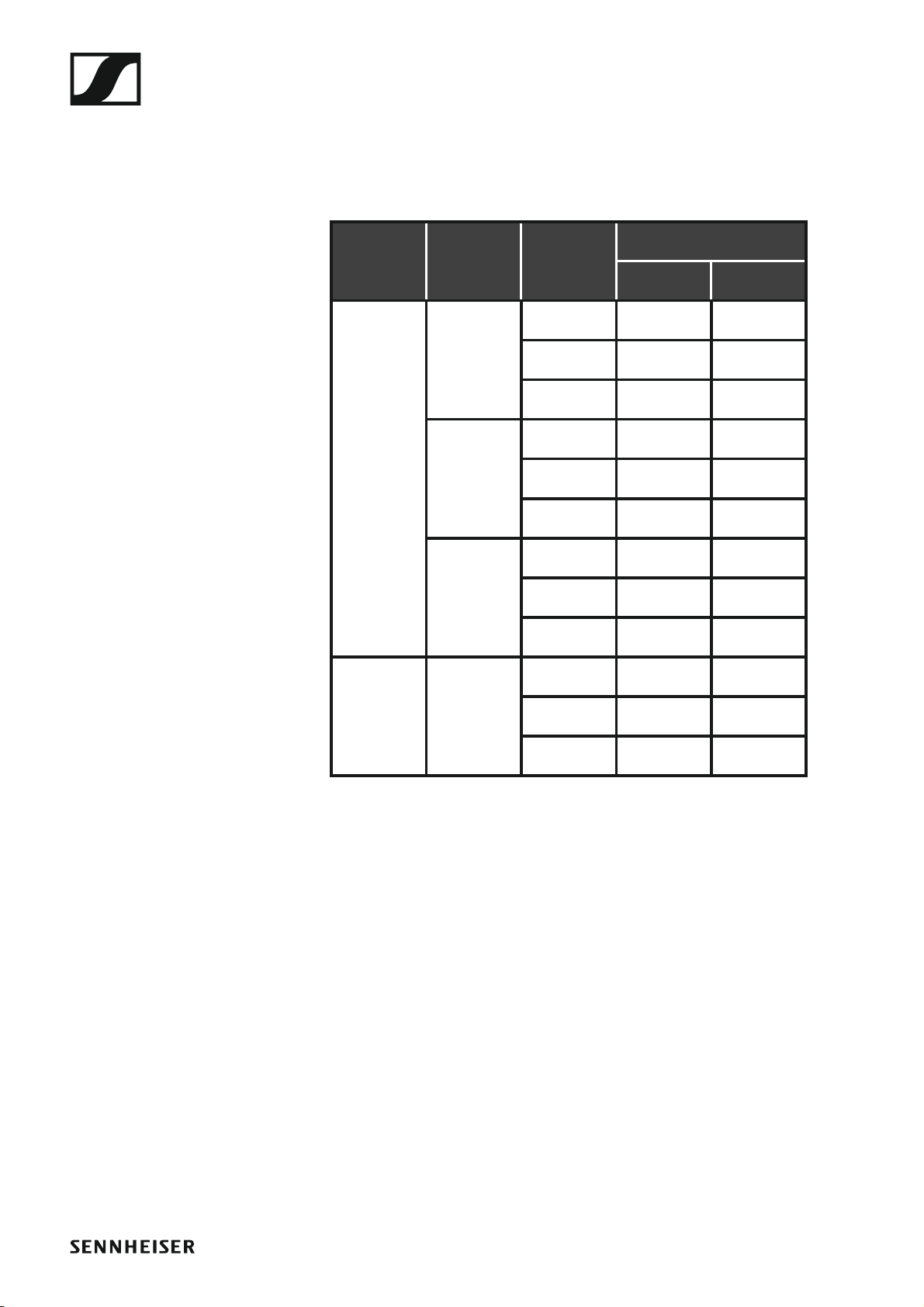
Information on antenna amplifiers and cable lengths
The following table shows which cable lengths require the use of the AB 3
or AB 4 antenna amplifier as well as the maximum recommended cable
lengths.
Use the AB 3 for the following frequency ranges:
• A1 range: 470 – 516 MHz
• A range: 516 – 558 MHz
• G range: 566 – 608 MHz
• GB range: 606 – 648 MHz
• B range: 626 – 668 MHz
• C range: 734 – 776 MHz
• D range: 780 – 822 MHz
• TH range: 794 – 806 MHz
• JB range: 806 – 810 MHz
• E range: 823 – 865 MHz
• K+ range: 925 – 937.5 MHz
• 1G8 range: 1785 – 1800 MHz
Use the AB 4 for the following frequency ranges:
48
Page 50

• Aw+ range: 470 – 558 MHz
• Gw range: 558 – 626 MHz
• GBw range: 606 – 678 MHz
• Bw range: 526 – 698 MHz
• Cw range: 718 – 790 MHz
• Dw range: 790 – 865 MHz
Installing the ASA 214
49
Page 51
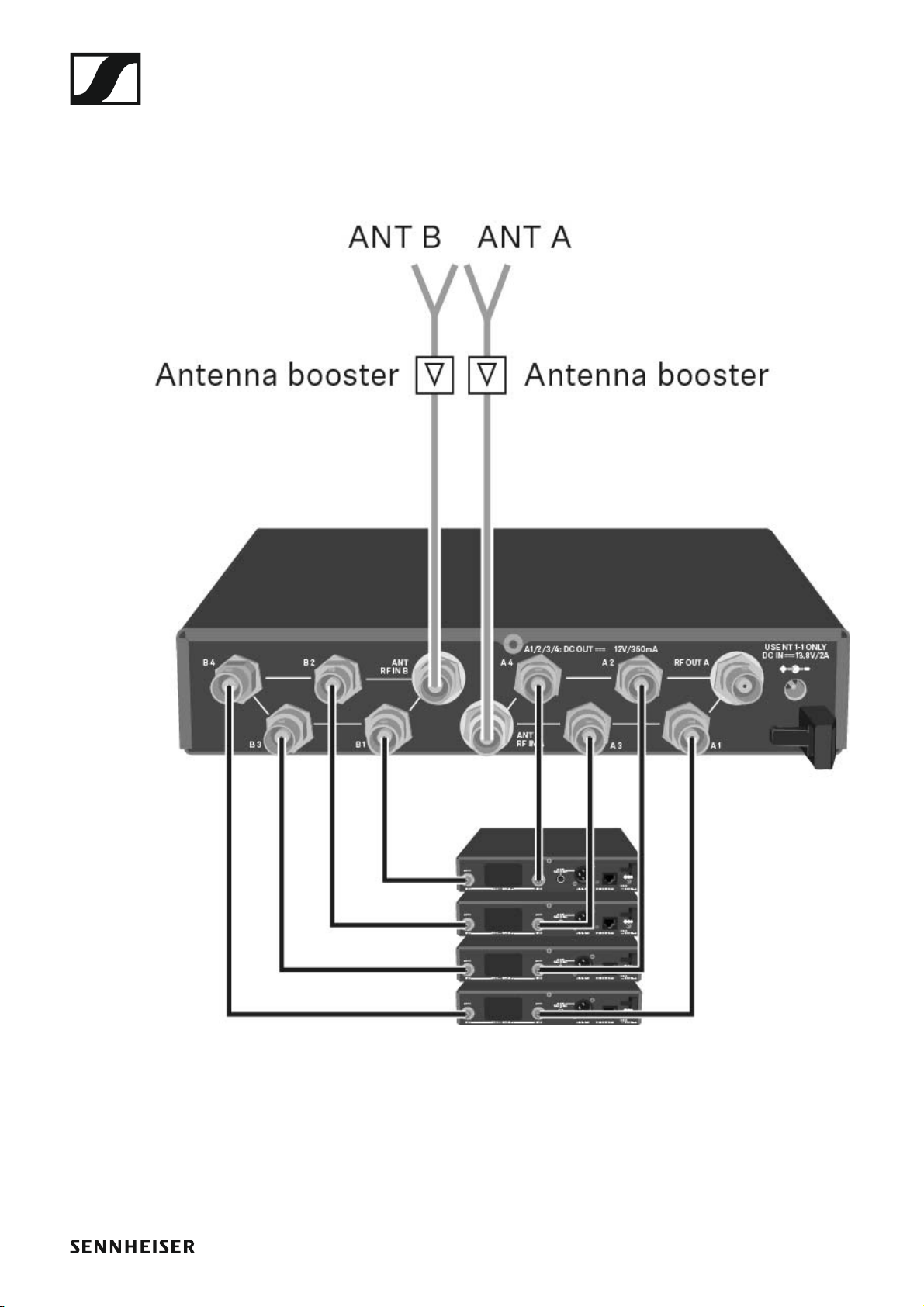
Installing the ASA 214
Configuring multi-channel systems
The following options for connecting multi-channel systems are possible:
Option 1: Two antennas supply a 4-channel system
50
Page 52

Installing the ASA 214
Option 2: Two 4-channel systems are interconnected
Option 3: Two antennas supply a 8-channel system
51
Page 53

Installing the ASA 214
Installing the ASA 214 in a rack
CAUTION
Rack mounting poses risks
When installing the device in a closed or multi-rack assembly, please consider that, during operation, the ambient temperature, the mechanical
loading and the electrical potentials will be different from those of devices
which are not mounted into a rack.
▷ Make sure that the ambient temperature within the rack does not ex-
ceed the permissible temperature limit specified in the specifications.
See “Specifications”.
▷ Ensure sufficient ventilation; if necessary, provide additional ventila-
tion.
▷ Make sure that the mechanical loading of the rack is even.
▷ When connecting to the power supply system, observe the information
indicated on the type plate. Avoid circuit overloading. If necessary, provide overcurrent protection.
▷ When rack mounting, please note that intrinsically harmless leakage
currents of the individual power supply units may accumulate, thereby
exceeding the allowable limit value. As a remedy, ground the rack via
an additional ground connection.
52
Page 54

Installing the ASA 214
Mounting a single antenna splitter in a rack
To mount the antenna splitter in a rack, you will need the GA 3 rack mounting kit (optional accessory).
To fasten the mounting angle of the GA 3 rack mounting kit:
▷ Unscrew and remove the two recessed head screws (M4x8) on each
side of the antenna splitter.
▷ Secure the mounting angles to the sides of the antenna splitter using
the previously removed recessed head screws.
►
▷ Secure the blanking plate to one of the mounting angles using two re-
cessed head screws (M6x10).
►
53
Page 55
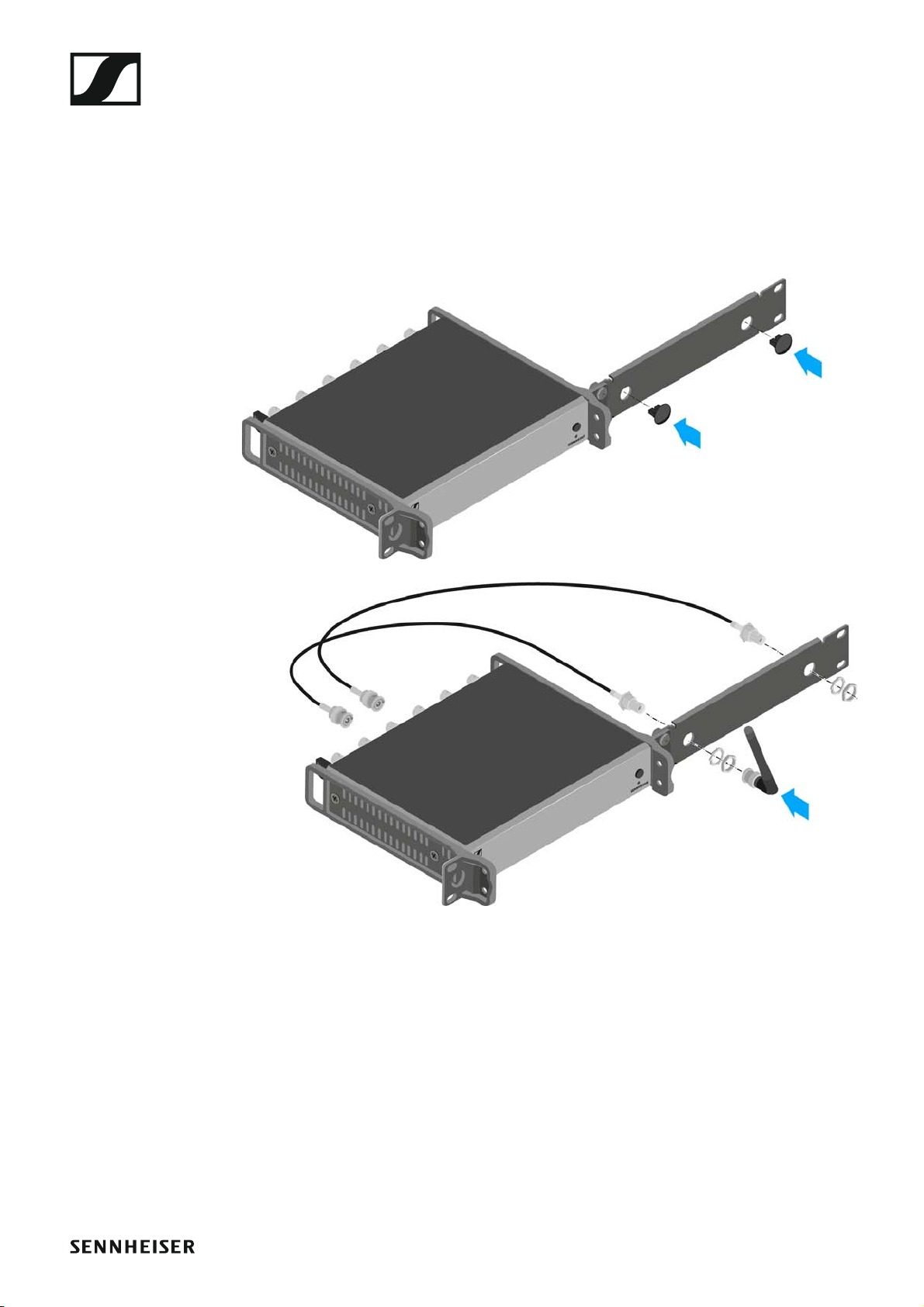
Installing the ASA 214
▷ Attach the antennas. You have the following options:
• Connect the supplied rod antennas on the rear side of the antenna
splitter. In this case, cover the antenna holes with the two covers (left
diagram).
• Attach the AM 2 antenna front mounting set (optional accessory) and
mount the rod antennas on the blanking plate (right diagram).
►
►
▷ Slide the antenna splitter with the mounted blanking plate into the 19"
rack.
▷ Secure the mounting angle and the blanking plate to the 19" rack.
▷ Align the mounted antennas in a V-shape.
54
Page 56

Installing the ASA 214
Mounting two antenna splitters side by side in a rack
To mount the antenna splitters using the GA 3 rack mounting kit (optional
accessory):
▷ Place both antenna splitters upside down and side by side on an even
surface.
▷ Secure the jointing plate to the transmitters using the six recessed
head screws (M3x6).
▷ Secure the mounting angle.
►
55
Page 57

Using ew 100 G4 series devices
OPERATION
Using ew 100 G4 series devices
You can find information about using ew 100 G4 series devices in the following sections.
• EM 100 G4 rack receiver >> “Using the EM 100 G4”
• SKM 100 G4(-S) handheld transmitter >> “Using the SKM 100 G4”
• SK 100 G4 bodypack transmitter >> “Using the SK 100 G4”
• ASA 214 antenna splitter>> “Using the ASA 214”
You can find information about installation and start up of the products under “Installing and starting up ew 100 G4 series devices”.
56
Page 58
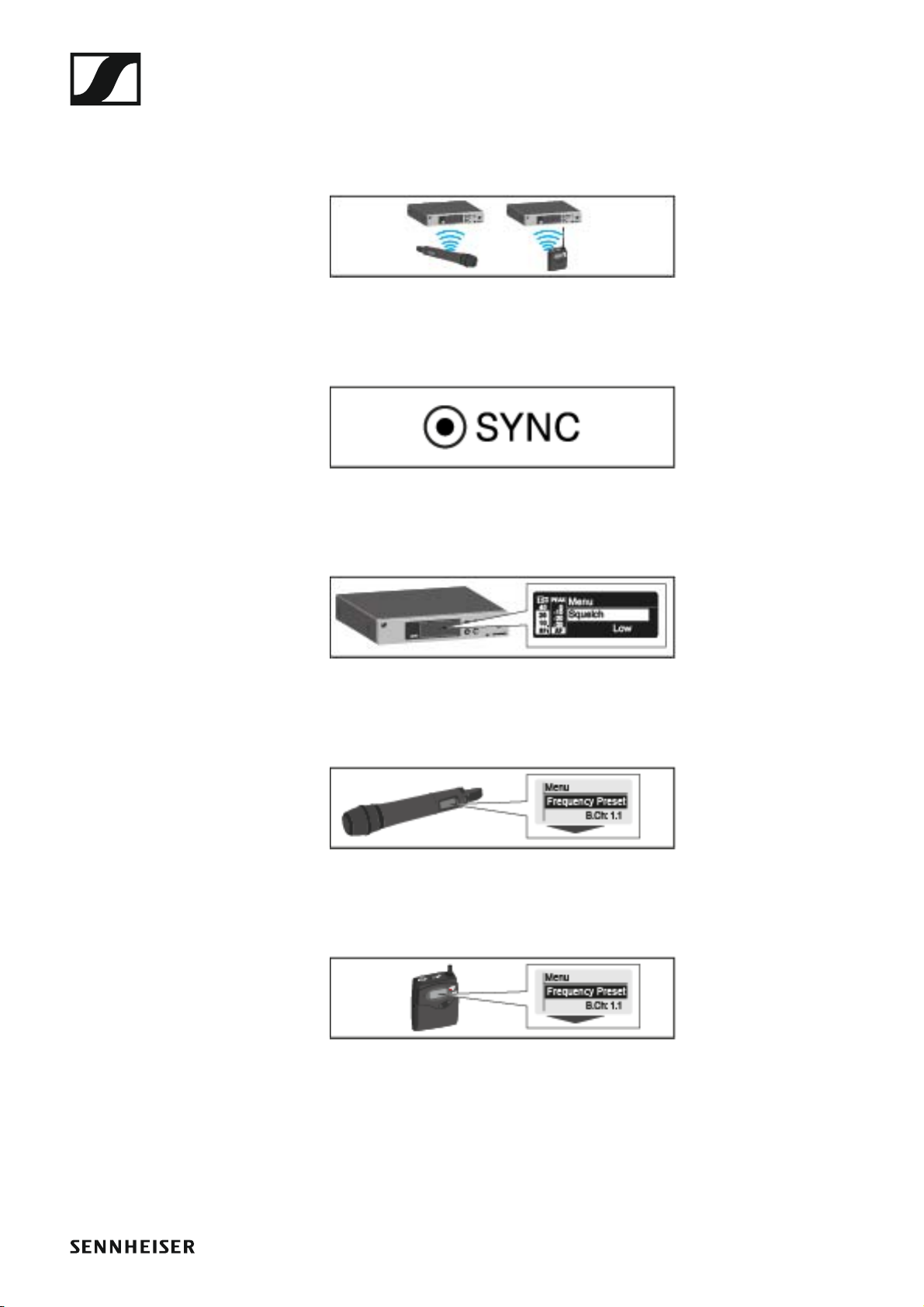
Using ew 100 G4 series devices
In the sections below, you can find important information about specific
use cases.
• Establishing a radio link between the transmitter and receiver >> “Establishing a radio link”
• Synchronizing the receiver settings to the transmitter >> “Synchronizing devices”
•Using the menu of the receiver >> “Displays on the EM 100 G4 display
panel”
•Using the menu of the handheld transmitter >> “Displays on the
SKM 100 G4 handheld transmitter display panel”
•Using the menu of the bodypack transmitter >> “Displays on the
SK 100 G4 bodypack transmitter display panel”
57
Page 59

Using the EM 100 G4
Using the EM 100 G4
These sections contain detailed information about using the EM 100 G4.
You can find information on installation and startup of the EM 100 G4 under “Installing the EM 100 G4”.
58
Page 60
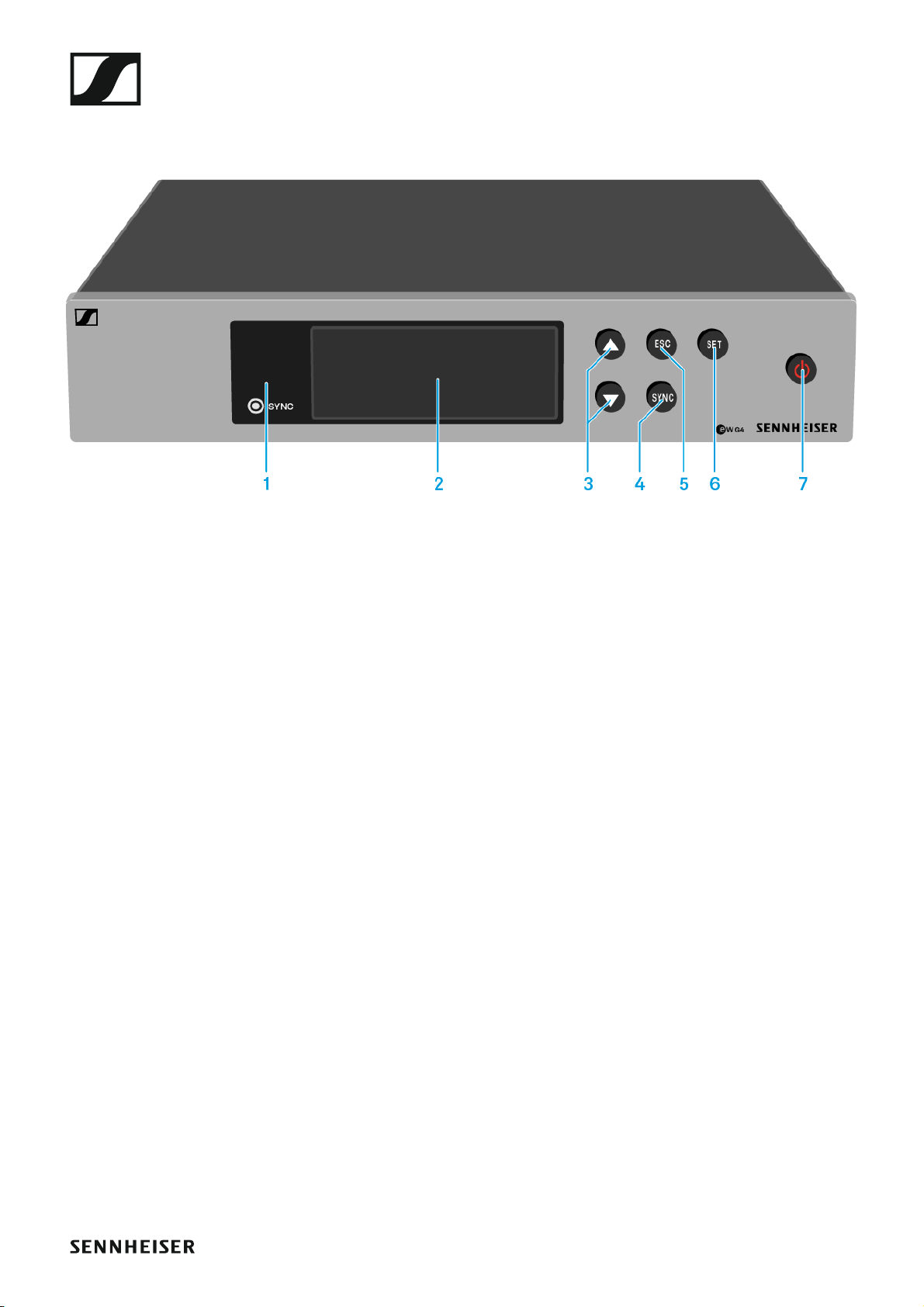
Using the EM 100 G4
Operating elements on the front of the device
Product overview for the front of the EM 100 G4
►
1 Infrared interface with a blue LED
• See “Synchronizing devices”
2 Display panel
• See “Displays on the EM 100 G4 display panel”
3 UP/DOWN buttons
• See “Buttons for navigating through the menu”
4 SYNC button
• See “Synchronizing devices”
5 ESC button
• See “Buttons for navigating through the menu”
6 SET button
• See “Buttons for navigating through the menu”
7 STANDBY button
• See “Switching the EM 100 G4 on and off”
59
Page 61
Using the EM 100 G4
Switching the EM 100 G4 on and off
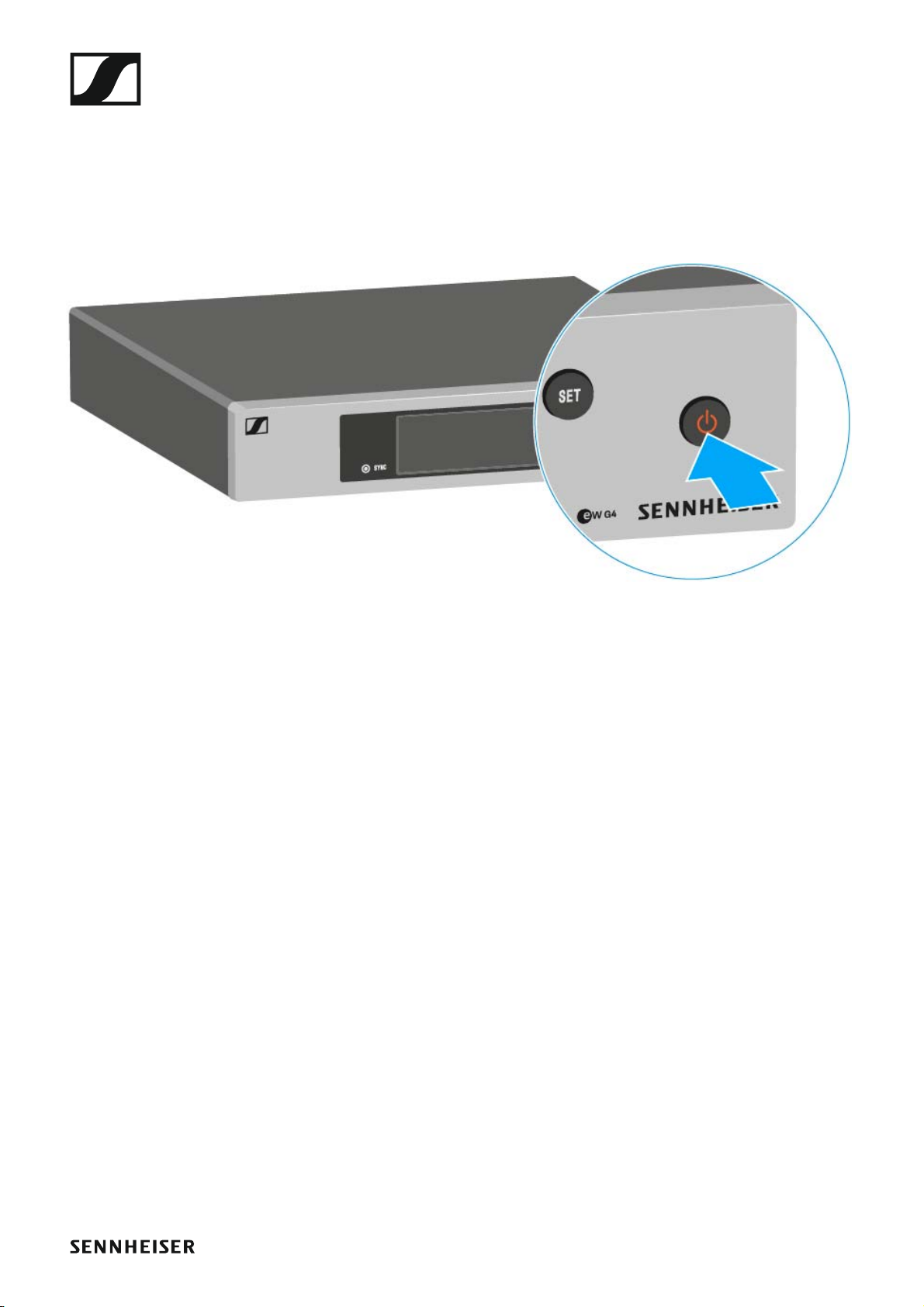
To switch the receiver on:
▷ Short-press the STANDBY button.
The receiver switches on and the Receiver Parameters standard display appears.
►
To switch the receiver to standby mode:
▷ If necessary, deactivate the lock-off function (see “Lock-off function”).
▷ Press and hold the STANDBY button until OFF appears on the display
panel.
The display panel switches off.
To completely switch the receiver off:
▷ Disconnect the receiver from the power supply system by unplugging
the power supply unit from the wall socket.
60
Page 62
Using the EM 100 G4
Muting the audio output
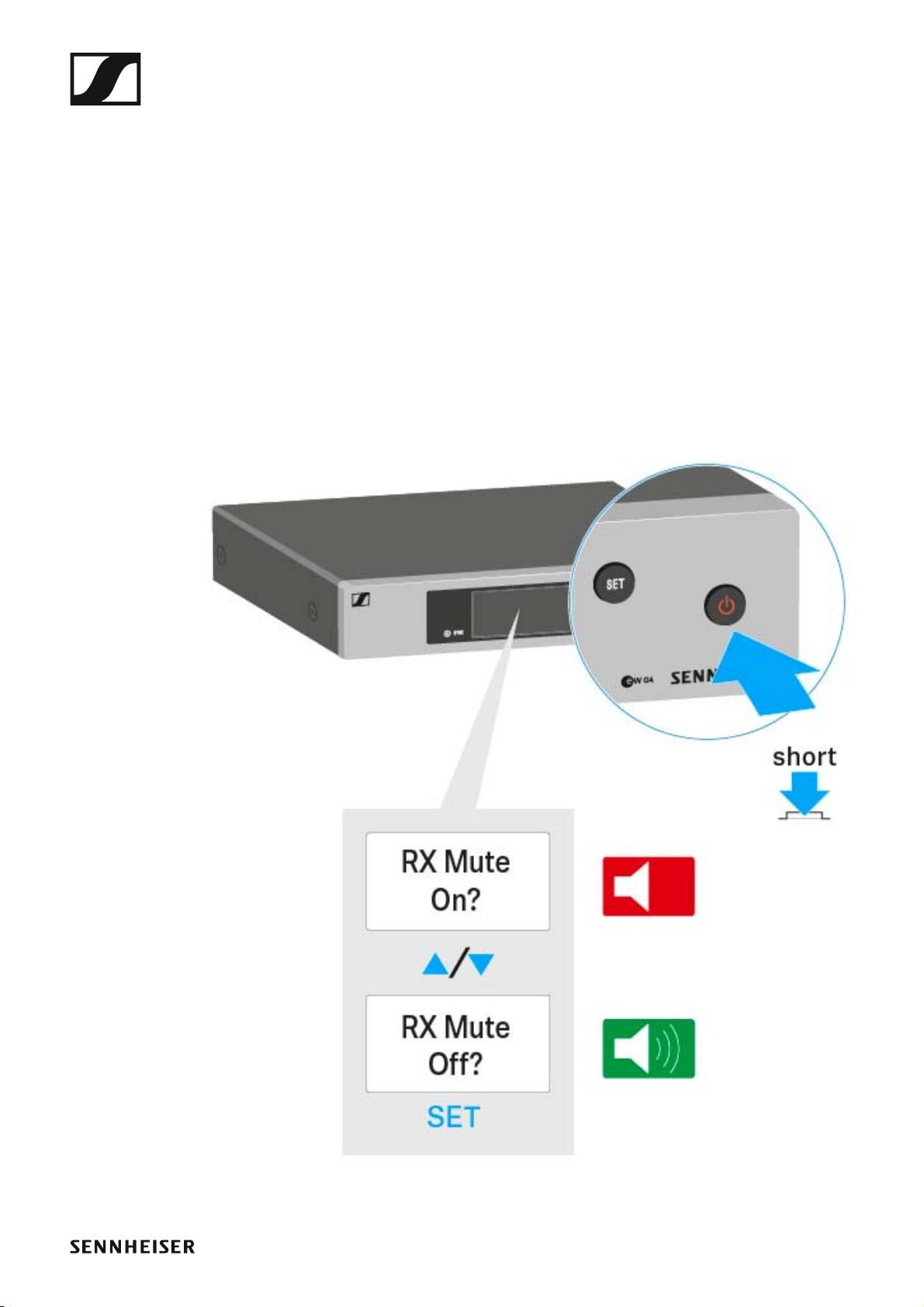
To mute the audio signal of the receiver:
▷ Short-press the STANDBY button in one of the standard displays.
The RX Mute On? display appears.
▷ Press the SET button.
The audio signal is muted.
To cancel the muting:
▷ Short-press the STANDBY button.
The RX Mute Off? display appears.
▷ Press the SET button.
The audio output is no longer muted.
►
61
Page 63
Using the EM 100 G4
Lock-off function
You can set the automatic lock-off function in the Auto lock menu (see
“Auto Lock menu item”).
When you have switched on the lock-off function, you will have to turn the
receiver off and on again in order to operate it.
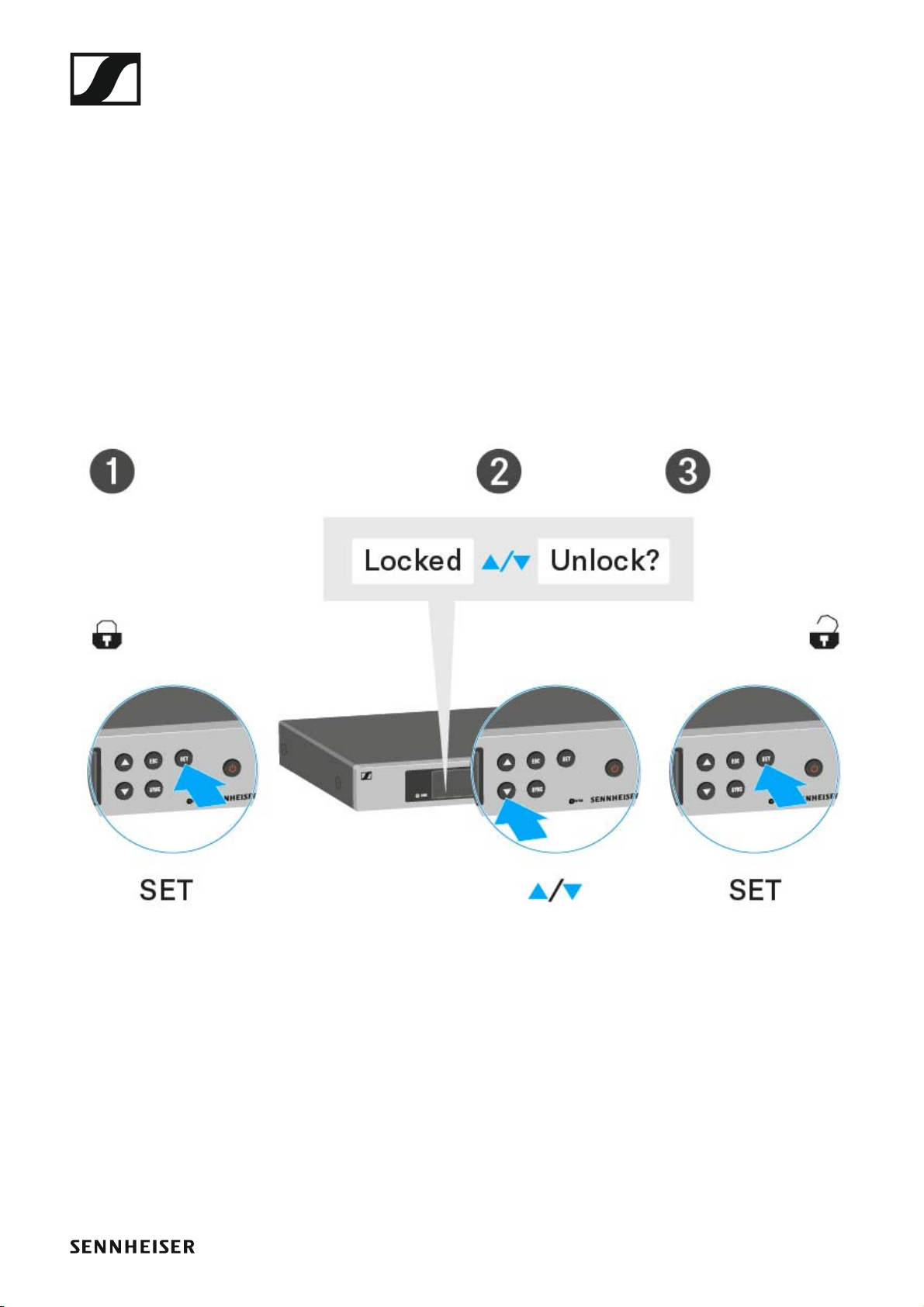
To temporarily deactivate the lock-off function:
▷ Press the SET button.
Locked appears in the display panel.
▷ Press the UP or DOWN button.
Unlock? appears in the display panel.
▷ Press the SET button.
Lock-off function is now temporarily deactivated.
►
When you are in the operating menu
>> Lock-off function is deactivated long enough for you to work in the operating menu.
When one of the standard displays is shown
>> Lock-off function is automatically activated after 10 seconds.
The Lock-off function icon flashes while the lock-off function is being activated again.
62
Page 64
Using the EM 100 G4
Displays on the EM 100 G4 display panel
Status information such as reception quality, battery status, audio level,
etc. is displayed on the home screen of the display panel.
• See “Home screen”.
The display panel also displays the operating menu which you can use to
configure all of the settings.
• See “Setting options in the menu”.
Buttons for navigating through the menu
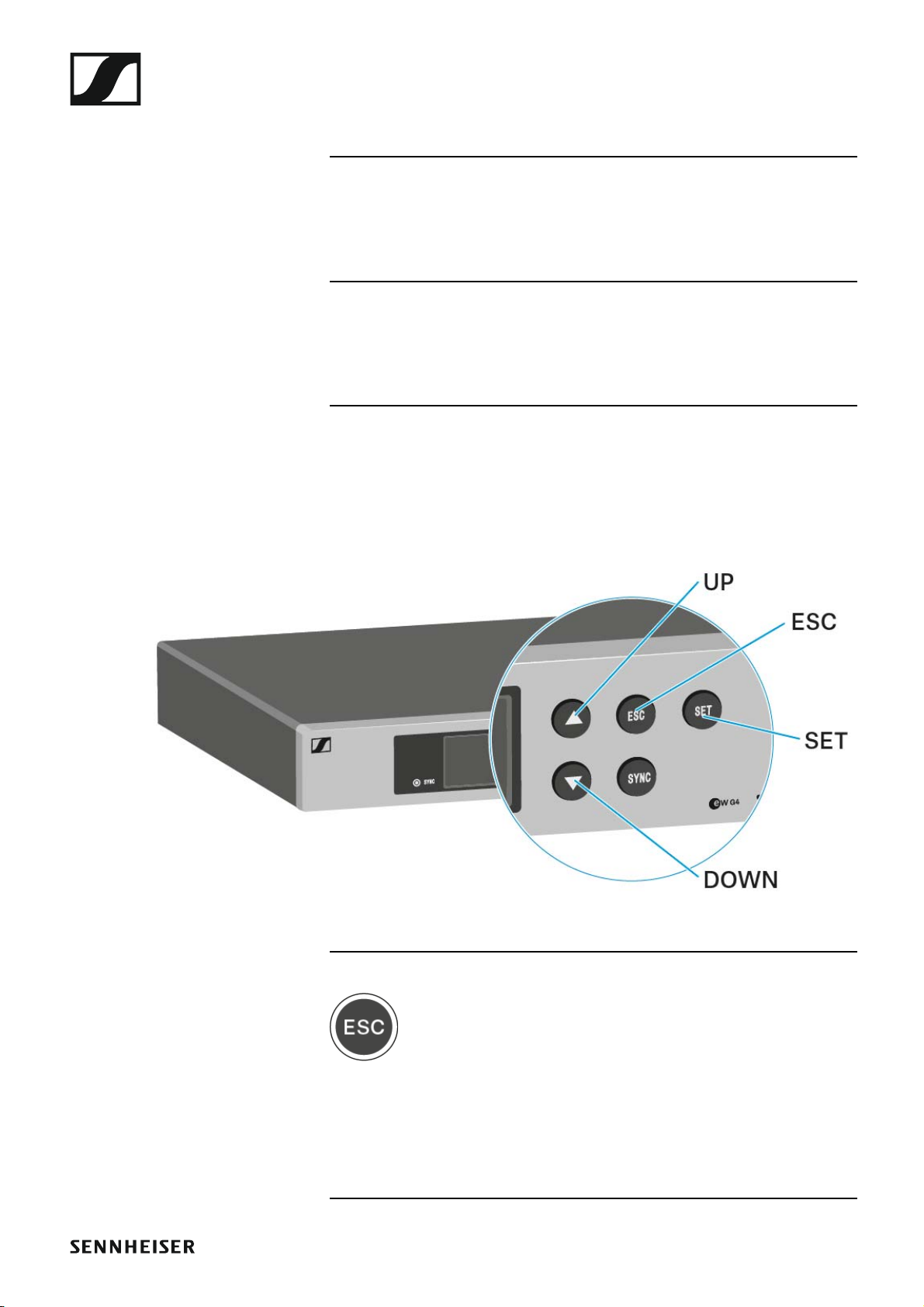
To navigate through the EM 100 G4 operating menu, you need the following buttons.
►
►
Short-press the ESC button
• Cancels the entry and returns to the previous display
Long-press the ESC button
• Cancels the entry and returns to the home screen
63
Page 65

Using the EM 100 G4
►
Press the SET button
• Changes from the current standard display to the operating menu
• Calls up a menu item
• Changes to a submenu
• Stores the settings and returns to the operating menu
►
Press the UP or DOWN button
• Selects a standard display (see “Home screen”)
• Changes to the previous or next menu item
• Changes the setting of a menu item
64
Page 66
Using the EM 100 G4
Home screen
After you switch on the receiver, the display panel initially displays the
Sennheiser logo. After a short time, the home screen is then displayed.
The home screen has three different standard displays.
▷ On the home screen, press the UP and DOWN buttons to switch be-
tween the standard displays.
Receiver Parameters standard display
►
1 RF RF level (radio frequency)
• RF signal level display
• including the display of the squelch threshold (see “Squelch menu
item”)
2 AF audio level (audio frequency)
• Displays the audio level of the received transmitter
When the display shows full deflection, the audio input level is excessively high. When the transmitter is overloaded frequently or for extended periods of time, the PEAK display is shown inverted.
• See “AF Out menu item”
3 Frequency bank and channel
• Current frequency bank and channel number
• See “Frequency Preset menu item”
4 Frequency
• Current receiving frequency
• See “Frequency Preset menu item”
5 Name
• Freely selectable name of the receiver
• See “Name menu item”
6 P pilot tone
65
Page 67
Using the EM 100 G4
• Activated pilot tone evaluation
• See “Advanced -> Pilot Tone menu item”
7 MUTE muting function
• Receiver or transmitter is muted
• See “Muting the audio output”
8 Battery status of the transmitter
• SKM 100 G4: see “Inserting and removing the batteries/rechargeable
batteries”
• SK 100 G4: see “Inserting and removing the batteries/rechargeable
batteries”
9 Lock-off function
• Lock-off function is activated on the receiver
• See “Lock-off function”
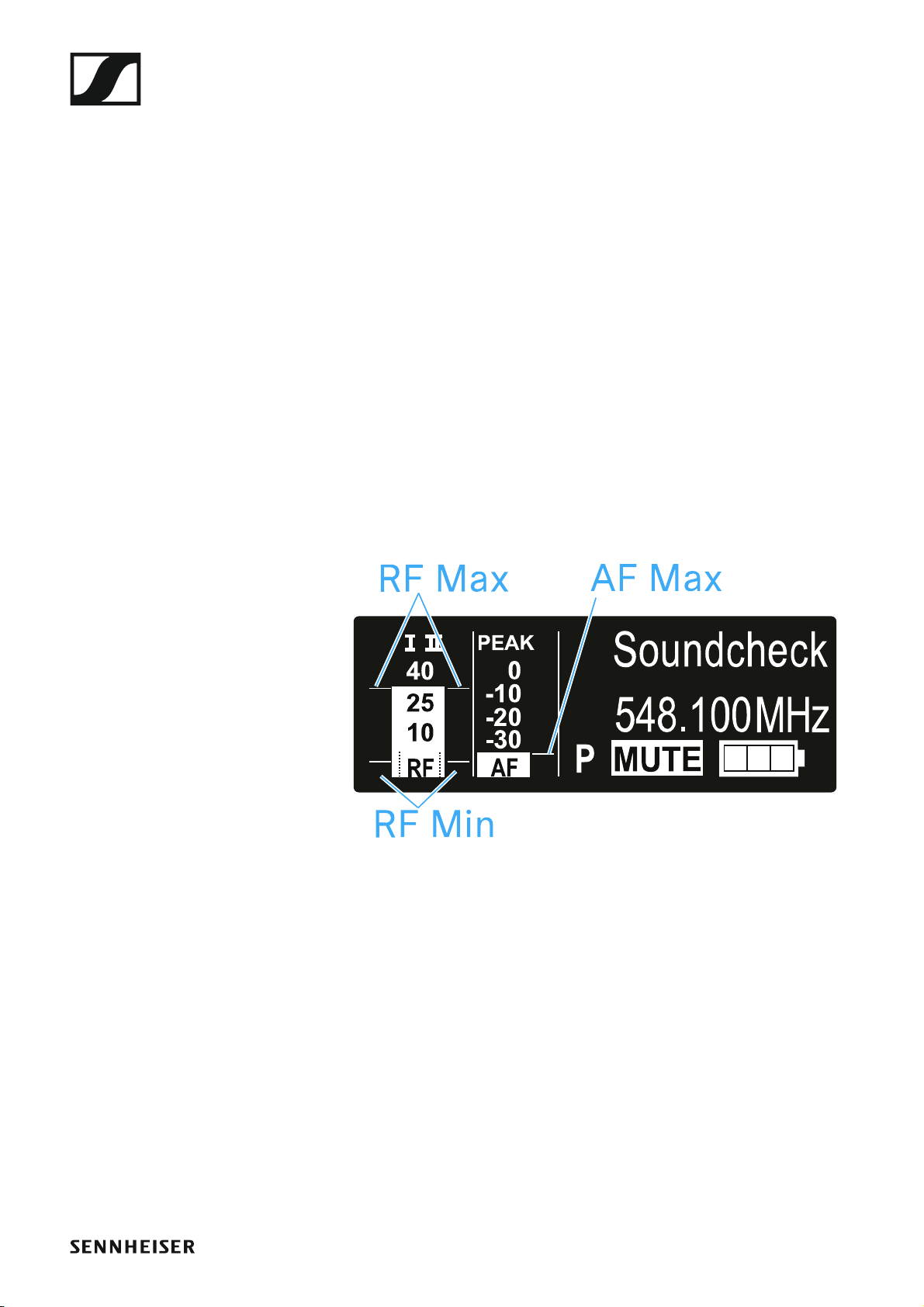
Soundcheck standard display
The Soundcheck standard display shows the transmission quality between
the transmitter and the receiver.
►
By doing a soundcheck, you can ensure adequate transmission quality in
the entire area in which you want to use the transmitter. You can do the
soundcheck without the help of another person.
▷ With the transmitter, walk up and down the area in which you want to
use the transmitter.
The receiver records the following parameters:
RF Min
• Minimum RF signal level
• must be well above the squelch threshold level for one of the two antennas
Ways to optimize
▷ Check that the antennas and the antenna cables are correctly connect-
ed.
▷ Improve the position of the antennas.
▷ If necessary, use an antenna booster.
66
Page 68
Using the EM 100 G4
RF Max
• Maximum RF signal level
• both antennas should reach 40 dBμV
Ways to optimize
▷ Check that the antennas and the antenna cables are correctly connect-
ed.
▷ Improve the position of the antennas.
▷ If necessary, use an antenna booster.
AF Max
Maximum audio level
Ways to optimize
On your transmitter, adjust the audio level as high as possible without the
display for the audio level showing full deflection (AF Max is at a level with
the PEAK display).
See “AF Out menu item”.
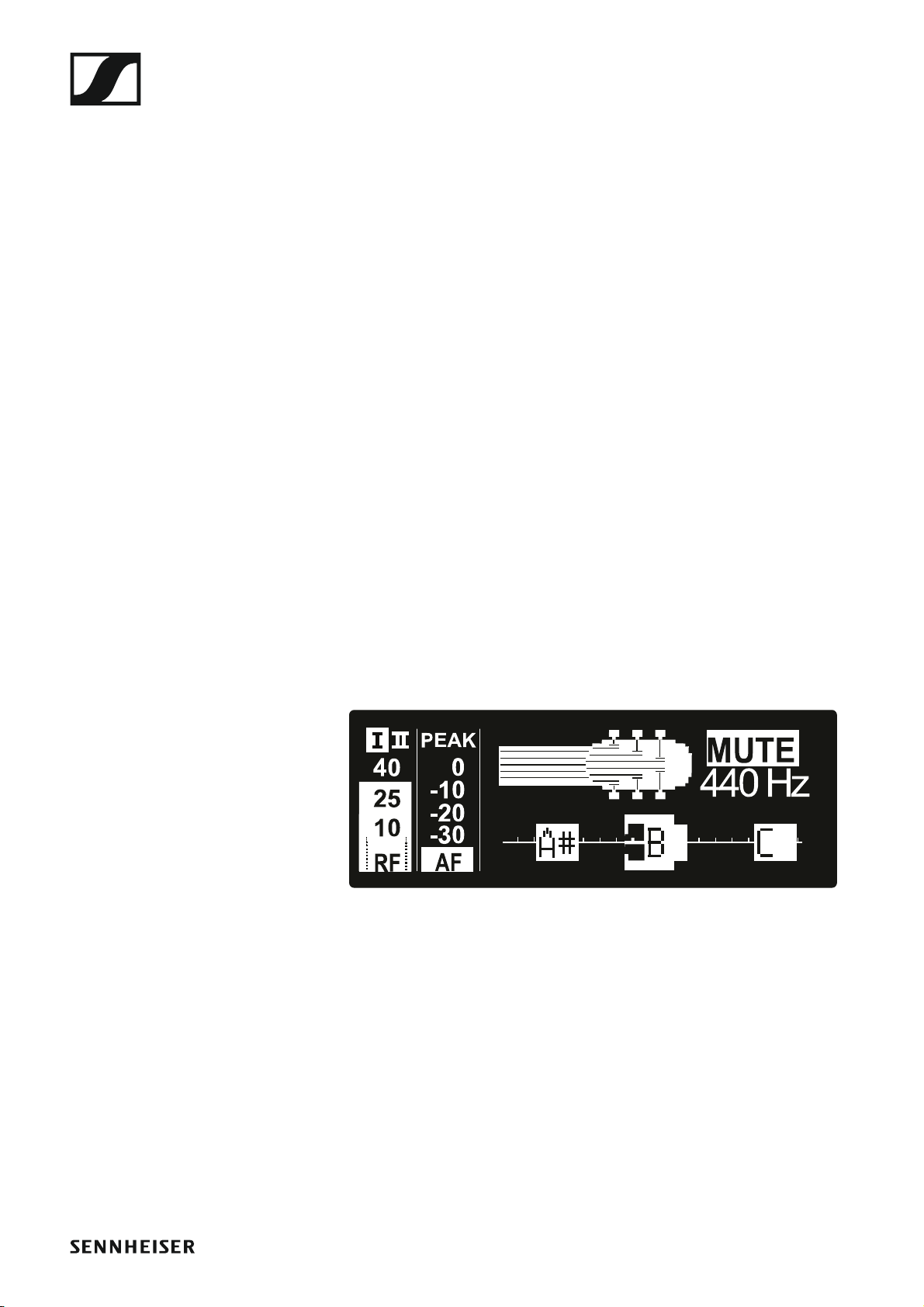
Guitar Tuner standard display
The Guitar Tuner standard display shows the guitar tuner (only for the
SK 100 G4).
►
The Guitar Tuner standard display is deactivated upon delivery. To show
this standard display, you have to activate it (see “Advanced -> Guitar Tuner menu item”).
67
Page 69

Using the EM 100 G4
Setting options in the menu
In the EM 100 G4 menu, you can configure the following settings.
Adjusting the squelch threshold
▷ See “Squelch menu item”
Scanning for unused frequency presets, releases and selects frequency presets
▷ See “Easy Setup menu item”
Setting the frequency bank and the channel
▷ See “Frequency Preset menu item”
Entering a freely selectable name
▷ See “Name menu item”
Adjusting the audio output level
▷ See “AF Out menu item”
Adjusting the frequency response of the output signal
▷ See “Equalizer menu item”
Activate/deactivate the automatic lock-off function
▷ See “Auto Lock menu item”
Configuring enhanced settings in the Advanced Menu:
• Adjusting the receiving frequencies for the U frequency bank
• Adjusting the guitar tuner options
• Activating/deactivating the pilot tone evaluation
• Adjusting the contrast of the display panel
• Resetting the receiver
• Displaying the current software revision
▷ See “Advanced menu item”
68
Page 70
Using the EM 100 G4
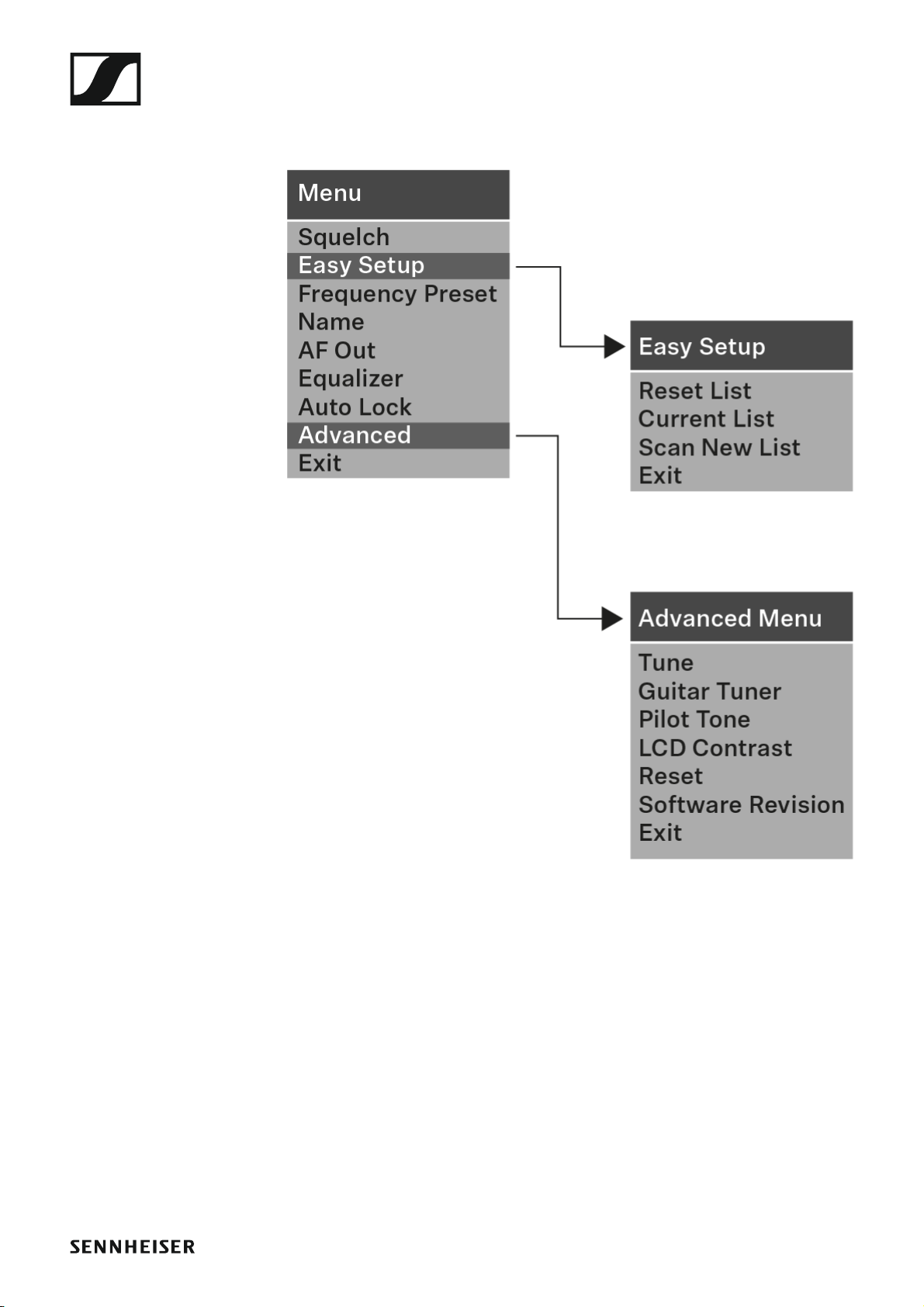
Menu structure
The figure shows the complete EM 100 G4 menu structure in an overview.
►
69
Page 71
Using the EM 100 G4
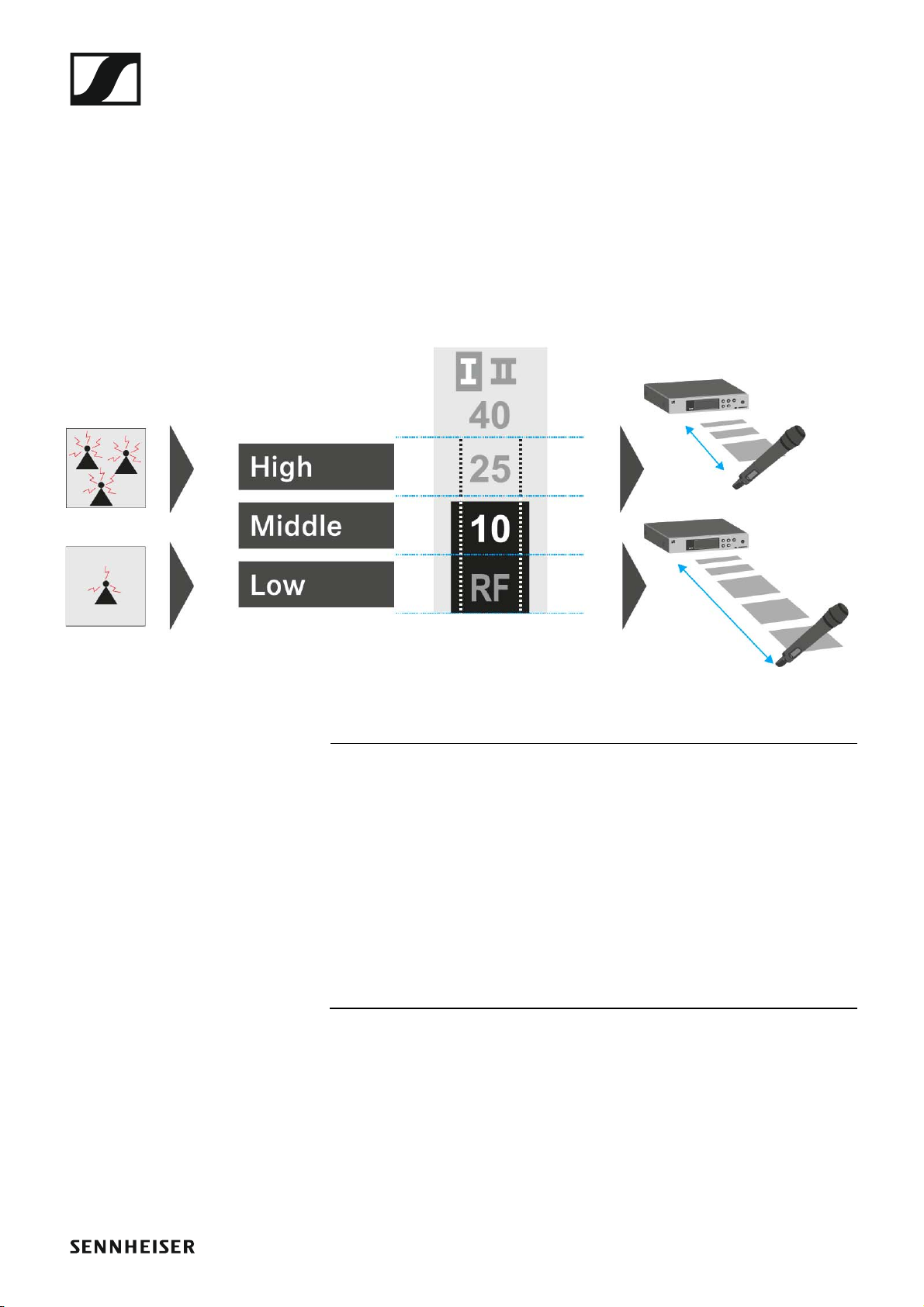
Squelch menu item
You can adjust the squelch threshold in the Squelch menu item.
Setting range:
• Low >> 5 dBμV
• Middle >> 15 dBμV
• High >> 25 dBμV
The squelch threshold is displayed on the home screen in the RF signal level area.
►
CAUTION
Risk of hearing and material damage
If you set the squelch threshold to a very low value, a very loud hissing
noise can occur in the receiver. This hissing noise can be loud enough to
cause hearing damage or overload your system’s loudspeakers.
▷ Before adjusting the squelch threshold, set the volume of the audio out-
put to the minimum.
▷ Never change the squelch threshold during a live transmission.
70
Page 72
Using the EM 100 G4
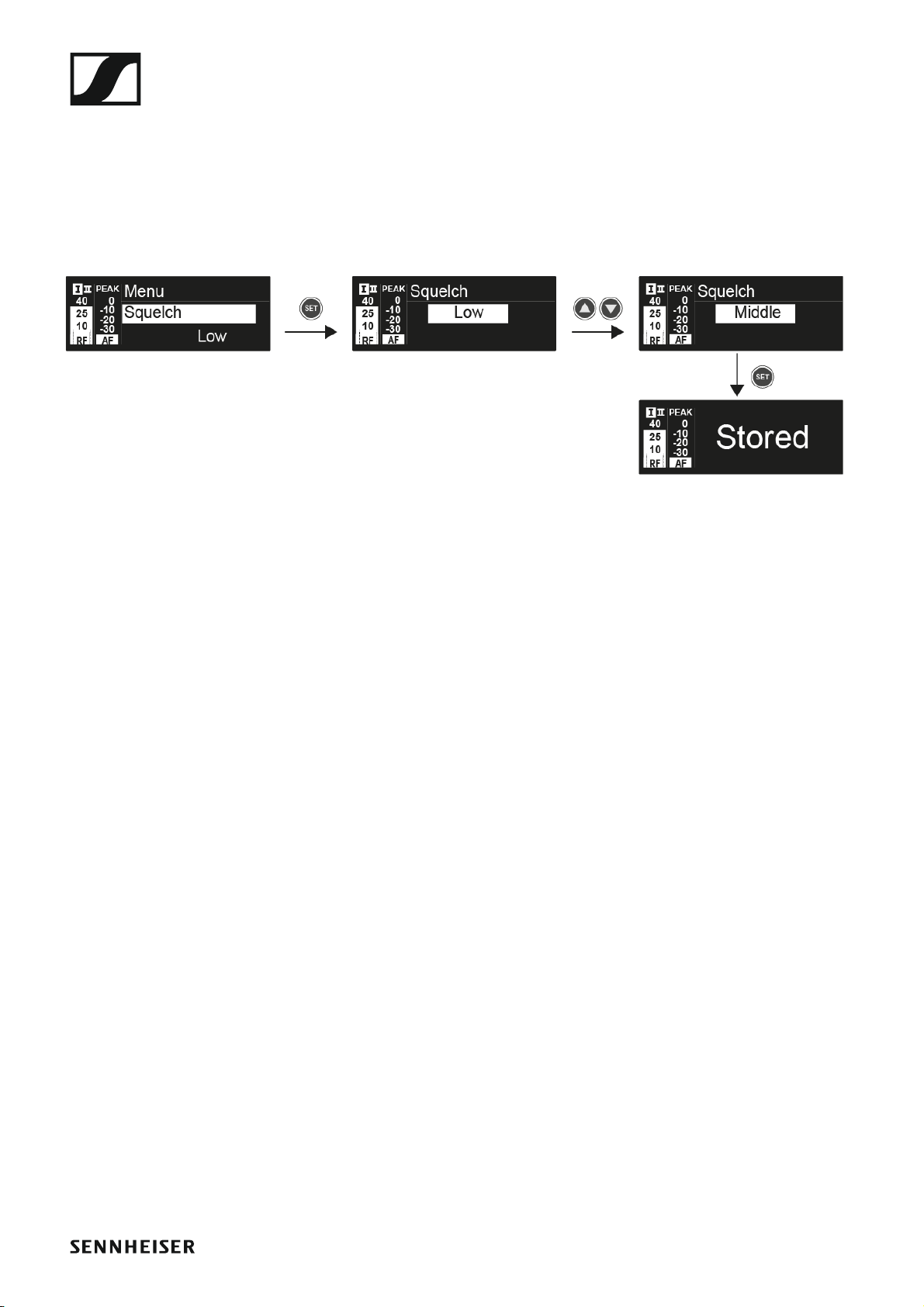
To open the Squelch menu item:
▷ On the home screen, press the SET button to open the operating menu.
▷ Press the UP or DOWN button until the Squelch menu item appears in
the selection frame.
▷ Press the SET button to open the menu item.
▷ Adjust the settings as desired.
►
▷ Press the SET button to save the changes you made to the settings.
or
▷ Press the ESC button to cancel the entry without saving the setting.
71
Page 73

Using the EM 100 G4
Easy Setup menu item
You can scan for unused frequencies using the Easy Setup menu item.
When you have connected multiple EM 100 G4 devices to a network via the
RJ-10 interfaces (see “Creating a data network”), you can perform the frequency setup for all of the connected receivers. You can find more information about connecting multiple devices under “Performing multi-channel
frequency setup”
Switch off all transmitters before you perform the scan. If transmitters are still switched on, they are detected as unavailable frequencies and the frequencies that are actually available cannot then be
used.
The squelch threshold setting influences the result. Set the squelch threshold to Low for as many frequencies as possible, and to High for as many
safe frequencies as possible (see “Squelch menu item”).
To open the Easy Setup menu item:
▷ On the home screen, press the SET button to open the operating menu.
▷ Press the UP or DOWN button until the Easy Setup menu item appears
in the selection frame.
▷ Press the SET button to open the menu item.
Scan New List
▷ Select Scan New List to scan for unused frequencies.
▷ Press the SET button to start the scan.
The frequency range of the receiver is scanned. As a result, the number
of unused frequencies is displayed for every frequency bank.
▷ Press the UP or DOWN buttons to select a frequency bank.
▷ Press the SET button to confirm your selection.
▷ Press the UP or DOWN buttons to select an unused frequency from the
selected bank.
72
Page 74

Using the EM 100 G4
▷ Press the SET button to save your selection and synchronize the select-
ed frequency with the transmitter at a later point (see “Synchronizing
devices”).
or
▷ Press the SYNC button to synchronize the selected frequency with the
transmitter immediately.
Current List
▷ Select Current List to show the list of unused frequ encies from the last
scan.
Reset
▷ Select Reset List to delete the list of unused frequencies.
Performing multi-channel frequency setup
To perform the automatic frequency setup for multiple receivers (max. 12)
simultaneously:
▷ Connect all of the receivers to one network.
See “Creating a data network”.
▷ Open the Easy Setup menu item on one of the receivers.
This receiver is the master. You can choose any receiver to be the master.
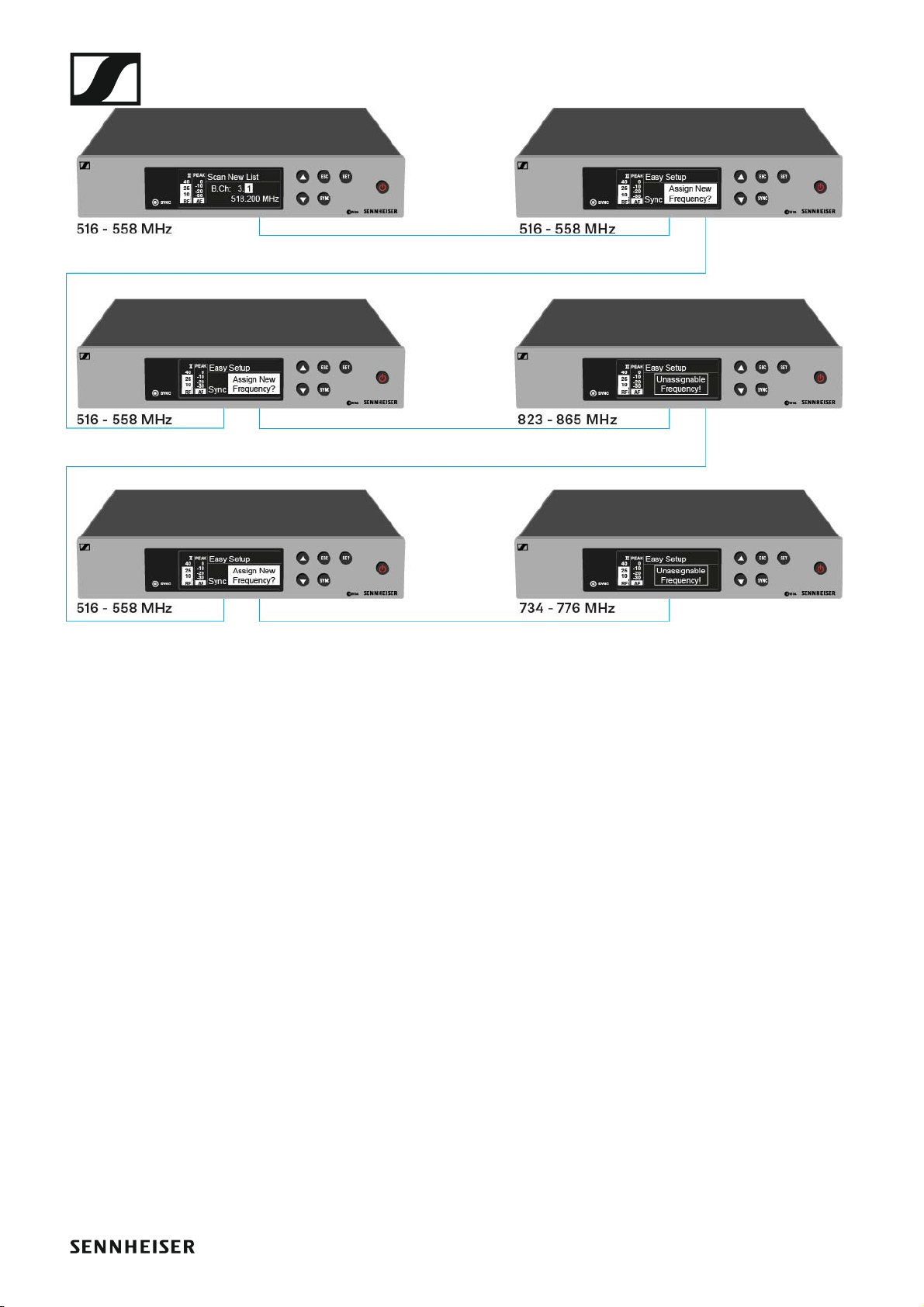
▷ Perform the frequency scan on the master receiver as described above.
After the scan, the display panels of the other receivers will display the
message Assign New Frequency?.
Receivers with non-compatible frequency ranges will display the message Unassignable Frequency!.
▷ Select an unused frequency for the first receiver on the master receiv-
er.
▷ Press the SET button on the receiver that you would like to assign this
frequency to.
▷ Use this procedure to assign a frequency to each connected receiver,
one after another.
▷ For the last step, assign a frequency to the master receiver.
This completes the multi-channel frequency setup.
73
Page 75
Using the EM 100 G4
►
74
Page 76
Using the EM 100 G4
Setting up a multi-channel system with more than 12 receivers
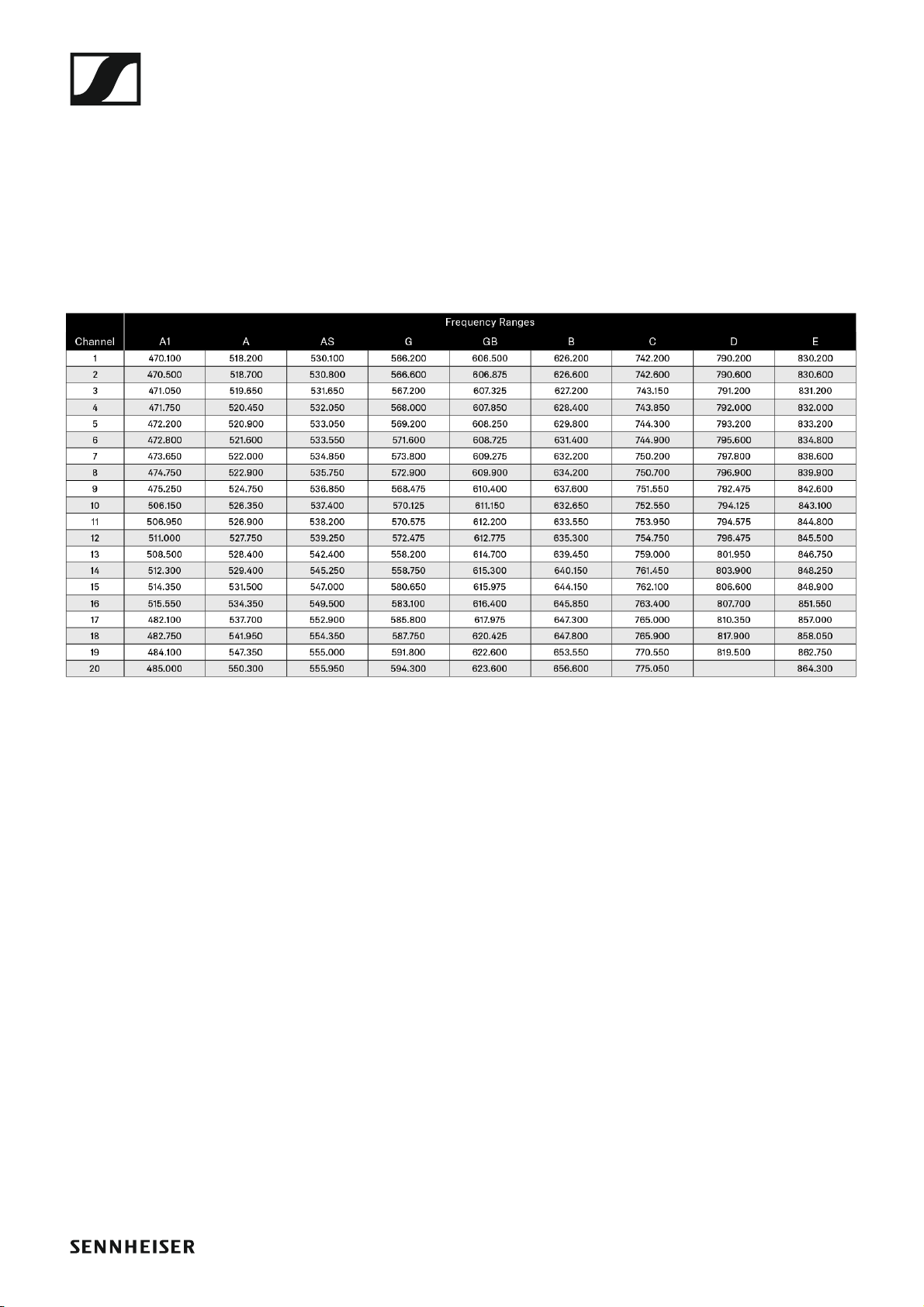
You can use the Easy Setup function to automatically set up a maximum
of 12 receivers.
If you assign the frequencies manually, however, you can use up to 20 receivers in a multi-channel system (not possible in the JB, K+ and 1G8 frequency ranges).
▷ To do so, set a frequency manually in each receiver (see “Advanced ->
Tune menu item”).
▷ Use the frequencies from the following table.
►
75
Page 77
Using the EM 100 G4
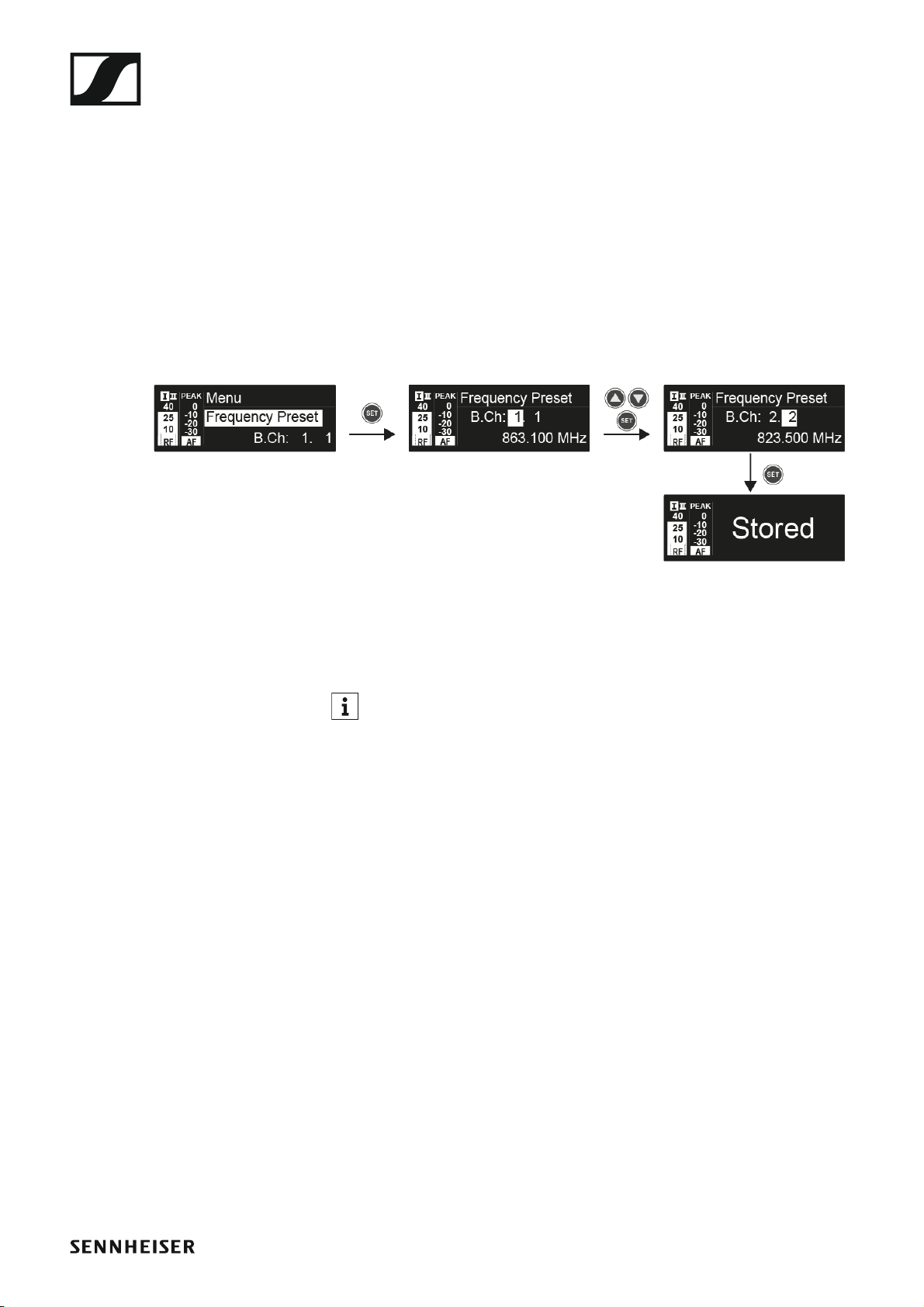
Frequency Preset menu item
In the Frequency Preset menu item, you can adjust the receiving frequency of the receiver by adjusting the frequency bank and the channel.
To open the Frequency Preset menu item:
▷ On the home screen, press the SET button to open the operating menu.
▷ Press the UP or DOWN button until the Frequency Preset menu item
appears in the selection frame.
▷ Press the SET button to open the menu item.
▷ Adjust the settings as desired.
►
▷ Press the SET button to save the changes you made to the settings.
or
▷ Press the ESC button to cancel the entry without saving the setting.
You can set the frequencies of the frequency bank U here: “Advanced
-> Tune menu item”
76
Page 78
Using the EM 100 G4
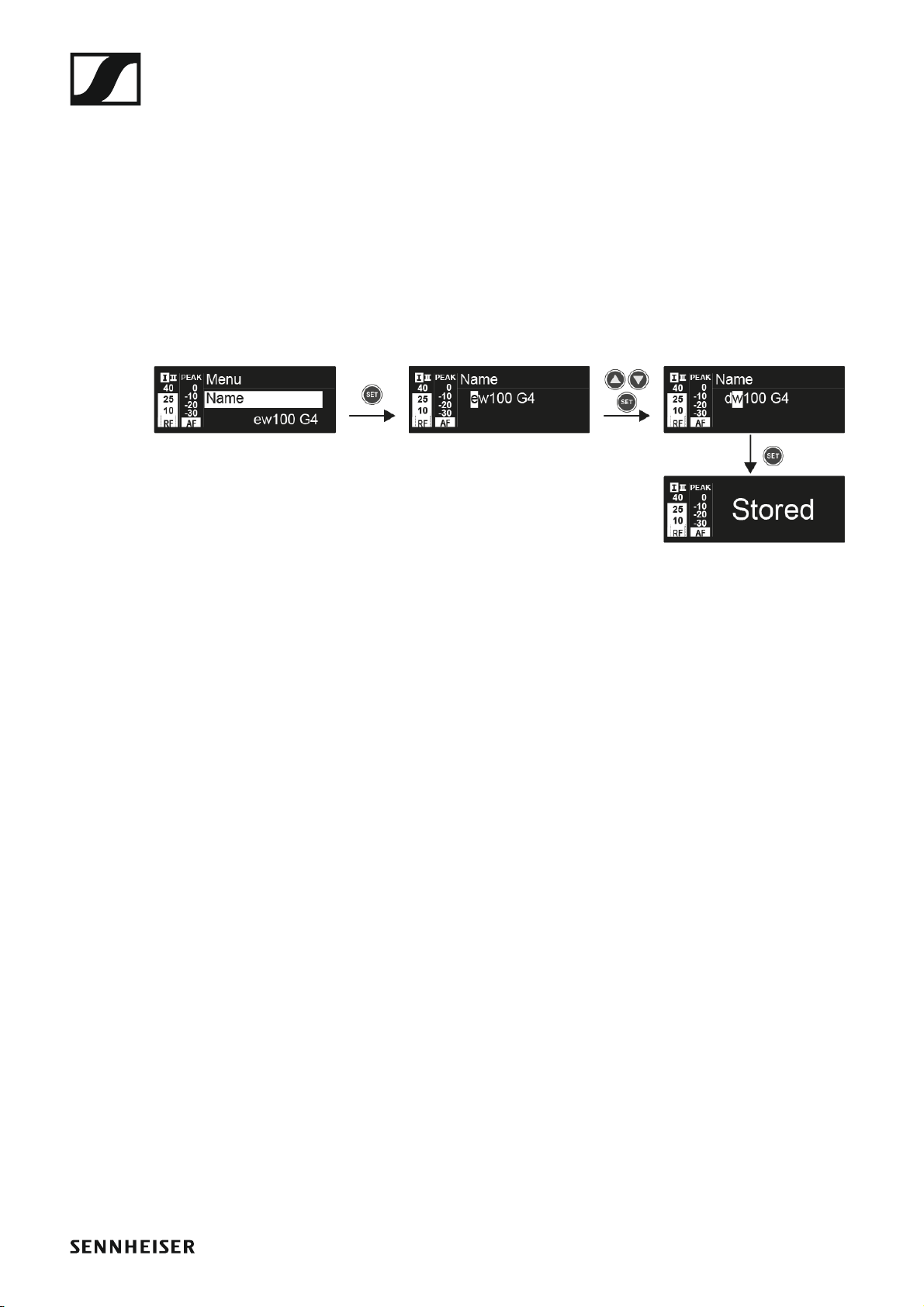
Name menu item
In the Name menu item you can enter a name for the radio link.
To open the Name menu item:
▷ On the home screen, press the SET button to open the operating menu.
▷ Press the UP or DOWN button until the Name menu item appears in the
selection frame.
▷ Press the SET button to open the menu item.
▷ Adjust the settings as desired.
►
▷ Press the SET button to save the changes you made to the settings.
or
▷ Press the ESC button to cancel the entry without saving the setting.
77
Page 79
Using the EM 100 G4
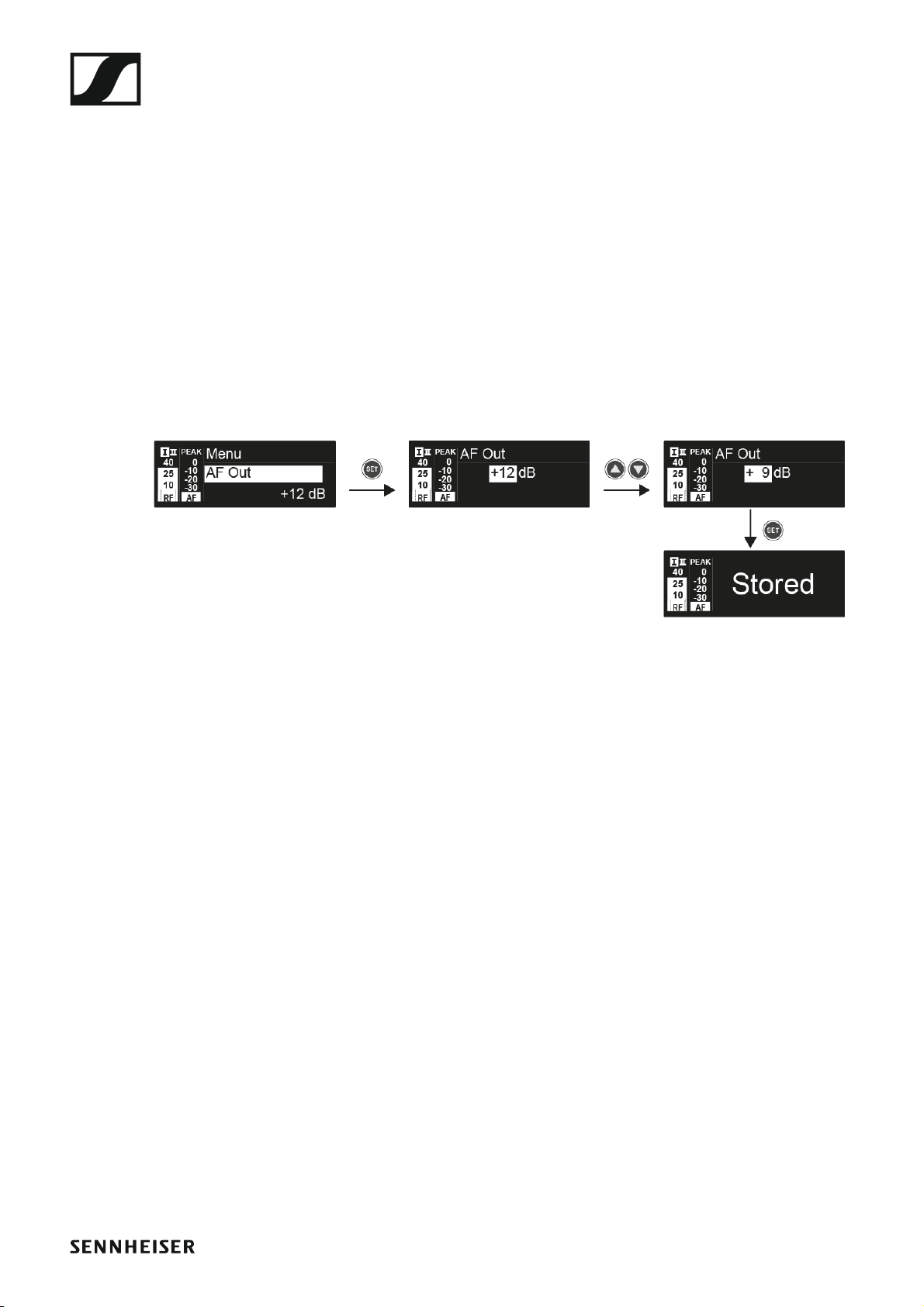
AF Out menu item
In the AF Out menu item, you can set the audio level that is output via the
receiver audio outputs.
Setting range:
• –24 dB to +18 dB in 3 dB steps
To open the AF Out menu item:
▷ On the home screen, press the SET button to open the operating menu.
▷ Press the UP or DOWN button until the AF Out menu item appears in
the selection frame.
▷ Press the SET button to open the menu item.
▷ Adjust the settings as desired.
►
▷ Press the SET button to save the changes you made to the settings.
or
▷ Press the ESC button to cancel the entry without saving the setting.
78
Page 80

Using the EM 100 G4
Equalizer menu item
In the Equalizer menu item, you can change the frequency response of the
output signal. You can reduce the bass range and boost the treble range.
To open the Equalizer menu item:
▷ On the home screen, press the SET button to open the operating menu.
▷ Press the UP or DOWN button until the Equalizer menu item appears
in the selection frame.
▷ Press the SET button to open the menu item.
▷ Adjust the settings as desired.
►
▷ Press the UP or DOWN buttons to configure the desired settings.
▷ Press the SET button to save the changes you made to the settings.
or
▷ Press the ESC button to cancel the entry without saving the setting.
79
Page 81
Using the EM 100 G4
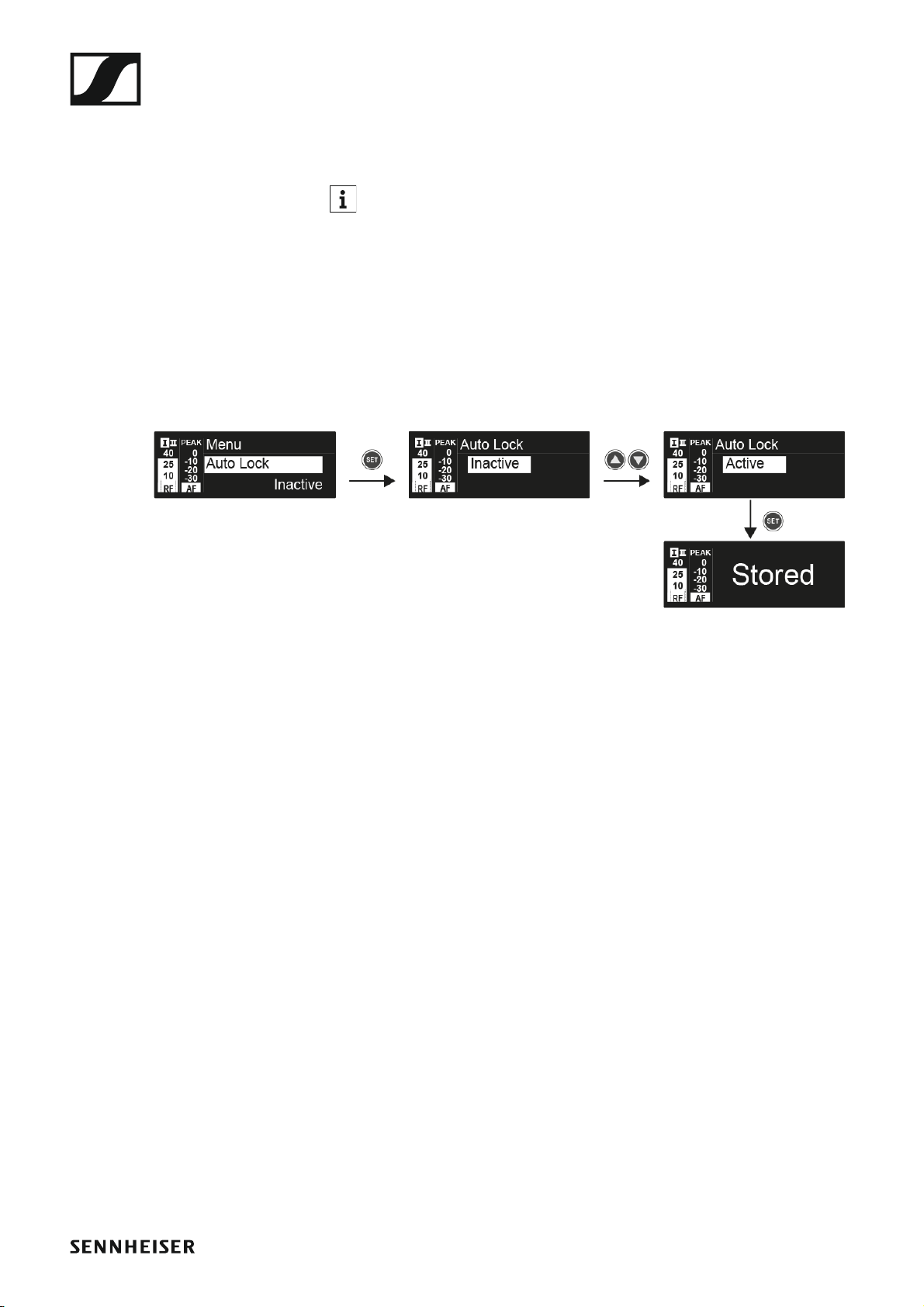
Auto Lock menu item
In the Auto Lock menu item you can activate or deactivate the auto lockoff function.
You can find information about temporarily deactivating the lock-off
function during operation under “Lock-off function”.
To open the Auto Lock menu item:
▷ On the home screen, press the SET button to open the operating menu.
▷ Press the UP or DOWN button until the Auto Lock menu item appears
in the selection frame.
▷ Press the SET button to open the menu item.
▷ Adjust the settings as desired.
►
▷ Press the SET button to save the changes you made to the settings.
or
▷ Press the ESC button to cancel the entry without saving the setting.
80
Page 82

Using the EM 100 G4
Advanced menu item
In the Advanced submenu you can configure enhanced settings.
To open the Advanced submenu:
▷ On the home screen, press the SET button to open the operating menu.
▷ Press the UP or DOWN button until the Advanced menu item appears
in the selection frame.
▷ Press the SET button to open the menu item.
The following sub-items are available:
Adjusting the receiving frequencies for the U frequency bank
▷ See “Advanced -> Tune menu item”
Adjusting the guitar tuner options
▷ See “Advanced -> Guitar Tuner menu item”
Activating/deactivating the pilot tone evaluation
▷ See “Advanced -> Pilot Tone menu item”
Adjusting the contrast of the display panel
▷ See “Advanced -> LCD Contrast menu item”
Resetting the receiver
▷ See “Advanced -> Reset menu item”
Displaying the current software revision
▷ See “Advanced -> Software Revision menu item”
81
Page 83
Using the EM 100 G4
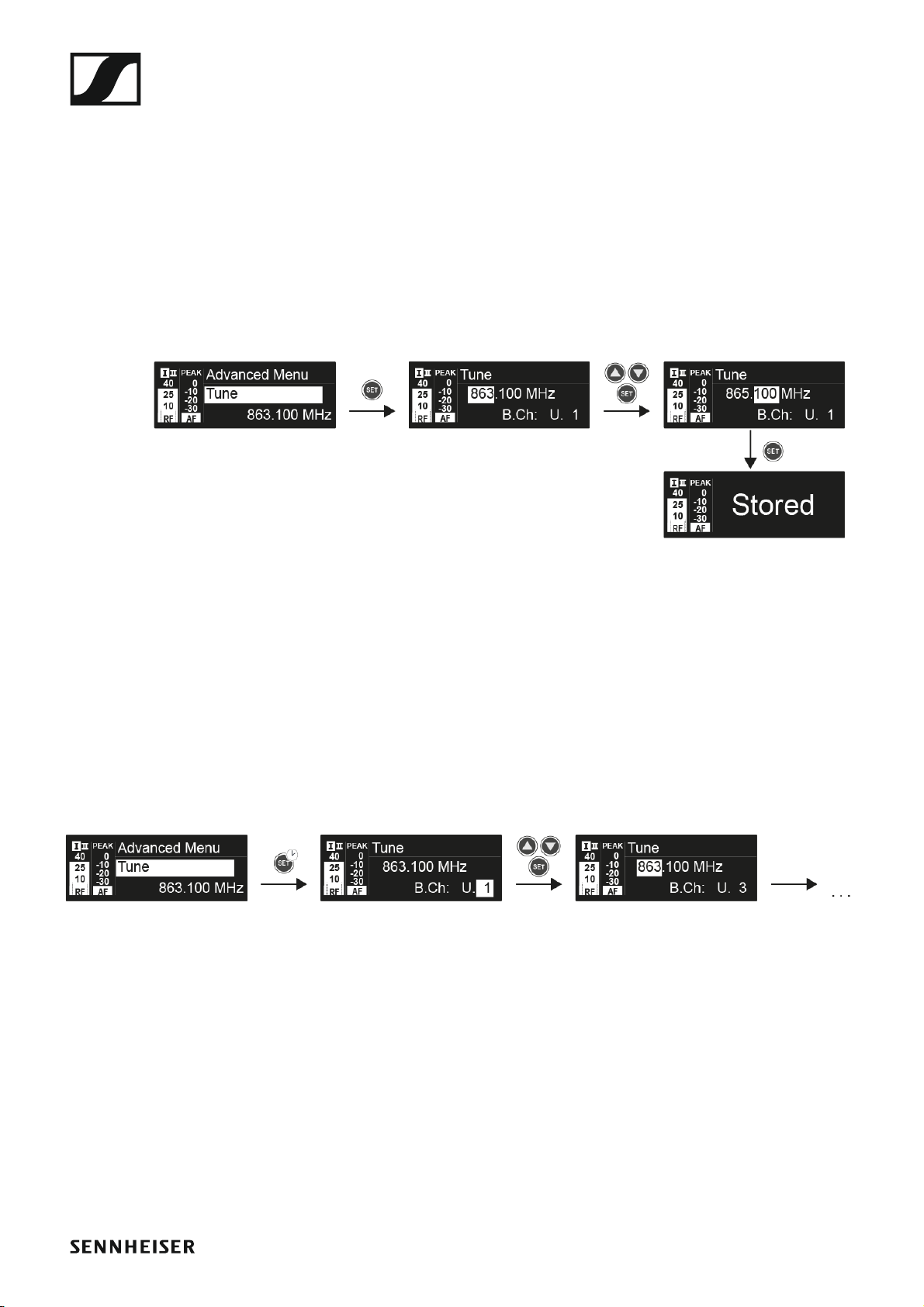
Advanced -> Tune menu item
In the Tune menu item of the Advanced submenu, you can configure the
receiving frequencies for the U frequency bank.
You can save a total of 12 frequencies in the U frequency bank.
Only adjusting the frequency
▷ Open the Tune menu item in the Advanced menu.
▷ Adjust the settings.
►
▷ Press the SET button to save the changes you made to the settings.
or
▷ Press the ESC button to cancel the entry without saving the setting.
Setting the channel and frequency
▷ Select the Tune menu item and call it up by holding down the SET but-
ton until the channel selection appears.
▷ Adjust the settings.
►
▷ Press the SET button to save the changes you made to the settings.
or
▷ Press the ESC button to cancel the entry without saving the settings.
82
Page 84

Using the EM 100 G4
Advanced -> Guitar Tuner menu item
In the Guitar Tuner menu item of the Advanced submenu, you can adjust
the options of the guitar tuner.
The guitar tuner is opened in the Guitar Tuner standard display on the
home screen. See “Guitar Tuner standard display”.
►
• Inactive: The guitar tuner is deactivated.
• Active: The guitar tuner is activated.
• Audio mute: The guitar tuner is activated. Once the Guitar Tuner standard display is open on the home screen, the audio signal is muted.
Advanced -> Pilot Tone menu item
In the Pilot Tone menu item of the Advanced submenu, you can activate
and deactivate the pilot tone evaluation.
►
The pilot tone has an inaudible frequency that is sent from the transmitter
and evaluated by the receiver. It supports the receiver’s squelch function.
For the best possible operational reliability, we recommend leaving
the pilot tone activated.
83
Page 85
Using the EM 100 G4
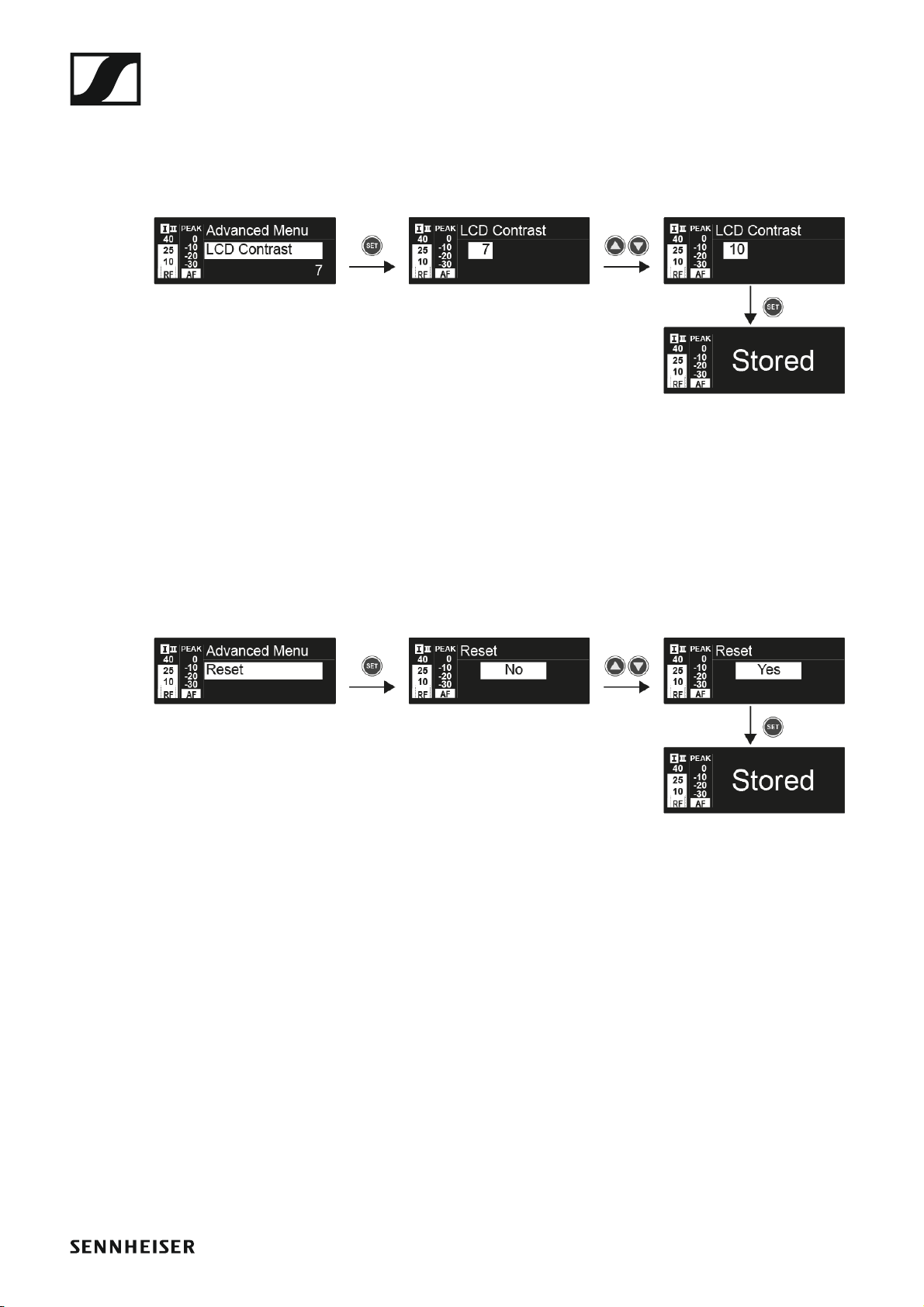
Advanced -> LCD Contrast menu item
In the LCD Contrast menu item of the Advanced submenu, you can adjust
the display contrast of the display panel.
►
Advanced -> Reset menu item
In the Reset menu item of the Advanced submenu, you can reset all of the
settings of the receiver to the factory settings.
►
Advanced -> Software Revision menu item
In the Software Revision menu item of the Advanced submenu, you can
display the current software version of the receiver.
84
Page 86

Using the SKM 100 G4
Using the SKM 100 G4
These sections contain detailed information about using the SKM 100 G4
and SKM 100 G4-S.
You can find information on installation and startup of the SKM 100 G4 and
SKM 100 G4-S under “Installing the SKM 100 G4”.
85
Page 87

Using the SKM 100 G4
Operating elements of the SKM 100 G4 handheld transmitter
►
1 Display panel
• See “Displays on the SKM 100 G4 handheld transmitter display panel”
2 Infra-red interface
• See “Synchronizing devices”
3 DOWN, UP and SET multi-function switch
• See “Buttons for navigating the SKM 100 G4 menu”
4 ON/OFF button with ESC function in the operating menu
• Switch the transmitter on or off
See “Switching the SKM 100 G4 handheld transmitter on and off”
• Escape function in the menu
See “Buttons for navigating the SKM 100 G4 menu”
5 Colored ring
• Available in different colors (see “Additional accessories” and
“Changing the colored ring”)
• Can be turned to protect the multi-function switch
86
Page 88

Using the SKM 100 G4
6 Operation and battery indicator, red LED
• illuminated = ON
See “Switching the SKM 100 G4 handheld transmitter on and off”
•flashing = LOW BATTERY
See “Inserting and removing the batteries/rechargeable batteries”
7 MIC button (only SKM 100 G4-S)
• See “Muting the handheld transmitter (AF mute)”
• See “Advanced > Mute Mode menu item (SKM 100 G4-S only)”
Switching the SKM 100 G4 handheld transmitter on and off
To switch on the SKM 100 G4:
▷ Hold down the ON/OFF button until the Sennheiser logo appears on the
display.
►
To switch off the SKM 100 G4:
▷ Hold down the ON/OFF button until the display goes off.
87
Page 89
Using the SKM 100 G4
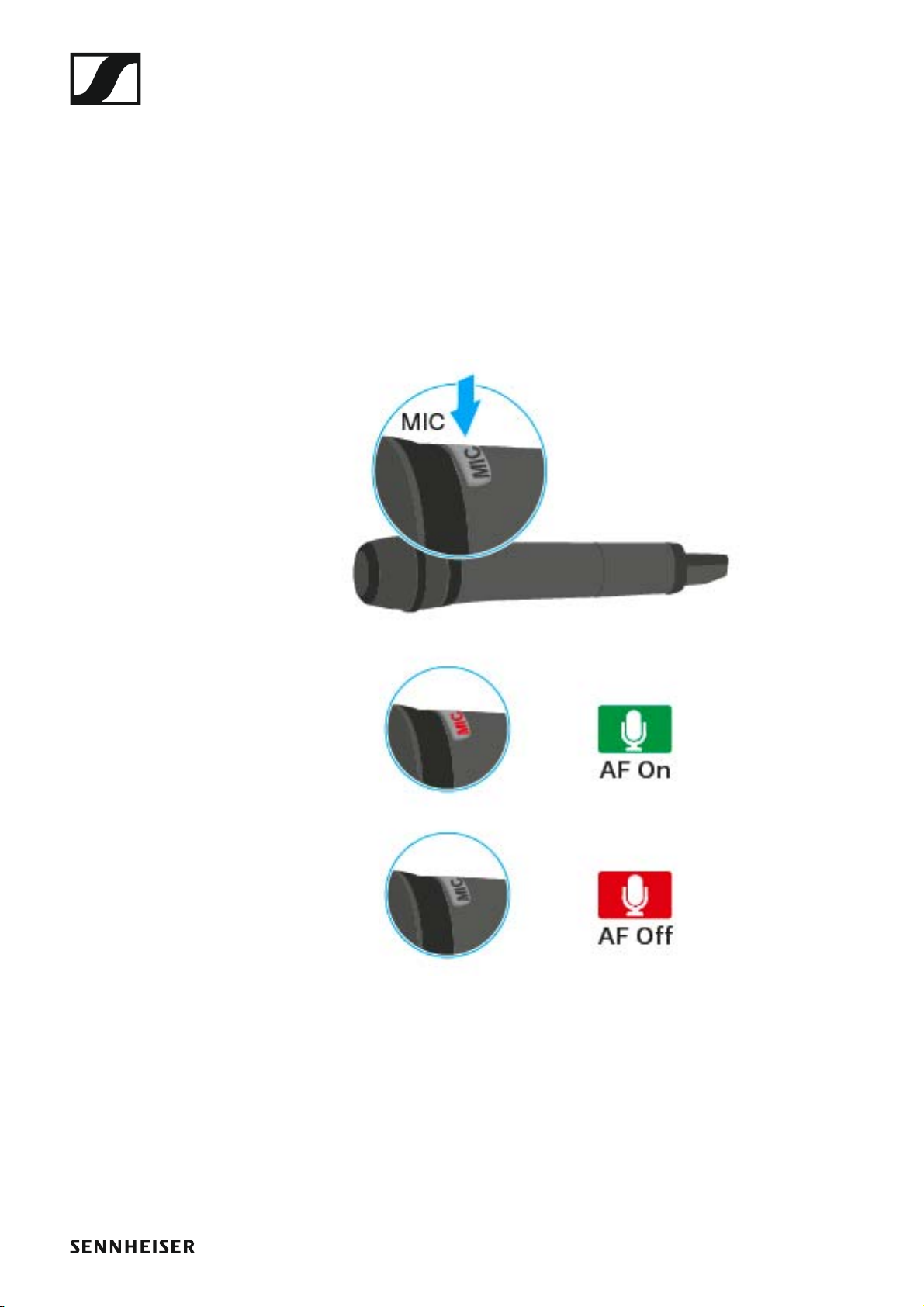
Muting the handheld transmitter (AF mute)
SKM 100 G4
The audio signal of the transmitter cannot be muted.
However, when you deactivate the RF signal no AF signal is output. See
“Deactivating the RF signal (RF mute)”.
SKM 100 G4-S
You can mute the audio signal by pressing the MIC button.
•The MIC button lights up red: the audio signal is activated
•The MIC button is not lit: the audio signal is muted
88
Page 90
Using the SKM 100 G4
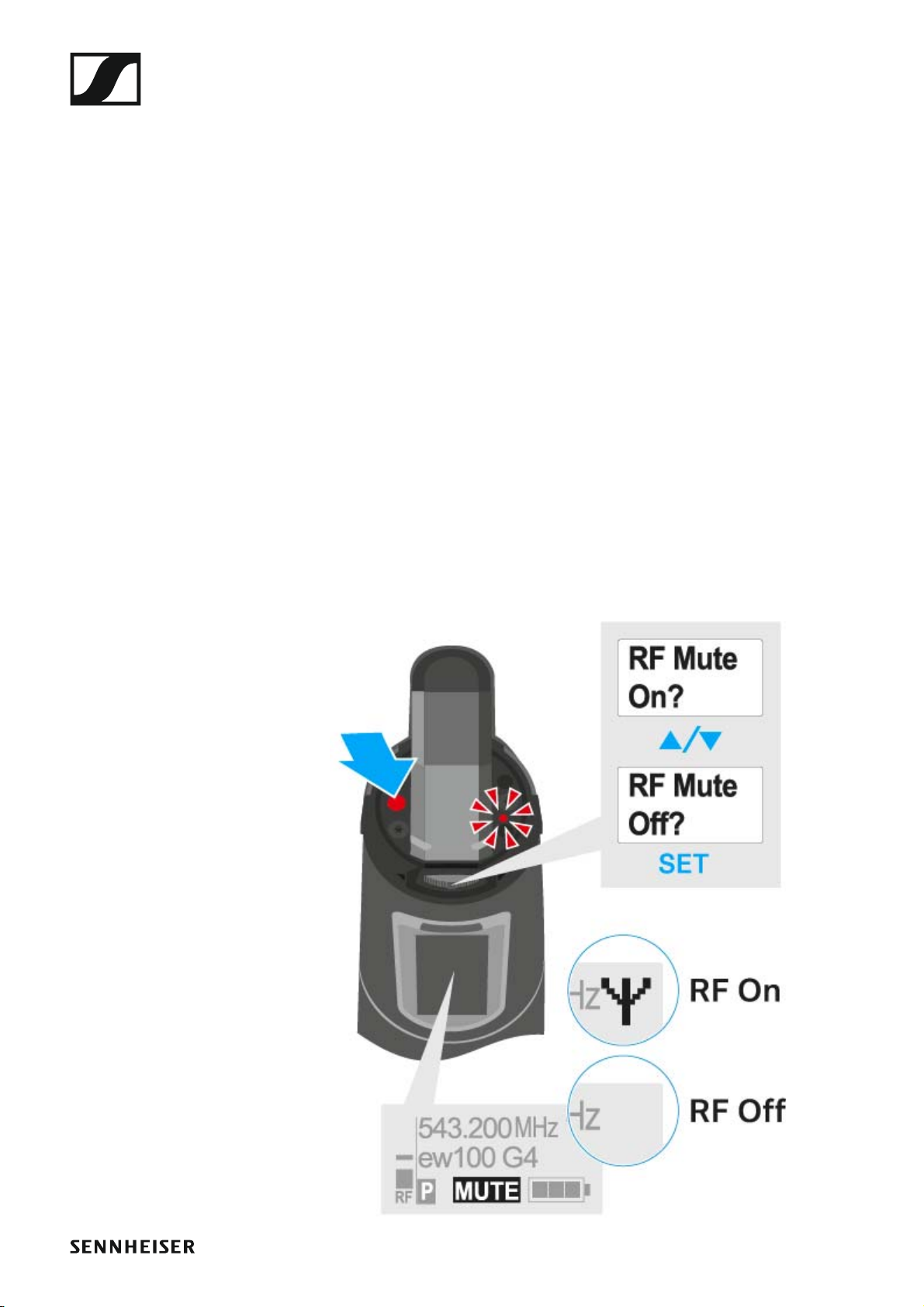
Deactivating the RF signal (RF mute)
You can temporarily deactivate the RF signal when the microphone is
switched on. When the RF signal is deactivated, no audio signal is output.
Use this function to save battery or when you want to prepare a microphone for use during live broadcast without interfering with the current
transmission path.
To deactivate the RF signal:
▷ Short-press the ON/OFF button.
RF Mute On? appears.
▷ Press the SET button.
The transmission frequency is displayed, however the wireless microphone is not transmitting an RF signal. The transmission icon is not lit
(see “Displays on the SKM 100 G4 handheld transmitter display panel”).
To activate the RF signal:
▷ Short-press the ON/OFF button.
RF Mute Off? appears.
▷ Press the SET button.
The transmission icon appears again (see “Displays on the SKM 100 G4
handheld transmitter display panel”).
►
89
Page 91
Using the SKM 100 G4
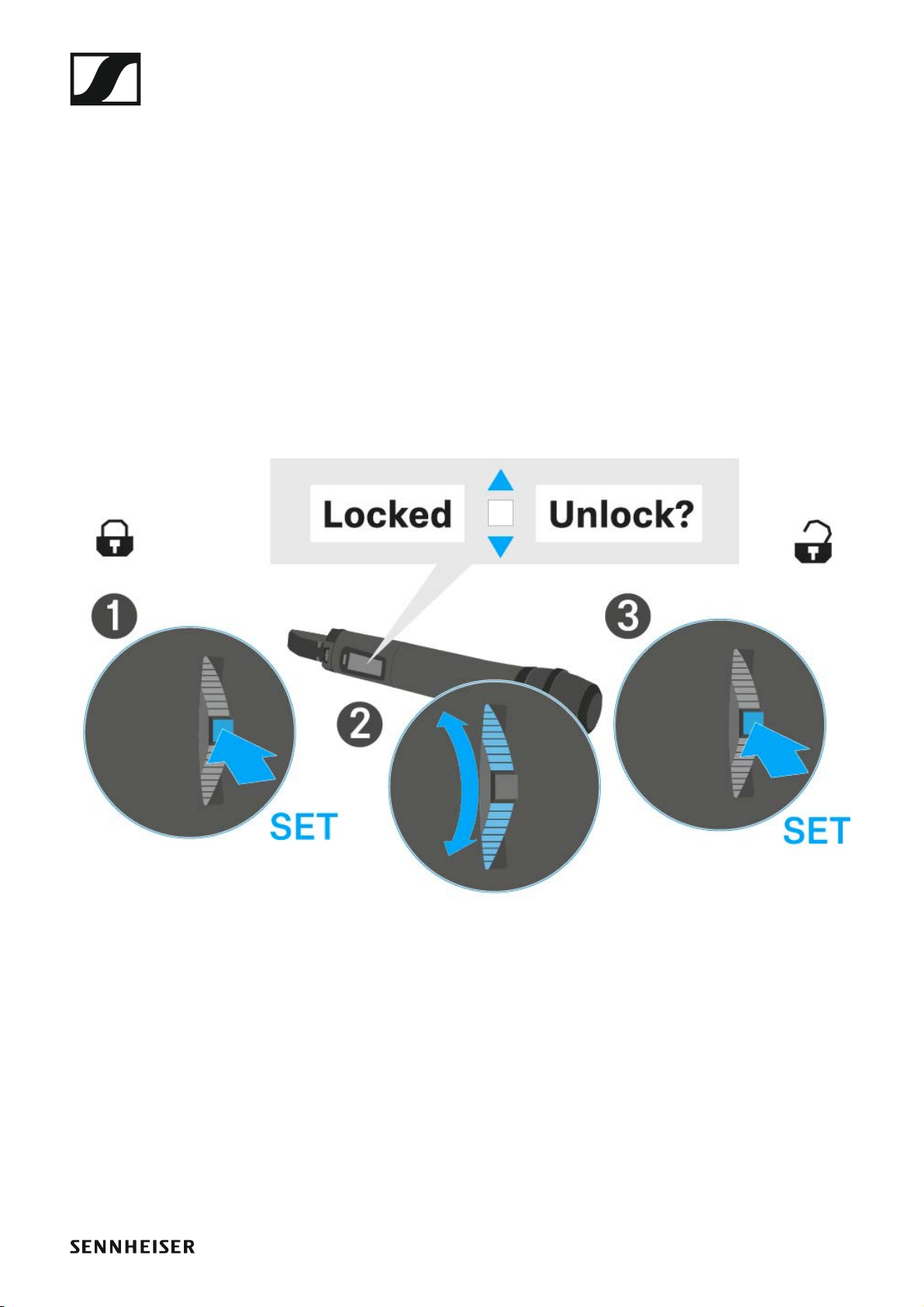
Lock-off function
You can set the automatic lock-off function in the Auto lock menu (see
“Buttons for navigating the SKM 100 G4 menu”).
When you have switched on the lock-off function, you will have to turn the
transmitter off and on again in order to operate it.
To temporarily deactivate the lock-off function:
▷ Press the SET button.
Locked appears in the display panel.
▷ Press the UP or DOWN button.
Unlock? appears in the display panel.
▷ Press the SET button.
Lock-off function is now temporarily deactivated.
►
90
Page 92
Using the SKM 100 G4
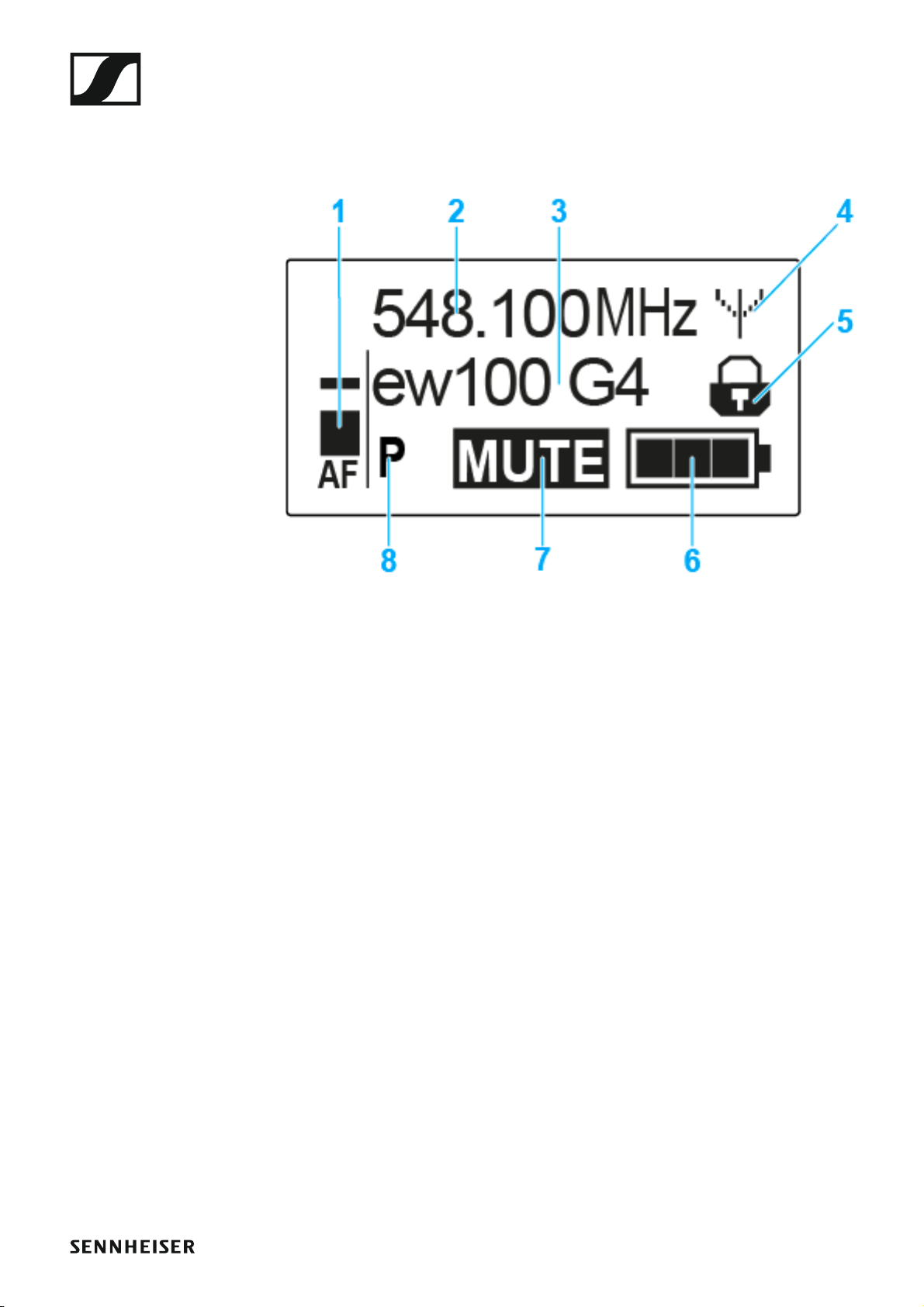
Displays on the SKM 100 G4 handheld transmitter display panel
You can view the following information on the transmitter display.
►
1 AF audio level
• Displays the audio level with peak hold function
• See “Sensitivity menu item”
2 Frequency
• Configured transmission frequency
• See “Frequency Preset menu item”
3 Name
• Freely selectable name of the receiver
• See “Name menu item”
4 Transmission icon
• RF signal is being transmitted
• See “Deactivating the RF signal (RF mute)”
5 Lock-off function
• Lock-off function is activated
• See “Auto Lock menu item”
6 Battery status
• See “Battery status”
7 MUTE muting function
• The audio signal is muted
• See “Muting the handheld transmitter (AF mute)”
• See “Deactivating the RF signal (RF mute)”
8 P pilot tone
• Pilot tone transmission is activated
• See “Advanced > Pilot Tone menu item”
91
Page 93
Using the SKM 100 G4
ew100 G4
MHz
548.100
MUTE
P
AF
MHz
548.100
B.Ch: 20.12
MUTE
P
AF
B.Ch: 20.12
MUTE
P
AF
ew100 G4
>> “Buttons for navigating the SKM 100 G4 menu”
>> “Setting options in the menu”
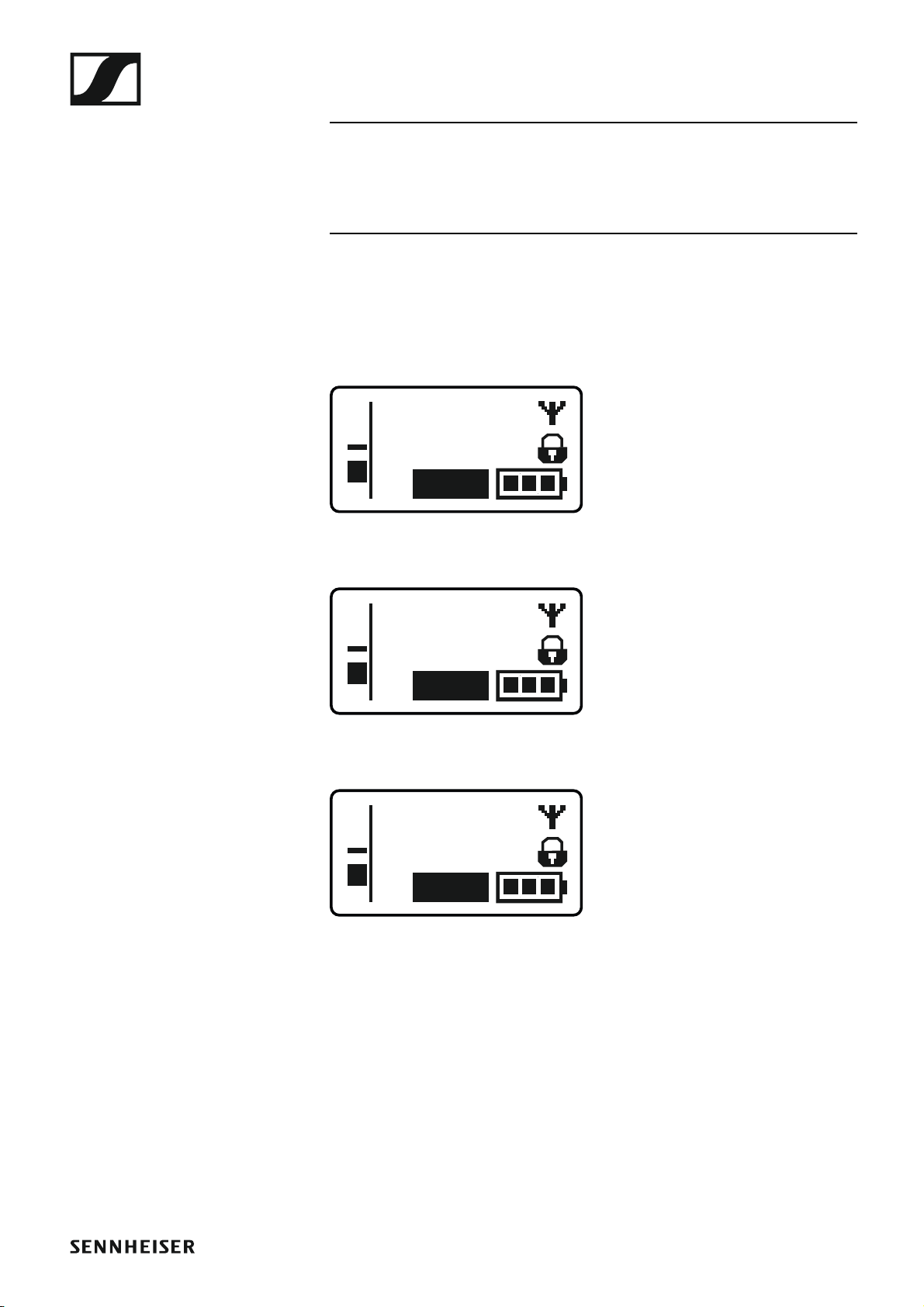
Select a standard display
▷ Move the multi-function switch to select a standard display:
Frequency/Name standard display
►
Channel/Frequency standard display
►
Name/Channel standard display
►
92
Page 94
Using the SKM 100 G4
Buttons for navigating the SKM 100 G4 menu
Navigating through the menu
To open the menu:
▷ Press the SET button.
The operating menu is shown on the transmitter display panel.
To open a menu item:
▷ Press the UP or DOWN buttons to navigate through the individual
menu items.
▷ Press the SET button to open the selected menu item.
“Operating elements of the SKM 100 G4 handheld transmitter”
Making changes in a menu item
After you open a menu item, you can make changes as follows:
▷ Press the UP or DOWN buttons to set the displayed value.
▷ Press the SET button to save the setting.
▷ Press the ESC (ON/OFF) button to leave the menu item without saving
the setting.
“Operating elements of the SKM 100 G4 handheld transmitter”
>> “Displays on the SKM 100 G4 handheld transmitter display panel”
>> “Setting options in the menu”
93
Page 95

Using the SKM 100 G4
Setting options in the menu
In the SKM 100 G4 menu, you can configure the following settings.
Adjusting the input sensitivity
▷ See “Sensitivity menu item”
Setting the frequency bank and the channel
▷ See “Frequency Preset menu item”
Entering a freely selectable name
▷ See “Name menu item”
Activating/deactivating the automatic lock-off function
▷ See “Auto Lock menu item”
Configuring enhanced settings in the Advanced Menu:
• Adjusting the transmission frequencies for the U frequency bank
• Defining the MIC button setting (SKM 100 G4-S only)
• Activating/deactivating the pilot tone evaluation
• Adjusting the contrast of the display panel
• Resetting the transmitter
• Displaying the current software revision
▷ See “Advanced menu item”
94
Page 96
Using the SKM 100 G4
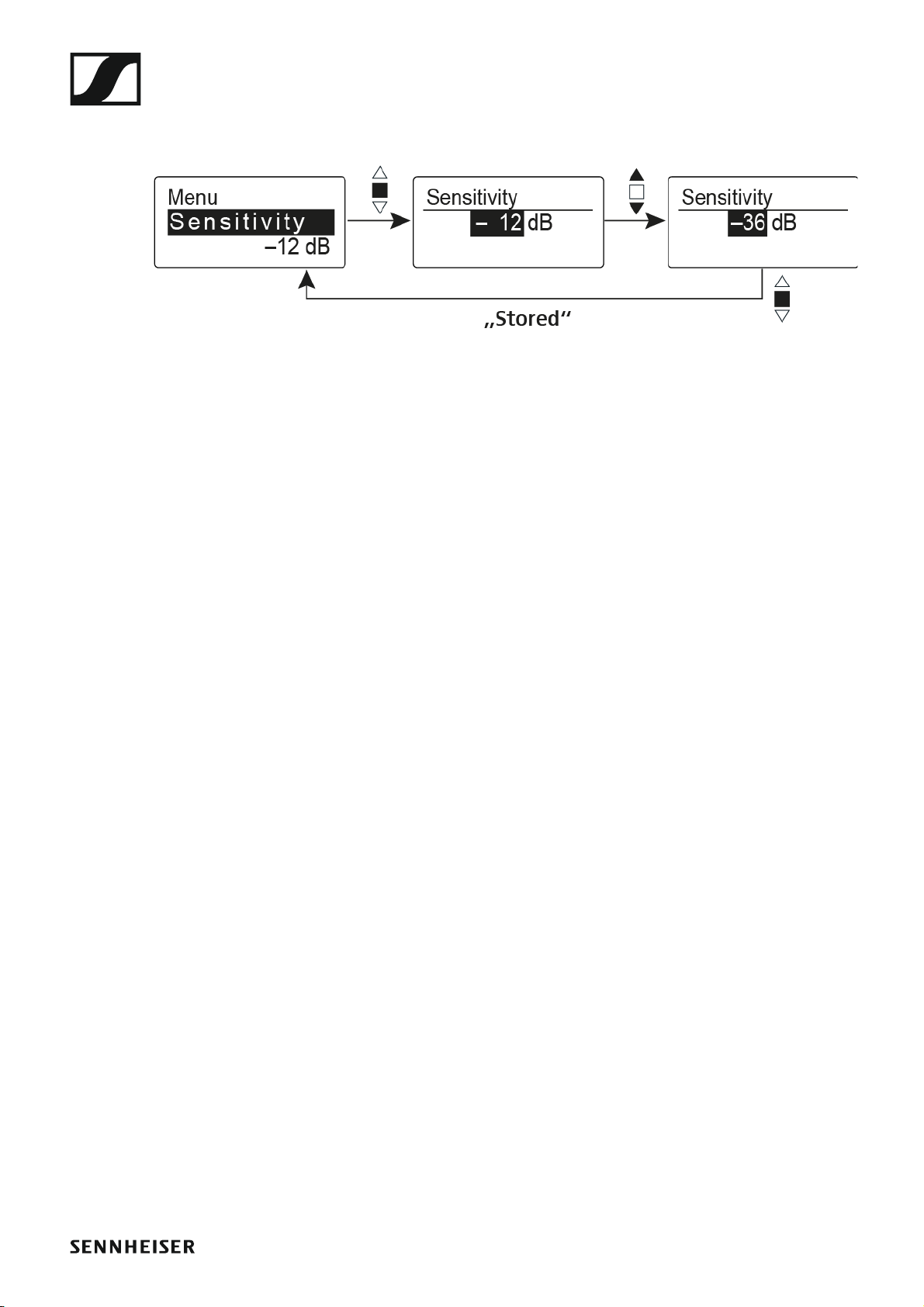
Sensitivity menu item
• Adjusting the input sensitivity – AF audio level
►
Setting range: 0 dB to -48 dB in 6 dB steps.
The AF audio level is also displayed when the wireless microphone is muted, e.g. to check the sensitivity before a live broadcast.
Recommended presets:
• Loud music/vocals: -48 to -18 dB
• Moderation: -18 to -12 dB
• Interviews: -12 to 0 dB
95
Page 97
Using the SKM 100 G4
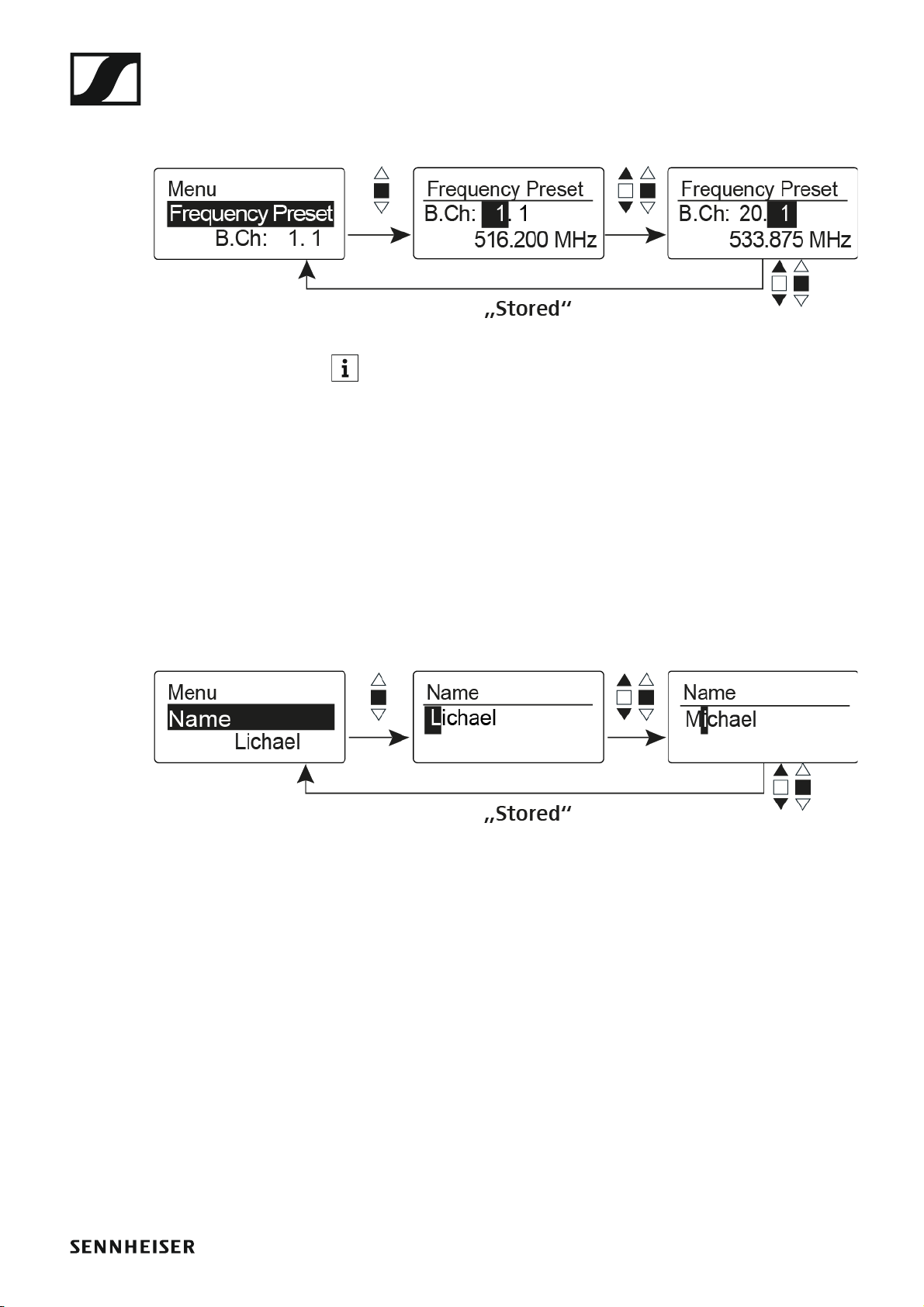
Frequency Preset menu item
• Manually selecting a frequency bank and channel
►
While you work in the Frequency Preset menu, the RF signal is deactivated.
Please note when creating multi-channel systems:
Only the factory-preset frequencies within one frequency bank are intermodulation-free. The wireless microphone and receiver must be set to the
same frequency. Be sure to note the information on frequency selection
under “Establishing a radio link”.
Name menu item
• Entering names
►
In the Name menu item you can enter any name you want for the wireless
microphone (e.g. the names of the musicians).
The name can be shown in the Frequency/Name and Name/Channel standard displays.
The names are a maximum of 8 characters:
• All letters except umlauts.
• Numbers from 0 to 9
• Special characters and spaces
Enter the names as follows:
▷ Move the multi-function switch to select a character.
▷ Press the multi-function switch to jump to the next space or to save the
name you have entered once it is complete.
96
Page 98
Using the SKM 100 G4
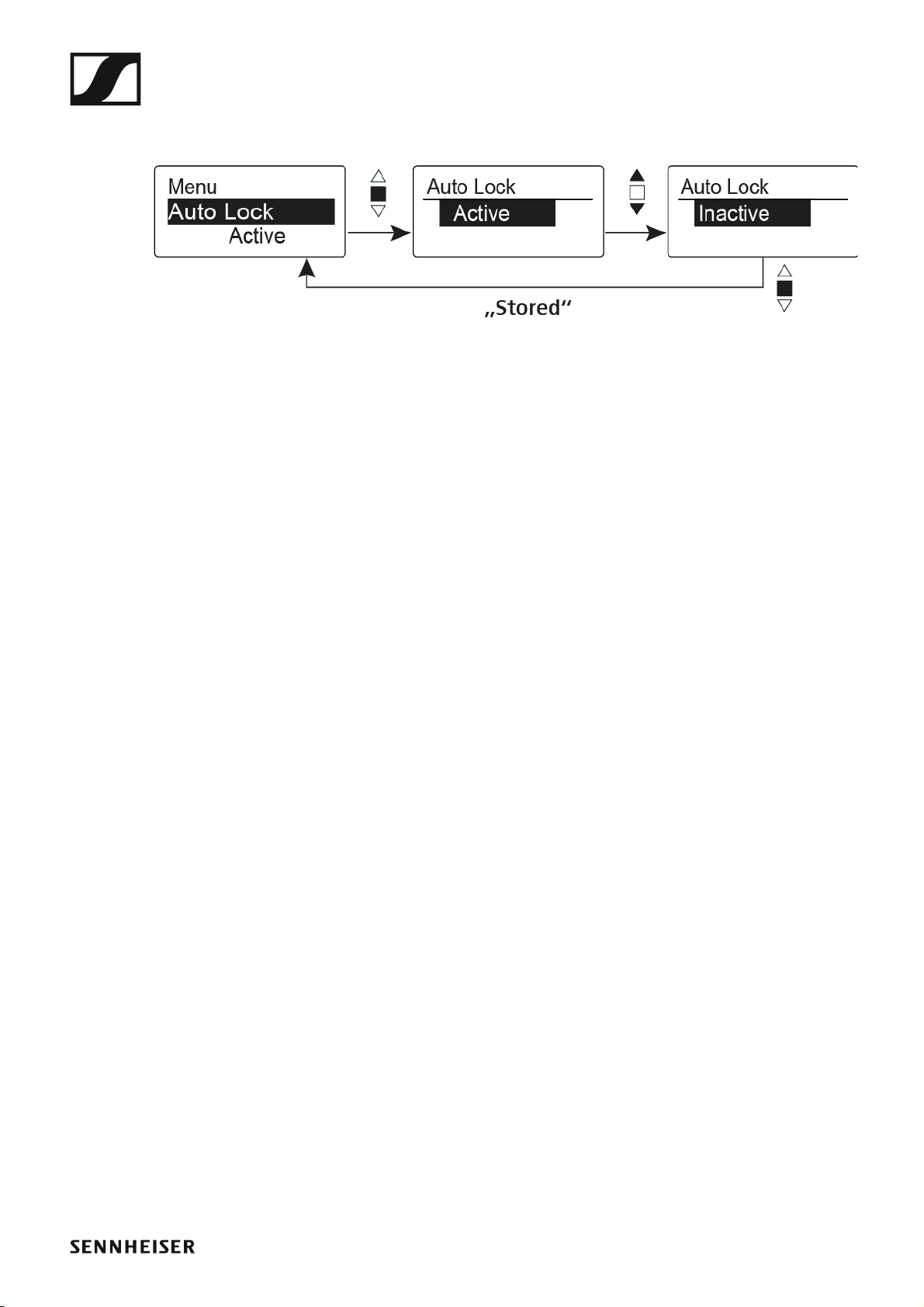
Auto Lock menu item
• Switching the automatic lock-off function on and off
►
This lock prevents the wireless microphone from being unintentionally
switched off and also prevents any unintentional changes to the transmitter’s configuration. In the current standard display, the lock icon shows
whether the lock-off function is currently switched on.
You can find information about using the lock-off function under “Lock-off
function”.
97
Page 99

Using the SKM 100 G4
Advanced menu item
In the Advanced submenu you can configure enhanced settings.
The following sub-items are available:
Adjusting the transmission frequencies for the U frequency bank
▷ See “Advanced > Tune menu item”
Defining the MIC button setting (SKM 100 G4-S only)
▷ See “Advanced > Mute Mode menu item (SKM 100 G4-S only)”
Activating/deactivating the pilot tone evaluation
▷ See “Advanced > Pilot Tone menu item”
Adjusting the contrast of the display panel
▷ See “Advanced > LCD Contrast menu item”
Resetting the transmitter
▷ See “Advanced > Reset menu item”
Displaying the current software revision
▷ See “Advanced > Software Revision menu item”
98
Page 100
Using the SKM 100 G4
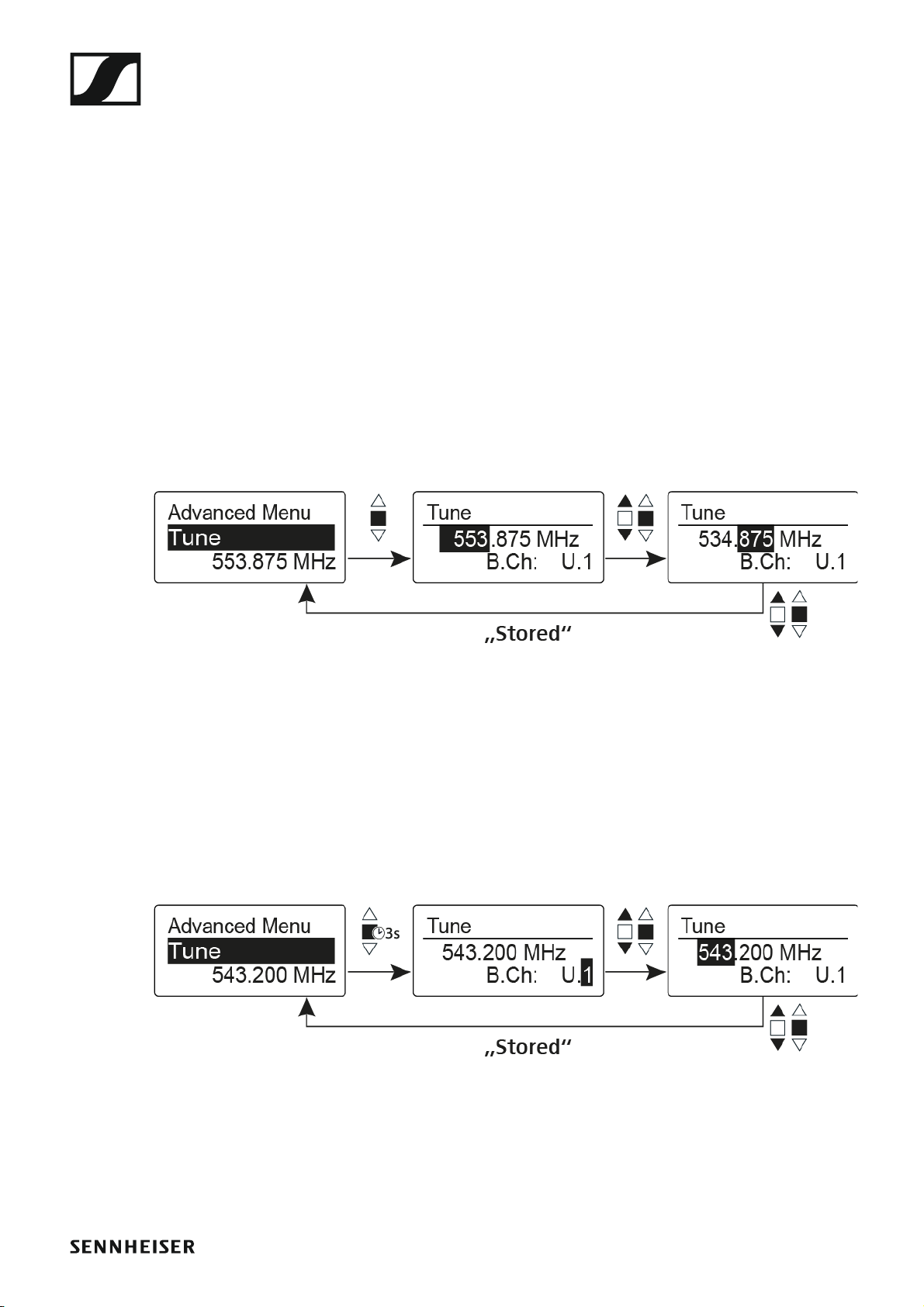
Advanced > Tune menu item
• Configuring the transmission frequency and frequency bank U
When you have configured the wireless microphone to a system bank and
you call up the Tune menu item, channel 1 of the frequency bank U is automatically set. The message U.1 briefly appears in the display. In the factory
settings, the channels of the frequency bank U are not assigned to any
transmission frequency.
While you work in the Tune menu, the RF signal is deactivated.
You can configure a transmission frequency for the current channel or select a channel in the frequency bank U and configure a transmission frequency for this channel in the Tune menu. Be sure to note the information
on frequency selection, see “Setting notes”.
Only adjusting the frequency
To configure the transmission frequency for the current channel:
▷ Open the Tune menu item in the Advanced menu.
The frequency selection appears.
►
▷ Configure the desired frequency.
▷ Press the multi-function switch.
Your settings will be saved. You are now back in the operating menu.
Setting the channel and frequency
To select a channel and assign it a frequency:
▷ Move the multi-function switch until the Tune menu item appears.
▷ Hold down the multi-function switch until the frequency bank selection
appears.
►
▷ Set the desired channel.
▷ Press the multi-function switch.
The frequency selection appears.
▷ Configure the frequency.
99
 Loading...